Samsung Electronics Co SGHI750 Single-Band PCS GSM/EDGE Phone w/ Bluetooth & WLAN User Manual 2
Samsung Electronics Co Ltd Single-Band PCS GSM/EDGE Phone w/ Bluetooth & WLAN Users Manual 2
Contents
Users Manual 2
Message, Internet, and Messenger
150
4. Follow the directions on the screen. You will need to
synchronise your phone with your computer and then
tap
My Channels
to complete the AvantGo setup.
When synchronisation is complete, tap the
AvantGo
Channels
link in the list of favourites to see a few of the
most popular channels. To add or remove channels, tap
the
Add
or
Remove
link.
WAP
Using
WAP
, you can browse the WAP (Wireless
Application Protocol) sites on your phone.
Connecting to a web site
1. From the
Start
menu, tap
WAP
.
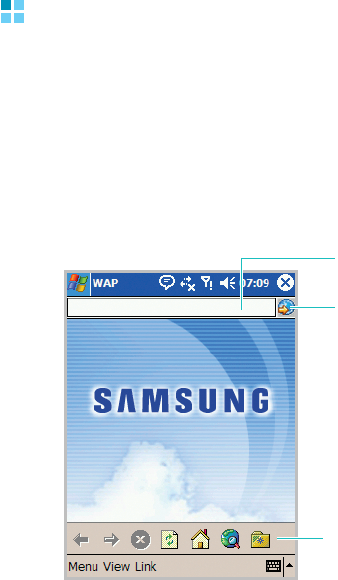
The main screen of the WAP displays, as follows.
Address bar
Tap to access the
Website after
entering a URL.
Toolbar
Message, Internet, and Messenger
151
2. To open one of your favorite sites, tap on the toolbar
and then select a Website in the list. You can also enter
an address of Website in the Address bar and tap .
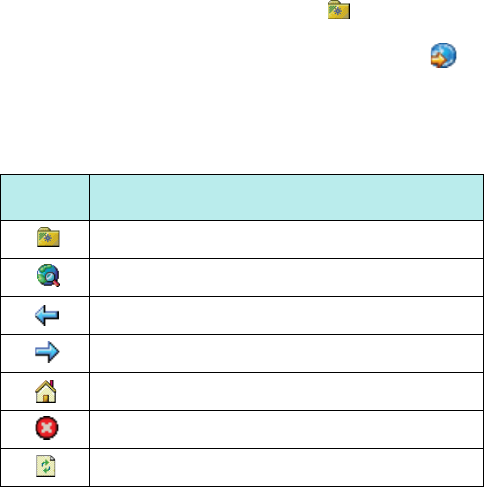
3. While you are navigating through the WAP pages, you
can use the following options by tapping icons on the
toolbar:
Opening multiple window
You can open multiple URLs at the same time in
different windows. WAP provides options to clone a
page, open a new window and to close a window.
To open a new window, on the WAP screen, tap
View
→
Window
→
New Window
.
To open a new window with the same contents as the
current window, on the WAP screen, tap
View
→
Window
→
Clone Page
.
Tap To
Display the list of favorites.
Search for a word in the current page.
Go to the previously visited page.
Go to the next page.
Go to the homepage.
Stop loading the current page.
Refresh the current page.
Message, Internet, and Messenger
152
To close the current window, on the WAP screen, tap
View
→
Window
→
Close Window
.
Using Favorites
You can store your favourite Websites and then access
them easily. Categorising them enables you to find them
more quickly.
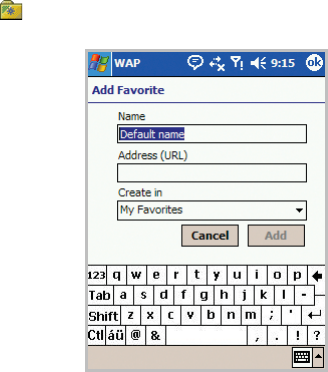
To add a favorite:
1. On the WAP screen, tap
Menu
→
Favorites
→
Add To
Favorites
. You can also access this feature by tapping
→
Add/Delete
tab
→
Add
.
2. Enter a name for the favourite site and the URL of the
site, and select a category from the list under which you
want to save the favorite. You can also create a new
category or delete a category on this screen.
Message, Internet, and Messenger
153
3. Tap
Add
.
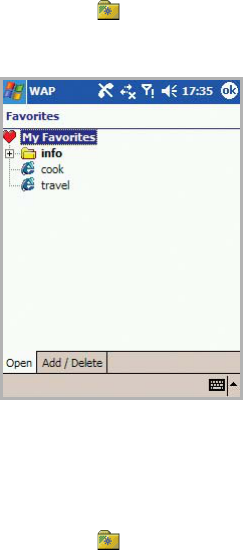
To open a page through favorites:
1. On the WAP screen, tap on the toolbar. The favorites
under the selected category are displayed on the Favorite
screen.
2. Select a category, if necessary, and select the site you
want.
To delete a favorite under a particular category:
1. On the WAP screen, tap
→
Add/Delete
tab.
2. Select the site you want to delete and tap
Delete
.
Message, Internet, and Messenger
154
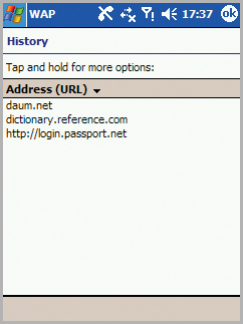
Using the history
The history list keeps track of all of the Websites you
visited.
To view the history:
On the WAP screen, tap
Menu
→
History
. The History
screen displays all of the recently visited URLs. The
history entries are displayed by page title or page URL
according to your choice.
To open a page in the history, select the URL you want.
To clear all entries in the history list, tap and hold an
entry and select
Clear All
from the pop-up menu.
To add the history to the Favorites list, tap and hold the
page and select
Add to Favorite
.
Message, Internet, and Messenger
155
Setting the WAP options
Display options
You can select the following display options:
To hide toolbar on the WAP screen, tap
View
→
Display
and deselect
Toolbar
.
To hide the address bar, tap
View
→
Display
→
Address
Bar
.
To enable graphics contents in your browser skin, on the
WAP screen, tap
View
→
Display
→
Image
.
To wrap the contents within the width of the screen, on
the WAP screen, tap
View
→
Display
→
Fit to screen
.
You have to refresh the screen after selecting this
option.
Statistics
WAP provides statistical information about the data
transfer over the web server. To view the statistical
information, on the WAP screen, tap
View
→
Statistics
.
The information about the pages viewed, objects
fetched, the number of bytes sent and received, and the
average page size are displayed.
You can also view the statistical information as a chart in
the
Chart
tab.

Message, Internet, and Messenger
156
Connection settings
You can view the current connection settings for WAP.
You can change an active profile or edit a selected
profile.
To access this feature, on the WAP screen, tap
Menu
→
Tools
→
Options
→
Preference
tab.
Cache/Cookie
Viewed pages can be cached for faster downloads,
Cookies store information related to a session. You can
select to enable or disable cache or cookie.
To access this feature, on the WAP screen, tap
Menu
→
Tools
→
Options
→
Cache/Cookie
tab. You can also
clear cache or cookie on this screen.
Using WAP help
On the WAP screen, tap
Menu
→
Help
→
Online Help
.
You can access the online help for the WAP features.
MSN Messenger
MSN
®
Messenger on your phone is an instant messaging
programme that lets you:
• see who is online.
• send and receive instant messages.
• have instant message conversations with groups of
contacts.

Message, Internet, and Messenger
157
To use
MSN Messenger
, you must have a Microsoft
Passport™ account, Hotmail account, or a Microsoft
Exchange e-mail account. If you have a Hotmail® or
MSN account, you already have a Passport. Once you
have obtained either a Microsoft Passport or a Microsoft
Exchange account, you are ready to set up your
account.
Note
: Sign up for a Microsoft Passport account at http://
www.passport.com. Get a free Microsoft Hotmail e-mail
address at http://www.hotmail.com.
To open MSN Messenger:
From the
Start
menu, tap
Programs
→
MSN
Messenger
.
Setting up
Before you can connect, you must set up the instant
messaging account(s) to use. For MSN Messenger
Service, you must enter a Microsoft Passport or Hotmail
account. For Exchange Instant Messaging, you must
enter an Exchange account.
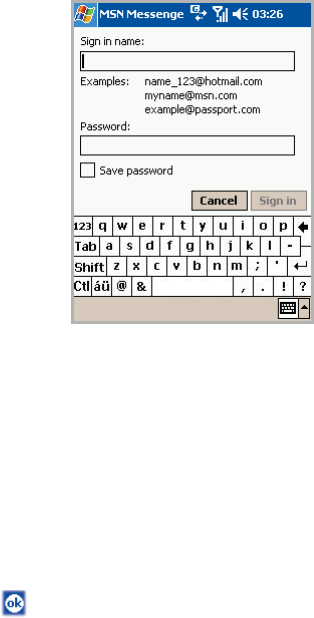
To set up an account and sign in:
1. On the MSN Messenger main screen, tap
Tools
→
Options
.
2. In the
Accounts
tab, enter your Microsoft Passport,
Hotmail account, or Exchange account information. For
details, see the online
help.
Message, Internet, and Messenger
158
3. To sign in, tap the screen, or tap
Tools
→
Sing In
on
the MSN Messenger main screen.
To change from your exchange instant messaging to
your MSN Messenger service, and sign in:
1. On the MSN Messenger main screen, tap
Tools
→
Options
→
Accounts
tab
→
Settins
.
2. Tap
Enable MSN Messenger Service
, enter your
Microsoft Passport, Hotmail account information; under
Sign in using this account first
, tap
MSN Messenger
Service
.
3. Tap .
4. To sign in, tap tap the screen, or tap
Tools
→
Sing In
on the MSN Messenger main screen.

Message, Internet, and Messenger
159
Note
: If you already use MSN Messenger on your computer,
your contacts will show up on your device without being
added again.
Working with contacts
The MSN Messenger screen shows all of your messenger
contacts at a glance, divided into
Online
and
Not Online
categories. From this view, while connected, you can
start a chat by tapping a contact in the list.
If you tap and hold a contact in the list, a pop-up menu
displays. You can send e-mail, block the contact from
chatting with you, or delete contact from your list using
the pop-up menu.
Note
: To see others online without being seen, on the
MSN
Messenger screen, tap
Tools
→
My Status
→
Appear
Offline
. If you block a contact, you will appear offline
but will remain on the blocked contact’s list. To unblock
a contact, tap and hold the contact and select
Unblock
from the pop-up menu.
Message, Internet, and Messenger
160
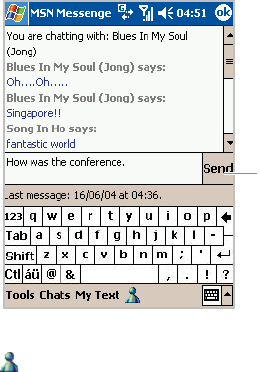
Chatting with contacts
Tap a contact name to open a chat window. Enter your
message in the text entry area at the bottom of the
screen, or tap
My Text
to enter a preset message, and
tap
Send
. To invite another contact to a multi user chat,
in the
Tools
menu, tap
Invite
and tap the contact you
want to invite.
To switch back to the main window without closing a
chat, tap on the toolbar. To revert back to your chat
window, tap
Chats
on the toolbar and select the person
whom you were chatting with.
To know if the contact you are chatting with is
responding, look for the message under the text entry
area.
Using the
Tools
menu, you can add or block a contact,
customise my text, and invite a contact into a contact.
For more information on using MSN Messenger, see the
online help by tapping the
Start
menu
→
Help
.
Tap to send
message.
Position Only

Message, Internet, and Messenger
161
MMS
With MMS, you send and receive multimedia messages
via Multimedia Message Service (MMS). In addition to
the familiar text content of text messages, multimedia
messages can contain images, video clips, and audio
clips. MMS is sent as a multimedia presentation in a
single entry, not as a text file with attachments.
Using this MMS feature, you can receive and send
multimedia messages that contain images, such as
photos or graphics you’ve downloaded from the
Internet.
MMS provides support for e-mail addressing, so that
messages can be sent from phone to e-mail, or vice
versa.
This function is available only if it’s supported by your
service provider. Only phones that offer the MMS
features can receive and display the multimedia
messages.
To open MMS:
From the
Start
menu, tap
MMS
. The MMS main screen
displays.

Message, Internet, and Messenger
162
Sending a multimedia message
You can create and send a message containing text,
photos, audio, and/or videos stored in your phone.
Creating and sending a message with one media
file
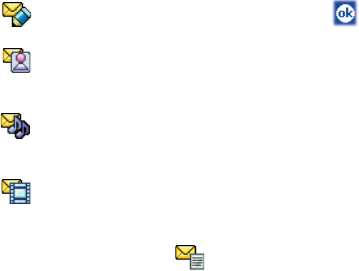
1. On the MMS main screen, tap
Send Photo
,
Send
Audio
, or
Send Video
.
2. Select the photo, audio, or video you want and tap
Menu
→
Insert
to insert the selected file to the
message.
Notes
:
• You can create and insert a new item to a message. Tap
Camera
in
Send Photo
, tap
Menu
→
Record
in
Send
Audio
, or tap
Camcorder
in
Send Video
.
• The maximum size allowed for a message can differ,
depending on the outgoing message size you have
specified. To change the outgoing message size, tap
Setting
from the MMS main screen.
3. Enter your message in the text box.
If you want to preview the message you created, tap
Menu
→
Preview
.
4. When finished composing the message, tap
Send
.
If you want to save the message in the
Drafts
folder,
tap
Menu
→
Save Message
.
Message, Internet, and Messenger
163
5. On the MMS Recipient screen, enter the recipient’s
phone numbers or e-mail addresses.
You can retrieve numbers or addresses from
Contacts
by tapping
TO
,
CC
, or
BCC
.
If you want to change the message options, such as
priority and expiry time, tap
Option
. For details, see
page 166.
6. Enter the message subject in the
Subject
field.
7. Tap
Done
to send the message.
Creating and sending a message with a
combination of media files
1. On the MMS main screen, tap
Compose
.
2. Tap and enter your message, and tap .
3. Tap and select the photo you want to insert, and tap
Menu
→
Insert
.
4. Tap and select the audio you want to insert, and tap
Menu
→
Insert
.
5. Tap and select the video you want to insert, and tap
Menu
→
Insert
.
6. To add a new page, tap . You can move to another
page by tapping
Menu
→
Previous Page
or
Next
Page
. You can also set the page to automatically move
to the next by tapping
Menu
→
Page Duration
.
Message, Internet, and Messenger
164
7. When you have finished composing the message, tap
Send
.
If you want to save the message in the
Drafts
folder,
tap
Menu
→
Save Message
.
8. On the MMS Recipient screen, enter the recipient’s
phone numbers or e-mail addresses.
You can retrieve numbers or addresses from
Contacts
by tapping
TO
,
CC
, or
BCC
.
If you want to change the message options, such as
priority and expiry time, tap
Option
. For details, see
page 166.
9. Enter the message subject in the
Subject
field.
10.Tap
Done
to send the message.
Receiving multimedia messages
When a new multimedia message comes in, the
message is stored in
Message Box
.
To open Message Box, on the MMS main screen, tap
Message Box
.
When you access
Message Box
, the list of multimedia
messages are displayed with the information about the
sender and subject. In the Detailed view mode, the
received date and expiry time of the message are
displayed.
The messages can be sorted in any of the fields
displayed, by clicking on the corresponding column
head.
Message, Internet, and Messenger
165
Viewing messages
You can access the messages you sent, you received,
and you composed but not sent yet.
1. On the MMS main screen, tap
Message Box
. The
messages in Message Box are displayed.
If you want to find a message you sent or composed but
not sent, tap the drop-down arrow at the top left and
select
Sent Items
or
Drafts
.
2. Select the message you want to read and tap
Menu
→
View
.
3. While viewing the message, you can use the following
options:
• To forward the message to other people, tap .
• To send a reply message to the sender, tap . You
can also tap
Menu
→
Reply
. To send a reply message
to all receipients, tap
Menu
→
Reply All
.
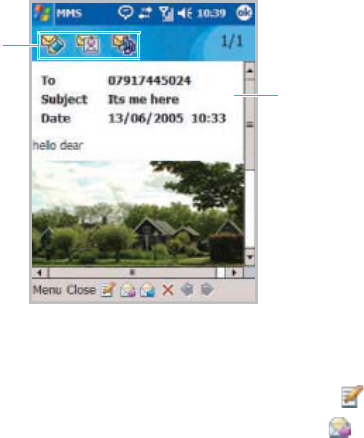
Indicates
attachments to
this message. Displays the
message details.
Message, Internet, and Messenger
166
• To forward the message to other people, tap . You
can also tap
Menu
→
Forward
.
• To delete the message, tap . You can also tap
Menu
→
Delete
.
• To download the message from the MMS server, tap
tap
Menu
→
Download
.
• To extract attachments from the messages and save
them in your phone, tap tap
Menu
→
Save Objects
.
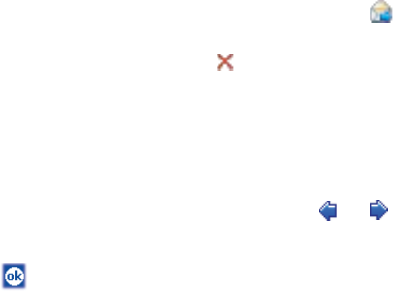
• To view the previous or next page, tap or . You
can also tap
Menu
→
Next Page
or
Previous Page
.
4. Tap or
Close
to close the message.
Configuring MMS settings
Sending options
You can change the default settings for sending MMS
messages. On the MMS Recipient screen, before sending a
message, tap
Option
.
•
Delivery Report
: When this option is selected, the
network informs you whether or not your message has
been delivered.
•
Read Reply Report
: When this option is selected, your
phone sends a read-reply request along with your
message to the recipient.
•
Delivery After
: Selects the time delay before messages
are sent.
•
Priority
: Selects the priority level of your messages.
•
Class
: Selects a message class.
•
Expiry
: Selects the length of time messages are stored
in the MMS server.
Message, Internet, and Messenger
167
Profile settings
On the MMS main screen, tap
Setting
→
Profile
tab.
•
Profile
: Displays the current connection profile. To
change the profile, tap
Edit Profile
.
•
Creation Mode
: Selects an MMS creation mode. To send
messages using unsupported formats, select
Free
. To
send messages using only supported formats, select
Restricted
. To inform you when sending messages using
unsupported formats, select
Warning
.
Configuration
On the MMS main screen, tap
Setting
→
Configuration
tab.
•
Home Reception
: Determines if your Phone retrieves
new messages automatically when you are in your home
service area.
•
Roaming Reception
: Determines if your Phone
retrieves new messages automatically when you are
roaming in another network.
•
Reject Anonymous
: Rejects messages from unknown
senders.
•
Message Class Allowed
: Selects a message class you
want to receive.

168
8
Pocket outlook
Microsoft
®
Pocket Outlook includes
Calendar
,
Contacts
,
Tasks
,
Inbox
, and
Notes
. You can use these
programmes individually or together. For example,
e-mail addresses stored in
Contacts
can be used to
address e-mail messages in
Inbox
.
Using ActiveSync
®
, you can synchronise information in
Microsoft Outlook or Microsoft Exchange on your
computer with your phone. You can also synchronise this
information directly with a Microsoft Exchange server.
Each time you synchronise, ActiveSync compares the
changes you made on your phone and computer or
server and updates both with the latest information. For
information on using ActiveSync, see “ActiveSync Help”
on the computer.
You can switch to any of these programmes by tapping
on them in the
Start
menu.
Calendar
Use
Calendar
to schedule appointments, including
meetings and other events. You can check your
appointments in one of several views (Agenda, Day,
Week, Month, and Year) and easily switch views by using
the icons on the command bar of the Calendar main
screen.
To open Calendar:
From the
Start
menu, tap
Programs
→
Calendar
. You
can view the list of appointments that you have created
in the Agenda view.
Pocket outlook
169
Creating an appointment
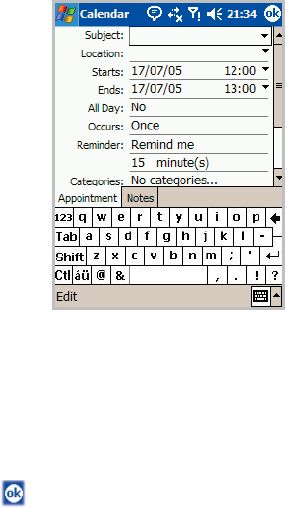
1. On the Calendar main screen, tap
New
.
If you are in Day or Week view, tap the desired date and
time for the appointment.
2. Tap first to select the field and enter a description and a
location.
3. If needed, tap the date and time to change them.
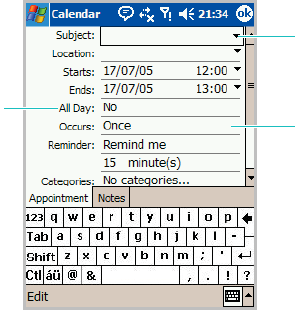
4. Enter other desired information. You will need to hide
the input panel to see all available fields.
Tap the down
arrow to choose
from predefined
text.
Tap to select the
repeat interval to set
how often the event
repeats.
Tap and select
Yes
to last the
appointment all
day.

Pocket outlook
170
5. To assign the appointment to a category, hide the input
panel and tap the
Categories
field and then select a
category from the list. In the calendar list, you can
display appointments by category.
You can also create a new category or delete it in the
Add/Delete
tab.
6. To prevent other people from viewing the appointment,
tap the
Sensitivity
field and select
Private
. The private
appointment is marked with a key icon when you view
it.
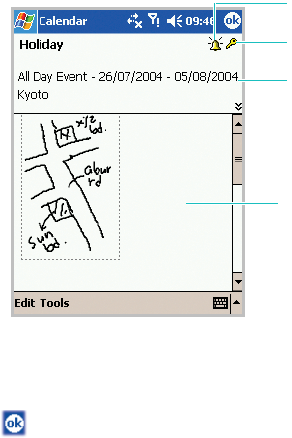
7. To add notes, tap the
Notes
tab. You can enter text,
draw, or create a recording. Note is a good place for
maps and directions.
8. When finished, tap to return to the list of
appointments.
Note
: If you select
Remind me
in the
Reminder
field of an
appointment, your phone will remind you according to
the options set in the
Start
menu
→
Settings
→
Personal
tab
→
Sounds & Notifications
.
Viewing and editing an appointment
On the Calendar screen, you can view and edit your
appointments using the different views: Agenda, Day,
Week, Month, or Year. By default, the Calendar first
appears in the Agenda view, which provides the most
detail about your appointment.
Pocket outlook
171
Note
: You can customise the Calendar display, such as
changing the first day of the week, by tapping
Options
from the
Tools
menu on the Calendar main screen. For
details, see the online help.
1. On the Calendar main screen, select the date of the
appointment in the date field at the top of the screen.
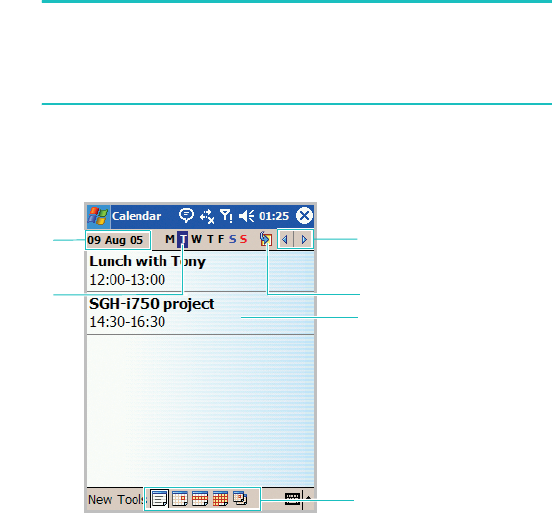
2. Select the calendar view using the five icons on the
command bar at the bottom of the screen.
Each event type is assigned a different colour to help
you find it more easily.
Select your calendar
view from Agenda, Day,
Week, Month, and Year.
Tap to display the
summary screen for the
appointment.
OR
Tap and hold to display
a pop-up menu of
actions.
Tap the left arrow to
see the week previous
or the right arrow to
see the next week.
Tap to go to today.
Tap to select
the day of the
week.
Tap to display
the calendar.
Pocket outlook
172
3. Tap the appointment you want to view.
A summary screen is displayed.
4.
Tap
Edit
and edit the appointment information.
5. Tap to save the changes.
Creating meeting requests
You can use Calendar to set up meetings with users of
Outlook or Pocket Outlook. The meeting request will be
sent automatically either when you synchronise Inbox or
when you connect to your e-mail server.
Indicates private
appointment icon.
Shows a note, if
you created one.
Shows summary
information for
the appointment.
Indicates reminder
icon.
Pocket outlook
173
Scheduling a meeting
1. Create an appointment.
2. In the appointment details, scroll to and tap the
Attendees
field.
3. From the list of e-mail addresses you have saved in
Contacts
, tap the meeting attendees you want.
4. Tap .
5. Messaging automatically creates a meeting request and
sends it to the attendees the next time you synchronise
with your computer. Any textual notes entered in the
Notes
tab (excluding writings or recordings) will be also
sent.

Pocket outlook
174
Note
: If you are sending the meeting request through a
connection to an ISP or the network, rather than
through synchronization with your computer, tap
Tools
→
Options
→
Appointments
tab. In
Send meeting
requests via
, tap the service you want to use to send
the meeting request.
For more information on sending and receiving meeting
requests, see the Calendar online help and Inbox online
help.
Deleting an appointment
1. On the Calendar main screen, tap and hold the
appointment you want to delete.
2.
Select
Delete Appointment
from the pop-up menu
.
3. Tap
Yes
to permanently delete the appointment.
Beaming an appointment
1. On the Calendar main screen, tap and hold the
appointment you want to beam.
2. Select
Beam Appointment
from the pop-up menu.
3. When using the infrared connection, align the infrared
ports according to the instructions on
page 252
so that
they are unobstructed and within a close range.

Pocket outlook
175
Contacts
Contacts maintains a list of your friends and colleagues
so that you can easily find the information you’re
looking for, whether you’re at home or on the road.
Using the device’s infrared (IR) port, you can quickly
share Contacts information with other device users.
To open Contacts:
From the
Start
menu, tap
Contacts
. You can view the
list of the contacts that you have created.
Creating a contact
You can create a new contact in Contacts and on the
SIM card.
Creating a contact in Contacts
1. On the Contacts main screen, tap
New
.
2. Enter a name and other contact information. You will
need to scroll down to see all available fields.
3. To assign the contact to a category, scroll to and tap the
Categories
field and then select a category from the
list. In the contact list, you can display contacts by
category.
You can also create a new category or delete it in the
Add/Delete
tab.
4. To add notes, tap the
Notes
tab. You can enter text,
draw, or create a recording.
Pocket outlook
176
Note
: If you enter a name with more than 2 words, the middle
word will be recorded as a middle name. If your contact
has a double first or last name, tap the down arrow in
the Name field and enter the names in the proper box.
5. When finished, tap to return to the contact list.
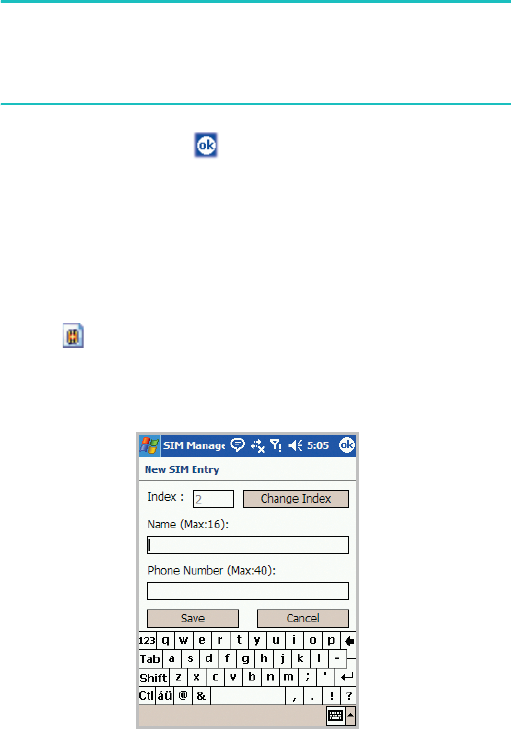
Creating a contact on the SIM card
1. On the Contacts main screen, tap
Tools
→
SIM
Manager
.
The SIM Manager application displays.
2. Tap to create a new SIM entry.
3. On the New SIM Entry screen, enter the name of the
person you want to add.
If necessary, tap
Change Index
to change the location
number.
Pocket outlook
177
4. Enter the number you want to store in the
Phone
Number
field.
5. Tap
Save
.
Viewing and editing a contact
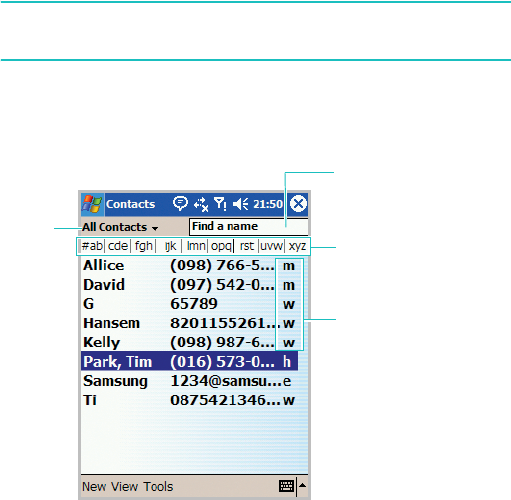
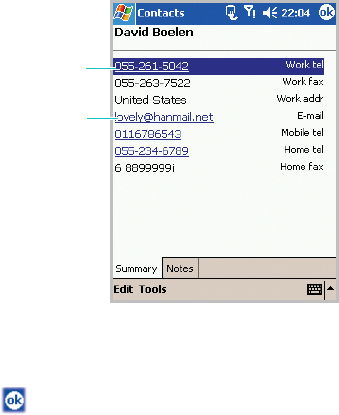
When you access Contacts, the contact list displays the
names of your contacts alphabetically, along with an
abbreviation for the primary contact number or E-mail
address, such as the person’s work phone number (w)
or mobile phone number (m).
Note
: To change the way information is displayed in the list,
tap
Tools
→
Options
.
1. In the contact list, tap the contact’s name you want to
view.
Tap to quickly
locate the contacts
alphabetically.
Tap and enter a
name to quickly
find it in the list.
Category field
Tap this field to see
additional numbers,
if several are
stored.
Pocket outlook
178
If the contact is assigned to a certain category, tap the
category field and select the category from the list. A list
of contacts placed in that category displays.
2. Tap a contact’s name or a phone number. A summary
screen is displayed.
3. Tap
Edit
and edit the contact information.
4. Tap to save the changes.
Making a call from the contact list
1. In the contact list, tap and hold the contact you want to
call.
2. Tap
Call Work
,
Call Home
, or
Call Mobile
.
You can also call the contact while viewing the selected
contact’s information. Tap the phone number you want
to call.
Tap to send
an e-mail.
Tap to dial the
number.

Pocket outlook
179
Sending a message to a contact
1. In the contact list, tap and hold the contact to which you
want to send a message. To select multiple contacts, tap
and drag.
2. On the pop-up menu, tap
Send Email
,
Send MMS
, or
Send Text Message
, depending upon the type of
message to send.
Note
: To send an e-mail message, you must have an e-mail
address configured for the contact. To send a text
message, you must have a text message number for
the contact, which is usually the mobile phone number.
Deleting a contact
Note
: If you delete a contact on your phone and synchronise
Contacts
with your computer, you also delete the
contact in Outlook on your computer.
1. In the contact list, tap and hold the contact you want to
delete.
If the contact is assigned to a certain category, tap the
category field and select the category from the list.
2. Tap
Delete Contact
.
3. Tap
Yes
to permanently delete the contact.
You can also delete the contact by selecting
Delete
Contacts
from the
Tools
menu.
Pocket outlook
180
Notes
Quickly capture thoughts, reminders, ideas, drawings,
and phone numbers with
Notes
. You can create a
written note or a recording. You can also include a
recording in a note. If a note is open when you create
the recording, it will be included in the note as an icon.
If the note list is displayed, it will be created as a stand-
alone recording.
To open notes:
From the
Start
menu, tap
Programs
→
Notes
. You can
view the list of your notes that you have created.
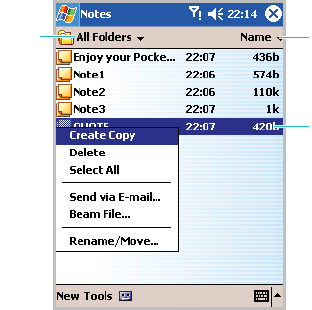
Creating a note
1. On the Notes main screen, tap
New
.
Tap to write on
the screen.
Tap to add a recording
to the note.
Pocket outlook
181
2. Create your note by writing, drawing, typing, using the
keypad, and/or recording. For more information about,
see Chapter 3.
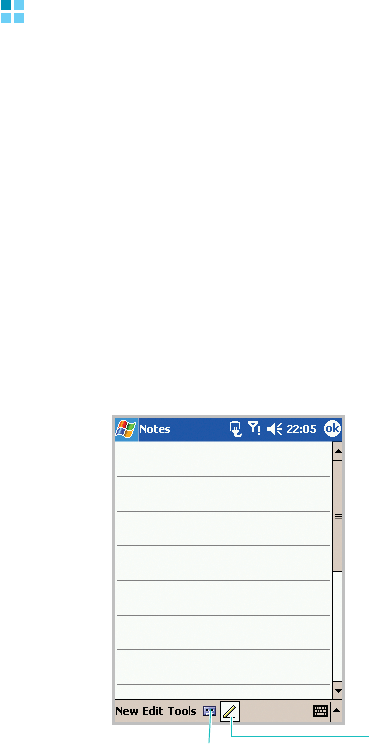
Viewing and editing a note
When you access the Notes application, the note list
displays the first line of each note you create. This
makes it easy to locate and review your notes. You can
easily sort notes on the note list.
1. In the Notes list, tap the note you want to view.
If the note is assigned to a certain category, tap the
category field and select the category from the list.
Tap to change the
sort order of the list.
Tap to view the note
details.
OR
Tap and hold to
display a pop-up
menu of actions.
Category
field

Pocket outlook
182
2. A summary screen is displayed.
3. Tap
Edit
and edit the note information.
4. Tap to save the changes.
Deleting a note
1. In the note list, tap
and hold a note and select
Delete
from the pop-up menu.
You can also tap
Tools
→
Delete Note
.
2. Tap
Yes
to permanently delete the note.
Tasks
Tasks is a convenient place to create reminders of the
things that you have to do. A task can be entered to
occur once or repeatedly, depending on the demands of
the task.
Creating a task
1.
From the
Start
menu, tap
Programs
→
Tasks
. You
can view the list of tasks that you need to do.
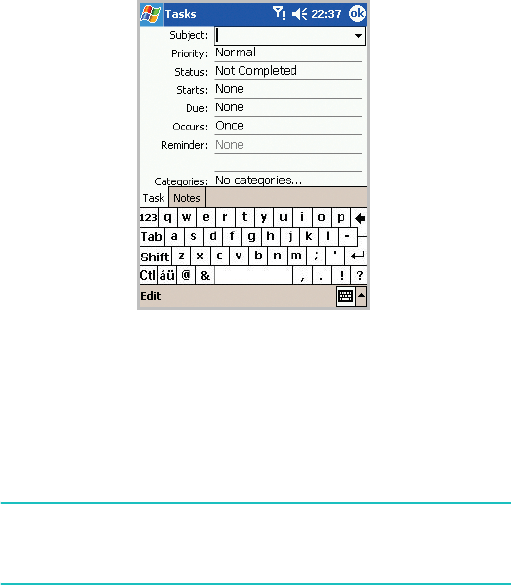
2. To quickly create a task with only a subject, tap
Tap
here to add a new task
box at the top of the screen.
Then enter your task information. If you cannot see the
box, tap
Entry
Bar
on the
Tools
menu.
Pocket outlook
183
3. To create a task, tap
New
.
4. Enter a description of the task.
5. To set a reminder for the task, tap the
Due
field and set
a due date. Then tap the
Reminder
field and select
Remind me
. You will be reminded at 8:00 in the
morning on the due date.
Note
: To be automatically reminded of new tasks with a due
date, in the task list, tap
Tools
→
Options
→
Set
reminders for new items
.
6. To assign the task to a category, scroll to and tap the
Categories
field and then select a category from the
list. In the task list, you can display tasks by category.
You can also create a new category or delete it in the
Add/Delete
tab.
Pocket outlook
184
7. To prevent other people from viewing the task, tap the
Sensitivity
field and select
Private
. The private task is
marked with a key icon when you view it.
8. To add notes, tap the
Notes
tab. You can enter text,
draw, or create a recording.
9. When finished, tap .
Viewing and editing a task
When you access the Tasks application, the task list
displays. The task list shows your “things to do” list. You
can also change the task information.
Note
: To change the way information is displayed in the list,
tap
Tools
→
Options
.
1. Tap the task you want to view.
Pocket outlook
185
If the task is assigned to a certain category, tap the
category field and select the category from the list.
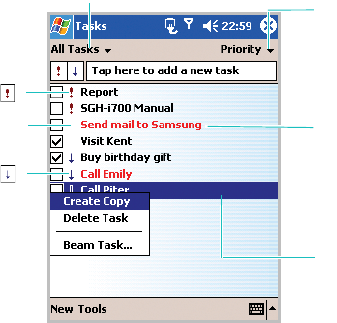
Select the sort
order of the list.
Tap a task in the
list to display a
task or edit its
details.
OR
Tap and hold to
display a pop-up
menu of actions.
When the due date
of the task has
passed, the colour
of the task changes
to red.
Category field
High priority ( )
Low priority ( )
Normal priority
(no indicator)
Pocket outlook
186
2. A summary screen is displayed.
3. Tap
Edit
and edit the task information.
4. Tap to save the changes.
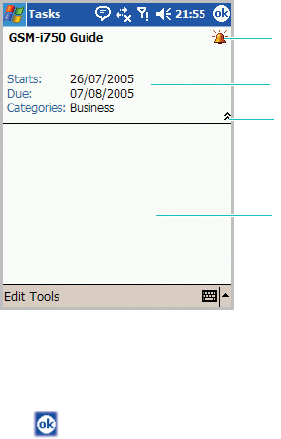
Shows summary
information of the task.
Tap to show and hide
additional summary
information.
Shows a note, if you
created.
Indicates the
reminder icon.
Pocket outlook
187
Completing or deleting a task
1. To mark a task as completed, in the task list, tap the
check box next to the task.
2. To delete a task, in the task list, tap and hold the task.
3. On the pop-up menu, tap
Delete Task
. The next time
you synchronise, the task will be deleted from the
computer.
4. Tap
Yes
to permanently delete the task.
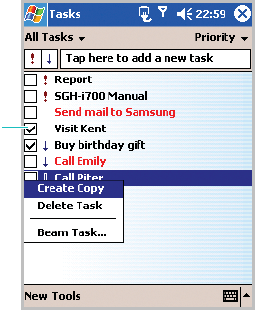
When a task is completed,
tap this check box to indicate
that the item is done.
188
9
Multimedia
Camera
With the built-in camera on your phone, you can take
pictures of people or events while on the move. You can
view and edit photos. Your phone supports JPEG, GIF,
PNG, and BMP pictures.
To open Camera:
From the
Start
menu, tap
Camera
. You can also press
on the right side of the phone.
Taking pictures
1.
From the
Start
menu, tap
Camera
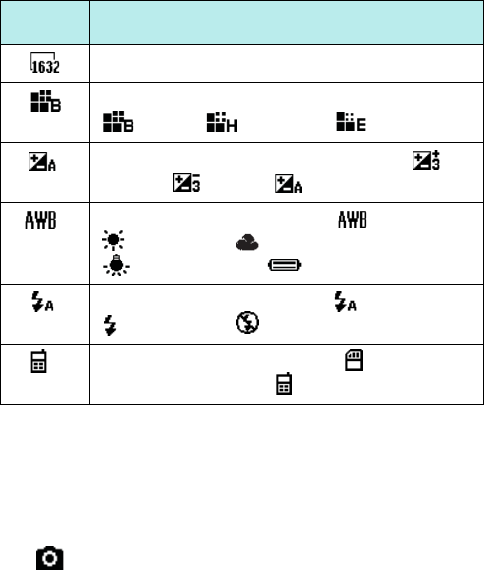
to turn on the
camera. You can view the image to be captured.
Multimedia
189
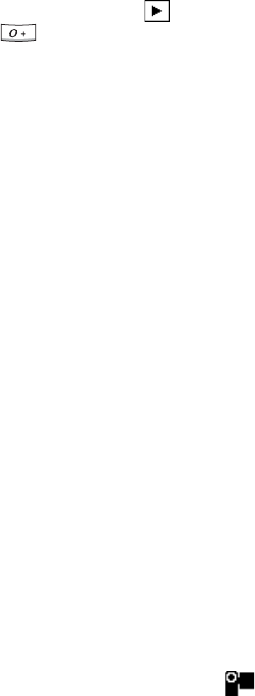
2. Adjust the camera settings using the following onscreen
icons.
Tap the up arrow or down arrow on the right side of the
screen to zoom in or out.
You can also access camera options by tapping
Menu
.
See the next section.
3. Tap to take a picture. The taken picture displays on
the preview screen.
Icon Description
Selects an image resolution.
Selects an image quality setting:
(Best), (High), or (Economy).
Adjusts the image brightness: from
(+3) to (-3) or (Auto).
Adjusts the white balance: (Auto),
(Daylight), (Cloudy),
(Tungsten), or (Fluorescent).
Changes the flash setting: (Auto),
(Forced), or (Off).
Changes a storage location: (Safe Store
or Storage Card) or (Phone’s memory).
Multimedia
190
4. To save a photo, tap
Save
.
The picture is saved in the
My Pictures
folder.
To delete it and return to the Camera preview screen,
tap
Cancel
.
To send the picture via MMS, tap
MMS
.
See page 162.
Options available in Camera mode
When you tap
Menu
from the Camera preview screen,
the following options are available:
•
Shot Mode
: allows you to change the camera shooting
mode. If you select
BCR Shot
, see the
BCR
application. See page 216.
•
Resolution
: allows you to select an image resolution.
•
Quality
: allows you to select an image quality setting.
•
White Balance
: allows you to customise the white
balance to make your photo warmer or cooler,
depending on lighting conditions.
•
Flash
: allows you to change the flash settings.
•
Brightness
: allows you to adjust the image
brightness.
•
Self Timer
: allows you to set a time delay before the
camera takes a photo.
•
Photo Effect
: allows you to apply a special effect.
•
Go to
: allows you to move to Camcorder mode or the
My Pictures
folder in
MyItems
.
•
Settings
: allows you to configuring Camera mode.
See page 191.
Multimedia
191
Viewing photos
To view all of your photos, tap
at the bottom of the
screen or press from the Camera preview screen. The
My Pictures
folder
in
MyItems
opens and displays the
photos you have taken.
Configuring Camera mode
From the Camera preview screen, tap
Menu
→
Settings
→
Camera
tab to access the following options for
Camera mode.
•
Default image directory
: allows you to select the
default memory location.
•
File name prefix
: allows you to set the default name
prefix for photos.
•
Shutter sound
: allows you to select the sound
produced when you press the camera shutter.
•
Timer sound
: allows you to select the sound produced
when the timer counts down.
•
Multi-shot number
: allows you to select the number
of shots the camera will take in Multi Shot mode.
•
Auto save
: allows you to set the camera to
automatically save photos after taking.
Recording a video
1. From the
Start
menu, tap
Camera
to turn on the
camera.
2. Switch to Camcorder mode by tapping at the
bottom of the screen.
Multimedia
192
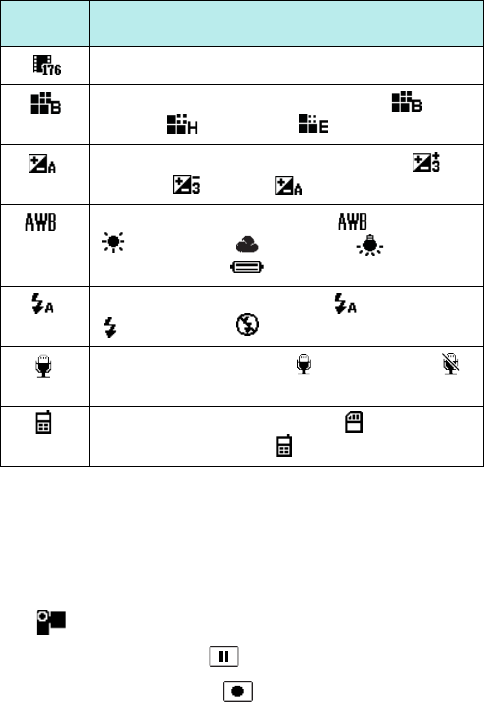
3. Adjust the camcorder settings using the onscreen icons.
Tap the up arrow or down arrow on the right side of the
screen to zoom in or out.
You can also access camera options by tapping
Menu
.
See the next section.
4. Tap to start recording.
To pause recording, tap .
To resume recording, tap .
Icon Description
Selects an image resolution.
Selects an image quality setting:
(Best), (High), or (Economy).
Adjusts the image brightness: from
(+3) to (-3) or (Auto).
Adjusts the white balance: (Auto),
(Daylight), (Cloudy),
(Tungsten), or (Fluorescent).
Changes the flash setting: (Auto),
(Forced), or (Off).
Turns audio on or off: (Audio on) or
(Audio off).
Changes a storage location: (Safe Store
or Storage Card) or (Phone’s memory).

Multimedia
193
5. When you have finished recording, tap .
6. To save a video, tap
Save
.
The video is saved in the
My
Videos
folder.
To delete it and return to the Camcorder preview screen,
tap
Cancel
.
To send the video via MMS, tap
MMS
.
See page 162.
Options available in Camcorder mode
When you tap
Menu
from the Camcorder preview
screen, the following options are available:
•
Resolution
: allows you to select an image resolution.
•
Quality
: allows you to select an image resolution.
•
White Balance
: allows you to customise the white
balance to make you video image warmer or cooler,
depending on lighting conditions.
•
Flash
: allows you to change the flash settings.
•
Brightness
: allows you to adjust the video image
brightness.
•
Sound on
/
Sound off
: allows you to turn audio on or
off.
•
Self Timer
: allows you to set a time delay before the
camera record a video.
•
Movie effect
: allows you to apply a special effect.
•
Go to
: allows you to move to Camera mode or the
My
Videos
folder in
MyItems
.
•
Settings
: allows you to configure Camcorder mode.
Multimedia
194
Playing videos
To access all of your videos, tap
at the bottom of the
screen or
press
from the Camcorder preview screen.
The
My Videos
folder
in
MyItems
opens and displays the
videos you have recorded.
Configuring Camcorder mode
On the Camcorder preview screen, tap
Menu
→
Settings
to access the following options for Camcorder mode:
•
Default video directory
: allows you to select the
default memory location.
•
File name prefix
: allows you to set the default name
prefix for videos.
•
Start sound
: allows you to select the sound produced
when the camcorder start recording.
•
End sound
: allows you to select the sound produced
when the camcorder ends recording.
•
Auto save
: allows you to set the camcorder to
automatically save a video after recording.
MyItems
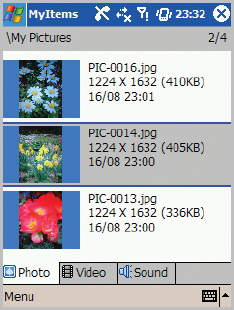
In
MyItems
, you can access photos, videos, sounds you
have stored in your phone. You can also delete or send
the items.
Multimedia
195
Photos
Viewing photos
1. From the
Start
menu, tap
MyItems
→
Photo
tab.
2. The photos you have taken display with the file name
and time and date when it was taken.
3. Tap the photo you want to view.
4. To view the previous or next photo, tap the left arrow or
right arrow on the screen, or press the Left or Right key.
For the options available when you are viewing a photo,
see the following section.

Multimedia
196
Options available while viewing a photo
Zooming
•Tap
or to zoom in out.
• To enlarge the photo, tap
. To return to Best fit view
mode, tap .
Viewing a slide show
A slide show is a sequential presentation of each of the
photos.
1. While viewing a photo, tap at the bottom of the
screen, or tap
Menu
→
Slide Show
to view a slide
show.
2. To stop the slide show, tap the screen and then .
Deleting a photo
1. On the My Pictures screen, tap and hold the photo you
want to delete.
2. Tap
Delete
from the pop-up menu.
3. When the confirmation message appears, tap
Yes
.
Editing a photo
You can edit the photos using general editing tools.
1. From the My Pictures screen, select a photo you want to
edit and tap
Menu
→
Edit
.
Multimedia
197
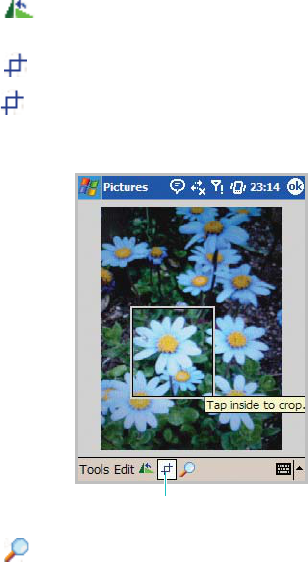
2. Edit the photo by tapping
Tools
,
Edit
, and editing tool
icons at the bottom of the screen.
• Use to rotate the image 90 degrees counter-
clockwise.
• Use to crop the image.
Tap and then draw a box with the stylus pen
around the area you wish to crop. Tap once inside the
box you have drawn and your picture will be cropped.
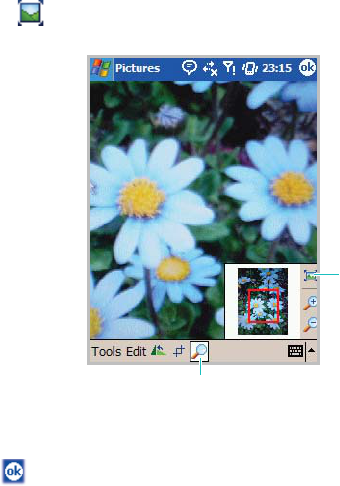
• Use to open the zoom panel.
By default your image is in Best Fit view mode when
you open the image.
Pan around the red boxed area to focus a portion of
the picture into view. Press panel buttons to zoom
in or out of the area highlighted by the red box.
Crop icon
Multimedia
198
Tap on the zoom panel to return to Best Fit view
mode.
For details, see the online help.
3. Tap .
4. When a confirm message appears, tap
Yes
to save the
edited photo.
Sending a photo
You can send a photo to another phone via MMS, e-mail,
or the infrared (IR) port.
From the My Picture screen, tap
Menu
→
Send
→ a
sending method.
• If you want to send a photo via MMS, see page 162.
• If you want to send a photo via e-mail, see page 141.
Best fit view
Zoom icon
Multimedia
199
• If you want to send a photo via the infrared (IR) port,
see page 252.
Videos
Playing videos
1. From the
Start
menu, tap
MyItems
→
Video
tab.
2. The videos you have recorded display with the file name
and time and date when it was saved.
3. Tap the video you want to play.
Deleting a video
1. From the My Videos screen, tap and hold the video you
want to delete, and tap
Delete
. You can also delete a
video by tapping
Menu
→
File
→
Delete
.
2. When a confirm message appears, tap
Yes
.
Sending a video
You can send a video via MMS, e-mail, or the infrared
(IR) port.
From the My Videos screen, tap
Menu
→
Send
→ a
sending method.
• If you want to send a video via MMS, see page 162.
• If you want to send a video via e-mail, see page 141.
• If you want to send a video via the infrared (IR) port,
see page 252.

Multimedia
200
Sounds
Playing sounds
1. From the
Start
menu, tap
MyItems
→
Sound
tab.
The sounds display with the file name and time and date
when it was recorded.
2. Tap the sound you want to play. You can also tap
Menu
→
Play
.
To stop playing, tap .
To resume playing, tap .
Deleting a sound
You can delete a sound stored in the
My Music
folder.
1. From the My Music screen, tap and hold the sound you
want to delete, and tap
Delete
. You can also delete a
sound by tapping
Menu
→
File
→
Delete
.
2. When a confirm message appears, tap
Yes
.
Sending a sound
You can send a sound via MMS, e-mail, or the infrared
(IR) port.
From the My Music screen, tap
Menu
→
Send
→ a
sending method.
• If you want to send a sound via MMS, see page 162.
• If you want to send a sound via e-mail, see page 141.
• If you want to send a sound via the infrared (IR) port,
see page 252.
Multimedia
201
Pictures
Using
Pictures
, you can view photos stored in the
My
Pictures
folder on your phone or a memory card, if
inserted into the phone.
To open Pictures:
From the
Start
menu, tap
Programs
→
Pictures
. The
photos display in Thumbnail mode.
• To view photos in a memory card, tap .
• To view photos in the
My Pictures
folder, tap
.
• To view a slide show of photos, tap
. You can set the
length of time each photo remains on the screen by
tapping
Tools
→
Options
→
Slide Show
tab. For
details, see the online help.
• To edit a photo, tap the photo you want. The photo
opens in Edit mode. See “Editing a photo” on
page 196.
• To set a photo as wallpaper for the Today screen, while
viewing the photo, tap
Tools
→
Set as Today
Wallpaper
.

Multimedia
202
Windows Media player
Your phone is equipped with Microsoft Windows Media
Player 10 for Pocket PC. With Windows Media Player, you
can play Windows Media Audio, Windows Media Video,
and MP3 audio files that are stored on your phone, a
memory card, or on the Web (network).
To open Windows Media Player:
From the
Start
menu, tap
Programs
→
Windows
Media
.
The Library screen opens. For more information on
using libraries, see page 205.
About DRM, licenses, and protected files
Some digital media files, such as songs downloaded
from online stores, are encrypted to prevent the files
from being unlawfully distributed or shared. Content
providers use a technology called Digital Rights
Management (DRM), to encrypt the files. During the
encryption process, the content provider creates a
license which specifies how and when the file can be
used.
For example, a content provider could create a license
that allows you to play a certain file on your computer,
but not on your phone. Or, a license that allows you to
play a certain file on your phone, but only for a month,
or perhaps only a certain number of times. Files that
have licenses associated with them are called protected
files.
Multimedia
203
If you want to copy a protected file from your computer to
your phone, use the desktop Media Player to synchronise
the file to your phone. This will ensure that the license is
copied along with the protected file. In the desktop version
of Windows Media Player 10 or later, you can use
Acti
veSync
to automatically copy your audio files, video
files, and play lists to your phone every time you connect.
Copy media files using the desktop player
In addition to ActiveSync (page 89), you can use the
desktop player to copy media files. Using the desktop
player ensures that licenses are copied with protected
files.
Make sure that you have Windows Media Player 10 or
later versions on your computer. Depending on the
version of your desktop player, the procedure to copy
files may vary.
Selecting synchronisation mode
When you synchronise your phone with Windows Media
Player on a computer for the first time, you need to set
up synchronisation for your phone.
1. Connect your phone to your computer.
2. Open Windows Media Player on your computer. The
Device Set up Wizard starts.
3. Select a synchronisation method:
•
Automatic
: The player synchronises content to the
device when you connect it to your computer or when
you change synchronisation settings.
Multimedia
204
•
Manual
: You can select specific files or play lists you
want to synchronise each time you want changes to
the content on your phone.
You can switch between automatic and manual
synchronisation.
To change the synchronisation method:
1. In Windows Media player, click
Library
.
2. In the Contents pane, right-click the device, and then
click
Change Sync Settings
.
3. In the
Synchronization Settings
dialogue box, clear
or select the
Synchronize device automatically
check box to select the mode you want.
Using automatic synchronisation
If you set automatic synchronisation from the Device
Set up Wizard, the synchronisation automatically begins
when you connect your phone to the computer.
Using manual synchronisation
If you set manual synchronisation from the Device
Setup Wizard, you must specify the content you want to
synchronise before starting synchronisation.
1. Connect your phone to the computer and start
synchronisation using a PC data link cable.
2. Open Windows Media Player on the computer.
Multimedia
205
3. Click Library, click
<List Name> List
, and then click
Sync List
.
If necessary, to clear the list before beginning, click
Sync List
, and then click
Clear List
.
4. Drag items from the Contents or Details pane in your
library to the List pane to add them to the list of items to
be synchronised.
5. In the List pane, verify that the items you have selected
to synchronise will all fit on the device.
6. Click
Start Sync
.
Using libraries
A library is a file list provided by Windows Media Player
to retrieve media files in the phone’s memory or a
memory card.
The Library screen contains categories, such as My
Music, My Videos, My TV, and My Playlists. Using the
Library screen, you can sort your content by criteria,
such as artist name, album title, or genre.
From the Windows Media Player main screen, tap
Menu
→
Library
.
On the Library screen, you can use the following options
by tapping
Menu
.
•
Queue Up
: Adds the selected file to the end of the
current play list.
•
Delete from Library
: Deletes the selected file from
the library.

Multimedia
206
•
Library
: Allows you to select the library that you want
to view (for example, the library of files stored on your
phone or a memory card).
•
Update Library
: Adds new files to the library by
searching your phone or a memory card. Tap
Search
to start searching for new media files and add them to
the corresponding library. When adding files has been
finished, tap
Done
.
•
Open File
: Allows you to search for media files you
want to play from the file system.
•
Properties
: Displays information about the selected
file.
Playing music and video files
If you have copied media files in your phone’s memory
or memory card, you can play them from Windows
Media Player.
Playing media files from a library
1. On the Library screen, if necessary, tap
Menu
and
select
Library
and then select the memory that you
want to use.
2. Select a category, such as
My Music
or
My Videos
.
3. Scroll to the library you want to play and tap
Play
.
Note
: If the file does not appear in a library, on the Library
screen, tap
Menu
→
Open File
. On the File System
screen, select the file you want to play.
Multimedia
207
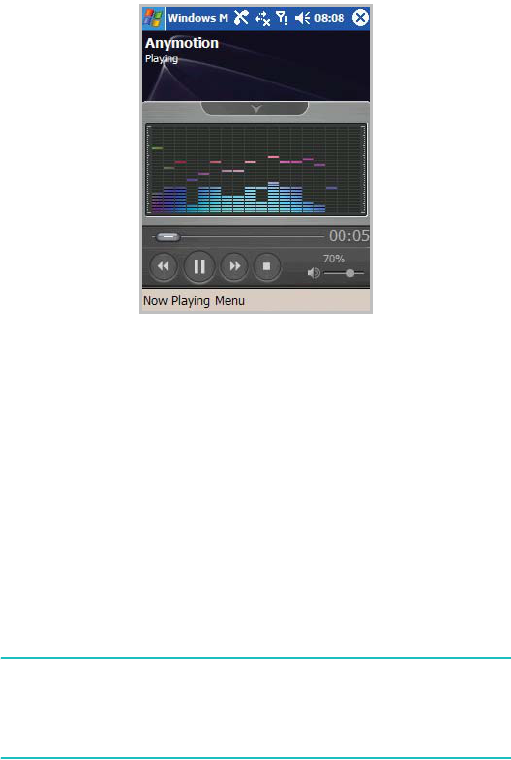
The player screen displays and the selected file plays.
To play the files in the play list randomly or repeatedly,
tap
Menu
→
Shuffle
/
Repeat
.
Playing media files on a network
1. On the Windows Media Player screen,
tap
Menu
→
Open
URL
.
2. Enter a URL in the
URL
field.
Or scroll to a URL that you have used in the
History
field.
3. Tap
OK
.
Note
: To play streaming media, you must be connected to a
network. For more information on creating a remote
connection between your portable phone and a network,
see the Connection online help.

Multimedia
208
Setting up a play list
You can add media files on the Library screen to a
temporary play list. It lists the currently playing file, as
well as any files that have been queued up to play next.
Creating a play list
1. On the Library screen, select the category you want and
scroll to the file you want to play.
2. If the file does not appear on the list,
tap
Menu
→
Update Library
. You can also select
Open File
to
display the File System screen and search the files you
want.
3.
Tap
Menu
→
Queue Up
.
4. Repeat from step 1 to add more files.
5. Tap to return to the player screen.
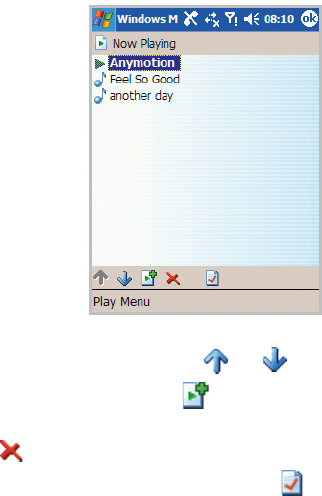
Viewing the play list
On the Windows Media Player screen, tap Now Playing.
Multimedia
209
The Now Playing screen displays.
To scroll through files, tap
or
.
To go to the library, tap
.
To delete the selected file from the current play list,
tap
.
To display the file information, tap
.
Editing the play list
• To change the play order,
tap
Menu
→
Move Up or
Move Down.
• To delete the selected files,
tap
Menu
→
Delete from
Playlist.
• To clear the play list,
tap
Menu
→
Clear Now Playing.
Multimedia
210
Changing Window Media Player settings
You can customise the appearance and functionality of
Windows Media Player. On the Windows Media Player
screen,
tap
Menu
→
Options.
You can use the following options:
•Playback: Selects the options for playback. You can
select the way time is displayed on the player screen,
or whether or not to pause playback when you launch
another programme, and resume playback after a
phone call.
•Audio/Video: Selects the viewing options for playing
videos, such as shrinking oversized videos and playing
videos in a full screen.
•Network: Changes network connection settings to be
used for playing streaming videos.
•Library: Selects whether the player screen or the
Library screen is displayed when you open Windows
Media Player.
•Skins: Changes the appearance of the player screen
by selecting a new skin.
•Buttons: Assigns Windows Media Player functions to
the keys on your phone to quickly control playback
without having to use the menus.
Multimedia
211
R2VS
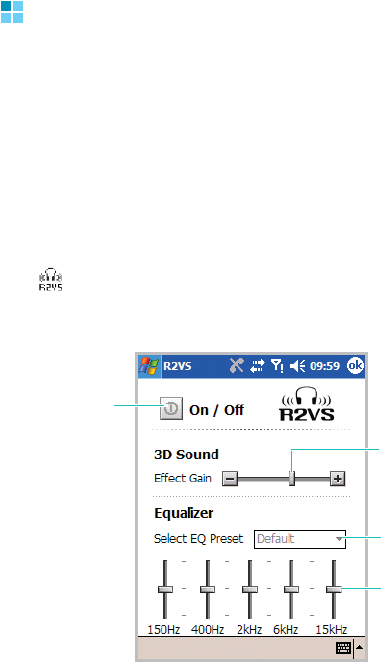
Samsung R2VS is a suite of audio enhancement
technologies designed to improve the quality of mobile
audio, e.g., cellular phone sound quality.
The R2VS feature provides great audio performance
with 3D sound effect and 5-band graphic equaliser
allowing both a headset and speaker to deliver natural
3D sound image in rich and clear tones.
To open R2VS:
Tap on the bottom right in Idle mode. You can also
open it by tapping the
Start
menu
→
Settings
→
System
tab
→
R2VS
.
Tap to activate
R2VS. Move the slider
to set 3D sound
effect gain.
Select a preset
equalizer.
Move the slider
to set equalizer
gain for each
band.
212
10
Extra programmes
Games
Your phone includes fun games, such as Jawbreaker and
Solitaire in the
Games
application.
To open Games:
From the
Start
menu, tap
Programs
→
Games
.
Note
: For details about game, see the online help.
Playing jawbreaker
1. On the Games screen, tap
Jawbreaker
.
2. On the Jawbreaker screen,
tap
Game
→
New Game
→
Yes
. The game starts.
Tap
Info
to view statistics or information about the
game.
You can set the game options by tapping
Options
from
the
Game
menu.
Playing solitaire
On the Games screen, tap
Solitaire
→
New
. The game
starts.
When you want to restart the game, tap
New
. To stop
the game, tap at the top right of the screen.
You can set the game options by tapping
Options
from
the
Tools
menu.
Extra programmes
213
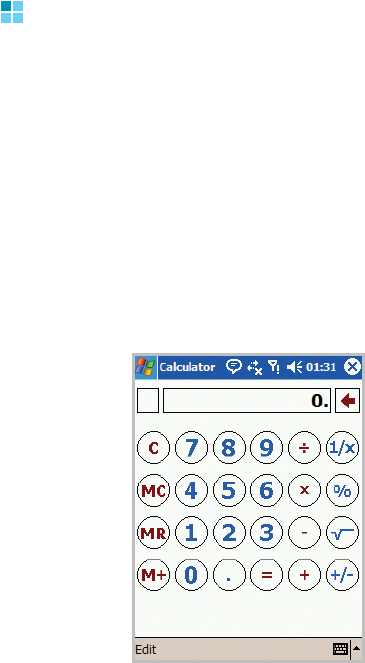
Calculator
The calculator allows you to perform general
mathematical functions, such as addition, subtraction,
multiplication, and division.
You can use the calculator to:
• perform basic calculations.
• store and retrieve values.
• display the last series of calculations.
Using the calculator
1. From the
Start
menu, tap
Programs
→
Calculator
.
Extra programmes
214
2. Enter the first number by using the Calculator buttons
on the screen.
To clear the displayed numbers, tap
C
.
To clear the last digit entered in a multi digit entry, tap
the arrow to the right of the entry box.
3. Tap the math function.
4. Enter the second number.
5. To view the result, tap
=
.
Storing a number
1. In Calculator, tap the box to the left of the entry box. An
M
will appear in the box.
2. To add the displayed number to the number that’s
already in memory, tap
M
+.
3. To display the number in memory, tap
MR
.
4. To clear memory, tap
MC
.
Extra programmes
215
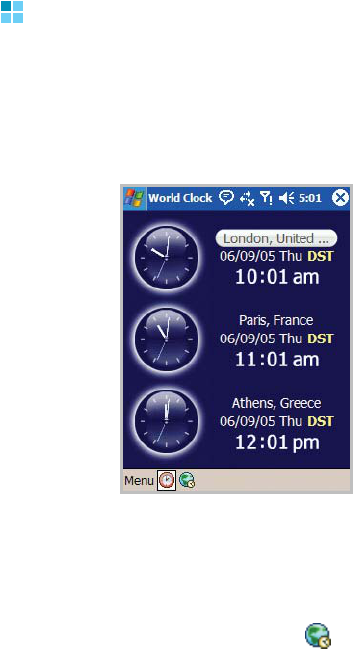
World Clock
The World Clock enables you to check the time and date
in many cities all over the world.
To open World Clock:
From the
Start
menu, tap
Programs
→
World Clock
.
• To change the view mode, tap
Menu
and select the
view mode you want.
• To change the city, tap the city you want from the list
and tap
Select
.
• To move to the world map, tap .
Extra programmes
216
BCR
BCR allows you to take a photo of a name card and
extract contact information from the card, and save it as
a new contact in Contacts.
To open BCR:
From the
Start
menu, tap
Programs
→
BCR
.
Select a language
Before using this programme, you can change the
language in which BCR recognises name cards.
From the BCR View screen, tap
Setting
and select a
language.
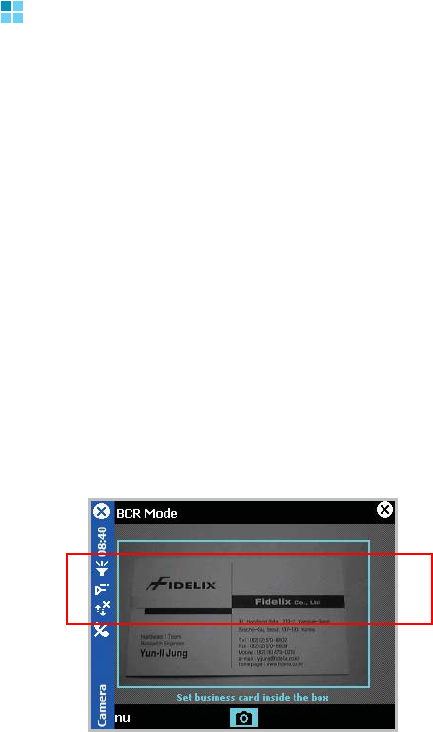
Taking a name card photo
1. From the BCR View screen, tap
Capture Image
.
The camera turns on in Landscape mode.
Position only
Extra programmes
217
2. To change the shooting mode, tap
Menu
→
Shot Mode
.
3. Center the name card within the green frame and tap
to take the photo.
4. If you are in Single Shot mode, your phone
automatically recognises the photographed name card
and converts it to contact card format.
If you are in Multi Shot mode, your phone allows you to
take photos of additional name cards. Tap
MORE
to take
more photos. When you have finished, tap
OK
to
convert all name cards you have photographed.
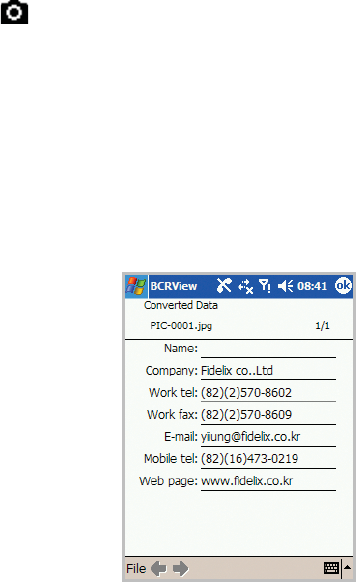
5. The contact card preview displays.
6. Tap
File
→
Save
or
Save all
to save the contact card(s).

Extra programmes
218
Selecting and converting name card photos from
the file directory
You can convert a single name card photo or all of the
photos in a folder at one time.
1. From the BCR View screen, tap
Load image
or
Load
Image Folder
.
2. Open the image or folder you want from the file
directory.
3. Tap the image you want or tap
OK
.
VoiceSignal
VoiceSingal is a speech recognition application that
enables you to launch applications or dial contacts by
speaking an associated command or name into the
microphone.
To open VoiceSignal:
From the
Start
menu, tap
Programs
→
VoiceSignal
.
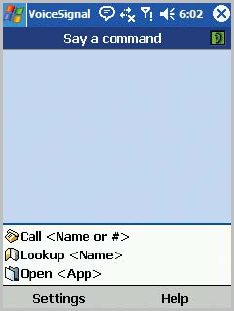
When the phone prompts you with displaying “Say a
command,” say one of the commands:
• Call [person’s name or phone number]
• Lookup [person’s name]
• Open [application]

Extra programmes
219
Voice tips
• Speak clearly, naturally, and continuously. Try to avoid
hesitations, such as “er” and “um”, at the beginning
and in the middle of phrases.
• If in a very noisy environment, use the headset. If not
using the headset, address the internal microphone at
the bottom of the phone at a distance of about 10-20
cm from your mouth.
• Speak when VoiceSignal is ready to listen, as indicated
by the progress bar.
• If VoiceSignal doesn’t clearly hear what you said, try
repeating your voice command. If problems persist,
try the Adaptation setting to optimise the speech
engine for your voice.
Name dialling
You can make a phone call by saying the name that has
been assigned to a contact card in the Contacts
directory.
Note
: To use the Name Dial feature, the name and number
that you want to dial must be in your Contacts
directory. For details about
Contacts
, see page 175.
Extra programmes
220
1. From the
Start
menu, tap
Programs
→
VoiceSignal
.
The VoiceSingal main screen opens and the phone says
“Say a command.”
2. Say “Call.” You can also “Call” and then a person’s name
or number stored in Contacts after a beep sounds; for
example, say “Call James Bond.”
3. Say the full name of the contact card, the first name
followed by the last name.
4. If there are similar names, the phone displays the 3 best
candidates.
5. At a prompt, say “Yes” to dial, or say “No” until you hear
the name you want.
6. If you cannot find what you want, tap
Repeat
to try
again.
Extra programmes
221
Searching for contacts
VoiceSingal lets you retrieve contact information for
any name in the Contacts directory by saying that
name. Your phone displays the information.
To view contact information by a person’s name:
1. From the
Start
menu, tap
Programs
→
VoiceSignal
.
The VoiceSingal main screen opens and the phone says
“Say a command.”
2. Say “Lookup.” You can also say “Lookup” and a person’s
name after a beep sounds.
3. Say the full name of the contact card, the first name
followed by the last name.
4. If there are similar names, follow step 4 in “Name
dialling” on page 219.
5. If you cannot find what you want, tap
Repeat
to try
again.
Opening applications by voice
Anyvoice lets you use your voice to launch applications
on your phone. By default, you can launch the
applications displayed on the Anyvoice screen by voice.
You can customise the application list by adding or
removing the applications to be launched by voice.

Extra programmes
222
To open an application by saying the name of the
application:
1. From the
Start
menu, tap
Programs
→
VoiceSignal
.
The VoiceSingal main screen opens and the phone says
“Say a command.”
2. Say “Open.” You can also say “Open” and then the name
of the application that you want to open; for example,
say “Open Contacts.”
Note
: To specify applications to be launched by voice, tap
Settings
→
Application Launcher
from the
VoiceSignal main screen.
3. If there are similar names, follow step 4 in “Name
dialling” on page 219.
4. If you cannot find what you want, tap
Repeat
to try
again.
Configuring the voice recognition settings
You can configure the settings for using VoiceSingal.
When the VoiceSingal main screen opens, tap Settings
to access the following options:
•
Choice Lists
: You can set whether or not the phone
will display the best candidates when there are similar
names in Contacts.
•
Sensiitivity
:
You can adjust the sensitivity in which your
phone recognises a voice command. Change the setting if
your phone has difficulty recognising your voice
command.

Extra programmes
223
•
Digit Dialling
: You can adapt your phone to recognise
your voice style and pronunciation for each digit or
return the default settings.
•
Sound
: You can configure the sound settings for voice
command.
•
Application Launcher
: You can select applications
you want to launch by voice command.
•
Contacts Update
: You can set the VoiceSingal to
automatically or manually update contact cards in
Contacts or update Contacts immediately.
•
About
: You can view information about the
VoiceSignal programme.
Remote Control
With the Remocon application, you can control and
operate infrared supported office, entertainment, and
home automation equipment, such as TVs, DVDs, VCRs,
casette players, or other devices.
Note:
• Before opening Remocon, you must deactivate the IrDA
service.
• Your phone may not be able to learn a remote control
devices depending on the model.
• Your phone cannot learn universal remote controllers, which
are able to control several devices.
Extra programmes
224
To access Remocon:
From the
Start
menu, tap
Programs
→
Remote Control
.
By default, you can set the phone as a remote control for a
Samsung TV.
Adding a device
1. From the Remote Control main screen, tap
Options
→
Add device
.
2. If you select
By brand
, select the device type you want
to control and then a manufacturer from the brand list.
If you select
Self-learn
, select the device type you want
to control, and tap
Next
. Enter the device name.
3. Tap
Done
to add the device.
Learning a device
1. From the Remote Control main screen, select the device
you have set.
The Remote Control Keypad screen for operating the
device displays.
2. Tap any button to learn the buttons on the device.
You can also add a new button and learn the button by
tapping
Options
→
Learn key
.
3. Align the infrared port on your phone with the infrared
port on the remote control of the device.

Extra programmes
225
4. Tap
Next
.
5. Tap the button that you want to programme. For
example, if you want your phone to learn “Power”, tap it
first.
6. Press the corresponding button on the remote control of
the device you add. For example, if you tapped
Power
on your phone, press the power button on your remote
control.
7. If you want to Continue the learning for additional
buttons on your remote control, repeat from step 2.
Using a device
1. From the Remote Control main screen, select the device
you have set.
2. Tap a remote button on the screen.
3. When you have finished, tap
.
Resetting a device
You can reset the remote control settings of a device or
all devices you have set up.
To delete a device from the device list:
1. From the Remote Control main screen, tap
Options
→
Delete device
.
2. Select the device you want to delete and tap
Delete
.

Extra programmes
226
To reset all of the devices:
1. From the Remote Control main screen, tap
Options
→
Reset all
.
2. Tap
Yes
.
Picsel Browser
Picsel Browser enables you to browse document on thin-
client computing platforms or access the Internet using
the HTML browser. Use Picsel Browser to do the
following:
• View content on your phone without any file-
conversion or loss of contents.
• Access HTML websites.
To access Picsel Browser:
From the
Start
menu, tap
Programs
→
Picsel Broswer
.
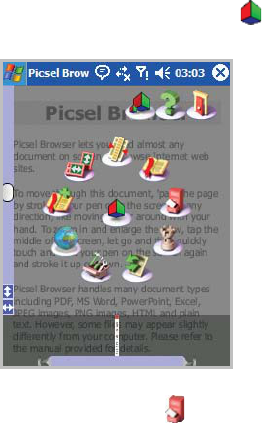
By default, the Picsel Browser help opens.
Viewing a document
Picsel Browser supports most common desktop
document formats including PDF, Word, Excel,
PowerPoint, and so on.
Extra programmes
227
Opening a document
1. Tap the Picsel Browser Menu icon ( ) on the bottom
right of the screen.
2. Tap the Folder View icon ( ).
3. Select the directory you want to open.
Extra programmes
228
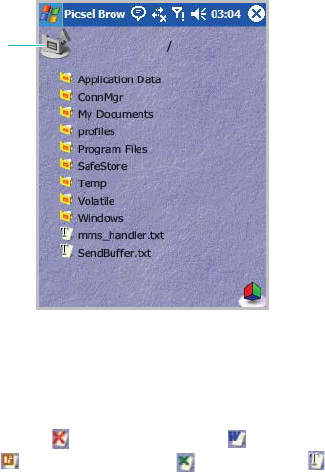
The name of the current folders path location is shown
at the top of the screen and the folders and documents
on the selected folder appear.
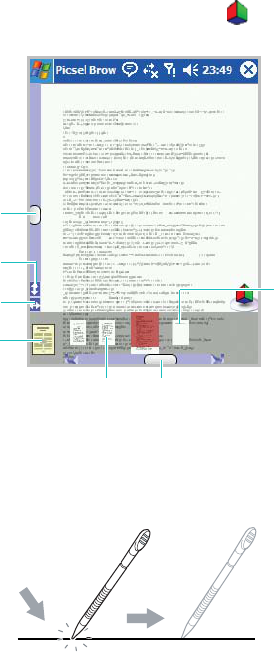
Documents looks like sheets of paper in various other
colours, depending on their type.
The following document formats are supported:
Adobe PDF: , Microsoft Word: , Microsoft Power
Point: , Microsoft Excel: , Plain Text: .
4. Tap the document you want to open.
Returns to the
previous
directory level.
Extra programmes
229
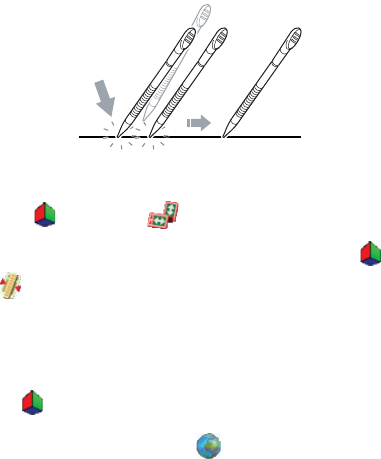
While viewing the document, tap to open the control
bar.
• To move through the document, tap and hold the
stylus pen, and draw a line on the screen in the
direction you want.
Zooms in/out.
Goes to the default
page.
Fits the document
to the width.
Fits the document
to the length. Moves to the
next page.
Moves to the
previous page. Scrolls through
pages.
Extra programmes
230
• To zoom in or out of the document, tap and drag the
slider on the left of the screen. You can also zoom in or
out by double-tapping and dragging.
• To rotate the screen on 90 degrees counterclockwise,
tap and then .
• To fit the width of the page on screen, tap and then
, or press the
OK/Confirm
key.
Opening a document by entering the file path or
URL
1. Tap .
2. Tap the Enter URL icon ( ).
3. Enter the file path or URL address in the
Go To Address
box.
You can enter or select one of preset URL components
on the screen.
4. Tap
OK
to open the document or the website.
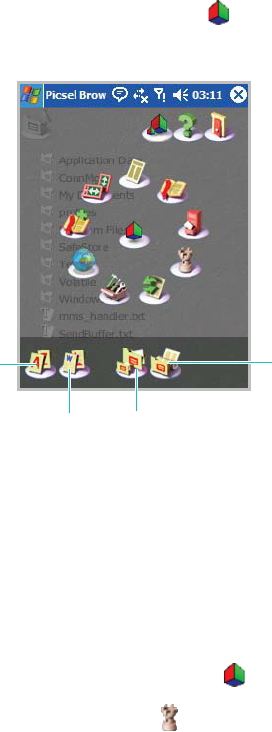
Extra programmes
231
Changing the file list view
1. On the file directory screen, tap .
2. Select the appropriate icon.
Viewing history
Picsel Browser shows you previously visited documents
as a small thumbnail image, and the document’s name,
location, and the date of your visit.
Opening a document in history
1. On the Picsel Browser screen, tap .
2. Tap the History View icon ( ).
Lists by file
name.
List by file type. Switches to Icon
view mode.
Switches to List
view mode.

Extra programmes
232
3. Tap the document you want to open twice.
Changing the order of the history list
1. On the History screen, tap .
1. Tap the appropriate icon.
• : lists by date.
• : lists by file type.
• : lists by file name.
2. Tap to hide the option icons.
Making and viewing bookmarks
Picsel Browser keeps a list of documents you have
bookmarked.
Making a bookmark
1. While viewing the document, tap .
2. Tap the Bookmark this page icon ( ).
3. Enter a bookmark name.
4. Tap
OK
.
Viewing a bookmark
1. On the Picsel Browser screen, tap .

Extra programmes
233
2. Tap the Bookmark View icon ( ).
The documents you have explicitly added with a
bookmark appear.
3. Tap the document you want to view twice.
Deleting a bookmark
1. On the Picsel Browser screen, tap .
2. Tap the Bookmark View icon ( ).
The documents you have bookmarked appear.
3. Tap the document you want to delete.
4. Tap .
5. Tap
OK
to confirm the deletion.
Changing Picsel Browser settings
On the Picsel Browser screen, tap → the Preferences
icon ( ).
Set each tab and change the settings as needed:
•
Home
: Selects the item what is displayed on the
startup screen of Picsel Browser when you launch it.
•
Preferences
: Selects the page options and set the
period of times after which thumbnail images and
descriptions of pages are purged from the history
memory. You can also customise the key.

Extra programmes
234
•
Internet
: Sets the options for Internet connections
and character setting.
•
Compatibility
: Selects the compatibility mode in
which the Picsel Browser opens.
•
File
: Selects file types Picsel Browser will support.
•
About
: Display the information of the Picsel Browser.
Pocket Excel
Pocket Excel works with Microsoft Excel on your
computer to give you easy access to copies of your
workbooks. You can create new workbooks on your
phone, or you can copy workbooks from your computer
to your phone. Synchronise workbooks between your
computer and your phone so that you have the most up-
to-date content in both locations.
Creating a workbook
1. From the
Start
menu, tap
Programs
→
Pocket Excel
.
2. Tap
New
to create a new workbook. You’ll see either a
blank workbook or template, depending on what you’ve
selected in the
Options
dialogue box.
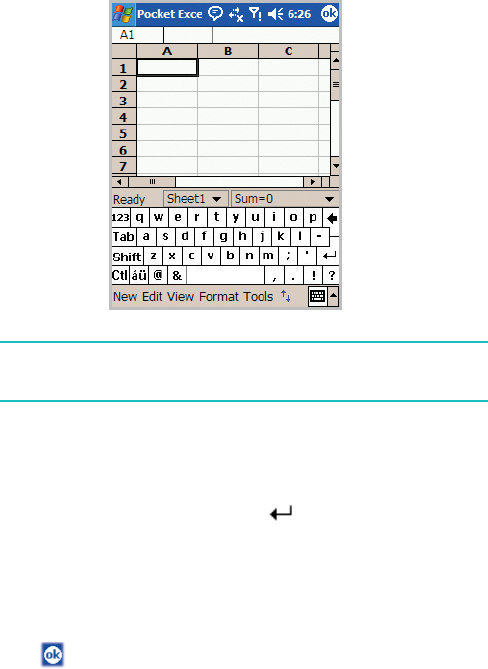
Extra programmes
235
Note
: To open dialogue box on the file list, tap
Tools
→
Options
.
3. Select a cell. If the cell is not visible, tap
Tools
→
Go
To
. Type the reference (example:A4) and tap
OK
.
4. Type the value or text and tap in the input panel.
Text is automatically aligned to the left.
5. You can edit and format data by tapping
Edit
,
Format
,
and
Tools
. For more details, see the online help.
6. Tap to save the workbook.
The workbook is automatically saved as a Pocket Excel
workbook named
Book1
. Depending on how many
workbooks you have created since opening Pocket Excel,
you may want to rename it.

Extra programmes
236
Using Pocket Excel workbooks
Pocket Excel contains a list of the files stored on your
phone. Tap a file in the list to open it. To delete a file,
make copies of a file, or send a file, tap and hold the file
in the list. Then select the appropriate action from the
pop-up menu. Pocket Excel provides fundamental
spreadsheet tools, such as formulas, functions, sorting,
and filtering. To display the toolbar, tap
View
→
Toolbar
.
Note
: If your workbook contains sensitive information, you
can protect it with a password. To do so, open the
workbook; tap
Tools
→
Password
. Every time you open
the workbook, you will need to enter the password, so
choose one that is easy for you to remember but hard
for others to guess.
Tips for working in Pocket Excel
Note the following when working with large worksheets
in Pocket Excel:
• View in the Full screen mode to see as much of your
worksheet as possible. Tap
View
→
Full Screen
. To
exit the Full screen mode, tap
View
→
Full Screen
again.
• Show and hide window elements. Tap
View
and then
tap the elements you want to show or hide.
• Freeze panes on a worksheet. First select the cell
where you want to freeze panes. Tap
View
→
Freeze
Panes
. You might want to freeze the top and leftmost
panes in a worksheet to keep the row and column
labels visible as you scroll through a sheet. To exit, tap
View
→
Unfreeze Panes
.

Extra programmes
237
• Split panes to view different areas of a large
worksheet. Tap
View
→
Split
. Then drag the split bar
to where you want it. To remove the split, tap
View
→
Remove Split
.
• Show or hide rows and columns. To hide a row or
column, select a cell in the row or column you want to
hide. Then tap
Format
→
Row
or
Column
→
Hide
. To
show a hidden row or column, tap
Format
→
Row
or
Column
→
Unhide
.
Pocket Word
Pocket Word works with Microsoft Word on your
computer to give you easy access to copies of your
documents. You can create new documents on your
phone, or you can copy documents from your computer
to your phone. Synchronise documents between your
computer and your phone so that you have the most up-
to-date content in both locations.
Use Pocket Word to create documents, such as letters,
meeting minutes, and trip reports.
Creating a document
From the
Start
menu, tap
Programs
→
Pocket Word
→
New
.
A blank document appears. Or, if you’ve selected a
template for new documents in the
Options
dialogue
box in the
Tools
menu, that template appears with
appropriate text and formatting already provided.
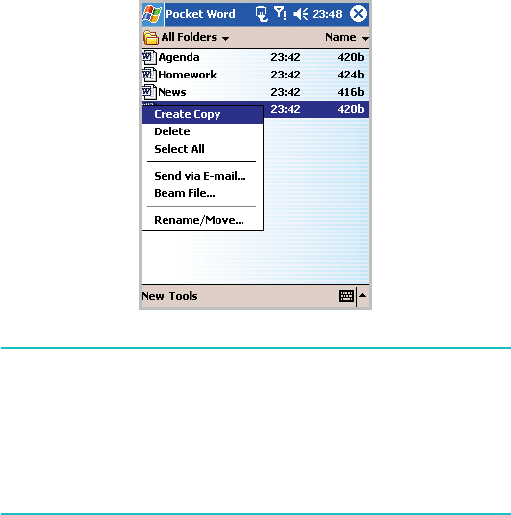
Extra programmes
238
You can open only one document at a time; when you
open a second document, you’ll be asked to save the
first.
You can save a document you create or edit in a variety
of formats, including Word (.doc), Pocket Word (.psw),
Rich Text Format (.rtf), and Plain Text (.txt).
Pocket Word contains a list of the files stored on your
phone. Tap a file in the list to open it.
To delete a file, make copies of a file, or send files, tap
and hold the file in the list. Then, select the appropriate
action on the pop-up menu.
Note
: You can change the zoom magnification by tapping
View
→
Zoom
. Then select the percentage you want.
Select a higher percentage to enter text and a lower
one to see more of your document.
If you’re opening a Word document created on a
computer, select
Wrap to Window
on the
View
menu
so that you can see the entire document.
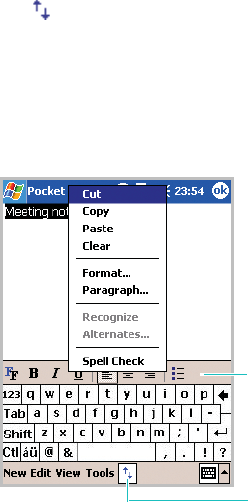
Extra programmes
239
You can enter information in Pocket Word in one of four
modes (typing, writing, drawing, and recording), which
are displayed on the
View
menu. Each mode has its own
toolbar, which you can show or hide by tapping
Show/
Hide Toolbar
(
)
on the command bar.
Typing mode
Using the input panel, enter typed text into the
document. For more information on entering text, see
Chapter 3.
To format existing text and/or to edit text, first select
the text. You can select text as you do in an MS-Word
document, using your stylus instead of the mouse to
drag through the text you want to select. You can search
for a document by tapping
Edit
→
Find/Replace
.
Tap to show or
hide the toolbar.
Toolbar
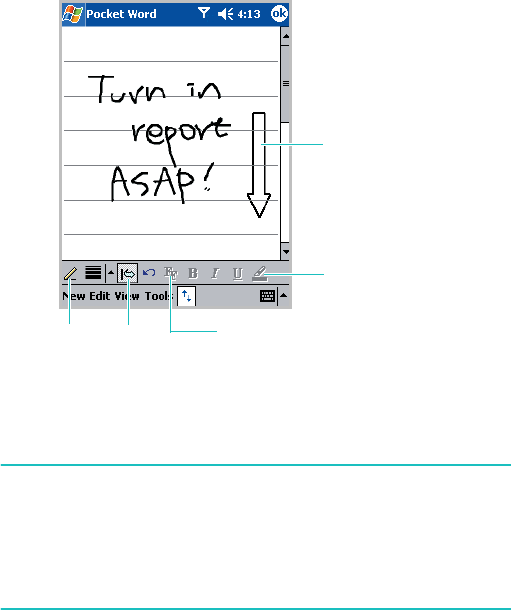
Extra programmes
240
Writing mode
In the Writing mode, use your stylus pen to write
directly on the screen. Ruled lines are displayed as a
guide, and the zoom magnification is higher than in the
Typing mode to allow you to write more easily.
To switch to the Writing mode, tap
View
→
Writing
.
For more information on writing and selecting writing,
see Chapter 3.
Note
: If you cross three ruled lines in a single stylus stroke,
the writing becomes a drawing, and can be edited and
manipulated as described in the following section.
Written words are converted to graphics (metafiles)
when a Pocket Word document is converted to a Word
document on your computer.
Space
button
Pen
button Tap to select formatting
options, such as pen
weight and line colour.
With the
Space
button
selected, drag to insert
space. An arrow
appears showing the
space direction and
size.
Tap to highlight the
selected text.
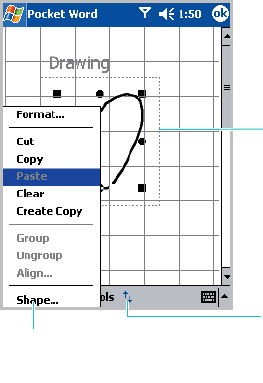
Extra programmes
241
Drawing mode
In the Drawing mode, use your stylus pen to draw on
the screen. Gridlines appear as a guide. When you lift
your stylus pen off the screen after the first stroke,
you’ll see a drawing box indicating the boundaries of the
drawing. Every subsequent stroke within or touching the
drawing box becomes part of the drawing.
To switch to the Drawing mode, tap
View
→
Drawing
.
For more information on drawing and selecting
drawings, see Chapter 3.
Resize an object
by dragging the
selection handles.
Tap to select
formatting
options, such as
line weight, fill
colour, and line
colour.
Select
Shape
on the pop-
up menu to convert
objects to proper shapes.

Extra programmes
242
Recording mode
In the Recording mode, embed a recording into your
document.
To switch to the Recording mode, tap
View
→
Recording
For more information on recording, see “Recording a
message” in Chapter 3.
Changing options
To change defaults for creating and storing Pocket Word
documents, in the document list, tap
Tools
→
Options
.
•
Default template
: Selects a template to be used for
new documents. You can change this default when
creating specific documents. Only documents saved in
the
Templates
folder are listed.
•
Save to
: Selects a location for storing documents.
•
Display in list view
: Selects the type of documents
you want displayed in the document list.
Terminal Services Client
Using
Terminal Services Client
, you can log onto a
computer that is running Terminal Services or Remote
Desktop and use all of the programmes that are
available on that computer from your phone. For
example, instead of running Microsoft Pocket Word, you
can run the computer version of Microsoft Word and
access all of the .doc files on that computer from your
phone.

Extra programmes
243
Connecting to a terminal server
Start a remote connection to the server via your
wireless modem connection or network (Ethernet) card.
1. From the
Start
menu, tap
Programs
→
Terminal
Services Client
.
2. To connect to a server you have previously connected
to, tap the server in the
Recent servers
box.
To connect to a new server, enter the server’s name in
the
Server
box.
Tap the
Limit size of server desktop to fit on this
screen
check box only when using applications that
have been specifically sized for use with the phone.
3. Tap
Connect
.
Note
: If the network administrator has configured Terminal
Services Client to reconnect to disconnected sessions,
and you previously disconnected from a Terminal Server
without ending the session, the Terminal Services Client
reconnects to that session.
Disconnecting without ending a session
The following commands must be accessed from the
Start
menu in the Terminal Services window used to
access the computer’s commands. Do not use the
Start
menu on your phone.
1. On the Terminal Services screen, tap
Start
→
Shutdown
.
2. Tap
Disconnect
.

Extra programmes
244
Note
: If the network administrator has configured Terminal
Services Client to reconnect to disconnected sessions,
you will be reconnected to this session the next time
you connect to this server.
Disconnecting and ending a session
1. In the
Terminal Services Client
window, tap
Start
→
Shutdown
.
2. Tap
Log Off
.
Navigating within terminal services client
Once connected to the server, the computer’s screen
may more than fill your phone’s screen. If scroll bars are
displayed on the server’s screen, you will see more than
one set of scroll bars on your phone:
• One to scroll information on the computer, and one to
scroll the computer display through the Terminal
Services window in Terminal Services Client.
• To ensure you are scrolling the computer display
through Terminal Services Client, use the four
directional buttons at the bottom of the Terminal
Services Client screen.
• To better-fit information on your phone’s screen, tap
the
Limit size of server desktop to fit on this screen
check box. For the best effect, programmes on the
computer should be maximised.
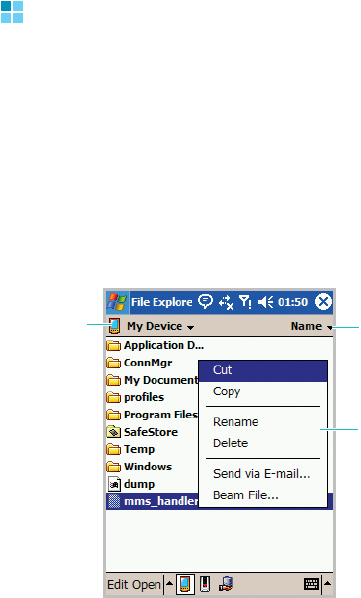
Extra programmes
245
File Explorer
The File Explorer application allows you to open an
explorer window similar to a desktop Windows based
system. The explorer window allows you to navigate
through your phone to locate desired folders and files.
You can also quickly manage, delete, copy, or edit any
files and folders on your phone. You can create new
folders.
1. From the
Start
menu, tap
Programs
→
File Explorer
.
Tap to change
the sort order of
the list.
Tap to select
a location.
Tap and hold to
display a pop-up
menu of actions.
Extra programmes
246
2. If you want to see the files or folders stored in the
SafeStore folder or a memory card, if inserted in your
phone, tap .
To view the files in the phone’s memory, tap
.
T
o open a file on a network,
tap
.
3. Tap the folder list (labelled
My Document
by default)
and then the folder that you want to view.
4. To open an item, tap it.
To quickly delete, rename, copy, or move an item, tap
and hold. To select multiple items, tap and drag. Then,
tap and hold the selected items. On the pop-up menu,
tap
Copy
,
Rename
,
Delete
, and etc.
SIM Manager
The SIM Manager application enables you to view the
contact list stored in the SIM card and to copy the
contact(s) from the SIM card to the contact list on your
phone. You can also create a new contact in the SIM
card, or edit and delete the contact.
Viewing SIM contacts
You can view the contact list, including the name, phone
number, and location number of contacts in the SIM
card.
1. From the
Start
menu, tap
Programs
→
SIM Manager
.
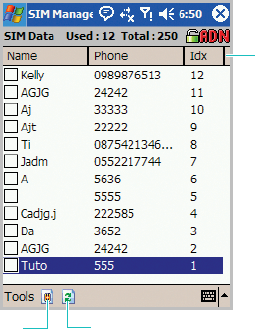
Extra programmes
247
2. The contact list displays on the SIM Manager screen.
Copying a contact from the SIM card to
Contacts
You can copy a contact or all contacts stored in the SIM
card to Contacts on your phone.
1. On the SIM Manager screen, tap the check box next to
the contact name you want to copy to your phone.
If you want to copy all contacts, tap
Tools
→
Check All
.
2. Tap
Tools
→
Copy To Contacts
.
3. If necessary, change the category of the number by
tapping
Change(M/H/W)
.
Refreshes the
SIM contacts.
Tap the category to
change the sort order
of the list.
Creates a
new entry.
Extra programmes
248
4. Tap
Start Copy
.
5. Tap .
6. To verify that your contacts have been copied to your
phone, go to
Contacts
and search for the added
contacts.
Using SIM Manager options
on the SIM Manager screen, tap
Tools
. You can save the
selected contact number as an own number, delete the
selected or all numbers in the SIM card, and move the
SMS messages from SIM to phone, or vice versa. You
can connect to service numbers, such as emergency
numbers and voicemail server numbers, if your SIM
card supports it.
Regional settings
Using
Regional Settings
, you can view number formats,
currency, and time and date formats appropriate to the
countries in question. You can also change the clock to
24 hour display.
Note
: For details about using Regional Settings, see the online
help.
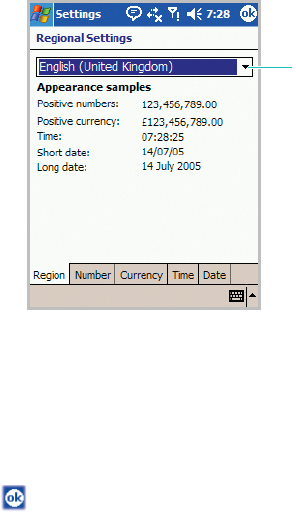
Extra programmes
249
From the
Start
menu, tap
Settings
→
System
tab →
Regional Settings
.
To change the clock to 24 hour display:
1. On the Regional Settings screen, tap the
Time
tab.
2. Select a time style in the
Time style
field.
3. Tap .
To customise further:
Tap the tabs at the bottom of the screen and select the
option you want in each field. The items available are
determined by the region selected on the
Region
tab.
Tap to select your
region to set the
default number
formats.
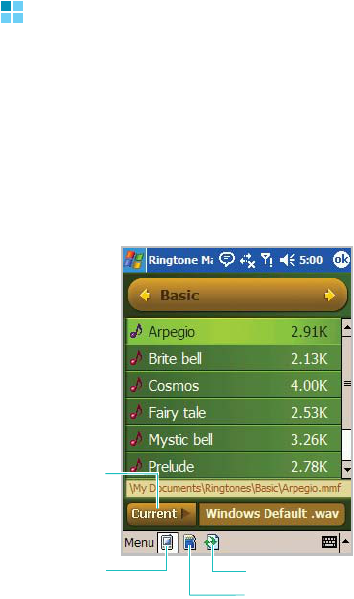
Extra programmes
250
Ringtone Manager
The Ringtone Manager application allows you to manage
your ringtones in the phone’s memory and in the
memory card. You can also set a ringtone as your call
ringer melody.
To open Ringtone Manager:
From the
Start
menu, tap
Programs
→
Ringtone
Manager
.
Tap to refresh the list.
Tap to
display
ringtones in
the phone’s
memory. Tap to display ringtones in a
memory card.
Tap to play or
stop your
current call
ringer melody.

Extra programmes
251
Playing a ringtone
1. Access the ringtone category you want by tapping
or
.
You can also tap the category title bar and select the
category you want from the pop-up menu.
2. Select a ringtone.
3. To play the selected ringtone, tap
Menu
→
Play
.
4. To stop the ringtone, tap
Menu
→
Stop
.
Using ringtone options
To set the selected ringtone as your call ringer melody,
tap
Menu
→
Set as ringtone
.
To move the selected ringtone to another category, tap
Menu
→
Move category
.
To create, rename, or delete a category, tap
Menu
→
Edit category
.
SIM Toolkit
The SIM Toolkit service is available if you use a SIM AT
card that provides additional services, such as news,
weather, sports, entertainment, and location services.
Available services may vary, depending on your service
provider’s plans.
For details, see your SIM card instructions or contact
your service provider.

252
11
Getting connected
You can use your phone to exchange information with
other mobile devices as well as your computer, a
network, or the Internet. You have the following
connection options:
• Use the infrared (IR) port on your phone to send and
receive files between two devices.
• Exchange information between devices with Bluetooth
capabilities without a physical connection.
• Connect to your Internet service provider (ISP) or the
network at your company. Once connected, you can
send and receive e-mail and instant messages, browse
the Internet or intranet, and synchronise information
using ActiveSync.
• Connect to your computer to synchronise remotely.
Once connected, you can synchronise information such
as your Pocket Outlook data. For details on ActiveSync,
see Chapter 4 “Synchronising information.”
Beaming using infrared connections
Your phone can send and receive files to and from other
IR devices. In most cases, you can also receive files
from your computer when it is equipped with an infrared
port. The two devices must be aimed at each other
approximately four inches apart.
If you have difficulty getting the two devices to send or
receive data, try the following:
• Transfer only one file at a time. No more than 25
contacts should be transferred at once.

Getting connected
253
• Make sure that the infrared port windows are clear
and free of any dirt or obstructions and that there are
no obstacles between the infrared port windows.
• Adjust the room lighting or move to another location.
Some types of lighting may interfere with
transmission.
By default your phone detects incoming IR
transmissions and prompts you to accept them. If you
do not want your phone to receive data, take the
following steps:
1. From the
Start
menu, tap
Settings
→
Connections
tab
→
Beam
.
2. Clear the
Receive all incoming beams
check box.
Receiving data
1. Make sure that the
Receive all incoming beams
check
box is selected.
2. Align the infrared port on your phone with the infrared
port on another device.
3. Have the other device send the data to your phone. Your
phone will automatically receive the data.
4. When prompted to receive an incoming data, tap
Yes
.
Note
: If someone attempts to send you data via an infrared
connection from an older device, you may be prompted
to accept it. In that case, before the data is sent from
the other device, prepare your phone by tapping
Receive an infrared beam
at the bottom of the Beam
screen.

Getting connected
254
Sending data
1. Locate the item you want to send, such as an
appointment in Calendar, a task in Tasks, a contact in
Contacts, or a file in File Explorer.
2. Tap and hold the item and select
Beam
followed by the
type of item, such as Contacts or Task, etc.
3. Align the infrared port on your phone with the infrared
port on the device.
4. When finished, tap
OK
.
Beaming with Bluetooth
Bluetooth is a short-range wireless communications
technology. Devices with Bluetooth capabilities can
exchange data over a distance of about 10 meters (30
feet) without requiring a physical connection.
Unlike infrared, you don’t need to line up the phone with
another device to beam information with Bluetooth.
Activating Bluetooth
To select the operating mode:
1. From the
Start
menu, tap
Settings
→
Connections
tab
→
Bluetooth
.
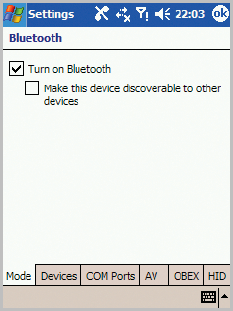
Getting connected
255
2. Select the operating mode you want:
•In the
Mode
tab, tap the
Turn on Bluetooth
check
box to turn on the Bluetooth radio so that you can use
Bluetooth features.
•In the
Devices
tab, you can search for Bluetooth
devices and connect to them.
•In the
COM Ports
tab, you can select a COM port for
sending or receiving data. You can also tap the
Secure
Connection
check box to exchange data in a secure
manner. For details, please refer to the online help.
•In the
AV
tab, you can change the settings for
connecting with a stereo headset. For details, please
refer to the stereo headset’s guide.
•In the
OBEX
tab, you can use change the settings for
using the OBEX FTP server. For details, please refer to
the OBEX FTP client device’s guide.

Getting connected
256
•In the
HID
tab, you can change the settings for using
the Bluetooth keyboard. For details, please refer to
the Bluetooth keyboard’s guide.
3. Tap .
Receiving data with Bluetooth
1. Make sure that the
Receive all incoming beams
check
box is selected. To check it, from the
Start
menu, tap
Settings
→
Connection
tab
→
Beam
.
2. Make sure that your phone is within 10 meters (about
30 feet) of the device beaming the information and that
the
Make this device discoverable to other devices
check box is selected in the
Mode
tab.
3. When prompted to receive an incoming data, tap
Yes
.
Sending data with Bluetooth
1. Locate the item you want to send, such as an
appointment in Calendar, a task in Tasks, a contact in
Contacts, or a file in File Explorer.
2. Tap and hold the item and select
Beam
followed by type
of item, such as Contact or Task, etc.
3. Tap the device from the list to which you want to send
the beam.
The item is sent to the device you selected.

Getting connected
257
Note
: If the device to which you want to send does not appear
on the list, make sure that it is turned on, tap the
Make
this device discoverable to other devices
check box,
and within 10 meters (30 feet) of your phone. Also,
make sure that your Bluetooth radio is turned on.
Using a Bluetooth stereo headset
Using a Bluetooth stereo headset, you can play the
audio files or converse with the person on the phone
without holding the phone to your ear.
Note
: It is recommended that you don’t use other applications
or multimedia features, such as camera and Media
player, for better sound quality.
Connecting your phone with a Bluetooth stereo
headset
1. Create Bluetooth bonding between your phone and
Bluetooth stereo headset.
For further information on making a Bluetooth bonding,
see the User’s Guide of the Stereo headset.
2. From the
Start
menu, tap
Settings
→
Connections
tab
→
Bluetooth
.
3. In the
AV
tab, select the name of the headset.
4. Tap and hold the headset and select
Connect
to
establish the connection with your phone and the
Bluetooth headset.

Getting connected
258
Disconnecting with Bluetooth stereo headset
Tap and hold the headset and select
Disconnect
from
the pop-up menu.
Connecting to an OBEX FTP server
You can access the FTP server via Bluetooth profile
(OBEX) so that you can exchange files between your
phone and the FTP servers on other Bluetooth devices,
and manage files.
To access an OBEX FTP server:
1. From the
Start
menu, tap
Programs
→
OBEX FTP
.
2. To search for Bluetooth devices, tap
Menu
→
Search
for FTP server
.
After searching, a list of devices to which you can
connect displays.
3. Select an OBEX FTP server and tap
OK
.
4. When a message appears prompting you to activate
Bluetooth mode, tap
Yes
to connect to the OBEX FTP
server.
5. Enter a Bluetooth PIN in the
Passkey
field and tap
Next
.
When the same code is entered on the server, pairing is
complete.

Getting connected
259
6. If necessary, change the display name of the server.
7. Tap
Finish
.
You are connected to the
OBEX FTP
server.
Once you are connected to the OBEX FTP server, you
can delete, move, copy, or create data on your phone
and the server. For details, see the OBEX FTP server
device’s guide.
Connecting to the Internet or your
network
You can connect to your Internet service provider (ISP)
and use the connection to send and receive E-mail and
instant messages and to browse the Internet. You can
also connect to any private network, such as a corporate
network you use at work.
Connecting to my ISP
1. Obtain the following information from your ISP: ISP
server phone number, user name, and password.
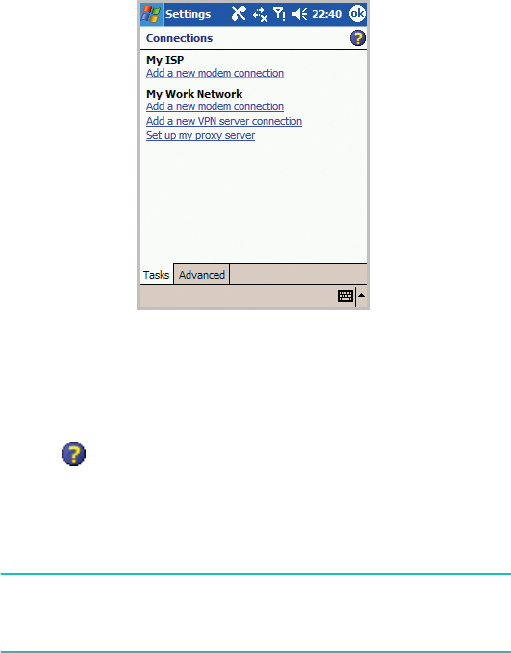
Getting connected
260
2. From the
Start
menu, tap
Settings
→
Connections
tab
→
Connections
.
3. In
My ISP
, tap
Add a new modem connection
.
4. Create a modem connection. To view detailed
information for any screen while changing the setting,
tap .
5. When connection is successfully configured, run
Internet Explorer
to begin browsing the Internet. Your
phone will automatically begin connecting.
Note
: To set up a network card or wireless network connection
to your ISP, add a new connection under
My Work
Network
.

Getting connected
261
Connecting to work
1. Obtain the following information from your network
administrator: server phone number, user name, and
password.
2. From the
Start
menu, tap
Settings
→
Connections
tab
→
Connections
.
3. In
My Work Network
, set up a modem, VPN server
connection, or proxy server. To view detailed information
for any screen while changing the settings, tap .
4. When connection is successfully configured, run
Internet Explorer
to begin browsing the Internet. Your
phone will automatically begin connecting.
Ending a connection
To disconnect, do one of the following:
• When connected via dial-up or VPN, tap the
Connection icon, , on your status bar, and then tap
Disconnect
.
• When connected via a cable, detach your phone from
the computer by disconnecting the cable.
• When connected via a modem or a network (Ethernet)
card, remove the card from your phone.
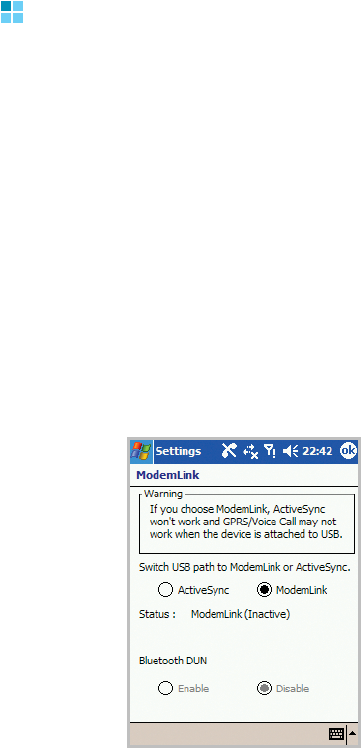
Getting connected
262
ModemLink
Using
ModemLink
, you can use your phone as an
external modem for another device or computer. You
can also use your phone as an external Bluetooth
modem for another device or computer by using
Bluetooth DUN (Dial Up Networking) server.
1. Connect your phone to the device with which you want
to use your phone as a modem.
2. From the
Start
menu, tap
Settings
→
Connection
tab
→
ModemLink
.
3. To enable ModemLink, tap
ModemLink
on the Switch
USB path to ModemLink or ActiveSync field.
To enable Bluetooth DUN server, tap
Enable
on the
Bluetooth DUN field.
Getting connected
263
Note
: You cannot use Bluetooth DUN server and Modem
Link simultaneously.
4.
If you select
ModemLink
, the USB path will switch to
Modem Link.
If you enable the Bluetooth DUN server, the Data path
will switch to Bluetooth modem.
5. Tap .
Connecting to wireless networks
Your phone is equipped with Wi-Fi, standards for
wireless local area networks (WLANs), which allows the
phone to connect local wireless networks, or access the
Internet wirelessly. Wi-Fin is faster and has a greater
range than Bluetooth wireless technology. Wi-Fi can
achieve connection speeds of up to 11 Mbps, which
easily allows you to share large files or quickly surf the
Internet with your phone.
Configuraring Wi-Fi connection settings
To connect your phone to a wireless network, you first
need to set the TCP/IP addresses required to identify
the phone on the network.
1. From the
Start
menu, tap
Settings
→
Connections
tab
→
Network Cards
.

Getting connected
264
2. Tap
Wi-Fi
from the Tap an adapter to modify settings:
section.
3. Select
User server-assigned IP address
to use the IP
address automatically assigned from the server. Skip to
step 7.
Select
Use Specific IP address
to set the network
addresses manually. Continue the next step.
4. Enter the IP address, Subnet mask, and Default
gateway.
5. Tap the
Name Servers
tab.
6. Enter the DNS addresses and the WINS addresses.
7. Tap .
Activating or deactivating Wi-Fi
1. From the
Start
menu, tap
Settings
→
Connections
tab
→
Wi-Fi
.
2. Tap
Wi-Fi Enabled
or
Wi-Fi Disabled
. The button
changes to
Wi-Fi Disabled
or
Wi-Fi Enabled
.
3. Tap .

Getting connected
265
Selecting data call type
A data (Circuit Switched Data) call enables data
transmission rates to a maximum of 9.6 Kbps. For
availability and subscription to data services, contact
your network operator or service provider.
To select a data call type:
1. From the
Start
menu, tap
Settings
→
Connections
tab
→
CSD Data Call Type
.
2. Select the data call type you want.
Analog
or
ISDN
defines whether the phone uses an
analogue (Analog) or digital (ISDN) connection. This
setting depends on both your GSM network operator
and ISP (Internet Service Provider), because some GSM
networks do not support certain types of ISDN
connections. For details, contact your ISP. If ISDN
connections are available, they establish connections
more quickly than analogue methods.
266
12
Appendix
Troubleshooting
Problem Solution
The phone does
not turn on.
• The battery is completely
discharged. Recharge it fully.
The phone does
not work
properly or does
not work at all.
• Remove the battery from the phone
and insert it back into the phone.
Turn it on again.
• Reset your phone.
Images on the
screen cannot
be seen.
• This may happen when you use the
phone in direct sunlight. Use the
phone in the shade or in normal
indoor lighting conditions.
Lines appear on
the display.
• This may happen if the battery is not
fully charged when you use the
phone for the first time, when you
turn on the phone after not using it
for a long time, or if you remove the
battery carelessly. This will not affect
the life span or operation of your
phone.
• Remove the battery from the phone
and insert it back into the phone.
Turn it on again.
• Reset your phone.
Appendix
267
Regulatory notices
Regulatory agency identification numbers
For regulatory identification purposes your product is
assigned the model number PW10xx.
The following accessories have been evaluated for use
with your phone. Their assigned model numbers listed
below can identify these approved accessories. To
ensure continued reliable and safe operation of your
phone, use only the accessories listed below with your
PW10xx.
I frequently
cannot make or
receive calls, or
calls are cut off
without
apparent
reason.
• This may happen when your
connection to a network is unstable.
Move to another place try again.
• If you touch the antenna during a
call, the connection quality worsens.
Do not touch the antenna during a
call.
Accessories Model number
Pocket PC
Phone
PW10xx
Cradle PW15x
External
Battery Pack
PW16x
Problem Solution

Appendix
268
Notes
:
• The above “x” may be any alphanumeric character or blank
denoting external cosmetic changes.
• This product is intended for use with certified Class 2, rated
5 V dc, minimum 1A power supply units.
Exposure to radio frequency (RF) signals
Your wireless phone is a radio transmitter and receiver.
It is designed and manufactured not to exceed the
emission limits for exposure to radio frequency (RF)
energy set by the Federal Communications Commission
(FCC) of the U.S. Government. These limits are part of
comprehensive guidelines and establish permitted levels
of RF energy for the general population. The guidelines
are based on the safety standards that were developed
by independent scientific organizations through periodic
and through evaluation of scientific studies.
The standards include a substantial safety margin
designed to assure the safety of all persons, regardless
of age and health.
The exposure standard for wireless phones employs a
unit of measurement known as Specific Absorption Rate
(SAR). The SAR limit recommended by the FCC is 1.6W/
kg.1
SAR tests are conducted using standard operating
positions specified by the FCC with the phone
1 In the U.S. and Canada, the SAR limit for mobile phones used by the public is 1.6
watts/kg (W/kg) averaged over one gram of tissue. The standard incorporates a
substantial margin of safety to give additional protection for the public and to
account for any variations in measurements.
Appendix
269
transmitting at its highest certified power level in all
tested frequency bands. Although the SAR is determined
at the highest certified power level, the actual SAR level
of the phone while operating can be well below the
maximum value. This is because the phone is designed
to operate at multiple power levels so as to use only the
power required to reach the network. In general, the
closer you are to a wireless base station antenna, the
lower the power output of the phone.
Before a new model phone is available for sale to the
public, it must be tested and certified to the FCC that it
does not exceed the limit established by the
government adopted requirement for safe exposure.
The tests are performed in positions and locations (e.g.,
at the ear and worn on the body) as required by the FCC
for each model. While there may be differences between
the SAR levels of various phones and at various
positions, they all meet the government requirement.
The FCC has granted an Equipment Authorization for
this model phone with all reported SAR levels evaluated
as in compliance with the FCC RF exposure guidelines.
SAR information on this model phone is on file with the
FCC and can be found under the Display Grant section of
http://www.fcc.gov/oet/fccid after searching on FCC ID
printed in the label on the phone.
For body operation
For body worn operation, this model phone has been
tested and meets the FCC RF exposure guidelines when
used with a Samsung-supplied or approved accessory
designated for this product or when used with and
accessory that contains no metal and that positions the
handset a minimum from the body.
Appendix
270
The minimum distance for this model phone is written in
the FCC certification information from the body. None
compliance with the above conditions may violate FCC
RF exposure guidelines.
For more Information concerning exposure to radio
frequency signals, see the following websites:
Federal Communications Commission (FCC)
http://www.fcc.gov
Cellular Telecommunications Industry Association
(CTIA):
http://www.wow-com.com
U.S.Food and Drug Administration (FDA)
http://www.fda.gov/cdrh/consumer
World Health Organization (WHO)
http://www.who.int/peh-emf/en
Precautions when using batteries
• Never use any charger or battery that is damaged in
any way.
• Use the battery only for its intended purpose.
• If you use the phone near the network’s base station,
it uses less power; talk and standby time are greatly
affected by the signal strength on the cellular network
and the parameters set by the network operator.
• Battery charging time depends on the remaining
battery charge, the type of battery and the charger
used. The battery can be charged and discharged
hundreds of times, but it will gradually wear out.
When the operation time (talk time and standby time)
is noticeably shorter than normal, it is time to buy a
new battery.
Appendix
271
• If left unused, a fully charged battery will discharge
itself over time.
• Use only Samsung-approved batteries and recharge
your battery only with Samsung-approved chargers.
When a charger is not in use, disconnect it from the
power source. Do not leave the battery connected to a
charger for more than a week, since overcharging may
shorten its life.
• Extreme temperatures will affect the charging capacity
of your battery: it may require cooling or warming
first.
• Do not leave the battery in hot or cold places, such as
in a car in summer or winter conditions, as you will
reduce the capacity and lifetime of the battery. Always
try to keep the battery at room temperature. A phone
with a hot or cold battery may temporarily not work,
even when the battery is fully charged. Li-ion batteries
are particularly affected by temperatures below 0 °C
(32 °F).
• Do not short-circuit the battery. Accidental short-
circuiting can occur when a metallic object (coin, clip
or pen) causes a direct connection between the + and
– terminals of the battery (metal strips on the
battery), for example when you carry a spare battery
in a pocket or bag. Short-circuiting the terminals may
damage the battery or the object causing the short-
circuiting.
• Dispose of used batteries in accordance with local
regulations. Always recycle. Do not dispose of
batteries in a fire.
Appendix
272
Road safety
Your wireless phone gives you the powerful ability to
communicate by voice, almost anywhere, anytime. But
an important responsibility accompanies the benefits of
wireless phones, one that every user must uphold.
When driving a car, driving is your first responsibility.
When using your wireless phone behind the wheel of a
car, practice good common sense and remember the
following tips:
• Get to know your wireless phone and its features,
such as speed dial and redial. If available, these
features help you to place your call without taking
your attention off the road.
• When available, use a hands-free device. If possible,
add an extra layer of convenience and safety to your
wireless phone with one of the many hands-free
accessories available today.
• Position your wireless phone within easy reach. Be
able to access your wireless phone without removing
your eyes from the road. If you get an incoming call at
an inconvenient time, let your voice mail answer it for
you.
• Let the person you are speaking with know you are
driving; if necessary, suspend the call in heavy traffic
or hazardous weather conditions. Rain, sleet, snow,
ice, and even heavy traffic can be hazardous.
• Do not take notes or look up phone numbers while
driving. Jotting down a To Do list or flipping through
your Address Book takes your attention away from
your primary responsibility, driving safely.
• Dial sensibly and assess the traffic; if possible, place
calls when you are not moving or before pulling into
Appendix
273
traffic. Try to plan calls when your car will be
stationary. If you need to make a call while moving,
dial only a few numbers, check the road and your
mirrors, then continue.
• Do not engage in stressful or emotional conversations
that may be distracting. Make the people with whom
you are talking aware that you are driving and
suspend conversations that have the potential to
divert your attention from the road.
• Use your wireless phone to call for help. Dial the
emergency number in the case of fire, traffic accident
or medical emergencies. Remember, it is a free call on
your wireless phone!
• Use your wireless phone to help others in
emergencies. If you see a car accident, crime in
progress or other serious emergency where lives are
in danger, call the emergency number, as you would
want others to do for you.
• If you see a broken-down vehicle posing no serious
hazard, a broken traffic signal, a minor traffic accident
where no one appears injured, or a vehicle you know
to be stolen, call roadside assistance or any other
special non-emergency wireless number.
Operating environment
Remember to follow any special regulations in force in
any area and always switch off your phone whenever it
is forbidden to use it, or when it may cause interference
or danger.
When connecting the phone or any accessory to another
device, read its user’s guide for detailed safety
instructions. Do not connect incompatible products.
Appendix
274
As with other mobile radio transmitting equipment,
users are advised that for the satisfactory operation of
the equipment and for the safety of personnel, it is
recommended that the equipment should only be used
in the normal operating position (held to your ear with
the antenna pointing over your shoulder).
Electronic devices
Most modern electronic equipment is shielded from
radio frequency (RF) signals. However, certain electronic
equipment may not be shielded against the RF signals
from your wireless phone. Consult the manufacturer to
discuss alternatives.
Pacemakers
Pacemaker manufacturers recommend that a minimum
distance of 15 cm (6 inches) be maintained between a
wireless phone and a pacemaker to avoid potential
interference with the pacemaker. These
recommendations are consistent with the independent
research and recommendations of Wireless Technology
Research.
Persons with pacemakers:
• should always keep the phone more than 15 cm (6
inches) from their pacemaker when the phone is
switched on.
• should not carry the phone in a breast pocket.
• should use the ear opposite the pacemaker to
minimize potential interference.
If you have any reason to suspect that interference is
taking place, switch off your phone immediately.
Appendix
275
Hearing aids
Some digital wireless phones may interfere with some
hearing aids. In the event of such interference, you may
wish to consult your hearing aid manufacturer to discuss
alternatives.
Other medical devices
If you use any other personal medical devices, consult
the manufacturer of your device to determine if it is
adequately shielded from external RF energy. Your
physician may be able to assist you in obtaining this
information. Switch off your phone in health care
facilities when any regulations posted in these areas
instruct you to do so. Hospitals or health care facilities
may be using equipment that could be sensitive to
external RF energy.
Vehicles
RF signals may affect improperly installed or
inadequately shielded electronic systems in motor
vehicles. Check with the manufacturer or its
representative regarding your vehicle. You should also
consult the manufacturer of any equipment that has
been added to your vehicle. You should also consult the
manufacturer of any equipment that has been added to
your vehicle.
Posted facilities
Switch off your phone in any facility where posted
notices require you to do so.
Appendix
276
Potentially explosive environments
Switch off your phone when in any area with a
potentially explosive atmosphere and obey all signs and
instructions. Sparks in such areas could cause an
explosion or fire resulting in bodily injury or even death.
Users are advised to switch off the phone while at a
refueling point (service station). Users are reminded of
the need to observe restrictions on the use of radio
equipment in fuel depots (fuel storage and distribution
areas), chemical plants or where blasting operations are
in progress.
Areas with a potentially explosive atmosphere are often
but not always clearly marked. They include the areas
below deck on boats, chemical transfer or storage
facilities, vehicles using liquefied petroleum gas (such as
propane or butane), areas where the air contains
chemicals or particles, such as grain, dust or metal
powders, and any other area where you would normally
be advised to turn off your vehicle engine.
Emergency calls
This phone, like any wireless phone, operates using
radio signals, wireless and landline networks as well as
user-programmed functions, which cannot guarantee
connection in all conditions. Therefore, you should never
rely solely on any wireless phone for essential
communications (medical emergencies, for example).
Remember, to make or receive any calls the phone must
be switched on and in a service area with adequate
signal strength. Emergency calls may not be possible on

Appendix
277
all wireless phone networks or when certain network
services and/or phone features are in use. Check with
local service providers.
To make an emergency call:
If the phone is not on, switch it on.
1. Key in the emergency number for your present location
(for example, 911 or other official emergency number).
Emergency numbers vary by location.
2. Press .
If certain features are in use (call barring, for example),
you may first need to deactivate those features before
you can make an emergency call. Consult this document
and your local cellular service provider.
When making an emergency call, remember to give all
the necessary information as accurately as possible.
Remember that your phone may be the only means of
communication at the scene of an accident; do not end
the call until given permission to do so.
FCC Notice and Cautions
FCC Notice
Notes
:
This device complies with Part 15 of the FCC Rules.
Operation is subject to the following two conditions:
(1) this device may not cause harmful interference, and
(2) this device must accept any interference received,
including interference that may cause undesired
operation.
Appendix
278
The phone may cause TV or radio interference if used in
close proximity to receiving equipment. The FCC can
require you to stop using the phone if such interference
cannot be eliminated.
Vehicles using liquefied petroleum gas (such as propane
or butane) must comply with the National Fire
Protection Standard (NFPA-58). For a copy of this
standard, contact the National Fire Protection
Association, One Battery march Park, Quincy, MA
02269, Attn: Publication Sales Division.
Cautions
Changes or modifications made in the radio phone, not
expressly approved by Samsung, will void the user’s
authority to operate the equipment.
Only use approved batteries, antennas and chargers.
The use of any unauthorized accessories may be
dangerous and void the phone warranty if said
accessories cause damage or a defect to the phone.
Although your phone is quite sturdy, it is a complex
piece of equipment and can be broken. Avoid dropping,
hitting, bending or sitting on it.
Other important safety information
• Only qualified personnel should service the phone or
install the phone in a vehicle. Faulty installation or
service may be dangerous and may invalidate any
warranty applicable to the device.
• Check regularly that all wireless phone equipment in
your vehicle is mounted and operating properly.
Appendix
279
• Do not store or carry flammable liquids, gases, or
explosive materials in the same compartment as the
phone, its parts or accessories.
• For vehicles equipped with an air bag, remember that
an air bag inflates with great force. Do not place
objects, including both installed or portable wireless
equipment in the area over the air bag or in the air
bag deployment area. If wireless equipment is
improperly installed and the air bag inflates, serious
injury could result.
• Switch off your phone before boarding an aircraft. The
use of wireless phones in aircraft is illegal and may be
dangerous to the aircraft’s operation.
• Failure to observe these instructions may lead to the
suspension or denial of telephone services to the
offender, or legal action, or both.
Care and maintenance
Your phone is a product of superior design and
craftsmanship and should be treated with care. The
suggestions below will help you fulfill any warranty
obligations and allow you to enjoy this product for many
years:
• Keep the phone and all its parts and accessories out of
the reach of small children’s.
• Keep the phone dry. Precipitation, humidity and liquids
contain minerals that will corrode electronic circuits.
• Do not use the phone with a wet hand. Doing so may
cause an electric shock to you or damage to the
phone.
Appendix
280
• Do not use or store the phone in dusty, dirty areas, as
its moving parts may be damaged.
• Do not store the phone in hot areas. High
temperatures can shorten the life of electronic
devices, damage batteries, and warp or melt certain
plastics.
• Do not store the phone in cold areas. When the phone
warms up to its normal operating temperature,
moisture can form inside the phone, which may
damage the phone’s electronic circuit boards.
• Do not drop, knock or shake the phone. Rough
handling can break internal circuit boards.
• Do not use harsh chemicals, cleaning solvents or
strong detergents to clean the phone. Wipe it with a
soft cloth slightly dampened in a mild soap-and-water
solution.
• Do not paint the phone. Paint can clog the device’s
moving parts and prevent proper operation.
• Do not put the phone in or on heating devices, such as
a microwave oven, a stove or a radiator. The phone
may explode when overheated.
• Use only the supplied or an approved replacement
antenna. Unauthorized antennas or modified
accessories may damage the phone and violate
regulations governing radio devices.
• If the phone, battery, charger or any accessory is not
working properly, take it to your nearest qualified
service facility. The personnel there will assist you,
and if necessary, arrange for service.
Appendix
281
Acknowledging special precautions
and the FCC and industry canada
notice
Cautions
Modifications not expressly approved by the party
responsible for compliance could void the user's
authority to operate the equipment.
FCC Compliance information
This device complies with Part 15 of FCC Rules.
Operation is subject to the following two conditions:
1. This device may not cause harmful interference, and
2. This device must accept any interference received.
Including interference that may cause undesired
operation.
Information to user
This equipment has been tested and found to comply
with the limits for a Class B digital device, pursuant to
part 15 of the FCC Rules. These limits are designed to
provide reasonable protection against harmful
interference in a residential installation.
This equipment generates, uses and can radiate radio
frequency energy and, if not installed and used in
accordance with the instructions, may cause harmful
Appendix
282
interference to radio communications. However, there is
no guarantee that interference will not occur in a
particular installation. If this equipment does cause
harmful interference to radio or television reception,
which can be determined by turning the equipment off
and on, the user is encouraged to try to correct the
interference by one or more of the following measures:
• Reorient or relocate the receiving antenna.
• Increase the separation between the equipment and
receiver.
• Connect the equipment into an outlet on a circuit
different from that to which the receiver is connected.
• Consult the dealer or an experienced radio/ TV
technician for help.
Appendix A: CERTIFICATION
INFORMATION (SAR)
THIS MODEL PHONE MEETS THE GOVERNMENT’S
REQUIREMENTS FOR EXPOSURE TO RADIO WAVES.
Your wireless phone is a radio transmitter and receiver.
It is designed and manufactured not to exceed the
emission limits for exposure to radio frequency (RF)
energy set by the Federal Communications Commission
of the U.S. Government. These limits are part of
comprehensive guidelines and establish permitted levels
of RF energy for the general population. The guidelines
are based on safety standards that were developed by
independent scientific organizations through periodic
and thorough evaluation of scientific studies. The
Appendix
283
standards include a substantial safety margin designed
to assure the safety of all persons, regardless of age
and health.
The exposure standard for wireless mobile phones
employs a unit of measurement known as the Specific
Absorption Rate (SAR). The SAR limit set by the FCC is
1.6 W/kg. SAR Tests are conducted using standard
operating positions accepted by the FCC with the phone
transmitting at its highest certified power level in all
tested frequency bands. Although the SAR is determined
at the highest certified power level, the actual SAR level
of the phone while operating can be well below the
maximum value. This is because the phone is designed
to operate at multiple power levels so as to use only the
power required to reach the network. In general, the
closer you are to a wireless base station antenna, the
lower the power output.
Before a new model phone is available for sale to the
public, it must be tested and certified to the FCC that it
does not exceed the limit established by the
government adopted requirement for safe exposure.
The tests are performed in positions and locations(e.g.,
at the ear and worn on the body) as required by the FCC
for each model.
The highest SAR values of this model phone as reported
to FCC are Head: 0.318W/kg, Body-worn: 0.676W/kg.
Body-worn operations are restricted to Samsung-
supplied, approved or none Samsung designated
accessories that have no metal and must provide at
least 1.5cm separation between the device, including its
Appendix
284
antenna whether extended or retracted, and the user’s
body. None compliance to the above restrictions may
violate FCC RF exposure guidelines.
The FCC has granted an Equipment Authorization for
this model phone with all reported SAR levels evaluated
as in compliance with the FCC RF exposure guidelines.
SAR information on this model phone is on file with the
FCC and can be found under the Display Grant section of
http://www.fcc.gov/oet/fccid after searching on FCC ID
A3LSGHI750.
In the United States and Canada, the SAR limit for mobile phones used by the
public is 1.6 watts/kilogram (W/kg) averaged over one gram of tissue. The stan-
dard incorporates a substantial ma gin of safety to give additional protection for
the public and to account for any variations in measurements.
Appendix
285
Appendix B: Guide to safe and
responsible wireless phone use
Cellular Telecommunications & Internet Association
“Safety is the most important call you will ever make.”
A guide to safe and responsible wireless
phone use
TENS OF MILLIONS OF PEOPLE IN THE U.S. TODAY TAKE
ADVANTAGE OF THE UNIQUE COMBINATION OF
CONVENIENCE, SAFETY AND VALUE DELIVERED BY THE
WIRELESS TELEPHONE. QUITE SIMPLY, THE WIRELESS
PHONE GIVES PEOPLE THE POWERFUL ABILITY TO
COMMUNICATE BY VOICE-ALMOST ANYWHERE,
ANYTIME-WITH THE BOSS, WITH A CLIENT, WITH THE
KIDS, WITH EMERGENCY PERSONNEL OR EVEN WITH
THE POLICE. EACH YEAR, AMERICANS MAKE BILLIONS
OF CALLS FROM THEIR WIRELESS PHONES, AND THE
NUMBERS ARE RAPIDLY GROWING.
But an important responsibility accompanies those
benefits, one that every wireless phone user must
uphold. When driving a car, driving is your first
responsibility. A wireless phone can be an invaluable
tool, but good judgment must be exercised at all times
while driving a motor vehicle whether on the phone or
not.
The basic lessons are ones we all learned as teenagers.
Driving requires alertness, caution and courtesy. It
requires a heavy dose of basic common sense-keep your
head up, keep your eyes on the road, check your
mirrors frequently and watch out for other drivers.
Appendix
286
It requires obeying all traffic signs and signals and
staying within the speed limit. It means using seat belts
and requiring other passengers to do the same.
But with wireless phone use, driving safely means a
little more. This brochure is a call to wireless phone
users everywhere to make safety their first priority
when behind the wheel of a car. Wireless
telecommunications is keeping us in touch, simplifying
our lives, protecting us in emergencies and providing
opportunities to help others in need. When it comes to
the use of wireless phones, safety is your most
important call.
Wireless phone “Safety Tips”
Below are safety tips to follow while driving and using a
wireless phone which should be easy to remember:
1. Get to know your wireless phone and its features such
as speed dial and redial. Carefully read your instruction
manual and learn to take advantage of valuable features
most phones offer, including automatic redial and
memory. Also, work to memorize the phone keypad so
you can use the speed dial function without taking your
attention off the road.
2. When available, use a hands free device. A number of
hands free wireless phone accessories are readily
available today. Whether you choose an installed
mounted device for your wireless phone or a speaker
phone accessory, take advantage of these devices if
available to you.
Appendix
287
3. Position your wireless phone within easy reach. Make
sure you place your wireless phone within easy reach
and where you can grab it without removing your eyes
from the road. If you get an incoming call at an
inconvenient time, if possible, let your voice mail answer
it for you.
4. Suspend conversations during hazardous driving
conditions or situations. Let the person you are speaking
with know you are driving; if necessary, suspend the call
in heavy traffic or hazardous weather conditions. Rain,
sleet, snow and ice can be hazardous, but so is heavy
traffic. As a driver, your first responsibility is to pay
attention to the road.
5. Do not take notes or look up phone numbers while
driving. If you are reading an address book or business
card, or writing a “to do” list while driving a car, you are
not watching where you are going. It’s common sense.
Don’t get caught in a dangerous situation because you
are reading or writing and not paying attention to the
road or nearby vehicles.
6. Dial sensibly and assess the traffic; if possible, place
calls when you are not moving or before pulling into
traffic. Try to plan your calls before you begin your trip
or attempt to coincide your calls with times you may be
stopped at a stop sign, red light or otherwise stationary.
But if you need to dial while driving, follow this simple
tip-dial only a few numbers, check the road and your
mirrors, then continue.
7. Do not engage in stressful or emotional conversations
that may be distracting. Stressful or emotional
conversations and driving do not mix-they are
Appendix
288
distracting and even dangerous when you are behind
the wheel of a car. Make people you are talking with
aware you are driving and if necessary, suspend
conversations which have the potential to divert your
attention from the road.
8. Use your wireless phone to call for help. Your wireless
phone is one of the greatest tools you can own to
protect yourself and your family in dangerous
situations-with your phone at your side, help is only
three numbers away. Dial 9-1-1 or other local
emergency number in the case of fire, traffic accident,
road hazard or medical emergency. Remember, it is a
free call on your wireless phone!
9. Use your wireless phone to help others in emergencies.
Your wireless phone provides you a perfect opportunity
to be a “Good Samaritan” in your community. If you see
an auto accident, crime in progress or other serious
emergency where lives are in danger, call 9-1-1 or other
local emergency number, as you would want others to
do for you.
10. Call roadside assistance or a special wireless non
emergency assistance number when necessary. Certain
situations you encounter while driving may require
attention, but are not urgent enough to merit a call for
emergency services. But you still can use your wireless
phone to lend a hand. If you see a broken-down vehicle
posing no serious hazard, a broken traffic signal, a
minor traffic accident where no one appears injured or a
vehicle you know to be stolen, call roadside assistance
or other special non-emergency wireless number.
Appendix
289
Careless, distracted individuals and people driving
irresponsibly represent a hazard to everyone on the
road. Since 1984, the Cellular Telecommunications
Industry Association and the wireless industry have
conducted educational outreach to inform wireless
phone users of their responsibilities as safe drivers and
good citizens. As we approach a new century, more and
more of us will take advantage of the benefits of
wireless telephones.
And, as we take to the roads, we all have a
responsibility to drive safely.
“The wireless industry reminds you to use your phone
safely when driving.”
Cellular Telecommunications & Internet Association For
more information, please call 1-888-901-SAFE.
For updates: http://www.wow-com.com/consumer/
issues/driving/articles.cfm?ID =85
Appendix C: consumer update
on wireless phones
U.S. Food and Drug Administration
1.
What kinds of phones are the subject of this update?
The term wireless phone refers here to hand-held
wireless phones with built-in antennas, often called cell,
mobile, or PCS phones. These types of wireless phones
can expose the user to measurable radio frequency
energy (RF) because of the short distance between the
phone and the user s head. These RF exposures are
limited by Federal Communications Commission safety
Appendix
290
guidelines that were developed with the advice of FDA
and other federal health and safety agencies. When the
phone is located at greater distances from the user, the
exposure to RF is drastically lower because a person’s
RF exposure decreases rapidly with increasing distance
from the source. The so-called “cordless phones,” which
have a base unit connected to the telephone wiring in a
house, typically operate at far lower power levels, and
thus produce RF exposures well within the FCC’s
compliance limits.
2.
Do wireless phones pose a health hazard?
The available scientific evidence does not show that any
health problems are associated with using wireless
phones. There is no proof, however, that wireless
phones are absolutely safe. Wireless phones emit low
levels of radio frequency energy (RF) in the microwave
range while being used. They also emit very low levels
of RF when in the stand-by mode. Whereas high levels
of RF can produce health effects (by heating tissue),
exposure to low level RF that does not produce heating
effects causes no known adverse health effects. Many
studies of low level RF exposures have not found any
biological effects. Some studies have suggested that
some biological effects may occur, but such findings
have not been confirmed by additional research. In
some cases, other researchers have had difficulty in
reproducing those studies, or in determining the
reasons for inconsistent results.
3.
What is FDA’s role concerning the safety of wireless
phones?
Appendix
291
Under the law, FDA does not review the safety of
radiation emitting consumer products such as wireless
phones before they can be sold, as it does with new
drugs or medical devices. However, the agency has
authority to take action if wireless phones are shown to
emit radio frequency energy (RF) at a level that is
hazardous to the user. In such a case, FDA could require
the manufacturers of wireless phones to notify users of
the health hazard and to repair, replace or recall the
phones so that the hazard no longer exists.
Although the existing scientific data do not justify FDA
regulatory actions, FDA has urged the wireless phone
industry to take a number of steps, including the
following:
• Support needed research into possible biological
effects of RF of the type emitted by wireless phones;
• Design wireless phones in a way that minimizes any
RF exposure to the user that is not necessary for
device function; and
• Cooperate in providing users of wireless phones with
the best possible information on possible effects of
wireless phone use on human health
FDA belongs to an interagency working group of the
federal agencies that have responsibility for different
aspects of RF safety to ensure coordinated efforts at the
federal level. The following agencies belong to this
working group:
• National Institute for Occupational Safety and Health
• Environmental Protection Agency Federal
Communications Commission
• Occupational Safety and Health Administration
• National Telecommunications and Information
Administration
Appendix
292
• The National Institutes of Health participates in some
interagency working group activities, as well.
FDA shares regulatory responsibilities for wireless
phones with the Federal Communications Commission
(FCC). All phones that are sold in the United States
must comply with FCC safety guidelines that limit RF
exposure. FCC relies on FDA and other health agencies
for safety questions about wireless phones.
FCC also regulates the base stations that the wireless
phone networks rely upon. While these base stations
operate at higher power than do the wireless phones
themselves, the RF exposures that people get from
these base stations are typically thousands of times
lower than those they can get from wireless phones.
Base stations are thus not the primary subject of the
safety questions discussed in this document.
4.
What is FDA doing to find out more about the possible
health effects of wireless phone RF?
FDA is working with the U.S. National Toxicology
Program and with groups of investigators around the
world to ensure that high priority animal studies are
conducted to address important questions about the
effects of exposure to radio frequency energy (RF).
FDA has been a leading participant in the World Health
Organization International Electromagnetic Fields (EMF)
Project since its inception in 1996. An influential result
of this work has been the development of a detailed
agenda of research needs that has driven the
establishment of new research programs around the
world. The Project has also helped develop a series of
public information documents on EMF issues.
Appendix
293
FDA and the Cellular Telecommunications & Internet
Association (CTIA) have a formal Cooperative Research
and Development Agreement (CRADA) to do research
on wireless phone safety. FDA provides the scientific
oversight, obtaining input from experts in government,
industry, and academic organizations. CTIA-funded
research is conducted through contracts to independent
investigators. The initial research will include both
laboratory studies and studies of wireless phone users.
The CRADA will also include a broad assessment of
additional research needs in the context of the latest
research developments around the world.
5.
What steps can I take to reduce my exposure to radio
frequency energy from my wireless phone?
If there is a risk from these products—and at this point
we do not know that there is—it is probably very small.
But if you are concerned about avoiding even potential
risks, you can take a few simple steps to minimize your
exposure to radio frequency energy (RF). Since time is a
key factor in how much exposure a person receives,
reducing the amount of time spent using a wireless
phone will reduce RF exposure.
If you must conduct extended conversations by wireless
phone every day, you could place more distance
between your body and the source of the RF, since the
exposure level drops off dramatically with distance. For
example, you could use a headset and carry the wireless
phone away from your body or use a wireless phone
connected to a remote antenna
Again, the scientific data do not demonstrate that
wireless phones are harmful. But if you are concerned
about the RF exposure from these products, you can use
measures like those described above to reduce your RF
exposure from wireless phone use.
Appendix
294
6.
What about children using wireless phones?
The scientific evidence does not show a danger to users
of wireless phones, including children and teenagers. If
you want to take steps to lower exposure to radio
frequency energy (RF), the measures described above
would apply to children and teenagers using wireless
phones. Reducing the time of wireless phone use and
increasing the distance between the user and the RF
source will reduce RF exposure.
Some groups sponsored by other national governments
have advised that children be discouraged from using
wireless phones at all. For example, the government in
the United Kingdom distributed leaflets containing such
a recommendation in December 2000. They noted that
no evidence exists that using a wireless phone causes
brain tumors or other ill effects. Their recommendation
to limit wireless phone use by children was strictly
precautionary; it was not based on scientific evidence
that any health hazard exists.
7.
Do hands-free kits for wireless phones reduce risks from
exposure to RF emissions?
Since there are no known risks from exposure to RF
emissions from wireless phones, there is no reason to
believe that hands-free kits reduce risks. Hands-free
kits can be used with wireless phones for convenience
and comfort. These systems reduce the absorption of RF
energy in the head because the phone, which is the
source of the RF emissions, will not be placed against
the head. On the other hand, if the phone is mounted
against the waist or other part of the body during use,
then that part of the body will absorb more RF energy.
Wireless phones marketed in the U.S. are required to
meet safety requirements regardless of whether they
Appendix
295
are used against the head or against the body. Either
configuration should result in compliance with the safety
limit.
8.
Do wireless phone accessories that claim to shield the
head from RF radiation work?
Since there are no known risks from exposure to RF
emissions from wireless phones, there is no reason to
believe that accessories that claim to shield the head
from those emissions reduce risks. Some products that
claim to shield the user from RF absorption use special
phone cases, while others involve nothing more than a
metallic accessory attached to the phone. Studies have
shown that these products generally do not work as
advertised. Unlike “hand-free” kits, these so-called
“shields” may interfere with proper operation of the
phone. The phone may be forced to boost its power to
compensate, leading to an increase in RF absorption. In
February 2002, the Federal trade Commission (FTC)
charged two companies that sold devices that claimed to
protect wireless phone users from radiation with making
false and unsubstantiated claims. According to FTC,
these defendants lacked a reasonable basis to
substantiate their claim.
9.
What about wireless phone interference with medical
equipment?
Radio frequency energy (RF) from wireless phones can
interact with some electronic devices. For this reason,
FDA helped develop a detailed test method to measure
electromagnetic interference (EMI) of implanted cardiac
pacemakers and defibrillators from wireless telephones.
This test method is now part of a standard sponsored by
the Association for the Advancement of Medical
instrumentation (AAMI). The final draft, a joint effort by
Appendix
296
FDA, medical device manufacturers, and many other
groups, was completed in late 2000. This standard will
allow manufacturers to ensure that cardiac pacemakers
and defibrillators are safe from wireless phone EMI.
FDA has tested hearing aids for interference from
handheld wireless phones and helped develop a
voluntary standard sponsored by the Institute of
Electrical and Electronic Engineers (IEEE). This standard
specifies test methods and performance requirements
for hearing aids and wireless phones so that no
interference occurs when a person uses a compatible
phone and a compatible hearing aid at the same time.
This standard was approved by the IEEE in 2000.
FDA continues to monitor the use of wireless phones for
possible interactions with other medical devices. Should
harmful interference be found to occur, FDA will conduct
testing to assess the interference and work to resolve
the problem.
10.
What are the results of the research done already?
The research done thus far has produced conflicting
results, and many studies have suffered from flaws in
their research methods. Animal experiments
investigating the effects of radio frequency energy (RF)
exposures characteristic of wireless phones have yielded
conflicting results that often cannot be repeated in other
laboratories. A few animal studies, however, have
suggested that low levels of RF could accelerate the
development of cancer in laboratory animals. However,
many of the studies that showed increased tumor
development used animals that had been genetically
engineered or treated with cancer causing chemicals so
as to be pre-disposed to develop cancer in the absence
Appendix
297
of RF exposure. Other studies exposed the animals to RF
for up to 22 hours per day. These conditions are not
similar to the conditions under which people use
wireless phones, so we don t know with certainty what
the results of such studies mean for human health.
Three large epidemiology studies have been published
since December 2000. Between them, the studies
investigated any possible association between the use of
wireless phones and primary brain cancer, gioma,
meningioma, or acoustic neuroma, tumors of the brain
or salivary gland, leukemia, or other cancers. None of
the studies demonstrated the existence of any harmful
health effects from wireless phone RF exposures.
However, none of the studies can answer questions
about long-term exposures, since the average period of
phone use in these studies was around three years.
11.
What research is needed to decide whether RF
exposure from wireless phones poses a health risk?
A combination of laboratory studies and epidemiological
studies of people actually using wireless phones would
provide some of the data that are needed. Lifetime
animal exposure studies could be completed in a few
years. However, very large numbers of animals would be
needed to provide reliable proof of a cancer promoting
effect if one exists. Epidemiological studies can provide
data that is directly applicable to human populations,
but 10 or more years follow-up may be needed to
provide answers about some health effects, such as
cancer. This is because the interval between the time of
exposure to a cancer-causing agent and the time
tumors develop - if they do - may be many, many years.
The interpretation of epidemiological studies is
hampered by difficulties in measuring actual RF
exposure during day-to-day use of wireless phones.
Appendix
298
Many factors affect this measurement, such as the angle
at which the phone is held, or which model of phone is
used.
12.
Which other federal agencies have responsibilities
related to potential RF health effects?
Additional information on the safety of RF exposures
from various sources can be obtained from the following
organizations.
FCC RF Safety Program:
http://www.fcc.gov/oet/rfsafety/
Environmental Protection Agency (EPA):
http://www.epa.gov/radiation/
Occupational Safety and Health Administration’s
(OSHA):
http://www.osha-slc.gov/SLTC/radiofrequencyradiation/
index.html
National Institute for Occupational Safety and Health
(NIOSH):
http://www.cdc.gov/niosh/emfpg.html
World health Organization (WHO):
http://www.who.int/peh-emf/
International Commission on Non-Ionizing Radiation
Protection:
http://www.icnirp.de
National Radiation Protection Board (UK):
http://www.nrpb.org.uk
Updated 4/3/2002: US Food and Drug Administration
http://www.fda.gov/cellphones