Samsung Electronics Co SLM2070W Mono Laser Multi-Function Printer User Manual Egmont F english

Samsung Electronics Co Ltd Mono Laser Multi-Function Printer Egmont F english

Users Manual 4

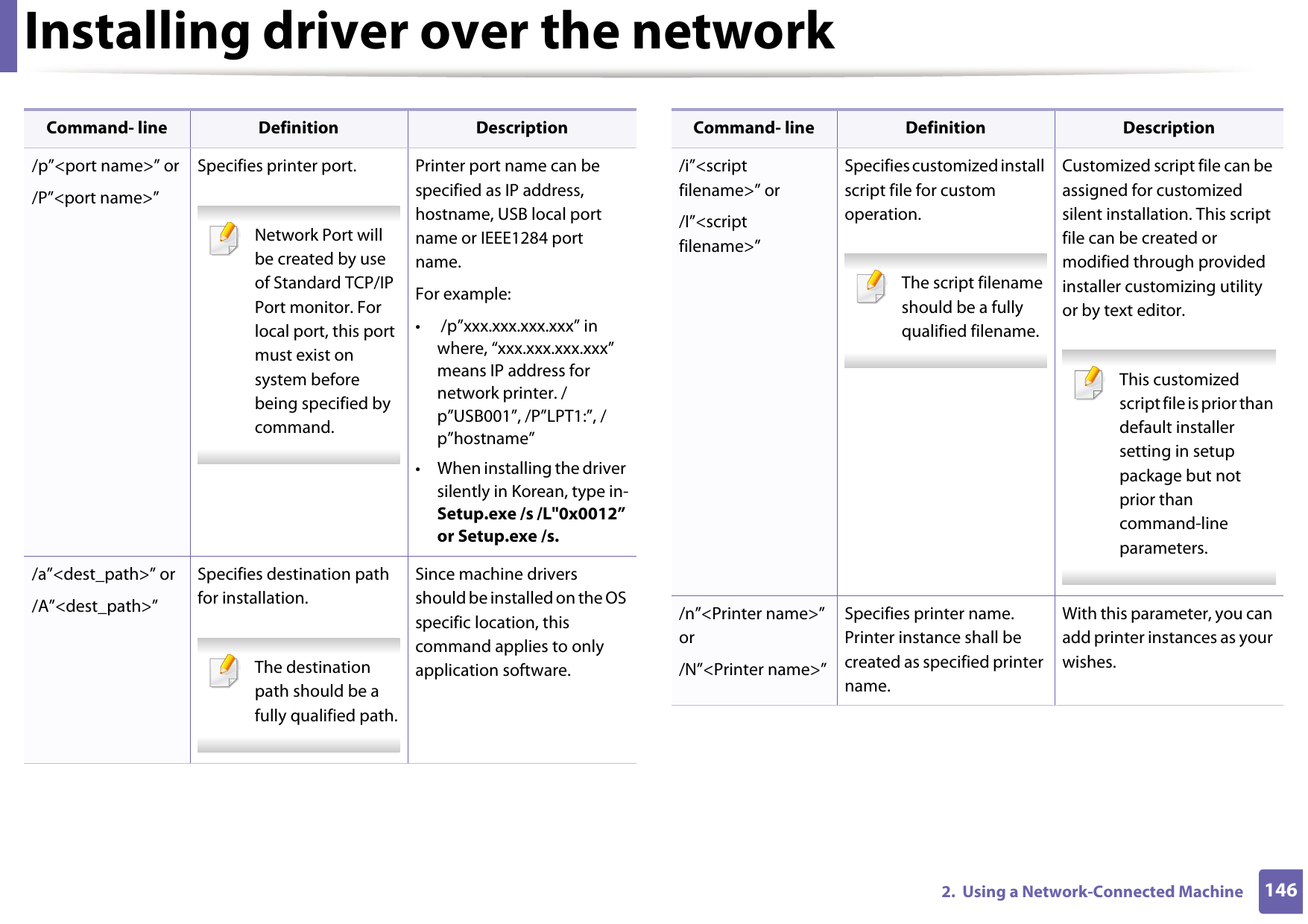
Installing driver over the network1462.  Using a Network-Connected Machine/p”<port name>” or/P”<port name>”Specifies printer port. Network Port will be created by use of Standard TCP/IP Port monitor. For local port, this port must exist on system before being specified by command. Printer port name can be specified as IP address, hostname, USB local port name or IEEE1284 port name.For example:•  /p”xxx.xxx.xxx.xxx” in where, “xxx.xxx.xxx.xxx” means IP address for network printer. /p”USB001”, /P”LPT1:”, /p”hostname”• When installing the driver silently in Korean, type in-Setup.exe /s /L"0x0012” or Setup.exe /s./a”<dest_path>” or/A”<dest_path>”Specifies destination path for installation. The destination path should be a fully qualified path. Since machine drivers should be installed on the OS specific location, this command applies to only application software.Command- line Definition Description/i”<script filename>” or/I”<script filename>”Specifies customized install script file for custom operation. The script filename should be a fully qualified filename. Customized script file can be assigned for customized silent installation. This script file can be created or modified through provided installer customizing utility or by text editor. This customized script file is prior than default installer setting in setup package but not prior than command-line parameters. /n”<Printer name>” or/N”<Printer name>”Specifies printer name. Printer instance shall be created as specified printer name.With this parameter, you can add printer instances as your wishes.Command- line Definition Description
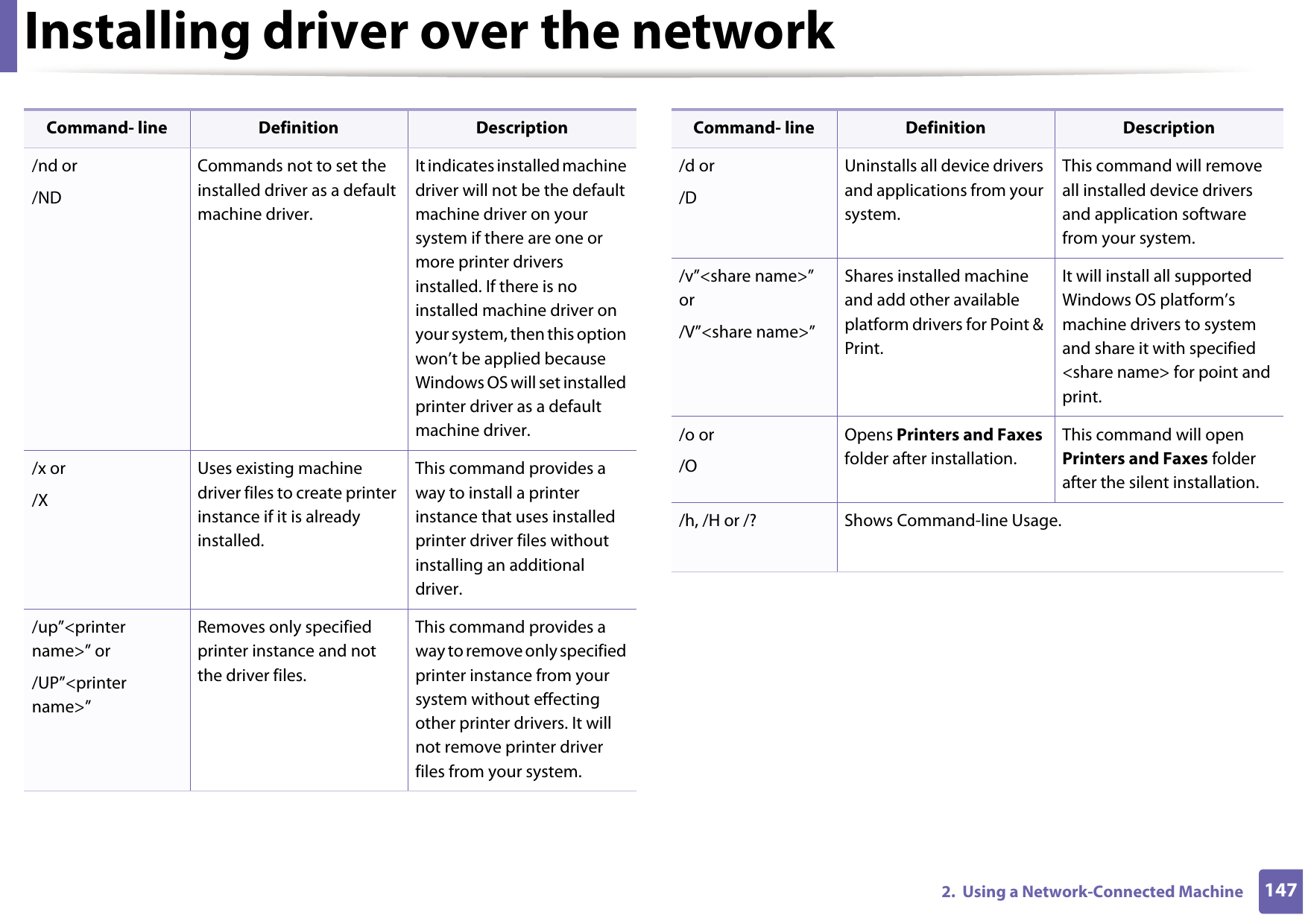
Installing driver over the network1472.  Using a Network-Connected Machine/nd or/NDCommands not to set the installed driver as a default machine driver.It indicates installed machine driver will not be the default machine driver on your system if there are one or more printer drivers installed. If there is no installed machine driver on your system, then this option won’t be applied because Windows OS will set installed printer driver as a default machine driver./x or/XUses existing machine driver files to create printer instance if it is already installed.This command provides a way to install a printer instance that uses installed printer driver files without installing an additional driver./up”<printer name>” or/UP”<printer name>”Removes only specified printer instance and not the driver files.This command provides a way to remove only specified printer instance from your system without effecting other printer drivers. It will not remove printer driver files from your system.Command- line Definition Description/d or/DUninstalls all device drivers and applications from your system.This command will remove all installed device drivers and application software from your system./v”<share name>” or/V”<share name>”Shares installed machine and add other available platform drivers for Point & Print.It will install all supported Windows OS platform’s machine drivers to system and share it with specified <share name> for point and print./o or /OOpens Printers and Faxes folder after installation.This command will open Printers and Faxes folder after the silent installation./h, /H or /? Shows Command-line Usage.Command- line Definition Description
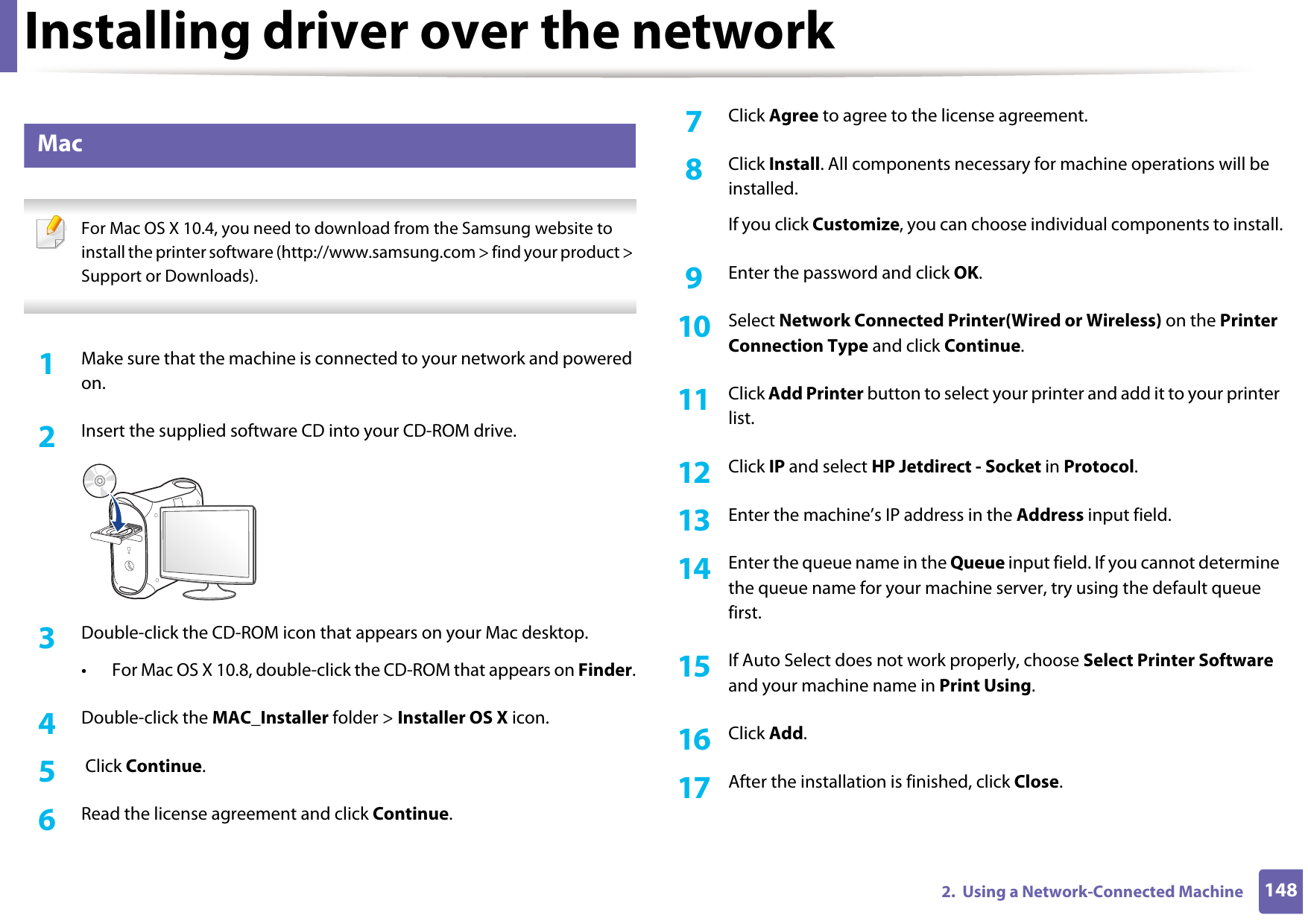
Installing driver over the network1482.  Using a Network-Connected Machine7 Mac For Mac OS X 10.4, you need to download from the Samsung website to install the printer software (http://www.samsung.com > find your product > Support or Downloads). 1Make sure that the machine is connected to your network and powered on.2  Insert the supplied software CD into your CD-ROM drive.3  Double-click the CD-ROM icon that appears on your Mac desktop.• For Mac OS X 10.8, double-click the CD-ROM that appears on Finder.4  Double-click the MAC_Installer folder > Installer OS X icon.5   Click Continue.6  Read the license agreement and click Continue.7  Click Agree to agree to the license agreement.8  Click Install. All components necessary for machine operations will be installed.If you click Customize, you can choose individual components to install.9  Enter the password and click OK.10  Select Network Connected Printer(Wired or Wireless) on the Printer Connection Type and click Continue.11  Click Add Printer button to select your printer and add it to your printer list.12  Click IP and select HP Jetdirect - Socket in Protocol.13  Enter the machine’s IP address in the Address input field.14  Enter the queue name in the Queue input field. If you cannot determine the queue name for your machine server, try using the default queue first.15  If Auto Select does not work properly, choose Select Printer Software and your machine name in Print Using.16  Click Add.17  After the installation is finished, click Close.
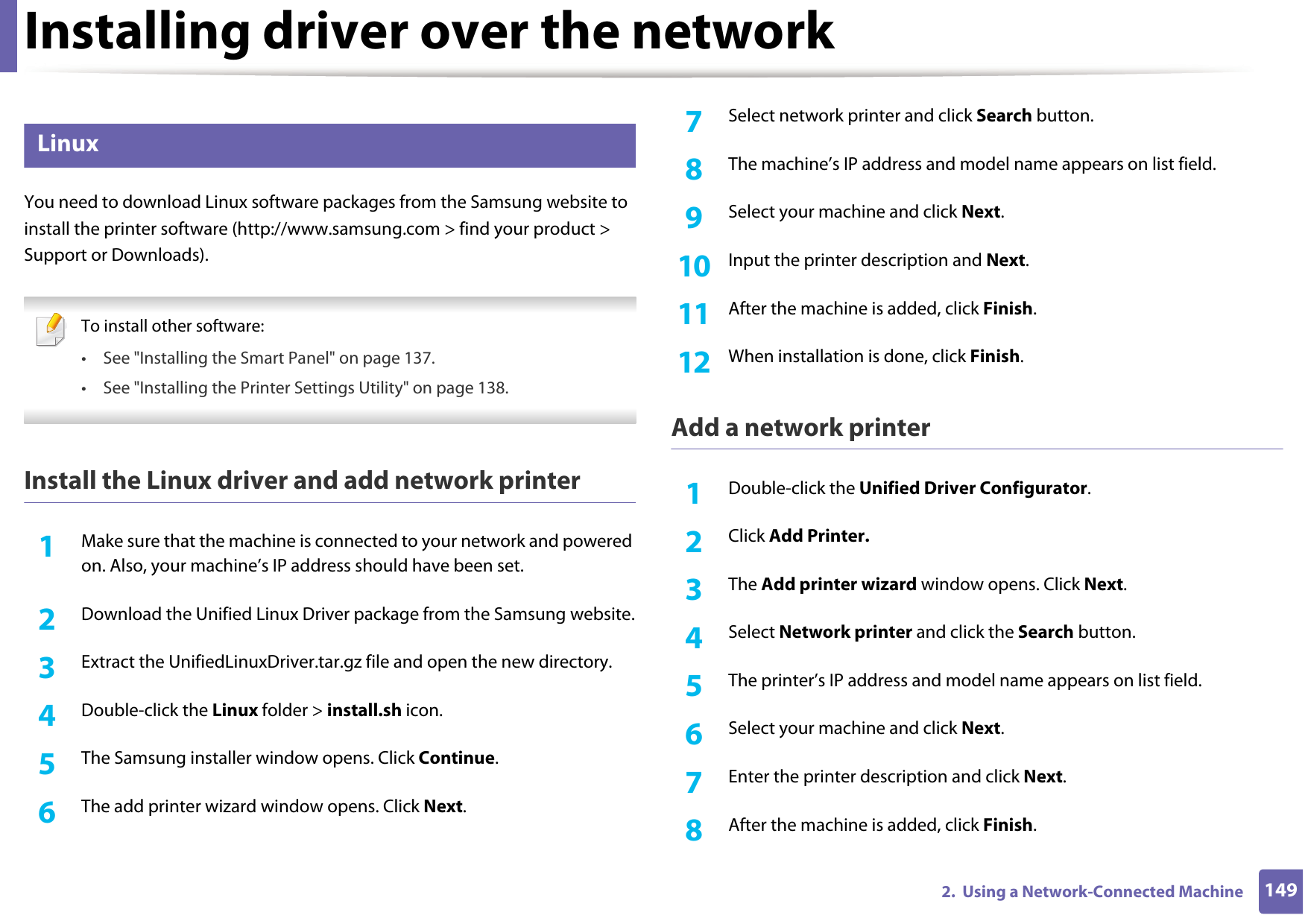
Installing driver over the network1492.  Using a Network-Connected Machine8 LinuxYou need to download Linux software packages from the Samsung website to install the printer software (http://www.samsung.com > find your product > Support or Downloads). To install other software:• See "Installing the Smart Panel" on page 137.• See "Installing the Printer Settings Utility" on page 138. Install the Linux driver and add network printer1Make sure that the machine is connected to your network and powered on. Also, your machine’s IP address should have been set. 2  Download the Unified Linux Driver package from the Samsung website.3  Extract the UnifiedLinuxDriver.tar.gz file and open the new directory.4  Double-click the Linux folder > install.sh icon.5  The Samsung installer window opens. Click Continue.6  The add printer wizard window opens. Click Next.7  Select network printer and click Search button.8  The machine’s IP address and model name appears on list field.9  Select your machine and click Next.10  Input the printer description and Next.11  After the machine is added, click Finish.12  When installation is done, click Finish.Add a network printer1Double-click the Unified Driver Configurator.2  Click Add Printer.3  The Add printer wizard window opens. Click Next.4  Select Network printer and click the Search button.5  The printer’s IP address and model name appears on list field.6  Select your machine and click Next.7  Enter the printer description and click Next.8  After the machine is added, click Finish.
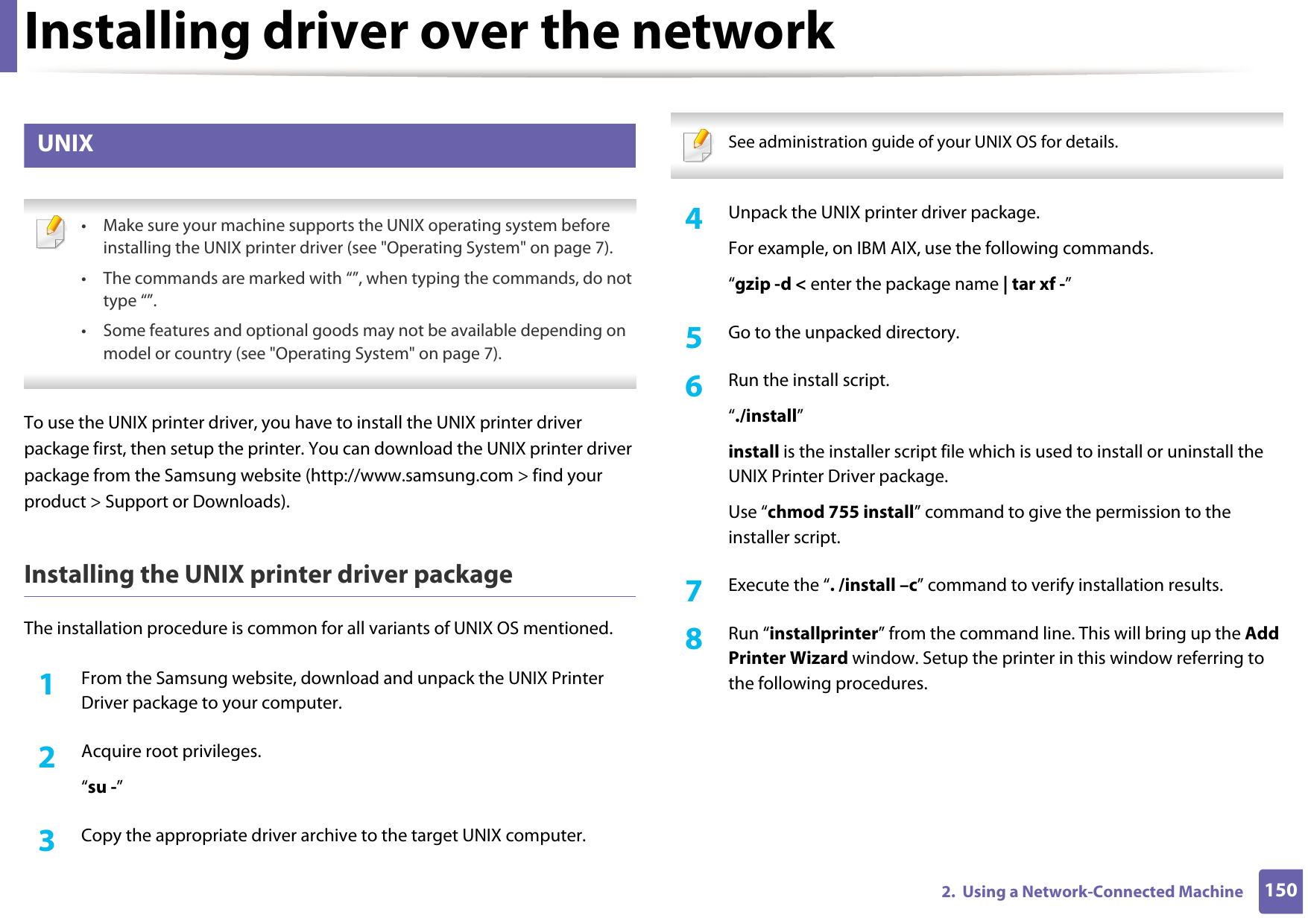
Installing driver over the network1502.  Using a Network-Connected Machine9 UNIX • Make sure your machine supports the UNIX operating system before installing the UNIX printer driver (see "Operating System" on page 7).• The commands are marked with “”, when typing the commands, do not type “”.• Some features and optional goods may not be available depending on model or country (see "Operating System" on page 7). To use the UNIX printer driver, you have to install the UNIX printer driver package first, then setup the printer. You can download the UNIX printer driver package from the Samsung website (http://www.samsung.com > find your product > Support or Downloads).Installing the UNIX printer driver packageThe installation procedure is common for all variants of UNIX OS mentioned.1From the Samsung website, download and unpack the UNIX Printer Driver package to your computer. 2  Acquire root privileges.“su -”3  Copy the appropriate driver archive to the target UNIX computer. See administration guide of your UNIX OS for details. 4  Unpack the UNIX printer driver package.For example, on IBM AIX, use the following commands.“gzip -d < enter the package name | tar xf -”5  Go to the unpacked directory.6  Run the install script.“./install”install is the installer script file which is used to install or uninstall the UNIX Printer Driver package.Use “chmod 755 install” command to give the permission to the installer script.7  Execute the “. /install –c” command to verify installation results.8  Run “installprinter” from the command line. This will bring up the Add Printer Wizard window. Setup the printer in this window referring to the following procedures.
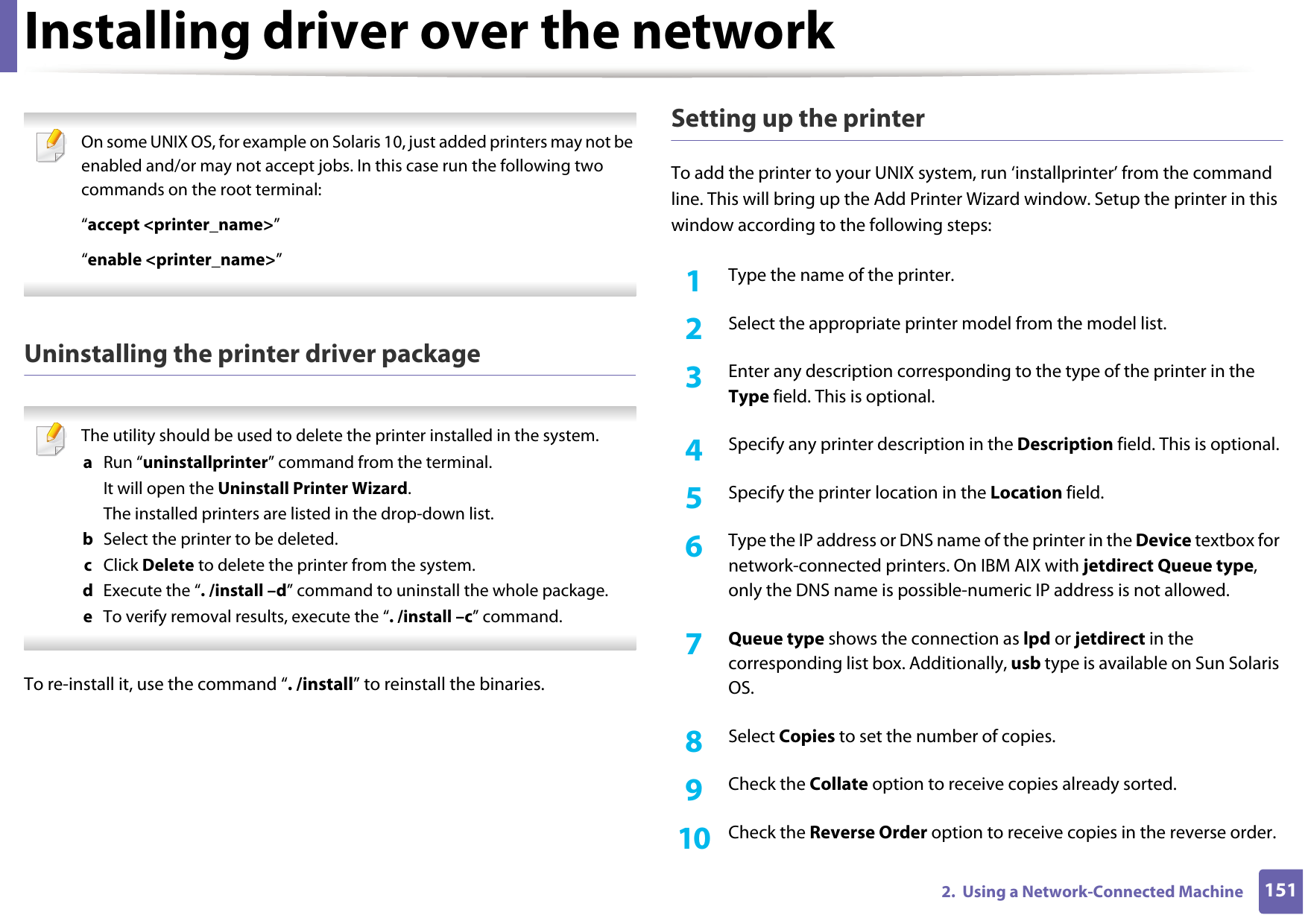
Installing driver over the network1512.  Using a Network-Connected Machine On some UNIX OS, for example on Solaris 10, just added printers may not be enabled and/or may not accept jobs. In this case run the following two commands on the root terminal:“accept <printer_name>”“enable <printer_name>” Uninstalling the printer driver package The utility should be used to delete the printer installed in the system.a  Run “uninstallprinter” command from the terminal.It will open the Uninstall Printer Wizard.The installed printers are listed in the drop-down list.b  Select the printer to be deleted.c  Click Delete to delete the printer from the system.d  Execute the “. /install –d” command to uninstall the whole package.e  To verify removal results, execute the “. /install –c” command. To re-install it, use the command “. /install” to reinstall the binaries.Setting up the printerTo add the printer to your UNIX system, run ‘installprinter’ from the command line. This will bring up the Add Printer Wizard window. Setup the printer in this window according to the following steps:1Type the name of the printer.2  Select the appropriate printer model from the model list.3  Enter any description corresponding to the type of the printer in the Type field. This is optional.4  Specify any printer description in the Description field. This is optional.5  Specify the printer location in the Location field.6  Type the IP address or DNS name of the printer in the Device textbox for network-connected printers. On IBM AIX with jetdirect Queue type, only the DNS name is possible-numeric IP address is not allowed.7  Queue type shows the connection as lpd or jetdirect in the corresponding list box. Additionally, usb type is available on Sun Solaris OS.8  Select Copies to set the number of copies.9  Check the Collate option to receive copies already sorted.10  Check the Reverse Order option to receive copies in the reverse order.
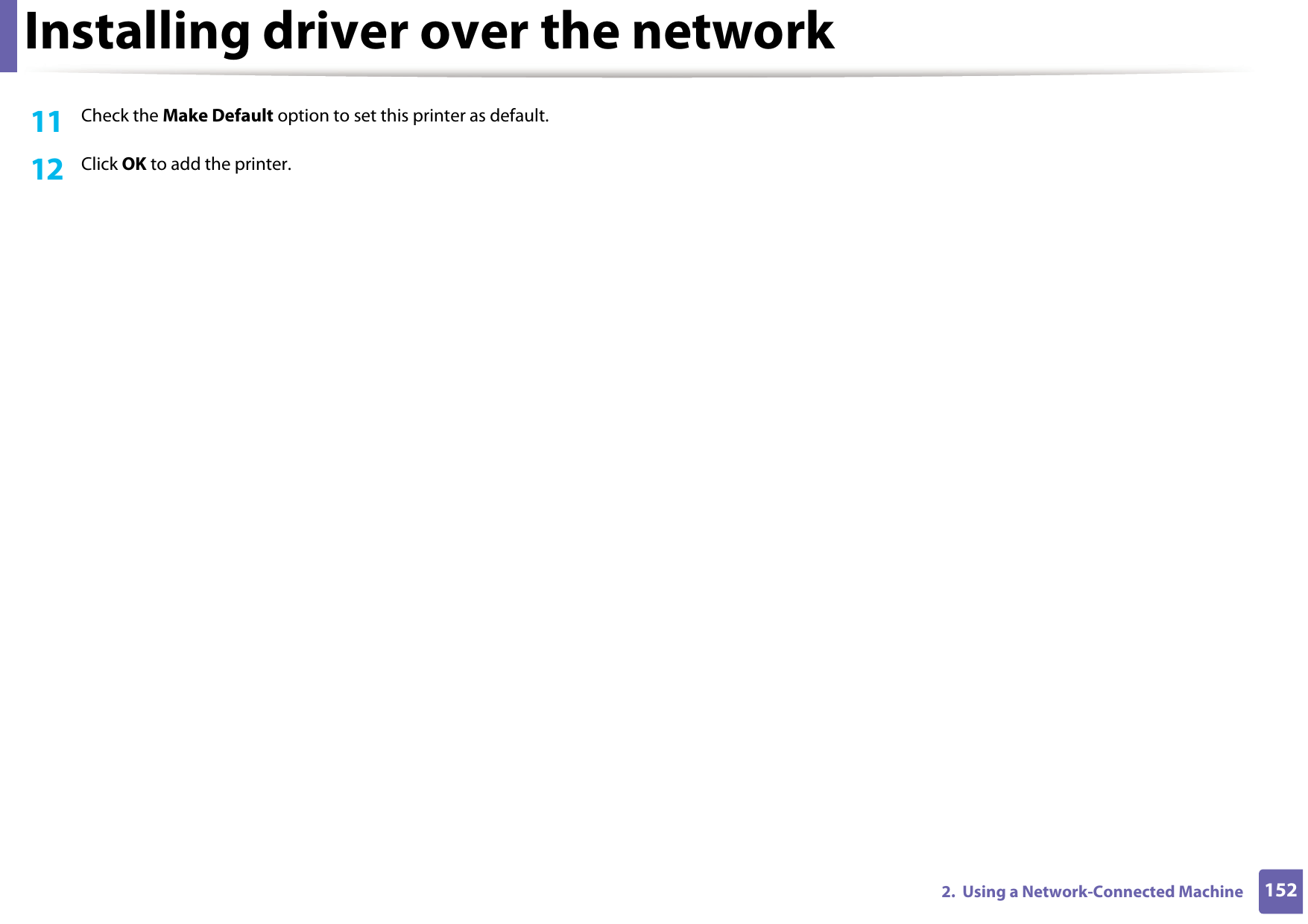
Installing driver over the network1522.  Using a Network-Connected Machine11  Check the Make Default option to set this printer as default.12  Click OK to add the printer.
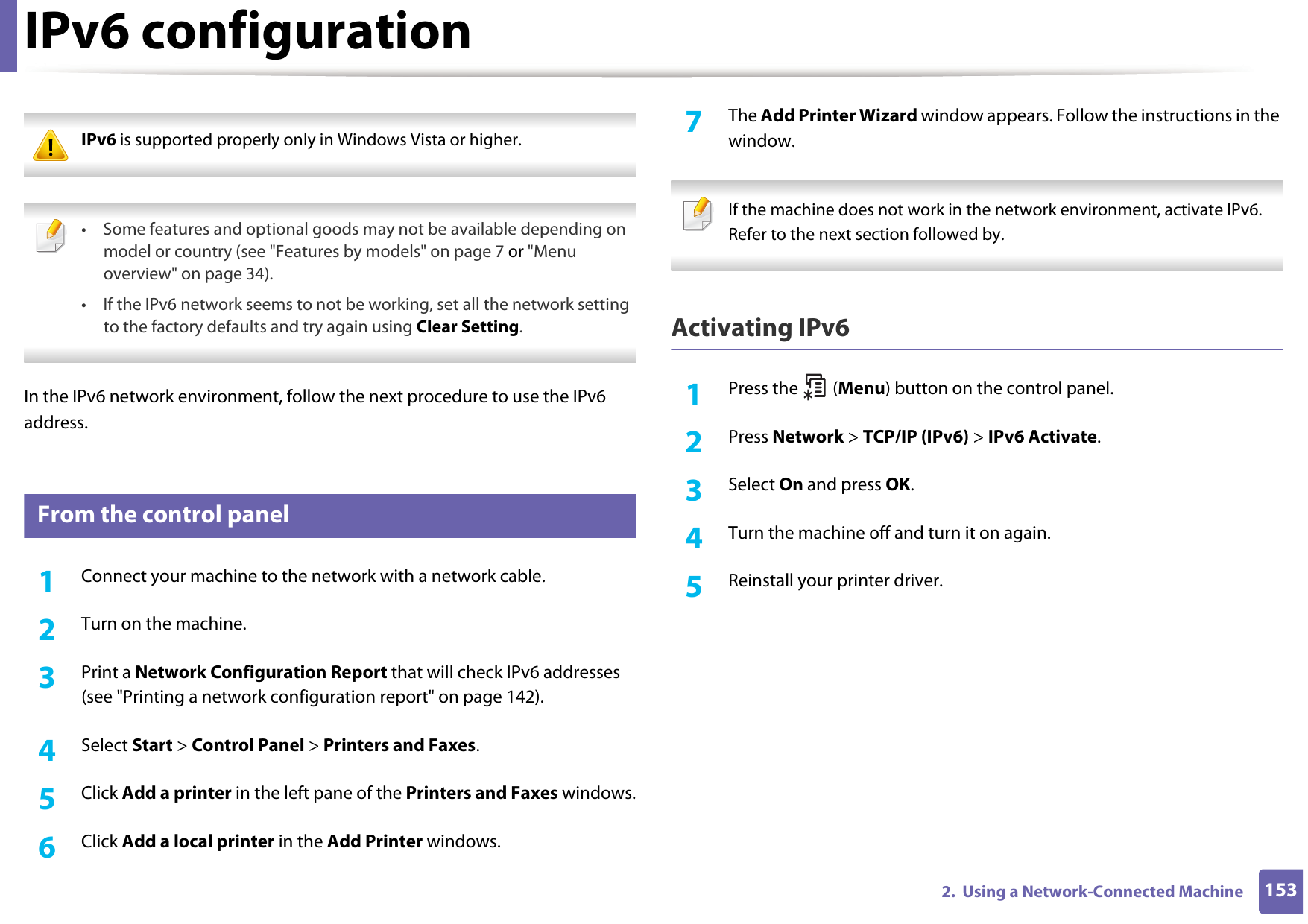
1532.  Using a Network-Connected MachineIPv6 configuration IPv6 is supported properly only in Windows Vista or higher.  • Some features and optional goods may not be available depending on model or country (see "Features by models" on page 7 or "Menu overview" on page 34).• If the IPv6 network seems to not be working, set all the network setting to the factory defaults and try again using Clear Setting. In the IPv6 network environment, follow the next procedure to use the IPv6 address.10 From the control panel1Connect your machine to the network with a network cable.2  Turn on the machine.3  Print a Network Configuration Report that will check IPv6 addresses (see "Printing a network configuration report" on page 142).4  Select Start > Control Panel > Printers and Faxes.5  Click Add a printer in the left pane of the Printers and Faxes windows.6  Click Add a local printer in the Add Printer windows.7  The Add Printer Wizard window appears. Follow the instructions in the window. If the machine does not work in the network environment, activate IPv6. Refer to the next section followed by. Activating IPv61Press the   (Menu) button on the control panel.2  Press Network > TCP/IP (IPv6) > IPv6 Activate.3  Select On and press OK.4  Turn the machine off and turn it on again.5  Reinstall your printer driver.
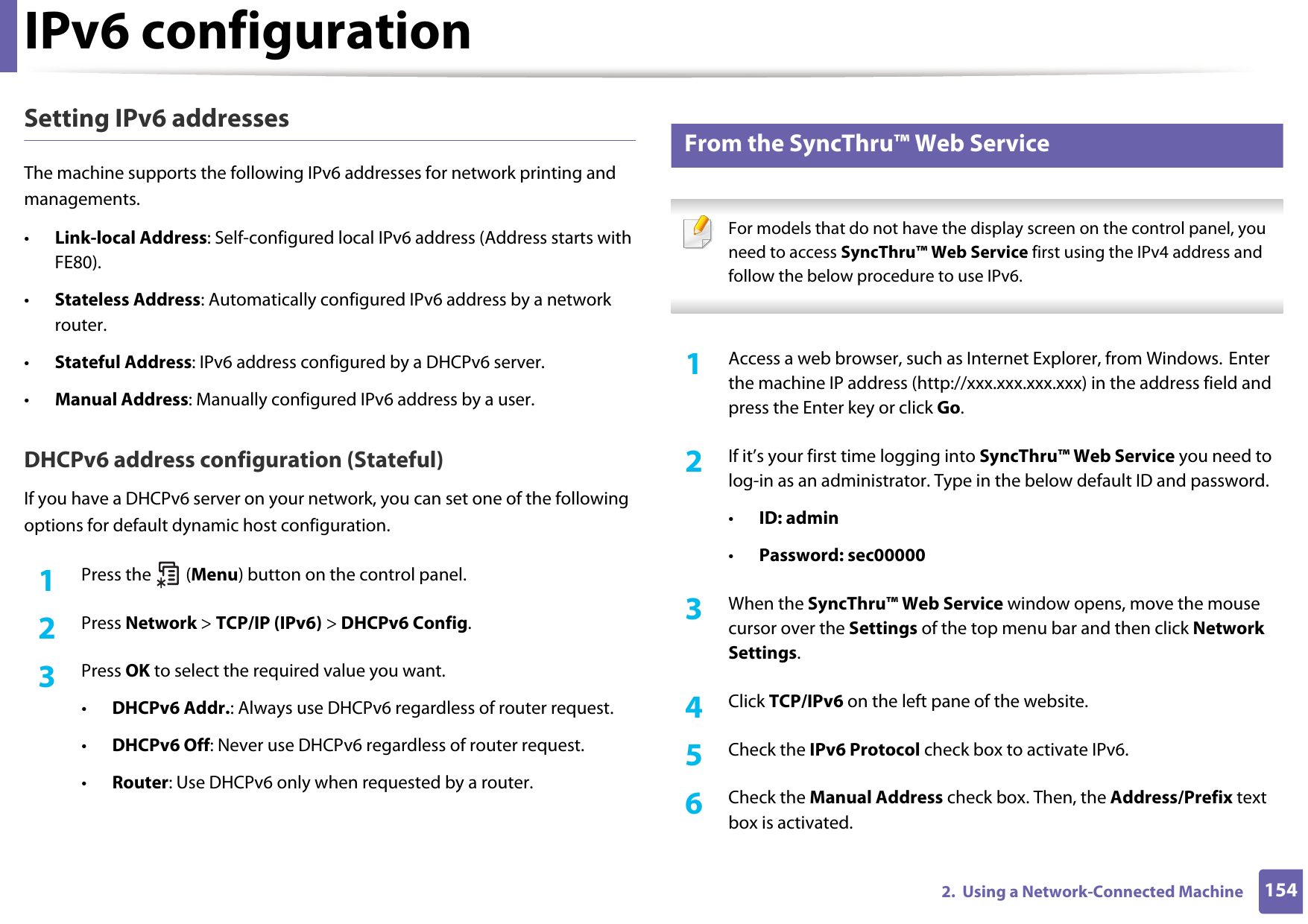
IPv6 configuration1542.  Using a Network-Connected MachineSetting IPv6 addressesThe machine supports the following IPv6 addresses for network printing and managements.•Link-local Address: Self-configured local IPv6 address (Address starts with FE80).•Stateless Address: Automatically configured IPv6 address by a network router.•Stateful Address: IPv6 address configured by a DHCPv6 server.•Manual Address: Manually configured IPv6 address by a user.DHCPv6 address configuration (Stateful)If you have a DHCPv6 server on your network, you can set one of the following options for default dynamic host configuration.1Press the   (Menu) button on the control panel.2  Press Network > TCP/IP (IPv6) > DHCPv6 Config.3  Press OK to select the required value you want.•DHCPv6 Addr.: Always use DHCPv6 regardless of router request.•DHCPv6 Off: Never use DHCPv6 regardless of router request.•Router: Use DHCPv6 only when requested by a router.11 From the SyncThru™ Web Service For models that do not have the display screen on the control panel, you need to access SyncThru™ Web Service first using the IPv4 address and follow the below procedure to use IPv6. 1Access a web browser, such as Internet Explorer, from Windows. Enter the machine IP address (http://xxx.xxx.xxx.xxx) in the address field and press the Enter key or click Go.2  If it’s your first time logging into SyncThru™ Web Service you need to log-in as an administrator. Type in the below default ID and password.•ID: admin•Password: sec00000 3  When the SyncThru™ Web Service window opens, move the mouse cursor over the Settings of the top menu bar and then click Network Settings.4  Click TCP/IPv6 on the left pane of the website.5  Check the IPv6 Protocol check box to activate IPv6.6  Check the Manual Address check box. Then, the Address/Prefix text box is activated.
IPv6 configuration1552.  Using a Network-Connected Machine7  Enter the rest of the address (e.g.,:3FFE:10:88:194::AAAA. “A” is the hexadecimal 0 through 9, A through F).8  Choose the DHCPv6 configuration.9  Click the Apply button.Using SyncThru™ Web Service1Start a web browser, such as Internet Explorer, that supports IPv6 addressing as a URL.2  Select one of the IPv6 addresses (Link-local Address, Stateless Address, Stateful Address, Manual Address) from Network Configuration Report (see "Printing a network configuration report" on page 142).3  Enter the IPv6 addresses (e.g.,: http://[FE80::215:99FF:FE66:7701]). Address must be enclosed in '[ ]' brackets.
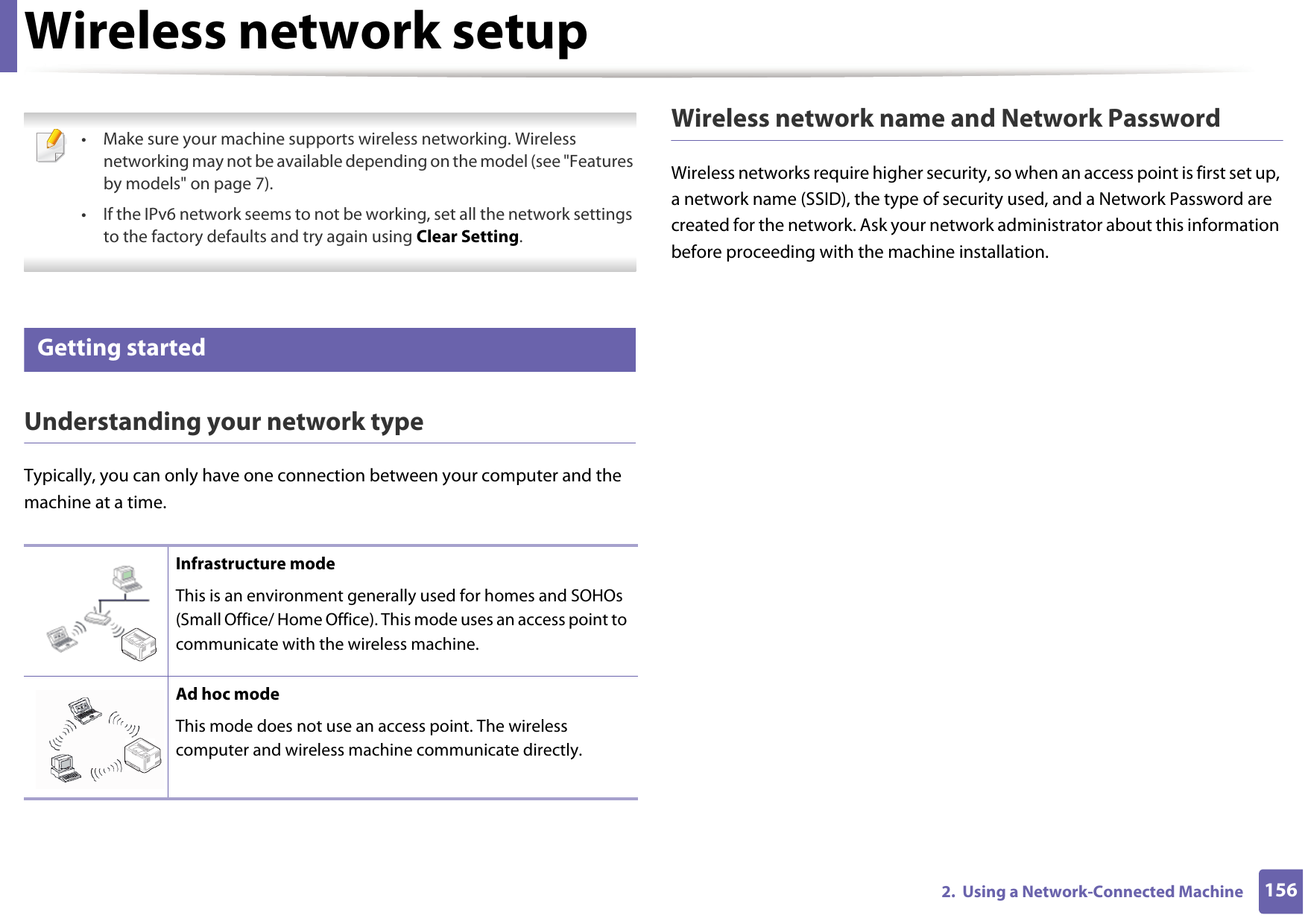
1562.  Using a Network-Connected MachineWireless network setup • Make sure your machine supports wireless networking. Wireless networking may not be available depending on the model (see "Features by models" on page 7).• If the IPv6 network seems to not be working, set all the network settings to the factory defaults and try again using Clear Setting. 12 Getting startedUnderstanding your network typeTypically, you can only have one connection between your computer and the machine at a time.Wireless network name and Network PasswordWireless networks require higher security, so when an access point is first set up, a network name (SSID), the type of security used, and a Network Password are created for the network. Ask your network administrator about this information before proceeding with the machine installation.Infrastructure modeThis is an environment generally used for homes and SOHOs (Small Office/ Home Office). This mode uses an access point to communicate with the wireless machine.Ad hoc modeThis mode does not use an access point. The wireless computer and wireless machine communicate directly.
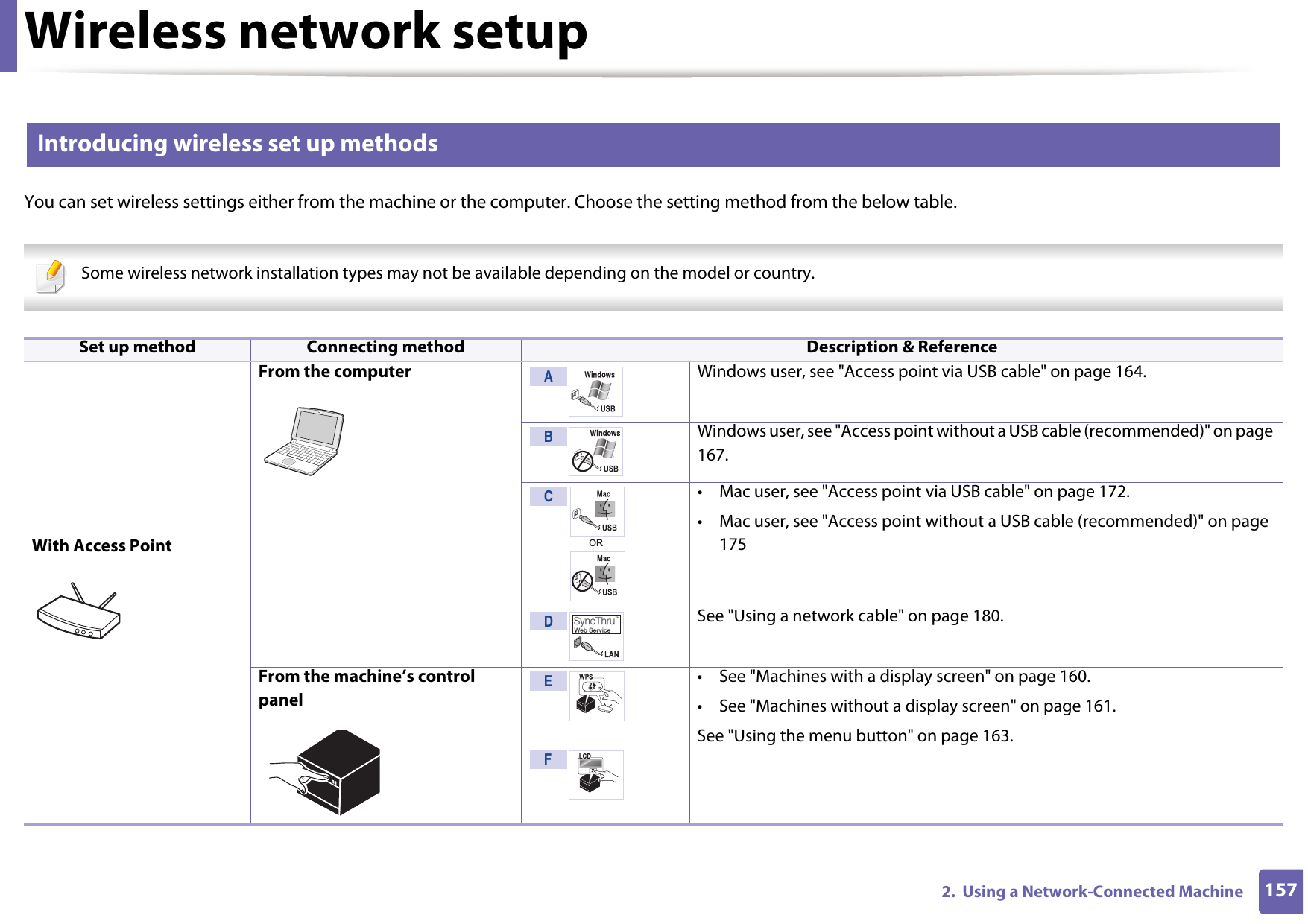
Wireless network setup1572.  Using a Network-Connected Machine13 Introducing wireless set up methodsYou can set wireless settings either from the machine or the computer. Choose the setting method from the below table. Some wireless network installation types may not be available depending on the model or country.  Set up method Connecting method Description & ReferenceWith Access PointFrom the computer Windows user, see "Access point via USB cable" on page 164.Windows user, see "Access point without a USB cable (recommended)" on page 167.• Mac user, see "Access point via USB cable" on page 172.• Mac user, see "Access point without a USB cable (recommended)" on page 175See "Using a network cable" on page 180.From the machine’s control panel• See "Machines with a display screen" on page 160.• See "Machines without a display screen" on page 161.See "Using the menu button" on page 163.ABCORDEF
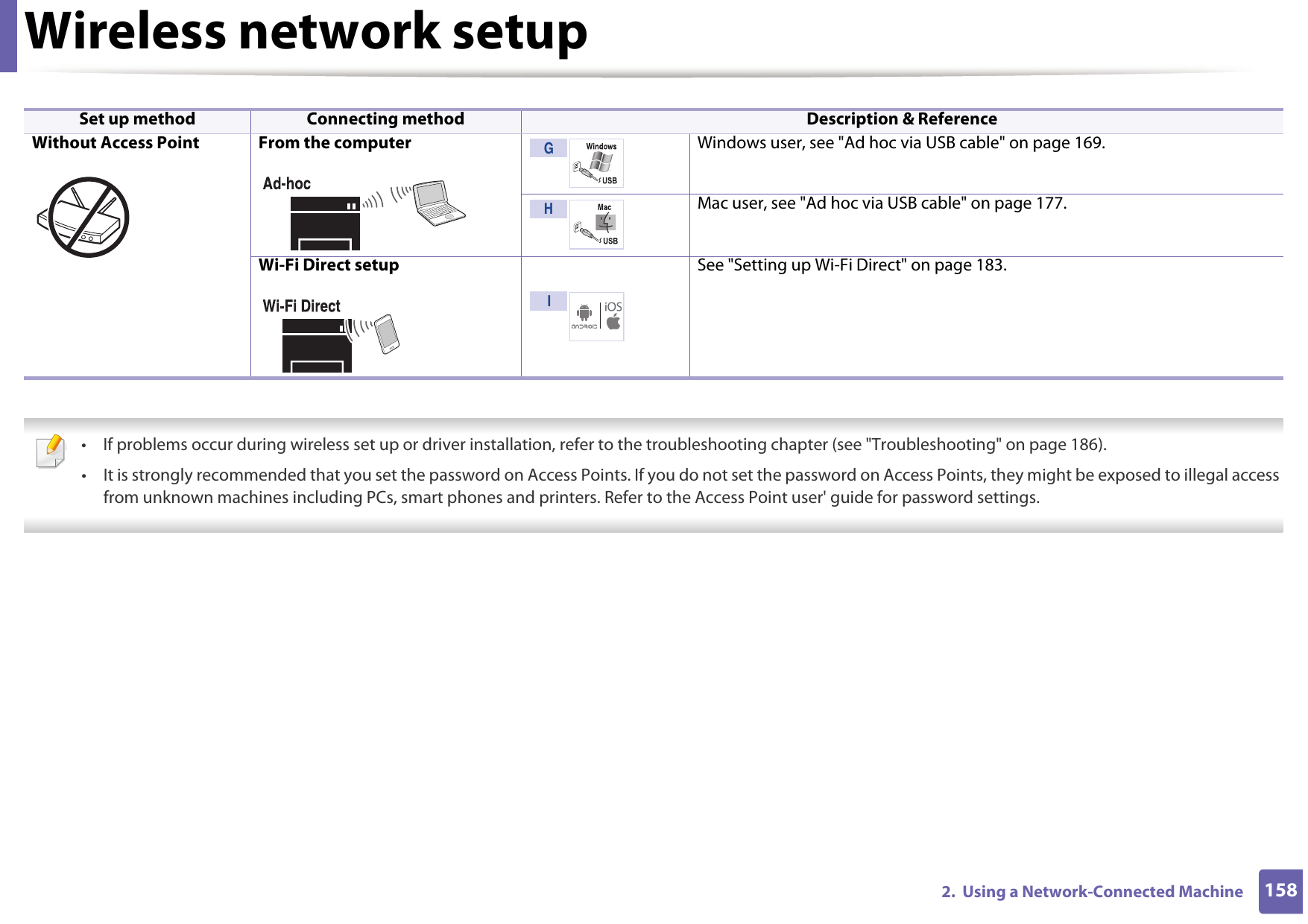
Wireless network setup1582.  Using a Network-Connected Machine  • If problems occur during wireless set up or driver installation, refer to the troubleshooting chapter (see "Troubleshooting" on page 186).• It is strongly recommended that you set the password on Access Points. If you do not set the password on Access Points, they might be exposed to illegal access from unknown machines including PCs, smart phones and printers. Refer to the Access Point user' guide for password settings. Without Access Point From the computer Windows user, see "Ad hoc via USB cable" on page 169.Mac user, see "Ad hoc via USB cable" on page 177.Wi-Fi Direct setup See "Setting up Wi-Fi Direct" on page 183.Set up method Connecting method Description & ReferenceGH I
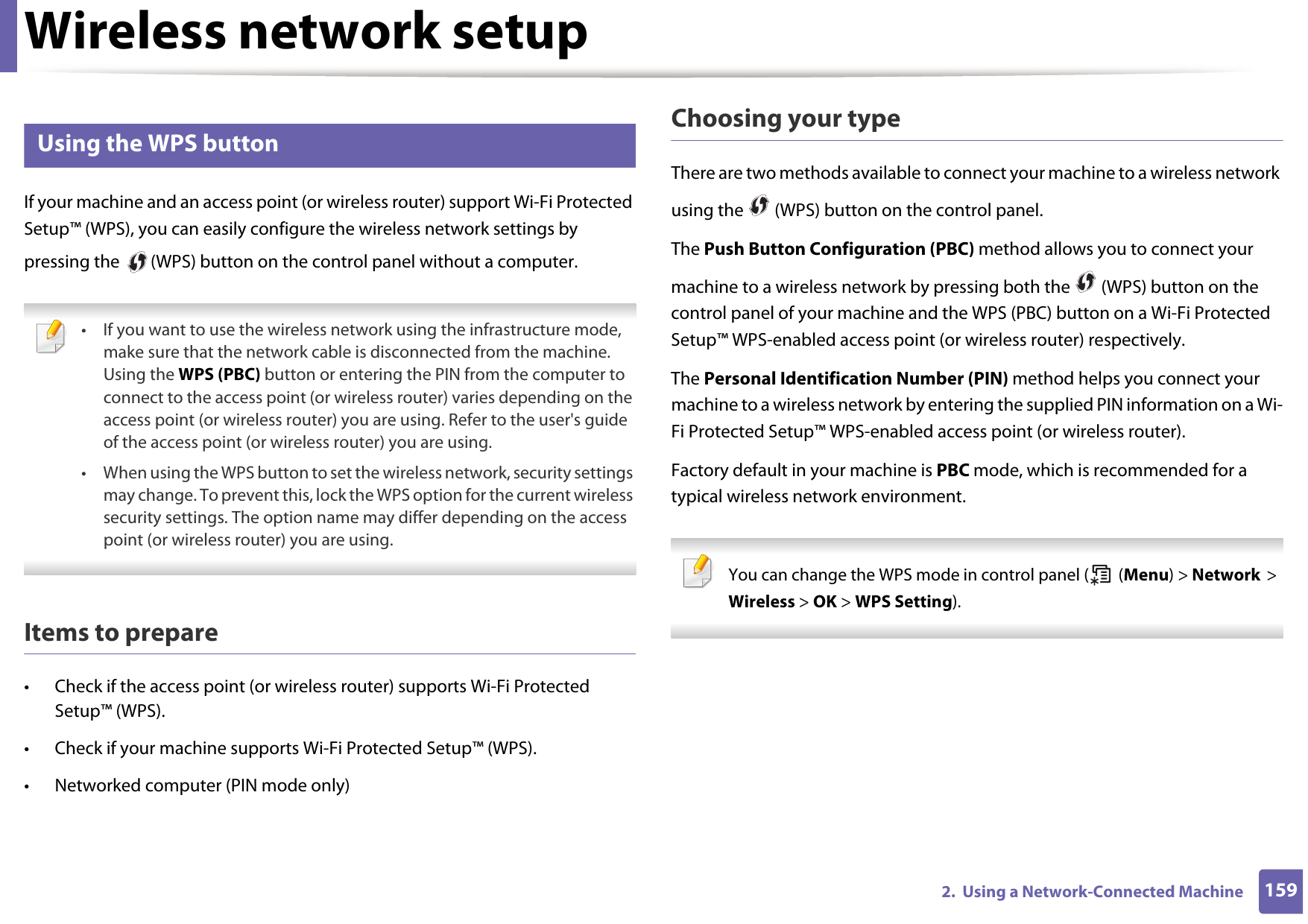
Wireless network setup1592.  Using a Network-Connected Machine14 Using the WPS button If your machine and an access point (or wireless router) support Wi-Fi Protected Setup™ (WPS), you can easily configure the wireless network settings by pressing the   (WPS) button on the control panel without a computer. • If you want to use the wireless network using the infrastructure mode, make sure that the network cable is disconnected from the machine. Using the WPS (PBC) button or entering the PIN from the computer to connect to the access point (or wireless router) varies depending on the access point (or wireless router) you are using. Refer to the user's guide of the access point (or wireless router) you are using.• When using the WPS button to set the wireless network, security settings may change. To prevent this, lock the WPS option for the current wireless security settings. The option name may differ depending on the access point (or wireless router) you are using. Items to prepare• Check if the access point (or wireless router) supports Wi-Fi Protected Setup™ (WPS).• Check if your machine supports Wi-Fi Protected Setup™ (WPS).• Networked computer (PIN mode only)Choosing your typeThere are two methods available to connect your machine to a wireless network using the   (WPS) button on the control panel.The Push Button Configuration (PBC) method allows you to connect your machine to a wireless network by pressing both the   (WPS) button on the control panel of your machine and the WPS (PBC) button on a Wi-Fi Protected Setup™ WPS-enabled access point (or wireless router) respectively.The Personal Identification Number (PIN) method helps you connect your machine to a wireless network by entering the supplied PIN information on a Wi-Fi Protected Setup™ WPS-enabled access point (or wireless router).Factory default in your machine is PBC mode, which is recommended for a typical wireless network environment. You can change the WPS mode in control panel (  (Menu) > Network > Wireless > OK > WPS Setting).
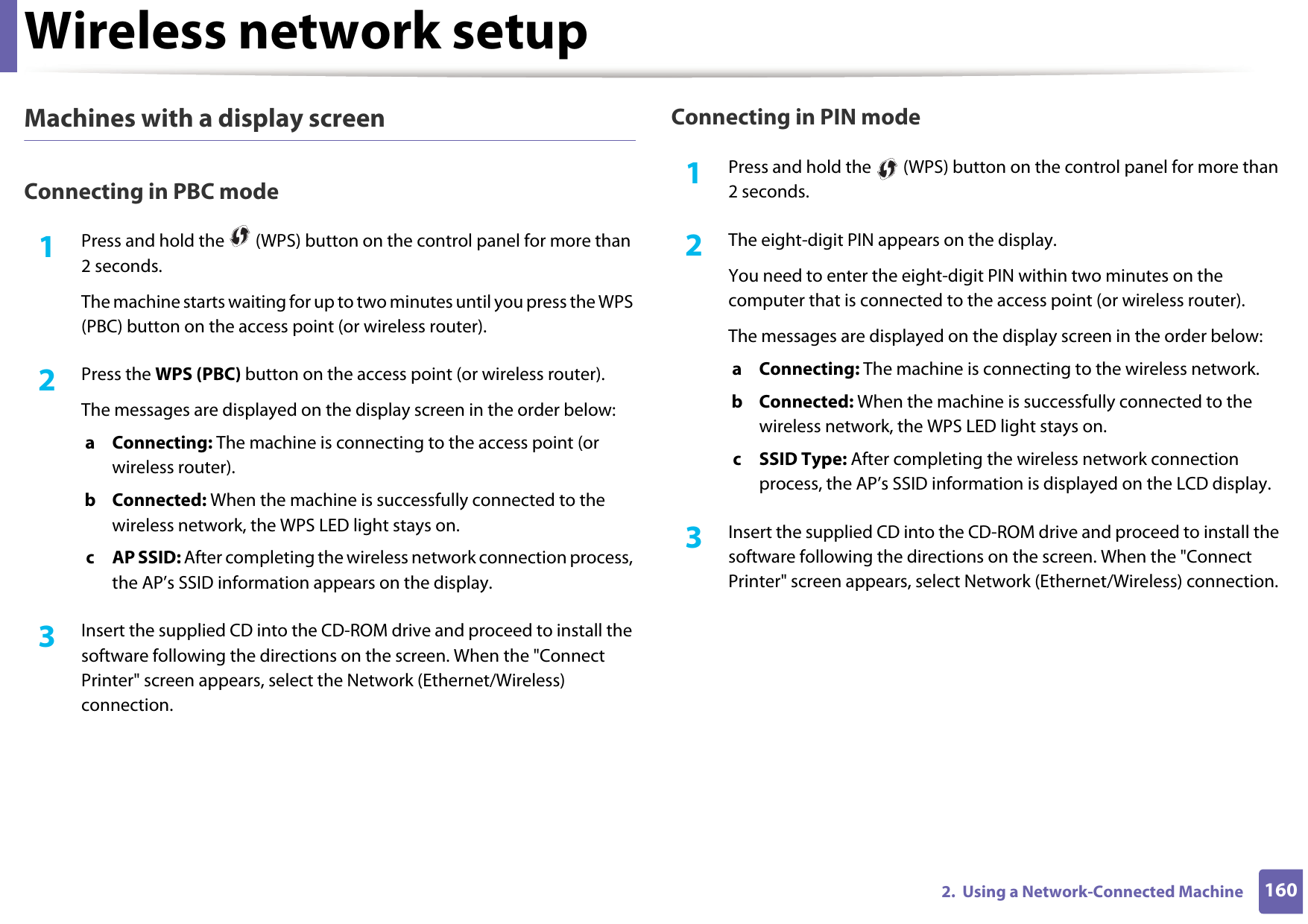
Wireless network setup1602.  Using a Network-Connected MachineMachines with a display screenConnecting in PBC mode1Press and hold the   (WPS) button on the control panel for more than 2 seconds.The machine starts waiting for up to two minutes until you press the WPS (PBC) button on the access point (or wireless router).2  Press the WPS (PBC) button on the access point (or wireless router).The messages are displayed on the display screen in the order below:a Connecting: The machine is connecting to the access point (or wireless router).b Connected: When the machine is successfully connected to the wireless network, the WPS LED light stays on.c AP SSID: After completing the wireless network connection process, the AP’s SSID information appears on the display.3  Insert the supplied CD into the CD-ROM drive and proceed to install the software following the directions on the screen. When the "Connect Printer" screen appears, select the Network (Ethernet/Wireless) connection.Connecting in PIN mode1Press and hold the   (WPS) button on the control panel for more than 2 seconds.2  The eight-digit PIN appears on the display. You need to enter the eight-digit PIN within two minutes on the computer that is connected to the access point (or wireless router).The messages are displayed on the display screen in the order below:a Connecting: The machine is connecting to the wireless network.b Connected: When the machine is successfully connected to the wireless network, the WPS LED light stays on.c SSID Type: After completing the wireless network connection process, the AP’s SSID information is displayed on the LCD display.3  Insert the supplied CD into the CD-ROM drive and proceed to install the software following the directions on the screen. When the "Connect Printer" screen appears, select Network (Ethernet/Wireless) connection.
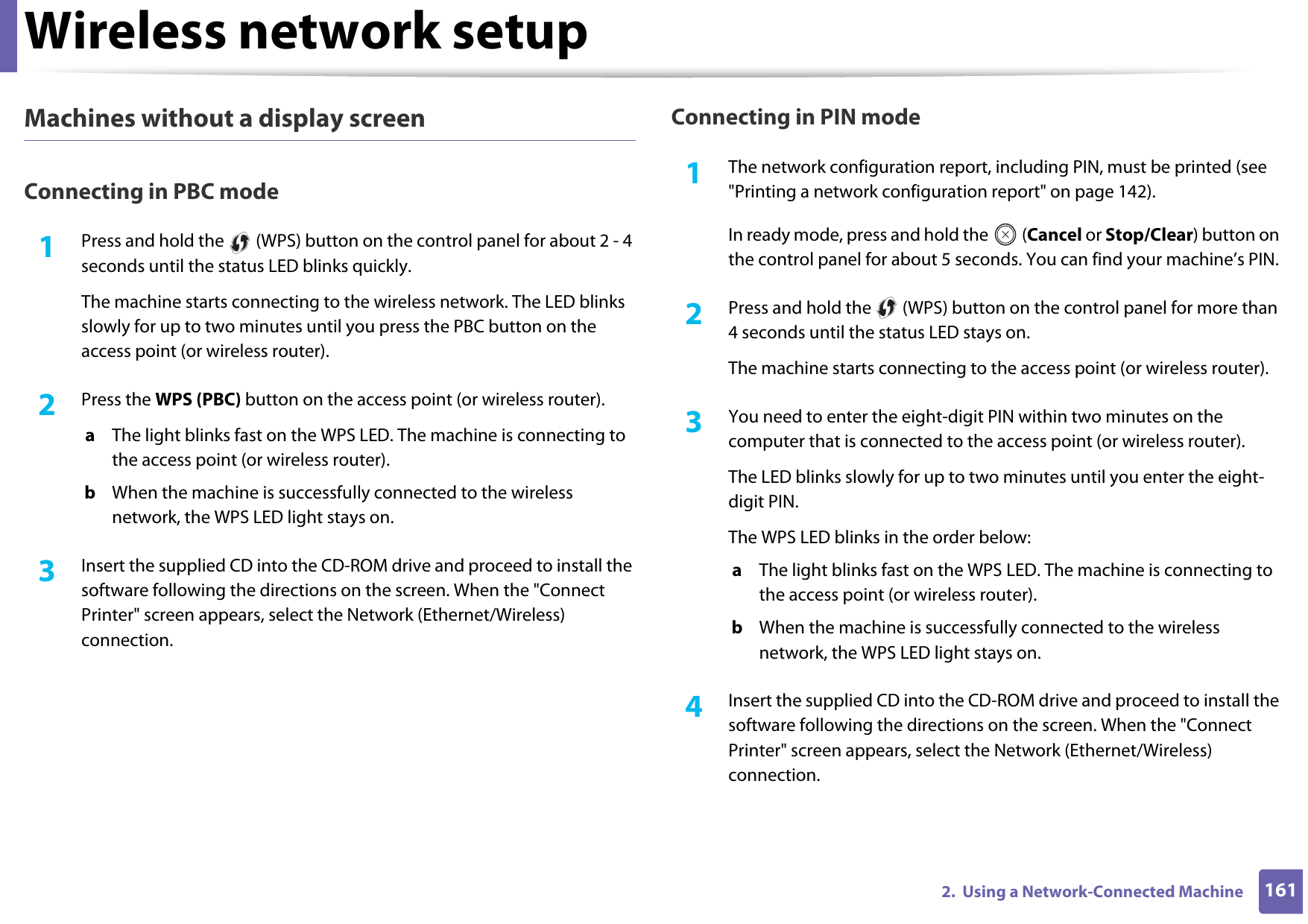
Wireless network setup1612.  Using a Network-Connected MachineMachines without a display screenConnecting in PBC mode1Press and hold the   (WPS) button on the control panel for about 2 - 4 seconds until the status LED blinks quickly.The machine starts connecting to the wireless network. The LED blinks slowly for up to two minutes until you press the PBC button on the access point (or wireless router).2  Press the WPS (PBC) button on the access point (or wireless router).a  The light blinks fast on the WPS LED. The machine is connecting to the access point (or wireless router). b  When the machine is successfully connected to the wireless network, the WPS LED light stays on.3  Insert the supplied CD into the CD-ROM drive and proceed to install the software following the directions on the screen. When the "Connect Printer" screen appears, select the Network (Ethernet/Wireless) connection.Connecting in PIN mode1The network configuration report, including PIN, must be printed (see "Printing a network configuration report" on page 142).In ready mode, press and hold the   (Cancel or Stop/Clear) button on the control panel for about 5 seconds. You can find your machine’s PIN.2  Press and hold the   (WPS) button on the control panel for more than 4 seconds until the status LED stays on.The machine starts connecting to the access point (or wireless router).3  You need to enter the eight-digit PIN within two minutes on the computer that is connected to the access point (or wireless router).The LED blinks slowly for up to two minutes until you enter the eight-digit PIN.The WPS LED blinks in the order below:a  The light blinks fast on the WPS LED. The machine is connecting to the access point (or wireless router).b  When the machine is successfully connected to the wireless network, the WPS LED light stays on.4  Insert the supplied CD into the CD-ROM drive and proceed to install the software following the directions on the screen. When the "Connect Printer" screen appears, select the Network (Ethernet/Wireless) connection.
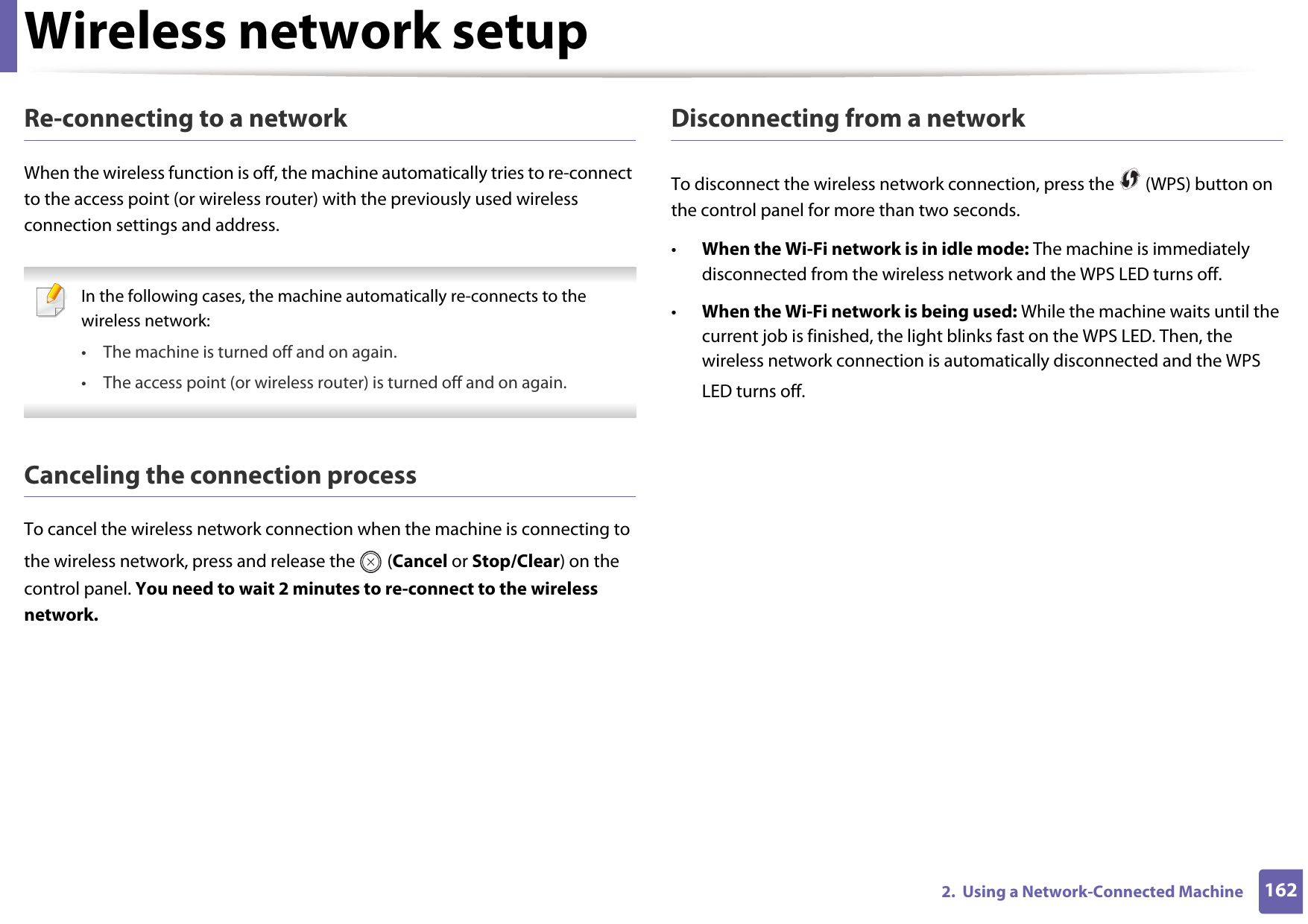
Wireless network setup1622.  Using a Network-Connected MachineRe-connecting to a networkWhen the wireless function is off, the machine automatically tries to re-connect to the access point (or wireless router) with the previously used wireless connection settings and address. In the following cases, the machine automatically re-connects to the wireless network:• The machine is turned off and on again.• The access point (or wireless router) is turned off and on again. Canceling the connection processTo cancel the wireless network connection when the machine is connecting to the wireless network, press and release the   (Cancel or Stop/Clear) on the control panel. You need to wait 2 minutes to re-connect to the wireless network.Disconnecting from a networkTo disconnect the wireless network connection, press the   (WPS) button on the control panel for more than two seconds.•When the Wi-Fi network is in idle mode: The machine is immediately disconnected from the wireless network and the WPS LED turns off.•When the Wi-Fi network is being used: While the machine waits until the current job is finished, the light blinks fast on the WPS LED. Then, the wireless network connection is automatically disconnected and the WPS LED turns off.
Wireless network setup1632.  Using a Network-Connected Machine15 Using the menu button Some menus may not appear in the display depending on options or models. If so, it is not applicable to your machine (see "Menu overview" on page 34). Before starting, you will need to know the network name (SSID) of your wireless network and the Network Password if it is encrypted. This information was set when the access point (or wireless router) was installed. If you do not know about your wireless environment, please ask the person who set up your network. After completing the wireless network connection, you need to install a machine driver to print from an application (see "Installing driver over the network" on page 145). 1Press the   (Menu) button on the control panel.2  Press Network > Wireless > WLAN Settings.3  Press the OK to select the setup method you want.•Wizard (recommended): In this mode, the setup is automatic. The machine will display a list of available networks from which to choose. After a network is chosen then printer will prompt for the corresponding security key.•Custom: In this mode, users can give or edit manually their own SSID , or choose the security option in detail.
Wireless network setup1642.  Using a Network-Connected Machine16 Setup using Windows Shortcut to the Samsung Easy Wireless Setup program without the CD: If you have installed the printer driver once, you can access the Samsung Easy Wireless Setup program without the CD (see "Accessing management tools" on page 327). Access point via USB cableItems to prepare• Access point• Network-connected computer• Software CD that was provided with your machine• A machine installed with a wireless network interface• USB cableCreating the infrastructure network1Check wheter the USB cable is connected to the machine.2  Turn on your computer, access point, and machine.3  Insert the supplied software CD into your CD-ROM drive.If the installation window does not appear, click Start > All programs > Accessories > Run. X:\Setup.exe replacing “X” with the letter, which represents your CD-ROM drive and click OK.4  Review and accept the installation agreements in the installation window. Then, click Next.
Wireless network setup1652.  Using a Network-Connected Machine5  Select Wireless network connection on the Printer Connection Type screen. Then, click Next.6  On the Are you setting up your printer for the first time? screen, select Yes, I will set up my printer's wireless network. Then, click Next.If your printer is already connected on the network, select No, my printer is already connected to my network.7  After searching, the window shows the wireless network devices. Select the name (SSID) of the access point you want to use and click Next. If you cannot find the network name you want to choose, or if you want to set the wireless configuration manually, click Advanced Setting.•Enter the wireless Network Name: Enter the SSID of the access point (SSID is case-sensitive).•Operation Mode: Select Infrastructure.•Authentication: Select an authentication type.Open System: Authentication is not used, and encryption may or may not be used, depending on the need for data security.Shared Key: Authentication is used. A device that has a proper WEP key can access the network.WPA Personal or WPA2 Personal: Select this option to authenticate the print server based on a WPA Pre-Shared Key. This uses a shared secret key (generally called Pre Shared Key pass phrase), which is manually configured on the access point and each of its clients.•Encryption: Select the encryption (None, WEP64, WEP128, TKIP, AES, TKIP AES).•Network Password: Enter the encryption network password value.
Wireless network setup1662.  Using a Network-Connected Machine•Confirm Network Password: Confirm the encryption network password value.•WEP Key Index: If you are using WEP Encryption, select the appropriate WEP Key Index.  The wireless network security window appears when the access point has security settings.Enter the Network Password of the access point (or router). 8  If your printer supports Wi-Fi Direct and this function is disabled, its corresponding screen will appears.If you want to enable Wi-Fi Direct, check the checkbox, and click Next. If not, click just Next. Next.
Wireless network setup1672.  Using a Network-Connected Machine • Wi-Fi Direct option appears on the screen only if your printer supports this feature.• Can start to build Wi-Fi Direct by using Samsung Easy Printer Manager (see "Setting up Wi-Fi Direct" on page 183).•Wi-Fi Direct Name: The default Wi-Fi Direct Name is the model name and the maximum length is 22 characters.•Password setting is the numeric string, and the size is 8 ~ 64 characters. 9  When the wireless network set up is completed, disconnect the USB cable between the computer and machine. Click Next.10  Follow the instructions in the installation window.Access point without a USB cable (recommended)Items to prepare• WiFi-enabled PC running Windows 7 or higher and an access point (router)• Software CD that was provided with your machine• A machine installed with a wireless network interface While setting the wireless network, the machine uses PC's wireless LAN. You might not be able to connect to the Internet.  Creating the infrastructure network1Turn on your computer, access point, and machine.2  Insert the supplied software CD into your CD-ROM drive.If the installation window does not appear, click Start > All programs > Accessories > Run. X:\Setup.exe replacing “X” with the letter, which represents your CD-ROM drive and click OK.3  Review and accept the installation agreements in the installation window. Then, click Next.
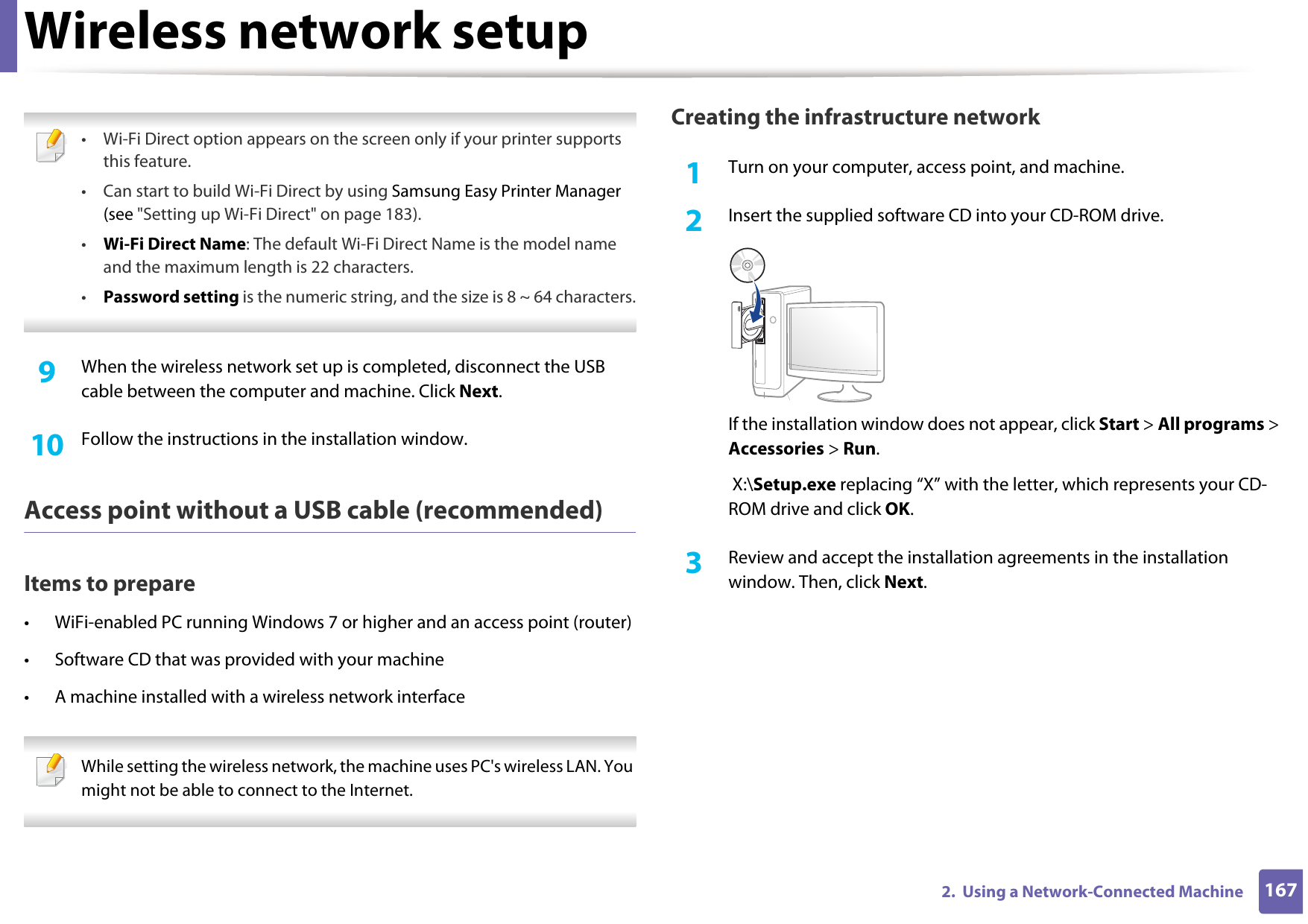
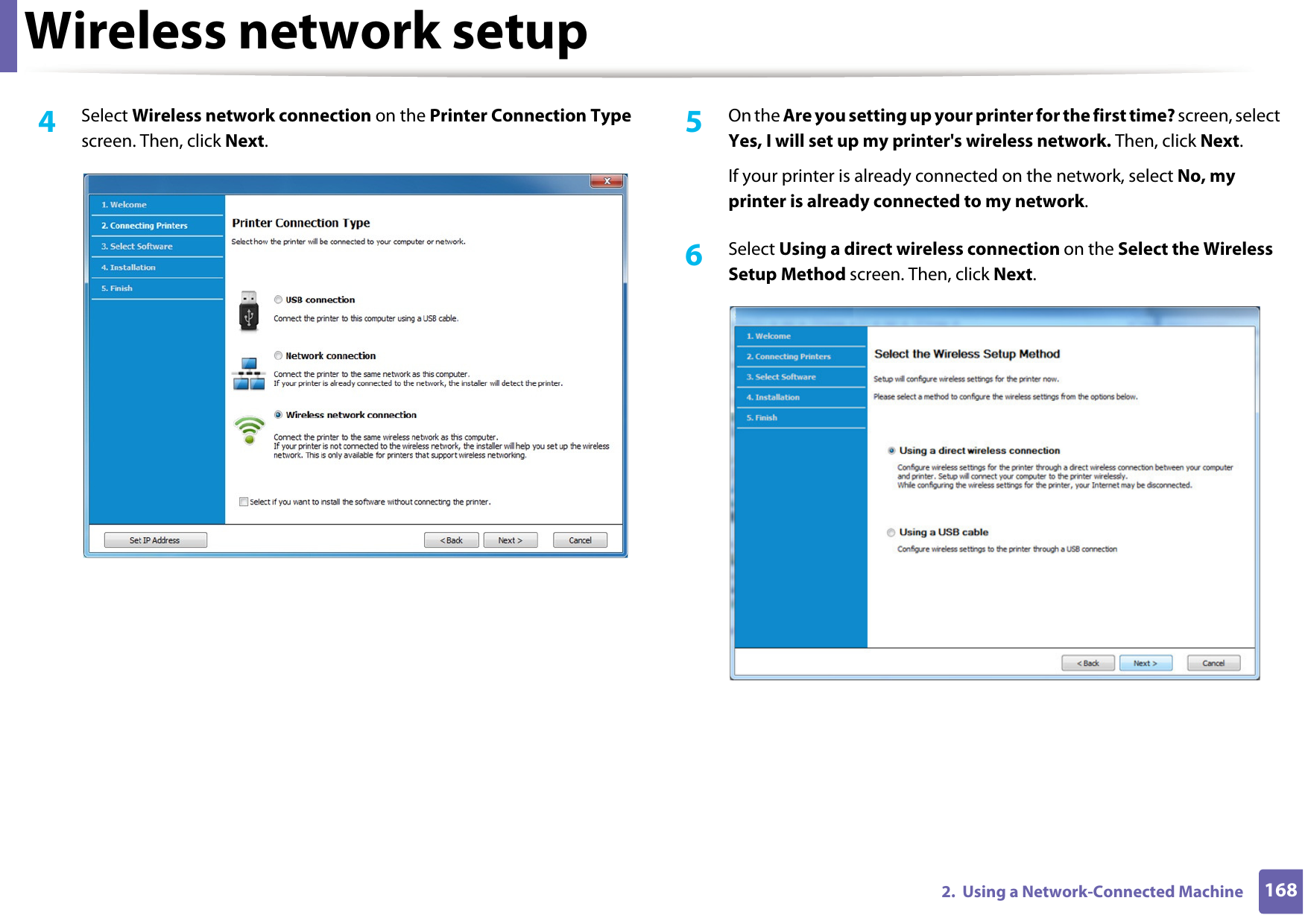
Wireless network setup1682.  Using a Network-Connected Machine4  Select Wireless network connection on the Printer Connection Type screen. Then, click Next.5  On the Are you setting up your printer for the first time? screen, select Yes, I will set up my printer's wireless network. Then, click Next.If your printer is already connected on the network, select No, my printer is already connected to my network.6  Select Using a direct wireless connection on the Select the Wireless Setup Method screen. Then, click Next.
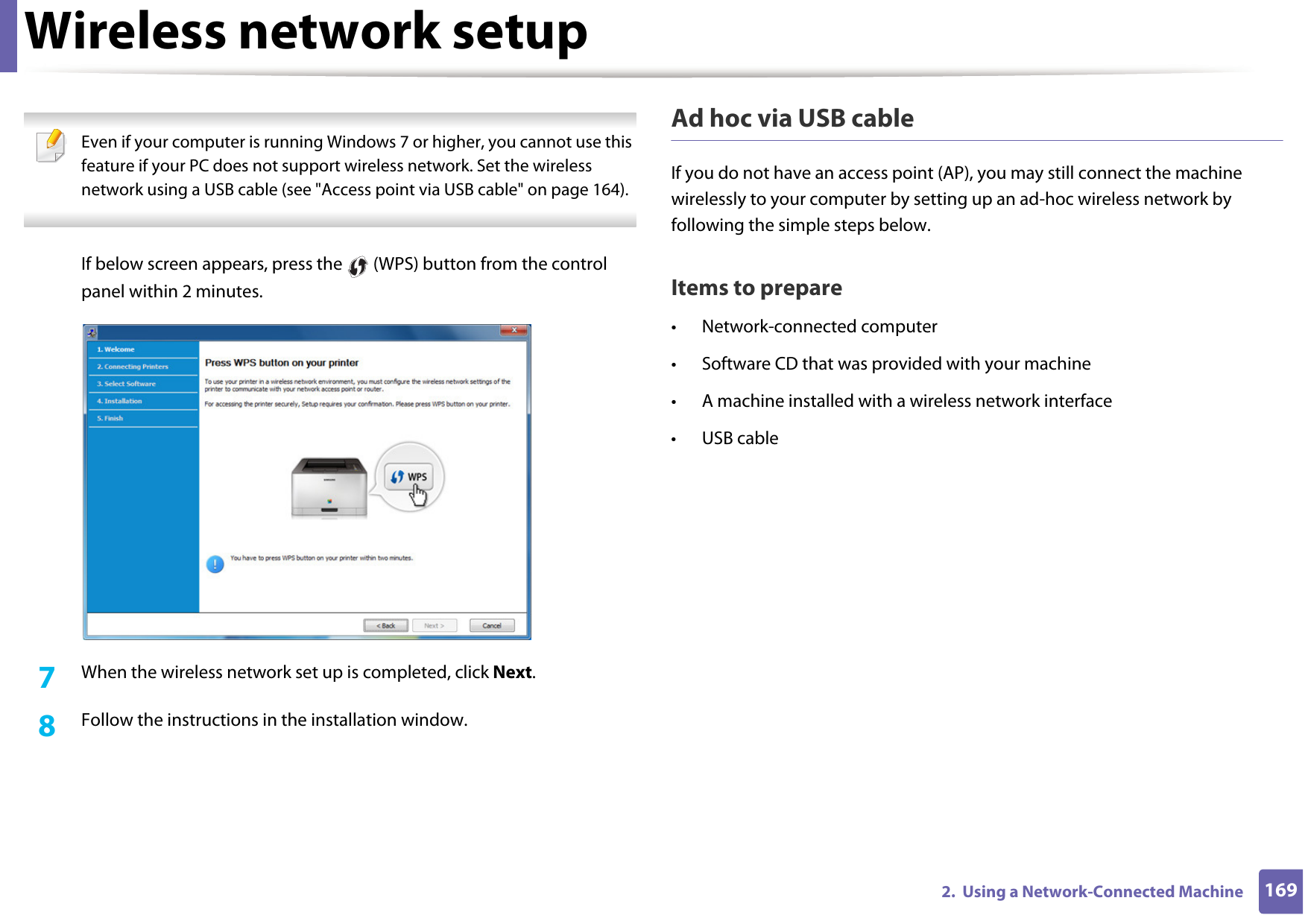
Wireless network setup1692.  Using a Network-Connected Machine Even if your computer is running Windows 7 or higher, you cannot use this feature if your PC does not support wireless network. Set the wireless network using a USB cable (see "Access point via USB cable" on page 164). If below screen appears, press the   (WPS) button from the control panel within 2 minutes.7  When the wireless network set up is completed, click Next. 8  Follow the instructions in the installation window.Ad hoc via USB cableIf you do not have an access point (AP), you may still connect the machine wirelessly to your computer by setting up an ad-hoc wireless network by following the simple steps below.Items to prepare• Network-connected computer• Software CD that was provided with your machine• A machine installed with a wireless network interface• USB cable
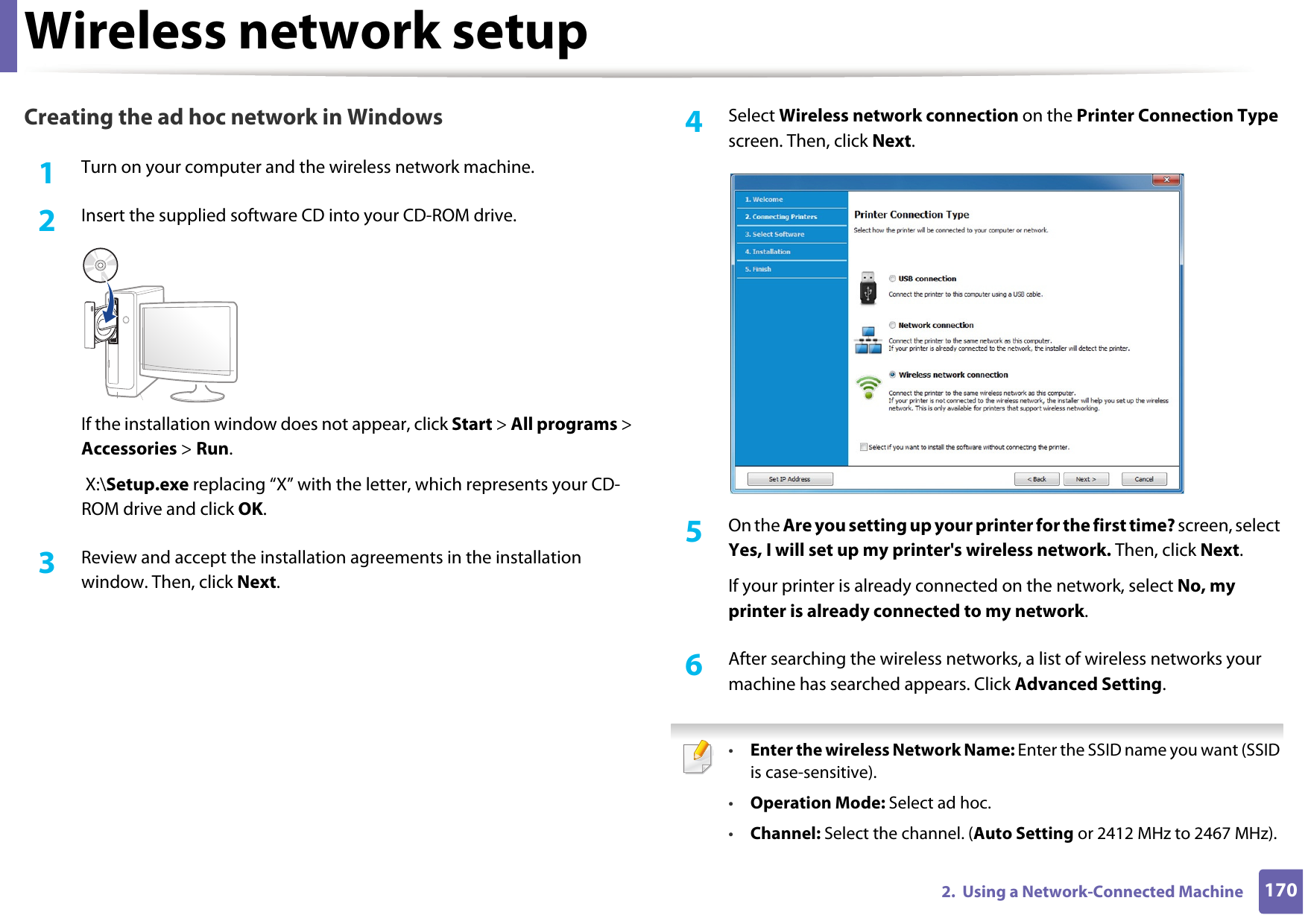
Wireless network setup1702.  Using a Network-Connected MachineCreating the ad hoc network in Windows1Turn on your computer and the wireless network machine.2  Insert the supplied software CD into your CD-ROM drive.If the installation window does not appear, click Start > All programs > Accessories > Run. X:\Setup.exe replacing “X” with the letter, which represents your CD-ROM drive and click OK.3  Review and accept the installation agreements in the installation window. Then, click Next.4  Select Wireless network connection on the Printer Connection Type screen. Then, click Next.5  On the Are you setting up your printer for the first time? screen, select Yes, I will set up my printer's wireless network. Then, click Next.If your printer is already connected on the network, select No, my printer is already connected to my network.6  After searching the wireless networks, a list of wireless networks your machine has searched appears. Click Advanced Setting. •Enter the wireless Network Name: Enter the SSID name you want (SSID is case-sensitive).•Operation Mode: Select ad hoc.•Channel: Select the channel. (Auto Setting or 2412 MHz to 2467 MHz).
Wireless network setup1712.  Using a Network-Connected Machine•Authentication: Select an authentication type.Open System: Authentication is not used, and encryption may or may not be used, depending on the need for data security.Shared Key: Authentication is used. A device that has a proper WEP key can access the network.•Encryption: Select the encryption (None, WEP64, WEP128).•Network Password: Enter the encryption network password value.•Confirm Network Password: Confirm the encryption network password value.•WEP Key Index: If you are using WEP Encryption, select the appropriate WEP Key Index.The wireless network security window appears when the ad hoc network has security enabled.Select Open System or Shared Key for the authentication and click Next.• WEP (Wired Equivalent Privacy) is a security protocol preventing unauthorized access to your wireless network. WEP encrypts the data portion of each packet exchanged on a wireless network using a 64-bit or 128-bit WEP encryption key. 7  The window showing the wireless network setting appears. Check the settings and click Next. Before entering the IP address for the machine, you must know the computer’s network configuration information. If the computer’s network configuration is set to DHCP, the wireless network setting should also be DHCP. Likewise, if the computer’s network configuration is set to Static, the wireless network setting should also be Static.If your computer is set to DHCP and you want to use the Static wireless network setting, you must contact the network administrator to get the static IP address.•For the DHCP methodIf the IP address assignment method is DHCP, check if DHCP is shown in the Wireless Network Setting Confirm window. If it shows Static, click Change TCP/IP to change the assignment method to Receive IP address automatically (DHCP).•For the Static methodIf the IP address assignment method is Static, check if Static is shown in the Wireless Network Setting Confirm window. If it shows DHCP, click Change TCP/IP to enter the IP address and other network configuration values for the machine.For example,If the computer’s network information is as shown follows:- IP address: 169.254.133.42- Subnet Mask: 255.255.0.0Then, the machine’s network information should be as below:- IP address: 169.254.133.43- Subnet Mask: 255.255.0.0 (Use the computer’s subnet mask.)- Gateway: 169.254.133.1
Wireless network setup1722.  Using a Network-Connected Machine8  The Wireless Network Setting Complete window appears. Click Next.9  When the wireless network settings are completed, disconnect the USB cable between the computer and machine. Click Next.10  Follow the instructions in the installation window.17 Setup using MacAccess point via USB cableItems to prepare• Access point• Network-connected printer• Software CD that was provided with your machine• A machine installed with a wireless network interface• USB cable For Mac OS X 10.4, you need to download from the Samsung website to install the printer software (http://www.samsung.com > find your product > Support or Downloads).
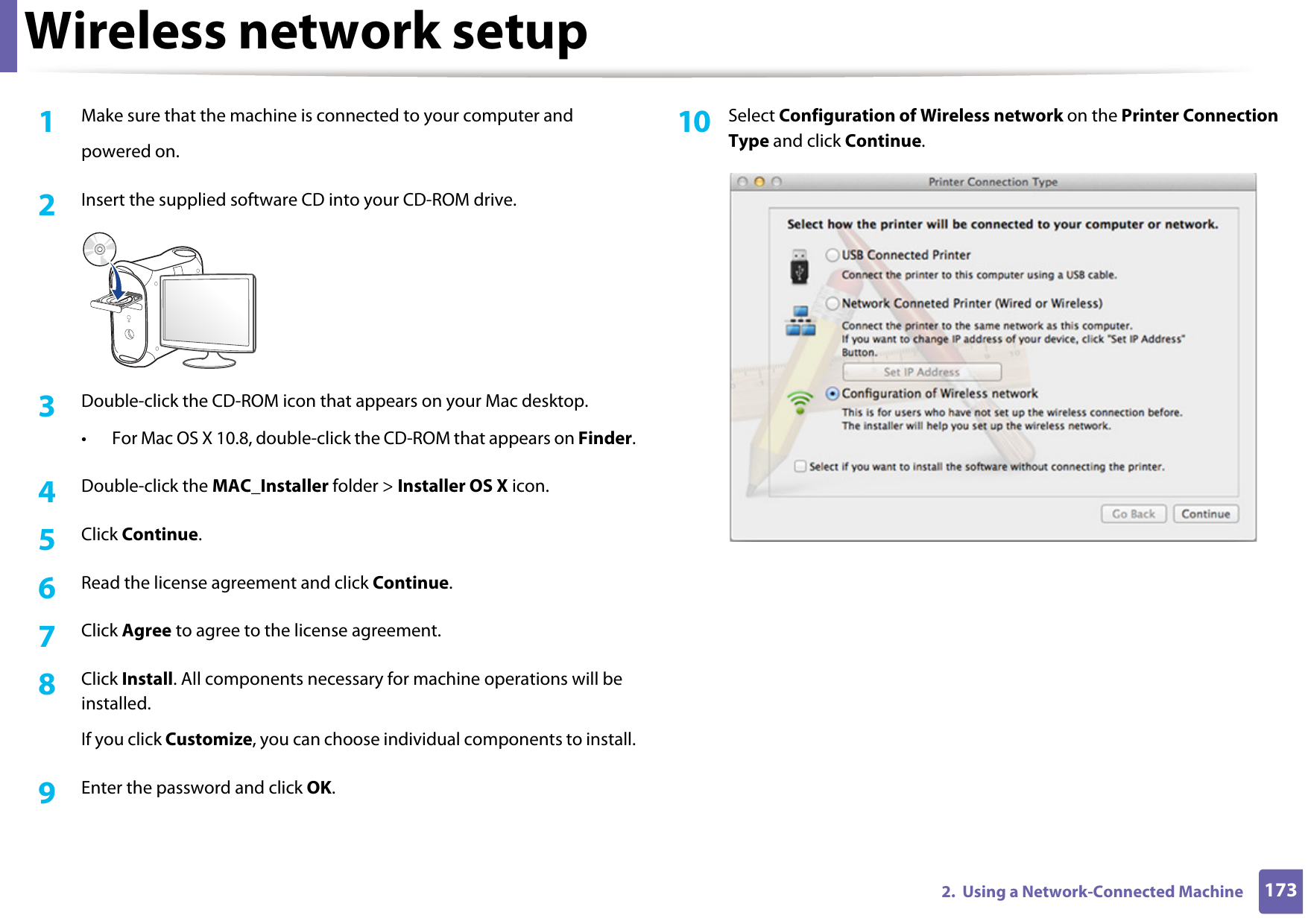
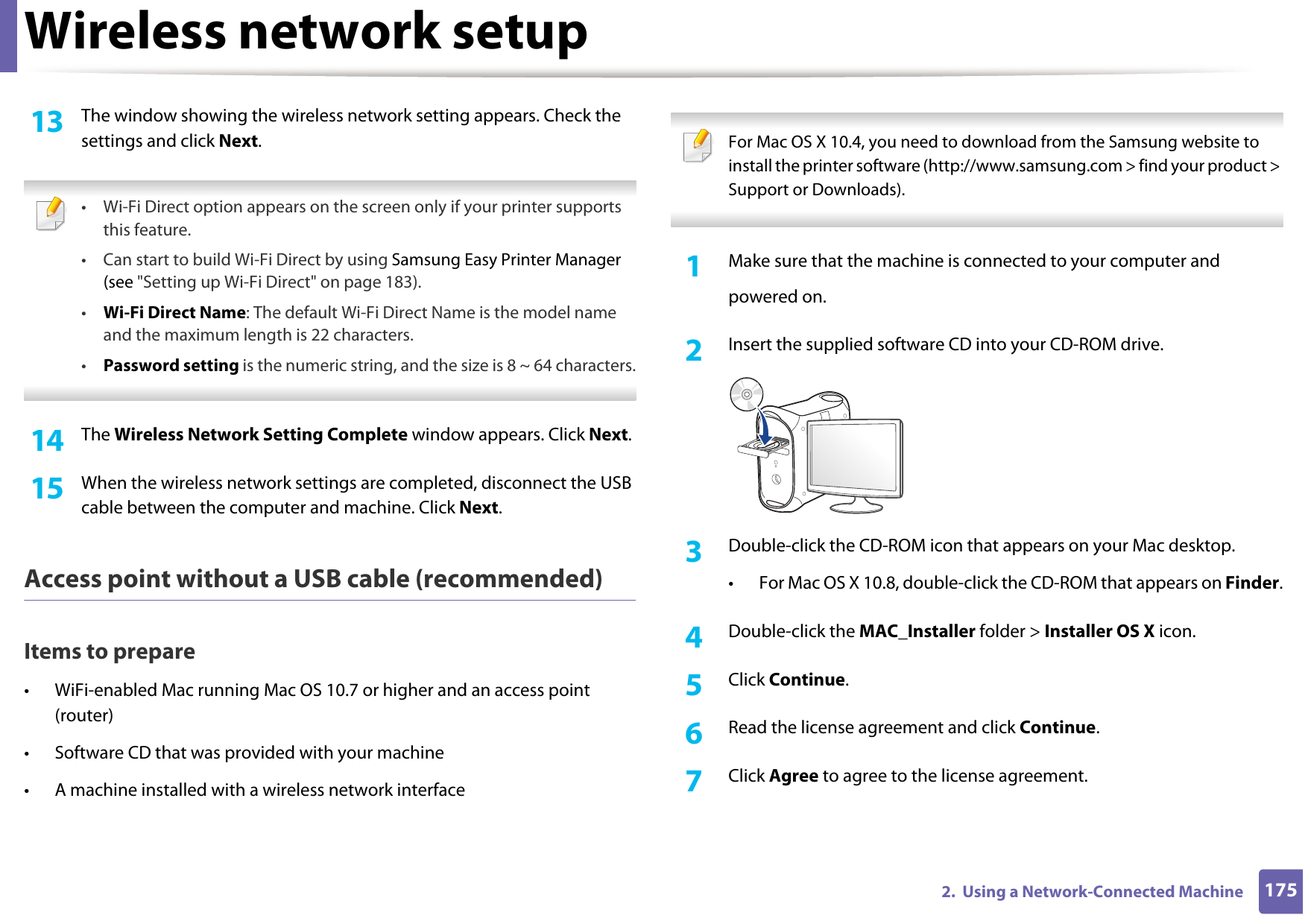
Wireless network setup1732.  Using a Network-Connected Machine1Make sure that the machine is connected to your computer andpowered on.2  Insert the supplied software CD into your CD-ROM drive.3  Double-click the CD-ROM icon that appears on your Mac desktop.• For Mac OS X 10.8, double-click the CD-ROM that appears on Finder.4  Double-click the MAC_Installer folder > Installer OS X icon.5  Click Continue.6  Read the license agreement and click Continue.7  Click Agree to agree to the license agreement.8  Click Install. All components necessary for machine operations will be installed.If you click Customize, you can choose individual components to install.9  Enter the password and click OK.10  Select Configuration of Wireless network on the Printer Connection Type and click Continue.
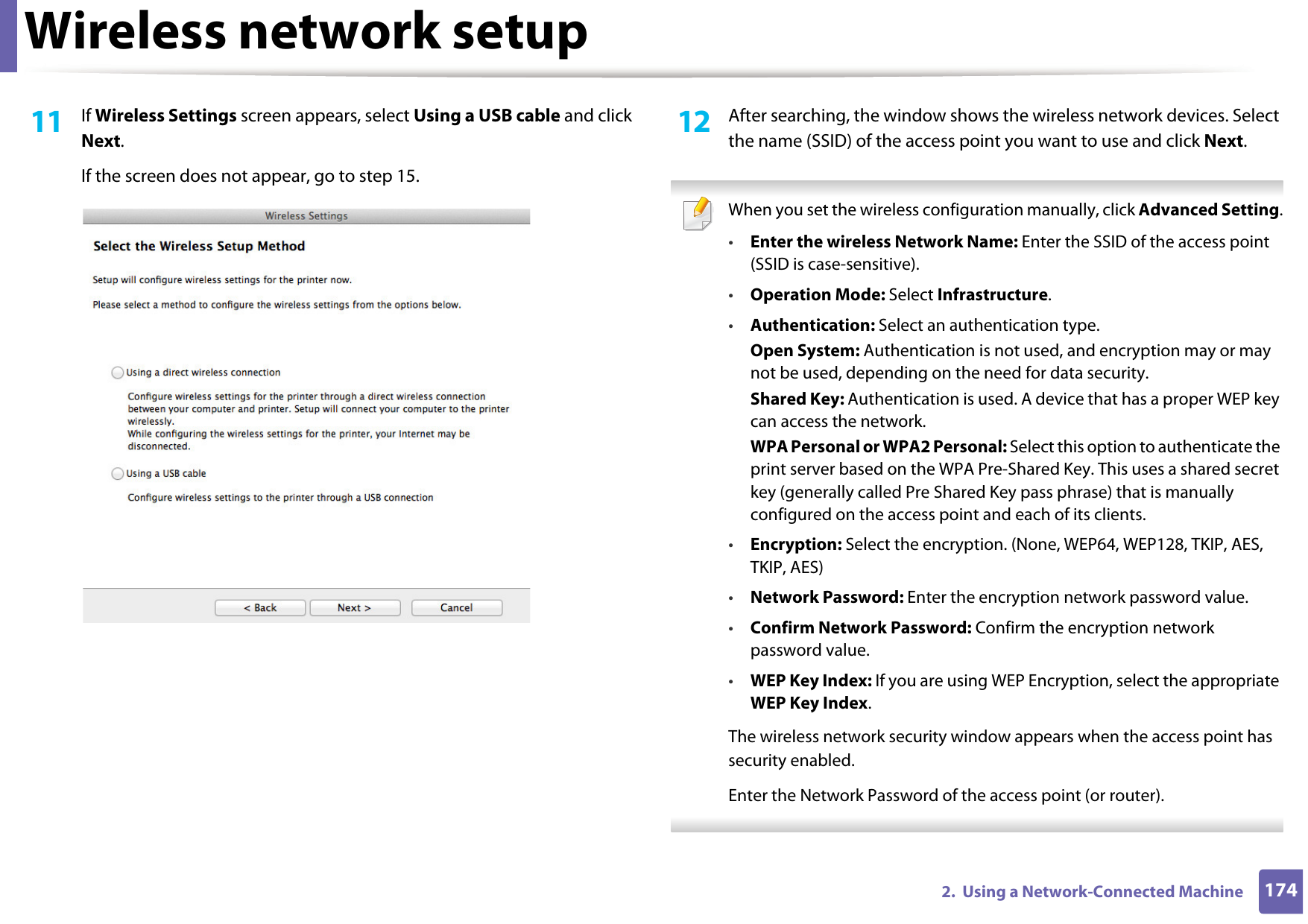
Wireless network setup1742.  Using a Network-Connected Machine11  If Wireless Settings screen appears, select Using a USB cable and click Next. If the screen does not appear, go to step 15.12  After searching, the window shows the wireless network devices. Select the name (SSID) of the access point you want to use and click Next. When you set the wireless configuration manually, click Advanced Setting.•Enter the wireless Network Name: Enter the SSID of the access point (SSID is case-sensitive).•Operation Mode: Select Infrastructure.•Authentication: Select an authentication type.Open System: Authentication is not used, and encryption may or may not be used, depending on the need for data security.Shared Key: Authentication is used. A device that has a proper WEP key can access the network.WPA Personal or WPA2 Personal: Select this option to authenticate the print server based on the WPA Pre-Shared Key. This uses a shared secret key (generally called Pre Shared Key pass phrase) that is manually configured on the access point and each of its clients.•Encryption: Select the encryption. (None, WEP64, WEP128, TKIP, AES, TKIP, AES)•Network Password: Enter the encryption network password value.•Confirm Network Password: Confirm the encryption network password value.•WEP Key Index: If you are using WEP Encryption, select the appropriate WEP Key Index.The wireless network security window appears when the access point has security enabled.Enter the Network Password of the access point (or router).
Wireless network setup1752.  Using a Network-Connected Machine13  The window showing the wireless network setting appears. Check the settings and click Next. • Wi-Fi Direct option appears on the screen only if your printer supports this feature.• Can start to build Wi-Fi Direct by using Samsung Easy Printer Manager (see "Setting up Wi-Fi Direct" on page 183).•Wi-Fi Direct Name: The default Wi-Fi Direct Name is the model name and the maximum length is 22 characters.•Password setting is the numeric string, and the size is 8 ~ 64 characters. 14  The Wireless Network Setting Complete window appears. Click Next.15  When the wireless network settings are completed, disconnect the USB cable between the computer and machine. Click Next.Access point without a USB cable (recommended)Items to prepare• WiFi-enabled Mac running Mac OS 10.7 or higher and an access point (router)• Software CD that was provided with your machine• A machine installed with a wireless network interface For Mac OS X 10.4, you need to download from the Samsung website to install the printer software (http://www.samsung.com > find your product > Support or Downloads). 1Make sure that the machine is connected to your computer andpowered on.2  Insert the supplied software CD into your CD-ROM drive.3  Double-click the CD-ROM icon that appears on your Mac desktop.• For Mac OS X 10.8, double-click the CD-ROM that appears on Finder.4  Double-click the MAC_Installer folder > Installer OS X icon.5  Click Continue.6  Read the license agreement and click Continue.7  Click Agree to agree to the license agreement.
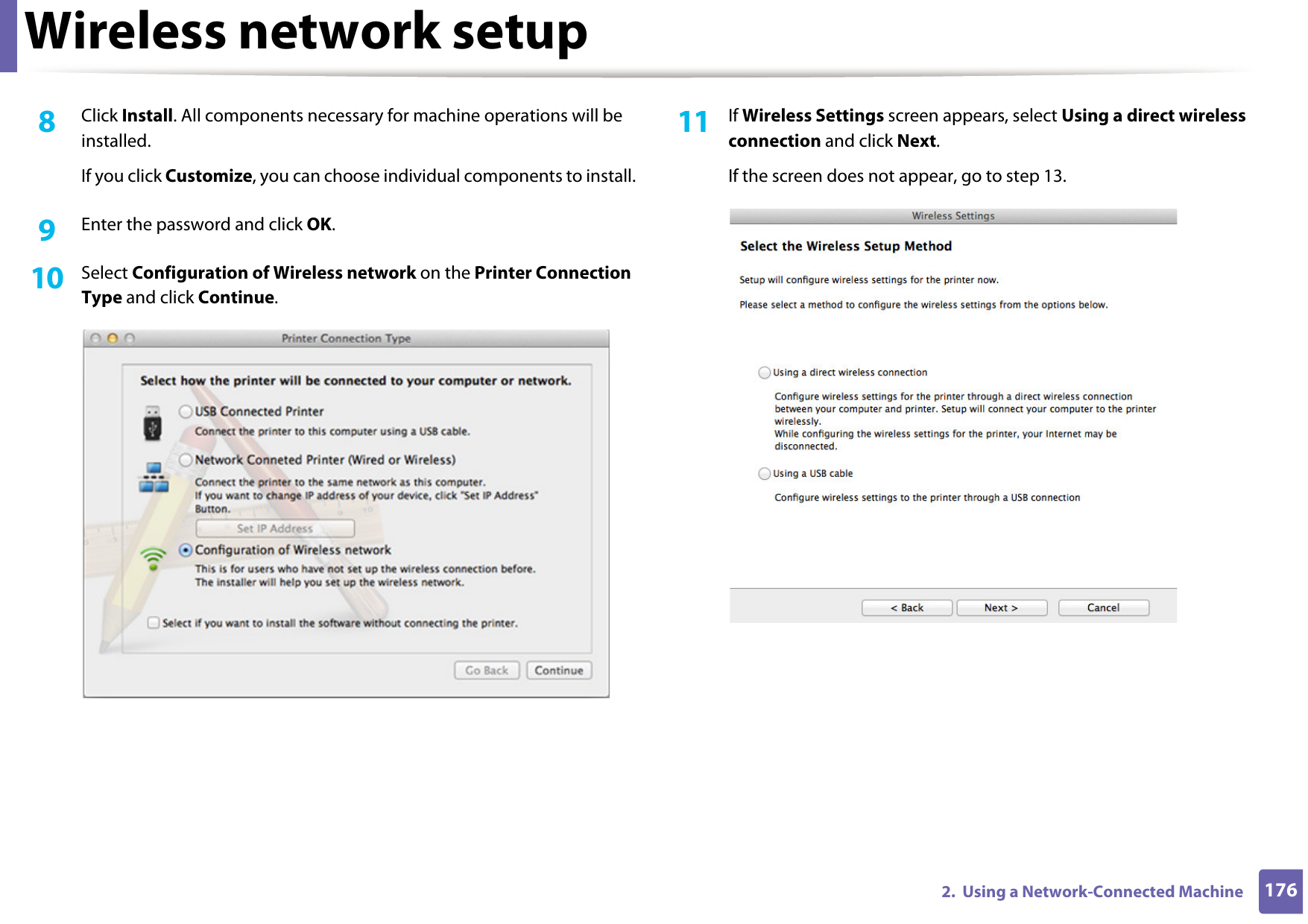
Wireless network setup1762.  Using a Network-Connected Machine8  Click Install. All components necessary for machine operations will be installed. If you click Customize, you can choose individual components to install.9  Enter the password and click OK.10  Select Configuration of Wireless network on the Printer Connection Type and click Continue. 11  If Wireless Settings screen appears, select Using a direct wireless connection and click Next.If the screen does not appear, go to step 13.
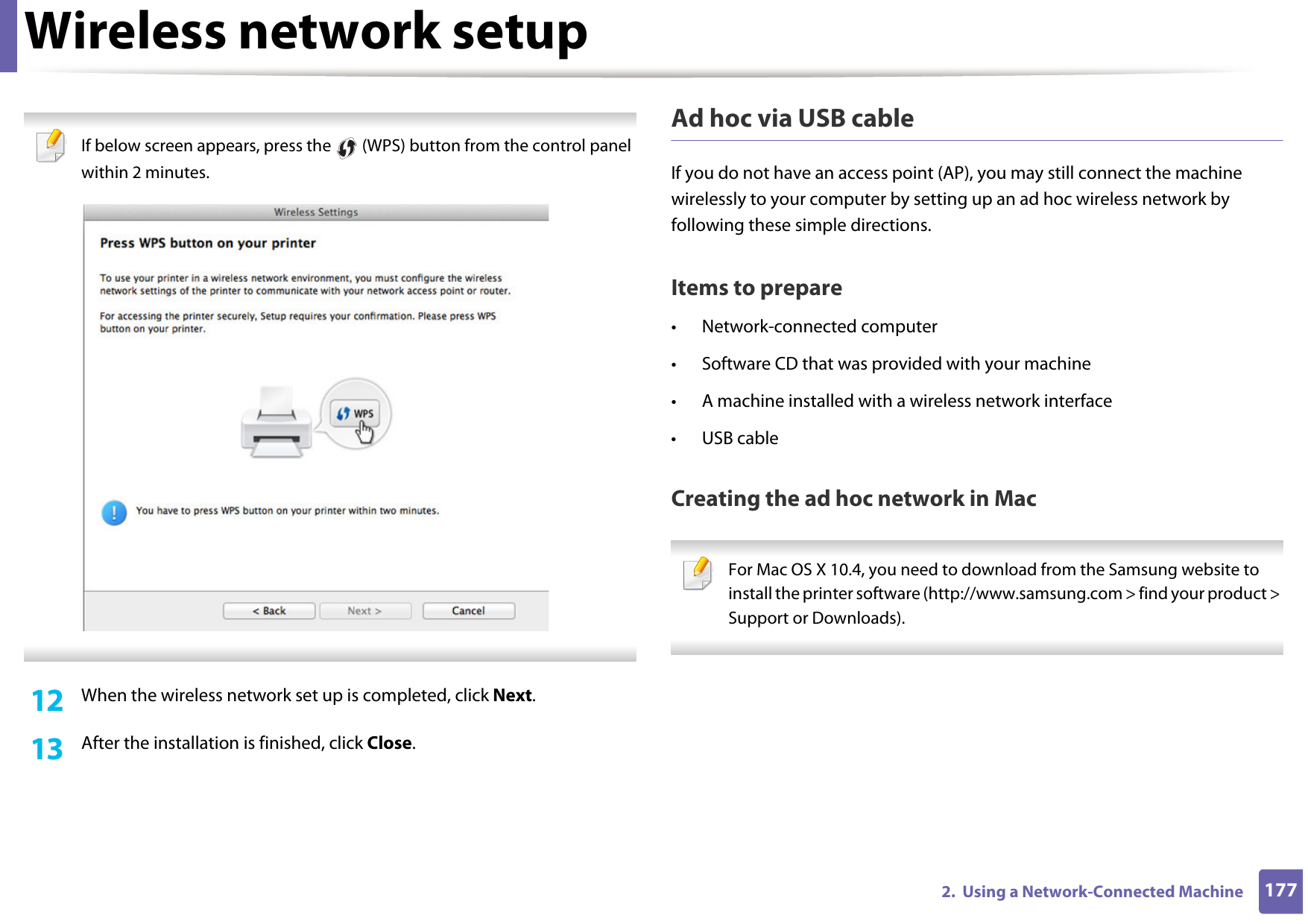
Wireless network setup1772.  Using a Network-Connected Machine If below screen appears, press the   (WPS) button from the control panel within 2 minutes. 12  When the wireless network set up is completed, click Next. 13  After the installation is finished, click Close.Ad hoc via USB cableIf you do not have an access point (AP), you may still connect the machine wirelessly to your computer by setting up an ad hoc wireless network by following these simple directions.Items to prepare• Network-connected computer• Software CD that was provided with your machine• A machine installed with a wireless network interface• USB cableCreating the ad hoc network in Mac For Mac OS X 10.4, you need to download from the Samsung website to install the printer software (http://www.samsung.com > find your product > Support or Downloads).
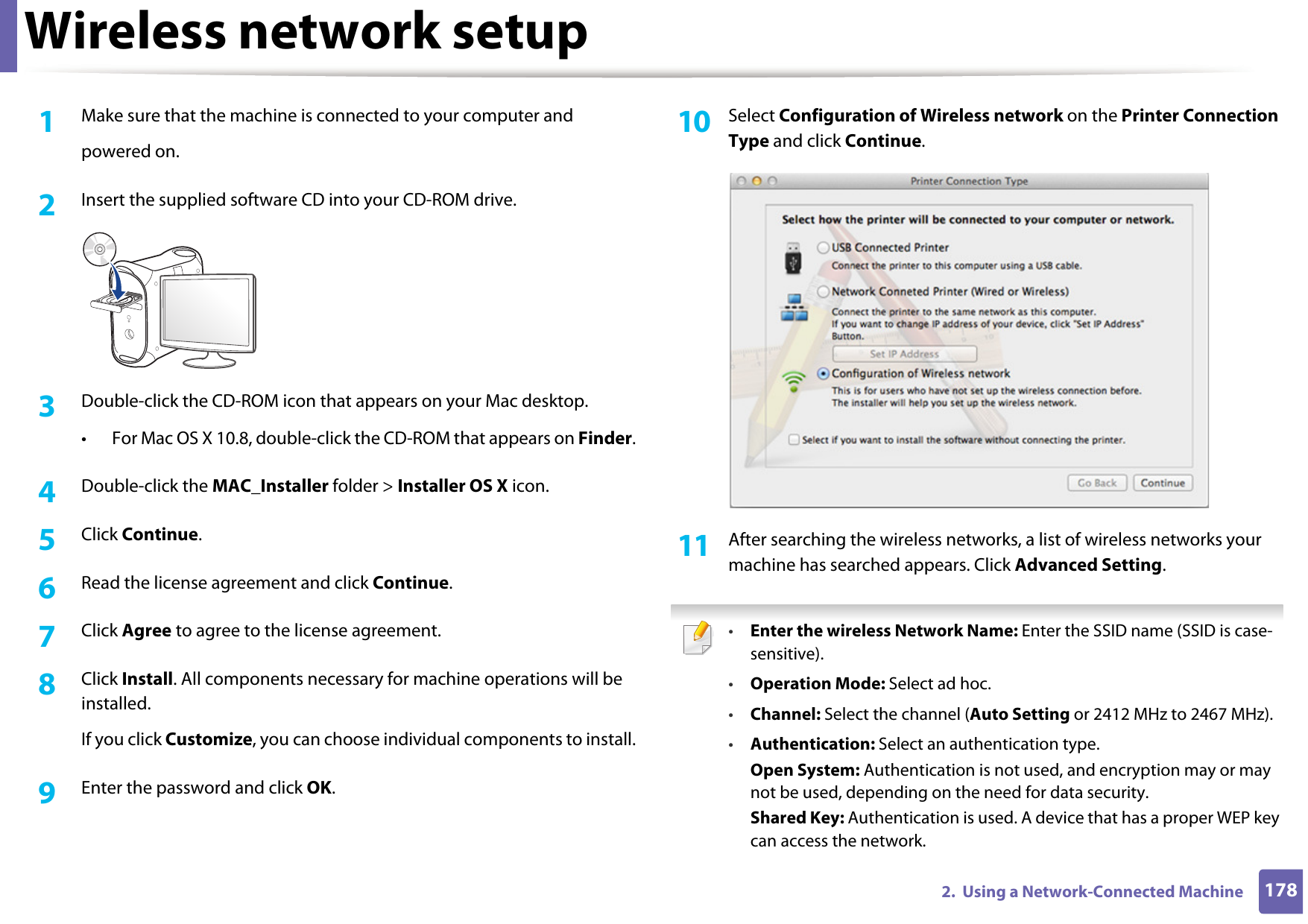
Wireless network setup1782.  Using a Network-Connected Machine1Make sure that the machine is connected to your computer andpowered on.2  Insert the supplied software CD into your CD-ROM drive.3  Double-click the CD-ROM icon that appears on your Mac desktop.• For Mac OS X 10.8, double-click the CD-ROM that appears on Finder.4  Double-click the MAC_Installer folder > Installer OS X icon.5  Click Continue.6  Read the license agreement and click Continue.7  Click Agree to agree to the license agreement.8  Click Install. All components necessary for machine operations will be installed.If you click Customize, you can choose individual components to install.9  Enter the password and click OK.10  Select Configuration of Wireless network on the Printer Connection Type and click Continue. 11  After searching the wireless networks, a list of wireless networks your machine has searched appears. Click Advanced Setting. •Enter the wireless Network Name: Enter the SSID name (SSID is case-sensitive).•Operation Mode: Select ad hoc.•Channel: Select the channel (Auto Setting or 2412 MHz to 2467 MHz).•Authentication: Select an authentication type.Open System: Authentication is not used, and encryption may or may not be used, depending on the need for data security.Shared Key: Authentication is used. A device that has a proper WEP key can access the network.
Wireless network setup1792.  Using a Network-Connected Machine•Encryption: Select the encryption (None, WEP64, WEP128).•Network Password: Enter the encryption network password value.•Confirm Network Password: Confirm the encryption network password value.•WEP Key Index: If you are using WEP Encryption, select the appropriate WEP Key Index.The wireless network security window appears when the ad hoc network has security setting.Select Open System or Shared Key for the authentication and click Next.• WEP (Wired Equivalent Privacy) is a security protocol preventing unauthorized access to your wireless network. WEP encrypts the data portion of each packet exchanged on a wireless network using a 64-bit or 128-bit WEP encryption key. 12  The window showing the wireless network settings appears. Check the settings and click Next. Before entering the IP address for the machine, you must know the computer’s network configuration information. If the computer’s network configuration is set to DHCP, the wireless network setting should also be DHCP. Likewise, if the computer’s network configuration is set to Static, the wireless network setting should also be Static.If your computer is set to DHCP and you want to use Static wireless network setting, you must contact the network administrator to get the static IP address.•For the DHCP methodIf the IP address assignment method is DHCP, check if DHCP is shown in the Wireless Network Setting Confirm window. If it shows Static, click Change TCP/IP to change the assignment method to Receive IP address automatically (DHCP).•For the Static methodIf the IP address assignment method is Static, check if Static is shown in the Wireless Network Setting Confirm window. If it shows DHCP, click Change TCP/IP to enter the IP address and other network configuration values for the machine.For example,If the computer’s network information is shown as follows:- IP address: 169.254.133.42- Subnet Mask: 255.255.0.0Then, the machine’s network information should be as shown below:- IP address: 169.254.133.43- Subnet Mask: 255.255.0.0 (Use the computer’s subnet mask.)- Gateway: 169.254.133.1
Wireless network setup1802.  Using a Network-Connected Machine13  When the window that tells you that the network cable connection is confirmed appears, disconnect the network cable and click Next..If the network cable is connected, it may have trouble finding the machine when configuring the wireless network.14  The wireless network connects according to the network configuration.15  Wireless network set up is completed. After installation is finished, click Quit. After completing the wireless network connection, you need to install a machine driver to print from an application (see "Installation for Mac" on page 135). 18 Using a network cable Machines that do not support the network port will not be able to use this feature (see "Rear view" on page 24). Your machine is a network compatible machine. To enable your machine to work with your network, you will need to perform some configuration procedures. • After completing the wireless network connection, you need to install a machine driver to print from an application (see "Installing driver over the network" on page 145).• See your network administrator, or the person that set up your wireless network, for information about your network configuration. Items to prepare• Access point• Network-connected computer• Software CD that was provided with your machine• A machine installed with a wireless network interface• Network cable
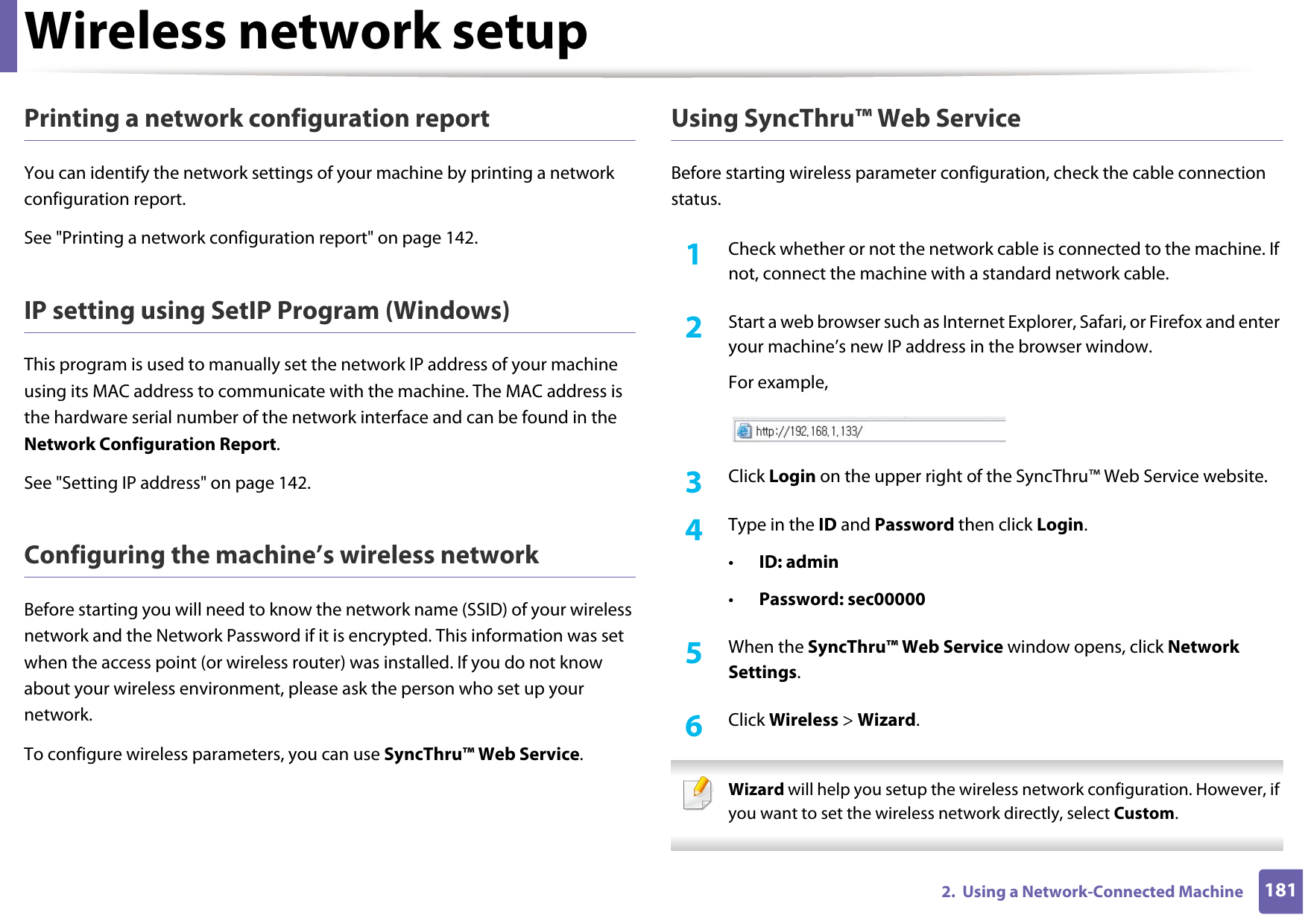
Wireless network setup1812.  Using a Network-Connected MachinePrinting a network configuration reportYou can identify the network settings of your machine by printing a network configuration report.See "Printing a network configuration report" on page 142.IP setting using SetIP Program (Windows)This program is used to manually set the network IP address of your machine using its MAC address to communicate with the machine. The MAC address is the hardware serial number of the network interface and can be found in the Network Configuration Report. See "Setting IP address" on page 142.Configuring the machine’s wireless networkBefore starting you will need to know the network name (SSID) of your wireless network and the Network Password if it is encrypted. This information was set when the access point (or wireless router) was installed. If you do not know about your wireless environment, please ask the person who set up your network.To configure wireless parameters, you can use SyncThru™ Web Service.Using SyncThru™ Web ServiceBefore starting wireless parameter configuration, check the cable connection status. 1Check whether or not the network cable is connected to the machine. If not, connect the machine with a standard network cable.2  Start a web browser such as Internet Explorer, Safari, or Firefox and enter your machine’s new IP address in the browser window.For example,3  Click Login on the upper right of the SyncThru™ Web Service website.4  Type in the ID and Password then click Login.•ID: admin •Password: sec000005  When the SyncThru™ Web Service window opens, click Network Settings.6  Click Wireless > Wizard. Wizard will help you setup the wireless network configuration. However, if you want to set the wireless network directly, select Custom.
Wireless network setup1822.  Using a Network-Connected Machine7  Select the one Network Name(SSID) in the list.•SSID: SSID (Service Set Identifier) is a name that identifies a wireless network, access points, and wireless devices attempting to connect to a specific wireless network must use the same SSID. The SSID is case sensitive.•Operation Mode: Operation Mode refers to the type of wireless connections (see "Wireless network name and Network Password" on page 156).-Ad-hoc: Allows wireless devices to communicate directly with each other in a peer-to-peer environment.-Infrastructure: Allows wireless devices to communicate with each other through an access point. If your network’s Operation Mode is Infrastructure, select the SSID of the access point. If the Operation Mode is Ad-hoc, select the machine’s SSID. Note that “portthru” is the default SSID of your machine. 8  Click Next.If the wireless security setting window appears, enter the registered password (Network Password) and click Next.9  The confirmation window appears, please check your wireless setup. If the setup is right, click Apply. Disconnect the network cable (standard or network). Your machine should then start communicating wirelessly with the network. In case of Ad-hoc mode, you can use a wireless LAN and wired LAN simultaneously. 10  Insert the supplied CD into the CD-ROM drive and proceed to install the software following the directions on the screen. When the "Connect Printer" screen appears, select the Network (Ethernet/Wireless) connection.
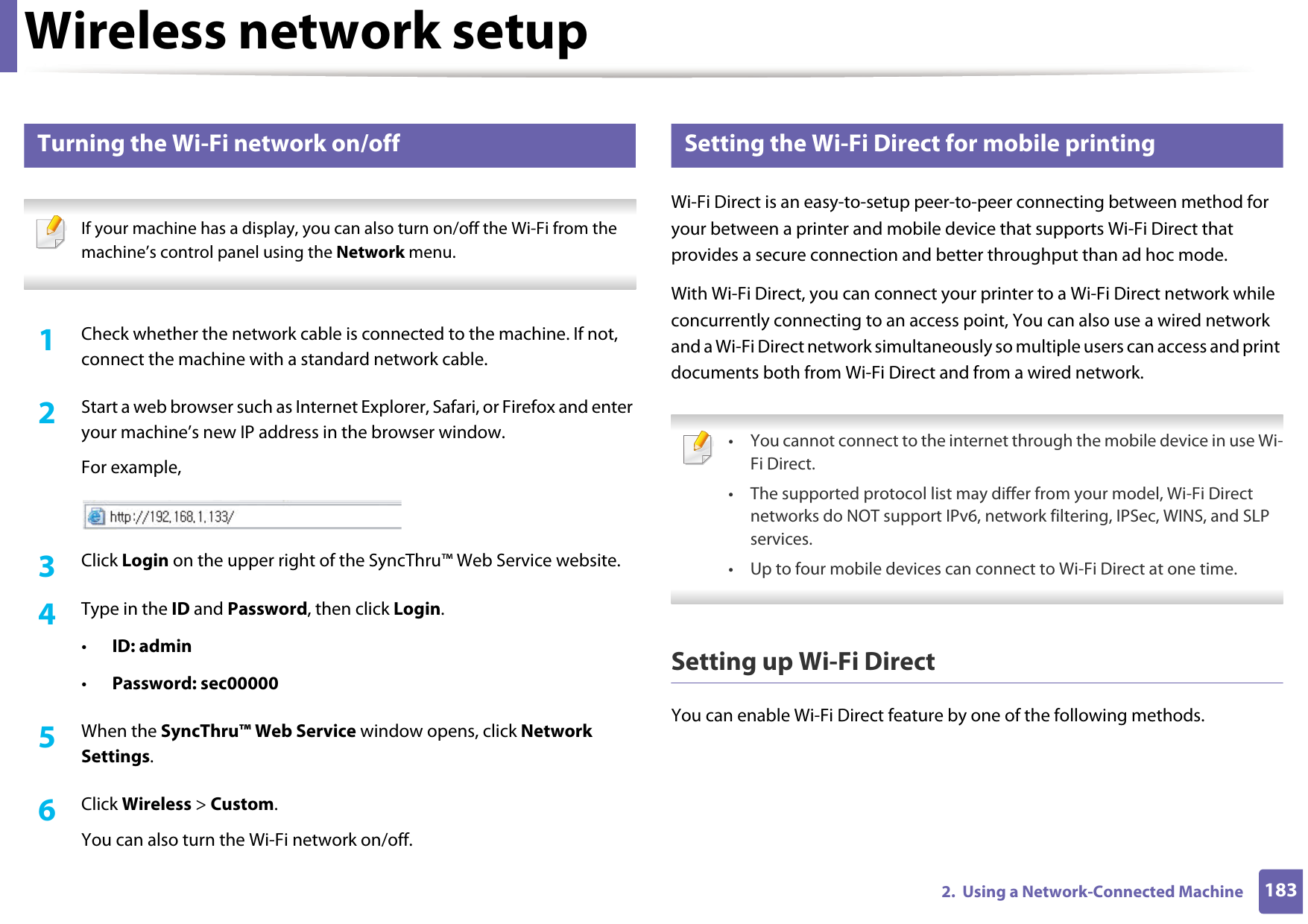
Wireless network setup1832.  Using a Network-Connected Machine19 Turning the Wi-Fi network on/off If your machine has a display, you can also turn on/off the Wi-Fi from the machine’s control panel using the Network menu. 1Check whether the network cable is connected to the machine. If not, connect the machine with a standard network cable.2  Start a web browser such as Internet Explorer, Safari, or Firefox and enter your machine’s new IP address in the browser window.For example,3  Click Login on the upper right of the SyncThru™ Web Service website.4  Type in the ID and Password, then click Login.•ID: admin •Password: sec00000 5  When the SyncThru™ Web Service window opens, click Network Settings.6  Click Wireless > Custom.You can also turn the Wi-Fi network on/off.20 Setting the Wi-Fi Direct for mobile printingWi-Fi Direct is an easy-to-setup peer-to-peer connecting between method for your between a printer and mobile device that supports Wi-Fi Direct that provides a secure connection and better throughput than ad hoc mode.With Wi-Fi Direct, you can connect your printer to a Wi-Fi Direct network while concurrently connecting to an access point, You can also use a wired network and a Wi-Fi Direct network simultaneously so multiple users can access and print documents both from Wi-Fi Direct and from a wired network. • You cannot connect to the internet through the mobile device in use Wi-Fi Direct.• The supported protocol list may differ from your model, Wi-Fi Direct networks do NOT support IPv6, network filtering, IPSec, WINS, and SLP services. • Up to four mobile devices can connect to Wi-Fi Direct at one time. Setting up Wi-Fi DirectYou can enable Wi-Fi Direct feature by one of the following methods.
Wireless network setup1842.  Using a Network-Connected MachineFrom the USB cable-connected computer(recommended)• After the driver installation is complete, Samsung Easy Printer Manager can be set and changes in the Wi-Fi Direct can be made. Samsung Easy Printer Manager is Available for Windowsand Mac OS users only. - From the Start menu, select Programs or All Programs > Samsung Printers > Samsung Easy Printer Manager > Device Settings > Network.▪Wi-Fi Direct On/Off: Select On to enable.▪Device Name: Enter the printer’s name for searching for your printer on a wireless network. By default, the device name is the model name.▪IP Address: Enter the IP address of the printer. This IP address is used only for the local network and not for the infrastructure wired or wireless network. We recommend using the default local IP address (the default local IP address of the printer for Wi-Fi Direct is 192.168.3.1 )▪Group Owner: Activate this option to assign the printer the Wi-Fi Direct group’s owner. The Group Owner acts similar to a wireless access point. We recommend activating this option.▪Network Password: If your printer is a Group Owner, a Network Password is required for other mobile devices to connect to your printer. You can configure a Network Password yourself, or can remember the given Network Password that is randomly generated by default.From the machine (Machines with a display screen)• Select Network > Wireless > Wi-Fi Direct from the control panel.•Enable Wi-Fi Direct.From the network-connected computerIf your printer is using a network cable or a wireless access point, you can enable and configure Wi-Fi Direct from SyncThru™ Web Service.• Access SyncThru™ Web Service, select Settings > Network Settings > Wireless > Wi-Fi Direct.• Enable or disable Wi-Fi Direct and set other options. •For Linux OS users,- Print an IP network configuration report to check the output (see "Printing a network configuration report" on page 142).- Access SyncThru Web Service, select Settings > Network Settings > Wireless > Wi-Fi Direct.- Enable or disable Wi-Fi Direct.
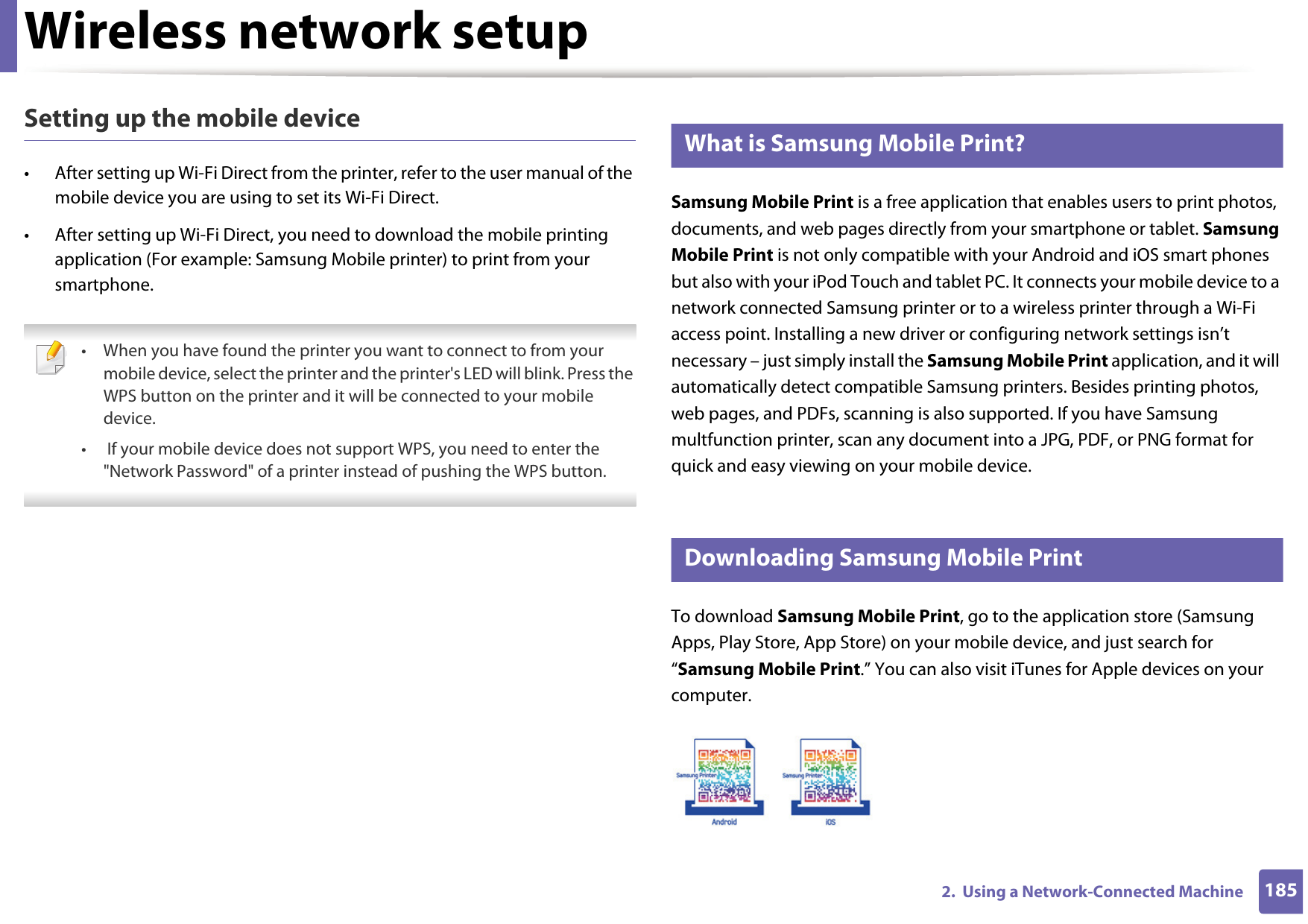
Wireless network setup1852.  Using a Network-Connected MachineSetting up the mobile device• After setting up Wi-Fi Direct from the printer, refer to the user manual of the mobile device you are using to set its Wi-Fi Direct.• After setting up Wi-Fi Direct, you need to download the mobile printing application (For example: Samsung Mobile printer) to print from your smartphone. • When you have found the printer you want to connect to from your mobile device, select the printer and the printer's LED will blink. Press the WPS button on the printer and it will be connected to your mobile device.•  If your mobile device does not support WPS, you need to enter the "Network Password" of a printer instead of pushing the WPS button. 21 What is Samsung Mobile Print?Samsung Mobile Print is a free application that enables users to print photos, documents, and web pages directly from your smartphone or tablet. Samsung Mobile Print is not only compatible with your Android and iOS smart phones but also with your iPod Touch and tablet PC. It connects your mobile device to a network connected Samsung printer or to a wireless printer through a Wi-Fi access point. Installing a new driver or configuring network settings isn’t necessary – just simply install the Samsung Mobile Print application, and it will automatically detect compatible Samsung printers. Besides printing photos, web pages, and PDFs, scanning is also supported. If you have Samsung multfunction printer, scan any document into a JPG, PDF, or PNG format for quick and easy viewing on your mobile device. 22 Downloading Samsung Mobile PrintTo download Samsung Mobile Print, go to the application store (Samsung Apps, Play Store, App Store) on your mobile device, and just search for “Samsung Mobile Print.” You can also visit iTunes for Apple devices on your computer.
Wireless network setup1862.  Using a Network-Connected Machine23 Supported Mobile OS • Android OS 2.1 or higher • iOS 4.0 or higher24 Supported devices•iOS 4.0 or higher: iPod Touch, iPhone, iPad•Android 2.1 or higher: Galaxy series and Android mobile device25 TroubleshootingProblems during setup or driver installationPrinters Not Found• Your machine may not be turned on. Turn on your computer and the machine.• USB cable is not connected between your computer and machine. Connect the machine to your computer using the USB cable.• The machine does not support wireless networking. Check the machine's user's guide included on the software CD supplied with your machine and prepare a wireless network machine.Connecting Failure - SSID Not Found• The machine is unable to find the network name (SSID) you have selected or entered. Check the network name (SSID) on your access point and try connecting again. • Your access point is not turned on. Turn on your access point.
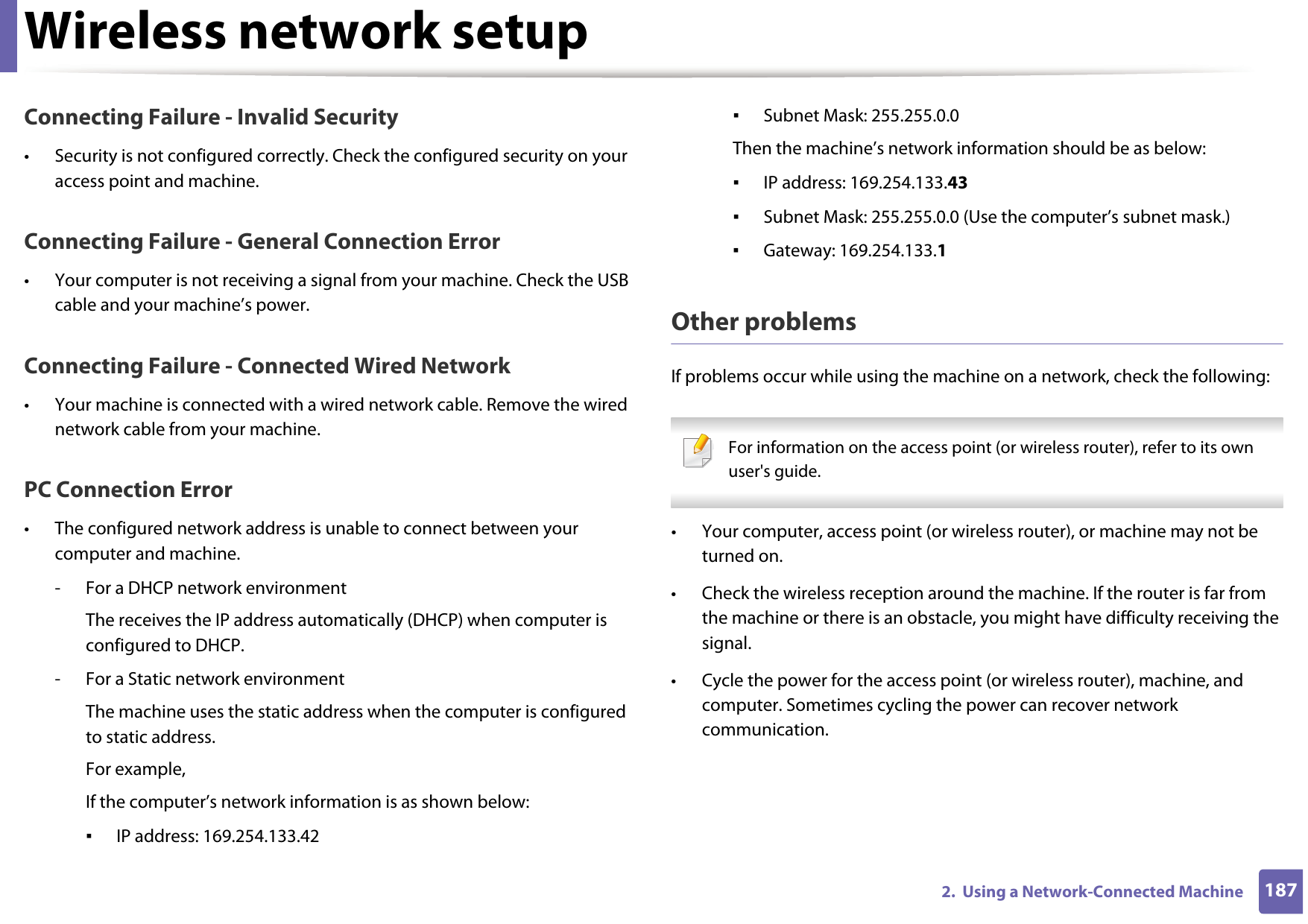
Wireless network setup1872.  Using a Network-Connected MachineConnecting Failure - Invalid Security• Security is not configured correctly. Check the configured security on your access point and machine.Connecting Failure - General Connection Error• Your computer is not receiving a signal from your machine. Check the USB cable and your machine’s power.Connecting Failure - Connected Wired Network• Your machine is connected with a wired network cable. Remove the wired network cable from your machine.PC Connection Error• The configured network address is unable to connect between your computer and machine.- For a DHCP network environmentThe receives the IP address automatically (DHCP) when computer is configured to DHCP.- For a Static network environmentThe machine uses the static address when the computer is configured to static address.For example,If the computer’s network information is as shown below:▪IP address: 169.254.133.42▪Subnet Mask: 255.255.0.0Then the machine’s network information should be as below:▪IP address: 169.254.133.43▪Subnet Mask: 255.255.0.0 (Use the computer’s subnet mask.)▪Gateway: 169.254.133.1Other problemsIf problems occur while using the machine on a network, check the following:  For information on the access point (or wireless router), refer to its own user's guide.  • Your computer, access point (or wireless router), or machine may not be turned on.• Check the wireless reception around the machine. If the router is far from the machine or there is an obstacle, you might have difficulty receiving the signal. • Cycle the power for the access point (or wireless router), machine, and computer. Sometimes cycling the power can recover network communication.
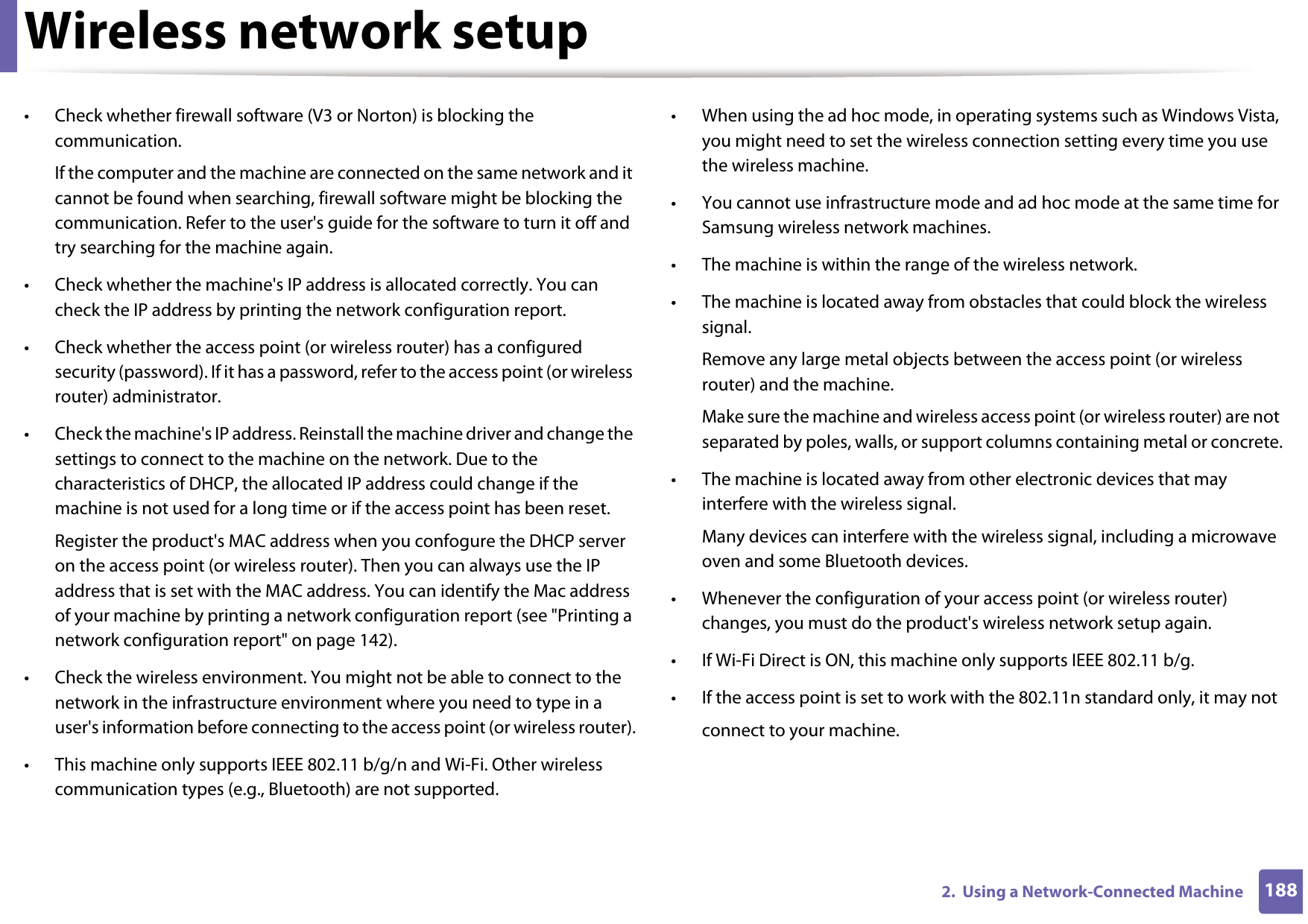
Wireless network setup1882.  Using a Network-Connected Machine• Check whether firewall software (V3 or Norton) is blocking the communication. If the computer and the machine are connected on the same network and it cannot be found when searching, firewall software might be blocking the communication. Refer to the user's guide for the software to turn it off and try searching for the machine again.• Check whether the machine's IP address is allocated correctly. You can check the IP address by printing the network configuration report.• Check whether the access point (or wireless router) has a configured security (password). If it has a password, refer to the access point (or wireless router) administrator.• Check the machine's IP address. Reinstall the machine driver and change the settings to connect to the machine on the network. Due to the characteristics of DHCP, the allocated IP address could change if the machine is not used for a long time or if the access point has been reset.Register the product's MAC address when you confogure the DHCP server on the access point (or wireless router). Then you can always use the IP address that is set with the MAC address. You can identify the Mac address of your machine by printing a network configuration report (see "Printing a network configuration report" on page 142).• Check the wireless environment. You might not be able to connect to the network in the infrastructure environment where you need to type in a user's information before connecting to the access point (or wireless router).• This machine only supports IEEE 802.11 b/g/n and Wi-Fi. Other wireless communication types (e.g., Bluetooth) are not supported.• When using the ad hoc mode, in operating systems such as Windows Vista, you might need to set the wireless connection setting every time you use the wireless machine. • You cannot use infrastructure mode and ad hoc mode at the same time for Samsung wireless network machines.• The machine is within the range of the wireless network.• The machine is located away from obstacles that could block the wireless signal.Remove any large metal objects between the access point (or wireless router) and the machine.Make sure the machine and wireless access point (or wireless router) are not separated by poles, walls, or support columns containing metal or concrete.• The machine is located away from other electronic devices that may interfere with the wireless signal.Many devices can interfere with the wireless signal, including a microwave oven and some Bluetooth devices.• Whenever the configuration of your access point (or wireless router) changes, you must do the product's wireless network setup again.• If Wi-Fi Direct is ON, this machine only supports IEEE 802.11 b/g.• If the access point is set to work with the 802.11n standard only, it may notconnect to your machine.
3. Useful Setting MenusThis chapter explains how to browse the current status of your machine, and the method of setting for advanced machine setup. • Before you begin reading a chapter 190• Print menu 191• Copy menu 192• Fax menu 199• Scan menu 203• System setup 205 • Admin setup 218• Custom setup 219
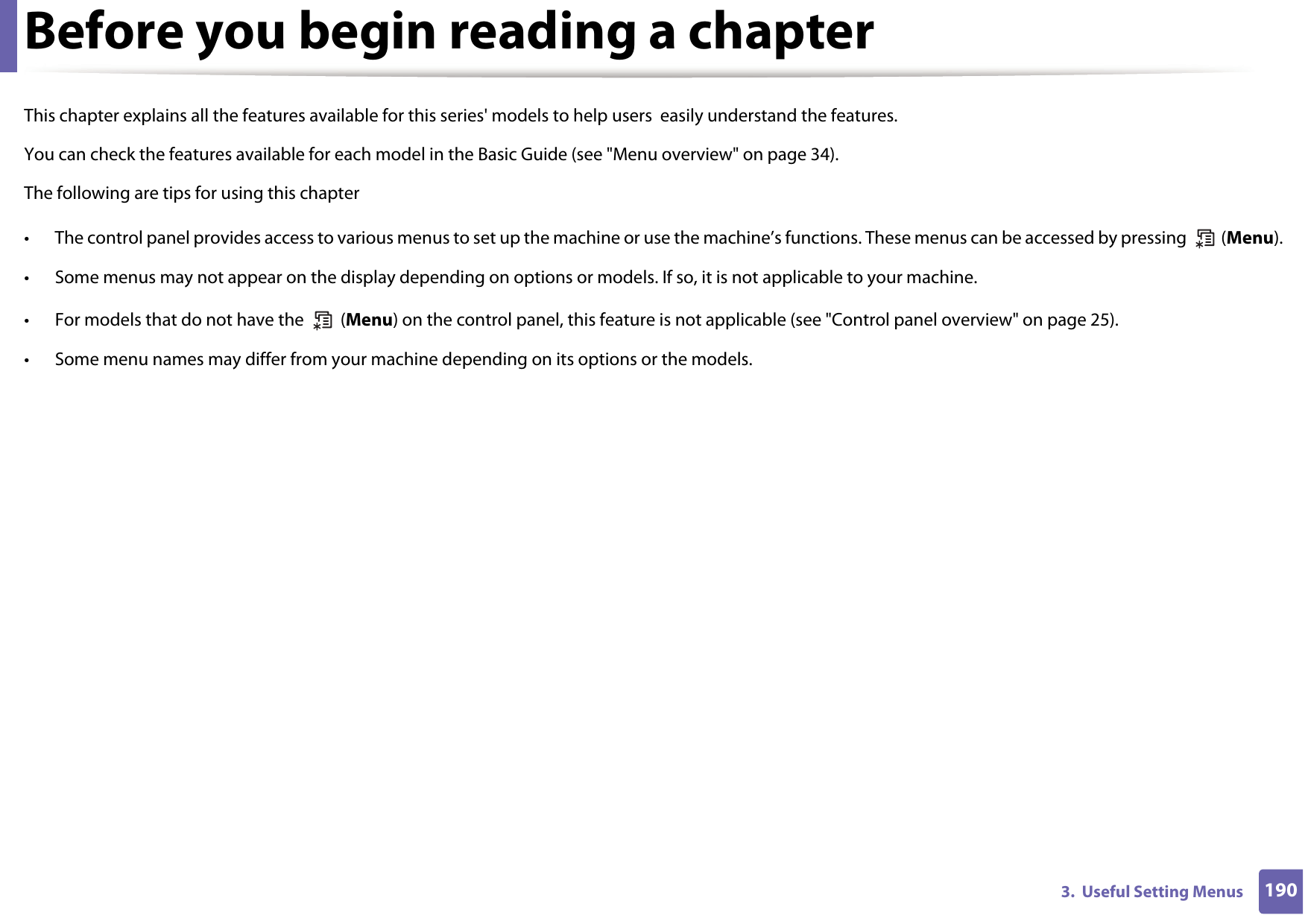
1903.  Useful Setting MenusBefore you begin reading a chapterThis chapter explains all the features available for this series' models to help users  easily understand the features.You can check the features available for each model in the Basic Guide (see "Menu overview" on page 34).The following are tips for using this chapter• The control panel provides access to various menus to set up the machine or use the machine’s functions. These menus can be accessed by pressing   (Menu).• Some menus may not appear on the display depending on options or models. If so, it is not applicable to your machine.• For models that do not have the   (Menu) on the control panel, this feature is not applicable (see "Control panel overview" on page 25).• Some menu names may differ from your machine depending on its options or the models.
1913.  Useful Setting MenusPrint menu Some menus may not appear in the display depending on options or models. If so, it is not applicable to your machine (see "Menu overview" on page 34). To change the menu options:• Press  (Menu) > Print Setup on the control panel.• Or press Setup > Machine Setup > Print Setup on the touch screen.Item DescriptionOrientation Selects the direction in which information is printed on a page.Copies  You can enter the number of copies using the number keypad.ResolutionSpecifies the number of dots printed per inch (dpi). The higher the setting, the sharper printed characters and graphics.DarknessLightens or darkens the print on the page. The Normal setting usually produces the best result. Use the Light toner density setting to save toner.Darken Text Prints text darker than on a normal document.Emulation Sets the emulation type and option.
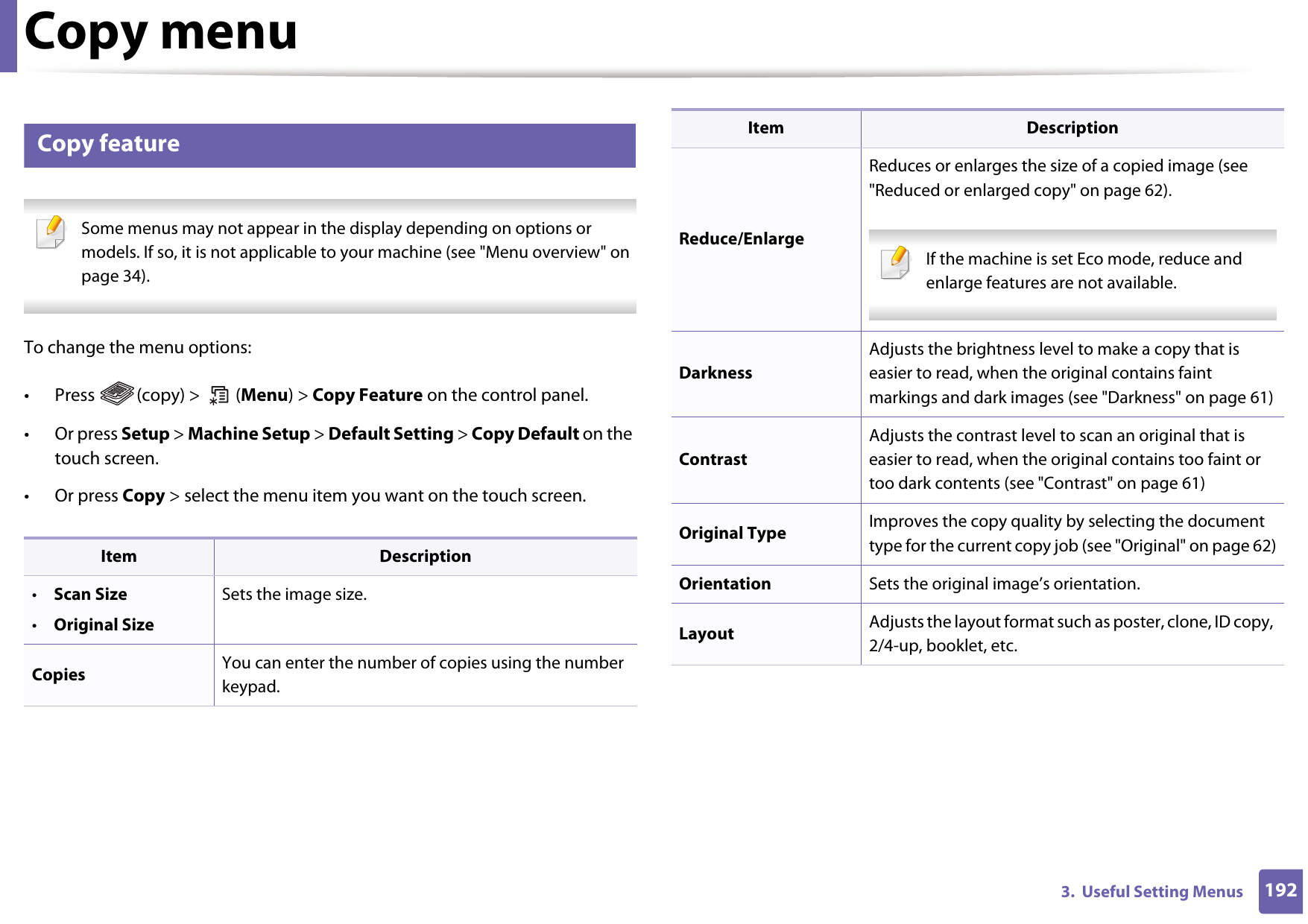
1923.  Useful Setting MenusCopy menu1 Copy feature Some menus may not appear in the display depending on options or models. If so, it is not applicable to your machine (see "Menu overview" on page 34). To change the menu options:• Press  (copy) >   (Menu) > Copy Feature on the control panel.• Or press Setup > Machine Setup > Default Setting > Copy Default on the touch screen.• Or press Copy > select the menu item you want on the touch screen. Item Description•Scan Size•Original SizeSets the image size.Copies  You can enter the number of copies using the number keypad.Reduce/EnlargeReduces or enlarges the size of a copied image (see "Reduced or enlarged copy" on page 62). If the machine is set Eco mode, reduce and enlarge features are not available. DarknessAdjusts the brightness level to make a copy that is easier to read, when the original contains faint markings and dark images (see "Darkness" on page 61)Contrast Adjusts the contrast level to scan an original that is easier to read, when the original contains too faint or too dark contents (see "Contrast" on page 61)Original Type Improves the copy quality by selecting the document type for the current copy job (see "Original" on page 62)Orientation Sets the original image’s orientation.Layout Adjusts the layout format such as poster, clone, ID copy, 2/4-up, booklet, etc.Item Description
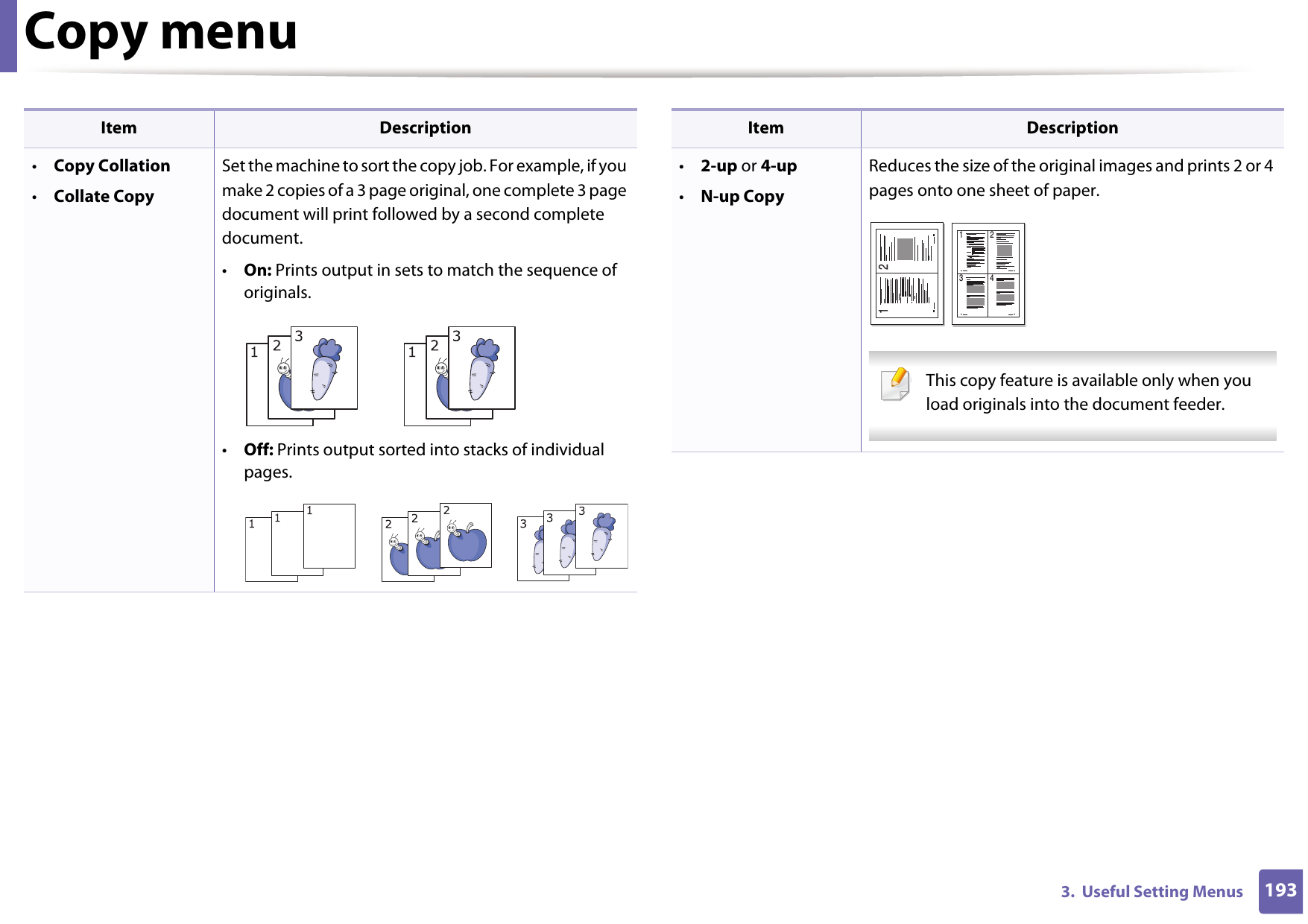
Copy menu1933.  Useful Setting Menus•Copy Collation•Collate CopySet the machine to sort the copy job. For example, if you make 2 copies of a 3 page original, one complete 3 page document will print followed by a second complete document. •On: Prints output in sets to match the sequence of originals.•Off: Prints output sorted into stacks of individual pages.Item Description•2-up or 4-up•N-up CopyReduces the size of the original images and prints 2 or 4 pages onto one sheet of paper.  This copy feature is available only when you load originals into the document feeder. Item Description1 21 23 4
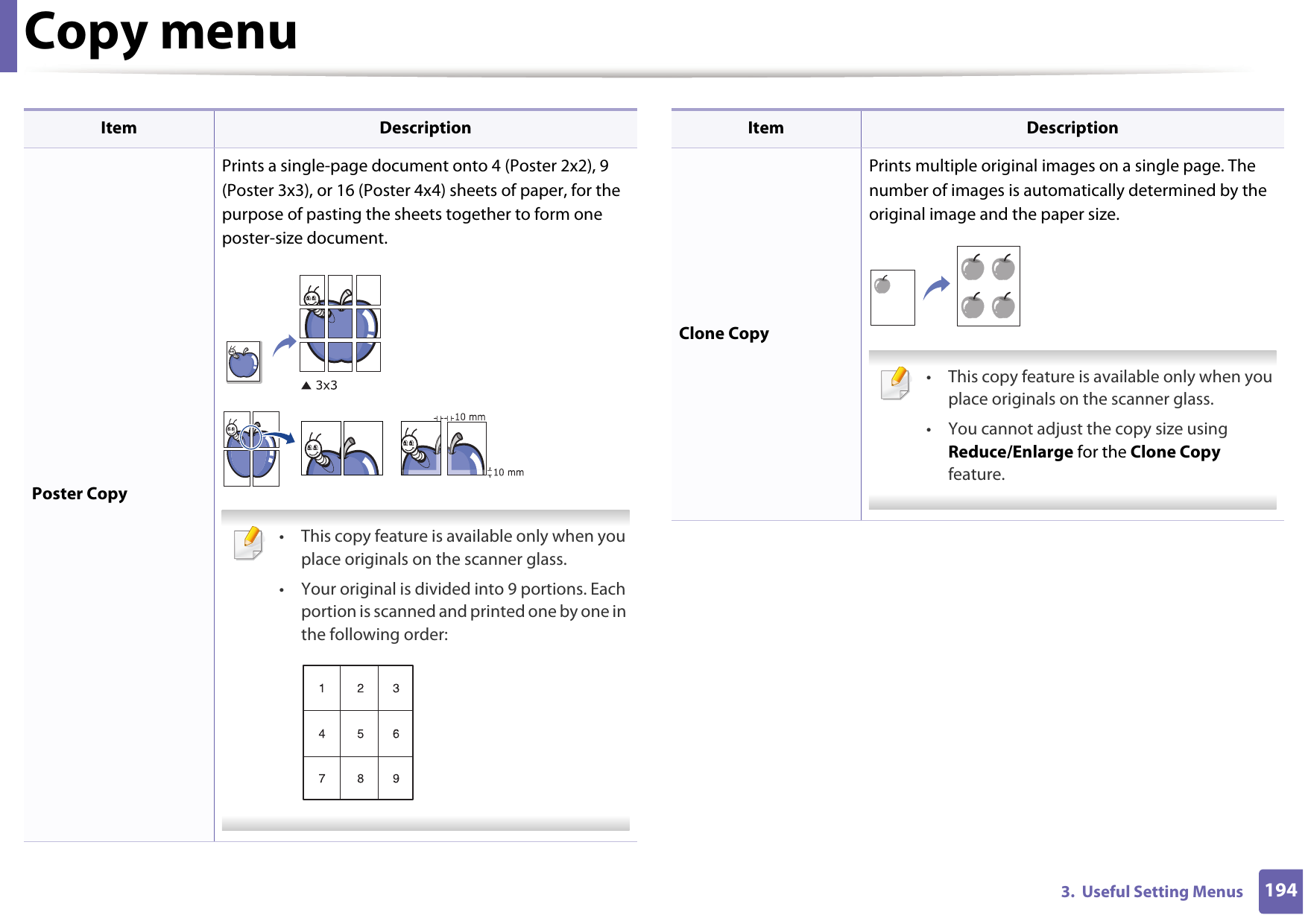
Copy menu1943.  Useful Setting MenusPoster CopyPrints a single-page document onto 4 (Poster 2x2), 9 (Poster 3x3), or 16 (Poster 4x4) sheets of paper, for the purpose of pasting the sheets together to form one poster-size document. • This copy feature is available only when you place originals on the scanner glass. • Your original is divided into 9 portions. Each portion is scanned and printed one by one in the following order: Item DescriptionClone CopyPrints multiple original images on a single page. The number of images is automatically determined by the original image and the paper size. • This copy feature is available only when you place originals on the scanner glass. • You cannot adjust the copy size using Reduce/Enlarge for the Clone Copy feature. Item Description
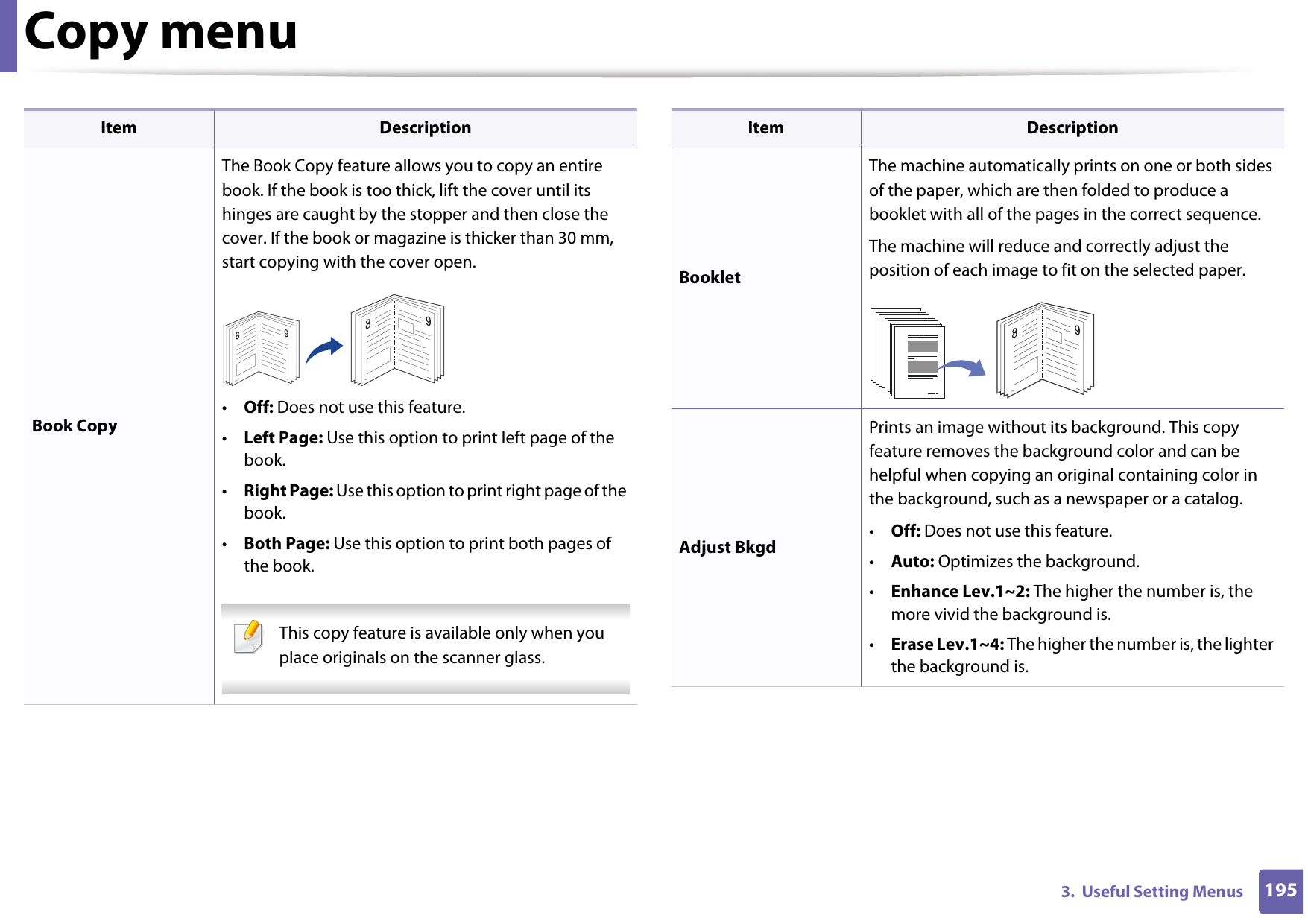
Copy menu1953.  Useful Setting MenusBook CopyThe Book Copy feature allows you to copy an entire book. If the book is too thick, lift the cover until its hinges are caught by the stopper and then close the cover. If the book or magazine is thicker than 30 mm, start copying with the cover open.•Off: Does not use this feature.•Left Page: Use this option to print left page of the book.•Right Page: Use this option to print right page of the book.•Both Page: Use this option to print both pages of the book. This copy feature is available only when you place originals on the scanner glass.  Item DescriptionBookletThe machine automatically prints on one or both sides of the paper, which are then folded to produce a booklet with all of the pages in the correct sequence.The machine will reduce and correctly adjust the position of each image to fit on the selected paper.Adjust BkgdPrints an image without its background. This copy feature removes the background color and can be helpful when copying an original containing color in the background, such as a newspaper or a catalog.•Off: Does not use this feature.•Auto: Optimizes the background.•Enhance Lev.1~2: The higher the number is, the more vivid the background is.•Erase Lev.1~4: The higher the number is, the lighter the background is.Item Description
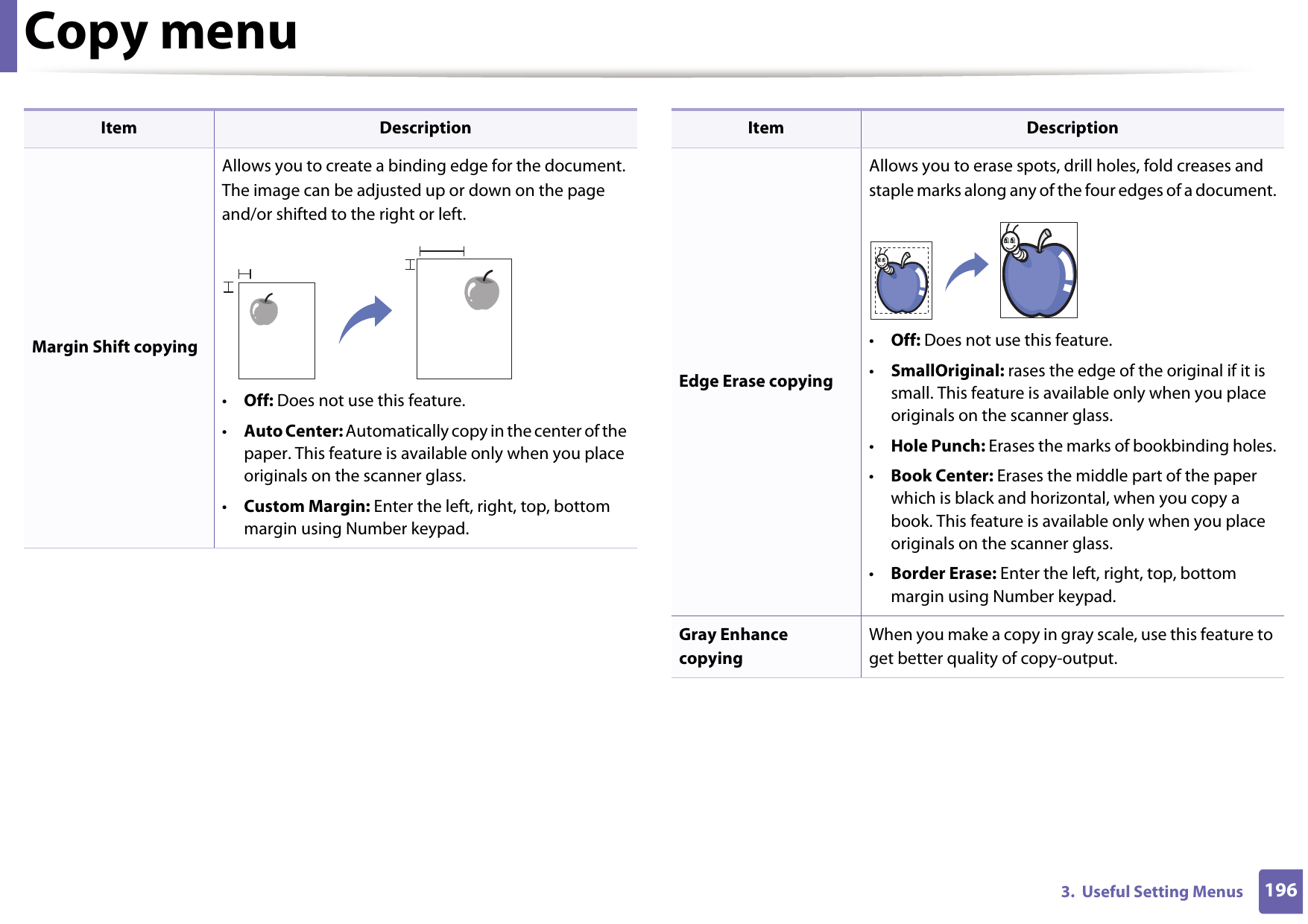
Copy menu1963.  Useful Setting MenusMargin Shift copyingAllows you to create a binding edge for the document. The image can be adjusted up or down on the page and/or shifted to the right or left.•Off: Does not use this feature.•Auto Center: Automatically copy in the center of the paper. This feature is available only when you place originals on the scanner glass.•Custom Margin: Enter the left, right, top, bottom margin using Number keypad.Item DescriptionEdge Erase copyingAllows you to erase spots, drill holes, fold creases and staple marks along any of the four edges of a document.•Off: Does not use this feature.•SmallOriginal: rases the edge of the original if it is small. This feature is available only when you place originals on the scanner glass.•Hole Punch: Erases the marks of bookbinding holes.•Book Center: Erases the middle part of the paper which is black and horizontal, when you copy a book. This feature is available only when you place originals on the scanner glass.•Border Erase: Enter the left, right, top, bottom margin using Number keypad.Gray Enhance copyingWhen you make a copy in gray scale, use this feature to get better quality of copy-output.Item Description
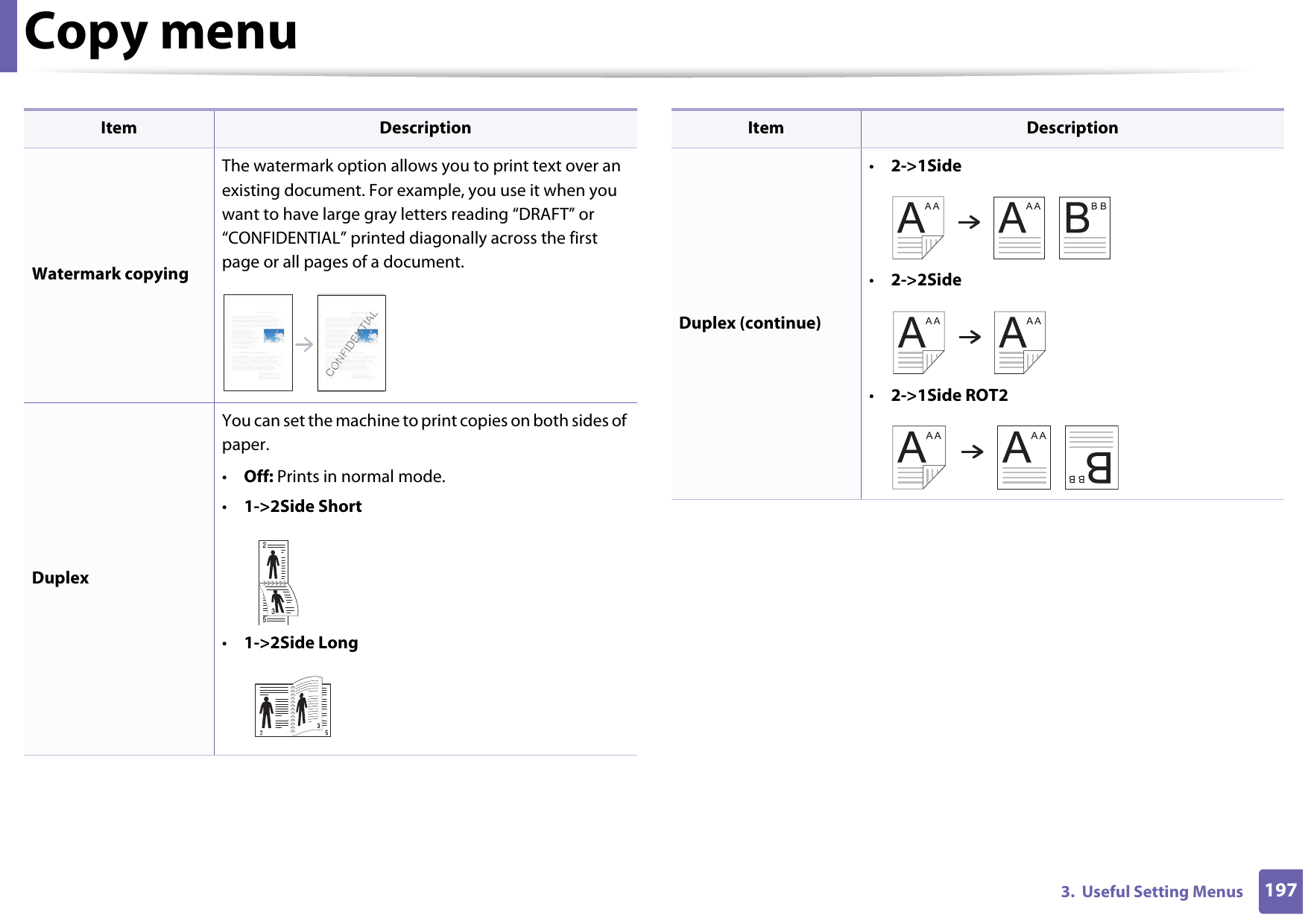
Copy menu1973.  Useful Setting MenusWatermark copyingThe watermark option allows you to print text over an existing document. For example, you use it when you want to have large gray letters reading “DRAFT” or “CONFIDENTIAL” printed diagonally across the first page or all pages of a document.DuplexYou can set the machine to print copies on both sides of paper.•Off: Prints in normal mode.•1->2Side Short•1->2Side LongItem Description253Duplex (continue)•2->1Side•2->2Side•2->1Side ROT2Item Description
Copy menu1983.  Useful Setting Menus2 Copy Setup Some menus may not appear in the display depending on options or models. If so, it is not applicable to your machine (see "Menu overview" on page 34). To change the menu options:Press  (copy) >   (Menu) > Copy Setup on the control panel.Item DescriptionChange Default Resets the value or setting to the printer’s out-of-box state.
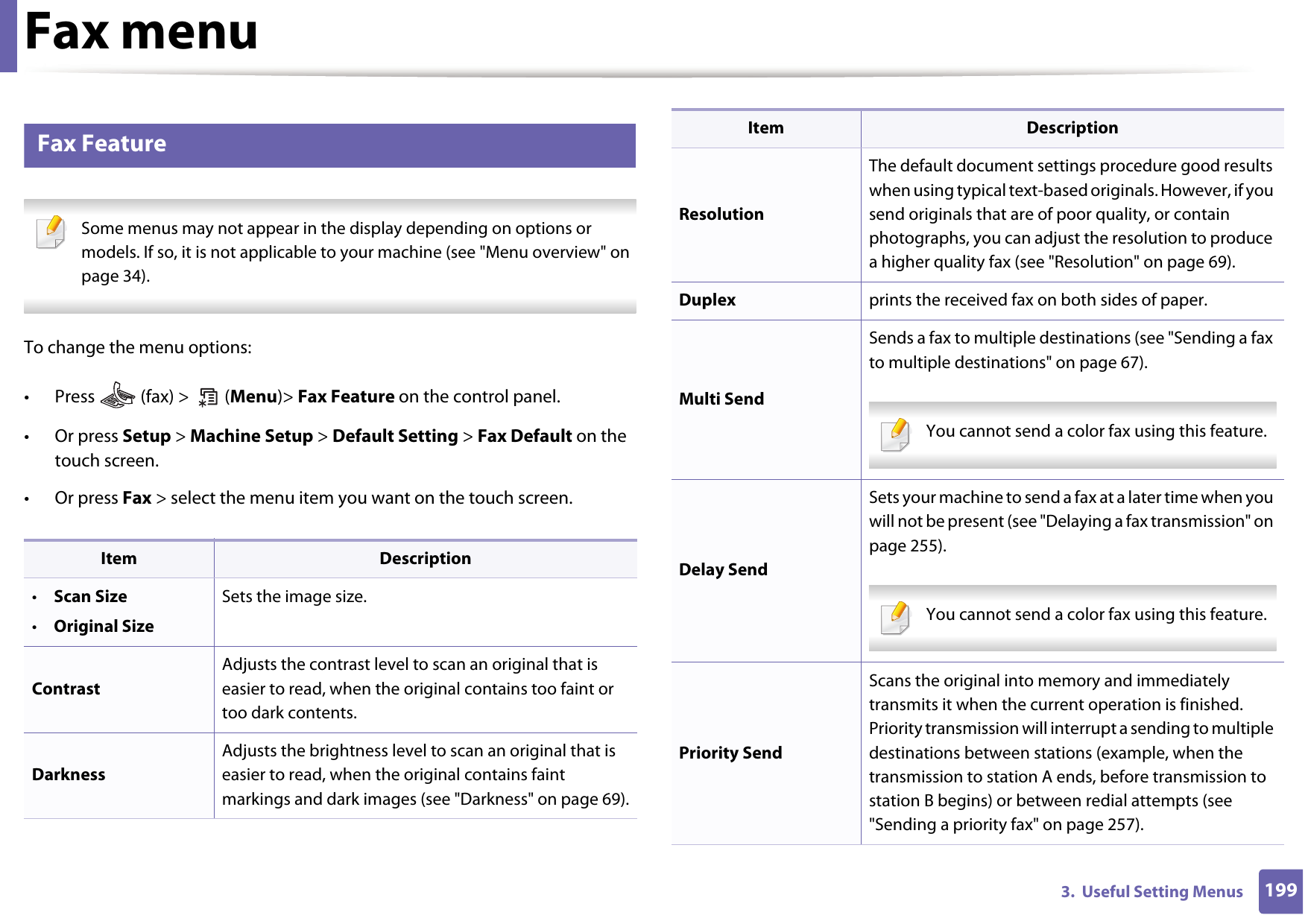
1993.  Useful Setting MenusFax menu3 Fax Feature Some menus may not appear in the display depending on options or models. If so, it is not applicable to your machine (see "Menu overview" on page 34). To change the menu options:• Press   (fax) >   (Menu)> Fax Feature on the control panel.• Or press Setup > Machine Setup > Default Setting > Fax Default on the touch screen.• Or press Fax > select the menu item you want on the touch screen.Item Description•Scan Size•Original SizeSets the image size.Contrast Adjusts the contrast level to scan an original that is easier to read, when the original contains too faint or too dark contents.DarknessAdjusts the brightness level to scan an original that is easier to read, when the original contains faint markings and dark images (see "Darkness" on page 69).ResolutionThe default document settings procedure good results when using typical text-based originals. However, if you send originals that are of poor quality, or contain photographs, you can adjust the resolution to produce a higher quality fax (see "Resolution" on page 69).Duplex prints the received fax on both sides of paper.Multi SendSends a fax to multiple destinations (see "Sending a fax to multiple destinations" on page 67). You cannot send a color fax using this feature.  Delay SendSets your machine to send a fax at a later time when you will not be present (see "Delaying a fax transmission" on page 255). You cannot send a color fax using this feature.  Priority SendScans the original into memory and immediately transmits it when the current operation is finished. Priority transmission will interrupt a sending to multiple destinations between stations (example, when the transmission to station A ends, before transmission to station B begins) or between redial attempts (see "Sending a priority fax" on page 257).Item Description
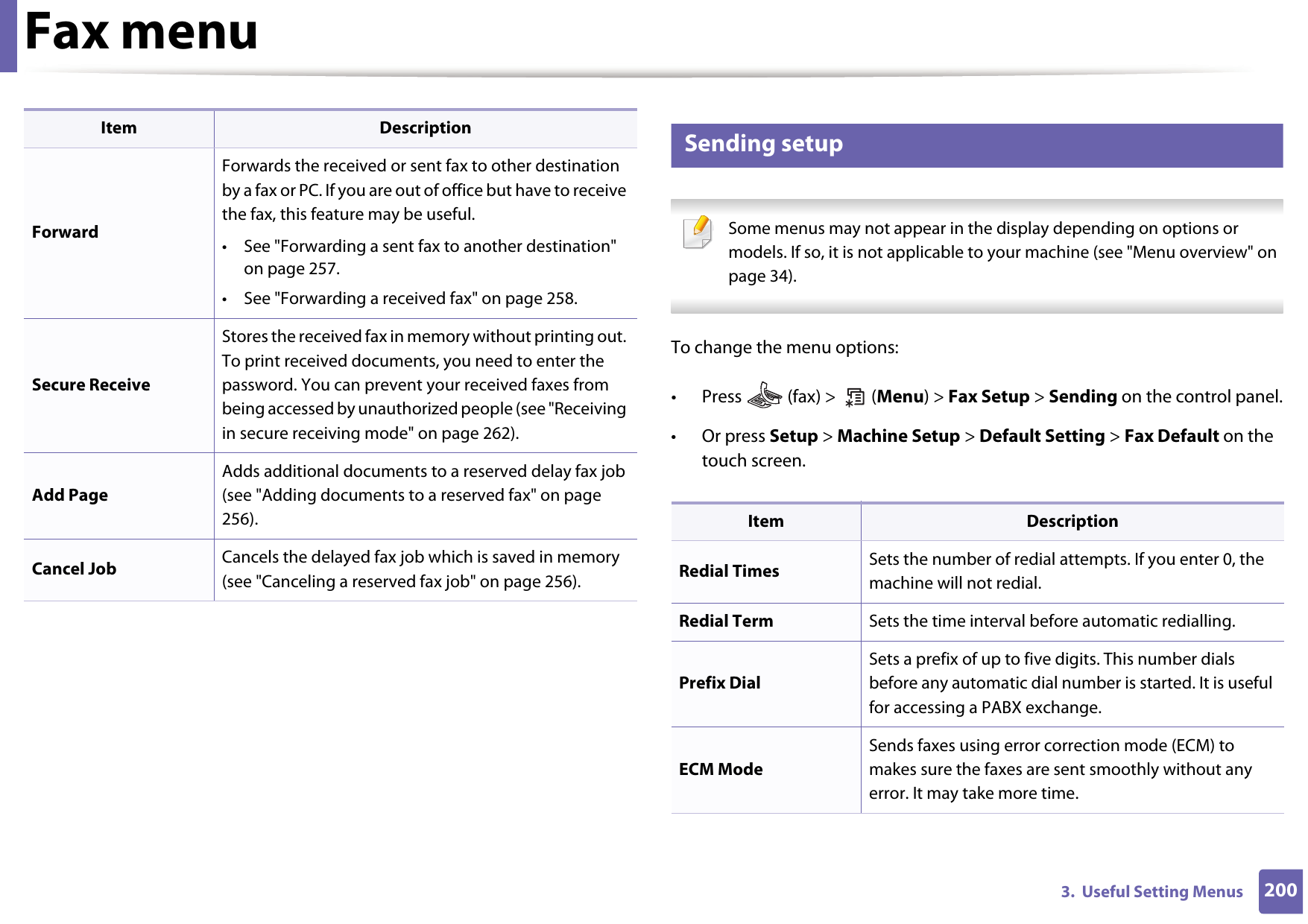
Fax menu2003.  Useful Setting Menus4 Sending setup Some menus may not appear in the display depending on options or models. If so, it is not applicable to your machine (see "Menu overview" on page 34). To change the menu options:• Press   (fax) >   (Menu) > Fax Setup > Sending on the control panel.• Or press Setup > Machine Setup > Default Setting > Fax Default on the touch screen.ForwardForwards the received or sent fax to other destination by a fax or PC. If you are out of office but have to receive the fax, this feature may be useful.• See "Forwarding a sent fax to another destination" on page 257.• See "Forwarding a received fax" on page 258.Secure ReceiveStores the received fax in memory without printing out. To print received documents, you need to enter the password. You can prevent your received faxes from being accessed by unauthorized people (see "Receiving in secure receiving mode" on page 262).Add PageAdds additional documents to a reserved delay fax job (see "Adding documents to a reserved fax" on page 256).Cancel Job Cancels the delayed fax job which is saved in memory (see "Canceling a reserved fax job" on page 256).Item DescriptionItem DescriptionRedial Times Sets the number of redial attempts. If you enter 0, the machine will not redial.Redial Term Sets the time interval before automatic redialling. Prefix DialSets a prefix of up to five digits. This number dials before any automatic dial number is started. It is useful for accessing a PABX exchange.ECM ModeSends faxes using error correction mode (ECM) to makes sure the faxes are sent smoothly without any error. It may take more time.

Navigation menu