Samsung Electronics Co ST10WLR Notebook Computer with Integral Wireless LAN User Manual CERTIFICATE OF COMPLIANCE

Samsung Electronics Co Ltd Notebook Computer with Integral Wireless LAN CERTIFICATE OF COMPLIANCE

Part 2

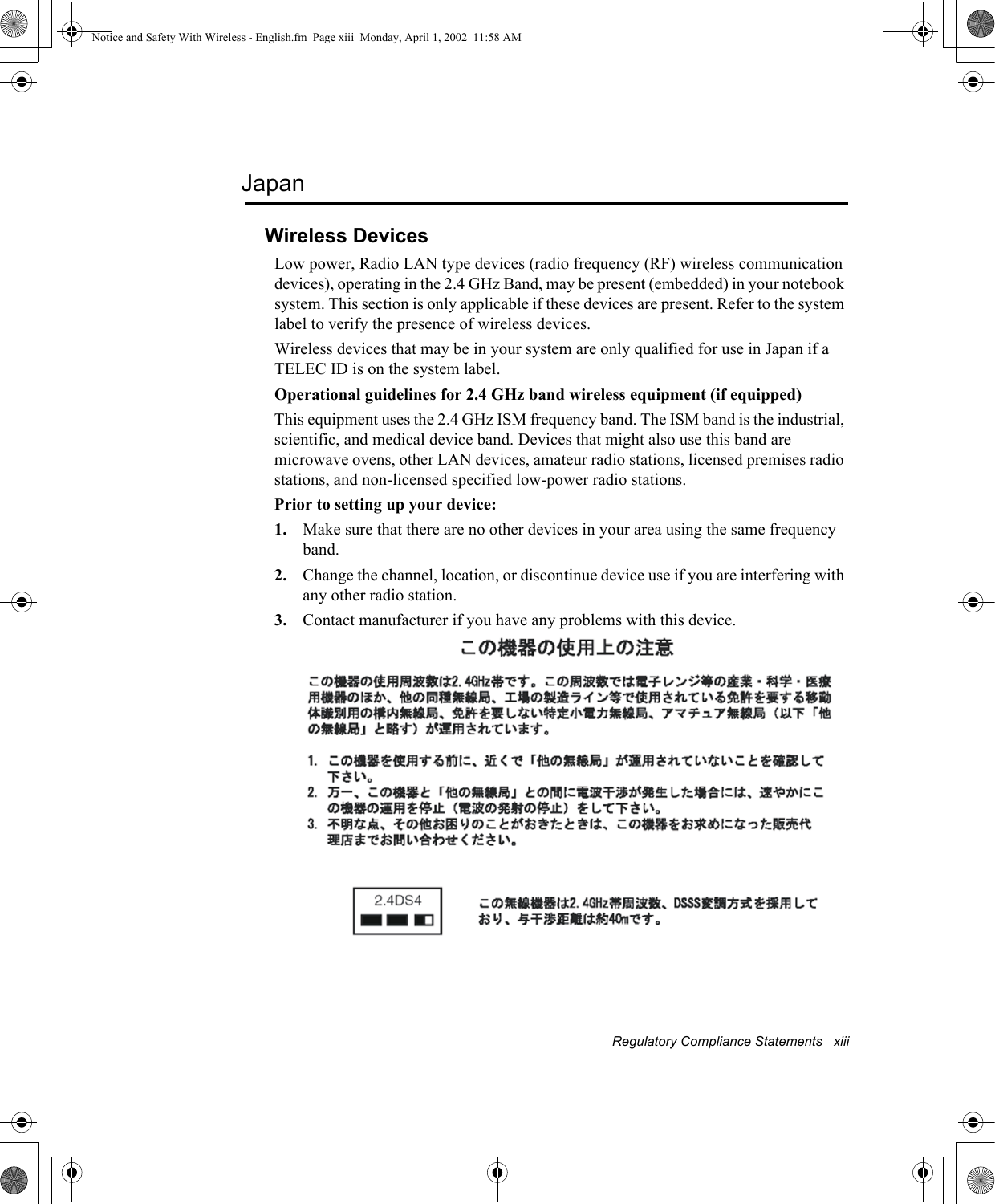
Regulatory Compliance Statements   xiiiJapanWireless DevicesLow power, Radio LAN type devices (radio frequency (RF) wireless communication devices), operating in the 2.4 GHz Band, may be present (embedded) in your notebook system. This section is only applicable if these devices are present. Refer to the system label to verify the presence of wireless devices.Wireless devices that may be in your system are only qualified for use in Japan if a TELEC ID is on the system label.Operational guidelines for 2.4 GHz band wireless equipment (if equipped)This equipment uses the 2.4 GHz ISM frequency band. The ISM band is the industrial, scientific, and medical device band. Devices that might also use this band are microwave ovens, other LAN devices, amateur radio stations, licensed premises radio stations, and non-licensed specified low-power radio stations.Prior to setting up your device:1. Make sure that there are no other devices in your area using the same frequency band.2. Change the channel, location, or discontinue device use if you are interfering with any other radio station.3. Contact manufacturer if you have any problems with this device.Notice and Safety With Wireless - English.fm  Page xiii  Monday, April 1, 2002  11:58 AM
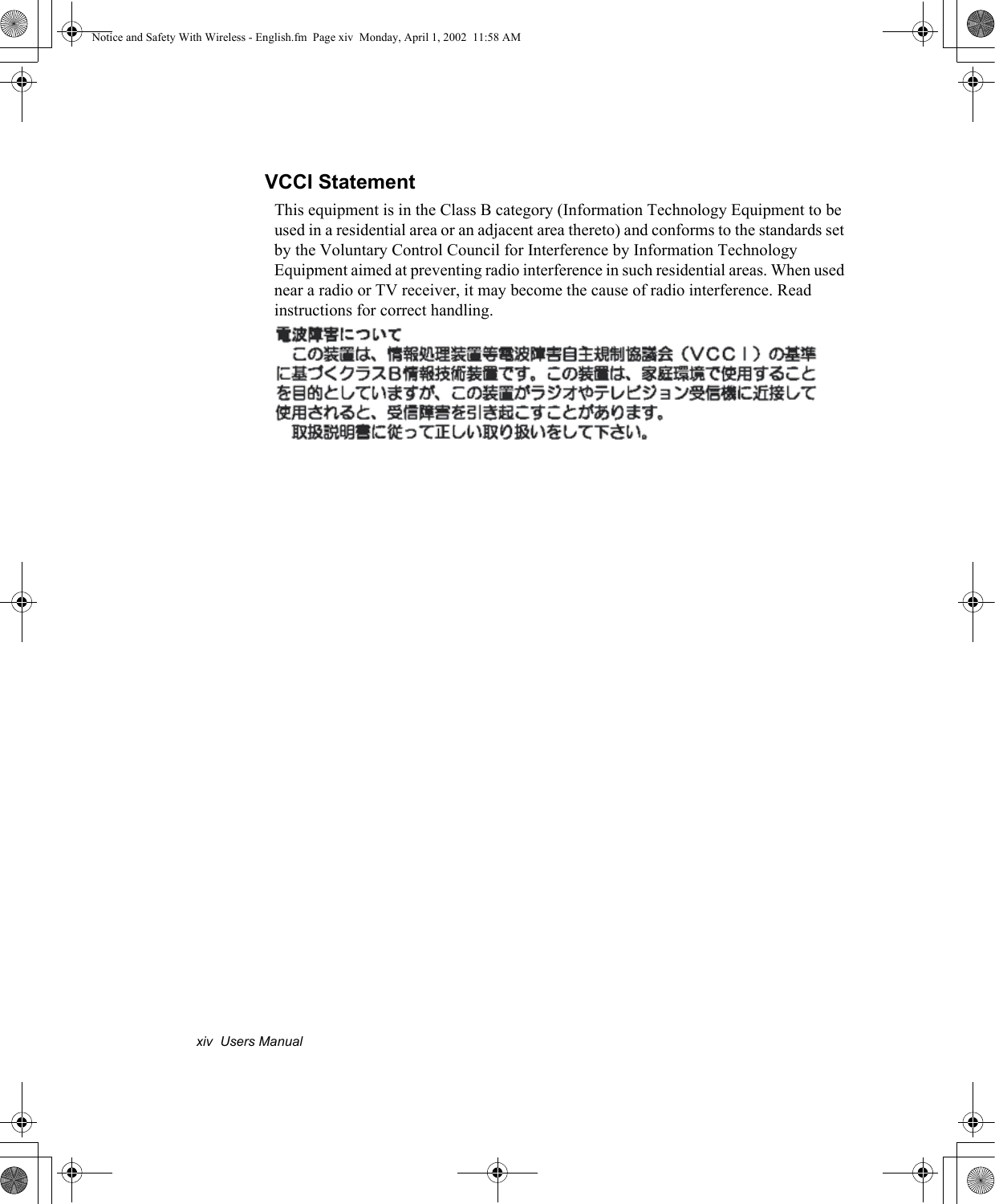
xiv  Users ManualVCCI StatementThis equipment is in the Class B category (Information Technology Equipment to be used in a residential area or an adjacent area thereto) and conforms to the standards set by the Voluntary Control Council for Interference by Information Technology Equipment aimed at preventing radio interference in such residential areas. When used near a radio or TV receiver, it may become the cause of radio interference. Read instructions for correct handling.Notice and Safety With Wireless - English.fm  Page xiv  Monday, April 1, 2002  11:58 AM
Laser Safety   xvLaser SafetyAll systems equipped with CD or DVD drives comply with the appropriate safety standards, including IEC 825. The laser devices in these components are classified as “Class 1 Laser Products” under a US Department of Health and Human Services (DHHS) Radiation Performance Standard. Should the unit ever need servicing, contact an authorized service location.Laser Safety Note:Use of controls or adjustments or performance of procedures other than those specified in this manual may result in hazardous radiation exposure. To prevent exposure to laser beams, do not try to open the enclosure of a CD or DVD drive.Notice and Safety With Wireless - English.fm  Page xv  Monday, April 1, 2002  11:58 AM
xvi  Users ManualPower Cord RequirementsThe power cord set (wall plug, cable and AC adapter plug) you received with your computer meets the requirements for use in the country where you purchased your equipment.Power cord sets for use in other countries must meet the requirements of the country where you use the computer. For more information on power cord set requirements, contact your authorized dealer, reseller, or service provider.General RequirementsThe requirements listed below are applicable to all countries:•The length of the power cord set must be at least 6.00 feet (1.8m) and a maximum of 9.75 feet (3.0m).•All power cord sets must be approved by an acceptable accredited agency responsible for evaluation in the country where the power cord set will be used.•The power cord set must have a minimum current capacity of 7 A and a nominal voltage rating of 125 or 250 volts AC, as required by each country’s power system.•The appliance coupler must meet the mechanical configuration of an EN 60 320/IEC 320 Standard Sheet C13 connector, for mating with appliance inlet on the computer.Notice and Safety With Wireless - English.fm  Page xvi  Monday, April 1, 2002  11:58 AM
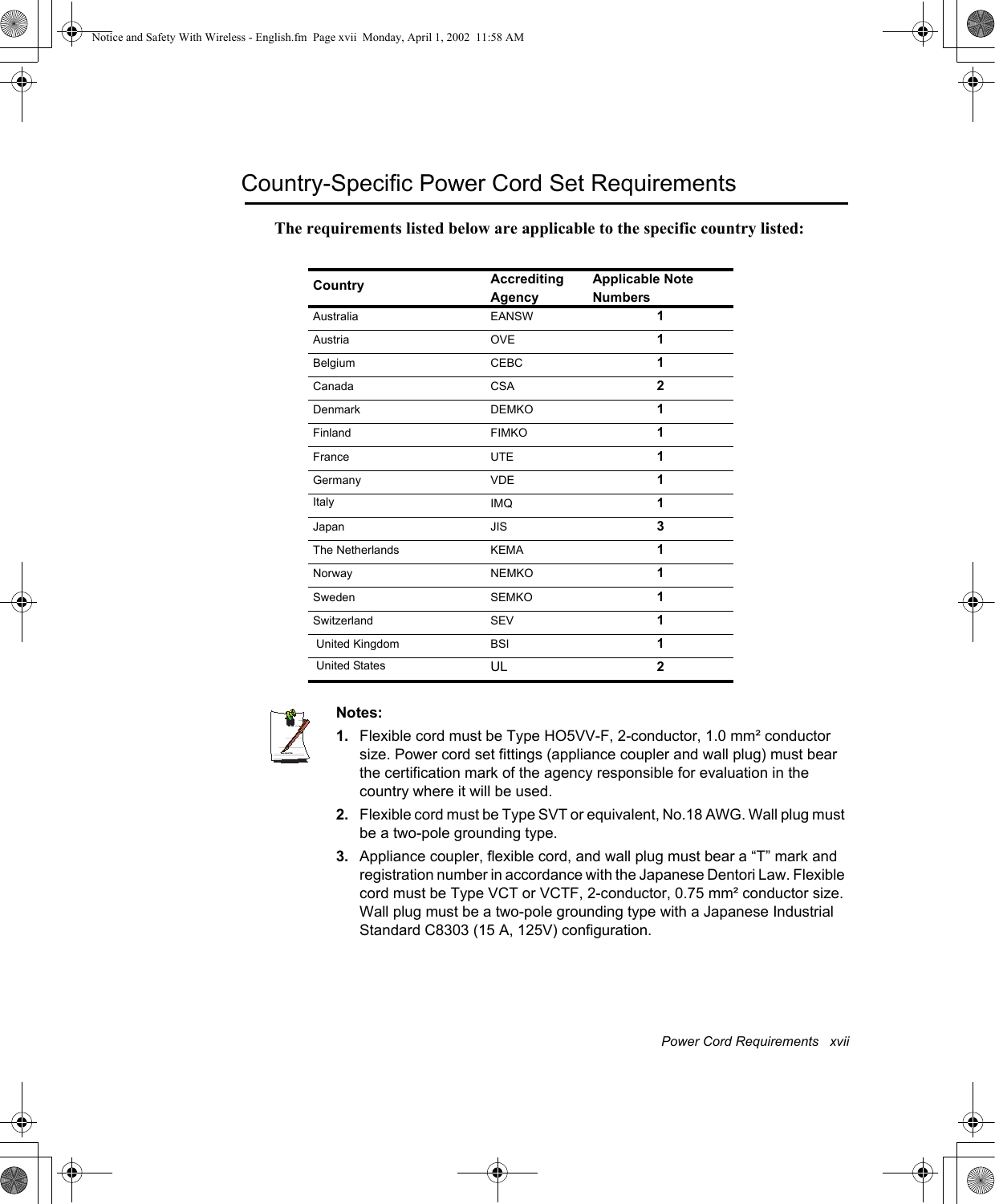
Power Cord Requirements   xviiCountry-Specific Power Cord Set RequirementsThe requirements listed below are applicable to the specific country listed:Writtenby: Daryl L. OsdenNotes:1. Flexible cord must be Type HO5VV-F, 2-conductor, 1.0 mm² conductor size. Power cord set fittings (appliance coupler and wall plug) must bear the certification mark of the agency responsible for evaluation in the country where it will be used.2. Flexible cord must be Type SVT or equivalent, No.18 AWG. Wall plug must be a two-pole grounding type.3. Appliance coupler, flexible cord, and wall plug must bear a “T” mark and registration number in accordance with the Japanese Dentori Law. Flexible cord must be Type VCT or VCTF, 2-conductor, 0.75 mm² conductor size. Wall plug must be a two-pole grounding type with a Japanese Industrial Standard C8303 (15 A, 125V) configuration.Country AccreditingAgencyApplicable NoteNumbersAustralia EANSW 1Austria OVE 1Belgium CEBC 1Canada CSA 2Denmark DEMKO 1Finland FIMKO 1France UTE 1Germany VDE 1Italy IMQ 1Japan JIS 3The Netherlands KEMA 1Norway NEMKO 1Sweden SEMKO 1Switzerland SEV 1 United Kingdom BSI 1 United States  UL 2Notice and Safety With Wireless - English.fm  Page xvii  Monday, April 1, 2002  11:58 AM
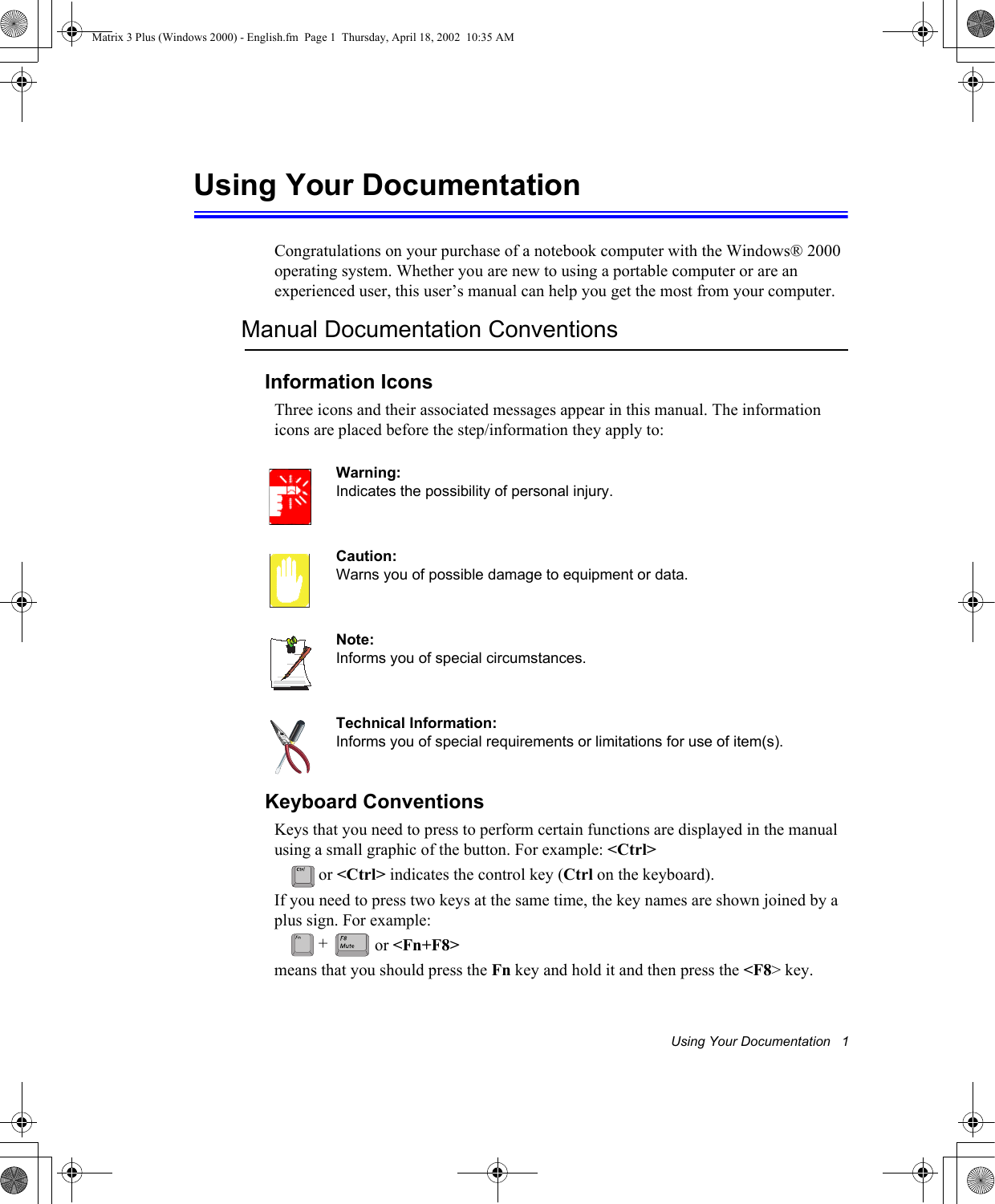
Using Your Documentation   1Using Your DocumentationCongratulations on your purchase of a notebook computer with the Windows® 2000 operating system. Whether you are new to using a portable computer or are an experienced user, this user’s manual can help you get the most from your computer.Manual Documentation ConventionsInformation IconsThree icons and their associated messages appear in this manual. The information icons are placed before the step/information they apply to:Warning:Indicates the possibility of personal injury.Caution:Warns you of possible damage to equipment or data.Note:Informs you of special circumstances.Technical Information:Informs you of special requirements or limitations for use of item(s).Keyboard ConventionsKeys that you need to press to perform certain functions are displayed in the manual using a small graphic of the button. For example: <Ctrl> or <Ctrl> indicates the control key (Ctrl on the keyboard). If you need to press two keys at the same time, the key names are shown joined by a plus sign. For example: or <Fn+F8>means that you should press the Fn key and hold it and then press the <F8> key.+Matrix 3 Plus (Windows 2000) - English.fm  Page 1  Thursday, April 18, 2002  10:35 AM
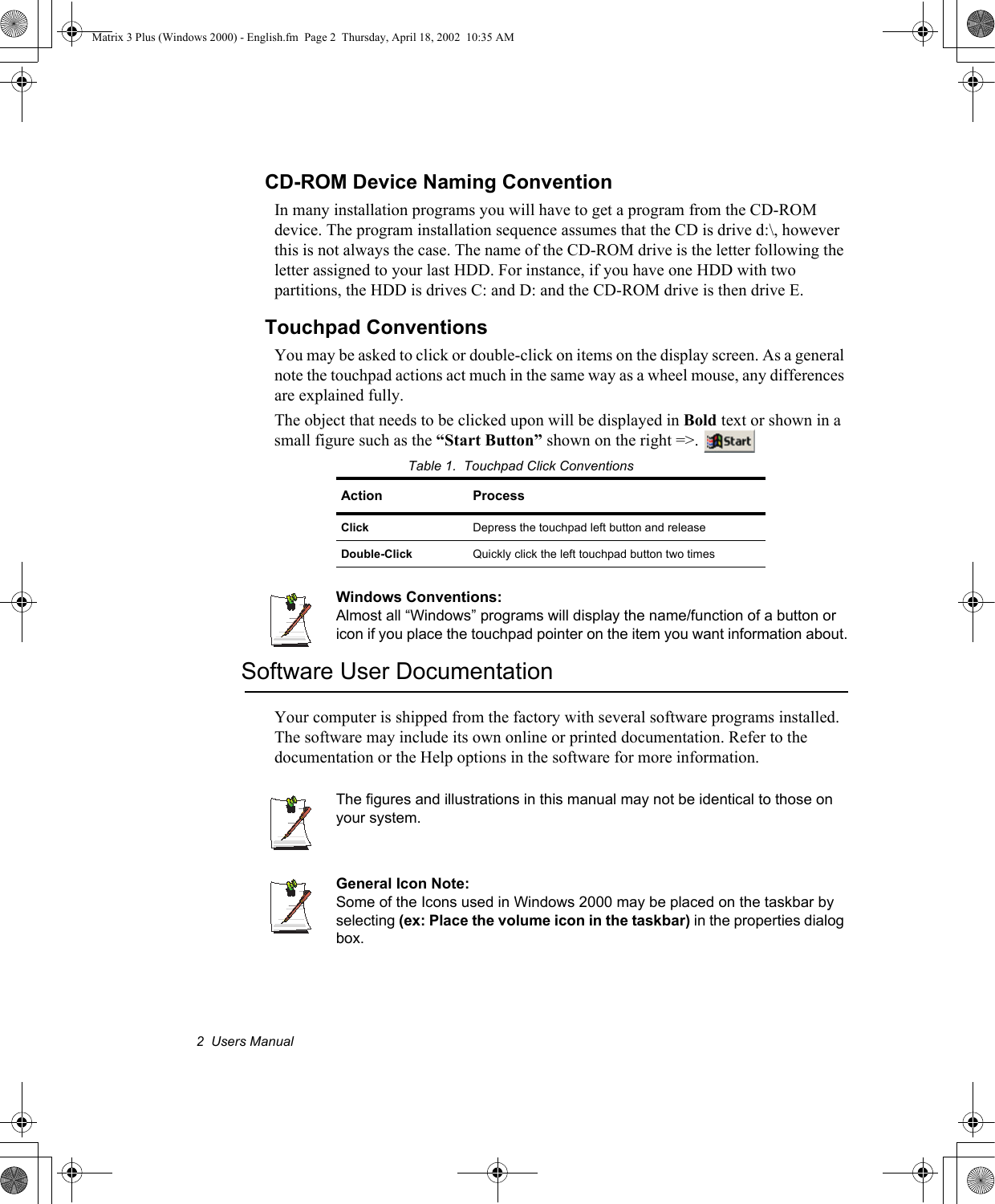
2  Users ManualCD-ROM Device Naming ConventionIn many installation programs you will have to get a program from the CD-ROM device. The program installation sequence assumes that the CD is drive d:\, however this is not always the case. The name of the CD-ROM drive is the letter following the letter assigned to your last HDD. For instance, if you have one HDD with two partitions, the HDD is drives C: and D: and the CD-ROM drive is then drive E.Touchpad ConventionsYou may be asked to click or double-click on items on the display screen. As a general note the touchpad actions act much in the same way as a wheel mouse, any differences are explained fully.The object that needs to be clicked upon will be displayed in Bold text or shown in a small figure such as the “Start Button” shown on the right =>. Table 1.  Touchpad Click ConventionsWindows Conventions:Almost all “Windows” programs will display the name/function of a button or icon if you place the touchpad pointer on the item you want information about.Software User DocumentationYour computer is shipped from the factory with several software programs installed. The software may include its own online or printed documentation. Refer to the documentation or the Help options in the software for more information.The figures and illustrations in this manual may not be identical to those on your system.General Icon Note:Some of the Icons used in Windows 2000 may be placed on the taskbar by selecting (ex: Place the volume icon in the taskbar) in the properties dialog box.Action ProcessClick Depress the touchpad left button and releaseDouble-Click Quickly click the left touchpad button two timesMatrix 3 Plus (Windows 2000) - English.fm  Page 2  Thursday, April 18, 2002  10:35 AM
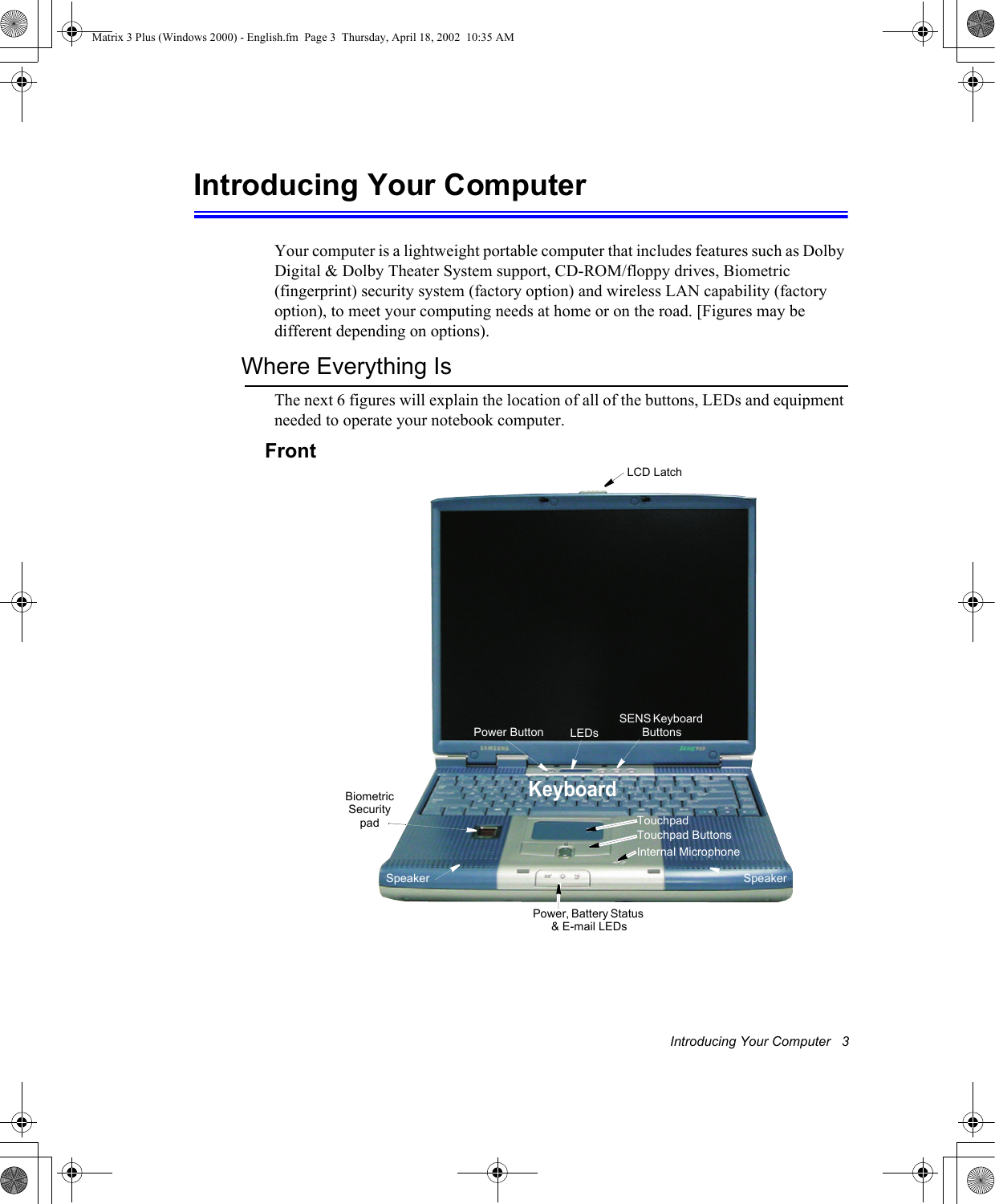
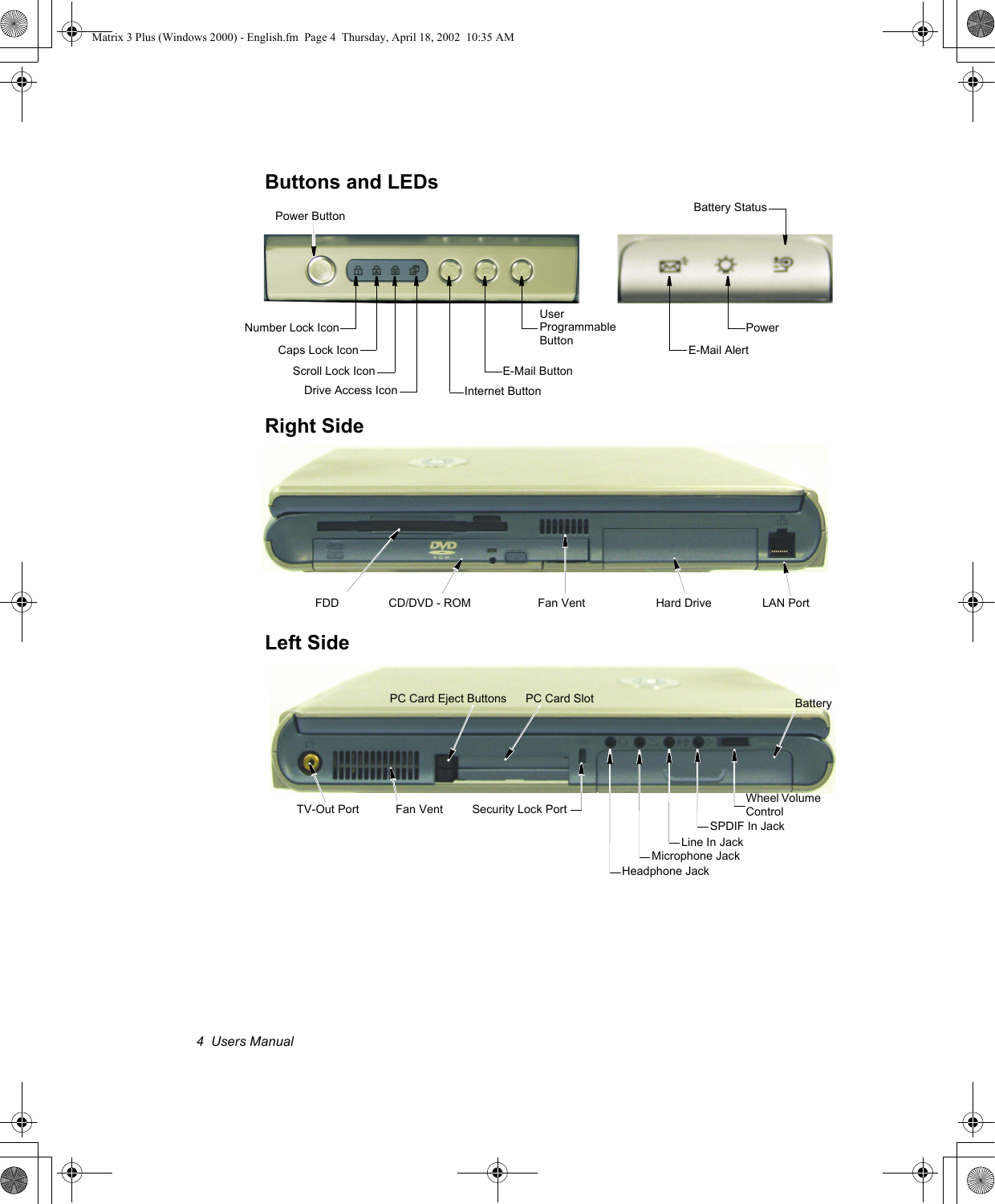
Introducing Your Computer   3Introducing Your ComputerYour computer is a lightweight portable computer that includes features such as Dolby Digital & Dolby Theater System support, CD-ROM/floppy drives, Biometric (fingerprint) security system (factory option) and wireless LAN capability (factory option), to meet your computing needs at home or on the road. [Figures may be different depending on options).Where Everything IsThe next 6 figures will explain the location of all of the buttons, LEDs and equipment needed to operate your notebook computer. Front SENS Keyboard ButtonsTouchpadSpeakerTouchpad ButtonsPower ButtonLCD LatchLEDsKeyboardSpeakerPower, Battery Status & E-mail LEDsBiometric Security padInternal MicrophoneMatrix 3 Plus (Windows 2000) - English.fm  Page 3  Thursday, April 18, 2002  10:35 AM
4  Users ManualButtons and LEDs Right Side Left SideDrive Access IconScroll Lock IconNumber Lock IconCaps Lock IconPower ButtonUser Programmable ButtonE-Mail ButtonInternet ButtonE-Mail AlertPower Battery StatusFDD Fan Vent LAN PortCD/DVD - ROM Hard DrivePC Card Eject Buttons PC Card SlotFan Vent Security Lock PortMicrophone JackHeadphone JackBatteryWheel Volume ControlLine In JackTV-Out PortSPDIF In JackMatrix 3 Plus (Windows 2000) - English.fm  Page 4  Thursday, April 18, 2002  10:35 AM
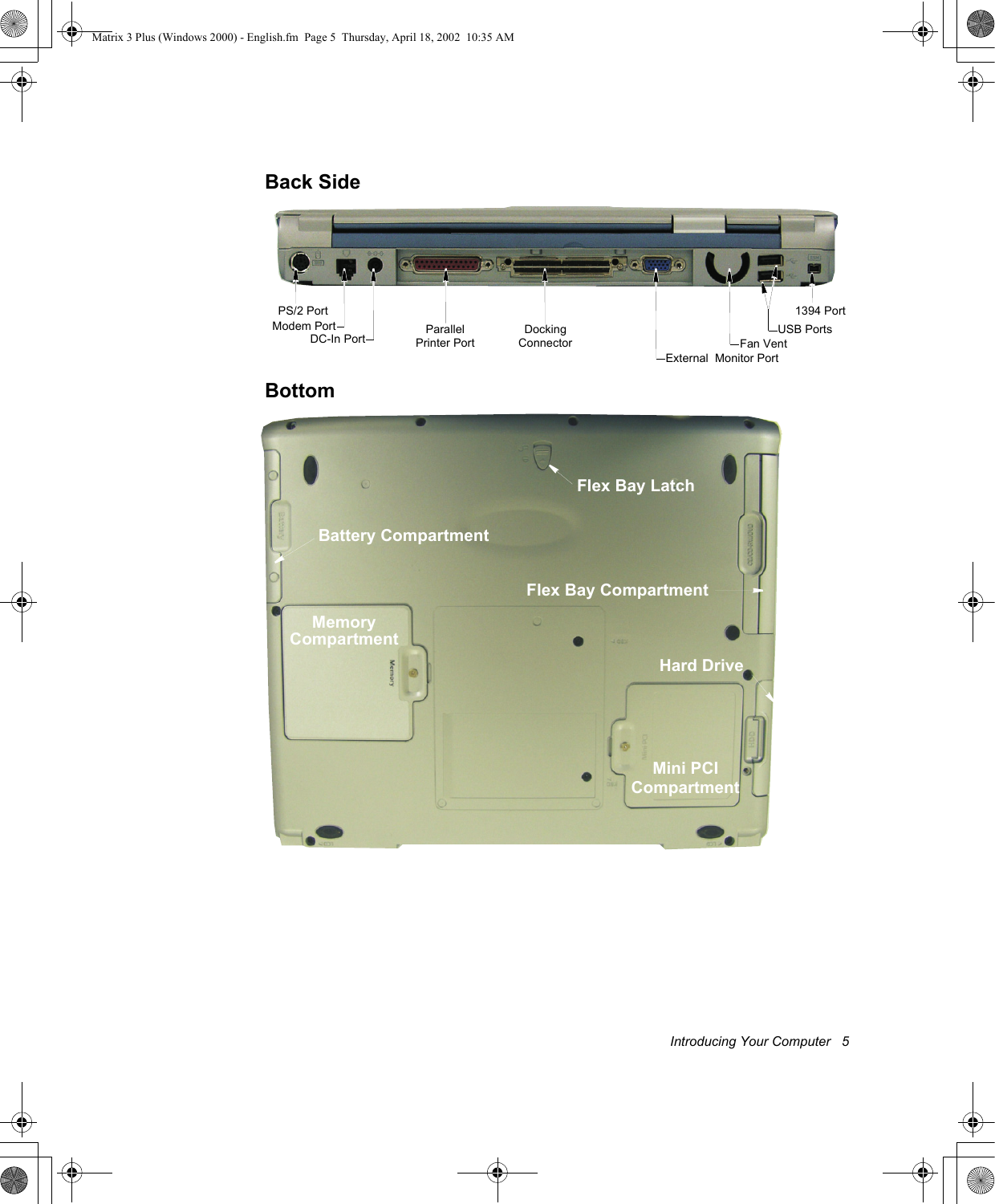
Introducing Your Computer   5Back SideBottomExternal  Monitor PortModem Port Parallel Printer PortPS/2 PortUSB Ports1394 PortDocking ConnectorDC-In Port Fan VentHard DriveBattery CompartmentFlex Bay LatchMini PCIMemoryCompartmentCompartmentFlex Bay CompartmentMatrix 3 Plus (Windows 2000) - English.fm  Page 5  Thursday, April 18, 2002  10:35 AM

Navigation menu