Samsung Electronics Co ST10WLR Notebook Computer with Integral Wireless LAN User Manual CERTIFICATE OF COMPLIANCE

Samsung Electronics Co Ltd Notebook Computer with Integral Wireless LAN CERTIFICATE OF COMPLIANCE

Part 5

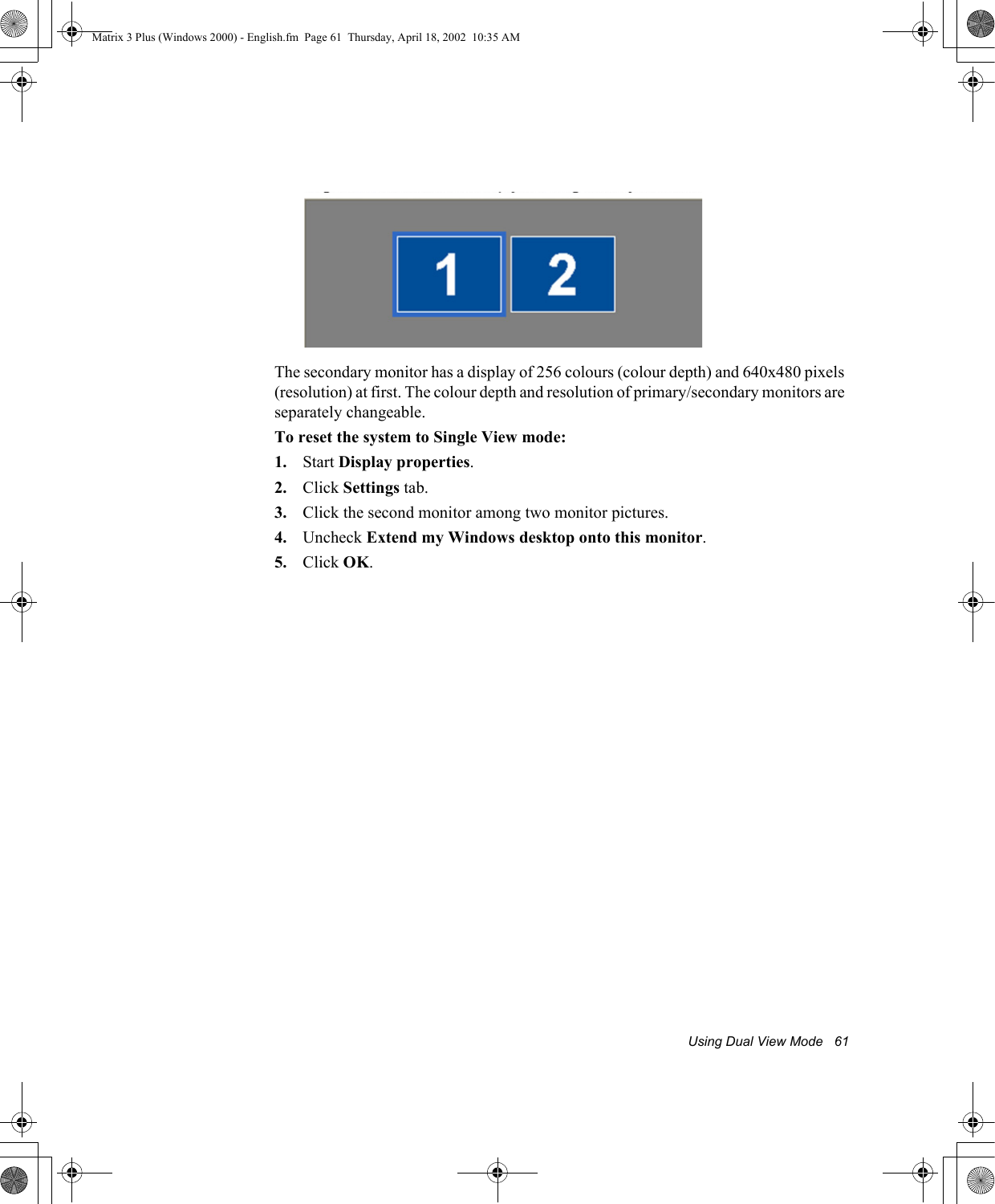
60  Users ManualUsing Dual View ModeSingle View mode is the basic display mode which displays same view on all the display devices connected to a system. Dual View mode is the “Extended screen mode” supported in Windows, which displays separate views on each display devices connected to a system.The default setting on your system is Single View mode.Setting Dual View Mode To set Dual View mode on your system:1. Connect peripheral display device such as monitor or TV to your system and start the system.2. Click Start > Settings > Control Panel.3. Click Display icon  . The Display Properties window appears.4. Click the Settings tab. The Settings screen appears.5. Check Extend my Windows desktop onto this monitor.6. You can drag the second monitor image to position where you want your extended screen space with respect to the primary monitor (usually the LCD).To confirm whether the system is set properly with Dual View mode:1. Open Display properties and click Settings tab.2. Place the cursor on the first monitor picture and click and hold over a second, a number 1 will be shown on the first actual monitor screen. And place the cursor on the second monitor picture and click and hold over a second, then digit number 2 will be shown on the second actual monitor screen.3. The monitor displays digit number 1 is the primary monitor and number 2 is the secondary monitor.In Windows explorer, the program is displayed on the primary monitor, if you can drag it to the secondary monitor, then Duo View mode is now working properly.Matrix 3 Plus (Windows 2000) - English.fm  Page 60  Thursday, April 18, 2002  10:35 AM
Using Dual View Mode   61The secondary monitor has a display of 256 colours (colour depth) and 640x480 pixels (resolution) at first. The colour depth and resolution of primary/secondary monitors are separately changeable.To reset the system to Single View mode:1. Start Display properties.2. Click Settings tab.3. Click the second monitor among two monitor pictures.4. Uncheck Extend my Windows desktop onto this monitor.5. Click OK. Matrix 3 Plus (Windows 2000) - English.fm  Page 61  Thursday, April 18, 2002  10:35 AM
62  Users ManualUsing the TV-Out PortUsing the TV-out port, a compatible TV or other compatible display device can be connected and an image displayed. No Audio is transmitted through the TV-Out port. To check if and how your TV displays the TV-out signal see the documentation included with your TV. You must also insure that (TV/Video) is changed to Video mode using the TV remote controller or the buttons on the TV set.To enable TV-out:1. Connect the TV to the TV-Out port using an appropriate cable.2. Click Start > Settings > Control Panel.3. Click Display icon  . The Display Properties window appears.4. Click the Settings tab. The Settings screen appears.5. Ensure Extend my Windows desktop onto this monitor box is unchecked.6. Click Advanced > Display.7. Click the check box to the left of the text “TV”.8. Follow the screen prompts and the LCD screen display will be duplicated on the television. If the TV symbol is grayed out then the system has not detected a TV, check that the TV standard in the System Setup is set correctly and that the TV is turned on and connected properly. You can not use TV-out port in DOS mode.9. Click Apply or OK.Matrix 3 Plus (Windows 2000) - English.fm  Page 62  Thursday, April 18, 2002  10:35 AM
Using Options   63Using OptionsYou can order the following options for your Notebook computer from your authorised reseller: •An extra AC adapter.•An auto adapter that enables you to charge the computer’s battery and operate the computer while in an automobile.•An extra battery pack.•An upgraded hard drive. Optional hard drives are available to fit in the hard drive compartment or the Flex-Bay.•128, 256 and 512 MB DDR SDRAM memory modules that enable you to upgrade your computer’s memory to a maximum of 1 GB.•A CD-ROM drive module (CD Only or CD R/W).•DVD/CD-RW Combo drive: •A DVD-ROM drive module.•A Superdisk LS-120 drive.•Docking options that enable you to use your computer like a desktop computer. •Wireless LAN•IrSTICK TMThe options that are available may change periodically. Contact your reseller for updated information on current and new options.Memory ModulesYou can increase system memory by installing optional memory modules. You can install a 128 256 or 512 MB modules. To avoid possible system problems, use only approved memory modules in your computer. Matrix 3 Plus (Windows 2000) - English.fm  Page 63  Thursday, April 18, 2002  10:35 AM
64  Users ManualBefore You Install MemoryTo prevent personal injury and damage to the equipment, follow the precautions listed here before installing a memory module.Take the following precautions when installing a memory module:•Before you remove the memory module compartment door, turn off the computer, unplug the power cord, and remove the battery. Also, disconnect any peripheral devices.•Before handling a memory module, discharge any static electricity by touching a grounded surface or using a grounding wrist strap.•Do not insert objects with conductive material, such as metal screwdrivers or graphite pencils, into the memory-module compartment.•Be careful in handling the metal plate of the memory door.Installing a Memory ModuleHandle a memory module carefully. Hold them only by the edges.To install a memory module:1. Turn the computer over so that the bottom faces up.Matrix 3 Plus (Windows 2000) - English.fm  Page 64  Thursday, April 18, 2002  10:35 AM
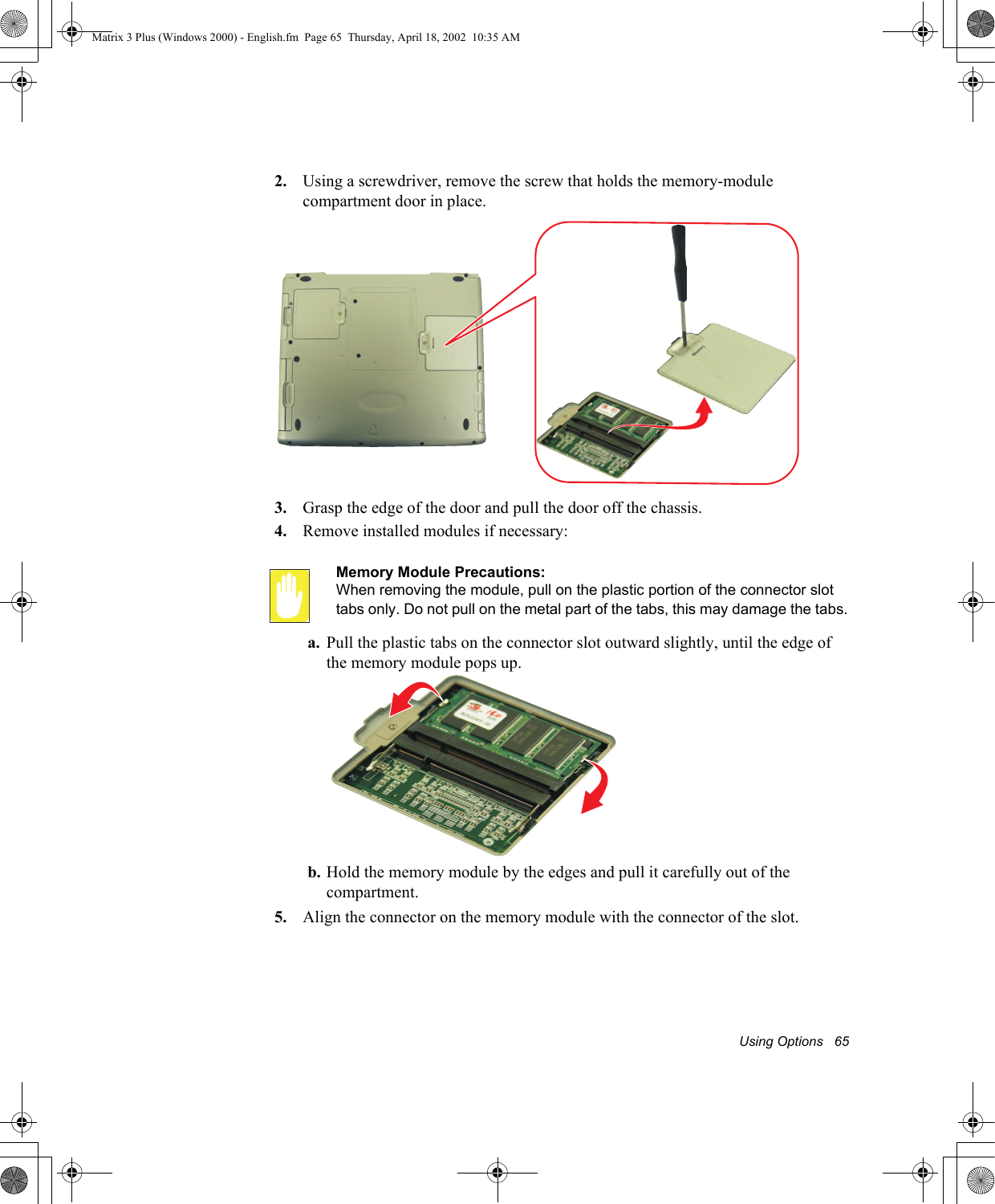
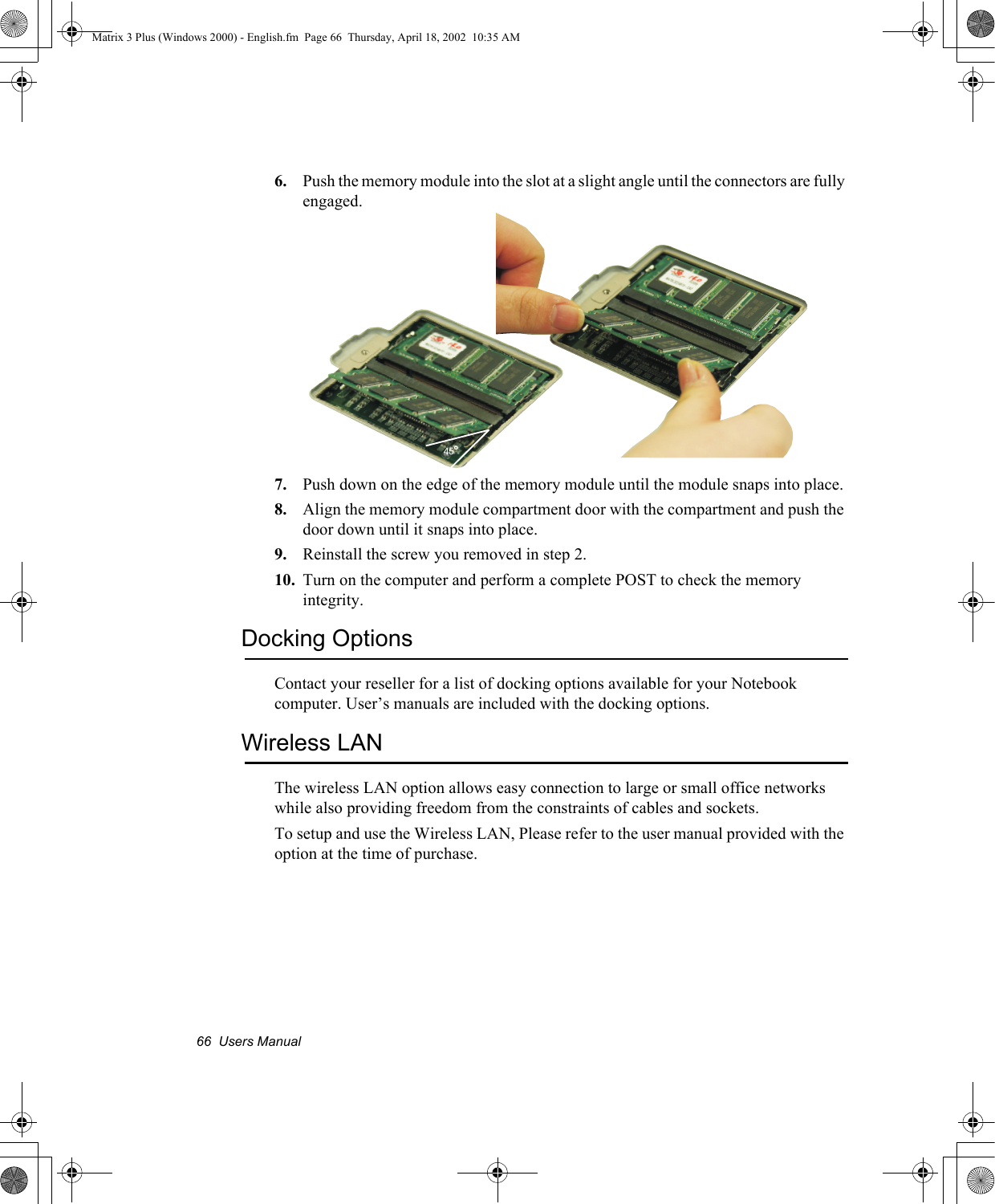
Using Options   652. Using a screwdriver, remove the screw that holds the memory-module compartment door in place.3. Grasp the edge of the door and pull the door off the chassis.4. Remove installed modules if necessary:Memory Module Precautions:When removing the module, pull on the plastic portion of the connector slot tabs only. Do not pull on the metal part of the tabs, this may damage the tabs.a. Pull the plastic tabs on the connector slot outward slightly, until the edge of the memory module pops up.b. Hold the memory module by the edges and pull it carefully out of the compartment.5. Align the connector on the memory module with the connector of the slot.Matrix 3 Plus (Windows 2000) - English.fm  Page 65  Thursday, April 18, 2002  10:35 AM
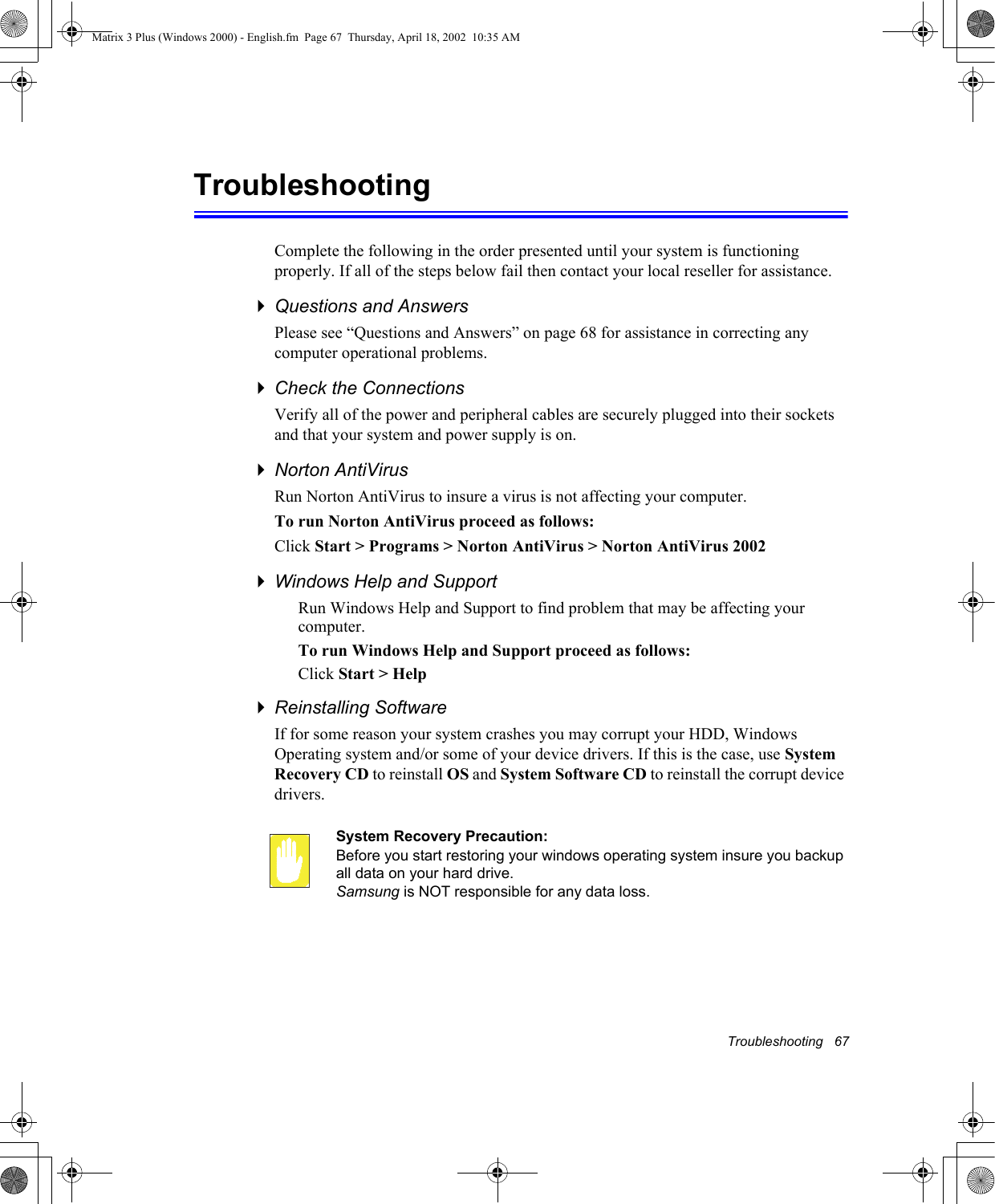
66  Users Manual6. Push the memory module into the slot at a slight angle until the connectors are fully engaged.7. Push down on the edge of the memory module until the module snaps into place.8. Align the memory module compartment door with the compartment and push the door down until it snaps into place.9. Reinstall the screw you removed in step 2.10. Turn on the computer and perform a complete POST to check the memory integrity.Docking OptionsContact your reseller for a list of docking options available for your Notebook computer. User’s manuals are included with the docking options.Wireless LANThe wireless LAN option allows easy connection to large or small office networks while also providing freedom from the constraints of cables and sockets. To setup and use the Wireless LAN, Please refer to the user manual provided with the option at the time of purchase.45oMatrix 3 Plus (Windows 2000) - English.fm  Page 66  Thursday, April 18, 2002  10:35 AM
Troubleshooting   67TroubleshootingComplete the following in the order presented until your system is functioning properly. If all of the steps below fail then contact your local reseller for assistance.Questions and AnswersPlease see “Questions and Answers” on page 68 for assistance in correcting any computer operational problems.Check the ConnectionsVerify all of the power and peripheral cables are securely plugged into their sockets and that your system and power supply is on.Norton AntiVirus Run Norton AntiVirus to insure a virus is not affecting your computer.To run Norton AntiVirus proceed as follows:Click Start > Programs > Norton AntiVirus > Norton AntiVirus 2002Windows Help and SupportRun Windows Help and Support to find problem that may be affecting your computer.To run Windows Help and Support proceed as follows:Click Start > HelpReinstalling SoftwareIf for some reason your system crashes you may corrupt your HDD, Windows Operating system and/or some of your device drivers. If this is the case, use System Recovery CD to reinstall OS and System Software CD to reinstall the corrupt device drivers.System Recovery Precaution:Before you start restoring your windows operating system insure you backup all data on your hard drive. Samsung is NOT responsible for any data loss.Matrix 3 Plus (Windows 2000) - English.fm  Page 67  Thursday, April 18, 2002  10:35 AM
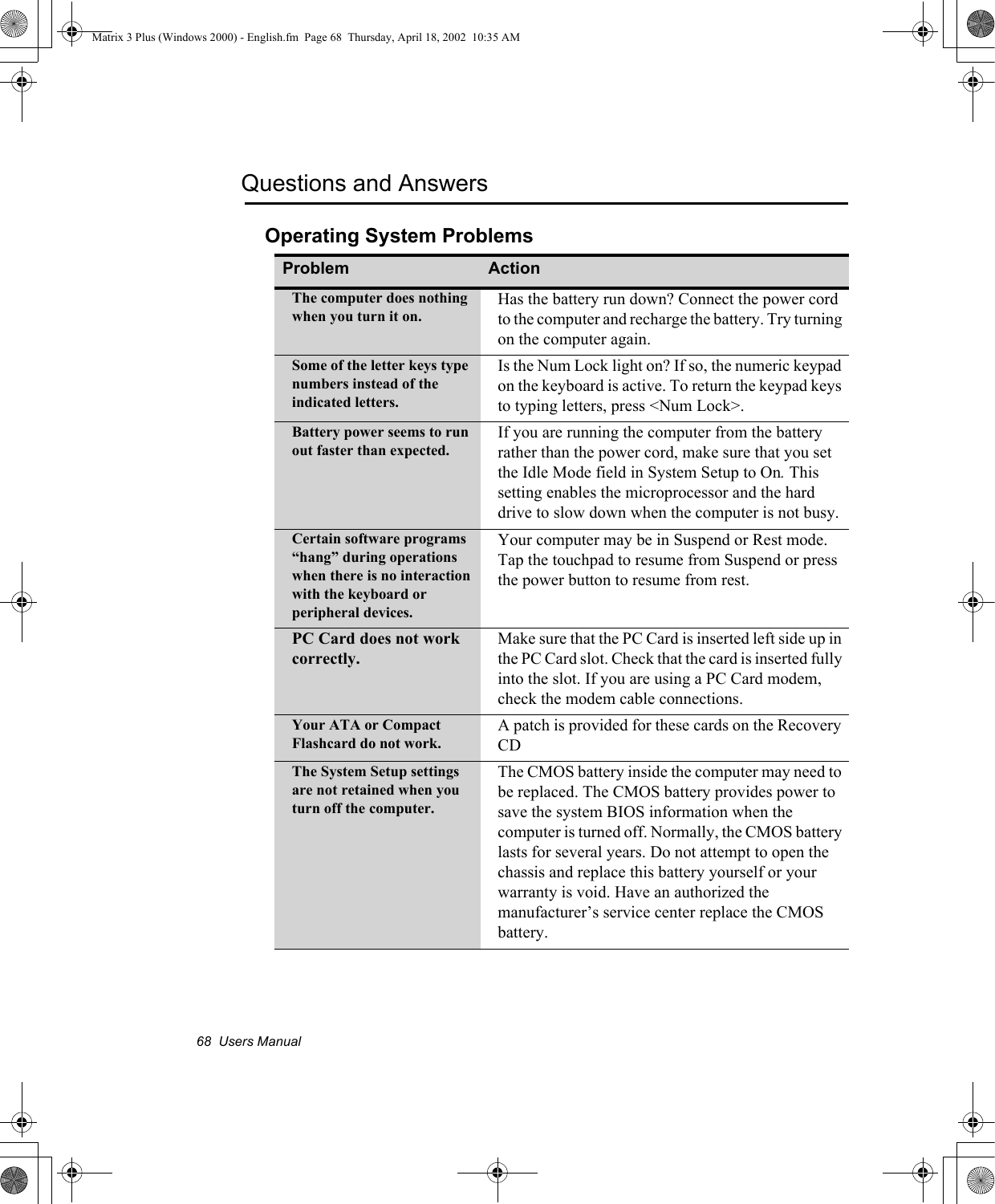
68  Users ManualQuestions and AnswersOperating System ProblemsProblem ActionThe computer does nothing when you turn it on.Has the battery run down? Connect the power cord to the computer and recharge the battery. Try turning on the computer again.Some of the letter keys type numbers instead of the indicated letters.Is the Num Lock light on? If so, the numeric keypad on the keyboard is active. To return the keypad keys to typing letters, press <Num Lock>. Battery power seems to run out faster than expected.If you are running the computer from the battery rather than the power cord, make sure that you set the Idle Mode field in System Setup to On. This setting enables the microprocessor and the hard drive to slow down when the computer is not busy. Certain software programs “hang” during operations when there is no interaction with the keyboard or peripheral devices.Your computer may be in Suspend or Rest mode. Tap the touchpad to resume from Suspend or press the power button to resume from rest.PC Card does not work correctly.Make sure that the PC Card is inserted left side up in the PC Card slot. Check that the card is inserted fully into the slot. If you are using a PC Card modem, check the modem cable connections.Your ATA or Compact Flashcard do not work.A patch is provided for these cards on the Recovery CDThe System Setup settings are not retained when you turn off the computer.The CMOS battery inside the computer may need to be replaced. The CMOS battery provides power to save the system BIOS information when the computer is turned off. Normally, the CMOS battery lasts for several years. Do not attempt to open the chassis and replace this battery yourself or your warranty is void. Have an authorized the manufacturer’s service center replace the CMOS battery.Matrix 3 Plus (Windows 2000) - English.fm  Page 68  Thursday, April 18, 2002  10:35 AM
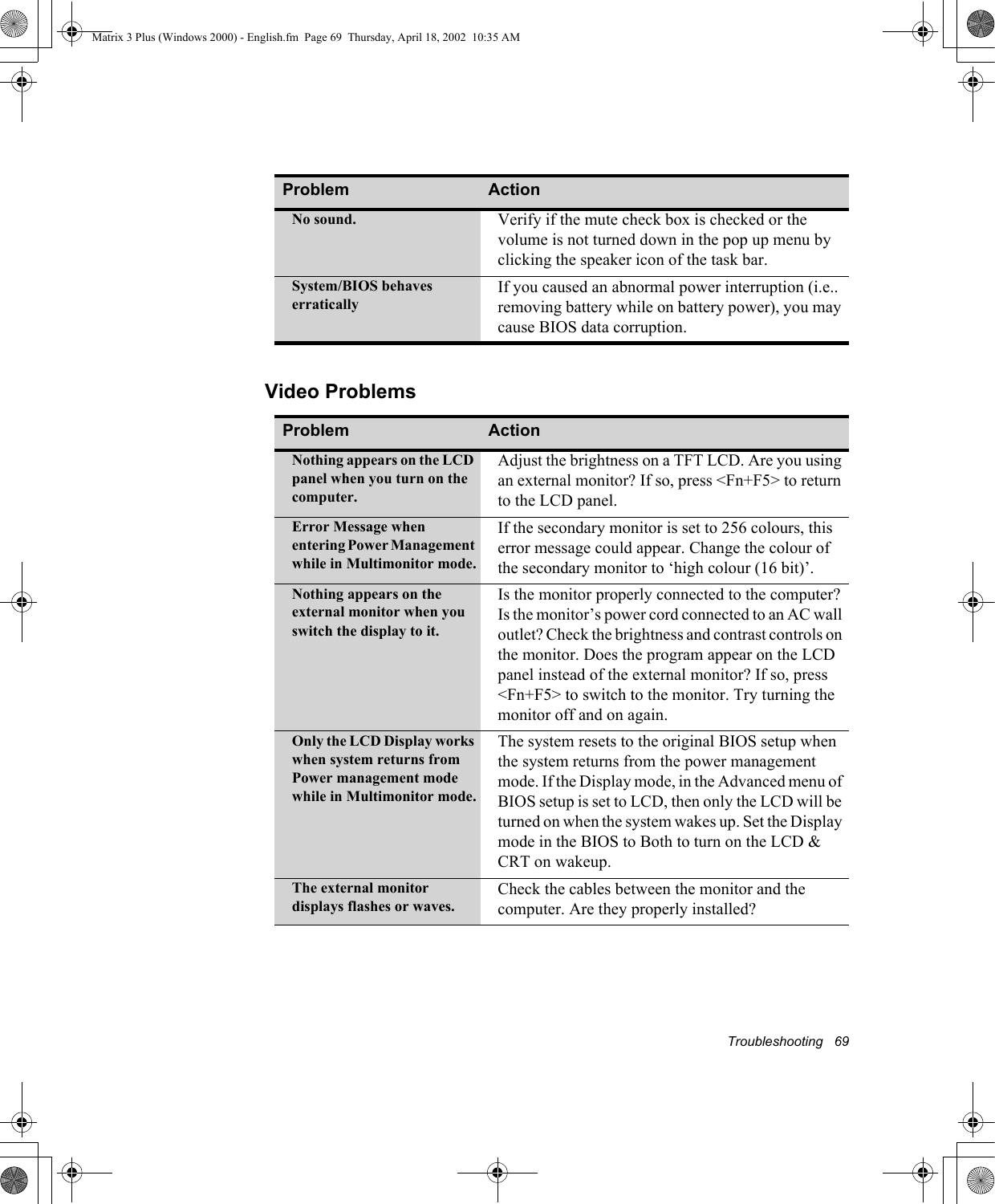
Troubleshooting   69Video ProblemsNo sound. Verify if the mute check box is checked or the volume is not turned down in the pop up menu by clicking the speaker icon of the task bar.System/BIOS behaves erraticallyIf you caused an abnormal power interruption (i.e.. removing battery while on battery power), you may cause BIOS data corruption.Problem ActionNothing appears on the LCD panel when you turn on the computer.Adjust the brightness on a TFT LCD. Are you using an external monitor? If so, press <Fn+F5> to return to the LCD panel.Error Message when entering Power Management while in Multimonitor mode.If the secondary monitor is set to 256 colours, this error message could appear. Change the colour of the secondary monitor to ‘high colour (16 bit)’.Nothing appears on the external monitor when you switch the display to it.Is the monitor properly connected to the computer? Is the monitor’s power cord connected to an AC wall outlet? Check the brightness and contrast controls on the monitor. Does the program appear on the LCD panel instead of the external monitor? If so, press <Fn+F5> to switch to the monitor. Try turning the monitor off and on again.Only the LCD Display works when system returns from Power management mode while in Multimonitor mode.The system resets to the original BIOS setup when the system returns from the power management mode. If the Display mode, in the Advanced menu of BIOS setup is set to LCD, then only the LCD will be turned on when the system wakes up. Set the Display mode in the BIOS to Both to turn on the LCD & CRT on wakeup.The external monitor displays flashes or waves.Check the cables between the monitor and the computer. Are they properly installed?Problem ActionMatrix 3 Plus (Windows 2000) - English.fm  Page 69  Thursday, April 18, 2002  10:35 AM
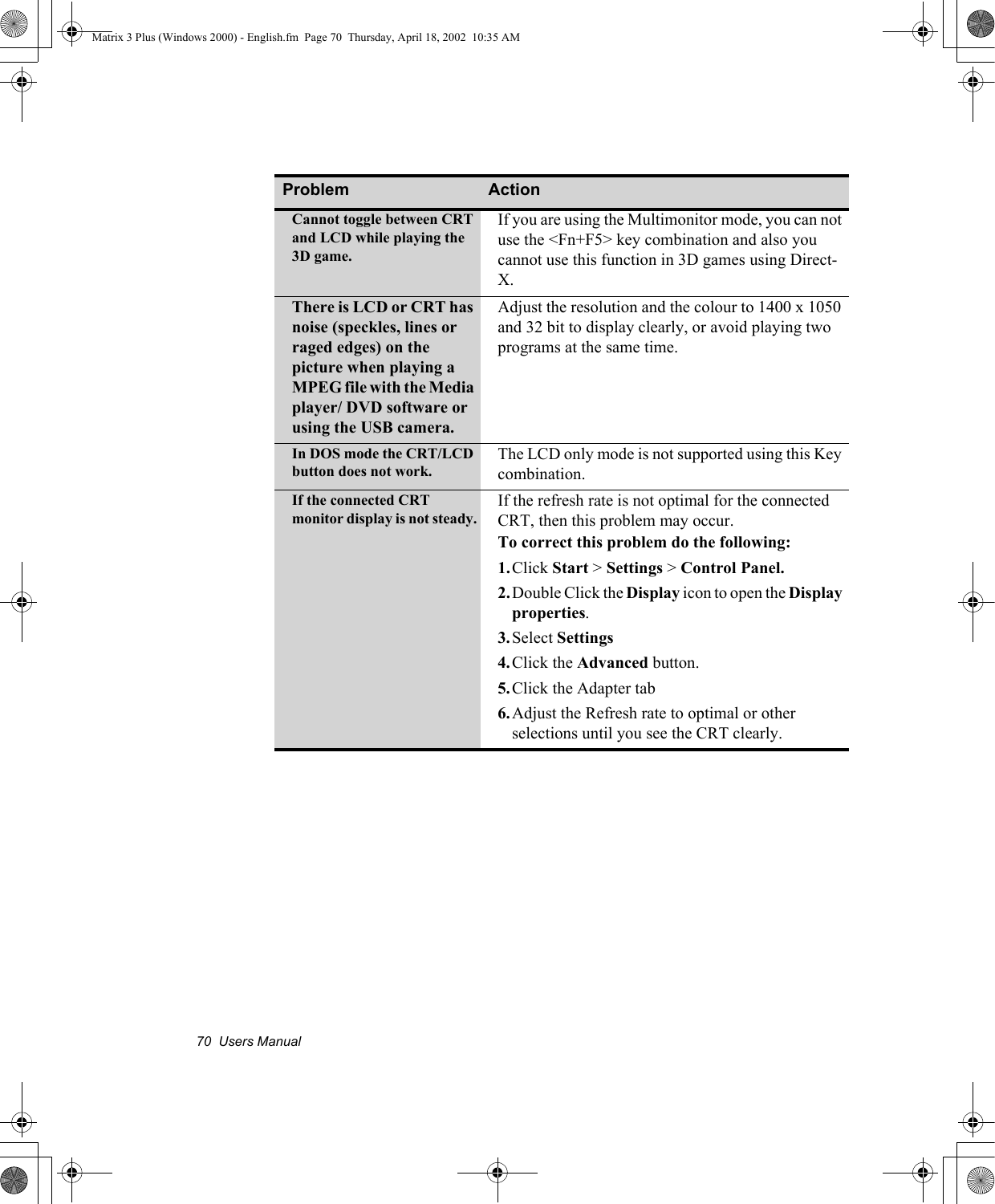
70  Users ManualCannot toggle between CRT and LCD while playing the 3D game.If you are using the Multimonitor mode, you can not use the <Fn+F5> key combination and also you cannot use this function in 3D games using Direct-X.There is LCD or CRT has noise (speckles, lines or raged edges) on the picture when playing a MPEG file with the Media player/ DVD software or using the USB camera.Adjust the resolution and the colour to 1400 x 1050 and 32 bit to display clearly, or avoid playing two programs at the same time.In DOS mode the CRT/LCD button does not work.The LCD only mode is not supported using this Key combination.If the connected CRT monitor display is not steady.If the refresh rate is not optimal for the connected CRT, then this problem may occur. To correct this problem do the following:1.Click Start > Settings > Control Panel.2.Double Click the Display icon to open the Display properties.3.Select Settings4.Click the Advanced button.5.Click the Adapter tab6.Adjust the Refresh rate to optimal or other selections until you see the CRT clearly.Problem ActionMatrix 3 Plus (Windows 2000) - English.fm  Page 70  Thursday, April 18, 2002  10:35 AM
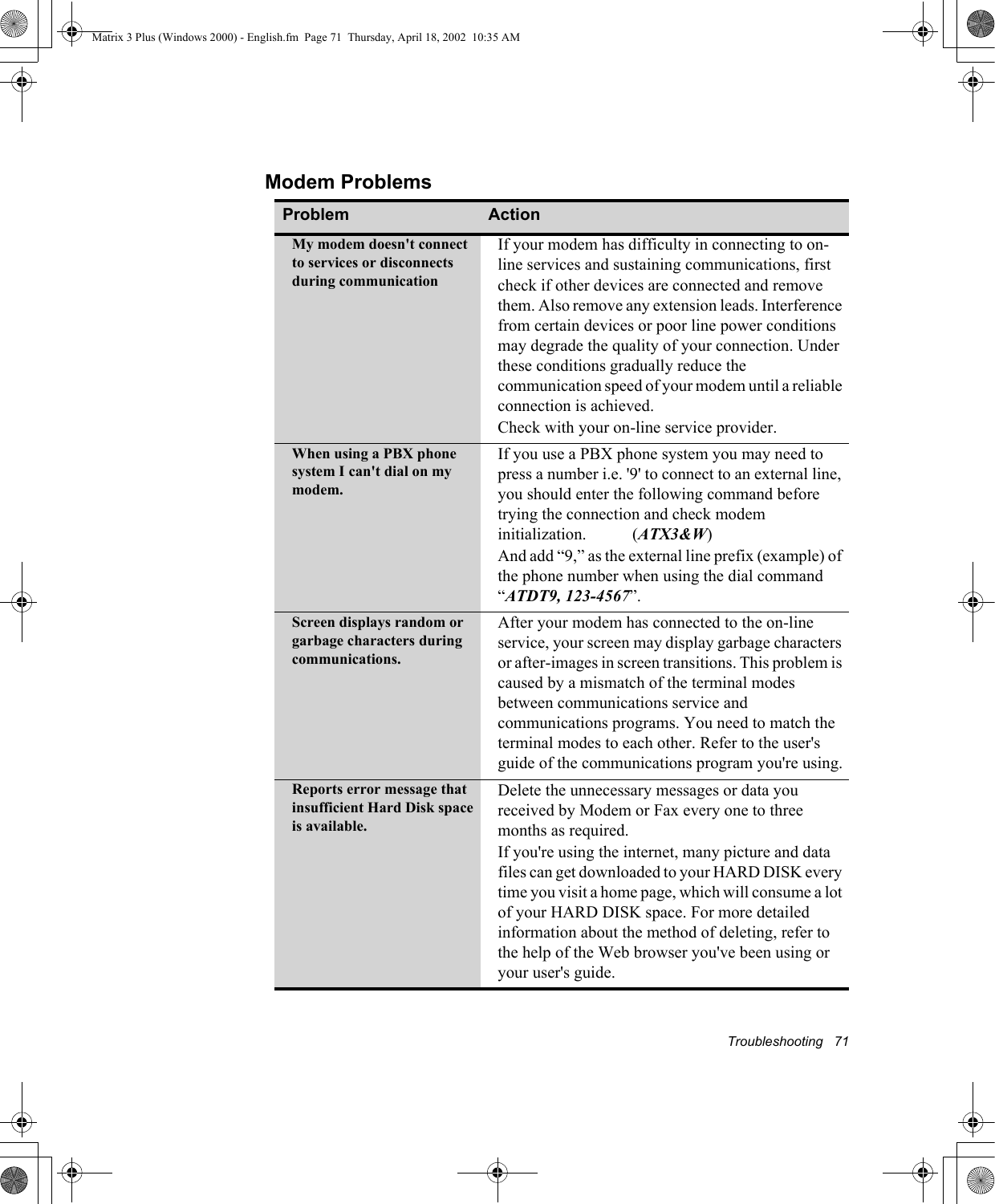
Troubleshooting   71Modem ProblemsProblem ActionMy modem doesn't connect to services or disconnects during communicationIf your modem has difficulty in connecting to on-line services and sustaining communications, first check if other devices are connected and remove them. Also remove any extension leads. Interference from certain devices or poor line power conditions may degrade the quality of your connection. Under these conditions gradually reduce the communication speed of your modem until a reliable connection is achieved.Check with your on-line service provider.When using a PBX phone system I can't dial on my modem.If you use a PBX phone system you may need to press a number i.e. '9' to connect to an external line, you should enter the following command before trying the connection and check modem initialization.           (ATX3&W)And add “9,” as the external line prefix (example) of the phone number when using the dial command “ATDT9, 123-4567”.Screen displays random or garbage characters during communications.After your modem has connected to the on-line service, your screen may display garbage characters or after-images in screen transitions. This problem is caused by a mismatch of the terminal modes between communications service and communications programs. You need to match the terminal modes to each other. Refer to the user's guide of the communications program you're using.Reports error message that insufficient Hard Disk space is available.Delete the unnecessary messages or data you received by Modem or Fax every one to three months as required.If you're using the internet, many picture and data files can get downloaded to your HARD DISK every time you visit a home page, which will consume a lot of your HARD DISK space. For more detailed information about the method of deleting, refer to the help of the Web browser you've been using or your user's guide.Matrix 3 Plus (Windows 2000) - English.fm  Page 71  Thursday, April 18, 2002  10:35 AM
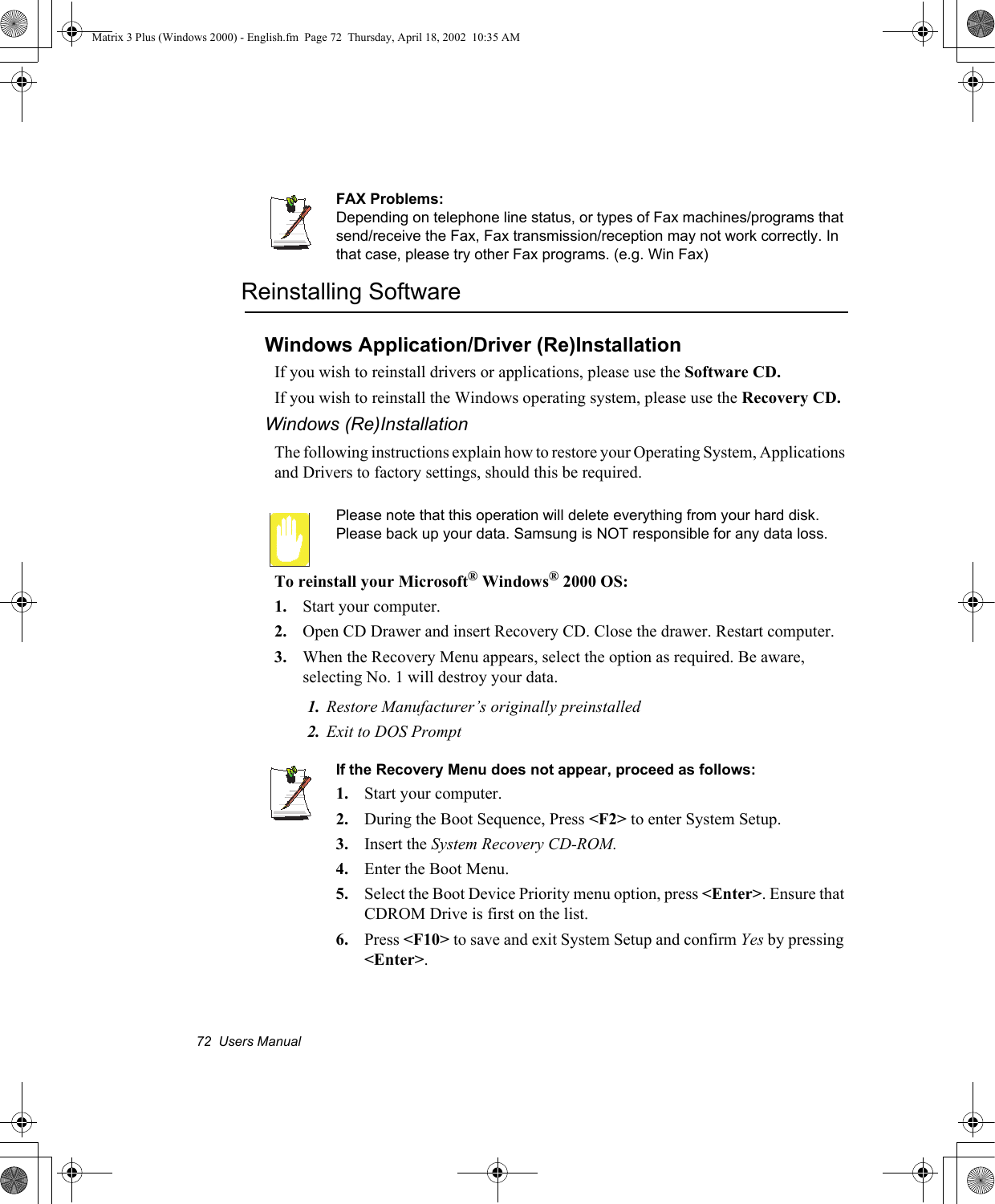
72  Users ManualFAX Problems:Depending on telephone line status, or types of Fax machines/programs that send/receive the Fax, Fax transmission/reception may not work correctly. In that case, please try other Fax programs. (e.g. Win Fax) Reinstalling SoftwareWindows Application/Driver (Re)InstallationIf you wish to reinstall drivers or applications, please use the Software CD.If you wish to reinstall the Windows operating system, please use the Recovery CD.Windows (Re)InstallationThe following instructions explain how to restore your Operating System, Applications and Drivers to factory settings, should this be required.Please note that this operation will delete everything from your hard disk. Please back up your data. Samsung is NOT responsible for any data loss.To reinstall your Microsoft® Windows® 2000 OS:1. Start your computer.2. Open CD Drawer and insert Recovery CD. Close the drawer. Restart computer.3. When the Recovery Menu appears, select the option as required. Be aware, selecting No. 1 will destroy your data.1. Restore Manufacturer’s originally preinstalled2. Exit to DOS PromptIf the Recovery Menu does not appear, proceed as follows:1. Start your computer.2. During the Boot Sequence, Press <F2> to enter System Setup.3. Insert the System Recovery CD-ROM.4. Enter the Boot Menu.5. Select the Boot Device Priority menu option, press <Enter>. Ensure that CDROM Drive is first on the list.6. Press <F10> to save and exit System Setup and confirm Yes by pressing <Enter>.Matrix 3 Plus (Windows 2000) - English.fm  Page 72  Thursday, April 18, 2002  10:35 AM
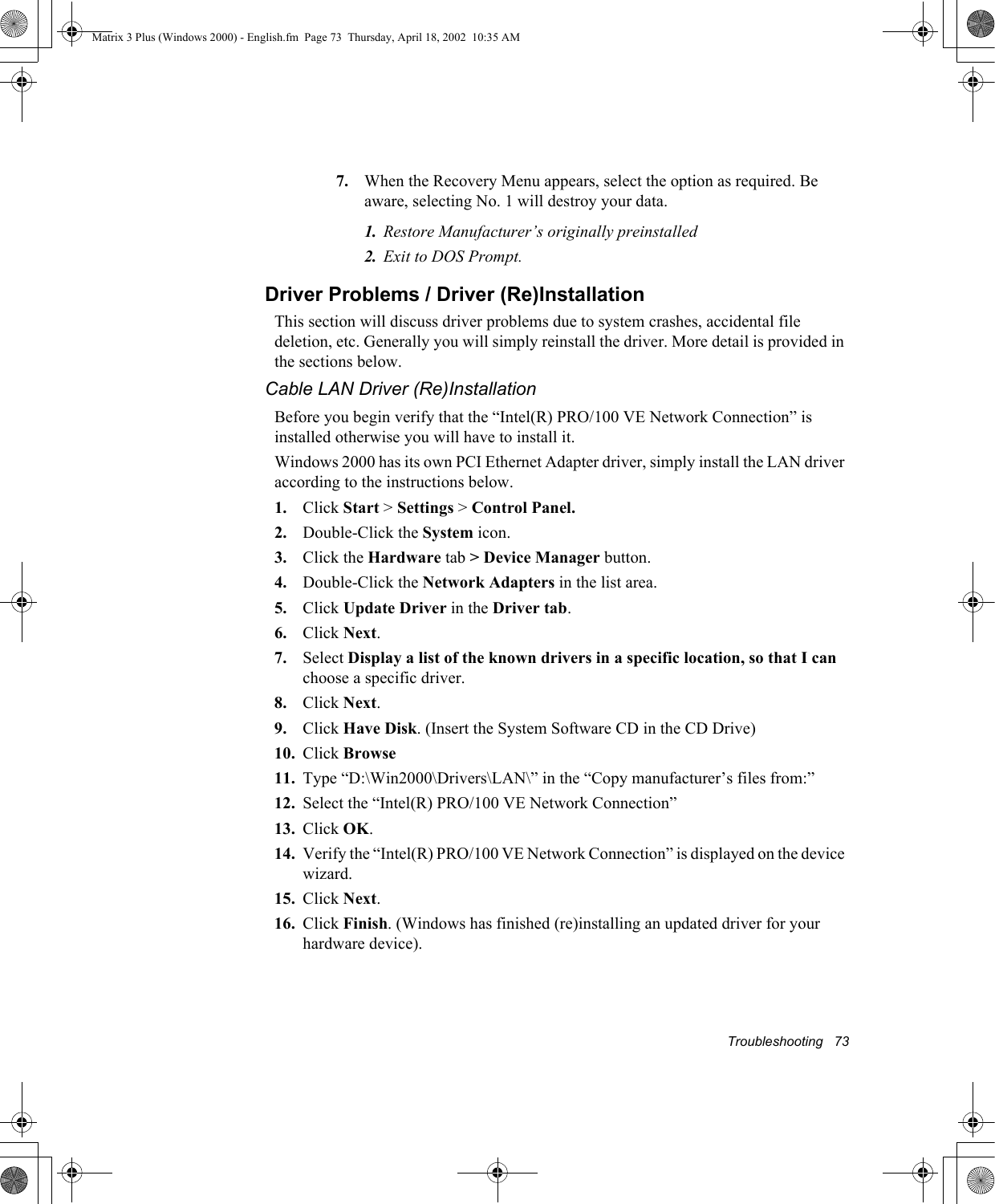
Troubleshooting   737. When the Recovery Menu appears, select the option as required. Be aware, selecting No. 1 will destroy your data.1. Restore Manufacturer’s originally preinstalled2. Exit to DOS Prompt.Driver Problems / Driver (Re)InstallationThis section will discuss driver problems due to system crashes, accidental file deletion, etc. Generally you will simply reinstall the driver. More detail is provided in the sections below.Cable LAN Driver (Re)InstallationBefore you begin verify that the “Intel(R) PRO/100 VE Network Connection” is installed otherwise you will have to install it.Windows 2000 has its own PCI Ethernet Adapter driver, simply install the LAN driver according to the instructions below.1. Click Start > Settings > Control Panel.2. Double-Click the System icon.3. Click the Hardware tab > Device Manager button.4. Double-Click the Network Adapters in the list area.5. Click Update Driver in the Driver tab.6. Click Next.7. Select Display a list of the known drivers in a specific location, so that I can choose a specific driver.8. Click Next.9. Click Have Disk. (Insert the System Software CD in the CD Drive)10. Click Browse11. Type “D:\Win2000\Drivers\LAN\” in the “Copy manufacturer’s files from:”12. Select the “Intel(R) PRO/100 VE Network Connection”13. Click OK.14. Verify the “Intel(R) PRO/100 VE Network Connection” is displayed on the device wizard.15. Click Next.16. Click Finish. (Windows has finished (re)installing an updated driver for your hardware device).Matrix 3 Plus (Windows 2000) - English.fm  Page 73  Thursday, April 18, 2002  10:35 AM
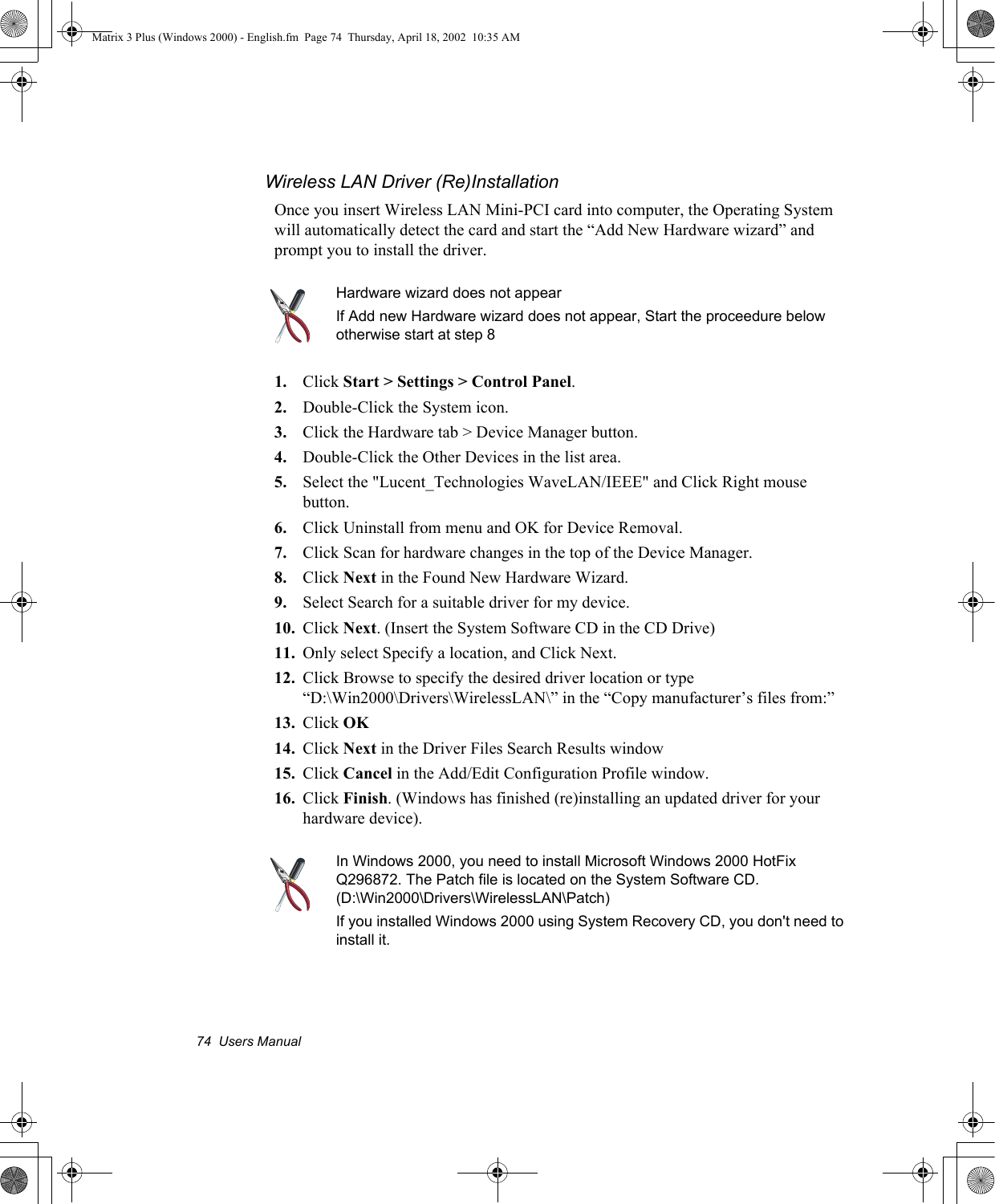
74  Users ManualWireless LAN Driver (Re)InstallationOnce you insert Wireless LAN Mini-PCI card into computer, the Operating System will automatically detect the card and start the “Add New Hardware wizard” and prompt you to install the driver. Hardware wizard does not appearIf Add new Hardware wizard does not appear, Start the proceedure below otherwise start at step 81. Click Start > Settings > Control Panel.2. Double-Click the System icon.3. Click the Hardware tab > Device Manager button.4. Double-Click the Other Devices in the list area.5. Select the "Lucent_Technologies WaveLAN/IEEE" and Click Right mouse button.6. Click Uninstall from menu and OK for Device Removal.7. Click Scan for hardware changes in the top of the Device Manager.8. Click Next in the Found New Hardware Wizard.9. Select Search for a suitable driver for my device.10. Click Next. (Insert the System Software CD in the CD Drive)11. Only select Specify a location, and Click Next.12. Click Browse to specify the desired driver location or type “D:\Win2000\Drivers\WirelessLAN\” in the “Copy manufacturer’s files from:”13. Click OK14. Click Next in the Driver Files Search Results window15. Click Cancel in the Add/Edit Configuration Profile window. 16. Click Finish. (Windows has finished (re)installing an updated driver for your hardware device).In Windows 2000, you need to install Microsoft Windows 2000 HotFix Q296872. The Patch file is located on the System Software CD. (D:\Win2000\Drivers\WirelessLAN\Patch)If you installed Windows 2000 using System Recovery CD, you don't need to install it.Matrix 3 Plus (Windows 2000) - English.fm  Page 74  Thursday, April 18, 2002  10:35 AM
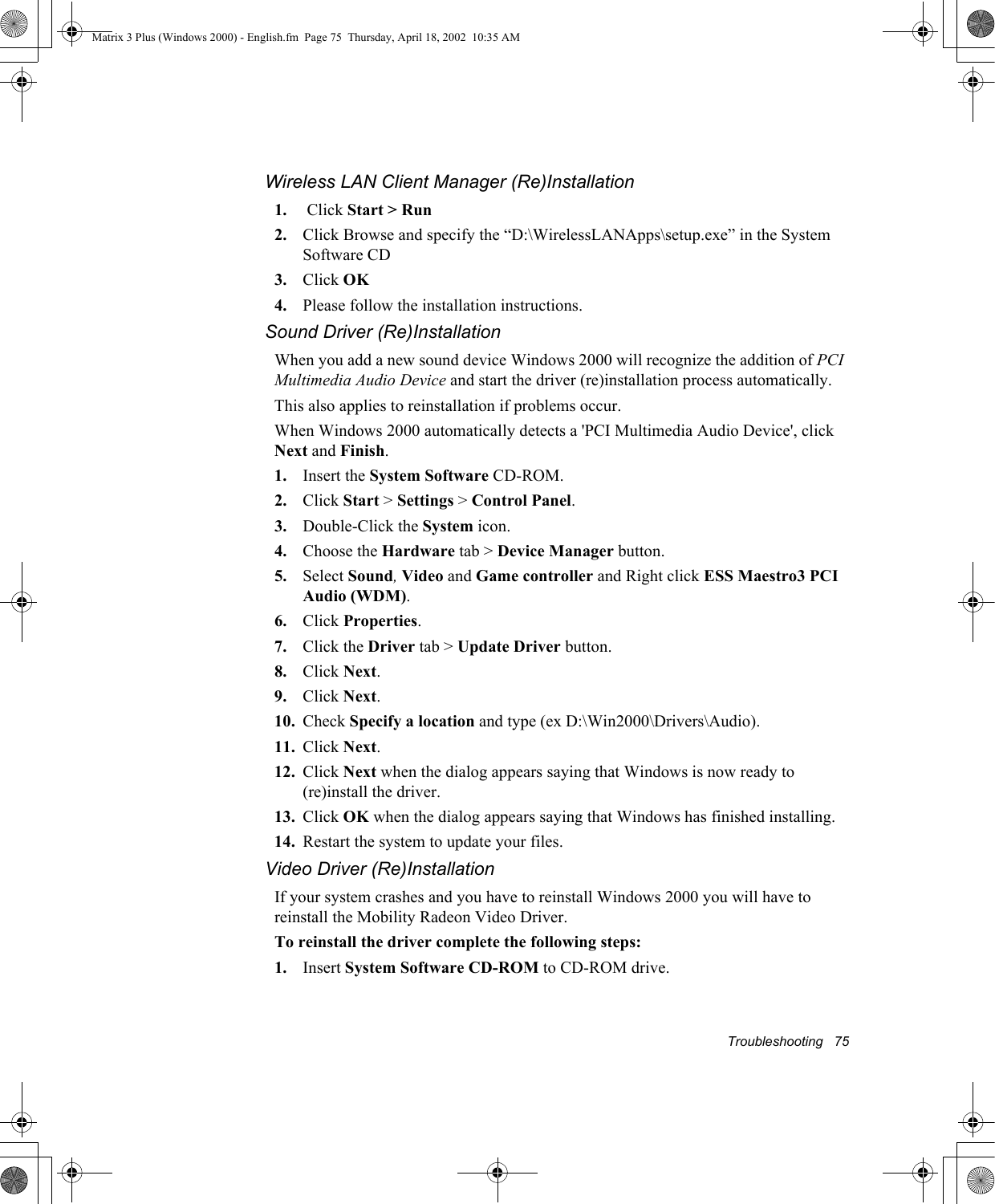
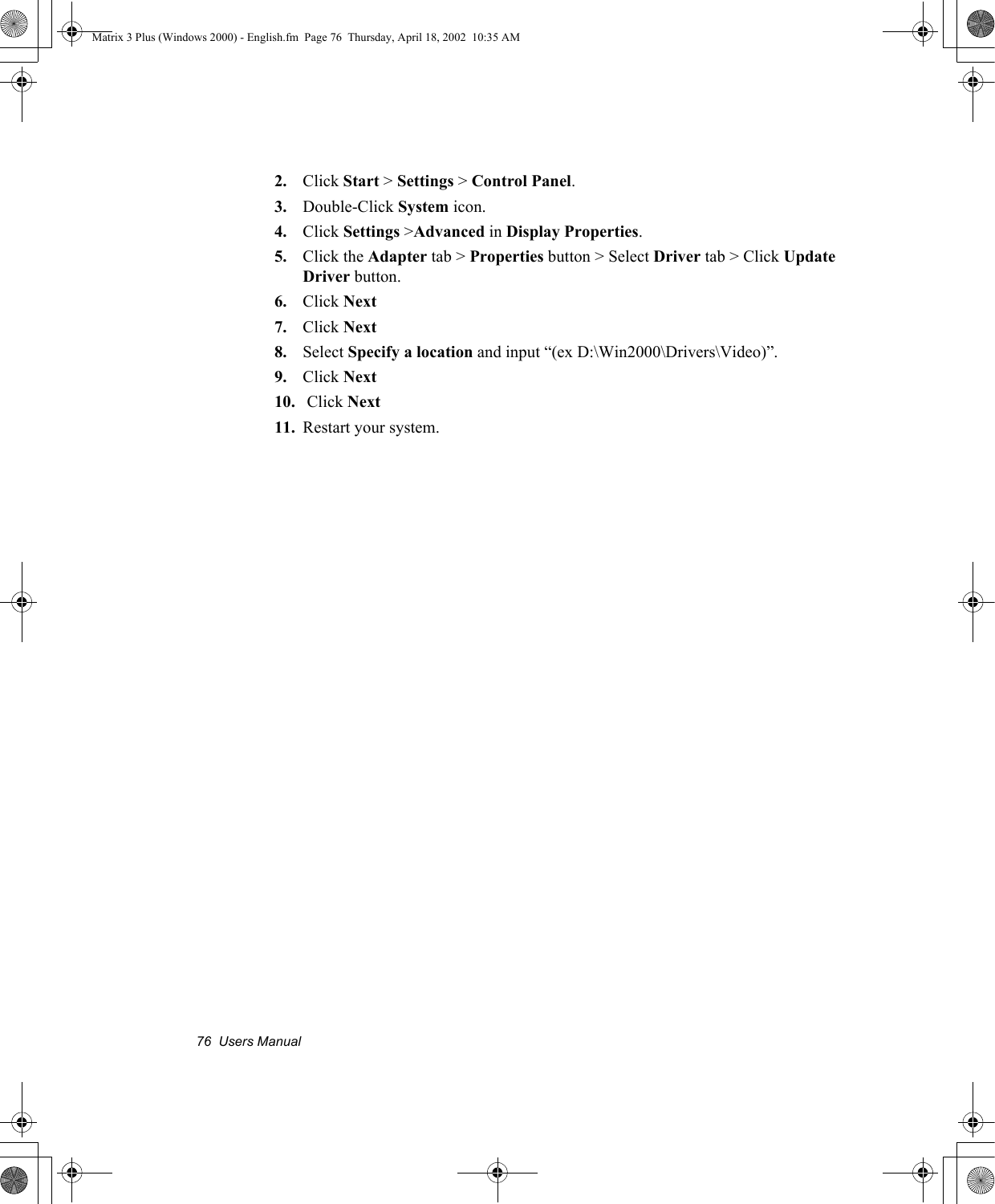
Troubleshooting   75Wireless LAN Client Manager (Re)Installation1.  Click Start > Run2. Click Browse and specify the “D:\WirelessLANApps\setup.exe” in the System Software CD3. Click OK4. Please follow the installation instructions.Sound Driver (Re)InstallationWhen you add a new sound device Windows 2000 will recognize the addition of PCI Multimedia Audio Device and start the driver (re)installation process automatically.This also applies to reinstallation if problems occur.When Windows 2000 automatically detects a 'PCI Multimedia Audio Device', click Next and Finish.1. Insert the System Software CD-ROM.2. Click Start > Settings > Control Panel.3. Double-Click the System icon.4. Choose the Hardware tab > Device Manager button.5. Select Sound, Video and Game controller and Right click ESS Maestro3 PCI Audio (WDM).6. Click Properties.7. Click the Driver tab > Update Driver button.8. Click Next.9. Click Next.10. Check Specify a location and type (ex D:\Win2000\Drivers\Audio).11. Click Next.12. Click Next when the dialog appears saying that Windows is now ready to (re)install the driver.13. Click OK when the dialog appears saying that Windows has finished installing.14. Restart the system to update your files.Video Driver (Re)InstallationIf your system crashes and you have to reinstall Windows 2000 you will have to reinstall the Mobility Radeon Video Driver.To reinstall the driver complete the following steps:1. Insert System Software CD-ROM to CD-ROM drive.Matrix 3 Plus (Windows 2000) - English.fm  Page 75  Thursday, April 18, 2002  10:35 AM
76  Users Manual2. Click Start > Settings > Control Panel.3. Double-Click System icon.4. Click Settings >Advanced in Display Properties.5. Click the Adapter tab > Properties button > Select Driver tab > Click Update Driver button.6. Click Next7. Click Next8. Select Specify a location and input “(ex D:\Win2000\Drivers\Video)”.9. Click Next10.  Click Next11. Restart your system.Matrix 3 Plus (Windows 2000) - English.fm  Page 76  Thursday, April 18, 2002  10:35 AM
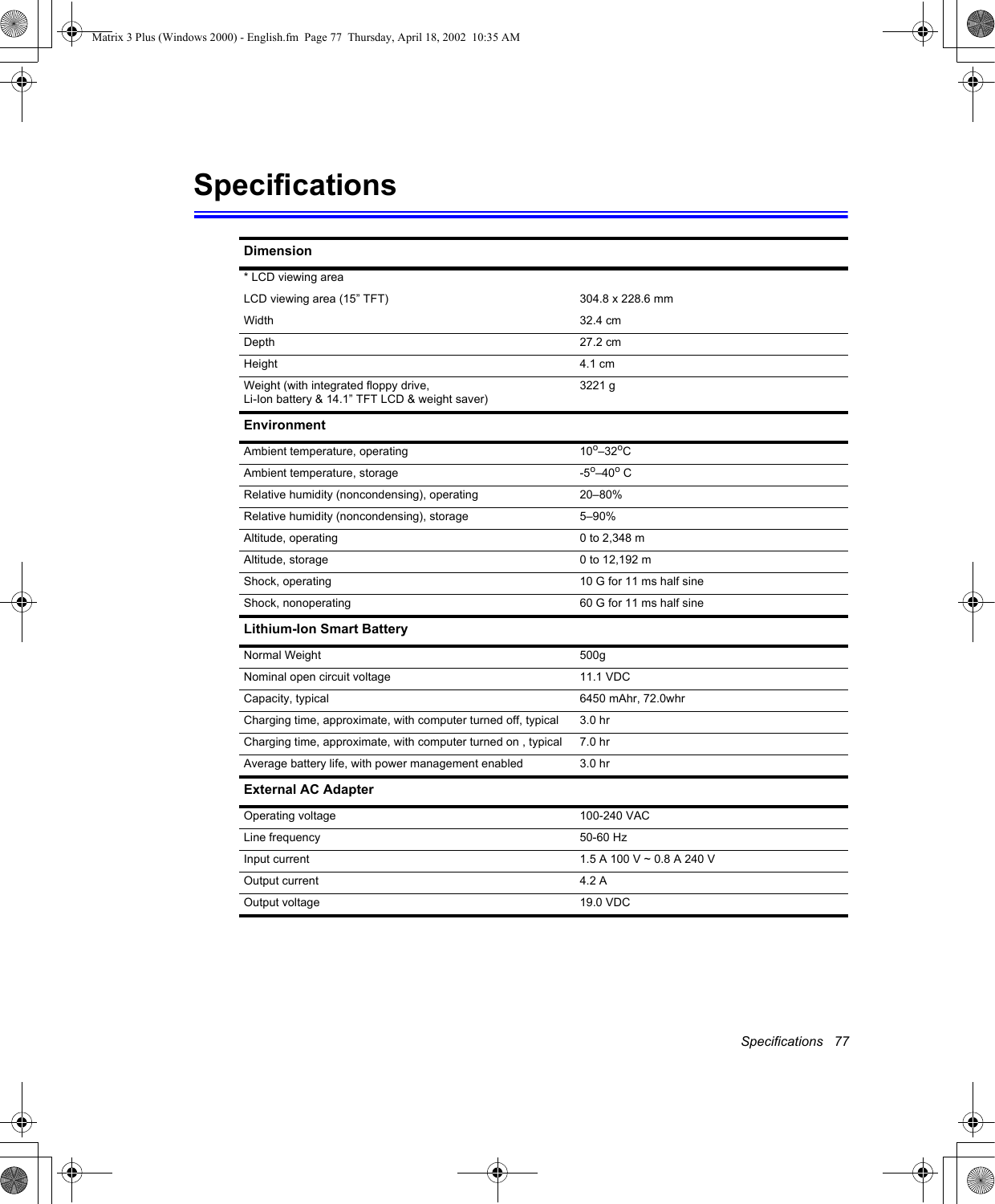
Specifications   77SpecificationsDimension* LCD viewing areaLCD viewing area (15” TFT) 304.8 x 228.6 mmWidth 32.4 cmDepth 27.2 cmHeight 4.1 cmWeight (with integrated floppy drive, Li-Ion battery & 14.1” TFT LCD & weight saver)3221 gEnvironmentAmbient temperature, operating 10o–32oCAmbient temperature, storage -5o–40o CRelative humidity (noncondensing), operating 20–80%Relative humidity (noncondensing), storage 5–90%Altitude, operating 0 to 2,348 mAltitude, storage 0 to 12,192 mShock, operating 10 G for 11 ms half sineShock, nonoperating 60 G for 11 ms half sineLithium-Ion Smart BatteryNormal Weight 500gNominal open circuit voltage 11.1 VDCCapacity, typical 6450 mAhr, 72.0whrCharging time, approximate, with computer turned off, typical  3.0 hrCharging time, approximate, with computer turned on , typical  7.0 hr Average battery life, with power management enabled 3.0 hrExternal AC AdapterOperating voltage 100-240 VACLine frequency 50-60 HzInput current 1.5 A 100 V ~ 0.8 A 240 VOutput current 4.2 AOutput voltage 19.0 VDCMatrix 3 Plus (Windows 2000) - English.fm  Page 77  Thursday, April 18, 2002  10:35 AM
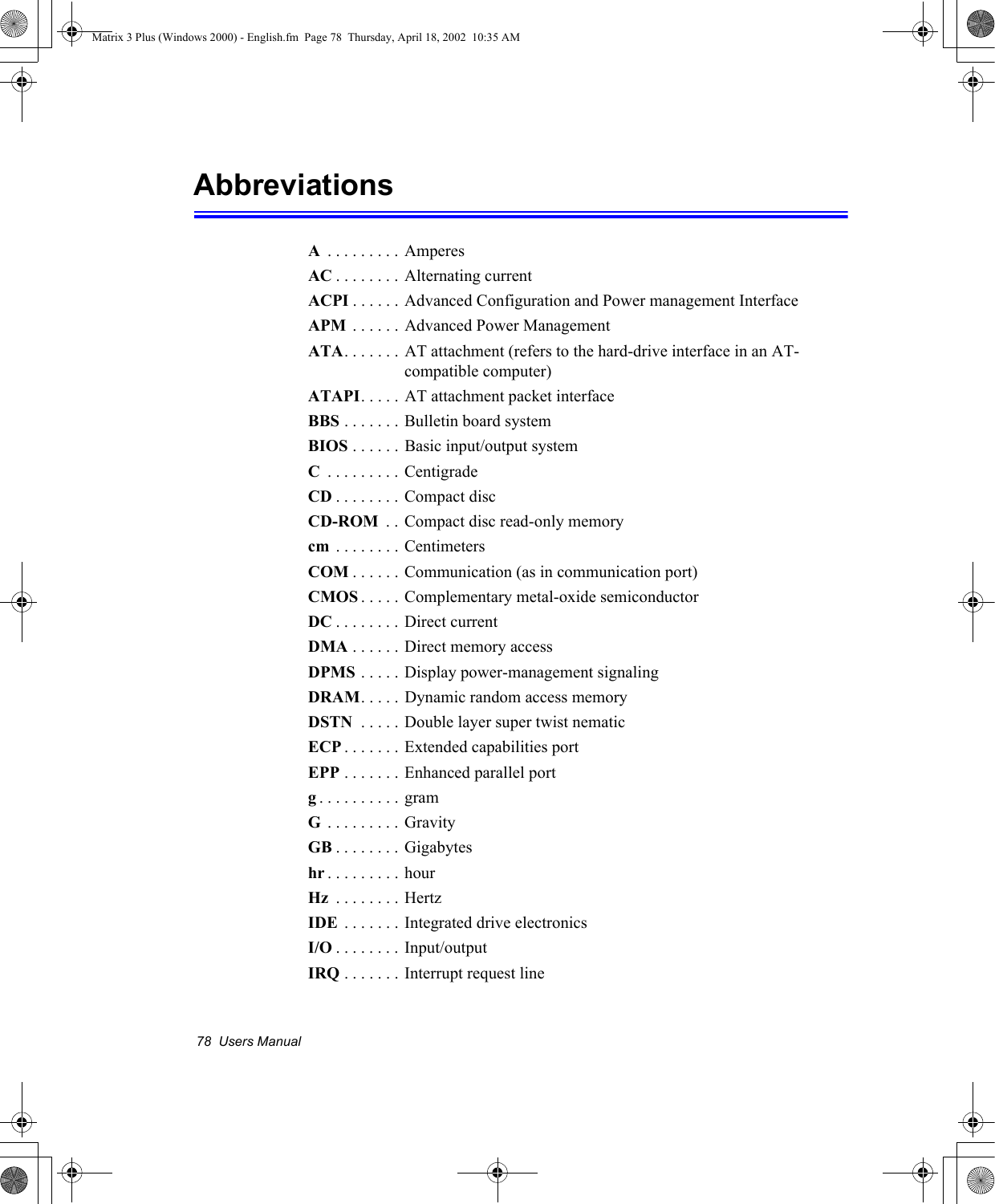
78  Users ManualAbbreviations A . . . . . . . . . AmperesAC . . . . . . . . Alternating currentACPI . . . . . . Advanced Configuration and Power management InterfaceAPM  . . . . . . Advanced Power ManagementATA. . . . . . . AT attachment (refers to the hard-drive interface in an AT-compatible computer)ATAPI. . . . . AT attachment packet interfaceBBS . . . . . . . Bulletin board systemBIOS . . . . . . Basic input/output systemC . . . . . . . . . CentigradeCD . . . . . . . . Compact discCD-ROM  . . Compact disc read-only memorycm  . . . . . . . . CentimetersCOM . . . . . . Communication (as in communication port)CMOS . . . . . Complementary metal-oxide semiconductorDC . . . . . . . . Direct currentDMA . . . . . . Direct memory accessDPMS . . . . . Display power-management signalingDRAM. . . . . Dynamic random access memoryDSTN  . . . . . Double layer super twist nematicECP . . . . . . . Extended capabilities portEPP . . . . . . . Enhanced parallel portg. . . . . . . . . . gramG . . . . . . . . . GravityGB . . . . . . . . Gigabyteshr . . . . . . . . . hourHz  . . . . . . . . HertzIDE  . . . . . . . Integrated drive electronics I/O . . . . . . . . Input/outputIRQ . . . . . . . Interrupt request lineMatrix 3 Plus (Windows 2000) - English.fm  Page 78  Thursday, April 18, 2002  10:35 AM
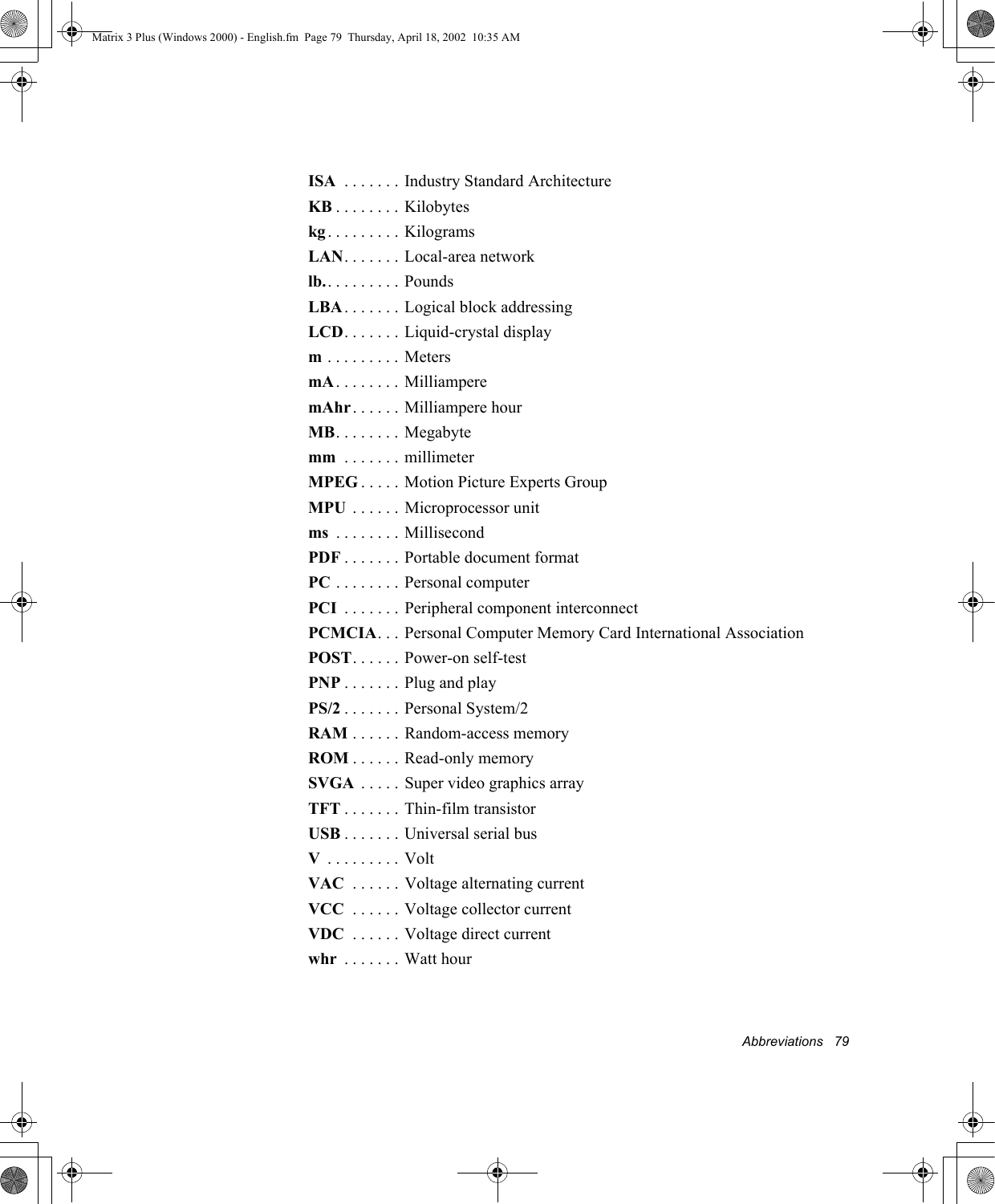
Abbreviations   79ISA  . . . . . . . Industry Standard ArchitectureKB . . . . . . . . Kilobyteskg . . . . . . . . . KilogramsLAN. . . . . . . Local-area networklb.. . . . . . . . . PoundsLBA . . . . . . . Logical block addressingLCD. . . . . . . Liquid-crystal displaym . . . . . . . . . MetersmA. . . . . . . . MilliamperemAhr. . . . . . Milliampere hourMB. . . . . . . . Megabytemm  . . . . . . . millimeterMPEG . . . . . Motion Picture Experts GroupMPU  . . . . . . Microprocessor unitms  . . . . . . . . MillisecondPDF . . . . . . . Portable document formatPC . . . . . . . . Personal computerPCI  . . . . . . . Peripheral component interconnectPCMCIA. . . Personal Computer Memory Card International AssociationPOST. . . . . . Power-on self-testPNP . . . . . . . Plug and playPS/2 . . . . . . . Personal System/2RAM . . . . . . Random-access memoryROM . . . . . . Read-only memorySVGA  . . . . . Super video graphics arrayTFT . . . . . . . Thin-film transistorUSB . . . . . . . Universal serial busV . . . . . . . . . VoltVAC  . . . . . . Voltage alternating currentVCC  . . . . . . Voltage collector currentVDC  . . . . . . Voltage direct currentwhr  . . . . . . . Watt hourMatrix 3 Plus (Windows 2000) - English.fm  Page 79  Thursday, April 18, 2002  10:35 AM
80  Users ManualGlossaryAC adapterThe AC (or alternating current) adapter regulates current coming into your computer from the wall outlet. The current at the wall outlet is alternating current and needs to be changed by the adapter to DC (direct current) before your computer can use it for power.ACPIACPI (Advanced Configuration and Power Interface)- a method for describing hardware interfaces in terms abstract enough to allow flexible and innovative hardware implementations and concrete enough to allow shrink-wrap OS code to use such hardware interfaces.BIOSBIOS stands for basic input/output system. The BIOS is software (often called firmware) that is independent of any operating system. It enables the computer to communicate with the screen, keyboard, and other peripheral devices without using programs on the hard disk. The BIOS on your computer is flash BIOS, which means that it has been recorded on a flash memory chip that can be updated if needed. BootTo start your computer. A cold boot resets the entire computer and runs through all computer self-tests. A warm boot clears out computer memory only.Boot diskA disk containing operating system programs required to start your computer. A boot disk can be a floppy disk, hard drive, or compact disc.ByteThe basic unit of measure for computer memory. A character—such as a letter of the alphabet—uses one byte of memory. Computer memory is often measured in kilobytes (1,024 bytes) or megabytes (1,048,576 bytes).Each byte is made up of eight bits. For more information on bytes and bits, see an introductory book on computers.Cache memoryCache is very fast, zero-wait-state memory located between the microprocessor and main memory. Cache reduces the average time required by the microprocessor to get the data it needs from the main memory by storing recently accessed data in the cache.Matrix 3 Plus (Windows 2000) - English.fm  Page 80  Thursday, April 18, 2002  10:35 AM
Glossary   81CardBusCardBus technology enables the computer to use 32-bit PC Cards. Hardware in the computer and the Windows operating system provide support for the 32-bit cards. The voltage of 32-bit cards (3.3 volts) is lower than that of 16-bit cards (5 volts). The 32-bit cards can transmit more data at a time than the 16-bit cards, thus increasing their speed. CMOS memoryCMOS (complementary metal oxide semiconductor) memory is powered by the CMOS battery. The System Setup settings and other parameters are maintained in CMOS memory. Even when you turn your computer off, the information in CMOS memory is saved.COM portCOM stands for communication. COM ports are the serial ports in your computer.Compact DiscA compact disc (CD).Conventional memoryThe first 640 KB of system memory. Operating systems and application programs can directly access this memory without using memory-management software.DiskThe device used by the computer to store and retrieve information. Disk can refer to a floppy disk, hard disk, or RAM disk.Disk cacheA software device that accumulates copies of recently used disk sectors in RAM. The application program can then read these copies without accessing the disk. This, in turn, speeds up the performance of the application.A cache is a buffer for transferring disk sectors in and out of RAM. Data stored in a disk cache is a copy of data already stored on the physical disk.DMA (direct memory access)A method of transferring data from a device to memory without having the data pass through the microprocessor. Using DMA can speed up system performance.DPMSDisplay Power Management Signalling. Displays or monitors that comply with this can be managed by the Power Management features found in the system setup.Floppy diskA removable disk, also called floppy or diskette.Matrix 3 Plus (Windows 2000) - English.fm  Page 81  Thursday, April 18, 2002  10:35 AM
82  Users ManualHard driveAlso called fixed disk. A hard drive is connected to the computer and can be installed or removed. Data written to a hard drive remains until it is overwritten or corrupted.The 2.5-inch hard drive in your computer was designed for use in a notebook computer. Because hard drives in notebook computers are smaller than those in desktop computers, their maximum storage capacity may be less than that of desktop hard drives. However, because of their smaller size, the drives handle shock and vibration better than larger drives, which is important for a notebook computer.I/OInput/output. Refers to peripheral devices, such as printers, that are addressed through an I/O address.I/O addressI/O stands for input/output. Peripheral devices, such as printers, are addressed through the I/O port address.IRQ (interrupt request line)The IRQ is a hardware line that a device uses to signal the microprocessor when the device needs the microprocessor’s services. The number of IRQs is limited by industry standards. LCD (liquid-crystal display)The LCD screen on your computer differs from the display screen of a desktop monitor. Most desktop monitors use CRT (cathode-ray tube) displays, which work by moving an electron beam across phosphor dots on the back of the screen. The phosphor dots light up to show the image. LCDs use a liquid-crystal solution between two sheets of polarizing material. Electric current passing through the liquid aligns the crystals so that light can or cannot pass through them, creating an image.MB (megabyte)1,024 kilobytes.Megabit1,048,576 bits or about 128 kilobytes.Operating systemA program that supervises the computer's operation, including handling I/O. Application programs and users can request operating-system services. A user might request operation-system services to copy files or format a disk. An application program might use the operating system to obtain keyboard input, write data to a file, or write data to a screen.Matrix 3 Plus (Windows 2000) - English.fm  Page 82  Thursday, April 18, 2002  10:35 AM
Glossary   83PC CardPC Card stands for personal computer card. The Personal Computer Memory Card International Association (PCMCIA) defines the standards used to develop all PC Cards. PC Card types include: modems, Ethernet adapters, SCSI adapters, ATA cards, and memory cards.PC slotThe PC slot is the hardware slot in the computer where the PC Card is placed. PixelA pixel is an individual dot in a graphic displayed on your computer. The pixels are so close together that they look as though they are connected. An LCD screen displays thousands or millions of pixels. Plug and PlayA plug and play operating system automatically configures computer components to work with your system. With this type of operating system, you normally do not need to set jumpers on devices or set memory addresses or IRQs.RAM (random access memory)The computer's system memory, including conventional and extended memory. You can write to and read from RAM. Information stored in RAM is temporary, and is erased when the system is turned off.Refresh rateThe refresh rate is the rate at which the image on the LCD screen is rewritten to the screen. A fast refresh rate helps keep the image from flickering.ResolutionThe resolution is the sharpness or clarity of the image on your LCD screen. Resolution is measured by the number of pixels the computer’s screen can display. For example, a resolution of 800 x 600 means that the screen can display 800 pixels in row and can display 600 rows. The more pixels displayed, the higher the resolution and the better the image. ROM (read-only memory)Permanent computer memory dedicated to a particular function. For example, the instructions for starting the computer when you first turn on power are contained in ROM. You cannot write to ROM. (ROM is not the same as RAM).SectorAlso known as disk sector. The portion of a track that is numbered and can hold a specified number of characters (usually 512 KB).Matrix 3 Plus (Windows 2000) - English.fm  Page 83  Thursday, April 18, 2002  10:35 AM
84  Users ManualShadow RAMA write-protected area of RAM that contains a copy of the BIOS. As the computer boots, the BIOS is copied from its permanent location in ROM to RAM. The BIOS can be executed much faster in RAM than in ROM. The BIOS remains in shadow RAM until you turn off the computer.TFT (thin film transistor) LCDA TFT LCD uses a separate transistor circuit to control each pixel. This technology provides the best resolution for an LCD screen. A TFT LCD is also sometimes called an active matrix LCD.Zoomed videoZoomed video technology enables zoom video PC Card to transfer data directly from the card to video and audio systems without going through the microprocessor. This process improves video performance. Video conferencing and real-time multimedia devices, such as video cameras, are supported by zoom video.Matrix 3 Plus (Windows 2000) - English.fm  Page 84  Thursday, April 18, 2002  10:35 AM

Navigation menu