Samsung Electronics Co ST10WLR Notebook Computer with Integral Wireless LAN User Manual CERTIFICATE OF COMPLIANCE

Samsung Electronics Co Ltd Notebook Computer with Integral Wireless LAN CERTIFICATE OF COMPLIANCE

Part 3

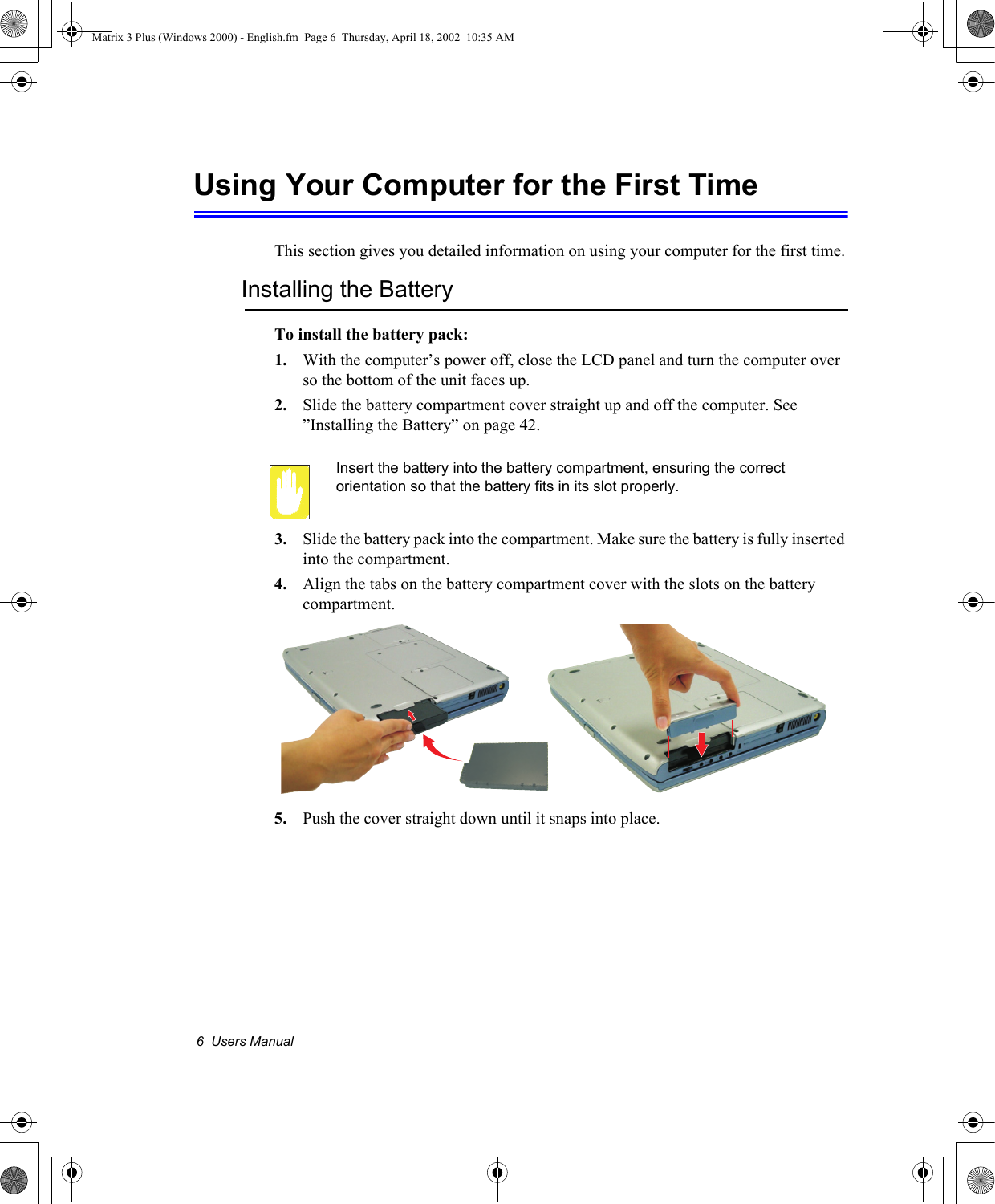
6  Users ManualUsing Your Computer for the First TimeThis section gives you detailed information on using your computer for the first time.Installing the BatteryTo install the battery pack:1. With the computer’s power off, close the LCD panel and turn the computer over so the bottom of the unit faces up.2. Slide the battery compartment cover straight up and off the computer. See  ”Installing the Battery” on page 42.Insert the battery into the battery compartment, ensuring the correct orientation so that the battery fits in its slot properly. 3. Slide the battery pack into the compartment. Make sure the battery is fully inserted into the compartment.4. Align the tabs on the battery compartment cover with the slots on the battery compartment.5. Push the cover straight down until it snaps into place.Matrix 3 Plus (Windows 2000) - English.fm  Page 6  Thursday, April 18, 2002  10:35 AM
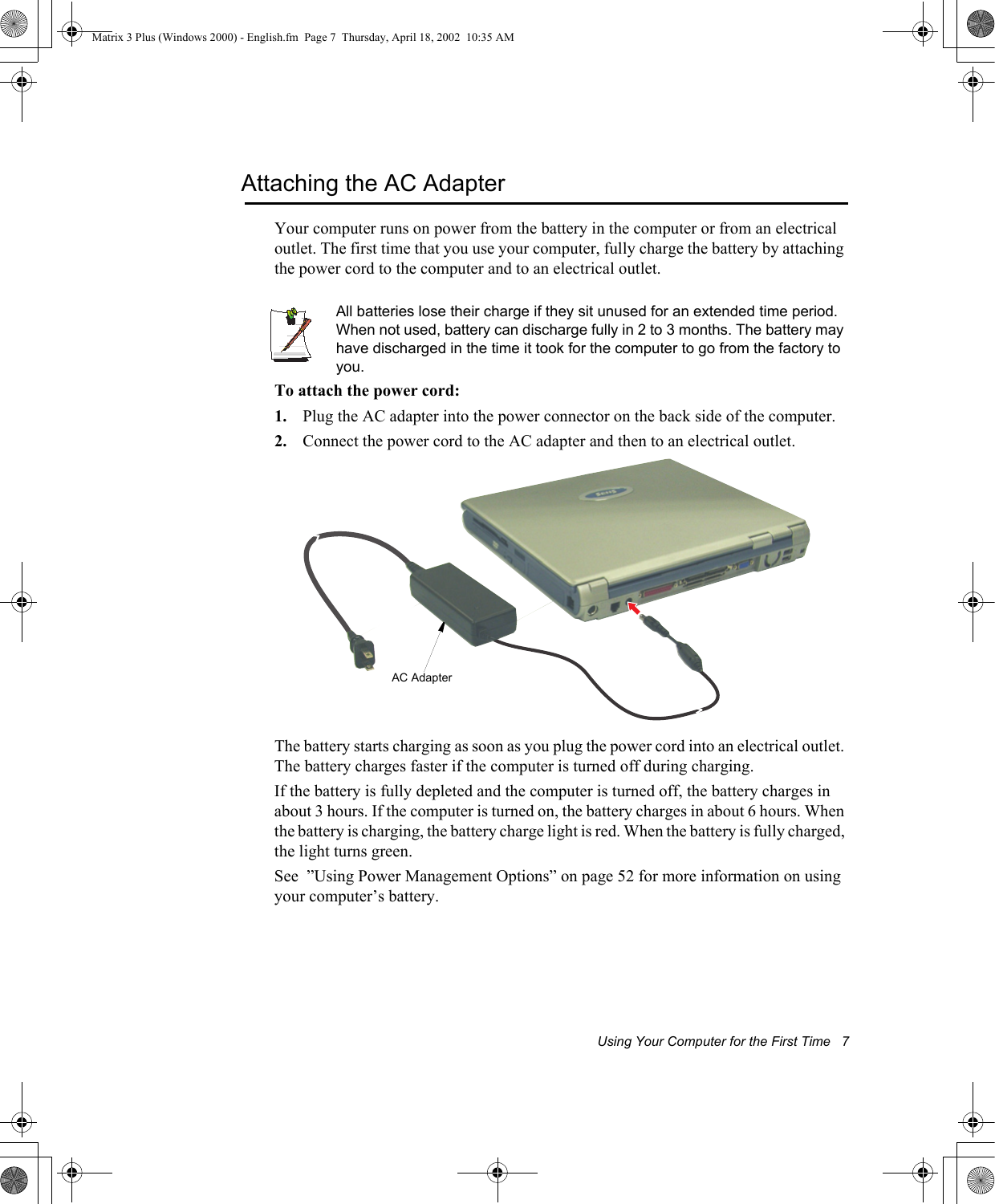
Using Your Computer for the First Time   7Attaching the AC AdapterYour computer runs on power from the battery in the computer or from an electrical outlet. The first time that you use your computer, fully charge the battery by attaching the power cord to the computer and to an electrical outlet. All batteries lose their charge if they sit unused for an extended time period. When not used, battery can discharge fully in 2 to 3 months. The battery may have discharged in the time it took for the computer to go from the factory to you.To attach the power cord:1. Plug the AC adapter into the power connector on the back side of the computer.2. Connect the power cord to the AC adapter and then to an electrical outlet.The battery starts charging as soon as you plug the power cord into an electrical outlet. The battery charges faster if the computer is turned off during charging. If the battery is fully depleted and the computer is turned off, the battery charges in about 3 hours. If the computer is turned on, the battery charges in about 6 hours. When the battery is charging, the battery charge light is red. When the battery is fully charged, the light turns green.See  ”Using Power Management Options” on page 52 for more information on using your computer’s battery.AC AdapterMatrix 3 Plus (Windows 2000) - English.fm  Page 7  Thursday, April 18, 2002  10:35 AM
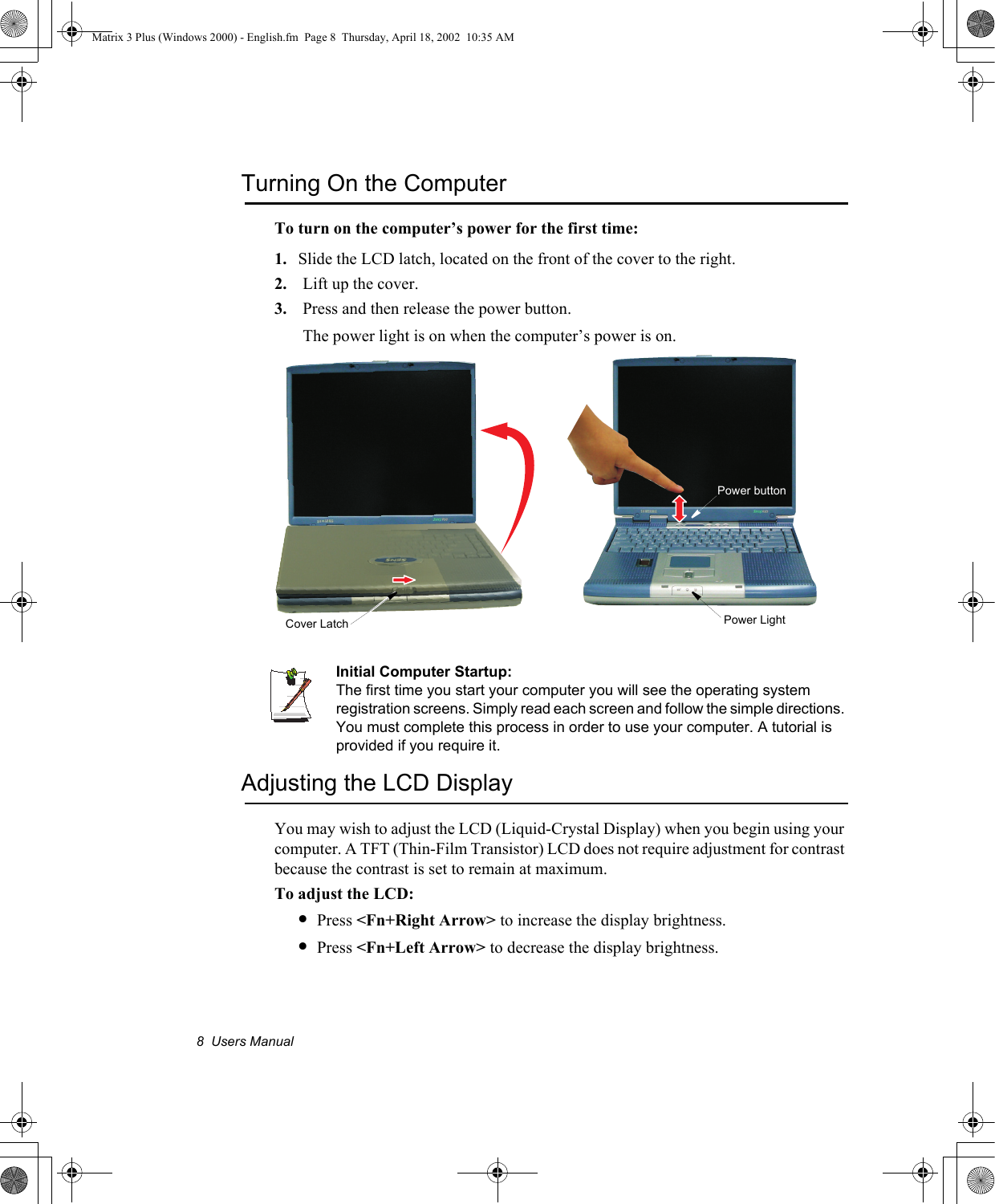
8  Users ManualTurning On the ComputerTo turn on the computer’s power for the first time:1. Slide the LCD latch, located on the front of the cover to the right.2. Lift up the cover.3. Press and then release the power button. The power light is on when the computer’s power is on.Initial Computer Startup:The first time you start your computer you will see the operating system registration screens. Simply read each screen and follow the simple directions. You must complete this process in order to use your computer. A tutorial is provided if you require it.Adjusting the LCD DisplayYou may wish to adjust the LCD (Liquid-Crystal Display) when you begin using your computer. A TFT (Thin-Film Transistor) LCD does not require adjustment for contrast because the contrast is set to remain at maximum.To adjust the LCD:•Press <Fn+Right Arrow> to increase the display brightness.•Press <Fn+Left Arrow> to decrease the display brightness.Power LightPower buttonCover LatchMatrix 3 Plus (Windows 2000) - English.fm  Page 8  Thursday, April 18, 2002  10:35 AM
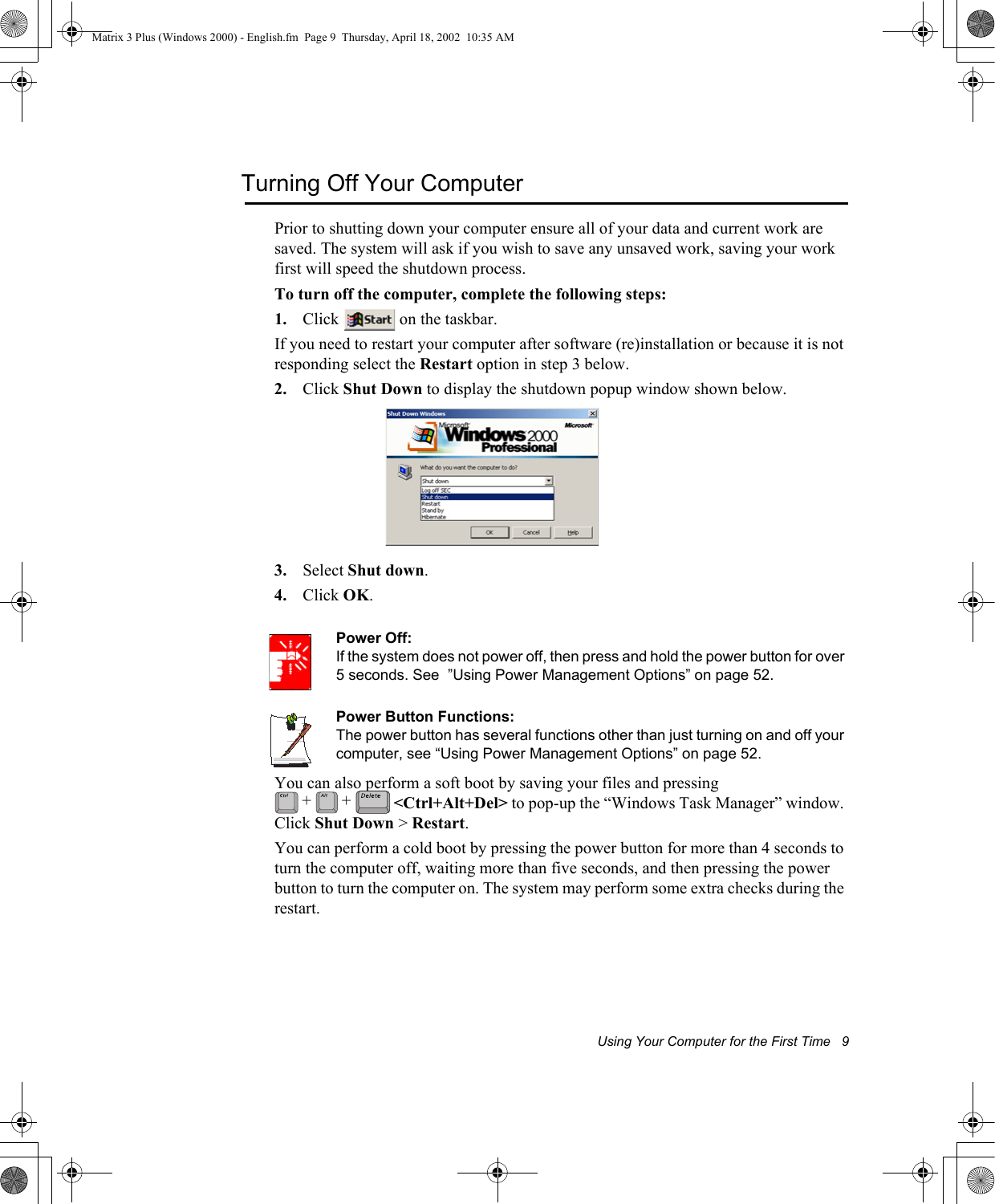
Using Your Computer for the First Time   9Turning Off Your ComputerPrior to shutting down your computer ensure all of your data and current work are saved. The system will ask if you wish to save any unsaved work, saving your work first will speed the shutdown process.To turn off the computer, complete the following steps:1. Click   on the taskbar.If you need to restart your computer after software (re)installation or because it is not responding select the Restart option in step 3 below.2. Click Shut Down to display the shutdown popup window shown below. 3. Select Shut down.4. Click OK.Power Off:If the system does not power off, then press and hold the power button for over 5 seconds. See  ”Using Power Management Options” on page 52.Power Button Functions:The power button has several functions other than just turning on and off your computer, see “Using Power Management Options” on page 52.You can also perform a soft boot by saving your files and pressing  <Ctrl+Alt+Del> to pop-up the “Windows Task Manager” window. Click Shut Down > Restart.You can perform a cold boot by pressing the power button for more than 4 seconds to turn the computer off, waiting more than five seconds, and then pressing the power button to turn the computer on. The system may perform some extra checks during the restart.+ +Matrix 3 Plus (Windows 2000) - English.fm  Page 9  Thursday, April 18, 2002  10:35 AM
10  Users ManualTips for Using Your ComputerThe following information helps you avoid potential problems as you use your computer:Do not try to disassemble your computer. Opening the system chassis voids your warranty. Only an authorised manufacturer service center can replace or add any parts inside the chassis.•Follow all the instructions and cautions in your computer user documentation.•The LCD has a polarized surface and can be damaged easily. To prevent damage, avoid touching the screen.•Use only approved AC adapters, auto adapters, memory modules and other options.•Because a notebook computer is small and has restricted air flow around components, it is more likely to overheat than a desktop computer. A fan inside your computer runs when needed to help eliminate heat. Make sure the fan vent on the left side of your computer is not blocked when you use the computer. Occasionally check the vents and remove any accumulated dust on the outside. •Avoid using or storing the computer in extremely hot or cold areas, such as a car on a hot day. Keep the computer away from heaters and out of direct sunlight. Exposure to excessive heat may damage computer components. If you have left your computer in a hot place, let it cool down slowly to room temperature (with the LCD panel open) before using it.•Do not remove the memory-module compartment door, or try to install a memory module when the computer is on. (For information on installing memory modules, see “Installing a Memory Module” on page 64.)•Set up your computer work area to avoid physical strain. Sit with your back straight and supported by your chair. Adjust your chair or work table so that your arms and wrists can remain in a relaxed position, parallel with the floor. Avoid bending or twisting your wrists as you work. Your hands should “float” slightly above the keyboard. Refer to a book on office ergonomics for more information on setting up your work area.•Take frequent breaks from working at the computer to rest your eyes and stretch your muscles. •Remember to save your data files frequently and to make backup copies of your files.Matrix 3 Plus (Windows 2000) - English.fm  Page 10  Thursday, April 18, 2002  10:35 AM
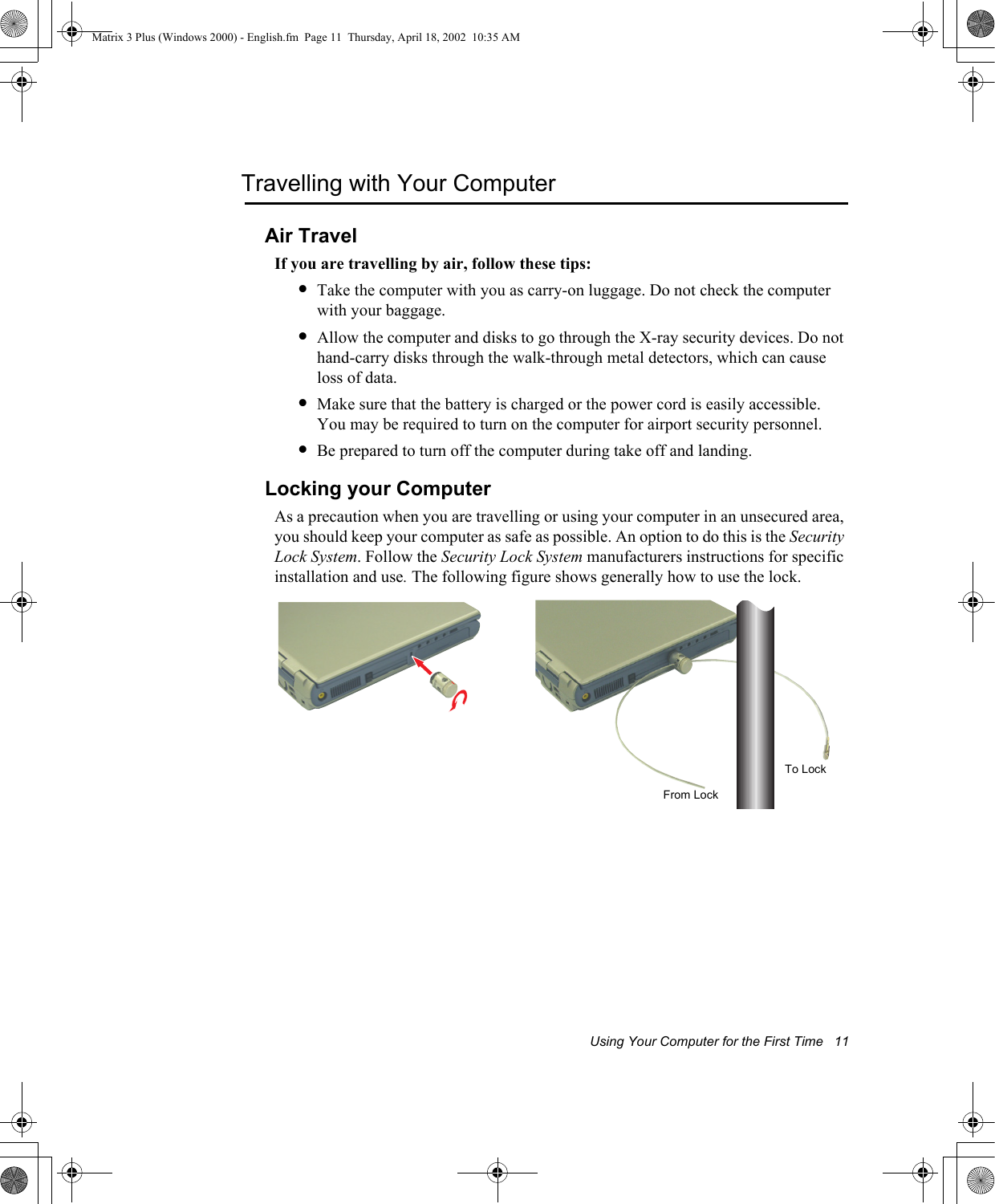
Using Your Computer for the First Time   11Travelling with Your ComputerAir TravelIf you are travelling by air, follow these tips:•Take the computer with you as carry-on luggage. Do not check the computer with your baggage.•Allow the computer and disks to go through the X-ray security devices. Do not hand-carry disks through the walk-through metal detectors, which can cause loss of data.•Make sure that the battery is charged or the power cord is easily accessible. You may be required to turn on the computer for airport security personnel.•Be prepared to turn off the computer during take off and landing.Locking your ComputerAs a precaution when you are travelling or using your computer in an unsecured area, you should keep your computer as safe as possible. An option to do this is the Security Lock System. Follow the Security Lock System manufacturers instructions for specific installation and use. The following figure shows generally how to use the lock. To LockFrom LockMatrix 3 Plus (Windows 2000) - English.fm  Page 11  Thursday, April 18, 2002  10:35 AM
12  Users ManualHandling SpillsDo not spill anything on your computer. The best way to avoid spills is to avoid eating and drinking around your computer. If you do spill something on your computer, turn off your computer, unplug it immediately, and do the following:•If you spill liquid on the keyboard, drain as much of the liquid from the keyboard as possible. Be careful not to let the liquid drip onto the LCD panel. Allow the system to dry for several days before trying to use it.•If you spill liquid on an external keyboard or keypad, unplug it and drain as much of the liquid as possible. Allow the keyboard to sit at room temperature for a full day before trying to use it.Sweet liquids leave a sticky residue that may jam the keyboard despite your efforts to dry it.•If you spill liquid on the LCD panel, clean it immediately with a soft cloth and denatured alcohol or a proprietary LCD screen cleaner. Do not use water, window cleaner, acetone, aromatic solvent, or dry, rough towels to clean it.Some liquids damage the polarized LCD screen. If your screen is damaged, contact your authorized manufacturer’s service center for a replacement.Storing the Computer for Long PeriodsIf possible, leave the power cord connected to the computer and an electrical outlet when the computer is not in use. This extends the life of the battery and keeps the battery fully charged.If you will not be using the computer for a long period of time (a month or more), you should charge the battery until it is completely full. After you have done so, remove the battery from the unit.Matrix 3 Plus (Windows 2000) - English.fm  Page 12  Thursday, April 18, 2002  10:35 AM
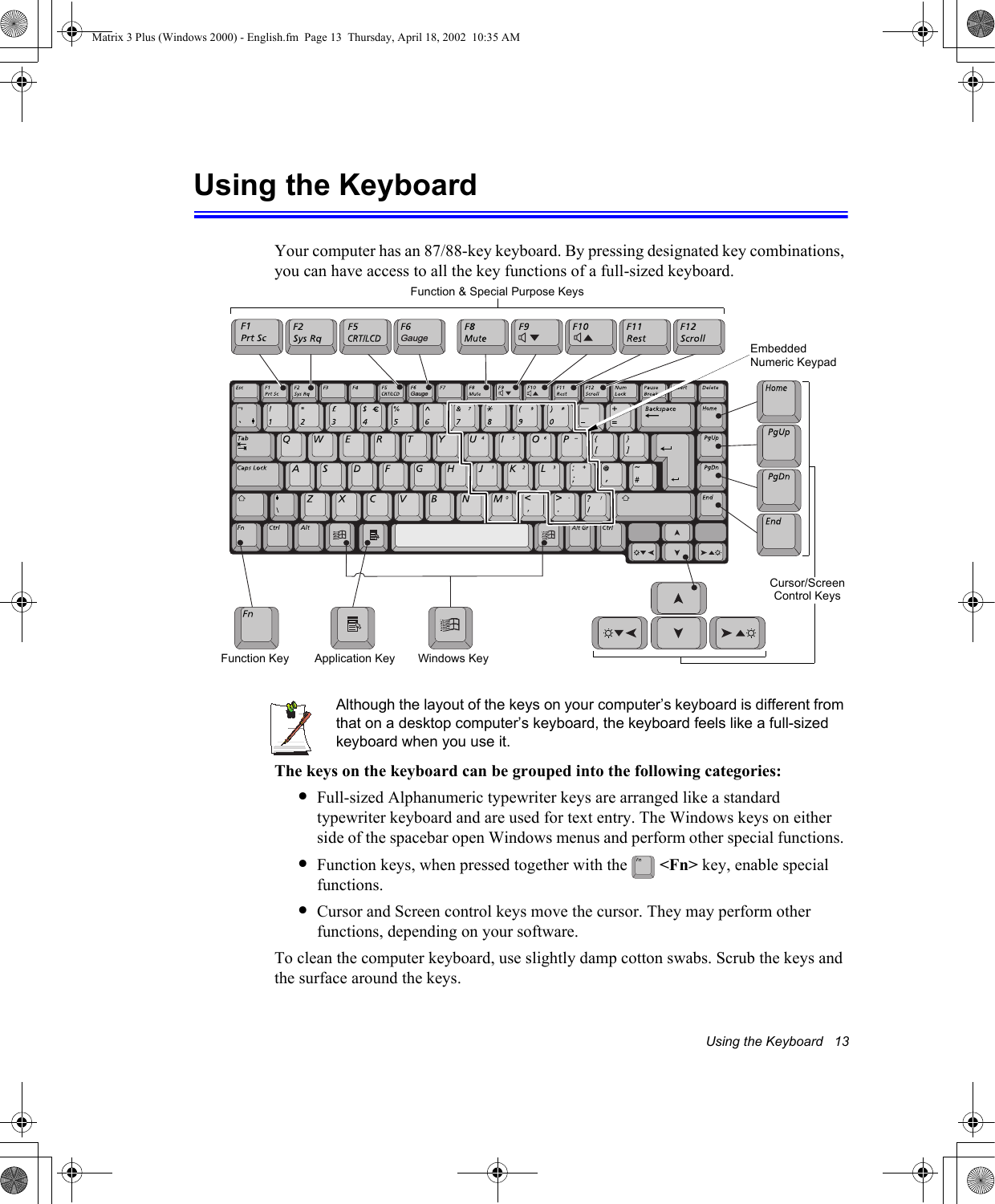
Using the Keyboard   13Using the KeyboardYour computer has an 87/88-key keyboard. By pressing designated key combinations, you can have access to all the key functions of a full-sized keyboard. Although the layout of the keys on your computer’s keyboard is different from that on a desktop computer’s keyboard, the keyboard feels like a full-sized keyboard when you use it. The keys on the keyboard can be grouped into the following categories:•Full-sized Alphanumeric typewriter keys are arranged like a standard typewriter keyboard and are used for text entry. The Windows keys on either side of the spacebar open Windows menus and perform other special functions. •Function keys, when pressed together with the   <Fn> key, enable special functions.•Cursor and Screen control keys move the cursor. They may perform other functions, depending on your software.To clean the computer keyboard, use slightly damp cotton swabs. Scrub the keys and the surface around the keys. GaugeGaugeFunction & Special Purpose KeysEmbedded Numeric KeypadApplication KeyCursor/Screen Control KeysWindows KeyFunction KeyMatrix 3 Plus (Windows 2000) - English.fm  Page 13  Thursday, April 18, 2002  10:35 AM
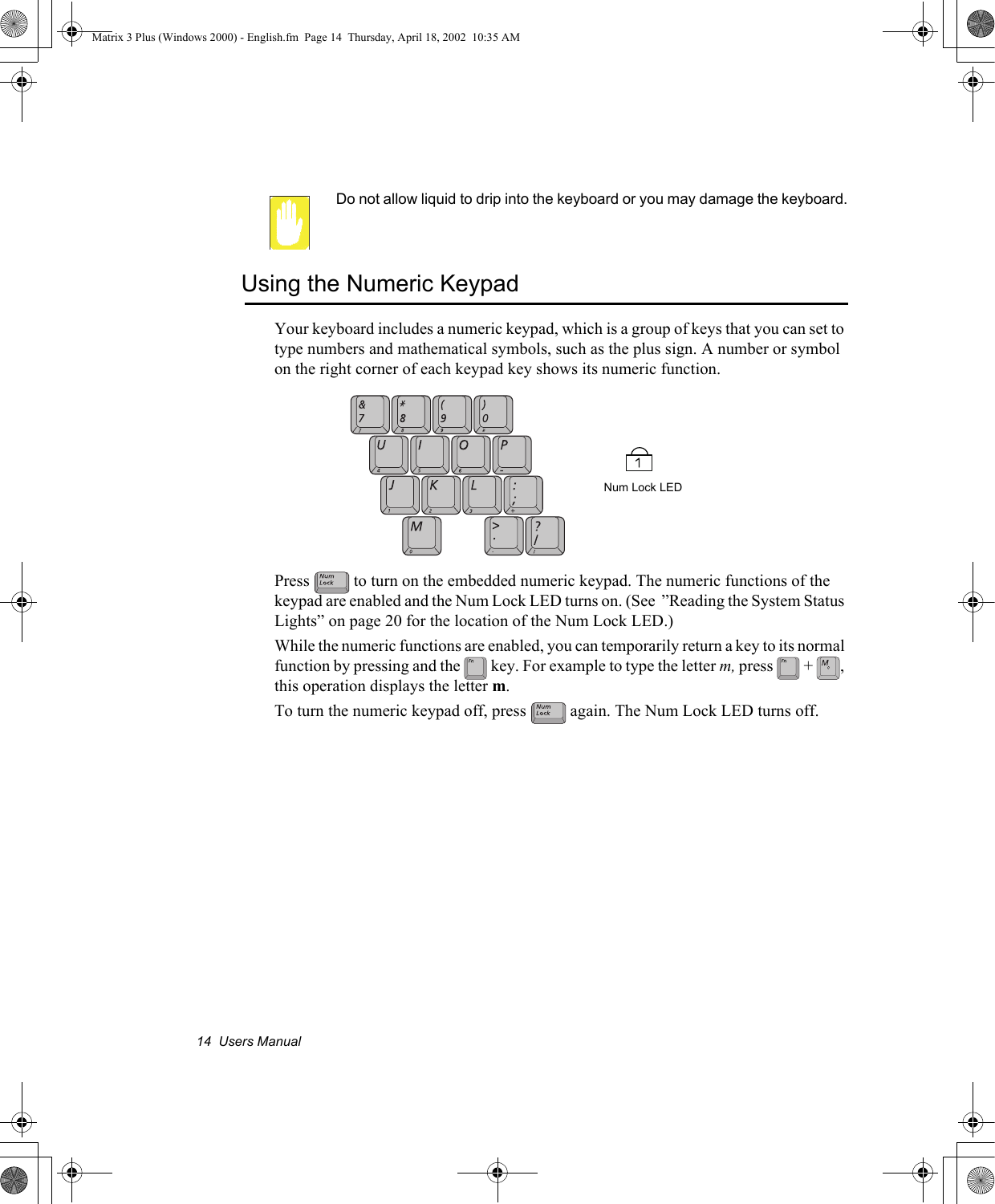
14  Users ManualDo not allow liquid to drip into the keyboard or you may damage the keyboard.Using the Numeric KeypadYour keyboard includes a numeric keypad, which is a group of keys that you can set to type numbers and mathematical symbols, such as the plus sign. A number or symbol on the right corner of each keypad key shows its numeric function.Press   to turn on the embedded numeric keypad. The numeric functions of the keypad are enabled and the Num Lock LED turns on. (See  ”Reading the System Status Lights” on page 20 for the location of the Num Lock LED.) While the numeric functions are enabled, you can temporarily return a key to its normal function by pressing and the   key. For example to type the letter m, press  + , this operation displays the letter m. To turn the numeric keypad off, press   again. The Num Lock LED turns off. Num Lock LEDMatrix 3 Plus (Windows 2000) - English.fm  Page 14  Thursday, April 18, 2002  10:35 AM
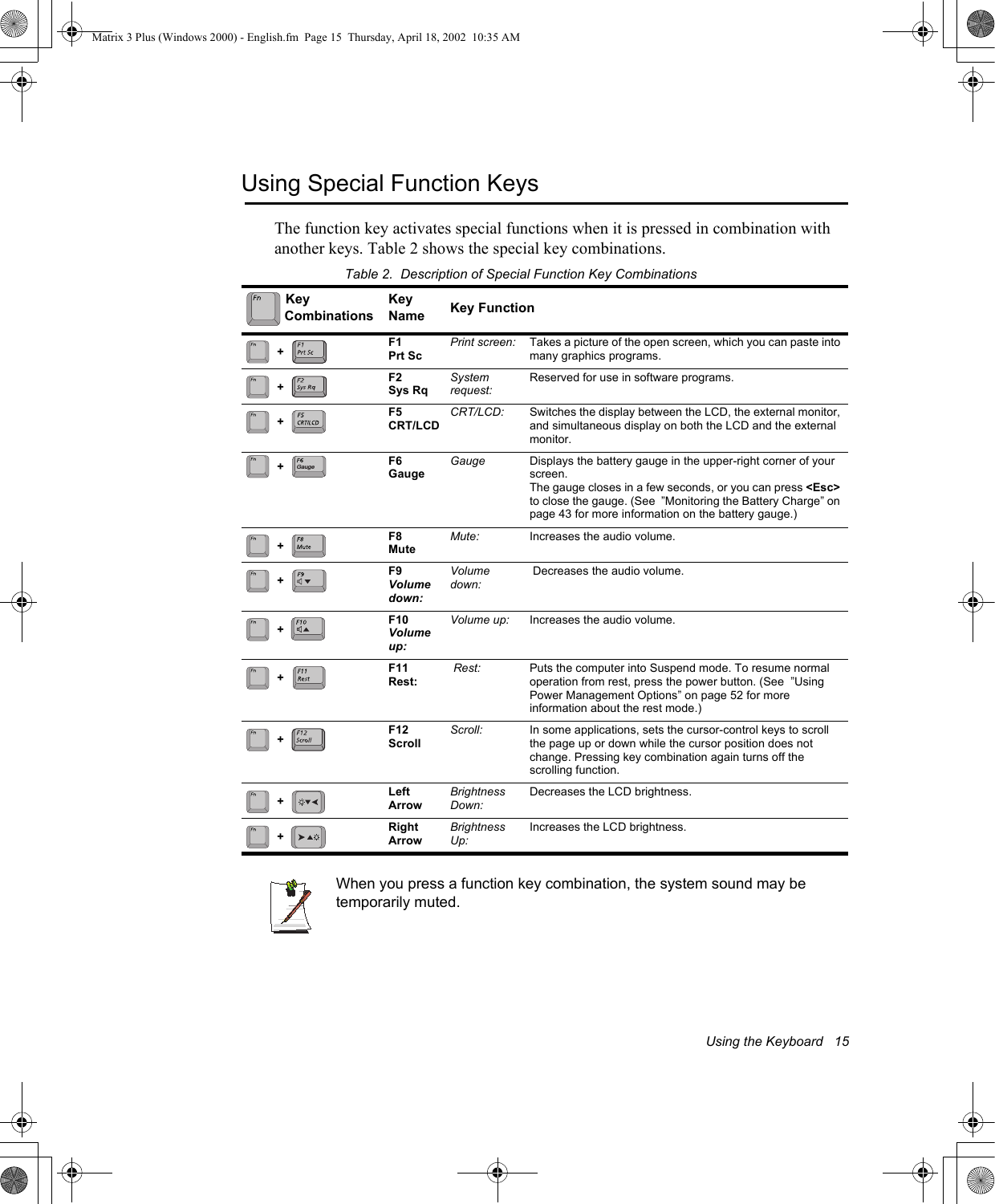
Using the Keyboard   15Using Special Function KeysThe function key activates special functions when it is pressed in combination with another keys. Table 2 shows the special key combinations. Table 2.  Description of Special Function Key CombinationsWhen you press a function key combination, the system sound may be temporarily muted. KeyCombinationsKey Name Key FunctionF1Prt ScPrint screen: Takes a picture of the open screen, which you can paste into many graphics programs.F2Sys RqSystem request:Reserved for use in software programs.F5CRT/LCDCRT/LCD: Switches the display between the LCD, the external monitor, and simultaneous display on both the LCD and the external monitor.F6GaugeGauge Displays the battery gauge in the upper-right corner of your screen.The gauge closes in a few seconds, or you can press <Esc> to close the gauge. (See  ”Monitoring the Battery Charge” on page 43 for more information on the battery gauge.)F8MuteMute:  Increases the audio volume.F9Volume down:Volume down: Decreases the audio volume.F10Volume up:Volume up: Increases the audio volume.F11Rest: Rest: Puts the computer into Suspend mode. To resume normal operation from rest, press the power button. (See  ”Using Power Management Options” on page 52 for more information about the rest mode.)F12ScrollScroll: In some applications, sets the cursor-control keys to scroll the page up or down while the cursor position does not change. Pressing key combination again turns off the scrolling function. Left ArrowBrightness Down:Decreases the LCD brightness.Right ArrowBrightness Up:Increases the LCD brightness.++++Gauge+++++++Matrix 3 Plus (Windows 2000) - English.fm  Page 15  Thursday, April 18, 2002  10:35 AM
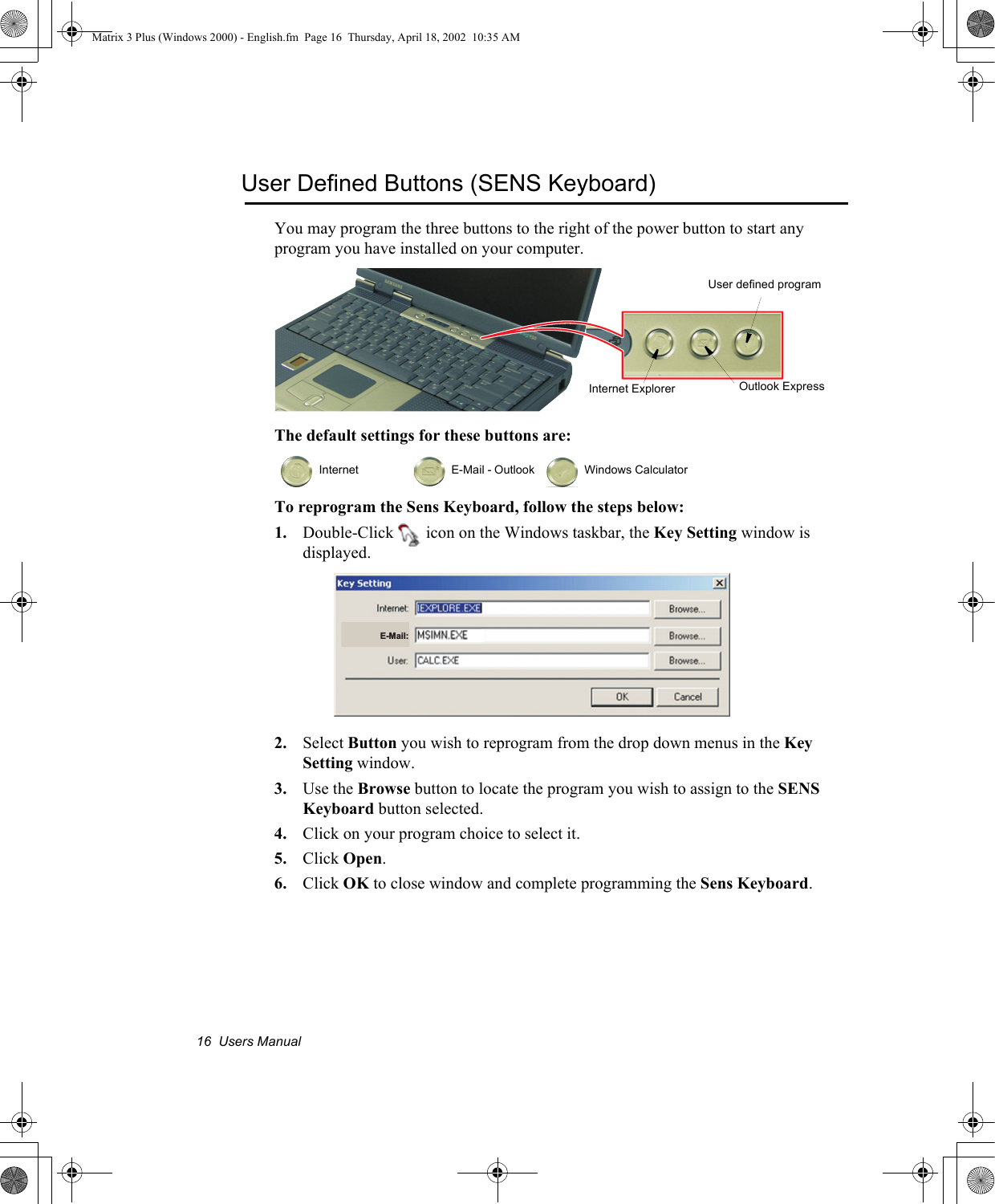
16  Users ManualUser Defined Buttons (SENS Keyboard)You may program the three buttons to the right of the power button to start any program you have installed on your computer.The default settings for these buttons are:To reprogram the Sens Keyboard, follow the steps below:1. Double-Click   icon on the Windows taskbar, the Key Setting window is displayed.2. Select Button you wish to reprogram from the drop down menus in the Key Setting window.3. Use the Browse button to locate the program you wish to assign to the SENS Keyboard button selected.4. Click on your program choice to select it.5. Click Open.6. Click OK to close window and complete programming the Sens Keyboard.  Internet   E-Mail - Outlook   Windows CalculatorInternet Explorer Outlook ExpressUser defined programE-Mail:Matrix 3 Plus (Windows 2000) - English.fm  Page 16  Thursday, April 18, 2002  10:35 AM
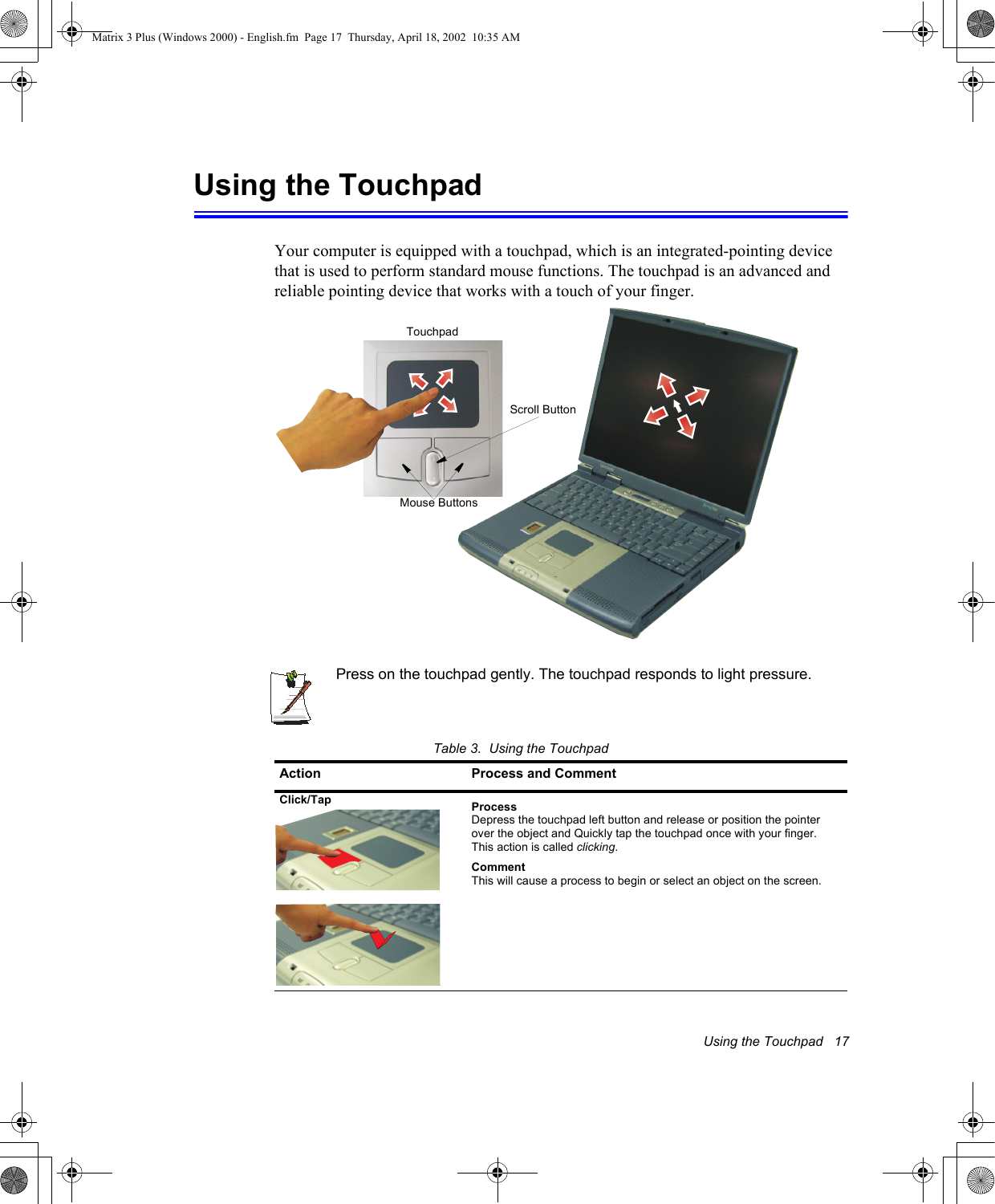
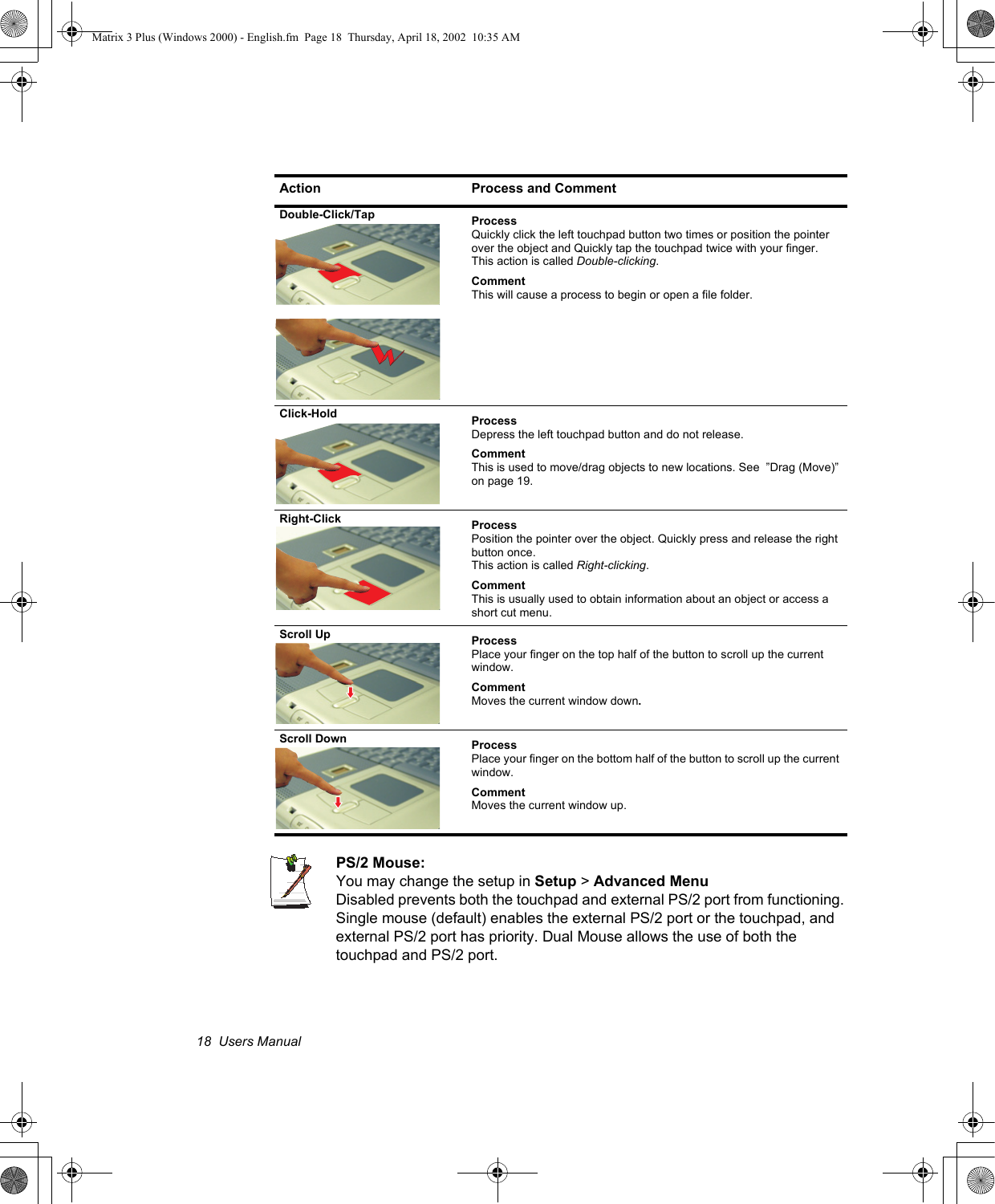
Using the Touchpad   17Using the TouchpadYour computer is equipped with a touchpad, which is an integrated-pointing device that is used to perform standard mouse functions. The touchpad is an advanced and reliable pointing device that works with a touch of your finger. Press on the touchpad gently. The touchpad responds to light pressure. Table 3.  Using the TouchpadAction Process and CommentClick/Tap ProcessDepress the touchpad left button and release or position the pointer over the object and Quickly tap the touchpad once with your finger. This action is called clicking.CommentThis will cause a process to begin or select an object on the screen. TouchpadMouse ButtonsScroll ButtonMatrix 3 Plus (Windows 2000) - English.fm  Page 17  Thursday, April 18, 2002  10:35 AM
18  Users ManualPS/2 Mouse: You may change the setup in Setup > Advanced MenuDisabled prevents both the touchpad and external PS/2 port from functioning. Single mouse (default) enables the external PS/2 port or the touchpad, and external PS/2 port has priority. Dual Mouse allows the use of both the touchpad and PS/2 port.Double-Click/Tap ProcessQuickly click the left touchpad button two times or position the pointer over the object and Quickly tap the touchpad twice with your finger. This action is called Double-clicking.CommentThis will cause a process to begin or open a file folder.Click-Hold ProcessDepress the left touchpad button and do not release.CommentThis is used to move/drag objects to new locations. See  ”Drag (Move)” on page 19.Right-Click ProcessPosition the pointer over the object. Quickly press and release the right button once. This action is called Right-clicking.CommentThis is usually used to obtain information about an object or access a short cut menu.Scroll Up  ProcessPlace your finger on the top half of the button to scroll up the current window.CommentMoves the current window down.Scroll Down  ProcessPlace your finger on the bottom half of the button to scroll up the current window.CommentMoves the current window up.Action Process and CommentMatrix 3 Plus (Windows 2000) - English.fm  Page 18  Thursday, April 18, 2002  10:35 AM
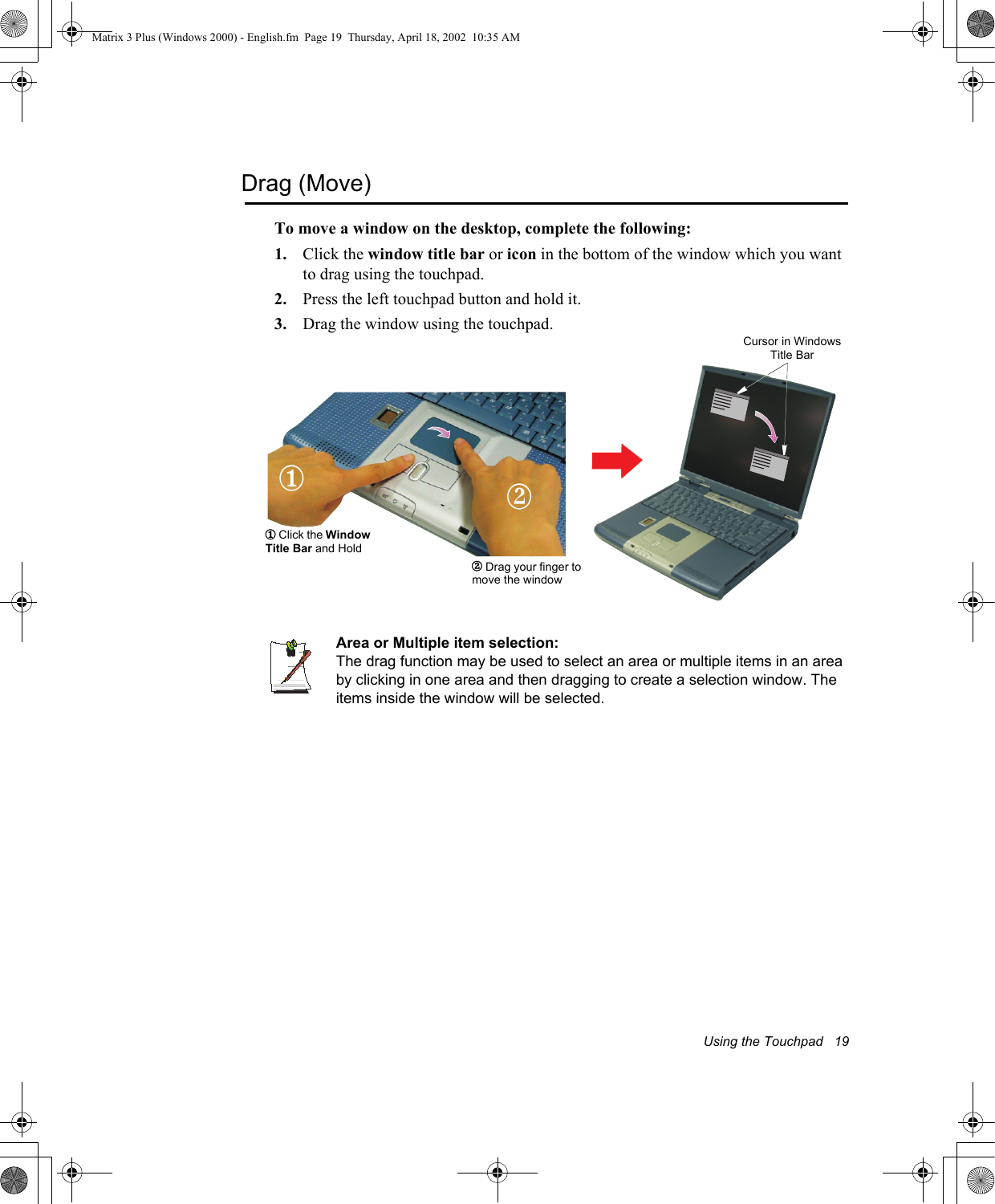
Using the Touchpad   19Drag (Move)To move a window on the desktop, complete the following:1. Click the window title bar or icon in the bottom of the window which you want to drag using the touchpad.2. Press the left touchpad button and hold it.3. Drag the window using the touchpad.Area or Multiple item selection:The drag function may be used to select an area or multiple items in an area by clicking in one area and then dragging to create a selection window. The items inside the window will be selected.Cursor in Windows Title Bar1 Click the Window Title Bar and Hold12 Drag your finger to move the window2Matrix 3 Plus (Windows 2000) - English.fm  Page 19  Thursday, April 18, 2002  10:35 AM
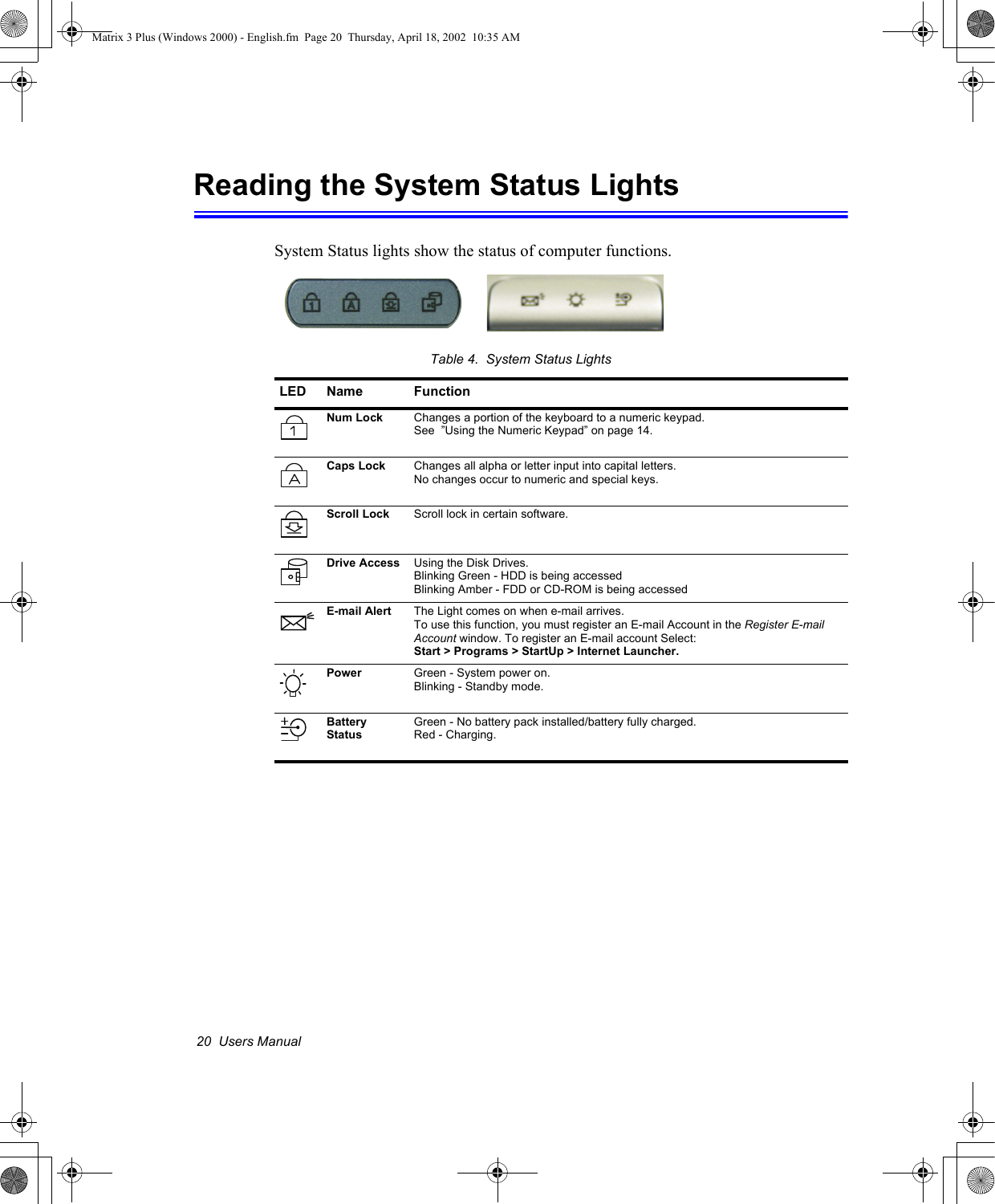
20  Users ManualReading the System Status LightsSystem Status lights show the status of computer functions.Table 4.  System Status LightsLED Name FunctionNum Lock Changes a portion of the keyboard to a numeric keypad.See  ”Using the Numeric Keypad” on page 14.Caps Lock Changes all alpha or letter input into capital letters.No changes occur to numeric and special keys.Scroll Lock Scroll lock in certain software.Drive Access Using the Disk Drives.Blinking Green - HDD is being accessedBlinking Amber - FDD or CD-ROM is being accessedE-mail Alert The Light comes on when e-mail arrives.To use this function, you must register an E-mail Account in the Register E-mail Account window. To register an E-mail account Select: Start > Programs > StartUp > Internet Launcher.Power  Green - System power on.Blinking - Standby mode.Battery StatusGreen - No battery pack installed/battery fully charged.Red - Charging.Matrix 3 Plus (Windows 2000) - English.fm  Page 20  Thursday, April 18, 2002  10:35 AM
Connecting to the Internet   21Connecting to the InternetThis section explains how to connect you to the internet. For details on how to establish the connection contact the Internet Service Provider [ISP] or system administrator [SysAdmin].Using the ModemInstall the Modem cable by simply plugging the cable into the slot in the back of the computer.1. Contact your Internet Service Provider to obtain information or CD required to make the connection in your area.2. After the cable is connected create a “Dialup” connection by clicking Start > Settings > Network and Dial-Up Connections.3. Double-Click   icon to pop up the connection wizard.4. Follow the instructions in provided in the Make New Connection wizard.Modem Cable (Minimum 26 AWG)Matrix 3 Plus (Windows 2000) - English.fm  Page 21  Thursday, April 18, 2002  10:35 AM
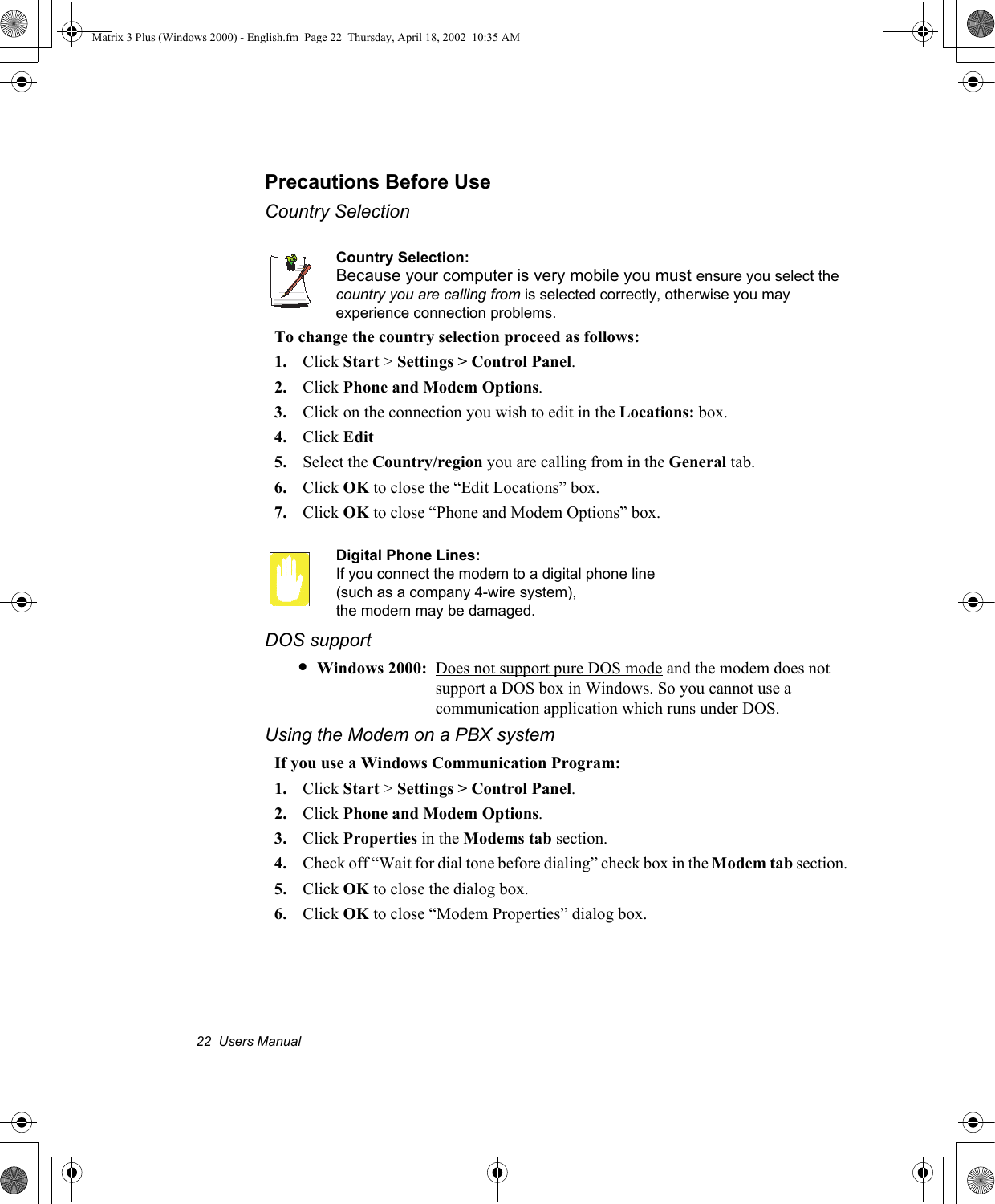
22  Users ManualPrecautions Before UseCountry SelectionCountry Selection:Because your computer is very mobile you must ensure you select the country you are calling from is selected correctly, otherwise you may experience connection problems.To change the country selection proceed as follows:1. Click Start > Settings > Control Panel.2. Click Phone and Modem Options.3. Click on the connection you wish to edit in the Locations: box.4. Click Edit5. Select the Country/region you are calling from in the General tab.6. Click OK to close the “Edit Locations” box.7. Click OK to close “Phone and Modem Options” box.Digital Phone Lines:If you connect the modem to a digital phone line (such as a company 4-wire system), the modem may be damaged.DOS support•Windows 2000: Does not support pure DOS mode and the modem does not support a DOS box in Windows. So you cannot use a communication application which runs under DOS.Using the Modem on a PBX systemIf you use a Windows Communication Program:1. Click Start > Settings > Control Panel.2. Click Phone and Modem Options.3. Click Properties in the Modems tab section.4. Check off “Wait for dial tone before dialing” check box in the Modem tab section.5. Click OK to close the dialog box.6. Click OK to close “Modem Properties” dialog box.Matrix 3 Plus (Windows 2000) - English.fm  Page 22  Thursday, April 18, 2002  10:35 AM
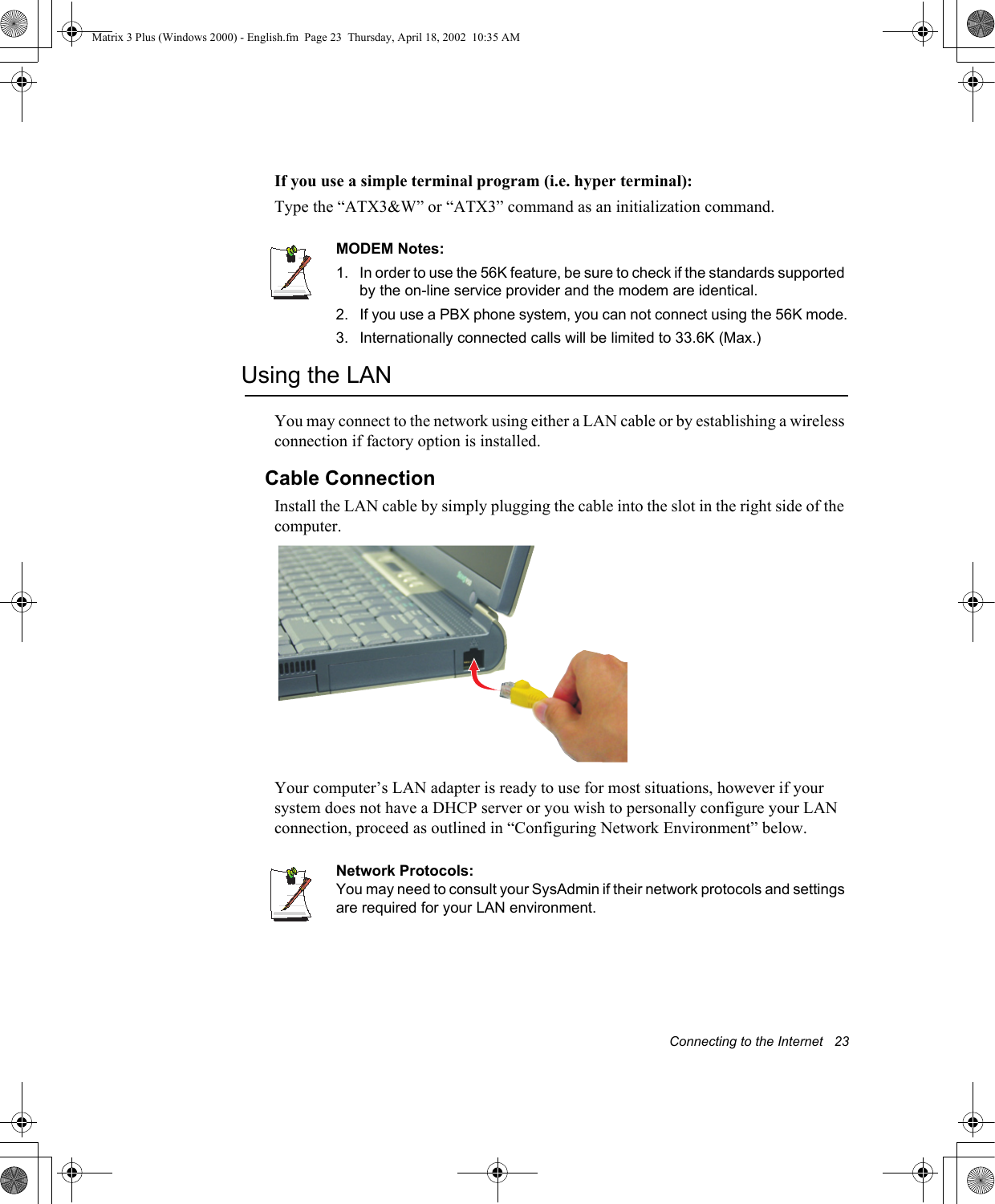
Connecting to the Internet   23If you use a simple terminal program (i.e. hyper terminal): Type the “ATX3&W” or “ATX3” command as an initialization command.MODEM Notes:1.  In order to use the 56K feature, be sure to check if the standards supported by the on-line service provider and the modem are identical.2. If you use a PBX phone system, you can not connect using the 56K mode.3. Internationally connected calls will be limited to 33.6K (Max.)Using the LANYou may connect to the network using either a LAN cable or by establishing a wireless connection if factory option is installed.Cable ConnectionInstall the LAN cable by simply plugging the cable into the slot in the right side of the computer.Your computer’s LAN adapter is ready to use for most situations, however if your system does not have a DHCP server or you wish to personally configure your LAN connection, proceed as outlined in “Configuring Network Environment” below.Network Protocols:You may need to consult your SysAdmin if their network protocols and settings are required for your LAN environment.Matrix 3 Plus (Windows 2000) - English.fm  Page 23  Thursday, April 18, 2002  10:35 AM
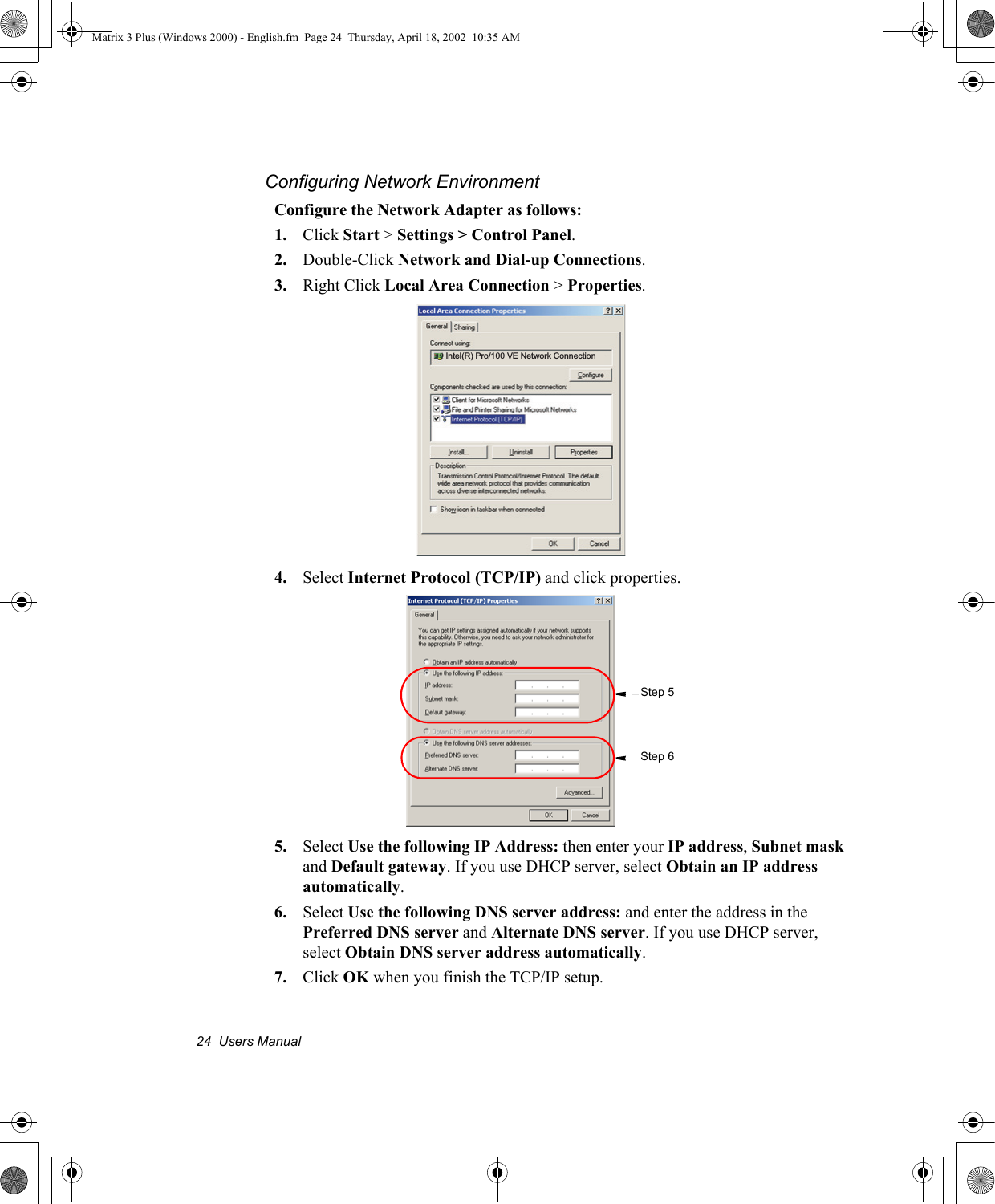
24  Users ManualConfiguring Network EnvironmentConfigure the Network Adapter as follows:1. Click Start > Settings > Control Panel.2. Double-Click Network and Dial-up Connections.3. Right Click Local Area Connection > Properties.4. Select Internet Protocol (TCP/IP) and click properties.5. Select Use the following IP Address: then enter your IP address, Subnet mask and Default gateway. If you use DHCP server, select Obtain an IP address automatically.6. Select Use the following DNS server address: and enter the address in the Preferred DNS server and Alternate DNS server. If you use DHCP server, select Obtain DNS server address automatically.7. Click OK when you finish the TCP/IP setup.Intel(R) Pro/100 VE Network ConnectionStep 6Step 5Matrix 3 Plus (Windows 2000) - English.fm  Page 24  Thursday, April 18, 2002  10:35 AM
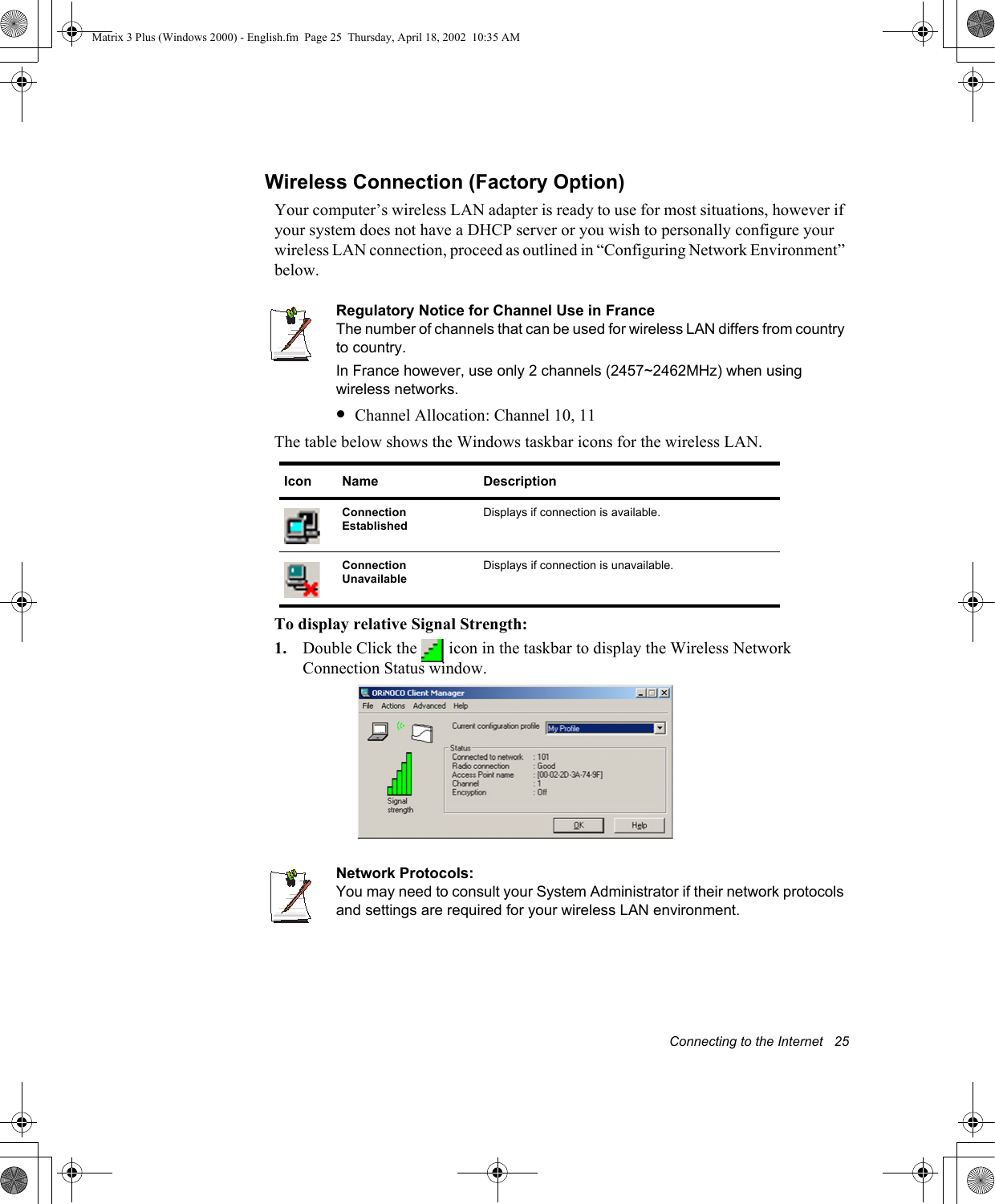
Connecting to the Internet   25Wireless Connection (Factory Option)Your computer’s wireless LAN adapter is ready to use for most situations, however if your system does not have a DHCP server or you wish to personally configure your wireless LAN connection, proceed as outlined in “Configuring Network Environment” below.Regulatory Notice for Channel Use in FranceThe number of channels that can be used for wireless LAN differs from country to country. In France however, use only 2 channels (2457~2462MHz) when using wireless networks.•Channel Allocation: Channel 10, 11The table below shows the Windows taskbar icons for the wireless LAN.  To display relative Signal Strength:1. Double Click the   icon in the taskbar to display the Wireless Network Connection Status window. Network Protocols:You may need to consult your System Administrator if their network protocols and settings are required for your wireless LAN environment.Icon Name DescriptionConnection Established Displays if connection is available.Connection Unavailable Displays if connection is unavailable.Matrix 3 Plus (Windows 2000) - English.fm  Page 25  Thursday, April 18, 2002  10:35 AM
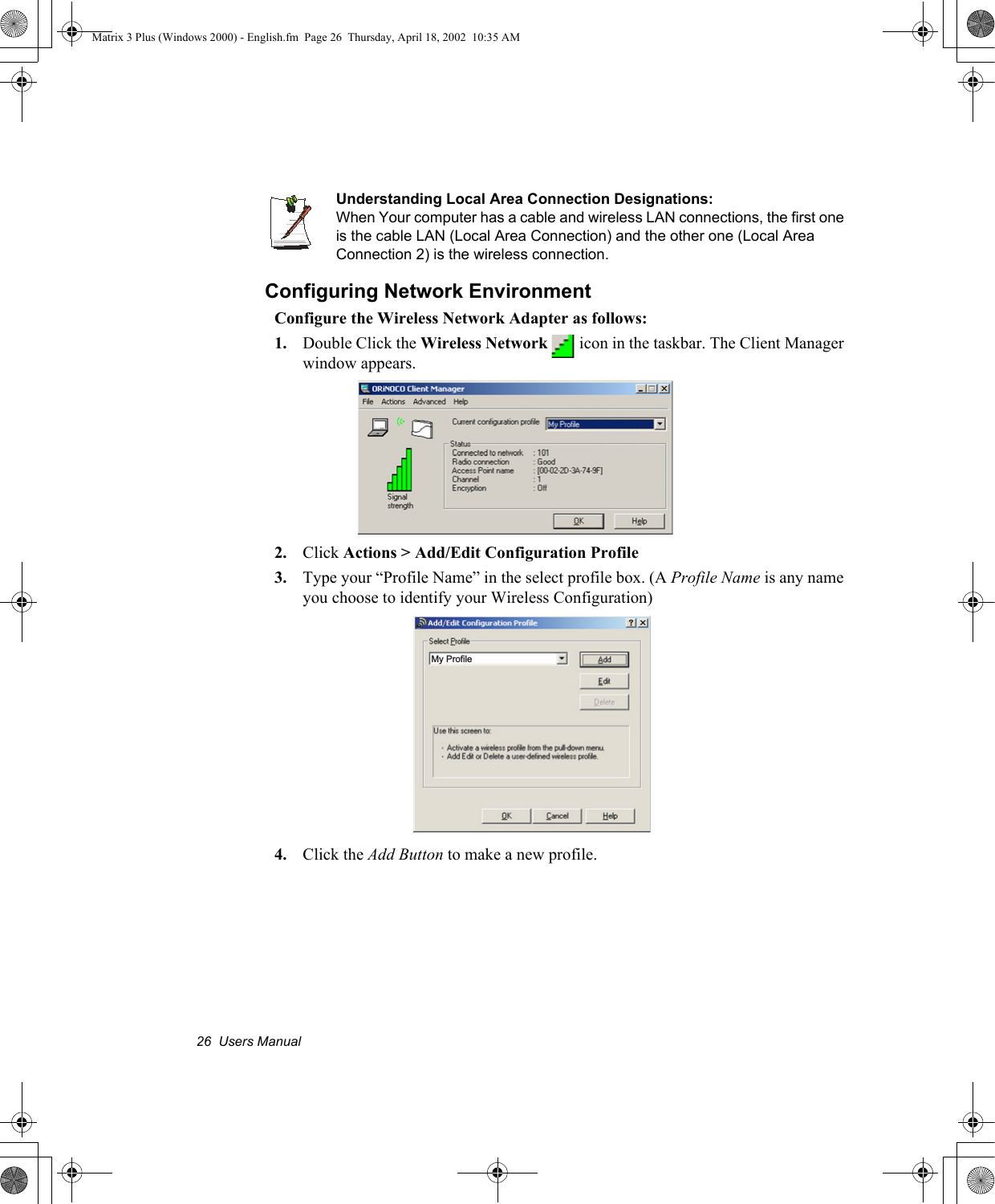
26  Users ManualUnderstanding Local Area Connection Designations:When Your computer has a cable and wireless LAN connections, the first one is the cable LAN (Local Area Connection) and the other one (Local Area Connection 2) is the wireless connection.Configuring Network EnvironmentConfigure the Wireless Network Adapter as follows:1. Double Click the Wireless Network   icon in the taskbar. The Client Manager window appears.2. Click Actions > Add/Edit Configuration Profile3. Type your “Profile Name” in the select profile box. (A Profile Name is any name you choose to identify your Wireless Configuration)4. Click the Add Button to make a new profile. My ProfileMatrix 3 Plus (Windows 2000) - English.fm  Page 26  Thursday, April 18, 2002  10:35 AM
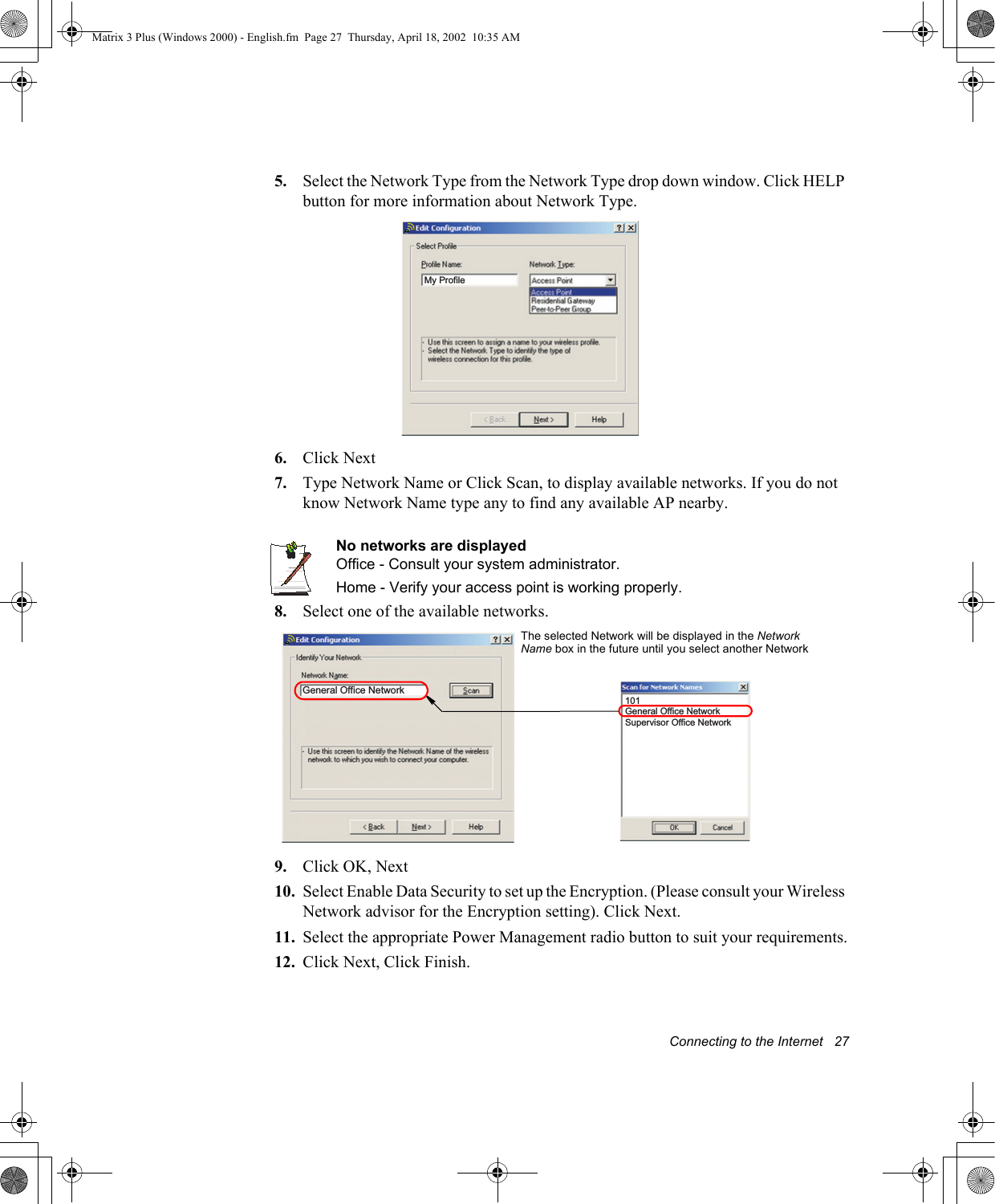
Connecting to the Internet   275. Select the Network Type from the Network Type drop down window. Click HELP button for more information about Network Type.6. Click Next7. Type Network Name or Click Scan, to display available networks. If you do not know Network Name type any to find any available AP nearby.No networks are displayedOffice - Consult your system administrator.Home - Verify your access point is working properly.8. Select one of the available networks.9. Click OK, Next10. Select Enable Data Security to set up the Encryption. (Please consult your Wireless Network advisor for the Encryption setting). Click Next.11. Select the appropriate Power Management radio button to suit your requirements.12. Click Next, Click Finish.My ProfileGeneral Office Network101General Office NetworkSupervisor Office NetworkThe selected Network will be displayed in the Network Name box in the future until you select another NetworkMatrix 3 Plus (Windows 2000) - English.fm  Page 27  Thursday, April 18, 2002  10:35 AM
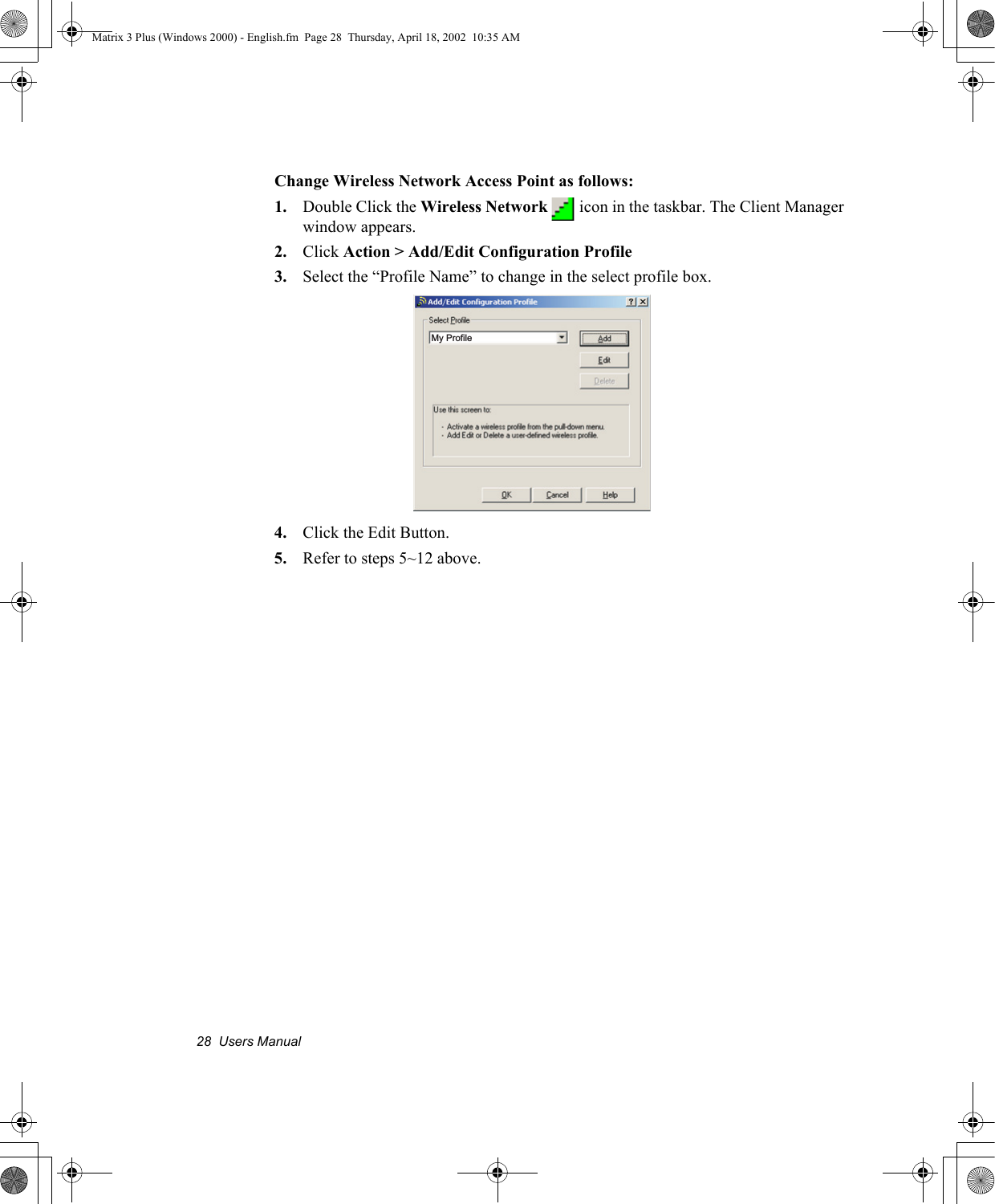
28  Users ManualChange Wireless Network Access Point as follows:1. Double Click the Wireless Network   icon in the taskbar. The Client Manager window appears.2. Click Action > Add/Edit Configuration Profile3. Select the “Profile Name” to change in the select profile box.4. Click the Edit Button. 5. Refer to steps 5~12 above.My ProfileMatrix 3 Plus (Windows 2000) - English.fm  Page 28  Thursday, April 18, 2002  10:35 AM
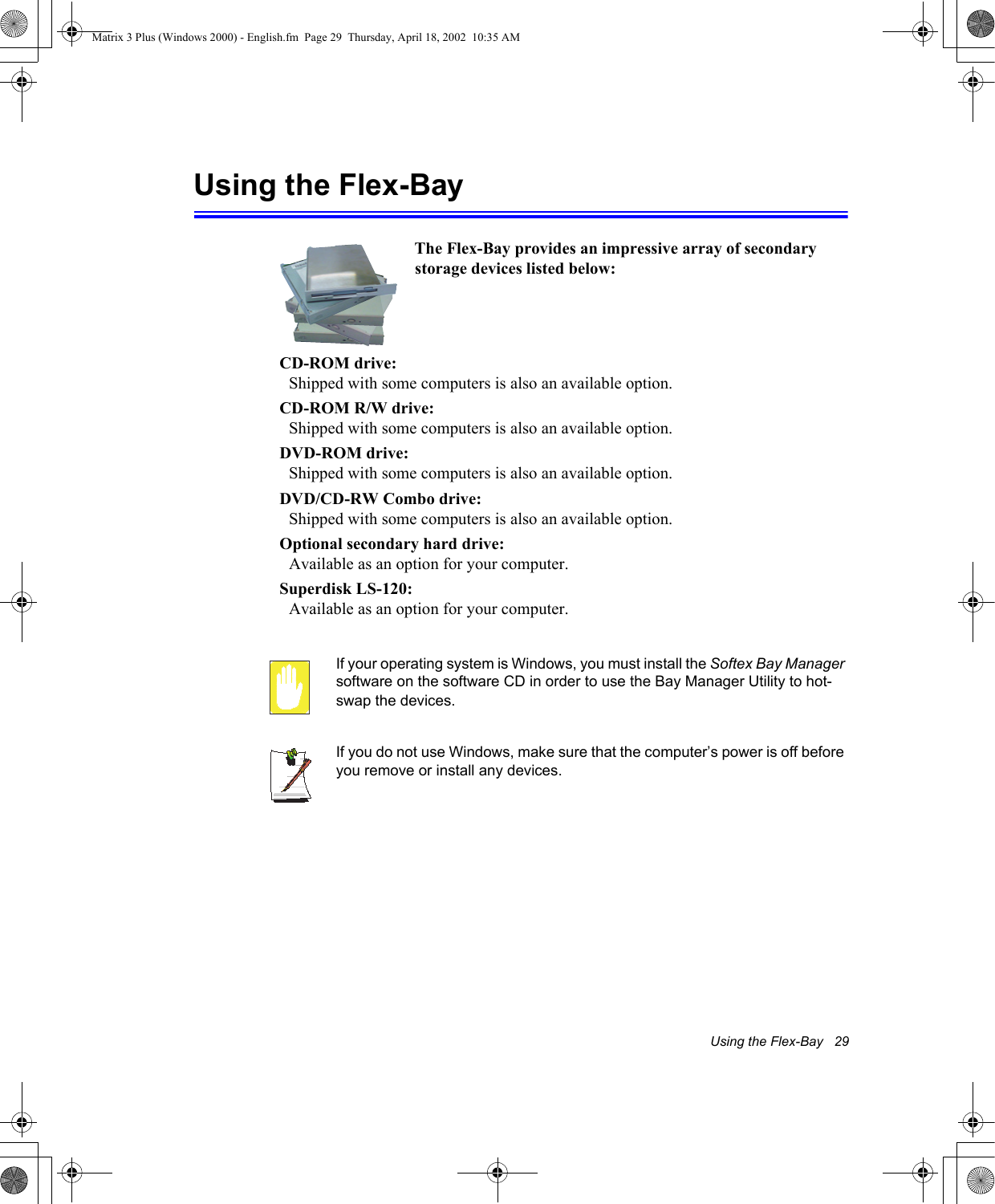
Using the Flex-Bay   29Using the Flex-BayIf your operating system is Windows, you must install the Softex Bay Manager software on the software CD in order to use the Bay Manager Utility to hot-swap the devices. If you do not use Windows, make sure that the computer’s power is off before you remove or install any devices.The Flex-Bay provides an impressive array of secondary storage devices listed below:CD-ROM drive: Shipped with some computers is also an available option.CD-ROM R/W drive: Shipped with some computers is also an available option.DVD-ROM drive: Shipped with some computers is also an available option.DVD/CD-RW Combo drive: Shipped with some computers is also an available option.Optional secondary hard drive: Available as an option for your computer.Superdisk LS-120: Available as an option for your computer.Matrix 3 Plus (Windows 2000) - English.fm  Page 29  Thursday, April 18, 2002  10:35 AM
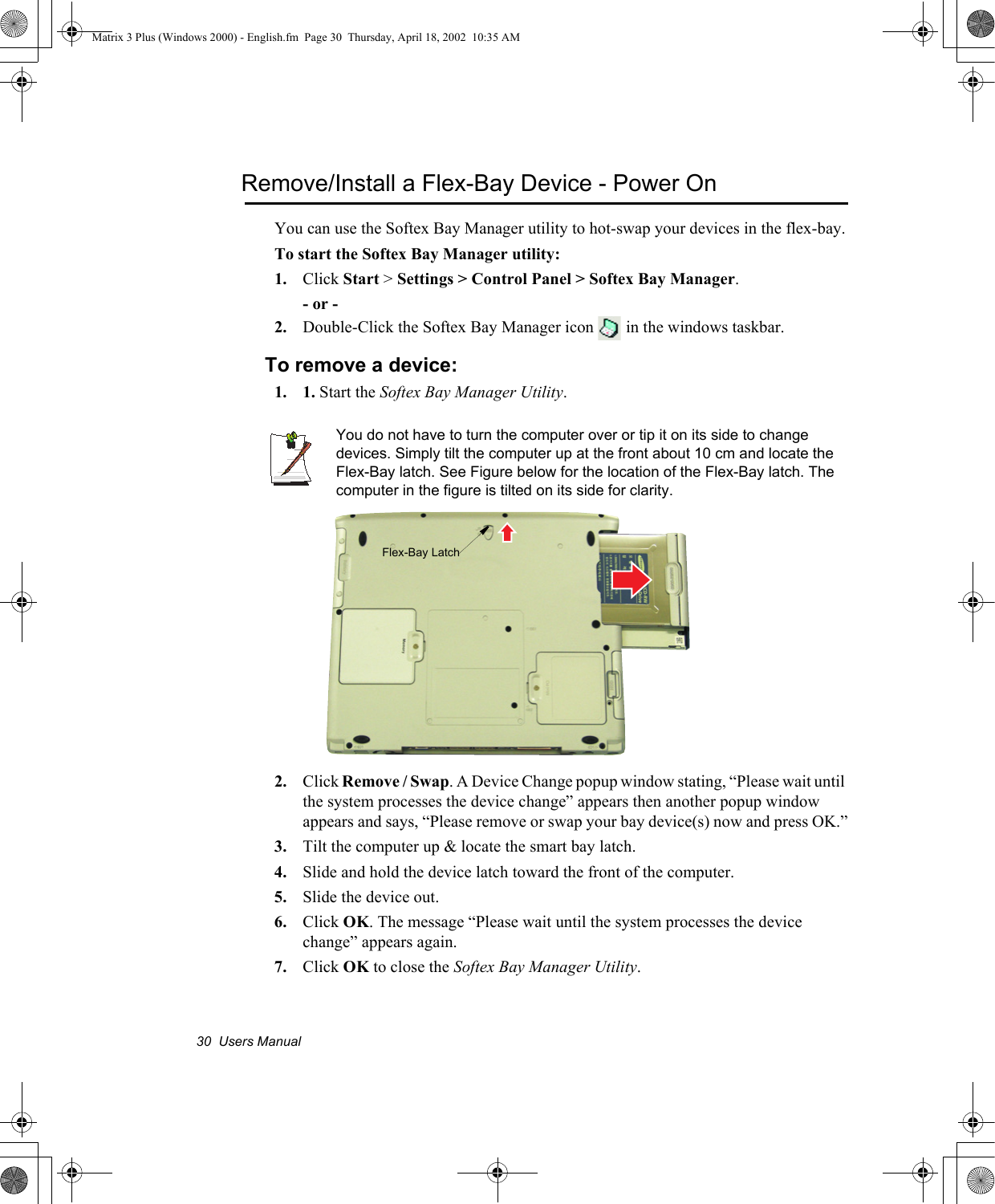
30  Users ManualRemove/Install a Flex-Bay Device - Power OnYou can use the Softex Bay Manager utility to hot-swap your devices in the flex-bay.To start the Softex Bay Manager utility:1. Click Start > Settings > Control Panel > Softex Bay Manager.- or -2. Double-Click the Softex Bay Manager icon   in the windows taskbar.To remove a device:1. 1. Start the Softex Bay Manager Utility.You do not have to turn the computer over or tip it on its side to change devices. Simply tilt the computer up at the front about 10 cm and locate the Flex-Bay latch. See Figure below for the location of the Flex-Bay latch. The computer in the figure is tilted on its side for clarity.2. Click Remove / Swap. A Device Change popup window stating, “Please wait until the system processes the device change” appears then another popup window appears and says, “Please remove or swap your bay device(s) now and press OK.”3. Tilt the computer up & locate the smart bay latch.4. Slide and hold the device latch toward the front of the computer.5. Slide the device out.6. Click OK. The message “Please wait until the system processes the device change” appears again.7. Click OK to close the Softex Bay Manager Utility.Flex-Bay LatchMatrix 3 Plus (Windows 2000) - English.fm  Page 30  Thursday, April 18, 2002  10:35 AM
Using the Flex-Bay   31To insert a device:1. Open the Softex Bay Manager Utility.You do not have to turn the computer over to change devices. Simply tilt the computer up and locate the Flex-Bay latch. See  ”Bottom” on page 5 for the location of the Flex-Bay latch.2. Click Device Insert. A popup window appears stating “Please insert your device(s) into the bay now and click OK.”3. Insert the device.4. Click OK to allow your computer to detect the device. The message “Please wait until the system processes the device change” appears.5. Click OK to close the Softex Bay Manager Utility.Remove/Install a Flex-Bay Device - Power OffRemove a Device:1. Turn the computer’s power off. 2. Close the LCD panel, and turn the computer over so that the bottom of the unit faces up.3. Tilt the computer up & locate the smart bay latch.4. Slide and hold the device latch toward the front of the computer.5. Slide the device out.Install a Device:1. Turn the computer’s power off. 2. Carefully slide the device into the bay. 3. Push the device in until it is flush with the chassis and the Flex-Bay latch snaps into place. Your computer’s operating system automatically recognizes the device in the Flex-Bay and configures your computer accordingly when power is restored.Matrix 3 Plus (Windows 2000) - English.fm  Page 31  Thursday, April 18, 2002  10:35 AM
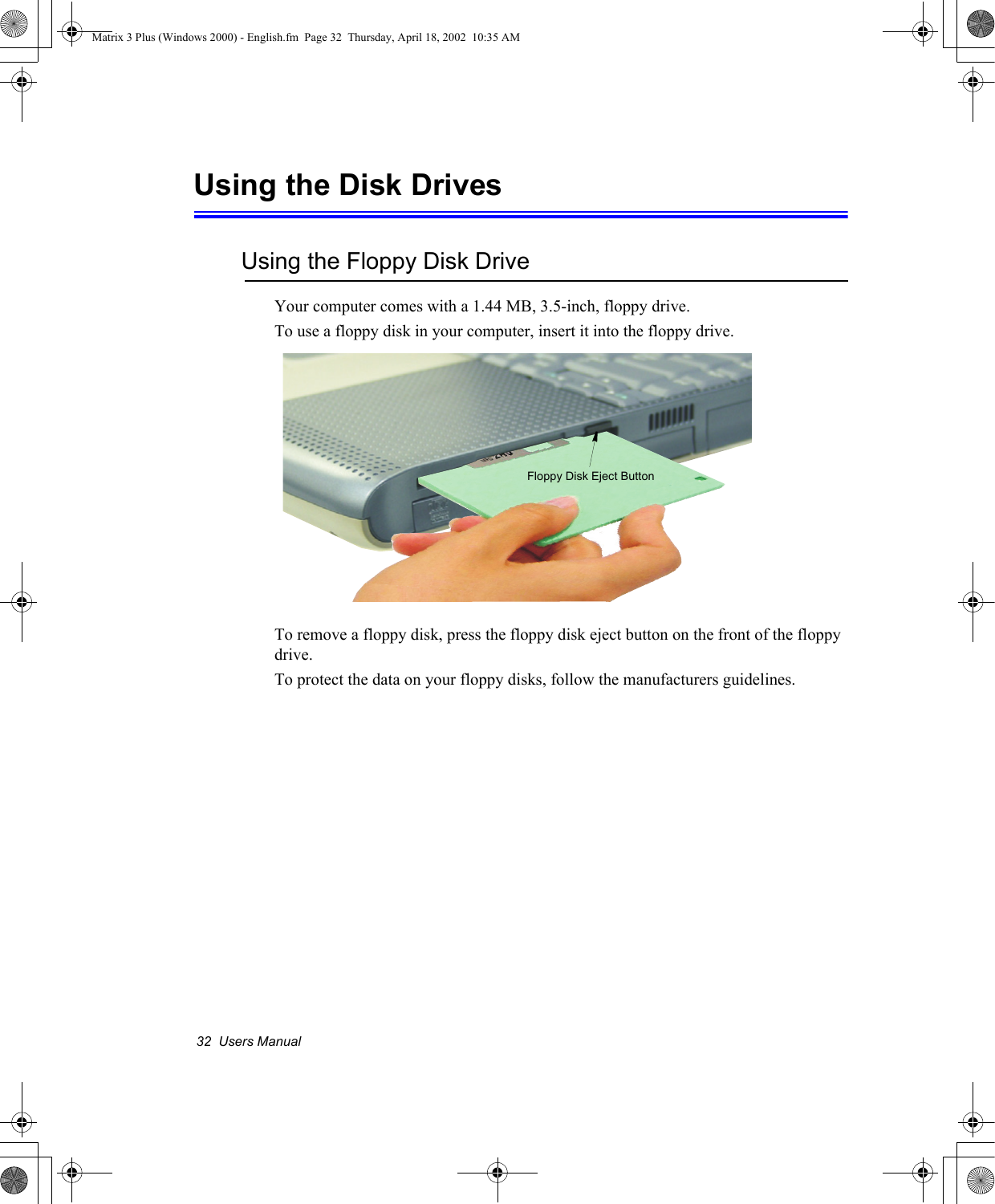
32  Users ManualUsing the Disk DrivesUsing the Floppy Disk DriveYour computer comes with a 1.44 MB, 3.5-inch, floppy drive.To use a floppy disk in your computer, insert it into the floppy drive. To remove a floppy disk, press the floppy disk eject button on the front of the floppy drive.To protect the data on your floppy disks, follow the manufacturers guidelines.Floppy Disk Eject ButtonMatrix 3 Plus (Windows 2000) - English.fm  Page 32  Thursday, April 18, 2002  10:35 AM
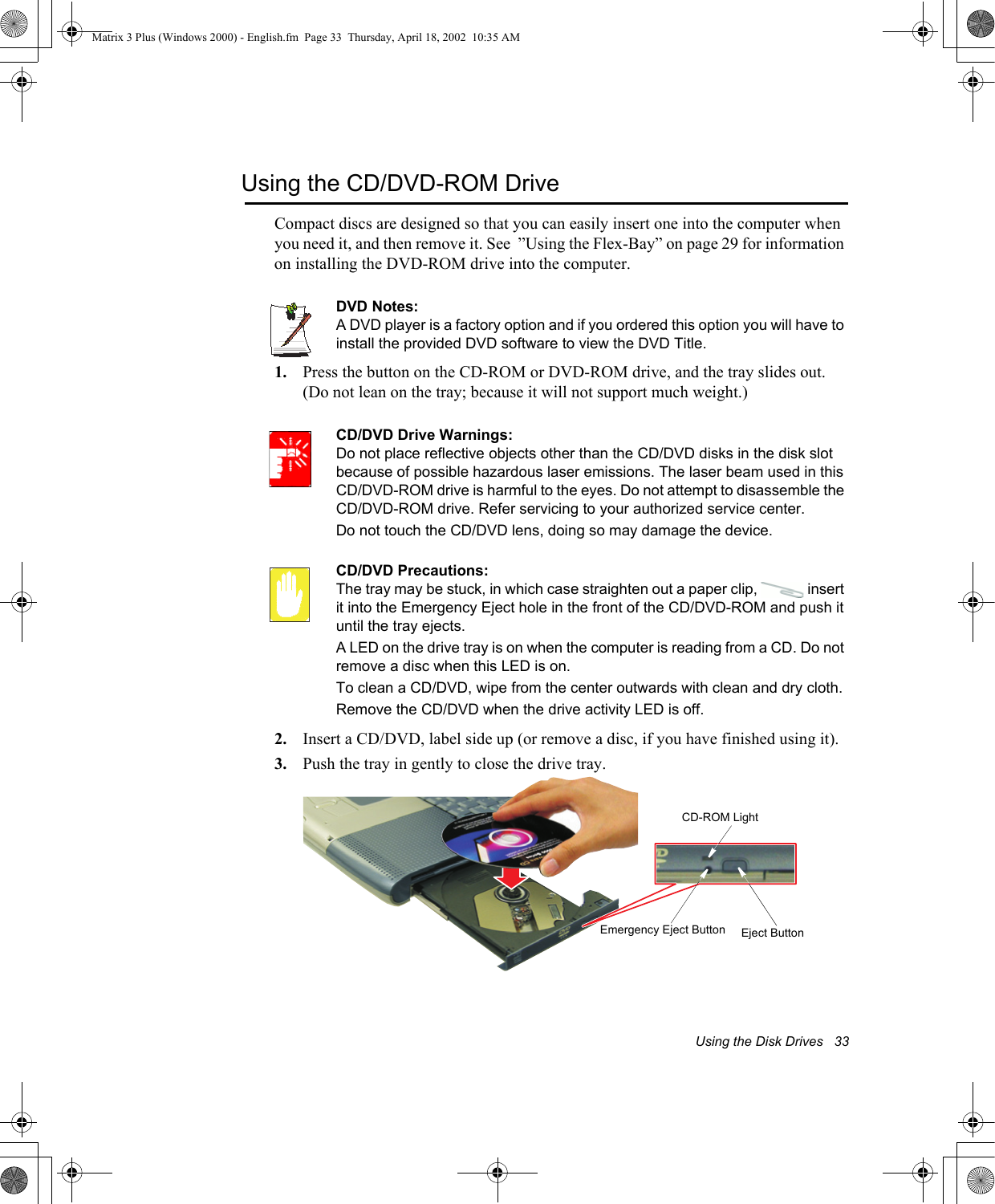
Using the Disk Drives   33Using the CD/DVD-ROM DriveCompact discs are designed so that you can easily insert one into the computer when you need it, and then remove it. See  ”Using the Flex-Bay” on page 29 for information on installing the DVD-ROM drive into the computer.DVD Notes:A DVD player is a factory option and if you ordered this option you will have to install the provided DVD software to view the DVD Title.1. Press the button on the CD-ROM or DVD-ROM drive, and the tray slides out. (Do not lean on the tray; because it will not support much weight.)CD/DVD Drive Warnings:Do not place reflective objects other than the CD/DVD disks in the disk slot because of possible hazardous laser emissions. The laser beam used in this CD/DVD-ROM drive is harmful to the eyes. Do not attempt to disassemble the CD/DVD-ROM drive. Refer servicing to your authorized service center.Do not touch the CD/DVD lens, doing so may damage the device.CD/DVD Precautions:The tray may be stuck, in which case straighten out a paper clip,   insert it into the Emergency Eject hole in the front of the CD/DVD-ROM and push it until the tray ejects.A LED on the drive tray is on when the computer is reading from a CD. Do not remove a disc when this LED is on.To clean a CD/DVD, wipe from the center outwards with clean and dry cloth.Remove the CD/DVD when the drive activity LED is off.2. Insert a CD/DVD, label side up (or remove a disc, if you have finished using it).3. Push the tray in gently to close the drive tray.Eject ButtonCD-ROM LightEmergency Eject ButtonMatrix 3 Plus (Windows 2000) - English.fm  Page 33  Thursday, April 18, 2002  10:35 AM
34  Users ManualInstall and/or start a CD-based program as you would run a program on a floppy disk.Matrix 3 Plus (Windows 2000) - English.fm  Page 34  Thursday, April 18, 2002  10:35 AM

Navigation menu