ShenZhen Foscam Intelligent Technology FI9900P Outdoor HD IP Camera User Manual Part Three

ShenZhen Foscam Intelligent Technology Co., Ltd. Outdoor HD IP Camera Users Manual Part Three
Users Manual Part Three
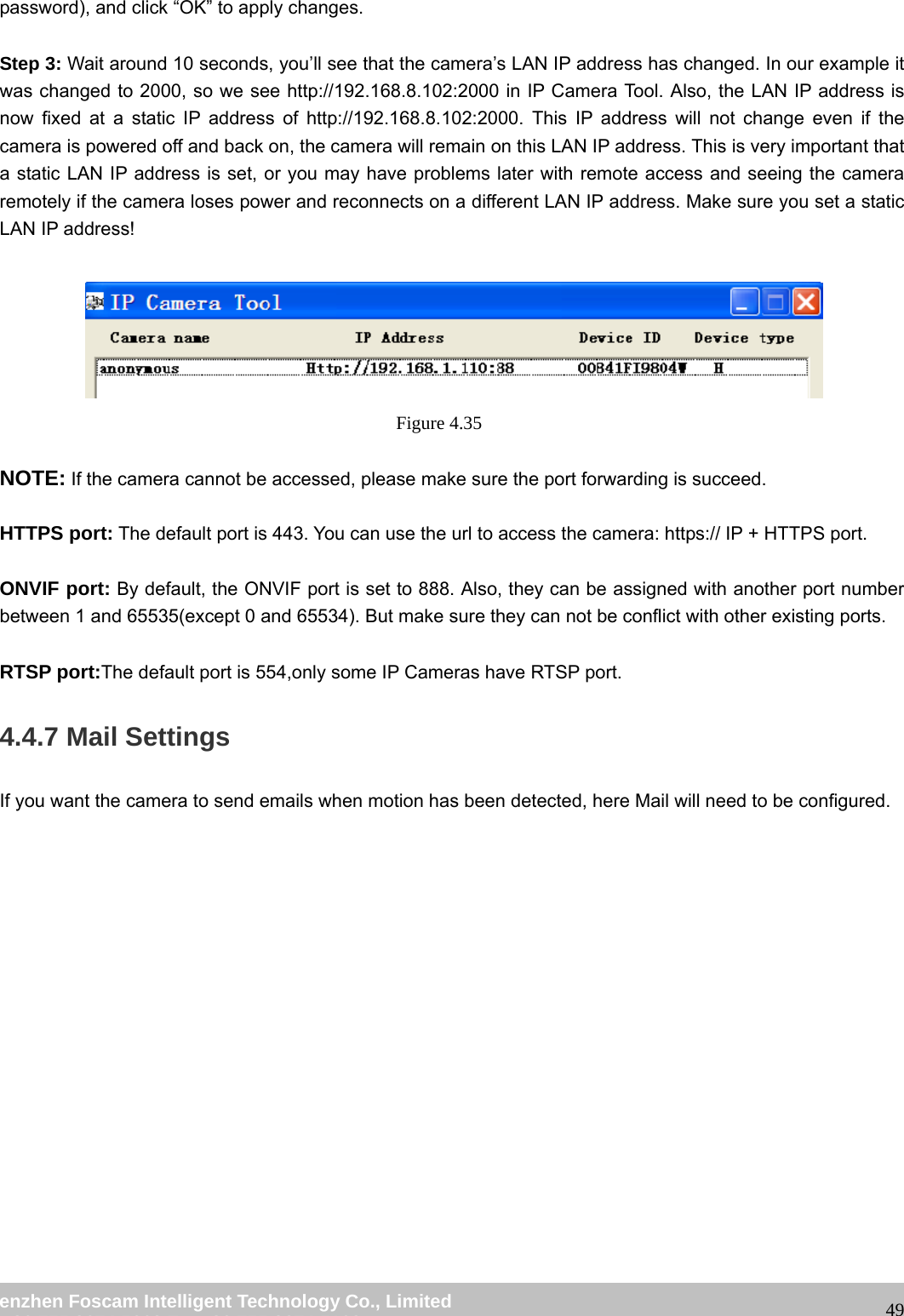
                                                        wwwwww..ffoossccaamm..ccoomm  SShheennzzhheenn  FFoossccaamm  IInntteelllliiggeenntt  TTeecchhnnoollooggyy  CCoo..,,  LLiimmiitteedd  TTeell::  8866  775555  22667744  55666688  FFaaxx::  8866  775555  22667744  55116688                                                                                                                   49password), and click “OK” to apply changes.    Step 3: Wait around 10 seconds, you’ll see that the camera’s LAN IP address has changed. In our example it was changed to 2000, so we see http://192.168.8.102:2000 in IP Camera Tool. Also, the LAN IP address is now fixed at a static IP address of http://192.168.8.102:2000. This IP address will not change even if the camera is powered off and back on, the camera will remain on this LAN IP address. This is very important that a static LAN IP address is set, or you may have problems later with remote access and seeing the camera remotely if the camera loses power and reconnects on a different LAN IP address. Make sure you set a static LAN IP address!   Figure 4.35   NOTE: If the camera cannot be accessed, please make sure the port forwarding is succeed.  HTTPS port: The default port is 443. You can use the url to access the camera: https:// IP + HTTPS port.  ONVIF port: By default, the ONVIF port is set to 888. Also, they can be assigned with another port number between 1 and 65535(except 0 and 65534). But make sure they can not be conflict with other existing ports.  RTSP port:The default port is 554,only some IP Cameras have RTSP port. 4.4.7 Mail Settings If you want the camera to send emails when motion has been detected, here Mail will need to be configured.
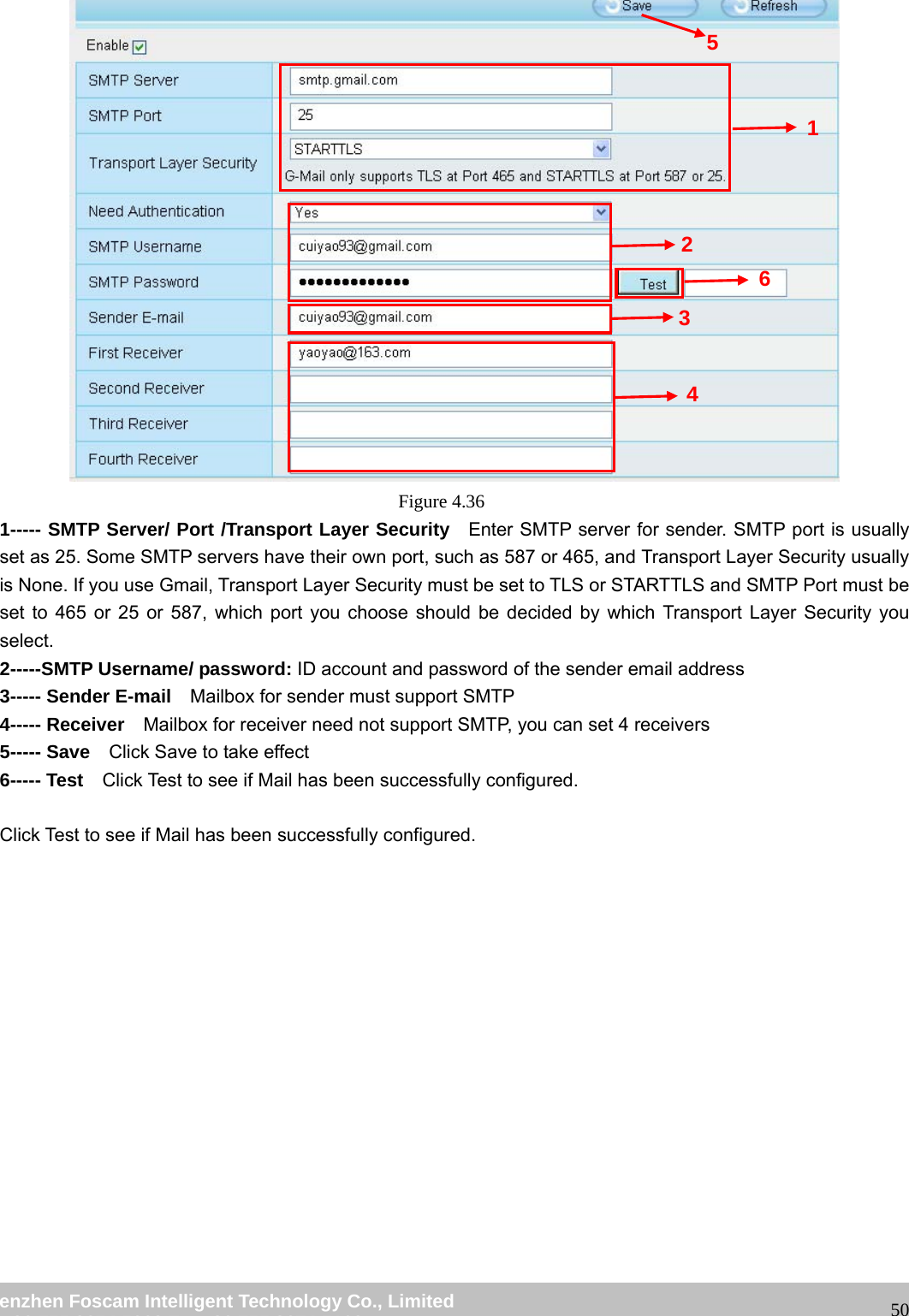
                                                        wwwwww..ffoossccaamm..ccoomm  SShheennzzhheenn  FFoossccaamm  IInntteelllliiggeenntt  TTeecchhnnoollooggyy  CCoo..,,  LLiimmiitteedd  TTeell::  8866  775555  22667744  55666688  FFaaxx::  8866  775555  22667744  55116688                                                                                                                   50 Figure 4.36  1----- SMTP Server/ Port /Transport Layer Security    Enter SMTP server for sender. SMTP port is usually set as 25. Some SMTP servers have their own port, such as 587 or 465, and Transport Layer Security usually is None. If you use Gmail, Transport Layer Security must be set to TLS or STARTTLS and SMTP Port must be set to 465 or 25 or 587, which port you choose should be decided by which Transport Layer Security you select. 2-----SMTP Username/ password: ID account and password of the sender email address 3----- Sender E-mail    Mailbox for sender must support SMTP 4----- Receiver    Mailbox for receiver need not support SMTP, you can set 4 receivers     5----- Save    Click Save to take effect 6----- Test    Click Test to see if Mail has been successfully configured.  Click Test to see if Mail has been successfully configured.    1  2 3  4 5 6
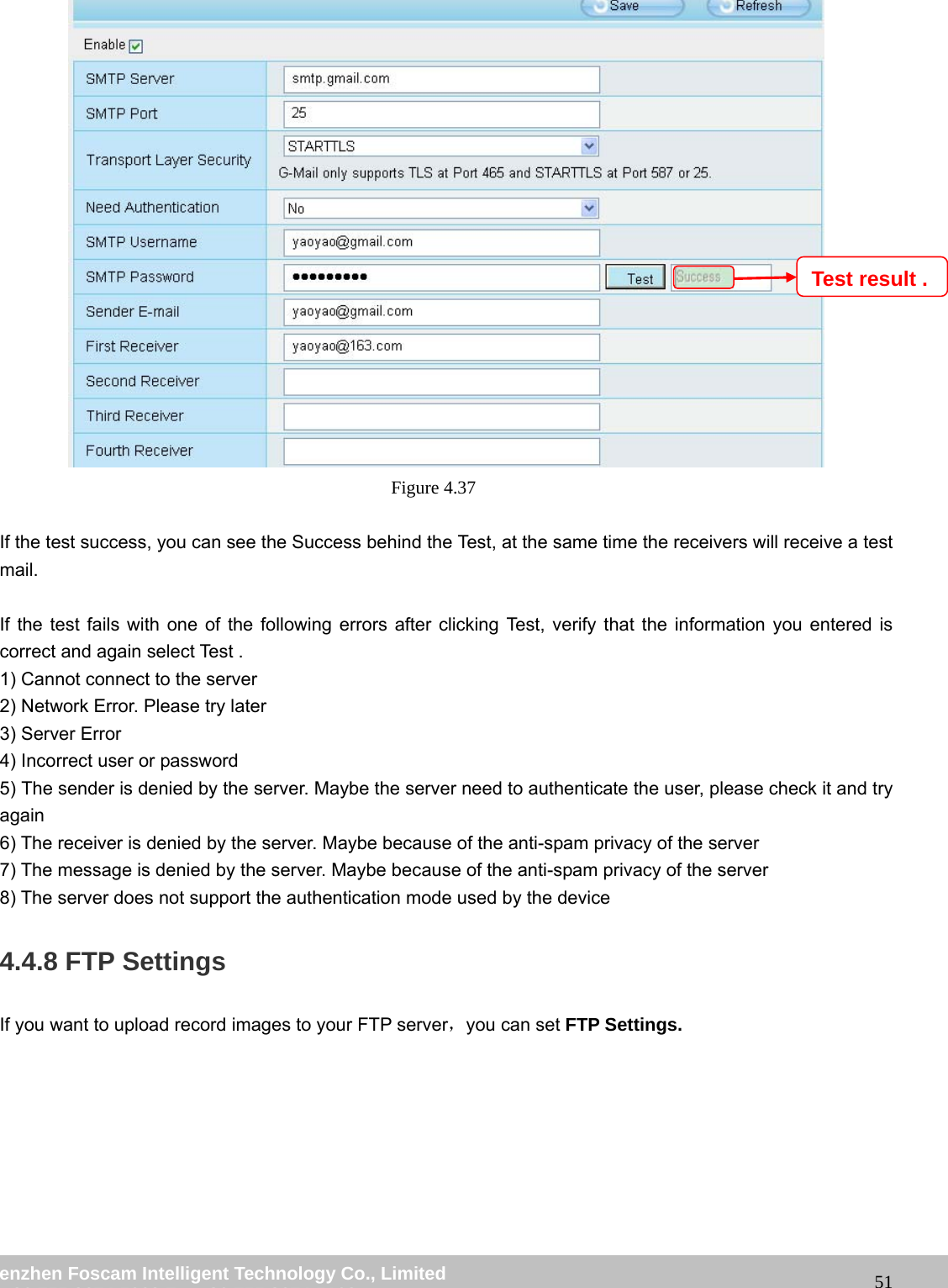
                                                        wwwwww..ffoossccaamm..ccoomm  SShheennzzhheenn  FFoossccaamm  IInntteelllliiggeenntt  TTeecchhnnoollooggyy  CCoo..,,  LLiimmiitteedd  TTeell::  8866  775555  22667744  55666688  FFaaxx::  8866  775555  22667744  55116688                                                                                                                   51 Figure 4.37   If the test success, you can see the Success behind the Test, at the same time the receivers will receive a test mail.  If the test fails with one of the following errors after clicking Test, verify that the information you entered is correct and again select Test . 1) Cannot connect to the server 2) Network Error. Please try later 3) Server Error 4) Incorrect user or password 5) The sender is denied by the server. Maybe the server need to authenticate the user, please check it and try again 6) The receiver is denied by the server. Maybe because of the anti-spam privacy of the server 7) The message is denied by the server. Maybe because of the anti-spam privacy of the server 8) The server does not support the authentication mode used by the device 4.4.8 FTP Settings If you want to upload record images to your FTP server,you can set FTP Settings.  Test result .
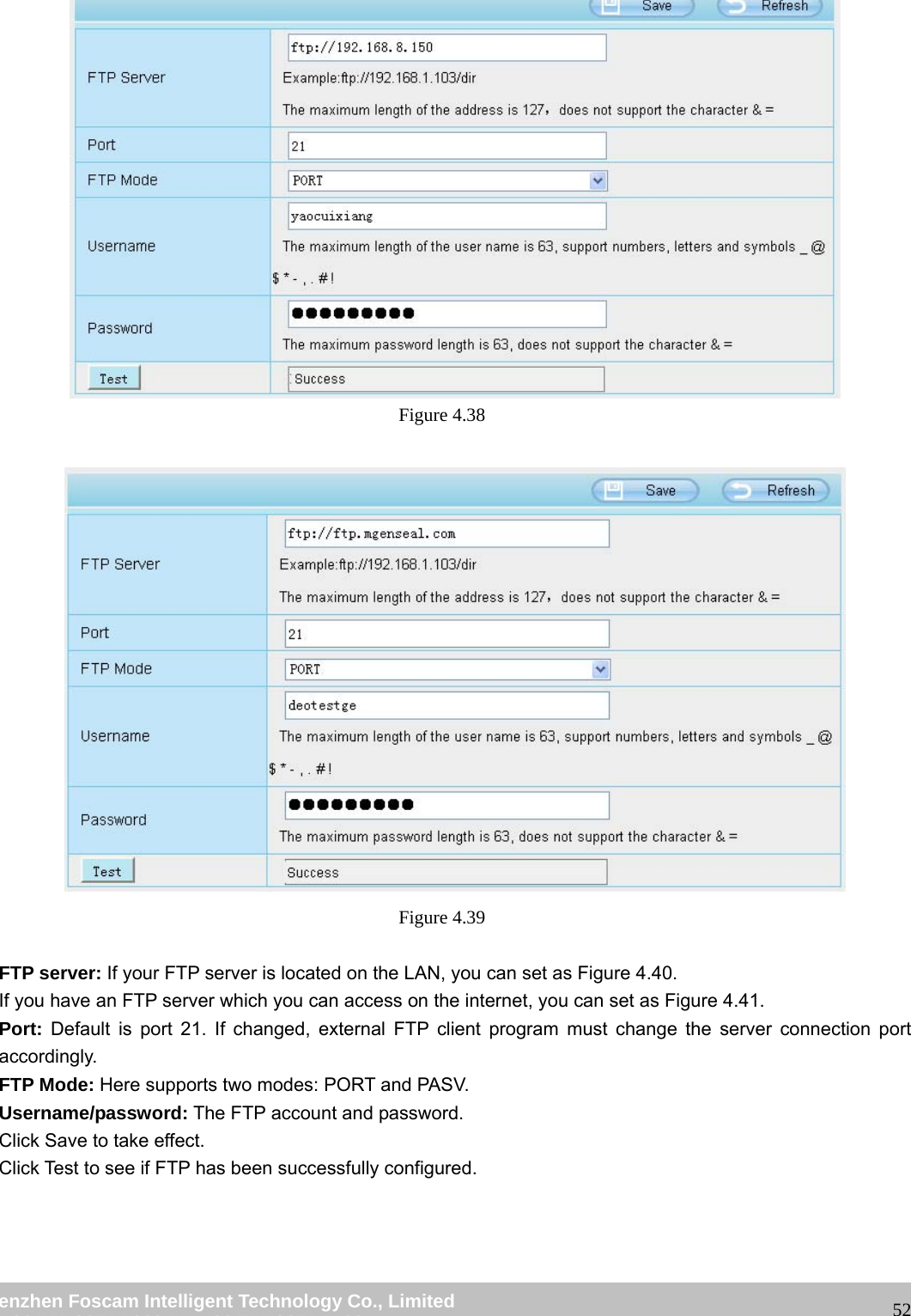
                                                        wwwwww..ffoossccaamm..ccoomm  SShheennzzhheenn  FFoossccaamm  IInntteelllliiggeenntt  TTeecchhnnoollooggyy  CCoo..,,  LLiimmiitteedd  TTeell::  8866  775555  22667744  55666688  FFaaxx::  8866  775555  22667744  55116688                                                                                                                   52 Figure 4.38    Figure 4.39   FTP server: If your FTP server is located on the LAN, you can set as Figure 4.40.   If you have an FTP server which you can access on the internet, you can set as Figure 4.41.   Port: Default is port 21. If changed, external FTP client program must change the server connection port accordingly. FTP Mode: Here supports two modes: PORT and PASV. Username/password: The FTP account and password. Click Save to take effect. Click Test to see if FTP has been successfully configured.
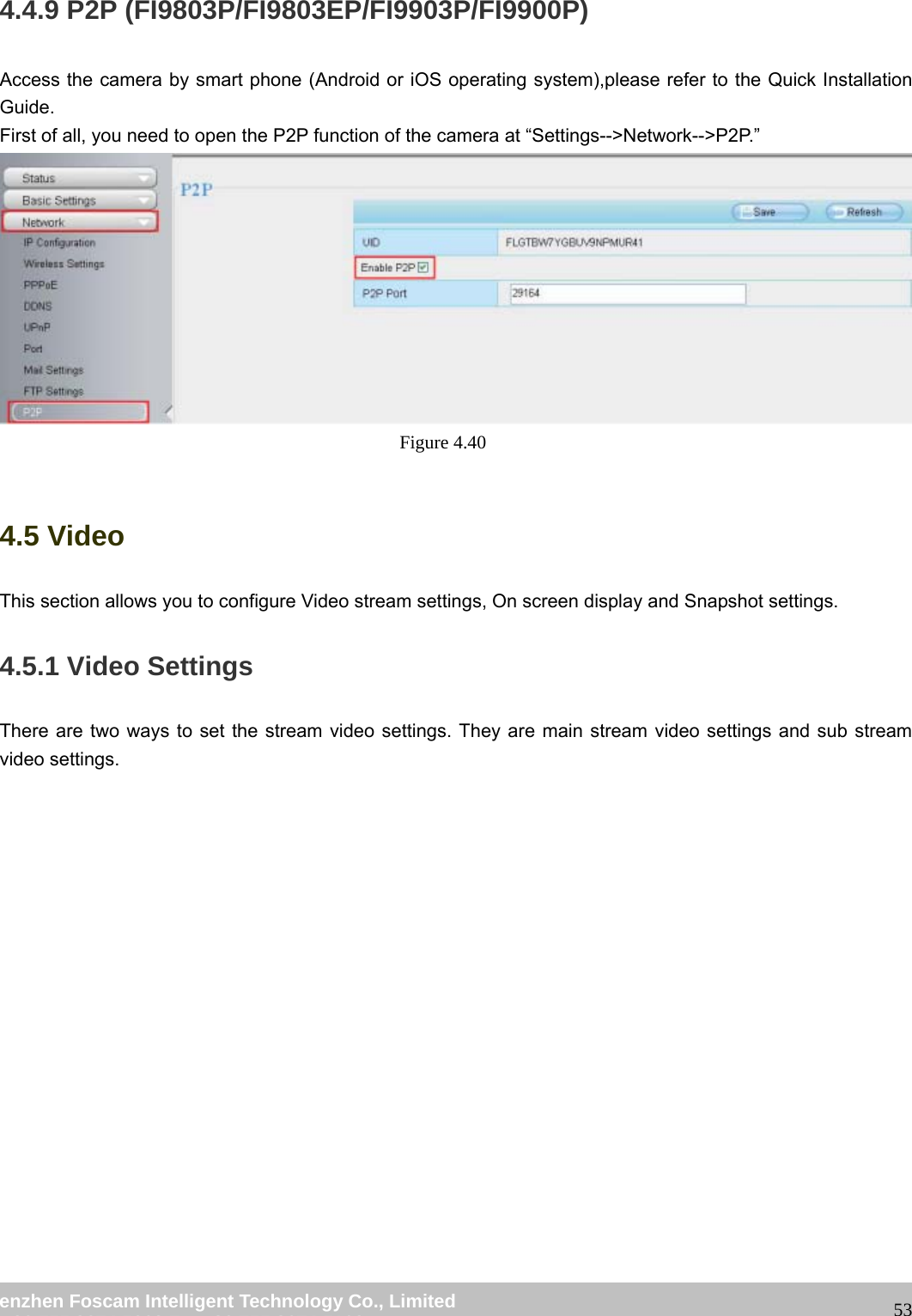
                                                        wwwwww..ffoossccaamm..ccoomm  SShheennzzhheenn  FFoossccaamm  IInntteelllliiggeenntt  TTeecchhnnoollooggyy  CCoo..,,  LLiimmiitteedd  TTeell::  8866  775555  22667744  55666688  FFaaxx::  8866  775555  22667744  55116688                                                                                                                   534.4.9 P2P (FI9803P/FI9803EP/FI9903P/FI9900P)  Access the camera by smart phone (Android or iOS operating system),please refer to the Quick Installation Guide. First of all, you need to open the P2P function of the camera at “Settings-->Network-->P2P.”    Figure 4.40   4.5 Video This section allows you to configure Video stream settings, On screen display and Snapshot settings. 4.5.1 Video Settings There are two ways to set the stream video settings. They are main stream video settings and sub stream video settings.
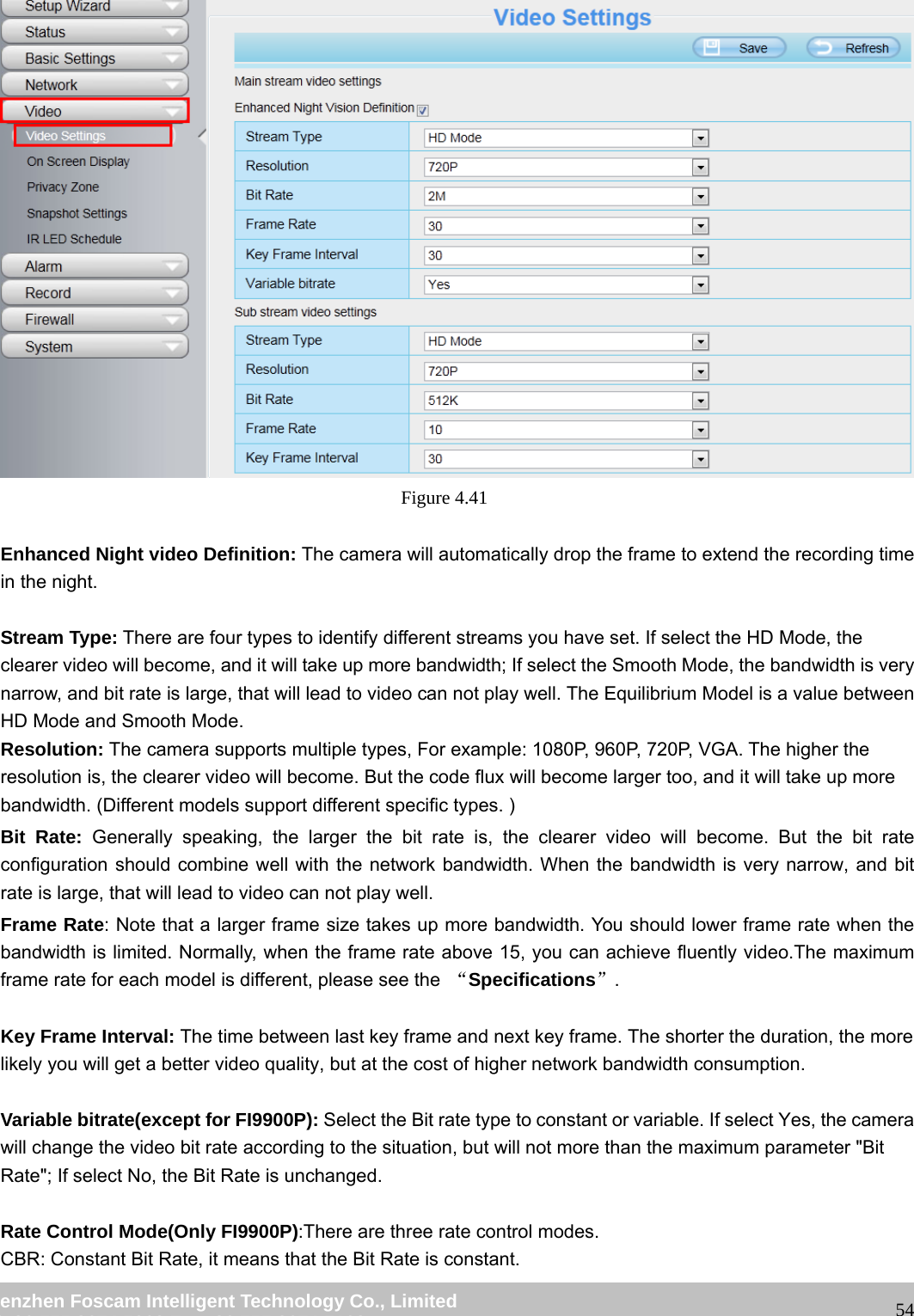
                                                        wwwwww..ffoossccaamm..ccoomm  SShheennzzhheenn  FFoossccaamm  IInntteelllliiggeenntt  TTeecchhnnoollooggyy  CCoo..,,  LLiimmiitteedd  TTeell::  8866  775555  22667744  55666688  FFaaxx::  8866  775555  22667744  55116688                                                                                                                   54 Figure 4.41   Enhanced Night video Definition: The camera will automatically drop the frame to extend the recording time in the night.  Stream Type: There are four types to identify different streams you have set. If select the HD Mode, the clearer video will become, and it will take up more bandwidth; If select the Smooth Mode, the bandwidth is very narrow, and bit rate is large, that will lead to video can not play well. The Equilibrium Model is a value between HD Mode and Smooth Mode. Resolution: The camera supports multiple types, For example: 1080P, 960P, 720P, VGA. The higher the resolution is, the clearer video will become. But the code flux will become larger too, and it will take up more bandwidth. (Different models support different specific types. ) Bit Rate: Generally speaking, the larger the bit rate is, the clearer video will become. But the bit rate configuration should combine well with the network bandwidth. When the bandwidth is very narrow, and bit rate is large, that will lead to video can not play well.   Frame Rate: Note that a larger frame size takes up more bandwidth. You should lower frame rate when the bandwidth is limited. Normally, when the frame rate above 15, you can achieve fluently video.The maximum frame rate for each model is different, please see the  “Specifications”.  Key Frame Interval: The time between last key frame and next key frame. The shorter the duration, the more likely you will get a better video quality, but at the cost of higher network bandwidth consumption.  Variable bitrate(except for FI9900P): Select the Bit rate type to constant or variable. If select Yes, the camera will change the video bit rate according to the situation, but will not more than the maximum parameter "Bit Rate"; If select No, the Bit Rate is unchanged.  Rate Control Mode(Only FI9900P):There are three rate control modes. CBR: Constant Bit Rate, it means that the Bit Rate is constant.
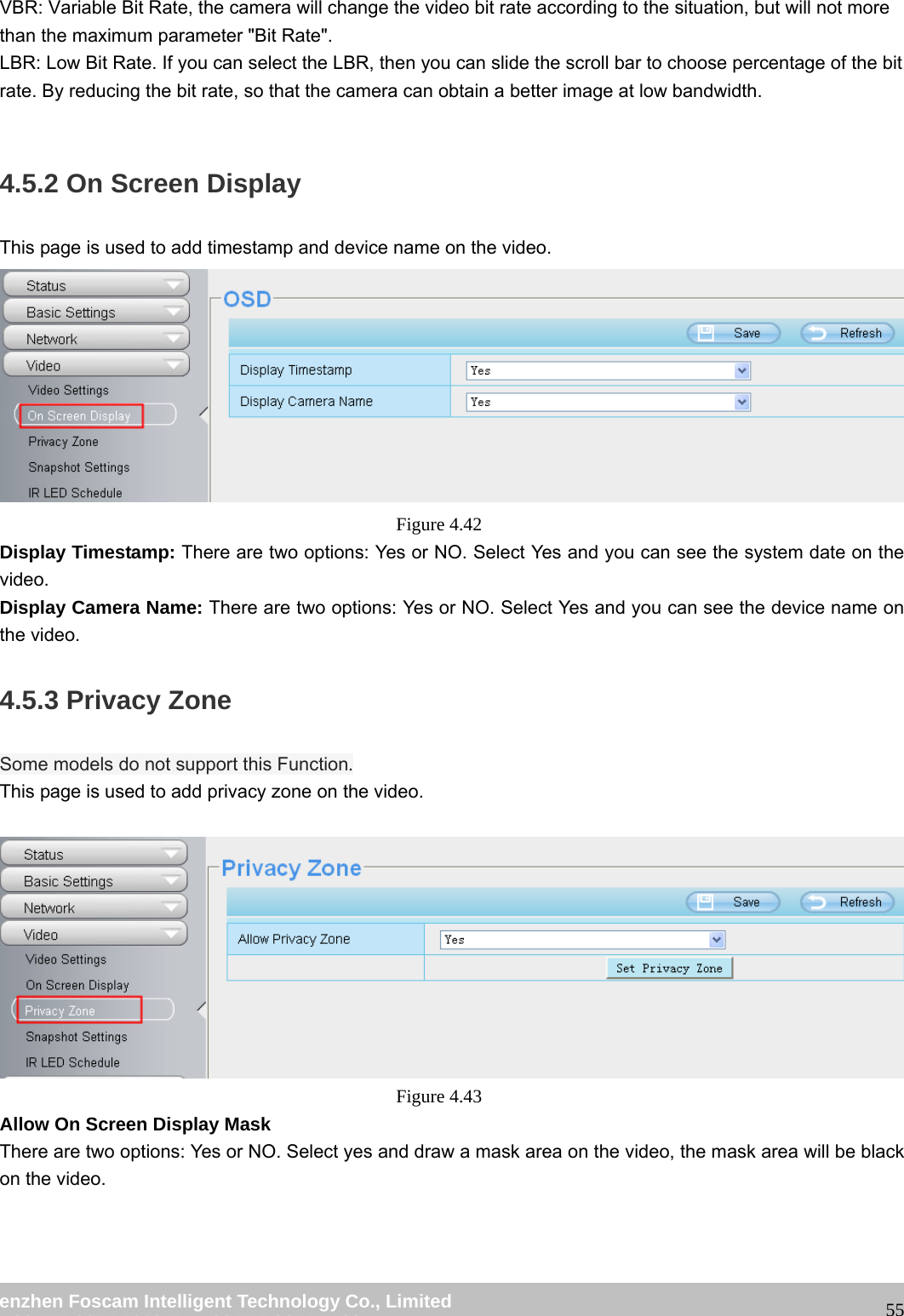
                                                        wwwwww..ffoossccaamm..ccoomm  SShheennzzhheenn  FFoossccaamm  IInntteelllliiggeenntt  TTeecchhnnoollooggyy  CCoo..,,  LLiimmiitteedd  TTeell::  8866  775555  22667744  55666688  FFaaxx::  8866  775555  22667744  55116688                                                                                                                   55VBR: Variable Bit Rate, the camera will change the video bit rate according to the situation, but will not more than the maximum parameter "Bit Rate". LBR: Low Bit Rate. If you can select the LBR, then you can slide the scroll bar to choose percentage of the bit rate. By reducing the bit rate, so that the camera can obtain a better image at low bandwidth.  4.5.2 On Screen Display This page is used to add timestamp and device name on the video.  Figure 4.42  Display Timestamp: There are two options: Yes or NO. Select Yes and you can see the system date on the video. Display Camera Name: There are two options: Yes or NO. Select Yes and you can see the device name on the video. 4.5.3 Privacy Zone Some models do not support this Function. This page is used to add privacy zone on the video.   Figure 4.43  Allow On Screen Display Mask There are two options: Yes or NO. Select yes and draw a mask area on the video, the mask area will be black on the video.
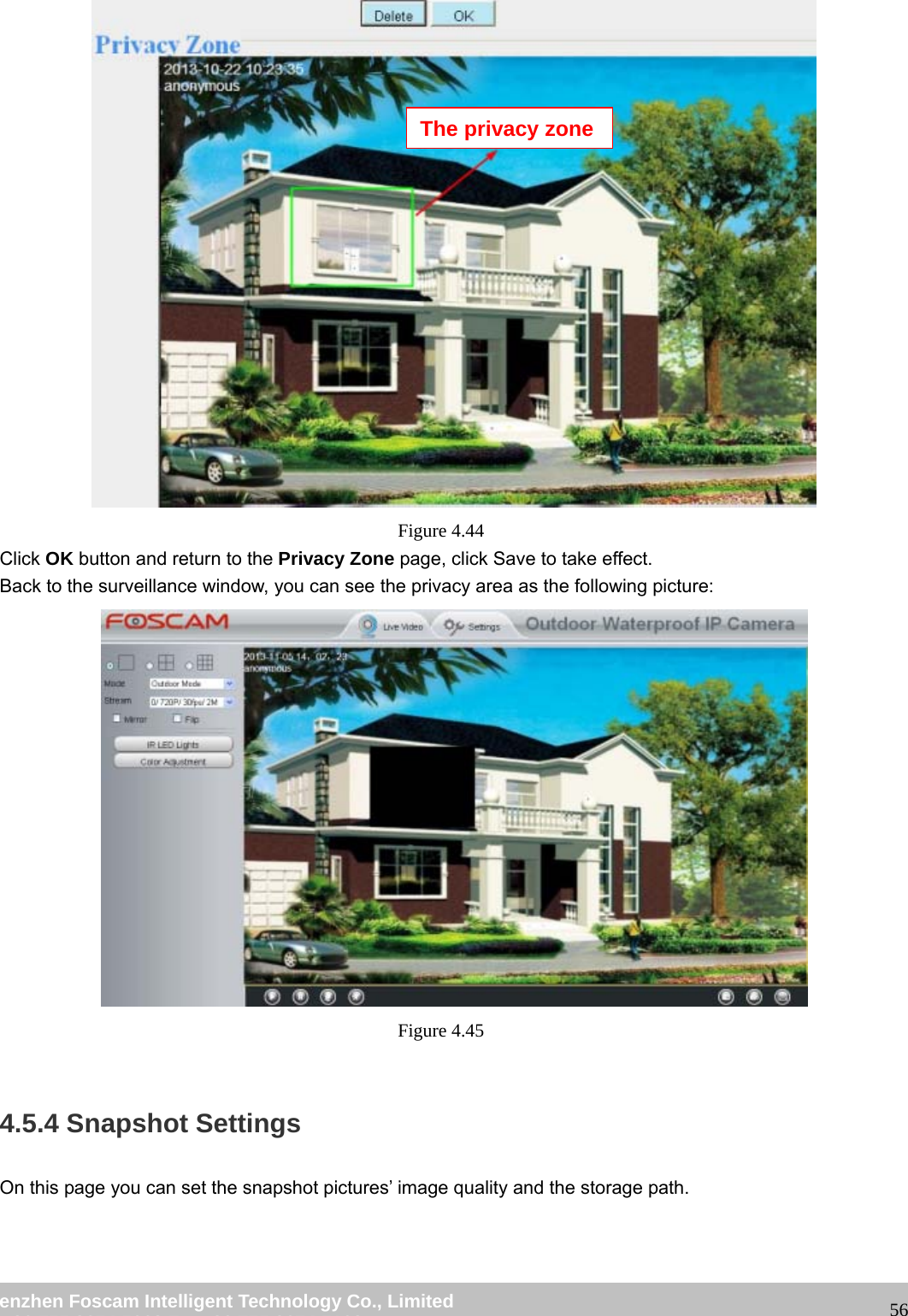
                                                        wwwwww..ffoossccaamm..ccoomm  SShheennzzhheenn  FFoossccaamm  IInntteelllliiggeenntt  TTeecchhnnoollooggyy  CCoo..,,  LLiimmiitteedd  TTeell::  8866  775555  22667744  55666688  FFaaxx::  8866  775555  22667744  55116688                                                                                                                   56 Figure 4.44  Click OK button and return to the Privacy Zone page, click Save to take effect. Back to the surveillance window, you can see the privacy area as the following picture:  Figure 4.45   4.5.4 Snapshot Settings On this page you can set the snapshot pictures’ image quality and the storage path.  The privacy zone
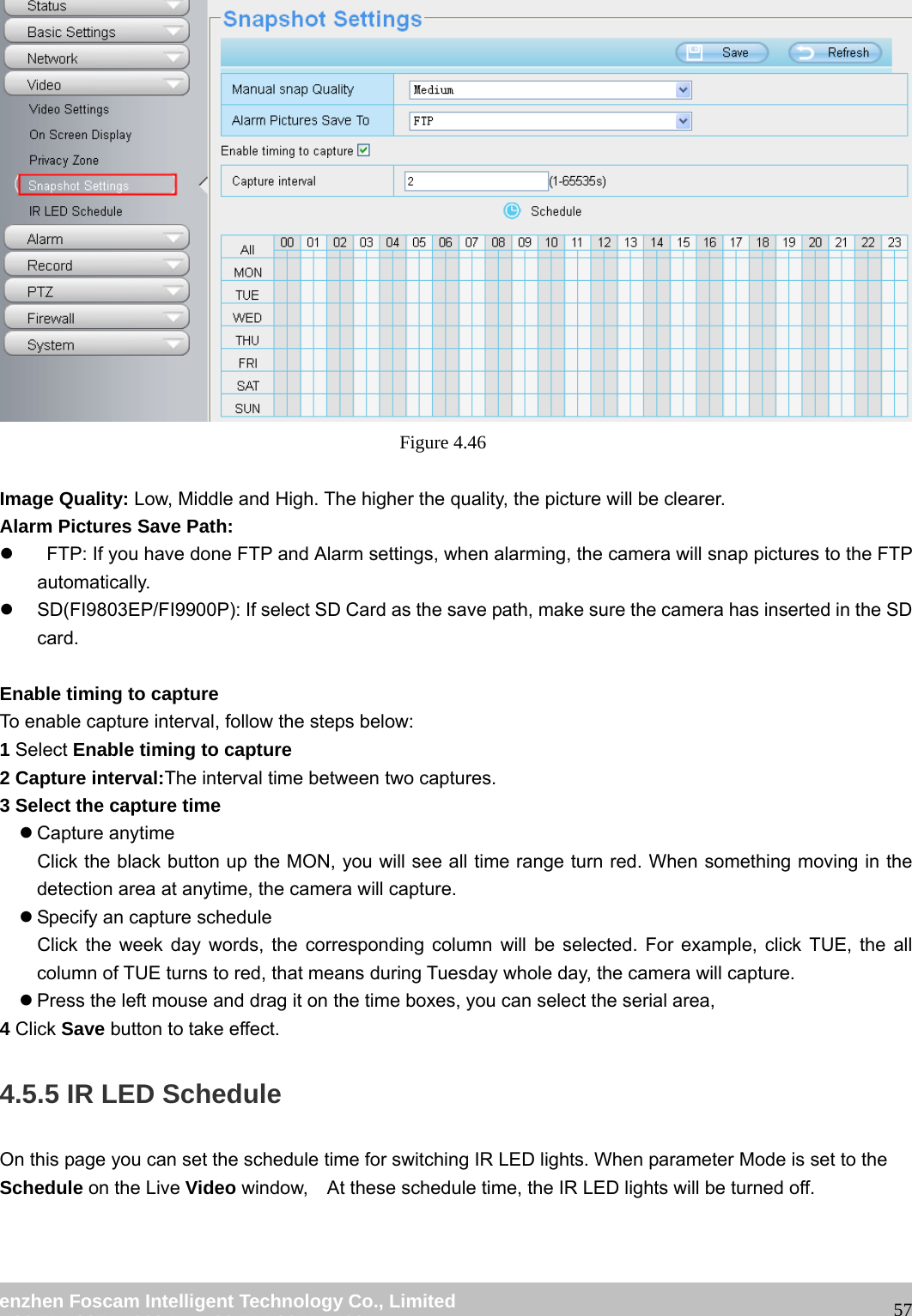
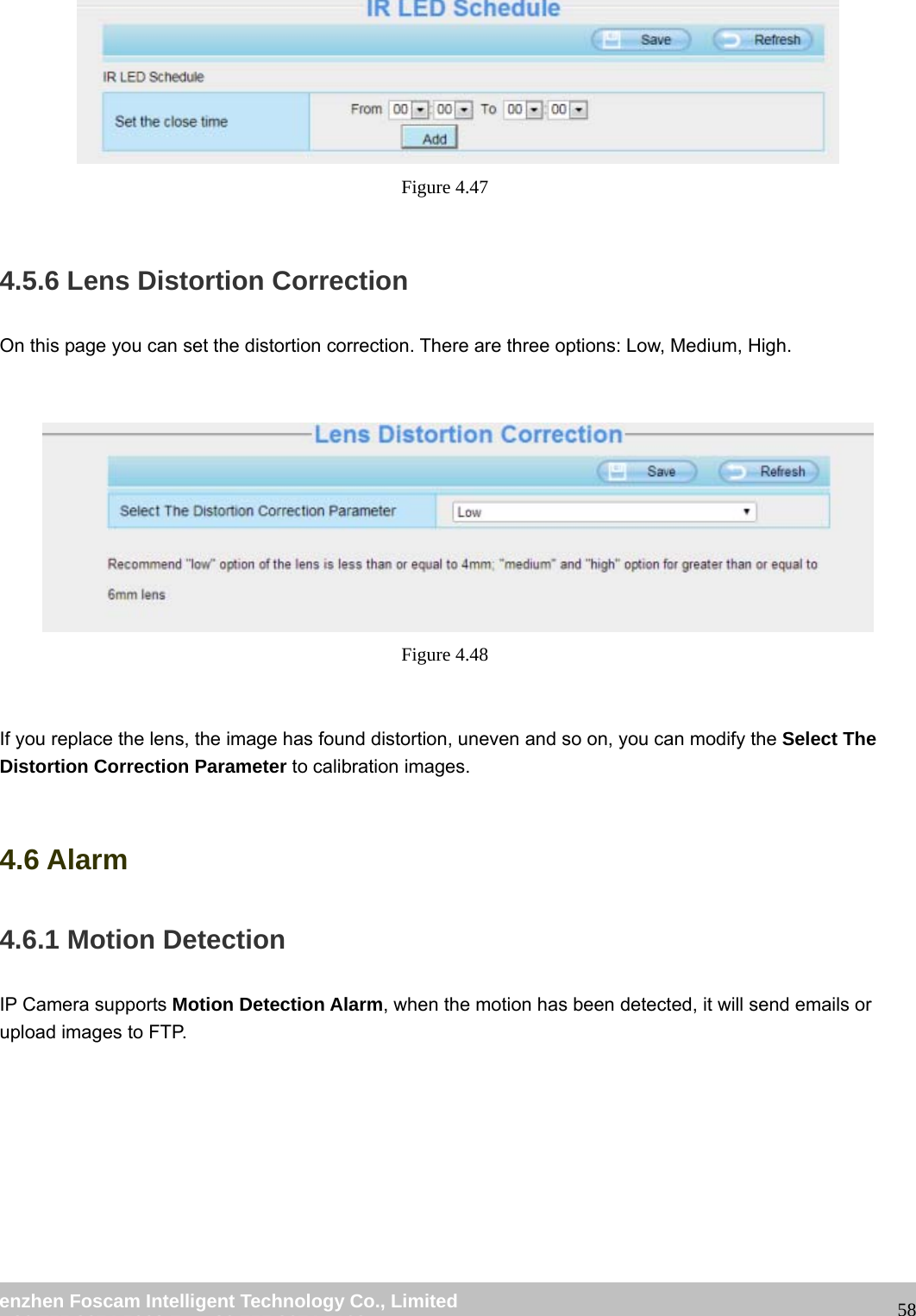
                                                        wwwwww..ffoossccaamm..ccoomm  SShheennzzhheenn  FFoossccaamm  IInntteelllliiggeenntt  TTeecchhnnoollooggyy  CCoo..,,  LLiimmiitteedd  TTeell::  8866  775555  22667744  55666688  FFaaxx::  8866  775555  22667744  55116688                                                                                                                   57 Figure 4.46   Image Quality: Low, Middle and High. The higher the quality, the picture will be clearer. Alarm Pictures Save Path: z  FTP: If you have done FTP and Alarm settings, when alarming, the camera will snap pictures to the FTP automatically. z  SD(FI9803EP/FI9900P): If select SD Card as the save path, make sure the camera has inserted in the SD card.  Enable timing to capture To enable capture interval, follow the steps below: 1 Select Enable timing to capture 2 Capture interval:The interval time between two captures.   3 Select the capture time z Capture anytime Click the black button up the MON, you will see all time range turn red. When something moving in the detection area at anytime, the camera will capture. z Specify an capture schedule Click the week day words, the corresponding column will be selected. For example, click TUE, the all column of TUE turns to red, that means during Tuesday whole day, the camera will capture. z Press the left mouse and drag it on the time boxes, you can select the serial area, 4 Click Save button to take effect.   4.5.5 IR LED Schedule On this page you can set the schedule time for switching IR LED lights. When parameter Mode is set to the Schedule on the Live Video window,    At these schedule time, the IR LED lights will be turned off.
                                                        wwwwww..ffoossccaamm..ccoomm  SShheennzzhheenn  FFoossccaamm  IInntteelllliiggeenntt  TTeecchhnnoollooggyy  CCoo..,,  LLiimmiitteedd  TTeell::  8866  775555  22667744  55666688  FFaaxx::  8866  775555  22667744  55116688                                                                                                                   58 Figure 4.47   4.5.6 Lens Distortion Correction On this page you can set the distortion correction. There are three options: Low, Medium, High.    Figure 4.48    If you replace the lens, the image has found distortion, uneven and so on, you can modify the Select The Distortion Correction Parameter to calibration images.  4.6 Alarm 4.6.1 Motion Detection IP Camera supports Motion Detection Alarm, when the motion has been detected, it will send emails or upload images to FTP.
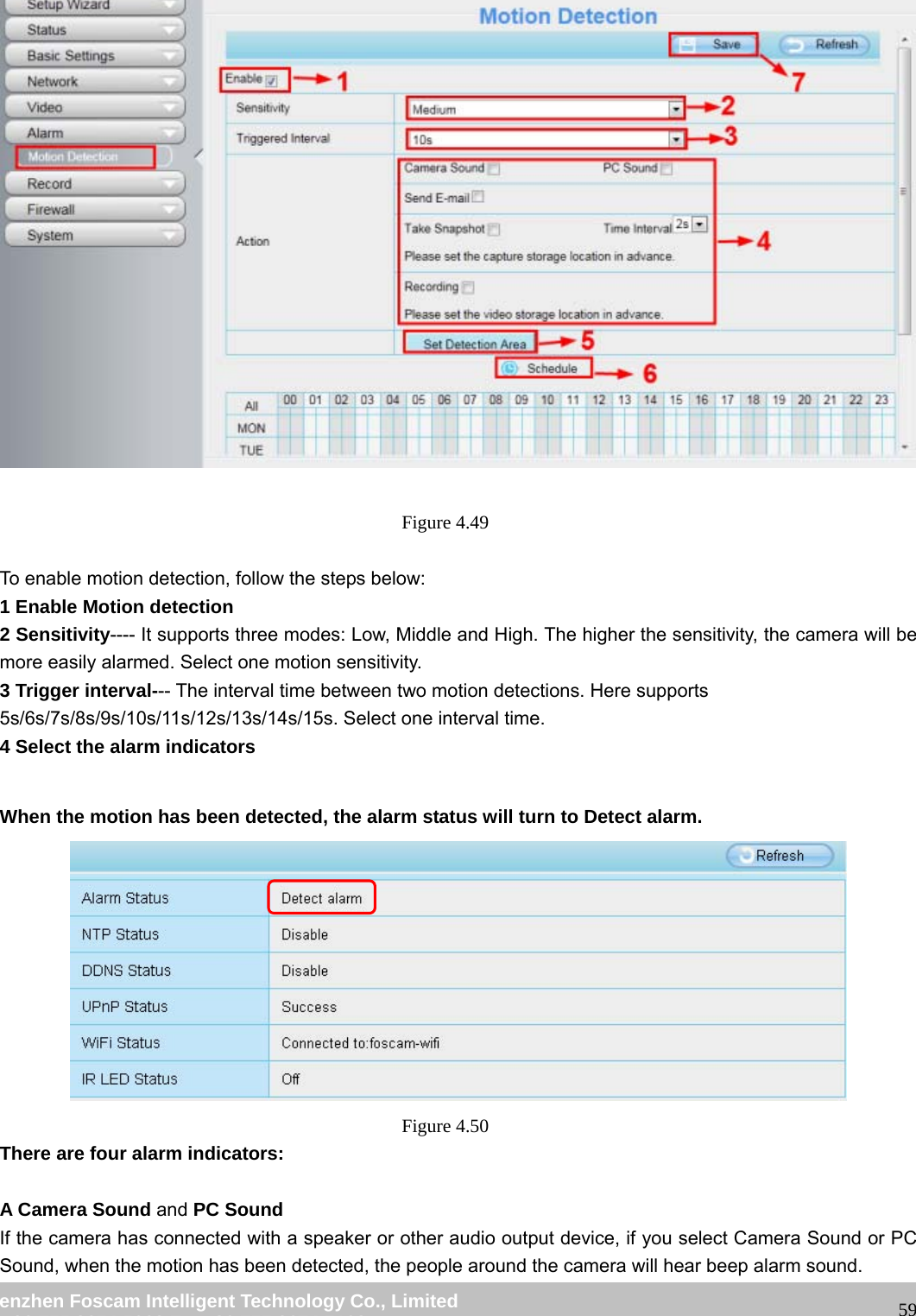
                                                        wwwwww..ffoossccaamm..ccoomm  SShheennzzhheenn  FFoossccaamm  IInntteelllliiggeenntt  TTeecchhnnoollooggyy  CCoo..,,  LLiimmiitteedd  TTeell::  8866  775555  22667744  55666688  FFaaxx::  8866  775555  22667744  55116688                                                                                                                   59  Figure 4.49   To enable motion detection, follow the steps below: 1 Enable Motion detection 2 Sensitivity---- It supports three modes: Low, Middle and High. The higher the sensitivity, the camera will be more easily alarmed. Select one motion sensitivity. 3 Trigger interval--- The interval time between two motion detections. Here supports 5s/6s/7s/8s/9s/10s/11s/12s/13s/14s/15s. Select one interval time. 4 Select the alarm indicators  When the motion has been detected, the alarm status will turn to Detect alarm.    Figure 4.50  There are four alarm indicators:  A Camera Sound and PC Sound If the camera has connected with a speaker or other audio output device, if you select Camera Sound or PC Sound, when the motion has been detected, the people around the camera will hear beep alarm sound.
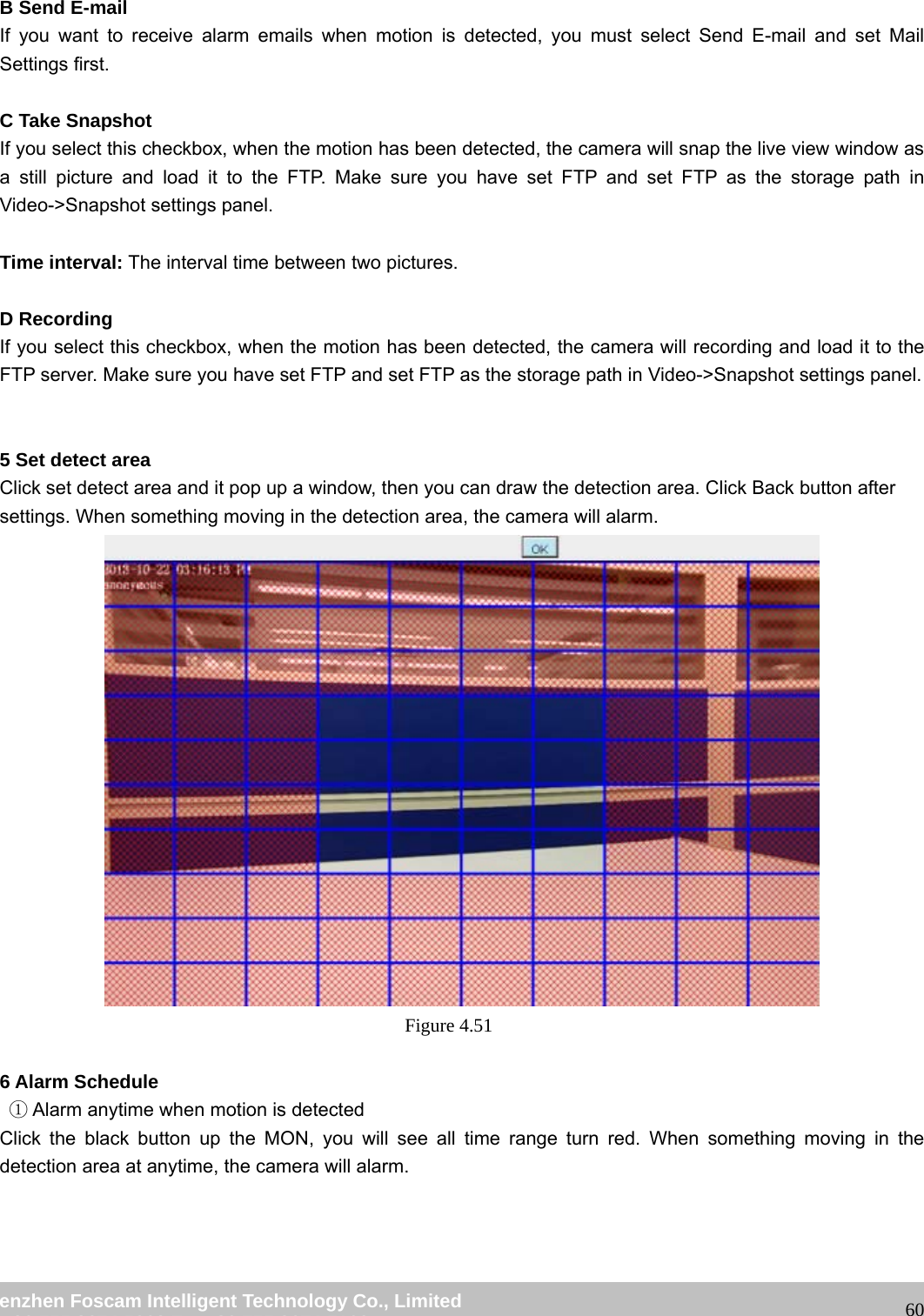
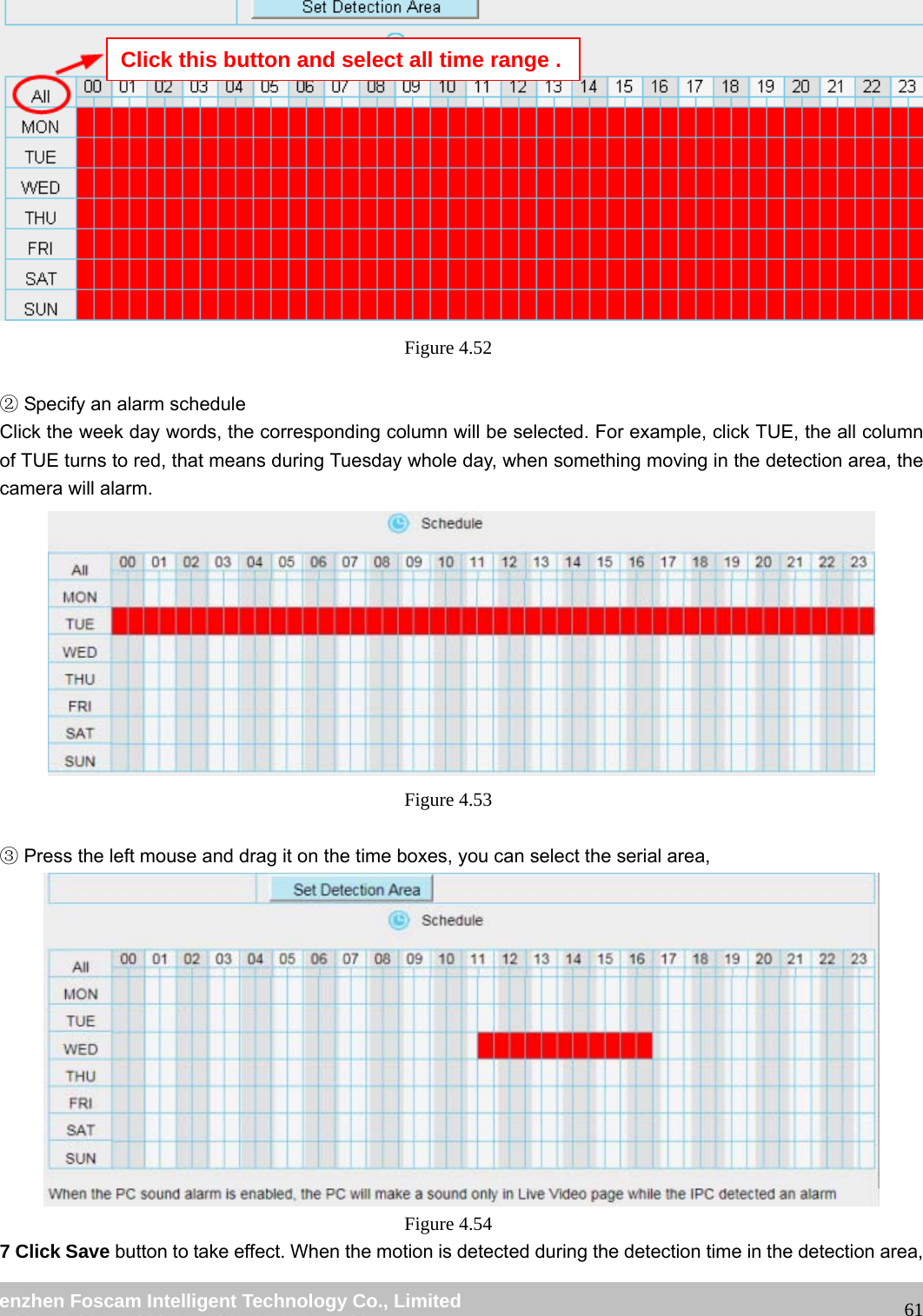
                                                        wwwwww..ffoossccaamm..ccoomm  SShheennzzhheenn  FFoossccaamm  IInntteelllliiggeenntt  TTeecchhnnoollooggyy  CCoo..,,  LLiimmiitteedd  TTeell::  8866  775555  22667744  55666688  FFaaxx::  8866  775555  22667744  55116688                                                                                                                   60 B Send E-mail If you want to receive alarm emails when motion is detected, you must select Send E-mail and set Mail Settings first.    C Take Snapshot If you select this checkbox, when the motion has been detected, the camera will snap the live view window as a still picture and load it to the FTP. Make sure you have set FTP and set FTP as the storage path in Video->Snapshot settings panel.  Time interval: The interval time between two pictures.  D Recording If you select this checkbox, when the motion has been detected, the camera will recording and load it to the FTP server. Make sure you have set FTP and set FTP as the storage path in Video->Snapshot settings panel.   5 Set detect area Click set detect area and it pop up a window, then you can draw the detection area. Click Back button after settings. When something moving in the detection area, the camera will alarm.  Figure 4.51   6 Alarm Schedule    Alarm anytime when ①motion is detected Click the black button up the MON, you will see all time range turn red. When something moving in the detection area at anytime, the camera will alarm.
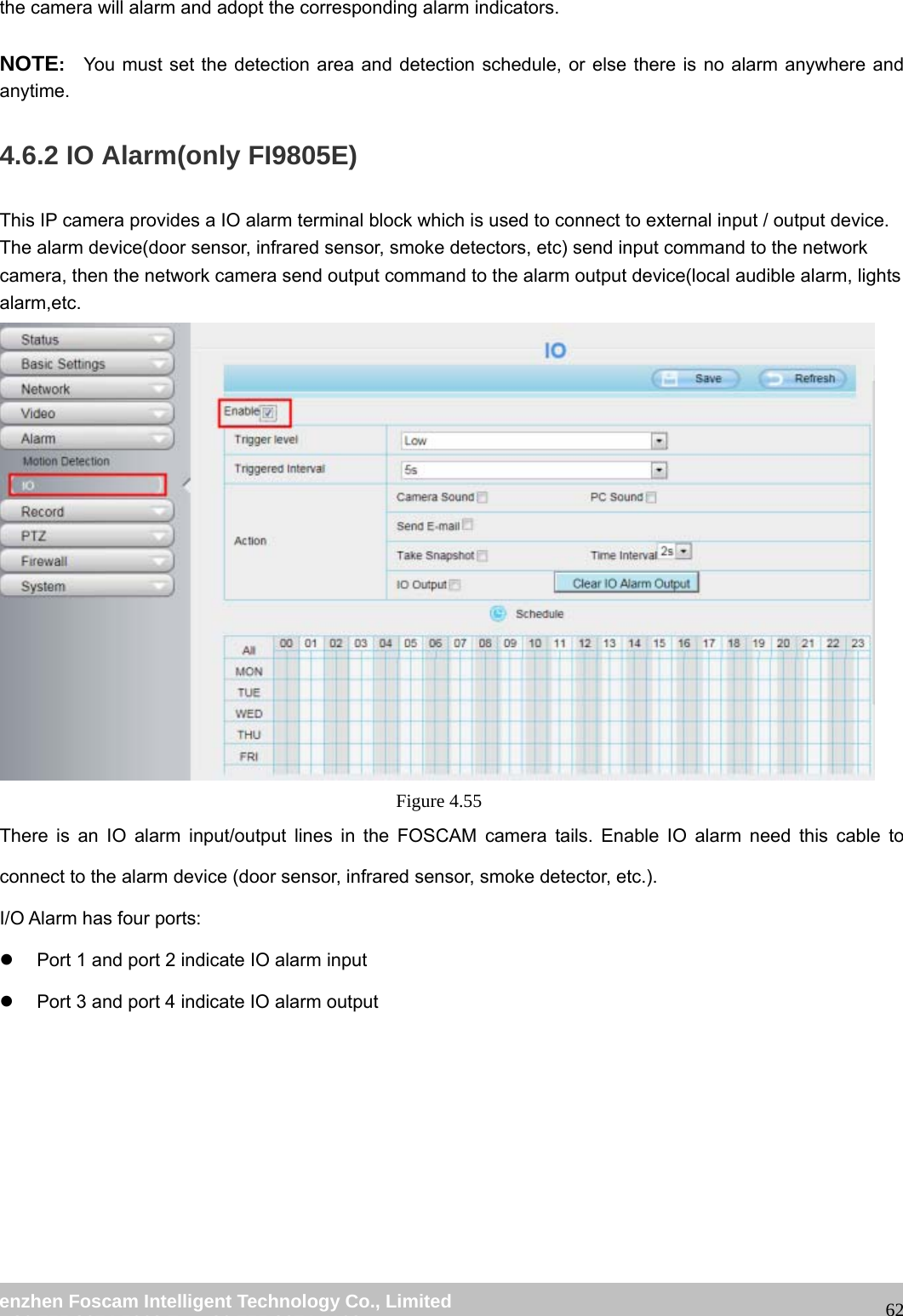
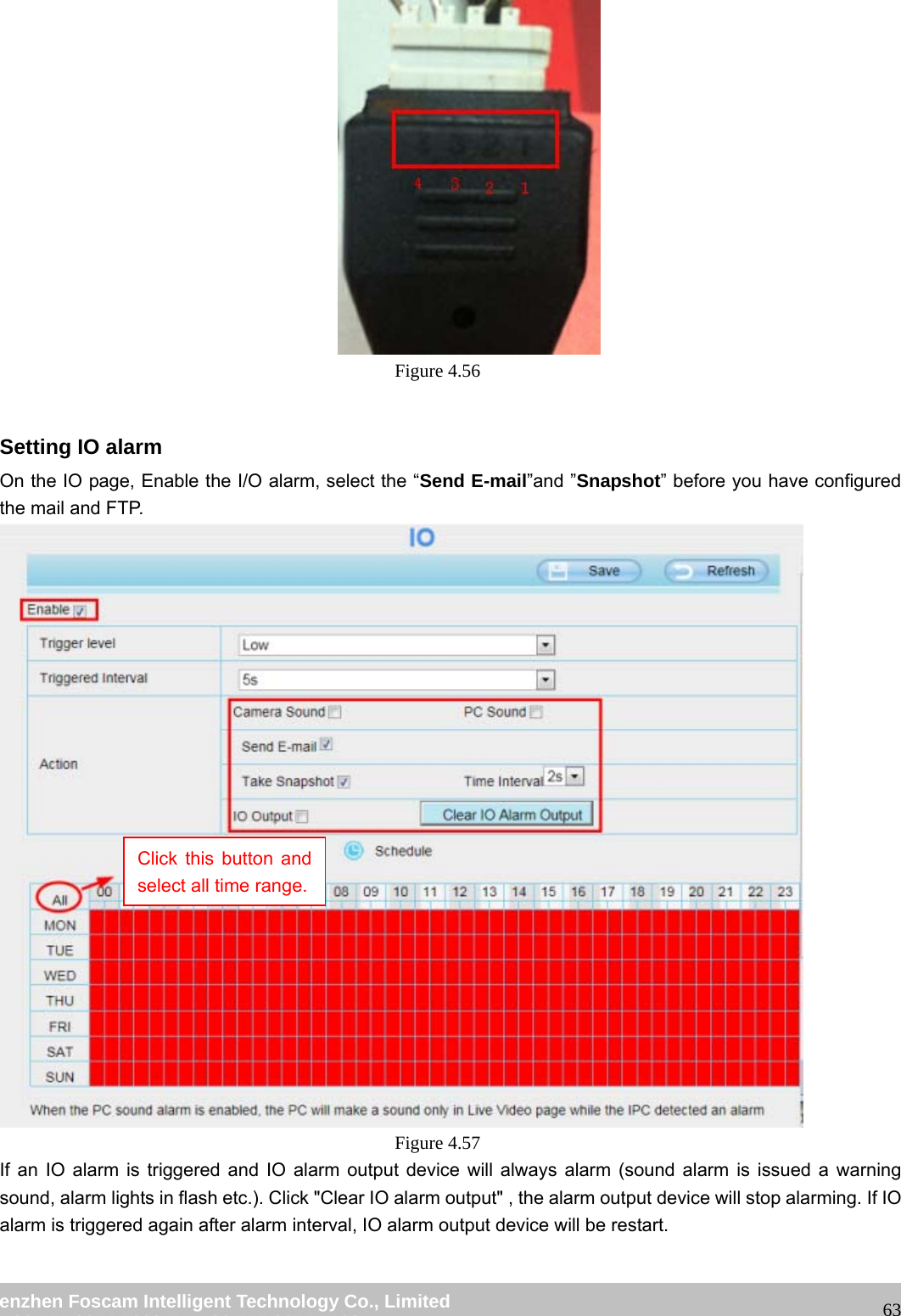
                                                        wwwwww..ffoossccaamm..ccoomm  SShheennzzhheenn  FFoossccaamm  IInntteelllliiggeenntt  TTeecchhnnoollooggyy  CCoo..,,  LLiimmiitteedd  TTeell::  8866  775555  22667744  55666688  FFaaxx::  8866  775555  22667744  55116688                                                                                                                   61 Figure 4.52    Specify an alarm schedule② Click the week day words, the corresponding column will be selected. For example, click TUE, the all column of TUE turns to red, that means during Tuesday whole day, when something moving in the detection area, the camera will alarm.  Figure 4.53    Press the left mouse and drag it on the time boxes, you can select t③he serial area,  Figure 4.54  7 Click Save button to take effect. When the motion is detected during the detection time in the detection area, Click this button and select all time range .
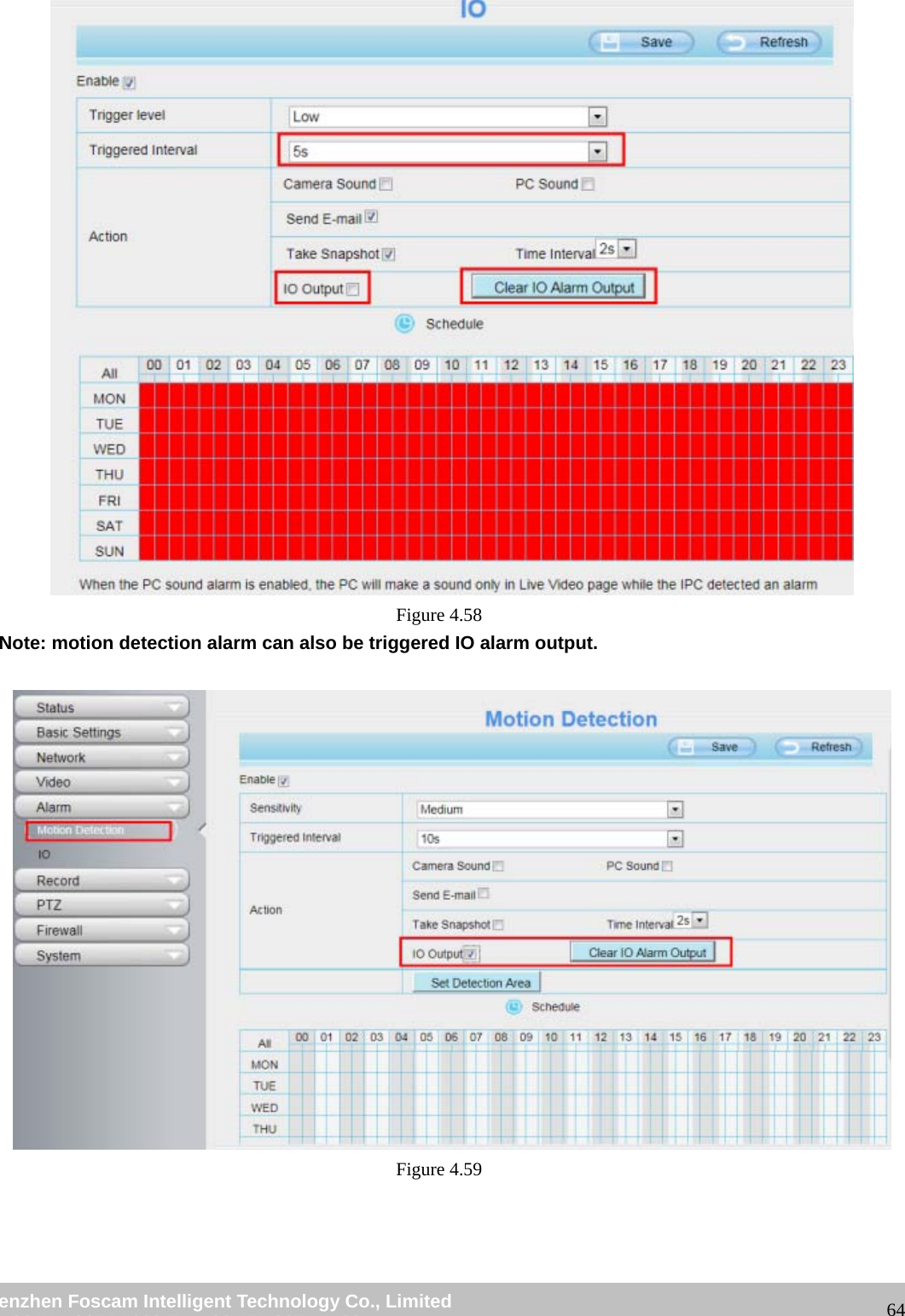
                                                        wwwwww..ffoossccaamm..ccoomm  SShheennzzhheenn  FFoossccaamm  IInntteelllliiggeenntt  TTeecchhnnoollooggyy  CCoo..,,  LLiimmiitteedd  TTeell::  8866  775555  22667744  55666688  FFaaxx::  8866  775555  22667744  55116688                                                                                                                   62the camera will alarm and adopt the corresponding alarm indicators.  NOTE:    You must set the detection area and detection schedule, or else there is no alarm anywhere and anytime. 4.6.2 IO Alarm(only FI9805E) This IP camera provides a IO alarm terminal block which is used to connect to external input / output device.   The alarm device(door sensor, infrared sensor, smoke detectors, etc) send input command to the network camera, then the network camera send output command to the alarm output device(local audible alarm, lights alarm,etc.   Figure 4.55  There is an IO alarm input/output lines in the FOSCAM camera tails. Enable IO alarm need this cable to connect to the alarm device (door sensor, infrared sensor, smoke detector, etc.). I/O Alarm has four ports: z  Port 1 and port 2 indicate IO alarm input z  Port 3 and port 4 indicate IO alarm output
                                                        wwwwww..ffoossccaamm..ccoomm  SShheennzzhheenn  FFoossccaamm  IInntteelllliiggeenntt  TTeecchhnnoollooggyy  CCoo..,,  LLiimmiitteedd  TTeell::  8866  775555  22667744  55666688  FFaaxx::  8866  775555  22667744  55116688                                                                                                                   63 Figure 4.56   Setting IO alarm On the IO page, Enable the I/O alarm, select the “Send E-mail”and ”Snapshot” before you have configured the mail and FTP.  Figure 4.57  If an IO alarm is triggered and IO alarm output device will always alarm (sound alarm is issued a warning sound, alarm lights in flash etc.). Click "Clear IO alarm output" , the alarm output device will stop alarming. If IO alarm is triggered again after alarm interval, IO alarm output device will be restart. Click this button and select all time range.
                                                        wwwwww..ffoossccaamm..ccoomm  SShheennzzhheenn  FFoossccaamm  IInntteelllliiggeenntt  TTeecchhnnoollooggyy  CCoo..,,  LLiimmiitteedd  TTeell::  8866  775555  22667744  55666688  FFaaxx::  8866  775555  22667744  55116688                                                                                                                   64 Figure 4.58  Note: motion detection alarm can also be triggered IO alarm output.   Figure 4.59
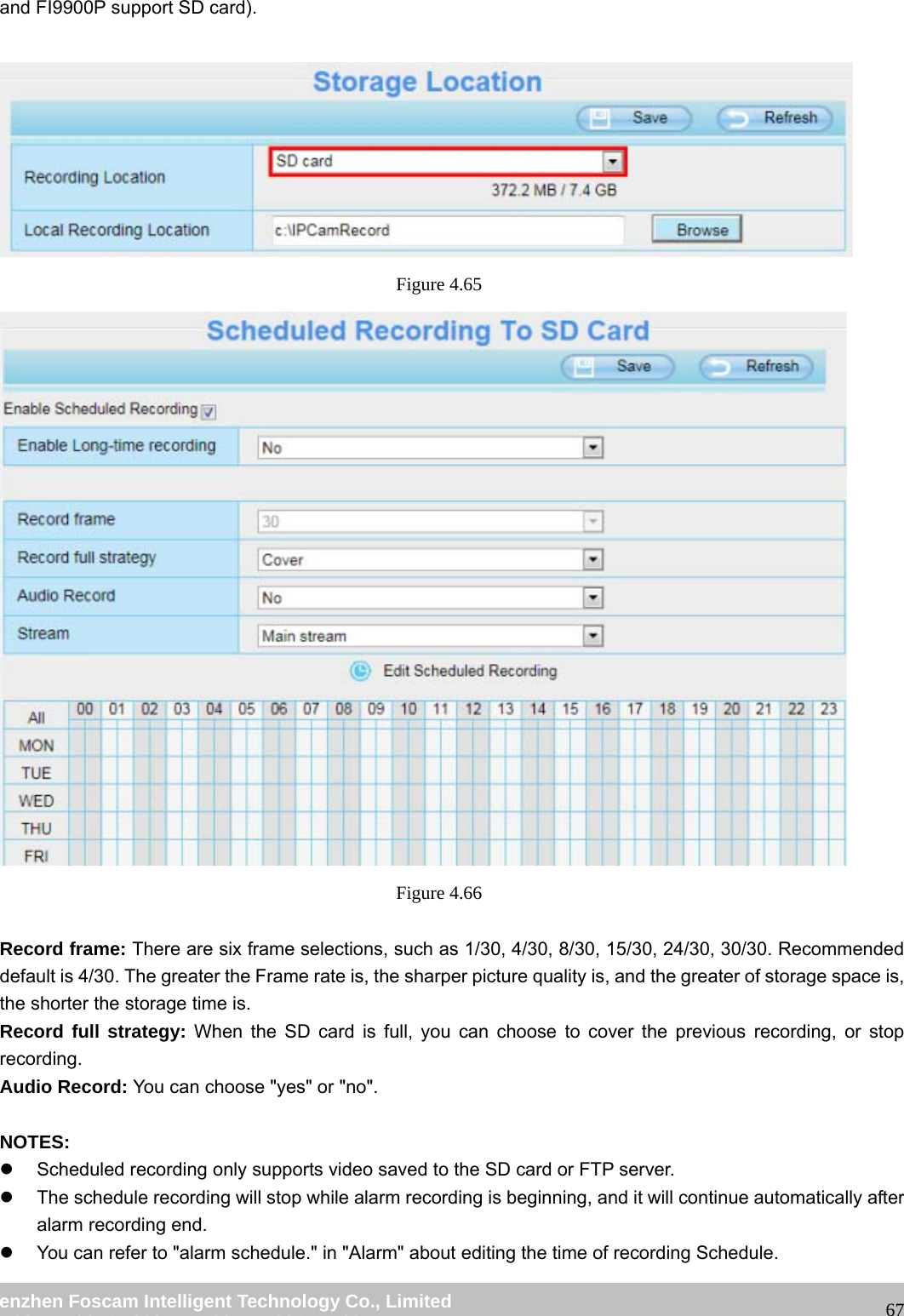
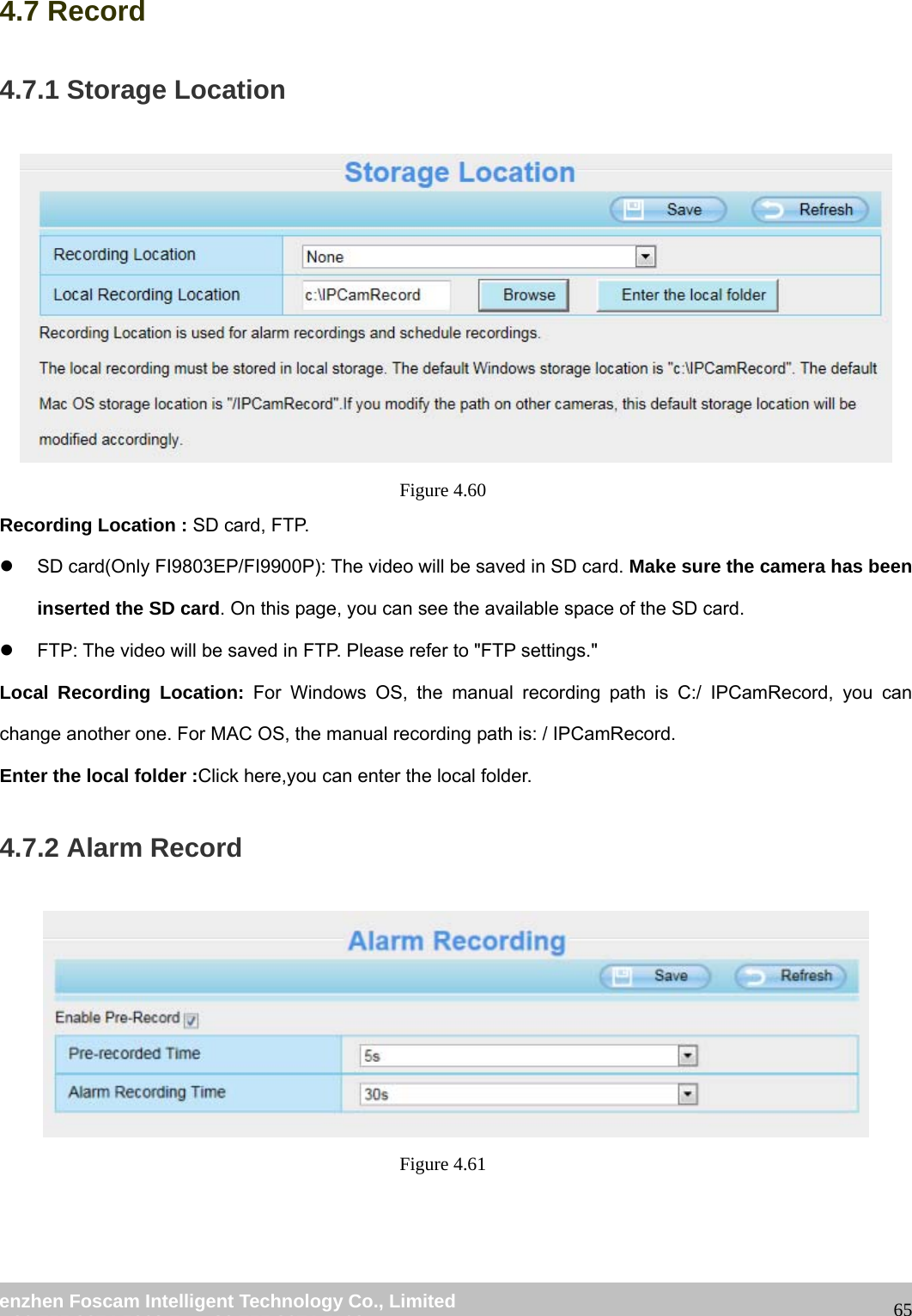
                                                        wwwwww..ffoossccaamm..ccoomm  SShheennzzhheenn  FFoossccaamm  IInntteelllliiggeenntt  TTeecchhnnoollooggyy  CCoo..,,  LLiimmiitteedd  TTeell::  8866  775555  22667744  55666688  FFaaxx::  8866  775555  22667744  55116688                                                                                                                   654.7 Record 4.7.1 Storage Location  Figure 4.60  Recording Location : SD card, FTP.   z  SD card(Only FI9803EP/FI9900P): The video will be saved in SD card. Make sure the camera has been inserted the SD card. On this page, you can see the available space of the SD card. z  FTP: The video will be saved in FTP. Please refer to "FTP settings."   Local Recording Location: For Windows OS, the manual recording path is C:/ IPCamRecord, you can change another one. For MAC OS, the manual recording path is: / IPCamRecord. Enter the local folder :Click here,you can enter the local folder. 4.7.2 Alarm Record  Figure 4.61
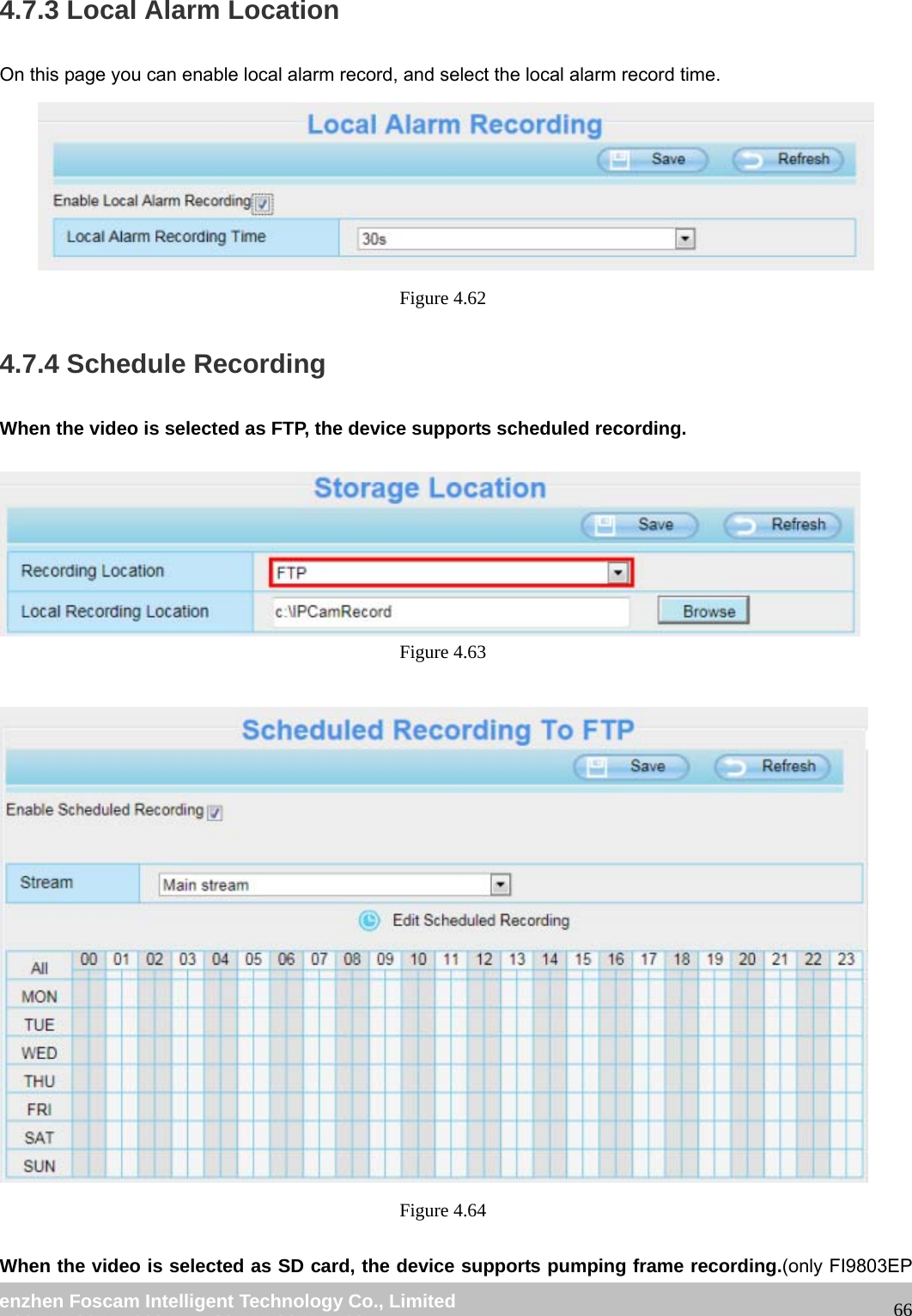
                                                        wwwwww..ffoossccaamm..ccoomm  SShheennzzhheenn  FFoossccaamm  IInntteelllliiggeenntt  TTeecchhnnoollooggyy  CCoo..,,  LLiimmiitteedd  TTeell::  8866  775555  22667744  55666688  FFaaxx::  8866  775555  22667744  55116688                                                                                                                   664.7.3 Local Alarm Location On this page you can enable local alarm record, and select the local alarm record time.    Figure 4.62  4.7.4 Schedule Recording When the video is selected as FTP, the device supports scheduled recording.   Figure 4.63    Figure 4.64   When the video is selected as SD card, the device supports pumping frame recording.(only FI9803EP
                                                        wwwwww..ffoossccaamm..ccoomm  SShheennzzhheenn  FFoossccaamm  IInntteelllliiggeenntt  TTeecchhnnoollooggyy  CCoo..,,  LLiimmiitteedd  TTeell::  8866  775555  22667744  55666688  FFaaxx::  8866  775555  22667744  55116688                                                                                                                   67and FI9900P support SD card).   Figure 4.65   Figure 4.66   Record frame: There are six frame selections, such as 1/30, 4/30, 8/30, 15/30, 24/30, 30/30. Recommended default is 4/30. The greater the Frame rate is, the sharper picture quality is, and the greater of storage space is, the shorter the storage time is. Record full strategy: When the SD card is full, you can choose to cover the previous recording, or stop recording. Audio Record: You can choose "yes" or "no".  NOTES: z  Scheduled recording only supports video saved to the SD card or FTP server.   z  The schedule recording will stop while alarm recording is beginning, and it will continue automatically after alarm recording end. z  You can refer to "alarm schedule." in "Alarm" about editing the time of recording Schedule.
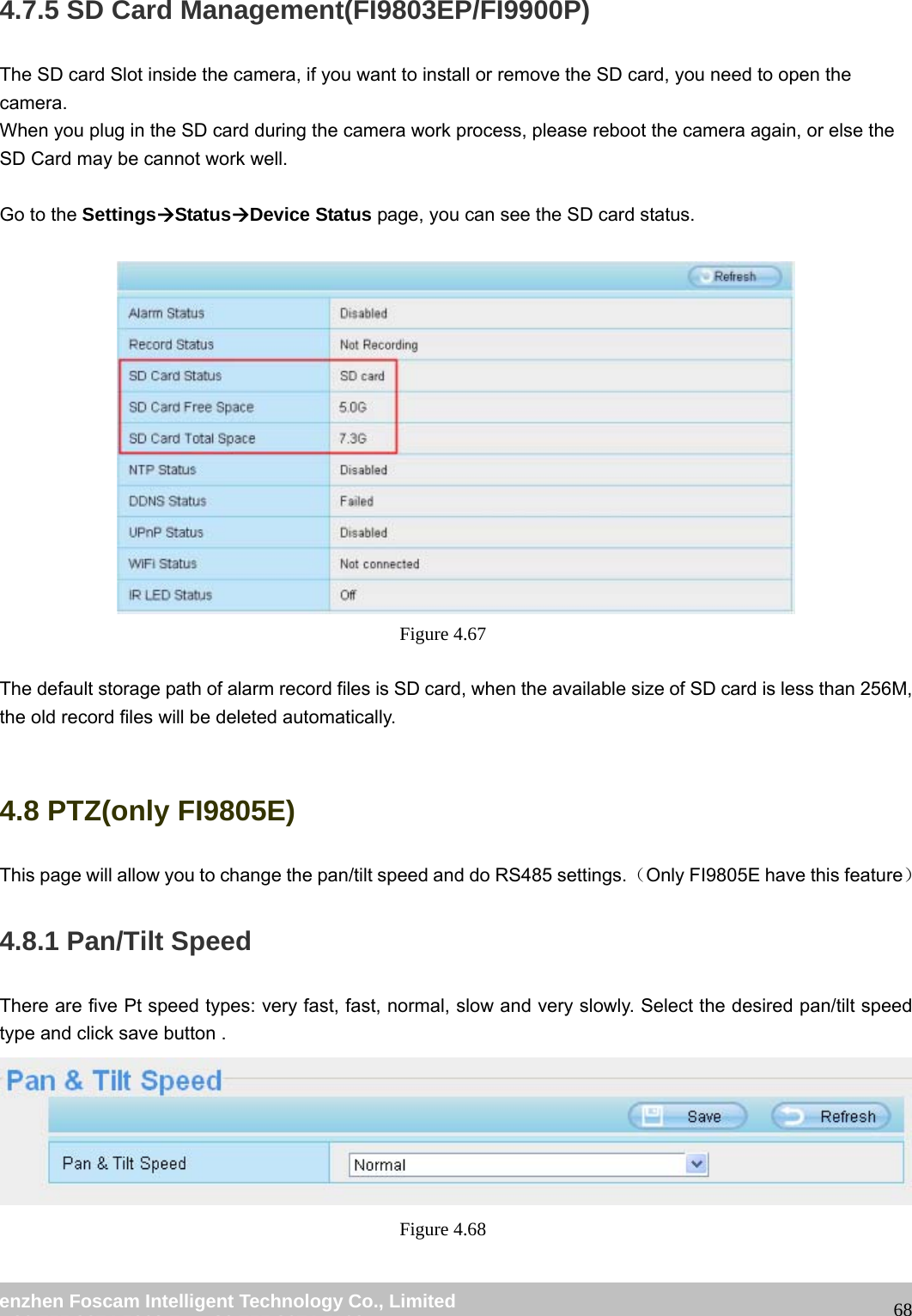
                                                        wwwwww..ffoossccaamm..ccoomm  SShheennzzhheenn  FFoossccaamm  IInntteelllliiggeenntt  TTeecchhnnoollooggyy  CCoo..,,  LLiimmiitteedd  TTeell::  8866  775555  22667744  55666688  FFaaxx::  8866  775555  22667744  55116688                                                                                                                   684.7.5 SD Card Management(FI9803EP/FI9900P) The SD card Slot inside the camera, if you want to install or remove the SD card, you need to open the camera. When you plug in the SD card during the camera work process, please reboot the camera again, or else the SD Card may be cannot work well.  Go to the SettingsÆStatusÆDevice Status page, you can see the SD card status.   Figure 4.67   The default storage path of alarm record files is SD card, when the available size of SD card is less than 256M, the old record files will be deleted automatically.  4.8 PTZ(only FI9805E) This page will allow you to change the pan/tilt speed and do RS485 settings.(Only FI9805E have this feature) 4.8.1 Pan/Tilt Speed There are five Pt speed types: very fast, fast, normal, slow and very slowly. Select the desired pan/tilt speed type and click save button .  Figure 4.68
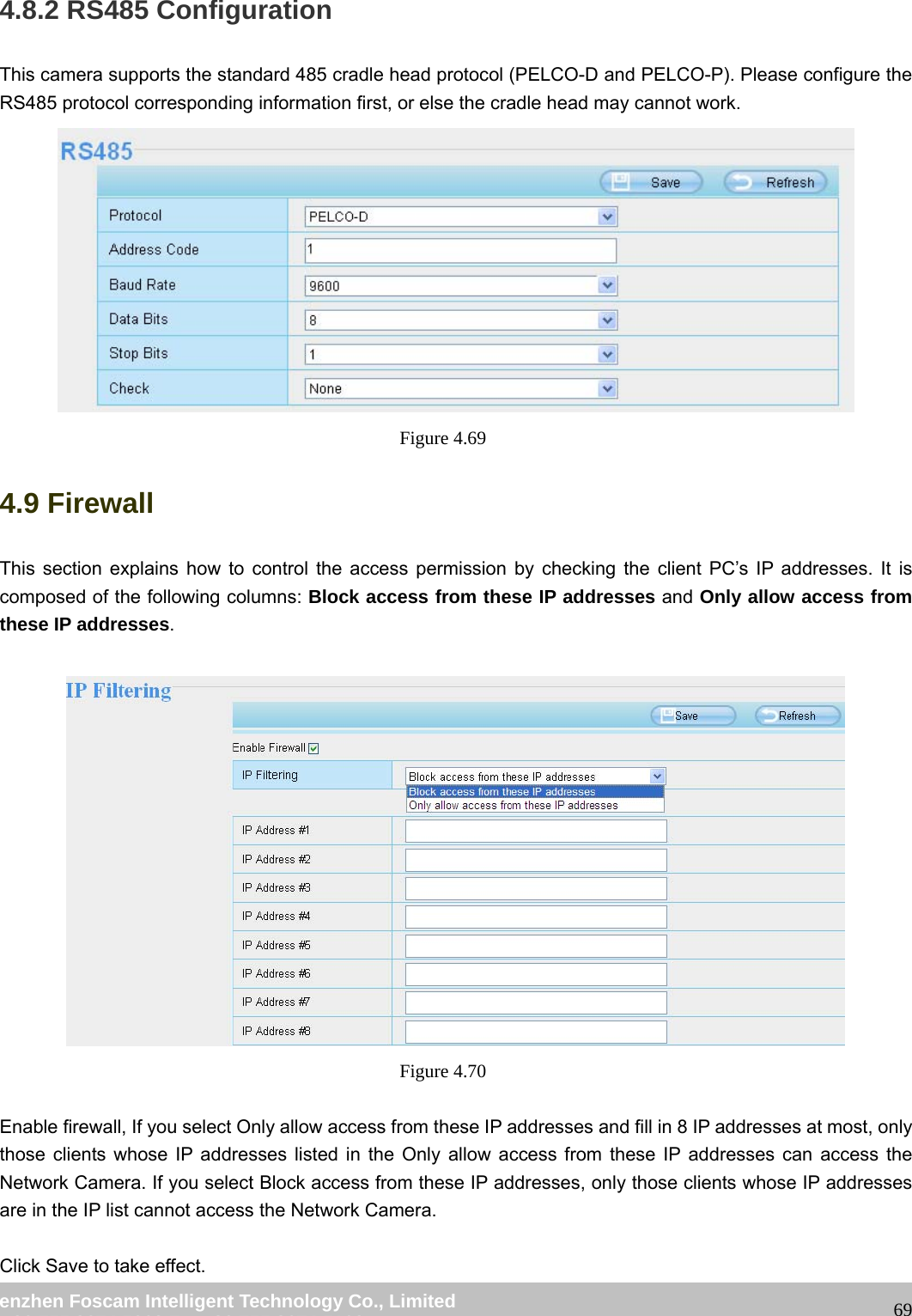
                                                        wwwwww..ffoossccaamm..ccoomm  SShheennzzhheenn  FFoossccaamm  IInntteelllliiggeenntt  TTeecchhnnoollooggyy  CCoo..,,  LLiimmiitteedd  TTeell::  8866  775555  22667744  55666688  FFaaxx::  8866  775555  22667744  55116688                                                                                                                   694.8.2 RS485 Configuration This camera supports the standard 485 cradle head protocol (PELCO-D and PELCO-P). Please configure the RS485 protocol corresponding information first, or else the cradle head may cannot work.    Figure 4.69  4.9 Firewall This section explains how to control the access permission by checking the client PC’s IP addresses. It is composed of the following columns: Block access from these IP addresses and Only allow access from these IP addresses.   Figure 4.70   Enable firewall, If you select Only allow access from these IP addresses and fill in 8 IP addresses at most, only those clients whose IP addresses listed in the Only allow access from these IP addresses can access the Network Camera. If you select Block access from these IP addresses, only those clients whose IP addresses are in the IP list cannot access the Network Camera.  Click Save to take effect.
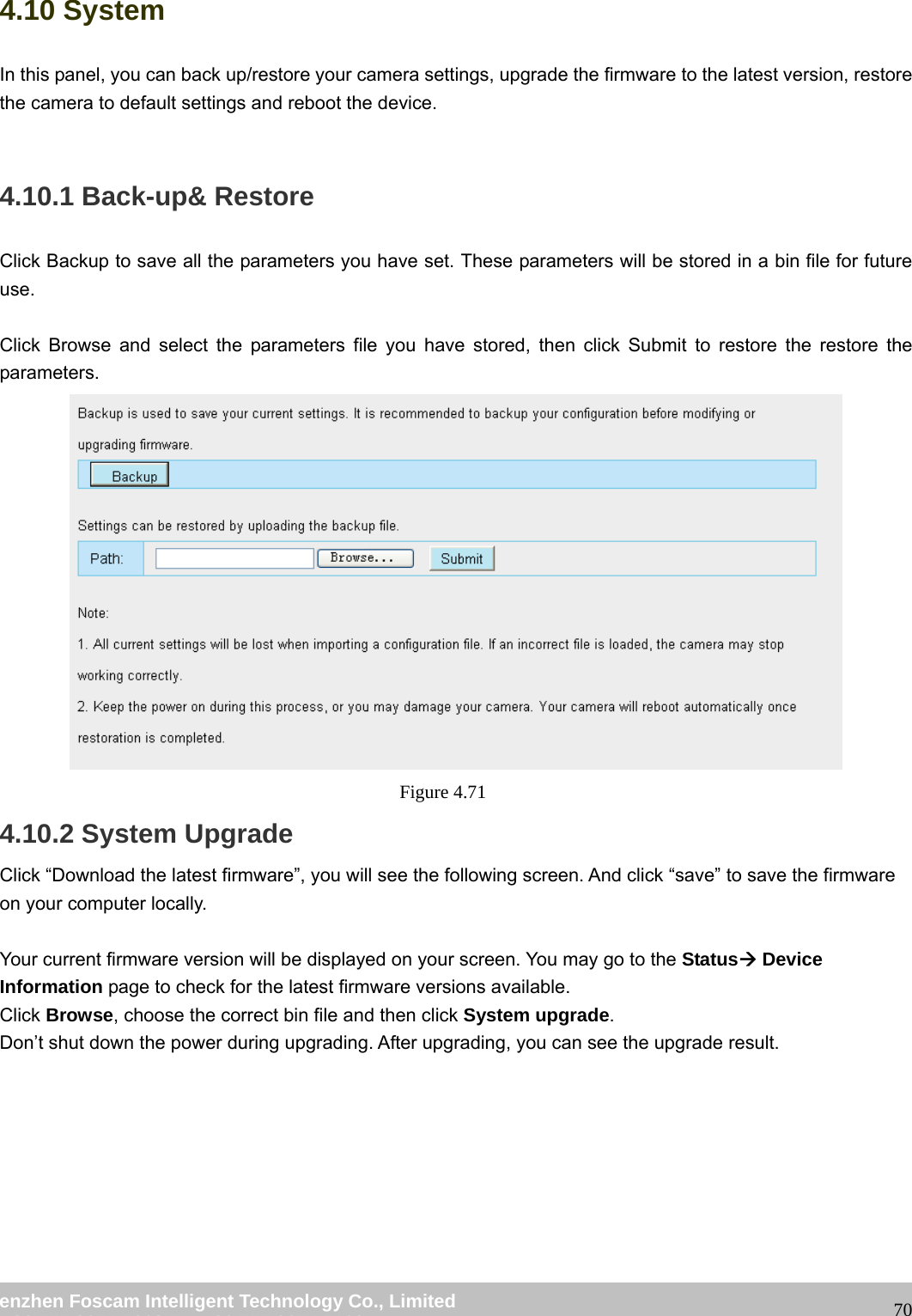
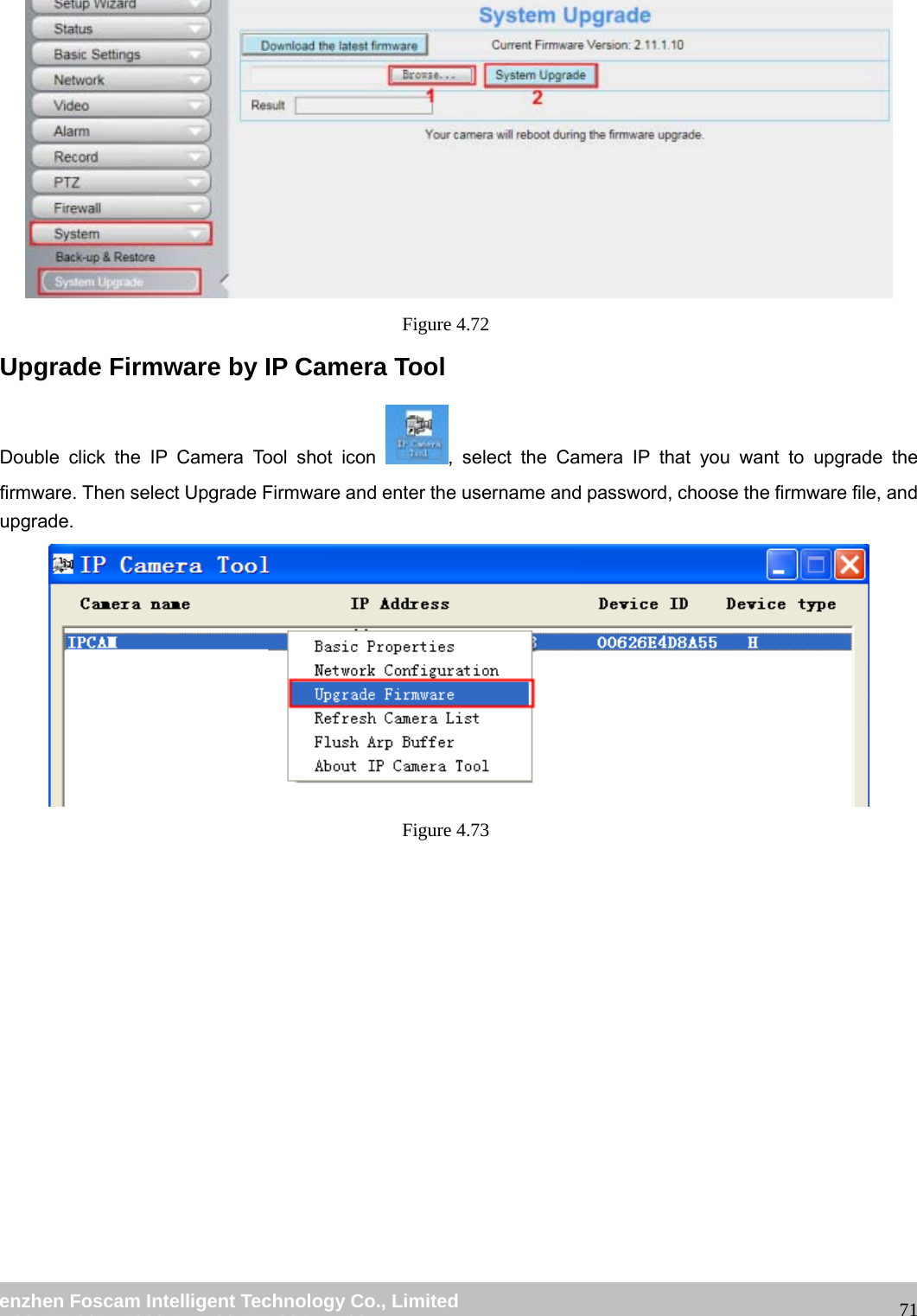
                                                        wwwwww..ffoossccaamm..ccoomm  SShheennzzhheenn  FFoossccaamm  IInntteelllliiggeenntt  TTeecchhnnoollooggyy  CCoo..,,  LLiimmiitteedd  TTeell::  8866  775555  22667744  55666688  FFaaxx::  8866  775555  22667744  55116688                                                                                                                   704.10 System In this panel, you can back up/restore your camera settings, upgrade the firmware to the latest version, restore the camera to default settings and reboot the device.  4.10.1 Back-up& Restore Click Backup to save all the parameters you have set. These parameters will be stored in a bin file for future use.  Click Browse and select the parameters file you have stored, then click Submit to restore the restore the parameters.  Figure 4.71  4.10.2 System Upgrade Click “Download the latest firmware”, you will see the following screen. And click “save” to save the firmware on your computer locally.  Your current firmware version will be displayed on your screen. You may go to the StatusÆ Device Information page to check for the latest firmware versions available. Click Browse, choose the correct bin file and then click System upgrade.  Don’t shut down the power during upgrading. After upgrading, you can see the upgrade result.
                                                        wwwwww..ffoossccaamm..ccoomm  SShheennzzhheenn  FFoossccaamm  IInntteelllliiggeenntt  TTeecchhnnoollooggyy  CCoo..,,  LLiimmiitteedd  TTeell::  8866  775555  22667744  55666688  FFaaxx::  8866  775555  22667744  55116688                                                                                                                   71 Figure 4.72  Upgrade Firmware by IP Camera Tool Double click the IP Camera Tool shot icon  , select the Camera IP that you want to upgrade the firmware. Then select Upgrade Firmware and enter the username and password, choose the firmware file, and upgrade.  Figure 4.73

Navigation menu