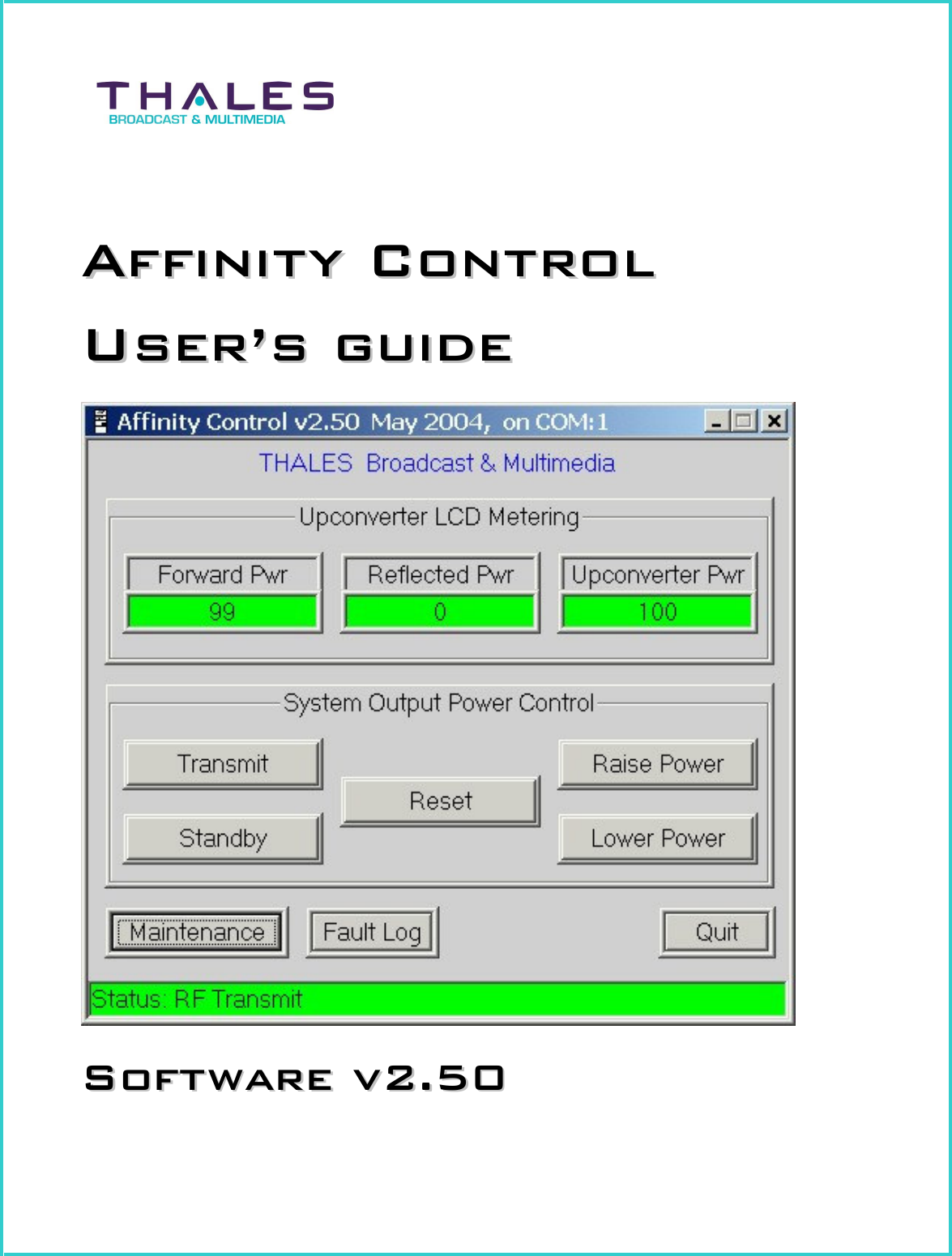
Thomson Broadcast and Multimedia LBD-25200 Affinity L-Band Transmitter for Mobile Media Svs. User Manual 47267151 108

Thomson Broadcast & Multimedia, Inc. Affinity L-Band Transmitter for Mobile Media Svs. 47267151 108

Software Users Guide
         
                        Document Number: 47267151-108 Revision: 0.1 Date: June 14, 2004    Copyright © 2004 by Thales Broadcast & Multimedia, Inc., All rights reserved. Affinity® is a Registered Trademark of Thales Broadcast & Multimedia, Inc. Win 95, Win 98, Win NT 4.0, Win 2000 and Win XP are registered trademarks of Microsoft Corporation. All rights reserved Pentium is a registered trademark of Intel Corporation. All rights reserved No part of this manual may be reproduced, stored in a retrieval system, or transmitted in any form or by any means, electronic, mechanical, photocopying, recording, or otherwise, except as may be expressly permitted in writing by Thales Broadcast and Multimedia, Inc.  Information provided by Thales Broadcast and Multimedia, Inc. is intended and believed to be accurate; however, no liability can be assumed for its use. Materials, designs, and specifications are subject to change without notice. For technical support call 1-800-345-9295 or log on to our web site at www.thales-bm.com.  Manufactured in the United States of America
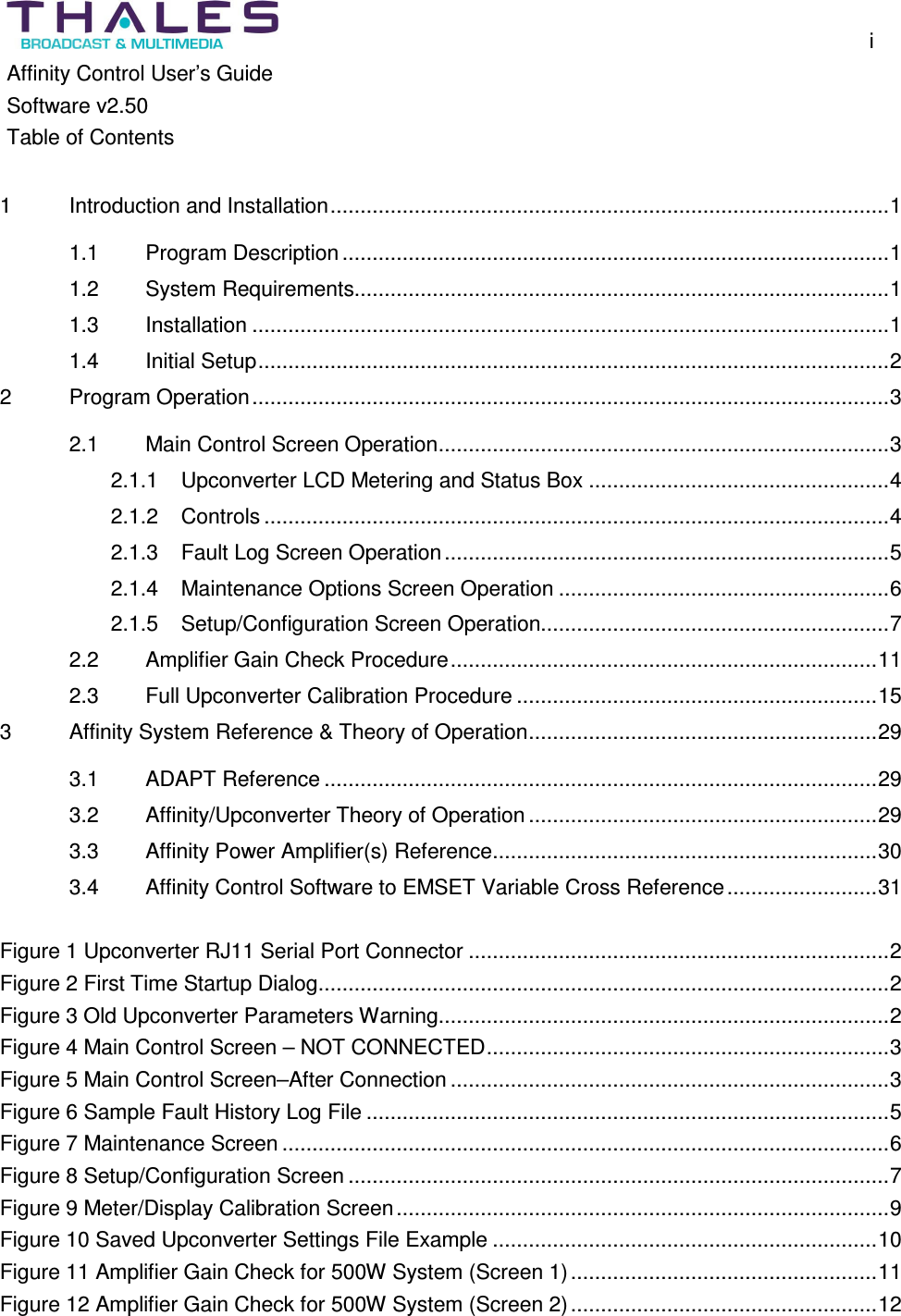
    i Affinity Control User’s Guide Software v2.50 Table of Contents  1 Introduction and Installation.............................................................................................1 1.1 Program Description...........................................................................................1 1.2 System Requirements.........................................................................................1 1.3 Installation ..........................................................................................................1 1.4 Initial Setup.........................................................................................................2 2 Program Operation..........................................................................................................3 2.1 Main Control Screen Operation...........................................................................3 2.1.1 Upconverter LCD Metering and Status Box ..................................................4 2.1.2 Controls ........................................................................................................4 2.1.3 Fault Log Screen Operation..........................................................................5 2.1.4 Maintenance Options Screen Operation .......................................................6 2.1.5 Setup/Configuration Screen Operation..........................................................7 2.2 Amplifier Gain Check Procedure.......................................................................11 2.3 Full Upconverter Calibration Procedure ............................................................15 3 Affinity System Reference & Theory of Operation..........................................................29 3.1 ADAPT Reference ............................................................................................29 3.2 Affinity/Upconverter Theory of Operation..........................................................29 3.3 Affinity Power Amplifier(s) Reference................................................................30 3.4 Affinity Control Software to EMSET Variable Cross Reference.........................31  Figure 1 Upconverter RJ11 Serial Port Connector ......................................................................2 Figure 2 First Time Startup Dialog...............................................................................................2 Figure 3 Old Upconverter Parameters Warning...........................................................................2 Figure 4 Main Control Screen – NOT CONNECTED...................................................................3 Figure 5 Main Control Screen–After Connection .........................................................................3 Figure 6 Sample Fault History Log File .......................................................................................5 Figure 7 Maintenance Screen .....................................................................................................6 Figure 8 Setup/Configuration Screen ..........................................................................................7 Figure 9 Meter/Display Calibration Screen..................................................................................9 Figure 10 Saved Upconverter Settings File Example ................................................................10 Figure 11 Amplifier Gain Check for 500W System (Screen 1)...................................................11 Figure 12 Amplifier Gain Check for 500W System (Screen 2)...................................................12
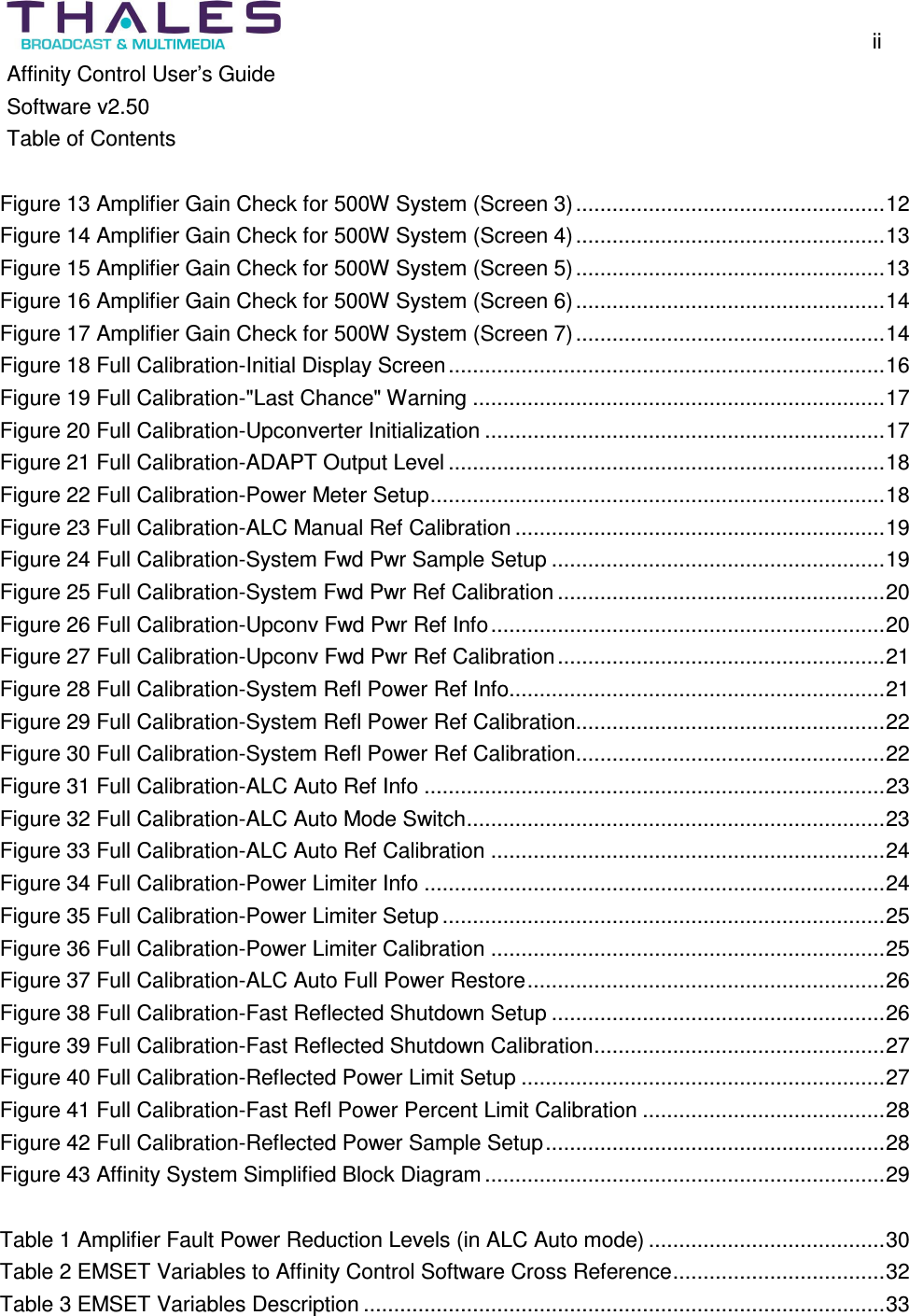
    ii Affinity Control User’s Guide Software v2.50 Table of Contents  Figure 13 Amplifier Gain Check for 500W System (Screen 3)...................................................12 Figure 14 Amplifier Gain Check for 500W System (Screen 4)...................................................13 Figure 15 Amplifier Gain Check for 500W System (Screen 5)...................................................13 Figure 16 Amplifier Gain Check for 500W System (Screen 6)...................................................14 Figure 17 Amplifier Gain Check for 500W System (Screen 7)...................................................14 Figure 18 Full Calibration-Initial Display Screen........................................................................16 Figure 19 Full Calibration-"Last Chance" Warning ....................................................................17 Figure 20 Full Calibration-Upconverter Initialization ..................................................................17 Figure 21 Full Calibration-ADAPT Output Level ........................................................................18 Figure 22 Full Calibration-Power Meter Setup...........................................................................18 Figure 23 Full Calibration-ALC Manual Ref Calibration .............................................................19 Figure 24 Full Calibration-System Fwd Pwr Sample Setup .......................................................19 Figure 25 Full Calibration-System Fwd Pwr Ref Calibration ......................................................20 Figure 26 Full Calibration-Upconv Fwd Pwr Ref Info.................................................................20 Figure 27 Full Calibration-Upconv Fwd Pwr Ref Calibration......................................................21 Figure 28 Full Calibration-System Refl Power Ref Info..............................................................21 Figure 29 Full Calibration-System Refl Power Ref Calibration...................................................22 Figure 30 Full Calibration-System Refl Power Ref Calibration...................................................22 Figure 31 Full Calibration-ALC Auto Ref Info ............................................................................23 Figure 32 Full Calibration-ALC Auto Mode Switch.....................................................................23 Figure 33 Full Calibration-ALC Auto Ref Calibration .................................................................24 Figure 34 Full Calibration-Power Limiter Info ............................................................................24 Figure 35 Full Calibration-Power Limiter Setup.........................................................................25 Figure 36 Full Calibration-Power Limiter Calibration .................................................................25 Figure 37 Full Calibration-ALC Auto Full Power Restore...........................................................26 Figure 38 Full Calibration-Fast Reflected Shutdown Setup .......................................................26 Figure 39 Full Calibration-Fast Reflected Shutdown Calibration................................................27 Figure 40 Full Calibration-Reflected Power Limit Setup ............................................................27 Figure 41 Full Calibration-Fast Refl Power Percent Limit Calibration ........................................28 Figure 42 Full Calibration-Reflected Power Sample Setup........................................................28 Figure 43 Affinity System Simplified Block Diagram..................................................................29  Table 1 Amplifier Fault Power Reduction Levels (in ALC Auto mode) .......................................30 Table 2 EMSET Variables to Affinity Control Software Cross Reference...................................32 Table 3 EMSET Variables Description ......................................................................................33
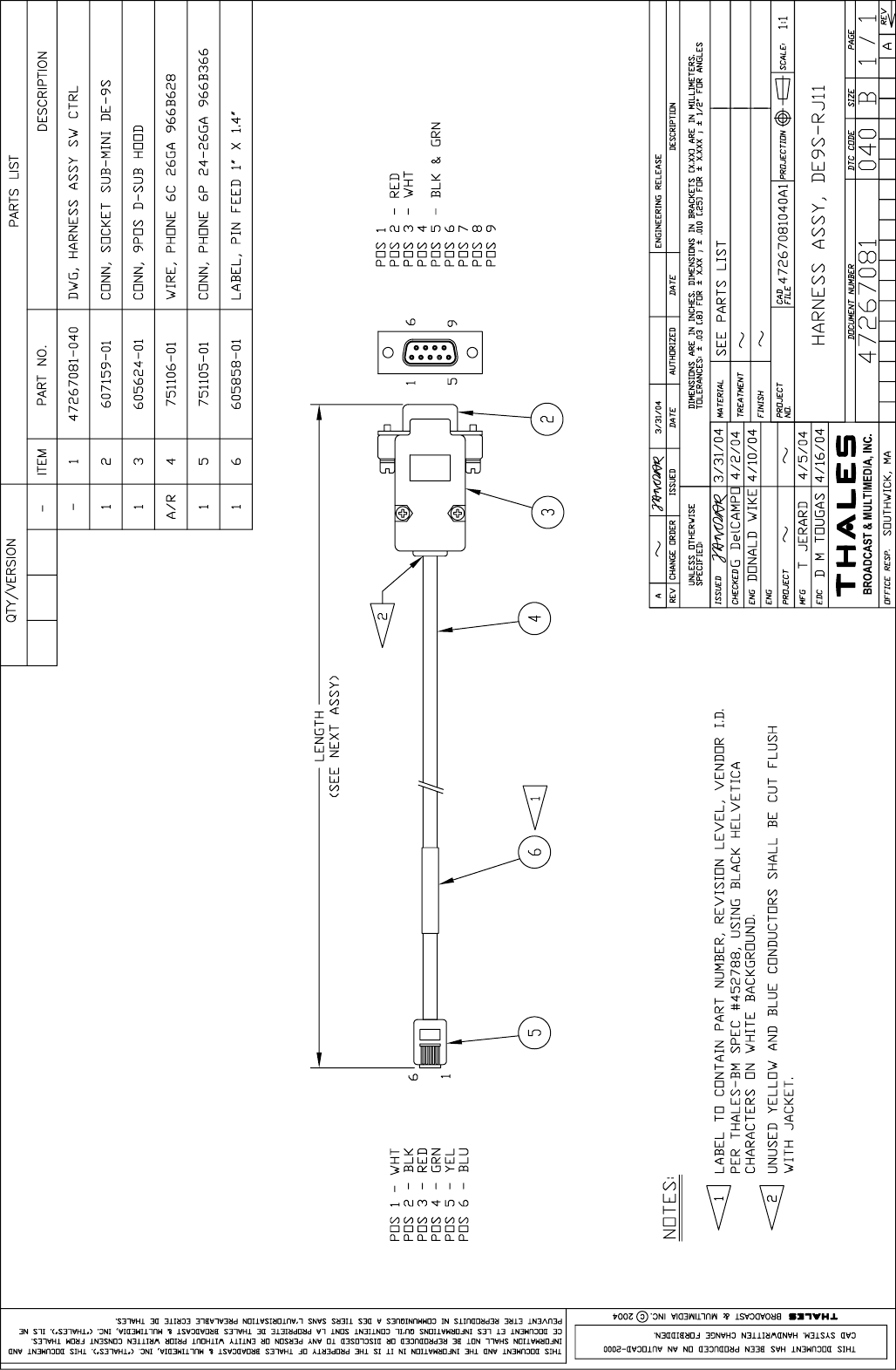
  Introduction and Installation  1 Affinity Control User’s Guide Software v2.50  1  Introduction and Installation 1.1  Program Description The Affinity Control software is designed to allow for minor adjustments to the Affinity system Upconverter/Amplifier plug-in module (hereafter referred to as "upconverter"). Control and monitoring for normal day-to-day operation is provided on a main control screen. Calibration, adjustment, and setup functions are provided through additional maintenance screens. The program provides the capability of saving upconverter settings to a file. There is also a fault history log file, created during operation, which provides reporting capabilities on faults and operational activities. The fault history log file, along with the saved settings file, provides useful information to aid in troubleshooting problems that may arise. Refer to the Affinity and Upconverter/Amplifier reference section of this document for more detailed information regarding the operation of the Affinity system, including details on the upconverter plug-in.  1.2  System Requirements •  Windows 95, 98, NT 4.0, 2000, or XP (Windows 2000 or XP recommended). •  64MB Memory •  Pentium 3 – 350MHz or better. •  800x600 or better display resolution – 256 colors minimum. •  One RS232 communication port. •  DB9 (PC) to RJ11 serial interface cable PN: 47267081  1.3  Installation The Affinity Control software application is supplied in two possible forms: As a CD-ROM (Part # 47267204.01) or as a zip file delivered via e-mail (AffinityControlGUIv250.zip). Locate and run the supplied setup.exe file to install the Affinity Control software on your computer. The setup utility will install an executable file “AffinityControlv250.exe” in the directory “C:\Program Files\Thales B&M\Affinity Control”. A shortcut to this executable is automatically added to the START > PROGRAMS menu and to the PC desktop.
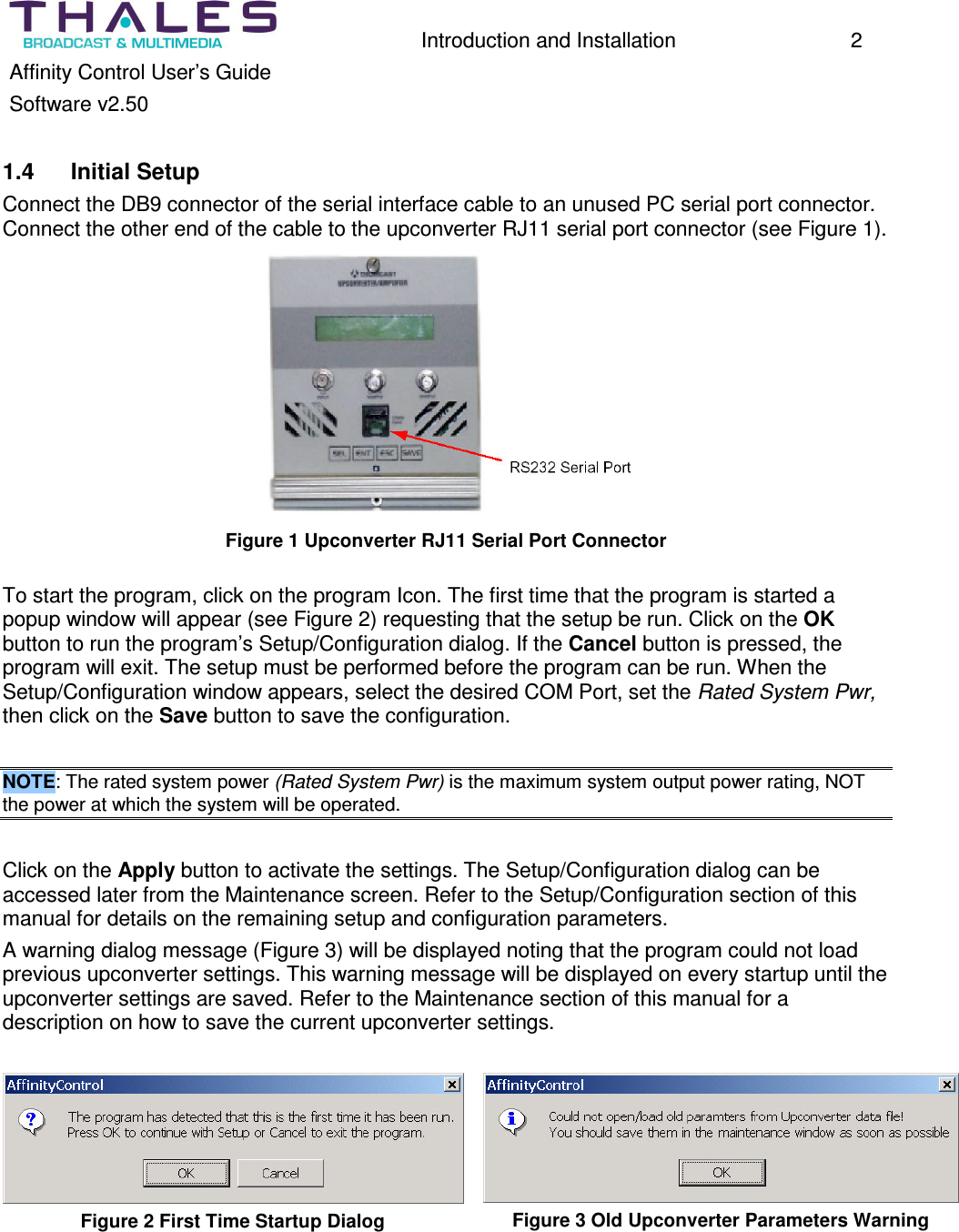
  Introduction and Installation  2 Affinity Control User’s Guide Software v2.50  1.4  Initial Setup Connect the DB9 connector of the serial interface cable to an unused PC serial port connector. Connect the other end of the cable to the upconverter RJ11 serial port connector (see Figure 1).  Figure 1 Upconverter RJ11 Serial Port Connector  To start the program, click on the program Icon. The first time that the program is started a popup window will appear (see Figure 2) requesting that the setup be run. Click on the OK button to run the program’s Setup/Configuration dialog. If the Cancel button is pressed, the program will exit. The setup must be performed before the program can be run. When the Setup/Configuration window appears, select the desired COM Port, set the Rated System Pwr, then click on the Save button to save the configuration.   NOTE: The rated system power (Rated System Pwr) is the maximum system output power rating, NOT the power at which the system will be operated.   Click on the Apply button to activate the settings. The Setup/Configuration dialog can be accessed later from the Maintenance screen. Refer to the Setup/Configuration section of this manual for details on the remaining setup and configuration parameters.  A warning dialog message (Figure 3) will be displayed noting that the program could not load previous upconverter settings. This warning message will be displayed on every startup until the upconverter settings are saved. Refer to the Maintenance section of this manual for a description on how to save the current upconverter settings.   Figure 2 First Time Startup Dialog  Figure 3 Old Upconverter Parameters Warning
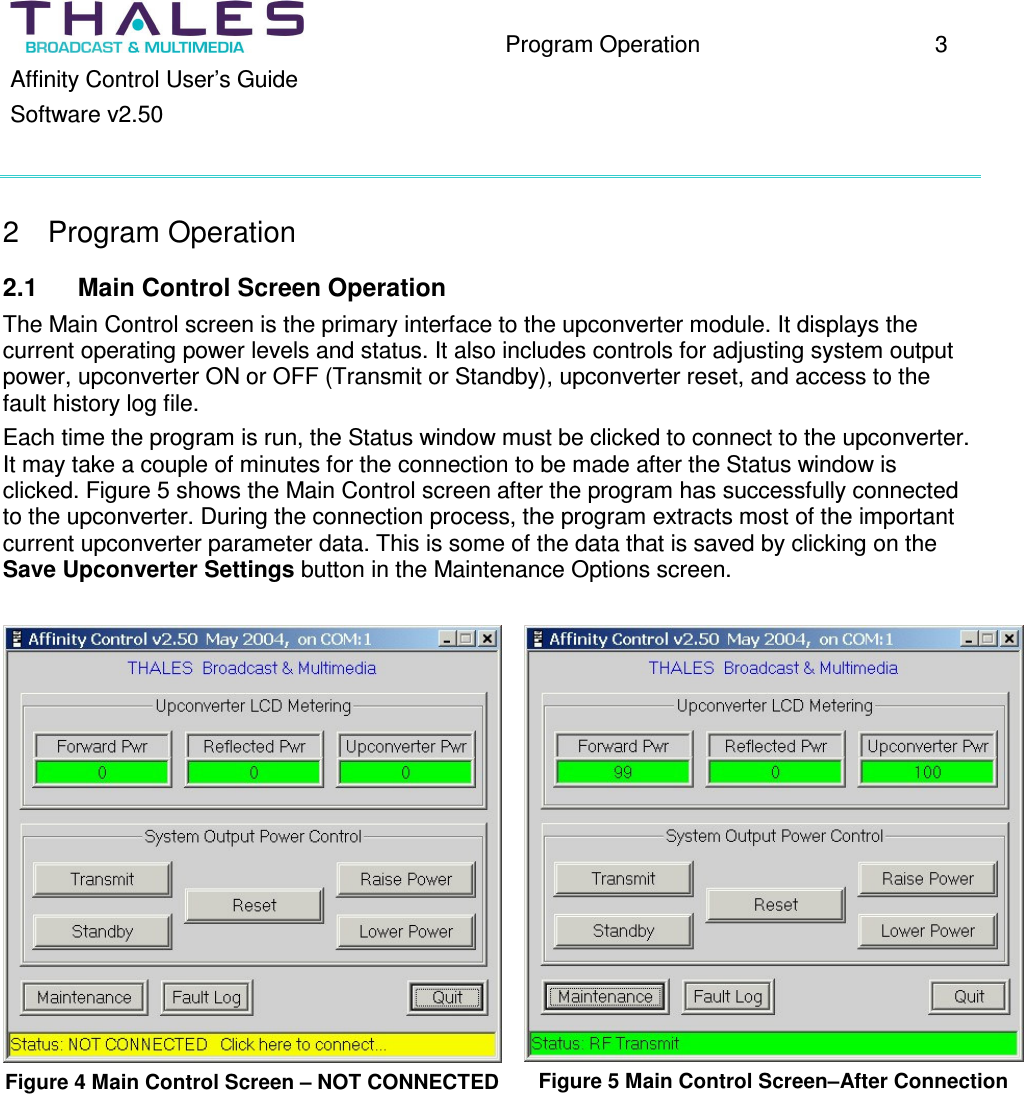
  Program Operation  3 Affinity Control User’s Guide Software v2.50  2  Program Operation 2.1  Main Control Screen Operation The Main Control screen is the primary interface to the upconverter module. It displays the current operating power levels and status. It also includes controls for adjusting system output power, upconverter ON or OFF (Transmit or Standby), upconverter reset, and access to the fault history log file. Each time the program is run, the Status window must be clicked to connect to the upconverter. It may take a couple of minutes for the connection to be made after the Status window is clicked. Figure 5 shows the Main Control screen after the program has successfully connected to the upconverter. During the connection process, the program extracts most of the important current upconverter parameter data. This is some of the data that is saved by clicking on the Save Upconverter Settings button in the Maintenance Options screen.   Figure 4 Main Control Screen – NOT CONNECTED   Figure 5 Main Control Screen–After Connection

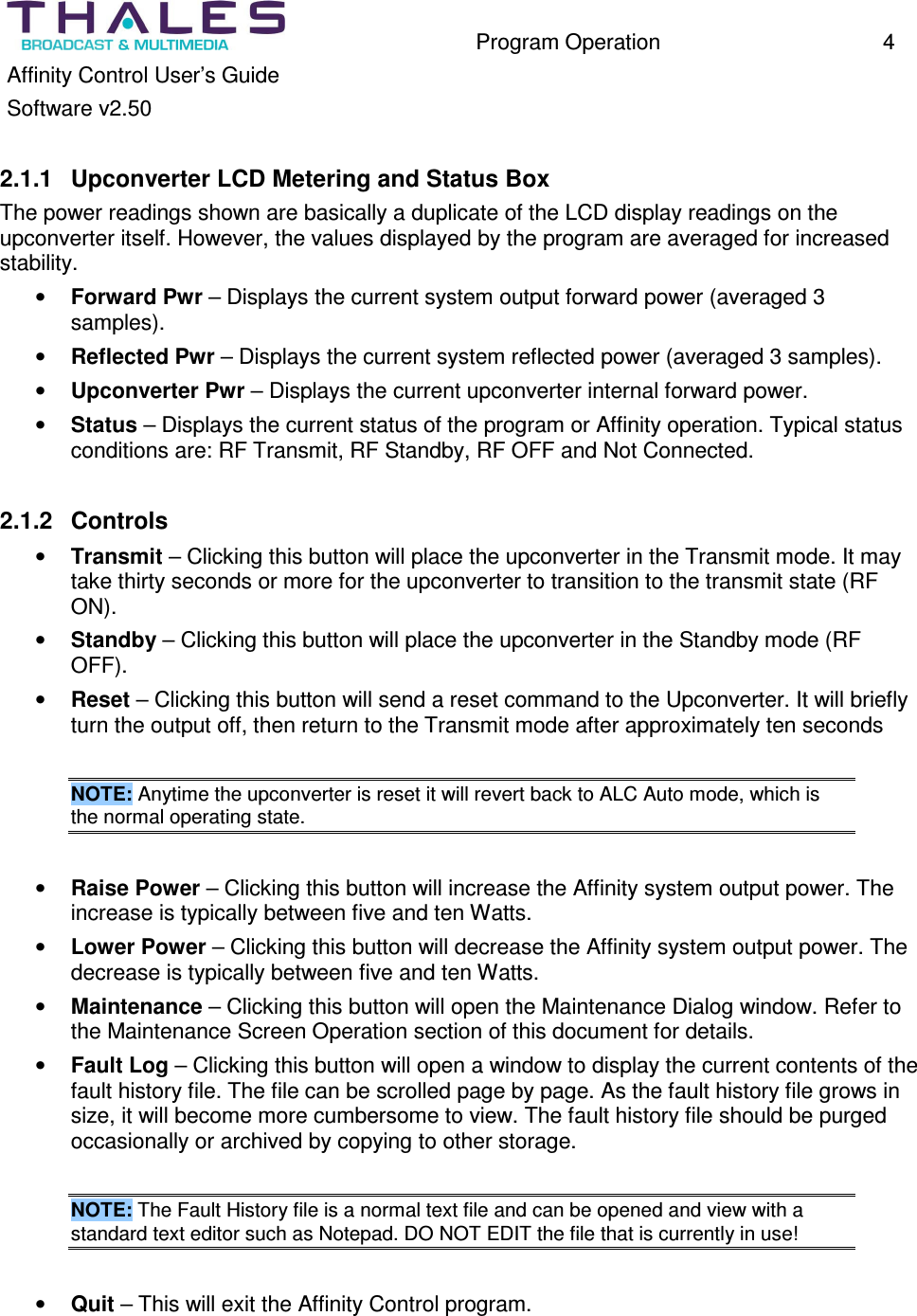
  Program Operation  4 Affinity Control User’s Guide Software v2.50  2.1.1  Upconverter LCD Metering and Status Box The power readings shown are basically a duplicate of the LCD display readings on the upconverter itself. However, the values displayed by the program are averaged for increased stability. •  Forward Pwr – Displays the current system output forward power (averaged 3 samples). •  Reflected Pwr – Displays the current system reflected power (averaged 3 samples). •  Upconverter Pwr – Displays the current upconverter internal forward power. •  Status – Displays the current status of the program or Affinity operation. Typical status conditions are: RF Transmit, RF Standby, RF OFF and Not Connected.  2.1.2  Controls •  Transmit – Clicking this button will place the upconverter in the Transmit mode. It may take thirty seconds or more for the upconverter to transition to the transmit state (RF ON). •  Standby – Clicking this button will place the upconverter in the Standby mode (RF OFF). •  Reset – Clicking this button will send a reset command to the Upconverter. It will briefly turn the output off, then return to the Transmit mode after approximately ten seconds  NOTE: Anytime the upconverter is reset it will revert back to ALC Auto mode, which is the normal operating state.  •  Raise Power – Clicking this button will increase the Affinity system output power. The increase is typically between five and ten Watts. •  Lower Power – Clicking this button will decrease the Affinity system output power. The decrease is typically between five and ten Watts. •  Maintenance – Clicking this button will open the Maintenance Dialog window. Refer to the Maintenance Screen Operation section of this document for details. •  Fault Log – Clicking this button will open a window to display the current contents of the fault history file. The file can be scrolled page by page. As the fault history file grows in size, it will become more cumbersome to view. The fault history file should be purged occasionally or archived by copying to other storage.   NOTE: The Fault History file is a normal text file and can be opened and view with a standard text editor such as Notepad. DO NOT EDIT the file that is currently in use!  •  Quit – This will exit the Affinity Control program.
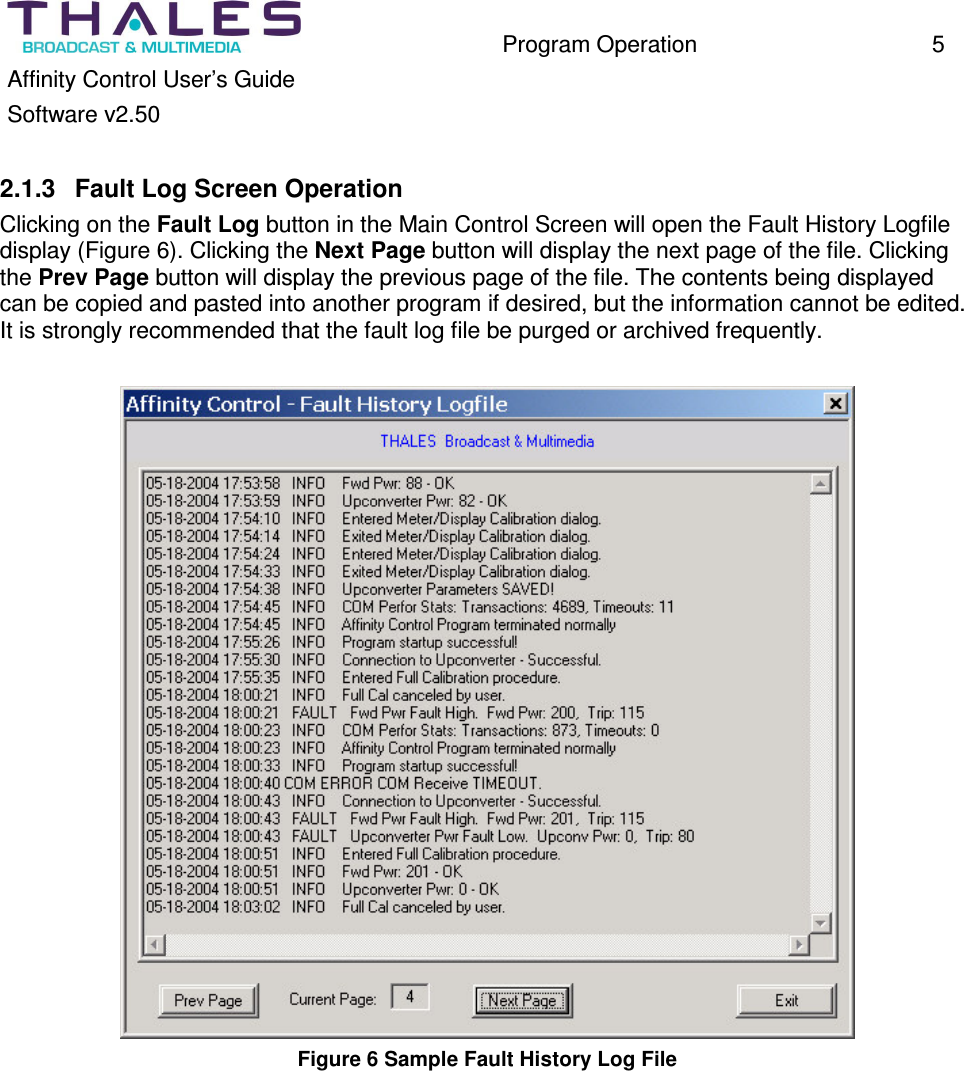
  Program Operation  5 Affinity Control User’s Guide Software v2.50  2.1.3  Fault Log Screen Operation Clicking on the Fault Log button in the Main Control Screen will open the Fault History Logfile display (Figure 6). Clicking the Next Page button will display the next page of the file. Clicking the Prev Page button will display the previous page of the file. The contents being displayed can be copied and pasted into another program if desired, but the information cannot be edited. It is strongly recommended that the fault log file be purged or archived frequently.   Figure 6 Sample Fault History Log File
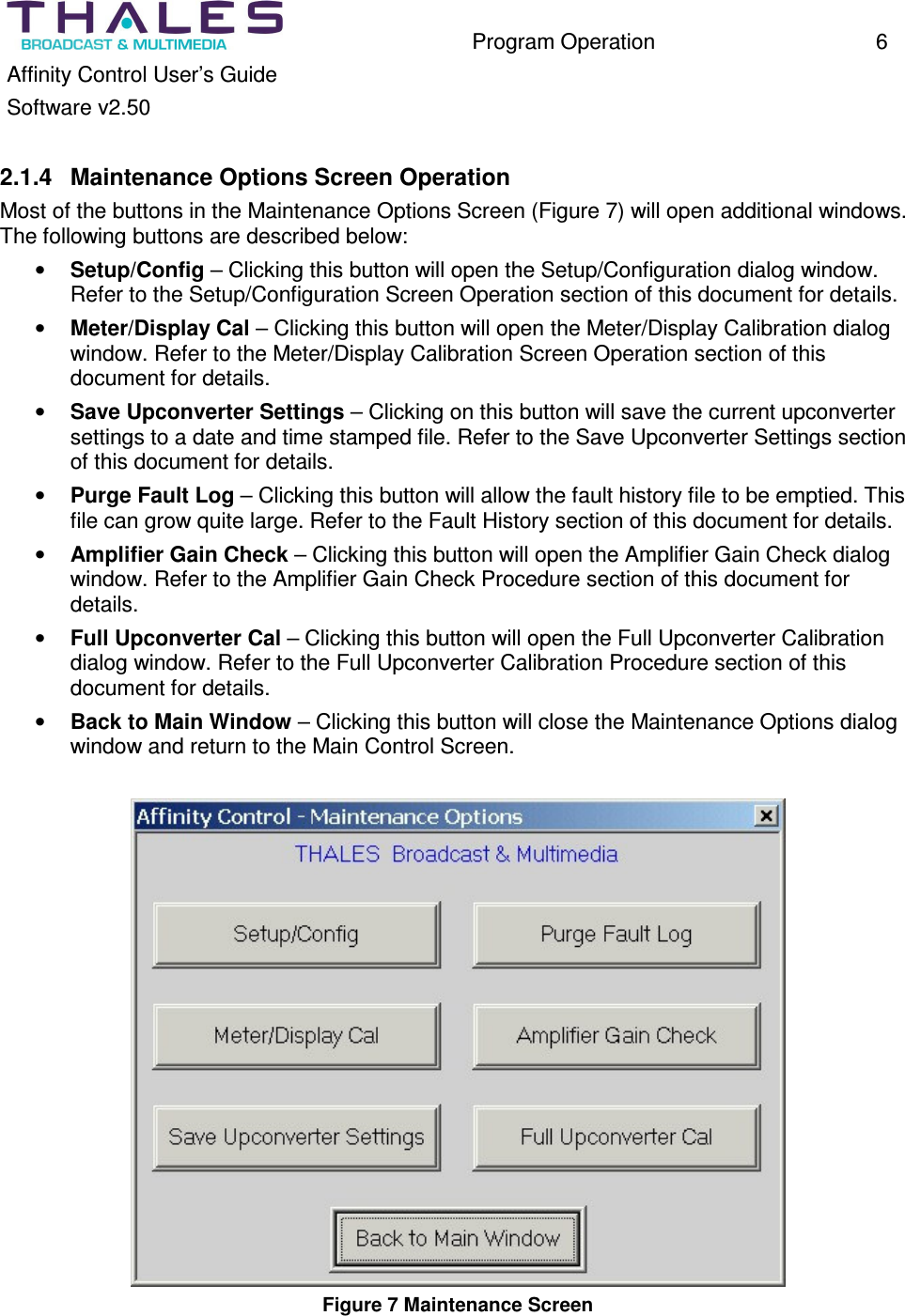
  Program Operation  6 Affinity Control User’s Guide Software v2.50  2.1.4  Maintenance Options Screen Operation Most of the buttons in the Maintenance Options Screen (Figure 7) will open additional windows. The following buttons are described below: •  Setup/Config – Clicking this button will open the Setup/Configuration dialog window. Refer to the Setup/Configuration Screen Operation section of this document for details. •  Meter/Display Cal – Clicking this button will open the Meter/Display Calibration dialog window. Refer to the Meter/Display Calibration Screen Operation section of this document for details. •  Save Upconverter Settings – Clicking on this button will save the current upconverter settings to a date and time stamped file. Refer to the Save Upconverter Settings section of this document for details. •  Purge Fault Log – Clicking this button will allow the fault history file to be emptied. This file can grow quite large. Refer to the Fault History section of this document for details. •  Amplifier Gain Check – Clicking this button will open the Amplifier Gain Check dialog window. Refer to the Amplifier Gain Check Procedure section of this document for details. •  Full Upconverter Cal – Clicking this button will open the Full Upconverter Calibration dialog window. Refer to the Full Upconverter Calibration Procedure section of this document for details. •  Back to Main Window – Clicking this button will close the Maintenance Options dialog window and return to the Main Control Screen.   Figure 7 Maintenance Screen
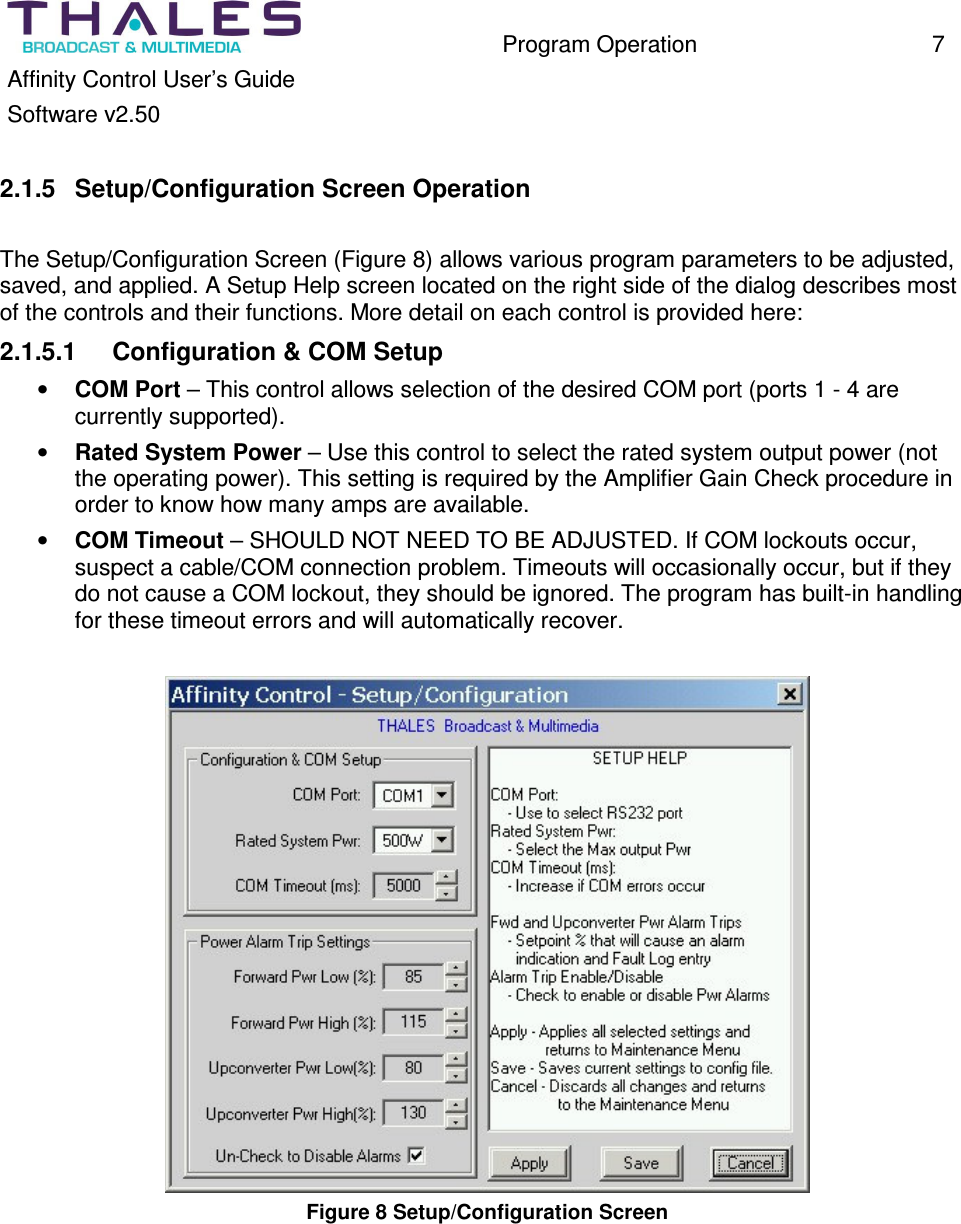
  Program Operation  7 Affinity Control User’s Guide Software v2.50  2.1.5  Setup/Configuration Screen Operation  The Setup/Configuration Screen (Figure 8) allows various program parameters to be adjusted, saved, and applied. A Setup Help screen located on the right side of the dialog describes most of the controls and their functions. More detail on each control is provided here: 2.1.5.1  Configuration & COM Setup •  COM Port – This control allows selection of the desired COM port (ports 1 - 4 are currently supported). •  Rated System Power – Use this control to select the rated system output power (not the operating power). This setting is required by the Amplifier Gain Check procedure in order to know how many amps are available. •  COM Timeout – SHOULD NOT NEED TO BE ADJUSTED. If COM lockouts occur, suspect a cable/COM connection problem. Timeouts will occasionally occur, but if they do not cause a COM lockout, they should be ignored. The program has built-in handling for these timeout errors and will automatically recover.   Figure 8 Setup/Configuration Screen
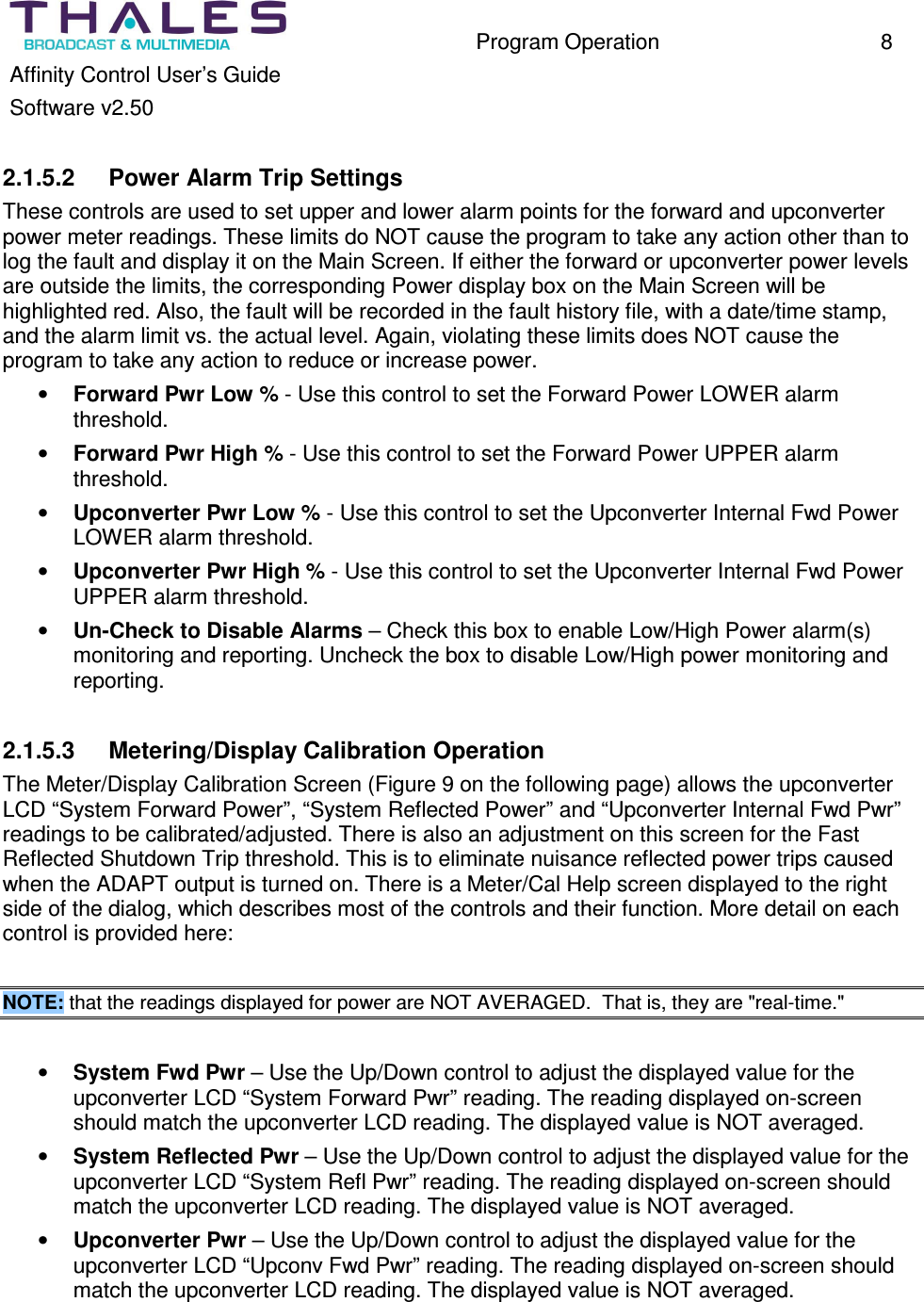
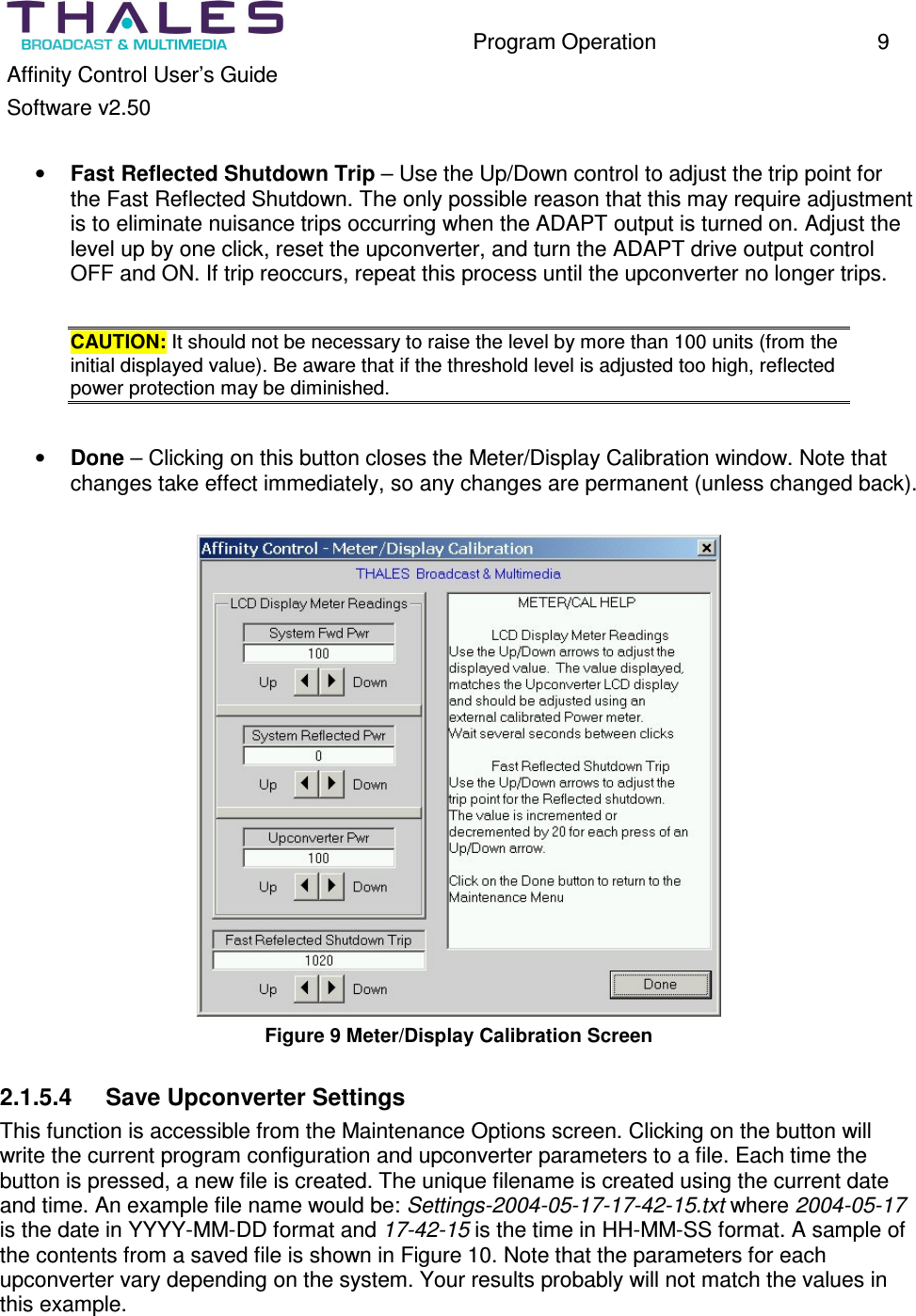
  Program Operation  8 Affinity Control User’s Guide Software v2.50  2.1.5.2  Power Alarm Trip Settings These controls are used to set upper and lower alarm points for the forward and upconverter power meter readings. These limits do NOT cause the program to take any action other than to log the fault and display it on the Main Screen. If either the forward or upconverter power levels are outside the limits, the corresponding Power display box on the Main Screen will be highlighted red. Also, the fault will be recorded in the fault history file, with a date/time stamp, and the alarm limit vs. the actual level. Again, violating these limits does NOT cause the program to take any action to reduce or increase power. •  Forward Pwr Low % - Use this control to set the Forward Power LOWER alarm threshold. •  Forward Pwr High % - Use this control to set the Forward Power UPPER alarm threshold.  •  Upconverter Pwr Low % - Use this control to set the Upconverter Internal Fwd Power LOWER alarm threshold. •  Upconverter Pwr High % - Use this control to set the Upconverter Internal Fwd Power UPPER alarm threshold. •  Un-Check to Disable Alarms – Check this box to enable Low/High Power alarm(s) monitoring and reporting. Uncheck the box to disable Low/High power monitoring and reporting.  2.1.5.3  Metering/Display Calibration Operation The Meter/Display Calibration Screen (Figure 9 on the following page) allows the upconverter LCD “System Forward Power”, “System Reflected Power” and “Upconverter Internal Fwd Pwr” readings to be calibrated/adjusted. There is also an adjustment on this screen for the Fast Reflected Shutdown Trip threshold. This is to eliminate nuisance reflected power trips caused when the ADAPT output is turned on. There is a Meter/Cal Help screen displayed to the right side of the dialog, which describes most of the controls and their function. More detail on each control is provided here:   NOTE: that the readings displayed for power are NOT AVERAGED.  That is, they are "real-time."  •  System Fwd Pwr – Use the Up/Down control to adjust the displayed value for the upconverter LCD “System Forward Pwr” reading. The reading displayed on-screen should match the upconverter LCD reading. The displayed value is NOT averaged. •  System Reflected Pwr – Use the Up/Down control to adjust the displayed value for the upconverter LCD “System Refl Pwr” reading. The reading displayed on-screen should match the upconverter LCD reading. The displayed value is NOT averaged. •  Upconverter Pwr – Use the Up/Down control to adjust the displayed value for the upconverter LCD “Upconv Fwd Pwr” reading. The reading displayed on-screen should match the upconverter LCD reading. The displayed value is NOT averaged.
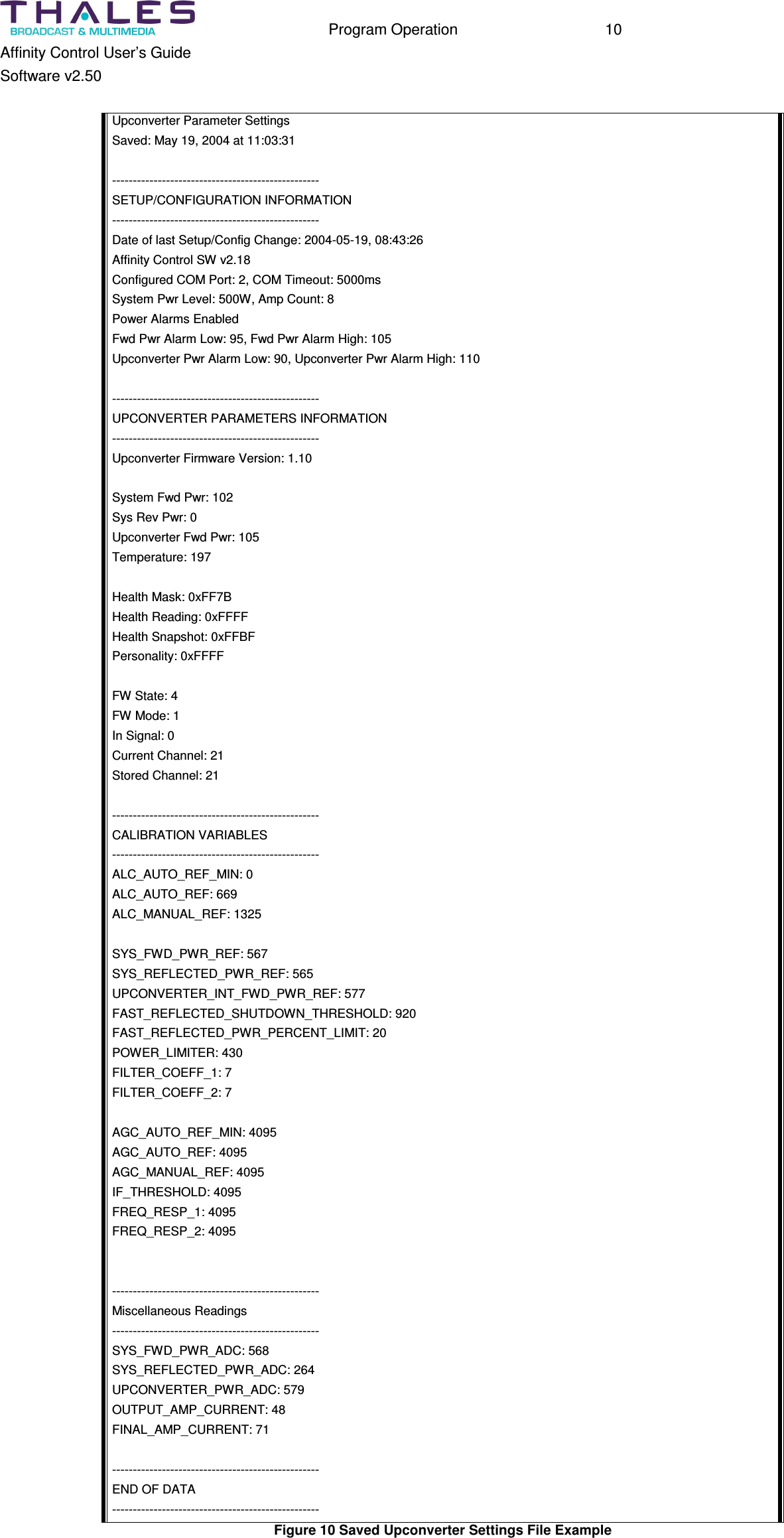
  Program Operation  9 Affinity Control User’s Guide Software v2.50  •  Fast Reflected Shutdown Trip – Use the Up/Down control to adjust the trip point for the Fast Reflected Shutdown. The only possible reason that this may require adjustment is to eliminate nuisance trips occurring when the ADAPT output is turned on. Adjust the level up by one click, reset the upconverter, and turn the ADAPT drive output control OFF and ON. If trip reoccurs, repeat this process until the upconverter no longer trips.   CAUTION: It should not be necessary to raise the level by more than 100 units (from the initial displayed value). Be aware that if the threshold level is adjusted too high, reflected power protection may be diminished.  •  Done – Clicking on this button closes the Meter/Display Calibration window. Note that changes take effect immediately, so any changes are permanent (unless changed back).   Figure 9 Meter/Display Calibration Screen  2.1.5.4  Save Upconverter Settings This function is accessible from the Maintenance Options screen. Clicking on the button will write the current program configuration and upconverter parameters to a file. Each time the button is pressed, a new file is created. The unique filename is created using the current date and time. An example file name would be: Settings-2004-05-17-17-42-15.txt where 2004-05-17 is the date in YYYY-MM-DD format and 17-42-15 is the time in HH-MM-SS format. A sample of the contents from a saved file is shown in Figure 10. Note that the parameters for each upconverter vary depending on the system. Your results probably will not match the values in this example.
  Program Operation  10 Affinity Control User’s Guide Software v2.50  Upconverter Parameter Settings Saved: May 19, 2004 at 11:03:31  -------------------------------------------------- SETUP/CONFIGURATION INFORMATION -------------------------------------------------- Date of last Setup/Config Change: 2004-05-19, 08:43:26 Affinity Control SW v2.18 Configured COM Port: 2, COM Timeout: 5000ms System Pwr Level: 500W, Amp Count: 8 Power Alarms Enabled Fwd Pwr Alarm Low: 95, Fwd Pwr Alarm High: 105 Upconverter Pwr Alarm Low: 90, Upconverter Pwr Alarm High: 110  -------------------------------------------------- UPCONVERTER PARAMETERS INFORMATION -------------------------------------------------- Upconverter Firmware Version: 1.10  System Fwd Pwr: 102 Sys Rev Pwr: 0 Upconverter Fwd Pwr: 105 Temperature: 197  Health Mask: 0xFF7B Health Reading: 0xFFFF Health Snapshot: 0xFFBF Personality: 0xFFFF  FW State: 4 FW Mode: 1 In Signal: 0 Current Channel: 21 Stored Channel: 21  -------------------------------------------------- CALIBRATION VARIABLES -------------------------------------------------- ALC_AUTO_REF_MIN: 0 ALC_AUTO_REF: 669 ALC_MANUAL_REF: 1325  SYS_FWD_PWR_REF: 567 SYS_REFLECTED_PWR_REF: 565 UPCONVERTER_INT_FWD_PWR_REF: 577 FAST_REFLECTED_SHUTDOWN_THRESHOLD: 920 FAST_REFLECTED_PWR_PERCENT_LIMIT: 20 POWER_LIMITER: 430 FILTER_COEFF_1: 7 FILTER_COEFF_2: 7  AGC_AUTO_REF_MIN: 4095 AGC_AUTO_REF: 4095 AGC_MANUAL_REF: 4095 IF_THRESHOLD: 4095 FREQ_RESP_1: 4095 FREQ_RESP_2: 4095   -------------------------------------------------- Miscellaneous Readings -------------------------------------------------- SYS_FWD_PWR_ADC: 568 SYS_REFLECTED_PWR_ADC: 264 UPCONVERTER_PWR_ADC: 579 OUTPUT_AMP_CURRENT: 48 FINAL_AMP_CURRENT: 71  -------------------------------------------------- END OF DATA -------------------------------------------------- Figure 10 Saved Upconverter Settings File Example
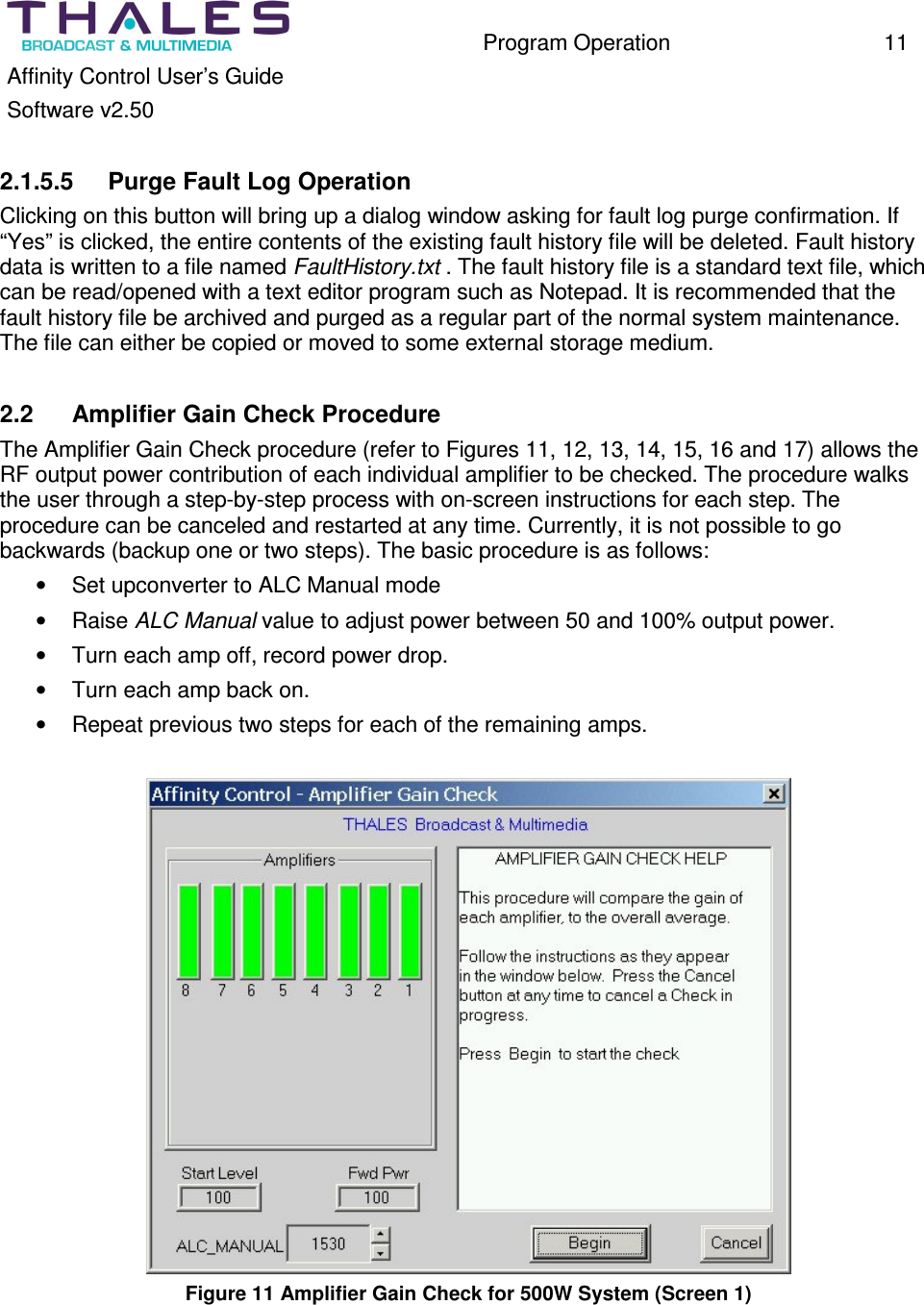
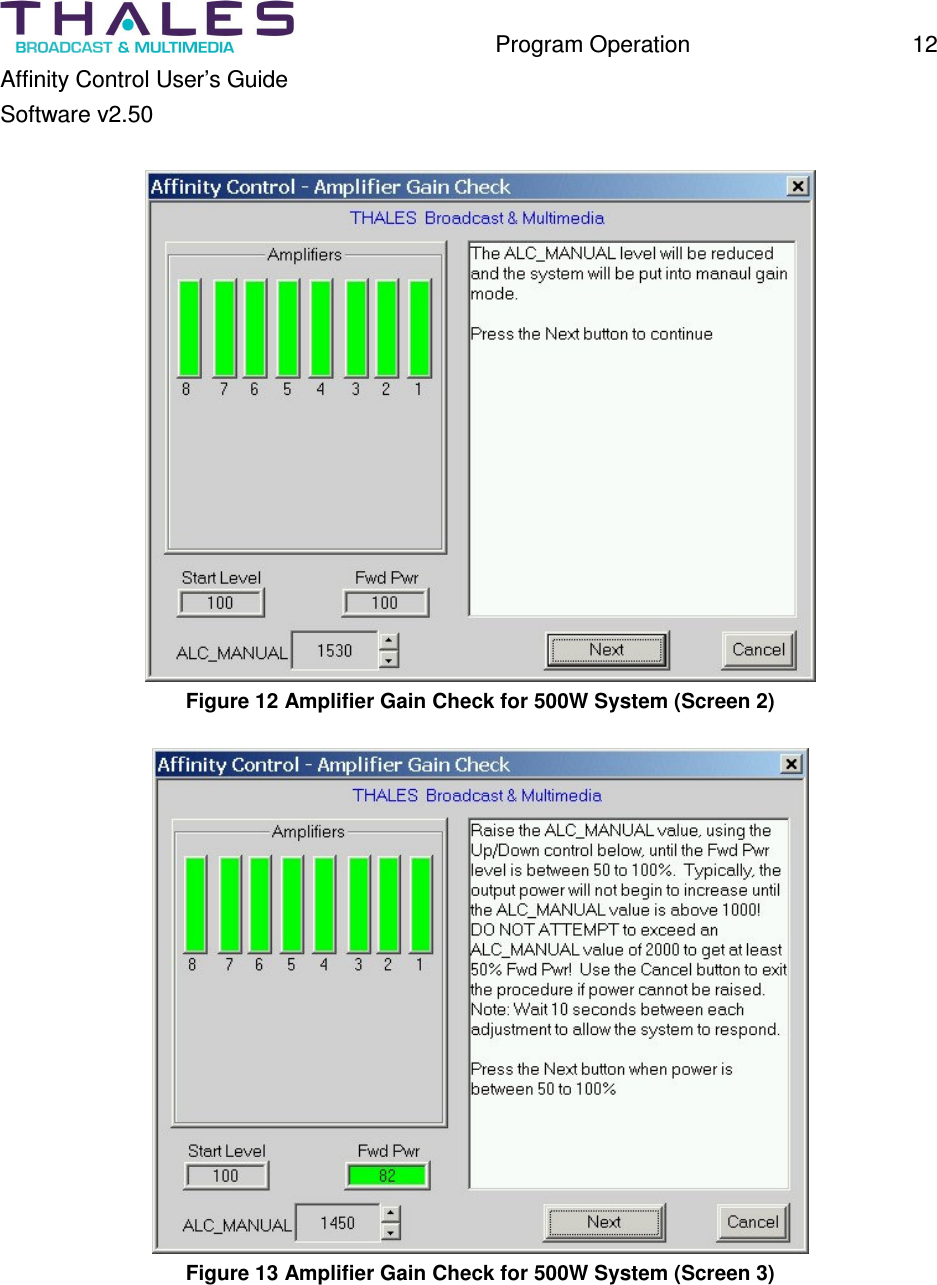
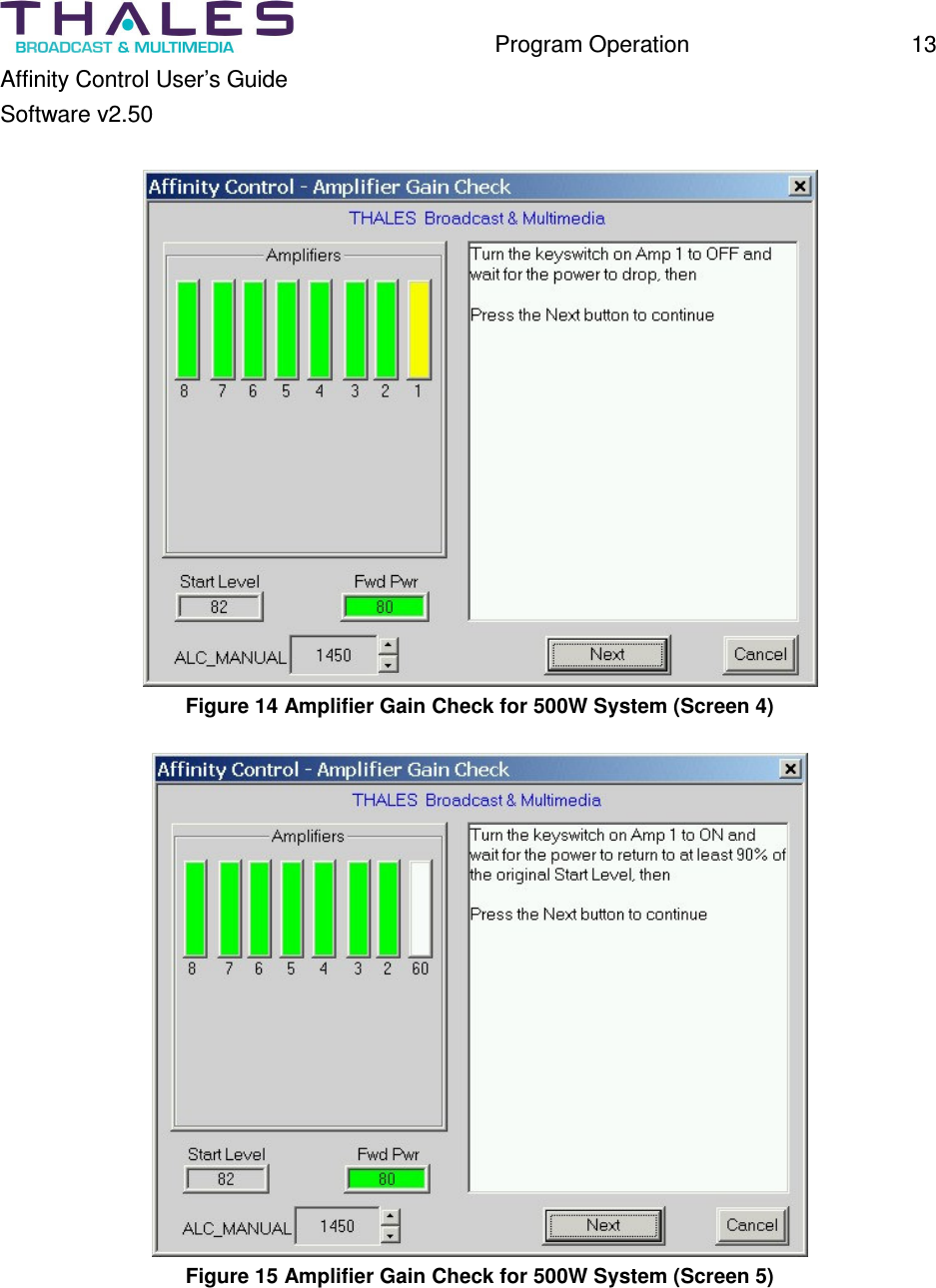
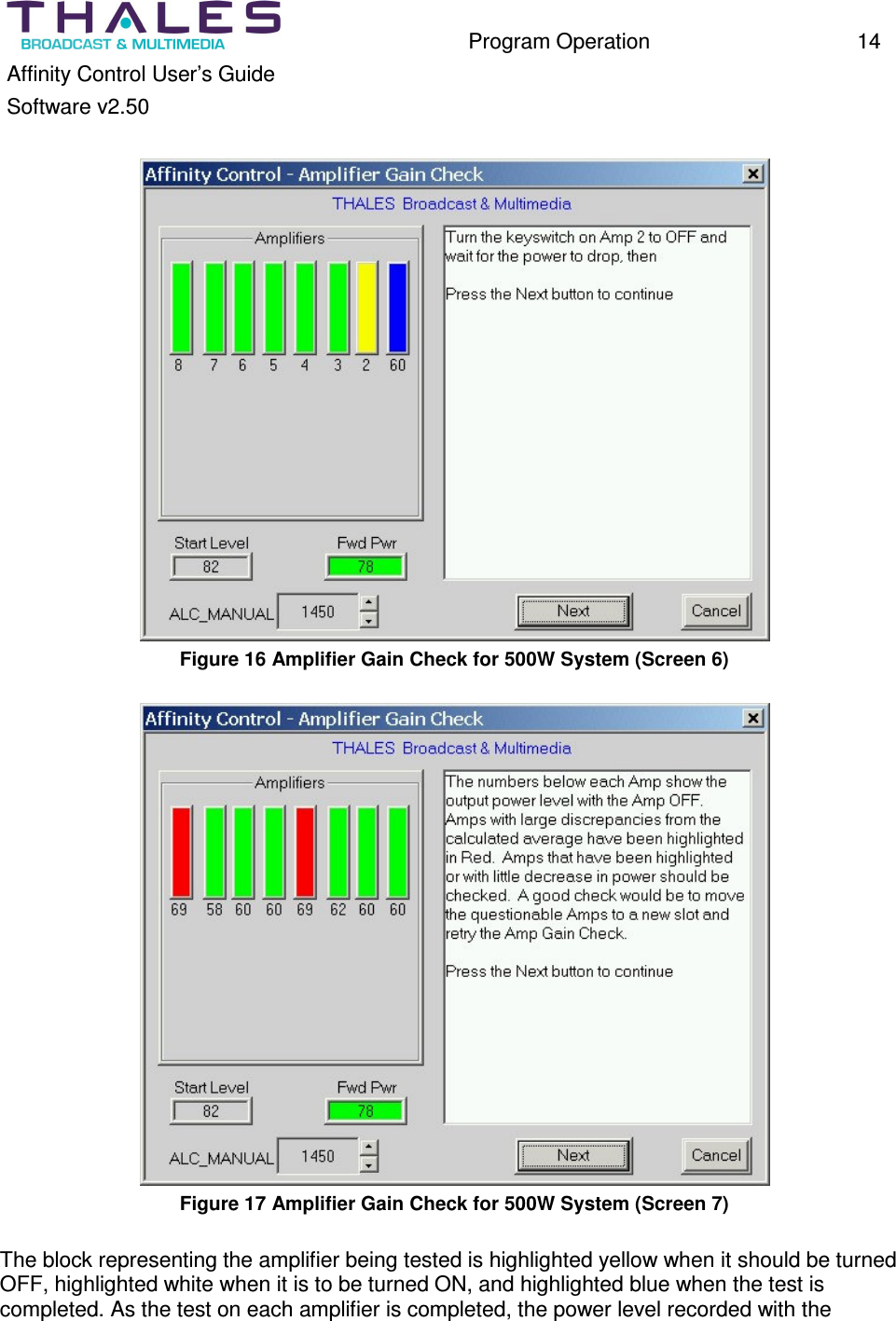
  Program Operation  11 Affinity Control User’s Guide Software v2.50  2.1.5.5  Purge Fault Log Operation Clicking on this button will bring up a dialog window asking for fault log purge confirmation. If “Yes” is clicked, the entire contents of the existing fault history file will be deleted. Fault history data is written to a file named FaultHistory.txt . The fault history file is a standard text file, which can be read/opened with a text editor program such as Notepad. It is recommended that the fault history file be archived and purged as a regular part of the normal system maintenance. The file can either be copied or moved to some external storage medium.  2.2  Amplifier Gain Check Procedure The Amplifier Gain Check procedure (refer to Figures 11, 12, 13, 14, 15, 16 and 17) allows the RF output power contribution of each individual amplifier to be checked. The procedure walks the user through a step-by-step process with on-screen instructions for each step. The procedure can be canceled and restarted at any time. Currently, it is not possible to go backwards (backup one or two steps). The basic procedure is as follows: •  Set upconverter to ALC Manual mode •  Raise ALC Manual value to adjust power between 50 and 100% output power. •  Turn each amp off, record power drop. •  Turn each amp back on. •  Repeat previous two steps for each of the remaining amps.   Figure 11 Amplifier Gain Check for 500W System (Screen 1)
  Program Operation  12 Affinity Control User’s Guide Software v2.50   Figure 12 Amplifier Gain Check for 500W System (Screen 2)   Figure 13 Amplifier Gain Check for 500W System (Screen 3)
  Program Operation  13 Affinity Control User’s Guide Software v2.50   Figure 14 Amplifier Gain Check for 500W System (Screen 4)   Figure 15 Amplifier Gain Check for 500W System (Screen 5)
  Program Operation  14 Affinity Control User’s Guide Software v2.50   Figure 16 Amplifier Gain Check for 500W System (Screen 6)   Figure 17 Amplifier Gain Check for 500W System (Screen 7)  The block representing the amplifier being tested is highlighted yellow when it should be turned OFF, highlighted white when it is to be turned ON, and highlighted blue when the test is completed. As the test on each amplifier is completed, the power level recorded with the
  Program Operation  15 Affinity Control User’s Guide Software v2.50  amplifier OFF is displayed below the amp. Note that the program does NOT actually know which amplifier is being turned OFF and assumes that the operator is following the sequence as highlighted. If the sequence is not followed correctly, the values under each amplifier block will not be correct for the specific location shown. After all of the amplifiers have been tested, the program will calculate an average power drop and highlight the amplifiers that have a gain contribution below a calculated limit.  NOTE:  An amplifier making little or no contribution to the final output power (i.e. power drops little when amp in question is deactivated) is most likely defective and may require replacement.  It is important to understand that the program only offers "advice." The operator should make the final decision regarding which amplifier(s) is/are defective. It is strongly recommended that the power levels shown for each amplifier be reviewed closely, that suspect amps be swapped to a new location, and that the test be re-run before deciding that an amplifier has failed.  2.3  Full Upconverter Calibration Procedure The Full Upconverter Calibration Procedure allows a new upconverter to be calibrated to the system in which it operates. An average power meter and a selection of SMA or N attenuator values are REQUIRED (a 0-10dB variable attenuator is recommended) in order to perform this procedure. The program provides a step-by-step procedure with instructions for the entire calibration. Each step is documented in this manual. This program performs some of the steps listed below automatically. The steps that are performed are as follows: •  Initialize the upconverter with default parameters. •  Put upconverter into ALC Manual mode. •  Check/adjust the ADAPT output level and connect to the RF input port of the upconverter. •  Adjust the ALC Manual Ref value to bring the system to full power. •  Check/adjust and connect a forward power sample to the forward power sample input of the upconverter. •  Adjust the System Fwd Pwr Ref value to calibrate the “System Fwd Pwr” metering value displayed on the upconverter LCD. •  Adjust the Upconv Fwd Power Ref value to calibrate the “Upconv Fwd Pwr” metering value displayed on the upconverter LCD. •  Check/adjust and connect a reflected power sample to the reflected power sample input of the upconverter. •  Adjust the System Refl Power Ref value to calibrate the “System Refl Pwr” metering value displayed on the upconverter LCD. •  Place upconverter into ALC Auto mode. •  Adjust the ALC Auto Ref value to bring the system to full power in ALC Auto mode. •  Calibrate the Power Limiter threshold to limit maximum system output power.
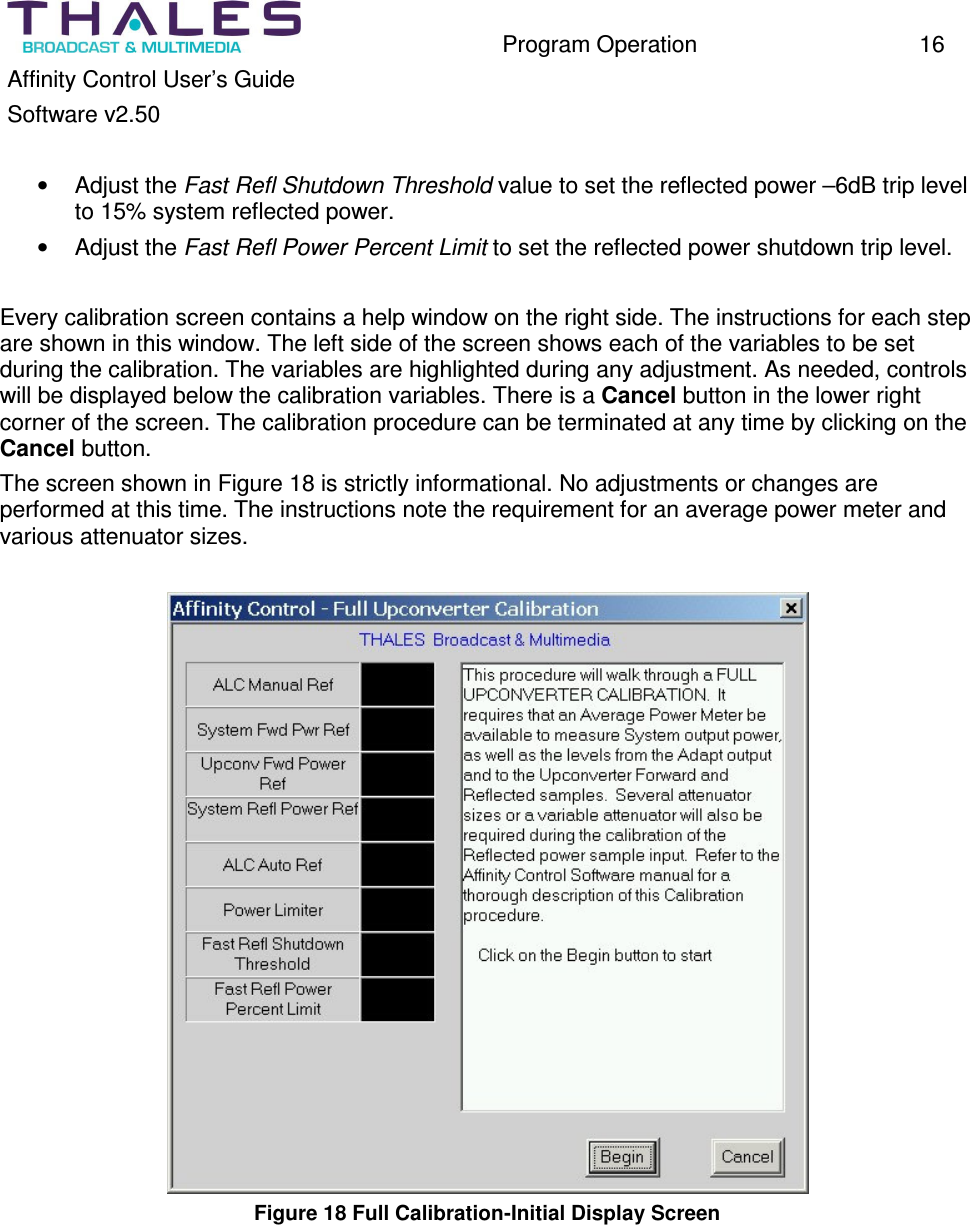
  Program Operation  16 Affinity Control User’s Guide Software v2.50  •  Adjust the Fast Refl Shutdown Threshold value to set the reflected power –6dB trip level to 15% system reflected power. •  Adjust the Fast Refl Power Percent Limit to set the reflected power shutdown trip level.  Every calibration screen contains a help window on the right side. The instructions for each step are shown in this window. The left side of the screen shows each of the variables to be set during the calibration. The variables are highlighted during any adjustment. As needed, controls will be displayed below the calibration variables. There is a Cancel button in the lower right corner of the screen. The calibration procedure can be terminated at any time by clicking on the Cancel button. The screen shown in Figure 18 is strictly informational. No adjustments or changes are performed at this time. The instructions note the requirement for an average power meter and various attenuator sizes.   Figure 18 Full Calibration-Initial Display Screen
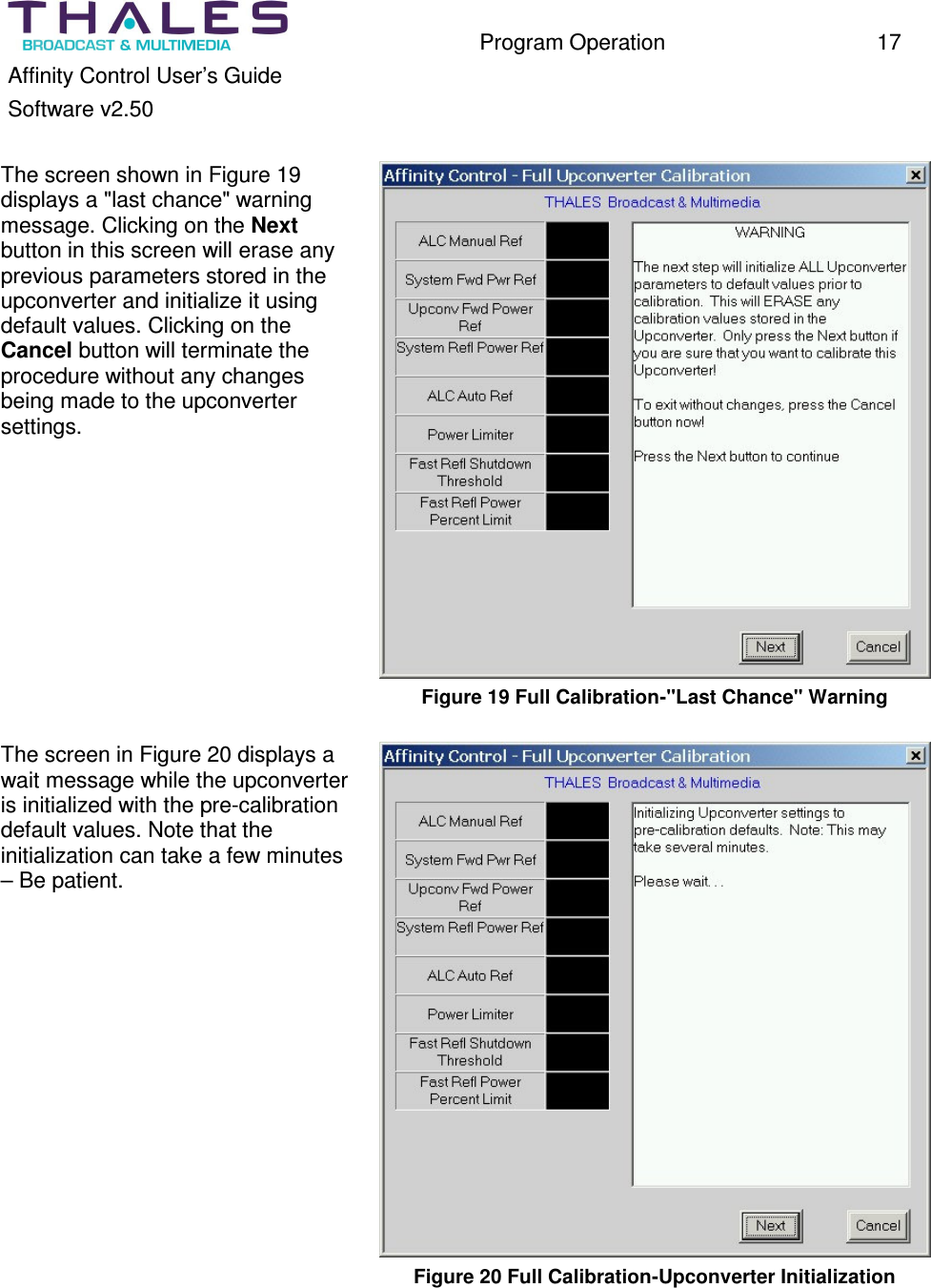
  Program Operation  17 Affinity Control User’s Guide Software v2.50  The screen shown in Figure 19 displays a "last chance" warning message. Clicking on the Next button in this screen will erase any previous parameters stored in the upconverter and initialize it using default values. Clicking on the Cancel button will terminate the procedure without any changes being made to the upconverter settings.   Figure 19 Full Calibration-"Last Chance" Warning  The screen in Figure 20 displays a wait message while the upconverter is initialized with the pre-calibration default values. Note that the initialization can take a few minutes – Be patient.   Figure 20 Full Calibration-Upconverter Initialization
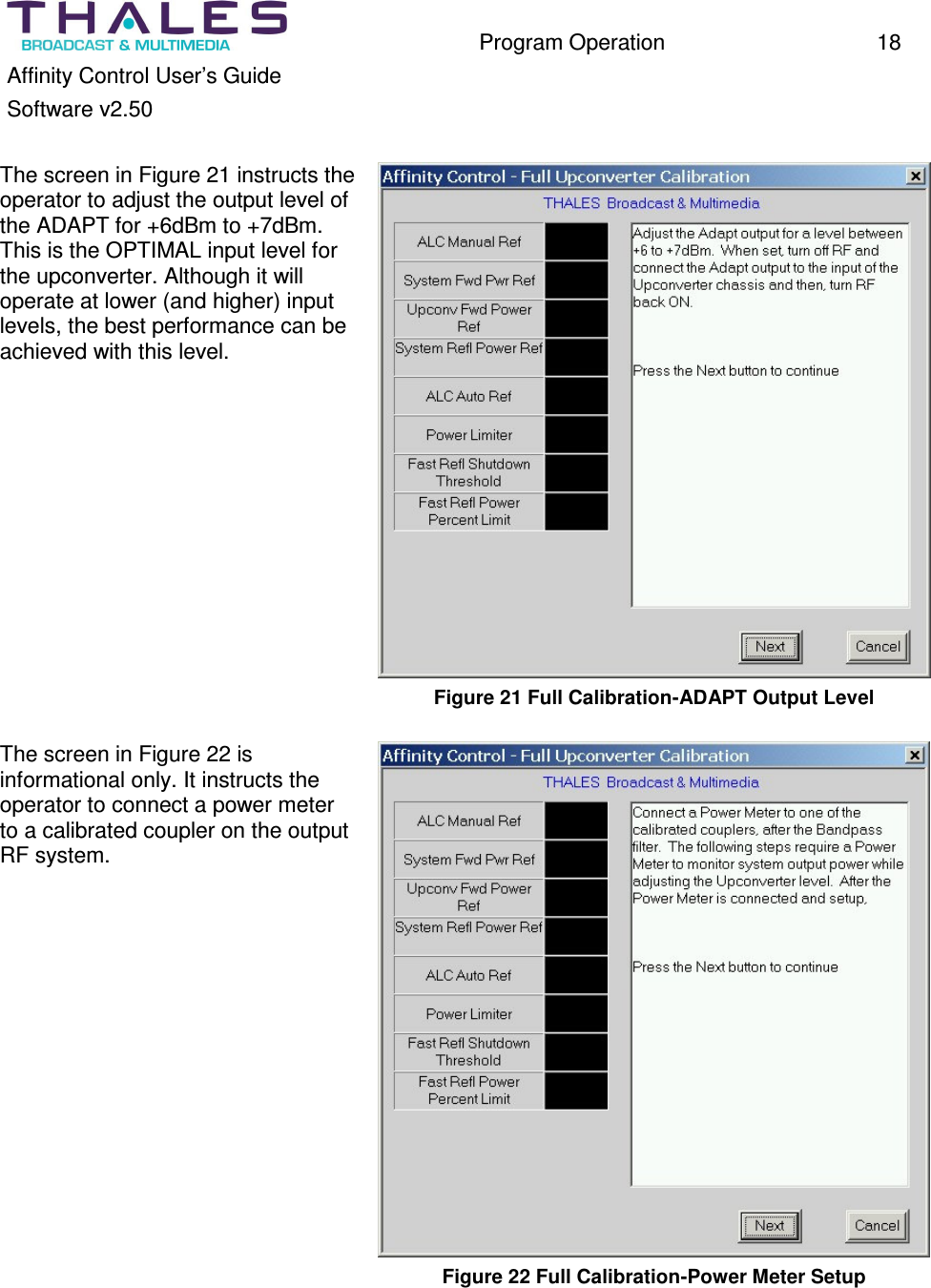
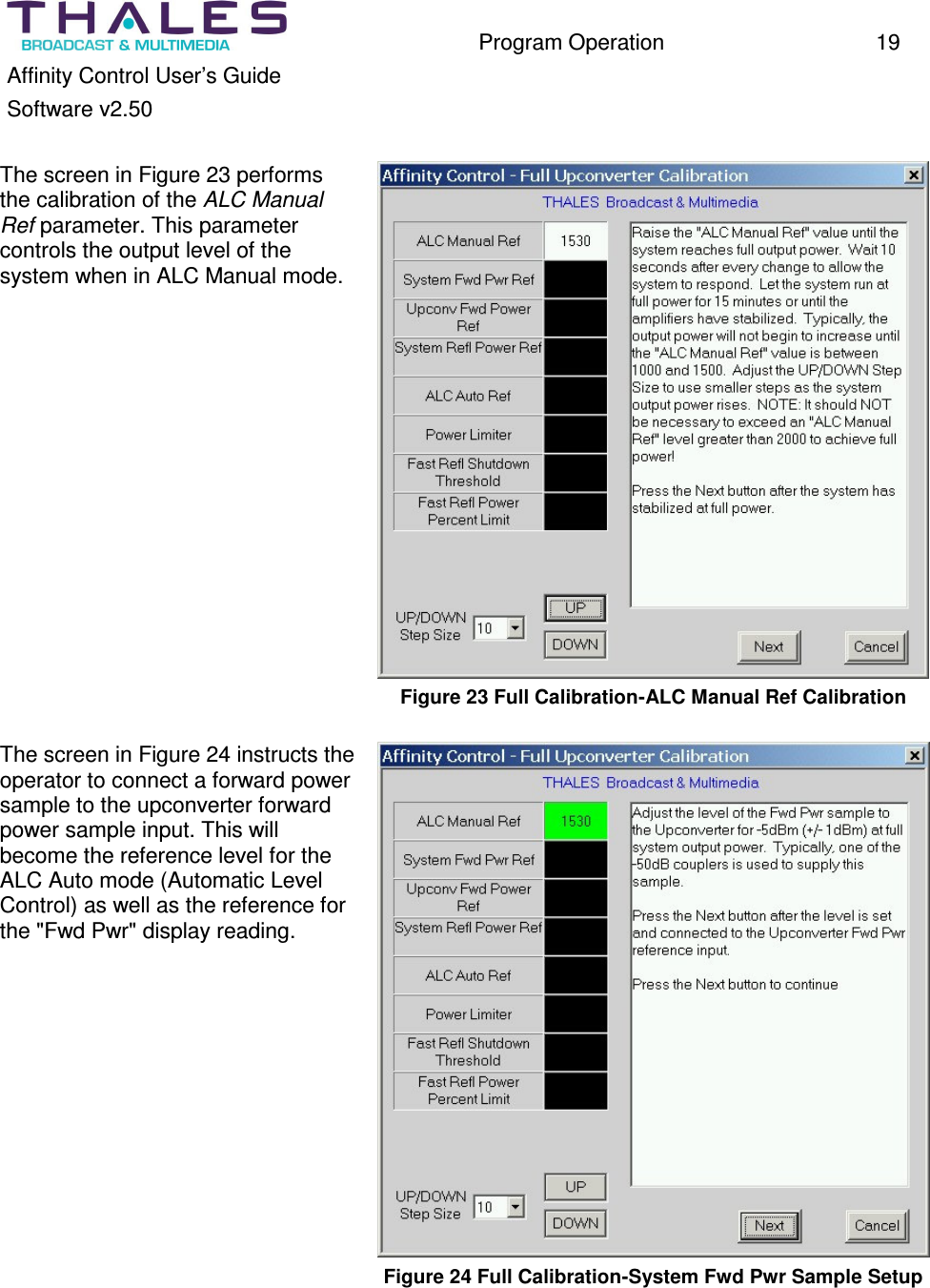
  Program Operation  18 Affinity Control User’s Guide Software v2.50  The screen in Figure 21 instructs the operator to adjust the output level of the ADAPT for +6dBm to +7dBm. This is the OPTIMAL input level for the upconverter. Although it will operate at lower (and higher) input levels, the best performance can be achieved with this level.   Figure 21 Full Calibration-ADAPT Output Level  The screen in Figure 22 is informational only. It instructs the operator to connect a power meter to a calibrated coupler on the output RF system.   Figure 22 Full Calibration-Power Meter Setup
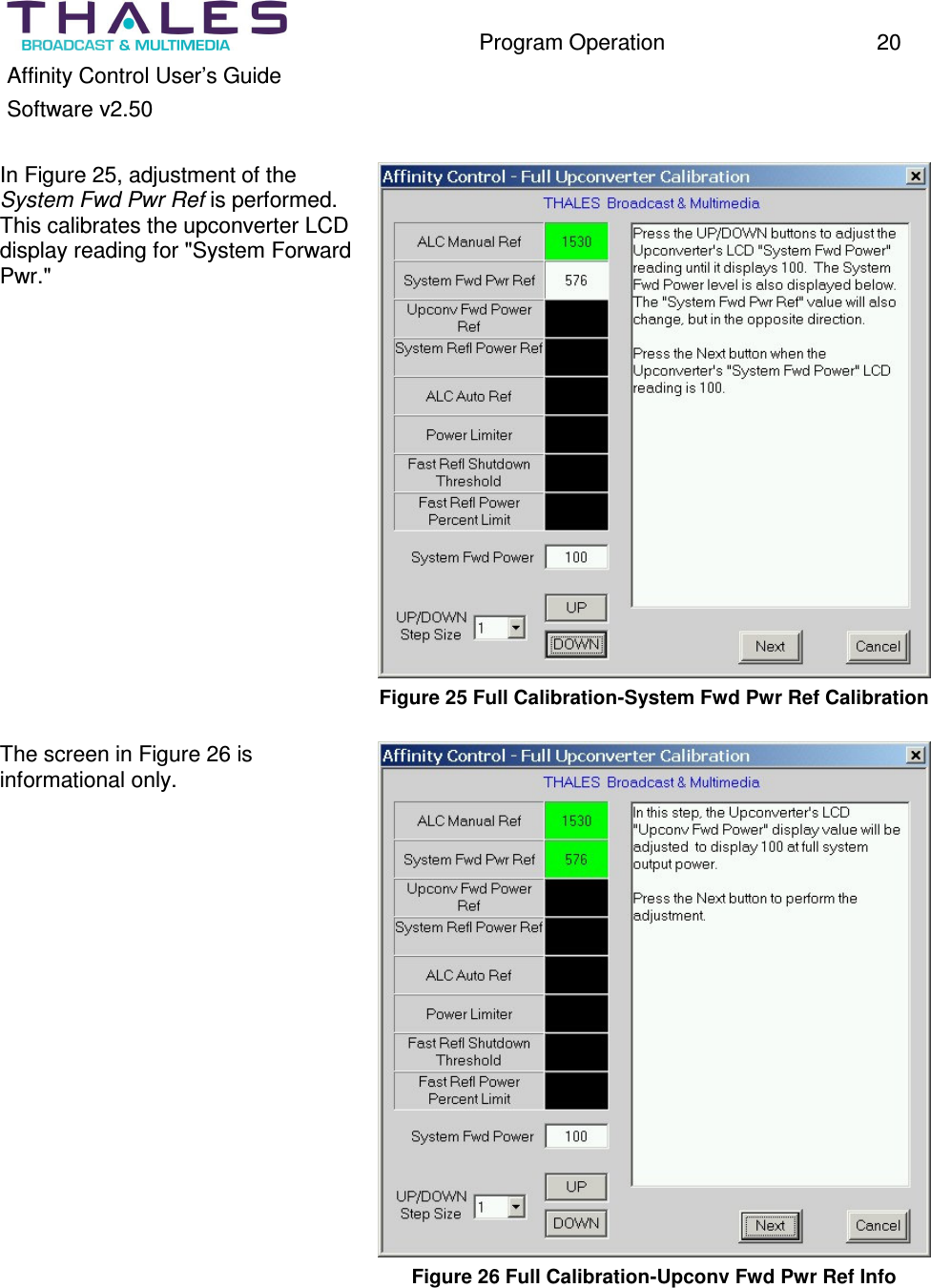
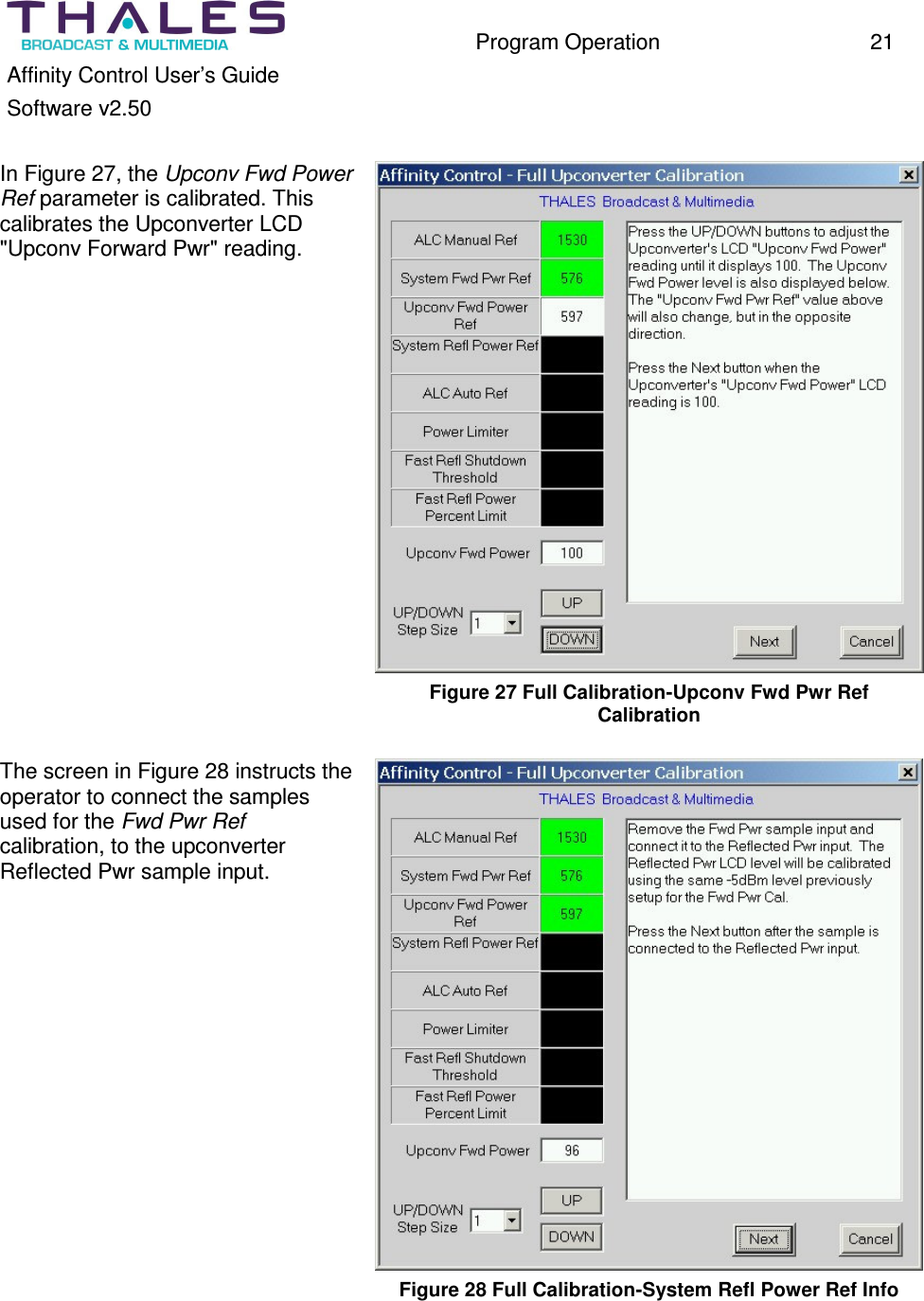
  Program Operation  19 Affinity Control User’s Guide Software v2.50  The screen in Figure 23 performs the calibration of the ALC Manual Ref parameter. This parameter controls the output level of the system when in ALC Manual mode.   Figure 23 Full Calibration-ALC Manual Ref Calibration  The screen in Figure 24 instructs the operator to connect a forward power sample to the upconverter forward power sample input. This will become the reference level for the ALC Auto mode (Automatic Level Control) as well as the reference for the "Fwd Pwr" display reading.   Figure 24 Full Calibration-System Fwd Pwr Sample Setup
  Program Operation  20 Affinity Control User’s Guide Software v2.50  In Figure 25, adjustment of the System Fwd Pwr Ref is performed. This calibrates the upconverter LCD display reading for "System Forward Pwr."   Figure 25 Full Calibration-System Fwd Pwr Ref Calibration  The screen in Figure 26 is informational only.  Figure 26 Full Calibration-Upconv Fwd Pwr Ref Info
  Program Operation  21 Affinity Control User’s Guide Software v2.50  In Figure 27, the Upconv Fwd Power Ref parameter is calibrated. This calibrates the Upconverter LCD "Upconv Forward Pwr" reading.   Figure 27 Full Calibration-Upconv Fwd Pwr Ref Calibration  The screen in Figure 28 instructs the operator to connect the samples used for the Fwd Pwr Ref calibration, to the upconverter Reflected Pwr sample input.   Figure 28 Full Calibration-System Refl Power Ref Info
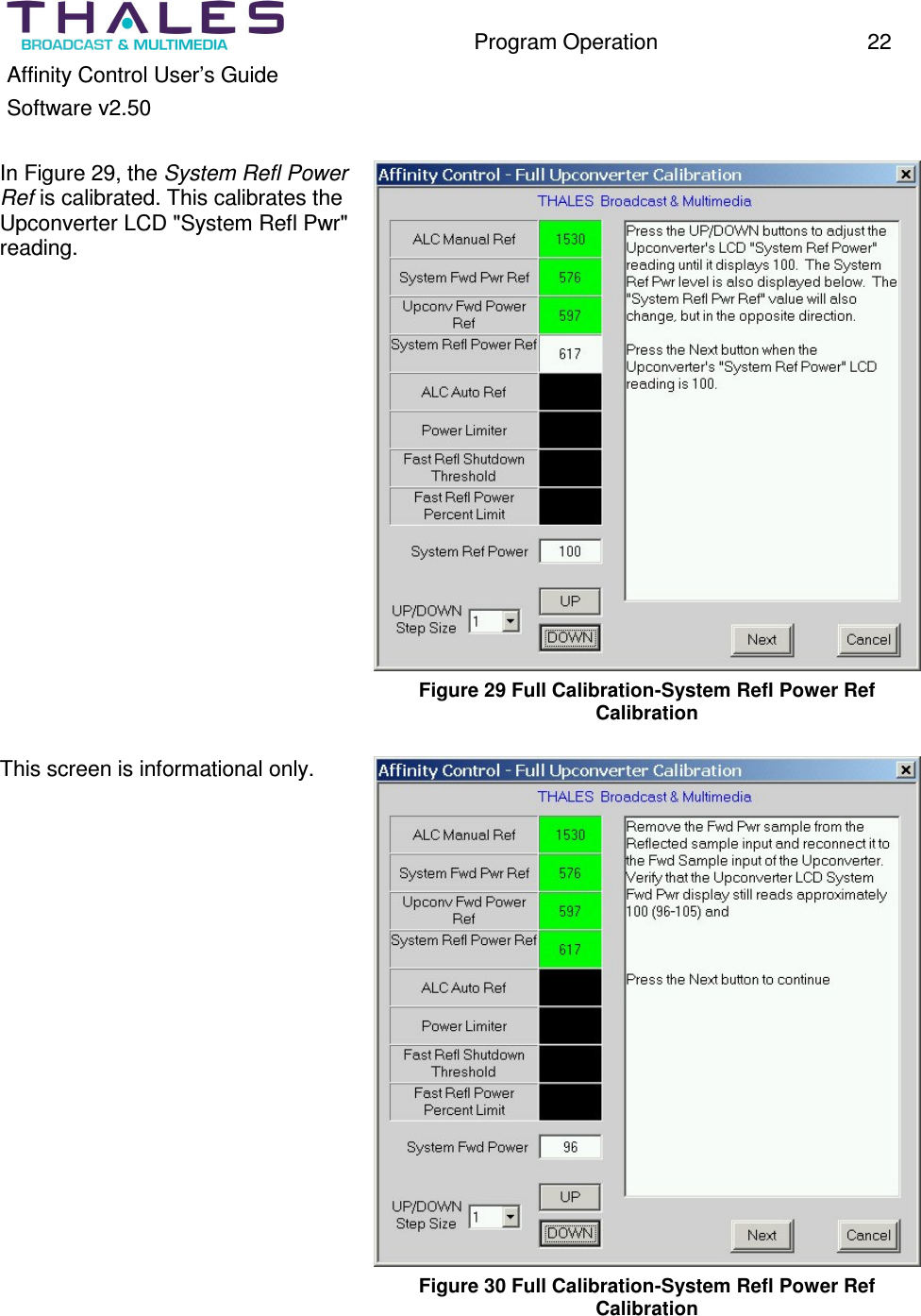
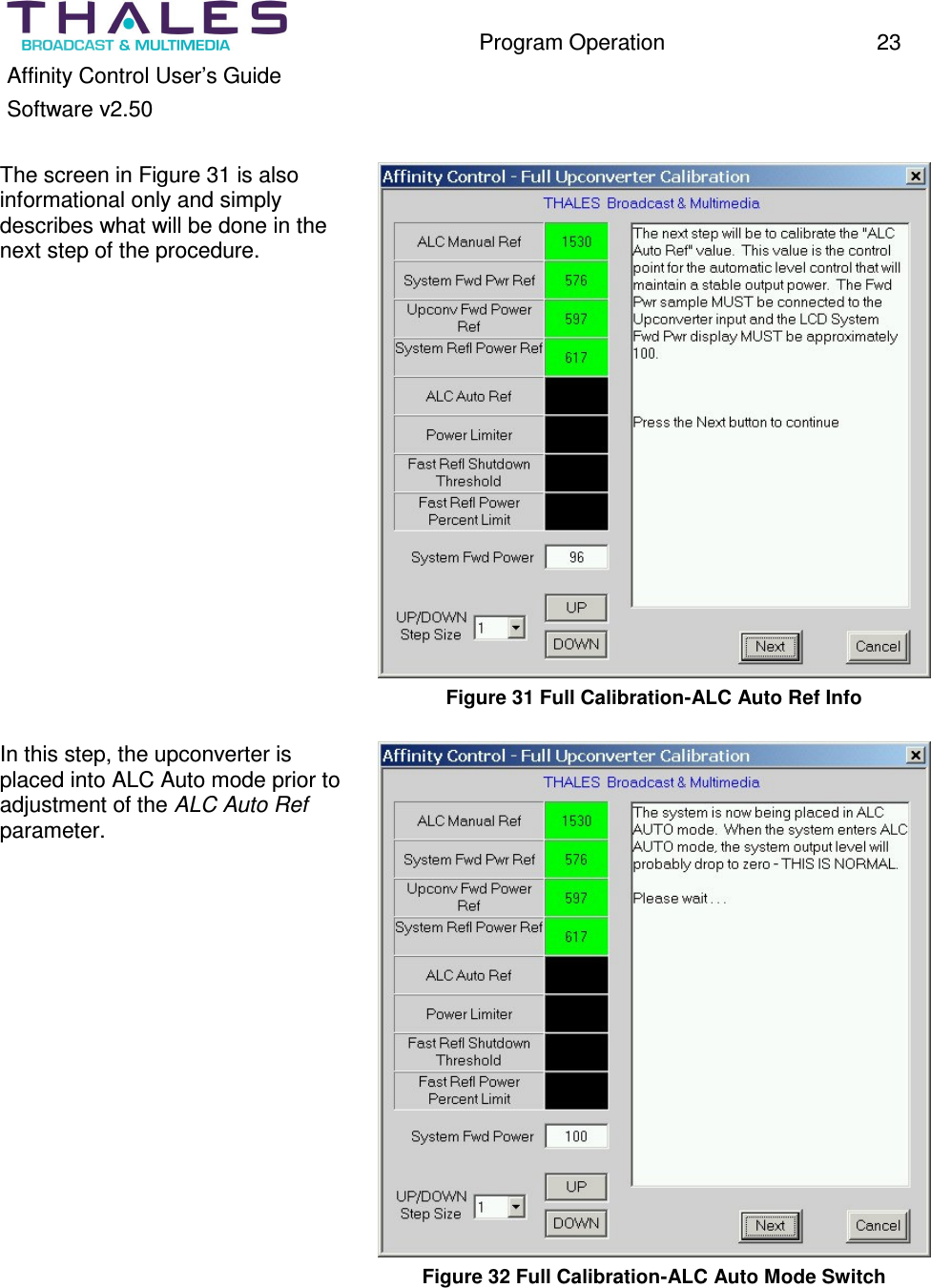
  Program Operation  22 Affinity Control User’s Guide Software v2.50  In Figure 29, the System Refl Power Ref is calibrated. This calibrates the Upconverter LCD "System Refl Pwr" reading.   Figure 29 Full Calibration-System Refl Power Ref Calibration  This screen is informational only.   Figure 30 Full Calibration-System Refl Power Ref Calibration
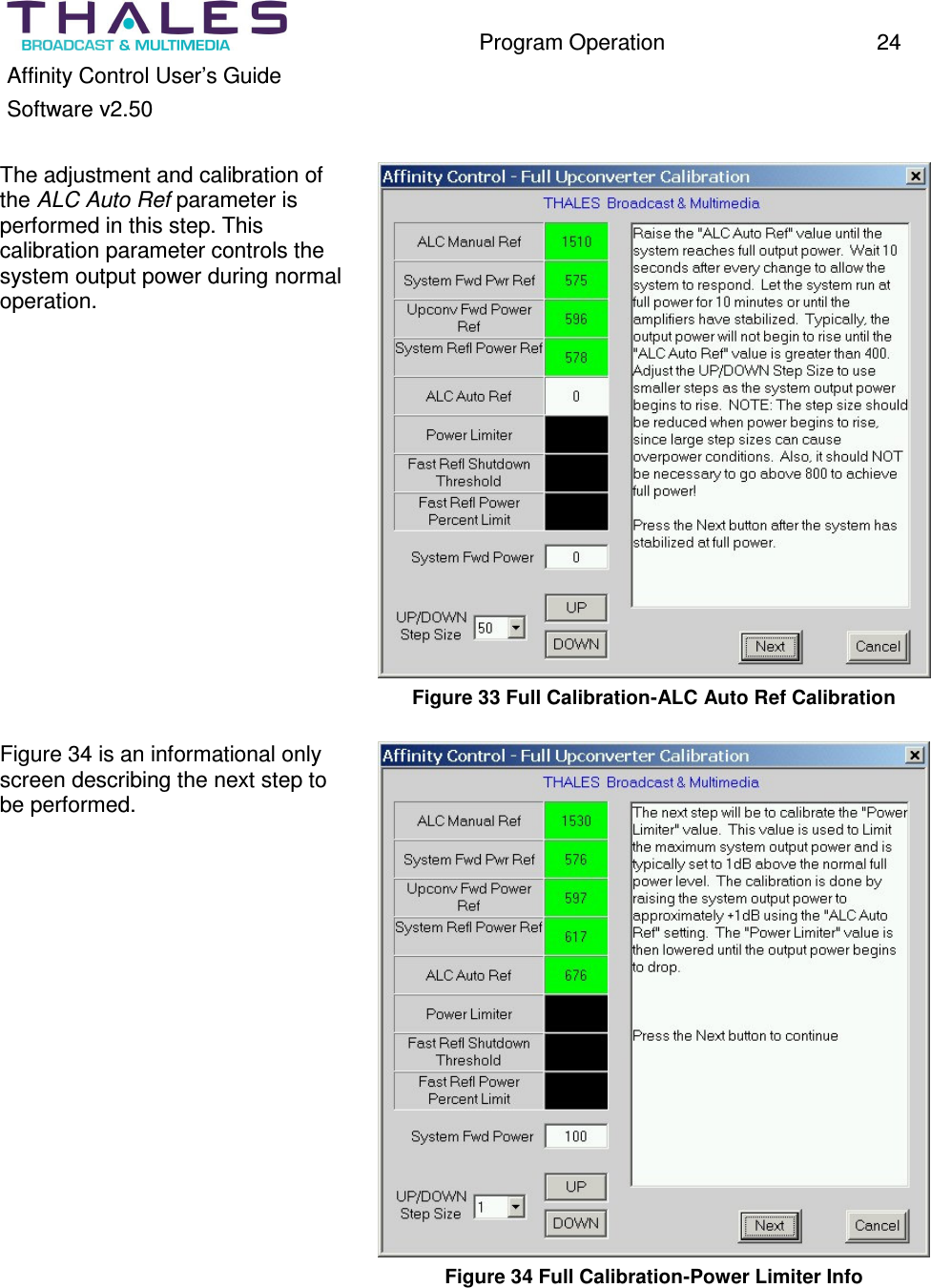
  Program Operation  23 Affinity Control User’s Guide Software v2.50  The screen in Figure 31 is also informational only and simply describes what will be done in the next step of the procedure.   Figure 31 Full Calibration-ALC Auto Ref Info  In this step, the upconverter is placed into ALC Auto mode prior to adjustment of the ALC Auto Ref parameter.   Figure 32 Full Calibration-ALC Auto Mode Switch
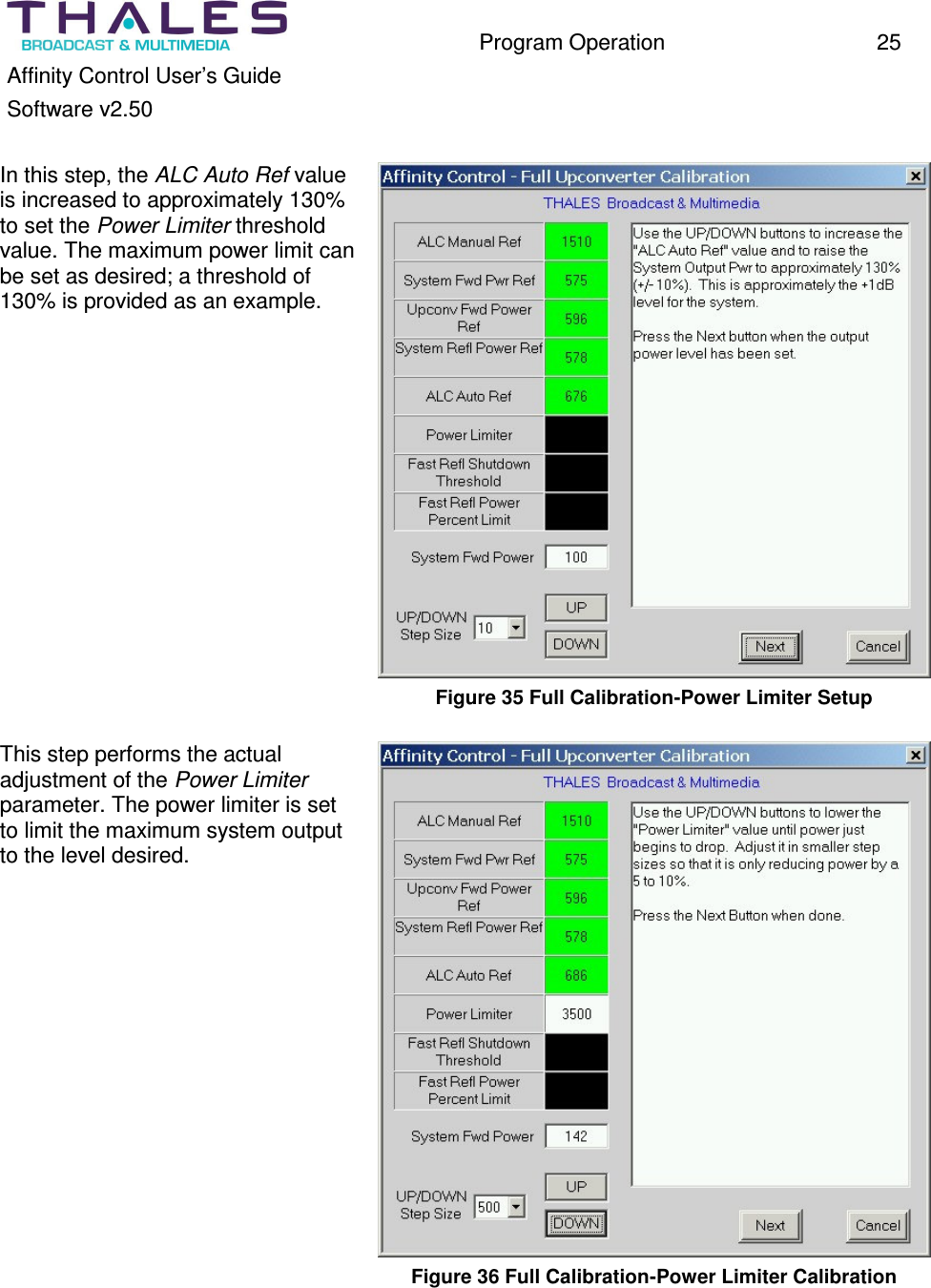
  Program Operation  24 Affinity Control User’s Guide Software v2.50  The adjustment and calibration of the ALC Auto Ref parameter is performed in this step. This calibration parameter controls the system output power during normal operation.   Figure 33 Full Calibration-ALC Auto Ref Calibration  Figure 34 is an informational only screen describing the next step to be performed.   Figure 34 Full Calibration-Power Limiter Info
  Program Operation  25 Affinity Control User’s Guide Software v2.50  In this step, the ALC Auto Ref value is increased to approximately 130% to set the Power Limiter threshold value. The maximum power limit can be set as desired; a threshold of 130% is provided as an example.   Figure 35 Full Calibration-Power Limiter Setup  This step performs the actual adjustment of the Power Limiter parameter. The power limiter is set to limit the maximum system output to the level desired.   Figure 36 Full Calibration-Power Limiter Calibration
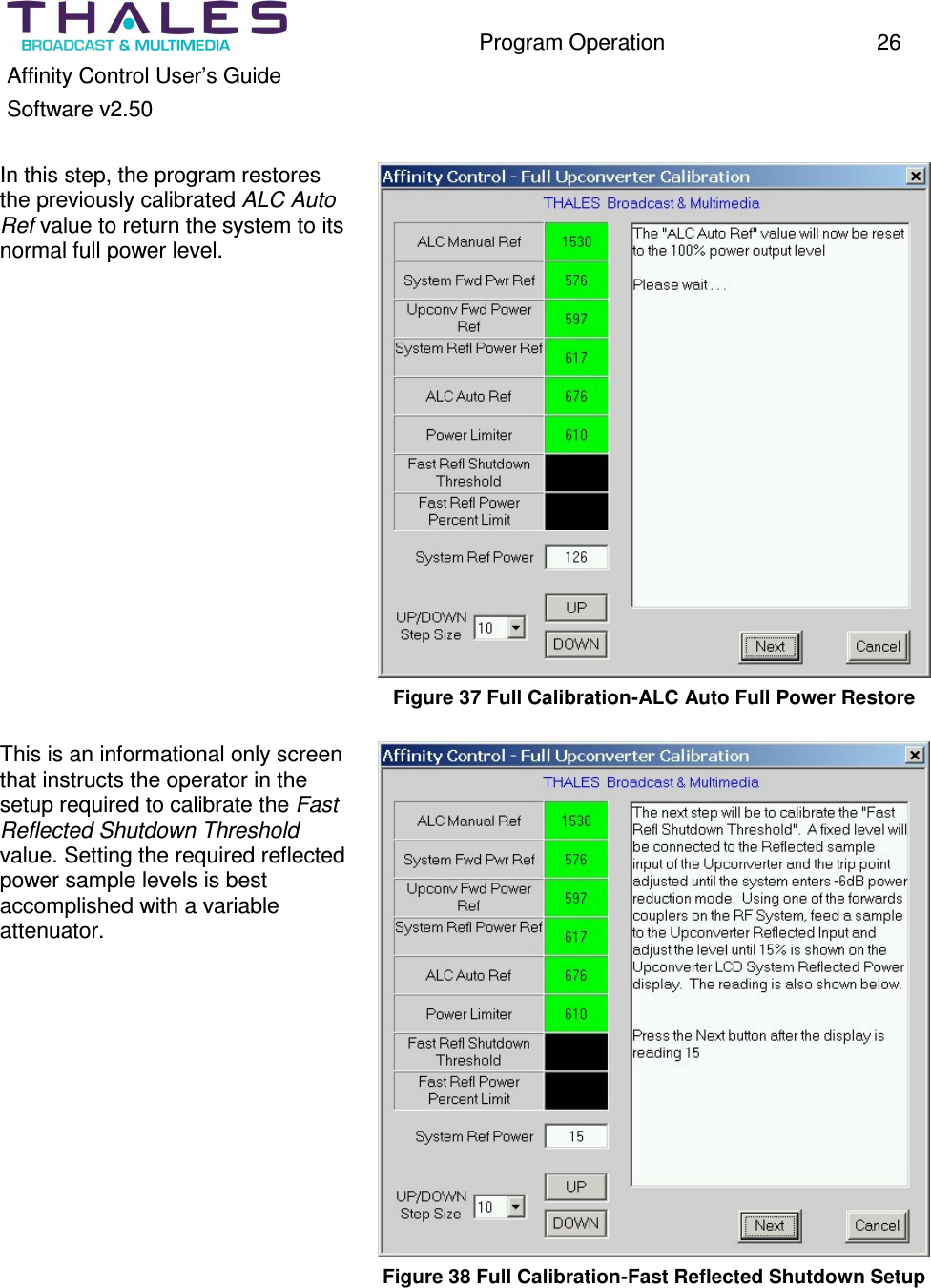
  Program Operation  26 Affinity Control User’s Guide Software v2.50  In this step, the program restores the previously calibrated ALC Auto Ref value to return the system to its normal full power level.   Figure 37 Full Calibration-ALC Auto Full Power Restore  This is an informational only screen that instructs the operator in the setup required to calibrate the Fast Reflected Shutdown Threshold value. Setting the required reflected power sample levels is best accomplished with a variable attenuator.   Figure 38 Full Calibration-Fast Reflected Shutdown Setup
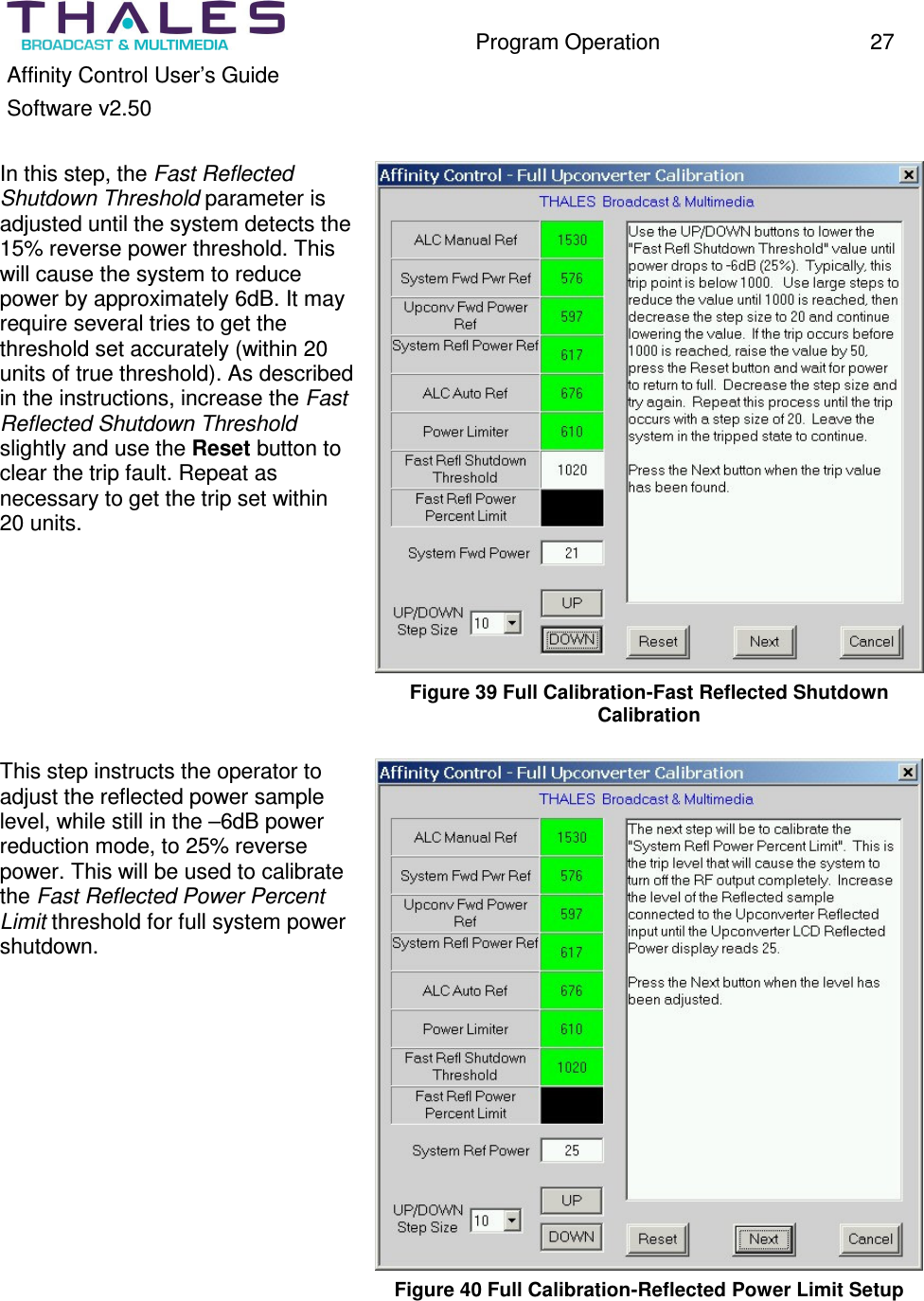
  Program Operation  27 Affinity Control User’s Guide Software v2.50  In this step, the Fast Reflected Shutdown Threshold parameter is adjusted until the system detects the 15% reverse power threshold. This will cause the system to reduce power by approximately 6dB. It may require several tries to get the threshold set accurately (within 20 units of true threshold). As described in the instructions, increase the Fast Reflected Shutdown Threshold slightly and use the Reset button to clear the trip fault. Repeat as necessary to get the trip set within 20 units.  Figure 39 Full Calibration-Fast Reflected Shutdown Calibration  This step instructs the operator to adjust the reflected power sample level, while still in the –6dB power reduction mode, to 25% reverse power. This will be used to calibrate the Fast Reflected Power Percent Limit threshold for full system power shutdown.   Figure 40 Full Calibration-Reflected Power Limit Setup
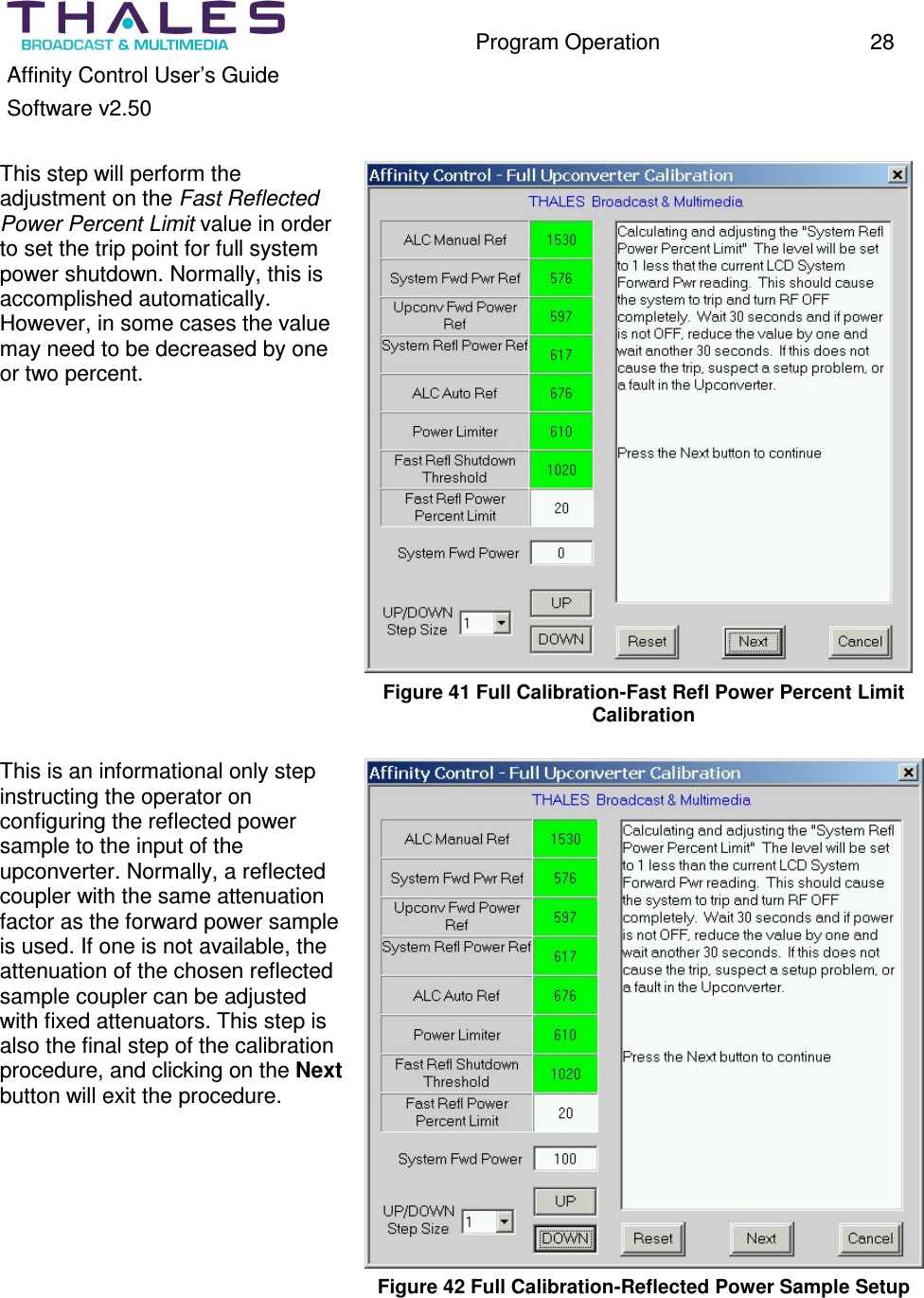
  Program Operation  28 Affinity Control User’s Guide Software v2.50  This step will perform the adjustment on the Fast Reflected Power Percent Limit value in order to set the trip point for full system power shutdown. Normally, this is accomplished automatically. However, in some cases the value may need to be decreased by one or two percent.   Figure 41 Full Calibration-Fast Refl Power Percent Limit Calibration  This is an informational only step instructing the operator on configuring the reflected power sample to the input of the upconverter. Normally, a reflected coupler with the same attenuation factor as the forward power sample is used. If one is not available, the attenuation of the chosen reflected sample coupler can be adjusted with fixed attenuators. This step is also the final step of the calibration procedure, and clicking on the Next button will exit the procedure.   Figure 42 Full Calibration-Reflected Power Sample Setup
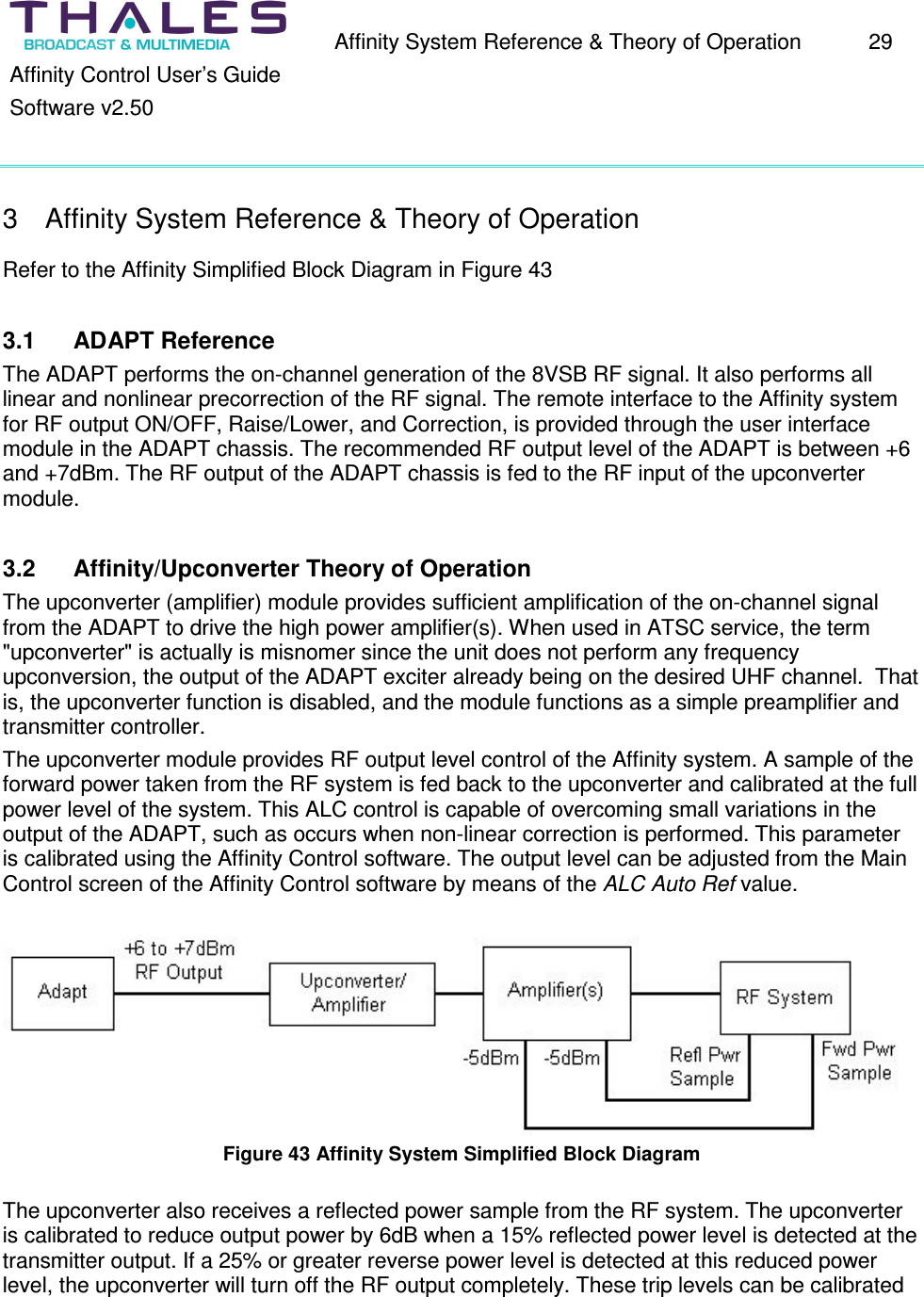
  Affinity System Reference & Theory of Operation  29 Affinity Control User’s Guide Software v2.50  3  Affinity System Reference & Theory of Operation Refer to the Affinity Simplified Block Diagram in Figure 43  3.1  ADAPT Reference The ADAPT performs the on-channel generation of the 8VSB RF signal. It also performs all linear and nonlinear precorrection of the RF signal. The remote interface to the Affinity system for RF output ON/OFF, Raise/Lower, and Correction, is provided through the user interface module in the ADAPT chassis. The recommended RF output level of the ADAPT is between +6 and +7dBm. The RF output of the ADAPT chassis is fed to the RF input of the upconverter module.  3.2  Affinity/Upconverter Theory of Operation The upconverter (amplifier) module provides sufficient amplification of the on-channel signal from the ADAPT to drive the high power amplifier(s). When used in ATSC service, the term "upconverter" is actually is misnomer since the unit does not perform any frequency upconversion, the output of the ADAPT exciter already being on the desired UHF channel.  That is, the upconverter function is disabled, and the module functions as a simple preamplifier and transmitter controller. The upconverter module provides RF output level control of the Affinity system. A sample of the forward power taken from the RF system is fed back to the upconverter and calibrated at the full power level of the system. This ALC control is capable of overcoming small variations in the output of the ADAPT, such as occurs when non-linear correction is performed. This parameter is calibrated using the Affinity Control software. The output level can be adjusted from the Main Control screen of the Affinity Control software by means of the ALC Auto Ref value.   Figure 43 Affinity System Simplified Block Diagram  The upconverter also receives a reflected power sample from the RF system. The upconverter is calibrated to reduce output power by 6dB when a 15% reflected power level is detected at the transmitter output. If a 25% or greater reverse power level is detected at this reduced power level, the upconverter will turn off the RF output completely. These trip levels can be calibrated
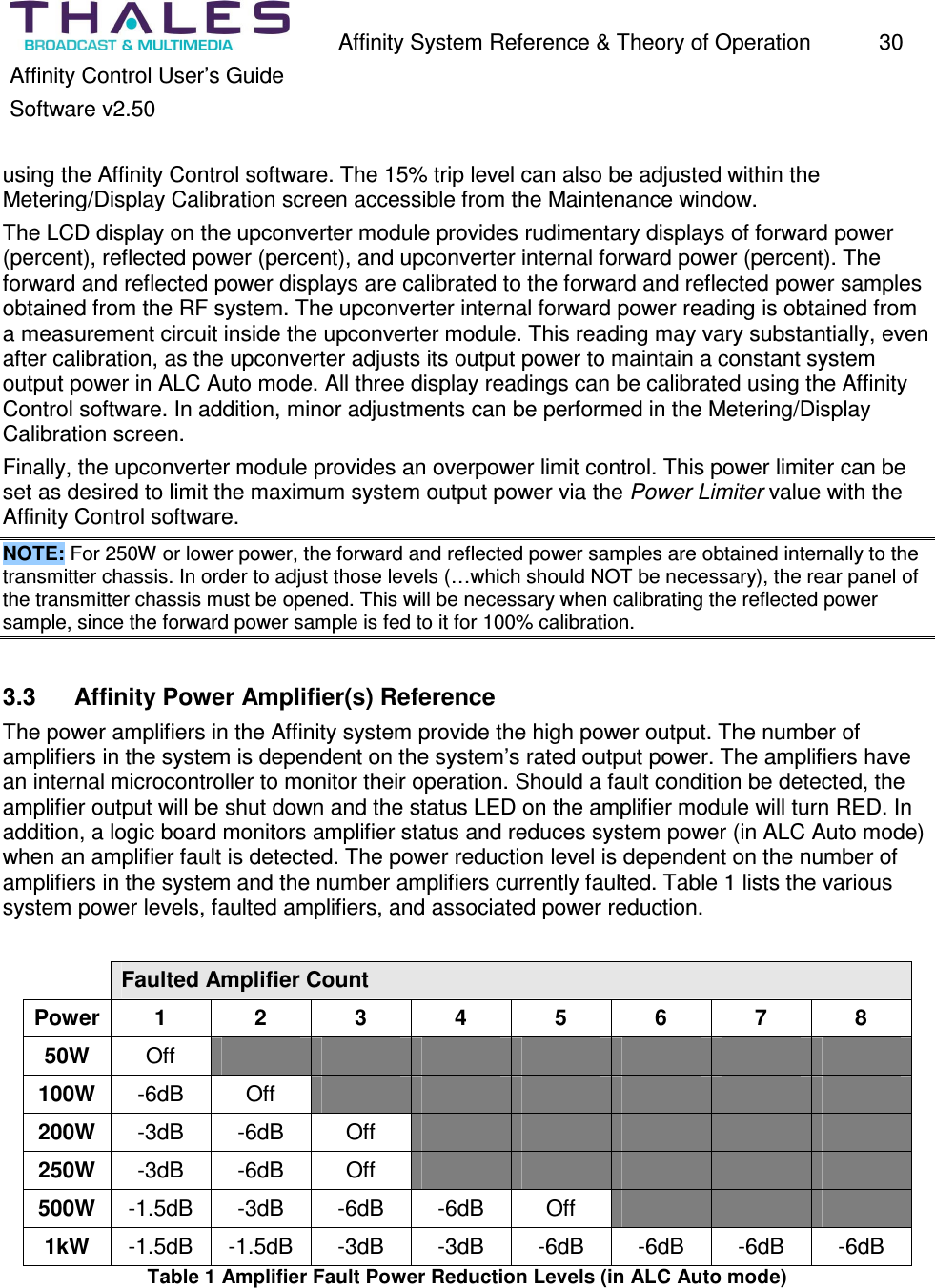
  Affinity System Reference & Theory of Operation  30 Affinity Control User’s Guide Software v2.50  using the Affinity Control software. The 15% trip level can also be adjusted within the Metering/Display Calibration screen accessible from the Maintenance window. The LCD display on the upconverter module provides rudimentary displays of forward power (percent), reflected power (percent), and upconverter internal forward power (percent). The forward and reflected power displays are calibrated to the forward and reflected power samples obtained from the RF system. The upconverter internal forward power reading is obtained from a measurement circuit inside the upconverter module. This reading may vary substantially, even after calibration, as the upconverter adjusts its output power to maintain a constant system output power in ALC Auto mode. All three display readings can be calibrated using the Affinity Control software. In addition, minor adjustments can be performed in the Metering/Display Calibration screen. Finally, the upconverter module provides an overpower limit control. This power limiter can be set as desired to limit the maximum system output power via the Power Limiter value with the Affinity Control software. NOTE: For 250W or lower power, the forward and reflected power samples are obtained internally to the transmitter chassis. In order to adjust those levels (…which should NOT be necessary), the rear panel of the transmitter chassis must be opened. This will be necessary when calibrating the reflected power sample, since the forward power sample is fed to it for 100% calibration.  3.3  Affinity Power Amplifier(s) Reference The power amplifiers in the Affinity system provide the high power output. The number of amplifiers in the system is dependent on the system’s rated output power. The amplifiers have an internal microcontroller to monitor their operation. Should a fault condition be detected, the amplifier output will be shut down and the status LED on the amplifier module will turn RED. In addition, a logic board monitors amplifier status and reduces system power (in ALC Auto mode) when an amplifier fault is detected. The power reduction level is dependent on the number of amplifiers in the system and the number amplifiers currently faulted. Table 1 lists the various system power levels, faulted amplifiers, and associated power reduction.   Faulted Amplifier Count Power 1  2  3  4  5  6  7  8 50W  Off        100W  -6dB  Off             200W  -3dB  -6dB  Off           250W  -3dB  -6dB  Off           500W  -1.5dB  -3dB  -6dB  -6dB  Off       1kW  -1.5dB  -1.5dB  -3dB  -3dB  -6dB  -6dB  -6dB  -6dB Table 1 Amplifier Fault Power Reduction Levels (in ALC Auto mode)
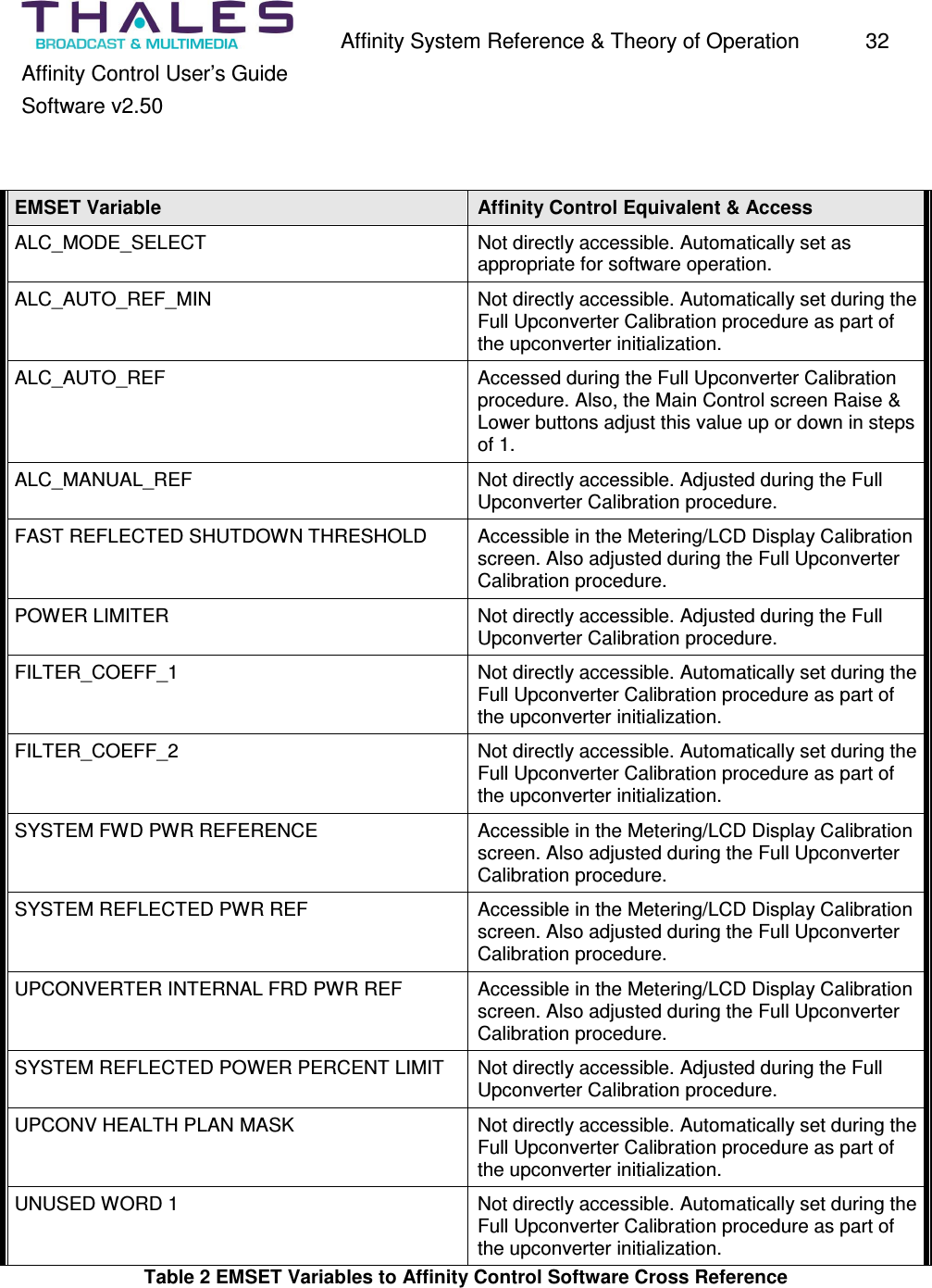
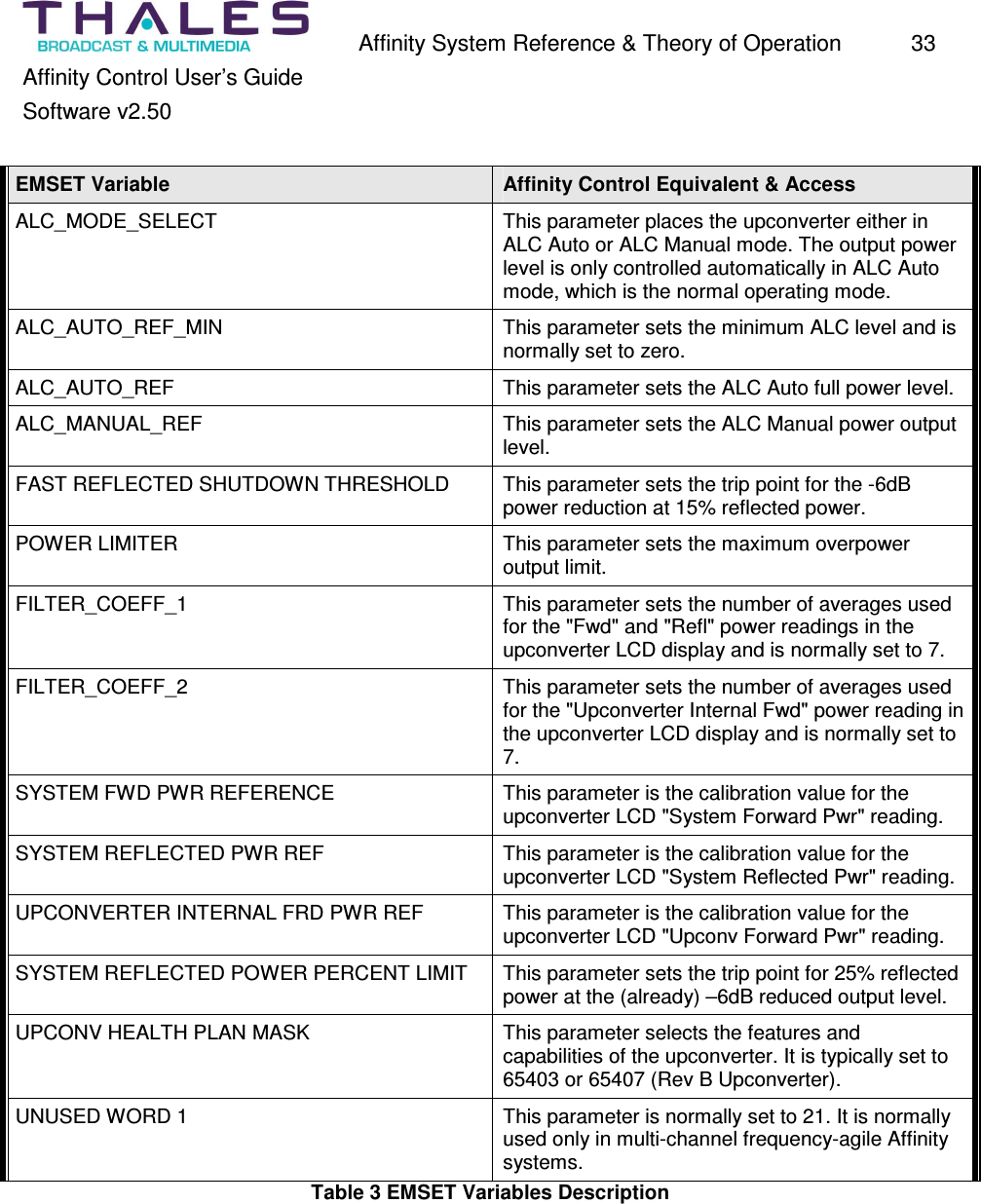
  Affinity System Reference & Theory of Operation  31 Affinity Control User’s Guide Software v2.50  3.4  Affinity Control Software to EMSET Variable Cross Reference Table 2 lists the EMSET v5.0 variables that are normally adjusted during either, the initial setup and calibration of an Upconverter, or during typical operation. Some of the variables are automatically set and/or controlled by the Affinity Control software and are not directly accessible by the user. Table 3 lists the same EMSET variables and includes a brief description of their effect.  This table is provided for those users familiar with the original EMSET software.
  Affinity System Reference & Theory of Operation  32 Affinity Control User’s Guide Software v2.50   EMSET Variable  Affinity Control Equivalent & Access ALC_MODE_SELECT  Not directly accessible. Automatically set as appropriate for software operation. ALC_AUTO_REF_MIN  Not directly accessible. Automatically set during the Full Upconverter Calibration procedure as part of the upconverter initialization. ALC_AUTO_REF  Accessed during the Full Upconverter Calibration procedure. Also, the Main Control screen Raise & Lower buttons adjust this value up or down in steps of 1. ALC_MANUAL_REF  Not directly accessible. Adjusted during the Full Upconverter Calibration procedure. FAST REFLECTED SHUTDOWN THRESHOLD  Accessible in the Metering/LCD Display Calibration screen. Also adjusted during the Full Upconverter Calibration procedure. POWER LIMITER  Not directly accessible. Adjusted during the Full Upconverter Calibration procedure. FILTER_COEFF_1  Not directly accessible. Automatically set during the Full Upconverter Calibration procedure as part of the upconverter initialization. FILTER_COEFF_2  Not directly accessible. Automatically set during the Full Upconverter Calibration procedure as part of the upconverter initialization. SYSTEM FWD PWR REFERENCE  Accessible in the Metering/LCD Display Calibration screen. Also adjusted during the Full Upconverter Calibration procedure. SYSTEM REFLECTED PWR REF  Accessible in the Metering/LCD Display Calibration screen. Also adjusted during the Full Upconverter Calibration procedure. UPCONVERTER INTERNAL FRD PWR REF  Accessible in the Metering/LCD Display Calibration screen. Also adjusted during the Full Upconverter Calibration procedure. SYSTEM REFLECTED POWER PERCENT LIMIT  Not directly accessible. Adjusted during the Full Upconverter Calibration procedure. UPCONV HEALTH PLAN MASK  Not directly accessible. Automatically set during the Full Upconverter Calibration procedure as part of the upconverter initialization. UNUSED WORD 1  Not directly accessible. Automatically set during the Full Upconverter Calibration procedure as part of the upconverter initialization. Table 2 EMSET Variables to Affinity Control Software Cross Reference
  Affinity System Reference & Theory of Operation  33 Affinity Control User’s Guide Software v2.50  EMSET Variable  Affinity Control Equivalent & Access ALC_MODE_SELECT  This parameter places the upconverter either in ALC Auto or ALC Manual mode. The output power level is only controlled automatically in ALC Auto mode, which is the normal operating mode. ALC_AUTO_REF_MIN  This parameter sets the minimum ALC level and is normally set to zero. ALC_AUTO_REF  This parameter sets the ALC Auto full power level. ALC_MANUAL_REF  This parameter sets the ALC Manual power output level. FAST REFLECTED SHUTDOWN THRESHOLD  This parameter sets the trip point for the -6dB power reduction at 15% reflected power. POWER LIMITER  This parameter sets the maximum overpower output limit. FILTER_COEFF_1  This parameter sets the number of averages used for the "Fwd" and "Refl" power readings in the upconverter LCD display and is normally set to 7. FILTER_COEFF_2  This parameter sets the number of averages used for the "Upconverter Internal Fwd" power reading in the upconverter LCD display and is normally set to 7. SYSTEM FWD PWR REFERENCE  This parameter is the calibration value for the upconverter LCD "System Forward Pwr" reading. SYSTEM REFLECTED PWR REF  This parameter is the calibration value for the upconverter LCD "System Reflected Pwr" reading. UPCONVERTER INTERNAL FRD PWR REF  This parameter is the calibration value for the upconverter LCD "Upconv Forward Pwr" reading. SYSTEM REFLECTED POWER PERCENT LIMIT  This parameter sets the trip point for 25% reflected power at the (already) –6dB reduced output level. UPCONV HEALTH PLAN MASK  This parameter selects the features and capabilities of the upconverter. It is typically set to 65403 or 65407 (Rev B Upconverter). UNUSED WORD 1  This parameter is normally set to 21. It is normally used only in multi-channel frequency-agile Affinity systems. Table 3 EMSET Variables Description
                                  Thales Broadcast & Multimedia, Inc. 104 Feeding Hills Road Southwick, MA 01077 U.S.A. (800) 345-9295 www.thales-bm.com Made and printed in the U.S.A.

Navigation menu