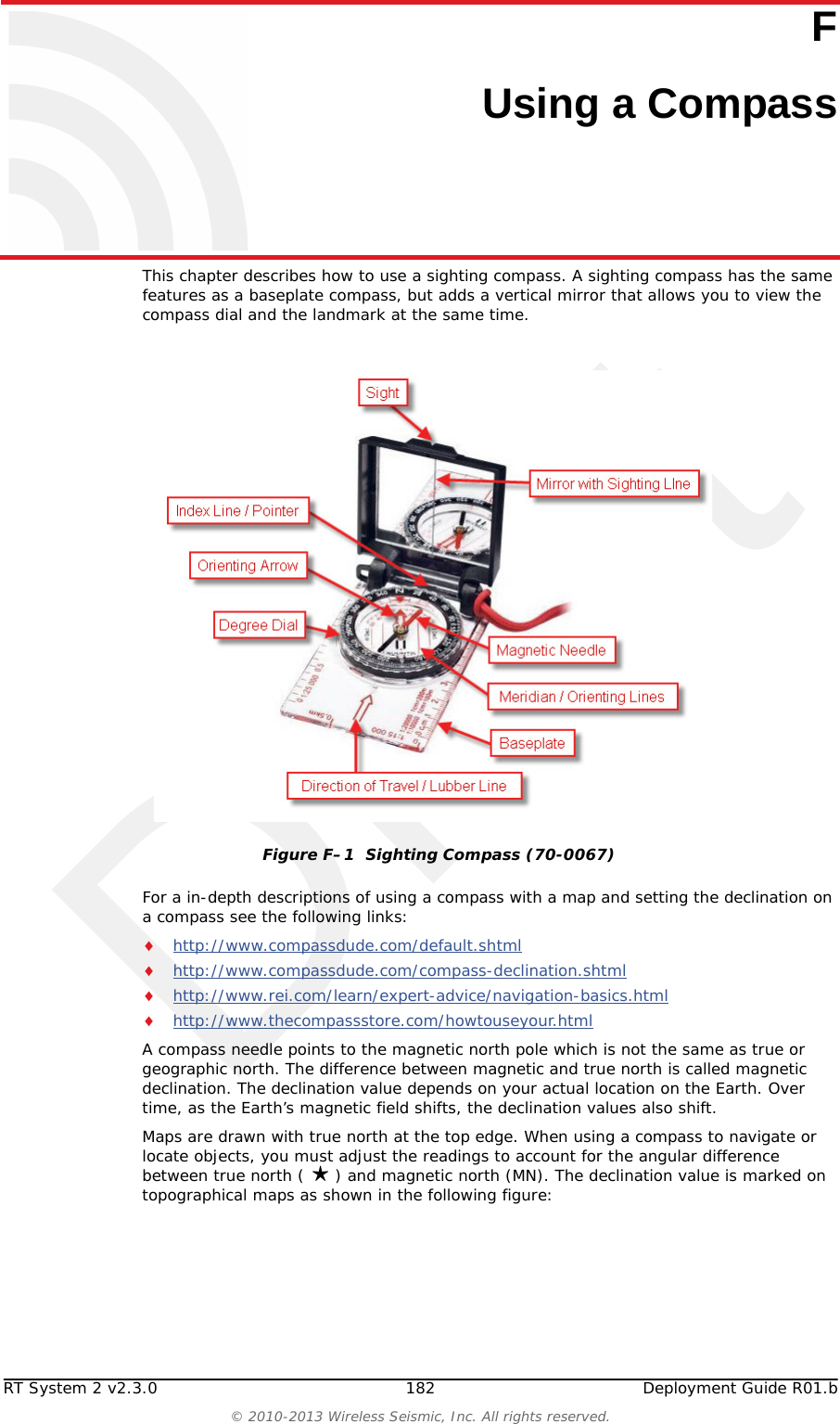
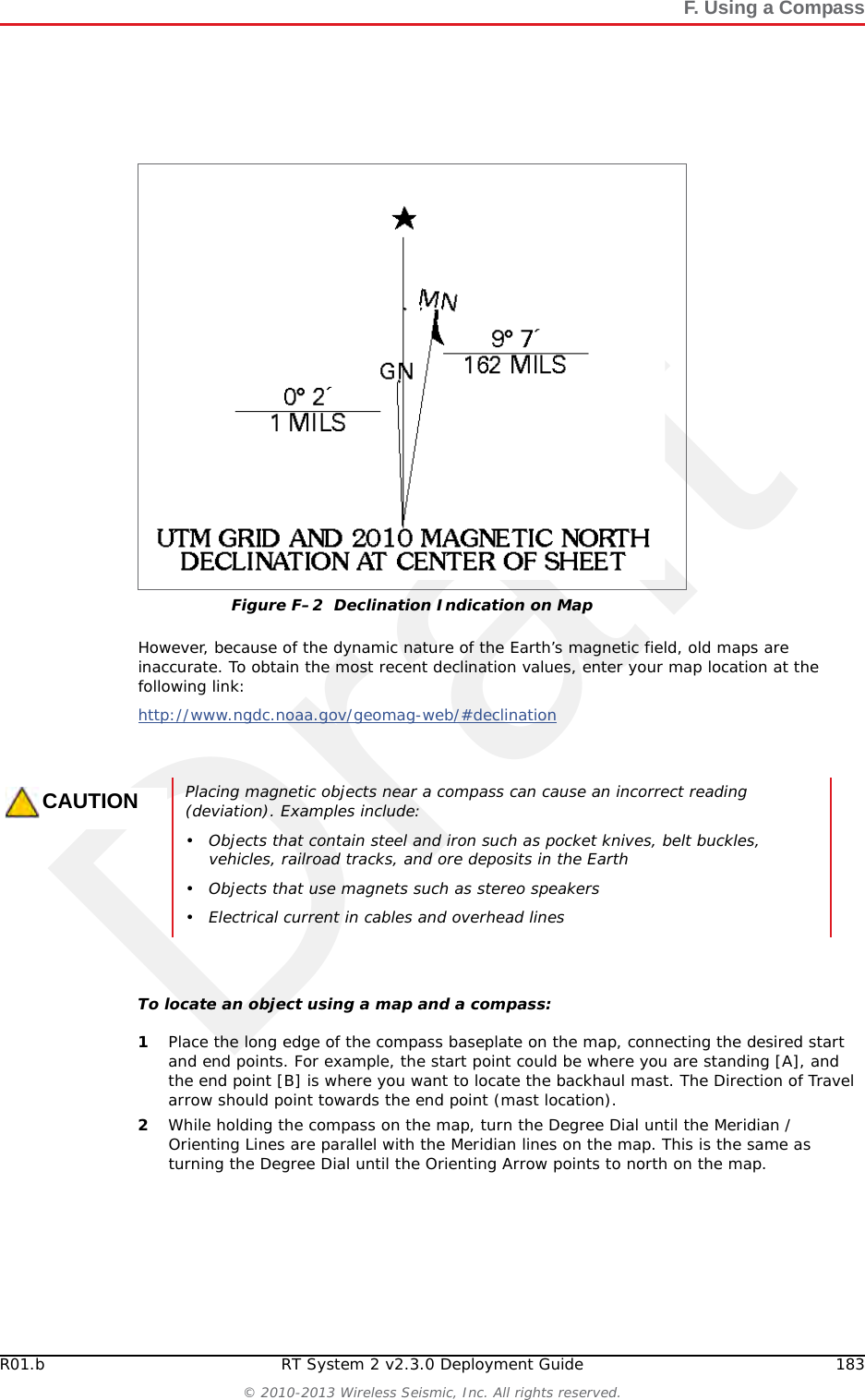
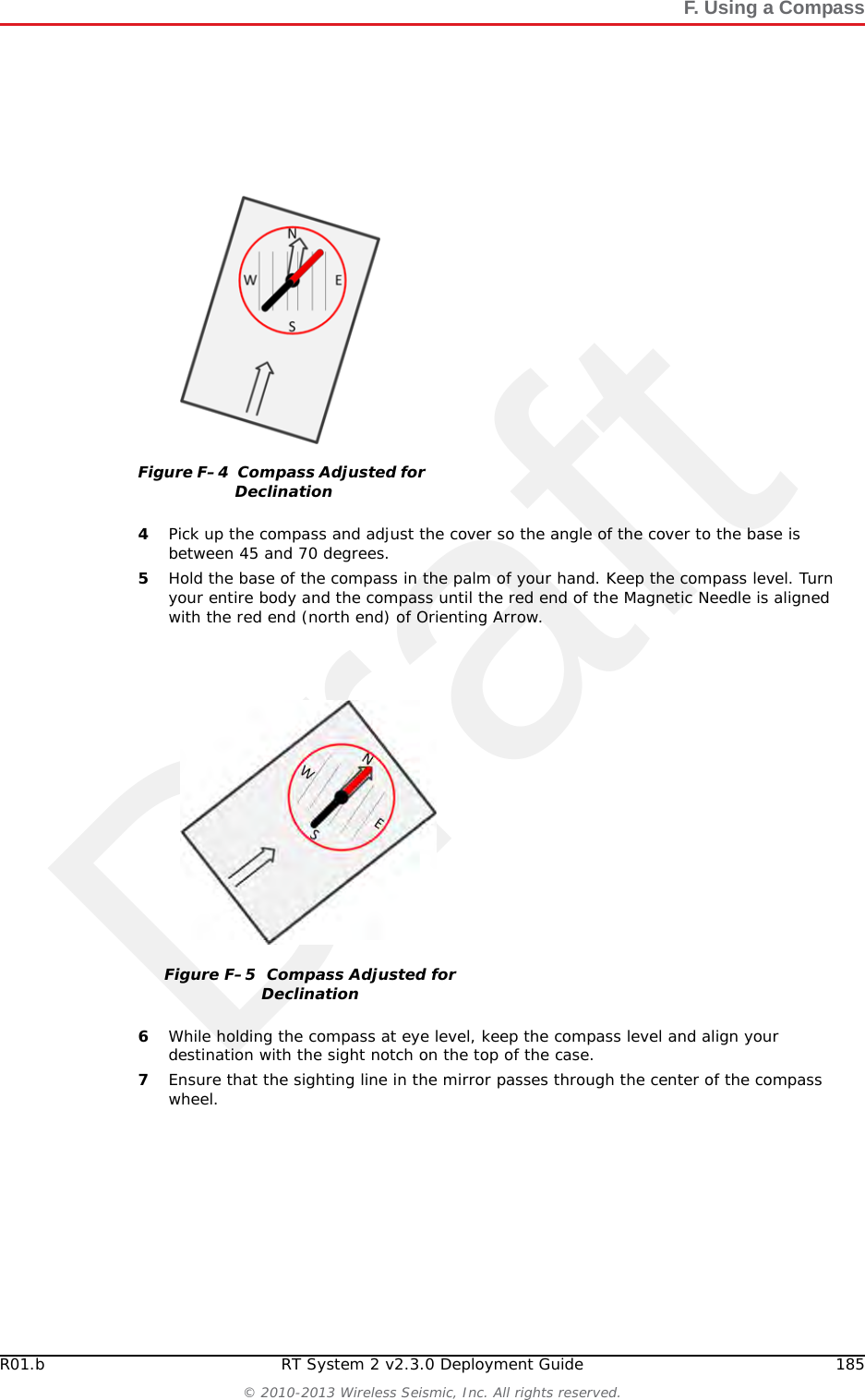
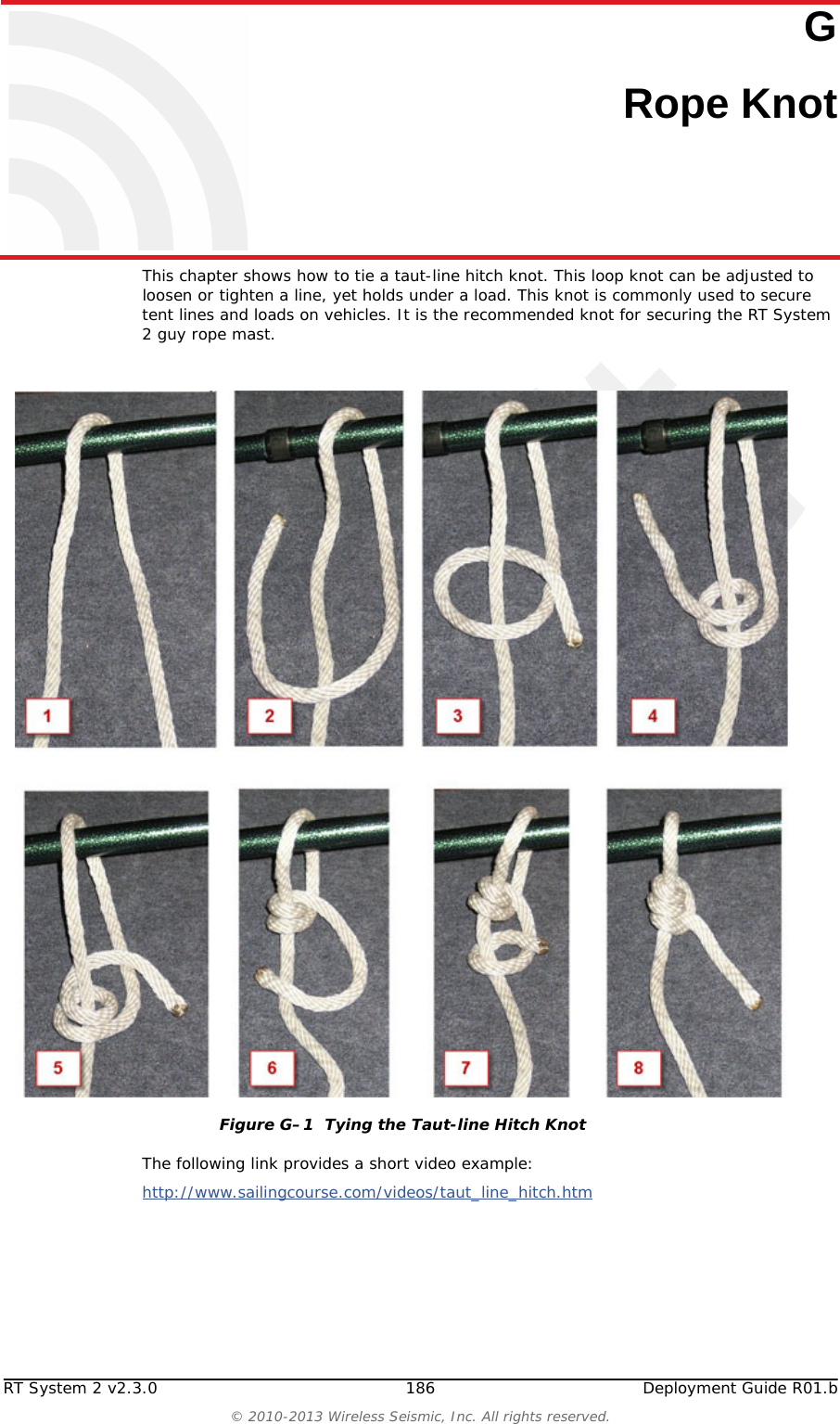
Wireless Seismic 00104 Wireless Seismic Sensor User Manual DeploymentGuide

Wireless Seismic, Inc. Wireless Seismic Sensor DeploymentGuide

Contents

Users Manual Rev 1 Part 2 of 2

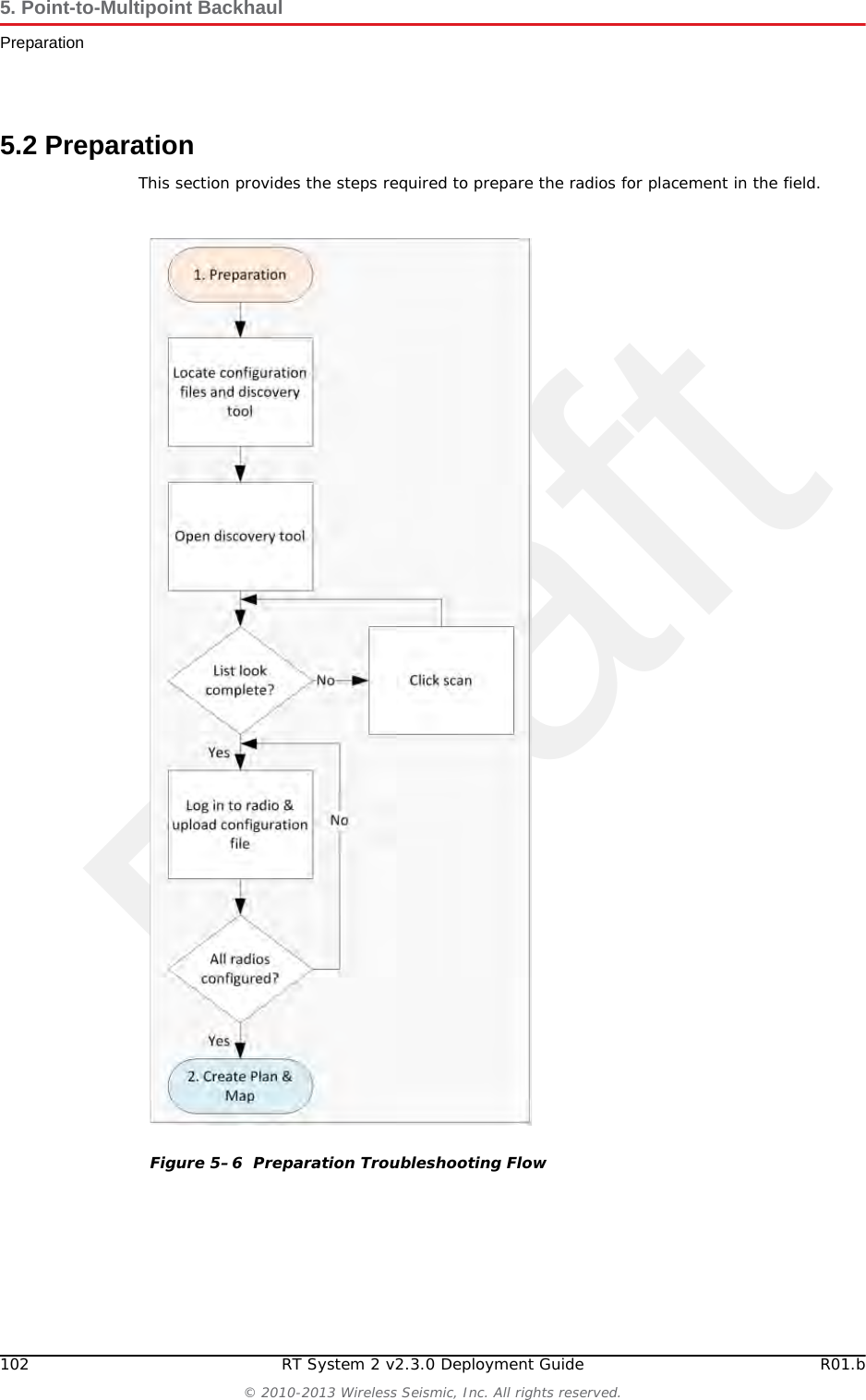
Draft102 RT System 2 v2.3.0 Deployment Guide R01.b© 2010-2013 Wireless Seismic, Inc. All rights reserved.5. Point-to-Multipoint BackhaulPreparation5.2 PreparationThis section provides the steps required to prepare the radios for placement in the field. Figure 5–6  Preparation Troubleshooting Flow
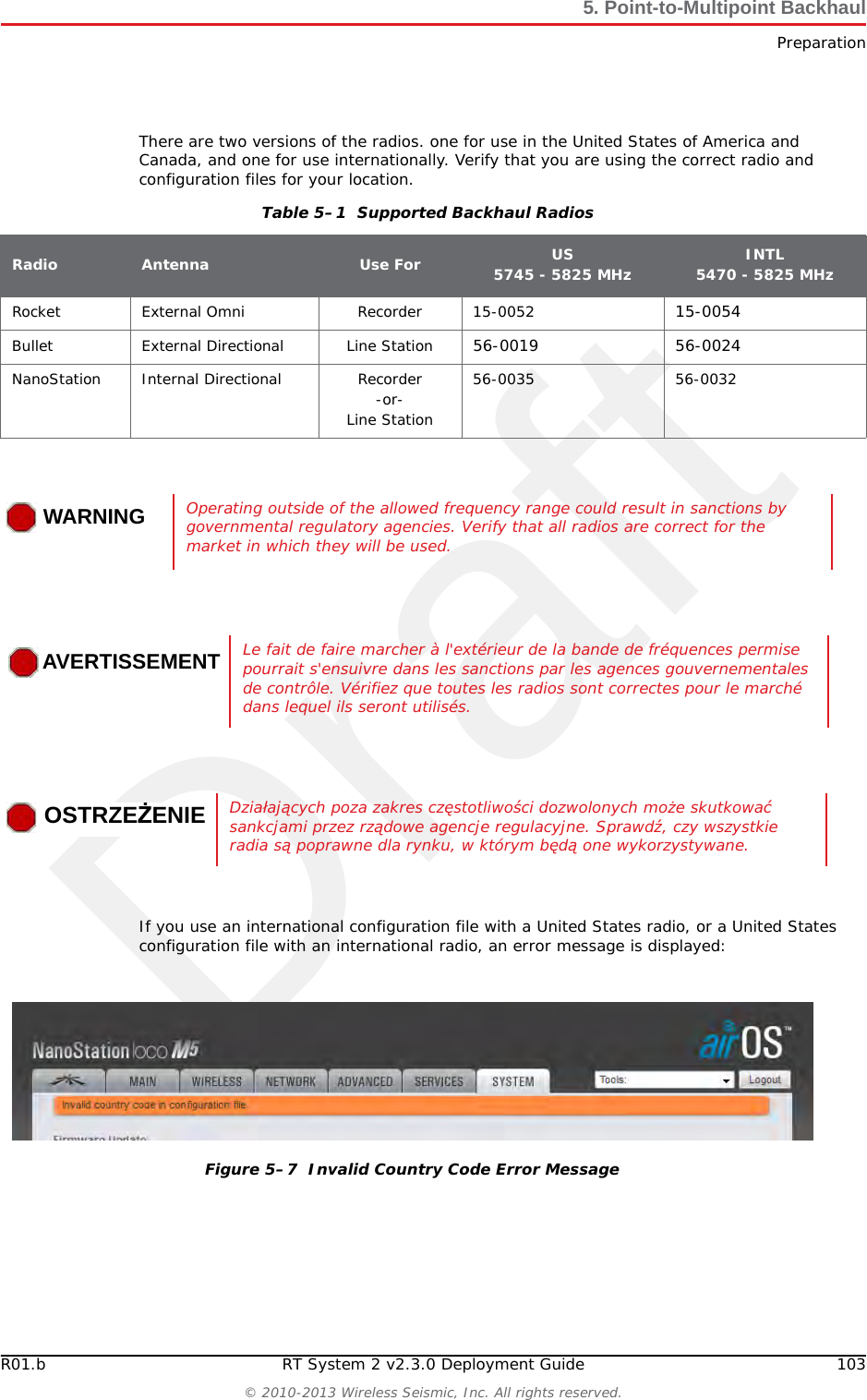
DraftR01.b RT System 2 v2.3.0 Deployment Guide 103© 2010-2013 Wireless Seismic, Inc. All rights reserved.5. Point-to-Multipoint BackhaulPreparationThere are two versions of the radios. one for use in the United States of America and Canada, and one for use internationally. Verify that you are using the correct radio and configuration files for your location. If you use an international configuration file with a United States radio, or a United States configuration file with an international radio, an error message is displayed:Table 5–1  Supported Backhaul Radios Radio Antenna Use For US5745 - 5825 MHz INTL5470 - 5825 MHzRocket External Omni Recorder 15-0052  15-0054 Bullet External Directional Line Station 56-0019 56-0024 NanoStation Internal Directional Recorder-or-Line Station56-0035 56-0032 WARNINGWARNINGOperating outside of the allowed frequency range could result in sanctions by governmental regulatory agencies. Verify that all radios are correct for the market in which they will be used.AVERTISSEMENTLe fait de faire marcher à l'extérieur de la bande de fréquences permise pourrait s'ensuivre dans les sanctions par les agences gouvernementales de contrôle. Vérifiez que toutes les radios sont correctes pour le marché dans lequel ils seront utilisés.OSTRZEŻENIEDziałających poza zakres częstotliwości dozwolonych może skutkować sankcjami przez rządowe agencje regulacyjne. Sprawdź, czy wszystkie radia są poprawne dla rynku, w którym będą one wykorzystywane.Figure 5–7  Invalid Country Code Error Message
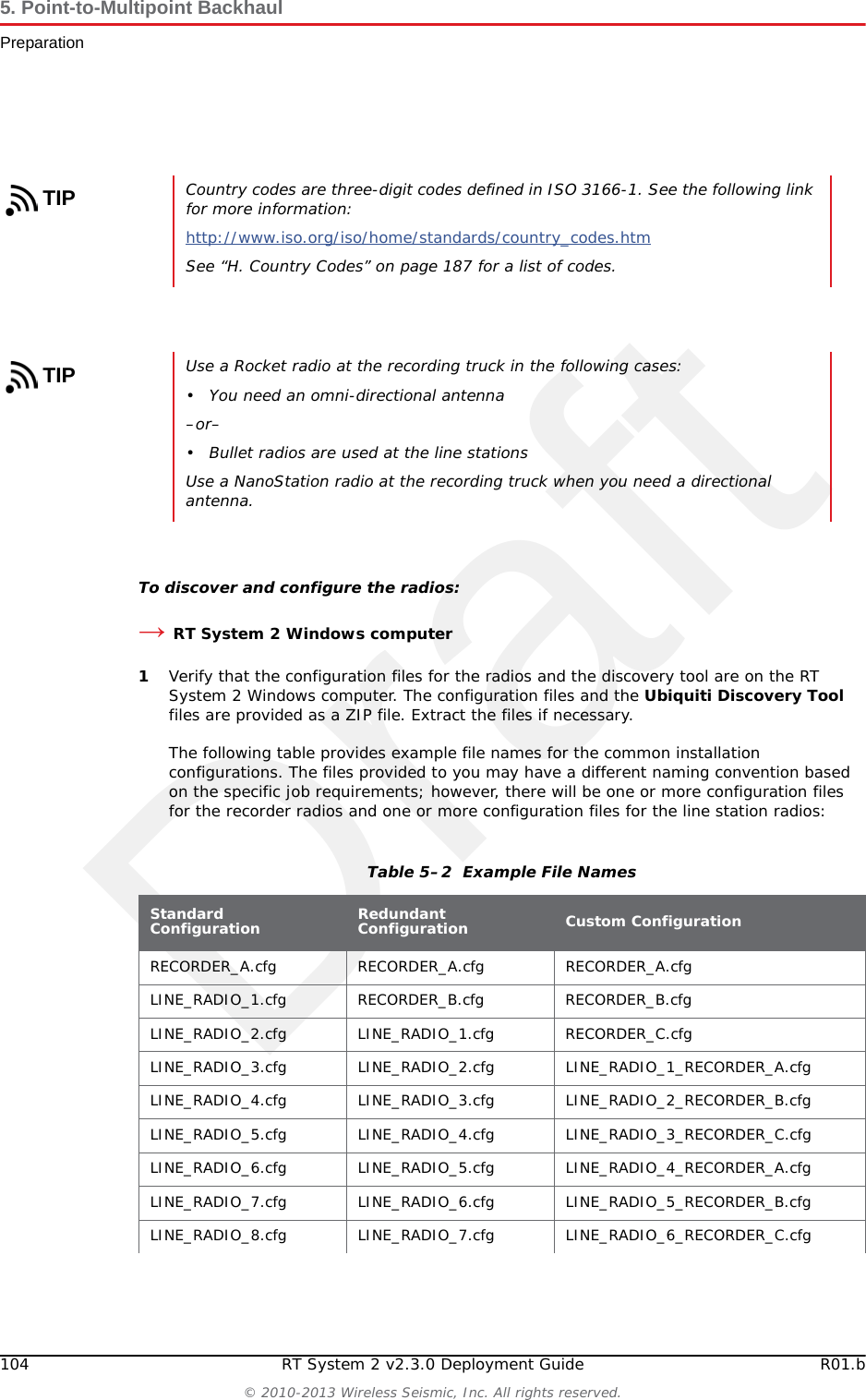
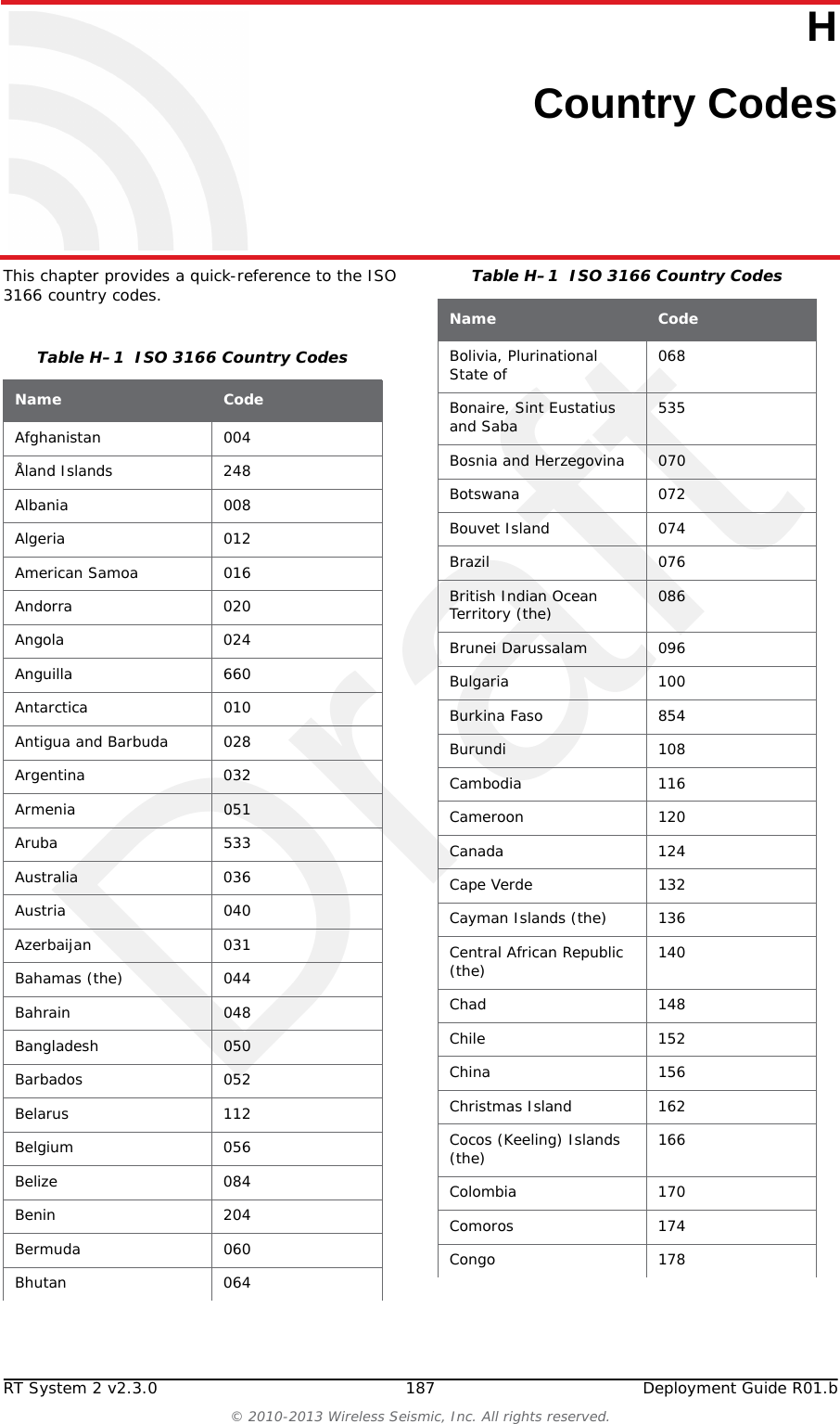
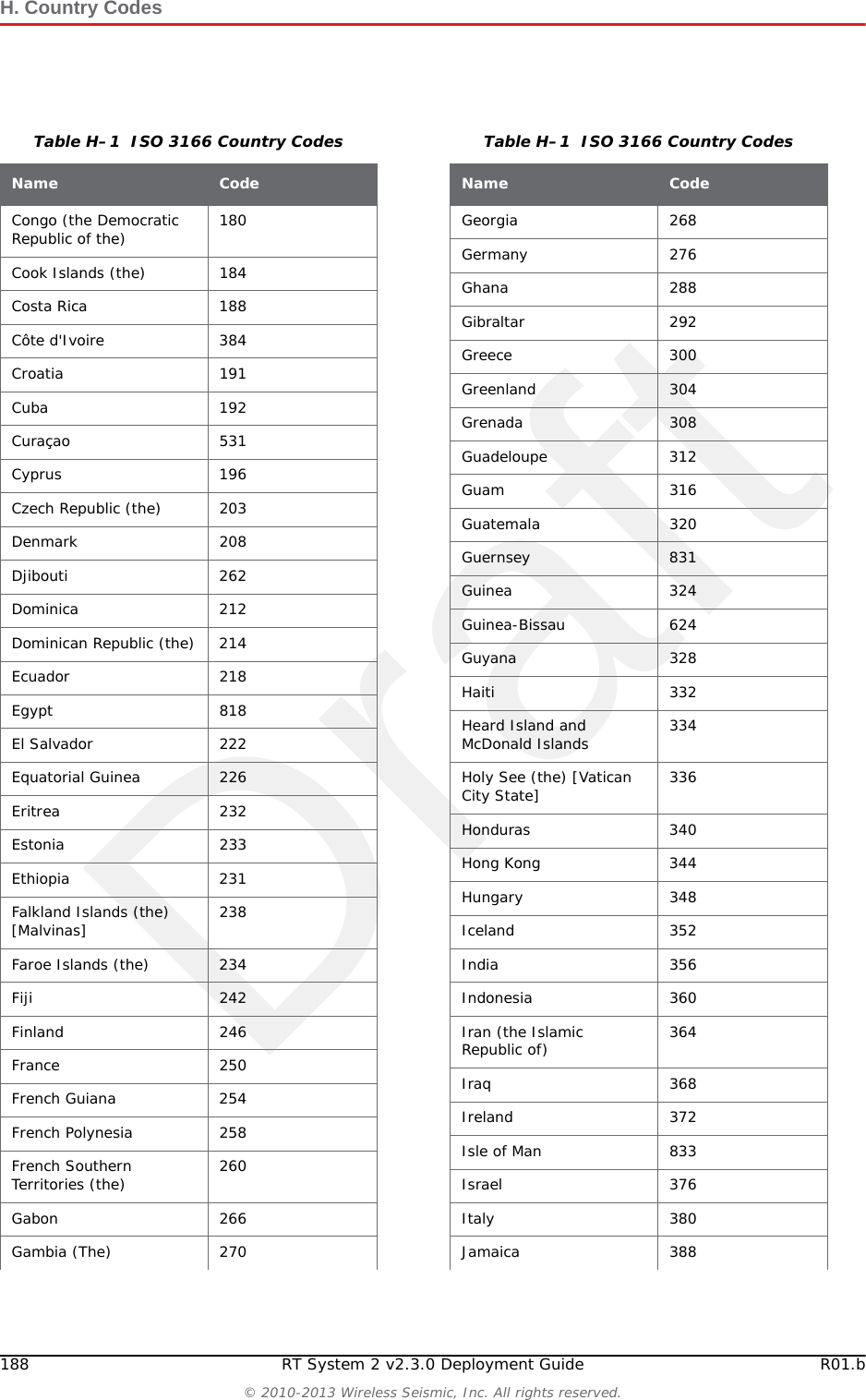
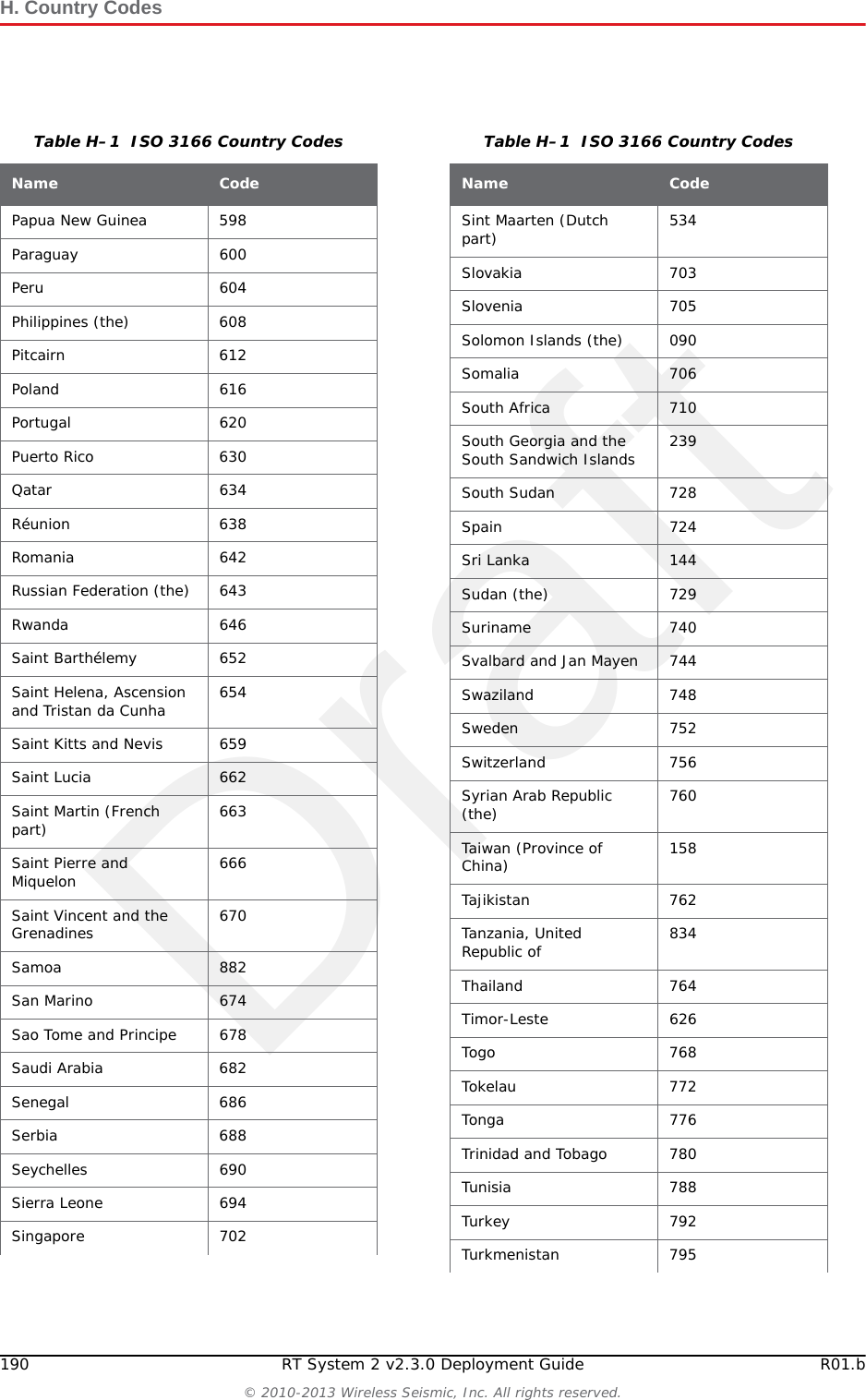
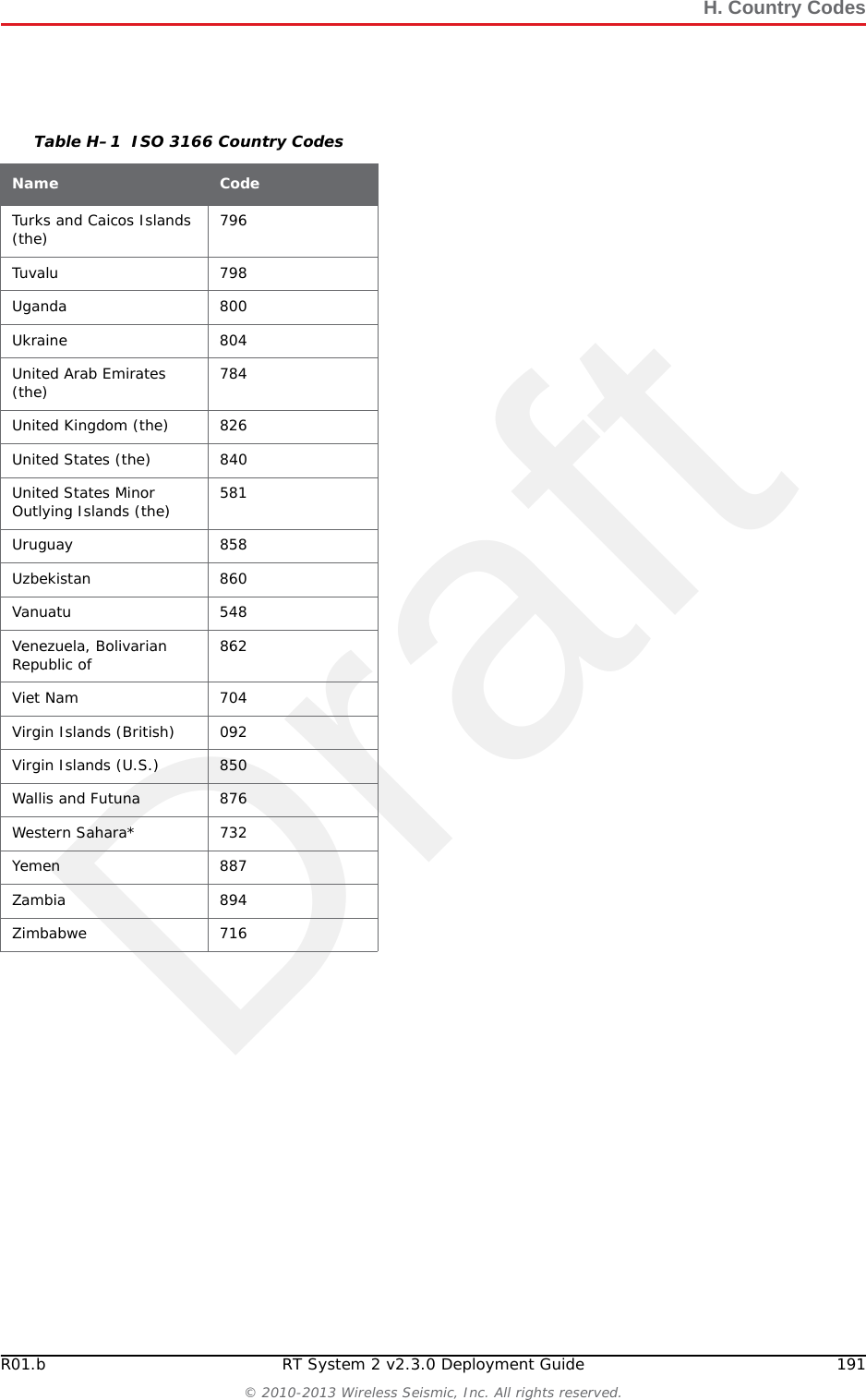
Draft104 RT System 2 v2.3.0 Deployment Guide R01.b© 2010-2013 Wireless Seismic, Inc. All rights reserved.5. Point-to-Multipoint BackhaulPreparationTo discover and configure the radios:→RT System 2 Windows computer1Verify that the configuration files for the radios and the discovery tool are on the RT System 2 Windows computer. The configuration files and the Ubiquiti Discovery Tool files are provided as a ZIP file. Extract the files if necessary. The following table provides example file names for the common installation configurations. The files provided to you may have a different naming convention based on the specific job requirements; however, there will be one or more configuration files for the recorder radios and one or more configuration files for the line station radios:TIPCountry codes are three-digit codes defined in ISO 3166-1. See the following link for more information:http://www.iso.org/iso/home/standards/country_codes.htm See “H. Country Codes” on page 187 for a list of codes.TIPUse a Rocket radio at the recording truck in the following cases:• You need an omni-directional antenna–or–• Bullet radios are used at the line stationsUse a NanoStation radio at the recording truck when you need a directional antenna.Table 5–2  Example File NamesStandard Configuration Redundant Configuration Custom ConfigurationRECORDER_A.cfg RECORDER_A.cfg RECORDER_A.cfgLINE_RADIO_1.cfg RECORDER_B.cfg RECORDER_B.cfgLINE_RADIO_2.cfg LINE_RADIO_1.cfg RECORDER_C.cfgLINE_RADIO_3.cfg LINE_RADIO_2.cfg LINE_RADIO_1_RECORDER_A.cfgLINE_RADIO_4.cfg LINE_RADIO_3.cfg LINE_RADIO_2_RECORDER_B.cfgLINE_RADIO_5.cfg LINE_RADIO_4.cfg LINE_RADIO_3_RECORDER_C.cfgLINE_RADIO_6.cfg LINE_RADIO_5.cfg LINE_RADIO_4_RECORDER_A.cfgLINE_RADIO_7.cfg LINE_RADIO_6.cfg LINE_RADIO_5_RECORDER_B.cfgLINE_RADIO_8.cfg LINE_RADIO_7.cfg LINE_RADIO_6_RECORDER_C.cfg
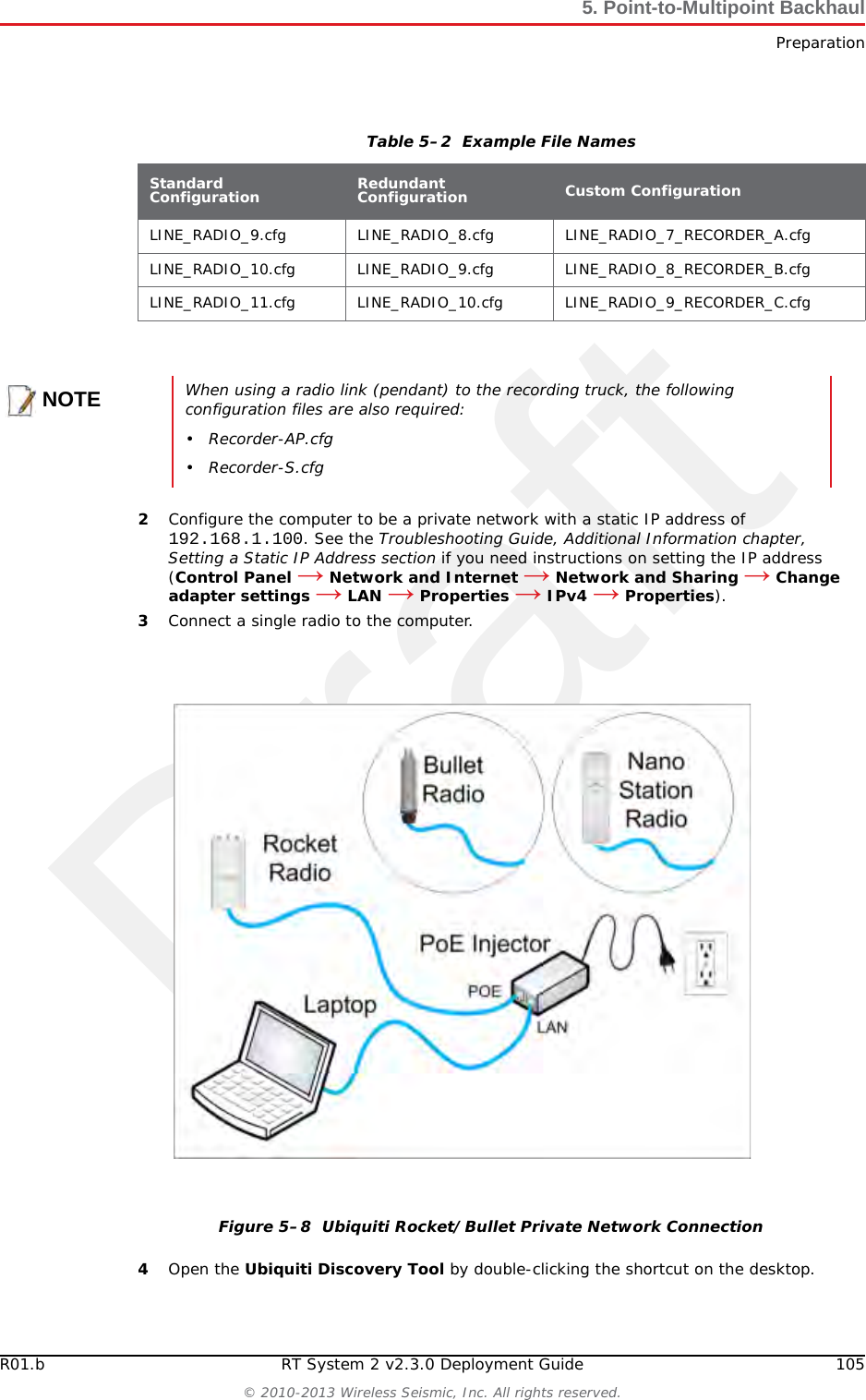
DraftR01.b RT System 2 v2.3.0 Deployment Guide 105© 2010-2013 Wireless Seismic, Inc. All rights reserved.5. Point-to-Multipoint BackhaulPreparation2Configure the computer to be a private network with a static IP address of 192.168.1.100. See the Troubleshooting Guide, Additional Information chapter, Setting a Static IP Address section if you need instructions on setting the IP address (Control Panel → Network and Internet → Network and Sharing → Change adapter settings → LAN → Properties → IPv4 → Properties).3Connect a single radio to the computer.4Open the Ubiquiti Discovery Tool by double-clicking the shortcut on the desktop. LINE_RADIO_9.cfg LINE_RADIO_8.cfg LINE_RADIO_7_RECORDER_A.cfgLINE_RADIO_10.cfg LINE_RADIO_9.cfg LINE_RADIO_8_RECORDER_B.cfgLINE_RADIO_11.cfg LINE_RADIO_10.cfg LINE_RADIO_9_RECORDER_C.cfgNOTEWhen using a radio link (pendant) to the recording truck, the following configuration files are also required:• Recorder-AP.cfg•Recorder-S.cfgFigure 5–8  Ubiquiti Rocket/Bullet Private Network ConnectionTable 5–2  Example File NamesStandard Configuration Redundant Configuration Custom Configuration
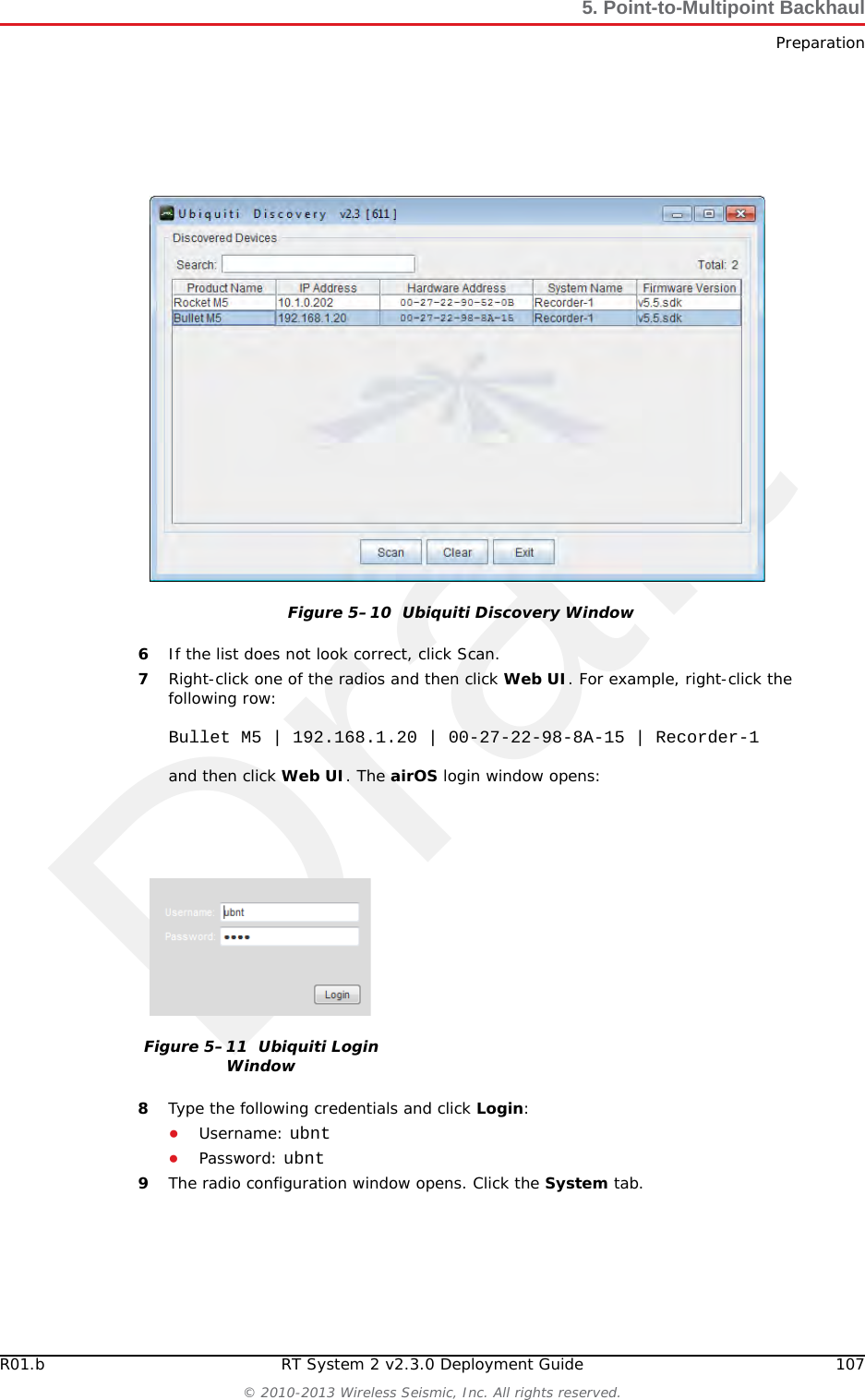
Draft106 RT System 2 v2.3.0 Deployment Guide R01.b© 2010-2013 Wireless Seismic, Inc. All rights reserved.5. Point-to-Multipoint BackhaulPreparation5The Discovery window opens and displays a list of all Discovered Devices:Figure 5–9  Ubiquiti Discovery Tool IconTIPEnsure that the .bat file and the .jar file are in the same directory.NOTEThe discovery tool can also be downloaded from the following location:http://www.ubnt.com/download#app Extract the files from the downloaded ZIP file to the desktop.NOTEThe factory default IP address for the radios is 192.168.1.20. Configure the radios one at a time.
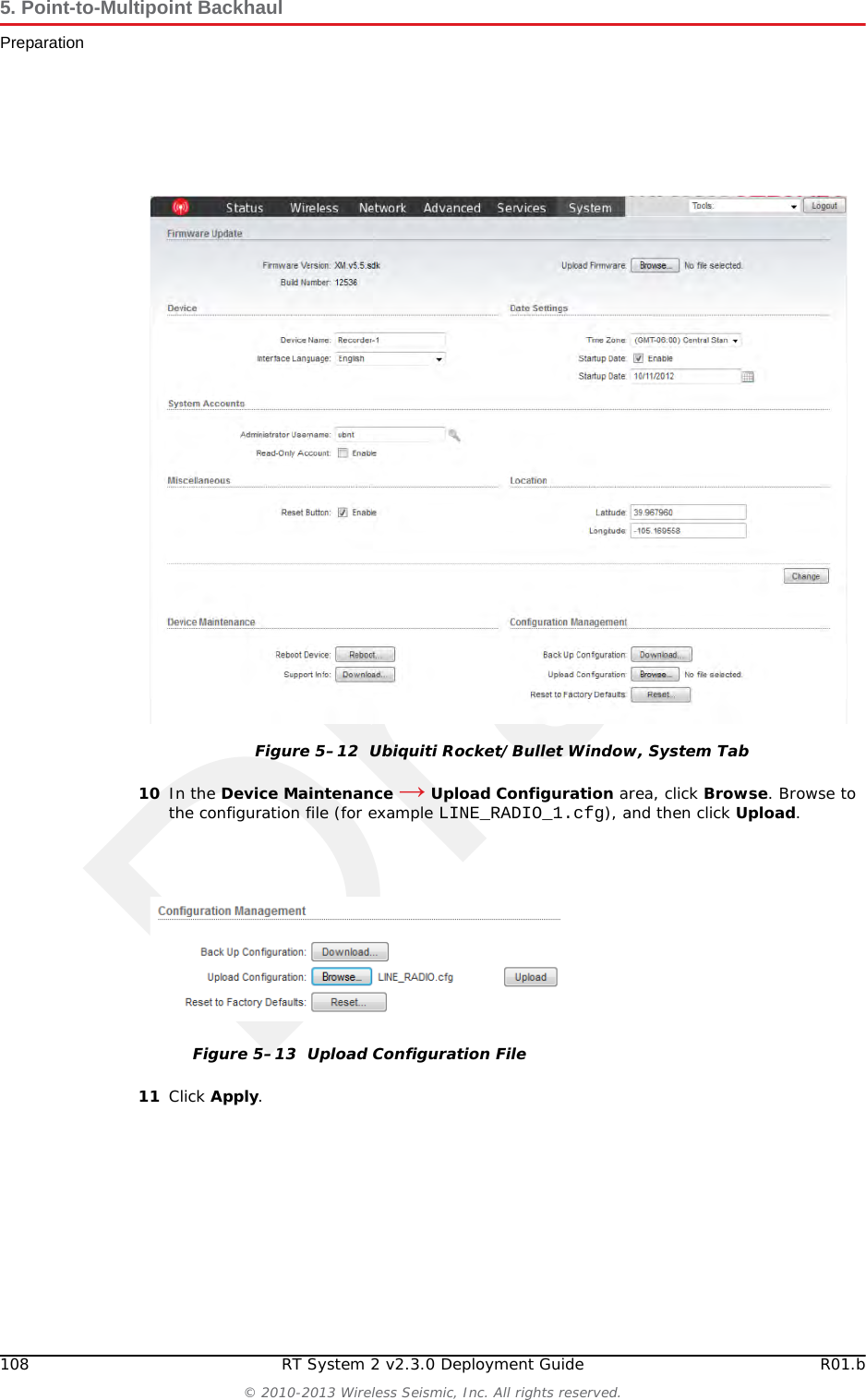
DraftR01.b RT System 2 v2.3.0 Deployment Guide 107© 2010-2013 Wireless Seismic, Inc. All rights reserved.5. Point-to-Multipoint BackhaulPreparation6If the list does not look correct, click Scan.7Right-click one of the radios and then click Web UI. For example, right-click the following row:Bullet M5 | 192.168.1.20 | 00-27-22-98-8A-15 | Recorder-1and then click Web UI. The airOS login window opens:8Type the following credentials and click Login:●Username: ubnt●Password: ubnt9The radio configuration window opens. Click the System tab.Figure 5–10  Ubiquiti Discovery WindowFigure 5–11  Ubiquiti Login Window
Draft108 RT System 2 v2.3.0 Deployment Guide R01.b© 2010-2013 Wireless Seismic, Inc. All rights reserved.5. Point-to-Multipoint BackhaulPreparation10 In the Device Maintenance → Upload Configuration area, click Browse. Browse to the configuration file (for example LINE_RADIO_1.cfg), and then click Upload. 11 Click Apply.Figure 5–12  Ubiquiti Rocket/Bullet Window, System TabFigure 5–13  Upload Configuration File
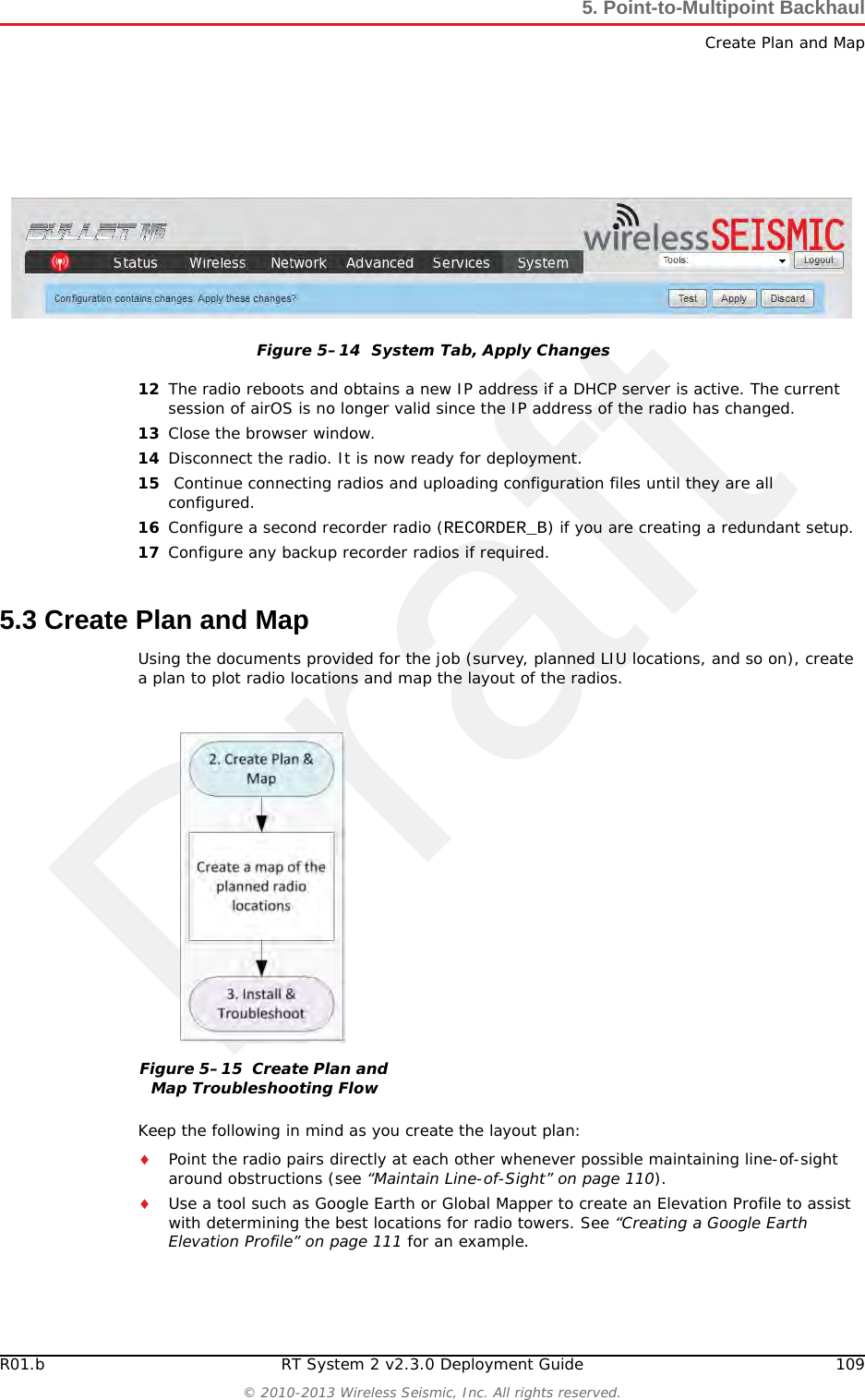
DraftR01.b RT System 2 v2.3.0 Deployment Guide 109© 2010-2013 Wireless Seismic, Inc. All rights reserved.5. Point-to-Multipoint BackhaulCreate Plan and Map12 The radio reboots and obtains a new IP address if a DHCP server is active. The current session of airOS is no longer valid since the IP address of the radio has changed. 13 Close the browser window.14 Disconnect the radio. It is now ready for deployment. 15  Continue connecting radios and uploading configuration files until they are all configured. 16 Configure a second recorder radio (RECORDER_B) if you are creating a redundant setup.17 Configure any backup recorder radios if required. 5.3 Create Plan and MapUsing the documents provided for the job (survey, planned LIU locations, and so on), create a plan to plot radio locations and map the layout of the radios. Keep the following in mind as you create the layout plan:Point the radio pairs directly at each other whenever possible maintaining line-of-sight around obstructions (see “Maintain Line-of-Sight” on page 110).Use a tool such as Google Earth or Global Mapper to create an Elevation Profile to assist with determining the best locations for radio towers. See “Creating a Google Earth Elevation Profile” on page 111 for an example.Figure 5–14  System Tab, Apply ChangesFigure 5–15  Create Plan and Map Troubleshooting Flow
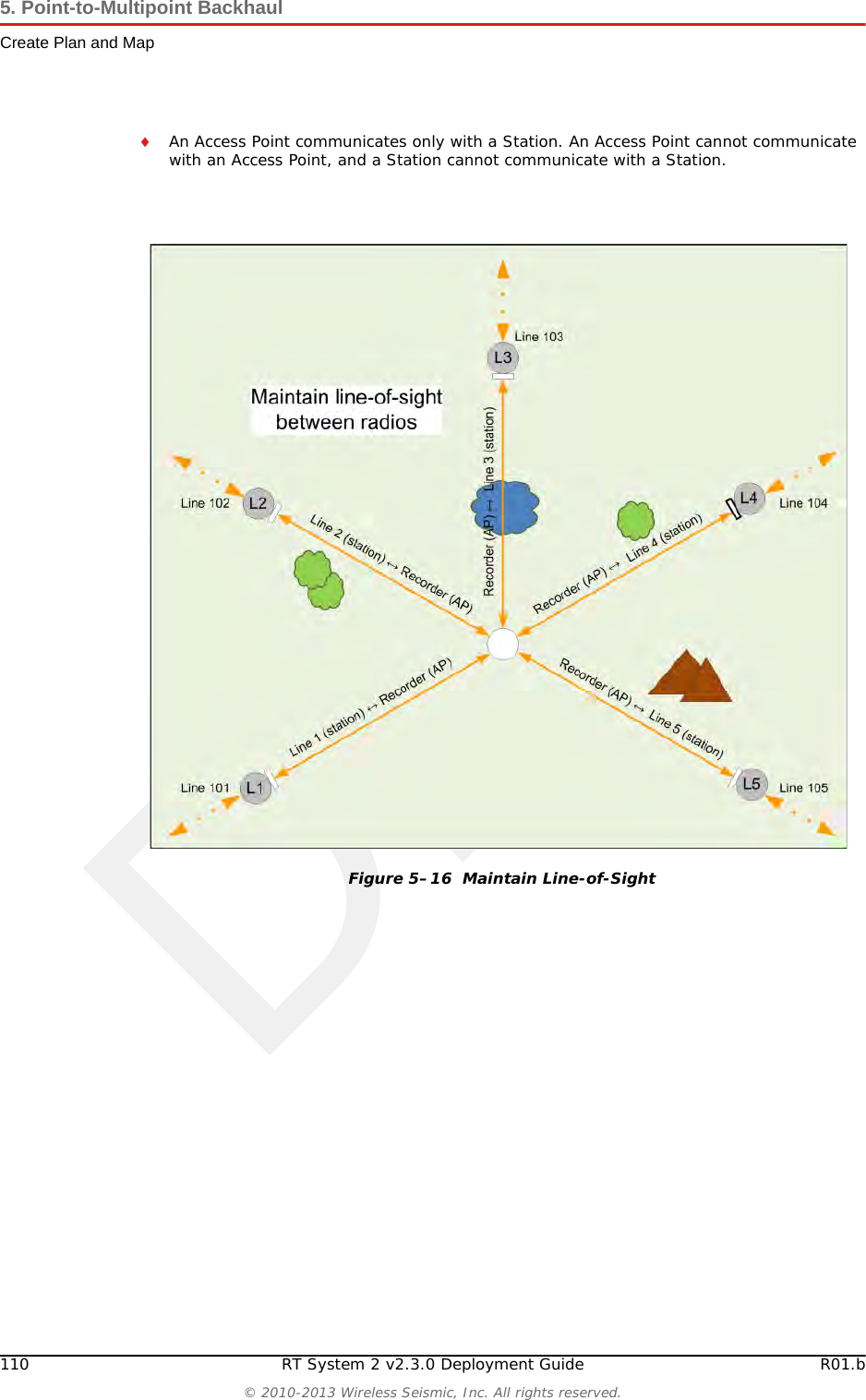
Draft110 RT System 2 v2.3.0 Deployment Guide R01.b© 2010-2013 Wireless Seismic, Inc. All rights reserved.5. Point-to-Multipoint BackhaulCreate Plan and MapAn Access Point communicates only with a Station. An Access Point cannot communicate with an Access Point, and a Station cannot communicate with a Station. Figure 5–16  Maintain Line-of-Sight
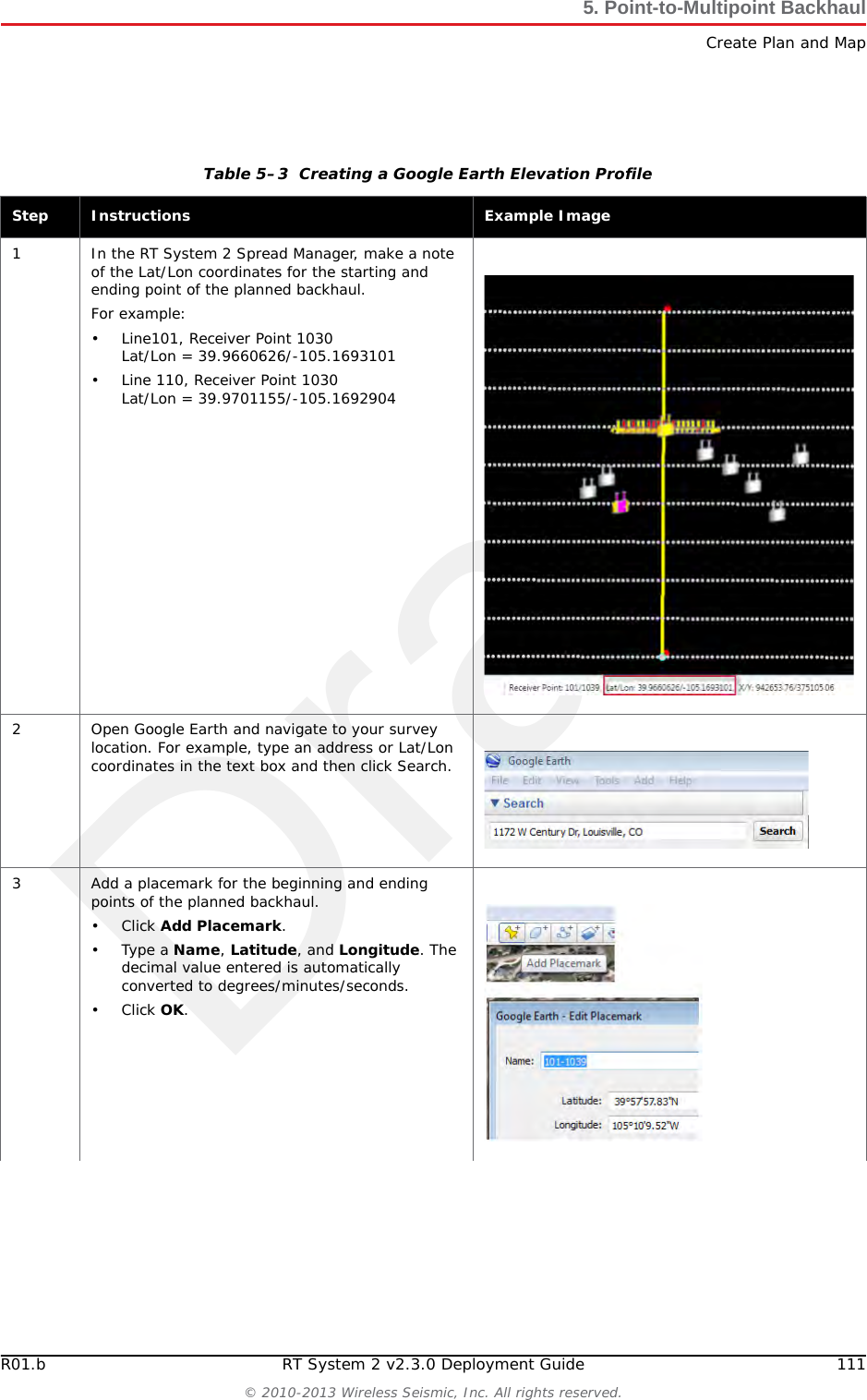
DraftR01.b RT System 2 v2.3.0 Deployment Guide 111© 2010-2013 Wireless Seismic, Inc. All rights reserved.5. Point-to-Multipoint BackhaulCreate Plan and MapTable 5–3  Creating a Google Earth Elevation Profile Step Instructions Example Image1 In the RT System 2 Spread Manager, make a note of the Lat/Lon coordinates for the starting and ending point of the planned backhaul.For example:• Line101, Receiver Point 1030Lat/Lon = 39.9660626/-105.1693101• Line 110, Receiver Point 1030Lat/Lon = 39.9701155/-105.16929042 Open Google Earth and navigate to your survey location. For example, type an address or Lat/Lon coordinates in the text box and then click Search.3 Add a placemark for the beginning and ending points of the planned backhaul.•Click Add Placemark.•Type a Name, Latitude, and Longitude. The decimal value entered is automatically converted to degrees/minutes/seconds.•Click OK.
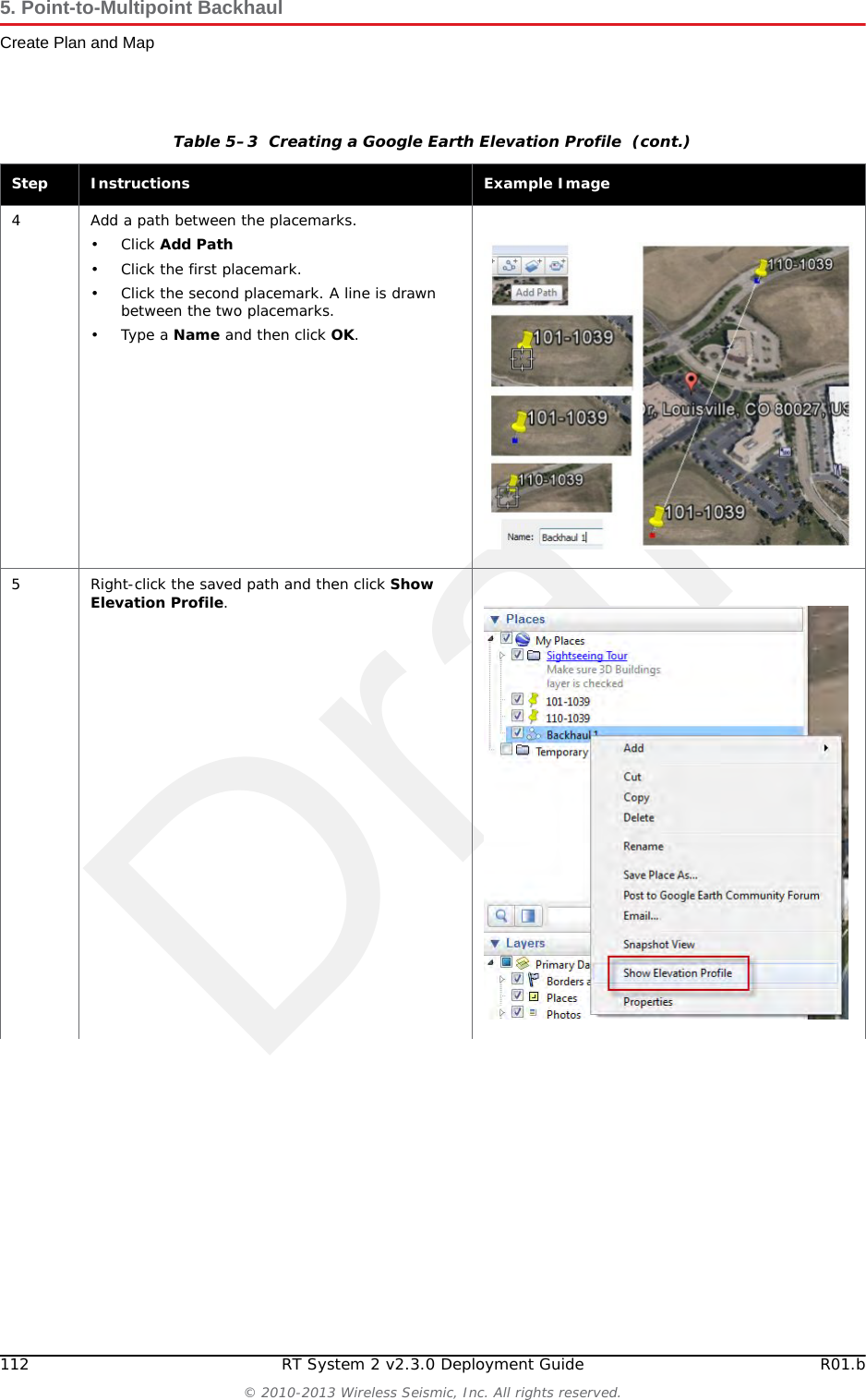
Draft112 RT System 2 v2.3.0 Deployment Guide R01.b© 2010-2013 Wireless Seismic, Inc. All rights reserved.5. Point-to-Multipoint BackhaulCreate Plan and Map4 Add a path between the placemarks.•Click Add Path• Click the first placemark.• Click the second placemark. A line is drawn between the two placemarks.•Type a Name and then click OK.5 Right-click the saved path and then click Show Elevation Profile.Table 5–3  Creating a Google Earth Elevation Profile  (cont.)Step Instructions Example Image
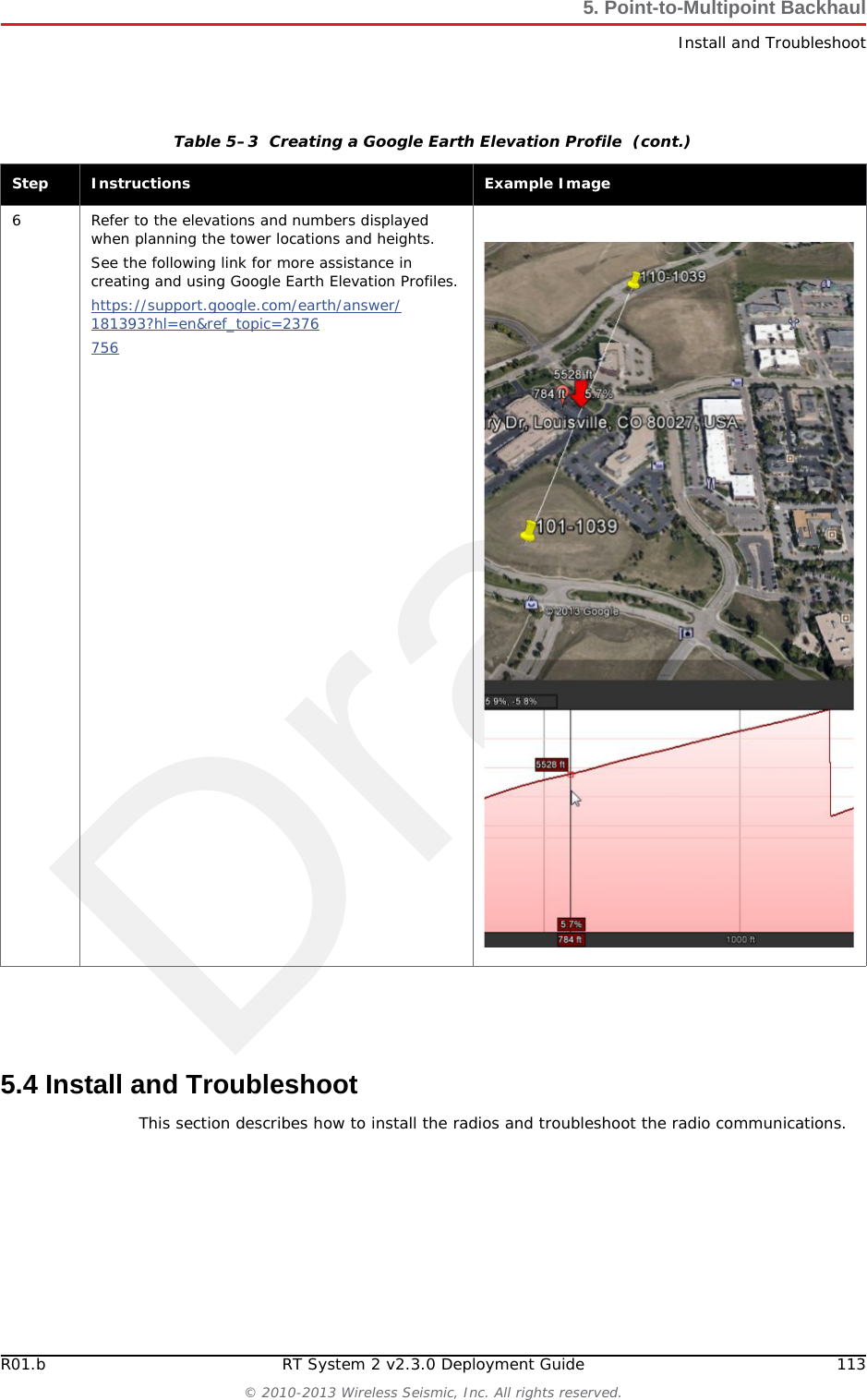
DraftR01.b RT System 2 v2.3.0 Deployment Guide 113© 2010-2013 Wireless Seismic, Inc. All rights reserved.5. Point-to-Multipoint BackhaulInstall and Troubleshoot5.4 Install and TroubleshootThis section describes how to install the radios and troubleshoot the radio communications.6 Refer to the elevations and numbers displayed when planning the tower locations and heights.See the following link for more assistance in creating and using Google Earth Elevation Profiles.https://support.google.com/earth/answer/181393?hl=en&ref_topic=2376756 Table 5–3  Creating a Google Earth Elevation Profile  (cont.)Step Instructions Example Image
756">
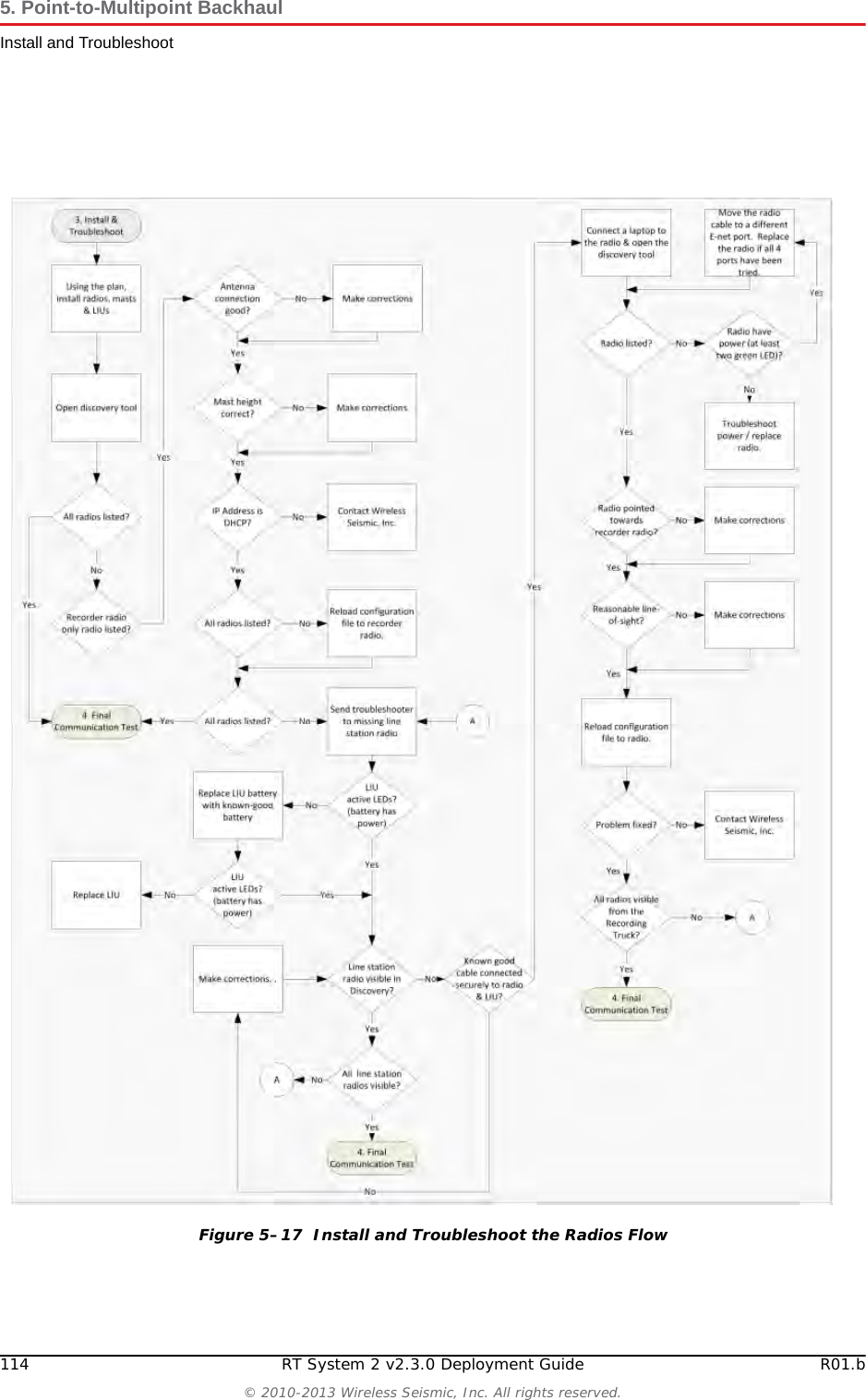
Draft114 RT System 2 v2.3.0 Deployment Guide R01.b© 2010-2013 Wireless Seismic, Inc. All rights reserved.5. Point-to-Multipoint BackhaulInstall and TroubleshootFigure 5–17  Install and Troubleshoot the Radios Flow
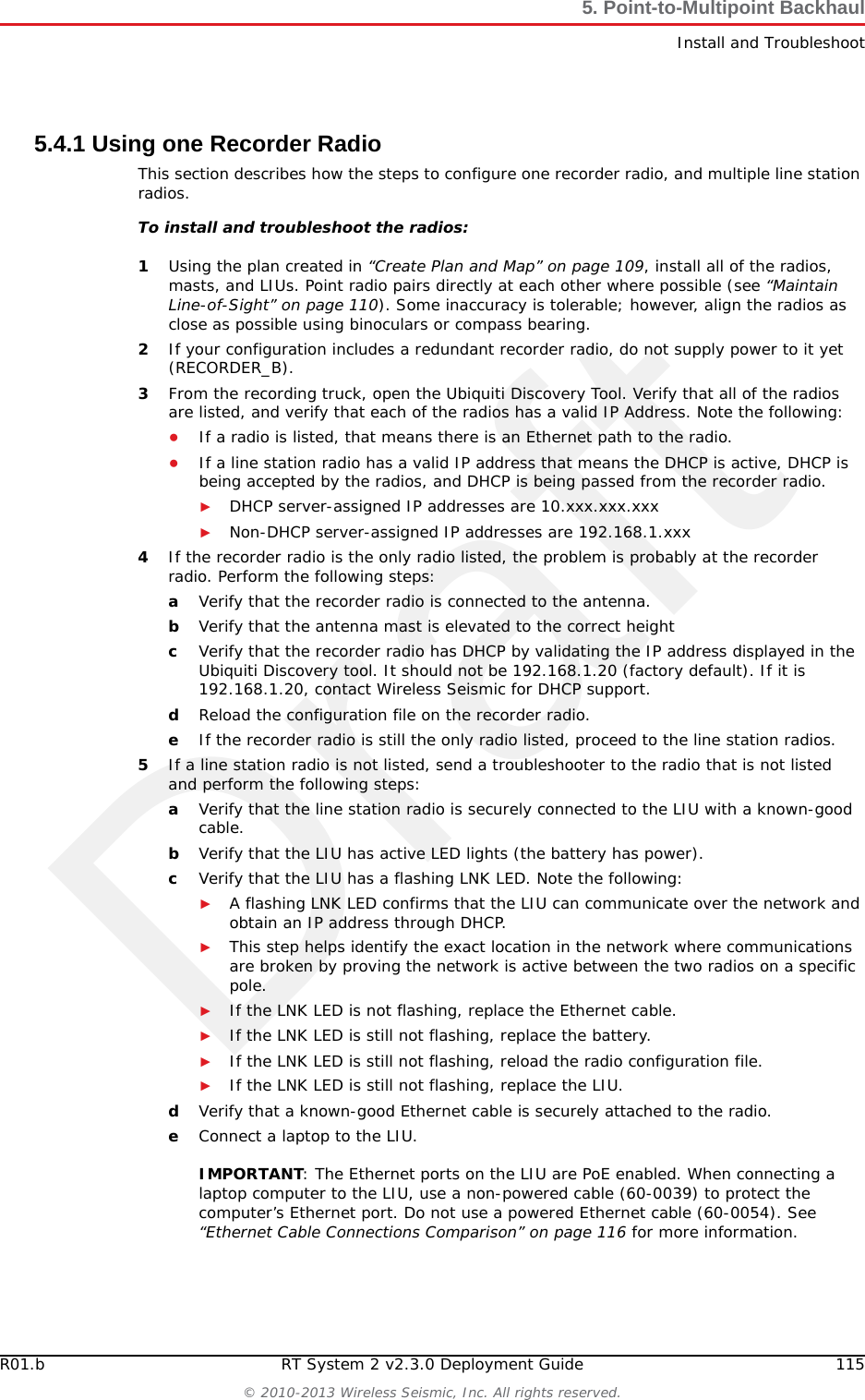
DraftR01.b RT System 2 v2.3.0 Deployment Guide 115© 2010-2013 Wireless Seismic, Inc. All rights reserved.5. Point-to-Multipoint BackhaulInstall and Troubleshoot5.4.1 Using one Recorder RadioThis section describes how the steps to configure one recorder radio, and multiple line station radios.To install and troubleshoot the radios:1Using the plan created in “Create Plan and Map” on page 109, install all of the radios, masts, and LIUs. Point radio pairs directly at each other where possible (see “Maintain Line-of-Sight” on page 110). Some inaccuracy is tolerable; however, align the radios as close as possible using binoculars or compass bearing.2If your configuration includes a redundant recorder radio, do not supply power to it yet (RECORDER_B). 3From the recording truck, open the Ubiquiti Discovery Tool. Verify that all of the radios are listed, and verify that each of the radios has a valid IP Address. Note the following:●If a radio is listed, that means there is an Ethernet path to the radio. ●If a line station radio has a valid IP address that means the DHCP is active, DHCP is being accepted by the radios, and DHCP is being passed from the recorder radio. ►DHCP server-assigned IP addresses are 10.xxx.xxx.xxx►Non-DHCP server-assigned IP addresses are 192.168.1.xxx 4If the recorder radio is the only radio listed, the problem is probably at the recorder radio. Perform the following steps:aVerify that the recorder radio is connected to the antenna.bVerify that the antenna mast is elevated to the correct height cVerify that the recorder radio has DHCP by validating the IP address displayed in the Ubiquiti Discovery tool. It should not be 192.168.1.20 (factory default). If it is 192.168.1.20, contact Wireless Seismic for DHCP support.dReload the configuration file on the recorder radio.eIf the recorder radio is still the only radio listed, proceed to the line station radios.5If a line station radio is not listed, send a troubleshooter to the radio that is not listed and perform the following steps:aVerify that the line station radio is securely connected to the LIU with a known-good cable. bVerify that the LIU has active LED lights (the battery has power).cVerify that the LIU has a flashing LNK LED. Note the following:►A flashing LNK LED confirms that the LIU can communicate over the network and obtain an IP address through DHCP.►This step helps identify the exact location in the network where communications are broken by proving the network is active between the two radios on a specific pole.►If the LNK LED is not flashing, replace the Ethernet cable.►If the LNK LED is still not flashing, replace the battery.►If the LNK LED is still not flashing, reload the radio configuration file.►If the LNK LED is still not flashing, replace the LIU.dVerify that a known-good Ethernet cable is securely attached to the radio.eConnect a laptop to the LIU. IMPORTANT: The Ethernet ports on the LIU are PoE enabled. When connecting a laptop computer to the LIU, use a non-powered cable (60-0039) to protect the computer’s Ethernet port. Do not use a powered Ethernet cable (60-0054). See “Ethernet Cable Connections Comparison” on page 116 for more information.
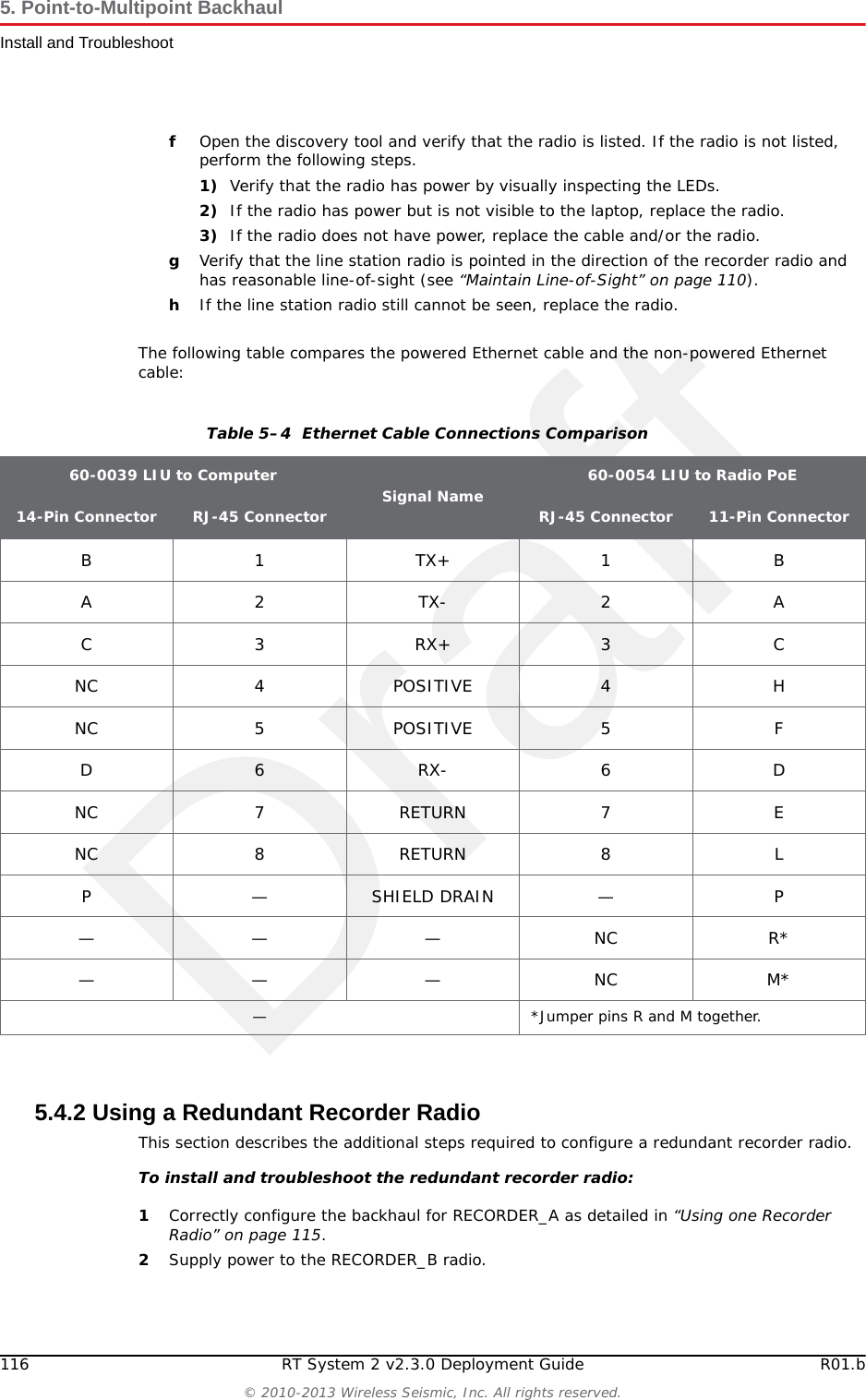
Draft116 RT System 2 v2.3.0 Deployment Guide R01.b© 2010-2013 Wireless Seismic, Inc. All rights reserved.5. Point-to-Multipoint BackhaulInstall and TroubleshootfOpen the discovery tool and verify that the radio is listed. If the radio is not listed, perform the following steps.1) Verify that the radio has power by visually inspecting the LEDs.2) If the radio has power but is not visible to the laptop, replace the radio.3) If the radio does not have power, replace the cable and/or the radio. gVerify that the line station radio is pointed in the direction of the recorder radio and has reasonable line-of-sight (see “Maintain Line-of-Sight” on page 110).hIf the line station radio still cannot be seen, replace the radio.The following table compares the powered Ethernet cable and the non-powered Ethernet cable:5.4.2 Using a Redundant Recorder RadioThis section describes the additional steps required to configure a redundant recorder radio.To install and troubleshoot the redundant recorder radio:1Correctly configure the backhaul for RECORDER_A as detailed in “Using one Recorder Radio” on page 115.2Supply power to the RECORDER_B radio.Table 5–4  Ethernet Cable Connections Comparison 60-0039 LIU to Computer Signal Name 60-0054 LIU to Radio PoE14-Pin Connector RJ-45 Connector RJ-45 Connector 11-Pin ConnectorB1TX+1BA2TX-2AC3RX+3CNC 4 POSITIVE 4 HNC 5 POSITIVE 5 FD6RX-6DNC 7 RETURN 7 ENC 8 RETURN 8 LP — SHIELD DRAIN — P———NCR*———NCM*— *Jumper pins R and M together.
DraftR01.b RT System 2 v2.3.0 Deployment Guide 117© 2010-2013 Wireless Seismic, Inc. All rights reserved.5. Point-to-Multipoint BackhaulFinal Communication Test3Wait 2 minutes to confirm that RECORDER_B completes its boot cycle.4Disconnect RECORDER_A.5Verify that all line station radios are listed in the Discovery window through RECORDER_B within 2 minutes. The typical switch over takes 30 seconds but it can take longer.6Supply power to RECORDER_A and disconnect power from RECORDER_B.7Verify that all line station radios are listed in the Discovery window through RECORDER_A.8Supply power to RECORDER_B.9Verify that all line station radios are listed in the Discovery window.10 Verify that both recorder radios are listed in the Discovery window.5.4.3 Using a Custom ConfigurationCustom configurations may have a number of recorder radios and line station radios. Correctly configure the backhaul for one of the recorders, for example, RECORDER_A, as detailed in “Using one Recorder Radio” on page 115.Then, configure the backhaul for each additional recorder, for example, RECORDER_B, until the backhaul configuration is complete. 5.5 Final Communication TestThis section describes how to run the final speed test to verify good communication throughout the backhaul. The final communication test should be run from each recorder radio that will be communicating to line radios during production.NOTERemove power from competing recorder radios during the configuration process. During production is the only time more than one recorder radio should have power applied.
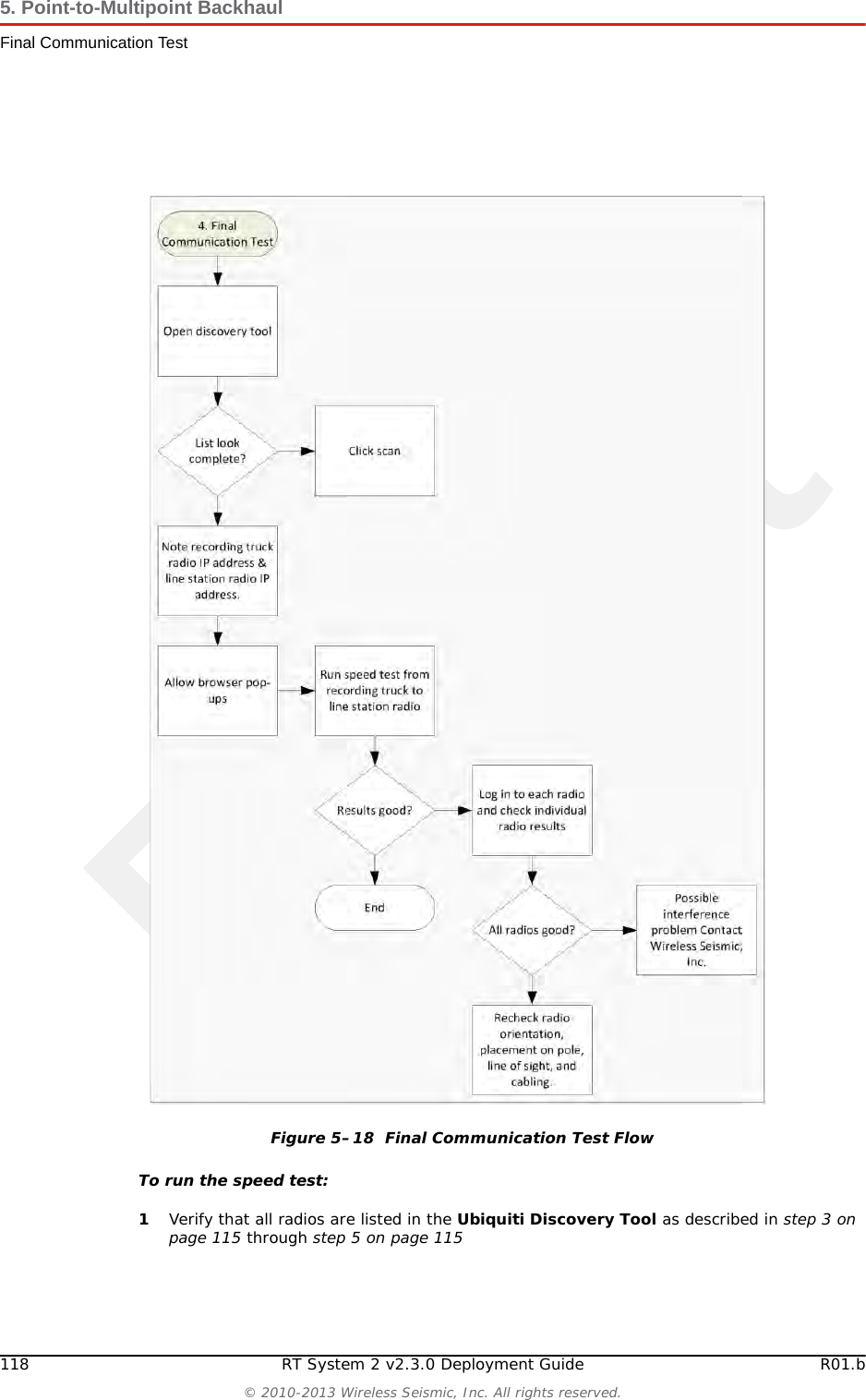
Draft118 RT System 2 v2.3.0 Deployment Guide R01.b© 2010-2013 Wireless Seismic, Inc. All rights reserved.5. Point-to-Multipoint BackhaulFinal Communication TestTo run the speed test:1Verify that all radios are listed in the Ubiquiti Discovery Tool as described in step 3 on page 115 through step 5 on page 115Figure 5–18  Final Communication Test Flow
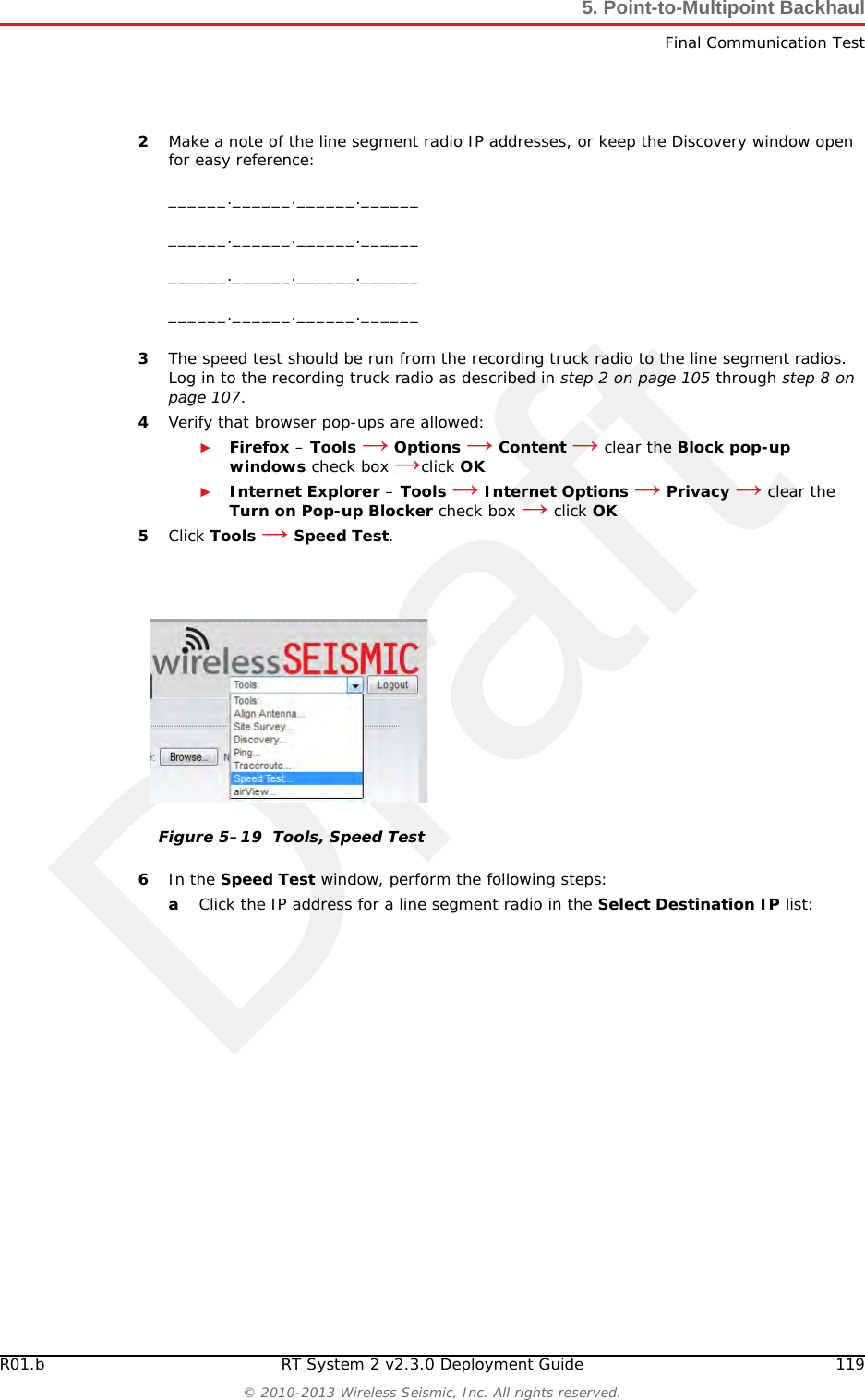
DraftR01.b RT System 2 v2.3.0 Deployment Guide 119© 2010-2013 Wireless Seismic, Inc. All rights reserved.5. Point-to-Multipoint BackhaulFinal Communication Test2Make a note of the line segment radio IP addresses, or keep the Discovery window open for easy reference:______.______.______.____________.______.______.____________.______.______.____________.______.______.______3The speed test should be run from the recording truck radio to the line segment radios. Log in to the recording truck radio as described in step 2 on page 105 through step 8 on page 107.4Verify that browser pop-ups are allowed:►Firefox – Tools → Options → Content → clear the Block pop-up windows check box →click OK►Internet Explorer – Tools → Internet Options → Privacy → clear the Turn on Pop-up Blocker check box → click OK5Click Tools → Speed Test.6In the Speed Test window, perform the following steps:aClick the IP address for a line segment radio in the Select Destination IP list:Figure 5–19  Tools, Speed Test
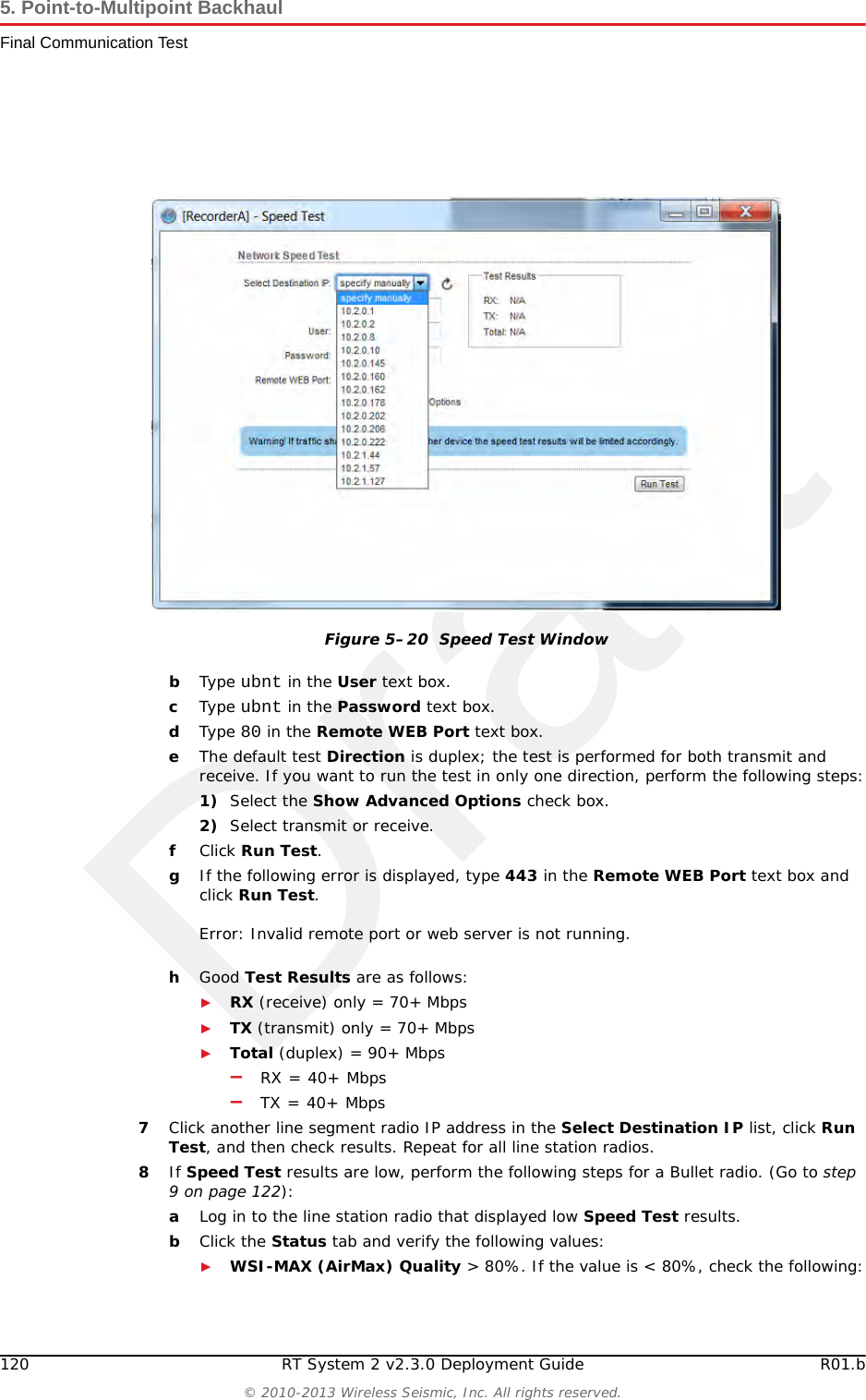
Draft120 RT System 2 v2.3.0 Deployment Guide R01.b© 2010-2013 Wireless Seismic, Inc. All rights reserved.5. Point-to-Multipoint BackhaulFinal Communication TestbType ubnt in the User text box.cType ubnt in the Password text box.dType 80 in the Remote WEB Port text box.eThe default test Direction is duplex; the test is performed for both transmit and receive. If you want to run the test in only one direction, perform the following steps:1) Select the Show Advanced Options check box.2) Select transmit or receive.fClick Run Test.gIf the following error is displayed, type 443 in the Remote WEB Port text box and click Run Test.Error: Invalid remote port or web server is not running.hGood Test Results are as follows:►RX (receive) only = 70+ Mbps►TX (transmit) only = 70+ Mbps►Total (duplex) = 90+ Mbps–RX = 40+ Mbps–TX = 40+ Mbps7Click another line segment radio IP address in the Select Destination IP list, click Run Test, and then check results. Repeat for all line station radios.8If Speed Test results are low, perform the following steps for a Bullet radio. (Go to step 9 on page 122):aLog in to the line station radio that displayed low Speed Test results. bClick the Status tab and verify the following values:►WSI-MAX (AirMax) Quality > 80%. If the value is < 80%, check the following:Figure 5–20  Speed Test Window
DraftR01.b RT System 2 v2.3.0 Deployment Guide 121© 2010-2013 Wireless Seismic, Inc. All rights reserved.5. Point-to-Multipoint BackhaulFinal Communication Test–Poor line-of-sight–Bad antenna connection–Faulty hardware (cable and/or antenna)►WSI-MAX (AirMax) Capacity >40%. If the value is < 40%, note the following:–The maximum capacity for the titanium bullet is 50%–Capacity is a reflection of quality. If the quality improves, the capacity should also improve.–Poor capacity is typically the result of a misaligned antenna.►Click AP Information in the Monitor area. Verify that the Access Point Signal Strength is between -80 dBm and -65 dBm.cVerify that line station radios are pointing in the correct direction. dRaise the mast towers to provide the least obstructed view as is reasonable. eCheck the condition of the antenna panels.fCheck for frayed cables or water intrusion.
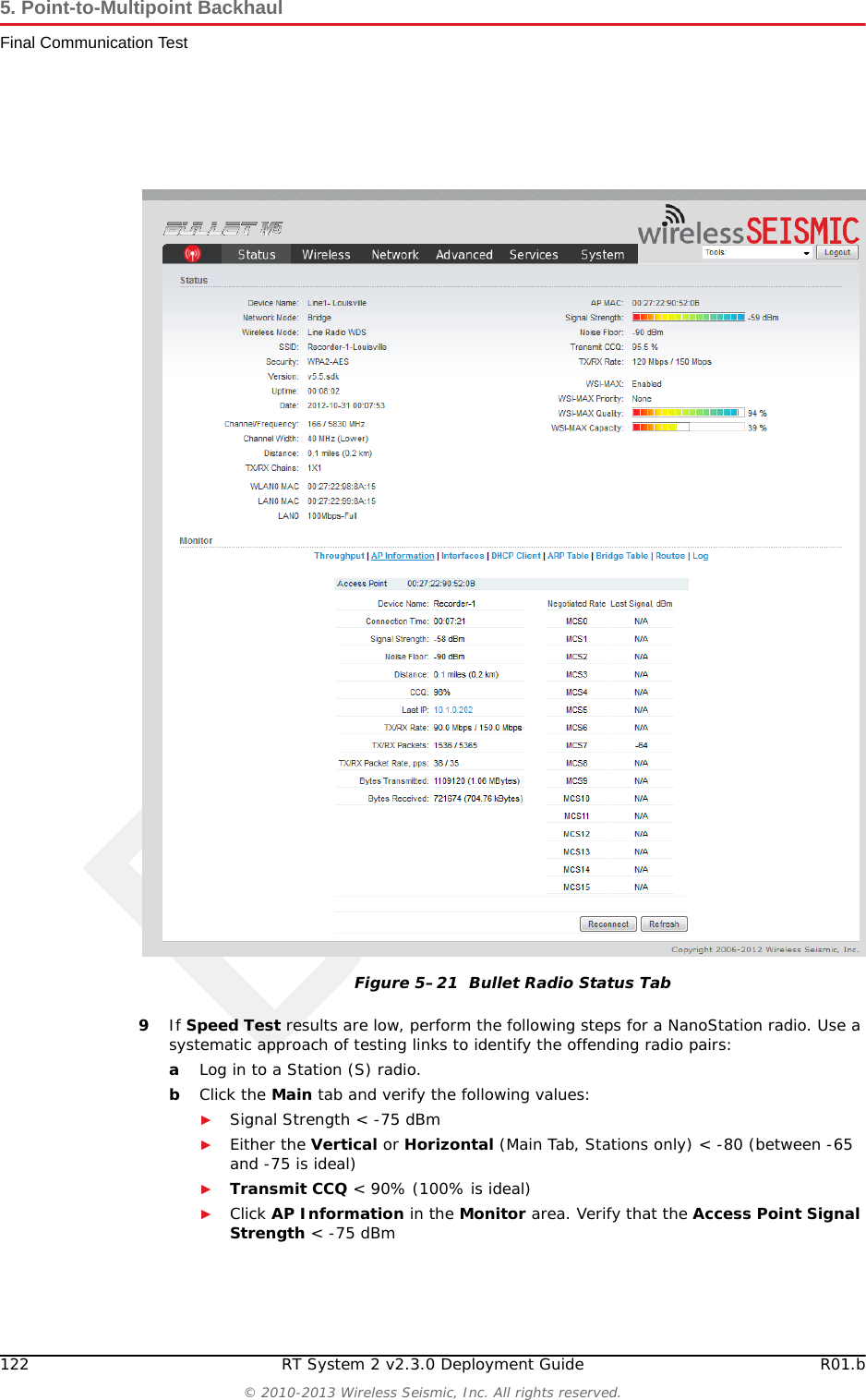
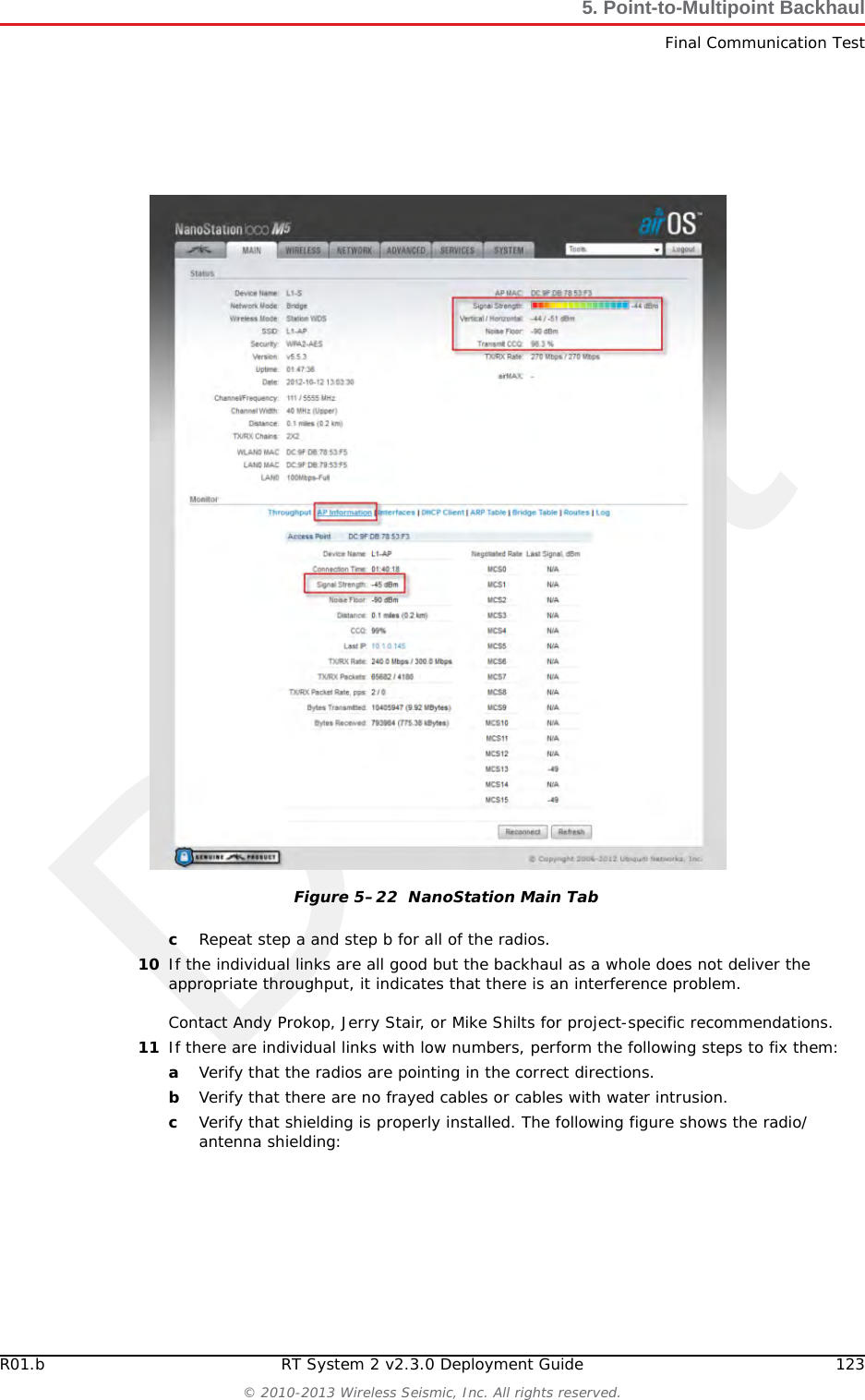
Draft122 RT System 2 v2.3.0 Deployment Guide R01.b© 2010-2013 Wireless Seismic, Inc. All rights reserved.5. Point-to-Multipoint BackhaulFinal Communication Test9If Speed Test results are low, perform the following steps for a NanoStation radio. Use a systematic approach of testing links to identify the offending radio pairs:aLog in to a Station (S) radio.bClick the Main tab and verify the following values:►Signal Strength < -75 dBm►Either the Vertical or Horizontal (Main Tab, Stations only) < -80 (between -65 and -75 is ideal)►Transmit CCQ < 90% (100% is ideal)►Click AP Information in the Monitor area. Verify that the Access Point Signal Strength < -75 dBmFigure 5–21  Bullet Radio Status Tab
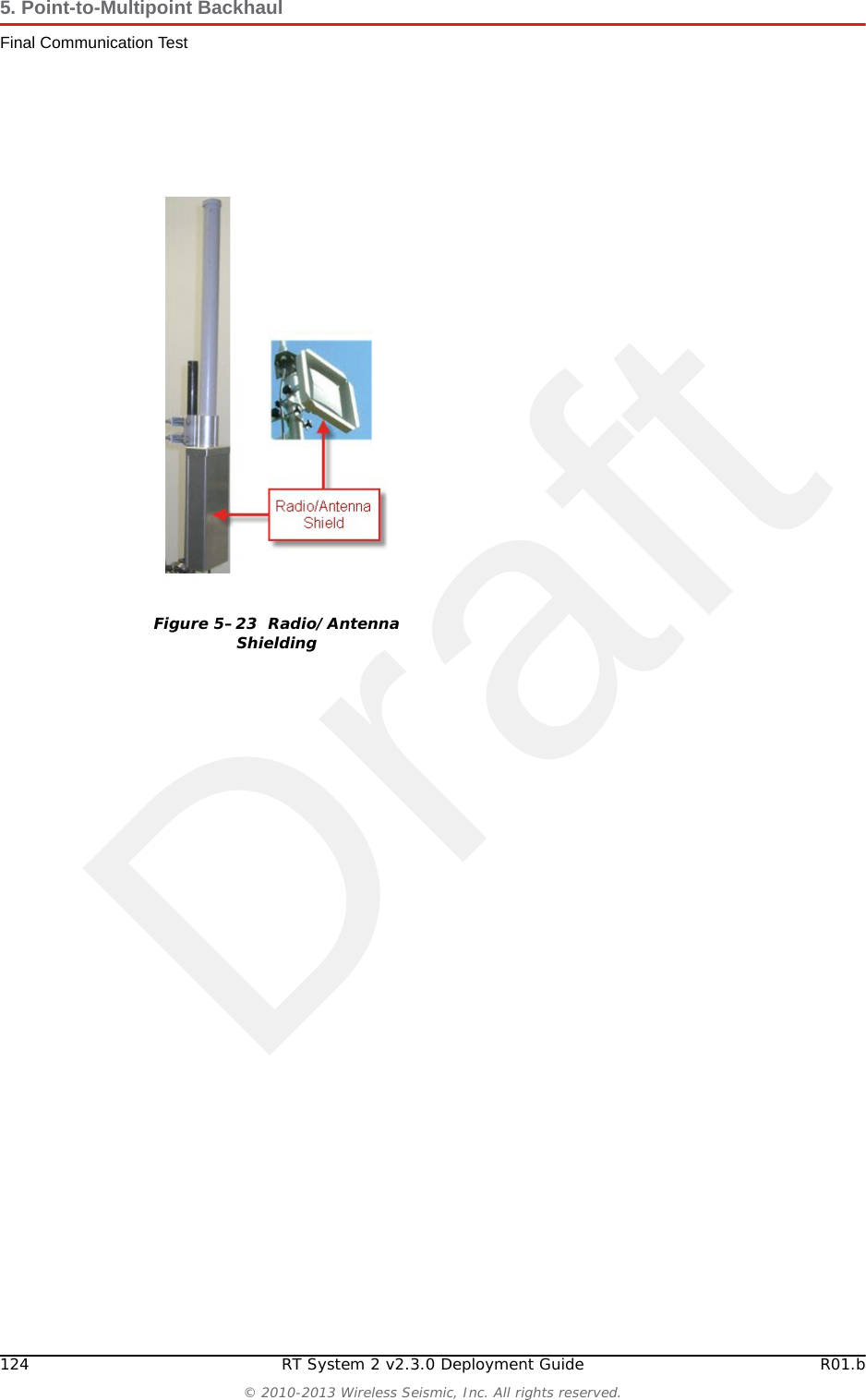
DraftR01.b RT System 2 v2.3.0 Deployment Guide 123© 2010-2013 Wireless Seismic, Inc. All rights reserved.5. Point-to-Multipoint BackhaulFinal Communication TestcRepeat step a and step b for all of the radios.10 If the individual links are all good but the backhaul as a whole does not deliver the appropriate throughput, it indicates that there is an interference problem. Contact Andy Prokop, Jerry Stair, or Mike Shilts for project-specific recommendations. 11 If there are individual links with low numbers, perform the following steps to fix them:aVerify that the radios are pointing in the correct directions.bVerify that there are no frayed cables or cables with water intrusion.cVerify that shielding is properly installed. The following figure shows the radio/antenna shielding: Figure 5–22  NanoStation Main Tab
Draft124 RT System 2 v2.3.0 Deployment Guide R01.b© 2010-2013 Wireless Seismic, Inc. All rights reserved.5. Point-to-Multipoint BackhaulFinal Communication TestFigure 5–23  Radio/Antenna Shielding
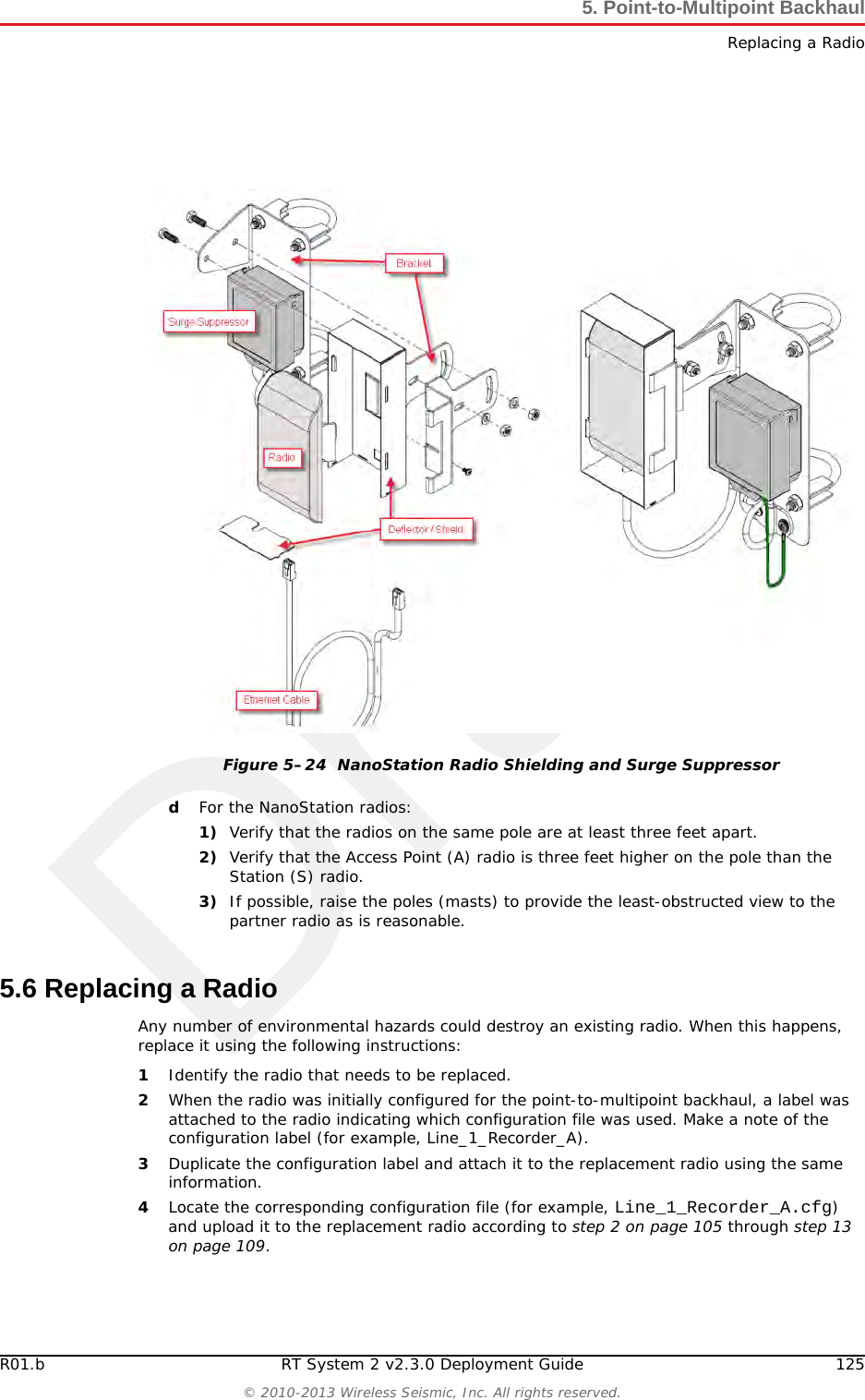
DraftR01.b RT System 2 v2.3.0 Deployment Guide 125© 2010-2013 Wireless Seismic, Inc. All rights reserved.5. Point-to-Multipoint BackhaulReplacing a RadiodFor the NanoStation radios:1) Verify that the radios on the same pole are at least three feet apart.2) Verify that the Access Point (A) radio is three feet higher on the pole than the Station (S) radio.3) If possible, raise the poles (masts) to provide the least-obstructed view to the partner radio as is reasonable.5.6 Replacing a RadioAny number of environmental hazards could destroy an existing radio. When this happens, replace it using the following instructions: 1Identify the radio that needs to be replaced.2When the radio was initially configured for the point-to-multipoint backhaul, a label was attached to the radio indicating which configuration file was used. Make a note of the configuration label (for example, Line_1_Recorder_A). 3Duplicate the configuration label and attach it to the replacement radio using the same information.4Locate the corresponding configuration file (for example, Line_1_Recorder_A.cfg) and upload it to the replacement radio according to step 2 on page 105 through step 13 on page 109.Figure 5–24  NanoStation Radio Shielding and Surge Suppressor
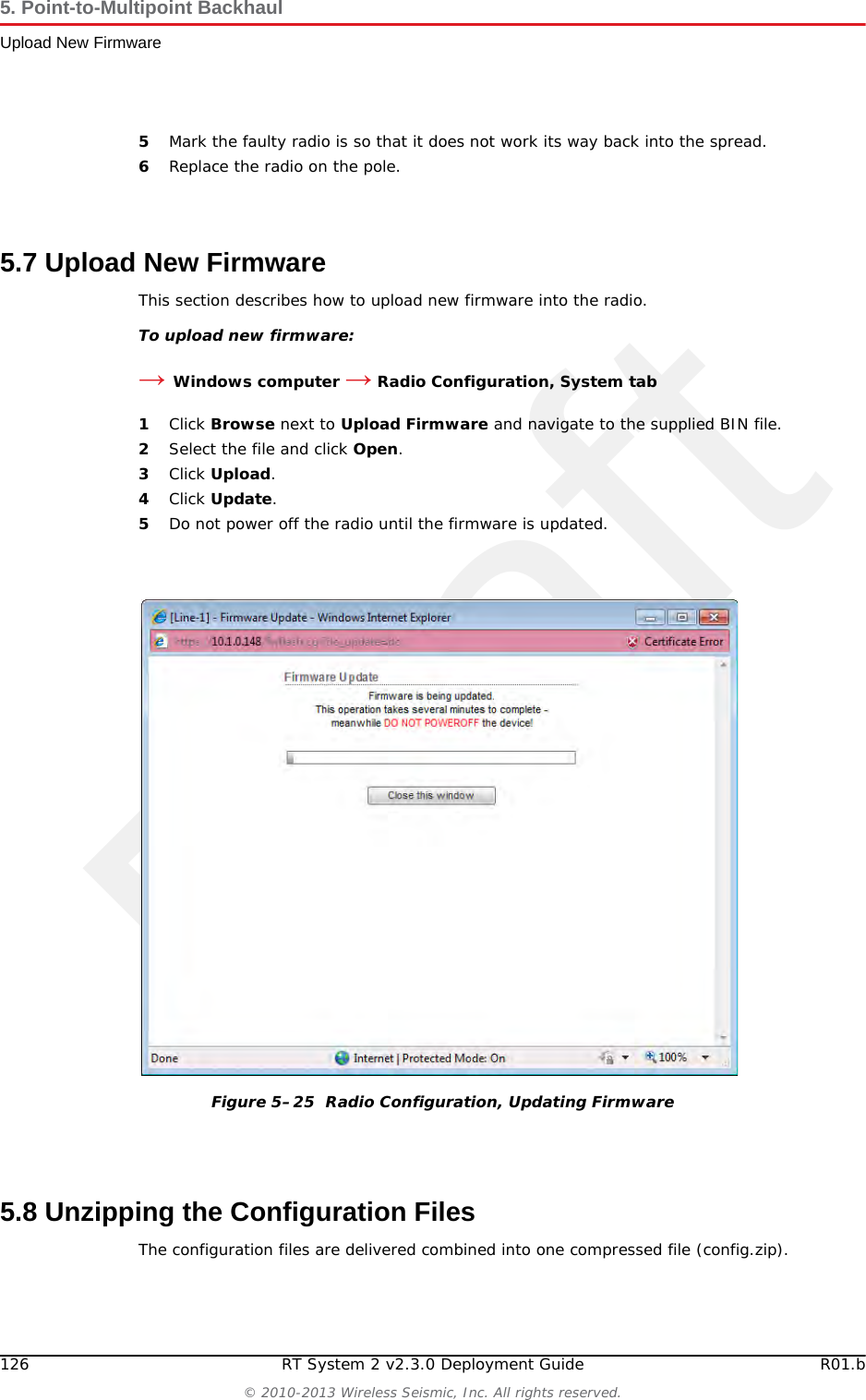
Draft126 RT System 2 v2.3.0 Deployment Guide R01.b© 2010-2013 Wireless Seismic, Inc. All rights reserved.5. Point-to-Multipoint BackhaulUpload New Firmware5Mark the faulty radio is so that it does not work its way back into the spread.6Replace the radio on the pole.5.7 Upload New FirmwareThis section describes how to upload new firmware into the radio. To upload new firmware:→Windows computer → Radio Configuration, System tab1Click Browse next to Upload Firmware and navigate to the supplied BIN file. 2Select the file and click Open.3Click Upload.4Click Update.5Do not power off the radio until the firmware is updated.5.8 Unzipping the Configuration FilesThe configuration files are delivered combined into one compressed file (config.zip). Figure 5–25  Radio Configuration, Updating Firmware
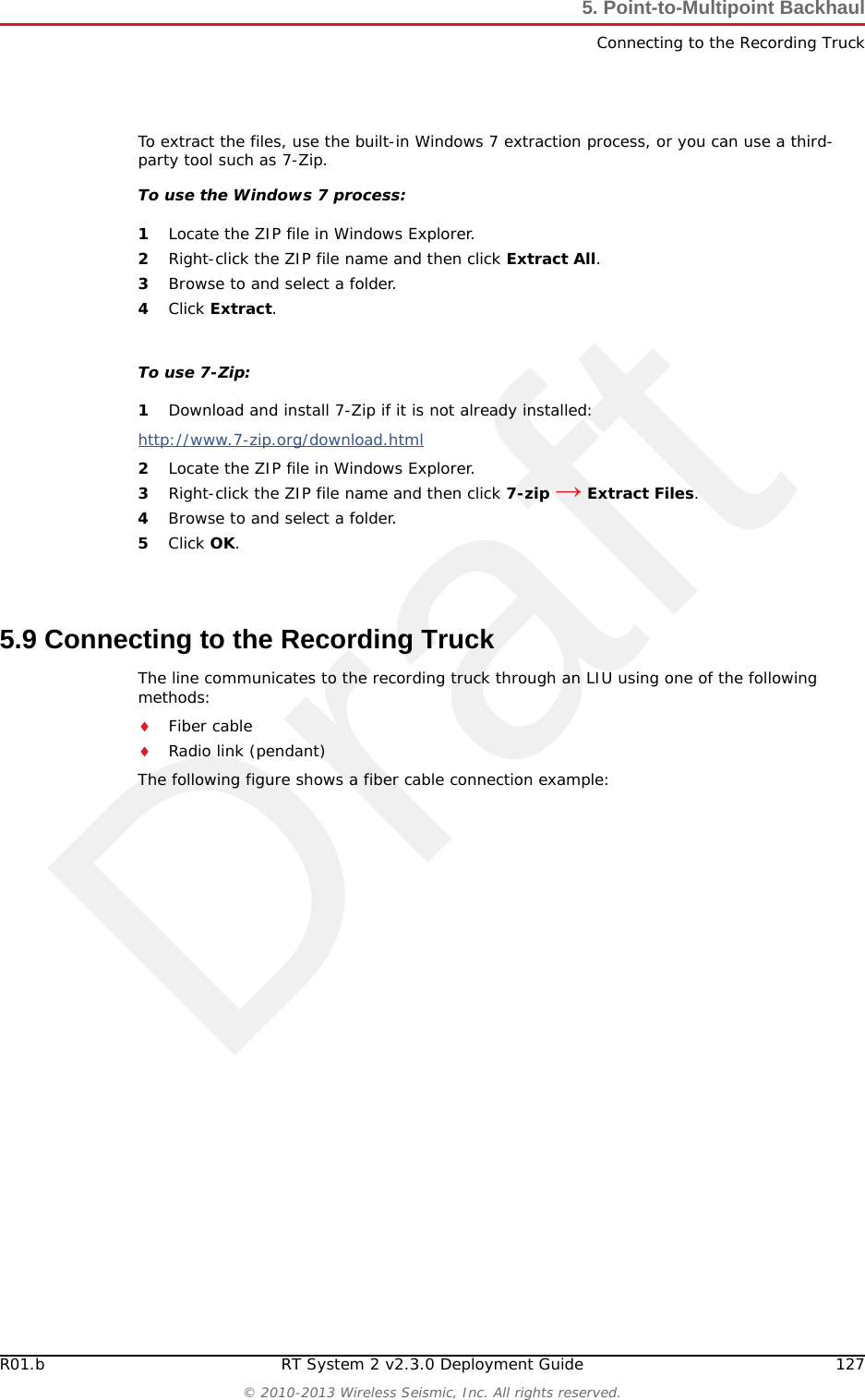
DraftR01.b RT System 2 v2.3.0 Deployment Guide 127© 2010-2013 Wireless Seismic, Inc. All rights reserved.5. Point-to-Multipoint BackhaulConnecting to the Recording TruckTo extract the files, use the built-in Windows 7 extraction process, or you can use a third-party tool such as 7-Zip. To use the Windows 7 process:1Locate the ZIP file in Windows Explorer.2Right-click the ZIP file name and then click Extract All. 3Browse to and select a folder.4Click Extract.To use 7-Zip:1Download and install 7-Zip if it is not already installed:http://www.7-zip.org/download.html 2Locate the ZIP file in Windows Explorer.3Right-click the ZIP file name and then click 7-zip → Extract Files.4Browse to and select a folder.5Click OK.5.9 Connecting to the Recording TruckThe line communicates to the recording truck through an LIU using one of the following methods:Fiber cableRadio link (pendant)The following figure shows a fiber cable connection example:
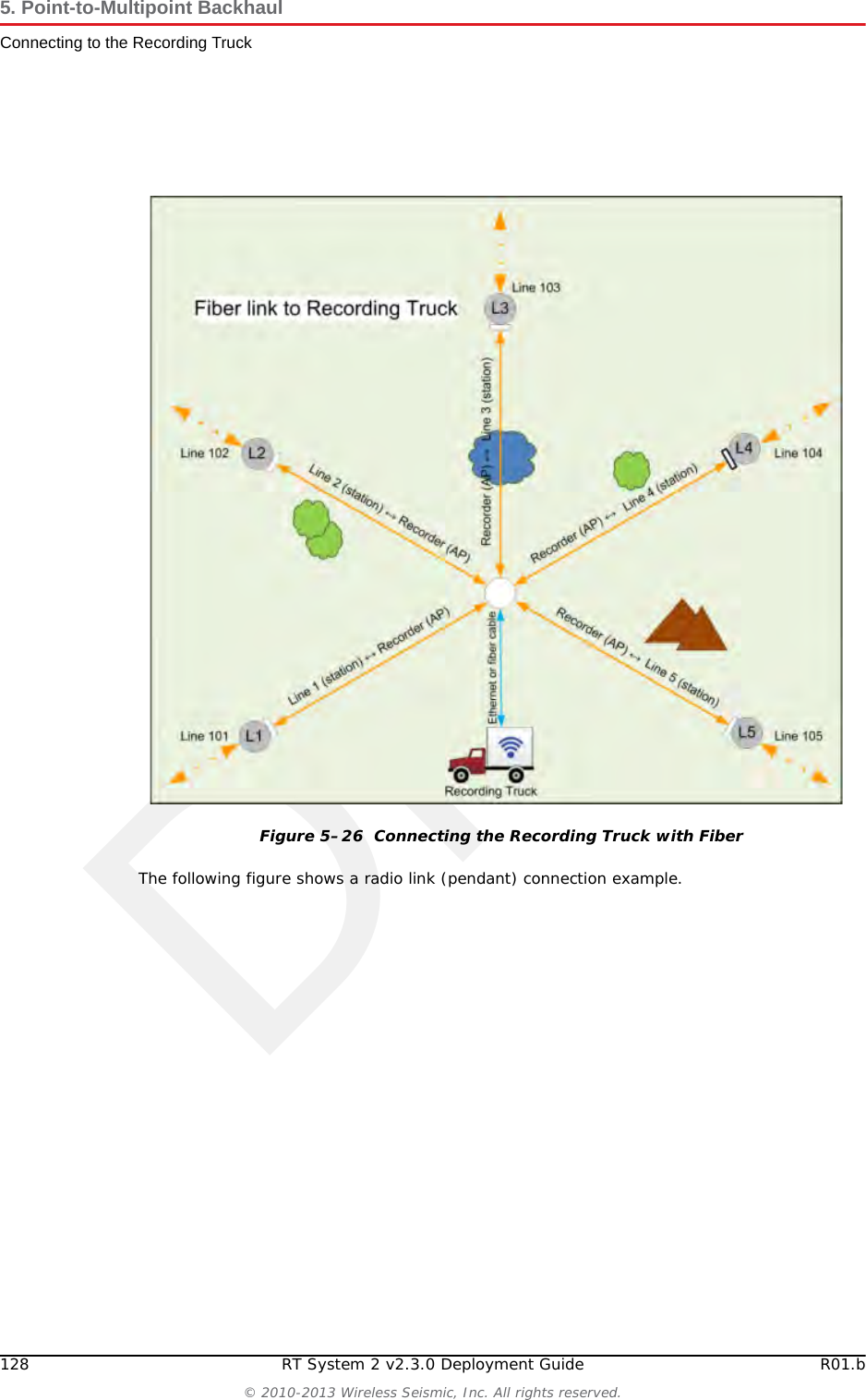
Draft128 RT System 2 v2.3.0 Deployment Guide R01.b© 2010-2013 Wireless Seismic, Inc. All rights reserved.5. Point-to-Multipoint BackhaulConnecting to the Recording TruckThe following figure shows a radio link (pendant) connection example. Figure 5–26  Connecting the Recording Truck with Fiber
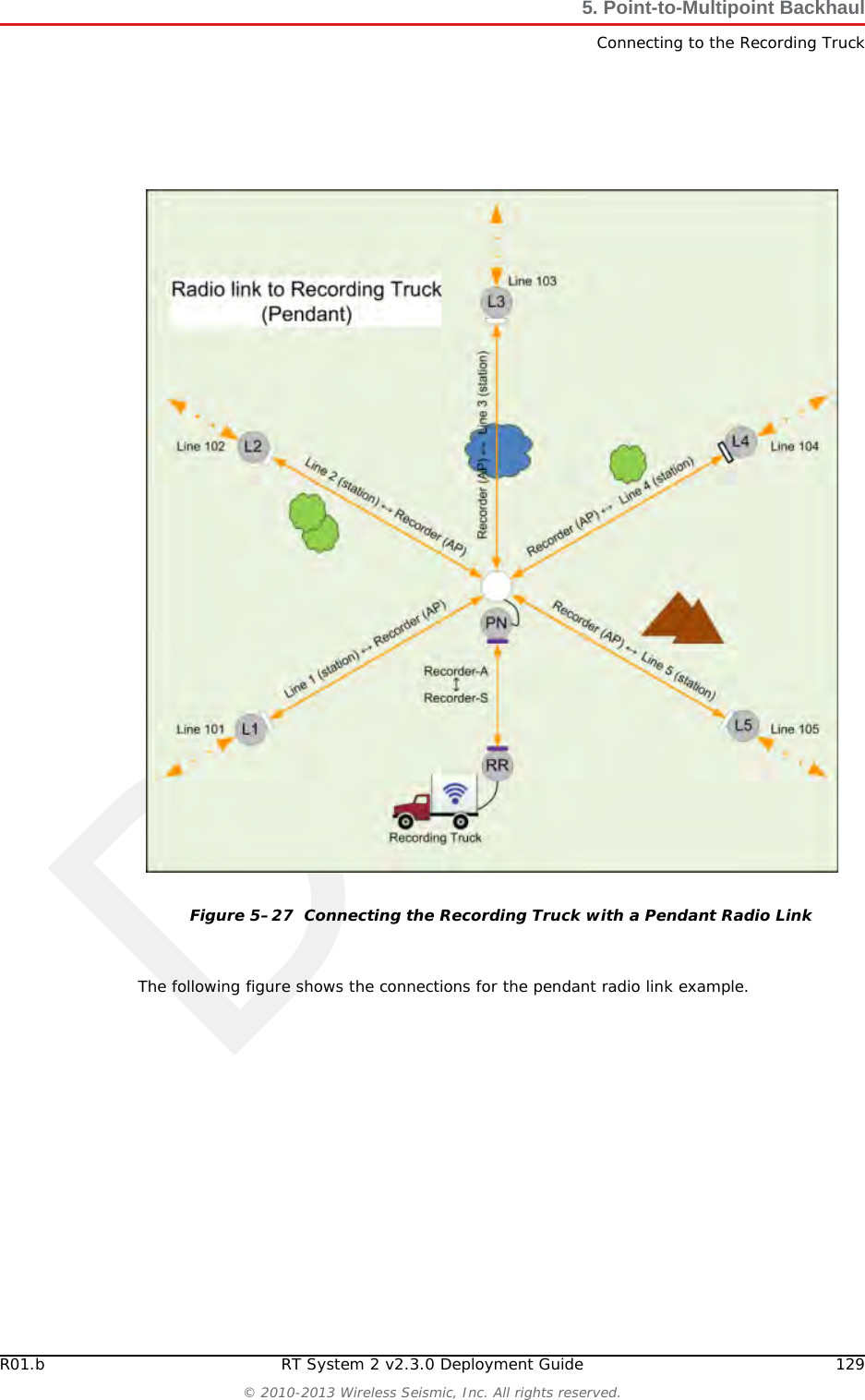
DraftR01.b RT System 2 v2.3.0 Deployment Guide 129© 2010-2013 Wireless Seismic, Inc. All rights reserved.5. Point-to-Multipoint BackhaulConnecting to the Recording TruckThe following figure shows the connections for the pendant radio link example.Figure 5–27  Connecting the Recording Truck with a Pendant Radio Link
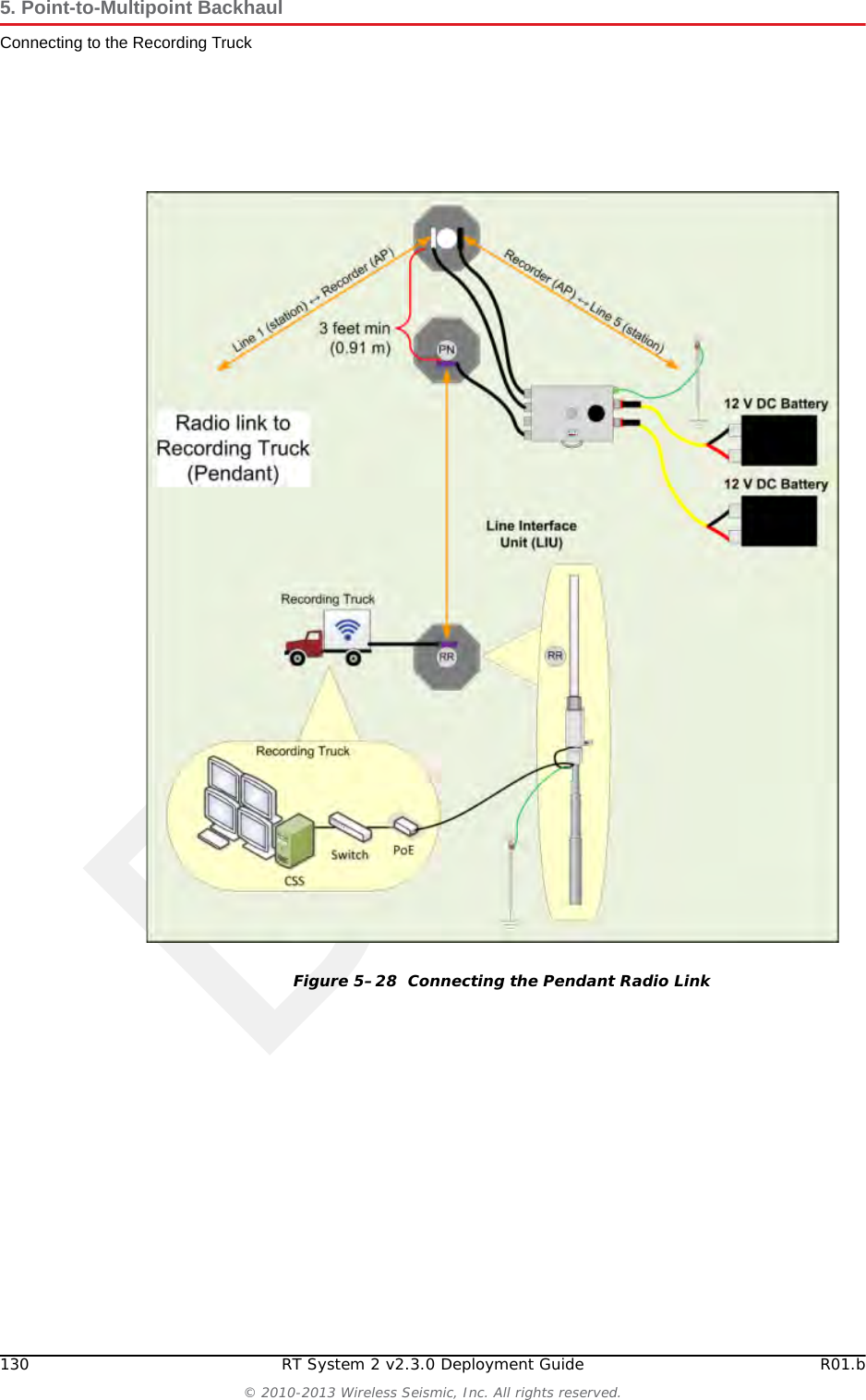
Draft130 RT System 2 v2.3.0 Deployment Guide R01.b© 2010-2013 Wireless Seismic, Inc. All rights reserved.5. Point-to-Multipoint BackhaulConnecting to the Recording TruckFigure 5–28  Connecting the Pendant Radio Link
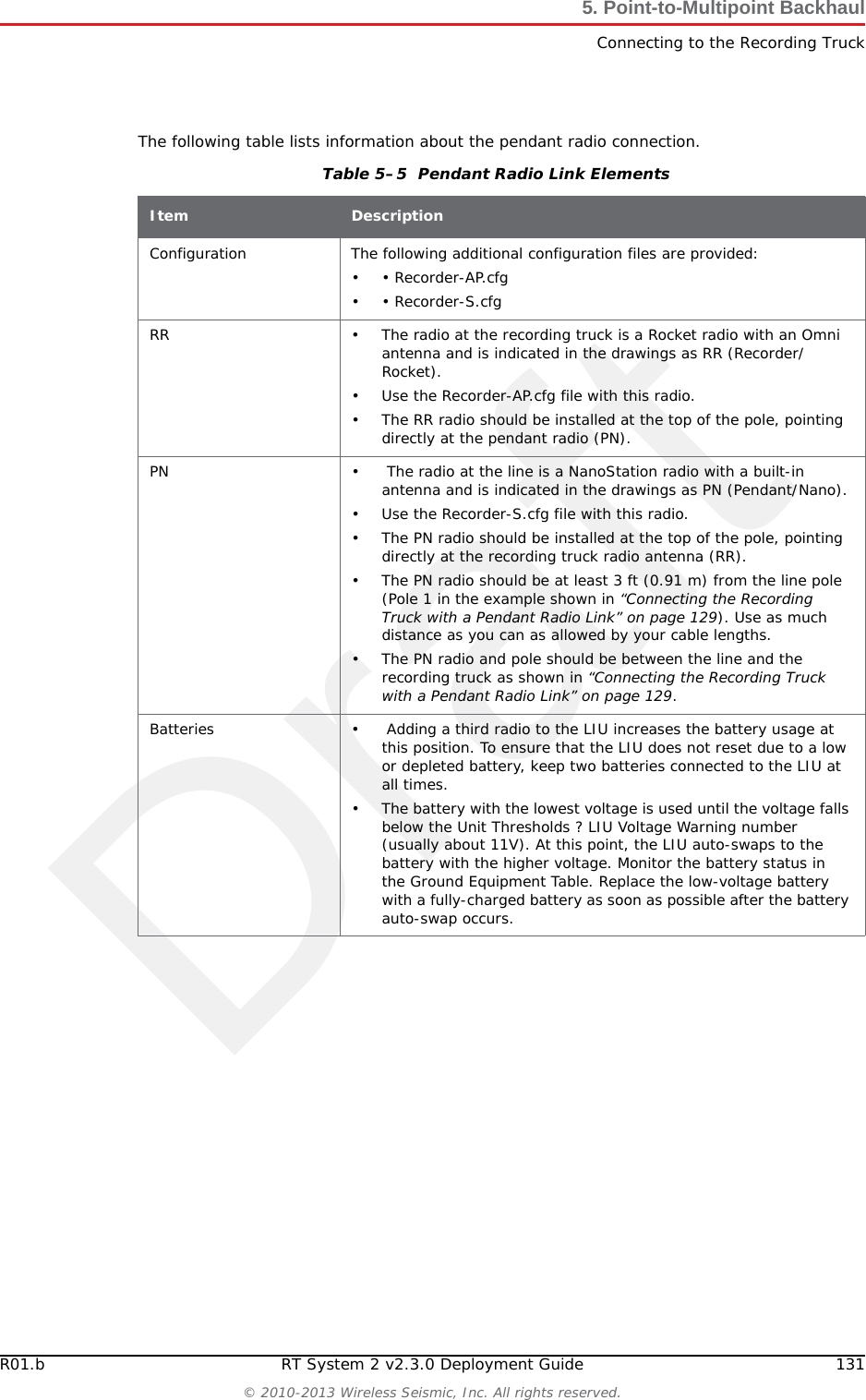
DraftR01.b RT System 2 v2.3.0 Deployment Guide 131© 2010-2013 Wireless Seismic, Inc. All rights reserved.5. Point-to-Multipoint BackhaulConnecting to the Recording TruckThe following table lists information about the pendant radio connection.Table 5–5  Pendant Radio Link Elements Item DescriptionConfiguration The following additional configuration files are provided:• • Recorder-AP.cfg• • Recorder-S.cfgRR • The radio at the recording truck is a Rocket radio with an Omni antenna and is indicated in the drawings as RR (Recorder/Rocket).• Use the Recorder-AP.cfg file with this radio.• The RR radio should be installed at the top of the pole, pointing directly at the pendant radio (PN).PN •  The radio at the line is a NanoStation radio with a built-in antenna and is indicated in the drawings as PN (Pendant/Nano).• Use the Recorder-S.cfg file with this radio.• The PN radio should be installed at the top of the pole, pointing directly at the recording truck radio antenna (RR).• The PN radio should be at least 3 ft (0.91 m) from the line pole (Pole 1 in the example shown in “Connecting the Recording Truck with a Pendant Radio Link” on page 129). Use as much distance as you can as allowed by your cable lengths.• The PN radio and pole should be between the line and the recording truck as shown in “Connecting the Recording Truck with a Pendant Radio Link” on page 129.Batteries •  Adding a third radio to the LIU increases the battery usage at this position. To ensure that the LIU does not reset due to a low or depleted battery, keep two batteries connected to the LIU at all times.• The battery with the lowest voltage is used until the voltage falls below the Unit Thresholds ? LIU Voltage Warning number (usually about 11V). At this point, the LIU auto-swaps to the battery with the higher voltage. Monitor the battery status in the Ground Equipment Table. Replace the low-voltage battery with a fully-charged battery as soon as possible after the battery auto-swap occurs.
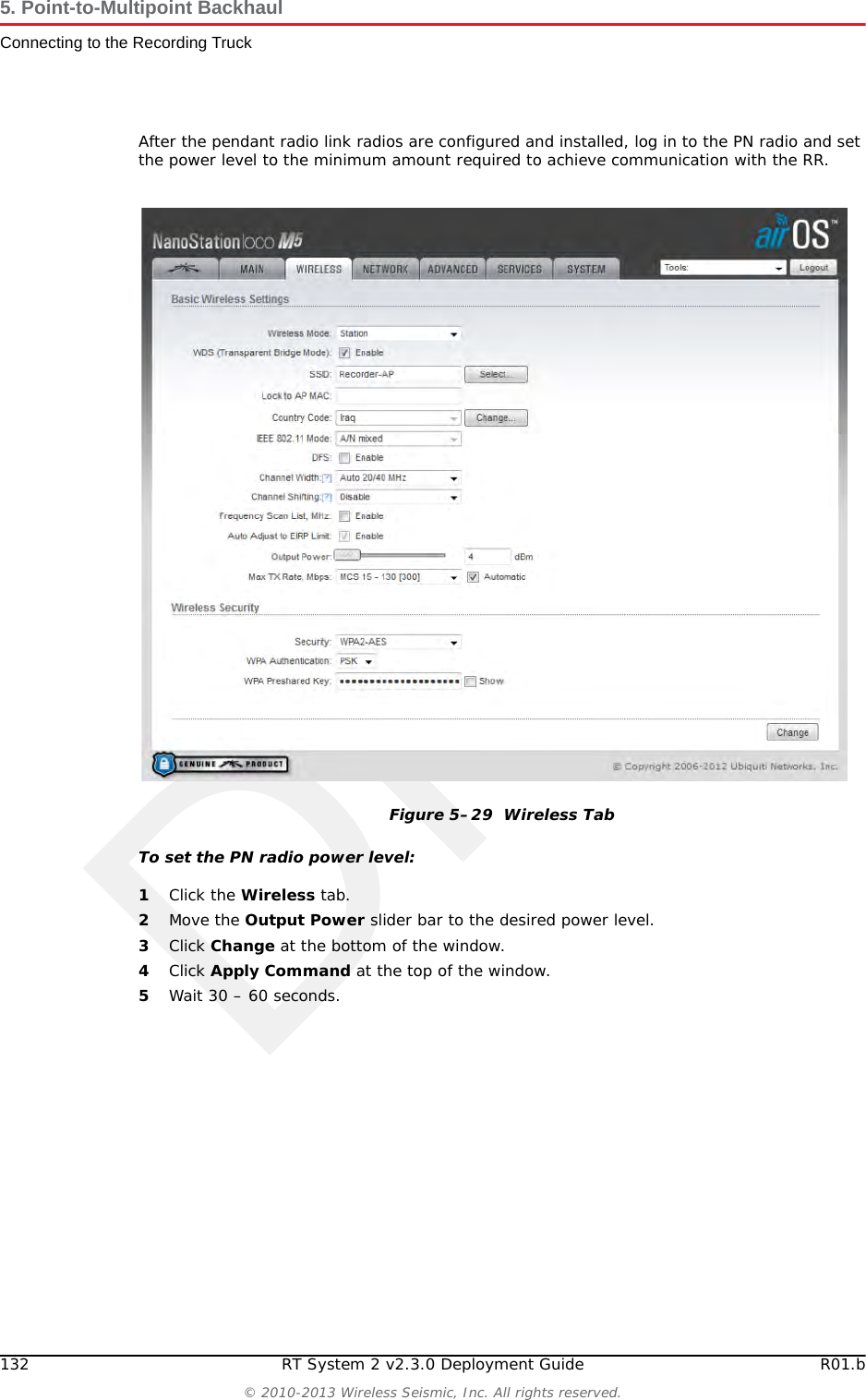
Draft132 RT System 2 v2.3.0 Deployment Guide R01.b© 2010-2013 Wireless Seismic, Inc. All rights reserved.5. Point-to-Multipoint BackhaulConnecting to the Recording TruckAfter the pendant radio link radios are configured and installed, log in to the PN radio and set the power level to the minimum amount required to achieve communication with the RR.To set the PN radio power level:1Click the Wireless tab.2Move the Output Power slider bar to the desired power level.3Click Change at the bottom of the window.4Click Apply Command at the top of the window.5Wait 30 – 60 seconds.Figure 5–29  Wireless Tab
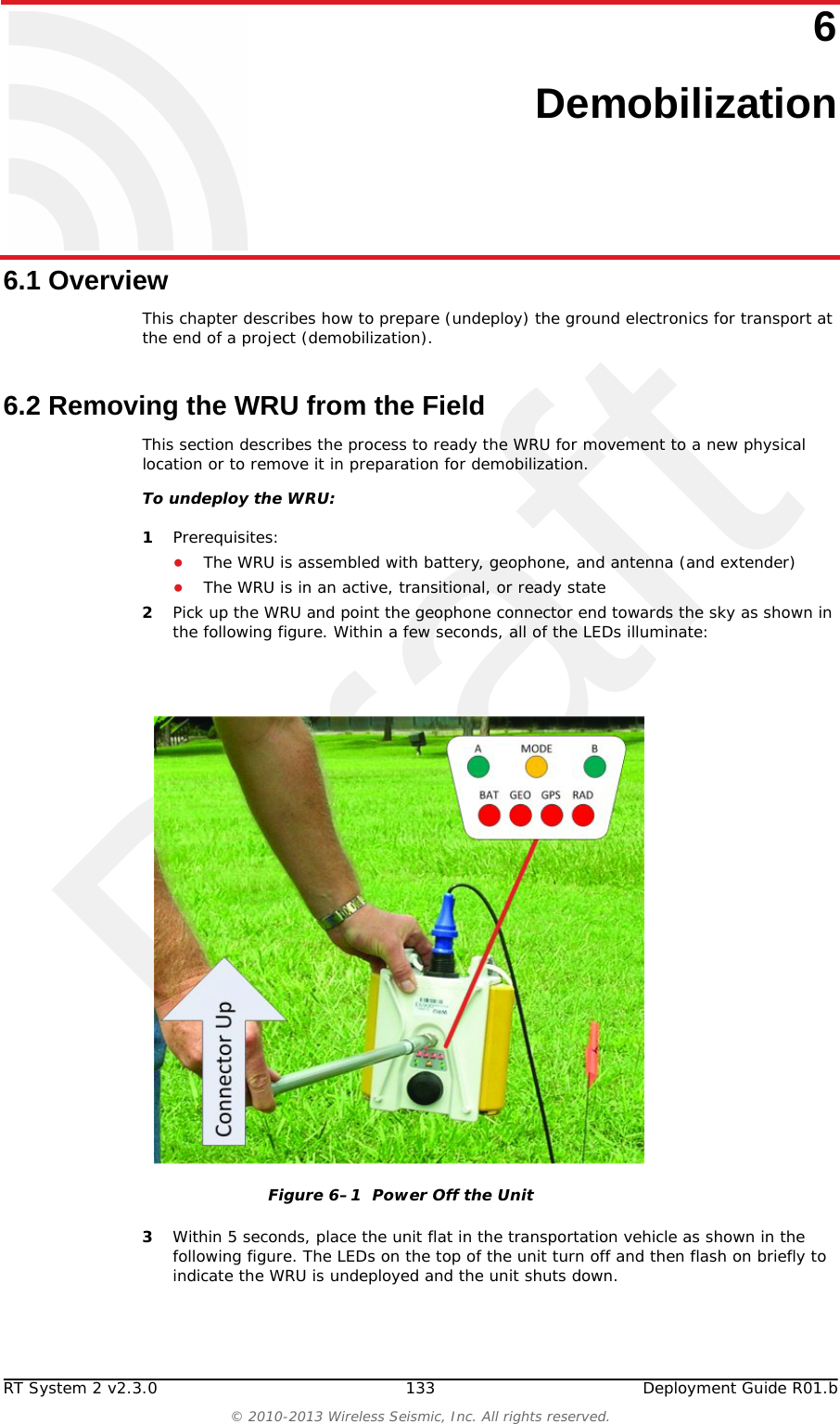
DraftRT System 2 v2.3.0 133  Deployment Guide R01.b© 2010-2013 Wireless Seismic, Inc. All rights reserved.66. Demobilization6.1 OverviewThis chapter describes how to prepare (undeploy) the ground electronics for transport at the end of a project (demobilization). 6.2 Removing the WRU from the FieldThis section describes the process to ready the WRU for movement to a new physical location or to remove it in preparation for demobilization.To undeploy the WRU:1Prerequisites:●The WRU is assembled with battery, geophone, and antenna (and extender)●The WRU is in an active, transitional, or ready state2Pick up the WRU and point the geophone connector end towards the sky as shown in the following figure. Within a few seconds, all of the LEDs illuminate:3Within 5 seconds, place the unit flat in the transportation vehicle as shown in the following figure. The LEDs on the top of the unit turn off and then flash on briefly to indicate the WRU is undeployed and the unit shuts down.Figure 6–1  Power Off the Unit
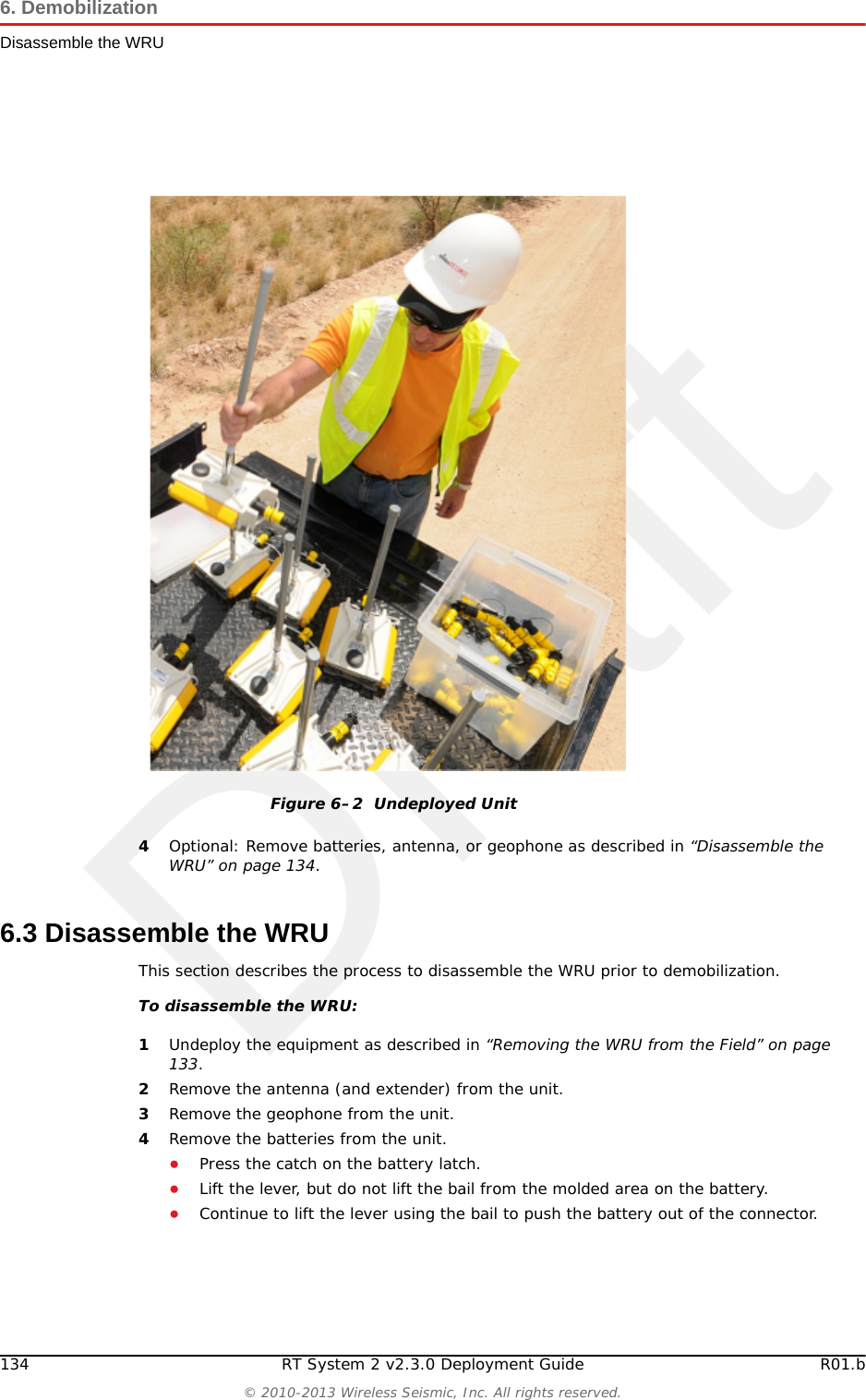
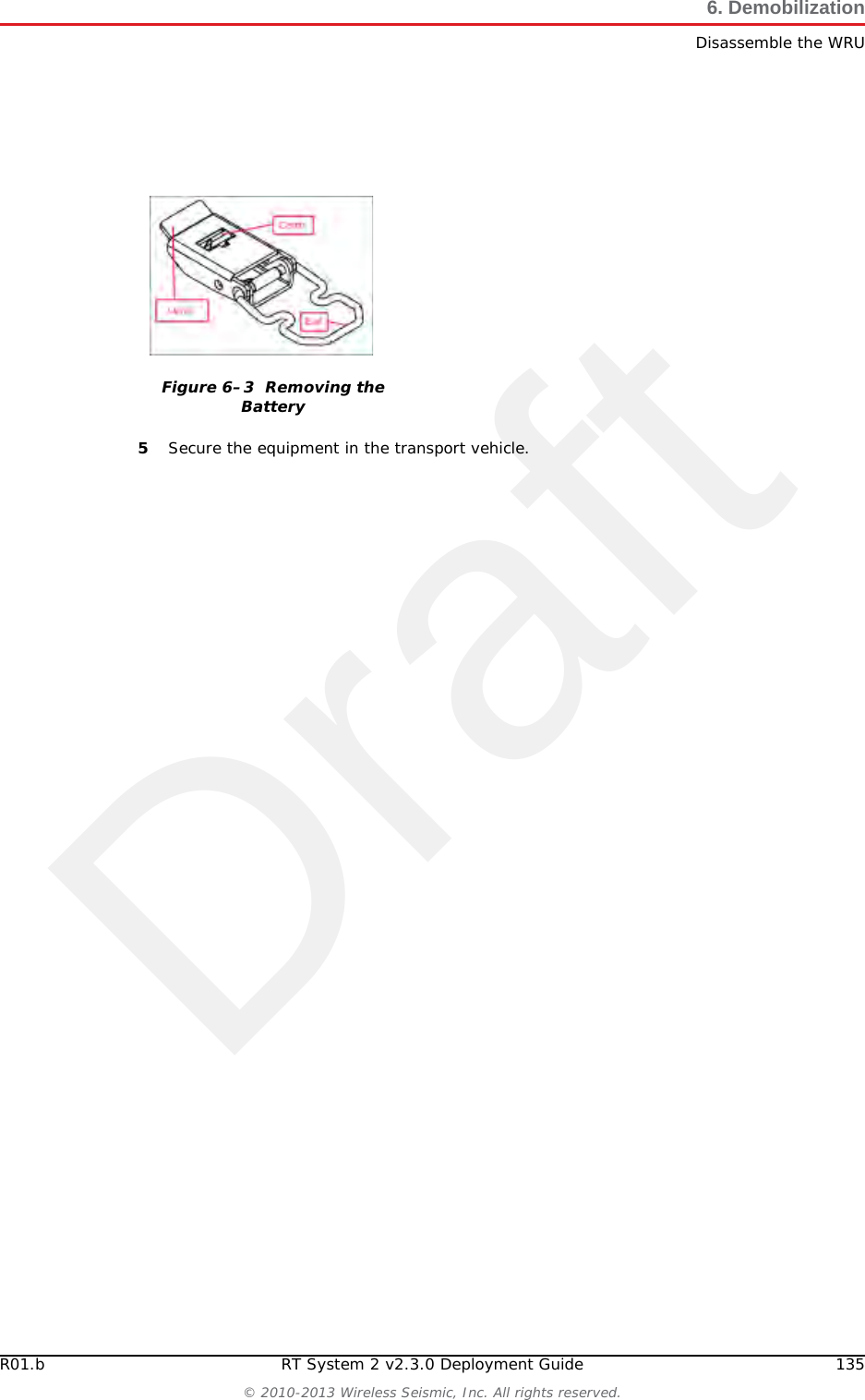
Draft134 RT System 2 v2.3.0 Deployment Guide R01.b© 2010-2013 Wireless Seismic, Inc. All rights reserved.6. DemobilizationDisassemble the WRU4Optional: Remove batteries, antenna, or geophone as described in “Disassemble the WRU” on page 134.6.3 Disassemble the WRU This section describes the process to disassemble the WRU prior to demobilization.To disassemble the WRU:1Undeploy the equipment as described in “Removing the WRU from the Field” on page 133.2Remove the antenna (and extender) from the unit.3Remove the geophone from the unit.4Remove the batteries from the unit.●Press the catch on the battery latch.●Lift the lever, but do not lift the bail from the molded area on the battery.●Continue to lift the lever using the bail to push the battery out of the connector. Figure 6–2  Undeployed Unit
DraftR01.b RT System 2 v2.3.0 Deployment Guide 135© 2010-2013 Wireless Seismic, Inc. All rights reserved.6. DemobilizationDisassemble the WRU5Secure the equipment in the transport vehicle.Figure 6–3  Removing the Battery
DraftRT System 2 v2.3.0 136  Deployment Guide R01.b© 2010-2013 Wireless Seismic, Inc. All rights reserved.77. BatteriesSee “Batteries” on page 192 for the French translation of this chapter.Voir “Batteries” sur la page 192 pour la traduction française de ce chapitre.This chapter provides information about the batteries and battery requirements used in the Wireless Seismic, Inc. RT System 2. 7.1 Lithium Ion BatteriesThis section provides information regarding the characteristics, use, and handling of lithium ion batteries. See the following sections for details:“Specifications” on page 136“Handling and Safety Guidelines” on page 137“Transportation” on page 138“Storage” on page 1397.1.1 SpecificationsThe RT System 2 uses one or two custom intelligent lithium-ion batteries with self-contained charging circuitry that protects the batteries from overcharge, discharge, short circuits, or extreme temperature charging. Battery specifications are shown in the following table:Table 7–1  Lithium Ion Battery Specifications Item Description ValueVoltage Nominal 3.7 VDCShut-off 2.8 VDCFull (90%) charge 4.1 VDCOvercharge Voltage 4.28 VDCOver Discharge Voltage 2.80 VDCCurrent Maximum Charge Current 2 AConsumption Active Mode 4.2 mA maximumConsumption Sleep Mode 66 A maximumFull (90%) charge mAh Approximately 12,000 mAh at nominal voltage —Full (90%) charge mWh Approximately 44,400 mWh at nominal voltage —Capacity 48.8 Watt hours
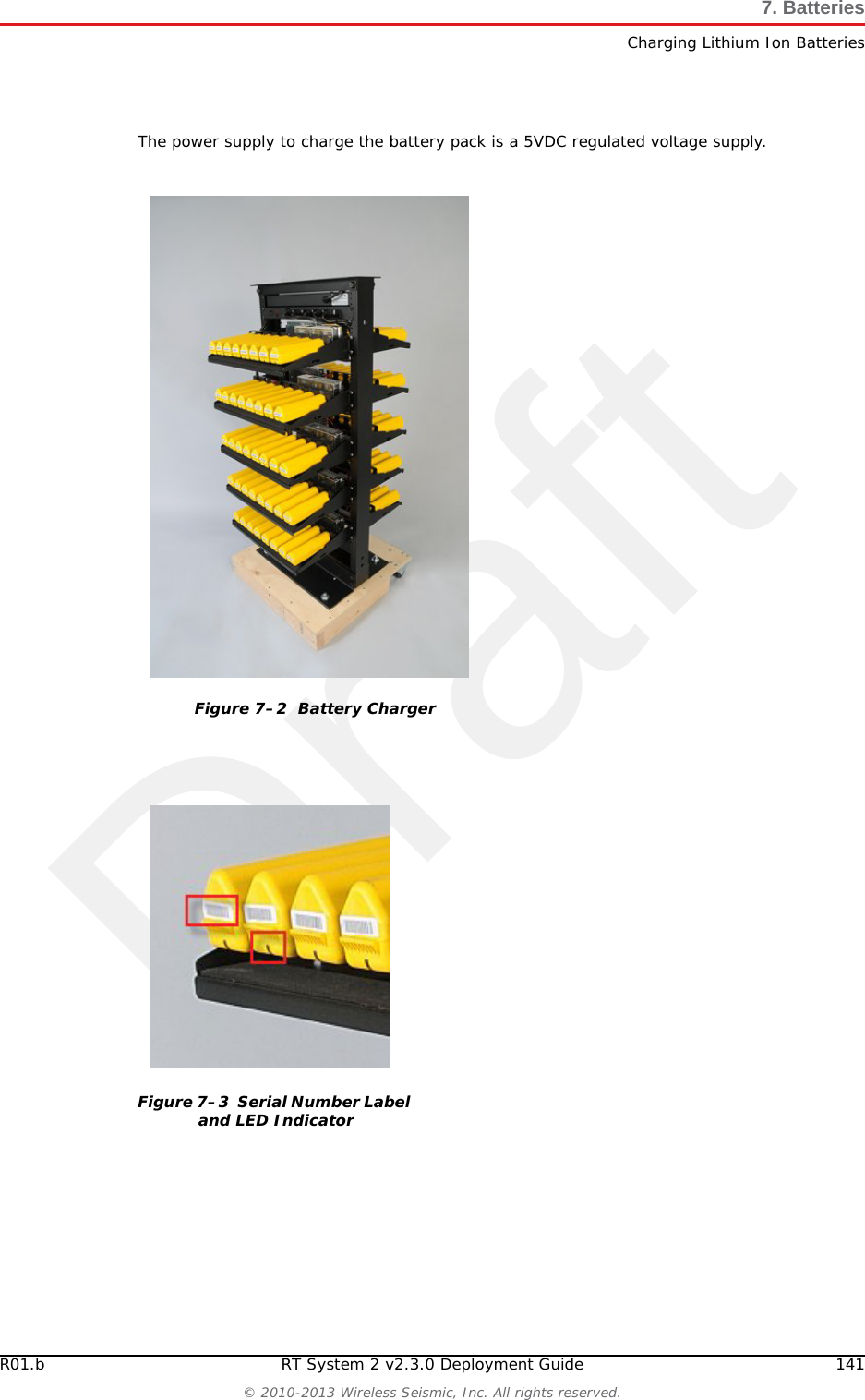
DraftR01.b RT System 2 v2.3.0 Deployment Guide 137© 2010-2013 Wireless Seismic, Inc. All rights reserved.7. BatteriesLithium Ion Batteries7.1.2 Handling and Safety GuidelinesObserve the following handling and safety guidelines:If a battery pack has leaking fluids, do not touch any fluids. Dispose of a leaking battery pack. In case of eye contact with fluid, do not rub eyes. Immediately flush eyes thoroughly with water for at least 15 minutes, lifting upper and lower lids until no evidence of the fluid remains. Seek medical attention. Do not disassemble, crush, or puncture a batteryDo not short the external contacts on a batteryDo not dispose of a battery in fire or waterDo not expose a battery to temperatures above 60 °C (140 °F)Keep the battery away from childrenAvoid exposing the battery to excessive shock or vibrationDo not use a damaged batteryLithium Ion battery packs MUST be completely discharged before disposalAlthough there may be local or state restrictions, lithium ion batteries are considered by the Federal Government as “non-hazardous universal waste”. There are restrictions for large quantity handlers of universal waste that define labeling, containment, and so on. Whenever possible the batteries must be discharged before disposal. Battery leads/contacts should be taped off to prevent accidental shorting. Each battery pack should be placed in a plastic bag.Recycling is encouraged when practical and applicable. The batteries contain recyclable material and are accepted by several battery recycling companies. Refer to one of the following for more information on recycling and disposal:●http://www.swe.com Connector 5-pin —LED One LED that indicates charging status when connected to the charging station as follows• Green – Charged• Red – Charging• Amber – Transitional phase between charging and charged, or charge temperature limits exceededLabel One bar code serial number label —Temperature Operating From -40°C to +85°CCharging From -5°Cto+45°CAmbient Storage • From -20°C to +45°C for a maximum period of one month• From -20°C to +35°C for a maximum of 6 months, after which time the battery packs will need to be recharged to above 50% capacityTable 7–1  Lithium Ion Battery Specifications  (cont.)Item Description Value
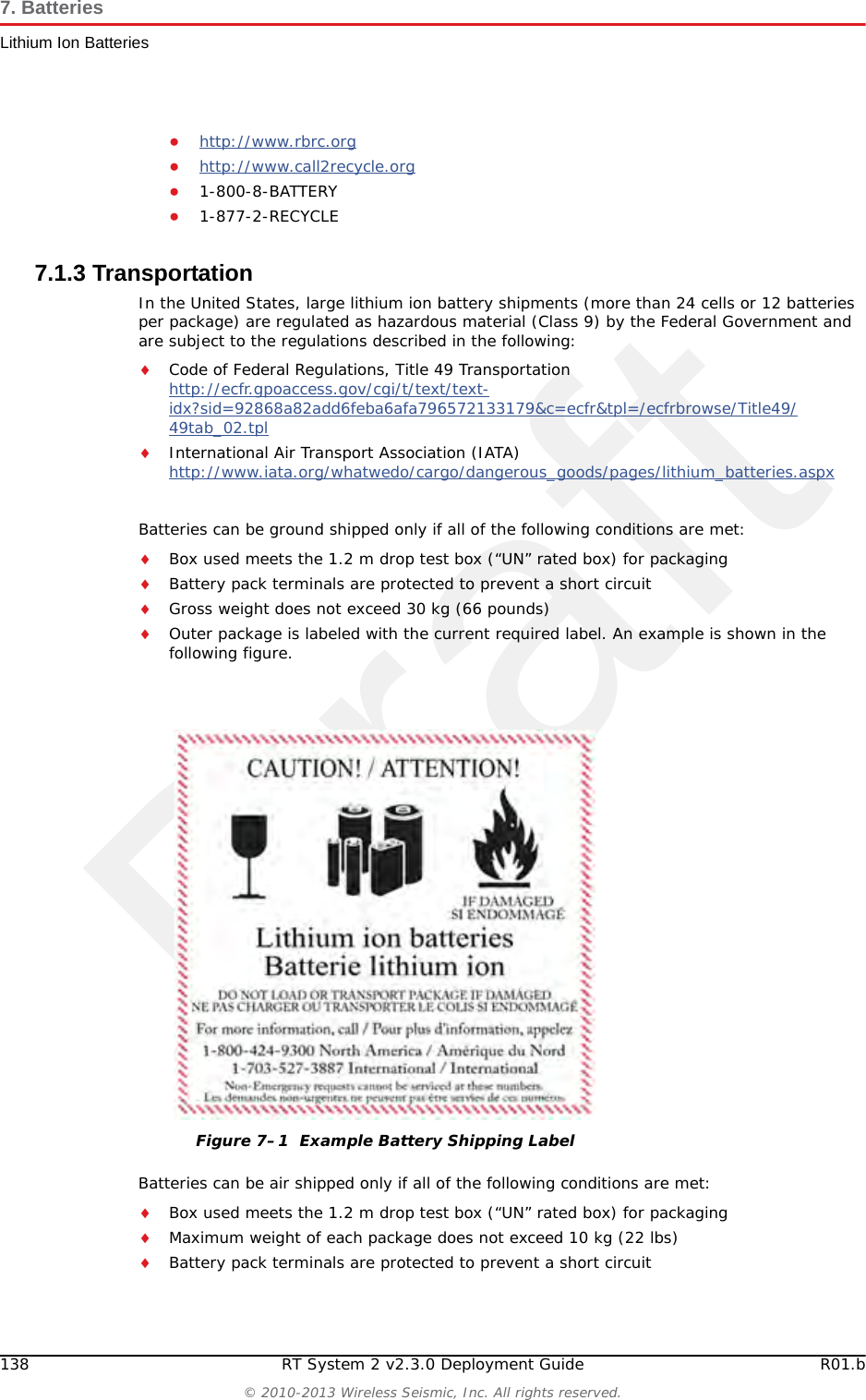
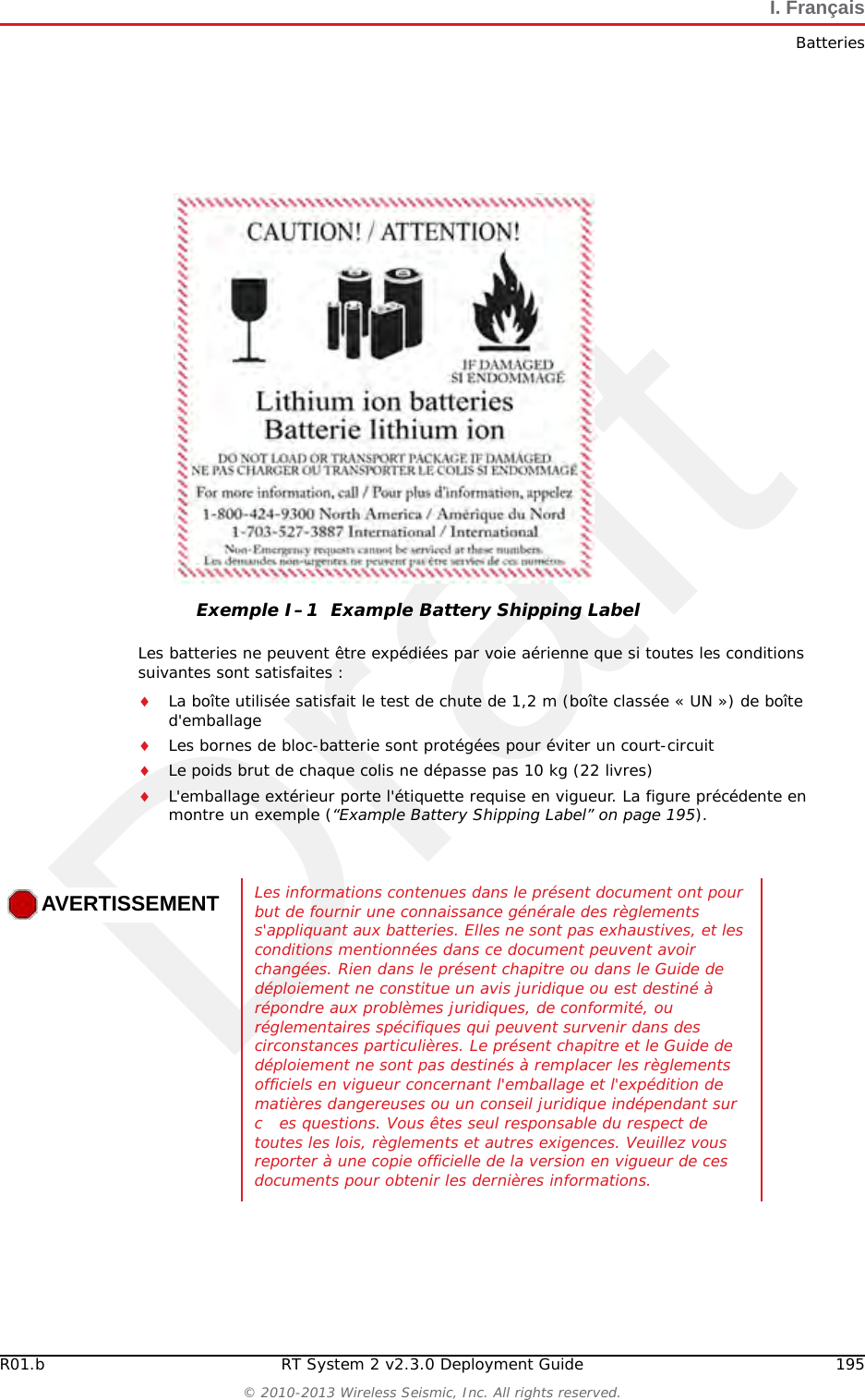
Draft138 RT System 2 v2.3.0 Deployment Guide R01.b© 2010-2013 Wireless Seismic, Inc. All rights reserved.7. BatteriesLithium Ion Batteries●http://www.rbrc.org ●http://www.call2recycle.org ●1-800-8-BATTERY ●1-877-2-RECYCLE7.1.3 TransportationIn the United States, large lithium ion battery shipments (more than 24 cells or 12 batteries per package) are regulated as hazardous material (Class 9) by the Federal Government and are subject to the regulations described in the following:Code of Federal Regulations, Title 49 Transportationhttp://ecfr.gpoaccess.gov/cgi/t/text/text-idx?sid=92868a82add6feba6afa796572133179&c=ecfr&tpl=/ecfrbrowse/Title49/49tab_02.tpl International Air Transport Association (IATA)http://www.iata.org/whatwedo/cargo/dangerous_goods/pages/lithium_batteries.aspx Batteries can be ground shipped only if all of the following conditions are met: Box used meets the 1.2 m drop test box (“UN” rated box) for packagingBattery pack terminals are protected to prevent a short circuitGross weight does not exceed 30 kg (66 pounds) Outer package is labeled with the current required label. An example is shown in the following figure.Batteries can be air shipped only if all of the following conditions are met:Box used meets the 1.2 m drop test box (“UN” rated box) for packagingMaximum weight of each package does not exceed 10 kg (22 lbs)Battery pack terminals are protected to prevent a short circuitFigure 7–1  Example Battery Shipping Label
DraftR01.b RT System 2 v2.3.0 Deployment Guide 139© 2010-2013 Wireless Seismic, Inc. All rights reserved.7. BatteriesLithium Ion BatteriesOuter package is labeled with the current required label. An example is shown in the previous figure (“Example Battery Shipping Label” on page 138).7.1.4 StorageProper storage and maintenance of Lithium Ion batteries is essential to maximize their useful life and avoid catastrophic failure. Observe the following storage precautions:Remove the batteries from the WRU for storageThe recommended storage temperature for Lithium ion batteries is as follows:●From -20°C to +45°C for a maximum period of one month●From -20°C to +35°C for a maximum of 6 months, after which time the battery packs will need to be recharged to above 50% capacity●Storing at cooler temperatures slows down self discharge and capacity loss over time. Store the batteries at 25°C or less if possibleThe recommended storage charge levels are as follows:●Charge (or discharge) batteries to a 30% to 50% charge level before placing into storage. Higher or lower charge levels can reduce the battery life.●Never store the battery completely depleted of charge unless for disposal.●Periodic charging is necessary to maintain 30% to 50% charge when stored for a long period of timeStore batteries in a well ventilated areaDo not leave batteries unused for extended periods of time, either in the product or in storage. When a battery has been unused for 6 months, check the charge status and charge or dispose of the battery as appropriate.WARNINGWARNINGThe information contained in this document is intended to provide general awareness of battery regulations; it is not comprehensive, and the requirements referenced herein may have changed. Nothing in this chapter or the Deployment Guide constitutes legal advice or is intended to address any specific legal, compliance, or regulatory issues that may arise in particular circumstances. This chapter and the Deployment Guide are not intended to replace current, official regulations regarding the packaging and shipment of hazardous materials or independent legal counsel on these issues. You are solely responsible for compliance with all applicable laws, regulations, and other requirements. Please refer to an official copy of the current version of these documents for the latest information.OSTRZEŻENIEInformacje zawarte w niniejszym dokumencie ma na celu ogólną świadomość przepisów baterii; nie jest to wyczerpujące i wymogi zawarte w niniejszym dokumencie mogły ulec zmianie. Nic w niniejszym rozdziale lub podręcznik wdrażania jest poradą prawną i jest przeznaczony do żadnych konkretnych prawnych, zgodności lub kwestii regulacyjnych, które mogą powstać w szczególności okoliczności. Ten rozdział i przewodnik wdrażania nie są przeznaczone do zastąpienia bieżącej, oficjalne przepisy dotyczące pakowania i wysyłki materiałów niebezpiecznych lub niezależnego adwokata w tych kwestiach. Jesteś całkowicie odpowiedzialny za przestrzeganie wszystkich przepisów, rozporządzeń i inne wymagania. Zajrzyj do oficjalnej kopię aktualnej wersji tych dokumentów, aby uzyskać najnowsze informacje.
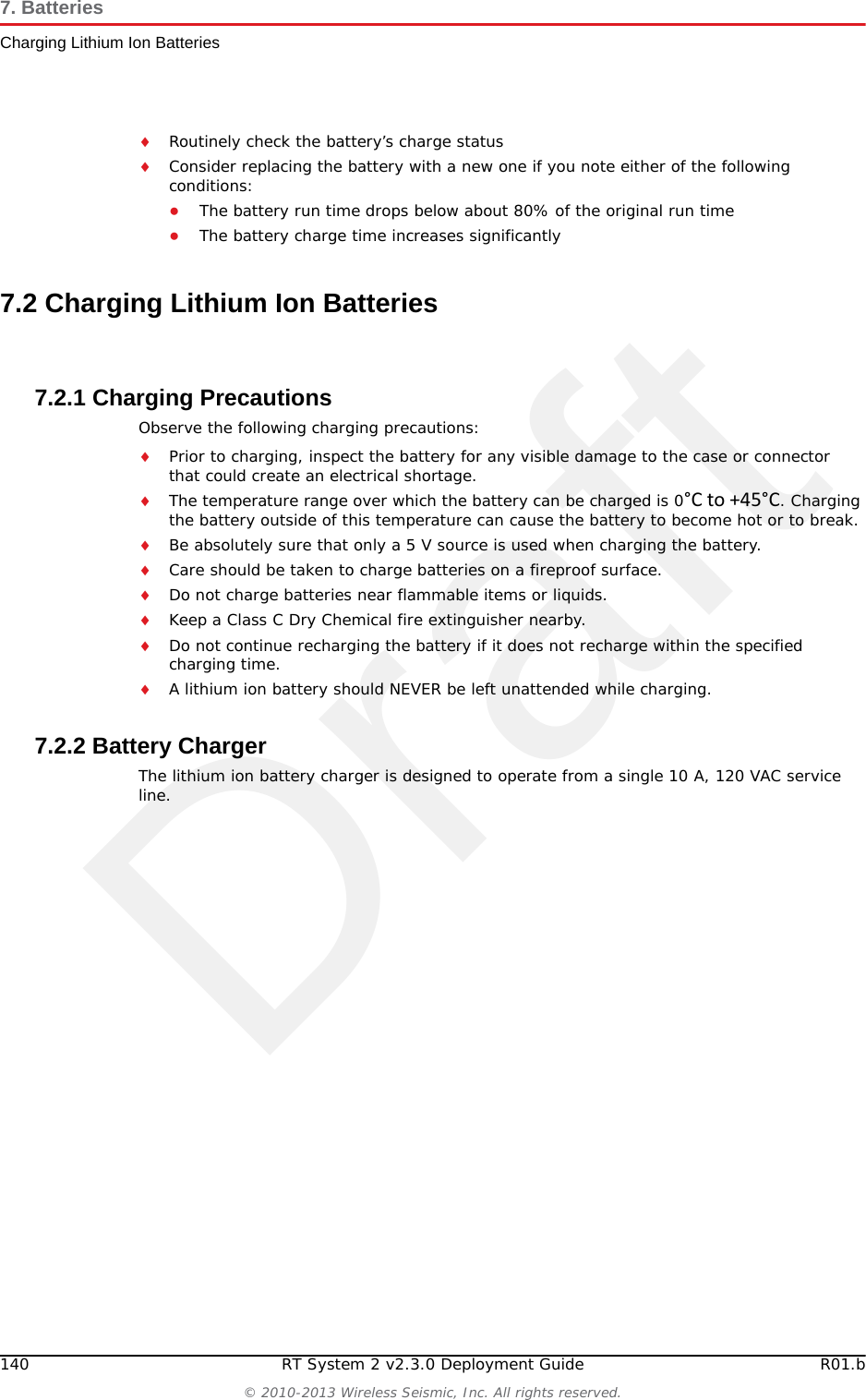
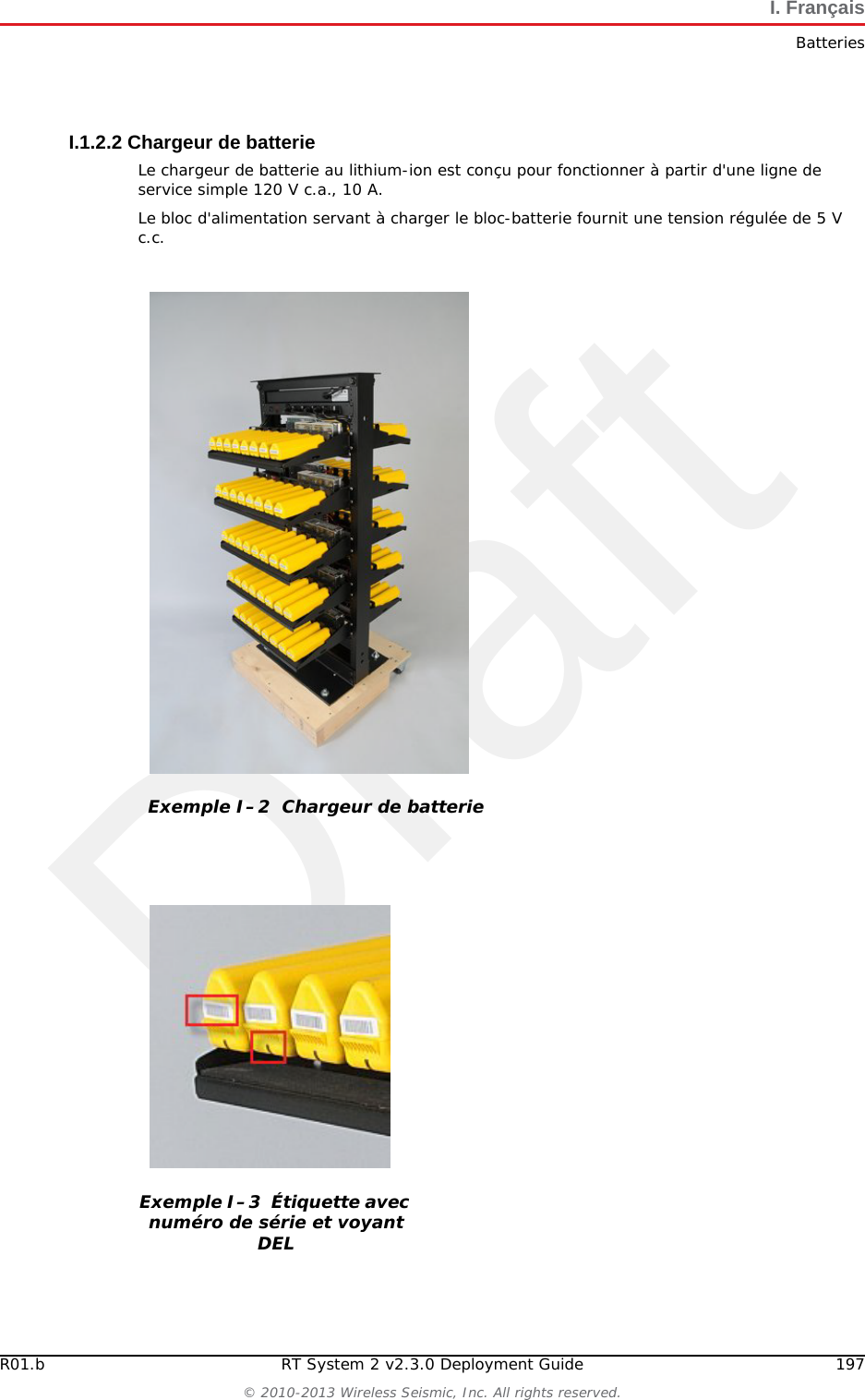
Draft140 RT System 2 v2.3.0 Deployment Guide R01.b© 2010-2013 Wireless Seismic, Inc. All rights reserved.7. BatteriesCharging Lithium Ion BatteriesRoutinely check the battery’s charge statusConsider replacing the battery with a new one if you note either of the following conditions:●The battery run time drops below about 80% of the original run time●The battery charge time increases significantly7.2 Charging Lithium Ion Batteries7.2.1 Charging PrecautionsObserve the following charging precautions:Prior to charging, inspect the battery for any visible damage to the case or connector that could create an electrical shortage.The temperature range over which the battery can be charged is 0°Cto+45°C. Charging the battery outside of this temperature can cause the battery to become hot or to break.Be absolutely sure that only a 5 V source is used when charging the battery.Care should be taken to charge batteries on a fireproof surface. Do not charge batteries near flammable items or liquids.Keep a Class C Dry Chemical fire extinguisher nearby.Do not continue recharging the battery if it does not recharge within the specified charging time.A lithium ion battery should NEVER be left unattended while charging.7.2.2 Battery ChargerThe lithium ion battery charger is designed to operate from a single 10 A, 120 VAC service line.
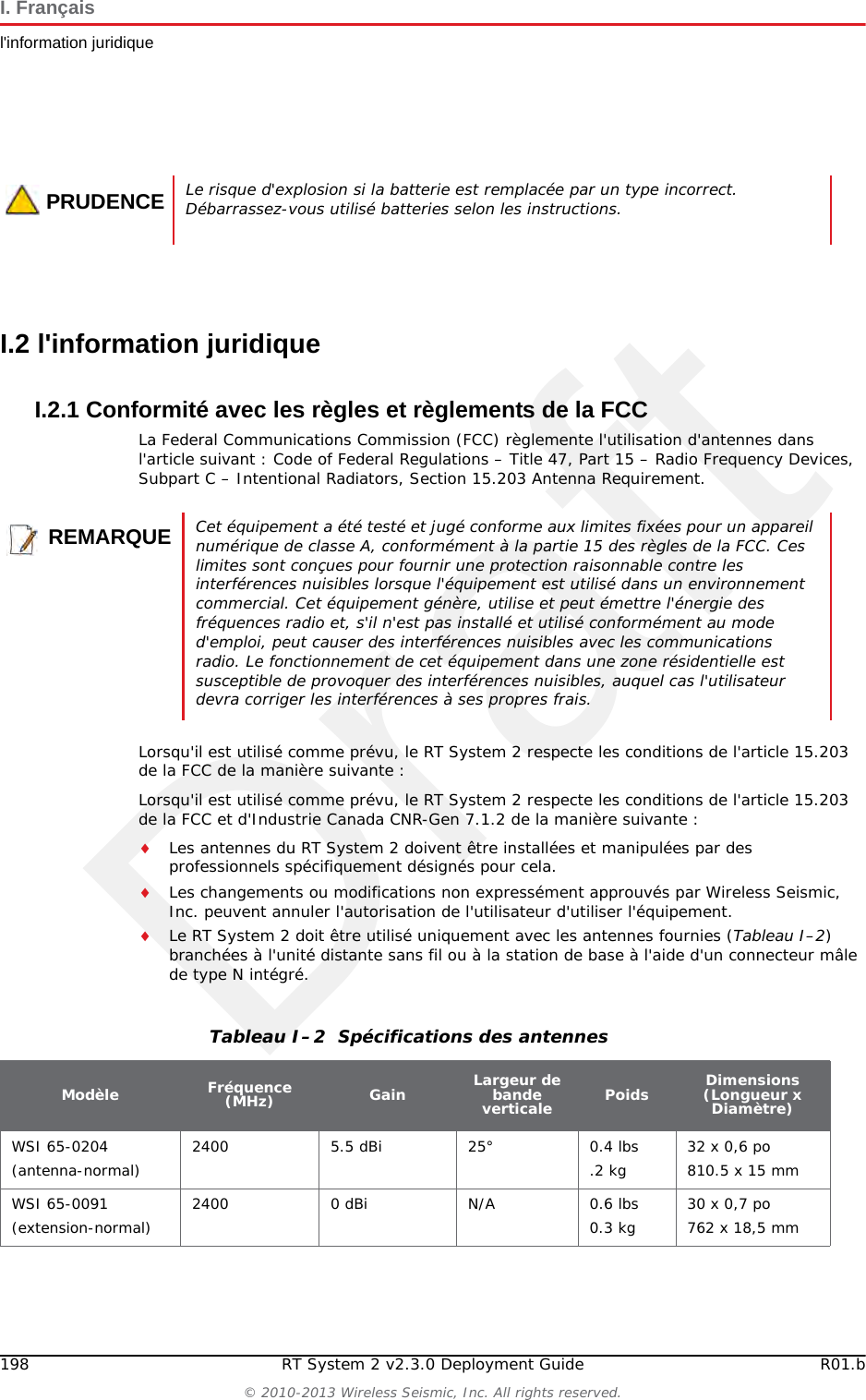
DraftR01.b RT System 2 v2.3.0 Deployment Guide 141© 2010-2013 Wireless Seismic, Inc. All rights reserved.7. BatteriesCharging Lithium Ion BatteriesThe power supply to charge the battery pack is a 5VDC regulated voltage supply.Figure 7–2  Battery ChargerFigure 7–3  Serial Number Label and LED Indicator
Draft142 RT System 2 v2.3.0 Deployment Guide R01.b© 2010-2013 Wireless Seismic, Inc. All rights reserved.7. BatteriesCharging Lithium Ion BatteriesCAUTIONRisk of explosion if battery is replaced by an incorrect type. Dispose of used batteries according to the instructions.PRUDENCELe risque d'explosion si la batterie est remplacée par un type incorrect. Débarrassez-vous utilisé batteries selon les instructions.UWAGARyzyko eksplozji, jeśli bateria zastępuje niepoprawny typ. Wrzucaj baterii używany zgodnie z instrukcjami.
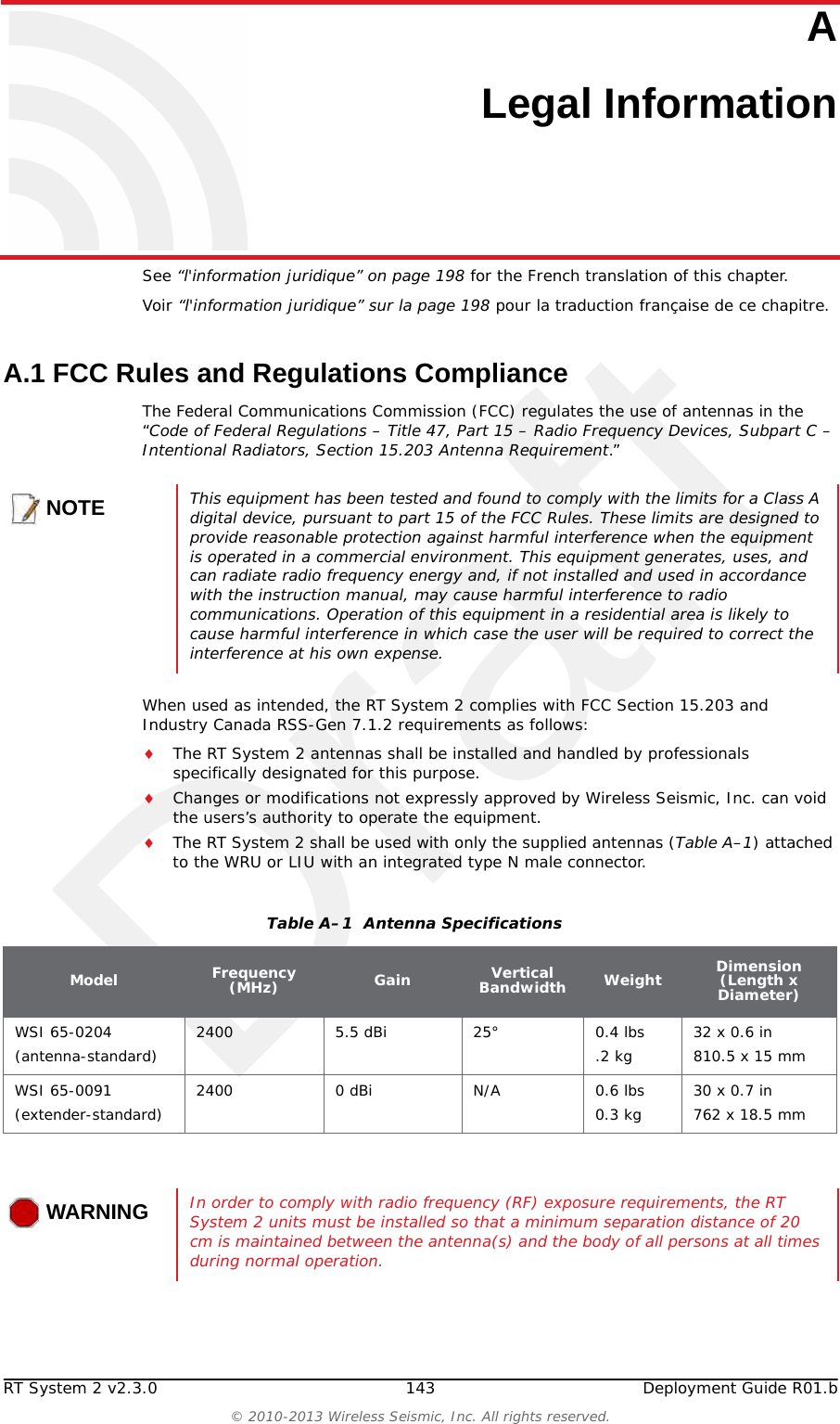
DraftRT System 2 v2.3.0 143  Deployment Guide R01.b© 2010-2013 Wireless Seismic, Inc. All rights reserved.AA. Legal InformationSee “l'information juridique” on page 198 for the French translation of this chapter.Voir “l'information juridique” sur la page 198 pour la traduction française de ce chapitre.A.1 FCC Rules and Regulations ComplianceThe Federal Communications Commission (FCC) regulates the use of antennas in the “Code of Federal Regulations – Title 47, Part 15 – Radio Frequency Devices, Subpart C – Intentional Radiators, Section 15.203 Antenna Requirement.” When used as intended, the RT System 2 complies with FCC Section 15.203 and Industry Canada RSS-Gen 7.1.2 requirements as follows:The RT System 2 antennas shall be installed and handled by professionals specifically designated for this purpose.Changes or modifications not expressly approved by Wireless Seismic, Inc. can void the users’s authority to operate the equipment. The RT System 2 shall be used with only the supplied antennas (Table A–1) attached to the WRU or LIU with an integrated type N male connector.NOTEThis equipment has been tested and found to comply with the limits for a Class A digital device, pursuant to part 15 of the FCC Rules. These limits are designed to provide reasonable protection against harmful interference when the equipment is operated in a commercial environment. This equipment generates, uses, and can radiate radio frequency energy and, if not installed and used in accordance with the instruction manual, may cause harmful interference to radio communications. Operation of this equipment in a residential area is likely to cause harmful interference in which case the user will be required to correct the interference at his own expense.Table A–1  Antenna Specifications Model Frequency (MHz) Gain Vertical Bandwidth Weight Dimension (Length x Diameter)WSI 65-0204(antenna-standard) 2400 5.5 dBi 25° 0.4 lbs.2 kg 32 x 0.6 in810.5 x 15 mmWSI 65-0091(extender-standard) 2400 0 dBi N/A 0.6 lbs0.3 kg 30 x 0.7 in762 x 18.5 mmWARNINGWARNINGIn order to comply with radio frequency (RF) exposure requirements, the RT System 2 units must be installed so that a minimum separation distance of 20 cm is maintained between the antenna(s) and the body of all persons at all times during normal operation.
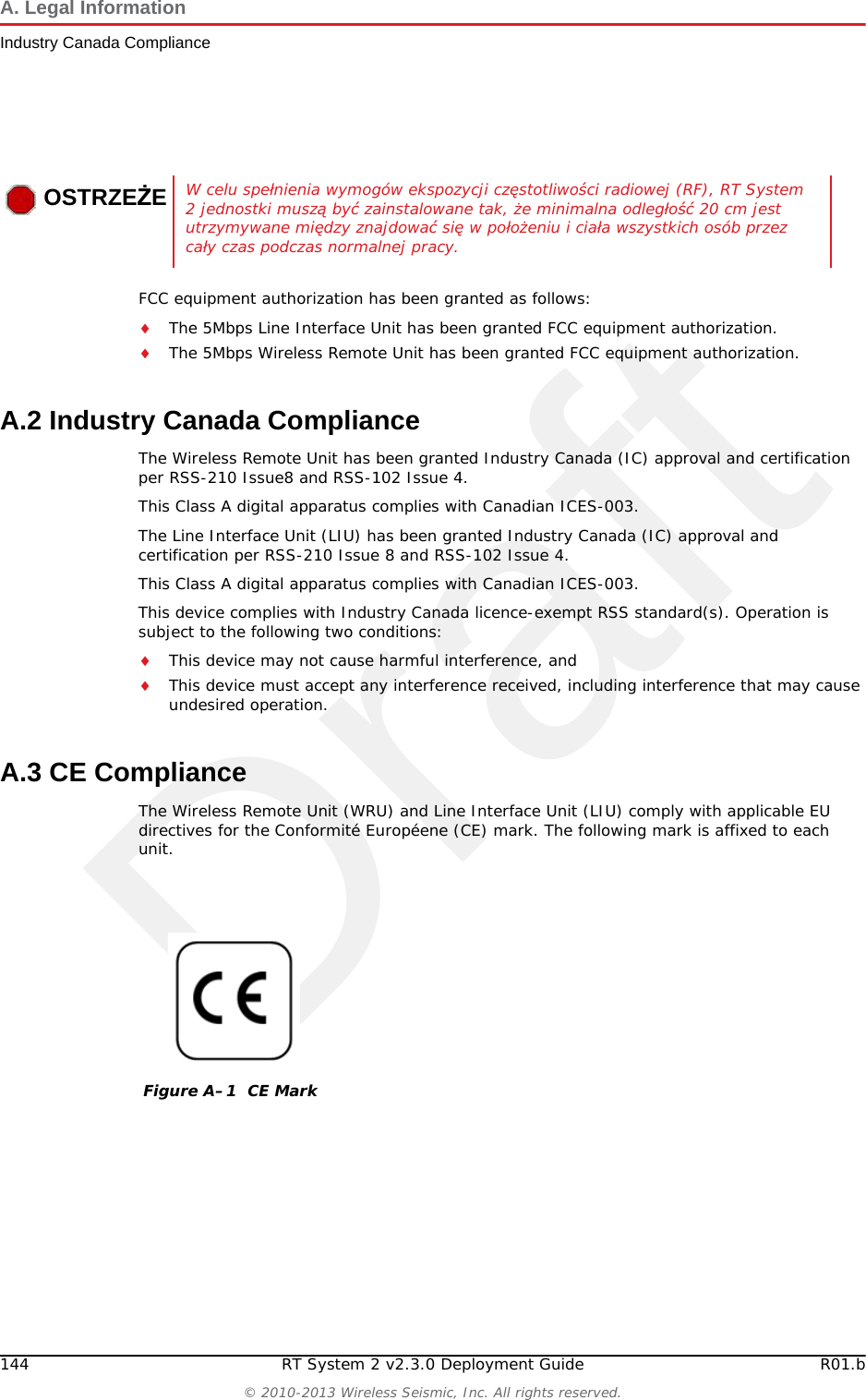
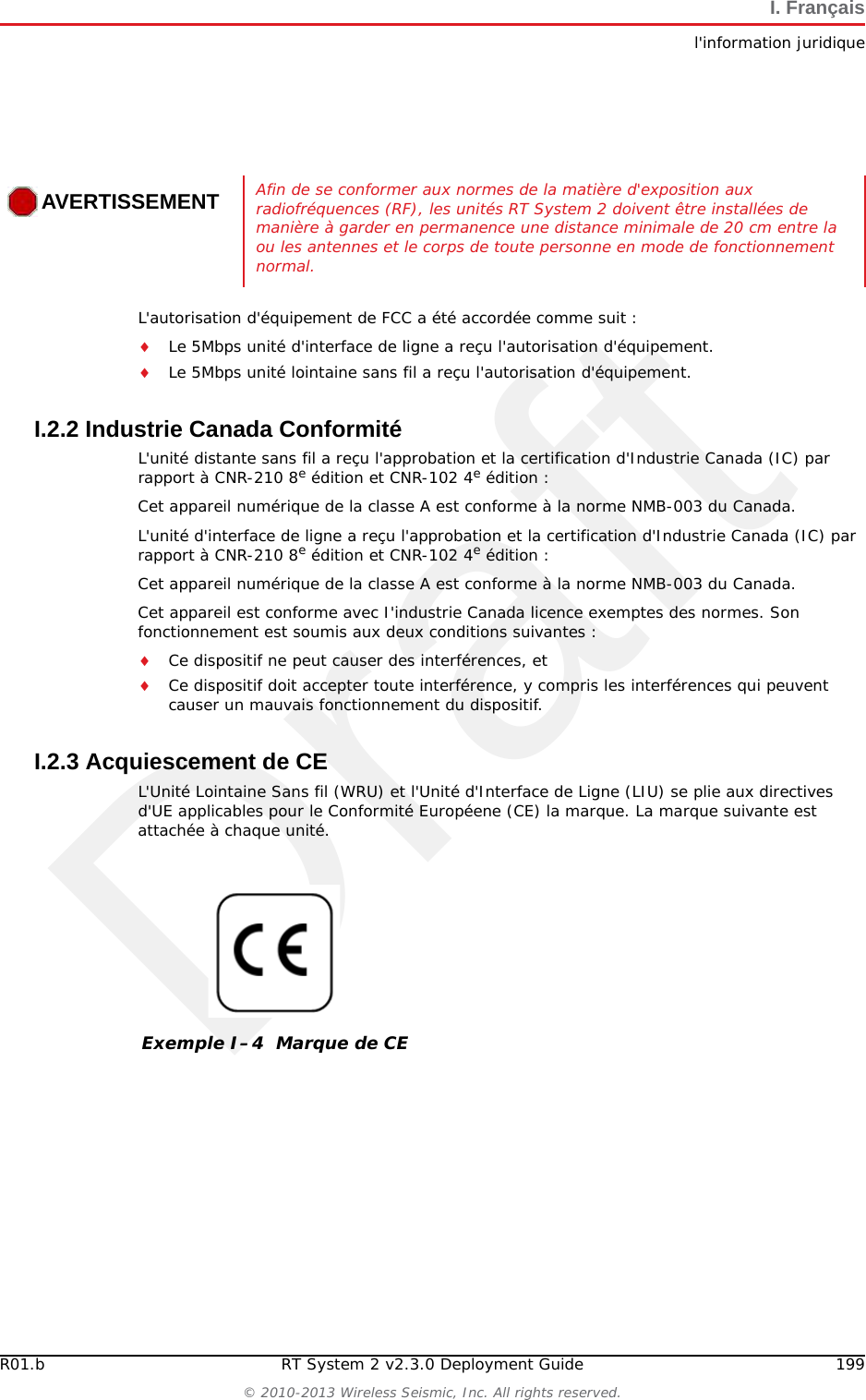
Draft144 RT System 2 v2.3.0 Deployment Guide R01.b© 2010-2013 Wireless Seismic, Inc. All rights reserved.A. Legal InformationIndustry Canada ComplianceFCC equipment authorization has been granted as follows:The 5Mbps Line Interface Unit has been granted FCC equipment authorization.The 5Mbps Wireless Remote Unit has been granted FCC equipment authorization.A.2 Industry Canada ComplianceThe Wireless Remote Unit has been granted Industry Canada (IC) approval and certification per RSS-210 Issue8 and RSS-102 Issue 4.This Class A digital apparatus complies with Canadian ICES-003.The Line Interface Unit (LIU) has been granted Industry Canada (IC) approval and certification per RSS-210 Issue 8 and RSS-102 Issue 4.This Class A digital apparatus complies with Canadian ICES-003.This device complies with Industry Canada licence-exempt RSS standard(s). Operation is subject to the following two conditions: This device may not cause harmful interference, and This device must accept any interference received, including interference that may cause undesired operation.A.3 CE ComplianceThe Wireless Remote Unit (WRU) and Line Interface Unit (LIU) comply with applicable EU directives for the Conformité Européene (CE) mark. The following mark is affixed to each unit.OSTRZEŻEW celu spełnienia wymogów ekspozycji częstotliwości radiowej (RF), RT System 2 jednostki muszą być zainstalowane tak, że minimalna odległość 20 cm jest utrzymywane między znajdować się w położeniu i ciała wszystkich osób przez cały czas podczas normalnej pracy.Figure A–1  CE Mark
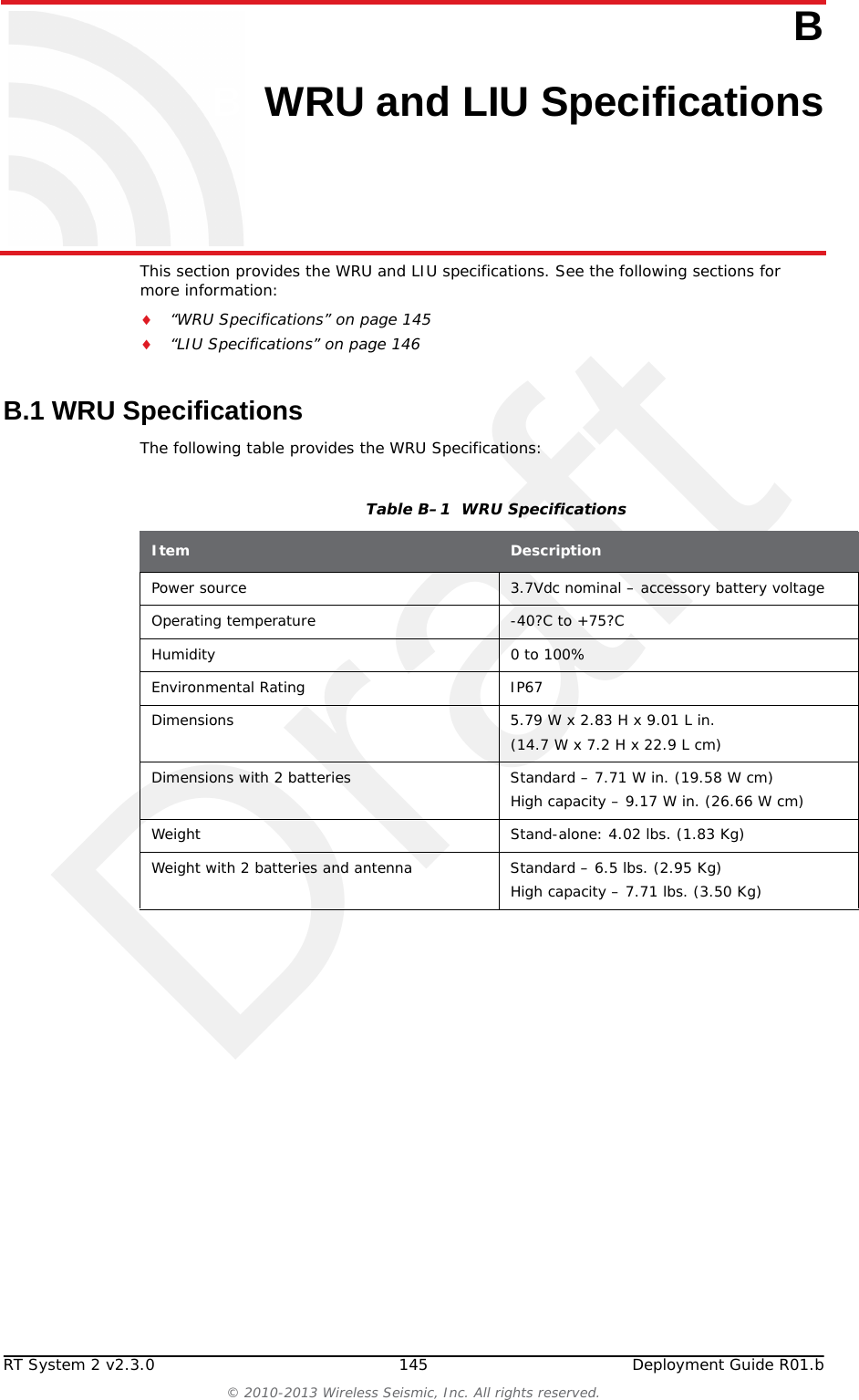
DraftRT System 2 v2.3.0 145  Deployment Guide R01.b© 2010-2013 Wireless Seismic, Inc. All rights reserved.BB. WRU and LIU SpecificationsThis section provides the WRU and LIU specifications. See the following sections for more information:“WRU Specifications” on page 145“LIU Specifications” on page 146B.1 WRU SpecificationsThe following table provides the WRU Specifications:Table B–1  WRU SpecificationsItem DescriptionPower source 3.7Vdc nominal – accessory battery voltageOperating temperature -40?C to +75?CHumidity 0 to 100%Environmental Rating IP67Dimensions 5.79 W x 2.83 H x 9.01 L in. (14.7 W x 7.2 H x 22.9 L cm)Dimensions with 2 batteries Standard – 7.71 W in. (19.58 W cm)High capacity – 9.17 W in. (26.66 W cm)Weight Stand-alone: 4.02 lbs. (1.83 Kg)Weight with 2 batteries and antenna Standard – 6.5 lbs. (2.95 Kg)High capacity – 7.71 lbs. (3.50 Kg)
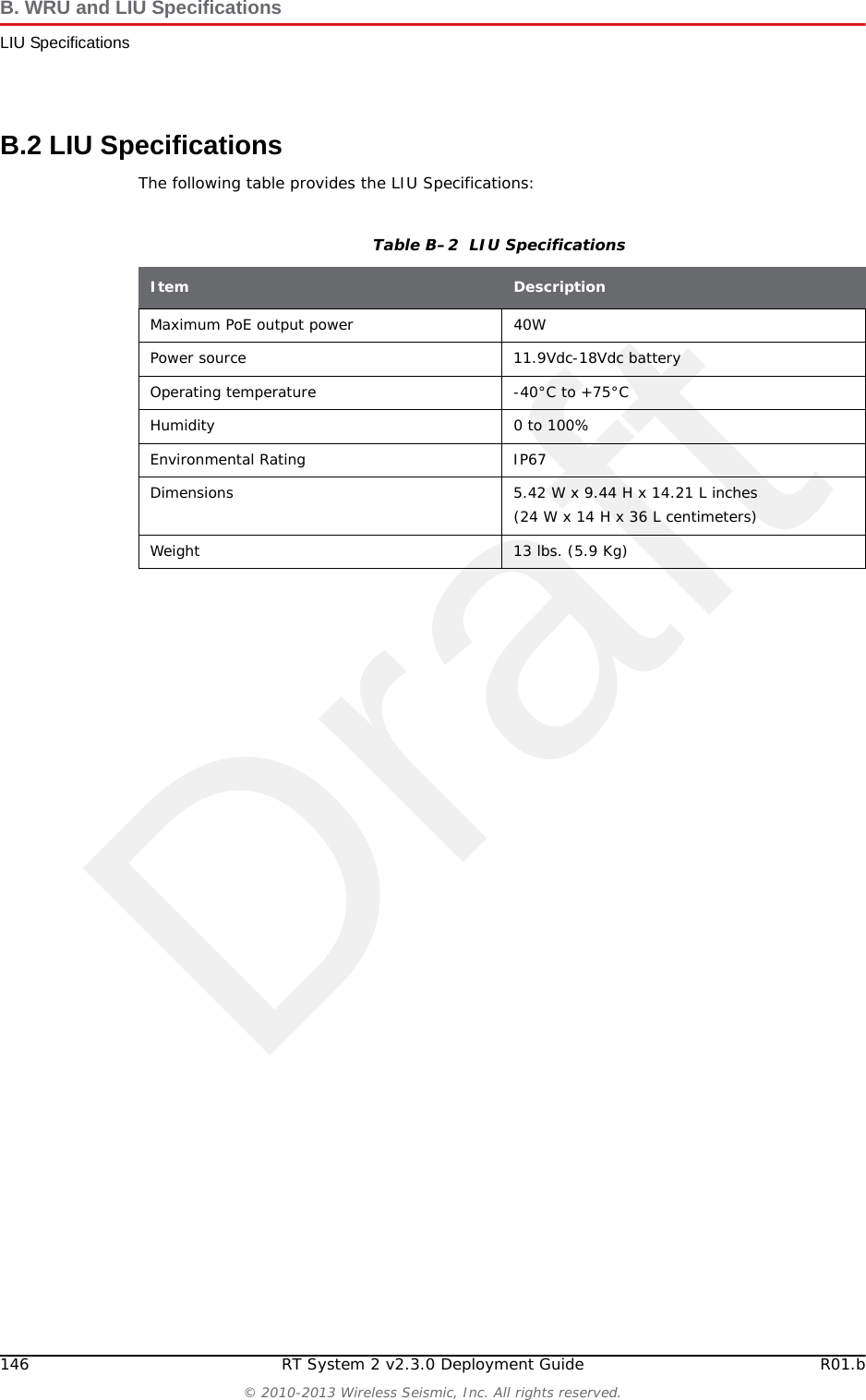
Draft146 RT System 2 v2.3.0 Deployment Guide R01.b© 2010-2013 Wireless Seismic, Inc. All rights reserved.B. WRU and LIU SpecificationsLIU SpecificationsB.2 LIU SpecificationsThe following table provides the LIU Specifications:Table B–2  LIU SpecificationsItem DescriptionMaximum PoE output power 40WPower source 11.9Vdc-18Vdc batteryOperating temperature -40°C to +75°CHumidity 0 to 100%Environmental Rating IP67Dimensions 5.42 W x 9.44 H x 14.21 L inches (24 W x 14 H x 36 L centimeters)Weight 13 lbs. (5.9 Kg)
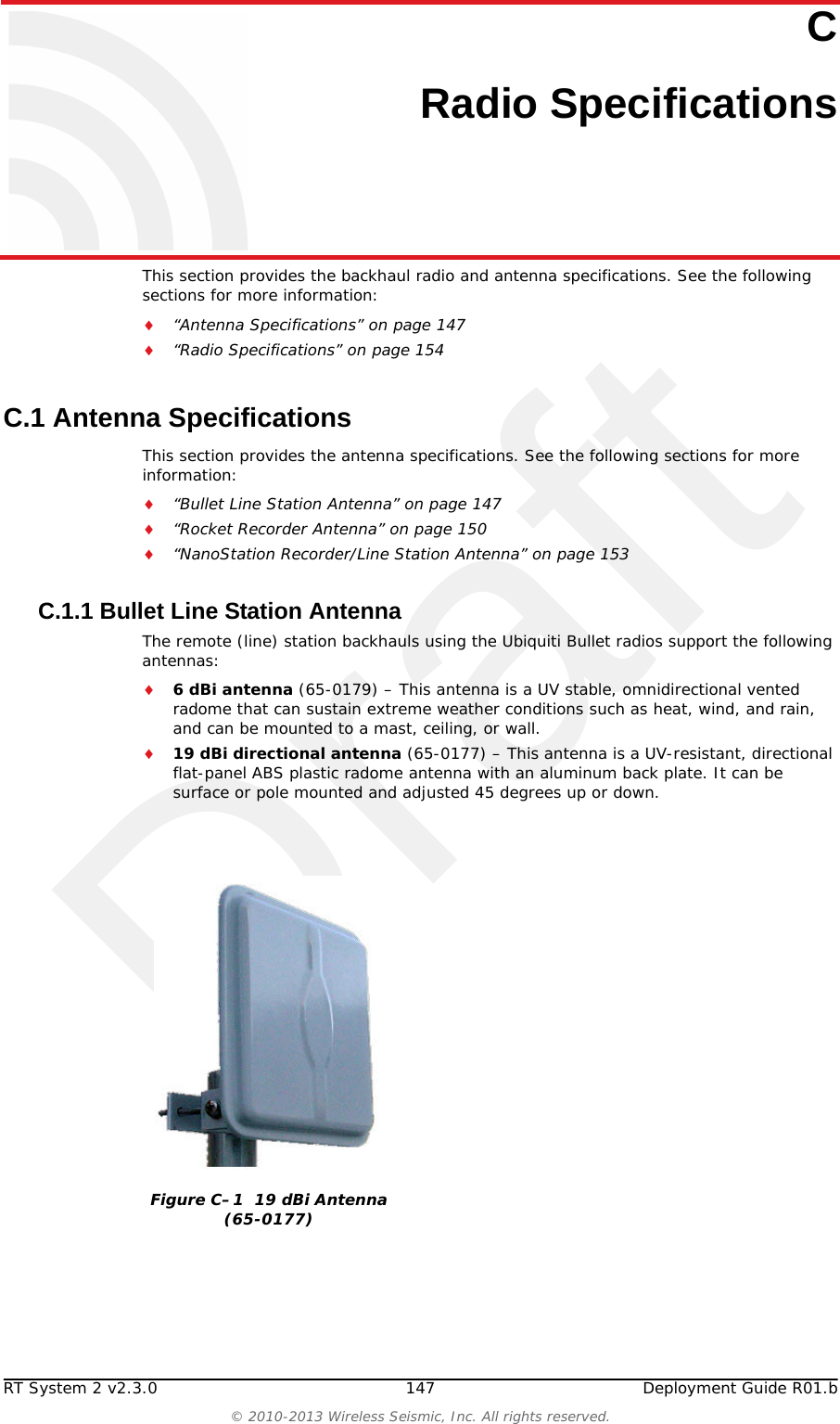
DraftRT System 2 v2.3.0 147  Deployment Guide R01.b© 2010-2013 Wireless Seismic, Inc. All rights reserved.CC. Radio SpecificationsThis section provides the backhaul radio and antenna specifications. See the following sections for more information:“Antenna Specifications” on page 147“Radio Specifications” on page 154C.1 Antenna SpecificationsThis section provides the antenna specifications. See the following sections for more information:“Bullet Line Station Antenna” on page 147“Rocket Recorder Antenna” on page 150“NanoStation Recorder/Line Station Antenna” on page 153C.1.1 Bullet Line Station AntennaThe remote (line) station backhauls using the Ubiquiti Bullet radios support the following antennas:6 dBi antenna (65-0179) – This antenna is a UV stable, omnidirectional vented radome that can sustain extreme weather conditions such as heat, wind, and rain, and can be mounted to a mast, ceiling, or wall. 19 dBi directional antenna (65-0177) – This antenna is a UV-resistant, directional flat-panel ABS plastic radome antenna with an aluminum back plate. It can be surface or pole mounted and adjusted 45 degrees up or down.Figure C–1  19 dBi Antenna (65-0177)
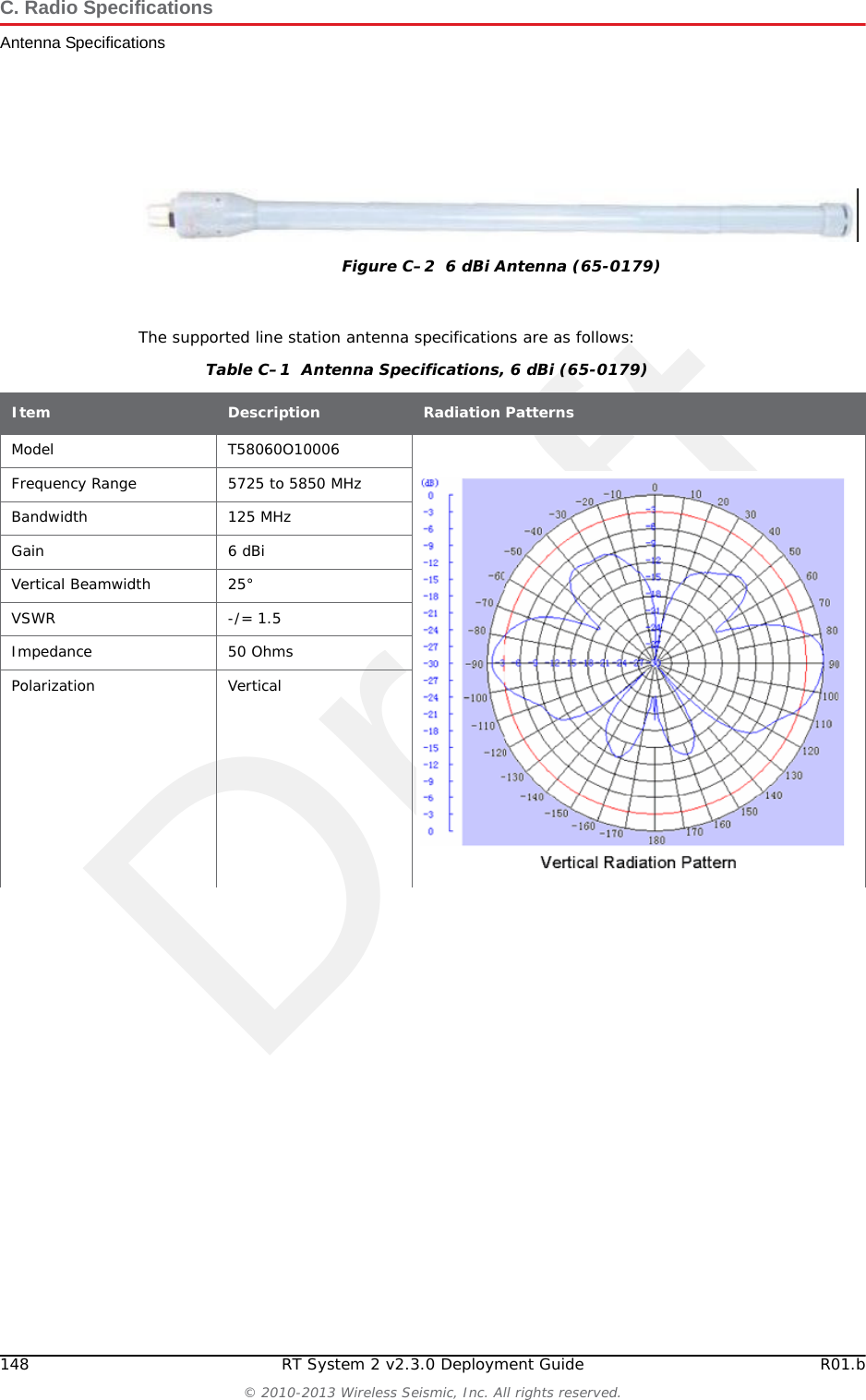
Draft148 RT System 2 v2.3.0 Deployment Guide R01.b© 2010-2013 Wireless Seismic, Inc. All rights reserved.C. Radio SpecificationsAntenna SpecificationsThe supported line station antenna specifications are as follows:Figure C–2  6 dBi Antenna (65-0179)Table C–1  Antenna Specifications, 6 dBi (65-0179) Item Description Radiation PatternsModel T58060O10006Frequency Range 5725 to 5850 MHzBandwidth 125 MHzGain 6 dBiVertical Beamwidth 25°VSWR -/= 1.5Impedance 50 OhmsPolarization Vertical
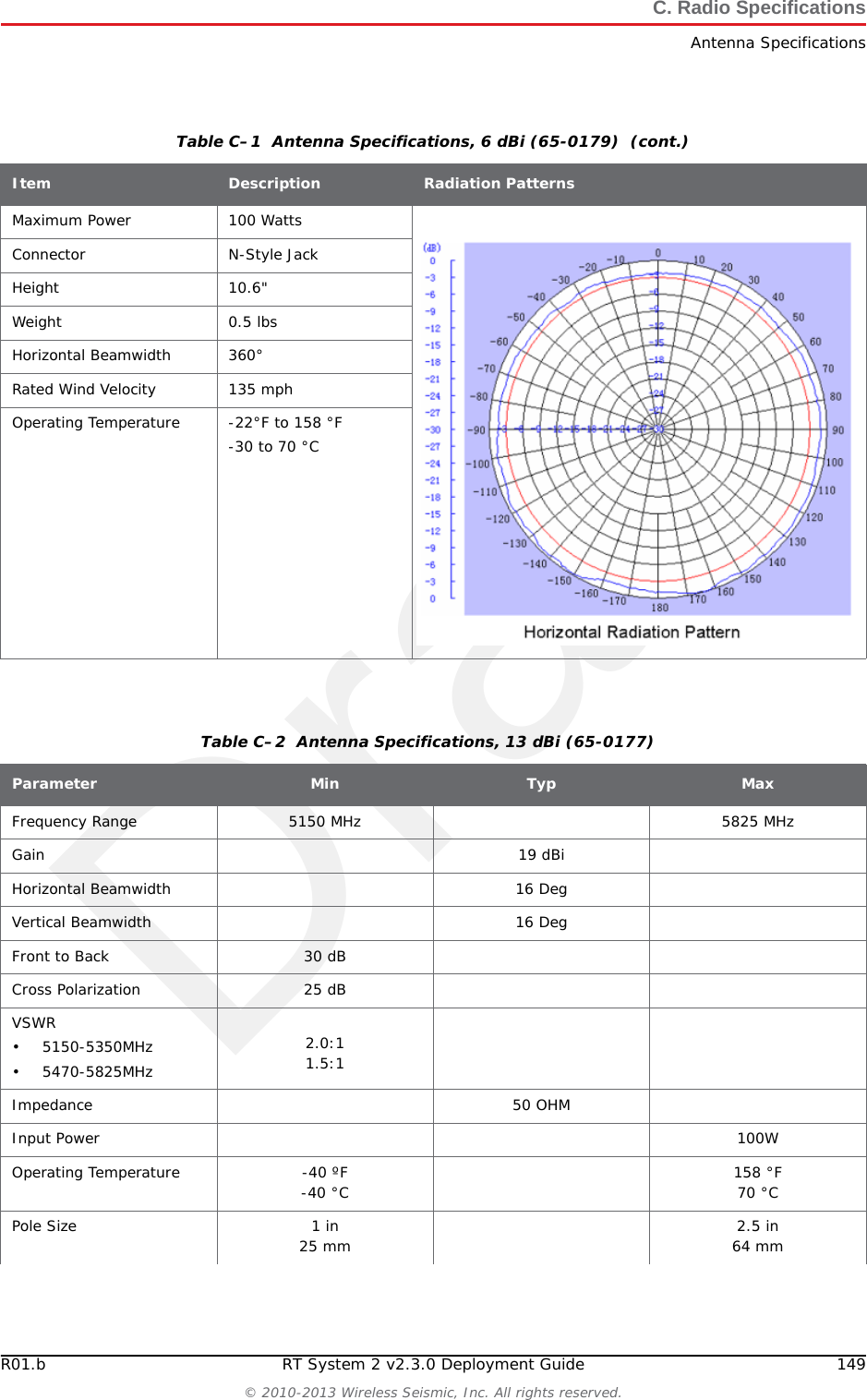
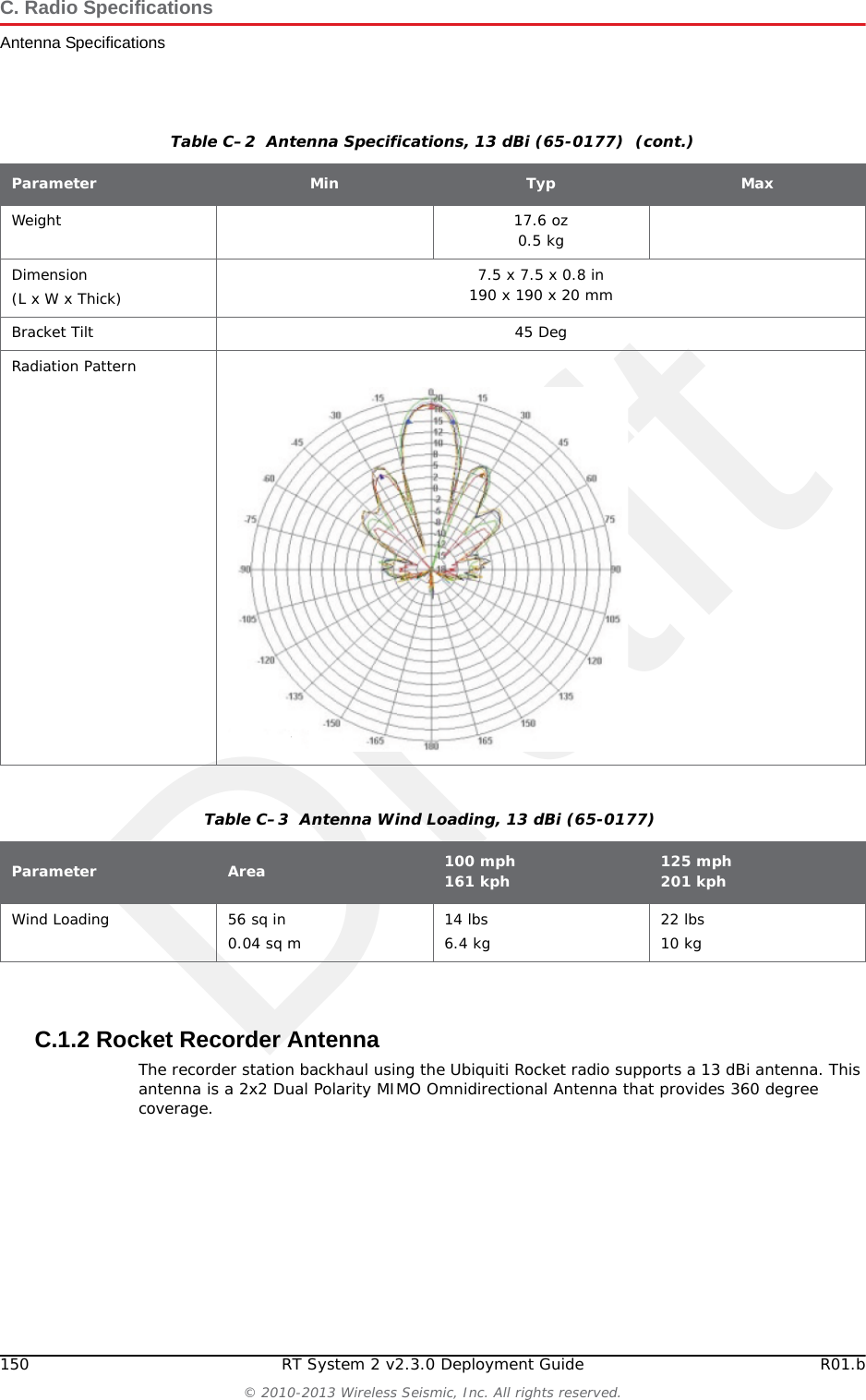
DraftR01.b RT System 2 v2.3.0 Deployment Guide 149© 2010-2013 Wireless Seismic, Inc. All rights reserved.C. Radio SpecificationsAntenna SpecificationsMaximum Power 100 WattsConnector N-Style JackHeight 10.6"Weight 0.5 lbsHorizontal Beamwidth 360°Rated Wind Velocity 135 mphOperating Temperature -22°F to 158 °F-30 to 70 °CTable C–1  Antenna Specifications, 6 dBi (65-0179)  (cont.)Item Description Radiation PatternsTable C–2  Antenna Specifications, 13 dBi (65-0177) Parameter Min Typ MaxFrequency Range 5150 MHz 5825 MHzGain 19 dBiHorizontal Beamwidth 16 DegVertical Beamwidth 16 DegFront to Back 30 dBCross Polarization 25 dBVSWR• 5150-5350MHz• 5470-5825MHz2.0:11.5:1Impedance 50 OHMInput Power 100WOperating Temperature -40 ºF-40 °C 158 °F70 °CPole Size 1 in 25 mm 2.5 in 64 mm
Draft150 RT System 2 v2.3.0 Deployment Guide R01.b© 2010-2013 Wireless Seismic, Inc. All rights reserved.C. Radio SpecificationsAntenna SpecificationsC.1.2 Rocket Recorder AntennaThe recorder station backhaul using the Ubiquiti Rocket radio supports a 13 dBi antenna. This antenna is a 2x2 Dual Polarity MIMO Omnidirectional Antenna that provides 360 degree coverage.Weight 17.6 oz0.5 kgDimension(L x W x Thick) 7.5 x 7.5 x 0.8 in190 x 190 x 20 mmBracket Tilt 45 DegRadiation PatternTable C–2  Antenna Specifications, 13 dBi (65-0177)  (cont.)Parameter Min Typ MaxTable C–3  Antenna Wind Loading, 13 dBi (65-0177)Parameter Area 100 mph161 kph 125 mph201 kphWind Loading 56 sq in0.04 sq m 14 lbs6.4 kg 22 lbs10 kg
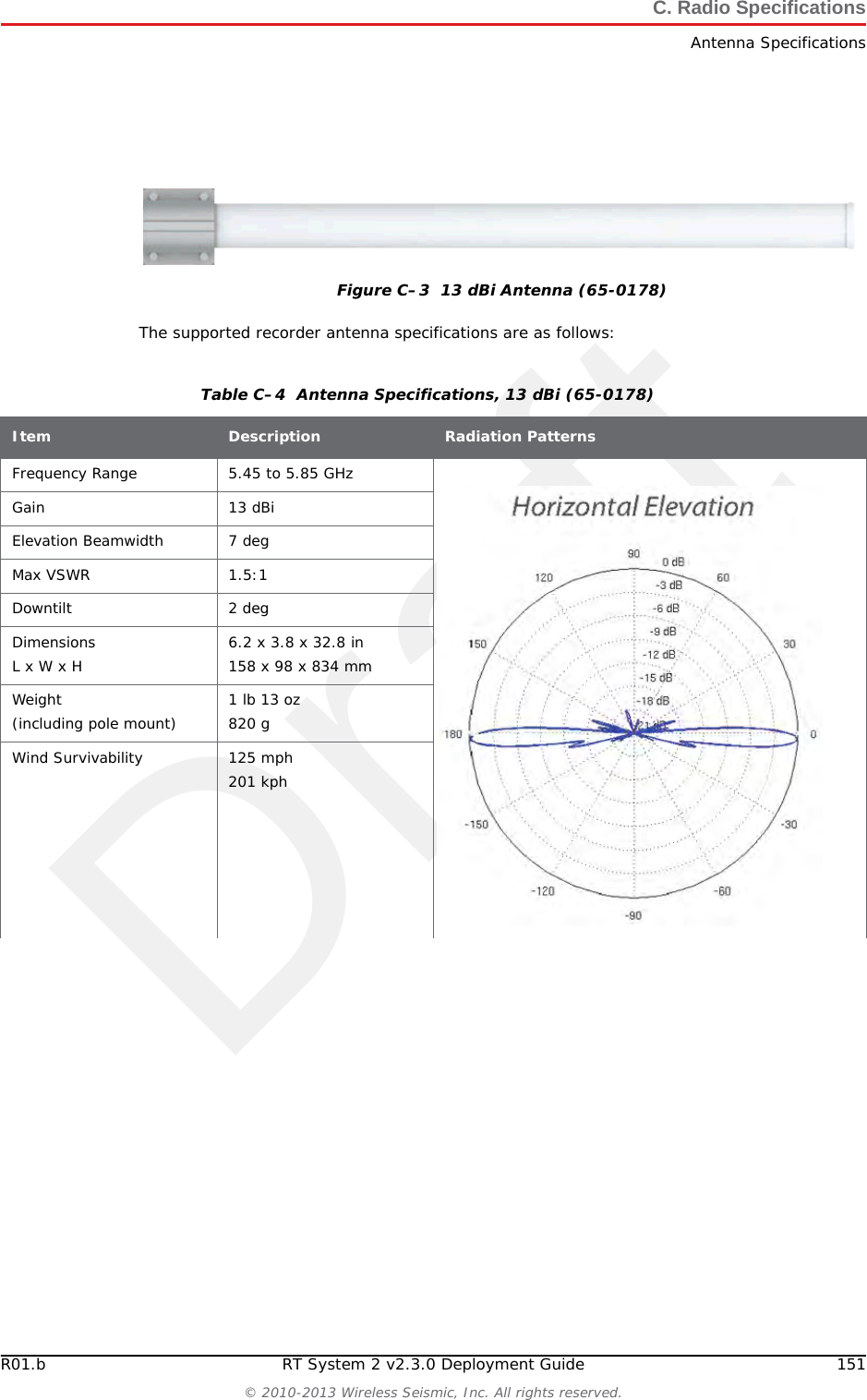
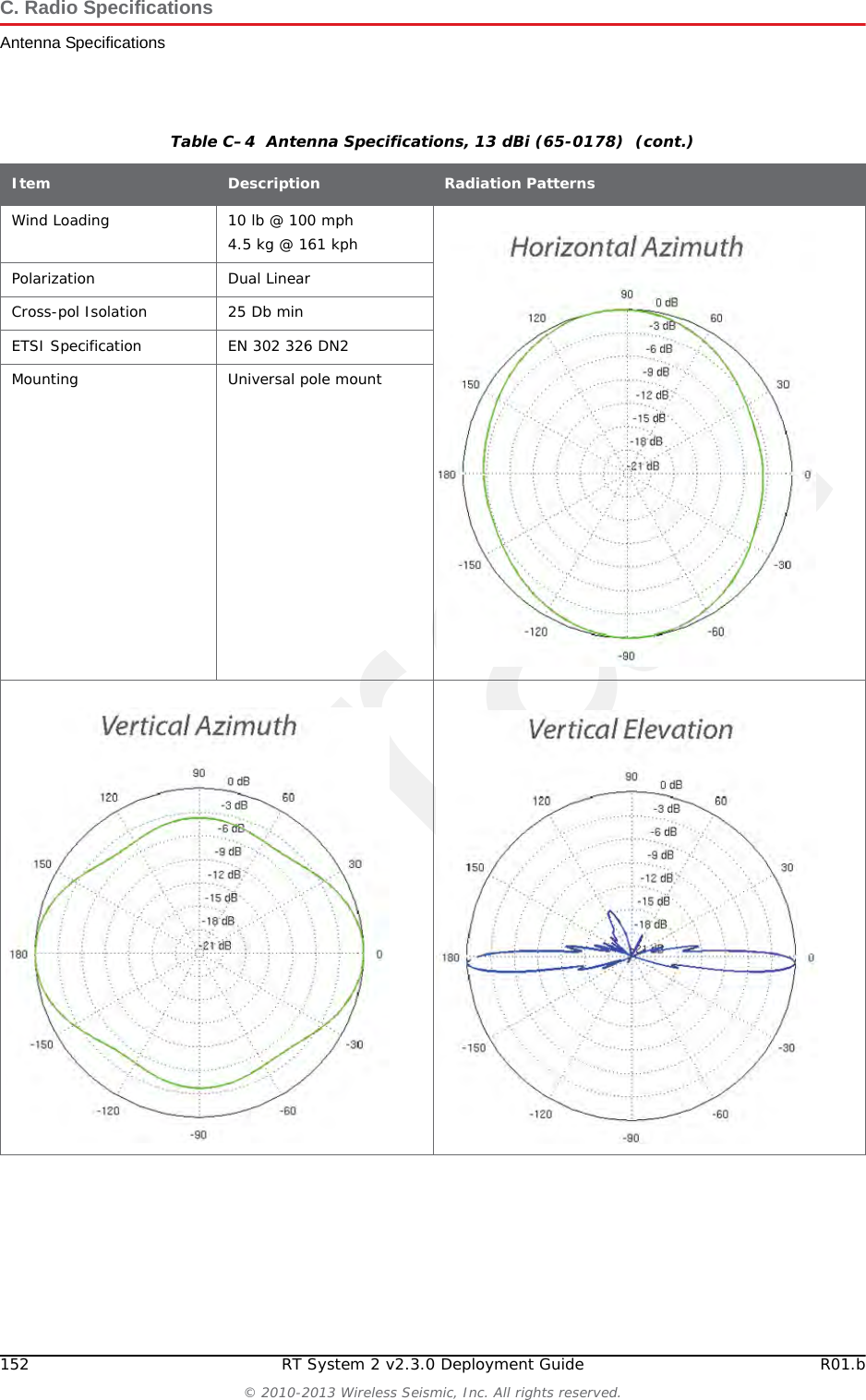
DraftR01.b RT System 2 v2.3.0 Deployment Guide 151© 2010-2013 Wireless Seismic, Inc. All rights reserved.C. Radio SpecificationsAntenna SpecificationsThe supported recorder antenna specifications are as follows:Figure C–3  13 dBi Antenna (65-0178)Table C–4  Antenna Specifications, 13 dBi (65-0178) Item Description Radiation PatternsFrequency Range 5.45 to 5.85 GHzGain 13 dBiElevation Beamwidth 7 degMax VSWR 1.5:1Downtilt 2 degDimensionsL x W x H 6.2 x 3.8 x 32.8 in158 x 98 x 834 mmWeight(including pole mount) 1 lb 13 oz820 gWind Survivability 125 mph201 kph
Draft152 RT System 2 v2.3.0 Deployment Guide R01.b© 2010-2013 Wireless Seismic, Inc. All rights reserved.C. Radio SpecificationsAntenna SpecificationsWind Loading 10 lb @ 100 mph4.5 kg @ 161 kphPolarization Dual LinearCross-pol Isolation 25 Db minETSI Specification EN 302 326 DN2Mounting Universal pole mountTable C–4  Antenna Specifications, 13 dBi (65-0178)  (cont.)Item Description Radiation Patterns
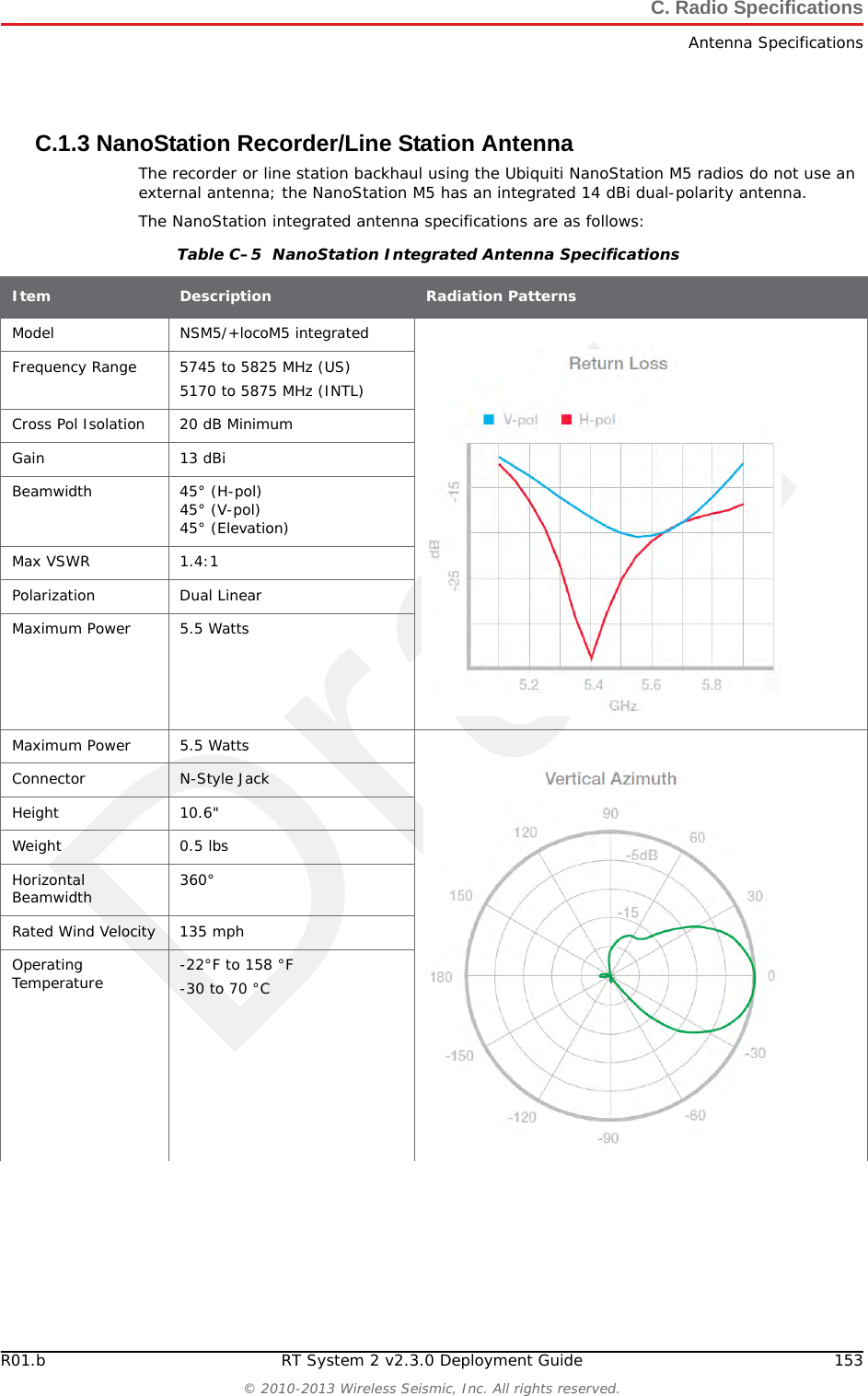
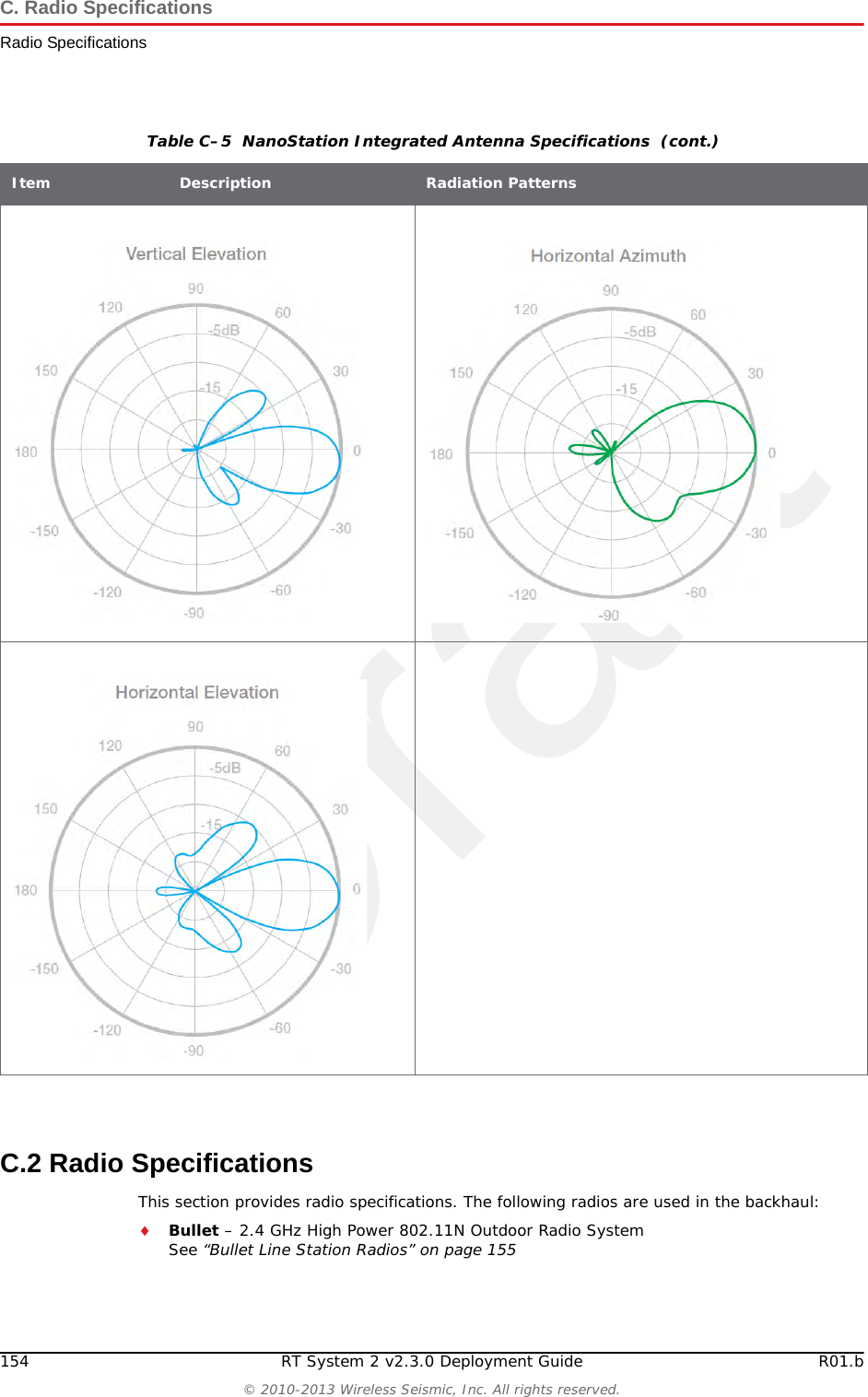
DraftR01.b RT System 2 v2.3.0 Deployment Guide 153© 2010-2013 Wireless Seismic, Inc. All rights reserved.C. Radio SpecificationsAntenna SpecificationsC.1.3 NanoStation Recorder/Line Station AntennaThe recorder or line station backhaul using the Ubiquiti NanoStation M5 radios do not use an external antenna; the NanoStation M5 has an integrated 14 dBi dual-polarity antenna. The NanoStation integrated antenna specifications are as follows:Table C–5  NanoStation Integrated Antenna Specifications Item Description Radiation PatternsModel NSM5/+locoM5 integratedFrequency Range 5745 to 5825 MHz (US)5170 to 5875 MHz (INTL)Cross Pol Isolation 20 dB MinimumGain 13 dBiBeamwidth 45° (H-pol) 45° (V-pol) 45° (Elevation)Max VSWR 1.4:1Polarization Dual LinearMaximum Power 5.5 WattsMaximum Power 5.5 WattsConnector N-Style JackHeight 10.6"Weight 0.5 lbsHorizontal Beamwidth 360°Rated Wind Velocity 135 mphOperating Temperature -22°F to 158 °F-30 to 70 °C
Draft154 RT System 2 v2.3.0 Deployment Guide R01.b© 2010-2013 Wireless Seismic, Inc. All rights reserved.C. Radio SpecificationsRadio SpecificationsC.2 Radio SpecificationsThis section provides radio specifications. The following radios are used in the backhaul:Bullet – 2.4 GHz High Power 802.11N Outdoor Radio SystemSee “Bullet Line Station Radios” on page 155Table C–5  NanoStation Integrated Antenna Specifications  (cont.)Item Description Radiation Patterns
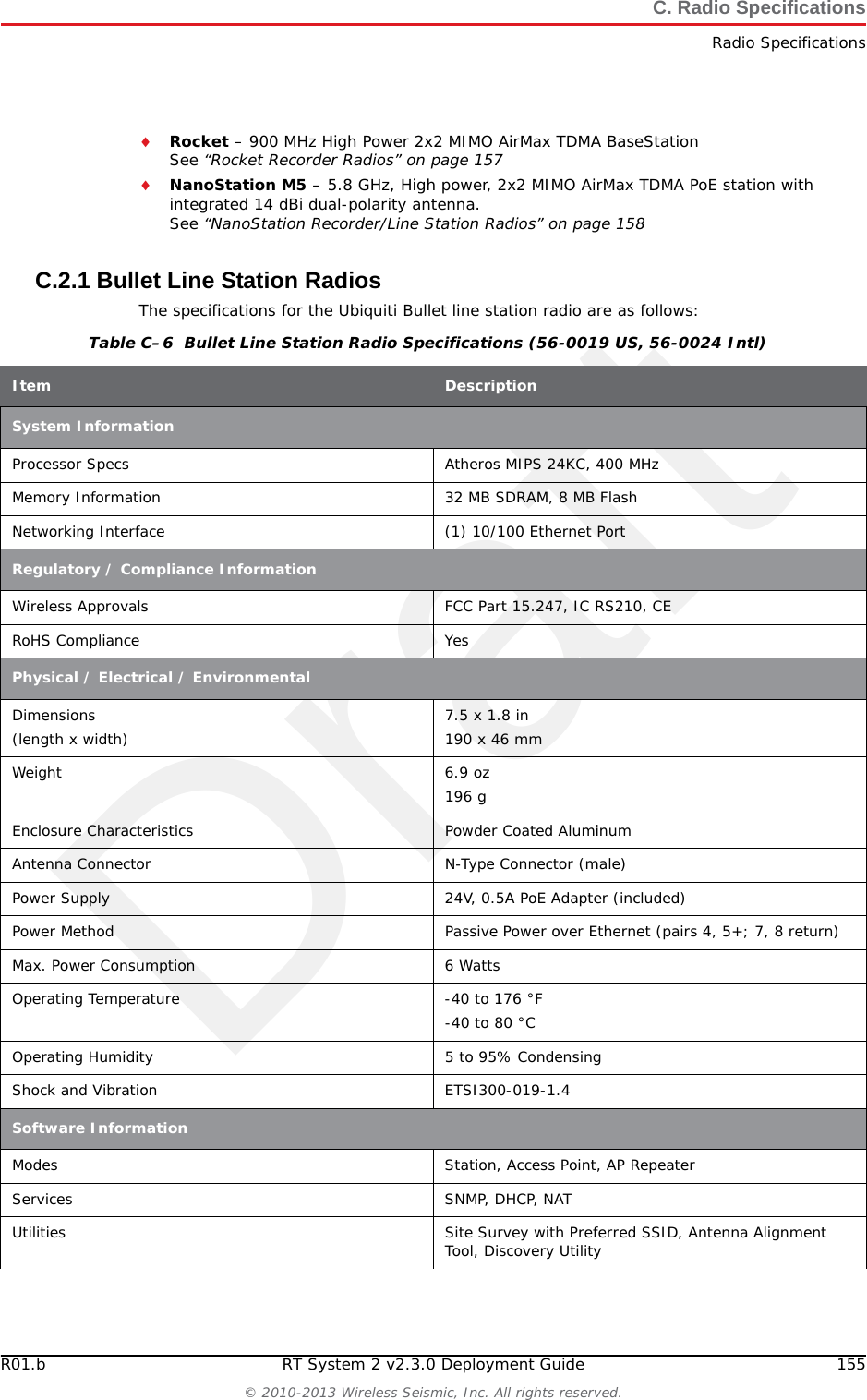
DraftR01.b RT System 2 v2.3.0 Deployment Guide 155© 2010-2013 Wireless Seismic, Inc. All rights reserved.C. Radio SpecificationsRadio SpecificationsRocket – 900 MHz High Power 2x2 MIMO AirMax TDMA BaseStation See “Rocket Recorder Radios” on page 157NanoStation M5 – 5.8 GHz, High power, 2x2 MIMO AirMax TDMA PoE station with integrated 14 dBi dual-polarity antenna.See “NanoStation Recorder/Line Station Radios” on page 158C.2.1 Bullet Line Station RadiosThe specifications for the Ubiquiti Bullet line station radio are as follows:Table C–6  Bullet Line Station Radio Specifications (56-0019 US, 56-0024 Intl) Item DescriptionSystem InformationProcessor Specs Atheros MIPS 24KC, 400 MHzMemory Information 32 MB SDRAM, 8 MB FlashNetworking Interface (1) 10/100 Ethernet PortRegulatory / Compliance InformationWireless Approvals FCC Part 15.247, IC RS210, CERoHS Compliance YesPhysical / Electrical / EnvironmentalDimensions(length x width) 7.5 x 1.8 in190 x 46 mmWeight 6.9 oz196 gEnclosure Characteristics Powder Coated AluminumAntenna Connector N-Type Connector (male)Power Supply 24V, 0.5A PoE Adapter (included)Power Method Passive Power over Ethernet (pairs 4, 5+; 7, 8 return)Max. Power Consumption 6 WattsOperating Temperature -40 to 176 °F-40 to 80 °COperating Humidity 5 to 95% CondensingShock and Vibration ETSI300-019-1.4Software InformationModes Station, Access Point, AP RepeaterServices SNMP, DHCP, NATUtilities Site Survey with Preferred SSID, Antenna Alignment Tool, Discovery Utility
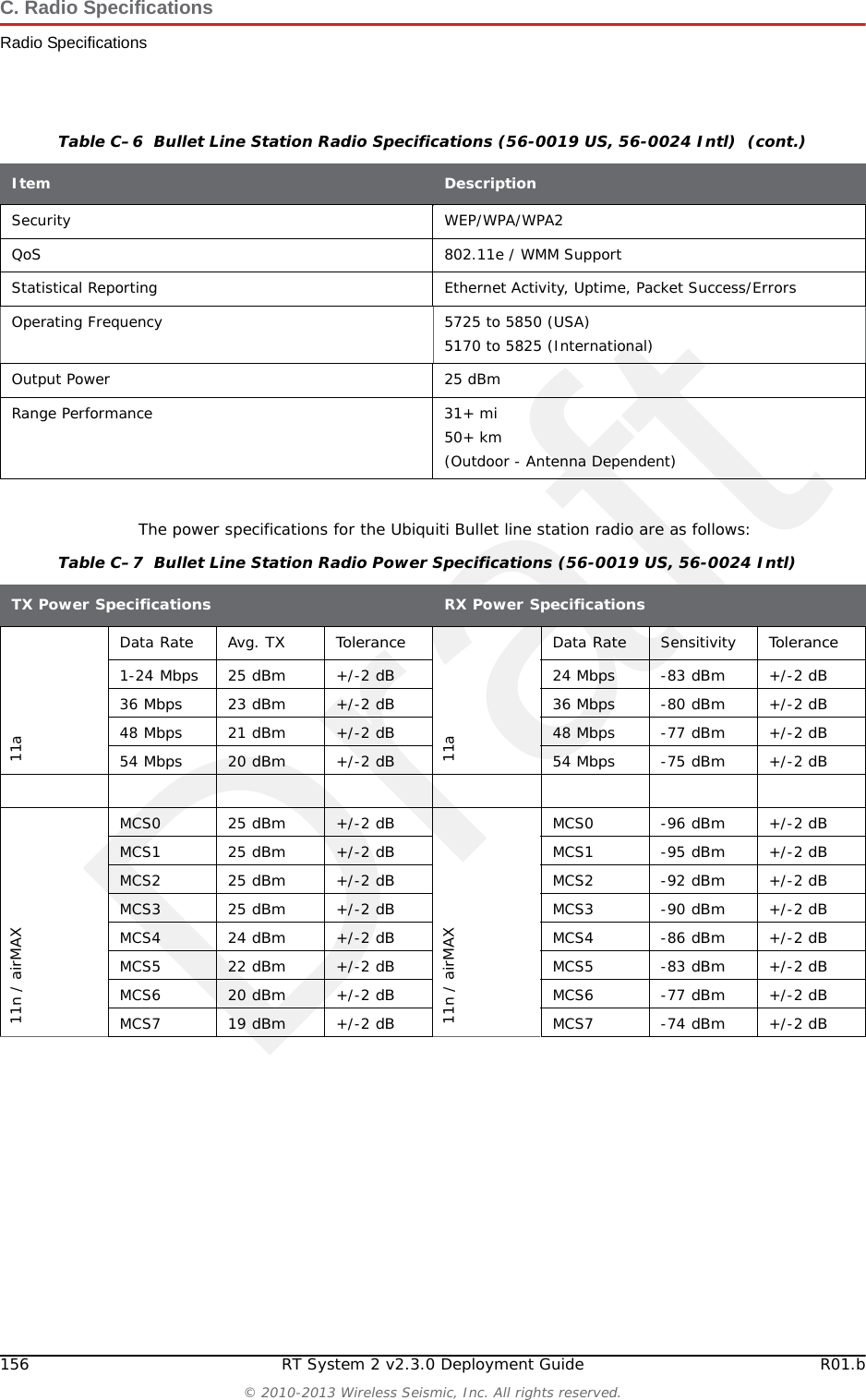
Draft156 RT System 2 v2.3.0 Deployment Guide R01.b© 2010-2013 Wireless Seismic, Inc. All rights reserved.C. Radio SpecificationsRadio SpecificationsThe power specifications for the Ubiquiti Bullet line station radio are as follows:Security WEP/WPA/WPA2QoS 802.11e / WMM SupportStatistical Reporting Ethernet Activity, Uptime, Packet Success/ErrorsOperating Frequency 5725 to 5850 (USA)5170 to 5825 (International)Output Power 25 dBmRange Performance 31+ mi50+ km (Outdoor - Antenna Dependent)Table C–6  Bullet Line Station Radio Specifications (56-0019 US, 56-0024 Intl)  (cont.)Item DescriptionTable C–7  Bullet Line Station Radio Power Specifications (56-0019 US, 56-0024 Intl) TX Power SpecificationsRX Power Specifications11aData RateAvg. TX Tolerance11aData RateSensitivityTolerance1-24 Mbps25 dBm+/-2 dB24 Mbps-83 dBm+/-2 dB36 Mbps23 dBm+/-2 dB36 Mbps-80 dBm+/-2 dB48 Mbps21 dBm+/-2 dB48 Mbps-77 dBm+/-2 dB54 Mbps20 dBm+/-2 dB54 Mbps-75 dBm+/-2 dB11n / airMAXMCS0 25 dBm+/-2 dB11n / airMAXMCS0 -96 dBm+/-2 dBMCS1 25 dBm+/-2 dBMCS1 -95 dBm+/-2 dBMCS2 25 dBm+/-2 dBMCS2 -92 dBm+/-2 dBMCS3 25 dBm+/-2 dBMCS3 -90 dBm+/-2 dBMCS4 24 dBm+/-2 dBMCS4 -86 dBm+/-2 dBMCS5 22 dBm+/-2 dBMCS5 -83 dBm+/-2 dBMCS6 20 dBm+/-2 dBMCS6 -77 dBm+/-2 dBMCS7 19 dBm+/-2 dBMCS7 -74 dBm+/-2 dB
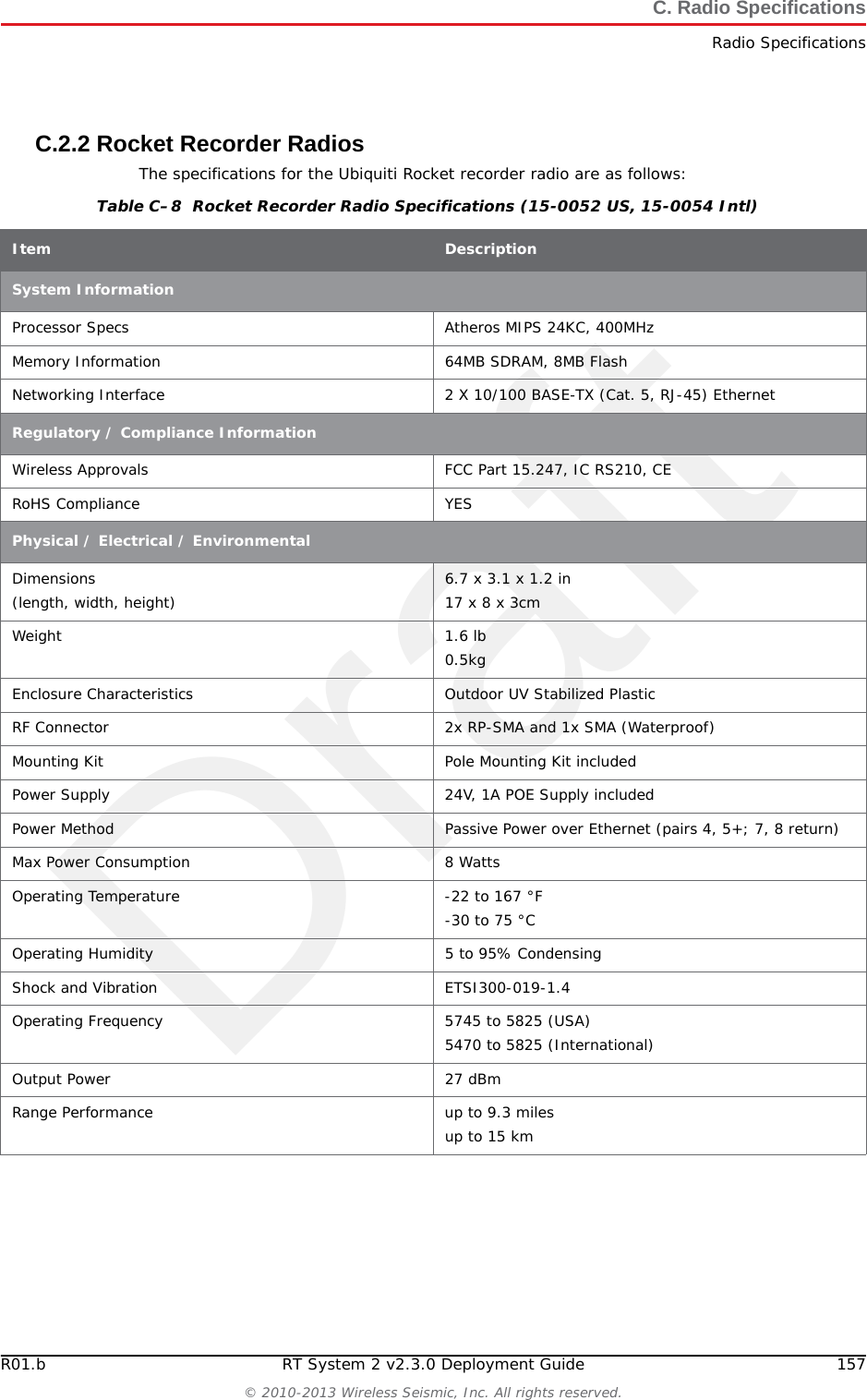
DraftR01.b RT System 2 v2.3.0 Deployment Guide 157© 2010-2013 Wireless Seismic, Inc. All rights reserved.C. Radio SpecificationsRadio SpecificationsC.2.2 Rocket Recorder RadiosThe specifications for the Ubiquiti Rocket recorder radio are as follows:Table C–8  Rocket Recorder Radio Specifications (15-0052 US, 15-0054 Intl) Item DescriptionSystem InformationProcessor Specs Atheros MIPS 24KC, 400MHzMemory Information 64MB SDRAM, 8MB FlashNetworking Interface 2 X 10/100 BASE-TX (Cat. 5, RJ-45) EthernetRegulatory / Compliance InformationWireless Approvals FCC Part 15.247, IC RS210, CERoHS Compliance YESPhysical / Electrical / EnvironmentalDimensions(length, width, height) 6.7 x 3.1 x 1.2 in17 x 8 x 3cm Weight 1.6 lb0.5kgEnclosure Characteristics Outdoor UV Stabilized PlasticRF Connector 2x RP-SMA and 1x SMA (Waterproof)Mounting Kit Pole Mounting Kit includedPower Supply 24V, 1A POE Supply includedPower Method Passive Power over Ethernet (pairs 4, 5+; 7, 8 return)Max Power Consumption 8 WattsOperating Temperature -22 to 167 °F-30 to 75 °COperating Humidity 5 to 95% CondensingShock and Vibration ETSI300-019-1.4Operating Frequency 5745 to 5825 (USA)5470 to 5825 (International)Output Power 27 dBmRange Performance up to 9.3 milesup to 15 km
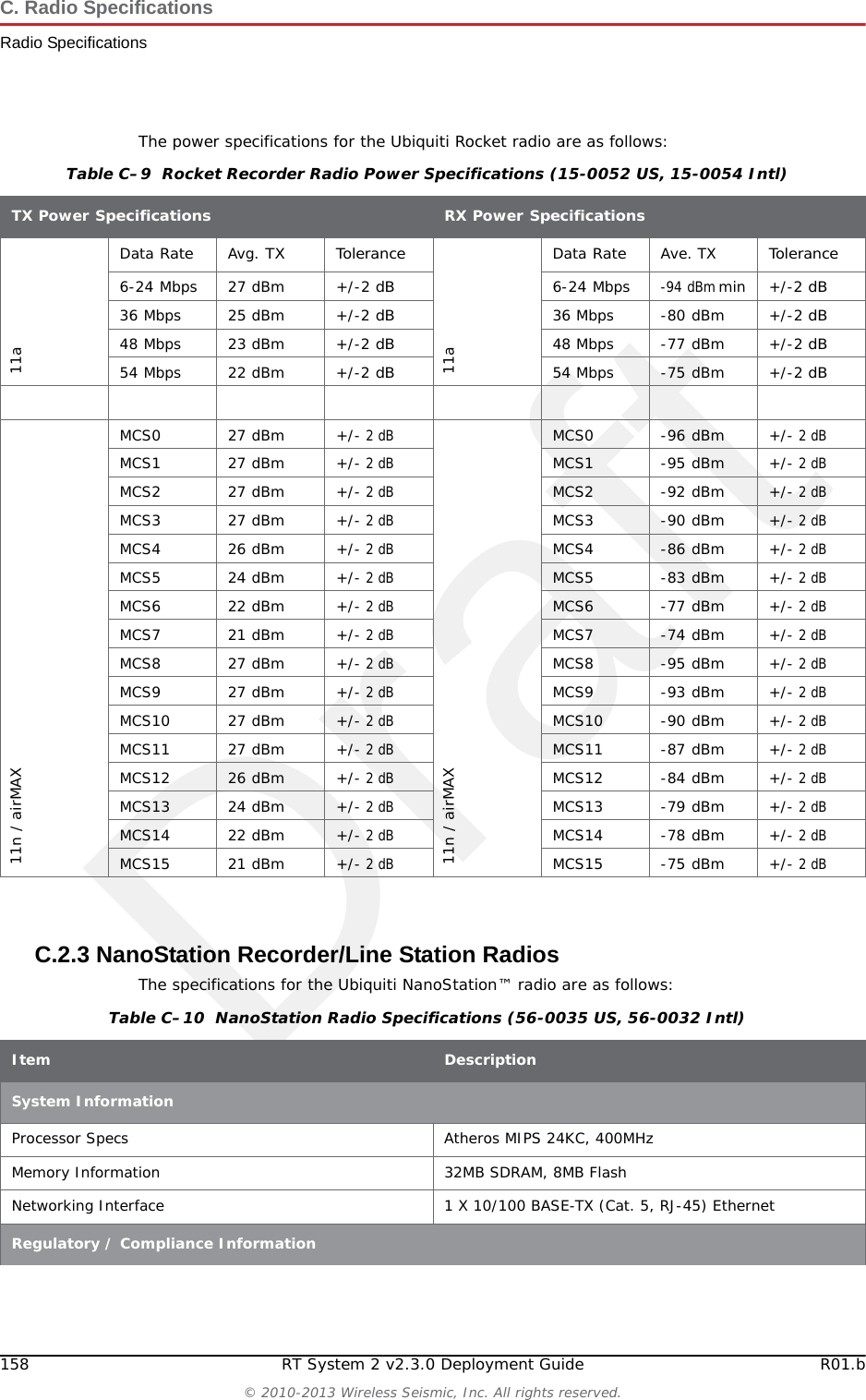
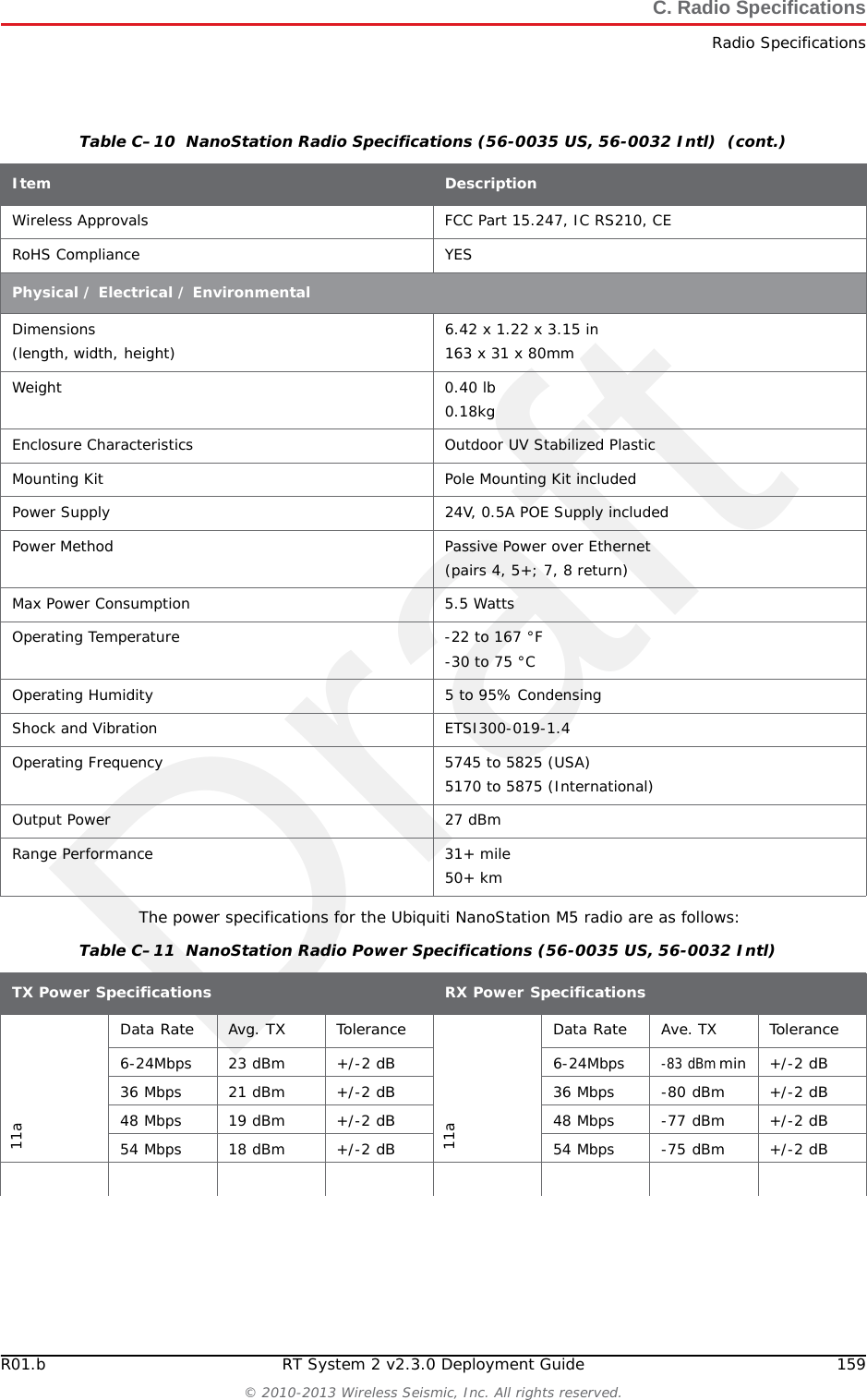
Draft158 RT System 2 v2.3.0 Deployment Guide R01.b© 2010-2013 Wireless Seismic, Inc. All rights reserved.C. Radio SpecificationsRadio SpecificationsThe power specifications for the Ubiquiti Rocket radio are as follows:C.2.3 NanoStation Recorder/Line Station RadiosThe specifications for the Ubiquiti NanoStation™ radio are as follows:Table C–9  Rocket Recorder Radio Power Specifications (15-0052 US, 15-0054 Intl) TX Power SpecificationsRX Power Specifications11aData RateAvg. TX Tolerance11aData RateAve. TXTolerance6-24 Mbps 27 dBm +/-2 dB6-24 Mbps-94 dBm min +/-2 dB36 Mbps 25 dBm +/-2 dB36 Mbps -80 dBm +/-2 dB48 Mbps 23 dBm +/-2 dB48 Mbps -77 dBm +/-2 dB54 Mbps 22 dBm +/-2 dB54 Mbps -75 dBm +/-2 dB11n / airMAXMCS0 27 dBm +/- 2 dB11n / airMAXMCS0 -96 dBm +/- 2 dBMCS1 27 dBm +/- 2 dBMCS1 -95 dBm +/- 2 dBMCS2 27 dBm +/- 2 dBMCS2 -92 dBm +/- 2 dBMCS3 27 dBm +/- 2 dBMCS3 -90 dBm +/- 2 dBMCS4 26 dBm +/- 2 dBMCS4 -86 dBm +/- 2 dBMCS5 24 dBm +/- 2 dBMCS5 -83 dBm +/- 2 dBMCS6 22 dBm +/- 2 dBMCS6 -77 dBm +/- 2 dBMCS7 21 dBm +/- 2 dBMCS7 -74 dBm +/- 2 dBMCS8 27 dBm +/- 2 dBMCS8 -95 dBm +/- 2 dBMCS9 27 dBm +/- 2 dBMCS9 -93 dBm +/- 2 dBMCS10 27 dBm +/- 2 dBMCS10 -90 dBm +/- 2 dBMCS11 27 dBm +/- 2 dBMCS11 -87 dBm +/- 2 dBMCS12 26 dBm +/- 2 dBMCS12 -84 dBm +/- 2 dBMCS13 24 dBm +/- 2 dBMCS13 -79 dBm +/- 2 dBMCS14 22 dBm +/- 2 dBMCS14 -78 dBm +/- 2 dBMCS15 21 dBm +/- 2 dBMCS15 -75 dBm +/- 2 dBTable C–10  NanoStation Radio Specifications (56-0035 US, 56-0032 Intl) Item DescriptionSystem InformationProcessor Specs Atheros MIPS 24KC, 400MHzMemory Information 32MB SDRAM, 8MB FlashNetworking Interface 1 X 10/100 BASE-TX (Cat. 5, RJ-45) EthernetRegulatory / Compliance Information
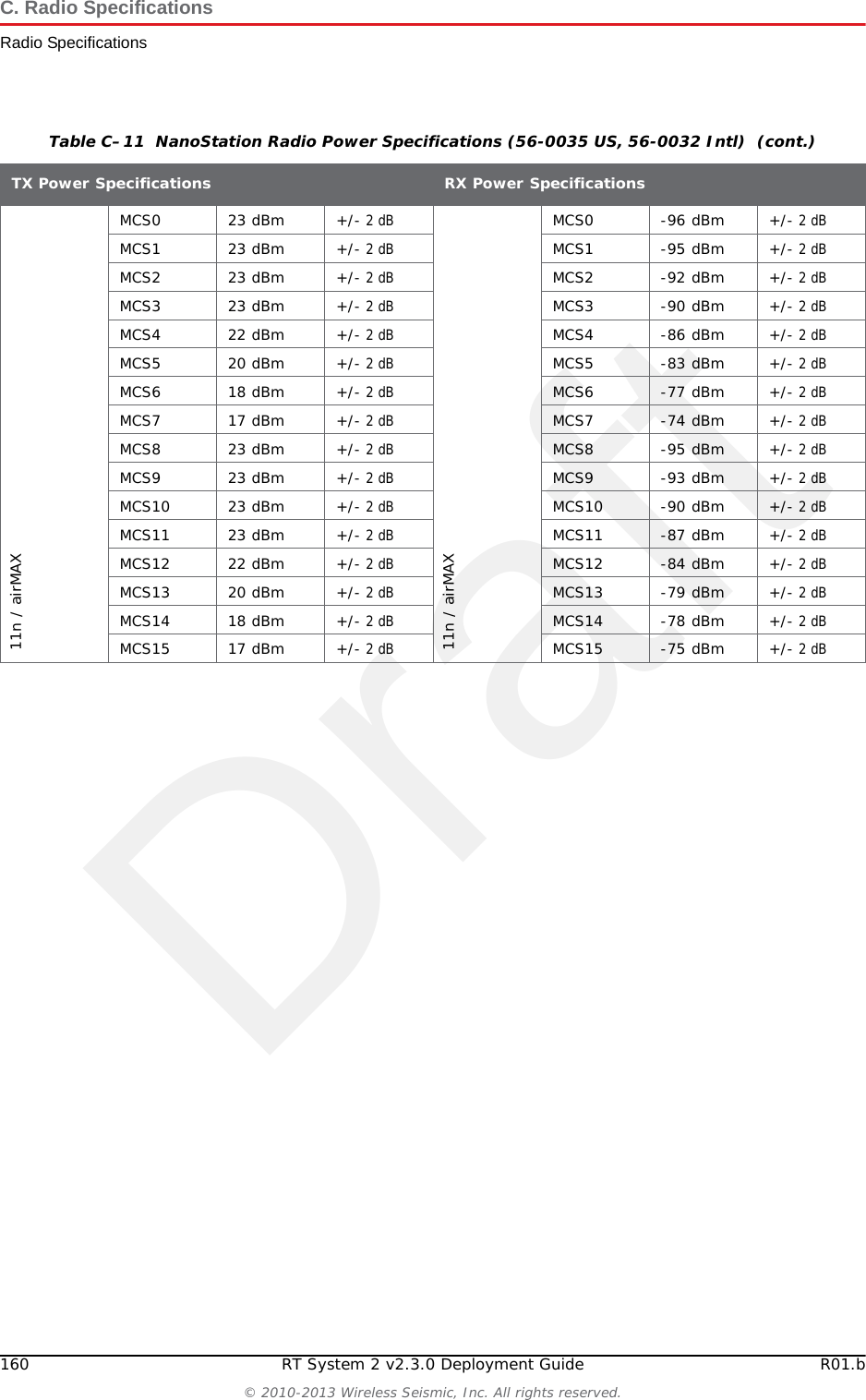
DraftR01.b RT System 2 v2.3.0 Deployment Guide 159© 2010-2013 Wireless Seismic, Inc. All rights reserved.C. Radio SpecificationsRadio SpecificationsThe power specifications for the Ubiquiti NanoStation M5 radio are as follows:Wireless Approvals FCC Part 15.247, IC RS210, CERoHS Compliance YESPhysical / Electrical / EnvironmentalDimensions(length, width, height) 6.42 x 1.22 x 3.15 in163 x 31 x 80mm Weight 0.40 lb0.18kgEnclosure Characteristics Outdoor UV Stabilized PlasticMounting Kit Pole Mounting Kit includedPower Supply 24V, 0.5A POE Supply includedPower Method Passive Power over Ethernet (pairs 4, 5+; 7, 8 return)Max Power Consumption 5.5 WattsOperating Temperature -22 to 167 °F-30 to 75 °COperating Humidity 5 to 95% CondensingShock and Vibration ETSI300-019-1.4Operating Frequency 5745 to 5825 (USA)5170 to 5875 (International)Output Power 27 dBmRange Performance 31+ mile50+ km Table C–10  NanoStation Radio Specifications (56-0035 US, 56-0032 Intl)  (cont.)Item DescriptionTable C–11  NanoStation Radio Power Specifications (56-0035 US, 56-0032 Intl) TX Power SpecificationsRX Power Specifications11aData RateAvg. TX Tolerance11aData RateAve. TXTolerance6-24Mbps 23 dBm +/-2 dB6-24Mbps-83 dBm min +/-2 dB36 Mbps 21 dBm +/-2 dB36 Mbps -80 dBm +/-2 dB48 Mbps 19 dBm +/-2 dB48 Mbps -77 dBm +/-2 dB54 Mbps 18 dBm +/-2 dB54 Mbps -75 dBm +/-2 dB
Draft160 RT System 2 v2.3.0 Deployment Guide R01.b© 2010-2013 Wireless Seismic, Inc. All rights reserved.C. Radio SpecificationsRadio Specifications11n / airMAXMCS0 23 dBm +/- 2 dB11n / airMAXMCS0 -96 dBm +/- 2 dBMCS1 23 dBm +/- 2 dBMCS1 -95 dBm +/- 2 dBMCS2 23 dBm +/- 2 dBMCS2 -92 dBm +/- 2 dBMCS3 23 dBm +/- 2 dBMCS3 -90 dBm +/- 2 dBMCS4 22 dBm +/- 2 dBMCS4 -86 dBm +/- 2 dBMCS5 20 dBm +/- 2 dBMCS5 -83 dBm +/- 2 dBMCS6 18 dBm +/- 2 dBMCS6 -77 dBm +/- 2 dBMCS7 17 dBm +/- 2 dBMCS7 -74 dBm +/- 2 dBMCS8 23 dBm +/- 2 dBMCS8 -95 dBm +/- 2 dBMCS9 23 dBm +/- 2 dBMCS9 -93 dBm +/- 2 dBMCS10 23 dBm +/- 2 dBMCS10 -90 dBm +/- 2 dBMCS11 23 dBm +/- 2 dBMCS11 -87 dBm +/- 2 dBMCS12 22 dBm +/- 2 dBMCS12 -84 dBm +/- 2 dBMCS13 20 dBm +/- 2 dBMCS13 -79 dBm +/- 2 dBMCS14 18 dBm +/- 2 dBMCS14 -78 dBm +/- 2 dBMCS15 17 dBm +/- 2 dBMCS15 -75 dBm +/- 2 dBTable C–11  NanoStation Radio Power Specifications (56-0035 US, 56-0032 Intl)  (cont.)TX Power SpecificationsRX Power Specifications
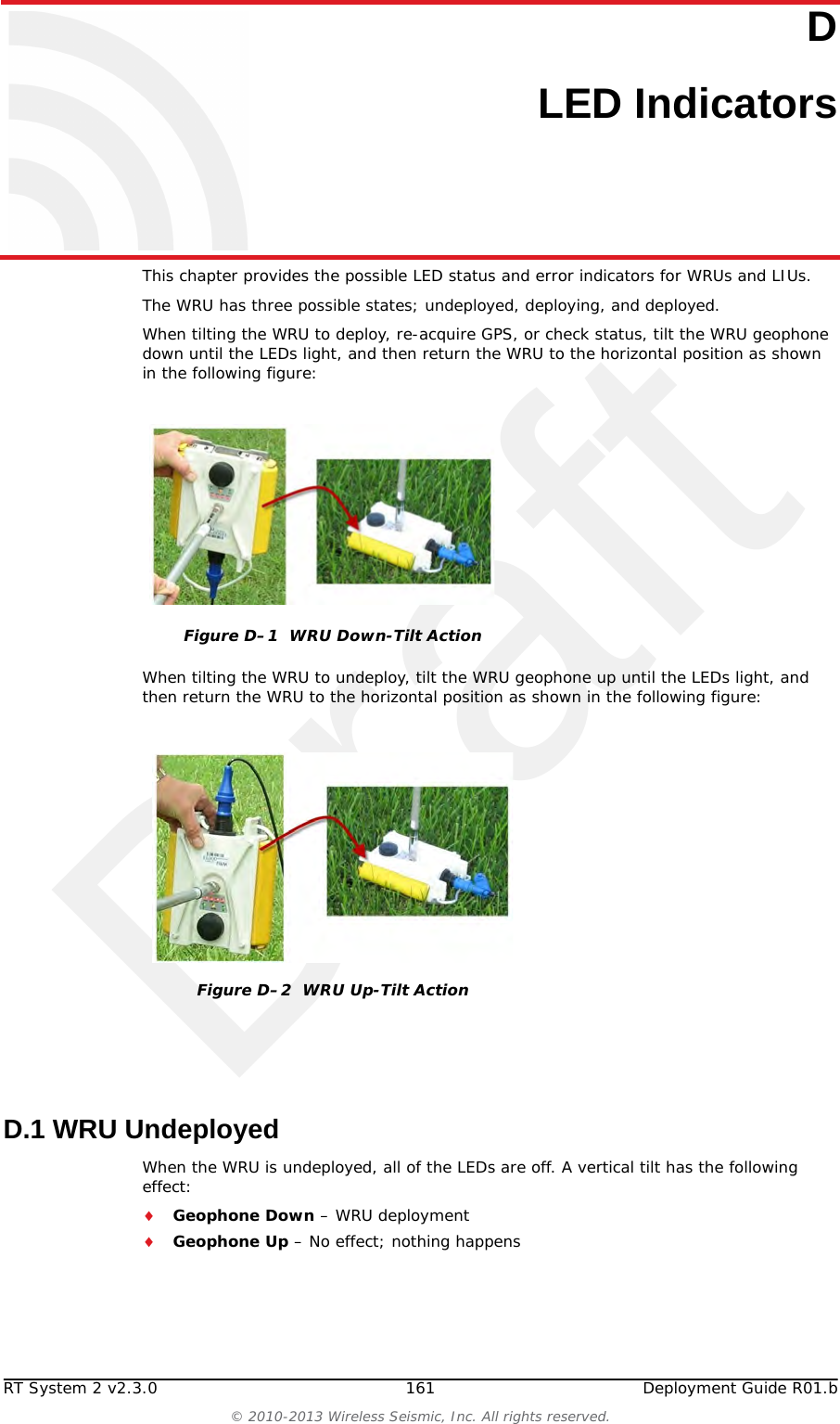
DraftRT System 2 v2.3.0 161  Deployment Guide R01.b© 2010-2013 Wireless Seismic, Inc. All rights reserved.DD. LED IndicatorsThis chapter provides the possible LED status and error indicators for WRUs and LIUs.The WRU has three possible states; undeployed, deploying, and deployed. When tilting the WRU to deploy, re-acquire GPS, or check status, tilt the WRU geophone down until the LEDs light, and then return the WRU to the horizontal position as shown in the following figure:When tilting the WRU to undeploy, tilt the WRU geophone up until the LEDs light, and then return the WRU to the horizontal position as shown in the following figure:D.1 WRU Undeployed When the WRU is undeployed, all of the LEDs are off. A vertical tilt has the following effect:Geophone Down – WRU deploymentGeophone Up – No effect; nothing happensFigure D–1  WRU Down-Tilt ActionFigure D–2  WRU Up-Tilt Action
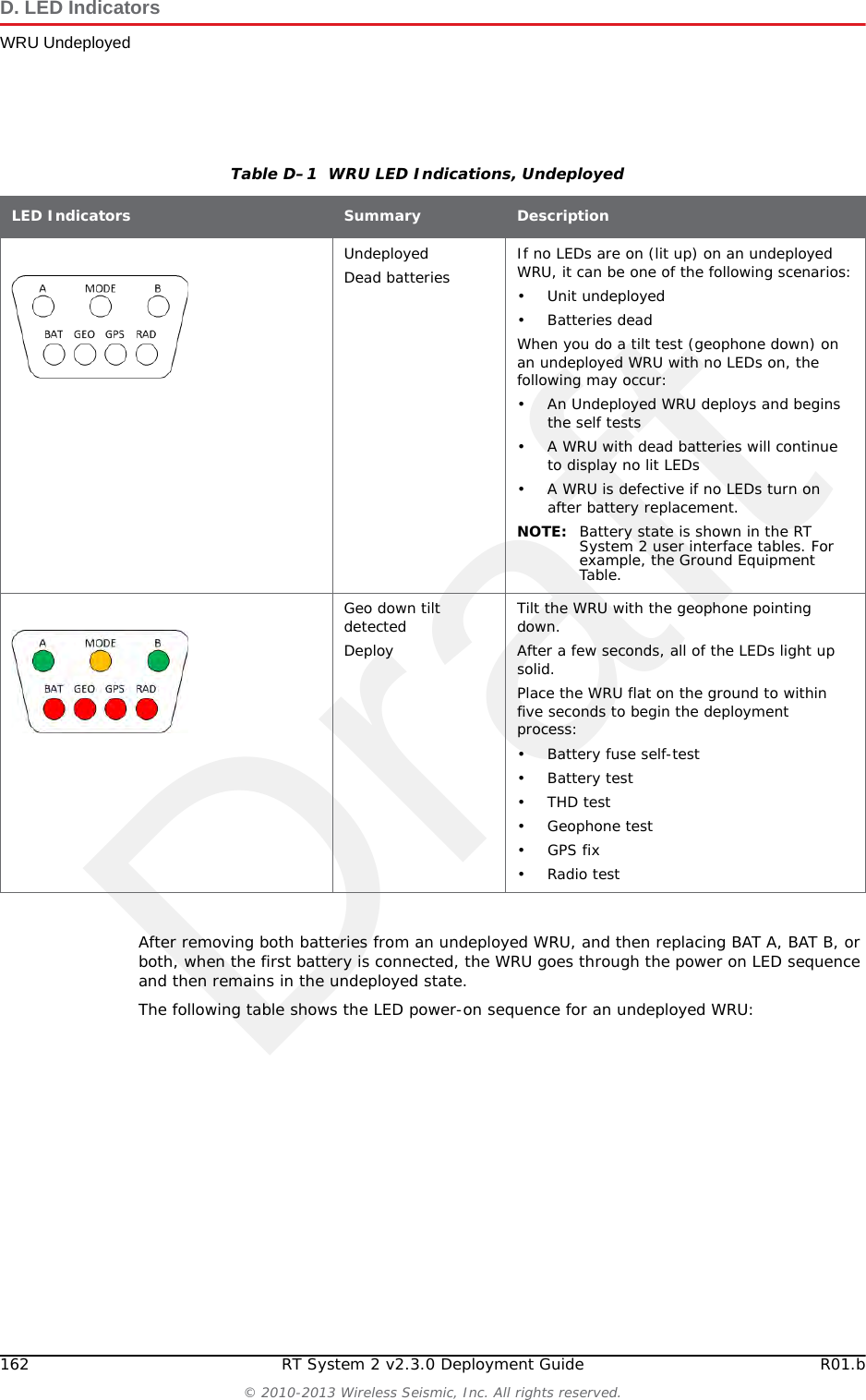
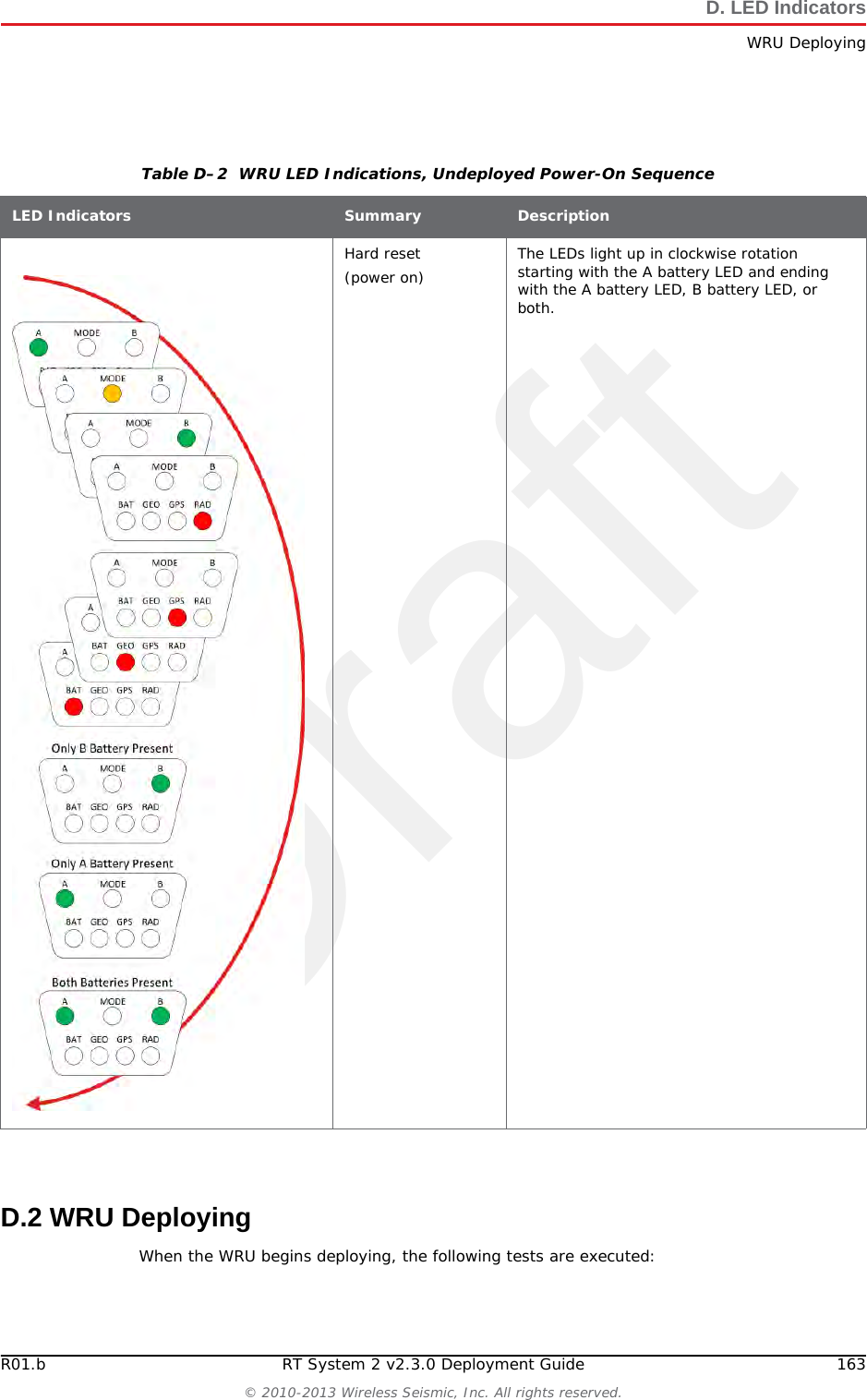
Draft162 RT System 2 v2.3.0 Deployment Guide R01.b© 2010-2013 Wireless Seismic, Inc. All rights reserved.D. LED IndicatorsWRU UndeployedAfter removing both batteries from an undeployed WRU, and then replacing BAT A, BAT B, or both, when the first battery is connected, the WRU goes through the power on LED sequence and then remains in the undeployed state. The following table shows the LED power-on sequence for an undeployed WRU:Table D–1  WRU LED Indications, Undeployed LED Indicators Summary DescriptionUndeployedDead batteries If no LEDs are on (lit up) on an undeployed WRU, it can be one of the following scenarios:• Unit undeployed• Batteries deadWhen you do a tilt test (geophone down) on an undeployed WRU with no LEDs on, the following may occur:• An Undeployed WRU deploys and begins the self tests• A WRU with dead batteries will continue to display no lit LEDs• A WRU is defective if no LEDs turn on after battery replacement.NOTE: Battery state is shown in the RT System 2 user interface tables. For example, the Ground Equipment Table.Geo down tilt detectedDeployTilt the WRU with the geophone pointing down. After a few seconds, all of the LEDs light up solid. Place the WRU flat on the ground to within five seconds to begin the deployment process:• Battery fuse self-test• Battery test •THD test• Geophone test• GPS fix•Radio test
DraftR01.b RT System 2 v2.3.0 Deployment Guide 163© 2010-2013 Wireless Seismic, Inc. All rights reserved.D. LED IndicatorsWRU DeployingD.2 WRU DeployingWhen the WRU begins deploying, the following tests are executed:Table D–2  WRU LED Indications, Undeployed Power-On Sequence LED Indicators Summary DescriptionHard reset (power on) The LEDs light up in clockwise rotation starting with the A battery LED and ending with the A battery LED, B battery LED, or both.
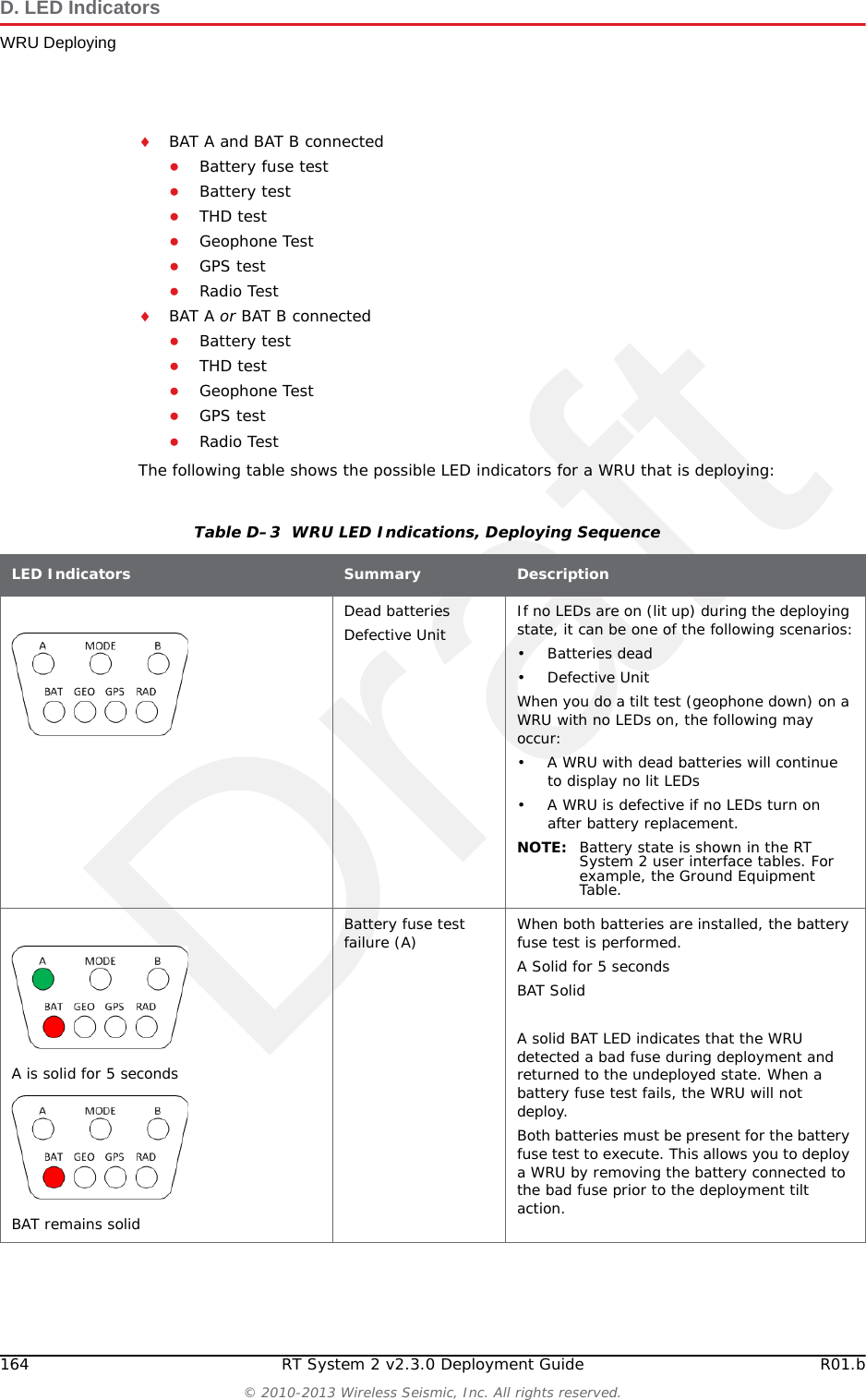
Draft164 RT System 2 v2.3.0 Deployment Guide R01.b© 2010-2013 Wireless Seismic, Inc. All rights reserved.D. LED IndicatorsWRU DeployingBAT A and BAT B connected●Battery fuse test●Battery test●THD test●Geophone Test●GPS test●Radio TestBAT A or BAT B connected●Battery test●THD test●Geophone Test●GPS test●Radio TestThe following table shows the possible LED indicators for a WRU that is deploying:Table D–3  WRU LED Indications, Deploying Sequence LED Indicators Summary DescriptionDead batteriesDefective Unit If no LEDs are on (lit up) during the deploying state, it can be one of the following scenarios:• Batteries dead•Defective UnitWhen you do a tilt test (geophone down) on a WRU with no LEDs on, the following may occur:• A WRU with dead batteries will continue to display no lit LEDs• A WRU is defective if no LEDs turn on after battery replacement.NOTE: Battery state is shown in the RT System 2 user interface tables. For example, the Ground Equipment Table.A is solid for 5 secondsBAT remains solidBattery fuse test failure (A) When both batteries are installed, the battery fuse test is performed. A Solid for 5 secondsBAT SolidA solid BAT LED indicates that the WRU detected a bad fuse during deployment and returned to the undeployed state. When a battery fuse test fails, the WRU will not deploy. Both batteries must be present for the battery fuse test to execute. This allows you to deploy a WRU by removing the battery connected to the bad fuse prior to the deployment tilt action.
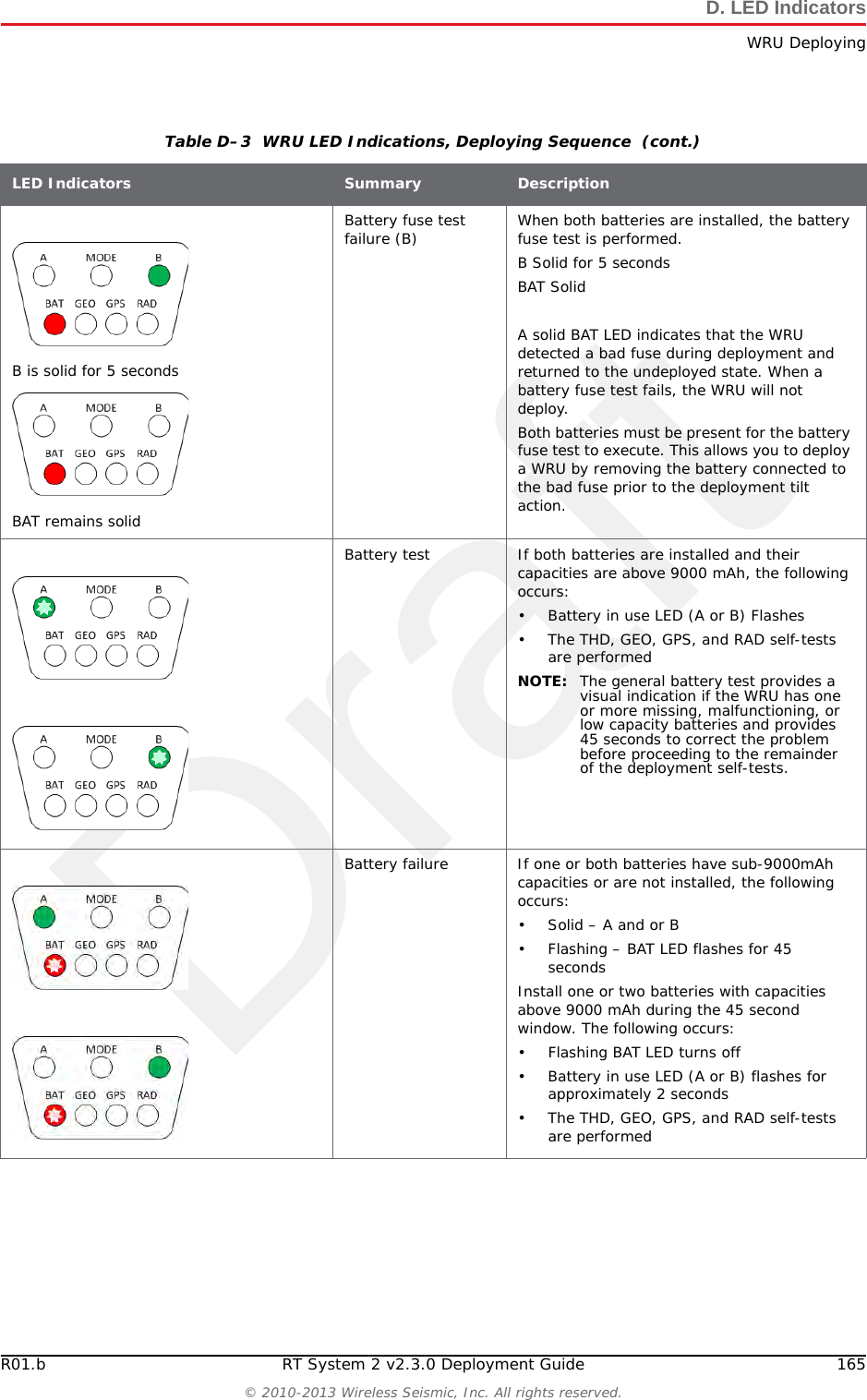
DraftR01.b RT System 2 v2.3.0 Deployment Guide 165© 2010-2013 Wireless Seismic, Inc. All rights reserved.D. LED IndicatorsWRU DeployingB is solid for 5 secondsBAT remains solidBattery fuse test failure (B) When both batteries are installed, the battery fuse test is performed. B Solid for 5 secondsBAT SolidA solid BAT LED indicates that the WRU detected a bad fuse during deployment and returned to the undeployed state. When a battery fuse test fails, the WRU will not deploy. Both batteries must be present for the battery fuse test to execute. This allows you to deploy a WRU by removing the battery connected to the bad fuse prior to the deployment tilt action.Battery test If both batteries are installed and their capacities are above 9000 mAh, the following occurs:• Battery in use LED (A or B) Flashes• The THD, GEO, GPS, and RAD self-tests are performedNOTE: The general battery test provides a visual indication if the WRU has one or more missing, malfunctioning, or low capacity batteries and provides 45 seconds to correct the problem before proceeding to the remainder of the deployment self-tests.Battery failure If one or both batteries have sub-9000mAh capacities or are not installed, the following occurs:•Solid – A and or B• Flashing – BAT LED flashes for 45 secondsInstall one or two batteries with capacities above 9000 mAh during the 45 second window. The following occurs:• Flashing BAT LED turns off• Battery in use LED (A or B) flashes for approximately 2 seconds• The THD, GEO, GPS, and RAD self-tests are performedTable D–3  WRU LED Indications, Deploying Sequence  (cont.)LED Indicators Summary Description
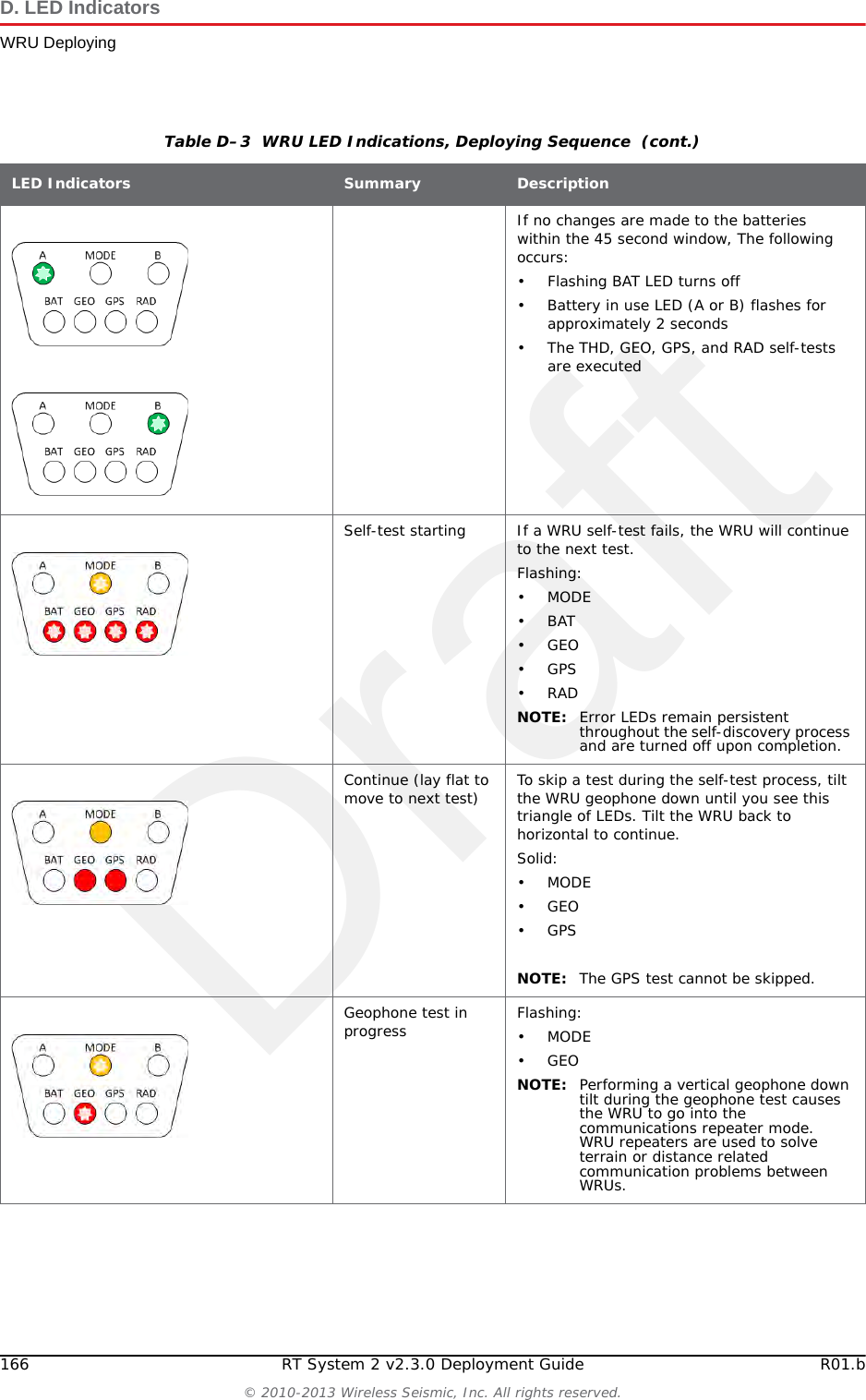
Draft166 RT System 2 v2.3.0 Deployment Guide R01.b© 2010-2013 Wireless Seismic, Inc. All rights reserved.D. LED IndicatorsWRU DeployingIf no changes are made to the batteries within the 45 second window, The following occurs:• Flashing BAT LED turns off• Battery in use LED (A or B) flashes for approximately 2 seconds• The THD, GEO, GPS, and RAD self-tests are executedSelf-test starting If a WRU self-test fails, the WRU will continue to the next test. Flashing:•MODE•BAT•GEO•GPS•RADNOTE: Error LEDs remain persistent throughout the self-discovery process and are turned off upon completion. Continue (lay flat to move to next test) To skip a test during the self-test process, tilt the WRU geophone down until you see this triangle of LEDs. Tilt the WRU back to horizontal to continue.Solid:•MODE•GEO•GPSNOTE: The GPS test cannot be skipped.Geophone test in progress Flashing:•MODE•GEONOTE: Performing a vertical geophone down tilt during the geophone test causes the WRU to go into the communications repeater mode. WRU repeaters are used to solve terrain or distance related communication problems between WRUs. Table D–3  WRU LED Indications, Deploying Sequence  (cont.)LED Indicators Summary Description
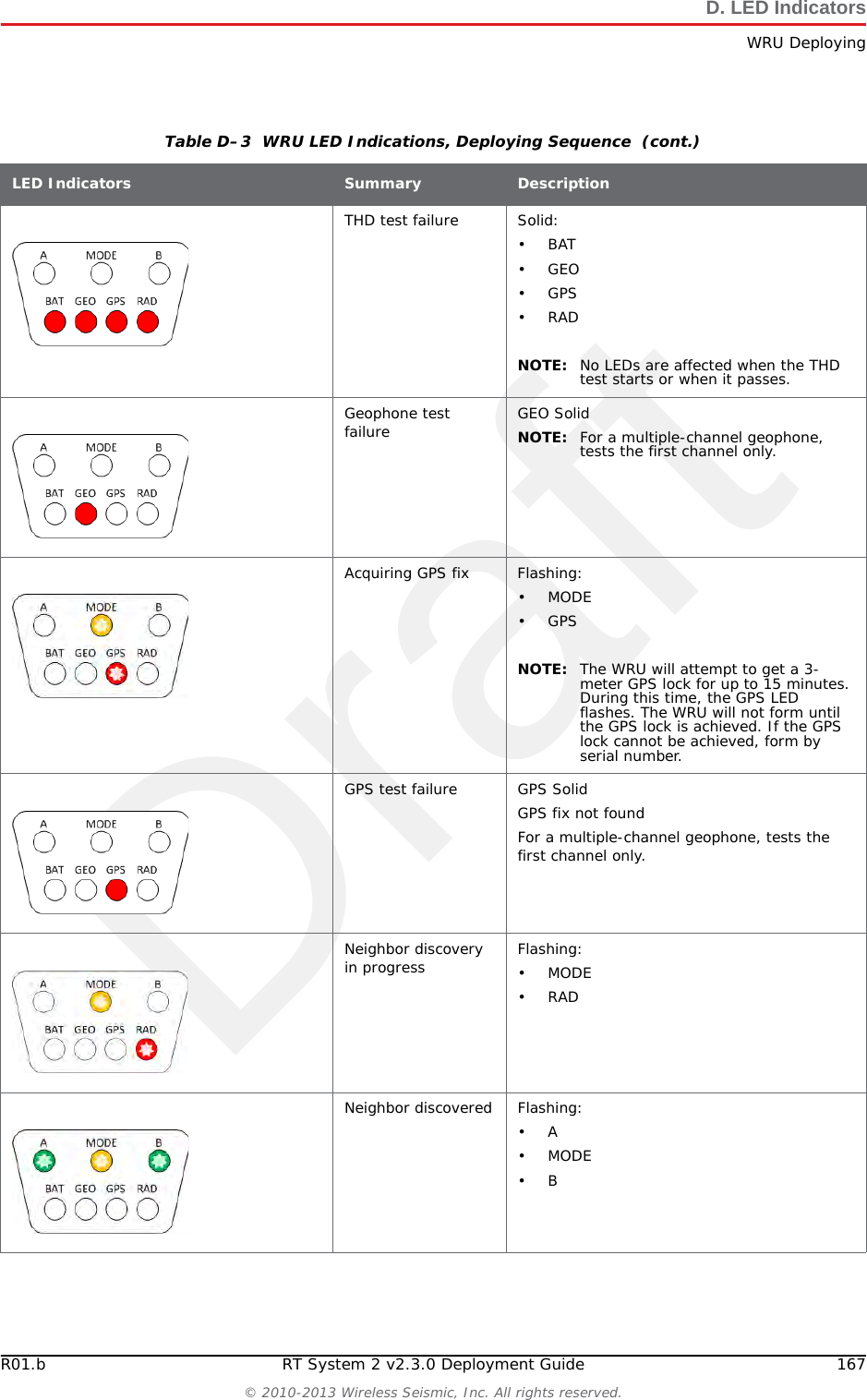
DraftR01.b RT System 2 v2.3.0 Deployment Guide 167© 2010-2013 Wireless Seismic, Inc. All rights reserved.D. LED IndicatorsWRU DeployingTHD test failure Solid:•BAT•GEO•GPS•RADNOTE: No LEDs are affected when the THD test starts or when it passes. Geophone test failure GEO SolidNOTE: For a multiple-channel geophone, tests the first channel only.Acquiring GPS fix Flashing:•MODE•GPSNOTE: The WRU will attempt to get a 3-meter GPS lock for up to 15 minutes. During this time, the GPS LED flashes. The WRU will not form until the GPS lock is achieved. If the GPS lock cannot be achieved, form by serial number. GPS test failure GPS SolidGPS fix not foundFor a multiple-channel geophone, tests the first channel only.Neighbor discovery in progress Flashing:•MODE•RADNeighbor discovered Flashing:•A•MODE•BTable D–3  WRU LED Indications, Deploying Sequence  (cont.)LED Indicators Summary Description
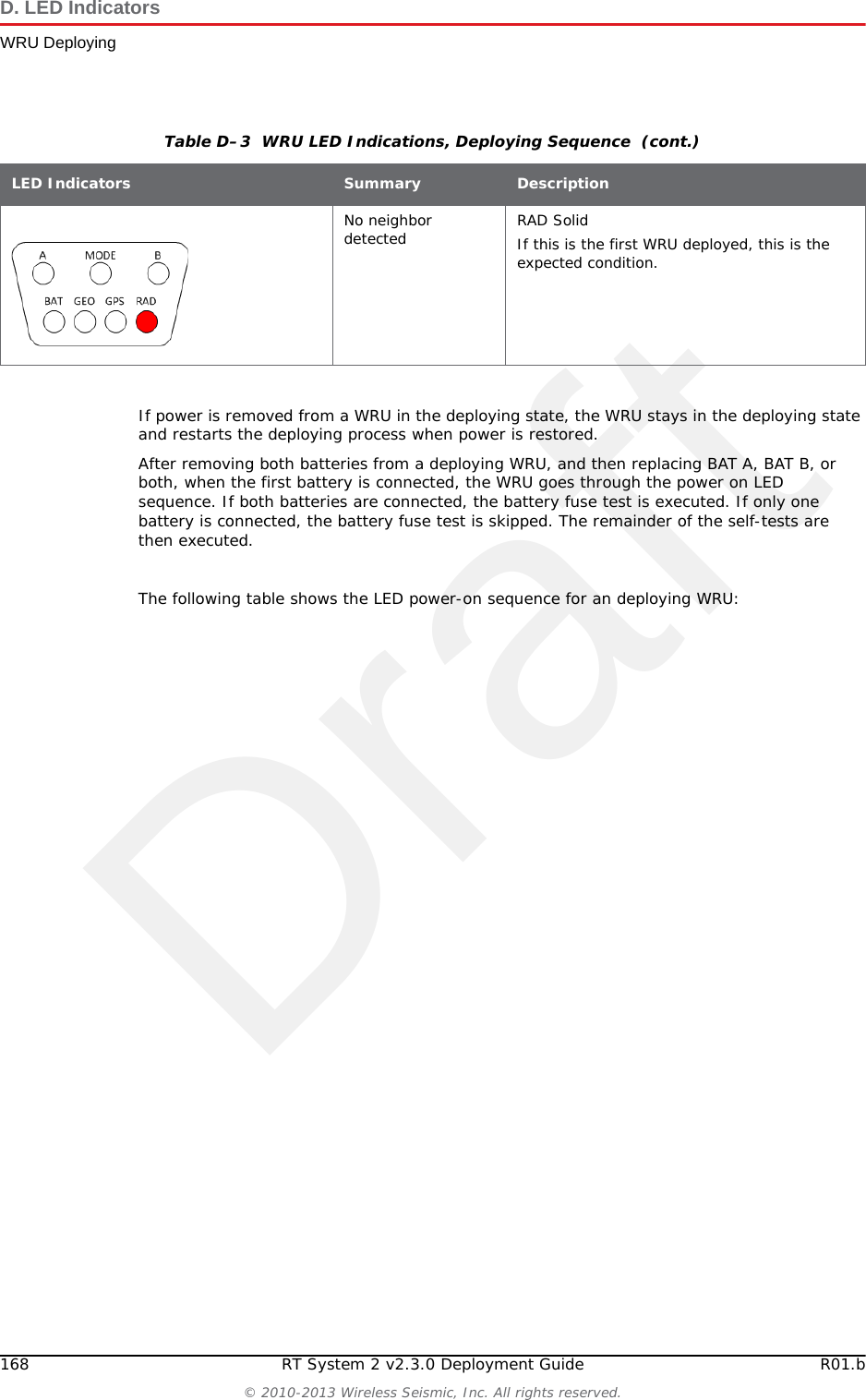
Draft168 RT System 2 v2.3.0 Deployment Guide R01.b© 2010-2013 Wireless Seismic, Inc. All rights reserved.D. LED IndicatorsWRU DeployingIf power is removed from a WRU in the deploying state, the WRU stays in the deploying state and restarts the deploying process when power is restored.After removing both batteries from a deploying WRU, and then replacing BAT A, BAT B, or both, when the first battery is connected, the WRU goes through the power on LED sequence. If both batteries are connected, the battery fuse test is executed. If only one battery is connected, the battery fuse test is skipped. The remainder of the self-tests are then executed. The following table shows the LED power-on sequence for an deploying WRU:No neighbor detected RAD SolidIf this is the first WRU deployed, this is the expected condition. Table D–3  WRU LED Indications, Deploying Sequence  (cont.)LED Indicators Summary Description
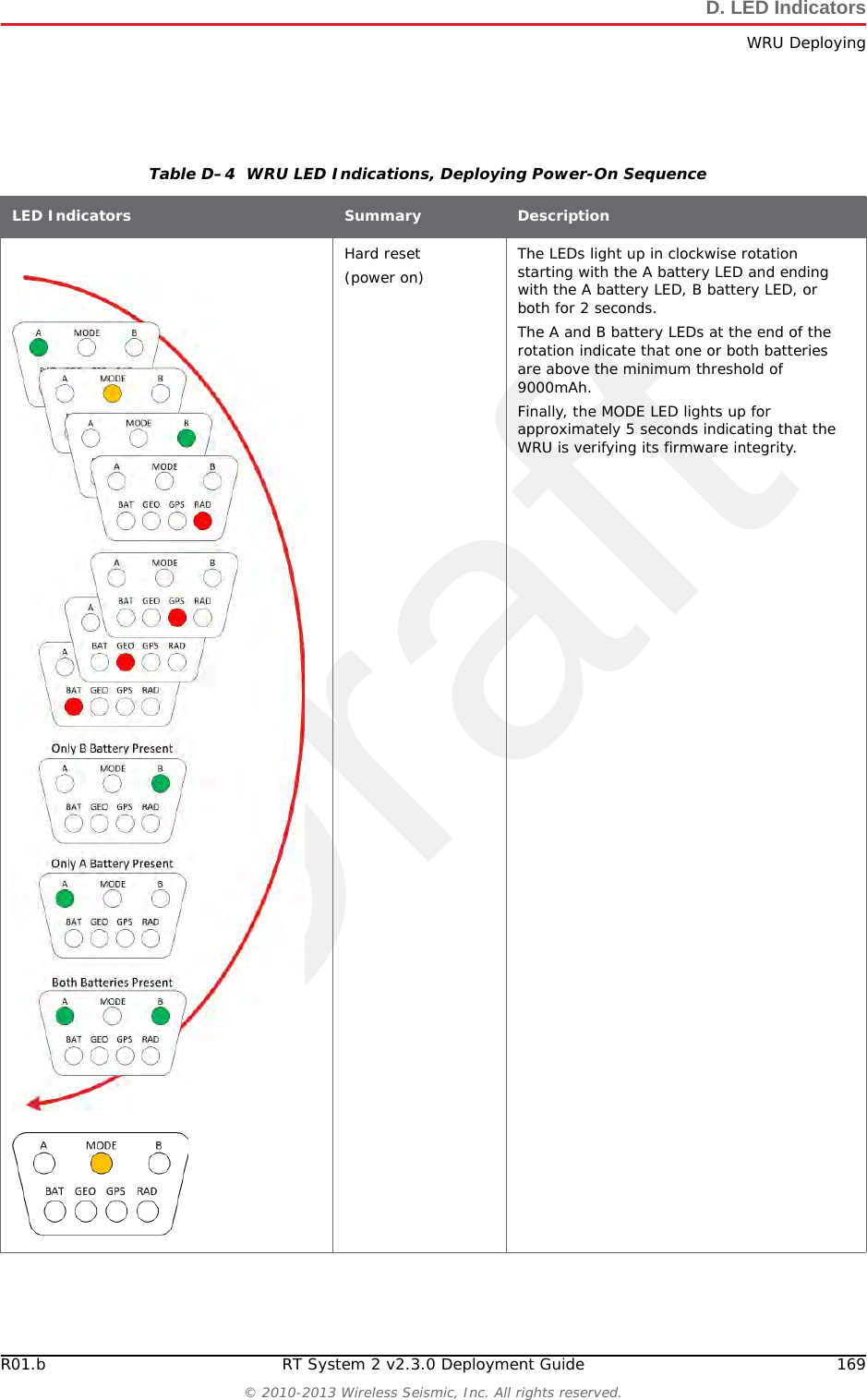
DraftR01.b RT System 2 v2.3.0 Deployment Guide 169© 2010-2013 Wireless Seismic, Inc. All rights reserved.D. LED IndicatorsWRU DeployingTable D–4  WRU LED Indications, Deploying Power-On Sequence LED Indicators Summary DescriptionHard reset (power on) The LEDs light up in clockwise rotation starting with the A battery LED and ending with the A battery LED, B battery LED, or both for 2 seconds. The A and B battery LEDs at the end of the rotation indicate that one or both batteries are above the minimum threshold of 9000mAh. Finally, the MODE LED lights up for approximately 5 seconds indicating that the WRU is verifying its firmware integrity.
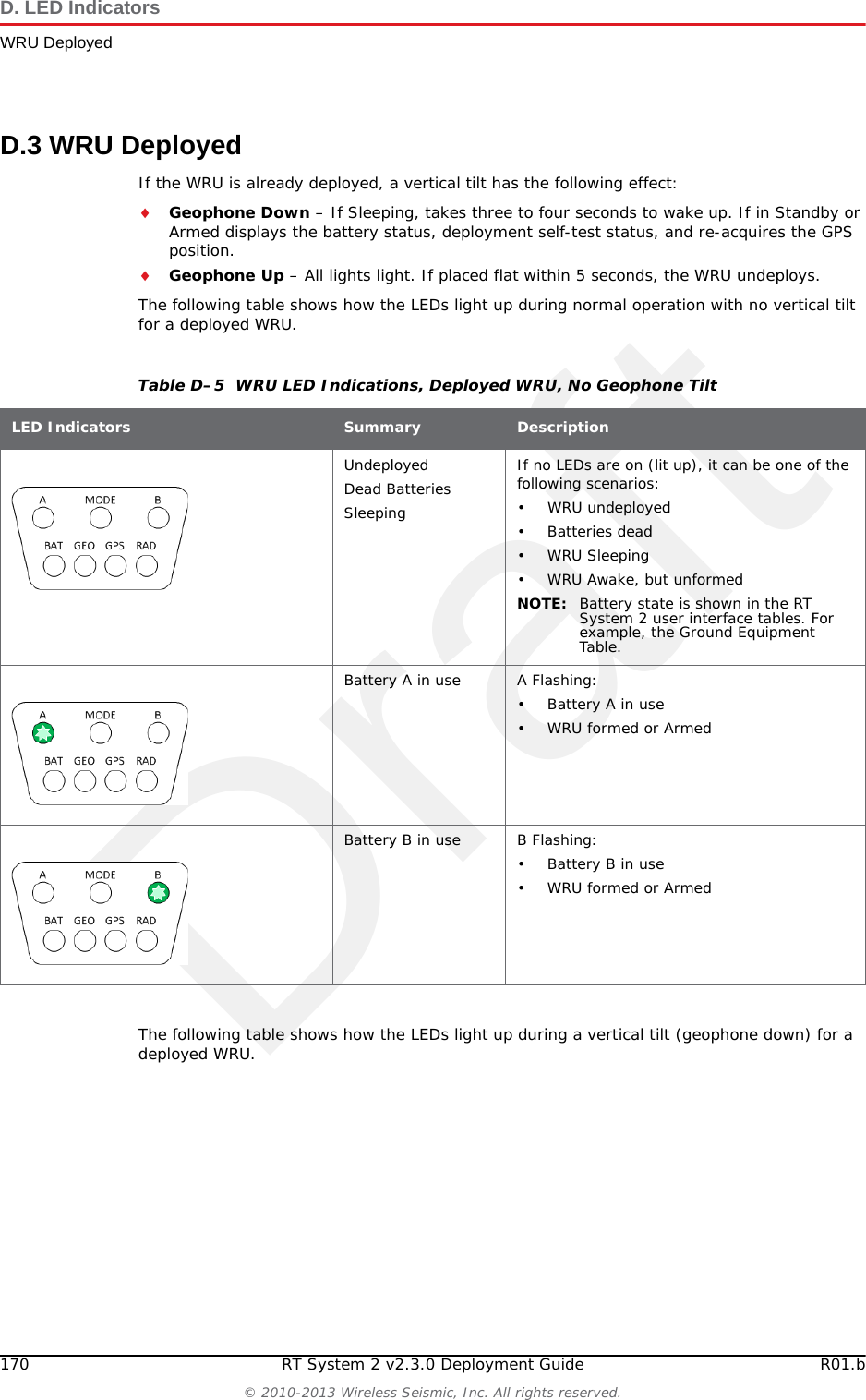
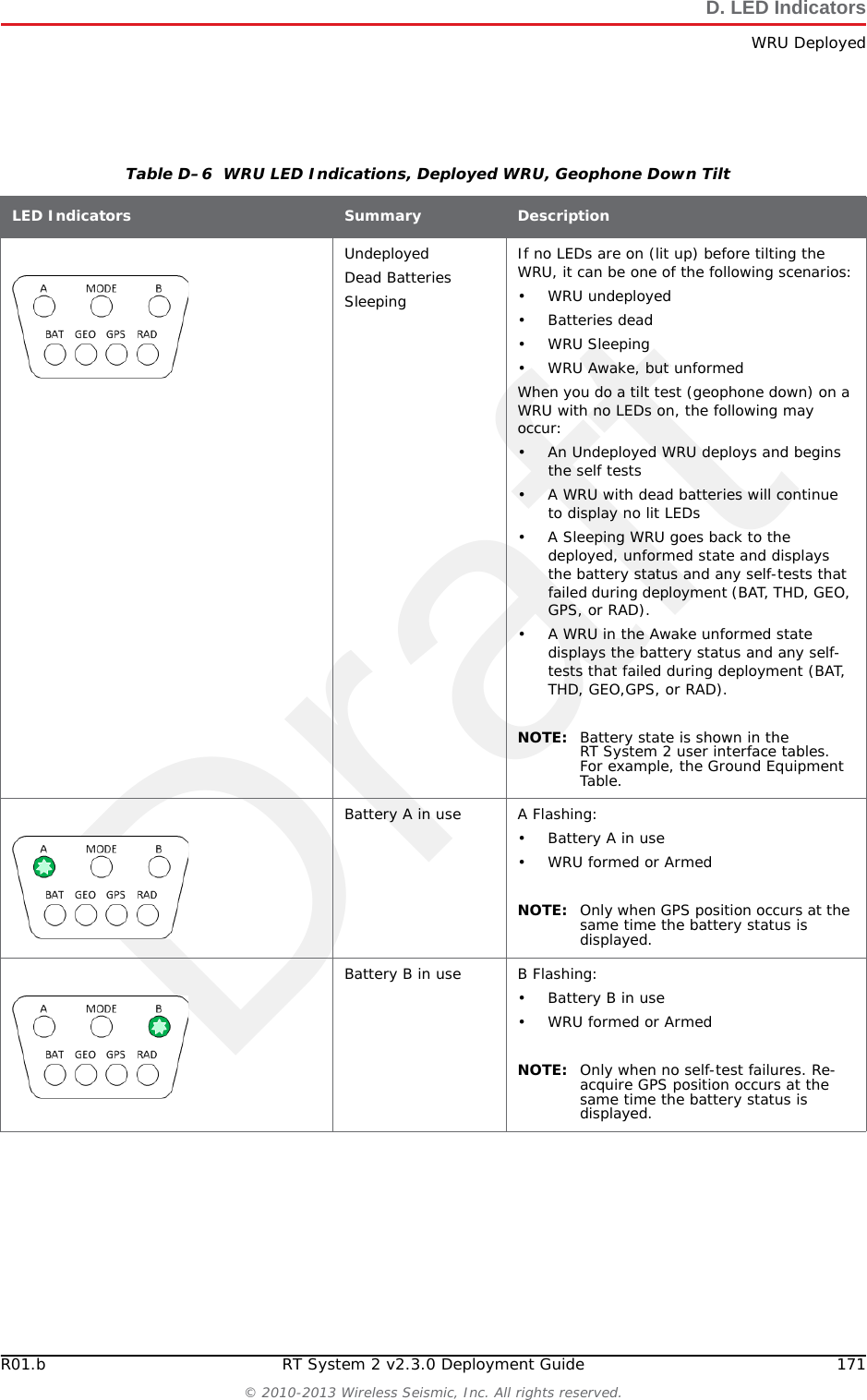
Draft170 RT System 2 v2.3.0 Deployment Guide R01.b© 2010-2013 Wireless Seismic, Inc. All rights reserved.D. LED IndicatorsWRU DeployedD.3 WRU DeployedIf the WRU is already deployed, a vertical tilt has the following effect:Geophone Down – If Sleeping, takes three to four seconds to wake up. If in Standby or Armed displays the battery status, deployment self-test status, and re-acquires the GPS position. Geophone Up – All lights light. If placed flat within 5 seconds, the WRU undeploys. The following table shows how the LEDs light up during normal operation with no vertical tilt for a deployed WRU.The following table shows how the LEDs light up during a vertical tilt (geophone down) for a deployed WRU.Table D–5  WRU LED Indications, Deployed WRU, No Geophone Tilt LED Indicators Summary DescriptionUndeployedDead BatteriesSleepingIf no LEDs are on (lit up), it can be one of the following scenarios:• WRU undeployed• Batteries dead•WRU Sleeping• WRU Awake, but unformedNOTE: Battery state is shown in the RT System 2 user interface tables. For example, the Ground Equipment Table.Battery A in use A Flashing:• Battery A in use• WRU formed or Armed Battery B in use B Flashing:• Battery B in use• WRU formed or Armed
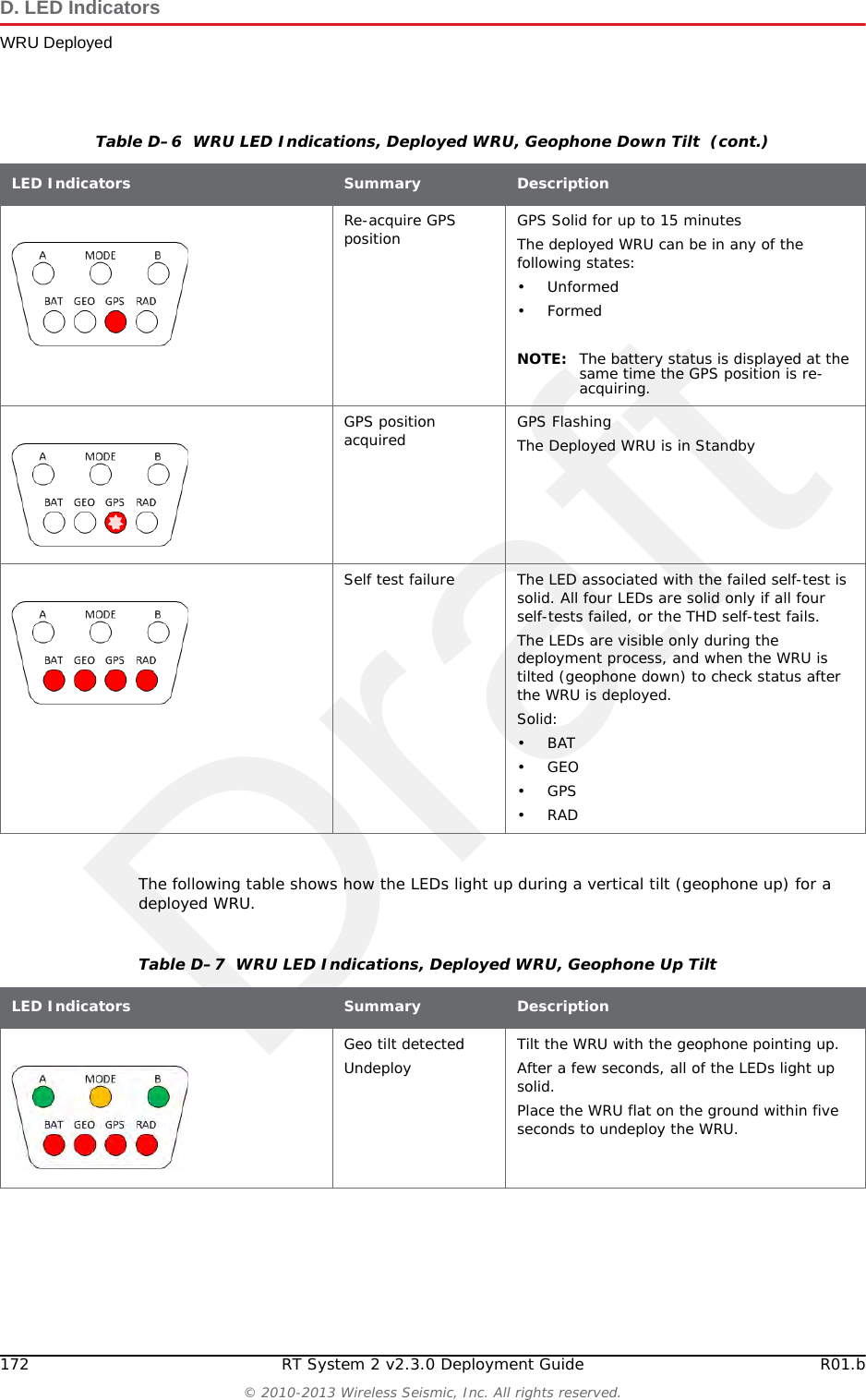
DraftR01.b RT System 2 v2.3.0 Deployment Guide 171© 2010-2013 Wireless Seismic, Inc. All rights reserved.D. LED IndicatorsWRU DeployedTable D–6  WRU LED Indications, Deployed WRU, Geophone Down Tilt LED Indicators Summary DescriptionUndeployedDead BatteriesSleepingIf no LEDs are on (lit up) before tilting the WRU, it can be one of the following scenarios:• WRU undeployed• Batteries dead•WRU Sleeping• WRU Awake, but unformedWhen you do a tilt test (geophone down) on a WRU with no LEDs on, the following may occur:• An Undeployed WRU deploys and begins the self tests• A WRU with dead batteries will continue to display no lit LEDs• A Sleeping WRU goes back to the deployed, unformed state and displays the battery status and any self-tests that failed during deployment (BAT, THD, GEO, GPS, or RAD).• A WRU in the Awake unformed state displays the battery status and any self-tests that failed during deployment (BAT, THD, GEO,GPS, or RAD).NOTE: Battery state is shown in the RT System 2 user interface tables. For example, the Ground Equipment Table.Battery A in use A Flashing:• Battery A in use• WRU formed or Armed NOTE: Only when GPS position occurs at the same time the battery status is displayed.Battery B in use B Flashing:• Battery B in use• WRU formed or Armed NOTE: Only when no self-test failures. Re-acquire GPS position occurs at the same time the battery status is displayed.
Draft172 RT System 2 v2.3.0 Deployment Guide R01.b© 2010-2013 Wireless Seismic, Inc. All rights reserved.D. LED IndicatorsWRU DeployedThe following table shows how the LEDs light up during a vertical tilt (geophone up) for a deployed WRU.Re-acquire GPS position GPS Solid for up to 15 minutesThe deployed WRU can be in any of the following states:•Unformed•FormedNOTE: The battery status is displayed at the same time the GPS position is re-acquiring.GPS position acquired GPS FlashingThe Deployed WRU is in StandbySelf test failure The LED associated with the failed self-test is solid. All four LEDs are solid only if all four self-tests failed, or the THD self-test fails. The LEDs are visible only during the deployment process, and when the WRU is tilted (geophone down) to check status after the WRU is deployed.Solid:•BAT•GEO•GPS•RADTable D–6  WRU LED Indications, Deployed WRU, Geophone Down Tilt  (cont.)LED Indicators Summary DescriptionTable D–7  WRU LED Indications, Deployed WRU, Geophone Up Tilt LED Indicators Summary DescriptionGeo tilt detectedUndeploy Tilt the WRU with the geophone pointing up. After a few seconds, all of the LEDs light up solid. Place the WRU flat on the ground within five seconds to undeploy the WRU.
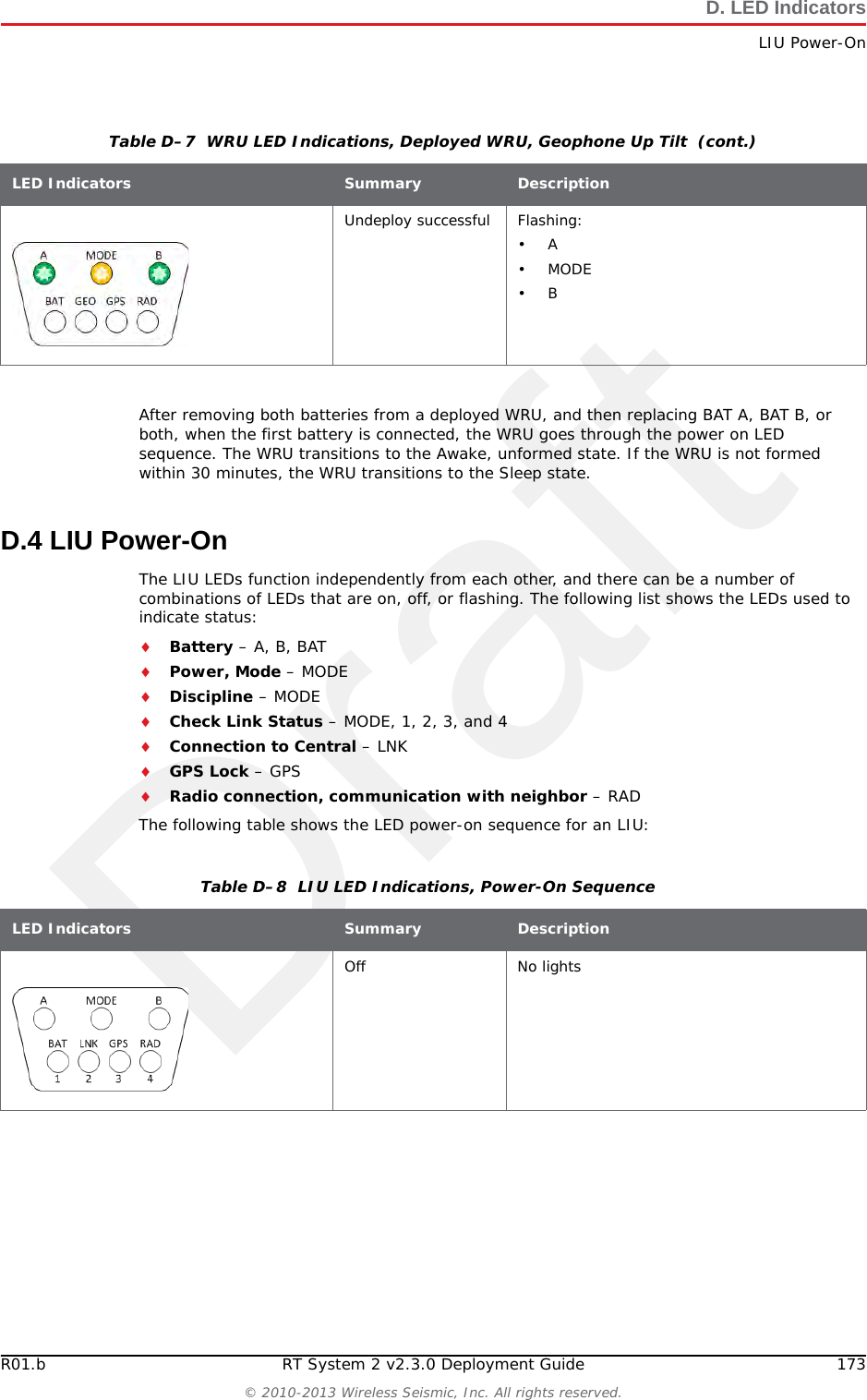
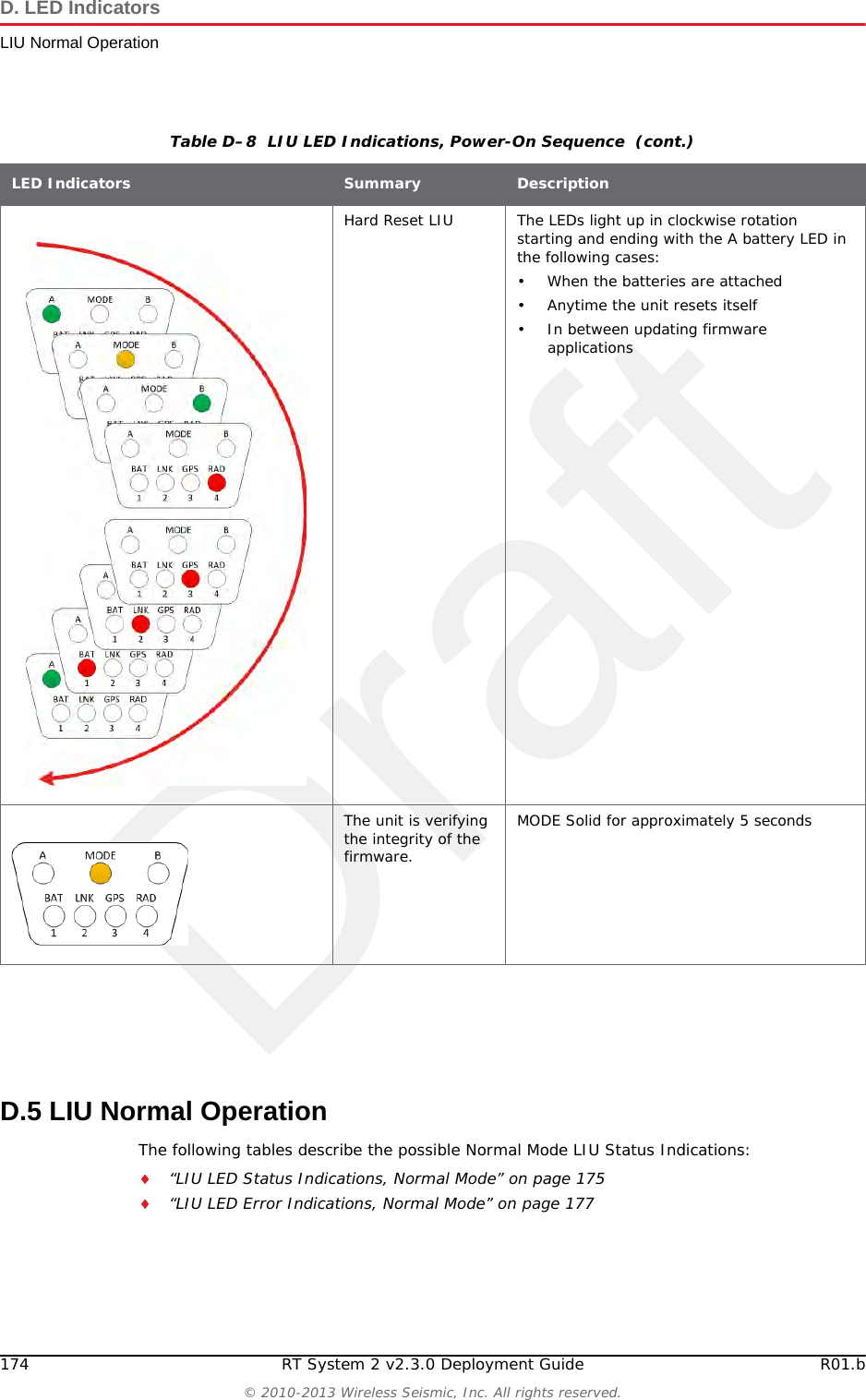
DraftR01.b RT System 2 v2.3.0 Deployment Guide 173© 2010-2013 Wireless Seismic, Inc. All rights reserved.D. LED IndicatorsLIU Power-OnAfter removing both batteries from a deployed WRU, and then replacing BAT A, BAT B, or both, when the first battery is connected, the WRU goes through the power on LED sequence. The WRU transitions to the Awake, unformed state. If the WRU is not formed within 30 minutes, the WRU transitions to the Sleep state.D.4 LIU Power-OnThe LIU LEDs function independently from each other, and there can be a number of combinations of LEDs that are on, off, or flashing. The following list shows the LEDs used to indicate status:Battery – A, B, BATPower, Mode – MODEDiscipline – MODECheck Link Status – MODE, 1, 2, 3, and 4Connection to Central – LNKGPS Lock – GPSRadio connection, communication with neighbor – RADThe following table shows the LED power-on sequence for an LIU:Undeploy successful Flashing:•A•MODE•BTable D–7  WRU LED Indications, Deployed WRU, Geophone Up Tilt  (cont.)LED Indicators Summary DescriptionTable D–8  LIU LED Indications, Power-On Sequence LED Indicators Summary DescriptionOff No lights
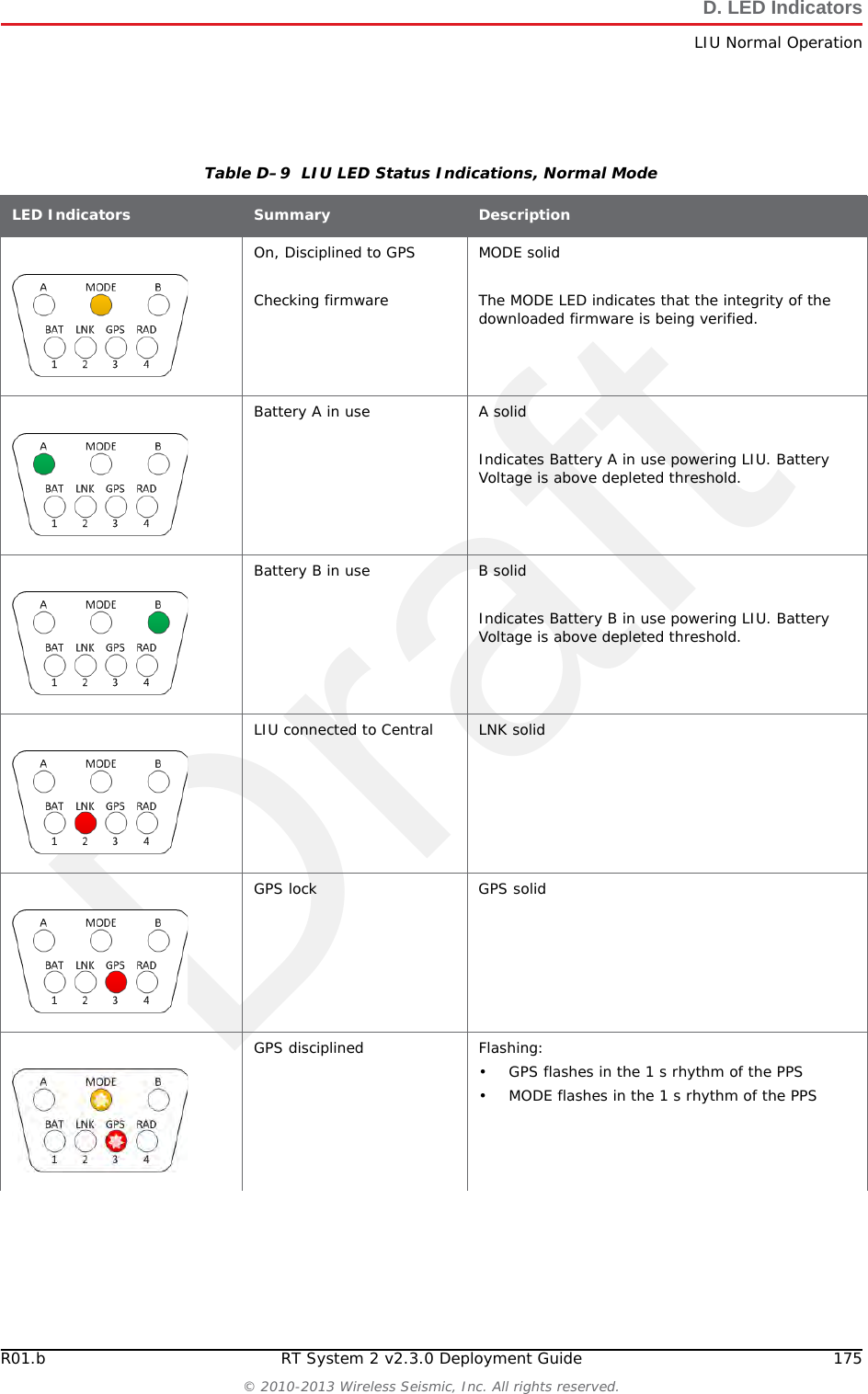
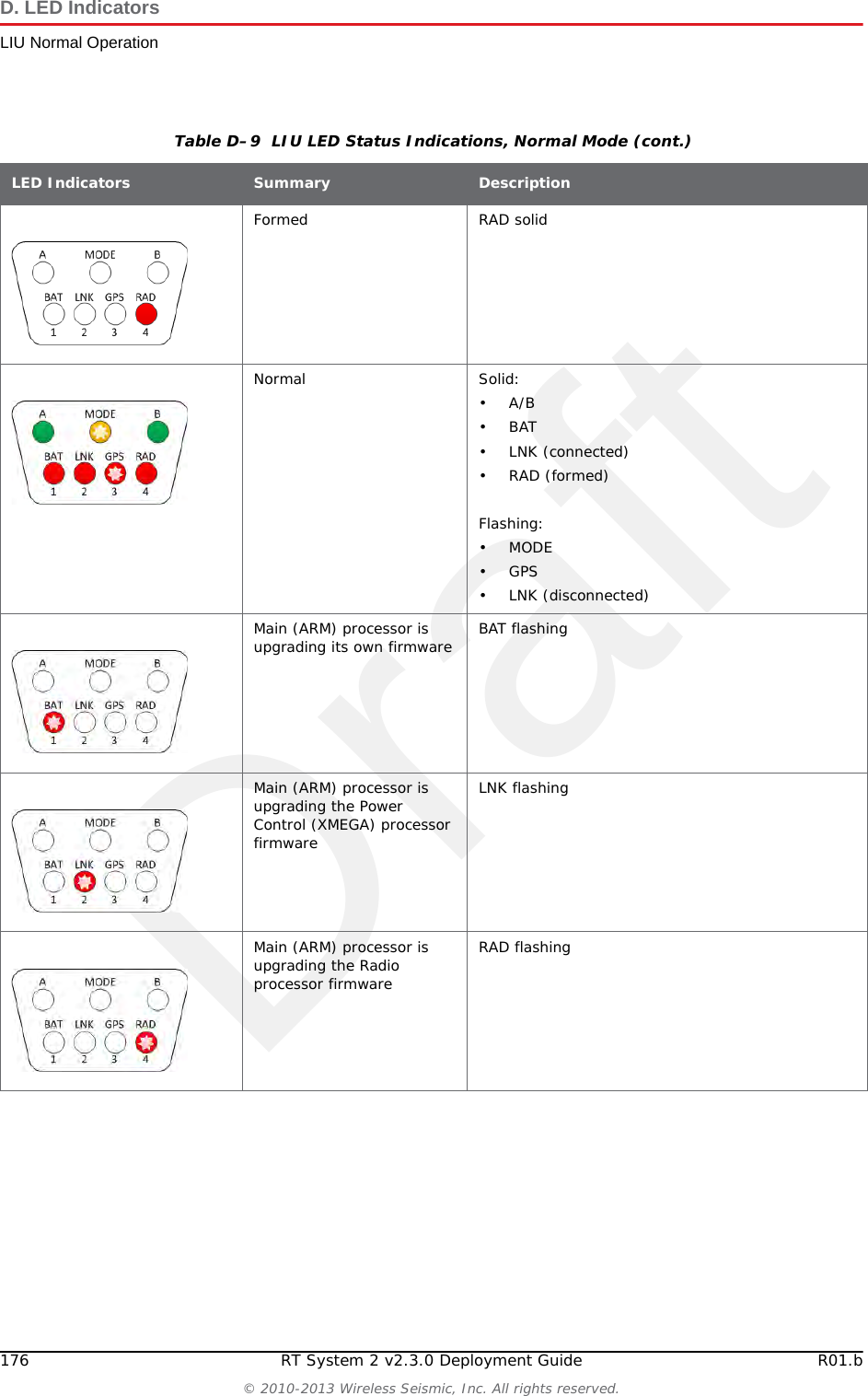
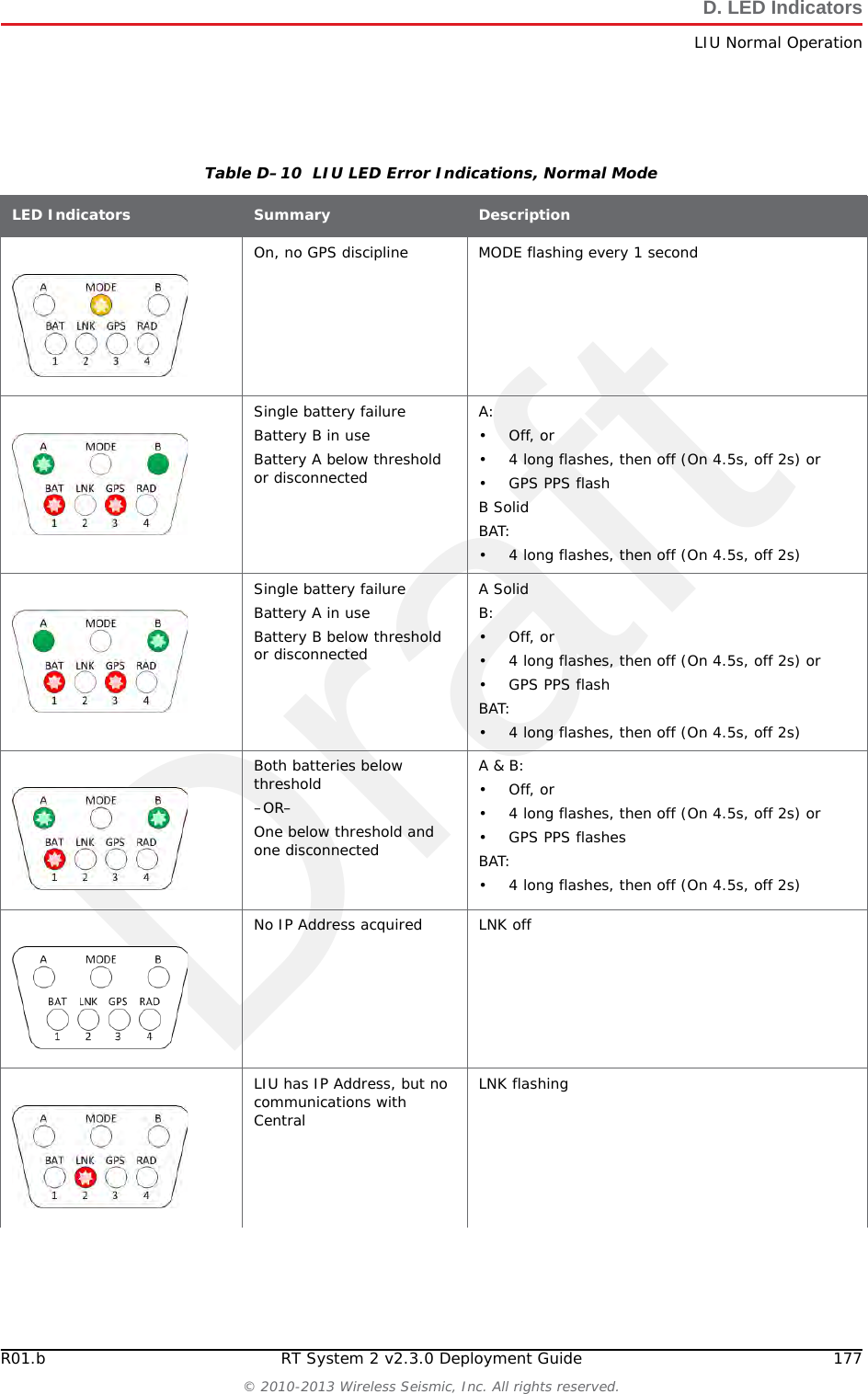
Draft174 RT System 2 v2.3.0 Deployment Guide R01.b© 2010-2013 Wireless Seismic, Inc. All rights reserved.D. LED IndicatorsLIU Normal OperationD.5 LIU Normal OperationThe following tables describe the possible Normal Mode LIU Status Indications:“LIU LED Status Indications, Normal Mode” on page 175“LIU LED Error Indications, Normal Mode” on page 177Hard Reset LIU The LEDs light up in clockwise rotation starting and ending with the A battery LED in the following cases:• When the batteries are attached• Anytime the unit resets itself• In between updating firmware applicationsThe unit is verifying the integrity of the firmware.MODE Solid for approximately 5 secondsTable D–8  LIU LED Indications, Power-On Sequence  (cont.)LED Indicators Summary Description
DraftR01.b RT System 2 v2.3.0 Deployment Guide 175© 2010-2013 Wireless Seismic, Inc. All rights reserved.D. LED IndicatorsLIU Normal OperationTable D–9  LIU LED Status Indications, Normal ModeLED Indicators Summary DescriptionOn, Disciplined to GPSChecking firmwareMODE solidThe MODE LED indicates that the integrity of the downloaded firmware is being verified.Battery A in use A solidIndicates Battery A in use powering LIU. Battery Voltage is above depleted threshold. Battery B in use B solidIndicates Battery B in use powering LIU. Battery Voltage is above depleted threshold. LIU connected to Central LNK solidGPS lock GPS solidGPS disciplined Flashing:• GPS flashes in the 1 s rhythm of the PPS• MODE flashes in the 1 s rhythm of the PPS
Draft176 RT System 2 v2.3.0 Deployment Guide R01.b© 2010-2013 Wireless Seismic, Inc. All rights reserved.D. LED IndicatorsLIU Normal OperationFormed RAD solidNormal Solid:•A/B •BAT • LNK (connected)•RAD (formed)Flashing:•MODE •GPS • LNK (disconnected)Main (ARM) processor is upgrading its own firmware BAT flashingMain (ARM) processor is upgrading the Power Control (XMEGA) processor firmwareLNK flashingMain (ARM) processor is upgrading the Radio processor firmwareRAD flashingTable D–9  LIU LED Status Indications, Normal Mode (cont.)LED Indicators Summary Description
DraftR01.b RT System 2 v2.3.0 Deployment Guide 177© 2010-2013 Wireless Seismic, Inc. All rights reserved.D. LED IndicatorsLIU Normal OperationTable D–10  LIU LED Error Indications, Normal ModeLED Indicators Summary DescriptionOn, no GPS discipline MODE flashing every 1 secondSingle battery failureBattery B in useBattery A below threshold or disconnectedA:•Off, or• 4 long flashes, then off (On 4.5s, off 2s) or• GPS PPS flashB SolidBAT:• 4 long flashes, then off (On 4.5s, off 2s)Single battery failureBattery A in useBattery B below threshold or disconnectedA SolidB:•Off, or• 4 long flashes, then off (On 4.5s, off 2s) or• GPS PPS flashBAT:• 4 long flashes, then off (On 4.5s, off 2s)Both batteries below threshold–OR–One below threshold and one disconnectedA & B:•Off, or• 4 long flashes, then off (On 4.5s, off 2s) or• GPS PPS flashesBAT:• 4 long flashes, then off (On 4.5s, off 2s)No IP Address acquired LNK offLIU has IP Address, but no communications with CentralLNK flashing
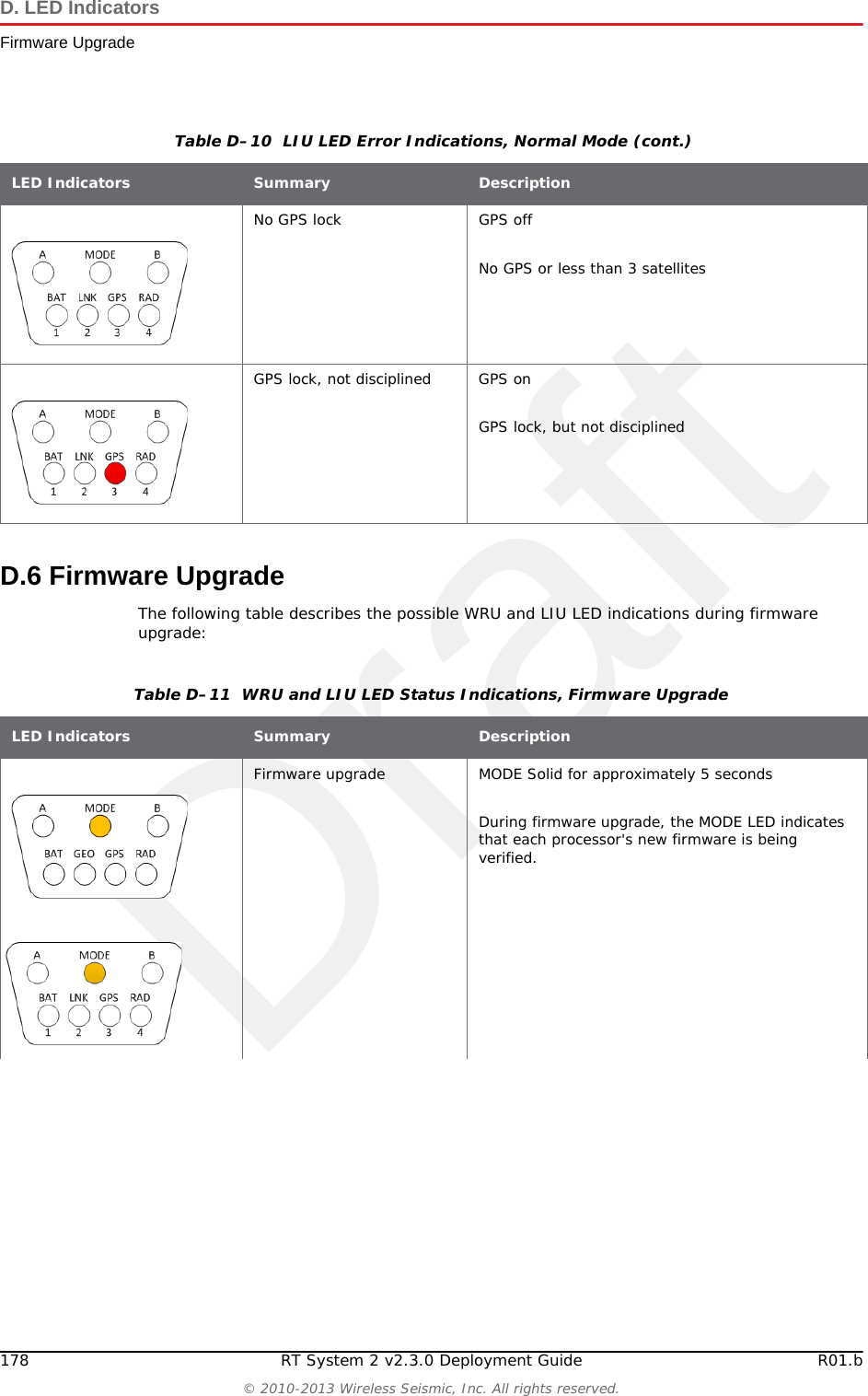
Draft178 RT System 2 v2.3.0 Deployment Guide R01.b© 2010-2013 Wireless Seismic, Inc. All rights reserved.D. LED IndicatorsFirmware UpgradeD.6 Firmware UpgradeThe following table describes the possible WRU and LIU LED indications during firmware upgrade:No GPS lock GPS offNo GPS or less than 3 satellitesGPS lock, not disciplined GPS onGPS lock, but not disciplinedTable D–10  LIU LED Error Indications, Normal Mode (cont.)LED Indicators Summary DescriptionTable D–11  WRU and LIU LED Status Indications, Firmware UpgradeLED Indicators Summary DescriptionFirmware upgrade MODE Solid for approximately 5 secondsDuring firmware upgrade, the MODE LED indicates that each processor's new firmware is being verified.
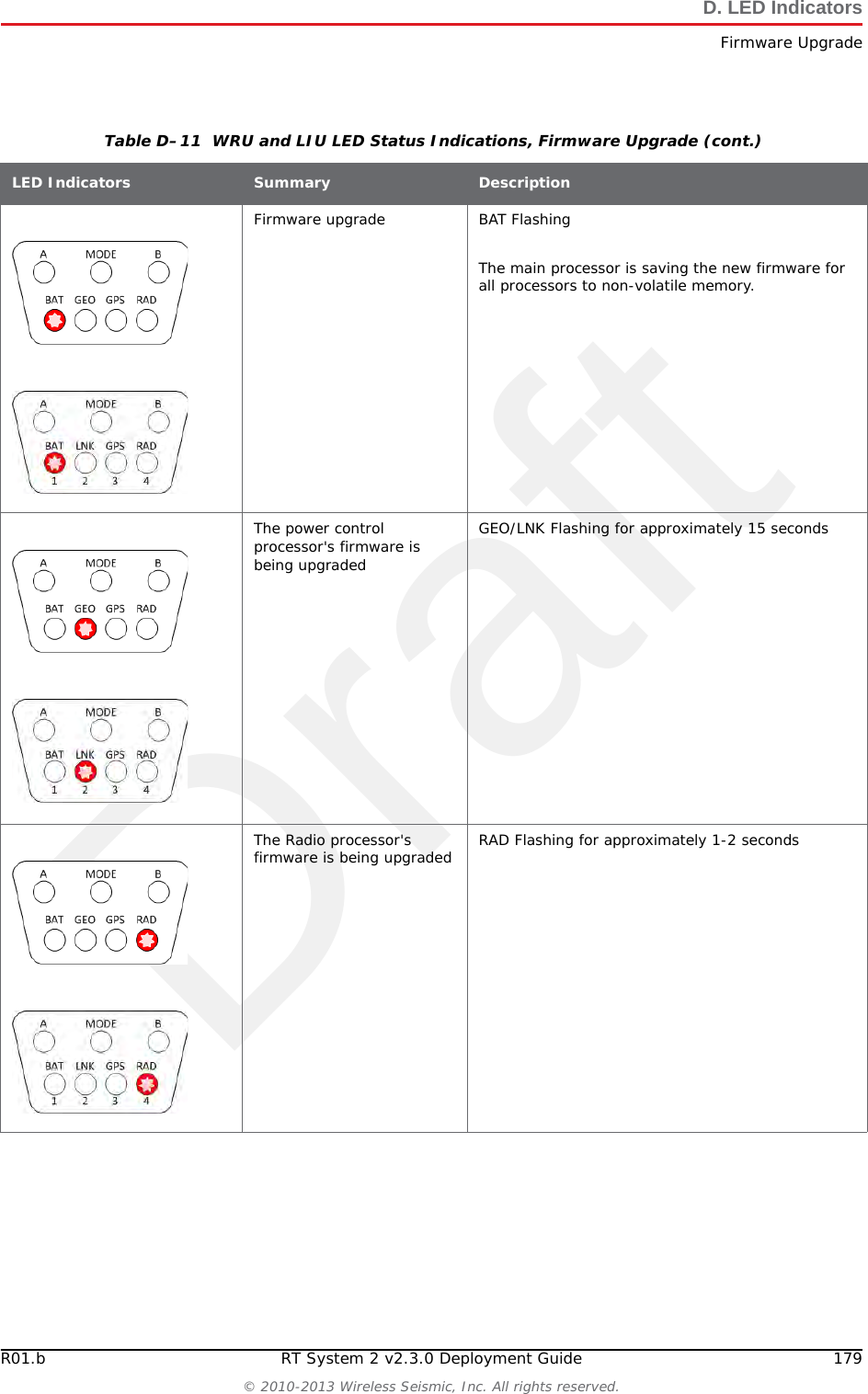
DraftR01.b RT System 2 v2.3.0 Deployment Guide 179© 2010-2013 Wireless Seismic, Inc. All rights reserved.D. LED IndicatorsFirmware UpgradeFirmware upgrade BAT FlashingThe main processor is saving the new firmware for all processors to non-volatile memory.The power control processor's firmware is being upgradedGEO/LNK Flashing for approximately 15 secondsThe Radio processor's firmware is being upgraded RAD Flashing for approximately 1-2 secondsTable D–11  WRU and LIU LED Status Indications, Firmware Upgrade (cont.)LED Indicators Summary Description
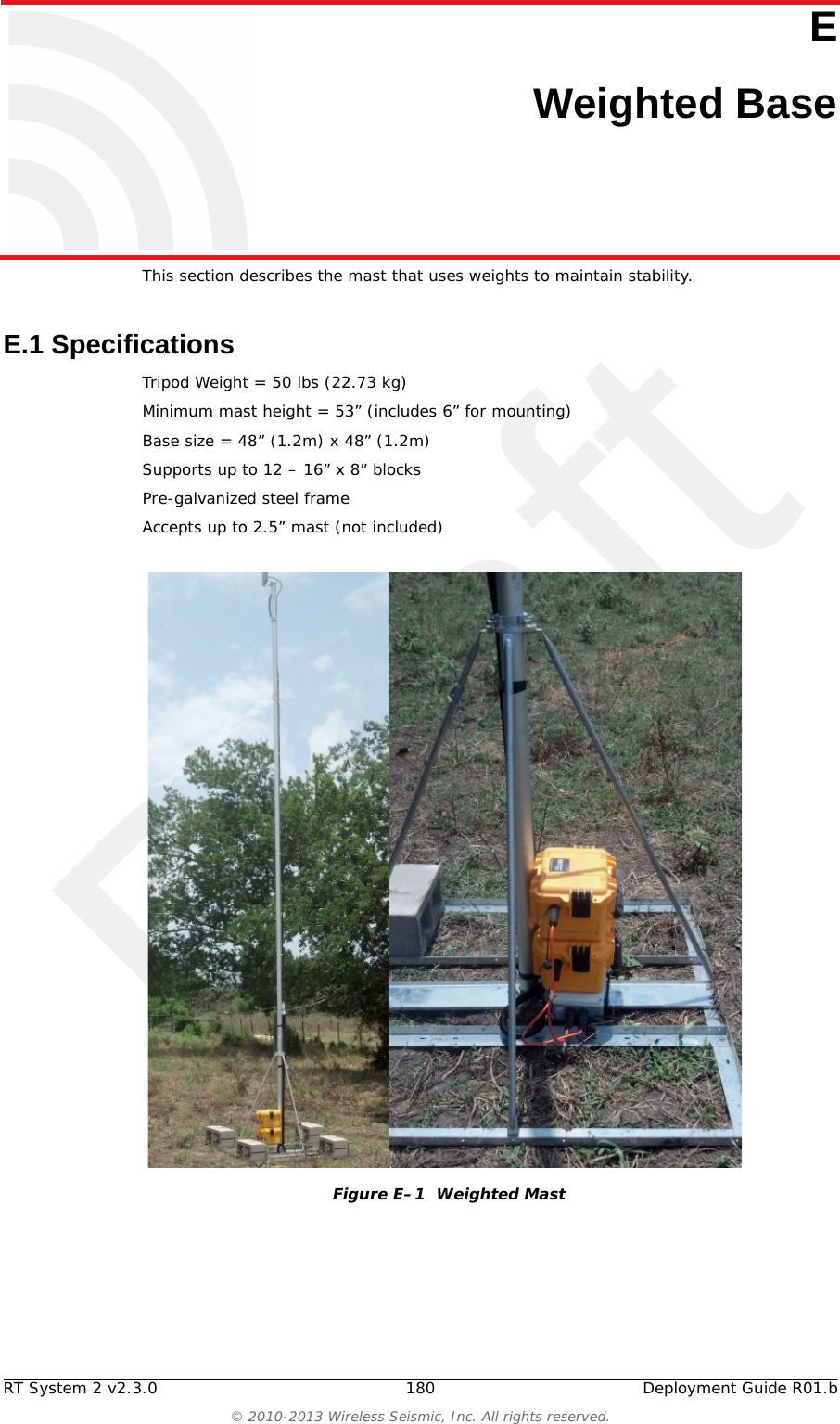
DraftRT System 2 v2.3.0 180  Deployment Guide R01.b© 2010-2013 Wireless Seismic, Inc. All rights reserved.EE. Weighted BaseThis section describes the mast that uses weights to maintain stability.E.1 SpecificationsTripod Weight = 50 lbs (22.73 kg)Minimum mast height = 53” (includes 6” for mounting)Base size = 48” (1.2m) x 48” (1.2m)Supports up to 12 – 16” x 8” blocksPre-galvanized steel frameAccepts up to 2.5” mast (not included)Figure E–1  Weighted Mast
DraftR01.b RT System 2 v2.3.0 Deployment Guide 181© 2010-2013 Wireless Seismic, Inc. All rights reserved.E. Weighted BaseHardware SuppliedE.2 Hardware SuppliedThe following hardware is supplied with the tripod mast:4 - Bolt, Carriage 1/4 - 20 x 3/4"12 - Bolt, Carriage 1/4 - 20 x 5/8"4 - Bolt, 1/4 - 20 x 3/4" Hex Head4- Bolt, 1/4 - 20 x 1/2" Hex Head24-Nut, 1/4 - 2024 - Lock washer, 1/4 Int. toothE.3 Assembly InstructionsThis section provides instructions and illustrations for assembly of the tripod.To assemble the tripod:1Assemble one 244 Flange to the Center Support Plate using four 1/4-20 x 3/4" carriage Bolts, Lock washers and Hex Nuts. Make sure to assemble the Bolts with the Heads on the underside of the frame. Hex Nut should be on the top side of the frame. 2 Assemble Base Frame and Center Support Plate using twelve 1/4-20 x 5/8" carriage Bolts, Lock washers and Hex Nuts. Make sure to assemble the Bolts with the Heads on the underside of the frame. Hex Nut should be on the top side of the frame.3Assemble the four (4) Braces to the upper support flange using four 1/4-20x3/4 Hex Head Bolts, Lock washers and Nuts.4Assemble the other end of the braces to the base frame using the four (4) 1/4-20 x 1/2" Hex Head Bolts, Lock washers, and Nuts.5Insert Bolts into upper and lower flange.6Slide the mast (not included) into position and tighten securely and weigh.Wade Antenna Ltd., Ontario, CanadaFigure E–2  Tripod Assembly, Front View
DraftRT System 2 v2.3.0 182  Deployment Guide R01.b© 2010-2013 Wireless Seismic, Inc. All rights reserved.FF. Using a CompassThis chapter describes how to use a sighting compass. A sighting compass has the same features as a baseplate compass, but adds a vertical mirror that allows you to view the compass dial and the landmark at the same time. For a in-depth descriptions of using a compass with a map and setting the declination on a compass see the following links:http://www.compassdude.com/default.shtml http://www.compassdude.com/compass-declination.shtml http://www.rei.com/learn/expert-advice/navigation-basics.html http://www.thecompassstore.com/howtouseyour.html A compass needle points to the magnetic north pole which is not the same as true or geographic north. The difference between magnetic and true north is called magnetic declination. The declination value depends on your actual location on the Earth. Over time, as the Earth’s magnetic field shifts, the declination values also shift. Maps are drawn with true north at the top edge. When using a compass to navigate or locate objects, you must adjust the readings to account for the angular difference between true north ( ★) and magnetic north (MN). The declination value is marked on topographical maps as shown in the following figure:Figure F–1  Sighting Compass (70-0067)
DraftR01.b RT System 2 v2.3.0 Deployment Guide 183© 2010-2013 Wireless Seismic, Inc. All rights reserved.F. Using a CompassHowever, because of the dynamic nature of the Earth’s magnetic field, old maps are inaccurate. To obtain the most recent declination values, enter your map location at the following link:http://www.ngdc.noaa.gov/geomag-web/#declination To locate an object using a map and a compass:1Place the long edge of the compass baseplate on the map, connecting the desired start and end points. For example, the start point could be where you are standing [A], and the end point [B] is where you want to locate the backhaul mast. The Direction of Travel arrow should point towards the end point (mast location). 2While holding the compass on the map, turn the Degree Dial until the Meridian / Orienting Lines are parallel with the Meridian lines on the map. This is the same as turning the Degree Dial until the Orienting Arrow points to north on the map. Figure F–2  Declination Indication on MapCAUTIONPlacing magnetic objects near a compass can cause an incorrect reading (deviation). Examples include:• Objects that contain steel and iron such as pocket knives, belt buckles, vehicles, railroad tracks, and ore deposits in the Earth• Objects that use magnets such as stereo speakers• Electrical current in cables and overhead lines
Draft184 RT System 2 v2.3.0 Deployment Guide R01.b© 2010-2013 Wireless Seismic, Inc. All rights reserved.F. Using a Compass3Adjust for declination. ●If you have an adjustable compass – Move the Orienting Arrow to the right or left by the declination number. When you align the magnetic needle with the Orienting Arrow, the declination is accounted for. ●If you do not have an adjustable compass – Mark the declination on your compass with a piece of tape. Align the magnetic needle with the tape mark. ●Adjust the Orienting Arrow to the left or right. For example:►For a declination of 0, no adjustment is necessary. ►For a declination of 9 (9 degrees East), move the Orienting Arrow (or place a tape mark) to the right 9 degrees.►For a declination of -9 (9 degrees West), move the Orienting Arrow (or place a tape mark) to the left 9 degrees.Figure F–3  Compass and Map
DraftR01.b RT System 2 v2.3.0 Deployment Guide 185© 2010-2013 Wireless Seismic, Inc. All rights reserved.F. Using a Compass4Pick up the compass and adjust the cover so the angle of the cover to the base is between 45 and 70 degrees. 5Hold the base of the compass in the palm of your hand. Keep the compass level. Turn your entire body and the compass until the red end of the Magnetic Needle is aligned with the red end (north end) of Orienting Arrow. 6While holding the compass at eye level, keep the compass level and align your destination with the sight notch on the top of the case.7Ensure that the sighting line in the mirror passes through the center of the compass wheel.Figure F–4  Compass Adjusted for DeclinationFigure F–5  Compass Adjusted for Declination
DraftRT System 2 v2.3.0 186  Deployment Guide R01.b© 2010-2013 Wireless Seismic, Inc. All rights reserved.GG. Rope KnotThis chapter shows how to tie a taut-line hitch knot. This loop knot can be adjusted to loosen or tighten a line, yet holds under a load. This knot is commonly used to secure tent lines and loads on vehicles. It is the recommended knot for securing the RT System 2 guy rope mast.The following link provides a short video example:http://www.sailingcourse.com/videos/taut_line_hitch.htm Figure G–1  Tying the Taut-line Hitch Knot
DraftRT System 2 v2.3.0 187  Deployment Guide R01.b© 2010-2013 Wireless Seismic, Inc. All rights reserved.HH. Country CodesThis chapter provides a quick-reference to the ISO 3166 country codes.Table H–1  ISO 3166 Country CodesName CodeAfghanistan 004Åland Islands 248Albania 008Algeria 012American Samoa 016Andorra 020Angola 024Anguilla 660Antarctica 010Antigua and Barbuda 028Argentina 032Armenia 051Aruba 533Australia 036Austria 040Azerbaijan 031Bahamas (the) 044Bahrain 048Bangladesh 050Barbados 052Belarus 112Belgium 056Belize 084Benin 204Bermuda 060Bhutan 064Bolivia, Plurinational State of 068Bonaire, Sint Eustatius and Saba 535Bosnia and Herzegovina 070Botswana 072Bouvet Island 074Brazil 076British Indian Ocean Territory (the) 086Brunei Darussalam 096Bulgaria 100Burkina Faso 854Burundi 108Cambodia 116Cameroon 120Canada 124Cape Verde 132Cayman Islands (the) 136Central African Republic (the) 140Chad 148Chile 152China 156Christmas Island 162Cocos (Keeling) Islands (the) 166Colombia 170Comoros 174Congo 178Table H–1  ISO 3166 Country CodesName Code
DraftH. Country Codes188 RT System 2 v2.3.0 Deployment Guide R01.b© 2010-2013 Wireless Seismic, Inc. All rights reserved.Congo (the Democratic Republic of the) 180Cook Islands (the) 184Costa Rica 188Côte d'Ivoire 384Croatia 191Cuba 192Curaçao 531Cyprus 196Czech Republic (the) 203Denmark 208Djibouti 262Dominica 212Dominican Republic (the) 214Ecuador 218Egypt 818El Salvador 222Equatorial Guinea 226Eritrea 232Estonia 233Ethiopia 231Falkland Islands (the) [Malvinas] 238Faroe Islands (the) 234Fiji 242Finland 246France 250French Guiana 254French Polynesia 258French Southern Territories (the) 260Gabon 266Gambia (The) 270Table H–1  ISO 3166 Country CodesName CodeGeorgia 268Germany 276Ghana 288Gibraltar 292Greece 300Greenland 304Grenada 308Guadeloupe 312Guam 316Guatemala 320Guernsey 831Guinea 324Guinea-Bissau 624Guyana 328Haiti 332Heard Island and McDonald Islands 334Holy See (the) [Vatican City State] 336Honduras 340Hong Kong 344Hungary 348Iceland 352India 356Indonesia 360Iran (the Islamic Republic of) 364Iraq 368Ireland 372Isle of Man 833Israel 376Italy 380Jamaica 388Table H–1  ISO 3166 Country CodesName Code
DraftH. Country CodesR01.b RT System 2 v2.3.0 Deployment Guide 189© 2010-2013 Wireless Seismic, Inc. All rights reserved.Japan 392Jersey 832Jordan 400Kazakhstan 398Kenya 404Kiribati 296Korea (the Democratic People's Republic of) 408Korea (the Republic of) 410Kuwait 414Kyrgyzstan 417Lao People's Democratic Republic (the) 418Latvia 428Lebanon 422Lesotho 426Liberia 430Libya 434Liechtenstein 438Lithuania 440Luxembourg 442Macao 446Macedonia (the former Yugoslav Republic of) 807Madagascar 450Malawi 454Malaysia 458Maldives 462Mali 466Malta 470Marshall Islands (the) 584Martinique 474Mauritania 478Table H–1  ISO 3166 Country CodesName CodeMauritius 480Mayotte 175Mexico 484Micronesia (the Federated States of) 583Moldova (the Republic of) 498Monaco 492Mongolia 496Montenegro 499Montserrat 500Morocco 504Mozambique 508Myanmar 104Namibia 516Nauru 520Nepal 524Netherlands (the) 528New Caledonia 540New Zealand 554Nicaragua 558Niger (the) 562Nigeria 566Niue 570Norfolk Island 574Northern Mariana Islands (the) 580Norway 578Oman 512Pakistan 586Palau 585Palestine, State of 275Panama 591Table H–1  ISO 3166 Country CodesName Code
DraftH. Country Codes190 RT System 2 v2.3.0 Deployment Guide R01.b© 2010-2013 Wireless Seismic, Inc. All rights reserved.Papua New Guinea 598Paraguay 600Peru 604Philippines (the) 608Pitcairn 612Poland 616Portugal 620Puerto Rico 630Qatar 634Réunion 638Romania 642Russian Federation (the) 643Rwanda 646Saint Barthélemy 652Saint Helena, Ascension and Tristan da Cunha 654Saint Kitts and Nevis 659Saint Lucia 662Saint Martin (French part) 663Saint Pierre and Miquelon 666Saint Vincent and the Grenadines 670Samoa 882San Marino 674Sao Tome and Principe 678Saudi Arabia 682Senegal 686Serbia 688Seychelles 690Sierra Leone 694Singapore 702Table H–1  ISO 3166 Country CodesName CodeSint Maarten (Dutch part) 534Slovakia 703Slovenia 705Solomon Islands (the) 090Somalia 706South Africa 710South Georgia and the South Sandwich Islands 239South Sudan  728Spain 724Sri Lanka 144Sudan (the) 729Suriname 740Svalbard and Jan Mayen 744Swaziland 748Sweden 752Switzerland 756Syrian Arab Republic (the) 760Taiwan (Province of China) 158Tajikistan 762Tanzania, United Republic of 834Thailand 764Timor-Leste 626Togo 768Tokelau 772Tonga 776Trinidad and Tobago 780Tunisia 788Turkey 792Turkmenistan 795Table H–1  ISO 3166 Country CodesName Code
DraftH. Country CodesR01.b RT System 2 v2.3.0 Deployment Guide 191© 2010-2013 Wireless Seismic, Inc. All rights reserved.Turks and Caicos Islands (the) 796Tuvalu 798Uganda 800Ukraine 804United Arab Emirates (the) 784United Kingdom (the) 826United States (the) 840United States Minor Outlying Islands (the) 581Uruguay 858Uzbekistan 860Vanuatu 548Venezuela, Bolivarian Republic of  862Viet Nam 704Virgin Islands (British) 092Virgin Islands (U.S.) 850Wallis and Futuna 876Western Sahara* 732Yemen 887Zambia 894Zimbabwe 716Table H–1  ISO 3166 Country CodesName Code
DraftRT System 2 v2.3.0 192  Deployment Guide R01.b© 2010-2013 Wireless Seismic, Inc. All rights reserved.II. FrançaisCe chapitre fournit des informations sur le suivant :“Batteries” sur la page 192“l'information juridique” sur la page 198I.1 BatteriesCe chapitre fournit des informations sur les batteries utilisées dans le système RT System 2 de Wireless Seismic, Inc. I.1.1 Batteries au lithium-ionCette section fournit des informations sur les caractéristiques, l'utilisation et la manipulation des batteries au lithium-ion. Reportez-vous aux sections suivantes pour en savoir plus:●“Spécifications” on page 192●“Directives en matière de manipulation et de sécurité” on page 193●“Transport” on page 194●“Entreposage” on page 196I.1.1.1 SpécificationsLe RT System 2 utilise une ou deux batteries au lithium-ion intelligentes et personnalisées, dotées d'un circuit de charge autonome qui protège les batteries contre les surcharges, décharges, courts-circuits ou changements extrêmes de température.Le tableau suivant indique les spécifications des batteries:Tableau I–1  Spécifications des batteries au lithium-ion Élément Description ValeurTension Nominale 3,7 V c.c.Arrêt 2,8 V c.c.Charge complète (90 %) 4,1 V c.c.Tension de charge excessive 4,28 V c.c.Tension de décharge excessive 2,80 V c.c.Courant Courant de charge maximum 2 AConsommation, mode actif 4,2 mA maximumConsommation, mode veille 66 A maximumCharge complète (90 %) mAh Environ 12 000 mAh à la tension nominale
DraftR01.b RT System 2 v2.3.0 Deployment Guide 193© 2010-2013 Wireless Seismic, Inc. All rights reserved.I. FrançaisBatteriesI.1.1.2 Directives en matière de manipulation et de sécuritéRespecter les directives suivantes en matière de manipulation et de sécurité :Si un bloc-batterie présente une fuite de liquides, ne pas toucher les liquides. Jeter le bloc-batterie en cas de fuite. En cas de contact oculaire avec du liquide, ne pas se frotter les yeux. Rincer immédiatement les yeux avec de l'eau pendant au moins 15 minutes, en soulevant les paupières supérieures et inférieures jusqu'à ce qu'il n'y ait plus de trace de liquide. Consulter un médecin. Ne pas démonter, écraser ou percer une batterieNe pas court-circuiter les contacts externes d'une batterieNe pas jeter une batterie dans le feu ou l'eauNe pas exposer une batterie à des températures supérieures à 60 °C (140 °F)Maintenir la batterie à l'écart des enfantsÉviter d'exposer la batterie à des vibrations ou chocs excessifsNe pas utiliser une batterie endommagéeLes blocs-batteries au lithium-ion DOIVENT être entièrement déchargés avant leur éliminationCharge complète (90 %) mWh Environ 44 400 mWh à la tension nominaleCapacité 48,8 wattheuresConnecteur 5 brochesDEL Une DEL qui indique l'état de charge lors de la connexion à la station de charge, de la manière suivante :•Vert : chargé•Rouge : en train de charger• Orange : phase transitionnelle entre l'état de chargement et l'état chargé, ou dépassement des limites de la température de chargeÉtiquette Une étiquette indiquant le numéro de série sous forme de code à barresTempérature Fonctionnement De -40°C à +85°CChargement De -5°Cà+45°CEntreposage à température ambiente • De -20°C à +45°C durant une période maximum d'un mois• De -20°C à +35°C durant 6 mois maximum ; passé ce délai, les blocs-batteries doivent être rechargés à plus de 50 % de leur capacitéTableau I–1  Spécifications des batteries au lithium-ion  (cont.)Élément Description Valeur
Draft194 RT System 2 v2.3.0 Deployment Guide R01.b© 2010-2013 Wireless Seismic, Inc. All rights reserved.I. FrançaisBatteriesBien qu'il puisse exister des restrictions locales ou nationales, les batteries au lithium-ion sont considérées comme des « déchets universels non dangereux » par le gouvernement fédéral. Il existe des restrictions qui s'appliquent à ceux qui gèrent de grandes quantités de déchets universels ; celles-ci définissent l'étiquetage, le confinement, etc. Dans la mesure du possible, les batteries doivent être déchargées avant de les jeter. Les conducteurs/contacts de batterie doivent être fixés de manière à éviter un court-circuit accidentel. Chaque bloc-batterie doit être placé dans un sac en plastique.Le recyclage est encouragé lorsqu'il est réalisable. Les batteries contiennent des matériaux recyclables et sont acceptées par plusieurs entreprises de recyclage de batteries. Reportez-vous à l'un des éléments suivants pour obtenir plus d'informations sur le recyclage et l'élimination :●http://www.swe.com ●http://www.rbrc.org ●http://www.call2recycle.org ●1-800-8-BATTERY ●1-877-2-RECYCLEI.1.1.3 TransportAux États-Unis, les expéditions de grandes quantités de batterie au lithium-ion (plus de 24 piles ou 12 batteries par colis) sont réglementées comme des matières dangereuses (classe 9) par le gouvernement fédéral et sont soumises aux règlements décrits ci-après :Code of Federal Regulations, Title 49 Transportation. http://ecfr.gpoaccess.gov/cgi/t/text/text-idx?sid=92868a82add6feba6afa796572133179&c=ecfr&tpl=/ecfrbrowse/Title49/49tab_02.tpl International Air Transport Association (IATA)http://www.iata.org/whatwedo/cargo/dangerous_goods/pages/lithium_batteries.aspx Les batteries ne peuvent être expédiées par voie terrestre que si toutes les conditions suivantes sont satisfaites : La boîte utilisée satisfait le test de chute de 1,2 m (boîte classée « UN ») de boîte d'emballageLes bornes de bloc-batterie sont protégées pour éviter un court-circuitLe poids brut ne dépasse pas 30 kg (66 livres) L'emballage extérieur porte l'étiquette requise en vigueur. La figure suivante en montre un exemple.
DraftR01.b RT System 2 v2.3.0 Deployment Guide 195© 2010-2013 Wireless Seismic, Inc. All rights reserved.I. FrançaisBatteriesLes batteries ne peuvent être expédiées par voie aérienne que si toutes les conditions suivantes sont satisfaites :La boîte utilisée satisfait le test de chute de 1,2 m (boîte classée « UN ») de boîte d'emballageLes bornes de bloc-batterie sont protégées pour éviter un court-circuitLe poids brut de chaque colis ne dépasse pas 10 kg (22 livres) L'emballage extérieur porte l'étiquette requise en vigueur. La figure précédente en montre un exemple (“Example Battery Shipping Label” on page 195).Exemple I–1  Example Battery Shipping LabelAVERTISSEMENTLes informations contenues dans le présent document ont pour but de fournir une connaissance générale des règlements s'appliquant aux batteries. Elles ne sont pas exhaustives, et les conditions mentionnées dans ce document peuvent avoir changées. Rien dans le présent chapitre ou dans le Guide de déploiement ne constitue un avis juridique ou est destiné à répondre aux problèmes juridiques, de conformité, ou réglementaires spécifiques qui peuvent survenir dans des circonstances particulières. Le présent chapitre et le Guide de déploiement ne sont pas destinés à remplacer les règlements officiels en vigueur concernant l'emballage et l'expédition de matières dangereuses ou un conseil juridique indépendant sur   c es questions. Vous êtes seul responsable du respect de toutes les lois, règlements et autres exigences. Veuillez vous reporter à une copie officielle de la version en vigueur de ces documents pour obtenir les dernières informations.
Draft196 RT System 2 v2.3.0 Deployment Guide R01.b© 2010-2013 Wireless Seismic, Inc. All rights reserved.I. FrançaisBatteriesI.1.1.4 EntreposageUn entreposage et un entretien adéquats des batteries au lithium-ion est indispensable pour optimiser leur durée de vie utile et éviter une défaillance catastrophique. Respecter les précautions suivantes en matière d'entreposage :Retirer les batteries de l'unité distante sans fil avant l'entreposageTempérature d'entreposage recommandée des batteries au lithium-ion :●De -20°C à +45°C durant une période maximum d'un mois●De -20°C à +35°C durant 6 mois maximum ; passé ce délai, les blocs-batteries doivent être rechargés à plus de 50 % de leur capacité ●L'entreposage à basses températures ralentit la décharge naturelle et la perte de capacité au fil du temps. Entreposer les batteries à 25°C ou moins si possibleNiveaux de charge d'entreposage recommandés :●Charger (ou décharger) les batteries à un niveau de charge de 30 % à 50 % avant de les entreposer. Des niveaux de charge inférieurs ou supérieurs peuvent réduire la durée de vie des batteries.●Ne jamais entreposer des batteries entièrement déchargées, sauf en cas d'élimination.●Un chargement périodique est nécessaire pour maintenir une charge de 30 % à 50 % en cas d'entreposage de longue duréeEntreposer les batteries dans un endroit bien aéréNe pas laisser les batteries inutilisées pendant de longues durées, qu'elles soient dans le produit ou placées en entreposage. Si une batterie n'a pas été utilisée pendant 6 mois, vérifier l'état de charge et charger ou éliminer la batterie, le cas échéant.Vérifier régulièrement l'état de charge de la batterieEnvisager le remplacement de la batterie par une nouvelle en cas de constat d'une des conditions suivantes :●L'autonomie de la batterie descend en dessous d'environ 80 % de son autonomie initiale●Le temps de charge de la batterie augmente sensiblementI.1.2 Chargement des batteries au lithium-ionCette section décrit les précautions de chargement et présente le chargeur de batterie. I.1.2.1 Précautions de chargementRespecter les précautions de chargement suivantes :Avant de la charger, inspecter la batterie pour détecter les signes éventuels de dommages sur le boîtier ou les connecteurs susceptibles de créer un court-circuit.La batterie peut être chargée dans la plage de température de 0°Cà+45°C. En cas de chargement de la batterie en dehors de cette plage, la batterie peut devenir très chaude ou se rompre.Être absolument sûr de l'utilisation d'une source de 5 V lors du chargement de la batterie.Prendre soin de charger les batteries sur une surface ininflammable. Ne pas charger les batteries à proximité d'objets ou de liquides inflammables.Conserver un extincteur à poudre chimique de classe C à proximité.Ne pas continuer de recharger la batterie si elle ne se recharge pas dans le temps de chargement spécifié.NE JAMAIS laisser une batterie au lithium-ion sans surveillance lorsqu'elle est en train de charger.
DraftR01.b RT System 2 v2.3.0 Deployment Guide 197© 2010-2013 Wireless Seismic, Inc. All rights reserved.I. FrançaisBatteriesI.1.2.2 Chargeur de batterieLe chargeur de batterie au lithium-ion est conçu pour fonctionner à partir d'une ligne de service simple 120 V c.a., 10 A.Le bloc d'alimentation servant à charger le bloc-batterie fournit une tension régulée de 5 V c.c.Exemple I–2  Chargeur de batterieExemple I–3  Étiquette avec numéro de série et voyant DEL
Draft198 RT System 2 v2.3.0 Deployment Guide R01.b© 2010-2013 Wireless Seismic, Inc. All rights reserved.I. Françaisl'information juridiqueI.2 l'information juridiqueI.2.1 Conformité avec les règles et règlements de la FCCLa Federal Communications Commission (FCC) règlemente l'utilisation d'antennes dans l'article suivant : Code of Federal Regulations – Title 47, Part 15 – Radio Frequency Devices, Subpart C – Intentional Radiators, Section 15.203 Antenna Requirement. Lorsqu'il est utilisé comme prévu, le RT System 2 respecte les conditions de l'article 15.203 de la FCC de la manière suivante :Lorsqu'il est utilisé comme prévu, le RT System 2 respecte les conditions de l'article 15.203 de la FCC et d'Industrie Canada CNR-Gen 7.1.2 de la manière suivante :Les antennes du RT System 2 doivent être installées et manipulées par des professionnels spécifiquement désignés pour cela.Les changements ou modifications non expressément approuvés par Wireless Seismic, Inc. peuvent annuler l'autorisation de l'utilisateur d'utiliser l'équipement.  Le RT System 2 doit être utilisé uniquement avec les antennes fournies (Tableau I–2) branchées à l'unité distante sans fil ou à la station de base à l'aide d'un connecteur mâle de type N intégré.PRUDENCELe risque d'explosion si la batterie est remplacée par un type incorrect. Débarrassez-vous utilisé batteries selon les instructions.REMARQUECet équipement a été testé et jugé conforme aux limites fixées pour un appareil numérique de classe A, conformément à la partie 15 des règles de la FCC. Ces limites sont conçues pour fournir une protection raisonnable contre les interférences nuisibles lorsque l'équipement est utilisé dans un environnement commercial. Cet équipement génère, utilise et peut émettre l'énergie des fréquences radio et, s'il n'est pas installé et utilisé conformément au mode d'emploi, peut causer des interférences nuisibles avec les communications radio. Le fonctionnement de cet équipement dans une zone résidentielle est susceptible de provoquer des interférences nuisibles, auquel cas l'utilisateur devra corriger les interférences à ses propres frais.Tableau I–2  Spécifications des antennes Modèle Fréquence (MHz) Gain Largeur de bande verticale Poids Dimensions (Longueur x Diamètre)WSI 65-0204(antenna-normal) 2400 5.5 dBi 25° 0.4 lbs.2 kg 32 x 0,6 po810.5 x 15 mmWSI 65-0091(extension-normal) 2400 0 dBi N/A 0.6 lbs0.3 kg 30 x 0,7 po762 x 18,5 mm
DraftR01.b RT System 2 v2.3.0 Deployment Guide 199© 2010-2013 Wireless Seismic, Inc. All rights reserved.I. Françaisl'information juridiqueL'autorisation d'équipement de FCC a été accordée comme suit :Le 5Mbps unité d'interface de ligne a reçu l'autorisation d'équipement.Le 5Mbps unité lointaine sans fil a reçu l'autorisation d'équipement.I.2.2 Industrie Canada ConformitéL'unité distante sans fil a reçu l'approbation et la certification d'Industrie Canada (IC) par rapport à CNR-210 8e édition et CNR-102 4e édition :Cet appareil numérique de la classe A est conforme à la norme NMB-003 du Canada.L'unité d'interface de ligne a reçu l'approbation et la certification d'Industrie Canada (IC) par rapport à CNR-210 8e édition et CNR-102 4e édition :Cet appareil numérique de la classe A est conforme à la norme NMB-003 du Canada.Cet appareil est conforme avec I'industrie Canada licence exemptes des normes. Son fonctionnement est soumis aux deux conditions suivantes :Ce dispositif ne peut causer des interférences, etCe dispositif doit accepter toute interférence, y compris les interférences qui peuvent causer un mauvais fonctionnement du dispositif.I.2.3 Acquiescement de CEL'Unité Lointaine Sans fil (WRU) et l'Unité d'Interface de Ligne (LIU) se plie aux directives d'UE applicables pour le Conformité Européene (CE) la marque. La marque suivante est attachée à chaque unité.AVERTISSEMENTAfin de se conformer aux normes de la matière d'exposition aux  radiofréquences (RF), les unités RT System 2 doivent être installées de manière à garder en permanence une distance minimale de 20 cm entre la ou les antennes et le corps de toute personne en mode de fonctionnement normal.Exemple I–4  Marque de CE
DraftRT System 2 v2.3.0 200  Deployment Guide R01.b© 2010-2013 Wireless Seismic, Inc. All rights reserved.IndexNumerics12 V DC 3619 dBi directional antenna 1475.8 GHz band 3556-0032 INTL 6856-0035 US 686 dBi antenna 14765-0091 1890-0026 1090-0028 1090-0032 1090-0039 10Aaccess point radio 64Acquiring GPS fix 167antennaattach 18bracket 53connecting 18extender 18extenders 11specifications 36, 41, 143antennas 36, 143radio 41armored cable 56assemblethe backhaul 47the ground equipment 16auto-power-leveling 36BB 167, 173backhaul 23, 28components 28masts 46power requirements 36Backpack Kit 28base 46, 48tips 47batteriesattach 16batterycharge time 12charger 140charger location 12charging 140failure 177fuse test failure 164handling and safety guidelines 137latch 16remove 134shipments 138specifications 136storage 139Battery A in use 170, 171Battery B in use 170, 171battery failure 177browser pop-ups 119Bucket Brigade 23CcableArmored Ethernet 42clamp 52Ethernet 42LIU to Battery 42LIU to NanoStation radio 42LIU-to-PC 42RF Extender 42Shielded Ethernet 42cables 56, 60central 28clamps 60color-coded 64compass 182contact 10Continue 166country codes for radios 68CSS 24custom number of recorder radios 117Ddata flow 25declination 182deployat actual location 14deviation 183disassemble the WRU 134discharge 136discover and configure the radios 68, 104Dummy Batteries 11Eelbow connector 56Elevation Profile 75, 111errorGeophone failure 167indicators 161No GPS fix 167No neighbor detected 168Self test failure 172Error LEDs 166Ethernet cablenon-powered 78powered 78extreme temperature charging 136FFCC 143Section 15.203 143Fiber Backhaul Kit 29, 42fiber cables 65fiber optic cable 35figureTripod Assembly – Front View 181final speed test 117firmwareupgrade 179Formed 176four-line, dual-backhaul line 26frequencyInternational 68United States of America 68fuse test failure 164
DraftIndexGR01.b RT System 2 v2.3.0 Deployment Guide 201© 2010-2013 Wireless Seismic, Inc. All rights reserved.Ggeographic north 182geophone 17Geophone test in progress 166Global Mapper 75Google Earth 75, 111GPS acquire position 21antenna 56disciplined 175error 167LED flashing 21lock 21, 175lock, not disciplined 178no discipline 177no lock 178green-to-green 56ground 60equipment 11wire 56, 60ground equipmentassemble 16guy lines 57, 58ring 51, 52, 53Hhelp 10hopping 23hose clamp 49IIndustrial, Scientific, and Medical radio band 24Industry Canada RSS-Gen 7.1.2 143install and troubleshoot the radios 76ISM 24ISO 3166-1 68LLED dead batteries 162, 164, 170, 171reset pattern 174sleeping 162, 164, 170, 171status 161undeployed 162, 164, 170, 171line radio 36, 49kit 29line station 28LIU 35A, flashing 177A, solid 175, 176all off 173B, flashing 177B, solid 175, 176BAT, flashing 176, 177BAT, solid 176Disciplined to GPS 175GPS, flashing 175, 176, 177GPS, off 178GPS, solid 175, 178hard reset 174LEDs 173LNK, flashing 176, 177LNK, off 177LNK, solid 175, 176MODE, flashing 175, 176, 177MODE, solid 175power on LED rotation 174RAD, flashing 176RAD, solid 176LIU connected to Central 175LIU Kit 28locate an object using a map and a compass 183loop knot 186Mmagneticnorth 182objects near a compass 183mast 46, 48, 58, 59, 180assemble 51collar 57kit 28masts 46modifications 143NNeighbordiscovered 167discovery in progress 167no communications with Central 177GPS discipline 177GPS lock 178IP Address 177node 23Oobstructions 47one recorder, multiple line station radios 115overcharge 136Ppendant link 69pendant radio connection 94pendant radio link connections 93PoE 24injector 24switch 24Point-to-Multipoint 23Point-to-Point 23pole pairs 64power off WRU 133Power over Ethernet 24power-leveling 36private network 69, 105RradioAccess Point (A) 64configuration 67configuration files 68, 104configure 115country codes 68create an Elevation Profile 75credentials 72default IP Address 71error message 68frequencies 103install and troubleshoot 113label 64link to recording truck 69location plan 74multiple line station 115one recorder 115pairs 64prepare 67, 102recorder 117redundant recorder 116replacing 88set power level 95

Navigation menu