Zida Technologies MB-A815EP-11 Mainboard User Manual Manual A815E1 indd
Zida Technologies Ltd. Mainboard Manual A815E1 indd
Contents
users manual 7
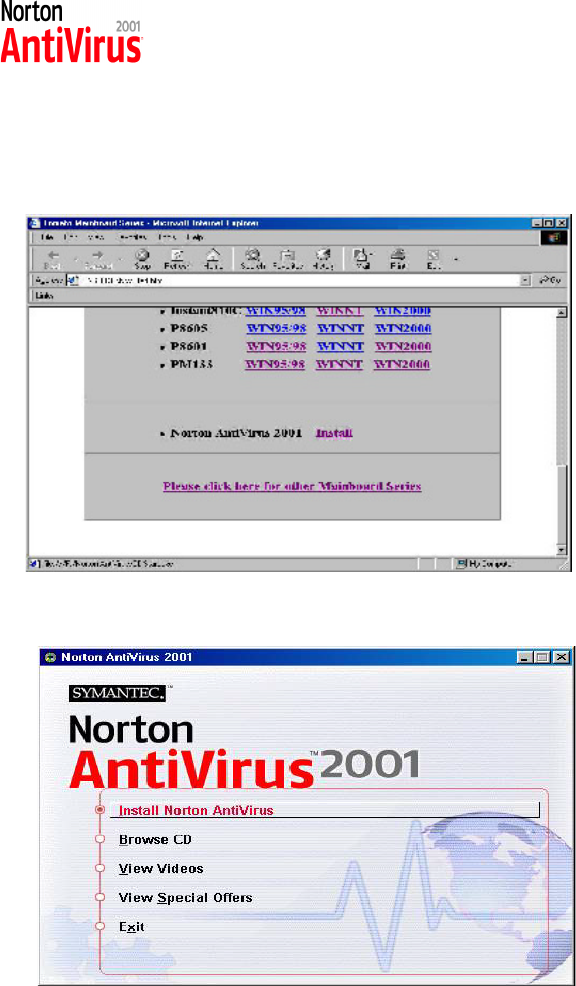
Norton Anti-Virus OEM Version Setup Guide
Step 1 : Load the Driver CD in CDROM and find the "Norton
AntiVirus 2001 Install" Option.
Step 2 : When CD finishes loading, press " Install Norton AntiVirus"
to install the software.
Mainboard User's ManualPage 50
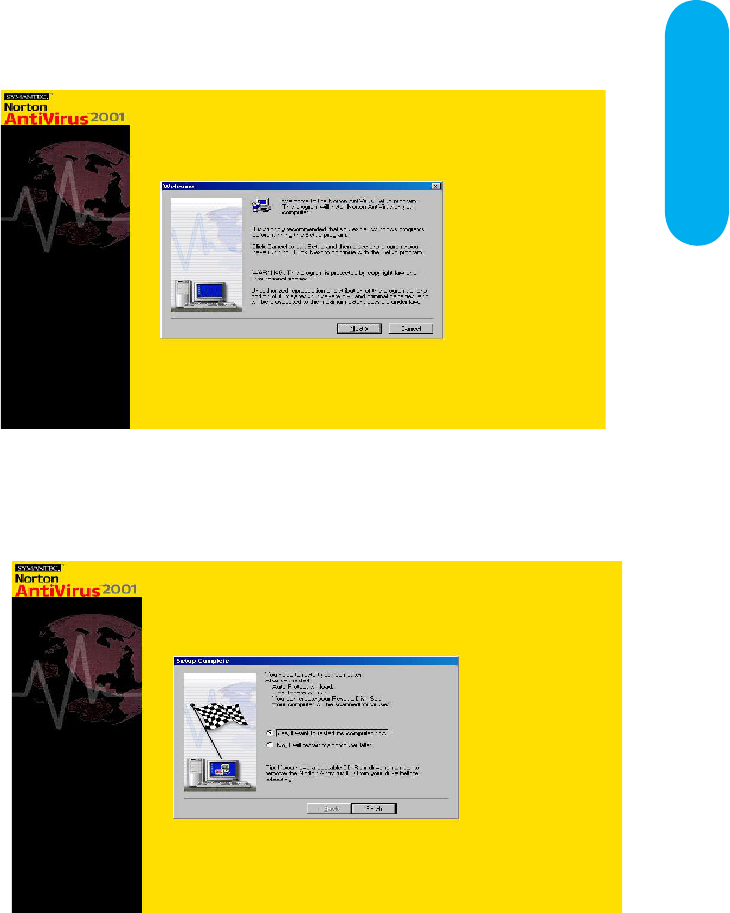
Norton Anti-Virus Setup
Guide
Step 3 : Follow the installation procedures on screen.
Step 4 : Select "Yes" and press "Finish" button to reboot computer.
Page 51 Mainboard User's Manual

Guide
Introduce INSTANT ON function:
INSTANT ON is a Windows 98 ACPI sleep mode function.
When recovering from sleep mode, the system is able, in just
a few seconds, to retrieve the last “state” of the system before
it went to sleep and recover to that state. The “state” is stored
in memory (RAM) before the system goes to sleep. During
sleep mode, your system uses only enough energy to maintain
critical information and system functions, primarily the system
state and the ability to recognize various “wake up” triggers
or signals, respectively.
INSTANT ON function Installation
Please follow the steps to complete the INSTANT ON function
installation.
There are two ways :
1. Setup with Windows 98 CD:
A. Insert the Windows 98 CD into your CD-ROM drive,
select Start, and then Run.
B. Type (without quotes) “D:\setup /p j” in the window
provided. Hit the enter key or click OK.
C. After setup completes, remove the CD, and reboot
your system (This manual assumes that your CD-ROM
device drive letter is D:).
For using the INSTANT ON function, the system must
be in Windows 98 ACPI mode. Putting Windows 98
into ACPI mode is fairly easy.
Mainboard User's ManualPage 52
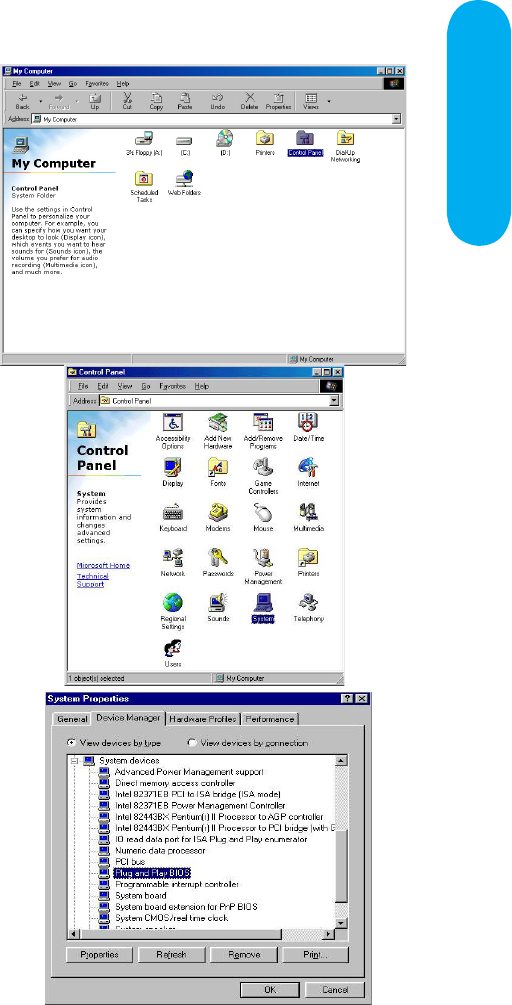
INSTANT ON GUIDE
A. When Windows 98
finishes loading, open the
“Control Panel” in
Windows 98 “My
Computer” area.
B. Double click the
“System” item.
C. Select the “Device
Manager” tab and then
the “System Devices”
item. Double click the
“Plug and Play BIOS”
item or select
“Properties”
2. Update from Windows98 (Advance Power Management)
APM mode:
If your Windows 98 system is in APM mode, please follow the steps to
update your system to ACPI mode.
Page 53 Mainboard User's Manual
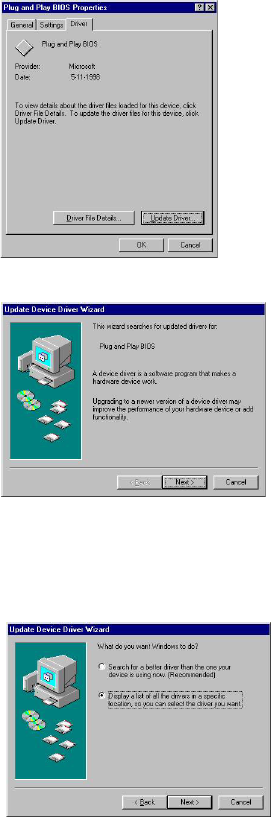
D. Select the “Driver”
item and “Update Driver”
E. The “Update Device
Driver Wizard” will
appear.
Press the “Next” button
F. In the “Update Device
Driver Wizard” window,
select the “Display a list
of all the drivers in a
specific location, so you
can select the driver you
want.” Then press the
“Next” button “
Mainboard User's ManualPage 54
INSTANT ON GUIDE
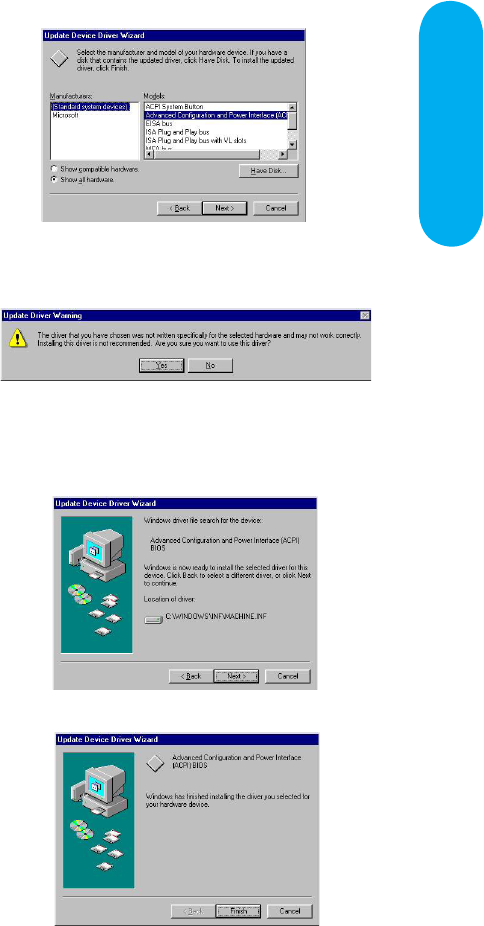
G. Select the “Show all
hardware” item , then
select the “Advance
Configuration and Power
Interface (ACPI) BIOS”
and press the “Next”
button.
H. “Update Driver
Warning” will show up
and ask “Are you sure
you want to use this
driver?” Select the “Yes”
button.
I. “Update Device Driver
Wizard” will show up
again. Select the “Next”
button and start copying
files to the system.
J. When complete, press
the “Finish” button.
K. Restart your computer. Your system will start up using the
ACPI mode.
Page 55 Mainboard User's Manual

Power on the computer when memory counting starts,
press <Del>. You will enter BIOS Setup. Select the item
“POWER MANAGEMENT SETUP”, then select Enable
in “Suspend to RAM” option. Remember to save the
settings by pressing "ESC" and choose the “SAVE &
EXIT SETUP” option.
The installation of INSTANT ON is completed.
You can use this function in Windows 98.
Mainboard User's ManualPage 56
INSTANT ON GUIDE
How to put your system into Stand by mode ?
There are two ways :
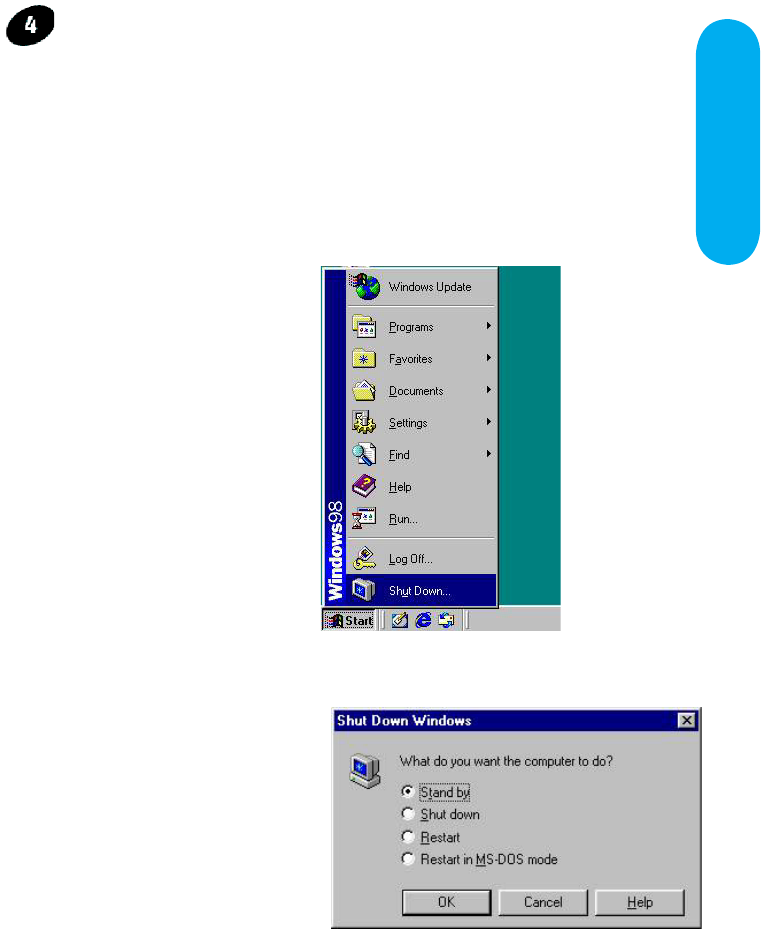
1. Choose the “Stand by” item in the “Shut Down Windows” area.
B. Choose the “Stand by”
item and Click “OK”
A. Press the “Start”
button and then select
“Shut Down”
Page 57 Mainboard User's Manual
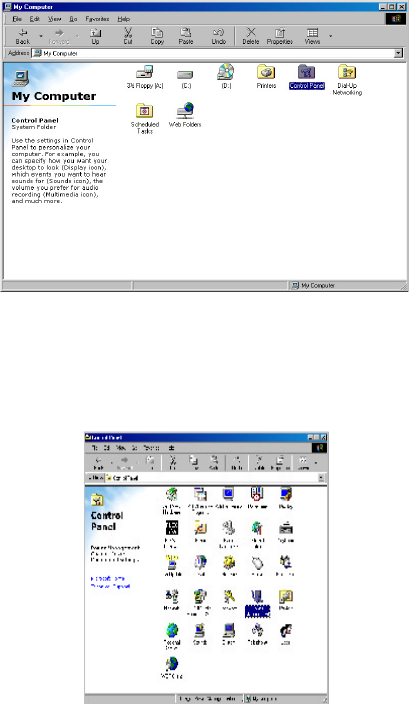
2. Set the system ”power on” button to initiate sleep mode:
A. Double click
“My Computer”
and then
“Control Panel”
B. Double click the “Power
Management” item.
Mainboard User's Manual
Page 58
INSTANT ON GUIDE
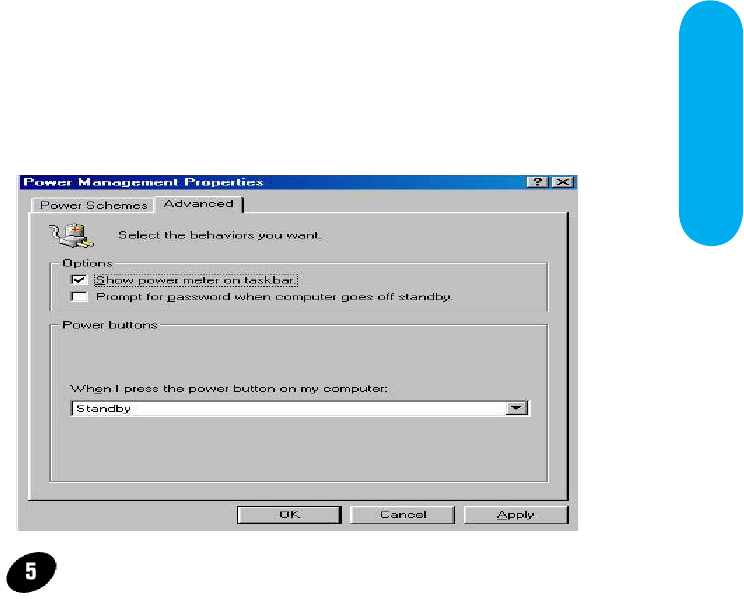
C. Select the “Advanced” tab and “Standby” mode in
Power Buttons.
Restart your computer to complete setup.
Now when you want to enter sleep mode, just
press the “Power on” button.
How to recover from the sleep mode?
There are four ways to “wake up” the system:
1. Press the “Power On” button.
2. Use the “Keyboard Power On” function.
3. Use the “Modem/Lan Resume" function.
4. Use the “Resume by Alarm” function.
Page 59 Mainboard User's Manual
Notice to INSTANT ON users :
1. ATX power supply requirement
- comply with the ATX 2.01
- provide more than 720 mA 5V Stand-By current
2. SDRAM requirement
- PC-100/133 compliant.
Mainboard User's Manual
Page 60