ePrep EPREP-01 ePrep Sample Preparation Workstation User Manual PowerPoint Presentation
ePrep Pty Ltd ePrep Sample Preparation Workstation PowerPoint Presentation
ePrep >
Contents
- 1. Instruction manual
- 2. Quick start instructions
- 3. Tablet installation procedure
Tablet installation procedure
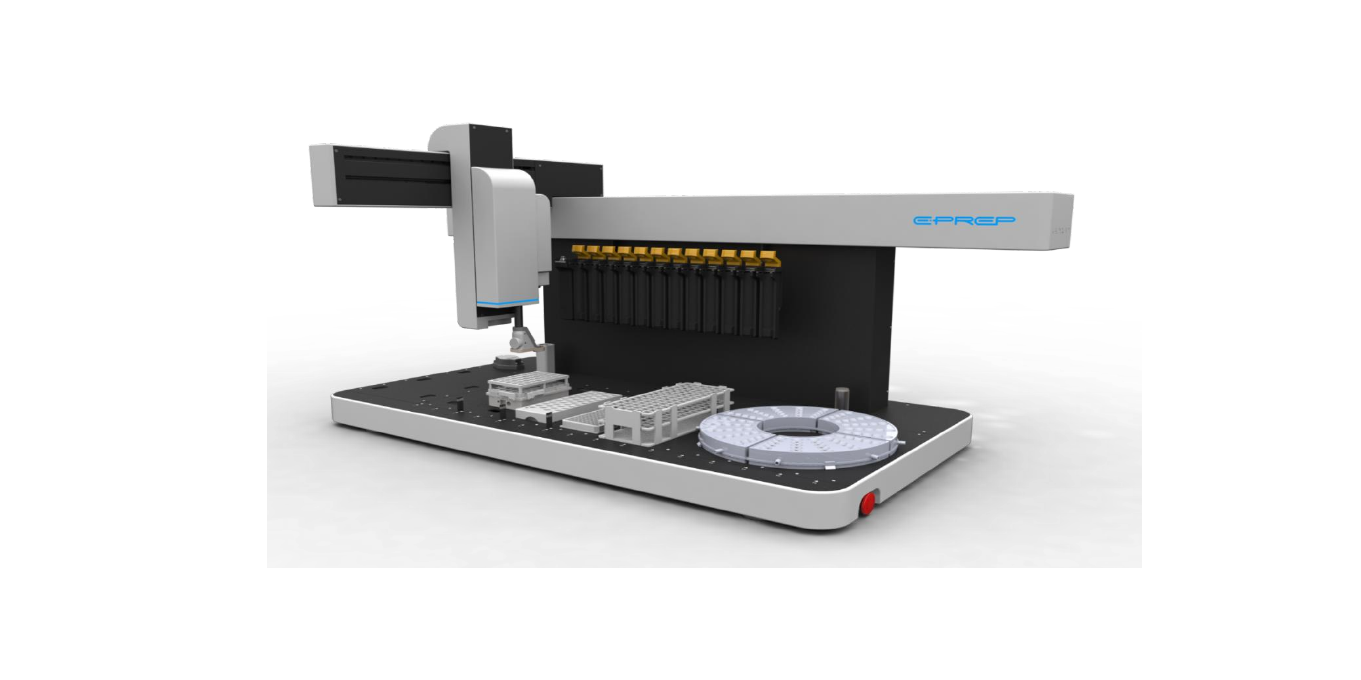
Place ePrep on a clean flat surface with no obstruction to the axis movement. Adjust ePrep feet to level
instrument if required.
ePrep Location Pub No. 99-10010-01
Power up the Tablet Computer and open the ePrep software via the desktop ePrepApp icon shown above.
Further installation instructions can be found on the Tablet.
Connect USB Cable and Open Tablet Software
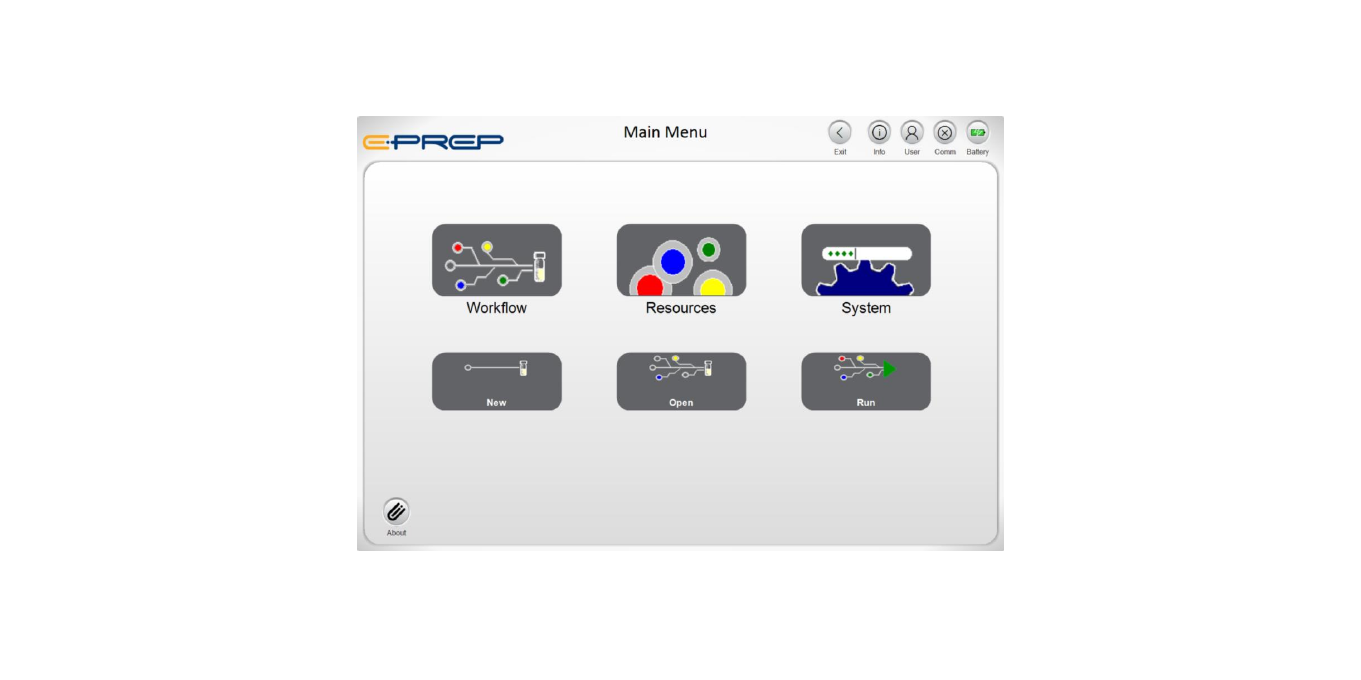
Go to System>Quick Start for further setup instructions.
ePrep Software Main Menu
IMPORTANT SAFETY WARNINGS
Do not enter the instrument work space or place any part of your body near moving axes during
operation.
If the equipment is used in a manner not specified by the manufacturer, the protection provided by the
equipment may be impaired. Good Laboratory Practice (GLP) should be followed when using the ePrep.
Refer: 21CFR58, 21CFR58, Directive 2004/9/EC and specific product GLP Directives
ePrep is fitted with an Emergency Stop Button found at the front right side of the instrument. Pressing
the button will cut off all power to the instrument. To reinstate power, rotate the emergency button 90°
clockwise.
Only approved accessories and consumables can be used with the instrument. Eprep assumes no liability
for the customer’s failure to comply with these requirements.
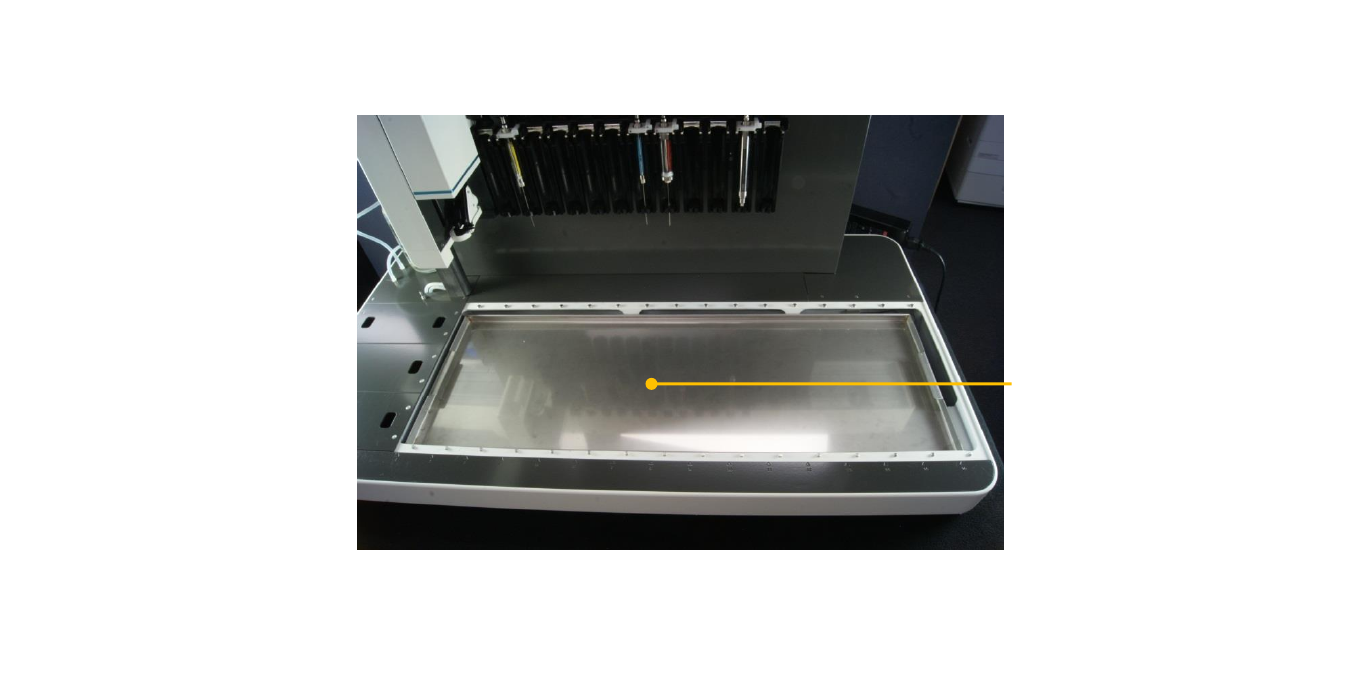
Drip Tray Position
Install the Drip Tray below the deck area. The Tray is located in the front panel (first removed panel) of the
ePrep box.
Install Drip Tray
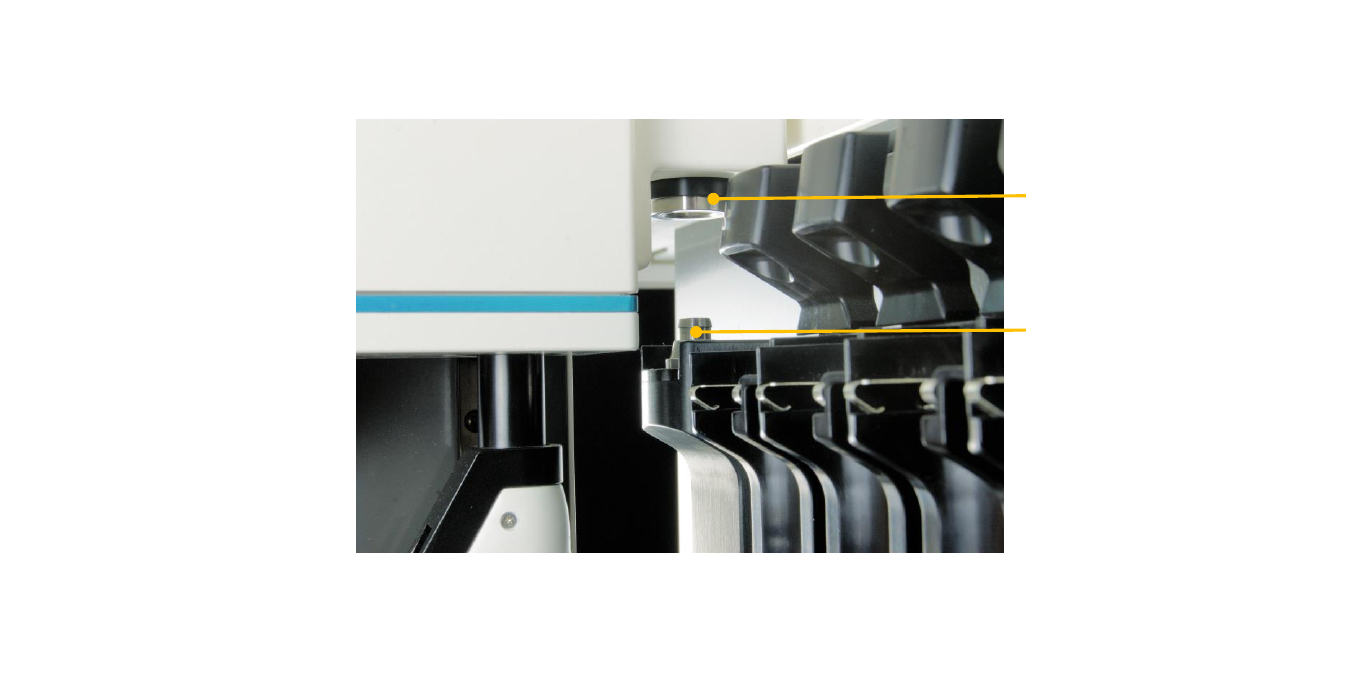
Park Station
Before powering up the ePrep, manually move axis so XCHANGE change coupling is sitting on the Park Station.
Manually Park the System
Manually move the
XCHANGE axis onto
the Park Station
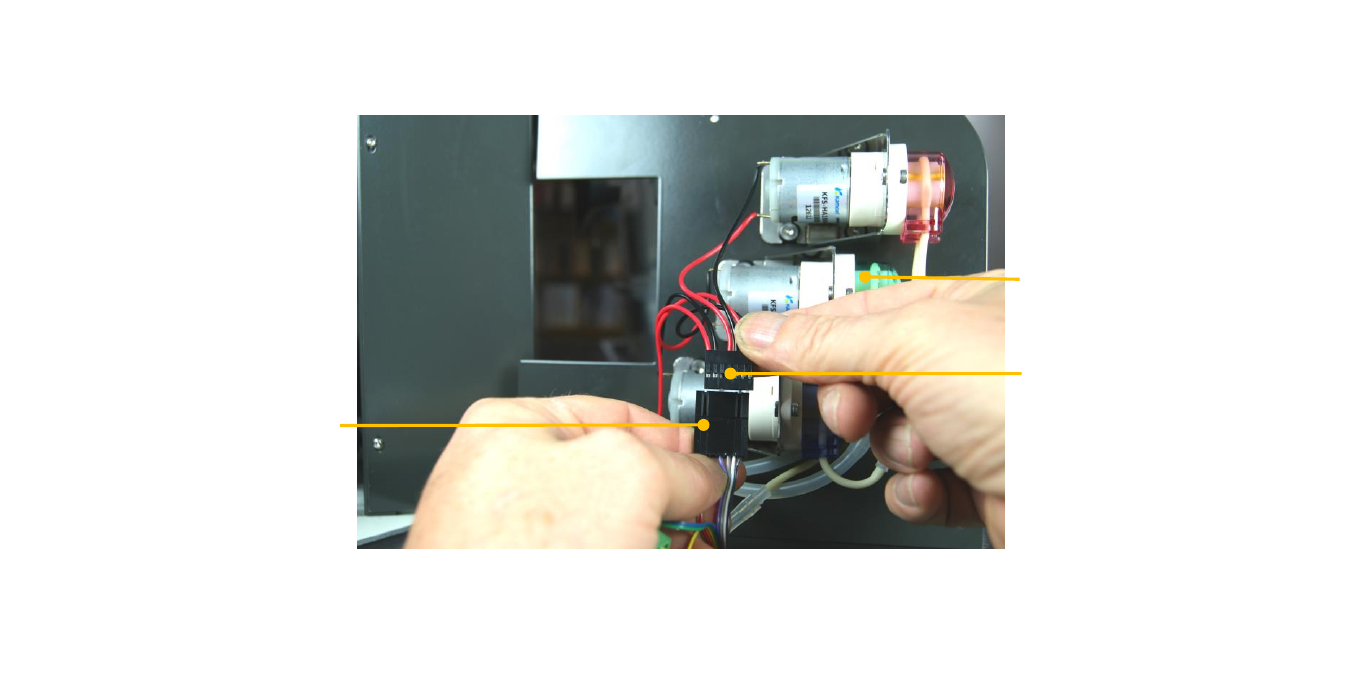
Electrical Connection
from ePrep
Underside of Wash
Station Deck Plate
showing pumps
Wash Station Electrical Connection
Ensure ePrep power is switched off. Before installing the Wash Station deck plate, connect Pumps to ePrep
via the electrical connection shown.
Electrical Connection
from Wash Station
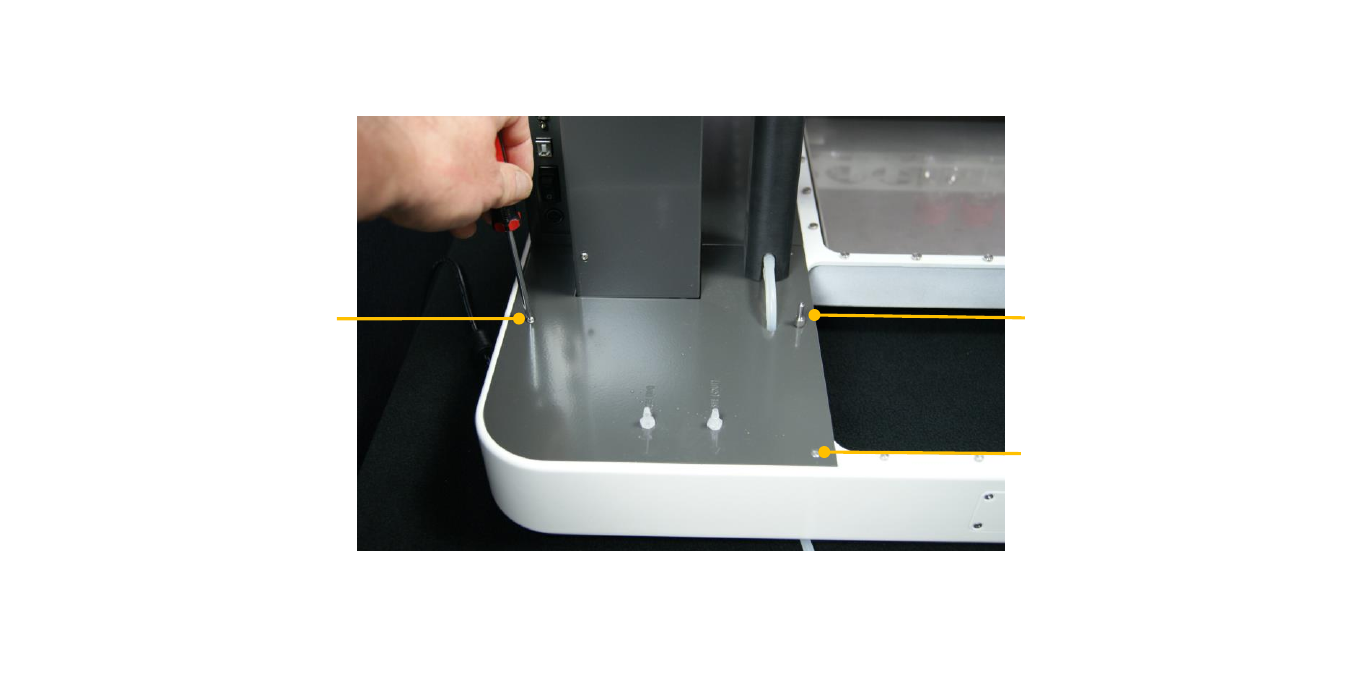
Locking Screw Calibration Probe
Storage Position
Install the Wash Station Deck Plate
Install the Wash Station deck plate and lock it down using in installation screw.
Location pin
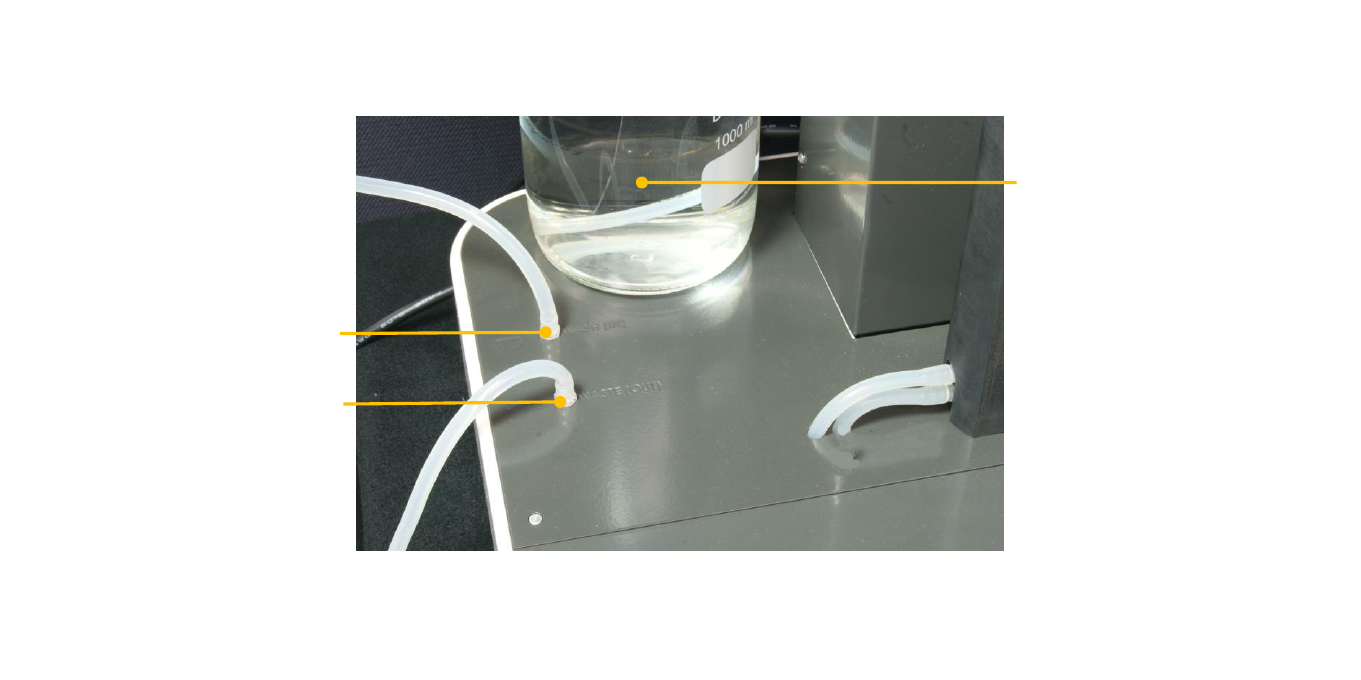
Waste (Out) Connector
Wash Solution (≥600mL)
Wash (In) Connector
Wash Station Liquid Connections
Install tubing to the Wash (IN) and Wash (OUT). Connect Wash (IN) to a receptacle bottle with at least 600mL
of wash solution and wash (OUT) to a waste receptacle bottle.
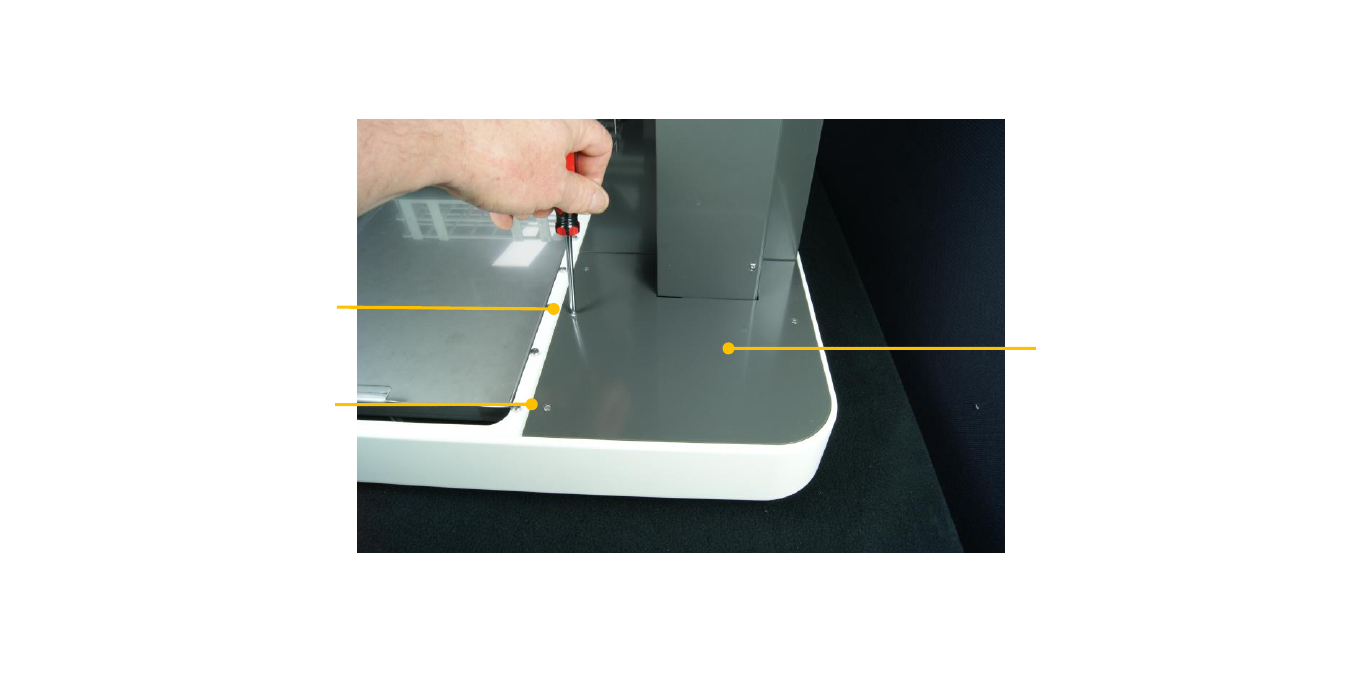
Locking Screw
Rear Right Deck Plate
Install Rear-Right Plate
Locate and lock the Rear Right deck plate to the ePrep frame using the supplied installation screws.
Location Pin
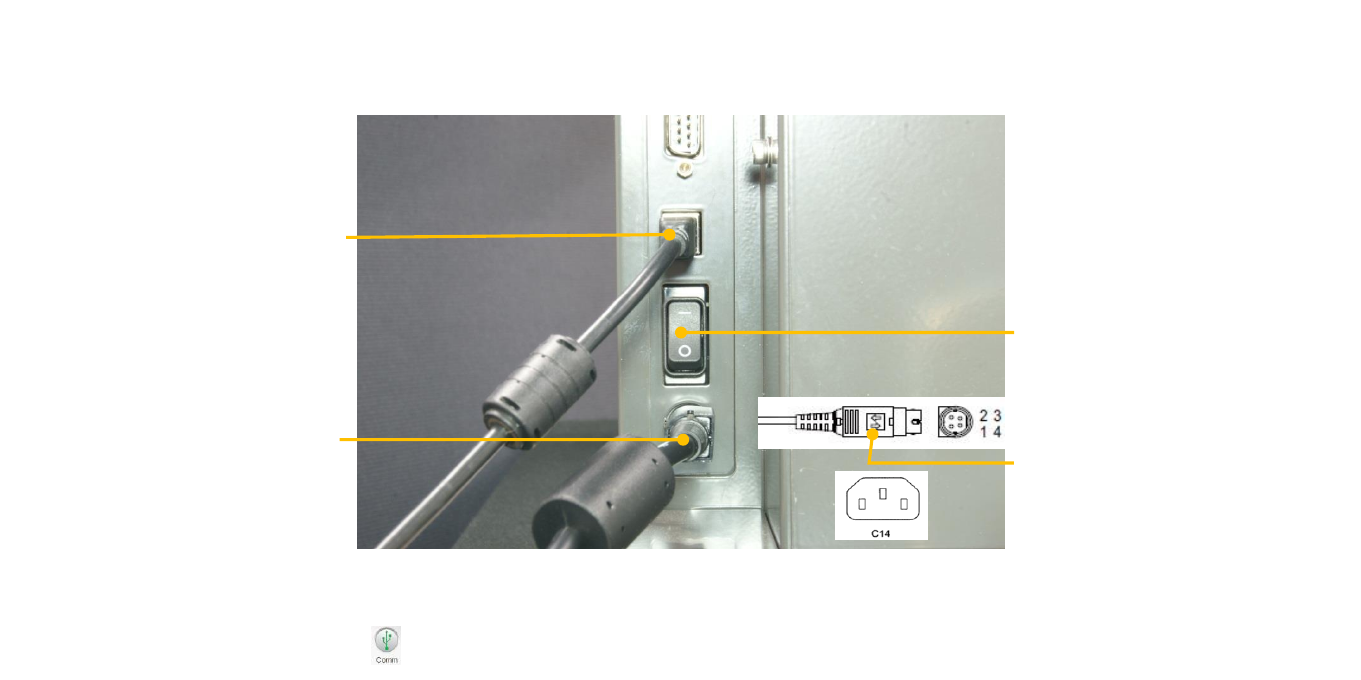
Tablet USB Cable
Connection
Power Switch
Power Pack Connection Slide Lock on Power Pack
Connection
Connect the Power Pack to ePrep and the mains power using a Country Specific IEC C13 cable (NOT SUPPLIED).
Connect Tablet to ePrep with the supplied USB cable. Switch ePrep on. When the Tablet has established USB
connection with ePrep the icon will appear at the top right of the tablet screen.
Cable Connection
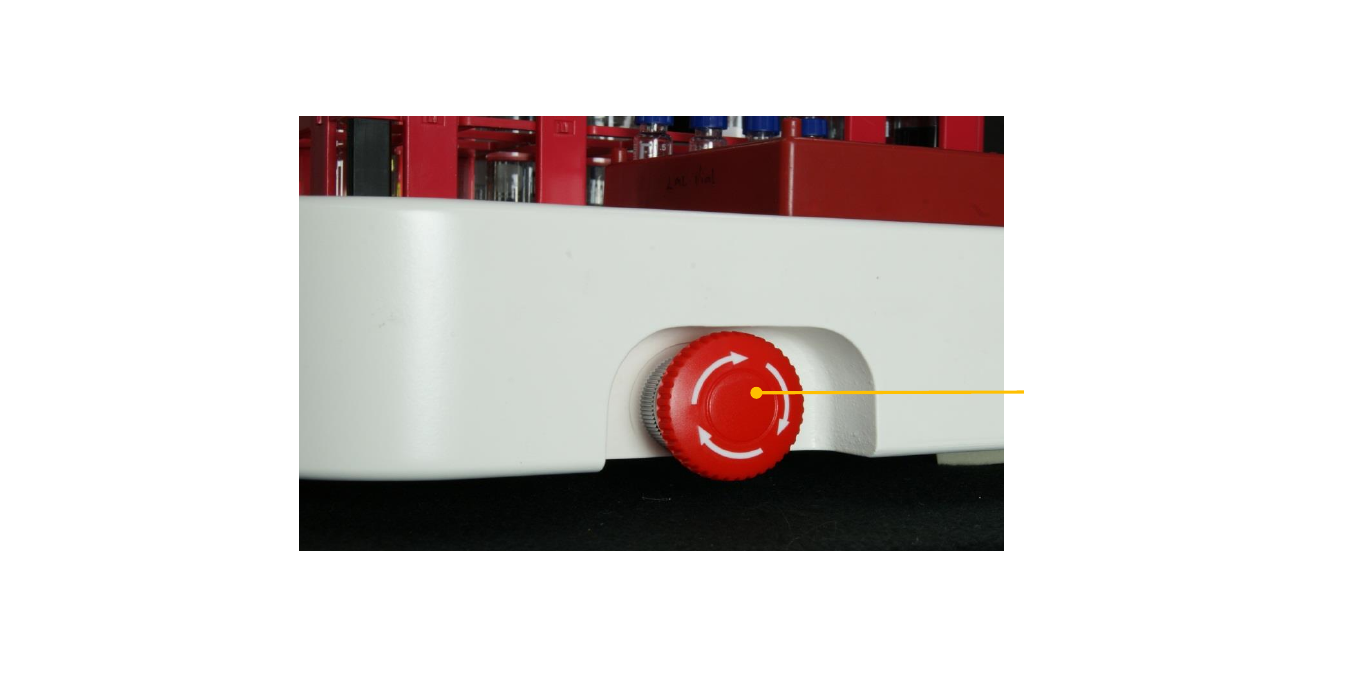
Emergency Stop Button
Ensure the Emergency Stop button is released by turning it 90° in the direction of the arrow. Note: press to
engage (switches power OFF to ePrep) and rotate to release allows ePrep to be powered by the Power Switch.
Emergency Stop Button
Status Indicator Lights
NO LIGHT No power to the instrument ORANGE Workflow paused by user with the option to abort
or continue.
SOLID BLUE ePrep ready for operation RED Bumper or instrument error. Check for
obstructions to the rotating foot. Typically, items
placed on the deck or different height vial in a rack.
Faults with instrument hardware, see trouble
shooting information.
GREEN Workflow running and will remain green until
completion or interruption of workflow
FLASHBLUE Workflow completed successfully
FLASH PURPLE Workflow aborted by user Mains power disconnected and ePrep running on
battery power. Battery life approximately 20 min.
FLASH RED Workflow aborted by system or Failure to detect
racks or Failure to detect tubes.
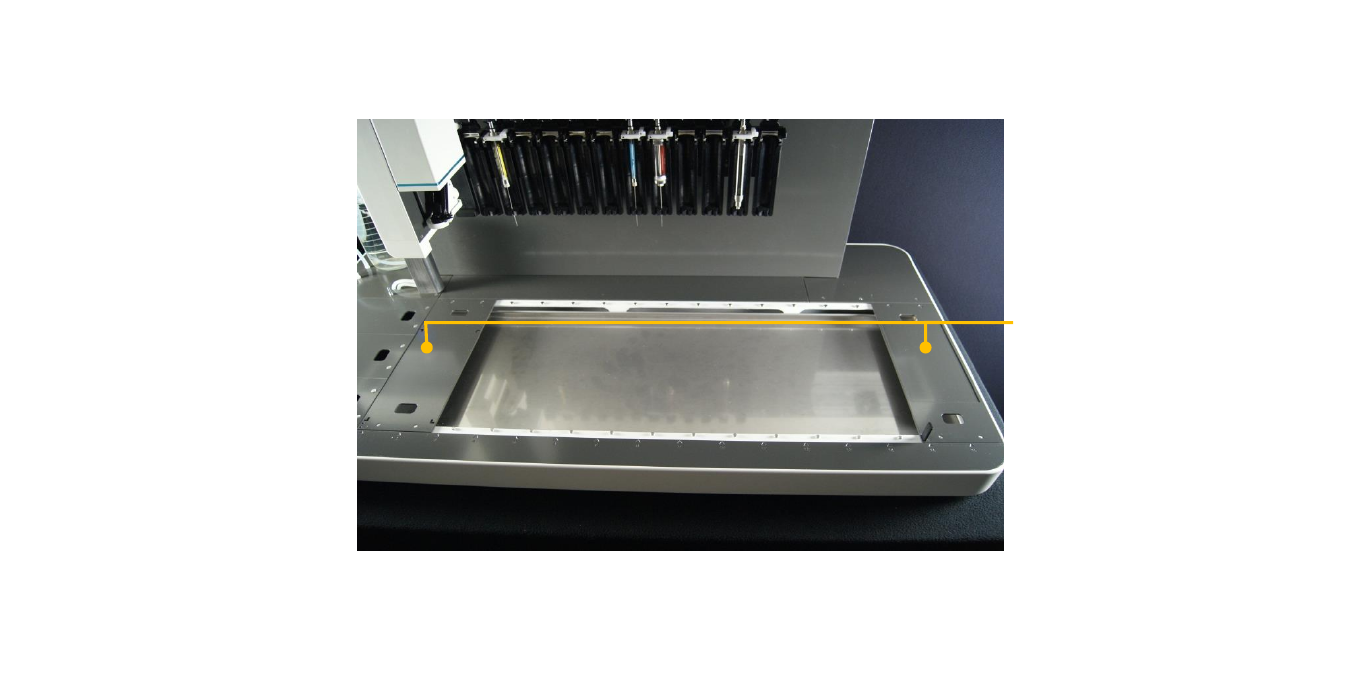
Adapter Plates
in Position 1 and 15
Install supplied Adapter Plates in deck positions 1 and 15. Remove all other Adapter Plates from the deck.
Install Vial Adapter Plates for Calibration
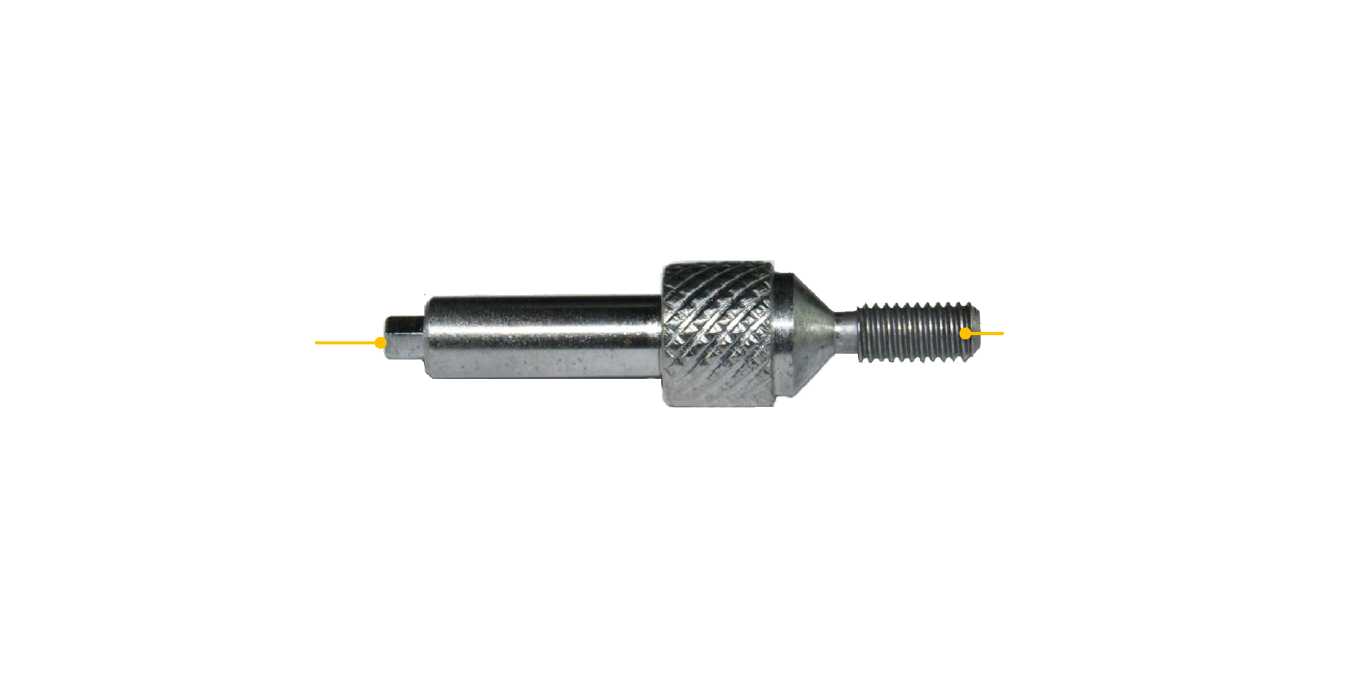
Screw Thread End
Hex End
Locate the Calibration Probe found in the ePrep Accessories Box.
Calibration Probe
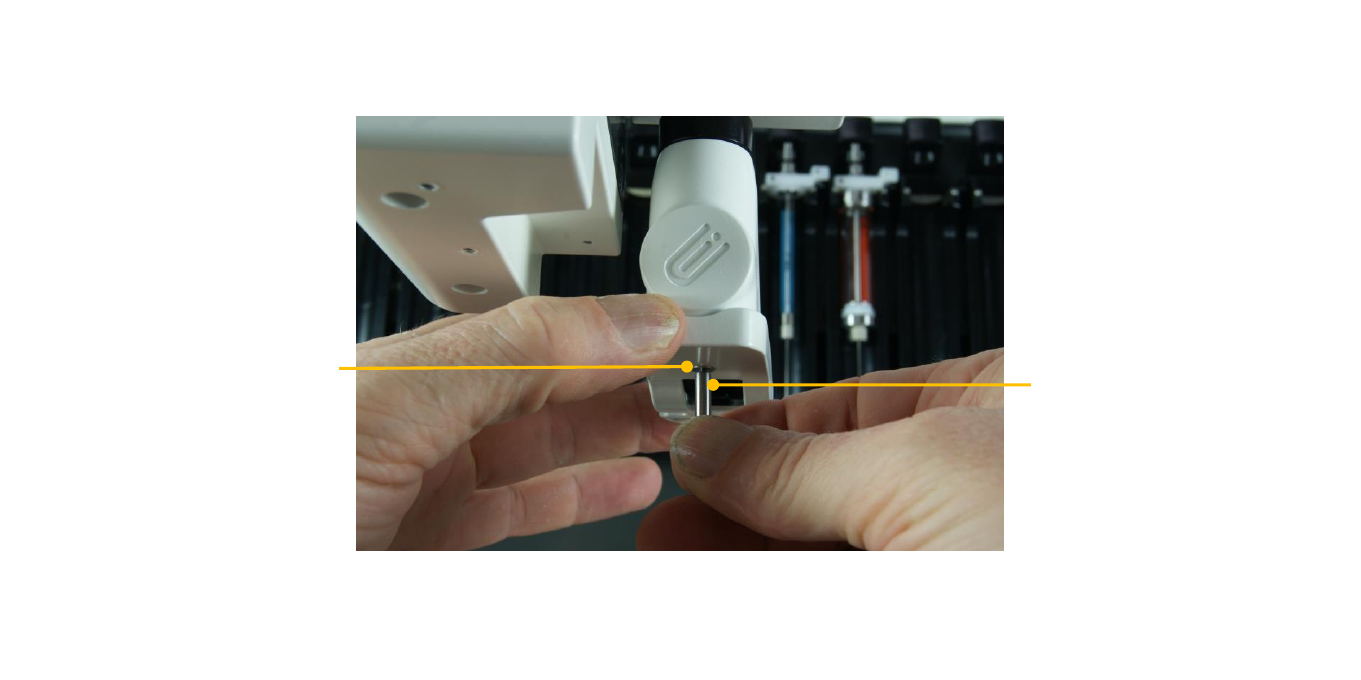
Use the Hex end of the tool to undo the Sensor Retaining Screw at the base of the ePrep Rotating Foot.
Hold the Bumper so that it does not fall off when the screw is removed.
Hex end of the
Calibration Probe
Sensor retaining screw
Remove the Sensor Retaining Screw
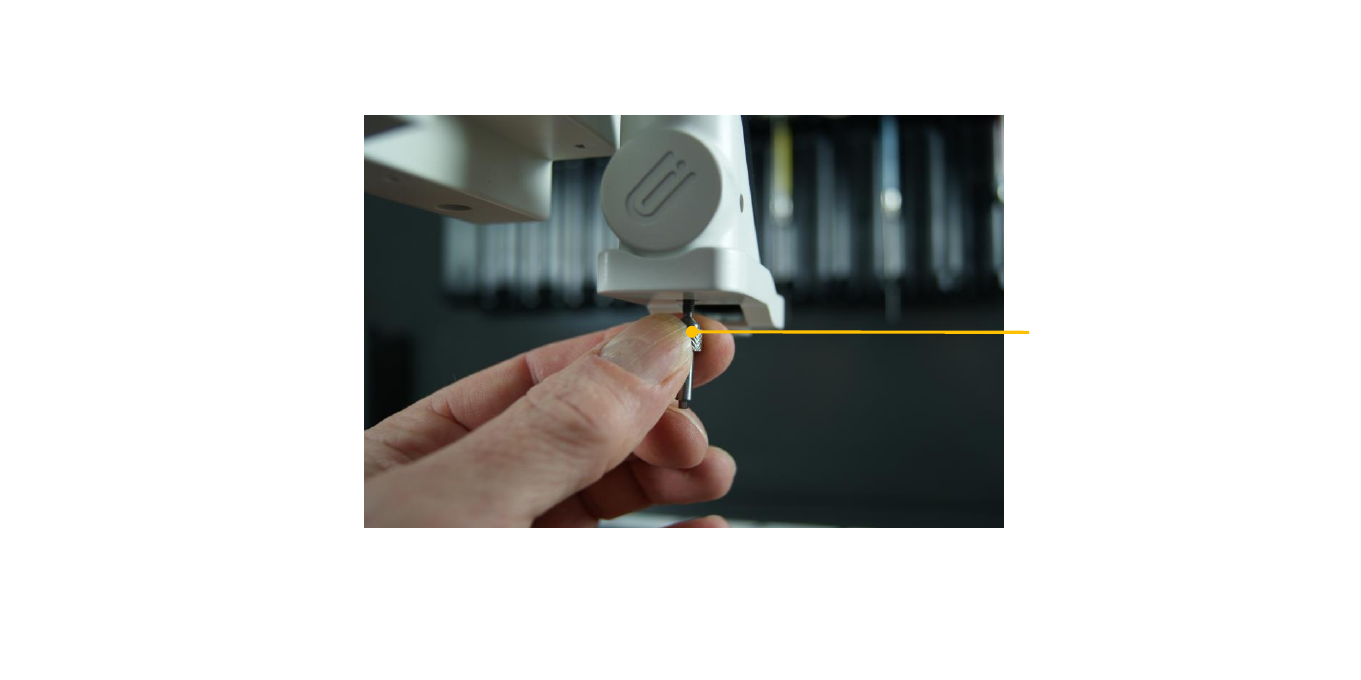
Screw end of the
Calibration Probe
Replace the screw with the Calibration Probe and firmly screw it into the threaded hole, ensuring the foot
sensor remains in position. WARNING: Do not overtighten.
Install Calibration Probe
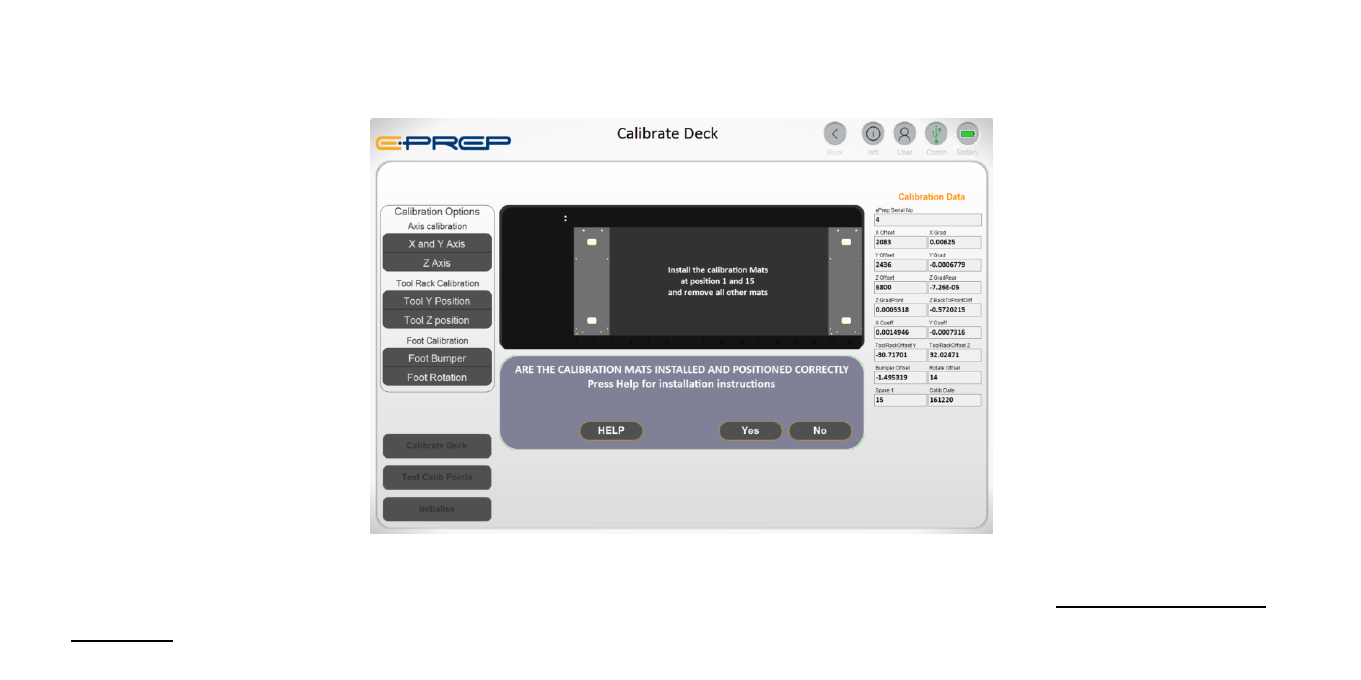
Check the Adapter Plates are installed correctly. On the software Main Screen click on System > Service >
Calibrate to open the Calibrate Deck option. Software will ask if Plates are positioned correctly.
Check Installation of Calibration Plates
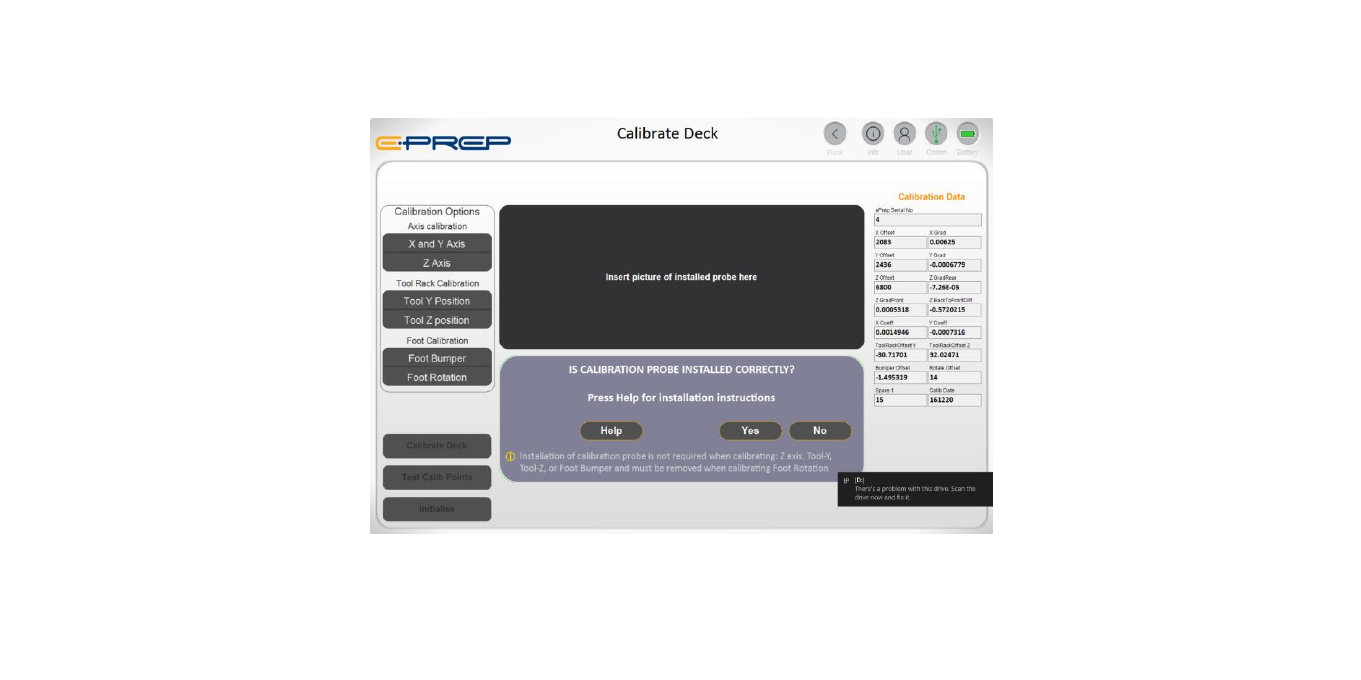
If required the software will ask if the Calibration Probe has been correctly installed.
Check Installation of Calibration Probe
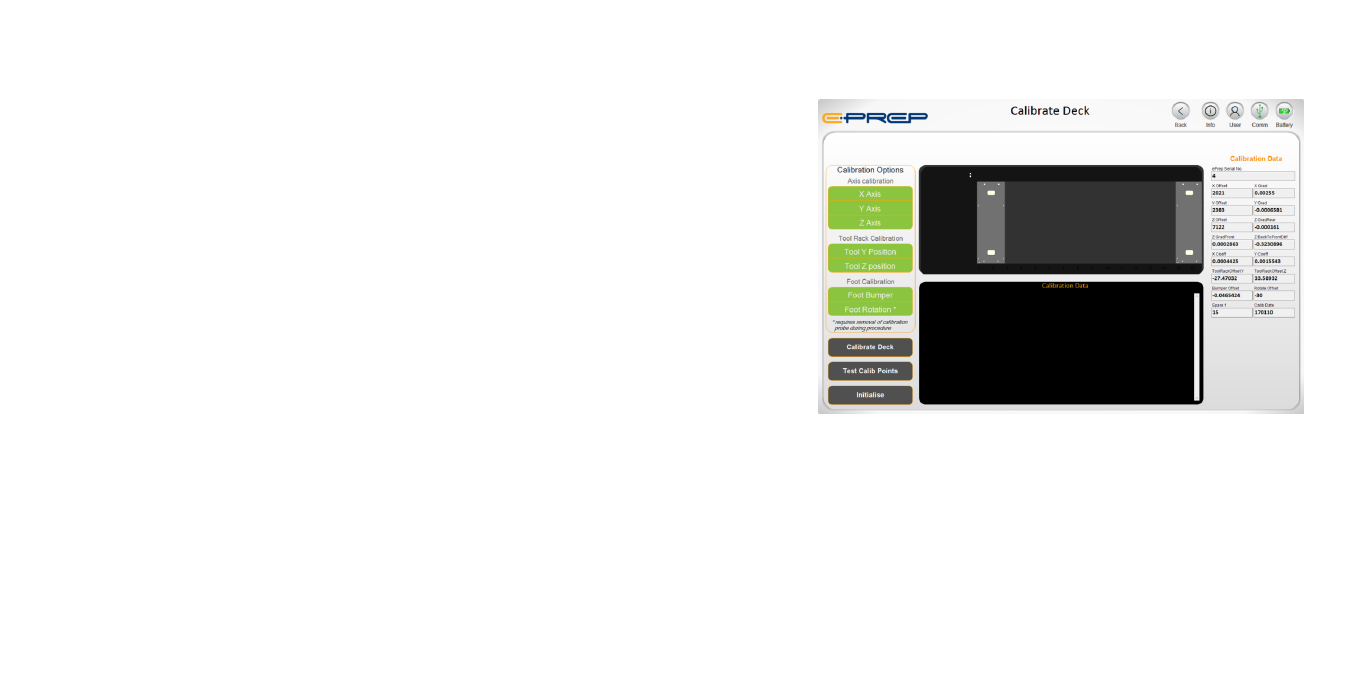
If Adapter Plates and Probe are installed, the following
calibration options are available: X-Axis, Y-Axis, Z-Axis, Tool-Y,
Tool-Z, Foot Sensor, Foot Rotation Note: user will be prompted to
remove the calibration probe for foot rotation *.
Calibration Data panel records and displays the calibration data
used to calculate operational parameters. Calibration points are
saved on the instrument firmware for real time calculation of
positional data.
Calibrate Deck: starts or stops (Aborts) the calibration. If
required, a system initialisation will be performed.
Test Calibrate Points button can be used to test the X, Y and Z
calibration at four points on the deck. If required user will be
prompted to remove the probe during the procedure.
Deck Calibration
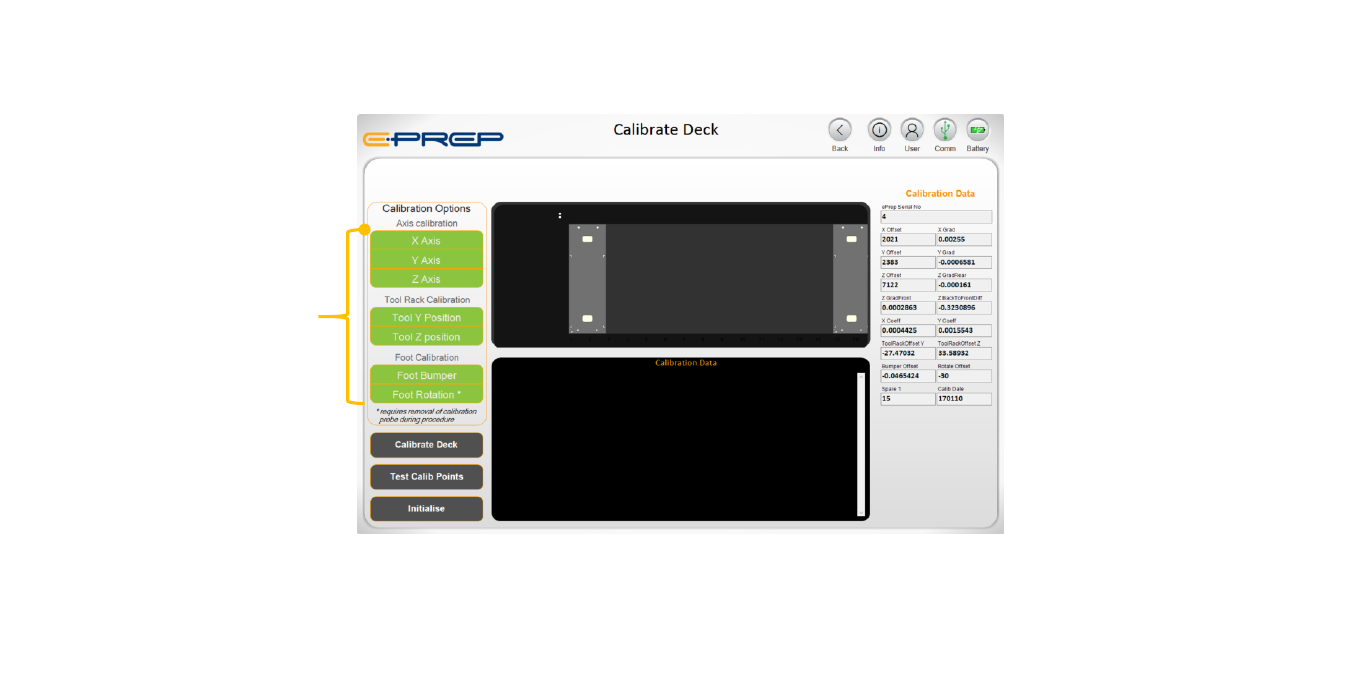
On initial installation and commissioning, all calibration options should be selected. Note: the software does
allow for selective “optional” calibration depending on installation of Probe and Adapter Plates.
Select ALL Calibration Options
Calibration Options
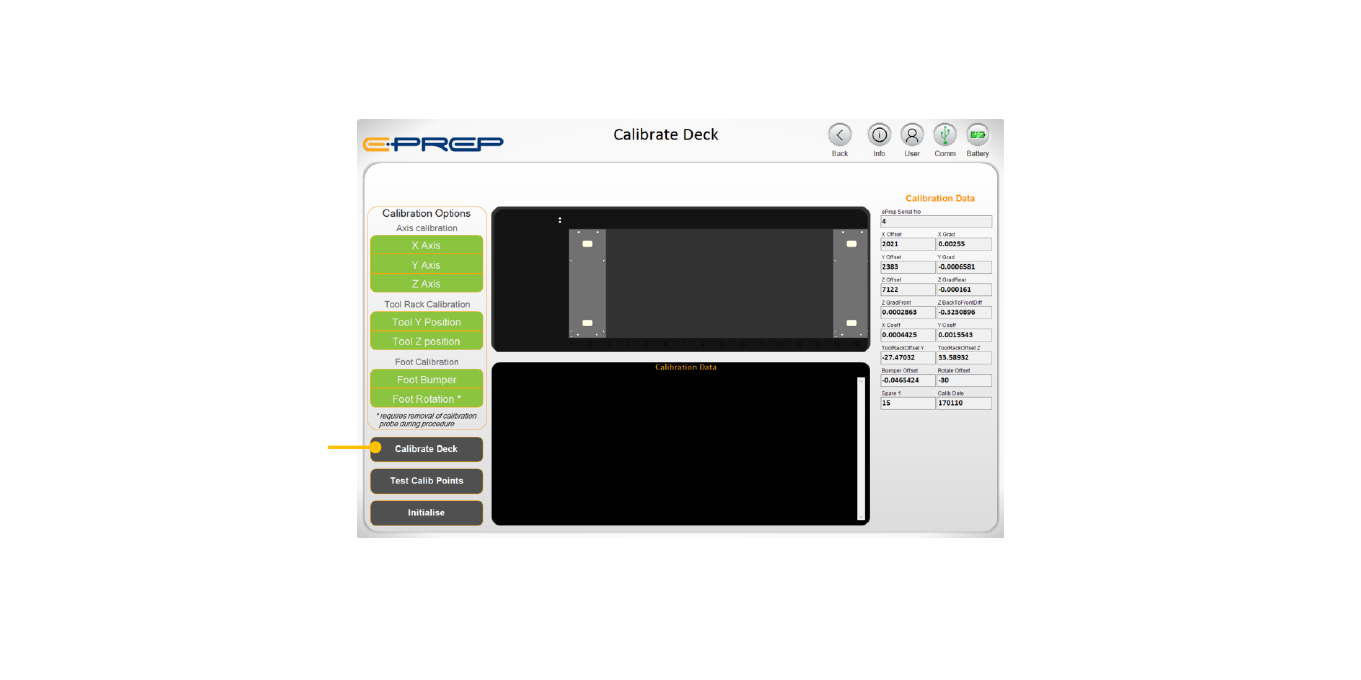
Click on “Calibrate Deck”. ePrep will move the Calibration Probe to allocated positions on the deck and tool rack to
record instrument calibration data. Full calibration takes around 10 minutes.
Trigger Calibrate Deck
Calibrate Deck Button
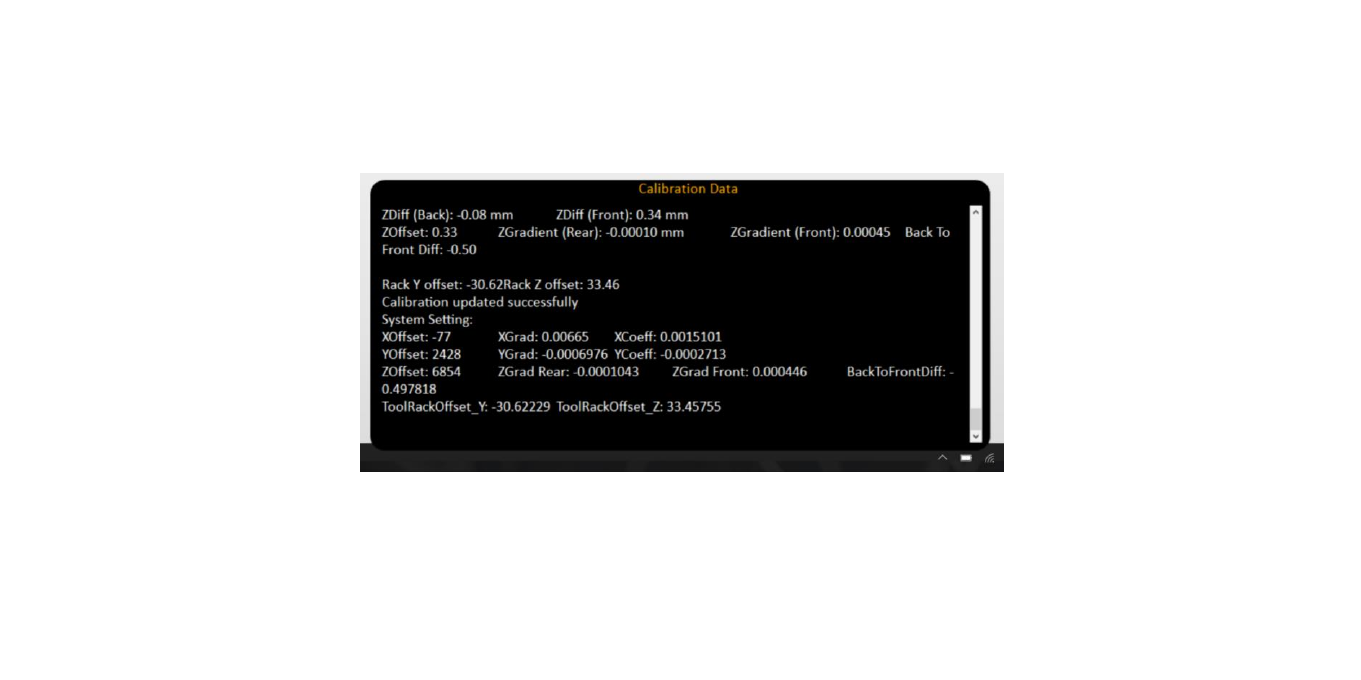
When complete the calibration dialogue will display "Calibration updated successfully". Calibration data is
automatically written to the instrument EEPROM to be used during operation.
Calibration Completion and Data Write
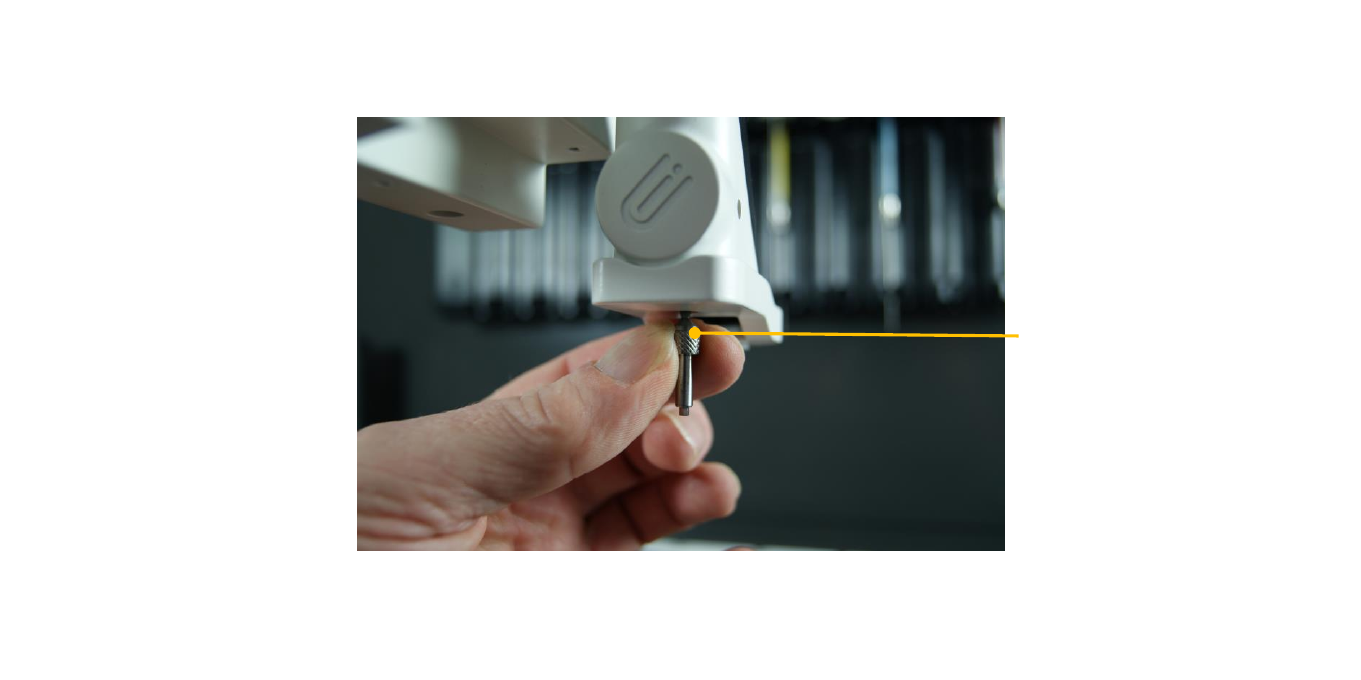
Remove the Probe and
replace the Holding Screw
When prompted, remove the Calibration Probe and replace the Holding Screw before proceeding. Store the
Calibration Probe in the threaded hole next to the Wash Station.
Remove Calibration Probe
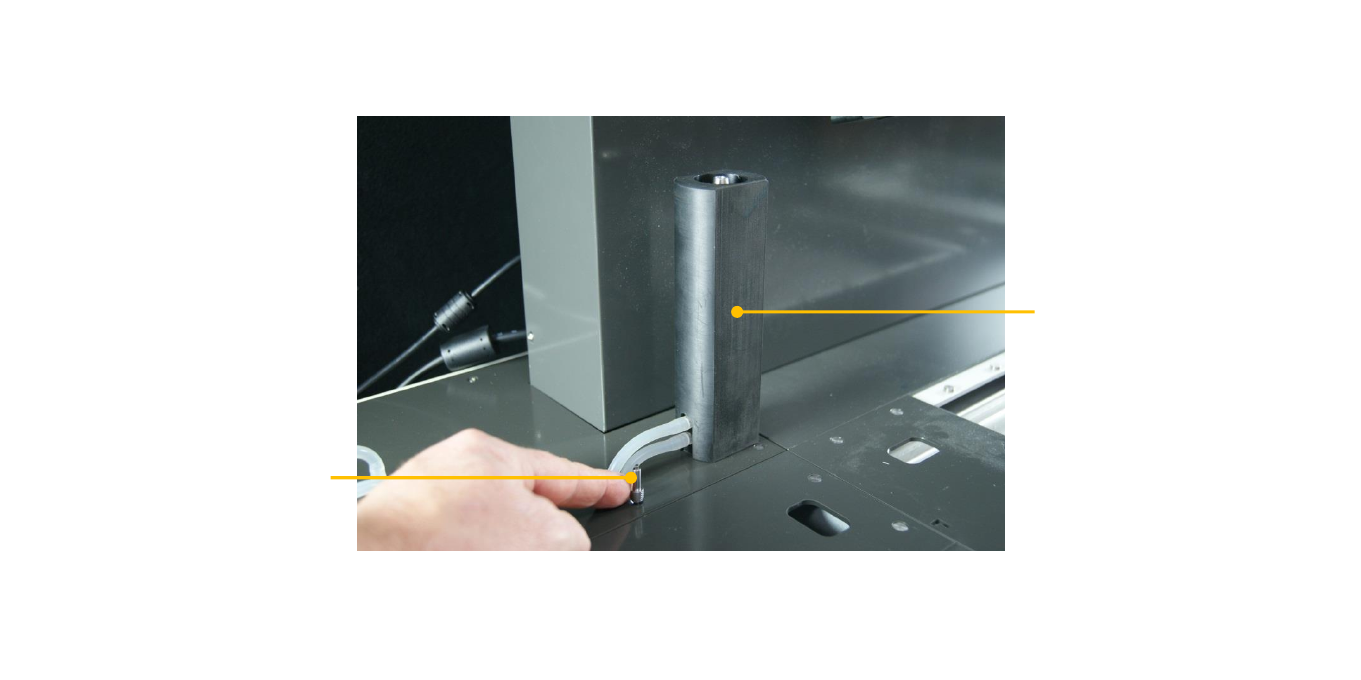
Wash Station
Calibration probe
storage position
Screw the Calibration Probe into its deck position next to the Wash Station for storage.
Store Calibration Probe
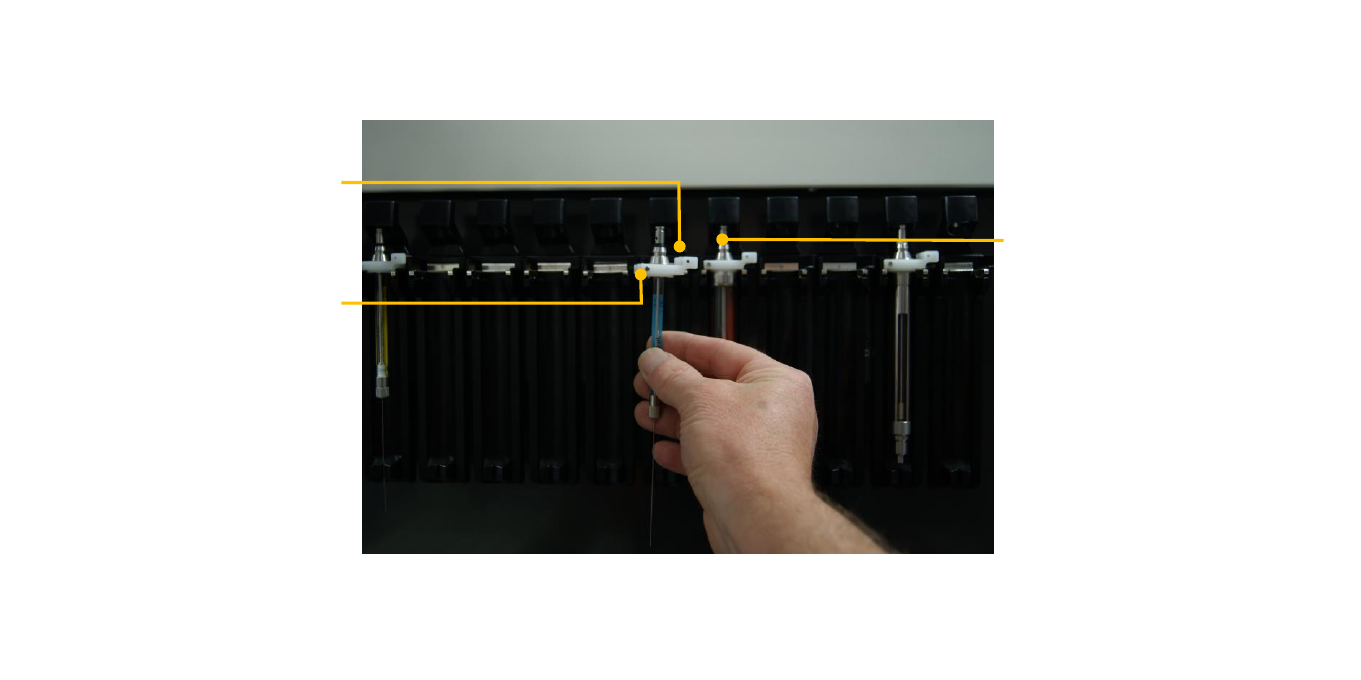
Correct Orientation of
Syringe on Cassette Rack
RFID Tag
Magnet for tool
location identification
ePrep Syringes and tools are fitted with RFID identification collars. Place the tool in the cassettes in the
correct orientation (as shown) with the plunger fully down and the Tool Retainer Clip covering the plunger
button.
Installing Syringes and Tools
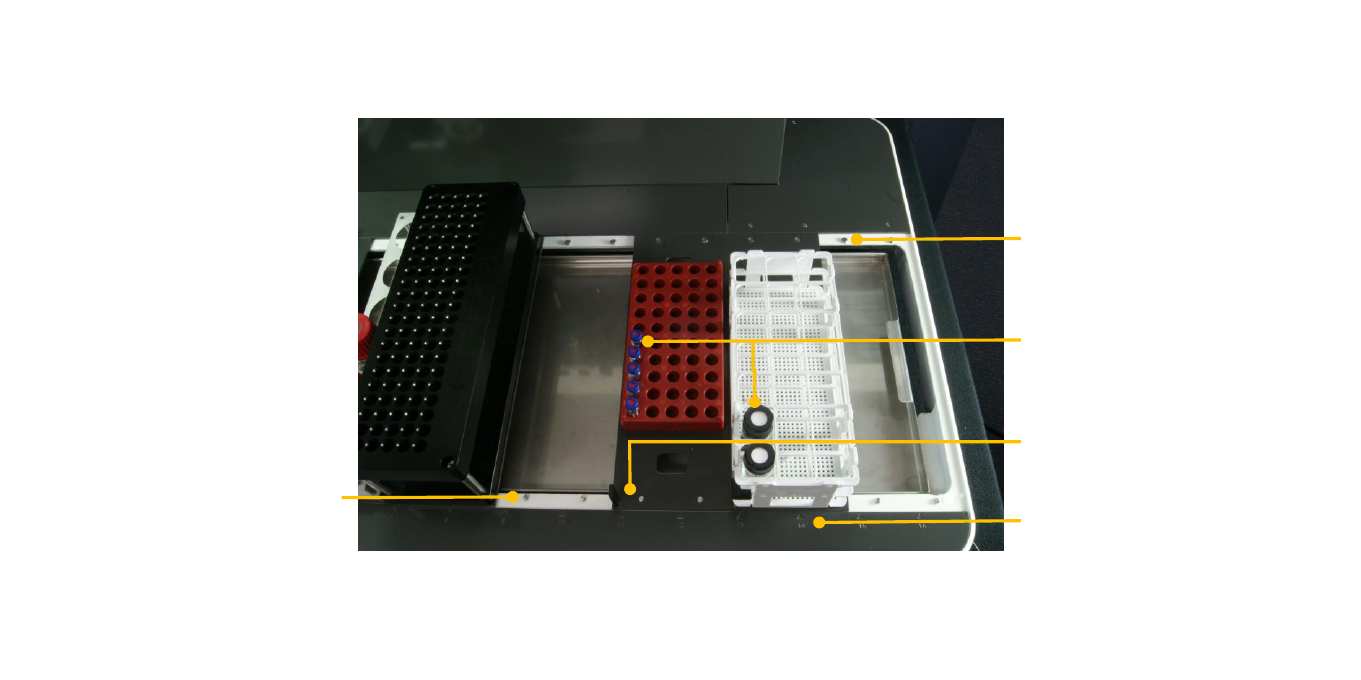
Large Pins
Rack Position No.
Vial Positions
Plate Position Indicator
Small Pins
Vial Adapter Plates are polarised with the rear pins larger than the front pins. The engraved Plate Position
Indictor is used to align the rack position number on the front of the deck.
Vial Adapter Plates and Vials
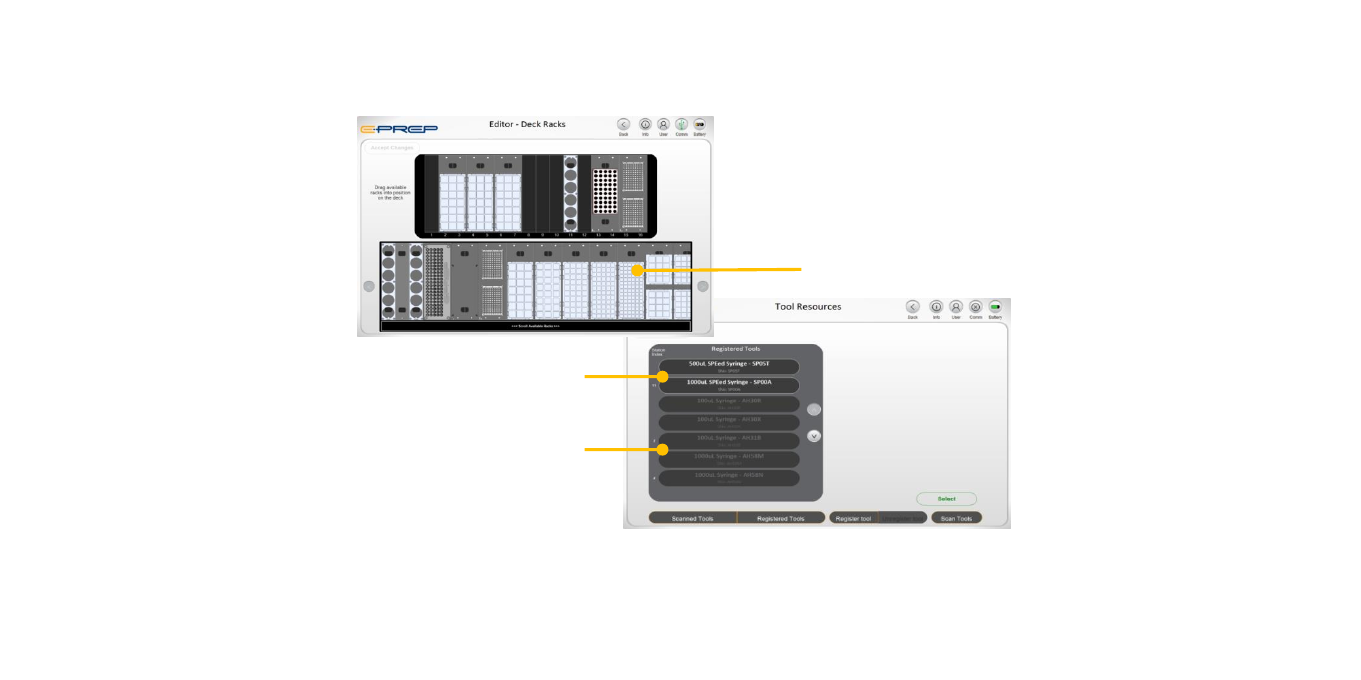
Specified Racks
Specified Syringes and Tools
ONLY Vial Racks, Syringes and Tools that are specified in the software can be used with ePrep. On initial
identification, Tools must be registered to enable the software to identify registered assets have
corresponding software profile for simple programming within a Workflow.
Software Specified Vial Racks and Tools - IMPORTANT
Registered Syringes and Tools
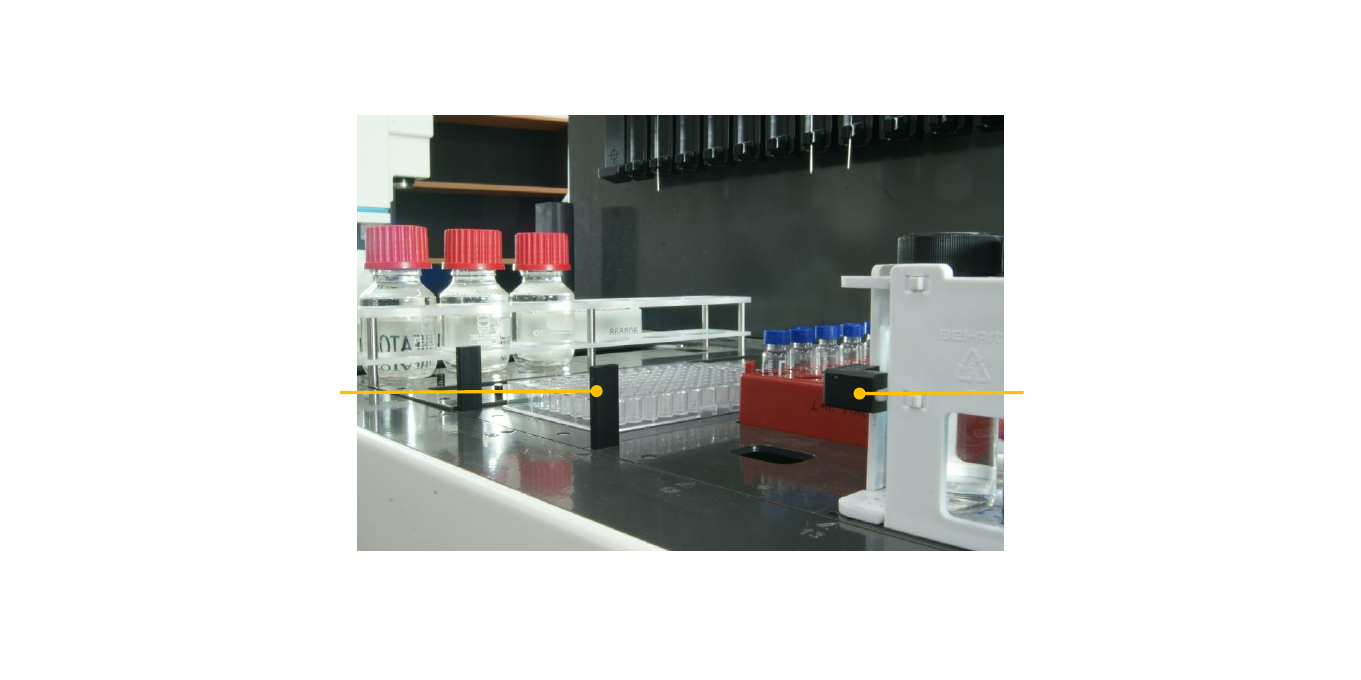
RFID Tag on Post RFID Tag on Rack
ePrep requires an RFID tag for identification of all vial racks on the deck. RFID tags are located on the rack
itself or on a plate post. All vials within a rack must be the same height and type as the first vial because only
the height of the first vial is sensed.
RFID Rack Identification