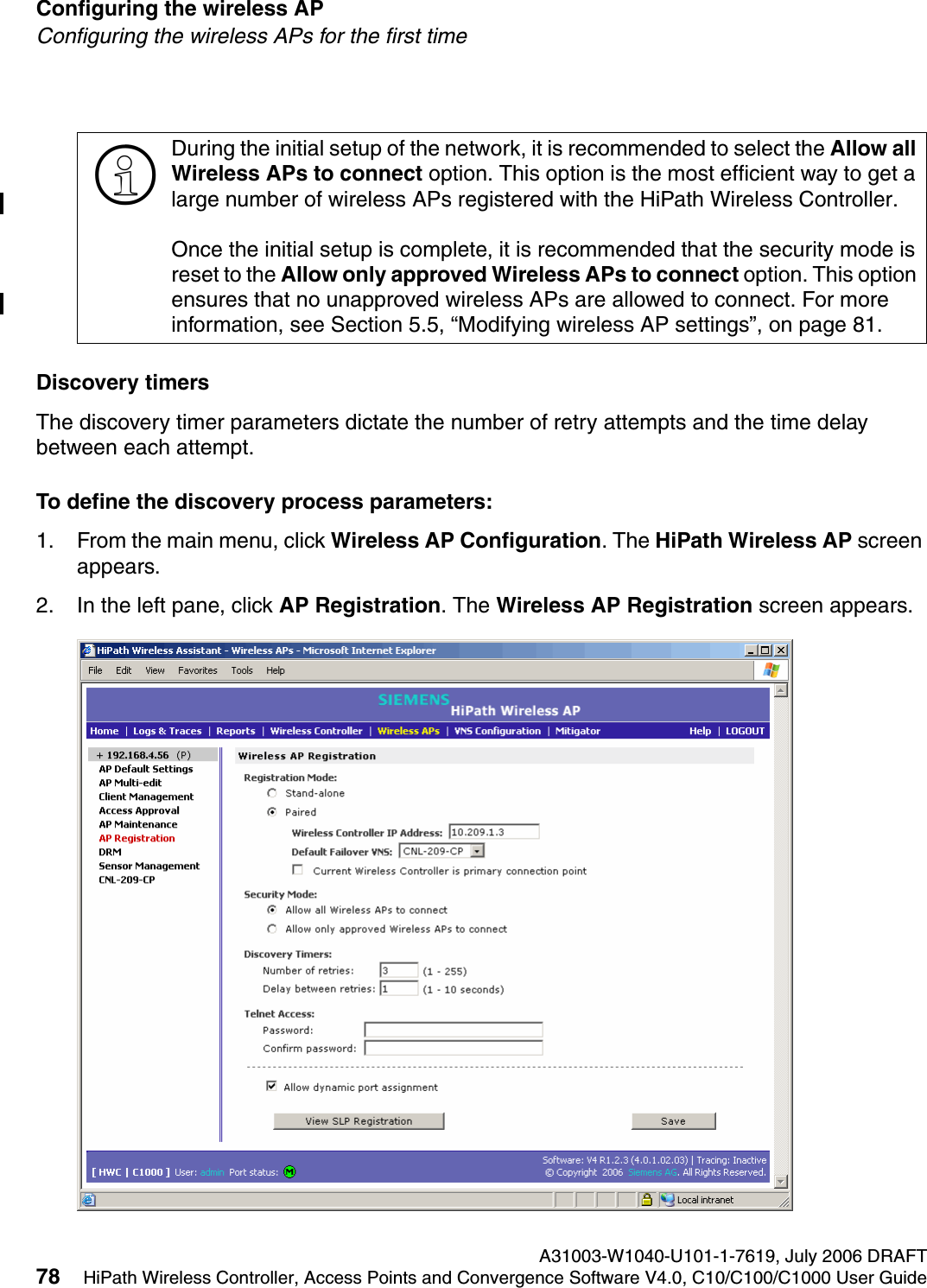
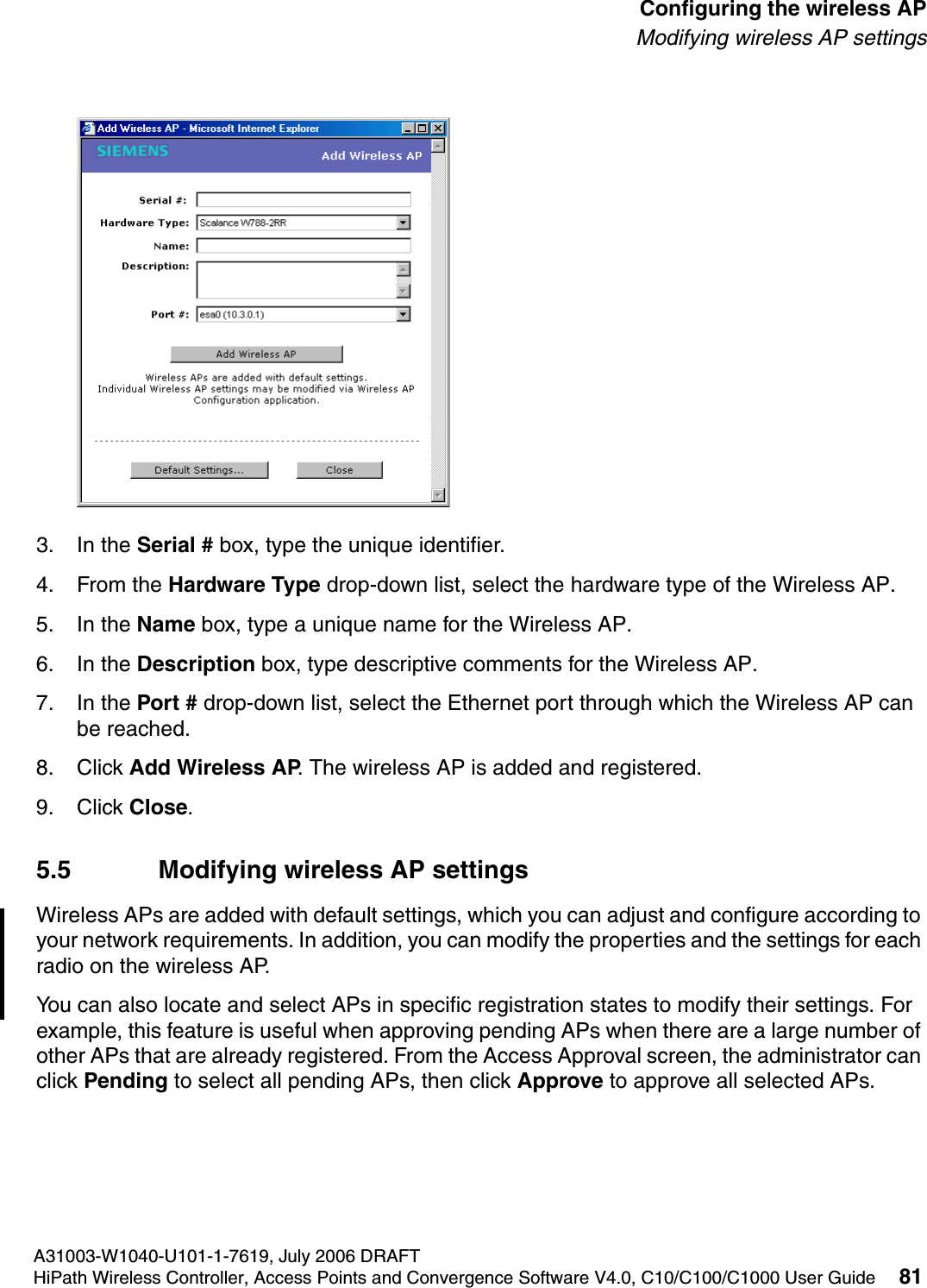
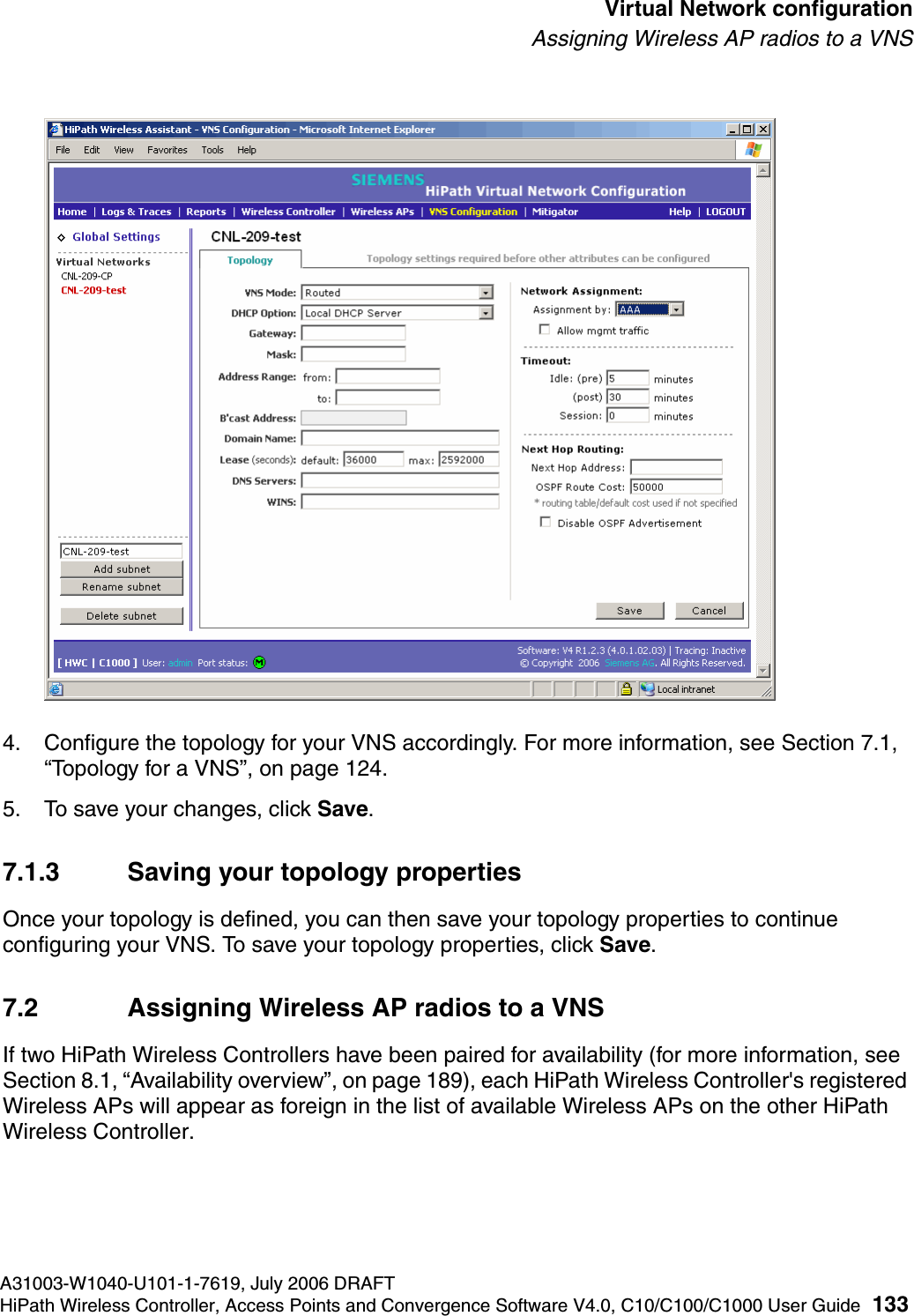
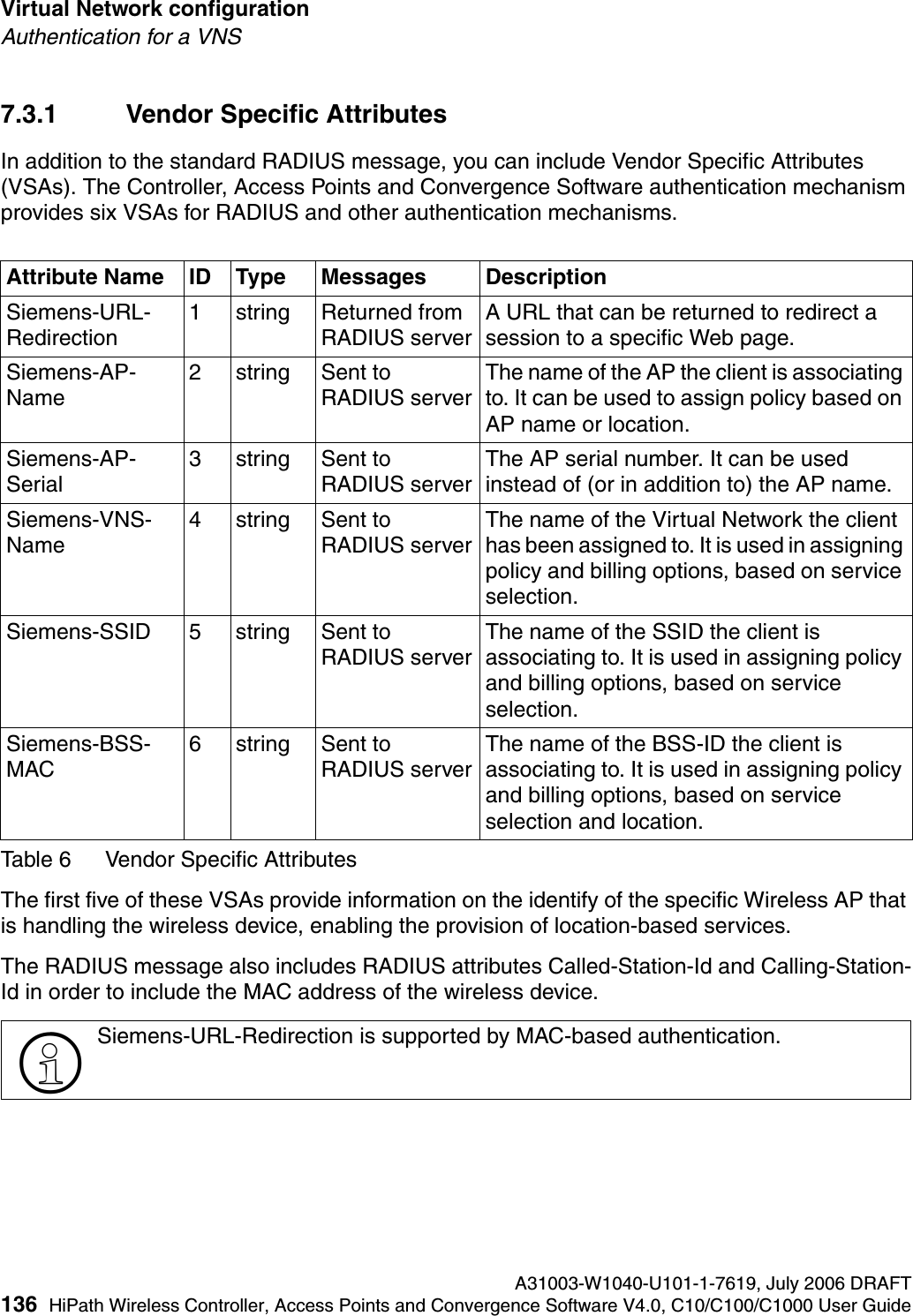
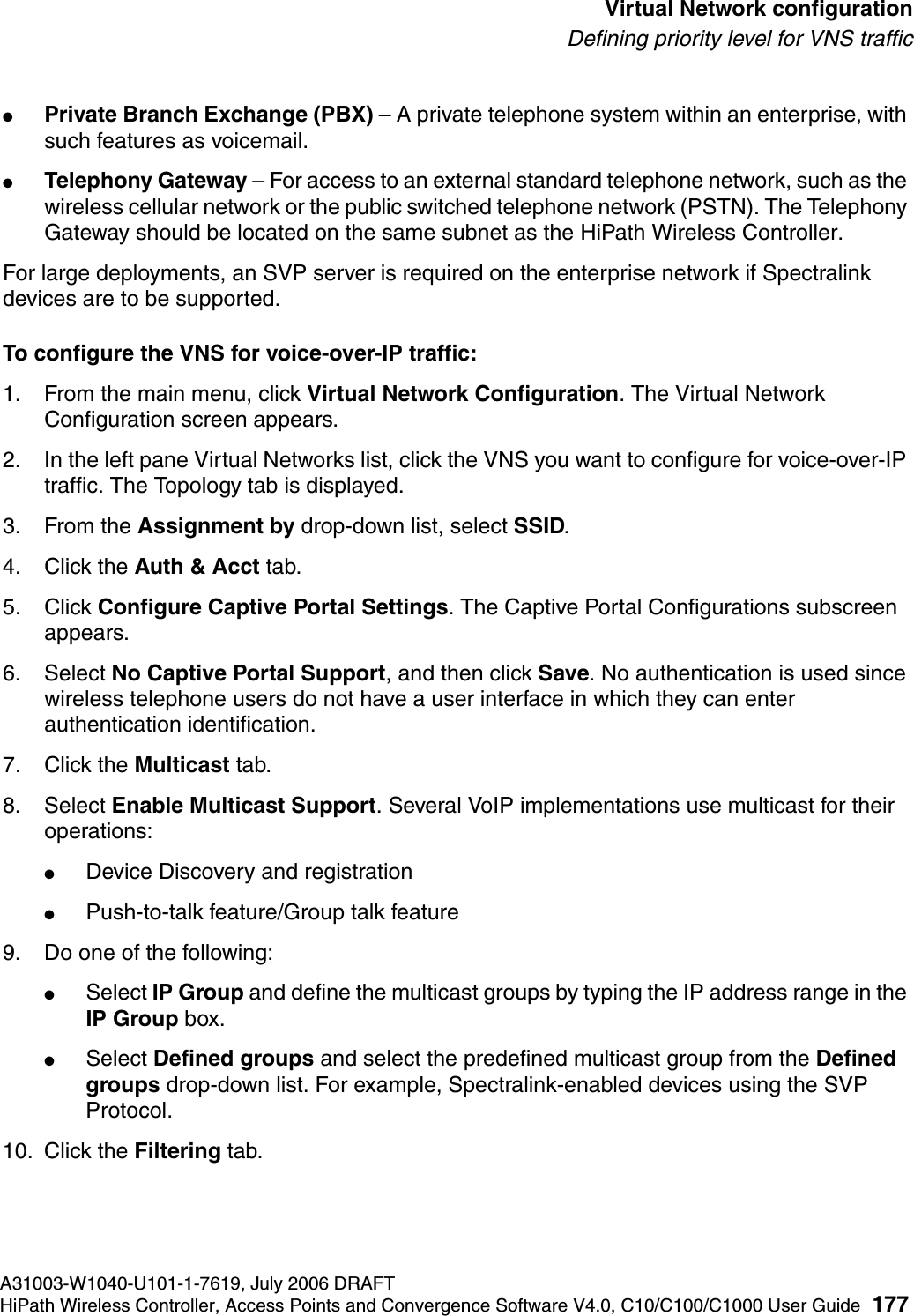
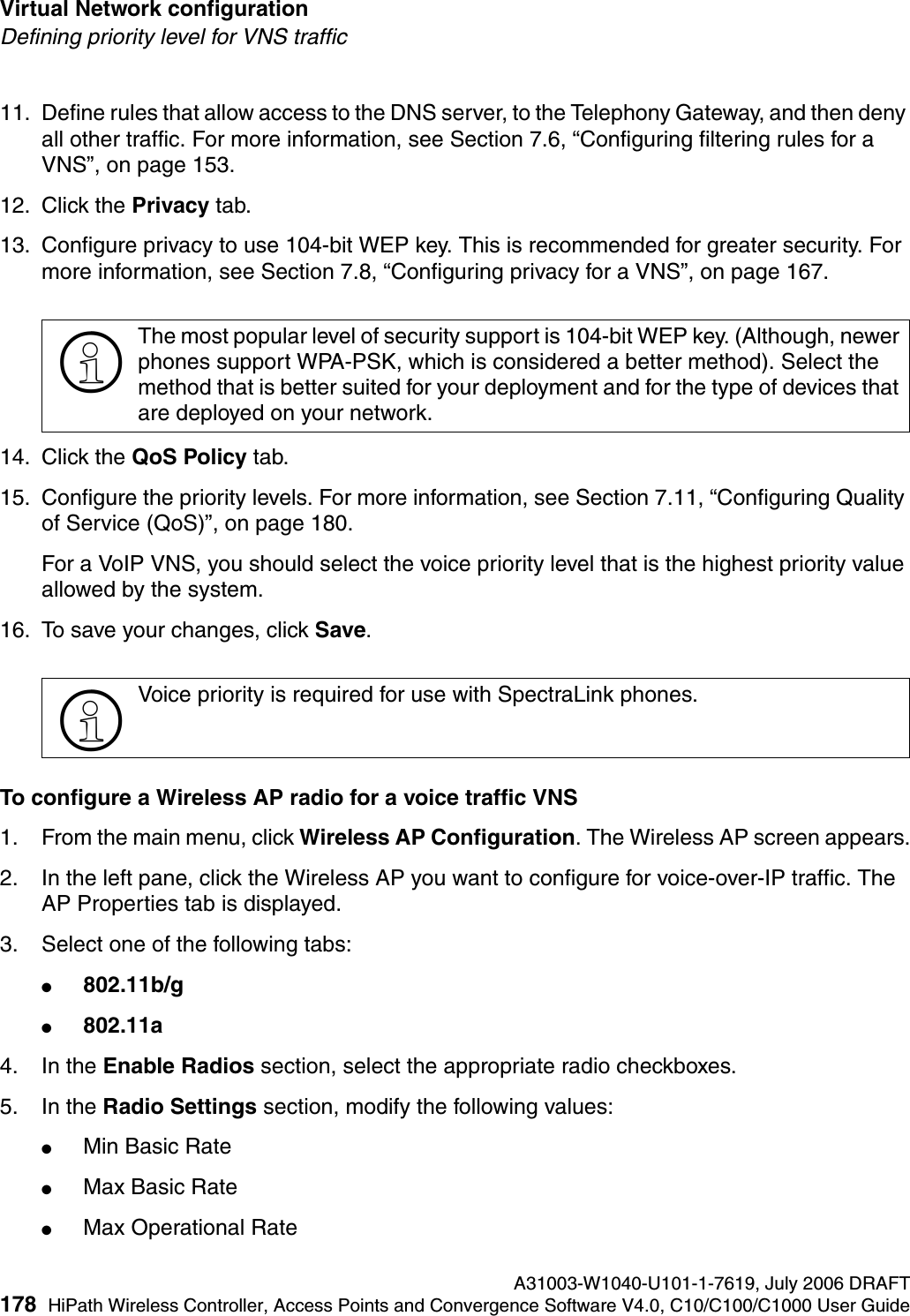
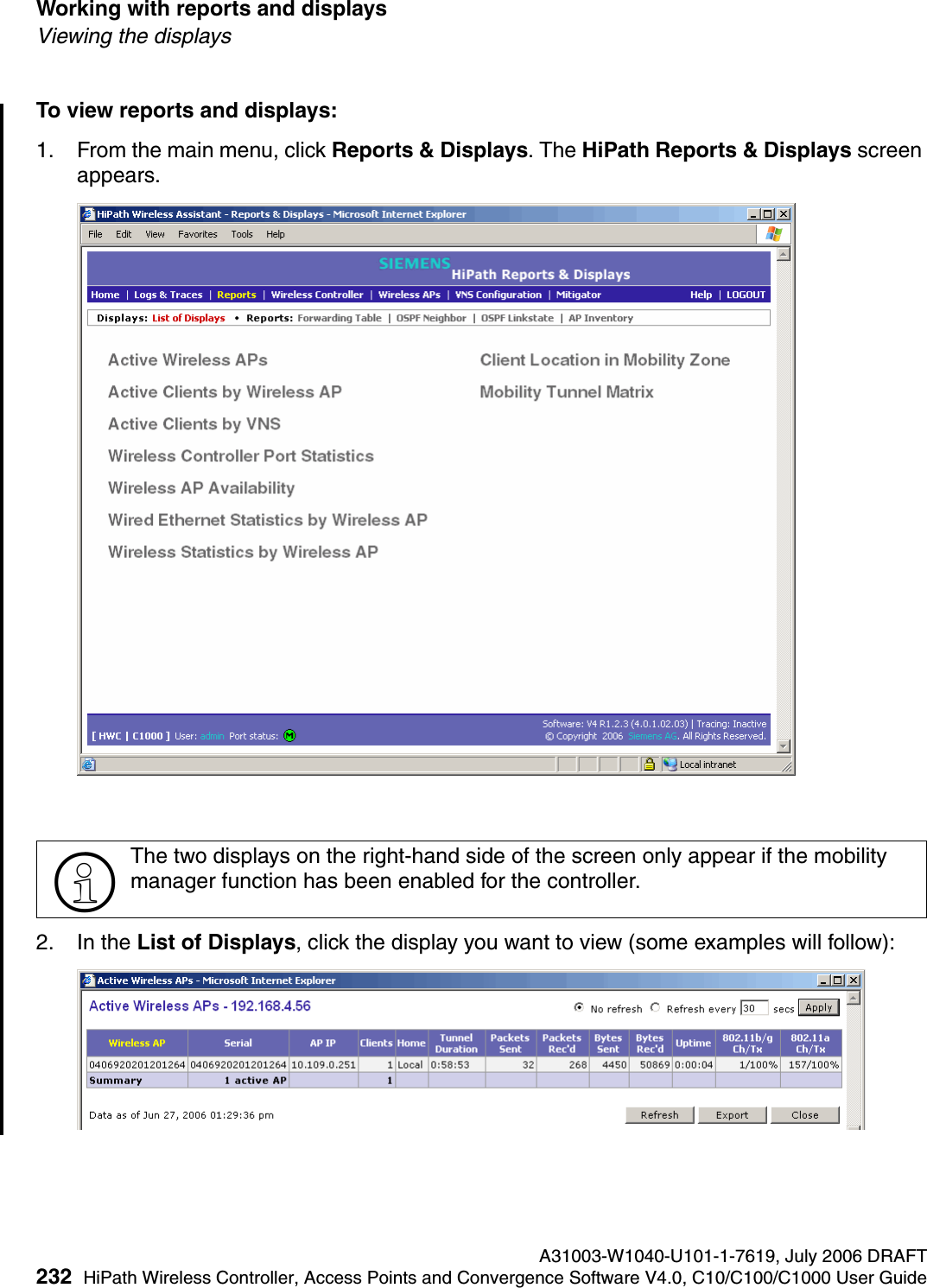
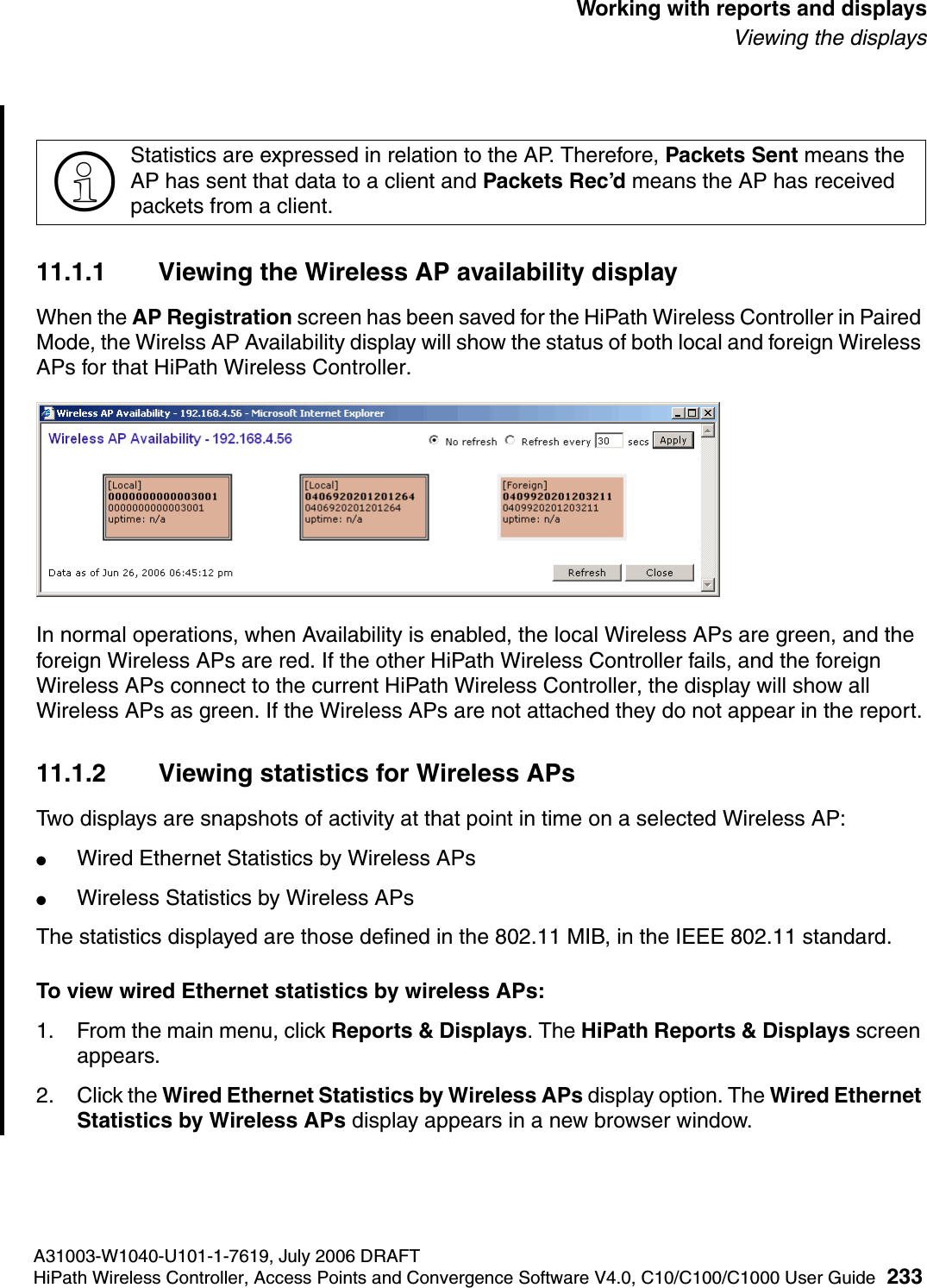
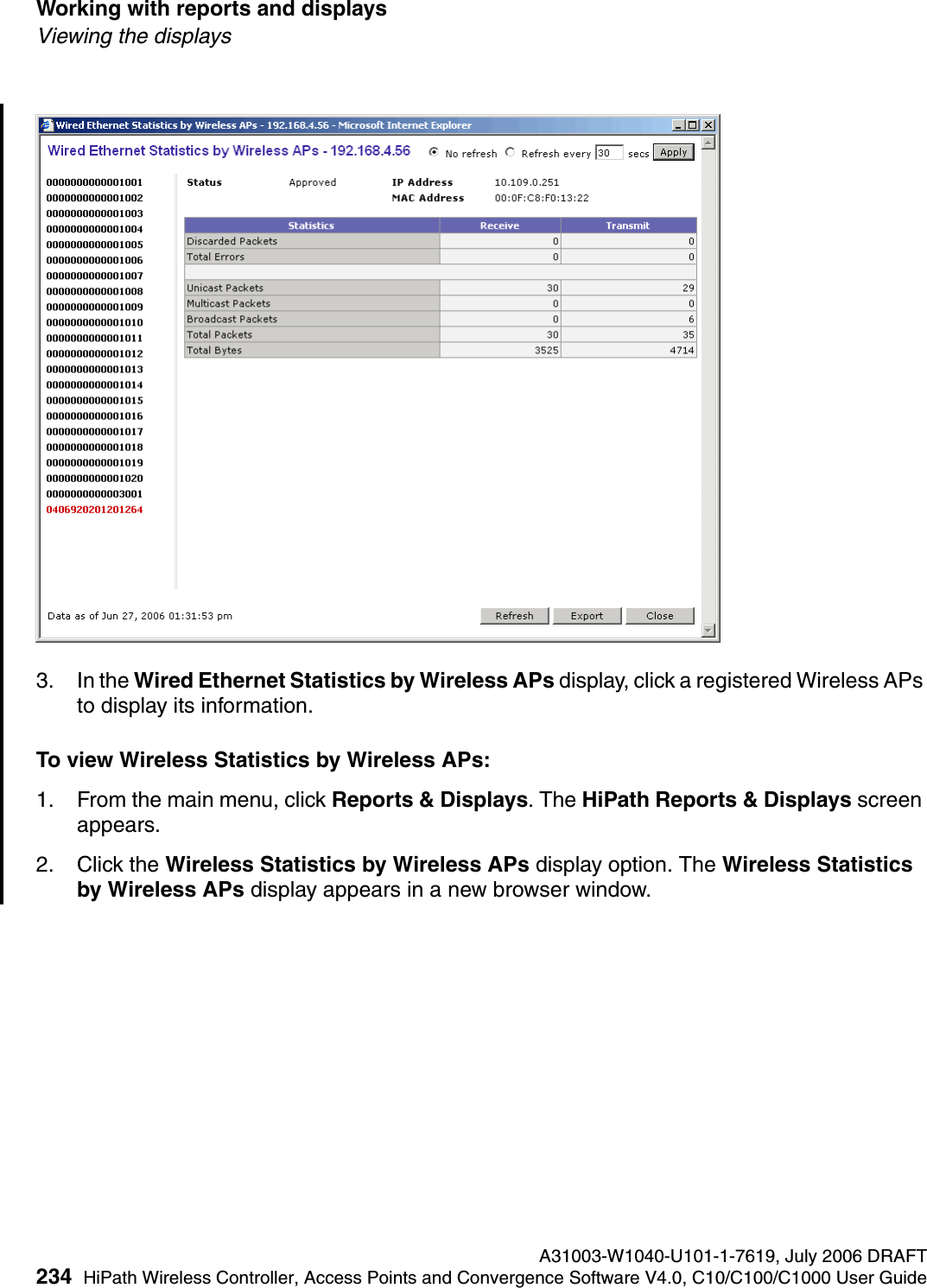
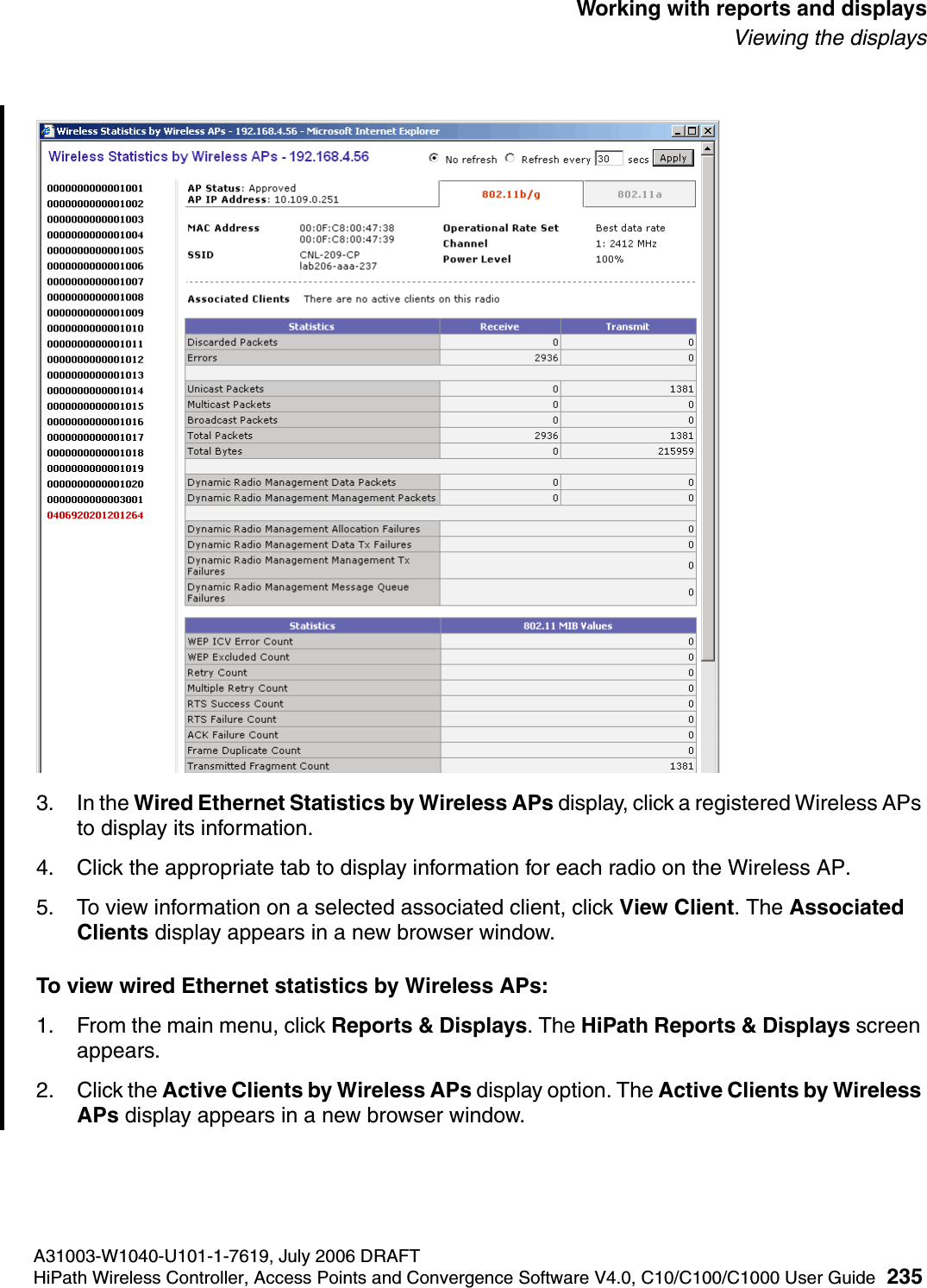
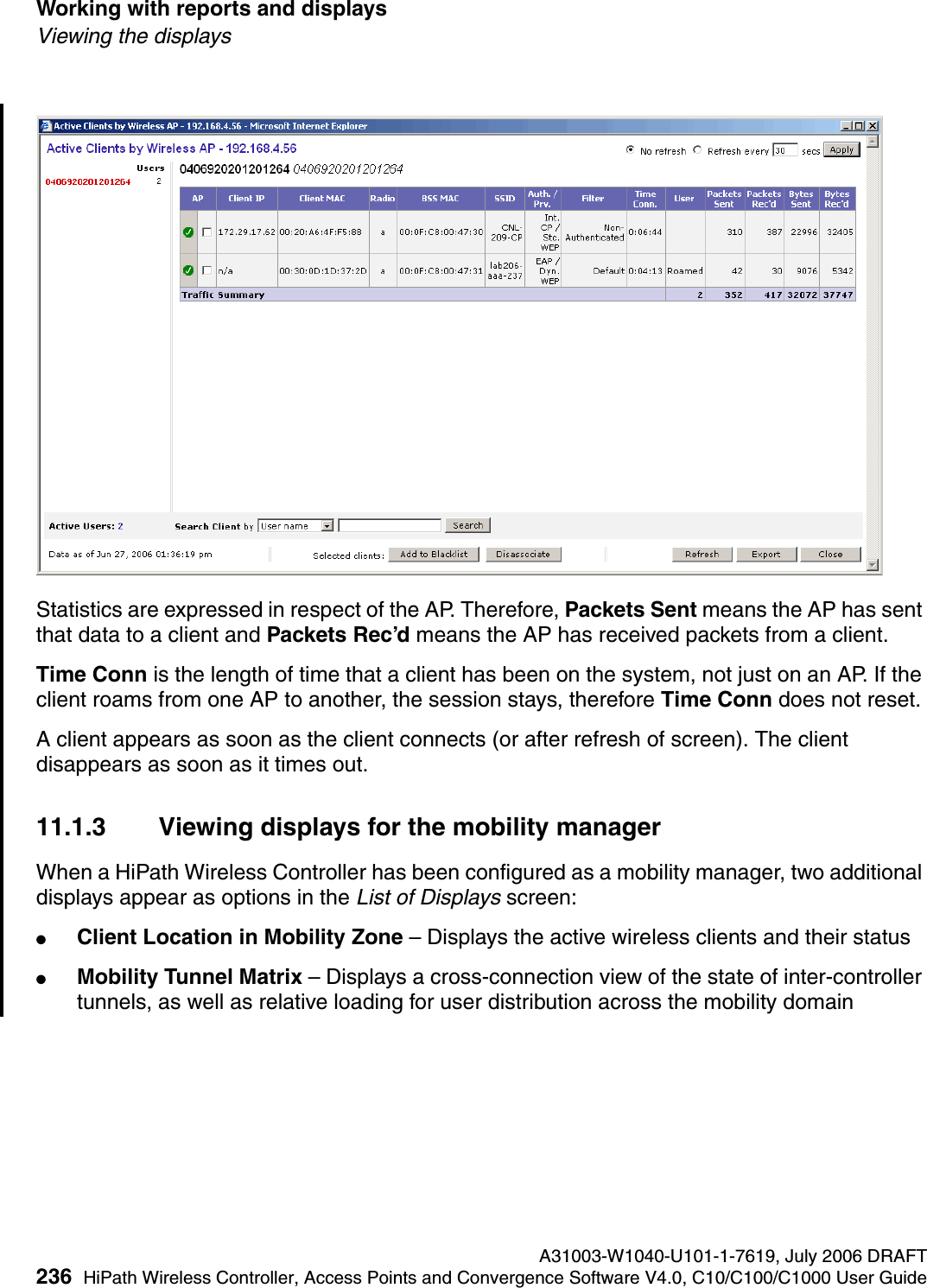
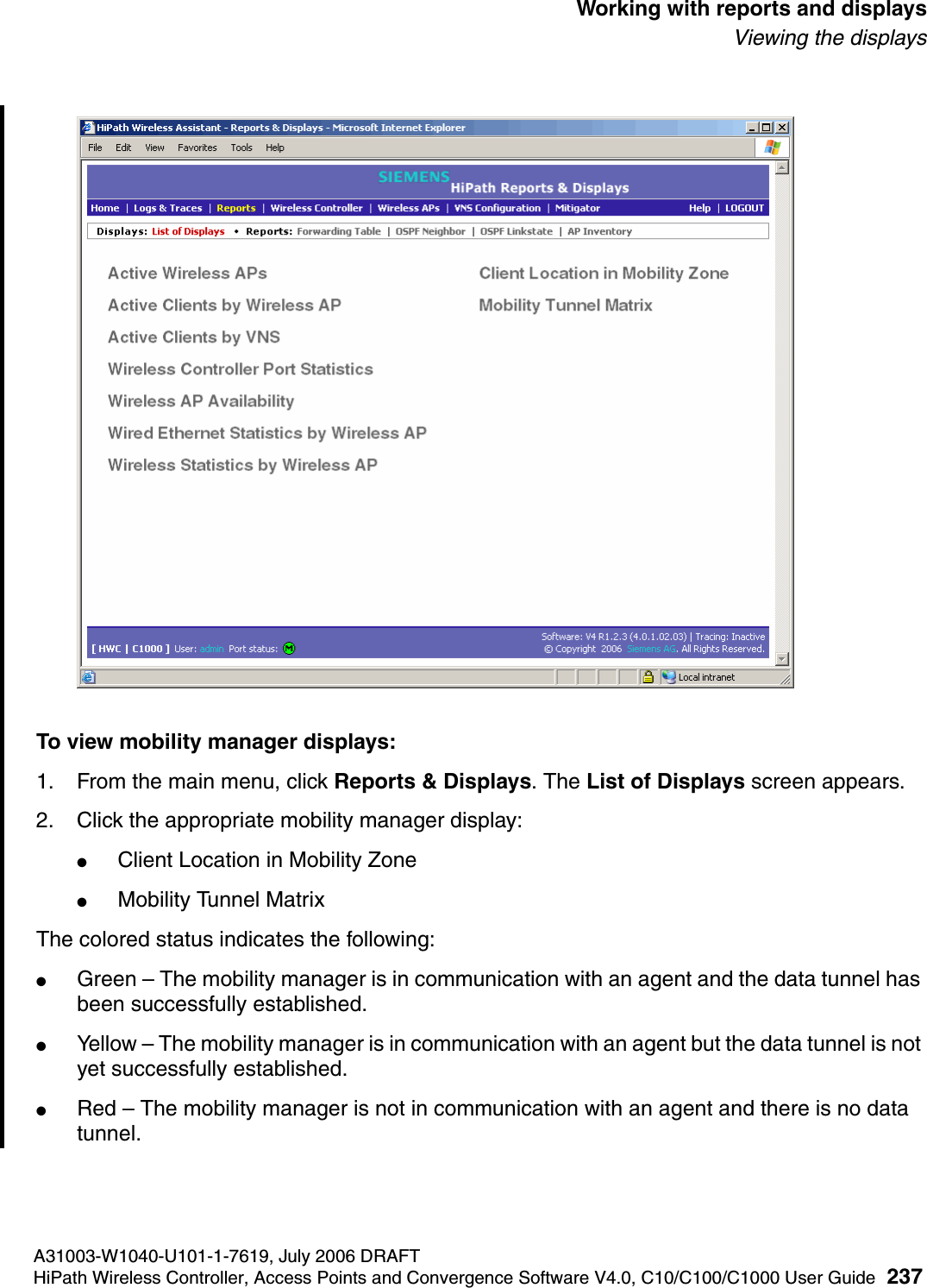
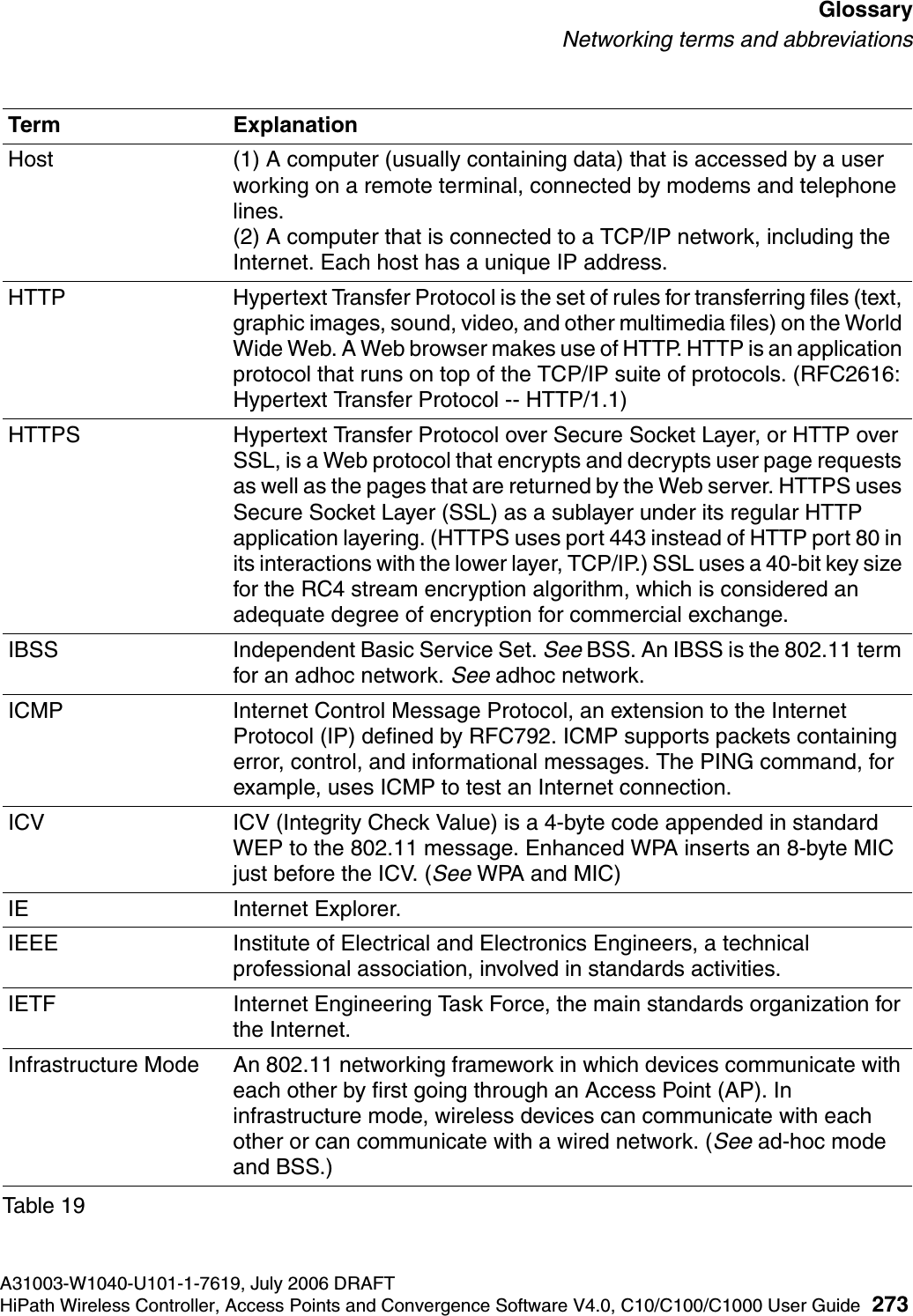
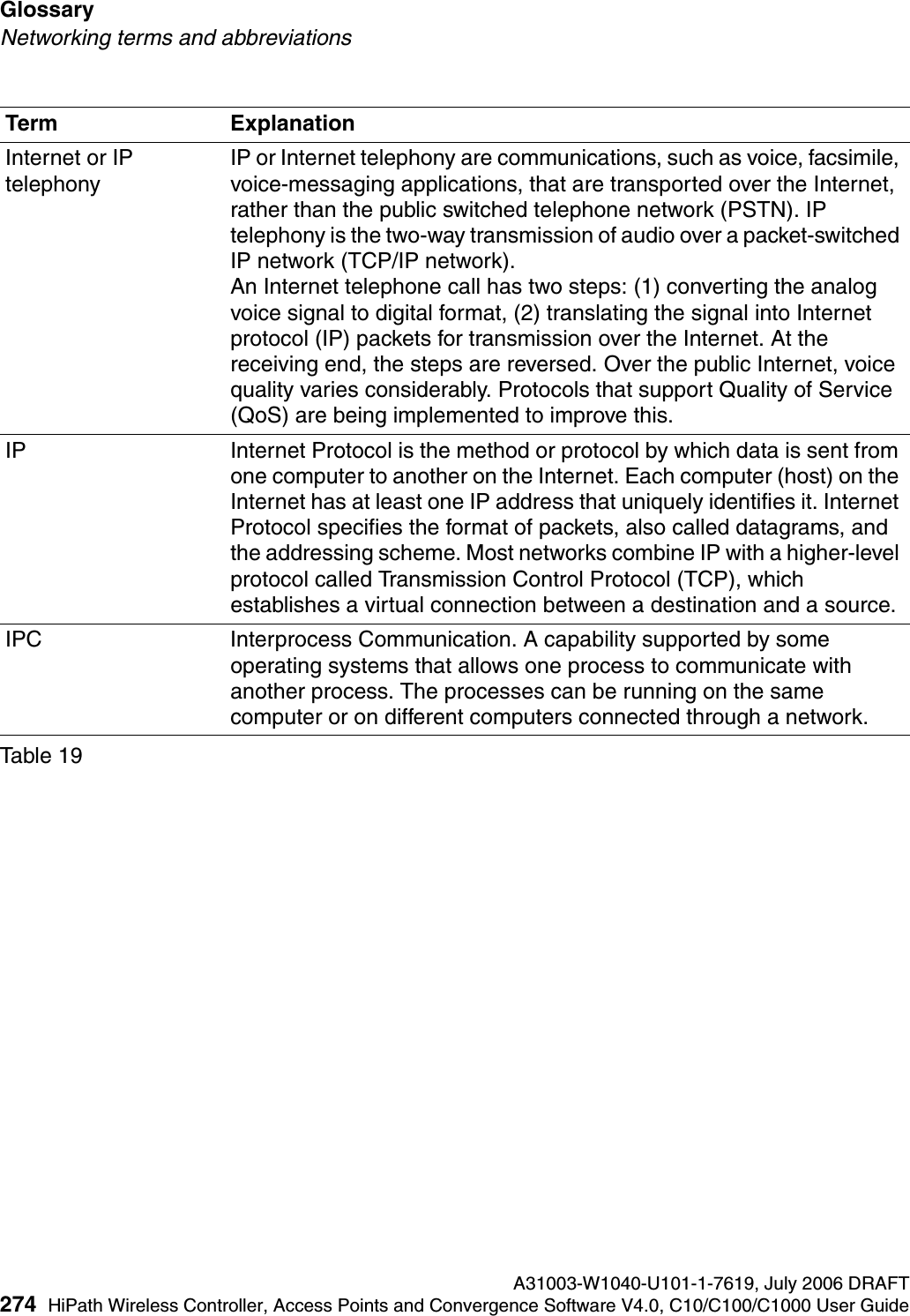
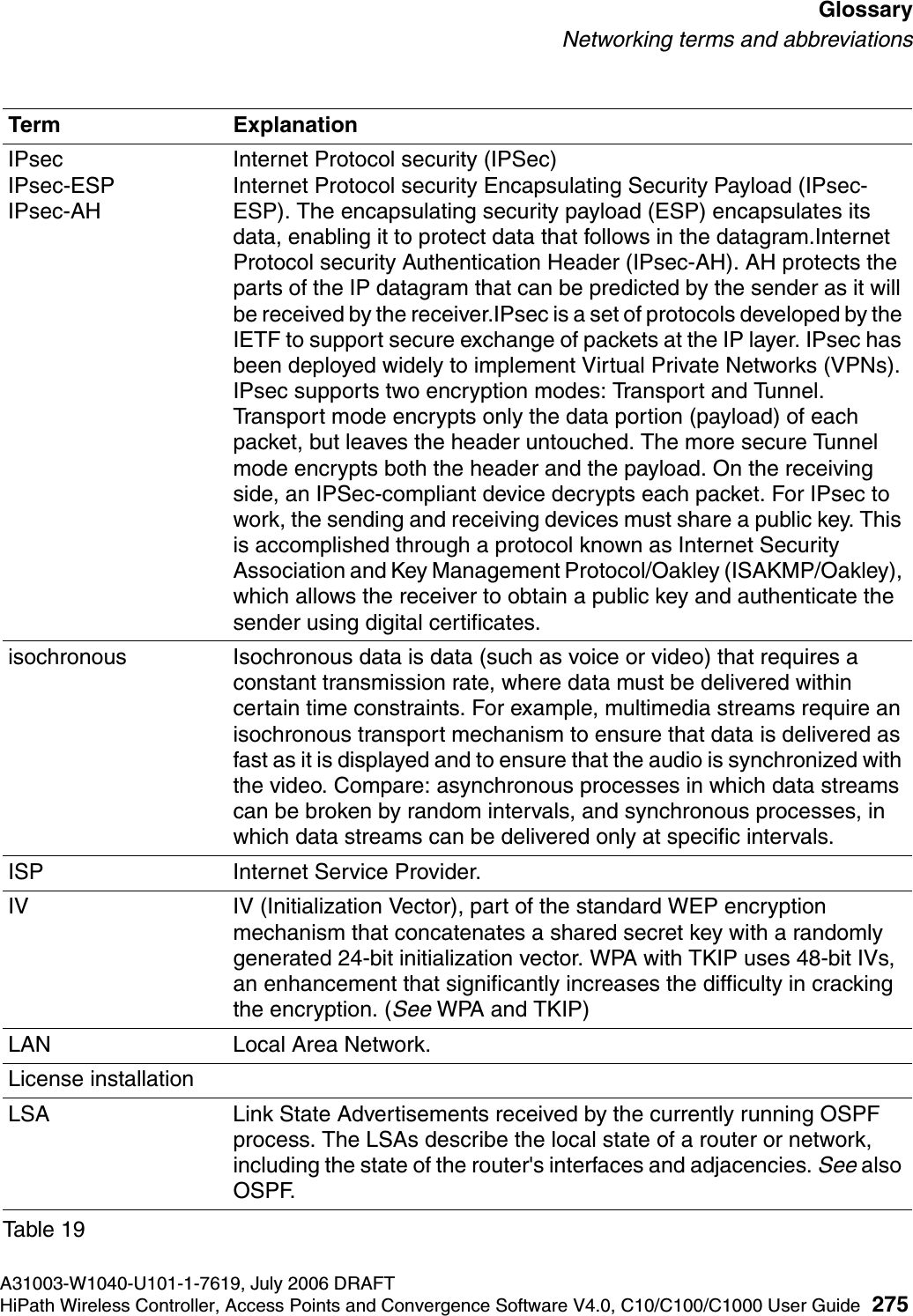
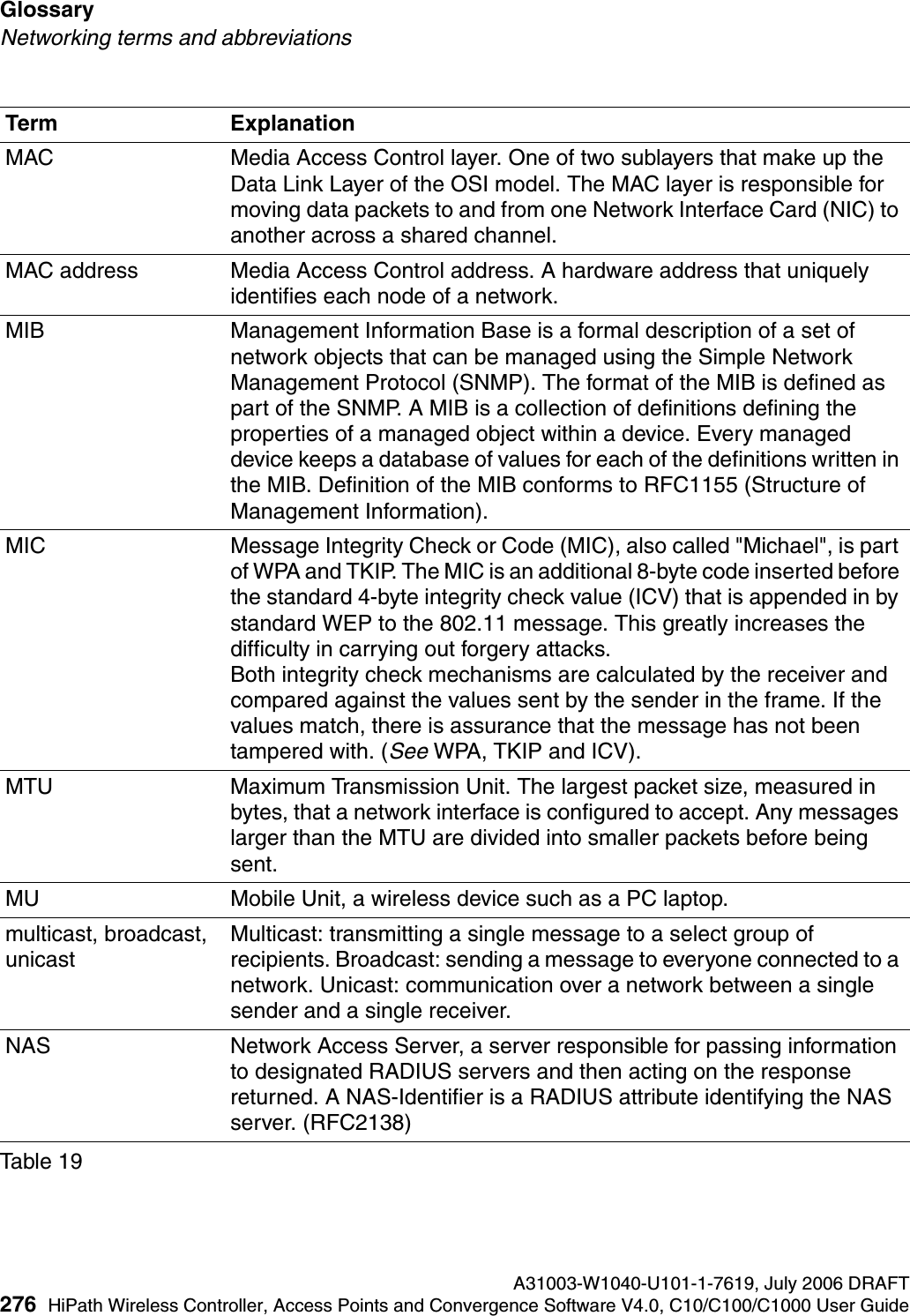
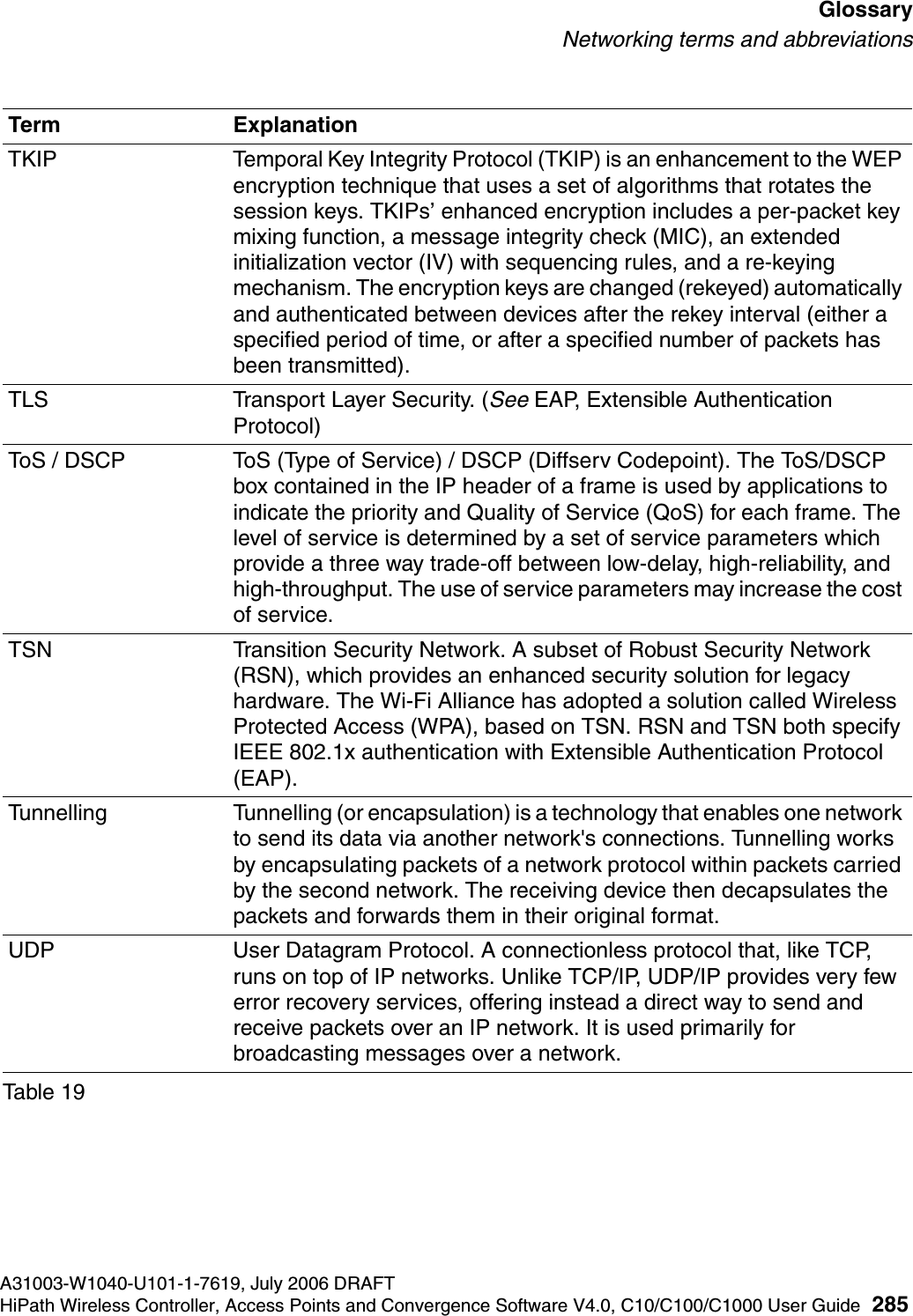
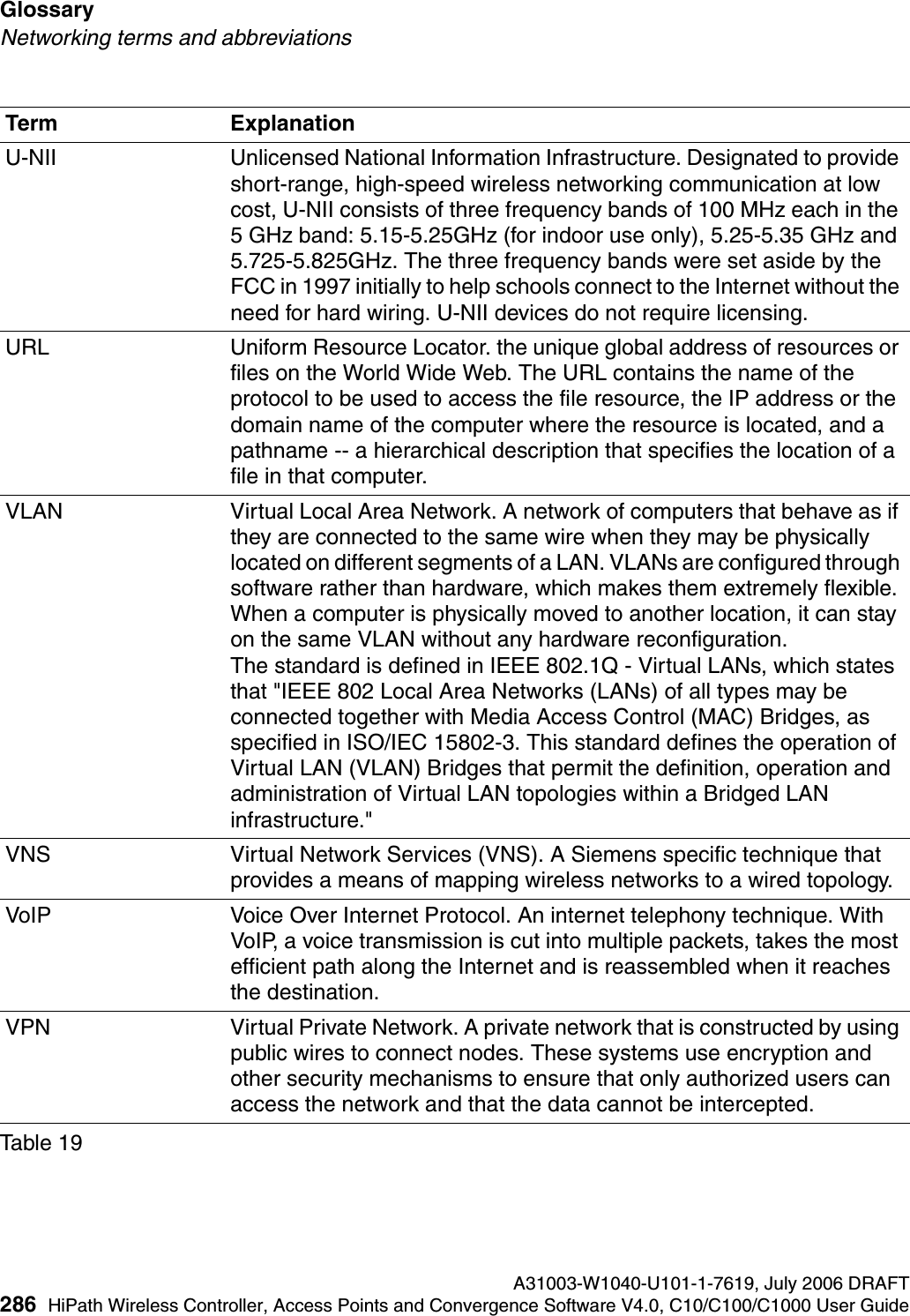
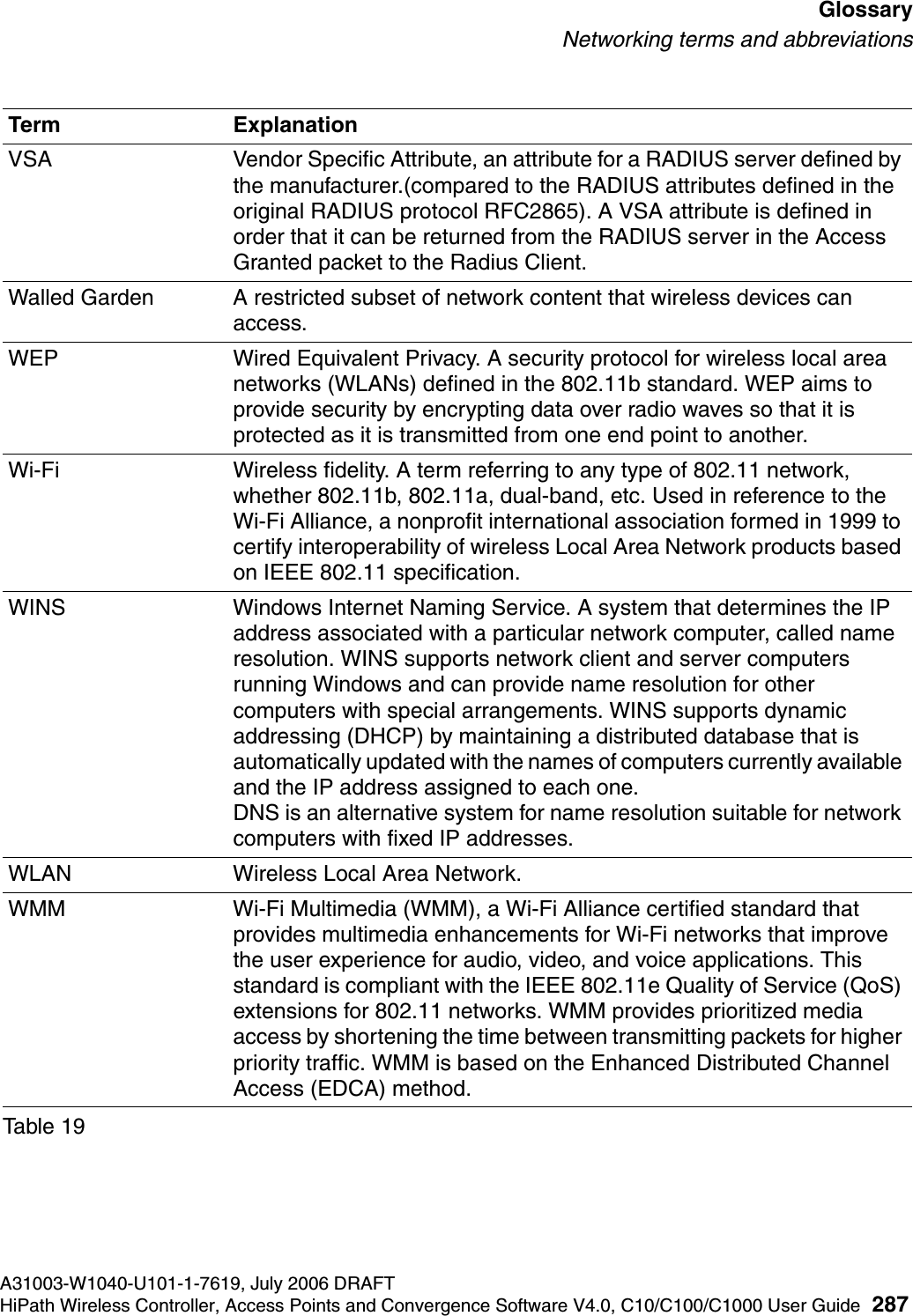
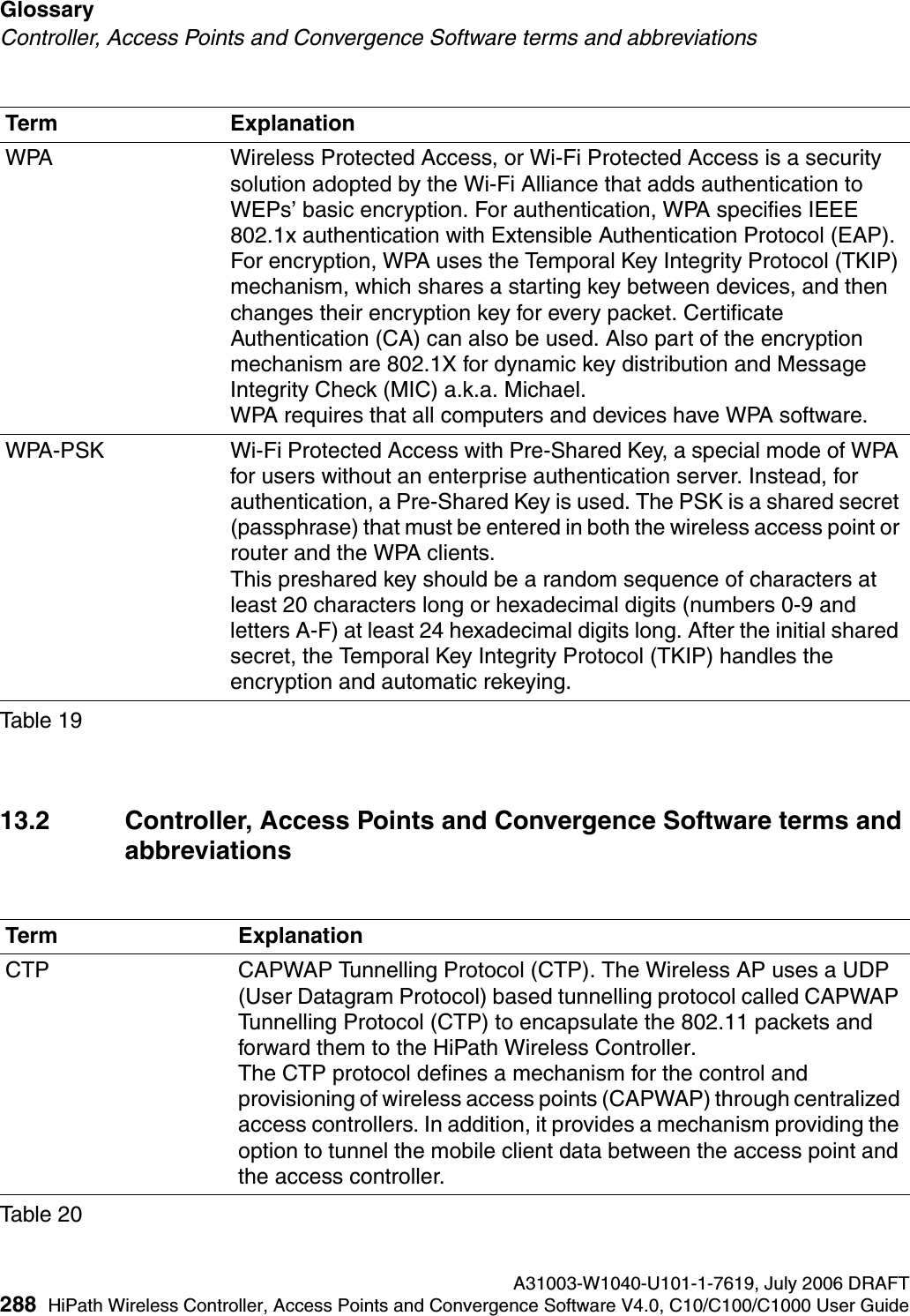
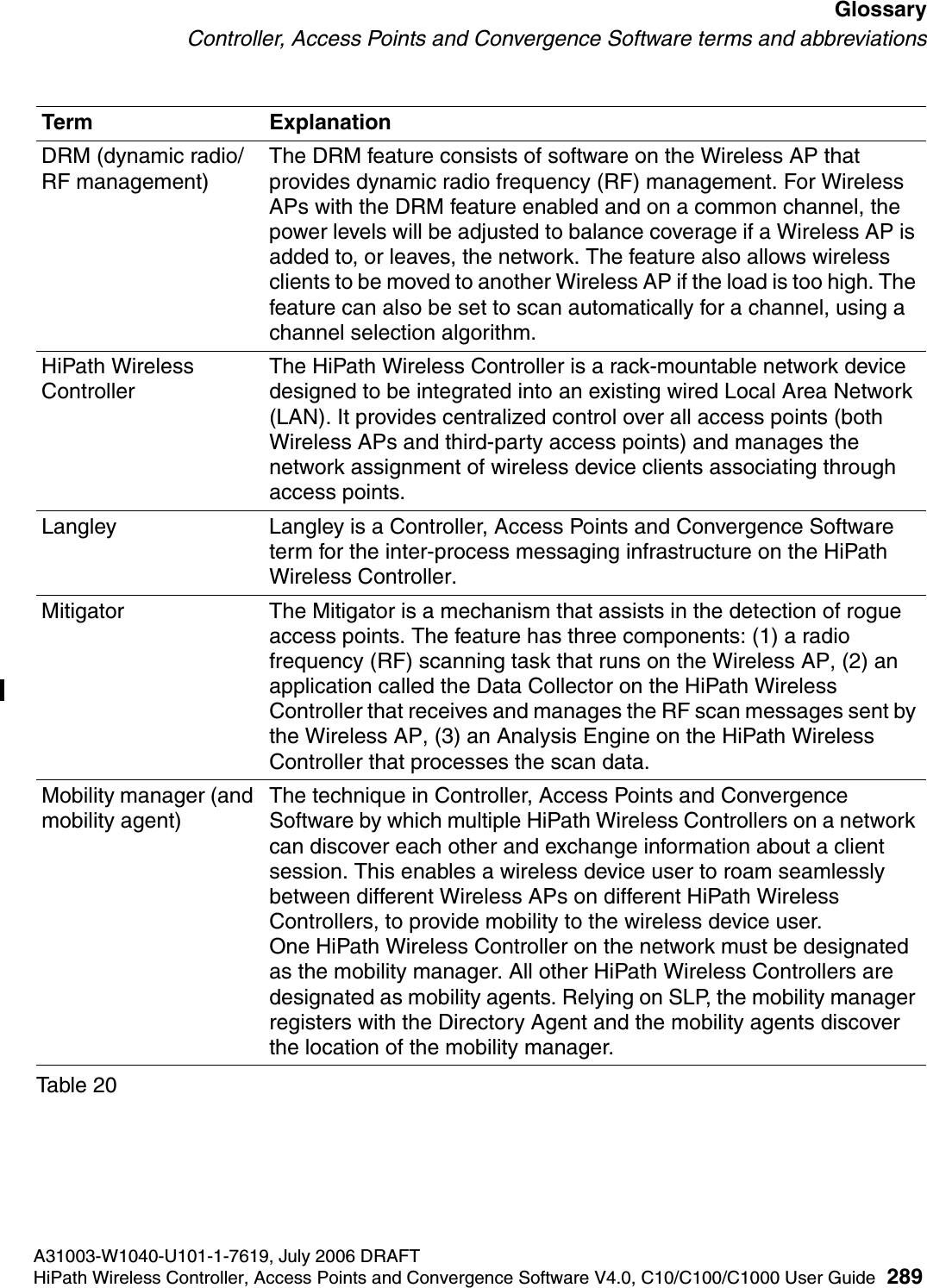
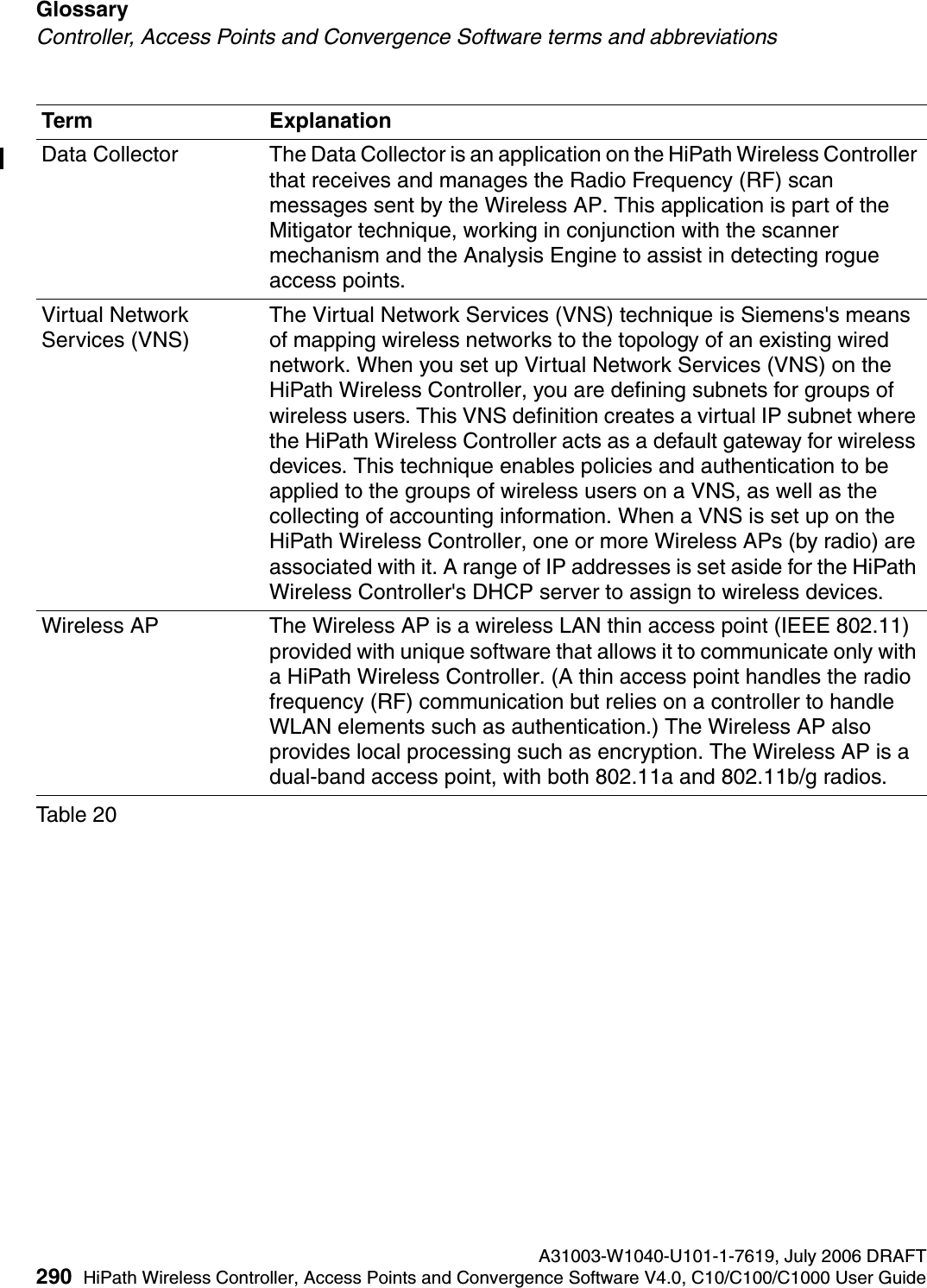
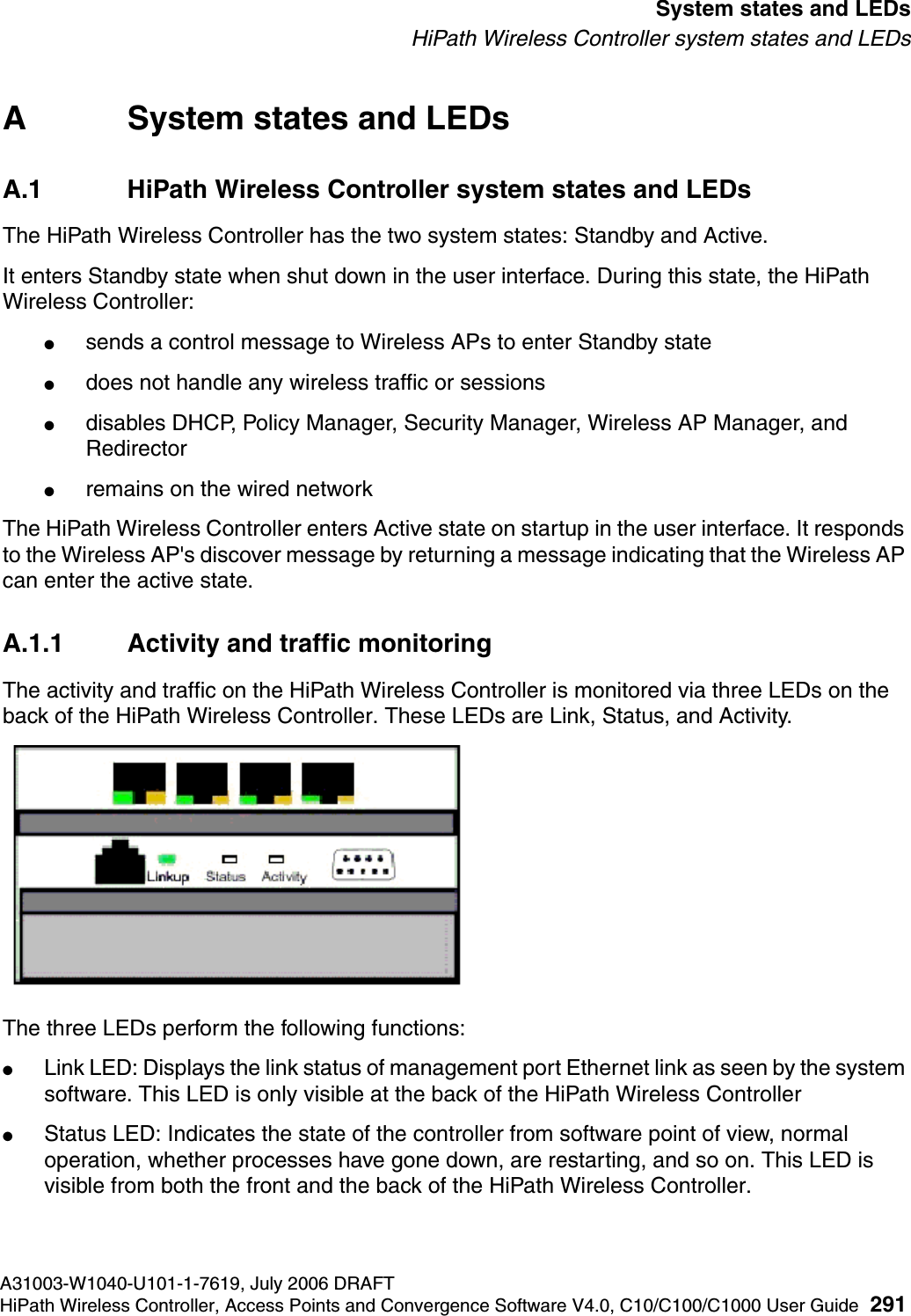
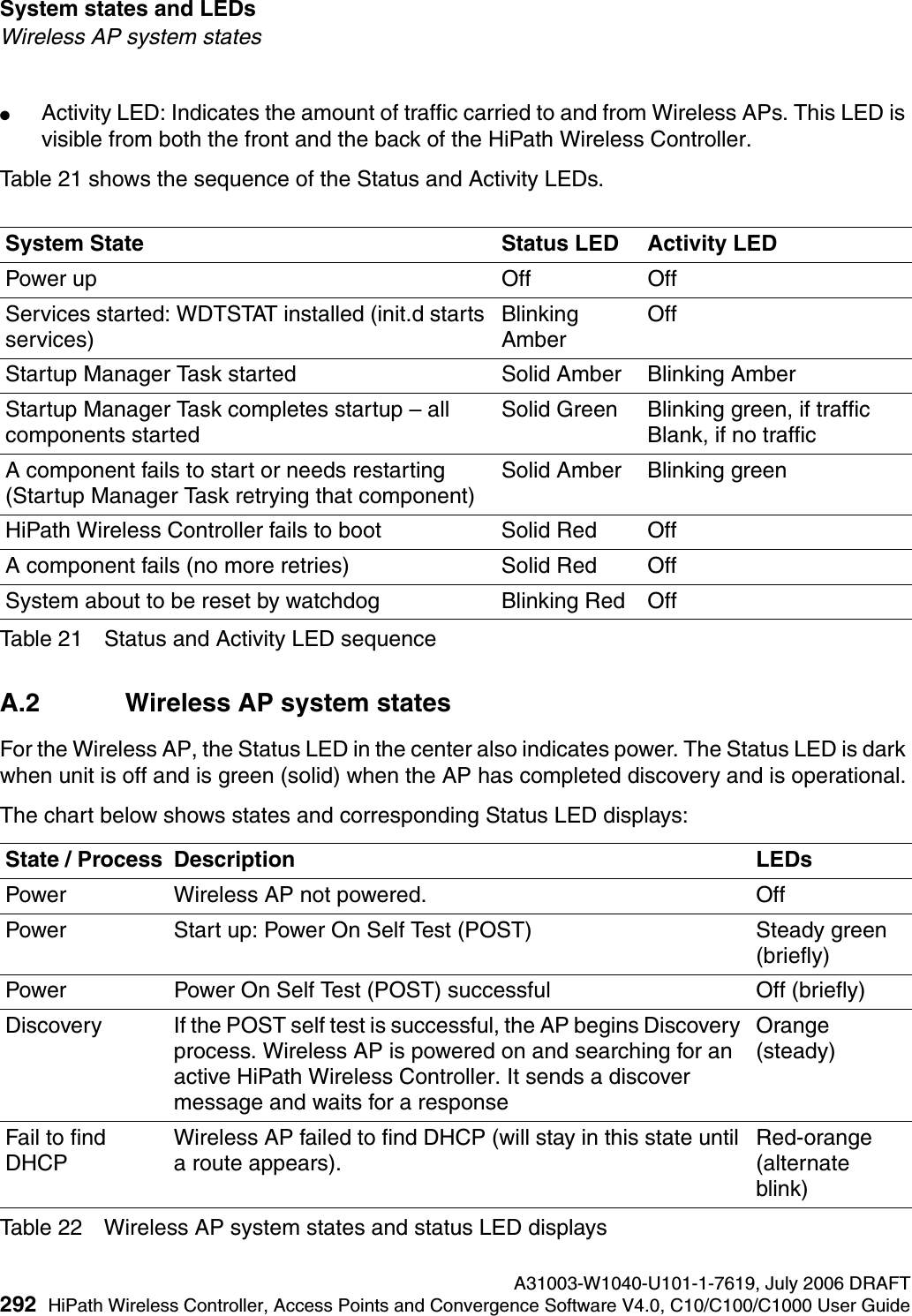
Chantry Networks APXXX1 HIPATH WIRELESS ACCESS POINT ( AP) User Manual USERS MANUAL

Chantry Networks Inc. (a Siemens Company) HIPATH WIRELESS ACCESS POINT ( AP) USERS MANUAL

USERS MANUAL

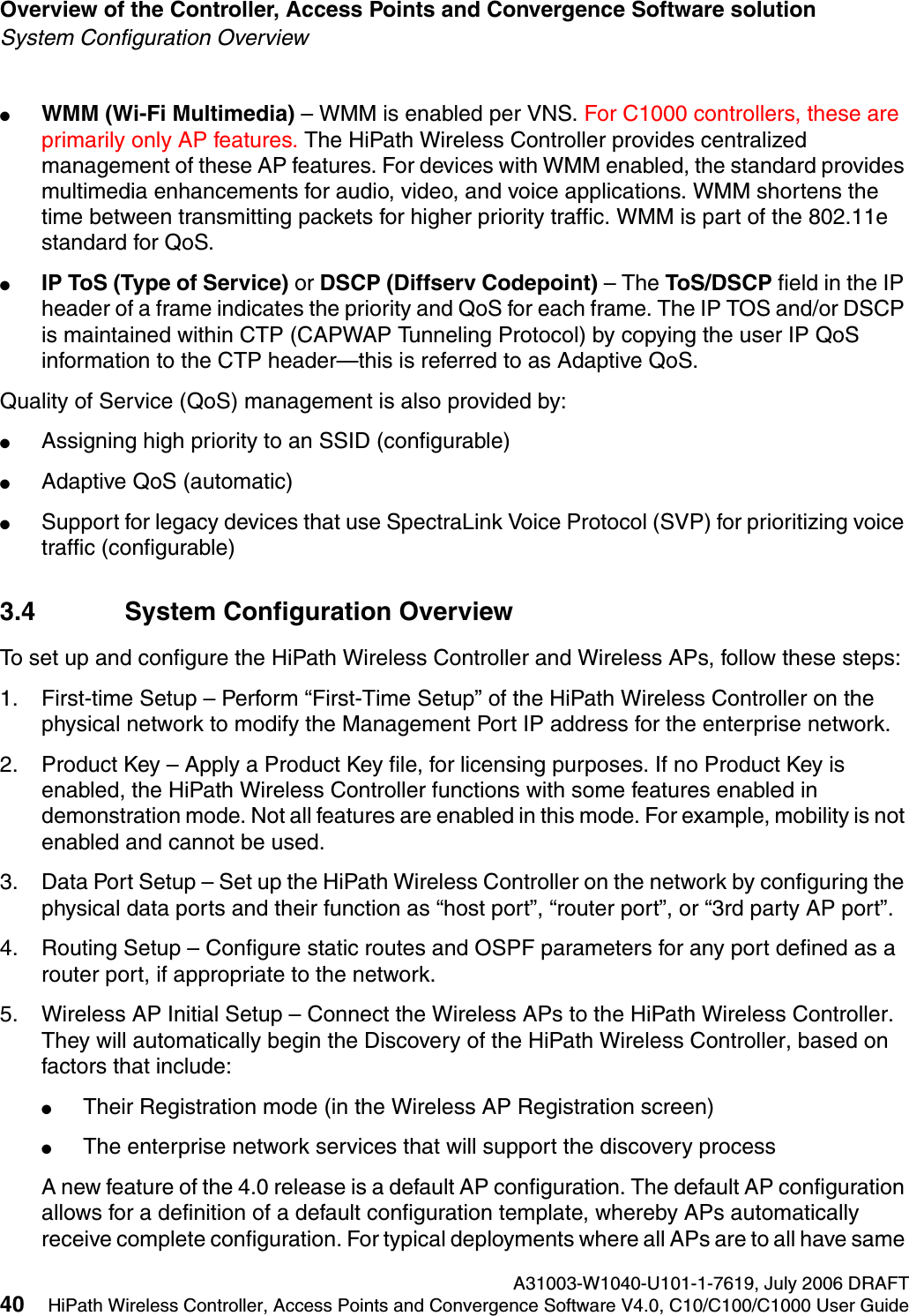
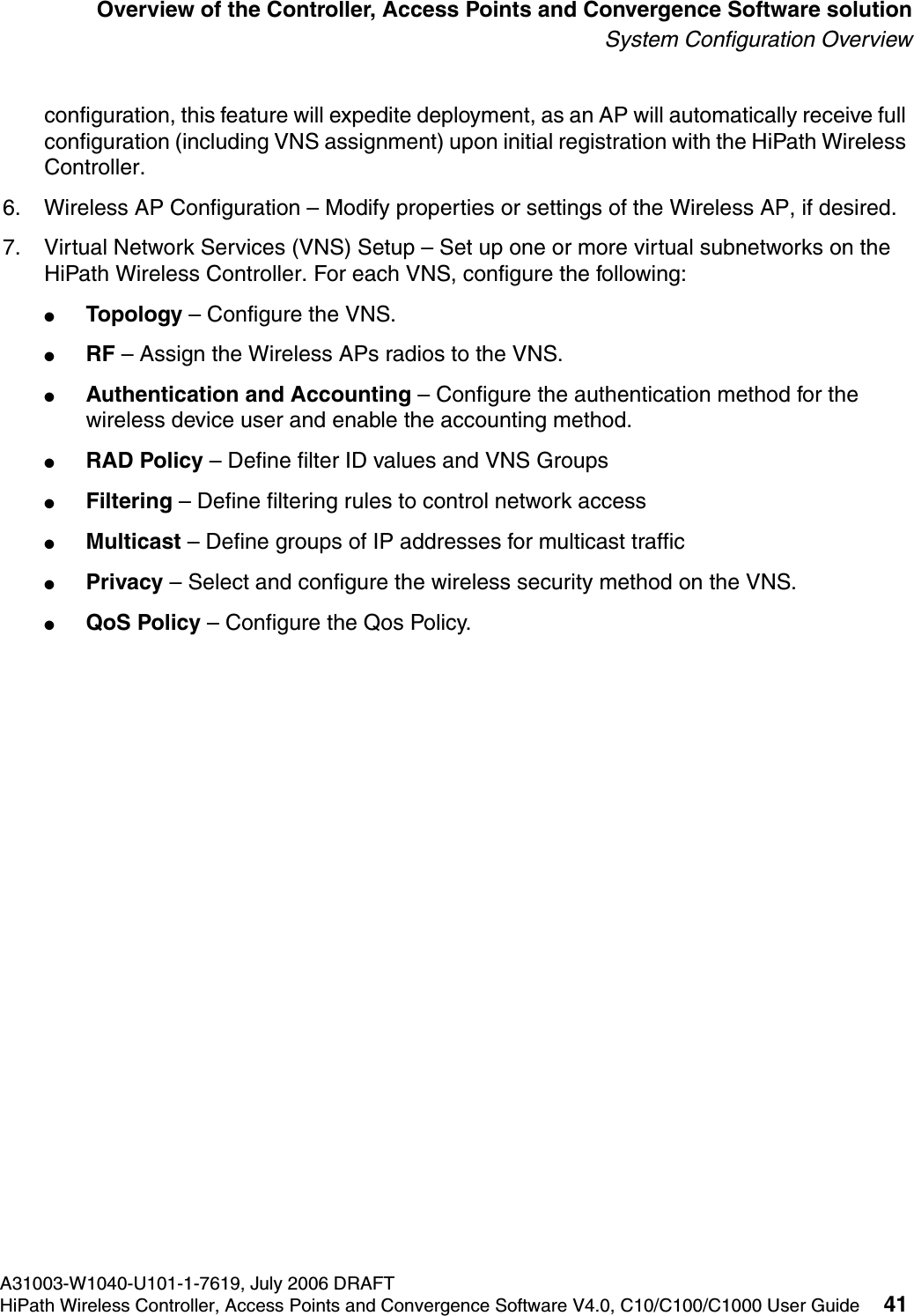
HiPath Wireless Controller, Access Points and Convergence Software, V4.0C10/C100/C1000 User Guide
*1PA31003-W1040-U101-1-7619* 1P  A31003-W1040-U101-1-7619The information provided in this document contains merely general descriptions or characteristics of performance which in case of actual use do not always apply as described or which may change as a result of further development of the products. An obligation to provide the respective characteristics shall only exist if expressly agreed in the terms of contract. The trademarks used are owned by Siemens AG or their respective owners.WarningHackers who unlawfully gain access to customer telecommunications systems are criminals. Currently, we do not know of any telecommunications system that is immune to this type of criminal activity. Siemens AG will not accept liability for any damages which result from unauthorized use. Although Siemens has designed security features into its products, it is your sole responsibility to use the security features and to establish security practices within your company, including training, security awareness, and call auditing.Siemens sales and service personnel, as well as Siemens business partners, are available to work with you to help you guard against this unauthorized use of your telecommunications system.July 2006No part of this publication may be reproduced, stored in a retrieval system, or transmitted, in any form or by any means, mechanical, electronic, photocopying, recording, or otherwise, without prior written permission of Siemens. The software described in this publication is furnished under a license agreement and may be used only in accordance with the terms of that agreement.Request Siemens publications from your Siemens representative or the Siemens branch serving you.Copyright © 2006 Siemens AG. All rights reserved.© Siemens AG 2006 ● Siemens Communications, Hofmannstraße 51, D-81359 München, GermanyReference No.: A31003-W1040-U101-1-7619Subject to availability. Right of modification reserved.
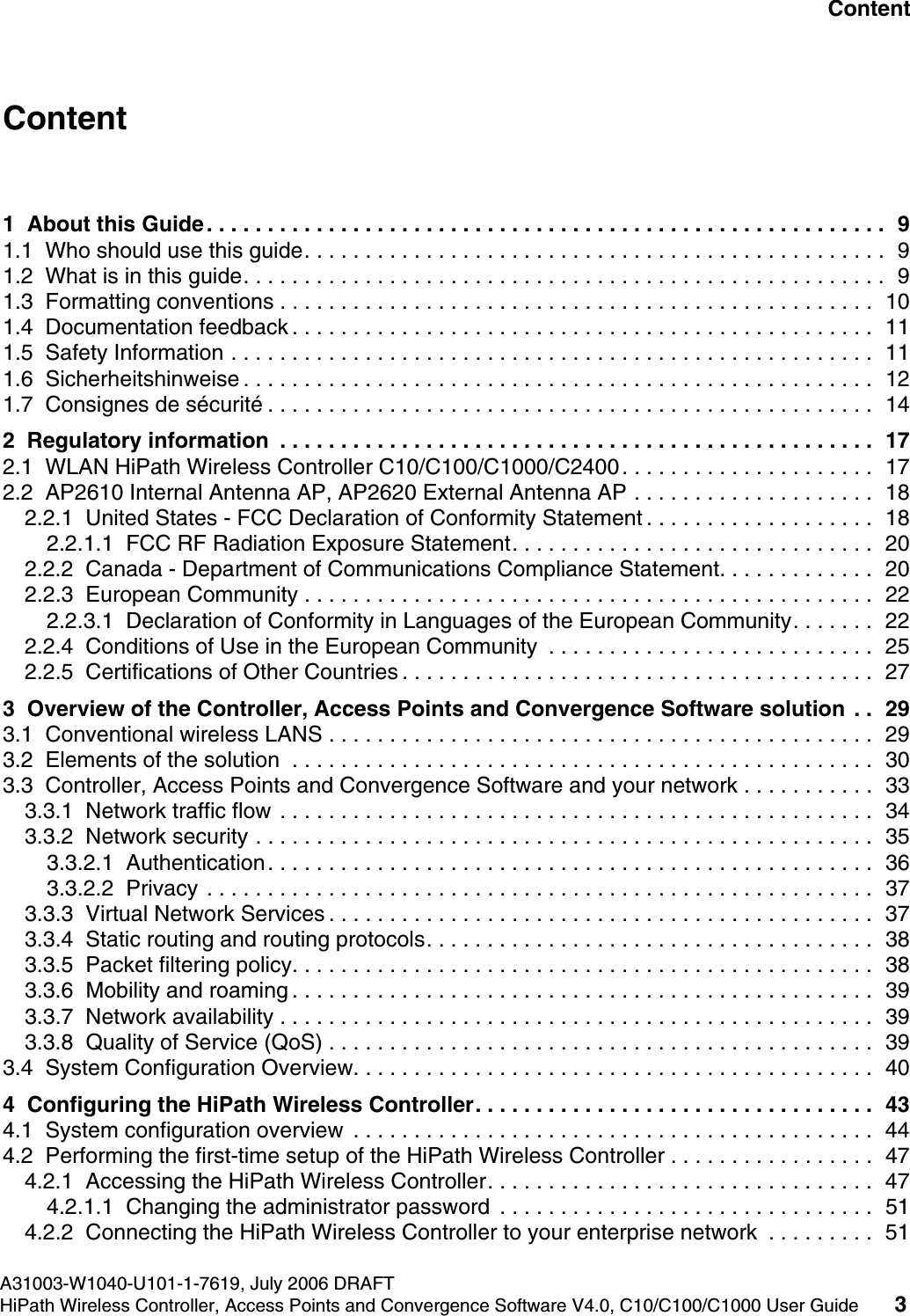
hwc1000_user_guidetoc.fmA31003-W1040-U101-1-7619, July 2006 DRAFTHiPath Wireless Controller, Access Points and Convergence Software V4.0, C10/C100/C1000 User Guide 3        Nur für den internen Gebrauch ContentContent 01  About this Guide. . . . . . . . . . . . . . . . . . . . . . . . . . . . . . . . . . . . . . . . . . . . . . . . . . . . . . . .  91.1  Who should use this guide. . . . . . . . . . . . . . . . . . . . . . . . . . . . . . . . . . . . . . . . . . . . . . . .  91.2  What is in this guide. . . . . . . . . . . . . . . . . . . . . . . . . . . . . . . . . . . . . . . . . . . . . . . . . . . . .  91.3  Formatting conventions . . . . . . . . . . . . . . . . . . . . . . . . . . . . . . . . . . . . . . . . . . . . . . . . .  101.4  Documentation feedback . . . . . . . . . . . . . . . . . . . . . . . . . . . . . . . . . . . . . . . . . . . . . . . .  111.5  Safety Information . . . . . . . . . . . . . . . . . . . . . . . . . . . . . . . . . . . . . . . . . . . . . . . . . . . . .  111.6  Sicherheitshinweise . . . . . . . . . . . . . . . . . . . . . . . . . . . . . . . . . . . . . . . . . . . . . . . . . . . .  121.7  Consignes de sécurité . . . . . . . . . . . . . . . . . . . . . . . . . . . . . . . . . . . . . . . . . . . . . . . . . .  142  Regulatory information  . . . . . . . . . . . . . . . . . . . . . . . . . . . . . . . . . . . . . . . . . . . . . . . . .  172.1  WLAN HiPath Wireless Controller C10/C100/C1000/C2400. . . . . . . . . . . . . . . . . . . . .  172.2  AP2610 Internal Antenna AP, AP2620 External Antenna AP . . . . . . . . . . . . . . . . . . . .  182.2.1  United States - FCC Declaration of Conformity Statement . . . . . . . . . . . . . . . . . . .  182.2.1.1  FCC RF Radiation Exposure Statement. . . . . . . . . . . . . . . . . . . . . . . . . . . . . .  202.2.2  Canada - Department of Communications Compliance Statement. . . . . . . . . . . . .  202.2.3  European Community . . . . . . . . . . . . . . . . . . . . . . . . . . . . . . . . . . . . . . . . . . . . . . .  222.2.3.1  Declaration of Conformity in Languages of the European Community. . . . . . .  222.2.4  Conditions of Use in the European Community  . . . . . . . . . . . . . . . . . . . . . . . . . . .  252.2.5  Certifications of Other Countries . . . . . . . . . . . . . . . . . . . . . . . . . . . . . . . . . . . . . . .  273  Overview of the Controller, Access Points and Convergence Software solution  . .  293.1  Conventional wireless LANS . . . . . . . . . . . . . . . . . . . . . . . . . . . . . . . . . . . . . . . . . . . . .  293.2  Elements of the solution  . . . . . . . . . . . . . . . . . . . . . . . . . . . . . . . . . . . . . . . . . . . . . . . .  303.3  Controller, Access Points and Convergence Software and your network . . . . . . . . . . .  333.3.1  Network traffic flow . . . . . . . . . . . . . . . . . . . . . . . . . . . . . . . . . . . . . . . . . . . . . . . . .  343.3.2  Network security . . . . . . . . . . . . . . . . . . . . . . . . . . . . . . . . . . . . . . . . . . . . . . . . . . .  353.3.2.1  Authentication. . . . . . . . . . . . . . . . . . . . . . . . . . . . . . . . . . . . . . . . . . . . . . . . . .  363.3.2.2  Privacy . . . . . . . . . . . . . . . . . . . . . . . . . . . . . . . . . . . . . . . . . . . . . . . . . . . . . . .  373.3.3  Virtual Network Services . . . . . . . . . . . . . . . . . . . . . . . . . . . . . . . . . . . . . . . . . . . . .  373.3.4  Static routing and routing protocols. . . . . . . . . . . . . . . . . . . . . . . . . . . . . . . . . . . . .  383.3.5  Packet filtering policy. . . . . . . . . . . . . . . . . . . . . . . . . . . . . . . . . . . . . . . . . . . . . . . .  383.3.6  Mobility and roaming . . . . . . . . . . . . . . . . . . . . . . . . . . . . . . . . . . . . . . . . . . . . . . . .  393.3.7  Network availability . . . . . . . . . . . . . . . . . . . . . . . . . . . . . . . . . . . . . . . . . . . . . . . . .  393.3.8  Quality of Service (QoS) . . . . . . . . . . . . . . . . . . . . . . . . . . . . . . . . . . . . . . . . . . . . .  393.4  System Configuration Overview. . . . . . . . . . . . . . . . . . . . . . . . . . . . . . . . . . . . . . . . . . .  404  Configuring the HiPath Wireless Controller. . . . . . . . . . . . . . . . . . . . . . . . . . . . . . . . .  434.1  System configuration overview  . . . . . . . . . . . . . . . . . . . . . . . . . . . . . . . . . . . . . . . . . . .  444.2  Performing the first-time setup of the HiPath Wireless Controller . . . . . . . . . . . . . . . . .  474.2.1  Accessing the HiPath Wireless Controller. . . . . . . . . . . . . . . . . . . . . . . . . . . . . . . .  474.2.1.1  Changing the administrator password  . . . . . . . . . . . . . . . . . . . . . . . . . . . . . . .  514.2.2  Connecting the HiPath Wireless Controller to your enterprise network  . . . . . . . . .  51
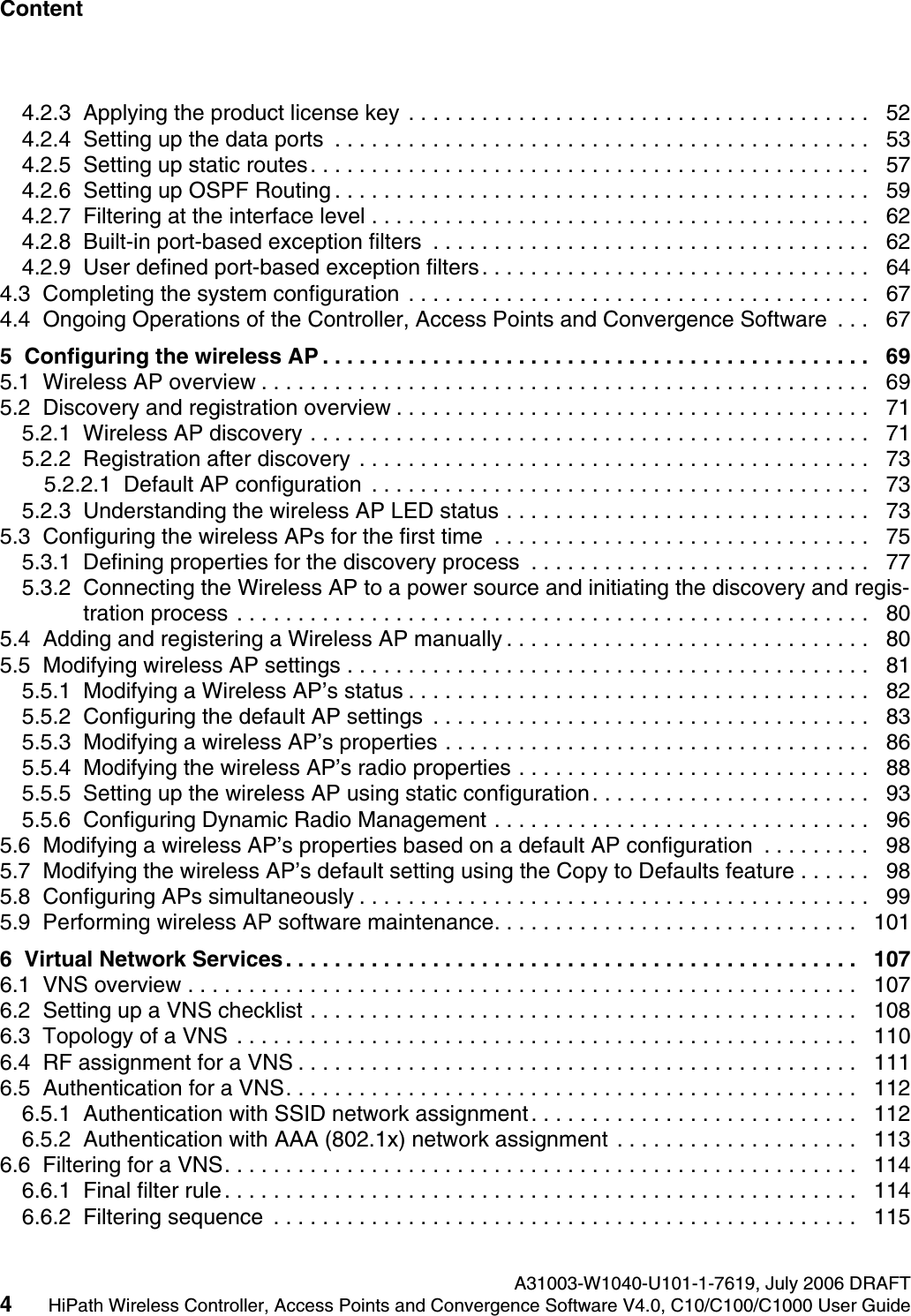
Content Nur für den internen Gebrauch A31003-W1040-U101-1-7619, July 2006 DRAFT4HiPath Wireless Controller, Access Points and Convergence Software V4.0, C10/C100/C1000 User Guide        hwc1000_user_guidetoc.fm4.2.3  Applying the product license key . . . . . . . . . . . . . . . . . . . . . . . . . . . . . . . . . . . . . .   524.2.4  Setting up the data ports  . . . . . . . . . . . . . . . . . . . . . . . . . . . . . . . . . . . . . . . . . . . .   534.2.5  Setting up static routes. . . . . . . . . . . . . . . . . . . . . . . . . . . . . . . . . . . . . . . . . . . . . .   574.2.6  Setting up OSPF Routing . . . . . . . . . . . . . . . . . . . . . . . . . . . . . . . . . . . . . . . . . . . .   594.2.7  Filtering at the interface level . . . . . . . . . . . . . . . . . . . . . . . . . . . . . . . . . . . . . . . . .   624.2.8  Built-in port-based exception filters  . . . . . . . . . . . . . . . . . . . . . . . . . . . . . . . . . . . .   624.2.9  User defined port-based exception filters. . . . . . . . . . . . . . . . . . . . . . . . . . . . . . . .   644.3  Completing the system configuration . . . . . . . . . . . . . . . . . . . . . . . . . . . . . . . . . . . . . .   674.4  Ongoing Operations of the Controller, Access Points and Convergence Software  . . .   675  Configuring the wireless AP . . . . . . . . . . . . . . . . . . . . . . . . . . . . . . . . . . . . . . . . . . . . .   695.1  Wireless AP overview . . . . . . . . . . . . . . . . . . . . . . . . . . . . . . . . . . . . . . . . . . . . . . . . . .   695.2  Discovery and registration overview . . . . . . . . . . . . . . . . . . . . . . . . . . . . . . . . . . . . . . .   715.2.1  Wireless AP discovery . . . . . . . . . . . . . . . . . . . . . . . . . . . . . . . . . . . . . . . . . . . . . .   715.2.2  Registration after discovery . . . . . . . . . . . . . . . . . . . . . . . . . . . . . . . . . . . . . . . . . .   735.2.2.1  Default AP configuration  . . . . . . . . . . . . . . . . . . . . . . . . . . . . . . . . . . . . . . . . .   735.2.3  Understanding the wireless AP LED status . . . . . . . . . . . . . . . . . . . . . . . . . . . . . .   735.3  Configuring the wireless APs for the first time  . . . . . . . . . . . . . . . . . . . . . . . . . . . . . . .   755.3.1  Defining properties for the discovery process  . . . . . . . . . . . . . . . . . . . . . . . . . . . .   775.3.2  Connecting the Wireless AP to a power source and initiating the discovery and regis-tration process . . . . . . . . . . . . . . . . . . . . . . . . . . . . . . . . . . . . . . . . . . . . . . . . . . . .   805.4  Adding and registering a Wireless AP manually . . . . . . . . . . . . . . . . . . . . . . . . . . . . . .   805.5  Modifying wireless AP settings . . . . . . . . . . . . . . . . . . . . . . . . . . . . . . . . . . . . . . . . . . .   815.5.1  Modifying a Wireless AP’s status . . . . . . . . . . . . . . . . . . . . . . . . . . . . . . . . . . . . . .   825.5.2  Configuring the default AP settings  . . . . . . . . . . . . . . . . . . . . . . . . . . . . . . . . . . . .   835.5.3  Modifying a wireless AP’s properties . . . . . . . . . . . . . . . . . . . . . . . . . . . . . . . . . . .   865.5.4  Modifying the wireless AP’s radio properties . . . . . . . . . . . . . . . . . . . . . . . . . . . . .   885.5.5  Setting up the wireless AP using static configuration. . . . . . . . . . . . . . . . . . . . . . .   935.5.6  Configuring Dynamic Radio Management . . . . . . . . . . . . . . . . . . . . . . . . . . . . . . .   965.6  Modifying a wireless AP’s properties based on a default AP configuration  . . . . . . . . .   985.7  Modifying the wireless AP’s default setting using the Copy to Defaults feature . . . . . .   985.8  Configuring APs simultaneously . . . . . . . . . . . . . . . . . . . . . . . . . . . . . . . . . . . . . . . . . .   995.9  Performing wireless AP software maintenance. . . . . . . . . . . . . . . . . . . . . . . . . . . . . .   1016  Virtual Network Services. . . . . . . . . . . . . . . . . . . . . . . . . . . . . . . . . . . . . . . . . . . . . . .   1076.1  VNS overview . . . . . . . . . . . . . . . . . . . . . . . . . . . . . . . . . . . . . . . . . . . . . . . . . . . . . . .  1076.2  Setting up a VNS checklist . . . . . . . . . . . . . . . . . . . . . . . . . . . . . . . . . . . . . . . . . . . . .   1086.3  Topology of a VNS . . . . . . . . . . . . . . . . . . . . . . . . . . . . . . . . . . . . . . . . . . . . . . . . . . .   1106.4  RF assignment for a VNS . . . . . . . . . . . . . . . . . . . . . . . . . . . . . . . . . . . . . . . . . . . . . .   1116.5  Authentication for a VNS. . . . . . . . . . . . . . . . . . . . . . . . . . . . . . . . . . . . . . . . . . . . . . .   1126.5.1  Authentication with SSID network assignment. . . . . . . . . . . . . . . . . . . . . . . . . . .   1126.5.2  Authentication with AAA (802.1x) network assignment . . . . . . . . . . . . . . . . . . . .   1136.6  Filtering for a VNS. . . . . . . . . . . . . . . . . . . . . . . . . . . . . . . . . . . . . . . . . . . . . . . . . . . .  1146.6.1  Final filter rule. . . . . . . . . . . . . . . . . . . . . . . . . . . . . . . . . . . . . . . . . . . . . . . . . . . .  1146.6.2  Filtering sequence  . . . . . . . . . . . . . . . . . . . . . . . . . . . . . . . . . . . . . . . . . . . . . . . .   115
hwc1000_user_guidetoc.fmA31003-W1040-U101-1-7619, July 2006 DRAFTHiPath Wireless Controller, Access Points and Convergence Software V4.0, C10/C100/C1000 User Guide 5        Nur für den internen Gebrauch Content6.7  Data protection on a VNS—WEP and WPA  . . . . . . . . . . . . . . . . . . . . . . . . . . . . . . . .  1166.8  VNS global settings . . . . . . . . . . . . . . . . . . . . . . . . . . . . . . . . . . . . . . . . . . . . . . . . . . .  1166.9  Setting up a new VNS . . . . . . . . . . . . . . . . . . . . . . . . . . . . . . . . . . . . . . . . . . . . . . . . .  1217  Virtual Network configuration . . . . . . . . . . . . . . . . . . . . . . . . . . . . . . . . . . . . . . . . . . .  1237.1  Topology for a VNS . . . . . . . . . . . . . . . . . . . . . . . . . . . . . . . . . . . . . . . . . . . . . . . . . . .  1247.1.1  Configuring topology for a VNS for Captive Portal . . . . . . . . . . . . . . . . . . . . . . . .  1257.1.1.1  Defining session timeout parameters . . . . . . . . . . . . . . . . . . . . . . . . . . . . . . .  1257.1.1.2  Enabling management traffic . . . . . . . . . . . . . . . . . . . . . . . . . . . . . . . . . . . . .  1267.1.1.3  Enabling third-party APs on a VNS. . . . . . . . . . . . . . . . . . . . . . . . . . . . . . . . .  1277.1.1.4  Defining a next hop route and OSPF advertisement for a VNS . . . . . . . . . . .  1287.1.1.5  Defining the IP address for the VNS (for the DHCP server on the controller)   1287.1.1.6  Modifying time limits for IP assignments. . . . . . . . . . . . . . . . . . . . . . . . . . . . .  1307.1.1.7  Setting the name server configuration . . . . . . . . . . . . . . . . . . . . . . . . . . . . . .  1317.1.1.8  Using a DHCP relay for the VNS . . . . . . . . . . . . . . . . . . . . . . . . . . . . . . . . . .  1317.1.2  Configuring topology for a VNS for AAA . . . . . . . . . . . . . . . . . . . . . . . . . . . . . . . .  1327.1.3  Saving your topology properties . . . . . . . . . . . . . . . . . . . . . . . . . . . . . . . . . . . . . .  1337.2  Assigning Wireless AP radios to a VNS. . . . . . . . . . . . . . . . . . . . . . . . . . . . . . . . . . . .  1337.3  Authentication for a VNS . . . . . . . . . . . . . . . . . . . . . . . . . . . . . . . . . . . . . . . . . . . . . . .  1357.3.1  Vendor Specific Attributes. . . . . . . . . . . . . . . . . . . . . . . . . . . . . . . . . . . . . . . . . . .  1367.3.2  Defining authentication for a VNS for Captive Portal  . . . . . . . . . . . . . . . . . . . . . .  1377.3.2.1  Defining the RADIUS server priority for RADIUS redundancy . . . . . . . . . . . .  1407.3.2.2  Configuring Captive Portal for internal or external authentication  . . . . . . . . .  1417.3.3  Defining authentication for a VNS for AAA . . . . . . . . . . . . . . . . . . . . . . . . . . . . . .  1457.3.4  Defining MAC-based authentication for a VNS . . . . . . . . . . . . . . . . . . . . . . . . . . .  1487.4  Defining accounting methods for a VNS . . . . . . . . . . . . . . . . . . . . . . . . . . . . . . . . . . .  1507.5  Defining RADIUS filter policy for VNSs and VNS groups  . . . . . . . . . . . . . . . . . . . . . .  1517.6  Configuring filtering rules for a VNS. . . . . . . . . . . . . . . . . . . . . . . . . . . . . . . . . . . . . . .  1537.6.1  Filtering rules for an exception filter  . . . . . . . . . . . . . . . . . . . . . . . . . . . . . . . . . . .  1537.6.2  Defining non-authenticated filters . . . . . . . . . . . . . . . . . . . . . . . . . . . . . . . . . . . . .  1567.6.2.1  Non-authenticated filter examples  . . . . . . . . . . . . . . . . . . . . . . . . . . . . . . . . .  1587.6.3  Filtering rules for a filter ID group . . . . . . . . . . . . . . . . . . . . . . . . . . . . . . . . . . . . .  1597.6.3.1  Filtering rules by filter ID examples. . . . . . . . . . . . . . . . . . . . . . . . . . . . . . . . .  1617.6.4  Filtering rules for a default filter. . . . . . . . . . . . . . . . . . . . . . . . . . . . . . . . . . . . . . .  1627.6.4.1  Default filter examples  . . . . . . . . . . . . . . . . . . . . . . . . . . . . . . . . . . . . . . . . . .  1637.6.4.2  Filtering rules for an AAA child group VNS. . . . . . . . . . . . . . . . . . . . . . . . . . .  1647.6.4.3  Filtering rules between two wireless devices . . . . . . . . . . . . . . . . . . . . . . . . .  1647.7  Enabling multicast for a VNS . . . . . . . . . . . . . . . . . . . . . . . . . . . . . . . . . . . . . . . . . . . .  1657.8  Configuring privacy for a VNS . . . . . . . . . . . . . . . . . . . . . . . . . . . . . . . . . . . . . . . . . . .  1677.8.1  Privacy for a VNS for Captive Portal . . . . . . . . . . . . . . . . . . . . . . . . . . . . . . . . . . .  1677.8.2  Privacy for a VNS for AAA. . . . . . . . . . . . . . . . . . . . . . . . . . . . . . . . . . . . . . . . . . .  1707.8.2.1  Dynamic WEP privacy for an AAA VNS . . . . . . . . . . . . . . . . . . . . . . . . . . . . .  1727.8.2.2  Wi-Fi Protected Access (WPA v1 and WPA v2) Privacy for an AAA VNS . . .  1727.9  Defining a VNS with no authentication  . . . . . . . . . . . . . . . . . . . . . . . . . . . . . . . . . . . .  1757.10  Defining priority level for VNS traffic  . . . . . . . . . . . . . . . . . . . . . . . . . . . . . . . . . . . . .  176
Content Nur für den internen Gebrauch A31003-W1040-U101-1-7619, July 2006 DRAFT6HiPath Wireless Controller, Access Points and Convergence Software V4.0, C10/C100/C1000 User Guide        hwc1000_user_guidetoc.fm7.10.1  Setting up a VNS for voice traffic . . . . . . . . . . . . . . . . . . . . . . . . . . . . . . . . . . . .   1767.11  Configuring Quality of Service (QoS) . . . . . . . . . . . . . . . . . . . . . . . . . . . . . . . . . . . .   1807.11.1  Defining the service class for the VNS . . . . . . . . . . . . . . . . . . . . . . . . . . . . . . . .   1837.12  Bridging traffic locally  . . . . . . . . . . . . . . . . . . . . . . . . . . . . . . . . . . . . . . . . . . . . . . . .   1858  Availability, mobility, and controller functionality  . . . . . . . . . . . . . . . . . . . . . . . . . .   1898.1  Availability overview . . . . . . . . . . . . . . . . . . . . . . . . . . . . . . . . . . . . . . . . . . . . . . . . . .   1898.1.1  Availability prerequisites. . . . . . . . . . . . . . . . . . . . . . . . . . . . . . . . . . . . . . . . . . . .   1918.1.2  Viewing the Wireless AP availability display. . . . . . . . . . . . . . . . . . . . . . . . . . . . .   1948.1.3  Viewing SLP activity . . . . . . . . . . . . . . . . . . . . . . . . . . . . . . . . . . . . . . . . . . . . . . .   1948.1.4  Events and actions during a failover. . . . . . . . . . . . . . . . . . . . . . . . . . . . . . . . . . .   1958.2  Mobility manager. . . . . . . . . . . . . . . . . . . . . . . . . . . . . . . . . . . . . . . . . . . . . . . . . . . . .   1968.2.1  Displays for the mobility manager  . . . . . . . . . . . . . . . . . . . . . . . . . . . . . . . . . . . .   2028.3  Defining management users . . . . . . . . . . . . . . . . . . . . . . . . . . . . . . . . . . . . . . . . . . . .   2028.4  Configuring network time  . . . . . . . . . . . . . . . . . . . . . . . . . . . . . . . . . . . . . . . . . . . . . .   2048.5  Configuring Check Point event logging. . . . . . . . . . . . . . . . . . . . . . . . . . . . . . . . . . . .   2058.5.1  ELA Management Station events. . . . . . . . . . . . . . . . . . . . . . . . . . . . . . . . . . . . .   2078.6  Enabling SNMP. . . . . . . . . . . . . . . . . . . . . . . . . . . . . . . . . . . . . . . . . . . . . . . . . . . . . .   2088.6.1  MIB support  . . . . . . . . . . . . . . . . . . . . . . . . . . . . . . . . . . . . . . . . . . . . . . . . . . . . .   2088.6.2  Enabling SNMP on the HiPath Wireless Controller . . . . . . . . . . . . . . . . . . . . . . .   2098.7  Using controller utilities . . . . . . . . . . . . . . . . . . . . . . . . . . . . . . . . . . . . . . . . . . . . . . . .   2108.8  Configuring Web session timeouts . . . . . . . . . . . . . . . . . . . . . . . . . . . . . . . . . . . . . . .   2119  Working with third-party APs . . . . . . . . . . . . . . . . . . . . . . . . . . . . . . . . . . . . . . . . . . .   21310  Working with the Mitigator  . . . . . . . . . . . . . . . . . . . . . . . . . . . . . . . . . . . . . . . . . . . .   21710.1  Mitigator overview . . . . . . . . . . . . . . . . . . . . . . . . . . . . . . . . . . . . . . . . . . . . . . . . . . .   21710.2  Enabling the Analysis and data collector engines. . . . . . . . . . . . . . . . . . . . . . . . . . .   21810.3  Running Mitigator scans . . . . . . . . . . . . . . . . . . . . . . . . . . . . . . . . . . . . . . . . . . . . . .   21910.4  Analysis engine overview . . . . . . . . . . . . . . . . . . . . . . . . . . . . . . . . . . . . . . . . . . . . .   22210.5  Working with Mitigator scan results. . . . . . . . . . . . . . . . . . . . . . . . . . . . . . . . . . . . . .   22210.6  Working with friendly APs . . . . . . . . . . . . . . . . . . . . . . . . . . . . . . . . . . . . . . . . . . . . .   22510.7  Viewing the Mitigator list of third-party APs. . . . . . . . . . . . . . . . . . . . . . . . . . . . . . . .   22610.8  Maintaining the Mitigator list of APs . . . . . . . . . . . . . . . . . . . . . . . . . . . . . . . . . . . . .   22710.9  Viewing the Scanner Status report . . . . . . . . . . . . . . . . . . . . . . . . . . . . . . . . . . . . . .   22911  Working with reports and displays  . . . . . . . . . . . . . . . . . . . . . . . . . . . . . . . . . . . . .   23111.1  Viewing the displays . . . . . . . . . . . . . . . . . . . . . . . . . . . . . . . . . . . . . . . . . . . . . . . . .   23111.1.1  Viewing the Wireless AP availability display. . . . . . . . . . . . . . . . . . . . . . . . . . . .   23311.1.2  Viewing statistics for Wireless APs. . . . . . . . . . . . . . . . . . . . . . . . . . . . . . . . . . .   23311.1.3  Viewing displays for the mobility manager . . . . . . . . . . . . . . . . . . . . . . . . . . . . .   23611.2  Viewing reports . . . . . . . . . . . . . . . . . . . . . . . . . . . . . . . . . . . . . . . . . . . . . . . . . . . . .   23912  Performing system maintenance . . . . . . . . . . . . . . . . . . . . . . . . . . . . . . . . . . . . . . .   24112.1  Performing wireless AP client management . . . . . . . . . . . . . . . . . . . . . . . . . . . . . . .   24112.1.1  Disassociating a client . . . . . . . . . . . . . . . . . . . . . . . . . . . . . . . . . . . . . . . . . . . .   24112.1.2  Blacklisting a client . . . . . . . . . . . . . . . . . . . . . . . . . . . . . . . . . . . . . . . . . . . . . . .   242
hwc1000_user_guidetoc.fmA31003-W1040-U101-1-7619, July 2006 DRAFTHiPath Wireless Controller, Access Points and Convergence Software V4.0, C10/C100/C1000 User Guide 7        Nur für den internen Gebrauch Content12.2  Resetting the AP to its factory default settings  . . . . . . . . . . . . . . . . . . . . . . . . . . . . .  24612.3  Performing system maintenance tasks . . . . . . . . . . . . . . . . . . . . . . . . . . . . . . . . . . .  24612.4  Performing HiPath Wireless Controller software maintenance . . . . . . . . . . . . . . . . .  25012.4.1  Updating HiPath Wireless Controller software  . . . . . . . . . . . . . . . . . . . . . . . . . .  25012.4.2  Updating operating system software. . . . . . . . . . . . . . . . . . . . . . . . . . . . . . . . . .  25212.4.3  Backing up HiPath Wireless Controller software. . . . . . . . . . . . . . . . . . . . . . . . .  25412.4.4  Restoring HiPath Wireless Controller software . . . . . . . . . . . . . . . . . . . . . . . . . .  25712.4.5  Upgrading a HiPath Wireless Controller using SFTP . . . . . . . . . . . . . . . . . . . . .  25912.4.6  Configuring the controller for interaction with the HiPath Wireless Manager  . . .  26012.4.7  Configuring Controller, Access Points and Convergence Software logs and traces. . 26212.4.8  Viewing log, alarm and trace messages . . . . . . . . . . . . . . . . . . . . . . . . . . . . . . .  26212.4.8.1  Logs including alarms. . . . . . . . . . . . . . . . . . . . . . . . . . . . . . . . . . . . . . . . . .  26213  Glossary  . . . . . . . . . . . . . . . . . . . . . . . . . . . . . . . . . . . . . . . . . . . . . . . . . . . . . . . . . . .  26713.1  Networking terms and abbreviations . . . . . . . . . . . . . . . . . . . . . . . . . . . . . . . . . . . . .  26713.2  Controller, Access Points and Convergence Software terms and abbreviations. . . .  288
Content Nur für den internen Gebrauch A31003-W1040-U101-1-7619, July 2006 DRAFT8HiPath Wireless Controller, Access Points and Convergence Software V4.0, C10/C100/C1000 User Guide        hwc1000_user_guidetoc.fm
hwc_pref.fmA31003-W1040-U101-1-7619, July 2006 DRAFTHiPath Wireless Controller, Access Points and Convergence Software V4.0, C10/C100/C1000 User Guide 9        About this GuideWho should use this guide1 About this GuideThis guide describes how to install, configure, and manage the Controller, Access Points and Convergence Software software. This guide is also available as an online help system. To access the online help system:1. In the HiPath Wireless Assistant Main Menu bar, click Help. The About HiPath Wireless Assistant screen appears.2. In the left pane, click Controller Documentation. The online help system is launched.1.1 Who should use this guideThis guide is a reference for system administrators who install and manage the Controller, Access Points and Convergence Software system.Any administrator performing tasks described in this guide must have an account with full administrative privileges.1.2 What is in this guideThis guide contains the following:●Chapter 1, “About this Guide”, describes the target audience and content of the guide, the formatting conventions used in it, and how to provide feedback on the guide.●Chapter 2, “Regulatory information”, provides the regulatory information for the HiPath C10/C100/C1000/C2400 Wireless LAN Controllers and the AP2610 and AP2620 wireless access points.●Chapter 3, “Overview of the Controller, Access Points and Convergence Software solution”, provides an overview of the product, its features and functionality.●Chapter 4, “Configuring the HiPath Wireless Controller”, describes how to perform the installation, first-time setup and configuration of the HiPath Wireless Controller, as well as configuring the data ports and defining routing.●Chapter 5, “Configuring the wireless AP”, describes how to install the Wireless AP, how it discovers and registers with the HiPath Wireless Controller, how to view and modify the radio configuration, and how to enable Dynamic Radio Frequency Management.●Chapter 6, “Virtual Network Services”, provides an overview of Virtual Network Services (VNS), the mechanism by which the Controller, Access Points and Convergence Software controls and manages network access.
About this Guide A31003-W1040-U101-1-7619, July 2006 DRAFT10 HiPath Wireless Controller, Access Points and Convergence Software V4.0, C10/C100/C1000 User Guide        hwc_pref.fmFormatting conventions●Chapter 7, “Virtual Network configuration”, provides detailed instructions in how to configure a VNS, its topology, authentication, accounting, RADIUS policy, multicast, filtering and privacy. Both Captive Portal and AAA types of VNS are described.●Chapter 8, “Availability, mobility, and controller functionality”, describes how to set up the features that provide availability in the event of a controller failover, and mobility for a wireless device user.●Chapter 9, “Working with third-party APs”, describes how to use the Controller, Access Points and Convergence Software features with third-party wireless APs.●Chapter 10, “Working with the Mitigator”, explains the security tool that scans for, detects and reports on rogue access points.●Chapter 12, “Performing system maintenance”, describes maintenance activities, such as software upgrades on both the HiPath Wireless Controller and the Wireless AP. This chapter also includes information on the logs, traces, reports and displays available.●Chapter 13, “Glossary”, contains a list of terms and definitions for the HiPath Wireless Controller and the Wireless AP as well as standard industry terms used in this guide.●Appendix A, “System states and LEDs”, provides a reference on the LED displays and their significance.1.3 Formatting conventionsThe Controller, Access Points and Convergence Software documentation uses the following formatting conventions to make it easier to find information and follow procedures:●Bold text is used to identify components of the management interface, such as menu items and section of pages, as well as the names of buttons and text boxes.For example: Click Logout.●Monospace font is used in code examples and to indicate text that you type.For example: Type https://<hwc-address>[:mgmt-port>]●The following symbols are used to draw your attention to additional information:>Notes identify useful information that is not essential, such as reminders, tips, or other ways to perform a task.7Warnings identify information that is essential. Ignoring a warning can adversely affect the operation of your equipment or software.
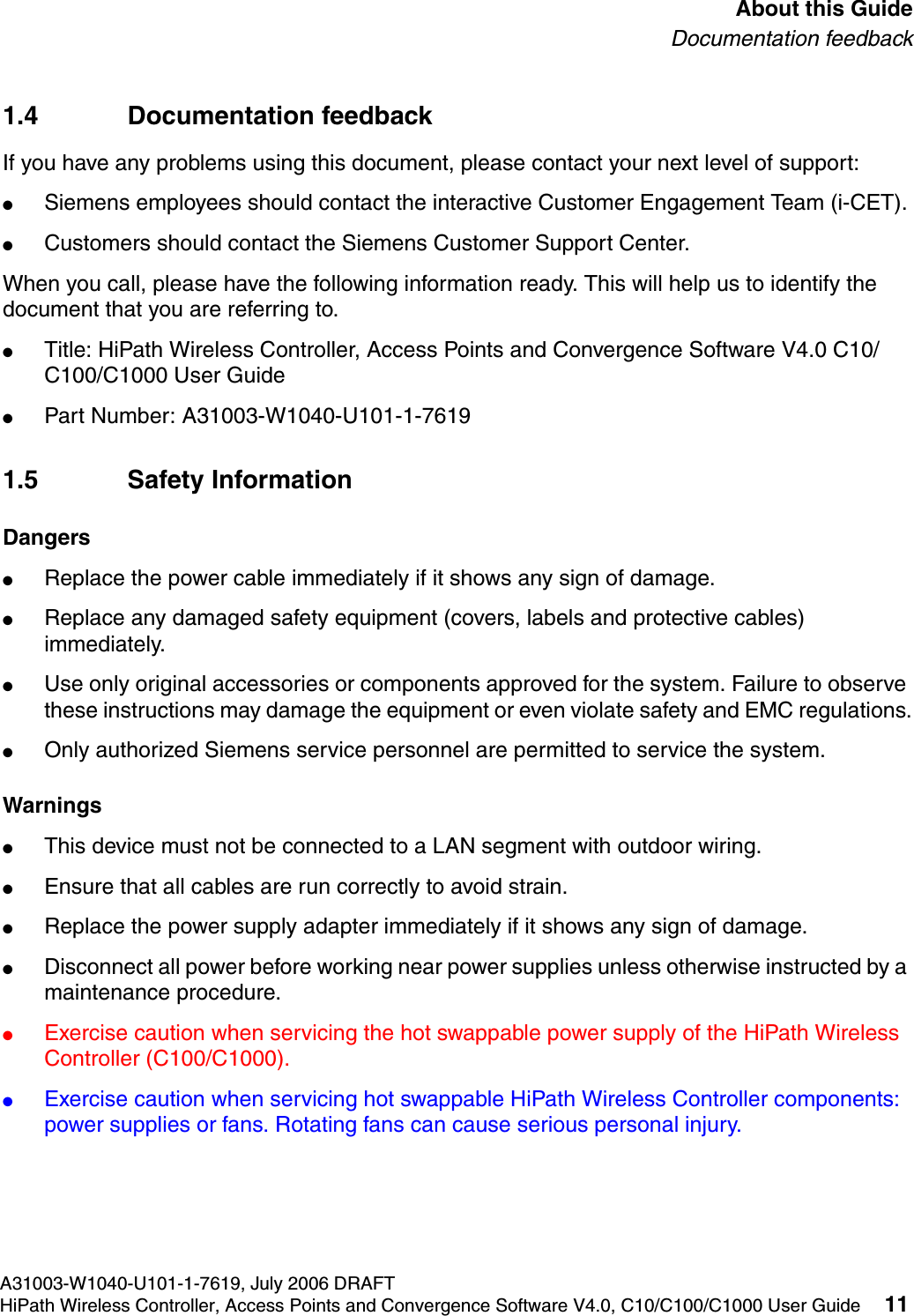
hwc_pref.fmA31003-W1040-U101-1-7619, July 2006 DRAFTHiPath Wireless Controller, Access Points and Convergence Software V4.0, C10/C100/C1000 User Guide 11        About this GuideDocumentation feedback1.4 Documentation feedbackIf you have any problems using this document, please contact your next level of support:●Siemens employees should contact the interactive Customer Engagement Team (i-CET).●Customers should contact the Siemens Customer Support Center.When you call, please have the following information ready. This will help us to identify the document that you are referring to.●Title: HiPath Wireless Controller, Access Points and Convergence Software V4.0 C10/C100/C1000 User Guide●Part Number: A31003-W1040-U101-1-76191.5 Safety InformationDangers●Replace the power cable immediately if it shows any sign of damage. ●Replace any damaged safety equipment (covers, labels and protective cables) immediately.●Use only original accessories or components approved for the system. Failure to observe these instructions may damage the equipment or even violate safety and EMC regulations.●Only authorized Siemens service personnel are permitted to service the system.Warnings●This device must not be connected to a LAN segment with outdoor wiring.●Ensure that all cables are run correctly to avoid strain.●Replace the power supply adapter immediately if it shows any sign of damage.●Disconnect all power before working near power supplies unless otherwise instructed by a maintenance procedure. ●Exercise caution when servicing the hot swappable power supply of the HiPath Wireless Controller (C100/C1000).●Exercise caution when servicing hot swappable HiPath Wireless Controller components: power supplies or fans. Rotating fans can cause serious personal injury.
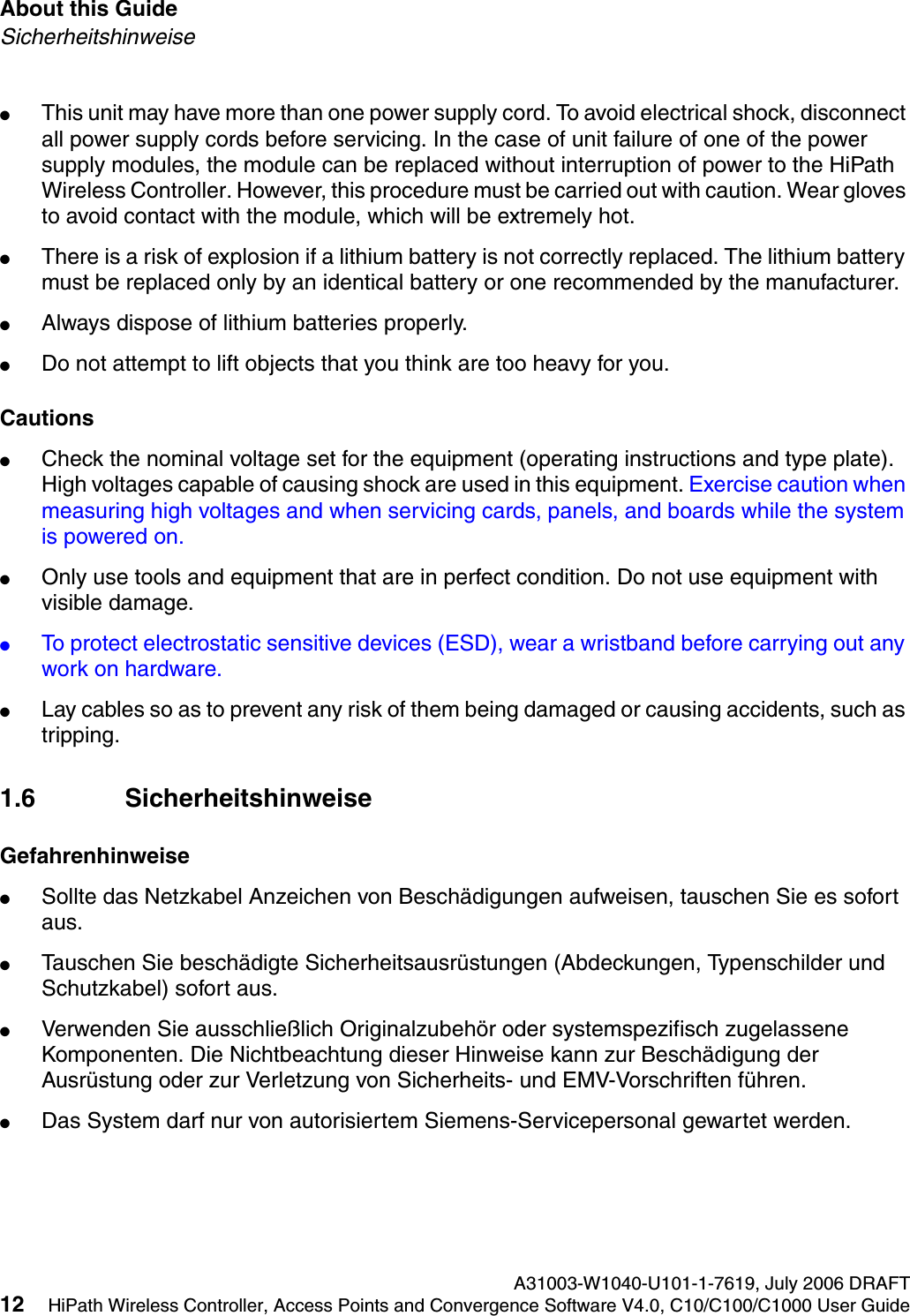
About this Guide A31003-W1040-U101-1-7619, July 2006 DRAFT12 HiPath Wireless Controller, Access Points and Convergence Software V4.0, C10/C100/C1000 User Guide        hwc_pref.fmSicherheitshinweise●This unit may have more than one power supply cord. To avoid electrical shock, disconnect all power supply cords before servicing. In the case of unit failure of one of the power supply modules, the module can be replaced without interruption of power to the HiPath Wireless Controller. However, this procedure must be carried out with caution. Wear gloves to avoid contact with the module, which will be extremely hot.●There is a risk of explosion if a lithium battery is not correctly replaced. The lithium battery must be replaced only by an identical battery or one recommended by the manufacturer.●Always dispose of lithium batteries properly.●Do not attempt to lift objects that you think are too heavy for you.Cautions●Check the nominal voltage set for the equipment (operating instructions and type plate). High voltages capable of causing shock are used in this equipment. Exercise caution when measuring high voltages and when servicing cards, panels, and boards while the system is powered on.●Only use tools and equipment that are in perfect condition. Do not use equipment with visible damage.●To protect electrostatic sensitive devices (ESD), wear a wristband before carrying out any work on hardware. ●Lay cables so as to prevent any risk of them being damaged or causing accidents, such as tripping.1.6 SicherheitshinweiseGefahrenhinweise●Sollte das Netzkabel Anzeichen von Beschädigungen aufweisen, tauschen Sie es sofort aus.●Tauschen Sie beschädigte Sicherheitsausrüstungen (Abdeckungen, Typenschilder und Schutzkabel) sofort aus.●Verwenden Sie ausschließlich Originalzubehör oder systemspezifisch zugelassene Komponenten. Die Nichtbeachtung dieser Hinweise kann zur Beschädigung der Ausrüstung oder zur Verletzung von Sicherheits- und EMV-Vorschriften führen.●Das System darf nur von autorisiertem Siemens-Servicepersonal gewartet werden.
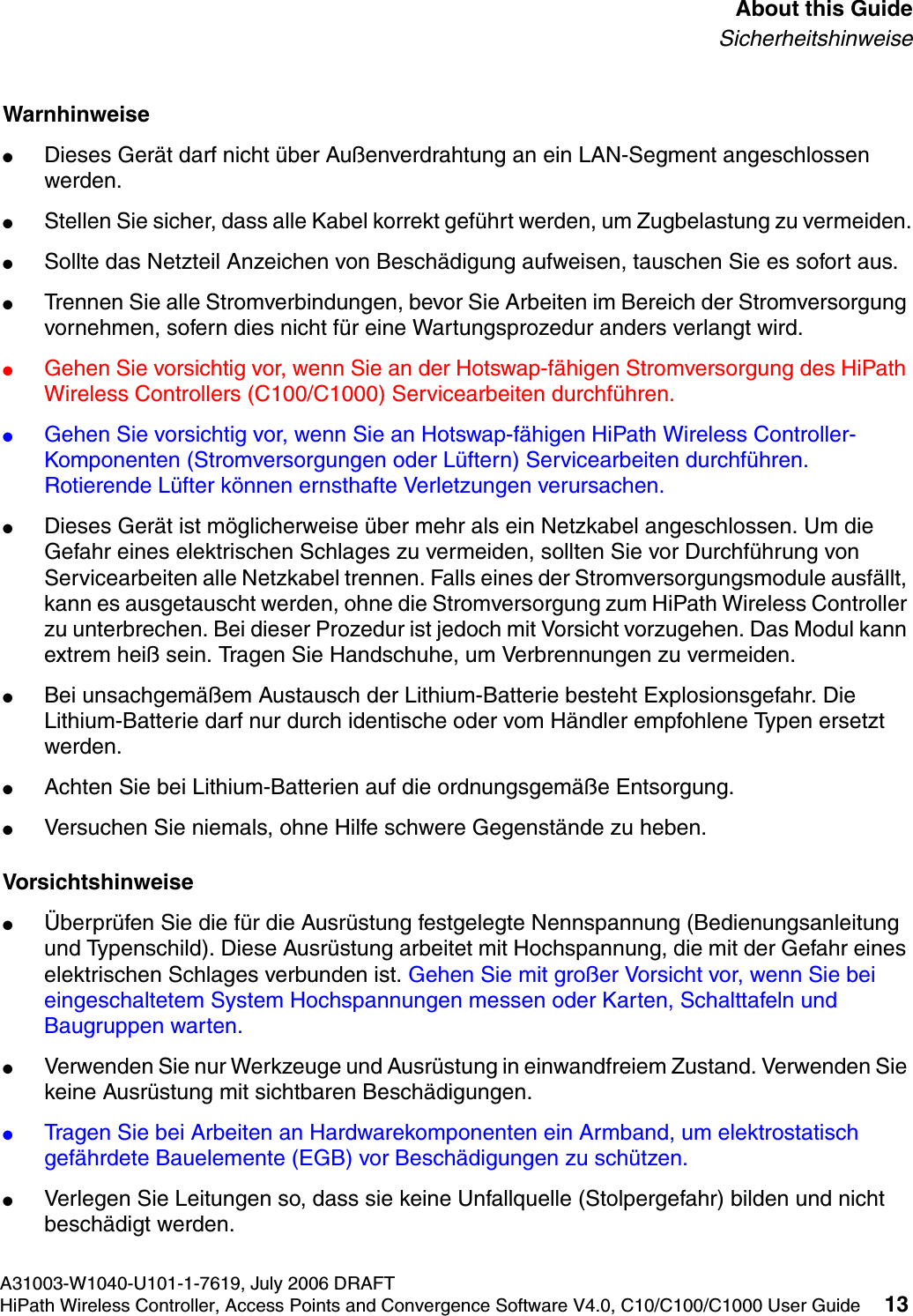
hwc_pref.fmA31003-W1040-U101-1-7619, July 2006 DRAFTHiPath Wireless Controller, Access Points and Convergence Software V4.0, C10/C100/C1000 User Guide 13        About this GuideSicherheitshinweiseWarnhinweise●Dieses Gerät darf nicht über Außenverdrahtung an ein LAN-Segment angeschlossen werden.●Stellen Sie sicher, dass alle Kabel korrekt geführt werden, um Zugbelastung zu vermeiden.●Sollte das Netzteil Anzeichen von Beschädigung aufweisen, tauschen Sie es sofort aus.●Trennen Sie alle Stromverbindungen, bevor Sie Arbeiten im Bereich der Stromversorgung vornehmen, sofern dies nicht für eine Wartungsprozedur anders verlangt wird.●Gehen Sie vorsichtig vor, wenn Sie an der Hotswap-fähigen Stromversorgung des HiPath Wireless Controllers (C100/C1000) Servicearbeiten durchführen.●Gehen Sie vorsichtig vor, wenn Sie an Hotswap-fähigen HiPath Wireless Controller-Komponenten (Stromversorgungen oder Lüftern) Servicearbeiten durchführen. Rotierende Lüfter können ernsthafte Verletzungen verursachen.●Dieses Gerät ist möglicherweise über mehr als ein Netzkabel angeschlossen. Um die Gefahr eines elektrischen Schlages zu vermeiden, sollten Sie vor Durchführung von Servicearbeiten alle Netzkabel trennen. Falls eines der Stromversorgungsmodule ausfällt, kann es ausgetauscht werden, ohne die Stromversorgung zum HiPath Wireless Controller zu unterbrechen. Bei dieser Prozedur ist jedoch mit Vorsicht vorzugehen. Das Modul kann extrem heiß sein. Tragen Sie Handschuhe, um Verbrennungen zu vermeiden.●Bei unsachgemäßem Austausch der Lithium-Batterie besteht Explosionsgefahr. Die Lithium-Batterie darf nur durch identische oder vom Händler empfohlene Typen ersetzt werden. ●Achten Sie bei Lithium-Batterien auf die ordnungsgemäße Entsorgung.●Versuchen Sie niemals, ohne Hilfe schwere Gegenstände zu heben.Vorsichtshinweise●Überprüfen Sie die für die Ausrüstung festgelegte Nennspannung (Bedienungsanleitung und Typenschild). Diese Ausrüstung arbeitet mit Hochspannung, die mit der Gefahr eines elektrischen Schlages verbunden ist. Gehen Sie mit großer Vorsicht vor, wenn Sie bei eingeschaltetem System Hochspannungen messen oder Karten, Schalttafeln und Baugruppen warten.●Verwenden Sie nur Werkzeuge und Ausrüstung in einwandfreiem Zustand. Verwenden Sie keine Ausrüstung mit sichtbaren Beschädigungen.●Tragen Sie bei Arbeiten an Hardwarekomponenten ein Armband, um elektrostatisch gefährdete Bauelemente (EGB) vor Beschädigungen zu schützen.●Verlegen Sie Leitungen so, dass sie keine Unfallquelle (Stolpergefahr) bilden und nicht beschädigt werden.
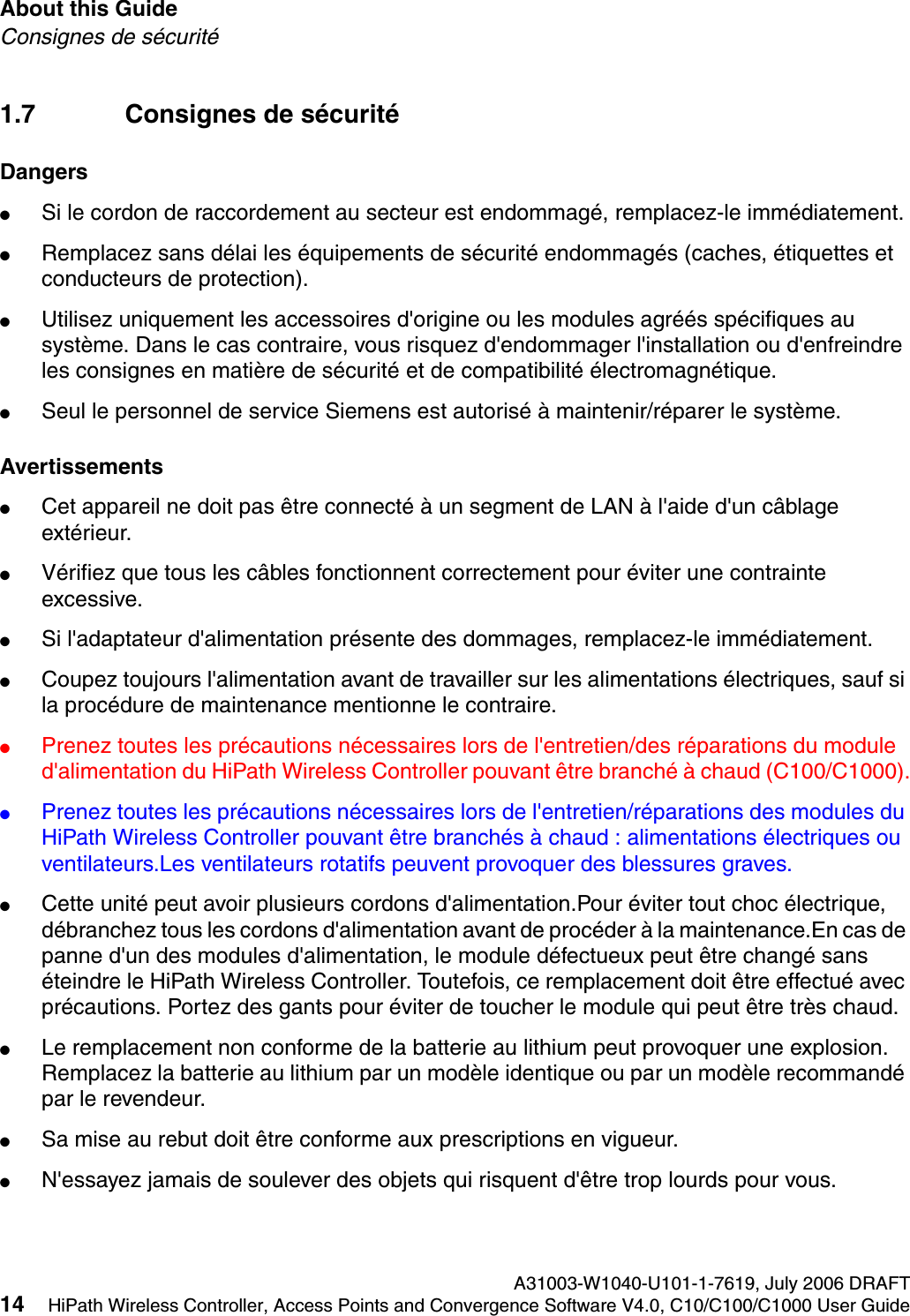
About this Guide A31003-W1040-U101-1-7619, July 2006 DRAFT14 HiPath Wireless Controller, Access Points and Convergence Software V4.0, C10/C100/C1000 User Guide        hwc_pref.fmConsignes de sécurité1.7 Consignes de sécuritéDangers●Si le cordon de raccordement au secteur est endommagé, remplacez-le immédiatement.●Remplacez sans délai les équipements de sécurité endommagés (caches, étiquettes et conducteurs de protection).●Utilisez uniquement les accessoires d'origine ou les modules agréés spécifiques au système. Dans le cas contraire, vous risquez d'endommager l'installation ou d'enfreindre les consignes en matière de sécurité et de compatibilité électromagnétique.●Seul le personnel de service Siemens est autorisé à maintenir/réparer le système.Avertissements●Cet appareil ne doit pas être connecté à un segment de LAN à l'aide d'un câblage extérieur.●Vérifiez que tous les câbles fonctionnent correctement pour éviter une contrainte excessive.●Si l'adaptateur d'alimentation présente des dommages, remplacez-le immédiatement.●Coupez toujours l'alimentation avant de travailler sur les alimentations électriques, sauf si la procédure de maintenance mentionne le contraire.●Prenez toutes les précautions nécessaires lors de l'entretien/des réparations du module d'alimentation du HiPath Wireless Controller pouvant être branché à chaud (C100/C1000).●Prenez toutes les précautions nécessaires lors de l'entretien/réparations des modules du HiPath Wireless Controller pouvant être branchés à chaud : alimentations électriques ou ventilateurs.Les ventilateurs rotatifs peuvent provoquer des blessures graves.●Cette unité peut avoir plusieurs cordons d'alimentation.Pour éviter tout choc électrique, débranchez tous les cordons d'alimentation avant de procéder à la maintenance.En cas de panne d'un des modules d'alimentation, le module défectueux peut être changé sans éteindre le HiPath Wireless Controller. Toutefois, ce remplacement doit être effectué avec précautions. Portez des gants pour éviter de toucher le module qui peut être très chaud.●Le remplacement non conforme de la batterie au lithium peut provoquer une explosion. Remplacez la batterie au lithium par un modèle identique ou par un modèle recommandé par le revendeur. ●Sa mise au rebut doit être conforme aux prescriptions en vigueur. ●N'essayez jamais de soulever des objets qui risquent d'être trop lourds pour vous.
hwc_pref.fmA31003-W1040-U101-1-7619, July 2006 DRAFTHiPath Wireless Controller, Access Points and Convergence Software V4.0, C10/C100/C1000 User Guide 15        About this GuideConsignes de sécuritéPrécautions●Contrôlez la tension nominale paramétrée sur l'installation (voir le mode d'emploi et la plaque signalétique). Des tensions élevées pouvant entraîner des chocs électriques sont utilisées dans cet équipement. Lorsque le système est sous tension, prenez toutes les précautions nécessaires lors de la mesure des hautes tensions et de l'entretien/réparation des cartes, des panneaux, des plaques.●N'utilisez que des appareils et des outils en parfait état. Ne mettez jamais en service des appareils présentant des dommages visibles.●Pour protéger les dispositifs sensibles à l'électricité statique, portez un bracelet antistatique lors du travail sur le matériel.●Acheminez les câbles de manière à ce qu'ils ne puissent pas être endommagés et qu'ils ne constituent pas une source de danger (par exemple, en provoquant la chute de personnes).
About this Guide A31003-W1040-U101-1-7619, July 2006 DRAFT16 HiPath Wireless Controller, Access Points and Convergence Software V4.0, C10/C100/C1000 User Guide        hwc_pref.fmConsignes de sécurité
hwc_regulatory_information.fmA31003-W1040-U101-1-7619, July 2006 DRAFTHiPath Wireless Controller, Access Points and Convergence Software V4.0, C10/C100/C1000 User Guide 17        Regulatory informationWLAN HiPath Wireless Controller C10/C100/C1000/C24002 Regulatory informationThis chapter provides the regulatory information for the HiPath Wireless Controller C10/C100/C1000/C2400 and the AP2610 and AP2620 (AP26XX series) wireless access points.Configuration of the AP26XX frequencies and power output are controlled by the regional software purchased with the HiPath Wireless Controller and is downloaded from the server upon initial set-up. Customers are only allowed to download the software related to that customers geographic location, thus allowing the proper set-up of Access Points in accordance with local laws and regulations. The AP26XX must not be operated until proper regional software is downloaded and properly configured.2.1 WLAN HiPath Wireless Controller C10/C100/C1000/C2400Conformance StandardsSafety●cULus Listed Device UL 60950:2000, 3rd Edition (North America)●CSA C22.2 No.60950:2000, 3rd Edition (Canadian Safety)●73/23/EEC Low Voltage Directive (LVD)●EN 60950-1:2001 (European Safety)●CB Certification: IEC 60950:1999, 3rd Edition with applicable National Differences7Warnings identify essential information. Ignoring a warning can lead to problems with the application.7Changes or modifications made to the HiPath Wireless Controller or the Wireless APs which are not expressly approved by Siemens could void the user's authority to operate the equipment.Only authorized Siemens service personnel are permitted to service the system. Procedures that should be performed only by Siemens personnel are clearly identified in this guide.7The HiPath Wireless Controllers are in compliance with the European Directive 2002/95/EC on the restriction of the use of certain hazardous substances (RoHS) in electrical and electronic equipment.
Regulatory information A31003-W1040-U101-1-7619, July 2006 DRAFT18 HiPath Wireless Controller, Access Points and Convergence Software V4.0, C10/C100/C1000 User Guide        hwc_regulatory_information.fmAP2610 Internal Antenna AP, AP2620 External Antenna AP●AS/NZS 3260 (Australia/New Zealand ACMA Safety of ITE)●US 21 CFR Subpart J 1002.10, 1002.12 (Safety of Laser Products)●CDRH Letter of Approval (US FDA Laser Approval)●IEC/EN 60825 (Safety of Laser Products)EMC (Emissions / Immunity)●FCC Part 15, Subpart B, Class A (North America)●ICES-003, Class A (Canadian Emissions)●89/336/EEC EMC Directive●EN 55022:1998 A2:2003 Class A (European Emissions)●EN 55024:1998 A2:2003 includes EN 61000-2,3,4,5,6,11 (European Immunity)●EN 61000-3-2:2000 Class A (Harmonics)●EN 61000-3-3:1995 A1:2001 (Flicker)●IEC/CISPR 22:1997 Class A (International Emissions)●IEC/CISPR 24:1998 includes IEC/EN 61000-4-2,3,4,5,6,11 (International Immunity) ●Australia/New Zealand AS/NZS 3548 via EU standards (ACMA)RoHS●European Directive 2002/95/EC2.2 AP2610 Internal Antenna AP, AP2620 External Antenna APThe AP26XX is Wi-Fi certified under Certification ID # WOO2422 for operation in accordance with IEEE 802.11a/b/g. The AP26XX wireless access points with Internal and External antennas are designed and intended to be used indoors.2.2.1 United States - FCC Declaration of Conformity StatementThis device complies with Part 15 of the FCC Rules. Operation is subject to the following two conditions:>Operation in the European Community and rest of the world may be dependant on securing local licenses/certifications/regulatory approvals.
hwc_regulatory_information.fmA31003-W1040-U101-1-7619, July 2006 DRAFTHiPath Wireless Controller, Access Points and Convergence Software V4.0, C10/C100/C1000 User Guide 19        Regulatory informationAP2610 Internal Antenna AP, AP2620 External Antenna AP●This device may not cause harmful interference.●This device must accept any interference received, including interference that may cause undesired operation.This equipment has been tested and found to comply with the limits for a Class B digital device, pursuant to Part 15 of the FCC Rules. These limits are designed to provide reasonable protection against harmful interference when the equipment is operated in a residential and business environment. This equipment generates, uses, and radiates radio frequency energy, and if not installed and used in accordance with instructions, may cause harmful interference. However, there is no guarantee that interference will not occur. If this equipment does cause harmful interference, which can be determined by turning the equipment off and on, the user is encouraged to try to correct the interference by one or more of the following measures:●Reorient or relocate the receiving antenna.●Increase the separation between the equipment or devices.●Connect the equipment to an outlet other than the receiver's.●Consult a dealer or an experienced radio/TV technician for suggestions.This equipment meets the following conformance standards:USA Conformance StandardsSafety ●UL 60950-1:2003, 1st Edition●UL 2043 Plenum Rated as part of UL 60950. Suitable for use in environmental air space in accordance with Section 300.22.C of the National Electrical Code.EMC ●FCC CFR 47 Part 15, Class BRadio Transceiver ●FCC ID: REB-APXXX1●CFR 47 Part 15.247, Subpart C (2.4 GHz)●CFR 47 Part 15.407, Subpart E (5 GHz)Other●IEEE 802.11a (5 Ghz)●IEEE 802.11b/g (2.4 GHz)
Regulatory information A31003-W1040-U101-1-7619, July 2006 DRAFT20 HiPath Wireless Controller, Access Points and Convergence Software V4.0, C10/C100/C1000 User Guide        hwc_regulatory_information.fmAP2610 Internal Antenna AP, AP2620 External Antenna AP●IEEE 802.3af (PoE)2.2.1.1 FCC RF Radiation Exposure StatementThe AP26XX access point complies with FCC RF radiated exposure limits set forth for an uncontrolled environment. End users must follow the specific operating instructions for satisfying RF exposure compliance. This device has been tested and has demonstrated compliance when simultaneously operated in the 2.4 GHz and 5 GHz frequency ranges. This device must not be co-located or operated in conjunction with any other antenna or transmitter.2.2.2 Canada - Department of Communications Compliance StatementThis digital apparatus does not exceed the Class B limits for radio noise emissions from digital apparatus as set out in the interference-causing equipment standard entitled "Digital Apparatus," ICES-003 of the Department of Communications.Cet appareil numerique respecte les limites de bruits radioelectriques applicables aux appareils numeriques de Classe B prescrites dans la norme sur le materiel brouilleur: "Appareils Numeriques," NMB-003 edictee par le ministere des Communications.>The AP26XX must be installed and used in strict accordance with the manufacturer's instructions as described in this guide and the quick start guide for the device to which AP26XX is connected. Any other installation or use of the product violates FCC Part 15 regulations.According to FCC, the AP2610 with internal antenna can use the UNII 5.15 - 5.25 GHz band only with indoor installations in accordance with 47 CFR 15.407(e). AP2620 with external antenna is not allowed to operate in this band in accordance with 47 CFR 15.407(d).This Part 15 radio device operates on a non-interference basis with other devices operating at the same frequency when using antennas provided or other Siemens certified antennas. Any changes or modification to the product not expressly approved by Siemens could void the user's authority to operate this device.>The radiated output power of the AP26XX is far below the FCC radio frequency exposure limits as specified in "Guidelines for Human Exposure to Radio Frequency Electromagnetic Fields" (OET Bullet 65, Supplement C). This equipment should be installed and operated with a minimum distance of 20 centimeters (8 inches) between the radiator and your body or other co-located operating antennas.
hwc_regulatory_information.fmA31003-W1040-U101-1-7619, July 2006 DRAFTHiPath Wireless Controller, Access Points and Convergence Software V4.0, C10/C100/C1000 User Guide 21        Regulatory informationAP2610 Internal Antenna AP, AP2620 External Antenna APThis device complies with Part 15 of the FCC Rules and Canadian Standard RSS-210. Operation is subject to the following conditions: (1) This device may not cause harmful interference, and (2) this device must accept any interference received, including interference that may cause undesired operation. This Class B digital apparatus complies with Canadian ICES-003.This equipment meets the following conformance standards:Canada Conformance StandardsSafety ●cULus Listed C22.2 No.60950-1-03, 1st Edition●UL 2043 Plenum Rated as part of UL 60950. Suitable for use in environmental air space in accordance with Sections 2-128, 12-010(3) and 12-100 of the Canadian Electrical Code, Part 1, C22.1EMC ●ICES-003, Class BRadio Transceiver●IC: 4702A-APXXXX●RSS-210 (2.4 GHz and 5GHz)Other●IEEE 802.11a (5 GHz)●IEEE 802.11b/g (2.4 GHz)●IEEE 802.3af (PoE)
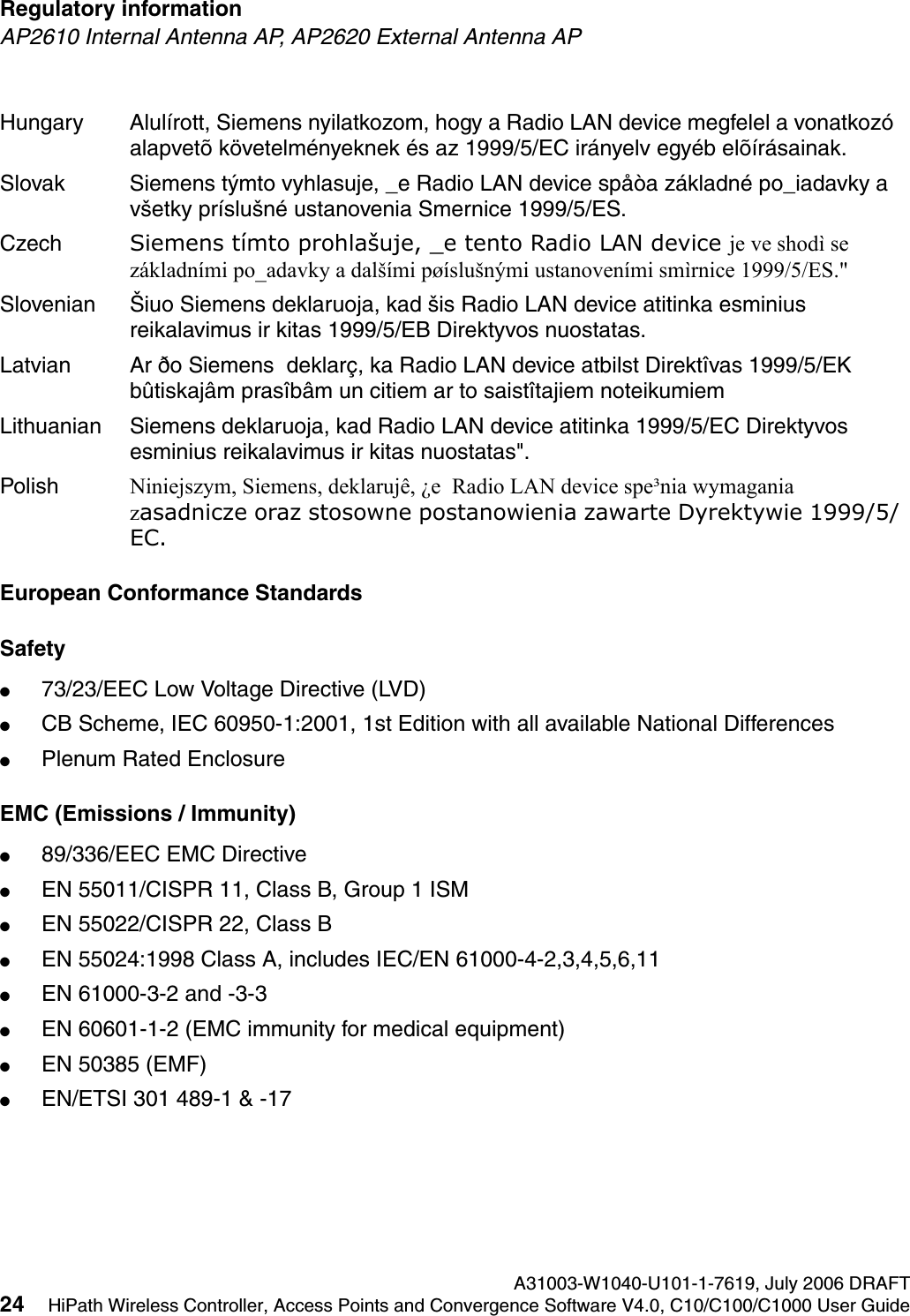
Regulatory information A31003-W1040-U101-1-7619, July 2006 DRAFT22 HiPath Wireless Controller, Access Points and Convergence Software V4.0, C10/C100/C1000 User Guide        hwc_regulatory_information.fmAP2610 Internal Antenna AP, AP2620 External Antenna AP2.2.3 European CommunityThe AP26XX are wireless access points designed for use in the European Union and other countries with similar regulatory restrictions where the end user or installer is allowed to configure the wireless access point for operation by entry of a country code relative to a specific country. Upon connection to the controller, the software will prompt the user to enter a country code. After the country code is entered, the controller will set up the wireless access point with the proper frequencies and power outputs for that country code.Although outdoor use may be allowed and may be restricted to certain frequencies and/or may require a license for operation, the AP26XX is intended for indoor use and must be installed in a proper indoor location. Use the installation utility provided with the controller software to insure proper set-up in accordance with all European spectrum usage rules. Contact local Authority for procedure to follow and regulatory information. For more details on legal combinations of frequencies, power levels and antennas, contact Siemens.Declaration of Conformity with R&TTE Directive of the European Union 1999/5/ECThe following symbol indicates compliance with the Essential Requirements of the R&TTE Directive of the European Union (1999/5/EC). 2.2.3.1 Declaration of Conformity in Languages of the European Community7The wireless APs are in compliance with the European Directive 2002/95/EC on the restriction of the use of certain hazardous substances (RoHS) in electrical and electronic equipment. English Hereby, Siemens, declares that this Radio LAN device is in compliance with the essential requirements and other relevant provisions of Directive 1999/5/EC.Finnish Valmistaja Siemens vakuuttaa täten että Radio LAN device tyyppinen laite on direktiivin 1999/5/EY oleellisten vaatimusten ja sitä koskevien direktiivin muiden ehtojen mukainen.Dutch Hierbij verklaart Siemens dat het toestel Radio LAN device in overeenstemming is met de essentiële eisen en de andere relevante bepalingen van richtlijn 1999/5/EG. Bij deze verklaart Siemens dat deze Radio LAN device voldoet aan de essentiële eisen en aan de overige relevante bepalingen van Richtlijn 1999/5/EC.
hwc_regulatory_information.fmA31003-W1040-U101-1-7619, July 2006 DRAFTHiPath Wireless Controller, Access Points and Convergence Software V4.0, C10/C100/C1000 User Guide 23        Regulatory informationAP2610 Internal Antenna AP, AP2620 External Antenna APNew Member States requirements of Declaration of ConformityFrench Par la présente Siemens déclare que l'appareil Radio LAN device est conforme aux exigences essentielles et aux autres dispositions pertinentes de la directive 1999/5/CE. Par la présente, Siemens déclare que ce Radio LAN device est conforme aux exigences essentielles et aux autres dispositions de la directive 1999/5/CE qui lui sont applicables.Swedish Härmed intygar Siemens att denna Radio LAN device står I överensstämmelse med de väsentliga egenskapskrav och övriga relevanta bestämmelser som framgår av direktiv 1999/5/EG. Danish Undertegnede Siemens erklærer herved, at følgende udstyr Radio LAN device overholder de væsentlige krav og øvrige relevante krav i direktiv 1999/5/EF.German Hiermit erklärt Siemens, dass sich dieser/diese/dieses Radio LAN device in Übereinstimmung mit den grundlegenden Anforderungen und den anderen relevanten Vorschriften der Richtlinie 1999/5/EG befindet". (BMWi)Hiermit erklärt Siemens die Übereinstimmung des Gerätes Radio LAN device mit den grundlegenden Anforderungen und den anderen relevanten Festlegungen der Richtlinie 1999/5/EG. (Wien).Greek ΜΕ ΤΗΝ ΠΑΡΟΥΣΑ Siemens ΔΗΛΩΝΕΙ ΟΤΙ Radio LAN device ΣΥΜΜΟΡΦΩΝΕΤΑΙ ΠΡΟΣ ΤΙΣ ΟΥΣΙΩΔΕΙΣ ΑΠΑΙΤΗΣΕΙΣ ΚΑΙ ΤΙΣ ΛΟΙΠΕΣ ΣΧΕΤΙΚΕΣ ΔΙΑΤΑΞΕΙΣ ΤΗΣ ΟΔΗΓΙΑΣ 1999/5/ΕΚ.Icelandic Siemens lysir her med yfir að thessi bunadur, Radio LAN device, uppfyllir allar grunnkrofur, sem gerdar eru i R&TTE tilskipun ESB nr 1999/5/EC.Italian Con la presente Siemens dichiara che questo Radio LAN device è conforme ai requisiti essenziali ed alle altre disposizioni pertinenti stabilite dalla direttiva 1999/5/CE.Spanish Por medio de la presente Siemens declara que el Radio LAN device cumple con los requisitos esenciales y cualesquiera otras disposiciones aplicables o exigibles de la Directiva 1999/5/CE.Portuguese Siemens declara que este Radio LAN device está conforme com os requisitos essenciais e outras disposições da Directiva 1999/5/CE. Malti Hawnhekk, Siemens, jiddikjara li dan Radio LAN device jikkonforma mal-htigijiet essenzjali u ma provvedimenti ohrajn relevanti li hemm fid-Dirrettiva 1999/5/EC.Estonian Käesolevaga kinnitab Siemens seadme Radio LAN device vastavust direktiivi 1999/5/EÜ põhinõuetele ja nimetatud direktiivist tulenevatele teistele asjakohastele sätetele.
Regulatory information A31003-W1040-U101-1-7619, July 2006 DRAFT24 HiPath Wireless Controller, Access Points and Convergence Software V4.0, C10/C100/C1000 User Guide        hwc_regulatory_information.fmAP2610 Internal Antenna AP, AP2620 External Antenna APEuropean Conformance StandardsSafety ●73/23/EEC Low Voltage Directive (LVD)●CB Scheme, IEC 60950-1:2001, 1st Edition with all available National Differences●Plenum Rated EnclosureEMC (Emissions / Immunity)●89/336/EEC EMC Directive●EN 55011/CISPR 11, Class B, Group 1 ISM●EN 55022/CISPR 22, Class B●EN 55024:1998 Class A, includes IEC/EN 61000-4-2,3,4,5,6,11●EN 61000-3-2 and -3-3●EN 60601-1-2 (EMC immunity for medical equipment)●EN 50385 (EMF)●EN/ETSI 301 489-1 & -17 Hungary Alulírott, Siemens nyilatkozom, hogy a Radio LAN device megfelel a vonatkozó alapvetõ követelményeknek és az 1999/5/EC irányelv egyéb elõírásainak.Slovak Siemens týmto vyhlasuje, _e Radio LAN device spåòa základné po_iadavky a všetky príslušné ustanovenia Smernice 1999/5/ES.Czech Siemens tímto prohlašuje, _e tento Radio LAN device je ve shodì se základními po_adavky a dalšími pøíslušnými ustanoveními smìrnice 1999/5/ES."Slovenian Šiuo Siemens deklaruoja, kad šis Radio LAN device atitinka esminius reikalavimus ir kitas 1999/5/EB Direktyvos nuostatas.Latvian Ar ðo Siemens  deklarç, ka Radio LAN device atbilst Direktîvas 1999/5/EK bûtiskajâm prasîbâm un citiem ar to saistîtajiem noteikumiemLithuanian Siemens deklaruoja, kad Radio LAN device atitinka 1999/5/EC Direktyvos esminius reikalavimus ir kitas nuostatas".Polish Niniejszym, Siemens, deklarujê, ¿e  Radio LAN device spe³nia wymagania zasadnicze oraz stosowne postanowienia zawarte Dyrektywie 1999/5/EC.
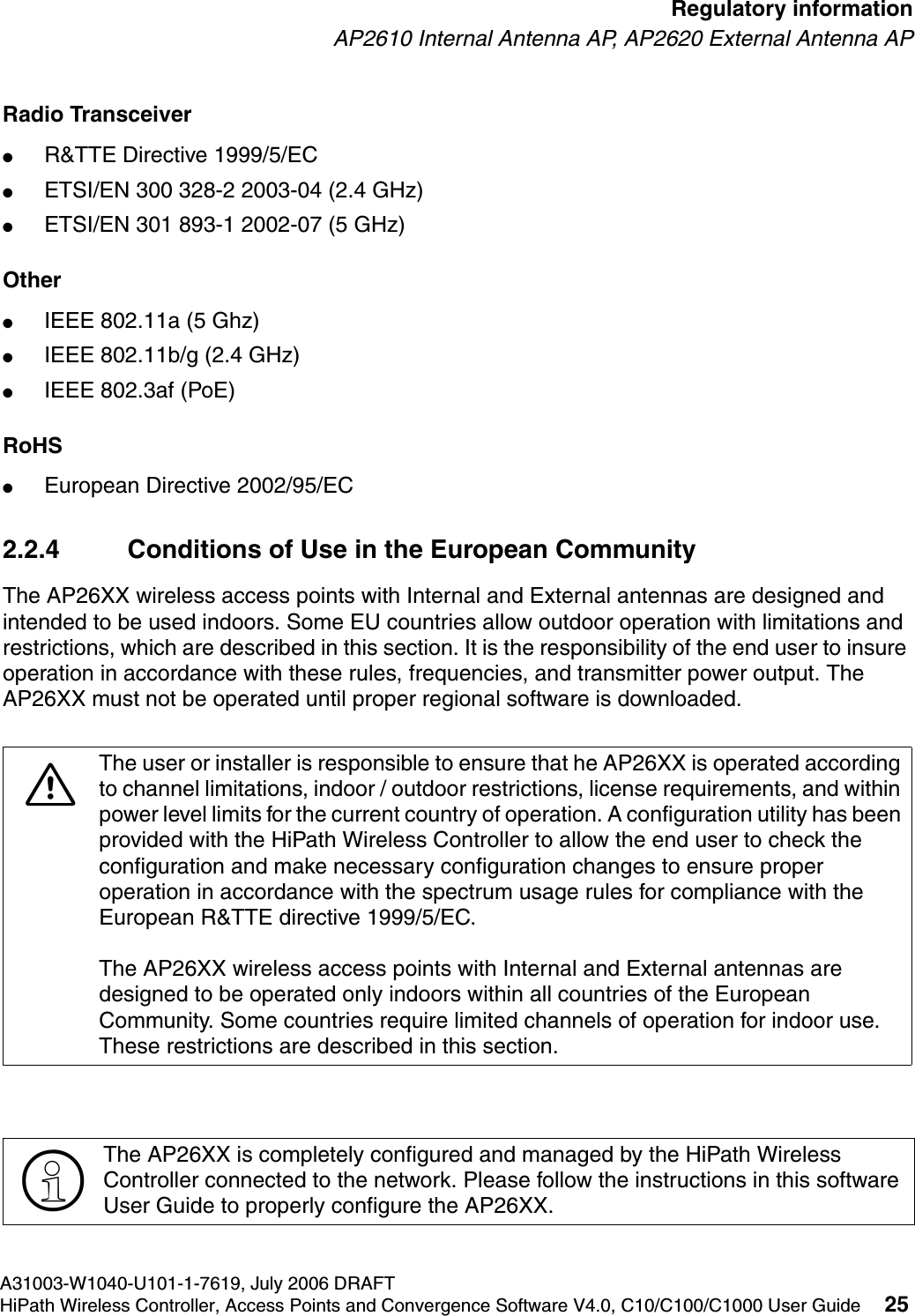
hwc_regulatory_information.fmA31003-W1040-U101-1-7619, July 2006 DRAFTHiPath Wireless Controller, Access Points and Convergence Software V4.0, C10/C100/C1000 User Guide 25        Regulatory informationAP2610 Internal Antenna AP, AP2620 External Antenna APRadio Transceiver ●R&TTE Directive 1999/5/EC●ETSI/EN 300 328-2 2003-04 (2.4 GHz)●ETSI/EN 301 893-1 2002-07 (5 GHz)Other●IEEE 802.11a (5 Ghz)●IEEE 802.11b/g (2.4 GHz)●IEEE 802.3af (PoE)RoHS●European Directive 2002/95/EC2.2.4 Conditions of Use in the European CommunityThe AP26XX wireless access points with Internal and External antennas are designed and intended to be used indoors. Some EU countries allow outdoor operation with limitations and restrictions, which are described in this section. It is the responsibility of the end user to insure operation in accordance with these rules, frequencies, and transmitter power output. The AP26XX must not be operated until proper regional software is downloaded.7The user or installer is responsible to ensure that he AP26XX is operated according to channel limitations, indoor / outdoor restrictions, license requirements, and within power level limits for the current country of operation. A configuration utility has been provided with the HiPath Wireless Controller to allow the end user to check the configuration and make necessary configuration changes to ensure proper operation in accordance with the spectrum usage rules for compliance with the European R&TTE directive 1999/5/EC.The AP26XX wireless access points with Internal and External antennas are designed to be operated only indoors within all countries of the European Community. Some countries require limited channels of operation for indoor use. These restrictions are described in this section.>The AP26XX is completely configured and managed by the HiPath Wireless Controller connected to the network. Please follow the instructions in this software User Guide to properly configure the AP26XX.
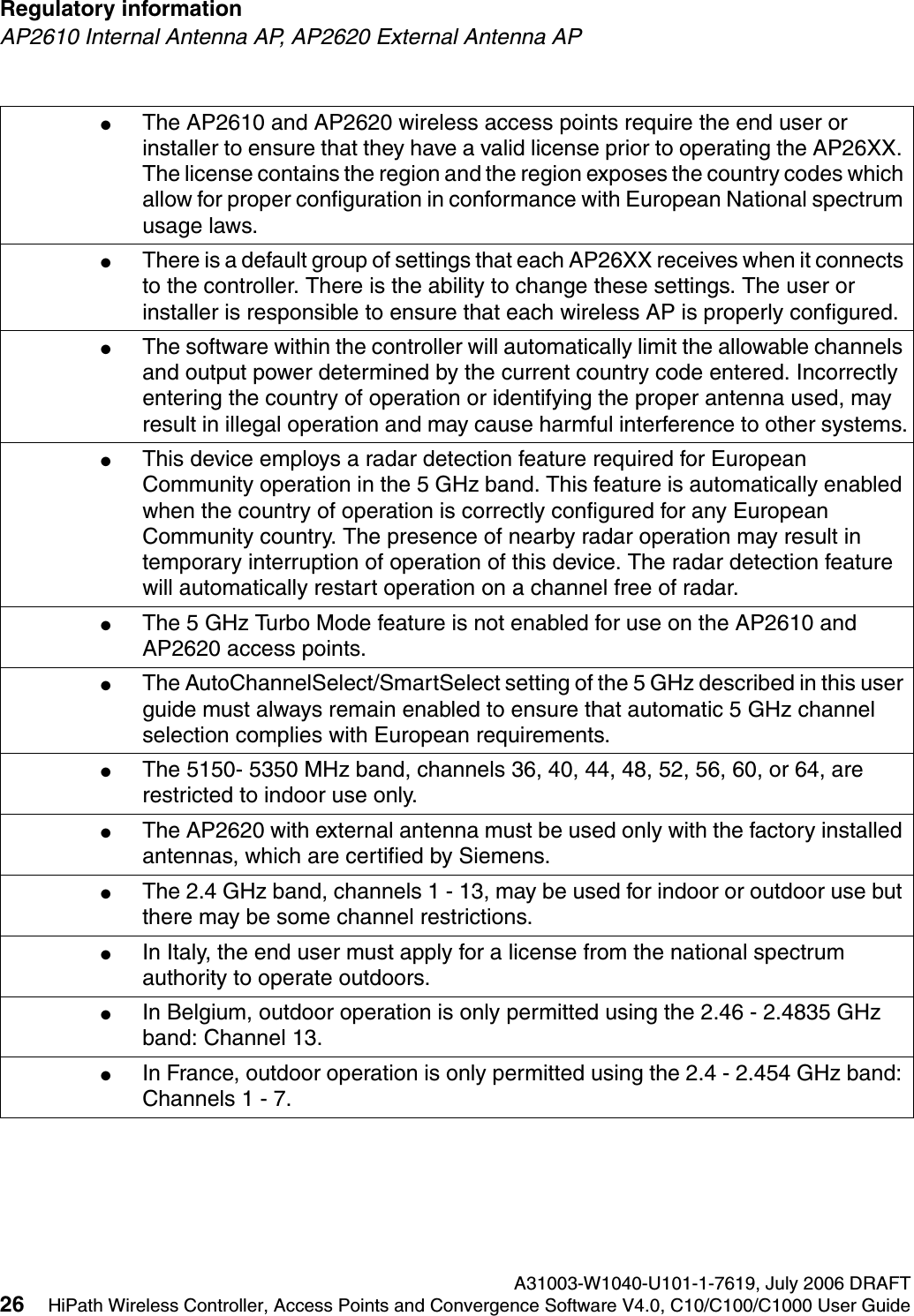
Regulatory information A31003-W1040-U101-1-7619, July 2006 DRAFT26 HiPath Wireless Controller, Access Points and Convergence Software V4.0, C10/C100/C1000 User Guide        hwc_regulatory_information.fmAP2610 Internal Antenna AP, AP2620 External Antenna AP●The AP2610 and AP2620 wireless access points require the end user or installer to ensure that they have a valid license prior to operating the AP26XX. The license contains the region and the region exposes the country codes which allow for proper configuration in conformance with European National spectrum usage laws. ●There is a default group of settings that each AP26XX receives when it connects to the controller. There is the ability to change these settings. The user or installer is responsible to ensure that each wireless AP is properly configured.●The software within the controller will automatically limit the allowable channels and output power determined by the current country code entered. Incorrectly entering the country of operation or identifying the proper antenna used, may result in illegal operation and may cause harmful interference to other systems.●This device employs a radar detection feature required for European Community operation in the 5 GHz band. This feature is automatically enabled when the country of operation is correctly configured for any European Community country. The presence of nearby radar operation may result in temporary interruption of operation of this device. The radar detection feature will automatically restart operation on a channel free of radar.●The 5 GHz Turbo Mode feature is not enabled for use on the AP2610 and AP2620 access points.●The AutoChannelSelect/SmartSelect setting of the 5 GHz described in this user guide must always remain enabled to ensure that automatic 5 GHz channel selection complies with European requirements. ●The 5150- 5350 MHz band, channels 36, 40, 44, 48, 52, 56, 60, or 64, are restricted to indoor use only.●The AP2620 with external antenna must be used only with the factory installed antennas, which are certified by Siemens.●The 2.4 GHz band, channels 1 - 13, may be used for indoor or outdoor use but there may be some channel restrictions.●In Italy, the end user must apply for a license from the national spectrum authority to operate outdoors.●In Belgium, outdoor operation is only permitted using the 2.46 - 2.4835 GHz band: Channel 13.●In France, outdoor operation is only permitted using the 2.4 - 2.454 GHz band: Channels 1 - 7.
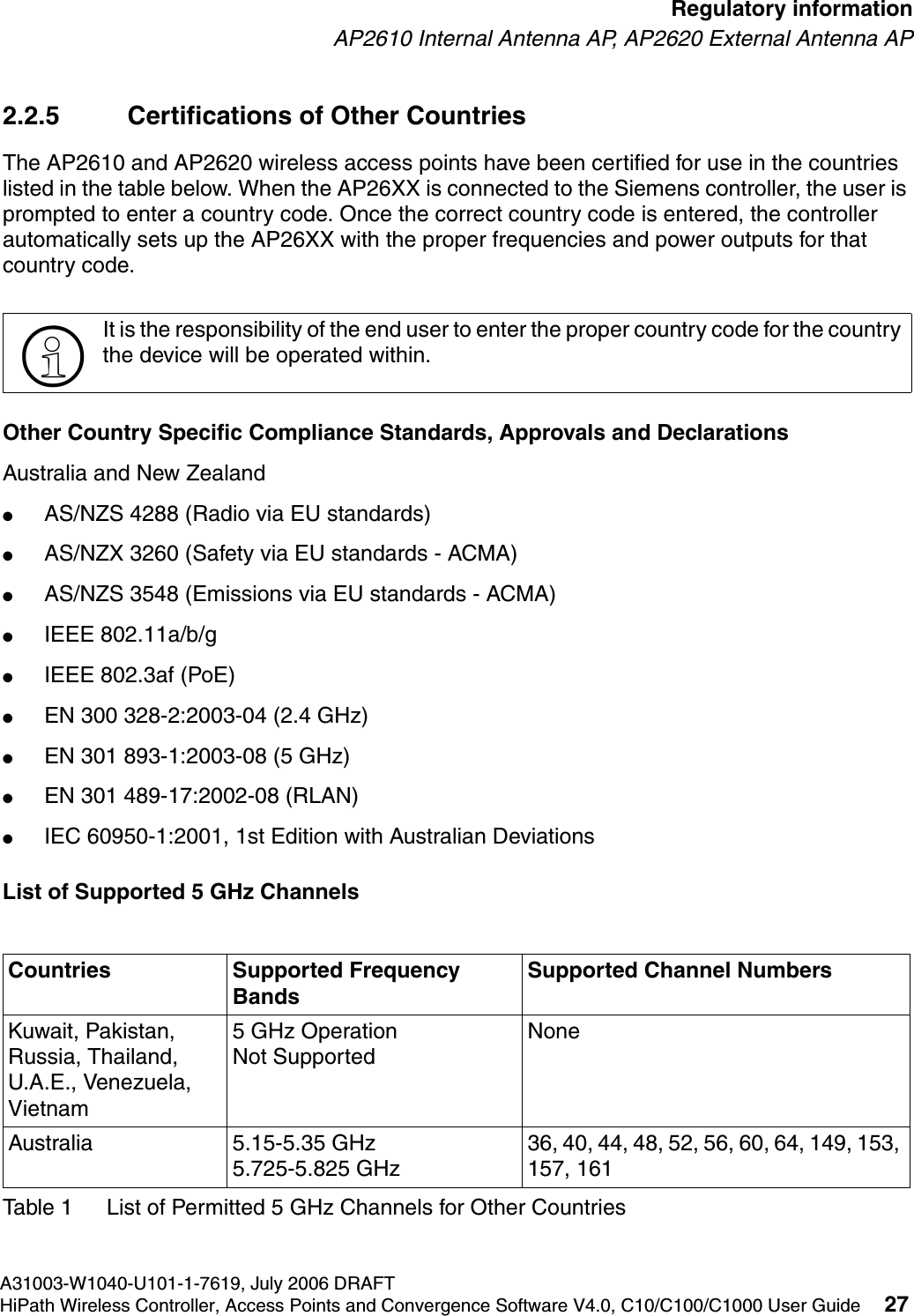
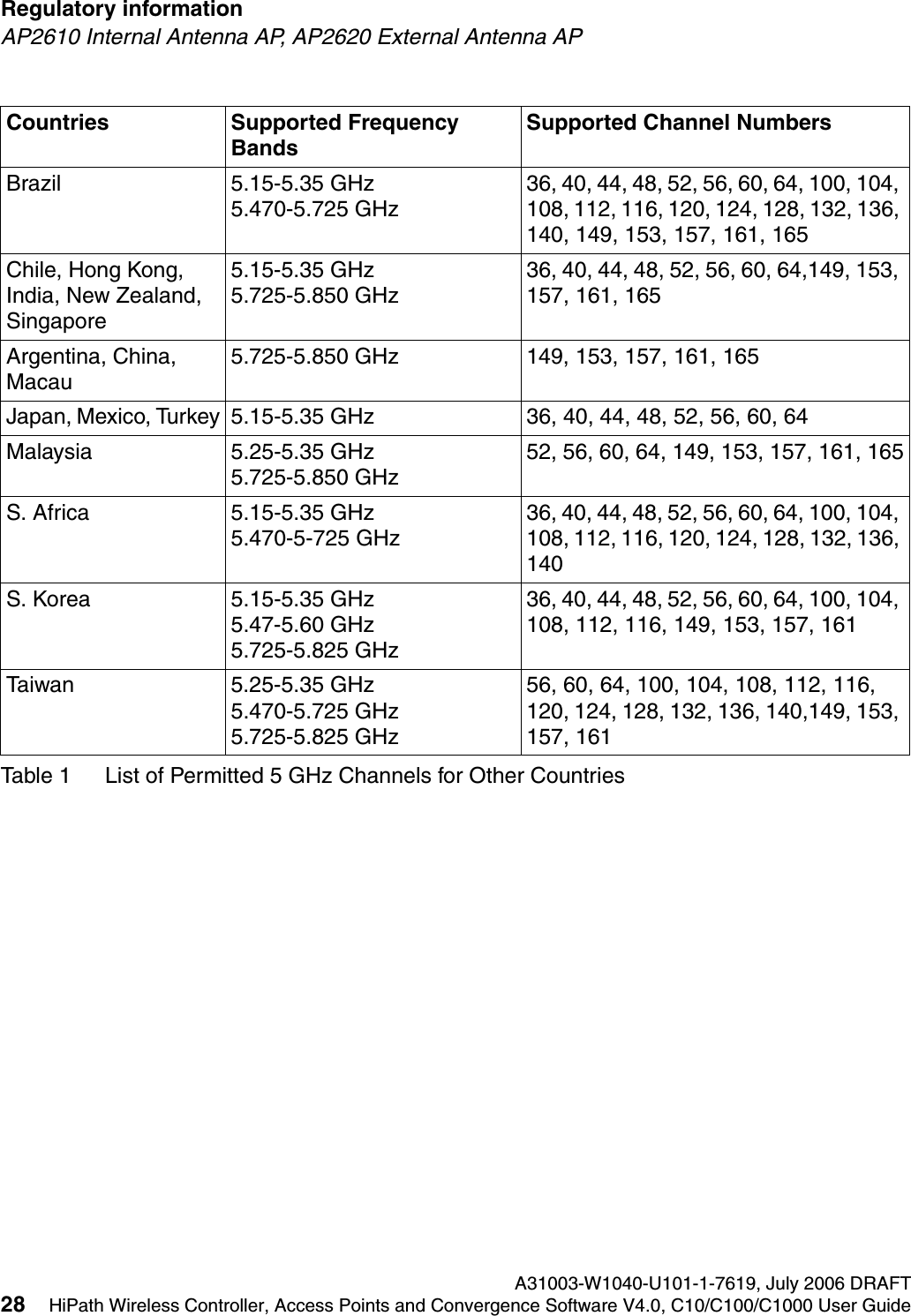
hwc_regulatory_information.fmA31003-W1040-U101-1-7619, July 2006 DRAFTHiPath Wireless Controller, Access Points and Convergence Software V4.0, C10/C100/C1000 User Guide 27        Regulatory informationAP2610 Internal Antenna AP, AP2620 External Antenna AP2.2.5 Certifications of Other Countries The AP2610 and AP2620 wireless access points have been certified for use in the countries listed in the table below. When the AP26XX is connected to the Siemens controller, the user is prompted to enter a country code. Once the correct country code is entered, the controller automatically sets up the AP26XX with the proper frequencies and power outputs for that country code.Other Country Specific Compliance Standards, Approvals and DeclarationsAustralia and New Zealand●AS/NZS 4288 (Radio via EU standards)●AS/NZX 3260 (Safety via EU standards - ACMA)●AS/NZS 3548 (Emissions via EU standards - ACMA)●IEEE 802.11a/b/g●IEEE 802.3af (PoE)●EN 300 328-2:2003-04 (2.4 GHz)●EN 301 893-1:2003-08 (5 GHz)●EN 301 489-17:2002-08 (RLAN)●IEC 60950-1:2001, 1st Edition with Australian DeviationsList of Supported 5 GHz Channels >It is the responsibility of the end user to enter the proper country code for the country the device will be operated within.Countries Supported Frequency BandsSupported Channel NumbersKuwait, Pakistan, Russia, Thailand, U.A.E., Venezuela, Vietnam5 GHz OperationNot SupportedNoneAustralia 5.15-5.35 GHz5.725-5.825 GHz36, 40, 44, 48, 52, 56, 60, 64, 149, 153, 157, 161Table 1 List of Permitted 5 GHz Channels for Other Countries
Regulatory information A31003-W1040-U101-1-7619, July 2006 DRAFT28 HiPath Wireless Controller, Access Points and Convergence Software V4.0, C10/C100/C1000 User Guide        hwc_regulatory_information.fmAP2610 Internal Antenna AP, AP2620 External Antenna APBrazil 5.15-5.35 GHz5.470-5.725 GHz36, 40, 44, 48, 52, 56, 60, 64, 100, 104, 108, 112, 116, 120, 124, 128, 132, 136, 140, 149, 153, 157, 161, 165Chile, Hong Kong, India, New Zealand, Singapore5.15-5.35 GHz5.725-5.850 GHz36, 40, 44, 48, 52, 56, 60, 64,149, 153, 157, 161, 165Argentina, China, Macau5.725-5.850 GHz 149, 153, 157, 161, 165Japan, Mexico, Turkey 5.15-5.35 GHz  36, 40, 44, 48, 52, 56, 60, 64 Malaysia 5.25-5.35 GHz5.725-5.850 GHz52, 56, 60, 64, 149, 153, 157, 161, 165S. Africa 5.15-5.35 GHz5.470-5-725 GHz36, 40, 44, 48, 52, 56, 60, 64, 100, 104, 108, 112, 116, 120, 124, 128, 132, 136, 140S. Korea 5.15-5.35 GHz5.47-5.60 GHz5.725-5.825 GHz36, 40, 44, 48, 52, 56, 60, 64, 100, 104, 108, 112, 116, 149, 153, 157, 161Taiwan 5.25-5.35 GHz5.470-5.725 GHz5.725-5.825 GHz56, 60, 64, 100, 104, 108, 112, 116, 120, 124, 128, 132, 136, 140,149, 153, 157, 161Countries Supported Frequency BandsSupported Channel NumbersTable 1 List of Permitted 5 GHz Channels for Other Countries
hwc_intro.fmA31003-W1040-U101-1-7619, July 2006 DRAFTHiPath Wireless Controller, Access Points and Convergence Software V4.0, C10/C100/C1000 User Guide 29        Overview of the Controller, Access Points and Convergence Software solutionConventional wireless LANS3 Overview of the Controller, Access Points and Convergence Software solutionThis chapter describes HiPath Controller, Access Points and Convergence Software concepts, including:●Conventional wireless LANS●Elements of the solution●Controller, Access Points and Convergence Software and your network●System Configuration OverviewThe next generation of Siemens wireless networking devices provides a truly scalable WLAN solution. Siemens Wireless APs are fit access points controlled through a sophisticated network device, the HiPath Wireless Controller. This solution provides the security and manageability required by enterprises and service providers.The Controller, Access Points and Convergence Software system is a highly scalable Wireless Local Area Network (WLAN) solution developed by Siemens. Based on a third generation WLAN topology, the Controller, Access Points and Convergence Software system makes wireless practical for service providers as well as medium and large-scale enterprises.The Controller, Access Points and Convergence Software system provides a secure, highly scalable, cost-effective solution based on the IEEE 802.11 standard. The system is intended for enterprise networks operating on multiple floors in more than one building, and is ideal for public environments, such as airports and convention centers that require multiple access points.This chapter provides an overview of the fundamental principles of the Controller, Access Points and Convergence Software system.3.1 Conventional wireless LANSWireless communication between multiple computers requires that each computer is equipped with a receiver/transmitter—a WLAN Network Interface Card (NIC)—capable of exchanging digital information over a common radio frequency. This is called an ad hoc network configuration. An ad hoc network configuration allows wireless devices to communicate together. This setup is defined as an independent basic service set (IBSS).An alternative to the ad hoc configuration is the use of an access point. This may be a dedicated hardware bridge or a computer running special software. Computers and other wireless devices communicate with each other through this access point. The 802.11 standard defines access point communications as devices that allow wireless devices to communicate with a distribution system. This setup is defined as a basic service set (BSS) or infrastructure network.
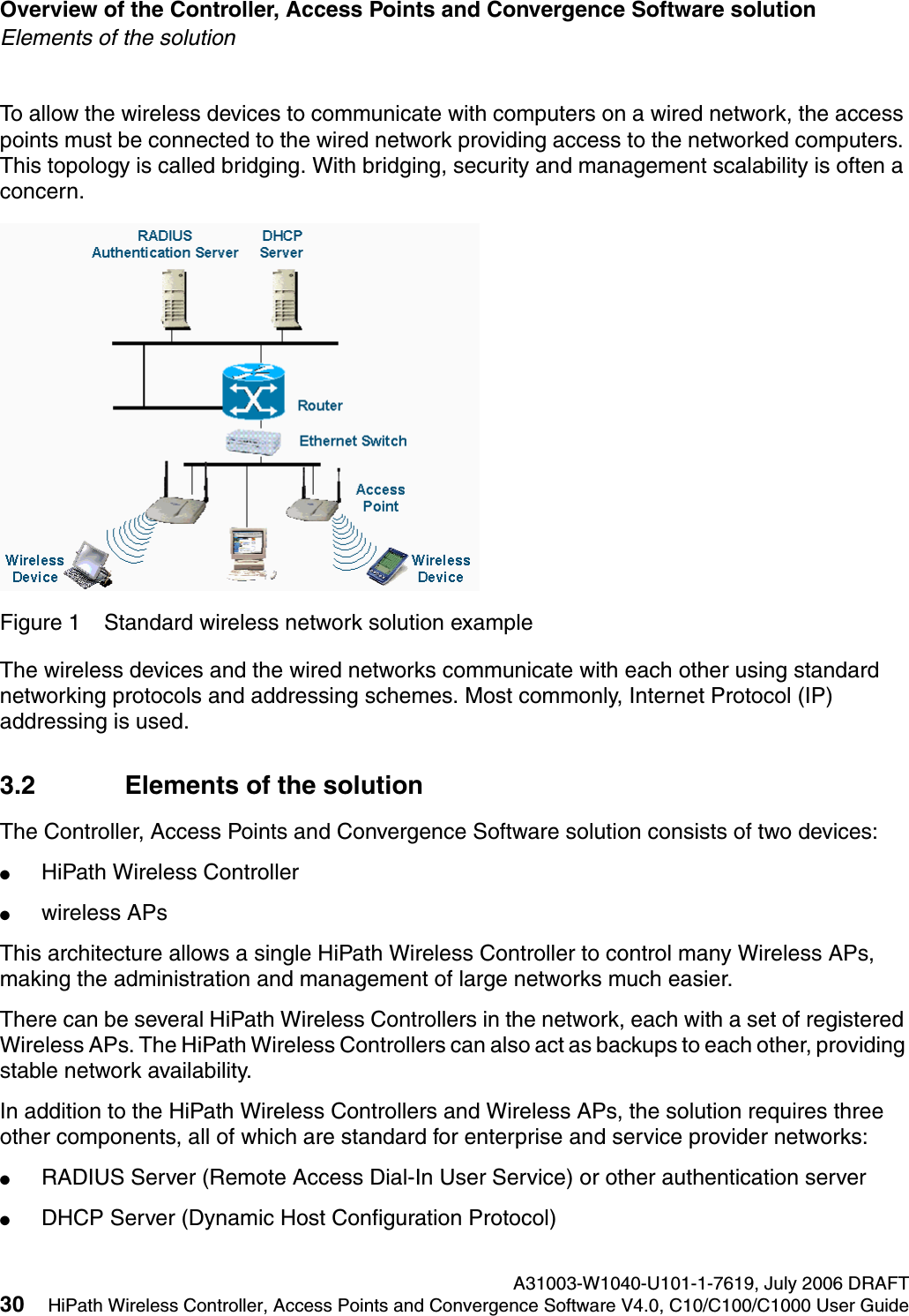
Overview of the Controller, Access Points and Convergence Software solution A31003-W1040-U101-1-7619, July 2006 DRAFT30 HiPath Wireless Controller, Access Points and Convergence Software V4.0, C10/C100/C1000 User Guide        hwc_intro.fmElements of the solutionTo allow the wireless devices to communicate with computers on a wired network, the access points must be connected to the wired network providing access to the networked computers. This topology is called bridging. With bridging, security and management scalability is often a concern.Figure 1 Standard wireless network solution exampleThe wireless devices and the wired networks communicate with each other using standard networking protocols and addressing schemes. Most commonly, Internet Protocol (IP) addressing is used.3.2 Elements of the solutionThe Controller, Access Points and Convergence Software solution consists of two devices:●HiPath Wireless Controller●wireless APsThis architecture allows a single HiPath Wireless Controller to control many Wireless APs, making the administration and management of large networks much easier.There can be several HiPath Wireless Controllers in the network, each with a set of registered Wireless APs. The HiPath Wireless Controllers can also act as backups to each other, providing stable network availability.In addition to the HiPath Wireless Controllers and Wireless APs, the solution requires three other components, all of which are standard for enterprise and service provider networks:●RADIUS Server (Remote Access Dial-In User Service) or other authentication server●DHCP Server (Dynamic Host Configuration Protocol)
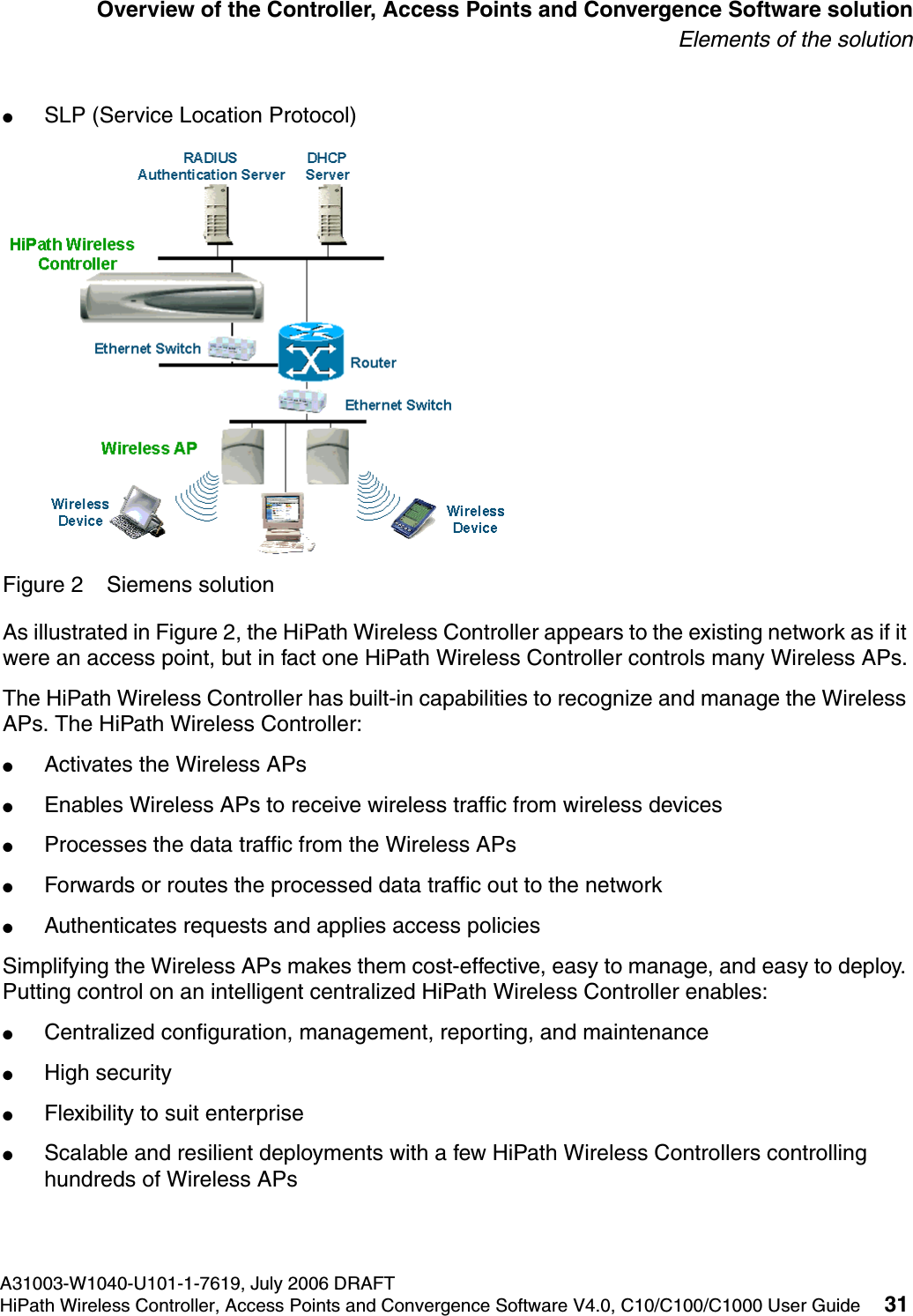
hwc_intro.fmA31003-W1040-U101-1-7619, July 2006 DRAFTHiPath Wireless Controller, Access Points and Convergence Software V4.0, C10/C100/C1000 User Guide 31        Overview of the Controller, Access Points and Convergence Software solutionElements of the solution●SLP (Service Location Protocol)Figure 2 Siemens solutionAs illustrated in Figure 2, the HiPath Wireless Controller appears to the existing network as if it were an access point, but in fact one HiPath Wireless Controller controls many Wireless APs.The HiPath Wireless Controller has built-in capabilities to recognize and manage the Wireless APs. The HiPath Wireless Controller:●Activates the Wireless APs●Enables Wireless APs to receive wireless traffic from wireless devices●Processes the data traffic from the Wireless APs ●Forwards or routes the processed data traffic out to the network●Authenticates requests and applies access policiesSimplifying the Wireless APs makes them cost-effective, easy to manage, and easy to deploy. Putting control on an intelligent centralized HiPath Wireless Controller enables:●Centralized configuration, management, reporting, and maintenance●High security●Flexibility to suit enterprise●Scalable and resilient deployments with a few HiPath Wireless Controllers controlling hundreds of Wireless APs
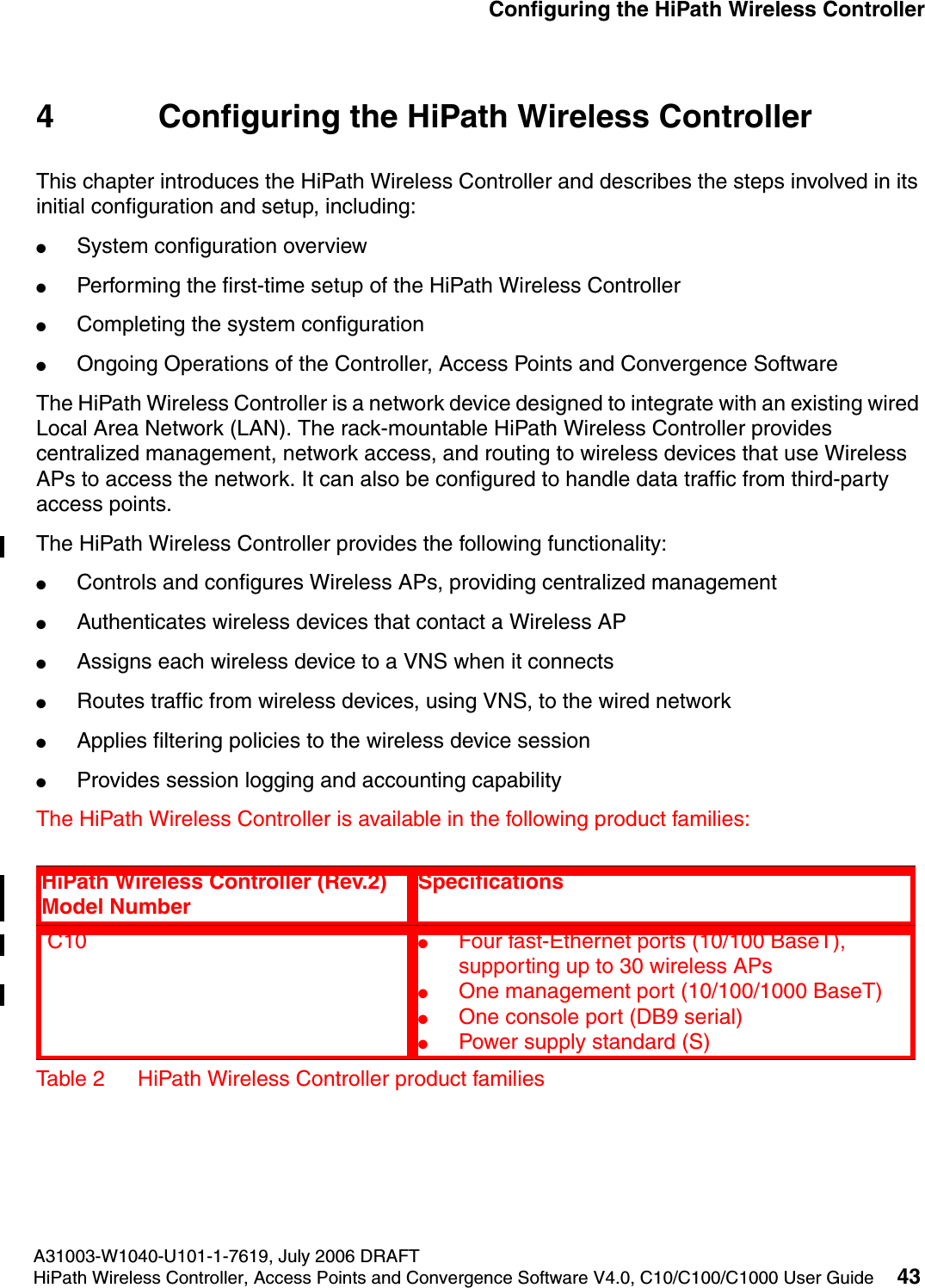
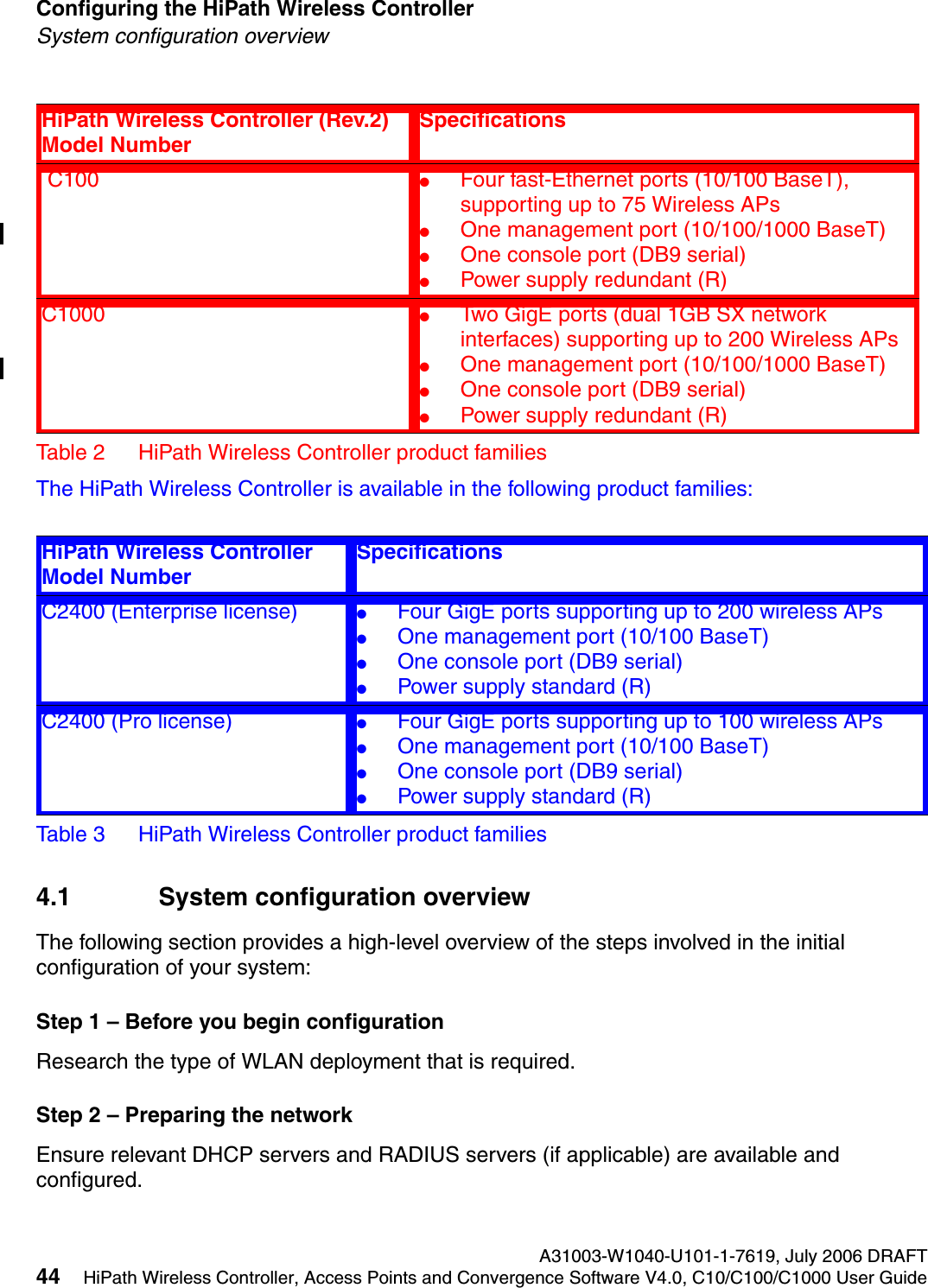
Overview of the Controller, Access Points and Convergence Software solution A31003-W1040-U101-1-7619, July 2006 DRAFT32 HiPath Wireless Controller, Access Points and Convergence Software V4.0, C10/C100/C1000 User Guide        hwc_intro.fmElements of the solutionThe Controller, Access Points and Convergence Software system:●Scales up to Enterprise capacity – One HiPath Wireless Controller (C1000 model) controls as many as 200 Wireless APs.One HiPath Wireless Controller C2400 controls as many as 200 Wireless APs. In turn each Wireless AP can handle up to 254 wireless devices, with each radio supporting a maximum of 128. With additional HiPath Wireless Controllers, the number of wireless devices the solution can support can reach into the thousands.●Integrates with existing network – A HiPath Wireless Controller can be added to an existing enterprise network as a new network device, greatly enhancing its capability without interfering with existing functionality. Integration of the HiPath Wireless Controllers and Wireless APs does not require any reconfiguration of the existing infrastructure (for example, VLANs).●Offers centralized management and control – An administrator accesses the HiPath Wireless Controller in its centralized location to monitor and administer the entire wireless network. From the HiPath Wireless Controller the administrator can recognize, configure, and manage the Wireless APs and distribute new software releases.●Provides easy deployment of Wireless APs – The initial configuration of the Wireless APs on the centralized HiPath Wireless Controller can be done with an automatic “discovery” technique. For more information, see Section 5.2, “Discovery and registration overview”, on page 71.●Provides security via user authentication – Uses existing authentication (AAA) servers to authenticate and authorize users.●Provides security via filters and privileges – Uses virtual networking techniques to create separate virtual networks with defined authentication and billing services, access policies, and privileges.●Supports seamless mobility and roaming – Supports seamless roaming of a wireless device from one Wireless AP to another on the same HiPath Wireless Controller or on a different HiPath Wireless Controller.●Integrates third-party access points – Uses a combination of network routing and authentication techniques.●Prevents rogue devices – Unauthorized access points are detected and identified as harmless or dangerous rogue APs.●Provides accounting services – Logs wireless user sessions, user group activity, and other activity reporting, enabling the generation of consolidated billing records.●Offers troubleshooting capability – Logs system and session activity and provides reports to aid in troubleshooting analysis.
hwc_intro.fmA31003-W1040-U101-1-7619, July 2006 DRAFTHiPath Wireless Controller, Access Points and Convergence Software V4.0, C10/C100/C1000 User Guide 33        Overview of the Controller, Access Points and Convergence Software solutionController, Access Points and Convergence Software and your network●Offers dynamic RF management – Automatically selects channels and adjusts Radio Frequency (RF) signal propagation and power levels without user intervention. 3.3 Controller, Access Points and Convergence Software and your networkThis section is a summary of the components of the Controller, Access Points and Convergence Software solution on your enterprise network. The following are described in detail in this guide:●HiPath Wireless Controller – A rack-mountable network device that provides centralized control over all access points (both Wireless APs and third-party access points) and manages the network assignment of wireless device clients associating through access points.●Wireless AP – A wireless LAN fit access point (IEEE 802.11) that communicates only with a HiPath Wireless Controller.●RADIUS Server (Remote Access Dial-In User Service) (RFC2865), or other authentication server – An authentication server that assigns and manages ID and Password protection throughout the network. Used for authentication of the wireless users in either 802.1x or Captive Portal security modes. The RADIUS Server system can be set up for certain standard attributes, such as filter ID, and for the Vendor Specific Attributes (VSAs). In addition, Radius Disconnect (RFC3576) which permits dynamic adjustment of user policy (user disconnect) is supported.●DHCP Server (Dynamic Host Configuration Protocol) (RFC2131) – A server that assigns IP addresses, gateways, and subnet masks dynamically. IP address assignment for clients can be done by the DHCP server internal to the HiPath Wireless Controller, or by existing servers using DHCP relay. It is also used by the Wireless APs to discover the location of the HiPath Wireless Controller during the initial registration process. For SLP, DHCP should have Option 78 enabled. Option 78 specifies the location of one or more SLP Directory Agents.●Service Location Protocol (SLP) (SLP RFC2608) – Client applications are User Agents and services that are advertised by a Service Agent. In larger installations, a Directory Agent collects information from Service Agents and creates a central repository. The Siemens solution relies on registering “siemens” as an SLP Service Agent.●Domain Name Server (DNS) – A server used as an alternate mechanism (if present on the enterprise network) for the automatic discovery process. Controller, Access Points and Convergence Software relies on the DNS for Layer 3 deployments and for static configuration of Wireless APs. The controller can be registered in DNS, to provide DNS assisted AP discovery.
Overview of the Controller, Access Points and Convergence Software solution A31003-W1040-U101-1-7619, July 2006 DRAFT34 HiPath Wireless Controller, Access Points and Convergence Software V4.0, C10/C100/C1000 User Guide        hwc_intro.fmController, Access Points and Convergence Software and your network●Web Authentication Server – A server that can be used for external Captive Portal and external authentication. The HiPath Wireless Controller has an internal Captive portal presentation page, which allows Web authentication (Web redirection) to take place without the need for an external captive portal server. ●RADIUS Accounting Server (Remote Access Dial-In User Service) (RFC2866) – A server that is required if RADIUS Accounting is enabled.●Simple Network Management Protocol (SNMP) – A Manager Server that is required if forwarding SNMP messages is enabled.●Check Point Server (Check Point Event Logging API) – A server for security event logging that is required if a firewall application is enabled. Checkpoint ELA certification for OPSEC is provided.●Network infrastructure – The Ethernet switches and routers must be configured to allow routing between the various services noted above. Routing must also be enabled between multiple HiPath Wireless Controllers for the following features to operate successfully:●Availability●Mobility●Mitigator for detection of rogue access pointsSome features also require the definition of static routes.●Web Browser – A browser provides access to the HiPath Wireless Controller Management user interface to configure the Controller, Access Points and Convergence Software.●SSH Enabled Device – A device that supports Secure Shell (SSH) is used for remote (IP) shell access to the system. ●Zone Integrity – The Zone integrity server enhances network security by ensuring clients accessing your network are compliant with your security policies before gaining access. Zone Integrity Release 5 is supported.3.3.1 Network traffic flowFigure 3 illustrates a simple configuration with a single HiPath Wireless Controller and two Wireless APs, each supporting a wireless device. A RADIUS server on the network provides authentication, and a DHCP server is used by the Wireless APs to discover the location of the HiPath Wireless Controller during the initial registration process. Network interconnectivity is provided by the infrastructure routing and switching devices.
hwc_intro.fmA31003-W1040-U101-1-7619, July 2006 DRAFTHiPath Wireless Controller, Access Points and Convergence Software V4.0, C10/C100/C1000 User Guide 35        Overview of the Controller, Access Points and Convergence Software solutionController, Access Points and Convergence Software and your networkFigure 3 Traffic Flow diagramEach wireless device sends IP packets in the 802.11 standard to the Wireless AP. The Wireless AP uses a UDP (User Datagram Protocol) based tunnelling protocol to encapsulate the packets and forward them to the HiPath Wireless Controller. In a typical configuration, APs can be configured to locally bridge traffic (to a configured VLAN) directly at their network point of attachment. The HiPath Wireless Controller decapsulates the packets and routes these to destinations on the network.The HiPath Wireless Controller functions like a standard router, except that it is configured to route only network traffic associated with wireless connected users. The HiPath Wireless Controller can also be configured to simply forward traffic to a default or static route if dynamic routing is not preferred.3.3.2 Network securityThe Controller, Access Points and Convergence Software system provides features and functionality to control network access. These are based on standard wireless network security practices.Current wireless network security methods provide protection. These methods include:
Overview of the Controller, Access Points and Convergence Software solution A31003-W1040-U101-1-7619, July 2006 DRAFT36 HiPath Wireless Controller, Access Points and Convergence Software V4.0, C10/C100/C1000 User Guide        hwc_intro.fmController, Access Points and Convergence Software and your network●Shared Key authentication that relies on Wired Equivalent Privacy (WEP) keys●Open System that relies on Service Set Identifiers (SSIDs)●802.1x that is compliant with Wi-Fi Protected Access (WPA) ●Captive Portal based on Secure Sockets Layer (SSL) protocolThe Controller, Access Points and Convergence Software system provides the centralized mechanism by which the corresponding security parameters are configured for a group of APs.●Wired Equivalent Privacy (WEP) is a security protocol for wireless local area networks defined in the 802.11b standard●Wi-Fi Protected Access version 1 (WPA1™) with Temporal Key Integrity Protocol (TKIP)●Wi-Fi Protected Access version 2 (WPA2™) with Advanced Encryption Standard (AES) and Counter Mode with Cipher Block Chaining Message Authentication Code (CCMP)3.3.2.1 AuthenticationThe HiPath Wireless Controller relies on a RADIUS server, or authentication server, on the enterprise network to provide the authentication information (whether the user is to be allowed or denied access to the network). A RADIUS client is implemented to interact with infrastructure RADIUS servers.The HiPath Wireless Controller provides authentication using:●Captive Portal – a browser-based mechanism that forces users to a Web page●RADIUS (using IEEE 802.1x)The 802.1x mechanism is a standard for authentication developed within the 802.11 standard. This mechanism is implemented at the wireless Port, blocking all data traffic between the wireless device and the network until authentication is complete. Authentication by 802.1x standard uses Extensible Authentication Protocol (EAP) for the message exchange between the HiPath Wireless Controller and the RADIUS server.When 802.1x is used for authentication, the HiPath Wireless Controller provides the capability to dynamically assign per-wireless-device WEP keys (called per-station WEP keys in 802.11). Or in the case of WPA, the HiPath Wireless Controller is not involved in key assignment. Instead, the controller is involvement in the path between RADIUS server and the user to negotiate the appropriate set of keys. With WPA2 the material exchange produces a Pairwise Master Key which is used by the AP and the user to derive their temporal keys. (The keys change over time.)In the Controller, Access Points and Convergence Software, a RADIUS redundancy feature is provided, where you can define a failover RADIUS server (up to 2 servers) in the event that the active RADIUS server fails.
hwc_intro.fmA31003-W1040-U101-1-7619, July 2006 DRAFTHiPath Wireless Controller, Access Points and Convergence Software V4.0, C10/C100/C1000 User Guide 37        Overview of the Controller, Access Points and Convergence Software solutionController, Access Points and Convergence Software and your network3.3.2.2 PrivacyPrivacy is a mechanism that protects data over wireless and wired networks, usually by encryption techniques.Controller, Access Points and Convergence Software supports the Wired Equivalent Privacy (WEP) standard common to conventional access points.It also provides Wi-Fi Protected Access version 1 (WPA v.1) encryption, based on Pairwise Master Key (PMK) and Temporal Key Integrity Protocol (TKIP). The most secure encryption mechanism is WPA version 2, using Advanced Encryption Standard (AES).3.3.3 Virtual Network ServicesVirtual Network Services (VNS) provide a versatile method of mapping wireless networks to the topology of an existing wired network.When you set up VNS on the HiPath Wireless Controller you are defining subnets for groups of wireless users. The VNS definition provides the binding between VNS IP topology configuration (Routing, DHCP policy) and the RF configuration parameters that advertise and control network access (SSID, Privacy policy: WEP and WPA). This technique enables policies and authentication to be applied to the groups of wireless users on a VNS, as well as the collecting of accounting information on user sessions that can be used for billing.When a VNS is set up on the HiPath Wireless Controller:●One or more Wireless APs (by radio) are associated with it●A range of IP addresses is set aside for the HiPath Wireless Controller’s DHCP server to assign to wireless devicesIf routing protocol is enabled, the HiPath Wireless Controller advertises the VNS as a routable network segment to the wired network and routes traffic between the wireless devices and the wired network. The HiPath Wireless Controller C2400 also supports VLAN-bridged assignment for VNSs. This allows the controller to directly bridge the set of wireless devices associated with a VNS directly to a specified core VLAN.The HiPath Wireless Controller C2400 can support up to 64 VNSs. The HiPath Wireless Controller C1000 can support up to 50 VNSs, the C100 can support up to 32 VNSs, and the C10 can support up to 16. The AP radios can be assigned to each of the configured VNSs in a system. Each AP can be the subject of 8 VNS assignments (corresponding to the number of SSIDs it can support). Once a radio has all 8 slots assigned, it is no longer eligible for further assignment.
Overview of the Controller, Access Points and Convergence Software solution A31003-W1040-U101-1-7619, July 2006 DRAFT38 HiPath Wireless Controller, Access Points and Convergence Software V4.0, C10/C100/C1000 User Guide        hwc_intro.fmController, Access Points and Convergence Software and your network3.3.4 Static routing and routing protocolsRouting can be used on the HiPath Wireless Controller to support the VNS definitions. Through the user interface you can configure routing on the HiPath Wireless Controller to use one of the following routing techniques:●Static routes – Use static routes to set the default route of a HiPath Wireless Controller so that legitimate wireless device traffic can be forwarded to the default gateway.●Open Shortest Path First (OSPF, version 2) (RFC2328) – Use OSPF to allow the HiPath Wireless Controller to participate in dynamic route selection. OSPF is a protocol designed for medium and large IP networks with the ability to segment routes into different areas by routing information summarization and propagation. Static Route definition and OSPF dynamic learning can be combined, but a static route definition will take precedence over dynamic rules.●Next-hop routing – Use next-hop routing to specify a unique gateway to which traffic on a VNS is forwarded. Defining a next-hop for a VNS forces all the traffic in the VNS to be forwarded to the indicated network device, bypassing any routing definitions of the controller's route table.3.3.5 Packet filtering policyPolicy refers to the rules that allow different groups of users access to the network. The Controller, Access Points and Convergence Software system can link authorized users to user groups. These user groups then can be confined to predefined portions of the network.In the Controller, Access Points and Convergence Software system, network access policy is carried out by means of packet filtering within a VNS.In the HiPath Wireless Controller user interface, you set up a packet filtering policy by defining a set of hierarchical rules that allow or deny traffic to specific IP addresses, IP address ranges, or service ports. The sequence and hierarchy of these filtering rules must be carefully designed based on your enterprise user access plan.The authentication technique selected determines how filtering is carried out:●If authentication is by SSID and Captive Portal, a non-authenticated filter allows all users to get as far as the Captive Portal Web page, where logon authentication occurs. When authentication is returned, then filters are applied, based on user ID and permissions.●If authentication is by AAA (802.1x), users have logged on and have been authenticated before being assigned an IP address. When authentication is completed, the authenticated filter is assigned by default unless a more user-specific filter is returned or indicated by the authentication mechanism. The characteristics and level of access for a filter are controlled and defined by the system administrator.
hwc_intro.fmA31003-W1040-U101-1-7619, July 2006 DRAFTHiPath Wireless Controller, Access Points and Convergence Software V4.0, C10/C100/C1000 User Guide 39        Overview of the Controller, Access Points and Convergence Software solutionController, Access Points and Convergence Software and your network3.3.6 Mobility and roamingIn typical configurations, APs are setup as bridges, which bridge wireless traffic to the local subnet. In bridging configurations, the user obtains an IP address from the same subnet as the AP. If the user roams within APs on the same subnet, it is able to keep using the same IP address. However, if the user roams to another AP outside of that subnet, its IP address is no longer valid. The user's client device must recognize that the IP address it has is no longer valid and re-negotiate a new one on the new subnet. The protocol does not mandate any action on the user. The recovery procedure is entirely client dependent. Some clients automatically attempt to obtain a new address on roam (which affects roaming latency), while others will hold on to their IP address. This loss of IP address continuity seriously affects the client's experience in the network, because in some cases it can take minutes for a new address to be negotiated. The solution centralizes the user's network point of presence, therefore abstracting and decoupling the user's IP address assignment from that of the APs location subnet. That means that the user is able to roam across any AP without loosing its own IP address, regardless of the subnet on which the serving APs are deployed.In addition, a HiPath Wireless Controller can learn about other HiPath Wireless Controllers on the network and then exchange client session information. This enables a wireless device user to roam seamlessly between different Wireless APs on different HiPath Wireless Controllers.3.3.7 Network availabilityController, Access Points and Convergence Software provides availability against Wireless AP outages, HiPath Wireless Controller outages, and even network outages. The HiPath Wireless Controller (C2400 model) in a VLAN bridged VNS can potentially allow the user to retain the IP address in a failover scenario, if the VNS/VLAN is common to both controllers. For example, availability is provided by defining a paired controller configuration by which each peer can act as the backup controller for the other's APs. APs in one controller are allowed to failover and register with the alternate controller. If a HiPath Wireless Controller fails, all of its associated Wireless APs can automatically switch over to another HiPath Wireless Controller that has been defined as the secondary or backup HiPath Wireless Controller. If the AP reboots, the original HiPath Wireless Controller is restored. The original HiPath Wireless Controller is restored if it is active. However, active APs will continue to be attached to the failover controller until the administrator releases them back to the original home controller. 3.3.8 Quality of Service (QoS)Controller, Access Points and Convergence Software provides advanced Quality of Service (QoS) management to provide better network traffic flow. Such techniques include:
Overview of the Controller, Access Points and Convergence Software solution A31003-W1040-U101-1-7619, July 2006 DRAFT40 HiPath Wireless Controller, Access Points and Convergence Software V4.0, C10/C100/C1000 User Guide        hwc_intro.fmSystem Configuration Overview●WMM (Wi-Fi Multimedia) – WMM is enabled per VNS. For C1000 controllers, these are primarily only AP features. The HiPath Wireless Controller provides centralized management of these AP features. For devices with WMM enabled, the standard provides multimedia enhancements for audio, video, and voice applications. WMM shortens the time between transmitting packets for higher priority traffic. WMM is part of the 802.11e standard for QoS.●IP ToS (Type of Service) or DSCP (Diffserv Codepoint) – The ToS/DSCP field in the IP header of a frame indicates the priority and QoS for each frame. The IP TOS and/or DSCP is maintained within CTP (CAPWAP Tunneling Protocol) by copying the user IP QoS information to the CTP header—this is referred to as Adaptive QoS. Quality of Service (QoS) management is also provided by:●Assigning high priority to an SSID (configurable)●Adaptive QoS (automatic)●Support for legacy devices that use SpectraLink Voice Protocol (SVP) for prioritizing voice traffic (configurable)3.4 System Configuration OverviewTo set up and configure the HiPath Wireless Controller and Wireless APs, follow these steps:1. First-time Setup – Perform “First-Time Setup” of the HiPath Wireless Controller on the physical network to modify the Management Port IP address for the enterprise network.2. Product Key – Apply a Product Key file, for licensing purposes. If no Product Key is enabled, the HiPath Wireless Controller functions with some features enabled in demonstration mode. Not all features are enabled in this mode. For example, mobility is not enabled and cannot be used.3. Data Port Setup – Set up the HiPath Wireless Controller on the network by configuring the physical data ports and their function as “host port”, “router port”, or “3rd party AP port”.4. Routing Setup – Configure static routes and OSPF parameters for any port defined as a router port, if appropriate to the network.5. Wireless AP Initial Setup – Connect the Wireless APs to the HiPath Wireless Controller. They will automatically begin the Discovery of the HiPath Wireless Controller, based on factors that include:●Their Registration mode (in the Wireless AP Registration screen)●The enterprise network services that will support the discovery process A new feature of the 4.0 release is a default AP configuration. The default AP configuration allows for a definition of a default configuration template, whereby APs automatically receive complete configuration. For typical deployments where all APs are to all have same
hwc_intro.fmA31003-W1040-U101-1-7619, July 2006 DRAFTHiPath Wireless Controller, Access Points and Convergence Software V4.0, C10/C100/C1000 User Guide 41        Overview of the Controller, Access Points and Convergence Software solutionSystem Configuration Overviewconfiguration, this feature will expedite deployment, as an AP will automatically receive full configuration (including VNS assignment) upon initial registration with the HiPath Wireless Controller. 6. Wireless AP Configuration – Modify properties or settings of the Wireless AP, if desired.7. Virtual Network Services (VNS) Setup – Set up one or more virtual subnetworks on the HiPath Wireless Controller. For each VNS, configure the following:●Topology – Configure the VNS.●RF – Assign the Wireless APs radios to the VNS.●Authentication and Accounting – Configure the authentication method for the wireless device user and enable the accounting method.●RAD Policy – Define filter ID values and VNS Groups●Filtering – Define filtering rules to control network access●Multicast – Define groups of IP addresses for multicast traffic●Privacy – Select and configure the wireless security method on the VNS.●QoS Policy – Configure the Qos Policy.
Overview of the Controller, Access Points and Convergence Software solution A31003-W1040-U101-1-7619, July 2006 DRAFT42 HiPath Wireless Controller, Access Points and Convergence Software V4.0, C10/C100/C1000 User Guide        hwc_intro.fmSystem Configuration Overview
hwc_startup.fmA31003-W1040-U101-1-7619, July 2006 DRAFTHiPath Wireless Controller, Access Points and Convergence Software V4.0, C10/C100/C1000 User Guide 43        Configuring the HiPath Wireless Controller4 Configuring the HiPath Wireless ControllerThis chapter introduces the HiPath Wireless Controller and describes the steps involved in its initial configuration and setup, including:●System configuration overview●Performing the first-time setup of the HiPath Wireless Controller●Completing the system configuration●Ongoing Operations of the Controller, Access Points and Convergence SoftwareThe HiPath Wireless Controller is a network device designed to integrate with an existing wired Local Area Network (LAN). The rack-mountable HiPath Wireless Controller provides centralized management, network access, and routing to wireless devices that use Wireless APs to access the network. It can also be configured to handle data traffic from third-party access points.The HiPath Wireless Controller provides the following functionality:●Controls and configures Wireless APs, providing centralized management●Authenticates wireless devices that contact a Wireless AP●Assigns each wireless device to a VNS when it connects●Routes traffic from wireless devices, using VNS, to the wired network●Applies filtering policies to the wireless device session●Provides session logging and accounting capabilityThe HiPath Wireless Controller is available in the following product families:HiPath Wireless Controller (Rev.2) Model NumberSpecifications C10  ●Four fast-Ethernet ports (10/100 BaseT), supporting up to 30 wireless APs●One management port (10/100/1000 BaseT)●One console port (DB9 serial)●Power supply standard (S)Table 2 HiPath Wireless Controller product families
Configuring the HiPath Wireless Controller A31003-W1040-U101-1-7619, July 2006 DRAFT44 HiPath Wireless Controller, Access Points and Convergence Software V4.0, C10/C100/C1000 User Guide        hwc_startup.fmSystem configuration overviewThe HiPath Wireless Controller is available in the following product families:4.1 System configuration overviewThe following section provides a high-level overview of the steps involved in the initial configuration of your system:Step 1 – Before you begin configurationResearch the type of WLAN deployment that is required.Step 2 – Preparing the networkEnsure relevant DHCP servers and RADIUS servers (if applicable) are available and configured. C100 ●Four fast-Ethernet ports (10/100 BaseT), supporting up to 75 Wireless APs●One management port (10/100/1000 BaseT)●One console port (DB9 serial)●Power supply redundant (R)C1000 ●Two GigE ports (dual 1GB SX network interfaces) supporting up to 200 Wireless APs●One management port (10/100/1000 BaseT)●One console port (DB9 serial) ●Power supply redundant (R)HiPath Wireless Controller Model NumberSpecificationsC2400 (Enterprise license) ●Four GigE ports supporting up to 200 wireless APs ●One management port (10/100 BaseT)●One console port (DB9 serial)●Power supply standard (R)C2400 (Pro license) ●Four GigE ports supporting up to 100 wireless APs ●One management port (10/100 BaseT)●One console port (DB9 serial) ●Power supply standard (R)Table 3 HiPath Wireless Controller product familiesHiPath Wireless Controller (Rev.2) Model NumberSpecificationsTable 2 HiPath Wireless Controller product families
hwc_startup.fmA31003-W1040-U101-1-7619, July 2006 DRAFTHiPath Wireless Controller, Access Points and Convergence Software V4.0, C10/C100/C1000 User Guide 45        Configuring the HiPath Wireless ControllerSystem configuration overviewStep 3 – Installing the hardwareInstall the HiPath Wireless Controller C10/C100/C1000. For more information, see the HiPath Wireless Controller, Access Points and Convergence Software Controller C10/C100/C1000 Installation Instructions.Install the HiPath Wireless Controller C2400. For more information, see the HiPath Wireless Controller, Access Points and Convergence Software Controller C2400 Installation Instructions.Step 4 – Performing the first-time setupPerform the first-time Setup of the HiPath Wireless Controller on the physical network, which includes configuring the physical port IP:●Configure the default IP address to be the relevant subnet point of attachment to the existing network. The default IP address is 10.0.#.1.●Setup the routing protocol table.●To configure a physical port to attach to a VLAN, define the VLAN as part of the IP address assignment. Applying the product license keyApply a product license key file. If a product license key is not applied, the HiPath Wireless Controller functions with some features enabled in demonstration mode. Not all features are enabled in demonstration mode. For example, mobility is not enabled and cannot be used.Configuring for remote accessIn addition, the first-time setup also involves configuring for remote access, which includes:●Setting up an administration station (laptop) on subnet 192.168.1.x/24. By default, the controller's interface is configured with static IP 192.168.10.1.●Configuring the system management interface.●Configuring the data interfaces.Set up the HiPath Wireless Controller on the network by configuring the physical data ports and their function as “host port”, “router port”, or “3rd party AP port”.●Configure the routing table.Configure static routes or OSPF parameters for any port defined as a router port, if appropriate to the network.For more information, see Section 4.2, “Performing the first-time setup of the HiPath Wireless Controller”, on page 47.
Configuring the HiPath Wireless Controller A31003-W1040-U101-1-7619, July 2006 DRAFT46 HiPath Wireless Controller, Access Points and Convergence Software V4.0, C10/C100/C1000 User Guide        hwc_startup.fmSystem configuration overviewStep 5 – Configuring the VNS8. Research and then configure the traffic topologies your network must support. Set up one or more virtual subnetworks on the HiPath Wireless Controller. For each VNS, configure the following:●Topology – Configure the VNS.●RF – Assign the Wireless APs radios to the VNS.●Authentication and Accounting – Configure the authentication method for the wireless device user and enable the accounting method. Both the authentication and the accounting configuration is optional. It only applies to captive portal or AAA VNSs.●RAD Policy – Define filter ID values and VNS Groups. This configuration is optional.●Filtering – Define filtering rules to control network access●Multicast – Define groups of IP addresses for multicast traffic. This configuration is optional. By default, the multicast feature is disabled.●Privacy – Select and configure the wireless security method on the VNS.●QoS Policy – Configure the Qos Policy.For more information, see Section , “Virtual Network Services”, on page 107.Step 6 – Registering and assigning APs to the VNSDeploy Wireless APs to their corresponding network locations. Connect the Wireless APs to the HiPath Wireless Controller. Once the Wireless APs are powered on, they automatically begin the Discovery process of the HiPath Wireless Controller, based on factors that include:●Their Registration mode (in the Wireless AP Registration screen)●The enterprise network services that will support the discovery process A new feature available in the 4.0 release is a default AP configuration. The default AP configuration allows for a definition of a default configuration template, whereby APs automatically receive complete configuration. For typical deployments where all APs are to all have same configuration, this feature will expedite deployment, as an AP will automatically receive full configuration (including VNS assignment) upon initial registration with the HiPath Wireless Controller. If applicable, modify the properties or settings of the Wireless APs.For more information, see Section , “Configuring the wireless AP”, on page 69.Step 7 – Confirming the AP firmware versionConfirm the latest firmware version is loaded. For more information, see Section 5.9, “Performing wireless AP software maintenance”, on page 101.
hwc_startup.fmA31003-W1040-U101-1-7619, July 2006 DRAFTHiPath Wireless Controller, Access Points and Convergence Software V4.0, C10/C100/C1000 User Guide 47        Configuring the HiPath Wireless ControllerPerforming the first-time setup of the HiPath Wireless Controller4.2 Performing the first-time setup of the HiPath Wireless ControllerBefore you can connect the HiPath Wireless Controller to the enterprise network, you must change the IP address of the HiPath Wireless Controller management port from its factory default to the IP address suitable for your enterprise network. Access the HiPath Wireless Controller by one of two methods:●Use a device supporting VT100 emulation, attached to the DB9 serial port (COM1 port) of the HiPath Wireless Controller via a cross-over (null modem) cable. Use the Command Line Interface (CLI) commands. For more information, see the HiPath Wireless Controller, Access Points and Convergence Software CLI Reference Guide.●Use a laptop computer with a Web browser. Connect the supplied cross-over Ethernet cable between the laptop and management Ethernet port of the HiPath Wireless Controller. Follow the steps below.4.2.1 Accessing the HiPath Wireless Controller1. Statically assign an unused IP address in the 192.168.10.0/24 subnet for the Ethernet port of the computer. For example, 192.168.10.205.2. Launch your Web browser (Internet Explorer version 6.0 or higher, or FireFox).3. In the browser address bar, type the following:https://192.168.10.1:5825This launches the HiPath Wireless Assistant. The logon screen appears.
Configuring the HiPath Wireless Controller A31003-W1040-U101-1-7619, July 2006 DRAFT48 HiPath Wireless Controller, Access Points and Convergence Software V4.0, C10/C100/C1000 User Guide        hwc_startup.fmPerforming the first-time setup of the HiPath Wireless Controller4. In the User Name box, type your user name. The default is admin.5. In the Password box, type your password. The default is abc123.
hwc_startup.fmA31003-W1040-U101-1-7619, July 2006 DRAFTHiPath Wireless Controller, Access Points and Convergence Software V4.0, C10/C100/C1000 User Guide 49        Configuring the HiPath Wireless ControllerPerforming the first-time setup of the HiPath Wireless Controller6. Click Login. The HiPath Wireless Assistant main menu screen appears. 7. From the main menu, click Wireless Controller Configuration. The HiPath Wireless Controller Configuration screen appears.8. In the left pane, click IP Addresses. The factory default settings for the HiPath Wireless Controller are displayed.>In the footer of the HiPath Wireless Assistant, the following is displayed:●[host name | product name | up time]For example, [HWC | C1000 | 0 days, 17:11]. If there is no key (unlicensed), the product name will not be displayed.●User is the user id you used to login in. For example, admin.●Port Status is the connectivity state of the port. M is for the Management interface, which is on eth0 and the numbered lights reflect the esa ports on the system. Green indicates the interface is up and running. Red indicates the interface is down.●For the HiPath Wireless Controller models C10 and C100, the footer of the HiPath Wireless Assistant does not include the link status of the physical interfaces.
Configuring the HiPath Wireless Controller A31003-W1040-U101-1-7619, July 2006 DRAFT50 HiPath Wireless Controller, Access Points and Convergence Software V4.0, C10/C100/C1000 User Guide        hwc_startup.fmPerforming the first-time setup of the HiPath Wireless Controller9. In the Management Port Settings section, click Modify. The System Port Configuration screen appears. 10. Type the following information:●Hostname – Specifies the name of the HiPath Wireless Controller●Domain – Specifies the IP domain name of the enterprise network
hwc_startup.fmA31003-W1040-U101-1-7619, July 2006 DRAFTHiPath Wireless Controller, Access Points and Convergence Software V4.0, C10/C100/C1000 User Guide 51        Configuring the HiPath Wireless ControllerPerforming the first-time setup of the HiPath Wireless Controller●Management IP Address – Specifies the new IP address for the HiPath Wireless Controller’s management port. Change this as appropriate for the enterprise network.●Subnet mask – Specifies the appropriate subnet mask for the IP address to separate the network portion from the host portion of the address (typically 255.255.255.0)●Management Gateway – Specifies the default gateway of the network●Primary DNS – Specifies the primary DNS server used by the network●Secondary DNS – Specifies the secondary DNS server used by the network11. To save your changes, click OK. 4.2.1.1 Changing the administrator passwordIt is recommended to change your default administrator password once your system is installed. To change the administrator password:1. From the main menu, click Wireless Controller Configuration. The HiPath Wireless Controller Configuration screen appears.2. In the left pane, click Management Users. 3. In the user_admin table, click admin.4. In the Modify User Password box, type the new administrator password.5. In the Modify User Confirm Password box, type the new administrator password again.6. Click Change Password.4.2.2 Connecting the HiPath Wireless Controller to your enterprise networkOnce you have modified the management port configuration settings, the next step is to connect the HiPath Wireless Controller to your enterprise network.>The Web connection between the computer and the HiPath Wireless Controller is now lost. The IP addresses are now set to the network you defined.
Configuring the HiPath Wireless Controller A31003-W1040-U101-1-7619, July 2006 DRAFT52 HiPath Wireless Controller, Access Points and Convergence Software V4.0, C10/C100/C1000 User Guide        hwc_startup.fmPerforming the first-time setup of the HiPath Wireless ControllerTo connect the HiPath Wireless Controller to your enterprise network:1. Disconnect your computer from the HiPath Wireless Controller management port.2. Connect the HiPath Wireless Controller management port to the enterprise Ethernet LAN. The HiPath Wireless Controller resets automatically.3. Log on to the HiPath Wireless Assistant. The system is visible to the enterprise network.4.2.3 Applying the product license keyTo ensure all available system functionality is enabled, your product license key must be applied.To apply the product license key:1. From the main menu, click Wireless Controller Configuration. The HiPath Wireless Controller Configuration screen appears. 2. In the left pane, click Software Maintenance. 3. Click the HWC Product Keys tab.
hwc_startup.fmA31003-W1040-U101-1-7619, July 2006 DRAFTHiPath Wireless Controller, Access Points and Convergence Software V4.0, C10/C100/C1000 User Guide 53        Configuring the HiPath Wireless ControllerPerforming the first-time setup of the HiPath Wireless Controller4. In the Apply Product Key section, click Browse to navigate to the location of the product key file and select the file.5. Click Apply Now. The product license key is applied. 4.2.4 Setting up the data portsThe next step in the initial setup of the HiPath Wireless Controller is to configure the physical data ports.A new HiPath Wireless Controller is shipped from the factory with all its data ports set up as host ports. Support of management traffic is disabled on all data ports. Port configuration allows for the explicit state of the administration state for each interface. By default, data interface states will be disabled. You can then enable each of the data interfaces individually. A disabled interface does not allow data to flow (receive/transmit).VLAN ID parameterYou can define a specific VLAN tag to be applied to a particular interface. All packets associated with that port will be tagged with the corresponding VLAN. This allows the HiPath Wireless Controller to directly attach to a VLAN network without the need to remove VLAN tags at the connection port.You can redefine the data ports to function as one of three types:●Host Port Use a host port definition for connecting Wireless APs, with no dynamic routing. A host port has dynamic routing disabled to ensure that the port does not participate in dynamic routing operations, such as OSPF, to advertise the availability of Virtual Network Segments (VNS) hosted by the HiPath Wireless Controller. Host ports may still be used as the target for static route definitions. ●Third-Party AP PortUse a third-party AP port definition for a port to which you will connect third-party APs. Only one port can be configured for third-party APs.Selecting this option prepares the port to support a third-party AP setup allowing the mapping of a VNS to the physical port. The VNS settings permit the definition of policy, such as filters and Captive Portal, which manage the traffic flow for wireless users connected to these APs.The third-party APs must operate as layer-2 bridges. The third-party AP VNS is isolated from the rest of the network. The HiPath Wireless Controller assumes control over the layer-3 functions including DHCP.
Configuring the HiPath Wireless Controller A31003-W1040-U101-1-7619, July 2006 DRAFT54 HiPath Wireless Controller, Access Points and Convergence Software V4.0, C10/C100/C1000 User Guide        hwc_startup.fmPerforming the first-time setup of the HiPath Wireless Controller●Router PortUse a router port definition for a port that you want to connect to an upstream, next-hop router in the network. Dynamic routing protocol, such as OSPF, can be turned on for this port type. Wireless APs can be attached to a router port. The HiPath Wireless Controller will create a virtual VNS port and handle wireless device traffic in the same manner as a host port.There is a fourth port type that is not configurable in the HiPath Wireless Assistant:●Virtual Network Services (VNS) interfaceA VNS port is a virtual port created automatically on the HiPath Wireless Controller when a new VNS is defined. The VNS port becomes the default gateway for wireless devices on this VNS. No Wireless APs can be associated with a VNS port and no routing is permitted on this port.The chart below summarizes the port types and their functions:To configure the data port interfaces on the HiPath Wireless Controller:1. From the main menu, click Wireless Controller Configuration. The HiPath Wireless Controller Configuration screen appears.2. In the left pane, click IP Addresses. The Management Port Settings and Interfaces screen appears.>Third-party access points must not be directly connected to a router port. Port Type Host 3rd-Party AP Router VNSIP Forwarding No No Selectable. Route wireless device traffic only.NoWireless AP support Yes N o Ye s NoMgmt traffic support (SNMP, HTTP, TELNET, SLP, RADIUS, DHCP)Selectable Selectable Selectable SelectableRouting protocol support (IP, OSPF and PIM)No No Selectable NoTable 4 Port types and functions
hwc_startup.fmA31003-W1040-U101-1-7619, July 2006 DRAFTHiPath Wireless Controller, Access Points and Convergence Software V4.0, C10/C100/C1000 User Guide 55        Configuring the HiPath Wireless ControllerPerforming the first-time setup of the HiPath Wireless ControllerThe lower portion of the HiPath Wireless Controller Configuration screen displays either four Ethernet ports (for the C10 and C100), or two ports (for the C1000). For each port, the MAC address is displayed automatically.The lower portion of the HiPath Wireless Controller Configuration screen displays the four Ethernet ports. For each port, the MAC address is displayed automatically.3. To select a port, click it.Port configuration allows for the explicit state of the administration state for each interface. By default, data interface states will be disabled. You can then enable each of the data interfaces individually. A disabled interface does not allow data to flow (receive/transmit). 4. Type the following:●IP address – The IP Address of the physical Ethernet port.>For the HiPath Wireless Controller models C10 and C100, the footer of the HiPath Wireless Assistant does not include the link status of the physical interfaces.
Configuring the HiPath Wireless Controller A31003-W1040-U101-1-7619, July 2006 DRAFT56 HiPath Wireless Controller, Access Points and Convergence Software V4.0, C10/C100/C1000 User Guide        hwc_startup.fmPerforming the first-time setup of the HiPath Wireless Controller●Subnet mask – The appropriate subnet mask for the IP address, which separates the network portion from the host portion of the address (typically 255.255.255.0).●MTU – The Maximum Transmission Unit or maximum packet size for this port. The default setting is 1500. If you change this setting and are using OSPF, be sure that the MTU of each port in the OSPF link matches.5. Select a Function from the drop-down list:●Host Port – Specifies a port for connecting Wireless APs, with no dynamic routing. ●Third-Party AP Port – Specifies a port to which you will connect third-party access points.●Router Port – Specifies a port that you want to connect to an upstream, next-hop router in the network.6. To enable management traffic, select the Mgmt checkbox. Enabling management provides access to SNMP (v2, get), SSH, and HTTPs management interfaces.7. To enable the SLP protocol, select the SLP checkbox. Wireless APs use this port for discovery and registration. Other controllers can use this port to enable inter-controller device mobility if this port is configured to use SLP or the HiPath Wireless Controller is running as a manager and SLP is the discovery protocol used by the agents.8. To allow Multicast Support, select Enabled from the drop-down list.9. To save your changes, click Save.>If the routed connection to an AP traverses a link that imposes a lower MTU than the default 1500 bytes, the HiPath Wireless Controller and AP both participate in MTU discovery to automatically learn the correct MTU and adjust their settings accordingly. At the HiPath Wireless Controller, MTU adjustments are tracked on a per AP basis. >For OSPF routing on a port, the port must be configured as a router port. Only one port should be configured as a router port.>This option does not override the built-in protection filters on the port. The built-in protection filters for the port, which are restrictive in the types of packets that are allowed to reach the management plane, are extended with a set of definitions that allow for access to system management services through that interface (SSH, SNMP, HTTPS:5825).
hwc_startup.fmA31003-W1040-U101-1-7619, July 2006 DRAFTHiPath Wireless Controller, Access Points and Convergence Software V4.0, C10/C100/C1000 User Guide 57        Configuring the HiPath Wireless ControllerPerforming the first-time setup of the HiPath Wireless Controller4.2.5 Setting up static routesIt is recommended that you define a default route to your enterprise network, either with a static route or by using OSPF protocol. A default route enables the HiPath Wireless Controller to forward packets to destinations that do not match a more specific route definition.To set a static route on the HiPath Wireless Controller:1. From the main menu, click Wireless Controller Configuration. The HiPath Wireless Controller Configuration screen appears.2. In the left pane, click Routing Protocols. The Static Routes tab appears.3. To add a new route, in the Destination Address box type the destination IP address of a packet. To define a default static route for any unknown address not in the routing table, type 0.0.0.0.4. In the Subnet Mask box, type the appropriate subnet mask to separate the network portion from the host portion of the IP address (typically 255.255.255.0). To define the default static route for any unknown address, type 0.0.0.0.
Configuring the HiPath Wireless Controller A31003-W1040-U101-1-7619, July 2006 DRAFT58 HiPath Wireless Controller, Access Points and Convergence Software V4.0, C10/C100/C1000 User Guide        hwc_startup.fmPerforming the first-time setup of the HiPath Wireless Controller5. In the Gateway box, type the IP address of the specific router port or gateway on the same subnet as the HiPath Wireless Controller to which to forward these packets. This is the IP address of the next hop between the HiPath Wireless Controller and the packet’s ultimate destination.6. Click Add. The new route is added to the list of routes.7. Select the Override dynamic routes checkbox to give priority over the OSPF learned routes, including the default route, which the HiPath Wireless Controller uses for routing. This option is selected by default. To remove this priority for static routes, so that routing is controlled dynamically at all times, clear the Override dynamic routes checkbox.8. To save your changes, click Save.To view the forwarding table on the HiPath Wireless Controller:1. From the main menu, click Reports & Displays. The HiPath Reports & Displays screen appears.2. To view the static routes that have been defined for the HiPath Wireless Controller, click Forwarding Table. The Forwarding Table appears.>If you enable dynamic routing (OSPF), the dynamic routes will normally have priority for outgoing routing. For internal routing on the HiPath Wireless Controller, the static routes normally have priority.
hwc_startup.fmA31003-W1040-U101-1-7619, July 2006 DRAFTHiPath Wireless Controller, Access Points and Convergence Software V4.0, C10/C100/C1000 User Guide 59        Configuring the HiPath Wireless ControllerPerforming the first-time setup of the HiPath Wireless ControllerThis report displays all defined routes, whether static or OSPF, and their current status. 3. To update the display, click Refresh.4.2.6 Setting up OSPF RoutingTo enable OSPF (OSPF RFC2328) routing, you must:●Define one data port as a router port in the IP Addresses screen●Enable OSPF globally on the HiPath Wireless Controller●Define the global OSPF parameters●Enable (or disable) OSPF on the port that you defined as a router portEnsure that the OSPF parameters defined here for the HiPath Wireless Controller are consistent with the adjacent routers in the OSPF area. This consistency includes the following:●If the peer router has different timer settings, the protocol timer settings in the HiPath Wireless Controller must be changed to match, in order to achieve OSPF adjacency.
Configuring the HiPath Wireless Controller A31003-W1040-U101-1-7619, July 2006 DRAFT60 HiPath Wireless Controller, Access Points and Convergence Software V4.0, C10/C100/C1000 User Guide        hwc_startup.fmPerforming the first-time setup of the HiPath Wireless Controller●The MTU of the ports on either end of an OSPF link must match. The MTU for ports on the HiPath Wireless Controller is defined as 1500, in the IP Addresses screen, during data port setup. This matches the default MTU in standard routers.To set OSPF Routing Global Settings on the HiPath Wireless Controller:1. From the main menu, click Wireless Controller Configuration. The HiPath Wireless Controller Configuration screen appears.2. In the left pane, click Routing Protocols. The Static Routes tab appears.3. Click the OSPF tab.4. From the OSPF Status drop-down list, select ON to enable OSPF.5. In the Router ID box, type the IP address of the HiPath Wireless Controller. This ID must be unique across the OSPF area. If left blank, the OSPF daemon automatically picks a router ID from one of the HiPath Wireless Controller’s interface IP addresses.6. In the Area ID box, type the area. 0.0.0.0 is the main area in OSPF.7. From the Area Type drop-down list, select one of the following:
hwc_startup.fmA31003-W1040-U101-1-7619, July 2006 DRAFTHiPath Wireless Controller, Access Points and Convergence Software V4.0, C10/C100/C1000 User Guide 61        Configuring the HiPath Wireless ControllerPerforming the first-time setup of the HiPath Wireless Controller●Default – The default acts as the backbone area (also known as area zero). It forms the core of an OSPF network. All other areas are connected to it, and inter-area routing happens via a router connected to the backbone area.●Stub – The stub area does not receive external routes. External routes are defined as routes which were distributed in OSPF via another routing protocol. Therefor, stub areas typically rely on a default route to send traffic routes outside the present domain.●Not-so-stubby – The not-so-stubby area is a type of stub area that can import autonomous system (AS) external routes and send them to the default/backbone area, but cannot receive AS external routes from the backbone or other areas.8. To save your changes, click Save.To set OSPF Routing Port Settings on the HiPath Wireless Controller:1. From the main menu, click Wireless Controller Configuration. The HiPath Wireless Controller Configuration screen appears.2. In the left pane, click Routing Protocols.3. Click the OSPF tab. The OSPF Settings screen appears.4. From the Port Status drop-down list, select Enabled to enable OSPF on the port. The default setting is Disabled.5. In the Link Cost box, type the OSPF standard for your network for this port. This is the cost of sending a data packet on the interface. The lower the cost, the more likely the interface is to be used to forward data traffic. The default setting is 10 for C100/C1000.6. From the Authentication drop-down list, select the authentication type for OSPF on your network: None or Password. The default setting is None.7. If Password was selected as the authentication type, in the Password box, type the password. If None was selected as the Authentication type, leave this box blank. This password must match on either end of the OSPF connection.8. Type the following:●Hello-Interval – Specifies the time in seconds (displays OSPF default).The default setting is 10 seconds.>If more than one port is enabled for OSPF, it is important to prevent the HiPath Wireless Controller from serving as a router for other network traffic (other than the traffic from wireless device users controlled by the HiPath Wireless Controller). To ensure that the HiPath Wireless Controller is never the preferred OSPF route, set the Link Cost to its maximum value of 65535. Filters should also be defined that will drop routed packets. For more information, see Section 7.6, “Configuring filtering rules for a VNS”, on page 153.
Configuring the HiPath Wireless Controller A31003-W1040-U101-1-7619, July 2006 DRAFT62 HiPath Wireless Controller, Access Points and Convergence Software V4.0, C10/C100/C1000 User Guide        hwc_startup.fmPerforming the first-time setup of the HiPath Wireless Controller●Dead-Interval – Specifies the time in seconds (displays OSPF default). The default setting is 40 seconds.●Retransmit-Interval – Specifies the time in seconds (displays OSPF default). The default setting is 5 seconds.●Transmit Delay– Specifies the time in seconds (displays OSPF default). The default setting is 1 second.9. To save your changes, click Save.To confirm that ports are set for OSPF:1. To confirm that the ports are set up for OSPF, and that advertised routes from the upstream router are recognized, click View Forwarding Table. The Forwarding Table appears. The following additional reports display OSPF information when the protocol is in operation:●OSPF Neighbor – Displays the current neighbors for OSPF (routers that have interfaces to a common network)●OSPF Linkstate – Displays the Link State Advertisements (LSAs) received by the currently running OSPF process. The LSAs describe the local state of a router or network, including the state of the router’s interfaces and adjacencies.2. To update the display, click Refresh.4.2.7 Filtering at the interface levelThe Controller, Access Points and Convergence Software has a number of built-in filters that protect the system from unauthorized traffic. These filters are specific only to the HiPath Wireless Controller. These filters are applied at the network interface level and are automatically invoked. By default, these filters provide stringent-level rules to allow only access to the system's externally visible services. In addition to these built-in filters, the administrator can define specific exception filters at the interface-level to customize network access. These filters do not depend on a VNS definition.4.2.8 Built-in port-based exception filtersOn the HiPath Wireless Controller, various port-based exception filters are built in and invoked automatically. These filters protect the HiPath Wireless Controller from unauthorized access to system management functions and services via the ports. Access to system management functions is granted if the administrator selects the allow management option.
hwc_startup.fmA31003-W1040-U101-1-7619, July 2006 DRAFTHiPath Wireless Controller, Access Points and Convergence Software V4.0, C10/C100/C1000 User Guide 63        Configuring the HiPath Wireless ControllerPerforming the first-time setup of the HiPath Wireless ControllerFor example, on the HiPath Wireless Controller’s data interfaces (both physical interfaces and VNS virtual interfaces), the built-in exception filter prohibits invoking SSH, HTTPS, or SNMP. However, such traffic is allowed, by default, on the management port.If management traffic is explicitly enabled for any interface (physical port or VNS), access is implicitly extended to that interface through any of the other interfaces (VNS). Only traffic specifically allowed by the interface’s exception filter is allowed to reach the HiPath Wireless Controller itself. All other traffic is dropped. Exception filters are dynamically configured and regenerated whenever the system's interface topology changes (for example, a change of IP address for any interface). Enabling management traffic on an interface adds additional rules to the exception filter, which opens up the well-known IP(TCP/UDP) ports, corresponding to the HTTPS, SSH, and SNMP applications.The port-based built-in exception filtering rules, in the case of traffic from VNS users, are applicable to traffic targeted directly for the VNSs interface. For example, a VNS filter may be generic enough to allow traffic access to the HiPath Wireless Controller's management (for example, Allow All [*.*.*.*]). Exception filter rules are evaluated after the user's VNS assigned filter policy, as such, it is possible that the VNS policy allow the access to management functions that the exception filter denies. These packets are dropped. To enable SSH, HTTPS, or SNMP access through a data interface:1. From the main menu, click Wireless Controller Configuration. The HiPath Wireless Controller Configuration screen appears.2. In the left pane, click IP Addresses. The Management Port Settings screen appears.>You can also enable management traffic in the VNS definition.
Configuring the HiPath Wireless Controller A31003-W1040-U101-1-7619, July 2006 DRAFT64 HiPath Wireless Controller, Access Points and Convergence Software V4.0, C10/C100/C1000 User Guide        hwc_startup.fmPerforming the first-time setup of the HiPath Wireless Controller3. Select the appropriate interface in the IP Addresses screen.4. Select the corresponding Management checkbox.5. To save your changes, click Save. 4.2.9 User defined port-based exception filtersYou can add specific filtering rules at the port level in addition to the built-in rules. Such rules give you the capability of restricting access to a port, for specific reasons, such as a Denial of Service (DoS) attack.The filtering rules are set up in the same manner as filtering rules defined for a VNS — specify an IP address and then either allow or deny traffic to that address. For more information, see Section 7.6, “Configuring filtering rules for a VNS”, on page 153.The rules defined for port exception filters are prepended to the normal set of restrictive exception filters and have precedence over the system's normal protection enforcement.
hwc_startup.fmA31003-W1040-U101-1-7619, July 2006 DRAFTHiPath Wireless Controller, Access Points and Convergence Software V4.0, C10/C100/C1000 User Guide 65        Configuring the HiPath Wireless ControllerPerforming the first-time setup of the HiPath Wireless ControllerTo define port exception filters:1. From the main menu, click Wireless Controller Configuration. The HiPath Wireless Controller Configuration screen appears.2. In the left pane, click Port Exception Filters. The Port Exception Filters screen appears.3. Select the applicable data port from the Port drop-down list.4. In the IP / subnet: port box, type the destination IP address. You can also specify an IP range, a port designation or a port range on that IP address.5. From the Protocol drop-down list, select the protocol you want to specify for the filter. This list may include UDP, TCP, IPsec-ESP, IPsec-AH, ICMP. The default is N/A.6. Click Add. The new filter appears in the Filter area of the screen. 7If defined improperly, user exception rules may seriously compromise the systems normal security enforcement rules. They may also disrupt the system's normal operation and even prevent system functionality altogether. It is advised to only augment the exception-filtering mechanism if absolutely necessary.
Configuring the HiPath Wireless Controller A31003-W1040-U101-1-7619, July 2006 DRAFT66 HiPath Wireless Controller, Access Points and Convergence Software V4.0, C10/C100/C1000 User Guide        hwc_startup.fmPerforming the first-time setup of the HiPath Wireless Controller7. To select the new filter, click it.8. To allow traffic, select the Allow checkbox.9. To adjust the order of the filtering rules, click Up or Down to position the rule. The filtering rules are executed in the order defined here.10. To save your changes, click Save.
hwc_startup.fmA31003-W1040-U101-1-7619, July 2006 DRAFTHiPath Wireless Controller, Access Points and Convergence Software V4.0, C10/C100/C1000 User Guide 67        Configuring the HiPath Wireless ControllerCompleting the system configuration4.3 Completing the system configuration Once you have performed the initial configuration of the HiPath Wireless Controller, you are now ready to do the following:●Configuring the VNS – For more information, see Section , “Virtual Network Services”, on page 107.●Registering and assigning APs to the VNS – For more information, see Section , “Configuring the wireless AP”, on page 69.4.4 Ongoing Operations of the Controller, Access Points and Convergence SoftwareOnce you have configured the VNS and registered and assigned APs to the VNS, the Controller, Access Points and Convergence Software system configuration is complete. Ongoing operations of the Controller, Access Points and Convergence Software system can include the following:●HiPath Wireless Controller System Maintenance●Wireless AP Maintenance●Client Disassociate●Logs and Traces●Reports and DisplaysFor more information, see Section , “Performing system maintenance”, on page 241.
Configuring the HiPath Wireless Controller A31003-W1040-U101-1-7619, July 2006 DRAFT68 HiPath Wireless Controller, Access Points and Convergence Software V4.0, C10/C100/C1000 User Guide        hwc_startup.fmOngoing Operations of the Controller, Access Points and Convergence Software
hwc_apstartup.fmA31003-W1040-U101-1-7619, July 2006 DRAFTHiPath Wireless Controller, Access Points and Convergence Software V4.0, C10/C100/C1000 User Guide 69        Configuring the wireless APWireless AP overview5 Configuring the wireless APThis chapter discusses the Wireless AP and its role in the Controller, Access Points and Convergence Software solution, including:●Wireless AP overview●Discovery and registration overview●Configuring the wireless APs for the first time●Adding and registering a Wireless AP manually●Modifying wireless AP settings●Modifying a wireless AP’s properties based on a default AP configuration●Modifying the wireless AP’s default setting using the Copy to Defaults feature●Configuring APs simultaneously●Performing wireless AP software maintenance5.1 Wireless AP overviewThe wireless AP is a wireless LAN access point that uses the 802.11 wireless standards (802.11a+b/g) for network communications. The wireless AP bridges network traffic to an Ethernet LAN. The wireless AP is provided with proprietary software that allows it to communicate only with the HiPath Wireless Controller. The Wireless AP physically connects to a LAN infrastructure and establishes an IP connection to the HiPath Wireless Controller. The wireless AP has no user interface—instead the wireless AP is managed through the HiPath Wireless Assistant. The AP's configuration is centrally managed and applied from the HiPath Wireless Controller. In addition, the HiPath Wireless Controller provides centralized management (verification and upgrade) of the AP firmware image. All communication with the HiPath Wireless Controller is carried out using a UDP-based protocol, which encapsulates IP traffic from the wireless AP and directs it to the HiPath Wireless Controller. The HiPath Wireless Controller decapsulates the packets and routes them to the appropriate destinations, while managing sessions and applying policy.Wireless AP modelsThe wireless AP has two models:●Model AP2610 – Internal antenna, internal dual (multimode) diversity antennas●Model AP2620 – External antenna (dual external antennas), RP-SMA connectors
Configuring the wireless AP A31003-W1040-U101-1-7619, July 2006 DRAFT70 HiPath Wireless Controller, Access Points and Convergence Software V4.0, C10/C100/C1000 User Guide        hwc_apstartup.fmWireless AP overviewWireless AP radiosThe wireless AP has two radios:●5 GHz radio supporting the 802.11a standard – The 802.11a standard is an extension to 802.11 that applies to wireless LANs and provides up to 54 Mbps in the 5-GHz band. The 802.11a standard uses an orthogonal frequency division multiplexing encoding scheme, rather than Frequency-Hoping Spread Spectrum (FHSS) or Direct-Sequence Spread Spectrum (DSSS). ●2.4 GHz radio supporting the 802.11b/g standards – The 802.11g standard applies to wireless LANs and specifies a transmission rate of 54 Mbps. The 802.11b (High Rate) standard is an extension to 802.11 that specifies a transmission rate of 11 Mbps. Since 802.11g uses the same communication frequency range as 802.11b (2.4 GHz), 802.11g devices can co-exist with 802.11b devices on the same network.The radios on the wireless AP are enabled or disabled through the HiPath Wireless Assistant. Both radios can be enabled to offer service simultaneously. For more information, see Section 7.1, “Topology for a VNS”, on page 124.The Unlicensed National Information Infrastructure (U-NII) bands are three frequency bands of 100 MHz each in the 5 GHz band, designated for short-range, high-speed, wireless networking communication. The Wireless AP supports the full range of 802.11a:●5.15 to 5.25 GHz – U-NII Low Band●5.25 to 5.35 GHz – U-NII Middle Band●5.725 to 5.825 GHz – U-NII High Band●New 5.470 GHz to 5.725 GHz Band (when approved by FCC)Wireless AP international licensingWireless APs are licensed to operate in North America, Japan (Wireless APs support 802.11j), the European Union countries, and European Union free trade countries. Each European Union country is assigned a particular radio band. The wireless AP must be configured to operate on the appropriate radio band according to each European Union country. For more information, see Section 2.2.3, “European Community”, on page 22.>In order to comply with FCC regulations in North America, the U-NII Low Band (5.15 to 5.25 GHz band) is disabled for the Model AP2620.
hwc_apstartup.fmA31003-W1040-U101-1-7619, July 2006 DRAFTHiPath Wireless Controller, Access Points and Convergence Software V4.0, C10/C100/C1000 User Guide 71        Configuring the wireless APDiscovery and registration overviewTo configure the appropriate radio band according to each European Union country, use the HiPath Wireless Assistant. For more information, see Section 5.5.3, “Modifying a wireless AP’s properties”, on page 86.5.2 Discovery and registration overviewWhen the wireless AP is powered on, it automatically begins a discovery process to determine its own IP address and the IP address of the HiPath Wireless Controller. When the discovery process is successful, the wireless AP registers with the HiPath Wireless Controller.5.2.1 Wireless AP discoveryWireless APs discover the IP address of a HiPath Wireless Controller using a sequence of mechanisms that allow for the possible services available on the enterprise network. The discovery process is successful when the wireless AP successfully locates a HiPath Wireless Controller to which it can register.You must ensure that the appropriate services on your enterprise network are prepared to support the discovery process. The following five steps summarize the discovery process:●Step 1 – Use the IP address of the last successful connection to a HiPath Wireless Controller.Once a wireless AP has successfully registered with a HiPath Wireless Controller, it recalls that controller's IP address, and uses that address on subsequent reboots. The AP bypasses discovery and goes straight to registration. If this discovery method fails, it cycles through the remaining steps until successful.●Step 2 – Use the predefined static IP addresses for the HiPath Wireless Controllers on the network (if configured).You can specify a list of static IP addresses of the HiPath Wireless Controllers on your network. On the Static Configuration tab, add the addresses to the Wireless Controller Search List.7Wireless APs configured statically can only connect to HiPath Wireless Controllers in the list. Improperly configured wireless APs cannot connect to a non-existent HiPath Wireless Controller address, and therefore cannot receive a corrected configuration.
Configuring the wireless AP A31003-W1040-U101-1-7619, July 2006 DRAFT72 HiPath Wireless Controller, Access Points and Convergence Software V4.0, C10/C100/C1000 User Guide        hwc_apstartup.fmDiscovery and registration overview●Step 3 – Use Dynamic Host Configuration Protocol (DHCP) Option 78 to locate a Service Location Protocol (SLP) Directory Agent (DA), followed by a unicast SLP request to the Directory Agent.To use the DHCP and unicast SLP discovery method, you must ensure that the DHCP server on your network supports Option 78 (DHCP for SLP RFC2610). The wireless APs use this method to discover the HiPath Wireless Controller.This solution takes advantage of two services that are present on most networks: ●DHCP (Dynamic Host Configuration Protocol) – The standard means of providing IP addresses dynamically to devices on a network. ●SLP (Service Location Protocol) – A means of allowing client applications to discover network services without knowing their location beforehand. Devices advertise their services using a Service Agent (SA). In larger installations, a Directory Agent (DA) collects information from SAs and creates a central repository (SLP RFC2608).The HiPath Wireless Controller contains an SLP SA that, when started, queries the DHCP server for Option 78 and if found, registers itself with the DA as service type Siemens. The HiPath Wireless Controller contains a DA (slpd). The wireless AP queries DHCP servers for Option 78 in order to locate any DAs. The wireless APs SLP User Agent then queries the DAs for a list of Siemens SAs. Option 78 must be set for the subnets connected to the ports of the HiPath Wireless Controller and the subnets connected to the wireless APs. These subnets should must contain an identical list of DA IP addresses.●Step 4 – Use a Domain Name Server (DNS) lookup for the host name Controller.domain-name.If no DA is found, or if it has no Siemens SAs registered, the Wireless AP attempts to locate a HiPath Wireless Controller via DNS. If you use this method for discovery, place an A record in the DNS server for Controller.<domain-name>. The <domain-name> is optional, but if used, ensure it is listed with the DHCP server. ●Step 5 – Use a multicast SLP request to find SLP SAsIf all of the preceding methods fail to locate a HiPath Wireless Controller, the wireless AP sends a multicast SLP request, looking for any SLP Service Agents providing the Siemens service.
hwc_apstartup.fmA31003-W1040-U101-1-7619, July 2006 DRAFTHiPath Wireless Controller, Access Points and Convergence Software V4.0, C10/C100/C1000 User Guide 73        Configuring the wireless APDiscovery and registration overview5.2.2 Registration after discoveryAny of the discovery steps 2 through 5 can inform the wireless AP of a list of multiple IP addresses to which the wireless AP may attempt to connect. Once the wireless AP has discovered these addresses, it sends out connection requests to each of them. These requests are sent simultaneously. The AP will attempt to register only with the first which responds to its request.When the wireless AP obtains the IP address of the HiPath Wireless Controller, it connects and registers, sending its serial number identifier to the HiPath Wireless Controller, and receiving from the HiPath Wireless Controller a port IP address and binding key. Once the wireless AP is registered with a HiPath Wireless Controller, the wireless AP must be configured. After the wireless AP is registered and configured, it can be assigned to a Virtual Network Segment (VNS) to handle wireless traffic.5.2.2.1 Default AP configurationDefault AP configuration simplifies the registration after discovery process. Default AP configuration acts as a configuration template that can be automatically assigned to new registering APs. The default AP configuration allows you to specify common sets of radio configuration parameters and VNS assignments for APs. For more information, see Section 5.5.2, “Configuring the default AP settings”, on page 83.5.2.3 Understanding the wireless AP LED statusWhen the wireless AP is powered on and boots, you can follow its progress through the registration process by observing the LED sequence described below. The Status LED (center) also indicates power—unlit when unit is off, and green (solid) when the AP has completed discovery and is operational.Figure 4 Wireless AP LED7Never disconnect a wireless AP from its power supply during a firmware upgrade.Disconnecting a wireless AP from its power supply during a firmware upgrade maycause firmware corruption rendering the AP unusable.
Configuring the wireless AP A31003-W1040-U101-1-7619, July 2006 DRAFT74 HiPath Wireless Controller, Access Points and Convergence Software V4.0, C10/C100/C1000 User Guide        hwc_apstartup.fmDiscovery and registration overviewThe table below assumes the software uses a timer and multiple phases to simulate LED blinking on all three LEDs. For example, an LED status of Red indicates the LED is solid colored Red, an LED status of Off/Green/Off indicates that the LED is Off for the first phase, Green for the second phase, and Off for the third phase. Left LED StatusCenter LED StatusRight LEDStatusAP StatusOff Off Off Powered-offOff Green Off Beginning of Power-On-Self-Test (POST) (0.5 seconds)Off Off Off POSTOff Red Off Failure during POSTGreen Off Green Random delay – State displayed only after a vulnerable resetGreen/Off Off/Green Green/Off Vulnerable time interval – The Wireless AP resets to factory default if powered-off for three consecutive times during this state. No vulnerable period when AP is resetting to factory defaults.Green/Off/OffOff/Green/Off Off/Off/Green Resetting to factory defaults announcement – Replaces vulnerable period. This pattern is repeated twice to notify the operator when the factory configuration is restored. Off Orange(Green + Red)Off Attempting to obtain an IP address via DHCP.Off Red/Orange Off No DHCP reply has been received.Off Green/OrangeOff Failed discovery (SLP).Off Off/Orange Off HiPath Wireless Controller has been discovered. Registering the AP.Off Off/Red Off Registration of the AP has failed.Off Off/Green Off Standby, registered with a HiPath Wireless Controller, waiting for configuration.
hwc_apstartup.fmA31003-W1040-U101-1-7619, July 2006 DRAFTHiPath Wireless Controller, Access Points and Convergence Software V4.0, C10/C100/C1000 User Guide 75        Configuring the wireless APConfiguring the wireless APs for the first timeTable 5 Wireless AP LED status5.3 Configuring the wireless APs for the first timeBefore the wireless AP is configured for the first time, you must first confirm that the following has already occurred:●The HiPath Wireless Controller has been set up. For more information, see Chapter 4, “Configuring the HiPath Wireless Controller”. ●The Controller, Access Points and Convergence Software has been configured. For more information, see Chapter 4, “Configuring the HiPath Wireless Controller”.●The wireless APs have been installed. For more information, see the HiPath Wireless Controller, Access Points and Convergence Software AP Installation Instructions.Once the above processes are complete, you can then continue with the wireless AP initial configuration. The wireless AP initial configuration involves two steps:●Step One – Define parameters for the discovery process. For more information, see Section 5.3.1, “Defining properties for the discovery process”, on page 77.●Step Two – Connect the wireless AP to a power source to initiate the discovery and registration process. For more information, see Section 5.3.2, “Connecting the Wireless AP to a power source and initiating the discovery and registration process”, on page 80.Green when 802.11b/g enabledOff otherwiseGreen Green when 802.11a enabledOff otherwiseRadios enabled per user settingsOff Red/Green Off Upgrading firmware. >Random delays do not occur during normal reboot. A random delay only occurs after vulnerable period power-down.The wireless AP can be reset to its factory default settings. For more information, see Section 12.2, “Resetting the AP to its factory default settings”, on page 246.Left LED StatusCenter LED StatusRight LEDStatusAP Status
Configuring the wireless AP A31003-W1040-U101-1-7619, July 2006 DRAFT76 HiPath Wireless Controller, Access Points and Convergence Software V4.0, C10/C100/C1000 User Guide        hwc_apstartup.fmConfiguring the wireless APs for the first timeAdding a wireless AP manually optionAn alternative to the automatic discovery and registration process of the wireless AP is to manually add and register a wireless AP to the HiPath Wireless Controller. For more information, see Section 5.4, “Adding and registering a Wireless AP manually”, on page 80.
hwc_apstartup.fmA31003-W1040-U101-1-7619, July 2006 DRAFTHiPath Wireless Controller, Access Points and Convergence Software V4.0, C10/C100/C1000 User Guide 77        Configuring the wireless APConfiguring the wireless APs for the first time5.3.1 Defining properties for the discovery processBefore a wireless AP is configured, you must define properties for the discovery process. The discovery process is the process by which the wireless APs determine the IP address of the HiPath Wireless Controller. The properties that need to be defined are:●Security mode●Discovery timersSecurity modeSecurity mode is a HiPath Wireless Controller property. It defines how the controller behaves when registering new, unknown devices. During the registration process, the HiPath Wireless Controller’s approval of the wireless AP’s serial number depends on the security mode that has been set:●Allow all Wireless APs to connect●If the HiPath Wireless Controller does not recognize the registering serial number, a new registration record is automatically created for the AP (if within MDL license limit). The AP receives a default configuration. The default configuration can be the default template assignment. ●If the HiPath Wireless Controller recognizes the serial number, it indicates that the registering device is pre-registered with the controller. The controller uses the existing registration record to authenticate the AP and the existing configuration record to configure the AP. ●Allow only approved Wireless APs to connect (this is also known as secure mode)●If HiPath Wireless Controller does not recognize the AP, the AP's registration record is created in pending state (if within MDL limits. The administrator is required to manually approve a pending AP for it to provide active service. The pending AP receives minimum configuration, which only allows it to maintain an active link with the controller for future state change. The AP's radios are not configured or enabled. Pending APs are not eligible for configuration operations (VNS Assignment, default template, Radio parameters) until approved. ●If the HiPath Wireless Controller recognizes the serial number, the controller uses the existing registration record to authenticate the AP. Following successful authentication, the AP is configured according to its stored configuration record.
Configuring the wireless AP A31003-W1040-U101-1-7619, July 2006 DRAFT78 HiPath Wireless Controller, Access Points and Convergence Software V4.0, C10/C100/C1000 User Guide        hwc_apstartup.fmConfiguring the wireless APs for the first timeDiscovery timersThe discovery timer parameters dictate the number of retry attempts and the time delay between each attempt.To define the discovery process parameters: 1. From the main menu, click Wireless AP Configuration. The HiPath Wireless AP screen appears.2. In the left pane, click AP Registration. The Wireless AP Registration screen appears.>During the initial setup of the network, it is recommended to select the Allow all Wireless APs to connect option. This option is the most efficient way to get a large number of wireless APs registered with the HiPath Wireless Controller.Once the initial setup is complete, it is recommended that the security mode is reset to the Allow only approved Wireless APs to connect option. This option ensures that no unapproved wireless APs are allowed to connect. For more information, see Section 5.5, “Modifying wireless AP settings”, on page 81.
hwc_apstartup.fmA31003-W1040-U101-1-7619, July 2006 DRAFTHiPath Wireless Controller, Access Points and Convergence Software V4.0, C10/C100/C1000 User Guide 79        Configuring the wireless APConfiguring the wireless APs for the first time3. In the Security Mode section, select one of the following:●Allow all Wireless APs to connect ●Allow only approved Wireless APs to connectThe Allow all Wireless APs to connect option is selected by default. For more information, see Section 5.3.1, “Security mode”, on page 77.
Configuring the wireless AP A31003-W1040-U101-1-7619, July 2006 DRAFT80 HiPath Wireless Controller, Access Points and Convergence Software V4.0, C10/C100/C1000 User Guide        hwc_apstartup.fmAdding and registering a Wireless AP manually4. In the Discovery Timers section, type the discovery timer values in the following boxes:●Number of retries●Delay between retriesThe default number of retries is 3, and the default delay between retries is 1 second.5. To save your changes, click Save.Once the discovery parameters are defined, you can connect the Wireless AP to a power source.5.3.2 Connecting the Wireless AP to a power source and initiating the discovery and registration processWhen a Wireless AP is powered on, it automatically begins the discovery and registration process with the HiPath Wireless Controller. A Wireless AP can be connected and powered in the following ways:●Power over Ethernet (802.3af): ●PoE enabled switch port●PoE Injector ●Power by AC adaptorFor more information, see the AP Install Guide.5.4 Adding and registering a Wireless AP manuallyAn alternative to the automatic discovery and registration process of the Wireless AP is to manually add and register a Wireless AP to the HiPath Wireless Controller. The Wireless AP is added with default settings. For more information, see Section 5.5, “Modifying wireless AP settings”, on page 81.To add and register a Wireless AP manually:1. From the main menu, click Wireless AP Configuration. The HiPath Wireless AP screen appears.2. Click Add Wireless AP. The Add Wireless AP screen appears.
hwc_apstartup.fmA31003-W1040-U101-1-7619, July 2006 DRAFTHiPath Wireless Controller, Access Points and Convergence Software V4.0, C10/C100/C1000 User Guide 81        Configuring the wireless APModifying wireless AP settings3. In the Serial # box, type the unique identifier.4. From the Hardware Type drop-down list, select the hardware type of the Wireless AP.5. In the Name box, type a unique name for the Wireless AP.6. In the Description box, type descriptive comments for the Wireless AP.7. In the Port # drop-down list, select the Ethernet port through which the Wireless AP can be reached.8. Click Add Wireless AP. The wireless AP is added and registered.9. Click Close.5.5 Modifying wireless AP settingsWireless APs are added with default settings, which you can adjust and configure according to your network requirements. In addition, you can modify the properties and the settings for each radio on the wireless AP. You can also locate and select APs in specific registration states to modify their settings. For example, this feature is useful when approving pending APs when there are a large number of other APs that are already registered. From the Access Approval screen, the administrator can click Pending to select all pending APs, then click Approve to approve all selected APs.
Configuring the wireless AP A31003-W1040-U101-1-7619, July 2006 DRAFT82 HiPath Wireless Controller, Access Points and Convergence Software V4.0, C10/C100/C1000 User Guide        hwc_apstartup.fmModifying wireless AP settings5.5.1 Modifying a Wireless AP’s statusIf during the discovery process, the HiPath Wireless Controller security mode was Allow only approved Wireless APs to connect, then the status of the wireless AP is Pending. You must modify the security mode to Allow all Wireless APs to connect. For more information, see Section 5.3.1, “Security mode”, on page 77.To modify a wireless AP's registration status:1. From the main menu, click Wireless AP Configuration. The HiPath Wireless AP screen appears.2. In the left pane, click Access Approval. The Access Approval screen appears, displaying the registered wireless APs and their status.
hwc_apstartup.fmA31003-W1040-U101-1-7619, July 2006 DRAFTHiPath Wireless Controller, Access Points and Convergence Software V4.0, C10/C100/C1000 User Guide 83        Configuring the wireless APModifying wireless AP settings3. To select the wireless APs for status change, do one of the following:●For a specific Wireless AP, select the corresponding checkbox.●For Wireless AP’s by category, click one of the Select Wireless APs buttons.To deselect your Wireless AP selections, click Clear All. 4. Click the appropriate Perform action on selected Wireless APs option:●Approved – Change a Wireless AP's status from Pending to Approved, if the AP Registration screen was set to register only approved Wireless APs.●Approved as Sensor – <<<need description>>>●Pending – AP is removed from active list, and is forced into discovery.●Release – Release foreign Wireless APs after recovery from a failover.●Delete – Delete this Wireless AP from the VNS.5.5.2 Configuring the default AP settingsWireless APs are added with default settings. You can modify the system’s AP default settings accordingly, and then use these default settings to configure newly added APs. In addition, you can base the system’s AP default settings on an existing AP configuration or have configured APs inherit the properties of the default AP configuration when they register with the system.To configure the default AP settings:1. From the main menu, click Wireless AP Configuration. The HiPath Wireless AP screen appears.2. In the left pane, click AP Default Settings.3. Modify the following AP default settings as required:●AP Properties●Radio Settings●Static Configuration●Dynamic Radio Management●VNS Assignments4. In the AP Properties section, modify the following:●Poll Timeout * Interval – Type the timeout and interval values, in seconds, for polling the controller. The default values are 10 seconds and 2 seconds, respectively.
Configuring the wireless AP A31003-W1040-U101-1-7619, July 2006 DRAFT84 HiPath Wireless Controller, Access Points and Convergence Software V4.0, C10/C100/C1000 User Guide        hwc_apstartup.fmModifying wireless AP settings●Telnet Access – Select whether Telnet Access is enabled or disabled.●Maintain client sessions – Select whether the AP should remain active if a link loss with the controller occurs.This option is enabled by default.●Broadcast for disassoc. – Select if you want to force all clients to disassociate from the wireless AP under the following conditions: ●If the wireless AP is preparing to reboot or to enter one of the special modes (DRM initial channel selection). ●If a BSSID is deactivated or removed on the wireless AP.This option is enabled by default.●Country – Select the country of operation. 5. In the Radio Settings section, modify the following:●Enable Radio – Select the radios you want to enable.●DTIM * Beacon Period – For each radio, type the Delivery Traffic Indication Message (DTIM) period and the time units between beacon transmissions. The DTIM measures the number of beacons in the DTIM cycle. The default values are 1 and 100 milliseconds, respectively.●RTS/CTS * Frag. Threshold – For each radio, type the size of a data unit, which if below, a Request To Send (RTS)/Clear to Send (CTS) handshake is not performed. Also type the maximum size of a packet or data unit that can be delivered. The default values are 2346.●Channel – For each radio, select the wireless channel that the Wireless AP will use to communicate with wireless devices. Depending on the regulatory domain (based on country), some channels may be restricted. The default value is based on North America. The Auto selection allows the Wireless AP to select the appropriate channel automatically. For more information, see Chapter 2, “Regulatory information”.●TX Power Level – For each radio, select the Tx power level: Min, 13%, 25%, 50%, or Max. If Dynamic Radio Management (DRM) was enabled on the DRM screen, this option is read-only.●RX Diversity – For each radio, select Best for the best signal from both antennas, or Left or Right to choose either of the two diversity antennas.●TX Diversity – For each radio, select Alternate for the best signal from both antennas, or Left or Right to choose either of the two diversity antennas.●Operational Rate Set – For each radio, select the data rate that clients can operate at while associated with the AP: 1, 2, 5.5, 6, 9, 11, 12, 18, 24, 36, 48, or 54 Mbps. The Best data rate allows the Wireless AP to select the best data rate automatically.
hwc_apstartup.fmA31003-W1040-U101-1-7619, July 2006 DRAFTHiPath Wireless Controller, Access Points and Convergence Software V4.0, C10/C100/C1000 User Guide 85        Configuring the wireless APModifying wireless AP settings●Basic Rates – Select the data rates that must be supported by all stations in a BSS: 1, 2 or 1, 2, 5.5, and 11 Mbps.●Preamble – Select a preamble value: Short, Long, or Auto.●Protection Mode – Select a protection mode: None, Auto, or Always. The default value is Auto.●Protection Rate – Select a protection rate: 1, 2, 5.5, or 11 Mbps. The default value is 11.●Protection Type – Select a protection type: CTS or RTS CTS. The default value is RTS CTS.●Min Basic Rate – For both radios, select the minimum data rate that must be supported by all stations in a BSS: 1, 2, 5.5, or 11 Mbps.●Max Basic Rate – For both radios, select the maximum data rate that must be supported by all stations in a BSS: 1, 2, 5.5, or 11 Mbps.●Max Operational Rate – For both radios, select the maximum data rate that clients can operate at while associated with the AP: 11, 12, 18, 24, 36, 48, or 54 Mbps.6. In the Static Configuration section, modify the following:●In the Add box, type the IP address of the HiPath Wireless Controller that will control this Wireless AP.●Click Add. The IP address is added to the list. ●Repeat to add additional HiPath Wireless Controllers.●Click Up and Down to modify the order of the controllers. The maximum is three controllers.The Wireless AP attempts to connect to the IP addresses in the order in which they are listed. The Wireless AP is successful when it finds a HiPath Wireless Controller that will allow it to register.This feature allows the Wireless AP to bypass the discovery process. If the Wireless Controller Search List box is not populated, the wireless AP will use SLP to discover a HiPath Wireless Controller.The DHCP function for wireless clients must be provided locally by a local DHCP server, unless each wireless client has a static IP address.7. In the Dynamic Radio Management section, modify the following:●Enable – Select Enable or Disable. DRM is enabled by default.
Configuring the wireless AP A31003-W1040-U101-1-7619, July 2006 DRAFT86 HiPath Wireless Controller, Access Points and Convergence Software V4.0, C10/C100/C1000 User Guide        hwc_apstartup.fmModifying wireless AP settings●Coverage – Select Shaped or Standard. Shaped coverage adjusts the range based on neighboring Wireless APs and standard coverage adjusts the range to the client that is the most distant, as indicated by its signal strength.●Avoid WLAN – For each radio, select On or Off.●Minimum TX – For each radio, select the minimum power level that the range of transmit power can be adjusted dynamically.●Maximum TX – For each radio, select the maximum power level that the range of transmit power can be adjusted dynamically.8. In the VNS Assignments section, assign the radios for each VNS in the list by selecting or clearing the radio checkbox.9. To save your changes, click Save.5.5.3 Modifying a wireless AP’s propertiesOnce a wireless AP has successfully registered, you can then modify its properties. Modifying an APs properties can include modifying properties on the following tabs:●AP properties●802.11b/g●802.11a●Static ConfigurationModifying an APs properties is similar to modifying the system’s AP default settings, only now you are modifying an individual AP.To modify a wireless AP’s properties:1. From the main menu, click Wireless AP Configuration. The HiPath Wireless AP screen appears.2. In the Wireless AP list, click the wireless AP whose properties you want to modify. The AP Properties tab displays wireless AP information.
hwc_apstartup.fmA31003-W1040-U101-1-7619, July 2006 DRAFTHiPath Wireless Controller, Access Points and Convergence Software V4.0, C10/C100/C1000 User Guide 87        Configuring the wireless APModifying wireless AP settings3. Modify the Wireless AP’s information:●Name – Type a unique name for the Wireless AP that identifies the Wireless AP. The default value is the Wireless AP’s serial number. ●Description – Type comments for the wireless AP. ●Port # – Select the Ethernet port of the controller the wireless AP is connected to.●Poll Timeout – Type the timeout value, in seconds, for polling the controller. The default value is 10 seconds. ●Poll Interval – Type the interval value, in seconds, for polling the controller. The default value is 2 seconds. ●Telnet Access – Select whether Telnet Access to the wireless AP is enabled or disabled.●Maintain client session in event of poll failure – Select this option if the AP should remain active if a link loss with the controller occurs.This option is enabled by default.
Configuring the wireless AP A31003-W1040-U101-1-7619, July 2006 DRAFT88 HiPath Wireless Controller, Access Points and Convergence Software V4.0, C10/C100/C1000 User Guide        hwc_apstartup.fmModifying wireless AP settings●Use broadcast for disassociation – Select if you want the wireless AP to use broadcast disassociation when disconnecting all clients, instead of disassociating each client one by one. This will affect the behavior of the AP under the following conditions: ●If the Wireless AP is preparing to reboot or to enter one of the special modes (DRM initial channel selection). ●If a BSSID is deactivated or removed on the Wireless AP.This option is disabled by default.●Country – Select the country of operation. This option is only available with some licenses.The following on the AP Properties tab are view only:●Serial # – Displays a unique identifier that is assigned during the manufacturing process.●Hardware Version – Displays the current version of the Wireless AP hardware.●Application Version – Displays the current version of the Wireless AP software.●Status: Approved – Indicates that the wireless AP has received its binding key from the HiPath Wireless Controller after the discovery process.●Pending – Indicates that the wireless AP has not yet successfully been approved for access with the secure controller. You can modify the status of a Wireless AP on the Access Approval screen. For more information, see Section 5.5.1, “Modifying a Wireless AP’s status”, on page 82●Active Clients – Displays the number of wireless devices currently active on the Wireless AP.4. To save your changes, click Save.5.5.4 Modifying the wireless AP’s radio propertiesMost properties of the wireless AP’s radios can be modified without requiring a reboot of the wireless AP. However, modifying the following will require a reboot of the wireless AP:●Enabling or disabling either radio●Changing the radio channel between Auto and any fixed channel numberIf the wireless AP does require a reboot, a warning message is displayed to the user in the HiPath Wireless Assistant.
hwc_apstartup.fmA31003-W1040-U101-1-7619, July 2006 DRAFTHiPath Wireless Controller, Access Points and Convergence Software V4.0, C10/C100/C1000 User Guide 89        Configuring the wireless APModifying wireless AP settingsTo modify the wireless AP’s radio properties:1. From the main menu, click Wireless AP Configuration. The HiPath Wireless AP screen appears. 2. Click the appropriate wireless AP in the list.3. Click the radio tab you want to modify.Each tab displays the radio settings for each radio on the wireless AP. If the radio has been assigned to a VNS, the VNS names and MAC addresses appear in the Base Settings area. The HiPath Wireless Controller C2400 can support up to 64 VNSs. The HiPath Wireless Controller C1000 can support up to 50 VNSs, the C100 can support up to 32 VNSs, and the C10 can support up to 16. The AP radios can be assigned to each of the configured VNSs in a system. Each AP can be the subject of 8 VNS assignments (corresponding to the number of SSIDs it can support). Once a radio has all 8 slots assigned, it is no longer eligible for further assignment.The BSS Info area is view only. After VNS configuration, the Basic Service Set (BSS) area displays the MAC address on the wireless AP for each VNS and the SSIDs of the VNSs to which this radio has been assigned.●If applicable, click the 802.11b/g tab to modify the radio properties.
Configuring the wireless AP A31003-W1040-U101-1-7619, July 2006 DRAFT90 HiPath Wireless Controller, Access Points and Convergence Software V4.0, C10/C100/C1000 User Guide        hwc_apstartup.fmModifying wireless AP settings●DTIM Period – Type the Delivery Traffic Indication Message (DTIM) period. The default value is 1. This measures the number of beacons in the DTIM cycle.●Beacon Period – Type the time units between beacon transmissions. The default value is 100 milliseconds. ●RTS/CTS Threshold – Type the size of a data unit, which if below, a Request To Send (RTS)/Clear to Send (CTS) handshake is not performed. The default value is 2346.●Frag. Threshold – Type the maximum size of a packet or data unit that can be delivered. The default value is 2346.●802.11b – Select to enable the 802.11b radio.●802.11g – Select to enable the 802.11g radio.●Channel – Select the wireless channel that the wireless AP will use to communicate with wireless devices. Depending on the regulatory domain (based on country), some channels may be restricted. The default value is based on North America. The Auto selection allows the wireless AP to select the appropriate channel automatically. For more information, see Chapter 2, “Regulatory information”.●Tx Power Level – Select the Tx power level: Min, 13%, 25%, 50%, or Max. If Dynamic Radio Management (DRM) was enabled on the DRM screen, this option is read-only.●Rx Diversity – Select Best for the best signal from both antennas, or Left or Right to choose either of the two diversity antennas.●Tx Diversity – Select Alternate for the best signal from both antennas, or Left or Right to choose either of the two diversity antennas.●Min Basic Rate – Select the minimum data rate that must be supported by all stations in a BSS: 1, 2, 5.5, or 11 Mbps.●Max Basic Rate – Select the maximum data rate that must be supported by all stations in a BSS: 1, 2, 5.5, or 11 Mbps.●Max Operational Rate – Select the maximum data rate that clients can operate at while associated with the AP: 11, 12, 18, 24, 36, 48, or 54 Mbps.●No of Retries for Background BK – Select the number of retries for the Background transmission queue. The default value is 4. The recommended rate is adaptive (multi-rate).●No of Retries for Best Effort BE – Select the number of retries for the Best Effort transmission queue. The default value is 4. The recommended rate is adaptive (multi-rate).
hwc_apstartup.fmA31003-W1040-U101-1-7619, July 2006 DRAFTHiPath Wireless Controller, Access Points and Convergence Software V4.0, C10/C100/C1000 User Guide 91        Configuring the wireless APModifying wireless AP settings●No of Retries for Video VI – Select the number of retries for the Video transmission queue. The default value is 4. The recommended rate is adaptive (multi-rate).●No of Retries for Voice VO – Select the number of retries for the Voice transmission queue. The default value is 1. The recommended rate is adaptive (multi-rate).●No of Retries for Turbo Voice TVO – Select the number of retries for the Turbo Voice transmission queue. The default value is 1. The recommended rate is adaptive (multi-rate).●Preamble – Select a preamble value: Short, Long, or Auto. ●Protection Mode – Select a protection mode: None, Auto, or Always. The default value is Auto.●Protection Rate – Select a protection rate, in Mbps: 1, 2, 5.5, or 11. The default value is 11.●Protection Type – Select a protection type: CTS or RTS CTS. The default value is RTS CTS.
Configuring the wireless AP A31003-W1040-U101-1-7619, July 2006 DRAFT92 HiPath Wireless Controller, Access Points and Convergence Software V4.0, C10/C100/C1000 User Guide        hwc_apstartup.fmModifying wireless AP settings●If applicable, click the 802.11a tab to modify the radio properties.●DTIM Period – Type the Delivery Traffic Indication Message (DTIM) period. The default value is 1. This measures the number of beacons in the DTIM cycle. ●Beacon Period – Type the time units between beacon transmissions. The default value is 100 milliseconds.●RTS/CTS Threshold – Type the size of a data unit, which if below, a Request To Send (RTS)/Clear to Send (CTS) handshake is not performed. The default value is 2346.●Frag. Threshold – Type the maximum size of a packet or data unit that can be delivered. The default value is 2346.●802.11a – Select to enable the 802.11a radio.●802.11j – Select to enable the 802.11j radio. This radio is only available in Japan.●Channel – Select the wireless channel that the wireless AP will use to communicate with wireless devices. Depending on the regulatory domain (based on country), some channels may be restricted. The default value is based on North America. The Auto selection allows the wireless AP to select the appropriate channel automatically. For more information, see Chapter 2, “Regulatory information”.
hwc_apstartup.fmA31003-W1040-U101-1-7619, July 2006 DRAFTHiPath Wireless Controller, Access Points and Convergence Software V4.0, C10/C100/C1000 User Guide 93        Configuring the wireless APModifying wireless AP settings●Tx Power Level – Select the Tx power level: Min, 13%, 25%, 50%, or Max. If Dynamic Radio Management (DRM) was enabled on the DRM screen, this option is read-only.●Rx Diversity – Select Best for the best signal from both antennas, or Left or Right to choose either of the two diversity antennas.●Tx Diversity – Select Alternate for the best signal from both antennas, or Left or Right to choose either of the two diversity antennas.●Min Basic Rate – Select the minimum data rate that must be supported by all stations in a BSS: 1, 2, 5.5, or 11 Mbps.●Max Basic Rate – Select the maximum data rate that must be supported by all stations in a BSS: 1, 2, 5.5, or 11 Mbps.●Max Operational Rate – Select the maximum data rate that clients can operate at while associated with the AP: 11, 12, 18, 24, 36, 48, or 54 Mbps.●No of Retries for Background BK – Select the number of retries for the Background transmission queue. The default value is 4. The recommended rate is adaptive (multi-rate).●No of Retries for Best Effort BE – Select the number of retries for the Best Effort transmission queue. The default value is 4. The recommended rate is adaptive (multi-rate).●No of Retries for Video VI – Select the number of retries for the Video transmission queue. The default value is 4. The recommended rate is adaptive (multi-rate).●No of Retries for Voice VO – Select the number of retries for the Voice transmission queue. The default value is 1. The recommended rate is adaptive (multi-rate).●No of Retries for Turbo Voice TVO – Select the number of retries for the Turbo Voice transmission queue. The default value is 1. The recommended rate is adaptive (multi-rate).4. To save your changes, click Save.5.5.5 Setting up the wireless AP using static configurationThe wireless AP static configuration feature provides the HiPath Wireless Controller, Access Points and Convergence Software solution with the capability for a network with either a central office or a branch office model. The static configuration settings assist in the setup of branch office support. These settings are not dependent of branch topology, but instead can be >Radio a channels 100 to 140 occupy the 5470-5725 MHz band in the regulatory domains of the European Union and European Union free trade countries.Radio B/G Channels 12 to 14 are not available in North America.
Configuring the wireless AP A31003-W1040-U101-1-7619, July 2006 DRAFT94 HiPath Wireless Controller, Access Points and Convergence Software V4.0, C10/C100/C1000 User Guide        hwc_apstartup.fmModifying wireless AP settingsemployed at any time if required. In the branch office model, wireless APs are installed in remote sites, while the HiPath Wireless Controller is in the central office. The wireless APs require the capability to interact in both the local site network and the central network. To achieve this model, a static configuration is used. To set up a wireless AP using static configuration:1. From the main menu, click Wireless AP Configuration. The HiPath Wireless AP screen appears.2. Click the appropriate wireless AP in the list.>In static configuration, if the wireless AP cannot register with the HiPath Wireless Controller within the specified number of retries, the wireless AP will use SLP, DNS, and SLP multicast as a backup mechanism. If unsuccessful, the wireless AP resumes the discovery process with the static configuration, followed with SLP, DNS, and SLP multicast. For more information, see Section 5.2, “Discovery and registration overview”, on page 71.
hwc_apstartup.fmA31003-W1040-U101-1-7619, July 2006 DRAFTHiPath Wireless Controller, Access Points and Convergence Software V4.0, C10/C100/C1000 User Guide 95        Configuring the wireless APModifying wireless AP settings3. Click the Static Configuration tab.4. Select one of the VLAN settings for the wireless AP:●Tagged - VLAN ID – Select if you want to assign this AP to a specific VLAN and type the value in the box.●Untagged – Select if you want this AP to be untagged. This option is selected by default.5. Select one of the two methods of IP address assignment for the wireless AP:●Use DHCP – Select this option to enable Dynamic Host Configuration Protocol (DHCP). This option is enabled by default.●Static Values – Select this option to specify the IP address of the wireless AP. ●IP Address – Type the IP address of the AP.●Subnet Mask – Type the appropriate subnet mask to separate the network portion from the host portion of the address.●Gateway – Type the default gateway of the network.
Configuring the wireless AP A31003-W1040-U101-1-7619, July 2006 DRAFT96 HiPath Wireless Controller, Access Points and Convergence Software V4.0, C10/C100/C1000 User Guide        hwc_apstartup.fmModifying wireless AP settings6. In the Add box, type the IP address of the HiPath Wireless Controller that will control this wireless AP.7. Click Add. The IP address is added to the list.8. Repeat steps 5 and 6 to add additional HiPath Wireless Controllers.9. Use the Up and Down buttons to modify the order of the controllers. The maximum is three controllers.The wireless AP attempts to connect to the IP addresses in the order in which they are listed. The wireless AP is successful when it finds a HiPath Wireless Controller that will allow it to register.This feature allows the wireless AP to bypass the discovery process. If the Wireless Controller Search List box is not populated, the wireless AP will use SLP to discover a HiPath Wireless Controller.The DHCP function for wireless clients must be provided locally by a local DHCP server, unless each wireless client has a static IP address.10. To save your changes, click Save.5.5.6 Configuring Dynamic Radio ManagementThe Dynamic Radio Management (DRM) feature for the wireless AP is enabled by default. The DRM feature:●Adjusts power levels to balance coverage if another wireless AP, which is assigned to the same SSID and is on the same channel, is added to or leaves the network.●Allows wireless clients to be moved to another wireless AP if the load is too high.●Scans automatically for a channel, using a channel selection algorithm.●Avoids other WLANs by reducing transmit power whenever other APs with the same channel, but different SSIDs are detected.>For first-time deployment of the wireless AP for static IP assignment, (a branch office scenario is an example of a setup that may require static IP assignment),it is recommended to use DHCP initially on the central office network to obtain an IP address for the wireless AP. Then enter these values in the Static Configuration tab for this wireless AP and save the configuration. Since APs ship from the factory with DHCP mode enabled by default, the APs require the assistance of a local DHCP server to obtain its initial IP address. The AP can then register with the controller, at which point it can receive the proper static definition parameters and be moved to its target location if necessary.
hwc_apstartup.fmA31003-W1040-U101-1-7619, July 2006 DRAFTHiPath Wireless Controller, Access Points and Convergence Software V4.0, C10/C100/C1000 User Guide 97        Configuring the wireless APModifying wireless AP settingsTo configure the DRM software:1. From the main menu, click Wireless AP Configuration. The HiPath Wireless AP screen appears.2. In the left pane, click DRM.3. Confirm the Enable DRM checkbox is selected. 4. To refresh the wireless APs list, click Save. The list is populated with the wireless APs.5. From the list of registered wireless APs, select the checkbox corresponding to the wireless AP you want to configure for DRM. The DRM properties are populated with default values when DRM is enabled. 6. In the Coverage drop-down list, select:●Std – (Standard Coverage) Adjusts the range to the client that is the most distant, as indicated by its signal strength.●Shpd – (Shaped Coverage) Adjusts the range based on neighboring wireless APs. 7. If applicable, from the Avoid WLAN drop-down list, select on.
Configuring the wireless AP A31003-W1040-U101-1-7619, July 2006 DRAFT98 HiPath Wireless Controller, Access Points and Convergence Software V4.0, C10/C100/C1000 User Guide        hwc_apstartup.fmModifying a wireless AP’s properties based on a default AP configuration8. In the RF Domain ID box, type a string that uniquely identifies a group of APs that cooperate in managing RF channels and power levels. The maximum length of the string is 15 characters.9. From the Minimum drop-down list, select the minimum power level that the range of transmit power can be adjusted dynamically.10. From the Maximum drop-down list, select the maximum power level that the range of transmit power can be adjusted dynamically.11. Click Apply to selected APs. 12. To save your changes, click Save.13. To re-establish baseline settings, forcing the APs to go through the auto-channel selection process, click Reset DRM.5.6 Modifying a wireless AP’s properties based on a default AP configurationIf you have a wireless AP that is already configured with its own settings, but would like the wireless AP to be reset to use the system’s default AP settings, use the Reset to Defaults feature on the AP Properties tab.To configure a wireless AP with the system’s default AP settings:1. From the main menu, click Wireless AP Configuration. The HiPath Wireless AP screen appears.2. In the wireless AP list, click the wireless AP whose properties you want to modify. The AP Properties tab displays wireless AP information.3. Click Reset to Defaults to have the wireless AP inherit the system’s default AP settings. A pop-up window asking you to confirm the configuration change appears.4. Click OK to confirm resetting the AP to the default settings.5.7 Modifying the wireless AP’s default setting using the Copy to Defaults featureYou can modify the system’s default AP settings by using the Copy to Defaults feature on the AP Properties tab. This feature allows the properties of an already configured AP to become the system’s default AP settings.>If SSID Broadcast is disabled and DRM is enabled, you must provide an RF Domain ID.
hwc_apstartup.fmA31003-W1040-U101-1-7619, July 2006 DRAFTHiPath Wireless Controller, Access Points and Convergence Software V4.0, C10/C100/C1000 User Guide 99        Configuring the wireless APConfiguring APs simultaneouslyTo modify the system’s default AP settings based on an already configured AP:1. From the main menu, click Wireless AP Configuration. The HiPath Wireless AP screen appears.2. In the wireless AP list, click the wireless AP whose properties you want to become the system’s default AP settings. The AP Properties tab displays wireless AP information.3. If applicable, modify the AP’s properties. For more information, see Section 5.5.3, “Modifying a wireless AP’s properties”, on page 86.4. Click Copy to Defaults to make this AP’s configuration be the system’s default AP settings. A pop-up window asking you to confirm the configuration change appears.5. Click OK to confirm resetting the system’s default AP settings.5.8 Configuring APs simultaneouslyIn addition to configuring APs individually, you can also configure multiple APs simultaneously by using the AP Multi-edit functionality. To configure APs simultaneously:1. From the main menu, click Wireless AP Configuration. The HiPath Wireless AP screen appears.2. In the left pane, click AP Multi-edit.
Configuring the wireless AP A31003-W1040-U101-1-7619, July 2006 DRAFT100 HiPath Wireless Controller, Access Points and Convergence Software V4.0, C10/C100/C1000 User Guide        hwc_apstartup.fmConfiguring APs simultaneously3. In the Wireless APs list, select one or more APs to edit. To select multiple APs, select the appropriate APs from the list while pressing the CTRL key.>When using multi-edit configuration, any box or option that is not explicitly modified will not be changed by the update. The Wireless APs shown in the Wireless APs list can be from any version of the software. Attributes that are common between software versions are set on all Wireless APs. Attributes that are not common, are only sent to the AP versions to which the attributes apply. Attempting to set an attribute that does not apply for an AP will not abort the multi-edit operation.
hwc_apstartup.fmA31003-W1040-U101-1-7619, July 2006 DRAFTHiPath Wireless Controller, Access Points and Convergence Software V4.0, C10/C100/C1000 User Guide 101        Configuring the wireless APPerforming wireless AP software maintenance4. Modify the configuration of the selected Wireless APs:●AP Properties – For more information, see Section 5.5.3, “Modifying a wireless AP’s properties”, on page 86.●Radio Settings – For more information, see Section 5.5.4, “Modifying the wireless AP’s radio properties”, on page 88.●Static Configuration – For more information, see Section 5.5.5, “Setting up the wireless AP using static configuration”, on page 93.5. In the AP Properties, Radio Settings, and Static Configuration sections of the page, select and enter the attributes you want to edit for all selected APs. 6. To save your changes, click Save.5.9 Performing wireless AP software maintenancePeriodically, the software used by the wireless APs is altered for reasons of upgrade or security. The new version of the AP software is installed from the HiPath Wireless Controller. The software for each wireless AP can be uploaded either immediately, or the next time the wireless AP connects. Part of the wireless AP boot sequence is to seek and install its software from the HiPath Wireless Controller.Although a number of the properties of each radio on a wireless AP can be modified without requiring a reboot of the AP, a reboot is required after:●enabling or disabling either radio, or changing the radio channel between Auto and any fixed channel number●adding the wireless AP to a VNS, or changing its radio assignment in a VNSThe wireless AP keeps a backup copy of its software image. When a software upgrade is sent to the wireless AP, the upgrade becomes the wireless AP's current image and the previous image becomes the backup. In the event of failure of the current image, the wireless AP will run the backup image.To maintain the list of current wireless AP software images:1. From the main menu, click Wireless AP Configuration. The Wireless AP Configuration screen appears.2. From the left pane, click AP Maintenance. The AP Software Maintenance tab appears.
Configuring the wireless AP A31003-W1040-U101-1-7619, July 2006 DRAFT102 HiPath Wireless Controller, Access Points and Convergence Software V4.0, C10/C100/C1000 User Guide        hwc_apstartup.fmPerforming wireless AP software maintenance3. From the AP Images for Platform drop-down list select the appropriate platform.4. To select an image to be the default image for a software upgrade, select it in the list, and then click Set as default.5. In the Upgrade Behavior area, select one of the following:●Upgrade when AP connects using settings from Controlled Upgrade – The Controlled Upgrade tab appears. Controlled upgrade allows you to individually select and control the state of an AP image upgrade: which APs to upgrade, when to upgrade, how to upgrade, and to which image the upgrade or downgrade should be done. Administrators decide on the levels of software releases that the equipment should be running. ●Always upgrade AP to default image (overrides Controlled Upgrade settings) – Selected by default. Allows for the selection of a default revision level (firmware image) for all APs in the domain. As the AP registers with the controller, the firmware version is verified. If it does not match the same value as defined for the default-image, the AP is automatically requested to upgrade to the default-image.
hwc_apstartup.fmA31003-W1040-U101-1-7619, July 2006 DRAFTHiPath Wireless Controller, Access Points and Convergence Software V4.0, C10/C100/C1000 User Guide 103        Configuring the wireless APPerforming wireless AP software maintenance6. Select the Do not upgrade AP images if current image version = upgrade version checkbox to prevent an upgrade if current image version is the same as the upgrade version. Selecting this option overrides upgrade behavior.7. Select the Automatically downgrade the AP to the default image if AP is at later release number (major/minor rev) checkbox to allow an older image to be installed if selected.8. To save your changes, click Save.To delete a wireles AP software image:1. From the main menu, click Wireless AP Configuration. The Wireless AP Configuration screen appears.2. From the left pane, click AP Maintenance. The AP Software Maintenance tab appears.3. From the AP Images for Platform drop-down list, select the appropriate platform.4. To select an image in the AP Images list to delete, click it.5. Click the Delete button. The image is removed from the list.To download a new wireless AP software image:1. From the main menu, click Wireless AP Configuration. The Wireless AP Configuration screen appears.2. From the left pane, click AP Maintenance. The AP Software Maintenance tab appears.3. In the Download AP Images list, type the following:●FTP Server – The IP of the FTP server to retrieve the image file from.●User ID – The user ID that the controller should use when it attempts to log in to the FTP server.●Password – The corresponding password for the user ID.●Confirm – The corresponding password for the user ID to confirm it was typed correctly. ●Directory – The directory on the server in which the image file that is to be retrieved is stored.●Filename – The name of the image file to retrieve.●Platform – The AP hardware type to which the image applies. The are several types of AP and they require different images.4. Click Download. The new software image is downloaded.
Configuring the wireless AP A31003-W1040-U101-1-7619, July 2006 DRAFT104 HiPath Wireless Controller, Access Points and Convergence Software V4.0, C10/C100/C1000 User Guide        hwc_apstartup.fmPerforming wireless AP software maintenanceTo define parameters for a wireless AP controlled software upgrade:1. From the main menu, click Wireless AP Configuration. The Wireless AP Configuration screen appears.2. From the left pane, click AP Maintenance. The AP Software Maintenance tab appears.3. Click the Controlled Upgrade tab..4. From the Select AP Platform drop-down list, select the type of AP you want to upgrade.5. From the Select an image to use drop-down list, select the software image you want to use for the upgrade.6. In the list of registered Wireless APs, select the checkbox for each Wireless APs to be upgraded with the selected software image.7. Click Apply AP image version. The selected software image appears in the Upgrade To column of the list.>The Controlled Upgrade tab will appear only when the Upgrade Behavior is set to Upgrade when AP connects using settings from Controlled Upgrade on the AP Software Maintenance tab.
hwc_apstartup.fmA31003-W1040-U101-1-7619, July 2006 DRAFTHiPath Wireless Controller, Access Points and Convergence Software V4.0, C10/C100/C1000 User Guide 105        Configuring the wireless APPerforming wireless AP software maintenance8. To save the software upgrade strategy to be run later, click Save for later.9. To run the software upgrade immediately, click Upgrade Now. The selected Wireless AP reboots, and the new software version is loaded.>The Always upgrade AP to default image checkbox on the AP Software Maintenance tab overrides the Controlled Upgrade settings.
Configuring the wireless AP A31003-W1040-U101-1-7619, July 2006 DRAFT106 HiPath Wireless Controller, Access Points and Convergence Software V4.0, C10/C100/C1000 User Guide        hwc_apstartup.fmPerforming wireless AP software maintenance
hwc_vnsintro.fmA31003-W1040-U101-1-7619, July 2006 DRAFTHiPath Wireless Controller, Access Points and Convergence Software V4.0, C10/C100/C1000 User Guide 107        Virtual Network ServicesVNS overview6 Virtual Network ServicesThis chapter describes Virtual Network Services (VNS) concepts, including:●VNS overview●Setting up a VNS checklist●Topology of a VNS●RF assignment for a VNS●Authentication for a VNS●Filtering for a VNS●Data protection on a VNS—WEP and WPA●VNS global settings●Setting up a new VNS6.1 VNS overviewA VNS is an IP subnet designed to enable Wireless APs to interact with wireless devices. A VNS is similar to a regular IP subnet. A VNS has the following properties:●Each VNS is assigned a unique identifier.●Each VNS is assigned a Service Set Identifier (SSID). The SSID does not have to be unique.●Each VNS is assigned a range of IP addresses for wireless devices. All of the wireless devices share the same IP address prefix—the part of the IP address that identifies the network and subnet. The IP addresses of the wireless devices are assigned dynamically by the HiPath Wireless Controller's Dynamic Host Configuration Protocol (DHCP) server within the assigned range.>If the VNS is in branch mode, the HiPath Wireless Controller's DHCP server will not assign IP addresses to the wireless devices. You can allow the enterprise network's DHCP server to provide the IP addresses for the VNS by enabling DHCP Relay. The assigned addresses must be within range of the VNS definition and the controller must be defined in the network as the path for traffic delivery to the mobile units. For more information, see Section 7.1.1.8, “Using a DHCP relay for the VNS”, on page 131.
Virtual Network Services A31003-W1040-U101-1-7619, July 2006 DRAFT108 HiPath Wireless Controller, Access Points and Convergence Software V4.0, C10/C100/C1000 User Guide        hwc_vnsintro.fmSetting up a VNS checklistThese IP addresses are not virtual IP addresses. They are regular IP addresses and are unique over the network. These IP addresses are advertised to other hosts on the network to exchange traffic with the wireless devices in the VNS.●A single overall filtering policy applies to all the wireless devices within the VNS. Additional filtering can be applied when the wireless user is authenticated by the Remote Authentication Dial-In User Service (RADIUS) server. This does not apply for a bridged VNS.●When the HiPath Wireless Controller creates a VNS, it also creates a virtual IP subnet for that VNS. This does not apply for a bridged VNS.●Each VNS represents a mobility group that, when configured, can be carried across multiple HiPath Wireless Controllers. This does not apply for a bridged VNS.●Each VNS also offers unique Authentication, Authorization and Accounting (AAA) services. This does not apply for a bridged VNS.6.2 Setting up a VNS checklistVNS provides a versatile means of mapping wireless networks to the topology of an existing wired network. When you set up a VNS on the HiPath Wireless Controller, you are defining a subnet for a group of wireless device users. The VNS definition creates a virtual IP subnet where the HiPath Wireless Controller acts as a default gateway to wireless devices.In addition you can determine if the VNS is to apply for traffic bridging at the AP. This type of VNS requires specification of RF parameters and authentication parameters (if AAA type), although filtering specifications and topology specifications do not apply.The HiPath Wireless Controller C2400 provides the option to define a VNS as locally bridged to a VLAN at the controller. To support that configuration, you must define which VLAN the VNS should bride to. With this configuration, it is possible that the controller is not involved in the IP address assignment for user addresses. Instead, the IP addresses for users are assigned directly by the DHCP infrastructure that services the VLAN. Before defining a VNS, the following properties must be determined:●A user access plan for both individual users and user groups●The RADIUS attribute values that support the user access plan●The location and identity of the Wireless APs that will be used on the VNS>In a VLAN-bridged VNS, the default configuration dictates that the controller is not the DHCP server for that segment. However, DHCP services can selectively be enabled, including DHCP Relay, allowing you to use the controller to become the default DHCP server for the VLAN, if applicable.
hwc_vnsintro.fmA31003-W1040-U101-1-7619, July 2006 DRAFTHiPath Wireless Controller, Access Points and Convergence Software V4.0, C10/C100/C1000 User Guide 109        Virtual Network ServicesSetting up a VNS checklist●The routing mechanism to be used on the VNS●For tunneled configurations mostly, the network addresses that the VNS will use●A VLAN bridged VNS (at the controller) requires the specification of the IP address for the controller's own interface point (Port) on that VLAN. In addition, if the you elect to have the controller operate as the default DHCP server for the VLAN, the corresponding IP topology for that subnet must also be specified. ●The type of authentication for wireless device users on the VNS●The specific filters to be applied to the defined users and user groups to control network access●The quality of service (QoS) requirements●What privacy mechanisms should be employed between the Wireless APs and the wireless devices●Classification list for traffic priority. For example, whether the VNS is to be used for voice traffic and if voice traffic is to be given priority.●Whether the VNS traffic is to be bridged directly to the network at the AP or tunneled to the controller for forwarding. Bridging at the AP is useful in branch office deployments in which APs must provide service even when the connection to the controller is unavailable.User access planThe user access plan should analyze the enterprise network and identify which users should have access to which areas of the network. What areas of the network should be separated? Which users can go out to the World Wide Web?The Controller, Access Points and Convergence Software system relies on authenticating users via a RADIUS server (or other authentication server). To make use of this feature, an authentication server on the network is required. Make sure that the server's database of registered users, with login identification and passwords, is current. In the case of certificate-based installations, you must ensure that the proper user certificate profiles are setup on the RADIUS server.The user access plan should also identify the user groups in your enterprise, and the business structure of the enterprise network, such as:>To deploy Controller, Access Points and Convergence Software without a RADIUS server (and without authentication of users on the network), select SSID for network assignment (in the Topology screen). In the Authentication - Configure Captive Portal screen, select the No Captive Portal radio button. There will be no authentication of users, but Controller, Access Points and Convergence Software is otherwise operational.
Virtual Network Services A31003-W1040-U101-1-7619, July 2006 DRAFT110 HiPath Wireless Controller, Access Points and Convergence Software V4.0, C10/C100/C1000 User Guide        hwc_vnsintro.fmTopology of a VNS●Department (such as Engineering, Sales, Finance) ●Role (such as student, teacher, library user) ●Status (such as guest, administration, technician)For each user group, you should set up a filter ID attribute in the RADIUS server, and then associate each user in the RADIUS server to at least one filter ID name. You can define specific filtering rules, by filter ID attribute, that will be applied to user groups to control network access. Filtering is applied by the controller. Filter ID assignments is a configuration option, and not a requirement to setup per user filter ID definitions. If a filter is not returned by the Access-Accept confirmation for a particular user, the controller uses the default filter profile for the VNS as the applicable filter set.6.3 Topology of a VNSBefore you decide if a VNS will participate in a VLAN and configure a VNS, define the global settings that will apply to all VNS definitions. For example, global settings can include identifying the location of the RADIUS servers and enabling priority traffic handling for voice-over-internet traffic and dynamic authorization server support.The type of network assignment determines all the other factors of the VNS. There are two options for network assignment:●SSID:●Has Captive Portal authentication, or no authentication●Requires restricted filtering rules before authentication ●Requires filtering rules for group filter IDs after authentication. A default filter applies if a more specific filter is not indicated by the RADIUS Access-Accept response.●Used for a VNS supporting wireless voice traffic (QoS)●Used for a VNS supporting third-party APs●Has WEP and WPA-PSK privacy●AAA:●Has 802.1x authentication●Requires filtering rules for group filter IDs and default filter. A definition of group filter IDs is optional. If a filter is not specified or not returned by the Access-Accept response, the default filter group is applied. ●Has WEP and WPA privacy●Controller is involved in authenticating users. 802.1x packets for AAA assignment are forwarded by the AP to the controller, through to the RADIUS server.
hwc_vnsintro.fmA31003-W1040-U101-1-7619, July 2006 DRAFTHiPath Wireless Controller, Access Points and Convergence Software V4.0, C10/C100/C1000 User Guide 111        Virtual Network ServicesRF assignment for a VNSTraffic behavior typesThere are 2 traffic types available when setting up your VNS:●Tunneled to controller●Bridged at APThere are 3 traffic types available when setting up your VNS:●Tunneled to controller●Bridged at AP●Bridged to VLAN at controllerYou assign available Wireless APs, by radio, to the VNS. A Wireless AP radio is available for VNS assignment until it has been assigned to a maximum eight VNSs. The HiPath Wireless Controller C2400 can support up to 64 VNSs. The HiPath Wireless Controller C1000 can support up to 50 VNSs, the C100 can support up to 32 VNSs, and the C10 can support up to 16. Each AP's radio can be assigned to any of the VNSs defined in the system, with up to 8 assignments per radio.Once a VNS definition is saved, the HiPath Wireless Controller updates this information on the Wireless AP. The VNS broadcasts the updates during beacon transmission, unless the SSID beacon is suppressed on the Topology tab.The Wireless AP Configuration screen lists defined VNSs and which radio each has been assigned to.On the Topology tab, define parameters for DHCP for IP address assignment. DHCP IP assignment is not applicable to Bridged at AP mode. DHCP assignment is disabled by default for Bridged to VLAN mode. However, you can enable DHCP server/relay functionality to have the controller service the IP addresses for the VLAN (and wireless users).You can also configure this VNS for management traffic only, or for third-party APs, or for voice traffic. 6.4 RF assignment for a VNSThe second step in setting up a VNS is to configure the RF assignment for the VNS. From the RF tab you assign APs to a VNS and SSID definitions.
Virtual Network Services A31003-W1040-U101-1-7619, July 2006 DRAFT112 HiPath Wireless Controller, Access Points and Convergence Software V4.0, C10/C100/C1000 User Guide        hwc_vnsintro.fmAuthentication for a VNS6.5 Authentication for a VNSThe third step in setting up a VNS is to configure the authentication mechanism for the VNS. The authentication mechanism depends on the network assignment. In addition, all VNS definitions can include authentication by Media Access Control (MAC) address. Authentication by MAC address provides a method of access control for a user as it associates with the AP based on the device's MAC address. 6.5.1 Authentication with SSID network assignmentIf network assignment is SSID, there are two authentication options:●None – This authentication method is the default for a new SSID assignment VNS. Authentication VNS, unless MAC-based authorization is used, the default filter is applied, not the non-authentication filter. For more information, see Section 6.6, “Filtering for a VNS”, on page 114. ●Captive Portal – This authentication method employs a Web redirection which directs a user's web session to an authentication server. Typically, the user must provide their credentials (userID, password) to be authenticated. The captive portal redirection operation will redirect any web page requests corresponding to targets not explicitly allowed by the non-authenticated filter. The redirection will instruct the user's web page to contact the defined authentication web server. You must ensure that the authentication web server is explicitly listed as an allow destination in order for traffic to access it.The HiPath Wireless Controller supports two modes of captive portal authentication:●Internal captive portal – The controller's own captive portal authentication page (configured as an editable form) is used to request user credentials.●External captive portal – An entity outside of the HiPath Wireless Controller is responsible for handling the user authentication process, presenting the credentials request forms and performing user authentication procedures. The controller is then informed of the authentication results via its Business Echosystem's interfaces.Four authentication types are supported for captive portal authentication:●Password Authentication Protocol (PAP)●Challenge Handshake Authentication Protocol (CHAP)●Windows-specific version of CHAP (MS CHAP)●MS CHAP v2 (Windows-specific version of CHAP, version 2)For Captive Portal authentication, the RADIUS server must support the selected authentication type: PAP, CHAP (RFC2484), MS-CHAP (RFC2433), or MS-CHAPv2 (RFC2759).
hwc_vnsintro.fmA31003-W1040-U101-1-7619, July 2006 DRAFTHiPath Wireless Controller, Access Points and Convergence Software V4.0, C10/C100/C1000 User Guide 113        Virtual Network ServicesAuthentication for a VNS6.5.2 Authentication with AAA (802.1x) network assignmentIf network assignment is AAA with 802.1x authentication, the wireless device user requesting network access must first be authenticated. The wireless device's client utility must support 802.1x. The user's request for network access along with login identification or a user profile is forwarded by the HiPath Wireless Controller to a RADIUS server. Controller, Access Points and Convergence Software supports the following authentication types:●Extensible Authentication Protocol - Transport Layer Security (EAP-TLS) – Relies on client-side and server-side certificates to perform authentication. Can be used to dynamically generate a Pairwise Master Key for encryption.●Extensible Authentication Protocol with Tunneled Transport Layer Security (EAP-TTLS) – Relies on mutual authentication of client and server through an encrypted tunnel. Unlike EAP-TLS, it requires only server-side certificates. The client uses PAP, CHAP, or MS-CHAPv2 for authentication.●Protected Extensible Authentication Protocol (PEAP) – Is an authentication protocol similar to TTLS in its use of server side certificates for server authentication and privacy and its support for a variety of user authentication mechanisms.For 802.1x, the RADIUS server must support RADIUS extensions (RFC2869).Until the access-accept is received from the RADIUS server for a specific user, the user is kept in an unauthenticated state. 802.1x rules dictate no other packets other than EAP are allowed to traverse between the AP and the HiPath Wireless Controller until authentication completes. Once authentication is completed (access-accept is received), the user's client is then allowed to proceed with IP services, which typically implies the request of an IP address via DHCP. In addition, the definition of a specific filter ID is optional configuration. If a specific filter ID is not defined or returned by the access-accept operation, the HiPath Wireless Controller assigns the VNS' default filter for authenticated users. Both Captive Portal and AAA (802.1x) authentication mechanisms in Controller, Access Points and Convergence Software rely on a RADIUS server on the enterprise network. You can identify and prioritize up to three RADIUS servers on the HiPath Wireless Controller—in the event of a failover of the active RADIUS server, the HiPath Wireless Controller will poll the other servers in the list for a response. Once an alternate RADIUS server is found, it becomes the active RADIUS server, until it either also fails, or the administrator redefines another.>The HiPath Wireless Controller only assigns the device's IP after the client requests one.
Virtual Network Services A31003-W1040-U101-1-7619, July 2006 DRAFT114 HiPath Wireless Controller, Access Points and Convergence Software V4.0, C10/C100/C1000 User Guide        hwc_vnsintro.fmFiltering for a VNS6.6 Filtering for a VNSThe VNS capability provides a technique to apply policy, to allow different network access to different groups of users. This is accomplished by packet filtering.After setting authentication, define the filtering rules for the filters that apply to your network and the VNS you are setting up. Several filter types are applied by the HiPath Wireless Controller:●Exception filter – Protect access to a system's own interfaces, including the VNS' own interface. VNS exception filters are applied to user traffic intended for the HiPath Wireless Controller's own interface point on the VNS. These filters are applied after the user's specific VNS state assigned filters. ●Non-authenticated filter with filtering rules that apply before authentication – Controls network access and to direct users to a Captive Portal web page for login.●Group filters, by filter ID, for designated user groups – Controls access to certain areas of the network, with values that match the values defined for the RADIUS filter ID attribute.●Default filter – Controls access if there is no matching filter ID for a user.Within each type of filter, define a sequence of filtering rules. The filtering rule sequence must be arranged in the order that you want them to take effect. Each rule is defined to allow or deny traffic in either direction:●In – From a wireless device in to the network ●Out – From the network out to a wireless device6.6.1 Final filter ruleThe final rule in any filter should act as a catch-all for any traffic that did not match a filter. This final rule should either allow all or deny all traffic, depending on the requirements for network access. For example, the final rule in a non-authenticated filter for captive portal is typically deny all. A final allow all rule in a default filter will ensure that a packet is not dropped entirely if no other match can be found.A default rule of deny all is automatically created by the system for initial filter definitions. The administrator can change the action to allow all. However, a default filter rule cannot be removed. Since a default filter rule provides a catch-all default behavior for packet handling, all applicable user defined filter rules must be defined prior to this rule.Each rule can be based on any one of the following:●Destination IP address or any IP address within a specified range that is on the network subnet (as a wildcard)●Destination ports, by number and range●Protocols (UDP, TCP, etc.)
hwc_vnsintro.fmA31003-W1040-U101-1-7619, July 2006 DRAFTHiPath Wireless Controller, Access Points and Convergence Software V4.0, C10/C100/C1000 User Guide 115        Virtual Network ServicesFiltering for a VNS6.6.2 Filtering sequenceThe filtering sequence depends on the type of authentication used:●No authentication (network assignment by SSID)Only the default filter will apply. Specific network access can be defined. ●Authentication by captive portal (network assignment by SSID)The non-authenticated filter will apply before authentication. Specific network access can be defined. The filter should also include a rule to allow all users to get as far as the Captive Portal Web page where the user can enter login identification for authentication. When authentication is returned, the filter ID group filters are applied. If no filter ID matches are found, then the default filter is applied. The filter ID group is an optional behavior specification. If a filter ID is not returned, or an invalid one is returned, the default filter group is applied. ●Authentication by AAA (802.1x)AAA assignment requires that user authentication is completed using the 802.1x/EAP protocol before a user is granted access to a network resource. Therefor, the enforcement of non-authenticated traffic rules is not applicable. When authentication is returned, then the filter ID group filters are applied. A VNS can have a subgoup with Login-LAT-Group ID that has its own filtering rules. The Login-LAT-Group indicates that a user session should be associated with a more specific VNS (a child VNS). The sub-VNS provides a different topology definition than the parent VNS, as well as having its own set of filter definitions. filter IDs returned in association with a Login-LAT-Group definition are applied to the user, in relation to the sub-VNS indicated by the Login-LAT-Group specification. If no filter ID matches are found, then the default filter is applied. The following is a high-level description of how HiPath Wireless Controller filters traffic:Step One – The HiPath Wireless Controller attempts to match each packet of a VNS to the filtering rules that apply to the wireless device user.Step Two – If a filtering rule is matched, the operation to allow or deny is executed.Step Three – The next packet is fetched for filtering.
Virtual Network Services A31003-W1040-U101-1-7619, July 2006 DRAFT116 HiPath Wireless Controller, Access Points and Convergence Software V4.0, C10/C100/C1000 User Guide        hwc_vnsintro.fmData protection on a VNS—WEP and WPA6.7 Data protection on a VNS—WEP and WPAOn wireless and wired networks, data is protected by encryption techniques. The type of data protection that is available depends on the VNS assignment mode:●WEP and WPA-PSK is only available for assignment by SSID●WPA (Enterprise) is only available for assignment by AAAData protection encryption techniques●Wired Equivalent Privacy (WEP) – WEP encrypts data sent between wireless nodes. Each node must use the same encryption key.●Wi-Fi Protected Access Privacy (WPA v.1 and v.2) – Encryption is by Advanced Encryption Standard (AES) or by Temporal Key Integrity Protocol (TKIP). If WPA v.2 is selected, both WPA v.1 and WPA v.2 are supported simultaneously, defaulting to the highest encryption method. Two modes are available:●Enterprise – Specifies 802.1x authentication and requires an authentication server●Pre-Shared Key (PSK) – Relies on a shared secret. The PSK is a shared secret (pass-phrase) that must be entered in both the wireless access point or router and the WPA clients.6.8 VNS global settingsBefore defining a specific VNS, define the global settings that will apply to all VNS definitions. These global settings include:●Identify the location and password of RADIUS servers on the enterprise network. The defined servers appear as available choices when you set up the authentication mechanism for each VNS. ●Define the shared secret used to encrypt the Pairwise Master Key (PMK) for WPA2 v.2 pre-authentication between HiPath Wireless Controllers on the network.●Enable Dynamic Authorization Server (DAS) configuration support.●Adjust admission control thresholds.To define RADIUS servers for VNS global settings: 1. From the main menu, click Virtual Network Configuration. The Virtual Network list appears.2. In the left pane, click Global Settings. The Authentication tab appears.
hwc_vnsintro.fmA31003-W1040-U101-1-7619, July 2006 DRAFTHiPath Wireless Controller, Access Points and Convergence Software V4.0, C10/C100/C1000 User Guide 117        Virtual Network ServicesVNS global settings3. To define a RADIUS server available on the network, do the following:●In the Server Name box, type a name.●In the Server Address box, type the IP address.●In the Shared Secret box, type the password that is required in both directions. This password is used to validate the connection between controller and the RADIUS server.4. In order to proofread your password before saving the configuration, click Unmask. The password is displayed. To mask the password, click Mask. This precautionary step is highly recommended in order to avoid an error, later, when the HiPath Wireless Controller attempts to communicate with the RADIUS server.5. To add the server to the list, click Add.6. To remove a server, select the server in the list and click Remove selected server.7. To save your changes, click Save.
Virtual Network Services A31003-W1040-U101-1-7619, July 2006 DRAFT118 HiPath Wireless Controller, Access Points and Convergence Software V4.0, C10/C100/C1000 User Guide        hwc_vnsintro.fmVNS global settingsTo define DAS for VNS global settings: 1. From the main menu, click Virtual Network Configuration. The Virtual Network list appears.2. In the left pane, click Global Settings. The Authentication tab appears.3. Click the DAS tab.4. To enable DAS support, select the Enable DAS Support checkbox.5. In the seconds box, type the replay protection time limit. The default value is 300.6. To enable authorize-only service type, select the Enable Authorize-only service type checkbox. By default, the Require Username attribute to identify a session checkbox is selected.7. To save your changes, click Save.To define admission control thresholds for VNS global settings: 1. From the main menu, click Virtual Network Configuration. The Virtual Network list appears.2. In the left pane, click Global Settings. The Authentication tab appears.3. Click the Wireless QoS tab.
hwc_vnsintro.fmA31003-W1040-U101-1-7619, July 2006 DRAFTHiPath Wireless Controller, Access Points and Convergence Software V4.0, C10/C100/C1000 User Guide 119        Virtual Network ServicesVNS global settings4. Using the percentage drop-down lists, define the thresholds for the following:●Max Voice (VO) bandwidth for re-association●Max Voice (VO) bandwidth for association●Max Video (VI) bandwidth for re-association●Max Video (VI) bandwidth for association●Reserved Video (VI) bandwidth●Reserved bandwidth for non-admission controlled flowsThese global QoS settings apply to all APs that serve QoS enabled VNS with admission control.5. To save your changes, click Save.
Virtual Network Services A31003-W1040-U101-1-7619, July 2006 DRAFT120 HiPath Wireless Controller, Access Points and Convergence Software V4.0, C10/C100/C1000 User Guide        hwc_vnsintro.fmVNS global settingsTo define inter-HiPath Wireless Controller shared secret for VNS global settings: 1. From the main menu, click Virtual Network Configuration. The Virtual Network list appears.2. In the left pane, click Global Settings.3. Click the General tab.4. In the Inter-HWC Shared Secret box, type a password between 8 and 63 characters long, to be used between HiPath Wireless Controllers. The same shared secret must also be defined on the other HiPath Wireless Controllers on the network. The Inter-HWC shared secret is also used to protect communications between the HiPath Wireless Controller and the HiPath Wireless Manager. 5. In order to proofread your password before saving the configuration, click Unmask. The password is displayed. To mask the password, click Mask. This precautionary step is highly recommended in order to avoid an error, later, when the HiPath Wireless Controller attempts to communicate with the RADIUS server.6. To save your changes, click Save.
hwc_vnsintro.fmA31003-W1040-U101-1-7619, July 2006 DRAFTHiPath Wireless Controller, Access Points and Convergence Software V4.0, C10/C100/C1000 User Guide 121        Virtual Network ServicesSetting up a new VNS6.9 Setting up a new VNSNow that you are familiar with the VNS concepts, you can now set up a new VNS. Setting up a new VNS involves the following general steps:●Step one – Create a VNS name●Step two – Define the topology parameters●Step three – Configure the VNSFor information on setting up a new VNS, see Chapter 7, “Virtual Network configuration”.
Virtual Network Services A31003-W1040-U101-1-7619, July 2006 DRAFT122 HiPath Wireless Controller, Access Points and Convergence Software V4.0, C10/C100/C1000 User Guide        hwc_vnsintro.fmSetting up a new VNS
hwc_vnsconfiguration.fmA31003-W1040-U101-1-7619, July 2006 DRAFTHiPath Wireless Controller, Access Points and Convergence Software V4.0, C10/C100/C1000 User Guide 123        Virtual Network configuration7 Virtual Network configurationThis chapter discusses VNS (Virtual Network Services) configuration, including:●Topology for a VNS●Assigning Wireless AP radios to a VNS●Authentication for a VNS●Defining accounting methods for a VNS●Defining RADIUS filter policy for VNSs and VNS groups●Configuring filtering rules for a VNS●Enabling multicast for a VNS●Configuring privacy for a VNS●Defining a VNS with no authentication●Defining priority level for VNS traffic●Configuring Quality of Service (QoS)●Bridging traffic locallySetting up a VNS defines a virtual IP subnet for a group of wireless device users, where the HiPath Wireless Controller acts as a default gateway to wireless devices. For each VNS, you define its topology, authentication, accounting, RADIUS servers, filtering, multicast parameters, privacy and policy mechanism. When you set up a new VNS, additional tabs appear only after you save the topology.A critical topology option to define for a VNS is the VNS type:●Routed VNS – User traffic is tunneled to the HiPath Wireless Controller. (This is the default setup.)●Bridged at the AP VNS – User traffic is directly bridged to a VLAN at the AP network point of access (switch port).●VLAN bridged VNS – User traffic is tunneled to the HiPath Wireless Controller and is directly bridged at the controller to a specific VLAN. WIth this VNS type, mobile users become a natural extension of a VLAN subnet. Setting up a new VNS involves the following general steps:●Step one – Create a VNS name●Step two – Define the topology parameters●Step three – Configure the VNS
Virtual Network configuration A31003-W1040-U101-1-7619, July 2006 DRAFT124 HiPath Wireless Controller, Access Points and Convergence Software V4.0, C10/C100/C1000 User Guide        hwc_vnsconfiguration.fmTopology for a VNSBefore you can define the VNS topology parameters and configure the VNS, you must first create a new VNS name.To create a new VNS name:1. From the main menu, click Virtual Network Configuration. The Virtual Network Configuration screen appears.2. In the left pane, type a name that will identify the new VNS in the Add subnet box, and then click Add subnet. The name appears in the Virtual Networks list. The Topology screen appears.The following sections describe in detail how to define the VNS topology parameters and configure the VNS.7.1 Topology for a VNSIn the Topology screen, the key choice for a VNS is the type of network assignment, which determines all the other factors of the VNS. When you have completed defining the topology for your VNS, save the topology settings. Once your topology is saved, you can then access the remaining VNS tabs and continue configuring your VNS. There are two options for network assignment:●SSID – The SSID determines the VNS to which a user profile will be assigned (user topology/IP, filters):●Has Captive Portal authentication, or no authentication (as well as MAC-based authentication).●Requires restricted filtering rules before authentication and, after authentication, filtering rules for group filter IDs. ●Is used for a VNS supporting wireless voice traffic (QoS).●Is used for a VNS supporting third-party APs.●Has WEP and WPA-PSK privacy.●AAA (Authentication, Authorization and Accounting):●has 802.1x authentication (as well as MAC-based authentication).●requires filtering rules for group filter IDs and default filter.●has Dynamic WEP and WPA (WPA v.1 and WPA v.2) privacy.
hwc_vnsconfiguration.fmA31003-W1040-U101-1-7619, July 2006 DRAFTHiPath Wireless Controller, Access Points and Convergence Software V4.0, C10/C100/C1000 User Guide 125        Virtual Network configurationTo p o l ogy  fo r a  V N S7.1.1 Configuring topology for a VNS for Captive PortalThe section describes how to set up a VNS for Captive Portal. The RF tab, where you assign APs to VNSs, is not accessible until the topology for the VNS has been configured and saved.To create an SSID for Captive Portal VNS:1. From the main menu, click Virtual Network Configuration. The Virtual Network Configuration screen appears.2. In the left pane Virtual Networks list, click the VNS you want to create an SSID for. The Topology tab is displayed. 3. From the Assignment by drop-down list, select SSID. 7.1.1.1 Defining session timeout parametersThe HiPath Wireless Controller allows a client to associate to the AP and exist on the network without having authentication. Every associated user has a user session tracked by the HiPath Wireless Controller from the time of association with the AP. Users can be temporarily (or longer for SSID assigned VNSs) be in the non-authenticated state. Pre timeout is the maximum amount of time allowed to elapse from the last time any traffic was received by the system for
Virtual Network configuration A31003-W1040-U101-1-7619, July 2006 DRAFT126 HiPath Wireless Controller, Access Points and Convergence Software V4.0, C10/C100/C1000 User Guide        hwc_vnsconfiguration.fmTopology for a VNSan un-authenticated user. For example, a user may have disconnected from the system (shutdown the device, moved out of range, etc.). A pre timeout expires and cleans up the session. The post timeout is the max amount of time that is allowed to elapse from the last time any traffic was received for an authenticated user. For example, a user may have disconnected from the system and is no longer be connected. A post timeout expires and cleans up the session. A client that exceeds either the pre or post timeout value will be forced to disassociate.The session timer defines the maximum amount of time a session is allowed to be connected to the system. The session timer is particularly useful in pay-per-use models. When the lifetime of the session reaches the defined limit, the session is expired and cleaned up. A user would have to re-authenticate with the system to continue to receive network services. To define the session timeout parameters for a VNS1. From the main menu, click Virtual Network Configuration. The Virtual Network Configuration screen appears.2. In the left pane Virtual Networks list, click the VNS you want to define the session timeout parameters for. The Topology tab is displayed. 3. In the Idle (pre) box, type the number of minutes that a client is allowed to be idle on the VNS before authentication.4. In the Idle (post) box, type the number of minutes that a client is allowed to be idle on the VNS after authentication. 5. In the Session box, type the maximum time limit of a session. If you do not provide a Session value, there is no time limit.7.1.1.2 Enabling management trafficIf management traffic is enabled for a VNS, it overrides the built-in exception filters that prohibit traffic on the HiPath Wireless Controller data interfaces. For more information, see Section 7.6, “Configuring filtering rules for a VNS”, on page 153.>The VNS timeout parameters define the default timers applicable to session management within the VNS. However, RADIUS authentication (access-accept) may return specific timers applicable to the particular user. A RADIUS returned value overwrites the VNS default values for the specific user. In addition, a zero (0) value for any of the timers indicates a non-applicable value. Therefor, the corresponding timer is not enforced.
hwc_vnsconfiguration.fmA31003-W1040-U101-1-7619, July 2006 DRAFTHiPath Wireless Controller, Access Points and Convergence Software V4.0, C10/C100/C1000 User Guide 127        Virtual Network configurationTo p o l ogy  fo r a  V N STo enable management traffic on a VNS:1. From the main menu, click Virtual Network Configuration. The Virtual Network Configuration screen appears.2. In the left pane Virtual Networks list, click the VNS you want to enable management traffic for. The Topology tab is displayed.3. Select the Allow mgmt traffic checkbox.7.1.1.3 Enabling third-party APs on a VNSConfiguring a VNS for third-party APs is only available with SSID network assignment. Use this function as part of the process defined in Chapter 9, “Working with third-party APs”.A third-party AP VNS allows for the specification of a segregated subnet by which non-HiPath Wireless APs are used to provide RF services to users while still utilizing the HiPath Wireless Controller for user authentication and user policy enforcement. To enable third-party APs on a VNS:1. From the main menu, click Virtual Network Configuration. The Virtual Network Configuration screen appears.2. In the left pane Virtual Networks list, click the VNS you want to enable third-party APs for. The Topology tab is displayed.3. Select the Use 3rd Party AP checkbox. The definition of third-party AP identification parameters allows the system to be able to differentiate the third-party AP device (and corresponding traffic) from user devices on that segment. Devices identified as third-party APs are considered pre-authenticated, and are not required to complete the corresponding authentication verification stages defined for users in that segment (typically Captive portal enforcement). In addition, third-party APs have a specific set of filters (third-party) applied to them by default, which allows the administrator to provide different traffic access restrictions to the third-party AP devices for the users that use those resources. The third-party filters could be used to allow access to third-party APs management operations (for example, HTTP, SNMP).4. To save your changes, click Save.>Third-party AP devices are not fully integrated with the system and therefore must be managed individually to provide the correct user access characteristics. Also, third-party AP devices must be defined in bridge mode so that user traffic is directly transposed to the third-party AP subnet and picked up by the HiPath Wireless Controller for forwarding and policy enforcement.
Virtual Network configuration A31003-W1040-U101-1-7619, July 2006 DRAFT128 HiPath Wireless Controller, Access Points and Convergence Software V4.0, C10/C100/C1000 User Guide        hwc_vnsconfiguration.fmTopology for a VNS7.1.1.4 Defining a next hop route and OSPF advertisement for a VNSThe next hop definition allows the administrator to define a specific host as the target for all non-VNS targeted traffic for users in a VNS. The next hop IP identifies the target device to which all VNS (user traffic) will be forwarded to. Next-hop definition supersedes any other possible definition in the routing table.If the traffic destination from a wireless device on a VNS is outside of the VNS, it is forwarded to the next hop IP address, where this router applies policy and forwards the traffic. This features applies to unicast traffic only. In addition, you can also modify the Open Shortest Path First (OSPF) route cost. OSPF is an interior gateway routing protocol developed for IP networks based on the shortest path first or link-state algorithm. Using OSPF, a host that obtains a change to a routing table or detects a change in the network immediately distributes the information to all other hosts in the network so that all will have the same routing table information. The host using OSPF sends only the part that has changed, and only when a change has taken place.To define a next hop route and OSPF advertisement:1. From the main menu, click Virtual Network Configuration. The Virtual Network Configuration screen appears.2. In the left pane Virtual Networks list, click the VNS you want to define a next-hop route for. The Topology tab is displayed.3. In the Next Hop Address box, type the IP address of the next hop router on the network through which you wish all traffic on this VNS to be directed. 4. In the OSPF Route Cost box, type the OSPF cost of reaching the VNS subnet.The OSPF cost value provides a relative cost indication to allow upstream routers to calculate whether or not to use the controller as a better fit or lowest cost path to reach devices in a particular network. The higher the cost, the less likely of the possibility that the controller will be chosen as a route for traffic, unless that controller is the only possible route for that traffic. 5. To disable OSPF advertisement on this VNS, select the disable OSPF Advertisement checkbox.7.1.1.5 Defining the IP address for the VNS (for the DHCP server on the controller)Bridged at the AP VNSs do not require the definition of a corresponding IP address definition for the VNS since all traffic for users in that VNS will be directly bridged by the AP at the local network point of attachment (VLAN at AP port).The IP address definition is only required for a routed VNS or VLAN bridged VNS.
hwc_vnsconfiguration.fmA31003-W1040-U101-1-7619, July 2006 DRAFTHiPath Wireless Controller, Access Points and Convergence Software V4.0, C10/C100/C1000 User Guide 129        Virtual Network configurationTo p o l ogy  fo r a  V N STo define the IP address for the VNS:1. From the main menu, click Virtual Network Configuration. The Virtual Network Configuration screen appears.2. In the left pane Virtual Networks list, click the VNS you want to define the IP address for. The Topology tab is displayed.3. In the Gateway box, type the HiPath Wireless Controller's own IP address in that VNS. This IP address is the default gateway for the VNS. The HiPath Wireless Controller advertises this address to the wireless devices when they sign on. For routed VNSs, it corresponds to the IP address that is communicated to MUs (in the VNS) as the default gateway for the VNS subnet. (MUs target the HiPath Wireless Controller's interface in their effort to route packets to an external host).For a VLAN bridged VNS, the IP address corresponds to the HiPath Wireless Controller's own point of presence on the VLAN. In this case, the controller's interface is typically not the gateway for the subnet. The gateway for the subnet is the infrastructure router defined to handle the VLAN.4. In the Mask box, type the appropriate subnet mask for this IP address to separate the network portion from the host portion of the address (typically 255.255.255.0).The following values to DHCP configuration are only applicable for configurations if the controller is the DHCP server for users in the VNS—a routed VNS or a VLAN bridged VNS with DHCP enabled (by default, DHCP is disabled). These values are not visible for a bridged at AP VNS or a VLAN bridged VNS with DHCP disabled (by default, DHCP is disabled).The Address Range boxes (from and to) populate automatically with the range of IP addresses to be assigned to wireless devices using this VNS, based on the IP address you provided.●To modify the address in the Address Range from box, type the first available address.●To modify the address in the Address Range to box, type the last available address.●If there are specific IP addresses to be excluded from this range, click Exclusion(s). The DHCP Address Exclusion subscreen appears.
Virtual Network configuration A31003-W1040-U101-1-7619, July 2006 DRAFT130 HiPath Wireless Controller, Access Points and Convergence Software V4.0, C10/C100/C1000 User Guide        hwc_vnsconfiguration.fmTopology for a VNS●In the DHCP Address Exclusion subscreen, do one of the following:●To specify an IP range, type the first available address in the From box and type the last available address in the to box. Click Add for each IP range you provide.●To specify a IP address, select the Single Address option and type the IP address in the box. Click Add for each IP address you provide.●To save your changes, click Save. The DHCP Address Exclusion subscreen closes.5. The Broadcast Address box populates automatically based on the Gateway IP address and subnet mask of the VNS.6. In the Domain Name box, type the external enterprise domain name.7.1.1.6 Modifying time limits for IP assignmentsThe following procedure is only applicable for configurations if the controller is the DHCP server for users in the VNS—a routed VNS or a VLAN bridged VNS with DHCP enabled (by default, DHCP is disabled). These values are not visible for a bridged at AP VNS or a VLAN bridged VNS with DHCP disabled (by default, DHCP is disabled).Time limits for IP assignments dictate the default and the maximum time limits a wireless device can keep the DHCP server-assigned IP address.
hwc_vnsconfiguration.fmA31003-W1040-U101-1-7619, July 2006 DRAFTHiPath Wireless Controller, Access Points and Convergence Software V4.0, C10/C100/C1000 User Guide 131        Virtual Network configurationTo p o l ogy  fo r a  V N STo modify time limits for IP assignments:1. From the main menu, click Virtual Network Configuration. The Virtual Network Configuration screen appears.2. In the left pane Virtual Networks list, click the VNS you want to set time limits for. The Topology tab is displayed.3. In the Lease default box, type the default time limit. The default time limit dictates how long a wireless device can keep the DHCP server assigned IP address. The default value is 36000 seconds (10 hours).4. In the Lease max box, type the maximum time limit. The default time limit is 2539000 seconds (approximately 705 hours or 29 days).7.1.1.7 Setting the name server configurationAlthough this procedure could also apply to any VNS type, normally these settings are defined in the context of DHCP definitions and therefor these values are not available for configurations if DHCP service is not defined.A VLAN bridged VNS has an option to define the DHCP behavior for the VNS. By default, the DHCP service is disable although the administrator can elect to have the controller's VNS interface on the VLAN become either the actual DHCP server (enable DHCP) or become the relay agent for DHCP requests.To set the name server configuration:1. From the main menu, click Virtual Network Configuration. The Virtual Network Configuration screen appears.2. In the left pane Virtual Networks list, click the VNS you want to set the name server configuration for. The Topology tab is displayed.3. In the DNS Servers box, type the IP Address of the Domain Name Servers to be used.4. If applicable, in the WINS box, type the IP address if the DHCP server uses Windows Internet Naming Service (WINS).7.1.1.8 Using a DHCP relay for the VNSAlthough this procedure could also apply to any VNS type, normally these settings are defined in the context of DHCP definitions and therefor these values are not available for configurations if DHCP service is not defined.
Virtual Network configuration A31003-W1040-U101-1-7619, July 2006 DRAFT132 HiPath Wireless Controller, Access Points and Convergence Software V4.0, C10/C100/C1000 User Guide        hwc_vnsconfiguration.fmTopology for a VNSUsing a DHCP relay forces the HiPath Wireless Controller to forward DHCP requests to an external DHCP server on the enterprise network. This function bypasses the local DHCP server for the HiPath Wireless Controller and allows the enterprise to manage IP address allocation to a VNS from its existing infrastructure.The range of IP addresses assigned to the wireless device users on this VNS should also be designated on the external DHCP server.To use an external DHCP server for the VNS:1. From the main menu, click Virtual Network Configuration. The Virtual Network Configuration screen appears.2. In the left pane Virtual Networks list, click the VNS you want to use DHCP relay for. The Topology tab is displayed.3. From the DHCP Option drop-down list, select Use DHCP Relay. 4. In the Gateway box, type the IP address for the VNS. 5. In the Mask box, type the appropriate subnet mask for this IP address.6. In the DHCP Server box, type the IP address of the DHCP server to which DHCP discover and request messages will be forwarded for clients on this VNS. In the case of relay, the HiPath Wireless Controller does not handle DHCP requests from users, but instead forwards the requests to the indicated DHCP server.7.1.2 Configuring topology for a VNS for AAAThe following sections describe how to configure the topology for a VNS for AAA.To create an AAA topology:1. From the main menu, click Virtual Network Configuration. The Virtual Network Configuration screen appears.2. In the left pane Virtual Networks list, click the VNS you want to create an AAA topology for. The Topology tab is displayed.3. From the Assignment by drop-down list, select AAA.>The DHCP Server must be configured to match the VNS settings. In particular for Routed VNS', the DHCP server must identify the HiPath Wireless Controller's interface IP as the default Gateway (router) for the subnet. (Users intending to reach devices outside of the subnet will forward the packets to the default gateway (controller) for delivery upstream.)
hwc_vnsconfiguration.fmA31003-W1040-U101-1-7619, July 2006 DRAFTHiPath Wireless Controller, Access Points and Convergence Software V4.0, C10/C100/C1000 User Guide 133        Virtual Network configurationAssigning Wireless AP radios to a VNS4. Configure the topology for your VNS accordingly. For more information, see Section 7.1, “Topology for a VNS”, on page 124.5. To save your changes, click Save.7.1.3 Saving your topology propertiesOnce your topology is defined, you can then save your topology properties to continue configuring your VNS. To save your topology properties, click Save.7.2 Assigning Wireless AP radios to a VNSIf two HiPath Wireless Controllers have been paired for availability (for more information, see Section 8.1, “Availability overview”, on page 189), each HiPath Wireless Controller's registered Wireless APs will appear as foreign in the list of available Wireless APs on the other HiPath Wireless Controller.
Virtual Network configuration A31003-W1040-U101-1-7619, July 2006 DRAFT134 HiPath Wireless Controller, Access Points and Convergence Software V4.0, C10/C100/C1000 User Guide        hwc_vnsconfiguration.fmAssigning Wireless AP radios to a VNSOnce you have assigned a Wireless AP radio to eight VNSs, it will not appear in the list for another VNS setup. Each radio can support up to eight SSIDs (16 per AP). Each AP can be assigned to any of the VNSs defined within the system. The HiPath Wireless Controller C2400 can support up to 64 VNSs. The HiPath Wireless Controller C1000 can support up to 50 VNSs, the C100 can support up to 32 VNSs, and the C10 can support up to 16.To assign Wireless APs to a VNS1. From the main menu, click Virtual Network Configuration. The Virtual Network Configuration screen appears.2. In the left pane Virtual Networks list, click the VNS you want to assign Wireless APs to. The Topology tab is displayed. 3. Click the RF tab.4. In the SSID box, type the SSID that wireless devices will use to access the Wireless AP.5. In the Advanced RF Settings, select the following:●Suppress SSID – Select to prevent this SSID from appearing in the beacon message sent by the Wireless AP. The wireless device user seeking network access will not see this SSID as an available choice, and will need to specify it.●Enable proprietary IE – <<<attention reviewer... need definition. Im not sure what this option does>>>●Enable 11h support – Select to enable TPC (Transmission Power Control) reports. By default this option is disabled. It is recommened to enable this option.●Apply power back-off – Select to enable the AP to use reduced power (as does the 11h client). By default this option is disabled. It is recommened to enable this option.●Process client IE requests – <<<attention reviewer... need definition. Im not sure what this option does>>>6. From the Wireless APs list, select the APs and their radios that you want to assign to the VNS. You can also use the Select APs list, to select APs and their radios by grouping: ●All radios – Select to assign all of the APs’ radios.●a radios – Select to assign only the APs’ a radios.●b/g radios – Select to assign only the APs’ b/g radios.●local APs - all radios – Select to assign only the local APs.●local APs - a radios – Select to assign only the local APs’ a radios.●local APs - b/g radios – Select to assign only the local APs’ b/g radios.
hwc_vnsconfiguration.fmA31003-W1040-U101-1-7619, July 2006 DRAFTHiPath Wireless Controller, Access Points and Convergence Software V4.0, C10/C100/C1000 User Guide 135        Virtual Network configurationAuthentication for a VNS●foreign APs - all radios – Select to assign only the foreign APs.●foreign APs - a radios – Select to assign only the foreign APs’ a radios.●foreign APs - b/g radios – Select to assign only the foreign APs’ b/g radios.●clear all selections – Select to clear all of the AP radio assignments.●original selections – Select to return to the AP radio selections prior to the most recent save.7. To save your changes, click Save.You can view the VNSs that each radio is assigned to by clicking on each radio tab in the Wireless AP Configuration screen.7.3 Authentication for a VNSThe next step in configuring a VNS is to set up the authentication mechanism. There are various authentication combinations available:●If network assignment is by SSID, authentication can be:●none●by Captive Portal using internal Captive Portal●by Captive Portal using external Captive Portal●by MAC-based authentication●If network assignment is by AAA (802.1x), authentication can be:●by 802.1x authentication, the wireless device user must be authenticated before gaining network access●by MAC-based authenticationThe first step for any type of authentication is to select RADIUS servers for:●Authentication●Accounting●MAC-based authenticationMAC-based authentication enables network access to be restricted to specific devices by MAC address. In addition to the other types of authentication, when MAC-based authentication is employed the HiPath Wireless Controller queries a RADIUS server to determine if the wireless client's MAC address is authorized to access the network.
Virtual Network configuration A31003-W1040-U101-1-7619, July 2006 DRAFT136 HiPath Wireless Controller, Access Points and Convergence Software V4.0, C10/C100/C1000 User Guide        hwc_vnsconfiguration.fmAuthentication for a VNS7.3.1 Vendor Specific AttributesIn addition to the standard RADIUS message, you can include Vendor Specific Attributes (VSAs). The Controller, Access Points and Convergence Software authentication mechanism provides six VSAs for RADIUS and other authentication mechanisms.The first five of these VSAs provide information on the identify of the specific Wireless AP that is handling the wireless device, enabling the provision of location-based services.The RADIUS message also includes RADIUS attributes Called-Station-Id and Calling-Station-Id in order to include the MAC address of the wireless device.Attribute Name ID Type Messages DescriptionSiemens-URL-Redirection1 string Returned from RADIUS serverA URL that can be returned to redirect a session to a specific Web page.Siemens-AP-Name 2 string Sent to RADIUS serverThe name of the AP the client is associating to. It can be used to assign policy based on AP name or location.Siemens-AP-Serial 3 string Sent to RADIUS serverThe AP serial number. It can be used instead of (or in addition to) the AP name.Siemens-VNS-Name4 string Sent to RADIUS serverThe name of the Virtual Network the client has been assigned to. It is used in assigning policy and billing options, based on service selection.Siemens-SSID 5 string Sent to RADIUS serverThe name of the SSID the client is associating to. It is used in assigning policy and billing options, based on service selection.Siemens-BSS-MAC6 string Sent to RADIUS serverThe name of the BSS-ID the client is associating to. It is used in assigning policy and billing options, based on service selection and location.Table 6 Vendor Specific Attributes>Siemens-URL-Redirection is supported by MAC-based authentication.
hwc_vnsconfiguration.fmA31003-W1040-U101-1-7619, July 2006 DRAFTHiPath Wireless Controller, Access Points and Convergence Software V4.0, C10/C100/C1000 User Guide 137        Virtual Network configurationAuthentication for a VNS7.3.2 Defining authentication for a VNS for Captive PortalFor Captive Portal authentication, the wireless device connects to the network, but can only access the specific network destinations defined in the non-authenticated filter. For more information, see Section 7.6.2, “Defining non-authenticated filters”, on page 156. One of these destinations should be a server, either internal or external, which presents a web page login screen—the Captive Portal. The wireless device user must input an ID and a password. This request for authentication is sent by the HiPath Wireless Controller to a RADIUS server or other authentication server. Based on the permissions returned from the authentication server, the HiPath Wireless Controller implements policy and allows the appropriate network access.Captive Portal authentication relies on a RADIUS server on the enterprise network. There are three mechanisms by which Captive Portal authentication can be carried out:●Internal Captive Portal – The HiPath Wireless Controller presents the Captive Portal Web page, carries out the authentication, and implements policy.●External Captive Portal – After an external server presents the Captive Portal Web page and carries out the authentication, the HiPath Wireless Controller implements policy.●External Captive Portal with internal authentication – After an external server presents the Captive Portal Web page, the HiPath Wireless Controller carries out the authentication and implements policy.To define authentication by Captive Portal:1. From the main menu, click Virtual Network Configuration. The Virtual Network Configuration screen appears.2. In the left pane Virtual Networks list, click the VNS you want to set up authentication by Captive Portal for. The Topology tab is displayed.3. Click the Auth & Acct tab. On the Auth & Acct tab, there are three options:●Auth – Use to define authentication servers.●MAC – Use to define servers for MAC-based authentication.●Acct – Use to define accounting servers.
Virtual Network configuration A31003-W1040-U101-1-7619, July 2006 DRAFT138 HiPath Wireless Controller, Access Points and Convergence Software V4.0, C10/C100/C1000 User Guide        hwc_vnsconfiguration.fmAuthentication for a VNS4. Click Auth. The Authentication fields are displayed.5. From the RADIUS drop-down list, select the server you want to use for Captive Portal authentication, and then click Use. The server’s default information is displayed.The RADIUS servers are defined in the Global Settings screen. For more information, see Section 6.8, “VNS global settings”, on page 116.
hwc_vnsconfiguration.fmA31003-W1040-U101-1-7619, July 2006 DRAFTHiPath Wireless Controller, Access Points and Convergence Software V4.0, C10/C100/C1000 User Guide 139        Virtual Network configurationAuthentication for a VNSThe selected server is no longer available in the RADIUS drop-down list. The server name now appears in the list of configured servers, next to the Up and Down buttons, where it can be prioritized for RADIUS redundancy. The server can also be assigned again for MAC-based authentication or accounting purposes. A red asterisk appears next to Auth, indicating that a server has been assigned.6. In the Port box, type the port used to access the RADIUS server. The default is 1812.7. In the # of Retries box, type the number of times the HiPath Wireless Controller will attempt to access the RADIUS server.8. In the Timeout box, type the maximum time that a HiPath Wireless Controller will wait for a response from the RADIUS server before attempting again.9. In the NAS Identifier box, type the Network Access Server (NAS) identifier. The NAS identifier is a RADIUS attribute that identifies the server responsible for passing information to designated RADIUS servers and then acting on the response returned. This is an optional step.
Virtual Network configuration A31003-W1040-U101-1-7619, July 2006 DRAFT140 HiPath Wireless Controller, Access Points and Convergence Software V4.0, C10/C100/C1000 User Guide        hwc_vnsconfiguration.fmAuthentication for a VNS10. In the Auth. Type drop-down list, select the authentication protocol to be used by the RADIUS server to authenticate the wireless device users. The authentication protocol applies to a VNS with Captive Portal authentication:●PAP – Password Authentication Protocol●CHAP – Challenge Handshake Authentication Protocol●MS-CHAP – Windows-specific version of CHAP●MS-CHAP2 – Windows-specific version of CHAP, version 2 11. In the Include VSA Attributes section, click the appropriate checkboxes to include the Vendor Specific Attributes in the message to the RADIUS server:●AP’s ●VNS’s●SSID The Vendor Specific Attributes must be defined on the RADIUS server.12. If appropriate, click the Reset to Primary checkbox. This checkbox is visible when a RADIUS server has not yet been selected as a primary server, or if the server you are configuring has already been selected as the primary server, the Reset to Primary checkbox is selected.RADIUS redundancy defines additional backup RADIUS servers that the system will attempt to communicate with in case a connection with the identified primary server fails. If connection to an active primary server fails, the system automatically attempts to connect to one of the alternate servers in sequence. If the system succeeds in registering with a defined alternate server, it becomes the active primary server, which is identified by the A on the list. You can subsequently reset or change the identification of the primary server by clicking the applicable Reset to Primary checkbox. 13. To save your changes, click Save.7.3.2.1 Defining the RADIUS server priority for RADIUS redundancyIf more than one server has been defined for any type of authentication, you can define the priority of the servers in the case of failover. >If you have already assigned a server to either MAC-based authentication or accounting, and you want to use it again for authentication, highlight its name in the list next to the Up and Down buttons and select the Use server for Authentication checkbox. The server’s default information is displayed.
hwc_vnsconfiguration.fmA31003-W1040-U101-1-7619, July 2006 DRAFTHiPath Wireless Controller, Access Points and Convergence Software V4.0, C10/C100/C1000 User Guide 141        Virtual Network configurationAuthentication for a VNSIn the event of a failover of the main RADIUS server—if there is no response after the set number of retries—then the other servers in the list will be polled on a round-robin basis until a server responds.If one of the other servers becomes the active server during a failover, when the new active server properties are displayed the Set as primary server checkbox is selected. If all defined RADIUS servers fail to respond, a critical message is generated in the logs.To define the RADIUS server priority for RADIUS redundancy:1. From the main menu, click Virtual Network Configuration. The Virtual Network Configuration screen appears.2. In the left pane Virtual Networks list, click the VNS you want to define the RADIUS server priority for. The Topology tab is displayed.3. Click the Auth & Acct tab.4. From the drop-down list, select the servers group you want to prioritize: ●Configured Servers●Authentication Servers●MAC Servers●Accounting Servers5. In the server list, select the RADIUS server and click Up or Down to arrange the order. The first server in the list is the active one. 6. To test the HiPath Wireless Controller’s connection to all configured RADIUS servers, click Test. The Test RADIUS servers window appears displaying the message transaction with the RADIUS server, which allows you to visually verify the state of the server connection and user authentication.7. In the User ID box, type the user ID that you know can be authenticated.8. In the Password box, type the corresponding password.9. Click Test. The Test Result window appears.10. To view a summary of the RADIUS configuration, click View Summary. The RADIUS summary window appears.11. To save your changes, click Save.7.3.2.2 Configuring Captive Portal for internal or external authenticationThere are three Captive Portal options:
Virtual Network configuration A31003-W1040-U101-1-7619, July 2006 DRAFT142 HiPath Wireless Controller, Access Points and Convergence Software V4.0, C10/C100/C1000 User Guide        hwc_vnsconfiguration.fmAuthentication for a VNS●No Captive Portal Support●Internal Captive Portal – Define the parameters of the internal Captive Portal page presented by the HiPath Wireless Controller, and the authentication request from the HiPath Wireless Controller to the RADIUS server.●External Captive Portal – Define the parameters of the external Captive Portal page presented by an external server. The authentication can be carried out by an external authentication server or by the HiPath Wireless Controller request to a RADIUS server.For more information on configuring Captive Portal settings, see Section 7.3.2.2, “To configure the Captive Portal settings for internal Captive Portal:”, on page 142 or Section 7.3.2.2, “To configure the Captive Portal Settings for external Captive Portal:”, on page 144.To configure the Captive Portal settings for internal Captive Portal:1. From the main menu, click Virtual Network Configuration. The Virtual Network Configuration screen appears.2. In the left pane Virtual Networks list, click the VNS you want to configure the Captive Portal settings for. The Topology tab is displayed.3. Click the Auth & Acct tab.
hwc_vnsconfiguration.fmA31003-W1040-U101-1-7619, July 2006 DRAFTHiPath Wireless Controller, Access Points and Convergence Software V4.0, C10/C100/C1000 User Guide 143        Virtual Network configurationAuthentication for a VNS4. Click Configure Captive Portal Settings. The Captive Portal Configurations window appears.5. Select the Internal Captive Portal option. 6. In the Login Label box, type the text that will appear as a label for the user login field.7. In the Password Label box, type the text that will appear as a label for the user password field.8. In the Header URL box, type the location of the file to be displayed in the Header portion of the Captive Portal screen. This page can be customized to suit your organization, with logos or other graphics.9. In the Footer URL box, type the location of the file to be displayed in the Footer portion of the Captive Portal screen.10. In the Message box, type the message that will appear above the Login box to greet the user. For example, the message could explain why the Captive Portal page is appearing, and instructions for the user. 11. In the Replace Gateway IP with FQDN box, type the appropriate name if a Fully Qualified Domain Name (FQDN) is used as the gateway address.12. In the Default Redirection URL box, type the URL to which the wireless device user will be directed to before authentication.13. In the right pane, select the appropriate checkboxes to include the following VSA Attributes in the message to the authentication server: ●AP Serial number●AP Name●VNS Name●SSID●MAC Address14. In the right pane, select whether these VSA attributes apply to the header or footer of the Captive Portal page. The selections influence what URL is returned in either area. For example, wireless users can be identified by which Wireless AP or which VNS they are associated with, and can be presented with a Captive Portal web page that is customized for those identifiers.7If you use logos or graphics, ensure that the graphics or logos are appropriately sized. Large graphics or logos may force the login area out of view.
Virtual Network configuration A31003-W1040-U101-1-7619, July 2006 DRAFT144 HiPath Wireless Controller, Access Points and Convergence Software V4.0, C10/C100/C1000 User Guide        hwc_vnsconfiguration.fmAuthentication for a VNS15. To provide users with a logoff button, select Logoff. The Logoff button launches a popup logoff screen, allowing users to control their logoff.16. To provide users with a status check button, select Status check. The Status check button launches a popup window, which allows users to monitor session statistics such as system usage and time left in a session.17. To save your changes, click Save.18. To see how the Captive Portal page you have designed will look, click View Sample Portal Page.To configure the Captive Portal Settings for external Captive Portal:1. From the main menu, click Virtual Network Configuration. The Virtual Network Configuration screen appears.2. In the left pane Virtual Networks list, click the VNS you want to configure the Captive Portal settings for. The Topology tab is displayed.3. Click the Auth & Acct tab.4. Click Configure Captive Portal Settings. The Captive Portal Configurations window appears.5. Select the External Captive Portal option.6. In the HWC Connection drop-down list, select the IP address.7. Type the port of the HiPath Wireless Controller. The external Captive Portal page on the external authentication server will send the request back to the HiPath Wireless Controller to allow the HiPath Wireless Controller to continue with the RADIUS authentication and filtering.In the Shared Secret box, type the password common to both the HiPath Wireless Controller and the external web server if you want to encrypt the information passed between the HiPath Wireless Controller and the external web server.8. In the Redirection URL box, type the URL to which the wireless device user will be directed to before authentication.9. To save your changes, click Save.>In order for Captive Portal authentication to be successful, all the URLs referenced in the Captive Portal setup must also be specifically identified and allowed in the non-authenticated filter. For more information, see Section 7.6.2, “Defining non-authenticated filters”, on page 156.
hwc_vnsconfiguration.fmA31003-W1040-U101-1-7619, July 2006 DRAFTHiPath Wireless Controller, Access Points and Convergence Software V4.0, C10/C100/C1000 User Guide 145        Virtual Network configurationAuthentication for a VNS7.3.3 Defining authentication for a VNS for AAAIf network assignment is AAA with 802.1x authentication, the wireless device must successfully complete the user authentication verification prior to being granted network access. This enforcement is performed by both the user's client and the AP. The wireless device's client utility must support 802.1x. The user's EAP packets request for network access along with login identification or a user profile is forwarded by the HiPath Wireless Controller to a RADIUS server.To define authentication by AAA (802.1x) 1. From the main menu, click Virtual Network Configuration. The Virtual Network Configuration screen appears.2. In the left pane Virtual Networks list, click the VNS you want to set up authentication by AAA for. The Topology tab is displayed.3. Click the Auth & Acct tab. On the Auth & Acct tab, there are three options:●Auth – Use to define authentication servers.●MAC – Use to define servers for MAC-based authentication.●Acct – Use to define accounting servers.>You must add a filtering rule to the non-authenticated filter that allows access to the External Captive Portal site. For more information, see Section 6.6, “Filtering for a VNS”, on page 114.
Virtual Network configuration A31003-W1040-U101-1-7619, July 2006 DRAFT146 HiPath Wireless Controller, Access Points and Convergence Software V4.0, C10/C100/C1000 User Guide        hwc_vnsconfiguration.fmAuthentication for a VNS4. Click Auth. The Authentication fields are displayed.5. From the RADIUS drop-down list, select the server you want to use for Captive Portal authentication, and then click Use. The server’s default information is displayed.The RADIUS servers are defined in the Global Settings screen. For more information, see Section 6.8, “VNS global settings”, on page 116.
hwc_vnsconfiguration.fmA31003-W1040-U101-1-7619, July 2006 DRAFTHiPath Wireless Controller, Access Points and Convergence Software V4.0, C10/C100/C1000 User Guide 147        Virtual Network configurationAuthentication for a VNSThe selected server is no longer available in the RADIUS drop-down list. The server name now appears in the list of configured servers, next to the Up and Down buttons, where it can be prioritized for RADIUS redundancy. The server can also be assigned again for MAC-based authentication or accounting purposes. A red asterisk appears next to Auth, indicating that a server has been assigned.6. In the Port box, type the port used to access the RADIUS server. The default is 1812.7. In the # of Retries box, type the number of times the HiPath Wireless Controller will attempt to access the RADIUS server.8. In the Timeout box, type the maximum time that a HiPath Wireless Controller will wait for a response from the RADIUS server before attempting again.9. In the NAS Identifier box, type the Network Access Server (NAS) identifier. The NAS identifier is a RADIUS attribute that identifies the server responsible for passing information to designated RADIUS servers and then acting on the response returned. This is an optional step. 10. In the Include VSA Attributes section, click the appropriate checkboxes to include the Vendor Specific Attributes in the message to the RADIUS server:
Virtual Network configuration A31003-W1040-U101-1-7619, July 2006 DRAFT148 HiPath Wireless Controller, Access Points and Convergence Software V4.0, C10/C100/C1000 User Guide        hwc_vnsconfiguration.fmAuthentication for a VNS●AP’s ●VNS’s●SSID The Vendor Specific Attributes must be defined on the RADIUS server.11. If applicable, select Set as primary server. 12. To save your changes, click Save.7.3.4 Defining MAC-based authentication for a VNSMAC-based authentication enables network access to be restricted to specific devices by MAC address. The HiPath Wireless Controller queries a RADIUS server for a MAC address when a wireless client attempts to connect to the network.MAC-based authentication can be set up on any type of VNS, in addition to the Captive Portal or AAA authentication. To set up a RADIUS server for MAC-based authentication, you must set up a user account with UserID=MAC and Password=MAC for each user. If MAC-based authentication is to be used in conjunction with the 802.1x or Captive Portal authentication, an additional account with a real UserID and Password must also be set up on the RADIUS server.To define MAC-based authentication for a VNS:1. From the main menu, click Virtual Network Configuration. The Virtual Network Configuration screen appears.2. In the left pane Virtual Networks list, click the VNS you want to set up MAC-based authentication for. The Topology tab is displayed.3. Click the Auth & Acct tab. On the Auth & Acct tab, there are three options:●Auth – Use to define authentication servers.●MAC – Use to define servers for MAC-based authentication.●Acct – Use to define accounting servers.4. Click MAC. The MAC fields are displayed.>If you have already assigned a server to either MAC-based authentication or accounting, and you want to use it again for authentication, highlight its name in the list next to the Up and Down buttons and select the Use server for Authentication checkbox. The server’s default information is displayed.
hwc_vnsconfiguration.fmA31003-W1040-U101-1-7619, July 2006 DRAFTHiPath Wireless Controller, Access Points and Convergence Software V4.0, C10/C100/C1000 User Guide 149        Virtual Network configurationAuthentication for a VNS5. From the RADIUS drop-down list, select the server you want to use for MAC authentication, and then click Use. The server’s default information is displayed and a red asterisk appears next to MAC, indicating that a server has been assigned.The RADIUS servers are defined in the Global Settings screen. For more information, see Section 6.8, “VNS global settings”, on page 116.6. If applicable, to use a server that has already been used for another type of authentication or accounting, select the server you want to use for MAC authentication, and then select User server for MAC Authentication.7. In the Port box, type the port used to access the RADIUS server. The default is 1812.8. In the # of Retries box, type the number of times the HiPath Wireless Controller will attempt to access the RADIUS server.9. In the Timeout box, type the maximum time, in seconds, that a HiPath Wireless Controller will wait for a response from the RADIUS server before attempting again.10. In the NAS IP Address box, type the Network Access Server (NAS) IP address.
Virtual Network configuration A31003-W1040-U101-1-7619, July 2006 DRAFT150 HiPath Wireless Controller, Access Points and Convergence Software V4.0, C10/C100/C1000 User Guide        hwc_vnsconfiguration.fmDefining accounting methods for a VNS11. In the NAS Identifier box, type the Network Access Server (NAS) identifier. The NAS identifier is a RADIUS attribute that identifies the server responsible for passing information to designated RADIUS servers and then acting on the response returned. This is an optional step. 12. In the Auth. Type field, select the authentication protocol to be used by the RADIUS server to authenticate the wireless device users for a Captive Portal VNS.13. In the Include VSA Attributes section, click the appropriate checkboxes to include the Vendor Specific Attributes in the message to the RADIUS server:●AP’s ●VNS’s●SSID The Vendor Specific Attributes must be defined on the RADIUS server.14. If applicable, select Set as primary server.15. To enable MAC-based authentication on roam, select MAC-based authentication on roam.16. To save your changes, click Save.7.4 Defining accounting methods for a VNSThe next step in configuring a VNS is to define the methods of accounting. Accounting tracks the activity of a wireless device users. There are two types of accounting available:●HiPath Wireless Controller accounting – Enables the HiPath Wireless Controller to generate Call Data Records (CDRs) in a flat file on the HiPath Wireless Controller.●RADIUS accounting – Enables the HiPath Wireless Controller to generate an accounting request packet with an accounting start record after successful login by the wireless device user, and an accounting stop record based on session termination. The HiPath Wireless Controller sends the accounting requests to a remote RADIUS server.HiPath Wireless Controller accounting creates Call Data Records (CDRs) in a standard format of authenticated user sessions, such as start time and duration of session. The CDRs are stored in flat files that can be downloaded via the Command Line Interface (CLI).If RADIUS accounting is enabled, a RADIUS accounting server needs to be specified.>Only select this checkbox if you are using MAC based authentication and if you want your clients to be authorized every time they roam to another AP. If this feature is not enabled, and MAC-based authentication is in use, the client is authenticated only at the start of a session.
hwc_vnsconfiguration.fmA31003-W1040-U101-1-7619, July 2006 DRAFTHiPath Wireless Controller, Access Points and Convergence Software V4.0, C10/C100/C1000 User Guide 151        Virtual Network configurationDefining RADIUS filter policy for VNSs and VNS groupsTo define accounting methods for a VNS:1. From the main menu, click Virtual Network Configuration. The Virtual Network Configuration screen appears.2. In the left pane Virtual Networks list, click the VNS you want to define accounting methods for. The Topology tab is displayed.3. Click the Auth & Acct tab.4. To enable HiPath Wireless Controller accounting, select Collect Accounting Information of Wireless Controller.5. From the RADIUS drop-down list, select the server you want to use for RADIUS accounting, and then click Use. The server’s default information is displayed and a red asterisk appears next to Acct, indicating that a server has been assigned.The RADIUS servers are defined in the Global Settings screen. For more information, see Section 6.8, “VNS global settings”, on page 116.6. Select Use server for RADIUS Accounting.7. In the Port box, type the port used to access the RADIUS server. The default is 1812.8. In the # of Retries box, type the number of times the HiPath Wireless Controller will attempt to access the RADIUS server.9. In the Timeout box, type the maximum time that a HiPath Wireless Controller will wait for a response from the RADIUS server before attempting again.10. In the Interim Interval box, type the time interval when accounting records are sent. Interim accounting records are sent if the interim time interval is reached before the session ends. The default is 60 minutes.11. To save your changes, click Save.7.5 Defining RADIUS filter policy for VNSs and VNS groupsThe next step in configuring a VNS is to define the filter ID values for a VNS. These filter ID values must match those set up on the RADIUS servers.>This configuration step is optional. If filter ID values are not defined, the system uses the default filter as the applicable filter group for authenticated users within a VNS. However, if more user-specific filter definitions are required, for example filters based on a user’s department, then the filter ID configuration is used to overwrite the default assignment.
Virtual Network configuration A31003-W1040-U101-1-7619, July 2006 DRAFT152 HiPath Wireless Controller, Access Points and Convergence Software V4.0, C10/C100/C1000 User Guide        hwc_vnsconfiguration.fmDefining RADIUS filter policy for VNSs and VNS groupsIn addition to the filter ID values, you can also set up a group ID for a VNS with AAA authentication. You can set up a group within a VNS that relies on the RADIUS attribute Login-LAT-Group (RFC2865). For each group, you can define filtering rules to control access to the network.If you define a group within an AAA VNS, the group (or child) definition acquires the same authentication and privacy parameters as the parent VNS. However, you need to define a different topology and filtering rules for this group.All the filters are exposed. For the Assignment by SSID with no authentication, the filter that is applied to the client session is the default filter.To define the filter ID values on a VNS:1. From the main menu, click Virtual Network Configuration. The Virtual Network Configuration screen appears.2. In the left pane Virtual Networks list, click the VNS you want to define filter ID values for. The Topology tab is displayed.3. Click the RAD Policy tab.
hwc_vnsconfiguration.fmA31003-W1040-U101-1-7619, July 2006 DRAFTHiPath Wireless Controller, Access Points and Convergence Software V4.0, C10/C100/C1000 User Guide 153        Virtual Network configurationConfiguring filtering rules for a VNS4. In the Filter ID Values box, type the name of a group that you want to define specific filtering rules for to control network access. 5. Click the corresponding Add button. The filter ID value appears in the list. These filter ID values will appear in the Filter ID list on the Filtering tab. These filter ID values must match those set up for the filter ID attribute in the RADIUS server.6. If applicable, repeat steps 4 and 5 to add additional filtering ID values.7. In the VNS Group Name box, type the name of a VNS group you want to create and define within the selected parent VNS.8. Click the corresponding Add button. The Group Name will appear as a child of the parent VNS in the left pane Virtual Networks list.9. To your changes, click Save.7.6 Configuring filtering rules for a VNSThe next step in configuring a VNS is to configure the filtering rules for a VNS. In an AAA VNS, a non-authenticated filter is unnecessary because users have already been authenticated. When authentication is returned, the filter ID group filters are applied. For AAA, a VNS can have a sub-group with Login-LAT-group ID that has its own filtering rules. If no filter ID matches are found, then the default filter is applied. VNS Policy is also applicable for Captive Portal and MAC-based authorization. 7.6.1 Filtering rules for an exception filterThe exception filter provides a set of rules aimed at restricting the type of traffic that is delivered to the controller. By default, your system is shipped with a set of restrictive filtering rules that help control access through the interfaces to only absolutely necessary services. By configuring to allow management on an interface, an additional set of rules are added to the shipped filter rules that provide access to the system's management configuration framework (SSH, HTTPS, SNMPAgent). Most of this functionality is handled directly behind the scenes by the system, rolling and un-rolling canned filters as the system's topology and defined access privileges for an interface change. The visible exception filters definitions, both in physical ports and VNS definitions, allow administrators to define a set of rules to be prepended to the system's dynamically updated exception filter protection rules. Rule evaluation is performed top to bottom, until an exact >An interface for which Allow Management is enabled, can be reached by any other interface. By default, Allow Management is disabled and shipped interface filters will only permit the interface to be visible directly from it's own subnet.
Virtual Network configuration A31003-W1040-U101-1-7619, July 2006 DRAFT154 HiPath Wireless Controller, Access Points and Convergence Software V4.0, C10/C100/C1000 User Guide        hwc_vnsconfiguration.fmConfiguring filtering rules for a VNSmatch is determined. Therefor, these user-defined rules are evaluated before the system’s own generated rules. As such, these user-defined rules may inadvertently create security lapses in the system's protection mechanism or create a scenario that filters out packets that are required by the system. The exception rules are evaluated in the context of referring to the specific controller's interface. The destination address for the filter rule definition is typically defined as the interface's own IP address. The port number for the filter definition corresponds to the target (destination) port number for the applicable service running on the controller's management plane. The exception filter on an VNS applies only to the destination portion of the packet. Traffic to a specified IP address and IP port is either allowed or denied. Adding exception filtering rules allows network administrators to either tighten or relax the built-in filtering that automatically drops packets not specifically allowed by filtering rule definitions. The exception filtering rules can deny access in the event of a DoS attack, or can allow certain types of management traffic that would otherwise be denied. Typically, Allow Management is enabledTo define filtering rules for an exception filter:1. From the main menu, click Virtual Network Configuration. The Virtual Network Configuration screen appears.2. In the left pane Virtual Networks list, click the VNS you want to define filter ID values for. The Topology tab is displayed.3. Click the Filtering tab.4. From the Filter ID drop-down list, select Exception.>Use exception filters only if absolutely necessary. It is recommended to avoid defining general allow all or deny all rule definitions since those definitions can easily be too liberal or too restrictive to all types of traffic.
hwc_vnsconfiguration.fmA31003-W1040-U101-1-7619, July 2006 DRAFTHiPath Wireless Controller, Access Points and Convergence Software V4.0, C10/C100/C1000 User Guide 155        Virtual Network configurationConfiguring filtering rules for a VNS5. For each filtering rule you are defining, do the following:●In the IP/subnet:port box, type the destination IP address. You can also specify an IP range, a port designation, or a port range on that IP address.●In the Protocol drop-down list, select the applicable protocol. The default is N/A.6. Define a rule to allow access to the default gateway for this VNS:●Select IP/Port.●Type the default gateway IP address (VNS' IP address) that you defined in the Topology tab for this VNS.7. Click Add. The information appears in the Filter Rules area of the tab.8. Select the new filter, then select the Allow checkbox applicable to the rule you defined.9. Edit the order of a filter by selecting the filter and clicking the Up and Down buttons. The filtering rules are executed in the order you define here.
Virtual Network configuration A31003-W1040-U101-1-7619, July 2006 DRAFT156 HiPath Wireless Controller, Access Points and Convergence Software V4.0, C10/C100/C1000 User Guide        hwc_vnsconfiguration.fmConfiguring filtering rules for a VNS10. To save your changes, click Save.7.6.2 Defining non-authenticated filtersDefining non-authenticated filters allows administrators to identify destinations to which a user is allowed to access without incurring an authentication redirection. Typically, the recommended default rule is to deny all. Administrators should define a rule set that will permit users to access essential services: ●DNS (IP of DNS server)●Default Gateway (VNS Interface IP)Any HTTP streams requested by the client for denied targets will be redirected to the specified location. The non-authenticated filter should allow access to the Captive Portal page IP address, as well as to any URLs for the header and footer of the Captive Portal page. This filter should also allow network access to the IP address of the DNS server and to the network address—the gateway of the VNS. The VNS gateway is used as the IP for an internal Captive Portal page. An external Captive Portal will provide a specific IP definition of a server outside the HiPath Wireless Controller.Redirection and Captive Portal credentials apply to HTTP traffic only. A wireless device user attempting to reach websites other than those specifically allowed in the non-authenticated filter will be redirected to the allowed destinations. Most HTTP traffic outside of those defined in the non-authenticated filter will be redirected.The non-authenticated filter is applied by the HiPath Wireless Controller to sessions until they successfully complete authentication. The authentication procedure results in an adjustment to the user's applicable filters for access policy. The authentication procedure may result in the specification of a specific filter ID or the application of the default filter for the VNS. Typically, default filter ID access is less restrictive than a non-authenticated profile. It is the administrator’s responsibility to define the correct set of access privileges.>For external Captive Portal, you need to add an external server to a non-authentication filter.>Although non-authenticated filters definitions are used to assist in the redirection of HTTP traffic for restricted or denied destinations, the non-authenticated filter is not restricted to HTTP operations. The filter definition is general. Any traffic other than HTTP that the filter does not explicitly allow will be discarded by the controller.
hwc_vnsconfiguration.fmA31003-W1040-U101-1-7619, July 2006 DRAFTHiPath Wireless Controller, Access Points and Convergence Software V4.0, C10/C100/C1000 User Guide 157        Virtual Network configurationConfiguring filtering rules for a VNSTo define filtering rules for a non-authenticated filter:1. From the main menu, click Virtual Network Configuration. The Virtual Network Configuration screen appears.2. In the left pane Virtual Networks list, click the VNS you want to define filter ID values for. The Topology tab is displayed.3. Click the Filtering tab.4. From the Filter ID drop-down list, select Non-Authenticated.The Filtering tab automatically provides a Deny All rule already in place. Use this rule as the final rule in the non-authenticated filter for Captive Portal.5. For each filtering rule you are defining, do the following:●In the IP/subnet:port box, type the destination IP address. You can also specify an IP range, a port designation, or a port range on that IP address.●In the Protocol drop-down list, select the applicable protocol. The default is N/A.6. For Captive Portal assignment, define a rule to allow access to the default gateway for this VNS:
Virtual Network configuration A31003-W1040-U101-1-7619, July 2006 DRAFT158 HiPath Wireless Controller, Access Points and Convergence Software V4.0, C10/C100/C1000 User Guide        hwc_vnsconfiguration.fmConfiguring filtering rules for a VNS●Select IP/Port.●Type the default gateway IP address that you defined in the Topology tab for this VNS.7. Click Add. The information appears in the Filter Rules area of the tab.8. Select the new filter, then do the following:●If applicable, select In to refer to traffic from the wireless device that is trying to get on the network.●If applicable, select Out to refer to traffic from the network host that is trying to get to a wireless device. ●Select the Allow checkbox applicable to the rule you defined.9. Edit the order of a filter by selecting the filter and clicking the Up and Down buttons. The filtering rules are executed in the order you define here.10. To save your changes, click Save.7.6.2.1 Non-authenticated filter examplesA basic non-authenticated filter for internal Captive Portal should have three rules, in the following order:>Administrators must ensure that the non-authenticated filter allows access to the corresponding authentication server:●Internal captive portal – IP address of the VNS interface●External captive portal P – IP address of external captive portal serverIn Out Allow IP / Port Descriptionx x x IP address of default gateway (VNS Interface IP)Allow all incoming wireless devices access to the default gateway of the VNS.x x x IP address of the DNS ServerAllow all incoming wireless devices access to the DNS server of the VNS.x x *.*.*.* Deny everything else.Table 7 Non-authenticated filter example A>For external Captive Portal, an additional rule to Allow (in/out) access to the external Captive Portal authentication/Web server is required.
hwc_vnsconfiguration.fmA31003-W1040-U101-1-7619, July 2006 DRAFTHiPath Wireless Controller, Access Points and Convergence Software V4.0, C10/C100/C1000 User Guide 159        Virtual Network configurationConfiguring filtering rules for a VNSIf you place URLs in the header and footer of the Captive Portal page, you must explicitly allow access to any URLs mentioned in the authentication's server page, such as:●Internal captive portal – URLs referenced in a header or footer●External CP – URLs mentioned in the page definitionHere is another example of a non-authenticated filter that adds two more filtering rules. The two additional rules do the following: ●Deny access to a specific IP address.●Allows only HTTP traffic.Once a wireless device user has logged in on the Captive Portal page, and has been authenticated by the RADIUS server, then the following filters will apply:●Filter ID – If a filter ID associated with this user was returned by the authentication server.●Default filter – If no matching filter ID was returned from the authentication server7.6.3 Filtering rules for a filter ID groupWhen the wireless device user provides the identification credentials, identification is sent by the HiPath Wireless Controller to the RADIUS server, or other authentication server, through a sequence of exchanges depending on the type of authentication protocol used. When the server allows this request for authentication—the server sends an access-accept message, the RADIUS server may also send back to the HiPath Wireless Controller a filter ID attribute value associated with the user. For an AAA VNS, a Login-LAT-Group identifier for the user may also be returned. VNS Policy is also applicable for Captive Portal and MAC-based authorization.In Out Allow IP / Port Descriptionx x x IP address of the default gatewayAllow all incoming wireless devices access to the default gateway of the VNS.x x x IP address of the DNS ServerAllow all incoming wireless devices access to the DNS server of the VNS.x x [a specific IP address, or address plus range]Deny all traffic to a specific IP address, or to a specific IP address range (such as:0/24).x x *.*.*.*:80 Deny all port 80 (HTTP) traffic.x x *.*.*.* Deny everything else. Table 8 Non-authenticated filter example B
Virtual Network configuration A31003-W1040-U101-1-7619, July 2006 DRAFT160 HiPath Wireless Controller, Access Points and Convergence Software V4.0, C10/C100/C1000 User Guide        hwc_vnsconfiguration.fmConfiguring filtering rules for a VNSIf the filter ID attribute value (or Login-LAT-Group attribute value) from the RADIUS server matches a filter ID value that you have set up on the HiPath Wireless Controller, the HiPath Wireless Controller applies the filtering rules that you defined for that filter ID value to the wireless device user. If no filter ID is returned by the authentication server, or no match is found on the HiPath Wireless Controller, the filtering rules in the default filter will apply to the wireless device user.To define filtering rules for a filter ID group:1. From the main menu, click Virtual Network Configuration. The Virtual Network Configuration screen appears.2. In the left pane Virtual Networks list, click the VNS you want to define filtering rules for a filter ID group. The Topology tab is displayed.3. Click the Filtering tab.4. From the Filter ID drop-down list, select one of the names you defined in the Filter ID Values field on the RAD Policy tab. For example, select one of your organization’s user groups, such as Sales, Engineering, Teacher, Guest, etc.
hwc_vnsconfiguration.fmA31003-W1040-U101-1-7619, July 2006 DRAFTHiPath Wireless Controller, Access Points and Convergence Software V4.0, C10/C100/C1000 User Guide 161        Virtual Network configurationConfiguring filtering rules for a VNSThe Filtering tab automatically provides a Deny All rule already in place. This rule can be modified to Allow All, if appropriate to the network access needs for this VNS.5. For each filtering rule you are defining, do the following:●In the IP/subnet:port box, type the destination IP address. You can also specify an IP range, a port designation, or a port range on that IP address.●In the Protocol drop-down list, select the applicable protocol. The default is N/A.6. Click Add. The information appears in the Filter Rules area of the tab.7. Select the new filter, then do the following:●If applicable, select In to refer to traffic from the wireless device that is trying to get on the network.●If applicable, select Out to refer to traffic from the network host that is trying to get to a wireless device. ●Select the Allow checkbox applicable to the rule you defined.8. Edit the order of a filter by selecting the filter and clicking the Up and Down buttons. The filtering rules are executed in the order you define here.9. To save your changes, click Save.7.6.3.1 Filtering rules by filter ID examplesBelow are two examples of possible filtering rules for a filter ID. The first example disallows some specific access before allowing everything else.The second example does the opposite of the first example. It allows some specific access and denies everything else. In Out Allow IP / Port Descriptionx x *.*.*.*:22-23 SSH and telnet sessionsx x [specific IP address, range] Deny all traffic to a specific IP address or address rangex x x *.*.*.*. Allow everything elseTable 9 Filtering rules by filter ID example AIn Out Allow IP / Port Descriptionx x x [specific IP address, range] Allow traffic to a specific IP address or address range.Table 10 Filtering rules by filter ID example B
Virtual Network configuration A31003-W1040-U101-1-7619, July 2006 DRAFT162 HiPath Wireless Controller, Access Points and Convergence Software V4.0, C10/C100/C1000 User Guide        hwc_vnsconfiguration.fmConfiguring filtering rules for a VNS7.6.4 Filtering rules for a default filterAfter authentication of the wireless device user, the default filter will apply only after:●No match is found for the Exception filter rules.●No filter ID attribute value is returned by the authentication server for this user.●No match is found on the HiPath Wireless Controller for a filter ID value.The final rule in the default filter should be a catch-all rule for any traffic that did not match a filter. A final Allow All rule in a default filter will ensure that a packet is not dropped entirely if no other match can be found. VNS Policy is also applicable for Captive Portal and MAC-based authorization.To define the filtering rules for a default filter1. From the main menu, click Virtual Network Configuration. The Virtual Network Configuration screen appears.2. In the left pane Virtual Networks list, click the VNS you want to define the filtering rules for a default filter. The Topology tab is displayed.3. Click the Filtering tab.4. From the Filter ID drop-down list, select Default. x x *.*.*.*. Deny everything else.In Out Allow IP / Port DescriptionTable 10 Filtering rules by filter ID example B
hwc_vnsconfiguration.fmA31003-W1040-U101-1-7619, July 2006 DRAFTHiPath Wireless Controller, Access Points and Convergence Software V4.0, C10/C100/C1000 User Guide 163        Virtual Network configurationConfiguring filtering rules for a VNSThe Filtering tab automatically provides a Deny All rule already in place. This rule can be modified to Allow All, if appropriate to the network access needs for this VNS.7.6.4.1 Default filter examplesThe following are examples of filtering rules for a default filter:In Out Allow IP / Port Descriptionx x Intranet IP, range Deny all access to an IP rangex x Port 80 (HTTP) Deny all access to web browsingx x Intranet IP Deny all access to a specific IPx x x *.*.*.*. Allow everything elseTable 11 Default filter example A
Virtual Network configuration A31003-W1040-U101-1-7619, July 2006 DRAFT164 HiPath Wireless Controller, Access Points and Convergence Software V4.0, C10/C100/C1000 User Guide        hwc_vnsconfiguration.fmConfiguring filtering rules for a VNS7.6.4.2 Filtering rules for an AAA child group VNSIf you defined a child group for an AAA VNS, it will have the same authentication parameters and filter IDs as the parent VNS. However, you can define different filtering rules for the filters IDs in the child configuration from those in the parent configuration.7.6.4.3 Filtering rules between two wireless devicesTraffic from two wireless devices that are on the same VNS and are connected to the same Wireless AP will pass through the HiPath Wireless Controller and therefore be subject to filtering policy. You can set up filtering rules that allow each wireless device access to the default gateway, but also prevent each device from communicating with each other. Add the following two rules to a filter ID filter, before allowing everything else:In Out Allow IP / Port Descriptionx Port 80 (HTTP) on host IP Deny all incoming wireless devices access to web browsing the hostx Intranet IP 10.3.0.20, ports 10-30Deny all traffic from the network to the wireless devices on the port range, such as TELNET (port 23) or FTP (port 21)x x Intranet IP 10.3.0.20 Allow all other traffic from the wireless devices to the Intranet networkx x Intranet IP 10.3.0.20 Allow all other traffic from Intranet network to wireless devicesx x x *.*.*.*. Allow everything elseTable 12 Default filter example BIn Out Allow IP / Port Descriptionx x x [Intranet IP] Allow access to the Gateway IP address of the VNS onlyx x [Intranet IP, range] Deny all access to the VNS subnet range (such as 0/24)x x x *.*.*.*. Allow everything elseTable 13 Rules between two wireless devices
hwc_vnsconfiguration.fmA31003-W1040-U101-1-7619, July 2006 DRAFTHiPath Wireless Controller, Access Points and Convergence Software V4.0, C10/C100/C1000 User Guide 165        Virtual Network configurationEnabling multicast for a VNS7.7 Enabling multicast for a VNSA mechanism that supports multicast traffic can be enabled as part of a VNS definition. This mechanism is provided to support the demands of VoIP and IPTV network traffic, while still providing the network access control.Define a list of multicast groups whose traffic is allowed to be forwarded to and from the VNS. The default behavior is to drop the packets. For each group defined, you can enable Multicast Replication by group.To enable multicast for a VNS:1. From the main menu, click Virtual Network Configuration. The Virtual Network Configuration screen appears.2. In the left pane Virtual Networks list, click the VNS you want to enable Multicast for. The Topology tab is displayed.3. Click the Multicast tab.>Before enabling multicast filters and depending on the topology of the VNS, you may need to define which physical interface to use for multicast relay. Define the multicast port on the IP Addresses screen of the Wireless Controller Configuration tab. For more information, see Section 4.2.4, “Setting up the data ports”, on page 53.
Virtual Network configuration A31003-W1040-U101-1-7619, July 2006 DRAFT166 HiPath Wireless Controller, Access Points and Convergence Software V4.0, C10/C100/C1000 User Guide        hwc_vnsconfiguration.fmEnabling multicast for a VNS4. To enable the multicast function, click Enable Multicast Support.5. Define the multicast groups by selecting one of the radio buttons:●IP Group – Type the IP address range. ●Defined groups – Select from the drop-down list.6. Click Add. The group is added to the list above.7. To enable the wireless multicast replication for this group, select the corresponding Wireless Replication checkbox.8. To modify the priority of the multicast groups, select the group row and click the Up or Down buttons.A Deny All rule is automatically added as the last rule, IP = *.*.*.* and the Wireless Replication checkbox is not selected. This rule ensures that all other traffic is dropped.9. To save your changes, click Save.
hwc_vnsconfiguration.fmA31003-W1040-U101-1-7619, July 2006 DRAFTHiPath Wireless Controller, Access Points and Convergence Software V4.0, C10/C100/C1000 User Guide 167        Virtual Network configurationConfiguring privacy for a VNS7.8 Configuring privacy for a VNSPrivacy is a mechanism that protects data over wireless and wired networks, usually by encryption techniques. The following section describes how the Privacy mechanism is handled for a Captive Portal VNS and an AAA VNS. 7.8.1 Privacy for a VNS for Captive PortalFor the Captive Portal VNS, there are three options for the privacy mechanism:●None●Static Wired Equivalent Privacy (WEP) – Keys for a selected VNS, so that it matches the WEP mechanism used on the rest of the network. Each radio can support up to eight SSIDs (16 per AP). Each AP can participate in up to 50 VNSs. For each VNS, only one WEP key can be specified. It is treated as the first key in a list of WEP keys.●Wi-Fi Protected Access (WPA) Pre-Shared key (PSK) – Privacy in PSK mode, using a Pre-Shared Key (PSK), or shared secret for authentication. WPA-PSK is a security solution that adds authentication to enhanced WEP encryption and key management. WPA-PSK mode does not require an authentication server. It is suitable for home or small office. To configure privacy by static WEP for a Captive Portal VNS:1. From the main menu, click Virtual Network Configuration. The Virtual Network Configuration screen appears.2. In the left pane Virtual Networks list, click the VNS you want to configure privacy by static WEP for a Captive Portal. The Topology tab is displayed.3. Click the Privacy tab.4. Select Static Keys (WEP).>The multicast packet size should not exceed 1450 bytes.
Virtual Network configuration A31003-W1040-U101-1-7619, July 2006 DRAFT168 HiPath Wireless Controller, Access Points and Convergence Software V4.0, C10/C100/C1000 User Guide        hwc_vnsconfiguration.fmConfiguring privacy for a VNS5. From the WEP Key Length drop-down list, select the WEP encryption key length: ●40-bit●104-bit●128-bit6. Select one of the following input methods: ●Input Hex – If you select Input Hex, type the WEP key input in the WEP Key box. The key is generated automatically, based on the input.●Input String – If you select Input String, type the secret WEP key string used for encrypting and decrypting in the WEP Key String box. The WEP Key box is automatically filled by the corresponding Hex code.7. To save your changes, click Save.
hwc_vnsconfiguration.fmA31003-W1040-U101-1-7619, July 2006 DRAFTHiPath Wireless Controller, Access Points and Convergence Software V4.0, C10/C100/C1000 User Guide 169        Virtual Network configurationConfiguring privacy for a VNSTo configure privacy by WPA-PSK for a Captive Portal VNS1. From the main menu, click Virtual Network Configuration. The Virtual Network Configuration screen appears.2. In the left pane Virtual Networks list, click the VNS you want to configure privacy by WPA-PSK for a Captive Portal. The Topology tab is displayed.3. Click the Privacy tab.4. Select WPA-PSK.5. To enable WPA v1 encryption, select WPA v.1.6. If WPA v.1 is enabled, select one of the following encryption types from the Encryption drop-down list:●Auto – The AP will advertise both TKIP and CCMP (Counter Mode with Cipher Block Chaining Message Authentication Code Protocol) for WPAv1. CCMP is an IEEE 802.11i encryption protocol that uses the encryption cipher AES (Advanced Encryption Standard). Auto is the default.●TKIP only – The AP will advertise TKIP as an available encryption protocol for WPAv1. It will not advertise CCMP.7. To enable WPA v2-type encryption, select WPA v.2.
Virtual Network configuration A31003-W1040-U101-1-7619, July 2006 DRAFT170 HiPath Wireless Controller, Access Points and Convergence Software V4.0, C10/C100/C1000 User Guide        hwc_vnsconfiguration.fmConfiguring privacy for a VNS8. To enable re-keying after a time interval, select Broadcast re-key interval.If this checkbox is not selected, the Broadcast encryption key is never changed and the Wireless AP will always use the same broadcast key for Broadcast/Multicast transmissions. This will reduce the level of security for wireless communications.9. In the Broadcast re-key interval box, type the time interval after which the broadcast encryption key is changed automatically. The default is 3600. 10. In the Pre-Shared Key box, type the shared secret key to be used between the wireless device and Wireless AP. The shared secret key is used to generate the 256-bit key.11. In order to proofread your entry before saving the configuration, click Unmask to display the Pre-Shared Key. To mask the key, click Mask.12. To save your changes, click Save.7.8.2 Privacy for a VNS for AAAFor a VNS with authentication by 802.1x (AAA), there are four Privacy options:●Static keys (WEP)
hwc_vnsconfiguration.fmA31003-W1040-U101-1-7619, July 2006 DRAFTHiPath Wireless Controller, Access Points and Convergence Software V4.0, C10/C100/C1000 User Guide 171        Virtual Network configurationConfiguring privacy for a VNS●Dynamic keys●Wi-Fi Protected Access (WPA) version 1, with encryption by Temporal Key Integrity Protocol (TKIP)●Wi-Fi Protected Access (WPA) version 2, with encryption by Advanced Encryption Standard with Counter-Mode/CBC-MAC Protocol (AES-CCMP)To set up static WEP privacy for an AAA VNS:1. From the main menu, click Virtual Network Configuration. The Virtual Network Configuration screen appears.2. In the left pane Virtual Networks list, click the AAA VNS you want to configure privacy by WPA-PSK for a Captive Portal. The Topology tab is displayed.3. Click the Privacy tab.4. Select Static Keys (WEP). 5. From the WEP Key Length drop-down list, select the WEP encryption key length: ●40-bit
Virtual Network configuration A31003-W1040-U101-1-7619, July 2006 DRAFT172 HiPath Wireless Controller, Access Points and Convergence Software V4.0, C10/C100/C1000 User Guide        hwc_vnsconfiguration.fmConfiguring privacy for a VNS●104-bit●128-bit6. Select one of the following input methods: ●Input Hex – If you select Input Hex, type the WEP key input in the WEP Key box. The key is generated automatically, based on the input.●Input String – If you select Input String, type the secret WEP key string used for encrypting and decrypting in the WEP Key String box. The WEP Key box is automatically filled by the corresponding Hex code.7. To save your changes, click Save.7.8.2.1 Dynamic WEP privacy for an AAA VNSThe dynamic key WEP mechanism changes the key for each user and each session.To set up dynamic WEP privacy for a selected AAA VNS:1. From the main menu, click Virtual Network Configuration. The Virtual Network Configuration screen appears.2. In the left pane Virtual Networks list, click the AAA VNS you want to set up dynamic WEP privacy for. The Topology tab is displayed.3. Click the Privacy tab.4. Select Dynamic Keys.5. To save your changes, click Save.7.8.2.2 Wi-Fi Protected Access (WPA v1 and WPA v2) Privacy for an AAA VNS The VNS Privacy feature supports Wi-Fi Protected Access (WPA v1 and WPA v2), a security solution that adds authentication to enhanced WEP encryption and key management. The authentication portion of WPA for AAA is in Enterprise Mode:●Specifies 802.1x with Extensible Authentication Protocol (EAP)●Requires a RADIUS or other authentication server●Uses RADIUS protocols for authentication and key distribution●Centralizes management of user credentialsThe encryption portion of WPA v1 is Temporal Key Integrity Protocol (TKIP). TKIP includes:
hwc_vnsconfiguration.fmA31003-W1040-U101-1-7619, July 2006 DRAFTHiPath Wireless Controller, Access Points and Convergence Software V4.0, C10/C100/C1000 User Guide 173        Virtual Network configurationConfiguring privacy for a VNS●A per-packet key mixing function that shares a starting key between devices, and then changes their encryption key for every packet (unicast key) or after the specified re-key time interval (broadcast key) expires●An extended WEP key length of 256-bits●An enhanced Initialization Vector (IV) of 48 bits, instead of 24 bits, making it more difficult to compromise●A Message Integrity Check or Code (MIC), an additional 8-byte code that is inserted before the standard WEP 4-byte Integrity Check Value (ICV). These integrity codes are used to calculate and compare, between sender and receiver, the value of all bits in a message, which ensures that the message has not been tampered with.The encryption portion of WPA v2 is Advanced Encryption Standard (AES). AES includes:●A 128 bit key length, for the WPA2/802.11i implementation of AES●Four stages that make up one round. Each round is iterated 10 times.●A per-packet key mixing function that shares a starting key between devices, and then changes their encryption key for every packet or after the specified re-key time interval expires.●The Counter-Mode/CBC-MAC Protocol (CCMP), a new mode of operation for a block cipher that enables a single key to be used for both encryption and authentication. The two underlying modes employed in CCM include:●Counter mode (CTR) that achieves data encryption●Cipher Block Chaining Message Authentication Code (CBC-MAC) to provide data integrityThe following is an overview of the WPA authentication and encryption process:●Step one – The wireless device client associates with Wireless AP.●Step two – Wireless AP blocks the client's network access while the authentication process is carried out (the HiPath Wireless Controller sends the authentication request to the RADIUS authentication server).●Step three – The wireless client provides credentials that are forwarded by the HiPath Wireless Controller to the authentication server.●Step four – If the wireless device client is not authenticated, the wireless client stays blocked from network access.●Step five – If the wireless device client is authenticated, the HiPath Wireless Controller distributes encryption keys to the Wireless AP and the wireless client.
Virtual Network configuration A31003-W1040-U101-1-7619, July 2006 DRAFT174 HiPath Wireless Controller, Access Points and Convergence Software V4.0, C10/C100/C1000 User Guide        hwc_vnsconfiguration.fmConfiguring privacy for a VNS●Step six – The wireless device client gains network access via the Wireless AP, sending and receiving encrypted data. The traffic is controlled with permissions and policy applied by the HiPath Wireless Controller. To set up Wi-Fi Protected Access privacy (WPA) for an AAA VNS:1. From the main menu, click Virtual Network Configuration. The Virtual Network Configuration screen appears.2. In the left pane Virtual Networks list, click the AAA VNS you want to configure privacy by WPA-PSK for a Captive Portal. The Topology tab is displayed.3. Click the Privacy tab.4. Select WPA.5. To enable WPA v1 encryption, select WPA v.1.6. From the Encryption drop-down list, select one of the following encryption types:
hwc_vnsconfiguration.fmA31003-W1040-U101-1-7619, July 2006 DRAFTHiPath Wireless Controller, Access Points and Convergence Software V4.0, C10/C100/C1000 User Guide 175        Virtual Network configurationDefining a VNS with no authentication●Auto – The AP will advertise both TKIP and CCMP (Counter Mode with Cipher Block Chaining Message Authentication Code Protocol) for WPAv1. CCMP is an IEEE 802.11i encryption protocol that uses the encryption cipher AES (Advanced Encryption Standard). Auto is the default.●TKIP only – The AP will advertise TKIP as an available encryption protocol for WPAv1. It will not advertise CCMP.7. To enable re-keying after a time interval, select Broadcast re-key interval.If this checkbox is not selected, the Broadcast encryption key is never changed and the Wireless AP will always use the same broadcast key for Broadcast/Multicast transmissions. This will reduce the level of security for wireless communications.8. In the Broadcast re-key interval box, type the time interval after which the broadcast encryption key is changed automatically. The default is 3600. 9. To save your changes, click Save.7.9 Defining a VNS with no authenticationYou can set up a VNS that will bypass all authentication mechanisms and run Controller, Access Points and Convergence Software with no authentication of a wireless device user. A VNS with no authentication can still control network access using filtering rules. For more information on how to set up filtering rules that allow access only to specified IP addresses and ports, see Section 7.6.2, “Defining non-authenticated filters”, on page 156.To define a VNS with no authentication:1. From the main menu, click Virtual Network Configuration. The Virtual Network Configuration screen appears.2. In the left pane Virtual Networks list, click the VNS you want to configure with no authentication. The Topology tab is displayed.1. From the Assignment by drop-down list, select SSID.1. Configure the topology for this VNS, then click Save. For more information, see Section 7.1.1, “Configuring topology for a VNS for Captive Portal”, on page 125. You must save your changes before moving to the next tab.2. Click the Auth & Acct tab. 3. Click Configure Captive Portal Settings. The Captive Portal Configurations subscreen appears.4. Select No Captive Portal Support. You must save your changes before moving to the next tab.
Virtual Network configuration A31003-W1040-U101-1-7619, July 2006 DRAFT176 HiPath Wireless Controller, Access Points and Convergence Software V4.0, C10/C100/C1000 User Guide        hwc_vnsconfiguration.fmDefining priority level for VNS traffic5. Click the Filtering tab. 6. Define a default filter that will control specific network access for any wireless device users on this VNS. For more information, see Section 7.6, “Configuring filtering rules for a VNS”, on page 153.These rules should be very restrictive and the final rule should be a Deny All rule. The non-authenticated filter for a VNS with no authentication will not have a Captive Portal page for login.7. To save your changes, click Save.7.10 Defining priority level for VNS trafficVoice over Internet Protocol (VoIP) using 802.11 wireless local area networks are enabling the integration of internet telephony technology on wireless networks. Various issues including quality-of-service (QoS), call control, network capacity, and network architecture are factors in VoIP over 802.11 WLANs.Wireless voice data requires a constant transmission rate and must be delivered within a time limit. This type of data is called isochronous data. This requirement for isochronous data is in contradiction to the concepts in the 802.11 standard that allow for data packets to wait their turn, in order to avoid data collisions. Regular traffic on a wireless network is an asynchronous process in which data streams are broken up by random intervals.To reconcile the needs of isochronous data, mechanisms are added to the network that give voice data traffic or another traffic type priority over all other traffic, and allow for continuous transmission of data.In order to provide better network traffic flow, the Controller, Access Points and Convergence Software provides advanced Quality of Service (QoS) management. These management techniques include:●WMM (Wi-Fi Multimedia) – Enabled globally on the Wireless AP, the standard provides multimedia enhancements that improve the user experience for audio, video, and voice applications. WMM is part of the 802.11e standard for QoS.●IP ToS (Type of Service) or DSCP (Diffserv Codepoint) – The ToS/DSCP field in the IP header of a frame is used to indicate the priority and Quality of Service for each frame. The IP TOS and/or DSCP is maintained within CTP (CAPWAP Tunneling Protocol) by copying the user IP QoS information to the CTP header—this is referred to as Adaptive QoS. 7.10.1 Setting up a VNS for voice trafficIn order to set up a VNS for voice-over-IP traffic, a number of factors should be considered on the enterprise network and in the Controller, Access Points and Convergence Software system.On the enterprise network, the wireless telephone users will require access to:
hwc_vnsconfiguration.fmA31003-W1040-U101-1-7619, July 2006 DRAFTHiPath Wireless Controller, Access Points and Convergence Software V4.0, C10/C100/C1000 User Guide 177        Virtual Network configurationDefining priority level for VNS traffic●Private Branch Exchange (PBX) – A private telephone system within an enterprise, with such features as voicemail. ●Telephony Gateway – For access to an external standard telephone network, such as the wireless cellular network or the public switched telephone network (PSTN). The Telephony Gateway should be located on the same subnet as the HiPath Wireless Controller.For large deployments, an SVP server is required on the enterprise network if Spectralink devices are to be supported.To configure the VNS for voice-over-IP traffic:1. From the main menu, click Virtual Network Configuration. The Virtual Network Configuration screen appears.2. In the left pane Virtual Networks list, click the VNS you want to configure for voice-over-IP traffic. The Topology tab is displayed.3. From the Assignment by drop-down list, select SSID.4. Click the Auth & Acct tab. 5. Click Configure Captive Portal Settings. The Captive Portal Configurations subscreen appears.6. Select No Captive Portal Support, and then click Save. No authentication is used since wireless telephone users do not have a user interface in which they can enter authentication identification.7. Click the Multicast tab.8. Select Enable Multicast Support. Several VoIP implementations use multicast for their operations:●Device Discovery and registration●Push-to-talk feature/Group talk feature9. Do one of the following:●Select IP Group and define the multicast groups by typing the IP address range in the IP Group box.●Select Defined groups and select the predefined multicast group from the Defined groups drop-down list. For example, Spectralink-enabled devices using the SVP Protocol.10. Click the Filtering tab.
Virtual Network configuration A31003-W1040-U101-1-7619, July 2006 DRAFT178 HiPath Wireless Controller, Access Points and Convergence Software V4.0, C10/C100/C1000 User Guide        hwc_vnsconfiguration.fmDefining priority level for VNS traffic11. Define rules that allow access to the DNS server, to the Telephony Gateway, and then deny all other traffic. For more information, see Section 7.6, “Configuring filtering rules for a VNS”, on page 153.12. Click the Privacy tab.13. Configure privacy to use 104-bit WEP key. This is recommended for greater security. For more information, see Section 7.8, “Configuring privacy for a VNS”, on page 167.14. Click the QoS Policy tab.15. Configure the priority levels. For more information, see Section 7.11, “Configuring Quality of Service (QoS)”, on page 180.For a VoIP VNS, you should select the voice priority level that is the highest priority value allowed by the system. 16. To save your changes, click Save.To configure a Wireless AP radio for a voice traffic VNS1. From the main menu, click Wireless AP Configuration. The Wireless AP screen appears.2. In the left pane, click the Wireless AP you want to configure for voice-over-IP traffic. The AP Properties tab is displayed.3. Select one of the following tabs:●802.11b/g ●802.11a 4. In the Enable Radios section, select the appropriate radio checkboxes.5. In the Radio Settings section, modify the following values:●Min Basic Rate●Max Basic Rate●Max Operational Rate>The most popular level of security support is 104-bit WEP key. (Although, newer phones support WPA-PSK, which is considered a better method). Select the method that is better suited for your deployment and for the type of devices that are deployed on your network.>Voice priority is required for use with SpectraLink phones.
hwc_vnsconfiguration.fmA31003-W1040-U101-1-7619, July 2006 DRAFTHiPath Wireless Controller, Access Points and Convergence Software V4.0, C10/C100/C1000 User Guide 179        Virtual Network configurationDefining priority level for VNS trafficFor more information, see Section 5.5.4, “Modifying the wireless AP’s radio properties”, on page 88.6. To save your changes, click Save.
Virtual Network configuration A31003-W1040-U101-1-7619, July 2006 DRAFT180 HiPath Wireless Controller, Access Points and Convergence Software V4.0, C10/C100/C1000 User Guide        hwc_vnsconfiguration.fmConfiguring Quality of Service (QoS)7.11 Configuring Quality of Service (QoS)QoS policy is configured for each VNS and applies to routed, bridged at AP, and bridged at controller VNSs.Each VNS has a configurable policy for the QoS characteristics of the VNS. For every user associated with the VNS there will be a different behavior on the wireless traffic. The APs are capable of supporting 4 queues. The queues are implemented per radio. For example, 4 queues per radio. The queues are:Table 14 QueuesTraffic is classified into the VoicePriority queue (highest level access class) in view of the level of priority override defined for the VNS. VNS’ for which override priority setting has been defined as voice priority will have access to the higher priority queue. The HiPath Wireless Controller supports the definition of 8 levels of user priority. These priority levels are mapped at the AP to the best appropriate access class. Of the 8 levels of user priority, 6 are considered low priority levels and 2 are considered high priority levels.WMM clients have the same 4 AC queues. WMM clients will classify the traffic and use these queues when they are associated with a WMM-enabled AP. WMM clients will behave like non-WMM clients—map all traffic to the BE queue—when not associated with WMM-enabled AP.The prioritization of the traffic on the downstream (for example, from wired to wireless) and on the upstream (for example, from wireless to wired) is dictated by the configuration of the VNS and the QoS tagging within the packets, as set by the wireless devices and the host devices on the wired network. >Active QoS is only applied on the wireless/802.11 domain, not on the wired domain. Queue Name Purpose NumberAC_VO Voice 3AC_VI Video 2AC_BK Background 1AC_BE Best Effort 0
hwc_vnsconfiguration.fmA31003-W1040-U101-1-7619, July 2006 DRAFTHiPath Wireless Controller, Access Points and Convergence Software V4.0, C10/C100/C1000 User Guide 181        Virtual Network configurationConfiguring Quality of Service (QoS)Both Layer 3 tagging (DSCP) and Layer 2 (802.11d) tagging are supported, and the mapping is conformant with the WMM specification. If both L2 and L3 priority tags are available, then both are taken into account and the chosen AC is the highest resulting from L2 and L3. If only one of the priority tags is present, it is used to select the queue. If none is present, the default queue AC_BE is chosen.Table 15 Traffic prioritizationThe mapping of the tagged packets to the queues in the AP are as follows:Table 16 Tagged packets mapping – Where xxx can be either 1 or 0.The following 6 options are available for configuring the QoS behavior of the VNS: ●Best Effort – WMM is disabled and all traffic to and from the wireless client device will be handled as best effort traffic and will use the queue designated as best effort.VNS type Packet type L2 L3Tunneled Untagged No YesBranch VLAN tagged Yes YesBranch Untagged No YesBranch or Tunneled WMM Yes YesBranch or Tunneled non-WMM No YesDSCP bin 802.1d WMM111xxx 7 AC_VO110xxx 6 AC_VO101xxx 5 AC_VI100xxx 4 AC_VI011xxx 3 AC_BE010xxx 2 AC_BK001xxx 1 AC_BK000xxx 0 AC_BE>If the wireless packets to be transmitted must include the L2 priority (send to a WMM client from a WMM-enabled AP), the outbound L2 priority is copied from the inbound L2 priority if available, or it is inferred from the L3 priority using the above table if the L2 inbound priority is missing.
Virtual Network configuration A31003-W1040-U101-1-7619, July 2006 DRAFT182 HiPath Wireless Controller, Access Points and Convergence Software V4.0, C10/C100/C1000 User Guide        hwc_vnsconfiguration.fmConfiguring Quality of Service (QoS)●WMM Priority WMM (WiFi Multimedia – Enables WMM (WiFi Multimedia), which is a WiFi-defined industry standard intended to provide a standard QoS solution until 802.11e specification is ratified. This new capability is designed to improve the user experience of voice, video, and audio applications over a Wi-Fi network. This mode for a VNS enables the WMM capability on the SSID that is being offered. Therefore, the WMM IE (Information Element) is included in the 802.11 beacon on the given SSID, allowing WMM clients such as wireless VoIP handsets, PDAs, and wireless laptops to use WMM. This mode enables prioritization of traffic in both downstream and upstream directions, but only for WMM clients.●Pre-WMM Priority – Does not enable WMM, but enables prioritization of the traffic in the downstream direction at the AP for all clients (WMM or non-WMM) in the VNS.●Pre-WMM and WMM Priority – Enables WMM, enabling prioritization of the traffic in the downstream and upstream directions, but it also enables prioritization of the traffic in the downstream direction for the non-WMM clients.●Voice VNS w/o WMM – Forces the highest priority (AC_VO) for the traffic in the downstream direction for all clients (WMM or non-WMM) in the VNS. This mode changes the channel access parameters for the downstream direction in order to provide optimum voice performance. With this mode, WMM is not enabled so there is no prioritization in the upstream direction.●Voice VNS with WMM – Forces the highest priority (AC_VO) for the traffic in the downstream direction for all clients (WMM or non-WMM) in the VNS. This mode changes the channel access parameters for the downstream and upstream directions in order to provide optimum voice performance. With this mode, WMM is also enabled and there is prioritization in the upstream direction for WMM clients. All non-WMM clients will use AC_BE for upstream.For the wired domain an Adaptive QoS mechanism is offered. With this mechanism, the original QoS - TOS field (Diffserv/Precedence bits) of the original user packet is maintained end-to-end within the CTP tunneling. This is achieved by copying the original TOS fields from the user packet to the tunneled packet. The following diagram displays this process.>All traffic on this VNS will be prioritized to use AC_VO. This option is available for backward compatibility purposes.
hwc_vnsconfiguration.fmA31003-W1040-U101-1-7619, July 2006 DRAFTHiPath Wireless Controller, Access Points and Convergence Software V4.0, C10/C100/C1000 User Guide 183        Virtual Network configurationConfiguring Quality of Service (QoS)7.11.1 Defining the service class for the VNSService class is determined by the combination of the following operations:●The class of treatment given to a packet. For example, queuing or per hop behavior (PHB).●The packet marking of the output packets (user traffic and/or transport).Table 17 Service class >At this time, Layer 2 802.1d bits are not carried across the tunnel. The HiPath Wireless Controller C2400 supports functionality (CTP_QoS field) by which L2 priority flags for user traffic received from a core VLAN is copied into the CTP header (CTP_QoS field) and passed to the AP to determine the corresponding access class.Service class name (number) Priority levelNetwork Control (7) 7 (highest priority)Premium (Voice) (6) 6Platinum (video) (5) 5Gold (4) 4Silver (3) 3Bronze (2) 2Best Effort (1) 1Background (0) 0 (lowest priority)
Virtual Network configuration A31003-W1040-U101-1-7619, July 2006 DRAFT184 HiPath Wireless Controller, Access Points and Convergence Software V4.0, C10/C100/C1000 User Guide        hwc_vnsconfiguration.fmConfiguring Quality of Service (QoS)To configure QoS Policy on a VNS:1. From the main menu, click Virtual Network Configuration. The Virtual Network Configuration screen appears.2. In the left pane Virtual Networks list, click the VNS you want to configure for QoS.3. Click the QoS Policy tab.4. From the Wireless QoS list, select the following:●Legacy – Select if your VNS will support legacy devices that use SpectraLink Voice Protocol (SVP) for prioritizing voice traffic. If selected, the Turbo Voice option is displayed.●WMM – Select to enable WMM. WMM is part of the 802.11e standard for QoS <<< attention reviewer: need descriptions of what this option does.>>. If selected, the Turbo Voice and the Advanced Wireless QoS options are displayed.●802.11e – <<< attention reviewer: need descriptions of what this option does.>> Select to enable the 802.11e standard. If selected, the Turbo Voice and the Advanced Wireless QoS options are displayed:
hwc_vnsconfiguration.fmA31003-W1040-U101-1-7619, July 2006 DRAFTHiPath Wireless Controller, Access Points and Convergence Software V4.0, C10/C100/C1000 User Guide 185        Virtual Network configurationBridging traffic locally●Turbo Voice – <<< attention reviewer: need descriptions of what this option does.>>: 5. To define the service class and DSCP marking for the VNS, select the Priority Override checkbox:●Service class – From the drop-down list, select the appropriate priority level:●Network control (7) – The highest priority level.●Premium (Voice) (6)●Platinum (5)●Gold (4)●Silver (3)●Bronze (2)●Best Effort (1)●Background (0) – The lowest priority level●DSCP marking – 6. If you want to assign a service class to each DSCP marking, clear the Priority Override checkbox and define the DSCP service class priorities in the DSCP classification table.7. The Advanced Wireless QoS options are only displayed if the WMM or 802.11e checkboxes are selected:●Enable U-APSD checkbox – <<<need def. explanation>>>●Use Global Admission Control for Voice (VO) checkbox – <<<need def. explanation>>>8. To save your changes, click Save.7.12 Bridging traffic locallyA VNS must first be setup before traffic can be bridged locally. For more information, see Chapter 6, “Virtual Network Services”.>Voice priority is required for use with SpectraLink phones.
Virtual Network configuration A31003-W1040-U101-1-7619, July 2006 DRAFT186 HiPath Wireless Controller, Access Points and Convergence Software V4.0, C10/C100/C1000 User Guide        hwc_vnsconfiguration.fmBridging traffic locallyTo bridge traffic locally:1. From the main menu, click Virtual Network Configuration. The Virtual Network Configuration screen appears.2. In the left pane Virtual Networks list, click the VNS that you want to define topology parameters for.3. Click the Topology tab.4. In the VNS Mode drop-down list, click Bridge Traffic Locally at AP to enable branch office mode.5. To define the VLAN Setting, select one of the following:●Tagged●UntaggedIf you select Tagged, type the VLAN ID in the VLAN ID box. The default value is 1.
hwc_vnsconfiguration.fmA31003-W1040-U101-1-7619, July 2006 DRAFTHiPath Wireless Controller, Access Points and Convergence Software V4.0, C10/C100/C1000 User Guide 187        Virtual Network configurationBridging traffic locally6. To save your changes, click Save.>The VLAN IDs are assigned by the branch office network administrator. The AP will operate correctly only if the VLAN ID is unique per AP and there is at most one untagged VNS per AP.>In previous releases, an entire AP had to be put into branch mode. In the current release, an individual VNS can be put into bridging mode. An AP can have bridged and non-bridged VNSs.If it has more then one branch mode VNS, only one bridged VNS can be untagged per AP. The other branch mode VNSs need to have unique VLAN ID. You must have VLAN aware L2 switches to support this feature.>When a VNS is setup for bridged mode, it cannot be switched to tunneled mode. The administrator must delete and re-add the VNS.
Virtual Network configuration A31003-W1040-U101-1-7619, July 2006 DRAFT188 HiPath Wireless Controller, Access Points and Convergence Software V4.0, C10/C100/C1000 User Guide        hwc_vnsconfiguration.fmBridging traffic locally
hwc_controlleravailmobility.fmA31003-W1040-U101-1-7619, July 2006 DRAFTHiPath Wireless Controller, Access Points and Convergence Software V4.0, C10/C100/C1000 User Guide 189        Availability, mobility, and controller functionalityAvailability overview8 Availability, mobility, and controller functionalityThis chapter describes the availability and mobility concepts, including:●Availability overview●Mobility manager●Defining management users●Configuring network time●Configuring Check Point event logging●Enabling SNMP●Using controller utilities●Configuring Web session timeoutsThe HiPath Wireless Controller provides additional functionality including:●Availability – Maintains service availability in the event of a HiPath Wireless Controller outage●Mobility - Allows multiple HiPath Wireless Controllers on a network discover each other and exchange information about a client session. A maximum of up to 8 controllers can be linked to allow users to transparently roam across controllers in the mobility domain.8.1 Availability overviewThe HiPath Wirelesss Controller, Access Points and Convergence Software system provides this feature to maintain service availability in the event of a HiPath Wireless Controller outage. The availability feature links two HiPath Wireless Controllers as a pair, to share information about their wireless APs. If one controller fails, its Wireless APs are allowed to connect to the backup controller. The second HiPath Wireless Controller provides the wireless network and a pre-assigned VNS for the wireless AP. From the viewpoint of a wireless AP, if a HiPath Wireless Controller or the connection to it fails, the wireless AP begins its discovery process. The wireless AP is directed to the appropriate backup controller of the pair. This connection may require the wireless AP to reboot. Users on the wireless AP must log in again and be authenticated on the second HiPath Wireless Controller.
Availability, mobility, and controller functionality A31003-W1040-U101-1-7619, July 2006 DRAFT190 HiPath Wireless Controller, Access Points and Convergence Software V4.0, C10/C100/C1000 User Guide        hwc_controlleravailmobility.fmAvailability overview>The availability feature provides APs with a list of interfaces to which the AP should attempt to automatically connect to when a connection with an active controller link is lost. The provided list identifies the local active interfaces (enabled on the primary and backup controllers) for the active controller as well as the active interfaces for the backup controller. The list is sorted by top-down priority. If the active link is lost (poll failure), the AP automatically scans (pings) all addresses in its availability interface list. The AP will then connect to the highest priority interface that responds to its probe.
hwc_controlleravailmobility.fmA31003-W1040-U101-1-7619, July 2006 DRAFTHiPath Wireless Controller, Access Points and Convergence Software V4.0, C10/C100/C1000 User Guide 191        Availability, mobility, and controller functionalityAvailability overview8.1.1 Availability prerequisitesBefore you begin, ensure you have completed the following:●Choose the primary and secondary HiPath Wireless Controllers.●Purchased two availability licenses to enable availability on a pair of controllers.●Verify the network reacheability for the TCP/IP connection between the two controllers. The availability link is established as a TCP session on port 13907.●Set up a DHCP server for AP subnets to support Option 78 for SLP, so that it points to the IP addresses of the physical interfaces on both HiPath Wireless Controllers.Now set up each HiPath Wireless Controller separately. One method is as follows:1. In the AP Registration screen, set up each HiPath Wireless Controller in Stand-alone Mode and Secure Mode (allow only approved Wireless APs to connect).2. In the VNS Configuration, Topology screen, define a VNS on each HiPath Wireless Controller with the same SSID. The IP addresses must be unique. For more information, see A HiPath Wireless Controller C2400 VLAN Bridged VNS can permit two controllers to share the same subnet (different IP addresses). This setup provides support for mobility users in a VLAN Bridged VNS.Section 7.1, “Topology for a VNS”, on page 124.3. On both HiPath Wireless Controllers, set the Registration Mode to Allow only approved so that no more wireless APs can register unless they are approved by the administrator.4. In the AP Registration screen, enable the two HiPath Wireless Controllers as an availabiity pair.5. On each HiPath Wireless Controller, in the Access Approval screen, check the status of the wireless APs and approve any APs that should be connected to that controller.System AP defaults can be used to assign a group of VNSs to the foreign APs:●If the APs are not yet known to the system, the AP will be initially configured according to AP default settings. To ensure better transition in availability, it is recommended that the AP default settings match the desired VNS assignment for failover APs.●AP assignment to VNSs according to the AP default settings can be overwritten by manually modifying the AP VNS assignment. (For example, select and assign each VNS that the AP should connect to.)●If specific foreign APs have been assigned to a VNS, those specific foreign AP assignments are used.
Availability, mobility, and controller functionality A31003-W1040-U101-1-7619, July 2006 DRAFT192 HiPath Wireless Controller, Access Points and Convergence Software V4.0, C10/C100/C1000 User Guide        hwc_controlleravailmobility.fmAvailability overviewAn alternate method to setting up APs includes:1. Add each wireless AP manually to each HiPath Wireless Controller. 2. From the AP Properties screen, click Add Wireless AP. 3. Define the wireless AP and click Add Wireless AP. Manually defined APs will inherit the AP default configuration settings.To set the primary or secondary HiPath Wireless Controllers for availability:1. From the main menu, click Wireless AP Configuration. The Wireless APs screen appears.2. In the left pane, click AP Registration. The Wireless AP Registration screen appears.3. To enable availability, select the Paired option.7If two HiPath Wireless Controllers are paired and one has the Allow All option set for Wireless AP registration, all Wireless APs will register with that HiPath Wireless Controller.
hwc_controlleravailmobility.fmA31003-W1040-U101-1-7619, July 2006 DRAFTHiPath Wireless Controller, Access Points and Convergence Software V4.0, C10/C100/C1000 User Guide 193        Availability, mobility, and controller functionalityAvailability overview4. Do one of the following:●For a primary controller, in the Wireless Controller IP Address box, type the IP address of the physical port of the secondary HiPath Wireless Controller. This IP address must be on a routable subnet between the two HiPath Wireless Controllers.●For a secondary controller, in the Wireless Controller IP Address box, type the IP address of the Management port or physical port of the primary HiPath Wireless Controller.5. From the Default Failover VNS drop-down list select the HiPath Wireless Controller to be paired. This list is populated only after a VNS has been defined.6. Do one of the following:●To set this HiPath Wireless Controller as the primary connection point, select the Current Wireless Controller is primary connect point checkbox.●To set this HiPath Wireless Controller as the secondary connection point, clear the Current Wireless Controller is primary connect point checkbox.7. To set the security mode for the HiPath Wireless Controller, select one of the following options:●Allow all Wireless APs to connect – If the HiPath Wireless Controller does not recognize the serial number, it sends a default configuration to the wireless AP. Or, if the HiPath Wireless Controller recognizes the serial number, it sends the specific configuration (port and binding key) set for that wireless AP. ●Allow only approved Wireless APs to connect – If the HiPath Wireless Controller does not recognize the serial number, the operator is prompted to create a configuration. Or, if the HiPath Wireless Controller recognizes the serial number, it sends the configuration for that wireless AP.8. To save your changes, click Save.>During the initial setup of the network, it is recommended to select the Allow all Wireless APs to connect option. This option is the most efficient way to get a large number of wireless APs registered with the HiPath Wireless Controller.Once the initial setup is complete, it is recommended that the security mode is reset to the Allow only approved Wireless APs to connect option. This option ensures that no unapproved wireless APs are allowed to connect. For more information, see Section 5.5, “Modifying wireless AP settings”, on page 81.>When two HiPath Wireless Controllers have been paired as described above, each HiPath Wireless Controller's registered wireless APs will appear as foreign in the list of available wireless APs when configuring a VNS topology.
Availability, mobility, and controller functionality A31003-W1040-U101-1-7619, July 2006 DRAFT194 HiPath Wireless Controller, Access Points and Convergence Software V4.0, C10/C100/C1000 User Guide        hwc_controlleravailmobility.fmAvailability overview8.1.2 Viewing the Wireless AP availability displayFor more information, see Section 11.1.1, “Viewing the Wireless AP availability display”, on page 233.8.1.3 Viewing SLP activityIn normal operations, the primary HiPath Wireless Controller registers as an SLP service called ac_manager. The controller service directs the Wireless APs to the appropriate HiPath Wireless Controller. During an outage, if the remaining HiPath Wireless Controller is the secondary controller, It registers as the SLP service ru_manager. To view SLP activity:1. From the main menu, click Wireless AP Configuration. The Wireless APs screen appears.2. In the left pane, click AP Registration. The Wireless AP Registration screen appears.3. To confirm SLP registration, click the View SLP Registration button. A popup screen displays the results of the diagnostic slpdump tool, to confirm SLP registration.
hwc_controlleravailmobility.fmA31003-W1040-U101-1-7619, July 2006 DRAFTHiPath Wireless Controller, Access Points and Convergence Software V4.0, C10/C100/C1000 User Guide 195        Availability, mobility, and controller functionalityAvailability overview8.1.4 Events and actions during a failoverIf one of the HiPath Wireless Controllers in a pair fails, the connection between the two HiPath Wireless Controllers is lost. This triggers a failover mode condition, and a critical message appears in the information log of the remaining HiPath Wireless Controller.After the wireless AP on the failed HiPath Wireless Controller loses its connection, it will attempt a reboot, unless the Link Persistence option is enabled. (If the AP is unsuccessful after five minutes of attempting to register with the controller, the AP does not reboot, and instead waits five minutes before attempting to reboot and register again.)If the AP is assigned to different VNSs on the two controllers, it will reboot. Because of the pairing of the two HiPath Wireless Controllers, the wireless AP will then register with the other HiPath Wireless Controller. All user sessions using the AP that fails over will terminate unless the Maintain client sessions in event of poll failure option is enabled on the AP Properties tab or AP Default Settings screen.
Availability, mobility, and controller functionality A31003-W1040-U101-1-7619, July 2006 DRAFT196 HiPath Wireless Controller, Access Points and Convergence Software V4.0, C10/C100/C1000 User Guide        hwc_controlleravailmobility.fmMobility managerWhen the Wireless APs connect to the second HiPath Wireless Controller, they will be assigned to the failover VNS defined in setup in that HiPath Wireless Controller. The wireless device users will log in again and be authenticated on the second HiPath Wireless Controller.When the failed HiPath Wireless Controller recovers, each HiPath Wireless Controller in the pair goes back to normal mode. They exchange information that includes the latest lists of registered Wireless APs. The administrator must release the Wireless APs manually on the second HiPath Wireless Controller, so that they may re-register with their home HiPath Wireless Controller. Foreign APs can now all be released at once by using the Foreign button on the Access Approval screen to select all foreign APs, and then clicking Released. To support the Availability feature during a failover event, administrators need to do the following:1. Monitor the critical messages for the failover mode message, in the information log of the remaining HiPath Wireless Controller (in the Reports and Displays area).2. After recovery, on the HiPath Wireless Controller that did not fail, select the foreign Wireless APs and click on the Release button (in the Wireless AP Configuration - AP Maintenance screen).8.2 Mobility managerThe Controller, Access Points and Convergence Software system allows multiple HiPath Wireless Controllers (up to 8) on a network discover each other and exchange information about a client session. This technique enables a wireless device user to roam seamlessly between different Wireless APs on different HiPath Wireless Controllers. The solution introduces the concept of a mobility manager, where one HiPath Wireless Controller on the network is designated as the mobility manager and all others are designated as mobility agents.The wireless device keeps the IP address, VNS assignment, and filtering rules it received from its home HiPath Wireless Controller—the HiPath Wireless Controller that it first connected to. The VNS on each HiPath Wireless Controller must have the same SSID and RF privacy parameter settings.>A Wireless AP connects first to a HiPath Wireless Controller registered as ac_manager and, if not found, then seeks an ru_manager. If the primary HiPath Wireless Controller fails, the secondary one registers as ru_manager. This enables the secondary HiPath Wireless Controller to be found by Wireless APs after they reboot.
hwc_controlleravailmobility.fmA31003-W1040-U101-1-7619, July 2006 DRAFTHiPath Wireless Controller, Access Points and Convergence Software V4.0, C10/C100/C1000 User Guide 197        Availability, mobility, and controller functionalityMobility managerThe HiPath Wireless Controller designated as the mobility manager:●The mobility manager is explicitly identified as the manager for a specific mobility domain. Agents will connect to this manager to establish a mobility domain.●Defines at the agent the IP address of the mobility manager, which allows for the bypass of SLP. Agents directly find and attempt to register with the mobility manager.●Uses SLP, if this method is preferred, to register itself with the SLP Directory Agent as SiemensNet●Defines the registration behavior for a multi-controller mobility domain set:●Open mode – A new agent is automatically able to register itself with the mobility manager and immediately becomes part of the mobility domain●Secure mode – The mobility manager does not allow a new agent to automatically register. Instead, the connection with the new agent is placed in pending state until the administrator approves the new device.●Listens for connection attempts from mobility agents●Establishes connection and sends a message to the mobility agent specifying the Heartbeat interval, and the mobility manager's IP address if it receives a connection attempt from the agent●Sends regular Heartbeat messages containing wireless device session changes and agent changes to the mobility agents and waits for a returned update messageThe HiPath Wireless Controller designated as a mobility agent:●Uses SLP or a statically configured IP address to locate the mobility manager●Defines at the agent the IP address of the mobility manager, which allows for the bypass of SLP. Agents directly find and attempt to register with the mobility manager.●Attempts to establish a TCP/IP connection with the mobility manager ●Updates its tables, and sets up data tunnels to and between all HiPath Wireless Controllers it has been informed of when it receives the connection-established message>For the mobility manager you have two options:●Rely on SLP with DHCP Option 78●Define at the agent the IP address of the mobility manager. By explicitly defining the IP address, the agent and the mobility manager are able to find each other directly without using the SLP discovery mechanisms. Direct IP definition is recommended in order to provide tighter control of the registration steps for multi-domain instalations.
Availability, mobility, and controller functionality A31003-W1040-U101-1-7619, July 2006 DRAFT198 HiPath Wireless Controller, Access Points and Convergence Software V4.0, C10/C100/C1000 User Guide        hwc_controlleravailmobility.fmMobility manager●Uses the information from every Heartbeat message received to update its own tables and updates the mobility manager with information on the wireless device users and data tunnels it is managingIf a controller configured as the mobility manager is lost, the following occurs:●Agent to agent connections will remain active.●Mobiltity agents will continue to operate based on the mobility information last coordinated before the manager link was lost. The mobilility location list remains relatively unaffected by the controller failure. Only entries associated with the failed controller are cleared from the registration list, and users that have roamed from the manager controller to other agents are terminated and required to re-register as local users with the agent where they are currently located.●Participant controllers are reset to nodal operation●Any user sessions that roamed away from their home AP are terminated and must reconnect●Users need to reconnect to network, re-authenticate, and obtain new IP address●The data link between active controllers remains active after the loss of a mobility manager●Mobility agents continue to use the last set of mobility location list to service known users●Existing users: ●Existing users remain in mobility scenario, and if the users are known to mobility domain, they continue to be able to roam between connected controllers●New users :●New users become local at attaching controller●Roaming to another controller resets sessionTo designate a mobility manager1. From the main menu, click Wireless Controller Configuration. The Wireless Controller Configuration screen appears.2. In the left pane, click Mobility Manager. The Mobility Manager Settings screen appears.
hwc_controlleravailmobility.fmA31003-W1040-U101-1-7619, July 2006 DRAFTHiPath Wireless Controller, Access Points and Convergence Software V4.0, C10/C100/C1000 User Guide 199        Availability, mobility, and controller functionalityMobility manager3. To enable mobility for this controller, select the Enable Mobility checkbox. The controller mobility options appear.4. Select the This Wireless Controller is a Mobility Manager option. The mobility manager options appear.5. In the Port drop-down list, select the interface on the HiPath Wireless Controller to be used for the mobility manager process. Ensure that the selected interface is routable on the network.6. In the Heartbeat box, type the time interval (in seconds) at which the mobility manager sends a Heartbeat message to a mobility agent. The default is 5 seconds.7. In the SLP Registration drop-down list, select whether to enable or disable SLP registration.8. In the Permission list, select the agent IP addresses you want to approve that are in pending state, by selecting the agent and clicking Approve. New agents are only added to the domain if they are approved.You can also add or delete controllers that you want to be part of the mobility domain. To add a controller, type the agent IP address in the box, and then click Add. To delete a controller, select the controller in the list, and then click Delete.
Availability, mobility, and controller functionality A31003-W1040-U101-1-7619, July 2006 DRAFT200 HiPath Wireless Controller, Access Points and Convergence Software V4.0, C10/C100/C1000 User Guide        hwc_controlleravailmobility.fmMobility manager9. Select the Security Mode option:●Allow all mobility agents to connect – All mobility agents can connect to the mobility manager.●Allow only approved mobility agents to connect – Only approved mobility agents can connect to the mobility manager.10. To save your changes, click Save.To designate a mobility agent1. From the main menu, click Wireless Controller Configuration. The Wireless Controller Configuration screen appears.2. In the left pane, click Mobility Manager. The Mobility Manager Settings screen appears.3. To enable mobility for this controller, select the Enable Mobility checkbox. The controller mobility options appear,4. Select the This Wireless Controller is a Mobility Agent option. The mobility agent options appear.>If you set up one HiPath Wireless Controller on the network as a mobility manager, all other HiPath Wireless Controllers must be set up as mobility agents.
hwc_controlleravailmobility.fmA31003-W1040-U101-1-7619, July 2006 DRAFTHiPath Wireless Controller, Access Points and Convergence Software V4.0, C10/C100/C1000 User Guide 201        Availability, mobility, and controller functionalityMobility manager5. In the Port drop-down list, select the port on the HiPath Wireless Controller to be used for the mobility agent process. Ensure that the port selected is routable on the network.6. In the Heartbeat box, type the time interval (in seconds) to wait for a connection establishment response before trying again. The default is 60 seconds.7. From the Discovery Method drop-down list, select one of the following:●SLPD – Service Location Protocol Daemon is a background process acting as a SLP server. It provides the functionality of the Directory Agent and Service Agent for SLP. Use SLP to support the discovery of siemensNET service to attempt to locate the area mobility manager controller.●Static Configuration – Select Static Configuration if you want to enter the IP address of the mobility manager manually. Defining a static configuration for a mobility manager IP address bypasses SLP discovery.8. In the Mobility Manager Address box, type the IP address for the designated mobility manager.9. To save your changes, click Save.
Availability, mobility, and controller functionality A31003-W1040-U101-1-7619, July 2006 DRAFT202 HiPath Wireless Controller, Access Points and Convergence Software V4.0, C10/C100/C1000 User Guide        hwc_controlleravailmobility.fmDefining management users8.2.1 Displays for the mobility managerFor more information, see Section 11.1.3, “Viewing displays for the mobility manager”, on page 236.8.3 Defining management usersIn this screen you define the login user names that have access to the HiPath Wireless Assistant, either for Controller, Access Points and Convergence Software administrators with read/write privileges, or users with read only privileges. For each user added, you can also define and modify a user ID and password.To add a HiPath Wireless Controller management user1. From the main menu, click Wireless Controller Configuration. The Wireless Controller Configuration screen appears.2. In the left pane, click the Management Users option. The Management Users screen appears.
hwc_controlleravailmobility.fmA31003-W1040-U101-1-7619, July 2006 DRAFTHiPath Wireless Controller, Access Points and Convergence Software V4.0, C10/C100/C1000 User Guide 203        Availability, mobility, and controller functionalityDefining management usersThe user_admin list displays Admin users who have read/write privileges. The user_read list is for users who have read only privileges.3. From the Group pull-down list, select Admin or Read only.4. In the User ID box, type the user ID for the new user. A User ID can only be used once, in only one category. 5. In the Password box, type the password for the new user.6. In the Confirm Password, re-type the password. The $ character is not permitted.7. Click on the Add User button. The new user is added to the appropriate user list.To modify a HiPath Wireless Controller management user:1. From the main menu, click Wireless Controller Configuration. The Wireless Controller Configuration screen appears.2. In the left pane, click the Management Users option. The Management Users screen appears.3. To select a user to be modified, click it.4. In the Password box, type the new password for the user.5. In the Confirm Password, re-type the new password.6. To change the password, click Change Password.To remove a HiPath Wireless Controller management user:1. From the main menu, click Wireless Controller Configuration. The Wireless Controller Configuration screen appears.2. In the left pane, click the Management Users option. The Management Users screen appears.3. To select a user to be removed, click it.4. To remove the user, click Remove user. The user if removed from the list.
Availability, mobility, and controller functionality A31003-W1040-U101-1-7619, July 2006 DRAFT204 HiPath Wireless Controller, Access Points and Convergence Software V4.0, C10/C100/C1000 User Guide        hwc_controlleravailmobility.fmConfiguring network time8.4 Configuring network time You can synchronize the elements on the network to a universal clock. This ensures accuracy in usage logs. Network time is synchronized in one of two ways:●using system time●using Network Time Protocol (NTP), an Internet standard protocol that synchronizes client workstation clocks.To apply time zone settings:1. From the main menu, click Wireless Controller Configuration. The Wireless Controller Configuration screen appears.2. In the left pane, click Network Time. The Network Time screen appears.3. From the Continent or Ocean drop-down list, select the appropriate large-scale geographic grouping for the time zone.4. From the Country drop-down list, select the appropriate country for the time zone. The contents of the drop-down list change based on the selection in the Continent or Ocean drop-down list.
hwc_controlleravailmobility.fmA31003-W1040-U101-1-7619, July 2006 DRAFTHiPath Wireless Controller, Access Points and Convergence Software V4.0, C10/C100/C1000 User Guide 205        Availability, mobility, and controller functionalityConfiguring Check Point event logging5. From the Time Zone Region drop-down list, select the appropriate time zone region for the selected country.6. To apply your changes, click Apply Time Zone.To set system time parameters:1. From the main menu, click Wireless Controller Configuration. The Wireless Controller Configuration screen appears.2. In the left pane, click Network Time. The Network Time screen appears.3. To use system time, select the Use System Time radio button.4. Type the time setting in the Use System TIme box, using the mm-dd-yyyy hh:mm format.5. To apply your changes, click Apply.To set Network Time Protocol:1. From the main menu, click Wireless Controller Configuration. The Wireless Controller Configuration screen appears.2. In the left pane, click Network Time. The Network Time screen appears.3. To use Network Time Protocol, select the Use NTP radio button.4. In the Use System TIme box, type the time setting using the mm-dd-yyyy hh:mm format.5. In the Time Server 1 box, type the IP address or FQDN of a standard NTP Time Server. You can repeat this step for the Time Server 2 and Time Server 3 boxes.6. To apply your changes, click Apply.8.5 Configuring Check Point event loggingThe HiPath Wireless Controller can forward specified event messages to an ELA server using the OPSEC ELA protocol - Event Logging API (Application Program Interface). On the ELA server, the event messages are tracked and analyzed, so suspicious messages can be forwarded to a firewall application that can take corrective action. Check Point created the OPSEC (Open Platform for Security) alliance program for security application and appliance vendors to enable an open industry-wide framework for inter operability.When ELA is enabled on the HiPath Wireless Controller, it forwards the specified event messages from its internal event server to the designated ELA Management Station on the enterprise network.
Availability, mobility, and controller functionality A31003-W1040-U101-1-7619, July 2006 DRAFT206 HiPath Wireless Controller, Access Points and Convergence Software V4.0, C10/C100/C1000 User Guide        hwc_controlleravailmobility.fmConfiguring Check Point event loggingTo enable and configure Check Point:1. From the main menu, click Wireless Controller Configuration. The Wireless Controller Configuration screen appears.2. In the left pane, click Check Point. The Check Point Configuration screen appears.3. To enable check point logging, select the Enable Check Point Logging checkbox.4. Type the following information:●Check Point Server IP – Specifies the IP address of the ELA Management Station●ELA Port – Specifies the port to use for ELA. The default port is 18187.>Before you set up the HiPath Wireless Controller, you must first create OPSEC objects for HiPath Wireless Controller in the Check Point management software. The name and password you define must also be entered into the HiPath Wireless Controller Check Point configuration screen.
hwc_controlleravailmobility.fmA31003-W1040-U101-1-7619, July 2006 DRAFTHiPath Wireless Controller, Access Points and Convergence Software V4.0, C10/C100/C1000 User Guide 207        Availability, mobility, and controller functionalityConfiguring Check Point event logging●ELA Log Interval – Specifies the amount of time (in milliseconds) you want the system to wait before attempting to log once there is a connection between HiPath Wireless Controller and the Check Point gateway. The default is 100 milliseconds.●ELA Retry Interval – Specifies the amount of time (in milliseconds) you want the system to wait before attempting a re-connection between HiPath Wireless Controller and the Check Point gateway. The default is 2000 milliseconds.●ELA Message Queue Size – Specifies the number of messages the log queue holds if the HiPath Wireless Controller and the Check Point gateway become disconnected. The default is 1000 log entries.●SIC Name – Specifies the Secure Internal Communication (SIC) Name, your security-based ID.●SIC Password – Specifies your Secure Internal Communication (SIC) password. You can use the Unmask button to display the password.5. To save your changes, click Save.6. To create the certificate to be sent to the ELA Management Station, click Generate Certificate button.If the certificate is properly generated and the connection with the ELA Management Station is made, the Connection Status area displays the following message:OPSEC Connection OKIf there is an error in generating the certificate or establishing the connection, the Connection Status area displays the following message:OPSEC Connection Error 8.5.1 ELA Management Station eventsThe events for the ELA Management Station are grouped under Siemens and are mapped as info events and alert events. The alerts include:●Wireless AP registration and/or authentication failed●Authentication User Request unsuccessful●RADIUS server rejected login (Access Rejected)●An unknown AP has attempted to connect. AP authentication failure.●A connection request failed to authenticate with the CM messaging server. This may indicate port-scanning of the HiPath Wireless Controller, or a backdoor access attempt.●Unauthorized client attempting to connect
Availability, mobility, and controller functionality A31003-W1040-U101-1-7619, July 2006 DRAFT208 HiPath Wireless Controller, Access Points and Convergence Software V4.0, C10/C100/C1000 User Guide        hwc_controlleravailmobility.fmEnabling SNMP8.6 Enabling SNMP The Controller, Access Points and Convergence Software system supports Simple Network Management Protocol (SNMP), Version 1 and 2c. SNMP, a set of protocols for managing complex networks, is used to retrieve HiPath Wireless Controller statistics and configuration information.SNMP sends messages, called protocol data units (PDUs), to different parts of a network. Devices on the network that are SNMP-compliant, called agents, store data about themselves in Management Information Bases (MIBs) and return this data to the SNMP requesters.8.6.1 MIB supportThe Controller, Access Points and Convergence Software system accepts SNMP Get commands and generates Trap messages. Support is provided for the retrieval information from the router MIB-II (SNMP_GET) as well as SNMP traps. The supported MIBs include:●SNMPv2-MIB●IF-MIB●IEEE802dot11-MIB●RFC1213-MIBThe Siemens Enterprise MIB includes:●HIPATH-WIRELESS-HWC-MIB●HIPATH-WIRELESS-PRODUCTS-MIB●HIPATH-WIRELESS-SMI.my ●HIPATH-WIRELESS-DOT11-EXTNS-MIB●HIPATH-WIRELESS-BRANCH-OFFICE-MIBThe MIB is provided for compilation into an external NMS. No support has been provided for automatic device discovery by an external NMS.The HiPath Wireless Controller is the only point of SNMP access for the entire system. In effect, the HiPath Wireless Controller proxies sets, gets, and alarms from the associated Wireless APs.>The HiPath Wireless Controller is not fully compliant with MIB II. For example, esa/IXP ports only provide interface statistics.
hwc_controlleravailmobility.fmA31003-W1040-U101-1-7619, July 2006 DRAFTHiPath Wireless Controller, Access Points and Convergence Software V4.0, C10/C100/C1000 User Guide 209        Availability, mobility, and controller functionalityEnabling SNMP8.6.2 Enabling SNMP on the HiPath Wireless ControllerYou can enable SNMP on the HiPath Wireless Controller to retrieve statistics and configuration information.To enable SNMP Parameters:1. From the main menu, click Wireless Controller Configuration. The Wireless Controller Configuration screen appears.2. In the left pane, click SNMP. The Simple Network Management Protocol screen appears. 3. Type: the following information:●Contact Name – Specifies the name of SNMP administrator●Location – Specifies the location of the SNMP administration machine●Read Community Name – Specifies the community name for users with read privileges
Availability, mobility, and controller functionality A31003-W1040-U101-1-7619, July 2006 DRAFT210 HiPath Wireless Controller, Access Points and Convergence Software V4.0, C10/C100/C1000 User Guide        hwc_controlleravailmobility.fmUsing controller utilities●Read/Write Community Name – Specifies the community name for users with read and write privileges●SNMP Trap Port – Specifies the destination port for SNMP traps. The industry standard is 162. If left blank, no traps are generated.●Forward Traps – Specifies the security level of the traps to be forwarded. From the drop-down list, select Informational, Minor, Major, or Critical.●Manager A – Specifies the IP address of the specific machine on the network where the SNMP traps are monitored●Manager B – Specifies the IP address of a second machine on the network where the SNMP traps are monitored, if Manager A is not available8.7 Using controller utilitiesYou can use HiPath Wireless Controller utilities to test a connection to the target IP address or to record the route through the Internet between your computer and the target IP address.To test or record IP address connections:1. From the main menu, click Wireless Controller Configuration. The Wireless Controller Configuration screen appears.2. In the left pane, click Utilities. The Wireless Controller Utilities screen appears.3. In the Target IP Address box, type the IP address of the destination computer. 4. To test a connection to the target IP address, click Ping.5. To record the route through the Internet between your computer and the target IP address, click Trace Route.The following shows an example screen after clicking the Trace Route button.>For security purposes, it is recommended that you immediately change the Read Community Name (public) and the Read/Write Community Name (private) to names that are less obvious and more secure.
hwc_controlleravailmobility.fmA31003-W1040-U101-1-7619, July 2006 DRAFTHiPath Wireless Controller, Access Points and Convergence Software V4.0, C10/C100/C1000 User Guide 211        Availability, mobility, and controller functionalityConfiguring Web session timeouts8.8 Configuring Web session timeoutsYou can configure the time period to allow Web sessions to remain inactive before timing out.To configure Web session timeouts:1. From the main menu, click Wireless Controller Configuration. The Wireless Controller Configuration screen appears.2. In the left pane, click Web Settings The Wireless Controller Web Management Settings screen appears.
Availability, mobility, and controller functionality A31003-W1040-U101-1-7619, July 2006 DRAFT212 HiPath Wireless Controller, Access Points and Convergence Software V4.0, C10/C100/C1000 User Guide        hwc_controlleravailmobility.fmConfiguring Web session timeouts3. In the Web Session Timeout box, type the time period to allow the Web session to remain inactive before it times out. This can be entered as hour:minutes, or as minutes. The range is 1 minute to 168 hours.4. Select the Show VNS names on the Wireless AP SSID list checkbox to allow the names of the VNSs to appear in the SSID list for wireless APs.5. To save your settings, click Save.>Pages that auto-refresh will time out, unless a manual action takes place prior to the end of the timeout period.
hwc_3rdpartyaps.fmA31003-W1040-U101-1-7619, July 2006 DRAFTHiPath Wireless Controller, Access Points and Convergence Software V4.0, C10/C100/C1000 User Guide 213        Working with third-party APs9 Working with third-party APs You can set up the HiPath Wireless Controller to handle wireless device traffic from third-party access points, providing the same policy and network access control. This process requires the following steps:●Step 1 – Define a data port as a third party AP port●Step 2 – Define a VNS for the third-party AP port●Step 3 – Define authentication by captive portal for the third-party AP VNS●Step 4 – Define filtering rules for the third-party APsTo set up third-party APs:Step 1 – Define a data port as a third party AP port1. From the main menu, click Wireless Controller Configuration. The Wireless Controller Configuration screen appears.2. From the left pane, click IP Address. The Management Port Settings and Interfaces screen appears.
Working with third-party APs A31003-W1040-U101-1-7619, July 2006 DRAFT214 HiPath Wireless Controller, Access Points and Convergence Software V4.0, C10/C100/C1000 User Guide        hwc_3rdpartyaps.fm3. Highlight the appropriate port, and in the Function box, select 3rd-party AP from the drop-down list. Make sure that Management Traffic and SLP are disabled for this port.4. Connect the third-party access point to this port, via a switch.Step 2 – Define a VNS for the third-party AP port1. From the main menu, click Virtual Network Configuration. The Virtual Network Configuration screen appears.2. In the left pane, type a name that will identify the new VNS in the Add subnet box, and then click Add subnet. The name appears in the Virtual Networks list. The Topology screen appears.
hwc_3rdpartyaps.fmA31003-W1040-U101-1-7619, July 2006 DRAFTHiPath Wireless Controller, Access Points and Convergence Software V4.0, C10/C100/C1000 User Guide 215        Working with third-party APs3. In the Assignment by drop-down list, click SSID. 4. To define a VNS for a third-party AP, select the Use 3rd Party AP checkbox.5. Continue configuring your VNS as described in Section 7.1.1, “Configuring topology for a VNS for Captive Portal”, on page 125.Step 3 – Define authentication by captive portal for the third-party AP VNS1. Click on the Authentication tab. In the Authentication configuration screen,2. click the Captive Portal radio button. 3. In the Captive Portal portion of the screen, define the RADIUS Attributes and the filter IDs to match those in RADIUS.>Bridge Traffic at AP and MAC-based authentication are not available for Third Party VNSs.
Working with third-party APs A31003-W1040-U101-1-7619, July 2006 DRAFT216 HiPath Wireless Controller, Access Points and Convergence Software V4.0, C10/C100/C1000 User Guide        hwc_3rdpartyaps.fmStep 4 – Define filtering rules for the third-party APs1. Because the third-party APs are mapped to a physical port, you must define the Exception filters on the physical port, using the Port Exception Filters screen. For more information, see Section 7.6, “Configuring filtering rules for a VNS”, on page 153.2. Define filtering rules that allow access to other services and protocols on the network such as HTTP, FTP, Telnet, SNMP.In addition, modify the following functions on the third-party access point:●Disable the access point's DHCP server, so that the IP address assignment for any wireless device on the AP is from the DHCP server at the HiPath Wireless Controller with VNS information.●Disable the third-party access point's layer-3 IP routing capability and set the access point to work as a layer-2 bridge.Here are the differences between third-party access points and Wireless APs on the Controller, Access Points and Convergence Software system:●A third-party access point exchanges data with the HiPath Wireless Controller's data port using standard IP over Ethernet protocol. The third-party access points do not support the tunnelling protocol for encapsulation.●For third-party access points, the VNS is mapped to the physical data port and this is the default gateway for mobile units supported by the third-party access points. ●A HiPath Wireless Controller cannot directly control or manage the configuration of a third-party access point.●Third-party access points are required to broadcast an SSID unique to their segment. This SSID cannot be used by any other VNS.●Roaming from third-party access points to Wireless APs and vice versa is not supported.
hwc_mitigator.fmA31003-W1040-U101-1-7619, July 2006 DRAFTHiPath Wireless Controller, Access Points and Convergence Software V4.0, C10/C100/C1000 User Guide 217        Working with the MitigatorMitigator overview10 Working with the MitigatorThis chapter describes Mitigator concepts, including:●Mitigator overview●Enabling the Analysis and data collector engines●Running Mitigator scans●Analysis engine overview●Working with Mitigator scan results●Working with friendly APs●Viewing the Mitigator list of third-party APs●Maintaining the Mitigator list of APs●Viewing the Scanner Status report10.1 Mitigator overviewThe Mitigator is a mechanism that assists in the detection of rogue access points. It includes the following three components:●The wireless AP runs a radio frequency (RF) scanning task. The wireless AP itself also functions as a scan device, alternating scan functionality while providing its regular service to the wireless devices on the network.●The HiPath Wireless Controller runs a data collector application that receives and manages the RF scan messages sent by the wireless AP. The scan data includes lists of all connected wirless APs, third-party APs, other friendly APs, and the RF scan information that has been collected from the wireless APs. The data collector also informs the Analysis Engine of all the connected and unconnected access points, third party APs, and connected clients configured on the controller on which the data collector is running.●The HiPath Wireless Controller runs an Analysis Engine that processes the scan data from the data collector through algorithms that make decisions about whether any of the detected APs or clients are rogue APs or are running in an unsecure environment (for example, ad-hoc mode).>In a network with more than one HiPath Wireless Controller, it is not necessary for the data collector to be running on the same controller as the Analysis Engine. One controller can be a dedicated Analysis Engine while the other controllers run data collector functionality. No more than one Analysis Engine can be running at a time. You must ensure that the controllers are all routable.
Working with the Mitigator A31003-W1040-U101-1-7619, July 2006 DRAFT218 HiPath Wireless Controller, Access Points and Convergence Software V4.0, C10/C100/C1000 User Guide        hwc_mitigator.fmEnabling the Analysis and data collector engines10.2 Enabling the Analysis and data collector enginesBefore using the Mitigator, you must enable and define the Analysis and data collector engines.To enable the Analysis engine:1. From the main menu, click Wireless Controller Configuration. The Wireless Controller Configuration screen appears. 2. In the left pane, click Mitigator. The Mitigator Configuration screen appears.3. To enable the Mitigator Analysis Engine, select the Mitigator Analysis Engine checkbox.4. To enable the Mitigator Data Collection Engine on this HiPath Wireless Controller, select the Enable Local Mitigator Data Collection Engine checkbox.5. To identify the remote RF Data Collector Engine that the Analysis Engine will poll for data, type the IP address of the HiPath Wireless Controller on which the remote Data Collector resides in the IP Address box. The local IP address is displayed by default.6. For the data collection engine:
hwc_mitigator.fmA31003-W1040-U101-1-7619, July 2006 DRAFTHiPath Wireless Controller, Access Points and Convergence Software V4.0, C10/C100/C1000 User Guide 219        Working with the MitigatorRunning Mitigator scans●In the Poll interval box, type (in seconds) the interval that the Analysis Engine will poll the RF Data Collector to maintain connection status. The default is 30 seconds. ●In the Poll retry count box, type the number of times the Analysis Engine will attempt to poll the RF Data Collector to maintain connection status, before it stops sending requests. The default is 2 attempts.7. Click Add. The IP address of the Data Collection Engine, with its Poll Interval and Poll Retry parameters, appears in the list.8. To add a new collection engine, click Add Collection Engine. 9. Repeat steps 4 to 7.10. To save your changes, click Apply.10.3 Running Mitigator scansThe Mitigator feature allows you to view the following:●Scan Groups●Friendly APs●Third Party APsTo run the Mitigator scan task mechanism:1. From the main menu, click Mitigator. The Mitigator screen appears.2. Click the Scan Groups tab.>For each remote RF Data Collection Engine defined here, you must:●Enable it by selecting the Enable Mitigator Analysis Engine checkbox on the remote HiPath Wireless Controller●Ensure that the controllers are routable by whatever means you use (for example, static routes, or OSPF).>A scan will not run on an inactive AP, even though it appears as part of the Scan Group. If it becomes active, it will be sent a scan request during the next periodic scan.
Working with the Mitigator A31003-W1040-U101-1-7619, July 2006 DRAFT220 HiPath Wireless Controller, Access Points and Convergence Software V4.0, C10/C100/C1000 User Guide        hwc_mitigator.fmRunning Mitigator scans3. In the Scan Group Name box, type a unique name for this scan group.4. In the Wirelss APs list, select the checkbox corresponding to the Wireless APs you want included in the new scan group, which will perform the scan function.5. In the Radio drop-down list, select one of the following:●Both – The 2.4 GHz and 5.0 GHz radios both perform the scan function.●2.4 GHz – Only the 2.4 GHz radio performs the scan function.●5.0 GHz – Only the 5.0 GHz radio performs the scan function.6. In the Channel List drop-down list, select one of the following:●All – Scanning is performed on all channels.●Current – Scanning is performed on only the current channel.>A Wireless AP can participate in only one Scan Group at a time. It is recommended that the Scan Groups represent geographical groupings of Wireless APs.
hwc_mitigator.fmA31003-W1040-U101-1-7619, July 2006 DRAFTHiPath Wireless Controller, Access Points and Convergence Software V4.0, C10/C100/C1000 User Guide 221        Working with the MitigatorRunning Mitigator scans7. In the Scan Type drop-down list, select one of the following:●Active – The Wireless AP sends out ProbeRequests and waits for ProbeResponse messages from any access points.●Passive – The Wireless AP listens for 802.11 beacons.8. In the Channel Dwell Time box, type the time (in milliseconds) for the scanner to wait for a response from either 802.11 beacons in passive scanning, or ProbeResponse in active scanning.9. In the Scan Time Interval box, type the time (in minutes) to define the frequency at which a Wireless AP within the Scan Group will initiate a scan of the RF space. The range is from one minute to 120 minutes.10. To initiate a scan using the periodic scanning parameters defined above, click Start Scan.11. To initiate an immediate scan that will run only once, click Run Now.12. The Scan Activity box displays the current state of the scan engine.13. To view a popup report showing the timeline of scan activity and scan results, click Show Details.14. To save your changes, click Save.>If necessary, you can stop a scan by clicking Stop Scan. A scan must be stopped before modifying any parameters of the Scan Group, or before adding or removing a Wireless AP from a Scan Group.
Working with the Mitigator A31003-W1040-U101-1-7619, July 2006 DRAFT222 HiPath Wireless Controller, Access Points and Convergence Software V4.0, C10/C100/C1000 User Guide        hwc_mitigator.fmAnalysis engine overview10.4 Analysis engine overviewThe Analysis engine relies on a database of known devices on the Controller, Access Points and Convergence Software system. The Analysis engine compares the data from the RF Data Collector with the database of known devices.This database includes the following:●Wireless APs – Registered with any HiPath Wireless Controller with its RF Data Collector enabled and associated with the Analysis Engine on this HiPath Wireless Controller.●Third-Party APs – Defined and assigned to a VNS.●Friendly APs – A list created in the Mitigator user interface as potential rogue access points are designated by the administrator as Friendly.●Wireless Devices – Registered with any HiPath Wireless Controller that has its RF Data Collector enabled and has been associated with the Analysis Engine on this HiPath Wireless Controller.The Analysis Engine looks for access points with one or more of the following conditions:●Unknown MAC address and unknown SSID (critical alarm)●Unknown MAC, with a valid SSID - a known SSID is being broadcast by the unknown access point (critical alarm)●Known MAC, with an unknown SSID - a rogue may be spoofing a MAC address (critical alarm)●Inactive Wireless AP with valid SSID (critical alarm)●Inactive Wireless AP with unknown SSID (critical alarm)●Known Wireless AP with an unknown SSID (major alarm)●In ad-hoc mode (major alarm)10.5 Working with Mitigator scan resultsWhen viewing the Mitigator scan results you can delete all or selected Access Points from the scan results. You can also add Access Points from the scan results to the Friendly AP list.>In the current release, there is no capability to initiate a DoS attack on the detected rogue access point. Containment of a detected rogue requires an inspection of the geographical location of its Scan Group area, where its RF activity has been found.
hwc_mitigator.fmA31003-W1040-U101-1-7619, July 2006 DRAFTHiPath Wireless Controller, Access Points and Convergence Software V4.0, C10/C100/C1000 User Guide 223        Working with the MitigatorWorking with Mitigator scan resultsTo view Mitigator scan results:1. From the main menu, click Mitigator. The Mitigator screen appears.2. Click the Rogue Detection tab. 3. To modify the screen’s refresh rate, type a time (in seconds) in the Refresh every __ seconds box. 4. Click Apply. The new refresh rate is applied.5. To view the Rogue Summary report, click Rogue Summary. The Rogue Summary report appears in a popup window.6. To clear all detected rogue devices from the list, click Clear Detected Rogues.
Working with the Mitigator A31003-W1040-U101-1-7619, July 2006 DRAFT224 HiPath Wireless Controller, Access Points and Convergence Software V4.0, C10/C100/C1000 User Guide        hwc_mitigator.fmWorking with Mitigator scan resultsTo add an AP from the Mitigator scan results to the list of friendly APs:1. From the main menu, click Mitigator. The Mitigator screen appears.2. Click the Rogue Detection tab. 3. To add a Wireless AP to the Friendly APs list, click Add to Friendly List. The access point item is removed from this list and appears in the Friendly AP Definitions area of the Friendly APs tab.To delete an AP from the Mitigator scan results:1. From the main menu, click Mitigator. The Mitigator screen appears.2. Click the Rogue Detection tab. 3. To delete a specific AP from the Mitigator scan results, click the corresponding Delete button. The AP is removed from the list.>To avoid the Mitigator's database becoming too large, it is recommended that you either delete Rogue APs or add them to Friendly AP list, rather than leaving them in the Rogue list.>A third-party access point always appears initially as a Rogue AP. It can be added to the Friendly APs list.
hwc_mitigator.fmA31003-W1040-U101-1-7619, July 2006 DRAFTHiPath Wireless Controller, Access Points and Convergence Software V4.0, C10/C100/C1000 User Guide 225        Working with the MitigatorWorking with friendly APs4. To clear all rogue access points from the Mitigator scan results, click Clear Detected Rogues. All APs are removed from the list.10.6 Working with friendly APsTo view the friendly APs: 1. From the main menu, click Mitigator. The Mitigator screen appears.2. Click the Friendly APs tab. To add friendly APs manually:1. From the main menu, click Mitigator. The Mitigator screen appears.2. Click the Friendly APs tab. 3. To add friendly access points manually to the Friendly AP Definitions list, type the following:●MAC Address – Specifies the MAC address for the friendly AP●SSID – Specifies the SSID for the friendly AP
Working with the Mitigator A31003-W1040-U101-1-7619, July 2006 DRAFT226 HiPath Wireless Controller, Access Points and Convergence Software V4.0, C10/C100/C1000 User Guide        hwc_mitigator.fmViewing the Mitigator list of third-party APs●Channel – Specifies the current operating channel for the friendly AP●Description – Specifies a brief description for the friendly AP4. Click Add. The new access point appears in the list above.To delete a friendly AP:1. From the main menu, click Mitigator. The Mitigator screen appears.2. Click the Friendly APs tab.3. To select an access point from the Friendly AP Definitions list to delete, click it.4. Click Delete. The selected access point is removed from the Friendly AP Definitions list.5. To save your changes, click Save.To modify a friendly AP:1. From the main menu, click Mitigator. The Mitigator screen appears.2. Click the Friendly APs tab. 3. To select an access point from the Friendly AP Definitions list to modify, click it.4. Modify the access point by making the appropriate changes.5. To save your changes, click Save.10.7 Viewing the Mitigator list of third-party APsTo view known third-party access points:1. From the main menu, click Mitigator. The Mitigator screen appears.2. Click the 3rd Party AP’s tab.
hwc_mitigator.fmA31003-W1040-U101-1-7619, July 2006 DRAFTHiPath Wireless Controller, Access Points and Convergence Software V4.0, C10/C100/C1000 User Guide 227        Working with the MitigatorMaintaining the Mitigator list of APs10.8 Maintaining the Mitigator list of APsTo maintain the wireless APs:1. From the main menu, click Mitigator. The Mitigator screen appears.2. Click the AP Maintenance tab. The deleted access points are marked with a Deleted flag.
Working with the Mitigator A31003-W1040-U101-1-7619, July 2006 DRAFT228 HiPath Wireless Controller, Access Points and Convergence Software V4.0, C10/C100/C1000 User Guide        hwc_mitigator.fmMaintaining the Mitigator list of APs3. To delete the marked access points from the Mitigator database, click Delete marked APs.>The selected access points are deleted from the Mitigator database, not from the HiPath Wireless Controller database.
hwc_mitigator.fmA31003-W1040-U101-1-7619, July 2006 DRAFTHiPath Wireless Controller, Access Points and Convergence Software V4.0, C10/C100/C1000 User Guide 229        Working with the MitigatorViewing the Scanner Status report10.9 Viewing the Scanner Status reportWhen the Mitigator is enabled, you can view a report on the connection status of the RF Data Collector Engines with the Analysis Engine. To view the Mitigator scanner engine status display:1. From the main menu, click Mitigator. The Mitigator screen appears.2. Click the Scanner Status link. The Scanner Status report appears, as shown in the example below.The boxes display the IP address of the Data Collector engine. The status of the Data Collector engine is indicated by one of the following colors:●Green – The Analysis Engine has connection with the Data Collector on that HiPath Wireless Controller.●Yellow – The Analysis Engine has connected to the communication system of the other controller, but has not synchronized with the Data Collector. Ensure that the Data Collector is running on the remote controller.●Red – The Analysis Engine is aware of the Data Collector and attempting connection.If no box appears, the Analysis Engine is not attempting to connect with that Data Collector Engine.>If the box appears red and remains red, ensure your IP address is correctly set up to point to an active controller. If the box remains yellow, ensure the Data Collector is running on the remote controller.
Working with the Mitigator A31003-W1040-U101-1-7619, July 2006 DRAFT230 HiPath Wireless Controller, Access Points and Convergence Software V4.0, C10/C100/C1000 User Guide        hwc_mitigator.fmViewing the Scanner Status report
hwc_reports.fmA31003-W1040-U101-1-7619, July 2006 DRAFTHiPath Wireless Controller, Access Points and Convergence Software V4.0, C10/C100/C1000 User Guide 231        Working with reports and displaysViewing the displays11 Working with reports and displaysThis chapter describes the various reports and displays available in the HiPath Wireless Controller, Access Points and Convergence Software system.11.1 Viewing the displaysThe following displays are available in the HiPath Wireless Controller, Access Points and Convergence Software system:●Active Wireless APs●Active Clients by Wireless AP●Active Clients by VNS●Wireless Controller Port Statistics●Wireless AP Availability●Wired Ethernet Statistics by Wireless AP●Wireless Statistics by Wireless AP●Client Location in Mobility Zone●Mobility Tunnel Matrix
Working with reports and displays A31003-W1040-U101-1-7619, July 2006 DRAFT232 HiPath Wireless Controller, Access Points and Convergence Software V4.0, C10/C100/C1000 User Guide        hwc_reports.fmViewing the displaysTo view reports and displays:1. From the main menu, click Reports & Displays. The HiPath Reports & Displays screen appears. 2. In the List of Displays, click the display you want to view (some examples will follow):>The two displays on the right-hand side of the screen only appear if the mobility manager function has been enabled for the controller.
hwc_reports.fmA31003-W1040-U101-1-7619, July 2006 DRAFTHiPath Wireless Controller, Access Points and Convergence Software V4.0, C10/C100/C1000 User Guide 233        Working with reports and displaysViewing the displays11.1.1 Viewing the Wireless AP availability displayWhen the AP Registration screen has been saved for the HiPath Wireless Controller in Paired Mode, the Wirelss AP Availability display will show the status of both local and foreign Wireless APs for that HiPath Wireless Controller.In normal operations, when Availability is enabled, the local Wireless APs are green, and the foreign Wireless APs are red. If the other HiPath Wireless Controller fails, and the foreign Wireless APs connect to the current HiPath Wireless Controller, the display will show all Wireless APs as green. If the Wireless APs are not attached they do not appear in the report.11.1.2 Viewing statistics for Wireless APsTwo displays are snapshots of activity at that point in time on a selected Wireless AP:●Wired Ethernet Statistics by Wireless APs●Wireless Statistics by Wireless APsThe statistics displayed are those defined in the 802.11 MIB, in the IEEE 802.11 standard.To view wired Ethernet statistics by wireless APs:1. From the main menu, click Reports & Displays. The HiPath Reports & Displays screen appears. 2. Click the Wired Ethernet Statistics by Wireless APs display option. The Wired Ethernet Statistics by Wireless APs display appears in a new browser window.>Statistics are expressed in relation to the AP. Therefore, Packets Sent means the AP has sent that data to a client and Packets Rec’d means the AP has received packets from a client.
Working with reports and displays A31003-W1040-U101-1-7619, July 2006 DRAFT234 HiPath Wireless Controller, Access Points and Convergence Software V4.0, C10/C100/C1000 User Guide        hwc_reports.fmViewing the displays3. In the Wired Ethernet Statistics by Wireless APs display, click a registered Wireless APs to display its information.To view Wireless Statistics by Wireless APs:1. From the main menu, click Reports & Displays. The HiPath Reports & Displays screen appears. 2. Click the Wireless Statistics by Wireless APs display option. The Wireless Statistics by Wireless APs display appears in a new browser window.
hwc_reports.fmA31003-W1040-U101-1-7619, July 2006 DRAFTHiPath Wireless Controller, Access Points and Convergence Software V4.0, C10/C100/C1000 User Guide 235        Working with reports and displaysViewing the displays3. In the Wired Ethernet Statistics by Wireless APs display, click a registered Wireless APs to display its information. 4. Click the appropriate tab to display information for each radio on the Wireless AP.5. To view information on a selected associated client, click View Client. The Associated Clients display appears in a new browser window.To view wired Ethernet statistics by Wireless APs:1. From the main menu, click Reports & Displays. The HiPath Reports & Displays screen appears. 2. Click the Active Clients by Wireless APs display option. The Active Clients by Wireless APs display appears in a new browser window.
Working with reports and displays A31003-W1040-U101-1-7619, July 2006 DRAFT236 HiPath Wireless Controller, Access Points and Convergence Software V4.0, C10/C100/C1000 User Guide        hwc_reports.fmViewing the displaysStatistics are expressed in respect of the AP. Therefore, Packets Sent means the AP has sent that data to a client and Packets Rec’d means the AP has received packets from a client.Time Conn is the length of time that a client has been on the system, not just on an AP. If the client roams from one AP to another, the session stays, therefore Time Conn does not reset.A client appears as soon as the client connects (or after refresh of screen). The client disappears as soon as it times out.11.1.3 Viewing displays for the mobility managerWhen a HiPath Wireless Controller has been configured as a mobility manager, two additional displays appear as options in the List of Displays screen:●Client Location in Mobility Zone – Displays the active wireless clients and their status●Mobility Tunnel Matrix – Displays a cross-connection view of the state of inter-controller tunnels, as well as relative loading for user distribution across the mobility domain
hwc_reports.fmA31003-W1040-U101-1-7619, July 2006 DRAFTHiPath Wireless Controller, Access Points and Convergence Software V4.0, C10/C100/C1000 User Guide 237        Working with reports and displaysViewing the displaysTo view mobility manager displays:1. From the main menu, click Reports & Displays. The List of Displays screen appears.2. Click the appropriate mobility manager display:●Client Location in Mobility Zone●Mobility Tunnel Matrix The colored status indicates the following:●Green – The mobility manager is in communication with an agent and the data tunnel has been successfully established.●Yellow – The mobility manager is in communication with an agent but the data tunnel is not yet successfully established.●Red – The mobility manager is not in communication with an agent and there is no data tunnel.
Working with reports and displays A31003-W1040-U101-1-7619, July 2006 DRAFT238 HiPath Wireless Controller, Access Points and Convergence Software V4.0, C10/C100/C1000 User Guide        hwc_reports.fmViewing the displaysClient Location in Mobility ZoneYou can do the following:●Sort this display by home or foreign controller●Search for a client by MAC address, user name, or IP address, and typing the search criteria in the box●Define the refresh rates for this display●Export this information as an xml fileMobility Tunnel Matrix●Provides connectivity matrix of mobility state●Provides a view of:●Tunnel state●If a tunnel between controllers is reported down, it is highlighed in red●If only a control tunnel is present, it is highlighted in yellow●If data and control tunnels are fully established, it is highlighed in green●Tunnel Uptime●Number of clients roamed (Mobility loading)●Local controller loading●Mobility membership listA HiPath Wireless Controller is only removed from the mobility matrix if it is explicitly removed by the administrator from the Mobility permission list. If a particular link between controllers, or the controller is down, the corresponding matrix connections are identified in red colour to identify the link.The Active Clients by VNS report for the controller on which the user is home (home controller) will display the known user characteristics (IP, statistics, etc.). On the foreign controller, the Clients by VNS report does not show users that have roamed from other controllers, since the users remain associated with the home controller's VNS.The Active Clients by AP report on each controller will show both the loading of local and foreign users (users roamed from other controllers) that are taking resources on the AP.>The statistics from the mobility manager are updated every thirty seconds, regardless of the refresh period for the displays.
hwc_reports.fmA31003-W1040-U101-1-7619, July 2006 DRAFTHiPath Wireless Controller, Access Points and Convergence Software V4.0, C10/C100/C1000 User Guide 239        Working with reports and displaysViewing reports11.2 Viewing reportsThe following reports are available in the HiPath Wireless Controller, Access Points and Convergence Software system:●Forwarding Table (routes defined in the HiPath Wireless Controller Routing Protocols screen)●OSPF Neighbor (if OSPF is enabled in the Routing Protocols screen)●OSPF Linkstate (if OSPF is enabled in the Routing Protocols screen)●AP Inventory (a consolidated summary of Wireless AP setup)To view reports:1. From the main menu, click Reports & Displays. The HiPath Reports & Displays screen appears. 2. In the Reports list, click the report you want to view:●Forwarding Table●OSPF Neighbor●OSPF Linkstate●AP InventoryAn example of a Forwarding Table report is shown below:>The AP Inventory report appears in a new browser window. All other reports appear in the current browser window.
Working with reports and displays A31003-W1040-U101-1-7619, July 2006 DRAFT240 HiPath Wireless Controller, Access Points and Convergence Software V4.0, C10/C100/C1000 User Guide        hwc_reports.fmViewing reportsTo export and save a report in XML:1. On the report window, click Export. A Windows File Download dialog appears.2. Click the Save button. A Windows Save As dialog appears.3. Browse to the location where you want to save the exported XML data file, and in the File name box enter an appropriate name for the file.4. Click Save. The XML data file is saved in the specified location.>If you open only automatically refreshed report pages, the web management session timer will not be updated or reset. Your session will eventually timeout.>If your default XML viewer is Internet Explorer or Netscape, clicking Open will open the exported data to your display window. You must right click to go back to the export display. The XML data file will not be saved to your local drive.
hwc_ongoing.fmA31003-W1040-U101-1-7619, July 2006 DRAFTHiPath Wireless Controller, Access Points and Convergence Software V4.0, C10/C100/C1000 User Guide 241        Performing system maintenancePerforming wireless AP client management12 Performing system maintenanceThis chapter describes system maintenance processes, including:●Performing wireless AP client management●Resetting the AP to its factory default settings●Performing system maintenance tasks●Performing HiPath Wireless Controller software maintenance●Configuring Controller, Access Points and Convergence Software logs and traces12.1 Performing wireless AP client managementThere are times when for service reasons or security issues, you want to cut the connection with a particular wireless device. You can view all the associated wireless devices, by MAC address, on a selected Wireless AP. You can:●Disassociate a selected wireless device from its Wireless AP. ●Add a selected wireless device's MAC address to a Blacklist of wireless clients that will not be allowed to associate with the Wireless AP.●Backup and restore the HiPath Wireless Controller database. For more information, see Section 12.4, “Performing HiPath Wireless Controller software maintenance”, on page 250.12.1.1 Disassociating a clientIn addition to the following procedure below, you can also disassociate wireless users directly from the Active Clients by VNS display page. For more information, see Section , “Working with reports and displays”, on page 231.To disassociate a wireless device client:1. From the main menu, click Wireless AP Configuration. The Wireless AP Configuration screen appears.2. From the left pane, click Client Management. The Disassociate tab appears.
Performing system maintenance A31003-W1040-U101-1-7619, July 2006 DRAFT242 HiPath Wireless Controller, Access Points and Convergence Software V4.0, C10/C100/C1000 User Guide        hwc_ongoing.fmPerforming wireless AP client management3. In the Select AP list, click the AP you want to dissassociate.4. In the Select Client(s) list, select the checkbox next to the client you want to disassociate, if applicable.5. Click Disassociate. The client's session terminates immediately. 12.1.2 Blacklisting a client The Blacklist tab displays the current list of MAC addresses that are not allowed to associate. A client is added to the blacklist by selecting it from a list of associated APs or by entering its MAC address.>You can search for a client by MAC Address, IP Address or User ID, by selecting the search parameters from the drop-down lists and typing a search string in the Search box and clicking Search. You can also use the Select All or Clear All buttons to help you select multiple clients.
hwc_ongoing.fmA31003-W1040-U101-1-7619, July 2006 DRAFTHiPath Wireless Controller, Access Points and Convergence Software V4.0, C10/C100/C1000 User Guide 243        Performing system maintenancePerforming wireless AP client managementTo blacklist a wireless device client:1. From the main menu, click Wireless AP Configuration. The Wireless AP Configuration screen appears.2. From the left pane, click Client Management. The Disassociate tab appears.3. In the Select AP list, click the AP you want to dissassociate.4. In the Select Client(s) list, select the checkbox next to the client you want to disassociate, if applicable.5. Click Add to Blacklist. The selected wireless client's MAC address is added to the blacklist.>You can search for a client by MAC Address, IP Address or User ID, by selecting the search parameters from the drop-down lists and typing a search string in the Search box and clicking Search. You can also use the Select All or Clear All buttons to help you select multiple clients.
Performing system maintenance A31003-W1040-U101-1-7619, July 2006 DRAFT244 HiPath Wireless Controller, Access Points and Convergence Software V4.0, C10/C100/C1000 User Guide        hwc_ongoing.fmPerforming wireless AP client managementTo blacklist a wireless device client using its MAC address:1. From the main menu, click Wireless AP Configuration. The Wireless AP Configuration screen appears.2. From the left pane, click Client Management. The Disassociate tab appears.3. Click the Blacklist tab.4. To add a new MAC address to the blacklist, in the MAC Address box enter the client’s MAC address. 5. Click Add. The client appears in the MAC Addresses list.6. To save your changes, click Save.>You can use the Select All or Clear All buttons to help you select multiple clients.
hwc_ongoing.fmA31003-W1040-U101-1-7619, July 2006 DRAFTHiPath Wireless Controller, Access Points and Convergence Software V4.0, C10/C100/C1000 User Guide 245        Performing system maintenancePerforming wireless AP client managementTo clear an address from the blacklist:1. From the main menu, click Wireless AP Configuration. The Wireless AP Configuration screen appears.2. From the left pane, click Client Management. The Disassociate tab appears.3. Click the Blacklist tab.4. To clear an address from the Blacklist, select the corresponding checkbox in the MAC Addresses list. 5. Click Remove Selected. The selected client is removed from the list.6. To save your changes, click Save.To import a list of MAC addresses for the blacklist:1. From the main menu, click Wireless AP Configuration. The Wireless AP Configuration screen appears.2. From the left pane, click Client Management. The Disassociate tab appears.3. Click the Blacklist tab.4. Click Browse and navigate to the file of MAC addresses you want to import and add to the blacklist.5. Select the file, and then click Import. The list of MAC addresses is imported.To export a list of MAC addresses for the blacklist:1. From the main menu, click Wireless AP Configuration. The Wireless AP Configuration screen appears.2. From the left pane, click Client Management. The Disassociate tab appears.3. Click the Blacklist tab.4. To export the current blacklist, use the browser’s save option to save the file as a text (.txt) file. It is recommend that a descriptive file name is used.5. Click Export. The saved blacklist file is exported.>You can use the Select All or Clear All buttons to help you select multiple clients.
Performing system maintenance A31003-W1040-U101-1-7619, July 2006 DRAFT246 HiPath Wireless Controller, Access Points and Convergence Software V4.0, C10/C100/C1000 User Guide        hwc_ongoing.fmResetting the AP to its factory default settings12.2 Resetting the AP to its factory default settingsYou can reset the wireless AP to its factory default settings. The AP boot-up sequence includes a random delay interval, followed by a vulnerable time interval. During the vulnerable time interval (2 seconds), the LEDs flash in a particular sequence to indicate that the HiPath Wireless Controller is in the vulnerable time interval. For more information, see Section 5.2.3, “Understanding the wireless AP LED status”, on page 73.If you power up the AP and interrupt the power during the vulnerable time interval three consecutive times, the next time the AP reboots, it will restore its factory defaults including the user password and the default IP settings. To reset the AP to its factory default settings:1. Reboot the AP.2. Depower and repower the AP during the vulnerable time interval.3. Repeat Step 2 two more times.When the AP reboots for the fourth time, after having its power supply interrupted three consecutive times, it restores its factory default settings. The AP then reboots again to put the default settings into effect.12.3 Performing system maintenance tasksYou can perform various maintenance tasks, including:●Changing the log level●Setting a poll interval for checking the status of the Wireless APs (Health Checking)●Enabling and defining parameters for Syslog event reporting●Forcing an immediate system shutdown, with or without rebootSyslog event reporting uses the syslog protocol to relay event messages to a centralized event server on your enterprise network. In the protocol a device generates messages, a relay receives and forwards the messages, and a collector (a syslog server) receives the messages without relaying them.7The restoration of factory default settings does not erase the non-volatile log.
hwc_ongoing.fmA31003-W1040-U101-1-7619, July 2006 DRAFTHiPath Wireless Controller, Access Points and Convergence Software V4.0, C10/C100/C1000 User Guide 247        Performing system maintenancePerforming system maintenance tasksTo change the log levels:1. From the main menu, click Wireless Controller Configuration. The Wireless Controller Configuration screen appears.2. In the System Log Level area, from the Wireless Controller Log Level drop-down list, select the least severe log level for the Controller that you want to receive: Information, Minor, Major, Critical. For example, if you select Minor, you receive all Minor, Major and Critical messages. If you select Major you receive all Major and Critical messages. The default is Information. 3. Click Apply.4. From the Wireless AP Log Level drop-down list, select the least severe log level for the AP that you want to receive: Information, Minor, Major, Critical. The default is Critical. 5. Click Apply.
Performing system maintenance A31003-W1040-U101-1-7619, July 2006 DRAFT248 HiPath Wireless Controller, Access Points and Convergence Software V4.0, C10/C100/C1000 User Guide        hwc_ongoing.fmPerforming system maintenance tasksTo set a poll interval:1. From the main menu, click Wireless Controller Configuration. The Wireless Controller Configuration screen appears.2. From the left pane, click System Maintenance. The System Maintenance screen appears. 3. In the Health Checking area, in the Poll Timer box, type the time interval (in seconds) for the HiPath Wireless Controller to check that each Wireless AP is connected. The default is 60 seconds.4. Click Apply.To enable and define parameters for Syslog:1. From the main menu, click Wireless Controller Configuration. The Wireless Controller Configuration screen appears.2. From the left pane, click System Maintenance. The System Maintenance screen appears. 3. In the Syslog area, to enable the Syslog function for up to three syslog servers, select the appropriate checkboxes.4. For each enabled syslog server, in the IP box, type a valid IP address for the server on the network.5. For each enabled syslog server, in the Port # box, type a valid port number to connect on. The default port for syslog is 514.6. To include all system messages, select the Include all service messages checkbox. If the box is not selected, only component messages (logs and traces) are relayed. This setting applies all three servers. The additional service messages are:●DHCP messages reporting users receiving IP addresses●Startup Manager Task messages reporting component startup and failure7. To include audit messages, select the Include audit messages checkbox. 8. From the Application Logs drop-down list, select the log level (local.0 - local.6) to be sent to the syslog server. This setting applies all three servers.9. If the Include all service messages checkbox is selected, the Service Logs drop-down list becomes selectable. Select the log level (local.0 - local.6) to be sent to the syslog server. This setting applies all three servers.10. If you selected the Include audit messages checkbox, the Audit Logs drop-down list becomes available. Select the log level (local.0 - local.6) to be sent to the syslog server. This setting applies all three servers.
hwc_ongoing.fmA31003-W1040-U101-1-7619, July 2006 DRAFTHiPath Wireless Controller, Access Points and Convergence Software V4.0, C10/C100/C1000 User Guide 249        Performing system maintenancePerforming system maintenance tasks11. To apply your changes, click on the Apply button.Table 18shows Syslog and Controller, Access Points and Convergence Software event log mapping.To force an immediate system shutdown:1. From the main menu, click Wireless Controller Configuration. The Wireless Controller Configuration screen appears.2. From the left pane, click System Maintenance. The System Maintenance screen appears.3. To shut down the system, including associated Wireless APs, select the appropriate shut down option:●Halt system: reboot●Halt system: reset database to factory default and reboot●Halt system: reset to factory default and reboot●Halt system,:shutdown power4. Click Apply Now. The system is immediately halted.>The syslog daemon must be running on both the HiPath Wireless Controller and on the remote syslog server before the logs can be synchronized. If you change the log level on the HiPath Wireless Controller, you must also modify the appropriate setting in the syslog configuration on remote syslog server.Syslog Event Controller, Access Points and Convergence Software EventLOG_CRIT CriticalLOG_ERR MajorLOG_WARNING MinorLOG_INFO InformationLOG_DEBUG TraceTable 18 Syslog and Controller, Access Points and Convergence Software event log mapping
Performing system maintenance A31003-W1040-U101-1-7619, July 2006 DRAFT250 HiPath Wireless Controller, Access Points and Convergence Software V4.0, C10/C100/C1000 User Guide        hwc_ongoing.fmPerforming HiPath Wireless Controller software maintenance12.4 Performing HiPath Wireless Controller software maintenanceYou can update the core HiPath Wireless Controller software files, and the Operating System (OS) software using the Software Maintenance function. A facility to backup and restore the HiPath Wireless Controller database is also available. The maintenance interface also includes the product key maintenance, for first-time setup and upgrades, if appropriate. For more information, see Section 4.2.3, “Applying the product license key”, on page 52.12.4.1 Updating HiPath Wireless Controller softwareYou can update the core HiPath Wireless Controller software files using the Software Maintenance function.To upgrade HiPath Wireless Controller software:1. From the main menu, click Wireless Controller Configuration. The Wireless Controller Configuration screen appears.2. From the left pane, click Software Maintenance. The HWC Software tab appears.
hwc_ongoing.fmA31003-W1040-U101-1-7619, July 2006 DRAFTHiPath Wireless Controller, Access Points and Convergence Software V4.0, C10/C100/C1000 User Guide 251        Performing system maintenancePerforming HiPath Wireless Controller software maintenanceThe Available HWC Images area displays the list of software versions that have been downloaded and are available.3. In the Upgrade area, select an image from the Select an image to use drop-down list.4. To launch the upgrade with the selected image, click on the Upgrade Now button.5. In the dialog box that appears, confirm the upgrade.At this point, all sessions are closed. The previous software is uninstalled automatically. The new software is installed. The HiPath Wireless Controller reboots automatically. The database is updated and migrated.To download a new HiPath Wireless Controller software image:1. From the main menu, click Wireless Controller Configuration. The Wireless Controller Configuration screen appears.2. From the left pane, click Software Maintenance. The HWC Software tab appears.3. To download a new image to be added to the list, in the Download Image area type the following: ●FTP Server – The IP of the FTP server to retrieve the image file from.●User ID – The user ID that the controller should use when it attempts to log in to the FTP server.●Password – The corresponding password for the user ID.●Confirm – The corresponding password for the user ID to confirm it was typed correctly. ●Directory – The directory on the server in which the image file that is to be retrieved is stored.●Filename – The name of the image file to retrieve.●Platform – The AP hardware type to which the image applies. The are several types of AP and they require different images.4. Click Download. The image is downloaded and added to the list.>It is recommended that the Bypass checks for compatible upgrade RPM and OS patch and the Skip backup during RPM un-install options remain disabled.
Performing system maintenance A31003-W1040-U101-1-7619, July 2006 DRAFT252 HiPath Wireless Controller, Access Points and Convergence Software V4.0, C10/C100/C1000 User Guide        hwc_ongoing.fmPerforming HiPath Wireless Controller software maintenanceTo delete a HiPath Wireless Controller software image:1. From the main menu, click Wireless Controller Configuration. The Wireless Controller Configuration screen appears.2. From the left pane, click Software Maintenance. The HWC Software tab appears. 3. To delete a software image from the list, in the Available HWC Images list, click the image.4. Click Delete. The image is removed from the list.12.4.2 Updating operating system softwareYou can update the Operating System (OS) software using the Software Maintenance function. To upgrade operating system software:1. From the main menu, click Wireless Controller Configuration. The Wireless Controller Configuration screen appears.2. From the left pane, click Software Maintenance. The HWC Software tab appears. 3. Click the OS Software tab.
hwc_ongoing.fmA31003-W1040-U101-1-7619, July 2006 DRAFTHiPath Wireless Controller, Access Points and Convergence Software V4.0, C10/C100/C1000 User Guide 253        Performing system maintenancePerforming HiPath Wireless Controller software maintenanceThe Available OS Images area displays the list of software versions that have been downloaded and are available.4. In the Upgrade area, select an image from the Select an image to use drop-down list.5. To launch the upgrade with the selected image, click Upgrade Now.6. In the dialog box that appears, confirm the upgrade.At this point, all sessions are closed. The previous software is uninstalled automatically. The new software is installed. The HiPath Wireless Controller reboots automatically.To download a new operating system software image:1. From the main menu, click Wireless Controller Configuration. The Wireless Controller Configuration screen appears.2. From the left pane, click Software Maintenance. The HWC Software tab appears. 3. Click the OS Software tab.4. To download a new image to be added to the list, in the Download Image area type the following: ●FTP Server – The IP of the FTP server to retrieve the image file from.●User ID – The user ID that the controller should use when it attempts to log in to the FTP server.●Password – The corresponding password for the user ID.●Confirm – The corresponding password for the user ID to confirm it was typed correctly. ●Directory – The directory on the server in which the image file that is to be retrieved is stored.●Filename – The name of the image file to retrieve.●Platform – The AP hardware type to which the image applies. The are several types of AP and they require different images.5. Click Download. The image is downloaded and added to the list.To delete a HiPath Wireless Controller software image:1. From the main menu, click Wireless Controller Configuration. The Wireless Controller Configuration screen appears.2. From the left pane, click Software Maintenance. The HWC Software tab appears. 3. Click the OS Software tab.
Performing system maintenance A31003-W1040-U101-1-7619, July 2006 DRAFT254 HiPath Wireless Controller, Access Points and Convergence Software V4.0, C10/C100/C1000 User Guide        hwc_ongoing.fmPerforming HiPath Wireless Controller software maintenance4. To delete a software image from the list, in the Available OS Images list, click the image.5. Click Delete. The image is removed from the list.12.4.3 Backing up HiPath Wireless Controller softwareYou can backup the HiPath Wireless Controller database. You can also schedule the backups to occur. When a scheduled backup is defined, you can configure to have the scheduled backup copied to an FTP server when the backup is complete.To back up the HiPath Wireless Controller software:1. From the main menu, click Wireless Controller Configuration. The Wireless Controller Configuration screen appears.2. From the left pane, click Software Maintenance. The HWC Software tab appears. 3. Click the Backup tab.The Available Backups area displays the list items that have been backed up and are available.4. In the Backup area, select an item from the Select what to backup drop-down list.
hwc_ongoing.fmA31003-W1040-U101-1-7619, July 2006 DRAFTHiPath Wireless Controller, Access Points and Convergence Software V4.0, C10/C100/C1000 User Guide 255        Performing system maintenancePerforming HiPath Wireless Controller software maintenance5. To launch the backup with the selected items, click on the Backup Now button.6. In the dialog box that appears, confirm the backup. The items are backed up.To upload a new backup:1. From the main menu, click Wireless Controller Configuration. The Wireless Controller Configuration screen appears.2. From the left pane, click Software Maintenance. The HWC Software tab appears. 3. Click the Backup tab.4. To upload a new backup, which will be added to the list, in the Upload Backup area type the following: ●FTP Server – The IP of the FTP server to retrieve the image file from.●User ID – The user ID that the controller should use when it attempts to log in to the FTP server.●Password – The corresponding password for the user ID.●Confirm – The corresponding password for the user ID to confirm it was typed correctly. ●Directory – The directory on the server where the image file will be stored.●Filename – The name that will be given to the image file when it is stored on the FTP server.●Platform – The AP hardware type to which the image applies. The are several types of AP and they require different images.5. Click Upload. The backup is uploaded and added to the list.To delete a backup:1. From the main menu, click Wireless Controller Configuration. The Wireless Controller Configuration screen appears.2. From the left pane, click Software Maintenance. The HWC Software tab appears. 3. Click the Backup tab.4. To delete a backup from the list, in the Available Backups list, click the backup.5. Click Delete. The backup is removed from the list.
Performing system maintenance A31003-W1040-U101-1-7619, July 2006 DRAFT256 HiPath Wireless Controller, Access Points and Convergence Software V4.0, C10/C100/C1000 User Guide        hwc_ongoing.fmPerforming HiPath Wireless Controller software maintenanceTo schedule a backup:1. From the main menu, click Wireless Controller Configuration. The Wireless Controller Configuration screen appears.2. From the left pane, click Software Maintenance. The HWC Software tab appears. 3. Click the Backup tab.4. Click Schedule Backup. The Schedule Backups screen appears.5. In the What to backup drop-down list, select what you want to backup:●Config’s, CDRs, Logs, Audit and Rogue●Configurations only●CDRs only●Logs only●Audit only●Rogue only6. In the Schedule task drop-down list, select the frequency of the backup:●Daily●Weekly●Monthly●Never7. In the FTP settings area, type the following:
hwc_ongoing.fmA31003-W1040-U101-1-7619, July 2006 DRAFTHiPath Wireless Controller, Access Points and Convergence Software V4.0, C10/C100/C1000 User Guide 257        Performing system maintenancePerforming HiPath Wireless Controller software maintenance●FTP Server – The IP of the FTP server to where the scheduled backup will be copied to.●User ID – The user ID that the controller should use when it attempts to log in to the FTP server.●Password – The corresponding password for the user ID●Confirm – The corresponding password for the user ID to confirm it was typed correctly.●Directory – The directory on the server where the image file will be stored.8. To save your changes, click Save.12.4.4 Restoring HiPath Wireless Controller softwareYou can restore the HiPath Wireless Controller database.To restore the HiPath Wireless Controller software:1. From the main menu, click Wireless Controller Configuration. The Wireless Controller Configuration screen appears.2. From the left pane, click Software Maintenance. The HWC Software tab appears. 3. Click the Restore tab.
Performing system maintenance A31003-W1040-U101-1-7619, July 2006 DRAFT258 HiPath Wireless Controller, Access Points and Convergence Software V4.0, C10/C100/C1000 User Guide        hwc_ongoing.fmPerforming HiPath Wireless Controller software maintenanceThe Available Backups area displays the list items that have been backed up and are available.4. In the Restore area, select an item from the Select an image to use drop-down list.5. To launch the backup with the selected items, click on the Restore Now button.6. In the dialog box that appears, confirm the restore. The image is restored.To download for restore:1. From the main menu, click Wireless Controller Configuration. The Wireless Controller Configuration screen appears.2. From the left pane, click Software Maintenance. The System Maintenance screen appears. 3. Click the Restore tab. 4. To download an image for restore, which will be added to the list, in the Download for Restore area type the following: ●FTP Server –The FTP server to retrieve the image file from.
hwc_ongoing.fmA31003-W1040-U101-1-7619, July 2006 DRAFTHiPath Wireless Controller, Access Points and Convergence Software V4.0, C10/C100/C1000 User Guide 259        Performing system maintenancePerforming HiPath Wireless Controller software maintenance●User ID – The user ID that the controller should use when it attempts to log in to the FTP server.●Password – The corresponding password for the user ID.●Confirm – The corresponding password for the user ID to confirm it was typed correctly. ●Directory – The directory on the server in which the image file that is to be retrieved is stored.●Filename – The name of the image file to retrieve.●Platform – The AP hardware type to which the image applies. The are several types of AP and they require different images.5. Click Download. The image is downloaded and added to the list.To delete a backup available for restore:1. From the main menu, click Wireless Controller Configuration. The Wireless Controller Configuration screen appears.2. From the left pane, click Software Maintenance. The System Maintenance screen appears. 3. Click the Restore tab. 4. To delete a backup from the list, in the Available Backups list, click the backup.5. Click Delete. The backup is removed from the list.12.4.5 Upgrading a HiPath Wireless Controller using SFTPYou can upload an image file to the HiPath Wireless Controller using Secure FTP (SFTP). The HiPath Wireless Controller supports any SFTP client.>You must enable management traffic before you try to connect with a SFTP client. Specify the exact image path for the corresponding SW package (see directory information below). Otherwise, the HiPath Wireless Controller cannot locate them for SW upgrades/updates.
Performing system maintenance A31003-W1040-U101-1-7619, July 2006 DRAFT260 HiPath Wireless Controller, Access Points and Convergence Software V4.0, C10/C100/C1000 User Guide        hwc_ongoing.fmPerforming HiPath Wireless Controller software maintenanceTo upload an image file:1. Launch the SFTP client, point it to the HiPath Wireless Controller and login in. The exact details of how to do this will depend on the client used. The following screenshot uses putty as an example:2. Change to the directory to receive the uploaded file: ●For AP images change to: /var/tftp/chantry ●For HiPath Wireless Controller images change to: /var/chantry/upgrade ●For OS archives change to: /var/chantry/osupgrade3. Upload the image file using the SFTP client upload feature.4. To complete a HiPath Wireless Controller upgrade or an AP upgrade go to the appropriate Software Maintenance page. For more information, see Section 12.4.1, “Updating HiPath Wireless Controller software”, on page 250 or Section 12.4.2, “Updating operating system software”, on page 252.12.4.6 Configuring the controller for interaction with the HiPath Wireless ManagerThe HiPath Wireless Manager application provides administrators with a graphical overview of the entire HiPath wireless network, including real time wireless event monitoring. You must configure each HiPath Wireless Controller in order to interact with the HiPath Wireless mp
hwc_ongoing.fmA31003-W1040-U101-1-7619, July 2006 DRAFTHiPath Wireless Controller, Access Points and Convergence Software V4.0, C10/C100/C1000 User Guide 261        Performing system maintenancePerforming HiPath Wireless Controller software maintenanceManager. To configure the HiPath Wireless Controller to interact with the HiPath Wireless Manager, a shared secret must be defined for both. For more information, see the HiPath Wireless Manager User Guide.To configure a shared secret for interaction with the HiPath Wireless Manager1. From the main menu, click Wireless Controller Configuration. The Wireless Controller Configuration screen appears.2. From the left pane, click Secure Connections. The Shared Secret for Remote Connections screen appears.3. In the first box, type the controller’s IP address.4. In the second box, type the shared secret to be used by both the HiPath Wireless Controller and the HiPath Wireless Manager. The shared secret can be a maximum of 16 (232 ASCII) characters. Each IP connection can have a different secret.5. Click Add/Update. The table is updated with the IP address and shared secret.6. To hide the shared secrets, click Hide Shared Secrets. To show the shared secrets, click Show Shared Secrets.
Performing system maintenance A31003-W1040-U101-1-7619, July 2006 DRAFT262 HiPath Wireless Controller, Access Points and Convergence Software V4.0, C10/C100/C1000 User Guide        hwc_ongoing.fmPerforming HiPath Wireless Controller software maintenance7. To remove a connections, select the IP address in the table and then click Remove Selected Peer.8. To save your changes, click Save.12.4.7 Configuring Controller, Access Points and Convergence Software logs and tracesThe system stores configuration data and log files. These files include:●event and alarm logs (triggered by events)●trace logs (triggered by component activity)●accounting files (created every 30 minutes, to a maximum of six files)The files are stored in the operating system and have a maximum size of one GB. The accounting files are stored in flat files in a directory that is created every day. Eight directories are maintained in a circular buffer (when all are full, the most recent replaces the earliest).12.4.8 Viewing log, alarm and trace messagesThe HiPath Wireless Controller generates three types of messages:●Logs (including alarms): messages that are triggered by events●Traces: messages that display activity by component, for system debugging, troubleshooting and internal monitoring of software●Audits: files that record administrative changes made to the system (the GUI Audit displays changes to the Graphical User Interface on the HiPath Wireless Controller)12.4.8.1 Logs including alarmsThe log messages contain the time of event, severity, source component and any details generated by the source component. The messages are classified at four levels of severity:●Informational, the activity of normal operation●Minor (alarm)●Major (alarm)●Critical (alarm)The alarm messages (minor, major or critical log messages) are triggered by activities that meet certain conditions that should be known and dealt with. Examples of events on the HiPath Wireless Controller that generate an alarm message:
hwc_ongoing.fmA31003-W1040-U101-1-7619, July 2006 DRAFTHiPath Wireless Controller, Access Points and Convergence Software V4.0, C10/C100/C1000 User Guide 263        Performing system maintenancePerforming HiPath Wireless Controller software maintenance●Reboot due to failure●Software upgrade failure on the HiPath Wireless Controller●Software upgrade failure on the Wireless AP●Detection of rogue access point activity without valid IDIf SNMP is enabled on the HiPath Wireless Controller, alarm conditions will trigger a trap in SNMP (Simple Network Management Protocol). An SNMP trap is an event notification sent by the managed agent (a network device) to the management system to identify the occurrence of conditions. (For more information, see Section 9.4, “Setting up SNMP”, on page 159.)To view logs:1. From the main menu, click Logs & Traces. The Logs & Traces screen appears.2. In the Navigation bar, click one of the Log tabs. The selected Log screen appears. The following is an example of the HiPath Wireless Controller logs: The events are displayed in chronological order, sorted by the Timestamp column.3. To sort the display by Type or Component, click the appropriate column heading.
Performing system maintenance A31003-W1040-U101-1-7619, July 2006 DRAFT264 HiPath Wireless Controller, Access Points and Convergence Software V4.0, C10/C100/C1000 User Guide        hwc_ongoing.fmPerforming HiPath Wireless Controller software maintenance4. To filter the logs by severity, in order to display only Info, Minor, Major, or Critical logs, click the appropriate Log tab at the top of the screen.5. To refresh the information in any display, click Refresh.6. To export information from a display as an HTML file, click the Export button.The component called "Langley" is the term for the inter-process messaging infrastructure on the HiPath Wireless Controller.To view traces:1. From the main menu, click Logs & Traces. The Logs & Traces screen appears.2. In the Navigation bar, click one of the Traces tabs. The selected Trace screen appears. The following is an example of the HiPath Wireless Controller traces:The events are displayed in chronological order, sorted by the Timestamp column.3. To sort the display by Type or Component, click the appropriate column heading.4. To filter the traces by severity, in order to display only Info, Minor, Major, or Critical traces, click the appropriate Traces tab at the top of the screen.
hwc_ongoing.fmA31003-W1040-U101-1-7619, July 2006 DRAFTHiPath Wireless Controller, Access Points and Convergence Software V4.0, C10/C100/C1000 User Guide 265        Performing system maintenancePerforming HiPath Wireless Controller software maintenance5. To refresh the information in any display, click Refresh.6. To export information from a display as an HTML file, click the Export button.To view audits:1. From the main menu, click Logs & Traces. The Logs & Traces screen appears.2. In the Navigation bar, click the Audit: GUI tab. The Audit screen appears.The events are displayed in chronological order, sorted by the Timestamp column.3. To sort the display by User, Section, Page, or Audit Message, click the appropriate column heading.4. To clear the audits from the list, click Clear Audits.5. To refresh the information in any display, click Refresh.6. To export information from a display as an HTML file, click the Export button.
Performing system maintenance A31003-W1040-U101-1-7619, July 2006 DRAFT266 HiPath Wireless Controller, Access Points and Convergence Software V4.0, C10/C100/C1000 User Guide        hwc_ongoing.fmPerforming HiPath Wireless Controller software maintenanceTo clear logs:1. From the main menu, click Logs & Traces. The Logs & Traces screen appears.2. In the Navigation bar, click one of the Log tabs. The selected Log screen appears. The following is an example of the HiPath Wireless Controller logs: The events are displayed in chronological order, sorted by the Timestamp column.3. To clear the logs, click Clear Log Messages.
hwc_glossary.fmA31003-W1040-U101-1-7619, July 2006 DRAFTHiPath Wireless Controller, Access Points and Convergence Software V4.0, C10/C100/C1000 User Guide 267        GlossaryNetworking terms and abbreviations13 Glossary13.1 Networking terms and abbreviations Term ExplanationAAA Authentication, Authorization and Accounting. A system in IP-based networking to control what computer resources users have access to and to keep track of the activity of users over a network.Access Point (AP)  A wireless LAN transceiver or "base station" that can connect a wired LAN to one or many wireless devices. Ad-hoc mode An 802.11 networking framework in which devices or stations communicate directly with each other, without the use of an access point (AP). (Compare Infrastructure Mode)AES Advanced Encryption Standard (AES) is an algorithm for encryption that works at multiple network layers simultaneously. As a block cipher, AES encrypts data in fixed-size blocks of 128 bits. AES was created by the National Institute of Standards and Technology (NIST). AES is a privacy transform for IPSec and Internet Key Exchange (IKE). AES has a variable key length - the algorithm can specify a 128-bit key (the default), a 192-bit key, or a 256-bit key. For the WPA2/802.11i implementation of AES, a 128 bit key length is used. AES encryption includes 4 stages that make up one round. Each round is then iterated 10, 12 or 14 times depending upon the bit-key size. For the WPA2/802.11i implementation of AES, each round is iterated 10 times. AES-CCMP AES uses the Counter-Mode/CBC-MAC Protocol (CCMP). CCM is a new mode of operation for a block cipher that enables a single key to be used for both encryption and authentication. The two underlying modes employed in CCM include Counter mode (CTR) that achieves data encryption and Cipher Block Chaining Message Authentication Code (CBC-MAC) to provide data integrity.ARP Address Resolution Protocol. A protocol used to obtain the physical addresses (such as MAC addresses) of hardware units in a network environment. A host obtains such a physical address by broadcasting an ARP request, which contains the IP address of the target hardware unit. If the request finds a unit with that IP address, the unit replies with its physical hardware address.Association A connection between a wireless device and an Access Point.Table 19
Glossary A31003-W1040-U101-1-7619, July 2006 DRAFT268 HiPath Wireless Controller, Access Points and Convergence Software V4.0, C10/C100/C1000 User Guide        hwc_glossary.fmNetworking terms and abbreviationsasynchronous Asynchronous transmission mode (ATM). A start/stop transmission in which each character is preceded by a start signal and followed by one or more stop signals. A variable time interval can exist between characters. ATM is the preferred technology for the transfer of images.BSS Basic Service Set. A wireless topology consisting of one Access Point connected to a wired network and a set of wireless devices. Also called an infrastructure network. See also IBSS.Captive Portal A browser-based authentication mechanism that forces unauthenticated users to a web page. Sometimes called a "reverse firewall".CDR  Call Data (Detail) RecordIn Internet telephony, a call detail record is a data record that contains information related to a telephone call, such as the origination and destination addresses of the call, the time the call started and ended, the duration of the call, the time of day the call was made and any toll charges that were added through the network or charges for operator services, among other details of the call. In essence, call accounting is a database application that processes call data from your switch (PBX, iPBX, or key system) via a CDR (call detail record) or SMDR (station message detail record) port. The call data record details your system's incoming and outgoing calls by thresholds, including time of call, duration of call, dialing extension, and number dialed. Call data is stored in a PC database CHAP Challenge-Handshake Authentication Protocol. One of the two main authentication protocols used to verify a user's name and password for PPP Internet connections. CHAP is more secure than PAP because it performs a three-way handshake during the initial link establishment between the home and remote machines. It can also repeat the authentication anytime after the link has been established. CLI Command Line Interface.Collision Two Ethernet packets attempting to use the medium simultaneously. Ethernet is a shared media, so there are rules for sending packets of data to avoid conflicts and protect data integrity. When two nodes at different locations attempt to send data at the same time, a collision will result. Segmenting the network with bridges or switches is one way of reducing collisions in an overcrowded network.Term ExplanationTable 19
hwc_glossary.fmA31003-W1040-U101-1-7619, July 2006 DRAFTHiPath Wireless Controller, Access Points and Convergence Software V4.0, C10/C100/C1000 User Guide 269        GlossaryNetworking terms and abbreviationsDatagram A datagram is "a self-contained, independent entity of data carrying sufficient information to be routed from the source to the destination computer without reliance on earlier exchanges between this source and destination computer and the transporting network." (RFC1594). The term has been generally replaced by the term packet. Datagrams or packets are the message units that the Internet Protocol deals with and that the Internet transports. Decapsulation See tunnelling.Device Server A specialized, network-based hardware device designed to perform a single or specialized set of server functions. Print servers, terminal servers, remote access servers and network time servers are examples of device servers.DHCP Dynamic Host Configuration Protocol. A protocol for assigning dynamic IP addresses to devices on a network. With dynamic addressing, a device can have a different IP address every time it connects to the network. In some systems, the device's IP address can even change while it is still connected. DHCP also supports a mix of static and dynamic IP addresses. DHCP consists of two components: a protocol for delivering host-specific configuration parameters from a DHCP server to a host and a mechanism for allocation of network addresses to hosts. (IETF RFC1531.)Option 78 specifies the location of one or more SLP Directory Agents. Option 79 specifies the list of scopes that a SLP Agent is configured to use.(RFC2610 - DHCP Options for Service Location Protocol)Directory Agent (DA) A method of organizing and locating the resources (such as printers, disk drives, databases, e-mail directories, and schedulers) in a network. Using SLP, networking applications can discover the existence, location and configuration of networked devices. With Service Location Protocol, client applications are 'User Agents' and services are advertised by 'Service Agents'. The User Agent issues a multicast 'Service Request' (SrvRqst) on behalf of the client application, specifying the services required. The User Agent will receive a Service Reply (SrvRply) specifying the location of all services in the network which satisfy the request. For larger networks, a third entity, called a 'Directory Agent', receives registrations from all available Service Agents. A User Agent sends a unicast request for services to a Directory Agent (if there is one) rather than to a Service Agent.(SLP version 2, RFC2608, updating RFC2165)Term ExplanationTable 19
Glossary A31003-W1040-U101-1-7619, July 2006 DRAFT270 HiPath Wireless Controller, Access Points and Convergence Software V4.0, C10/C100/C1000 User Guide        hwc_glossary.fmNetworking terms and abbreviationsDiversity antenna and receiverThe AP has two antennae. Receive diversity refers to the ability of the AP to provide better service to a device by receiving from the user on which ever of the two antennae is receiving the cleanest signal. Transmit diversity refers to the ability of the AP to use its two antenna to transmit on a specific antenna only, or on a alternate antennae. The antennae are called diversity antennae because of this capability of the pair.DNS Domain Name ServerDSSS Direct-Sequence Spread Spectrum. A transmission technology used in Local Area Wireless Network (LAWN) transmissions where a data signal at the sending station is combined with a higher data rate bit sequence, or chipping code, that divides the user data according to a spreading ratio. The chipping code is a redundant bit pattern for each bit that is transmitted, which increases the signal's resistance to interference. If one or more bits in the pattern are damaged during transmission, the original data can be recovered due to the redundancy of the transmission. (Compare FHSS)DTIM DTIM delivery traffic indication message (in 802.11 standard)Dynamic WEP The IEEE introduced the concept of user-based authentication using per-user encryption keys to solve the scalability issues that surrounded static WEP. This resulted in the 802.1X standard, which makes use of the IETF's Extensible Authentication Protocol (EAP), which was originally designed for user authentication in dial-up networks. The 802.1X standard supplemented the EAP protocol with a mechanism to send an encryption key to a wireless Access Point (AP). These encryption keys are used as dynamic WEP keys, allowing traffic to each individual user to be encrypted using a separate key.Term ExplanationTable 19
hwc_glossary.fmA31003-W1040-U101-1-7619, July 2006 DRAFTHiPath Wireless Controller, Access Points and Convergence Software V4.0, C10/C100/C1000 User Guide 271        GlossaryNetworking terms and abbreviationsEAP-TLSEAP-TTLSEAP-TLS Extensible Authentication Protocol - Transport Layer Security. A general protocol for authentication that also supports multiple authentication methods, such as token cards, Kerberos, one-time passwords, certificates, public key authentication and smart cards. IEEE 802.1x specifies how EAP should be encapsulated in LAN frames.In wireless communications using EAP, a user requests connection to a WLAN through an access point, which then requests the identity of the user and transmits that identity to an authentication server such as RADIUS. The server asks the access point for proof of identity, which the access point gets from the user and then sends back to the server to complete the authentication. EAP-TLS provides for certificate-based and mutual authentication of the client and the network. It relies on client-side and server-side certificates to perform authentication and can be used to dynamically generate user-based and session-based WEP keys.EAP-TTLS (Tunneled Transport Layer Security) is an extension of EAP-TLS to provide certificate-based, mutual authentication of the client and network through an encrypted tunnel, as well as to generate dynamic, per-user, per-session WEP keys. Unlike EAP-TLS, EAP-TTLS requires only server-side certificates. (See also PEAP)ELA (OPSEC) Event Logging API (Application Program Interface) for OPSEC, a module in Check Point used to enable third-party applications to log events into the Check Point VPN-1/FireWall-1 management system. Encapsulation See tunnelling.ESS Extended Service Set (ESS). Several Basic Service Sets (BSSs) can be joined together to form one logical WLAN segment, referred to as an extended service set (ESS). The SSID is used to identify the ESS. (See BSS and SSID.)FHSS Frequency-Hopping Spread Spectrum. A transmission technology used in Local Area Wireless Network (LAWN) transmissions where the data signal is modulated with a narrowband carrier signal that "hops" in a random but predictable sequence from frequency to frequency as a function of time over a wide band of frequencies. This technique reduces interference. If synchronized properly, a single logical channel is maintained. (Compare DSSS)Term ExplanationTable 19
Glossary A31003-W1040-U101-1-7619, July 2006 DRAFT272 HiPath Wireless Controller, Access Points and Convergence Software V4.0, C10/C100/C1000 User Guide        hwc_glossary.fmNetworking terms and abbreviationsFit, thin and fat APs A thin AP architecture uses two components: an access point that is essentially a stripped-down radio and a centralized management controller that handles the other WLAN system functions. Wired network switches are also required. A fit AP, a variation of the thin AP, handles the RF and encryption, while the central management controller, aware of the wireless users' identities and locations, handles secure roaming, quality of service, and user authentication. The central management controller also handles AP configuration and management. A fat (or thick) AP architecture concentrates all the WLAN intelligence in the access point. The AP handles the radio frequency (RF) communication, as well as authenticating users, encrypting communications, secure roaming, WLAN management, and in some cases, network routing. FQDN Fully Qualified Domain Name. A "friendly" designation of a computer, of the general form computer.[subnetwork.].organization.domain. The FQDN names must be translated into an IP address in order for the resource to be found on a network, usually performed by a Domain Name Server.FTM Forwarding Table ManagerFTP File Transfer ProtocolGateway In the wireless world, an access point with additional software capabilities such as providing NAT and DHCP. Gateways may also provide VPN support, roaming, firewalls, various levels of security, etc. Gigabit Ethernet The high data rate of the Ethernet standard, supporting data rates of 1 gigabit (1,000 megabits) per second.GUI Graphical User InterfaceHeartbeat message A heartbeat message is a UDP data packet used to monitor a data connection, polling to see if the connection is still alive.In general terms, a heartbeat is a signal emitted at regular intervals by software to demonstrate that it is still alive. In networking, a heartbeat is the signal emitted by a Level 2 Ethernet transceiver at the end of every packet to show that the collision-detection circuit is still connected.Term ExplanationTable 19
hwc_glossary.fmA31003-W1040-U101-1-7619, July 2006 DRAFTHiPath Wireless Controller, Access Points and Convergence Software V4.0, C10/C100/C1000 User Guide 273        GlossaryNetworking terms and abbreviationsHost (1) A computer (usually containing data) that is accessed by a user working on a remote terminal, connected by modems and telephone lines. (2) A computer that is connected to a TCP/IP network, including the Internet. Each host has a unique IP address.HTTP Hypertext Transfer Protocol is the set of rules for transferring files (text, graphic images, sound, video, and other multimedia files) on the World Wide Web. A Web browser makes use of HTTP. HTTP is an application protocol that runs on top of the TCP/IP suite of protocols. (RFC2616: Hypertext Transfer Protocol -- HTTP/1.1)HTTPS Hypertext Transfer Protocol over Secure Socket Layer, or HTTP over SSL, is a Web protocol that encrypts and decrypts user page requests as well as the pages that are returned by the Web server. HTTPS uses Secure Socket Layer (SSL) as a sublayer under its regular HTTP application layering. (HTTPS uses port 443 instead of HTTP port 80 in its interactions with the lower layer, TCP/IP.) SSL uses a 40-bit key size for the RC4 stream encryption algorithm, which is considered an adequate degree of encryption for commercial exchange. IBSS Independent Basic Service Set. See BSS. An IBSS is the 802.11 term for an adhoc network. See adhoc network.ICMP Internet Control Message Protocol, an extension to the Internet Protocol (IP) defined by RFC792. ICMP supports packets containing error, control, and informational messages. The PING command, for example, uses ICMP to test an Internet connection.ICV ICV (Integrity Check Value) is a 4-byte code appended in standard WEP to the 802.11 message. Enhanced WPA inserts an 8-byte MIC just before the ICV. (See WPA and MIC)IE Internet Explorer.IEEE Institute of Electrical and Electronics Engineers, a technical professional association, involved in standards activities.IETF Internet Engineering Task Force, the main standards organization for the Internet.Infrastructure Mode An 802.11 networking framework in which devices communicate with each other by first going through an Access Point (AP). In infrastructure mode, wireless devices can communicate with each other or can communicate with a wired network. (See ad-hoc mode and BSS.)Term ExplanationTable 19
Glossary A31003-W1040-U101-1-7619, July 2006 DRAFT274 HiPath Wireless Controller, Access Points and Convergence Software V4.0, C10/C100/C1000 User Guide        hwc_glossary.fmNetworking terms and abbreviationsInternet or IP telephony IP or Internet telephony are communications, such as voice, facsimile, voice-messaging applications, that are transported over the Internet, rather than the public switched telephone network (PSTN). IP telephony is the two-way transmission of audio over a packet-switched IP network (TCP/IP network). An Internet telephone call has two steps: (1) converting the analog voice signal to digital format, (2) translating the signal into Internet protocol (IP) packets for transmission over the Internet. At the receiving end, the steps are reversed. Over the public Internet, voice quality varies considerably. Protocols that support Quality of Service (QoS) are being implemented to improve this.IP Internet Protocol is the method or protocol by which data is sent from one computer to another on the Internet. Each computer (host) on the Internet has at least one IP address that uniquely identifies it. Internet Protocol specifies the format of packets, also called datagrams, and the addressing scheme. Most networks combine IP with a higher-level protocol called Transmission Control Protocol (TCP), which establishes a virtual connection between a destination and a source.IPC Interprocess Communication. A capability supported by some operating systems that allows one process to communicate with another process. The processes can be running on the same computer or on different computers connected through a network. Term ExplanationTable 19
hwc_glossary.fmA31003-W1040-U101-1-7619, July 2006 DRAFTHiPath Wireless Controller, Access Points and Convergence Software V4.0, C10/C100/C1000 User Guide 275        GlossaryNetworking terms and abbreviationsIPsecIPsec-ESPIPsec-AHInternet Protocol security (IPSec) Internet Protocol security Encapsulating Security Payload (IPsec-ESP). The encapsulating security payload (ESP) encapsulates its data, enabling it to protect data that follows in the datagram.Internet Protocol security Authentication Header (IPsec-AH). AH protects the parts of the IP datagram that can be predicted by the sender as it will be received by the receiver.IPsec is a set of protocols developed by the IETF to support secure exchange of packets at the IP layer. IPsec has been deployed widely to implement Virtual Private Networks (VPNs). IPsec supports two encryption modes: Transport and Tunnel. Transport mode encrypts only the data portion (payload) of each packet, but leaves the header untouched. The more secure Tunnel mode encrypts both the header and the payload. On the receiving side, an IPSec-compliant device decrypts each packet. For IPsec to work, the sending and receiving devices must share a public key. This is accomplished through a protocol known as Internet Security Association and Key Management Protocol/Oakley (ISAKMP/Oakley), which allows the receiver to obtain a public key and authenticate the sender using digital certificates. isochronous Isochronous data is data (such as voice or video) that requires a constant transmission rate, where data must be delivered within certain time constraints. For example, multimedia streams require an isochronous transport mechanism to ensure that data is delivered as fast as it is displayed and to ensure that the audio is synchronized with the video. Compare: asynchronous processes in which data streams can be broken by random intervals, and synchronous processes, in which data streams can be delivered only at specific intervals. ISP Internet Service Provider.IV IV (Initialization Vector), part of the standard WEP encryption mechanism that concatenates a shared secret key with a randomly generated 24-bit initialization vector. WPA with TKIP uses 48-bit IVs, an enhancement that significantly increases the difficulty in cracking the encryption. (See WPA and TKIP)LAN Local Area Network.License installationLSA Link State Advertisements received by the currently running OSPF process. The LSAs describe the local state of a router or network, including the state of the router's interfaces and adjacencies. See also OSPF.Term ExplanationTable 19
Glossary A31003-W1040-U101-1-7619, July 2006 DRAFT276 HiPath Wireless Controller, Access Points and Convergence Software V4.0, C10/C100/C1000 User Guide        hwc_glossary.fmNetworking terms and abbreviationsMAC Media Access Control layer. One of two sublayers that make up the Data Link Layer of the OSI model. The MAC layer is responsible for moving data packets to and from one Network Interface Card (NIC) to another across a shared channel.MAC address Media Access Control address. A hardware address that uniquely identifies each node of a network.MIB Management Information Base is a formal description of a set of network objects that can be managed using the Simple Network Management Protocol (SNMP). The format of the MIB is defined as part of the SNMP. A MIB is a collection of definitions defining the properties of a managed object within a device. Every managed device keeps a database of values for each of the definitions written in the MIB. Definition of the MIB conforms to RFC1155 (Structure of Management Information). MIC Message Integrity Check or Code (MIC), also called "Michael", is part of WPA and TKIP. The MIC is an additional 8-byte code inserted before the standard 4-byte integrity check value (ICV) that is appended in by standard WEP to the 802.11 message. This greatly increases the difficulty in carrying out forgery attacks. Both integrity check mechanisms are calculated by the receiver and compared against the values sent by the sender in the frame. If the values match, there is assurance that the message has not been tampered with. (See WPA, TKIP and ICV).MTU Maximum Transmission Unit. The largest packet size, measured in bytes, that a network interface is configured to accept. Any messages larger than the MTU are divided into smaller packets before being sent. MU Mobile Unit, a wireless device such as a PC laptop.multicast, broadcast, unicastMulticast: transmitting a single message to a select group of recipients. Broadcast: sending a message to everyone connected to a network. Unicast: communication over a network between a single sender and a single receiver. NAS Network Access Server, a server responsible for passing information to designated RADIUS servers and then acting on the response returned. A NAS-Identifier is a RADIUS attribute identifying the NAS server. (RFC2138)Term ExplanationTable 19
hwc_glossary.fmA31003-W1040-U101-1-7619, July 2006 DRAFTHiPath Wireless Controller, Access Points and Convergence Software V4.0, C10/C100/C1000 User Guide 277        GlossaryNetworking terms and abbreviationsNAT  Network Address Translator. A network capability that enables a group of computers to dynamically share a single incoming IP address. NAT takes the single incoming IP address and creates new IP address for each client computer on the network. Netmask In administering Internet sites, a netmask is a string of 0's and 1's that mask or screen out the network part of an IP address, so that only the host computer part of the address remains. A frequently-used netmask is 255.255.255.0, used for a Class C subnet (one with up to 255 host computers). The ".0" in the "255.255.255.0" netmask allows the specific host computer address to be visible. NIC Network Interface Card. An expansion board in a computer that connects the computer to a network. NMS Network Management System. The system responsible for managing a network or a portion of a network. The NMS talks to network management agents, which reside in the managed nodes. NTP Network Time Protocol, an Internet standard protocol (built on top of TCP/IP) that assures accurate synchronization to the millisecond of computer clock times in a network of computers. Based on UTC, NTP synchronizes client workstation clocks to the U.S. Naval Observatory Master Clocks in Washington, DC and Colorado Springs CO. Running as a continuous background client program on a computer, NTP sends periodic time requests to servers, obtaining server time stamps and using them to adjust the client's clock. (RFC1305)OFDM Orthogonal frequency division multiplexing, a method of digital modulation in which a signal is split into several narrowband channels at different frequencies. OFDM is similar to conventional frequency division multiplexing (FDM). The difference lies in the way in which the signals are modulated and demodulated. Priority is given to minimizing the interference, or crosstalk, among the channels and symbols comprising the data stream. Less importance is placed on perfecting individual channels. OFDM is used in European digital audio broadcast services. It is also used in wireless local area networks. OID Object Identifier. OPSEC OPSEC (Open Platform for Security) is a security alliance program created by Check Point to enable an open industry-wide framework for interoperability of security products and applications. Products carrying the "Secured by Check Point" seal have been tested to guarantee integration and interoperability. Term ExplanationTable 19
Glossary A31003-W1040-U101-1-7619, July 2006 DRAFT278 HiPath Wireless Controller, Access Points and Convergence Software V4.0, C10/C100/C1000 User Guide        hwc_glossary.fmNetworking terms and abbreviationsOS Operating system.OSI Open System Interconnection. An ISO standard for worldwide communications that defines a networking framework for implementing protocols in seven layers. Control is passed from one layer to the next, starting at the application layer in one station, down through the presentation, session, transport, network, data link layer to the physical layer at the bottom, over the channel to the next station and back up the hierarchy.OSI Layer 2 At the Data Link layer (OSI Layer 2), data packets are encoded and decoded into bits. The data link layer has two sublayers: ●the Logical Link Control (LLC) layer controls frame synchronization, flow control and error checking●The Media Access Control (MAC) layer controls how a computer on the network gains access to the data and permission to transmit it. OSI Layer 3 The Network layer (OSI Layer 3) provides switching and routing technologies, creating logical paths, known as virtual circuits, for transmitting data from node to node. Routing and forwarding are functions of this layer, as well as addressing, internetworking, error handling, congestion control and packet sequencing.OSPF Open Shortest Path First, an interior gateway routing protocol developed for IP networks based on the shortest path first or link-state algorithm. Routers use link-state algorithms to send routing information to all nodes in an internetwork by calculating the shortest path to each node based on a topography of the Internet constructed by each node. Each router sends that portion of the routing table (keeps track of routes to particular network destinations) that describes the state of its own links, and it also sends the complete routing structure (topography). Using OSPF, a host that obtains a change to a routing table or detects a change in the network immediately multicasts the information to all other hosts in the network so that all will have the same routing table information. The host using OSPF sends only the part that has changed, and only when a change has taken place. (RFC2328)OUI Organizationally Unique Identifier (used in MAC addressing).Term ExplanationTable 19
hwc_glossary.fmA31003-W1040-U101-1-7619, July 2006 DRAFTHiPath Wireless Controller, Access Points and Convergence Software V4.0, C10/C100/C1000 User Guide 279        GlossaryNetworking terms and abbreviationsPacket The unit of data that is routed between an origin and a destination on the Internet or any other packet-switched network. When any file is sent from one place to another on the Internet, the Transmission Control Protocol (TCP) layer of TCP/IP divides the file into packets. Each packet is separately numbered and includes the Internet address of the destination. The individual packets for a given file may travel different routes through the Internet. When they have all arrived, they are reassembled into the original file (by the TCP layer at the receiving end). PAP Password Authentication Protocol is the most basic form of authentication, in which a user's name and password are transmitted over a network and compared to a table of name-password pairs. Typically, the passwords stored in the table are encrypted. (See CHAP).PDU Protocol Data Unit. A data object exchanged by protocol machines (such as management stations, SMUX peers, and SNMP agents) and consisting of both protocol control information and user data. PDU is sometimes used as a synonym for “packet''. PEAP PEAP (Protected Extensible Authentication Protocol) is an IETF draft standard to authenticate wireless LAN clients without requiring them to have certificates. In PEAP authentication, first the user authenticates the authentication server, then the authentication server authenticates the user. If the first phase is successful, the user is then authenticated over the SSL tunnel created in phase one using EAP-Generic Token Card (EAP-GTC) or Microsoft Challenged Handshake Protocol Version 2 (MSCHAP V2). (See also EAP-TLS).PHP server Hypertext PreprocessorPKI Public Key InfrastructurePoE  Power over Ethernet. The Power over Ethernet standard (802.3af) defines how power can be provided to network devices over existing Ethernet connection, eliminating the need for additional external power supplies.POST Power On Self Test, a diagnostic testing sequence performed by a computer to determine if its hardware elements are present and powered on. If so, the computer begins its boot sequence.Term ExplanationTable 19
Glossary A31003-W1040-U101-1-7619, July 2006 DRAFT280 HiPath Wireless Controller, Access Points and Convergence Software V4.0, C10/C100/C1000 User Guide        hwc_glossary.fmNetworking terms and abbreviationspush-to-talk (PTT) The push-to-talk (PTT) is feature on wireless telephones that allows them to operate like a walkie-talkie in a group, instead of standard telephone operation. The PTT feature requires that the network be configured to allow multicast traffic. A PTT call is initiated by selecting a channel and pressing the "talk" key on the wireless telephone. All wireless telephones on the same network that are monitoring the channel will hear the transmission. On a PTT call you hold the button to talk and release it to listen.QoS Quality of Service. A term for a number of techniques that intelligently match the needs of specific applications to the network resources available, using such technologies as Frame Relay, Asynchronous Transfer Mode (ATM), Ethernet and 802.1 networks, SONET, and IP-routed networks. QoS features provide better network service by supporting dedicated bandwidth, improving loss characteristics, avoiding and managing network congestion, shaping network traffic, setting traffic priorities across the network. Quality-of-Service (QoS): A set of service requirements to be met by the network while transporting a flow. (RFC2386)RADIUS Remote Authentication Dial-In User Service. An authentication and accounting system that checks User Name and Password and authorizes access to a network. The RADIUS specification is maintained by a working group of the IETF (RFC2865 RADIUS, RFC2866 RADIUS Accounting, RFC2868 RADIUS Attributes for Tunnel Protocol Support).RF Radio Frequency, a frequency in the electromagnetic spectrum associated with radio wave propagation. When an RF current is supplied to an antenna, an electromagnetic field is created that can propagate through space. These frequencies in the electromagnetic spectrum range from Ultra-low frequency (ULF) -- 0-3 Hz to Extremely high frequency (EHF) -- 30GHz - 300 GHz. The middle ranges are: Low frequency (LF) -- 30 kHz - 300 kHz, Medium frequency (MF) -- 300 kHz - 3 MHz, High frequency (HF) -- 3MHz - 30 MHz, Very high frequency (VHF) -- 30 MHz - 300 MHz, Ultra-high frequency (UHF)-- 300MHz - 3 GHz.RFC Request for Comments, a series of notes about the Internet, submitted to the Internet Engineering Task Force (IETF) and designated by an RFC number, that may evolve into an Internet standard. The RFCs are catalogued and maintained on the IETF RFC website: www.ietf.org/rfc.html.Term ExplanationTable 19
hwc_glossary.fmA31003-W1040-U101-1-7619, July 2006 DRAFTHiPath Wireless Controller, Access Points and Convergence Software V4.0, C10/C100/C1000 User Guide 281        GlossaryNetworking terms and abbreviationsRoaming In 802.11, roaming occurs when a wireless device (a station) moves from one Access Point to another (or BSS to another) in the same Extended Service Set (ESS) -identified by its SSID.RP-SMA Reverse Polarity-Subminiature version A, a type of connector used with wireless antennasRSN Robust Security Network. A new standard within IEEE 802.11 to provide security and privacy mechanisms. The RSN (and related TSN) both specify IEEE 802.1x authentication with Extensible Authentication Protocol (EAP).RSSI RSSI received signal strength indication (in 802.11 standard)RTS / CTS RTS request to send, CTS clear to send (in 802.11 standard)Segment In Ethernet networks, a section of a network that is bounded by bridges, routers or switches. Dividing a LAN segment into multiple smaller segments is one of the most common ways of increasing available bandwidth on the LAN. SLP Service Location Protocol. A method of organizing and locating the resources (such as printers, disk drives, databases, e-mail directories, and schedulers) in a network. Using SLP, networking applications can discover the existence, location and configuration of networked devices. With Service Location Protocol, client applications are 'User Agents' and services are advertised by 'Service Agents'. The User Agent issues a multicast 'Service Request' (SrvRqst) on behalf of the client application, specifying the services required. The User Agent will receive a Service Reply (SrvRply) specifying the location of all services in the network which satisfy the request. For larger networks, a third entity, called a 'Directory Agent', receives registrations from all available Service Agents. A User Agent sends a unicast request for services to a Directory Agent (if there is one) rather than to a Service Agent.(SLP version 2, RFC2608, updating RFC2165)SMI Structure of Management Information. A hierarchical tree structure for information that underlies Management Information Bases (MIBs), and is used by the SNMP protocol. Defined in RFC1155 and RFC1442 (SNMPv2).Term ExplanationTable 19
Glossary A31003-W1040-U101-1-7619, July 2006 DRAFT282 HiPath Wireless Controller, Access Points and Convergence Software V4.0, C10/C100/C1000 User Guide        hwc_glossary.fmNetworking terms and abbreviationsSMT (802.11) Station ManagemenT. The object class in the 802.11 MIB that provides the necessary support at the station to manage the processes in the station such that the station may work cooperatively as a part of an IEEE 802.11 network. The four branches of the 802.11 MIB are:●dot11smt - objects related to station management and local configuration●dot11mac - objects that report/configure on the status of various MAC parameters●dot11res - Objects that describe available resources●dot11phy - Objects that report on various physical items.SNMP Simple Network Management Protocol. A set of protocols for managing complex networks. SNMP works by sending messages, called protocol data units (PDUs), to different parts of a network. SNMP-compliant devices, called agents, store data about themselves in Management Information Bases (MIBs) and return this data to the SNMP requesters.SNMP includes a limited set of management commands and responses. The management system issues Get, GetNext and Set messages to retrieve single or multiple object variables or to establish the value of a single variable. The managed agent sends a Response message to complete the Get, GetNext or Set. SNMP trap An event notification sent by the SNMP managed agent to the management system to identify the occurrence of conditions (such as a threshold that exceeds a predetermined value).SSH Secure Shell, sometimes known as Secure Socket Shell, is a Unix-based command interface and protocol for securely getting access to a remote computer. SSH is a suite of three utilities - slogin, ssh, and scp - secure versions of the earlier UNIX utilities, rlogin, rsh, and rcp. With SSH commands, both ends of the client/server connection are authenticated using a digital certificate, and passwords are protected by being encrypted.Term ExplanationTable 19
hwc_glossary.fmA31003-W1040-U101-1-7619, July 2006 DRAFTHiPath Wireless Controller, Access Points and Convergence Software V4.0, C10/C100/C1000 User Guide 283        GlossaryNetworking terms and abbreviationsSSID Service Set Identifier. A 32-character unique identifier attached to the header of packets sent over a Wireless LAN that acts as a password when a wireless device tries to connect to the Basic Service Set (BSS). Several BSSs can be joined together to form one logical WLAN segment, referred to as an extended service set (ESS). The SSID is used to identify the ESS. In 802.11 networks, each Access Point advertises its presence several times per second by broadcasting beacon frames that carry the ESS name (SSID). Stations discover APs by listening for beacons, or by sending probe frames to search for an AP with a desired SSID. When the station locates an appropriately-named Access Point, it sends an associate request frame containing the desired SSID. The AP replies with an associate response frame, also containing the SSID. Some APs can be configured to send a zero-length broadcast SSID in beacon frames instead of sending their actual SSID. The AP must return its actual SSID in the probe response.SSL Secure Sockets Layer. A protocol developed by Netscape for transmitting private documents via the Internet. SSL works by using a public key to encrypt data that's transferred over the SSL connection. URLs that require an SSL connection start with https: instead of http. SSL uses a program layer located between the Internet's Hypertext Transfer Protocol (HTTP) and Transport Control Protocol (TCP) layers. The "sockets" part of the term refers to the sockets method of passing data back and forth between a client and a server program in a network or between program layers in the same computer. SSL uses the public-and-private key encryption system from RSA, which also includes the use of a digital certificate.SSL has recently been succeeded by Transport Layer Security (TLS), which is based on SSL.Subnet mask (See netmask)Subnets Portions of networks that share the same common address format. A subnet in a TCP/IP network uses the same first three sets of numbers (such as 198.63.45.xxx), leaving the fourth set to identify devices on the subnet. A subnet can be used to increase the bandwidth on the network by breaking the network up into segments.SVP SpectraLink Voice Protocol, a protocol developed by SpectraLink to be implemented on access points in order to facilitate voice prioritization over an 802.11 wireless LAN that will carry voice packets from SpectraLink wireless telephones.Term ExplanationTable 19
Glossary A31003-W1040-U101-1-7619, July 2006 DRAFT284 HiPath Wireless Controller, Access Points and Convergence Software V4.0, C10/C100/C1000 User Guide        hwc_glossary.fmNetworking terms and abbreviationsSwitch In networks, a device that filters and forwards packets between LAN segments. Switches operate at the data link layer (layer 2) and sometimes the network layer (layer 3) of the OSI Reference Model and therefore support any packet protocol. LANs that use switches to join segments are called switched LANs or, in the case of Ethernet networks, switched Ethernet LANs.syslog A protocol used for the transmission of event notification messages across networks, originally developed on the University of California Berkeley Software Distribution (BSD) TCP/IP system implementations, and now embedded in many other operating systems and networked devices. A device generates a messages, a relay receives and forwards the messages, and a collector (a syslog server) receives the messages without relaying them. Syslog uses the user datagram protocol (UDP) as its underlying transport layer mechanism. The UDP port that has been assigned to syslog is 514. (RFC3164)TCP / IP Transmission Control Protocol. TCP, together with IP (Internet Protocol), is the basic communication language or protocol of the Internet. Transmission Control Protocol manages the assembling of a message or file into smaller packets that are transmitted over the Internet and received by a TCP layer that reassembles the packets into the original message. Internet Protocol handles the address part of each packet so that it gets to the right destination. TCP/IP uses the client/server model of communication in which a computer user (a client) requests and is provided a service (such as sending a Web page) by another computer (a server) in the network. TFTP Trivial File Transfer Protocol. An Internet software utility for transferring files that is simpler to use than the File Transfer Protocol (FTP) but less capable. It is used where user authentication and directory visibility are not required. TFTP uses the User Datagram Protocol (UDP) rather than the Transmission Control Protocol (TCP). TFTP is described formally in Request for Comments (RFC) 1350. Term ExplanationTable 19
hwc_glossary.fmA31003-W1040-U101-1-7619, July 2006 DRAFTHiPath Wireless Controller, Access Points and Convergence Software V4.0, C10/C100/C1000 User Guide 285        GlossaryNetworking terms and abbreviationsTKIP Temporal Key Integrity Protocol (TKIP) is an enhancement to the WEP encryption technique that uses a set of algorithms that rotates the session keys. TKIPs’ enhanced encryption includes a per-packet key mixing function, a message integrity check (MIC), an extended initialization vector (IV) with sequencing rules, and a re-keying mechanism. The encryption keys are changed (rekeyed) automatically and authenticated between devices after the rekey interval (either a specified period of time, or after a specified number of packets has been transmitted).TLS Transport Layer Security. (See EAP, Extensible Authentication Protocol)ToS / DSCP ToS (Type of Service) / DSCP (Diffserv Codepoint). The ToS/DSCP box contained in the IP header of a frame is used by applications to indicate the priority and Quality of Service (QoS) for each frame. The level of service is determined by a set of service parameters which provide a three way trade-off between low-delay, high-reliability, and high-throughput. The use of service parameters may increase the cost of service. TSN Transition Security Network. A subset of Robust Security Network (RSN), which provides an enhanced security solution for legacy hardware. The Wi-Fi Alliance has adopted a solution called Wireless Protected Access (WPA), based on TSN. RSN and TSN both specify IEEE 802.1x authentication with Extensible Authentication Protocol (EAP).Tunnelling Tunnelling (or encapsulation) is a technology that enables one network to send its data via another network's connections. Tunnelling works by encapsulating packets of a network protocol within packets carried by the second network. The receiving device then decapsulates the packets and forwards them in their original format.UDP User Datagram Protocol. A connectionless protocol that, like TCP, runs on top of IP networks. Unlike TCP/IP, UDP/IP provides very few error recovery services, offering instead a direct way to send and receive packets over an IP network. It is used primarily for broadcasting messages over a network.Term ExplanationTable 19
Glossary A31003-W1040-U101-1-7619, July 2006 DRAFT286 HiPath Wireless Controller, Access Points and Convergence Software V4.0, C10/C100/C1000 User Guide        hwc_glossary.fmNetworking terms and abbreviationsU-NII Unlicensed National Information Infrastructure. Designated to provide short-range, high-speed wireless networking communication at low cost, U-NII consists of three frequency bands of 100 MHz each in the 5 GHz band: 5.15-5.25GHz (for indoor use only), 5.25-5.35 GHz and 5.725-5.825GHz. The three frequency bands were set aside by the FCC in 1997 initially to help schools connect to the Internet without the need for hard wiring. U-NII devices do not require licensing. URL Uniform Resource Locator. the unique global address of resources or files on the World Wide Web. The URL contains the name of the protocol to be used to access the file resource, the IP address or the domain name of the computer where the resource is located, and a pathname -- a hierarchical description that specifies the location of a file in that computer. VLAN Virtual Local Area Network. A network of computers that behave as if they are connected to the same wire when they may be physically located on different segments of a LAN. VLANs are configured through software rather than hardware, which makes them extremely flexible. When a computer is physically moved to another location, it can stay on the same VLAN without any hardware reconfiguration. The standard is defined in IEEE 802.1Q - Virtual LANs, which states that "IEEE 802 Local Area Networks (LANs) of all types may be connected together with Media Access Control (MAC) Bridges, as specified in ISO/IEC 15802-3. This standard defines the operation of Virtual LAN (VLAN) Bridges that permit the definition, operation and administration of Virtual LAN topologies within a Bridged LAN infrastructure."VNS Virtual Network Services (VNS). A Siemens specific technique that provides a means of mapping wireless networks to a wired topology.VoIP Voice Over Internet Protocol. An internet telephony technique. With VoIP, a voice transmission is cut into multiple packets, takes the most efficient path along the Internet and is reassembled when it reaches the destination.VPN Virtual Private Network. A private network that is constructed by using public wires to connect nodes. These systems use encryption and other security mechanisms to ensure that only authorized users can access the network and that the data cannot be intercepted.Term ExplanationTable 19
hwc_glossary.fmA31003-W1040-U101-1-7619, July 2006 DRAFTHiPath Wireless Controller, Access Points and Convergence Software V4.0, C10/C100/C1000 User Guide 287        GlossaryNetworking terms and abbreviationsVSA Vendor Specific Attribute, an attribute for a RADIUS server defined by the manufacturer.(compared to the RADIUS attributes defined in the original RADIUS protocol RFC2865). A VSA attribute is defined in order that it can be returned from the RADIUS server in the Access Granted packet to the Radius Client.Walled Garden A restricted subset of network content that wireless devices can access.WEP Wired Equivalent Privacy. A security protocol for wireless local area networks (WLANs) defined in the 802.11b standard. WEP aims to provide security by encrypting data over radio waves so that it is protected as it is transmitted from one end point to another.Wi-Fi Wireless fidelity. A term referring to any type of 802.11 network, whether 802.11b, 802.11a, dual-band, etc. Used in reference to the Wi-Fi Alliance, a nonprofit international association formed in 1999 to certify interoperability of wireless Local Area Network products based on IEEE 802.11 specification. WINS Windows Internet Naming Service. A system that determines the IP address associated with a particular network computer, called name resolution. WINS supports network client and server computers running Windows and can provide name resolution for other computers with special arrangements. WINS supports dynamic addressing (DHCP) by maintaining a distributed database that is automatically updated with the names of computers currently available and the IP address assigned to each one.DNS is an alternative system for name resolution suitable for network computers with fixed IP addresses. WLAN Wireless Local Area Network.WMM Wi-Fi Multimedia (WMM), a Wi-Fi Alliance certified standard that provides multimedia enhancements for Wi-Fi networks that improve the user experience for audio, video, and voice applications. This standard is compliant with the IEEE 802.11e Quality of Service (QoS) extensions for 802.11 networks. WMM provides prioritized media access by shortening the time between transmitting packets for higher priority traffic. WMM is based on the Enhanced Distributed Channel Access (EDCA) method. Term ExplanationTable 19
Glossary A31003-W1040-U101-1-7619, July 2006 DRAFT288 HiPath Wireless Controller, Access Points and Convergence Software V4.0, C10/C100/C1000 User Guide        hwc_glossary.fmController, Access Points and Convergence Software terms and abbreviations13.2 Controller, Access Points and Convergence Software terms and abbreviationsWPA Wireless Protected Access, or Wi-Fi Protected Access is a security solution adopted by the Wi-Fi Alliance that adds authentication to WEPs’ basic encryption. For authentication, WPA specifies IEEE 802.1x authentication with Extensible Authentication Protocol (EAP). For encryption, WPA uses the Temporal Key Integrity Protocol (TKIP) mechanism, which shares a starting key between devices, and then changes their encryption key for every packet. Certificate Authentication (CA) can also be used. Also part of the encryption mechanism are 802.1X for dynamic key distribution and Message Integrity Check (MIC) a.k.a. Michael.WPA requires that all computers and devices have WPA software. WPA-PSK Wi-Fi Protected Access with Pre-Shared Key, a special mode of WPA for users without an enterprise authentication server. Instead, for authentication, a Pre-Shared Key is used. The PSK is a shared secret (passphrase) that must be entered in both the wireless access point or router and the WPA clients. This preshared key should be a random sequence of characters at least 20 characters long or hexadecimal digits (numbers 0-9 and letters A-F) at least 24 hexadecimal digits long. After the initial shared secret, the Temporal Key Integrity Protocol (TKIP) handles the encryption and automatic rekeying.Term ExplanationCTP CAPWAP Tunnelling Protocol (CTP). The Wireless AP uses a UDP (User Datagram Protocol) based tunnelling protocol called CAPWAP Tunnelling Protocol (CTP) to encapsulate the 802.11 packets and forward them to the HiPath Wireless Controller. The CTP protocol defines a mechanism for the control and provisioning of wireless access points (CAPWAP) through centralized access controllers. In addition, it provides a mechanism providing the option to tunnel the mobile client data between the access point and the access controller. Table 20Term ExplanationTable 19
hwc_glossary.fmA31003-W1040-U101-1-7619, July 2006 DRAFTHiPath Wireless Controller, Access Points and Convergence Software V4.0, C10/C100/C1000 User Guide 289        GlossaryController, Access Points and Convergence Software terms and abbreviationsDRM (dynamic radio/RF management)The DRM feature consists of software on the Wireless AP that provides dynamic radio frequency (RF) management. For Wireless APs with the DRM feature enabled and on a common channel, the power levels will be adjusted to balance coverage if a Wireless AP is added to, or leaves, the network. The feature also allows wireless clients to be moved to another Wireless AP if the load is too high. The feature can also be set to scan automatically for a channel, using a channel selection algorithm.HiPath Wireless ControllerThe HiPath Wireless Controller is a rack-mountable network device designed to be integrated into an existing wired Local Area Network (LAN). It provides centralized control over all access points (both Wireless APs and third-party access points) and manages the network assignment of wireless device clients associating through access points. Langley Langley is a Controller, Access Points and Convergence Software term for the inter-process messaging infrastructure on the HiPath Wireless Controller.Mitigator The Mitigator is a mechanism that assists in the detection of rogue access points. The feature has three components: (1) a radio frequency (RF) scanning task that runs on the Wireless AP, (2) an application called the Data Collector on the HiPath Wireless Controller that receives and manages the RF scan messages sent by the Wireless AP, (3) an Analysis Engine on the HiPath Wireless Controller that processes the scan data.Mobility manager (and mobility agent)The technique in Controller, Access Points and Convergence Software by which multiple HiPath Wireless Controllers on a network can discover each other and exchange information about a client session. This enables a wireless device user to roam seamlessly between different Wireless APs on different HiPath Wireless Controllers, to provide mobility to the wireless device user.One HiPath Wireless Controller on the network must be designated as the mobility manager. All other HiPath Wireless Controllers are designated as mobility agents. Relying on SLP, the mobility manager registers with the Directory Agent and the mobility agents discover the location of the mobility manager. Term ExplanationTable 20
Glossary A31003-W1040-U101-1-7619, July 2006 DRAFT290 HiPath Wireless Controller, Access Points and Convergence Software V4.0, C10/C100/C1000 User Guide        hwc_glossary.fmController, Access Points and Convergence Software terms and abbreviationsData Collector The Data Collector is an application on the HiPath Wireless Controller that receives and manages the Radio Frequency (RF) scan messages sent by the Wireless AP. This application is part of the Mitigator technique, working in conjunction with the scanner mechanism and the Analysis Engine to assist in detecting rogue access points.Virtual Network Services (VNS)The Virtual Network Services (VNS) technique is Siemens's means of mapping wireless networks to the topology of an existing wired network. When you set up Virtual Network Services (VNS) on the HiPath Wireless Controller, you are defining subnets for groups of wireless users. This VNS definition creates a virtual IP subnet where the HiPath Wireless Controller acts as a default gateway for wireless devices. This technique enables policies and authentication to be applied to the groups of wireless users on a VNS, as well as the collecting of accounting information. When a VNS is set up on the HiPath Wireless Controller, one or more Wireless APs (by radio) are associated with it. A range of IP addresses is set aside for the HiPath Wireless Controller's DHCP server to assign to wireless devices.Wireless AP The Wireless AP is a wireless LAN thin access point (IEEE 802.11) provided with unique software that allows it to communicate only with a HiPath Wireless Controller. (A thin access point handles the radio frequency (RF) communication but relies on a controller to handle WLAN elements such as authentication.) The Wireless AP also provides local processing such as encryption. The Wireless AP is a dual-band access point, with both 802.11a and 802.11b/g radios.Term ExplanationTable 20
hwc_appendixa.fmA31003-W1040-U101-1-7619, July 2006 DRAFTHiPath Wireless Controller, Access Points and Convergence Software V4.0, C10/C100/C1000 User Guide 291        System states and LEDsHiPath Wireless Controller system states and LEDsA System states and LEDsA.1 HiPath Wireless Controller system states and LEDsThe HiPath Wireless Controller has the two system states: Standby and Active.It enters Standby state when shut down in the user interface. During this state, the HiPath Wireless Controller:●sends a control message to Wireless APs to enter Standby state●does not handle any wireless traffic or sessions●disables DHCP, Policy Manager, Security Manager, Wireless AP Manager, and Redirector●remains on the wired networkThe HiPath Wireless Controller enters Active state on startup in the user interface. It responds to the Wireless AP's discover message by returning a message indicating that the Wireless AP can enter the active state.A.1.1 Activity and traffic monitoringThe activity and traffic on the HiPath Wireless Controller is monitored via three LEDs on the back of the HiPath Wireless Controller. These LEDs are Link, Status, and Activity.The three LEDs perform the following functions:●Link LED: Displays the link status of management port Ethernet link as seen by the system software. This LED is only visible at the back of the HiPath Wireless Controller●Status LED: Indicates the state of the controller from software point of view, normal operation, whether processes have gone down, are restarting, and so on. This LED is visible from both the front and the back of the HiPath Wireless Controller.
System states and LEDs A31003-W1040-U101-1-7619, July 2006 DRAFT292 HiPath Wireless Controller, Access Points and Convergence Software V4.0, C10/C100/C1000 User Guide        hwc_appendixa.fmWireless AP system states●Activity LED: Indicates the amount of traffic carried to and from Wireless APs. This LED is visible from both the front and the back of the HiPath Wireless Controller. Table 21 shows the sequence of the Status and Activity LEDs.A.2 Wireless AP system statesFor the Wireless AP, the Status LED in the center also indicates power. The Status LED is dark when unit is off and is green (solid) when the AP has completed discovery and is operational.The chart below shows states and corresponding Status LED displays:System State Status LED Activity LEDPower up Off OffServices started: WDTSTAT installed (init.d starts services)Blinking AmberOffStartup Manager Task started Solid Amber Blinking AmberStartup Manager Task completes startup – all components startedSolid Green Blinking green, if trafficBlank, if no trafficA component fails to start or needs restarting (Startup Manager Task retrying that component)Solid Amber Blinking greenHiPath Wireless Controller fails to boot Solid Red OffA component fails (no more retries) Solid Red OffSystem about to be reset by watchdog Blinking Red OffTable 21 Status and Activity LED sequenceState / Process Description LEDsPower Wireless AP not powered. OffPower Start up: Power On Self Test (POST) Steady green (briefly)Power Power On Self Test (POST) successful Off (briefly)Discovery If the POST self test is successful, the AP begins Discovery process. Wireless AP is powered on and searching for an active HiPath Wireless Controller. It sends a discover message and waits for a responseOrange (steady)Fail to find DHCPWireless AP failed to find DHCP (will stay in this state until a route appears).Red-orange (alternate blink)Table 22 Wireless AP system states and status LED displays
hwc_appendixa.fmA31003-W1040-U101-1-7619, July 2006 DRAFTHiPath Wireless Controller, Access Points and Convergence Software V4.0, C10/C100/C1000 User Guide 293        System states and LEDsWireless AP system statesFailed discovery If there are SLP issues in failed discovery, the LED display changes.Green-orange (alternate blink)Registration Wireless AP learns the HiPath Wireless Controller's IP address, and can begin the Registration processOrange (blink)Failed RegistrationWireless AP fails to learn the HiPath Wireless Controller's IP address.Red (blink)Standby 1. Wireless AP enters this state from Discovery when it encounters an active HiPath Wireless Controller and completes the Registration process.2. Wireless AP enters this state from Active when it receives a control message from the HiPath Wireless Controller to enter this state. If the Wireless AP has any wireless device traffic, it will drop the traffic.Green (blink) Wireless AP fails to register. It will wait 5 seconds and try again.Red (slow blink)Firmware download from the HiPath Wireless Controller is in progressOrange + green (blink)Active (Ready) Wireless AP has received a control message from an active HiPath Wireless Controller to enter active or ready state. It is ready to receive wireless traffic.Note: The two Traffic LEDs on either side of the Status LED display a green (blink) if there is active wireless traffic. The left LED is for the 2.4 GHz radio. The right LED is for the 5 GHz radio.Green (steady)Vulnerable time interval Vulnerable time interval (the HiPath Wireless Controller resets to factory default if powered-off for three consecutive times during this state). No vulnerable period when access point is resetting to factory defaults.Left: Green/OffCenter: Off/GreenRight: Green/OffUpgrading firmwareWireless AP is upgrading its firmware Center: Red/GreenState / Process Description LEDsTable 22 Wireless AP system states and status LED displays
System states and LEDs A31003-W1040-U101-1-7619, July 2006 DRAFT294 HiPath Wireless Controller, Access Points and Convergence Software V4.0, C10/C100/C1000 User Guide        hwc_appendixa.fmWireless AP system states
hwc1000_user_guideix.fmA31003-W1040-U101-1-7619, July 2006 DRAFTHiPath Wireless Controller, Access Points and Convergence Software V4.0, C10/C100/C1000 User Guide 1        Nur für den internen Gebrauch IndexIndex ZAaccountingsetup on a VNS  150addingwireless AP manually  80alarmsoverview of log types and levels  262allow all or approved APsfor availability setup  192allow or deny in a filtering rule  114Analysis enginefunctions  222antennae on the wireless AP  70authenticationMAC-based  148no RADIUS server  109none on a VNS  175on a VNS for AAA  145on a VNS for Captive Portal  137overview of types  135protocols supported  112, 140Authentication, Authorization, Accounting (AAA)filter ID values (RADIUS policy), groups  152set up 802.1x authentication  145set up privacy on a VNS  170availability  192Bbackup controller software configuration  254branch office, static configuration of wireless AP  93Ccall data records (CDRs)  150Captive Portalauthentication on a VNS  137configuring internal, external Captive Por-tal  142defined  112non-authenticated filtering rules  156privacy mechanisms  167set up a VNS topology  125view sample page  144Check Point event logging  205configuringCaptive Portal, internal, external  142software - overview steps  40static routes  57controlleravailability overview  39back up software configuration  254define management user names, pass-words  202define network time synchronization  204defined as mobility manager for mobility  196enable ELA event logging (Check Point)  205events during a failover  195paired for availability  189restore software configuration  257set up third-party APs  213system maintenance  246system shutdown  246Ddefault filter  162default gateway on a VNS  129disassociate a wireless client  241discoverysteps  71wireless AP LED sequence  73displaysclient location by foreign HWC  202, 236client location by home  202, 236HWC tunnel traffic  202, 236list of displays  231wireless AP availability  194, 233
Index Nur für den internen GebrauchA31003-W1040-U101-1-7619, July 2006 DRAFT2HiPath Wireless Controller, Access Points and Convergence Software V4.0, C10/C100/C1000 User Guide        hwc1000_user_guideix.fmwireless AP wired and wireless statistics  233documentation feedback  11Domain Name Server (DNS)in discovery  71Dynamic Host Configuration Protocol (DHCP)for availability  189for mobility (VN Manager)  196Option 78 in discovery  71relay on a VNS  131required as part of solution  30Eevent loggingin Check Point  205in HWC software  262exception filterson a VNS  153port-based  64exclusions, IP address range on a VNS  129Ffailover of a controlleravailability overview  39events and recovery  195failover of a RADIUS server  140filteringdefault filter  162exception filter on a VNS  153filtering rules, overview of set up  153for an AAA group  164for Captive Portal authentication  144non-authenticated filter for Captive Portal  156non-authenticated filtering rules, exam-ples  158on a VNS for third-party APs  216overview of packet filtering  38overview, four types  114port-based  62rules for filter ID values  159set filter ID values (RADIUS policy)  151foreign wireless APs, for availability  134formatting conventions  10forwarding table report  58Ggateway, default, on a VNS  129global settingsfor a VNS  116RADIUS servers for authentication  138, 146, 149, 151groups for Authentication, Authorization, Ac-counting (AAA)  152Hhealth checking status of wireless APs  246heartbeat messages, in VN Manager feature  197IIP address range on a VNS  129LLED sequencein discovery  73login user name and password  48Login-LAT-Group  159for VNS AAA authentication  152logschanging log level  246event logging in Check Point  205overview of types and levels  262MMAC-based authentication  148Management Information Bases (MIBs) sup-ported  208management portmanagement traffic on data port  56modify management port settings  50port-based filtering  62management trafficenabling on a VNS  127mobilitymobility manager and mobility agent  196overview  39mobility managerdefining a controller for mobility  196multicastfor a VNS  165
hwc1000_user_guideix.fmA31003-W1040-U101-1-7619, July 2006 DRAFTHiPath Wireless Controller, Access Points and Convergence Software V4.0, C10/C100/C1000 User Guide 3        Nur für den internen Gebrauch Indexset up a VNS for VoIP  177Nnetwork assignmentby AAA  170by SSID for Captive Portal  125options for a VNS  110network time synchronization  204next hop route for a VNS  128non-authenticated filter for Captive Portal  144, 156Ooperating system software upgrade  250OSPFconfiguring  59linkstate report  62neighbor report  62on a VNS  128overview  37Ppassword, for management users  202portport exception filters  64privacydynamic WEP on a VNS for AAA  172encryption methods supported  36on a VNS for AAAAAA  170overview on a VNS  116setup on a VNS for Captive Portal  167static WEP for an AAA VNS  171WPA v1 and WPA v2 on a VNS for AAA  172product keysystem maintenance  250protocolsfor authentication by Captive Portal  140Rradio5 GHz (a) and 2.4 GHz (b/g)  70channels  89, 93radio settingsview and modify  88RADIUS serverdeployment with no server  109filter ID values  159for authentication  138, 146, 149, 151for MAC-based authentication  148priority for redundancy  140RADIUS accounting  150RADIUS policy for a VNS  151required as part of solution  30VSAs in RADIUS message  136random delays  74read/write privileges  202reboot wireless AP  101registrationsettings for availability setup  192reportsAP inventory  239forwarding table  58, 239list of displays  231OSPF linkstate  62, 239OSPF neighbor  62, 239restore controller software configuration  257rogue detection, Mitigator feature  223routingconfiguring OSPF on data port  59configuring static routes  57next hop route on a VNS  128overview  38routing tableviewing  58Sscan results, Mitigator feature  223security of network, overview of methods  35Service Location Protocol (SLP)for availability  189for mobility (VN Manager)  196in discovery  71required as part of solution  30traffic allowed on data port  56view slpdump tool report  194set up for a VNS  213shut down system  246
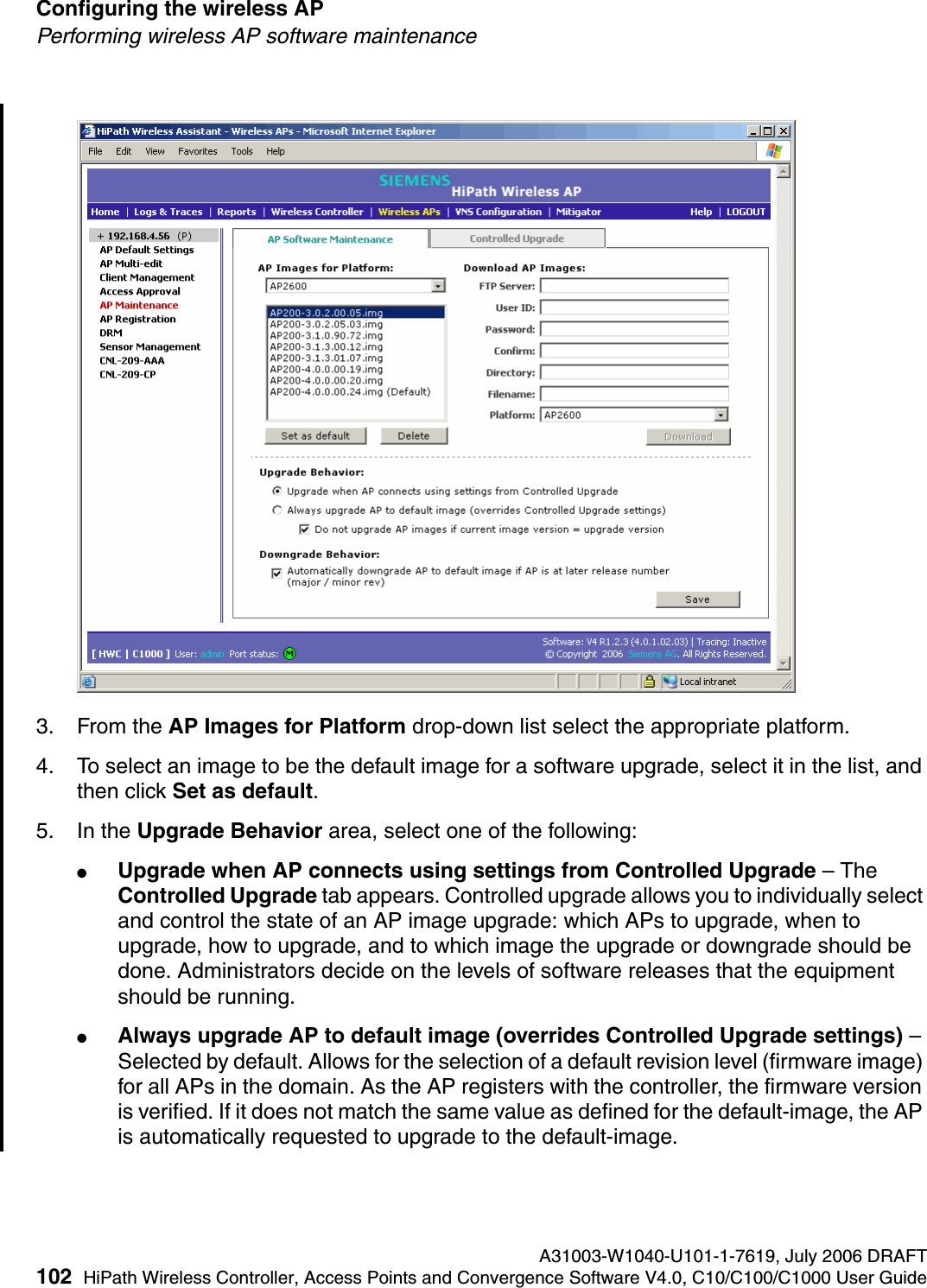
Index Nur für den internen GebrauchA31003-W1040-U101-1-7619, July 2006 DRAFT4HiPath Wireless Controller, Access Points and Convergence Software V4.0, C10/C100/C1000 User Guide        hwc1000_user_guideix.fmSimple Network Management Protocol (SN-MP)MIBs supported  208softwaremaintenance of Controller software  250maintenance of wireless AP software  101SSID network assignment for Captive Portal  125static configuration of wireless AP  93static routesconfiguring  57viewing forwarding table report  58syslog event reportingdefine parameters  246Tthird-party APs  213defining a VNS for  127in Mitigator feature  226topology of a VNSCaptive Portal  125tracesoverview of log types and levels  262Type of Service (ToS/DSCP)on a VNS  176part of Quality of Service  39Uuser name and password for login  48user name and password, changing  202Vvendor specific attributes (VSA)in RADIUS message  136RADIUS servervendor specific attributes  140, 147Virtual Network Services  37Virtual Network Services (VNS)authentication by AAA (802.1x)  145authentication by Captive Portal  137define filtering rules  153defined  107for third-party APs  214global settings  116multicast  165network assignment overview  110privacy for AAA  170privacy overview  167set up for VoIP  176topology for Captive Portal  125Voice-over-IP (VoIP)define multicast groups on a VNS  165set up a VNS for  176vulnerable time interval  74WWi-Fi Multimedia (WMM)on a VNS  176part of Quality of Service  39Wi-Fi Protected Access (WPA)overview on a VNS  116PSK mode for Captive Portal  169WPA v1 and v2 on a VNS for AAA  172Wired Equivalent Privacy (WEP)on a VNS for AAA  171overview on a VNS  116static for Captive Portal  167wireless APadding for availability setup  192adding manually  80assigning to a VNS  134client disassociate  241configure for a VNS for voice traffic  178international licensing  70LED sequence in discovery  73maintenance and reboot  101radios  70, 88static configuration  93view statistics  233
© Siemens AG 2006 • Information and Communication Networks • Hofmannstraße 51 • D-81359 München, GermanyReference No.: A31003-W1040-U101-1-7619 Printed in Germany. Subject to availability. Right of modification reserved.  Our strengths - Your advantagesSiemens is known worldwide as a trailblazer in the advancement of information and communication technologies. No other company offers such a comprehensive and innovative product portfolio.With the one-of-a-kind Siemens conver-gence architecture, HiPath, guide your cus-tomers to a secure and flexible migration into the world of innovative IP convergence solutions.www.siemens.com/hipath

Navigation menu