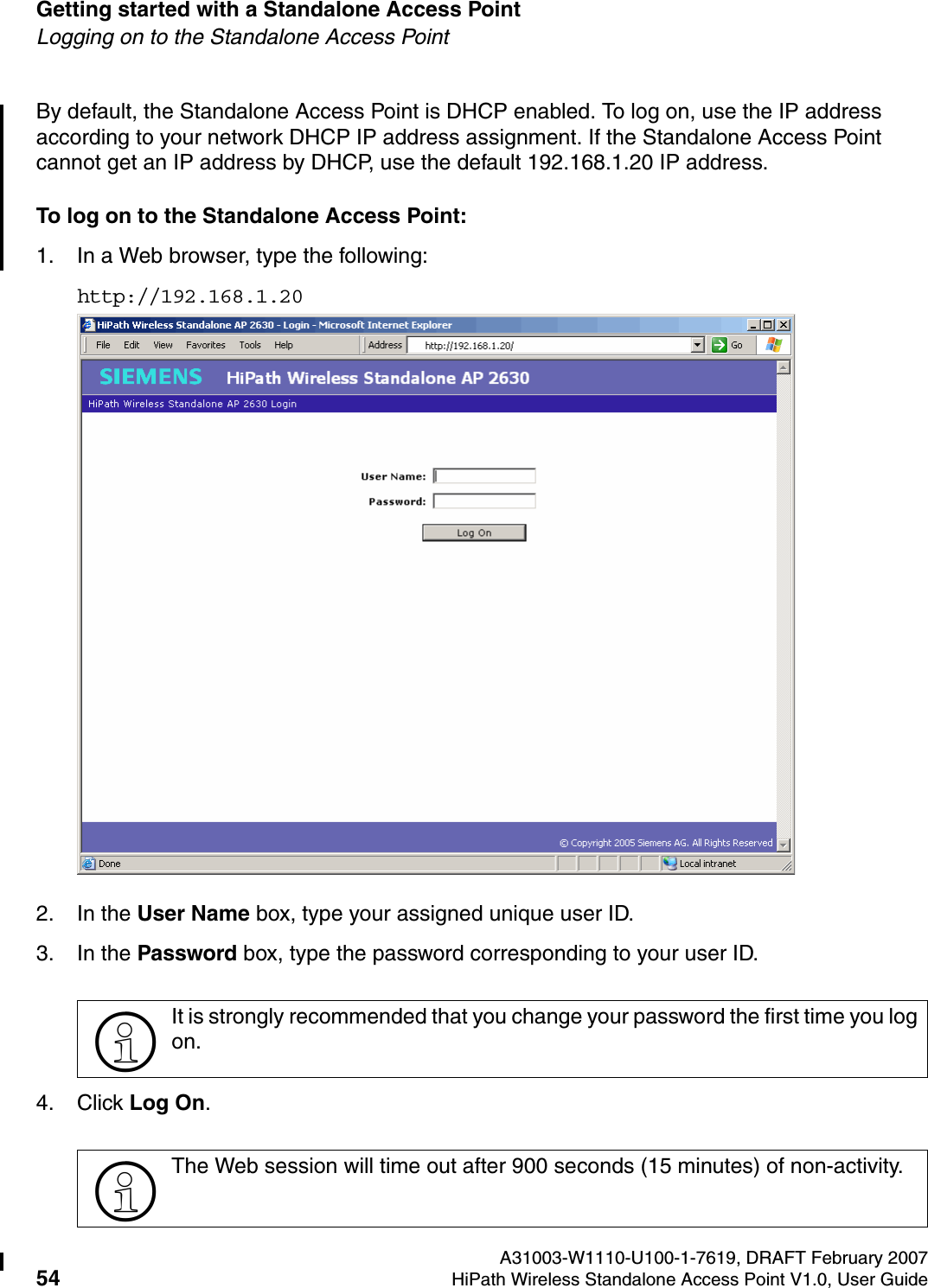
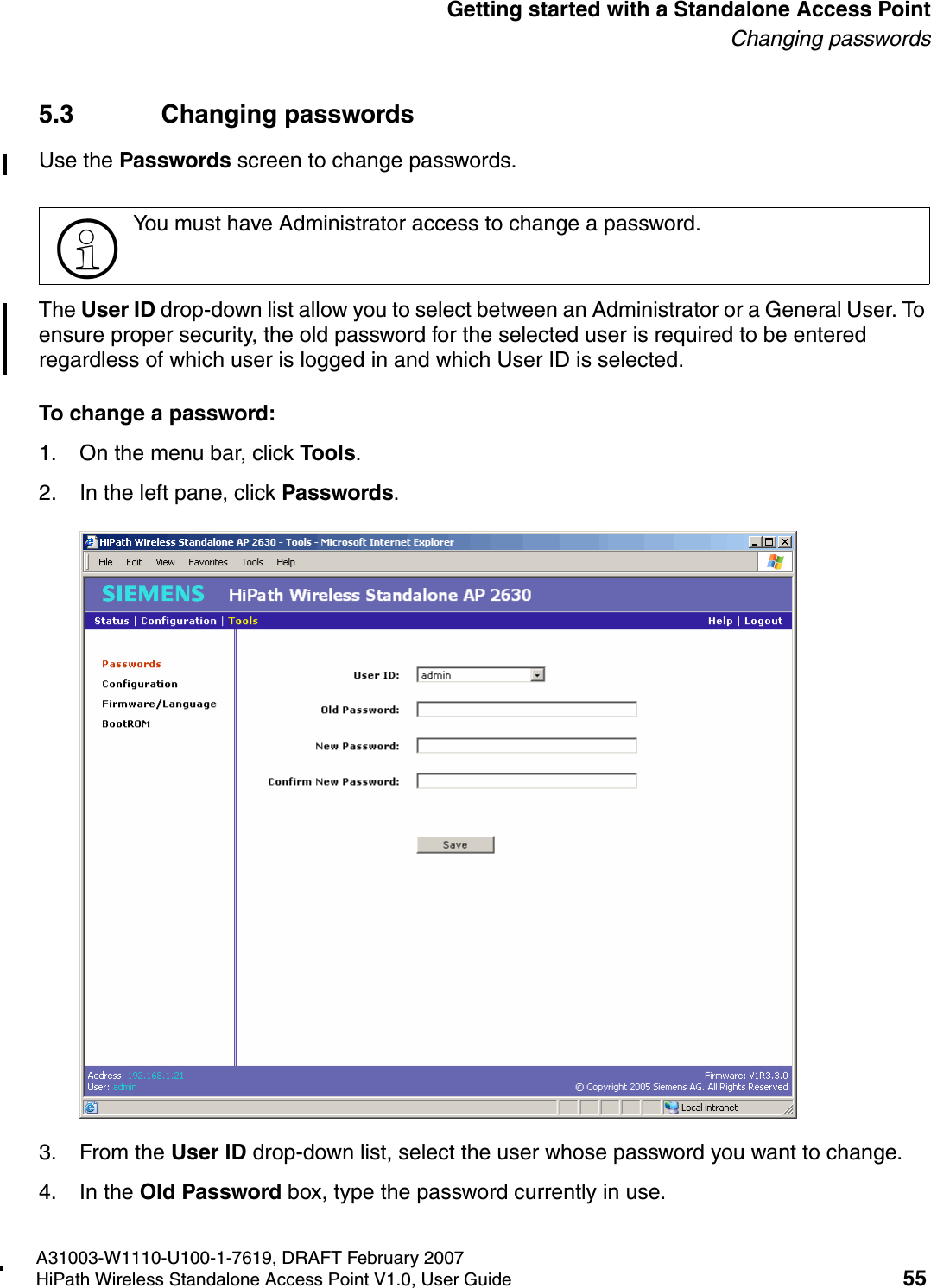
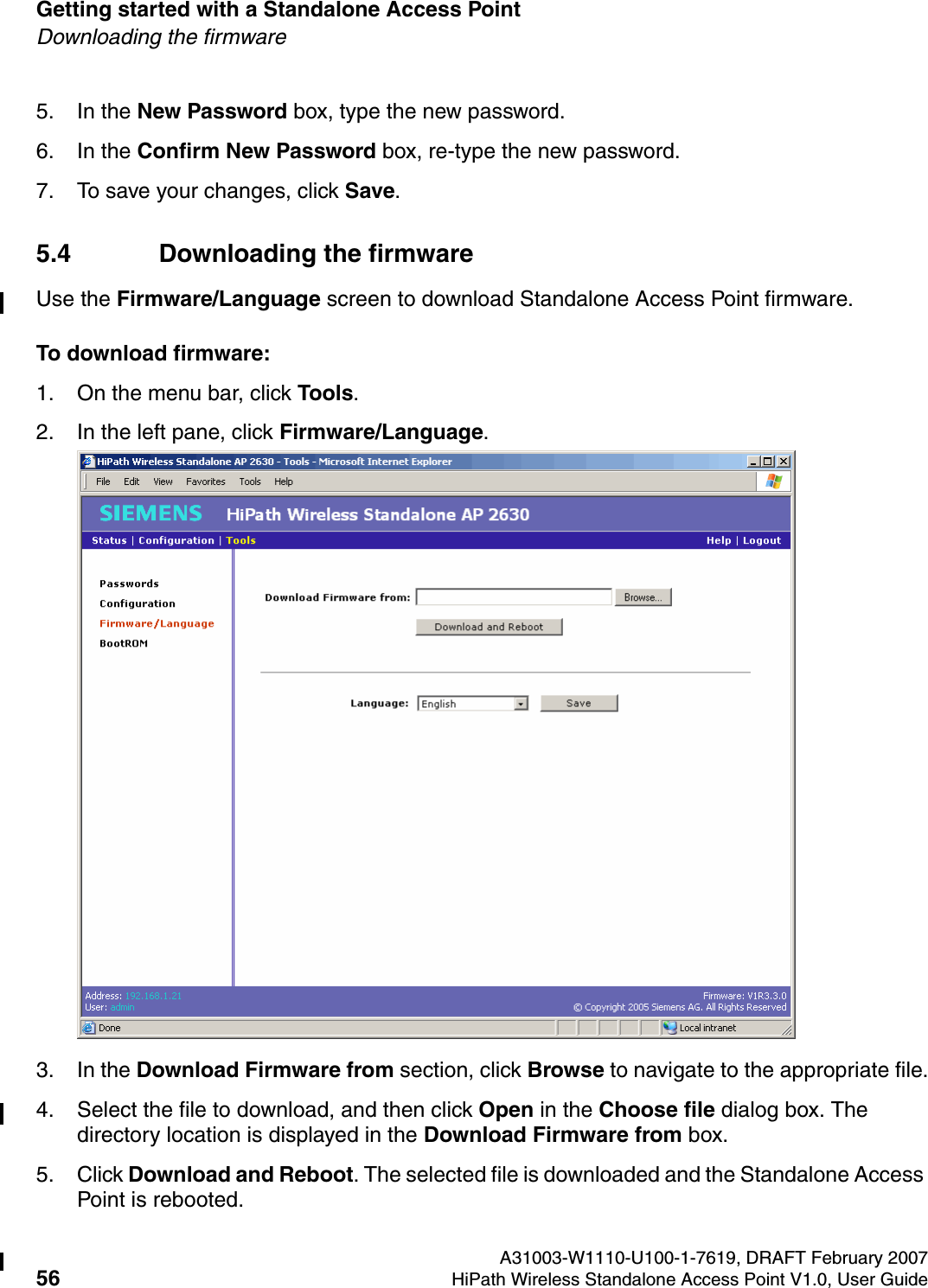
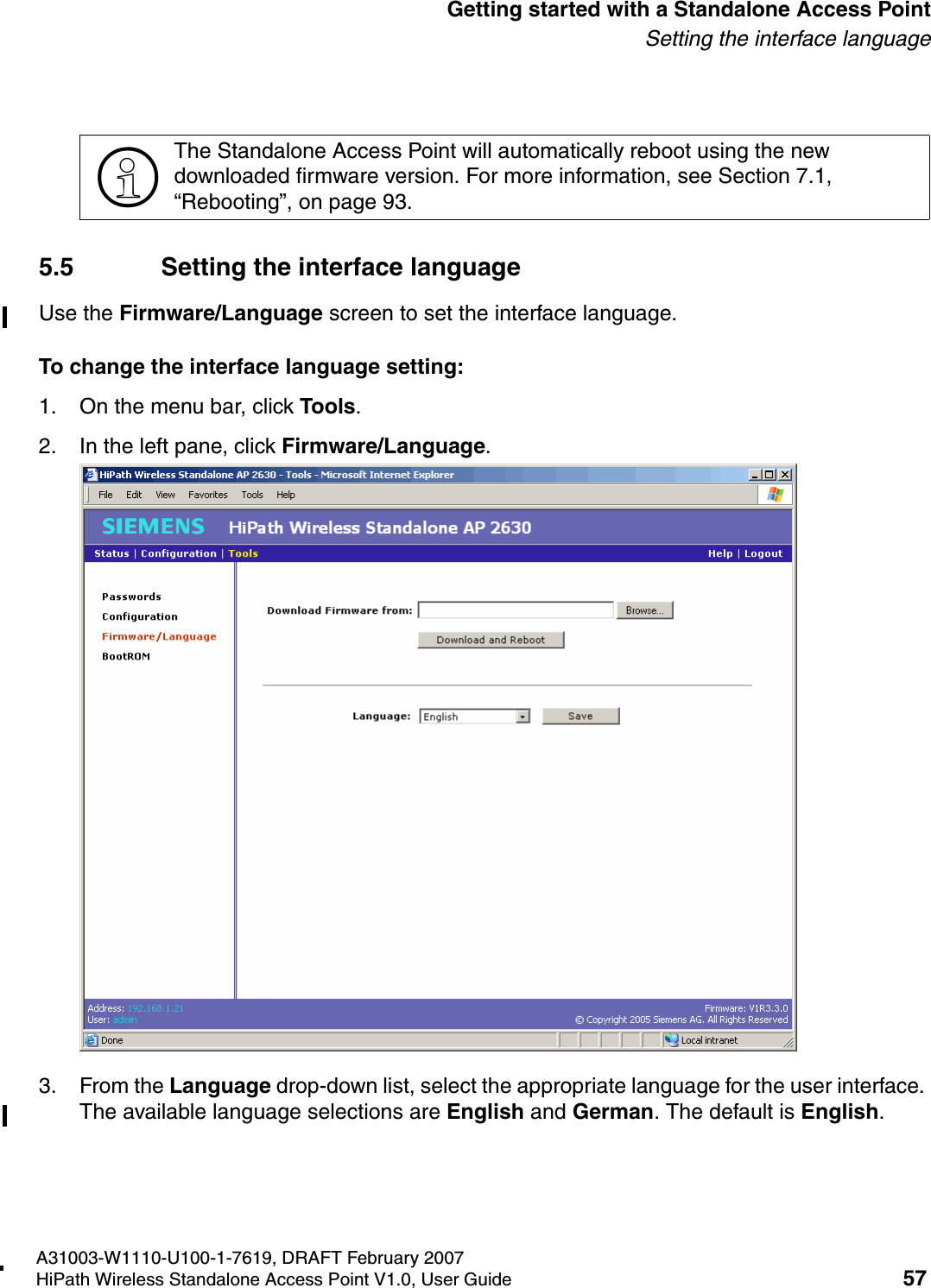
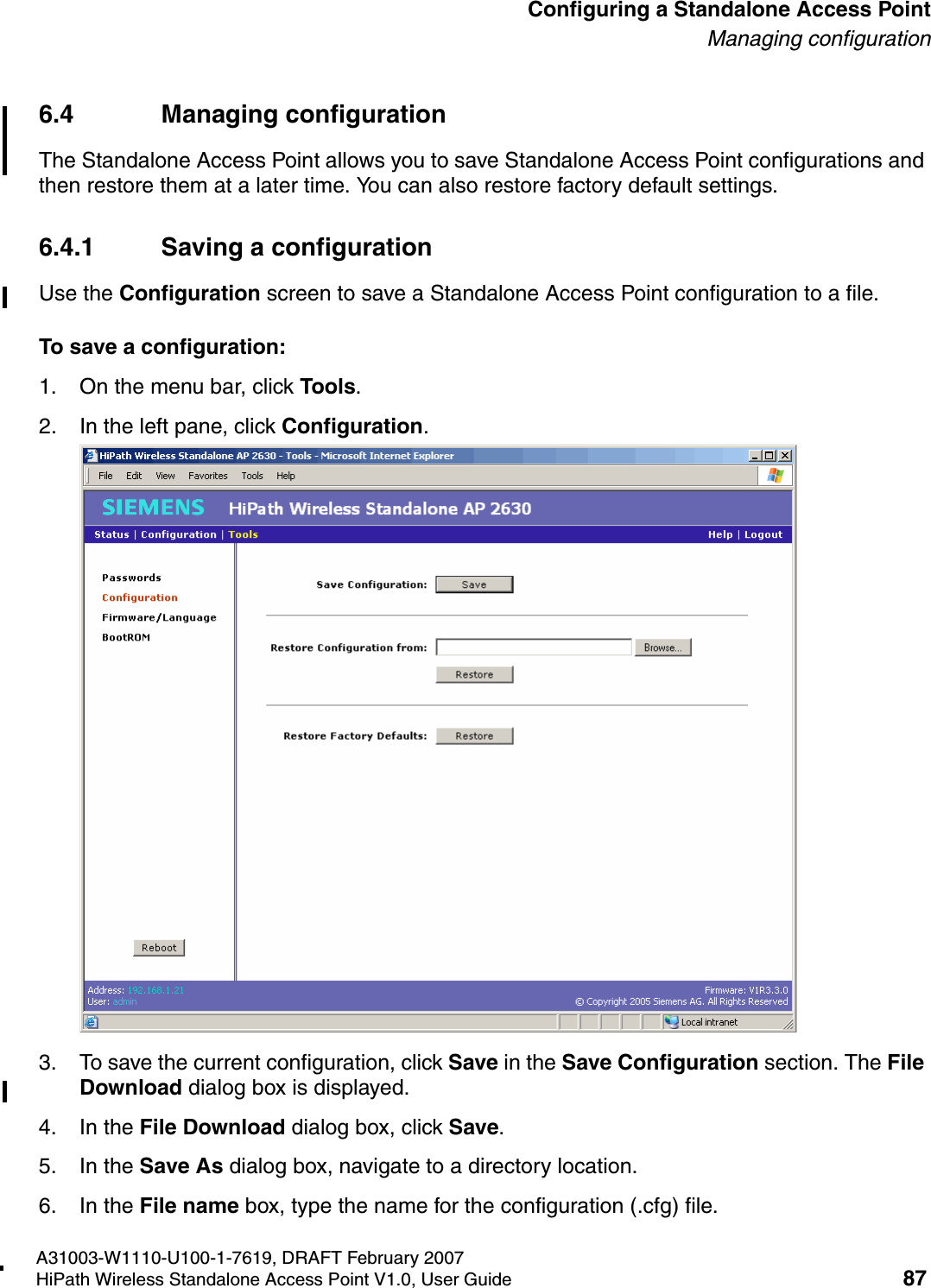
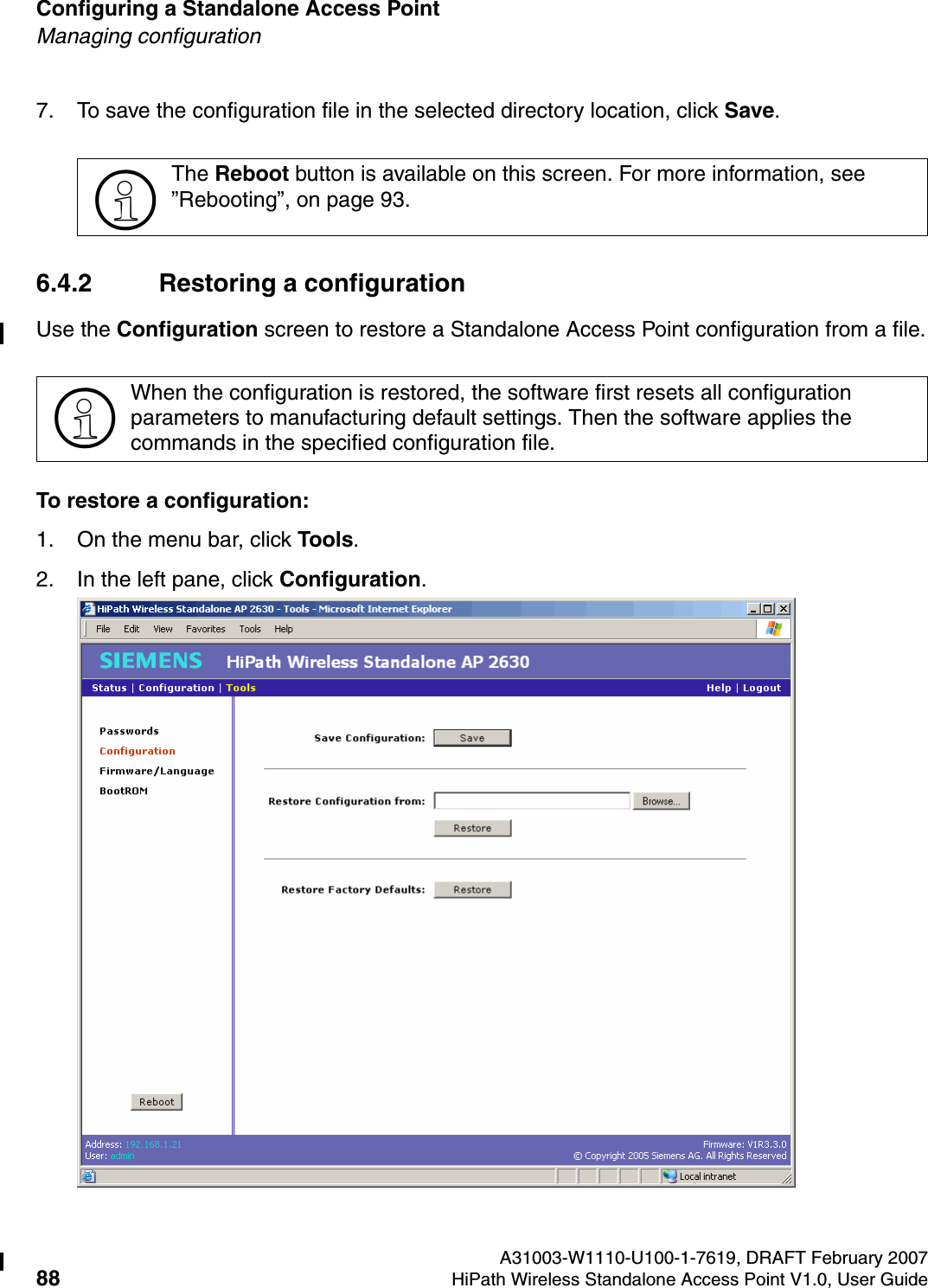
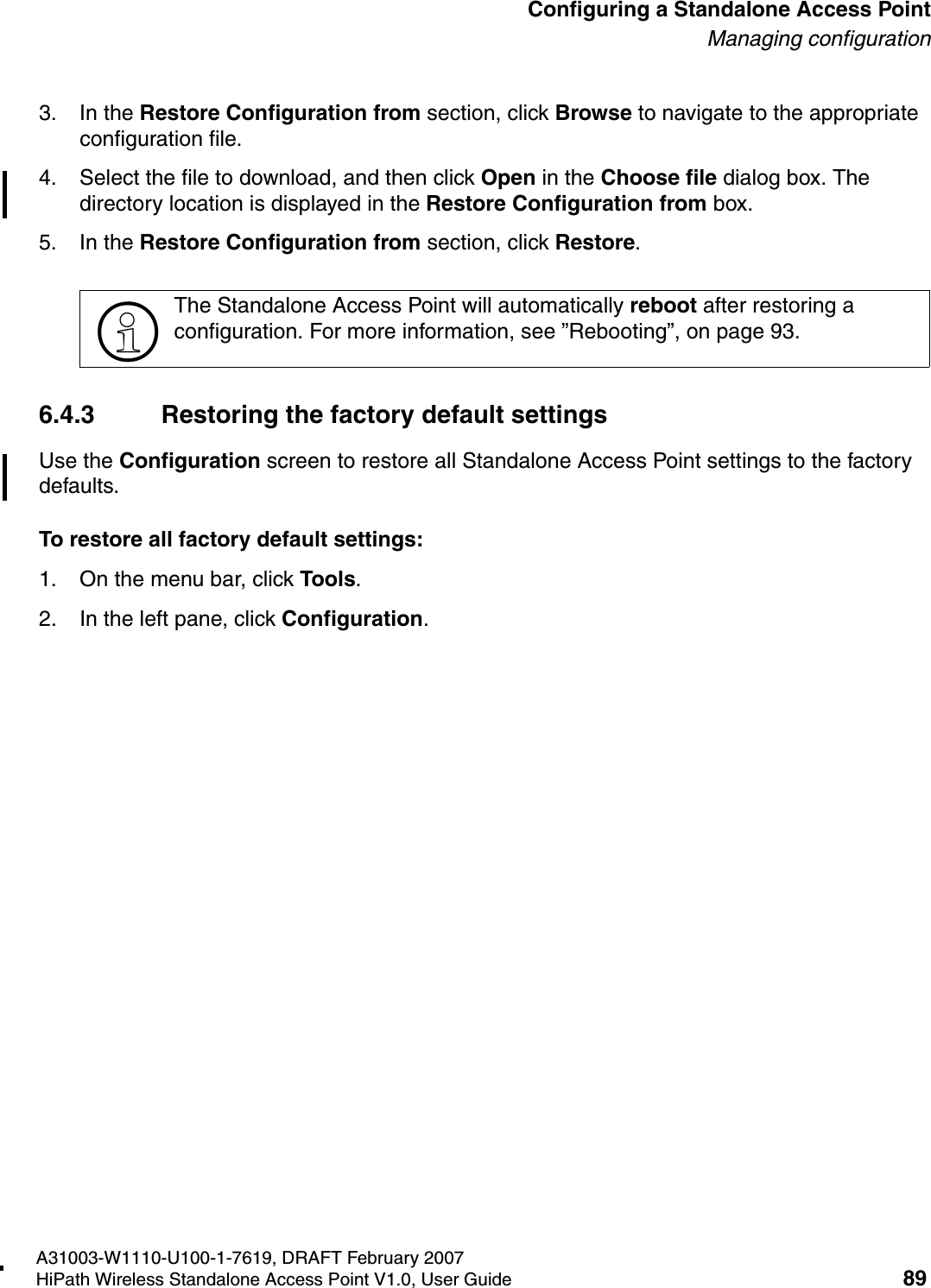
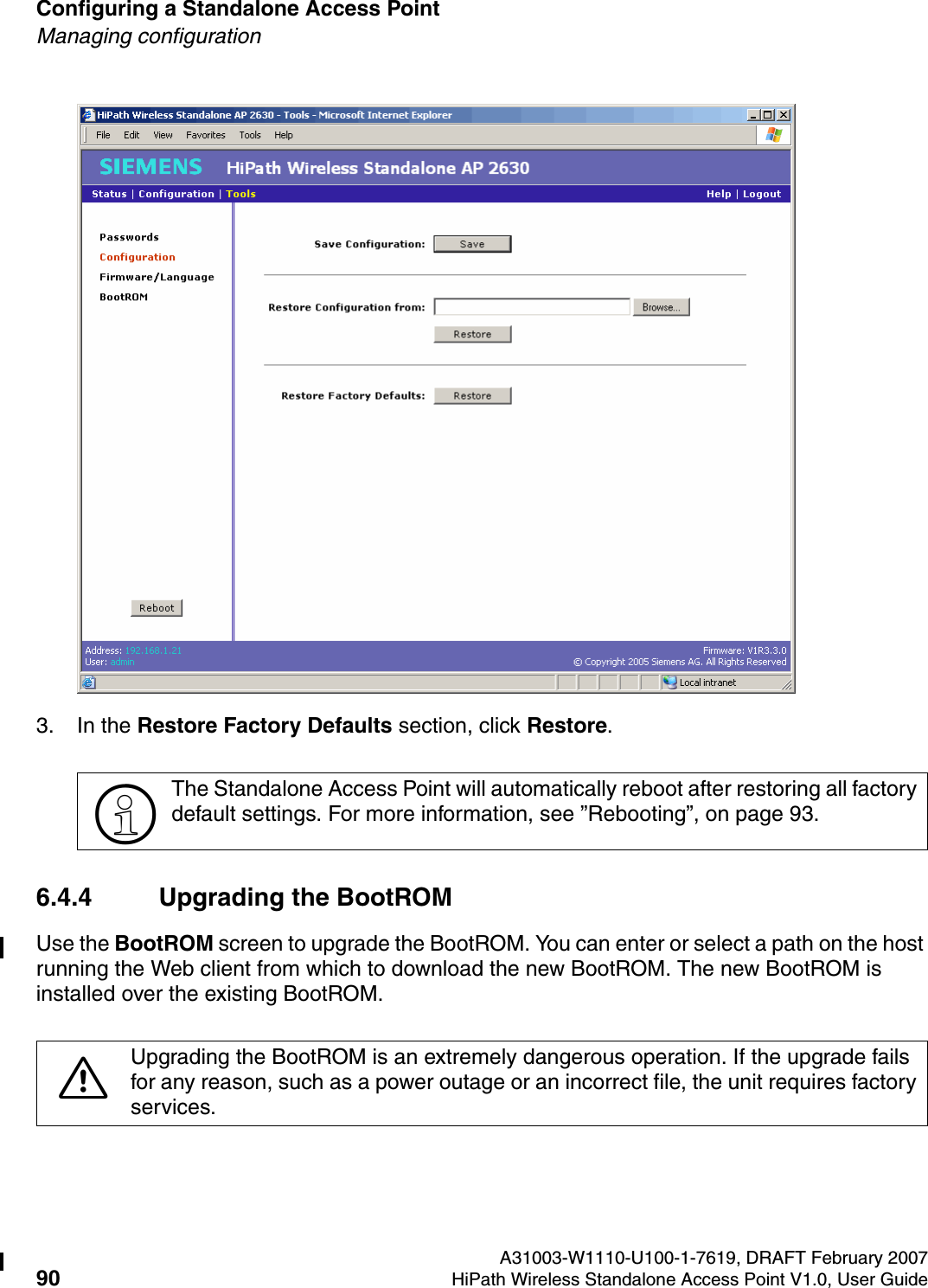
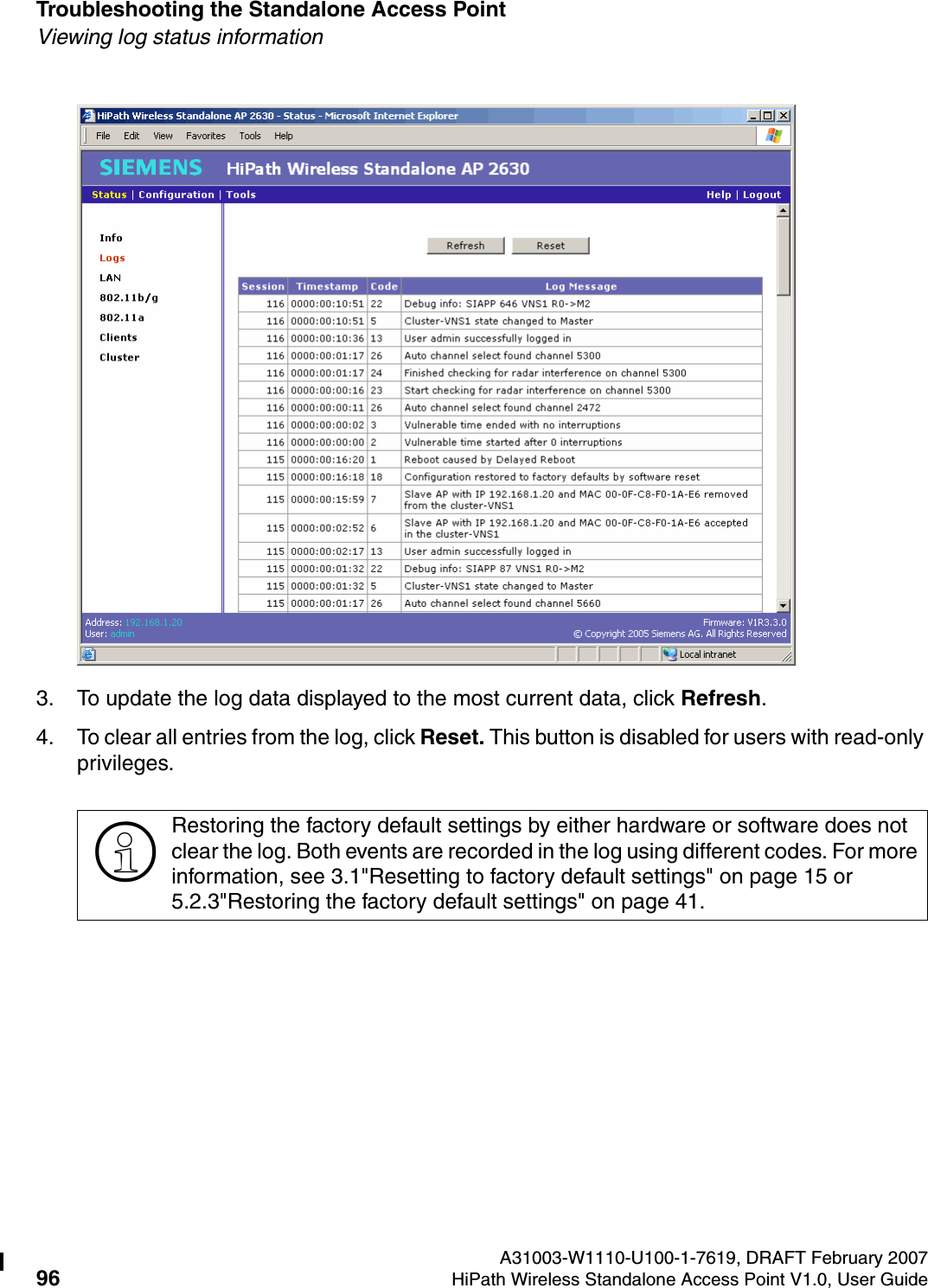
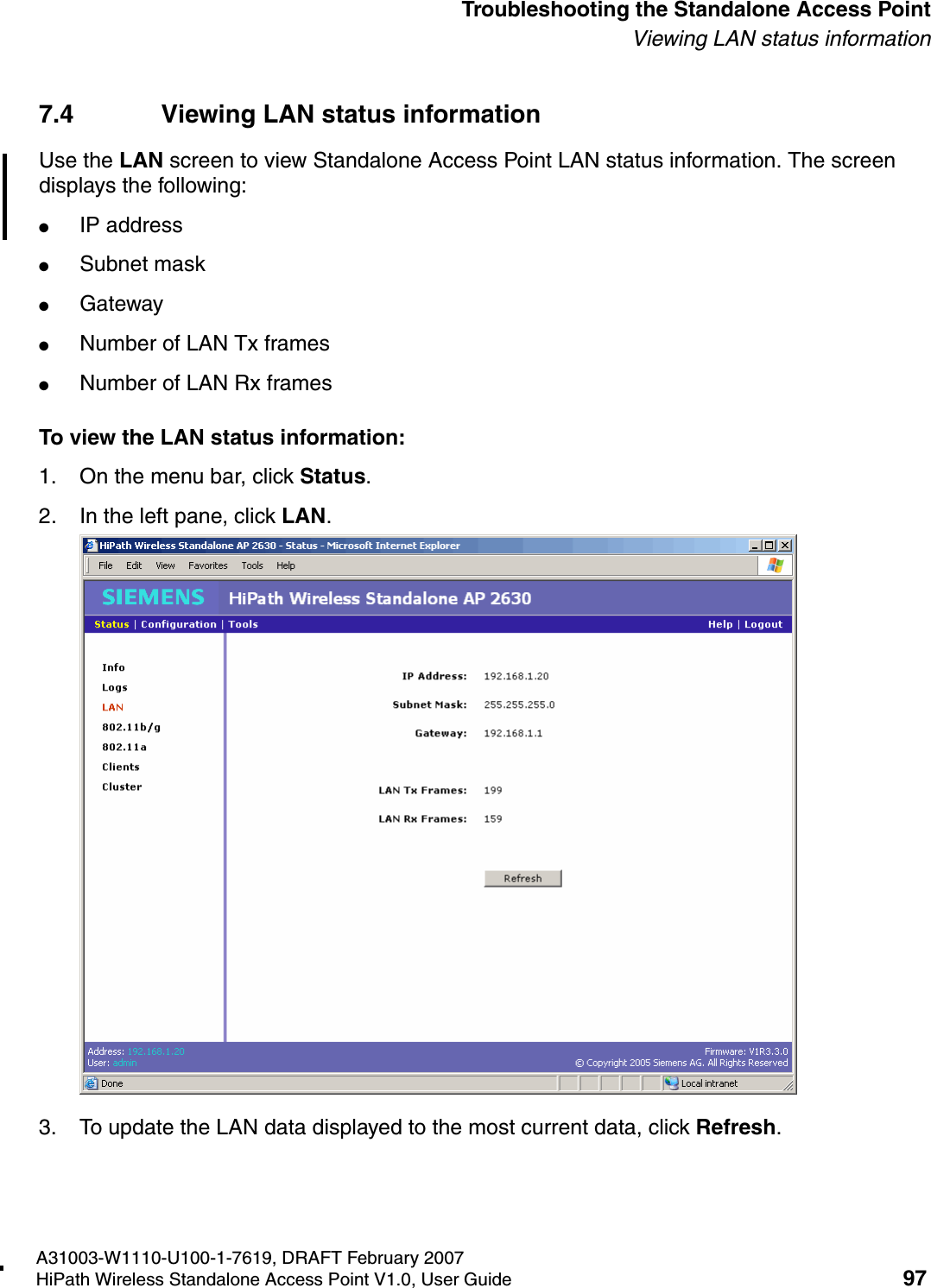
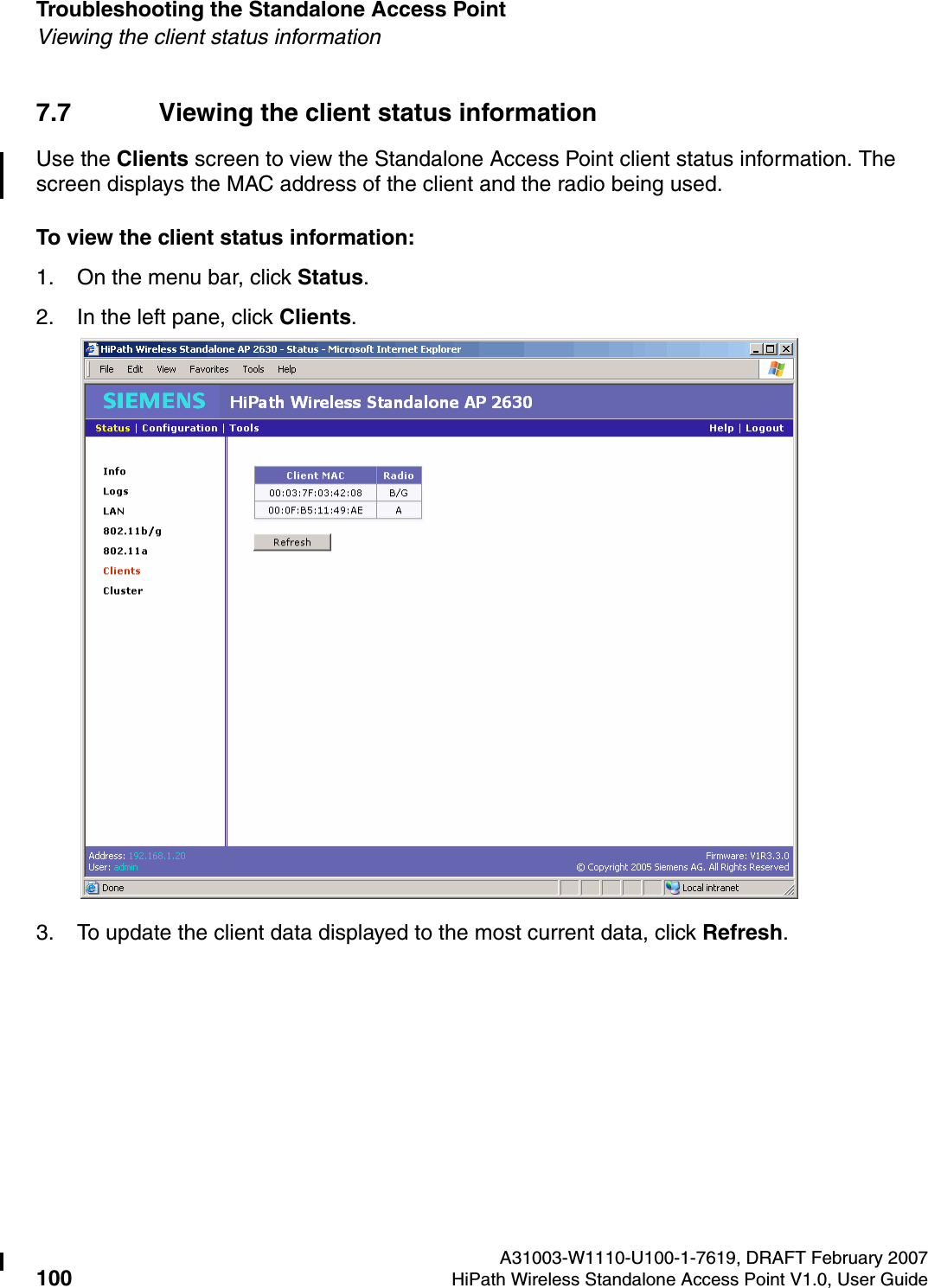
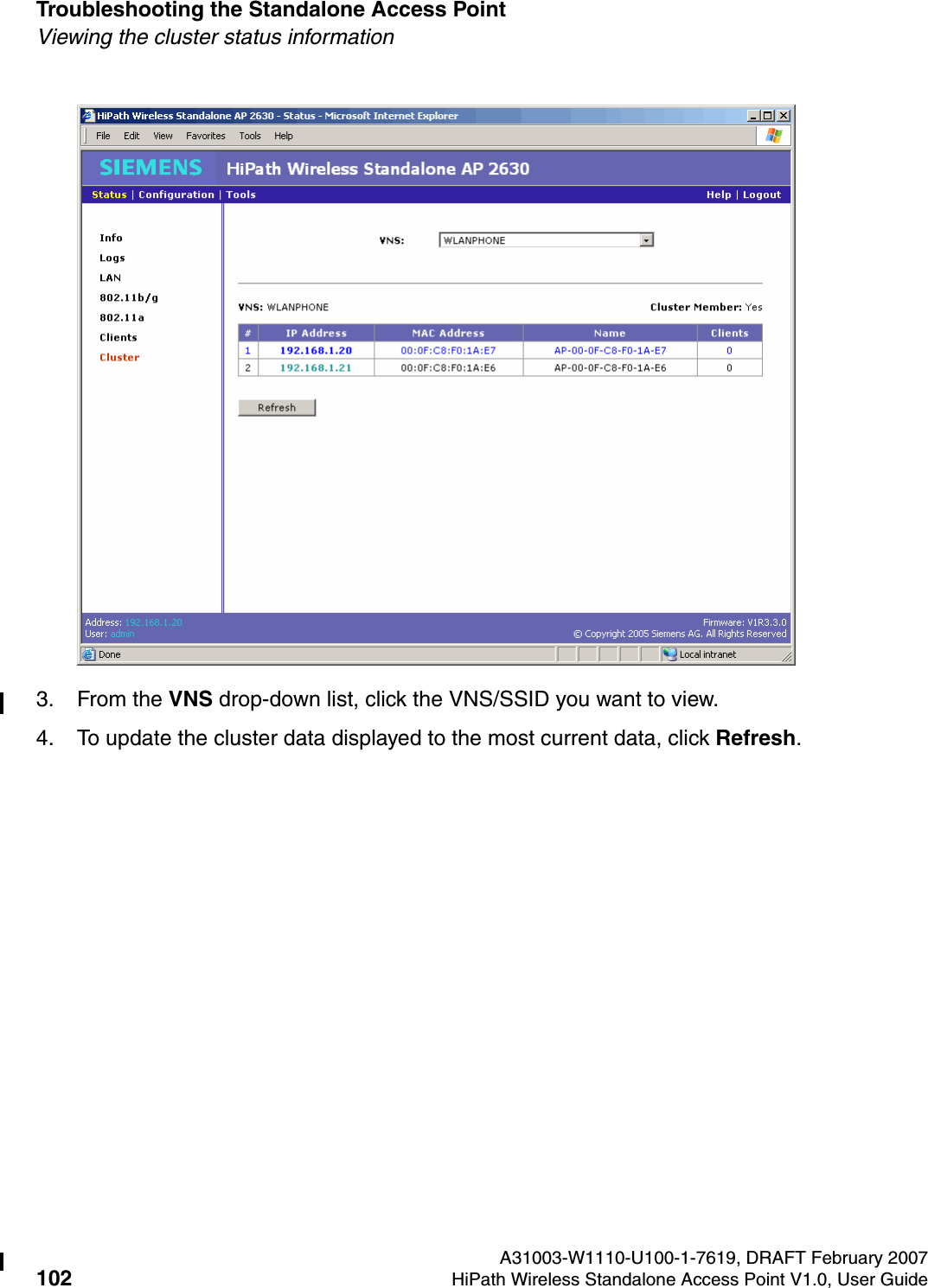
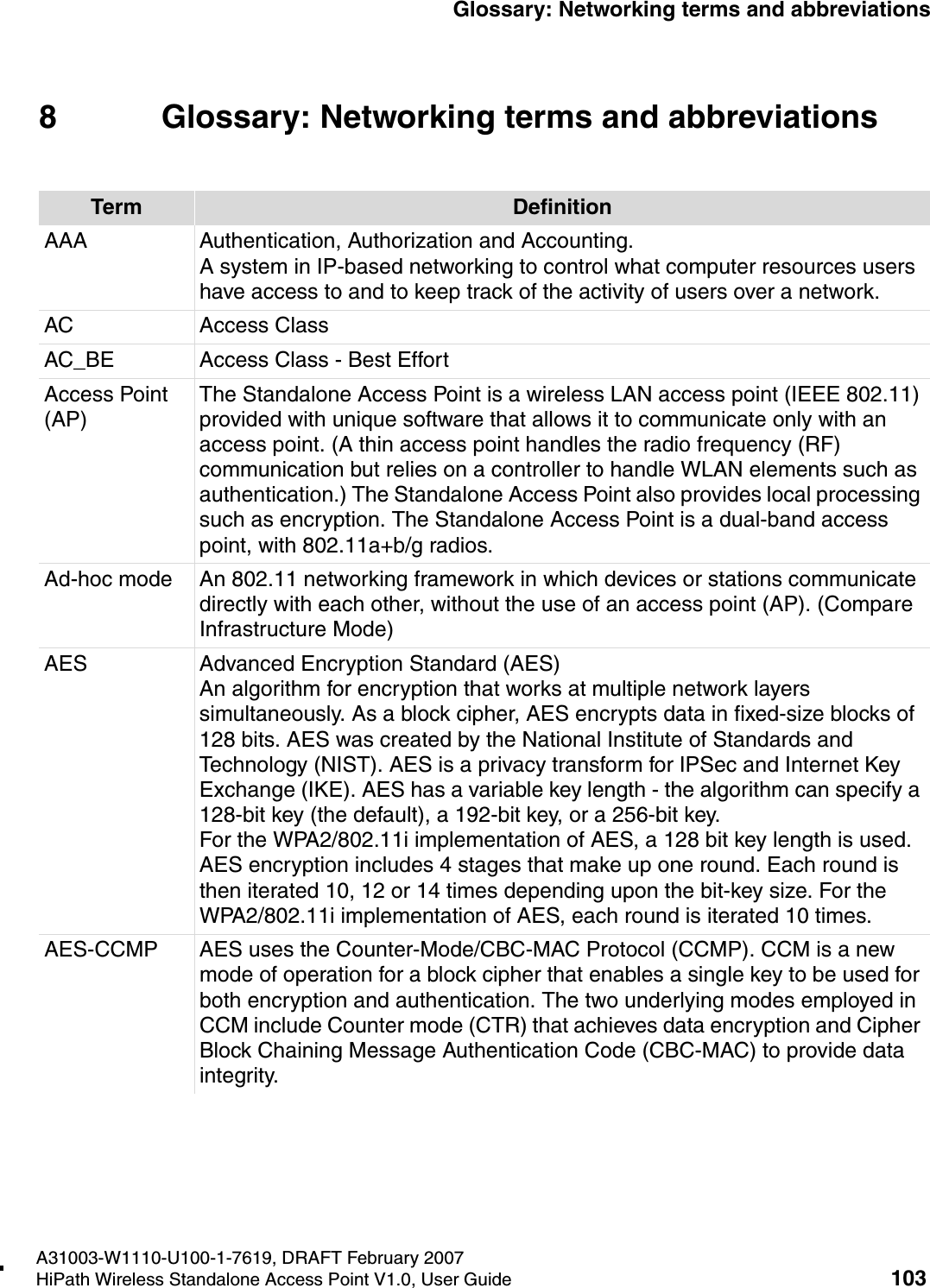
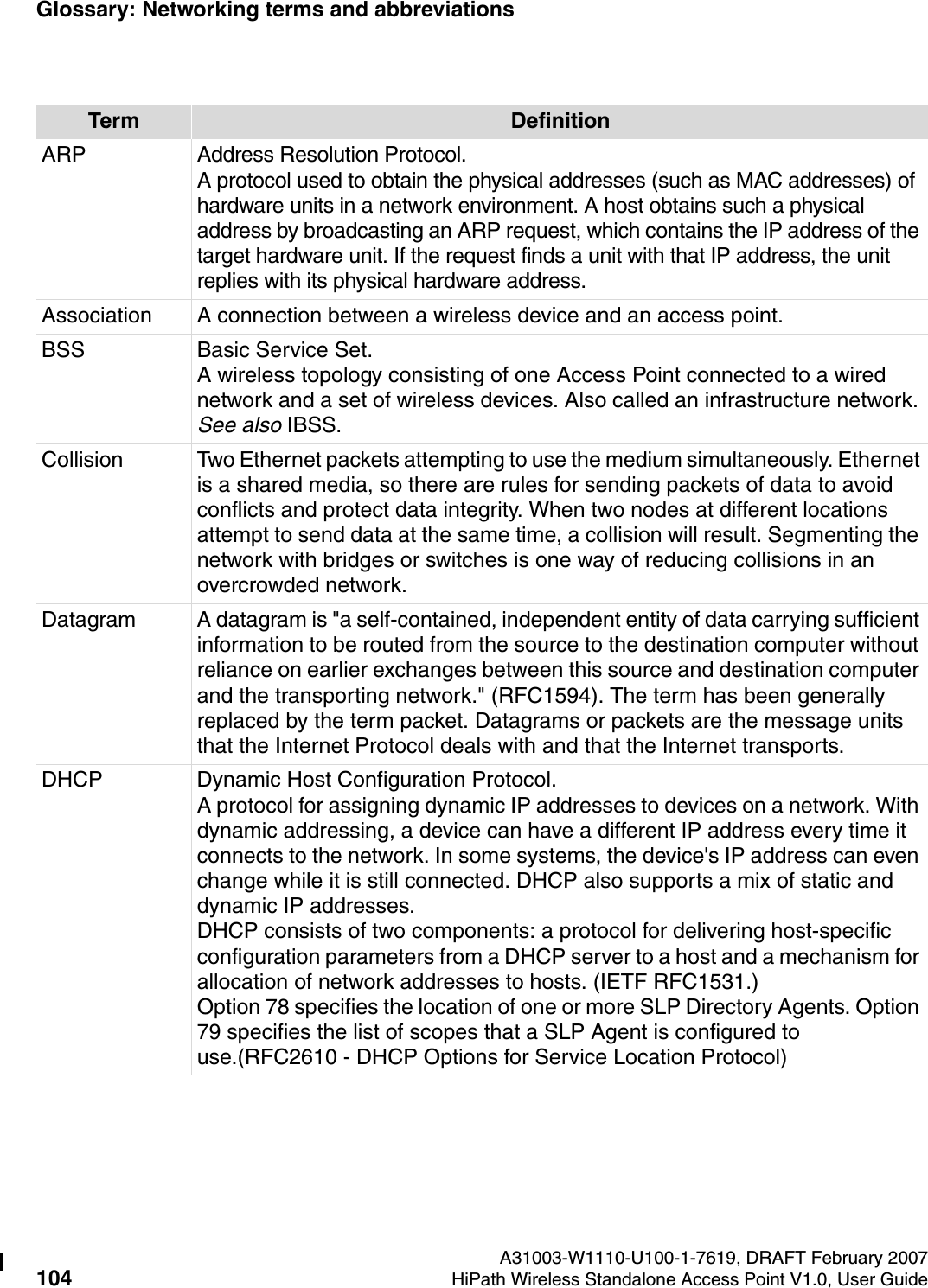
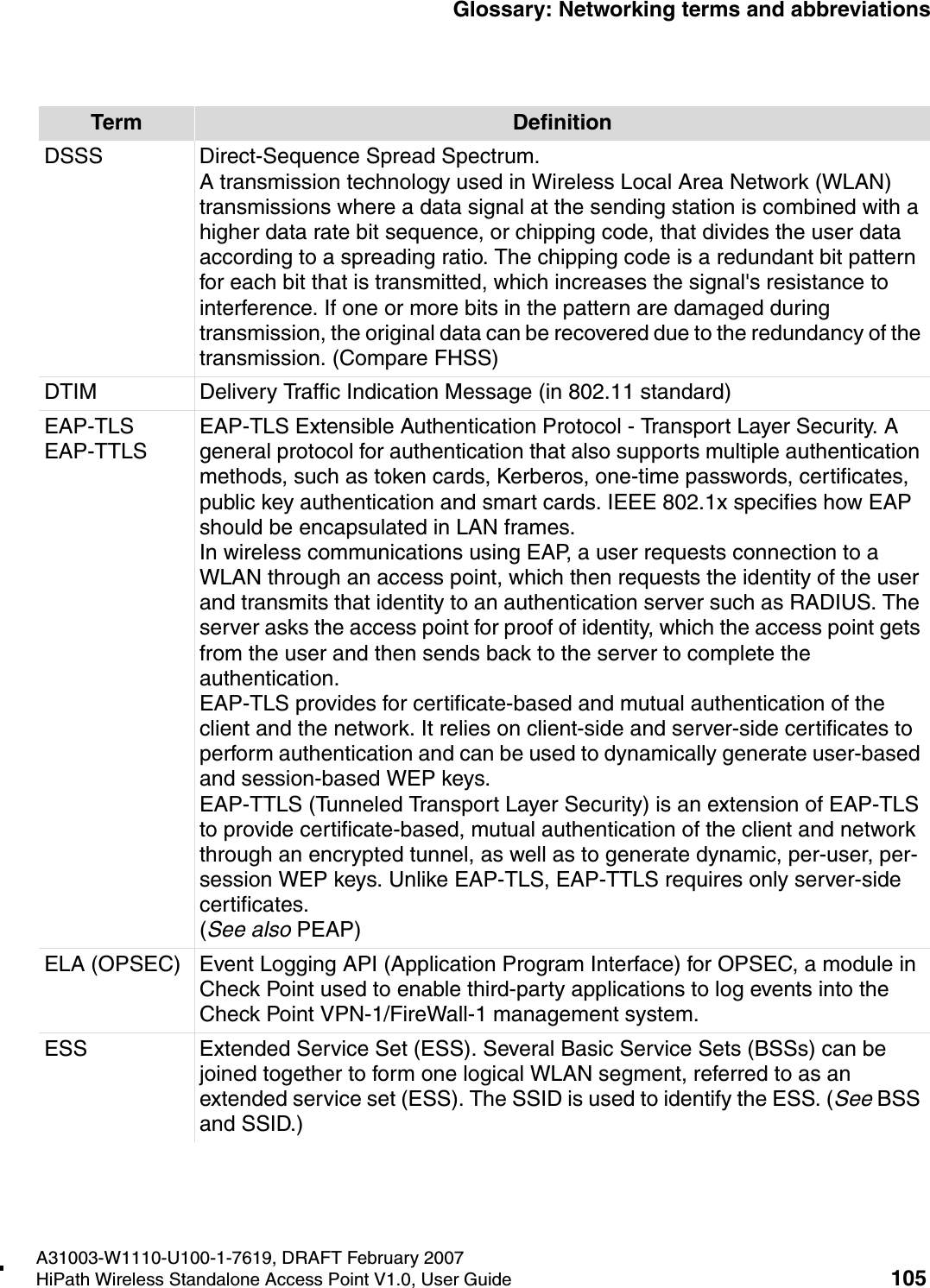
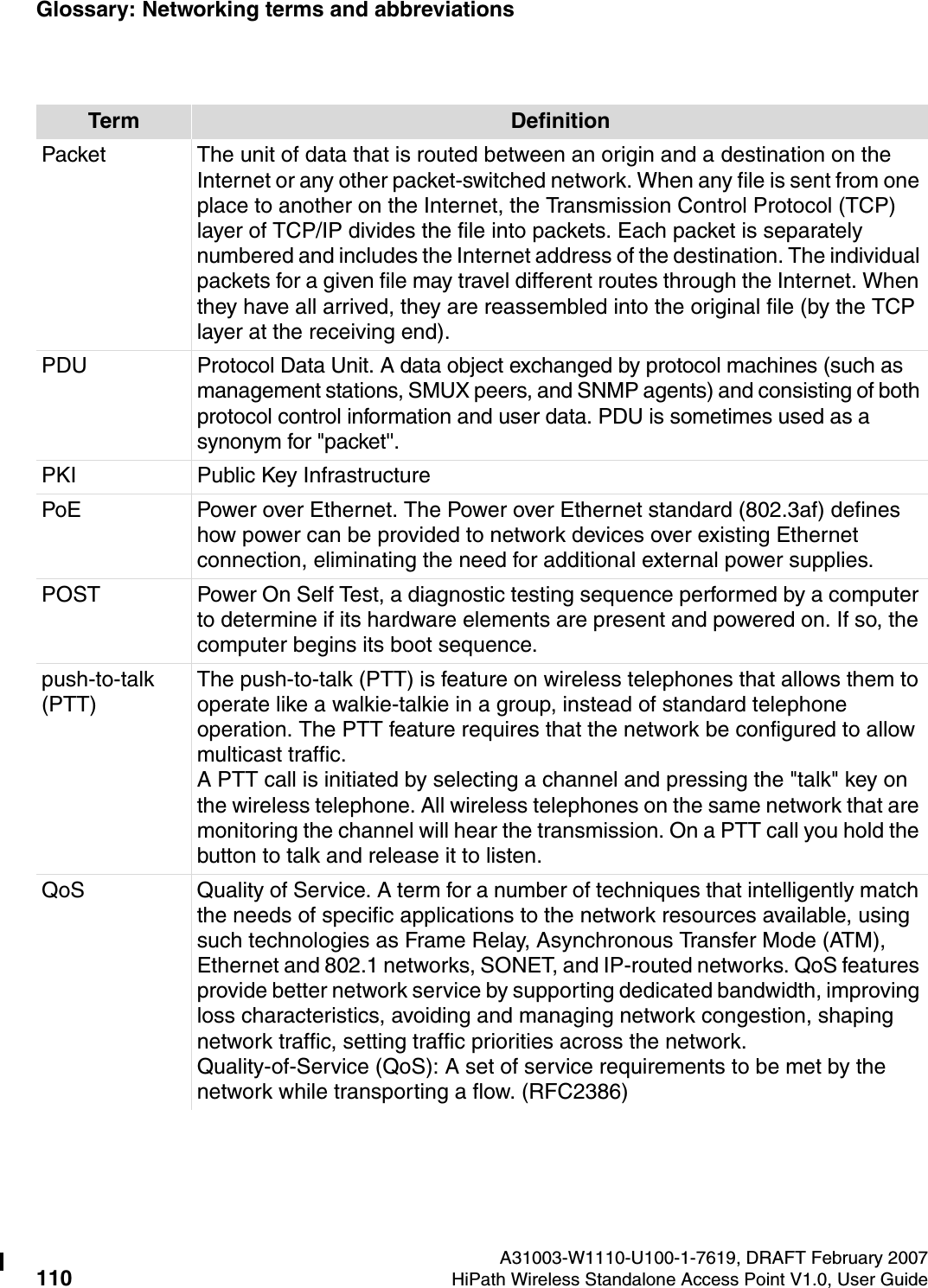
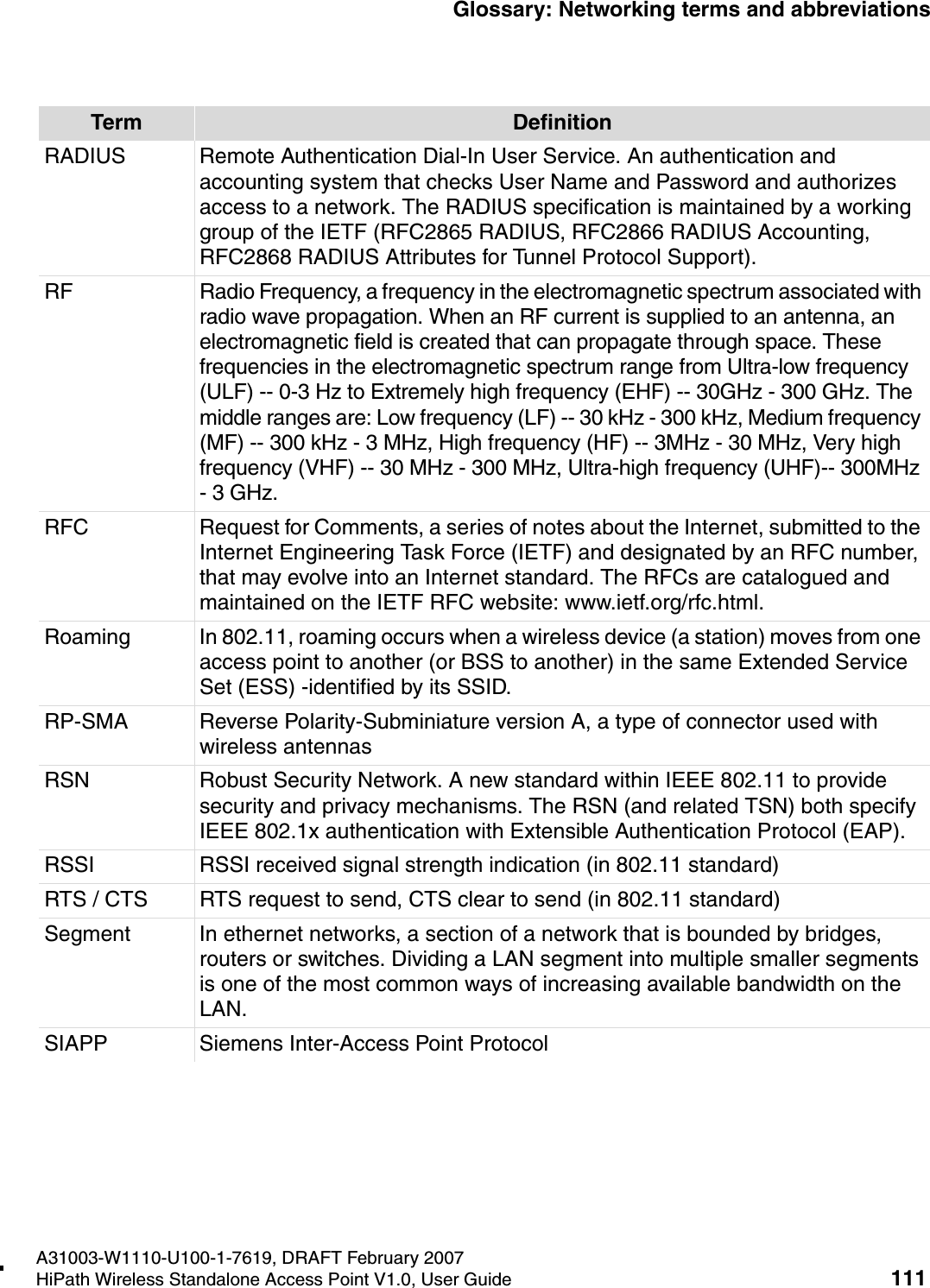
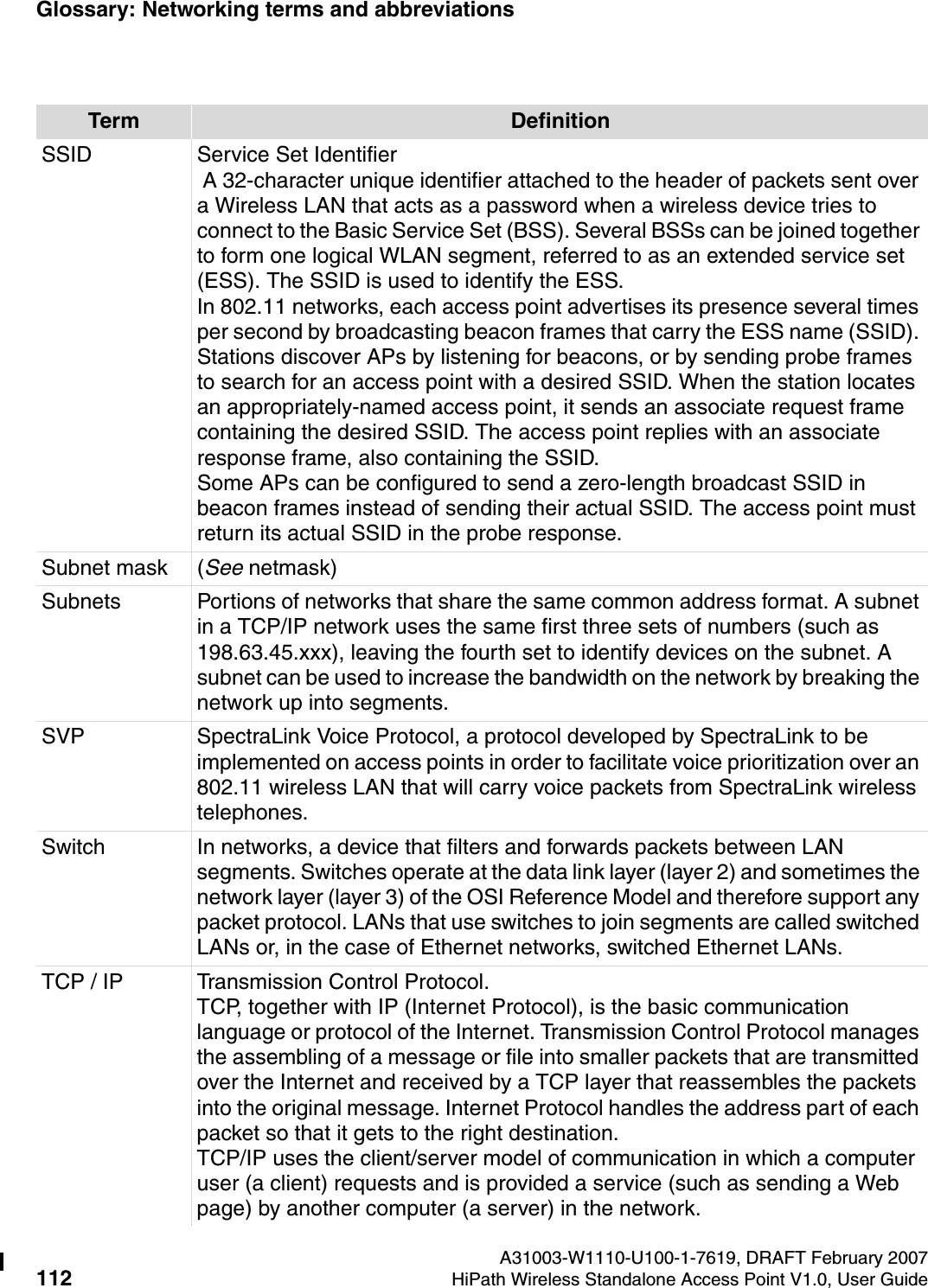
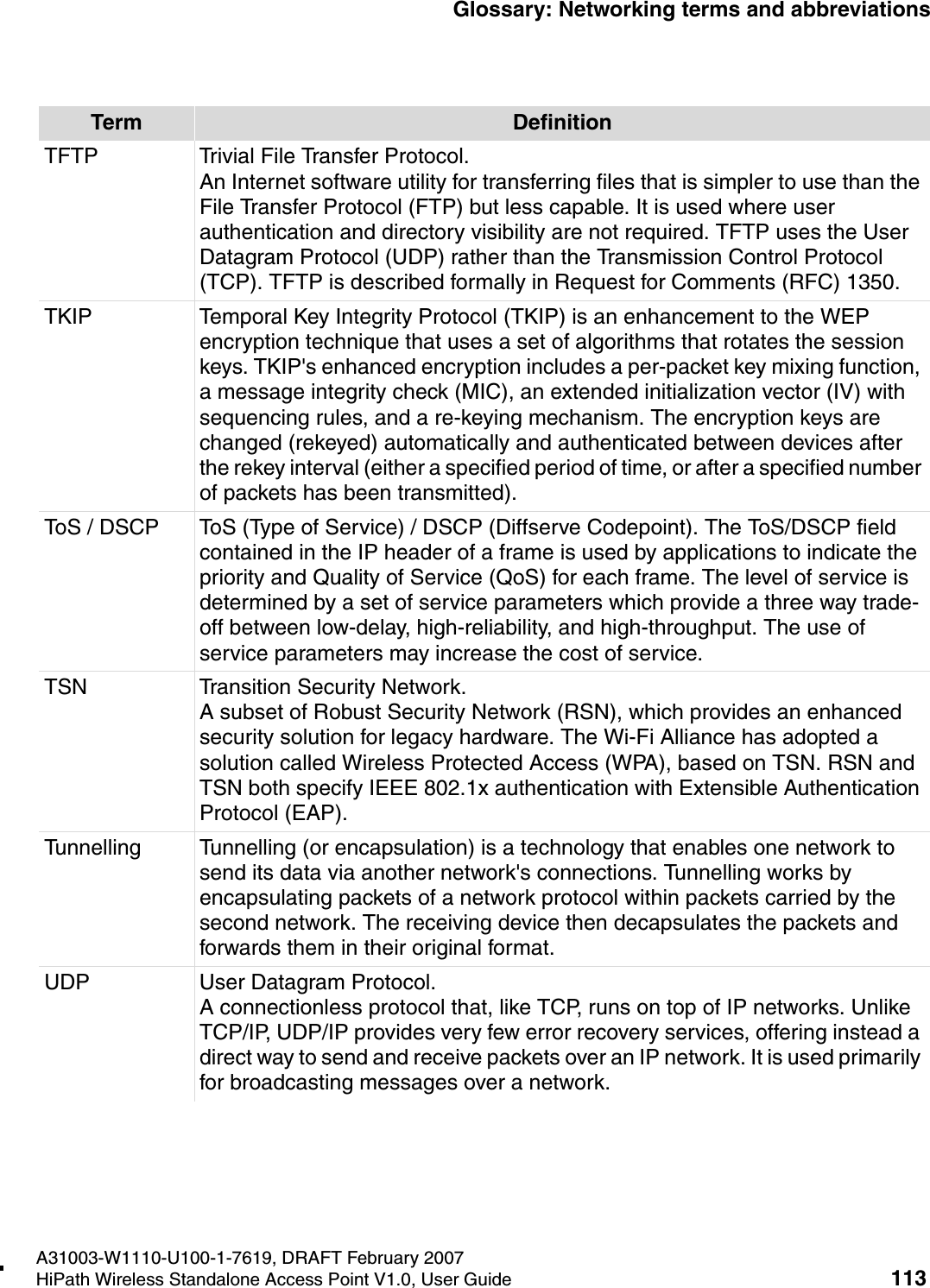
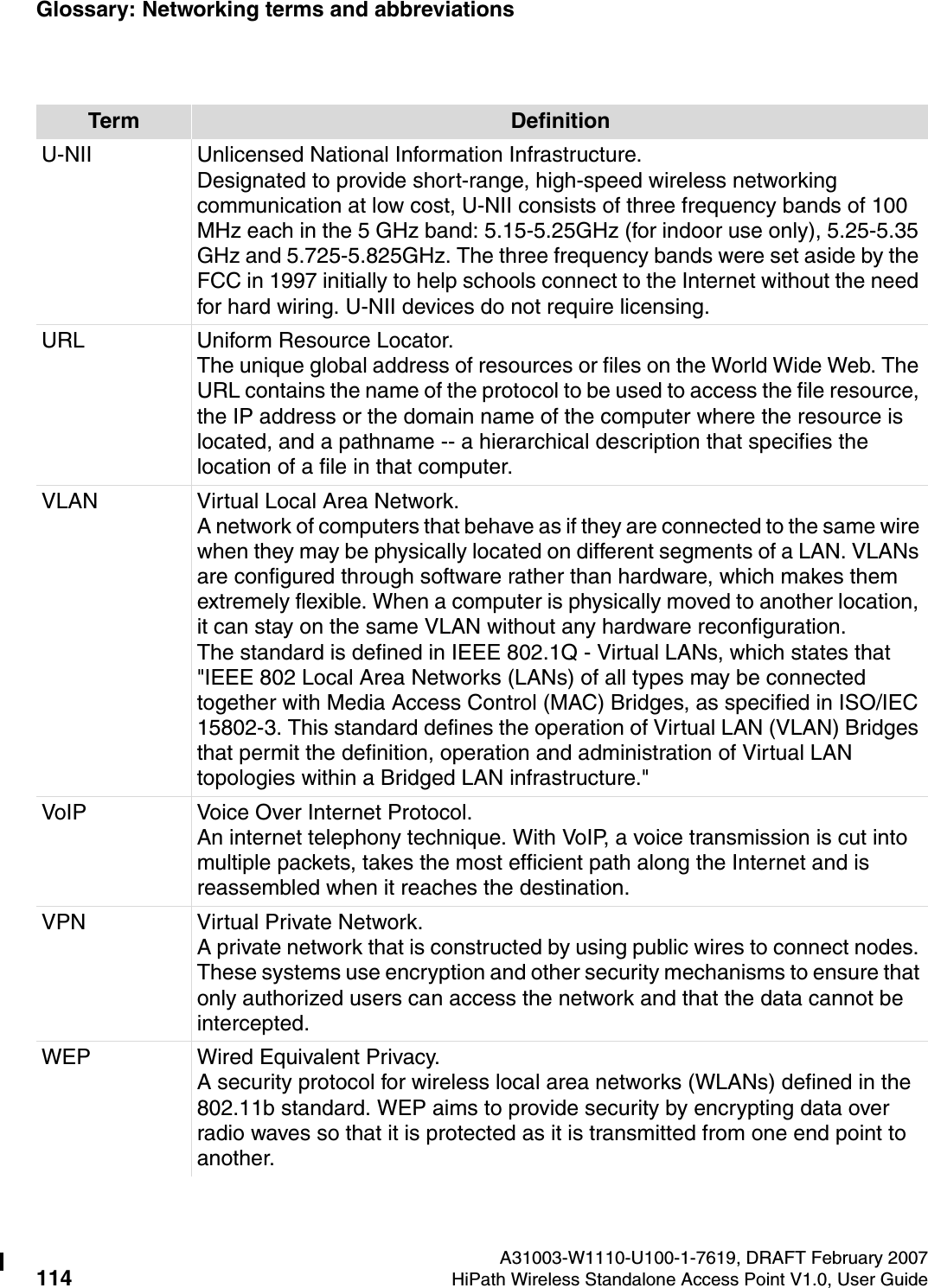
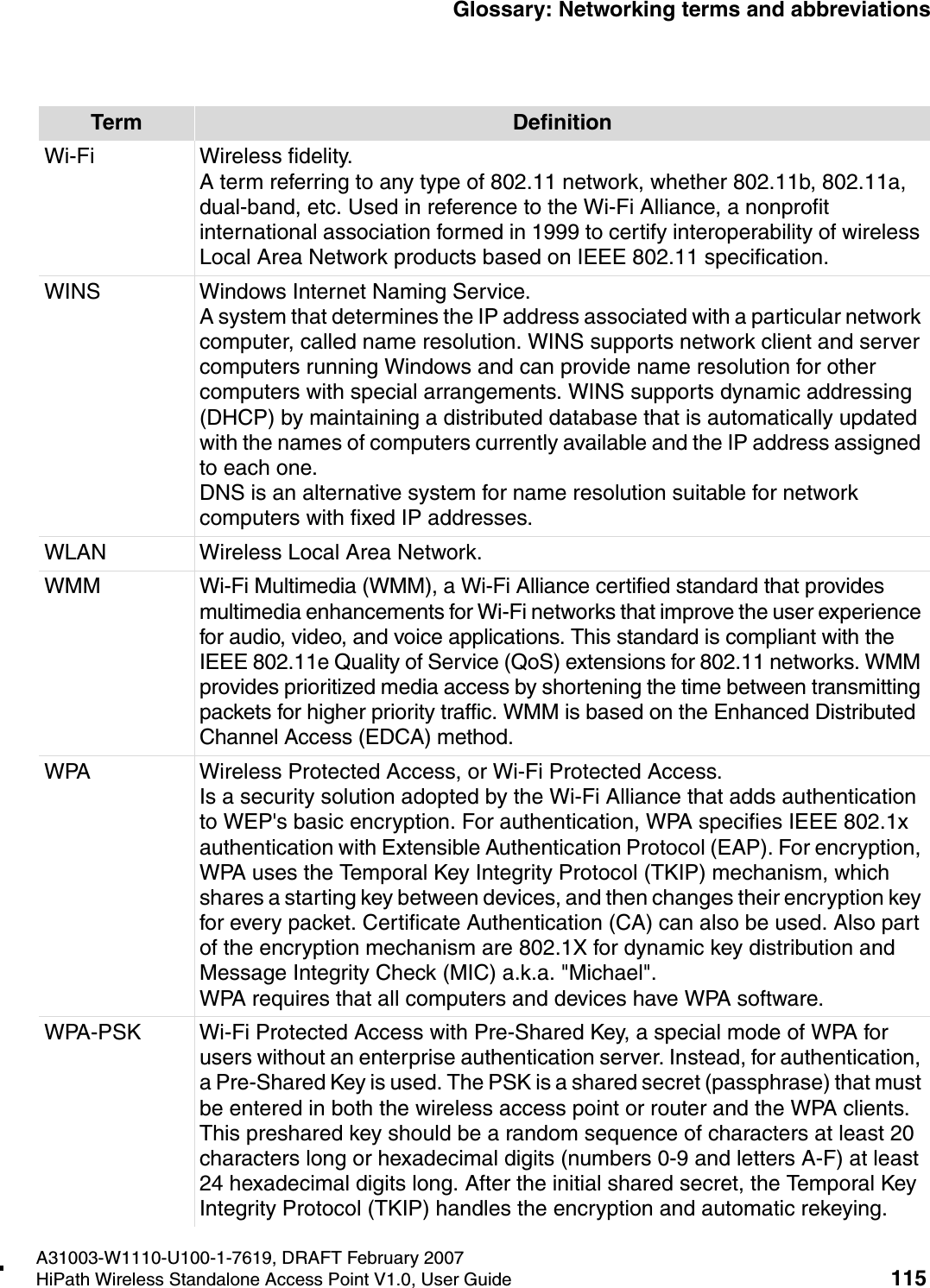
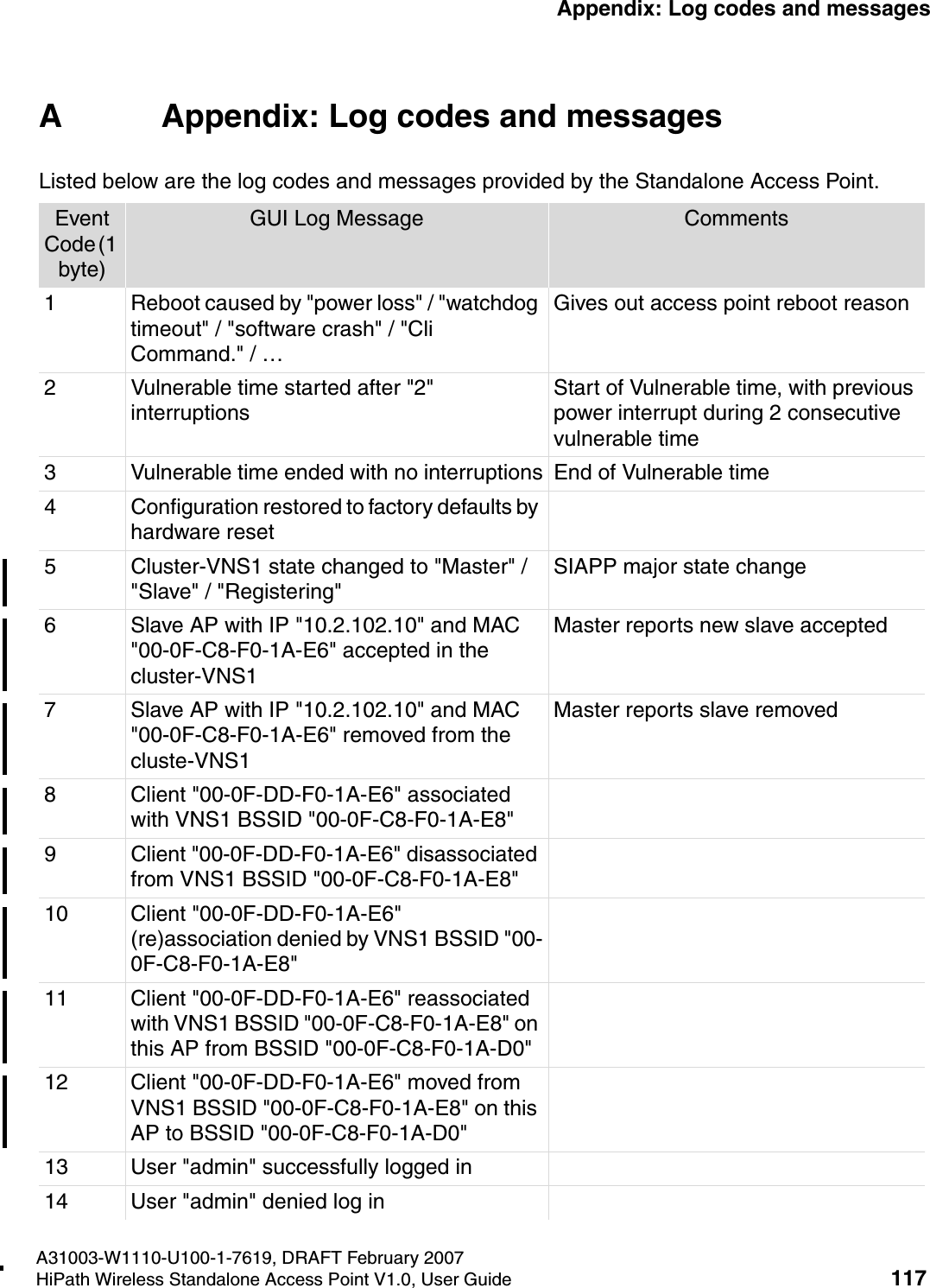
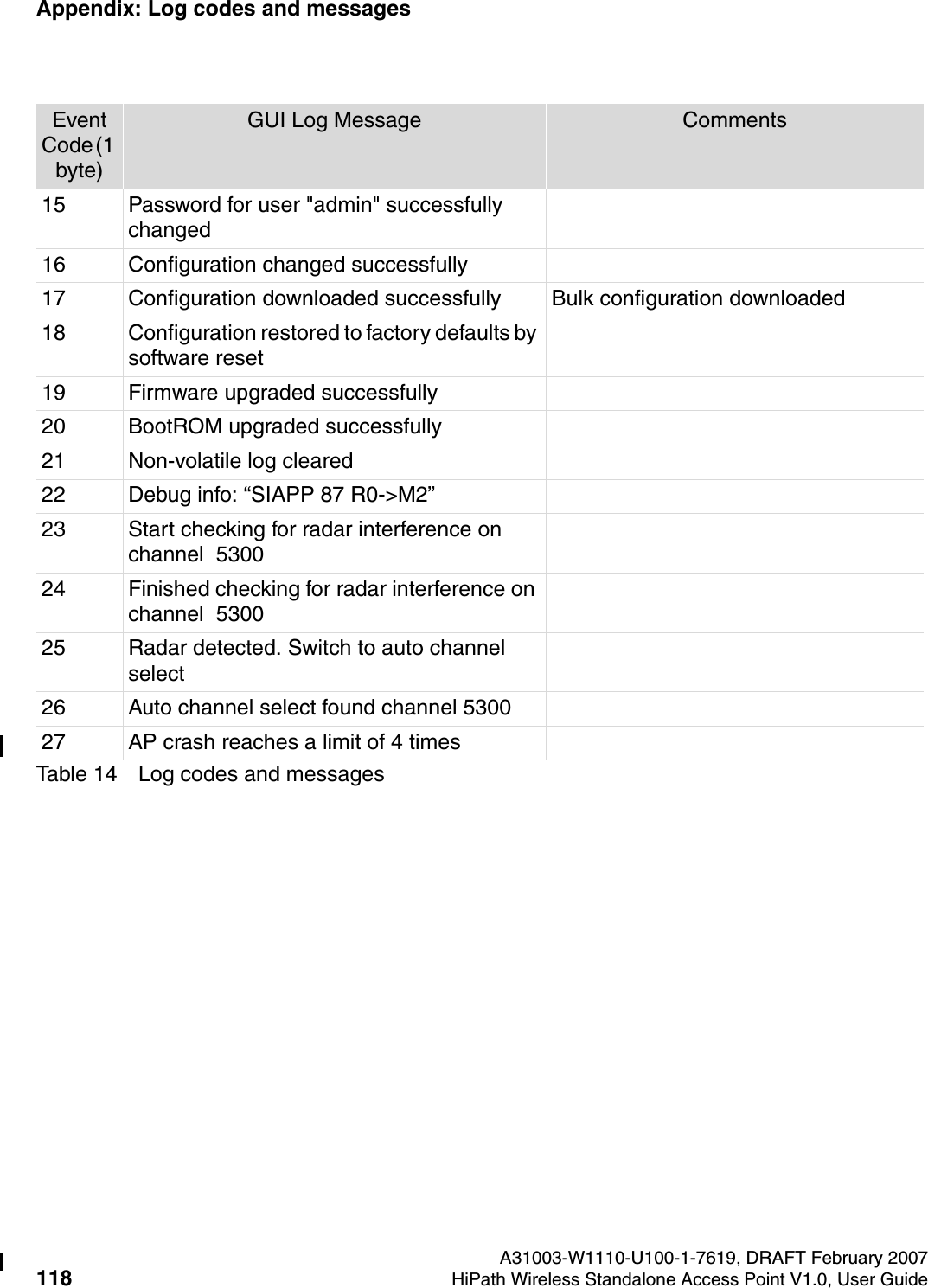
Chantry Networks APXXX1 HiPATH WIRELESS ACCESS POINT (AP) User Manual HiPath Wireless Standalone Access Point User Guide

Chantry Networks Inc. (a Siemens Company) HiPATH WIRELESS ACCESS POINT (AP) HiPath Wireless Standalone Access Point User Guide

USERS MANUAL 2
HiPath Wireless Standalone Access Point, V1.0 User Guide
*1PA31003-W1110-U100-1-7619* 1P  A31003-W1110-U100-1-7619The information provided in this document contains merely general descriptions or characteristics of performance which in case of actual use do not always apply as described or which may change as a result of further development of the products. An obligation to provide the respective characteristics shall only exist if expressly agreed in the terms of contract. The trademarks used are owned by Siemens Enterprise Communications GmbH & Co. KG or their respective owners.WarningHackers who unlawfully gain access to customer telecommunications systems are criminals. Currently, we do not know of any telecommunications system that is immune to this type of criminal activity. Siemens Enterprise Communications GmbH & Co. KG will not accept liability for any damages which result from unauthorized use. Although Siemens has designed security features into its products, it is your sole responsibility to use the security features and to establish security practices within your company, including training, security awareness, and call auditing.Siemens sales and service personnel, as well as Siemens business partners, are available to work with you to help you guard against this unauthorized use of your telecommunications system.February 2007No part of this publication may be reproduced, stored in a retrieval system, or transmitted, in any form or by any means, mechanical, electronic, photocopying, recording, or otherwise, without prior written permission of Siemens. The software described in this publication is furnished under a license agreement and may be used only in accordance with the terms of that agreement.Request Siemens publications from your Siemens representative or the Siemens branch serving you.Copyright © 2007 Siemens Enterprise Communications GmbH & Co. KG. All rights reserved.© Siemens Enterprise Communications GmbH & Co. KG 2007, Hofmannstraße 51, D-81359 München, GermanyReference No.: A31003-W1110-U100-1-7619Subject to availability. Right of modification reserved.
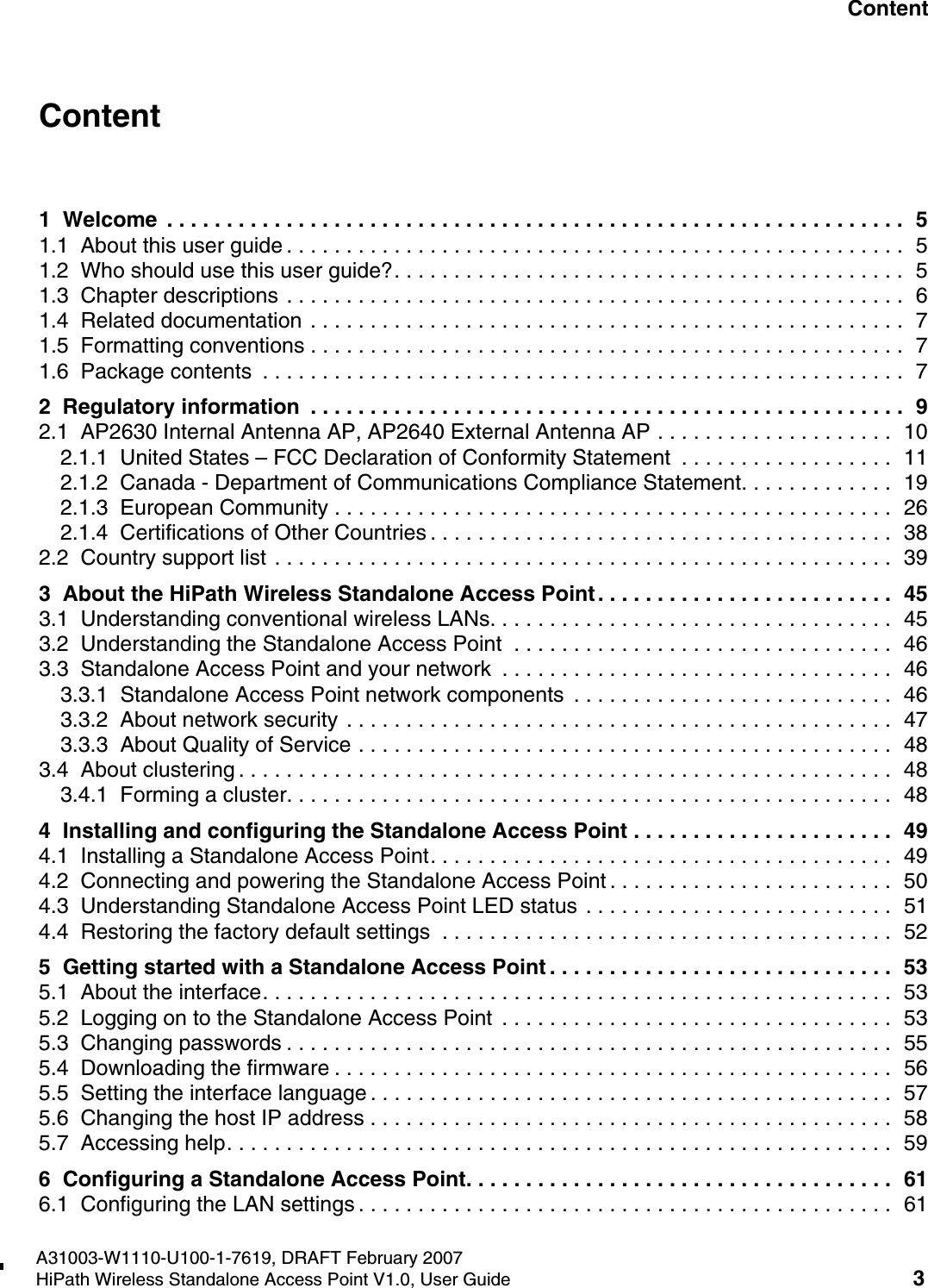
HiPath_Wireless_StandaloneTOC.fmA31003-W1110-U100-1-7619, DRAFT February 2007HiPath Wireless Standalone Access Point V1.0, User Guide 3        Nur für den internen Gebrauch ContentContent 01  Welcome  . . . . . . . . . . . . . . . . . . . . . . . . . . . . . . . . . . . . . . . . . . . . . . . . . . . . . . . . . . . . . .  51.1  About this user guide . . . . . . . . . . . . . . . . . . . . . . . . . . . . . . . . . . . . . . . . . . . . . . . . . . . .  51.2  Who should use this user guide?. . . . . . . . . . . . . . . . . . . . . . . . . . . . . . . . . . . . . . . . . . .  51.3  Chapter descriptions . . . . . . . . . . . . . . . . . . . . . . . . . . . . . . . . . . . . . . . . . . . . . . . . . . . .  61.4  Related documentation . . . . . . . . . . . . . . . . . . . . . . . . . . . . . . . . . . . . . . . . . . . . . . . . . .  71.5  Formatting conventions . . . . . . . . . . . . . . . . . . . . . . . . . . . . . . . . . . . . . . . . . . . . . . . . . .  71.6  Package contents  . . . . . . . . . . . . . . . . . . . . . . . . . . . . . . . . . . . . . . . . . . . . . . . . . . . . . .  72  Regulatory information  . . . . . . . . . . . . . . . . . . . . . . . . . . . . . . . . . . . . . . . . . . . . . . . . . .  92.1  AP2630 Internal Antenna AP, AP2640 External Antenna AP . . . . . . . . . . . . . . . . . . . .  102.1.1  United States – FCC Declaration of Conformity Statement  . . . . . . . . . . . . . . . . . .  112.1.2  Canada - Department of Communications Compliance Statement. . . . . . . . . . . . .  192.1.3  European Community . . . . . . . . . . . . . . . . . . . . . . . . . . . . . . . . . . . . . . . . . . . . . . .  262.1.4  Certifications of Other Countries . . . . . . . . . . . . . . . . . . . . . . . . . . . . . . . . . . . . . . .  382.2  Country support list . . . . . . . . . . . . . . . . . . . . . . . . . . . . . . . . . . . . . . . . . . . . . . . . . . . .  393  About the HiPath Wireless Standalone Access Point . . . . . . . . . . . . . . . . . . . . . . . . .  453.1  Understanding conventional wireless LANs. . . . . . . . . . . . . . . . . . . . . . . . . . . . . . . . . .  453.2  Understanding the Standalone Access Point  . . . . . . . . . . . . . . . . . . . . . . . . . . . . . . . .  463.3  Standalone Access Point and your network  . . . . . . . . . . . . . . . . . . . . . . . . . . . . . . . . .  463.3.1  Standalone Access Point network components  . . . . . . . . . . . . . . . . . . . . . . . . . . .  463.3.2  About network security . . . . . . . . . . . . . . . . . . . . . . . . . . . . . . . . . . . . . . . . . . . . . .  473.3.3  About Quality of Service . . . . . . . . . . . . . . . . . . . . . . . . . . . . . . . . . . . . . . . . . . . . .  483.4  About clustering . . . . . . . . . . . . . . . . . . . . . . . . . . . . . . . . . . . . . . . . . . . . . . . . . . . . . . .  483.4.1  Forming a cluster. . . . . . . . . . . . . . . . . . . . . . . . . . . . . . . . . . . . . . . . . . . . . . . . . . .  484  Installing and configuring the Standalone Access Point . . . . . . . . . . . . . . . . . . . . . .  494.1  Installing a Standalone Access Point. . . . . . . . . . . . . . . . . . . . . . . . . . . . . . . . . . . . . . .  494.2  Connecting and powering the Standalone Access Point . . . . . . . . . . . . . . . . . . . . . . . .  504.3  Understanding Standalone Access Point LED status . . . . . . . . . . . . . . . . . . . . . . . . . .  514.4  Restoring the factory default settings  . . . . . . . . . . . . . . . . . . . . . . . . . . . . . . . . . . . . . .  525  Getting started with a Standalone Access Point . . . . . . . . . . . . . . . . . . . . . . . . . . . . .  535.1  About the interface. . . . . . . . . . . . . . . . . . . . . . . . . . . . . . . . . . . . . . . . . . . . . . . . . . . . .  535.2  Logging on to the Standalone Access Point  . . . . . . . . . . . . . . . . . . . . . . . . . . . . . . . . .  535.3  Changing passwords . . . . . . . . . . . . . . . . . . . . . . . . . . . . . . . . . . . . . . . . . . . . . . . . . . .  555.4  Downloading the firmware . . . . . . . . . . . . . . . . . . . . . . . . . . . . . . . . . . . . . . . . . . . . . . .  565.5  Setting the interface language . . . . . . . . . . . . . . . . . . . . . . . . . . . . . . . . . . . . . . . . . . . .  575.6  Changing the host IP address . . . . . . . . . . . . . . . . . . . . . . . . . . . . . . . . . . . . . . . . . . . .  585.7  Accessing help. . . . . . . . . . . . . . . . . . . . . . . . . . . . . . . . . . . . . . . . . . . . . . . . . . . . . . . .  596  Configuring a Standalone Access Point. . . . . . . . . . . . . . . . . . . . . . . . . . . . . . . . . . . .  616.1  Configuring the LAN settings . . . . . . . . . . . . . . . . . . . . . . . . . . . . . . . . . . . . . . . . . . . . .  61
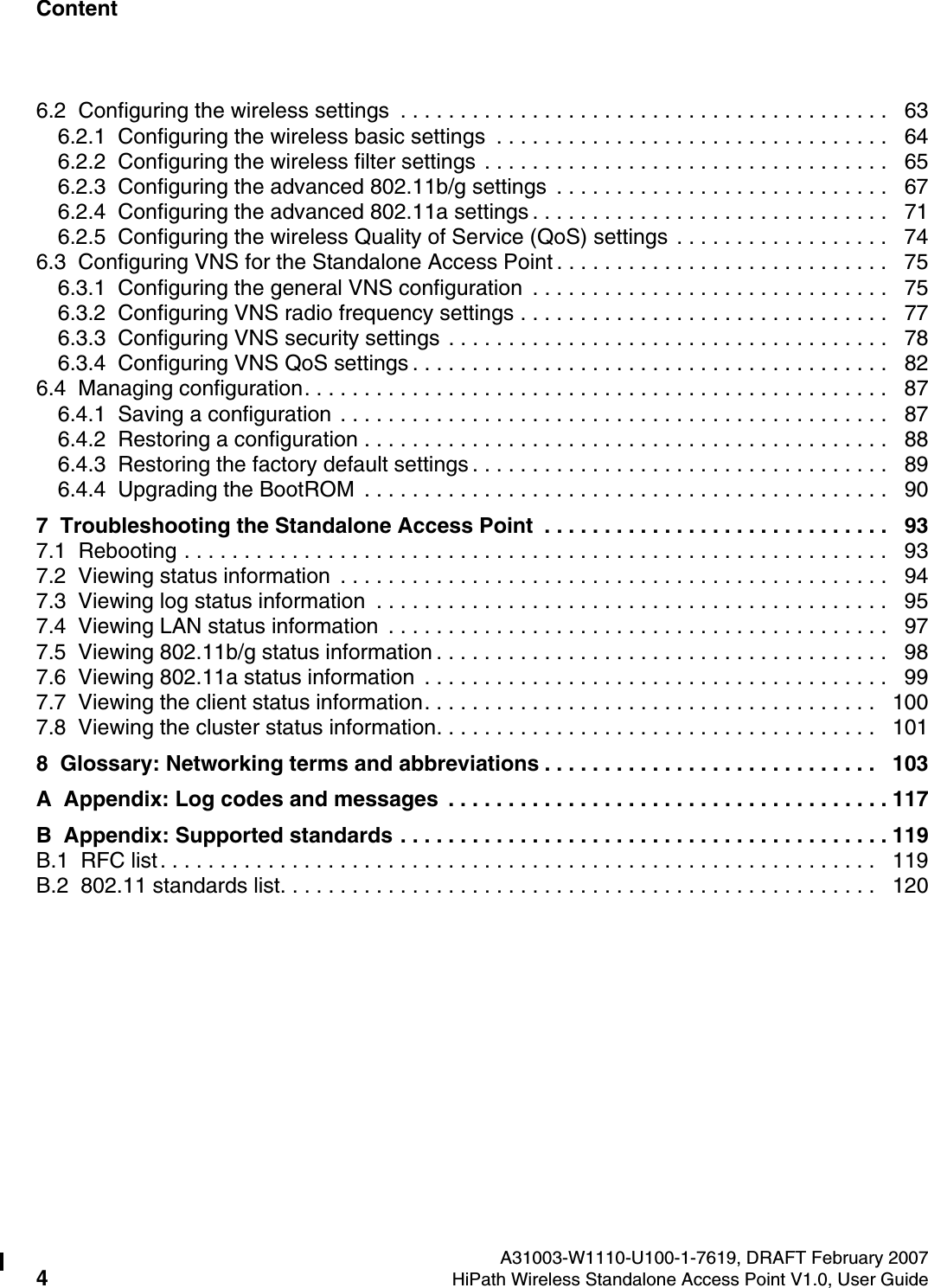
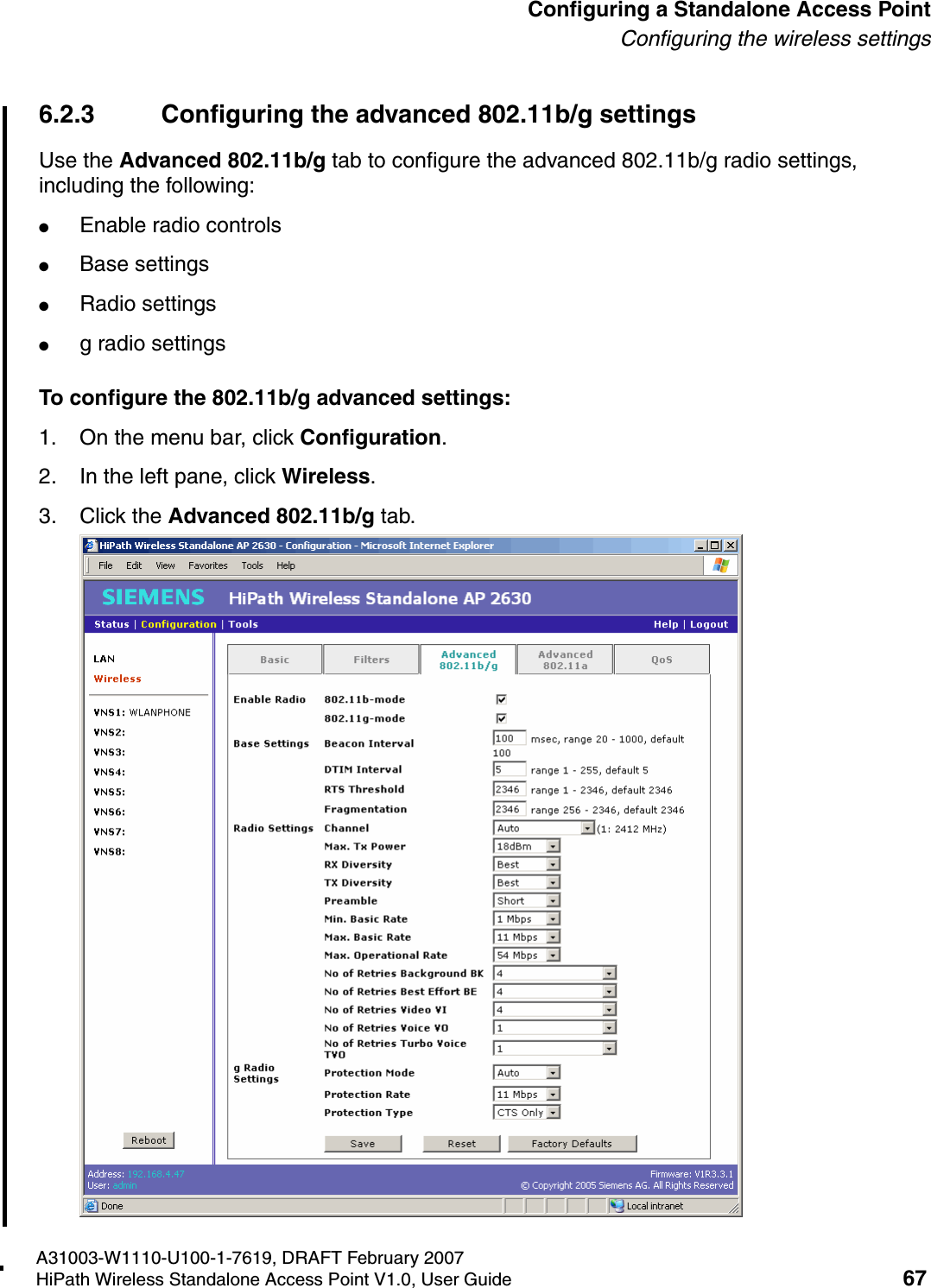
Content Nur für den internen Gebrauch A31003-W1110-U100-1-7619, DRAFT February 20074HiPath Wireless Standalone Access Point V1.0, User Guide        HiPath_Wireless_StandaloneTOC.fm6.2  Configuring the wireless settings  . . . . . . . . . . . . . . . . . . . . . . . . . . . . . . . . . . . . . . . . .   636.2.1  Configuring the wireless basic settings  . . . . . . . . . . . . . . . . . . . . . . . . . . . . . . . . .   646.2.2  Configuring the wireless filter settings . . . . . . . . . . . . . . . . . . . . . . . . . . . . . . . . . .   656.2.3  Configuring the advanced 802.11b/g settings  . . . . . . . . . . . . . . . . . . . . . . . . . . . .   676.2.4  Configuring the advanced 802.11a settings . . . . . . . . . . . . . . . . . . . . . . . . . . . . . .   716.2.5  Configuring the wireless Quality of Service (QoS) settings . . . . . . . . . . . . . . . . . .   746.3  Configuring VNS for the Standalone Access Point . . . . . . . . . . . . . . . . . . . . . . . . . . . .   756.3.1  Configuring the general VNS configuration  . . . . . . . . . . . . . . . . . . . . . . . . . . . . . .   756.3.2  Configuring VNS radio frequency settings . . . . . . . . . . . . . . . . . . . . . . . . . . . . . . .   776.3.3  Configuring VNS security settings . . . . . . . . . . . . . . . . . . . . . . . . . . . . . . . . . . . . .   786.3.4  Configuring VNS QoS settings . . . . . . . . . . . . . . . . . . . . . . . . . . . . . . . . . . . . . . . .   826.4  Managing configuration. . . . . . . . . . . . . . . . . . . . . . . . . . . . . . . . . . . . . . . . . . . . . . . . .   876.4.1  Saving a configuration . . . . . . . . . . . . . . . . . . . . . . . . . . . . . . . . . . . . . . . . . . . . . .   876.4.2  Restoring a configuration . . . . . . . . . . . . . . . . . . . . . . . . . . . . . . . . . . . . . . . . . . . .   886.4.3  Restoring the factory default settings . . . . . . . . . . . . . . . . . . . . . . . . . . . . . . . . . . .   896.4.4  Upgrading the BootROM  . . . . . . . . . . . . . . . . . . . . . . . . . . . . . . . . . . . . . . . . . . . .   907  Troubleshooting the Standalone Access Point  . . . . . . . . . . . . . . . . . . . . . . . . . . . . .   937.1  Rebooting . . . . . . . . . . . . . . . . . . . . . . . . . . . . . . . . . . . . . . . . . . . . . . . . . . . . . . . . . . .   937.2  Viewing status information  . . . . . . . . . . . . . . . . . . . . . . . . . . . . . . . . . . . . . . . . . . . . . .   947.3  Viewing log status information  . . . . . . . . . . . . . . . . . . . . . . . . . . . . . . . . . . . . . . . . . . .   957.4  Viewing LAN status information  . . . . . . . . . . . . . . . . . . . . . . . . . . . . . . . . . . . . . . . . . .   977.5  Viewing 802.11b/g status information . . . . . . . . . . . . . . . . . . . . . . . . . . . . . . . . . . . . . .   987.6  Viewing 802.11a status information  . . . . . . . . . . . . . . . . . . . . . . . . . . . . . . . . . . . . . . .   997.7  Viewing the client status information. . . . . . . . . . . . . . . . . . . . . . . . . . . . . . . . . . . . . .   1007.8  Viewing the cluster status information. . . . . . . . . . . . . . . . . . . . . . . . . . . . . . . . . . . . .   1018  Glossary: Networking terms and abbreviations . . . . . . . . . . . . . . . . . . . . . . . . . . . .   103A  Appendix: Log codes and messages  . . . . . . . . . . . . . . . . . . . . . . . . . . . . . . . . . . . . . 117B  Appendix: Supported standards . . . . . . . . . . . . . . . . . . . . . . . . . . . . . . . . . . . . . . . . . 119B.1  RFC list. . . . . . . . . . . . . . . . . . . . . . . . . . . . . . . . . . . . . . . . . . . . . . . . . . . . . . . . . . . .   119B.2  802.11 standards list. . . . . . . . . . . . . . . . . . . . . . . . . . . . . . . . . . . . . . . . . . . . . . . . . .   120
HSAAP_Pref.fmA31003-W1110-U100-1-7619, DRAFT February 2007HiPath Wireless Standalone Access Point V1.0, User Guide 5          WelcomeAbout this user guide1 WelcomeThis manual contains instructions for the installation and configuration of the HiPath Wireless Standalone Access Point.●The HiPath Wireless Standalone Access Point is intended for home and office use.●Never open the HiPath Wireless Standalone Access Point. If you encounter problems, please contact qualified personnel.●Only use genuine accessories. The use of any other accessories is dangerous and will void both the warranty and the CE mark.●Ensure that the HiPath Wireless Standalone Access Point does not come into contact with any liquids including tea, coffee, juice, or soft drinks.1.1 About this user guideThe Standalone Access Point is a wireless LAN access point using the 802.11 wireless standards (802.11a+b/g) for network communications. Also, the Standalone Access Point bridges network traffic to an Ethernet LAN. The Standalone Access Point is physically connected to a LAN infrastructure. The Standalone Access Point radios can be enabled or disabled in the user interface.The HiPath Wireless Standalone Access Point User Guide describes how to install, configure, and manage the HiPath Wireless Standalone Access Point.1.2 Who should use this user guide?The HiPath Wireless Standalone Access Point User Guide is intended for install technicians or others in your organization who are responsible for installing and configuring the Standalone Access Point.>Please read the following safety instructions and the entire HiPath Wireless Standalone Access Point Getting Started Guide before first use. Please also ensure that any children who have access to the HiPath Wireless Standalone Access Point are informed of these safety instructions.>The Standalone Access Point will operate on the radio bands available in your country. For more information, see Chapter 2, “Regulatory information”.
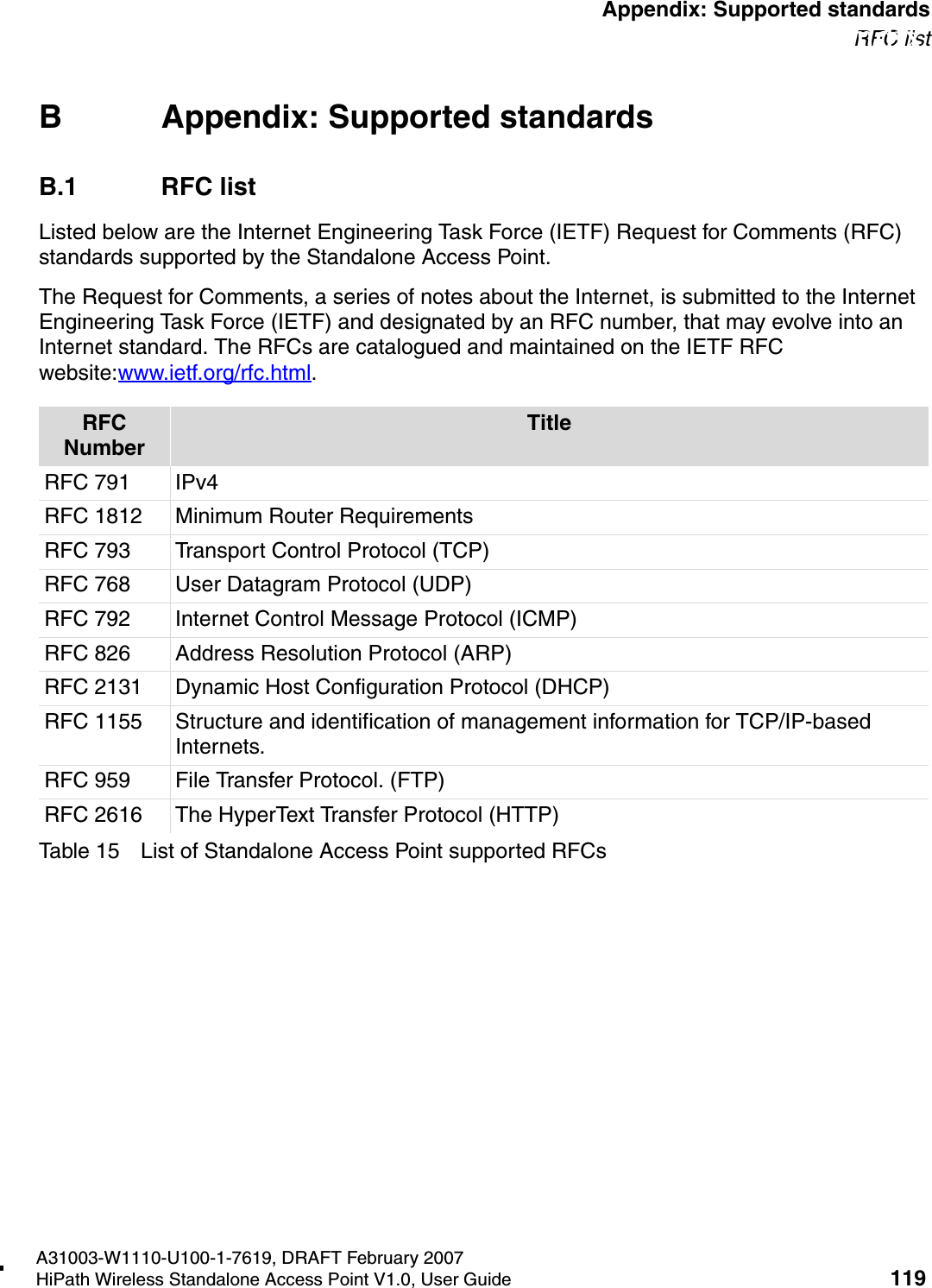
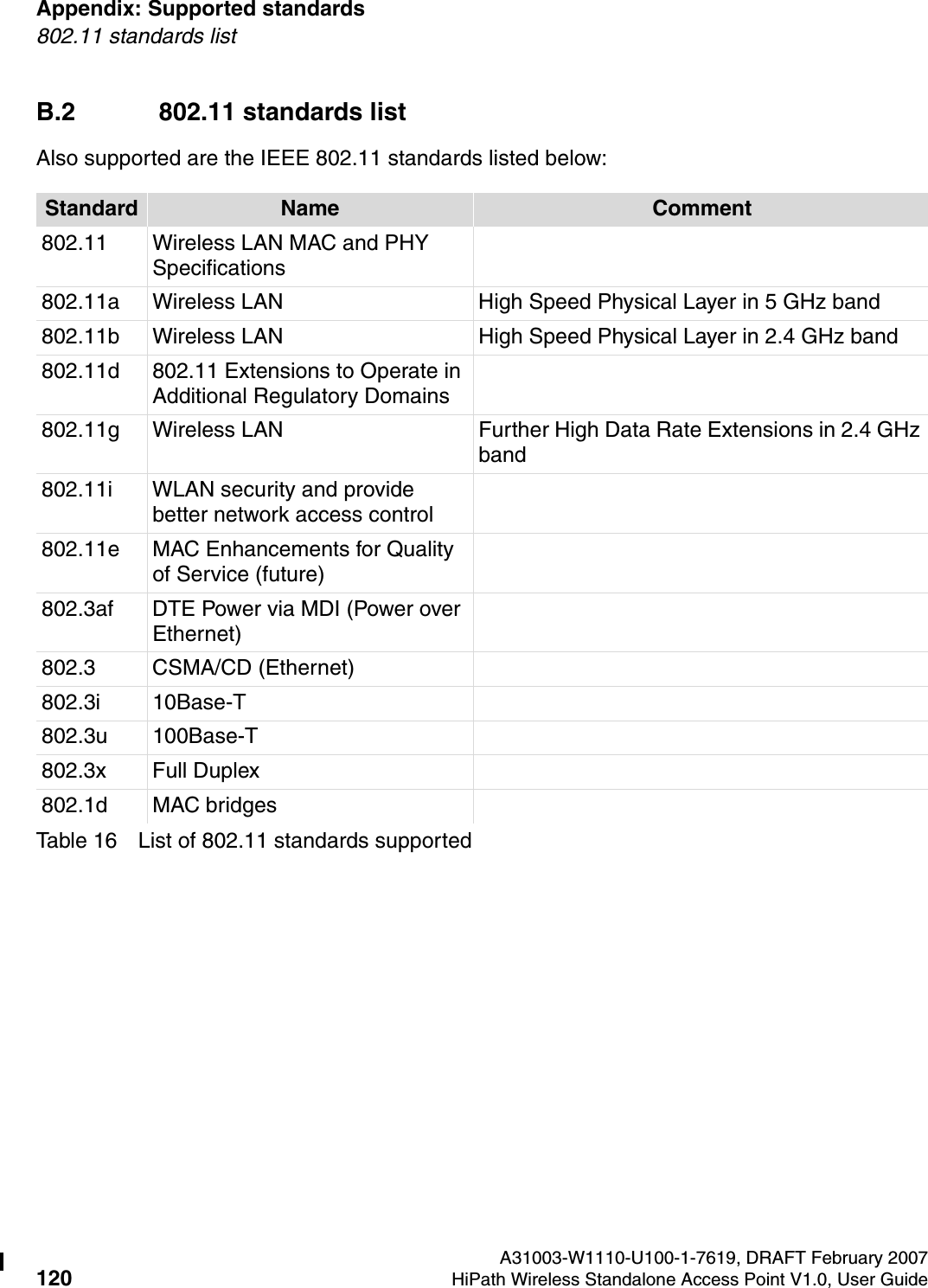
Welcome A31003-W1110-U100-1-7619, DRAFT February 20076HiPath Wireless Standalone Access Point V1.0, User Guide          HSAAP_Pref.fmChapter descriptions1.3 Chapter descriptionsThis user guide contains the following chapters:●Chapter 1, “Welcome”, describes the target audience, the content of the user guide, and the formatting conventions used in it.●Chapter 2, “Regulatory information”, provides the regulatory information for the Standalone Access Point.●Chapter 3, “About the HiPath Wireless Standalone Access Point”, provides an overview of the product and its features and functionality, including creating a cluster.●Chapter 4, “Installing and configuring the Standalone Access Point”, discusses how to install the Standalone Access Point, how to connect and power the unit, and provides a reference on the LED displays and their significance.●Chapter 5, “Getting started with a Standalone Access Point”, discusses how to log on to the user interface as well as other procedures, including downloading firmware, changing passwords, and getting help.●Chapter 6, “Configuring a Standalone Access Point”, provides information on configuring LAN settings, as well as saving and restoring configurations, and upgrading the BootROM.●Chapter 7, “Troubleshooting the Standalone Access Point”, provides information on rebooting the Standalone Access Point and how to view status information for the Standalone Access Point.●Chapter 8, “Glossary: Networking terms and abbreviations”, is a glossary of standard industry terms used in this user guide.●Appendix A, “Appendix: Log codes and messages”, provides a reference list of the codes and messages logged by the Standalone Access Point.●Appendix B, “Appendix: Supported standards”, provides a reference list of the RFCs that are supported by the Standalone Access Point.
HSAAP_Pref.fmA31003-W1110-U100-1-7619, DRAFT February 2007HiPath Wireless Standalone Access Point V1.0, User Guide 7          WelcomeRelated documentation1.4 Related documentationThe following manual contains additional information about the HiPath Wireless Standalone Access Point:●HiPath Wireless Standalone Getting Started Guide provided on the system CD delivered with the Standalone Access Point, describes how to install and configure the HiPath Wireless Standalone Access Point.1.5 Formatting conventionsThe following formatting conventions are used in this guide:BoldThis font identifies HiPath Wireless Standalone Access Point components, window and dialog box titles, and item names.ItalicsThis font identifies references to related documentation.Monospace FontThis font distinguishes text that you should type, or that the computer displays in a message.1.6 Package contentsThe HiPath Wireless Standalone Access Point package includes: ●The Standalone Access Point●The HiPath Wireless Standalone Access Point Getting Started Guide●The Standalone Access Point brackets●One LAN Ethernet connecting cableA power supply unit can be ordered separately. (The power supply unit is necessary if PoE is not supported.) >Notes identify useful information that is not essential, such as reminders, tips, or other ways to perform a task.7Warnings identify information that is essential. Ignoring a warning can adversely affect the operation of the application.
Welcome A31003-W1110-U100-1-7619, DRAFT February 20078HiPath Wireless Standalone Access Point V1.0, User Guide          HSAAP_Pref.fmPackage contents
HSAAP_Regulatory.fmA31003-W1110-U100-1-7619, DRAFT February 2007HiPath Wireless Standalone Access Point V1.0, User Guide 9        Regulatory information2 Regulatory informationThis chapter provides the regulatory information for the Standalone Access Point—AP2630 and AP2640 (AP26XX series).Configuration of the Standalone Access Point frequencies and power output are controlled by the regional software license and proper selection of the country during initial installation and set-up. Customers are only allowed to select the proper country from their licenced regulatory domain related to that customer’s geographic location, thus allowing the proper set-up of Standalone Access Points in accordance with local laws and regulations. The Standalone Access Point must not be operated until properly configured with the correct country setting or it may be in violation of the local laws and regulations.7Warnings identify essential information. Ignoring a warning can lead to problems with the application.7Changes or modifications made to the Standalone Access Point which are not expressly approved by Siemens could void the user's authority to operate the equipment.Only authorized Siemens service personnel are permitted to service the system. Procedures that should be performed only by Siemens personnel are clearly identified in this guide.
Regulatory information A31003-W1110-U100-1-7619, DRAFT February 200710 HiPath Wireless Standalone Access Point V1.0, User Guide        HSAAP_Regulatory.fmAP2630 Internal Antenna AP, AP2640 External Antenna AP2.1 AP2630 Internal Antenna AP, AP2640 External Antenna APOptional Approved 3rd Party External AntennasThe AP2640 External Antenna Standalone Access Point can also be used with optional certified external antennas. Antenna DiversityThere are some limitations for using different antennas and Tx/Rx diversity:●If Best antenna diversity is used for Tx or Rx, then the same antenna model must be used as left and right antennas. In addition, if cables are used to connect external antennas, the cables must be of the same length and similar attenuation. If these rules are not respected, antenna diversity will not function properly and there will be degradation in the link budget in both directions. ●You can choose to install only one antenna provided that both Tx and Rx diversity are configured to use that antenna and only that antenna. You can choose to install one antenna for 11b/g band and one antenna for 11a band, provided that the antenna diversity is configured appropriately on both radios. >Operation in the European Community and rest of the world may be dependant on securing local licenses, certifications, and regulatory approvals.
HSAAP_Regulatory.fmA31003-W1110-U100-1-7619, DRAFT February 2007HiPath Wireless Standalone Access Point V1.0, User Guide 11        Regulatory informationAP2630 Internal Antenna AP, AP2640 External Antenna AP2.1.1 United States – FCC Declaration of Conformity StatementThis device complies with Part 15 of the FCC Rules. Operation is subject to the following two conditions:●This device may not cause harmful interference.●This device must accept any interference received, including interference that may cause undesired operation.This equipment has been tested and found to comply with the limits for a Class B digital device, pursuant to Part 15 of the FCC Rules. These limits are designed to provide reasonable protection against harmful interference when the equipment is operated in a residential and business environment. This equipment generates, uses, and radiates radio frequency energy, and if not installed and used in accordance with instructions, may cause harmful interference. However, there is no guarantee that interference will not occur. If this equipment does cause harmful interference, which can be determined by turning the equipment off and on, the user is encouraged to try to correct the interference by one or more of the following measures:●Reorient or relocate the receiving antenna.●Increase the separation between the equipment or devices.●Connect the equipment to an outlet other than the receiver's.●Consult a dealer or an experienced radio/TV technician for suggestions.This equipment meets the following conformance standards:USA Conformance StandardsSafety ●UL 60950-1●UL 2043 Plenum Rated as part of UL 60950-1. Suitable for use in environmental air space in accordance with Section 300.22.C of the National Electrical Code.EMC ●FCC CFR 47 Part 15, Class BRadio Transceiver ●FCC ID: REB-APXXX1●CFR 47 Part 15.247, Subpart C (2.4 GHz)●CFR 47 Part 15.407, Subpart E (5 GHz)
Regulatory information A31003-W1110-U100-1-7619, DRAFT February 200712 HiPath Wireless Standalone Access Point V1.0, User Guide        HSAAP_Regulatory.fmAP2630 Internal Antenna AP, AP2640 External Antenna APOther●IEEE 802.11a (5 Ghz)●IEEE 802.11b/g (2.4 GHz)●IEEE 802.3af (PoE)2.1.1.1 FCC RF Radiation Exposure StatementThe Standalone Access Point—AP2630 and AP2640 (AP26XX series) complies with FCC RF radiated exposure limits set forth for an uncontrolled environment. End users must follow the specific operating instructions for satisfying RF exposure compliance. This device has been tested and has demonstrated compliance when simultaneously operated in the 2.4 GHz and 5 GHz frequency ranges. This device must not be co-located or operated in conjunction with any other antenna or transmitter.>The Standalone Access Point must be installed and used in strict accordance with the manufacturer's instructions as described in this guide and the related documentation for the device to which the Standalone Access Point is connected. Any other installation or use of the product violates FCC Part 15 regulations.Operation of the Standalone Access Point is restricted for indoor use only, specifically in the UNII 5.15 - 5.25 GHz band in accordance with 47 CFR 15.407(e).This Part 15 radio device operates on a non-interference basis with other devices operating at the same frequency when using antennas provided or other Siemens certified antennas. Any changes or modification to the product not expressly approved by Siemens could void the user's authority to operate this device.>The radiated output power of the AP26XX Standalone Access Point is far below the FCC radio frequency exposure limits as specified in "Guidelines for Human Exposure to Radio Frequency Electromagnetic Fields" (OET Bullet 65, Supplement C). This equipment should be installed and operated with a minimum distance of 20 centimeters (8 inches) between the radiator and your body or other co-located operating antennas.
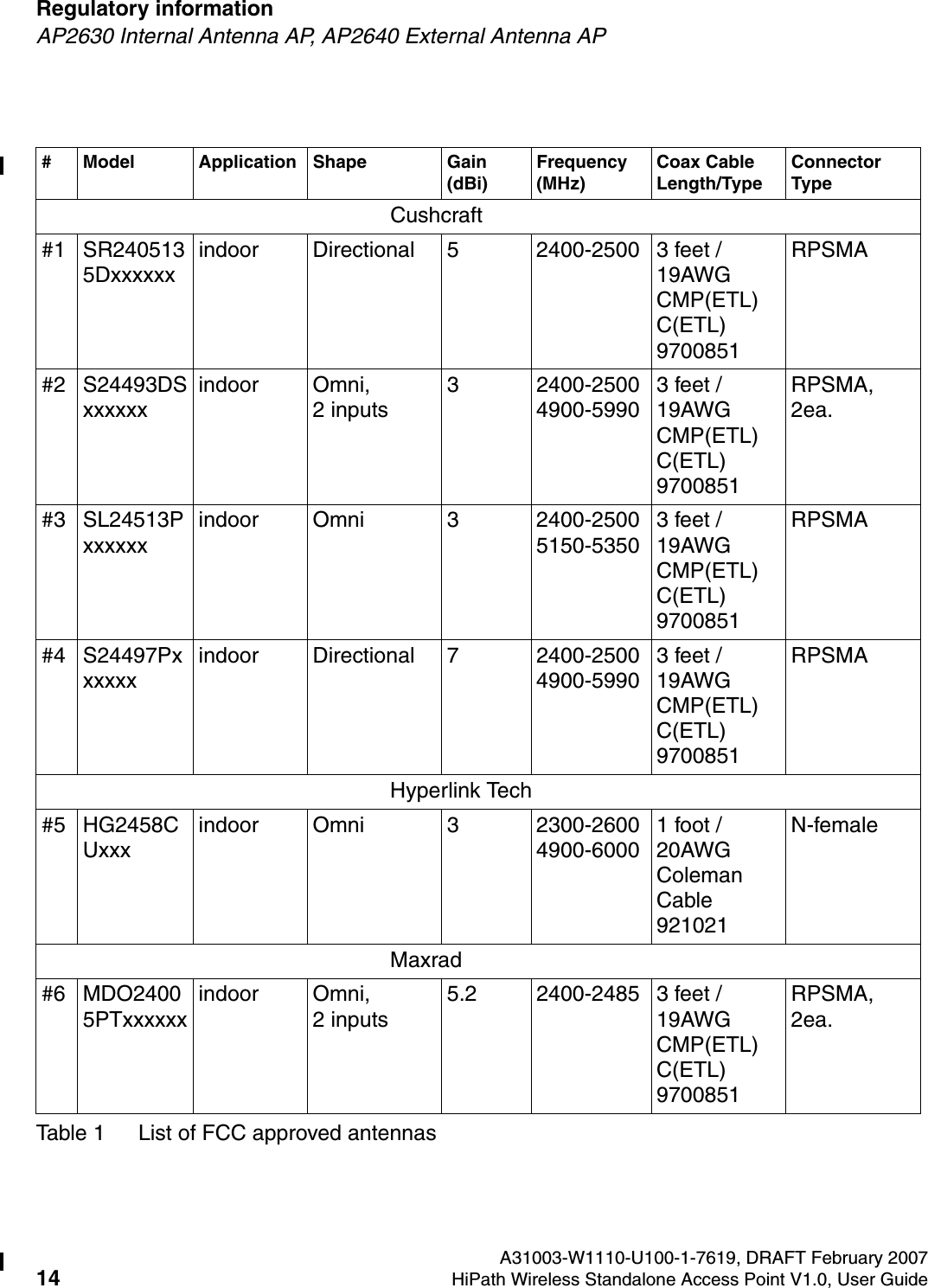
HSAAP_Regulatory.fmA31003-W1110-U100-1-7619, DRAFT February 2007HiPath Wireless Standalone Access Point V1.0, User Guide 13        Regulatory informationAP2630 Internal Antenna AP, AP2640 External Antenna AP2.1.1.2 Optional 3rd Party External AntennasThe AP2640 Standalone Access Point can also be used with optional certified 3rd party antennas. However, in order to comply with the local laws and regulations, an approval may be required by the local regulatory authorities. The following optional antennas have been tested and approved for use with the External Antenna model.>●When using an approved 3rd party external antenna (other than the default), the power must be adjusted according to these tables.●This device must be professionally installed. The following are the requirements of professional installation:Equipment marketing●The device cannot be sold retail to the general public or by mail order. It must be sold to dealers.Professional installation:●Installation must be controlled.●Installed by licensed professionals (equipment sold to dealers who hire installers)●Installation requires special training (special programming and antenna and cable installations)Application●The intended use is generally not for the general public. Instead, it is generally for industry/commercial use.
Regulatory information A31003-W1110-U100-1-7619, DRAFT February 200714 HiPath Wireless Standalone Access Point V1.0, User Guide        HSAAP_Regulatory.fmAP2630 Internal Antenna AP, AP2640 External Antenna AP# Model Application Shape Gain (dBi)Frequency  (MHz)Coax Cable Length/TypeConnector TypeCushcraft#1 SR2405135Dxxxxxxindoor Directional 5 2400-2500 3 feet / 19AWG CMP(ETL) C(ETL) 9700851RPSMA#2 S24493DSxxxxxxindoor Omni,              2 inputs3 2400-2500  4900-59903 feet / 19AWG CMP(ETL) C(ETL) 9700851RPSMA, 2ea.#3 SL24513Pxxxxxxindoor Omni 3 2400-2500  5150-53503 feet / 19AWG CMP(ETL) C(ETL) 9700851RPSMA#4 S24497Pxxxxxxindoor Directional 7 2400-2500  4900-59903 feet / 19AWG CMP(ETL) C(ETL) 9700851RPSMAHyperlink Tech#5 HG2458CUxxxindoor Omni 3 2300-2600  4900-60001 foot / 20AWG Coleman Cable 921021N-femaleMaxrad#6 MDO24005PTxxxxxxindoor Omni,              2 inputs5.2 2400-2485 3 feet / 19AWG CMP(ETL) C(ETL) 9700851RPSMA, 2ea.Table 1 List of FCC approved antennas
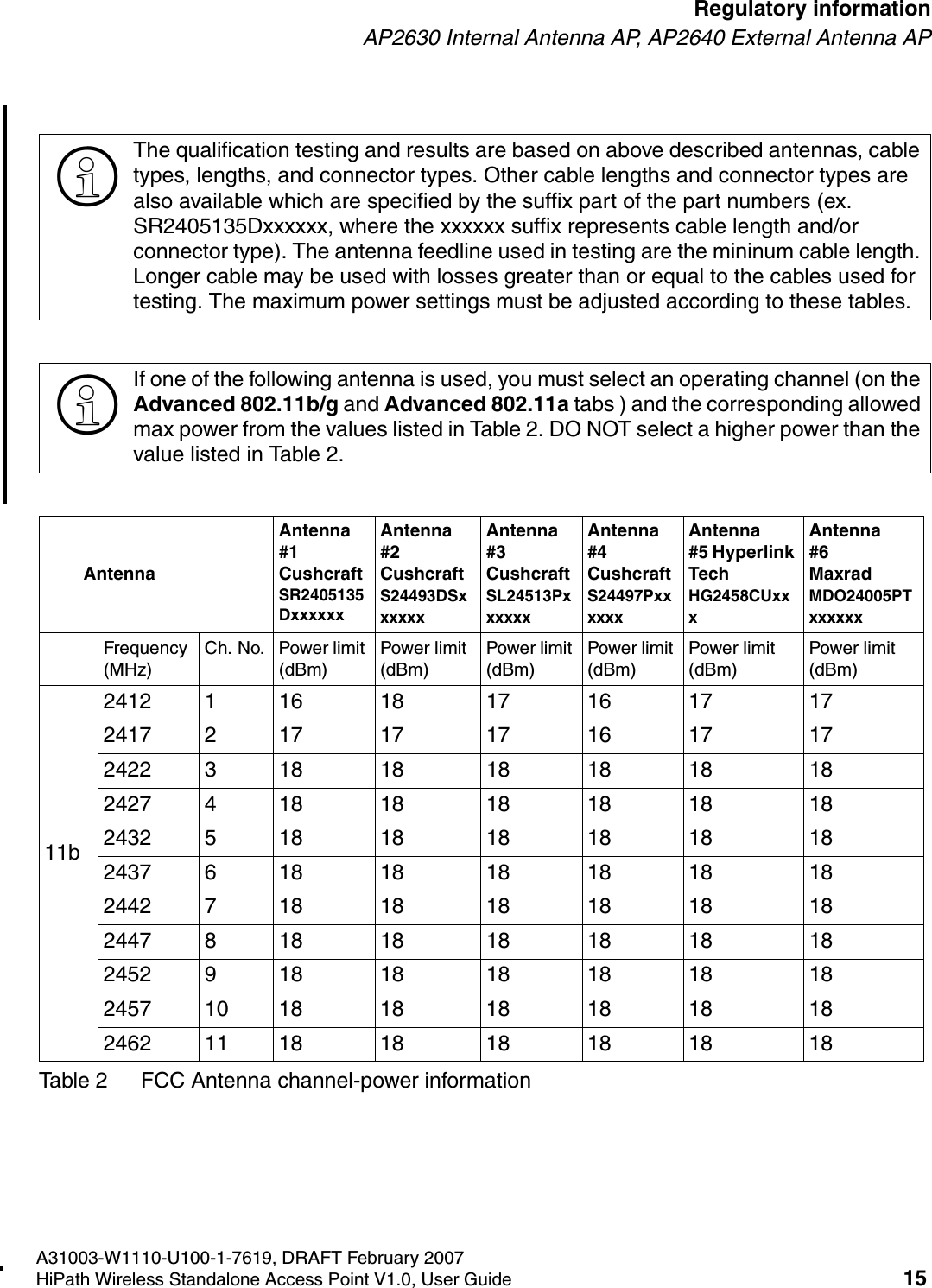
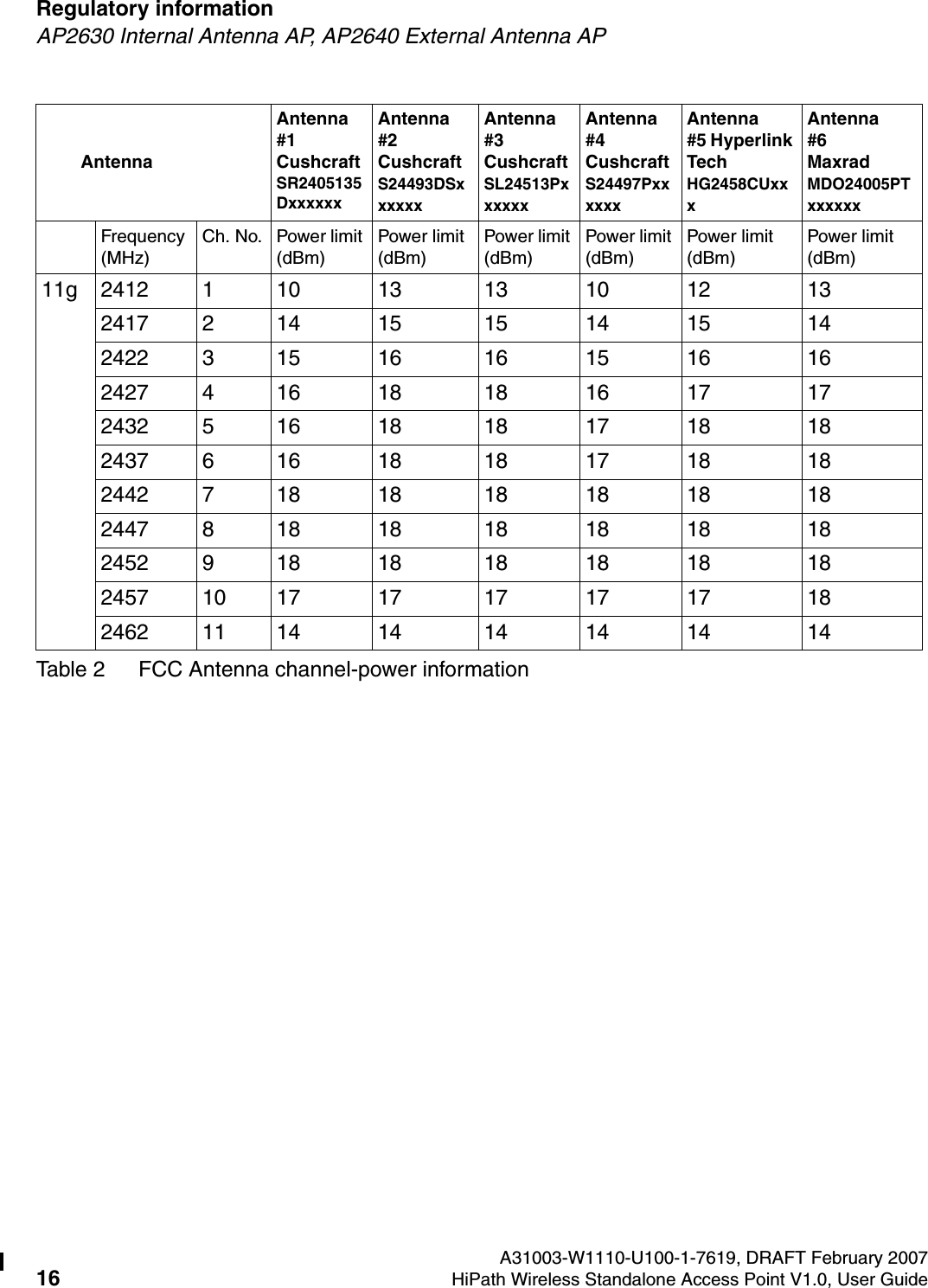
HSAAP_Regulatory.fmA31003-W1110-U100-1-7619, DRAFT February 2007HiPath Wireless Standalone Access Point V1.0, User Guide 15        Regulatory informationAP2630 Internal Antenna AP, AP2640 External Antenna AP>The qualification testing and results are based on above described antennas, cable types, lengths, and connector types. Other cable lengths and connector types are also available which are specified by the suffix part of the part numbers (ex. SR2405135Dxxxxxx, where the xxxxxx suffix represents cable length and/or connector type). The antenna feedline used in testing are the mininum cable length. Longer cable may be used with losses greater than or equal to the cables used for testing. The maximum power settings must be adjusted according to these tables.>If one of the following antenna is used, you must select an operating channel (on the Advanced 802.11b/g and Advanced 802.11a tabs ) and the corresponding allowed max power from the values listed in Table 2. DO NOT select a higher power than the value listed in Table 2.AntennaAntenna #1 Cushcraft SR2405135DxxxxxxAntenna #2 Cushcraft S24493DSxxxxxxAntenna #3 Cushcraft SL24513PxxxxxxAntenna #4 Cushcraft S24497PxxxxxxAntenna #5 Hyperlink Tech HG2458CUxxxAntenna #6 Maxrad MDO24005PTxxxxxxFrequency (MHz)Ch. No. Power limit (dBm)Power limit (dBm)Power limit (dBm)Power limit (dBm)Power limit (dBm)Power limit (dBm)11b241211618 171617 17241721717 171617 17242231818 181818 18242741818 181818 18243251818 181818 18243761818 181818 18244271818 181818 18244781818 181818 18245291818 181818 182457 10 18 18 18 18 18 182462 11 18 18 18 18 18 18Table 2 FCC Antenna channel-power information
Regulatory information A31003-W1110-U100-1-7619, DRAFT February 200716 HiPath Wireless Standalone Access Point V1.0, User Guide        HSAAP_Regulatory.fmAP2630 Internal Antenna AP, AP2640 External Antenna AP11g 2412 1 10 13 13 10 12 132417 2 14 15 15 14 15 142422 3 15 16 16 15 16 162427 4 16 18 18 16 17 172432 5 16 18 18 17 18 182437 6 16 18 18 17 18 182442 7 18 18 18 18 18 182447 8 18 18 18 18 18 182452 9 18 18 18 18 18 182457 10 17 17 17 17 17 182462 11 14 14 14 14 14 14AntennaAntenna #1 Cushcraft SR2405135DxxxxxxAntenna #2 Cushcraft S24493DSxxxxxxAntenna #3 Cushcraft SL24513PxxxxxxAntenna #4 Cushcraft S24497PxxxxxxAntenna #5 Hyperlink Tech HG2458CUxxxAntenna #6 Maxrad MDO24005PTxxxxxxFrequency (MHz)Ch. No. Power limit (dBm)Power limit (dBm)Power limit (dBm)Power limit (dBm)Power limit (dBm)Power limit (dBm)Table 2 FCC Antenna channel-power information
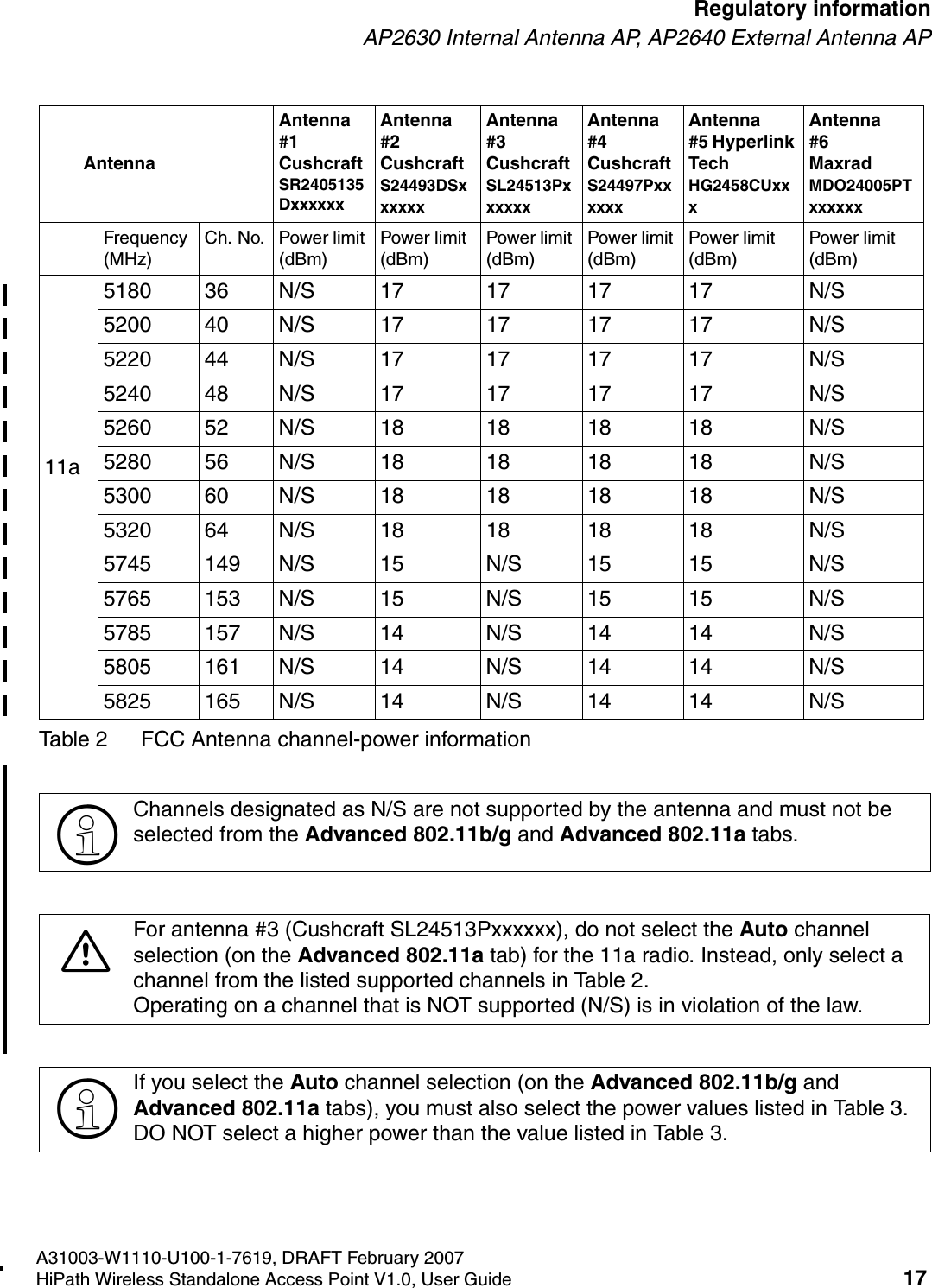
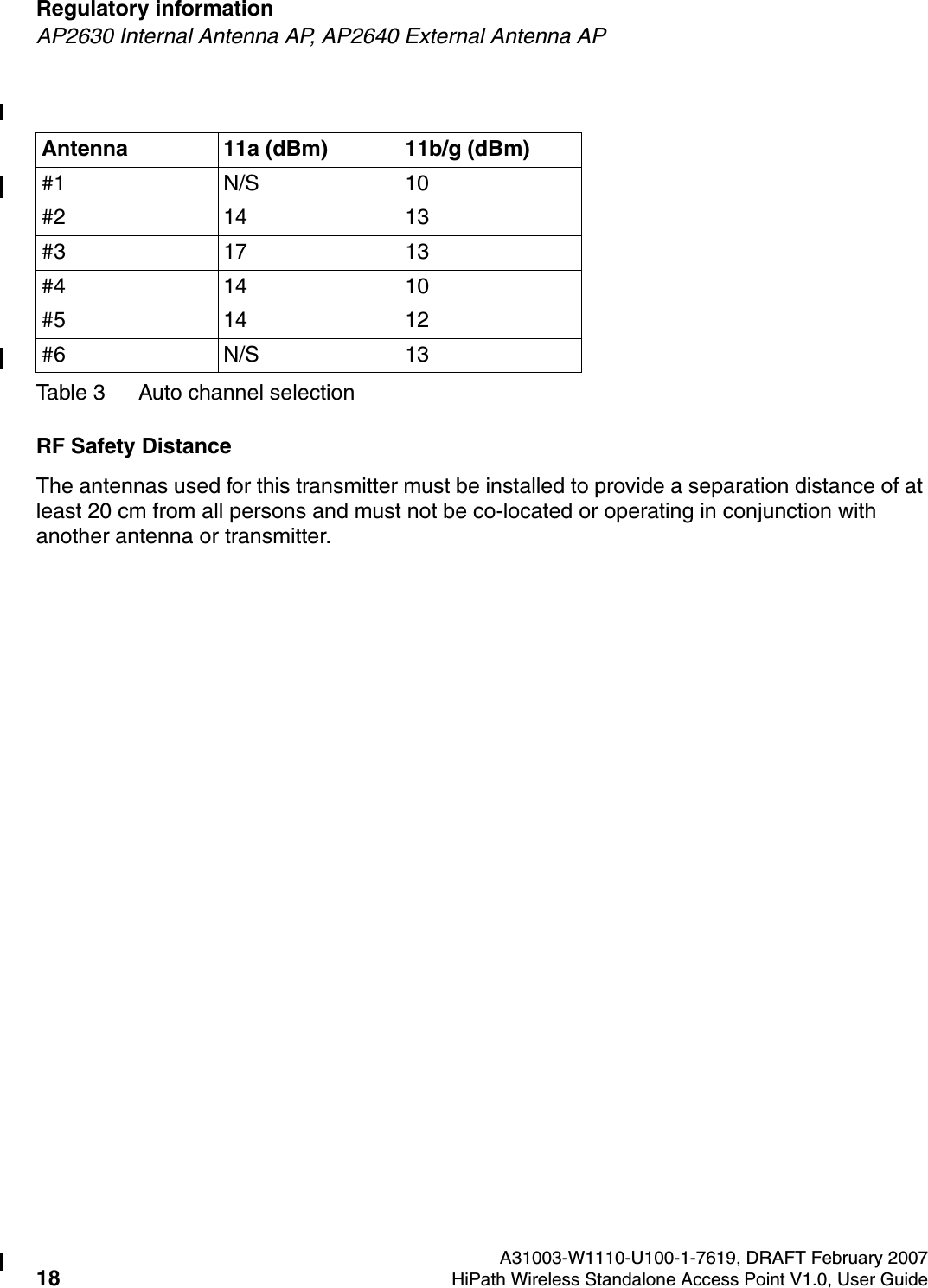
HSAAP_Regulatory.fmA31003-W1110-U100-1-7619, DRAFT February 2007HiPath Wireless Standalone Access Point V1.0, User Guide 17        Regulatory informationAP2630 Internal Antenna AP, AP2640 External Antenna AP11a5180 36 N/S 17 17 17 17 N/S5200 40 N/S 17 17 17 17 N/S5220 44 N/S 17 17 17 17 N/S5240 48 N/S 17 17 17 17 N/S5260 52 N/S 18 18 18 18 N/S5280 56 N/S 18 18 18 18 N/S5300 60 N/S 18 18 18 18 N/S5320 64 N/S 18 18 18 18 N/S5745 149 N/S 15 N/S 15 15 N/S5765 153 N/S 15 N/S 15 15 N/S5785 157 N/S 14 N/S 14 14 N/S5805 161 N/S 14 N/S 14 14 N/S5825 165 N/S 14 N/S 14 14 N/S>Channels designated as N/S are not supported by the antenna and must not be selected from the Advanced 802.11b/g and Advanced 802.11a tabs.7For antenna #3 (Cushcraft SL24513Pxxxxxx), do not select the Auto channel selection (on the Advanced 802.11a tab) for the 11a radio. Instead, only select a channel from the listed supported channels in Table 2. Operating on a channel that is NOT supported (N/S) is in violation of the law.>If you select the Auto channel selection (on the Advanced 802.11b/g and Advanced 802.11a tabs), you must also select the power values listed in Table 3. DO NOT select a higher power than the value listed in Table 3.AntennaAntenna #1 Cushcraft SR2405135DxxxxxxAntenna #2 Cushcraft S24493DSxxxxxxAntenna #3 Cushcraft SL24513PxxxxxxAntenna #4 Cushcraft S24497PxxxxxxAntenna #5 Hyperlink Tech HG2458CUxxxAntenna #6 Maxrad MDO24005PTxxxxxxFrequency (MHz)Ch. No. Power limit (dBm)Power limit (dBm)Power limit (dBm)Power limit (dBm)Power limit (dBm)Power limit (dBm)Table 2 FCC Antenna channel-power information
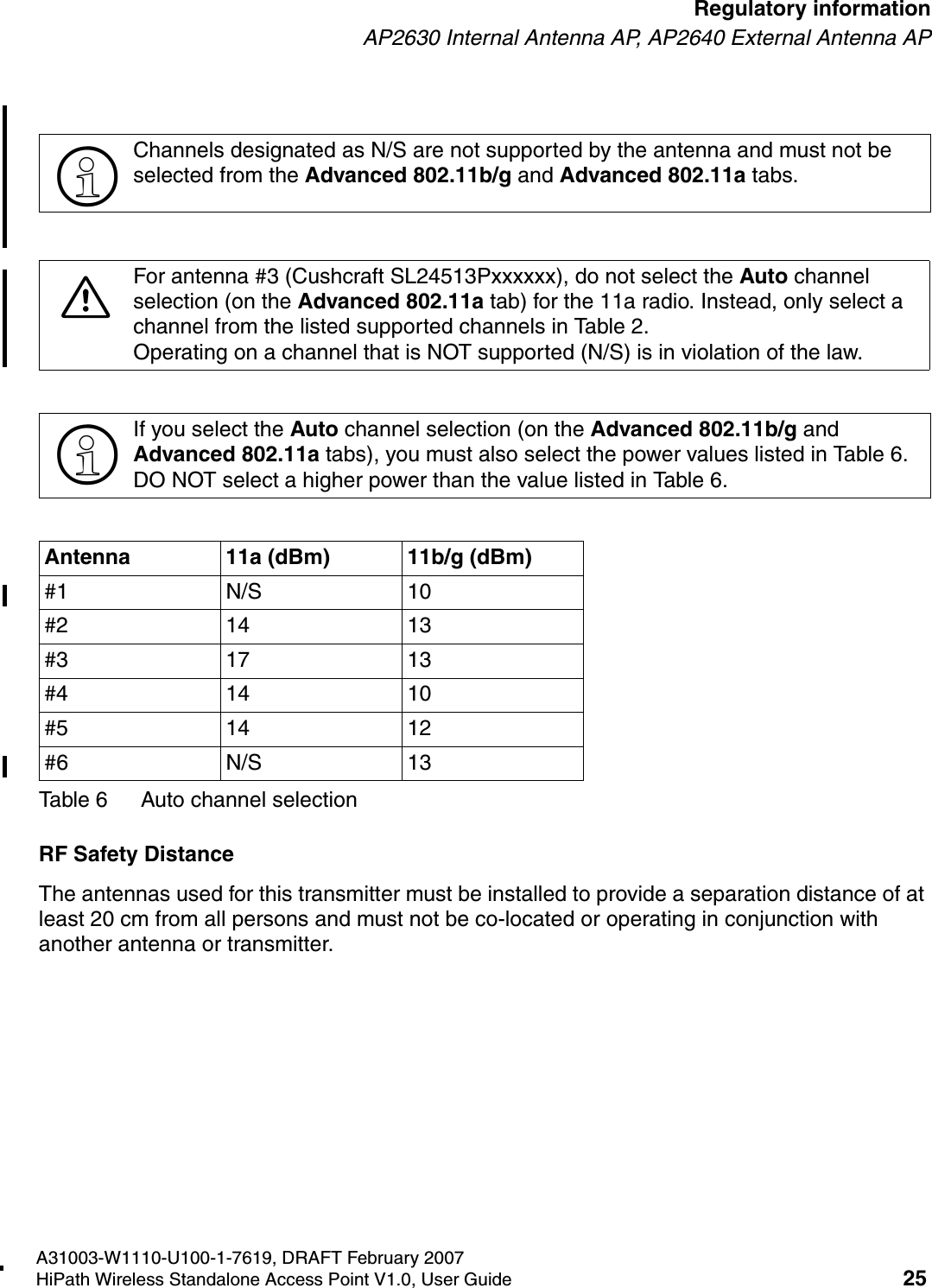
Regulatory information A31003-W1110-U100-1-7619, DRAFT February 200718 HiPath Wireless Standalone Access Point V1.0, User Guide        HSAAP_Regulatory.fmAP2630 Internal Antenna AP, AP2640 External Antenna APRF Safety DistanceThe antennas used for this transmitter must be installed to provide a separation distance of at least 20 cm from all persons and must not be co-located or operating in conjunction with another antenna or transmitter.Antenna 11a (dBm) 11b/g (dBm)#1 N/S 10#2 14 13#3 17 13#4 14 10#5 14 12#6 N/S 13Table 3 Auto channel selection
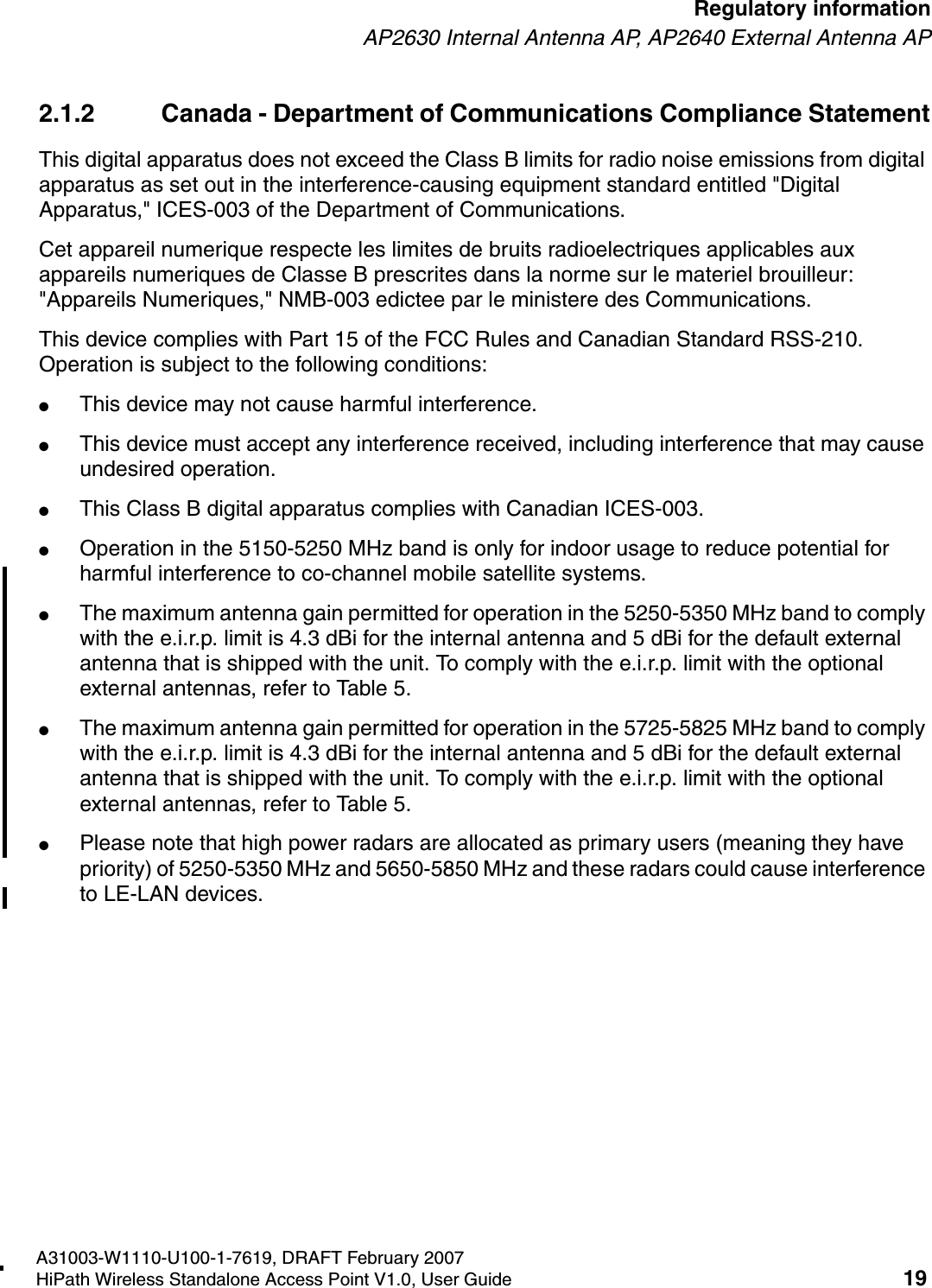
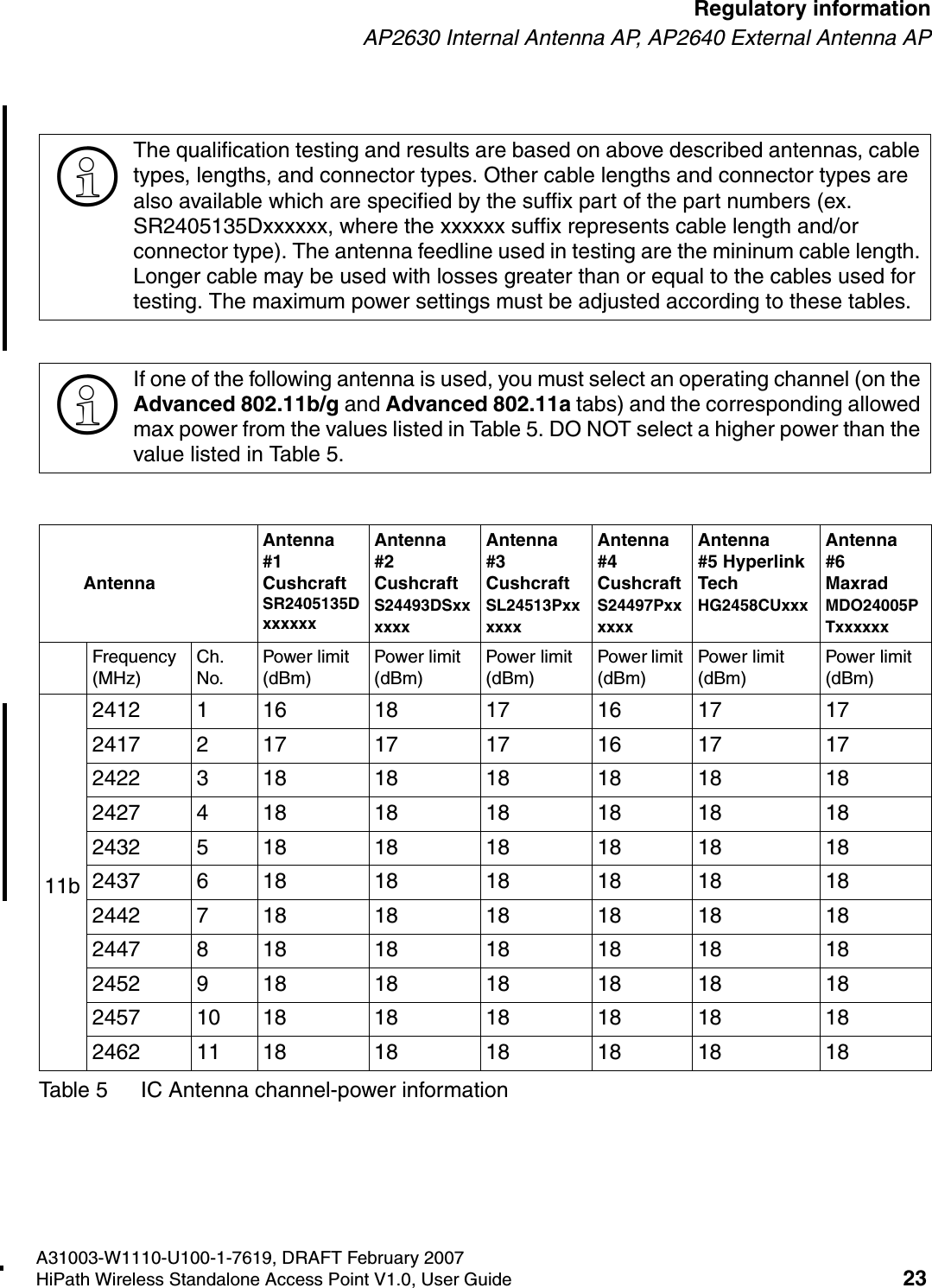
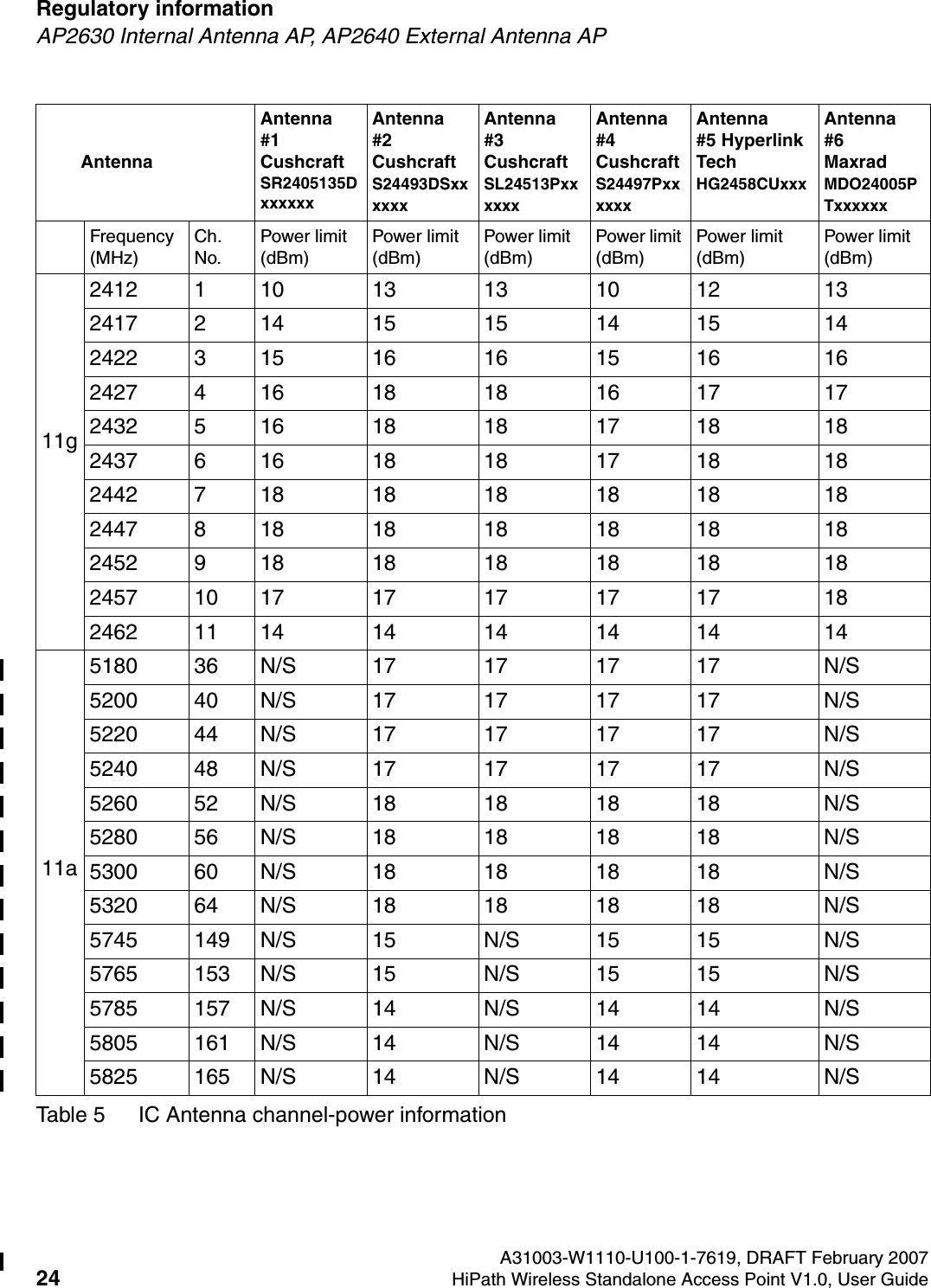
HSAAP_Regulatory.fmA31003-W1110-U100-1-7619, DRAFT February 2007HiPath Wireless Standalone Access Point V1.0, User Guide 19        Regulatory informationAP2630 Internal Antenna AP, AP2640 External Antenna AP2.1.2 Canada - Department of Communications Compliance StatementThis digital apparatus does not exceed the Class B limits for radio noise emissions from digital apparatus as set out in the interference-causing equipment standard entitled "Digital Apparatus," ICES-003 of the Department of Communications.Cet appareil numerique respecte les limites de bruits radioelectriques applicables aux appareils numeriques de Classe B prescrites dans la norme sur le materiel brouilleur: "Appareils Numeriques," NMB-003 edictee par le ministere des Communications.This device complies with Part 15 of the FCC Rules and Canadian Standard RSS-210. Operation is subject to the following conditions: ●This device may not cause harmful interference.●This device must accept any interference received, including interference that may cause undesired operation. ●This Class B digital apparatus complies with Canadian ICES-003.●Operation in the 5150-5250 MHz band is only for indoor usage to reduce potential for harmful interference to co-channel mobile satellite systems. ●The maximum antenna gain permitted for operation in the 5250-5350 MHz band to comply with the e.i.r.p. limit is 4.3 dBi for the internal antenna and 5 dBi for the default external antenna that is shipped with the unit. To comply with the e.i.r.p. limit with the optional external antennas, refer to Table 5.●The maximum antenna gain permitted for operation in the 5725-5825 MHz band to comply with the e.i.r.p. limit is 4.3 dBi for the internal antenna and 5 dBi for the default external antenna that is shipped with the unit. To comply with the e.i.r.p. limit with the optional external antennas, refer to Table 5.●Please note that high power radars are allocated as primary users (meaning they have priority) of 5250-5350 MHz and 5650-5850 MHz and these radars could cause interference to LE-LAN devices.
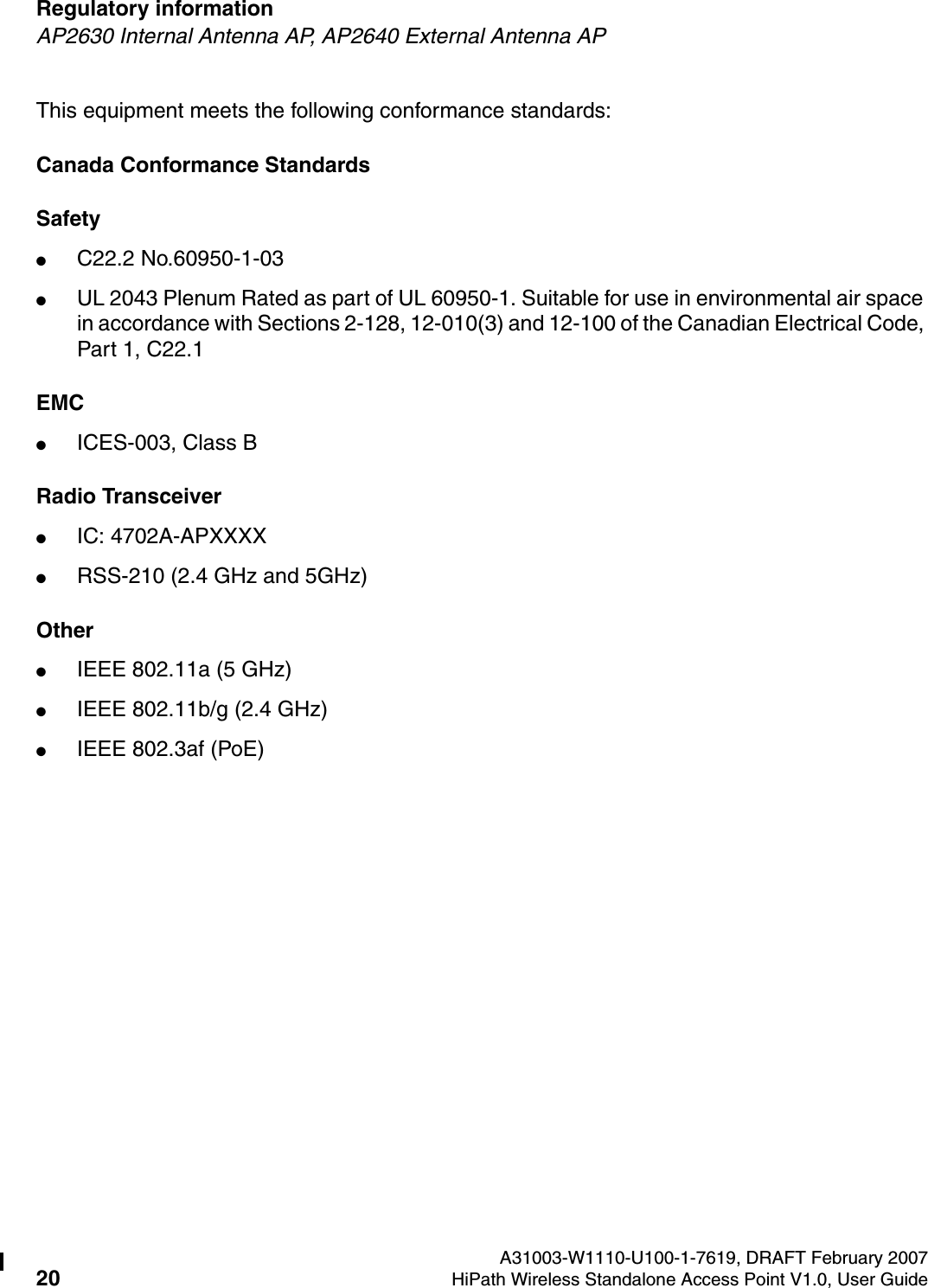
Regulatory information A31003-W1110-U100-1-7619, DRAFT February 200720 HiPath Wireless Standalone Access Point V1.0, User Guide        HSAAP_Regulatory.fmAP2630 Internal Antenna AP, AP2640 External Antenna APThis equipment meets the following conformance standards:Canada Conformance StandardsSafety ●C22.2 No.60950-1-03●UL 2043 Plenum Rated as part of UL 60950-1. Suitable for use in environmental air space in accordance with Sections 2-128, 12-010(3) and 12-100 of the Canadian Electrical Code, Part 1, C22.1EMC ●ICES-003, Class BRadio Transceiver●IC: 4702A-APXXXX●RSS-210 (2.4 GHz and 5GHz)Other●IEEE 802.11a (5 GHz)●IEEE 802.11b/g (2.4 GHz)●IEEE 802.3af (PoE)
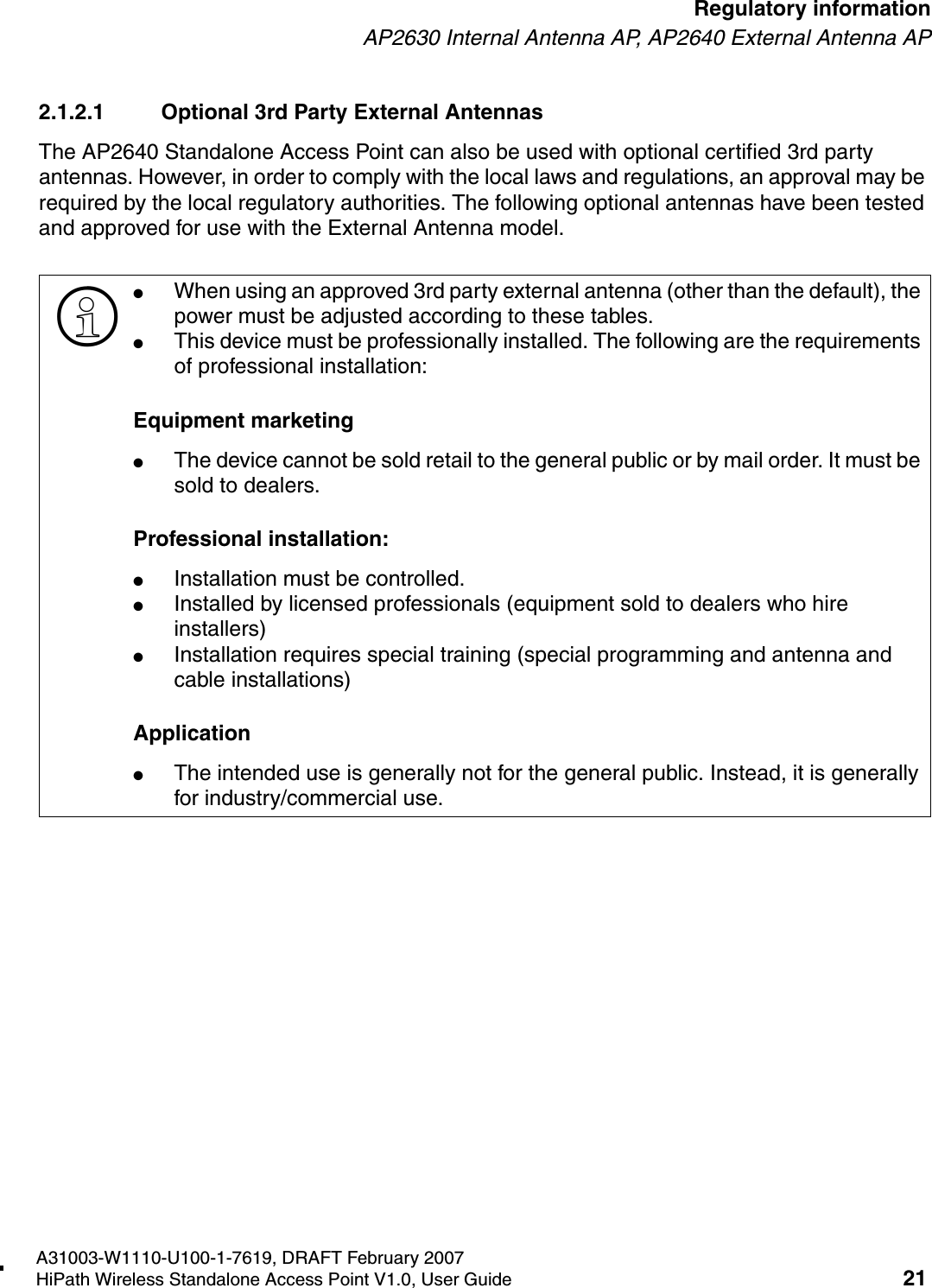
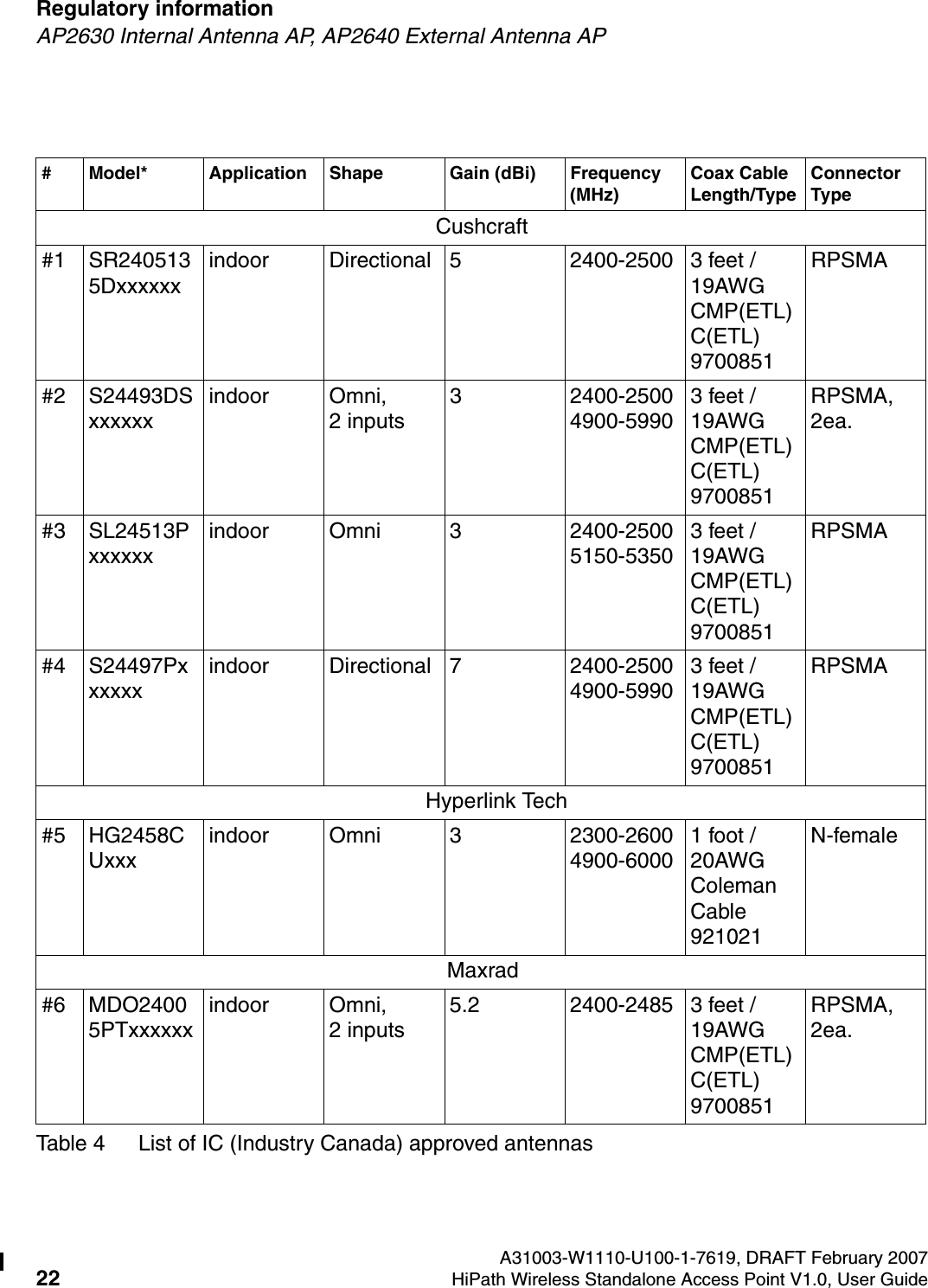
HSAAP_Regulatory.fmA31003-W1110-U100-1-7619, DRAFT February 2007HiPath Wireless Standalone Access Point V1.0, User Guide 21        Regulatory informationAP2630 Internal Antenna AP, AP2640 External Antenna AP2.1.2.1 Optional 3rd Party External AntennasThe AP2640 Standalone Access Point can also be used with optional certified 3rd party antennas. However, in order to comply with the local laws and regulations, an approval may be required by the local regulatory authorities. The following optional antennas have been tested and approved for use with the External Antenna model.>●When using an approved 3rd party external antenna (other than the default), the power must be adjusted according to these tables.●This device must be professionally installed. The following are the requirements of professional installation:Equipment marketing●The device cannot be sold retail to the general public or by mail order. It must be sold to dealers.Professional installation:●Installation must be controlled.●Installed by licensed professionals (equipment sold to dealers who hire installers)●Installation requires special training (special programming and antenna and cable installations)Application●The intended use is generally not for the general public. Instead, it is generally for industry/commercial use.
Regulatory information A31003-W1110-U100-1-7619, DRAFT February 200722 HiPath Wireless Standalone Access Point V1.0, User Guide        HSAAP_Regulatory.fmAP2630 Internal Antenna AP, AP2640 External Antenna AP# Model* Application Shape Gain (dBi) Frequency  (MHz)Coax Cable Length/TypeConnector TypeCushcraft#1 SR2405135Dxxxxxxindoor Directional 5 2400-2500 3 feet / 19AWG CMP(ETL) C(ETL) 9700851RPSMA#2 S24493DSxxxxxxindoor Omni,              2 inputs3 2400-2500  4900-59903 feet / 19AWG CMP(ETL) C(ETL) 9700851RPSMA, 2ea.#3 SL24513Pxxxxxxindoor Omni 3 2400-2500  5150-53503 feet / 19AWG CMP(ETL) C(ETL) 9700851RPSMA#4 S24497Pxxxxxxindoor Directional 7 2400-2500  4900-59903 feet / 19AWG CMP(ETL) C(ETL) 9700851RPSMAHyperlink Tech#5 HG2458CUxxxindoor Omni 3 2300-2600  4900-60001 foot / 20AWG Coleman Cable 921021N-femaleMaxrad#6 MDO24005PTxxxxxxindoor Omni,              2 inputs5.2 2400-2485 3 feet / 19AWG CMP(ETL) C(ETL) 9700851RPSMA, 2ea.Table 4 List of IC (Industry Canada) approved antennas
HSAAP_Regulatory.fmA31003-W1110-U100-1-7619, DRAFT February 2007HiPath Wireless Standalone Access Point V1.0, User Guide 23        Regulatory informationAP2630 Internal Antenna AP, AP2640 External Antenna AP>The qualification testing and results are based on above described antennas, cable types, lengths, and connector types. Other cable lengths and connector types are also available which are specified by the suffix part of the part numbers (ex. SR2405135Dxxxxxx, where the xxxxxx suffix represents cable length and/or connector type). The antenna feedline used in testing are the mininum cable length. Longer cable may be used with losses greater than or equal to the cables used for testing. The maximum power settings must be adjusted according to these tables.>If one of the following antenna is used, you must select an operating channel (on the Advanced 802.11b/g and Advanced 802.11a tabs) and the corresponding allowed max power from the values listed in Table 5. DO NOT select a higher power than the value listed in Table 5.AntennaAntenna #1 Cushcraft SR2405135DxxxxxxAntenna #2 Cushcraft S24493DSxxxxxxAntenna #3 Cushcraft SL24513PxxxxxxAntenna #4 Cushcraft S24497PxxxxxxAntenna #5 Hyperlink Tech HG2458CUxxxAntenna #6 Maxrad MDO24005PTxxxxxxFrequency (MHz)Ch. No.Power limit (dBm)Power limit (dBm)Power limit (dBm)Power limit (dBm)Power limit (dBm)Power limit (dBm)11b241211618171617 17241721717171617 17242231818181818 18242741818181818 18243251818181818 18243761818181818 18244271818181818 18244781818181818 18245291818181818 182457 10 18 18 18 18 18 182462 11 18 18 18 18 18 18Table 5 IC Antenna channel-power information
Regulatory information A31003-W1110-U100-1-7619, DRAFT February 200724 HiPath Wireless Standalone Access Point V1.0, User Guide        HSAAP_Regulatory.fmAP2630 Internal Antenna AP, AP2640 External Antenna AP11g2412 1 10 13 13 10 12 132417 2 14 15 15 14 15 142422 3 15 16 16 15 16 162427 4 16 18 18 16 17 172432 5 16 18 18 17 18 182437 6 16 18 18 17 18 182442 7 18 18 18 18 18 182447 8 18 18 18 18 18 182452 9 18 18 18 18 18 182457 10 17 17 17 17 17 182462 11 14 14 14 14 14 1411a5180 36 N/S 17 17 17 17 N/S5200 40 N/S 17 17 17 17 N/S5220 44 N/S 17 17 17 17 N/S5240 48 N/S 17 17 17 17 N/S5260 52 N/S 18 18 18 18 N/S5280 56 N/S 18 18 18 18 N/S5300 60 N/S 18 18 18 18 N/S5320 64 N/S 18 18 18 18 N/S5745 149 N/S 15 N/S 15 15 N/S5765 153 N/S 15 N/S 15 15 N/S5785 157 N/S 14 N/S 14 14 N/S5805 161 N/S 14 N/S 14 14 N/S5825 165 N/S 14 N/S 14 14 N/SAntennaAntenna #1 Cushcraft SR2405135DxxxxxxAntenna #2 Cushcraft S24493DSxxxxxxAntenna #3 Cushcraft SL24513PxxxxxxAntenna #4 Cushcraft S24497PxxxxxxAntenna #5 Hyperlink Tech HG2458CUxxxAntenna #6 Maxrad MDO24005PTxxxxxxFrequency (MHz)Ch. No.Power limit (dBm)Power limit (dBm)Power limit (dBm)Power limit (dBm)Power limit (dBm)Power limit (dBm)Table 5 IC Antenna channel-power information
HSAAP_Regulatory.fmA31003-W1110-U100-1-7619, DRAFT February 2007HiPath Wireless Standalone Access Point V1.0, User Guide 25        Regulatory informationAP2630 Internal Antenna AP, AP2640 External Antenna APRF Safety DistanceThe antennas used for this transmitter must be installed to provide a separation distance of at least 20 cm from all persons and must not be co-located or operating in conjunction with another antenna or transmitter.>Channels designated as N/S are not supported by the antenna and must not be selected from the Advanced 802.11b/g and Advanced 802.11a tabs.7For antenna #3 (Cushcraft SL24513Pxxxxxx), do not select the Auto channel selection (on the Advanced 802.11a tab) for the 11a radio. Instead, only select a channel from the listed supported channels in Table 2. Operating on a channel that is NOT supported (N/S) is in violation of the law.>If you select the Auto channel selection (on the Advanced 802.11b/g and Advanced 802.11a tabs), you must also select the power values listed in Table 6. DO NOT select a higher power than the value listed in Table 6.Antenna 11a (dBm) 11b/g (dBm)#1 N/S 10#2 14 13#3 17 13#4 14 10#5 14 12#6 N/S 13Table 6 Auto channel selection
Regulatory information A31003-W1110-U100-1-7619, DRAFT February 200726 HiPath Wireless Standalone Access Point V1.0, User Guide        HSAAP_Regulatory.fmAP2630 Internal Antenna AP, AP2640 External Antenna AP2.1.3 European CommunityThe Standalone Access Point—AP2630 and AP2640 (AP26XX series) is designed for use in the European Union and other countries with similar regulatory restrictions where the end user or installer is allowed to configure the Standalone Access Point for operation by entry of a country code relative to a specific country. During configuration the software will prompt the user to select a country code. After the country code is selected, the Standalone Access Point will be set up with the proper frequencies and power outputs for that country code.Although outdoor use may be allowed and may be restricted to certain frequencies and/or may require a license for operation, the Standalone Access Point is intended for indoor use and must be installed in a proper indoor location. Use the installation utility to ensure proper set-up in accordance with all European spectrum usage rules. Contact local Authority for procedure to follow and regulatory information. For more details on legal combinations of frequencies, power levels and antennas, contact Siemens.Declaration of Conformity with R&TTE Directive of the European Union 1999/5/ECThe following symbol indicates compliance with the Essential Requirements of the R&TTE Directive of the European Union (1999/5/EC). 7The Standalone Access Point is in compliance with the European Directive 2002/95/EC on the restriction of the use of certain hazardous substances (RoHS) in electrical and electronic equipment.
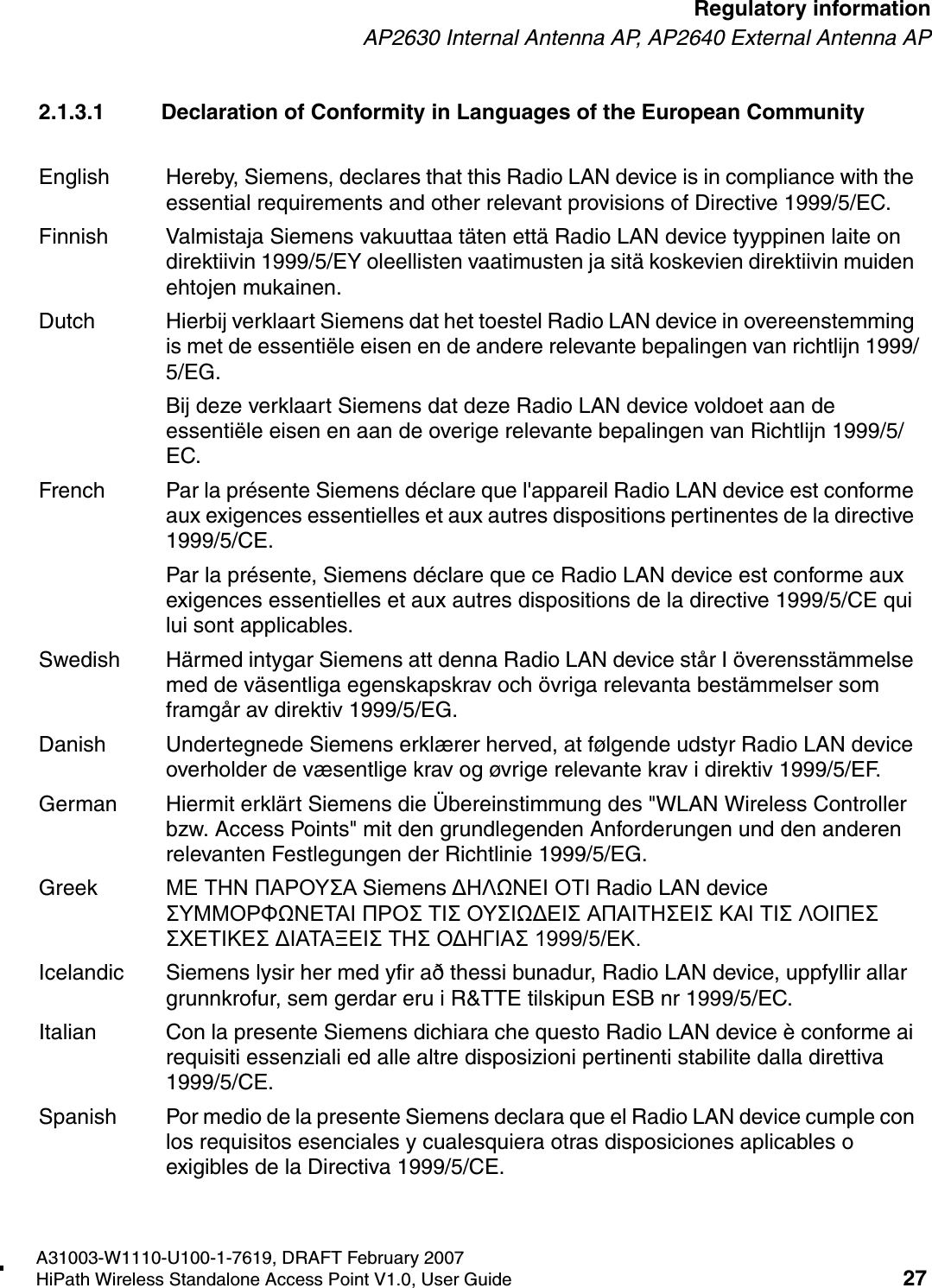
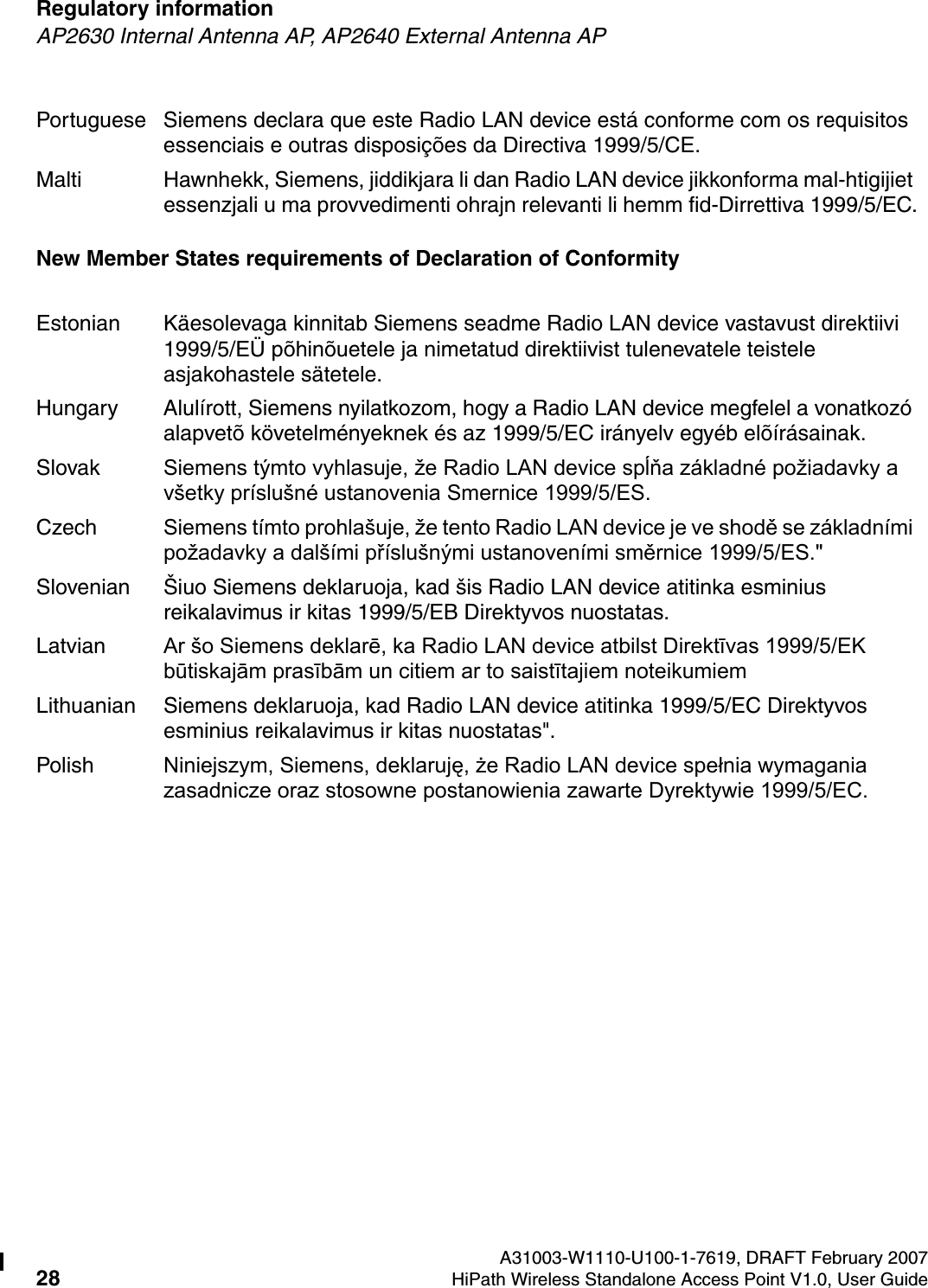
HSAAP_Regulatory.fmA31003-W1110-U100-1-7619, DRAFT February 2007HiPath Wireless Standalone Access Point V1.0, User Guide 27        Regulatory informationAP2630 Internal Antenna AP, AP2640 External Antenna AP2.1.3.1 Declaration of Conformity in Languages of the European CommunityEnglish Hereby, Siemens, declares that this Radio LAN device is in compliance with the essential requirements and other relevant provisions of Directive 1999/5/EC.Finnish Valmistaja Siemens vakuuttaa täten että Radio LAN device tyyppinen laite on direktiivin 1999/5/EY oleellisten vaatimusten ja sitä koskevien direktiivin muiden ehtojen mukainen.Dutch Hierbij verklaart Siemens dat het toestel Radio LAN device in overeenstemming is met de essentiële eisen en de andere relevante bepalingen van richtlijn 1999/5/EG. Bij deze verklaart Siemens dat deze Radio LAN device voldoet aan de essentiële eisen en aan de overige relevante bepalingen van Richtlijn 1999/5/EC.French Par la présente Siemens déclare que l'appareil Radio LAN device est conforme aux exigences essentielles et aux autres dispositions pertinentes de la directive 1999/5/CE. Par la présente, Siemens déclare que ce Radio LAN device est conforme aux exigences essentielles et aux autres dispositions de la directive 1999/5/CE qui lui sont applicables.Swedish Härmed intygar Siemens att denna Radio LAN device står I överensstämmelse med de väsentliga egenskapskrav och övriga relevanta bestämmelser som framgår av direktiv 1999/5/EG. Danish Undertegnede Siemens erklærer herved, at følgende udstyr Radio LAN device overholder de væsentlige krav og øvrige relevante krav i direktiv 1999/5/EF.German Hiermit erklärt Siemens die Übereinstimmung des "WLAN Wireless Controller bzw. Access Points" mit den grundlegenden Anforderungen und den anderen relevanten Festlegungen der Richtlinie 1999/5/EG.Greek ΜΕ ΤΗΝ ΠΑΡΟΥΣΑ Siemens ΔΗΛΩΝΕΙ ΟΤΙ Radio LAN device ΣΥΜΜΟΡΦΩΝΕΤΑΙ ΠΡΟΣ ΤΙΣ ΟΥΣΙΩΔΕΙΣ ΑΠΑΙΤΗΣΕΙΣ ΚΑΙ ΤΙΣ ΛΟΙΠΕΣ ΣΧΕΤΙΚΕΣ ΔΙΑΤΑΞΕΙΣ ΤΗΣ ΟΔΗΓΙΑΣ 1999/5/ΕΚ.Icelandic Siemens lysir her med yfir að thessi bunadur, Radio LAN device, uppfyllir allar grunnkrofur, sem gerdar eru i R&TTE tilskipun ESB nr 1999/5/EC.Italian Con la presente Siemens dichiara che questo Radio LAN device è conforme ai requisiti essenziali ed alle altre disposizioni pertinenti stabilite dalla direttiva 1999/5/CE.Spanish Por medio de la presente Siemens declara que el Radio LAN device cumple con los requisitos esenciales y cualesquiera otras disposiciones aplicables o exigibles de la Directiva 1999/5/CE.
Regulatory information A31003-W1110-U100-1-7619, DRAFT February 200728 HiPath Wireless Standalone Access Point V1.0, User Guide        HSAAP_Regulatory.fmAP2630 Internal Antenna AP, AP2640 External Antenna APNew Member States requirements of Declaration of ConformityPortuguese Siemens declara que este Radio LAN device está conforme com os requisitos essenciais e outras disposições da Directiva 1999/5/CE. Malti Hawnhekk, Siemens, jiddikjara li dan Radio LAN device jikkonforma mal-htigijiet essenzjali u ma provvedimenti ohrajn relevanti li hemm fid-Dirrettiva 1999/5/EC.Estonian Käesolevaga kinnitab Siemens seadme Radio LAN device vastavust direktiivi 1999/5/EÜ põhinõuetele ja nimetatud direktiivist tulenevatele teistele asjakohastele sätetele.Hungary Alulírott, Siemens nyilatkozom, hogy a Radio LAN device megfelel a vonatkozó alapvetõ követelményeknek és az 1999/5/EC irányelv egyéb elõírásainak.Slovak Siemens týmto vyhlasuje, že Radio LAN device spĺňa základné požiadavky a všetky príslušné ustanovenia Smernice 1999/5/ES.Czech Siemens tímto prohlašuje, že tento Radio LAN device je ve shodě se základními požadavky a dalšími příslušnými ustanoveními směrnice 1999/5/ES."Slovenian Šiuo Siemens deklaruoja, kad šis Radio LAN device atitinka esminius reikalavimus ir kitas 1999/5/EB Direktyvos nuostatas.Latvian Ar šo Siemens deklarē, ka Radio LAN device atbilst Direktīvas 1999/5/EK būtiskajām prasībām un citiem ar to saistītajiem noteikumiemLithuanian Siemens deklaruoja, kad Radio LAN device atitinka 1999/5/EC Direktyvos esminius reikalavimus ir kitas nuostatas".Polish Niniejszym, Siemens, deklaruję, że Radio LAN device spełnia wymagania zasadnicze oraz stosowne postanowienia zawarte Dyrektywie 1999/5/EC.
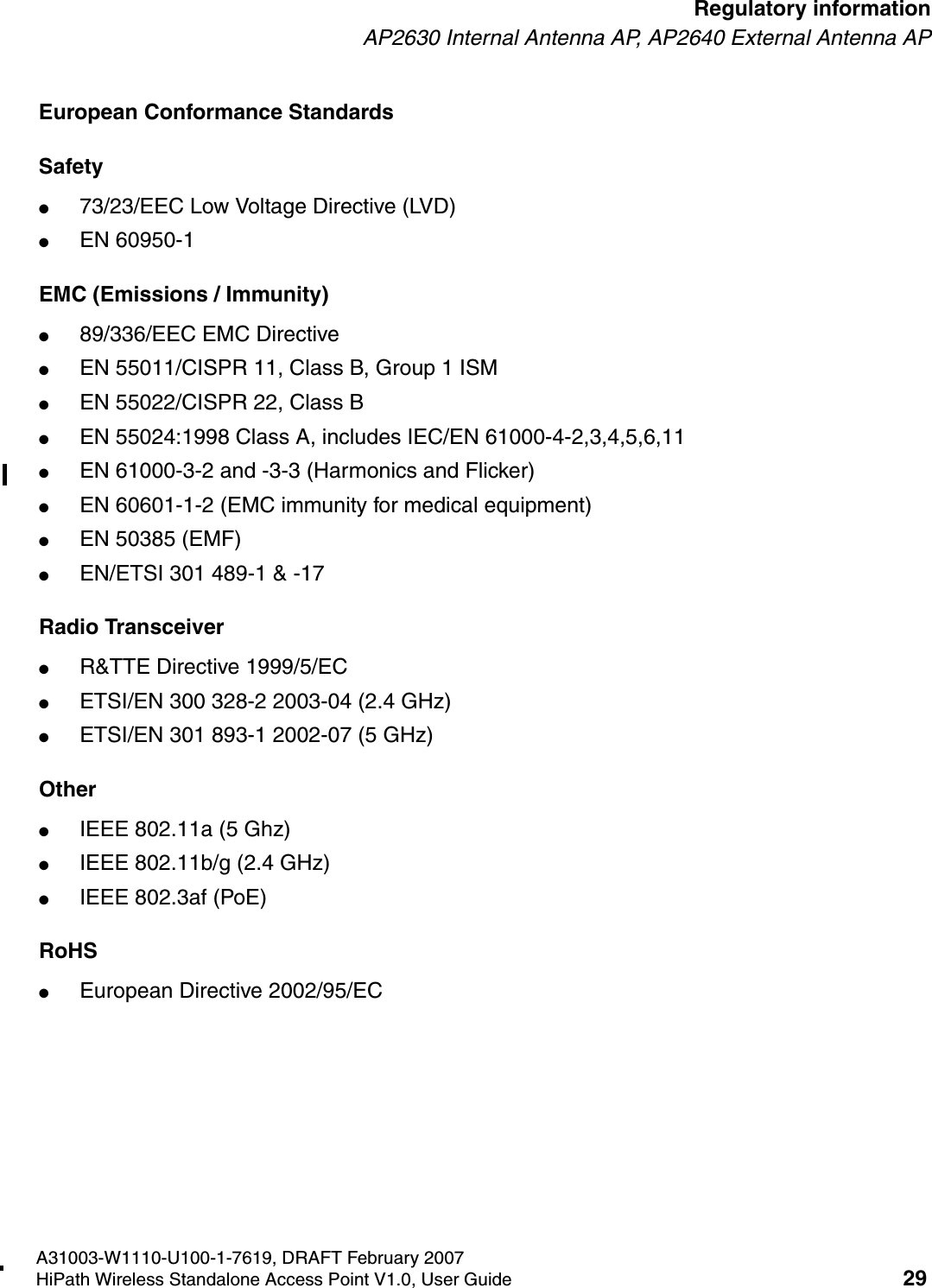
HSAAP_Regulatory.fmA31003-W1110-U100-1-7619, DRAFT February 2007HiPath Wireless Standalone Access Point V1.0, User Guide 29        Regulatory informationAP2630 Internal Antenna AP, AP2640 External Antenna APEuropean Conformance StandardsSafety ●73/23/EEC Low Voltage Directive (LVD)●EN 60950-1EMC (Emissions / Immunity)●89/336/EEC EMC Directive●EN 55011/CISPR 11, Class B, Group 1 ISM●EN 55022/CISPR 22, Class B●EN 55024:1998 Class A, includes IEC/EN 61000-4-2,3,4,5,6,11●EN 61000-3-2 and -3-3 (Harmonics and Flicker)●EN 60601-1-2 (EMC immunity for medical equipment)●EN 50385 (EMF)●EN/ETSI 301 489-1 & -17 Radio Transceiver ●R&TTE Directive 1999/5/EC●ETSI/EN 300 328-2 2003-04 (2.4 GHz)●ETSI/EN 301 893-1 2002-07 (5 GHz)Other●IEEE 802.11a (5 Ghz)●IEEE 802.11b/g (2.4 GHz)●IEEE 802.3af (PoE)RoHS●European Directive 2002/95/EC
Regulatory information A31003-W1110-U100-1-7619, DRAFT February 200730 HiPath Wireless Standalone Access Point V1.0, User Guide        HSAAP_Regulatory.fmAP2630 Internal Antenna AP, AP2640 External Antenna AP2.1.3.2 Optional 3rd Party External AntennasThe AP2640 Standalone Access Point can also be used with optional certified 3rd party antennas. However, in order to comply with the local laws and regulations, an approval may be required by the local regulatory authorities. The following optional antennas have been tested and approved for use with the External Antenna model.>●When using an approved 3rd party external antenna (other than the default), the power must be adjusted according to these tables.●This device must be professionally installed. The following are the requirements of professional installation:Equipment marketing●The device cannot be sold retail to the general public or by mail order. It must be sold to dealers.Professional installation:●Installation must be controlled.●Installed by licensed professionals (equipment sold to dealers who hire installers)●Installation requires special training (special programming and antenna and cable installations)Application●The intended use is generally not for the general public. Instead, it is generally for industry/commercial use.
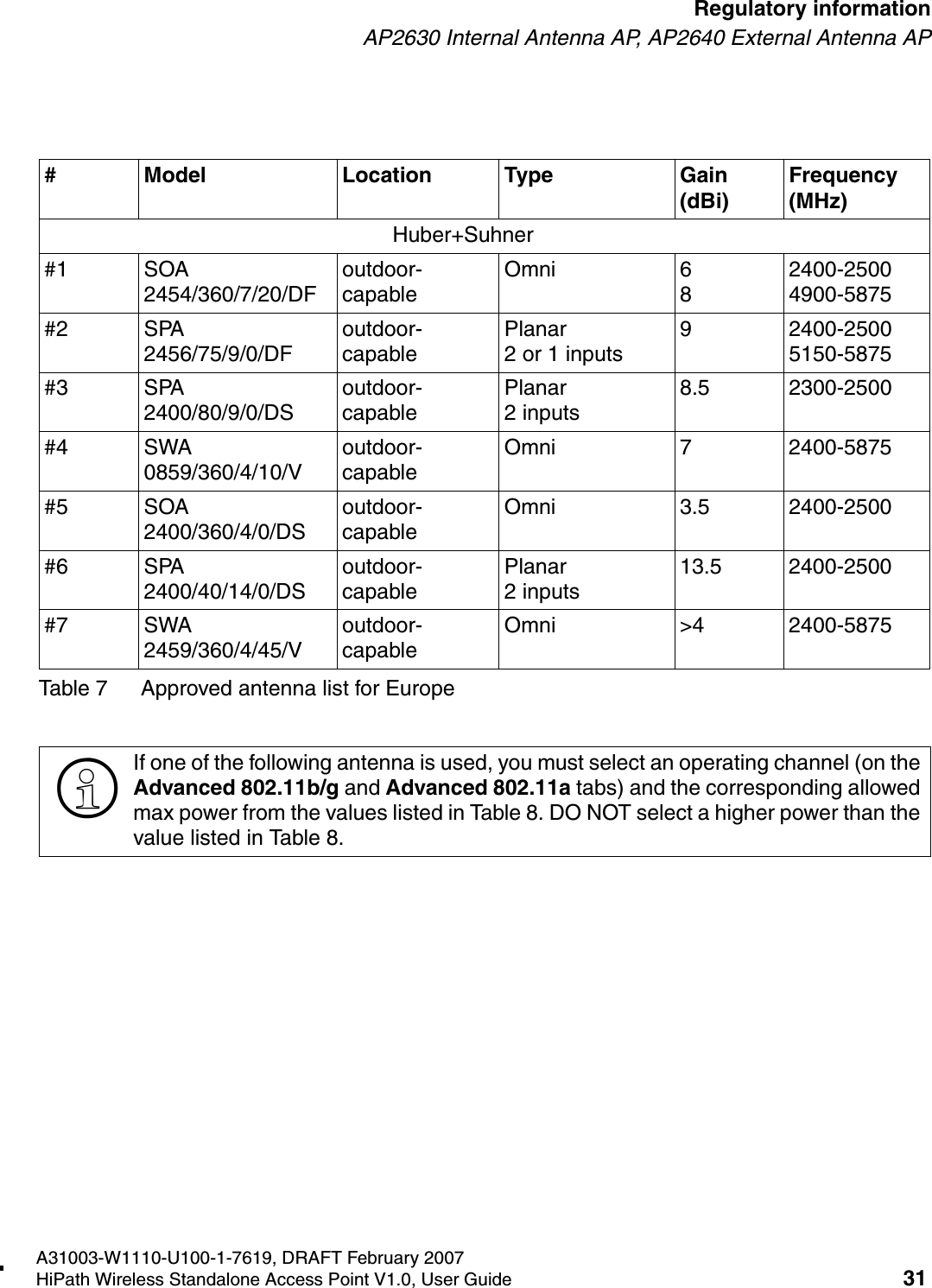
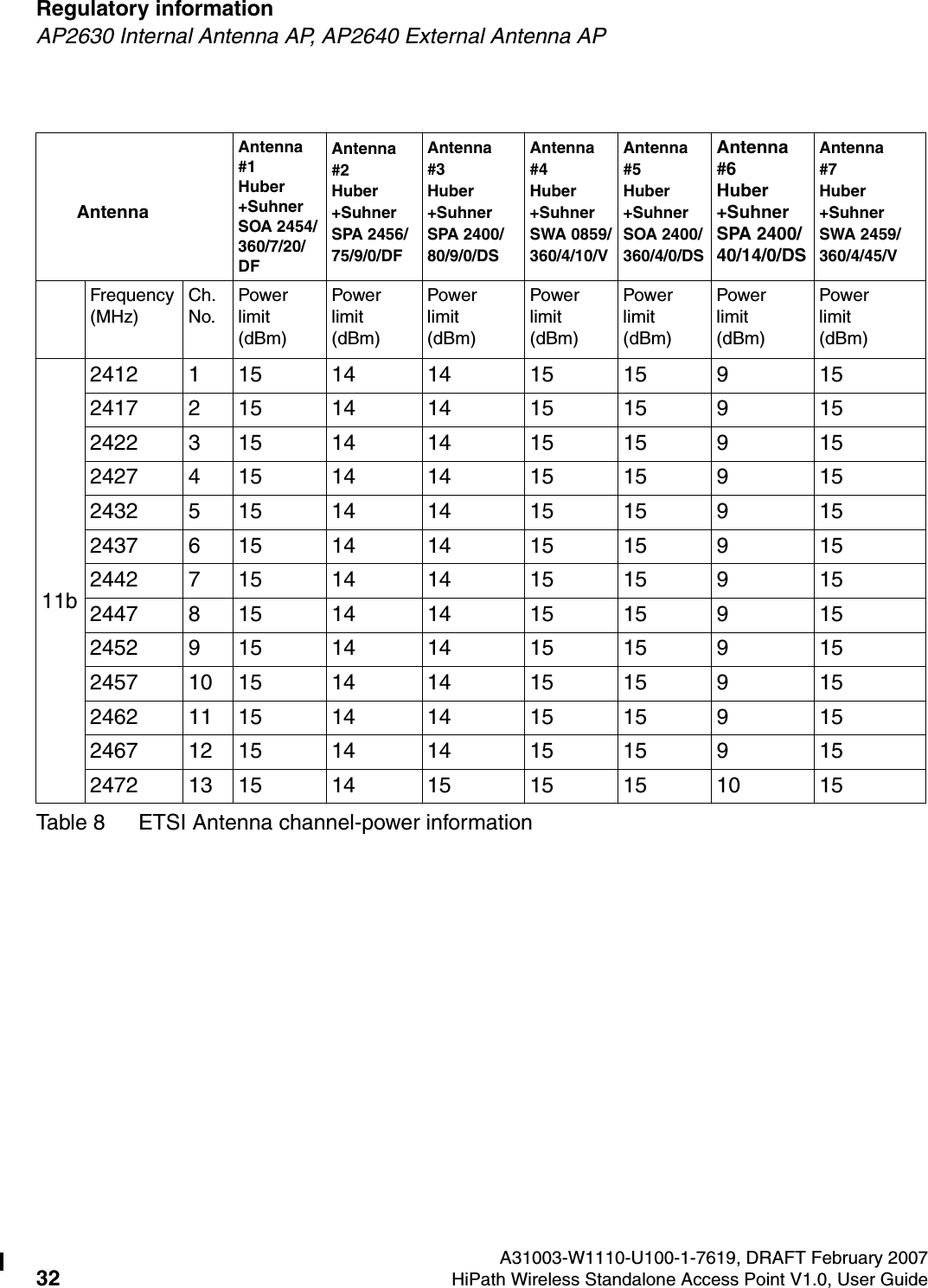
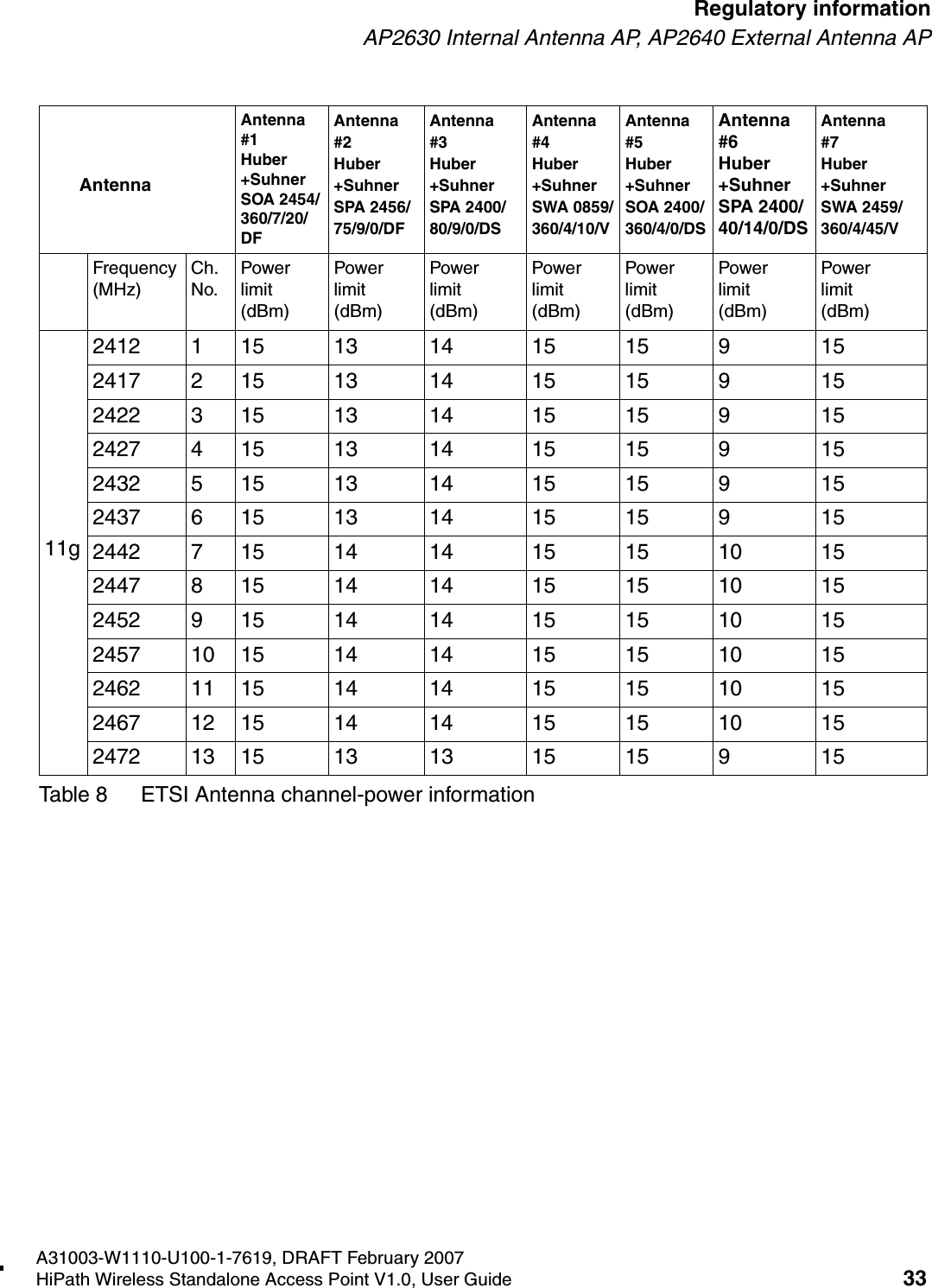
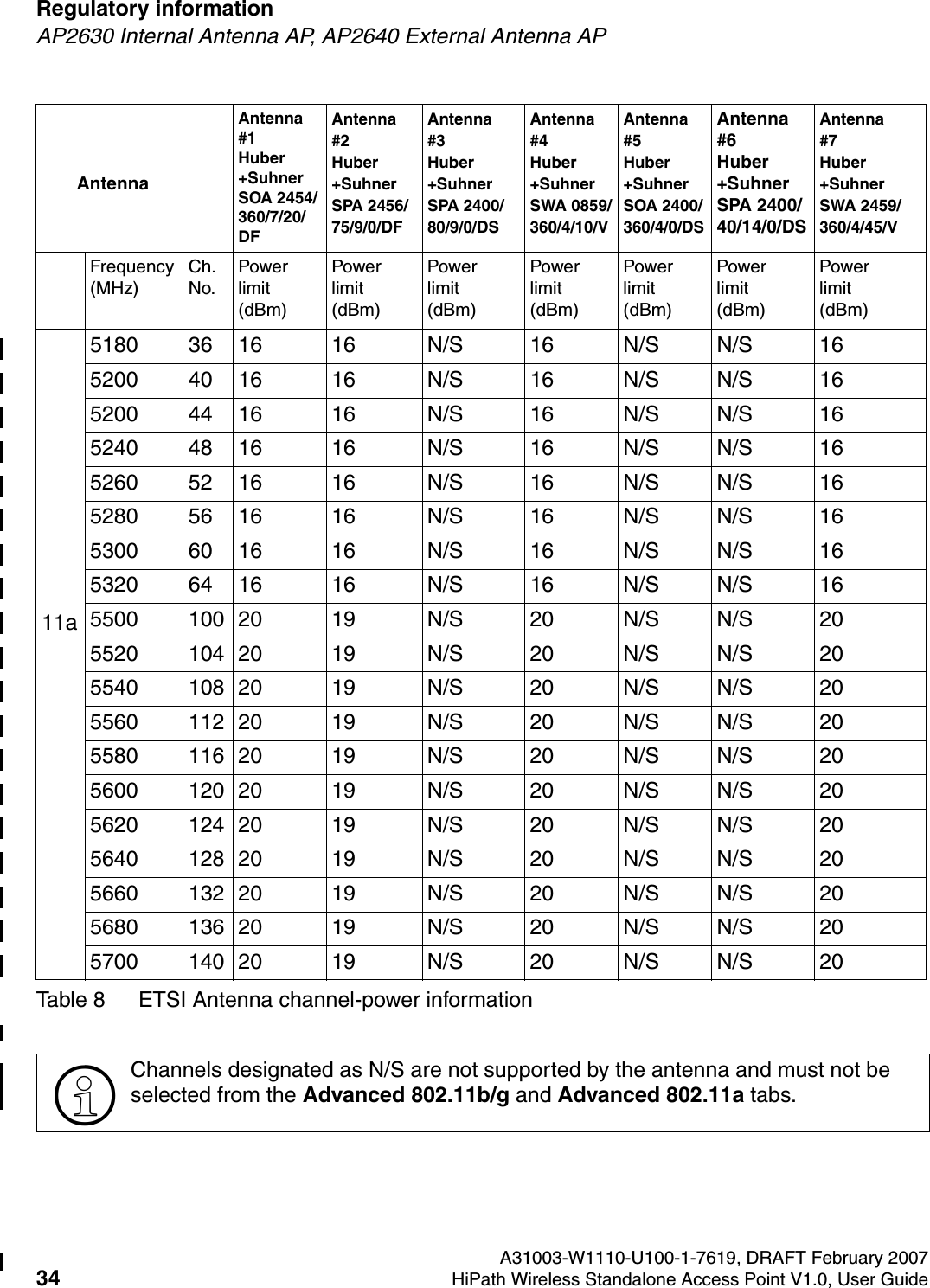
HSAAP_Regulatory.fmA31003-W1110-U100-1-7619, DRAFT February 2007HiPath Wireless Standalone Access Point V1.0, User Guide 31        Regulatory informationAP2630 Internal Antenna AP, AP2640 External Antenna AP# Model Location Type Gain (dBi)Frequency  (MHz)Huber+Suhner#1 SOA 2454/360/7/20/DFoutdoor-capableOmni 682400-25004900-5875#2 SPA 2456/75/9/0/DFoutdoor-capablePlanar2 or 1 inputs9 2400-2500 5150-5875#3 SPA 2400/80/9/0/DSoutdoor-capablePlanar2 inputs8.5 2300-2500#4 SWA 0859/360/4/10/Voutdoor-capableOmni 7 2400-5875#5 SOA 2400/360/4/0/DSoutdoor-capableOmni 3.5 2400-2500#6 SPA 2400/40/14/0/DSoutdoor-capablePlanar2 inputs13.5 2400-2500#7 SWA 2459/360/4/45/Voutdoor-capableOmni >4 2400-5875Table 7 Approved antenna list for Europe>If one of the following antenna is used, you must select an operating channel (on the Advanced 802.11b/g and Advanced 802.11a tabs) and the corresponding allowed max power from the values listed in Table 8. DO NOT select a higher power than the value listed in Table 8.
Regulatory information A31003-W1110-U100-1-7619, DRAFT February 200732 HiPath Wireless Standalone Access Point V1.0, User Guide        HSAAP_Regulatory.fmAP2630 Internal Antenna AP, AP2640 External Antenna APAntennaAntenna #1 Huber+Suhner SOA 2454/360/7/20/DFAntenna #2 Huber+Suhner SPA 2456/75/9/0/DFAntenna #3Huber+Suhner SPA 2400/80/9/0/DSAntenna #4 Huber+Suhner   SWA 0859/360/4/10/VAntenna #5Huber+Suhner SOA 2400/360/4/0/DSAntenna #6Huber+Suhner SPA 2400/40/14/0/DSAntenna#7Huber+Suhner SWA 2459/360/4/45/VFrequency (MHz)Ch. No.Power limit (dBm)Power limit (dBm)Power limit (dBm)Power limit (dBm)Power limit (dBm)Power limit (dBm)Power limit (dBm)11b2412 1 15 14 14 15 15 9 152417 2 15 14 14 15 15 9 152422 3 15 14 14 15 15 9 152427 4 15 14 14 15 15 9 152432 5 15 14 14 15 15 9 152437 6 15 14 14 15 15 9 152442 7 15 14 14 15 15 9 152447 8 15 14 14 15 15 9 152452 9 15 14 14 15 15 9 152457 10 15 14 14 15 15 9 152462 11 15 14 14 15 15 9 152467 12 15 14 14 15 15 9 152472 13 15 14 15 15 15 10 15Table 8 ETSI Antenna channel-power information
HSAAP_Regulatory.fmA31003-W1110-U100-1-7619, DRAFT February 2007HiPath Wireless Standalone Access Point V1.0, User Guide 33        Regulatory informationAP2630 Internal Antenna AP, AP2640 External Antenna AP11g2412 1 15 13 14 15 15 9 152417 2 15 13 14 15 15 9 152422 3 15 13 14 15 15 9 152427 4 15 13 14 15 15 9 152432 5 15 13 14 15 15 9 152437 6 15 13 14 15 15 9 152442 7 15 14 14 15 15 10 152447 8 15 14 14 15 15 10 152452 9 15 14 14 15 15 10 152457 10 15 14 14 15 15 10 152462 11 15 14 14 15 15 10 152467 12 15 14 14 15 15 10 152472 13 15 13 13 15 15 9 15AntennaAntenna #1 Huber+Suhner SOA 2454/360/7/20/DFAntenna #2 Huber+Suhner SPA 2456/75/9/0/DFAntenna #3Huber+Suhner SPA 2400/80/9/0/DSAntenna #4 Huber+Suhner   SWA 0859/360/4/10/VAntenna #5Huber+Suhner SOA 2400/360/4/0/DSAntenna #6Huber+Suhner SPA 2400/40/14/0/DSAntenna#7Huber+Suhner SWA 2459/360/4/45/VFrequency (MHz)Ch. No.Power limit (dBm)Power limit (dBm)Power limit (dBm)Power limit (dBm)Power limit (dBm)Power limit (dBm)Power limit (dBm)Table 8 ETSI Antenna channel-power information
Regulatory information A31003-W1110-U100-1-7619, DRAFT February 200734 HiPath Wireless Standalone Access Point V1.0, User Guide        HSAAP_Regulatory.fmAP2630 Internal Antenna AP, AP2640 External Antenna AP11a5180 36 16 16 N/S 16 N/S N/S 165200 40 16 16 N/S 16 N/S N/S 165200 44 16 16 N/S 16 N/S N/S 165240 48 16 16 N/S 16 N/S N/S 165260 52 16 16 N/S 16 N/S N/S 165280 56 16 16 N/S 16 N/S N/S 165300 60 16 16 N/S 16 N/S N/S 165320 64 16 16 N/S 16 N/S N/S 165500 100 20 19 N/S 20 N/S N/S 205520 104 20 19 N/S 20 N/S N/S 205540 108 20 19 N/S 20 N/S N/S 205560 112 20 19 N/S 20 N/S N/S 205580 116 20 19 N/S 20 N/S N/S 205600 120 20 19 N/S 20 N/S N/S 205620 124 20 19 N/S 20 N/S N/S 205640 128 20 19 N/S 20 N/S N/S 205660 132 20 19 N/S 20 N/S N/S 205680 136 20 19 N/S 20 N/S N/S 205700 140 20 19 N/S 20 N/S N/S 20>Channels designated as N/S are not supported by the antenna and must not be selected from the Advanced 802.11b/g and Advanced 802.11a tabs.AntennaAntenna #1 Huber+Suhner SOA 2454/360/7/20/DFAntenna #2 Huber+Suhner SPA 2456/75/9/0/DFAntenna #3Huber+Suhner SPA 2400/80/9/0/DSAntenna #4 Huber+Suhner   SWA 0859/360/4/10/VAntenna #5Huber+Suhner SOA 2400/360/4/0/DSAntenna #6Huber+Suhner SPA 2400/40/14/0/DSAntenna#7Huber+Suhner SWA 2459/360/4/45/VFrequency (MHz)Ch. No.Power limit (dBm)Power limit (dBm)Power limit (dBm)Power limit (dBm)Power limit (dBm)Power limit (dBm)Power limit (dBm)Table 8 ETSI Antenna channel-power information
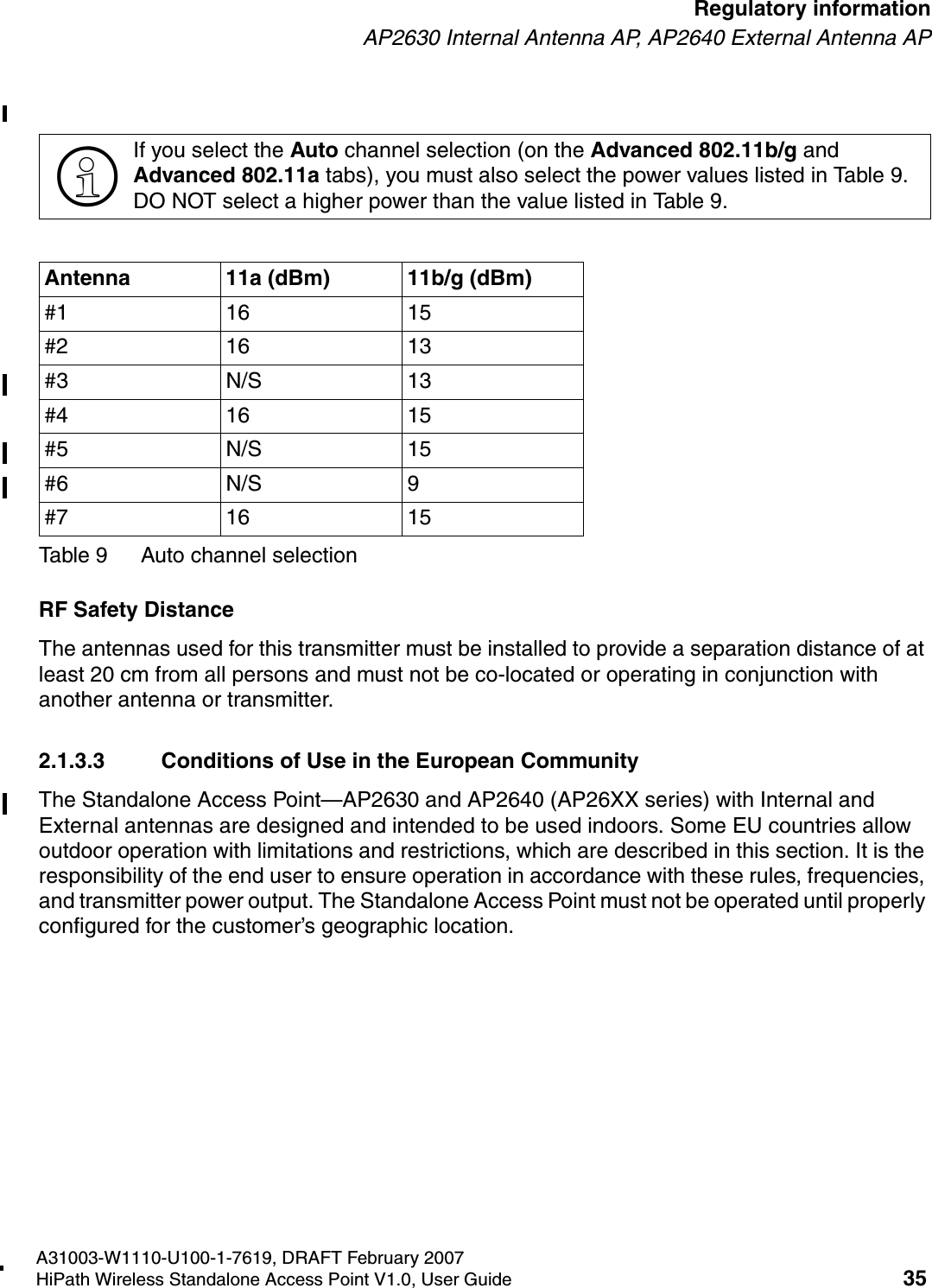
HSAAP_Regulatory.fmA31003-W1110-U100-1-7619, DRAFT February 2007HiPath Wireless Standalone Access Point V1.0, User Guide 35        Regulatory informationAP2630 Internal Antenna AP, AP2640 External Antenna APRF Safety DistanceThe antennas used for this transmitter must be installed to provide a separation distance of at least 20 cm from all persons and must not be co-located or operating in conjunction with another antenna or transmitter.2.1.3.3 Conditions of Use in the European CommunityThe Standalone Access Point—AP2630 and AP2640 (AP26XX series) with Internal and External antennas are designed and intended to be used indoors. Some EU countries allow outdoor operation with limitations and restrictions, which are described in this section. It is the responsibility of the end user to ensure operation in accordance with these rules, frequencies, and transmitter power output. The Standalone Access Point must not be operated until properly configured for the customer’s geographic location.>If you select the Auto channel selection (on the Advanced 802.11b/g and Advanced 802.11a tabs), you must also select the power values listed in Table 9. DO NOT select a higher power than the value listed in Table 9.Antenna 11a (dBm) 11b/g (dBm)#1 16 15#2 16 13#3 N/S 13#4 16 15#5 N/S 15#6 N/S 9#7 16 15Table 9 Auto channel selection
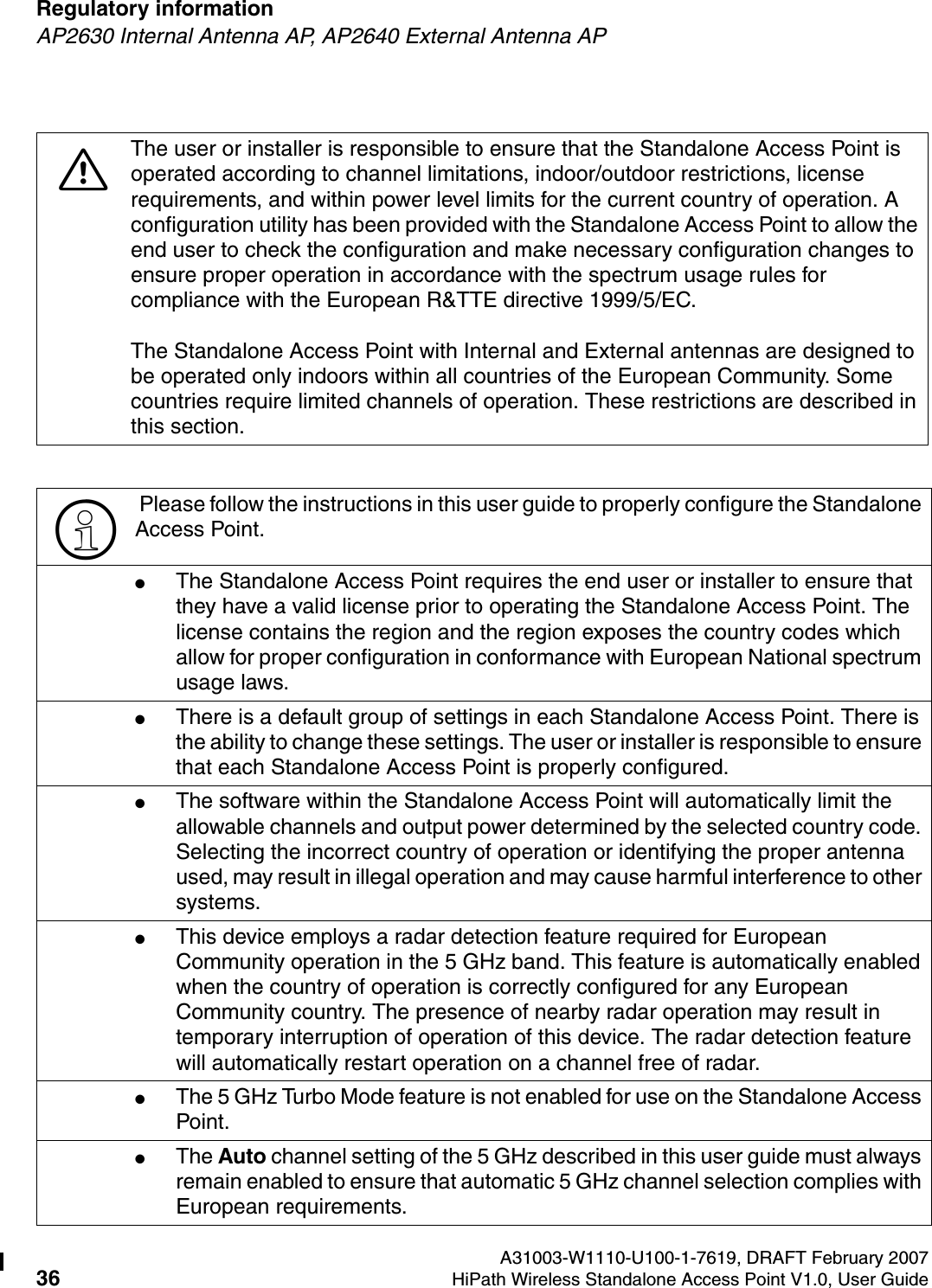
Regulatory information A31003-W1110-U100-1-7619, DRAFT February 200736 HiPath Wireless Standalone Access Point V1.0, User Guide        HSAAP_Regulatory.fmAP2630 Internal Antenna AP, AP2640 External Antenna AP7The user or installer is responsible to ensure that the Standalone Access Point is operated according to channel limitations, indoor/outdoor restrictions, license requirements, and within power level limits for the current country of operation. A configuration utility has been provided with the Standalone Access Point to allow the end user to check the configuration and make necessary configuration changes to ensure proper operation in accordance with the spectrum usage rules for compliance with the European R&TTE directive 1999/5/EC.The Standalone Access Point with Internal and External antennas are designed to be operated only indoors within all countries of the European Community. Some countries require limited channels of operation. These restrictions are described in this section.> Please follow the instructions in this user guide to properly configure the Standalone Access Point.●The Standalone Access Point requires the end user or installer to ensure that they have a valid license prior to operating the Standalone Access Point. The license contains the region and the region exposes the country codes which allow for proper configuration in conformance with European National spectrum usage laws. ●There is a default group of settings in each Standalone Access Point. There is the ability to change these settings. The user or installer is responsible to ensure that each Standalone Access Point is properly configured.●The software within the Standalone Access Point will automatically limit the allowable channels and output power determined by the selected country code. Selecting the incorrect country of operation or identifying the proper antenna used, may result in illegal operation and may cause harmful interference to other systems.●This device employs a radar detection feature required for European Community operation in the 5 GHz band. This feature is automatically enabled when the country of operation is correctly configured for any European Community country. The presence of nearby radar operation may result in temporary interruption of operation of this device. The radar detection feature will automatically restart operation on a channel free of radar.●The 5 GHz Turbo Mode feature is not enabled for use on the Standalone Access Point.●The Auto channel setting of the 5 GHz described in this user guide must always remain enabled to ensure that automatic 5 GHz channel selection complies with European requirements.
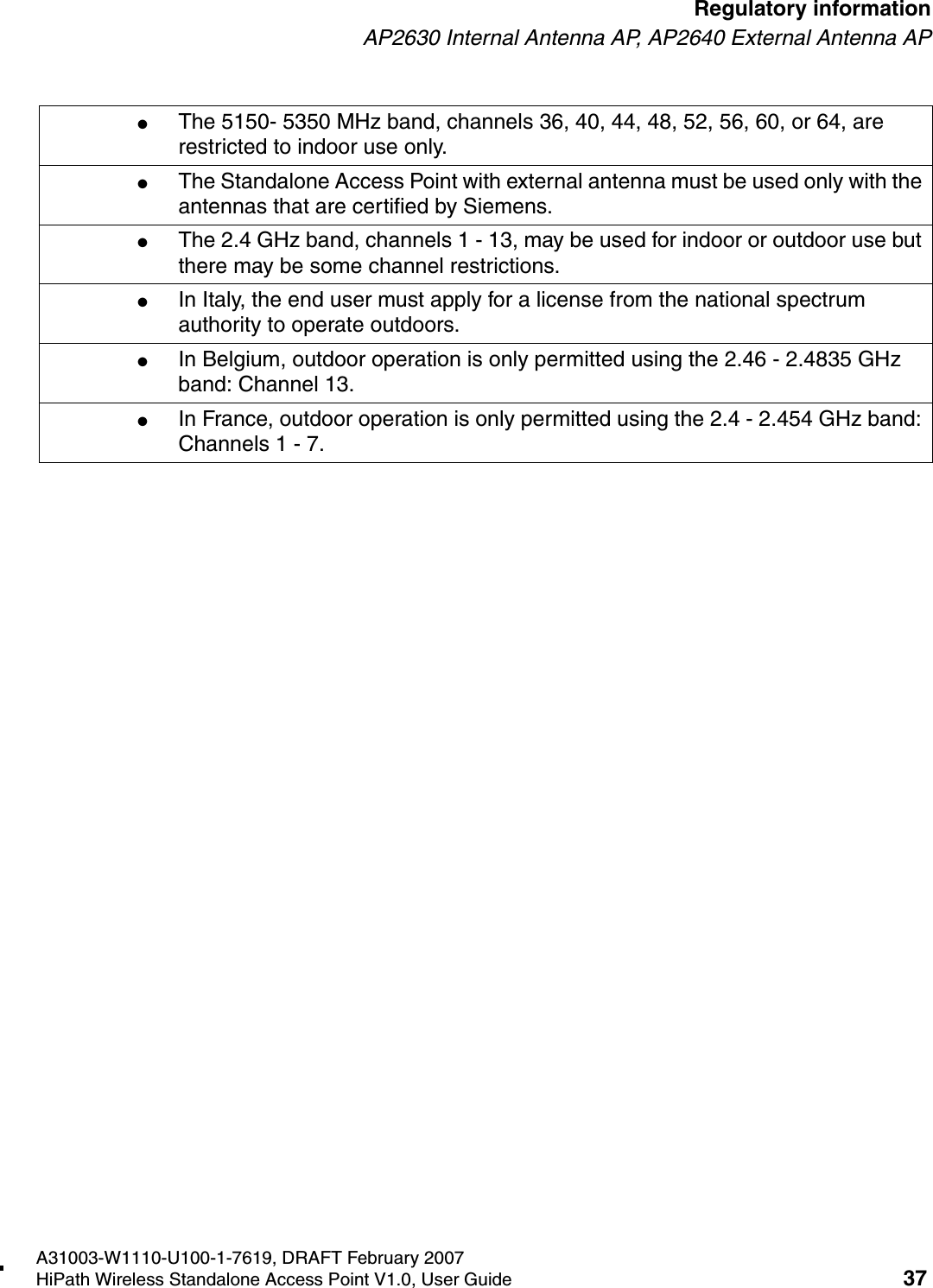
HSAAP_Regulatory.fmA31003-W1110-U100-1-7619, DRAFT February 2007HiPath Wireless Standalone Access Point V1.0, User Guide 37        Regulatory informationAP2630 Internal Antenna AP, AP2640 External Antenna AP●The 5150- 5350 MHz band, channels 36, 40, 44, 48, 52, 56, 60, or 64, are restricted to indoor use only.●The Standalone Access Point with external antenna must be used only with the antennas that are certified by Siemens.●The 2.4 GHz band, channels 1 - 13, may be used for indoor or outdoor use but there may be some channel restrictions.●In Italy, the end user must apply for a license from the national spectrum authority to operate outdoors.●In Belgium, outdoor operation is only permitted using the 2.46 - 2.4835 GHz band: Channel 13.●In France, outdoor operation is only permitted using the 2.4 - 2.454 GHz band: Channels 1 - 7.
Regulatory information A31003-W1110-U100-1-7619, DRAFT February 200738 HiPath Wireless Standalone Access Point V1.0, User Guide        HSAAP_Regulatory.fmAP2630 Internal Antenna AP, AP2640 External Antenna AP2.1.4 Certifications of Other Countries The Standalone Access Point—AP2630 and AP2640 (AP26XX series) has been certified for use in the countries listed in the table below. When the Standalone Access Point is configured, the user is prompted to select a country code. Once the correct country code is selected, the Standalone Access Point is set up with the proper frequencies and power outputs for that country code.Optional 3rd Party External AntennasThe AP2640 Standalone Access Point can also be used with optional certified 3rd party antennas. However, in order to comply with the local laws and regulations, an approval may be required by the local regulatory authorities.Other Country Specific Compliance Standards, Approvals and DeclarationsAustralia and New Zealand●AS/NZS 4288 (Radio via EU standards)●AS/NZS 60950.1 (Safety)●AS/NZS 3548 (Emissions via EU standards – ACMA)●IEEE 802.11a/b/g●IEEE 802.3af (PoE)●EN 300 328-2:2003-04 (2.4 GHz)●EN 301 893-1:2003-08 (5 GHz)●EN 301 489-17:2002-08 (RLAN) >It is the responsibility of the end user to select the proper country code for the country the device will be operated within or run the risk violating local laws and regulations.
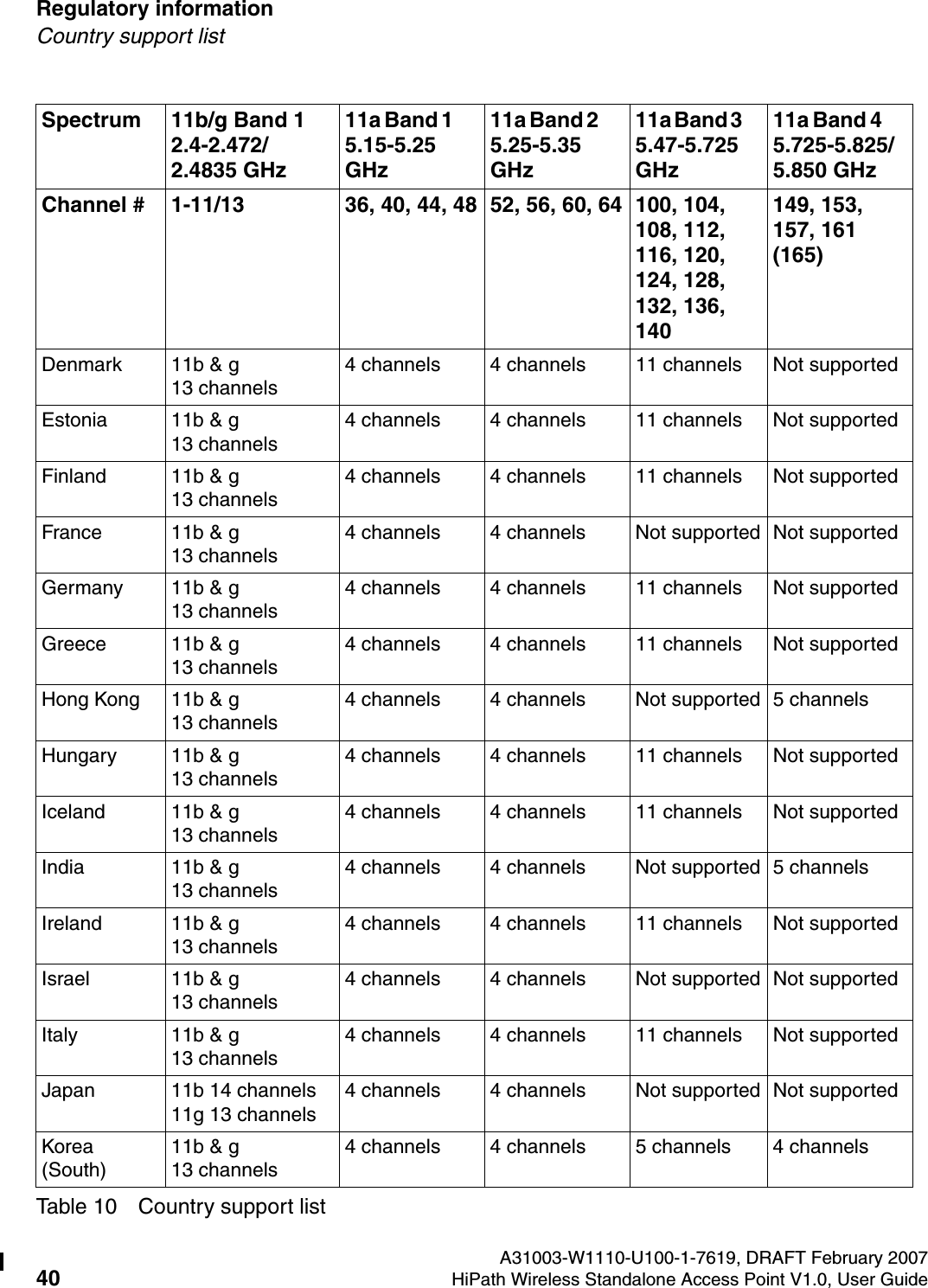
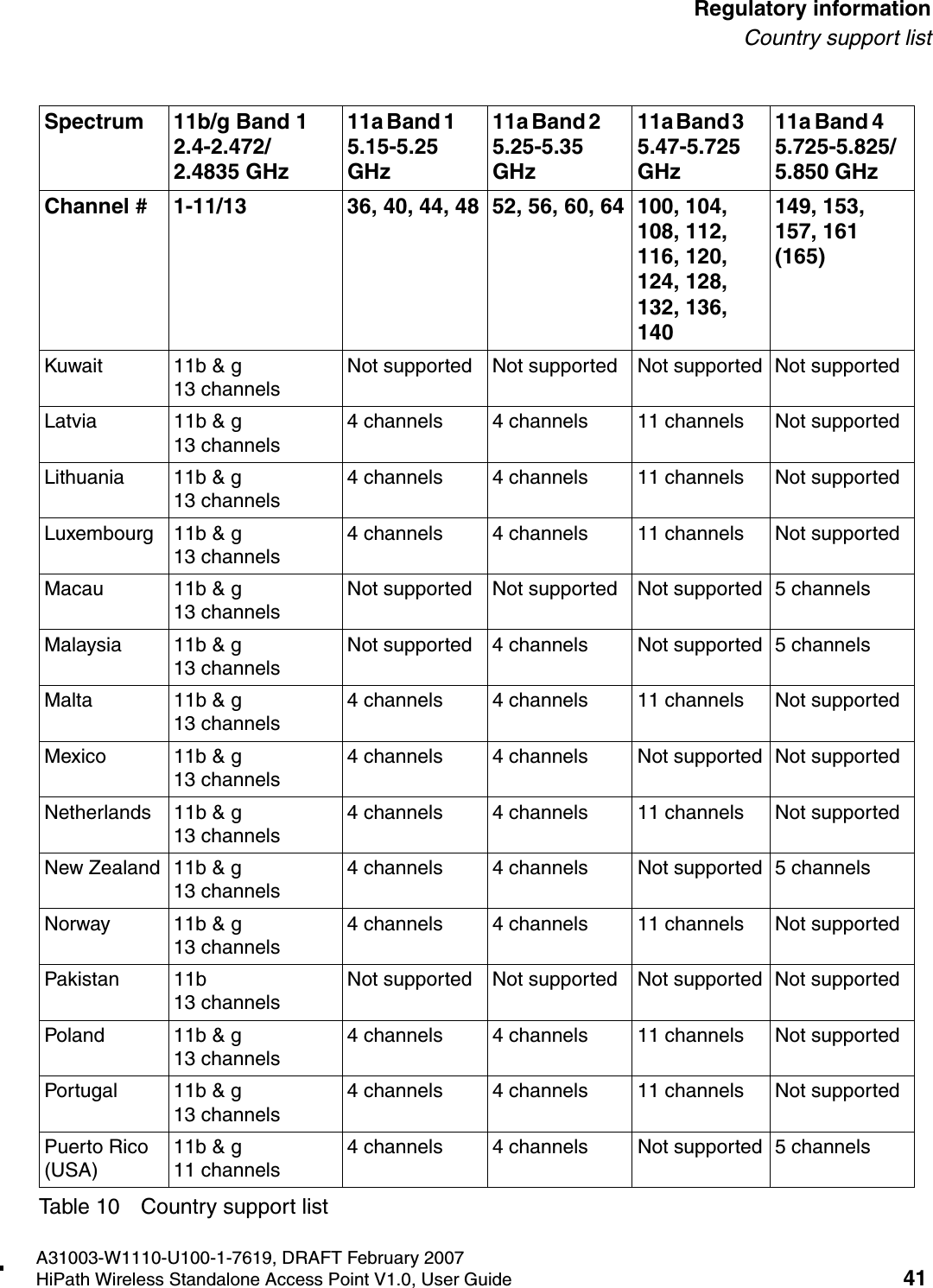
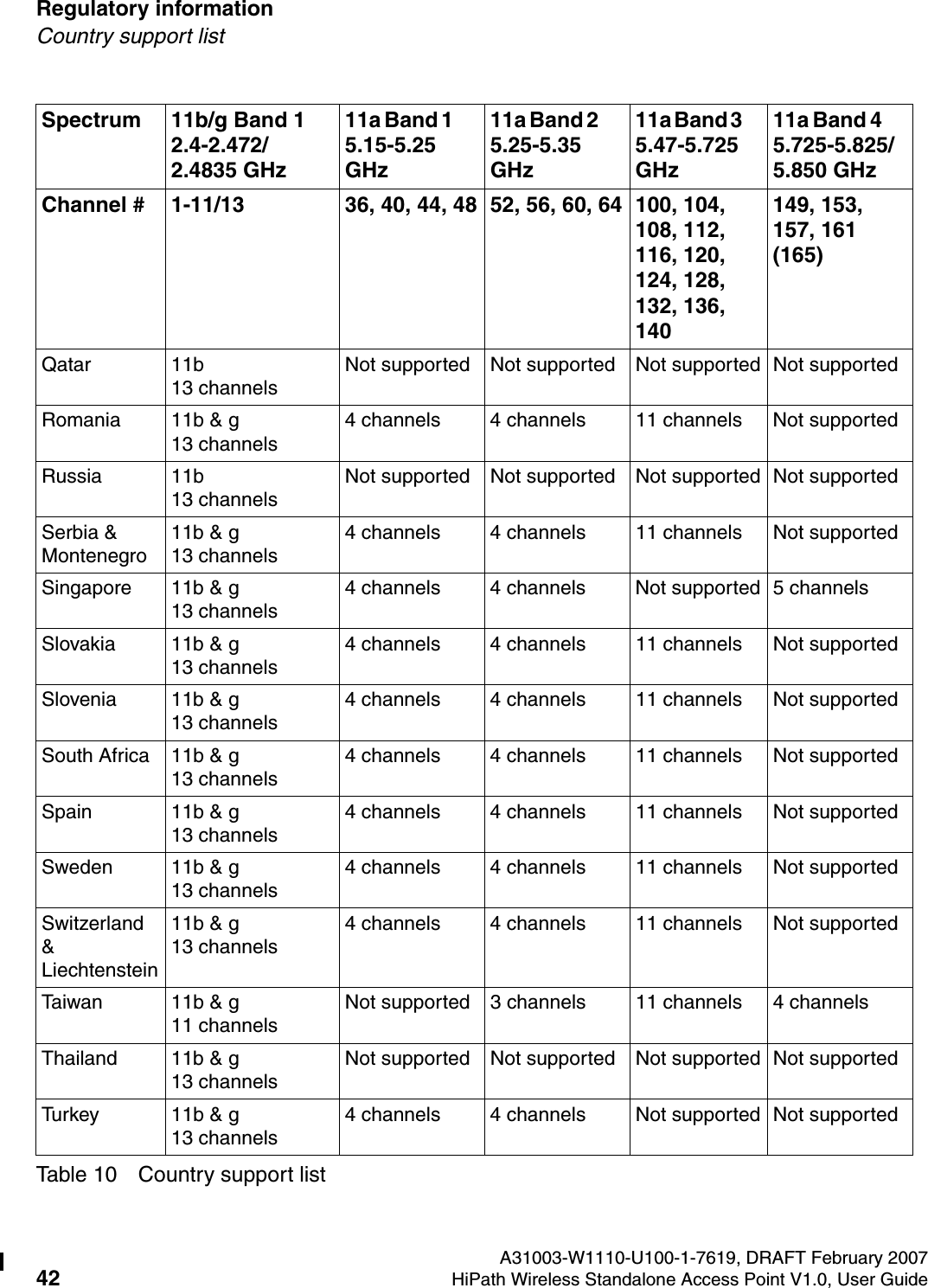
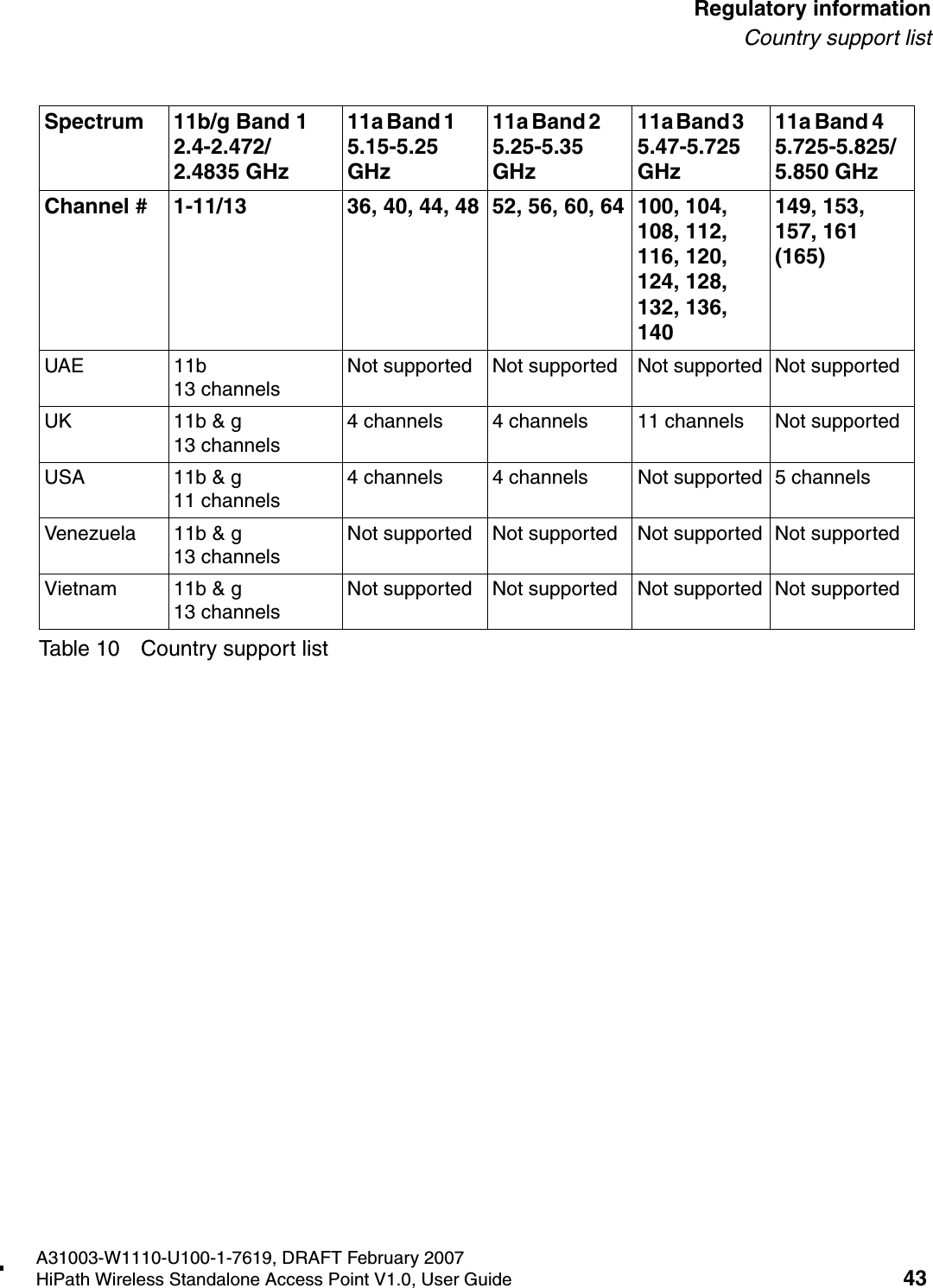
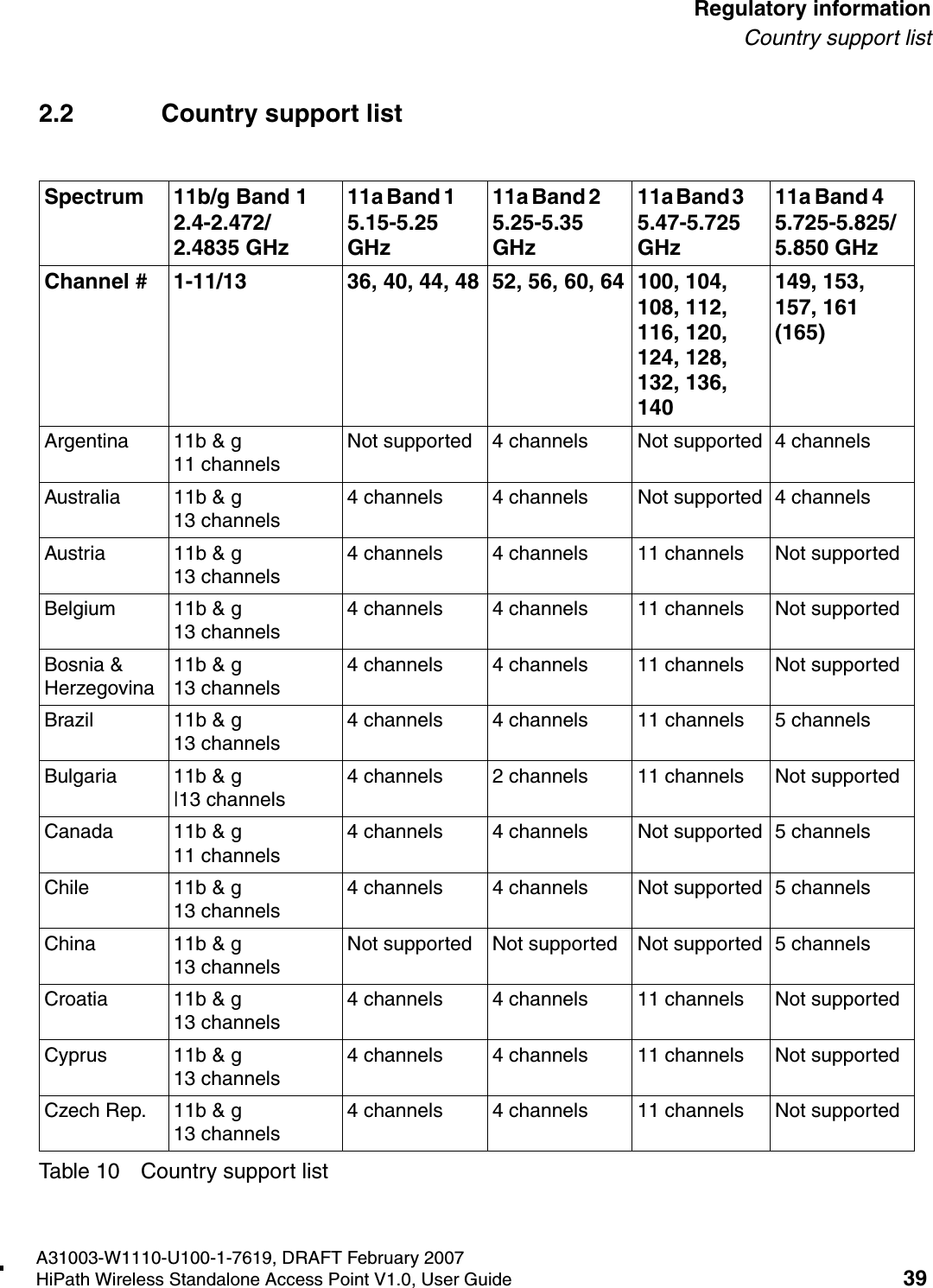
HSAAP_Regulatory.fmA31003-W1110-U100-1-7619, DRAFT February 2007HiPath Wireless Standalone Access Point V1.0, User Guide 39        Regulatory informationCountry support list2.2 Country support listSpectrum 11b/g Band 1   2.4-2.472/2.4835 GHz 11a Band 1        5.15-5.25 GHz11a Band 2        5.25-5.35 GHz 11a Band 3        5.47-5.725 GHz 11a Band 4       5.725-5.825/5.850 GHzChannel # 1-11/13  36, 40, 44, 48 52, 56, 60, 64 100, 104, 108, 112, 116, 120, 124, 128, 132, 136, 140149, 153, 157, 161 (165)Argentina 11b & g 11 channelsNot supported 4 channels Not supported 4 channelsAustralia 11b & g 13 channels4 channels 4 channels Not supported 4 channelsAustria 11b & g  13 channels4 channels 4 channels 11 channels Not supportedBelgium 11b & g 13 channels4 channels 4 channels 11 channels Not supportedBosnia & Herzegovina11b & g 13 channels4 channels 4 channels 11 channels Not supportedBrazil 11b & g 13 channels4 channels 4 channels 11 channels 5 channelsBulgaria 11b & g |13 channels4 channels 2 channels 11 channels Not supportedCanada 11b & g 11 channels4 channels 4 channels Not supported 5 channelsChile 11b & g 13 channels4 channels 4 channels Not supported 5 channelsChina 11b & g 13 channelsNot supported Not supported Not supported 5 channelsCroatia 11b & g 13 channels4 channels 4 channels 11 channels Not supportedCyprus 11b & g 13 channels4 channels 4 channels 11 channels Not supportedCzech Rep. 11b & g 13 channels4 channels 4 channels 11 channels Not supportedTable 10 Country support list
Regulatory information A31003-W1110-U100-1-7619, DRAFT February 200740 HiPath Wireless Standalone Access Point V1.0, User Guide        HSAAP_Regulatory.fmCountry support listDenmark 11b & g 13 channels4 channels 4 channels 11 channels Not supportedEstonia 11b & g 13 channels4 channels 4 channels 11 channels Not supportedFinland 11b & g 13 channels4 channels 4 channels 11 channels Not supportedFrance 11b & g 13 channels4 channels 4 channels Not supported Not supportedGermany 11b & g 13 channels4 channels 4 channels 11 channels Not supportedGreece 11b & g 13 channels4 channels 4 channels 11 channels Not supportedHong Kong 11b & g 13 channels4 channels 4 channels Not supported 5 channelsHungary 11b & g 13 channels4 channels 4 channels 11 channels Not supportedIceland 11b & g 13 channels4 channels 4 channels 11 channels Not supportedIndia 11b & g 13 channels4 channels 4 channels Not supported 5 channelsIreland 11b & g 13 channels4 channels 4 channels 11 channels Not supportedIsrael 11b & g 13 channels4 channels 4 channels Not supported Not supportedItaly 11b & g 13 channels4 channels 4 channels 11 channels Not supportedJapan 11b 14 channels 11g 13 channels4 channels 4 channels Not supported Not supportedKorea (South)11b & g 13 channels4 channels 4 channels 5 channels 4 channelsSpectrum 11b/g Band 1   2.4-2.472/2.4835 GHz 11a Band 1        5.15-5.25 GHz11a Band 2        5.25-5.35 GHz 11a Band 3        5.47-5.725 GHz 11a Band 4       5.725-5.825/5.850 GHzChannel # 1-11/13  36, 40, 44, 48 52, 56, 60, 64 100, 104, 108, 112, 116, 120, 124, 128, 132, 136, 140149, 153, 157, 161 (165)Table 10 Country support list
HSAAP_Regulatory.fmA31003-W1110-U100-1-7619, DRAFT February 2007HiPath Wireless Standalone Access Point V1.0, User Guide 41        Regulatory informationCountry support listKuwait 11b & g 13 channelsNot supported Not supported Not supported Not supportedLatvia 11b & g 13 channels4 channels 4 channels 11 channels Not supportedLithuania 11b & g 13 channels4 channels 4 channels 11 channels Not supportedLuxembourg 11b & g 13 channels4 channels 4 channels 11 channels Not supportedMacau 11b & g 13 channelsNot supported Not supported Not supported 5 channelsMalaysia 11b & g 13 channelsNot supported 4 channels Not supported 5 channelsMalta 11b & g 13 channels4 channels 4 channels 11 channels Not supportedMexico 11b & g 13 channels4 channels 4 channels Not supported Not supportedNetherlands 11b & g 13 channels4 channels 4 channels 11 channels Not supportedNew Zealand 11b & g 13 channels4 channels 4 channels Not supported 5 channelsNorway 11b & g 13 channels4 channels 4 channels 11 channels Not supportedPakistan 11b 13 channelsNot supported Not supported Not supported Not supportedPoland 11b & g 13 channels4 channels 4 channels 11 channels Not supportedPortugal 11b & g 13 channels4 channels 4 channels 11 channels Not supportedPuerto Rico (USA)11b & g 11 channels4 channels 4 channels Not supported 5 channelsSpectrum 11b/g Band 1   2.4-2.472/2.4835 GHz 11a Band 1        5.15-5.25 GHz11a Band 2        5.25-5.35 GHz 11a Band 3        5.47-5.725 GHz 11a Band 4       5.725-5.825/5.850 GHzChannel # 1-11/13  36, 40, 44, 48 52, 56, 60, 64 100, 104, 108, 112, 116, 120, 124, 128, 132, 136, 140149, 153, 157, 161 (165)Table 10 Country support list
Regulatory information A31003-W1110-U100-1-7619, DRAFT February 200742 HiPath Wireless Standalone Access Point V1.0, User Guide        HSAAP_Regulatory.fmCountry support listQatar 11b 13 channelsNot supported Not supported Not supported Not supportedRomania 11b & g 13 channels4 channels 4 channels 11 channels Not supportedRussia 11b 13 channelsNot supported Not supported Not supported Not supportedSerbia & Montenegro11b & g 13 channels4 channels 4 channels 11 channels Not supportedSingapore 11b & g 13 channels4 channels 4 channels Not supported 5 channelsSlovakia 11b & g 13 channels4 channels 4 channels 11 channels Not supportedSlovenia 11b & g 13 channels4 channels 4 channels 11 channels Not supportedSouth Africa 11b & g 13 channels4 channels 4 channels 11 channels Not supportedSpain 11b & g 13 channels4 channels 4 channels 11 channels Not supportedSweden 11b & g 13 channels4 channels 4 channels 11 channels Not supportedSwitzerland & Liechtenstein11b & g  13 channels4 channels 4 channels 11 channels Not supportedTaiwan 11b & g 11 channelsNot supported 3 channels 11 channels 4 channelsThailand 11b & g 13 channelsNot supported Not supported Not supported Not supportedTurkey 11b & g 13 channels4 channels 4 channels Not supported Not supportedSpectrum 11b/g Band 1   2.4-2.472/2.4835 GHz 11a Band 1        5.15-5.25 GHz11a Band 2        5.25-5.35 GHz 11a Band 3        5.47-5.725 GHz 11a Band 4       5.725-5.825/5.850 GHzChannel # 1-11/13  36, 40, 44, 48 52, 56, 60, 64 100, 104, 108, 112, 116, 120, 124, 128, 132, 136, 140149, 153, 157, 161 (165)Table 10 Country support list
HSAAP_Regulatory.fmA31003-W1110-U100-1-7619, DRAFT February 2007HiPath Wireless Standalone Access Point V1.0, User Guide 43        Regulatory informationCountry support listUAE 11b 13 channelsNot supported Not supported Not supported Not supportedUK 11b & g 13 channels4 channels 4 channels 11 channels Not supportedUSA 11b & g 11 channels4 channels 4 channels Not supported 5 channelsVenezuela 11b & g 13 channelsNot supported Not supported Not supported Not supportedVietnam 11b & g 13 channelsNot supported Not supported Not supported Not supportedSpectrum 11b/g Band 1   2.4-2.472/2.4835 GHz 11a Band 1        5.15-5.25 GHz11a Band 2        5.25-5.35 GHz 11a Band 3        5.47-5.725 GHz 11a Band 4       5.725-5.825/5.850 GHzChannel # 1-11/13  36, 40, 44, 48 52, 56, 60, 64 100, 104, 108, 112, 116, 120, 124, 128, 132, 136, 140149, 153, 157, 161 (165)Table 10 Country support list
Regulatory information A31003-W1110-U100-1-7619, DRAFT February 200744 HiPath Wireless Standalone Access Point V1.0, User Guide        HSAAP_Regulatory.fmCountry support list
HSAAP_Intro.fmA31003-W1110-U100-1-7619, DRAFT February 2007HiPath Wireless Standalone Access Point V1.0, User Guide 45          About the HiPath Wireless Standalone Access PointUnderstanding conventional wireless LANs3 About the HiPath Wireless Standalone Access PointThe Standalone Access Point provides high quality and reliable wireless communication. Based on a third generation WLAN topology, the Standalone Access Point makes wireless practical for small and medium-scale enterprises (SME). This solution provides the security and manageability required by enterprises and service providers alike.The Standalone Access Point is a dual-band access point, with IEEE 802.11a+b/g radios, which implements the following features: ●A standalone access point entry solution for the SME market●End-to-end solution for wireless real-time IP communication and HiPath integration●Seamless mobility ●Best-in-class voice quality, multimedia enabled●Strong SME level security●Ease of deployment and operation3.1 Understanding conventional wireless LANsWireless communication between two or more computers requires that each computer is equipped with a receiver/transmitter—a WLAN Network Interface Card (NIC)—capable of exchanging digital information over a common radio frequency. This is called an ad hoc configuration. An ad hoc network allows wireless devices to communicate with each other. This is known as an Independent Basic Service Set (IBSS).An alternative to the ad hoc configuration is the use of an access point. This may be a dedicated hardware router or a computer running special software. Computers and other wireless devices communicate with each other through this access point. The IEEE 802.11 standard defines an access point as a device that allows other wireless devices to communicate with a distribution system. This is known as a Basic Service Set (BSS) or an infrastructure network.For the wireless devices to communicate with computers on a wired network, the access points must be connected into the wired network, and provide access to the networked computers. This is called bridging. Clearly, there are security issues and management scalability issues in this arrangement.
About the HiPath Wireless Standalone Access Point A31003-W1110-U100-1-7619, DRAFT February 200746 HiPath Wireless Standalone Access Point V1.0, User Guide          HSAAP_Intro.fmUnderstanding the Standalone Access Point3.2 Understanding the Standalone Access PointThe Standalone Access Point is a wireless LAN access point. The Standalone Access Point also provides local processing such as encryption. In addition to the Standalone Access Point, the solution provides an optional DHCP Server component, which is standard for enterprise and service provider networks. Standalone Access Points are cost-effective, easy to manage, and easy to deploy.Here are some advantages the Standalone Access Point offers:3.3 Standalone Access Point and your networkUsing the Standalone Access Point requires an understanding of its components and security features.3.3.1 Standalone Access Point network componentsEach wireless device sends IP packets in the IEEE 802.11 standard to the Standalone Access Point. The Standalone Access Point bridges the traffic between the wireless device and the network.Enhanced securityThe Standalone Access Point user interface is secured by user IDs and passwords, as well as forms-based authentication. The Standalone Access Point also allows the user to select no security, WEP security, or WPA-PSK security.Roaming within the subnetThe Standalone Access Point offers the creation and maintenance of a roaming cluster, ensuring fast handover of mobile clients within the roaming cluster.Troubleshooting capabilityThe Standalone Access Point logs system and session activity and provides reports to aid in troubleshooting analysis.Table 11 Advantages of the Standalone Access Point
HSAAP_Intro.fmA31003-W1110-U100-1-7619, DRAFT February 2007HiPath Wireless Standalone Access Point V1.0, User Guide 47          About the HiPath Wireless Standalone Access PointStandalone Access Point and your networkFigure 1 Network traffic flow diagramFor more information on the DHCP Server, refer to the HiPath Wireless documentation.3.3.2 About network securityThe Standalone Access Point provides features and functionality to control network access. These are based on standard wireless network security practices. Current wireless network security methods provide a degree of protection. These methods include an open system that rely on Service Set Identifiers (SSIDs).The Standalone Access Point supports the following encryption approaches:●Wired Equivalent Privacy (WEP) – A security protocol for wireless local area networks defined in the IEEE 802.11b standard that provides static key management, and WEP 40-bit, 104-bit, and 128-bit ciphers. The WEP protocol provides minimal security.●Wi-Fi Protected Access version 1 (WPA v.1) – A security protocol with Temporal Key Integrity Protocol (TKIP) that provides Pre-shared Master Key management, and a WEP 128-bit cipher. The WPA v.1 protocol provides good security.●Wi-Fi Protected Access version 2 (WPA v.2) – A security protocol with Advanced Encryption Standard (AES) that provides Pre-shared Master Key management, and an AES 128-bit cipher. The WPA v.2 protocol provides the best security. It is highly recommended to use WPA v.2.●Media Access Control address(MAC) – In addition, MAC address filters are used in securing the network. Authentication by MAC address provides a method of access control for a user as it associates with the access point based on the device's MAC address.802.11 IP packet transmission 802.11 beacon & probe, wireless device associates with a Standalone Access Point by its SSIDDHCP ServerEthernet SwitchRouterWireless Device Wireless DeviceStandalone Access Point
About the HiPath Wireless Standalone Access Point A31003-W1110-U100-1-7619, DRAFT February 200748 HiPath Wireless Standalone Access Point V1.0, User Guide          HSAAP_Intro.fmAbout clustering3.3.3 About Quality of ServiceThe Standalone Access Point provides advanced Quality of Service (QoS) management in order to provide better network traffic flow. Such standards include:●WMM (Wi-Fi Multimedia) – Enabled per VNS on the Standalone Access Point. For devices with WMM or 802.1e enabled, the standard provides multimedia enhancements for audio, video, and voice applications. WMM and 802.11e shorten the time between transmitting packets for higher priority traffic.●IP ToS (Type of Service) or DSCP (Diffserve Codepoint) – The ToS/DSCP field in the IP header of a frame is used to indicate the priority and QoS for each frame.●802.11e – If enabled, the Standalone Access Point will accept 802.11e client associations, and will classify and prioritize the downlink traffic for all 802.11e clients. 802.11e clients will also classify and prioritize the uplink traffic.When Priority Override is enabled, the configured User Priority will determine the transmit queue and the user priority for the wireless QoS packets (WMM or 802.11e) in the downlink direction. The User Priority value is also used to tag the VLAN Priority field for the uplink traffic if the VLAN tagging is enabled for this VNS.3.4 About clusteringThe Standalone Access Point must operate in cluster setup. The purpose of the cluster is to limit the number of access points in it, and to enable roaming. Secure Inter-Access Point Protocol (SIAPP) is used to build cluster information in each access point. All access points in the same roaming cluster must be on the same subnet.3.4.1 Forming a clusterA cluster is formed when an access point is connected with one or more additional access points. A cluster is identified by the cluster name, based on the SSID. All Standalone Access Points within the cluster have a common cluster name. An access point can have a state of either Master, Slave, or Register. In a cluster, one access point must be in the Master state. The number of access points in the cluster at any time cannot be larger than ten, including the Master and Slave state access points, and their radios are enabled. The radios are disabled for all Register state access points. The access point in the Master state broadcasts an update packet periodically, which contains the list of the access points currently registered with the cluster. The first access point listed is the Master, then the first Slave, the second Slave, and so on.
HSAAP_Installing.fmA31003-W1110-U100-1-7619, DRAFT February 2007HiPath Wireless Standalone Access Point V1.0, User Guide 49          Installing and configuring the Standalone Access PointInstalling a Standalone Access Point4 Installing and configuring the Standalone Access PointPrior to using the Standalone Access Point, it must be properly installed and configured.4.1 Installing a Standalone Access PointTo install the Standalone Access Point: 1. Unpack the Standalone Access Point from its shipment carton, and check that all parts are present. For more information, see HiPath Wireless Standalone Access Point Getting Started Guide delivered with the device.2. Mount the wall bracket, using 3 screws, near the LAN Ethernet cable plug on the wall.Figure 2 Wall bracket and rearview of Standalone Access Point3. Press the back of the Standalone Access Point onto the bracket, aligning it with the open notches in the bracket. Then slide it downward until the security spring clip holds it in place.To remove the Standalone Access Point, release the spring clip by inserting an Allen key (or other similar tool) into the small hole at the bottom of the bracket. Then slide the case up the bracket and lift off the Standalone Access Point.4. Insert the plastic spreading rivet through the hole at the bottom of the bracket and into the Standalone Access Point case. Then screw in the plastic screw. This spreads the rivet and locks the case to the bracket. To remove the Standalone Access Point, use a screwdriver to remove the screw.
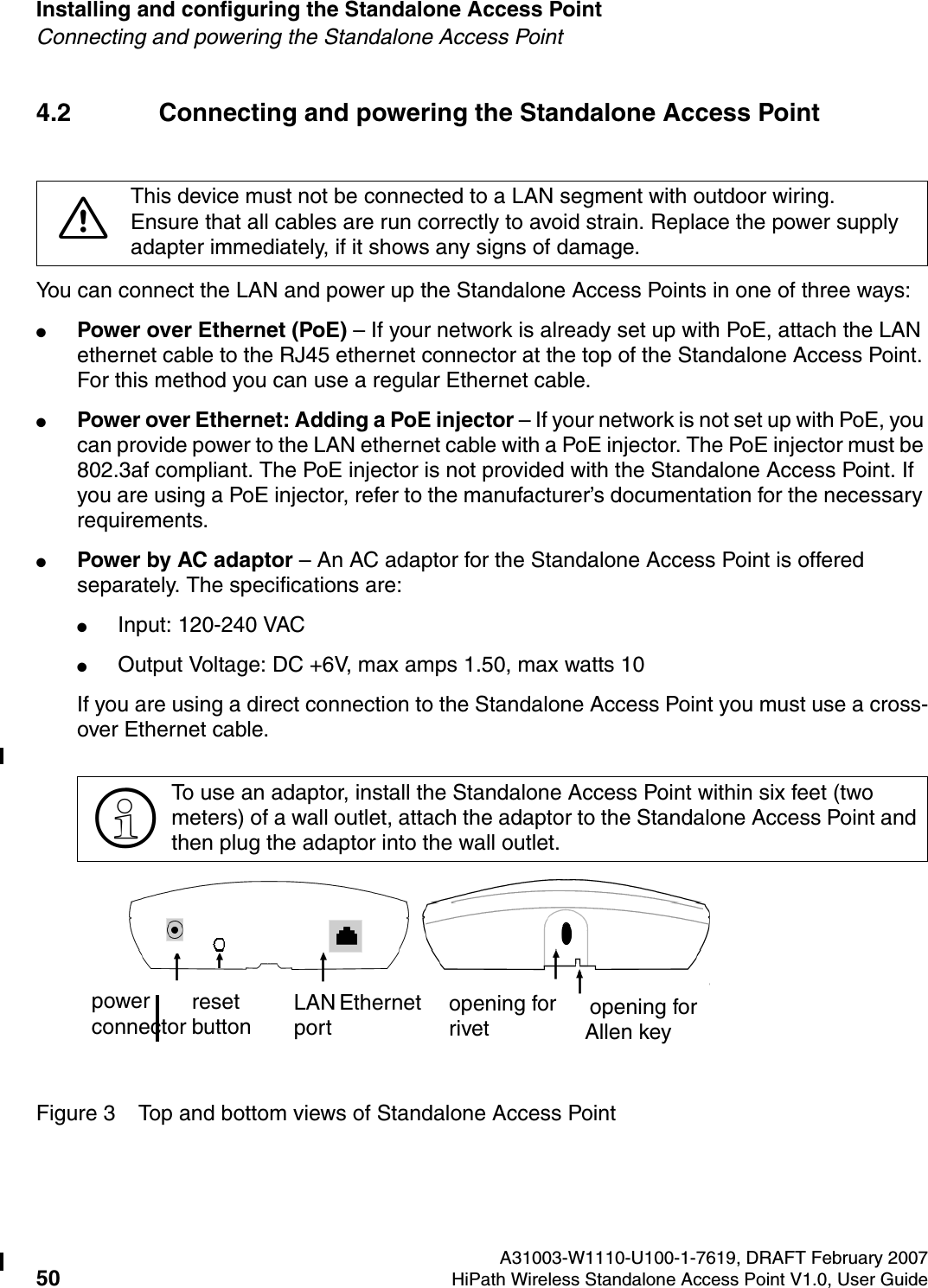
Installing and configuring the Standalone Access Point A31003-W1110-U100-1-7619, DRAFT February 200750 HiPath Wireless Standalone Access Point V1.0, User Guide          HSAAP_Installing.fmConnecting and powering the Standalone Access Point4.2 Connecting and powering the Standalone Access PointYou can connect the LAN and power up the Standalone Access Points in one of three ways: ●Power over Ethernet (PoE) – If your network is already set up with PoE, attach the LAN ethernet cable to the RJ45 ethernet connector at the top of the Standalone Access Point. For this method you can use a regular Ethernet cable.●Power over Ethernet: Adding a PoE injector – If your network is not set up with PoE, you can provide power to the LAN ethernet cable with a PoE injector. The PoE injector must be 802.3af compliant. The PoE injector is not provided with the Standalone Access Point. If you are using a PoE injector, refer to the manufacturer’s documentation for the necessary requirements.●Power by AC adaptor – An AC adaptor for the Standalone Access Point is offered separately. The specifications are: ●Input: 120-240 VAC●Output Voltage: DC +6V, max amps 1.50, max watts 10If you are using a direct connection to the Standalone Access Point you must use a cross-over Ethernet cable.Figure 3 Top and bottom views of Standalone Access Point7This device must not be connected to a LAN segment with outdoor wiring.Ensure that all cables are run correctly to avoid strain. Replace the power supply adapter immediately, if it shows any signs of damage.>To use an adaptor, install the Standalone Access Point within six feet (two meters) of a wall outlet, attach the adaptor to the Standalone Access Point and then plug the adaptor into the wall outlet.power connector LAN Ethernet port  opening for rivet opening for Allen keyreset button
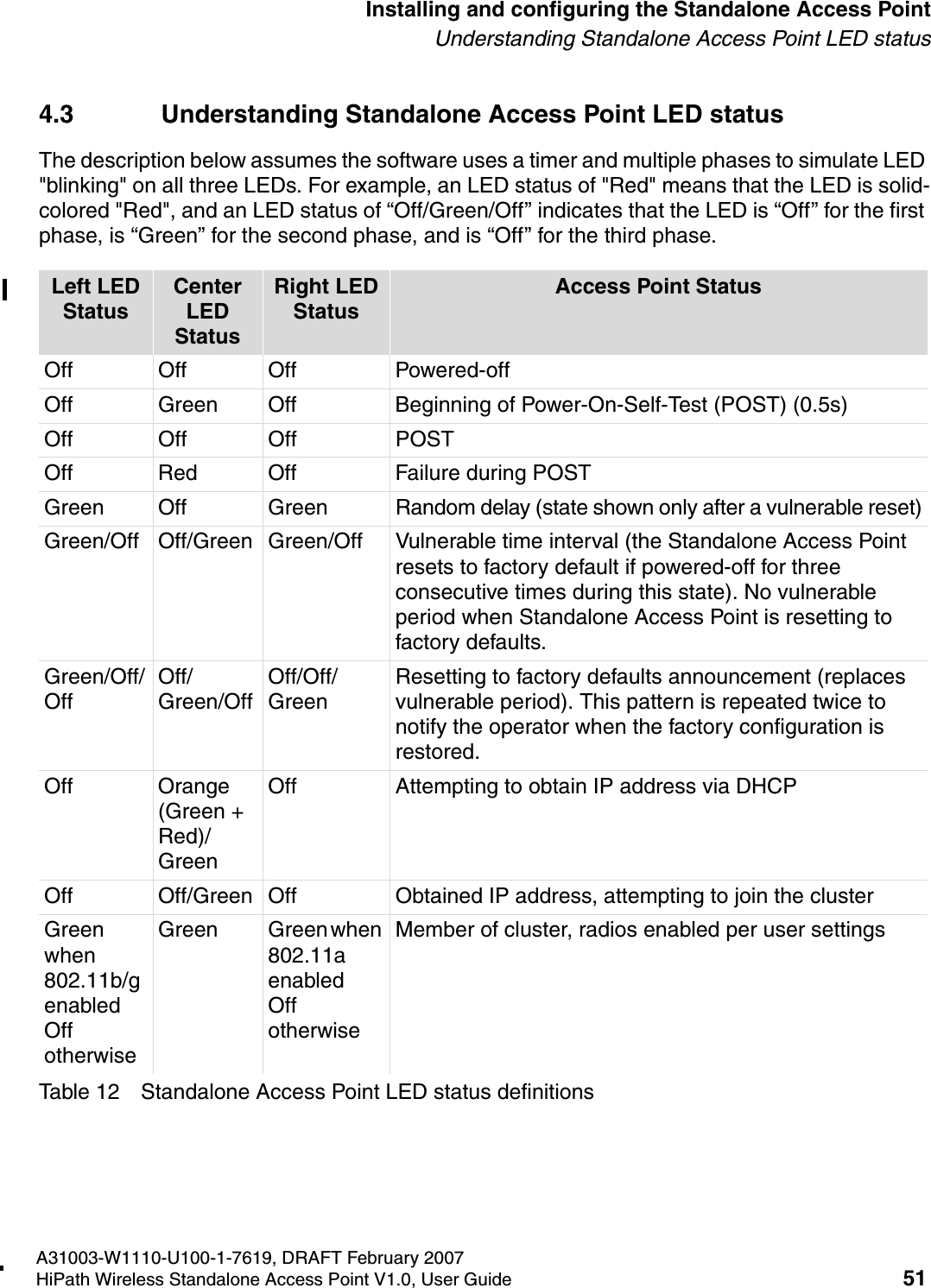
HSAAP_Installing.fmA31003-W1110-U100-1-7619, DRAFT February 2007HiPath Wireless Standalone Access Point V1.0, User Guide 51          Installing and configuring the Standalone Access PointUnderstanding Standalone Access Point LED status4.3 Understanding Standalone Access Point LED statusThe description below assumes the software uses a timer and multiple phases to simulate LED "blinking" on all three LEDs. For example, an LED status of "Red" means that the LED is solid-colored "Red", and an LED status of “Off/Green/Off” indicates that the LED is “Off” for the first phase, is “Green” for the second phase, and is “Off” for the third phase. Table 12 Standalone Access Point LED status definitionsLeft LED StatusCenter LED StatusRight LED StatusAccess Point StatusOff Off Off Powered-offOff Green Off Beginning of Power-On-Self-Test (POST) (0.5s)Off Off Off POSTOff Red Off Failure during POSTGreen Off Green Random delay (state shown only after a vulnerable reset)Green/Off Off/Green Green/Off Vulnerable time interval (the Standalone Access Point resets to factory default if powered-off for three consecutive times during this state). No vulnerable period when Standalone Access Point is resetting to factory defaults.Green/Off/OffOff/Green/OffOff/Off/GreenResetting to factory defaults announcement (replaces vulnerable period). This pattern is repeated twice to notify the operator when the factory configuration is restored. Off Orange (Green + Red)/GreenOff Attempting to obtain IP address via DHCP Off Off/Green Off Obtained IP address, attempting to join the clusterGreen when 802.11b/g enabledOff otherwiseGreen Green when 802.11aenabledOff otherwiseMember of cluster, radios enabled per user settings
Installing and configuring the Standalone Access Point A31003-W1110-U100-1-7619, DRAFT February 200752 HiPath Wireless Standalone Access Point V1.0, User Guide          HSAAP_Installing.fmRestoring the factory default settings4.4 Restoring the factory default settingsThere are three different methods for restoring the Standalone Access Point factory default settings:●Vulnerable time interval – The Standalone Access Point boot-up sequence includes a vulnerable time interval. During the vulnerable time interval (2 seconds), the LEDs flash in a particular sequence to indicate that the Standalone Access Point is in the vulnerable time interval. For more information, see Table 12 on page 51.If you power up the Standalone Access Point and interrupt the power during the vulnerable time interval three consecutive times, the next time the Standalone Access Point reboots, it will restore its factory defaults including the user password and the default IP settings. ●Reset button (Hardware) – Press and hold the Reset button on the Standalone Access Point for approximately five seconds. The Standalone Access Point is rebooted and the factory defaults are restored.●Restore Factory Defaults (Graphical User Interface) – Use the Restore Factory Defaults button on the Tools > Configuration screen to restore the factory defaults via the Standalone Access Point GUI. For more information, see Section 6.4.3, “Restoring the factory default settings”, on page 89.To restore factory default settings using the vulnerable time interval:1. Reboot the Standalone Access Point.2. Depower and power the Standalone Access Point during the vulnerable time interval.3. Repeat Step 2 twice.When the Standalone Access Point reboots for the fourth time, after having its power supply interrupted three consecutive times, it restores its factory default settings. >Random delays do not occur during normal reboot. Random delay only occurs after vulnerable period power-down.>The restoration of factory default settings does not erase the non-volatile log.
HSAAP_Getting_Started.fmA31003-W1110-U100-1-7619, DRAFT February 2007HiPath Wireless Standalone Access Point V1.0, User Guide 53          Getting started with a Standalone Access PointAbout the interface5 Getting started with a Standalone Access PointYou access the Standalone Access Point through a Web browser.5.1 About the interfaceThe Standalone Access Point supports two types of users:●Administrator – The case-sensitive user ID is admin. The default password is admin.●General User – The case-sensitive user ID is user. The default password is user.There are two main states for every user:●Logging on – The user is presented with a form that accepts their ID and password.●Logged on – The user has access to a two-level menu that provides navigation through the entire user interface.If you are logged in as an Administrator, the top level menu has the following options: ●Status – Provides access to the following screens: Info, Logs, LAN, 802.11b/g, 802.11a, Clients, and Cluster.●Configuration – Provides access to the following screens: LAN and Wireless. The Wireless screen provides access to one Basic configuration tab and four advanced tabs: Filters, Advanced 802.11b/g, Advanced 802.11a, and QoS. In addition, configuration tabs are also available for each individual VNS: General, RF, Security, and QoS.●Tools – Provides access to the following screens: Passwords, Configuration, Firmware/Language, and BootROM.●Help – Provides access to online help for each user interface screen.●Logout – Logs the current user out of the Standalone Access Point user interface.If you are logged in as a General User, the top level menu offers the following options: ●Status – Provides access to the following screens: Info, Logs, LAN, 802.11b/g, 802.11a, Clients, and Cluster.●Help – Provides access to online help for each user interface screen.●Logout – Logs the current user out of the Standalone Access Point user interface.5.2 Logging on to the Standalone Access PointTo access the Standalone Access Point, you must log on using a valid user ID and password.
Getting started with a Standalone Access Point A31003-W1110-U100-1-7619, DRAFT February 200754 HiPath Wireless Standalone Access Point V1.0, User Guide          HSAAP_Getting_Started.fmLogging on to the Standalone Access PointBy default, the Standalone Access Point is DHCP enabled. To log on, use the IP address according to your network DHCP IP address assignment. If the Standalone Access Point cannot get an IP address by DHCP, use the default 192.168.1.20 IP address.To log on to the Standalone Access Point:1. In a Web browser, type the following:http://192.168.1.202. In the User Name box, type your assigned unique user ID. 3. In the Password box, type the password corresponding to your user ID.4. Click Log On.>It is strongly recommended that you change your password the first time you log on.>The Web session will time out after 900 seconds (15 minutes) of non-activity.
HSAAP_Getting_Started.fmA31003-W1110-U100-1-7619, DRAFT February 2007HiPath Wireless Standalone Access Point V1.0, User Guide 55          Getting started with a Standalone Access PointChanging passwords5.3 Changing passwordsUse the Passwords screen to change passwords.The User ID drop-down list allow you to select between an Administrator or a General User. To ensure proper security, the old password for the selected user is required to be entered regardless of which user is logged in and which User ID is selected.To change a password:1. On the menu bar, click Tools.2. In the left pane, click Passwords.3. From the User ID drop-down list, select the user whose password you want to change.4. In the Old Password box, type the password currently in use.>You must have Administrator access to change a password.
Getting started with a Standalone Access Point A31003-W1110-U100-1-7619, DRAFT February 200756 HiPath Wireless Standalone Access Point V1.0, User Guide          HSAAP_Getting_Started.fmDownloading the firmware5. In the New Password box, type the new password.6. In the Confirm New Password box, re-type the new password.7. To save your changes, click Save.5.4 Downloading the firmwareUse the Firmware/Language screen to download Standalone Access Point firmware.To download firmware:1. On the menu bar, click Tools.2. In the left pane, click Firmware/Language.3. In the Download Firmware from section, click Browse to navigate to the appropriate file.4. Select the file to download, and then click Open in the Choose file dialog box. The directory location is displayed in the Download Firmware from box.5. Click Download and Reboot. The selected file is downloaded and the Standalone Access Point is rebooted.
HSAAP_Getting_Started.fmA31003-W1110-U100-1-7619, DRAFT February 2007HiPath Wireless Standalone Access Point V1.0, User Guide 57          Getting started with a Standalone Access PointSetting the interface language5.5 Setting the interface languageUse the Firmware/Language screen to set the interface language.To change the interface language setting:1. On the menu bar, click Tools.2. In the left pane, click Firmware/Language.3. From the Language drop-down list, select the appropriate language for the user interface. The available language selections are English and German. The default is English.>The Standalone Access Point will automatically reboot using the new downloaded firmware version. For more information, see Section 7.1, “Rebooting”, on page 93.
Getting started with a Standalone Access Point A31003-W1110-U100-1-7619, DRAFT February 200758 HiPath Wireless Standalone Access Point V1.0, User Guide          HSAAP_Getting_Started.fmChanging the host IP address5.6 Changing the host IP addressUse the LAN screen to change the IP address for the Standalone Access Point.To change the host IP address:1. On the menu bar, click Configuration. The LAN screen is displayed.2. In the IP Address box, type the static IP address. The default is 192.168.1.20.3. To save your changes, click Save.For more details on the LAN settings on this screen, see Section 6.1, “Configuring the LAN settings”, on page 61.>The Reboot button is available on this screen. For more information, see Section 7.1, “Rebooting”, on page 93.
HSAAP_Getting_Started.fmA31003-W1110-U100-1-7619, DRAFT February 2007HiPath Wireless Standalone Access Point V1.0, User Guide 59          Getting started with a Standalone Access PointAccessing help5.7 Accessing helpUse the Help menu to access the online help.To access help:1. On the menu bar, click Help.2. In the left pane, click the appropriate Help topic. The related Help content is displayed.
Getting started with a Standalone Access Point A31003-W1110-U100-1-7619, DRAFT February 200760 HiPath Wireless Standalone Access Point V1.0, User Guide          HSAAP_Getting_Started.fmAccessing help
HSAAP_Configuring.fmA31003-W1110-U100-1-7619, DRAFT February 2007HiPath Wireless Standalone Access Point V1.0, User Guide 61          Configuring a Standalone Access PointConfiguring the LAN settings6 Configuring a Standalone Access Point6.1 Configuring the LAN settingsUse the LAN screen to view and define the Standalone Access Point LAN configuration, including the following:●Access point name●Dynamic or static IP●Static IP settings●VLAN Setting for Management7Configuration changes may be delayed up to 60 seconds before being saved into the compact flash. If power interruption occurs during that period, the configuration changes are lost. Configuration changes will also be lost if the power for the Standalone Access Point is reset instead of clicking the Reboot button. For more information, see ”Rebooting”, on page 93.
Configuring a Standalone Access Point A31003-W1110-U100-1-7619, DRAFT February 200762 HiPath Wireless Standalone Access Point V1.0, User Guide          HSAAP_Configuring.fmConfiguring the LAN settingsTo configure the LAN:1. On the menu bar, click Configuration. The LAN screen is displayed.2. In the AP Name box, type the name for the access point. The default is AP-<MAC address>, where <MAC address> is the MAC address.3. Do one of the following:●To use a static IP address, clear the Dynamic IP (DHCP) check box. ●To use a dynamic IP address, select the Dynamic IP (DHCP) check box. The default is enabled. To use a static IP address, do the following:●In the IP Address box, type the static IP address to be used. The default is 192.168.1.20.●In the Subnet Mask box, type the subnet mask associated with the static IP address to be used. The default is 255.255.255.0.●In the Gateway box, type the gateway associated with the static IP address to be used. The default is 192.168.1.1.
HSAAP_Configuring.fmA31003-W1110-U100-1-7619, DRAFT February 2007HiPath Wireless Standalone Access Point V1.0, User Guide 63          Configuring a Standalone Access PointConfiguring the wireless settings4. For the VLAN Setting for Management options, do one of the following:●Tagged – Select to tag all IP management packets for this Standalone Access Point. ●VLAN ID – Type the VLAN ID value you want to use as the tag.●Untagged – Select for all IP management packets for the Standalone Access Point to be untagged. The default is Untagged.To enable VLAN, it is recommended that the Standalone Access Point is first connected in an environment where there is no VLAN, enable the VLAN , and then move the Standalone Access Point into an environment where the VLAN is required and reboot the Standalone Access Point. The Standalone Access Point LAN configuration takes effect only after the Standalone Access Point is rebooted and therefore the Standalone Access Point can only be accessed in an environment having the consistent VLAN setting.5. To save your changes, click Save.6. To restore the settings displayed in this screen to the most recent saved values, click Reset.7. To restore the factory defaults for the settings on this screen, click Factory Defaults.6.2 Configuring the wireless settingsYou can configure the Standalone Access Point wireless settings. Configuring the Standalone Access Point wireless settings includes defining the following:●Basic settings●Filters configuration●802.11b/g radio settings●802.11a radio settings●QoS admission control thresholds>Changing either the DHCP, IP, or VLAN settings requires a reboot of the Standalone Access Point. The new settings only take effect after the reboot has completed. Clicking Save will not lose the connection, but a reboot may cause a connection loss. During the reboot, a screen will inform the you that:The IP/VLAN setting has been changed. Please login again after the reboot.>The Reboot button is available on this screen. For more information, see ”Rebooting”, on page 93.
Configuring a Standalone Access Point A31003-W1110-U100-1-7619, DRAFT February 200764 HiPath Wireless Standalone Access Point V1.0, User Guide          HSAAP_Configuring.fmConfiguring the wireless settings6.2.1 Configuring the wireless basic settingsUse the Basic tab to select the country of operation for the Standalone Access Point.To configure the wireless basic settings:1. On the menu bar, click Configuration.2. In the left pane, click Wireless. The Basic tab is displayed.3. From the Country drop-down list, select the country of operation.Selecting the correct country is essential to receiving proper service. In addition, it is illegal to operate with the incorrect country setting.4. To save your changes, click Save.5. To restore the settings displayed in this screen to the most recent saved values, click Reset.>The Reboot button is available on this screen. For more information, see ”Rebooting”, on page 93.
HSAAP_Configuring.fmA31003-W1110-U100-1-7619, DRAFT February 2007HiPath Wireless Standalone Access Point V1.0, User Guide 65          Configuring a Standalone Access PointConfiguring the wireless settings6.2.2 Configuring the wireless filter settingsUse the Filters tab to configure client filtering based on a MAC address. The default is no MAC address in the list and MAC address filtering is disabled.To configure the wireless Filter settings:1. On the menu bar, click Configuration.2. In the left pane, click Wireless.3. Click the Filters tab.4. In the Filter Configuration area, do one of the following:●Disable MAC address filtering – Select to disable filtering.●Allow only MAC addresses listed below – Select to allow only those MAC addresses that are listed to connect.●Deny MAC addresses listed below – Select to deny those MAC addresses that are listed to connect.
Configuring a Standalone Access Point A31003-W1110-U100-1-7619, DRAFT February 200766 HiPath Wireless Standalone Access Point V1.0, User Guide          HSAAP_Configuring.fmConfiguring the wireless settings5. To save your changes, click Save.6. To create either a list of MAC addresses to allow or a list of MAC addresses to deny, type the new MAC address in the Add MAC Address box, and then click Add. The message Update successful is displayed. The new MAC address is displayed in the MAC Address list when you click the applicable filter configuration option.7. To delete MAC addresses from the list, select the Select check box for each of the MAC addresses you want to delete, and then click Delete Selected Items. The deleted MAC addresses will be removed from the MAC Address list. 8. To delete all MAC addresses from the list, click Delete All. All MAC addresses will be removed from the MAC Address list.>The Allow and Deny filters are mutually exclusive. You can create either a list of MAC addresses to allow or a list of MAC addresses to deny. It is not possible to maintain both lists at the same time.>If necessary, click Reset Selections to clear all selected check boxes in the MAC Address list.>The Reboot button is available on this screen. For more information, see ”Rebooting”, on page 93.
HSAAP_Configuring.fmA31003-W1110-U100-1-7619, DRAFT February 2007HiPath Wireless Standalone Access Point V1.0, User Guide 67          Configuring a Standalone Access PointConfiguring the wireless settings6.2.3 Configuring the advanced 802.11b/g settingsUse the Advanced 802.11b/g tab to configure the advanced 802.11b/g radio settings, including the following:●Enable radio controls●Base settings●Radio settings●g radio settingsTo configure the 802.11b/g advanced settings:1. On the menu bar, click Configuration.2. In the left pane, click Wireless.3. Click the Advanced 802.11b/g tab.
Configuring a Standalone Access Point A31003-W1110-U100-1-7619, DRAFT February 200768 HiPath Wireless Standalone Access Point V1.0, User Guide          HSAAP_Configuring.fmConfiguring the wireless settings4. In the Enable Radio section, do the following:●802.11b – Select to enable the b/g radio for b-only mode.●802.11g – Select to enable the b/g radio for g-only mode.●To enable the b/g radio for mixed mode, select both the 802.11b and 802.11g check boxes.●To disable the b/g radio, clear both the 802.11b and 802.11g check boxes.5. In the Base Settings section, do the following:●Beacon Interval – Type the desired time, in milliseconds, between beacon transmissions. The default is 100 milliseconds.●DTIM Interval – Type the desired DTIM (Delivery Traffic Indication Map) period—the number of beacon intervals between two DTIM beacons. To ensure the best client power savings, use a large number. For example, 5. Use a small number to reduce broadcast and multicast delay. The default is 5.●RTS Threshold – Type the packet size threshold, in bytes, above which the packet will be preceded by an RTS/CTS (Request to Send/Clear to Send) handshake. The default is 2346, which means all packets are sent without RTS/CTS. Reduce this value only if necessary.●Fragmentation – Type the fragment size threshold, in bytes, above which the packets will be fragmented by the Standalone Access Point prior to transmission. The default is 2346, which means all packets are sent unfragmented. Reduce this value only if necessary.6. In the Radio Settings section, do the following:●Channel – Select the wireless channel that the Standalone Access Point will use to communicate with wireless devices. Depending on the regulatory domain (based on country), some channels may be restricted. The Auto selection allows the Standalone Access Point to select the appropriate channel automatically. If Auto is selected, the current selected channel is displayed next to the Channel drop-down list. The default is Auto. ●Max. Tx Power – Select the Tx power level for the Standalone Access Point: 8 through 18 dBm. The default is 18 dBm.>Reduce the Tx Power setting if two or more neighboring access points are operating on the same channel.
HSAAP_Configuring.fmA31003-W1110-U100-1-7619, DRAFT February 2007HiPath Wireless Standalone Access Point V1.0, User Guide 69          Configuring a Standalone Access PointConfiguring the wireless settings●RX Diversity – Select Best for the best signal from both antennas, or Left or Right to choose either of the two diversity antennas. The default and recommended selection is Best. If only one antenna is connected, use the corresponding Left or Right diversity setting. Do not use Best if two identical antennas are not used.●TX Diversity – Select Best for the best signal from both antennas, or Left or Right to choose either of the two diversity antennas. The default is Best, which maximizes performance for most clients. However, some clients may behave oddly with Tx Diversity set to Best. Under those circumstances, it is recommended to use either Left or Right for Tx Diversity. If only one antenna is connected, use the corresponding Left or Right diversity setting. Do not use Best if two identical antennas are not used.●Preamble – Select Short to allow each packet to use less wireless bandwidth, thus increasing overall throughput, or select Long to provide better protection. The default is Short.●Min. Basic Rate – Select the minimum data rate that must be supported by all stations in a BSS: 1, 2, 5.5, or 11 Mbps for 11b and 11b+11g modes. Select 1, 2, 5.5, 6, 11, 12, or 24 Mbps for 11g-only mode. If necessary, the Max Basic Rate choices adjust automatically to be higher or equal to the Min Basic Rate; the Max. Operational Rate choices adjust automatically to be higher or equal to the Max. Basic Rate. If both Min Basic Rate and Max Basic Rate are set to an 11g-specific (OFDM) rate, (for example, 6, 12, or 24 Mbps) all basic rates will be 11g-specific.●Max. Basic Rate – Select the maximum data rate that must be supported by all stations in a BSS: 1, 2, 5.5, or 11 Mbps for 11b and 11b+11g modes. Select 1, 2, 5.5, 6, 11, 12, or 24 Mbps for 11g-only mode. If necessary, the Max. Operational Rate choices adjust automatically to be higher or equal to the Max Basic Rate. If both Min Basic Rate and Max Basic Rate are set to an 11g-specific (OFDM) rate, (for example, 6, 12, or 24 Mbps) all basic rates will be 11g-specific.●Max. Operational Rate – Select the maximum data rate that clients can operate at while associated with the Standalone Access Point: 1, 2, 5.5, 11 Mbps for 11b-only mode. Select 1, 2, 5.5, 6, 9, 11, 12, 18, 24, 36, 48, or 54 Mbps for 11b+11g mode and 11g-only mode. If necessary, the Max Operational Rate choices adjust automatically to be higher or equal to the Max. Basic Rate.●No of Retries Background BK – Select the number of retries for the Background transmission queue. The default is 4. The recommended setting is adaptive (multi-rate).●No of Retries Best Effort BE – Select the number of retries for the Best Effort transmission queue. The default is 4. The recommended setting is adaptive (multi-rate).●No of Retries Video VI – Select the number of retries for the Video transmission queue. The default is 4. The recommended setting is adaptive (multi-rate).
Configuring a Standalone Access Point A31003-W1110-U100-1-7619, DRAFT February 200770 HiPath Wireless Standalone Access Point V1.0, User Guide          HSAAP_Configuring.fmConfiguring the wireless settings●No of Retries Voice VO – Select the number of retries for the Voice transmission queue. The default is 1. The recommended setting is adaptive (multi-rate).●No of Retries Turbo Voice TVO – Select the number of retries for the Turbo Voice transmission queue. The default is 1. The recommended setting is adaptive (multi-rate).7. If the b/g radio 802.11g- mode is enabled, do the following:●Protection Mode – Select a protection mode: None, Auto, or Always. The default and recommended setting is Auto. Select None if 11b access points and clients are not expected. Select Always if you expect many 11b-only clients.●Protection Rate – Select a protection rate: 1, 2, 5.5, or 11 Mbps. The default and recommended setting is 11 Mbps. Only reduce the rate if there are many 11b clients in the environment or if the deployment has areas with poor coverage. For example, rates lower than 11 Mbps are required to ensure coverage.●Protection Type – Select a protection type: CTS Only or RTS CTS. The default and recommended setting is CTS Only. Select RTS CTS only if an 11b access point that operates on the same channel is detected in the neighborhood, or if there are many 11-only clients in the environment.8. To save your changes, click Save.9. To restore the settings displayed in this screen to the most recent saved values, click Reset.10. To restore the factory defaults for the settings on this screen, click Factory Defaults.>Certain client cards or applications may require modification of the default settings. If so, follow the manufacturer’s instructions.>The Reboot button is available on this screen. For more information, see ”Rebooting”, on page 93.
HSAAP_Configuring.fmA31003-W1110-U100-1-7619, DRAFT February 2007HiPath Wireless Standalone Access Point V1.0, User Guide 71          Configuring a Standalone Access PointConfiguring the wireless settings6.2.4 Configuring the advanced 802.11a settingsUse the Advanced 802.11a tab to configure the advanced 802.11a settings, including the following:●Enable radio controls●Base settings●Radio settingsTo configure the 802.11a advanced settings:1. On the menu bar, click Configuration.2. In the left pane, click Wireless.3. Click the Advanced 802.11a tab.4. In the Enable Radio section, select the 802.11a check box to enable the radio. Clear the check box to disable the radio. The default is enabled.5. In the Base Settings section, do the following:
Configuring a Standalone Access Point A31003-W1110-U100-1-7619, DRAFT February 200772 HiPath Wireless Standalone Access Point V1.0, User Guide          HSAAP_Configuring.fmConfiguring the wireless settings●Beacon Interval – Type the desired time, in milliseconds, between beacon transmissions. The default is 100 milliseconds.●DTIM Interval – Type the desired DTIM (Delivery Traffic Indication Map) period—the number of beacon intervals between two DTIM beacons. To ensure the best client power savings, use a large number. For example, 5. Use a small number to reduce broadcast and multicast delay. The default is 5.●RTS Threshold – Type the packet size threshold, in bytes, above which the packet will be preceded by an RTS/CTS (Request to Send/Clear to Send) handshake. The default is 2346, which means all packets are sent without RTS/CTS. Reduce this value only if necessary.●Fragmentation – Type the fragment size threshold, in bytes, above which the packets will be fragmented by the Standalone Access Point prior to transmission. The default is 2346, which means all packets are sent unfragmented. Reduce this value only if necessary.6. In the Radio Settings section, do the following:●Channel – Select the wireless channel that the wireless access point will use to communicate with wireless devices. Depending on the regulatory domain (based on country), some channels may be restricted. The default is based on North America. The Auto selection allows the Standalone Access Point to select the appropriate channel automatically. If Auto is selected, the applicable channel is displayed next to the Channel drop-down list. The default is Auto.●Max. Tx Power – Select the Tx power level for the Standalone Access Point: 0 through 18 dBm. The default is 18 dBm.●RX Diversity – Select Best for the best signal from both antennas, or Left or Right to choose either of the two diversity antennas. The default and recommended selection is Best. If only one antenna is connected, use the corresponding Left or Right diversity setting. Do not use Best if two identical antennas are not used.●TX Diversity – Select Best for the best signal from both antennas, or Left or Right to choose either of the two diversity antennas. The default is Best, which maximizes performance for most clients. However, some clients may behave oddly with Tx Diversity set to Best. Under those circumstances, it is recommended to use either Left or Right for Tx Diversity. If only one antenna is connected, use the corresponding Left or Right diversity setting. Do not use Best if two identical antennas are not used.>Reduce the Tx Power setting if two or more neighboring access points are operating on the same channel.
HSAAP_Configuring.fmA31003-W1110-U100-1-7619, DRAFT February 2007HiPath Wireless Standalone Access Point V1.0, User Guide 73          Configuring a Standalone Access PointConfiguring the wireless settings●Min. Basic Rate – Select the minimum data rate that must be supported by all stations in a BSS: 6, 12, or 24 Mbps. If necessary, the Max Basic Rate choices adjust automatically to be higher or equal to the Min Basic Rate; the Max. Operational Rate choices adjust automatically to be higher or equal to the Max. Basic Rate.●Max. Basic Rate – Select the maximum data rate that must be supported by all stations in a BSS: 6, 12, or 24 Mbps. If necessary, the Max Basic Rate choices adjust automatically to be higher or equal to the Min Basic Rate. If necessary, the Max. Operational Rate choices adjust automatically to be higher or equal to the Max. Basic Rate.●Max. Operational Rate – Select the maximum data rate that clients can operate at while associated with the Standalone Access Point: 6, 9, 12, 18, 24, 36, 48, or 54 Mbps. If necessary, the Max Operational Rate choices adjust automatically to be higher or equal to the Max Basic Rate.●No of Retries Background BK – Select the number of retries for the Background transmission queue. The default is 4. The recommended setting is adaptive (multi-rate).●No of Retries Best Effort BE – Select the number of retries for the Best Effort transmission queue. The default is 4. The recommended setting is adaptive (multi-rate).●No of Retries Video VI – Select the number of retries for the Video transmission queue. The default is 4. The recommended setting is adaptive (multi-rate).●No of Retries Voice VO – Select the number of retries for the Voice transmission queue. The default is 1. The recommended setting is adaptive (multi-rate).●No of Retries Turbo Voice TVO – Select the number of retries for the Turbo Voice transmission queue. The default is 1. The recommended setting is adaptive (multi-rate).7. To save your changes, click Save.8. To restore the settings displayed in this screen to the most recent saved values, click Reset.9. To restore the factory defaults for the settings on this tab, click Factory Defaults.>Certain client cards or applications may require modification of the default settings. If so, follow the manufacturer’s instructions.>The Reboot button is available on this screen. For more information, see ”Rebooting”, on page 93.
Configuring a Standalone Access Point A31003-W1110-U100-1-7619, DRAFT February 200774 HiPath Wireless Standalone Access Point V1.0, User Guide          HSAAP_Configuring.fmConfiguring the wireless settings6.2.5 Configuring the wireless Quality of Service (QoS) settingsUse the QoS tab to view and define the admission control thresholds. Admission control thresholds protect admitted traffic against overloads, and provide distinct thresholds for VO and VI, and distinct thresholds for roaming and new streams.To configure the QoS settings:1. On the menu bar, click Configuration.2. In the left pane, click Wireless.3. Click the QoS tab.4. Using the Admission control thresholds drop-down lists, define the thresholds for the following:●Max Voice (VO) BW for roaming streams – The maximum allowed overall bandwidth on the new Standalone Access Point when a client with an active voice stream requests admission for the voice stream. The default is 80%.●Max Voice (VO) BW for new streams – The maximum allowed overall bandwidth on the Standalone Access Point when an already associated client requests admission for a new voice stream. The default is 60%.
HSAAP_Configuring.fmA31003-W1110-U100-1-7619, DRAFT February 2007HiPath Wireless Standalone Access Point V1.0, User Guide 75          Configuring a Standalone Access PointConfiguring VNS for the Standalone Access Point●Max Video (VI) BW for roaming streams – The maximum allowed overall bandwidth on the Standalone Access Point when a client with an active video stream requests admission for the video stream. The default is 60%.●Max Video (VI) BW for new streams – The maximum allowed overall bandwidth on an access point when an already associated client requests admission for a new video stream. The default is 40%.5. To save your changes, click Save.6. To restore the settings displayed in this screen to the most recent saved values, click Reset.7. To restore the factory defaults for the settings in this tab, click Factory Defaults.6.3 Configuring VNS for the Standalone Access PointThe Standalone Access Point can support up to 8 VNSs. For each VNS the following can be configured:●Radio enabling●SSID information●VLAN settings●Radio frequency●Security assignment●Quality of service6.3.1 Configuring the general VNS configurationUse the General tab to configure the radio, SSID, and VLAN settings for a VNS. By default, the SSID for the first VNS is WLANPHONE and is enabled; all other VNSs are disabled.To configure the VNS general settings:1. On the menu bar, click Configuration.2. In the left pane, click the VNS you want to configure. The General tab is displayed.>The Reboot button is available on this screen. For more information, see ”Rebooting”, on page 93.
Configuring a Standalone Access Point A31003-W1110-U100-1-7619, DRAFT February 200776 HiPath Wireless Standalone Access Point V1.0, User Guide          HSAAP_Configuring.fmConfiguring VNS for the Standalone Access Point3. In the Enable VNS on section, do the following:●802.11b/g – Select to enable the VNS on 802.11b/g radio.●802.11a – Select to enable the VNS on 802.11a radio.4. In the SSID box, type the name for the VNS. 5. Do one of the following:●To enable SSID broadcasting by the Standalone Access Point, select the SSID Broadcast check box. The default is enabled.●To disable SSID broadcasting by the Standalone Access Point, clear the SSID Broadcast check box.6. For the VLAN Setting options, do one of the following:●Tagged – Select to tag all IP packets for this VNS. The default is Tagged.●VLAN ID – Type the VLAN ID value you want to use as the tag.●Untagged – Select for all IP packets for the VNS to be untagged. The default is Untagged.By default, the first VNS is Untagged and the other VNSs are Tagged.
HSAAP_Configuring.fmA31003-W1110-U100-1-7619, DRAFT February 2007HiPath Wireless Standalone Access Point V1.0, User Guide 77          Configuring a Standalone Access PointConfiguring VNS for the Standalone Access Point7. To save your changes, click Save.8. To restore the settings displayed in this screen to the most recent saved values, click Reset.9. To restore the factory defaults for the settings on this tab, click Factory Defaults.6.3.2 Configuring VNS radio frequency settingsUse the RF tab to configure VNS radio frequency settings. To configure the VNS radio frequency:1. On the menu bar, click Configuration.2. In the left pane, click the VNS you want to configure.3. Click the RF tab.>The Reboot button is available on this screen. For more information, see ”Rebooting”, on page 93.
Configuring a Standalone Access Point A31003-W1110-U100-1-7619, DRAFT February 200778 HiPath Wireless Standalone Access Point V1.0, User Guide          HSAAP_Configuring.fmConfiguring VNS for the Standalone Access Point4. Do the following:●Enable 11h Support – Select to enable 802.11h support for this VNS. The default is disabled. It is recommended to enable this option.●Apply power reduction to 11h clients – Select to enable the Standalone Access Point to use reduced power (as does the 11h client) for this VNS. The default is disabled. It is recommended to enable this option.●Process client IE Requests – Select to enable the Standalone Access Point to accept IE requests sent by clients via Probe Request frames and responds by including the requested IE’s in the corresponding Probe Response frames for this VNS. The default is enabled. It is recommended to enable this option.5. To save your changes, click Save.6. To restore the settings displayed in this screen to the most recent saved values, click Reset.7. To restore the factory defaults for the settings on this tab, click Factory Defaults.6.3.3 Configuring VNS security settingsUse the Security tab to configure VNS security.To configure VNS security:1. On the menu bar, click Configuration.2. In the left pane, click the VNS you want to configure.3. Click the Security tab.>The Reboot button is available on this screen. For more information, see ”Rebooting”, on page 93.
HSAAP_Configuring.fmA31003-W1110-U100-1-7619, DRAFT February 2007HiPath Wireless Standalone Access Point V1.0, User Guide 79          Configuring a Standalone Access PointConfiguring VNS for the Standalone Access Point4. To configure VNS security, do one of the following: ●None – Select to disable security. The default is None.●WEP – Select to enable WEP (Static Wired Equivalent Privacy) as the security protocol for the VNS. WEP security selection allows the configuration of authentication type, input method, key length, and the WEP key.
Configuring a Standalone Access Point A31003-W1110-U100-1-7619, DRAFT February 200780 HiPath Wireless Standalone Access Point V1.0, User Guide          HSAAP_Configuring.fmConfiguring VNS for the Standalone Access Point●Authentication – Select the authentication type to use. The available authentication types are Open (no authentication), Shared (use the pre-shared key to authenticate), and Auto (accept authentication using Open or Shared). The default is Shared.●To define the input method, select Hex for a hexidecimal key format or ASCII for an ASCII key format. The default is Hex.●Key Length – Select the length (bits) for the key. The available key lengths are 40, 104, and 128. The default is 128.●WEP Key – Type the key. This key is verified for format and length when you save your changes.●WPA-PSK – Select to enable WPA-PSK (Wi-Fi Protected Access Pre-Shared key) as the security protocol for the VNS. WPA-PSK security selection allows the configuration of WPA v.1, WPA v.2, and the pre-shared key. You can select both WPA v.1 and WPA v.2 to allow different clients to associate with WPA v.1 or WPA v.2.WPA-PSK adds authentication to enhanced WEP encryption and key management. WPA-PSK mode does not require an authentication server. It is suitable for home or small office.
HSAAP_Configuring.fmA31003-W1110-U100-1-7619, DRAFT February 2007HiPath Wireless Standalone Access Point V1.0, User Guide 81          Configuring a Standalone Access PointConfiguring VNS for the Standalone Access Point●WPA v.1 – Select to enable the pre-802.11i solution mode. The default is enabled.●Encryption – Select the encryption type Auto or TKIP Only. The default is Auto. If Auto is selected, the Standalone Access Point will advertise both TKIP and CCMP (Counter Mode with Cipher Block Chaining Message Authentication Code Protocol) for WPAv1. CCMP is an IEEE 802.11i encryption protocol that uses the encryption cipher AES (Advanced Encryption Standard). If TKIP Only is selected, the Standalone Access Point will advertise TKIP as an available encryption protocol for WPAv1. It will not advertise CCMP.●WPA v.2 – Select to enable the 802.11i solution mode. The default is enabled.●Encryption – Select the encryption type Auto or AES Only. The default is Auto. If Auto is selected, the Standalone Access Point will advertise both TKIP and CCMP (Counter Mode with Cipher Block Chaining Message Authentication Code Protocol) for WPAv2. CCMP is an IEEE 802.11i encryption protocol that uses the encryption cipher AES (Advanced Encryption Standard). If AES Only is selected, the Standalone Access Point will advertise AES as an available encryption protocol for WPAv2. It will not advertise TKIP.●Pre-shared Key – Type the ASCII password used to generate the key.5. To save your changes, click Save.
Configuring a Standalone Access Point A31003-W1110-U100-1-7619, DRAFT February 200782 HiPath Wireless Standalone Access Point V1.0, User Guide          HSAAP_Configuring.fmConfiguring VNS for the Standalone Access Point6. To restore the settings displayed in this screen to the most recent saved values, click Reset.7. To restore the factory defaults for the settings on this tab, click Factory Defaults.6.3.4 Configuring VNS QoS settingsUse the Qos tab to configure VNS QoS settings. The tab provides QoS configuration information, including:●WMM Priority – If enabled, the Standalone Access Point will accept WMM client associations, and will classify and prioritize the downlink traffic for all WMM clients. WMM clients will also classify and prioritize the uplink traffic.●802.11e – If enabled, the Standalone Access Point will accept 802.11e client associations, and will classify and prioritize the downlink traffic for all 802.11e clients. 802.11e clients will also classify and prioritize the uplink traffic. WMM is the pre-802.11e standard established by the WiFi alliance.●Legacy – If enabled, the Standalone Access Point will classify and prioritize the downlink traffic for all clients according to the same rules used for the WMM and 802.11e.●Turbo Voice – If any of the above QoS modes are enabled, the Turbo Voice mode is available. If enabled, all all downlink traffic that is classified to the Voice (VO) AC and belongs to that VNS to be transmitted by the Standalone Access Point via a queue called Turbo Voice (TVO) instead of the normal Voice (VO) queue. When Turbo Voice is enabled together with WMM or 802.11e, the WMM and/or 802.11e clients in that VNS are instructed by the Standalone Access Point to transmit all traffic classified to VO AC with special contention parameters tailored to maximize voice performance and capacity.To configure VNS QoS:1. On the menu bar, click Configuration.2. In the left pane, click the VNS you want to configure.3. Click the QoS tab.>The Reboot button is available on this screen. For more information, see ”Rebooting”, on page 93.
HSAAP_Configuring.fmA31003-W1110-U100-1-7619, DRAFT February 2007HiPath Wireless Standalone Access Point V1.0, User Guide 83          Configuring a Standalone Access PointConfiguring VNS for the Standalone Access Point4. Do the following:●WMM Priority – Select to enable the Standalone Access Point to accept WMM client associations, and classify and prioritize the downlink traffic for all WMM clients. WMM clients will also classify and prioritize the uplink traffic. WMM is part of the 802.11e standard for QoS. If selected, the Turbo Voice option is available.●Legacy – Select if your VNS will support legacy devices that do not support WMM or 802.11e for prioritizing voice traffic. If selected, the Turbo Voice option is available.●802.11e – Select to enable the Standalone Access Point to accept 802.11e client associations, and classify and prioritize the downlink traffic for all 802.11e clients. The 802.11e clients will also classify and prioritize the uplink traffic. If selected, the Turbo Voice option is available.●Turbo Voice – Select to enable all downlink traffic that is classified to the Voice (VO) AC and belongs to that VNS to be transmitted by the Standalone Access Point via a queue called Turbo Voice (TVO) instead of the normal Voice (VO) queue. When Turbo Voice is enabled together with WMM or 802.11e, the WMM and/or 802.11e clients in that VNS are instructed by the Standalone Access Point to transmit all traffic classified
Configuring a Standalone Access Point A31003-W1110-U100-1-7619, DRAFT February 200784 HiPath Wireless Standalone Access Point V1.0, User Guide          HSAAP_Configuring.fmConfiguring VNS for the Standalone Access Pointto VO AC with special contention parameters tailored to maximize voice performance and capacity. The Turbo Voice option is only available if either of the WMM, 802.11e, or Legacy options are selected.5. Do one of the following:●To define the priority level for the VNS, select the Priority Override checkbox. The User Priority drop-down list is displayed. From the User Priority drop-down list, select the appropriate priority level. You can select one of the eight priority levels:●7, 6 – Voice Traffic.●5, 4 – Video Traffic ●3, 0 – Best Effort ●2, 1 – Background Traffic●If you want to assign a priority level to each DSCP marking, clear the Priority Override checkbox and define the DSCP service class priorities in the DSCP Classification table.Use the DSCP Classification table to classify downlink traffic by mapping the IP DSCP to the specific User Priority that is defined for each IP DSCP value. However, when Priority Override is enabled, the configured User Priority will be used instead.The final User Priority will determine the transmit queue and the user priority for the wireless QoS packets (WMM or 802.11e) in the downlink direction. The User Priority value is also used to tag the VLAN Priority field for the uplink traffic if the VLAN tagging is enabled for this VNS. The Standalone Access Point does not override the DSCP in the IP header of the user packet in either the downlink or the uplink direction.
HSAAP_Configuring.fmA31003-W1110-U100-1-7619, DRAFT February 2007HiPath Wireless Standalone Access Point V1.0, User Guide 85          Configuring a Standalone Access PointConfiguring VNS for the Standalone Access Point6. The Advanced Wireless QoS options are only displayed if the WMM Priority or 802.11e checkboxes are selected:●Enable U-APSD – Select to enable the Unscheduled Automatic Power Save Delivery (U-APSD) feature. This feature can be used by mobile devices to efficiently sustain one or more real-time streams while being in power-save mode. This feature works in conjunction with WMM and/or 802.11e, and it is automatically disabled if both WMM and 802.11e are disabled.●Use Global Admission Control for Voice (VO) – Select to enable admission control for Voice. With admission control, clients are forced to request admission in order to use the high priority access categories in both downlink and uplink direction. Admission control protects admitted traffic against new bandwidth demands.●Use Global Admission Control for Video (VI) – This feature is only available if admission control is enabled for Voice. Select to enable admission control for Video. With admission control, clients are forced to request admission in order to use the high priority access categories in both downlink and uplink direction. Admission control protects admitted traffic against new bandwidth demands.7. To save your changes, click Save.8. To restore the settings displayed in this screen to the most recent saved values, click Reset.9. To restore the factory defaults for the settings on this tab, click Factory Defaults.>The Reboot button is available on this screen. For more information, see ”Rebooting”, on page 93.
Configuring a Standalone Access Point A31003-W1110-U100-1-7619, DRAFT February 200786 HiPath Wireless Standalone Access Point V1.0, User Guide          HSAAP_Configuring.fmConfiguring VNS for the Standalone Access PointThe following table provides detailed information on setting the QoS feature.Table 13 Setting QoS ClassificationClassification ModeWMM Priority supportLegacy Priority supportWMM or 802.11e clientNon-WMM/Non-802.11e clientDisable Disable No No All the clients will be associated as non-QoS enable. All the Tx frames will be assigned to AC_BE and sent without a IEEE 802.11 QoS control header.Enable Disable Yes No The WMM or 802.11e client will be associated as QoS enabled. Each Tx frame will be properly classified and assigned to the appropriate queue. The frame will be sent with QoS control header. For the non-WMM/802.11e client, the Tx frame will not be classified and will be sent via AC_BE without a QoS control field.Disable Enable N/A Yes All the clients will be associated as non-QoS enable. Each Tx frame will be properly classified and assigned to the appropriate queue. The frame will be sent without a QoS control header.Enable Enable Yes Yes The WMM or 802.11e client will be associated as QoS enabled. Each Tx frame will be properly classified and assigned to the appropriate queue. The frame will be sent with/without a QoS control header depending upon whether the client is associated with QoS enable or not.
HSAAP_Configuring.fmA31003-W1110-U100-1-7619, DRAFT February 2007HiPath Wireless Standalone Access Point V1.0, User Guide 87          Configuring a Standalone Access PointManaging configuration6.4 Managing configurationThe Standalone Access Point allows you to save Standalone Access Point configurations and then restore them at a later time. You can also restore factory default settings.6.4.1 Saving a configurationUse the Configuration screen to save a Standalone Access Point configuration to a file.To save a configuration:1. On the menu bar, click Tools.2. In the left pane, click Configuration.3. To save the current configuration, click Save in the Save Configuration section. The File Download dialog box is displayed.4. In the File Download dialog box, click Save.5. In the Save As dialog box, navigate to a directory location.6. In the File name box, type the name for the configuration (.cfg) file.
Configuring a Standalone Access Point A31003-W1110-U100-1-7619, DRAFT February 200788 HiPath Wireless Standalone Access Point V1.0, User Guide          HSAAP_Configuring.fmManaging configuration7. To save the configuration file in the selected directory location, click Save. 6.4.2 Restoring a configurationUse the Configuration screen to restore a Standalone Access Point configuration from a file.To restore a configuration:1. On the menu bar, click Tools.2. In the left pane, click Configuration.>The Reboot button is available on this screen. For more information, see ”Rebooting”, on page 93.>When the configuration is restored, the software first resets all configuration parameters to manufacturing default settings. Then the software applies the commands in the specified configuration file.
HSAAP_Configuring.fmA31003-W1110-U100-1-7619, DRAFT February 2007HiPath Wireless Standalone Access Point V1.0, User Guide 89          Configuring a Standalone Access PointManaging configuration3. In the Restore Configuration from section, click Browse to navigate to the appropriate configuration file.4. Select the file to download, and then click Open in the Choose file dialog box. The directory location is displayed in the Restore Configuration from box.5. In the Restore Configuration from section, click Restore. 6.4.3 Restoring the factory default settingsUse the Configuration screen to restore all Standalone Access Point settings to the factory defaults.To restore all factory default settings:1. On the menu bar, click Tools.2. In the left pane, click Configuration.>The Standalone Access Point will automatically reboot after restoring a configuration. For more information, see ”Rebooting”, on page 93.
Configuring a Standalone Access Point A31003-W1110-U100-1-7619, DRAFT February 200790 HiPath Wireless Standalone Access Point V1.0, User Guide          HSAAP_Configuring.fmManaging configuration3. In the Restore Factory Defaults section, click Restore.6.4.4 Upgrading the BootROMUse the BootROM screen to upgrade the BootROM. You can enter or select a path on the host running the Web client from which to download the new BootROM. The new BootROM is installed over the existing BootROM.>The Standalone Access Point will automatically reboot after restoring all factory default settings. For more information, see ”Rebooting”, on page 93.7Upgrading the BootROM is an extremely dangerous operation. If the upgrade fails for any reason, such as a power outage or an incorrect file, the unit requires factory services.
HSAAP_Configuring.fmA31003-W1110-U100-1-7619, DRAFT February 2007HiPath Wireless Standalone Access Point V1.0, User Guide 91          Configuring a Standalone Access PointManaging configurationTo upgrade the BootROM:1. On the menu bar, click Tools.2. In the left pane, click BootROM.3. In the Upgrade BootROM from section, click Browse to navigate to the appropriate file. 4. Select the file to download, and then click Open in the Choose file dialog box. The directory location is displayed in the Upgrade BootROM from box.5. Click Upgrade. The selected file is downloaded.>The Standalone Access Point will automatically reboot using the new downloaded BootROM version after the new BootROM is downloaded. For more information, see ”Rebooting”, on page 93.
Configuring a Standalone Access Point A31003-W1110-U100-1-7619, DRAFT February 200792 HiPath Wireless Standalone Access Point V1.0, User Guide          HSAAP_Configuring.fmManaging configuration
HSAAP_Troubleshooting.fmA31003-W1110-U100-1-7619, DRAFT February 2007HiPath Wireless Standalone Access Point V1.0, User Guide 93          Troubleshooting the Standalone Access PointRebooting7 Troubleshooting the Standalone Access Point7.1 RebootingYou can click Reboot to restart the Standalone Access Point. Whenever the configuration has been changed and a reboot is required, the Reboot button changes from grey to red and displays the following message:Settings have been changed that require a reboot to take effect.To reboot the Standalone Access Point:1. In the left pane, click Reboot. The Standalone Access Point is rebooted.
Troubleshooting the Standalone Access Point A31003-W1110-U100-1-7619, DRAFT February 200794 HiPath Wireless Standalone Access Point V1.0, User Guide          HSAAP_Troubleshooting.fmViewing status information7.2 Viewing status informationUse the Info screen to view Standalone Access Point system status information. The screen displays the following:●Access point name●Access point MAC address●Access point serial number●BootROM version●Firmware version●Firmware build dateTo view system status information:On the menu bar, click Status. The Info screen is displayed.
HSAAP_Troubleshooting.fmA31003-W1110-U100-1-7619, DRAFT February 2007HiPath Wireless Standalone Access Point V1.0, User Guide 95          Troubleshooting the Standalone Access PointViewing log status information7.3 Viewing log status informationUse the Logs screen to view Standalone Access Point log status information. The screen displays the contents of the flash-based log file in an easy-to-read format. Each log entry is displayed on a separate line. You can view the following log status information:●A unique session number, incremented on every reboot of the Standalone Access Point. This number wraps at 255.●The timestamp within the session, displayed in days, hours, minutes and seconds since the session started.●An event code.●A log message event description containing text and optional parameters. For example, MAC and IP addresses.For more information, see Appendix A, “Appendix: Log codes and messages”.To view log status information:1. On the menu bar, click Status.2. In the left pane, click Logs.>The log displays only the last 50 events.
Troubleshooting the Standalone Access Point A31003-W1110-U100-1-7619, DRAFT February 200796 HiPath Wireless Standalone Access Point V1.0, User Guide          HSAAP_Troubleshooting.fmViewing log status information3. To update the log data displayed to the most current data, click Refresh.4. To clear all entries from the log, click Reset. This button is disabled for users with read-only privileges.>Restoring the factory default settings by either hardware or software does not clear the log. Both events are recorded in the log using different codes. For more information, see 3.1"Resetting to factory default settings" on page 15 or 5.2.3"Restoring the factory default settings" on page 41.
HSAAP_Troubleshooting.fmA31003-W1110-U100-1-7619, DRAFT February 2007HiPath Wireless Standalone Access Point V1.0, User Guide 97          Troubleshooting the Standalone Access PointViewing LAN status information7.4 Viewing LAN status informationUse the LAN screen to view Standalone Access Point LAN status information. The screen displays the following:●IP address●Subnet mask●Gateway●Number of LAN Tx frames●Number of LAN Rx framesTo view the LAN status information:1. On the menu bar, click Status.2. In the left pane, click LAN.3. To update the LAN data displayed to the most current data, click Refresh.
Troubleshooting the Standalone Access Point A31003-W1110-U100-1-7619, DRAFT February 200798 HiPath Wireless Standalone Access Point V1.0, User Guide          HSAAP_Troubleshooting.fmViewing 802.11b/g status information7.5 Viewing 802.11b/g status informationUse the 802.11b/g screen to view the Standalone Access Point 802.11b/g status information. The screen displays the following:●Radio status of the VNS. Note that if the Standalone Access Point is not in the cluster, the radio will always be disabled. BSSID – A 48bit identifier used to identify a particular BSS (Basic Service Set) is always displayed. For each enabled VNS, the SSID name is displayed.●VNS (SSID) name and status●Number of clients currently associated with this Standalone Access Point on this radio●Number of wireless Tx frames●Number of wireless Rx framesTo view the 802.11b/g status information:1. On the menu bar, click Status.2. In the left pane, click 802.11b/g.3. To update the data displayed to the most current data, click Refresh.
HSAAP_Troubleshooting.fmA31003-W1110-U100-1-7619, DRAFT February 2007HiPath Wireless Standalone Access Point V1.0, User Guide 99          Troubleshooting the Standalone Access PointViewing 802.11a status information7.6 Viewing 802.11a status informationUse the 802.11a screen to view the Standalone Access Point 802.11a status information. The screen displays the following:●Radio status of the VNS. Note that if the Standalone Access Point is not in the cluster, the radio will always be disabled. BSSID – A 48bit identifier used to identify a particular BSS (Basic Service Set) is always displayed. For each enabled VNS, the SSID name is displayed.●VNS (SSID) name and status●Number of clients currently associated with this Standalone Access Point on this radio●Number of wireless Tx frames●Number of wireless Rx framesTo view the 802.11a status information:1. On the menu bar, click Status.2. In the left pane, click 802.11a.3. To update the data displayed to the most current data, click Refresh.
Troubleshooting the Standalone Access Point A31003-W1110-U100-1-7619, DRAFT February 2007100 HiPath Wireless Standalone Access Point V1.0, User Guide          HSAAP_Troubleshooting.fmViewing the client status information7.7 Viewing the client status informationUse the Clients screen to view the Standalone Access Point client status information. The screen displays the MAC address of the client and the radio being used.To view the client status information:1. On the menu bar, click Status.2. In the left pane, click Clients.3. To update the client data displayed to the most current data, click Refresh.
HSAAP_Troubleshooting.fmA31003-W1110-U100-1-7619, DRAFT February 2007HiPath Wireless Standalone Access Point V1.0, User Guide 101          Troubleshooting the Standalone Access PointViewing the cluster status information7.8 Viewing the cluster status informationUse the Cluster screen to view the Standalone Access Point cluster information. The screen displays the list of Standalone Access Points that are currently registered in the cluster. For each enabled VNS, the SSID name is displayed in the drop-down list. Each Standalone Access Point is displayed showing the following:●Rank within the cluster●IP address●MAC address●Name●Number of clients currently associated with the Standalone Access PointThe Standalone Access Points are listed in their ranking order. For more information, see 3.4"About clustering", on page 48. If the current Standalone Access Point is not part of the cluster, the screen lists the cluster without the current Standalone Access Point.To view the cluster status information:1. On the menu bar, click Status.2. In the left pane, click Clusters.
Troubleshooting the Standalone Access Point A31003-W1110-U100-1-7619, DRAFT February 2007102 HiPath Wireless Standalone Access Point V1.0, User Guide          HSAAP_Troubleshooting.fmViewing the cluster status information3. From the VNS drop-down list, click the VNS/SSID you want to view.4. To update the cluster data displayed to the most current data, click Refresh.
HSAAP_Glossary.fmA31003-W1110-U100-1-7619, DRAFT February 2007HiPath Wireless Standalone Access Point V1.0, User Guide 103          Glossary: Networking terms and abbreviations8 Glossary: Networking terms and abbreviations Term DefinitionAAA Authentication, Authorization and Accounting.A system in IP-based networking to control what computer resources users have access to and to keep track of the activity of users over a network.AC Access ClassAC_BE  Access Class - Best EffortAccess Point (AP) The Standalone Access Point is a wireless LAN access point (IEEE 802.11) provided with unique software that allows it to communicate only with an access point. (A thin access point handles the radio frequency (RF) communication but relies on a controller to handle WLAN elements such as authentication.) The Standalone Access Point also provides local processing such as encryption. The Standalone Access Point is a dual-band access point, with 802.11a+b/g radios.Ad-hoc mode An 802.11 networking framework in which devices or stations communicate directly with each other, without the use of an access point (AP). (Compare Infrastructure Mode)AES Advanced Encryption Standard (AES)An algorithm for encryption that works at multiple network layers simultaneously. As a block cipher, AES encrypts data in fixed-size blocks of 128 bits. AES was created by the National Institute of Standards and Technology (NIST). AES is a privacy transform for IPSec and Internet Key Exchange (IKE). AES has a variable key length - the algorithm can specify a 128-bit key (the default), a 192-bit key, or a 256-bit key. For the WPA2/802.11i implementation of AES, a 128 bit key length is used. AES encryption includes 4 stages that make up one round. Each round is then iterated 10, 12 or 14 times depending upon the bit-key size. For the WPA2/802.11i implementation of AES, each round is iterated 10 times. AES-CCMP AES uses the Counter-Mode/CBC-MAC Protocol (CCMP). CCM is a new mode of operation for a block cipher that enables a single key to be used for both encryption and authentication. The two underlying modes employed in CCM include Counter mode (CTR) that achieves data encryption and Cipher Block Chaining Message Authentication Code (CBC-MAC) to provide data integrity.
Glossary: Networking terms and abbreviations A31003-W1110-U100-1-7619, DRAFT February 2007104 HiPath Wireless Standalone Access Point V1.0, User Guide          HSAAP_Glossary.fmARP Address Resolution Protocol. A protocol used to obtain the physical addresses (such as MAC addresses) of hardware units in a network environment. A host obtains such a physical address by broadcasting an ARP request, which contains the IP address of the target hardware unit. If the request finds a unit with that IP address, the unit replies with its physical hardware address.Association A connection between a wireless device and an access point.BSS Basic Service Set.A wireless topology consisting of one Access Point connected to a wired network and a set of wireless devices. Also called an infrastructure network. See also IBSS.Collision Two Ethernet packets attempting to use the medium simultaneously. Ethernet is a shared media, so there are rules for sending packets of data to avoid conflicts and protect data integrity. When two nodes at different locations attempt to send data at the same time, a collision will result. Segmenting the network with bridges or switches is one way of reducing collisions in an overcrowded network.Datagram A datagram is "a self-contained, independent entity of data carrying sufficient information to be routed from the source to the destination computer without reliance on earlier exchanges between this source and destination computer and the transporting network." (RFC1594). The term has been generally replaced by the term packet. Datagrams or packets are the message units that the Internet Protocol deals with and that the Internet transports. DHCP Dynamic Host Configuration Protocol.A protocol for assigning dynamic IP addresses to devices on a network. With dynamic addressing, a device can have a different IP address every time it connects to the network. In some systems, the device's IP address can even change while it is still connected. DHCP also supports a mix of static and dynamic IP addresses. DHCP consists of two components: a protocol for delivering host-specific configuration parameters from a DHCP server to a host and a mechanism for allocation of network addresses to hosts. (IETF RFC1531.)Option 78 specifies the location of one or more SLP Directory Agents. Option 79 specifies the list of scopes that a SLP Agent is configured to use.(RFC2610 - DHCP Options for Service Location Protocol)Term Definition
HSAAP_Glossary.fmA31003-W1110-U100-1-7619, DRAFT February 2007HiPath Wireless Standalone Access Point V1.0, User Guide 105          Glossary: Networking terms and abbreviationsDSSS Direct-Sequence Spread Spectrum.A transmission technology used in Wireless Local Area Network (WLAN) transmissions where a data signal at the sending station is combined with a higher data rate bit sequence, or chipping code, that divides the user data according to a spreading ratio. The chipping code is a redundant bit pattern for each bit that is transmitted, which increases the signal's resistance to interference. If one or more bits in the pattern are damaged during transmission, the original data can be recovered due to the redundancy of the transmission. (Compare FHSS)DTIM Delivery Traffic Indication Message (in 802.11 standard)EAP-TLSEAP-TTLSEAP-TLS Extensible Authentication Protocol - Transport Layer Security. A general protocol for authentication that also supports multiple authentication methods, such as token cards, Kerberos, one-time passwords, certificates, public key authentication and smart cards. IEEE 802.1x specifies how EAP should be encapsulated in LAN frames.In wireless communications using EAP, a user requests connection to a WLAN through an access point, which then requests the identity of the user and transmits that identity to an authentication server such as RADIUS. The server asks the access point for proof of identity, which the access point gets from the user and then sends back to the server to complete the authentication. EAP-TLS provides for certificate-based and mutual authentication of the client and the network. It relies on client-side and server-side certificates to perform authentication and can be used to dynamically generate user-based and session-based WEP keys.EAP-TTLS (Tunneled Transport Layer Security) is an extension of EAP-TLS to provide certificate-based, mutual authentication of the client and network through an encrypted tunnel, as well as to generate dynamic, per-user, per-session WEP keys. Unlike EAP-TLS, EAP-TTLS requires only server-side certificates. (See also PEAP)ELA (OPSEC) Event Logging API (Application Program Interface) for OPSEC, a module in Check Point used to enable third-party applications to log events into the Check Point VPN-1/FireWall-1 management system. ESS Extended Service Set (ESS). Several Basic Service Sets (BSSs) can be joined together to form one logical WLAN segment, referred to as an extended service set (ESS). The SSID is used to identify the ESS. (See BSS and SSID.)Term Definition
Glossary: Networking terms and abbreviations A31003-W1110-U100-1-7619, DRAFT February 2007106 HiPath Wireless Standalone Access Point V1.0, User Guide          HSAAP_Glossary.fmFHSS Frequency-Hopping Spread Spectrum. A transmission technology used in Wireless Local Area Network (WLAN) transmissions where the data signal is modulated with a narrowband carrier signal that "hops" in a random but predictable sequence from frequency to frequency as a function of time over a wide band of frequencies. This technique reduces interference. If synchronized properly, a single logical channel is maintained. (Compare DSSS)Fit, thin and fat APsA thin AP architecture uses two components: an access point that is essentially a stripped-down radio and a centralized management controller that handles the other WLAN system functions. Wired network switches are also required. A fit AP, a variation of the thin AP, handles the RF and encryption, while the central management controller, aware of the wireless users' identities and locations, handles secure roaming, quality of service, and user authentication. The central management controller also handles AP configuration and management. A fat (or thick) AP architecture concentrates all the WLAN intelligence in the access point. The AP handles the radio frequency (RF) communication, as well as authenticating users, encrypting communications, secure roaming, WLAN management, and in some cases, network routing. FTP File Transfer ProtocolGateway  In the wireless world, an access point with additional software capabilities such as providing NAT and DHCP. Gateways may also provide VPN support, roaming, firewalls, various levels of security, etc. GUI Graphical User InterfaceHost (1) A computer (usually containing data) that is accessed by a user working on a remote terminal, connected by modems and telephone lines. (2) A computer that is connected to a TCP/IP network, including the Internet. Each host has a unique IP address.HTTP Hypertext Transfer Protocol is the set of rules for transferring files (text, graphic images, sound, video, and other multimedia files) on the World Wide Web. A Web browser makes use of HTTP. HTTP is an application protocol that runs on top of the TCP/IP suite of protocols. (RFC2616: Hypertext Transfer Protocol -- HTTP/1.1)IAPP Inter-Access Point ProtocolIBSS Independent Basic Service Set. See BSS. An IBSS is the 802.11 term for an adhoc network. See adhoc network.Term Definition
HSAAP_Glossary.fmA31003-W1110-U100-1-7619, DRAFT February 2007HiPath Wireless Standalone Access Point V1.0, User Guide 107          Glossary: Networking terms and abbreviationsICMP Internet Control Message Protocol, an extension to the Internet Protocol (IP) defined by RFC792. ICMP supports packets containing error, control, and informational messages. The PING command, for example, uses ICMP to test an Internet connection.ICV ICV (Integrity Check Value) is a 4-byte code appended in standard WEP to the 802.11 message. Enhanced WPA inserts an 8-byte MIC just before the ICV. (See WPA and MIC)IE Internet Explorer.IEEE Institute of Electrical and Electronics Engineers, a technical professional association, involved in standards activities.IETF Internet Engineering Task Force, the main standards organization for the Internet.Infrastructure ModeAn 802.11 networking framework in which devices communicate with each other by first going through an access point (AP). In infrastructure mode, wireless devices can communicate with each other or can communicate with a wired network. (See ad-hoc mode and BSS.)Internet or IP telephony IP or Internet telephony are communications, such as voice, facsimile, voice-messaging applications, that are transported over the Internet, rather than the public switched telephone network (PSTN). IP telephony is the two-way transmission of audio over a packet-switched IP network (TCP/IP network). An Internet telephone call has two steps: (1) converting the analog voice signal to digital format, (2) translating the signal into Internet protocol (IP) packets for transmission over the Internet. At the receiving end, the steps are reversed. Over the public Internet, voice quality varies considerably. Protocols that support Quality of Service (QoS) are being implemented to improve this.IP Internet Protocol is the method or protocol by which data is sent from one computer to another on the Internet. Each computer (host) on the Internet has at least one IP address that uniquely identifies it. Internet Protocol specifies the format of packets, also called datagrams, and the addressing scheme. Most networks combine IP with a higher-level protocol called Transmission Control Protocol (TCP), which establishes a virtual connection between a destination and a source.Isochronous dataIsochronous data is data (such as voice or video) that requires a constant transmission rate, where data must be delivered within certain time constraints. For example, multimedia streams require an isochronous transport mechanism to ensure that data is delivered as fast as it is displayed and to ensure that the audio is synchronized with the video. Compare: asynchronous processes in which data streams can be broken by random intervals, and synchronous processes, in which data streams can be delivered only at specific intervals. Term Definition
Glossary: Networking terms and abbreviations A31003-W1110-U100-1-7619, DRAFT February 2007108 HiPath Wireless Standalone Access Point V1.0, User Guide          HSAAP_Glossary.fmISP Internet Service Provider.IV IV (Initialization Vector), part of the standard WEP encryption mechanism that concatenates a shared secret key with a randomly generated 24-bit initialization vector. WPA with TKIP uses 48-bit IVs, an enhancement that significantly increases the difficulty in cracking the encryption. (See WPA and TKIP)LAN Local Area Network.MAC Media Access Control layer. One of two sublayers that make up the Data Link Layer of the OSI model. The MAC layer is responsible for moving data packets to and from one Network Interface Card (NIC) to another across a shared channel.MAC address Media Access Control address. A hardware address that uniquely identifies each node of a network.MIC Message Integrity Check or Code (MIC), also called "Michael", is part of WPA and TKIP. The MIC is an additional 8-byte code inserted before the standard 4-byte integrity check value (ICV) that is appended in by standard WEP to the 802.11 message. This greatly increases the difficulty in carrying out forgery attacks. Both integrity check mechanisms are calculated by the receiver and compared against the values sent by the sender in the frame. If the values match, there is assurance that the message has not been tampered with. (See WPA, TKIP and ICV).MTU Maximum Transmission Unit. The largest packet size, measured in bytes, that a network interface is configured to accept. Any messages larger than the MTU are divided into smaller packets before being sent. MU Mobile Unit, a wireless device such as a PC laptop.multicast, broadcast, unicastMulticast: transmitting a single message to a select group of recipients. Broadcast: sending a message to everyone connected to a network. Unicast: communication over a network between a single sender and a single receiver. Netmask In administering Internet sites, a netmask is a string of 0's and 1's that mask or screen out the network part of an IP address, so that only the host computer part of the address remains. A frequently-used netmask is 255.255.255.0, used for a Class C subnet (one with up to 255 host computers). The ".0" in the "255.255.255.0" netmask allows the specific host computer address to be visible. NIC Network Interface Card.An expansion board in a computer that connects the computer to a network. Term Definition
HSAAP_Glossary.fmA31003-W1110-U100-1-7619, DRAFT February 2007HiPath Wireless Standalone Access Point V1.0, User Guide 109          Glossary: Networking terms and abbreviationsNMS  Network Management System.The system responsible for managing a network or a portion of a network. The NMS talks to network management agents, which reside in the managed nodes. OFDM Orthogonal frequency division multiplexing, a method of digital modulation in which a signal is split into several narrowband channels at different frequencies. OFDM is similar to conventional frequency division multiplexing (FDM). The difference lies in the way in which the signals are modulated and demodulated. Priority is given to minimizing the interference, or crosstalk, among the channels and symbols comprising the data stream. Less importance is placed on perfecting individual channels. OFDM is used in European digital audio broadcast services. It is also used in wireless local area networks. OS Operating system.OSI Open System Interconnection. An ISO standard for worldwide communications that defines a networking framework for implementing protocols in seven layers. Control is passed from one layer to the next, starting at the application layer in one station, down through the presentation, session, transport, network, data link layer to the physical layer at the bottom, over the channel to the next station and back up the hierarchy.OSI Layer 2 At the Data Link layer (OSI Layer 2), data packets are encoded and decoded into bits. The data link layer has two sublayers: ●the Logical Link Control (LLC) layer controls frame synchronization, flow control and error checking●The Media Access Control (MAC) layer controls how a computer on the network gains access to the data and permission to transmit it. OSI Layer 3 The Network layer (OSI Layer 3) provides switching and routing technologies, creating logical paths, known as virtual circuits, for transmitting data from node to node. Routing and forwarding are functions of this layer, as well as addressing, internetworking, error handling, congestion control and packet sequencing.OUI Organizationally Unique Identifier (used in MAC addressing).Term Definition
Glossary: Networking terms and abbreviations A31003-W1110-U100-1-7619, DRAFT February 2007110 HiPath Wireless Standalone Access Point V1.0, User Guide          HSAAP_Glossary.fmPacket The unit of data that is routed between an origin and a destination on the Internet or any other packet-switched network. When any file is sent from one place to another on the Internet, the Transmission Control Protocol (TCP) layer of TCP/IP divides the file into packets. Each packet is separately numbered and includes the Internet address of the destination. The individual packets for a given file may travel different routes through the Internet. When they have all arrived, they are reassembled into the original file (by the TCP layer at the receiving end). PDU Protocol Data Unit. A data object exchanged by protocol machines (such as management stations, SMUX peers, and SNMP agents) and consisting of both protocol control information and user data. PDU is sometimes used as a synonym for "packet''. PKI Public Key InfrastructurePoE  Power over Ethernet. The Power over Ethernet standard (802.3af) defines how power can be provided to network devices over existing Ethernet connection, eliminating the need for additional external power supplies.POST Power On Self Test, a diagnostic testing sequence performed by a computer to determine if its hardware elements are present and powered on. If so, the computer begins its boot sequence.push-to-talk (PTT)The push-to-talk (PTT) is feature on wireless telephones that allows them to operate like a walkie-talkie in a group, instead of standard telephone operation. The PTT feature requires that the network be configured to allow multicast traffic. A PTT call is initiated by selecting a channel and pressing the "talk" key on the wireless telephone. All wireless telephones on the same network that are monitoring the channel will hear the transmission. On a PTT call you hold the button to talk and release it to listen.QoS Quality of Service. A term for a number of techniques that intelligently match the needs of specific applications to the network resources available, using such technologies as Frame Relay, Asynchronous Transfer Mode (ATM), Ethernet and 802.1 networks, SONET, and IP-routed networks. QoS features provide better network service by supporting dedicated bandwidth, improving loss characteristics, avoiding and managing network congestion, shaping network traffic, setting traffic priorities across the network. Quality-of-Service (QoS): A set of service requirements to be met by the network while transporting a flow. (RFC2386)Term Definition
HSAAP_Glossary.fmA31003-W1110-U100-1-7619, DRAFT February 2007HiPath Wireless Standalone Access Point V1.0, User Guide 111          Glossary: Networking terms and abbreviationsRADIUS Remote Authentication Dial-In User Service. An authentication and accounting system that checks User Name and Password and authorizes access to a network. The RADIUS specification is maintained by a working group of the IETF (RFC2865 RADIUS, RFC2866 RADIUS Accounting, RFC2868 RADIUS Attributes for Tunnel Protocol Support).RF Radio Frequency, a frequency in the electromagnetic spectrum associated with radio wave propagation. When an RF current is supplied to an antenna, an electromagnetic field is created that can propagate through space. These frequencies in the electromagnetic spectrum range from Ultra-low frequency (ULF) -- 0-3 Hz to Extremely high frequency (EHF) -- 30GHz - 300 GHz. The middle ranges are: Low frequency (LF) -- 30 kHz - 300 kHz, Medium frequency (MF) -- 300 kHz - 3 MHz, High frequency (HF) -- 3MHz - 30 MHz, Very high frequency (VHF) -- 30 MHz - 300 MHz, Ultra-high frequency (UHF)-- 300MHz - 3 GHz.RFC Request for Comments, a series of notes about the Internet, submitted to the Internet Engineering Task Force (IETF) and designated by an RFC number, that may evolve into an Internet standard. The RFCs are catalogued and maintained on the IETF RFC website: www.ietf.org/rfc.html.Roaming In 802.11, roaming occurs when a wireless device (a station) moves from one access point to another (or BSS to another) in the same Extended Service Set (ESS) -identified by its SSID.RP-SMA Reverse Polarity-Subminiature version A, a type of connector used with wireless antennasRSN Robust Security Network. A new standard within IEEE 802.11 to provide security and privacy mechanisms. The RSN (and related TSN) both specify IEEE 802.1x authentication with Extensible Authentication Protocol (EAP).RSSI RSSI received signal strength indication (in 802.11 standard)RTS / CTS RTS request to send, CTS clear to send (in 802.11 standard)Segment In ethernet networks, a section of a network that is bounded by bridges, routers or switches. Dividing a LAN segment into multiple smaller segments is one of the most common ways of increasing available bandwidth on the LAN. SIAPP Siemens Inter-Access Point ProtocolTerm Definition
Glossary: Networking terms and abbreviations A31003-W1110-U100-1-7619, DRAFT February 2007112 HiPath Wireless Standalone Access Point V1.0, User Guide          HSAAP_Glossary.fmSSID Service Set Identifier A 32-character unique identifier attached to the header of packets sent over a Wireless LAN that acts as a password when a wireless device tries to connect to the Basic Service Set (BSS). Several BSSs can be joined together to form one logical WLAN segment, referred to as an extended service set (ESS). The SSID is used to identify the ESS. In 802.11 networks, each access point advertises its presence several times per second by broadcasting beacon frames that carry the ESS name (SSID). Stations discover APs by listening for beacons, or by sending probe frames to search for an access point with a desired SSID. When the station locates an appropriately-named access point, it sends an associate request frame containing the desired SSID. The access point replies with an associate response frame, also containing the SSID. Some APs can be configured to send a zero-length broadcast SSID in beacon frames instead of sending their actual SSID. The access point must return its actual SSID in the probe response.Subnet mask (See netmask)Subnets Portions of networks that share the same common address format. A subnet in a TCP/IP network uses the same first three sets of numbers (such as 198.63.45.xxx), leaving the fourth set to identify devices on the subnet. A subnet can be used to increase the bandwidth on the network by breaking the network up into segments.SVP SpectraLink Voice Protocol, a protocol developed by SpectraLink to be implemented on access points in order to facilitate voice prioritization over an 802.11 wireless LAN that will carry voice packets from SpectraLink wireless telephones.Switch In networks, a device that filters and forwards packets between LAN segments. Switches operate at the data link layer (layer 2) and sometimes the network layer (layer 3) of the OSI Reference Model and therefore support any packet protocol. LANs that use switches to join segments are called switched LANs or, in the case of Ethernet networks, switched Ethernet LANs.TCP / IP Transmission Control Protocol.TCP, together with IP (Internet Protocol), is the basic communication language or protocol of the Internet. Transmission Control Protocol manages the assembling of a message or file into smaller packets that are transmitted over the Internet and received by a TCP layer that reassembles the packets into the original message. Internet Protocol handles the address part of each packet so that it gets to the right destination. TCP/IP uses the client/server model of communication in which a computer user (a client) requests and is provided a service (such as sending a Web page) by another computer (a server) in the network. Term Definition
HSAAP_Glossary.fmA31003-W1110-U100-1-7619, DRAFT February 2007HiPath Wireless Standalone Access Point V1.0, User Guide 113          Glossary: Networking terms and abbreviationsTFTP Trivial File Transfer Protocol.An Internet software utility for transferring files that is simpler to use than the File Transfer Protocol (FTP) but less capable. It is used where user authentication and directory visibility are not required. TFTP uses the User Datagram Protocol (UDP) rather than the Transmission Control Protocol (TCP). TFTP is described formally in Request for Comments (RFC) 1350. TKIP Temporal Key Integrity Protocol (TKIP) is an enhancement to the WEP encryption technique that uses a set of algorithms that rotates the session keys. TKIP's enhanced encryption includes a per-packet key mixing function, a message integrity check (MIC), an extended initialization vector (IV) with sequencing rules, and a re-keying mechanism. The encryption keys are changed (rekeyed) automatically and authenticated between devices after the rekey interval (either a specified period of time, or after a specified number of packets has been transmitted).ToS / DSCP ToS (Type of Service) / DSCP (Diffserve Codepoint). The ToS/DSCP field contained in the IP header of a frame is used by applications to indicate the priority and Quality of Service (QoS) for each frame. The level of service is determined by a set of service parameters which provide a three way trade-off between low-delay, high-reliability, and high-throughput. The use of service parameters may increase the cost of service. TSN Transition Security Network.A subset of Robust Security Network (RSN), which provides an enhanced security solution for legacy hardware. The Wi-Fi Alliance has adopted a solution called Wireless Protected Access (WPA), based on TSN. RSN and TSN both specify IEEE 802.1x authentication with Extensible Authentication Protocol (EAP).Tunnelling Tunnelling (or encapsulation) is a technology that enables one network to send its data via another network's connections. Tunnelling works by encapsulating packets of a network protocol within packets carried by the second network. The receiving device then decapsulates the packets and forwards them in their original format.UDP User Datagram Protocol.A connectionless protocol that, like TCP, runs on top of IP networks. Unlike TCP/IP, UDP/IP provides very few error recovery services, offering instead a direct way to send and receive packets over an IP network. It is used primarily for broadcasting messages over a network.Term Definition
Glossary: Networking terms and abbreviations A31003-W1110-U100-1-7619, DRAFT February 2007114 HiPath Wireless Standalone Access Point V1.0, User Guide          HSAAP_Glossary.fmU-NII Unlicensed National Information Infrastructure.Designated to provide short-range, high-speed wireless networking communication at low cost, U-NII consists of three frequency bands of 100 MHz each in the 5 GHz band: 5.15-5.25GHz (for indoor use only), 5.25-5.35 GHz and 5.725-5.825GHz. The three frequency bands were set aside by the FCC in 1997 initially to help schools connect to the Internet without the need for hard wiring. U-NII devices do not require licensing. URL Uniform Resource Locator. The unique global address of resources or files on the World Wide Web. The URL contains the name of the protocol to be used to access the file resource, the IP address or the domain name of the computer where the resource is located, and a pathname -- a hierarchical description that specifies the location of a file in that computer. VLAN Virtual Local Area Network.A network of computers that behave as if they are connected to the same wire when they may be physically located on different segments of a LAN. VLANs are configured through software rather than hardware, which makes them extremely flexible. When a computer is physically moved to another location, it can stay on the same VLAN without any hardware reconfiguration. The standard is defined in IEEE 802.1Q - Virtual LANs, which states that "IEEE 802 Local Area Networks (LANs) of all types may be connected together with Media Access Control (MAC) Bridges, as specified in ISO/IEC 15802-3. This standard defines the operation of Virtual LAN (VLAN) Bridges that permit the definition, operation and administration of Virtual LAN topologies within a Bridged LAN infrastructure."VoIP Voice Over Internet Protocol.An internet telephony technique. With VoIP, a voice transmission is cut into multiple packets, takes the most efficient path along the Internet and is reassembled when it reaches the destination.VPN Virtual Private Network.A private network that is constructed by using public wires to connect nodes. These systems use encryption and other security mechanisms to ensure that only authorized users can access the network and that the data cannot be intercepted.WEP Wired Equivalent Privacy.A security protocol for wireless local area networks (WLANs) defined in the 802.11b standard. WEP aims to provide security by encrypting data over radio waves so that it is protected as it is transmitted from one end point to another.Term Definition
HSAAP_Glossary.fmA31003-W1110-U100-1-7619, DRAFT February 2007HiPath Wireless Standalone Access Point V1.0, User Guide 115          Glossary: Networking terms and abbreviationsWi-Fi Wireless fidelity.A term referring to any type of 802.11 network, whether 802.11b, 802.11a, dual-band, etc. Used in reference to the Wi-Fi Alliance, a nonprofit international association formed in 1999 to certify interoperability of wireless Local Area Network products based on IEEE 802.11 specification. WINS Windows Internet Naming Service.A system that determines the IP address associated with a particular network computer, called name resolution. WINS supports network client and server computers running Windows and can provide name resolution for other computers with special arrangements. WINS supports dynamic addressing (DHCP) by maintaining a distributed database that is automatically updated with the names of computers currently available and the IP address assigned to each one.DNS is an alternative system for name resolution suitable for network computers with fixed IP addresses. WLAN Wireless Local Area Network.WMM Wi-Fi Multimedia (WMM), a Wi-Fi Alliance certified standard that provides multimedia enhancements for Wi-Fi networks that improve the user experience for audio, video, and voice applications. This standard is compliant with the IEEE 802.11e Quality of Service (QoS) extensions for 802.11 networks. WMM provides prioritized media access by shortening the time between transmitting packets for higher priority traffic. WMM is based on the Enhanced Distributed Channel Access (EDCA) method. WPA Wireless Protected Access, or Wi-Fi Protected Access.Is a security solution adopted by the Wi-Fi Alliance that adds authentication to WEP's basic encryption. For authentication, WPA specifies IEEE 802.1x authentication with Extensible Authentication Protocol (EAP). For encryption, WPA uses the Temporal Key Integrity Protocol (TKIP) mechanism, which shares a starting key between devices, and then changes their encryption key for every packet. Certificate Authentication (CA) can also be used. Also part of the encryption mechanism are 802.1X for dynamic key distribution and Message Integrity Check (MIC) a.k.a. "Michael".WPA requires that all computers and devices have WPA software. WPA-PSK Wi-Fi Protected Access with Pre-Shared Key, a special mode of WPA for users without an enterprise authentication server. Instead, for authentication, a Pre-Shared Key is used. The PSK is a shared secret (passphrase) that must be entered in both the wireless access point or router and the WPA clients. This preshared key should be a random sequence of characters at least 20 characters long or hexadecimal digits (numbers 0-9 and letters A-F) at least 24 hexadecimal digits long. After the initial shared secret, the Temporal Key Integrity Protocol (TKIP) handles the encryption and automatic rekeying.Term Definition
Glossary: Networking terms and abbreviations A31003-W1110-U100-1-7619, DRAFT February 2007116 HiPath Wireless Standalone Access Point V1.0, User Guide          HSAAP_Glossary.fm
HSAAP_Appendix_log_codes.fmA31003-W1110-U100-1-7619, DRAFT February 2007HiPath Wireless Standalone Access Point V1.0, User Guide 117          Appendix: Log codes and messagesA Appendix: Log codes and messagesListed below are the log codes and messages provided by the Standalone Access Point.Event Code (1 byte)GUI Log Message Comments1 Reboot caused by "power loss" / "watchdog timeout" / "software crash" / "Cli Command." / …Gives out access point reboot reason2 Vulnerable time started after "2" interruptionsStart of Vulnerable time, with previous power interrupt during 2 consecutive vulnerable time3 Vulnerable time ended with no interruptions End of Vulnerable time4 Configuration restored to factory defaults by hardware reset5 Cluster-VNS1 state changed to "Master" / "Slave" / "Registering"SIAPP major state change6 Slave AP with IP "10.2.102.10" and MAC "00-0F-C8-F0-1A-E6" accepted in the cluster-VNS1Master reports new slave accepted7 Slave AP with IP "10.2.102.10" and MAC "00-0F-C8-F0-1A-E6" removed from the cluste-VNS1Master reports slave removed8 Client "00-0F-DD-F0-1A-E6" associated with VNS1 BSSID "00-0F-C8-F0-1A-E8"9 Client "00-0F-DD-F0-1A-E6" disassociated from VNS1 BSSID "00-0F-C8-F0-1A-E8"10 Client "00-0F-DD-F0-1A-E6" (re)association denied by VNS1 BSSID "00-0F-C8-F0-1A-E8"11 Client "00-0F-DD-F0-1A-E6" reassociated with VNS1 BSSID "00-0F-C8-F0-1A-E8" on this AP from BSSID "00-0F-C8-F0-1A-D0"12 Client "00-0F-DD-F0-1A-E6" moved from VNS1 BSSID "00-0F-C8-F0-1A-E8" on this AP to BSSID "00-0F-C8-F0-1A-D0"13 User "admin" successfully logged in14 User "admin" denied log inAppendix
Appendix: Log codes and messages A31003-W1110-U100-1-7619, DRAFT February 2007118 HiPath Wireless Standalone Access Point V1.0, User Guide          HSAAP_Appendix_log_codes.fmTable 14 Log codes and messages15 Password for user "admin" successfully changed16 Configuration changed successfully17 Configuration downloaded successfully Bulk configuration downloaded18 Configuration restored to factory defaults by software reset19 Firmware upgraded successfully20 BootROM upgraded successfully21 Non-volatile log cleared22 Debug info: “SIAPP 87 R0->M2”23 Start checking for radar interference on channel  530024 Finished checking for radar interference on channel  530025 Radar detected. Switch to auto channel select26 Auto channel select found channel 530027 AP crash reaches a limit of 4 timesEvent Code (1 byte)GUI Log Message Comments
HSAAP_Appendix_lists_of_standards.fmA31003-W1110-U100-1-7619, DRAFT February 2007HiPath Wireless Standalone Access Point V1.0, User Guide 119          Appendix: Supported standardsRFC listB Appendix: Supported standardsB.1 RFC listListed below are the Internet Engineering Task Force (IETF) Request for Comments (RFC) standards supported by the Standalone Access Point. The Request for Comments, a series of notes about the Internet, is submitted to the Internet Engineering Task Force (IETF) and designated by an RFC number, that may evolve into an Internet standard. The RFCs are catalogued and maintained on the IETF RFC website:www.ietf.org/rfc.html.Table 15 List of Standalone Access Point supported RFCsRFC NumberTitleRFC 791 IPv4RFC 1812  Minimum Router RequirementsRFC 793 Transport Control Protocol (TCP)RFC 768 User Datagram Protocol (UDP)RFC 792 Internet Control Message Protocol (ICMP)RFC 826 Address Resolution Protocol (ARP)RFC 2131 Dynamic Host Configuration Protocol (DHCP)RFC 1155 Structure and identification of management information for TCP/IP-based Internets.RFC 959 File Transfer Protocol. (FTP)RFC 2616 The HyperText Transfer Protocol (HTTP)Appendix
Appendix: Supported standards A31003-W1110-U100-1-7619, DRAFT February 2007120 HiPath Wireless Standalone Access Point V1.0, User Guide          HSAAP_Appendix_lists_of_standards.fm802.11 standards listB.2 802.11 standards listAlso supported are the IEEE 802.11 standards listed below:Table 16 List of 802.11 standards supportedStandard Name Comment802.11 Wireless LAN MAC and PHY Specifications802.11a Wireless LAN High Speed Physical Layer in 5 GHz band802.11b Wireless LAN High Speed Physical Layer in 2.4 GHz band802.11d 802.11 Extensions to Operate in Additional Regulatory Domains802.11g Wireless LAN Further High Data Rate Extensions in 2.4 GHz band802.11i WLAN security and provide better network access control802.11e MAC Enhancements for Quality of Service (future)802.3af DTE Power via MDI (Power over Ethernet)802.3 CSMA/CD (Ethernet)802.3i 10Base-T802.3u 100Base-T802.3x Full Duplex802.1d MAC bridges
HiPath_Wireless_StandaloneIX.fmA31003-W1110-U100-1-7619, DRAFT February 2007HiPath Wireless Standalone Access Point V1.0, User Guide 1        Nur für den internen Gebrauch IndexIndex ZNumerics802.11e  48Aaccess pointadvantages  46components  46configuring  61connecting  50features  45installing  49logging on  53powering  50user interface  53administrator  53BBootROM  90Ccluster  48configurationmanaging  87saving  87upgrading BootROM  90DDiffserve Codepoint (DSCP)  48Eencryption approaches  47Ffactory default settingsrestoring  52firmwaredownloading  56Ggeneral user  53LLAN settingsconfiguring  61LED status  51Mmenuadministrator  53general user  53Nnetwork security  47Ppasswordschanging  55default  53Power by AC adaptor  50Power over Ethernet (PoE)  50adding a PoE injector  50QQoSVNS  48Quality of Service (QoS)  48Rrandom delays  51, 52SSecure Inter Access Point Protocol (SIAPP)  48TType of Service (IP ToS)  48Uuser interface  53user states  53user types  53
Index Nur für den internen GebrauchA31003-W1110-U100-1-7619, DRAFT February 20072HiPath Wireless Standalone Access Point V1.0, User Guide        HiPath_Wireless_StandaloneIX.fmVVNS  75configuring  75configuring QoS  82configuring radio frequency  77configuring security  78vulnerable time interval  51, 52WWi-Fi Multimedia (WMM)  48wireless settings802.11a advanced configuring  71802.11b/g advanced configuring  67configuring  63filter configuring  65QoS configuring  74
© Siemens Enterprise Communications GmbH & Co. KG • Hofmannstraße 51 • D-81359 München, GermanyReference No.: A31003-W1110-U100-1-7619 Subject to availability. Right of modification reserved.  www.siemens.com/hipath

Navigation menu