Chantry Networks APXXX1 HiPATH WIRELESS ACCESS POINT (AP) User Manual

Chantry Networks Inc. (a Siemens Company) HiPATH WIRELESS ACCESS POINT (AP)

User Manual

P/N 9034530-09Enterasys® WirelessConvergence Software User GuideVersion 8.11DRAFT
DRAFT
iNoticeEnterasys Networks reserves the right to make changes in specifications and other information contained in this document and its web site without prior notice. The reader should in all cases consult Enterasys Networks to determine whether any such changes have been made.The hardware, firmware, or software described in this document is subject to change without notice.IN NO EVENT SHALL ENTERASYS NETWORKS BE LIABLE FOR ANY INCIDENTAL, INDIRECT, SPECIAL, OR CONSEQUENTIAL DAMAGES WHATSOEVER (INCLUDING BUT NOT LIMITED TO LOST PROFITS) ARISING OUT OF OR RELATED TO THIS DOCUMENT, WEB SITE, OR THE INFORMATION CONTAINED IN THEM, EVEN IF ENTERASYS NETWORKS HAS BEEN ADVISED OF, KNEW OF, OR SHOULD HAVE KNOWN OF, THE POSSIBILITY OF SUCH DAMAGES.Enterasys Networks, Inc.50 Minuteman RoadAndover, MA 01810© 2012 Enterasys Networks, Inc. All rights reserved.Part Number:  9034530-09  March 2012ENTERASYS, ENTERASYS NETWORKS, ENTERASYS SECURE NETWORKS, DRAGON, ENTERASYS DRAGON, NETSIGHT, ENTERASYS NETSIGHT, and any logos associated therewith, are trademarks or registered trademarks of Enterasys Networks, Inc., in the United States and/or other countries. For a complete list of Enterasys trademarks, see http://www.enterasys.com/company/trademarks.aspx.All other product names mentioned in this manual may be trademarks or registered trademarks of their respective companies.Documentation URL: https://extranet.enterasys.com/downloads/DRAFT
iiEnterasys Networks, Inc. Software License AgreementThis document is an agreement (“Agreement”) between You, the end user, and Enterasys Networks, Inc. on behalf of itself and its Affiliates (“Enterasys”) that sets forth your rights and obligations with respect to the software contained in CD-ROM or other media. “Affiliates” means any person, partnership, corporation, limited liability company, or other form of enterprise that directly or indirectly through one or more intermediaries, controls, or is controlled by, or is under common control with the party specified. BY INSTALLING THE ENCLOSED PRODUCT, YOU ARE AGREEING TO BECOME BOUND BY THE TERMS OF THIS AGREEMENT, WHICH INCLUDES THE LICENSE AND THE LIMITATION OF WARRANTY AND DISCLAIMER OF LIABILITY. IF YOU DO NOT AGREE TO THE TERMS OF THIS AGREEMENT, RETURN THE UNOPENED PRODUCT TO ENTERASYS OR YOUR DEALER, IF ANY, WITHIN TEN (10) DAYS FOLLOWING THE DATE OF RECEIPT FOR A FULL REFUND.IF YOU HAVE ANY QUESTIONS ABOUT THIS AGREEMENT, CONTACT ENTERASYS NETWORKS, INC. (978) 684-1000. Attn: Legal Department.Enterasys will grant You a non-transferable, non-exclusive license to use the machine-readable form of software (the “Licensed Software”) and the accompanying documentation (the Licensed Software, the media embodying the Licensed Software, and the documentation are collectively referred to in this Agreement as the “Licensed Materials”) on one single computer if You agree to the following terms and conditions:1. TERM.  This Agreement is effective from the date on which You open the package containing the Licensed Materials. You may terminate the Agreement at any time by destroying the Licensed Materials, together with all copies, modifications and merged portions in any form. The Agreement and your license to use the Licensed Materials will also terminate if You fail to comply with any term or condition herein.2. GRANT OF SOFTWARE LICENSE.  The license granted to You by Enterasys when You open this sealed package authorizes You to use the Licensed Software on any one, single computer only, or any replacement for that computer, for internal use only. A separate license, under a separate Software License Agreement, is required for any other computer on which You or another individual or employee intend to use the Licensed Software. YOU MAY NOT USE, COPY, OR MODIFY THE LICENSED MATERIALS, IN WHOLE OR IN PART, EXCEPT AS EXPRESSLY PROVIDED IN THIS AGREEMENT.3. RESTRICTION AGAINST COPYING OR MODIFYING LICENSED MATERIALS.  Except as expressly permitted in this Agreement, You may not copy or otherwise reproduce the Licensed Materials. In no event does the limited copying or reproduction permitted under this Agreement include the right to decompile, disassemble, electronically transfer, or reverse engineer the Licensed Software, or to translate the Licensed Software into another computer language.The media embodying the Licensed Software may be copied by You, in whole or in part, into printed or machine readable form, in sufficient numbers only for backup or archival purposes, or to replace a worn or defective copy. However, You agree not to have more than two (2) copies of the Licensed Software in whole or in part, including the original media, in your possession for said purposes without Enterasys’ prior written consent, and in no event shall You operate more than one copy of the Licensed Software. You may not copy or reproduce the documentation. You agree to maintain appropriate records of the location of the original media and all copies of the Licensed Software, in whole or in part, made by You. You may modify the machine-readable form of the Licensed Software for (1) your own internal use or (2) to merge the Licensed Software into other program material to form a modular work for your own use, provided that such work remains modular, but on termination of this Agreement, You are required to completely remove the Licensed Software from any such modular work. Any portion of the Licensed Software included in any such modular work shall be used only on a single computer for internal purposes and shall remain subject to all the terms and conditions of this Agreement.You agree to include any copyright or other proprietary notice set forth on the label of the media embodying the Licensed Software on any copy of the Licensed Software in any form, in whole or in part, or on any modification of the Licensed Software or any such modular work containing the Licensed Software or any part thereof.4. TITLE AND PROPRIETARY RIGHTS. (a) The Licensed Materials are copyrighted works and are the sole and exclusive property of Enterasys, any company or a division thereof which Enterasys controls or is controlled by, or which may result from the merger or consolidation with Enterasys (its “Affiliates”), and/or their suppliers. This Agreement conveys a limited right to operate the Licensed Materials and shall not be construed to convey title to the Licensed Materials to You. There are no implied rights. You shall not sell, lease, transfer, sublicense, dispose of, or otherwise make available the Licensed Materials or any portion thereof, to any other party.(b) You further acknowledge that in the event of a breach of this Agreement, Enterasys shall suffer severe and irreparable damages for which monetary compensation alone will be inadequate. You therefore agree that in the event of a breach of this Agreement, Enterasys shall be entitled to monetary damages and its reasonable attorney’s fees and costs in enforcing this Agreement, as well as injunctive relief to restrain such breach, in addition to any other remedies available to Enterasys.DRAFT
iii5. PROTECTION AND SECURITY.  In the performance of this Agreement or in contemplation thereof, You and your employees and agents may have access to private or confidential information owned or controlled by Enterasys relating to the Licensed Materials supplied hereunder including, but not limited to, product specifications and schematics, and such information may contain proprietary details and disclosures. All information and data so acquired by You or your employees or agents under this Agreement or in contemplation hereof shall be and shall remain Enterasys’ exclusive property, and You shall use your best efforts (which in any event shall not be less than the efforts You take to ensure the confidentiality of your own proprietary and other confidential information) to keep, and have your employees and agents keep, any and all such information and data confidential, and shall not copy, publish, or disclose it to others, without Enterasys’ prior written approval, and shall return such information and data to Enterasys at its request. Nothing herein shall limit your use or dissemination of information not actually derived from Enterasys or of information which has been or subsequently is made public by Enterasys, or a third party having authority to do so.You agree not to deliver or otherwise make available the Licensed Materials or any part thereof, including without limitation the object or source code (if provided) of the Licensed Software, to any party other than Enterasys or its employees, except for purposes specifically related to your use of the Licensed Software on a single computer as expressly provided in this Agreement, without the prior written consent of Enterasys. You agree to use your best efforts and take all reasonable steps to safeguard the Licensed Materials to ensure that no unauthorized personnel shall have access thereto and that no unauthorized copy, publication, disclosure, or distribution, in whole or in part, in any form shall be made, and You agree to notify Enterasys of any unauthorized use thereof. You acknowledge that the Licensed Materials contain valuable confidential information and trade secrets, and that unauthorized use, copying and/or disclosure thereof are harmful to Enterasys or its Affiliates and/or its/their software suppliers.6. MAINTENANCE AND UPDATES.  Updates and certain maintenance and support services, if any, shall be provided to You pursuant to the terms of an Enterasys Service and Maintenance Agreement, if Enterasys and You enter into such an agreement. Except as specifically set forth in such agreement, Enterasys shall not be under any obligation to provide Software Updates, modifications, or enhancements, or Software maintenance and support services to You.7. DEFAULT AND TERMINATION.  In the event that You shall fail to keep, observe, or perform any obligation under this Agreement, including a failure to pay any sums due to Enterasys, or in the event that You become insolvent or seek protection, voluntarily or involuntarily, under any bankruptcy law, Enterasys may, in addition to any other remedies it may have under law, terminate the License and any other agreements between Enterasys and You.(a) Immediately after any termination of the Agreement or if You have for any reason discontinued use of Software, You shall return to Enterasys the original and any copies of the Licensed Materials and remove the Licensed Software from any modular works made pursuant to Section 3, and certify in writing that through your best efforts and to the best of your knowledge the original and all copies of the terminated or discontinued Licensed Materials have been returned to Enterasys. (b) Sections 4, 5, 7, 8, 9, 10, 11, and 12 shall survive termination of this Agreement for any reason.8. EXPORT REQUIREMENTS.  You understand that Enterasys and its Affiliates are subject to regulation by agencies of the U.S. Government, including the U.S. Department of Commerce, which prohibit export or diversion of certain technical products to certain countries, unless a license to export the product is obtained from the U.S. Government or an exception from obtaining such license may be relied upon by the exporting party.If the Licensed Materials are exported from the United States pursuant to the License Exception CIV under the U.S. Export Administration Regulations, You agree that You are a civil end user of the Licensed Materials and agree that You will use the Licensed Materials for civil end uses only and not for military purposes. If the Licensed Materials are exported from the United States pursuant to the License Exception TSR under the U.S. Export Administration Regulations, in addition to the restriction on transfer set forth in Section 4 of this Agreement, You agree not to (i) reexport or release the Licensed Software, the source code for the Licensed Software or technology to a national of a country in Country Groups D:1 or E:2 (Albania, Armenia, Azerbaijan, Belarus, Cambodia, Cuba, Georgia, Iraq, Kazakhstan, Kyrgyzstan, Laos, Libya, Macau, Moldova, Mongolia, North Korea, the People’s Republic of China, Russia, Tajikistan, Turkmenistan, Ukraine, Uzbekistan, Vietnam, or such other countries as may be designated by the United States Government), (ii) export to Country Groups D:1 or E:2 (as defined herein) the direct product of the Licensed Software or the technology, if such foreign produced direct product is subject to national security controls as identified on the U.S. Commerce Control List, or (iii) if the direct product of the technology is a complete plant o r any major component of a plant, export to Country Groups D:1 or E:2 the direct product of the plant or a major component thereof, if such foreign produced direct product is subject to national security controls as identified on the U.S. Commerce Control List or is subject to State Department controls under the U.S. Munitions List.DRAFT
iv9. UNITED STATES GOVERNMENT RESTRICTED RIGHTS.  The Licensed Materials (i) were developed solely at private expense; (ii) contains “restricted computer software” submitted with restricted rights in accordance with section 52.227-19 (a) through (d) of the Commercial Computer Software-Restricted Rights Clause and its successors, and (iii) in all respects is proprietary data belonging to Enterasys and/or its suppliers. For Department of Defense units, the Licensed Materials are considered commercial computer software in accordance with DFARS section 227.7202-3 and its successors, and use, duplication, or disclosure by the U.S. Government is subject to restrictions set forth herein. 10. LIMITED WARRANTY AND LIMITATION OF LIABILITY.  The only warranty Enterasys makes to You in connection with this license of the Licensed Materials is that if the media on which the Licensed Software is recorded is defective, it will be replaced without charge, if Enterasys in good faith determines that the media and proof of payment of the license fee are returned to Enterasys or the dealer from whom it was obtained within ninety (90) days of the date of payment of the license fee.NEITHER ENTERASYS NOR ITS AFFILIATES MAKE ANY OTHER WARRANTY OR REPRESENTATION, EXPRESS OR IMPLIED, WITH RESPECT TO THE LICENSED MATERIALS, WHICH ARE LICENSED "AS IS". THE LIMITED WARRANTY AND REMEDY PROVIDED ABOVE ARE EXCLUSIVE AND IN LIEU OF ALL OTHER WARRANTIES, INCLUDING IMPLIED WARRANTIES OF MERCHANTABILITY OR FITNESS FOR A PARTICULAR PURPOSE, WHICH ARE EXPRESSLY DISCLAIMED, AND STATEMENTS OR REPRESENTATIONS MADE BY ANY OTHER PERSON OR FIRM ARE VOID. ONLY TO THE EXTENT SUCH EXCLUSION OF ANY IMPLIED WARRANTY IS NOT PERMITTED BY LAW, THE DURATION OF SUCH IMPLIED WARRANTY IS LIMITED TO THE DURATION OF THE LIMITED WARRANTY SET FORTH ABOVE. YOU ASSUME ALL RISK AS TO THE QUALITY, FUNCTION AND PERFORMANCE OF THE LICENSED MATERIALS. IN NO EVENT WILL ENTERASYS OR ANY OTHER PARTY WHO HAS BEEN INVOLVED IN THE CREATION, PRODUCTION OR DELIVERY OF THE LICENSED MATERIALS BE LIABLE FOR SPECIAL, DIRECT, INDIRECT, RELIANCE, INCIDENTAL OR CONSEQUENTIAL DAMAGES, INCLUDING LOSS OF DATA OR PROFITS OR FOR INABILITY TO USE THE LICENSED MATERIALS, TO ANY PARTY EVEN IF ENTERASYS OR SUCH OTHER PARTY HAS BEEN ADVISED OF THE POSSIBILITY OF SUCH DAMAGES. IN NO EVENT SHALL ENTERASYS OR SUCH OTHER PARTY'S LIABILITY FOR ANY DAMAGES OR LOSS TO YOU OR ANY OTHER PARTY EXCEED THE LICENSE FEE YOU PAID FOR THE LICENSED MATERIALS.Some states do not allow limitations on how long an implied warranty lasts and some states do not allow the exclusion or limitation of incidental or consequential damages, so the above limitation and exclusion may not apply to You. This limited warranty gives You specific legal rights, and You may also have other rights which vary from state to state.11. JURISDICTION.  The rights and obligations of the parties to this Agreement shall be governed and construed in accordance with the laws and in the State and Federal courts of the Commonwealth of Massachusetts, without regard to its rules with respect to choice of law. You waive any objections to the personal jurisdiction and venue of such courts. None of the 1980 United Nations Convention on the Limitation Period in the International Sale of Goods, and the Uniform Computer Information Transactions Act shall apply to this Agreement.12. GENERAL.(a) This Agreement is the entire agreement between Enterasys and You regarding the Licensed Materials, and all prior agreements, representations, statements, and undertakings, oral or written, are hereby expressly superseded and canceled.(b) This Agreement may not be changed or amended except in writing signed by both parties hereto.(c) You represent that You have full right and/or authorization to enter into this Agreement.(d) This Agreement shall not be assignable by You without the express written consent of Enterasys, The rights of Enterasys and Your obligations under this Agreement shall inure to the benefit of Enterasys’ assignees, licensors, and licensees.(e) Section headings are for convenience only and shall not be considered in the interpretation of this Agreement.(f) The provisions of the Agreement are severable and if any one or more of the provisions hereof are judicially determined to be illegal or otherwise unenforceable, in whole or in part, the remaining provisions of this Agreement shall nevertheless be binding on and enforceable by and between the parties hereto.(g) Enterasys’ waiver of any right shall not constitute waiver of that right in future. This Agreement constitutes the entire understanding between the parties with respect to the subject matter hereof, and all prior agreements, representations, statements and undertakings, oral or written, are hereby expressly superseded and canceled. No purchase order shall supersede this Agreement.(h) Should You have any questions regarding this Agreement, You may contact Enterasys at the address set forth below. Any notice or other communication to be sent to Enterasys must be mailed by certified mail to the following address: ENTERASYS NETWORKS, INC., 50 Minuteman Road, Andover, MA 01810 Attn: Manager - Legal Department.DRAFT
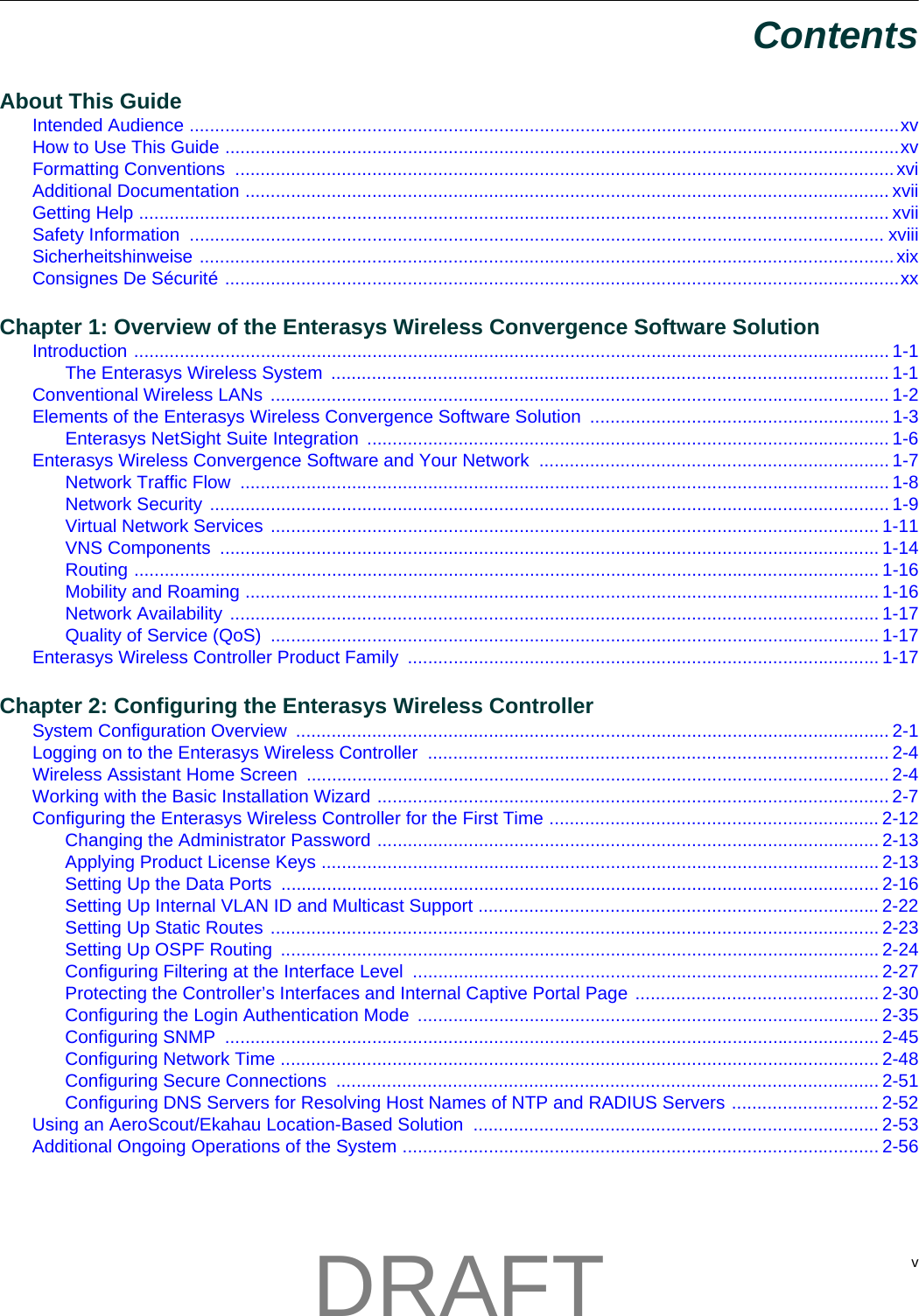
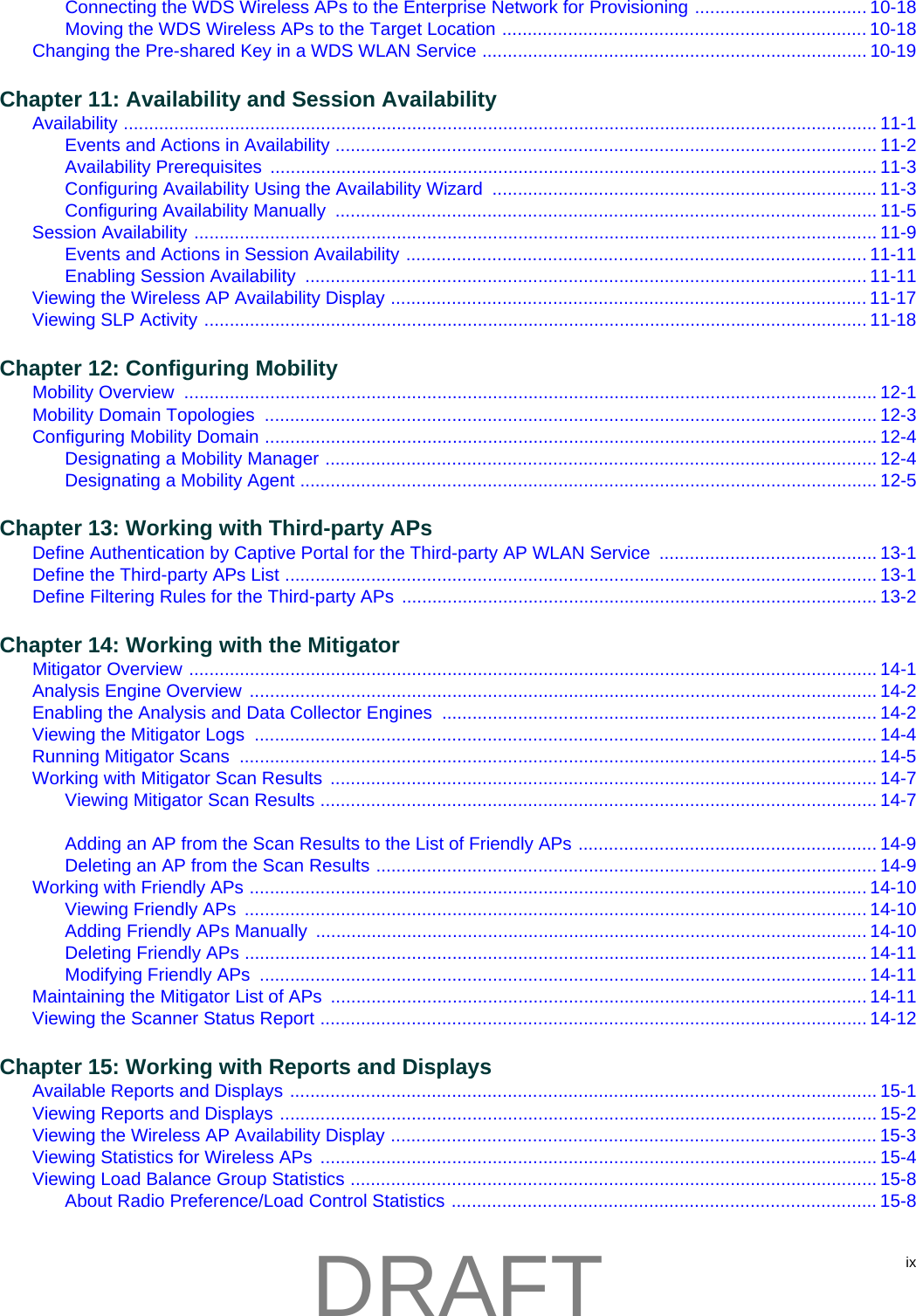
 vContentsAbout This GuideIntended Audience ............................................................................................................................................xvHow to Use This Guide .....................................................................................................................................xvFormatting Conventions  ..................................................................................................................................xviAdditional Documentation ............................................................................................................................... xviiGetting Help .................................................................................................................................................... xviiSafety Information  ......................................................................................................................................... xviiiSicherheitshinweise .........................................................................................................................................xixConsignes De Sécurité .....................................................................................................................................xxChapter 1: Overview of the Enterasys Wireless Convergence Software SolutionIntroduction ..................................................................................................................................................... 1-1The Enterasys Wireless System  .............................................................................................................. 1-1Conventional Wireless LANs  .......................................................................................................................... 1-2Elements of the Enterasys Wireless Convergence Software Solution  ........................................................... 1-3Enterasys NetSight Suite Integration ....................................................................................................... 1-6Enterasys Wireless Convergence Software and Your Network  ..................................................................... 1-7Network Traffic Flow  ................................................................................................................................ 1-8Network Security ...................................................................................................................................... 1-9Virtual Network Services ........................................................................................................................ 1-11VNS Components  .................................................................................................................................. 1-14Routing ................................................................................................................................................... 1-16Mobility and Roaming ............................................................................................................................. 1-16Network Availability ................................................................................................................................ 1-17Quality of Service (QoS)  ........................................................................................................................ 1-17Enterasys Wireless Controller Product Family  ............................................................................................. 1-17Chapter 2: Configuring the Enterasys Wireless ControllerSystem Configuration Overview  ..................................................................................................................... 2-1Logging on to the Enterasys Wireless Controller  ........................................................................................... 2-4Wireless Assistant Home Screen  ................................................................................................................... 2-4Working with the Basic Installation Wizard ..................................................................................................... 2-7Configuring the Enterasys Wireless Controller for the First Time ................................................................. 2-12Changing the Administrator Password ................................................................................................... 2-13Applying Product License Keys .............................................................................................................. 2-13Setting Up the Data Ports ...................................................................................................................... 2-16Setting Up Internal VLAN ID and Multicast Support ............................................................................... 2-22Setting Up Static Routes ........................................................................................................................ 2-23Setting Up OSPF Routing  ...................................................................................................................... 2-24Configuring Filtering at the Interface Level  ............................................................................................ 2-27Protecting the Controller’s Interfaces and Internal Captive Portal Page ................................................ 2-30Configuring the Login Authentication Mode  ........................................................................................... 2-35Configuring SNMP  ................................................................................................................................. 2-45Configuring Network Time ...................................................................................................................... 2-48Configuring Secure Connections  ........................................................................................................... 2-51Configuring DNS Servers for Resolving Host Names of NTP and RADIUS Servers ............................. 2-52Using an AeroScout/Ekahau Location-Based Solution  ................................................................................ 2-53Additional Ongoing Operations of the System .............................................................................................. 2-56DRAFT
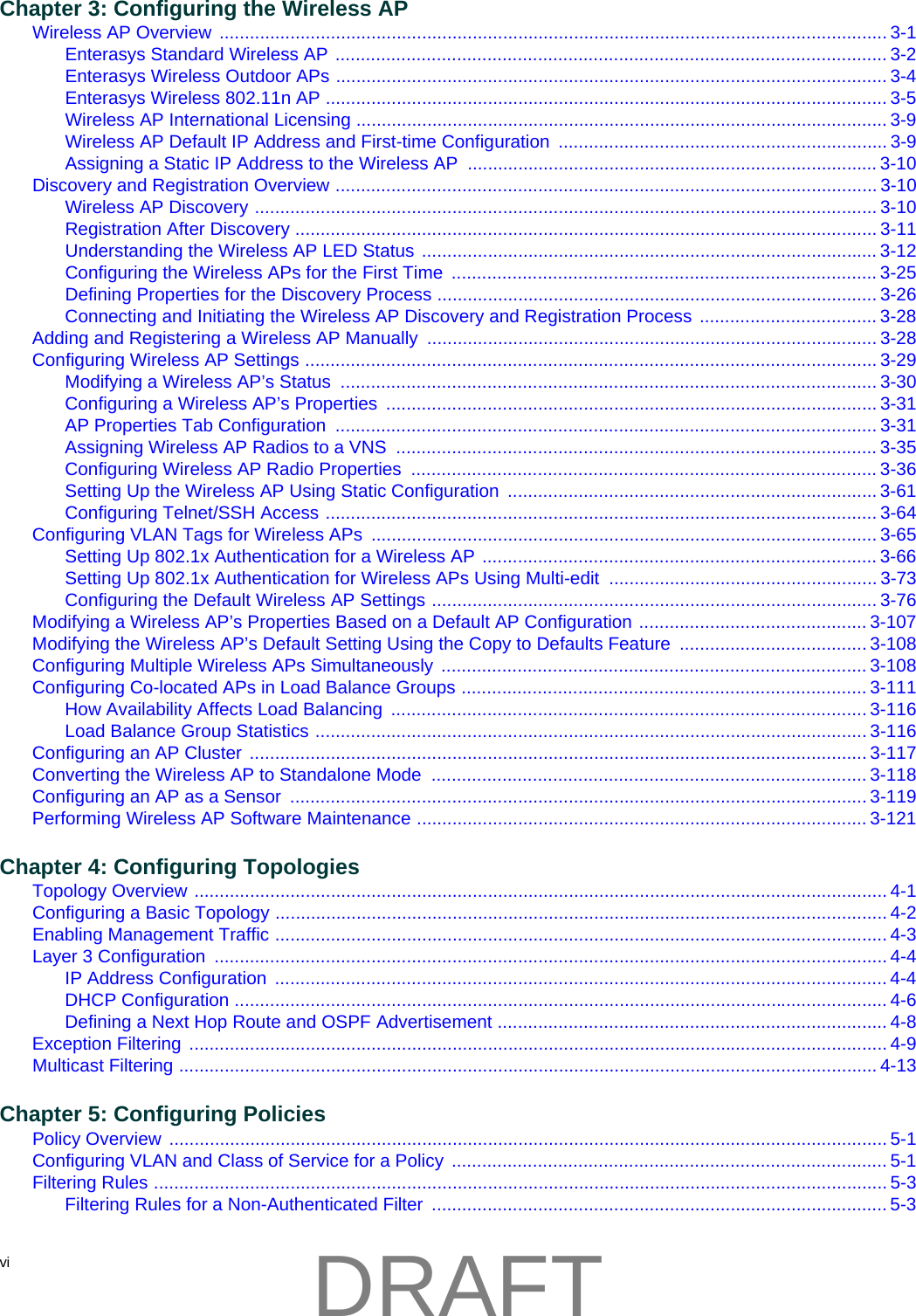
vi  Chapter 3: Configuring the Wireless APWireless AP Overview .................................................................................................................................... 3-1Enterasys Standard Wireless AP ............................................................................................................. 3-2Enterasys Wireless Outdoor APs ............................................................................................................. 3-4Enterasys Wireless 802.11n AP ............................................................................................................... 3-5Wireless AP International Licensing ......................................................................................................... 3-9Wireless AP Default IP Address and First-time Configuration ................................................................. 3-9Assigning a Static IP Address to the Wireless AP  ................................................................................. 3-10Discovery and Registration Overview ........................................................................................................... 3-10Wireless AP Discovery ........................................................................................................................... 3-10Registration After Discovery ................................................................................................................... 3-11Understanding the Wireless AP LED Status .......................................................................................... 3-12Configuring the Wireless APs for the First Time  .................................................................................... 3-25Defining Properties for the Discovery Process ....................................................................................... 3-26Connecting and Initiating the Wireless AP Discovery and Registration Process  ................................... 3-28Adding and Registering a Wireless AP Manually  ......................................................................................... 3-28Configuring Wireless AP Settings ................................................................................................................. 3-29Modifying a Wireless AP’s Status  .......................................................................................................... 3-30Configuring a Wireless AP’s Properties  ................................................................................................. 3-31AP Properties Tab Configuration  ........................................................................................................... 3-31Assigning Wireless AP Radios to a VNS  ............................................................................................... 3-35Configuring Wireless AP Radio Properties  ............................................................................................ 3-36Setting Up the Wireless AP Using Static Configuration  ......................................................................... 3-61Configuring Telnet/SSH Access ............................................................................................................. 3-64Configuring VLAN Tags for Wireless APs  .................................................................................................... 3-65Setting Up 802.1x Authentication for a Wireless AP .............................................................................. 3-66Setting Up 802.1x Authentication for Wireless APs Using Multi-edit  ..................................................... 3-73Configuring the Default Wireless AP Settings ........................................................................................ 3-76Modifying a Wireless AP’s Properties Based on a Default AP Configuration ............................................. 3-107Modifying the Wireless AP’s Default Setting Using the Copy to Defaults Feature  ..................................... 3-108Configuring Multiple Wireless APs Simultaneously  .................................................................................... 3-108Configuring Co-located APs in Load Balance Groups ................................................................................ 3-111How Availability Affects Load Balancing  .............................................................................................. 3-116Load Balance Group Statistics ............................................................................................................. 3-116Configuring an AP Cluster  .......................................................................................................................... 3-117Converting the Wireless AP to Standalone Mode  ...................................................................................... 3-118Configuring an AP as a Sensor  .................................................................................................................. 3-119Performing Wireless AP Software Maintenance ......................................................................................... 3-121Chapter 4: Configuring TopologiesTopology Overview ......................................................................................................................................... 4-1Configuring a Basic Topology ......................................................................................................................... 4-2Enabling Management Traffic ......................................................................................................................... 4-3Layer 3 Configuration  ..................................................................................................................................... 4-4IP Address Configuration  ......................................................................................................................... 4-4DHCP Configuration ................................................................................................................................. 4-6Defining a Next Hop Route and OSPF Advertisement ............................................................................. 4-8Exception Filtering .......................................................................................................................................... 4-9Multicast Filtering .......................................................................................................................................... 4-13Chapter 5: Configuring PoliciesPolicy Overview .............................................................................................................................................. 5-1Configuring VLAN and Class of Service for a Policy  ...................................................................................... 5-1Filtering Rules ................................................................................................................................................. 5-3Filtering Rules for a Non-Authenticated Filter  .......................................................................................... 5-3DRAFT
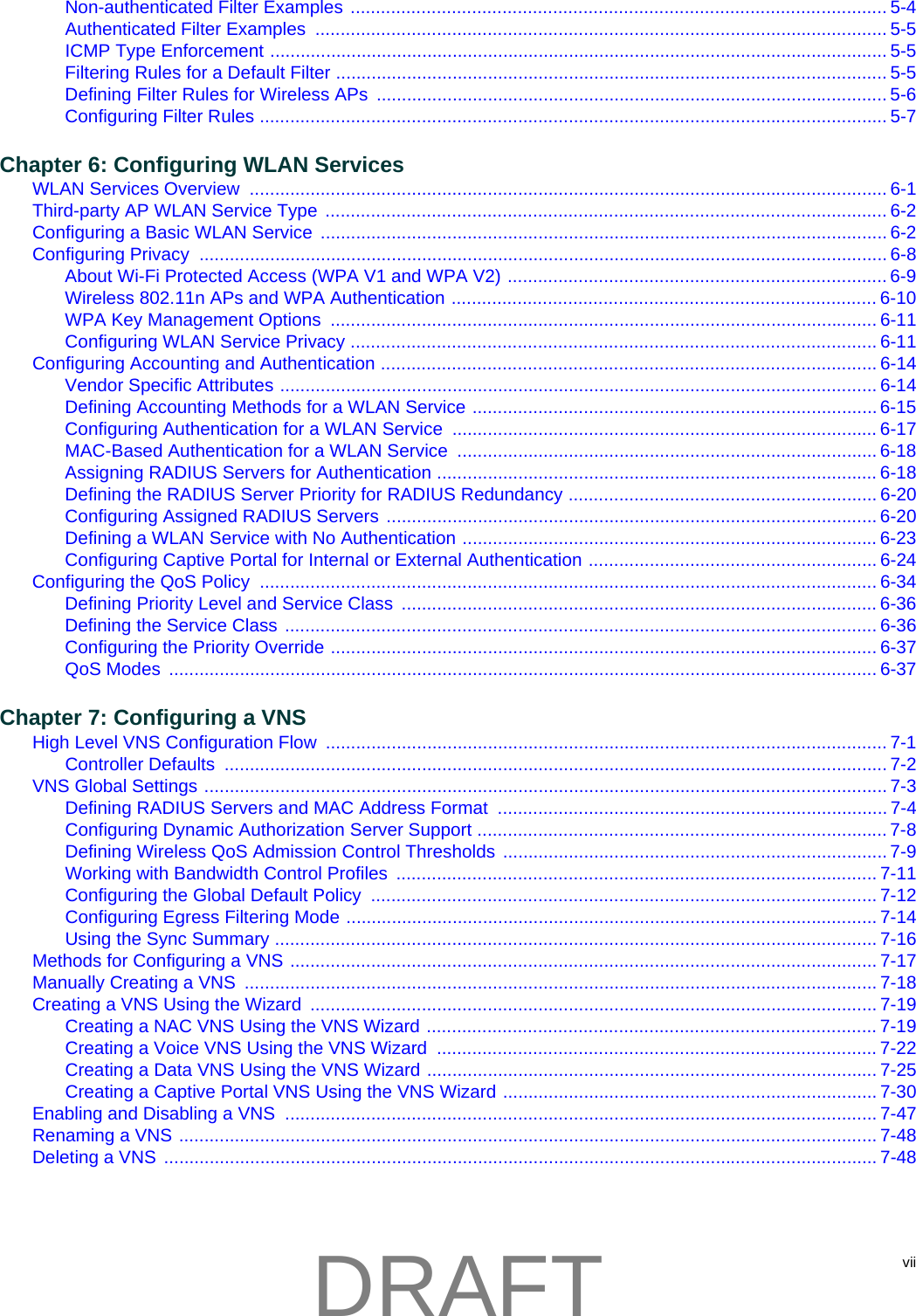
viiNon-authenticated Filter Examples .......................................................................................................... 5-4Authenticated Filter Examples  ................................................................................................................. 5-5ICMP Type Enforcement .......................................................................................................................... 5-5Filtering Rules for a Default Filter ............................................................................................................. 5-5Defining Filter Rules for Wireless APs  ..................................................................................................... 5-6Configuring Filter Rules ............................................................................................................................ 5-7Chapter 6: Configuring WLAN ServicesWLAN Services Overview  .............................................................................................................................. 6-1Third-party AP WLAN Service Type  ............................................................................................................... 6-2Configuring a Basic WLAN Service  ................................................................................................................ 6-2Configuring Privacy  ........................................................................................................................................ 6-8About Wi-Fi Protected Access (WPA V1 and WPA V2) ........................................................................... 6-9Wireless 802.11n APs and WPA Authentication ....................................................................................6-10WPA Key Management Options  ............................................................................................................ 6-11Configuring WLAN Service Privacy ........................................................................................................ 6-11Configuring Accounting and Authentication .................................................................................................. 6-14Vendor Specific Attributes ...................................................................................................................... 6-14Defining Accounting Methods for a WLAN Service ................................................................................ 6-15Configuring Authentication for a WLAN Service  .................................................................................... 6-17MAC-Based Authentication for a WLAN Service  ................................................................................... 6-18Assigning RADIUS Servers for Authentication ....................................................................................... 6-18Defining the RADIUS Server Priority for RADIUS Redundancy ............................................................. 6-20Configuring Assigned RADIUS Servers ................................................................................................. 6-20Defining a WLAN Service with No Authentication .................................................................................. 6-23Configuring Captive Portal for Internal or External Authentication ......................................................... 6-24Configuring the QoS Policy  .......................................................................................................................... 6-34Defining Priority Level and Service Class  .............................................................................................. 6-36Defining the Service Class ..................................................................................................................... 6-36Configuring the Priority Override ............................................................................................................ 6-37QoS Modes  ............................................................................................................................................ 6-37Chapter 7: Configuring a VNSHigh Level VNS Configuration Flow  ............................................................................................................... 7-1Controller Defaults  ................................................................................................................................... 7-2VNS Global Settings ....................................................................................................................................... 7-3Defining RADIUS Servers and MAC Address Format  ............................................................................. 7-4Configuring Dynamic Authorization Server Support ................................................................................. 7-8Defining Wireless QoS Admission Control Thresholds ............................................................................ 7-9Working with Bandwidth Control Profiles  ............................................................................................... 7-11Configuring the Global Default Policy  .................................................................................................... 7-12Configuring Egress Filtering Mode ......................................................................................................... 7-14Using the Sync Summary ....................................................................................................................... 7-16Methods for Configuring a VNS .................................................................................................................... 7-17Manually Creating a VNS  ............................................................................................................................. 7-18Creating a VNS Using the Wizard  ................................................................................................................ 7-19Creating a NAC VNS Using the VNS Wizard ......................................................................................... 7-19Creating a Voice VNS Using the VNS Wizard  ....................................................................................... 7-22Creating a Data VNS Using the VNS Wizard ......................................................................................... 7-25Creating a Captive Portal VNS Using the VNS Wizard .......................................................................... 7-30Enabling and Disabling a VNS  ..................................................................................................................... 7-47Renaming a VNS .......................................................................................................................................... 7-48Deleting a VNS  ............................................................................................................................................. 7-48DRAFT
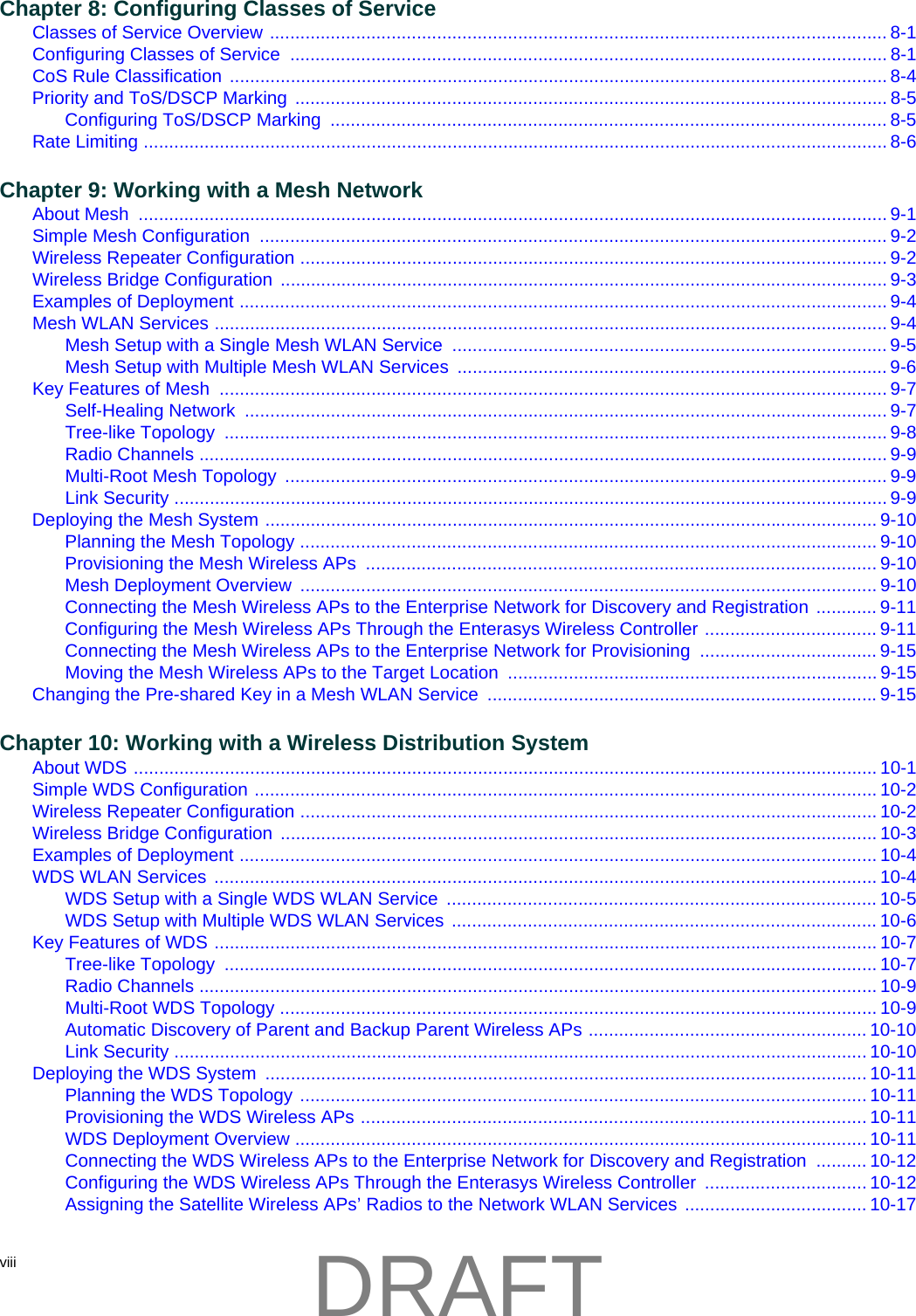
viii  Chapter 8: Configuring Classes of ServiceClasses of Service Overview .......................................................................................................................... 8-1Configuring Classes of Service  ...................................................................................................................... 8-1CoS Rule Classification .................................................................................................................................. 8-4Priority and ToS/DSCP Marking ..................................................................................................................... 8-5Configuring ToS/DSCP Marking  .............................................................................................................. 8-5Rate Limiting ................................................................................................................................................... 8-6Chapter 9: Working with a Mesh NetworkAbout Mesh  .................................................................................................................................................... 9-1Simple Mesh Configuration  ............................................................................................................................ 9-2Wireless Repeater Configuration .................................................................................................................... 9-2Wireless Bridge Configuration ........................................................................................................................ 9-3Examples of Deployment ................................................................................................................................ 9-4Mesh WLAN Services ..................................................................................................................................... 9-4Mesh Setup with a Single Mesh WLAN Service  ...................................................................................... 9-5Mesh Setup with Multiple Mesh WLAN Services  ..................................................................................... 9-6Key Features of Mesh  .................................................................................................................................... 9-7Self-Healing Network  ............................................................................................................................... 9-7Tree-like Topology  ................................................................................................................................... 9-8Radio Channels ........................................................................................................................................ 9-9Multi-Root Mesh Topology  ....................................................................................................................... 9-9Link Security ............................................................................................................................................. 9-9Deploying the Mesh System ......................................................................................................................... 9-10Planning the Mesh Topology .................................................................................................................. 9-10Provisioning the Mesh Wireless APs  ..................................................................................................... 9-10Mesh Deployment Overview  .................................................................................................................. 9-10Connecting the Mesh Wireless APs to the Enterprise Network for Discovery and Registration ............ 9-11Configuring the Mesh Wireless APs Through the Enterasys Wireless Controller .................................. 9-11Connecting the Mesh Wireless APs to the Enterprise Network for Provisioning ................................... 9-15Moving the Mesh Wireless APs to the Target Location ......................................................................... 9-15Changing the Pre-shared Key in a Mesh WLAN Service  .............................................................................9-15Chapter 10: Working with a Wireless Distribution SystemAbout WDS ................................................................................................................................................... 10-1Simple WDS Configuration ........................................................................................................................... 10-2Wireless Repeater Configuration .................................................................................................................. 10-2Wireless Bridge Configuration ...................................................................................................................... 10-3Examples of Deployment .............................................................................................................................. 10-4WDS WLAN Services ................................................................................................................................... 10-4WDS Setup with a Single WDS WLAN Service  ..................................................................................... 10-5WDS Setup with Multiple WDS WLAN Services .................................................................................... 10-6Key Features of WDS ................................................................................................................................... 10-7Tree-like Topology  ................................................................................................................................. 10-7Radio Channels ...................................................................................................................................... 10-9Multi-Root WDS Topology ...................................................................................................................... 10-9Automatic Discovery of Parent and Backup Parent Wireless APs ....................................................... 10-10Link Security ......................................................................................................................................... 10-10Deploying the WDS System  ....................................................................................................................... 10-11Planning the WDS Topology ................................................................................................................ 10-11Provisioning the WDS Wireless APs .................................................................................................... 10-11WDS Deployment Overview ................................................................................................................. 10-11Connecting the WDS Wireless APs to the Enterprise Network for Discovery and Registration  .......... 10-12Configuring the WDS Wireless APs Through the Enterasys Wireless Controller  ................................ 10-12Assigning the Satellite Wireless APs’ Radios to the Network WLAN Services .................................... 10-17DRAFT
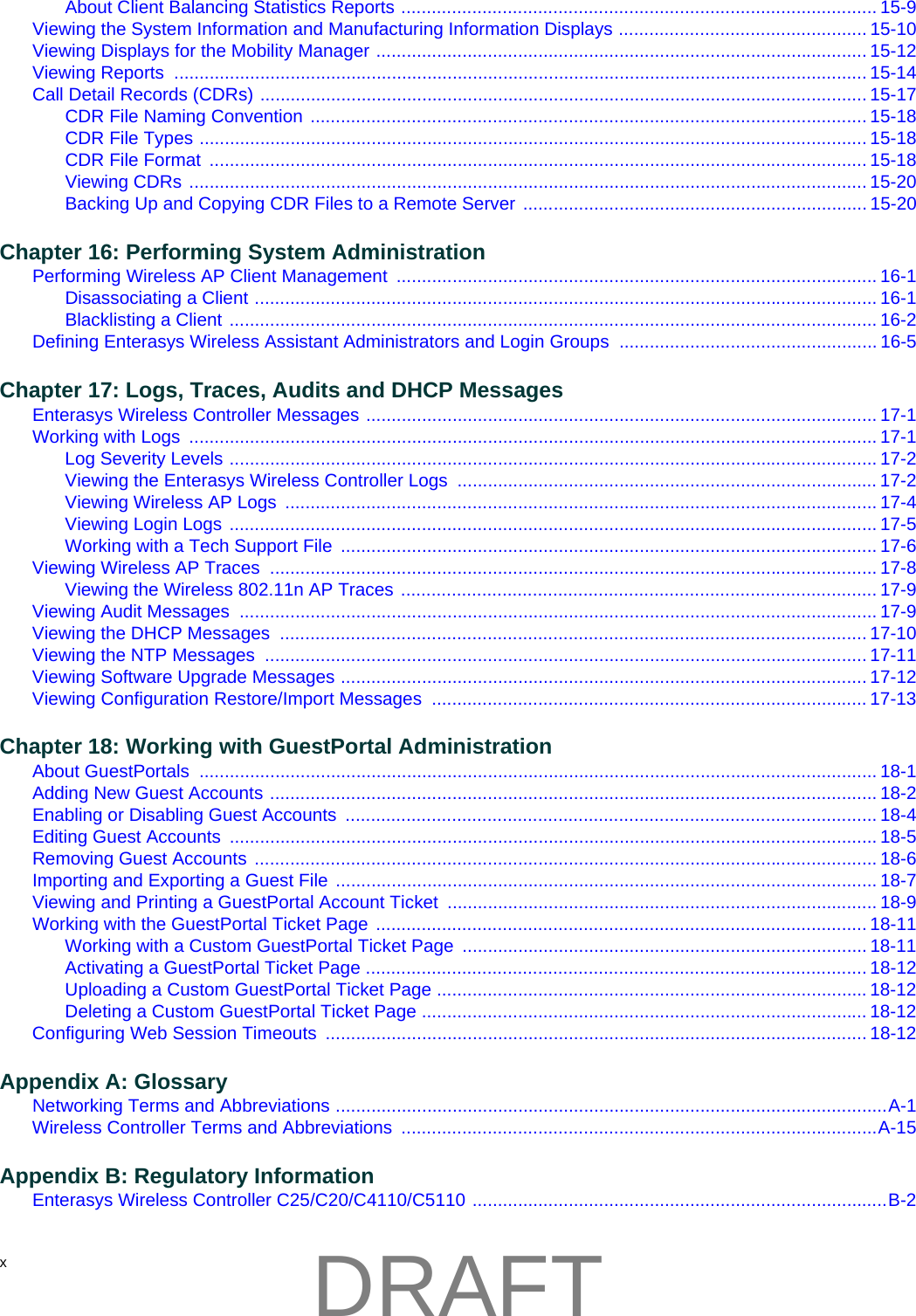
ixConnecting the WDS Wireless APs to the Enterprise Network for Provisioning .................................. 10-18Moving the WDS Wireless APs to the Target Location ........................................................................ 10-18Changing the Pre-shared Key in a WDS WLAN Service ............................................................................ 10-19Chapter 11: Availability and Session AvailabilityAvailability ..................................................................................................................................................... 11-1Events and Actions in Availability ........................................................................................................... 11-2Availability Prerequisites  ........................................................................................................................ 11-3Configuring Availability Using the Availability Wizard  ............................................................................ 11-3Configuring Availability Manually  ........................................................................................................... 11-5Session Availability ....................................................................................................................................... 11-9Events and Actions in Session Availability ........................................................................................... 11-11Enabling Session Availability  ............................................................................................................... 11-11Viewing the Wireless AP Availability Display .............................................................................................. 11-17Viewing SLP Activity ................................................................................................................................... 11-18Chapter 12: Configuring MobilityMobility Overview  ......................................................................................................................................... 12-1Mobility Domain Topologies  ......................................................................................................................... 12-3Configuring Mobility Domain ......................................................................................................................... 12-4Designating a Mobility Manager ............................................................................................................. 12-4Designating a Mobility Agent .................................................................................................................. 12-5Chapter 13: Working with Third-party APsDefine Authentication by Captive Portal for the Third-party AP WLAN Service  ........................................... 13-1Define the Third-party APs List ..................................................................................................................... 13-1Define Filtering Rules for the Third-party APs  .............................................................................................. 13-2Chapter 14: Working with the MitigatorMitigator Overview ........................................................................................................................................ 14-1Analysis Engine Overview  ............................................................................................................................ 14-2Enabling the Analysis and Data Collector Engines  ...................................................................................... 14-2Viewing the Mitigator Logs  ........................................................................................................................... 14-4Running Mitigator Scans  .............................................................................................................................. 14-5Working with Mitigator Scan Results ............................................................................................................ 14-7Viewing Mitigator Scan Results .............................................................................................................. 14-7Adding an AP from the Scan Results to the List of Friendly APs ........................................................... 14-9Deleting an AP from the Scan Results ................................................................................................... 14-9Working with Friendly APs .......................................................................................................................... 14-10Viewing Friendly APs  ........................................................................................................................... 14-10Adding Friendly APs Manually  ............................................................................................................. 14-10Deleting Friendly APs ........................................................................................................................... 14-11Modifying Friendly APs  ........................................................................................................................ 14-11Maintaining the Mitigator List of APs  .......................................................................................................... 14-11Viewing the Scanner Status Report ............................................................................................................ 14-12Chapter 15: Working with Reports and DisplaysAvailable Reports and Displays .................................................................................................................... 15-1Viewing Reports and Displays ...................................................................................................................... 15-2Viewing the Wireless AP Availability Display ................................................................................................ 15-3Viewing Statistics for Wireless APs  .............................................................................................................. 15-4Viewing Load Balance Group Statistics ........................................................................................................ 15-8About Radio Preference/Load Control Statistics .................................................................................... 15-8DRAFT
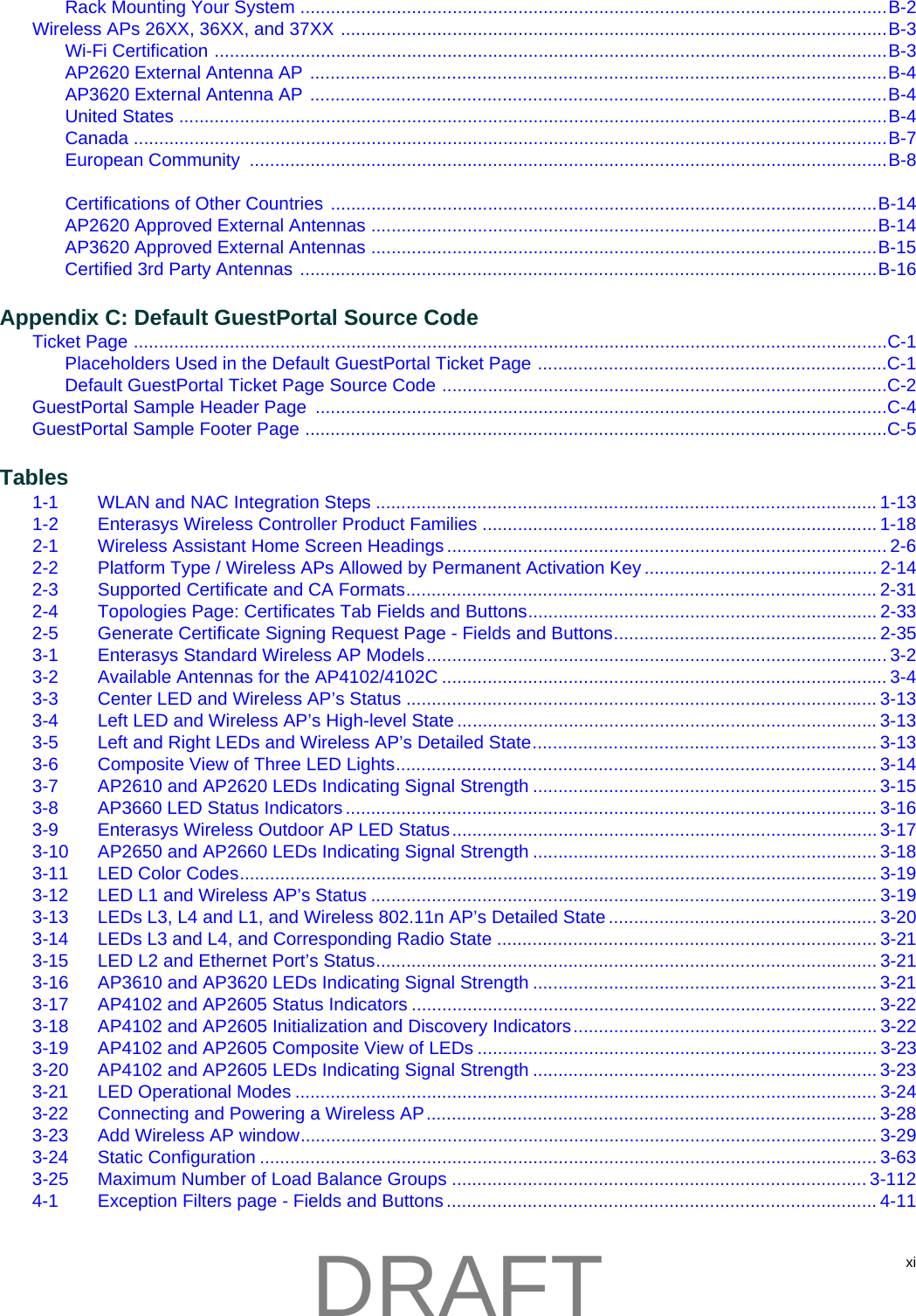
x About Client Balancing Statistics Reports .............................................................................................. 15-9Viewing the System Information and Manufacturing Information Displays ................................................. 15-10Viewing Displays for the Mobility Manager ................................................................................................. 15-12Viewing Reports  ......................................................................................................................................... 15-14Call Detail Records (CDRs) ........................................................................................................................ 15-17CDR File Naming Convention .............................................................................................................. 15-18CDR File Types .................................................................................................................................... 15-18CDR File Format  .................................................................................................................................. 15-18Viewing CDRs ...................................................................................................................................... 15-20Backing Up and Copying CDR Files to a Remote Server .................................................................... 15-20Chapter 16: Performing System AdministrationPerforming Wireless AP Client Management  ............................................................................................... 16-1Disassociating a Client ........................................................................................................................... 16-1Blacklisting a Client ................................................................................................................................ 16-2Defining Enterasys Wireless Assistant Administrators and Login Groups  ................................................... 16-5Chapter 17: Logs, Traces, Audits and DHCP MessagesEnterasys Wireless Controller Messages ..................................................................................................... 17-1Working with Logs  ........................................................................................................................................ 17-1Log Severity Levels ................................................................................................................................ 17-2Viewing the Enterasys Wireless Controller Logs  ................................................................................... 17-2Viewing Wireless AP Logs  ..................................................................................................................... 17-4Viewing Login Logs ................................................................................................................................ 17-5Working with a Tech Support File  .......................................................................................................... 17-6Viewing Wireless AP Traces  ........................................................................................................................ 17-8Viewing the Wireless 802.11n AP Traces .............................................................................................. 17-9Viewing Audit Messages  .............................................................................................................................. 17-9Viewing the DHCP Messages  .................................................................................................................... 17-10Viewing the NTP Messages  ....................................................................................................................... 17-11Viewing Software Upgrade Messages ........................................................................................................ 17-12Viewing Configuration Restore/Import Messages  ...................................................................................... 17-13Chapter 18: Working with GuestPortal AdministrationAbout GuestPortals  ...................................................................................................................................... 18-1Adding New Guest Accounts ........................................................................................................................ 18-2Enabling or Disabling Guest Accounts  ......................................................................................................... 18-4Editing Guest Accounts  ................................................................................................................................ 18-5Removing Guest Accounts ........................................................................................................................... 18-6Importing and Exporting a Guest File ........................................................................................................... 18-7Viewing and Printing a GuestPortal Account Ticket  ..................................................................................... 18-9Working with the GuestPortal Ticket Page ................................................................................................. 18-11Working with a Custom GuestPortal Ticket Page  ................................................................................ 18-11Activating a GuestPortal Ticket Page ................................................................................................... 18-12Uploading a Custom GuestPortal Ticket Page .....................................................................................18-12Deleting a Custom GuestPortal Ticket Page ........................................................................................ 18-12Configuring Web Session Timeouts  ........................................................................................................... 18-12Appendix A: GlossaryNetworking Terms and Abbreviations .............................................................................................................A-1Wireless Controller Terms and Abbreviations  ..............................................................................................A-15Appendix B: Regulatory InformationEnterasys Wireless Controller C25/C20/C4110/C5110 ..................................................................................B-2DRAFT
xiRack Mounting Your System ....................................................................................................................B-2Wireless APs 26XX, 36XX, and 37XX ............................................................................................................B-3Wi-Fi Certification .....................................................................................................................................B-3AP2620 External Antenna AP ..................................................................................................................B-4AP3620 External Antenna AP ..................................................................................................................B-4United States ............................................................................................................................................B-4Canada .....................................................................................................................................................B-7European Community  ..............................................................................................................................B-8Certifications of Other Countries ............................................................................................................B-14AP2620 Approved External Antennas ....................................................................................................B-14AP3620 Approved External Antennas ....................................................................................................B-15Certified 3rd Party Antennas ..................................................................................................................B-16Appendix C: Default GuestPortal Source CodeTicket Page .....................................................................................................................................................C-1Placeholders Used in the Default GuestPortal Ticket Page .....................................................................C-1Default GuestPortal Ticket Page Source Code ........................................................................................C-2GuestPortal Sample Header Page  .................................................................................................................C-4GuestPortal Sample Footer Page ...................................................................................................................C-5Tables1-1 WLAN and NAC Integration Steps ................................................................................................... 1-131-2 Enterasys Wireless Controller Product Families .............................................................................. 1-182-1 Wireless Assistant Home Screen Headings ....................................................................................... 2-62-2 Platform Type / Wireless APs Allowed by Permanent Activation Key .............................................. 2-142-3 Supported Certificate and CA Formats............................................................................................. 2-312-4 Topologies Page: Certificates Tab Fields and Buttons..................................................................... 2-332-5 Generate Certificate Signing Request Page - Fields and Buttons.................................................... 2-353-1 Enterasys Standard Wireless AP Models........................................................................................... 3-23-2 Available Antennas for the AP4102/4102C ........................................................................................ 3-43-3 Center LED and Wireless AP’s Status ............................................................................................. 3-133-4 Left LED and Wireless AP’s High-level State ................................................................................... 3-133-5 Left and Right LEDs and Wireless AP’s Detailed State.................................................................... 3-133-6 Composite View of Three LED Lights............................................................................................... 3-143-7 AP2610 and AP2620 LEDs Indicating Signal Strength .................................................................... 3-153-8 AP3660 LED Status Indicators ......................................................................................................... 3-163-9 Enterasys Wireless Outdoor AP LED Status.................................................................................... 3-173-10 AP2650 and AP2660 LEDs Indicating Signal Strength .................................................................... 3-183-11 LED Color Codes.............................................................................................................................. 3-193-12 LED L1 and Wireless AP’s Status .................................................................................................... 3-193-13 LEDs L3, L4 and L1, and Wireless 802.11n AP’s Detailed State ..................................................... 3-203-14 LEDs L3 and L4, and Corresponding Radio State ........................................................................... 3-213-15 LED L2 and Ethernet Port’s Status................................................................................................... 3-213-16 AP3610 and AP3620 LEDs Indicating Signal Strength .................................................................... 3-213-17 AP4102 and AP2605 Status Indicators ............................................................................................ 3-223-18 AP4102 and AP2605 Initialization and Discovery Indicators............................................................ 3-223-19 AP4102 and AP2605 Composite View of LEDs ............................................................................... 3-233-20 AP4102 and AP2605 LEDs Indicating Signal Strength .................................................................... 3-233-21 LED Operational Modes ................................................................................................................... 3-243-22 Connecting and Powering a Wireless AP......................................................................................... 3-283-23 Add Wireless AP window.................................................................................................................. 3-293-24 Static Configuration .......................................................................................................................... 3-633-25 Maximum Number of Load Balance Groups .................................................................................. 3-1124-1 Exception Filters page - Fields and Buttons ..................................................................................... 4-11DRAFT
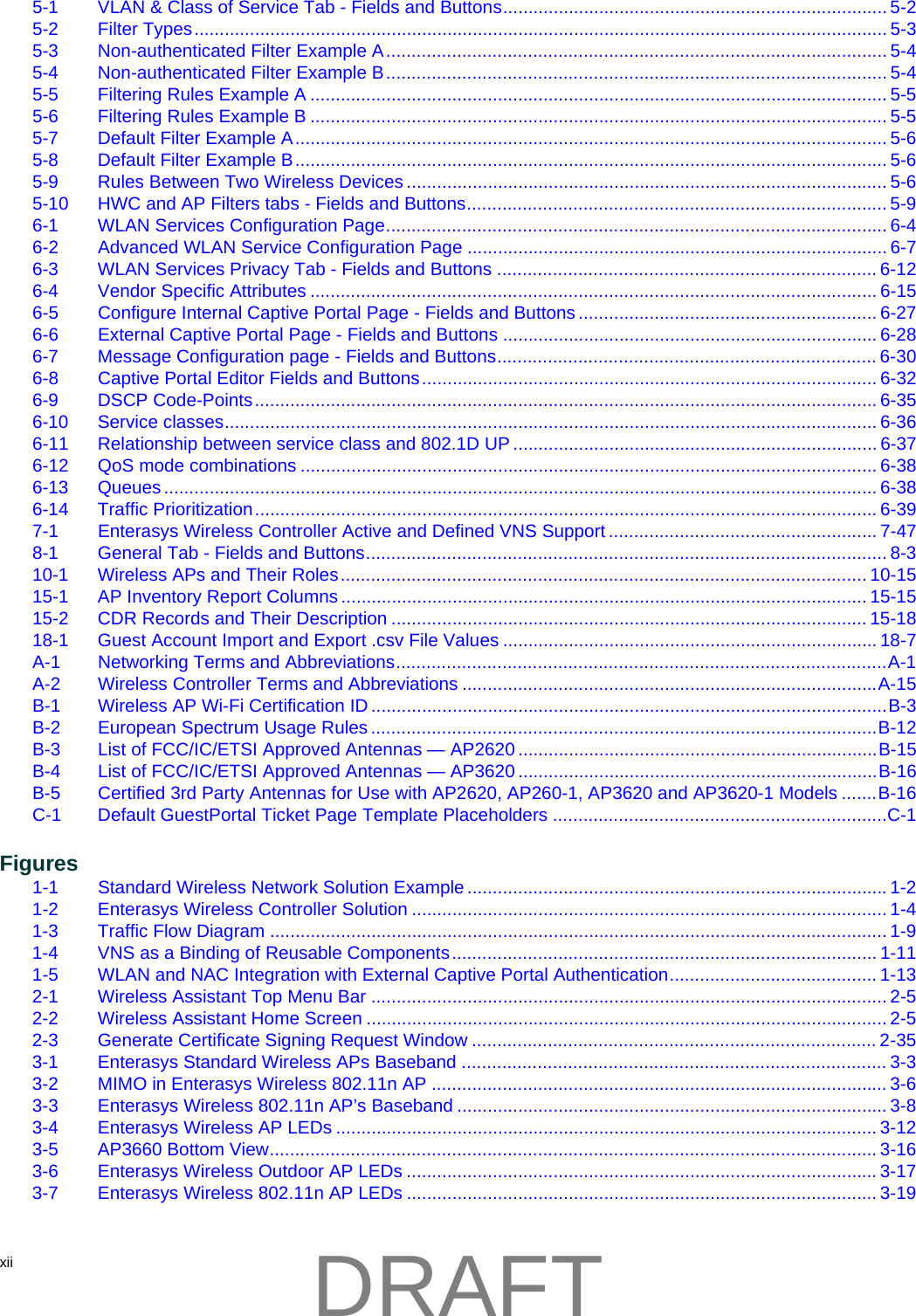
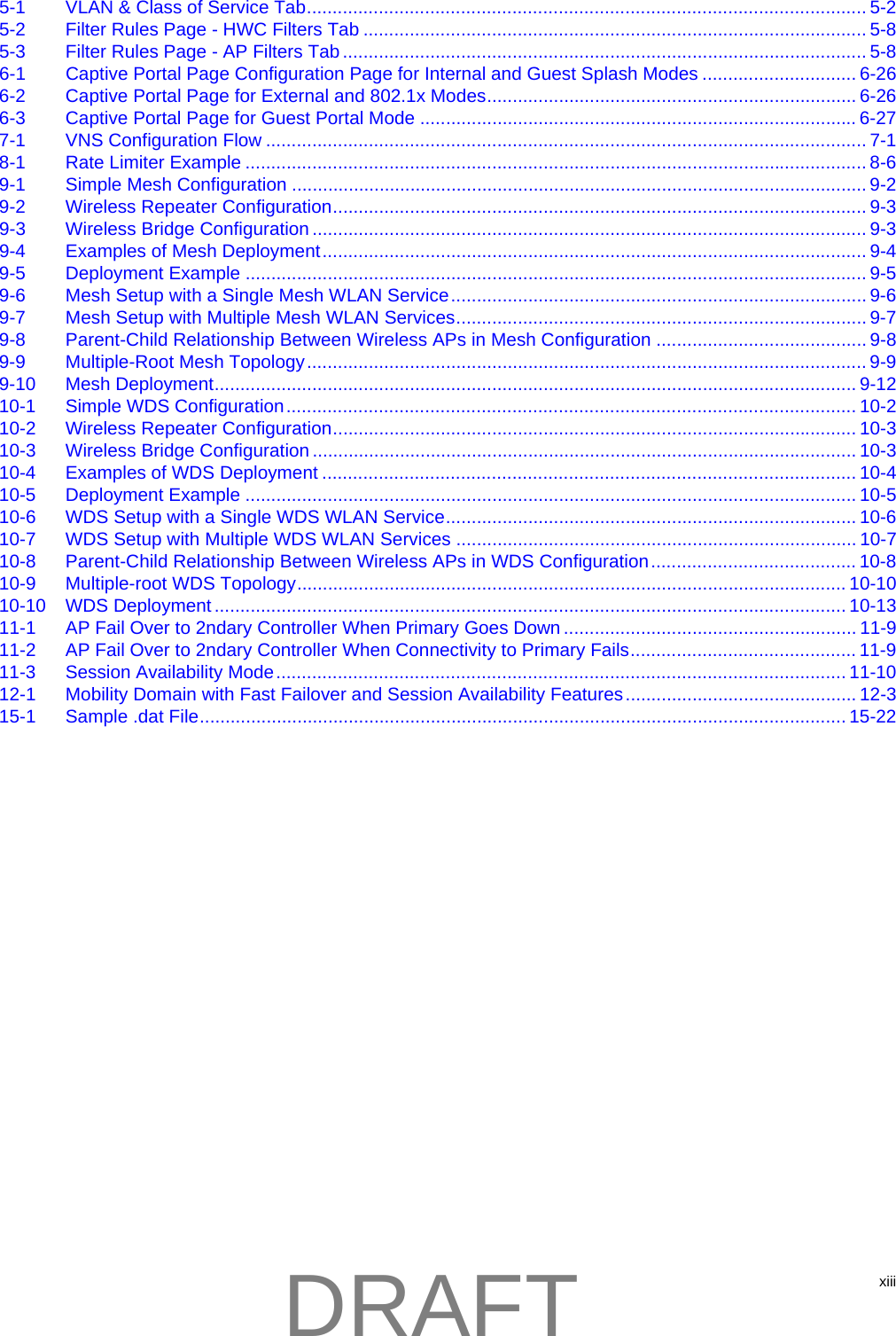
xii  5-1 VLAN & Class of Service Tab - Fields and Buttons............................................................................ 5-25-2 Filter Types......................................................................................................................................... 5-35-3 Non-authenticated Filter Example A................................................................................................... 5-45-4 Non-authenticated Filter Example B................................................................................................... 5-45-5 Filtering Rules Example A .................................................................................................................. 5-55-6 Filtering Rules Example B .................................................................................................................. 5-55-7 Default Filter Example A..................................................................................................................... 5-65-8 Default Filter Example B..................................................................................................................... 5-65-9 Rules Between Two Wireless Devices ............................................................................................... 5-65-10 HWC and AP Filters tabs - Fields and Buttons................................................................................... 5-96-1 WLAN Services Configuration Page................................................................................................... 6-46-2 Advanced WLAN Service Configuration Page ................................................................................... 6-76-3 WLAN Services Privacy Tab - Fields and Buttons ........................................................................... 6-126-4 Vendor Specific Attributes ................................................................................................................ 6-156-5 Configure Internal Captive Portal Page - Fields and Buttons ........................................................... 6-276-6 External Captive Portal Page - Fields and Buttons .......................................................................... 6-286-7 Message Configuration page - Fields and Buttons........................................................................... 6-306-8 Captive Portal Editor Fields and Buttons.......................................................................................... 6-326-9 DSCP Code-Points........................................................................................................................... 6-356-10 Service classes................................................................................................................................. 6-366-11 Relationship between service class and 802.1D UP ........................................................................ 6-376-12 QoS mode combinations .................................................................................................................. 6-386-13 Queues............................................................................................................................................. 6-386-14 Traffic Prioritization........................................................................................................................... 6-397-1 Enterasys Wireless Controller Active and Defined VNS Support ..................................................... 7-478-1 General Tab - Fields and Buttons....................................................................................................... 8-310-1 Wireless APs and Their Roles........................................................................................................ 10-1515-1 AP Inventory Report Columns ........................................................................................................ 15-1515-2 CDR Records and Their Description .............................................................................................. 15-1818-1 Guest Account Import and Export .csv File Values .......................................................................... 18-7A-1 Networking Terms and Abbreviations.................................................................................................A-1A-2 Wireless Controller Terms and Abbreviations ..................................................................................A-15B-1 Wireless AP Wi-Fi Certification ID ......................................................................................................B-3B-2 European Spectrum Usage Rules ....................................................................................................B-12B-3 List of FCC/IC/ETSI Approved Antennas — AP2620 .......................................................................B-15B-4 List of FCC/IC/ETSI Approved Antennas — AP3620 .......................................................................B-16B-5 Certified 3rd Party Antennas for Use with AP2620, AP260-1, AP3620 and AP3620-1 Models .......B-16C-1 Default GuestPortal Ticket Page Template Placeholders ..................................................................C-1Figures1-1 Standard Wireless Network Solution Example ...................................................................................1-21-2 Enterasys Wireless Controller Solution .............................................................................................. 1-41-3 Traffic Flow Diagram .......................................................................................................................... 1-91-4 VNS as a Binding of Reusable Components.................................................................................... 1-111-5 WLAN and NAC Integration with External Captive Portal Authentication......................................... 1-132-1 Wireless Assistant Top Menu Bar ...................................................................................................... 2-52-2 Wireless Assistant Home Screen ....................................................................................................... 2-52-3 Generate Certificate Signing Request Window ................................................................................ 2-353-1 Enterasys Standard Wireless APs Baseband .................................................................................... 3-33-2 MIMO in Enterasys Wireless 802.11n AP .......................................................................................... 3-63-3 Enterasys Wireless 802.11n AP’s Baseband .....................................................................................3-83-4 Enterasys Wireless AP LEDs ........................................................................................................... 3-123-5 AP3660 Bottom View........................................................................................................................ 3-163-6 Enterasys Wireless Outdoor AP LEDs ............................................................................................. 3-173-7 Enterasys Wireless 802.11n AP LEDs ............................................................................................. 3-19DRAFT
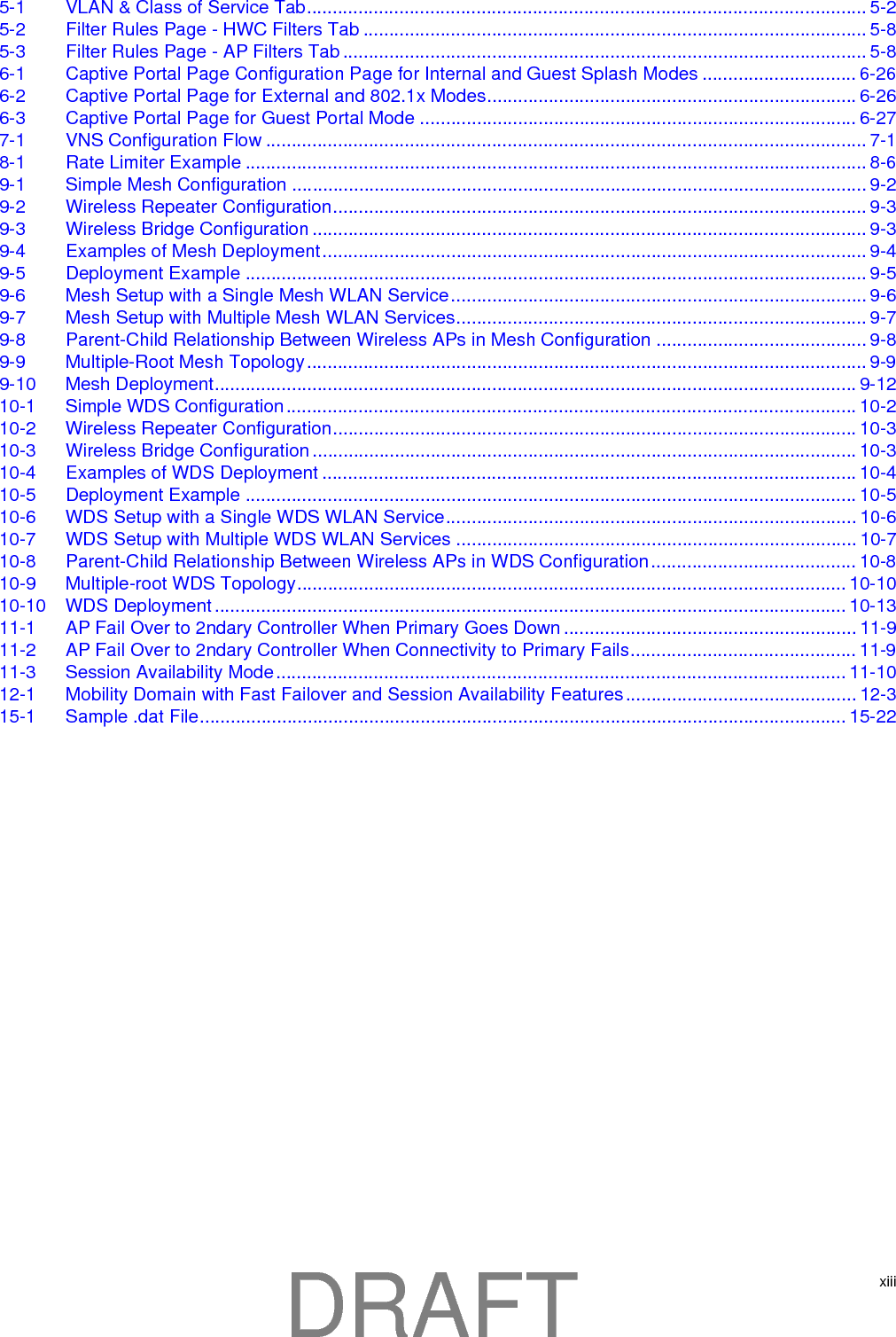
xiii5-1 VLAN & Class of Service Tab............................................................................................................. 5-25-2 Filter Rules Page - HWC Filters Tab .................................................................................................. 5-85-3 Filter Rules Page - AP Filters Tab ...................................................................................................... 5-86-1 Captive Portal Page Configuration Page for Internal and Guest Splash Modes .............................. 6-266-2 Captive Portal Page for External and 802.1x Modes........................................................................ 6-266-3 Captive Portal Page for Guest Portal Mode ..................................................................................... 6-277-1 VNS Configuration Flow ..................................................................................................................... 7-18-1 Rate Limiter Example ......................................................................................................................... 8-69-1 Simple Mesh Configuration ................................................................................................................ 9-29-2 Wireless Repeater Configuration........................................................................................................ 9-39-3 Wireless Bridge Configuration ............................................................................................................ 9-39-4 Examples of Mesh Deployment.......................................................................................................... 9-49-5 Deployment Example ......................................................................................................................... 9-59-6 Mesh Setup with a Single Mesh WLAN Service................................................................................. 9-69-7 Mesh Setup with Multiple Mesh WLAN Services................................................................................ 9-79-8 Parent-Child Relationship Between Wireless APs in Mesh Configuration ......................................... 9-89-9 Multiple-Root Mesh Topology............................................................................................................. 9-99-10 Mesh Deployment............................................................................................................................. 9-1210-1 Simple WDS Configuration............................................................................................................... 10-210-2 Wireless Repeater Configuration...................................................................................................... 10-310-3 Wireless Bridge Configuration .......................................................................................................... 10-310-4 Examples of WDS Deployment ........................................................................................................ 10-410-5 Deployment Example ....................................................................................................................... 10-510-6 WDS Setup with a Single WDS WLAN Service................................................................................ 10-610-7 WDS Setup with Multiple WDS WLAN Services .............................................................................. 10-710-8 Parent-Child Relationship Between Wireless APs in WDS Configuration........................................ 10-810-9 Multiple-root WDS Topology........................................................................................................... 10-1010-10 WDS Deployment ........................................................................................................................... 10-1311-1 AP Fail Over to 2ndary Controller When Primary Goes Down ......................................................... 11-911-2 AP Fail Over to 2ndary Controller When Connectivity to Primary Fails............................................ 11-911-3 Session Availability Mode............................................................................................................... 11-1012-1 Mobility Domain with Fast Failover and Session Availability Features............................................. 12-315-1 Sample .dat File.............................................................................................................................. 15-22DRAFT
xiv  DRAFT
User Guide, V8.01 xvAbout This GuideThisguidedescribeshowtoinstall,configure,andmanagetheEnterasysWirelessConvergenceSoftwaresystem.Thisguideisalsoavailableasanonlinehelpsystem.To Access the Online Help System:1. IntheEnterasysWirelessAssistantTopMenubar,clickHelp.2. Theonlinehelpsystemislaunched.Intended AudienceThisguideisareferenceforsystemadministratorswhoinstallandmanagetheEnterasysWirelesssystem.Anyadministratorperformingtasksdescribedinthisguidemusthaveanaccountwithadministrativeprivileges.How to Use This GuideThisprefaceprovidesanoverviewofthisguideandabriefsummaryofeachchapter,definestheconventionsusedinthisdocument;andinstructshowtoobtaintechnicalsupportfromEnterasysNetworks.Tolocateinformationaboutvarioussubjectsinthisguide,refertothefollowingtable.For...  Refer to...An overview of the product, its features and functionality.  Chapter 1, Overview of the Enterasys Wireless Convergence Software SolutionInformation about how to perform the installation, first time setup and configuration of the Enterasys Wireless Controller, as well as configuring the data ports and defining routing.Chapter 2, Configuring the Enterasys Wireless ControllerInformation on how to install the Wireless AP, how it discovers and registers with the Enterasys Wireless Controller, and how to view and modify radio configuration.Chapter 3, Configuring the Wireless APAn overview of topologies and provides detailed information about how to configure them.Chapter 4, Configuring TopologiesAn overview of policies and provides detailed information about how to configure them.Chapter 5, Configuring PoliciesAn overview of WLAN services and provides detailed information about how to configure them.Chapter 6, Configuring WLAN ServicesAn overview of Virtual Network Services (VNS), provides detailed instructions in how to configure a VNS, either using the Wizards or by manually creating the component parts of a VNS.Chapter 7, Configuring a VNSDRAFT
Formatting Conventionsxvi About This GuideFormatting ConventionsTheEnterasysWirelessConvergenceSoftwaredocumentationusesthefollowingformattingconventionstomakeiteasiertofindinformationandfollowprocedures:•Boldtextisusedtoidentifycomponentsofthemanagementinterface,suchasmenuitemsandsectionofpages,aswellasthenamesofbuttonsandtextboxes.Forexample:ClickLogout.Information about configuring Classes of Service (CoS) which are a configuration entity containing QoS Marking (802.1p and ToS/DSCP), Inbound/Outbound Rate Limiting and Transmit Queue Assignments. Chapter 8, Configuring Classes of ServiceAn overview of Mesh networks and provides detailed information about how to create a Mesh network.Chapter 9, Working with a Mesh NetworkAn overview of a Wireless Distribution System (WDS) network configuration and provides detailed information about how to create a Mesh network.Chapter 10, Working with a Wireless Distribution SystemInformation on how to set up the features that maintain service availability in the event of a Enterasys Wireless Controller failover.Chapter 11, Availability and Session AvailabilityInformation on how to set up the mobility domain that provides mobility for a wireless device user when the user roams from one Wireless AP to another in the mobility domain.Chapter 12, Configuring MobilityInformation on how to use the Enterasys Wireless Convergence Software features with third-party wireless access points.Chapter 13, Working with Third-party APsInformation on the security tool that scans for, detects, and reports on rogue APs.Chapter 14, Working with the MitigatorInformation on the various reports and displays available in the Enterasys Wireless Convergence Software system.Chapter 15, Working with Reports and DisplaysInformation on system administration activities, such as performing Wireless AP client management, defining management users, configuring the network time, and configuring Web session timeouts.Chapter 16, Performing System AdministrationInformation on how to view and interpret the logs, traces, audits and DHCP messages.Chapter 17, Logs, Traces, Audits and DHCP MessagesInformation on how to configure GuestPortal accounts using the Enterasys Wireless Convergence Software.Chapter 18, Working with GuestPortal AdministrationA list of terms and definitions for the Enterasys Wireless Controller and the Wireless AP as well as standard industry terms used in this guide.Appendix A, GlossaryRegulatory information for the Enterasys Wireless Controller and the Enterasys Wireless Access Points (APs).Appendix B, Regulatory InformationThe default GuestPortal ticket page source code. Appendix C, Default GuestPortal Source CodeFor...  Refer to...DRAFT
Additional DocumentationUser Guide, V8.01 xvii•Monospace fontisusedincodeexamplesandtoindicatetextthatyoutype.Forexample:Typehttps://<hwc-address>[:mgmt-port]•Thefollowingnotesareusedtodrawyourattentiontoadditionalinformation:Additional DocumentationToaccessrelatedinformation,seetheEnterasysWirelessConvergenceSoftwareUserGuide.EnterasysWirelessControllerdocumentationisavailableat:https://extranet.enterasys.com/downloadswww.siemens.com/automation/service&supportGetting HelpForadditionalsupportrelatedtotheproductorthisdocument,contactEnterasysNetworksusingoneofthefollowingmethods:BeforecontactingEnterasysNetworksfortechnicalsupport,havethefollowinginformationready:•YourEnterasysNetworksservicecontractnumber•Adescriptionofthefailure•Adescriptionofanyaction(s)alreadytakentoresolvetheproblem(forexample,changingmodeswitchesorrebootingtheunit)•TheserialandrevisionnumbersofallinvolvedEnterasysNetworksproductsinthenetwork•Adescriptionofyournetworkenvironment(suchaslayout,cabletype,otherrelevantenvironmentalinformation)•Networkloadandframesizeatthetimeoftrouble(ifknown)Note: Notes identify useful information, such as reminders, tips, or other ways to perform a task.Caution: Cautionary notes identify essential information, which if ignored can adversely affect the operation of your equipment or software.Warning: Warning notes identify essential information, which if ignored can lead to personal injury or harm.World Wide Web www.enterasys.com/supportPhone 1-800-872-8440 (toll-free in U.S. and Canada) or 1-978-684-1000To find the Enterasys Networks Support toll-free number in your country: www.enterasys.com/supportInternet mail support@enterasys.comTo expedite your message, type Enterasys Wireless in the subject lineTo send comments concerning this document to the Technical Publications Department:techpubs@www.enterasys.comPlease include the document part number in your email message.DRAFT
Safety Informationxviii About This Guide•Thedevicehistory(forexample,whetheryouhavereturnedthedevicebefore,orwhetherthisisarecurringproblem)•AnypreviousReturnMaterialAuthorization(RMA)numbersSafety InformationDangers•Replacethepowercableimmediatelyifitshowsanysignofdamage.•Replaceanydamagedsafetyequipment(covers,labelsandprotectivecables)immediately.•Useonlyoriginalaccessoriesorcomponentsapprovedforthesystem.FailuretoobservetheseinstructionsmaydamagetheequipmentorevenviolatesafetyandEMCregulations.•OnlyauthorizedEnterasysservicepersonnelarepermittedtoservicethesystem.Warnings•ThisdevicemustnotbeconnectedtoaLANsegmentwithoutdoorwiring.•Ensurethatallcablesareruncorrectlytoavoidstrain.•Replacethepowersupplyadapterimmediatelyifitshowsanysignofdamage.• Disconnectallpowerbeforeworkingnearpowersuppliesunlessotherwiseinstructedbyamaintenanceprocedure.•ExercisecautionwhenservicinghotswappableEnterasysWirelessControllercomponents:powersuppliesorfans.Rotatingfanscancauseseriouspersonalinjury.•Thisunitmayhavemorethanonepowersupplycord.Toavoidelectricalshock,disconnectallpowersupplycordsbeforeservicing.Inthecaseofunitfailureofoneofthepowersupplymodules,themodulecanbereplacedwithoutinterruptionofpowertotheEnterasysWirelessController.However,thisproceduremustbecarriedoutwithcaution.Wearglovestoavoidcontactwiththemodule,whichwillbeextremelyhot.•Thereisariskofexplosionifalithiumbatteryisnotcorrectlyreplaced.Thelithiumbatterymustbereplacedonlybyanidenticalbatteryoronerecommendedbythemanufacturer.•Alwaysdisposeoflithiumbatteriesproperly.•Donotattempttoliftobjectsthatyouthinkaretooheavyforyou.Cautions•Checkthenominalvoltagesetfortheequipment(operatinginstructionsandtypeplate).Highvoltagescapableofcausingshockareusedinthisequipment.Exercisecautionwhenmeasuringhighvoltagesandwhenservicingcards,panels,andboardswhilethesystemispoweredon.•Onlyusetoolsandequipmentthatareinperfectcondition.Donotuseequipmentwithvisibledamage.•Toprotectelectrostaticsensitivedevices(ESD),wearawristbandbeforecarryingoutanyworkonhardware.•Laycablessoastopreventanyriskofthembeingdamagedorcausingaccidents,suchastripping.DRAFT
SicherheitshinweiseUser Guide, V8.01 xixSicherheitshinweiseGefahrenhinweise•SolltedasNetzkabelAnzeichenvonBeschädigungenaufweisen,tauschenSieessofortaus.•TauschenSiebeschädigteSicherheitsausrüstungen(Abdeckungen,TypenschilderundSchutzkabel)sofortaus.•VerwendenSieausschließlichOriginalzubehörodersystemspezifischzugelasseneKomponenten.DieNichtbeachtungdieserHinweisekannzurBeschädigungderAusrüstungoderzurVerletzungvonSicherheits‐undEMV‐Vorschriftenführen.•DasSystemdarfnurvonautorisiertemEnterasys‐Servicepersonalgewartetwerden.Warnhinweise•DiesesGerätdarfnichtüberAußenverdrahtunganeinLAN‐Segmentangeschlossenwerden.•StellenSiesicher,dassalleKabelkorrektgeführtwerden,umZugbelastungzuvermeiden.•SolltedasNetzteilAnzeichenvonBeschädigungaufweisen,tauschenSieessofortaus.• TrennenSiealleStromverbindungen,bevorSieArbeitenimBereichderStromversorgungvornehmen,soferndiesnichtfüreineWartungsprozedurandersverlangtwird.•GehenSievorsichtigvor,wennSieanHotswap‐fähigenWirelessController‐Komponenten(StromversorgungenoderLüftern)Servicearbeitendurchführen.RotierendeLüfterkönnenernsthafteVerletzungenverursachen.•DiesesGerätistmöglicherweiseübermehralseinNetzkabelangeschlossen.UmdieGefahreineselektrischenSchlageszuvermeiden,solltenSievorDurchführungvonServicearbeitenalleNetzkabeltrennen.FallseinesderStromversorgungsmoduleausfällt,kannesausgetauschtwerden,ohnedieStromversorgungzumWirelessControllerzuunterbrechen.BeidieserProzeduristjedochmitVorsichtvorzugehen.DasModulkannextremheißsein.TragenSieHandschuhe,umVerbrennungenzuvermeiden.•BeiunsachgemäßemAustauschderLithium‐BatteriebestehtExplosionsgefahr.DieLithium‐BatteriedarfnurdurchidentischeodervomHändlerempfohleneTypenersetztwerden.•AchtenSiebeiLithium‐BatterienaufdieordnungsgemäßeEntsorgung.• VersuchenSieniemals,ohneHilfeschwereGegenständezuheben.Vorsichtshinweise• ÜberprüfenSiediefürdieAusrüstungfestgelegteNennspannung(BedienungsanleitungundTypenschild).DieseAusrüstungarbeitetmitHochspannung,diemitderGefahreineselektrischenSchlagesverbundenist.GehenSiemitgroßerVorsichtvor,wennSiebeieingeschaltetemSystemHochspannungenmessenoderKarten,SchalttafelnundBaugruppenwarten.•VerwendenSienurWerkzeugeundAusrüstungineinwandfreiemZustand.VerwendenSiekeineAusrüstungmitsichtbarenBeschädigungen.•TragenSiebeiArbeitenanHardwarekomponenteneinArmband,umelektrostatischgefährdeteBauelemente(EGB)vorBeschädigungenzuschützen.•VerlegenSieLeitungenso,dasssiekeineUnfallquelle(Stolpergefahr)bildenundnichtbeschädigtwerden.DRAFT
Consignes De Sécuritéxx About This GuideConsignes De SécuritéDangers•Silecordonderaccordementausecteurestendommagé,remplacez‐leimmédiatement.• Remplacezsansdélaileséquipementsdesécuritéendommagés(caches,étiquettesetconducteursdeprotection).•Utilisezuniquementlesaccessoiresdʹorigineoulesmodulesagréésspécifiquesausystème.Danslecascontraire,vousrisquezdʹendommagerlʹinstallationoudʹenfreindrelesconsignesenmatièredesécuritéetdecompatibilitéélectromagnétique.•SeullepersonneldeserviceEnterasysestautoriséàmaintenir/réparerlesystème.Avertissements•CetappareilnedoitpasêtreconnectéàunsegmentdeLANàlʹaidedʹuncâblageextérieur.• Vérifiezquetouslescâblesfonctionnentcorrectementpouréviterunecontrainteexcessive.•Silʹadaptateurdʹalimentationprésentedesdommages,remplacez‐leimmédiatement.•Coupeztoujourslʹalimentationavantdetravaillersurlesalimentationsélectriques,saufsilaprocéduredemaintenancementionnelecontraire.•Preneztouteslesprécautionsnécessaireslorsdelʹentretien/réparationsdesmodulesduWirelessControllerpouvantêtrebranchésàchaud:alimentationsélectriquesouventilateurs.Lesventilateursrotatifspeuventprovoquerdesblessuresgraves.• Cetteunitépeutavoirplusieurscordonsdʹalimentation.Pourévitertoutchocélectrique,débrancheztouslescordonsdʹalimentationavantdeprocéderàlamaintenance.Encasdepannedʹundesmodulesdʹalimentation,lemoduledéfectueuxpeutêtrechangésanséteindreleWirelessController.Toutefois,ceremplacementdoitêtreeffectuéavecprécautions.Portezdesgantspouréviterdetoucherlemodulequipeutêtretrèschaud.•Leremplacementnonconformedelabatterieaulithiumpeutprovoqueruneexplosion.Remplacezlabatterieaulithiumparunmodèleidentiqueouparunmodèlerecommandéparlerevendeur.•Samiseaurebutdoitêtreconformeauxprescriptionsenvigueur.•Nʹessayezjamaisdesouleverdesobjetsquirisquentdʹêtretroplourdspourvous.Précautions• Contrôlezlatensionnominaleparamétréesurlʹinstallation(voirlemodedʹemploietlaplaquesignalétique).Destensionsélevéespouvantentraînerdeschocsélectriquessontutiliséesdanscetéquipement.Lorsquelesystèmeestsoustension,preneztouteslesprécautionsnécessaireslorsdelamesuredeshautestensionsetdelʹentretien/réparationdescartes,despanneaux,desplaques.•Nʹutilisezquedesappareilsetdesoutilsenparfaitétat.Nemettezjamaisenservicedesappareilsprésentantdesdommagesvisibles.•Pourprotégerlesdispositifssensiblesàlʹélectricitéstatique,portezunbraceletantistatiquelorsdutravailsurlematériel.•Acheminezlescâblesdemanièreàcequʹilsnepuissentpasêtreendommagésetquʹilsneconstituentpasunesourcededanger(parexemple,enprovoquantlachutedepersonnes).DRAFT
User Guide, V8.01 1-11Overview of the Enterasys Wireless ConvergenceSoftware SolutionThischapterdescribesEnterasysWirelessConvergenceSoftwareconcepts,including:IntroductionThenextgenerationofEnterasyswirelessnetworkingdevicesprovidesatrulyscalableWLANsolution.EnterasysWirelessAPsarefitaccesspointscontrolledthroughasophisticatednetworkdevice,theEnterasysWirelessController.Thissolutionprovidesthesecurityandmanageabilityrequiredbyenterprisesandserviceproviders.TheEnterasysWirelesssystemisahighlyscalableWirelessLocalAreaNetwork(WLAN)solution.BasedonathirdgenerationWLANtopology,theEnterasysWirelesssystemmakeswirelesspracticalforserviceprovidersaswellasmediumandlarge‐scaleenterprises.TheEnterasysWirelesssystemprovidesasecure,highlyscalable,cost‐effectivesolutionbasedontheIEEE802.11standard.Thesystemisintendedforenterprisenetworksoperatingonmultiplefloorsinmorethanonebuilding,andisidealforpublicenvironments,suchasairportsandconventioncentersthatrequiremultipleaccesspoints.ThischapterprovidesanoverviewofthefundamentalprinciplesoftheEnterasysWirelesssystem.The Enterasys Wireless SystemTheEnterasysWirelessControllerisanetworkdevicedesignedtointegratewithanexistingwiredLocalAreaNetwork(LAN).Therack‐mountableEnterasysWirelessControllerprovidescentralizedmanagement,networkaccess,androutingtowirelessdevicesthatuseWirelessAPstoaccessthenetwork.Itcanalsobeconfiguredtohandledatatrafficfromthird‐partyaccesspoints.TheEnterasysWirelessControllerprovidesthefollowingfunctionality:• ControlsandconfiguresWirelessAPs,providingcentralizedmanagement• AuthenticateswirelessdevicesthatcontactaWirelessAPFor information about... Refer to page...Introduction 1-1Conventional Wireless LANs 1-2Elements of the Enterasys Wireless Convergence Software Solution 1-3Enterasys Wireless Convergence Software and Your Network 1-7Enterasys Wireless Controller Product Family 1-17DRAFT
Conventional Wireless LANs1-2 Overview of the Enterasys Wireless Convergence Software Solution• AssignseachwirelessdevicetoaVNSwhenitconnects•Routestrafficfromwirelessdevices,usingVNS,tothewirednetwork•Appliesfilteringpoliciestothewirelessdevicesession•ProvidessessionloggingandaccountingcapabilityConventional Wireless LANsWirelesscommunicationbetweenmultiplecomputersrequiresthateachcomputerbeequippedwithareceiver/transmitter—aWLANNetworkInterfaceCard(NIC)—capableofexchangingdigitalinformationoveracommonradiofrequency.Thisiscalledanadhocnetworkconfiguration.Anadhocnetworkconfigurationallowswirelessdevicestocommunicatetogether.Thissetupisdefinedasanindependentbasicserviceset(IBSS).Analternativetotheadhocconfigurationistheuseofanaccesspoint.Thismaybeadedicatedhardwarebridgeoracomputerrunningspecialsoftware.Computersandotherwirelessdevicescommunicatewitheachotherthroughthisaccesspoint.The802.11standarddefinesaccesspointcommunicationsasdevicesthatallowwirelessdevicestocommunicatewithadistributionsystem.Thissetupisdefinedasabasicserviceset(BSS)orinfrastructurenetwork.Toallowthewirelessdevicestocommunicatewithcomputersonawirednetwork,theaccesspointsmustbeconnectedtothewirednetworkprovidingaccesstothenetworkedcomputers.Thistopologyiscalledbridging.Withbridging,securityandmanagementscalabilityisoftenaconcern.Figure 1-1  Standard Wireless Network Solution ExampleDHCP ServerRADIUS Authentication ServerEthernet Router/SwitchWireless APWireless APEthernetWireless Devices Wireless DevicesDRAFT
Elements of the Enterasys Wireless Convergence Software SolutionUser Guide, V8.01 1-3Thewirelessdevicesandthewirednetworkscommunicatewitheachotherusingstandardnetworkingprotocolsandaddressingschemes.Mostcommonly,InternetProtocol(IP)addressingisused.Elements of the Enterasys Wireless Convergence Software SolutionTheEnterasysWirelessConvergenceSoftwaresolutionconsistsoftwodevices:•EnterasysWirelessController•WirelessAPsThisarchitectureallowsasingleEnterasysWirelessControllertocontrolmanyWirelessAPs,makingtheadministrationandmanagementoflargenetworksmucheasier.TherecanbeseveralEnterasysWirelessControllersinthenetwork,eachwithasetofregisteredWirelessAPs.TheEnterasysWirelessControllerscanalsoactasbackupstoeachother,providingstablenetworkavailability.InadditiontotheEnterasysWirelessControllersandWirelessAPs,thesolutionrequiresthreeothercomponents,allofwhicharestandardforenterpriseandserviceprovidernetworks:•RADIUSServer(RemoteAccessDial‐InUserService)orotherauthenticationserver•DHCPServer(DynamicHostConfigurationProtocol).IfyoudonothaveaDHCPServeronyournetwork,youcanenablethelocalDHCPServerontheEnterasysWirelessController.ThelocalDHCPServerisusefulasageneralpurposeDHCPServerforsmallsubnets.Formoreinformation,seeStep 11of“SettingUptheDataPorts”onpage 2‐16.•SLP(ServiceLocationProtocol)DRAFT
Elements of the Enterasys Wireless Convergence Software Solution1-4 Overview of the Enterasys Wireless Convergence Software SolutionFigure 1-2  Enterasys Wireless Controller SolutionAsillustratedinFigure 1‐2,theEnterasysWirelessControllerappearstotheexistingnetworkasifitwereanaccesspoint,butinfactoneEnterasysWirelessControllercontrolsmanyWirelessAPs.TheEnterasysWirelessControllerhasbuilt‐incapabilitiestorecognizeandmanagetheWirelessAPs.TheEnterasysWirelessController:•ActivatestheWirelessAPs•EnablesWirelessAPstoreceivewirelesstrafficfromwirelessdevices•ProcessesthedatatrafficfromtheWirelessAPs•Forwardsorroutestheprocesseddatatrafficouttothenetwork• AuthenticatesrequestsandappliesaccesspoliciesSimplifyingtheWirelessAPsmakesthemcost‐effective,easytomanage,andeasytodeploy.PuttingcontrolonanintelligentcentralizedEnterasysWirelessControllerenables:• Centralizedconfiguration,management,reporting,andmaintenance•Highsecurity•Flexibilitytosuitenterprise•ScalableandresilientdeploymentswithafewEnterasysWirelessControllerscontrollinghundredsofWirelessAPsDHCP ServerRADIUS Authentication ServerEthernetRouter/SwitchWireless APWireless APEthernetWireless DevicesWireless DevicesWireless ControllerDRAFT
Elements of the Enterasys Wireless Convergence Software SolutionUser Guide, V8.01 1-5TheEnterasysWirelesssystem:•ScalesuptoEnterprisecapacity—EnterasysWirelessControllersarescalable:– C5110—Upto525APs– C4110—Upto250APs–C20—Upto32APs–C25—Upto48APs– V2110—Upto120APsInturn,eachWirelessAPcanhandleupto254wirelessdevices,witheachradiosupportingamaximumof127.WithadditionalEnterasysWirelessControllers,thenumberofwirelessdevicesthesolutioncansupportcanreachintothethousands.•Integrateswithexistingnetwork—AEnterasysWirelessControllercanbeaddedtoanexistingenterprisenetworkasanewnetworkdevice,greatlyenhancingitscapabilitywithoutinterferingwithexistingfunctionality.IntegrationoftheEnterasysWirelessControllersandWirelessAPsdoesnotrequireanyre‐configurationoftheexistinginfrastructure(forexample,VLANs).•IntegrateswiththeEnterasysNetSightSuiteofproducts.Formoreinformation,see“EnterasysNetSightSuiteIntegration”onpage 1‐6.Plug‐inapplicationsinclude:–AutomatedSecurityManager–InventoryManager–NACManager–PolicyControlConsole–PolicyManager•Offerscentralizedmanagementandcontrol—AnadministratoraccessestheEnterasysWirelessControllerinitscentralizedlocationtomonitorandadministertheentirewirelessnetwork.FromtheEnterasysWirelessControllertheadministratorcanrecognize,configure,andmanagetheWirelessAPsanddistributenewsoftwarereleases.•ProvideseasydeploymentofWirelessAPs—TheinitialconfigurationoftheWirelessAPsonthecentralizedEnterasysWirelessControllercanbedonewithanautomatic“discovery”technique.•Providessecurityviauserauthentication—Usesexistingauthentication(AAA)serverstoauthenticateandauthorizeusers.•Providessecurityviafiltersandprivileges—Usesvirtualnetworkingtechniquestocreateseparatevirtualnetworkswithdefinedauthenticationandbillingservices,accesspolicies,andprivileges.•Supportsseamlessmobilityandroaming—SupportsseamlessroamingofawirelessdevicefromoneWirelessAPtoanotheronthesameEnterasysWirelessControlleroronadifferentEnterasysWirelessController.•Integratesthird‐partyaccesspoints—Usesacombinationofnetworkroutingandauthenticationtechniques.•Preventsroguedevices—UnauthorizedaccesspointsaredetectedandidentifiedaseitherharmlessordangerousrogueAPs.•Providesaccountingservices—Logswirelessusersessions,usergroupactivity,andotheractivityreporting,enablingthegenerationofconsolidatedbillingrecords.DRAFT
Elements of the Enterasys Wireless Convergence Software Solution1-6 Overview of the Enterasys Wireless Convergence Software Solution•Offerstroubleshootingcapability—Logssystemandsessionactivityandprovidesreportstoaidintroubleshootinganalysis.•OffersdynamicRFmanagement—AutomaticallyselectschannelsandadjustsRadioFrequency(RF)signalpropagationandpowerlevelswithoutuserintervention.Enterasys NetSight Suite IntegrationTheEnterasysWirelessConvergenceSoftwaresolutionnowintegrateswiththeEnterasysNetSightSuiteofproducts.TheEnterasysNetSightSuiteofproductsprovidesacollectionoftoolstohelpyoumanagenetworks.Itsclient/serverarchitectureletsyoumanageyournetworkfromasingleworkstationor,fornetworksofgreatercomplexity,fromoneormoreclientworkstations.Itisdesignedtofacilitatespecificnetworkmanagementtaskswhilesharingdataandprovidingcommoncontrolsandaconsistentuserinterface.Formoreinformation,seehttp://www.enterasys.com/products/visibility‐control/index.aspxTheNetSightSuiteisafamilyofproductscomprisedofNetSightConsoleandasuiteofplug‐inapplications,including:•AutomatedSecurityManager—AutomatedSecurityManagerisauniquethreatresponsesolutionthattranslatessecurityintelligenceintosecurityenforcement.Itprovidessophisticatedidentificationandmanagementofthreatsandvulnerabilities.ForinformationonhowtheEnterasysWirelessConvergenceSoftwaresolutionintegrateswiththeAutomatedSecurityManagerapplication,seetheEnterasysWirelessConvergenceSoftwareMaintenanceGuide.•InventoryManager—InventoryManagerisatoolforefficientlydocumentingandupdatingthedetailsoftheever‐changingnetwork.ForinformationonhowtheEnterasysWirelessConvergenceSoftwaresolutionintegrateswiththeAutomatedSecurityManagerapplication,seetheEnterasysWirelessConvergenceSoftwareMaintenanceGuide.•NACManager—NACManagerisaleading‐edgeNACsolutiontoensureonlytherightusershaveaccesstotherightinformationfromtherightplaceattherighttime.TheEnterasysNACsolutionperformsmulti‐user,multi‐methodauthentication,vulnerabilityassessmentandassistedremediation.ForinformationonhowtheEnterasysWirelessConvergenceSoftwaresolutionintegrateswiththeEnterasysNACsolution,see“NACintegrationwithEnterasysWirelessWLAN”onpage 1‐12.•PolicyManager—PolicyManagerrecognizestheEnterasysWirelessControllersuiteaspolicycapabledevicesthatacceptpartialconfigurationfromPolicyManager.CurrentlythisintegrationispartialinthesensethatNetSightisunabletocreateWLANservicesdirectly;TheWLANservicesneedtobedirectlyprovisionedonthecontrollerandarerepresentedtoPolicyManageraslogicalports.TheEnterasysWirelessControllerallowsPolicyManagerto:– AttachTopologies(assignVLANtoport)totheEnterasysWirelessControllerphysicalports(Console).– Attachpolicytothelogicalports(WLANService/SSID),– AssignaDefaultRole/PolicytoaWLANService,thuscreatingtheVNS.–Performauthenticationoperationswhichcanthenreferencedefinedpoliciesforstation‐specificpolicyenforcement.Thiscanbeseenasathreestepprocess:a. Deploythecontrollerandperformlocalconfiguration‐TheEnterasysWirelessControllershipswithadefaultSSID,attachedbydefaulttoallAPradios,whenenabled.DRAFT
Enterasys Wireless Convergence Software and Your NetworkUser Guide, V8.01 1-7‐UsethebasicinstallationwizardtocompletetheEnterasysWirelessControllerconfiguration.b. UsePolicyManagerto:‐PushtheVLANlisttotheEnterasysWirelessController(Topologies)‐AttachVLANstoEnterasysWirelessControllerphysicalports(Console‐CompleteTopologydefinition)‐PushRADIUSserverconfigurationtotheEnterasysWirelessController‐PushpolicydefinitionstotheEnterasysWirelessController‐AttachthedefaultpolicytocreateaVNSc. Finetunecontrollersettings.Forexample,configuringfilteringatAPsandEnterasysWirelessControllerforabridgedatcontrollerorroutedtopologiesandassociatedVNSs.Enterasys Wireless Convergence Software and Your NetworkThissectionisasummaryofthecomponentsoftheEnterasysWirelessConvergenceSoftwaresolutiononyourenterprisenetwork.Thefollowingaredescribedindetailinthisguide,unlessotherwisestated:•EnterasysWirelessController—Arack‐mountablenetworkdevicethatprovidescentralizedcontroloverallaccesspointsandmanagesthenetworkassignmentofwirelessdeviceclientsassociatingthroughaccesspoints.•WirelessAP—AwirelessLANfitaccesspointthatcommunicateswithaEnterasysWirelessController.•RADIUSServer(RemoteAccessDial‐InUserService)(RFC2865),orotherauthenticationserver—AnauthenticationserverthatassignsandmanagesIDandPasswordprotectionthroughoutthenetwork.Usedforauthenticationofthewirelessusersineither802.1xorCaptivePortalsecuritymodes.TheRADIUSServersystemcanbesetupforcertainstandardattributes,suchasfilterID,andfortheVendorSpecificAttributes(VSAs).Inaddition,RADIUSDisconnect(RFC3576)whichpermitsdynamicadjustmentofuserpolicy(userdisconnect)issupported.•DHCPServer(DynamicHostConfigurationProtocol)(RFC2131)—AserverthatassignsdynamicallyIPaddresses,gateways,andsubnetmasks.IPaddressassignmentforclientscanbedonebytheDHCPserverinternaltotheEnterasysWirelessController,orbyexistingserversusingDHCPrelay.ItisalsousedbytheWirelessAPstodiscoverthelocationoftheEnterasysWirelessControllerduringtheinitialregistrationprocessusingOptions43,60,andOption78.Options43and60specifythevendorclassidentifier(VCI)andvendorspecificinformation.Option78specifiesthelocationofoneormoreSLPDirectoryAgents.ForSLP,DHCPshouldhaveOption78enabled.•ServiceLocationProtocol(SLP)(SLPRFC2608)—ClientapplicationsareUserAgentsandservicesthatareadvertisedbyaServiceAgent.Inlargerinstallations,aDirectoryAgentcollectsinformationfromServiceAgentsandcreatesacentralrepository.TheEnterasyssolutionreliesonregistering“Enterasys”asanSLPServiceAgent.•DomainNameServer(DNS)—Aserverusedasanalternatemechanism(ifpresentontheenterprisenetwork)fortheautomaticdiscoveryprocess.EnterasysWirelessController,AccessPointsandConvergenceSoftwarereliesontheDNSforLayer3deploymentsandforNote: Complete information about integration with Policy Manager is outside the scope of this document.DRAFT
Enterasys Wireless Convergence Software and Your Network1-8 Overview of the Enterasys Wireless Convergence Software SolutionstaticconfigurationofWirelessAPs.ThecontrollercanberegisteredinDNS,toprovideDNSassistedAPdiscovery.Inaddition,DNScanalsobeusedforresolvingRADIUSserverhostnames.•WebAuthenticationServer—AserverthatcanbeusedforexternalCaptivePortalandexternalauthentication.TheEnterasysWirelessControllerhasaninternalCaptiveportalpresentationpage,whichallowsWebauthentication(Webredirection)totakeplacewithouttheneedforanexternalCaptivePortalserver.•RADIUSAccountingServer(RemoteAccessDial‐InUserService)(RFC2866)—AserverthatisrequiredifRADIUSAccountingisenabled.•SimpleNetworkManagementProtocol(SNMP)—AManagerServerthatisrequiredifforwardingSNMPmessagesisenabled.•Networkinfrastructure—TheEthernetswitchesandroutersmustbeconfiguredtoallowroutingbetweenthevariousservicesnotedabove.RoutingmustalsobeenabledbetweenmultipleEnterasysWirelessControllersforthefollowingfeaturestooperatesuccessfully:– Availability– Mobility– MitigatorfordetectionofrogueaccesspointsSomefeaturesalsorequirethedefinitionofstaticroutes.•WebBrowser—AbrowserprovidesaccesstotheEnterasysWirelessControllerManagementuserinterfacetoconfiguretheEnterasysWirelessConvergenceSoftware.•SSHEnabledDevice—AdevicethatsupportsSecureShell(SSH)isusedforremote(IP)shellaccesstothesystem.•ZoneIntegrity—TheZoneintegrityserverenhancesnetworksecuritybyensuringclientsaccessingyournetworkarecompliantwithyoursecuritypoliciesbeforegainingaccess.ZoneIntegrityRelease5issupported.Network Traffic FlowFigure 1‐3illustratesasimpleconfigurationwithasingleEnterasysWirelessControllerandtwoWirelessAPs,eachsupportingawirelessdevice.ARADIUSserveronthenetworkprovidesauthentication,andaDHCPserverisusedbytheWirelessAPstodiscoverthelocationoftheEnterasysWirelessControllerduringtheinitialregistrationprocess.Networkinter‐connectivityisprovidedbytheinfrastructureroutingandswitchingdevices.DRAFT
Enterasys Wireless Convergence Software and Your NetworkUser Guide, V8.01 1-9Figure 1-3  Traffic Flow DiagramEachwirelessdevicesendsIPpacketsinthe802.11standardtotheWirelessAP.TheWirelessAPusesaUDP(UserDatagramProtocol)basedtunnellingprotocol.Intunneledmodeofoperation,itencapsulatesthepacketsandforwardsthemtotheEnterasysWirelessController.TheEnterasysWirelessControllerdecapsulatesthepacketsandroutesthesetodestinationsonthenetwork.Inatypicalconfiguration,accesspointscanbeconfiguredtolocallybridgetraffic(toaconfiguredVLAN)directlyattheirnetworkpointofattachment.TheEnterasysWirelessControllerfunctionslikeastandardL3routerorL2switch.Itisconfiguredtoroutethenetworktrafficassociatedwithwirelessconnectedusers.TheEnterasysWirelessControllercanalsobeconfiguredtosimplyforwardtraffictoadefaultorstaticrouteifdynamicroutingisnotpreferredoravailable.Network SecurityTheEnterasysWirelessConvergenceSoftwaresystemprovidesfeaturesandfunctionalitytocontrolnetworkaccess.Thesearebasedonstandardwirelessnetworksecuritypractices.Currentwirelessnetworksecuritymethodsprovideprotection.Thesemethodsinclude:•SharedKeyauthenticationthatreliesonWiredEquivalentPrivacy(WEP)keys  Packet transmissionControl and Routing> HWC authenticates wireless user> HWC forwards IP packet to wired networkTunnelling> AP sends data traffic to HWC through UDP tunnel called WASSP> HWC controls Wireless AP through WASSP tunnel> Using WASSP tunnels, HWC allows wireless clients to roam to Wireless APs on different HWCs802.11 packet transmission802.11 beacon and probe, wireless device associates with a Wireless AP by its SSIDWireless DevicesRouter/SwitchWireless ControllerRADIUS Authentication Server External CP ServerExternal Web Authentication ServerWireless APsDHCP ServerDRAFT
Enterasys Wireless Convergence Software and Your Network1-10 Overview of the Enterasys Wireless Convergence Software Solution•OpenSystemthatreliesonServiceSetIdentifiers(SSIDs)• 802.1xthatiscompliantwithWi‐FiProtectedAccess(WPA)•CaptivePortalbasedonSecureSocketsLayer(SSL)protocolTheEnterasysWirelessConvergenceSoftwaresystemprovidesthecentralizedmechanismbywhichthecorrespondingsecurityparametersareconfiguredforagroupofusers.•WiredEquivalentPrivacy(WEP)isasecurityprotocolforwirelesslocalareanetworksdefinedinthe802.11bstandard•Wi‐FiProtectedAccessversion1(WPA1™)withTemporalKeyIntegrityProtocol(TKIP)•Wi‐FiProtectedAccessversion2(WPA2™)withAdvancedEncryptionStandard(AES)andCounterModewithCipherBlockChainingMessageAuthenticationCode(CCMP)AuthenticationTheEnterasysWirelessControllerreliesonaRADIUSserver,orauthenticationserver,ontheenterprisenetworktoprovidetheauthenticationinformation(whethertheuseristobeallowedordeniedaccesstothenetwork).ARADIUSclientisimplementedtointeractwithinfrastructureRADIUSservers.TheEnterasysWirelessControllerprovidesauthenticationusing:•CaptivePortal—abrowser‐basedmechanismthatforcesuserstoaWebpage•RADIUS(usingIEEE802.1x)The802.1xmechanismisastandardforauthenticationdevelopedwithinthe802.11standard.Thismechanismisimplementedatthewirelessport,blockingalldatatrafficbetweenthewirelessdeviceandthenetworkuntilauthenticationiscomplete.Authenticationby802.1xstandardusesExtensibleAuthenticationProtocol(EAP)forthemessageexchangebetweentheEnterasysWirelessControllerandtheRADIUSserver.When802.1xisusedforauthentication,theEnterasysWirelessControllerprovidesthecapabilitytodynamicallyassignper‐wireless‐deviceWEPkeys(calledpersessionWEPkeysin802.11).InthecaseofWPA,theEnterasysWirelessControllerisnotinvolvedinkeyassignment.Instead,thecontrollerisinvolvedintheinformationexchangebetweenRADIUSserverandtheuser’swirelessdevicetonegotiatetheappropriatesetofkeys.WithWPA2thematerialexchangeproducesaPairwiseMasterKeywhichisusedbytheAPandtheusertoderivetheirtemporalkeys.(Thekeyschangeovertime.)TheEnterasysWirelessConvergenceSoftwaresolutionprovideaRADIUSredundancyfeaturethatenablesyoutodefineafailoverRADIUSserverintheeventthattheactiveRADIUSserverbecomesunresponsive.PrivacyPrivacyisamechanismthatprotectsdataoverwirelessandwirednetworks,usuallybyencryptiontechniques.EnterasysWirelessConvergenceSoftwaresupportstheWiredEquivalentPrivacy(WEP)standardcommontoconventionalaccesspoints.ItalsoprovidesWi‐FiProtectedAccessversion1(WPAv.1)encryption,basedonPairwiseMasterKey(PMK)andTemporalKeyIntegrityProtocol(TKIP).ThemostsecureencryptionmechanismisWPAversion2,usingAdvancedEncryptionStandard(AES).DRAFT
Enterasys Wireless Convergence Software and Your NetworkUser Guide, V8.01 1-11Virtual Network ServicesVirtualNetworkServices(VNS)provideaversatilemethodofmappingwirelessnetworkstothetopologyofanexistingwirednetwork.InreleasespriortoV7.0,aVNSwasacollectionofoperationalentities.StartingwithReleaseV7.0,aVNSbecomesthebindingofreusablecomponents:•WLANServicecomponentsthatdefinetheradioattributes,privacyandauthenticationsettings,andQoSattributesoftheVNS•Policycomponentsthatdefinethetopology(typicallyaVLAN),filterrules,andClassofServiceappliedtothetrafficofastation.Figure 1‐4illustratesthetransitionoftheconceptofaVNStoabindingofreusablecomponents.Figure 1-4  VNS as a Binding of Reusable ComponentsWLANServicecomponentsandPolicycomponentscanbeconfiguredseparatelyandassociatedwithaVNSwhentheVNSiscreatedormodified.Alternatively,theycanbeconfiguredduringtheprocessofcreatingaVNS.Additionally,PoliciescanbecreatedusingtheEnterasysNetSightPolicyManagerorNetSightWirelessManagerandpushedtotheEnterasysWirelessController.PolicyassignmentensuresthatthecorrecttopologyandtrafficbehaviorareappliedtoauserregardlessofWLANserviceusedorVNSassignment.WhenVNScomponentsaresetupontheEnterasysWirelessController,amongotherthings,arangeofIPaddressesissetasidefortheEnterasysWirelessController’sDHCPservertoassigntowirelessdevices.IftheOSPFroutingprotocolisenabled,theEnterasysWirelessControlleradvertisestheroutedtopologiesasreachablesegmentstothewirednetworkinfrastructure.Thecontrollerroutestrafficbetweenthewirelessdevicesandthewirednetwork.DRAFT
Enterasys Wireless Convergence Software and Your Network1-12 Overview of the Enterasys Wireless Convergence Software SolutionTheEnterasysWirelessControlleralsosupportsVLAN‐bridgedassignmentforVNSs.ThisallowsthecontrollertodirectlybridgethesetofwirelessdevicesassociatedwithaWLANservicedirectlytoaspecifiedcoreVLAN.EachEnterasysWirelessControllermodelcansupportaspecifiednumberofactiveVNSs,aslistedbelow:• C5110—Upto128VNSs• C4110—Upto64VNSs•C20—Upto8VNSs•C25—Upto16VNSs• V2110—Upto48VNSsTheWirelessAPradioscanbeassignedtoeachoftheconfiguredWLANservicesand,therefore,VNSsinasystem.EachWirelessAPcanbethesubjectof16serviceassignments—8assignmentsperradio—whichcorrespondstothenumberofSSIDsitcansupport.Oncearadiohasall8slotsassigned,itisnolongereligibleforfurtherassignment.NAC integration with Enterasys Wireless WLANEnterasysWirelessWLANsupportsintegrationwithaNAC(NetworkAdmissionControl)Gateway.TheNACGatewaycanprovideyournetworkwithauthentication,registration,assessment,remediation,andaccesscontrolformobileusers.NACGatewayintegrationwithEnterasysWirelessWLANsupportsSSIDVNSswhenusedinconjunctionwithMAC‐basedexternalcaptiveportalauthentication.Figure 1‐5andTable 1‐1depictthetopologyandworkflowrelationshipbetweenEnterasysWirelessWLANthatisconfiguredforexternalcaptiveportalandaNACGateway.Withthisconfiguration,theNACGatewayactslikeaRADIUSproxyserver.AnalternativeistoconfiguretheNACGatewaytoperformMAC‐basedauthenticationitself,usingitsowndatabaseofMACaddressesandpermissions.Formoreinformation,see“CreatingaNACVNSUsingtheVNSWizard”onpage 7‐19.DRAFT
Enterasys Wireless Convergence Software and Your NetworkUser Guide, V8.01 1-13Figure 1-5  WLAN and NAC Integration with External Captive Portal AuthenticationTable 1-1 WLAN and NAC Integration StepsStep Description1 The client laptop connects to the Wireless AP.The Wireless AP determines that authentication is required, and sends an association request to the Enterasys Wireless Controller.2 The Enterasys Wireless Controller forwards to the NAC Gateway an access-request message for the client laptop, which is identified by its MAC address.The NAC Gateway forwards the access-request to the RADIUS server. The NAC Gateway acts like a RADIUS proxy server.3 The RADIUS server evaluates the access-request and sends an Access-Accept message back to the NAC.The NAC receives the access-accept packet. Using its local database, the NAC determines the correct policy to apply to this client laptop and updates the access-accept packet with the policy assignment. The updated Access-Accept message is forwarded to the Enterasys Wireless Controller and Wireless AP. 4 The Enterasys Wireless Controller and Wireless AP apply policy against the client laptop accordingly. The Enterasys Wireless Controller assigns a set of filters to the client laptop’s session and the Wireless AP allows the client laptop access to the network.5 The client laptop interacts with a DHCP server to obtain an IP address.DRAFT
Enterasys Wireless Convergence Software and Your Network1-14 Overview of the Enterasys Wireless Convergence Software SolutionVNS ComponentsThedistinctconstituenthigh‐levelconfigurableumbrellaelementsofaVNSare:• Topology•Policy•ClassesofService•WLANServiceTopologyTopologiesrepresentthenetworkswithwhichtheEnterasysWirelessControlleranditsAPsinteract.Themainconfigurableattributesofatopologyare:•Name‐astringofalphanumericcharactersdesignatedbytheadministrator.•VLANID‐theVLANidentifierasspecifiedintheIEEE802.1Qdefinition.•VLANtaggingoptions.•PortofpresenceforthetopologyontheEnterasysWirelessController.(ThisattributeisnotrequiredforRoutedandBridgedatAPtopologies.)•Interface.ThisattributeistheIP(L3)addressassignedtotheEnterasysWirelessControlleronthenetworkdescribedbythetopology.(Optional.)•Type.Thisattributedescribeshowtrafficisforwardedonthetopology.Optionsare:– “Physical”‐thetopologyisthenativetopologyofadataplaneanditrepresentstheactualEthernetports– “Management”‐thenativetopologyoftheEnterasysWirelessControllermanagementport–“Routed”‐thecontrolleristheroutinggatewayfortheroutedtopology.–“BridgedatController”‐theusertrafficisbridged(intheL2sense)betweenwirelessclientsandthecorenetworkinfrastructure.6 Eventually the client laptop uses its Web browser to access a Website.• The Enterasys Wireless Controller determines that the target Website is blocked and that the client laptop still requires authentication. • The Enterasys Wireless Controller sends an HTTP redirect to the client laptop’s browser. The redirect sends the browser to the Web server on the NAC Gateway.• The NAC displays an appropriate Web page in the client laptop’s browser. The contents of the page depend on the current policy assignment (enterprise, remediation, assessing, quarantine, or unregistered) for the MAC address.7 When the NAC determines that the client laptop is ready for a different policy assignment, it sends a ‘disconnect message’ (RFC 3576) to the Enterasys Wireless Controller. When the Enterasys Wireless Controller receives the ‘disconnect message’ sent by the NAC, the Enterasys Wireless Controller terminates the session for the client laptop. The Enterasys Wireless Controller forwards the command to terminate the client laptop’s session to the Wireless AP, which disconnects the client laptop.Table 1-1 WLAN and NAC Integration Steps (continued)Step DescriptionDRAFT
Enterasys Wireless Convergence Software and Your NetworkUser Guide, V8.01 1-15–“BridgedatAP”‐theusertrafficisbridgedlocallyattheAPwithoutbeingredirectedtotheEnterasysWirelessController.•ExceptionFilters.SpecifieswhichtraffichasaccesstotheEnterasysWirelessControllerfromthewirelessclientsortheinfrastructurenetwork.• Certificates.•Multicastfilters.Definesthemulticastgroupsthatareallowedonaspecifictopologysegment.PolicyAPolicyisacollectionofattributesandrulesthatdetermineactionstakenusertrafficaccessesthewirednetworkthroughtheWLANservice(associatedtotheWLANServiceʹsSSID).Dependinguponitstype,aVNScanhavebetweenoneandthreeAuthorizationPoliciesassociatedwithit:1. Defaultnon‐authorizedpolicy—Thisisamandatorypolicythatcoversalltrafficfromstationsthathavenotauthenticated.Attheadministratorʹsdiscretionthedefaultnon‐authorizedpolicycanbeappliedtothetrafficofauthenticatedstationsaswell.2. Defaultauthorizedpolicy—Thisisamandatorypolicythatappliestothetrafficofauthenticatedstationsforwhichnootherpolicywasexplicitlyspecified.Itcanbethesameasthedefaultnon‐authorizedpolicy.3. ThirdpartyAPpolicy—ThispolicyappliestothelistofMACaddressescorrespondingtothewiredinterfacesofthirdpartyAPsspecificallydefinedbytheadministratortobeprovidingtheRFaccessasanAPWLANService.ThispolicyisonlyrelevantwhenappliedtothirdpartyAPWLANServices.Classes of ServiceIngeneral,ClassofService(CoS)referstoasetofattributesthatdefinetheimportanceofaframewhileitisforwardedthroughthenetworkrelativetootherpackets,andtothemaximumthroughputpertimeunitthatastationorportassignedtoaspecificpolicyispermitted.TheCoSdefinesactionstobetakenwhenratelimitsareexceeded.AllincomingpacketsmayfollowthesestepstodetermineaCoS:• Classification‐identifiesthefirstmatchingrulethatdefinesaCoS.•Marking‐modifiestheL2802.1pand/orL3ToSbasedonCoSdefinition.• Ratelimiting(drop)isset.ThesystemlimitforthenumberofCoSprofilesonacontrollerisidenticaltothenumberofpolicies.Forexample,themaximumnumberofCoSprofilesonaC5110is512.WLAN ServicesAWLANServicerepresentsalltheRF,authenticationandQoSattributesofawirelessaccessserviceofferedbytheEnterasysWirelessControlleranditsAPs.AWLANServicecanbeoneofthefollowingtypes:• Standard—Aconventionalservice.OnlyAPsrunningEnterasysWirelesssoftwarecanbepartofthisWLANService.ThistypeofservicecanbeusedasaBridgedatController,BridgedatAP,orRoutedTopology.Thistypeofserviceprovidesaccessformobilestations.PoliciescanbeassociatedwiththistypeofWLANservicetocreateaVNS.•ThirdPartyAP—AWirelessServiceofferedbythirdpartyAPs.Thistypeofserviceprovidesaccessformobilestations.PoliciescanbeassignedtothistypeofWLANservicetocreateaVNS.DRAFT
Enterasys Wireless Convergence Software and Your Network1-16 Overview of the Enterasys Wireless Convergence Software Solution• DynamicMeshandWDS(StaticMesh)—ThisistoconfigureagroupofAPsorganizedintoahierarchyforpurposesofprovidingaWirelessDistributionService.Thistypeofserviceisinessenceawirelesstrunkingserviceratherthanaservicethatprovidesaccessforstations.Assuch,thisservicecannothavepoliciesattachedtoit.•Remote—Aservicethatresidesontheedge(foreign)EnterasysWirelessController.PairingaremoteservicewitharemoteableserviceonthedesignatedhomeEnterasysWirelessControllerallowsyoutoprovisioncentralizedWLANServicesinthemobilitydomain.Thisisknownascentralizedmobility.AsofReleaseV7.0,thecomponentsofaWLANServicemaptothecorrespondingcomponentsofaVNSinpreviousreleases.TheexceptionisthatWLANServicesarenotclassifiedasSSID‐basedorAAA‐based,aswasthecaseinpreviousreleases.Instead,theadministratormakesanexplicitchoiceofthetypeofauthenticationtouseontheWLANService.Ifhischoiceofauthenticationoptionconflictswithanyofhisotherauthenticationorprivacychoices,theWLANServicecannotbeenabled.RoutingRoutingcanbeusedontheEnterasysWirelessControllertosupporttheVNSdefinitions.ThroughtheuserinterfaceyoucanconfigureroutingontheEnterasysWirelessControllertouseoneofthefollowingroutingtechniques:•Staticroutes—UsestaticroutestosetthedefaultrouteofaEnterasysWirelessControllersothatlegitimatewirelessdevicetrafficcanbeforwardedtothedefaultgateway.•OpenShortestPathFirst(OSPF,version2)(RFC2328)—UseOSPFtoallowtheEnterasysWirelessControllertoparticipateindynamicrouteselection.OSPFisaprotocoldesignedformediumandlargeIPnetworkswiththeabilitytosegmentroutesintodifferentareasbyroutinginformationsummarizationandpropagation.StaticRoutedefinitionandOSPFdynamiclearningcanbecombined,andtheprecedenceofastaticroutedefinitionoverdynamicrulescanbeconfiguredbyselectingorclearingtheOverridedynamicroutesoptioncheckbox.•Next‐hoprouting—Usenext‐hoproutingtospecifyauniquegatewaytowhichtrafficonaVNSisforwarded.Defininganext‐hopforaVNSforcesallthetrafficintheVNStobeforwardedtotheindicatednetworkdevice,bypassinganyroutingdefinitionsofthecontrollerʹsroutetable.Mobility and RoamingIntypicalsimpleconfigurations,APsaresetupasbridgesthatbridgewirelesstraffictothelocalsubnet.Inbridgingconfigurations,theuserobtainsanIPaddressfromthesamesubnetastheAP,assumingnoVLANtrunkingfunctionality.IftheuserroamsbetweenAPsonthesamesubnet,itisabletokeepusingthesameIPaddress.However,iftheuserroamstoanotherAPoutsideofthatsubnet,itsIPaddressisnolongervalid.TheuserʹsclientdevicemustrecognizethattheIPaddressithasisnolongervalidandre‐negotiateanewoneonthenewsubnet.Thismechanismdoesnotmandateanyactionontheuser.Therecoveryprocedureisentirelyclientdevicedependent.Someclientsautomaticallyattempttoobtainanewaddressonroam(whichaffectsroaminglatency),whileotherswillholdontotheirIPaddress.ThislossofIPaddresscontinuityseriouslyaffectstheclientʹsexperienceinthenetwork,becauseinsomecasesitcantakeminutesforanewaddresstobenegotiated.TheEnterasysWirelessConvergenceSoftwaresolutioncentralizestheuserʹsnetworkpointofpresence,thereforeabstractinganddecouplingtheuserʹsIPaddressassignmentfromthatoftheAPslocationsubnet.ThatmeansthattheuserisabletoroamacrossanyAPwithoutlosingitsownIPaddress,regardlessofthesubnetonwhichtheservingAPsaredeployed.DRAFT
Enterasys Wireless Controller Product FamilyUser Guide, V8.01 1-17Inaddition,aEnterasysWirelessControllercanlearnaboutotherEnterasysWirelessControllersonthenetworkandthenexchangeclientsessioninformation.ThisenablesawirelessdeviceusertoroamseamlesslybetweendifferentWirelessAPsondifferentEnterasysWirelessControllers.Network AvailabilityTheEnterasysWirelessConvergenceSoftwaresolutionprovidesavailabilityagainstWirelessAPoutages,EnterasysWirelessControlleroutages,andevennetworkoutages.TheEnterasysWirelessControllerinaVLANbridgedtopologycanpotentiallyallowtheusertoretaintheIPaddressinafailoverscenario,iftheVNS/VLANiscommontobothcontrollers.Forexample,availabilityisprovidedbydefiningapairedcontrollerconfigurationbywhicheachpeercanactasthebackupcontrollerfortheotherʹsAPs.APsinonecontrollerareallowedtofailoverandregisterwiththealternatecontroller.IfanEnterasysWirelessControllerfails,allofitsassociatedWirelessAPscanautomaticallyswitchovertoanotherEnterasysWirelessControllerthathasbeendefinedasthesecondaryorbackupEnterasysWirelessController.IftheAPreboots,theoriginalEnterasysWirelessControllerisrestored.TheoriginalEnterasysWirelessControllerisrestoredifitisactive.However,activeAPswillcontinuetobeconnectedtothefailovercontrolleruntiltheadministratorreleasesthembacktotheoriginalhomecontroller.Quality of Service (QoS)EnterasysWirelessConvergenceSoftwaresolutionprovidesadvancedQualityofService(QoS)managementtoprovidebetternetworktrafficflow.Suchtechniquesinclude:•WMM(Wi‐FiMultimedia)—WMMisenabledperWLANservice.TheEnterasysWirelessControllerprovidescentralizedmanagementoftheAPfeatures.FordeviceswithWMMenabled,thestandardprovidesmultimediaenhancementsforaudio,video,andvoiceapplications.WMMshortensthetimebetweentransmittingpacketsforhigherprioritytraffic.WMMispartofthe802.11estandardforQoS.InthecontextoftheEnterasysWirelessSolution,theToS/DSCPfieldisusedforclassificationandproperclassofservicemapping,outputqueueselection,andprioritytagging.•IPToS(TypeofService)orDSCP(DiffservCodepoint)—TheToS/DSCPfieldintheIPheaderofaframeindicatesthepriorityandclassofserviceforeachframe.TheIPTOSand/orDSCPismaintainedandtransportedwithinCTP(CAPWAPTunnelingProtocol)bycopyingtheuserIPQoSinformationtotheCTPheader—thisisreferredtoasAdaptiveQoS.•RateControl—RateControlforusertrafficcanalsobeconsideredasanaspectofQoS.AspartofPolicydefinition,theusercanspecify(default)policythatincludesIngressandEgressratecontrol.IngressratecontrolappliestotrafficgeneratedbywirelessclientsandEgressratecontrolappliestotraffictargetingspecificwirelessclients.Thebit‐ratescanbeconfiguredaspartofgloballyavailableprofileswhichcanbeusedbyanyparticularconfiguration.Aglobaldefaultisalsodefined.QualityofService(QoS)managementisalsoprovidedby:• AssigninghighprioritytoaWLANservice•AdaptiveQoS(automaticandalltimefeature)• SupportforlegacydevicesthatuseSpectraLinkVoiceProtocol(SVP)forprioritizingvoicetraffic(configurable)Enterasys Wireless Controller Product FamilyTheEnterasysWirelessControllerisavailableinthefollowingproductfamilies:DRAFT
Enterasys Wireless Controller Product Family1-18 Overview of the Enterasys Wireless Convergence Software SolutionTable 1-2 Enterasys Wireless Controller Product FamiliesEnterasys Wireless Controller Model Number SpecificationsC5110 • Three data ports supporting up to 525 Wireless APs– 2 fiber optic SR (10Gbps)– 1 Ethernet port GigE• One management port (Ethernet) GigE• One console port (DB9 serial)• Four USB ports — two on each front and back panel (only one port active at a time)• Redundant dual power supply unitC4110 • Four GigE ports supporting up to 250 Wireless APs• One management port (Ethernet) GigE• One console port (DB9 serial)• Four USB ports (only one active at a time)• Redundant dual power supply unitC20 • Two GigE ports supporting up to 32 Wireless APs• One management port GigE• One console port (USB control)• One USB port • Power supply standard (R)C25 • Two GigE ports supporting up to 48 Wireless APs• One management port GigE• One console port (DB9 serial)• One USB port V2110 • Two GigE ports supporting up to 120 Wireless APs• One management port GigE• One console port (DB9 serial)• Four USB ports (only one active at a time)DRAFT
User Guide, V8.01 2-12Configuring the Enterasys Wireless ControllerThischapterdescribesthestepsinvolvedintheinitialconfigurationandsetup,oftheEnterasysWirelessController,including:System Configuration OverviewThefollowingsectionprovidesahigh‐leveloverviewofthestepsinvolvedintheinitialconfigurationofyoursystem:1. Beforeyoubegintheconfigurationprocess,researchthetypeofWLANdeploymentthatisrequired.Forexample,topologyandVLANIDs,SSIDs,securityrequirements,andfilterpolicies.2. Preparethenetworkservers.Ensurethattheexternalservers,suchasDHCPandRADIUSservers(ifapplicable)areavailableandappropriatelyconfigured.3. InstalltheEnterasysWirelessController.Formoreinformation,seethedocumentationforyourEnterasysWirelessController.4. PerformthefirsttimesetupoftheEnterasysWirelessControlleronthephysicalnetwork,whichincludesconfiguringtheIPaddressesoftheinterfacesontheEnterasysWirelessController.– CreateanewphysicaltopologyandprovidetheIPaddresstobetherelevantsubnetpointofattachmenttotheexistingnetwork.–TomanagetheEnterasysWirelessControllerthroughtheinterfaceconfiguredabove,selecttheMgmtcheckboxontheInterfacestab.– ConfigurethedataportinterfacestobeonseparateVLANs,matchingtheVLANsconfiguredinStep3above.Ensurealsothatthetaggedvs.untaggedstateisconsistentwiththeswitchportconfiguration.For information about... Refer to page...System Configuration Overview 2-1Logging on to the Enterasys Wireless Controller 2-4Wireless Assistant Home Screen 2-4Working with the Basic Installation Wizard 2-7Configuring the Enterasys Wireless Controller for the First Time 2-12Using an AeroScout/Ekahau Location-Based Solution 2-53Additional Ongoing Operations of the System 2-56DRAFT
2-2 Configuring the Enterasys Wireless Controller– Configurethetimezone.BecausechangingthetimezonerequiresrestartingtheEnterasysWirelessController,EnterasysrecommendsthatyouconfigurethetimezoneduringtheinitialinstallationandconfigurationoftheEnterasysWirelessControllertoavoidnetworkinterruptions.Formoreinformation,see“ConfiguringNetworkTime”onpage 2‐48.–Applyanactivationkeyfile.Ifanactivationkeyisnotapplied,theEnterasysWirelessControllerfunctionswithsomefeaturesenabledindemonstrationmode.Notallfeaturesareenabledindemonstrationmode.Forexample,mobilityisnotenabledandcannotbeused.5. ConfiguretheEnterasysWirelessControllerforremoteaccess:–Setupanadministrationstation(laptop)onsubnet192.168.10.0/24.Bydefault,theEnterasysWirelessControllerʹsManagementinterfaceisconfiguredwiththestaticIPaddress192.168.10.1.– ConfiguretheEnterasysWirelessController’smanagementinterface.– Configurethedatainterfaces.–SetuptheEnterasysWirelessControlleronthenetworkbyconfiguringthephysicaldataports.– Configuretheroutingtable.– ConfigurestaticroutesorOSPFparameters,ifappropriatetothenetwork.Formoreinformation,see“ConfiguringtheEnterasysWirelessControllerfortheFirstTime”onpage 2‐12.6. Configurethetraffictopologiesyournetworkmustsupport.TopologiesrepresenttheController’spointsofnetworkattachment,andthereforeVLANsandportassignmentsneedtobecoordinatedwiththecorrespondingnetworkswitchports.Formoreinformation,see“ConfiguringaBasicTopology”onpage 4‐2.7. Configurepolicies.Policiesaretypicallyboundtotopologies.Policyapplicationassignsusertraffictothecorrespondingnetworkpoint.– Policiesdefineuseraccessrights(filteringorACL)–Policesreferenceuserʹsratecontrolprofile.Formoreinformation,see“ConfiguringPolicies”onpage 5‐1.8. ConfigureWLANservices.–DefineSSIDandprivacysettingsforthewirelesslink.–SelectthesetofAPs/Radiosonwhichtheserviceispresent.– Configurethemethodofcredentialauthenticationforwirelessusers(None,InternalCP,ExternalCP,GuestPortal,802.1x[EAP])Formoreinformation,see“ConfiguringWLANServices”onpage 6‐1.9. CreatetheVNSs.Caution: Whenever the licensed region changes on the Enterasys Wireless Controller, all Wireless APs are changed to Auto Channel Select to prevent possible infractions to local RF regulatory requirements. If this occurs, all manually configured radio channel settings will be lost.Installing the new license key before upgrading will prevent the Enterasys Wireless Controller from changing the licensed region, and in addition, manually configured channel settings will be maintained. For more information, see the Enterasys Wireless Convergence Software Maintenance Guide.DRAFT
User Guide, V8.01 2-3AVNSbindsaWLANServicetoaPolicythatwillbeusedfordefaultassignmentuponauser’snetworkattachment.Youcancreatetopologies,policies,andWLANservicesfirst,beforeconfiguringaVNS,oryoucanselectoneofthewizards(suchastheVNSwizard),oryoucansimplyselecttocreatenewVNS.TheVNSpagethenallowsforin‐placecreationanddefinitionofanydependencyitmayrequire,suchas:– CreatinganewWLANService– Creatinganewpolicy– Creatinganewclassofservice(withinapolicy)– Creatinganewtopology(withinapolicy)– Creatingnewratecontrols,andotherClassofServiceparametersThedefaultshippingconfigurationdoesnotshipanypre‐configuredWLANServices,VNSs,orPolicies.10. Install,register,andassignAPstotheVNS.– Confirmthelatestfirmwareversionisloaded.Formoreinformation,see“PerformingWirelessAPSoftwareMaintenance”onpage 3‐121.–DeployWirelessAPstotheircorrespondingnetworklocations.–Ifapplicable,configureadefaultAPtemplateforcommonradioassignment,wherebyAPsautomaticallyreceivecompleteconfiguration.FortypicaldeploymentswhereallAPsaretohavethesameconfiguration,thisfeaturewillexpeditedeployment,asanAPwillautomaticallyreceivefullconfiguration(includingVNS‐relatedassignments)uponinitialregistrationwiththeEnterasysWirelessController.Ifapplicable,modifythepropertiesorsettingsoftheWirelessAPs.Formoreinformation,seeChapter 3,ConfiguringtheWirelessAP.– ConnecttheWirelessAPstotheEnterasysWirelessController.–OncetheWirelessAPsarepoweredon,theyautomaticallybegintheDiscoveryprocessoftheEnterasysWirelessController,basedonfactorsthatinclude:‐TheirRegistrationmode(ontheWirelessAPRegistrationscreen)‐TheenterprisenetworkservicesthatwillsupportthediscoveryprocessDRAFT
Logging on to the Enterasys Wireless Controller2-4 Configuring the Enterasys Wireless ControllerLogging on to the Enterasys Wireless Controller1. LaunchyourWebbrowser(InternetExplorerversion6.0orhigher,orFireFox).SeetheV8.01releasenotesforthesupportedWebbrowsers.2. Inthebrowseraddressbar,typethefollowing,usingtheIPaddressofyourcontroller:https://192.168.10.1:5825ThislaunchestheWirelessAssistant.Theloginscreenisdisplayed.3. IntheUserNamebox,typeyourusername.4. InthePasswordbox,typeyourpassword.5. ClickLogin.TheWirelessAssistantHomeScreenisdisplayed.Wireless Assistant Home ScreenTheWirelessAssistantHomeScreenprovidesreal‐timestatusinformationonthecurrentstateofthewirelessnetwork.Informationisgroupedundermultiplefunctionalareas(NetworkStatus,Adminsessions,andsoon)andprovidesagraphicalrepresentationofactiveAPinformation(suchasthenumberofwiredpackets,stations,andtotalAPs).ThetopmenubardisplaysacrosseachpagewithintheWirelessAssistant.Usingthetopmenubar,youcanaccessWirelessControllers,WirelessAPs,VNSConfigurations,theMitigatorandonlinehelp.Figure 2‐1showstheWirelessAssistanttopmenubar.Note: The Enterasys Wireless Controller default user name is admin. The default password is abc123.DRAFT
Wireless Assistant Home ScreenUser Guide, V8.01 2-5Figure 2-1  Wireless Assistant Top Menu BarFigure 2‐2showstheWirelessAssistantHomeScreen.Table 2‐1,describesthehomescreenheadingsanddescriptionswithlinkstosupportinformationwithintheonlinehelp.Figure 2-2  Wireless Assistant Home ScreenDRAFT
Wireless Assistant Home Screen2-6 Configuring the Enterasys Wireless ControllerTable 2-1 Wireless Assistant Home Screen HeadingsHome Screen Heading DescriptionNetwork Status  Includes real-time totals for the following components: • Local APs - total number of active or inactive local APs. Click the number displayed to open a separate dialog that lists the AP name, serial number, and IP address.• Foreign APs - total number of active or inactive foreign APs. Click the number displayed to open a separate dialog that lists the AP name, serial number, and IP address.• Sensors - total number of active sensors. Click the number displayed to open a separate dialog that lists the sensor name, serial number, and IP address.• Pending APs - total APs pending verification. Click the number displayed to open a separate dialog that lists the AP name, serial number, and IP address.• Load Groups - total active load groups. Click Load Groups to display the Active Wireless Load Groups report.• Mobile Stations - total number of active mobile stations. Click Mobile Stations to display the All Active Client report. Within the report, Mobility Tunnels lists the total number of mobility clients. If mobility is not enabled on the controller, then information on Mobility Tunnels will not appear.• VNS - total defined VNSs (enabled and disabled). Click VNS to display the total number of enabled and disabled VNS assignments, respectively, configured on the system. • Availability - status of most recent session. Click Availability to display the state of availability link (up or down) with indication if fast failover is enabled. If Availability is not enabled on the controller, then information about Availability will not appear.Admin Sessions Displays information on the total number of recent administrative activities including:• Read/Write sessions - total number of currently active GUI and CLI (either SSH or serial console ones) Read/Write sessions.• Read-only sessions - total number of currently active GUI and CLI (either SSH or serial console ones) Read only sessions.• Guest Access sessions - total number of currently active GuestPortal Manager sessions that can only be achieved through the GUI.• Auth Type - lists the presently configured login mode.Click each heading to access the Wireless Controller > Login Management screen. For more information, see Configuring the Login Authentication Mode.Stations by AP Displays a graphical representation of the total number of active stations and the number of APs.Click the Stations by AP heading to access the Active Clients by Wireless AP Report. For more information, see Viewing Statistics for Wireless APs.Stations by Protocol Displays a graphical representation of the total number of active stations grouped by protocol.Click the Stations by Protocol heading to access the All Active Clients Report. For more information, see Viewing Statistics for Wireless APs.Wired Packets by AP Displays a graphical representation of packet statistics including the total number of packets sent and received, the total packets discarded, and the total number of unicast, multicast, and broadcast packets. Click the Wired Packets by AP heading to access the Wired Ethernet Statistics by Wireless Report. For more information, see Viewing Statistics for Wireless APs.DRAFT
Working with the Basic Installation WizardUser Guide, V8.01 2-7Working with the Basic Installation WizardTheEnterasysWirelessConvergenceSoftwaresystemprovidesabasicinstallationwizardthatcanhelpadministratorsconfiguretheminimumEnterasysWirelessControllersettingsthatarenecessarytodeployafunctioningEnterasysWirelesssolutiononanetwork.AdministratorscanusethebasicinstallationwizardtoquicklyconfiguretheEnterasysWirelessControllerfordeployment,andthenoncetheinstallationiscomplete,continuetorevisetheEnterasysWirelessControllerconfigurationaccordingly.ThebasicinstallationwizardisautomaticallylaunchedwhenanadministratorlogsontotheEnterasysWirelessControllerforthefirsttime,includingwhenthesystemhasbeenresettothefactorydefaultsettings.Inaddition,thebasicinstallationwizardcanalsobelaunchedatanytimefromtheleftpaneoftheEnterasysWirelessControllerConfigurationscreen.APs by Channel Displays a graphical representation of the total number of active APs grouped by channel.Click the APs by Channel heading to access the Active Wireless APs Report. For more information, see Viewing Statistics for Wireless APs.Licensing Displays licensing information including:• Available AP Licenses - total number of available licenses.• Days Remaining - number of days remaining on this license key.• Regulatory Domain - Domain information for this license period.Click the Licensing heading to access the Wireless Controller > Software Maintenance screen. For more information, see Installing the License Keys.Health Displays network health statistics including:• Local AP Uptime (min)• APs with > 30 clients• Failed VNS RADIUS TxsClick each heading to access the Active Wireless APs Report. For more information, see Viewing Statistics for Wireless APs.Security Displays totals for the following security related statistics: • AP remote access - click to access the Wireless APs > AP Registration page• WLANs using WEP• WLANs using TKIP• Ad Hoc Networks - click to access the Mitigator > Rogue Detection page• External APs - click to access the Mitigator > Rogue Detection page• Rogue APs - click to access the Mitigator > Rogue Detection pageFor more information, see Defining Properties for the Discovery Process, and Working with Mitigator Scan Results.Events Displays major events that impact network performance and efficiency. Each event listed includes a timestamp of the event, the type or classification of the event, which component is impacted by the event, and a log message providing specific information for the event.Click the Events heading to access the Logs > Logs & Traces page. For more information, see Available Reports and Displays.Table 2-1 Wireless Assistant Home Screen Headings (continued)Home Screen Heading DescriptionDRAFT
Working with the Basic Installation Wizard2-8 Configuring the Enterasys Wireless ControllerTo Configure the Enterasys Wireless Controller with the Basic Installation Wizard:1. LogontotheEnterasysWirelessController.Formoreinformation,see“LoggingontotheEnterasysWirelessController”onpage 2‐4.2. Fromthetopmenu,clickWirelessController.TheWirelessControllerConfigurationscreenisdisplayed.3. Intheleftpane,clickInstallationWizard.TheBasicInstallationWizardscreenisdisplayed.4. IntheTimeSettingssection,configuretheEnterasysWirelessControllertimezone:–ContinentorOcean—Clicktheappropriatelarge‐scalegeographicgroupingforthetimezone.–Country—Clicktheappropriatecountryforthetimezone.Thecontentsofthedrop‐downlistchange,basedontheselectionintheContinentorOceandrop‐downlist.–TimeZoneRegion—Clicktheappropriatetimezoneregionfortheselectedcountry.5. ToconfiguretheEnterasysWirelessController’stime,dooneofthefollowing:–TomanuallysettheEnterasysWirelessControllertime,usetheYear,Month,Day,HR,andMin.drop‐downliststospecifythetime.–TousetheEnterasysWirelessControllerastheNTPtimeserver,selecttheRunlocalNTPServeroption.–TouseNTPtosettheEnterasysWirelessControllertime,selecttheUseNTPoption,andthentypetheIPaddressofanNTPtimeserverthatisaccessibleontheenterprisenetwork.TheNetworkTimeProtocolisaprotocolforsynchronizingtheclocksofcomputersystemsoverpacket‐switcheddatanetworks.6. IntheTopologyConfigurationsection,clickthephysicalinterfaceoftheEnterasysWirelessControlleryouwanttoassignasadataport.ThesystemassignsdefaultIPAddressandDRAFT
Working with the Basic Installation WizardUser Guide, V8.01 2-9Netmaskvaluesforthedataport.Ifapplicable,typeadifferentIPaddressandnetmaskfortheselectedphysicalinterface.ForinformationonhowtoobtainatemporaryIPaddressfromthenetwork,clickHowtoobtainatemporaryIPaddress.7. ClickNext.TheManagementscreenisdisplayed.8. IntheManagementPortsection,confirmtheportconfigurationvaluesthatweredefinedwhentheEnterasysWirelessControllerwasphysicallydeployedonthenetwork.Ifapplicable,editthesevalues:–IPAddress—DisplaystheIPaddressfortheEnterasysWirelessController’smanagementport.Revisethisasappropriatefortheenterprisenetwork.–Netmask—DisplaystheappropriatesubnetmaskfortheIPaddresstoseparatethenetworkportionfromthehostportionoftheaddress.–Gateway—Displaysthedefaultgatewayofthenetwork.9. IntheSNMPsection,clickV2corV3intheModedrop‐downlisttoenableSNMP,ifapplicable.Onlyonemodecanbesupportedonthecontrolleratatime.IfyouselectedV2c,dothefollowing:–ReadCommunity—Typethepasswordthatisusedforread‐onlySNMPcommunication.–WriteCommunity—TypethepasswordthatisusedforwriteSNMPcommunication.–TrapDestination—TypetheIPaddressoftheserverusedasthenetworkmanagerthatwillreceiveSNMPmessages.10. IntheOSPFsection,selecttheEnablecheckboxtoenableOSPF,ifapplicable.UseOSPFtoallowtheEnterasysWirelessControllertoparticipateindynamicrouteselection.OSPFisaDRAFT
Working with the Basic Installation Wizard2-10 Configuring the Enterasys Wireless ControllerprotocoldesignedformediumandlargeIPnetworkswiththeabilitytosegmentroutesintodifferentareasbyroutinginformationsummarizationandpropagation.Dothefollowing:–Port—ClickthephysicalinterfaceoftheEnterasysWirelessControlleryouwanttoassignasarouterport.–AreaID—Typethedesiredarea.Area0.0.0.0isthemainareainOSPF.11. IntheSyslogServersection,selecttheEnablecheckboxtoenablethesyslogprotocolfortheEnterasysWirelessController,ifapplicable.Syslogisaprotocolusedforthetransmissionofeventnotificationmessagesacrossnetworks.IntheIPAddressbox,typetheIPaddressofthesyslogserver.12. ClickNext.TheServicesscreenisdisplayed.13. IntheRADIUSsection,selecttheEnablecheckboxtoenableRADIUSloginauthentication,ifapplicable.RADIUSloginauthenticationusesaRADIUSservertoauthenticateuserloginattempts.RADIUSisaclient/serverauthenticationandauthorizationaccessprotocolusedbyanetworkaccessserver(NAS)toauthenticateusersattemptingtoconnecttoanetworkdevice.Dothefollowing:–ServerAlias—TypeanamethatyouwanttoassigntotheRADIUSserver.YoucantypeanameorIPaddressoftheserver.–Hostname/IP—TypetheRADIUSserver’shostnameorIPaddress.–SharedSecret—TypethepasswordthatwillbeusedtovalidatetheconnectionbetweentheEnterasysWirelessControllerandtheRADIUSserver.14. IntheMobilitysection,selecttheEnablecheckboxtoenabletheEnterasysWirelessControllermobilityfeature,ifapplicable.MobilityallowsawirelessdeviceusertoroamseamlesslybetweendifferentWirelessAPsonthesameordifferentEnterasysWirelessControllers.DRAFT
Working with the Basic Installation WizardUser Guide, V8.01 2-11AdialogisdisplayedinformingyouthatNTPisrequiredforthemobilityfeatureandpromptingyoutoconfirmyouwanttoenablemobility.ClickOKtocontinue,andthendothefollowing:Role—SelecttherolefortheEnterasysWirelessController,ManagerorAgent.OneEnterasysWirelessControlleronthenetworkisdesignatedasthemobilitymanagerandallotherEnterasysWirelessControllersaredesignatedasmobilityagents.Port—ClicktheinterfaceontheEnterasysWirelessControllertobeusedforcommunicationbetweenmobilitymanagerandmobilityagent.Ensurethattheselectedinterfaceisroutableonthenetwork.Formoreinformation,seeChapter 12,ConfiguringMobility.ManagerIP—TypetheIPaddressofthemobilitymanagerportiftheEnterasysWirelessControllerisconfiguredasthemobilityagent.15. IntheDefaultVNSsection,selecttheEnablecheckboxtoenableadefaultVNSfortheEnterasysWirelessController.ThedefaultVNSparametersaredisplayed.Referto“VirtualNetworkServices”onpage 1‐11formoreinformationaboutthedefaultVNS.16. ClickFinish.TheSuccessscreenisdisplayed.Enterasysrecommendsthatyouchangethefactorydefaultadministratorpassword.Dothefollowing:–NewPassword—Typeanewadministratorpassword.–ConfirmPassword—Typethenewadministratorpasswordagain.17. ClickSave.Yournewpasswordissaved.18. ClickOK,andthenclickClose.TheEnterasysWirelessAssistanthomescreenisdisplayed.Note: If the Enterasys Wireless Controller is configured as a mobility agent, it will act as an NTP client and use the mobility manager as the NTP server. If the Enterasys Wireless Controller is configured as a mobility manager, the Enterasys Wireless Controller’s local NTP will be enabled for the mobility domain.DRAFT
Configuring the Enterasys Wireless Controller for the First Time2-12 Configuring the Enterasys Wireless ControllerConfiguring the Enterasys Wireless Controller for the First TimeAssoonastheEnterasysWirelessControllerisdeployed,youshouldperformaseriesofconfigurationtasks.Thesetasksinclude:•ChangingtheAdministratorPassword•ApplyingProductLicenseKeys•SettingUptheDataPorts•SettingUpInternalVLANIDandMulticastSupport•SettingUpStaticRoutes•SettingUpOSPFRouting•ConfiguringFilteringattheInterfaceLevel•ProtectingtheController’sInterfacesandInternalCaptivePortalPage•ConfiguringtheLoginAuthenticationMode•ConfiguringSNMP•ConfiguringNetworkTime•ConfiguringDNSServersforResolvingHostNamesofNTPandRADIUSServersAlthoughthebasicinstallationwizardhasalreadyconfiguredsomeaspectsoftheEnterasysWirelessControllerdeployment,youcancontinuetorevisetheEnterasysWirelessControllerconfigurationaccordingtoyournetworkneeds.Note: The Enterasys Wireless Controller reboots after you click Save if the time zone is changed during the Basic Install Wizard. If the IP address of the management port is changed during the configuration with the Basic Install Wizard, the Enterasys Wireless Assistant session is terminated and you will need to log back in with the new IP address.DRAFT
Configuring the Enterasys Wireless Controller for the First TimeUser Guide, V8.01 2-13Changing the Administrator PasswordEnterasysrecommendsthatyouchangeyourdefaultadministratorpasswordonceyoursystemisdeployed.TheEnterasysWirelessControllerdefaultpasswordisabc123.WhentheEnterasysWirelessControllerisinstalledandyouelecttochangethedefaultpassword,thenewpasswordmustbeaminimumofeightcharacters.Theminimumeightcharacterpasswordlengthisnotappliedtoexistingpasswords.Forexample,ifasixcharacterpasswordisalreadybeingusedandanupgradeofthesoftwareisperformed,thesoftwaredoesnotrequirethepasswordtobechangedtoaminimumofeightcharacters.However,oncetheupgradeiscompletedandanewaccountiscreated,orthepasswordofanexistingaccountischanged,thenewpasswordlengthminimumwillbeenforced.To Change the Administrator Password:1. Fromthetopmenu,clickWirelessController.TheWirelessControllerConfigurationscreenisdisplayed.2. Intheleftpane,clickLoginManagement.3. IntheFullAdministratortable,clicktheadministratorusername.4. InthePasswordbox,typethenewadministratorpassword.5. IntheConfirmPasswordbox,typethenewadministratorpasswordagain.6. ClickChangePassword.Applying Product License KeysTheEnterasysWirelessController’slicensesystemworksonsimplesoftware‐basedkeystrings.Akeystringconsistsofaseriesofnumbersand/orletters.Usingthesekeystrings,youcanlicensethesoftware,andenhancethecapacityoftheEnterasysWirelessControllertomanageadditionalWirelessAPs.Thekeystringscanbeclassifiedintothefollowingvariants:•ActivationKey—Activatesthesoftware.Thiskeyisfurtherclassifiedintotwosub‐variants:–TemporaryActivationKey—Activatesthesoftwareforatrialperiodof90days.–PermanentActivationKey—Activatesthesoftwareforaninfiniteperiod.•OptionKey—Activatestheoptionalfeature:–CapacityEnhancementKey—EnhancesthecapacityoftheEnterasysWirelessControllertomanageadditionalWirelessAPs.YoumayhavetoaddmultiplecapacityenhancementkeystoreachtheEnterasysWirelessController’slimit.DependingontheEnterasysWirelessControllermodel,acapacityenhancementkeyaddsthefollowingWirelessAPs:‐C5110—Adds25WirelessAPs‐C4110—Adds25WirelessAPs‐C20—Adds16WirelessAPs‐C25—Adds16WirelessAPsNote: The Enterasys Wireless Controller provides you with local login authentication mode, the RADIUS-based login authentication mode, and combinations of the two authentication modes. The local login authentication is enabled by default. For more information, see “Configuring the Login Authentication Mode” on page 2-35.DRAFT
Configuring the Enterasys Wireless Controller for the First Time2-14 Configuring the Enterasys Wireless Controller‐V2110—Adds16WirelessAPsTheEnterasysWirelessControllercanbeinthefollowinglicensingmodes:•Unlicensed—WhentheEnterasysWirelessControllerisnotlicensed,itoperatesin‘demomode.’In‘demomode,’theEnterasysWirelessControllerallowsyoutooperateasmanyWirelessAPsasyouwant,subjecttothemaximumlimitoftheplatformtype.Indemomode,youcanuseonlytheb/gradio,withchannels6,11,andauto.11nsupportandMobilityaredisabledindemomode.•Licensedwithatemporaryactivationkey—Atemporaryactivationkeycomeswitharegulatorydomain.Withthetemporaryactivationkey,youcanselectacountryfromthedomainandoperatetheWirelessAPsonanychannelpermittedbythecountry.Atemporaryactivationkeyallowsyoutouseallsoftwarefeatures.YoucanoperateasmanyWirelessAPsasyouwant,subjecttothemaximumlimitoftheplatformtype.Atemporaryactivationkeyisvalidfor90days.Oncethe90daysareup,thetemporarykeyexpires.YoumustgetapermanentactivationkeyandinstallitontheEnterasysWirelessController.Ifyoudonotinstallapermanentactivationkey,theEnterasysWirelessControllerwillstartgeneratingeventlogsevery15minutes,indicatingthatanappropriatelicenseisrequiredforthecurrentsoftwareversion.Inaddition,youwillnotbeabletoedittheVirtualNetworkServices(VNS)parameters.•Licensedwithpermanentactivationkey—Apermanentactivationkeyisvalidforaninfiniteperiod.Inaddition,unlikethetemporaryactivationkey,thepermanentactivationkeyallowsyoutooperateastipulatednumberoftheWirelessAPs,dependingupontheplatformtype.IfyouwanttoconnectadditionalWirelessAPs,youhavetoinstallacapacityenhancementkey.YoumayevenhavetoinstallmultiplecapacityenhancementkeystoreachtheEnterasysWirelessController’slimit.ThefollowingtableliststheplatformtypeandthecorrespondingnumberoftheWirelessAPsallowedbythepermanentactivationkey.IftheEnterasysWirelessControllerdetectsmultiplelicenseviolations,suchascapacityenhancement,agraceperiodcounterwillstartfromthemomentthefirstviolationoccurred.TheEnterasysWirelessControllerwillgenerateeventlogsforeveryviolation.Theonlywaytoleavethegraceperiodistoclearalloutstandinglicenseviolations.Note: If you connect additional Wireless APs to a Enterasys Wireless Controller that has a permanent activation key without installing a capacity enhancement key, a grace period of seven days will start. You must install the correct key during the grace period. If you do not install the key, the Enterasys Wireless Controller will start generating event logs every 15 minutes, indicating that the key is required. In addition, you will not be able to edit the Virtual Network Services (VNS) parameters.Table 2-2 Platform Type / Wireless APs Allowed by Permanent Activation KeyPlatform Wireless APs permitted by permanent activation key Platform’s optimum limitNumber of capacity enhancement keys to reach the optimum limitC20 16 32 1C25 16 48 2C4110 50 250 8C5110 150 525 15V2110 8 120 7DRAFT
Configuring the Enterasys Wireless Controller for the First TimeUser Guide, V8.01 2-15TheEnterasysWirelessControllercanbeinanunlicensedstateforaninfiniteperiod.However,ifyouinstallatemporaryactivationkey,theunlicensedstateisterminated.Afterthevalidityofatemporaryactivationkeyandtherelatedgraceperiodexpire,theEnterasysWirelessControllerwillgenerateeventlogsevery15minutes,indicatingthatanappropriatelicenseisrequiredforthecurrentsoftwareversion.Inaddition,youwillnotbeabletoedittheVirtualNetworkServices(VNS)parameters.Installing the License KeysThissectiondescribeshowtoinstallthelicensekeyontheEnterasysWirelessController.Itdoesnotexplainhowtogeneratethelicensekey.Forinformationonhowtogeneratethelicensekey,seetheEnterasysWirelessLicenseCertificate,whichissenttoyouviatraditionalmail.YouhavetotypethelicensekeysontheEnterasysWirelessAssistantGUI.To Install the License Keys:1. Fromthetopmenu,clickWirelessController.TheWirelessControllerConfigurationscreenisdisplayed.2. Intheleftpane,clickSoftwareMaintenance.3. ClicktheHWCProductKeystab.Thebottompanedisplaysthelicensesummary.4. Ifyouareinstallingatemporaryorpermanentactivationlicensekey,typethekeyintheActivationKeybox,andthenclicktheApplyActivationKeybutton.5. Ifyouareinstallingacapacityenhancement,typethekeyintheOptionKeybox,andthenclicktheApplyOptionKeybutton.6. Toviewinstalledkeys,clickViewInstalledKeys.DRAFT
Configuring the Enterasys Wireless Controller for the First Time2-16 Configuring the Enterasys Wireless ControllerSetting Up the Data PortsAnewEnterasysWirelessControllerisshippedfromthefactorywithallitsdataportssetup.Supportofmanagementtrafficisdisabledonalldataports.Bydefault,datainterfacestatesareenabled.Adisabledinterfacedoesnotallowdatatoflow(receive/transmit).PhysicalportsarerepresentedbytheL2(Ethernet)Ports.TheL2portcanbeaccessedfromL2PortstabsunderEnterasysWirelessControllerConfiguration.TheL2Portscannotberemovedfromthesystembuttheiroperationalstatuscanbechanged.RefertoViewingandChangingtheL2PortsInformation.LinkAggregationportsarerepresentedbytheL2(peer‐to‐peer)LAGPorts.TheL2portandTopologyinformationcanbeaccessedfromL2PortsandTopologytabsunderEnterasysWirelessControllerConfiguration.TheLAGL2Portscannotberemovedfromthesystembuttheiroperationalstatuscanbechanged.RefertoViewingandChangingtheL2PortsInformation.Viewing and Changing the L2 Ports InformationTo View and Change the L2 Port Information:1. Fromthetopmenu,clickWirelessController.TheWirelessControllerConfigurationscreenisdisplayed.2. Intheleftpane,clickL2Ports.TheL2Portstabisdisplayed.Note: You can redefine a data port to function as a Third-Party AP Port. Refer to Viewing and Changing the Physical Topologies for more information.DRAFT
Configuring the Enterasys Wireless Controller for the First TimeUser Guide, V8.01 2-17TheL2PortstabpresentsthePhysical(thatis,Ethernet)andLinkAggregationLAG(peertopeer)dataportsthatexistontheEnterasysWirelessController.Theseportscannotbedeletedandnewonescannotbecreated.LAGportsarestaticallyconfiguredbyadding/removingphysicalportsfromtheLAG.PhysicalportbelongtoatmostoneLAGatonetime.L2portattachedtoaLAGportdoesnothaveanypropertiesandcouldnotbeattachedtoanytopology.TheL2portsattachedtoLAGportscanbeenabledordisabled.Optional,ifchangesoccurtotheportphysicalparameters(speed,halforfullduplex),awarningwillbedisplayedtoindicatethattheL2portdoesnotmeetLAGconditions.Considerationsforattaching/detachingregularL2portstoLAGports:•RegularL2portshouldnothaveanybridgedandphysicaltopologiesassociatedwiththeport.•RegularL2portshouldnotbedisabled.•L2portscanbedetachedfromLAGportsregardlessofanytopologiesattachedtotheLAGport.•IftheL2portisthelastremaininginLAG,awarningwillbeissued.IflastportoftheLAGhasbeendetached,theLAGshouldbeinoperationalDOWNstate.•AfterdetachingtheL2port,itcouldbeattachedtoanybridgedorphysicaltopologyorpointsviaaroutingtabletotheportanyroutedtopology.AssigninganybridgedorphysicaltopologywithoutspecifyinganL2portisnotsupported.However,youcanmoveanybridgedandphysicaltopologytoeitheraphysicalorLAGL2port.Physical:–C5110—Threedataports,displayedasesa0,esa1,andesa2.– C4110—Fourdataports,displayedasPort1,Port2,Port3,andPort4.–C20—Twodataports,displayedasesa0andesa1.–C25—Twodataports,displayedasesa0andesa1.– V2110—Twodataports,displayedasesa0andesa1.LinkAggregation:– C5110—Onedataport,displayedaslag1– C4110—Onedataport,displayedaslag1.–C20—Onedataport,displayedlag1.–C25—Onedataport,displayedaslag1.Alsoan“A d m i n ” portiscreatedbydefault.Thisrepresentsaphysicalport,separatefromtheotherdataports,beingusedformanagementconnectivity.ParametersdisplayedfortheL2Portsare:–Operationalstatus,representedgraphicallywithagreencheckmark(UP)orredX(DOWN).Thisistheonlyconfigurableparameter.–Portname,asdescribedabove.–MACaddress,asperEthernetstandard.– UntaggedVLAN,displaystheassociateduntaggedVLANID.ThisIDisuniqueamongtopologies.–TaggedVLAN,displaystheassociatedtaggedVLANID.DRAFT
Configuring the Enterasys Wireless Controller for the First Time2-18 Configuring the Enterasys Wireless Controller– AttachedPhysicalL2Ports(LinkAggregationL2Portsonly)selectthephysicalL2portsassociatedwiththelinkaggregationL2Ports.3. Ifdesired,changetheoperationalstatusbyclickingtheEnablecheckbox.Youcanchangetheoperationalstateforeachport.Bydefault,datainterfacestatesareenabled.Iftheyarenotenabled,youcanenablethemindividually.Adisabledinterfacedoesnotallowdatatoflow(receive/transmit).Viewing and Changing the Physical TopologiesTo View and Change the L2 Port Topologies:1. Fromthetopmenu,clickWirelessController.TheWirelessControllerConfigurationscreenisdisplayed.2. Intheleftpane,clickTopologies.TheTopologiestabisdisplayed.AnassociatedtopologyentryiscreatedbydefaultforeachL2Portwiththesamename.Note: Refer to Viewing and Changing the Physical Topologies for more information about L2 port topologies.DRAFT
Configuring the Enterasys Wireless Controller for the First TimeUser Guide, V8.01 2-193. Tochangeanyoftheassociatedparameters,clickonthetopologyentrytobemodified.An“EditTopology”popupwindowappears.Forthedataportspredefinedinthesystem,NameandModearenotconfigurable.4. Optionally,configureoneofthephysicaltopologiesforThirdPartyAPconnectivitybyclickingthe3rdPartyAPTopologycheckbox.Youmustconfigureatopologytowhichyouwillbeconnectingthird‐partyAPsbycheckingthisbox.Onlyonetopologycanbeconfiguredforthird‐partyAPs.Third‐partyAPsmustbedeployedwithinasegregatednetworkforwhichtheEnterasysWirelessControllerbecomesthesinglepointofaccess(i.e.,routinggateway).Whenyoudefineathird‐partyAPtopology,theinterfacesegregatesthethird‐partyAPfromtheremainingnetwork.5. ToconfigureaninterfaceforVLANassignment,configuretheVLANSettingsintheLayer2box.WhenyouconfigureaEnterasysWirelessControllerporttobeamemberofaVLAN,youmustensurethattheVLANconfiguration(VLANID,taggedoruntaggedattribute,andPortID)ismatchedwiththecorrectconfigurationonthenetworkswitch.6. Toreplicatetopologysettings,clickSynchronizeintheStatusbox.7. IfthedesiredIPconfigurationisdifferentfromtheonedisplayed,changetheInterfaceIPandMaskaccordinglyintheLayer3box.Forthistypeofdatainterface,theLayer3checkboxisselectedautomatically.ThisallowsforIPInterfaceandsubnetconfigurationtogetherwithothernetworkingservices.8. TheMTUvaluespecifiestheMaximumTransmissionUnitormaximumpacketsizeforthistopology.Thefixedvalueis1500bytesforphysicaltopologies.IfyouareusingOSPF,besurethattheMTUofalltheinterfacesintheOSPFlinkmatch.DRAFT
Configuring the Enterasys Wireless Controller for the First Time2-20 Configuring the Enterasys Wireless Controller9. ToenableAPregistrationthroughthisinterface,selecttheAPRegistrationcheckbox.WirelessAPsusethisportfordiscoveryandregistration.Othercontrollerscanusethisporttoenableinter‐controllerdevicemobilityifthisportisconfiguredtouseSLPortheEnterasysWirelessControllerisrunningasamanagerandSLPisthediscoveryprotocolusedbytheagents.10. Toenablemanagementtraffic,selecttheManagementTrafficcheckbox.EnablingmanagementprovidesaccesstoSNMP(v2,V3,get),SSH,andHTTPsmanagementinterfaces.11. ToenablethelocalDHCPServerontheEnterasysWirelessController,intheDHCPbox,selectLocalServer.Then,clickontheConfigurebuttontoopentheDHCPconfigurationpopupwindow.a. IntheDomainNamebox,typethenameofthedomainthatyouwanttheWirelessAPstouseforDNSServer’sdiscovery.b. IntheLease(seconds)defaultbox,typethetimeperiodforwhichtheIPaddresswillbeallocatedtotheWirelessAPs(oranyotherdevicerequestingit).c. IntheLease(seconds)maxbox,typethemaximumtimeperiodinsecondsforwhichtheIPaddresswillbeallocatedtotheWirelessAPs.d. IntheDNSServersbox,typetheDNSServer’sIPaddressifyouhaveaDNSServer.e. IntheWINSbox,typetheWINSServer’sIPaddressifyouhaveaWINSServer.Note: If the routed connection to an AP traverses a link that imposes a lower MTU than the default 1500 bytes, the Enterasys Wireless Controller and AP participate in automatic MTU discovery and adjust their settings accordingly.At the Enterasys Wireless Controller, MTU adjustments are tracked on a per AP basis. If the Enterasys Wireless software cannot discover the MTU size, it enforces the static MTU size. Note: This option does not override the built-in protection filters on the port. The built-in protection filters for the port, which are restrictive in the types of packets that are allowed to reach the management plane, are extended with a set of definitions that allow for access to system management services through that interface (SSH, SNMP, HTTPS:5825).Note: The local DHCP Server is useful as a general-purpose DHCP Server for small subnets.DRAFT
Configuring the Enterasys Wireless Controller for the First TimeUser Guide, V8.01 2-21f. IntheGatewaybox,typetheIPaddressofthedefaultgateway.g. ConfiguretheaddressrangefromwhichthelocalDHCPServerwillallocateIPaddressestotheWirelessAPs.‐IntheAddressRange:frombox,typethestartingIPaddressoftheIPaddressrange.‐IntheAddressRange:tobox,typetheendingIPaddressoftheIPaddressrange.h. ClicktheExclusion(s)buttontoexcludeIPaddressesfromallocationbytheDHCPServer.TheDHCPAddressExclusionwindowopens.TheEnterasysWirelessControllerautomaticallyaddstheIPaddressesoftheInterfaces(Ports),andthedefaultgatewaytotheexclusionlist.YoucannotremovetheseIPaddressesfromtheexclusionlist.‐SelecttheRangeradiobutton.IntheFrombox,typethestartingIPaddressoftheIPaddressrangethatyouwanttoexcludefromtheDHCPallocation.‐IntheTobox,typetheendingIPaddressoftheIPaddressrangethatyouwanttoexcludefromtheDHCPallocation.‐Toexcludeasingleaddress,selecttheSingleAddressradiobuttonandtypetheIPaddressintheadjacentbox.‐IntheCommentbox,typeanyrelevantcomment.Forexample,youcantypethereasonforwhichacertainIPaddressisexcludedfromtheDHCPallocation.‐ClickonAdd.TheexcludedIPaddressesaredisplayedintheIPAddress(es)toexcludefromDHCPAddressRangebox.‐TodeleteaIPAddressfromtheexclusionlist,selectitintheIPAddress(es)toexcludefromDHCPRangebox,andthenclickDelete.Note: You can type multiple entries in the DNS Servers and WINS boxes. Each entry must be separate by a comma. These two fields are not mandatory to enable the local DHCP feature.Note: Since the Enterasys Wireless Controller is not allowed to be the gateway for the segment, including Wireless APs, you cannot use the Interface IP address as the gateway address for physical and Bridged at Controller topology. For routed topology, the controller IP address must be the gateway.DRAFT
Configuring the Enterasys Wireless Controller for the First Time2-22 Configuring the Enterasys Wireless Controller‐Tosaveyourchanges,clickOK.i. ClickClosetoclosetheDHCPconfigurationwindow.12. YouarereturnedtotheL2porttopologyeditwindow.Setting Up Internal VLAN ID and Multicast Support YoucanconfiguretheInternalVLANID,andenablemulticastsupport.TheinternalVLANusedonlyinternallyandisnotvisibleontheexternaltraffic.Thephysicaltopologyusedformulticastisrepresentedbyaphysicaltopologyto/fromwhichthemulticasttrafficisforwardedinconjunctionwiththevirtualroutedtopologies(andVNSs)configuredonthecontroller.Pleasenotethatnomulticastroutingisavailableatthistime.ToconfiguretheInternalVLANIDandenablemulticastsupport:1. Fromthetopmenu,clickWirelessController.TheWirelessControllerConfigurationscreenisdisplayed.2. Intheleftpane,clickTopologies.TheTopologiestabisdisplayed.3. ClicktheInterfacestab. 4. IntheInternalVLANIDbox,typetheinternalVLANID.5. FromtheMulticastSupportdrop‐downlist,selectthedesiredphysicaltopology.6. Tosaveyourchanges,clickSave.Note: The Broadcast (B’cast) Address field is view only. This field is computed from the mask and the IP addresses.DRAFT
Configuring the Enterasys Wireless Controller for the First TimeUser Guide, V8.01 2-23Setting Up Static RoutesWhensettingupaEnterasysWirelessControllerroutingprotocol,youmustdefineadefaultroutetoyourenterprisenetwork,eitherwithastaticrouteorbyusingtheOSPFprotocol.AdefaultrouteenablestheEnterasysWirelessControllertoforwardpacketstodestinationsthatdonotmatchamorespecificroutedefinition.To Set a Static Route on the Enterasys Wireless Controller:1. Fromthetopmenu,clickWirelessController.TheWirelessControllerConfigurationscreenisdisplayed.2. Intheleftpane,clickRoutingProtocols.TheStaticRoutestabisdisplayed.3. Toaddanewroute,intheDestinationAddressboxtypethedestinationIPaddressofapacket.Todefineadefaultstaticrouteforanyunknownaddressnotintheroutingtable,type0.0.0.0.4. IntheSubnetMaskbox,typetheappropriatesubnetmasktoseparatethenetworkportionfromthehostportionoftheIPaddress(typically255.255.255.0).Todefinethedefaultstaticrouteforanyunknownaddress,type0.0.0.0.5. IntheGatewaybox,typetheIPaddressoftheadjacentrouterportorgatewayonthesamesubnetastheEnterasysWirelessControllertowhichtoforwardthesepackets.ThisistheIPaddressofthenexthopbetweentheEnterasysWirelessControllerandthepacket’sultimatedestination.6. ClickAdd.Thenewrouteisaddedtothelistofroutes.7. SelecttheOverridedynamicroutescheckboxtogivepriorityovertheOSPFlearnedroutes,includingthedefaultroute,whichtheEnterasysWirelessControllerusesforrouting.Thisoptionisenabledbydefault.Toremovethispriorityforstaticroutes,sothatroutingiscontrolleddynamicallyatalltimes,cleartheOverridedynamicroutescheckbox.DRAFT
Configuring the Enterasys Wireless Controller for the First Time2-24 Configuring the Enterasys Wireless Controller8. Tosaveyourchanges,clickSave.Viewing the Forwarding TableYoucanviewthedefinedroutes,whetherstaticorOSPF,andtheircurrentstatusintheforwardingtable.To View the Forwarding Table on the Enterasys Wireless Controller:1. FromtheRoutingProtocolsStaticRoutestab,clickViewForwardingTable.TheForwardingTableisdisplayed.2. Alternatively,fromthetopmenu,clickReports.TheReports&Displaysscreenisdisplayed.Then,clickForwardingTable.TheForwardingTableisdisplayed.Thisreportdisplaysalldefinedroutes,whetherstaticorOSPF,andtheircurrentstatus.3. Toupdatethedisplay,clickRefresh.Setting Up OSPF RoutingToenableOSPF(OSPFRFC2328)routing,youmust:•SpecifyatleastonetopologyonwhichOSPFisenabledonthePortSettingsoptionoftheOSPFtab.ThisistheinterfaceonwhichyoucanestablishOSPFadjacency.•EnableOSPFgloballyontheEnterasysWirelessController.•DefinetheglobalOSPFparameters.Note: If you enable dynamic routing (OSPF), the dynamic routes will normally have priority for outgoing routing. For internal routing on the Enterasys Wireless Controller, the static routes normally have priority.DRAFT
Configuring the Enterasys Wireless Controller for the First TimeUser Guide, V8.01 2-25EnsurethattheOSPFparametersdefinedherefortheEnterasysWirelessControllerareconsistentwiththeadjacentroutersintheOSPFarea.Thisconsistencyincludesthefollowing:•Ifthepeerrouterhasdifferenttimersettings,theprotocoltimersettingsintheEnterasysWirelessControllermustbechangedtomatchtoachieveOSPFadjacency.•TheMTUoftheportsoneitherendofanOSPFlinkmustmatch.TheMTUforportsontheEnterasysWirelessControllerisfixedat1500.ThismatchesthedefaultMTUinstandardrouters.To Set OSPF Routing Global Settings on the Enterasys Wireless Controller:1. Fromthetopmenu,clickWirelessController.TheWirelessControllerConfigurationscreenisdisplayed.2. Intheleftpane,clickRoutingProtocols.TheStaticRoutestabisdisplayedbydefault.3. ClicktheOSPFtab.4. FromtheOSPFStatusdrop‐downlist,clickOntoenableOSPF.IntheRouterIDbox,typetheIPaddressoftheEnterasysWirelessController.ThisIDmustbeuniqueacrosstheOSPFarea.Ifleftblank,theOSPFdaemonautomaticallypicksarouterIDfromoneoftheEnterasysWirelessController’sinterfaceIPaddresses.5. IntheAreaIDbox,typethearea.0.0.0.0isthemainareainOSPF.6. IntheAreaTypedrop‐downlist,clickoneofthefollowing:–Default—Thedefaultactsasthebackbonearea(alsoknownasareazero).ItformsthecoreofanOSPFnetwork.Allotherareasareconnectedtoit,andinter‐arearoutinghappensviaarouterconnectedtothebackbonearea.–Stub—Thestubareadoesnotreceiveexternalroutes.ExternalroutesaredefinedasrouteswhichweredistributedinOSPFviaanotherroutingprotocol.Therefore,stubareastypicallyrelyonadefaultroutetosendtrafficroutesoutsidethepresentdomain.–Not‐so‐stubby—Thenot‐so‐stubbyareaisatypeofstubareathatcanimportautonomoussystem(AS)externalroutesandsendthemtothedefault/backbonearea,butcannotreceiveASexternalroutesfromthebackboneorotherareas.DRAFT
Configuring the Enterasys Wireless Controller for the First Time2-26 Configuring the Enterasys Wireless Controller7. Tosaveyourchanges,clickSave.To Set OSPF Routing Port Settings on the Enterasys Wireless Controller:1. Fromthetopmenu,clickWirelessController.TheWirelessControllerConfigurationscreenisdisplayed.2. Intheleftpane,clickRoutingProtocols.3. ClicktheOSPFtab.4. SelectaporttoconfigurebyclickingonthedesiredportinthePortSettingstable.TheEditPortdialogdisplays.5. IntheLinkCostbox,typetheOSPFstandardvalueforyournetworkforthisport.Thisisthecostofsendingadatapacketontheinterface.Thelowerthecost,themorelikelytheinterfaceistobeusedtoforwarddatatraffic.6. IntheAuthenticationdrop‐downlist,clicktheauthenticationtypeforOSPFonyournetwork:NoneorPassword.ThedefaultsettingisNone.7. IfPasswordisselectedastheauthenticationtype,inthePasswordbox,typethepassword.IfNoneisselectedastheAuthenticationtype,leavethisboxempty.ThispasswordmustmatchoneitherendoftheOSPFconnection.8. Typethefollowing:–Hello‐Interval—Specifiesthetimeinseconds(displaysOSPFdefault).Thedefaultsettingis10seconds.–Dead‐Interval—Specifiesthetimeinseconds(displaysOSPFdefault).Thedefaultsettingis40seconds.–Retransmit‐Interval—Specifiesthetimeinseconds(displaysOSPFdefault).Thedefaultsettingis5seconds.–TransmitDelay—Specifiesthetimeinseconds(displaysOSPFdefault).Thedefaultsettingis1second.9. Tosaveyourchanges,clickSave.To Confirm That Ports Are Set for OSPF:1. ToconfirmthattheportsaresetupforOSPF,andthatadvertisedroutesfromtheupstreamrouterarerecognized,clickViewForwardingTable.TheForwardingTableisdisplayed.Note: If more than one port is enabled for OSPF, it is important to prevent the Enterasys Wireless Controller from serving as a router for other network traffic (other than the traffic from wireless device users on routed topologies controlled by the Enterasys Wireless Controller). For more information, see “Filtering Rules” on page 5-3.DRAFT
Configuring the Enterasys Wireless Controller for the First TimeUser Guide, V8.01 2-27ThefollowingadditionalreportsdisplayOSPFinformationwhentheprotocolisinoperation:–OSPFNeighbor—DisplaysthecurrentneighborsforOSPF(routersthathaveinterfacestoacommonnetwork)–OSPFLinkstate—DisplaystheLinkStateAdvertisements(LSAs)receivedbythecurrentlyrunningOSPFprocess.TheLSAsdescribethelocalstateofarouterornetwork,includingthestateoftherouter’sinterfacesandadjacencies.2. Toupdatethedisplay,clickRefresh.Configuring Filtering at the Interface LevelTheEnterasysWirelesssolutionhasanumberofbuilt‐infiltersthatprotectthesystemfromunauthorizedtraffic.ThesefiltersarespecificonlytotheEnterasysWirelessController.Thesefiltersareappliedatthenetworkinterfacelevelandareautomaticallyinvoked.Bydefault,thesefiltersprovidestringent‐levelrulestoallowonlyaccesstothesystemʹsexternallyvisibleservices.Inadditiontothesebuilt‐infilters,theadministratorcandefinespecificexceptionfiltersattheinterface‐leveltocustomizenetworkaccess.ThesefiltersdependonTopologyModesandtheconfigurationofanL3interfaceforthetopology.ForBridgedatControllertopologies,exceptionfiltersaredefinedonlyifL3(IP)interfacesarespecified.ForPhysical,Routed,and3rdPartyAPtopologies,exceptionfilteringisalwaysconfiguredsincetheyallhaveanL3interfacepresence.Built-in Interface-based Exception FiltersOntheEnterasysWirelessController,variousinterface‐basedexceptionfiltersarebuiltinandinvokedautomatically.ThesefiltersprotecttheEnterasysWirelessControllerfromunauthorizedaccesstosystemmanagementfunctionsandservicesviatheinterfaces.Accesstosystemmanagementfunctionsisgrantediftheadministratorselectstheallowmanagementtrafficoptioninaspecifictopology.AllowmanagementtrafficispossibleonthetopologiesthathaveL3IPinterfacedefinitions.Forexample,ifmanagementtrafficisallowedonaphysicaltopology(esa0),onlyusersconnectedthroughESA0willbeabletogetaccesstothesystem.Usersconnectingonanyothertopology,suchasRoutedorBridgedLocallyatController,willnolongerbeabletotargetESA0togainmanagementaccesstothesystem.Toallowaccessforusersconnectedonsuchatopology,thegiventopologyconfigurationitselfmusthaveallowmanagementtrafficenabledanduserswillonlybeabletotargetthetopologyinterfacespecifically.OntheEnterasysWirelessController’sL3interfaces(associatedwitheitherphysical,Routed,orBridgedLocallyatControllertopologies),thebuilt‐inexceptionfilterprohibitsinvokingSSH,HTTPS,orSNMP.However,suchtrafficisallowed,bydefault,onthemanagementport.Ifmanagementtrafficisexplicitlyenabledforanyinterface,accessisimplicitlyextendedtothatinterfacethroughanyoftheotherinterfaces(VNS).Onlytrafficspecificallyallowedbytheinterface’sexceptionfilterisallowedtoreachtheEnterasysWirelessControlleritself.Allothertrafficisdropped.Exceptionfiltersaredynamicallyconfiguredandregeneratedwheneverthesystemʹsinterfacetopologychanges(forexample,achangeofIPaddressforanyinterface).Enablingmanagementtrafficonaninterfaceaddsadditionalrulestotheexceptionfilter,whichopensupthewell‐knownIP(TCP/UDP)ports,correspondingtotheHTTPS,SSH,andSNMPapplications.Theinterface‐basedbuilt‐inexceptionfilteringrules,inthecaseoftrafficfromwirelessusers,areapplicabletotraffictargeteddirectlyforthetopologyL3interface.Forexample,afilterspecifiedbyaPolicymaybegenericenoughtoallowtrafficaccesstotheEnterasysWirelessControllerʹsmanagement(forexample,AllowAll[*.*.*.*]).ExceptionfilterrulesareevaluatedaftertheuserʹsDRAFT
Configuring the Enterasys Wireless Controller for the First Time2-28 Configuring the Enterasys Wireless Controllerassignedfilterpolicy,assuch,itispossiblethatthepolicyallowstheaccesstomanagementfunctionsthattheexceptionfilterdenies.Thesepacketsaredropped.To Enable SSH, HTTPS, or SNMP Access Through a Physical Data Interface:1. Fromthetopmenu,clickWirelessController.TheWirelessControllerConfigurationscreenisdisplayed.2. Intheleftpane,clickTopologies.TheTopologiestabisdisplayed.3. OntheTopologiestab,clicktheappropriatedataporttopology.TheEditTopologywindowdisplays.4. SelecttheManagementTrafficcheckboxifthetopologyhasspecifiedanL3IPinterfacepresence.5. Tosaveyourchanges,clickSave.Working with Administrator-defined Interface-based Exception FiltersYoucanaddspecificfilteringrulesattheinterfacelevelinadditiontothebuilt‐inrules.Suchrulesgiveyouthecapabilityofrestrictingaccesstoaport,forspecificreasons,suchasaDenialofService(DoS)attack.ThefilteringrulesaresetupinthesamemannerasfilteringrulesdefinedforaPolicy—specifyanIPaddress,selectaprotocolifapplicable,andtheneitherallowordenytraffictothataddress.Formoreinformation,see“FilteringRules”onpage 5‐3.Therulesdefinedforportexceptionfiltersareprependedtothenormalsetofrestrictiveexceptionfiltersandhaveprecedenceoverthesystemʹsnormalprotectionenforcement(thatis,theyareevaluatedfirst).DRAFT
Configuring the Enterasys Wireless Controller for the First TimeUser Guide, V8.01 2-29To Define Interface Exception Filters:1. Fromthetopmenu,clickWirelessController.TheWirelessControllerConfigurationscreenisdisplayed.2. Intheleftpane,clickTopologies.TheTopologiesscreenisdisplayed.3. Selectatopologytobeconfigured.TheEditTopologywindowisdisplayed.4. IfthetopologyhasanL3interfacedefined,anExceptionFilterstabisavailable.Selectthistab.TheExceptionFilterrulesaredisplayed.Warning: If defined improperly, user exception rules may seriously compromise the system’s normal security enforcement rules. They may also disrupt the system's normal operation and even prevent system functionality altogether. It is advised to only augment the exception-filtering mechanism if absolutely necessary.DRAFT
Configuring the Enterasys Wireless Controller for the First Time2-30 Configuring the Enterasys Wireless Controller5. Addrulesbyeither:–ClickingtheAddPredefinedbutton,selectingafilterfromthedropdownlist,andclickingAdd.–ClickingtheAddbutton,fillinginthefollowingfields,thenclickingOK:(1) IntheIP/subnet:portbox,typethedestinationIPaddress.YoucanalsospecifyanIPrange,aportdesignation,oraportrangeonthatIPaddress.(2) IntheProtocoldrop‐downlist,clicktheprotocolyouwanttospecifyforthefilter.ThislistmayincludeUDP,TCP,GRE,IPsec‐ESP,IPsec‐AH,ICMP.ThedefaultisN/A.6. Thenewfilterisdisplayedintheuppersectionofthescreen.7. Clickthenewfilterentry.8. Toallowtraffic,selecttheAllowcheckbox.9. Toadjusttheorderofthefilteringrules,clickUporDowntopositiontherule.Thefilteringrulesareexecutedintheorderdefinedhere.10. Tosaveyourchanges,clickSave.Protecting the Controller’s Interfaces and Internal Captive Portal PageBydefault,theEnterasysWirelessControllerisshippedwithaself‐signedcertificateusedtoperformthefollowingtasks:•ProtectallinterfacesthatprovideadministrativeaccesstotheEnterasysWirelessController•ProtecttheinternalCaptivePortalpageThiscertificateisassociatedwithtopologiesthathaveaconfiguredL3(IP)interface.IfyoucontinuetousethedefaultcertificatetosecuretheEnterasysWirelessControllerandinternalCaptivePortalpage,yourWebbrowserwilllikelyproducesecuritywarningsregardingDRAFT
Configuring the Enterasys Wireless Controller for the First TimeUser Guide, V8.01 2-31thesecurityrisksoftrustingself‐signedcertificates.Toavoidthecertificate‐relatedWebbrowsersecuritywarnings,youcaninstallcustomizedcertificatesontheEnterasysWirelessController.Before Installing a CertificateBeforeyoucreateandinstallacertificate:1. Selectacertificateformattoinstall.TheEnterasysWirelessControllersupportsseveraltypesofcertificates,asshowninTable 2‐3.2. Understandhowthecontrollermonitorstheexpirationdateofinstalledcertificates.TheEnterasysWirelessControllergeneratesanentryintheeventsinformationlogasthecertificateexpirydateapproaches,basedonthefollowingschedule:15,8,4,2,and1daypriortoexpiration.Thelogmessagesceasewhenthecertificateexpires.Formoreinformation,seetheEnterasysWirelessConvergenceSoftwareMaintenanceGuide.3. Understandhowthecontrollermanagescertificatesduringupgradesandmigrations.InstalledcertificateswillbebackedupandrestoredwiththeEnterasysWirelessControllerconfigurationdata.Installedcertificateswillalsobemigratedduringanupgradeandduringamigration.Installing a Certificate for a Enterasys Wireless Controller InterfaceYoucaninstallacertificatefromtheCertificatestabavailableontheTopologiespage.To Install a Certificate for a Enterasys Wireless Controller Data Interface:1. Fromthetopmenu,clickWirelessController.TheWirelessControllerConfigurationscreenisdisplayed.2. Intheleftpane,clickTopologies.TheTopologiestabisdisplayed.3. ClicktheCertificatestab.Note: To avoid the certificate-related Web browser security warnings when accessing the Enterasys Wireless Assistant, you must also import the customized certificates into your Web browser application. Table 2-3 Supported Certificate and CA FormatsCertificate Format DescriptionPKCS#12 The PKCS#12 certificate (.pfx) file contains both a certificate and the corresponding private key. The Enterasys Wireless Controller will accept the PKCS#12 file as long as the format of the private key and certificate are valid.PEM/DER  The PEM/DER certificate (.crt) file requires a separate PEM/DER private key (.key) file. The Enterasys Wireless Controller uses OpenSSL PKCS12 command to convert the .crt and .key files into a single .pfx PKCS#12 certificate file.The Enterasys Wireless Controller will accept the PEM/DER file as long as the format of the private key and certificate are valid.PEM-formatted CA public certificate fileIf you choose to install this optional certificate, you must do so when specifying the PCKCS#12 or PEM/DER certificates.Note:WhengeneratingthePKCS#12certificatefileorPEM/DERcertificateandkeyfiles,youmustensurethattheinterfaceidentifiedinthecertificatecorrespondstotheEnterasysWirelessController’sinterfaceforwhichthecertificateisbeinginstalled.DRAFT
Configuring the Enterasys Wireless Controller for the First Time2-32 Configuring the Enterasys Wireless Controller4. IntheInterfaceCertificatestable,clicktoselectthetopology(whichhasanL3interface)forwhichyouwanttoinstallacertificate.TheConfigurationforTopologiessectionandtheGenerateSigningRequestbuttonbecomeavailable.UsethefieldandbuttondescriptionsinTable 2‐4tocreateandinstallcertificates.TheConfigurationforTopologiessectiondisplays.Note: The interface identified in the certificate must correspond to the Enterasys Wireless Controller’s interface for which the certificate is being installed. DRAFT
Configuring the Enterasys Wireless Controller for the First TimeUser Guide, V8.01 2-33Table 2-4 Topologies Page: Certificates Tab Fields and ButtonsField/Button DescriptionInterface Certificates Topology Topology nameExpiry Date Date when the certificate expiresCA Cert. Identifies whether or not a CA certificate has been installed on the topology.Name (CN) The IP address of DNS address associated with the topology that the certificate applies to.Org Unit (OU) Name of the organization’s unit.Organization Name of the organizationConfiguration for TopologyReplace/Install selected Topology’s certificateTo replace the existing port’s certificate and key using this option, do the following:1. From the click the Generate Signing Request button to create the certificate and key.2. Download the key and CSR when prompted.3. Use a 3rd party certificate service to sign the CSR and create a certificate and a Certificate Authority (CA) file.4. Save the certificate on your computer.5. Return to the Certificates tab on the Enterasys Wireless Assistant UI. 6. Select the topology for which you created the certificate and select Replace/Install selected Topologies certificate.7. Click Browse next to the Signed certificate to install box.8. Navigate to the certificate file you want to install for this port, and then click Open. The certificate file name is displayed in the Certificate file to install box.9. (Optional) Click Browse next to the Optional:Enter PEM-encoded CA public certificates file box. The Choose file dialog is displayed.10.(Optional) Navigate to the certificate file you want to install for this port, and then click Open. The certificate file name is displayed in the Optional:Enter PEM-encoded CA public certificates file box.Note: If you choose to install a CA public certificate, you must install it when you install the PEM/DER certificate and key.DRAFT
Configuring the Enterasys Wireless Controller for the First Time2-34 Configuring the Enterasys Wireless ControllerReplace/Install selected Topology’s certificate and key from a single fileTo replace the existing port’s certificate and key using this option, do the following:1. Click Browse next to the PKCS #12 file to install box. The Choose file dialog is displayed.2. Navigate to the certificate file you want to install for this port, and then click Open. The certificate file name is displayed in the PKCS #12 file to install box.3. In the Private key password box, type the password for the key file. The key file is password protected.4. (Optional) Click Browse next to the Optional:Enter PEM-encoded CA public certificates file box. The Choose file dialog is displayed.5. (Optional) Navigate to the certificate file you want to install for this port, and then click Open. The certificate file name is displayed in the Optional:Enter PEM-encoded CA public certificates file box.Note: If you choose to install a CA public certificate, you must install it when you install the PEM/DER certificate and key. Replace/Install selected Topology’s certificate and key from separate filesTo replace the existing port’s certificate and key using this option, do the following:1. Click Browse next to the PKCS #12 file to install box. The Choose file dialog is displayed.2. Navigate to the certificate file you want to install for this port, and then click Open. The certificate file name is displayed in the PKCS #12 file to install box.3. Click Browse next to the Private key file to install box. The Choose file dialog is displayed.4. Navigate to the key file you want to install for this port, and then click Open. The key file name is displayed in the Private key file to install box5. In the Private key password box, type the password for the key file. The key file is password protected.6. (Optional) Click Browse next to the Optional:Enter PEM-encoded CA public certificates file box. The Choose file dialog is displayed.7. (Optional) Navigate to the certificate file you want to install for this port, and then click Open. The certificate file name is displayed in the Optional:Enter PEM-encoded CA public certificates file box.Note: If you choose to install a CA public certificate, you must install it when you install the PEM/DER certificate and key. Reset selected Topology to the factory default certificate and keySelect to assign the factory default certificate and key to the interface.No change The default setting. Generate Signing Request TogenerateaCSRforthecontroller,clickGenerateSigningRequest.TheGenerateCertificateSigningRequestwindowdisplays(Figure 2‐3)Save Click to save the changes to this Topology. Table 2-4 Topologies Page: Certificates Tab Fields and Buttons (continued)Field/Button DescriptionDRAFT
Configuring the Enterasys Wireless Controller for the First TimeUser Guide, V8.01 2-35Figure 2-3  Generate Certificate Signing Request WindowConfiguring the Login Authentication ModeYoucanconfigurethefollowingloginauthenticationmodestoauthenticateadministratorloginattempts:•Localauthentication—TheEnterasysWirelessControlleruseslocallyconfiguredlogincredentialsandpasswords.See“ConfiguringtheLocalLoginAuthenticationModeandAddingNewUsers”onpage 2‐36.•RADIUSauthentication—TheEnterasysWirelessControlleruseslogincredentialsandpasswordsconfiguredonaRADIUSserver.See“ConfiguringtheRADIUSLoginAuthenticationMode”onpage 2‐38.Note: To avoid the certificate-related Web browser security warnings when accessing the Enterasys Wireless Assistant, you must also import the customized certificates into your Web browser application. Table 2-5 Generate Certificate Signing Request Page - Fields and ButtonsField/Button DescriptionCountry name The two-letter ISO abbreviation of the name of the countryState or Province name The name of the State/ProvinceLocality name (city)  The name of the city.Organization name The name of the organizationOrganizational Unit name The name of the unit within the organization.Common Name Set the common name to be one of the following:the IP address of the interface that the CSR applies to.a DNS address associated with the IP address of the interface that the CSR applies to.Email address The email address of the organizationGenerate Signing Request Click to generate a signing request. A certificate request file is generated (.csr file extension). The name of the file is the IP address of the topology you created the CSR for. The File Download dialog is displayed.DRAFT
Configuring the Enterasys Wireless Controller for the First Time2-36 Configuring the Enterasys Wireless Controller•Localauthenticationfirst,thenRADIUSauthentication—TheEnterasysWirelessControllerfirstuseslocallyconfiguredlogincredentialsandpasswords.Ifthisloginfails,theEnterasysWirelessControllerattemptstovalidatelogincredentialsandpasswordsconfiguredonaRADIUSserver.See“ConfiguringtheLocal,RADIUSLoginAuthenticationMode”onpage 2‐42.•RADIUSauthenticationfirst,thenlocalauthentication—TheEnterasysWirelessControllerfirstuseslogincredentialsandpasswordsconfiguredonaRADIUSserver.Ifthisloginfails,theEnterasysWirelessControllerattemptstovalidatelogincredentialsandpasswordsconfiguredlocally.See“ConfiguringtheRADIUS,LocalLoginAuthenticationMode”onpage 2‐44.Configuring the Local Login Authentication Mode and Adding New UsersLocalloginauthenticationmodeisenabledbydefault.Iftheloginauthenticationwaspreviouslysettoanotherauthenticationmode,youcanchangeittothelocalauthentication.Youcanalsoaddnewusersandassignthemtoalogingroup—asfulladministrators,read‐onlyadministrators,orasaGuestPortalmanagers.Formoreinformation,see“DefiningEnterasysWirelessAssistantAdministratorsandLoginGroups”onpage 16‐5.Toconfigurethelocalloginauthenticationmode:1. Fromthetopmenu,clickWirelessController.TheWirelessControllerConfigurationscreenisdisplayed.2. Intheleftpane,clickLoginManagement.TheLoginManagementscreenisdisplayed.3. IntheAuthenticationmodesection,clickConfigure.Note: The Enterasys Wireless Convergence Software enables you to recover the Enterasys Wireless Controller via the Rescue mode if you have lost its login password. For more information, see the Enterasys Wireless Convergence Software Maintenance Guide.DRAFT
Configuring the Enterasys Wireless Controller for the First TimeUser Guide, V8.01 2-37TheLoginAuthenticationModeConfigurationwindowisdisplayed.4. SelecttheLocalcheckbox.IftheRADIUScheckboxisselected,deselectit.5. ClickOK.6. IntheAddUsersection,selectoneofthefollowingfromtheGroupdrop‐downlist:–FullAdministrator—Grantstheadministrator’saccessrightstotheadministrator.–Read‐onlyAdministrator—Grantsread‐onlyaccessrighttotheadministrator.–GuestPortalManager—GrantstheuserGuestPortalmanagerrights.7. IntheUserIDbox,typetheuser’sID.8. InthePasswordbox,typetheuser’spassword.9. IntheConfirmPasswordbox,re‐typethepassword.10. Toaddtheuser,clickAddUser.Thenewuserisadded.11. ClickSave.TheAdministratorPasswordConfirmationwindowisdisplayed.12. Selecttheappropriateoption.–Yes—Changeauthenticationmodetolocal.Usetheadministratorpasswordcurrentlydefinedonthecontroller.Note: The password must be 8 to 24 characters long.DRAFT
Configuring the Enterasys Wireless Controller for the First Time2-38 Configuring the Enterasys Wireless Controller–Yes,butIwanttochangeadministrator’spasswordfirst—Changeauthenticationmodetolocalandchangetheadministratorpasswordcurrentlydefinedonthecontroller.–No—Donotchangetheauthenticationmodetolocal.13. ClickSubmit.14. IfyouchoseYes,butIwanttochangeadministrator’spasswordfirst,youarepromptedtochangetheadministrator’spassword.Configuring the RADIUS Login Authentication ModeThelocalloginauthenticationmodeisenabledbydefault.YoucanchangethelocalloginauthenticationmodetoRADIUS‐basedauthentication.RADIUSisaclient/serverauthenticationandauthorizationaccessprotocolusedbyanetworkaccessserver(NAS)toauthenticateusersattemptingtoconnecttoanetworkdevice.TheNASfunctionsasaclient,passinguserinformationtooneormoreRADIUSservers.TheNASpermitsordeniesnetworkaccesstoauserbasedontheresponseitreceivesfromoneormoreRADIUSservers.RADIUSusesUserDatagramProtocol(UDP)forsendingthepacketsbetweentheRADIUSclientandserver.YoucanconfigureaRADIUSkeyontheclientandserver.Ifyouconfigureakeyontheclient,itmustbethesameastheoneconfiguredontheRADIUSservers.TheRADIUSclientsandserversusethekeytoencryptallRADIUSpacketstransmitted.IfyoudonotconfigureaRADIUSkey,packetsarenotencrypted.Thekeyitselfisnevertransmittedoverthenetwork.ToconfiguretheRADIUSloginauthenticationmode:1. Fromthetopmenu,clickWirelessController.TheWirelessControllerConfigurationscreenisdisplayed.2. Intheleftpane,clickLoginManagement.TheLoginManagementscreenisdisplayed.Note: Before you change the default local login authentication to RADIUS-based authentication, you must configure the RADIUS Server on the Global Settings screen. For more information, see “VNS Global Settings” on page 7-3.Note: Before you configure the system to use RADIUS-based login authentication, you must configure the Service-Type RADIUS attribute on the RADIUS server.DRAFT
Configuring the Enterasys Wireless Controller for the First TimeUser Guide, V8.01 2-393. ClicktheRADIUSAuthenticationtab.4. IntheAuthenticationmodesection,clickConfigure.TheLoginAuthenticationModeConfigurationwindowisdisplayed.5. SelecttheRADIUScheckbox.IftheLocalcheckboxisselected,deselectit.6. ClickOK.7. Fromthedrop‐downlist,locatednexttotheUsebutton,selecttheRADIUSServerthatyouwanttousefortheRADIUSloginauthentication,andthenclickUse.TheRADIUSServer’snameisdisplayedintheConfiguredServersbox,andintheAuthsection,andthefollowingdefaultvaluesoftheRADIUSServeraredisplayed.Note: The RADIUS Servers displayed in the list located against the Use button are defined on Global Settings screen. For more information, see “VNS Global Settings” on page 7-3.DRAFT
Configuring the Enterasys Wireless Controller for the First Time2-40 Configuring the Enterasys Wireless ControllerThefollowingvaluescanbeedited:–NASIPaddress—TheIPaddressofNetworkAccessServer(NAS).–NASIdentifier—TheNetworkAccessServer(NAS)identifier.TheNASidentifierisaRADIUSattributethatidentifiestheserverresponsibleforpassinginformationtodesignatedRADIUSservers,andthenactingontheresponsereturned.–AuthType—Theauthenticationprotocoltype(PAP,CHAP,MS‐CHAP,orMS‐CHAP2).–SetasPrimaryServer—SpecifiestheprimaryRADIUSserverwhentherearemultipleRADIUSservers.8. ToaddadditionalRADIUSservers,repeatStep 7.9. ClickTesttotestconnectivitytotheRADIUSserver.Thefollowingwindowisdisplayed.10. IntheUserIDandthePasswordboxes,typetheuser’sIDandthepassword,whichwereconfiguredontheRADIUSServer,andthenclickTest.TheRADIUSconnectivityresultisdisplayed.Note: You can add up to three RADIUS servers to the list of login authentication servers. When you add two or more RADIUS servers to the list, you must designate one of them as the Primary server. The Enterasys Wireless Controller first attempts to connect to the Primary server. If the Primary Server is not available, it tries to connect to the second and third server according to their order in the Configured Servers box. You can change the order of RADIUS servers in the Configured Servers box by clicking on the Up and Down buttons. Note: You can also test the connectivity to the RADIUS server after you save the configuration. If you do not test the RADIUS server connectivity, and you have made an error in configuring the RADIUS-based login authentication mode, you will be locked out of the Enterasys Wireless Controller when you switch the login mode to the RADIUS login authentication mode. If you are locked out, access Rescue mode via the console port to reset the authentication method to local. DRAFT
Configuring the Enterasys Wireless Controller for the First TimeUser Guide, V8.01 2-41.Ifthetestisnotsuccessful,thefollowingmessagewillbedisplayed:11. IftheRADIUSconnectivitytestdisplays“Successful”result,clickSaveontheRADIUSAuthenticationscreentosaveyourconfiguration.Thefollowingwindowisdisplayed:Note: To learn how to configure the User ID and the Password on the RADIUS server, refer to your RADIUS server’s user guide.DRAFT
Configuring the Enterasys Wireless Controller for the First Time2-42 Configuring the Enterasys Wireless Controller12. IfyoutestedtheRADIUSserverconnectivityearlierinthisprocedure(Step 9andStep 10),clickNo.IfyouclickYes,youwillbeaskedtoentertheRADIUSserveruserIDandpassword.SeeStep 10formoreinformation.Thefollowingmessageisdisplayed:13. TochangetheauthenticationmodetoRADIUSauthentication,clickOK.YouwillbeloggedoutoftheEnterasysWirelessControllerimmediately.YoumustusetheRADIUSloginusernameandpasswordtologontheEnterasysWirelessController.Tocanceltheauthenticationmodechanges,clickCancel.Configuring the Local, RADIUS Login Authentication ModeToconfiguretheLocal,RADIUSloginauthenticationmode:1. Fromthetopmenu,clickWirelessController.TheWirelessControllerConfigurationscreenisdisplayed.2. Intheleftpane,clickLoginManagement.TheLoginManagementscreenisdisplayed.3. IntheAuthenticationmodesection,clickConfigure.DRAFT
Configuring the Enterasys Wireless Controller for the First TimeUser Guide, V8.01 2-43TheLoginAuthenticationModeConfigurationwindowisdisplayed.4. SelecttheLocalandRADIUScheckbox.5. Ifnecessary,selectLocalandusetheMoveUpbuttontomoveLocaltothetopofthelist.6. ClickOK.7. OntheLoginManagementscreen,clickSave.Forinformationonsettinglocalloginauthenticationsettings,see“ConfiguringtheLocalLoginAuthenticationModeandAddingNewUsers”onpage 2‐36.ForinformationonsettingRADIUSloginauthenticationsettings,see“ConfiguringtheRADIUSLoginAuthenticationMode”onpage 2‐38.DRAFT
Configuring the Enterasys Wireless Controller for the First Time2-44 Configuring the Enterasys Wireless ControllerConfiguring the RADIUS, Local Login Authentication ModeToconfiguretheRADIUS,Localloginauthenticationmode:1. Fromthetopmenu,clickWirelessController.TheWirelessControllerConfigurationscreenisdisplayed.2. Intheleftpane,clickLoginManagement.TheLoginManagementscreenisdisplayed.3. IntheAuthenticationmodesection,clickConfigure.TheLoginAuthenticationModeConfigurationwindowisdisplayed.DRAFT
Configuring the Enterasys Wireless Controller for the First TimeUser Guide, V8.01 2-454. SelecttheLocalandRADIUScheckbox.5. Ifnecessary,selectRADIUSandusetheMoveUpbuttontomoveRADIUStothetopofthelist.6. ClickOK.7. OntheLoginManagementscreen,clickSave.ForinformationonsettingRADIUSloginauthenticationsettings,see“ConfiguringtheRADIUSLoginAuthenticationMode”onpage 2‐38.Forinformationonsettinglocalloginauthenticationsettings,see“ConfiguringtheLocalLoginAuthenticationModeandAddingNewUsers”onpage 2‐36.Configuring SNMPTheEnterasysWirelessControllersupportstheSimpleNetworkManagementProtocol(SNMP)forretrievingstatisticsandconfigurationinformation.IfyouenableSNMPontheEnterasysWirelessController,youcanchooseeitherSNMPv3orSNMPv1/v2mode.IfyouconfiguretheEnterasysWirelessControllertouseSNMPv3,thenanyrequestotherthanSNMPv3requestisrejected.ThesameistrueifyouconfiguretheEnterasysWirelessControllertouseSNMPv1/v2.To Configure SNMP: 1. Fromthetopmenu,clickWirelessController.TheWirelessControllerConfigurationscreenisdisplayed.DRAFT
Configuring the Enterasys Wireless Controller for the First Time2-46 Configuring the Enterasys Wireless Controller2. Intheleftpane,clickSNMP.TheSNMPscreenisdisplayed.3. IntheSNMPCommonSettingssection,configurethefollowing:–Mode—SelectSNMPv1/v2corSNMPv3toenableSNMP.–ContactName—ThenameoftheSNMPadministrator.–Location—ThephysicallocationoftheEnterasysWirelessControllerrunningtheSNMPagent.–SNMPPort—ThedestinationportfortheSNMPtraps.Possibleportsare0–65555.–ForwardTraps—ThelowestseveritylevelofSNMPtrapthatyouwanttoforward.–PublishAPasinterfaceofcontroller—EnableordisableSNMPpublishingoftheaccesspointasaninterfacetotheEnterasysWirelessController.4. ContinuewiththeappropriateprocedureforconfiguringSNMPv1/v2c‐specificorSNMPv3‐specificparameters.–ConfiguringSNMPv1/v2c‐specificParameters–ConfiguringSNMPv3‐specificParametersConfiguring SNMPv1/v2c-specific Parameters1. ConfigurethefollowingparametersontheSNMPv1/v2ctab:–ReadCommunityName—Thepasswordthatisusedforread‐onlySNMPcommunication.–Read/WriteCommunityName—ThepasswordthatisusedforwriteSNMPcommunication.DRAFT
Configuring the Enterasys Wireless Controller for the First TimeUser Guide, V8.01 2-47–ManagerA—TheIPaddressoftheserverusedastheprimarynetworkmanagerthatwillreceiveSNMPmessages.–ManagerB—TheIPaddressoftheserverusedasthesecondarynetworkmanagerthatwillreceiveSNMPmessages.2. ClickSave.Configuring SNMPv3-specific Parameters1. ConfiguretheparametersfollowingontheSNMPv3tab:–ContextString—AdescriptionoftheSNMPcontext.–EngineID—TheSNMPv3engineIDfortheEnterasysWirelessControllerrunningtheSNMPagent.TheengineIDmustbefrom5to32characterslong.–RFC3411Compliant—TheengineIDwillbeformattedasdefinedbySnmpEngineIDtextualconvention(thatis,theengineIDwillbeprependedwithSNMPagentsʹprivateenterprisenumberassignedbyIANAasaformattedHEXtextstring).2. ClickAddUserAccount.TheAddSNMPv3UserAccountwindowdisplays.3. Configurethefollowingparameters:–User—Enterthenameoftheuseraccount.–SecurityLevel—Selectthesecuritylevelforthisuseraccount.Choicesare:authPriv,authNoPriv,noAuthnoPriv.–AuthProtocol—IfyouhaveselectedasecuritylevelofauthPrivorauthNoPriv,selecttheauthenticationprotocol.Choicesare:MD5,SHA,None.–AuthPassword—IfyouhaveselectedasecuritylevelofauthPrivorauthNoPriv,enteranauthenticationpassword.–PrivacyProtocol—IfyouhaveselectedthesecuritylevelofauthPriv,selecttheprivacyprotocol.Choicesare:DES,None–PrivacyPassword—IfyouhaveselectedthesecuritylevelofauthPriv,enteraprivacypassword.–EngineID—Ifdesired,enteranengineID.TheIDcanbebetween5and32byteslong,withnospaces,controlcharacters,ortabs.–TrapDestination—Ifdesired,entertheIPaddressofatrapdestination.4. ClickOK.TheAddSNMPv3UserAccountwindowcloses.5. Repeatsteps2through4toaddadditionalusers.6. IntheTrap1andTrap2sections,configurethefollowingparameters:–DestinationIP—TheIPaddressofthemachinemonitoringSNMPv3traps–UserName—TheSNMPv3usertoconfigureforusewithSNMPv3traps7. ClickSave.Editing an SNMPv3 UserTo Edit an SNMPv3 User:1. Fromthetopmenu,clickWirelessController.TheWirelessControllerConfigurationscreenisdisplayed.2. Intheleftpane,clickSNMP.TheSNMPscreenisdisplayed.DRAFT
Configuring the Enterasys Wireless Controller for the First Time2-48 Configuring the Enterasys Wireless Controller3. ClicktheSNMPv3tab.4. SelectanSNMPuser.5. ClickEditSelectedUser.TheEditSNMPv3UserAccountwindowdisplays.6. Edittheuserconfigurationasdesired.7. ClickOK.TheEditSNMPv3UserAccountwindowcloses.8. ClickSave.Deleting an SNMPv3 UserTo Delete an SNMPv3 User:1. Fromthetopmenu,clickWirelessController.TheWirelessControllerConfigurationscreenisdisplayed.2. Intheleftpane,clickSNMP.TheSNMPscreenisdisplayed.3. ClicktheSNMPv3tab.4. SelectanSNMPuser.5. ClickDeleteSelectedUser.Youarepromptedtoconfirmthatyouwanttodeletetheselecteduser.6. ClickOK.Configuring Network Time YoushouldsynchronizetheclocksoftheEnterasysWirelessControllerandtheWirelessAPstoensurethatthelogsandreportsreflectaccuratetimestamps.Formoreinformation,seeChapter 15,WorkingwithReportsandDisplays.ThenormaloperationoftheEnterasysWirelessControllerwillnotbeaffectedifyoudonotsynchronizetheclock.Theclocksynchronizationisnecessarytoensurethatthelogsdisplayaccuratetimestamps.Inaddition,clocksynchronizationofnetworkelementsisaprerequisiteforthefollowingconfiguration:• MobilityManager•SessionAvailabilityNetwork Time SynchronizationNetworktimeissynchronizedinoneoftwoways:•Usingthesystem’stime—Thesystem’stimeistheEnterasysWirelessController’stime.•UsingNetworkTimeProtocol(NTP)—TheNetworkTimeProtocolisaprotocolforsynchronizingtheclocksofcomputersystemsoverpacket‐switcheddatanetworks.TheEnterasysWirelessControllerautomaticallyadjustsforanytimechangeduetoDaylightSavingstime.Configuring the Network Time Using the System’s TimeTo Configure the Network Time, Using the System’s Time:1. Fromthetopmenu,clickWirelessController.TheWirelessControllerConfigurationscreenisdisplayed.DRAFT
Configuring the Enterasys Wireless Controller for the First TimeUser Guide, V8.01 2-492. Intheleftpane,clickNetworkTime.TheNetworkTimescreenisdisplayed.3. FromtheContinentorOceandrop‐downlist,clicktheappropriatelarge‐scalegeographicgroupingforthetimezone.4. FromtheCountrydrop‐downlist,clicktheappropriatecountryforthetimezone.Thecontentsofthedrop‐downlistchange,basedontheselectionintheContinentorOceandrop‐downlist.5. FromtheTimeZoneRegiondrop‐downlist,clicktheappropriatetimezoneregionfortheselectedcountry.6. ClickApplyTimeZone.7. IntheSystemTimebox,typethesystemtime.8. ClickSetClock.9. TheWLANnetworktimeissynchronizedinaccordancewiththeEnterasysWirelessController’stime.Configuring the Network Time Using an NTP ServerToconfigurethenetworktimeusinganNTPserver:1. Fromthetopmenu,clickWirelessController.TheWirelessControllerConfigurationscreenisdisplayed.DRAFT
Configuring the Enterasys Wireless Controller for the First Time2-50 Configuring the Enterasys Wireless Controller2. Intheleftpane,clickNetworkTime.TheNetworkTimescreenisdisplayed.3. FromtheContinentorOceandrop‐downlist,clicktheappropriatelarge‐scalegeographicgroupingforthetimezone.4. FromtheCountrydrop‐downlist,clicktheappropriatecountryforthetimezone.Thecontentsofthedrop‐downlistchange,basedontheselectionintheContinentorOceandrop‐downlist.5. FromtheTimeZoneRegiondrop‐downlist,clicktheappropriatetimezoneregionfortheselectedcountry.6. ClickApplyTimeZone.7. IntheSystemTimebox,typethesystemtime.8. SelecttheUseNTPcheckbox.9. IntheTimeServer1textbox,typetheIPaddressorFQDN(FullQualifiedDomainName)ofanNTPtimeserverthatisaccessibleontheenterprisenetwork.10. RepeatforTimeServer2andTimeServer3textboxes.IfthesystemisnotabletoconnecttotheTimeServer1,itwillattempttoconnecttotheadditionalserversthathavebeenspecifiedinTimeServer2andTimeServer3textboxes.11. ClickApply.12. TheWLANnetworktimeissynchronizedinaccordancewiththespecifiedtimeserver.Note: If you want to use the Enterasys Wireless Controller as the NTP Server, select the Run local NTP Server checkbox, and then skip to Step 11.DRAFT
Configuring the Enterasys Wireless Controller for the First TimeUser Guide, V8.01 2-51Configuring Secure ConnectionsThecontrollerscommunicateamongstthemselvesusingasecureprotocol.Amongotherthings,thisprotocolisusedtosharebetweencontrollersthedatarequiredforhighavailability.TheyalsousethisprotocoltocommunicatewithNMSWirelessManager.Theprotocolrequirestheuseofasharedsecretformutualauthenticationoftheendpoints.BydefaultthecontrollersandNMSWirelessManageruseawellknownfactorydefaultsharedsecret.Thismakesiteasytogetupandrunningbutisnotassecureassomesitesrequire.ThecontrollersandNMSWirelessManagerallowtheadministratortochangethesharedsecretusedbythesecureprotocol.InfactthecontrollersandWirelessManagercanuseadifferentsharedsecretforeachindividualendpointtowhichtheyconnectwiththeprotocol.Toconfigurethesharedsecretforaconnectiononthecontroller:1. Fromthetopmenu,clickWirelessController.TheWirelessControllerConfigurationscreenisdisplayed.2. Intheleftpane,clickSecureConnections.TheSecureConnectionsscreenisdisplayed.3. EntertheServerIPaddressoftheotherendofthesecureprotocoltunnelandthesharedsecrettouse.4. ClickAdd/Update.5. ClickSave.Note: Configure the same shared secret onto the devices at each end of the connection. Otherwise, the two controllers or controller and NMS Wireless Manager will not be able to communicate.DRAFT
Configuring the Enterasys Wireless Controller for the First Time2-52 Configuring the Enterasys Wireless ControllerConfiguring DNS Servers for Resolving Host Names of NTP and RADIUS ServersSincetheGlobalSettingsscreen(topmenu>VNSConfiguration>GlobalSettings)allowsyoutosetupNTPandRADIUSserversbydefiningtheirhostnames,youhavetoconfigureyourDNSserverstoresolvethehostnamesofNTPandRADIUSserverstothecorrespondingIPaddresses.YoucanconfigureuptothreeDNSserverstoresolveNTPandRADIUSserverhostnamestotheircorrespondingIPaddresses.TheEnterasysWirelessControllersendsthehostnamequerytothefirstDNSserverinthestackofthreeconfiguredDNSservers.TheDNSserverresolvesthequerieddomainnametoanIPaddressandsendstheresultbacktotheEnterasysWirelessController.Ifforsomereason,thefirstDNSserverinthestackofconfiguredDNSserversisnotreachable,theEnterasysWirelessControllersendsthehostnamequerytothesecondDNSserverinthestack.IfthesecondDNSserverisalsonotreachable,thequeryissenttothethirdDNSserverinthestack.ToconfigureDNSserversforresolvinghostnamesofNTPandRADIUSservers:1. Fromthetopmenu,clickWirelessController.TheWirelessControllerConfigurationscreenisdisplayed.2. Intheleftpane,clickHostAttributes.TheHostAttributesscreenisdisplayed.3. IntheDNSbox,typetheDNSserver’sIPaddressintheServerAddressfieldandthenclickAddServer.ThenewserverisdisplayedintheDNSservers’list.Note: For more information on RADIUS server configuration, see “Defining RADIUS Servers and MAC Address Format” on page 7-4.Note: You can configure up to three DNS servers.DRAFT
Using an AeroScout/Ekahau Location-Based SolutionUser Guide, V8.01 2-534. Tosaveyourchanges,clickSave.Using an AeroScout/Ekahau Location-Based SolutionYoucandeployyourEnterasysWirelessControllerandWirelessAPsaspartofanAeroScoutorEkahaulocation‐basedsolution.OntheEnterasysWirelessController,youconfiguretheAeroScout/EkahauserverIPaddressandenablethelocation‐basedservice.TheAeroScout/EkahauserverisawareonlyoftheEnterasysWirelessControllerIPaddressandisnotifiedoftheoperationalAPsbytheController.OntheAPsthatyouwanttoparticipateinthelocation‐basedservice,youenablethelocation‐basedservice.Onceyouhaveenabledthelocation‐basedserviceontheEnterasysWirelessControllerandtheparticipatingWirelessAPs,atleastoneoftheparticipatingWirelessAPswillreceivereportsfromanAeroScout/EkahauWi‐FiRFIDtaginthe2.4GHZband.ThetagreportsarecollectedbytheAPandforwardedtotheAeroScout/EkahauserverbyencapsulatingthetagreportsinaWASSPtunnelandroutingthemasIPpacketsthroughtheEnterasysWirelessController.AnAP’stagreportcollectionstatusisreportedintheWirelessAPInventoryreport.Formoreinformation,see“ViewingReports”onpage 15‐14.Ifavailabilityisenabled,tagreporttransmissionpausesonfailedoverAPsuntiltheyareconfiguredandnotifiedbytheAeroScout/Ekahauserver.WhenAeroScout/EkahausupportisdisabledontheEnterasysWirelessController,theEnterasysWirelessControllerdoesnotcommunicatewiththeAeroScout/EkahauserverandtheAPsdonotperformanyAeroScout/Ekahau‐relatedfunctionality.EnsurethatyourAeroScout/Ekahautagsareconfiguredtotransmitonallnon‐overlappingchannels(1,6and11)andalsoonchannelsabove11forcountrieswherechannelsabove11areallowed.RefertoAeroScout/EkahaudocumentationforproperdeploymentoftheAeroScout/Ekahaulocation‐basedsolution.To Configure a Enterasys Wireless Controller for Use with an AeroScout/Ekahau Solution:1. Fromthetopmenu,clickWirelessController.TheWirelessControllerConfigurationscreenisdisplayed.Note: Participating Wireless APs must use the 2.4 GHz band. Note: Tag reports are marked with UP=CS5, and DSCP = 0xA0. On the Enterasys Wireless Controller, tag reports are marked with UP=CS5 to the core (if 802.1p exists).DRAFT
Using an AeroScout/Ekahau Location-Based Solution2-54 Configuring the Enterasys Wireless Controller2. Intheleftpane,clickLocation‐basedService.TheLocation‐basedServicescreenisdisplayed.3. FromtheLocation‐basedServicedrop‐downlist,clickthedesiredlocation‐basedservicefortheEnterasysWirelessController.4. IfAeroscoutisselected,entertheServerIPAddressoftheAeroScoutserverintheAeroscoutAddressfield.5. IfEkahauisselected,entertheServerIPAddress,ServerPort,andMulticastAddressoftheEkahauserverontheEkahauAddressfield.6. ClickSave.YoumustnowassignWirelessAPstoparticipateinthelocation‐basedservice.DRAFT
Using an AeroScout/Ekahau Location-Based SolutionUser Guide, V8.01 2-557. Fromthetopmenu,clickWirelessAPs.TheAllAPsscreenisdisplayed.8. SelectanAP.9. ClickAdvanced.TheAdvancedwindowdisplays.10. SelecttheEnablelocation‐basedservicefield.11. ClickClose.TheAdvancedwindowcloses.12. Repeatssteps7through10foreachadditionalAPthatyouwanttoparticipateinthelocation‐basedservice.13. ClickSave.Note: You can also enable location-based service on APs through the Location-based service field on the AP Multi-edit screen and the Advanced window of the AP Default Settings screen.DRAFT
Additional Ongoing Operations of the System2-56 Configuring the Enterasys Wireless ControllerAdditional Ongoing Operations of the SystemOngoingoperationsoftheEnterasysWirelessConvergenceSoftwaresystemcanincludethefollowing:•EnterasysWirelessControllerSystemMaintenance•WirelessAPMaintenance•ClientDisassociate•LogsandTraces•ReportsandDisplaysFormoreinformation,seeChapter 16,PerformingSystemAdministrationortheEnterasysWirelessConvergenceSoftwareMaintenanceGuide.DRAFT
User Guide, V8.01 3-13Configuring the Wireless APThischapterdescribestheWirelessAccessPoint(AP)andtheEnterasysWirelessConvergenceSoftwaresolution,including:Wireless AP OverviewTheWirelessAPusesthe802.11wirelessstandards(802.11a/b/g/n)fornetworkcommunicationsandbridgesnetworktraffictoanEthernetLAN.TheWirelessAPrunsproprietarysoftwarethatallowsittocommunicateonlywiththeEnterasysWirelessController.TheWirelessAPphysicallyconnectstoaLANinfrastructureandestablishesanIPconnectiontotheEnterasysWirelessController,whichmanagestheWirelessAPconfigurationthroughtheEnterasysWirelessAssistant.TheEnterasysWirelessControlleralsoprovidescentralizedmanagement(verificationandupgrade)oftheWirelessAPfirmwareimage.AUDP‐basedprotocolenablescommunicationbetweentheWirelessAPandtheEnterasysWirelessController.TheUDP‐basedprotocolencapsulatesIPtrafficfromtheWirelessAPanddirectsittotheEnterasysWirelessController.TheEnterasysWirelessControllerdecapsulatesthepacketsandroutesthemtotheappropriatedestinations,whilemanagingsessionsandapplyingpolicies.For information about... Refer to page...Wireless AP Overview 3-1Discovery and Registration Overview 3-10Adding and Registering a Wireless AP Manually 3-28Configuring Wireless AP Settings 3-29Configuring VLAN Tags for Wireless APs 3-65Modifying a Wireless AP’s Properties Based on a Default AP Configuration 3-107Modifying the Wireless AP’s Default Setting Using the Copy to Defaults Feature3-108Configuring Multiple Wireless APs Simultaneously 3-108Configuring Co-located APs in Load Balance Groups 3-111Configuring an AP Cluster 3-117Converting the Wireless AP to Standalone Mode 3-118Configuring an AP as a Sensor 3-119Performing Wireless AP Software Maintenance 3-121DRAFT
3-2 Configuring the Wireless APDeploying a Wireless AP with External AntennasSomeWirelessAPmodelssupportexternalantennas.TheexternalantennasareindividuallycertifiedanddeterminetheavailablechannellistandthemaximumtransmittingpowerforthecountryinwhichtheWirelessAPisdeployed.Foralistoftheexternalantennasthatcanbeusedwitheachantennamodelandhowtoinstallthem,refertotheEnterasysWirelessExternalAntennaSitePreparationandInstallationGuide.ThefollowingWirelessAPmodelssupportexternalantennas:•AP2620—anEnterasysStandardWirelessAPmodel.•AP2660—anEnterasysWirelessOutdoorAPmodel.•AP3620—anEnterasysWireless802.11nAPmodel.•AP3640—anEnterasysWirelessStandaloneAPmodel.•AP3660—anEnterasysWireless802.11nOutdoorAPmodel.•W78xC—anEnterasysWireless802.11nOutdoorAPmodel.ConfiguretheWirelessAPtoindicatewhichexternalantennaisconnectedateachantennaport.DeployingaWirelessAPwithexternalantennasispartoftheWirelessAPconfigurationprocess.Formoreinformation,see“ConfiguringWirelessAPSettings”onpage 3‐29.Enterasys Standard Wireless APTheEnterasysStandardWirelessAPisavailableinthefollowingmodels:Eachmodelhastworadios—Radio1andRadio2.Figure 3‐1showsablockdiagramoftheEnterasysStandardWirelessAPequippedwithexternalantennas.Enterasys Standard Wireless AP RadiosTheEnterasysStandardWirelessAPisequippedwithtworadios—Radio1andRadio2.•Radio1supportsthe5GHzradio,withradiomodea.•Radio2supportsthe2.4GHzradio,withradiomodesb,g,andb/g.Radio1andRadio2areconnectedtobothexternalantennas—EA1andEA2.Note: An individual Enterasys Wireless AP cannot support an indoor mounted antenna and an outdoor mounted antenna simultaneously. The AP4102/4102C, however, can support both indoor and outdoor antennas simultaneously.Table 3-1 Enterasys Standard Wireless AP ModelsAP Model DescriptionAP2610 Internal antenna, internal dual (multimode) diversity antennasAP2620 External antenna (dual external antennas), RP-SMA connectorsAP2605 Two external, non-detachable antennasAP4012/4102C Integrated and external antennaNote: The following access point radio discussion does not apply to the AP4102/4102C access points. For more information on the AP4102/4102C access points, see “AP4102/4102C Access Points” on page 3-4.DRAFT
User Guide, V8.01 3-3ThefollowingisablockdiagramoftheEnterasysStandardWirelessAPequippedwithexternalantennas.Figure 3-1  Enterasys Standard Wireless APs BasebandFigure 3‐1illustratesthefollowing:•TheEnterasysStandardWirelessAPhastworadios—Radio1andRadio2.•Radio1supportsthe5GHzradio,withradiomodea.•Radio2supportsthe2.4GHzradio,withradiomodesb,g,andb/g.•Radio1andRadio2areconnectedtobothexternalantennas—EA1andEA2.5GHzradiosupportingthe802.11astandard—The802.11astandardisanextensionto802.11thatappliestowirelessLANsandprovidesupto54Mbpsinthe5‐GHzband.The802.11astandardusesanorthogonalfrequencydivisionmultiplexingencodingscheme,ratherthanFrequency‐HoppingSpreadSpectrum(FHSS)orDirect‐SequenceSpreadSpectrum(DSSS).DRAFT
3-4 Configuring the Wireless AP2.4GHzradiosupportingthe802.11b/gstandards—The802.11gstandardappliestowirelessLANsandspecifiesatransmissionrateof54Mbps.The802.11b(HighRate)standardisanextensionto802.11thatspecifiesatransmissionrateof11Mbps.Since802.11gusesthesamecommunicationfrequencyrangeas802.11b(2.4GHz),802.11gdevicescanco‐existwith802.11bdevicesonthesamenetwork.TheradiosareenabledordisabledthroughtheEnterasysWirelessController.Bothradioscanbeenabledtoofferservicesimultaneously.Formoreinformation,see“ModifyingWirelessAP2610/2620RadioProperties”onpage 3‐52.TheUnlicensedNationalInformationInfrastructure(U‐NII)bandsallliewithinthe5‐GHzband,designedforshort‐range,high‐speed,wirelessnetworkingcommunication.TheWirelessAPsupportsthefullrangeof802.11a:•5.15to5.25GHz—U‐NIILowBand•5.25to5.35GHz—U‐NIIMiddleBand•5.47to5.725GHz—UNII2+•5.725to5.825GHz—U‐NIIHighBandAP4102/4102C Access PointsTheAP4102andAP4102CaccesspointsareEnterasysmanufacturedaccesspointsthatrunEnterasysWLANsoftware.TheAP4102/4102Caccesspointhas2integrateddual‐bandantennas.Diversity,whichistheuseoftwoantennastoincreasetheoddsthatabetterradiostreamisreceivedoneitheroftheantennas,issupportedonlywithintegratedantennas.TheavailableexternalantennasfortheAP4102/4102CaccesspointarelistedinTable 3‐2.Theantennaselectionautomaticallyrestrictschannelsandrespectivepowersettingsaccordingtocertifications.Enterasys Wireless Outdoor APsTheEnterasysWirelessOutdoorAPenablesyoutoextendyourWirelessLANbeyondtheconfinesofindoorlocations.TheEnterasysWirelessOutdoorAPisresistanttoharshoutdoorconditionsandextremetemperatures.UsingtheadvancedwirelessdistributionfeatureoftheEnterasysWirelessLAN,theEnterasysWirelessOutdoorAPcanextendyourWirelessLANtooutdoorlocationswithoutEthernetcabling.AmountingbracketisavailabletoenablequickandeasymountingoftheEnterasysWirelessOutdoorAPstowalls,rails,andpoles.TheEnterasysWirelessOutdoorAPsupports802.11a,802.11g,802.11n(AP3660only),andfullbackwardcompatibilitywithlegacy802.11bdevices.Table 3-2 Available Antennas for the AP4102/4102CLeft Antennas Right AntennasRBT4K - AG - IA, 2 dBi RBT4K - AG - IA, 4 dBiRBTES - BG - M08M, 8dBi RBTES - AH - M10M, 110 dBiRBTES - BG - P18M, 18 dBi RBTES - AH - P23M, 23 dBiRBTES - BG - S1490M, 14 dBi RBTES - AM - M10M, 10 dBiRBTES - AW - S1590M, 15 dBi 90 DegRBTES - AW - S1590M, 16 dBi 60 DegDRAFT
User Guide, V8.01 3-5TheEnterasysWirelessOutdoorAPisavailableinthreemodels:•AP2650—Internalantenna,internaldual(multimode)diversityantennas•AP2660—Externalantenna(dualexternalantennas),RP‐SMAconnectors•AP3660—Externalantenna(dualexternalantennas),RP‐SMAconnectorsEnterasys Wireless 802.11n APTheEnterasysWireless802.11nAPdeliverstotaldataratesofupto300Mbps,dependingonitsconfiguration.Theimprovedthroughputof300MbpsisspreadoveranumberofsimultaneoususerssothattheWireless802.11nAPprovides300mobileuserswithanexperiencesimilartothatofawired100MbpsEthernetconnection—thestandardfordesktopconnectivity.ToconfiguretheEnterasysWireless802.11nAPtoachievethishighlinkrate,see“AchievingHighThroughputwiththeWireless802.11nAP”onpage 3‐50.MIMOThemainstayof802.11APisMIMO(multipleinput,multipleoutput)—atechnologythatusesadvancedsignalprocessingwithmultipleantennastoimprovethethroughput.MIMOtakesadvantageofmultipathpropagationtodecreasepacketretriestoimprovethefidelityofthewirelessnetwork.The802.11nAP’sMIMOradiosendsoutoneortworadiosignalsthroughitsthreeantennas.Eachofthesesignalsiscalledaspatialstream.Becausethelocationoftheantennasonthe802.11nAPisspacedout,eachspatialstreamfollowsaslightlydifferentpathtotheclientdevice.Furthermore,thetwospatialstreamsgetmultipliedintoseveralstreamsastheybounceofftheobstructionsinthevicinity.Thisphenomenoniscalledmultipath.Sincethesestreamsarebouncedfromdifferentsurfaces,theyfollowdifferentpathstotheclientdevice.Theclientdevice,whichisalso802.11ncompliant,alsohasmultipleantennas.Eachoftheantennasindependentlydecodesthearrivingsignal.Theneachantenna’sdecodedsignaliscombinedwiththedecodedsignalsfromtheotherantennas.Thesoftwarealgorithmusestheredundancytoextractoneortwospatialstreamsandenhancesthestreamsʹsignaltonoiseratio.Theclientdevicetoosendsoutoneortwospatialstreamsthroughitsmultipleantennas.Thesespatialstreamsgetmultipliedintoseveralsteamsastheybounceofftheobstructionsinthevicinityenroutetothe802.11nAP.The802.11nAPʹsMIMOreceiverreceivesthesemultiplestreamswiththreeantennas.Eachofthethreeantennasindependentlydecodesthearrivingsignal.Theneachantennasʹsdecodedsignaliscombinedwiththedecodedsignalsfromtheotherantennas.The802.11nAPʹsMIMOreceiveragainusestheredundancytoextractoneortwospatialstreamsandenhancesthestreamsʹsignaltonoiseratio.Byusingthemultiplestreams,MIMOdoublesthethroughput.Note: Any Outdoor AP model number in the Hardware Version box on the AP Properties tab that ends with -1 is an Outdoor AP that contains the new radio card. For example, the Enterasys Wireless AP2650-1 Internal.Note: The Wireless 802.11n AP is backward-compatible with existing 802.11a/b/g networks.DRAFT
3-6 Configuring the Wireless APFigure 3-2  MIMO in Enterasys Wireless 802.11n APBecausethe802.11nAPoperateswithmultipleantennas,itiscapableofpickingupeventheweakestsignalsfromtheclientdevices.Channel BondingInadditiontoMIMOtechnology,the802.11nAPmakesanumberofadditionalchangestotheradiotoincreasetheeffectivethroughputoftheWirelessLAN.TheradiosofregularEnterasysWirelessAPsuseradiochannelsthatare20MHzwide.Thismeansthatthechannelsmustbespacedat20MHztoavoidinterference.Theradiosof802.11nAPcanusetwochannelsatthesametimetocreatea40MHzwidechannel.Byusingthetwo20MHzchannelsinthismanner,the802.11nAPachievesmorethandoublethethroughput.The40‐MHzchannelsin802.11naretwoadjacent20‐MHzchannels,bondedtogether.Thistechniqueofusingtwochannelsatthesametimeiscalledchannelbonding.Note: MIMO should not be confused with the Diversity feature. While Diversity is the use of two antennas to increase the odds that a better radio stream is received on either of the antennas, MIMO antennas radiate and receive multi-streams of the same packet to achieve the increased throughput.The Diversity feature is meant to offset the liability of RF corruption, arising out of multipath, whereas MIMO converts the liability of multipath to its advantage.DRAFT
User Guide, V8.01 3-7Shortened Guard IntervalThepurposeoftheguardintervalistointroduceimmunitytopropagationdelays,echoesandreflectionsofsymbolsinorthogonalfrequencydivisionmultiplexing(OFDM)—amethodbywhichinformationistransmittedviaaradiosignalinWirelessAPs.InOFDM,thebeginningofeachsymbolisprecededbyaguardinterval.Aslongastheechoesfallwithinthisinterval,theywillnotaffectthesafedecodingoftheactualdata,asdataareonlyinterpretedoutsidetheguardinterval.Longerguardperiodsreducethechannelefficiency.The802.11nAPprovidesreducedguardperiods,therebyincreasingthethroughput.MAC EnhancementsThe802.11nAPalsohasanimprovedMAClayerprotocolthatreducesoverhead(intheMAClayerprotocol)andcontentionlosses.Thisresultsinincreasedthroughput.ModelsTheWireless802.11nAPisavailableinthefollowingmodels:•ModelAP3605—Threeinternalantennas•ModelAP3610—Threeinternalantennas•ModelAP3620—Threeexternalantennas•ModelAP3630—Threeinternalantennas•ModelAP3640—Threeexternalantennas•ModelAP3660—SixexternalantennasEnvironmentWiththeexceptionoftheAP3660,Wireless802.11nAPscannotbedeployedinanoutdoorenvironment.Enterasys Wireless 802.11n AP’s RadiosTheEnterasysWireless802.11nAPisequippedwithtworadios—Radio1andRadio2.ThefollowingisablockdiagramoftheEnterasysWireless802.11nAPequippedwithexternalantennas.DRAFT
3-8 Configuring the Wireless APFigure 3-3  Enterasys Wireless 802.11n AP’s BasebandFigure 3‐3illustratesthefollowing:•TheEnterasysWireless802.11nAPhastworadios—Radio1andRadio2.•Radio1supportsthe5GHzradio,withradiomodesa,a/n,andn‐strict.•Radio2supportsthe2.4GHzradio,withradiomodesb,g,b/g,b/n,b/g/n,andn‐strict.•Radio1andRadio2areconnectedtoallthreeantennas—EA1,EA2,andEA35GHzradiosupportingthe802.11a/nstandard—Wheninlegacy802.11amode,theAP36xxsupportsdataratesupto54Mbps,identicaltotheAP26xx.ThemodulationusedisOFDM.In802.11nmodetherearetwosupportedchannelbandwidths,20MHzand40MHz.The802.11nAPsupportsupto300Mbpsin40MHzchannelsand130Mbpsin20MHzchannels.ThemodulationusedisMIMO‐OFDMwithoneortwospatialstreams.DRAFT
User Guide, V8.01 3-92.4GHzradiosupportingthe802.11b/g/nstandard—Wheninlegacy802.11b/gmode,theAP36xxAPssupportdataratesupto54Mbps,identicaltotheAP26xxAPs.ThemodulationusedisOFDMfor11gandCCKfor11b.In802.11nmodetherearetwosupportedchannelbandwidths,20MHzand40MHz.TheAP36xxAPssupportupto300Mbpsin40MHzchannelsand130Mbpsin20MHzchannels.ThemodulationusedisMIMO‐OFDMwithoneortwospatialstreams.TheradiosareenabledordisabledthroughtheEnterasysWirelessAssistant.Formoreinformation,see“ModifyingWireless802.11nAP3605/3610/3620/3660/W78xCRadioProperties”onpage 3‐38.TheUnlicensedNationalInformationInfrastructure(U‐NII)bandsallliewithinthe5‐GHzband,designedforshort‐range,high‐speed,wirelessnetworkingcommunication.The802.11nAPsupportsthefullrangeoffrequenciesavailableinthe5GHzband:• 5150to5250MHz‐U‐NIILowband• 5250to5350MHz‐U‐NIIMiddleBand• 5470to5700MHz‐U‐NIIWorldwide• 5725to5825MHz‐U‐NIIHighBandWireless AP International LicensingTheWirelessAPmustbeconfiguredtooperateontheappropriateradiobandinaccordancewiththeregulationsofthecountryinwhichitisbeingused.Formoreinformation,seeAppendix B.Toconfiguretheappropriateradiobandaccordingtothecountryofoperation,usetheEnterasysWirelessController.Formoreinformation,see“ConfiguringWirelessAPSettings”onpage 3‐29.Wireless AP Default IP Address and First-time ConfigurationTheWirelessAPsareshippedfromthefactorywithadefaultIPaddress—192.168.1.20.ThedefaultIPaddresssimplifiesthefirst‐timeIPaddressconfigurationprocessforWirelessAPs.IftheWirelessAPfailsinitsdiscoveryprocess,itreturnstoitsdefaultIPaddress.ThisWirelessAPbehaviorensuresthatonlyoneWirelessAPatatimecanusethedefaultIPaddressonasubnet.Formoreinformation,see“DiscoveryandRegistrationOverview”onpage 3‐10.TheWirelessAPscanacquiretheirIPaddressesbyoneoftwomethods:•DHCPassignment—WhentheWirelessAPispoweredon,itattemptstoreachtheDHCPserveronthenetworktoacquiretheIPaddress.IftheWirelessAPissuccessfulinreachingtheDHCPserver,theDHCPserverassignsanIPaddresstotheWirelessAP.–IftheDHCPassignmentisnotsuccessfulinthefirst60seconds,theWirelessAPreturnstoitsdefaultIPaddress.–TheWirelessAPwaitsfor30secondsindefaultIPaddressmodebeforeagainattemptingtoacquireanIPaddressfromtheDHCPserver.–TheprocessrepeatsitselfuntiltheDHCPassignmentissuccessful,oruntilanadministratorassignstheWirelessAPanIPaddress,usingstaticconfiguration.Note: The Wireless 802.11n AP can achieve link rates of up to 300Mbps. To achieve this level of high link rates, specific items need to be configured through the Enterasys Wireless Controller. For more information, see “Achieving High Throughput with the Wireless 802.11n AP” on page 3-50.Note: DHCP assignment is the default method for the Wireless AP configuration. DHCP assignment is part of the discovery process. For more information, see “Discovery and Registration Overview” on page 3-10.DRAFT
Discovery and Registration Overview3-10 Configuring the Wireless AP•Staticconfiguration—YoucanassignastaticIPaddresstotheWirelessAP,usingthestaticconfigurationoption.Formoreinformation,seethefollowingsection.Assigning a Static IP Address to the Wireless APDependinguponthenetworkcondition,youcanassignastaticIPaddresstotheWirelessAPusingtheEnterasysWirelessAssistant(Controller’sGUI).Referto“SettingUptheWirelessAPUsingStaticConfiguration”onpage 3‐61formoreinformation.Discovery and Registration OverviewWhentheWirelessAPispoweredon,itautomaticallybeginsadiscoveryprocesstodetermineitsownIPaddressandtheIPaddressoftheEnterasysWirelessController.Whenthediscoveryprocessissuccessful,theWirelessAPregisterswiththeEnterasysWirelessController.Wireless AP DiscoveryWirelessAPsdiscovertheIPaddressofaEnterasysWirelessControllerusingasequenceofmechanismsthatallowforthepossibleservicesavailableontheenterprisenetwork.ThediscoveryprocessissuccessfulwhentheWirelessAPsuccessfullylocatesaEnterasysWirelessControllertowhichitcanregister.Ensurethattheappropriateservicesonyourenterprisenetworkarepreparedtosupportthediscoveryprocess.Thefollowingstepssummarizethediscoveryprocess:1. UsetheIPaddressoftheEnterasysWirelessControllertowhichtheAPlastconnectedsuccessfullyOnceaWirelessAPhassuccessfullyregisteredwithaEnterasysWirelessController,itrecallsthatcontrollerʹsIPaddress,andusesthataddressonsubsequentreboots.TheWirelessAPbypassesdiscoveryandgoesstraighttoregistration.Ifthisdiscoverymethodfails,itcyclesthroughtheremainingsteps.2. UsethepredefinedstaticIPaddressesfortheEnterasysWirelessControllersonthenetwork(ifconfigured).YoucanspecifyalistofstaticIPaddressesoftheEnterasysWirelessControllersonyournetwork.OntheStaticConfigurationtab,addtheaddressestotheWirelessControllerSearchList.Note: You can establish a telnet or SSH session with the Wireless AP during the time window of 30 seconds when the Wireless AP returns to its default IP address mode. If a static IP address is assigned during this period, you must reboot the Wireless AP for the configuration to take effect. For more information, see “Assigning a Static IP Address to the Wireless AP” on page 3-10.Warning: Only use power supplies that are recommended by Enterasys. For example, for the Wireless 802.11n AP use WS-PS361020-MR (AP3610/AP3620 AC Power Supply-Multi-Region).Caution: Wireless APs configured with a static Wireless Controller Search List can only connect to Enterasys Wireless Controllers in the list. Improperly configured Wireless APs cannot connect to a non-existent Enterasys Wireless Controller address, and therefore cannot receive a corrected configuration.DRAFT
Discovery and Registration OverviewUser Guide, V8.01 3-113. UseDynamicHostConfigurationProtocol(DHCP)Option60toquerytheDHCPserverforavailableEnterasysWirelessControllers.TheDHCPserverwillrespondtotheWirelessAPwithOption43,whichwilllisttheavailableEnterasysWirelessControllers.FortheDHCPservertorespondtoaWirelessAP’sOption60request,youmustconfiguretheDHCPserverwiththevendorclassidentifier(VCI)foreachWirelessAP.YoumustalsoconfiguretheDHCPserverwiththeIPaddressesoftheEnterasysWirelessControllers.Formoreinformation,refertoEnterasysWirelessConvergenceSoftwareGettingStartedGuide.4. UseaDomainNameServer(DNS)lookupforthehostnameController.domain‐name.TheWirelessAPtriestheDNSserverifitisconfiguredinparallelwithSLPunicastandSLPmulticast.Ifyouusethismethodfordiscovery,placeanArecordintheDNSserverforController.<domain‐name>.The<domain‐name>isoptional,butifused,ensureitislistedwiththeDHCPserver.5. UseamulticastSLPrequesttofindSLPSAsTheWirelessAPsendsamulticastSLPrequest,lookingforanySLPServiceAgentsprovidingtheEnterasysservice.TheWirelessAPwilltrySLPmulticastinparallelwithotherdiscoverymethods.6. UseDHCPOption78tolocateaServiceLocationProtocol(SLP)DirectoryAgent(DA),followedbyaunicastSLPrequesttotheDirectoryAgent.TousetheDHCPandunicastSLPdiscoverymethod,youmustensurethattheDHCPserveronyournetworksupportsOption78(DHCPforSLPRFC2610).TheWirelessAPsusethismethodtodiscovertheEnterasysWirelessController.Thissolutiontakesadvantageoftwoservicesthatarepresentonmostnetworks:–DHCP—ThestandardisameansofprovidingIPaddressesdynamicallytodevicesonanetwork.–SLP—Ameansofallowingclientapplicationstodiscovernetworkserviceswithoutknowingtheirlocationbeforehand.DevicesadvertisetheirservicesusingaServiceAgent(SA).Inlargerinstallations,aDirectoryAgent(DA)collectsinformationfromSAsandcreatesacentralrepository(SLPRFC2608).TheEnterasysWirelessControllercontainsanSLPSAthat,whenstarted,queriestheDHCPserverforOption78andiffound,registersitselfwiththeDAasservicetypeEnterasys.TheEnterasysWirelessControllercontainsaDA(SLPD).TheWirelessAPqueriesDHCPserversforOption78tolocateanyDAs.TheWirelessAPs’SLPUserAgentthenqueriestheDAsforalistofEnterasysSAs.Option78mustbesetforthesubnetsconnectedtotheportsoftheEnterasysWirelessControllerandthesubnetsconnectedtotheWirelessAPs.ThesesubnetsmustcontainanidenticallistofDAIPaddresses.Registration After DiscoveryAnyofthediscoverysteps2through6caninformtheWirelessAPofalistofmultipleIPaddressestowhichtheWirelessAPmayattempttoconnect.OncetheWirelessAPhasdiscoveredtheseaddresses,itsendsoutconnectionrequeststoeachofthem.Theserequestsaresentsimultaneously.TheWirelessAPwillattempttoregisteronlywiththefirstwhichrespondstoitsrequest.DRAFT
Discovery and Registration Overview3-12 Configuring the Wireless APWhentheWirelessAPobtainstheIPaddressoftheEnterasysWirelessController,itconnectsandregisters,sendingitsserialnumberidentifiertotheEnterasysWirelessController,andreceivingfromtheEnterasysWirelessControlleraportIPaddressandbindingkey.OncetheWirelessAPisregisteredwithaEnterasysWirelessController,youmustconfiguretheWirelessAP.AftertheWirelessAPisregisteredandconfigured,youcanassignittooneormoreVirtualNetworkServices(VNS)tohandlewirelesstraffic.Default Wireless AP ConfigurationDefaultWirelessAPconfigurationactsasaconfigurationtemplatethatcanbeautomaticallyassignedtonewregisteringWirelessAPs.ThedefaultWirelessAPconfigurationallowsyoutospecifycommonsetsofradioconfigurationparametersandVNSassignmentsforWirelessAPs.Formoreinformation,see“ConfiguringtheDefaultWirelessAPSettings”onpage 3‐76.Understanding the Wireless AP LED StatusWhenyoupoweronandboottheWirelessAP,youcanfollowitsprogressthroughtheregistrationprocessbyobservingtheLEDsequenceasdescribedinthefollowingsections:•EnterasysWirelessAPLEDStatus•EnterasysWirelessOutdoorAP3660LEDIndicators•EnterasysWirelessOutdoorAP2660LEDStatus•EnterasysWireless802.11nAPLEDStatus•AP4102andAP2605LEDStatusAfteryoupoweronandboottheWirelessAPforthefirsttime,youcanconfigureLEDbehaviorasdescribedinConfiguringWirelessAPLEDBehavior.Enterasys Wireless AP LED StatusThefollowingfiguredepictsthelocationofthethreeLEDsontheEnterasysWirelessAP.Figure 3-4  Enterasys Wireless AP LEDsWarning: Never disconnect a Wireless AP from its power supply during a firmware upgrade.Disconnecting a Wireless AP from its power supply during a firmware upgrade may cause firmware corruption rendering the AP unusable.Left LED 2.4 GHz radio activityRight LED5 GHz radio activityStatus LEDDRAFT
Discovery and Registration OverviewUser Guide, V8.01 3-13LED Color CodesTheAPLEDsindicate“normal‐operation”,“warning/special”,or“failed”stateoftheWirelessAPinthefollowingcolorcodes:•Green—Indicatesthenormal‐operationstate.•Orange/Amber—Indicatesthewarning,orspecialstatesuchasWDS.•Red—Indicatestheerrorstate.•Blinking—Indicatesthatthestate,suchasinitialization,ordiscoveryisinprogress.•Steady—Indicatesthatthestateisstable/completed.Forexample,initializationfinished,ordiscoverycompleted.Center LEDTheCenterLEDindicatesthegeneralstatusoftheWirelessAP:Left LEDTheLeftLEDindicatesthehigh‐levelstateoftheWirelessAPduringtheinitializationanddiscoveryprocess:Left and Right LEDs TheRightLEDindicatesthedetailedstateduringtheinitializationanddiscoveryprocesses:Table 3-3 Center LED and Wireless AP’s StatusCenter LED Enterasys Wireless AP’s statusBlinking Green  Initialization and discovery in progress via Ethernet linkBlinking Orange/Amber Initialization and discovery in progress via WDS linkBlinking Red Error during initialization/discovery processSolid Red Irrecoverable errorSolid Green Discovery finished via Ethernet linkSolid Orange/Amber Discovery finished via WDS linkTable 3-4 Left LED and Wireless AP’s High-level StateLeft LED Enterasys Wireless AP’s high-level stateOff InitializationBlinking Green Network DiscoverySolid Green Connecting with the Enterasys Wireless ControllerTable 3-5 Left and Right LEDs and Wireless AP’s Detailed StateLeft LED Right LED Enterasys Wireless AP’s detailed stateOff Off Initialization: Power-on self-test (POST)Blinking Green Initialization: Random delaySolid Green Initialization: Vulnerable periodDRAFT
Discovery and Registration Overview3-14 Configuring the Wireless APComposite View of the Three LEDsTheCenter,LeftandtheRightLEDsworkinconjunctiontoindicatethegeneral,high‐levelstateandthedetailedstaterespectively.Table 3‐6providesacompositeviewofthethreeLEDlightsoftheWirelessAP’sstate:Blinking Green Off Network Discovery: 802.1x authenticationBlinking Green Network Discovery: Attempting to obtain IP address via DHCPSolid Green Network Discovery: Discovered Enterasys Wireless ControllerSolid Green Off Connecting to Enterasys Wireless Controller: Attempting to register with the Enterasys Wireless ControllerBlinking Green Connecting to Enterasys Wireless Controller: Upgrading to higher versionSolid Green Connecting to Enterasys Wireless Controller: Configuring itselfTable 3-6 Composite View of Three LED LightsLeft LED Right LED Center LED Enterasys Wireless AP’s Detailed stateOff Off Blinking Green Initialization: Power-on self-test (POST)Blinking Green Blinking Green Initialization: Random delay Blinking Red Initialization: Neither Ethernet nor WDS linkSolid Green Blinking Green Initialization: Vulnerable period Blinking Red Reset to factory defaultsBlinking Orange WDS scanningBlinking Green Off Blinking Green/OrangeNetwork discovery: 802.1x authenticationBlinking Red Failed 802.1x authenticationBlinking Green Blinking Green/OrangeNetwork discovery: DHCPBlinking Red Default IP addressSolid Green Blinking Green/OrangeNetwork discovery: HWC discovery / connectBlinking Red Discovery failedTable 3-5 Left and Right LEDs and Wireless AP’s Detailed State (continued)Left LED Right LED Enterasys Wireless AP’s detailed stateDRAFT
Discovery and Registration OverviewUser Guide, V8.01 3-15LEDs Indicating WDS Strength for AP2610 and AP2620TheAPindicatestheWDSsignalstrengthasabargraph.ToavoidconfusionwithstartupLEDbehavior,thepatternsgofromrighttoleftandanLEDisalwaysblinkingatleasttwiceasfastastheLEDsinnormalmode.Table 3‐7illustratesthebehaviorofthethreeLEDlightsoftheWirelessAP’sWDSstrength.Enterasys Wireless Outdoor AP3660 LED IndicatorsTheAP3660providesfourLEDindicators(seeFigure 3‐5).TheLEDsprovidestatusinformation(seeTable 3‐8onpage 3‐16)onthecurrentstateoftheAP3660.Solid Green Off Blinking Green/OrangeConnecting with Enterasys Wireless Controller: RegistrationBlinking Red Registration failedBlinking Green Blinking Green/OrangeConnecting with Enterasys Wireless Controller: Image upgradeSolid Green/ OrangeAP operating normally: Forced image upgradeBlinking Red Image upgrade failedSolid Green Blinking Green/OrangeConnecting with Enterasys Wireless Controller: ConfigurationBlinking Red Configuration failedNote: The Left and Right LEDs turn on after the Center LED. This allows you to distinguish easily between the Center LED and the Left/Right LEDs. Note: If the Center LED begins blinking RED, it indicates that the Wireless AP’s state has failed.Note: Random delays do not occur during normal reboot. A random delay only occurs after a vulnerable period power-down.The Wireless AP can be reset to its factory default settings. For more information, see the Enterasys Wireless Convergence Software Maintenance Guide.Table 3-7 AP2610 and AP2620 LEDs Indicating Signal StrengthRSS (dBm) Left LED Middle LED Right LEDRSS < -84 Off Off Blinking green-84 < RSS < -77 Off Off Fast Blinking green-77 < RSS < -70 Off Blinking green Solid green-70 < RSS < -63 Blinking green Solid green Solid greenRSS < -63 Fast Blinking green Solid green Solid greenTable 3-6 Composite View of Three LED Lights (continued)Left LED Right LED Center LED Enterasys Wireless AP’s Detailed stateDRAFT
Discovery and Registration Overview3-16 Configuring the Wireless APFigure 3-5  AP3660 Bottom View1Radio 2 - Middle Antenna 5Reset Switch212V DC Connector 6Console Port (RJ45)3Status LEDs 7LAN Port (RJ45)4Radio 2 - Right AntennaNote: The AP3660 provides six external antenna ports. The network administrator determines which antenna port will be used based on the external antenna selected. The AP3660 can also be configured to select the antenna that provides the best possible data transmission (diversity).Table 3-8 AP3660 LED Status IndicatorsLED Status Description1 (Power) On Green Indicates the AP3660 is working normally.Flashing Green Indicates:• running a self test• loading software programOn Red Indicates a CPU or system failure.2 (Ethernet Link) On Blue  Indicates a valid 1Gbps Ethernet link.On Green Indicates a valid 100Mbps Ethernet link.On Red Indicates a valid 10Mbps Ethernet link.3 (Wireless Link) On Green Indicates Radio 1 (5GHz) is enabled.Flashing Green Indicates the AP3660 is transmitting or receiving data.4 (Wireless Link) On Green Indicates Radio 2 (2.4GHz) is enabled.Flashing Green Indicates the AP3660 is transmitting or receiving data.DRAFT
Discovery and Registration OverviewUser Guide, V8.01 3-17Enterasys Wireless Outdoor AP2660 LED StatusThefollowingfiguredepictsthelocationoftheLEDsontheEnterasysWirelessOutdoorAP.Figure 3-6  Enterasys Wireless Outdoor AP LEDsTheR1,R2andFLEDsworkinconjunctiontoindicatethegeneral,high‐levelanddetailedstaterespectively.TheremainingLEDsindicatelinkstatus.Table 3‐9providesacompositeviewoftheR1,R2andFLEDs:Table 3-9 Enterasys Wireless Outdoor AP LED StatusR1 LED R2 LED F LED Enterasys Wireless Outdoor AP’s detailed statusOff Off Blinking Red Initialization: Power-on-self test (POST)Blinking Green Blinking Red Initialization: Random delaySolid Green Blinking Red Initialization: Vulnerable PeriodSolid Red Reset to factory defaultsSolid Green Blinking Red WDS scanningBlinking Green/YellowOff Blinking Red Network discovery: 802.1x authenticationSolid Red Failed 802.1x authenticationBlinking Green/YellowBlinking Red Network discovery: DHCPSolid Red Default IP addressSolid Green/YellowBlinking Red Network discovery: HWC discovery/connectSolid Red Discovery failedDRAFT
Discovery and Registration Overview3-18 Configuring the Wireless APLEDS Indicating WDS Strength for AP2650 and AP2660TheAPindicatestheWDSsignalstrengthasabargraph.ToavoidconfusionwithstartupLEDbehavior,thepatternsgofromrighttoleftandanLEDisalwaysblinkingatleasttwiceasfastastheLEDsinnormalmode.Table 3‐10illustratesthebehavioroftheLEDinWDSSignalStrengthforAPmodelsAP2650andAP2660.Solid Green Off Blinking Red Connecting with HWC: RegistrationSolid Red Registration failedBlinking Green/YellowBlinking Red Connecting with HWC: Image upgradeSolid Red Image upgrade failedSolid Green/YellowBlinking Red Connecting with HWC: Configuration Solid Red Configuration failedBlinking Green/YellowOff AP operating and running normally: Forced image upgradeSolid Red Image upgrade failedNote: After discovery is finished, the Left and Right LEDs will be Green for Ethernet uplink, and Yellow for WDS uplink.Note: If a fatal AP error occurs, the Status LED will be solid Red.Table 3-9 Enterasys Wireless Outdoor AP LED Status (continued)R1 LED R2 LED F LED Enterasys Wireless Outdoor AP’s detailed statusTable 3-10 AP2650 and AP2660 LEDs Indicating Signal StrengthRSS (dBm) LEDL1  PoE  P1  R1  R2  F RSS < -84 Off Off Off Off Off Blinking green-84 < RSS < -77 Off Off Off Off Off Fast Blinking green-77 < RSS < -70 Off Off Off Off Blinking green Solid green-70 < RSS < -63 Off Off Off Blinking green Solid green Solid green-63 < RSS < -56 Off Off Blinking green Solid green Solid green Solid green-56 < RSS < -49 Off Blinking greenSolid green Solid green Solid green Solid green-49 < RSS < -42 Blinking green Solid green Solid green Solid green Solid green Solid greenRSS < -42 Fast Blinking greenSolid green Solid green Solid green Solid green Solid greenDRAFT
Discovery and Registration OverviewUser Guide, V8.01 3-19Enterasys Wireless 802.11n AP LED StatusFigure 3‐7depictsthelocationoftheLEDsontheEnterasysWireless802.11n.Figure 3-7  Enterasys Wireless 802.11n AP LEDsLEDsL1,L3,andL4workinconjunctiontoindicatethegeneral,high‐level,anddetailedstaterespectively.LEDL2indicatesthestatusoftheEthernetport.Afterinitializationanddiscoveryiscompletedandthe802.11nAPisconnectedtotheEnterasysWirelessController,LEDsL3andL4indicatethestateofthecorrespondingradio—L3forRadio5GHz,andL4forRadio2.4GHz.LEDs Color CodesThe802.11nAPLEDsindicate“normal‐operation”,“warning/special”,or“failed”stateoftheWirelessAPinthefollowingcolorcodes:LED L1LEDL1indicatesthegeneralstateofthe802.11nAP:Table 3-11 LED Color CodesLED Color/State DescriptionGreen Normal operational state.Orange/amber Warning or special state, such as WDS.Blinking AP state, such as initialization or discovery, is in progress.Red Error stateSteady color AP state is stable; process is completed. For example, initialization is finished or discovery completed.Table 3-12 LED L1 and Wireless AP’s StatusL1 Enterasys Wireless 802.11n AP’s general stateBlink Green Initialization and discovery in progress via Ethernet DRAFT
Discovery and Registration Overview3-20 Configuring the Wireless APLEDs L3 and L4LEDsL3andL4indicatethedetailedstateoftheWirelessAP.LEDsL1,L3,andL4workinconjunctiontoindicatethegeneralanddetailedstateofthe802.11nAP.Table 3‐13providesacompositeviewofthethreeLEDsandthecorrespondingstateofthe802.11nAP:Blink Amber Initialization and discovery in progress via WDSBlink Red Error during initialization and discoverySolid Green Discovery finished via Ethernet Solid Amber Discovery finished via WDSTable 3-13 LEDs L3, L4 and L1, and Wireless 802.11n AP’s Detailed StateL3  L4 L1 Enterasys Wireless 802.11n AP’s detailed stateOff Off Blink Green Initialization: Power-on self test (POST)Blink Green Blink GreenBlink RedSolid Green Blink GreenBlink RedBlink AmberBlink Green Off Blink Green / OrangeNetwork discovery: 802.1x authenticationBlink Red Failed 802.1x authenticationBlink Green Blink Green / AmberNetwork discovery: DHCPBlink Red Default IP addressSolid Green Blink Green / AmberNetwork discovery: HWC discovery / connectBlink Red Discovery failedSolid Green Off Blink Green / AmberConnecting to HWC: RegistrationBlink Red Registration failedBlink Green Blink Green AmberConnecting to HWC: Image upgradeSolid Green / AmberAP operating normally: Forced image upgradeBlink Red Image upgrade failedSolid Green Blink Green / AmberConnecting to HWC: ConfigurationBlink Red Configuration failedTable 3-12 LED L1 and Wireless AP’s Status (continued)L1 Enterasys Wireless 802.11n AP’s general stateDRAFT
Discovery and Registration OverviewUser Guide, V8.01 3-21Afterinitializationanddiscoveryiscompletedandthe802.11nAPisconnectedtotheEnterasysWirelessController,theLEDsL3andL4indicatethestateofthecorrespondingradio—L3forRadio5GHz,andL4forRadio2.4GHz.Figure 3‐14providesaviewoftheLEDsL3andL4andthecorrespondingradiostateafterthediscoveryiscompleted.LED L2TheLEDL2indicatesthestatusoftheEthernetport:LEDS Indicating WDS Strength for AP3610 and AP3620TheAPindicatestheWDSsignalstrengthasabargraph.ToavoidconfusionwithstartupLEDbehavior,thepatternsgofromrighttoleftandanLEDisalwaysblinkingatleasttwiceasfastastheLEDsinnormalmode.Table 3‐16illustratesthebehavioroftheLEDbehaviorinWDSSignalStrengthmodeforAPmodelsAP3610andAP3620.Table 3-14 LEDs L3 and L4, and Corresponding Radio StateL3/L4 Radio statusOff Radio offSolid Blue Radio in HT modeSolid Green Radio in legacy modeTable 3-15 LED L2 and Ethernet Port’s StatusL2 Ethernet port’s statusOff No Ethernet connection: WDS is enabledSolid Blue 1 Gb Ethernet connectionSolid Green 100 Mb Ethernet connectionSolid Amber 10 Mb Ethernet connectionNote: A 10 Mb Ethernet connection is considered a warning state since it is not sufficient to sustain a single radio in the legacy 11g or 11a modes.Table 3-16 AP3610 and AP3620 LEDs Indicating Signal StrengthRSS (dBm)LEDL1 L2 L3 L4RSS < -84 Off Off Off Blinking green-84 < RSS < -77 Off Off Off Fast Blinking green-77 < RSS < -70 Off Off Blinking green Solid green-70 < RSS < -63 Off Blinking green Solid green Solid green-63 < RSS < -56 Blinking green Solid green Solid green Solid greenRSS < -56 Fast Blinking green Solid green Solid green Solid greenDRAFT
Discovery and Registration Overview3-22 Configuring the Wireless APAP4102 and AP2605 LED StatusThefollowingfigureshowstheLEDsontheAP4102andAP2605AccessPoints.Status LEDTheStatusLEDindicatesthegeneralstatusoftheaccesspoint.Radio B/G LEDTheRadioB/GLEDwillshowthegeneralhigh‐levelstateduringinitializationanddiscoveryfortheaccesspoint.Composite View of LEDsThefollowingtablesummarizesallLEDsduringtheinitializationanddiscovery.ThesestateswillbeshowntogetherwithastatusLEDblinkinggreenororange.IfthestatusLEDisblinkinggreen,thestatewillbetheoneexecutedbytheAPinthatmoment.IfthestatusLEDisblinkingorange,thestatewillbetheonethattheAPfailed.ThestatusandradioLEDswillblinkwith1/3pulsewidth,buttheradioLEDswillturnonafterthestatusLED.ThissolutionalsoallowstheusertodistinguisheasilybetweenthestatusLEDandtheradioLEDs.Note: The LEDs on the AP3605 do not indicate WDS signal strength.Table 3-17 AP4102 and AP2605 Status IndicatorsStatus LED AP StatusBlink green Initialization and discovery in progress via Ethernet or WDS linkBlink amber Error during initialization and discoverySolid green Discovery finished via Ethernet or WDS linkTable 3-18 AP4102 and AP2605 Initialization and Discovery IndicatorsRadio B/G LED AP High-Level StateOff InitializationBlink green Network discoverySolid green Connecting with Enterasys Wireless ControllerDRAFT
Discovery and Registration OverviewUser Guide, V8.01 3-23LEDs Indicating WDS Strength for AP4102 and AP2605TheAPindicatestheWDSsignalstrengthasabargraph.ToavoidconfusionwithstartupLEDbehavior,thepatternsgofromrighttoleftandanLEDisalwaysblinkingatleasttwiceasfastastheLEDsinnormalmode.Table 3‐20illustratestheLEDbehaviorinWDSSignalStrengthmodeforAPmodelsAP4102andAP2605.Table 3-19 AP4102 and AP2605 Composite View of LEDsRadio B/GLED Radio A LED Status LED AP Detailed StateOff Off Blink green Initialization: Power-on self test (POST)Blink green Blink green Initialization: Random delayBlink orange Initialization: No Ethernet nor WDS linkSolid green Blink green Initialization: Vulnerable periodBlink orange Reset to factory defaultsSolid green Blink green WDS scanningBlink green Off Blink green Network discovery: 802.1x authentication Blink orange Failed 802.1x authenticationBlink green Blink green Network discovery: DHCPBlink orange Default IP addressSolid green Blink green Network discovery: HWC discovery / connectBlink orange Discovery failedSolid Green Off Blink green Connecting with HWC: Registration Blink orange Registration failedBlink green Blink green Connecting with HWC: Image upgradeBlink orange Image upgrade failedSolid green Blink green Connecting with HWC: Configuration Blink orange Configuration failedBlink green Solid green AP up and running: Forced image upgradeBlink orange Image upgrade failedTable 3-20 AP4102 and AP2605 LEDs Indicating Signal StrengthRSS (dBm) LEDStatus Link Radio A Radio B/GRSS < -84 Off Eth state Off Blinking green-84 < RSS < -77 Off Eth state Off Fast Blinking green-77 < RSS < -70 Off Eth state Blinking green Solid green-70 < RSS < -63 Blinking green Eth state Solid green Solid greenDRAFT
Discovery and Registration Overview3-24 Configuring the Wireless APConfiguring Wireless AP LED BehaviorYoucanconfigurethebehavioroftheLEDssothattheyprovidethefollowinginformation:YoucanconfiguretheAPLEDmodewhenyouconfigure:•AnindividualWirelessAP.•MultipleWirelessAPssimultaneously.•DefaultWirelessAPbehavior.To Configure the AP LED Operational Mode When Configuring an Individual Wireless AP:1. Fromthetopmenu,clickWirelessAPs.TheWirelessAPscreendisplays.2. Intheleft‐handpane,clickAllAPs.TheAPConfigurationpagedisplayswiththeAPPropertiestabexposed.3. Inthesecondcolumnfromtheleft,selecttheappropriateAP.4. OntheAPPropertiestab,clicktheAdvancedbutton.TheAdvancedwindowdisplays.5. IntheLEDfield,clickthearrowandselectanLEDoperationalmode.SeeTable 3‐21foradescriptionofeachoption.To Set the AP LED Operational Mode When Using the AP Mulit-edit Feature:1. Fromthetopmenu,clickWirelessAPs.TheWirelessAPwindowdisplays.2. Intheleft‐handpane,clickAPMulti‐edit.TheAPMulti‐editwindowdisplays.RSS < -63 Fast Blinking green Eth state Solid green Solid greenTable 3-20 AP4102 and AP2605 LEDs Indicating Signal Strength (continued)RSS (dBm) LEDStatus Link Radio A Radio B/GTable 3-21 LED Operational ModesLED Mode Information DisplayedOff Displays fault patterns only. LEDs do not light when the AP is fault free and the discovery is complete.Normal Identifies the AP status during the registration process during power on and boot process.Identify All LEDs blink simultaneously approximately two to four times every second.WDS Signal Strength Indicates the WDS signal strength as a bar graph. See Table 3-7, Table 3-10, Table 3-16, and Table 3-20 for a description of LED behavior. This setting helps to align external antennas in WDS deployments by correlating the WDS link RSS with the LED pattern. Use this setting only if the AP operates in WDS mode by being a member of a WDS VNS.Note: You can configure all four AP LED modes if you configure an individual Wireless AP or multiple Wireless APs simultaneously. If you configure the default Wireless AP behavior, the only LED modes available are Off and Normal.DRAFT
Discovery and Registration OverviewUser Guide, V8.01 3-253. IntheWirelessAPsection,selectoneormoreWirelessAPs.TheAPConfigurationscreendisplays.4. IntheAPConfigurationsection,locatetheLEDfield.ClickthearrowandselectanLEDoperationalmode.SeeTable 3‐21foradescriptionofeachoption.To Set the AP LED Operational Mode When Configuring Default AP Behavior:1. Fromthetopmenu,clickWirelessAPs.TheWirelessAPscreenisdisplayed.2. Intheleftpane,clickAPDefaultSettings.TheAPDefaultSettingspagedisplayswiththeCommonConfigurationtabexposed.3. ClicktheAPtabthatcorrespondstothetypeofAPthatyouwanttoconfigure.TheAPPropertiesandRadiosettingsbecomeavailable.4. ClicktheAdvancedbutton.TheAdvancedwindowdisplays.5. IntheLEDfield,clickthearrowandselectanLEDoperationalmode.SeeTable 3‐21foradescriptionofeachoption.Configuring the Wireless APs for the First TimeBeforetheWirelessAPisconfiguredforthefirsttime,youmustfirstconfirmthatthefollowinghasalreadyoccurred:•TheEnterasysWirelessControllerhasbeensetup.Formoreinformation,seeChapter 2,ConfiguringtheEnterasysWirelessController.•TheEnterasysWirelessControllerhasbeenconfigured.Formoreinformation,seeChapter 2,ConfiguringtheEnterasysWirelessController.•TheWirelessAPshavebeeninstalled.IfyouareinstallingtheEnterasysWirelessAP,seetheEnterasysWirelessAPInstallationInstructions.–IfyouareinstallingtheEnterasysWireless802.11nAP,seetheEnterasysWireless802.11nAPInstallationInstructions.–IfyouareinstallingtheEnterasysWirelessOutdoorAP,seetheEnterasysWirelessOutdoorAPInstallationInstructionsandtheEnterasysWirelessOutdoorAPInstallationGuide.Oncetheinstallationsarecompleted,youcanthencontinuewiththeWirelessAPinitialconfiguration.TheWirelessAPinitialconfigurationinvolvestwosteps:1. Defineparametersforthediscoveryprocess.Formoreinformation,see“DefiningPropertiesfortheDiscoveryProcess”onpage 3‐26.2. ConnecttheWirelessAPtoapowersourcetoinitiatethediscoveryandregistrationprocess.Formoreinformation,see“ConnectingandInitiatingtheWirelessAPDiscoveryandRegistrationProcess”onpage 3‐28.Adding a Wireless AP Manually OptionAnalternativetotheautomaticdiscoveryandregistrationprocessoftheWirelessAPistomanuallyaddandregisteraWirelessAPtotheEnterasysWirelessController.Formoreinformation,see“AddingandRegisteringaWirelessAPManually”onpage 3‐28.DRAFT
Discovery and Registration Overview3-26 Configuring the Wireless APDefining Properties for the Discovery ProcessBeforeaWirelessAPisconfigured,youmustdefinethefollowingpropertiesforthediscoveryprocess:•SecurityMode•DiscoveryTimersThediscoveryprocessistheprocessbywhichtheWirelessAPsdeterminetheIPaddressoftheEnterasysWirelessController.Security ModeSecuritymodedefineshowtheEnterasysWirelessControllerbehaveswhenregisteringnew,unknowndevices.Duringtheregistrationprocess,theEnterasysWirelessController’sapprovaloftheWirelessAP’sserialnumberdependsonthesecuritymodethathasbeenset:•AllowallWirelessAPstoconnect–IftheEnterasysWirelessControllerdoesnotrecognizetheregisteringserialnumber,anewregistrationrecordisautomaticallycreatedfortheAP(ifwithinMDLlicenselimit).TheAPreceivesadefaultconfiguration.Thedefaultconfigurationcanbethedefaulttemplateassignment.–IftheEnterasysWirelessControllerrecognizestheserialnumber,itindicatesthattheregisteringdeviceispre‐registeredwiththecontroller.ThecontrollerusestheexistingregistrationrecordtoauthenticatetheAPandtheexistingconfigurationrecordtoconfiguretheAP.•AllowonlyapprovedWirelessAPstoconnect(thisisalsoknownassecuremode)–IfEnterasysWirelessControllerdoesnotrecognizetheAP,theAPʹsregistrationrecordiscreatedinpendingstate(ifwithinMDLlimits).TheadministratorisrequiredtomanuallyapproveapendingAPforittoprovideactiveservice.ThependingAPreceivesminimumconfiguration,whichonlyallowsittomaintainanactivelinkwiththecontrollerforfuturestatechange.TheAPʹsradiosarenotconfiguredorenabled.PendingAPsarenoteligibleforconfigurationoperations(VNSAssignment,defaulttemplate,Radioparameters)untilapproved.–IftheEnterasysWirelessControllerrecognizestheserialnumber,thecontrollerusestheexistingregistrationrecordtoauthenticatetheAP.Followingsuccessfulauthentication,theAPisconfiguredaccordingtoitsstoredconfigurationrecord.Note: During the initial setup of the network, Enterasys recommends that you select the Allow all Wireless APs to connect option. This option is the most efficient way to get a large number of Wireless APs registered with the Enterasys Wireless Controller.Once the initial setup is complete, Enterasys recommends that you reset the security mode to the Allow only approved Wireless APs to connect option. This option ensures that no unapproved Wireless APs are allowed to connect. For more information, see “Configuring Wireless AP Settings” on page 3-29.DRAFT
Discovery and Registration OverviewUser Guide, V8.01 3-27Discovery TimersThediscoverytimerparametersdictatethenumberofretryattemptsandthetimedelaybetweeneachattempt.To Define the Discovery Process Parameters: 1. Fromthetopmenu,clickWirelessAPs.TheWirelessAPscreenisdisplayed.2. Intheleftpane,clickAPRegistration.TheWirelessAPRegistrationscreenisdisplayed.3. IntheSecurityModesection,selectoneofthefollowing:–AllowallWirelessAPstoconnect–AllowonlyapprovedWirelessAPstoconnectTheAllowallWirelessAPstoconnectoptionisselectedbydefault.Formoreinformation,see“SecurityMode”onpage 3‐26.4. IntheDiscoveryTimerssection,typethediscoverytimervaluesinthefollowingboxes:–Numberofretries–DelaybetweenretriesThenumberofretriesislimitedto255forthediscovery.Thedefaultnumberofretriesis3,andthedefaultdelaybetweenretriesis3seconds.5. Tosaveyourchanges,clickSave.Oncethediscoveryparametersaredefined,youcanconnecttheWirelessAPtoapowersource.DRAFT
Adding and Registering a Wireless AP Manually3-28 Configuring the Wireless APConnecting and Initiating the Wireless AP Discovery and Registration ProcessWhenaWirelessAPispoweredon,itautomaticallybeginsthediscoveryandregistrationprocesswiththeEnterasysWirelessController.Table 3‐22liststhewaysinwhichWirelessAPscanbeconnectedandpowered.Adding and Registering a Wireless AP ManuallyYoucanmanuallyaddandregisteraWirelessAPtothecontrollerinsteadofusingtheautomaticdiscoveryandregistration.WhenyoumanuallyaddandregisteranAP,thesystemappliesthedefaultsettingstotheAP.AfterthesystemregisterstheAP,youcangoinandedititsconfigurationsettings.Formoreinformation,seeConfiguringWirelessAPSettings.ToaddandregisteraWirelessAPmanually:1. Fromthetopmenu,clickWirelessAPs.TheWirelessAPscreenisdisplayed.Regardlessofthetabyouclickon,theAddWirelessButtondisplaysatthebottomofthepage.2. ClicktheAddWirelessAPbutton.Table 3-22 Connecting and Powering a Wireless APWireless AP Method of Connecting and PoweringEnterasys Wireless AP • Power over Ethernet (802.3af): – PoE enabled switch port– PoE Injector • Power by AC adaptorEnterasys Wireless Outdoor AP• Power over Ethernet (802.3af)– PoE enabled switch port–PoE Injector• Power by 48VDC (Direct Current)• 110-230 VAC (Alternating Current)For more information, see the Enterasys Wireless Outdoor Access Point Installation Guide.Enterasys Wireless 802.11n AP• Power over Ethernet (802.3af)– PoE enabled switch port–PoE InjectorNote: Use a 1 GB PoE injector to ensure optimum performance of the Enterasys Wireless 802.11n AP.• Power by AC adaptorDRAFT
Configuring Wireless AP SettingsUser Guide, V8.01 3-29TheAddWirelessAPscreendisplays.Configuring Wireless AP SettingsWirelessAPsareaddedwithdefaultsettings,whichyoucanadjustandconfigureaccordingtoyournetworkrequirements.Inaddition,youcanmodifythepropertiesandthesettingsforeachradioontheWirelessAP.YoucanalsolocateandselectWirelessAPsinspecificregistrationstatestomodifytheirsettings.Forexample,thisfeatureisusefulwhenapprovingpendingWirelessAPswhentherearealargenumberofotherWirelessAPsthatarealreadyregistered.OntheAccessApprovalscreen,clickPendingtoselectallpendingWirelessAPs,thenclickApprovetoapproveallselectedWirelessAPs.Table 3-23 Add Wireless AP windowField DescriptionSerial # Type the Wireless AP’s unique identifier.Hardware Type Select the hardware model of this AP from the drop-down menuName Type a unique name for the Wireless AP that identifies the access point. The default value is the Wireless AP’s serial number.Role Select the role for this AP: access point or sensor.If the hardware type you select only supports the access point role, the items in the drop-down list may be view-only. Not all Wireless AP hardware types support the sensor role. . Description Enter a description of this AP.Add Wireless AP Click to add the Wireless AP with default settings. You can later modify these settings.When a Wireless AP is added manually, it is added to the controller database only and does not get assigned.Close Click to close this window.DRAFT
Configuring Wireless AP Settings3-30 Configuring the Wireless APConfiguringWirelessAPsettingscanincludethefollowingprocesses:•ModifyingaWirelessAP’sStatus•ConfiguringaWirelessAP’sProperties•ConfiguringWirelessAPRadioProperties•SettingUptheWirelessAPUsingStaticConfiguration•SettingUp802.1xAuthenticationforaWirelessAPWhenconfiguringWirelessAPs,youcanchoosetoconfigureindividualWirelessAPsorsimultaneouslyconfigureagroupofWirelessAPs.Formoreinformation,see“ConfiguringMultipleWirelessAPsSimultaneously”onpage 3‐108.Modifying a Wireless AP’s StatusIfduringthediscoveryprocess,theEnterasysWirelessControllersecuritymodewasAllowonlyapprovedWirelessAPstoconnect,thenthestatusoftheWirelessAPisPending.YoumustmodifythesecuritymodetoAllowallWirelessAPstoconnect.Formoreinformation,see“SecurityMode”onpage 3‐26.To Modify a Wireless AP's Registration Status:1. Fromthetopmenu,clickWirelessAPs.TheWirelessAPscreenisdisplayed.2. Intheleftpane,clickAccessApproval.TheAccessApprovalscreenisdisplayed,alongwiththeregisteredWirelessAPsandtheirstatus.3. ToselecttheWirelessAPsforstatuschange,dooneofthefollowing:–ForaspecificWirelessAP,selectthecorrespondingcheckbox.–ForWirelessAPsbycategory,clickoneoftheSelectWirelessAPsoptions.DRAFT
Configuring Wireless AP SettingsUser Guide, V8.01 3-31ToclearyourWirelessAPselections,clickDeselectAll.4. ClicktheappropriatePerformactiononselectedWirelessAPsoption:–Approved—ChangeaWirelessAPʹsstatustoApproved—aWirelessAPʹsstatuschangesfromPendingtoApprovediftheAPRegistrationscreenwasconfiguredtoregisteronlyapprovedWirelessAPs.–Pending—APisremovedfromtheActivelist,andisforcedintodiscovery.–Release—ReleaseforeignWirelessAPsafterrecoveryfromafailover.ReleasinganAPcorrespondstotheAvailabilityfunctionality.Formoreinformation,seeChapter 11,AvailabilityandSessionAvailability.–Reboot—ReboottheAPwithoutusingTelnetorSSHtoaccessit.–Delete—ReleasestheWirelessAPfromtheEnterasysWirelessControlleranddeletestheWirelessAP’sentryintheEnterasysWirelessControllerʹsmanagementdatabase.–StandaloneMode—The802.11nAPrunningV7.31orlaterconvertsfromfitmodetostandalonemode.Formoreinformation,see“ConvertingtheWirelessAPtoStandaloneMode”onpage 3‐1180.Configuring a Wireless AP’s PropertiesOnceaWirelessAPhassuccessfullyregistered,youcanthencontinuetoconfigureitsproperties.ConfiguringWirelessAPpropertiesincludesworkingwiththefollowingWirelessAPtabs:•APproperties•VNSAssignment•Radio1•Radio2•StaticConfiguration• 802.1xAP Properties Tab ConfigurationUsetheAPPropertiestabtoviewandconfigurebasicWirelessAPproperties.SomeoftheWirelessAPpropertiescanbeviewedandconfiguredviatheAdvanceddialog.ThefollowingWirelessAPpropertiesonthistabareread‐only:•Serial#—Displaysauniqueidentifierthatisassignedduringthemanufacturingprocess.•HostName—Thisvalue,whichisbasedonAPName,cannotbedirectlyedited.ThisvaluedepictstheAPHost‐Namevalue.IftheAPNamevaluedoesbeginwithanumber,forexamplewhenitistheAPʹsserialnumber,theAPʹsmodelisprependedtothevalue.ThisvalueisusedfortrackingpurposesontheDHCPserver.•Port—DisplaystheEthernetportoftheEnterasysWirelessControllertowhichtheWirelessAPisconnected.•HardwareVersio n—DisplaysthecurrentversionoftheWirelessAPhardware.•ApplicationVer sion—DisplaysthecurrentversionoftheWirelessAPsoftware.•Status:–Approved—IndicatesthattheWirelessAPhasreceiveditsbindingkeyfromtheEnterasysWirelessControllerafterthediscoveryprocess.DRAFT
Configuring Wireless AP Settings3-32 Configuring the Wireless AP–Ifnostatusisshown,thatindicatesthattheWirelessAPhasnotyetsuccessfullybeenapprovedforaccesswiththesecureEnterasysWirelessController.YoucanmodifythestatusofaWirelessAPontheAccessApprovalscreen.Formoreinformation,see“ModifyingaWirelessAP’sStatus”onpage 3‐30.•ActiveClients—DisplaysthenumberofwirelessdevicescurrentlyassociatedwiththeWirelessAP.To Modify a Wireless AP’s Properties 1. Fromthetopmenu,clickWirelessAPs.TheWirelessAPscreenisdisplayed.2. IntheWirelessAPlist,clicktheWirelessAPwhosepropertiesyouwanttomodify.TheAPPropertiestabdisplaysWirelessAPinformation.3. ModifytheWirelessAP’sinformation:–Name—TypeauniquenamefortheWirelessAPthatidentifiestheaccesspoint.ThedefaultvalueistheWirelessAP’sserialnumber.–Location—ThelocationoftheWirelessAP.–Description—TypecommentsfortheWirelessAP.–APEnvironment—ClicktheWirelessAP’senvironment—IndoororOutdoor.–Country—Clickthecountryofoperation.Thisoptionisonlyavailablewithsomelicenses.Note: The AP Environment drop-down is displayed on the AP Properties tab only if the selected Wireless AP is the Enterasys Outdoor Wireless AP. The Enterasys Outdoor Wireless AP can be deployed in both indoor and outdoor environments.DRAFT
Configuring Wireless AP SettingsUser Guide, V8.01 3-33Untilyouselectarealantennatype,theexternalantennatypesaresetasfollows:–NoAntenna—ThisantennasettingisinplacefornewexternalantennaAPsaddedtoanewinstallationorfornewexternalantennaAPsaddedtoanexistinginstallation.Theradioisoff,evenifaVNSisconfiguredontheAP/radio.–Default—Thisantennasettingisinplaceforexistinginstallationsupgradedfrompre‐V7.21installations.Aslongasthissettingisinplace,youcannotchangetheMaxTxPowersetting.Afteryouselectarealantenna,youcansettheantennatypebacktoNoAntenna,butyoucannotsettheantennatypebacktoDefault.4. TomodifyWirelessAPadvancedsettings,clickAdvanced.TheAdvanceddialogisdisplayed.–PollTimeout—Typethetimeoutvalue,inseconds,fortheWirelessAPtore‐establishthelinkwiththeEnterasysWirelessControllerifit(WirelessAP)doesnotgetananswertoitspolling.Thedefaultvalueis10seconds.–TelnetAccess/SSHAccess—ClicktoenableordisabletelnetoraccesstotheWirelessAP.–Location‐based‐service—EnableordisabletheAeroScoutorEkahaulocation‐basedservicefortheWirelessAP.–Maintainclientsessionineventofpollfailure—Selectthisoption(ifusingabridgedatAPVNS)iftheWirelessAPshouldremainactiveifalinklosswiththecontrolleroccurs.Thisoptionisenabledbydefault.–Restartserviceintheabsenceofcontroller—Selectthisoption(ifusingabridgedatAPVNS)toensuretheWirelessAP’sradioscontinueprovidingserviceiftheWirelessAP’sconnectiontotheEnterasysWirelessControllerislost.Ifthisoptionisenabled,itallowstheWirelessAPtostartabridgedatAPVNSevenintheabsenceofaEnterasysWirelessController.–Usebroadcastfordisassociation—SelectthisoptionifyouwanttheWirelessAPtousebroadcastdisassociationwhendisconnectingallclients,insteadofdisassociatingeachclientonebyone.ThiswillaffectthebehavioroftheWirelessAPunderthefollowingconditions:‐IftheWirelessAPispreparingtorebootortoenteroneofthespecialmodes(DRMinitialchannelselection).‐IfaBSSIDisdeactivatedorremovedontheWirelessAP.Thisoptionisdisabledbydefault.–LLDP—ClicktoenableordisabletheWirelessAPfrombroadcastingLLDPinformation.Thisoptionisdisabledbydefault.Note: The antenna you select determines the available channel list and the maximum transmitting power for the country in which the Wireless AP is deployed.Note: If you are configuring session availability, the Poll Timeout value should be 1.5 to 2 times the Detect link failure value on the AP Properties screen. For more information, see “Session Availability” on page 11-9.Note: The name of this field depends on type of Wireless AP that you have selected.DRAFT
Configuring Wireless AP Settings3-34 Configuring the Wireless APIfSNMPisenabledontheEnterasysWirelessControllerandyouenableLLDP,theLLDPConfirmationdialogisdisplayed.–Selectoneofthefollowing:‐Proceed(notrecommended)—SelectthisoptiontoenableLLDPandkeepSNMPrunning,andthenclickOK.‐DisableSNMPpublishing,andproceed—SelectthisoptiontoenableLLDPanddisableSNMP,andthenclickOK.FormoreinformationonenablingSNMP,seetheEnterasysWirelessConvergenceSoftwareMaintenanceGuide.–AnnouncementInterval—IfLLDPisenabled,typehowoftentheWirelessAPadvertisesitsinformationbysendinganewLLDPpacket.Thisvalueismeasuredinseconds.IftherearenochangestotheWirelessAPconfigurationthatimpacttheLLDPinformation,theWirelessAPsendsanewLLDPpacketaccordingtothisschedule.–AnnouncementDelay—IfLLDPisenabled,typetheannouncementdelay.Thisvalueismeasuredinseconds.IfachangetotheWirelessAPconfigurationoccurswhichimpactstheLLDPinformation,theWirelessAPsendsanupdatedLLDPpacket.Theannouncementdelayisthelengthoftimethatdelaysthenewpacketdelivery.TheannouncementdelayhelpsminimizeLLDPpackettraffic.–RealCapture—ClickStarttostartrealcaptureserverontheAP.ThisfeaturecanbeenabledforeachAPindividually.StatisticsarecapturedusinganexternalconnectiontoaWindowsWireSharkclient.InWireshark,byselectingtheremoteAPs’IPaddressandnullauthentication,thewiredandenabledwirelessinterfacesarelistedasavailableforcapture.Defaultcaptureservertimeoutissetto300secondsandthemaximumconfigurabletimeoutis1hour.CapturestatisticsarefoundontheActiveWirelessAPsreport(seeViewingStatisticsforWirelessAPs).5. ClickClose.TheAdvanceddialogisclosed.6. Tosaveyourchanges,clickSave.To Modify a Wireless AP’s Properties as a Sensor:1. Fromthetopmenu,clickWirelessAPs.TheWirelessAPscreenisdisplayed.Note: The Time to Live value cannot be directly edited. The Time to Live value is calculated as four times the Announcement Interval value.DRAFT
Configuring Wireless AP SettingsUser Guide, V8.01 3-352. IntheWirelessAPlist,clicktheWirelessAPwhosepropertiesyouwanttomodify.TheAPPropertiestabdisplaysWirelessAPinformation.3. ModifytheWirelessAP’sinformation:–Name—TypeauniquenamefortheWirelessAPthatidentifiestheAP.ThedefaultvalueistheWirelessAP’sserialnumber.–HostName—Thisvalue,whichisbebasedonAPName,cannotbedirectlyedited.ThisvaluedepictstheAPHost‐Namevalue.IftheAPNamevaluedoesbeginwithanumber,forexamplewhenitistheAPʹsserialnumber,theAPʹsmodelisprependedtothevalue.ThisvalueisusedfortrackingpurposesontheDHCPserver.–Location—ThelocationoftheWirelessAP.–Description—TypecommentsfortheWirelessAP.–Role—ClicktherolefortheAP,eitherAccessPointorSensor.OncetheAPisconfiguredasaSensor,theAPnolongerperformsRFservicesandisnolongermanagedbytheEnterasysWirelessController.Formoreinformation,see“ConfiguringanAPasaSensor”onpage 3‐119.4. Tosaveyourchanges,clickSave.Assigning Wireless AP Radios to a VNSTherearethreemethodsofassigningWirelessAPradiostoaVNS:•VNSconfiguration—WhenaVNSisconfigured,youcanassignWirelessAPradiostotheVNSthroughitsassociatedWLANService.Formoreinformation,see“ConfiguringWLANServices”onpage 6‐1.DRAFT
Configuring Wireless AP Settings3-36 Configuring the Wireless AP•APMulti‐edit—WhenyouconfiguremultipleWirelessAPssimultaneously,youcanusetheAPMulti‐editfeature.Formoreinformation,see“ConfiguringMultipleWirelessAPsSimultaneously”onpage 3‐108.•WirelessAPconfiguration—WhenyouconfigureanindividualWirelessAP,youcanassignitsradiostoaspecificWLANService.To Assign Wireless AP Radios When Configuring an Individual Wireless AP:1. Fromthetopmenu,clickWirelessAPs.TheWirelessAPscreenisdisplayed.2. ClicktheappropriateWirelessAPinthelist.TheAPPropertiestabisdisplayed.3. ClicktheWLANAssignmenttab.4. IntheRadio1andRadio2columns,selecttheWirelessAPradiosthatyouwanttoassignforeachWLANService.5. Tosaveyourchanges,clickSave.Configuring Wireless AP Radio PropertiesModifyingWirelessAPradiopropertiescanvarysignificantlydependingonthemodeloftheWirelessAPyourareconfiguring:•ForspecificinformationonmodifyingaWireless802.11nAP,see“ModifyingWireless802.11nAP3605/3610/3620/3660/W78xCRadioProperties”onpage 3‐38.•ForspecificinformationonmodifyingaWirelessAP2610/2620orEnterasysWirelessOutdoorAP,see“ModifyingWirelessAP2610/2620RadioProperties”onpage 3‐52.Note: To configure foreign Wireless AP radios to a VNS, use the VNS configuration method. Foreign Wireless APs are only listed and available for VNS assignment from the WLAN Services tab. For more information, see Chapter 7, Configuring a VNS.DRAFT
Configuring Wireless AP SettingsUser Guide, V8.01 3-37Dynamic Radio Management (DRM)WhenyoumodifyaWirelessAP’sradioproperties,theDynamicRadioManagement(DRM)functionalityoftheEnterasysWirelessControllercanbeusedtohelpestablishtheoptimumradioconfigurationforyourWirelessAPs.DRMisenabledbydefault.TheEnterasysWirelessController’sDRM:•AdjuststransmitpowerlevelstobalancecoveragebetweenWirelessAPsassignedtothesameRFdomainandoperatingonthesamechannel.•ScansandcoordinateswithotherWirelessAPstoselectanoptimaloperatingchannel.TheDRMfeatureconsistsofthreefunctions:•AutoChannelSelection(ACS)—ACSprovidesaneasywaytooptimizechannelarrangementbasedonthecurrentsituationinthefield.ACSprovidesanoptimalsolutiononlyifitistriggeredonallWirelessAPsinadeployment.TriggeringACSonasingleWirelessAPoronasubsetofWirelessAPsprovidesausefulbutsuboptimalsolution.Also,ACSonlyreliesontheinformationobservedatthetimeitistriggered.OnceaWirelessAPhasselectedachannel,itwillremainoperatingonthatchanneluntiltheuserchangesthechannelortriggersACS.ACScanbetriggeredbyoneofthefollowingevents:–AnewWirelessAPregisterswiththeEnterasysWirelessControllerandtheAPDefaultSettingschannelisAuto.–AuserselectsAutofromtheRequestNewChanneldrop‐downlistontheWirelessAP’sradioconfigurationtabs.–AuserselectsAutofromtheChanneldrop‐downlistontheAPMulti‐editscreen.–IfDynamicChannelSelection(DCS)isenabledinactivemodeandaDCSthresholdisexceeded.–AWirelessAPdetectsradaronitscurrentoperatingchannelanditemploysACStoselectanewchannel.–ChannelPlan—IfACSisenabled,youcandefineachannelplanfortheWirelessAP.DefiningachannelplanallowsyoutolimitwhichchannelsareavailableforuseduringanACSscan.Forexample,youmaywanttoavoidusingspecificchannelsbecauseoflowpower,regulatorydomain,orradarinterference.Selectfromthefollowingoptions:Dependingontheradioused,whendefiningachannelplanyoucaneithercreateyourcustomizedchannelplanbyselectingindividualchannelsoryoucanselectadefault3or4channelplan.Youcanusethechannelplantoavoidtransmissionoverlapon40MHzchannelsoftheWireless802.11nAPs.ToavoidchanneloverlapbetweenWireless802.11nAPsthatoperateon40MHzchannels,configurethechannelplanforthe5GHzradiobandtouseeveryotherchannelavailable.Ifusinghalfoftheavailablechannelsisnotanoptionforyourenvironment,donotconfigureachannelplan.Instead,allowACStoselectfromallavailablechannels.Thisalternatesolutionmaycontributetoincreasedcongestionontheextensionchannels.Note: ACS in the 2.4GHz radio band with 40MHz channels is not recommended due to severe co-channel interference.DRAFT
Configuring Wireless AP Settings3-38 Configuring the Wireless AP•DynamicChannelSelection(DCS)—DCSallowsaWirelessAPtomonitortrafficandnoiselevelsonthechannelonwhichtheWirelessAPiscurrentlyoperating.DCScanoperateintwomodes:–Monitor—WhenDCSisenabledinmonitormodeandtrafficornoiselevelsexceedtheconfiguredDCSthresholds,analarmistriggeredandaninformationlogisgenerated.TheDCSmonitoralarmisusedforevaluatingtheRFenvironmentofyourdeployedWirelessAPs.–Active—WhenDCSisenabledinactivemodeandtrafficornoiselevelsexceedtheconfiguredDCSthresholds,analarmistriggeredandaninformationlogisgenerated.Inaddition,theWirelessAPwillceaseoperatingonthecurrentchannelandACSwillbeemployedtoselectanalternatechannelfortheWirelessAPtooperateon.DCSwillnottriggerchannelchangesonneighboringWirelessAPs.•AutoTxPowerControl(ATPC)—ATPCguaranteesyourLANastableRFenvironmentbyautomaticallyadaptingtransmissionpowersignalsaccordingtothecoverageprovidedbytheWirelessAPs.ATPCcanbeeitherenabledordisabled.WhenyoudisableATPC,youaregiventheoptionofautomaticallyadjustingtheMaxTxPowersettingtomatchtheCurrentTxPowerLevel.InthecaseofAPMulti‐edit,ifyoureplyyes,theneachindividualWirelessAPʹsMaxTxPowersettingwillbeadjustedtocorrespondwithitsCurrentTxPowerLevelinthedatabase.Modifying Wireless 802.11n AP 3605/3610/3620/3660/W78xC Radio PropertiesTheWireless802.11nAP3605/3610/3620/3660/W78xCare802.11n‐compliantaccesspoints.ThefollowingsectiondescribeshowtomodifyaWireless802.11nAP.ForinformationonhowtomodifyaWirelessAP2610/2620ortheEnterasysWirelessOutdoorAP,see“ModifyingWirelessAP2610/2620RadioProperties”onpage 3‐52.Channel BondingChannelbondingimprovestheeffectivethroughputofthewirelessLAN.IncontrasttotheWirelessAP26xxwhichusesradiochannelspacingsthatareonly20MHzwide,theWireless802.11nAPcanusetwochannelsatthesametimetocreatea40MHzwidechannel.Toachievea40MHzchannelwidth,theWireless802.11nAPemployschannelbonding—two20MHzchannelsatthesametime.The40MHzchannelwidthisachievedbybondingtheprimarychannel(20MHz)withanextensionchannelthatiseither20MHzabove(bondingup)or20MHzbelow(bondingdown)oftheprimarychannel.DependingontheRadio,channelbondingcanbepredefined:•Radio1—Bondingpairsarepredefined.•Radio2—Channelscanbondupordownaslongasthebandedgeisnotexceeded,butsomechannelshavepredefinedbondingdirections.ChannelbondingisenabledbyselectingtheChannelWidthontheRadiotabs.WhenselectingChannelWidth,thefollowingoptionsareavailable:•20MHz—Channelbondingisnotenabled:– 802.11nclientsusetheprimarychannel(20MHz)Note: If DCS is enabled, DCS statistics can be viewed in the Wireless Statistics by Wireless APs display. For more information, see Chapter 15, Working with Reports and Displays.DRAFT
Configuring Wireless AP SettingsUser Guide, V8.01 3-39–Non‐802.11nclients,aswellasbeaconsandmulticasts,usethe802.11a/b/gradioprotocols.•40MHz—Channelbondingisenabled:– 802.11nclientsthatsupportthe40MHzfrequencycanuse40MHz,20MHz,orthe802.11a/b/gradioprotocols.– 802.11nclientsthatdonotsupportthe40MHzfrequencycanuse20MHzorthe802.11a/b/gradioprotocols.–Non‐802.11nclients,beacons,andmulticastsusethe802.11a/b/gradioprotocols.–Iftheprimarychannelallowsforbothbondingtypes(upanddown),youcanselectthechannelbondingtypefromtheChannelBondingdrop‐downlist.–Iftheprimarychannelallowsforonlyoneofthebondingtypes(upordown),thatchannelbondtypeisdisplayedintheChannelBondingdrop‐downlist.•Auto—Channelbondingisautomaticallyenabledordisabled,switchingbetween20MHzand40MHz,dependingonhowbusytheextensionchannelis.Iftheextensionchannelisbusyaboveaprescribedthresholdpercentage,whichisdefinedinthe40MHzChannelBusyThresholdbox,channelbondingisdisabled.Channel Selection — Primary and ExtensionTheprimarychanneloftheWireless802.11nAPisselectedfromtheRequestNewChanneldrop‐downlist.Ifautoisselected,theACSfeatureselectstheprimarychannel.Dependingontheprimarychannelthatisselected,channelbondingmaybeallowed:upordown.Guard IntervalTheguardintervalsensurethatindividualtransmissionsdonotinterferewithoneanother.TheWireless802.11nAPprovidesashorterguardintervalthatincreasesthechannelthroughput.Whena40MHzchannelisused,youcanselecttheguardintervaltoimprovethechannelefficiency.TheguardintervalisselectedfromtheGuardIntervaldrop‐downlist.Longerguardperiodsreducethechannelefficiency.Aggregate MSDU and MPDUTheWireless802.11nAPprovidesaggregateMacServiceDataUnit(MSDU)andaggregateMacProtocolDataUnit(MPDU)functionality,whichcombinesmultipleframestogetherintoonelargerframeforasingledelivery.Thisaggregationreducestheoverheadofthetransmissionandresultsinincreasedthroughput.TheaggregatemethodsareenabledanddefinedselectedfromtheAggregateMSDUsandAggregateMPDUsdrop‐downlists.DRAFT
Configuring Wireless AP Settings3-40 Configuring the Wireless APAntenna SelectionTheWireless802.11nAPhasthreeantennas:left,middle,andright.TheillustrationbelowidentifiestheleftandrightantennasfortheAP3620.TheWireless802.11nAPisconfigured,bydefault,totransmitonallthreeantennas.Dependingonyourdeploymentrequirements,youcanconfiguretheWireless802.11nAPtotransmitonspecificantennas.YoucanconfiguretheWireless802.11nAPtotransmitonspecificantennasforbothradios,includingalltheavailablemodes:•Radio1—a,a/nmodes•Radio2—b,b/g,b/g/nmodesWhenyouconfiguretheWireless802.11nAPtousespecificantennas,thefollowingoccurs:• Transmissionpowerisrecalculated—TheCurrentTxPowerLevelvaluefortheradioisautomaticallyadjustedtoreflecttherecentantennaconfiguration.Ittakesapproximately30secondsforthechangetotheCurrentTxPowerLevelvaluetobereflectedintheEnterasysWirelessAssistant.•Radioisreset—Theradioisresetcausingclientconnectionsonthisradiotobelost.To Modify Wireless 802.11n AP Radio Properties:1. Fromthetopmenu,clickWirelessAPs.TheEnterasysWirelessAPscreenisdisplayed.2. ClicktheappropriateWireless802.11nAPinthelist.TheAPPropertiestabisdisplayed.3. ClicktheRadiotabyouwanttomodify.EachRadiotabdisplaystheradiosettingsforeachradioontheWirelessAP.IftheRadiohasbeenassignedtoaWLANService,theWLANServicenamesandMACaddressesaredisplayedintheBaseSettingssection.TheWirelessAPradioscanbeassignedtoeachoftheconfiguredWLANServicesinasystem.EachradiocansupporteightWLANassignments,correspondingtothenumberofSSIDsitcansupport.Oncearadiohasall8slotsassigned,itisnolongereligibleforfurtherassignment.TheBSSInfosectionisview‐only.AfterWLANServiceconfiguration,theBasicServiceSet(BSS)sectiondisplaystheMACaddressontheWirelessAPforeachWLANServiceaswellastheSSIDsoftheWLANServicestowhichthisradiohasbeenassigned.Left antenna Right antennaDRAFT
Configuring Wireless AP SettingsUser Guide, V8.01 3-414. Ifapplicable,clicktheRadio1tab.5. IntheBaseSettingssection,dothefollowing:–AdminMode—SelectOntoenabletheradio;selectOfftodisabletheradio.–RadioMode—Clickoneofthefollowingradiooptions:‐a—Clicktoenablethe802.11amodeofRadio1without802.11ncapability.‐a/n—Clicktoenablethe802.11amodeofRadio1with802.11ncapability.‐n‐strict—Clicktoenablethe802.11amodeofRadio1with802.11nstrictcapability–ChannelWidth—Clickthechannelwidthfortheradio:‐20MHz—Clicktoallow802.11nclientstousetheprimarychannel(20MHz)andnon‐802.11nclients,aswellasbeaconsandmulticasts,tousethe802.11b/gradioprotocols.‐40MHz—Clicktoallow802.11nclientsthatsupportthe40MHzfrequencytouse40MHz,20MHz,orthe802.11b/gradioprotocols.802.11nclientsthatdonotsupportthe40MHzfrequencycanuse20MHzorthe802.11b/gradioprotocolsandnon‐802.11nclients,beacons,andmulticastsusethe802.11b/gradioprotocols.‐Auto—Clicktoautomaticallyswitchbetween20MHzand40MHzchannelwidths,dependingonhowbusytheextensionchannelis.Note: Depending on the radio modes you select, some of the radio settings may not be available for configuration. The Wireless AP hardware version dictates the available radio modes.DRAFT
Configuring Wireless AP Settings3-42 Configuring the Wireless AP6. IntheBasicRadioSettingssection,dothefollowing:–RFDomain—TypeastringthatuniquelyidentifiesagroupofAPsthatcooperateinmanagingRFchannelsandtransmissionpowerlevels.Themaximumlengthofthestringis16characters.TheRFDomainisusedtoidentifyagroupofWirelessAPs.–RequestNewChannel—ClickthewirelesschannelyouwanttheWireless802.11nAPtousetocommunicatewithwirelessdevices.ClickAutotorequesttheACStosearchforanewchannelfortheWirelessAP,usingachannelselectionalgorithm.ThisforcestheWirelessAPtogothroughtheauto‐channelselectionprocessagain.Dependingontheregulatorydomain(basedoncountry),somechannelsmayberestricted.ThedefaultvalueisbasedonNorthAmerica.Formoreinformation,seeAppendix B.–AutoTxPowerCtrl(ATPC)—SelecttoenableATPC.ATPCautomaticallyadaptstransmissionpowersignalsaccordingtothecoverageprovidedbytheWirelessAPs.Afteraperiodoftime,thesystemwillstabilizeitselfbasedontheRFcoverageofyourWirelessAPs.–ChannelBonding—Clickthebondingmethod,UporDown.Theprimarychannel(20MHz)isbondedwithanextensionchannelthatiseither20MHzabove(bondingup)or20MHzbelow(bondingdown)oftheprimarychannel.NotethattheavailablechoicesforChannelBondinginthedrop‐downlistmaydependonthechannelfirstselectedinRequestNewChannel.–GuardInterval—Clickaguardinterval,LongorShort,whena40MHzchannelisused.Enterasysrecommendsthatyouuseashortguardintervalinsmallrooms(forexample,asmallofficespace)andalongguardintervalinlargerooms(forexample,aconferencehall).–MaxTxPower—ClickthemaximumTxpowerleveltowhichtherangeoftransmitpowercanbeadjusted:0to24dBm.Enterasysrecommendsthatyouselect24dBmtousetheentirerangeofpotentialTxpower.–MinTxPower—IfATPCisenabled,clicktheminimumTxpowerleveltowhichtherangeoftransmitpowercanbeadjusted.EnterasysrecommendsthatyouselectthelowestvalueavailabletousetheentirerangeofpotentialTxpower.–AutoTxPowerCtrlAdjust—IfATPCisenabled,clicktheTxpowerlevelthatcanbeusedtoadjusttheATPCpowerlevelsthatthesystemhasassigned.Enterasysrecommendsthatyoutouse0dBduringyourinitialconfiguration.IfyouhaveanRFplanNote: ACS in the 2.4GHz radio band with 40MHz channels is not recommended due to severe co-channel interference.Note: If you disable ATPC, you can still choose to maintain using the current Tx power setting ATPC had established. If you elect to maintain using the ATPC power setting, the displayed Current Tx Power Level value becomes the new Max Tx Power value for the Wireless AP.Note: In reality, the lowest achievable power level is 5 dBm for the Wireless 802.11n AP 3610 and 2 dBm for the Wireless 802.11n AP 3620. If you assign a lower value, it will automatically default to the lowest achievable level.Note: The Minimum Tx Power level is subject to the regulatory compliance requirement for the selected country.DRAFT
Configuring Wireless AP SettingsUser Guide, V8.01 3-43thatrecommendedTxpowerlevelsforeachWirelessAP,comparetheactualTxpowerlevelsyoursystemhasassignedagainsttherecommendedvaluesyourRFplanhasprovided.UsetheAutoTxPowerCtrlAdjustvaluetoachievetherecommendedvalues.–ChannelPlan—IfACSisenabled,youcandefineachannelplanfortheWirelessAP.DefiningachannelplanallowsyoutolimitwhichchannelsareavailableforuseduringanACSscan.Forexample,youmaywanttoavoidusingspecificchannelsbecauseoflowpower,regulatorydomain,orradarinterference.Clickoneofthefollowing:‐Allchannels—ACSscansallchannelsforanoperatingchannelandreturnsbothDFSandnon‐DFSchannels,ifavailable.‐AllNon‐DFSChannels—ACSscansallnon‐DFSchannelsforanoperatingchannel.Thisselectionisalwaysavailable,butiftherearenoDFSChannelsavailable,thelististhesameastheAllChannelslist.‐Custom—ToconfigureindividualchannelsfromwhichtheACSwillselectanoperatingchannel,clickConfigure.TheCustomChannelPlandialogdisplays.Bydefault,allchannelsparticipateinthechannelplan.Clicktheindividualchannelsyouwanttoincludeinthechannelplan.Toselectcontiguouschannels,usetheShiftkey.Toselectmultiple,non‐contiguouschannelsinthelist,usetheCTRLkey.ClickOKtosavetheconfiguration.–AntennaSelection—Clicktheantenna,orantennacombination,youwanttoconfigureonthisradio.Note: The following fields are view only.• Current Channel — The actual channel the ACS has assigned to the Wireless AP radio. The Current Channel value and the Last Requested Channel value may be different because the ACS automatically assigns the best available channel to the Wireless AP, ensuring that a Wireless AP’s radio is always operating on the best available channel.• Last Requested Channel — The last wireless channel that you had selected to communicate with the wireless devices.• Current Tx Power Level — The actual Tx power level used by the Wireless AP radio.Note: When you configure the Wireless 802.11n AP to use specific antennas, the transmission power is recalculated; the Current Tx Power Level value for the radio is automatically adjusted to reflect the recent antenna configuration. It takes approximately 30 seconds for the change to the Current Tx Power Level value to be reflected in the Enterasys Wireless Assistant. Also, the radio is reset which may cause client connections on this radio to be lost.DRAFT
Configuring Wireless AP Settings3-44 Configuring the Wireless AP7. TomodifyRadio1advancedsettings,clickAdvanced.TheAdvanceddialogisdisplayed.8. IntheAdvanceddialogRadioSettingssection,dothefollowing:–DTIMPeriod—TypethedesiredDTIM(DeliveryTrafficIndicationMessage)period—thenumberofbeaconintervalsbetweentwoDTIMbeacons.Toensurethebestclientpowersavings,usealargenumber.Useasmallnumbertominimizebroadcastandmulticastdelay.Thedefaultvalueis5.–BeaconPeriod—Typethedesiredtime,inmilliseconds,betweenbeacontransmissions.Thedefaultvalueis100milliseconds.–RTS/CTSThreshold—Typethepacketsizethreshold,inbytes,abovewhichthepacketwillbeprecededbyanRTS/CTS(RequesttoSend/CleartoSend)handshake.Thedefaultvalueis2346,whichmeansallpacketsaresentwithoutRTS/CTS.Reducethisvalueonlyifnecessary.–Frag.Threshold—Typethefragmentsizethreshold,inbytes,abovewhichthepacketswillbefragmentedbytheWirelessAPpriortotransmission.Thedefaultvalueis2346,whichmeansallpacketsaresentunfragmented.Reducethisvalueonlyifnecessary.–Max%ofnon‐unicasttrafficperBeaconperiod—EnterthemaximumpercentageoftimethattheAPwilltransmitnon‐unicastpackets(broadcastandmulticasttraffic)foreachconfiguredBeaconPeriod.Foreachnon‐unicastpackettransmitted,thesystemcalculatestheairtimeusedbyeachpacketanddropsallpacketsthatexceedtheconfiguredmaximumpercentage.Byrestrictingnon‐unicasttraffic,youlimittheimpactofbroadcastsandmulticastsonoverallsystemperformance.–MaximumDistance—Enteravaluefrom100to15,000metersthatidentifiesthemaximumlinkdistancebetweenAPsthatparticipateinaWDS.ThisvalueensuresthattheacknowledgementofcommunicationbetweenAPsdoesnotexceedthetimeoutvaluepredefinedbythe802.11standard.Thedefaultvalueis100meters.IfthelinkdistancebetweenAPsisgreaterthan100meters,configurethemaximumdistanceupto15,000meterssothatthesoftwareincreasesthetimeoutvalueproportionallywiththedistancebetweenAPs.Donotchangethedefaultsettingfortheradiothatprovidesserviceto802.11clientsonly.–DynamicChannelSelection—ToenableDynamicChannelSelection,clickoneofthefollowing:‐MonitorMode—IftrafficornoiselevelsexceedtheconfiguredDCSthresholds,analarmistriggeredandaninformationlogisgenerated.‐ActiveMode—IftrafficornoiselevelsexceedtheconfiguredDCSthresholds,analarmistriggeredandaninformationlogisgenerated.Inaddition,theWirelessAPwillceaseoperatingonthecurrentchannelandACSisemployedtoautomaticallyselectanalternatechannelfortheWirelessAPtooperateon.–DCSNoiseThreshold—Typethenoiseinterferencelevel,measuredindBm,afterwhichACSwillscanforanewoperatingchannelfortheWirelessAPifthethresholdisexceeded.–DCSChannelOccupancyThreshold—Typethechannelutilizationlevel,measuredasapercentage,afterwhichACSwillscanforanewoperatingchannelfortheWirelessAPifthethresholdisexceeded.–DCSUpdatePeriod—Typethetime,measuredinminutesthatdeterminestheperiodduringwhichtheWirelessAPaveragestheDCSNoiseThresholdandDCSChannelOccupancyThresholdmeasurements.Ifeitheroneofthesethresholdsisexceeded,thentheWirelessAPwilltriggerACS.DRAFT
Configuring Wireless AP SettingsUser Guide, V8.01 3-45–ProtectionMode—Clickaprotectionmode:None,Auto,orAlways.ThedefaultandrecommendedsettingisAuto.ClickNoneif11bAPsandclientsarenotexpected.ClickAlwaysifyouexpectmany11b‐onlyclients.–ProtectionType—Clickaprotectiontype,CTSOnlyorRTS‐CTS,whena40MHzchannelisused.Thisprotectshighthroughputtransmissionsonextensionchannelsfrominterferencefromnon‐11nAPsandclients.–Min.BasicRate—Clickaminimumbasicrate,6Mbps,12Mbps,or24Mbps.9. IntheAdvanceddialog11nSettingssection,dothefollowing:–ProtectionMode—Clickaprotectionmode:None,Auto,orAlways.ThedefaultandrecommendedsettingisAuto.ClickNoneif11bAPsandclientsarenotexpected.ClickAlwaysifyouexpectmany11b‐onlyclients.–ProtectionType—Clickaprotectiontype,CTSOnlyorRTS‐CTS,whena40MHzchannelisused.Thisprotectshighthroughputtransmissionsonextensionchannelsfrominterferencefromnon‐11nAPsandclients.–40MHzChannelBusyThreshold—Typetheextensionchannelthresholdpercentage,whichifexceeded,willdisabletransmissionsontheextensionchannel(40MHz).–AggregateMSDUs—ClickanaggregateMSDUmode:EnabledorDisabled.AggregateMSDUincreasesthemaximumframetransmissionsize.–AggregateMPDUs—ClickanaggregateMPDUmode:EnabledorDisabled.AggregateMPDUprovidesasignificantimprovementinthroughput.–AggregateMPDUMaxLength—TypethemaximumlengthoftheaggregateMPDU.Thevaluerangeis1024‐65535bytes.–Agg.MPDUMax#ofSub‐frames—Typethemaximumnumberofsub‐framesoftheaggregateMPDU.Thevaluerangeis2‐64.–ADDBASupport—ClickanADDBAsupportmode:EnabledorDisabled.ADDBA,orblockacknowledgement,providesacknowledgementofagroupofframesinsteadofasingleframe.ADDBASupportmustbeenabledifAggregateAPDUisenable.–LDPC—ClickanLDPCmode:EnabledorDisabled.LDPCincreasesthereliabilityofthetransmissionresultingina2dBincreasedperformancecomparedtotraditional11ncoding.–STBC—ClickanSTBCmode:EnabledorDisabled.STBCisasimpleopenlooptransmitdiversityscheme.Whenenabled,STBCconfigurationis2x1(onespatialstreamsplitintotwospace‐timestreams).TXBFwilloverrideSTBCifbothareenabledforsinglestreamrates.–TXBF—ClickanTXBFmode:EnabledorDisabled.TxBeamFormingfocusestransmissionbeamsdirectlyattheintendedreceiverwhilereducingtheoverallinterferencegeneratedbythetransmitter.10. ClickClose.TheAdvanceddialogisclosed.11. ClickSavetosaveyourchanges.12. Ifapplicable,clicktheRadio2tab.13. IntheBaseSettingssection,dothefollowing:–AdminMode—SelectOntoenabletheradio;selectOfftodisabletheradio.–RadioMode—Clickoneofthefollowingradiooptions:‐b—Clicktoenablethe802.11b‐onlymodeofRadio2.Ifselected,theAPwilluseonly11b(CCK)rateswithallassociatedclients.DRAFT
Configuring Wireless AP Settings3-46 Configuring the Wireless AP‐g—Clicktoenablethe802.11g‐onlymodeofRadio2.‐b/g—Clicktoenableboththe802.11gmodeandthe802.11bmodeofRadio2.Ifselected,theAPwilluse11b(CCK)and11g‐specific(OFDM)rateswithalloftheassociatedclients.TheAPwillnottransmitorreceive11nrates.‐g/n—Clicktoenableboththe802.11gmodeandthe802.11nbmodeofRadio2.Ifselected,theAPwilluse11nand11g‐specific(OFDM)rateswithalloftheassociatedclients.TheAPwillnottransmitorreceive11brates.‐b/g/n—Clicktoenableb/g/nmodesofRadio2.Ifselected,theAPwilluseallavailable11b,11g,and11nrates.‐n‐strict—Clicktoenablethe802.11n‐strictmodeofRadio2.Ifselected,theAPcanbeconfiguredtouse11n‐strictrateswithalloftheassociatedclients.TheAPwillnottransmitorreceive11bor11grates.–ChannelWidth—Clickthechannelwidthfortheradio:‐20MHz—Clicktoallow802.11nclientstousetheprimarychannel(20MHz)andnon‐802.11nclients,beacons,andmulticaststousethe802.11b/gradioprotocols.‐40MHz—Clicktoallow802.11nclientsthatsupportthe40MHzfrequencytouse40MHz,20MHz,orthe802.11b/gradioprotocols.802.11nclientsthatdonotsupportthe40MHzfrequencycanuse20MHzorthe802.11b/gradioprotocolsandnon‐802.11nclients,beacons,andmulticastsusethe802.11b/gradioprotocols.‐Auto—Clicktoautomaticallyswitchbetween20MHzand40MHzchannelwidths,dependingonhowbusytheextensionchannelis.14. IntheBasicRadioSettingssection,dothefollowing:–RFDomain—TypeastringthatuniquelyidentifiesagroupofAPsthatcooperateinmanagingRFchannelsandtransmissionpowerlevels.Themaximumlengthofthestringis16characters.TheRFDomainisusedtoidentifyagroupofWirelessAPs.–RequestNewChannel—ClickthewirelesschannelyouwanttheWireless802.11nAPtousetocommunicatewithwirelessdevices.ClickAutotorequesttheACStosearchforanewchannelfortheWireless802.11nAP,usingachannelselectionalgorithm.ThisforcestheWireless802.11nAPtogothroughtheauto‐channelselectionprocessagain.Dependingontheregulatorydomain(basedoncountry),somechannelsmayberestricted.Formoreinformation,seeAppendix B.–AutoTxPowerCtrl(ATPC)—SelecttoenableATPC.ATPCautomaticallyadaptstransmissionpowersignalsaccordingtothecoverageprovidedbytheWirelessAPs.Afteraperiodoftime,thesystemwillstabilizeitselfbasedontheRFcoverageofyourWirelessAPs.Note: Depending on the radio modes you select, some of the radio settings may not be available for configuration.Note: ACS in the 2.4GHz radio band with 40MHz channels is not recommended due to severe co-channel interference.Note: If you disable ATPC, you can still choose to maintain using the current Tx power setting ATPC had established. If you elect to maintain using the ATPC power setting, the displayed Current Tx Power Level value becomes the new Max Tx Power value for the Wireless AP.DRAFT
Configuring Wireless AP SettingsUser Guide, V8.01 3-47–ChannelBonding—Clickthebondingmethod,UporDown.Theprimarychannel(20MHz)isbondedwithanextensionchannelthatiseither20MHzabove(bondingup)or20MHzbelow(bondingdown)oftheprimarychannel.NotethattheavailablechoicesforChannelBondinginthedrop‐downlistmaydependonthechannelfirstselectedinRequestNewChannel.–GuardInterval—Clickaguardinterval,LongorShort,whena40MHzchannelisused.Enterasysrecommendsthatyouuseashortguardintervalinsmallrooms(forexample,asmallofficespace)andalongguardintervalinlargerooms(forexample,aconferencehall).–MaxTxPower—ClickthemaximumTxpowerleveltowhichtherangeoftransmitpowercanbeadjusted:0to23dBm.Enterasysrecommendsthatyouselect23dBmtousetheentirerangeofpotentialTxpower.–MinTxPower—IfATPCisenabled,clicktheminimumTxpowerleveltowhichtherangeoftransmitpowercanbeadjusted.EnterasysrecommendsthatyouselectthelowestvalueavailabletousetheentirerangeofpotentialTxpower.–AutoTxPowerCtrlAdjust—IfATPCisenabled,clicktheTxpowerlevelthatcanbeusedtoadjusttheATPCpowerlevelsthatthesystemhasassigned.Enterasysrecommendsthatyouuse0dBduringyourinitialconfiguration.IfyouhaveanRFplanthatrecommendsTxpowerlevelsforeachWirelessAP,comparetheactualTxpowerlevelsyoursystemhasassignedagainsttherecommendedvaluesyourRFplanhasprovided.UsetheAutoTxPowerCtrlAdjustvaluetoachievetherecommendedvalues.–ChannelPlan—IfACSisenabled,youcandefineachannelplanfortheWirelessAP.DefiningachannelplanallowsyoutolimitwhichchannelsareavailableforuseduringanACSscan.Forexample,youmaywanttoavoidusingspecificchannelsbecauseoflowpower,regulatorydomain,orradarinterference.Clickoneofthefollowing:‐3ChannelPlan—ACSwillscanthefollowingchannels:1,6,and11inNorthAmerica,and1,7,and13inmostotherpartsoftheworld.‐4ChannelPlan—ACSwillscanthefollowingchannels:1,4,7,and11inNorthAmerica,and1,5,9,and13inmostotherpartsoftheworld.‐Auto—ACSwillscanthedefaultchannelplanchannels:1,6,and11inNorthAmerica,and1,5,9,and13inmostotherpartsoftheworld.Note: The lowest Max Tx Power level that can be assigned is 5 dBm for the Wireless 802.11n AP 3610 and 4 dBm for the Wireless 802.11n AP 3620; a lower Max Tx Power level assignment will automatically default to the lowest allowed levels.Note: The Minimum Tx Power level is subject to the regulatory compliance requirement for the selected country.Note: The following fields are view only.• Current Channel — The actual channel the ACS has assigned to the Wireless AP radio. The Current Channel value and the Last Requested Channel value may be different because the ACS automatically assigns the best available channel to the Wireless AP, ensuring that a Wireless AP’s radio is always operating on the best available channel.• Last Requested Channel — The last wireless channel that you had selected to communicate with the wireless devices.• Current Tx Power Level — The actual Tx power level assigned to the Wireless AP radio.DRAFT
Configuring Wireless AP Settings3-48 Configuring the Wireless AP‐Custom—IfyouwanttoconfigureindividualchannelsfromwhichtheACSwillselectanoperatingchannel,clickConfigure.TheAddChannelsdialogisdisplayed.ClicktheindividualchannelsyouwanttoaddtothechannelplanwhilepressingtheCTRLkey,andthenclickOK.–AntennaSelection—Clicktheantenna,orantennacombination,youwanttoconfigureonthisradio.15. TomodifyRadio2advancedsettings,clickAdvanced.TheAdvanceddialogisdisplayed.16. IntheAdvanceddialogBaseSettingssection,dothefollowing:–DTIMPeriod—TypethedesiredDTIM(DeliveryTrafficIndicationMessage)period—thenumberofbeaconintervalsbetweentwoDTIMbeacons.Toensurethebestclientpowersavings,usealargenumber.Useasmallnumbertominimizebroadcastandmulticastdelay.Thedefaultvalueis5.–BeaconPeriod—Typethedesiredtime,inmilliseconds,betweenbeacontransmissions.Thedefaultvalueis100milliseconds.–RTS/CTSThreshold—Typethepacketsizethreshold,inbytes,abovewhichthepacketwillbeprecededbyanRTS/CTS(RequesttoSend/CleartoSend)handshake.Thedefaultvalueis2346,whichmeansallpacketsaresentwithoutRTS/CTS.Reducethisvalueonlyifnecessary.–Frag.Threshold—Typethefragmentsizethreshold,inbytes,abovewhichthepacketswillbefragmentedbytheWirelessAPpriortotransmission.Thedefaultvalueis2346,whichmeansallpacketsaresentunfragmented.Reducethisvalueonlyifnecessary.–Max%ofnon‐unicasttrafficperBeaconperiod—EnterthemaximumpercentageoftimethattheAPwilltransmitnon‐unicastpackets(broadcastandmulticasttraffic)foreachconfiguredBeaconPeriod.Foreachnon‐unicastpackettransmitted,thesystemcalculatestheairtimeusedbyeachpacketanddropsallpacketsthatexceedtheconfiguredmaximumpercentage.Byrestrictingnon‐unicasttraffic,youlimittheimpactofbroadcastsandmulticastsonoverallsystemperformance.–MaximumDistance—Enteravaluefrom100to15,000metersthatidentifiesthemaximumlinkdistancebetweenAPsthatparticipateinaWDS.ThisvalueensuresthattheacknowledgementofcommunicationbetweenAPsdoesnotexceedthetimeoutvaluepredefinedbythe802.11standard.Thedefaultvalueis100meters.IfthelinkdistancebetweenAPsisgreaterthan100meters,configurethemaximumdistanceupto15,000meterssothatthesoftwareincreasesthetimeoutvalueproportionallywiththedistancebetweenAPs.Note: When you configure the Wireless 802.11n AP to use specific antennas, the transmission power is recalculated; the Current Tx Power Level value for the radio is automatically adjusted to reflect the recent antenna configuration. It takes approximately 30 seconds for the change to the Current Tx Power Level value to be reflected in the Enterasys Wireless Assistant. Also, the radio is reset which may cause client connections on this radio to be lost.DRAFT
Configuring Wireless AP SettingsUser Guide, V8.01 3-49–MinBasicRate—ClicktheminimumdataratethatmustbesupportedbyallstationsinaBSS:6,12,or24Mbps.Ifnecessary,theMaxBasicRatechoicesadjustautomaticallytobehigherorequaltotheMinBasicRate.Donotchangethedefaultsettingfortheradiothatprovidesserviceto802.11clientsonly.17. IntheAdvanceddialogBasicRadioSettingssection,dothefollowing:–DynamicChannelSelection—ToenableDynamicChannelSelection,clickoneofthefollowing:‐MonitorMode—IftrafficornoiselevelsexceedtheconfiguredDCSthresholds,analarmistriggeredandaninformationlogisgenerated.‐ActiveMode—IftrafficornoiselevelsexceedtheconfiguredDCSthresholds,analarmistriggeredandaninformationlogisgenerated.Inaddition,theWirelessAPwillceaseoperatingonthecurrentchannelandACSisemployedtoautomaticallyselectanalternatechannelfortheWirelessAPtooperateon.‐DCSNoiseThreshold—Typethenoiseinterferencelevel,measuredindBm,afterwhichACSwillscanforanewoperatingchannelfortheWirelessAPifthethresholdisexceeded.‐DCSChannelOccupancyThreshold—Typethechannelutilizationlevel,measuredasapercentage,afterwhichACSwillscanforanewoperatingchannelfortheWirelessAPifthethresholdisexceeded.‐DCSUpdatePeriod—Typethetime,measuredinminutesthatdeterminestheperiodduringwhichtheWirelessAPaveragestheDCSNoiseThresholdandDCSChannelOccupancyThresholdmeasurements.Ifeitheroneofthesethresholdsisexceeded,thentheWirelessAPwilltriggerACS.18. IntheAdvanceddialog11bSettingssection,dothefollowing:–Preamble—Clickapreambletypefor11b‐specific(CCK)rates:ShortorLong.ClickShortifyouaresurethatthereisnopre‐11bAPoraclientinthevicinityofthisWireless802.11nAP.ClickLongifcompatibilitywithpre‐11bclientsisrequired.19. IntheAdvanceddialog11gSettingssection,dothefollowing:–ProtectionMode—Clickaprotectionmode:None,Auto,orAlways.ThedefaultandrecommendedsettingisAuto.ClickNoneif11bAPsandclientsarenotexpected.ClickAlwaysifyouexpectmany11b‐onlyclients.–ProtectionRate—Clickaprotectionrate:1,2,5.5,or11Mbps.Thedefaultandrecommendedsettingis11.Onlyreducetherateiftherearemany11bclientsintheenvironmentorifthedeploymenthasareaswithpoorcoverage.Forexample,rateslowerthan11Mbpsarerequiredtoensurecoverage.–ProtectionType—Clickaprotectiontype:CTSOnlyorRTSCTS.ThedefaultandrecommendedsettingisCTSOnly.ClickRTSCTSonlyifan11bAPthatoperatesonthesamechannelisdetectedintheneighborhood,oriftherearemany11b‐onlyclientsintheenvironment.Note: The overall throughput is reduced when Protection Mode is enabled due to the additional overhead caused by the RTS/CTS. The overhead is minimized by setting Protection Type to CTS Only and Protection Rate to 11 Mbps. The overhead causes the overall throughput to be sometimes lower than if just 11b mode is used. If there are many 11b clients, Enterasys recommends that you disable 11g support (11g clients are backward compatible with 11b APs).An alternate approach, although potentially a more expensive method, is to dedicate all APs on a channel for 11b (for example, disable 11g on these APs) and disable 11b on all other APs. The difficulty with this method is that the number of APs must be increased to ensure coverage separately for 11b and 11g clients.DRAFT
Configuring Wireless AP Settings3-50 Configuring the Wireless AP20. IntheAdvanceddialog11nSettingssection,dothefollowing:–ProtectionMode—Clickaprotectionmode:None,Auto,orAlways.ThedefaultandrecommendedsettingisAuto.ClickNoneif11bAPsandclientsarenotexpected.ClickAlwaysifyouexpectmany11b‐onlyclients.–ProtectionType—Clickaprotectiontype,CTSOnlyorRTS‐CTS,whena40MHzchannelisused.Thisprotectshighthroughputtransmissionsonextensionchannelsfrominterferencefromnon‐11nAPsandclients.–40MHzProt.ChannelOffset—Selecta20MHzchanneloffsetifthedeploymentisusingchannelsthatare20MHzapart(forexample,usingchannels1,5,9,and13)ora25MHzchanneloffsetifthedeploymentisusingchannelsthatare25MHzapart(forexample,usingchannels1,6,and11).–40MHzChannelBusyThreshold—Typetheextensionchannelthresholdpercentage,whichifexceeded,willdisabletransmissionsontheextensionchannel(40MHz).–AggregateMSDUs—ClickanaggregateMSDUmode:EnabledorDisabled.AggregateMSDUincreasesthemaximumframetransmissionsize.–AggregateMPDUs—ClickanaggregateMPDUmode:EnabledorDisabled.AggregateMPDUprovidesasignificantimprovementinthroughput.–AggregateMPDUMaxLength—TypethemaximumlengthoftheaggregateMPDU.Thevaluerangeis1024‐65535bytes.–Agg.MPDUMax#ofSub‐frames—Typethemaximumnumberofsub‐framesoftheaggregateMPDU.Thevaluerangeis2‐64.–ADDBASupport—ClickanADDBAsupportmode:EnabledorDisabled.ADDBA,orblockacknowledgement,providesacknowledgementofagroupofframesinsteadofasingleframe.ADDBASupportmustbeenabledifAggregateMPDUisenabled.–LDPC—ClickanLDPCmode:EnabledorDisabled.LDPCincreasesthereliabilityofthetransmissionresultingina2dBincreasedperformancecomparedtotraditional11ncoding.–STBC—ClickanSTBCmode:EnabledorDisabled.STBCisasimpleopenlooptransmitdiversityscheme.Whenenabled,STBCconfigurationis2x1(onespatialstreamsplitintotwospace‐timestreams).TXBFwilloverrideSTBCifbothareenabledforsinglestreamrates.–TXBF—ClickanTXBFmode:EnabledorDisabled.TxBeamFormingfocusestransmissionbeamsdirectlyattheintendedreceiverwhilereducingtheoverallinterferencegeneratedbythetransmitter.21. ClickClose.TheAdvanceddialogisclosed.22. Tosaveyourchanges,clickSave.Achieving High Throughput with the Wireless 802.11n APToachievelinkratesofupto300MbpswiththeWireless802.11nAP,configureyoursystemasdescribedinthefollowingsection.Note: Maximum throughput cannot be achieved if both 802.11n and legacy client devices are to be supported.Note: Some client devices will choose a 2.4GHz radio even when a 5GHz high-speed radio network is available; you may need to force those client devices to use only 5GHz if you have configured high throughput only on the 5GHz radio. DRAFT
Configuring Wireless AP SettingsUser Guide, V8.01 3-51To Achieve High Throughput with the Wireless 802.11n AP:1. Fromthetopmenu,clickWirelessAPs.TheWirelessAPscreenisdisplayed.2. IntheWirelessAPlist,clicktheWireless802.11nAPyouwanttoconfigure.3. ClicktheRadio2tab,andthendothefollowing:–IntheRadioModedrop‐downlist,clickb/g/n.–IntheChannelWidthdrop‐downlist,click40MHz.–IntheGuardIntervaldrop‐downlist,clickShort.–Inthe11gSettingssection,clickNoneintheProtectionModedrop‐downlist.–Ifonly802.11ndevicesarepresent,youmustdisable11nprotectionand40Mzprotection:‐ProtectionMode—ClickNone.‐ProtectionType—ClickCTSonlyorRTSCTS.–AggregateMSDUs—ClickEnabled.–AggregateMPDU—ClickEnabled.–AggregateMPDUMaxLength—Click65535–Agg.MPDUMax#ofSub‐frames—Type64.–ADDBASupport—ClickEnabled.4. ClicktheRadio1tab,andthendothefollowing:–IntheAdminModedrop‐downlist,clicktheOnoption.–IntheRadioModedrop‐downlist,clickthea/noption.–IntheChannelWidthdrop‐downlist,click40MHz.–IntheGuardIntervaldrop‐downlist,clickShort.–Ifonly802.11ndevicesarepresent,youmustdisable11nprotectionand40Mzprotection:‐ProtectionMode—ClickNone.‐ProtectionType—ClickCTSonlyorRTSCTS.–AggregateMSDUs—ClickEnabled.–AggregateMPDU—ClickEnabled.–AggregateMPDUMaxLength—ClickEnabled.–Agg.MPDUMax#ofSub‐frames—Type64.–ADDBASupport—ClickEnabled.Note: Some client devices do not support 40MHz in b/g/n mode. To accommodate these clients, you must enable a/n mode on the Radio 1 tab. Otherwise, the client device will connect at only 130Mbps. Note: Do not disable 802.11g protection mode if you have 802.11b or 802.11g client devices using this Wireless AP; instead, configure only Radio 1 for high throughput unless it is acceptable to achieve less than maximum 802.11n throughput on Radio 2.Note: Do not disable 802.11n protection mode if you have 802.11b or 802.11g client devices using this Wireless AP; instead, configure only Radio 1 for high throughput unless it is acceptable to achieve less than maximum 802.11n throughput on Radio 2.DRAFT
Configuring Wireless AP Settings3-52 Configuring the Wireless AP5. Fromthetopmenu,clickVNSConfiguration.TheVirtualNetworkConfigurationscreenisdisplayed.6. IntheleftpaneVirtualNetworkslist,clicktheVNSyouwanttoconfigure.TheTopologytabisdisplayed.7. ClickthePrivacytab.Someclientdeviceswillnotuse802.11nmodeiftheyareusingWEPorTKIPforsecurity.Therefore,dooneofthefollowing:–SelectNone.–SelectWPA‐PSK,andthencleartheWPAv.1 option:‐SelectWPAv.2.‐IntheEncryptiondrop‐downlist,clickAESonly.8. ClicktheQoSPolicytab.9. IntheWirelessQoSsection,selecttheWMMoption.Some802.11nclientdeviceswillremainat54MbpsunlessWMMisenabled.Modifying Wireless AP 2610/2620 Radio PropertiesThefollowingsectiondescribeshowtomodifyaWirelessAP2610/2620andtheEnterasysWirelessOutdoorAP.ForinformationonhowtomodifyaWireless802.11nAP3605/3610/3620/3660/W78xC,see“ModifyingWireless802.11nAP3605/3610/3620/3660/W78xCRadioProperties”onpage 3‐38.To Modify the Wireless AP’s Radio Properties:1. Fromthetopmenu,clickWirelessAPs.TheWirelessAPscreenisdisplayed.2. ClicktheappropriateWirelessAPinthelist.TheAPPropertiestabisdisplayed.3. ClicktheRadiotabyouwanttomodify.EachRadiotabdisplaystheradiosettingsforeachradioontheWirelessAP.IftheradiohasbeenassignedtoaWLANService,theWLANServicenamesandMACaddressesaredisplayedintheBaseSettingssection.TheWirelessAPradioscanbeassignedtoeachoftheconfiguredWLANServicesinasystem.Eachradiocanbethesubjectof8WLANServiceassignments(correspondingtothenumberofSSIDsitcansupport).Oncearadiohasall8slotsassigned,itisnolongereligibleforfurtherassignment.TheBSSInfosectionisviewonly.AfterWLANServiceconfiguration,theBasicServiceSet(BSS)sectiondisplaystheMACaddressontheWirelessAPforeachWLANServiceandtheSSIDsoftheWLANServicestowhichthisradiohasbeenassigned.Note: To achieve the strongest encryption protection for your VNS, Enterasys recommends that you use WPA v.2.DRAFT
Configuring Wireless AP SettingsUser Guide, V8.01 3-534. Ifapplicable,clicktheRadio1tab.5. IntheBaseSettingssection,dothefollowing:–AdminMode—SelectOntoenabletheradio;selectOfftodisabletheradio.–RadioMode—Clickatoenable802.11amodeofRadio1.6. IntheBasicRadioSettingssection,dothefollowing:–RFDomain—TypeastringthatuniquelyidentifiesagroupofAPsthatcooperateinmanagingRFchannelsandtransmissionpowerlevels.Themaximumlengthofthestringis16characters.TheRFDomainisusedtoidentifyagroupofWirelessAPs.–RequestNewChannel—ClickthewirelesschannelyouwanttheWirelessAPtousetocommunicatewithwirelessdevices.ClickAutotorequesttheACStosearchforanewchannelfortheWirelessAP,usingachannelselectionalgorithm.ThisforcestheWirelessAPtogothroughtheauto‐channelselectionprocessagain.Dependingontheregulatorydomain(basedoncountry),somechannelsmayberestricted.ThedefaultvalueisbasedonNorthAmerica.Formoreinformation,seeAppendix B.–AutoTxPowerCtrl(ATPC)—SelecttoenableATPC.ATPCautomaticallyadaptstransmissionpowersignalsaccordingtothecoverageprovidedbytheWirelessAPs.Afteraperiodoftime,thesystemwillstabilizeitselfbasedontheRFcoverageofyourWirelessAPs.Note: The Wireless AP hardware version dictates the available radio modes.DRAFT
Configuring Wireless AP Settings3-54 Configuring the Wireless AP–MaxTxPower—ClickthemaximumTxpowerleveltowhichtherangeoftransmitpowercanbeadjusted:0to23dBm.Enterasysrecommendsthatyouselect23dBmtousetheentirerangeofpotentialTxpower.–MinTxPower—IfATPCisenabled,clicktheminimumTxpowerleveltowhichtherangeoftransmitpowercanbeadjusted.EnterasysrecommendsthatyouselectthelowestvalueavailabletousetheentirerangeofpotentialTxpower.–AutoTxPowerCtrlAdjust—IfATPCisenabled,clicktheTxpowerlevelthatcanbeusedtoadjusttheATPCpowerlevelsthatthesystemhasassigned.Enterasysrecommendsthatyouuse0dBduringyourinitialconfiguration.IfyouhaveanRFplanthatrecommendsTxpowerlevelsforeachWirelessAP,comparetheactualTxpowerlevelsyoursystemhasassignedagainsttherecommendedvaluesyourRFplanhasprovided.UsetheAutoTxPowerCtrlAdjustvaluetoachievetherecommendedvalues.–ChannelPlan—IfACSisenabled,youcandefineachannelplanfortheWirelessAP.DefiningachannelplanallowsyoutolimitwhichchannelsareavailableforuseduringanACSscan.Forexample,youmaywanttoavoidusingspecificchannelsbecauseoflowpower,regulatorydomain,orradarinterference.Clickoneofthefollowing:‐Allchannels—ACSscansallchannelsforanoperatingchannelandreturnsbothDFSandnon‐DFSchannels,ifavailable.‐AllNon‐DFSChannels—ACSscansallnon‐DFSchannelsforanoperatingchannel.Thisselectionisalwaysavailable,butiftherearenoDFSChannelsavailable,thelististhesameastheAllChannelslist.‐Custom—ToconfigureindividualchannelsfromwhichtheACSwillselectanoperatingchannel,clickConfigure.TheCustomChannelPlandialogdisplays.Bydefault,allchannelsparticipateinthechannelplan.Clicktheindividualchannelsyouwanttoincludeinthechannelplan.Toselectcontiguouschannels,usetheShiftkey.Note: If you disable ATPC, you can elect to maintain using the current Tx power setting ATPC had established. If you elect to maintain using the ATPC power setting, the displayed Current Tx Power Level value becomes the new Max Tx Power value for the Wireless AP.Note: The Minimum Tx Power level is subject to the regulatory compliance requirement for the selected country.Note: The following fields are view only. • Current Channel — The actual channel the ACS has assigned to the Wireless AP radio. The Current Channel value and the Last Requested Channel value may be different because the ACS automatically assigns the best available channel to the Wireless AP, ensuring that a Wireless AP’s radio is always operating on the best available channel.• Last Requested Channel — The last wireless channel that you had selected for the Wireless AP to communicate with the wireless devices.• Current Tx Power Level — The actual Tx power level assigned to the Wireless AP radio.DRAFT
Configuring Wireless AP SettingsUser Guide, V8.01 3-55Toselectmultiple,non‐contiguouschannelsinthelist,usetheCTRLkey.ClickOKtosavetheconfiguration.7. TomodifyRadio1advancedsettings,clickAdvanced.TheAdvanceddialogisdisplayed.8. IntheAdvanceddialogBaseSettingssection,dothefollowing:–DTIMPeriod—TypethedesiredDTIM(DeliveryTrafficIndicationMessage)period—thenumberofbeaconintervalsbetweentwoDTIMbeacons.Toensurethebestclientpowersavings,usealargenumber.Forexample,5.Useasmallnumbertominimizebroadcastandmulticastdelay.Thedefaultvalueis5.–BeaconPeriod—Typethedesiredtime,inmilliseconds,betweenbeacontransmissions.Thedefaultvalueis100milliseconds.–RTS/CTSThreshold—Typethepacketsizethreshold,inbytes,abovewhichthepacketwillbeprecededbyanRTS/CTS(RequesttoSend/CleartoSend)handshake.Thedefaultvalueis2346,whichmeansallpacketsaresentwithoutRTS/CTS.Reducethisvalueonlyifnecessary.–Frag.Threshold—Typethefragmentsizethreshold,inbytes,abovewhichthepacketswillbefragmentedbytheWirelessAPpriortotransmission.Thedefaultvalueis2346,whichmeansallpacketsaresentunfragmented.Reducethisvalueonlyifnecessary.–Max%ofnon‐unicasttrafficperBeaconperiod—EnterthemaximumpercentageoftimethattheAPwilltransmitnon‐unicastpackets(broadcastandmulticasttraffic)foreachconfiguredBeaconPeriod.Foreachnon‐unicastpackettransmitted,thesystemcalculatestheairtimeusedbyeachpacketanddropsallpacketsthatexceedtheconfiguredmaximumpercentage.Byrestrictingnon‐unicasttraffic,youlimittheimpactofbroadcastsandmulticastsonoverallsystemperformance.–MaximumDistance—Enteravaluefrom100to15,000metersthatidentifiesthemaximumlinkdistancebetweenAPsthatparticipateinaWDS.ThisvalueensuresthattheacknowledgementofcommunicationbetweenAPsdoesnotexceedthetimeoutvaluepredefinedbythe802.11standard.Thedefaultvalueis100meters.IfthelinkdistancebetweenAPsisgreaterthan100meters,configurethemaximumdistanceupto15,000meterssothatthesoftwareincreasesthetimeoutvalueproportionallywiththedistancebetweenAPs.Donotchangethedefaultsettingfortheradiothatprovidesserviceto802.11clientsonly.DRAFT
Configuring Wireless AP Settings3-56 Configuring the Wireless AP–MinBasicRate—ClicktheminimumdataratethatmustbesupportedbyallstationsinaBSS:6,12,or24Mbps.Ifnecessary,theMaxBasicRatechoicesadjustautomaticallytobehigherorequaltotheMinBasicRate.–MaxBasicRate—ClickthemaximumdataratethatmustbesupportedbyallstationsinaBSS:6,12,or24Mbps.Ifnecessary,theMaxBasicRatechoicesadjustautomaticallytobehigherorequaltotheMinBasicRate.–MaxOperationalRate—ClickthemaximumdataratethatclientscanoperateatwhileassociatedwiththeWirelessAP:24,36,48,or54Mbps.Ifnecessary,theMaxOperationalRatechoicesadjustautomaticallytobehigherorequaltotheMaxBasicRate.9. IntheAdvanceddialogBasicRadioSettingssection,dothefollowing:–DynamicChannelSelection—ToenableDynamicChannelSelection,clickoneofthefollowing:‐MonitorMode—IftrafficornoiselevelsexceedtheconfiguredDCSthresholds,analarmistriggeredandaninformationlogisgenerated.‐ActiveMode—IftrafficornoiselevelsexceedtheconfiguredDCSthresholds,analarmistriggeredandaninformationlogisgenerated.Inaddition,theWirelessAPwillceaseoperatingonthecurrentchannelandACSisemployedtoautomaticallyselectanalternatechannelfortheWirelessAPtooperateon.‐DCSNoiseThreshold—Typethenoiseinterferencelevel,measuredindBm,afterwhichACSwillscanforanewoperatingchannelfortheWirelessAPifthethresholdisexceeded.‐DCSChannelOccupancyThreshold—Typethechannelutilizationlevel,measuredasapercentage,afterwhichACSwillscanforanewoperatingchannelfortheWirelessAPifthethresholdisexceeded.‐DCSUpdatePeriod—Typethetime,measuredinminutesthatdeterminestheperiodduringwhichtheWirelessAPaveragestheDCSNoiseThresholdandDCSChannelOccupancyThresholdmeasurements.Ifeitheroneofthesethresholdsisexceeded,thentheWirelessAPwilltriggerACS.–RxDiversity—ClickBestforthebestsignalfrombothantennas,orLeftorRighttochooseeitherofthetwodiversityantennas.ThedefaultandrecommendedselectionisBest.Ifonlyoneantennaeisconnected,usethecorrespondingLeftorRightdiversitysetting.DonotuseBestiftwoidenticalantennasarenotused.–TxDiversity—ClickAlternateforthebestsignalfrombothantennas,orLeftorRighttochooseeitherofthetwodiversityantennas.ThedefaultselectionisAlternatethatmaximizesperformanceformostclients.However,someclientsmaybehaveoddlywithTxDiversitysettoAlternate.Underthosecircumstances,EnterasysrecommendsthatyouuseeitherLeftorRightforTxDiversity.Ifonlyoneantennaeisconnected,usethecorrespondingLeftorRightdiversitysetting.DonotuseAlternateiftwoidenticalantennasarenotused.–Total#ofRetriesforBackgroundBK—ClickthenumberofretriesfortheBackgroundtransmissionqueue.Thedefaultvalueisadaptive(multi‐rate).Therecommendedsettingisadaptive(multi‐rate).–Total#ofRetriesforBestEffortBE—ClickthenumberofretriesfortheBestEfforttransmissionqueue.Thedefaultvalueisadaptive(multi‐rate).Therecommendedsettingisadaptive(multi‐rate).–Total#ofRetriesforVideoVI—ClickthenumberofretriesfortheVideotransmissionqueue.Thedefaultvalueisadaptive(multi‐rate).Therecommendedsettingisadaptive(multi‐rate).DRAFT
Configuring Wireless AP SettingsUser Guide, V8.01 3-57–Total#ofRetriesforVoic eVO—ClickthenumberofretriesfortheVoicetransmissionqueue.Thedefaultvalueisadaptive(multi‐rate).Therecommendedsettingisadaptive(multi‐rate).–Total#ofRetriesforTurboVoic eTVO—ClickthenumberofretriesfortheTurboVoicetransmissionqueue.Thedefaultvalueisadaptive(multi‐rate).Therecommendedsettingisadaptive(multi‐rate).10. ClickClose.TheAdvanceddialogisclosed.11. Ifapplicable,clicktheRadio2tab.12. IntheBaseSettingssection,dothefollowing:–AdminMode—SelectOntoenabletheradio;selectOfftodisabletheradio.–RadioMode—Clickoneofthefollowingradiooptions:‐b—Clicktoenablethe802.11b‐onlymodeofRadio2.Ifselected,theAPwilluseonly11b(CCK)rateswithallassociatedclients.‐g—Clicktoselectthe802.11g‐onlymodeofRadio2.Ifselected,theAPwillnotacceptassociationsfrom11bclients,butitwillstilluseallCCKandOFDM11grateswithitsassociatedclients.TodisableCCKrates,usetheMin/MaxBasicRateandMaxOperationRatecontrolstoselectOFDM‐onlyrates.‐b/g—Clicktoenableboththe802.11gmodeandthe802.11bmodeofRadio2.Ifselected,theAPwilluse11b(CCK)and11g‐specific(OFDM)rateswithalloftheassociatedclients.TheAPwillnottransmitorreceive11nrates.Note: Depending on the radio modes you select, some of the radio settings may not be available for configuration.DRAFT
Configuring Wireless AP Settings3-58 Configuring the Wireless AP13. IntheBasicRadioSettingssection,dothefollowing:–RFDomain—TypeastringthatuniquelyidentifiesagroupofAPsthatcooperateinmanagingRFchannelsandtransmissionpowerlevels.Themaximumlengthofthestringis16characters.TheRFDomainisusedtoidentifyagroupofWirelessAPs.–RequestNewChannel—ClickthewirelesschannelyouwanttheWirelessAPtousetocommunicatewithwirelessdevices.ClickAutotorequesttheACStosearchforanewchannelfortheWirelessAP,usingachannelselectionalgorithm.ThisforcestheWirelessAPtogothroughtheauto‐channelselectionprocessagain.Dependingontheregulatorydomain(basedoncountry),somechannelsmayberestricted.ThedefaultvalueisbasedonNorthAmerica.Formoreinformation,seeAppendix B.–AutoTxPowerCtrl(ATPC)—SelecttoenableATPC.ATPCautomaticallyadaptstransmissionpowersignalsaccordingtothecoverageprovidedbytheWirelessAPs.Afteraperiodoftime,thesystemwillstabilizeitselfbasedontheRFcoverageofyourWirelessAPs.–MaxTxPower—ClickthemaximumTxpowerleveltowhichtherangeoftransmitpowercanbeadjusted:8to18dBm.Enterasysrecommendsthatyouselect18dBmtousetheentirerangeofpotentialTxpower.–MinTxPower—IfATPCisenabled,clicktheminimumTxpowerleveltowhichtherangeoftransmitpowercanbeadjusted.EnterasysrecommendsthatyouselectthelowestvalueavailabletousetheentirerangeofpotentialTxpower.–AutoTxPowerCtrlAdjust—IfATPCisenabled,clicktheTxpowerlevelthatcanbeusedtoadjusttheATPCpowerlevelsthatthesystemhasassigned.Enterasysrecommendsthatyouuse0dBduringyourinitialconfiguration.IfyouhaveanRFplanthatrecommendsTxpowerlevelsforeachWirelessAP,comparetheactualTxpowerlevelsyoursystemhasassignedagainsttherecommendedvaluesyourRFplanhasprovided.UsetheAutoTxPowerCtrlAdjustvaluetoachievetherecommendedvalues.–ChannelPlan—IfACSisenabled,youcandefineachannelplanfortheWirelessAP.DefiningachannelplanallowsyoutolimitwhichchannelsareavailableforuseduringanNote: If you disable ATPC, you can elect to maintain using the current Tx power setting ATPC had established. If you elect to maintain using the ATPC power setting, the displayed Current Tx Power Level value becomes the new Max Tx Power value for the Wireless AP.Note: The Minimum Tx Power level is subject to the regulatory compliance requirement for the selected country.Note: The following fields are view only. • Current Channel — The ACS has assigned to the Wireless AP radio. The Current Channel value and the Last Requested Channel value may be different because the ACS automatically assigns the best available channel to the Wireless AP, ensuring that a Wireless AP’s radio is always operating on the best available channel.• Last Requested Channel — The last wireless channel that you had selected for the Wireless AP to communicate with the wireless devices.• Current Tx Power Level — The actual Tx power level assigned to the Wireless AP radio.DRAFT
Configuring Wireless AP SettingsUser Guide, V8.01 3-59ACSscan.Forexample,youmaywanttoavoidusingspecificchannelsbecauseoflowpower,regulatorydomain,orradarinterference.Clickoneofthefollowing:‐3ChannelPlan—ACSwillscanthefollowingchannels:1,6,and11intheUS,and1,7,and13inEurope.‐4ChannelPlan—ACSwillscanthefollowingchannels:1,4,7,and11intheUS,and1,5,9,and13inEurope.‐Auto—ACSwillscanthedefaultchannelplanchannels:1,6,and11intheUS,and1,5,9,and13inEurope.‐Custom—IfyouwanttoconfigureindividualchannelsfromwhichtheACSwillselectanoperatingchannel,clickConfigure.TheAddChannelsdialogisdisplayed.ClicktheindividualchannelsyouwanttoaddtothechannelplanwhilepressingtheCTRLkey,andthenclickOK.14. TomodifyRadio2advancedsettings,clickAdvanced.TheAdvanceddialogisdisplayed.15. IntheAdvanceddialogBaseSettingssection,dothefollowing:–DTIMPeriod—TypethedesiredDTIM(DeliveryTrafficIndicationMessage)period—thenumberofbeaconintervalsbetweentwoDTIMbeacons.Toensurethebestclientpowersavings,usealargenumber.Forexample,5.Useasmallnumbertominimizebroadcastandmulticastdelay.Thedefaultvalueis5.–BeaconPeriod—Typethedesiredtime,inmilliseconds,betweenbeacontransmissions.Thedefaultvalueis100milliseconds.–RTS/CTSThreshold—Typethepacketsizethreshold,inbytes,abovewhichthepacketwillbeprecededbyanRTS/CTS(RequesttoSend/CleartoSend)handshake.Thedefaultvalueis2346,whichmeansallpacketsaresentwithoutRTS/CTS.Reducethisvalueonlyifnecessary.–Frag.Threshold—Typethefragmentsizethreshold,inbytes,abovewhichthepacketswillbefragmentedbytheWirelessAPpriortotransmission.Thedefaultvalueis2346,whichmeansallpacketsaresentunfragmented.Reducethisvalueonlyifnecessary.–Max%ofnon‐unicasttrafficperBeaconperiod—EnterthemaximumpercentageoftimethattheAPwilltransmitnon‐unicastpackets(broadcastandmulticasttraffic)foreachconfiguredBeaconPeriod.Foreachnon‐unicastpackettransmitted,thesystemcalculatestheairtimeusedbyeachpacketanddropsallpacketsthatexceedtheconfiguredmaximumpercentage.Byrestrictingnon‐unicasttraffic,youlimittheimpactofbroadcastsandmulticastsonoverallsystemperformance.–MaximumDistance—Enteravaluefrom100to15,000metersthatidentifiesthemaximumlinkdistancebetweenAPsthatparticipateinaWDS.ThisvalueensuresthattheacknowledgementofcommunicationbetweenAPsdoesnotexceedthetimeoutvaluepredefinedbythe802.11standard.Thedefaultvalueis100meters.IfthelinkdistancebetweenAPsisgreaterthan100meters,configurethemaximumdistanceupto15,000DRAFT
Configuring Wireless AP Settings3-60 Configuring the Wireless APmeterssothatthesoftwareincreasesthetimeoutvalueproportionallywiththedistancebetweenAPs.–MinBasicRate—ClicktheminimumdataratethatmustbesupportedbyallstationsinaBSS:1,2,5.5,or11Mbps.Ifnecessary,theMaxBasicRatechoicesadjustautomaticallytobehigherorequaltotheMinBasicRate.–MaxBasicRate—ClickthemaximumdataratethatmustbesupportedbyallstationsinaBSS:1,2,5.5,or11Mbps.Ifnecessary,theMaxBasicRatechoicesadjustautomaticallytobehigherorequaltotheMinBasicRate.–MaxOperationalRate—ClickthemaximumdataratethatclientscanoperateatwhileassociatedwiththeWirelessAP:11,12,18,24,36,48,or54Mbps.Ifnecessary,theMaxOperationalRatechoicesadjustautomaticallytobehigherorequaltotheMaxBasicRate.Donotchangethedefaultsettingfortheradiothatprovidesserviceto802.11clientsonly.16. IntheAdvanceddialogBasicRadioSettingssection,dothefollowing:–DynamicChannelSelection—ToenableDynamicChannelSelection,clickoneofthefollowing:‐MonitorMode—IftrafficornoiselevelsexceedtheconfiguredDCSthresholds,analarmistriggeredandaninformationlogisgenerated.‐ActiveMode—IftrafficornoiselevelsexceedtheconfiguredDCSthresholds,analarmistriggeredandaninformationlogisgenerated.Inaddition,theWirelessAPwillceaseoperatingonthecurrentchannelandACSisemployedtoautomaticallyselectanalternatechannelfortheWirelessAPtooperateon.‐DCSNoiseThreshold—Typethenoiseinterferencelevel,measuredindBm,afterwhichACSwillscanforanewoperatingchannelfortheWirelessAPifthethresholdisexceeded.‐DCSChannelOccupancyThreshold—Typethechannelutilizationlevel,measuredasapercentage,afterwhichACSwillscanforanewoperatingchannelfortheWirelessAPifthethresholdisexceeded.‐DCSUpdatePeriod—Typethetime,measuredinminutesthatdeterminestheperiodduringwhichtheWirelessAPaveragestheDCSNoiseThresholdandDCSChannelOccupancyThresholdmeasurements.Ifeitheroneofthesethresholdsisexceeded,thentheWirelessAPwilltriggerACS.–RxDiversity—ClickBestforthebestsignalfrombothantennas,orLeftorRighttochooseeitherofthetwodiversityantennas.ThedefaultandrecommendedselectionisBest.Ifonlyoneantennaeisconnected,usethecorrespondingLeftorRightdiversitysetting.DonotuseBestiftwoidenticalantennasarenotused.–TxDiversity—ClickAlternateforthebestsignalfrombothantennas,orLeftorRighttochooseeitherofthetwodiversityantennas.ThedefaultselectionisAlternatethatmaximizesperformanceformostclients.However,someclientsmaybehaveoddlywithTxDiversitysettoAlternate.Underthosecircumstances,EnterasysrecommendsthatyouuseeitherLeftorRightforTxDiversity.Ifonlyoneantennaeisconnected,usethecorrespondingLeftorRightdiversitysetting.DonotuseAlternateiftwoidenticalantennasarenotused.–Total#ofRetriesforBackgroundBK—ClickthenumberofretriesfortheBackgroundtransmissionqueue.Thedefaultvalueisadaptive(multi‐rate).Therecommendedsettingisadaptive(multi‐rate).DRAFT
Configuring Wireless AP SettingsUser Guide, V8.01 3-61–Total#ofRetriesforBestEffortBE—ClickthenumberofretriesfortheBestEfforttransmissionqueue.Thedefaultvalueisadaptive(multi‐rate).Therecommendedsettingisadaptive(multi‐rate).–Total#ofRetriesforVideoVI—ClickthenumberofretriesfortheVideotransmissionqueue.Thedefaultvalueisadaptive(multi‐rate).Therecommendedsettingisadaptive(multi‐rate).–Total#ofRetriesforVoic eVO—ClickthenumberofretriesfortheVoicetransmissionqueue.Thedefaultvalueisadaptive(multi‐rate).Therecommendedsettingisadaptive(multi‐rate).–Total#ofRetriesforTurboVoic eTVO—ClickthenumberofretriesfortheTurboVoicetransmissionqueue.Thedefaultvalueisadaptive(multi‐rate).Therecommendedsettingisadaptive(multi‐rate).17. IntheAdvanceddialog11bSettingssection,selectthePreamble.Clickapreambletypefor11b‐specific(CCK)rates:ShortorLong.ClickShortifyouaresurethatthereisnopre‐11bAPoraclientinthevicinityofthisAP.ClickLongifcompatibilitywithpre‐11bclientsisrequired.18. IntheAdvanceddialog11gSettingssection,dothefollowing:–ProtectionMode—Clickaprotectionmode:None,Auto,orAlways.ThedefaultandrecommendedsettingisAuto.ClickNoneif11bAPsandclientsarenotexpected.ClickAlwaysifyouexpectmany11b‐onlyclients.–ProtectionRate—Clickaprotectionrate:1,2,5.5,or11Mbps.Thedefaultandrecommendedsettingis11.Onlyreducetherateiftherearemany11bclientsintheenvironmentorifthedeploymenthasareaswithpoorcoverage.Forexample,rateslowerthan11Mbpsarerequiredtoensurecoverage.–ProtectionType—Clickaprotectiontype:CTSOnlyorRTSCTS.ThedefaultandrecommendedsettingisCTSOnly.ClickRTSCTSonlyifan11bAPthatoperatesonthesamechannelisdetectedintheneighborhood,oriftherearemany11b‐onlyclientsintheenvironment.19. ClickClose.TheAdvanceddialogisclosed.20. Tosaveyourchanges,clickSave.Setting Up the Wireless AP Using Static ConfigurationTheWirelessAPstaticconfigurationfeatureprovidestheEnterasysWirelessConvergenceSoftwaresolutionwiththecapabilityforanetworkwitheitheracentralofficeorabranchofficemodel.Thestaticconfigurationsettingsassistinthesetupofbranchofficesupport.Thesesettingsarenotdependentofbranchtopology,butinsteadcanbeemployedatanytimeifrequired.Inthebranchofficemodel,WirelessAPsareinstalledinremotesites,whiletheEnterasysWirelessControllerisinacentraloffice.TheWirelessAPsmustbeabletointeractinboththelocalsitenetworkandthecentralnetwork.Toachievethismodel,astaticconfigurationisused.Note: The overall throughput is reduced when Protection Mode is enabled, due to the additional overhead caused by the RTS/CTS. The overhead is minimized by setting Protection Type to CTS Only and Protection Rate to 11 Mbps. The overhead causes the overall throughput to be sometimes lower than if just 11b mode is used. If there are many 11b clients, Enterasys recommends that you disable 11g support (11g clients are backward compatible with 11b APs).An alternate approach, although a more expensive method, is to dedicate all APs on a channel for 11b (for example, disable 11g on these APs) and disable 11b on all other APs. The difficulty with this method is that the number of APs must be increased to ensure coverage separately for 11b and 11g clients.DRAFT
Configuring Wireless AP Settings3-62 Configuring the Wireless APTo Set Up a Wireless AP Using Static Configuration:1. Fromthetopmenu,clickWirelessAPs.TheWirelessAPscreenisdisplayed.2. ClicktheappropriateWirelessAPinthelist.3. ClicktheStaticConfigurationtab.TheStaticConfigurationpagedisplays.4. ConfigurethesettingsontheStaticConfigurationpage.Youmust:•SelectaVLANsettingfortheWirelessAP •SelectamethodofIPaddressassignmentfortheWirelessAP.Note: If a Wireless AP with a statically configured IP address (without a statically configured Wireless Controller Search List) cannot register with the Enterasys Wireless Controller within the specified number of retries, the Wireless AP will use SLP, DNS, and SLP multicast as a backup mechanism. Caution: Caution should be exercised when using this feature. For more information, see “Configuring VLAN Tags for Wireless APs” on page 3-65.If the Wireless AP VLAN is not configured properly (wrong tag), connecting to the Wireless AP may not be possible. To recover from this situation, you will need to reset the Wireless AP to its factory default settings. For more information, see the Enterasys Wireless Convergence Software Maintenance Guide.Note: For the initial configuration of a Wireless AP to use a static IP address assignment, the following is recommended:• Allow the Wireless AP to first obtain an IP address using DHCP. By default, Wireless APs are configured to use the DHCP IP address configuration method. • Allow the Wireless AP to connect to the Enterasys Wireless Controller using the DHCP assigned IP address.• After the Wireless AP has successfully registered to the Enterasys Wireless Controller, use the Static Configuration tab to configure a static IP address for the Wireless AP, and then save the configuration.• Once the static IP address has been configured on the Wireless AP, the Wireless AP can then be moved to its target location, if applicable. (A branch office scenario is an example of a setup that may require static IP assignment.)DRAFT
Configuring Wireless AP SettingsUser Guide, V8.01 3-63Table 3-24 Static ConfigurationField/Button DescriptionVLAN SettingsTagged SelectifyouwanttoassignthisAPtoaspecificVLANandtypethevalueinthebox.Untagged SelectifyouwantthisAPtobeuntagged.Thisoptionisselectedbydefault.VLAN ID Enter a VLAN ID. Valid values are 1 to 4094IP Address Assignment Use DHCP Select to enable Dynamic Host Configuration Protocol (DHCP). This option is enabled by default.Static Values Select to specify the IP address of the Wireless AP.IP Address Type the IP address of the AP.Netmask Type the appropriate subnet mask to separate the network portion from the host portion of the address.Gateway Type the default gateway of the network.Ethernet PortEthernet Speed If the Wireless AP has an Ethernet port, select values in the Ethernet Speed and Ethernet Mode drop down lists.Ethernet Mode If the Wireless AP has an Ethernet port, select values in the Ethernet Speed and Ethernet Mode drop down lists.DRAFT
Configuring Wireless AP Settings3-64 Configuring the Wireless APConfiguring Telnet/SSH Access Telnetisusedforaccessinglegacy(non‐11n)AccessPoints.SSHisusedforaccessingNext‐Generation(11n)AccessPoints.ToenableordisabletelnetorSSHaccess:1. Fromthetopmenu,clickWirelessAPs.TheWirelessAPsscreenisdisplayed.2. IntheWirelessAPlist,clicktheWirelessAPforwhichyouwanttoenableordisabletelnet.3. ClickAdvanced.TheAdvanceddialogisdisplayed.Tunnel MTU Enter a static MTU value, from 600 to 1500, in the Tunnel MTU box. If the Enterasys wireless software cannot discover the MTU size, it enforces the static MTU size. Set the MTU size to allow the source to reduce the packet size and avoid the need to fragment data packets in the tunnel.Wireless Controller Search List Up Select a controller and click the Up button to modify the order of the controllers. When an AP searches for a controller to register with, it begins with the first controller in the list. Down Select a controller and click the Up button to modify the order of the controllers. When an AP searches for a controller to register with, it begins with the first controller in the list.Delete Click to remove the controller from the list so that it can no longer control the wireless AP.Add In the Add box, type the IP address of the Enterasys Wireless Controller that will control this Wireless AP then click the Add button to add the IP address is added to the list. Repeat this process to add the IP addresses of up to three controllers.This feature allows the Wireless AP to bypass the discovery process. If the Wireless Controller Search List box is not populated, the Wireless AP will use SLP unicast/multicast, DNS, or DHCP vendor option 43 to discover a Enterasys Wireless Controller.For the initial Wireless AP deployment, it is necessary to use one of the described options in “Discovery and Registration Overview” on page 3-10.Additional ButtonsCopy to Defaults To make this Wireless AP’s configuration be the system’s default AP settings, click Copy to Defaults. A pop-up dialog asking you to confirm the configuration change is displayed.To confirm resetting the system’s default Wireless AP settings, click OK. Reset to Defaults If you have a Wireless AP that is already configured with its own settings, but would like the Wireless AP to be reset to use the system’s default AP settings, use the Reset to Defaults featureAdd Wireless AP Click to manually add and register a Wireless AP to the Enterasys Wireless ControllerSave Click to save your changes.Table 3-24 Static Configuration (continued)Field/Button DescriptionNote: The new telnet/SSH access password that you set up over the controller’s user interface overrides the default access password. The process for setting up the new password is described below.DRAFT
Configuring VLAN Tags for Wireless APsUser Guide, V8.01 3-654. IntheTelnetAccess/SSHAccessdrop‐downlist,clickoneofthefollowing:–Enable—Enablestelnet/SSHaccess–Disable—Disablestelnet/SSHaccess5. Tosaveyourchanges,clickSave.Tosetupanewtelnet/SSHaccesspassword:1. Fromthetopmenu,clickWirelessAPs.TheWirelessAPsscreenisdisplayed.2. Intheleftpane,clickAPRegistration.TheWirelessAPRegistrationscreenisdisplayed.3. IfyouaresettingupanewtelnetaccesspasswordforeithertheWirelessAPorWirelessOutdoorAP,typethenewpasswordinthePasswordboxundertheTelnetAccesssection.IfyouaresettingupanewSSHaccesspasswordfortheWireless802.11nAP,typethenewpasswordinthePasswordboxundertheSSHAccesssection.4. IntheConfirmPasswordbox,re‐typethepassword.5. Tosaveyourchanges,clickSave.Configuring VLAN Tags for Wireless APsToconfiguretheVLANtagfortheWirelessAP,youmustconnecttheWirelessAPtoapointonthecentralofficenetworkthatdoesnotrequireVLANtagging.IftheVLANtaggingisconfiguredcorrectlyandyouarestillonthecentralofficenetwork,theWirelessAPwillloseconnectionwithNote: The SSH Access section on the AP Registration screen is applicable to the 11n Wireless APs. The Telnet Access section is applicable to the Standard Wireless AP or the Enterasys Wireless Outdoor AP.Caution: You must exercise caution while configuring a VLAN ID tag. If a VLAN tag is not configured properly, the connectivity between the Enterasys Wireless Controller and the Wireless AP will be lost.DRAFT
Configuring VLAN Tags for Wireless APs3-66 Configuring the Wireless APtheEnterasysWirelessControllerafteritisrebooted(theWirelessAPrebootswhentheconfigurationsettingsaresaved).IftheWirelessAPdoesnotloseitsconnectionwiththeEnterasysWirelessControllerafterthereboot,theVLANIDhasnotbeenconfiguredcorrectly.AftertheVLANisconfiguredcorrectly,youcanmovetheWirelessAPtothetargetlocation.To Configure Wireless APs with a VLAN Tag:1. ConnecttheWirelessAPinthecentralofficetotheEnterasysWirelessControllerport(ortoanetworkpoint)thatdoesnotrequireVLANtagging.2. Fromthetopmenu,clickWirelessAPs.TheWirelessAPsscreenisdisplayed.3. ClicktheStaticConfigurationtab.4. IntheVLANSettingssection,selectTagged‐VLANID.5. IntheTagged‐VLANIDtextbox,typetheVLANIDonwhichtheWirelessAPwilloperate.6. Tosaveyourchanges,clickSave.TheWirelessAPrebootsandlosesconnectionwiththeEnterasysWirelessController.7. LogoutfromtheEnterasysWirelessController.8. DisconnecttheWirelessAPfromthecentralofficenetworkandmoveittothetargetlocation.9. PoweruptheWirelessAP.TheWirelessAPconnectstotheEnterasysWirelessController.IftheWirelessAPdoesnotconnecttotheEnterasysWirelessController,theWirelessAPwasnotconfiguredproperly.Torecoverfromthissituation,youmustresettheWirelessAPtoitsfactorydefaultsettings,andreconfigurethestaticIPaddress.Formoreinformation,seetheEnterasysWirelessConvergenceSoftwareUserGuide.Setting Up 802.1x Authentication for a Wireless AP802.1xisanauthenticationstandardforwiredandwirelessLANs.The802.1xstandardcanbeusedtoauthenticateaccesspointstotheLANtowhichtheyareconnected.802.1xsupportprovidessecurityfornetworkdeploymentswhereaccesspointsareplacedinpublicspaces.Tosuccessfullysetup802.1xauthenticationofaWirelessAP,theWirelessAPmustbeconfiguredfor802.1xauthenticationbeforetheWirelessAPisconnectedtoa802.1xenabledswitchport.802.1xauthenticationcredentialscanbeupdatedatanytime,whetherornottheWirelessAPisconnectedwithanactivesession.IftheWirelessAPisconnected,thenewcredentialsaresentimmediately.IftheWirelessAPisnotconnected,thenewcredentialsaredeliveredthenexttimetheWirelessAPconnectstotheEnterasysWirelessController.Therearetwomainaspectstothe802.1xfeature:•Credentialmanagement—TheEnterasysWirelessControllerandtheWirelessAPareresponsiblefortherequesting,creating,deleting,orinvalidatingthecredentialsusedintheauthenticationprocess.• Authentication—TheWirelessAPisresponsiblefortheactualexecutionoftheEAP‐TLSorPEAPprotocol.802.1xauthenticationcanbeconfiguredonaper‐APbasis.Forexample,802.1xauthenticationcanbeappliedtospecificWirelessAPsindividuallyorwithamulti‐editfunction.Caution: If the switch port to which the Wireless AP is connected is not 802.1x enabled, the 802.1x authentication will not take effect.DRAFT
Configuring VLAN Tags for Wireless APsUser Guide, V8.01 3-67The802.1xauthenticationsupportstwoauthenticationmethods:•PEAP(ProtectedExtensibleAuthenticationProtocol)–Istherecommended802.1xauthenticationmethod–RequiresminimalconfigurationeffortandprovidesequalauthenticationprotectiontoEAP‐TLS–UsesuserIDandpasswordsforauthenticationofaccesspoints•EAP‐TLS–Requiresmoreconfigurationeffort–Requirestheuseofathird‐partyCertificateAuthenticationapplication–Usescertificatesforauthenticationofaccesspoints–EnterasysWirelessControllercanoperateineitherproxymodeorpassthroughmode.‐Proxymode—TheEnterasysWirelessControllergeneratesthepublicandprivatekeypairusedinthecertificate.‐Passthroughmode—Thecertificateandprivatekeyiscreatedbythethird‐partyCertificateAuthenticationapplication.Configuring 802.1x PEAP AuthenticationPEAPauthenticationusesuserIDandpasswordsforauthentication.Tosuccessfullyconfigure802.1xauthenticationofaWirelessAP,theWirelessAPmustfirstbeconfiguredfor802.1xauthenticationbeforetheWirelessAPisdeployedona802.1xenabledswitchport.To Configure 802.1x PEAP Authentication:1. Fromthetopmenu,clickWirelessAPs.TheEnterasysWirelessAPscreendisplays.2. IntheWirelessAPlist,clicktheWirelessAPforwhichyouwanttoconfigure802.1xPEAPauthentication.PNote: Although a Wireless AP can support using both PEAP and EAP-TLS credentials simultaneously, it is not recommended to do so. Instead, Enterasys recommends that you use only one type of authentication and that you install the credentials for only that type of authentication on the Wireless AP.DRAFT
Configuring VLAN Tags for Wireless APs3-68 Configuring the Wireless AP3. Clickthe802.1xtab.4. IntheUsernamedrop‐downlist,clickthevalueyouwanttoassignastheusernamecredential:–Name—ThenameoftheWirelessAP,whichisassignedontheAPPropertiestab.TheWirelessAPnamecanbeedited.–Serial—TheserialnumberoftheWirelessAP.Thissettingcannotbeedited.–MAC—TheMACaddressoftheWirelessAP.Thesettingcannotbeedited.–Other—Clicktospecifyacustomvalue.Atextboxisdisplayed.Inthetextbox,typethevalueyouwanttoassignastheusernamecredential.5. InthePassworddrop‐downlist,clickthevalueyouwanttoassignasthepasswordcredential:–Name—ThenameoftheWirelessAP,whichisassignedontheAPPropertiestab.TheWirelessAPnamecanbeedited.–Serial—TheserialnumberoftheWirelessAP.Thesettingcannotbeedited.–MAC—TheMACaddressoftheWirelessAP.Thesettingcannotbeedited.–Other—Clicktospecifyacustomvalue.Atextboxisdisplayed.Inthetextbox,typethevalueyouwanttoassignasthepasswordcredential.6. Tosaveyourchanges,clickSave.The802.1xPEAPauthenticationconfigurationisassignedtotheWirelessAP.TheWirelessAPcannowbedeployedtoa802.1xenabledswitchport.DRAFT
Configuring VLAN Tags for Wireless APsUser Guide, V8.01 3-69Configuring 802.1x EAP-TLS AuthenticationEAP‐TLSauthenticationusescertificatesforauthentication.Athird‐partyCertificateAuthenticationapplicationisrequiredtoconfigureEAP‐TLSauthentication.Certificatescanbeoverwrittenwithnewonesatanytime.WithEAP‐TLSauthentication,theEnterasysWirelessControllercanoperateinthefollowingmodes:•ProxyMode•PassThroughModeProxy ModeInproxymode,EnterasysWirelessControllergeneratesthepublicandprivatekeypairusedinthecertificate.YoucanspecifythecriteriausedtocreatetheCertificateRequest.TheCertificateRequestthatisgeneratedbytheEnterasysWirelessControlleristhenusedbythethird‐partyCertificateAuthenticationapplicationtocreatethecertificateusedforauthenticationoftheWirelessAP.Tosuccessfullyconfigure802.1xauthenticationofaWirelessAP,theWirelessAPmustfirstbeconfiguredfor802.1xauthenticationbeforetheWirelessAPisdeployedona802.1xenabledswitchport.To Configure 802.1x EAP-TLS Authentication in Proxy Mode:1. Fromthetopmenu,clickWirelessAPs.TheWirelessAPscreenisdisplayed.2. IntheWirelessAPlist,clicktheWirelessAPforwhichyouwanttoconfigure802.1xEAP‐TLSauthentication.3. Clickthe802.1xtab.4. ClickGenerateCertificateSigningRequest.TheGenerateCertificateSigningRequestwindowisdisplayed.5. Typethecriteriatobeusedtocreatethecertificaterequest.Allfieldsarerequired:–Countryname—Thetwo‐letterISOabbreviationofthenameofthecountry–StateorProvincename—ThenameoftheState/ProvinceNote: When a Wireless AP configured with 802.1x EAP-TLS authentication is connected to a Enterasys Wireless Controller, the Wireless AP begins submitting logs to the Enterasys Wireless Controller thirty days before the certificate expires to provide administrators with a warning of the impending expiry date.DRAFT
Configuring VLAN Tags for Wireless APs3-70 Configuring the Wireless AP–Localityname(city)—Thenameofthecity–Organizationname—Thenameoftheorganization–OrganizationalUnitname—Thenameoftheunitwithintheorganization–Commonname—ClickthevalueyouwanttoassignasthecommonnameoftheWirelessAP:‐Name—ThenameoftheWirelessAP,whichisassignedontheAPPropertiestab.TheWirelessAPnamecanbeedited.‐Serial—TheserialnumberoftheWirelessAP.Thesettingcannotbeedited.‐MAC—TheMACaddressoftheWirelessAP.Thesettingcannotbeedited.‐Other—Clicktospecifyacustomvalue.Atextboxisdisplayed.Inthetextbox,typethevalueyouwanttoassignasthecommonnameoftheWirelessAP.–Emailaddress—Theemailaddressoftheorganization6. ClickGenerateCertificateSigningRequest.Acertificaterequestfileisgenerated(.csrfileextension).ThenameofthefileistheWirelessAPserialnumber.TheFileDownloaddialogisdisplayed.7. ClickSave.TheSaveaswindowisdisplayed.8. Navigatetothelocationonyourcomputerthatyouwanttosavethegeneratedcertificaterequestfile,andthenclickSave.9. Inthethird‐partyCertificateAuthenticationapplication,usethecontentofthegeneratedcertificaterequestfiletogeneratethecertificatefile(.cerfileextension).10. Onthe802.1xtab,clickBrowse.TheChoosefilewindowisdisplayed.11. Navigatetothelocationofthecertificatefile,andclickOpen.ThenameofthecertificatefileisdisplayedintheX509DER/PKCS#12filebox.12. Tosaveyourchanges,clickSave.The802.1xEAP‐TLS(certificateandprivatekey)authenticationinproxymodeisassignedtotheWirelessAP.TheWirelessAPcannowbedeployedtoa802.1xenabledswitchport.Pass Through ModeInpassthroughmode,thecertificateandprivatekeyarecreatedbythethird‐partyCertificateAuthenticationapplication.Tosuccessfullyconfigure802.1xauthenticationofaWirelessAP,theWirelessAPmustfirstbeconfiguredfor802.1xauthenticationbeforetheWirelessAPisdeployedona802.1xenabledswitchport.Beforeyouconfigure802.1xusingEAP‐TLSauthenticationinpassthroughmode,youmustfirstcreateacertificateusingthethird‐partyCertificateAuthenticationapplicationandsavethecertificatefileinPKCS#12fileformat(.pfxfileextension)onyoursystem.To Configure 802.1x EAP-TLS Authentication in Pass Through Mode:1. Fromthetopmenu,clickWirelessAPs.TheWirelessAPscreenisdisplayed.2. IntheWirelessAPlist,clicktheWirelessAPforwhichyouwanttoconfigure802.1xEAP‐TLSauthentication.3. Clickthe802.1xtab.4. ClickBrowse.TheChoosefilewindowisdisplayed.5. Navigatetothelocationofthecertificatefile(.pfx)andclickOpen.ThenameofthecertificatefileisdisplayedintheX509DER/PKCS#12filebox.DRAFT
Configuring VLAN Tags for Wireless APsUser Guide, V8.01 3-716. InthePasswordbox,typethepasswordthatwasusedtoprotecttheprivatekey.7. Tosaveyourchanges,clickSave.The802.1xEAP‐TLSauthenticationinpassthroughmodeisassignedtotheWirelessAP.TheWirelessAPcannowbedeployedtoa802.1xenabledswitchport.Viewing 802.1x CredentialsWhen802.1xauthenticationisconfiguredonaWirelessAP,thelightbulbicononthe802.1xtabfortheconfiguredWirelessAPislittoindicatewhich802.1xauthenticationmethodisused.AWirelessAPcanbeconfiguredtousebothEAP‐TLSandPEAPauthenticationmethods.Forexample,whenbothEAP‐TLSandPEAPauthenticationmethodsareconfiguredfortheWirelessAP,bothlightbulbiconsonthe802.1xtabarelit.To View Current 802.1x Credentials:1. Fromthetopmenu,clickWirelessAPs.TheWirelessAPscreenisdisplayed.2. IntheWirelessAPlist,clicktheWirelessAPforwhichyouwanttoviewitscurrent802.1xcredentials.3. Selectthe802.1xtab.Note: The password that was used to protect the private key must be a maximum of 31 characters long.Note: You can only view the 802.1x credentials of Wireless APs that have an active session with the Enterasys Wireless Controller. If you attempt to view the credentials of a Wireless AP that does not have an active session, the Wireless AP Credentials window displays the following message:Unable to query Wireless AP: not connected. DRAFT
Configuring VLAN Tags for Wireless APs3-72 Configuring the Wireless AP4. IntheCurrentCredentialssection,clickGetCertificatedetails.TheWirelessAPCredentialswindowisdisplayed.Deleting 802.1x CredentialsTo Delete Current 802.1x Credentials:1. Fromthetopmenu,clickWirelessAPs.TheWirelessAPscreenisdisplayed.2. IntheWirelessAPlist,clicktheWirelessAPforwhichyouwanttodeleteitscurrent802.1xcredentials.3. Dothefollowing:–TodeleteEAP‐TLScredentials,clickDeleteEAP‐TLScredentials.–TodeletePEAPcredentials,clickDeletePEAPcredentials.ThecredentialsaredeletedandtheWirelessAPsettingsareupdated.Caution: Exercise caution when deleting 802.1x credentials. For example, deleting 802.1x credentials may prevent the Wireless AP from being authenticated or cause it to lose its connection with the Enterasys Wireless Controller.Note: If you attempt to delete the 802.1x credentials of a Wireless AP that currently does not have an active session with the Enterasys Wireless Controller, the credentials are only deleted after the Wireless AP connects with the Enterasys Wireless Controller.DRAFT
Configuring VLAN Tags for Wireless APsUser Guide, V8.01 3-73Setting Up 802.1x Authentication for Wireless APs Using Multi-editInadditiontoconfiguringWirelessAPsindividually,youcanalsoconfigure802.1xauthenticationformultipleWirelessAPssimultaneouslybyusingtheAP802.1xMulti‐editfeature.WhenyouusetheAP802.1xMulti‐editfeature,youcanchooseto:• AssignEAP‐TLSauthenticationbasedongeneratedcertificatestomultipleWirelessAPsbyuploadinga.pfx,.cer,or.zipfile.• AssignPEAPcredentialstomultipleWirelessAPsbasedonausernameandpasswordthatyoudefineTo Configure 802.1x EAP-TLS Authentication in Proxy Mode Using Multi-edit:1. Fromthetopmenu,clickWirelessAPs.TheWirelessAPscreenisdisplayed.2. Intheleftpane,clickAP802.1xMulti‐edit.3. IntheWirelessAPslist,clickoneormoreWirelessAPstoconfigure.ToselectmultipleWirelessAPs,clicktheWirelessAPsfromthelistwhilepressingtheCTRLkey.4. IntheCertificateSigningRequestsection,typethefollowing:–Countryname—Thetwo‐letterISOabbreviationofthenameofthecountry–StateorProvincename—ThenameoftheState/Province–Localityname(city)—Thenameofthecity–Organizationname—Thenameoftheorganization–OrganizationalUnitname—ThenameoftheunitwithintheorganizationDRAFT
Configuring VLAN Tags for Wireless APs3-74 Configuring the Wireless AP–Commonname—ClickthevalueyouwanttoassignasthecommonnameoftheWirelessAP:‐Name—ThenameoftheWirelessAP,whichisassignedontheAPPropertiestab.TheWirelessAPnamecanbeedited.‐Serial—TheserialnumberoftheWirelessAP.TheWirelessAPserialnumbercannotbeedited.‐MAC—TheMACaddressoftheWirelessAP.TheWirelessAPMACaddresscannotbeedited.–Emailaddress—Theemailaddressoftheorganization5. ClickGenerateCertificates.TheAP802.1xMulti‐editprogresswindowisdisplayed,whichprovidesthestatusoftheconfigurationprocess.Oncecomplete,theFileDownloaddialogisdisplayed.6. ClickSave.TheSaveaswindowisdisplayed.7. Navigatetothelocationonyourcomputerthatyouwanttosavethegeneratedcertificate_requests.tarfile,andthenclickSave.Thecertificate_requests.tarfilecontainsacertificaterequest(.csr)fileforeachWirelessAP.8. Dooneofthefollowing:–Foreachcertificaterequest,generateacertificateusingthethird‐partyCertificateAuthenticationapplication.ThismethodwillproduceacertificateforeachWirelessAP.Oncecomplete,zipallthecertificatesfiles(.cer)intoone.zipfile.–UseoneofthecertificaterequestsandgenerateonecertificateusingtheCertificateAuthenticationapplication.ThismethodwillproduceonecertificatethatcanbeappliedtoallWirelessAPs.9. IntheBulkCertificateUploadsection,clickBrowse.TheChoosefilewindowisdisplayed.10. Navigatetothelocationofthefile(.zipor.cer),andthenclickOpen.ThenameofthefileisdisplayedinthePFX,CERorZIPArchivebox.11. ClickUploadandSetcertificates.Oncecomplete,theSettingsupdatedmessageisdisplayedinthefooteroftheEnterasysWirelessAssistant.The802.1xEAP‐TLSauthenticationconfigurationisassignedtotheWirelessAPs.TheWirelessAPscannowbedeployedto802.1xenabledswitchports.Configuring 802.1x EAP-TLS Authentication in Pass Through Mode Using Multi-edit:Whenyouconfigure802.1xEAP‐TLSauthenticationinpassthroughmodeusingMulti‐edit,dooneofthefollowing:•GenerateacertificateforeachWirelessAPusingthethird‐partyCertificateAuthenticationapplication.Whengeneratingthecertificates:–UsetheCommonnamevalue(eitherName,Serial,orMAC)oftheWirelessAPtonameeachgeneratedcertificate.–Useacommonpasswordforeachgeneratedcertificate.–All.pfxfilescreatedbythethird‐partyCertificateAuthenticationapplicationmustbezippedintoonefile.•Generateonecertificate,usingthethird‐partyCertificateAuthenticationapplication,tobeappliedtoallWirelessAPs.Whengeneratingthecertificate,usetheCommonnamevalue(eitherName,Serial,orMAC)oftheWirelessAPtonamethegeneratedcertificate.DRAFT
Configuring VLAN Tags for Wireless APsUser Guide, V8.01 3-75To Configure 802.1x EAP-TLS Authentication in Pass Through Mode Using Multi-edit:1. Fromthetopmenu,clickWirelessAPs.TheWirelessAPscreenisdisplayed.2. Intheleftpane,clickAP802.1xMulti‐edit.3. IntheWirelessAPslist,clickoneormoreWirelessAPstoconfigure.ToselectmultipleWirelessAPs,clicktheWirelessAPsfromthelistwhilepressingtheCTRLkey.4. IntheBulkCertificateUploadsection,clickBrowse.TheChoosefilewindowisdisplayed.5. Navigatetothelocationofthefile(.zipor.pfx),andthenclickOpen.ThenameofthefileisdisplayedinthePFX,CERorZIPArchivebox.6. InthePasswordbox,typethepasswordusedduringthecertificatesgenerationprocess.7. ClickUploadandSetcertificates.Oncecomplete,theSettingsupdatedmessageisdisplayedinthefooteroftheEnterasysWirelessAssistant.The802.1xEAP‐TLSauthenticationconfigurationisassignedtotheWirelessAPs.TheWirelessAPscannowbedeployedto802.1xenabledswitchports.To Configure 802.1x PEAP Authentication Using Multi-edit:1. Fromthetopmenu,clickWirelessAPConfiguration.TheWirelessAPscreenisdisplayed.2. Intheleftpane,clickAP802.1xMulti‐edit.3. IntheWirelessAPslist,clickoneormoreAPstoedit.ToselectmultipleAPs,clicktheAPsfromthelistwhilepressingtheCTRLkey.4. InthePEAPAuthenticationsection,dothefollowing:–IntheUsernamedrop‐downlist,clickthevalueyouwanttoassignastheusernamecredential:‐Name—ThenameoftheWirelessAP,whichisassignedontheAPPropertiestab.TheWirelessAPnamecanbeedited.‐Serial—TheserialnumberoftheWirelessAP.TheWirelessAPserialnumbercannotbeedited.‐MAC—TheMACaddressoftheWirelessAP.TheWirelessAPMACaddresscannotbeedited.–InthePassworddrop‐downlist,clickthevalueyouwanttoassignasthepasswordcredential:‐Name—ThenameoftheWirelessAP,whichisassignedontheAPPropertiestab.TheWirelessAPnamecanbeedited.‐Serial—TheserialnumberoftheWirelessAP.TheWirelessAPserialnumbercannotbeedited.‐MAC—TheMACaddressoftheWirelessAP.TheWirelessAPMACaddresscannotbeedited.5. ClickSetPEAPcredentials.TheAP802.1xMulti‐editprogresswindowisdisplayed,whichprovidesthestatusoftheconfigurationprocess.Oncecomplete,theSettingsupdatedmessageisdisplayedinthefooteroftheEnterasysWirelessAssistant.The802.1xPEAPauthenticationconfigurationisassignedtotheWirelessAPs.TheWirelessAPscannowbedeployedto802.1xenabledswitchports.DRAFT
Configuring VLAN Tags for Wireless APs3-76 Configuring the Wireless APConfiguring the Default Wireless AP SettingsWirelessAPsareaddedwithdefaultsettings.Youcanmodifythesystem’sWirelessAPdefaultsettings,andthenusethesedefaultsettingstoconfigurenewlyaddedWirelessAPs.Inaddition,youcanbasethesystem’sWirelessAPdefaultsettingsonanexistingWirelessAPconfigurationoryoucanhaveconfiguredWirelessAPsinheritthepropertiesofthedefaultWirelessAPconfigurationwhentheyregisterwiththesystem.TheprocessofconfiguringthedefaultWirelessAPsettingsisdividedintouptosixtabs:•CommonConfiguration—Configurecommonconfiguration,suchasWLANassignmentsandstaticconfigurationoptionsforallWirelessAPs.See“ConfigureCommonConfigurationDefaultAPSettings”onpage 3‐76.•AP2610AP2620AP2605W788BP200WB500—ConfigurethedefaultsettingsforthestandardWirelessAPs,andtheW788,BP200,andWB500accesspoints.See“ConfigureAP2610/20,AP2605,W788,BP200,andWB500DefaultAPSettings”onpage 3‐77.•AP36xx—ConfigurethedefaultsettingsfortheWireless802.11nAPs.See“ConfigureAP36xxDefaultAPSettings”onpage 3‐83.•AP2650AP2660W786—ConfigurethedefaultsettingsfortheEnterasysWirelessOutdoorAPsandtheW786accesspoints.See“ConfigureAP2650/60,W786DefaultAPSettings”onpage 3‐89.• AP4102x—ConfigurethedefaultsettingsfortheAP4102andtheAP4102Caccesspoints.See“ConfigureAP4102xDefaultAPSettings”onpage 3‐95.•AP37xxW78xC—ConfigurethedefaultsettingsfortheWireless802.11nAPs.See“ConfigureAP37xx,W78xCDefaultAPSettings”onpage 3‐101.Configure Common Configuration Default AP SettingsTo Configure Common Configuration Default AP Settings:1. Fromthetopmenu,clickWirelessAPs.TheWirelessAPscreenisdisplayed.DRAFT
Configuring VLAN Tags for Wireless APsUser Guide, V8.01 3-772. Intheleftpane,clickAPDefaultSettings.TheCommonConfigurationtabisdisplayed.3. IntheStaticConfigurationsection,dooneofthefollowing:–ToalloweachWirelessAPtoprovideitsownHWCSearchList,selecttheLearnHWCSearchListfromAPcheckbox.–TospecifyacommonHWCSearchListforallWirelessAPs,cleartheLearnHWCSearchListfromAPcheckbox.TheWirelessAPissuccessfulwhenitfindsaEnterasysWirelessControllerthatwillallowittoregister.ThisfeatureallowstheWirelessAPtobypassthediscoveryprocess.IftheWirelessControllerSearchListboxisnotpopulated,theWirelessAPwilluseSLPunicast/multicast,DNS,orDHCPvendoroption43todiscoveraEnterasysWirelessController.TheDHCPfunctionforwirelessclientsmustbeprovidedlocallybyalocalDHCPserver,unlesseachwirelessclienthasastaticIPaddress.FortheinitialWirelessAPdeployment,itisnecessarytouseoneofthedescribedoptionsin“DiscoveryandRegistrationOverview”onpage 3‐10.4. IntheWLANAssignmentssection,assigntheRadiosforeachVNSinthelistbyselectingorclearingtheoptionboxes.5. Tosaveyourchanges,clickSaveSettings.Configure AP2610/20, AP2605, W788, BP200, and WB500 Default AP SettingsTo Configure AP2610/20, AP2605, W788, BP200, and WB500 Default AP Settings:1. Fromthetopmenu,clickWirelessAPs.TheWirelessAPscreenisdisplayed.DRAFT
Configuring VLAN Tags for Wireless APs3-78 Configuring the Wireless AP2. Intheleftpane,clickAPDefaultSettings.TheCommonConfigurationtabisdisplayed.3. ClicktheAP2610AP2620AP2605W788BP200WB500tab.4. IntheAPPropertiessection,dothefollowing:–LLDP—ClicktoEnableorDisabletheWirelessAPfrombroadcastingLLDPinformation.Thisoptionisdisabledbydefault.IfSNMPisenabledontheEnterasysWirelessControllerandyouenableLLDP,theLLDPConfirmationdialogisdisplayed.–Selectoneofthefollowing:‐Proceed(notrecommended)—SelectthisoptiontoenableLLDPandkeepSNMPrunning,andthenclickOK.‐DisableSNMPpublishing,andproceed—SelectthisoptiontoenableLLDPanddisableSNMP,andthenclickOK.DRAFT
Configuring VLAN Tags for Wireless APsUser Guide, V8.01 3-79FormoreinformationonusingSNMP,seetheEnterasysWirelessConvergenceSoftwareMaintenanceGuide.–AnnouncementInterval—IfLLDPisenabled,typehowoftentheWirelessAPadvertisesitsinformationbysendinganewLLDPpacket.Thisvalueismeasuredinseconds.IftherearenochangestotheWirelessAPconfigurationthatimpacttheLLDPinformation,theWirelessAPsendsanewLLDPpacketaccordingtothisschedule.–AnnouncementDelay—IfLLDPisenabled,typetheannouncementdelay.Thisvalueismeasuredinseconds.IfachangetotheWirelessAPconfigurationoccurswhichimpactstheLLDPinformation,theWirelessAPsendsanupdatedLLDPpacket.Theannouncementdelayisthelengthoftimethatdelaysthenewpacketdelivery.TheannouncementdelayhelpsminimizeLLDPpackettraffic.–Country—Clickthecountryofoperation.Thisoptionisonlyavailablewithcertainlicenses.5. IntheRadioSettingssection,dothefollowingforeachradio:–Adminmode—SelectOntoenablethisradio;SelectOfftodisablethisradio.–Radiomode—Clicktheradiomodeyouwanttoenable:‐Radio1—a.‐Radio2—b,g,orb/g.–RFDomain—TypeastringthatuniquelyidentifiesagroupofAPsthatcooperateinmanagingRFchannelsandtransmissionpowerlevels.Themaximumlengthofthestringis16characters.TheRFDomainisusedtoidentifyagroupofWirelessAPs.–AutoTxPowerCtrl—ClicktoeitherenableordisableATPCfromtheAutoTxPowerCtrldrop‐downlist.ATPCautomaticallyadaptstransmissionpowersignalsaccordingtothecoverageprovidedbytheWirelessAPs.Afteraperiodoftime,thesystemwillstabilizeitselfbasedontheRFcoverageofyourWirelessAPs.–MaxTxPower—ClicktheappropriateTxpowerlevelfromtheMaxTXPowerdrop‐downlist.ThevaluesintheMaxTXPowerdrop‐downareindBm.–MinTxPower—IfATPCisenabled,clicktheminimumTxpowerleveltowhichtherangeoftransmitpowercanbeadjusted:0to23(b/gorb/g/n)or24(aora/n)dBm.Enterasysrecommendsthatyouuse0dBmifyoudonotwanttolimitthepotentialTxpowerlevelrangethatcanbeused.–AutoTxPowerCtrlAdjust—IfATPCisenabled,clicktheTxpowerlevelthatcanbeusedtoadjusttheATPCpowerlevelsthatthesystemhasassigned.Enterasysrecommendsthatuse0dBmduringyourinitialconfiguration.IfyouhaveanRFplanthatrecommendsTxpowerlevelsforeachWirelessAP,comparetheactualTxpowerlevelsyoursystemhasassignedagainsttherecommendedvaluesyourRFplanhasprovided.UsetheAutoTxPowerCtrlAdjustvaluetoachievetherecommendedvalues.–ChannelPlan—IfACSisenabledyoucandefineachannelplanfortheWirelessAP.DefiningachannelplanallowsyoutolimitwhichchannelsareavailableforuseduringanNote: The Time to Live value cannot be directly edited. The Time to Live value is calculated as four times the Announcement Interval value.Note: Depending on the radio modes you select, some of the radio settings may not be available for configuration.DRAFT
Configuring VLAN Tags for Wireless APs3-80 Configuring the Wireless APACSscan.Forexample,youmaywanttoavoidusingspecificchannelsbecauseoflowpower,regulatorydomain,orradarinterference.ForRadio1,clickoneofthefollowing:‐Allchannels—ACSscansallchannelsforanoperatingchannelandreturnsbothDFSandnon‐DFSchannels,ifavailable.‐AllNon‐DFSChannels—ACSscansallnon‐DFSchannelsforanoperatingchannel.ThisselectionisavailablewhenthereisatleastoneDFSchannelsupportedfortheselectedcountry.‐Custom—ToconfigureindividualchannelsfromwhichtheACSwillselectanoperatingchannel,clickConfigure.TheCustomChannelPlandialogdisplays.Bydefault,allchannelsparticipateinthechannelplan.Clicktheindividualchannelsyouwanttoincludeinthechannelplan.Toselectcontiguouschannels,usetheShiftkey.Toselectmultiple,non‐contiguouschannelsinthelist,usetheCTRLkey.ClickOKtosavetheconfiguration.ForRadio2,clickoneofthefollowing:‐3ChannelPlan—ACSwillscanthefollowingchannels:1,6,and11inNorthAmerica,and1,7,and13intherestoftheworld.‐4ChannelPlan—ACSwillscanthefollowingchannels:1,4,7,and11inNorthAmerica,and1,5,9,and13intherestoftheworld.‐Auto—ACSwillscanthedefaultchannelplanchannels:1,6,and11inNorthAmerica,and1,5,9,and13intherestoftheworld.‐Custom—IfyouwanttoconfigureindividualchannelsfromwhichtheACSwillselectanoperatingchannel,clickConfigure.TheAddChannelsdialogisdisplayed.ClicktheindividualchannelsyouwanttoaddtothechannelplanwhilepressingtheCTRLkey,andthenclickOK.6. Tomodifydefaultaccesspointadvancedsettings,clickAdvanced.TheAdvanceddialogisdisplayed.7. IntheAdvanceddialogAPPropertiessection,dothefollowing:–PollTimeout—Typethetimeoutvalue,inseconds.TheWirelessAPusesthisvaluetotriggerre‐establishingthelinkwiththeEnterasysWirelessControllerifit(WirelessAP)doesnotgetananswertoitspolling.Thedefaultvalueis10seconds.–RemoteAccess—ClicktoEnableorDisabletelnetaccesstotheWirelessAP.–location‐basedservice—ClicktoEnableorDisablelocation‐basedserviceonthisWirelessAP.location‐basedserviceallowsyoutousethisWirelessAPwithanAeroScoutorEkahausolution.–Maintainclientsessionineventofpollfailure—ClicktoEnableorDisable(ifusingabridgedatAPVNS)iftheAPshouldremainactiveifalinklosswiththecontrolleroccurs.Thisoptionisenabledbydefault.–Restartserviceintheabsenceofcontroller—ClicktoEnableorDisable(ifusingabridgedatAPVNS)toensuretheWirelessAPcontinuesprovidingserviceiftheWirelessAP’sconnectiontotheEnterasysWirelessControllerislost.Ifthisoptionisenabled,itallowstheWirelessAPtostartabridgedatAPVNSevenintheabsenceofaEnterasysWirelessController.Note: If you are configuring session availability, the Poll Timeout value should be 1.5 to 2 times of Detect link failure value on AP Properties screen. For more information, see “Session Availability” on page 11-9.DRAFT
Configuring VLAN Tags for Wireless APsUser Guide, V8.01 3-81–Usebroadcastfordisassociation—ClicktoEnableorDisableifyouwanttheWirelessAPtousebroadcastdisassociationwhendisconnectingallclients,insteadofdisassociatingeachclientonebyone.ThiswillaffectthebehavioroftheAPunderthefollowingconditions:‐IftheWirelessAPispreparingtorebootortoenteroneofthespecialmodes(DRMinitialchannelselection).‐IfaBSSIDisdeactivatedorremovedontheWirelessAP.Thisoptionisdisabledbydefault.8. IntheAdvanceddialogRadioSettingssection,dothefollowing:–DTIM—TypethedesiredDTIM(DeliveryTrafficIndicationMessage)period—thenumberofbeaconintervalsbetweentwoDTIMbeacons.Toensurethebestclientpowersavings,usealargenumber.Forexample,5.Useasmallnumbertominimizebroadcastandmulticastdelay.Thedefaultvalueis5.–BeaconPeriod—Typethedesiredtime,inmilliseconds,betweenbeacontransmissions.Thedefaultvalueis100milliseconds.–RTS/CTS—Typethepacketsizethreshold,inbytes,abovewhichthepacketwillbeprecededbyanRTS/CTS(RequesttoSend/CleartoSend)handshake.Thedefaultvalueis2346,whichmeansallpacketsaresentwithoutRTS/CTS.Reducethisvalueonlyifnecessary.–Frag.Threshold—Typethefragmentsizethreshold,inbytes,abovewhichthepacketswillbefragmentedbytheAPpriortotransmission.Thedefaultvalueis2346,whichmeansallpacketsaresentunfragmented.–Max%ofnon‐unicasttrafficperBeaconperiod—EnterthemaximumpercentageoftimethattheAPwilltransmitnon‐unicastpackets(broadcastandmulticasttraffic)foreachconfiguredBeaconPeriod.Foreachnon‐unicastpackettransmitted,thesystemcalculatestheairtimeusedbyeachpacketanddropsallpacketsthatexceedtheconfiguredmaximumpercentage.Byrestrictingnon‐unicasttraffic,youlimittheimpactofbroadcastsandmulticastsonoverallsystemperformance.–MaximumDistance—Enteravaluefrom100to15,000metersthatidentifiesthemaximumlinkdistancebetweenAPsthatparticipateinaWDS.ThisvalueensuresthattheacknowledgementofcommunicationbetweenAPsdoesnotexceedthetimeoutvaluepredefinedbythe802.11standard.Thedefaultvalueis100meters.IfthelinkdistancebetweenAPsisgreaterthan100meters,configurethemaximumdistanceupto15,000meterssothatthesoftwareincreasesthetimeoutvalueproportionallywiththedistancebetweenAPs.Donotchangethedefaultsettingfortheradiothatprovidesserviceto802.11clientsonly.–DynamicChannelSelection—Clickoneofthefollowing:‐Off—DisablesDCS.‐MonitorMode—IftrafficornoiselevelsexceedtheconfiguredDCSthresholds,analarmistriggeredandaninformationlogisgenerated.‐ActiveMode—IftrafficornoiselevelsexceedtheconfiguredDCSthresholds,analarmistriggeredandaninformationlogisgenerated.Inaddition,theWirelessAPwillceaseoperatingonthecurrentchannelandACSisemployedtoautomaticallyselectanalternatechannelfortheWirelessAPtooperateon.‐DCSNoiseThreshold—IfDCSisenabled,typethenoiseinterferencelevel,measuredindBm,afterwhichACSwillscanforanewoperatingchannelfortheWirelessAPifthethresholdisexceeded.DRAFT
Configuring VLAN Tags for Wireless APs3-82 Configuring the Wireless AP‐DCSChannelOccupancyThreshold—IfDCSisenabled,typethechannelutilizationlevel,measuredasapercentage,afterwhichACSwillscanforanewoperatingchannelfortheWirelessAPifthethresholdisexceeded.‐DCSUpdatePeriod—IfDCSisenabled,typethetime,measuredinminutesthatdeterminestheperiodduringwhichtheWirelessAPaveragestheDCSNoiseThresholdandDCSChannelOccupancyThresholdmeasurements.Ifeitheroneofthesethresholdsisexceeded,thentheWirelessAPwilltriggerACS.–RxDiversity—ClickBestforthebestsignalfrombothantennas,orLeftorRighttochooseeitherofthetwodiversityreceivingantennas.ThedefaultandrecommendedselectionisBest.Ifonlyoneantennaisconnected,usethecorrespondingLeftorRightdiversitysetting.DonotuseBestiftwoidenticalantennasarenotused.–TxDiversity—ClickAlternateforthebestsignalfrombothantennas,orLeftorRighttochooseeitherofthetwodiversityreceivingantennas.ThedefaultselectionisAlternatethatmaximizesperformanceformostclients.However,someclientsmaybehaveoddlywithTxDiversitysettoAlternate.Underthosecircumstances,EnterasysrecommendsthatyouuseeitherLeftorRightforTxDiversity.Ifonlyoneantennaisconnected,usethecorrespondingLeftorRightdiversitysetting.DonotuseAlternateiftwoidenticalantennasarenotused.–Preamble—Clickapreambletypefor11b‐specific(CCK)rates:Short,Long,orAuto.TherecommendedvalueisAuto.ClickShortifyouaresurethatthereisnopre‐11bAPoraclientinthevicinityofthisAP.ClickLongifcompatibilitywithpre‐11bclientsisrequired.–ProtectionMode—Clickaprotectionmode:None,Auto,orAlways.ThedefaultandrecommendedsettingisAuto.ClickNoneif11bAPsandclientsarenotexpected.ClickAlwaysifyouexpectmany11b‐onlyclients.–ProtectionRate—Clickaprotectionrate:1,2,5.5,or11Mbps.Thedefaultandrecommendedsettingis11.Onlyreducetherateiftherearemany11bclientsintheenvironmentorifthedeploymenthasareaswithpoorcoverage.Forexample,rateslowerthan11Mbpsarerequiredtoensurecoverage.–ProtectionType—Clickaprotectiontype:CTSOnlyorRTSCTS.ThedefaultandrecommendedsettingisCTSOnly.ClickRTSCTSonlyifan11bAPthatoperatesonthesamechannelisdetectedintheneighborhood,oriftherearemany11b‐onlyclientsintheenvironment.9. IntheAdvanceddialogEnhancedRateControlsection,dothefollowing:–MinBasicRate—Foreachradio,clicktheminimumdataratethatmustbesupportedbyallstationsinaBSS:1,2,5.5,or11Mbpsfor11band11b+11gmodes.Click1,2,5.5,6,11,12,or24Mbpsfor11g‐onlymode.Click6,12,or24Mbpsfor11amode.Ifnecessary,theMaxBasicRatechoicesadjustautomaticallytobehigherorequaltotheMinBasicRate.IfbothMinBasicRateandMaxBasicRatearesettoan11g‐specific(OFDM)rate,(forexample,6,12,or24Mbps)allbasicrateswillbe11g‐specific.–MaxBasicRate—Foreachradio,clickthemaximumdataratethatmustbesupportedbyallstationsinaBSS:1,2,5.5,or11Mbpsfor11band11b+11gmodes.Click1,2,5.5,6,11,12,or24Mbpsfor11g‐onlymode.Click6,12,or24Mbpsfor11amode.Ifnecessary,theMaxBasicRatechoicesadjustautomaticallytobehigherorequaltotheMinBasicRate.IfbothMinBasicRateandMaxBasicRatearesettoan11g‐specific(OFDM)rate,(forexample,6,12,or24Mbps)allbasicrateswillbe11g‐specific.–MaxOperationalRate—Foreachradio,clickthemaximumdataratethatclientscanoperateatwhileassociatedwiththeAP:1,2,5.5,or11Mbpsfor11b‐onlymode.Click1,2,5.5,6,9,11,12,18,24,36,28,or54Mbpsfor11b+11gor11g‐onlymodes.Click6,9,12,18,24,36,48,or54Mbpsfor11amode.Ifnecessary,theMaxOperationalRatechoicesadjustautomaticallytobehigherorequaltotheMinBasicRate.DRAFT
Configuring VLAN Tags for Wireless APsUser Guide, V8.01 3-8310. IntheAdvanceddialogNoofRetriessection,dothefollowing:–BackgroundBK—Foreachradio,clickthenumberofretriesfortheBackgroundtransmissionqueue.Thedefaultvalueisadaptive(multi‐rate).Therecommendedsettingisadaptive(multi‐rate).–BestEffortBE—Foreachradio,clickthenumberofretriesfortheBestEfforttransmissionqueue.Thedefaultvalueisadaptive(multi‐rate).Therecommendedsettingisadaptive(multi‐rate).–VideoVI—Foreachradio,clickthenumberofretriesfortheVideotransmissionqueue.Thedefaultvalueisadaptive(multi‐rate).Therecommendedsettingisadaptive(multi‐rate).–VoiceVO—Foreachradio,clickthenumberofretriesfortheVoicetransmissionqueue.Thedefaultvalueisadaptive(multi‐rate).Therecommendedsettingisadaptive(multi‐rate).–TurboVoic eTVO—Foreachradio,clickthenumberofretriesfortheTurboVoicetransmissionqueue.Thedefaultvalueisadaptive(multi‐rate).Therecommendedsettingisadaptive(multi‐rate).11. ClickClose.TheAdvanceddialogisclosed.12. Tosaveyourchanges,clickSaveSettings.Configure AP36xx Default AP SettingsTo Configure AP36xx Default AP Settings:1. Fromthetopmenu,clickWirelessAPs.TheWirelessAPscreenisdisplayed.2. Intheleftpane,clickAPDefaultSettings.TheCommonConfigurationtabisdisplayed.DRAFT
Configuring VLAN Tags for Wireless APs3-84 Configuring the Wireless AP3. ClicktheAP36xxtab.4. IntheAPPropertiessection,dothefollowing:–LLDP—ClicktoenableordisabletheWirelessAPfrombroadcastingLLDPinformation.Thisoptionisdisabledbydefault.IfSNMPisenabledontheEnterasysWirelessControllerandyouenableLLDP,theLLDPConfirmationdialogisdisplayed.–Selectoneofthefollowing:‐Proceed(notrecommended)—SelectthisoptiontoenableLLDPandkeepSNMPrunning,andthenclickOK.‐DisableSNMPpublishing,andproceed—SelectthisoptiontoenableLLDPanddisableSNMP,andthenclickOK.DRAFT
Configuring VLAN Tags for Wireless APsUser Guide, V8.01 3-85FormoreinformationonenablingSNMP,seetheEnterasysWirelessConvergenceSoftwareMaintenanceGuide.–AnnouncementInterval—IfLLDPisenabled,typehowoftentheWirelessAPadvertisesitsinformationbysendinganewLLDPpacket.Thisvalueismeasuredinseconds.IftherearenochangestotheWirelessAPconfigurationthatimpacttheLLDPinformation,theWirelessAPsendsanewLLDPpacketaccordingtothisschedule.–AnnouncementDelay—IfLLDPisenabled,typetheannouncementdelay.Thisvalueismeasuredinseconds.IfachangetotheWirelessAPconfigurationoccurswhichimpactstheLLDPinformation,theWirelessAPsendsanupdatedLLDPpacket.Theannouncementdelayisthelengthoftimethatdelaysthenewpacketdelivery.TheannouncementdelayhelpsminimizeLLDPpackettraffic.–Country—Clickthecountryofoperation.Thisoptionisonlyavailablewithsomelicenses.5. IntheRadioSettingssection,dothefollowingforeachradio:–AdminMode—Forradios1and2,SelectOfftodisabletheradioorselectOntoenabletheradio:–Radiomode—Clicktheradiomodeyouwanttoenable:‐Radio1—a,a/n,orn‐strict.‐Radio2—b,b/g,g,g/n,b/g/n,orn‐strict.–ChannelWidth—Clickthechannelwidthfortheradio:‐20MHz—Clicktoallow802.11nclientstousetheprimarychannel(20MHz)andnon‐802.11nclients,beacons,andmulticaststousethe802.11b/gradioprotocols.‐40MHz—Clicktoallow802.11nclientsthatsupportthe40MHzfrequencytouse40MHz,20MHz,orthe802.11b/gradioprotocols.802.11nclientsthatdonotsupportthe40MHzfrequencycanuse20MHzorthe802.11b/gradioprotocolsandnon‐802.11nclients,beacons,andmulticastsusethe802.11b/gradioprotocols.‐Auto—Clicktoautomaticallyswitchbetween20MHzand40MHzchannelwidths,dependingonhowbusytheextensionchannelis.–RFDomain—TypeastringthatuniquelyidentifiesagroupofAPsthatcooperateinmanagingRFchannelsandtransmissionpowerlevels.Themaximumlengthofthestringis16characters.TheRFDomainisusedtoidentifyagroupofWirelessAPs.–GuardInterval—Clickaguardinterval,LongorShort,whena40MHzchannelisused.Enterasysrecommendsthatyouuseashortguardintervalinsmallrooms(forexample,asmallofficespace)andalongguardintervalinlargerooms(forexample,aconferencehall).–AutoTxPowerCtrl—ClicktoenableordisableATPCfromtheAutoTxPowerCtrldrop‐downlist.ATPCautomaticallyadaptstransmissionpowersignalsaccordingtothecoverageprovidedbytheWirelessAPs.Afteraperiodoftime,thesystemwillstabilizeitselfbasedontheRFcoverageofyourWirelessAPs.Note: The Time to Live value cannot be directly edited. The Time to Live value is calculated as four times the Announcement Interval value.Note: Depending on the radio modes you select, some of the radio settings may not be available for configuration.DRAFT
Configuring VLAN Tags for Wireless APs3-86 Configuring the Wireless AP–MaxTxPower—ClicktheappropriateTxpowerlevelfromtheMaxTXPowerdrop‐downlist.ThevaluesintheMaxTXPowerdrop‐downareindBm.–MinTxPower—IfATPCisenabled,clicktheminimumTxpowerleveltowhichtherangeoftransmitpowercanbeadjusted:0to23(b/gorb/g/n)or24(aora/n)dBm.Enterasysrecommendsthatyouselect0dBmtousetheentirerangeofpotentialTxpower.–AutoTxPowerCtrlAdjust—IfATPCisenabled,clicktheTxpowerlevelthatcanbeusedtoadjusttheATPCpowerlevelsthatthesystemhasassigned.Enterasysrecommendsthatyouuse0dBmduringyourinitialconfiguration.IfyouhaveanRFplanthatrecommendsTxpowerlevelsforeachWirelessAP,comparetheactualTxpowerlevelsyoursystemhasassignedagainsttherecommendedvaluesyourRFplanhasprovided.UsetheAutoTxPowerCtrlAdjustvaluetoachievetherecommendedvalues.–ChannelPlan—IfACSisenabled,youcandefineachannelplanfortheWirelessAP.DefiningachannelplanallowsyoutolimitwhichchannelsareavailableforuseduringanACSscan.Forexample,youmaywanttoavoidusingspecificchannelsbecauseoflowpower,regulatorydomain,orradarinterference.ForRadio1,clickoneofthefollowing:‐Allchannels—ACSscansallchannelsforanoperatingchannelandreturnsbothDFSandnon‐DFSchannels,ifavailable.‐AllNon‐DFSChannels—ACSscansallnon‐DFSchannelsforanoperatingchannel.ThisselectionisavailablewhenthereisatleastoneDFSchannelsupportedfortheselectedcountry.‐Custom—ToconfigureindividualchannelsfromwhichtheACSwillselectanoperatingchannel,clickConfigure.TheCustomChannelPlandialogdisplays.Bydefault,allchannelsparticipateinthechannelplan.Clicktheindividualchannelsyouwanttoincludeinthechannelplan.Toselectcontiguouschannels,usetheShiftkey.Toselectmultiple,non‐contiguouschannelsinthelist,usetheCTRLkey.ClickOKtosavetheconfiguration.ForRadio2,clickoneofthefollowing:‐3ChannelPlan—ACSwillscanthefollowingchannels:1,6,and11inNorthAmerica,and1,7,and13intherestoftheworld.‐4ChannelPlan—ACSwillscanthefollowingchannels:1,4,7,and11inNorthAmerica,and1,5,9,and13intherestoftheworld.‐Auto—ACSwillscanthedefaultchannelplanchannels:1,6,and11inNorthAmerica,and1,5,9,and13intherestoftheworld.‐Custom—IfyouwanttoconfigureindividualchannelsfromwhichtheACSwillselectanoperatingchannel,clickConfigure.TheAddChannelsdialogisdisplayed.ClicktheindividualchannelsyouwanttoaddtothechannelplanwhilepressingtheCTRLkey,andthenclickOK.–AntennaSelection—Clicktheantenna,orantennacombination,youwanttoconfigureonthisradio.WhenyouconfiguretheWireless802.11nAPtousespecificantennas,thetransmissionpowerisrecalculated;theCurrentTxPowerLevelvaluefortheradioisautomaticallyadjustedtoreflecttherecentantennaconfiguration.Ittakesapproximately30secondsforthechangetotheCurrentTxPowerLevelvaluetobereflectedintheEnterasysWirelessAssistant.Also,theradioisresetcausingclientconnectionsonthisradiotobelost.DRAFT
Configuring VLAN Tags for Wireless APsUser Guide, V8.01 3-876. Tomodifydefaultaccesspointadvancedsettings,clickAdvanced.TheAdvanceddialogisdisplayed.7. IntheAdvanceddialogAPPropertiessection,dothefollowing:–PollTimeout—Typethetimeoutvalue,inseconds.TheWirelessAPusesthisvaluetotriggerre‐establishingthelinkwiththeEnterasysWirelessControllerifit(WirelessAP)doesnotgetananswertoitspolling.Thedefaultvalueis10seconds.–RemoteAccess—ClicktoEnableorDisabletelnetorSSHaccesstotheWirelessAP.–Location‐basedservice—ClicktoEnableorDisablelocation‐basedserviceonthisWirelessAP.Location‐basedserviceallowsyoutousethisWirelessAPwithanAeroScoutsolution.–Maintainclientsessionineventofpollfailure—Selectthisoption(ifusingabridgedatAPVNS)iftheAPshouldremainactiveifalinklosswiththecontrolleroccurs.Thisoptionisenabledbydefault.–Restartserviceintheabsenceofcontroller—Selectthisoption(ifusingabridgedatAPVNS)toensuretheWirelessAP’sradioscontinueprovidingserviceiftheWirelessAP’sconnectiontotheEnterasysWirelessControllerislost.Ifthisoptionisenabled,itallowstheWirelessAPtostartabridgedatAPVNSevenintheabsenceofaEnterasysWirelessController.–Usebroadcastfordisassociation—SelectifyouwanttheWirelessAPtousebroadcastdisassociationwhendisconnectingallclients,insteadofdisassociatingeachclientonebyone.ThiswillaffectthebehavioroftheAPunderthefollowingconditions:‐IftheWirelessAPispreparingtorebootortoenteroneofthespecialmodes(DRMinitialchannelselection).‐IfaBSSIDisdeactivatedorremovedontheWirelessAP.Thisoptionisdisabledbydefault.8. IntheAdvanceddialogRadioSettingssection,dothefollowing:–DTIM—TypethedesiredDTIM(DeliveryTrafficIndicationMessage)period—thenumberofbeaconintervalsbetweentwoDTIMbeacons.Toensurethebestclientpowersavings,usealargenumber.Forexample,5.Useasmallnumbertominimizebroadcastandmulticastdelay.Thedefaultvalueis5.–BeaconPeriod—Typethedesiredtime,inmilliseconds,betweenbeacontransmissions.Thedefaultvalueis100milliseconds.–RTS/CTS—Typethepacketsizethreshold,inbytes,abovewhichthepacketwillbeprecededbyanRTS/CTS(RequesttoSend/CleartoSend)handshake.Thedefaultvalueis2346,whichmeansallpacketsaresentwithoutRTS/CTS.Reducethisvalueonlyifnecessary.–Frag.Threshold—Foreachradio,typethefragmentsizethreshold,inbytes,abovewhichthepacketswillbefragmentedbytheAPpriortotransmission.Thedefaultvalueis2346,whichmeansallpacketsaresentunfragmented.Reducethisvalueonlyifnecessary.Note: Antenna Selection is not applicable to the AP3605.Note: If you are configuring session availability, the Poll Timeout value should be 1.5 to 2 times of Detect link failure value on AP Properties screen. For more information, see “Session Availability” on page 11-9.DRAFT
Configuring VLAN Tags for Wireless APs3-88 Configuring the Wireless AP–Max%ofnon‐unicasttrafficperBeaconperiod—EnterthemaximumpercentageoftimethattheAPwilltransmitnon‐unicastpackets(broadcastandmulticasttraffic)foreachconfiguredBeaconPeriod.Foreachnon‐unicastpackettransmitted,thesystemcalculatestheairtimeusedbyeachpacketanddropsallpacketsthatexceedtheconfiguredmaximumpercentage.Byrestrictingnon‐unicasttraffic,youlimittheimpactofbroadcastsandmulticastsonoverallsystemperformance.–MaximumDistance—Enteravaluefrom100to15,000metersthatidentifiesthemaximumlinkdistancebetweenAPsthatparticipateinaWDS.ThisvalueensuresthattheacknowledgementofcommunicationbetweenAPsdoesnotexceedthetimeoutvaluepredefinedbythe802.11standard.Thedefaultvalueis100meters.IfthelinkdistancebetweenAPsisgreaterthan100meters,configurethemaximumdistanceupto15,000meterssothatthesoftwareincreasesthetimeoutvalueproportionallywiththedistancebetweenAPs.Donotchangethedefaultsettingfortheradiothatprovidesserviceto802.11clientsonly.–DynamicChannelSelection—ToenableDynamicChannelSelection,clickoneofthefollowing:‐MonitorMode—IftrafficornoiselevelsexceedtheconfiguredDCSthresholds,analarmistriggeredandaninformationlogisgenerated.‐ActiveMode—IftrafficornoiselevelsexceedtheconfiguredDCSthresholds,analarmistriggeredandaninformationlogisgenerated.Inaddition,theWirelessAPwillceaseoperatingonthecurrentchannelandACSisemployedtoautomaticallyselectanalternatechannelfortheWirelessAPtooperateon.–DCSNoiseThreshold—Typethenoiseinterferencelevel,measuredindBm,afterwhichACSwillscanforanewoperatingchannelfortheWirelessAPifthethresholdisexceeded.–DCSChannelOccupancyThreshold—Typethechannelutilizationlevel,measuredasapercentage,afterwhichACSwillscanforanewoperatingchannelfortheWirelessAPifthethresholdisexceeded.–DCSUpdatePeriod—Typethetime,measuredinminutesthatdeterminestheperiodduringwhichtheWirelessAPaveragestheDCSNoiseThresholdandDCSChannelOccupancyThresholdmeasurements.Ifeitheroneofthesethresholdsisexceeded,thentheWirelessAPwilltriggerACS.–Preamble—Clickapreambletypefor11b‐specific(CCK)rates:Short,Long,orAuto.TherecommendedvalueisAuto.ClickShortifyouaresurethatthereisnopre‐11bAPoraclientinthevicinityofthisAP.ClickLongifcompatibilitywithpre‐11bclientsisrequired.–ProtectionMode—Clickaprotectionmode:None,Auto,orAlways.ThedefaultandrecommendedsettingisAuto.ClickNoneif11bAPsandclientsarenotexpected.ClickAlwaysifyouexpectmany11b‐onlyclients.–ProtectionRate—Clickaprotectionrate:1,2,5.5,or11Mbps.Thedefaultandrecommendedsettingis11.Onlyreducetherateiftherearemany11bclientsintheenvironmentorifthedeploymenthasareaswithpoorcoverage.Forexample,rateslowerthan11Mbpsarerequiredtoensurecoverage.–ProtectionType—Clickaprotectiontype:CTSOnlyorRTSCTS.ThedefaultandrecommendedsettingisCTSOnly.ClickRTSCTSonlyifan11bAPthatoperatesonthesamechannelisdetectedintheneighborhood,oriftherearemany11b‐onlyclientsintheenvironment.DRAFT
Configuring VLAN Tags for Wireless APsUser Guide, V8.01 3-899. IntheAdvanceddialog11nSettingssection,dothefollowing:–ProtectionMode—Clickaprotectionmode:None,Auto,orAlways.ThedefaultandrecommendedsettingisAuto.ClickNoneif11bAPsandclientsarenotexpected.ClickAlwaysifyouexpectmany11b‐onlyclients.–ProtectionType—Clickaprotectiontype,CTSOnlyorRTS‐CTS,whena40MHzchannelisused.Thisprotectshighthroughputtransmissionsonextensionchannelsfrominterferencefromnon‐11nAPsandclients.–40MHzProt.ChannelOffset—Selecta20MHzchanneloffsetifthedeploymentisusingchannelsthatare20MHzapart(forexample,usingchannels1,5,9,and13)ora25MHzchanneloffsetifthedeploymentisusingchannelsthatare25MHzapart(forexample,usingchannels1,6,and11).–40MHzChannelBusyThreshold—Typetheextensionchannelthresholdpercentage,whichifexceeded,willdisabletransmissionsontheextensionchannel(40MHz).–AggregateMSDUs—ClickanaggregateMSDUmode:EnabledorDisabled.AggregateMSDUincreasesthemaximumframetransmissionsize.–AggregateMPDUs—ClickanaggregateMPDUmode:EnabledorDisabled.AggregateMPDUprovidesasignificantimprovementinthroughput.–AggregateMPDUMaxLength—TypethemaximumlengthoftheaggregateMPDU.Thevaluerangeis1024‐65535bytes.–Agg.MPDUMax#ofSub‐frames—Typethemaximumnumberofsub‐framesoftheaggregateMPDU.Thevaluerangeis2‐64.–ADDBASupport—ClickanADDBAsupportmode:EnabledorDisabled.ADDBA,orblockacknowledgement,providesacknowledgementofagroupofframesinsteadofasingleframe.ADDBASupportmustbeenabledifAggregateMPDUisenable.10. ClickClose.TheAdvanceddialogisclosed.11. Tosaveyourchanges,clickSaveSettings.Configure AP2650/60, W786 Default AP SettingsTo Configure AP2650/60, W786 Default Access Point Settings:1. Fromthetopmenu,clickWirelessAPs.TheWirelessAPscreenisdisplayed.2. Intheleftpane,clickAPDefaultSettings.TheCommonConfigurationtabisdisplayed.DRAFT
Configuring VLAN Tags for Wireless APs3-90 Configuring the Wireless AP3. ClicktheAP2650AP2660W786tab.4. IntheAPPropertiessection,dothefollowing:–LLDP—ClicktoEnableorDisabletheWirelessAPfrombroadcastingLLDPinformation.Thisoptionisdisabledbydefault.IfSNMPisenabledontheEnterasysWirelessControllerandyouenableLLDP,theLLDPConfirmationdialogisdisplayed.–Selectoneofthefollowing:‐Proceed(notrecommended)—SelectthisoptiontoenableLLDPandkeepSNMPrunning,andthenclickOK.‐DisableSNMPpublishing,andproceed—SelectthisoptiontoenableLLDPanddisableSNMP,andthenclickOK.DRAFT
Configuring VLAN Tags for Wireless APsUser Guide, V8.01 3-91FormoreinformationonenablingSNMP,seetheEnterasysWirelessConvergenceSoftwareMaintenanceGuide.–AnnouncementInterval—IfLLDPisenabled,typehowoftentheWirelessAPadvertisesitsinformationbysendinganewLLDPpacket.Thisvalueismeasuredinseconds.IftherearenochangestotheWirelessAPconfigurationthatimpacttheLLDPinformation,theWirelessAPsendsanewLLDPpacketaccordingtothisschedule.–AnnouncementDelay—IfLLDPisenabled,typetheannouncementdelay.Thisvalueismeasuredinseconds.IfachangetotheWirelessAPconfigurationoccurswhichimpactstheLLDPinformation,theWirelessAPsendsanupdatedLLDPpacket.Theannouncementdelayisthelengthoftimethatdelaysthenewpacketdelivery.TheannouncementdelayhelpsminimizeLLDPpackettraffic.5. Country—Clickthecountryofoperation.Thisoptionisonlyavailablewithsomelicenses.6. IntheRadioSettingssection,dothefollowingforeachradio:–AdminMode—ForRadios1and2,SelectOfftodisabletheradioorselectOntoenabletheradio:–Radiomode—Clicktheradiomodeyouwanttoenable:‐Radio1—b,g,b/g,ora.‐Radio2—b,g,b/g,ora.–RFDomain—TypeastringthatuniquelyidentifiesagroupofAPsthatcooperateinmanagingRFchannelsandtransmissionpowerlevels.Themaximumlengthofthestringis16characters.TheRFDomainisusedtoidentifyagroupofWirelessAPs.–AutoTxPowerCtrl—ClicktoeitherenableordisableATPCfromtheAutoTxPowerCtrldrop‐downlist.ATPCautomaticallyadaptstransmissionpowersignalsaccordingtothecoverageprovidedbytheWirelessAPs.Afteraperiodoftime,thesystemwillstabilizeitselfbasedontheRFcoverageofyourWirelessAPs.–MaxTxPower—ClicktheappropriateTxpowerlevelfromtheMaxTXPowerdrop‐downlist.ThevaluesintheMaxTXPowerdrop‐downareindBm.–MinTxPower—IfATPCisenabled,clicktheminimumTxpowerleveltowhichtherangeoftransmitpowercanbeadjusted:0to23(b/gorb/g/n)or24(aora/n)dBm.Enterasysrecommendsthatyouselect0dBmtousetheentirerangeofpotentialTxpower.–AutoTxPowerCtrlAdjust—IfATPCisenabled,clicktheTxpowerlevelthatcanbeusedtoadjusttheATPCpowerlevelsthatthesystemhasassigned.Enterasysrecommendsthatyouuse0dBmduringyourinitialconfiguration.IfyouhaveanRFplanthatrecommendsTxpowerlevelsforeachWirelessAP,comparetheactualTxpowerlevelsyoursystemhasassignedagainsttherecommendedvaluesyourRFplanhasprovided.UsetheAutoTxPowerCtrlAdjustvaluetoachievetherecommendedvalues.–ChannelPlan—IfACSisenabledyoucandefineachannelplanfortheWirelessAP.DefiningachannelplanallowsyoutolimitwhichchannelsareavailableforuseduringanNote: The Time to Live value cannot be directly edited. The Time to Live value is calculated as four times the Announcement Interval value.Note: Depending on the radio modes you select, some of the radio settings may not be available for configuration.DRAFT
Configuring VLAN Tags for Wireless APs3-92 Configuring the Wireless APACSscan.Forexample,youmaywanttoavoidusingspecificchannelsbecauseoflowpower,regulatorydomain,orradarinterference.Ifyouhavesettheradioto802.11a,clickoneofthefollowing:‐Allchannels—ACSscansallchannelsforanoperatingchannelandreturnsbothDFSandnon‐DFSchannels,ifavailable.‐AllNon‐DFSChannels—ACSscansallnon‐DFSchannelsforanoperatingchannel.ThisselectionisavailablewhenthereisatleastoneDFSchannelsupportedfortheselectedcountry.‐Custom—ToconfigureindividualchannelsfromwhichtheACSwillselectanoperatingchannel,clickConfigure.TheCustomChannelPlandialogdisplays.Bydefault,allchannelsparticipateinthechannelplan.Clicktheindividualchannelsyouwanttoincludeinthechannelplan.Toselectcontiguouschannels,usetheShiftkey.Toselectmultiple,non‐contiguouschannelsinthelist,usetheCTRLkey.ClickOKtosavetheconfiguration.Ifyouhavesettheradioto802.11b,g,orb/g,clickoneofthefollowing:‐3ChannelPlan—ACSwillscanthefollowingchannels:1,6,and11inNorthAmerica,and1,7,and13intherestoftheworld.‐4ChannelPlan—ACSwillscanthefollowingchannels:1,4,7,and11inNorthAmerica,and1,5,9,and13intherestoftheworld.‐Auto—ACSwillscanthedefaultchannelplanchannels:1,6,and11inNorthAmerica,and1,5,9,and13intherestoftheworld.‐Custom—IfyouwanttoconfigureindividualchannelsfromwhichtheACSwillselectanoperatingchannel,clickConfigure.TheAddChannelsdialogisdisplayed.ClicktheindividualchannelsyouwanttoaddtothechannelplanwhilepressingtheCTRLkey,andthenclickOK.7. Tomodifydefaultaccesspointadvancedsettings,clickAdvanced.TheAdvanceddialogisdisplayed.8. IntheAdvanceddialogAPPropertiessection,dothefollowing:–PollTimeout—Typethetimeoutvalue,inseconds.TheWirelessAPusesthisvaluetotriggerre‐establishingthelinkwiththeEnterasysWirelessControllerifit(WirelessAP)doesnotgetananswertoitspolling.Thedefaultvalueis10seconds.–RemoteAccess—ClicktoEnableorDisabletelnetorSSHaccesstotheWirelessAP.–Location‐basedservice—ClicktoEnableorDisablelocation‐basedserviceonthisWirelessAP.Location‐basedserviceallowsyoutousethisWirelessAPwithanAeroScoutsolution.–Maintainclientsessionineventofpollfailure—Selectthisoption(ifusingabridgedatAPVNS)iftheAPshouldremainactiveifalinklosswiththecontrolleroccurs.Thisoptionisenabledbydefault.–Restartserviceintheabsenceofcontroller—Selectthisoption(ifusingabridgedatAPVNS)toensuretheWirelessAP’sradioscontinueprovidingserviceiftheWirelessAP’sconnectiontotheEnterasysWirelessControllerislost.Ifthisoptionisenabled,itallowstheWirelessAPtostartabridgedatAPVNSevenintheabsenceofaEnterasysWirelessController.Note: If you are configuring session availability, the Poll Timeout value should be 1.5 to 2 times of Detect link failure value on AP Properties screen. For more information, see “Session Availability” on page 11-9.DRAFT
Configuring VLAN Tags for Wireless APsUser Guide, V8.01 3-93–Usebroadcastfordisassociation—SelectifyouwanttheWirelessAPtousebroadcastdisassociationwhendisconnectingallclients,insteadofdisassociatingeachclientonebyone.ThiswillaffectthebehavioroftheAPunderthefollowingconditions:‐IftheWirelessAPispreparingtorebootortoenteroneofthespecialmodes(DRMinitialchannelselection).‐IfaBSSIDisdeactivatedorremovedontheWirelessAP.Thisoptionisdisabledbydefault.9. IntheAdvanceddialogRadioSettingssection,dothefollowing:–DTIM—TypethedesiredDTIM(DeliveryTrafficIndicationMessage)period—thenumberofbeaconintervalsbetweentwoDTIMbeacons.Toensurethebestclientpowersavings,usealargenumber.Forexample,5.Useasmallnumbertominimizebroadcastandmulticastdelay.Thedefaultvalueis5.–BeaconPeriod—Typethedesiredtime,inmilliseconds,betweenbeacontransmissions.Thedefaultvalueis100milliseconds.–RTS/CTS—Typethepacketsizethreshold,inbytes,abovewhichthepacketwillbeprecededbyanRTS/CTS(RequesttoSend/CleartoSend)handshake.Thedefaultvalueis2346,whichmeansallpacketsaresentwithoutRTS/CTS.Reducethisvalueonlyifnecessary.–Frag.Threshold—Typethefragmentsizethreshold,inbytes,abovewhichthepacketswillbefragmentedbytheAPpriortotransmission.Thedefaultvalueis2346,whichmeansallpacketsaresentunfragmented.Reducethisvalueonlyifnecessary.–Max%ofnon‐unicasttrafficperBeaconperiod—EnterthemaximumpercentageoftimethattheAPwilltransmitnon‐unicastpackets(broadcastandmulticasttraffic)foreachconfiguredBeaconPeriod.Foreachnon‐unicastpackettransmitted,thesystemcalculatestheairtimeusedbyeachpacketanddropsallpacketsthatexceedtheconfiguredmaximumpercentage.Byrestrictingnon‐unicasttraffic,youlimittheimpactofbroadcastsandmulticastsonoverallsystemperformance.–MaximumDistance—Enteravaluefrom100to15,000metersthatidentifiesthemaximumlinkdistancebetweenAPsthatparticipateinaWDS.ThisvalueensuresthattheacknowledgementofcommunicationbetweenAPsdoesnotexceedthetimeoutvaluepredefinedbythe802.11standard.Thedefaultvalueis100meters.IfthelinkdistancebetweenAPsisgreaterthan100meters,configurethemaximumdistanceupto15,000meterssothatthesoftwareincreasesthetimeoutvalueproportionallywiththedistancebetweenAPs.Donotchangethedefaultsettingfortheradiothatprovidesserviceto802.11clientsonly.–DynamicChannelSelection—Clickoneofthefollowing:‐Off—DisablesDCS.‐MonitorMode—IftrafficornoiselevelsexceedtheconfiguredDCSthresholds,analarmistriggeredandaninformationlogisgenerated.‐ActiveMode—IftrafficornoiselevelsexceedtheconfiguredDCSthresholds,analarmistriggeredandaninformationlogisgenerated.Inaddition,theWirelessAPwillceaseoperatingonthecurrentchannelandACSisemployedtoautomaticallyselectanalternatechannelfortheWirelessAPtooperateon.‐DCSNoiseThreshold—IfDCSisenabled,typethenoiseinterferencelevel,measuredindBm,afterwhichACSwillscanforanewoperatingchannelfortheWirelessAPifthethresholdisexceeded.DRAFT
Configuring VLAN Tags for Wireless APs3-94 Configuring the Wireless AP‐DCSChannelOccupancyThreshold—IfDCSisenabled,typethechannelutilizationlevel,measuredasapercentage,afterwhichACSwillscanforanewoperatingchannelfortheWirelessAPifthethresholdisexceeded.‐DCSUpdatePeriod—IfDCSisenabled,typethetime,measuredinminutesthatdeterminestheperiodduringwhichtheWirelessAPaveragestheDCSNoiseThresholdandDCSChannelOccupancyThresholdmeasurements.Ifeitheroneofthesethresholdsisexceeded,thentheWirelessAPwilltriggerACS.–RxDiversity—ClickBestforthebestsignalfrombothantennas,orLeftorRighttochooseeitherofthetwodiversityreceivingantennas.ThedefaultandrecommendedselectionisBest.Ifonlyoneantennaisconnected,usethecorrespondingLeftorRightdiversitysetting.DonotuseBestiftwoidenticalantennasarenotused.–TxDiversity—ClickAlternateforthebestsignalfrombothantennas,orLeftorRighttochooseeitherofthetwodiversityreceivingantennas.ThedefaultselectionisAlternatethatmaximizesperformanceformostclients.However,someclientsmaybehaveoddlywithTxDiversitysettoAlternate.Underthosecircumstances,EnterasysrecommendsthatyouuseeitherLeftorRightforTxDiversity.Ifonlyoneantennaisconnected,usethecorrespondingLeftorRightdiversitysetting.DonotuseAlternateiftwoidenticalantennasarenotused.–Preamble—Clickapreambletypefor11b‐specific(CCK)rates:Short,Long,orAuto.TherecommendedvalueisAuto.ClickShortifyouaresurethatthereisnopre‐11bAPoraclientinthevicinityofthisAP.ClickLongifcompatibilitywithpre‐11bclientsisrequired.–ProtectionMode—Clickaprotectionmode:None,Auto,orAlways.ThedefaultandrecommendedsettingisAuto.ClickNoneif11bAPsandclientsarenotexpected.ClickAlwaysifyouexpectmany11b‐onlyclients.–ProtectionRate—Clickaprotectionrate:1,2,5.5,or11Mbps.Thedefaultandrecommendedsettingis11.Onlyreducetherateiftherearemany11bclientsintheenvironmentorifthedeploymenthasareaswithpoorcoverage.Forexample,rateslowerthan11Mbpsarerequiredtoensurecoverage.–ProtectionType—Clickaprotectiontype:CTSOnlyorRTSCTS.ThedefaultandrecommendedsettingisCTSOnly.ClickRTSCTSonlyifan11bAPthatoperatesonthesamechannelisdetectedintheneighborhood,oriftherearemany11b‐onlyclientsintheenvironment.10. IntheAdvanceddialogEnhancedRateControlsection,dothefollowing:–MinBasicRate—Foreachradio,clicktheminimumdataratethatmustbesupportedbyallstationsinaBSS:‐Click1,2,5.5,6or11Mbpsfor11b‐onlymode.‐Click1,2,5.5,6,11,12,or24Mbpsfor11b+11gmode.‐Click6,12,or24Mbpsfor11aand11gmodes.Ifnecessary,theMaxBasicRatechoicesadjustautomaticallytobehigherorequaltotheMinBasicRate.IfbothMinBasicRateandMaxBasicRatearesettoan11g‐specific(OFDM)rate,(forexample,6,12,or24Mbps)allbasicrateswillbe11g‐specific.–MaxBasicRate—Foreachradio,clickthemaximumdataratethatmustbesupportedbyallstationsinaBSS:‐Click1,2,5.5,or11Mbpsfor11b‐onlymode.‐Click1,2,5.5,6,11,12,or24Mbpsfor11b+11gmode.‐Click6,12,or24Mbpsfor11aand11gmodes.DRAFT
Configuring VLAN Tags for Wireless APsUser Guide, V8.01 3-95Ifnecessary,theMaxBasicRatechoicesadjustautomaticallytobehigherorequaltotheMinBasicRate.IfbothMinBasicRateandMaxBasicRatearesettoan11g‐specific(OFDM)rate,(forexample,6,12,or24Mbps)allbasicrateswillbe11g‐specific.–MaxOperationalRate—Foreachradio,clickthemaximumdataratethatclientscanoperateatwhileassociatedwiththeAP:‐Click1,2,5.5,or11Mbpsfor11b‐onlymode.‐Click1,2,5.5,6,9,11,12,18,24,36,28,or54Mbpsfor11b+11gmodes.‐Click6,9,12,18,24,36,48,or54Mbpsfor11aand11gmodes.Ifnecessary,theMaxOperationalRatechoicesadjustautomaticallytobehigherorequaltotheMinBasicRate.11. IntheAdvanceddialogNoofRetriessection,dothefollowing:–BackgroundBK—Foreachradio,clickthenumberofretriesfortheBackgroundtransmissionqueue.Thedefaultvalueisadaptive(multi‐rate).Therecommendedsettingisadaptive(multi‐rate).–BestEffortBE—Foreachradio,clickthenumberofretriesfortheBestEfforttransmissionqueue.Thedefaultvalueisadaptive(multi‐rate).Therecommendedsettingisadaptive(multi‐rate).–VideoVI—Foreachradio,clickthenumberofretriesfortheVideotransmissionqueue.Thedefaultvalueisadaptive(multi‐rate).Therecommendedsettingisadaptive(multi‐rate).–VoiceVO—Foreachradio,clickthenumberofretriesfortheVoicetransmissionqueue.Thedefaultvalueisadaptive(multi‐rate).Therecommendedsettingisadaptive(multi‐rate).–TurboVoic eTVO—Foreachradio,clickthenumberofretriesfortheTurboVoicetransmissionqueue.Thedefaultvalueisadaptive(multi‐rate).Therecommendedsettingisadaptive(multi‐rate).12. ClickClose.TheAdvanceddialogisclosed.13. Tosaveyourchanges,clickSaveSettings.Configure AP4102x Default AP SettingsTo Configure AP4102x Default AP Settings:1. Fromthetopmenu,clickWirelessAPs.TheWirelessAPscreenisdisplayed.2. Intheleftpane,clickAPDefaultSettings.TheCommonConfigurationtabisdisplayed.DRAFT
Configuring VLAN Tags for Wireless APs3-96 Configuring the Wireless AP3. ClicktheAP4102xtab.4. IntheAPPropertiessection,dothefollowing:–LLDP—ClicktoEnableorDisabletheWirelessAPfrombroadcastingLLDPinformation.Thisoptionisdisabledbydefault.IfSNMPisenabledontheEnterasysWirelessControllerandyouenableLLDP,theLLDPConfirmationdialogisdisplayed.–Selectoneofthefollowing:‐Proceed(notrecommended)—SelectthisoptiontoenableLLDPandkeepSNMPrunning,andthenclickOK.‐DisableSNMPpublishing,andproceed—SelectthisoptiontoenableLLDPanddisableSNMP,andthenclickOK.FormoreinformationonenablingSNMP,seetheEnterasysWirelessConvergenceSoftwareMaintenanceGuide.DRAFT
Configuring VLAN Tags for Wireless APsUser Guide, V8.01 3-97–AnnouncementInterval—IfLLDPisenabled,typehowoftentheWirelessAPadvertisesitsinformationbysendinganewLLDPpacket.Thisvalueismeasuredinseconds.IftherearenochangestotheWirelessAPconfigurationthatimpacttheLLDPinformation,theWirelessAPsendsanewLLDPpacketaccordingtothisschedule.–AnnouncementDelay—IfLLDPisenabled,typetheannouncementdelay.Thisvalueismeasuredinseconds.IfachangetotheWirelessAPconfigurationoccurswhichimpactstheLLDPinformation,theWirelessAPsendsanupdatedLLDPpacket.Theannouncementdelayisthelengthoftimethatdelaysthenewpacketdelivery.TheannouncementdelayhelpsminimizeLLDPpackettraffic.–Country—Clickthecountryofoperation.Thisoptionisonlyavailablewithsomelicenses.5. IntheRadioSettingssection,dothefollowingforeachradio:–AdminMode—Forradios1and2,SelectOfftodisabletheradioorselectOntoenabletheradio:–Radiomode—Clicktheradiomodeyouwanttoenable:‐Radio1—a.‐Radio2—b,g,orb/g.–RFDomain—TypeastringthatuniquelyidentifiesagroupofAPsthatcooperateinmanagingRFchannelsandtransmissionpowerlevels.Themaximumlengthofthestringis16characters.TheRFDomainisusedtoidentifyagroupofWirelessAPs.–AutoTxPowerCtrl—ClicktoeitherenableordisableATPCfromtheAutoTxPowerCtrldrop‐downlist.ATPCautomaticallyadaptstransmissionpowersignalsaccordingtothecoverageprovidedbytheWirelessAPs.Afteraperiodoftime,thesystemwillstabilizeitselfbasedontheRFcoverageofyourWirelessAPs.–MaxTxPower—ClicktheappropriateTxpowerlevelfromtheMaxTXPowerdrop‐downlist.ThevaluesintheMaxTXPowerdrop‐downareindBm.–MinTxPower—IfATPCisenabled,clicktheminimumTxpowerleveltowhichtherangeoftransmitpowercanbeadjusted:0to23(a)or24(b,g,orb/g)dBm.Enterasysrecommendsthatyouselect0dBmtousetheentirerangeofpotentialTxpower.–AutoTxPowerCtrlAdjust—IfATPCisenabled,clicktheTxpowerlevelthatcanbeusedtoadjusttheATPCpowerlevelsthatthesystemhasassigned.Enterasysrecommendsthatyouuse0dBmduringyourinitialconfiguration.IfyouhaveanRFplanthatrecommendsTxpowerlevelsforeachWirelessAP,comparetheactualTxpowerlevelsyoursystemhasassignedagainsttherecommendedvaluesyourRFplanhasprovided.UsetheAutoTxPowerCtrlAdjustvaluetoachievetherecommendedvalues.–ChannelPlan—IfACSisenabledyoucandefineachannelplanfortheWirelessAP.DefiningachannelplanallowsyoutolimitwhichchannelsareavailableforuseduringanACSscan.Forexample,youmaywanttoavoidusingspecificchannelsbecauseoflowpower,regulatorydomain,orradarinterference.Note: The Time to Live value cannot be directly edited. The Time to Live value is calculated as four times the Announcement Interval value.Note: Depending on the radio modes you select, some of the radio settings may not be available for configuration.DRAFT
Configuring VLAN Tags for Wireless APs3-98 Configuring the Wireless APForRadio1,clickoneofthefollowing:‐Allchannels—ACSscansallchannelsforanoperatingchannelandreturnsbothDFSandnon‐DFSchannels,ifavailable.‐AllNon‐DFSChannels—ACSscansallnon‐DFSchannelsforanoperatingchannel.ThisselectionisavailablewhenthereisatleastoneDFSchannelsupportedfortheselectedcountry.‐Custom—ToconfigureindividualchannelsfromwhichtheACSwillselectanoperatingchannel,clickConfigure.TheCustomChannelPlandialogdisplays.Bydefault,allchannelsparticipateinthechannelplan.Clicktheindividualchannelsyouwanttoincludeinthechannelplan.Toselectcontiguouschannels,usetheShiftkey.Toselectmultiple,non‐contiguouschannelsinthelist,usetheCTRLkey.ClickOKtosavetheconfiguration.ForRadio2,clickoneofthefollowing:‐3ChannelPlan—ACSwillscanthefollowingchannels:1,6,and11inNorthAmerica,and1,7,and13intherestoftheworld.‐4ChannelPlan—ACSwillscanthefollowingchannels:1,4,7,and11inNorthAmerica,and1,5,9,and13intherestoftheworld.‐Auto—ACSwillscanthedefaultchannelplanchannels:1,6,and11inNorthAmerica,and1,5,9,and13intherestoftheworld.‐‘Custom—IfyouwanttoconfigureindividualchannelsfromwhichtheACSwillselectanoperatingchannel,clickConfigure.TheAddChannelsdialogisdisplayed.ClicktheindividualchannelsyouwanttoaddtothechannelplanwhilepressingtheCTRLkey,andthenclickOK.6. Tomodifydefaultaccesspointadvancedsettings,clickAdvanced.TheAdvanceddialogisdisplayed.7. IntheAdvanceddialogAPPropertiessection,dothefollowing:–PollTimeout—Typethetimeoutvalue,inseconds.TheWirelessAPusesthisvaluetotriggerre‐establishingthelinkwiththeEnterasysWirelessControllerifit(WirelessAP)doesnotgetananswertoitspolling.Thedefaultvalueis10seconds.–RemoteAccess—ClicktoEnableorDisabletelnetorSSHaccesstotheWirelessAP.–Location‐basedservice—ClicktoEnableorDisablelocation‐basedserviceonthisWirelessAP.Location‐basedserviceallowsyoutousethisWirelessAPwithanAeroScoutsolution.–Maintainclientsessionineventofpollfailure—ClicktoEnableorDisable(ifusingabridgedatAPVNS)iftheAPshouldremainactiveifalinklosswiththecontrolleroccurs.Thisoptionisenabledbydefault.–Restartserviceintheabsenceofcontroller—ClicktoEnableorDisable(ifusingabridgedatAPVNS)toensuretheWirelessAPs’radioscontinueprovidingserviceiftheWirelessAP’sconnectiontotheEnterasysWirelessControllerislost.Ifthisoptionisenabled,itallowstheWirelessAPtostartabridgedatAPVNSevenintheabsenceofaEnterasysWirelessController.–Usebroadcastfordisassociation—ClicktoEnableorDisableifyouwanttheWirelessAPtousebroadcastdisassociationwhendisconnectingallclients,insteadofNote: If you are configuring session availability, the Poll Timeout value should be 1.5 to 2 times of Detect link failure value on AP Properties screen. For more information, see “Session Availability” on page 11-9.DRAFT
Configuring VLAN Tags for Wireless APsUser Guide, V8.01 3-99disassociatingeachclientonebyone.ThiswillaffectthebehavioroftheAPunderthefollowingconditions:‐IftheWirelessAPispreparingtorebootortoenteroneofthespecialmodes(DRMinitialchannelselection).‐IfaBSSIDisdeactivatedorremovedontheWirelessAP.Thisoptionisdisabledbydefault.8. IntheAdvanceddialogRadioSettingssection,dothefollowing:–DTIM—TypethedesiredDTIM(DeliveryTrafficIndicationMessage)period—thenumberofbeaconintervalsbetweentwoDTIMbeacons.Toensurethebestclientpowersavings,usealargenumber.Forexample,5.Useasmallnumbertominimizebroadcastandmulticastdelay.Thedefaultvalueis5.–BeaconPeriod—Typethedesiredtime,inmilliseconds,betweenbeacontransmissions.Thedefaultvalueis100milliseconds.–RTS/CTS—Typethepacketsizethreshold,inbytes,abovewhichthepacketwillbeprecededbyanRTS/CTS(RequesttoSend/CleartoSend)handshake.Thedefaultvalueis2346,whichmeansallpacketsaresentwithoutRTS/CTS.Reducethisvalueonlyifnecessary.–Frag.Threshold—Typethefragmentsizethreshold,inbytes,abovewhichthepacketswillbefragmentedbytheAPpriortotransmission.Thedefaultvalueis2346,whichmeansallpacketsaresentunfragmented.Reducethisvalueonlyifnecessary.–Max%ofnon‐unicasttrafficperBeaconperiod—EnterthemaximumpercentageoftimethattheAPwilltransmitnon‐unicastpackets(broadcastandmulticasttraffic)foreachconfiguredBeaconPeriod.Foreachnon‐unicastpackettransmitted,thesystemcalculatestheairtimeusedbyeachpacketanddropsallpacketsthatexceedtheconfiguredmaximumpercentage.Byrestrictingnon‐unicasttraffic,youlimittheimpactofbroadcastsandmulticastsonoverallsystemperformance.–MaximumDistance—Enteravaluefrom100to15,000metersthatidentifiesthemaximumlinkdistancebetweenAPsthatparticipateinaWDS.ThisvalueensuresthattheacknowledgementofcommunicationbetweenAPsdoesnotexceedthetimeoutvaluepredefinedbythe802.11standard.Thedefaultvalueis100meters.IfthelinkdistancebetweenAPsisgreaterthan100meters,configurethemaximumdistanceupto15,000meterssothatthesoftwareincreasesthetimeoutvalueproportionallywiththedistancebetweenAPs.Donotchangethedefaultsettingfortheradiothatprovidesserviceto802.11clientsonly.–DynamicChannelSelection—Clickoneofthefollowing:‐Off—DisablesDCS.‐MonitorMode—IftrafficornoiselevelsexceedtheconfiguredDCSthresholds,analarmistriggeredandaninformationlogisgenerated.‐ActiveMode—IftrafficornoiselevelsexceedtheconfiguredDCSthresholds,analarmistriggeredandaninformationlogisgenerated.Inaddition,theWirelessAPwillceaseoperatingonthecurrentchannelandACSisemployedtoautomaticallyselectanalternatechannelfortheWirelessAPtooperateon.‐DCSNoiseThreshold—IfDCSisenabled,typethenoiseinterferencelevel,measuredindBm,afterwhichACSwillscanforanewoperatingchannelfortheWirelessAPifthethresholdisexceeded.DRAFT
Configuring VLAN Tags for Wireless APs3-100 Configuring the Wireless AP‐DCSChannelOccupancyThreshold—IfDCSisenabled,typethechannelutilizationlevel,measuredasapercentage,afterwhichACSwillscanforanewoperatingchannelfortheWirelessAPifthethresholdisexceeded.‐DCSUpdatePeriod—IfDCSisenabled,typethetime,measuredinminutesthatdeterminestheperiodduringwhichtheWirelessAPaveragestheDCSNoiseThresholdandDCSChannelOccupancyThresholdmeasurements.Ifeitheroneofthesethresholdsisexceeded,thentheWirelessAPwilltriggerACS.–RxDiversity—ClickBestforthebestsignalfrombothantennas,orLeftorRighttochooseeitherofthetwodiversityreceivingantennas.ThedefaultandrecommendedselectionisBest.Ifonlyoneantennaisconnected,usethecorrespondingLeftorRightdiversitysetting.DonotuseBestiftwoidenticalantennasarenotused.–TxDiversity—ClickAlternateforthebestsignalfrombothantennas,orLeftorRighttochooseeitherofthetwodiversityreceivingantennas.ThedefaultselectionisAlternatethatmaximizesperformanceformostclients.However,someclientsmaybehaveoddlywithTxDiversitysettoAlternate.Underthosecircumstances,EnterasysrecommendsthatyouuseeitherLeftorRightforTxDiversity.Ifonlyoneantennaisconnected,usethecorrespondingLeftorRightdiversitysetting.DonotuseAlternateiftwoidenticalantennasarenotused.–Preamble—Clickapreambletypefor11b‐specific(CCK)rates:Short,Long,orAuto.TherecommendedvalueisAuto.ClickShortifyouaresurethatthereisnopre‐11bAPoraclientinthevicinityofthisAP.ClickLongifcompatibilitywithpre‐11bclientsisrequired.–ProtectionMode—Clickaprotectionmode:None,Auto,orAlways.ThedefaultandrecommendedsettingisAuto.ClickNoneif11bAPsandclientsarenotexpected.ClickAlwaysifyouexpectmany11b‐onlyclients.–ProtectionRate—Clickaprotectionrate:1,2,5.5,or11Mbps.Thedefaultandrecommendedsettingis11.Onlyreducetherateiftherearemany11bclientsintheenvironmentorifthedeploymenthasareaswithpoorcoverage.Forexample,rateslowerthan11Mbpsarerequiredtoensurecoverage.–ProtectionType—Clickaprotectiontype:CTSOnlyorRTSCTS.ThedefaultandrecommendedsettingisCTSOnly.ClickRTSCTSonlyifan11bAPthatoperatesonthesamechannelisdetectedintheneighborhood,oriftherearemany11b‐onlyclientsintheenvironment.9. IntheAdvanceddialogEnhancedRateControlsection,dothefollowing:–MinBasicRate—Foreachradio,clicktheminimumdataratethatmustbesupportedbyallstationsinaBSS:‐Click1,2,5.5,6or11Mbpsfor11b‐onlymode.‐Click1,2,5.5,6,11,12,or24Mbpsfor11b+11gmode.‐Click6,12,or24Mbpsfor11aand11gmodes.Ifnecessary,theMaxBasicRatechoicesadjustautomaticallytobehigherorequaltotheMinBasicRate.IfbothMinBasicRateandMaxBasicRatearesettoan11g‐specific(OFDM)rate,(forexample,6,12,or24Mbps)allbasicrateswillbe11g‐specific.–MaxBasicRate—Foreachradio,clickthemaximumdataratethatmustbesupportedbyallstationsinaBSS:‐Click1,2,5.5,or11Mbpsfor11b‐onlymode.‐Click1,2,5.5,6,11,12,or24Mbpsfor11b+11gmode.‐Click6,12,or24Mbpsfor11aand11gmodes.DRAFT
Configuring VLAN Tags for Wireless APsUser Guide, V8.01 3-101Ifnecessary,theMaxBasicRatechoicesadjustautomaticallytobehigherorequaltotheMinBasicRate.IfbothMinBasicRateandMaxBasicRatearesettoan11g‐specific(OFDM)rate,(forexample,6,12,or24Mbps)allbasicrateswillbe11g‐specific.–MaxOperationalRate—Foreachradio,clickthemaximumdataratethatclientscanoperateatwhileassociatedwiththeAP:‐Click1,2,5.5,or11Mbpsfor11b‐onlymode.‐Click1,2,5.5,6,9,11,12,18,24,36,28,or54Mbpsfor11b+11gmodes.‐Click6,9,12,18,24,36,48,or54Mbpsfor11aand11gmodes.Ifnecessary,theMaxOperationalRatechoicesadjustautomaticallytobehigherorequaltotheMinBasicRate.10. IntheAdvanceddialogNoofRetriessection,dothefollowing:–BackgroundBK—Foreachradio,clickthenumberofretriesfortheBackgroundtransmissionqueue.Thedefaultvalueisadaptive(multi‐rate).Therecommendedsettingisadaptive(multi‐rate).–BestEffortBE—Foreachradio,clickthenumberofretriesfortheBestEfforttransmissionqueue.Thedefaultvalueisadaptive(multi‐rate).Therecommendedsettingisadaptive(multi‐rate).–VideoVI—Foreachradio,clickthenumberofretriesfortheVideotransmissionqueue.Thedefaultvalueisadaptive(multi‐rate).Therecommendedsettingisadaptive(multi‐rate).–VoiceVO—Foreachradio,clickthenumberofretriesfortheVoicetransmissionqueue.Thedefaultvalueisadaptive(multi‐rate).Therecommendedsettingisadaptive(multi‐rate).–TurboVoic eTVO—Foreachradio,clickthenumberofretriesfortheTurboVoicetransmissionqueue.Thedefaultvalueisadaptive(multi‐rate).Therecommendedsettingisadaptive(multi‐rate).11. ClickClose.TheAdvanceddialogisclosed.12. Tosaveyourchanges,clickSaveSettings.Configure AP37xx, W78xC Default AP SettingsTo Configure AP37xx, W78xC Default AP Settings:1. Fromthetopmenu,clickWirelessAPs.TheWirelessAPscreenisdisplayed.2. Intheleftpane,clickAPDefaultSettings.TheCommonConfigurationtabisdisplayed.DRAFT
Configuring VLAN Tags for Wireless APs3-102 Configuring the Wireless AP3. ClicktheAP37xxW78xCtab.4. IntheAPPropertiessection,dothefollowing:–LLDP—ClicktoEnableorDisabletheWirelessAPfrombroadcastingLLDPinformation.Thisoptionisdisabledbydefault.IfSNMPisenabledontheEnterasysWirelessControllerandyouenableLLDP,theLLDPConfirmationdialogisdisplayed.–Selectoneofthefollowing:‐Proceed(notrecommended)—SelectthisoptiontoenableLLDPandkeepSNMPrunning,andthenclickOK.‐DisableSNMPpublishing,andproceed—SelectthisoptiontoenableLLDPanddisableSNMP,andthenclickOK.FormoreinformationonenablingSNMP,seetheEnterasysWirelessConvergenceSoftwareMaintenanceGuide.DRAFT
Configuring VLAN Tags for Wireless APsUser Guide, V8.01 3-103–AnnouncementInterval—IfLLDPisenabled,typehowoftentheWirelessAPadvertisesitsinformationbysendinganewLLDPpacket.Thisvalueismeasuredinseconds.IftherearenochangestotheWirelessAPconfigurationthatimpacttheLLDPinformation,theWirelessAPsendsanewLLDPpacketaccordingtothisschedule.–AnnouncementDelay—IfLLDPisenabled,typetheannouncementdelay.Thisvalueismeasuredinseconds.IfachangetotheWirelessAPconfigurationoccurswhichimpactstheLLDPinformation,theWirelessAPsendsanupdatedLLDPpacket.Theannouncementdelayisthelengthoftimethatdelaysthenewpacketdelivery.TheannouncementdelayhelpsminimizeLLDPpackettraffic.–Country—Clickthecountryofoperation.Thisoptionisonlyavailablewithsomelicenses.5. IntheRadioSettingssection,dothefollowingforeachradio:–AdminMode—Forradios1and2,SelectOfftodisabletheradioorselectOntoenabletheradio:–Radiomode—Clicktheradiomodeyouwanttoenable:‐Radio1—a,a/n,orn‐strict.‐Radio2—b,b/g,g,g/n,b/g/n,orn‐strict.–ChannelWidth—Clickthechannelwidthfortheradio:‐20MHz—Clicktoallow802.11nclientstousetheprimarychannel(20MHz)andnon‐802.11nclients,beacons,andmulticaststousethe802.11b/gradioprotocols.‐40MHz—Clicktoallow802.11nclientsthatsupportthe40MHzfrequencytouse40MHz,20MHz,orthe802.11b/gradioprotocols.802.11nclientsthatdonotsupportthe40MHzfrequencycanuse20MHzorthe802.11b/gradioprotocolsandnon‐802.11nclients,beacons,andmulticastsusethe802.11b/gradioprotocols.‐Auto—Clicktoautomaticallyswitchbetween20MHzand40MHzchannelwidths,dependingonhowbusytheextensionchannelis.–RFDomain—TypeastringthatuniquelyidentifiesagroupofAPsthatcooperateinmanagingRFchannelsandtransmissionpowerlevels.Themaximumlengthofthestringis16characters.TheRFDomainisusedtoidentifyagroupofWirelessAPs.–GuardInterval—Clickaguardinterval,LongorShort,whena40MHzchannelisused.Enterasysrecommendsthatyouuseashortguardintervalinsmallrooms(forexample,asmallofficespace)andalongguardintervalinlargerooms(forexample,aconferencehall).–AutoTxPowerCtrl—ClicktoeitherenableordisableATPCfromtheAutoTxPowerCtrldrop‐downlist.ATPCautomaticallyadaptstransmissionpowersignalsaccordingtothecoverageprovidedbytheWirelessAPs.Afteraperiodoftime,thesystemwillstabilizeitselfbasedontheRFcoverageofyourWirelessAPs.–MaxTxPower—ClicktheappropriateTxpowerlevelfromtheMaxTXPowerdrop‐downlist.ThevaluesintheMaxTXPowerdrop‐downareindBm.Note: The Time to Live value cannot be directly edited. The Time to Live value is calculated as four times the Announcement Interval value.Note: Depending on the radio modes you select, some of the radio settings may not be available for configuration.DRAFT
Configuring VLAN Tags for Wireless APs3-104 Configuring the Wireless AP–MinTxPower—IfATPCisenabled,clicktheminimumTxpowerleveltowhichtherangeoftransmitpowercanbeadjusted:0to23(b/gorb/g/n)or24(aora/n)dBm.Enterasysrecommendsthatyouselect0dBmtousetheentirerangeofpotentialTxpower.–AutoTxPowerCtrlAdjust—IfATPCisenabled,clicktheTxpowerlevelthatcanbeusedtoadjusttheATPCpowerlevelsthatthesystemhasassigned.Enterasysrecommendsthatyouuse0dBmduringyourinitialconfiguration.IfyouhaveanRFplanthatrecommendsTxpowerlevelsforeachWirelessAP,comparetheactualTxpowerlevelsyoursystemhasassignedagainsttherecommendedvaluesyourRFplanhasprovided.UsetheAutoTxPowerCtrlAdjustvaluetoachievetherecommendedvalues.–ChannelPlan—IfACSisenabledyoucandefineachannelplanfortheWirelessAP.DefiningachannelplanallowsyoutolimitwhichchannelsareavailableforuseduringanACSscan.Forexample,youmaywanttoavoidusingspecificchannelsbecauseoflowpower,regulatorydomain,orradarinterference.–AntennaSelection—Clicktheantenna,orantennacombination,youwanttoconfigureonthisradio.ForRadio1,clickoneofthefollowing:‐Allchannels—ACSscansallchannelsforanoperatingchannelandreturnsbothDFSandnon‐DFSchannels,ifavailable.‐AllNon‐DFSChannels—ACSscansallnon‐DFSchannelsforanoperatingchannel.ThisselectionisavailablewhenthereisatleastoneDFSchannelsupportedfortheselectedcountry.‐Custom—ToconfigureindividualchannelsfromwhichtheACSwillselectanoperatingchannel,clickConfigure.TheCustomChannelPlandialogdisplays.Bydefault,allchannelsparticipateinthechannelplan.Clicktheindividualchannelsyouwanttoincludeinthechannelplan.Toselectcontiguouschannels,usetheShiftkey.Toselectmultiple,non‐contiguouschannelsinthelist,usetheCTRLkey.ClickOKtosavetheconfiguration.ForRadio2,clickoneofthefollowing:‐3ChannelPlan—ACSwillscanthefollowingchannels:1,6,and11inNorthAmerica,and1,7,and13intherestoftheworld.‐4ChannelPlan—ACSwillscanthefollowingchannels:1,4,7,and11inNorthAmerica,and1,5,9,and13intherestoftheworld.‐Auto—ACSwillscanthedefaultchannelplanchannels:1,6,and11intheNorthAmerica,and1,5,9,and13intherestoftheworld.‐Custom—IfyouwanttoconfigureindividualchannelsfromwhichtheACSwillselectanoperatingchannel,clickConfigure.TheAddChannelsdialogisdisplayed.ClicktheindividualchannelsyouwanttoaddtothechannelplanwhilepressingtheCTRLkey,andthenclickOK.6. Tomodifydefaultaccesspointadvancedsettings,clickAdvanced.TheAdvanceddialogisdisplayed.7. IntheAdvanceddialogAPPropertiessection,dothefollowing:–PollTimeout—Typethetimeoutvalue,inseconds.TheWirelessAPusesthisvaluetotriggerre‐establishingthelinkwiththeEnterasysWirelessControllerifit(WirelessAP)doesnotgetananswertoitspolling.Thedefaultvalueis10seconds.DRAFT
Configuring VLAN Tags for Wireless APsUser Guide, V8.01 3-105–RemoteAccess—ClicktoEnableorDisabletelnetorSSHaccesstotheWirelessAP.–Location‐basedservice—ClicktoEnableorDisablelocation‐basedserviceonthisWirelessAP.Location‐basedserviceallowsyoutousethisWirelessAPwithanAeroScoutsolution.–Maintainclientsessionineventofpollfailure—ClicktoEnableorDisable(ifusingabridgedatAPVNS)iftheAPshouldremainactiveifalinklosswiththecontrolleroccurs.Thisoptionisenabledbydefault.–Restartserviceintheabsenceofcontroller—ClicktoEnableorDisable(ifusingabridgedatAPVNS)toensuretheWirelessAPs’radioscontinueprovidingserviceiftheWirelessAP’sconnectiontotheEnterasysWirelessControllerislost.Ifthisoptionisenabled,itallowstheWirelessAPtostartabridgedatAPVNSevenintheabsenceofaEnterasysWirelessController.–Usebroadcastfordisassociation—ClicktoEnableorDisableifyouwanttheWirelessAPtousebroadcastdisassociationwhendisconnectingallclients,insteadofdisassociatingeachclientonebyone.ThiswillaffectthebehavioroftheAPunderthefollowingconditions:‐IftheWirelessAPispreparingtorebootortoenteroneofthespecialmodes(DRMinitialchannelselection).‐IfaBSSIDisdeactivatedorremovedontheWirelessAP.Thisoptionisdisabledbydefault.–RealCapture—ClickStarttostartrealcaptureserverontheAP.ThisfeaturecanbeenabledforeachAPindividually.StatisticsarecapturedusinganexternalconnectiontoaWindowsWireSharkclient.InWireshark,byselectingtheremoteAPs’IPaddressandnullauthentication,thewiredandenabledwirelessinterfacesarelistedasavailableforcapture.Defaultcaptureservertimeoutissetto300secondsandthemaximumconfigurabletimeoutis1hour.CapturestatisticsarefoundontheActiveWirelessAPsreport(seeViewingStatisticsforWirelessAPs).8. IntheAdvanceddialogRadioSettingssection,dothefollowing:–DTIM—TypethedesiredDTIM(DeliveryTrafficIndicationMessage)period—thenumberofbeaconintervalsbetweentwoDTIMbeacons.Toensurethebestclientpowersavings,usealargenumber.Forexample,5.Useasmallnumbertominimizebroadcastandmulticastdelay.Thedefaultvalueis5.–BeaconPeriod—Typethedesiredtime,inmilliseconds,betweenbeacontransmissions.Thedefaultvalueis100milliseconds.–RTS/CTS—Typethepacketsizethreshold,inbytes,abovewhichthepacketwillbeprecededbyanRTS/CTS(RequesttoSend/CleartoSend)handshake.Thedefaultvalueis2346,whichmeansallpacketsaresentwithoutRTS/CTS.Reducethisvalueonlyifnecessary.–Frag.Threshold—Typethefragmentsizethreshold,inbytes,abovewhichthepacketswillbefragmentedbytheAPpriortotransmission.Thedefaultvalueis2346,whichmeansallpacketsaresentunfragmented.Reducethisvalueonlyifnecessary.–Max%ofnon‐unicasttrafficperBeaconperiod—EnterthemaximumpercentageoftimethattheAPwilltransmitnon‐unicastpackets(broadcastandmulticasttraffic)foreachconfiguredBeaconPeriod.Foreachnon‐unicastpackettransmitted,thesystemcalculatestheairtimeusedbyeachpacketanddropsallpacketsthatexceedtheNote: If you are configuring session availability, the Poll Timeout value should be 1.5 to 2 times of Detect link failure value on AP Properties screen. For more information, see “Session Availability” on page 11-9.DRAFT
Configuring VLAN Tags for Wireless APs3-106 Configuring the Wireless APconfiguredmaximumpercentage.Byrestrictingnon‐unicasttraffic,youlimittheimpactofbroadcastsandmulticastsonoverallsystemperformance.–MaximumDistance—Enteravaluefrom100to15,000metersthatidentifiesthemaximumlinkdistancebetweenAPsthatparticipateinaWDS.ThisvalueensuresthattheacknowledgementofcommunicationbetweenAPsdoesnotexceedthetimeoutvaluepredefinedbythe802.11standard.Thedefaultvalueis100meters.IfthelinkdistancebetweenAPsisgreaterthan100meters,configurethemaximumdistanceupto15,000meterssothatthesoftwareincreasesthetimeoutvalueproportionallywiththedistancebetweenAPs.Donotchangethedefaultsettingfortheradiothatprovidesserviceto802.11clientsonly.–DynamicChannelSelection—Clickoneofthefollowing:‐Off—DisablesDCS.‐MonitorMode—IftrafficornoiselevelsexceedtheconfiguredDCSthresholds,analarmistriggeredandaninformationlogisgenerated.‐ActiveMode—IftrafficornoiselevelsexceedtheconfiguredDCSthresholds,analarmistriggeredandaninformationlogisgenerated.Inaddition,theWirelessAPwillceaseoperatingonthecurrentchannelandACSisemployedtoautomaticallyselectanalternatechannelfortheWirelessAPtooperateon.–DCSNoiseThreshold—IfDCSisenabled,typethenoiseinterferencelevel,measuredindBm,afterwhichACSwillscanforanewoperatingchannelfortheWirelessAPifthethresholdisexceeded.–DCSChannelOccupancyThreshold—IfDCSisenabled,typethechannelutilizationlevel,measuredasapercentage,afterwhichACSwillscanforanewoperatingchannelfortheWirelessAPifthethresholdisexceeded.–DCSUpdatePeriod—IfDCSisenabled,typethetime,measuredinminutesthatdeterminestheperiodduringwhichtheWirelessAPaveragestheDCSNoiseThresholdandDCSChannelOccupancyThresholdmeasurements.Ifeitheroneofthesethresholdsisexceeded,thentheWirelessAPwilltriggerACS.–Preamble—Clickapreambletypefor11b‐specific(CCK)rates:Short,Long,orAuto.TherecommendedvalueisAuto.ClickShortifyouaresurethatthereisnopre‐11bAPoraclientinthevicinityofthisAP.ClickLongifcompatibilitywithpre‐11bclientsisrequired.–ProtectionMode—Clickaprotectionmode:None,Auto,orAlways.ThedefaultandrecommendedsettingisAuto.ClickNoneif11bAPsandclientsarenotexpected.ClickAlwaysifyouexpectmany11b‐onlyclients.–ProtectionRate—Clickaprotectionrate:1,2,5.5,or11Mbps.Thedefaultandrecommendedsettingis11.Onlyreducetherateiftherearemany11bclientsintheenvironmentorifthedeploymenthasareaswithpoorcoverage.Forexample,rateslowerthan11Mbpsarerequiredtoensurecoverage.–ProtectionType—Clickaprotectiontype:CTSOnlyorRTSCTS.ThedefaultandrecommendedsettingisCTSOnly.ClickRTSCTSonlyifan11bAPthatoperatesonthesamechannelisdetectedintheneighborhood,oriftherearemany11b‐onlyclientsintheenvironment.–MinBasicRate—Foreachradio,clicktheminimumdataratethatmustbesupportedbyallstationsinaBSS:1,2,5.5,or11Mbpsfor11band11b+11gmodes.Click1,2,5.5,6,11,12,or24Mbpsfor11g‐onlymode.Click6,12,or24Mbpsfor11amode.DRAFT
Modifying a Wireless AP’s Properties Based on a Default AP Configura-User Guide, V8.01 3-1079. IntheAdvanceddialog11nSettingssection,dothefollowing:–ProtectionMode—Clickaprotectionmode:None,Auto,orAlways.ThedefaultandrecommendedsettingisAuto.ClickNoneif11bAPsandclientsarenotexpected.ClickAlwaysifyouexpectmany11b‐onlyclients.–ProtectionType—Clickaprotectiontype,CTSOnlyorRTS‐CTS,whena40MHzchannelisused.Thisprotectshighthroughputtransmissionsonextensionchannelsfrominterferencefromnon‐11nAPsandclients.–40MHzProt.ChannelOffset—Selecta20MHzchanneloffsetifthedeploymentisusingchannelsthatare20MHzapart(forexample,usingchannels1,5,9,and13)ora25MHzchanneloffsetifthedeploymentisusingchannelsthatare25MHzapart(forexample,usingchannels1,6,and11).–40MHzChannelBusyThreshold—Typetheextensionchannelthresholdpercentage,whichifexceeded,willdisabletransmissionsontheextensionchannel(40MHz).–AggregateMSDUs—ClickanaggregateMSDUmode:EnabledorDisabled.AggregateMSDUincreasesthemaximumframetransmissionsize.–AggregateMPDUs—ClickanaggregateMPDUmode:EnabledorDisabled.AggregateMPDUprovidesasignificantimprovementinthroughput.–AggregateMPDUMaxLength—TypethemaximumlengthoftheaggregateMPDU.Thevaluerangeis1024‐65535bytes.–Agg.MPDUMax#ofSub‐frames—Typethemaximumnumberofsub‐framesoftheaggregateMPDU.Thevaluerangeis2‐64.–ADDBASupport—ClickanADDBAsupportmode:EnabledorDisabled.ADDBA,orblockacknowledgement,providesacknowledgementofagroupofframesinsteadofasingleframe.ADDBASupportmustbeenabledifAggregateMPDUisenabled.–LDPC—ClickanLDPCmode:EnabledorDisabled.LDPCincreasesthereliabilityofthetransmissionresultingina2dBincreasedperformancecomparedtotraditional11ncoding.–STBC—ClickanSTBCmode:EnabledorDisabled.STBCisasimpleopenlooptransmitdiversityscheme.Whenenabled,STBCconfigurationis2x1(onespatialstreamsplitintotwospace‐timestreams).TXBFwilloverrideSTBCifbothareenabledforsinglestreamrates.–TXBF—ClickanTXBFmode:EnabledorDisabled.TxBeamFormingfocusestransmissionbeamsdirectlyattheintendedreceiverwhilereducingtheoverallinterferencegeneratedbythetransmitter.10. ClickClose.TheAdvanceddialogisclosed.11. Tosaveyourchanges,clickSaveSettings.Modifying a Wireless AP’s Properties Based on a Default AP ConfigurationIfyouhaveaWirelessAPthatisalreadyconfiguredwithitsownsettings,butwouldliketheWirelessAPtoberesettousethesystem’sdefaultAPsettings,usetheResettoDefaultsfeatureontheAPPropertiestab.To Configure a Wireless AP with the System’s Default AP Settings:1. Fromthetopmenu,clickWirelessAPs.TheWirelessAPscreenisdisplayed.DRAFT
Modifying the Wireless AP’s Default Setting Using the Copy to Defaults Feature3-108 Configuring the Wireless AP2. IntheWirelessAPlist,clicktheWirelessAPwhosepropertiesyouwanttomodify.TheAPPropertiestabdisplaysWirelessAPinformation.3. TohavetheWirelessAPinheritthesystem’sdefaultAPsettings,clickResettoDefaults.Apop‐updialogaskingyoutoconfirmtheconfigurationchangeisdisplayed.4. ToconfirmresettingtheWirelessAPtothedefaultsettings,clickOK.Modifying the Wireless AP’s Default Setting Using the Copy to Defaults FeatureYoucanmodifythesystem’sdefaultAPsettingsbyusingtheCopytoDefaultsfeatureontheAPPropertiestab.ThisfeatureallowsthepropertiesofanalreadyconfiguredWirelessAPtobecomethesystem’sdefaultWirelessAPsettings.To Modify the System’s Default AP Settings Based on an Already Configured AP:1. Fromthetopmenu,clickWirelessAPs.TheWirelessAPscreenisdisplayed.2. IntheWirelessAPlist,clicktheWirelessAPwhosepropertiesyouwanttobecomethesystem’sdefaultAPsettings.TheAPPropertiestabisdisplayed.3. Ifapplicable,modifytheWirelessAP’sproperties.Formoreinformation,see“ConfiguringaWirelessAP’sProperties”onpage 3‐31.4. TomakethisWirelessAP’sconfigurationbethesystem’sdefaultAPsettings,clickCopytoDefaults.Apop‐updialogaskingyoutoconfirmtheconfigurationchangeisdisplayed.5. Toconfirmresettingthesystem’sdefaultWirelessAPsettings,clickOK.Configuring Multiple Wireless APs SimultaneouslyInadditiontoconfiguringWirelessAPsindividually,youcanalsoconfiguremultipleWirelessAPssimultaneouslybyusingtheAPMulti‐editfunction.ConfiguringWirelessAPssimultaneouslyissimilartomodifyingthesystem’sdefaultAPsettingsorindividualWirelessAPs.WhenselectingwhichWirelessAPstoconfiguresimultaneously,youcanusethefollowingcriteria:•SelecttheWirelessAPsbyhardwaretype•SelecttheWirelessAPsindividuallyYoucanselectmultiplehardwaretypesandindividualWirelessAPsbypressingtheCtrlkeyandselectingthehardwaretypesandspecificWirelessAPs.WhenyouconfiguremultipleWirelessAPsusingtheAPMulti‐editscreen,itisimportanttonotethatforsomeWirelessAPsettingstobeavailableforconfiguration,otherWirelessAPsettingsmustbeenabledorconfiguredfirst.Caution: If you reset an AP to defaults, its Search List will be deleted, regardless of the settings in Common Configuration.Note: Only settings and options supported by all of the currently selected hardware types are available for configuring.DRAFT
Configuring Multiple Wireless APs SimultaneouslyUser Guide, V8.01 3-109To Configure Wireless APs Simultaneously:1. Fromthetopmenu,clickWirelessAPs.TheWirelessAPscreenisdisplayed.2. Intheleftpane,clickAPMulti‐edit.3. Dooneofthefollowing:–IntheHardwareTypeslist,clickoneormoreWirelessAPhardwaretypes.DRAFT
Configuring Multiple Wireless APs Simultaneously3-110 Configuring the Wireless AP–IntheWirelessAPslist,clickoneormoreWirelessAPstoedit.ToclickmultipleWirelessAPs,clicktheAPsfromthelistwhilepressingtheCTRLkey.TheAPprofilepagedisplays.Note: When using the Multi-edit function, any box or option that is not explicitly modified will not be changed by the update. The Wireless APs shown in the Wireless APs list can be from any version of the software. Only attributes that are common between software versions will be available. Attempting to set an attribute that does not apply for an AP will not abort the multi-edit operation.Field/Button DescriptionHardware Types The Wireless AP hardware model.Wireless APs The name assigned to the Wireless AP.AP Properties Formoreinformation,see“ConfiguringaWirelessAP’sProperties” on page 3-31.Radio Settings Formoreinformation,see“ConfiguringWirelessAPRadioProperties”onpage 3‐36.Static ConfigurationHWC Search List Click one of the following:•Clear search list — Click to clear previously assigned Enterasys Wireless Controllers that were configured to control this Wireless AP.•Re-configure search list — Click to assign Enterasys Wireless Controllers to control this Wireless AP. This causes the Add box to become available.DRAFT
Configuring Co-located APs in Load Balance GroupsUser Guide, V8.01 3-111Configuring Co-located APs in Load Balance GroupsYoucanconfigureAPsthatareco‐locatedinanopenarea,suchasaclassroom,aconferencehall,oranentrancelobby,toactasaloadbalancegroup.Loadbalancingdistributesclientsacrosstheco‐locatedAPsthataremembersoftheloadbalancegroup.Theco‐locatedAPsshouldprovidethesameSSID,haveLine‐of‐Sight(LoS)betweeneachother,andbedeployedonmultiplechannelswithoverlappingcoverage.YoumustassignanAP’sradiototheloadbalancegroupfortheclientdistributiontooccur.LoadbalancingoccursonlyamongtheassignedAPradiosoftheloadbalancegroup.Eachradiocanbeassignedonlytooneloadbalancegroup.MultipleradiosonthesameAPdonothavetobeinthesameloadbalancegroup.TheradiosthatyouassigntotheloadbalancegroupmustbeonAPsthatarecontrolledbythesameEnterasysWirelessController.TheloadbalancegroupusesoneormoreWLANservicesforallAPsassignedtotheloadbalancegroup.Youcanconfiguretwotypesofloadbalancegroups:Youcanconfiguretwotypesofloadgroups:Add box Enter the IP address of the Enterasys Wireless Controller that will control this Wireless AP. This box is available only if you selected Re-configure search list when configuring the search list.Click the Add button to add the IP address to the list. Repeat to add additional Enterasys Wireless Controllers. The maximum is three Enterasys Wireless Controllers.Click Up and Down to modify the order of the Enterasys Wireless Controllers. The Wireless AP is successful when it finds a Enterasys Wireless Controller that will allow it to register.This feature allows the Wireless AP to bypass the discovery process. If the HWC Search List is not populated, the Wireless AP will use SLP unicast/multicast, DNS, or DHCP vendor option 43 to discover a Enterasys Wireless Controller. For the initial Wireless AP deployment, it is necessary to use one of the described options in “Discovery and Registration Overview” on page 3-10.Tunnel MTU Enter a static MTU value, from 600 to 1500. If the Enterasys wireless software cannot discover the MTU size, it enforces the static MTU size. Set the MTU size to allow the source to reduce the packet size and avoid the need to fragment data packets in the tunnel.WLAN AssignmentsWLAN Assignments Fromthedrop‐downlist,clickoneofthefollowing:•Clear WLAN list — Click to clear previously assigned WLAN services of the Wireless APs.•Re-configure WLAN list — Click to assign WLAN services to the Wireless APs.In the Radio 1 and Radio 2 columns, select the Wireless AP radios that you want to assign for each WLAN service. Save Clicktosaveyourchanges.Field/Button DescriptionDRAFT
Configuring Co-located APs in Load Balance Groups3-112 Configuring the Wireless AP•ClientBalancingloadgroup–preformsloadbalancingbasedonthenumberofclientsacrossallAPsinthegroupandonlyfortheWLANsassignedtotheloadgroup.ThisisdifferentfromloadcontrolintheRadioPreferencegroup—loadcontrolAPsmakedecisionsinisolationfromeachother.•RadioPreferenceloadgroup–performsbandpreferencesteeringandloadcontrol.Bandpreferencesteeringisamechanismtomove11a‐capableclientstothe11aradioontheAP,relievingcongestiononthe11gradio.Nobalancingisdonebetweenthe11aand11gradios.Loadcontrolisdisabledbydefault.Aradioloadgroupexecutesbandpreferencesteeringand/orloadcontrolacrosstheradiosoneachAPinthegroup.EachAPbalancesinisolationfromtheotherAPs,butallAPsintheloadgrouphavethesameconfigurationrelatedtothebandpreferenceandloadcontrol.ClientbalancingontheEnterasysWirelessControllerisAP‐centricandrequiresnoinputfromtheclient.TheAPradiosintheclientbalancegroupshareinformationwithsecure(AES)SIAPP(SiemensInter‐APProtocol)messagingusingmulticastonthewirednetwork.AllAPsinaclientbalancegroupmustbeinthesameSIAPPclustertoensurethateachAPcanreachallotherAPsintheclientbalancegroupoverthewiredsubnet.IftheAPsinaclientbalancegrouparenotinsameSIAPPcluster,clientbalancingwillhappenindependentlywithinthesubgroupsdefinedbySIAPPclusters.Thebenefitsofconfiguringyourco‐locatedAPsthatarecontrolledbythesameEnterasysWirelessControllerasaclientbalancegrouparethefollowing:•ResourcesharingofthebalancedAP• Efficientuseofthedeployed2.4and5GHzchannels•Reduceclientinterferencebydistributingclientsondifferentchannels•Scalable802.11deployment:ifmoreclientsneedtobeservedinthearea,additionalAPscanbedeployedonanewchannelYoucanassignamaximumof32APstoaclientbalancegroup.Table 3‐25liststhemaximumnumberofloadbalancegroupsforeachEnterasysWirelessController.Currently,thefollowingWirelessAPmodelssupportloadbalancegroups:•AP3605•AP3610•AP3620•AP3630(infitmodeonly)•AP3640(infitmodeonly)•AP3660Table 3-25 Maximum Number of Load Balance GroupsEnterasys Wireless Controller Number of load balance groupsC20 8C4110 32C5100 64C25 8V2110 32DRAFT

Navigation menu