Samsung Electronics Co SLC480FW Printer User Manual 1
Samsung Electronics Co Ltd Printer 1
Contents
- 1. User Manual 1
- 2. User Manual 2
- 3. User Manual 3
- 4. User Manual 4
User Manual 1

Samsung Multifunction Xpress
C48x / C48xW series
C48xFN / C48xFW series
BASIC
User’s Guide
BASIC
User’s Guide
This guide provides information concerning the installation, basic operation
and troubleshooting on windows.
ADVANCED
This guide provides information about the installation, advanced configuration, operation
and troubleshooting on various OS environments.
Some features may not be available depending on models or countries.

2
BASIC
1. Introduction
Key benefits 5
Features by model 7
Useful to know 12
About this user’s guide 13
Safety information 14
Machine overview 20
Control panel overview 24
Turning on the machine 28
Installing the driver locally 29
Reinstalling the driver 31
2. Menu Overview and Basic Setup
Menu overview 33
Machine’s basic settings 37
Media and tray 39
Basic printing 52
Basic copying 58
Basic scanning 63
Basic faxing 64
Using USB memory device 68
3. Maintenance
Ordering supplies and accessories 74
Available supplies 75
Available maintenance parts 76
Storing the toner cartridge 77
Redistributing toner 78
Replacing the toner cartridge 80
Replacing the imaging unit 82
Replacing the waste toner container 84
Monitoring the supplies life 86
Setting the toner low alert 87
Cleaning the machine 88
Tips for moving & storing your machine 92
4. Troubleshooting
Tips for avoiding paper jams 94
Clearing paper jams 95
Understanding the status LED 102
Understanding display messages 104

3
BASIC
5. Appendix
Specifications 111
Regulatory information 120
Copyright 133

1. Introduction
This chapter provides information you need to know before using the machine.
•Key benefits 5
• Features by model 7
• Useful to know 12
• About this user’s guide 13
• Safety information 14
• Machine overview 20
• Control panel overview 24
• Turning on the machine 28
• Installing the driver locally 29
• Reinstalling the driver 31
Key benefits
Environmentally friendly
• To save toner and paper, this machine supports Eco feature (see "Eco
printing" on page 55).
• To save paper, you can print multiple pages on one single sheet of paper
(see "Using advanced print features" on page 214).
• To save paper, you can print on both sides of the paper (double-sided
printing) (Manual) (see "Using advanced print features" on page 214).
• To save electricity, this machine automatically conserves electricity by
substantially reducing power consumption when not in use.
• We recommend using recycled paper for saving energy.
Fast high resolution printing
• You can print in a full range of colors using cyan, magenta, yellow, and black.
• You can print with a resolution of up to 2,400 x 600 dpi effective output (600
x 600 x 2 bit).
• Fast, on-demand printing.
Convenience
• Simply touch your cell phone on the NFC tag on your printer and get the
print job done (see "Using the NFC feature" on page 173).
• You can print on the go from your smartphone or computer using Samsung
Cloud Print apps (see "Samsung Cloud Print" on page 182).
• You can print on the go from your smartphone or computer using Google
Cloud Print enabled apps (see "Google Cloud Print™" on page 185).
• Easy Capture Manager allows you to easily edit and print whatever you
captured using the Print Screen key on the keyboard (see "Easy Capture
Manager" on page 243).
• Samsung Easy Printer Manager and Printing Status is a program that
monitors and informs you of the machine’s status and allows you to
customize the machine’s settings (see "Using Samsung Easy Printer
Manager" on page 252 or "Using Samsung Printer Status" on page 255).
• Samsung Easy Document Creator is an application to help users compile
and share large documents or other scanned or faxed information digitally.
(see "Using Samsung Easy Document Creator" on page 254).
• Smart Update allows you to check for the latest software and install the
latest version during the printer driver installation process. This is available
only for Windows.
• If you have Internet access, you can get help, support application, machine
drivers, manuals, and order information from the Samsung website,
www.samsung.com > find your product > Support or Downloads.
Key benefits
Wide range of functionality and application support
• Supports various paper sizes (see "Print media specifications" on page 113).
• Print watermark: You can customize your documents with words, such as
“CONFIDENTIAL” (see "Using advanced print features" on page 214).
• Print posters: The text and pictures of each page of your document are
magnified and printed across the multiple sheets of paper and can then be
taped together to form a poster (see "Using advanced print features" on
page 214).
• You can print in various operating systems (see "System requirements" on
page 116).
• Your machine is equipped with a USB interface and/or a network interface.
Supports various wireless network setting method
• Using the WPS (Wi-Fi Protected Setup™) button
- You can easily connect to a wireless network using the WPS button on
the machine and the access point (a wireless router).
• Using the USB cable or a network cable
- You can connect and set various wireless network settings using a USB
cable or a network cable.
• Using the Wi-Fi Direct
- You can conveniently print from your mobile device using the Wi-Fi or
Wi-Fi Direct feature.
See "Introducing wireless set up methods" on page 155.
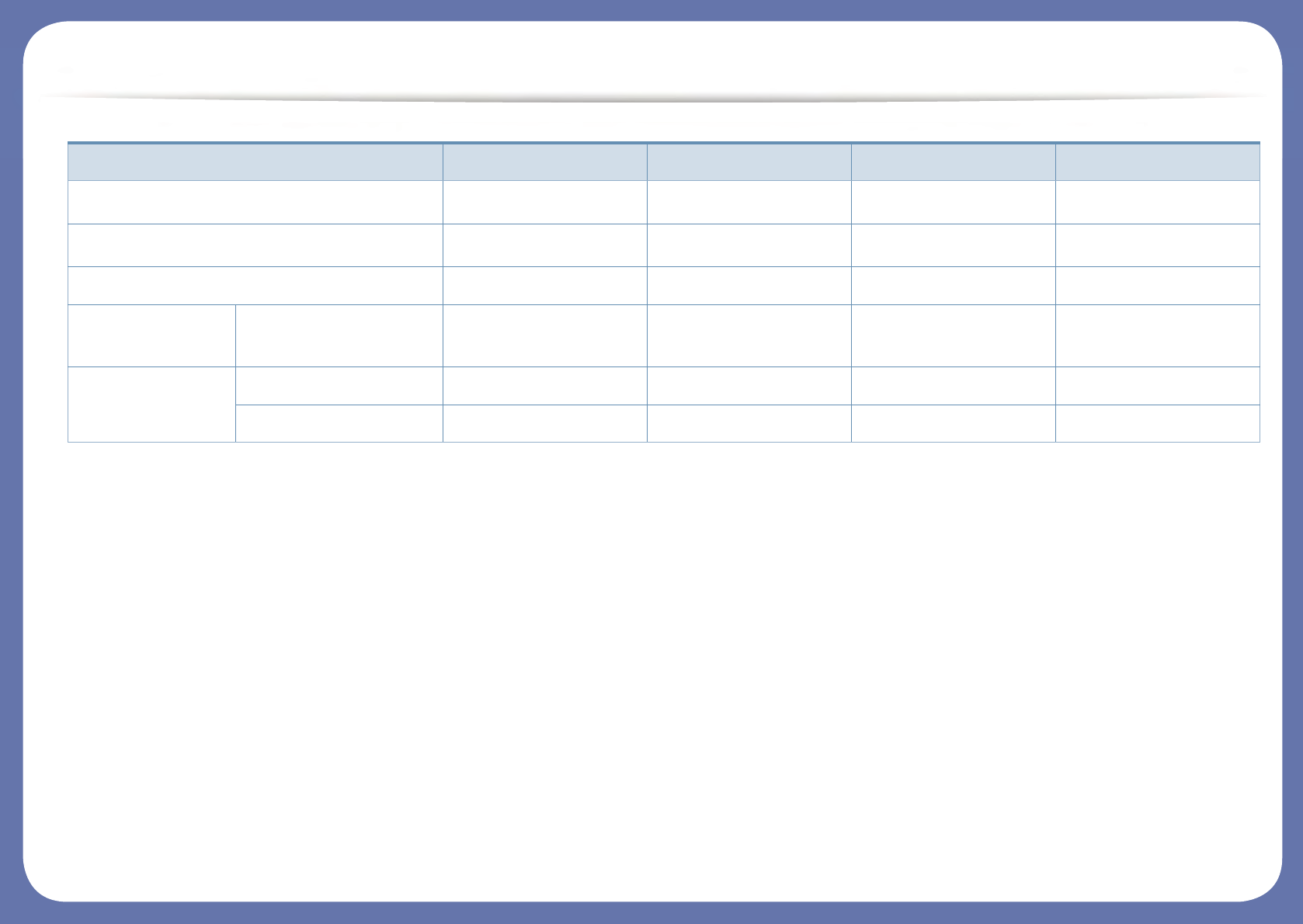
Features by model
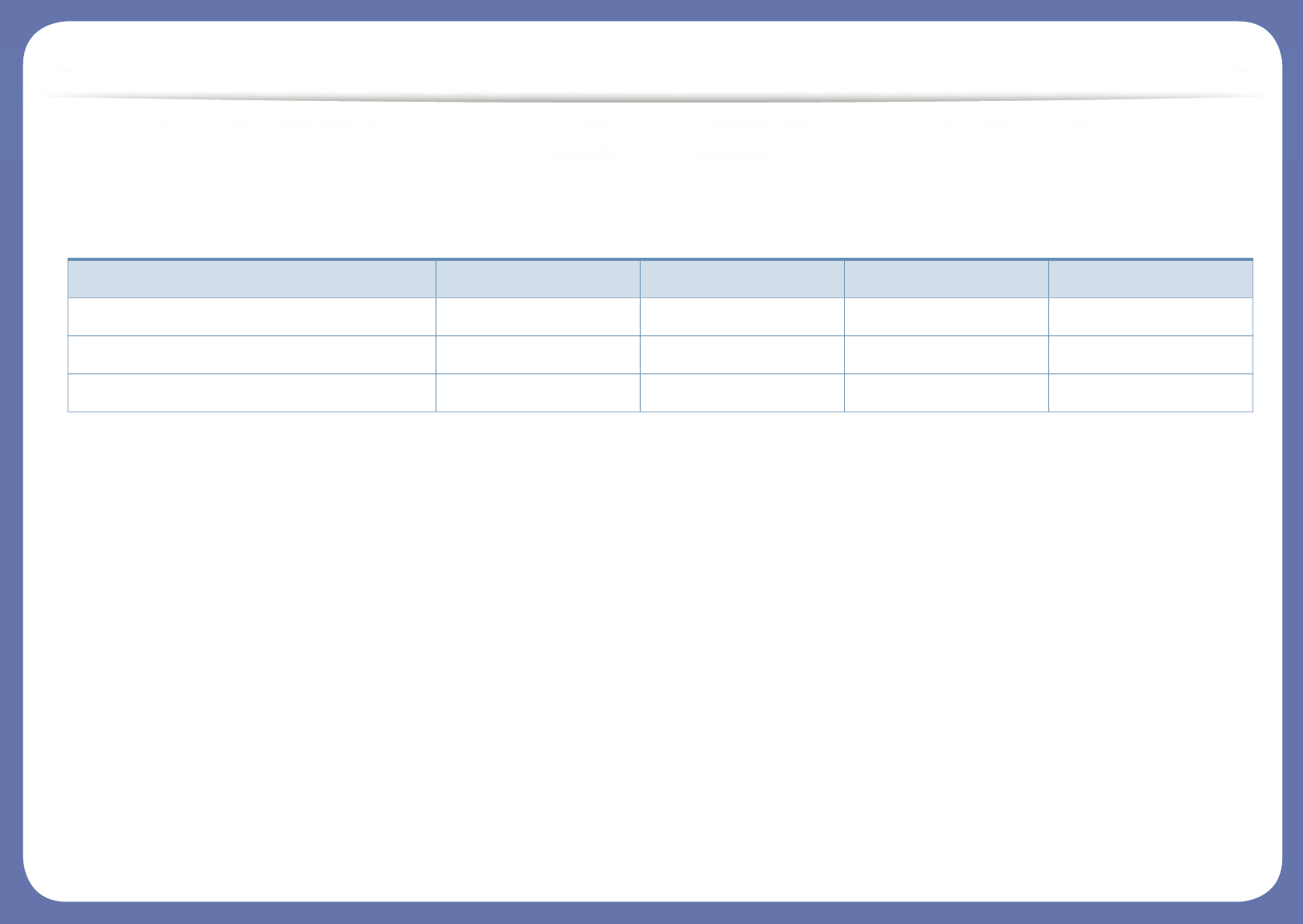
Some features and optional goods may not be available depending on model or country.
Operating System
(●: Supported, Blank: Not supported)
Operating System C48x series C48xW series C48xFN series C48xFW series
Windows ●●●●
Mac ●●●●
Linux ●●●●
Features by model
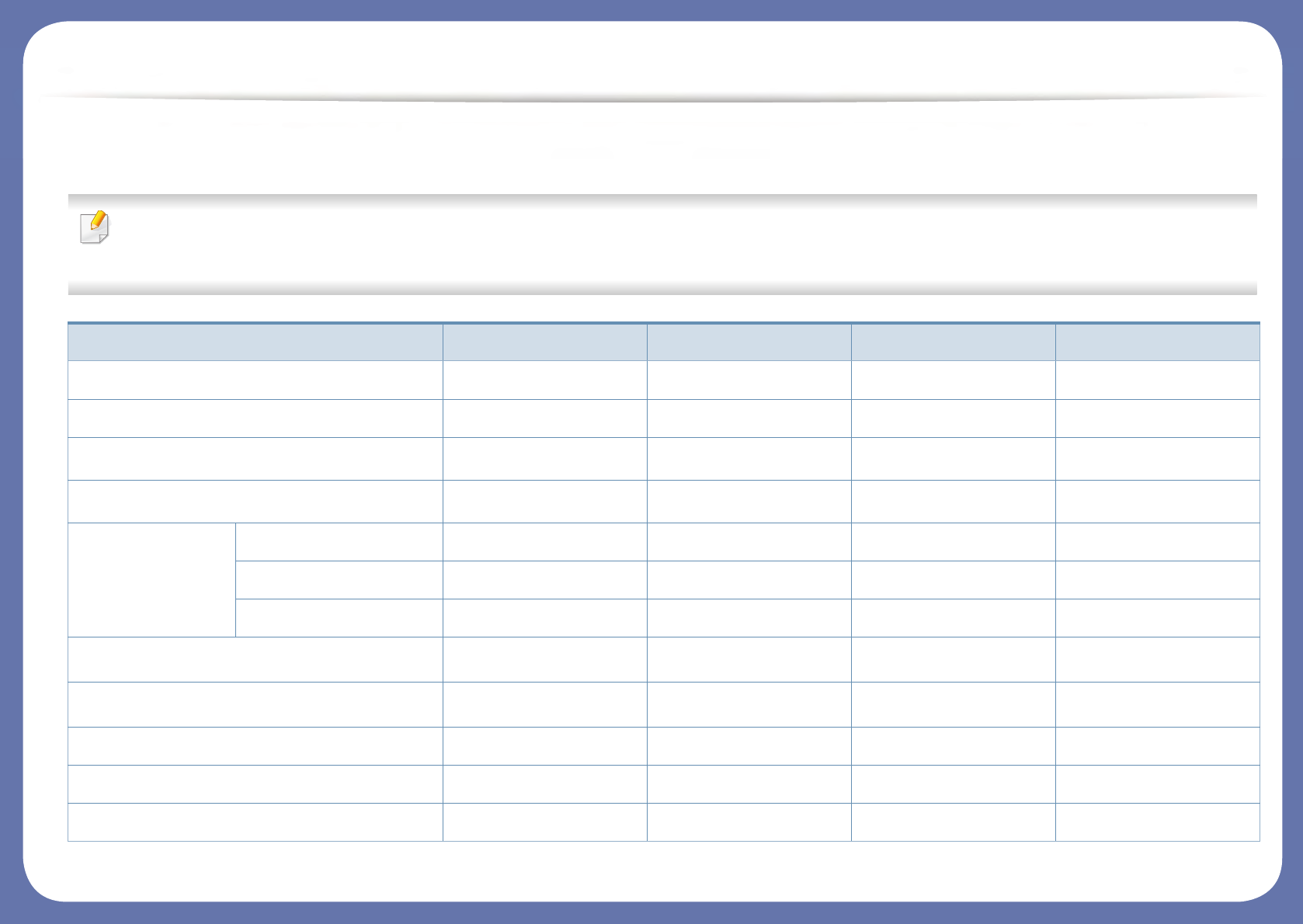
Software
You can install the printer driver and software when you insert the software CD into your CD-ROM drive.
For Windows, select the printer driver and software in the Select Software to Install window.
Software C48x series C48xW series C48xFN series C48xFW series
SPL printer driver ●●●●
PCL printer driver ●●●●
PS printer drivera●●●●
XPS printer drivera●●●●
Samsung Easy
Printer Manager
Scan to PC settings ●●●●
Fax to PC settings ● ●
Advanced Settings ●●●●
Samsung Easy Document Creator ●●●●
Samsung Easy Color Managera●●●●
Samsung Printer Status ●●●●
Samsung Printer Center ●●●●
SyncThru™ Web Service ●●●
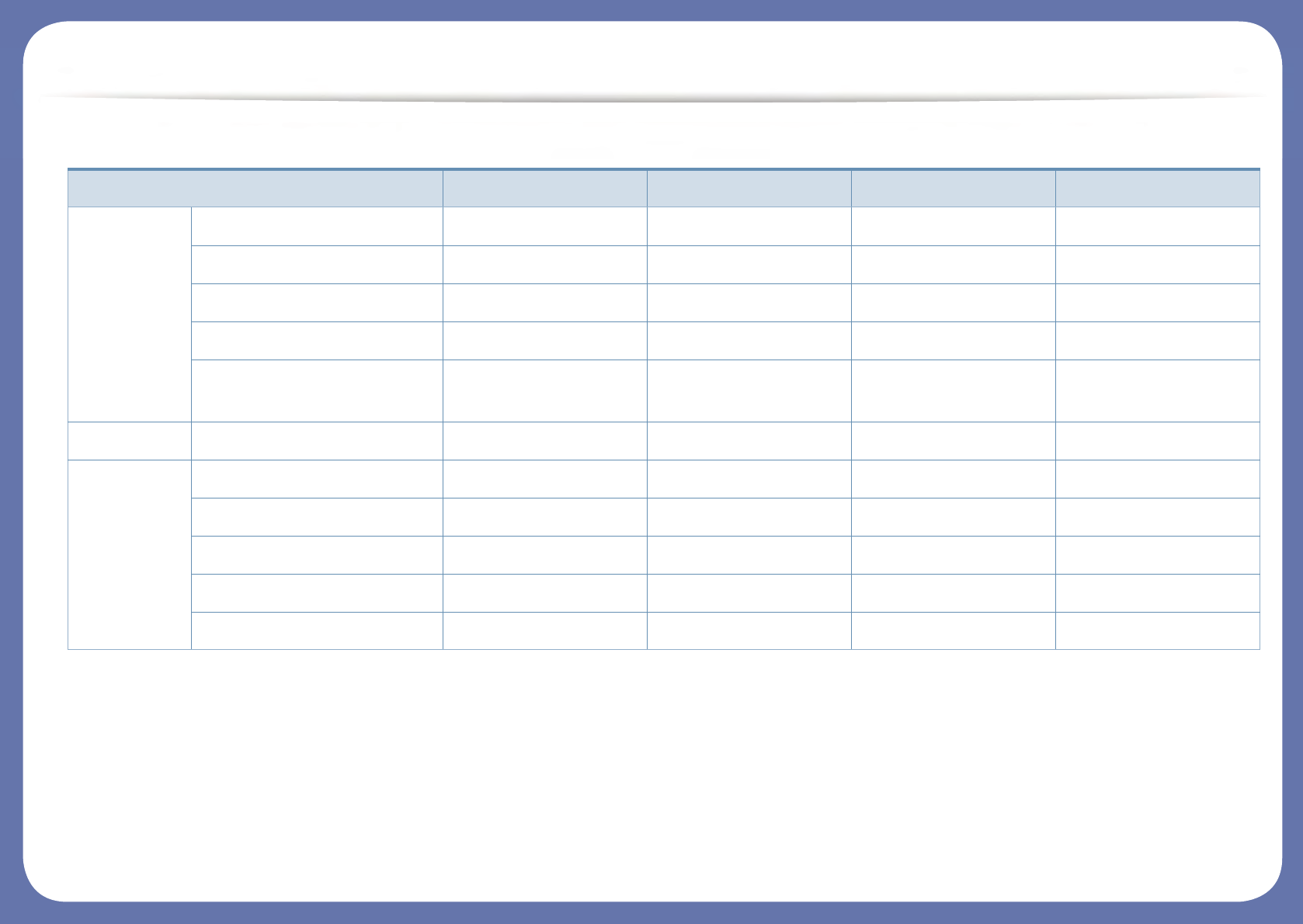
Features by model
(●: Supported, Blank: Not supported)
Samsung Eco Driver Packb●●●●
Samsung Stylish Driver Packc●●●●
SyncThru™ Web Service ● ● ● ●
Fax Samsung Network PC
Fax
● ●
Scan Twain scan driver ●●●●
WIA scan driver ●●●●
a. Download the software from the Samsung website and install it: (http://www.samsung.com > find your product > Support or Downloads). Before installing, check whether your
computer’s OS support the software.
b.
To use the
Easy Eco Driver
features, the
Eco Driver Pack
must be installed.
c. The printer driver includes a user interface that is optimized for touchscreens. To use this UI, click Samsung Printer Center > Device Options and then select Stylish User Interface
(see "Using Samsung Printer Center" on page 246).
Software C48x series C48xW series C48xFN series C48xFW series

Features by model
Variety feature
(●: Supported, Blank: Not supported)
Features C48x series C48xW series C48xFN series C48xFW series
Hi-Speed USB 2.0 ●●●●
Network Interface Ethernet 10/100 Base TX
wired LAN
●●●
Network Interface 802.11b/g/n wireless LANa
a. Depending on your country, wireless LAN card may not be available. For some countries, only 802.11 b/g can be applied. Contact your local Samsung dealer or the retailer where you
bought your machine.
● ●
NFC (Near Field Communication) ● ●
Mopria™ ●●●
Samsung Cloud Print ●●●
Google Cloud Print™ ●●●
AirPrint ●●●
Eco printing (Control panel) ●●●
Duplex (2-sided) printing (Manual)b
b. Windows only.
●●●●
USB memory interface ●●●
Automatic Document Feeder (ADF) ● ●
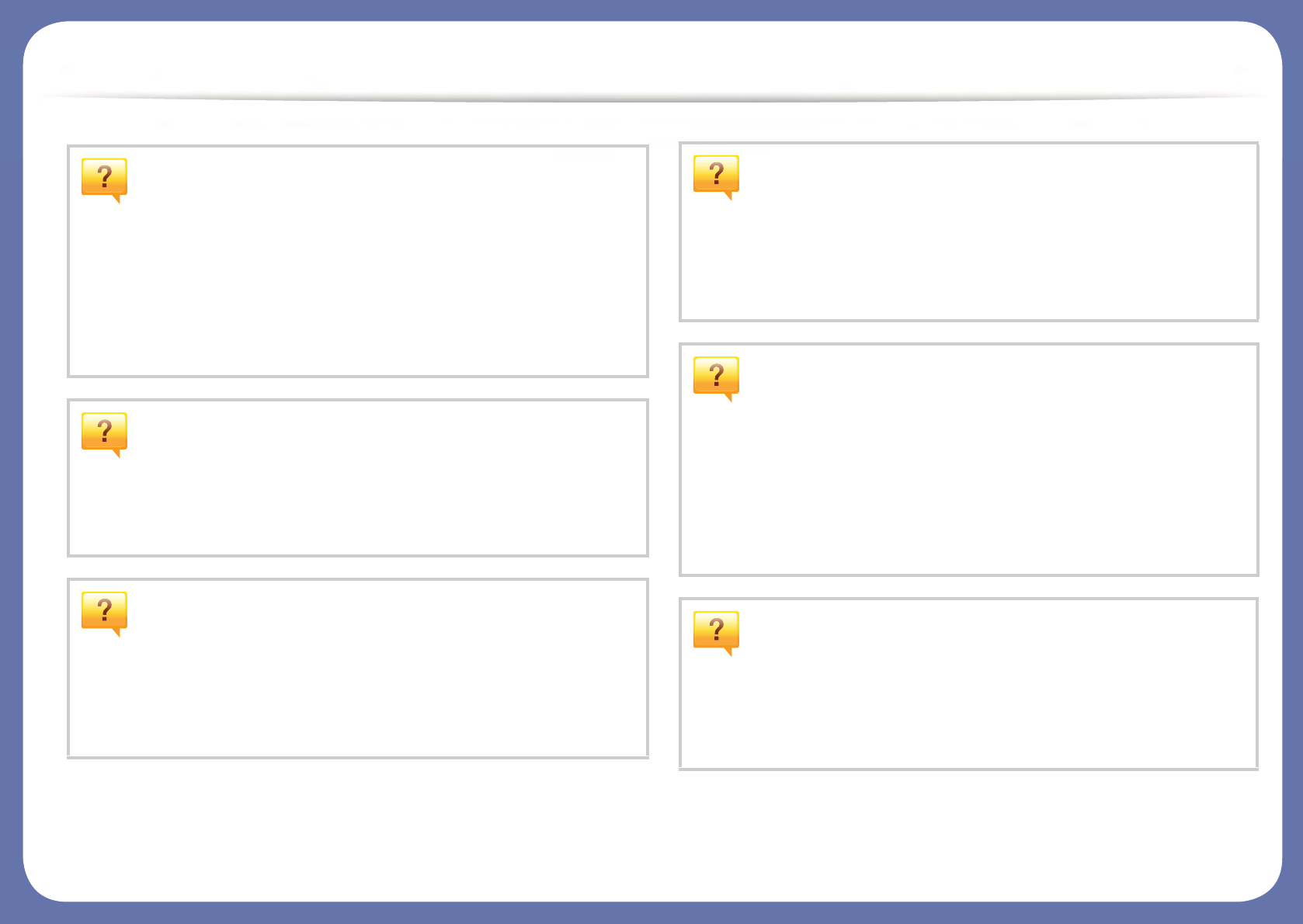
Features by model
(●: Supported, Blank: Not supported)
Features C48x series C48xW series C48xFN series C48xFW series
Fax Multi-send ● ●
Delay send ● ●
Priority send ● ●
Secure receive ● ●
Send/ Receive forward - fax/
email
● ●
Scan Scan to PC ●●●●
Copy ID card copying ●●●●
Reduced or enlarged copying ●●●●
Collation ●●●●
2-up/4-up ●●●●
Adjust background ●●●●
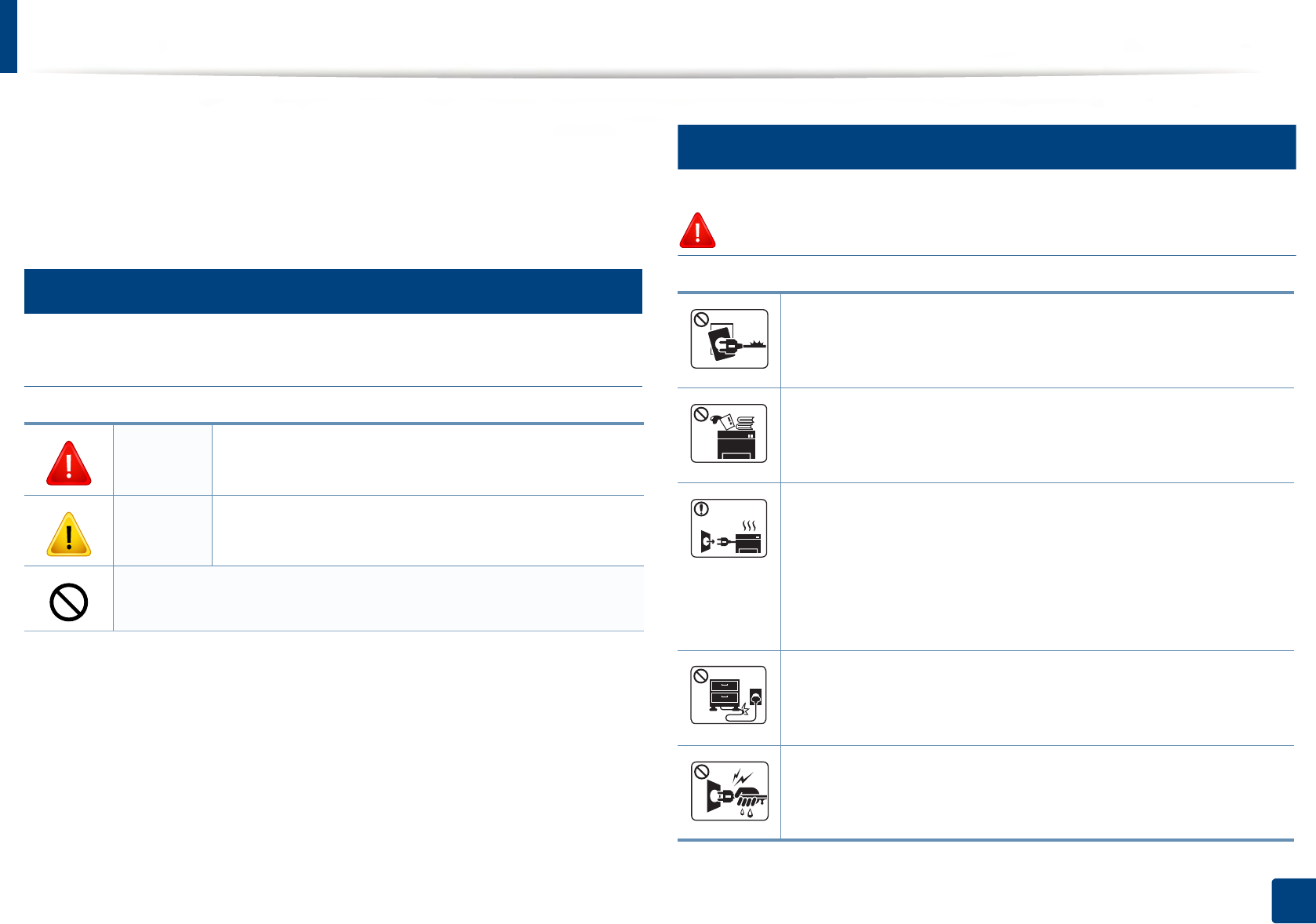
Useful to know
The machine does not print.
• Open the print queue list and remove the document from the
list (see "Canceling a print job" on page 53).
• Remove the driver and install it again (see "Installing the driver
locally" on page 29).
• Select your machine as your default machine in your Windows
(see "Setting your machine as a default machine" on page 213).
Where can I purchase accessories or supplies?
• Inquire at a Samsung distributor or your retailer.
• Visit www.samsung.com/supplies. Select your country/region
to view product service information.
The status LED flashes or remains constantly on.
• Turn the product off and on again.
• Check the meanings of LED indications in this manual and
troubleshoot accordingly (see "Understanding the status LED"
on page 102).
A paper jam has occurred.
• Open and close the cover (see "Front view" on page 21).
• Check the instructions on removing jammed paper in this
manual and troubleshoot accordingly (see "Clearing paper
jams" on page 95).
Printouts are blurry.
• The toner level might be low or uneven. Shake the toner
cartridge (see "Redistributing toner" on page 78).
• Try a different print resolution setting (see "Opening printing
preferences" on page 54).
• Replace the toner cartridge (see "Replacing the toner
cartridge" on page 80).
Where can I download the machine’s driver?
• You can get help, support application, machine drivers,
manuals, and order information from the Samsung website,
www.samsung.com > find your product > Support or
Downloads.

13
1. Introduction
About this user’s guide
This user's guide provides information for your basic understanding of the
machine as well as detailed steps to explain machine usage.
• Do not discard this manual, and keep it for future reference.
• Read the safety information before using the machine.
• If you have a problem using the machine, refer to the troubleshooting
chapter.
• Terms used in this user’s guide are explained in the glossary chapter.
• All illustrations in this user’s guide may differ from your machine depending
on its options or model you purchased.
• The screenshots in this administrator’s guide may differ from your machine
depending on the machine’s firmware/driver version.
• The procedures in this user’s guide are mainly based on Windows 7.
1
Conventions
Some terms in this guide are used interchangeably, as below:
• Document is synonymous with original.
• Paper is synonymous with media, or print media.
• Machine refers to printer or MFP.
2
General icons
Icon Text Description
Warning Used to alert users to the possibility of personal injury.
Caution Gives users information to protect the machine from
possible mechanical damage or malfunction.
Note Provides additional information or detailed
specification of the machine function and feature.
14
1. Introduction
Safety information
These warnings and precautions are included to prevent injury to you and
others, and to prevent any potential damage to your machine. Be sure to read
and understand all of these instructions before using the machine. After reading
this section, keep it in a safe place for future reference.
3
Important safety symbols
Explanation of all icons and signs used in this chapter
4
Operating environment
Warning
Warning Hazards or unsafe practices that may result in severe
personal injury or death.
Caution Hazards or unsafe practices that may result in minor
personal injury or property damage.
Do not attempt.
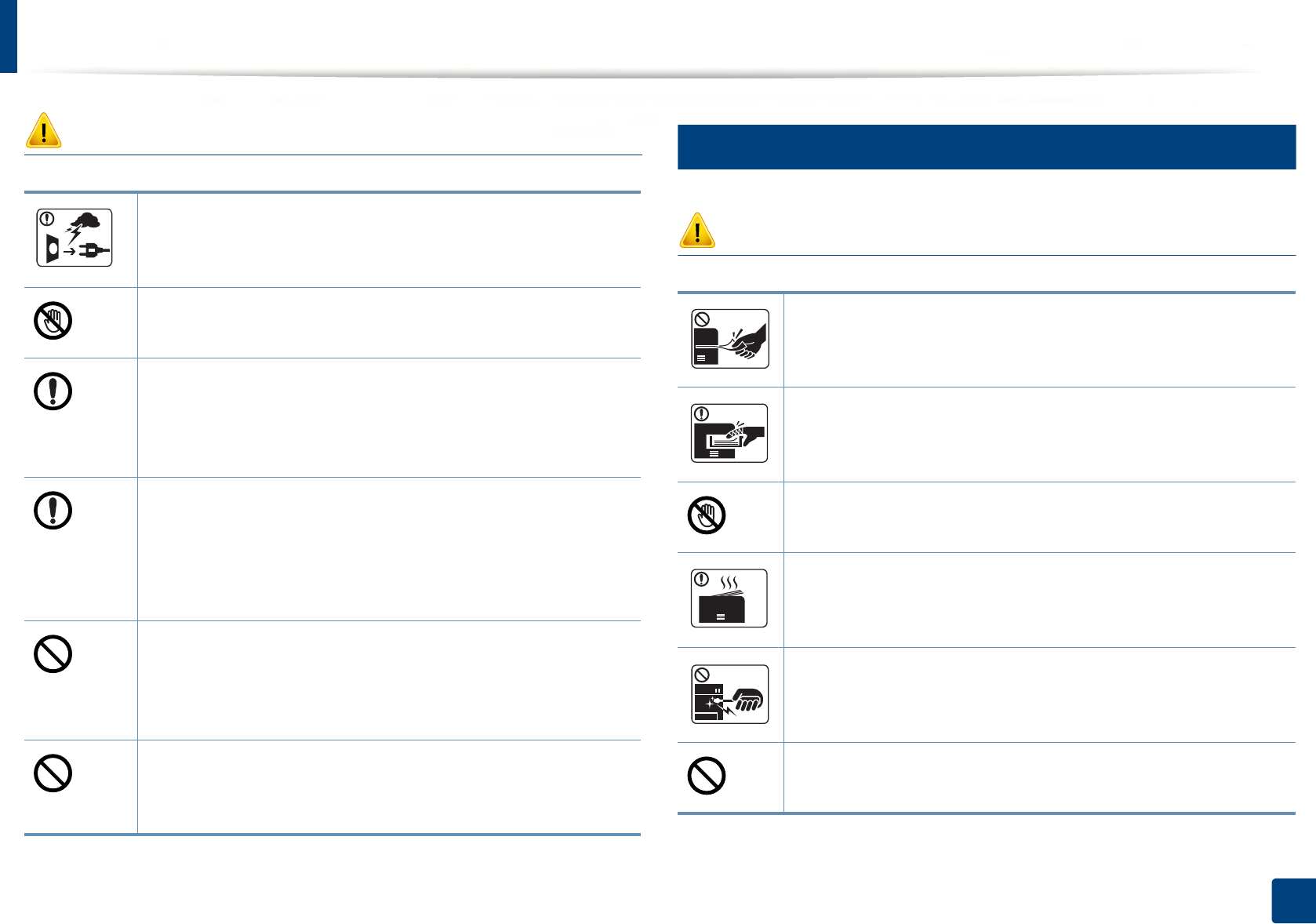
Do not use if the power cord is damaged or if the electrical outlet is
not grounded.
This could result in electric shock or fire.
Do not place anything on top of the machine (water, small metal or
heavy objects, candles, lit cigarettes, etc.).
This could result in electric shock or fire.
• If the machine gets overheated, it releases smoke, makes
strange noises, or generates an odd odor, immediately turn off
the power switch and unplug the machine.
• The user should be able to access the power outlet in case of
emergencies that might require the user to pull the plug out.
This could result in electric shock or fire.
Do not bend, or place heavy objects on the power cord.
Stepping on or allowing the power cord to be crushed by a heavy
object could result in electric shock or fire.
Do not remove the plug by pulling on the cord; do not handle the
plug with wet hands.
This could result in electric shock or fire.
Safety information
15
1. Introduction
Caution
5
Operating method
Caution
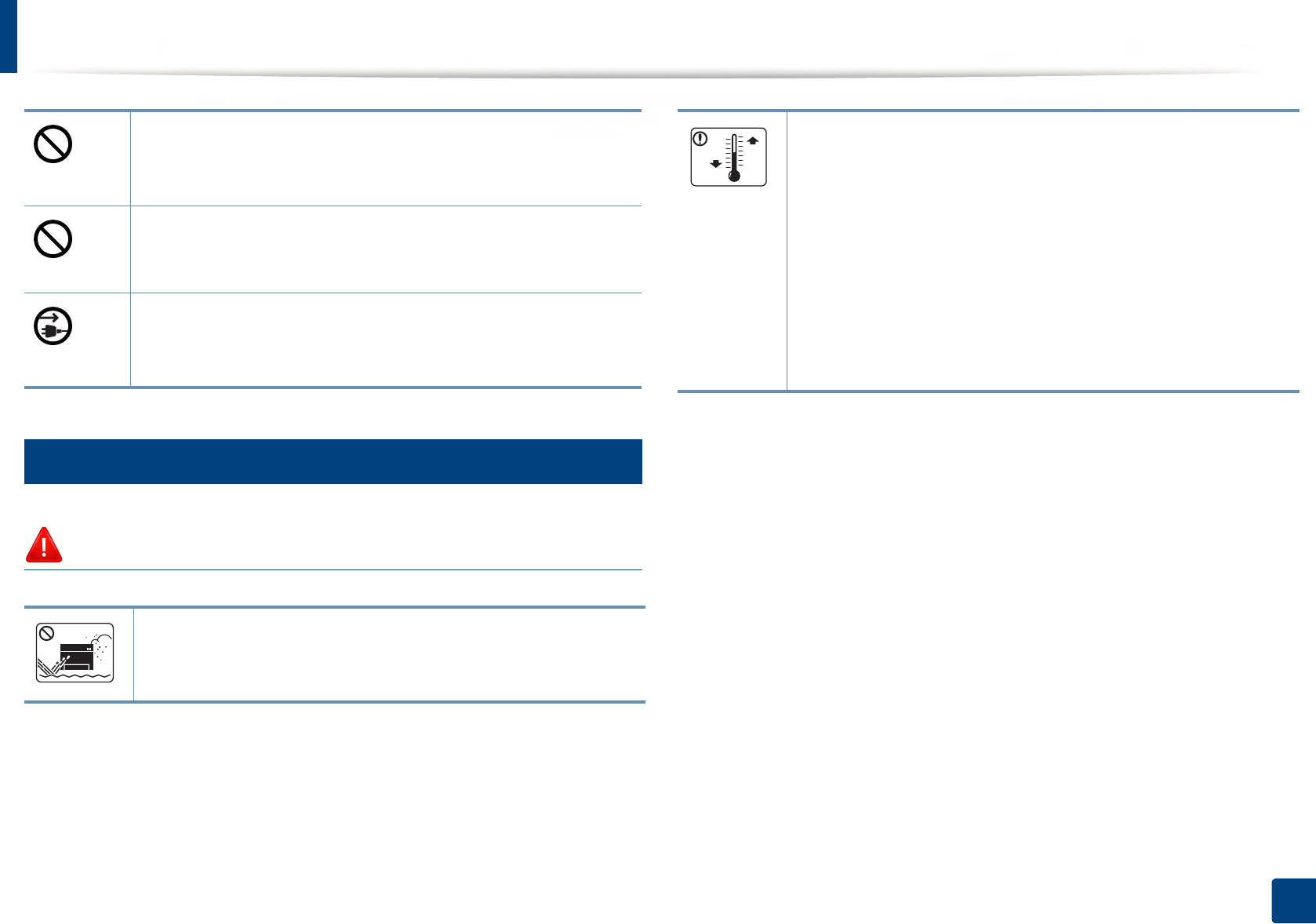
During an electrical storm or for a period of non-operation,
remove the power plug from the electrical outlet.
This could result in electric shock or fire.
Be careful, the paper output area is hot.
Burns could occur.
If the machine has been dropped, or if the cabinet appears
damaged, unplug the machine from all interface connections and
request assistance from qualified service personnel.
Otherwise, this could result in electric shock or fire.
If the machine does not operate properly after these instructions
have been followed, unplug the machine from all interface
connections and request assistance from qualified service
personnel.
Otherwise, this could result in electric shock or fire.
If the plug does not easily enter the electrical outlet, do not
attempt to force it in.
Call an electrician to change the electrical outlet, or this could
result in electric shock.
Do not allow pets to chew on the AC power, telephone or PC
interface cords.
This could result in electric shock or fire and/or injury to your pet.
Do not forcefully pull the paper out during printing.
It can cause damage to the machine.
Be careful not to put your hand between the machine and paper
tray.
You may get injured.
Be care when replacing paper or removing jammed paper.
New paper has sharp edges and can cause painful cuts.
When printing large quantities, the bottom part of the paper
output area may get hot. Do not allow children to touch.
Burns can occur.
When removing jammed paper, do not use tweezers or sharp metal
objects.
It can damage the machine.
Do not allow too many papers to stack up in the paper output tray.
It can damage the machine.
Safety information
16
1. Introduction
6
Installation / Moving
Warning
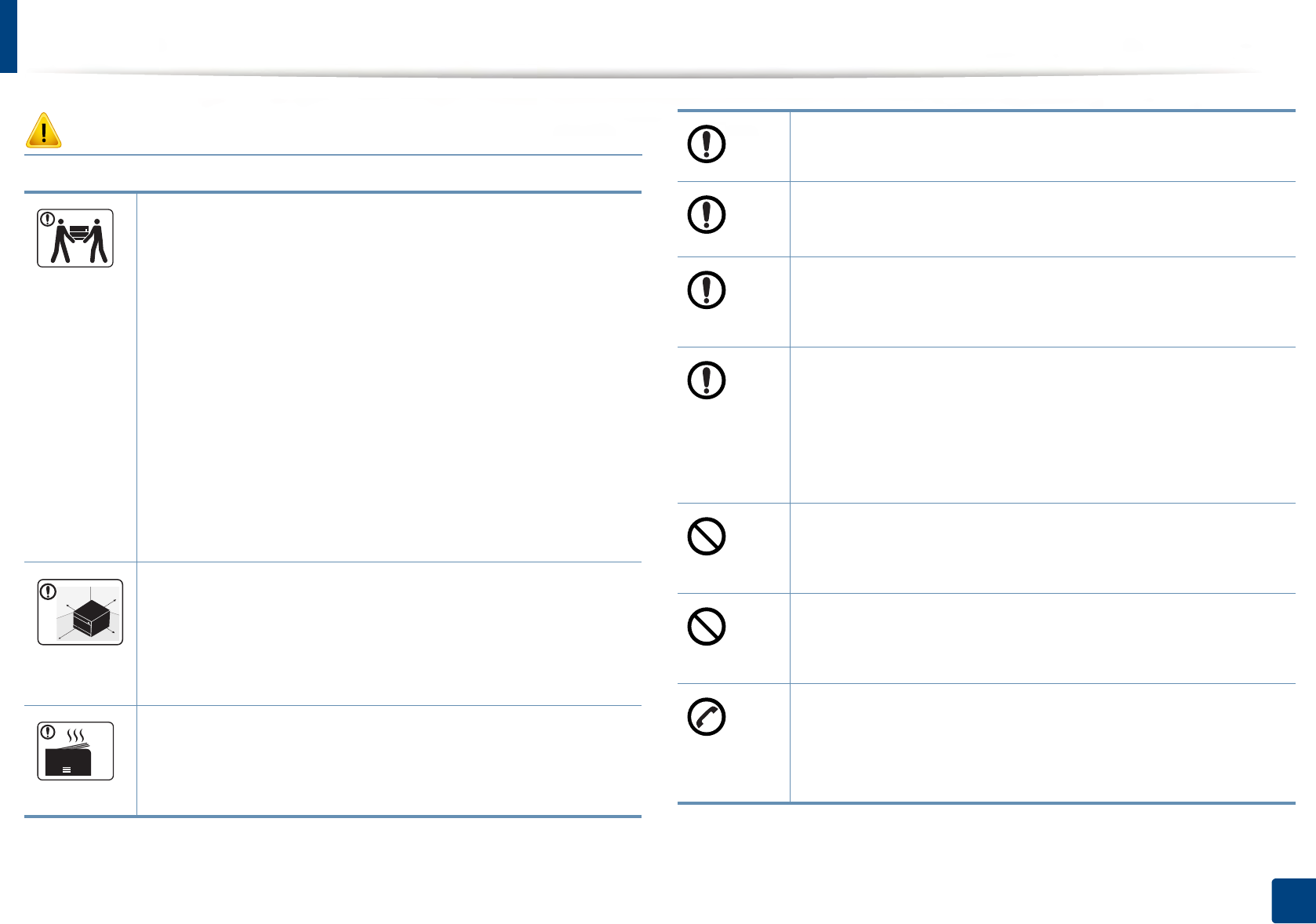
Do not block or push objects into the ventilation opening.
This could result in elevated component temperatures which can
cause damage or fire.
Use of controls or adjustments or performance of procedures other
than those specified herein may result in hazardous radiation
exposure.
This machine's power reception device is the power cord.
To switch off the power supply, remove the power cord from the
electrical outlet.
Do not place the machine in an area with dust, humidity, or water
leaks.
This could result in electric shock or fire.
Place the machine in the environment where it meets the
operating temperature and humidity specification.
Do not use the machine when it is below freezing temperature or
has recently been moved from a location below freezing
temperature. Doing so may damage the machine. Only operate the
machine when the internal temperature of the machine is within
the operating temperature and humidity specifications.
Otherwise, quality problems can occur and cause damage to the
machine.
See "General specifications" on page 111.
Safety information
17
1. Introduction
Caution
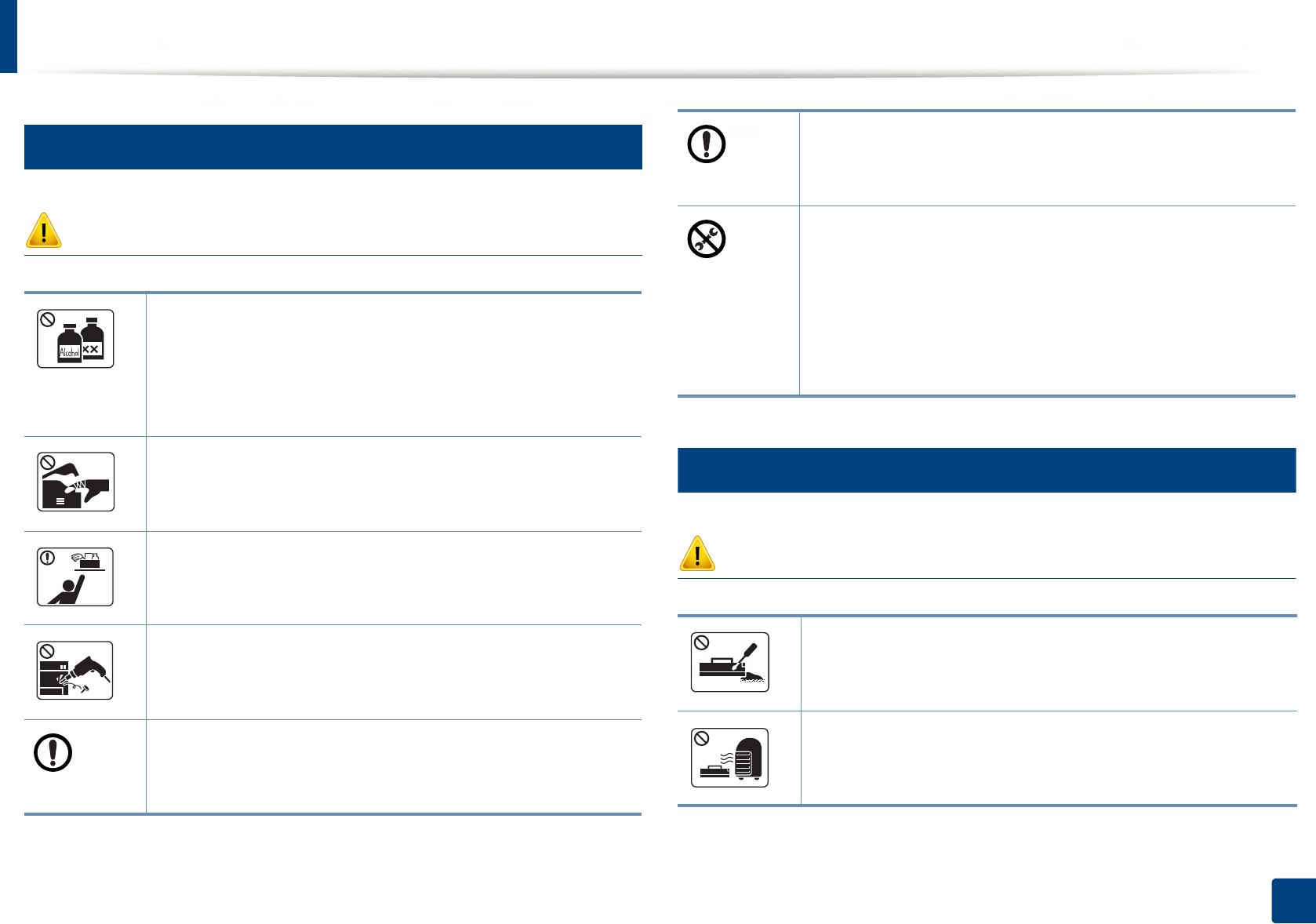
Before moving the machine, turn the power off and disconnect all
cords. The information below are only suggestions based on the
units weight.
If you have a medical condition that prevents you from lifting, do
not lift the machine. Ask for help, and always use the appropriate
amount of people to lift the device safely.
Then lift the machine:
• If the machine weighs under 20 kg (44.09 lbs), lift with 1 person.
• If the machine weighs 20 kg (44.09 lbs) - 40kg (88.18 lbs), lift
with 2 people.
• If the machine weighs more than 40 kg (88.18 lbs), lift with 4 or
more people.
The machine could fall, causing injury or machine damage.
Choose a flat surface with enough space for ventilation to place
the machine. Also consider the space required to open the cover
and trays.
The place should be well-ventilated and be far from direct light,
heat, and humidity.
When using the machine for a long period of time or printing a
large number of pages in a non-ventilated space, it could pollute
the air and be harmful to your health. Place the machine in a well-
ventilated space or open a window to circulate the air periodically.
Do not place the machine on an unstable surface.
The machine could fall, causing injury or machine damage.
Use only No.26 AWGa or larger, telephone line cord, if necessary.
Otherwise, it can cause damage to the machine.
Make sure you plug the power cord into a grounded electrical
outlet.
Otherwise, this could result in electric shock or fire.
Use the power cord supplied with your machine for safe
operation. If you are using a cord which is longer than 2 meters (6
feet) with a 110V machine, then the gauge should be 16 AWG or
larger.
Otherwise, it can cause damage to the machine, and could result
in electric shock or fire.
Do not put a cover over the machine or place it in an airtight
location, such as a closet.
If the machine is not well-ventilated, this could result in fire.
Do not overload wall outlets and extension cords.
This can diminish performance, and could result in electric shock
or fire.
The machine should be connected to
the power level which is specified on the label.
If you are unsure and want to check the power level you are using,
contact the electrical utility company.
a. AWG: American Wire Gauge
Safety information
18
1. Introduction
7
Maintenance / Checking
Caution
8
Supply usage
Caution
Unplug this product from the wall outlet before cleaning the
inside of the machine. Do not clean the machine with benzene,
paint thinner or alcohol; do not spray water directly into the
machine.
This could result in electric shock or fire.
When you are working inside the machine replacing supplies or
cleaning the inside, do not operate the machine.
You could get injured.
Keep cleaning supplies away from children.
Children could get hurt.
Do not disassemble, repair or rebuild the machine by yourself.
It can damage the machine. Call a certified technician when the
machine needs repairing.
To clean and operate the machine, strictly follow the user's guide
provided with the machine.
Otherwise, you could damage the machine.
Keep the power cable and the contact surface of the plug clean
from dust or water.
Otherwise, this could result in electric shock or fire.
• Do not remove any covers or guards that are fastened with
screws.
• Fuser units should only be repaired by a certified service
technician. Repair by non-certified technicians could result in
fire or electric shock.
• The machine should only be repaired by a Samsung service
technician.
Do not disassemble the toner cartridge.
Toner dust can be dangerous if inhaled or ingested.
Do not burn any of the supplies such as toner cartridge or fuser
unit.
This could cause an explosion or uncontrollable fire.
Safety information
19
1. Introduction
When storing supplies such as toner cartridges, keep them away
from children.
Toner dust can be dangerous if inhaled or ingested.
For supplies that contain toner dust (toner cartridge, waste toner
bottle, imaging unit, etc.) follow the instructions below.
• When disposing of the supplies, follow the instructions for
disposal. Refer to the reseller for disposal instructions.
• Do not wash the supplies.
• For a waste toner bottle, do not reuse it after emptying the
bottle.
If you do not follow the instructions above, it may cause machine
malfunction and environmental pollution. The warranty does not
cover damages caused by a user's carelessness.
Using recycled supplies, such as toner, can cause damage to the
machine.
In case of damage due to the use of recycled supplies, a service
fee will be charged.
When toner gets on your clothing, do not use hot water to wash
it.
Hot water sets toner into fabric. Use cold water.
When changing the toner cartridge or removing jammed paper,
be careful not to let toner dust touch your body or clothes.
Toner dust can be dangerous if inhaled or ingested.

20
1. Introduction
Machine overview
9
Components
The actual component may differ from the illustration below. Some components may change depending on the configuration.
Power cord Quick installation guide
Software CDa
a. The software CD contains the print drivers, user’s guide, and software applications.
Misc. accessoriesb
b. Miscellaneous accessories included with your machine may vary by country of purchase and specific model.
Machine overview
21
1. Introduction
10
Front view
• This illustration may differ from your machine depending on your model.
There are various types of machine.
• Some features and optional goods may not be available depending on
model or country (see "Features by model" on page 7).
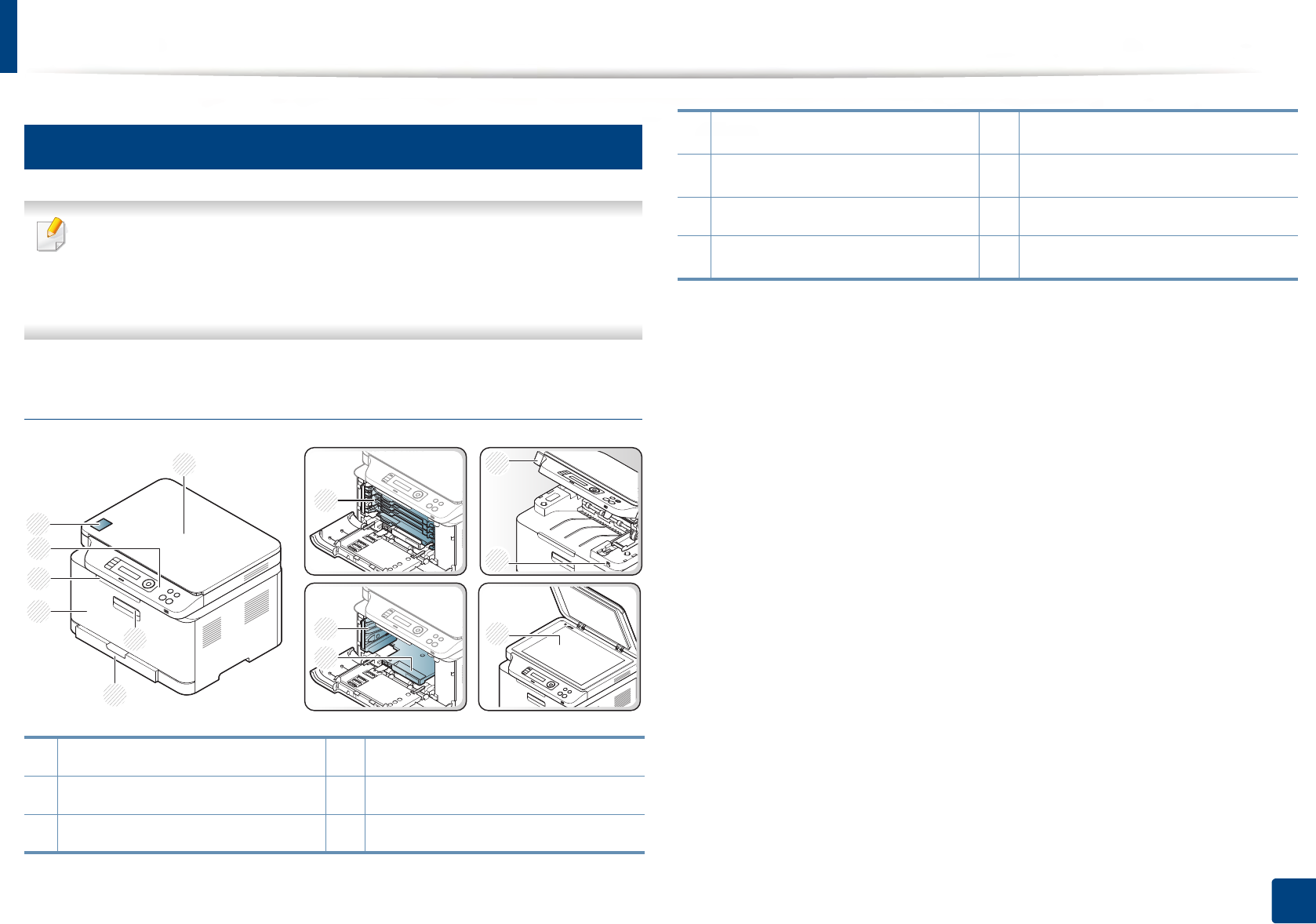
C48x/C48xW series
1 Scanner lid 8 Toner cartridges
2 Front handle 9 Waste toner container
3Tray 10Imaging unit
9
8
10
13
11
12
3
2
4
5
1
6
7
4Front door 11 Scan unita b
5Output support 12 USB memory portc
6 Control panel 13 Scanner glass
7NFC tagc
a. Close the scanner lid before opening the scan unit.
b. Be careful not to pinch your fingers.
c. C48xW series only.
Machine overview
22
1. Introduction
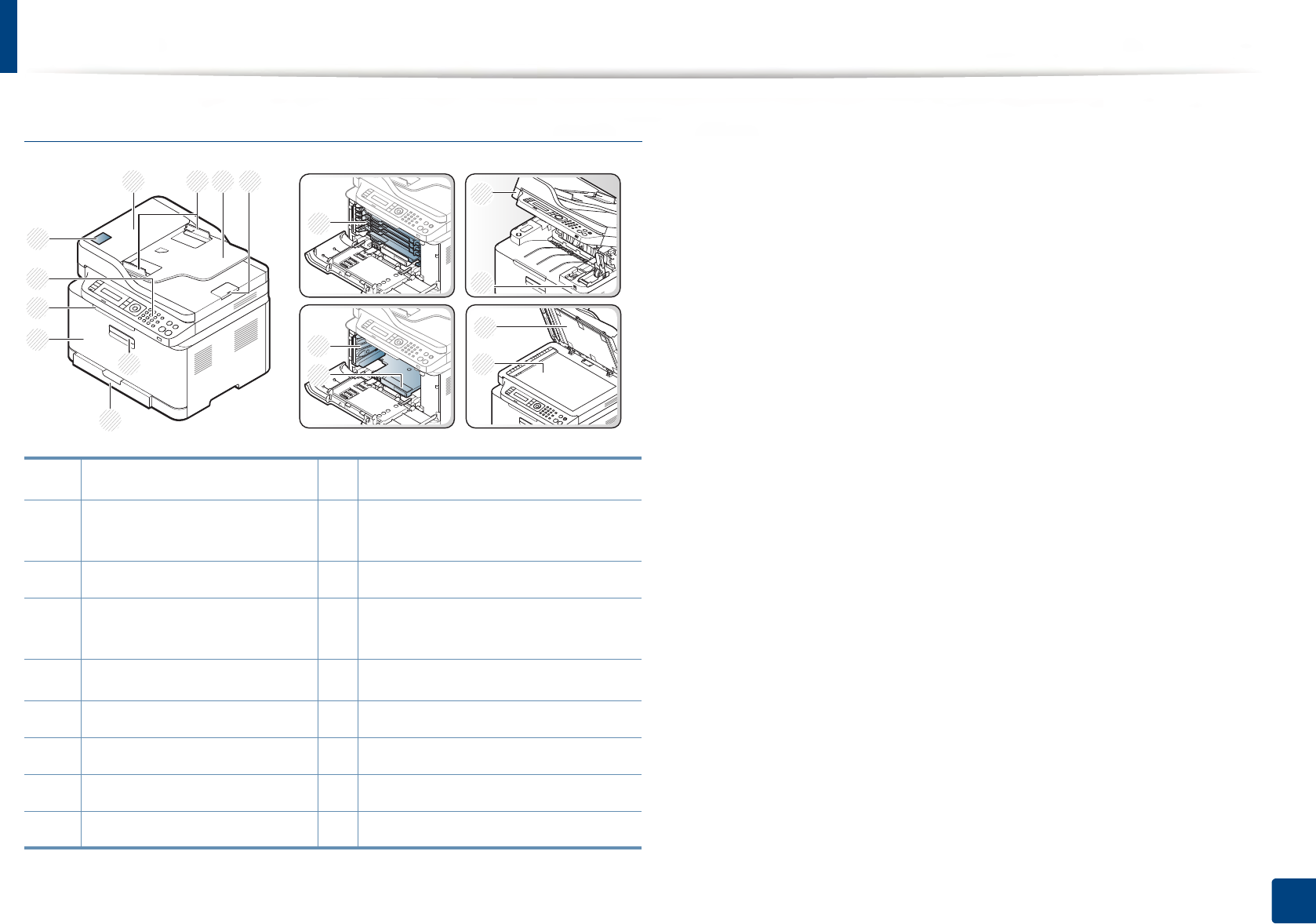
C48xFN/C48xFW series
1Document feeder cover 10 NFC taga
2 Document feeder width
guide
11 Toner cartridges
3 Document feeder input tray 12 Waste toner container
4 Document feeder output
support
13 Imaging unit
5Front handle 14 Scan unitb c
6 Tray 15 USB memory port
7 Front cover 16 Scanner lid
8 Output support 17 Scanner glass
9 Control panel
13
6
5
7
11
8
12
1 3
9
16
17
2 4 14
15
10
a. C48xFW series only.
b. Close the scanner lid before opening the scan unit.
c. Be careful not to pinch your fingers.

Machine overview
23
1. Introduction
11
Rear view
• This illustration may differ from your machine depending on your model.
There are various types of machine.
• Some features and optional goods may not be available depending on
model or country (see "Features by model" on page 7).
C48x/C48xW series
C48xFN/C48xFW series
1 Rear cover 3 USB port
2Power receptacle 4Network porta
a. C48xW series only.
1
4
3
2
1 Rear cover 4 Network port
2 Power receptacle 5 Telephone line socket (LINE)
3 USB port 6 Extension telephone socket (EXT.)
1
4
3
2
6
5
24
1. Introduction
Control panel overview
• This control panel may differ from your machine depending on its model. There are various types of control panels.
• Some features and optional goods may not be available depending on model or country (see "Features by model" on page 7).
12
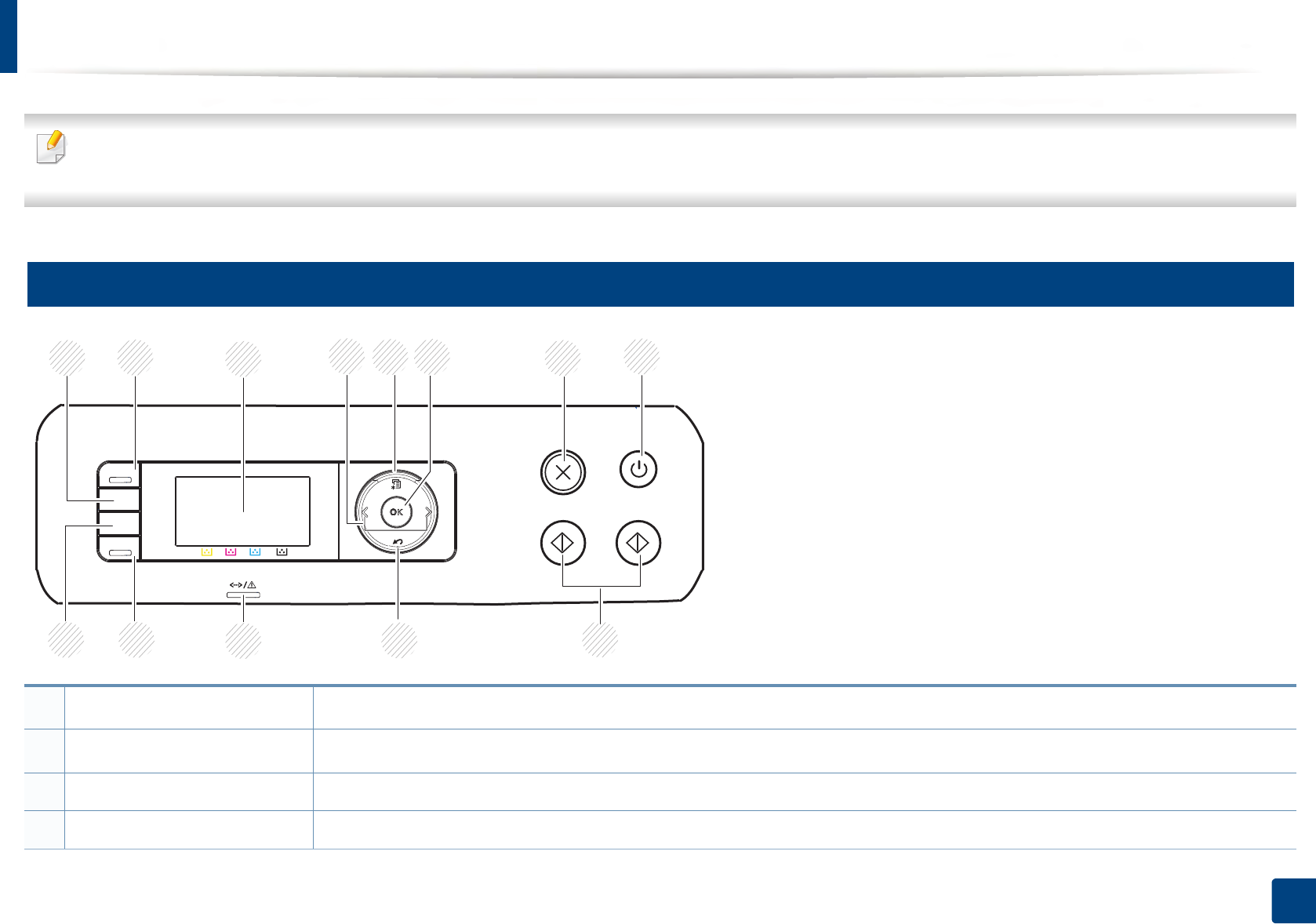
C48x/C48xW series
1WPSaConfigures the wireless network connection easily without a computer (see "Using the WPS Settings menu" on page 156).
2Scan toaSwitches between scan and copy mode. The Scan to LED turns on scan mode and turns off on copy mode.
3Display screen Shows the current status and displays prompts during an operation.
4Arrows Scrolls through the options available in the selected menu and increases or decreases values.
2
1 3 5 6 7 8
9 10
11
13 12
4
Control panel overview
25
1. Introduction
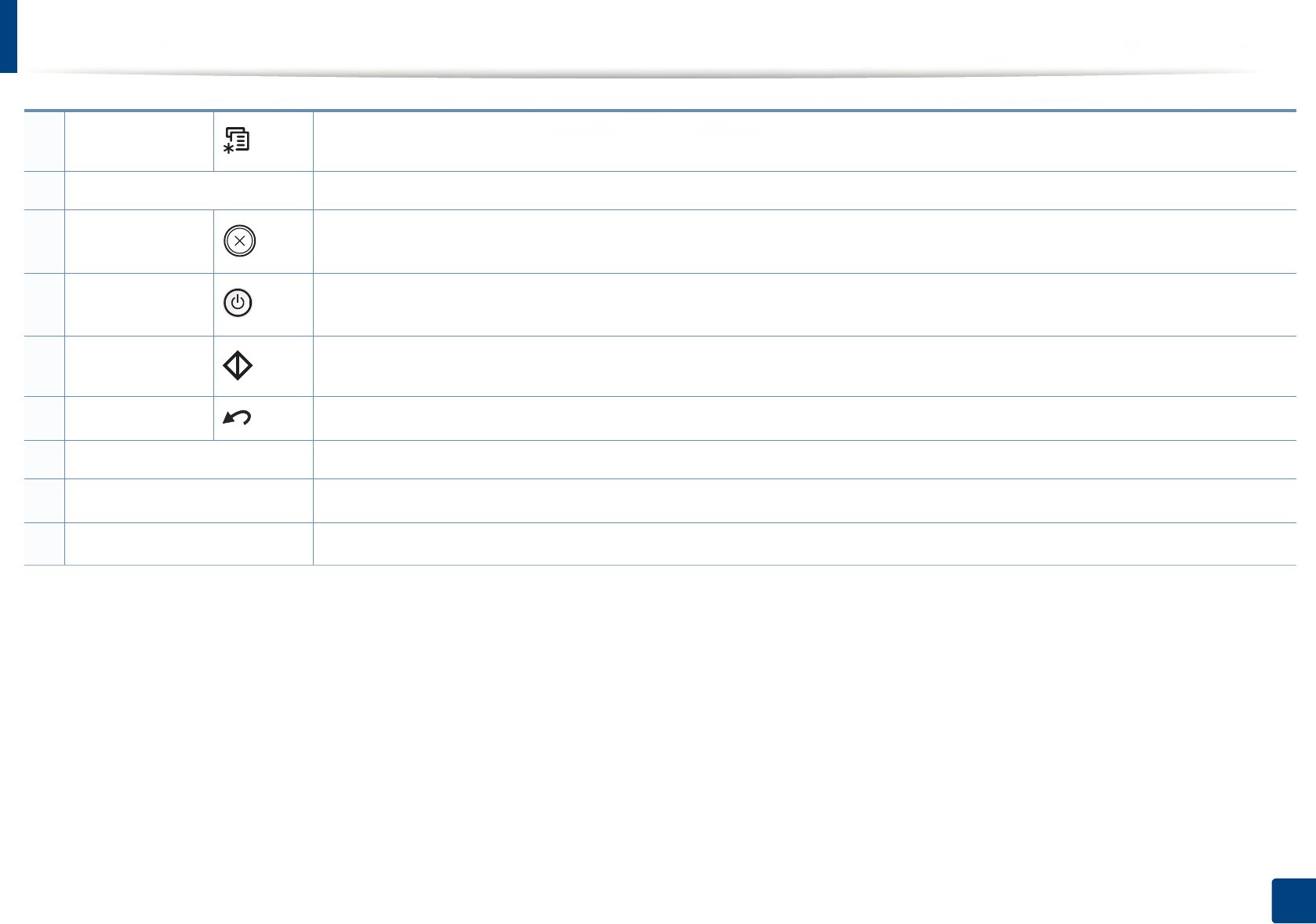
5Menu Opens Menu mode and scrolls through the available menus (see "Menu overview" on page 33).
6OK Confirms the selection on the screen.
7Stop/Clear Stops an operations at any time.
8Power/Wake Up Turns the power on or off, or wakes up the machine from the power save mode. If you need to turn the machine off, press this
button for more than three seconds when the machine is in ready mode.
9Start Starts a job.
10 Back Sends you back to the upper menu level.
11 Status LED Indicates the status of your machine (see "Understanding the status LED" on page 102).
12 Ecoa
Turn into eco mode to reduce toner consumption and paper usage when pc-printing and copying only (see "Eco printing" on page 55).
13 Direct USBaAllows you to directly print files stored on a USB memory device when it is inserted into the USB port on the front of your machine.
a. C48xW series only.
Control panel overview
26
1. Introduction
13
C48xFN/C48xFW series
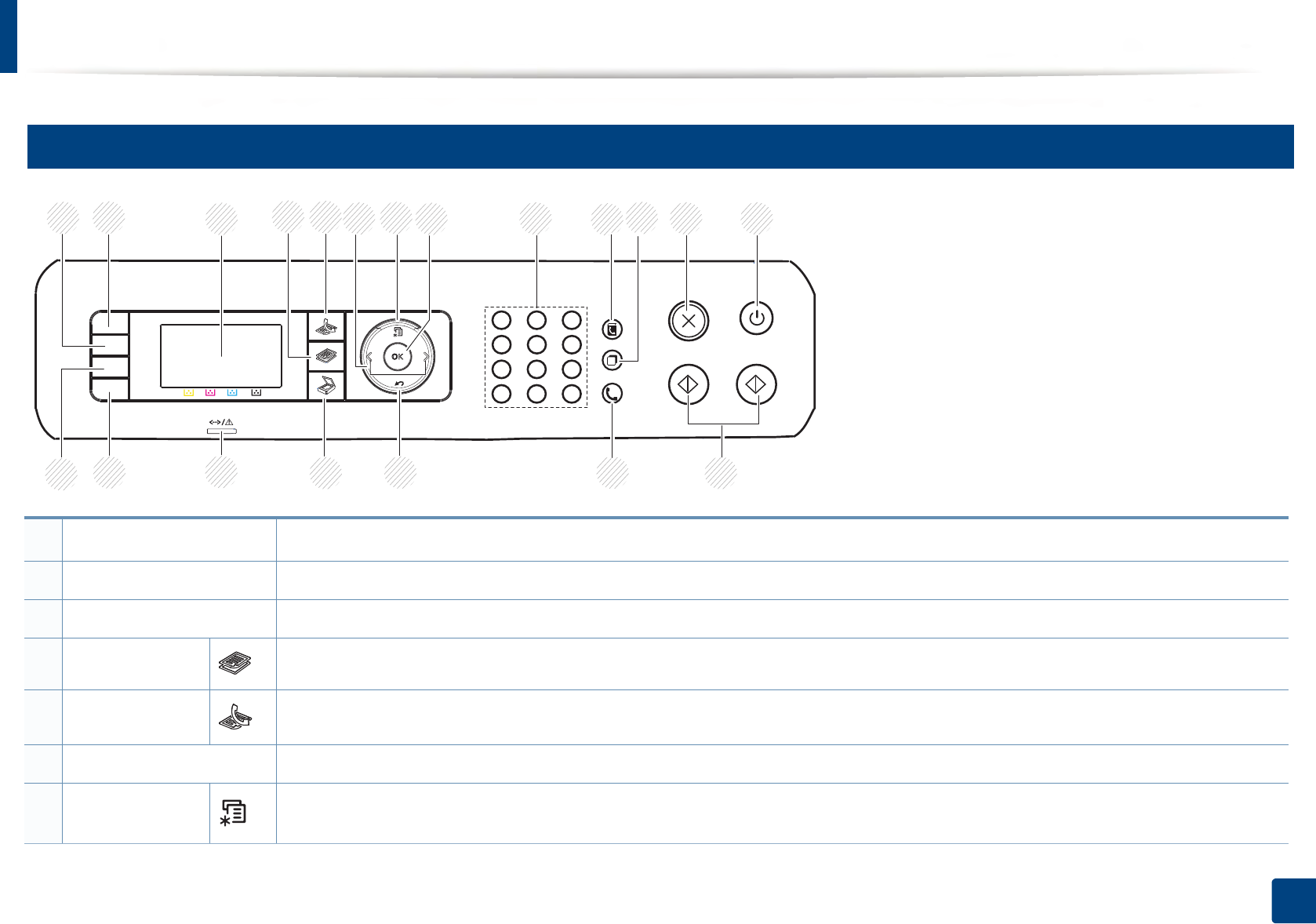
1WPSaConfigures the wireless network connection easily without a computer (see "Using the WPS Settings menu" on page 156).
2ID Copy Allows you to copy both sides of an ID card like a driver’s license on a single side of paper (see "ID card copying" on page 61).
3Display screen Shows the current status and displays prompts during an operation.
4Copy Switches to Copy mode.
5Fax Switches to Fax mode.
6Arrows Scrolls through the options available in the selected menu and increases or decreases values.
7Menu Opens Menu mode and scrolls through the available menus (see "Menu overview" on page 33).
12
2
1 3 4 5 7 8 9 10 11
20 19 18 17 15 14
13
16
6
Control panel overview
27
1. Introduction
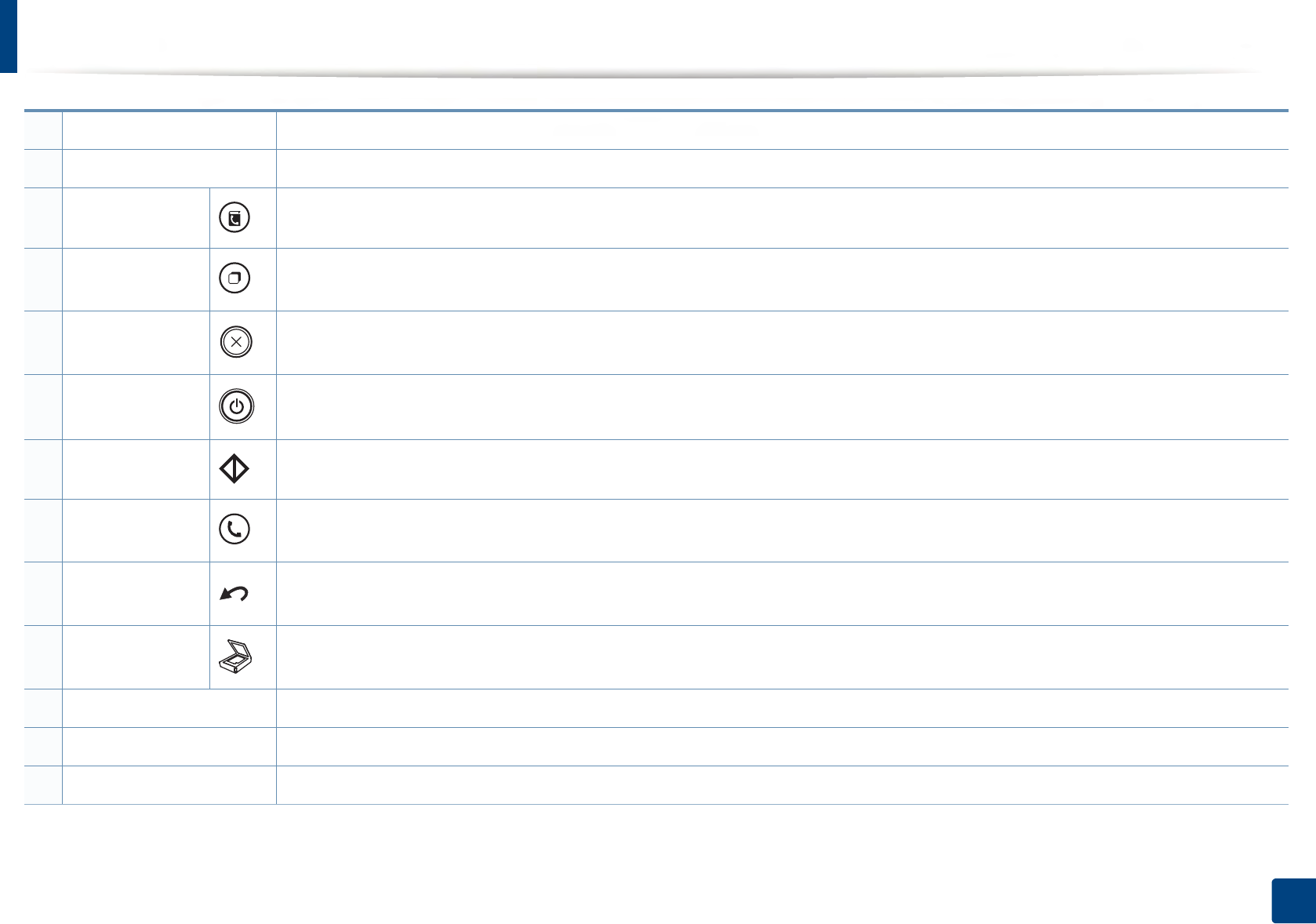
8OK Confirms the selection on the screen.
9Numeric keypad Dials a number or enters alphanumeric characters (see "Keypad letters and numbers" on page 209).
10 Address Book Allows you to store frequently used fax numbers or search for stored fax numbers (see "Setting up the fax address book" on page 210).
11 Redial/Pause Redials the recently sent fax number or received caller ID in ready mode, or inserts a pause(-) into a fax number in edit mode (see
"Redialing the fax number" on page 232).
12 Stop/Clear Stops an operations at any time.
13 Power/Wake Up Turns the power on or off, or wakes up the machine from the power save mode. If you need to turn the machine off, press this button
for more than three seconds when the machine is in ready mode.
14 Start Starts a job.
15 On Hook Dial When you press this button, you can hear a dial tone. Then enter a fax number. It is similar to making a call using speaker phone (see
"Receiving manually in Tel mode" on page 238).
16 Back Sends you back to the upper menu level.
17 Scan Switches to Scan mode.
18 Status LED Indicates the status of your machine (see "Understanding the status LED" on page 102).
19 Eco Turn into eco mode to reduce toner consumption and paper usage when pc-printing and copying only (see "Eco printing" on page 55).
20 Direct USB Allows you to directly print files stored on a USB memory device when it is inserted into the USB port on the front of your machine.
a. C48xFW series only.
28
1. Introduction
Turning on the machine
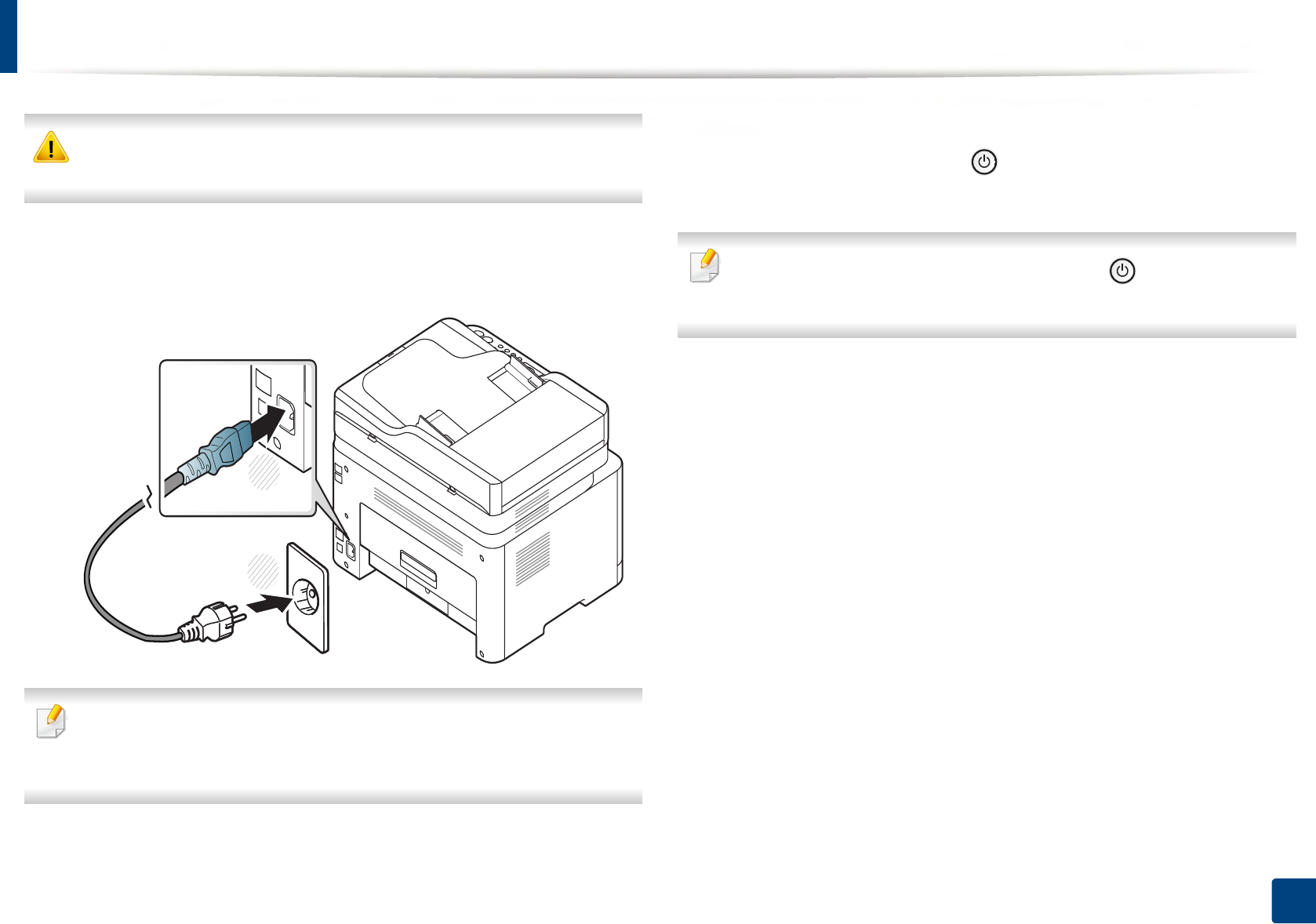
Keep in mind that you should use the power cord supplied with the
machine. Otherwise, it can cause damage or fire to the machine.
1Connect the machine to the electricity supply first.
Turn the switch on if the machine has a power switch.
Illustrations on this user’s guide may differ from your machine depending
on its options or models. Check your machine type (see "Front view" on
page 21).
2 Power is turned on automatically.
For C48x/C48xW series, press (Power/Wake Up) button on the
control panel.
If you want to turn the power off, press and hold (Power/Wake Up)
button for about 3 seconds.
2
1

29
1. Introduction
Installing the driver locally
A locally connected machine is a machine directly attached to your computer
using a USB cable. If your machine is attached to a network, skip the following
steps below and go on to installing a network connected machine’s driver (see
"Installing driver over the network" on page 147).
• If you are a Mac or Linux operating systems user, refer to the "Installation
for Mac" on page 138 or "Installation for Linux" on page 140.
• The installation window in this User’s Guide may differ depending on the
machine and interface in use.
• Only use a USB cable no longer than 3 meters (118 inches).
14
Windows
1Make sure that the machine is connected to your computer and
powered on.
2 Insert the supplied software CD into your CD-ROM drive.
If the installation window does not appear, click Start > All programs >
Accessories > Run.
X:\Setup.exe replacing “X” with the letter, which represents your CD-
ROM drive and click OK.
• For Windows 8,
If the installation window does not appear, from Charms, select
Search > Apps and search for Run. Type in X:\Setup.exe, replacing
“X” with the letter that represents your CD-ROM drive and click OK.
If “Tap to choose what happens with this disc.” pop-up window
appears, click the window and select Run Setup.exe.
3 Review and accept the installation agreements in the installation
window. Then, click Next.
4 Select USB on the Printer Connection Type screen. Then, click Next.
5 Follow the instructions in the installation window.
You can select the software applications in the Select Software to Install
window.
Installing the driver locally
30
1. Introduction
From the Windows 8 Start Screen
• The V4 driver is automatically downloaded from the Windows Update if
your computer is connected to the Internet. If not, you can manually
download the V4 driver from Samsung website, www.samsung.com >
find your product > Support or downloads.
• You can download Samsung Printer Experience app from the Windows
Store. You need have a Microsoft account to use the Windows Store.
1 From Charms, select Search.
2 Click Store.
3 Search and click Samsung Printer Experience.
4 Click Install.
• If you install the driver using the supplied software CD, V4 driver is not
installed. If you want to use the V4 driver in the Desktop screen, you can
download from the Samsung website, www.samsung.com >find your
product > Support or downloads.
• If you want to install Samsung’s printer management tools, you need to
install them using the supplied software CD.
1Make sure that your computer is connected to the Internet and powered
on.
2 Make sure that the machine is powered on.
3 Connect the computer and the machine with a USB cable.
The driver is automatically installed from the Windows Update.
31
1. Introduction
Reinstalling the driver
If the printer driver does not work properly, follow the steps below to reinstall
the driver.
15
Windows
1Make sure that the machine is connected to your computer and
powered on.
2 From the Start menu, select Programs or All Programs > Samsung
Printers > Uninstall Samsung Printer Software.
• For Windows 8,
1 From Charms, select Search > Apps.
2 Search and click Control Panel.
3 Click Programs and Features.
4 Right-click the driver you want to uninstall and select Uninstall.
3 Follow the instructions in the installation window.
4 Insert the software CD into your CD-ROM drive and install the driver
again (see "Installing the driver locally" on page 29).
From the Windows 8 Start Screen
1Make sure that the machine is connected to your computer and
powered on.
2 Click on the Uninstall Samsung Printer Software tile in the Start
screen.
3 Follow the instructions in the window.
• If you cannot find a Samsung Printer Software tile, unintstall from the
desktop screen mode.
• If you want to uninstall Samsung’s printer management tools, from the
Start screen, right-click the app > Uninstall > right-click the program
you want to delete > Uninstall and follow the instruction in the window.

2. Menu Overview and
Basic Setup
This chapter provides information about the overall menu structure and the basic setup options.
• Menu overview 33
• Machine’s basic settings 37
• Media and tray 39
• Basic printing 52
• Basic copying 58
• Basic scanning 63
• Basic faxing 64
• Using USB memory device 68
33
2. Menu Overview and Basic Setup
Menu overview
The control panel provides access to various menus to set up the machine or use
the machine’s functions.
• An asterisk (*) appears next to the currently selected menu.
• Some menus may not appear on the display depending on options or
models. If so, it is not applicable to your machine.
• Some menu names may differ from your machine depending on its
options or the models.
• The menus are described in the Advanced Guide (see "Useful Setting
Menus" on page 187).
1
Accessing the menu
1Select the Copy, Fax, or Scan button on the control panel depending on
the feature to be used.
2 Select (Menu) until the menu you want appears on the bottom line
of the display and press OK.
3 Press the left/right arrows until the needed menu item appears and press
OK.
4 If the setting item has sub menus, repeat step 3.
5 Press OK to save the selection.
6 Press (Stop/Clear) to return to the ready mode.

Menu overview
34
2. Menu Overview and Basic Setup
Copy Feature
(see "Copy" on page 190)
Copy Setup
(see "Copy" on page 190)
Fax Featurea
(see "Fax" on page 193)
a. C48xFN/C48xFW series only.
Fax Setupa
(see "Fax" on page 193)
Original Size
Reduce/Enlarge
Darkness
Normal
Dark+1- Dark+5
Light+5- Light+1
Original Type
Text
Text/Photo
Photo
Magazine
Collation
On
Off
Layout
Normal
2-Up
4-Up
ID Copy
Adjust Bkgd.
Off
Auto
Enhance Lev.1
Enhance Lev.2
Erase Lev.1- Erase Lev.4
Change Default
Original Size
Copies
Reduce/Enlarge
Darkness
Original Type
Collation
Darkness
Light+5- Light+1
Normal
Dark+1- Dark+5
Resolution
Standard
Fine
Super Fine
Photo Fax
Original Size
Multi Send
Delay Send
Priority Send
Send Forward
Forward to Fax
Fwd. to Email
Rcv. Forward
Forward to Fax
Forward to PC
Fwd. to Email
Forward&Print
Secure Receive
Off
On
Print
Add Page
Cancel Job
Sending
Redial Times
Redial Term
Prefix Dial
ECM Mode
Modem Speed
Fax Confirm.
Image TCR
Dial Modeb
Receiving
Receive Mode
Ring to Answer
Stamp Rcv Name
Rcv Start Code
Auto Reduction
Discard Size
Junk Fax Setup
DRPD Modeb
b. This option may not be available depending on your country.
Change Default
Darkness
Resolution
Original Size
Smart Fax Diag
Auto Config.
Start Now
Initialize
Manual TX/RX
On
Off

Menu overview
35
2. Menu Overview and Basic Setup
Scan Featurea
(see "Scan" on page 197)
a. C48xW/C48xFN/C48xFW series only.
Scan Setupa
(see "Scan" on page 197)
Print Setup
(see "Print" on page 189)
USB Feature
Original Size
Original Type
Resolution
Color Mode
File Format
Darkness
Email Featureb
Original Size
Original Type
Resolution
Color Mode
Darkness
Samsung Cloudb
Original Size
Original Type
Resolution
Color Mode
Darkness
b. C48xFN/C48xFW series only.
Change Default
USB Default
Email Defaultb
Samsung Cloudb
Orientation
Portrait
Landscape
Copies
[1 - 999]
Resolution
Standard
High Resol.
Clear Text
Off
Minimum
Medium
Maximum
Edge Enhance
Off
Normal
Maximum
Trapping
Off
Normal
Maximum
Screen
Normal
Enhanced
Detailed
Auto CR
LF
LF+CR
SkipBlankPages
On
Off
Emulation
Emulation Type
Setup

Menu overview
36
2. Menu Overview and Basic Setup
System Setup
(see "System setup" on page 199)
Networka
(see "Network setup" on page 205)
a. C48xW/C48xFN/C48xFW series only.
Machine Setup
Machine IDb
Fax Numberb
Date & Timeb
Clock Modeb
Language
Default Modeb
Power Save
Auto Power Off c
Wakeup Event
System Timeout
Job Timeout
Altitude Adj.
Humidity
Auto Continue
Paper Substit.
Eco Settings
b. C48xFN/C48xFW series only.
c. C48x/C48xW series only.
Paper Setup
Paper Size
Paper Type
Margin
Sound/Volumeb
Key Sound
Alarm Sound
Speaker
Ringer
Report
Configuration
Demo Page
Network Conf.
Supplies Info.
Usage Counter
Fax Receivedb
Fax Sentb
Scheduled Jobsb
Fax Confirm.b
Email Sentb
Junk Faxb
PCL Font
PS Font
Address Bookb
Maintenance
CLR Empty Msgd
Supplies Life
Image Mgr.
Custom Color
TonerLow Alert
ImgU.Low Alert
Serial Number
d. This option only appears when small amount of toner is left in the cartridge.
TCP/IP (IPv4)
DHCP
BOOTP
Static
TCP/IP (IPv6)
IPv6 Protocol
DHCPv6 Config
Ethernet
Ethernet Port
Ethernet Speed
Wi-Fi e
Wi-Fi On/Off
Wi-Fi Settings
WPS
Wi-Fi Direct
Wi-Fi Signal
Wi-Fi Default
Protocol Mgr.
HTTP
SCP
WINS
SNMPv1/v2
UPnP(SSDP)
mDNS
SetIP
SLP
Network Conf.
Clear Settings
e. C48xW/C48xFW series only.
37
2. Menu Overview and Basic Setup
Machine’s basic settings
You change the machine’s setting set in the machine from Samsung Easy
Printer Manager or SyncThru™ Web Service.
•
If your machine is connected to the local, you can set the machine’s setting from
Samsung Easy Printer Manager
>
Advanced Setting
>
Device Settings
(see
"Using Samsung Easy Printer Manager" on page 252
).
• If your machine is connected to the network, you can set the
machine’s setting from SyncThru™ Web Service > Settings tab >
Machine Settings (see "Using SyncThru™ Web Service" on page 249).
After installation is complete, you may want to set the machine's default
settings.
To change the machine’s default settings, follow these steps:
It may be necessary to press OK to navigate to lower-level menus for some
models.
1Select (Menu) button on the control panel.
2 Press System Setup > Machine Setup.
3 Select the option you want, then press OK.
•Language: change the language that is displayed on the control
panel.
•Date & Time: When you set the time and date, they are used in delay
fax and delay print. They are printed on reports. If, however, they are
not correct, you need to change it for the correct time being.
Enter the correct time and date using arrows or numeric keypad (see
"Keypad letters and numbers" on page 209).
• Month = 01 to 12
• Day = 01 to 31
• Year = requires four digits
• Hour = 01 to 12
• Minute = 00 to 59
•Clock Mode: You can set your machine to display the current time
using either a 12-hour or 24-hour format.
•Power Save: When you are not using the machine for a while, use
this feature to save power.

Machine’s basic settings
38
2. Menu Overview and Basic Setup
• When you press the Power/Wake Up button, start printing, or a fax is
received, the product will wake up from the power saving mode.
• Press (Menu) > System Setup > Machine Setup > Wakeup Event
> On on the control panel. When you press any button except Power/
Wake Up button, the machine wake up from the power save mode.
•Altitude Adj.: Print quality is affected by atmospheric pressure,
which atmospheric pressure is determined by the height of the
machine above sea level. Before you set the altitude value,
determine the altitude where you are (see "Altitude adjustment" on
page 208).
4 Select the option you want, then press OK.
5 Press OK to save the selection.
6 Press (Stop/Clear) to return to ready mode.
Refer to below links to set other settings useful for using the machine.
• See "Entering various characters" on page 209.
• See "Keypad letters and numbers" on page 209.
• See "Setting the paper size and type" on page 46.
• See "Setting up the fax address book" on page 210.
39
2. Menu Overview and Basic Setup
Media and tray
This chapter provides information on how to load print media into your
machine.
• Using print media that does not meet these specifications may cause
problems or require repairs. Such repairs are not covered by Samsung’s
warranty or service agreements.
• Make sure not to use the inkjet photo paper with this machine. It could
cause damage to the machine.
• Using inflammable print media can cause a fire.
• Use designated print media (see "Print media specifications" on page
113).
The use of inflammable media or foreign materials left in the printer may
lead to overheating of the unit and, in rare cases may cause a fire.
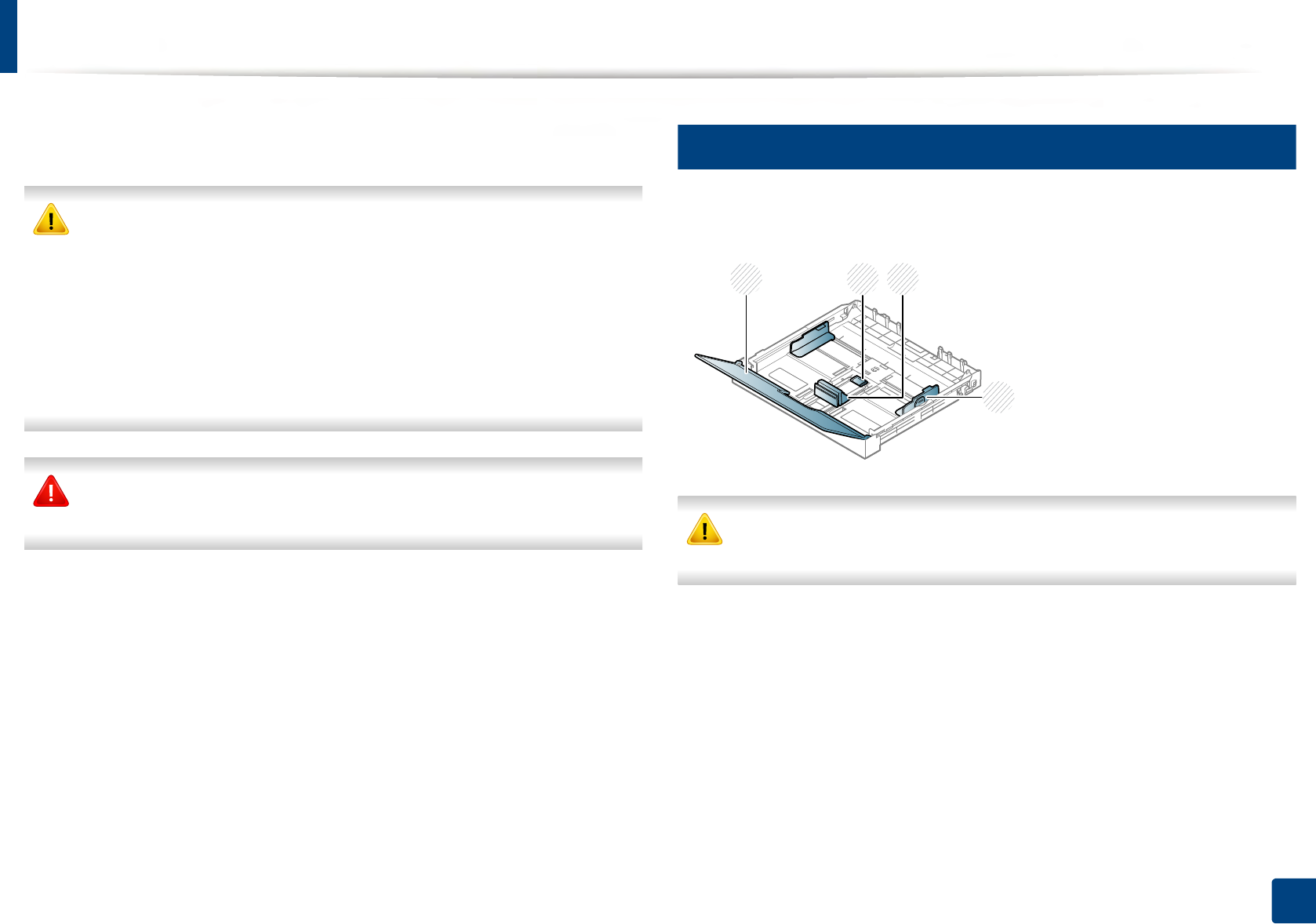
2
Tray overview
To change the size, you need to adjust the paper guides.
If you do not adjust the guide, it may cause paper registration, image skew,
or jamming of the paper.
1Paper cover
2Guide lock
3Paper length guide
4Paper width guide
21
4
3
Media and tray
40
2. Menu Overview and Basic Setup
3
Loading paper in the tray
Illustrations on this user’s guide may differ from your machine depending
on its options or models. Check your machine type (see "Front view" on
page 21).
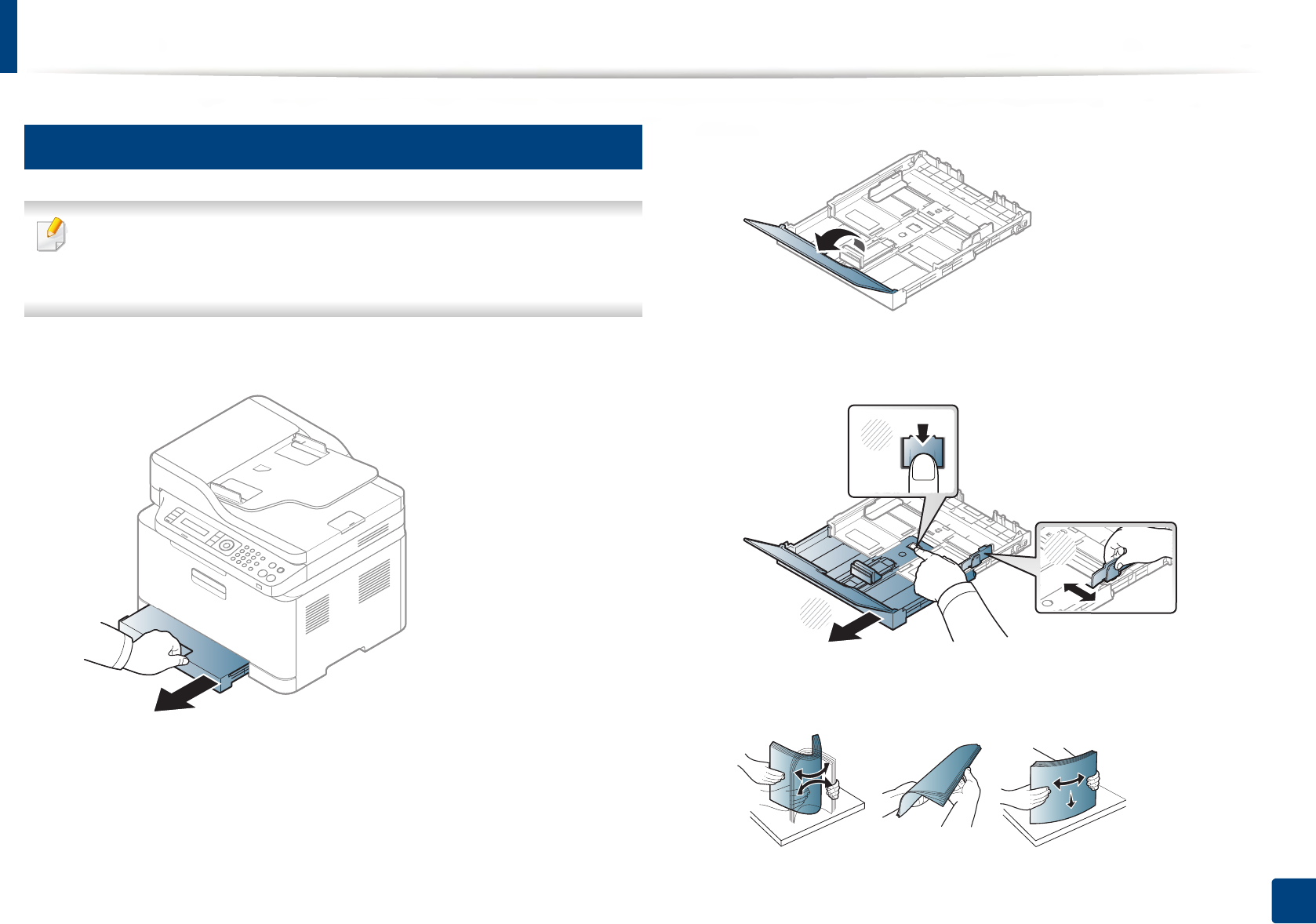
1Pull out the paper tray (see "Tray overview" on page 39).
2 Open the paper cover.
3 Press and unlatch the guide lock in the tray, pull the tray out manually.
Then adjust the paper length guide and paper width guide.
4 Flex or fan the edge of the paper stack to separate the pages before
loading papers.
2
1
2
3
Media and tray
41
2. Menu Overview and Basic Setup
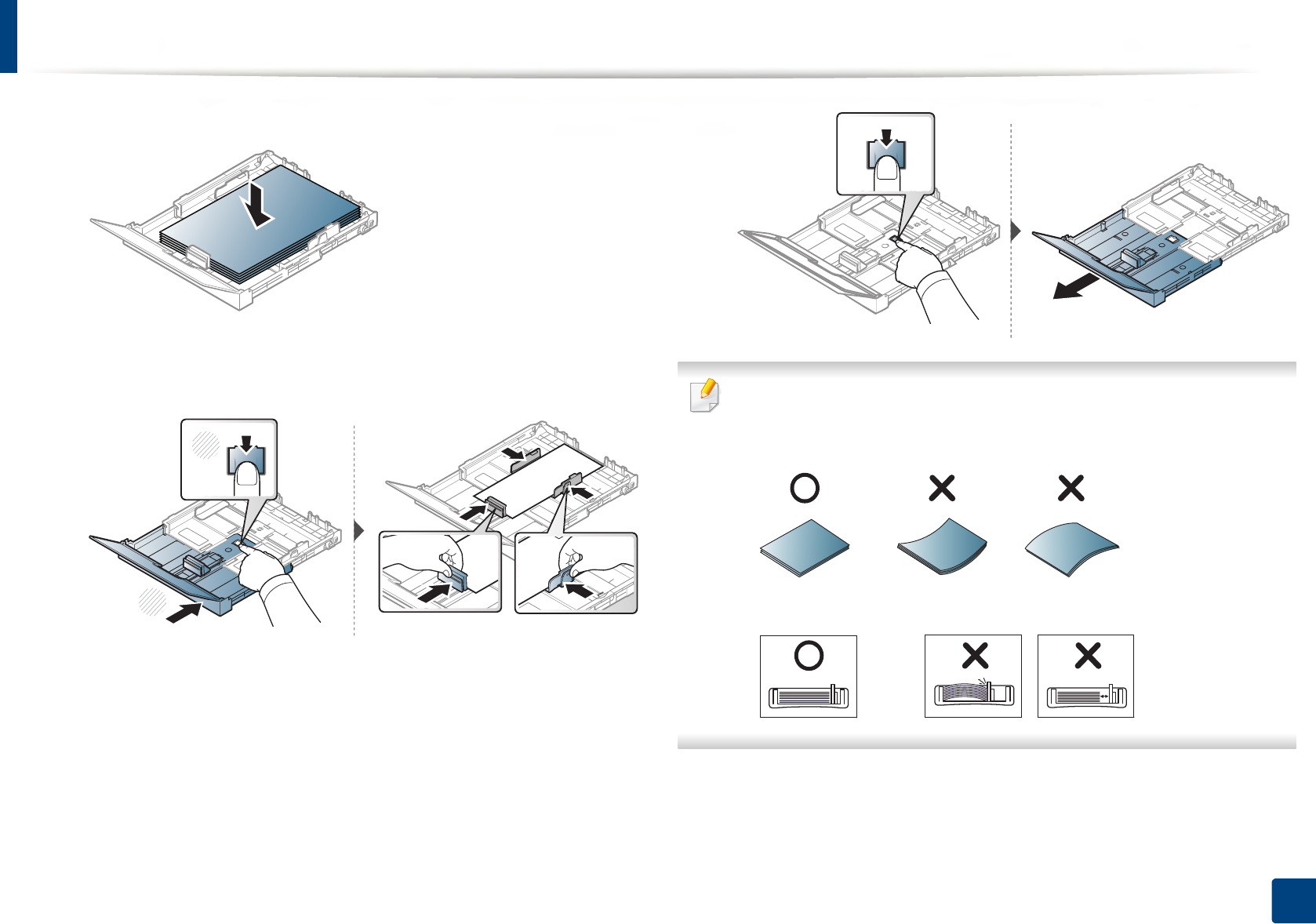
5 Place the paper with the side you want to print facing up.
For paper smaller than A4-sized, press and unlatch the guide lock in the
tray, push the tray in manually. Then adjust the paper length guide and
paper width guide.
For paper longer than Legal-sized, press and unlatch the guide lock in
the tray, pull the tray out manually. Then adjust the paper length guide
and paper width guide.
• Do not push the paper width guide too far causing the media to buckle.
• Do not use a paper with a leading-edge curl, it may cause a paper jam or
the paper can be wrinkled.
• If you do not adjust the paper width guide, it may cause paper jams.
2
1
Media and tray
42
2. Menu Overview and Basic Setup
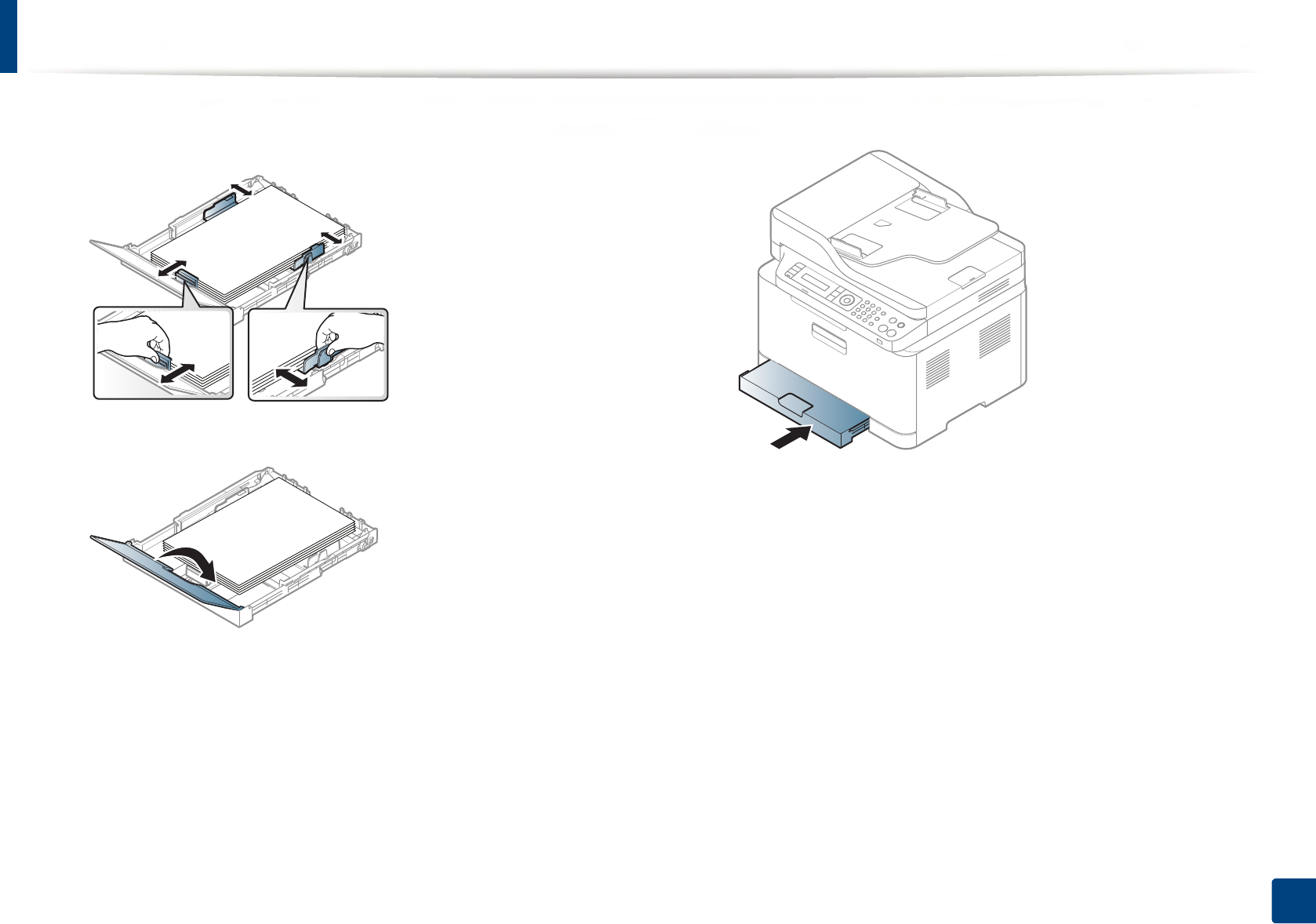
6 Squeeze the paper width guide and slide it to the edge of the paper stack
without causing it to buckle.
7 Close the paper cover.
8 Insert the paper tray.
9 When you print a document, set the paper type and size for the tray (see
"Setting the paper size and type" on page 46).
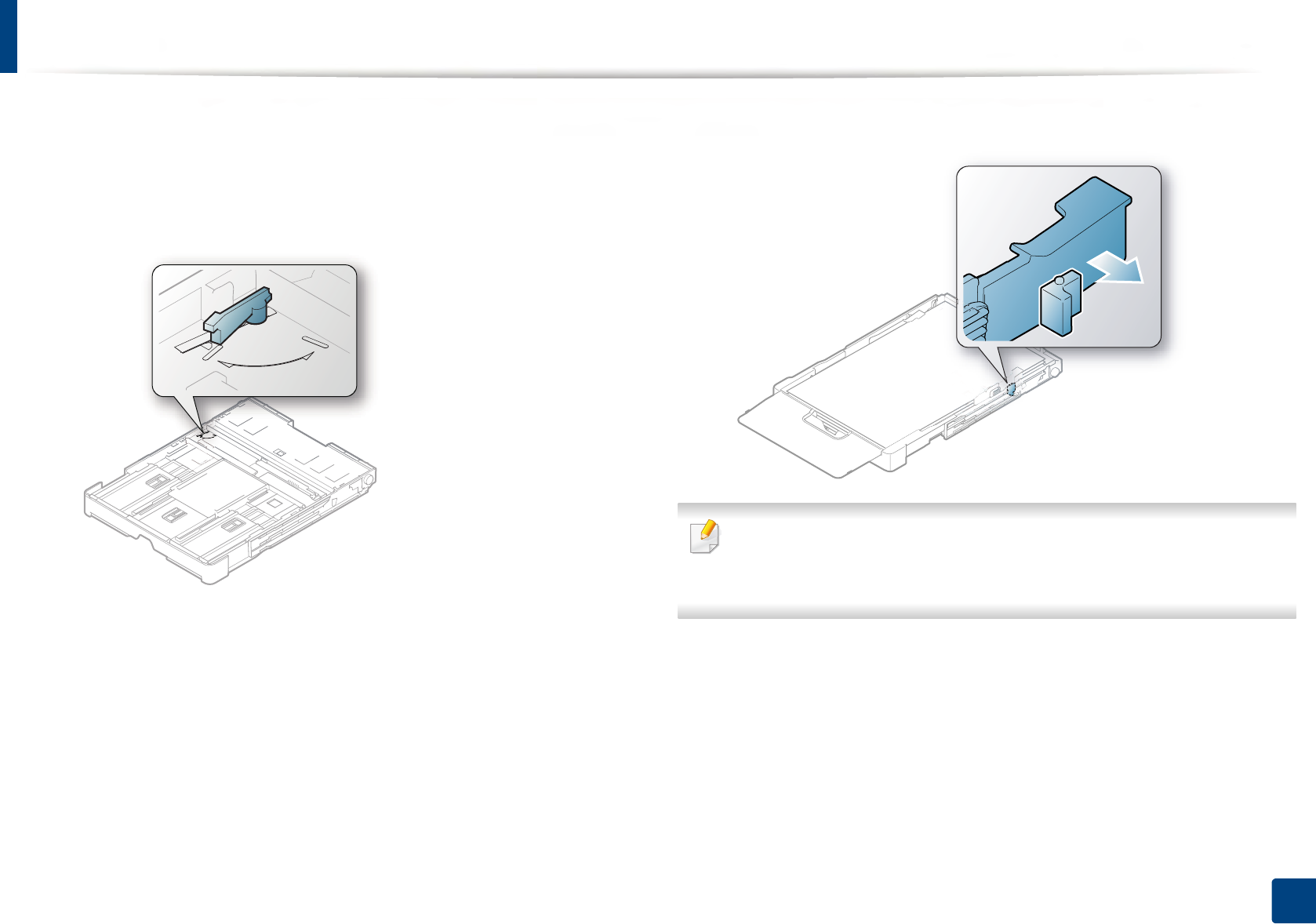
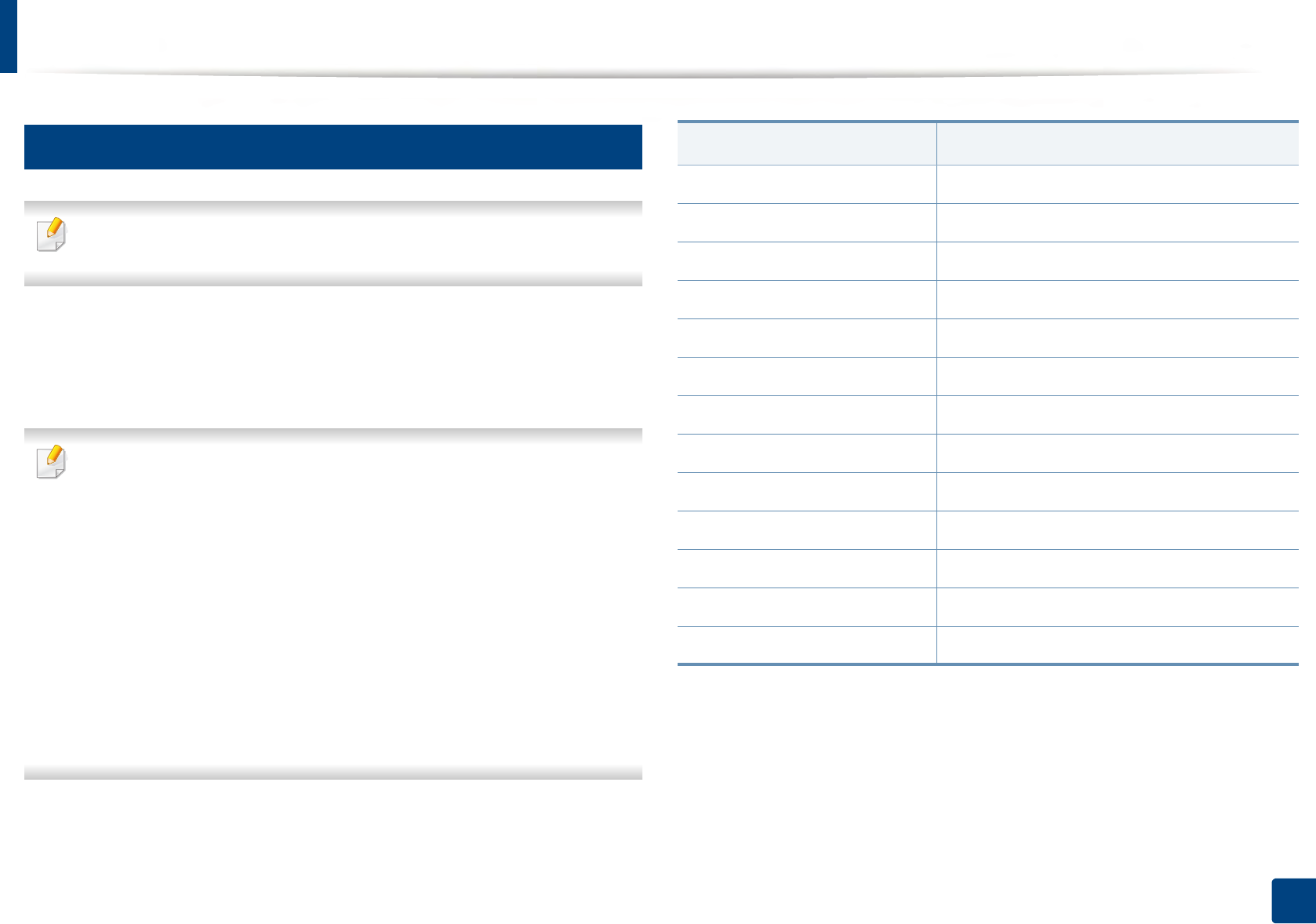
The tray is preset to Letter or A4 size, depending on your country. To change the
size to A4 or Letter, you must adjust the lever and paper width guide properly.
Media and tray
43
2. Menu Overview and Basic Setup
1Pull the tray out of the machine. Open the paper cover and remove
paper from the tray if necessary.
2 If you want to change the size to Letter, hold the lever at the back of the
tray, and rotate the lever clockwise.
3 Squeeze the paper width guide and slide it to the edge of the lever.
If you want to change the size to A4, first move the paper width guide to left
and rotate the lever counterclockwise. If you force the lever, it could
damage the tray.
LTR
A4
LTR
A4
Media and tray
44
2. Menu Overview and Basic Setup
4
Printing on special media
• When using special media, we recommend you feed one sheet at a time
(see "Print media specifications" on page 113).
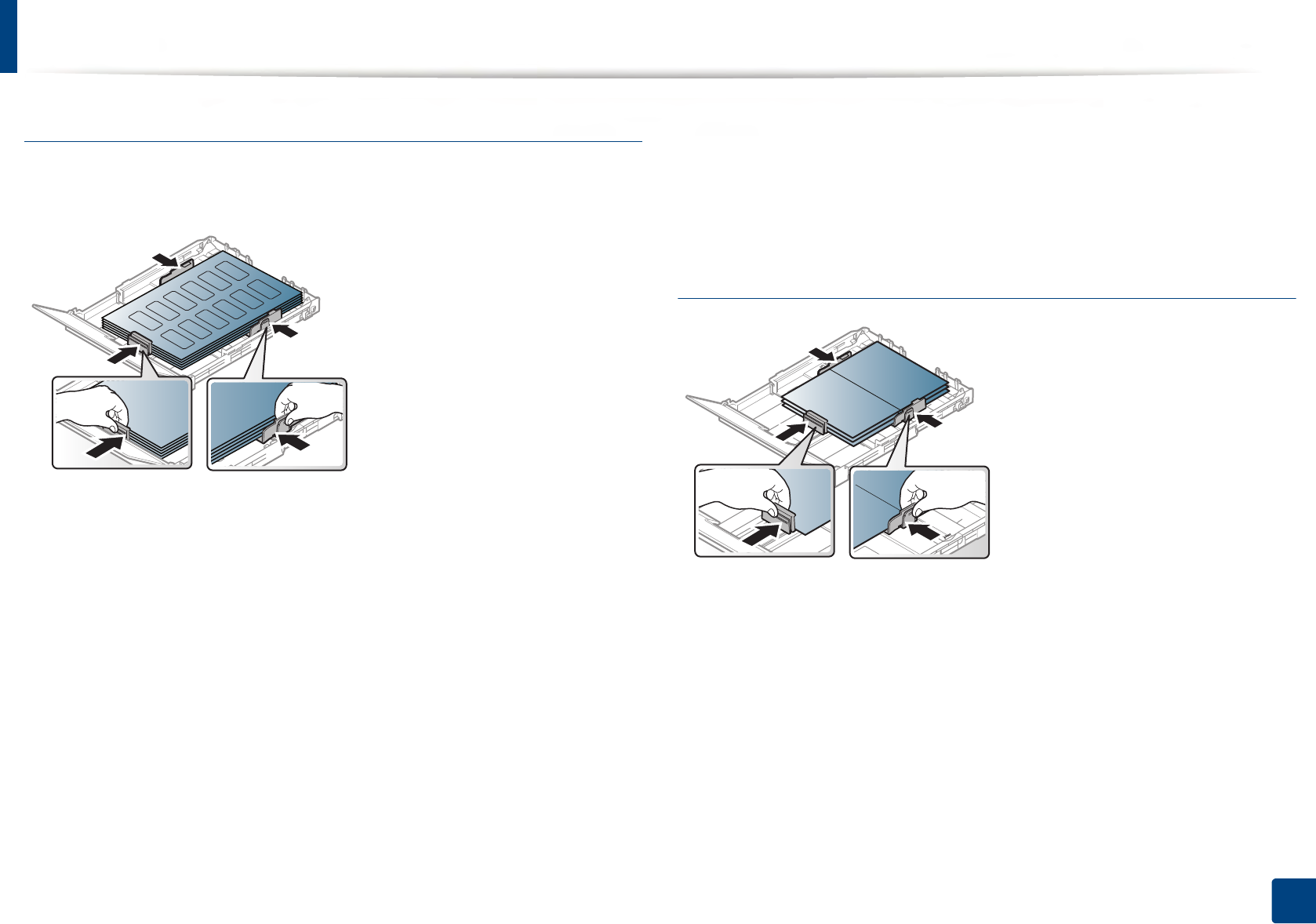
The table below shows the special media usable in tray.
The paper setting in the machine and driver should match to print without a
paper mismatch error.
The paper setting in the machine and driver should match to print without
a paper mismatch error.
• You change the paper setting set in the machine from Samsung Easy
Printer Manager program or SyncThru™ Web Service.
-
If your machine is connected to the local, you can set the machine’s setting
from
Samsung Easy Printer Manager
>
Advanced Setting
>
Device
Settings
(see
"Using Samsung Easy Printer Manager" on page 252
).
- If your machine is connected to the network, you can set the
machine’s setting from SyncThru™ Web Service > Settings tab >
Machine Settings (see "Using SyncThru™ Web Service" on page 249).
•You can set it using System Setup > Paper Setup > select you want >
Paper Size or Paper Type button on the control panel.
To see paper weights for each sheet, refer to "Print media specifications" on
page 113.
(●: Supported)
Types Traya
a. The paper types available manual feeding in tray.
Plain ●
Thick ●
Thin ●
Bond ●
Color ●
CardStock ●
Labels ●
Preprinted ●
Cotton ●
Recycled ●
Archive ●
Glossy Photo ●
Matte Photo ●
Media and tray
45
2. Menu Overview and Basic Setup
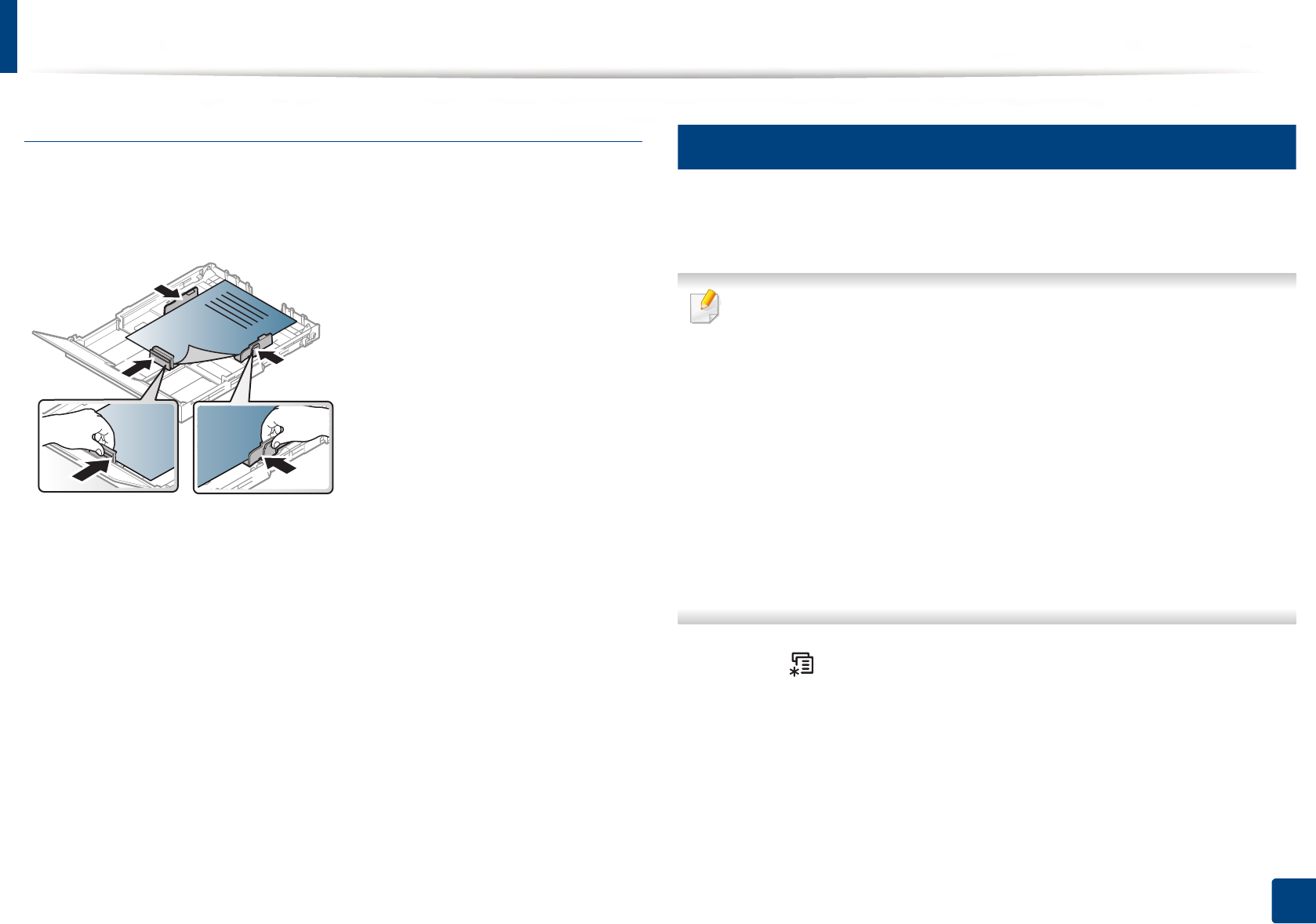
Labels
To avoid damaging the machine, use only labels designed for use in laser
printers.
• When selecting labels, consider the following factors:
-Adhesives: Should be stable at your machine’s fusing temperature
about 170°C (338°F).
-Arrangement: Only use labels with no exposed backing between them.
Labels can peel off sheets that have spaces between the labels, causing
serious jams.
-Curl: Must lie flat with no more than 13 mm of curl in any direction.
-Condition: Do not use labels with wrinkles, bubbles, or other
indications of separation.
• Make sure that there is no exposed adhesive material between labels.
Exposed areas can cause labels to peel off during printing, which can cause
paper jams. Exposed adhesive can also cause damage to machine
components.
• Do not run a sheet of labels through the machine more than once. The
adhesive backing is designed for only a single pass through the machine.
• Do not use labels that are separating from the backing sheet or are wrinkled,
bubbled, or otherwise damaged.
Card stock/ Custom-sized paper
• In the software application, set the margins to at least 6.4 mm (0.25 inches)
away from the edges of the material.
Media and tray
46
2. Menu Overview and Basic Setup
Preprinted paper
When loading preprinted paper, the printed side should be facing up with an
uncurled edge at the front. If you experience problems with paper feeding, turn
the paper around. Note that print quality is not guaranteed.
• Must be printed with heat-resistant ink that will not melt, vaporize, or
release hazardous emissions when subjected to the machine’s fusing
temperature for 0.1 second (about 170°C (338°F)).
• Preprinted paper ink must be non-flammable and should not adversely
affect machine rollers.
• Before you load preprinted paper, verify that the ink on the paper is dry.
During the fusing process, wet ink can come off preprinted paper, reducing
print quality.
5
Setting the paper size and type
After loading paper in the paper tray, set the paper size and type using the
control panel buttons.
The paper setting in the machine and driver should match to print without
a paper mismatch error.
• You change the paper setting set in the machine from Samsung Easy
Printer Manager program or SyncThru™ Web Service.
-
If your machine is connected to the local, you can set the machine’s setting
from
Samsung Easy Printer Manager
>
Advanced Setting
>
Device
Settings
(see
"Using Samsung Easy Printer Manager" on page 252
).
- If your machine is connected to the network, you can set the
machine’s setting from SyncThru™ Web Service > Settings tab >
Machine Settings (see "Using SyncThru™ Web Service" on page 249).
• You can set it using System Setup > Paper Setup > select you want >
Paper Size or Paper Type button on the control panel.
1Select (Menu) button on the control panel.
2 Press System Setup > Paper Setup > Paper Size or Paper Type.
3 Select the tray and the option you want.
4 Press OK to save the selection.

Media and tray
47
2. Menu Overview and Basic Setup
5 Press (Stop/Clear) to return to ready mode.
• If you want to use special-sized paper such as billing paper, select the
Paper tab > Size > Edit... and set Custom Paper Size Settings in the
Printing Preferences (see "Opening printing preferences" on page 54).
6
Using the output support
The surface of the output tray may become hot if you print a large number
of pages at once. Make sure that you do not touch the surface, and do not
allow children near it.
The printed pages stack on the output support, and the output support will help
the printed pages to align. The printer sends output to the output tray by
default.
Media and tray
48
2. Menu Overview and Basic Setup
Illustrations on this user’s guide may differ from your machine depending
on its options or models. Check your machine type (see "Front view" on
page 21).
7
Preparing originals
• Do not load paper smaller than 142 x 148 mm (5.6 x 5.8 inches) or larger than
216 x 356 mm (8.5 x 14 inches).
• Do not attempt to load the following s of paper, in order to prevent paper
jam, low print quality and machine damage.
- Carbon-paper or carbon-backed paper
- Coated paper
- Onion skin or thin paper
- Wrinkled or creased paper
- Curled or rolled paper
- Torn paper
• Remove all staples and paper clips before loading.
• Make sure any glue, ink, or correction fluid on the paper is completely dry
before loading.
• Do not load originals that include different sizes or weights of paper.
• Do not load booklets, pamphlets, transparencies, or documents with other
unusual characteristics.
8
Loading originals
You can use the scanner glass or the document feeder to load an original for
copying, scanning, and sending a fax.
Illustrations on this user’s guide may differ from your machine depending
on its options or models. Check your machine type (see "Front view" on
page 21).
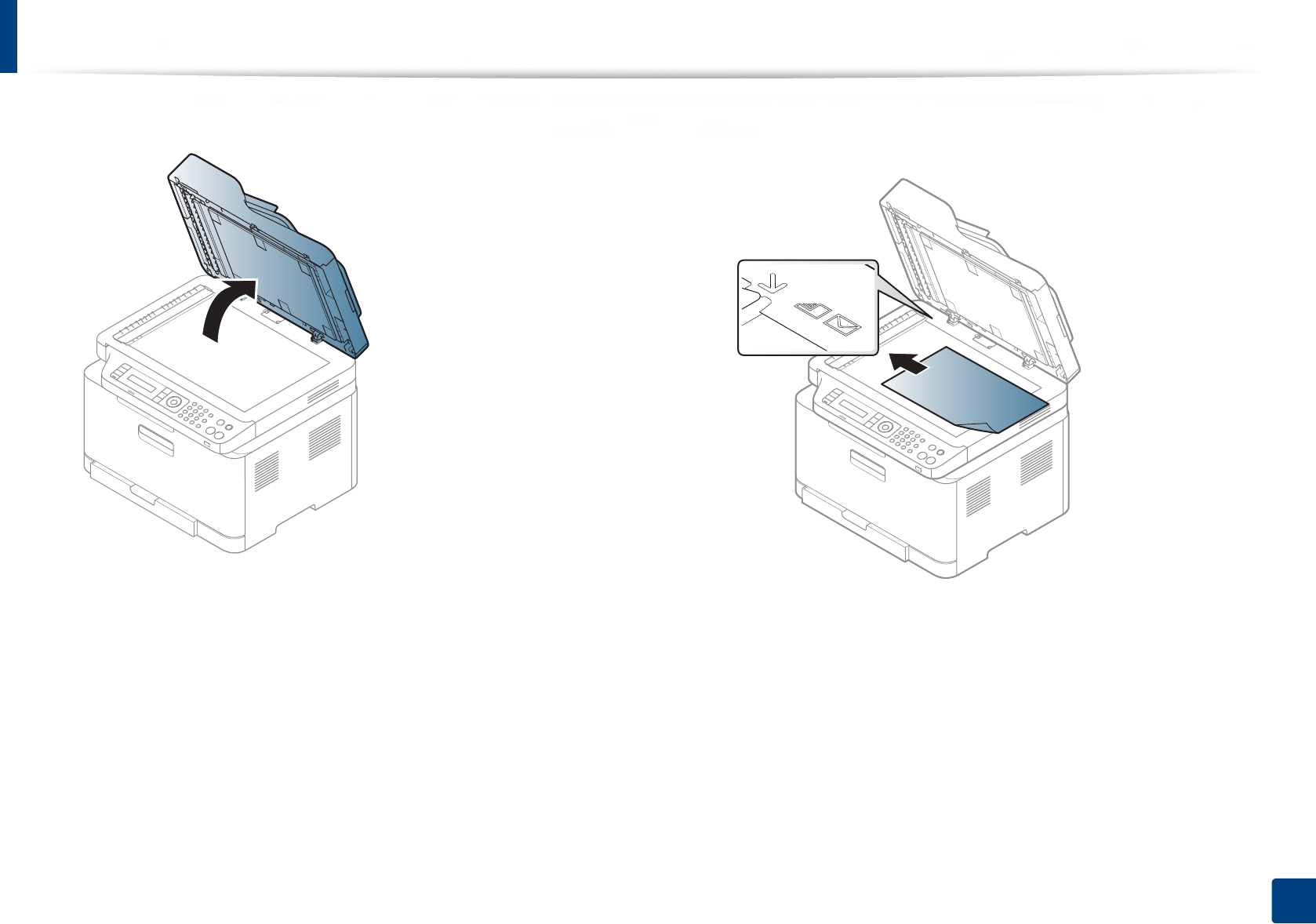
On the scanner glass
Using the scanner glass, you can copy or scan originals. You can get the best
scan quality, especially for colored or gray-scaled images. Make sure that no
originals are in the document feeder. If an original is detected in the document
feeder, the machine gives it priority over the original on the scanner glass.
Media and tray
49
2. Menu Overview and Basic Setup
1Lift and open the scanner lid. 2 Place the original face down on the scanner glass. Align it with the
registration guide at the top left corner of the glass.
3 Close the scanner lid.
Media and tray
50
2. Menu Overview and Basic Setup
• Leaving the scanner lid open while copying may affect copy quality and
toner consumption.
• Dust on the scanner glass may cause black spots on the printout. Always
keep it clean (see "Cleaning the machine" on page 88).
• If you are copying a page from a book or magazine, lift the scanner lid
until its hinges are caught by the stopper and then close the lid. If the
book or magazine is thicker than 30 mm, start copying with the scanner
lid open.
• Be careful not to break the scanner glass. You may get hurt.
• Do not put hands while closing the scanner lid. The scanner lid may fall
on your hands and get hurt.
• Do not look into the light from inside of the scanner while copying or
scanning. It is harmful to eyes.
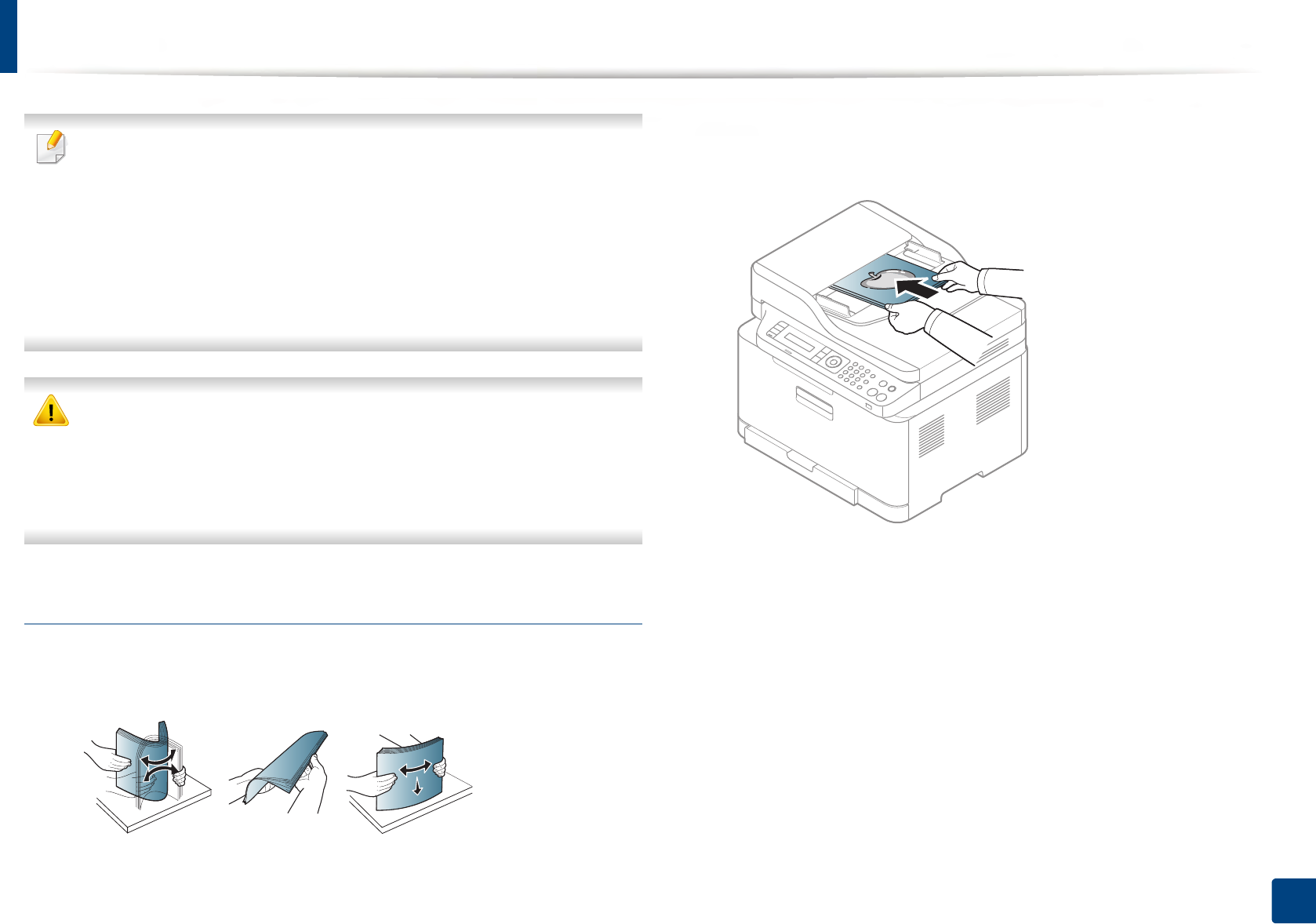
In the document feeder
1Flex or fan the edge of the paper stack to separate the pages before
loading originals.
2 Load the original face up into the document feeder input tray. Make sure
that the bottom of the original stack matches the paper size marked on
the document input tray.