Samsung Electronics Co SLC480FW Printer User Manual 01
Samsung Electronics Co Ltd Printer 01
Contents
- 1. User Manual 1
- 2. User Manual 2
- 3. User Manual 3
- 4. User Manual 4
User Manual 2
Media and tray
51
2. Menu Overview and Basic Setup
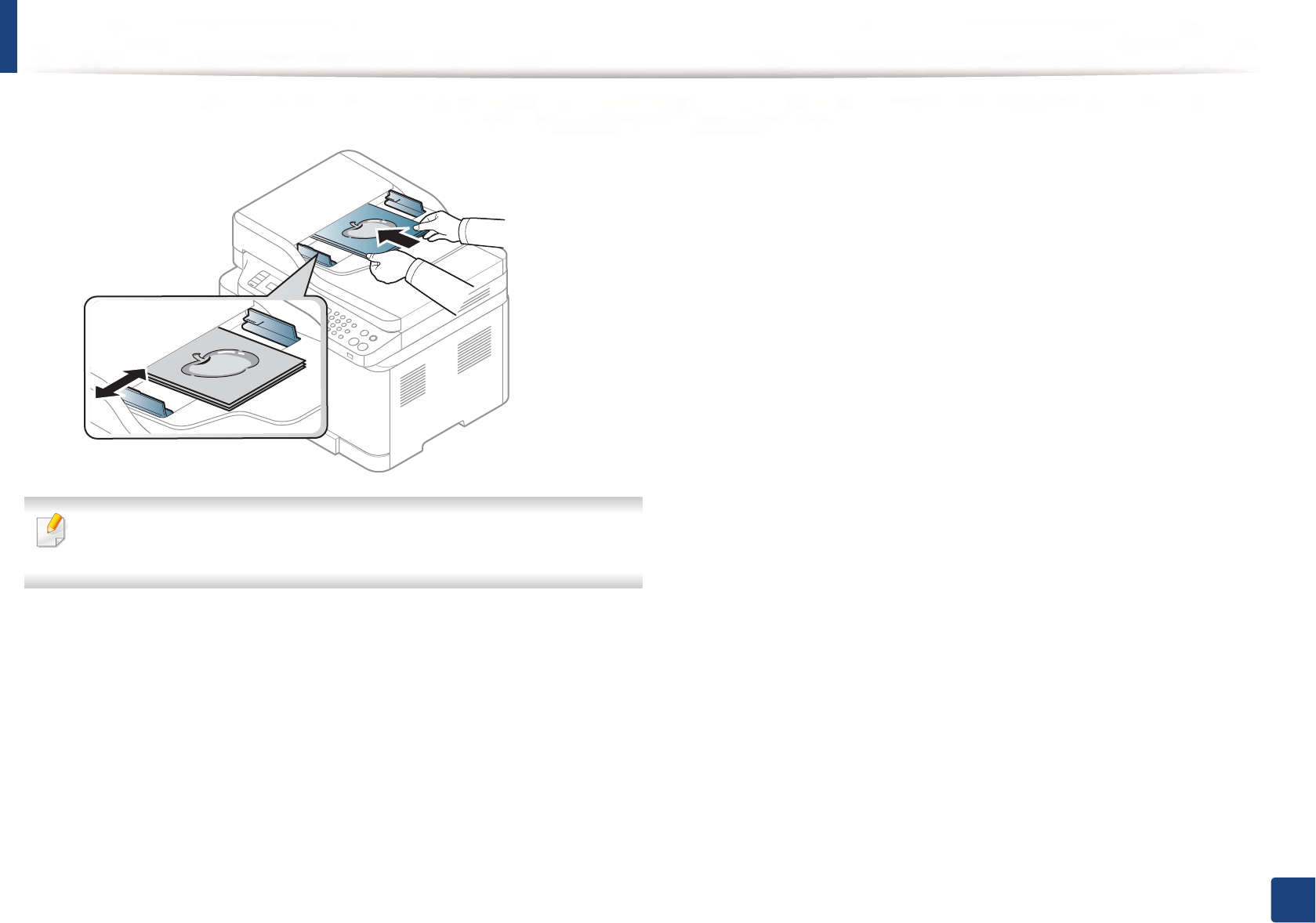
3 Adjust the document feeder width guides to the paper size.
Dust on the document feeder glass may cause black lines on the printout.
Always keep the glass clean (see "Cleaning the machine" on page 88).
52
2. Menu Overview and Basic Setup
Basic printing
For special printing features, refer to the Advanced Guide (see "Using
advanced print features" on page 214).
9
Printing
• Mac printing (see "Mac printing" on page 221).
• Linux printing (see "Linux printing" on page 223).
The following Printing Preferences window is for Notepad in Windows 7.Your
Printing Preferences window may differ, depending on your operating system
or the application you are using.
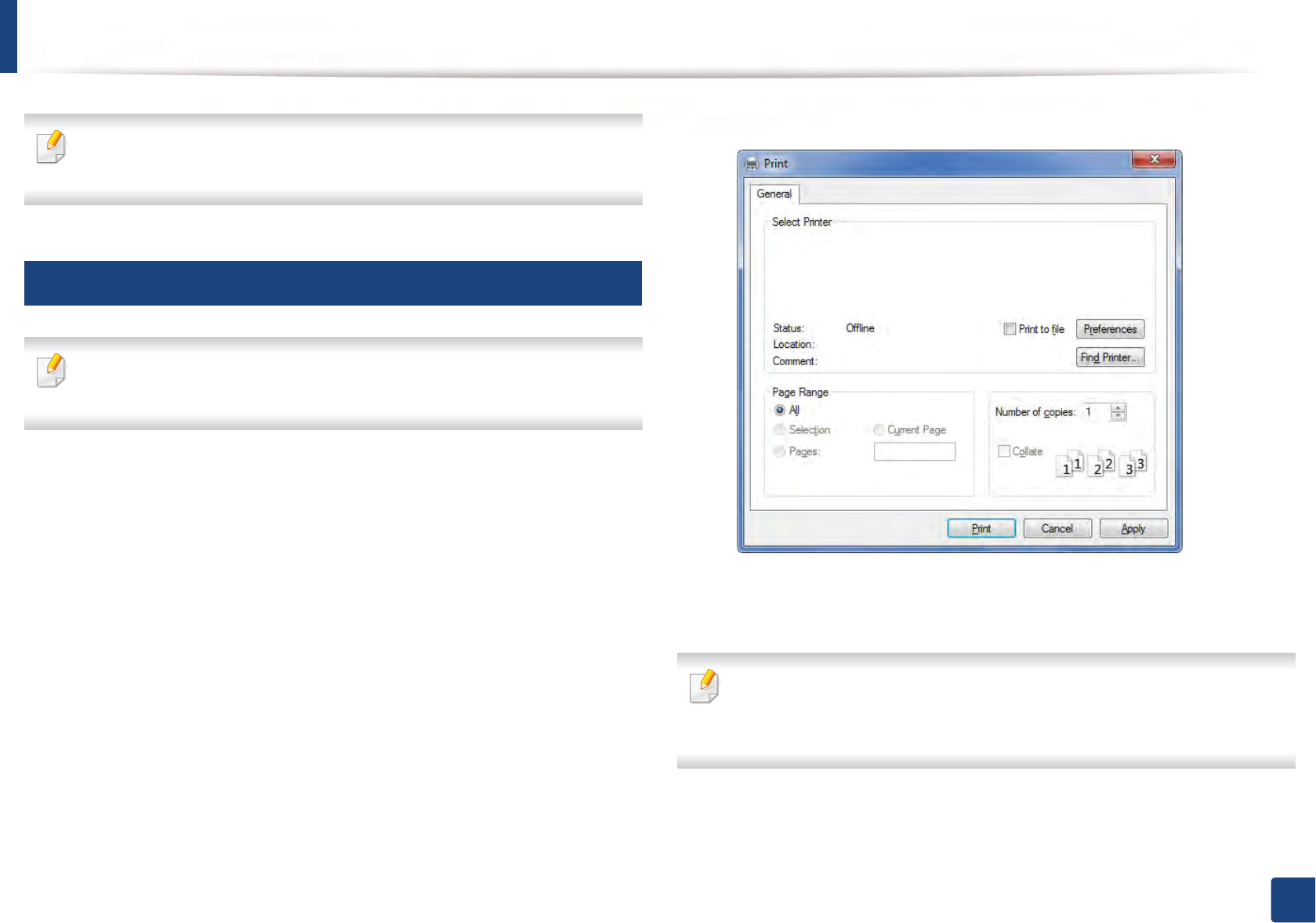
1Open the document you want to print.
2 Select Print from the File menu.
3 Select your machine from the Select Printer list.
4 The basic print settings including the number of copies and print range
are selected within the Print window.
To take advantage of the advanced printing features, click Properties or
Preferences from the Print window (see "Opening printing preferences" on
page 54).
5 To start the print job, click OK or Print in the Print window.

Basic printing
53
2. Menu Overview and Basic Setup
10
Canceling a print job
If the print job is waiting in the print queue or print spooler, cancel the job as
follows:
• You can access this window by simply double-clicking the machine icon
( ) in the Windows task bar.
• You can also cancel the current job by pressing (Stop/Clear) on the
control panel.
Basic printing
54
2. Menu Overview and Basic Setup
11
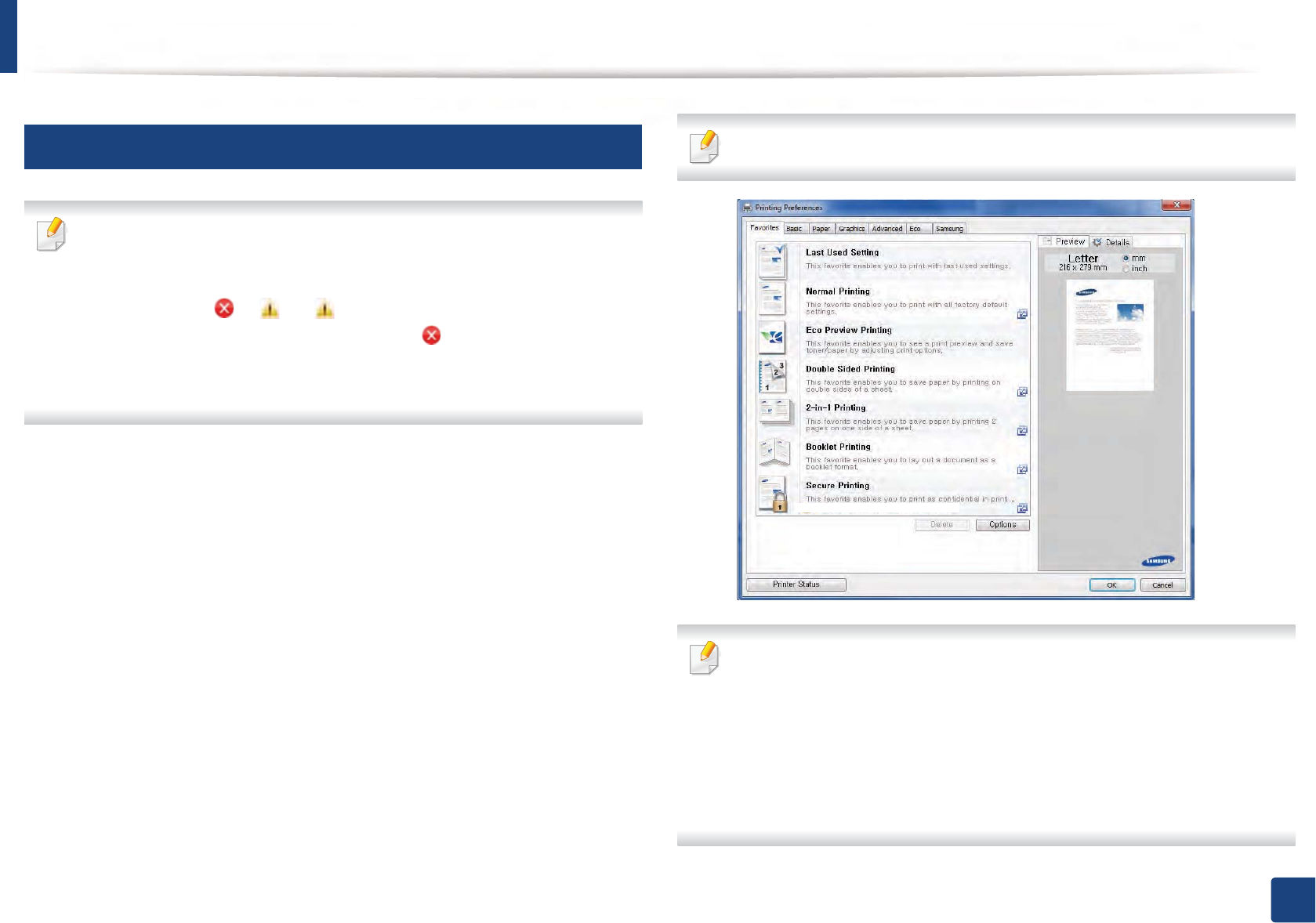
Opening printing preferences
• The Printing Preferences window that appears in this user’s guide may
differ depending on the machine in use.
• When you select an option in Printing Preferences, you may see a
warning mark or . An mark means you can select that certain
option but it is not recommended, and an mark means you cannot
select that option due to the machine’s setting or environment.
• For Windows 8 user, see "Opening more settings" on page 260.
1Open the document you want to print.
2 Select Print from the file menu. The Print window appears.
3 Select your machine from the Select Printer.
4 Click Properties or Preferences.
The screenshot may differ depending on model.
• You can apply Eco features to save paper and toner before printing (see
"Easy Eco Driver" on page 245).
• You can check the machine’s current status pressing the Printer Status
button (see "Using Samsung Printer Status" on page 255).
•The printer driver includes a user interface that is optimized for
touchscreens. To use this UI, click Samsung Printer Center > Device
Options and then select Stylish User Interface (see "Using Samsung
Printer Center" on page 246).
Basic printing
55
2. Menu Overview and Basic Setup
Using a favorite setting
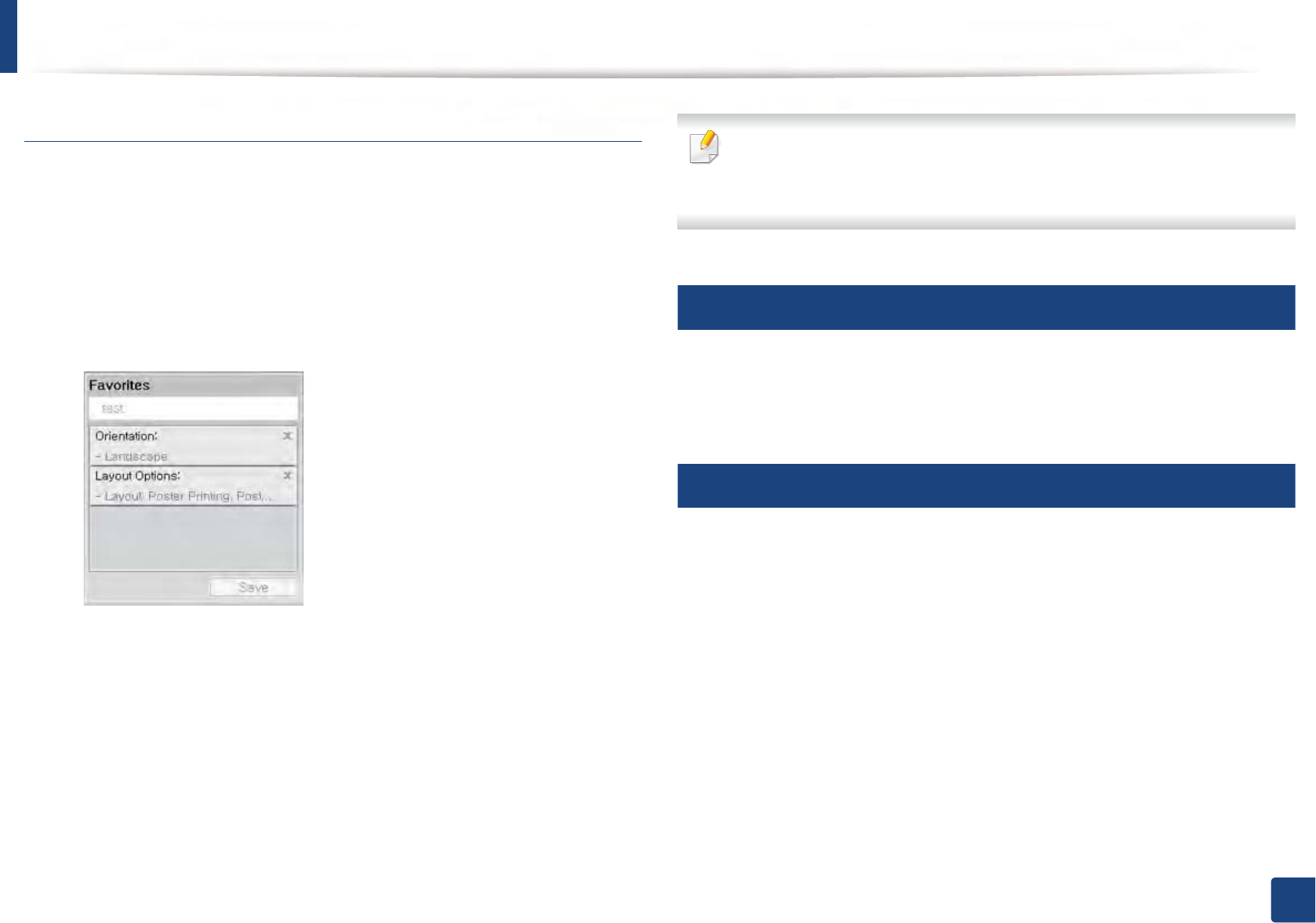
The Favorites option, which is visible on each preferences tab except for the
Samsung tab, allows you to save the current preferences for future use.
To save a Favorites item, follow these steps:
1Change the settings as needed on each tab.
2 Enter a name for the item in the Favorites input box.
3 Click Save.
4 Enter name and description, and then select the desired icon.
5 Click OK. When you save Favorites, all current driver settings are saved.
To use a saved setting, select it in the Favorites tab. The machine is now set
to print according to the settings you have selected. To delete saved
settings, select it in the Favorites tab and click Delete.
12
Using help
Click the option you want to know on the Printing Preferences window and
press F1 on your keyboard.
13
Eco printing
The Eco function cuts toner consumption and paper usage. The Eco function
allows you to save print resources and lead you to eco-friendly printing.
If you press the Eco button from the control panel, eco mode is enabled. The
default setting of Eco mode is Multiple Pages per Side (2) and Toner Save.
Some features may not be available depending on the model.
Basic printing
56
2. Menu Overview and Basic Setup
• You change the machine’s setting set in the machine from 6DPVXQJ
(DV\3ULQWHU0DQDJHUor SyncThru™ Web Service.
- If your machine is connected to the local, you can set the machine’s
setting from
Samsung Easy Printer ManagerGeGAdvanced SettingGeGDevice
Settings (see "Using Samsung Easy Printer Manager" on page 252).
- If your machine is connected to the network, you can set the
machine’s setting from SyncThru™ Web Service > Settings tab >
Machine Settings (see "Using SyncThru™ Web Service" on page 249).
Depending on the printer driver you use, Skip blank pages may not work
properly. If Skip blank pages feature does not work properly, set the feature
from the Easy Eco Driver (see "Easy Eco Driver" on page 245).
Setting Eco mode on the control panel
1Select (Menu) > System Setup > Machine Setup > Eco Settings on
the control panel.
2 Select the option you want and press OK.
•Default Mode: Select this to turn on or off the eco mode.
-Off: Set the eco mode off.
-On: Set the eco mode on.
If you set the eco mode on with a password from the SyncThru™ Web
Service (Settings tab > Machine Settings > System > Eco Settings) or
6DPVXQJ(DV\3ULQWHU0DQDJHU(Device Settings > Eco), the On force
message appears. You have to enter the password to change the eco mode
status.
•Select Temp.: Follow the settings from Syncthru™ Web Service or
6DPVXQJ(DV\3ULQWHU0DQDJHU. Before you select this item, you
must set the eco function in SyncThru™ Web Service (Settings tab >
Machine Settings > System > Eco Settings) or 6DPVXQJ(DV\
3ULQWHU0DQDJHU(Device Settings > Eco).
-Default Eco: The machine is set to Default Eco mode.
-Custom Eco: Change any necessary values.
3 Press OK to save the selection.
Setting eco mode on the driver
Open the Eco tab to set Eco mode. When you see the eco image ( ), that
means the eco mode is currently enabled.
Eco options
•Printer Default: Follows the settings from the machine's control panel.
•None: Disables Eco mode.

Basic printing
57
2. Menu Overview and Basic Setup
•Eco Printing: Enables eco mode. Activate the various Eco items you want to
use.
•Password: If the administrator fixed to enable the Eco mode, you have to
enter the password to change the status.
Result simulator
Result Simulator shows the estimated results of reduced emissions of carbon
dioxide, used electricity, and the amount of saved paper in accordance with the
settings you selected.
• The results are calculated on the basis that the total number of printed
paper is one hundred without a blank page when the Eco mode is disabled.
• Refers to the calculation coefficient about CO2, energy, and paper from IEA,
the index of Ministry of Internal Affairs and Communication of Japan and
www.remanufacturing.org.uk. Each model has a different index.
• The power consumption in printing mode refers to the average printing
power consumption of this machine.
• The actual amount displayed is only an estimate as the actual amount may
differ depending on the operating system used, computing performance,
application software, connection method, media type [thickness], media
size, job complexity, etc.
58
2. Menu Overview and Basic Setup
Basic copying
For special printing features, refer to the Advanced Guide (see "Copy" on
page 190).
14
Basic copy
1C48xW series: Make sure that the Scan to button’s LED is off.
C48xFN/C48xFW series: Select (copy) on the control panel.
2 Select (Menu) > Copy Feature on the control panel.
3 Place a single document face down on the document glass, or load the
documents face up into the document feeder (see "Loading originals" on
page 48).
4 If you want to customize the copy settings including Reduce/Enlarge,
Darkness, Original Type and more by using the control panel buttons
(see "Changing the settings for each copy" on page 58).
5 Enter the number of copies using the arrow or number keypad, if
necessary.
6 Press (Start).
If you need to cancel the copying job during the operation, press (Stop/
Clear) and the copying will stop.
15
Changing the settings for each copy
Your machine provides default settings for copying so that you can quickly and
easily make a copy.
• If you press the (Stop/Clear) button twice while setting the copy
options, all of the options you have set for the current copy job will be
canceled and returned to their default status. Or, they will automatically
return to their default status after the machine completes the copy in
progressU
• Accessing menus may differ from model to model (see "Accessing the
menu" on page 33).
• It may be necessary to press OK to navigate to lower-level menus for
some models.
Basic copying
59
2. Menu Overview and Basic Setup
Darkness
If you have an original containing faint marking and dark images, you can adjust
the brightness to make a copy that is easier to read.
1C48xW series: Make sure that the Scan to button’s LED is off.
C48xFN/C48xFW series: Select (copy) on the control panel.
2 Select (Menu) > Copy Feature > Darkness on the control panel.
3 Select the option you want and press OK.
For example, the Light+5 being the lightest, and the Dark+5 being the
darkest.
4 Press (Stop/Clear) to return to ready mode.
Original
The original setting is used to improve the copy quality by selecting the
document for the current copy job.
1C48xW series: Make sure that the Scan to button’s LED is off.
C48xFN/C48xFW series: Select (copy) on the control panel.
2 Select (Menu) > Copy Feature > Original Type on the control panel.
3 Select the option you want and press OK.
•Text: Use for originals containing mostly text.
•Text/Photo: Use for originals with mixed text and photographs.
If texts in the printout is blurry, select Text to get the clear texts.
•Photo: Use when the originals are photographs.
•Magazine: Use when the originals are magazine.
4 Press (Stop/Clear) to return to ready mode.
Reduced or enlarged copy
You can reduce or enlarge the size of a copied image from 25% to 400% from the
document feeder or scanner glass.
• This feature may not be available depending on model or optional goods
(see "Variety feature" on page 10).
• If the machine set to Eco mode, reduce and enlarge features are not
available.
Basic copying
60
2. Menu Overview and Basic Setup
To select from the predefined copy sizes
1C48xW series: Make sure that the Scan to button’s LED is off.
C48xFN/C48xFW series: Select (copy) on the control panel.
2 Select (Menu) > Copy Feature > Reduce/Enlarge on the control
panel.
3 Select the option you want and press OK.
4 Press (Stop/Clear) to return to ready mode.
To scale the copy by directly entering the scale rate
1C48xW series: Make sure that the Scan to button’s LED is off.
C48xFN/C48xFW series: Select (copy) on the control panel.
2 Select (Menu) > Copy Feature > Reduce/Enlarge > Custom on the
control panel.
3 Enter the copy size you want using the numeric keypad.
4 Press OK to save the selection.
5 Press (Stop/Clear) to return to ready mode.
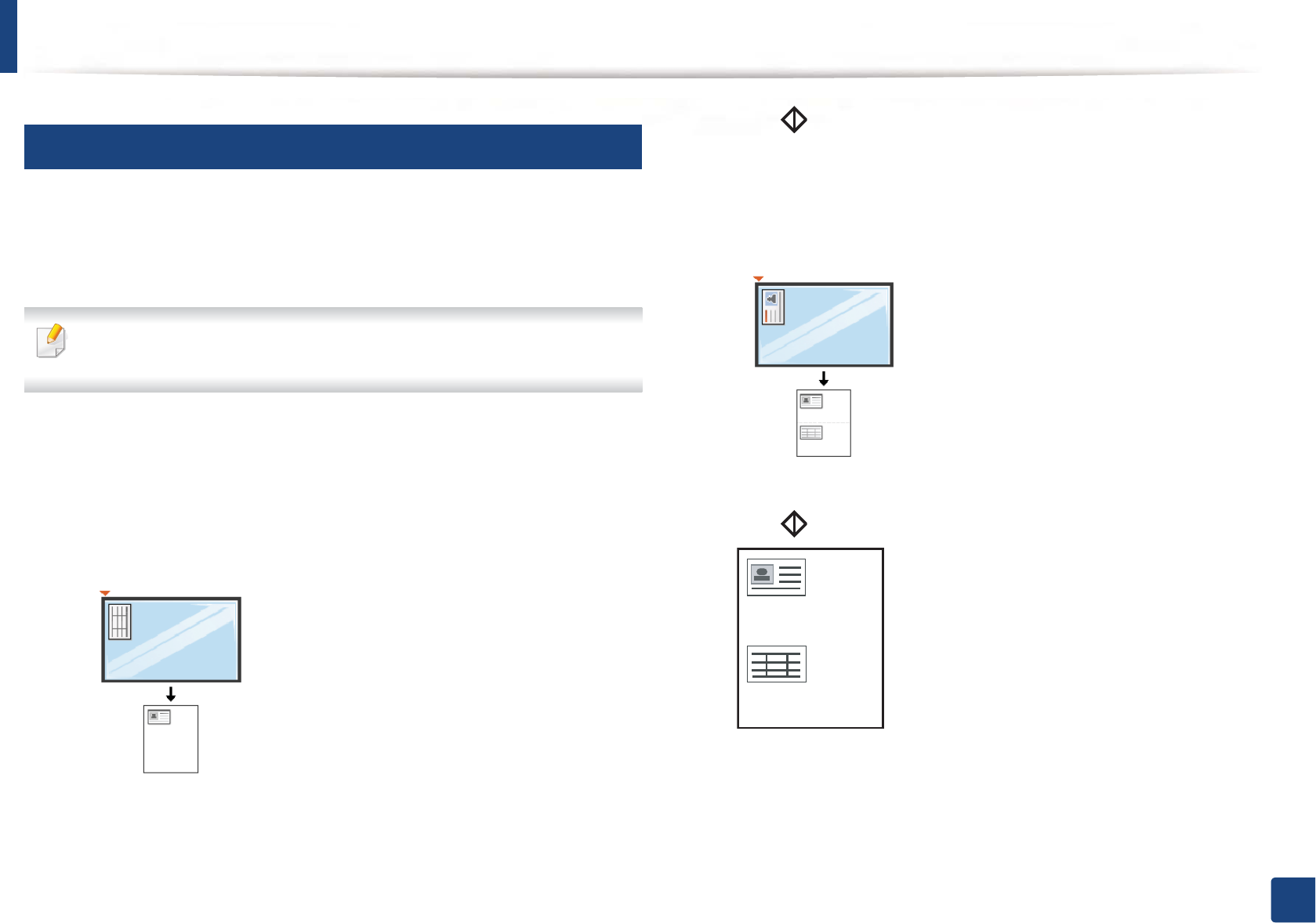
When you make a reduced copy, black lines may appear at the bottom of
your copy.
Basic copying
61
2. Menu Overview and Basic Setup
16
ID card copying
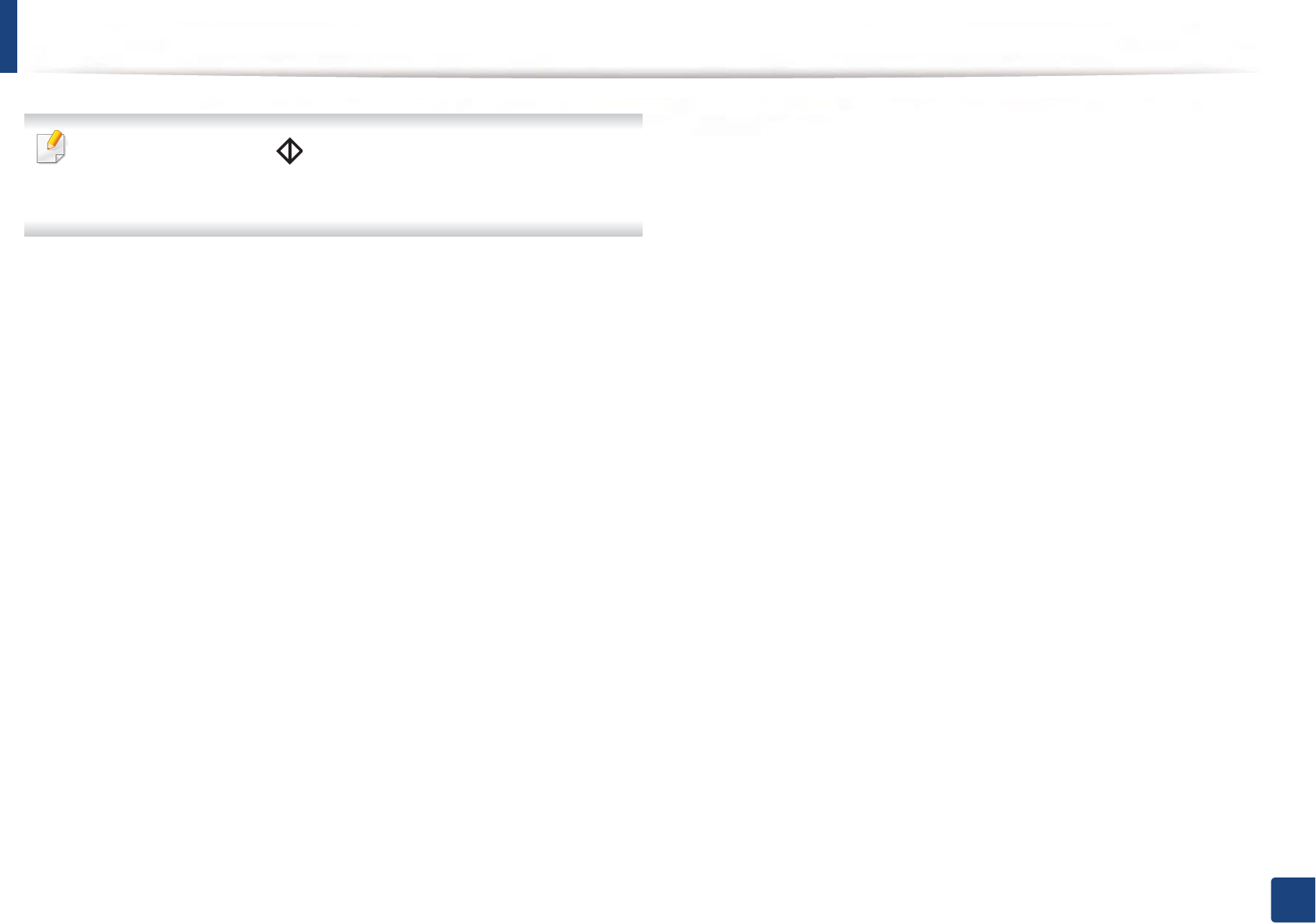
Your machine can print 2-sided originals on one sheet.
The machine prints one side of the original on the upper half of the paper and
the other side on the lower half without reducing the size of the original. This
feature is helpful for copying a small-sized item such as business card.
• The original must be placed on the scanner glass to use this feature.
• If the machine set to Eco mode, this feature is not available.
Depending on the model, the operating procedure may differ.
1Press ID Copy on the control panel.
2 Place the front side of an original facing down on the scanner glass
where arrows indicate as shown. Then, close the scanner lid.
3 Place Front Side and Press [Start] appears on the display.
4 Press (Start).
Your machine begins scanning the front side and shows Place Back Side
and Press [Start].
5 Turn the original over and place it on the scanner glass where arrows
indicate as shown. Then, close the scanner lid.
6 Press (Start) button.
Basic copying
62
2. Menu Overview and Basic Setup
• If you do not press the (Start) button, only the front side will be
copied.
• If the original is larger than the printable area, some portions may not be
printed.
63
2. Menu Overview and Basic Setup
Basic scanning
For special scanning features, refer to the Advanced Guide (see "Scan
features" on page 225).
17
Basic Scanning
This is the normal and usual procedure for scanning originals.
This is a basic scanning method for USB-connected machine.
• It may be necessary to press OK to navigate to lower-level menus for
some models.
• If you want to scan using the network, refer to the Advanced Guide (see
"Scanning from network connected machine" on page 226).
•C48xW series only support Scan to key on the control panel (see "Basic
scanning method" on page 225).
1Place a single document face down on the document glass, or load the
documents face up into the document feeder (see "Loading originals" on
page 48).
2 C48xW series: Press Scan to > Scan to PC > Local PC on the control
panel.
C48xFN/C48xFW series: Select (scan) > Scan to PC > Local PC on the
control panel.
If you see Not Available message, check the port connectionSGor select
Enable Scan from Device Panel in 5COUWPI'CU[2TKPVGT/CPCIGT!
Advanced Setting !Scan to 2% Settings.
3 Select the scan destination you want and press OK.
Default setting is My Documents.
• You can create and save the frequently used settings as a profile list. Also
you can add and delete the profile and save each profile to a different
path.
•To change the 5COUWPI'CU[2TKPVGT/CPCIGT!Advanced Setting
!Scan to 2% Settings.
4 Select the option you want and press OK.
5 Scanning begins.
Scanned image is saved in computer’s C:\Users\users name\My
Documents. The saved folder may differ, depending on your operating
system or the application you are using.
64
2. Menu Overview and Basic Setup
Basic faxing
• C48xFN/C48xFW series only.
• For special faxing features, refer to the Advanced Guide (see "Fax
features" on page 232).
• You cannot use this machine as a fax via the internet phone. For more
information ask your internet service provider.
• We recommend using traditional analog phone services (PSTN: Public
Switched Telephone Network) when connecting telephone lines to use
a fax machine. If you use other Internet services (DSL, ISDN, VolP), you can
improve the connection quality by using the Micro-filter. The Micro-filter
eliminates unnecessary noise signals and improves connection quality or
Internet quality. Since the DSL Micro-filter is not provided with the
machine, contact your Internet service provider for use on DSL Micro-
filter.
1Line port
2Micro filter
3DSL modem / Telephone line
(see "Rear view" on page 23).
18
Preparing to fax
Before you send or receive a fax, you need to connect the supplied line cord to
your telephone wall jack (see "Rear view" on page 23). Refer to the Quick
Installation Guide how to make a connection. The method of making a
telephone connection is different from one country to another.
19
Sending a fax
When you place the originals, you can use either the document feeder or
the scanner glass. If the originals are placed on both the document feeder
and the scanner glass, the machine will read the originals on the document
feeder first, which has higher priority in scanning.
1Place a single document face down on the document glass, or load the
documents face up into the document feeder (see "Loading originals" on
page 48).
2 Select (fax) on the control panel.
3 Adjust the resolution and the darkness to suit your fax needs (see
"Adjusting the document settings" on page 66).
Basic faxing
65
2. Menu Overview and Basic Setup
4 Enter the destination fax number (see "Keypad letters and numbers" on
page 209).
5 Press (Start) on the control panel. The machine starts to scan and
send the fax to the destinations.
• If you want to send a fax directly from your computer, use Samsung
Network PC Fax (see "Sending a fax from your computer" on page 233).
• When you want to cancel a fax job, press (Stop/Clear) before the
machine starts transmission.
• If you used the scanner glass, the machine shows the message asking to
place another page.
Sending a fax manually
Perform the following to send a fax using (On Hook Dial) on the control
panel.
If your machine is a handset model, you can send a fax using the handset
(see "Variety feature" on page 10).
1Place a single document face down on the document glass, or load the
documents face up into the document feeder (see "Loading originals" on
page 48).
2 Select (fax) on the control panel.
3 Adjust the resolution and the darkness to suit your fax needs (see
"Adjusting the document settings" on page 66).
4 Press (On Hook Dial) on the control panel or lift the handset.
5 Enter a fax number using the number keypad on the control panel.
6 Press (Start) on the control panel when you hear a high-pitched fax
signal from the remote fax machine.
Sending a fax to multiple destinations
You can use the multiple send feature, which allows you to send a fax to multiple
locations. Originals are automatically stored in memory and sent to a remote
station. After transmission, the originals are automatically erased from memory.
You cannot send faxes with this feature if you have chosen super fine as an
option or if the fax is in color.
Basic faxing
66
2. Menu Overview and Basic Setup
1Place a single document face down on the document glass, or load the
documents face up into the document feeder (see "Loading originals" on
page 48).
2 Select (fax) on the control panel.
3 Adjust the resolution and the darkness to suit your fax needs (see
"Adjusting the document settings" on page 66).
4 Select (Menu) > Fax Feature > Multi Send on the control panel.
5 Enter the number of the first receiving fax machine and press OK.
You can press speed dial numbers or select a group dial number using
the (Address book) button.
6 Enter the second fax number and press OK.
The display asks you to enter another fax number to send the document.
7 To enter more fax numbers, press OK when Yes appears and repeat
steps 5 and 6.
You can add up to 10 destinations.
8 When you have finished entering fax numbers, select No at the Another
No.? prompt and press OK.
The machine begins sending the fax to the numbers you entered in the
order in which you entered them.
20
Receiving a fax
Your machine is preset Fax mode at the factory. When you receive a fax, the
machine answers the call on a specified number of rings and automatically
receives the fax.
21
Adjusting the document settings
Before starting a fax, change the following settings according to your original’s
status to get the best quality.
It may be necessary to press OK to navigate to lower-level menus for some
models.
Resolution
The default document settings produce good results when using typical text-
based originals. However, if you send originals that are of poor quality, or
contain photographs, you can adjust the resolution to produce a higher quality
fax.
Basic faxing
67
2. Menu Overview and Basic Setup
1Select (fax) > (Menu) > Fax Feature > Resolution on the control
panel.
2 Select the option you want and press OK.
•Standard: Originals with normal sized characters.
•Fine: Originals containing small characters or thin lines or originals
printed using a dot-matrix printer.
•Super Fine: Originals containing extremely fine detail. Super Fine
mode is enabled only if the machine with which you are
communicating also supports the Super Fine resolution.
• For memory transmission, Super Fine mode is not available. The
resolution setting is automatically changed to Fine.
• When your machine is set to Super Fine resolution and the fax machine
with which you are communicating does not support Super Fine
resolution, the machine transmits using the highest resolution mode
supported by the other fax machine.
•Photo Fax: Originals containing shades of gray or photographs.
3 Press (Stop/Clear) to return to ready mode.
Darkness
You can select the degree of darkness of the original document.
The darkness setting is applied to the current fax job. To change the default
setting (see "Fax" on page 193).
1Select (fax) > (Menu) > Fax Feature > Darkness on the control
panel.
2 Select a darkness level you want.
3 Press (Stop/Clear) to return to ready mode.
68
2. Menu Overview and Basic Setup
Using USB memory device
C48x series do not support USB memory port.
This chapter explains how to use a USB memory device with your machine.
22
About USB memory
USB memory devices are available with a variety of memory capacities to give
you more room for storing documents, presentations, downloaded music and
videos, high resolution photographs or whatever other files you want to store or
move.
You can do the following tasks on your machine by using a USB memory device.
• Scan documents and save them on a USB memory device
• Print data stored on a USB memory device
• Restore backup files to the machine’s memory
• Format the USB memory device
• Check the available memory space
23
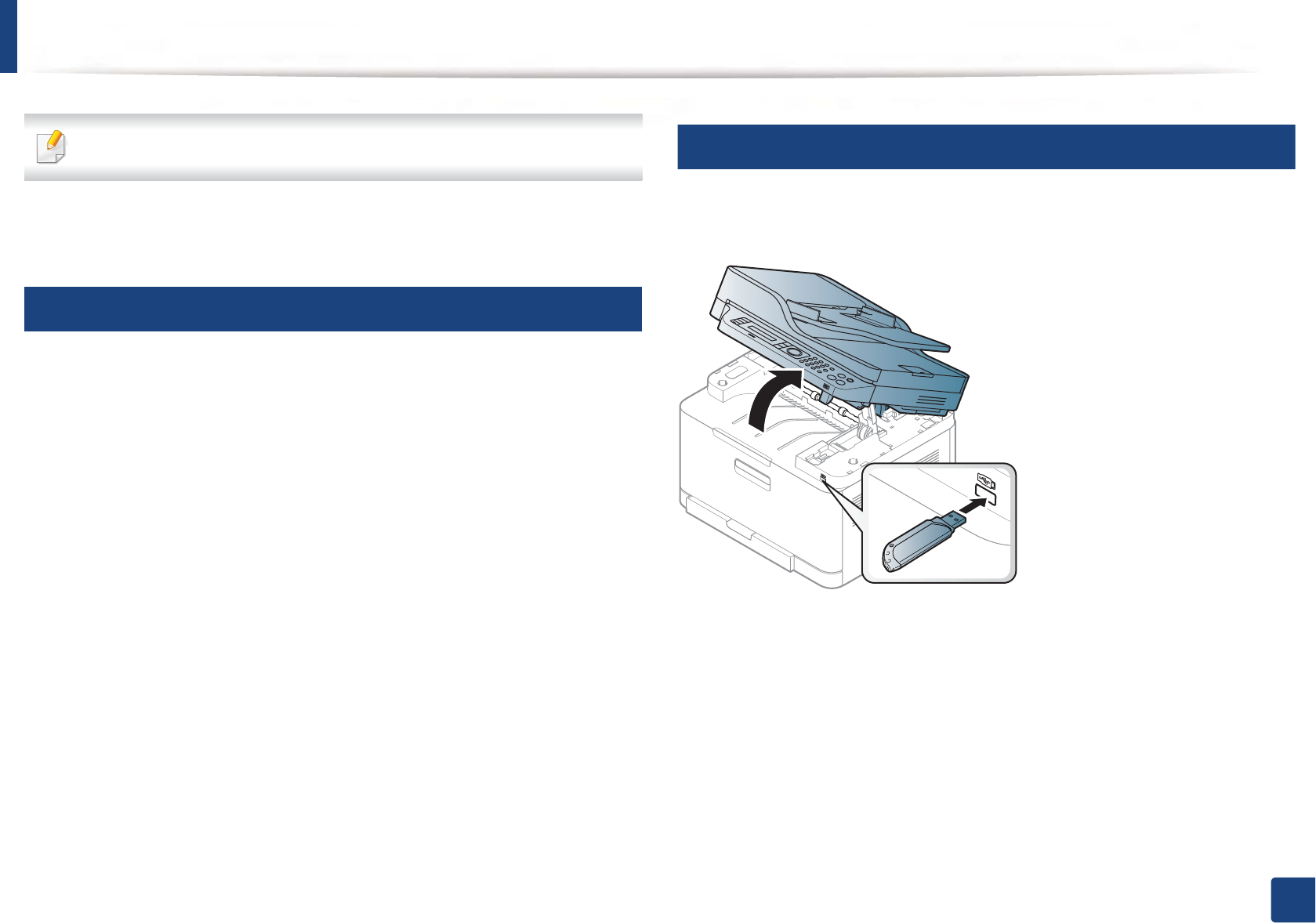
Plugging in a USB memory device
Lift the scanner lid slightly and insert your USB memory device into the USB
memory port. Close the scanner lid again before using the device.
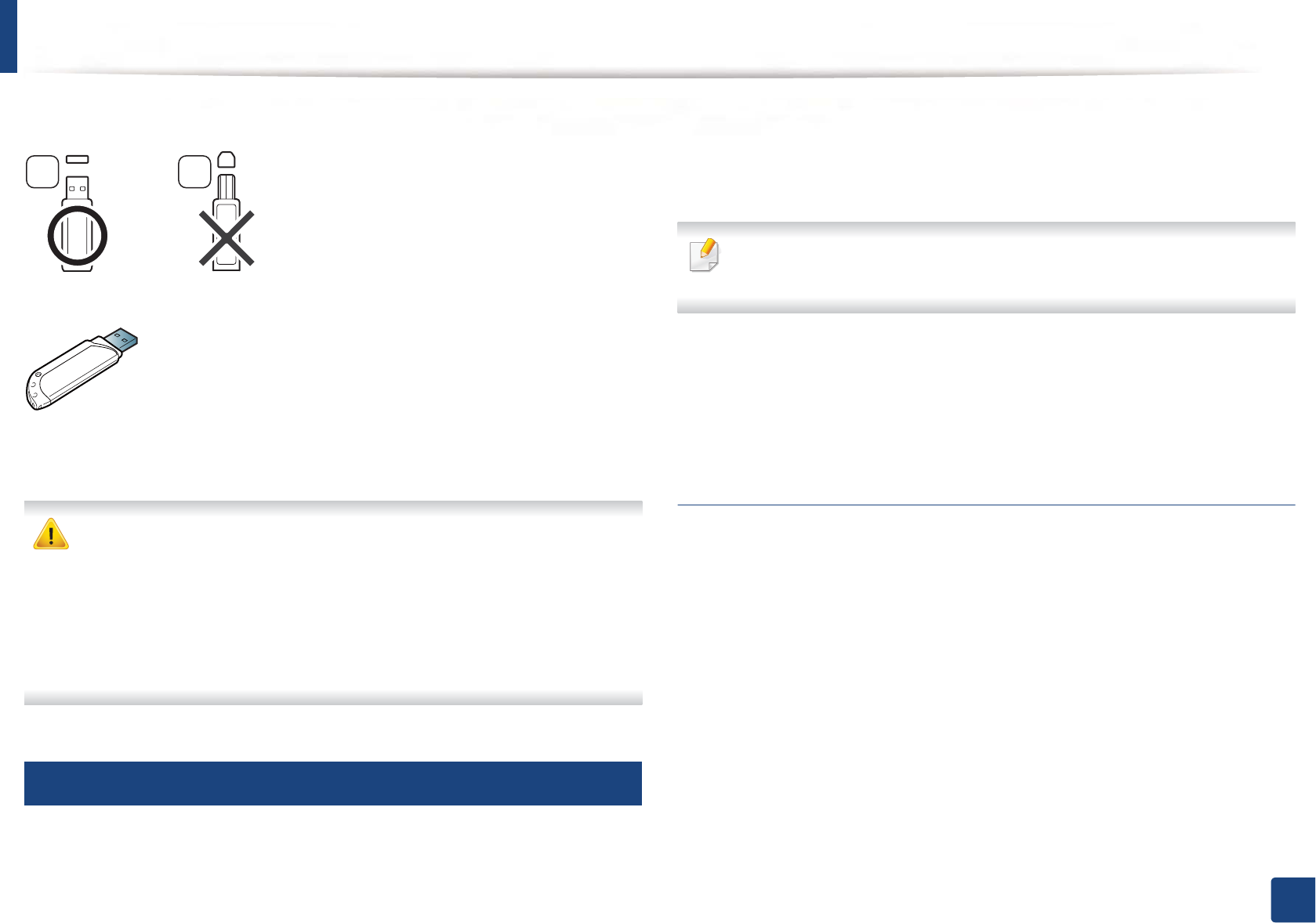
The USB memory port on the front of your machine is designed for USB V1.1 and
USB V2.0 memory devices. Your machine supports USB memory devices with
FAT16/FAT32 and a sector size of 512 bytes.
Check your USB memory device’s file system from your dealer.
Using USB memory device
69
2. Menu Overview and Basic Setup
You must use only an authorized USB memory device with an A plug connector.
Use only a metal-shielded USB memory device.
Only use a USB memory device that has obtained compatibility certification;
otherwise, the machine might not recognize it.
• Do not remove the USB memory device while the machine is in operation
or writing to or reading from USB memory. The machine warranty does
not cover damage caused by user’s misuse.
• If your USB memory device has certain features such as security settings
and password settings, your machine may not automatically detect it.
For details about these features, see the user’s guide of the USB memory
device.
24
Printing from a USB memory device
You can directly print files stored on a USB memory device.
File is supported by Direct Print option.
• PRN: Only files created by provided driver with your machine are
compatible.
If you print PRN files created from other machine, the printout would be
different.
• TIFF: TIFF 6.0 Baseline
• JPEG: JPEG Baseline
• PDF: PDF 1.7 or lower version
To print a document from a USB memory device
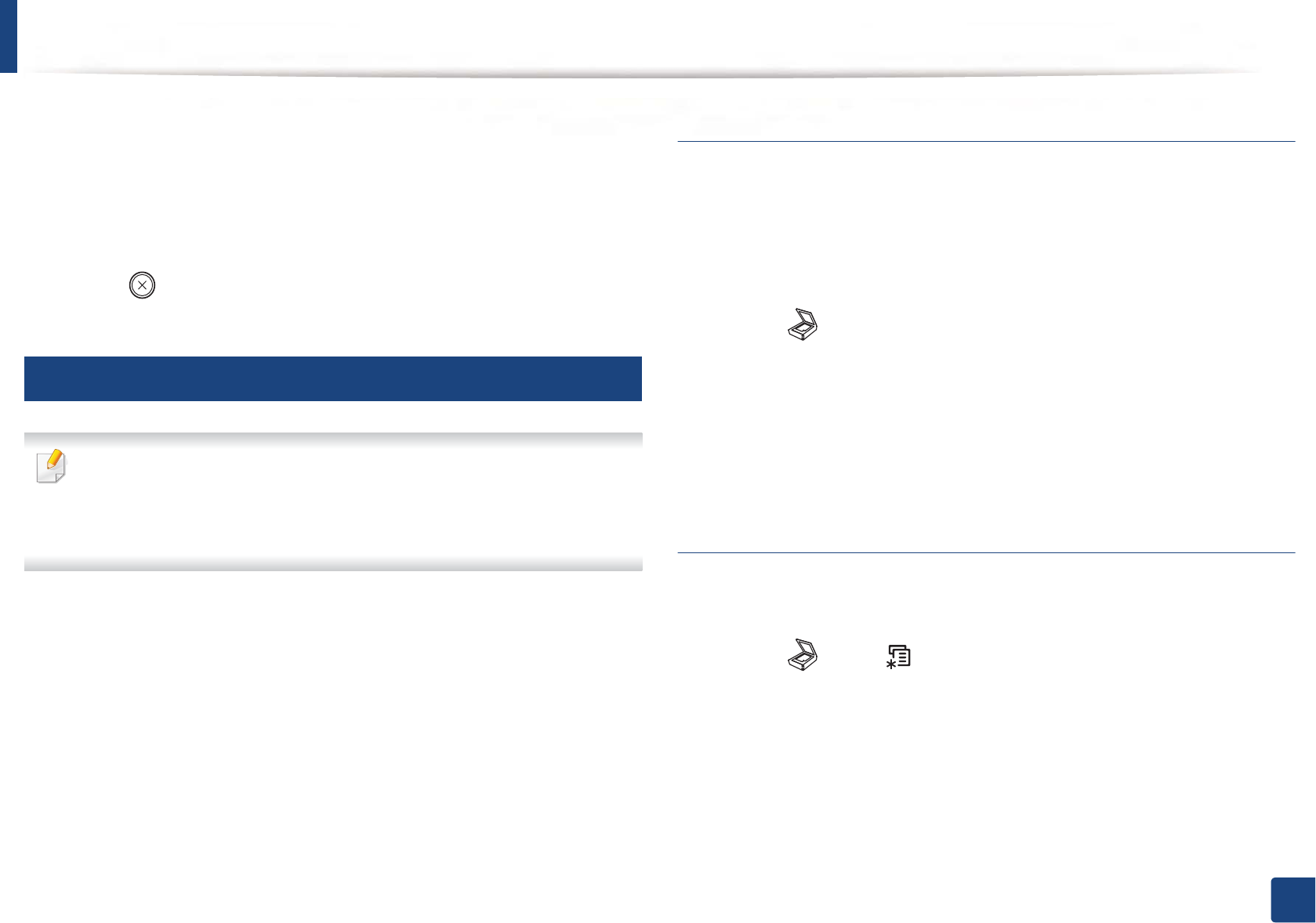
1Insert a USB memory device into the USB memory port on your machine,
and then press Direct USB.
2 Select USB Print.
3 Select the folder or file you want and press OK.
If you see [+] or [D] in the front of a folder name, there are one or more
files or folders in the selected folder.
4 Select the number of copies to be printed or enter the number.
A B
Using USB memory device
70
2. Menu Overview and Basic Setup
5 Press OK, Start or Print to start printing the selected file.
After printing the file, the display asks if you want to print another job.
6 Press OK when Yes appears to print another job, and repeat from step 2.
Otherwise, press the left/right arrow to select No and press OK.
7 Press (Stop/Clear) to return to ready mode.
25
Scanning to a USB memory device
• Accessing menus may differ from model to model (see "Accessing the
menu" on page 33)
• It may be necessary to press OK to navigate to lower-level menus for
some models.
You can scan a document and save the scanned image onto a USB memory
device.
Scanning
1Insert a USB memory device into the USB memory port on your machine.
2 Place a single document face down on the document glass, or load the
documents face up into the document feeder (see "Loading originals" on
page 48).
3 Select (scan) > Scan To USB > OK on the control panel.
The machine begins scanning.
To scan multiple pages, select Yes while Another Page? Yes/No appears.GAfter
scanning is complete, you can remove the USB memory device from the
machine.
Customizing Scan to USB
You can specify image size, file format, or color mode for each scanning to USB
job.
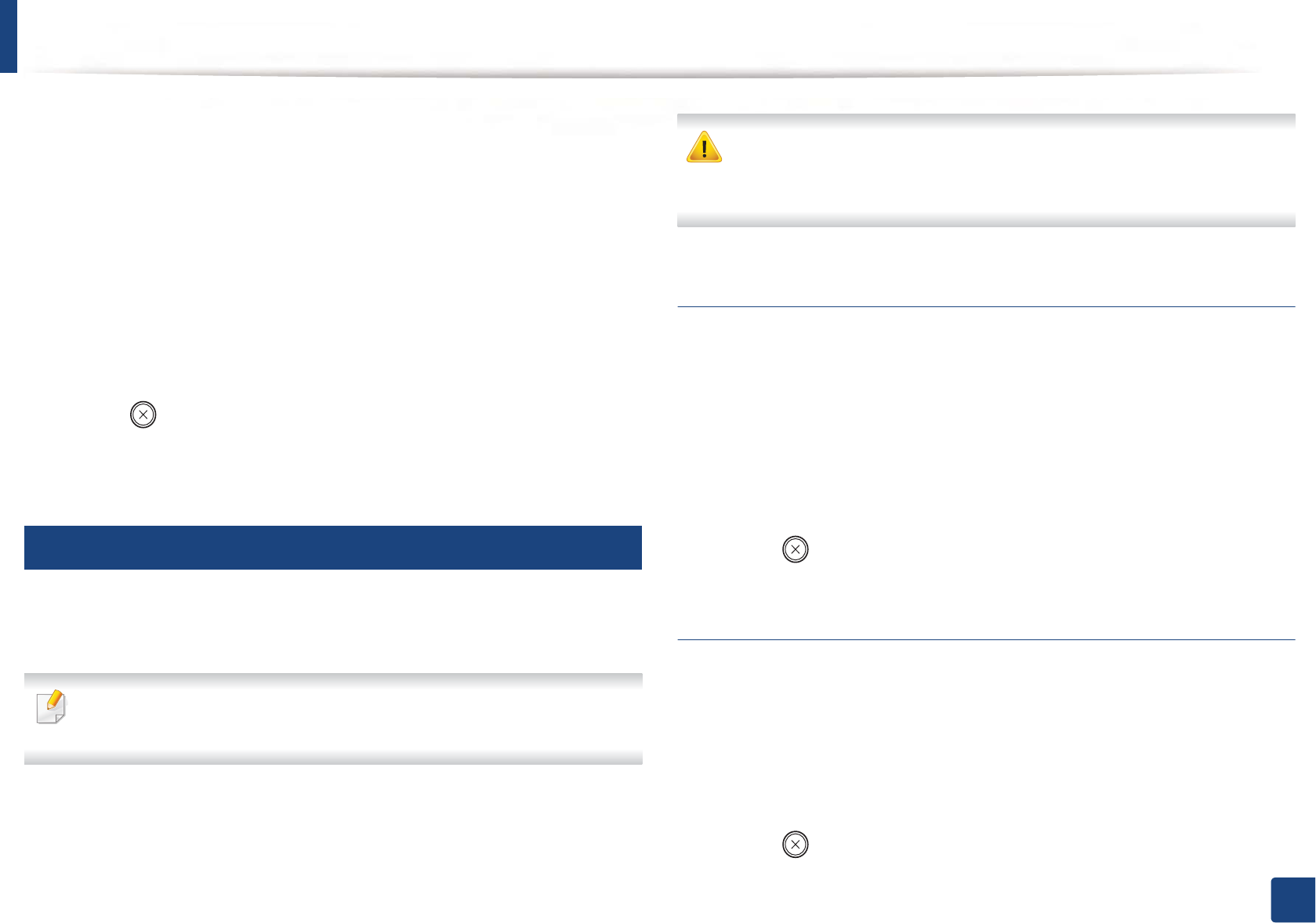
1Select (scan) > (Menu) > Scan Feature > USB Feature on the
control panel.
2 Select the setting option you want appears.
•Original Size: Sets the image size.
•Original Type: Sets the original document’s.
•Resolution: Sets the image resolution.
Using USB memory device
71
2. Menu Overview and Basic Setup
•Color Mode: Sets the color mode. If you select Mono in this option,
you cannot select JPEG in File Format.
•File Format: Sets the file format in which the image is to be saved. If
you select JPEG in this option, you cannot select Mono in Color
G
Mode.
•Darkness: Sets the brightness level to scan an original.
3 Select the desired status you want and press OK.
4 Repeat steps 2 and 3 to set other setting options.
5 Press (Stop/Clear) to return to ready mode.
You can change the default scan settings. Refer to the Advanced Guide.
26
Managing USB memory
You can delete image files stored on a USB memory device one by one or all at
once by reformatting the device.
If you see [+] or [D] in the front of a folder name, there are one or more files
or folders in the selected folder.
After deleting files or reformatting a USB memory device, files cannot be
restored. Therefore, confirm that you no longer need the data before
deleting it.
Deleting an image file
1Insert a USB memory device into the USB memory port on your machine,
and then press Direct USB.
2 Select File Manage > Delete and press OK.
3 Select the file you want to delete and press OK.
4 Select Yes.
5 Press (Stop/Clear) to return to ready mode.
Formatting a USB memory device
1Insert a USB memory device into the USB memory port on your machine,
and then press Direct USB.
2 Select File Manage > Format and press OK.
3 Select Yes.
4 Press (Stop/Clear) to return to ready mode.

Using USB memory device
72
2. Menu Overview and Basic Setup
Viewing the USB memory status
You can check the amount of memory space available for scanning and saving
documents.
1Insert a USB memory device into the USB memory port on your machine,
and then press Direct USB.
2 Select Check Space.
3 The available memory space appears on the display.
4 Press (Stop/Clear) to return to ready mode.

3. Maintenance
This chapter provides information about purchasing supplies, accessories and maintenance parts available for your
machine.
• Ordering supplies and accessories 74
• Available supplies 75
• Available maintenance parts 76
• Storing the toner cartridge 77
• Redistributing toner 78
• Replacing the toner cartridge 80
• Replacing the imaging unit 82
• Replacing the waste toner container 84
• Monitoring the supplies life 86
• Setting the toner low alert 87
• Cleaning the machine 88
• Tips for moving & storing your machine 92
74
3. Maintenance
Ordering supplies and accessories
Available accessories may differ from country to country. Contact your sales representatives to obtain the list of available supplies, and maintenance parts.
To order Samsung-authorized supplies, accessories, and maintenance parts, contact your local Samsung dealer or the retailer where you purchased your machine.
You can also visit www.samsung.com/supplies, and then select your country/region to obtain the contact information for service.
75
3. Maintenance
Available supplies
When supplies reach the end of their life spans, you can order the followings of supplies for your machine:
Depending on the options, percentage of image area and job mode used, the toner cartridge’s lifespan may differ.
When purchasing new toner cartridges or other supplies, these must be purchased in the same country as the machine you are using. Otherwise, new toner
cartridges or other supplies will be incompatible with your machine due to different configurations of toner cartridges and other supplies according to the specific
country conditions.
Samsung does not recommend using non-genuine Samsung toner cartridge such as refilled or remanufactured toner. Samsung cannot guarantee non-genuine
Samsung toner cartridge's quality. Service or repair required as a result of using non-genuine Samsung toner cartridges will not be covered under the machine’s
warranty.
Type Average yielda
a. Declared yield value in accordance with ISO/IEC 19798. The number of pages may be affected by operating environment, printing interval, graphics, media type and media size.
Part name
Toner cartridge • Average continuous black cartridge yield: Approx. 1,500 standard pages (Black)
• Average continuous color cartridge yield: Approx. 1,000 standard pages (Yellow/Magenta/Cyan)
•K404 (CLT-K404S): Black
•C404 (CLT-C404S): Cyan
•M404 (CLT-M404S): Magenta
•Y404(CLT-Y404S): Yellow
Imaging unit Approx. 16,000 imagesb
b. Image counts based on one color on each page. If you print documents in full color (Cyan, Magenta, Yellow, Black), the life of this item will be reduced by 25%.
CLT-R406
Waste toner container Approx. 7,000 imagesbCLT-W406

76
3. Maintenance
Available maintenance parts
You need to replace the maintenance parts at specific intervals to keep the machine in the best condition and avoid print quality and paper feeding problems
resulting from the worn-out parts. Maintenance parts are mostly rollers, belts and pads. However, the replacement period and parts may differ depending on the
model. Replacing maintenance parts can be performed only by an authorized service provider, dealer, or the retailer where you bought the machine. To purchase
maintenance parts, contact the retailer where you bought the machine. The replacement period for the maintenance parts is informed by the "Samsung Printer
Status" program. Or on the UI (User Interface) if your machine supports a display screen. The replacement period varies based on the operating system used,
computing performance, application software, connecting method, paper type, paper size, and job complexity.
77
3. Maintenance
Storing the toner cartridge
Toner cartridges contain components that are sensitive to light, temperature
and humidity. Samsung suggests users follow these recommendations to
ensure optimal performance, highest quality, and longest life from your new
Samsung toner cartridge.
Store this cartridge in the same environment in which the printer will be used.
This should be in controlled temperature and humidity conditions. The toner
cartridge should remain in its original and unopened package until installation
– if original packaging is not available, cover the top opening of the cartridge
with paper and store in a dark cabinet.
Opening the cartridge package prior to use dramatically shortens its useful shelf
and operating life. Do not store on the floor. If the toner cartridge is removed
from the printer, follow the instructions below to store the toner cartridge
properly.
• Store the cartridge inside the protective bag from the original package.
• Store lying flat (not standing on end) with the same side facing up as if it
were installed in the machine.
• Do not store consumables in any of the following conditions:
- Temperature greater than 40°C (104°F).
- Humidity range less than 20% or greater than 80%.
- An environment with extreme changes in humidity or temperature.
- Direct sunlight or room light.
- Dusty places.
- A car for a long period of time.
- An environment where corrosive gases are present.
- An environment with salty air.
1
Handling instructions
• Do not expose the cartridge to unnecessary vibrations or shock.
2
Toner cartridge usage
Samsung Electronics does not recommend or approve the use of non-Samsung
brand toner cartridges in your printer including generic, store brand, refilled, or
remanufactured toner cartridges.
Samsung’s printer warranty does not cover damage to the machine caused
by the use of a refilled, remanufactured, or non-Samsung brand toner
cartridges.
3
Estimated cartridge life
Estimated cartridge life (the life of the toner cartridge yield) depends on the
amount of toner that print jobs require. The actual print yield may vary
depending on the print density of the pages you print on, operating
environment, percentage of image area, printing interval, media type and/or
media size. For example, if you print a lot of graphics, the consumption of the
toner is higher and you may need to change the cartridge more often.
78
3. Maintenance
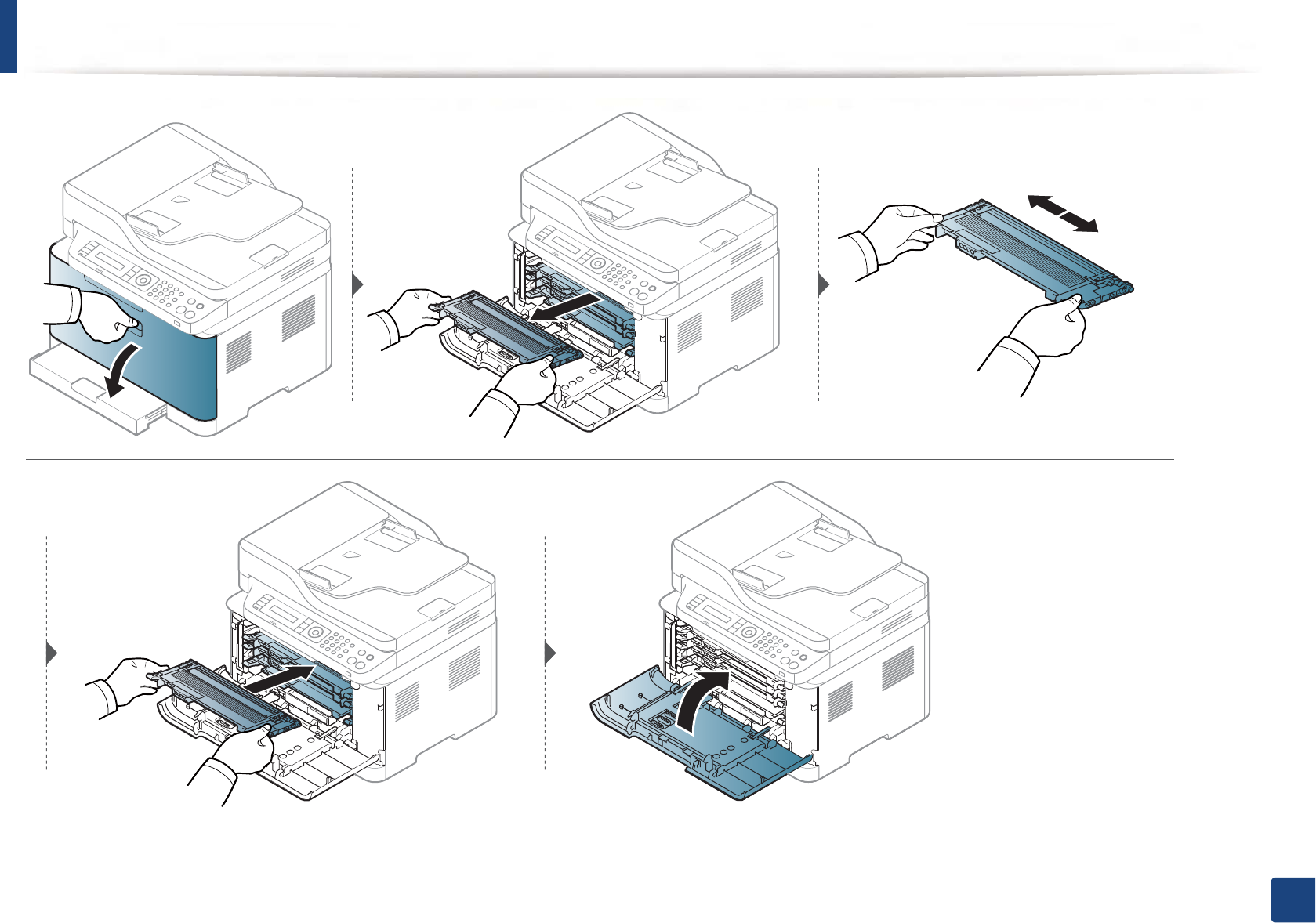
Redistributing toner
When the toner cartridge is near the end of its life:
• White streaks or light printing occurs and/or density varies from side to side.
• The Status LED blinks orange. The toner-related message saying that the toner is low may appear on the display.
• The computer’s Samsung Printing Status program window appears on the computer telling you which color cartridge is low on tonerG(see "Using Samsung
Printer Status" on page 255).
If this happens, you can temporarily improve print quality by redistributing the remaining toner in the cartridge. In some cases, white streaks or light printing will still
occur even after you have redistributed the toner.
Illustrations on this user’s guide may differ from your machine depending on its options or models. Check your machine type (see "Front view" on page 21).
• Do not use sharp objects such as a knife or scissors to open the toner cartridge package. They might scratch the drum of the cartridge.
• If toner gets on your clothing, wipe it off with a dry cloth and wash clothing in cold water. Hot water sets toner into fabric.
• When opening a scan unit, hold the document feeder and scan unit together.
• Printing even after the toner empty status can cause serious damage to your machine.
Redistributing toner
79
3. Maintenance
80
3. Maintenance
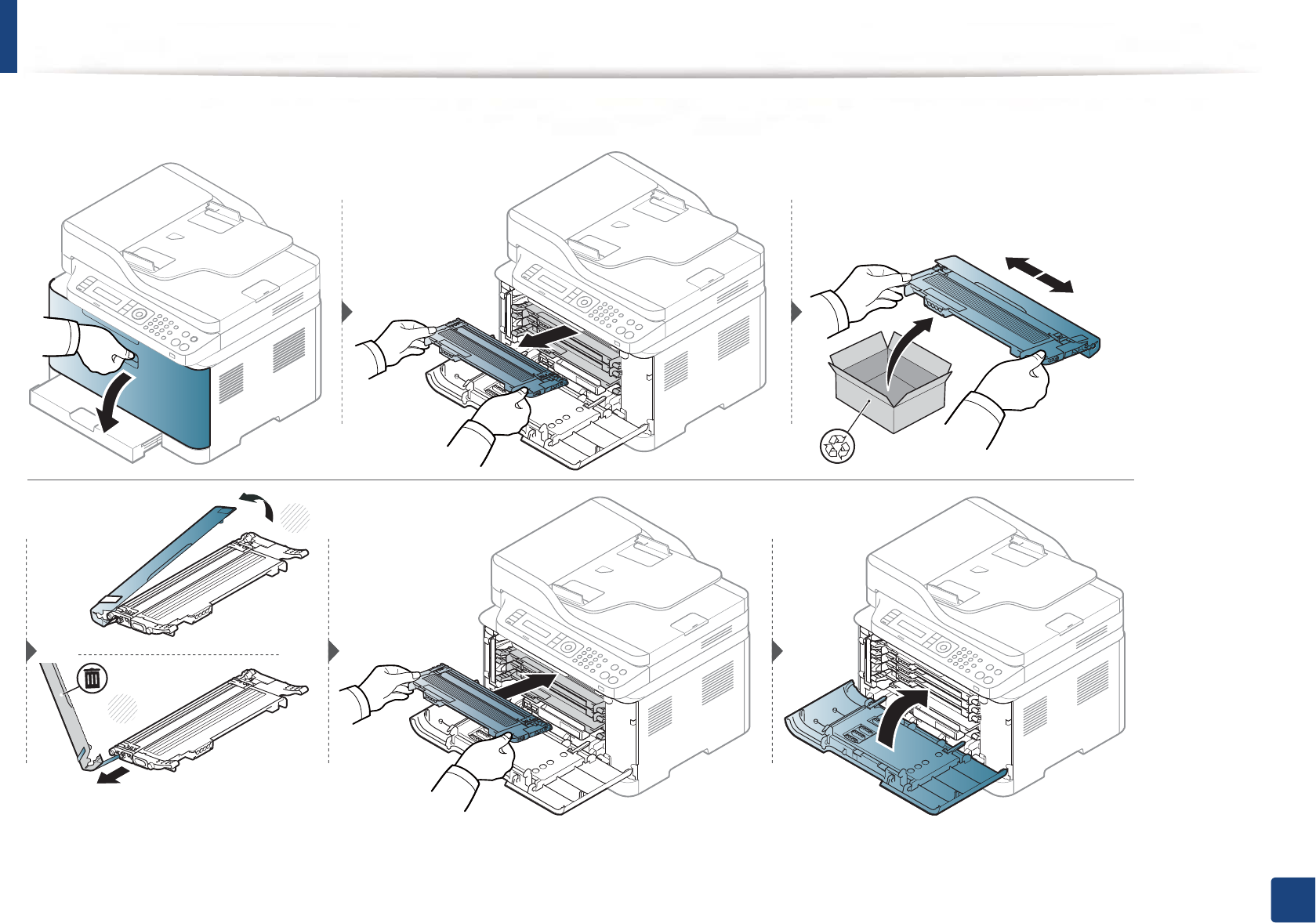
Replacing the toner cartridge
When a toner cartridge has reached the end of life, the Printing Status window appears on the computer, indicating the toner cartridge needs to be placed.
• Shake the toner cartridge thoroughly, it will increase the initial print quality.
• Illustrations on this user’s guide may differ from your machine depending on its options or models. Check your machine type (see "Front view" on page 21).
• Do not use sharp objects such as a knife or scissors to open the toner cartridge package. They might scratch the drum of the cartridge.
• If toner gets on your clothing, wipe it off with a dry cloth and wash clothing in cold water. Hot water sets toner into fabric.
• When opening a scan unit, hold the document feeder and scan unit together.
• Printing even after the toner empty status can cause serious damage to your machine.
Replacing the toner cartridge
81
3. Maintenance
1
2
82
3. Maintenance
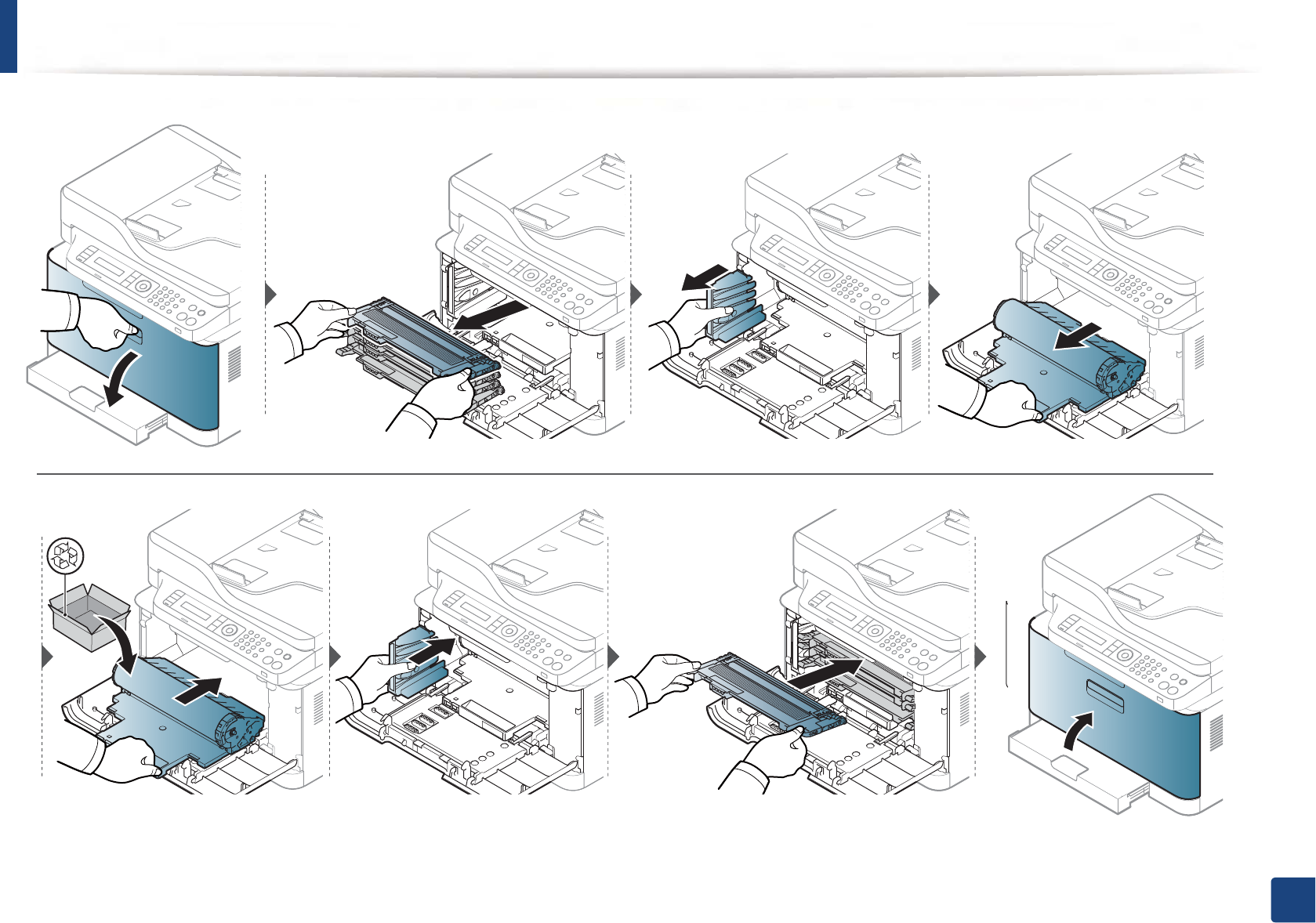
Replacing the imaging unit
When the life span of the imaging unit has expired, the Printing Status window appears on the computer, indicating the imaging unit needs to be placed. Otherwise,
your machine stops printing.
• Don’t use sharp objects such as a knife or scissors to open the imaging unit package. You could damage the surface of the imaging unit.
• Be careful not to scratch the surface of the imaging unit.
• To prevent damage, do not expose the imaging unit to light for more than a few minutes. Cover it with a piece of paper to protect it if necessary.
• Before closing the front cover, make sure all toner cartridges are installed properly.
Replacing the imaging unit
83
3. Maintenance
84
3. Maintenance
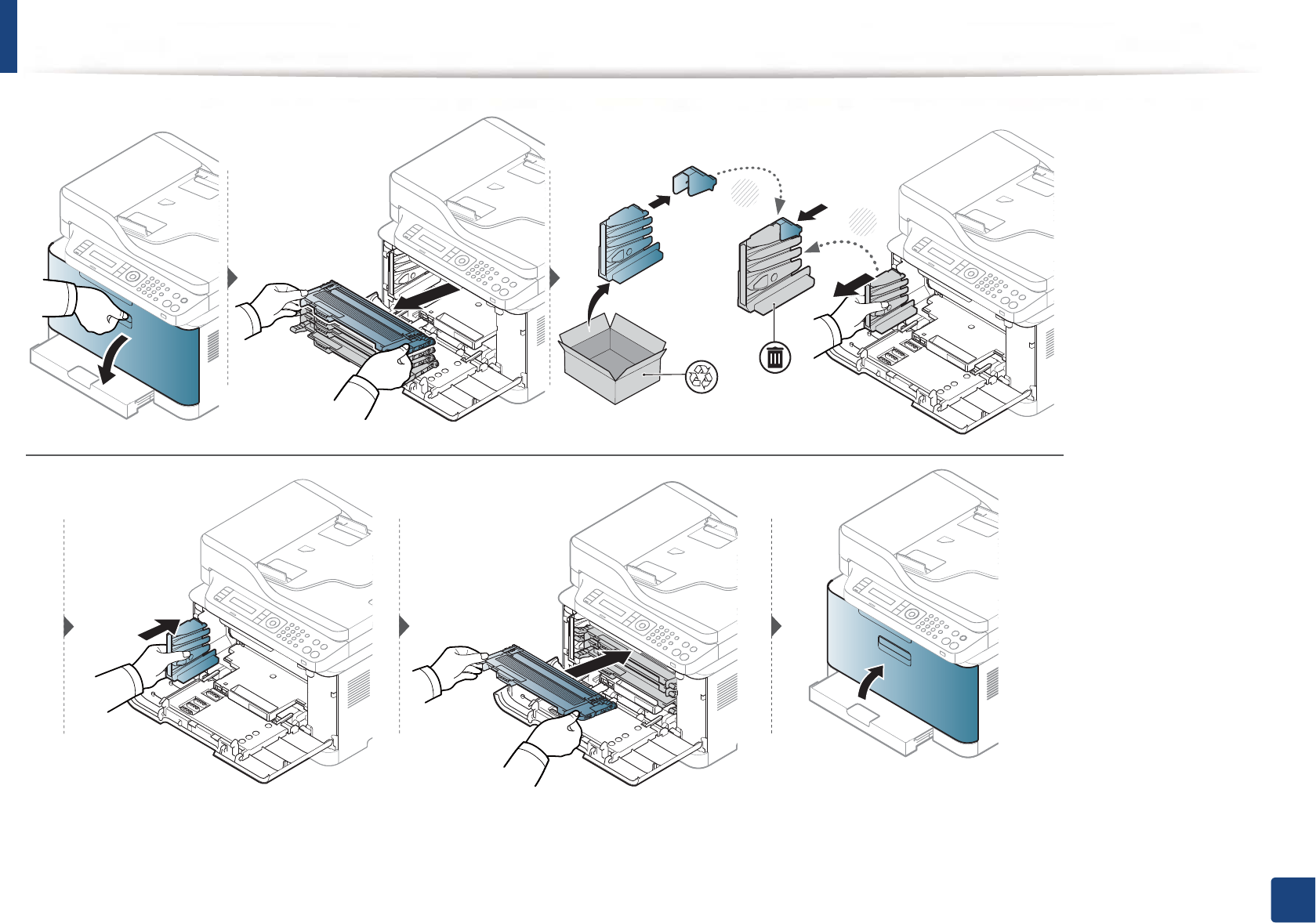
Replacing the waste toner container
When the life span of the waste toner container has expired, waste toner container-related message appears on the screen display of the control panel, indicating
the waste toner container needs to be replaced. Check the waste toner container for your machine (see "Available supplies" on page 75). For information about
installing the waste toner container, refer to the waste toner container installation guide included on the package.
• Toner particles can be released inside the machine but it does not mean the machine is damaged. Contact a service representative when print quality problems
occur.
• When you pull out the waste toner container out of the machine, move the container carefully not to drop it from your hands.
• Make sure that you lay the waste toner container on a flat surface so that the toner does not spill.
Do not tilt or turn over the container.
Replacing the waste toner container
85
3. Maintenance
2
1
86
3. Maintenance
Monitoring the supplies life
If you experience frequent paper jams or printing problems, check the number of pages the machine has printed or scanned. Replace the corresponding parts, if
necessary.
It may be necessary to press OK to navigate to lower-level menus for some models.
1Select (Menu) > System Setup > Maintenance > Supplies Life on the control panel.
2 Select the option you want and press OK.
3 Press (Stop/Clear) to return to ready mode.
87
3. Maintenance
Setting the toner low alert
If the amount of toner in the cartridge is low, a message or LED informing the user to change the toner cartridge appears. You can set the option for whether or not
this message or LED appears.
• You change the machine’s setting set in the machine from 6DPVXQJ(DV\3ULQWHU0DQDJHUor SyncThru™ Web Service.
- If your machine is connected to the local, you can set the machine’s setting from Samsung Easy Printer ManagerGeGAdvanced SettingGeGDevice Settings
(see "Using Samsung Easy Printer Manager" on page 252).
- If your machine is connected to the network, you can set the
machine’s setting from SyncThru™ Web Service > Settings tab > Machine Settings (see "Using SyncThru™ Web Service" on page 249).
• It may be necessary to press OK to navigate to lower-level menus for some models.
1Select (Menu) > System Setup > Maintenance > TonerLow Alert on the control panel.
2 Select the option you want.
3 Press OK to save the selection.
88
3. Maintenance
Cleaning the machine
If printing quality problems occur or if you use your machine in a dusty environment, you need to clean your machine regularly to keep it in the best printing
condition and use your machine longer.
• Cleaning the cabinet of the machine with cleaning materials containing large amounts of alcohol, solvents, or other strong substances can discolor or distort the
cabinet.
• If your machine or the surrounding area is contaminated with toner, we recommend you use a cloth or tissue dampened with water to clean it. If you use a vacuum
cleaner, toner blows in the air and might be harmful to you.
4
Cleaning the outside
Clean the machine cabinet with a soft, lint-free cloth. Dampen the cloth slightly with water, but be careful not to let any water drip onto or into the machine.
Cleaning the machine
89
3. Maintenance
5
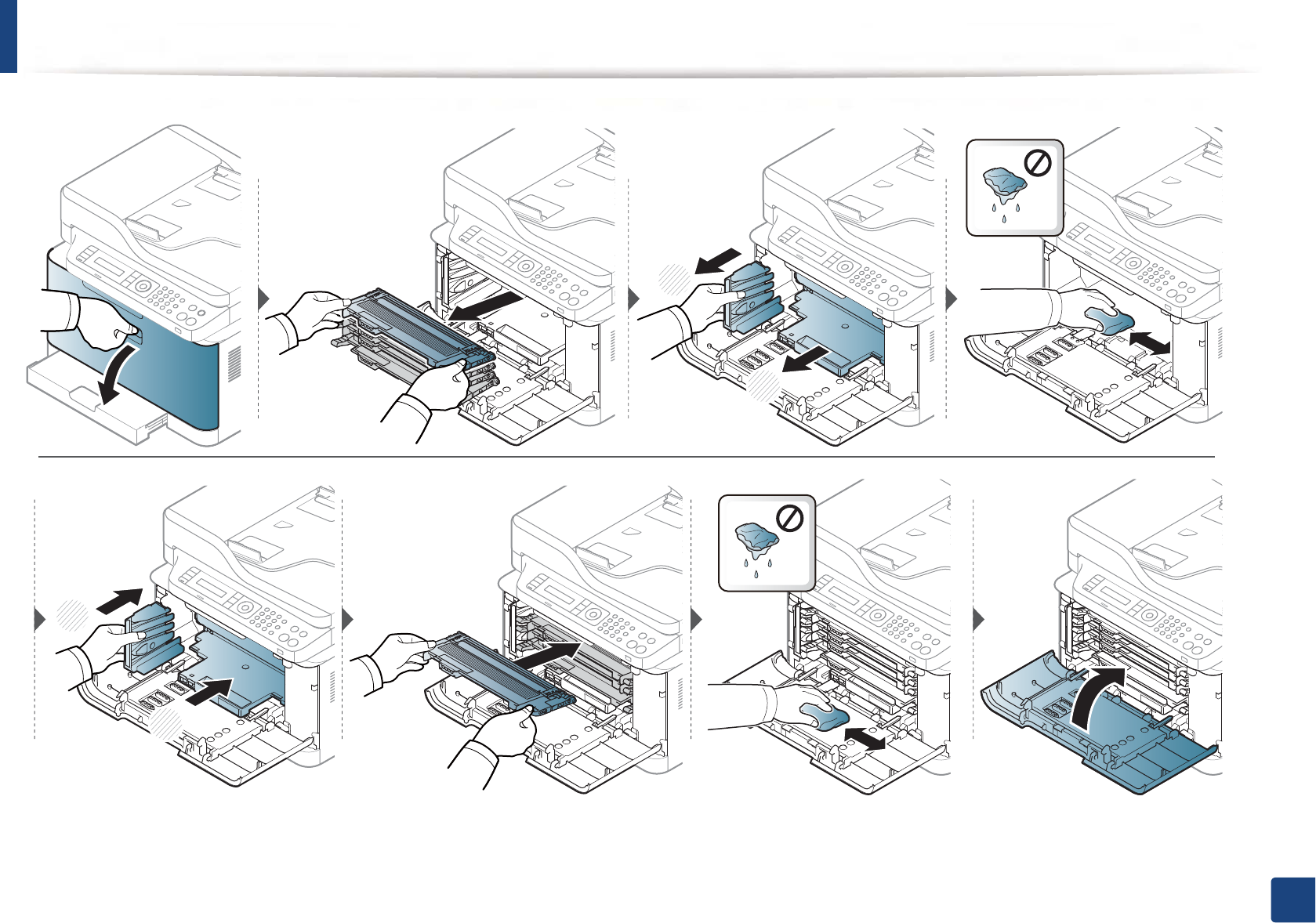
Cleaning the inside
During the printing process, paper, toner, and dust particles can accumulate inside the machine. This buildup can cause print quality problems, such as toner specks
or smearing. Cleaning the inside of the machine clears and reduces these problems.
• To prevent damage to the imaging unit, do not expose it to light for more than a few minutes. Cover it with a piece of paper, if necessary.
• Do not touch the green area of the imaging unit. Use the handle on the imaging unit to avoid touching this area.
• Use a dry lint free cloth when cleaning the inside of the machine, be careful not to damage the transfer roller or any other inside parts. Do not use solvents such
as benzene or thinner. Printing quality problems can occur and cause damage to the machine.
• Use a dry lint-free cloth to clean the machine.
• Turn the machine off and unplug the power cord. Wait for the machine to cool down. If your machine has a power switch, turn the power switch off before
cleaning the machine.
• Illustrations on this user’s guide may differ from your machine depending on its options or models. Check your machine type (see "Front view" on page 21).
• When opening a scan unit, hold the document feeder and scan unit together.
Cleaning the machine
90
3. Maintenance
1
2
1
2
Cleaning the machine
91
3. Maintenance
6
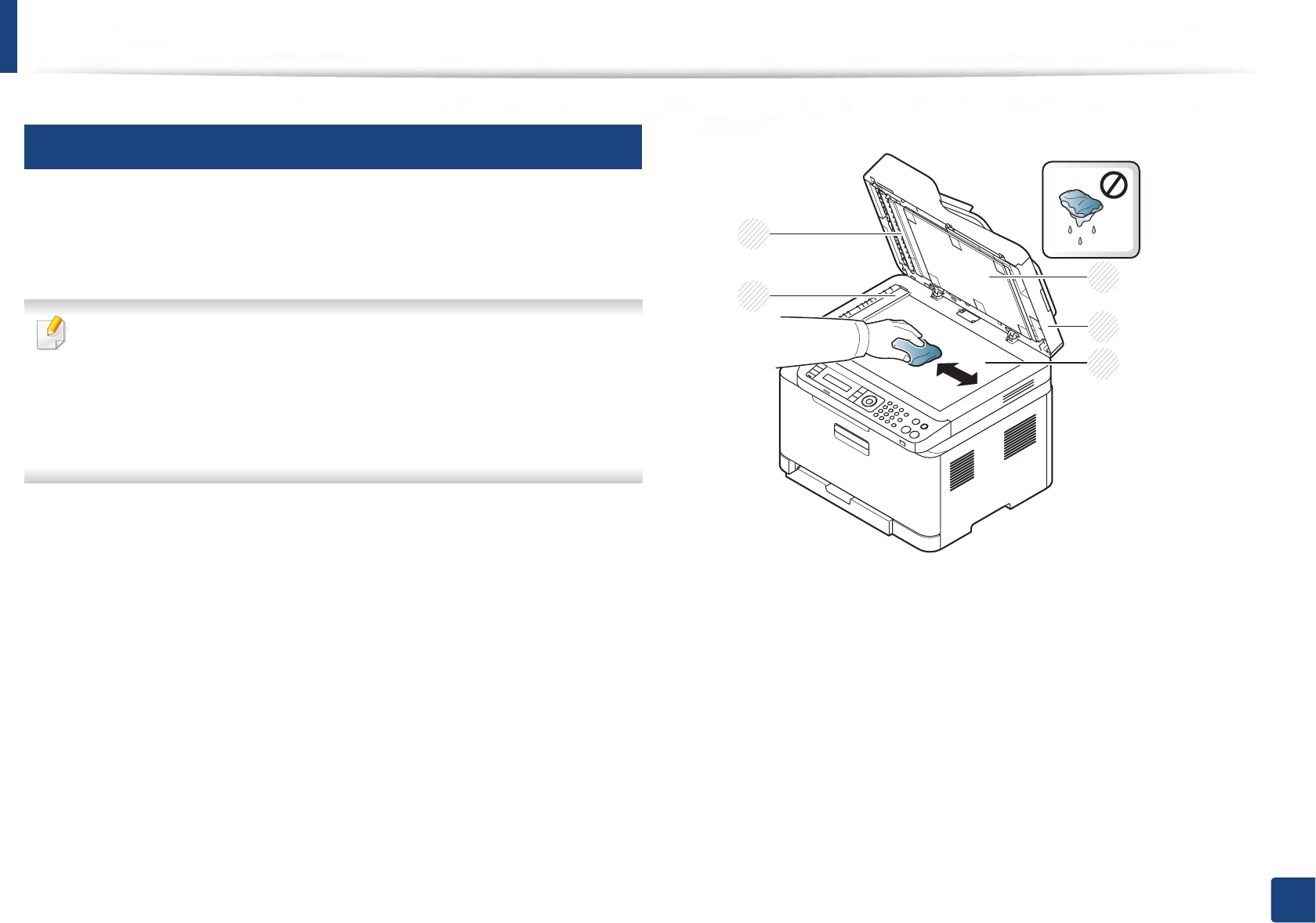
Cleaning the scan unit
Keeping the scan unit clean helps ensure the best possible copies. We suggest
that you clean the scan unit at the start of each day and during the day as
needed.
• Turn the machine off and unplug the power cord. Wait for the machine
to cool down. If your machine has a power switch, turn the power switch
off before cleaning the machine.
• Illustrations on this user’s guide may differ from your machine
depending on its options or models. Check your machine type (see
"Front view" on page 21).
1Slightly dampen a soft, lint-free cloth or paper towel with water.
2 Lift and open the scanner lid.
3 Wipe the surface of the scanner until it is clean and dry.
1White bar
2Document feeder glass
3White sheet
4Scanner lid
5Scanner glass
4 Close the scanner lid.
23
4
1
5

92
3. Maintenance
Tips for moving & storing your machine
• When moving the machine, do not tilt or turn it upside down. Otherwise, the inside of the machine may be contaminated by toner, which can cause damage to
the machine or reduce print quality.
• When moving the machine, make sure at least two people are holding the machine securely.
4. Troubleshooting
This chapter gives helpful information for what to do if you encounter an error.
• Tips for avoiding paper jams 94
• Clearing paper jams 95
• Understanding the status LED 102
• Understanding display messages 104
This chapter gives helpful information for what to do if you encounter an error. If your machine
has a display screen, check the message on the display screen first to solve the error.
If you cannot find a solution to your problem in this chapter, refer to the Troubleshooting
chapter in the Advanced Guide (see "Troubleshooting" on page 264).
If you cannot find a solution in the User's Guide or the problem persists, call for service.

94
4. Troubleshooting
Tips for avoiding paper jams
By selecting the correct medias, most paper jams can be avoided. To avoid paper jams, refer to the following guidelines:
• Ensure that the adjustable guides are positioned correctly (see "Tray overview" on page 39).
• Do not remove paper from the tray while your machine is printing.
• Flex, fan, and straighten paper before loading.
• Do not use creased, damp, or highly curled paper.
• Do not mix papers in a tray.
• Use only recommended print media (see "Print media specifications" on page 113).
• Perforated or embossed paper does not separate easily. Flex the sheets back and forth to loosen them, and fan them.
Feed single paper from tray if there are multi-feeds or paper jams.
• Grain refers to the alignment of the paper fibers in a sheet of paper. Grain long paper is recommended.
• Do not use rough-edged paper.
95
4. Troubleshooting
Clearing paper jams
When an original document jams in the document feeder, a warning message appears on the display.
To avoid tearing the document, remove the jammed document slowly and carefully.
To prevent document jams, use the scanner glass for thick, thin or mixed paper- originals.
Clearing paper jams
96
4. Troubleshooting
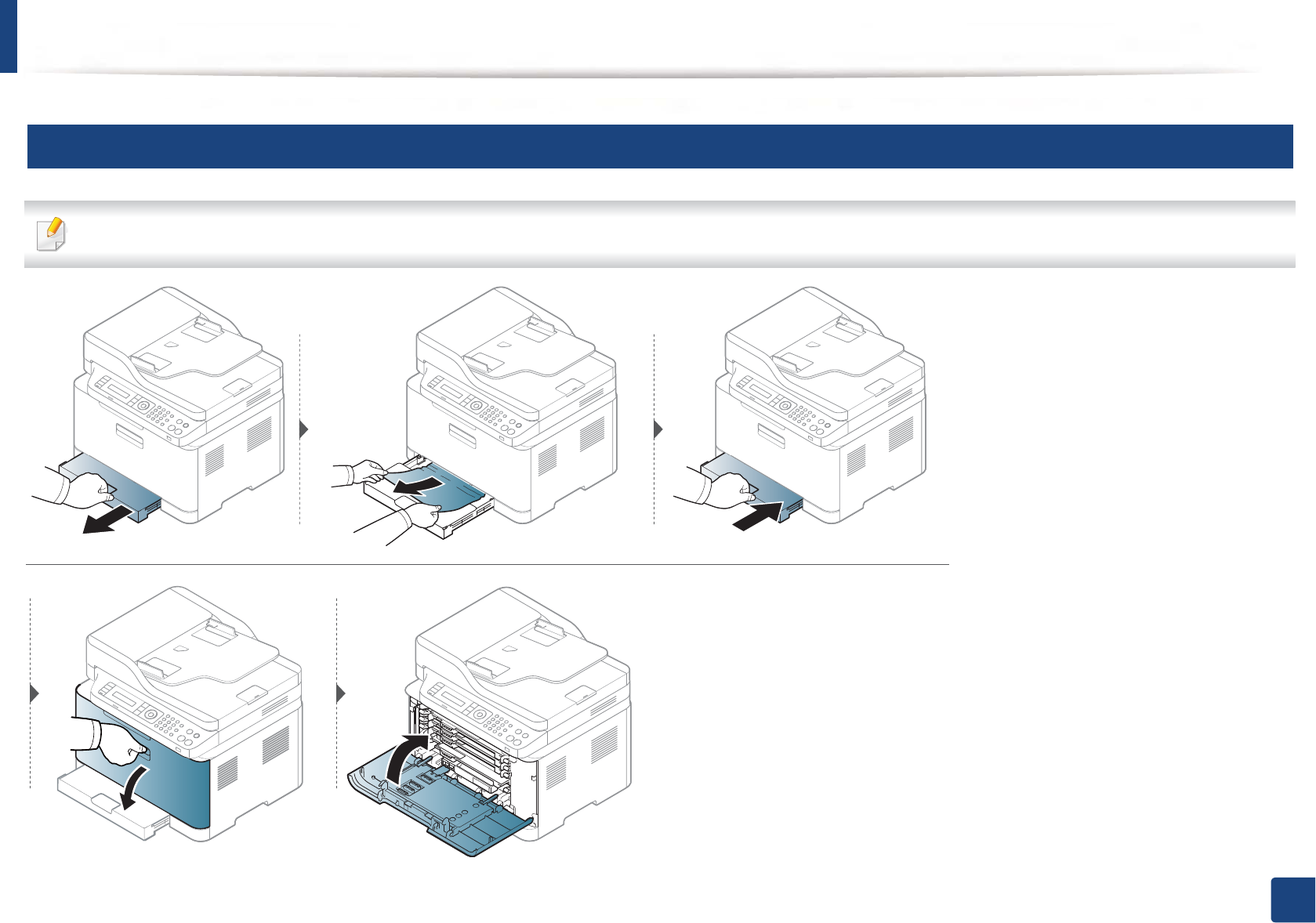
1
In tray
Illustrations on this user’s guide may differ from your machine depending on its options or models. Check your machine type (see "Front view" on page 21).
Clearing paper jams
97
4. Troubleshooting
2
Inside the machine
• The fuser area is hot. Take care when removing paper from the machine.
• Illustrations on this user’s guide may differ from your machine depending on its options or models. Check your machine type (see "Front view" on page 21).
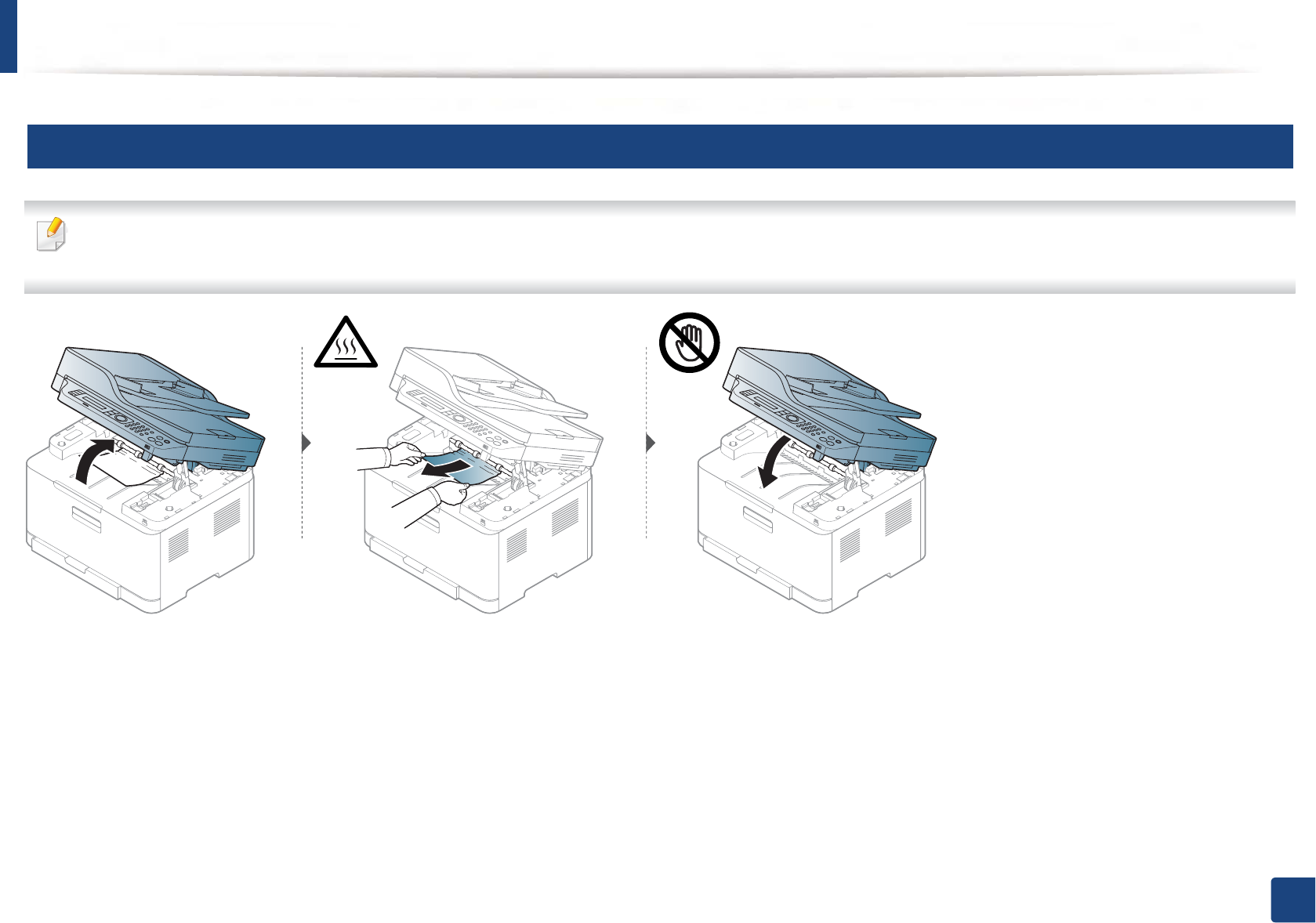
Clearing paper jams
98
4. Troubleshooting
3
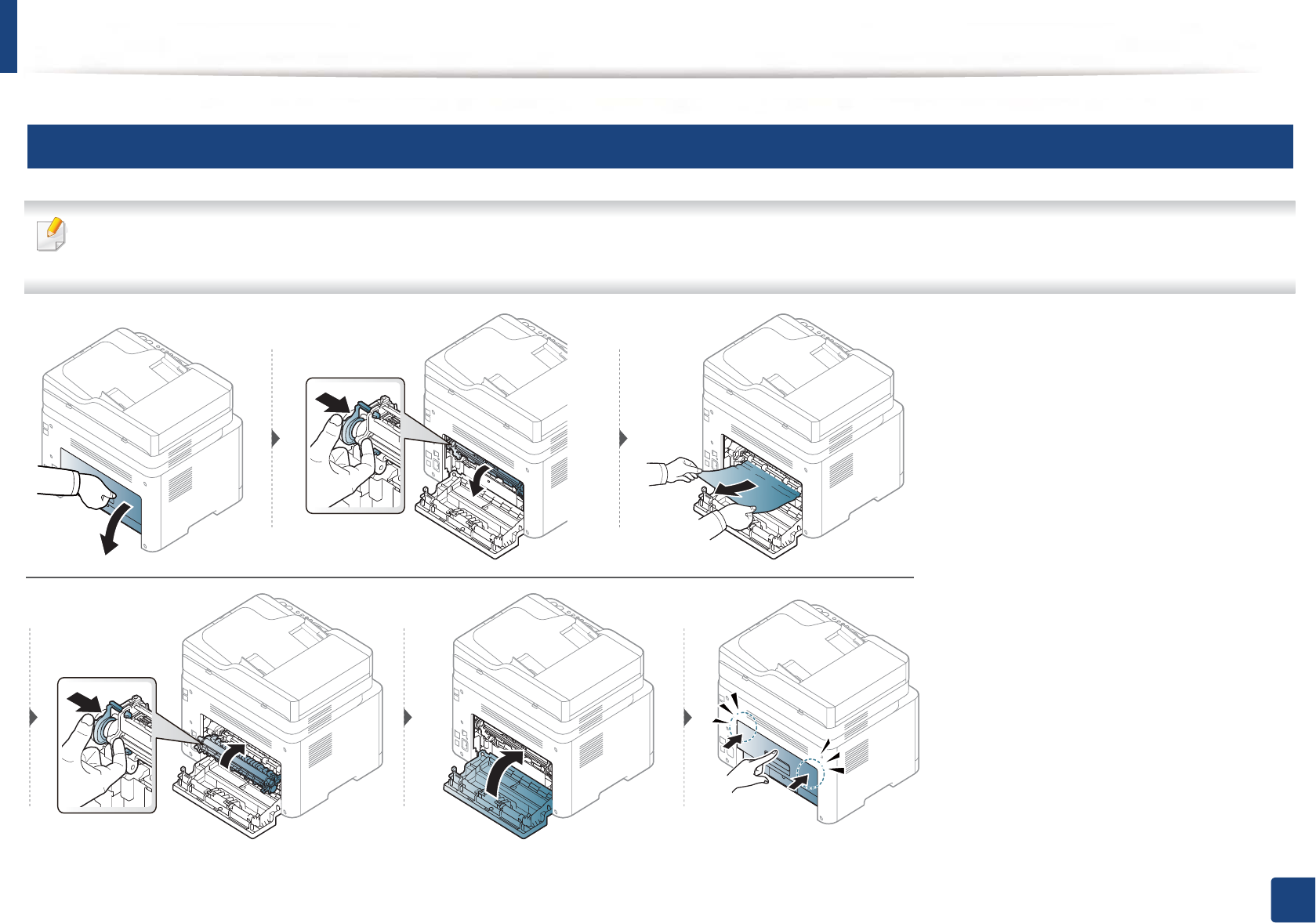
In exit area
• The fuser area is hot. Take care when removing paper from the machine.
• Illustrations on this user’s guide may differ from your machine depending on its options or models. Check your machine type (see "Front view" on page 21).
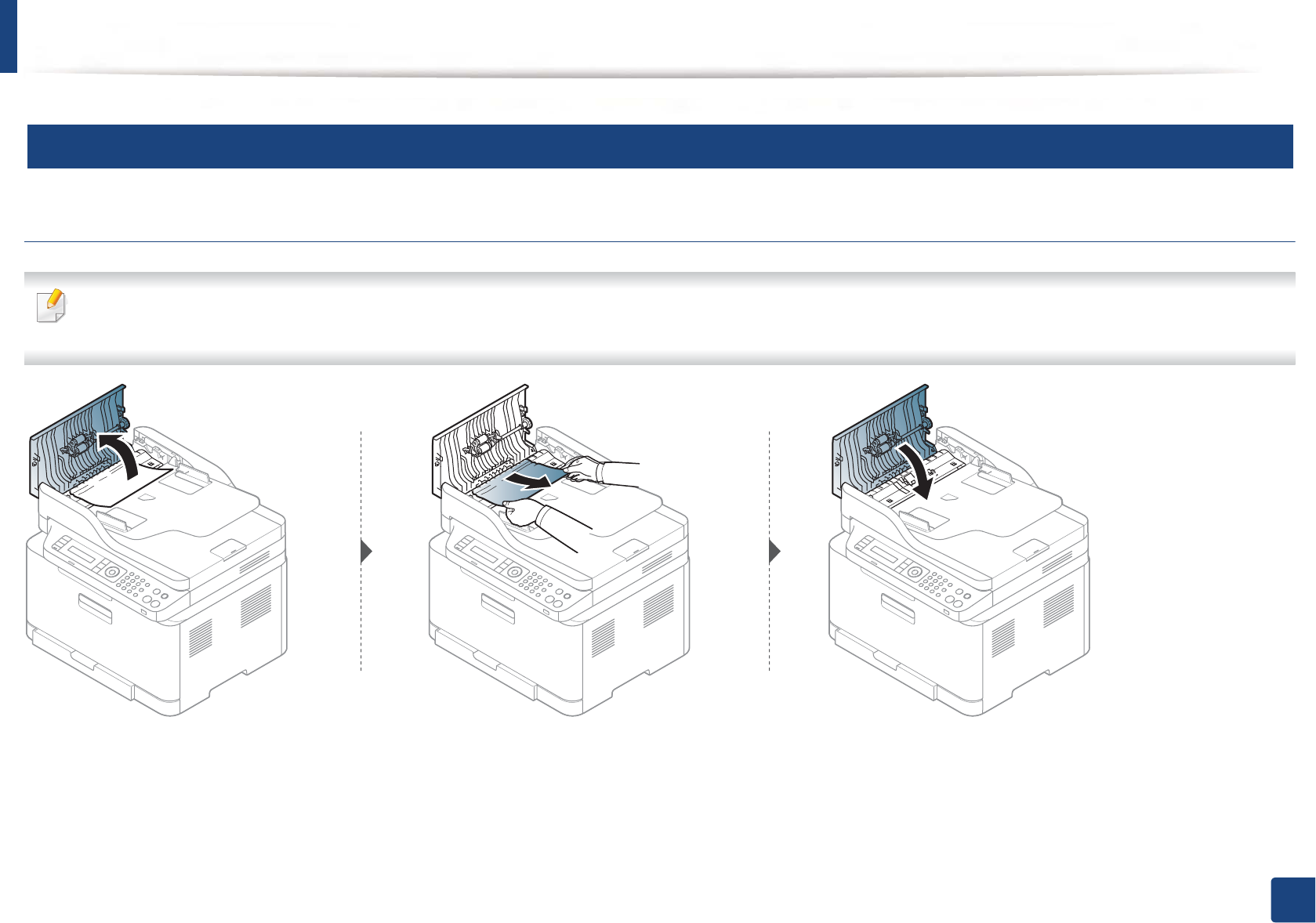
Clearing paper jams
99
4. Troubleshooting
4
Original paper jam
Original paper jam in front of scanner
• Illustrations on this user’s guide may differ from your machine depending on its options or models. Check your machine type (see "Front view" on page 21).
• This troubleshooting may not be available depending on model or optional goods (see "Variety feature" on page 10).
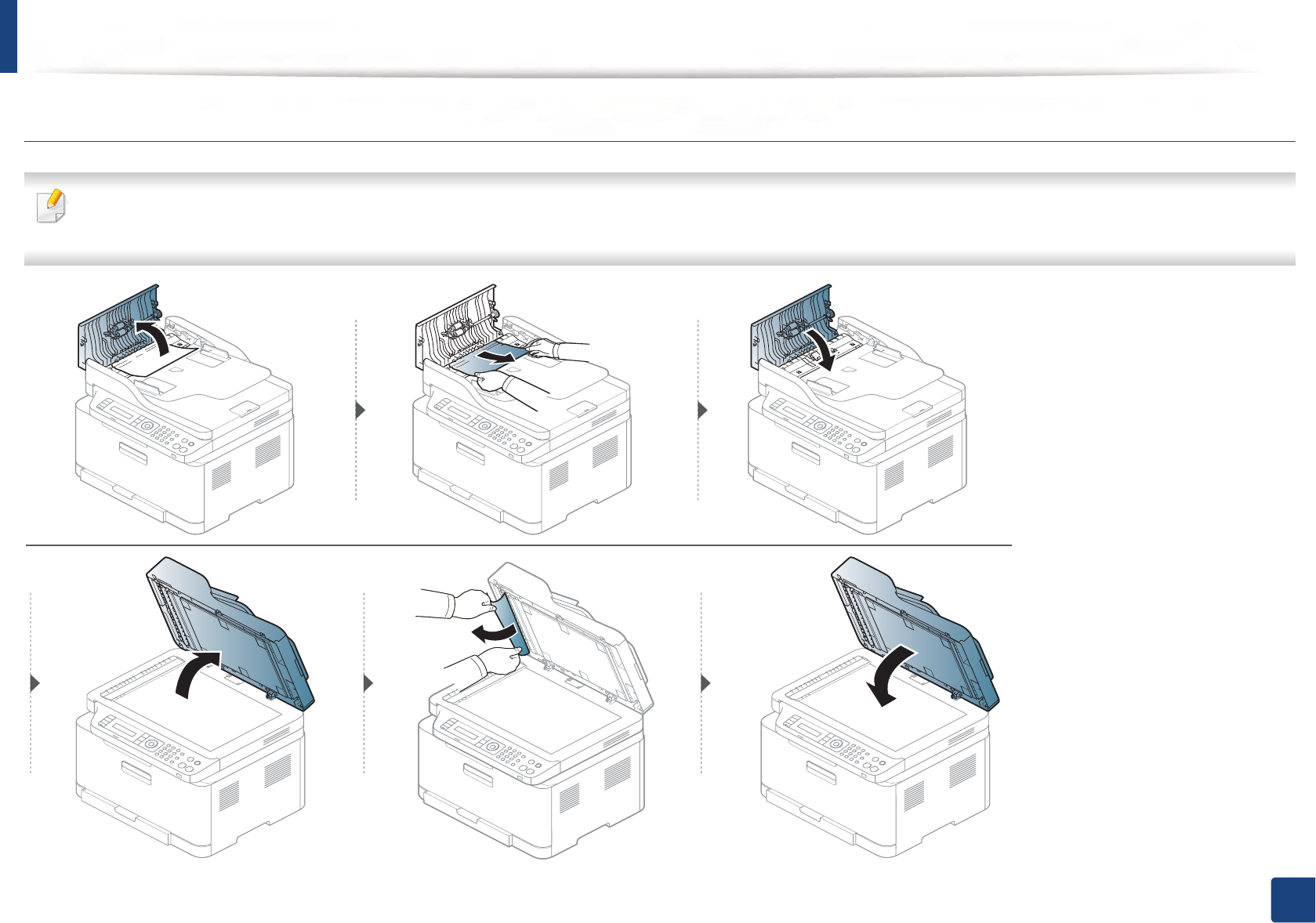
Clearing paper jams
100
4. Troubleshooting
Original paper jam inside of scanner
• Illustrations on this user’s guide may differ from your machine depending on its options or models. Check your machine type (see "Front view" on page 21).
• This troubleshooting may not be available depending on model or optional goods (see "Variety feature" on page 10).