Samsung Electronics Co SLC480FW Printer User Manual 4
Samsung Electronics Co Ltd Printer 4
Contents
- 1. User Manual 1
- 2. User Manual 2
- 3. User Manual 3
- 4. User Manual 4
User Manual 4
System setup
201
3. Useful Setting Menus
10
Paper setup
Some menus may not appear in the display depending on options or
models. If so, it is not applicable to your machine (see "Menu overview" on
page 33).
To change the menu options:
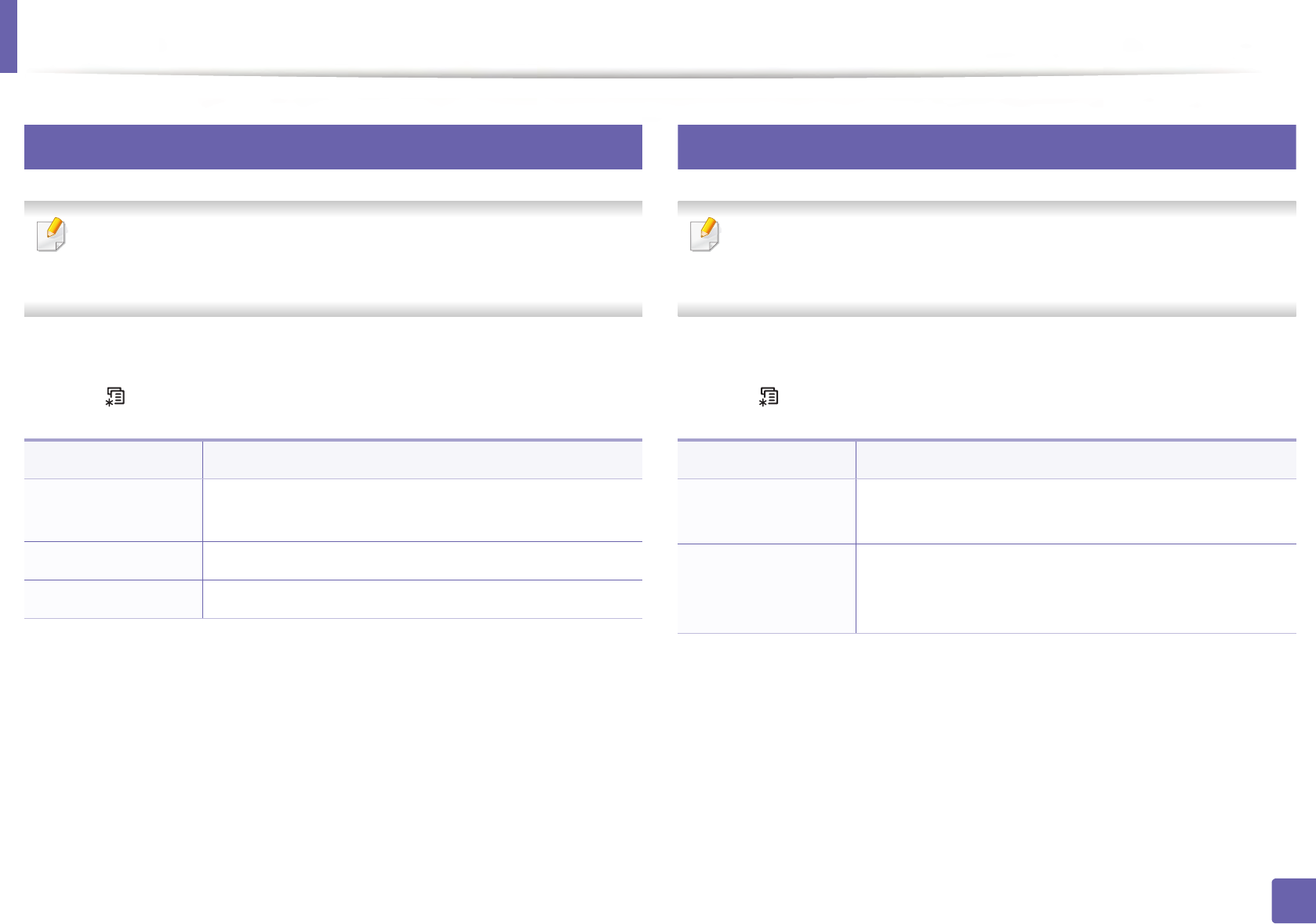
• Press (Menu) > System Setup > Paper Setup on the control panel.
11
Sound / Volume
Some menus may not appear in the display depending on options or
models. If so, it is not applicable to your machine (see "Menu overview" on
page 33).
To change the menu options:
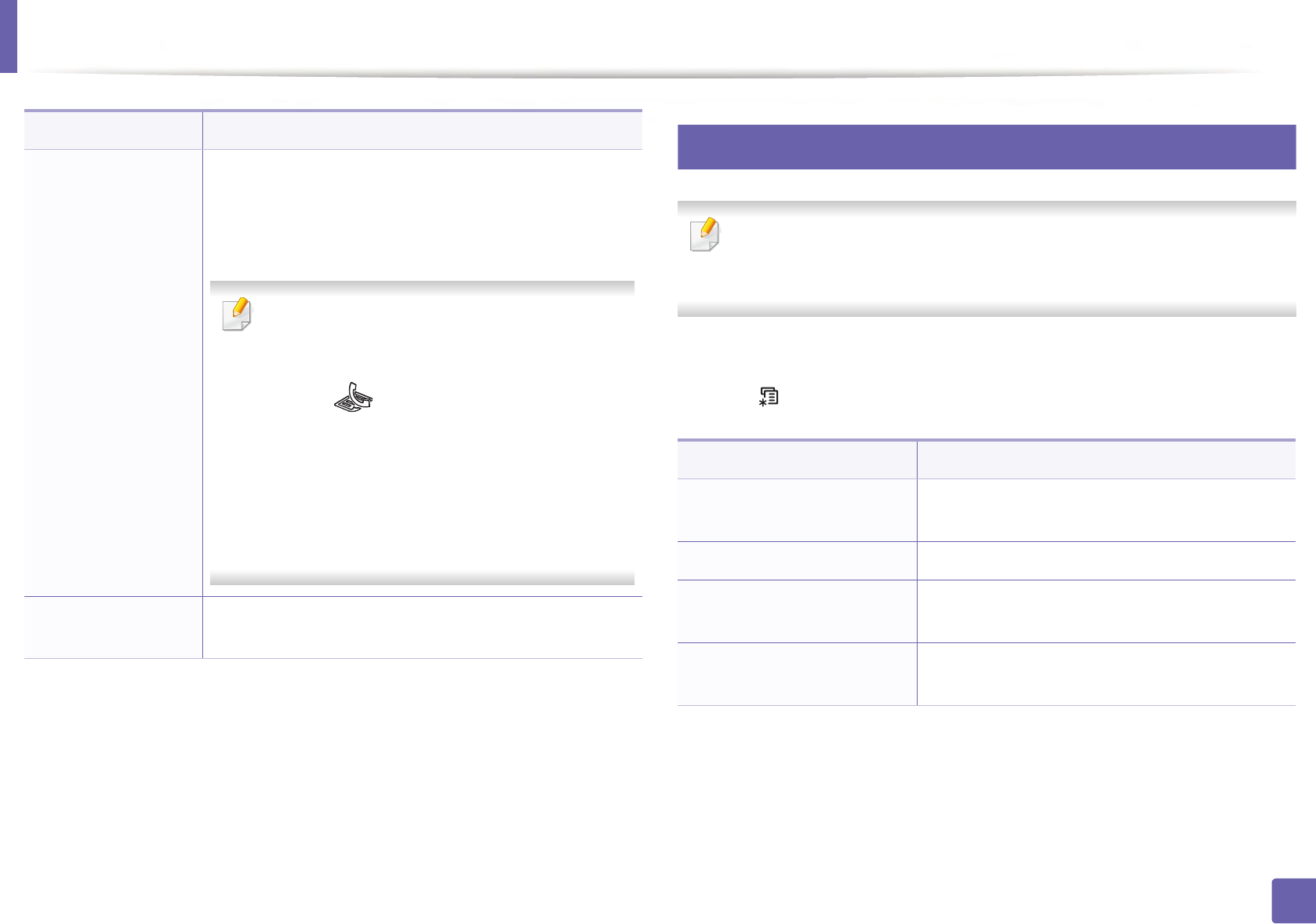
• Press (Menu) > System Setup > Sound/Volume on the control panel.
Item Description
Paper Size Sets the paper size as A4, Letter, or other paper sizes,
according to your requirements.
Paper Type Chooses the type of the paper for each tray.
Margin Sets the margins for the document.
Item Description
Key Sound Turns the key sound on or off. With this option set to on,
a tone sounds each time a key is pressed.
Alarm Sound
Turns the alarm sound on or off. With this option set to
on, an alarm tone sounds when an error occurs or fax
communication ends.
System setup
202
3. Useful Setting Menus
12
Report
Some menus may not appear in the display depending on options or
models. If so, it is not applicable to your machine (see "Menu overview" on
page 33).
To change the menu options:
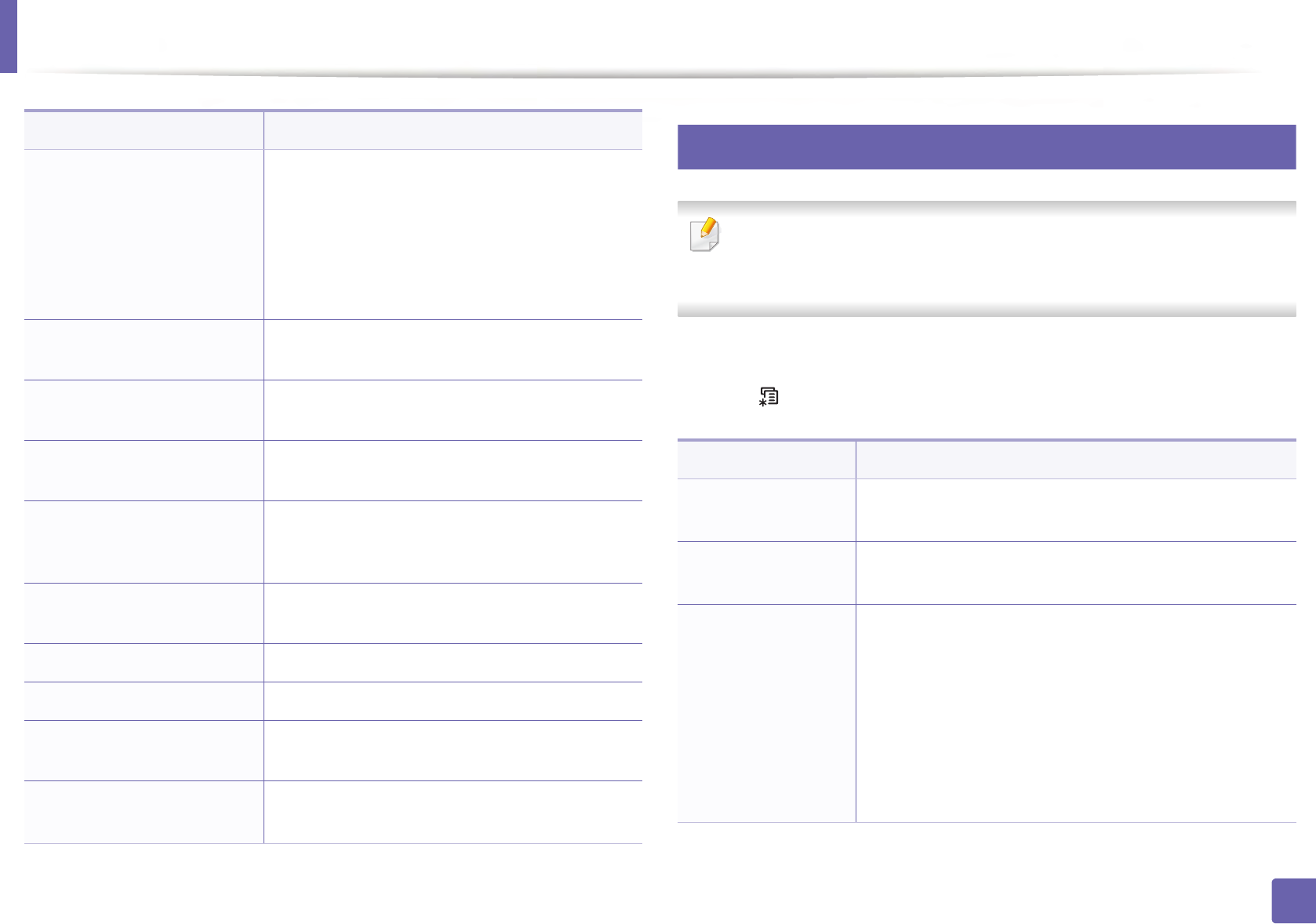
• Press (Menu) > System Setup > Report on the control panel.
Speaker
Turns on or off the sounds from the telephone line
through the speaker, such as a dial tone or a fax tone.
With this option set to Comm. which means the speaker
is on until the remote machine answers.
You can adjust the volume level using On Hook
Dial. You can adjust the speaker volume only
when the telephone line is connected.
a Press (fax) on the control panel.
b Press On Hook Dial. A dial tone sounds from
the speaker.
c Press the arrows until you hear the volume you
want.
d Press On Hook Dial to save the change and
return to ready mode.
Ringer Adjusts the ringer volume. For the ringer volume, you can
select off, low, middle, and high level.
Item Description
Item Description
Configuration Prints a report on the machine's overall
configuration.
Supplies Info. Prints supplies’ information page.
Demo Page Prints the demo page to check whether your
machine is printing properly or not.
Address Book Prints all of the fax number currently stored in
the machine’s memory.
System setup
203
3. Useful Setting Menus
13
Maintenance
Some menus may not appear in the display depending on options or
models. If so, it is not applicable to your machine (see "Menu overview" on
page 33).
To change the menu options:
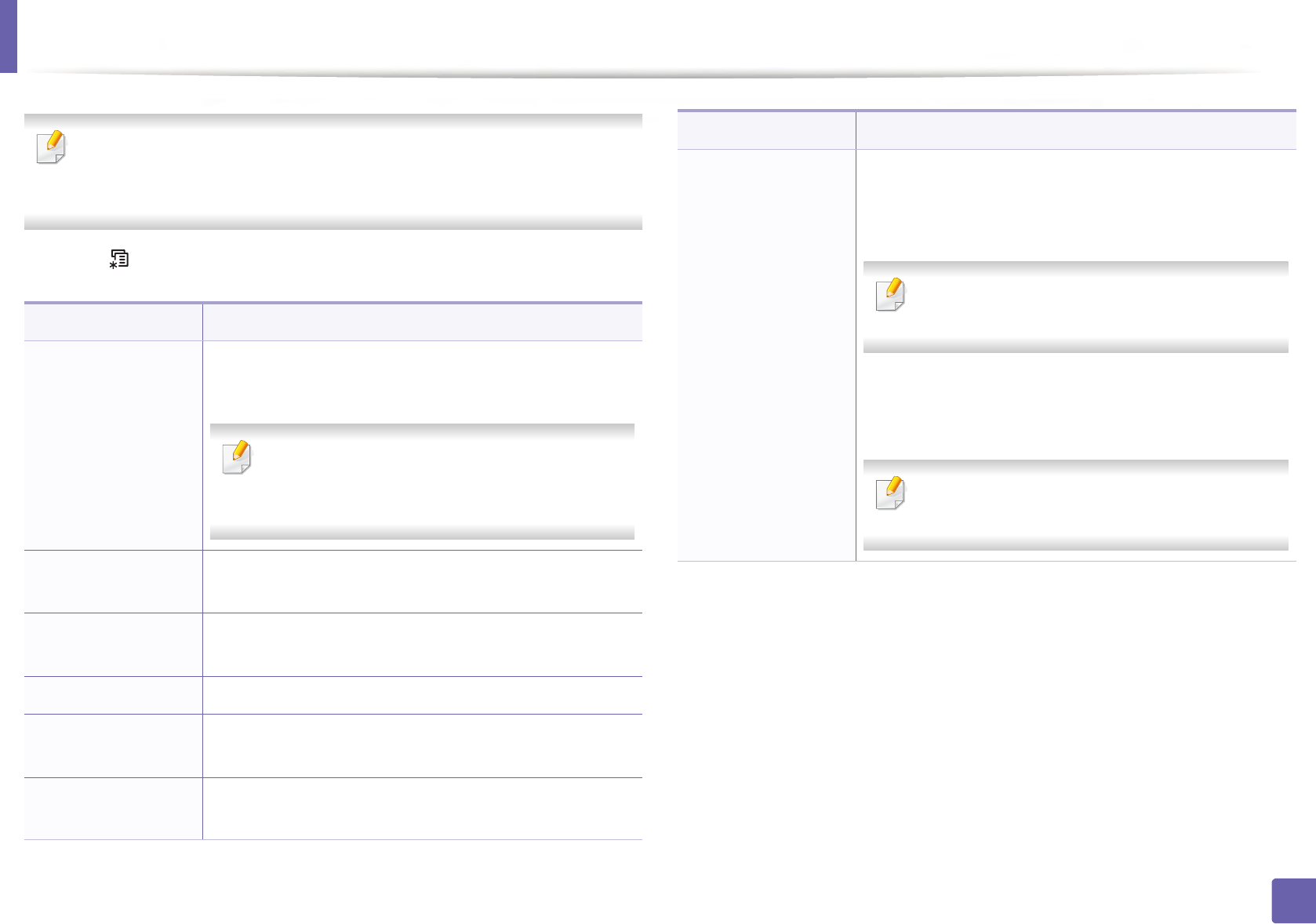
• Press (Menu) > System Setup > Maintenance on the control panel.
Fax Confirm.
Prints a transmission report including the fax
number, the number of pages, the elapsed time
of the job, the communication mode, and the
communication results for fax job. You can set up
your machine to automatically print a
transmission confirmation report after each fax
job.
Email Sent Print to check the transmission state of the Scan
to Email job.
Fax Sent Prints information on the faxes you have recently
sent.
Fax Received Prints information on the faxes you have recently
received.
Scheduled Jobs
Prints the document list currently stored for
delayed faxes along with the starting time and
type of each operation.
Junk Fax Prints the fax numbers specified as junk fax
numbers.
PCL Font Print to see the PCL font list.
PS Font Print to see the PS font list
Network Conf. Prints information on your machine’s network
connection and configuration.
Usage Counter Prints a usage page. The usage page contains the
total number of pages printed.
Item Description
Item Description
CLR Empty Msg When toner cartridge is empty, this option appears. You
can clear the empty message.
Supplies Life Shows the supply life indicators (see "Monitoring the
supplies life" on page 86.)
Image Mgr.
Allows you to adjust the color setting such as contrast
level, color registration, color density, etc.
•Custom Color: adjusts contrast, color by color.
-Default: optimizes colors automatically.
-Print Density: allows you to manually adjust the
color contrast for each cartridge. It is
recommended to use the Default setting for best
color quality.

System setup
204
3. Useful Setting Menus
Serial Number
Shows the machine’s serial number. When you call for
service or register as a user on the Samsung website, you
can find this.
TonerLow Alert Customizes the level to alert toner low or toner empty
(see "Setting the toner low alert" on page 87).
ImgU.Low Alert Customizes the level to alert imaging unit low.
Item Description
205
3. Useful Setting Menus
Network setup
Some menus may not appear in the display depending on options or
models. If so, it is not applicable to your machine (see "Menu overview" on
page 33).
• Press (Menu)> Network on the control panel.
Option Description
TCP/IP (IPv4)
Selects the appropriate protocol and configure
parameters to use the network environment.
There are many of parameters to be set. If you are
not sure, leave as is, or consult the network
administrator.
TCP/IP (IPv6) Selects this option to use the network environment
through IPv6 (see "IPv6 configuration" on page 152).
Ethernet Configure the network transmission speed and active
port.
Wi-Fi Selects this option to use the Wi-Fi network.
Clear Settings Reverts the network settings to the default values.
(Reboot required.)
Network Conf. This list shows information on your machine’s network
connection and configuration.
Protocol Mgr.
You can activate or deactivate the following protocols.
•HTTP: You can set whether to use SyncThru™ Web
Service or not.
Turn the power off and on after you change this
option.
•WINS: You can configure the WINS server.
WINS(Windows Internet Name Service) is used in the
Windows operating system.
Turn the power off and on after you change this
option.
Option Description
Network setup
206
3. Useful Setting Menus
Protocol Mgr.
•SNMPv1/v2: You have to enable this option to use
SNMP V1/V2 protocol. Administrator’s can use SNMP
to monitor and manage machines on the network.
•UPnP(SSDP): You have to enable this option to use
UPnP(SSDP) protocol.
Turn the power off and on after you change this
option.
•mDNS: You have to enable this option to use MDNS
(Multicast Domain Name System) protocol.
•SetIP: You have to enable this option to use SetIP
protocol.
•SLP: You can configure SLP (Service Location
Protocol) settings. This protocol allows host
applications to find services in a local area network
without prior configuration.
Turn the power off and on after you change this
option.
Option Description
4. Special Features
This chapter explains special copying, scanning, faxing, and printing features.
• Altitude adjustment 208
• Entering various characters 209
• Setting up the fax address book 210
• Printing features 213
• Scan features 225
• Fax features 232
• The procedures in this chapter are mainly based on Windows 7.
• It may be necessary to press OK to navigate to lower-level menus for some models.
208
4. Special Features
Altitude adjustment
Print quality is affected by atmospheric pressure, which is determined by the
height of the machine above sea level. The following information will guide you
on how to set your machine for the best print quality.
Before you set the altitude value, determine the altitude where you are.
•Normal: 0 ~ 1,000 m (3,280 ft)
•High 1 : 1,000 m (3,280 ft) ~ 2,000 m (6,561 ft)
•High 2: 2,000 m (6,561 ft) ~ 3,000 m (9,842 ft)
•High 3: 3,000 m (9,842 ft) ~ 4,000 m (13,123 ft)
•High 4: 4,000 m (13,123 ft) ~ 5,000 m (16,404 ft)
You can set the altitude value from Device Settings in Samsung Easy Printer
Manager program.
•If your machine is connected to the local, you can set the machine’s
setting from Samsung Easy Printer Manager > Advanced Setting >
Device Settings (see "Using Samsung Easy Printer Manager" on page
252).
• If your machine is connected to the network, you can set the
machine’s setting from SyncThru™ Web Service > Settings tab >
Machine Settings (see "Using SyncThru™ Web Service" on page 249).
• You can also set the altitude in System Setup option on the machine’s
display (see "Machine’s basic settings" on page 37).
209
4. Special Features
Entering various characters
C48xFN/C48xFW series only (see "Control panel overview" on page 24).
As you perform various tasks, you may need to enter names and numbers. For
example, when you set up your machine, you enter your name or your
company’s name, and the fax number. When you store fax numbers or email
addresses in memory, you may also enter the corresponding names.
1
Entering alphanumeric characters
Press the button until the correct letter appears on the display. For example, to
enter the letter O, press 6, labeled with MNO. Each time you press 6, the display
shows a different letter, M, N, O, m, n, o and finally 6. To find the letter that you
want to enter, see "Keypad letters and numbers" on page 209.
• You can enter a space by pressing 1 twice.
• To delete the last digit or character, press the left/right or up/down arrow
button.
2
Keypad letters and numbers
• Special character sets may differ from your machine depending on its
options or the models.
• Some of the follow key values may not appear depending on the job you
are doing.
Key Assigned numbers, letters, or characters
1@ / . ’ 1
2A B C a b c 2
3D E F d e f 3
4 G H I g h i 4
5J K L j k l 5
6M N O m n o 6
7P Q R S p q r s 7
8T U V t u v 8
9W X Y Z w x y z 9
0& + - , 0
* * % ^ _ ~ ! # $ ( ) [ ]
(These symbols are available when you type for network authentication.)
# # = | ? " : { } < > ;
(These symbols are available when you type for network authentication.)
210
4. Special Features
Setting up the fax address book
C48xFN/C48xFW series only (see "Control panel overview" on page 24).
You can set up speed number with the fax numbers you use frequently via
SyncThru™ Web Service and then easily and quickly enter fax numbers by
entering the location numbers assigned to them in address book.
3
Registering a speed dial number
1Select (fax) > (Address Book) > New&Edit > Speed Dial on
the control panel.
2 Enter a speed dial number and press OK.
If an entry is already stored in the number you choose, the display shows the
message to allow you to change it. To start over with another speed dial
number, press (Back).
3 Enter the name you want and press OK.
4 Enter the fax number you want and press OK.
5 Press the (Cancel or Stop/Clear) button to return to ready mode.
4
Using speed dial numbers
When you are prompted to enter a destination number while sending a fax,
enter the speed dial number at which you stored the number you want.
• For a one-digit (0-9) speed dial number, press and hold the
corresponding digit button on the number keypad for more than 2
seconds.
• For a two- or three-digit speed dial number, press the first digit button(s)
and then hold down the last digit button for more than 2 seconds.
• You can print the address book list by selecting (fax) >
(Address Book) > Print.
5
Editing speed dial numbers
1Select (fax) > (Address Book) > New&Edit > Speed Dial on
the control panel.
2 Enter the speed dial number you want to edit and press OK.
3 Change the name and press OK.
4 Change the fax number and press OK.
Setting up the fax address book
211
4. Special Features
5 Press (Cancel or Stop/Clear) to return to ready mode.
6
Registering a group dial number
1Select (fax) > (Address Book) > New&Edit > Group Dial on
the control panel.
2 Enter a group dial number and press OK.
If an entry is already stored in the number you choose, the display shows the
message to allow you to change it. To start over with another speed dial
number, press (Back).
3 Search by entering the first few letters of the speed dial’s name to put in
the group.
4 Select the name and number you want and press OK.
5 Select Yes when Add? appears.
6 Repeat step 3 to include other speed dial numbers into the group.
7 When you have finished, select No when Another No.? appears and
press OK.
8 Press (Cancel or Stop/Clear) to return to ready mode.
7
Editing group dial numbers
1Select (fax) > (Address Book) > New&Edit > Group Dial on
the control panel.
2 Enter the group dial number you want to edit and press OK.
3 Enter a new speed dial number to add and press OK, then Add? appears.
Enter a speed dial number stored in the group and press OK, Delete?
appears.
4 Press OK to add or delete the number.
5 Repeat step 3 to add or delete more numbers.
6 Select No at the Another No.? and press OK.
7 Press (Cancel or Stop/Clear) to return to ready mode.
Setting up the fax address book
212
4. Special Features
8
Searching address book for an entry
There are two ways to search for a number in memory. You can either scan from
A to Z sequentially, or you can search by entering the first letters of the name
associated with the number.
1Select ct (fax) > (Address Book) > Search&Dial > Speed Dial
or Group Dial on the control panel.
2 Enter All or ID and press OK.
3 Press the name and number or the keypad button labeled with the letter
you want to search.
For example, if you want to find the name “MOBILE,” press the 6 button,
which is labeled with “MNO.”
4 Press (Cancel or Stop/Clear) to return to ready mode.
9
Printing address book
You can check your (Address Book) settings by printing a list.
1Select ct (fax) > (Address Book) > Print on the control panel.
2 Press OK.
The machine begins printing.

213
4. Special Features
Printing features
• For basic printing features, refer to the Basic Guide (see "Basic printing"
on page 52).
• This feature may not be available depending on model or optional goods
(see "Features by model" on page 7).
10
Changing the default print settings
1Click the Windows Start menu.
• For Windows 8, from the Charms, select Search > Settings.
2 For Windows XP Service Pack 3/Server 2003, select Printer and Faxes.
• For Windows Server 2008/Vista, select Control Panel > Hardware
and Sound > Printers.
• For Windows Server 2008 R2, select Control Panel > Hardware >
Devices and Printers.
• For Windows 7/8, select Control Panel > Devices and Printers.
3 Right-click on your machine.
4 For Windows XP Service Pack 3/Server 2003/Server 2008/Vista, select
Printing Preferences.
For Windows 7/8 or Windows Server 2008 R2, from context menus, select
Printing preferences.
If Printing preferences has a ►, you can select other printer drivers
connected to the selected printer.
5 Change the settings on each tab.
6 Click OK.
If you want to change the settings for each print job, change it in Printing
Preferences.
11
Setting your machine as a default machine
1Click the Windows Start menu.
• For Windows 8, from the Charms, select Search > Settings.
2 For Windows XP Service Pack 3/Server 2003, select Printer and Faxes.
• For Windows Server 2008/Vista, select Control Panel > Hardware
and Sound > Printers.
• For Windows Server 2008 R2, select Control Panel > Hardware >
Devices and Printers.
• For Windows 7/8, select Control Panel > Devices and Printers.
Printing features
214
4. Special Features
3 Select your machine.
4 Right-click your machine and select Set as Default Printer.
For Windows 7 or Windows Server 2008 R2, if Set as default printer has a
►, you can select other printer drivers connected to the selected printer.
12
Using advanced print features
XPS printer driver: used to print XPS file format.
• See "Features by model" on page 7.
• The XPS printer driver can be installed only on Windows Vista OS or
higher.
• For models that provide XPS driver from the Samsung website, http://
www.samsung.com > find your product> Support or downloads.
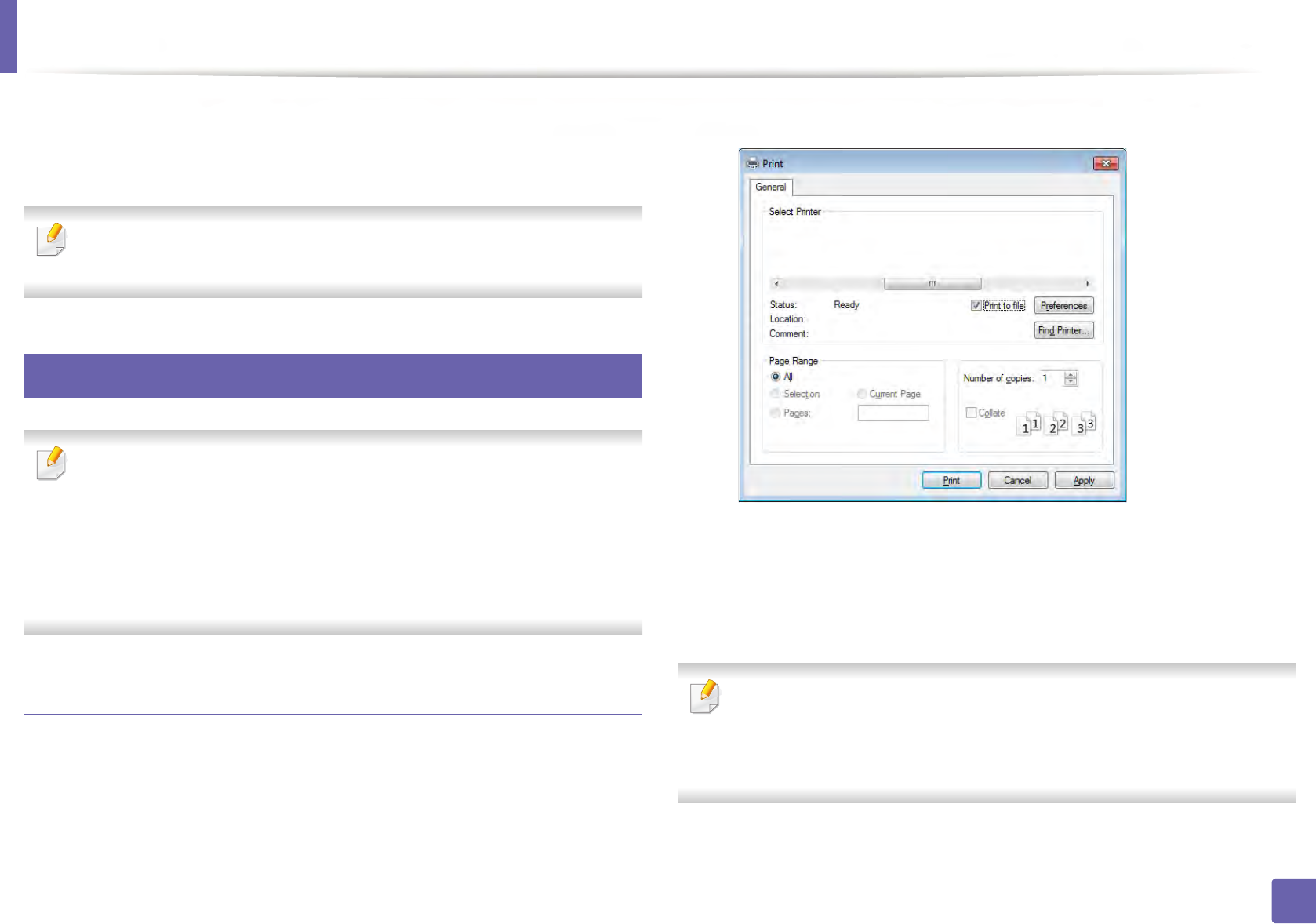
Printing to a file (PRN)
You will sometimes need to save the print data as a file.
1Check the Print to file box in the Print window.
2 Click Print.
3 Type in the destination path and the file name, and then click OK.
For example, c:\Temp\file name.
If you type in only the file name, the file is automatically saved in My
Documents, Documents and Settings, or Users. The saved folder may
differ, depending on your operating system or the application you are
using.
Printing features
215
4. Special Features
Understanding special printer features
You can use advanced printing features when using your machine.
To take advantage of the printer features provided by your printer driver, click Properties or Preferences in the application’s Print window to change the print
settings. The machine name that appears in the printer properties window may differ depending on the machine in use.
• Some menus may not appear on the display depending on options or models. If so, it is not applicable to your machine.
• Select the Help menu or click the button from the window or press F1 on your keyboard and click on any option you want to know about (see "Using help"
on page 55).
Item Description
Multiple Pages per Side Selects the number of pages to print on a single sheet of paper. To print more than one page per sheet, the pages will be reduced in size and
arranged in the order you specify. You can print up to 16 pages on one sheet.
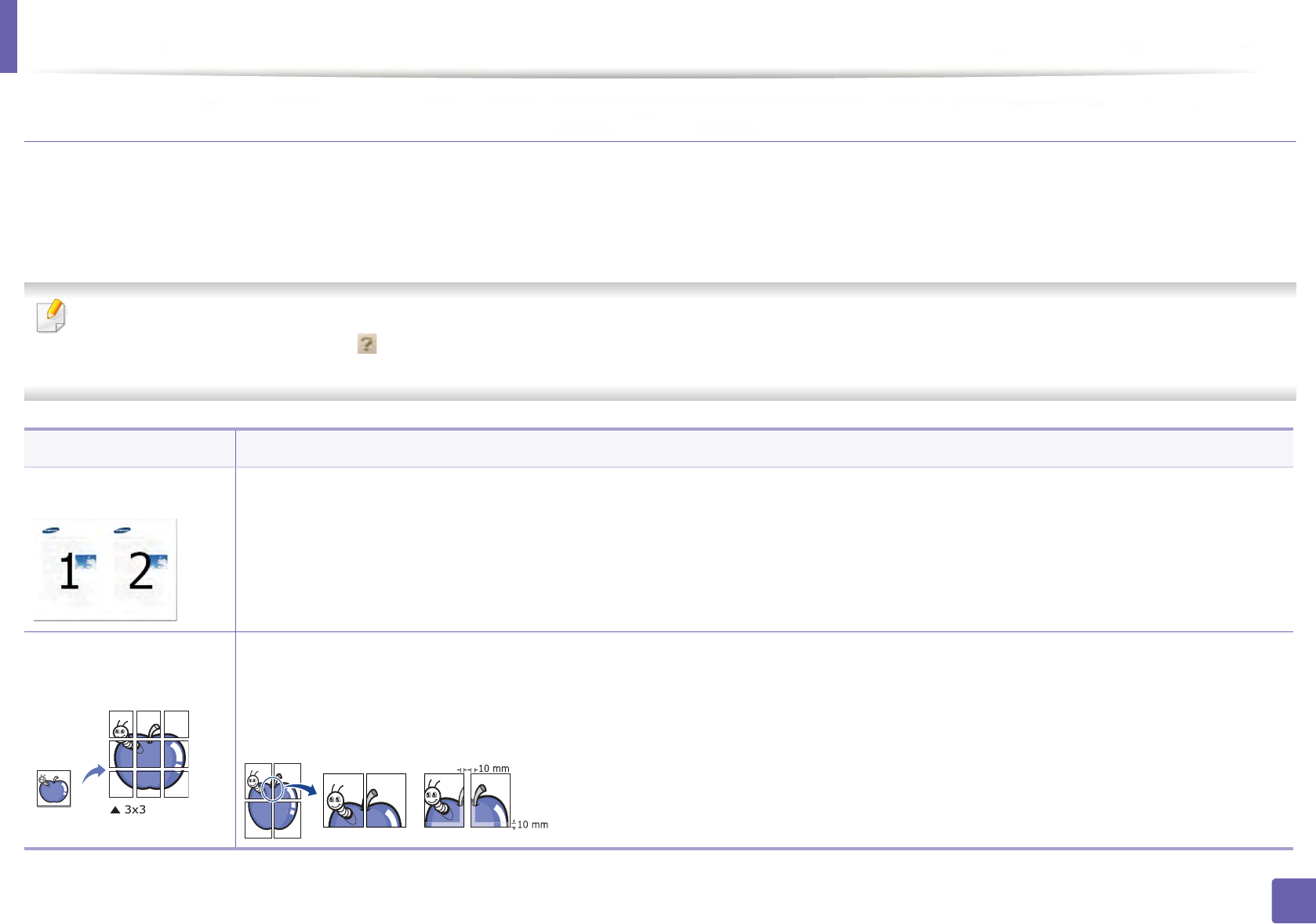
Poster Printing
Prints a single-page document onto 4 (Poster 2x2), 9 (Poster 3x3), or 16 (Poster 4x4) sheets of paper, for the purpose of pasting the sheets
together to form one poster-size document.
Select the Poster Overlap value. Specify Poster Overlap in millimeters or inches by selecting the radio button on the upper right of Basic
tab to make it easier to paste the sheets together.
Printing features
216
4. Special Features
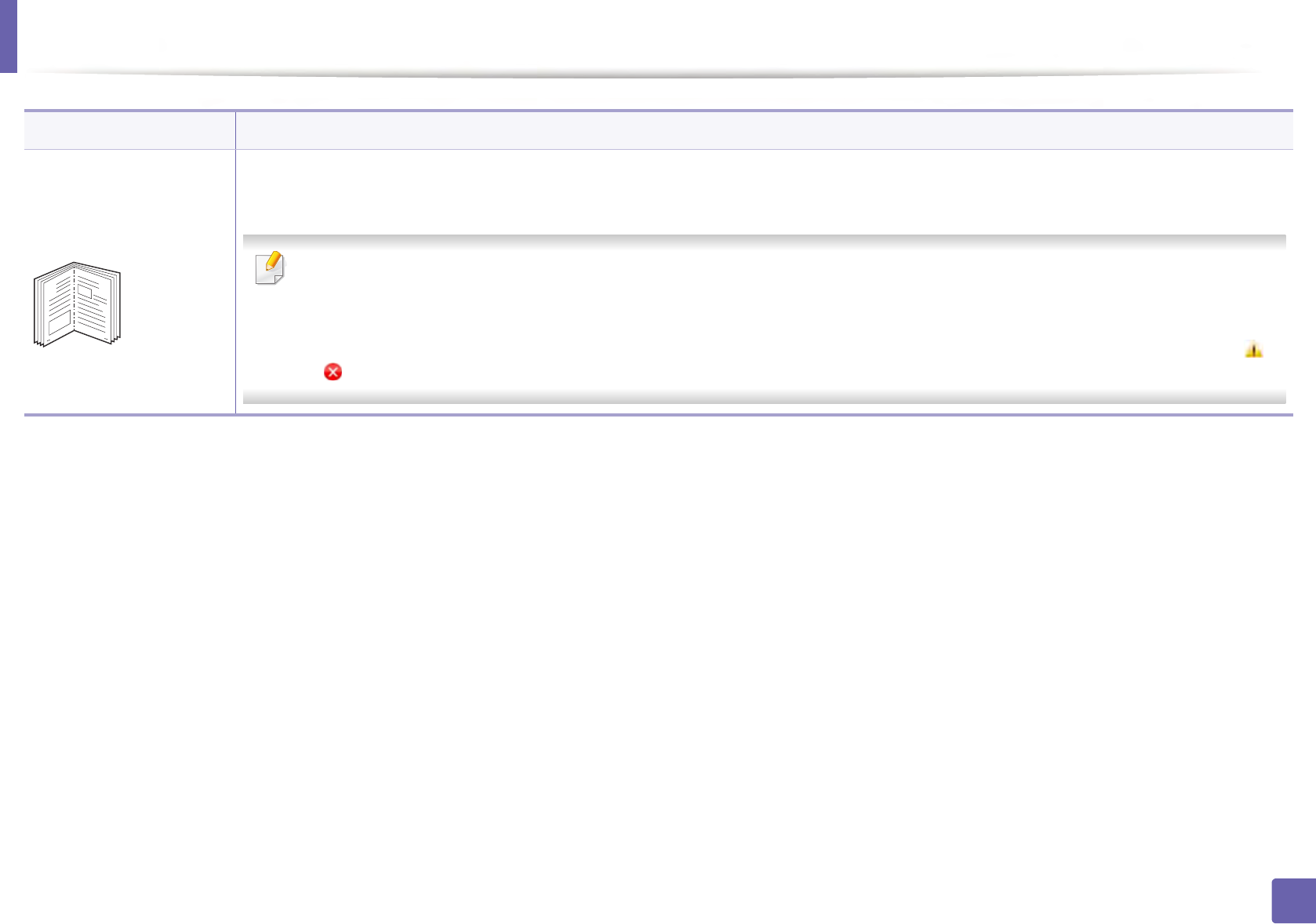
Booklet Printinga
Prints your document on both sides of a sheet of paper and arranges the pages so that the paper can be folded in half after printing to
produce a booklet.
• This option is available only when you use the PCL/SPL printer driver. This option is not available when you use XPS driver.
• The Booklet Printing option is not available for all paper sizes. Select the available paper Size option under the Paper tab to see
what paper sizes are available.
• If you select an unavailable paper size, this option can be automatically canceled. Select only available paper (paper without or
mark).
Item Description
8
9
Printing features
217
4. Special Features
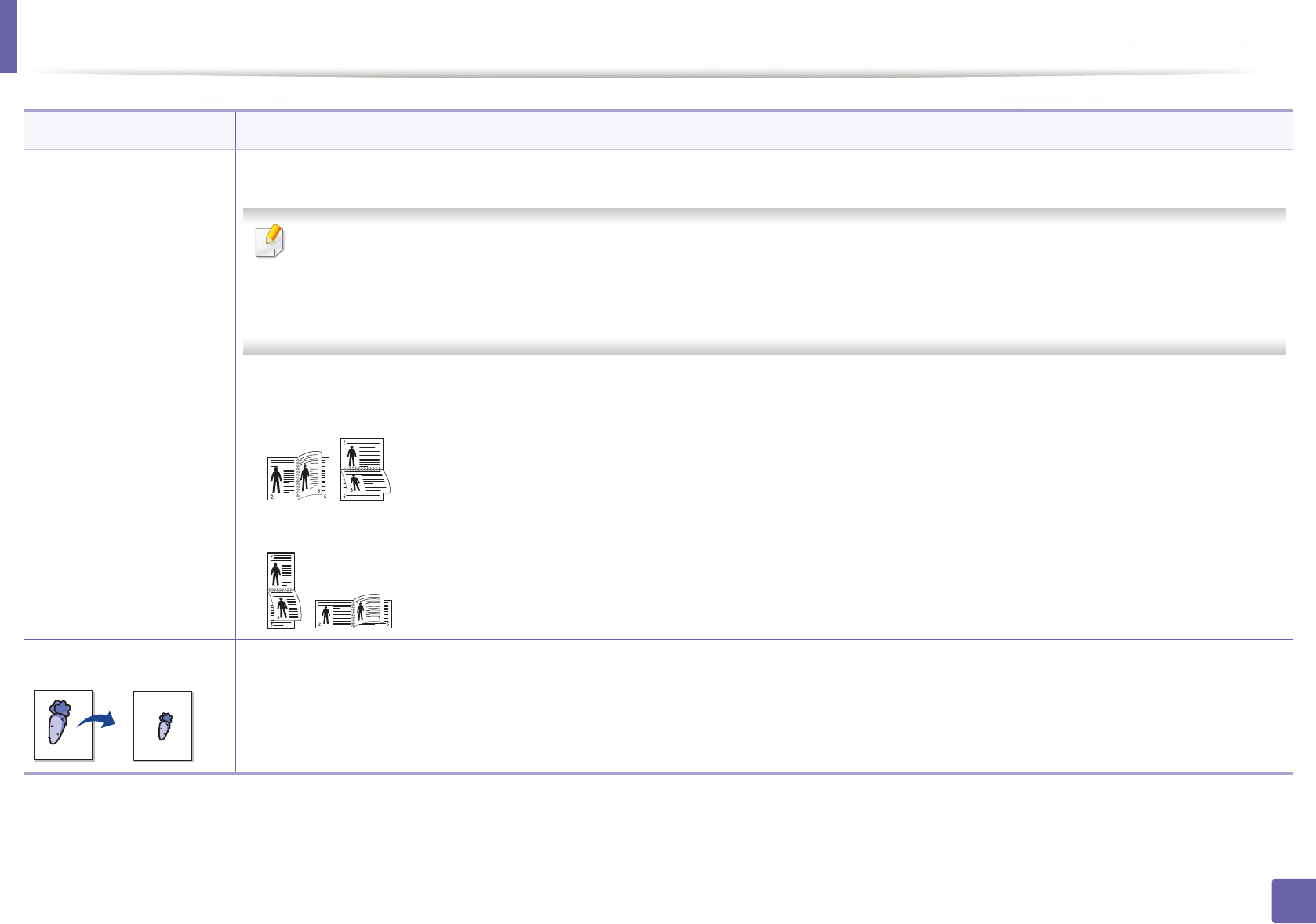
Double-sided Printing
(Manual)
Print on both sides of a sheet of paper (duplex). Before printing, decide how you want your document oriented.
• This option is available only when you use the PCL/SPL printer driver. This option is not available when you use XPS driver.
• If your machine does not have a duplex unit, you should complete the printing job manually. The machine prints every other page
of the document first. After that, a message appears on your computer.
•Skip Blank Pages feature does not work when you select the duplex option.
•None: Disables this feature.
•Long Edge: This option is the conventional layout used in bookbinding.
•Short Edge: This option is the conventional layout used in calendars.
Paper Options Changes the size of a document to appear larger or smaller on the printed page by entering in a percentage by which to enlarge or decrease
the document.
Item Description
Printing features
218
4. Special Features
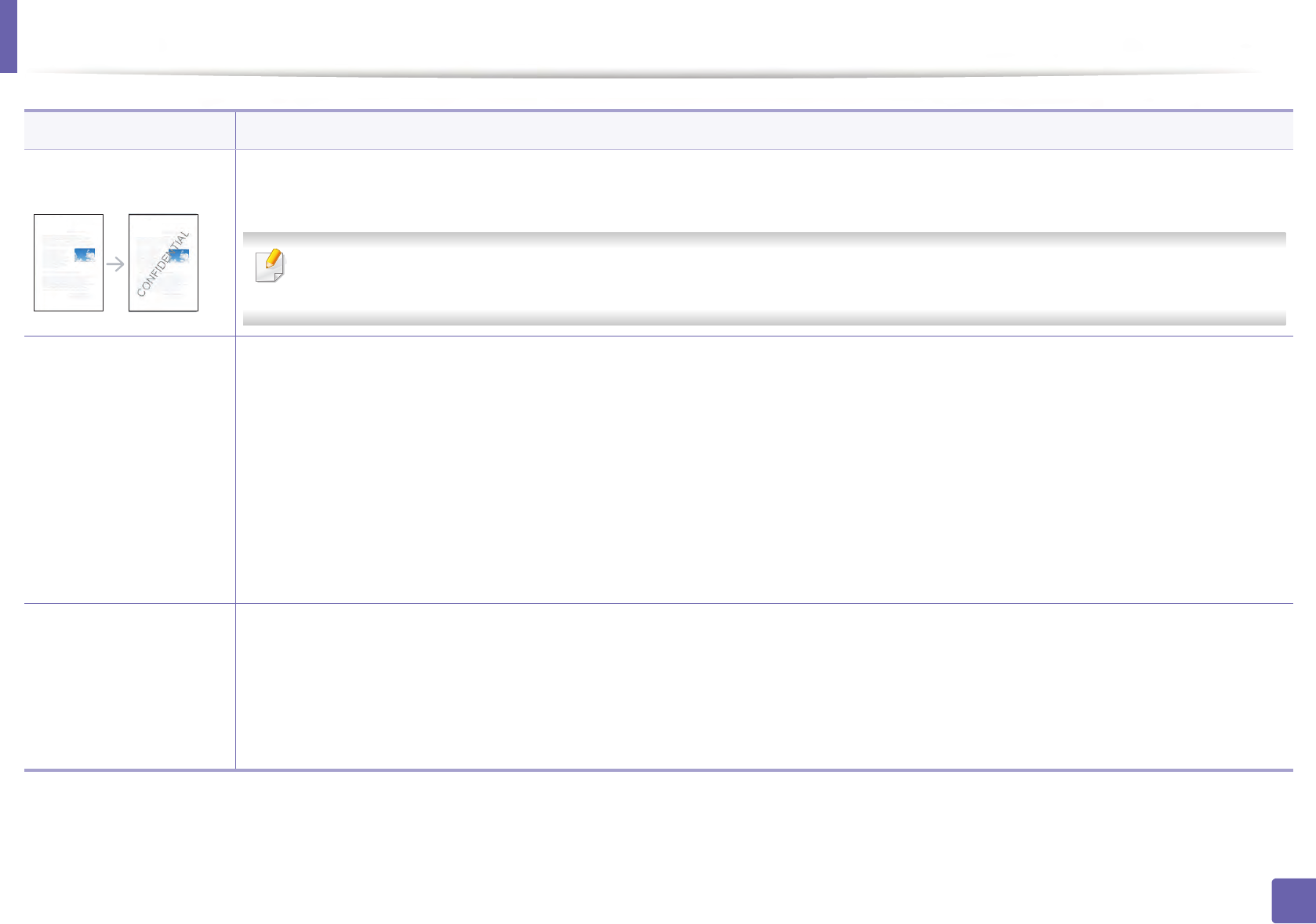
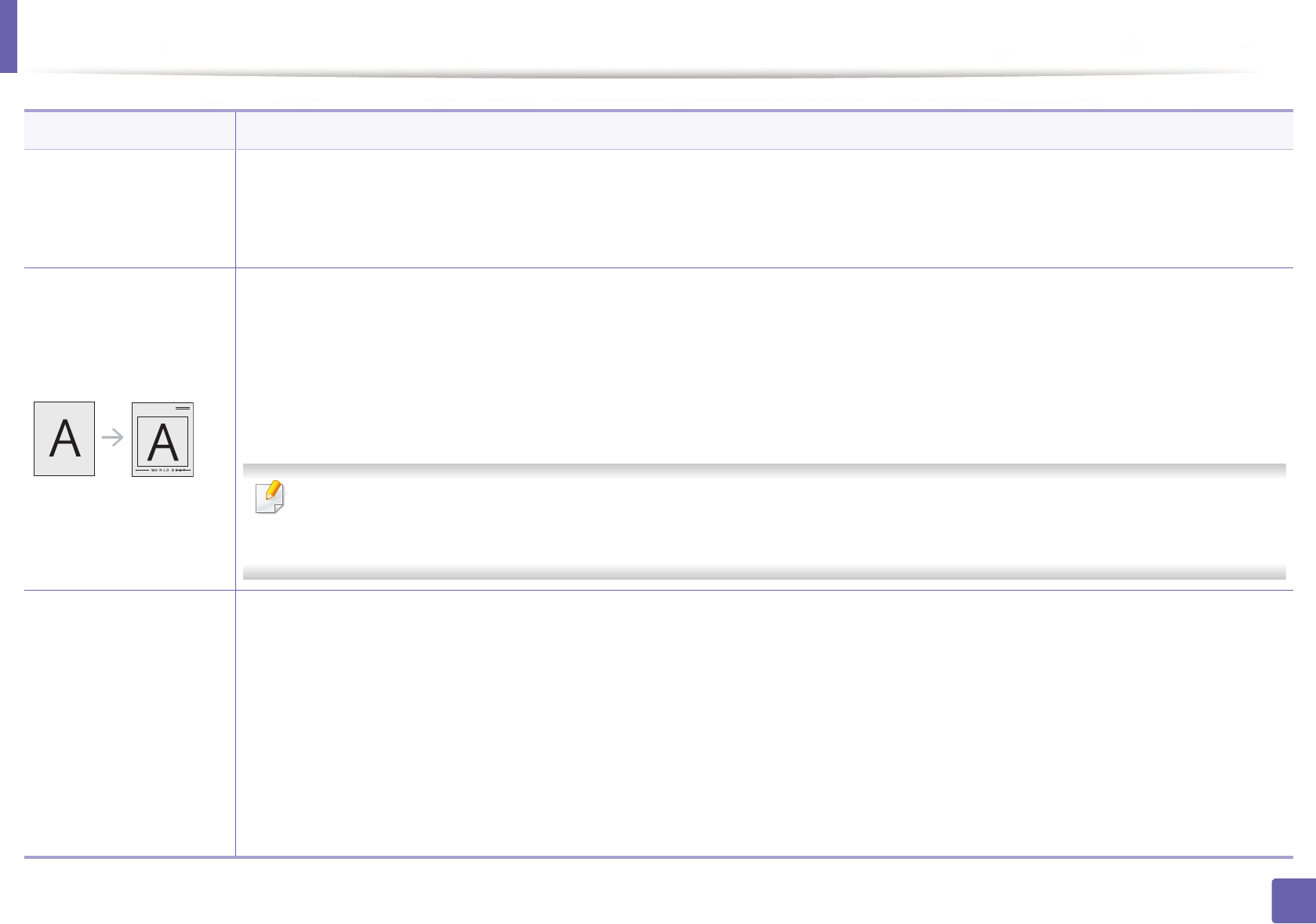
Watermark The watermark option allows you to print text over an existing document. For example, you use it when you want to have large gray letters
reading “DRAFT” or “CONFIDENTIAL” printed diagonally across the first page or all pages of a document.
•Header: You can add the selected text to the top left, top center, or top right.
•Footer: You can add the selected text to the bottom left, bottom center, or bottom right.
Watermark
(Creating a watermark)
a To change the print settings from your software application, access Printing Preferences (see "Opening printing preferences" on page
54).
b From the Advanced tab, select Edit... from the Watermark drop-down list.
c Enter a text message in the Watermark Message box. You can enter up to 256 characters.
When the First Page Only box is checked, the watermark prints on the first page only.
d Select watermark options.
You can select the font name, style, size, and shade from the Font Attributes section, as well as set the angle of the watermark from the
Watermark Alignment and Angle section.
e Click Add to add a new watermark to the Current Watermarks list.
f When you finish editing, click OK or Print until you exit the Print window.
Watermark
(Editing a watermark)
a To change the print settings from your software application, access Printing Preferences (see "Opening printing preferences" on page
54).
b Click the Advanced tab, select Edit... from the Watermark drop-down list.
c Select the watermark you want to edit from the Current Watermarks list and change the watermark message and options.
d Click Update to save the changes.
e Click OK or Print until you exit the Print window.
Item Description
Printing features
219
4. Special Features
Watermark
(Deleting a watermark)
a To change the print settings from your software application, access Printing Preferences.
b Click the Advanced tab, select Edit... from the Watermark drop-down list.
c Select the watermark you want to delete from the Current Watermarks list and click Delete.
d Click OK or Print until you exit the Print window.
Overlaya
This option is available only when you use the PCL/SPL printer driver (see "Software" on page 8).
An overlay is text and/or images stored in the computer hard disk drive (HDD) as a special file format that can be printed on any document.
Overlays are often used to take the place of letterhead paper. Rather than using preprinted letterhead, you can create an overlay containing
exactly the same information that is currently on your letterhead. To print a letter with your company’s letterhead, you do not need to load
preprinted letterhead paper in the machine: just print the letterhead overlay on your document.
To use a page overlay, you must create a new page overlay containing your logo or image.
• The overlay document size must be the same as the document you print with the overlay. Do not create an overlay with a
watermark.
• The resolution of the overlay document must be the same as that of the document you will print with the overlay.
Overlaya
(Creating a new page
overlay)
a Create or open a document containing text or an image for use in a new page overlay. Position the items exactly as you wish them to
appear when printed as an overlay.
b To save the document as an overlay, access Printing Preferences.
c Click the Advanced tab, and select Create from the Overlay drop-down list.
d In the Save As window, type a name up to eight characters in the File name box. Select the destination path, if necessary (The default is
C:\Formover).
e Click Save.
f Click OK or Print until you exit the Print window.
When a confirming message window appears, click Yes.
g The file is not printed. Instead, it is stored on your computer hard disk drive.
Item Description

Printing features
220
4. Special Features
Overlaya
(Using a page overlay)
a Create or open the document you want to print.
b To change the print settings from your software application, access Printing Preferences.
c Click the Advanced tab.
d Select the Print Overlay from the Overlay drop-down list.
e If the overlay file you want does not appear in the Overlay File 1 or Overlay File 2 drop-down list, select Load from the Overlay List.
Select the overlay file you want to use.
If you have stored the overlay file you want to use in an external source, you can also load the file when you access the Load window.
After you select the file, click Open. The file appears in the Overlay List box and is available for printing. Select the overlay from the
Overlay List box.
f If necessary, check Confirm Page Overlay When Printing box. If this box is checked, a message window appears each time you submit a
document for printing, asking you to confirm your wish to print an overlay on your document.
If this box is not checked and an overlay has been selected, the overlay automatically prints with your document.
g Click OK or Print until you exit the Print window.
The selected overlay prints on your document.
Overlaya
(Deleting a page
overlay)
a In the Printing Preferences window, click the Advanced tab.
b Select Edit in the Text drop down list.
c Select the overlay you want to delete from the Overlay List box.
d Click Delete.
e When a confirming message window appears, click Yes.
f Click OK or Print until you exit the Print window. You can delete page overlays that you no longer use.
a. This option is not available when you use XPS driver.
Item Description
Printing features
221
4. Special Features
13
Mac printing
Some features may not be available depending on models or options. It
means that the features are not supported.
Printing a document
When you print with a Mac, you need to check the printer driver settings in each
application you use. Follow the steps below to print from a Mac:
1Open the document to print.
2 Open the File menu and click Page Setup (Document Setup in some
applications).
3 Choose your paper size, orientation, scaling, other options, and make
sure that your machine is selected. Click OK.
4 Open the File menu and click Print.
5 Choose the number of copies and indicate which pages to print.
6 Click Print.
Changing printer settings
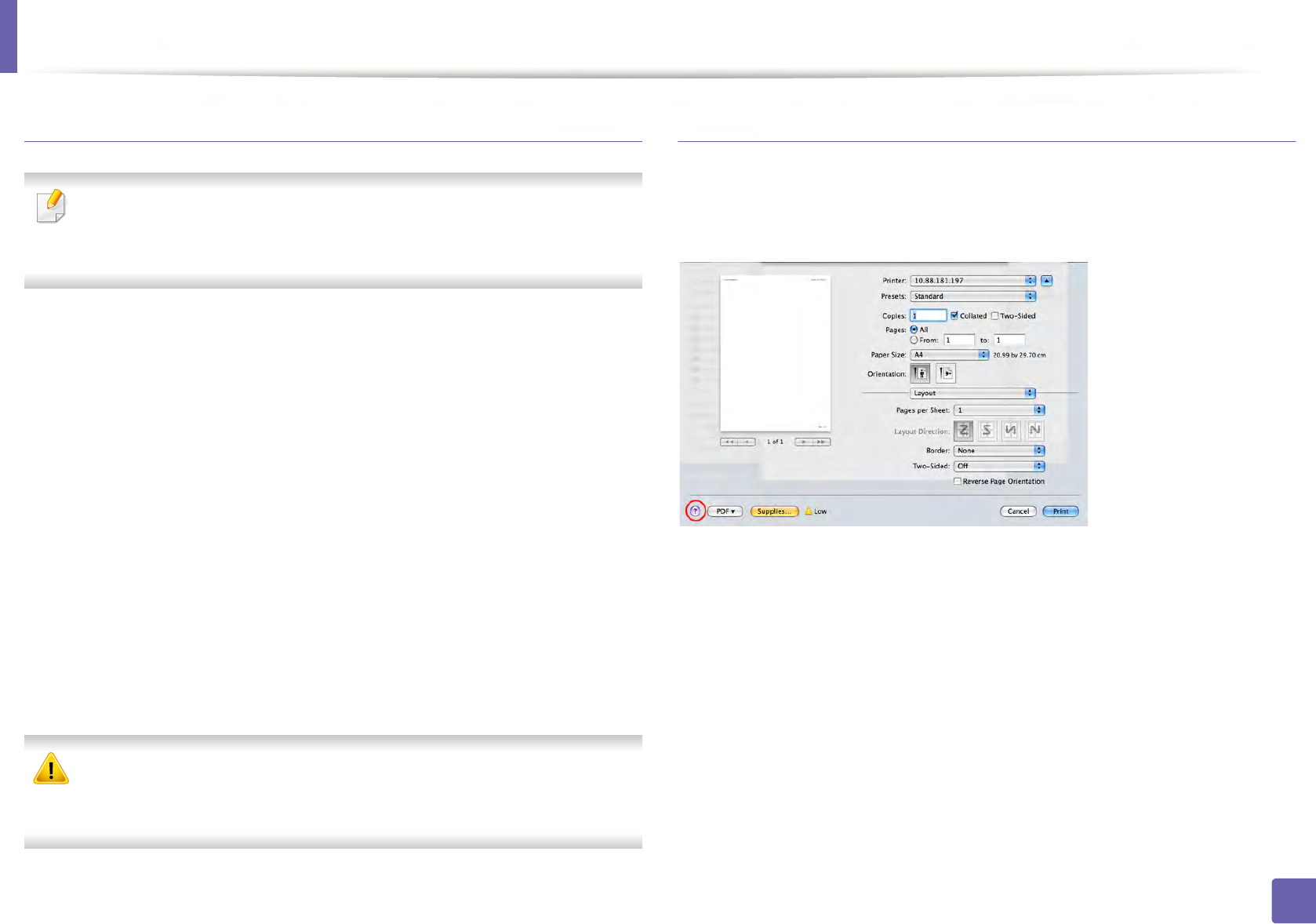
You can use advanced printing features when using your machine.
Open an application and select Print from the File menu. The machine name,
which appears in the printer properties window, may differ depending on the
machine in use. Except for the name, the composition of the printer properties
window is similar to the following.
Printing multiple pages on one sheet
You can print more than one page on a single sheet of paper. This feature
provides a cost-effective way to print draft copies.
1Open an application, and select Print from the File menu.
2 Select Layout from the drop-down list under Orientation. In the Pages
per Sheet drop-down list, select the number of pages you want to print
on one sheet of paper.
3 Select the other options to use.
4 Click Print.
The machine prints the selected number of pages to print on one sheet
of paper.
Printing features
222
4. Special Features
Printing on both sides of the paper
Some features may not be available depending on models or options. It
means that the features are not supported (see "Variety feature" on page
10).
Before printing in the duplex mode, decide on which edge you will be binding
your finished document. The binding options are, as follows:
•Long-Edge Binding: This option is the conventional layout used in book
binding.
•Short-Edge Binding: This option is the type often used with calendars.
1From your Mac application, select Print from the File menu.
2 Select Layout from the drop-down list under Orientation.
3 Select a binding orientation from the Two-Sided option.
4 Select the other options to use.
5 Click Print and the machine prints on both sides of the paper.
If you print more than 2 copies, the first copy and the second copy might
print on the same sheet of paper. Avoid printing on both sides of paper
when you are printing more than 1 copy.
Using help
Click the question mark on the bottom-left corner of the window and click on
the topic you want to know about. A pop-up window appears with information
about that option's feature, which is provided from the driver.
Printing features
223
4. Special Features
14
Linux printing
Some features may not be available depending on models or options. It
means that the features are not supported.
Printing from applications
There are a lot of Linux applications that allow you to print using Common UNIX
Printing System (CUPS). You can print on your machine from any such
application.
1Open the document to print.
2 Open the File menu and click Page Setup (Print Setup for some
applications).
3 Choose your paper size, orientation, and make
sure that your machine is selected. Click Apply.
4 Open the File menu and click Print.
5 Select your machine to print.
6 Choose the number of copies and indicate which pages to print.
7 Change other printing options in each tab, if necessary.
8 Click Print.
Automatic/manual duplex printing may not be available depending on
models. You can alternatively use the lpr printing system or other
applications for odd-even printing (see "Features by model" on page 7).
Printing files
You can print text, image, pdf files on your machine using the standard
CUPS directly from the command line interface. The CUPS lp or lpr utility allows
you to do that. You can print these files by using below command format.
"lp -d <printer name> -o <option> <file name>"
Please refer to lp or lpr man page on your system for more details.

Printing features
224
4. Special Features
Configuring Printer Properties
You can change the default printing options or connection type with Printing
utility supplied by o/s.
1Launch Printing utility(Go to System > Administration > Printing
menu or execute "system-config-printer" command in Terminal
program).
2 Select your printer and double-click it.
3 Change default printing options or connection type.
4 Click Apply button.
225
4. Special Features
Scan features
• For basic scanning features, refer to the Basic Guide (see "Basic scanning"
on page 63).
• This feature may not be available depending on model or optional goods
(see "Features by model" on page 7).
• The maximum resolution that can be achieved depends upon various
factors, including computer speed, available disk space, memory, the
size of the image being scanned, and bit depth settings. Thus, depending
on your system and what you are scanning, you may not be able to scan
at certain resolutions, especially using enhanced dpi.
15
Basic scanning method
This feature may not be available depending on model or optional goods
(see "Variety feature" on page 10).
You can scan the originals with your machine via a USB cable or the network. The
following methodoloqies can be used for scanning your documents:
•Scan to PC: Scan the originals from the control panel. Then, the scanned
data will be stored in the connected computers My Documents folder (see
"Basic Scanning" on page 63).
•Scan to Email: You can send the scanned image as an email attachment
(see "Scanning to email" on page 227).
•Scan to WSD: Scans the originals and saves the scanned data on a
connected computer if the computer supports the WSD (Web Service for
Device) feature (see "Scanning to WSD" on page 228).
•Samsung Cloud: You can send the scanned image as an Samsung cloud
(see "Scanning and sending to Samsung Cloud Print" on page 184).
•TWAIN: TWAIN is the one of the preset imaging applications. Scanning an
image launches the selected application, enabling you to control the
scanning process. This feature can be used via the local connection or the
network connection (see "Scanning from image editing program" on page
229).
•Samsung Easy Document Creator: You can use this program to scan
images or documents (See "Using Samsung Easy Document Creator" on
page 254).
•WIA: WIA stands for Windows Images Acquisition. To use this feature, your
computer must be connected directly with the machine via a USB cable (see
"Scanning using the WIA driver" on page 230).
•Scan to USB: You can scan a document and save the scanned image onto a
USB memory device (see "Scanning to a USB memory device" on page 70).
16
Setting the scan settings in the computer
This feature may not be available depending on model or optional goods
(see "Features by model" on page 7).
Scan features
226
4. Special Features
1Open Samsung Easy Printer Manager (see "Using Samsung Easy
Printer Manager" on page 252).
2 Select the appropriate machine from the Printer List.
3 Select Scan to PC Settings menu.
4 Select the option you want.
•Scan Activation: Determines whether or not scanning is enabled on
the device.
•Basic tab: Contains settings related to general scan and device
settings.
•Image tab: Contains settings related to image altering.
5 Press Save > OK.
17
Scanning from network connected machine
This feature is not available for the machine that does not support the
network interface (see "Rear view" on page 23).
Make sure the printer driver is installed on your computer using the software CD,
since the printer driver includes the scan program (see "Installing the driver
locally" on page 29).
1Place a single document face down on the document glass, or load the
documents face up into the document feeder (see "Loading originals" on
page 48).
2 Select (Scan) > Scan to PC > Network PC on the control panel.
If you see Not Available message, check the port connection.
3 Select your registered computer ID, and enter the Password if
necessary.
•ID is the same ID as the registered scan ID for Samsung Easy Printer
Manager > Advanced Settings > Scan to PC Settings.
•Password is the 4 digit number registered password for Samsung Easy
Printer Manager > Advanced Settings > Scan to PC Settings.
4 Select the option you want and press OK.
5 Scanning begins.
Scanned image is saved in computer’s C:\Users\users name\My
Documents. The saved folder may differ, depending on your operating
system or the application you are using.
Scan features
227
4. Special Features
18
Scanning to email
This feature may not be available depending on model or optional goods
(see "Features by model" on page 7).
Setting up an email account
1Access the SyncThru™ Web Service (see "Using SyncThru™ Web Service"
on page 249).
2 Select Settings > Network Settings and Outgoing Mail Server(SMTP).
3 Enter the IP address in dotted decimal notation or as a host name.
4 Enter the server port number, from 1 to 65535.
5 Check the box next to SMTP Requires Authentication to require
authentication.
6 Enter the SMTP server login name and password.
7 Press Apply.
• If the authentication method of SMTP server is POP3 before SMTP, put a
check mark of SMTP Requires POP Before SMTP Authentication.
• Enter the IP address and port number.
Scanning and sending an email
1Place a single document face down on the document glass, or load the
documents face up into the document feeder (see "Loading originals" on
page 48).
2 Select (scan) > Scan to Email on the control panel.
3 Enter the sender’s and recipient’s email address.
You can send an email to yourself by activating the Auto Send To Self
option in the Settings > Scan > Scan To E-mail on SyncThru™ Web Service.
4 Enter an email subject and press OK.
5 Select the file format to scan, and press OK.
6 The machine begins scanning and then sends the email.
Scan features
228
4. Special Features
19
Scanning to WSD
Scans the originals and saves the scanned data on a connected computer if the
computer supports the WSD (Web Service for Device) feature. To use the WSD
feature, you need to install the WSD printer driver on your computer. For
Windows 7, you can install the WSD driver by Control Panel > Devices and
Printers > Add a printer. Click Add a network printer from the wizard.
• The machine that does not support the network interface, it will not be
able to use this feature (see "Features by model" on page 7).
• The WSD feature works only with Windows Vista® or later version that are
the WSD-compliant computer.
• The following installation steps are based on Windows 7 computer.
Installing a WSD Printer Driver
1SelectStart > Control Panel > Devices and Printers > Add a printer.
2 Click Add a network, wireless or Bluetooth printer from the wizard.
3 In the printers list, select the one you want to use, and then click Next.
• The IP address for WSD printer is http://IP address/ws/ (example: http://
111.111.111.111/ws/).
• If no WSD printer is displayed in the list, click The printer that I want
isn't listed > Add a printer using a TCP/IP address or hostname and
select Web Services Device from Device type. Then enter the printer's
IP address.
4 Follow the instructions in the installation window.
Scanning using the WSD feature
1Make sure that the machine is connected to your computer and
powered on.
2 Place a single document face down on the document glass, or load the
documents face up into the document feeder (see "Loading originals" on
page 48).
3 Select (Scan) > Scan to WSD on the control panel.
If you see Not Available message, check the port connection. Or check the
printer driver for WSD is correctly installed.
4 Select your computer name from WSD PC List.
5 Select the option you want and press OK.
6 Scanning begins.
Scan features
229
4. Special Features
20
Scanning with Samsung Easy Document Creator
Samsung Easy Document Creator is an application to help users scan, compile,
and save documents in multiple formats, including .epub format.
• Availabe for Windows OS and Mac OS users only.
•Windows XP Service Pack 3 or higher and Internet Explorer 6.0 or higher
is the minimum requirement for Samsung Easy Document Creator.
•Samsung Easy Document Creator is installed automatically when you
install the machine software (see "Using Samsung Easy Document
Creator" on page 254).
1Place a single document face down on the document glass, or load the
documents face up into the document feeder (see "Loading originals" on
page 48).
2 From the Start menu select Programs or All Programs > Samsung
Printers.
For Mac, open the Applications folder > Samsung folder > Samsung
Easy Document Creator.
3 Click Samsung Easy Document Creator.
4 Click Scan from the home screen.
5 Select the type of scanning or a favorites and then make adjustments to
the image(Options).
6 Click Scan to scan a final image or Prescan to get another preview
image.
7 Press Send.
8 Press the option you want.
9 Press OK.
Click the Help ( ) button from the window, and then click on any option
you want to know about.
21
Scanning from image editing program
You can scan and import documents in the image editing software such as
Adobe Photoshop, if the software is TWAIN-compliant. Follow the steps below
to scan with TWAIN-compliant software:

Scan features
230
4. Special Features
1Make sure that the machine is connected to your computer and
powered on.
2 Place a single document face down on the document glass, or load the
documents face up into the document feeder (see "Loading originals" on
page 48).
3 Open an application, such as Adobe Photoshop.
4 Click File > Import, and select the scanner device.
5 Set the scan options.
6 Scan and save your scanned image.
22
Scanning using the WIA driver
Your machine supports the Windows Image Acquisition (WIA) driver for
scanning images. WIA is one of the standard components provided by Microsoft
Windows 7 and works with digital cameras and scanners. Unlike the TWAIN
driver, the WIA driver allows you to scan and easily adjust images without using
additional software:
The WIA driver works only on Windows OS (not supported Windows 2000)
with a USB port.
1Make sure that the machine is connected to your computer and
powered on.
2 Place a single document face down on the document glass, or load the
documents face up into the document feeder (see "Loading originals" on
page 48).
3 Click Start > Control Panel > Hardware and Sound > Devices and
Printers.
4 Right-click on device driver icon in Printers and Faxes > Start Scan.
5 New Scan application appears.
6 Choose your scanning preferences and click Preview to see how your
preferences affect the picture.
7 Scan and save your scanned image.
23
MAC scanning
You can scan documents using Image Capture program. MAC OS X offers
Image Capture program.
Scan features
231
4. Special Features
Scanning with network
1Make sure that your machine is connected to a network.
2 Place the originals face up in the ADF or place a single original face down
on the scanner glass and close the ADF (see "Loading originals" on page
48).
3 Open the Applications folder and run Image Capture.
4 Select your device below SHARED.
5 Set the scan options on this program.
6 Scan and save your scanned image.
• If scanning does not operate in Image Capture, update Mac OS to the
latest version.
• For more information, refer to the Image Capture’s help.
• You can also scan using TWAIN-compliant software, such as Adobe
Photoshop.
•You can scan using Samsung Easy Document Creator software. Open
the Applications folder > Samsung folder > Samsung Easy Document
Creator.
24
Linux scanning
1Make sure that the machine is connected to your computer and
powered on.
2 Launch a scan application such as xsane or simple-scan(If it's not
installed, please install it manually to use scan features. For example, you
may use "yum install xsane" for rpm package systems and "apt-get install
xsane" for deb package systems to install xsane).
3 Select your device from the list and set the scan options to apply.
4 Click the Scan button.
232
4. Special Features
Fax features
• For basic faxing features, refer to the Basic Guide (see "Basic faxing" on
page 64).
• C48xFN/C48xFW series only (see "Control panel overview" on page 24).
25
Automatic redialing
When the number you have dialed is busy or there is no answer when you send
a fax, the machine automatically redials the number. The redial time depends on
the country's factory default setting.
When the display shows Retry Redial?, press (Start) button to redial the
number without waiting. To cancel the automatic redialing, press (Cancel
or Stop/Clear).
To change the time interval between redials and the number of redial attempts.
1Press (fax) > (Menu)> Fax Setup > Sending on the control
panel.
2 Select Redial Times or Redial Term you want.
3 Select the option you want.
26
Redialing the fax number
1Press (Redial/Pause) button on the control panel.
2 Select the fax number you want.
Ten recently sent fax numbers with ten received Caller IDs are shown.
3 When an original is loaded in the document feeder, the machine
automatically begins to send.
If an original is placed on the scanner glass, select Yes to add another
page. Load another original and press OK. When you have finished,
select No when Another Page? appears.
27
Confirming a transmission
When the last page of your original has been sent successfully, the machine
beeps and returns to ready mode.
When something goes wrong while sending your fax, an error message appears
on the display. If you receive an error message, press (Cancel or Stop/Clear)
to clear the message and try to send the fax again.
Fax features
233
4. Special Features
You can set your machine to print a confirmation report automatically each
time sending a fax is completed. Press (fax) > (Menu) > Fax Setup
> Sending > Fax Confirm. on the control panel.
28
Sending a fax from your computer
• This feature may not be available depending on model or optional goods
(see "Features by model" on page 7).
You can send a fax from your computer without going to the machine.
Make sure that your machine and the computer are connected to the same
network.
Sending a fax (Windows)
To send a fax from your computer, the Samsung Network PC Fax program
must be installed. This program is installed when you install the printer driver.
For more information about Samsung Network PC Fax, click Help.
1Open the document to be sent.
2 Select Print from the File menu.
The Print window will be displayed. It may look slightly different
depending on your application.
3 Select Samsung Network PC Fax from the Print window
4 Click Print or OK.
5 Enter the recipient’s fax number and set the options if necessary.
6 Click Send.
Checking the sent fax list (Windows)
You can check the sent fax list from your computer.
From the Start menu, click Programs or All Programs > Samsung Printers>
Fax Transmission History. Then, the window appears with the list of faxes sent.
For more information about Fax Transmission History, click the Help ()
button.
Fax features
234
4. Special Features
29
Delaying a fax transmission
You can set your machine to send a fax at a later time when you will not be
present. You cannot send a color fax using this feature.
1Place a single document face down on the document glass, or load the
documents face up into the document feeder.
2 Press (fax) on the control panel.
3 Adjust the resolution and the darkness to suit your fax needs.
4 Press (Menu) > Fax Feature > Delay Send on the control panel.
5 Enter the number of the receiving fax machine and press OK.
6 The display asks you to enter another fax number to send the document.
7 To enter more fax numbers, press OK when Yes highlights and repeat
steps 5.
You can add up to 10 destinations.
8 Enter the job name and the time.
If you set a time earlier than the current time, the fax will be sent at that time
on the following day.
9 The original is scanned into memory before transmission.
The machine returns to ready mode. The display reminds you that you
are in ready mode and that a delayed fax is set.
You can check the list of delayed fax jobs.
Press (Menu) > System Setup > Report > Scheduled Jobs on the
control panel.
Adding documents to a reserved fax
1Place a single document face down on the document glass, or load the
documents face up into the document feeder.
2 Press (fax) > (Menu) > Fax Feature > Add Page on the control
panel.
3 Select the fax job and press OK.
When you have finished, select No when Another Page? appears. The
machine scans the original into memory.
4 Press (Cancel or Stop/Clear) to return to ready mode.
Fax features
235
4. Special Features
Canceling a reserved fax job
1Press (fax) > (Menu) > Fax Feature > Cancel Job on the control
panel.
2 Select the fax job you want and press OK.
3 Press OK when Yes highlights.
The selected fax is deleted from memory.
4 Press (Stop/Clear) to return to ready mode.
30
Sending a priority fax
This function is used when a high priority fax need to be sent ahead of reserved
operations. The original is scanned into memory and immediately transmitted
when the current operation is finished.
1Place a single document face down on the document glass, or load the
documents face up into the document feeder.
2 Press (Fax) > (Menu) > Fax Feature > Priority Send on the
control panel.
3 Enter the destination fax number and press OK.
4 Enter the job name and press OK.
5 If an original is placed on the scanner glass, select Yes to add another
pages. Load another original and press OK.
When you have finished, select No when Another Page? appears.
The machine starts to scan and send a fax to destinations.
31
Forwarding a sent fax to another destination
You can set the machine to forward the received or sent fax to other destination
by a fax, an email or a server. If you are out of office but have to receive the fax,
this feature may be useful.
1Place a single document face down on the document glass, or load the
documents face up into the document feeder.
2 Press (fax) > (Menu) > Fax Feature > Send Forward > Forward
to Fax , Fwd. to Email or Forward to Server > On on the control panel.
Forward options may not be available depending on model or optional
goods (see "Variety feature" on page 10).
3 Enter the destination fax number, email address, or server address and
press OK.
Fax features
236
4. Special Features
4 Press (Cancel or Stop/Clear) to return to ready mode.
Subsequent sent faxes will be forwarded to the specified fax machine.
32
Forwarding a received fax
You can set the machine to forward the received or sent fax to other destination
by a fax, an email or a server. If you are out of office but have to receive the fax,
this feature may be useful.
1Press (fax) > (Menu) > Fax Feature > Receive Forward or Rcv.
Forward >Forward to Fax, Forward to PC, Fwd. to Email or Forward
to Server > Forward on the control panel.
•Forward options may not be available depending on model or optional
goods (see "Variety feature" on page 10).
• To set the machine to print out a fax when fax forwarding has been
completed, select Forward&Print.
2 Enter the destination fax number, email address, or server address and
press OK.
3 Enter the starting tim and ending time, then press OK.
4 Press (Cancel or Stop/Clear) to return to ready mode.
Subsequent sent faxes will be forwarded to the specified fax machine.
33
Receiving a fax in the computer
• This feature may not be available depending on model or optional goods
(see "Features by model" on page 7).
• To use this feature, set the option on the control panel:
Press (fax) > (Menu) > Fax Feature > Rcv. Forward > Forward
to PC > Forward the control panel.
1Open the Samsung Easy Printer Manager.
2 Select the appropriate machine from the Printer List.
3 Select Fax to PC Settings menu.
4 Use Enable Fax Receiving from Device to change the fax settings.
•Image Type: Convert the received faxes to PDF or TIFF.
•Save Location: Select location to save the converted faxes.
•Prefix: Select prefix.
•Print received fax: Set to print information for the received fax after
receiving the fax.
•Notify me when complete: Set to show the popup window to
notify receiving a fax.
Fax features
237
4. Special Features
•Open with default application: After receiving the fax, open it with
default application.
•None: After receiving a fax, the machine does not notify the user or
opens the application.
5 Press Save > OK.
34
Changing the receive modes
1Press (fax) > (Menu) > Fax Setup > Receiving > Receive Mode
on the control panel.
2 Select the option you want.
•Fax: Answers an incoming fax call and immediately goes into the fax
reception mode.
•Tel: Receives a fax by pressing (On Hook Dial) and then
(Start) button.
•Ans/Fax: Is for when an answering machine is attached to your
machine. Your machine answers an incoming call, and the caller can
leave a message on the answering machine. If the fax machine
senses a fax tone on the line, the machine automatically switches to
Fax mode to receive the fax.
To use the Ans/Fax mode, attach an answering machine to the EXT socket
on the back of your machine.
•DRPD: You can receive a call using the Distinctive Ring Pattern
Detection (DRPD) feature. Distinctive Ring is a telephone company
service which enables an user to use a single telephone line to
answer several different telephone numbers. For further details, see
"Receiving faxes using DRPD mode" on page 238.
This setting may not be available depending on your country.
3 Press OK.
4 Press (Cancel or Stop/Clear) to return to ready mode.
Fax features
238
4. Special Features
35
Receiving manually in Tel mode
You can receive a fax call by pressing (On Hook Dial) button and then
pressing (Start) when you hear a fax tone.
36
Receiving in Answering Machine/Fax mode
To use this mode, you must attach an answering machine to the EXT socket on
the back of your machine. If the caller leaves a message, the answering machine
stores the message. If your machine detects a fax tone on the line, it
automatically starts to receive the fax.
• If you have set your machine to this mode and your answering machine
is switched off, or no answering machine is connected to EXT socket,
your machine automatically goes into Fax mode after a predefined
number of rings.
• If the answering machine has a user-selectable ring counter, set the
machine to answer incoming calls within 1 ring.
• If the machine is in Tel mode, disconnect or switch off the answering
machine with the fax machine. Otherwise, the outgoing message from
the answering machine will interrupt your phone conversation.
37
Receiving faxes with an extension telephone
When you are using an extension telephone connected to the EXT socket, you
can receive a fax from someone you are talking to on the extension telephone,
without going to the fax machine.
When you receive a call on the extension phone and hear fax tones, press the
keys *9* on the extension phone. The machine receives the fax.
*9* is the remote receive code preset at the factory. The first and the last
asterisks are fixed, but you can change the middle number to whatever you
want.
While you are talking over the telephone connected to the EXT socket, copy
and scan features are not available.
38
Receiving faxes using DRPD mode
This setting may not be available depending on your country. Distinctive Ring is
a telephone company service which enables an user to use a single telephone
line to answer several different telephone numbers. This feature is often used by
answering services who answer telephones for many different clients and need
to know which number someone is calling in on to properly answer the phone.
Fax features
239
4. Special Features
This setting may not be available depending on your country.
1Select (fax) > (Menu) > Fax Setup > Receiving > DRPD Mode
> Waiting Ring on the control panel.
2 Call your fax number from another telephone.
3 When your machine begins to ring, do not answer the call. The machine
requires several rings to learn the pattern.
When the machine completes learning, the display shows Completed
DRPD Setup. If the DRPD setup fails, Error DRPD Ring appears.
4 Press OK when DRPD appears and start over from step 2.
• DRPD must be set up again if you re-assign your fax number, or connect
the machine to another telephone line.
• After DRPD has been set up, call your fax number again to verify that the
machine answers with a fax tone. Then have a call placed to a different
number assigned to that same line to be sure the call is forwarded to the
extension telephone or answering machine plugged into the EXT socket.
39
Receiving in secure receiving mode
This feature may not be available depending on model or optional goods
(see "Features by model" on page 7).
You may need to prevent your received faxes from being accessed by
unauthorized people. Turn on secure receiving mode, then all incoming faxes
go into memory. You can print the incoming faxes by entering the password.
To use the secure receiving mode, activate the menu from (fax) >
(Menu) > Fax Feature > Secure Receive on the control panel.
Printing received faxes
1Select (fax) > (Menu) > Fax Feature > Secure Receive > Print
on the control panel.
2 Enter a four-digit password and press OK.
3 The machine prints all of the faxes stored in memory.
Fax features
240
4. Special Features
40
Receiving faxes in memory
Since your machine is a multi-tasking device, it can receive faxes while you are
making copies or printing. If you receive a fax while you are copying or printing,
your machine stores incoming faxes in its memory. Then, as soon as you finish
copying or printing, the machine automatically prints the fax.
If fax is received and being printed, other copy and print jobs cannot be
processed at the same time.

5. Useful Management
Tools
This chapter introduces management tools provided to help you make full use of your machine.
• Accessing management tools 242
• Easy Capture Manager 243
• Samsung Easy Color Manager 244
• Easy Eco Driver 245
• Using Samsung Printer Center 246
• Using SyncThru™ Web Service 249
• Using Samsung Easy Printer Manager 252
• Using Samsung Easy Document Creator 254
• Using Samsung Printer Status 255
• Using Samsung Printer Experience 257
242
5. Useful Management Tools
Accessing management tools
Samsung provides a variety of management tools for Samsung printers.
1Make sure that the machine is connected to your computer and powered on.
2 From the Start menu, select Programs or All Programs.
• For Windows 8, from the Charms, select Search > Apps.
3 Find Samsung Printers.
4 Under Samsung Printers, you can see installed management tools.
5 Click the management tool you want to use.
• After installing the driver, for some management tools, you can access them directly from the Start menu > Programs or All Programs.
• For Windows 8, after installing the driver, for some management tools, you can access them directly from the Start screen by clicking on the corresponding tile.
243
5. Useful Management Tools
Easy Capture Manager
• This feature may not be available depending on model or optional goods (see "Software" on page 8).
• Available for Windows OS users only (see "Software" on page 8).
Capture your screen and launch Easy Capture Manager by simply pressing the Print Screen key on the keyboard. Now you can easily print your captured screen as
captured or edited.
244
5. Useful Management Tools
Samsung Easy Color Manager
Samsung Easy Color Manager helps users do fine adjustments with 6 color tones and other properties, such as brightness, contrast, and saturation. Color tone
changes can be saved as a profile and can be used from the driver or from inside of the machine.
• This feature may not be available depending on model or optional goods (see "Software" on page 8).
• Available for Windows and Mac OS users only (see "Software" on page 8).
Helps Samsung color laser printer users to adjust color as they like.
Download the software from the Samsung website then unpack and install it: (http://www.samsung.com > find your product > Support or Downloads).
245
5. Useful Management Tools
Easy Eco Driver
• Available for Windows OS users only.
• To use the Easy Eco Driver features, the Eco Driver Pack must be installed.
With the Easy Eco Driver, you can apply Eco features to save paper and toner before printing.
Easy Eco Driver also allows you to do simple editing such as removing images and texts, and more. You can save frequently used settings as a favorite.
How to use:
1 Open a document to print.
2 Open printing preference window (see "Opening printing preferences" on page 54).
3 From the Favorites tab, select Eco Printing Preview.
4 Click OK > Print in the window.
A preview window appears.
5 Select the options you want to apply to the document.
You can see the preview of the applied features.
6 Click Print.
• If you want to run Easy Eco Driver every time you print, check Start Easy Eco Driver before printing job checkbox in the Basic tab of the printing preference
window.
• To use this feature on Stylish User Interface, click Samsung Printer Center > Device Options and then select Stylish User Interface (see "Using Samsung Printer
Center" on page 246).
246
5. Useful Management Tools
Using Samsung Printer Center
• Available for Windows users only.
The Samsung Printer Center allows you to manage all the printer drivers
installed on your computer from a single integrated application. You can use the
Samsung Printer Center to add and remove printer drivers, check the status of
printers, update printer software, and configure printer driver settings.
1
Understanding Samsung Printer Center
To open the program:
For Windows,
Select Start > Programs or All Programs > Samsung Printers > Samsung
Printer Center.
Printers tab
The screenshot may differ depending on operating system you are using.
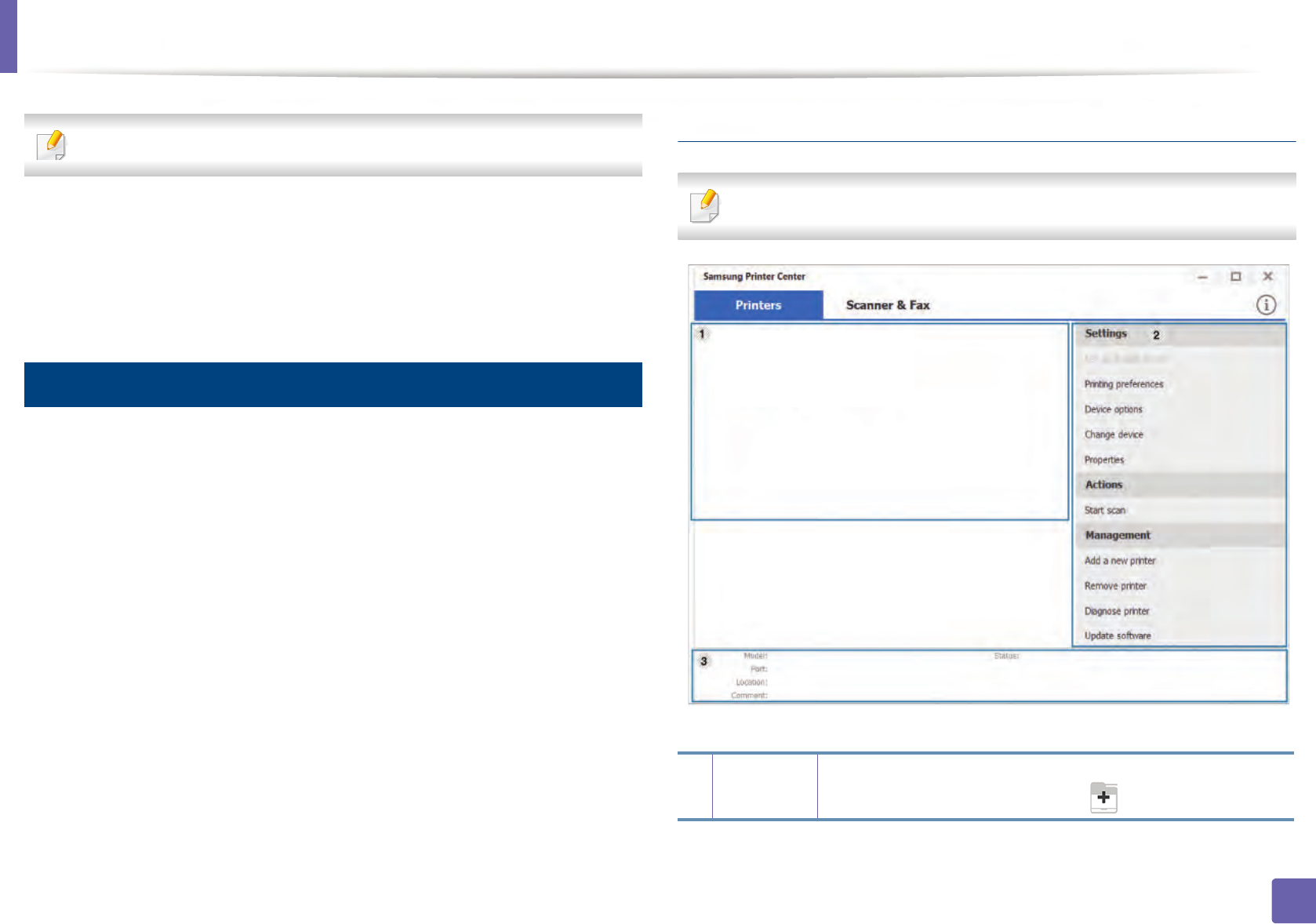
1
Printer list Displays the printer drivers installed on your computer. To add
a printer driver to the list, click the button.
Using Samsung Printer Center
247
5. Useful Management Tools
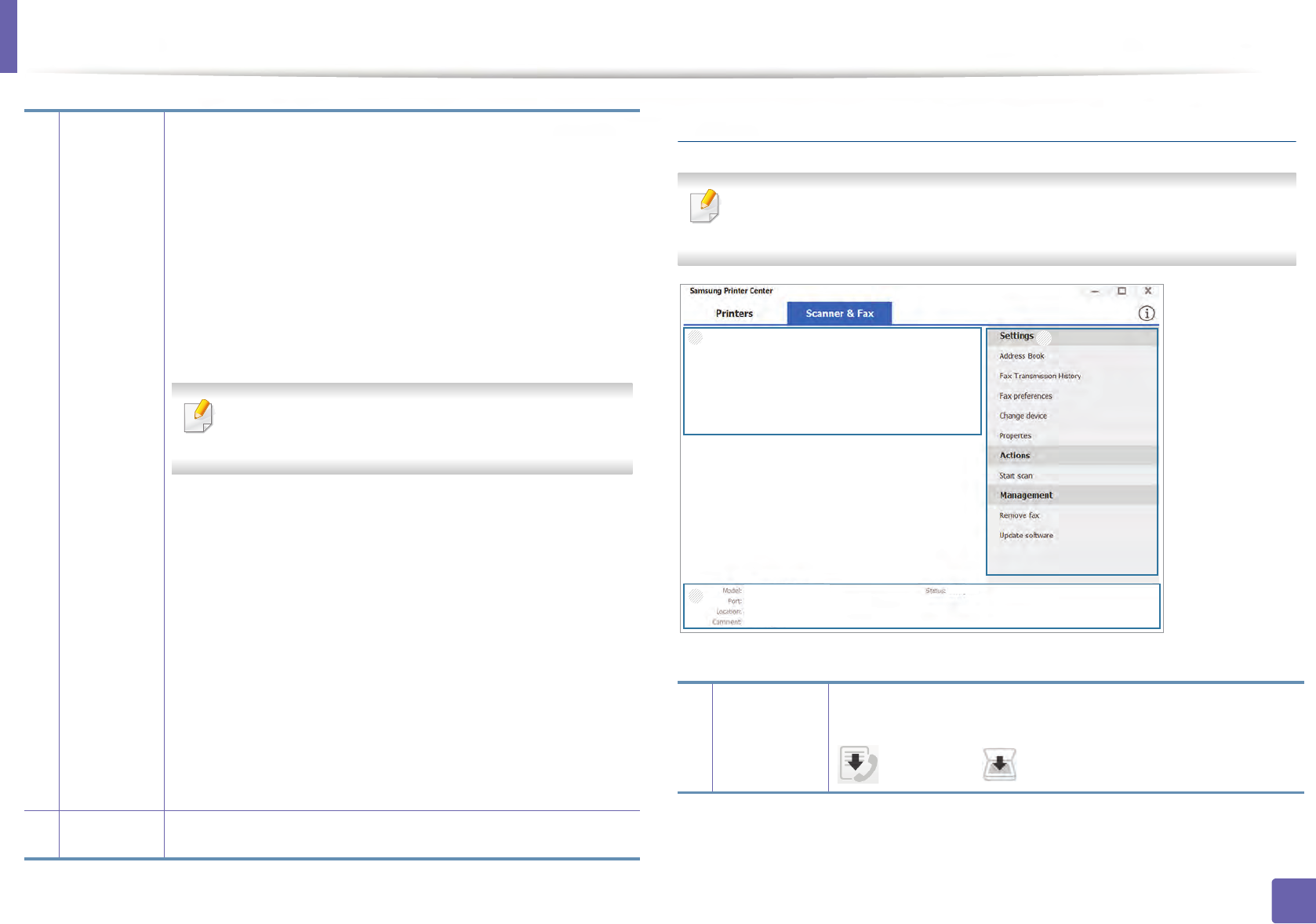
Scanner & Fax Tab
• The screenshot may differ depending on operating system you are using.
• Available for multifunction products only.
2
Quick links
Displays links to various printer driver management functions. The
quick links in the
Printers
tab link to the following functions:
•
Settings:
Allows you to configure the settings for individual
printer driver
.
-
Set as default printer:
Sets the selected printer driver as the
default printer. If the selected printer driver is already set as the
default printer, then this option is not activated.
-
Printing preferences:
Allows you to configure the default
print settings.
-
Device options:
Allows you to configure advanced options,
such as the settings for optional devices and additional
features.
The option allows you to modify the
Printer Status
and
Stylish User Interface
settings.
-
Change device:
Allows you to change the device into another
device.
-
Properties:
Allows you to configure the printer driver
properties, such as the name of the printer driver and its
location, or add comments about the printer driver.
•
Actions:
Allows you to use the scan feature (this option is enabled
only if the selected device supports the scan feature).
•
Management:
Allows you to manage the devices registered in
the program.
-
Add a new printer / Remove printer:
Adds a new device or
removes an existing device.
-
Diagnose printer:
Diagnoses problems in the selected device
and suggests solutions.
-
Update software:
Downloads and applies the applicable
software updates.
3
Printer
information
Provides general information about the selected device, such
as its model, IP address, port number, and status.
1
Printer list Displays the fax and scanner driver installed on your
computer. To add a fax or scanner driver to the list, click the
(Add Fax) or (Add Scanner) button.
12
3
Using Samsung Printer Center
248
5. Useful Management Tools
2
Quick links Displays links to the functions available for managing fax or
scanner drivers. The quick links in the Scanner & Fax tab offer
the following features:
To use this feature, the scanner driver and fax driver
must be installed on the computer.
•Settings: Allows you to configure the settings for fax or
scanner dirvers.
-Address Book (fax only): Opens the Address Book.
-Fax Transmission History (fax only): Opens the fax
transmission history.
-Fax preferences (fax only): Allows you to configure the
default fax settings.
-Change device: Allows you to change the devices into
another device.
-Properties: Allows you to configure the properties of a
device, such as location and add comments about the
device.
•Actions: Allows you to use the scan feature.
•Management: Allows you to manage the devices
registered in the program.
-Remove fax or Remove scan: Removes the selected fax
or scan driver.
-Update software: Downloads and applies the
applicable software updates.
3
Printer
information
Provides general information about the selected device, such
as the model, IP address, port number, and machine status.

249
5. Useful Management Tools
Using SyncThru™ Web Service
• Internet Explorer 6.0 or higher is the minimum requirement for
SyncThru™ Web Service.
•SyncThru™ Web Service explanation in this user’s guide may differ from
your machine depending on its options or models.
• Network model only (see "Variety feature" on page 10).
2
Accessing SyncThru™ Web Service
1Access a web browser, such as Internet Explorer, from Windows.
Enter the machine IP address of your printer (http://xxx.xxx.xxx.xxx) in
the address field and press the Enter key or click Go.
2 Your machine’s embedded website opens.
Logging into SyncThru™ Web Service
Before configuring options in SyncThru™ Web Service, you need to log-in as an
administrator. You can still use SyncThru™ Web Service without logging in but
you won’t have access to Settings tab and Security tab.
1Click Login on the upper right of the SyncThru™ Web Service website.
2 If it’s your first time logging into SyncThru™ Web Service you need to
log-in as an administrator. Type in the below default ID and Password.
We recommend you to change the default password for security
reasons.
•ID: admin
•Password: sec00000
Using SyncThru™ Web Service
250
5. Useful Management Tools
3
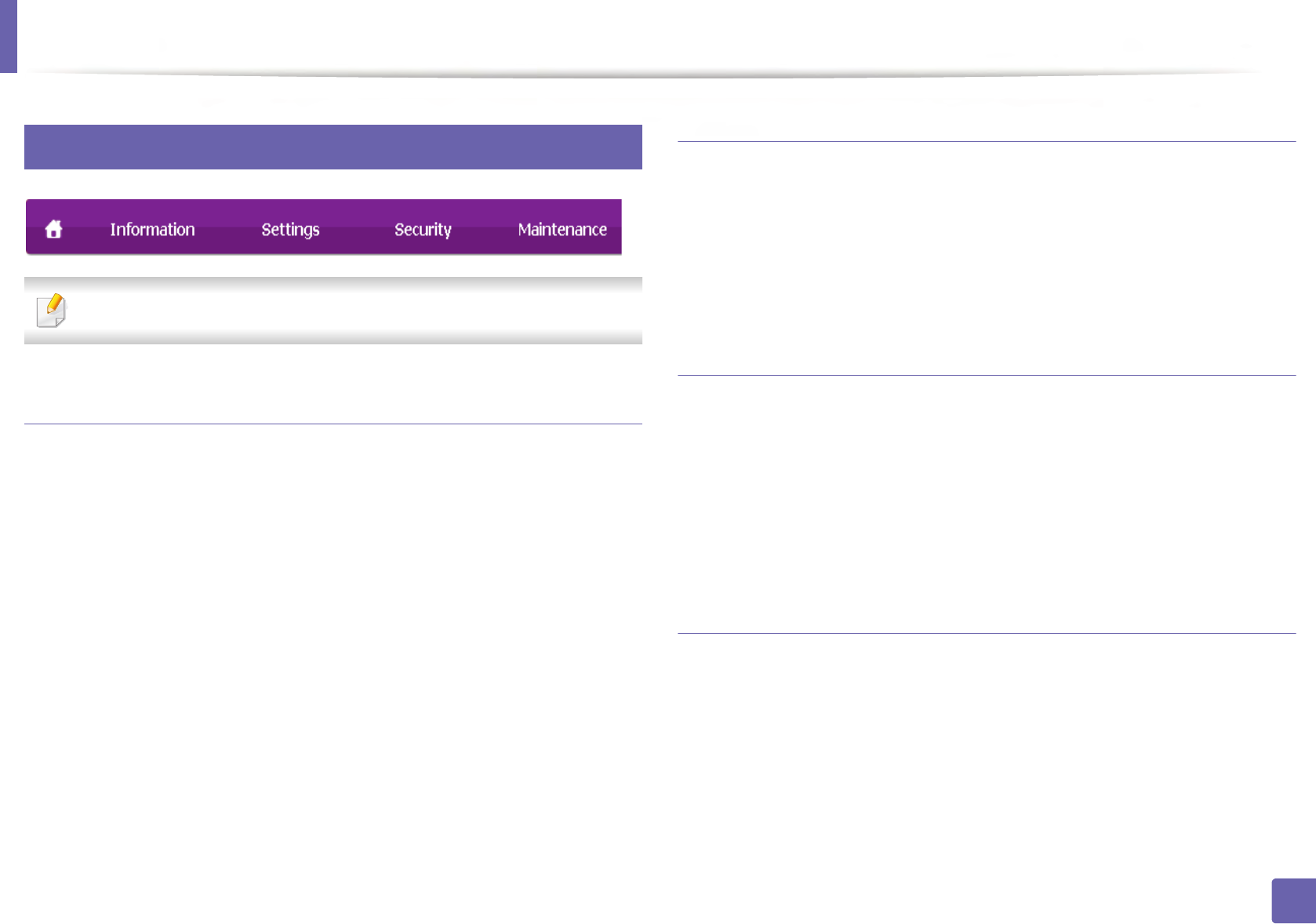
SyncThru™ Web Service overview
Some tabs may not appear depending on your model.
Information tab
This tab gives you general information about your machine. You can check
things, such as remaining amount of toner. You can also print reports, such as an
error report.
•Active Alerts: Shows the alerts that have occurred in the machine and their
severity.
•Supplies: Shows how many pages are printed and amount of toner left in
the cartridge.
•Usage Counters: Shows the usage count by print types: simplex and
duplex.
•Current Settings: Shows the machine’s and network’s information.
•Print information: Prints reports such as system related reports, e-mail
address, and font reports.
Settings tab
This tab allows you to set configurations provided by your machine and
network. You need to log-in as an administrator to view this tab.
•Machine Settings tab: Sets options provided by your machine.
•Network Settings tab: Shows options for the network environment. Sets
options such as TCP/IP and network protocols.
Security tab
This tab allows you to set system and network security information. You need to
log-in as an administrator to view this tab.
•System Security: Sets the system administrator’s information and also
enables or disables machine features.
•Network Security: Sets settings for IPv4/IPv6 filtering and Authentication
servers.
Maintenance tab
This tab allows you to maintain your machine by upgrading firmware and
setting contact information for sending emails. You can also connect to
Samsung website or download drivers by selecting the Link menu.
•Firmware Upgrade: Upgrade your machine’s firmware.
•Contact Information: Shows the contact information.
•Link: Shows links to useful sites where you can download or check
information.
Using SyncThru™ Web Service
251
5. Useful Management Tools
4
Setting the system administrator’s information
This setting is necessary for using the e-mail notification option.
Some menus may not appear in the display depending on options or
models. If so, it is not applicable to your machine.
1Start a web browser, such as Internet Explorer, from Windows.
Enter the machine IP address (http://xxx.xxx.xxx.xxx) in the address field
and press the Enter key or click Go.
2 Your machine’s embedded website opens.
3 From the Security tab, select System Security > System Administrator
4 Enter the name of the administrator, phone number, location, and email
address.
5 Click Apply.
252
5. Useful Management Tools
Using Samsung Easy Printer Manager
• Available for Windows and Mac OS users only.
• For Windows, Internet Explorer 6.0 or higher is the minimum
requirement for Samsung Easy Printer Manager.
Samsung Easy Printer Manager is an application that combines Samsung
machine settings into one location. Samsung Easy Printer Manager combines
device settings as well as printing environments, settings/actions and
launching. All of these features provide a gateway to conveniently use your
Samsung machine. Samsung Easy Printer Manager provides two different user
interfaces for the user to choose from: the basic user interface and the advanced
user interface. Switching between the two interfaces is easy: just click a button.
5
Understanding Samsung Easy Printer Manager
To open the program:
For Windows,
Select Start > Programs or All Programs > Samsung Printers > Samsung
Easy Printer Manager.
For Mac,
Open the Applications folder > Samsung folder > Samsung Easy Printer
Manager.
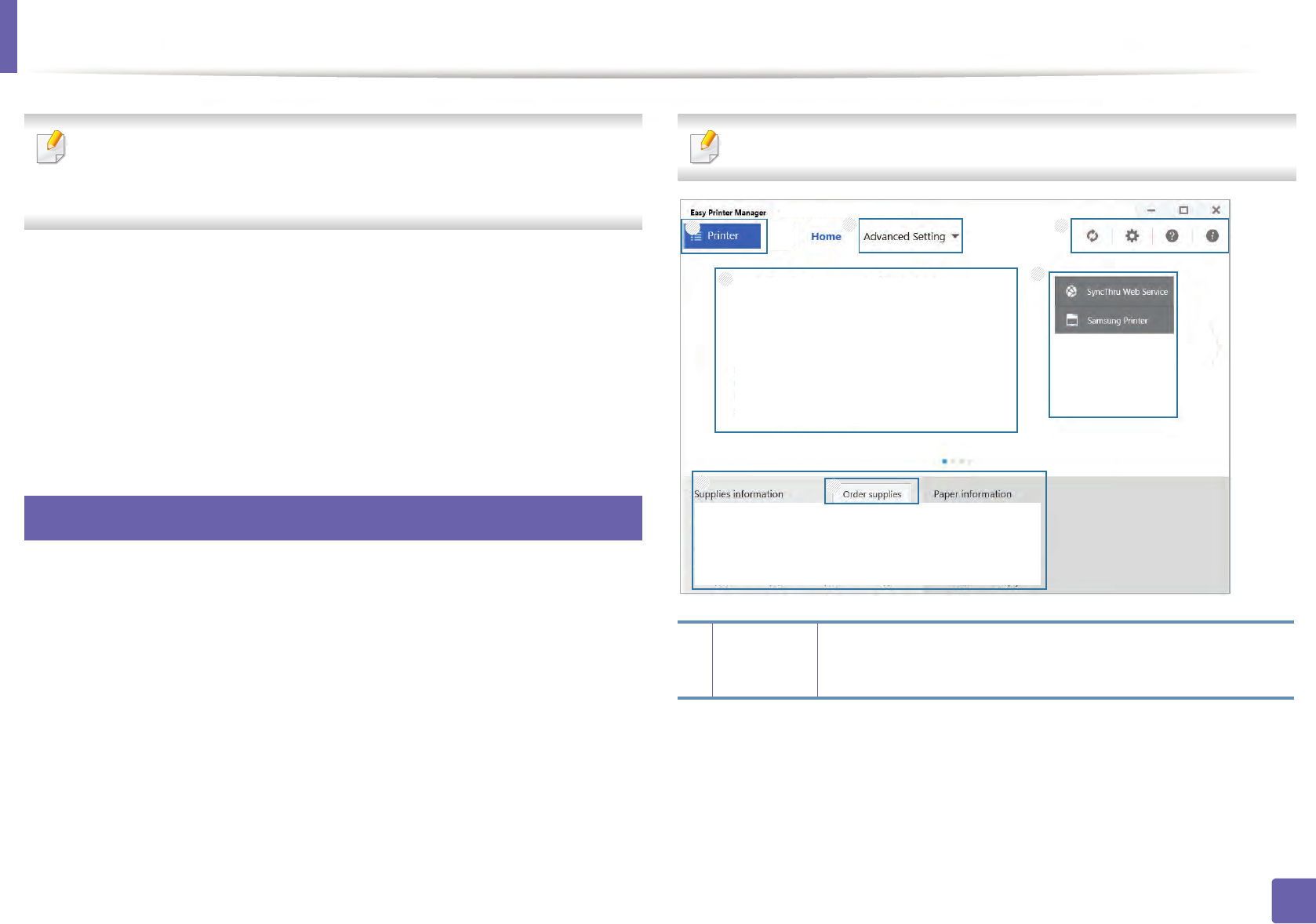
The Samsung Easy Printer Manager interface is comprised of various basic
sections as described in the table that follows:
The screenshot may differ depending on operating system you are using.
1
Printer list The Printer list displays printers installed on your computer
and network printers added by network discovery (Windows
only).
1
5
6
4
3
2
7
Using Samsung Easy Printer Manager
253
5. Useful Management Tools
Select the Help menu or click the button from the window and click on
any option you want to know about.
2Advanced
Setting
The advanced user interface is intended to be used by the
person responsible for managing the network and
machines.
Some menus may not appear in the display
depending on options or models. If so, it is not
applicable to your machine.
•Device Settings: You can configure various machine
settings such as machine setup, paper, layout,
emulation, network, and print information.
If you connect your machine to a network, the
SyncThru™ Web Service icon is enabled.
•Scan to PC Settings: This menu includes settings to create
or delete scan to PC profiles.
-Scan Activation: Determines whether or not scanning
is enabled on the device.
-Basic tab: Contains settings related general scan and
device settings.
•Alert Settings (Windows only): This menu includes
settings related to error alerting.
-Printer Alert: Provides settings related to when alerts
will be received.
-Email Alert: Provides options relating to receiving alerts
via email.
-Alert History: Provides a history of device and toner
related alerts.
3
Application
information
Includes links for changing to the refresh, preference setting,
help, and about.
4
Printer
information
This area gives you general information about your machine.
You can check information, such as the machine’s model
name, IP address (or Port name), and machine status.
This button opens the Troubleshooting Guide when
an error occurs. You can directly open the
troubleshooting section in the user’s guide.
5
Quick links Displays Quick links to machine specific functions. This
section also includes links to applications in the advanced
settings.
If you connect your machine to a network, the
SyncThru™ Web Service icon is enabled.
6
Contents
area
Displays information about the selected machine, remaining
toner level, and paper. The information will vary based on the
machine selected. Some machines do not have this feature.
7Order
supplies
Click on the Order button from the supply ordering window.
You can order replacement toner cartridge(s) from online.
254
5. Useful Management Tools
Using Samsung Easy Document Creator
• Available for Windows and Mac OS users only.
•Windows
® XP Service Pack 3 or higher and Internet Explorer 6.0 or higher
is the minimum requirement for Samsung Easy Document Creator.
Samsung Easy Document Creator is an application to help users scan, compile,
and save documents in multiple formats, including .epub format. These
documents can be shared via social networking sites or fax. Whether you’re a
student needing to organize research from the library or a stay-at-home mom
sharing scanned pictures from last year’s birthday party, Samsung Easy
Document Creator will provide you with the necessary tools.
The Samsung Easy Document Creator provides features mentioned below:
•Scan: Use for scanning pictures or documents.
•Text Converting Scan(Windows only): Use for scanning documents that
need to be saved in an editable text format.
•Document Conversion: Provides the ability to convert existing files into
multiple formats.
•Fax: Provides the ability to directly fax a document from Easy Document
Creator if the Samsung network PC fax driver is installed.
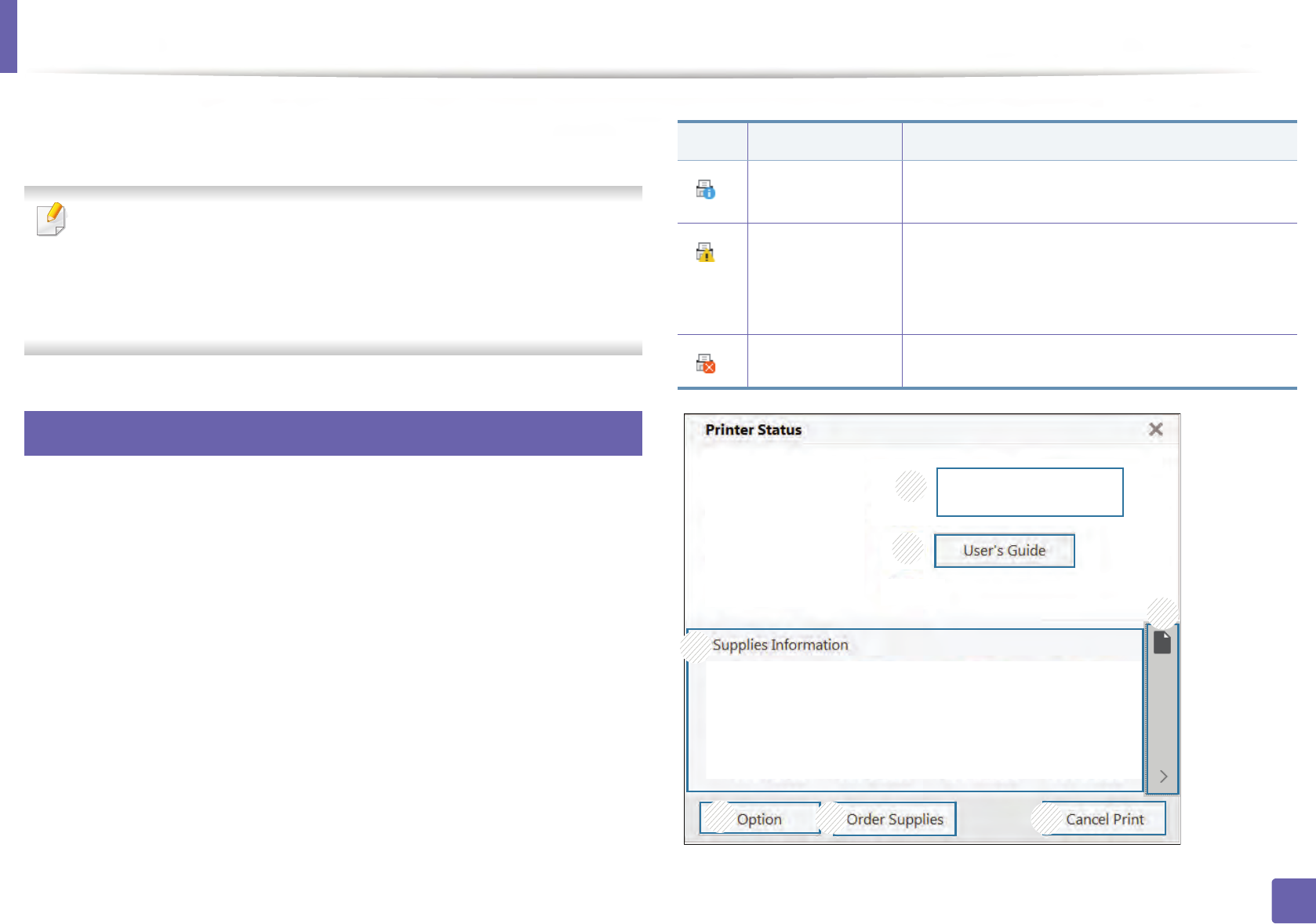
255
5. Useful Management Tools
Using Samsung Printer Status
The Samsung Printer Status is a program that monitors and informs you of the
machine status.
• The Samsung Printer Status window and its contents shown in this user’s
guide may differ depending on the machine or operating system in use.
• Check the operating system(s) that are compatible with your machine
(see "Specifications" on page 111).
• Available for Windows OS users only (see "Software" on page 8).
6
Samsung Printer Status overview
If an error occurs while operating, you can check the error from the Samsung
Printer Status. Samsung Printer Status is installed automatically when you install
the machine software.
You can also launch Samsung Printer Status manually. Go to the Printing
Preferences, click the Basic tab > Printer Status button.
These icons appear on the Windows task bar:
Icon Mean Description
Normal The machine is in ready mode and experiencing no
errors or warnings.
Warning The machine is in a state where an error might
occur in the future. For example, it might be in
toner low status, which may lead to toner empty
status.
Error The machine has at least one error.
1
3
2
7
456
Using Samsung Printer Status
256
5. Useful Management Tools
1
Device
Information
You can see the device status , current printer model
name, connected port name in this area.
2
User’s Guide You can view the online User’s Guide.
This button opens the Troubleshooting Guide
when an error occurs. You can directly open the
troubleshooting section in the user’s guide.
3
Supplies
Information
You can view the percentage of toner remaining in
each toner cartridge. The machine and the number of
toner cartridge(s) shown in the above window may
differ depending on the machine in use. Some
machines do not have this feature.
4
Option You can set printing job alert related settings.
5
Order Supplies You can order replacement toner cartridge(s) from
online.
6
Cancel Print
or
Close
•Cancel Print : If print job is waiting in the print
queue or printer, cancel all user's print jobs in the
print queue or the printer.
•Close : Depending on the status of the machine or
the supported functions, the Close button may
appear to close the status window.
7Toner/Paper
Information
This button areas for paper and toner info will be
available based on the device.
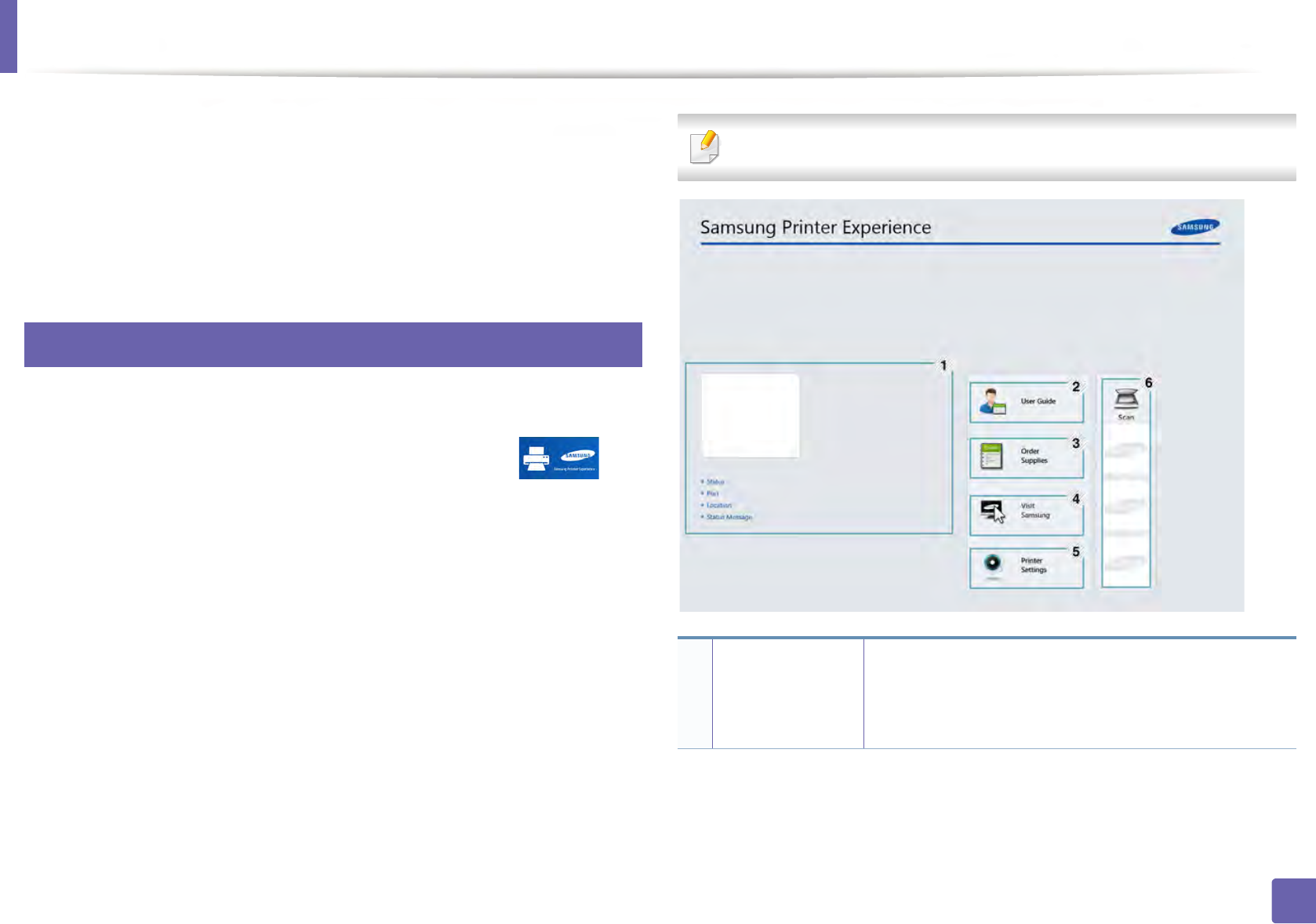
257
5. Useful Management Tools
Using Samsung Printer Experience
Samsung Printer Experience is a Samsung application that combines
Samsung machine settings and machine management into one location. You
can set device settings, order supplies, open troubleshooting guides, visit
Samsung’s web site, and check connected machine information. This
application will be automatically downloaded from the Windows Store if the
machine is connected to a computer with an Internet connection.
7
Understanding the Samsung Printer Experience
To open the application,
From the Start screen, select the Samsung Printer Experience () tile.
The Samsung Printer Experience interface comprises various useful features as
described in the following table:
The screenshot may differ depending on the model you are using.
1
Printer
Information
This area gives you general information about your
machine. You can check information, such as the
machine’s status, location, IP address, and remaining
toner level.
Using Samsung Printer Experience
258
5. Useful Management Tools
8
Adding/Deleting Printers
If you do not have any printer added to the Samsung Printer Experience, or if
you want to add/delete a printer, follow the instructions below.
You can only add/delete network connected printers.
Adding a printer
1From the Charms, select Settings.
Or, right-click the Samsung Printer Experience page and select
Settings.
2 Select Add Printer
3 Select the printer you want to add.
You can see the added printer.
If you see mark, you can also click mark to add printers.
2User Guide You can view the online User’s Guide. You need to be
connected to the Internet to use this feature.
This button opens the Troubleshooting Guide
when an error occurs. You can directly open the
troubleshooting section in the user’s guide.
3
Order
Supplies
Click on this button to order replacement toner
cartridges online. You need to be connected to the
Internet to use this feature.
4Visit Samsung Links to Samsung printer website. You need to be
connected to the Internet to use this feature.
5
Printer Settings You can configure various machine settings such as
machine setup, paper, layout, emulation, networking,
and print information through SyncThru™ Web
Service. Your machine needs to be connected to a
network. This button will be disabled if your machine is
connected via USB cable.
6
Device List &
Latest Scanned
Image
The scan list displays devices that supports Samsung
Printer Experience. Under the device, you can see the
latest scanned images. Your machine needs to be
connected to a network to scan from here.
This section is for the users with multi-functional
printers.
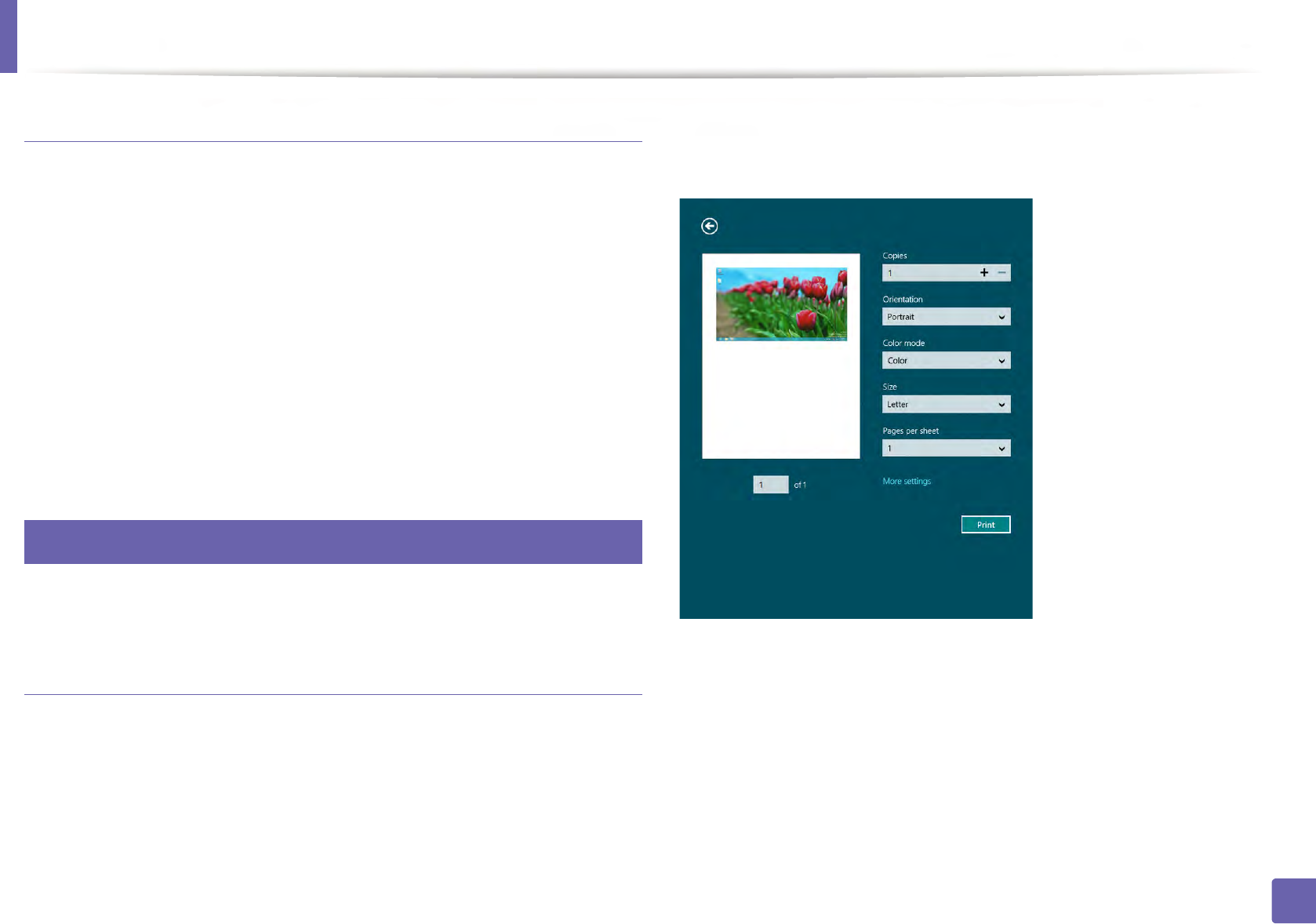
Using Samsung Printer Experience
259
5. Useful Management Tools
Deleting a printer
1From the Charms, select Settings.
Or, right-click the Samsung Printer Experience page and select
Settings.
2 Select Remove Printer.
3 Select the printer you want to delete.
4 Click Yes.
You can see that the deleted printer is removed from the screen.
9
Printing from Windows 8
This section explains common printing tasks from the Start screen.
Basic printing
1Open the document to print.
2 From the Charms, select Devices.
3 Select your printer from the list
4 Select the printer settings, such as the number of copies and orientation.
5 Click the Print button to start the print job.
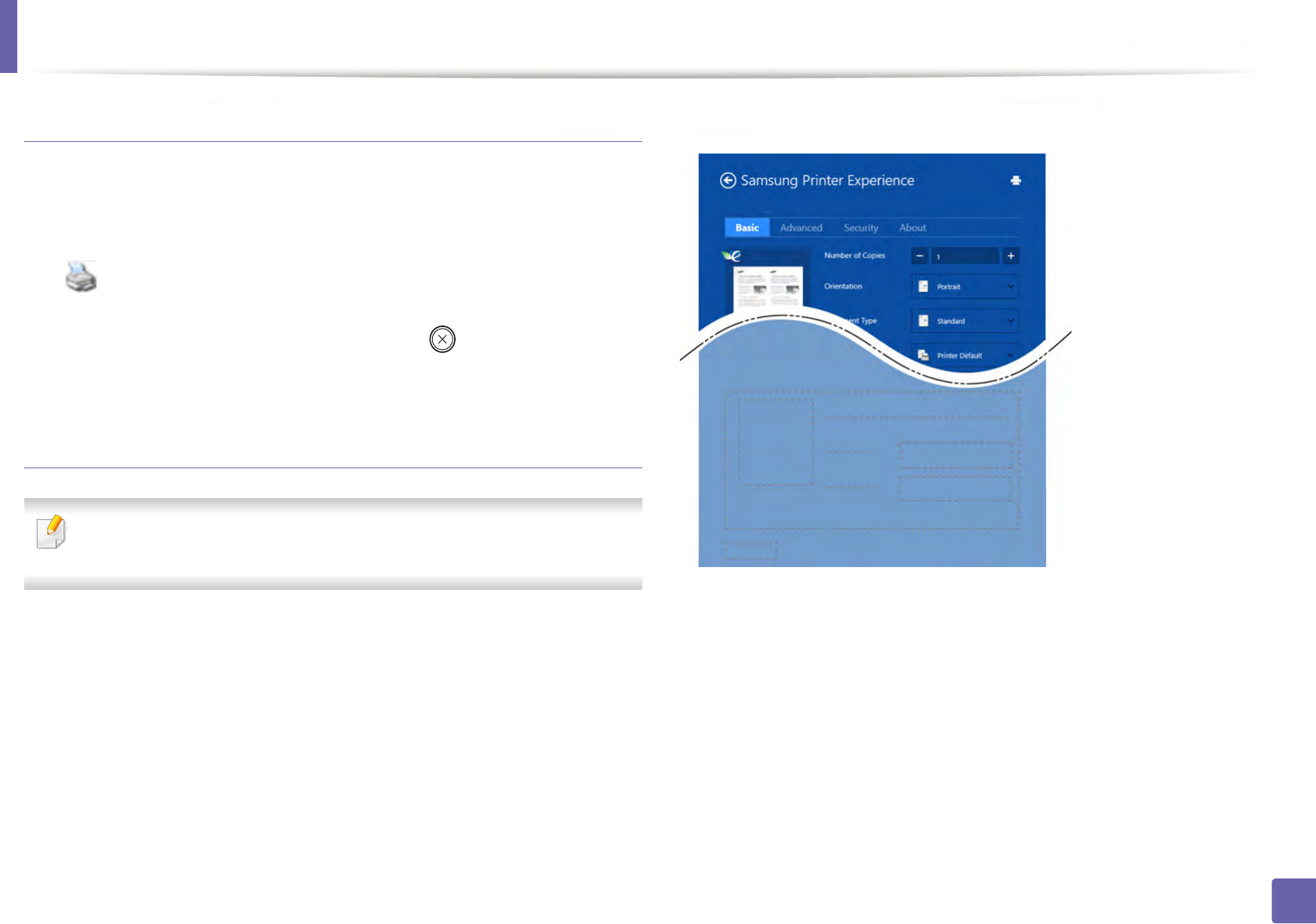
Using Samsung Printer Experience
260
5. Useful Management Tools
Cancelling a print job
If the printing job is waiting in the print queue or print spooler, cancel the job as
follows:
• You can access this window by simply double-clicking the machine icon
( ) in the Windows task bar.
• You can also cancel the current job by pressing (Cancel or Stop/Clear)
button on the control panel.
Opening more settings
The screen may appear somewhat different depending on the model or
options.
You can set up more printing parameters.
1Open the document you want to print.
2 From the Charms, select Devices.
3 Select your printer from the list
4 Click More settings.
Basic tab
Basic
This option allows you to choose the basic printing settings such as copies,
orientation, and document type.
Eco settings
This option allows you to choose multiple pages per side to save media.
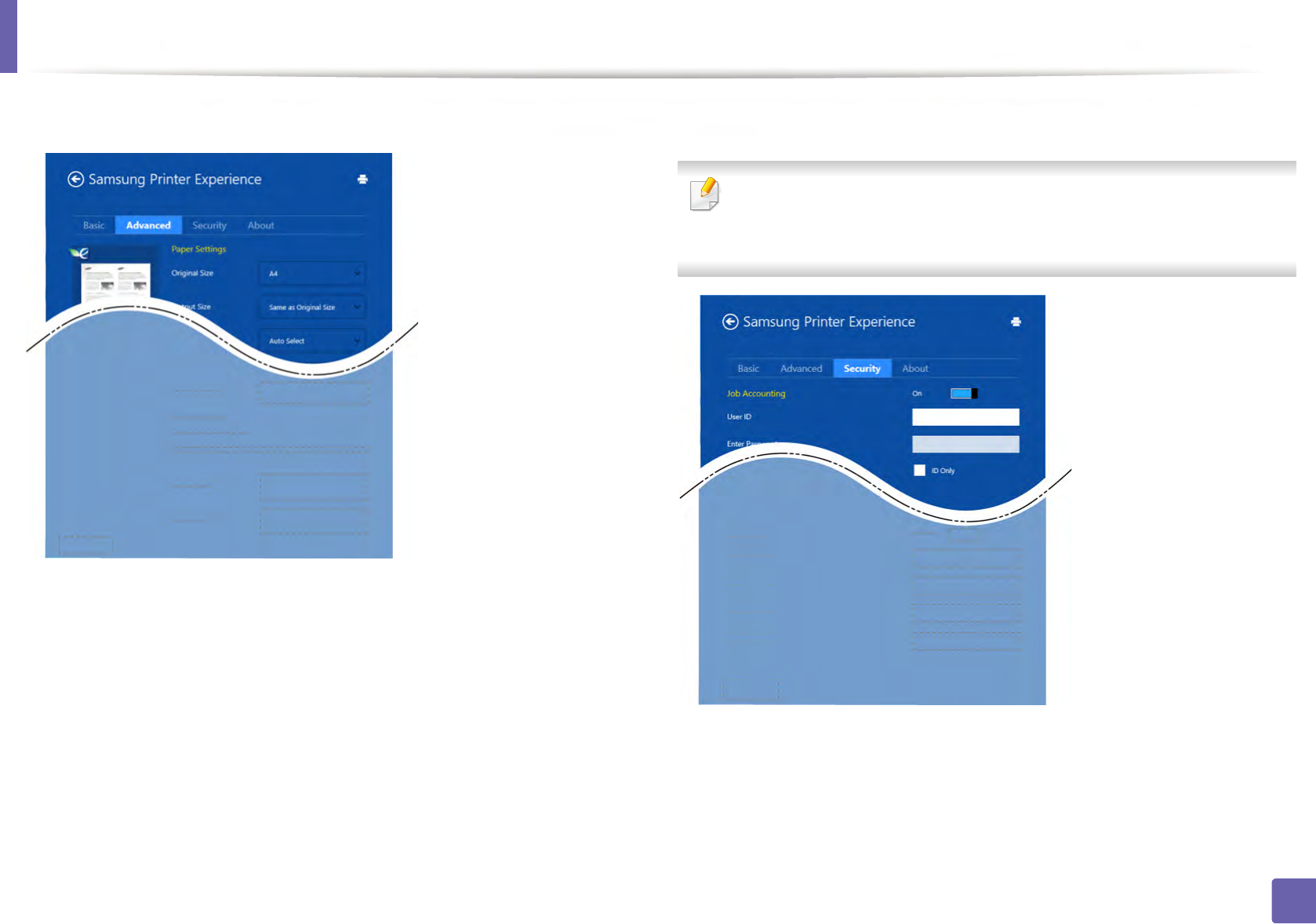
Using Samsung Printer Experience
261
5. Useful Management Tools
Advanced tab
Paper settings
This option allows you to set the basic paper handling specifications.
Layout settings
This option allows you to set the various ways to layout your documents.
Security tab
Some features may not be available depending on the model or options. If
this tab is not shown or disabled, it means that these features are not
supported.
Job Accounting
This option allows you to print with the given permission.
Confidential Printing
Using Samsung Printer Experience
262
5. Useful Management Tools
This option is used for printing confidential documents. You need to enter a
password to print using it.
Using the sharing feature
Samsung Printer Experience allows you to print from other applications
installed on the computer using the sharing feature.
This feature is only available for printing jpeg, bmp, tiff, gif, and png file
formats.
1Select the content you want to print from other application.
2 From the Charms, select Share > Samsung Printer Experience.
3 Select the printer settings, such as the number of copies and orientation.
4 Click the Print button to start the print job.
10
Scanning from Windows 8
This section is for the users with multi-functional printers.
Scanning with your machine lets you turn pictures and text into digital files that
can be stored on your computer.
Scanning from Samsung Printer Experience
The most frequently used printing menus are displayed for quick scanning.
1Place a single document face down on the document glass, or load the
documents face up into the document feeder.
2 Click the Samsung Printer Experience tile on the Start screen.
3 Click Scan ().
4 Set up the scanning parameters such as image type, document size, and
resolution.
5 Click Prescan ( ) to check the image.
6 Adjust the prescanned image with scanning operation functions such as
rotate and mirror.
7 Click Scan ( ) and save the image.
Using Samsung Printer Experience
263
5. Useful Management Tools
• When you place the originals in the ADF (or DADF), Prescan ( ) is not
available.
• You can skip step 5, if the Prescan option is selected.
6. Troubleshooting
This chapter gives helpful information for what to do if you encounter an error.
• Paper feeding problems 265
• Power and cable connecting problems 266
• Printing problems 267
• Printing quality problems 271
• Copying problems 279
• Scanning problems 280
• Faxing problems 281
• Operating system problems 283
For errors that occur during the wireless software installation and settings, refer to the
troubleshotting section in the wireless setting chapter (see "Troubleshooting for wireless
network" on page 168).

265
6. Troubleshooting
Paper feeding problems
Condition Suggested solutions
Paper jams during printing. Clear the paper jam.
Paper sticks together. • Check the maximum paper capacity of the tray.
• Make sure that you are using the correct type of paper.
• Remove paper from the tray and flex or fan the paper.
• Humid conditions may cause some paper to stick together.
Multiple sheets of paper do not feed. Different types of paper may be stacked in the tray. Load paper of only one type, size, and weight.
Paper does not feed into the machine. • Remove any obstructions from inside the machine.
• Paper has not been loaded correctly. Remove paper from the tray and reload it correctly.
• There is too much paper in the tray. Remove excess paper from the tray.
• The paper is too thick. Use only paper that meets the specifications required by the machine.
The paper keeps jamming. • There is too much paper in the tray. Remove excess paper from the tray. If you are printing on special materials, use the
manual feeding in tray.
• An incorrect type of paper is being used. Use only paper that meets the specifications required by the machine.
• There may be debris inside the machine. Open the front cover and remove any debris.
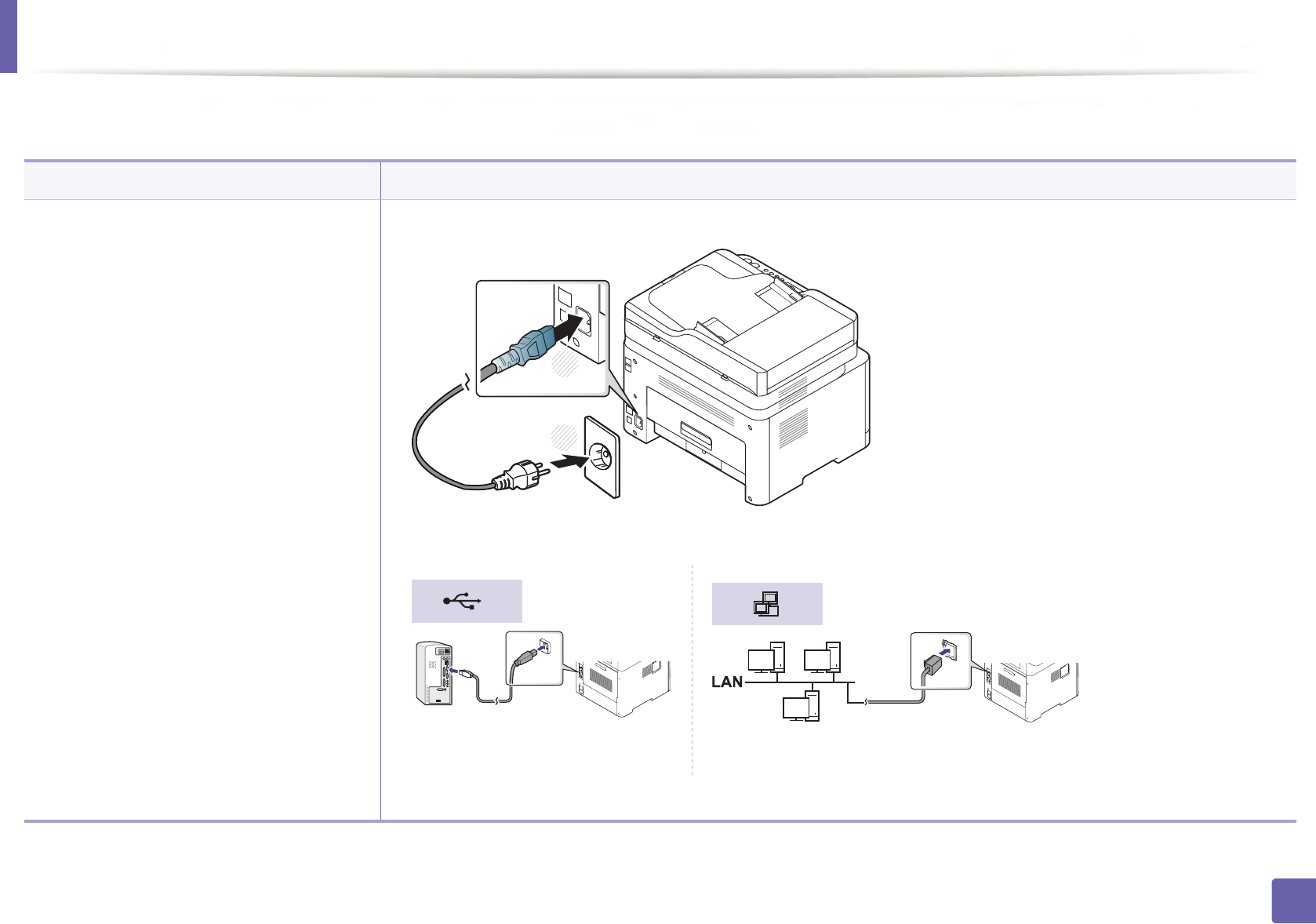
266
6. Troubleshooting
Power and cable connecting problems
Reboot the power. If the problem persists, please call for service.
Condition Suggested solutions
The machine is not receiving power,
or the connection cable between the
computer and the machine is not
connected properly.
1 Connect the machine to the electricity supply first.
2 Check the USB cable or network cable in the machine’s rear.
3 Disconnect the USB cable or network cable in the machine’s rear and then, reconnect it.
2
1
267
6. Troubleshooting
Printing problems
Condition Possible cause Suggested solutions
The machine does not
print.
The machine is not receiving power. Connect the machine to the electricity supply first. If the machine has a (Power/
Wake Up) button on the control, press it.
The machine is not selected as the default
machine.
Select your machine as your default machine in Windows.
Check the machine for the following:
• The cover is not closed. Close the cover.
• Paper is jammed. Clear the paper jam (see "Clearing paper jams" on page 95).
• No paper is loaded. Load paper (see "Loading paper in the tray" on page 40).
• The toner cartridge is not installed. Install the toner cartridge (see "Replacing the toner cartridge" on page 80).
• Make sure the protect cover and sheets are removed from the toner cartridge (see "Replacing the toner cartridge" on page 80).
If a system error occurs, contact your service representative.
The connection cable between the computer and
the machine is not connected properly.
Disconnect the machine cable and reconnect it (see "Rear view" on page 23).
The connection cable between the computer and
the machine is defective.
If possible, attach the cable to another computer that is working properly and print a job.
You can also try using a different machine cable.
The port setting is incorrect. Check the Windows printer settings to make sure that the print job is sent to the correct
port. If the computer has more than one port, make sure that the machine is attached to
the correct one.

Printing problems
268
6. Troubleshooting
The machine does not
print.
The machine may be configured incorrectly. Check the Printing Preferences to ensure that all of the print settings are correct.
The printer driver may be incorrectly installed. Uninstall and reinstall the machine’s driver.
The machine is malfunctioning. Check the display message on the control panel to see if the machine is indicating a
system error. Contact a service representative.
The document size is so big that the hard disk
space of the computer is insufficient to access the
print job.
Get more hard disk space and print the document again.
The output tray is full. Once the paper is removed from the output tray, the machine resumes printing.
The machine selects print
materials from the wrong
paper source.
The paper option that was selected in the
Printing Preferences may be incorrect.
For many software applications, the paper source selection is found under the Paper tab
within the Printing Preferences (see "Opening printing preferences" on page 54).
Select the correct paper source. See the printer driver help screen (see "Using help" on
page 55).
A print job is extremely
slow.
The job may be very complex. Reduce the complexity of the page or try adjusting the print quality settings.
Half the page is blank. The page orientation setting may be incorrect. Change the page orientation in your application (see "Opening printing preferences" on
page 54). See the printer driver help screen (see "Using help" on page 55).
The paper size and the paper size settings do not
match.
Ensure that the paper size in the printer driver settings matches the paper in the tray.
Or, ensure that the paper size in the printer driver settings matches the paper selection
in the software application settings you use (see "Opening printing preferences" on
page 54).
The machine prints, but
the text is wrong,
garbled, or incomplete.
The machine cable is loose or defective. Disconnect the machine cable and reconnect. Try a print job that you have already
printed successfully. If possible, attach the cable and the machine to another computer
that you know works and try a print job. Finally, try a new machine cable.
Condition Possible cause Suggested solutions
Printing problems
269
6. Troubleshooting
The wrong printer driver was selected. Check the application’s printer selection menu to ensure that your machine is selected.
The software application is malfunctioning. Try printing a job from another application.
The operating system is malfunctioning. Exit Windows and reboot the computer. Turn the machine off and back on again.
Pages print, but they are
blank.
The toner cartridge is defective or out of toner. Redistribute the toner, if necessary.
If necessary, replace the toner cartridge.
• See "Redistributing toner" on page 78.
• See "Replacing the toner cartridge" on page 80.
The file may have blank pages. Check the file to ensure that it does not contain blank pages.
Some parts, such as the controller or the board,
may be defective.
Contact a service representative.
The machine does not
print PDF files correctly.
Some parts of graphics,
text, or illustrations are
missing.
Incompatibility between the PDF file and the
Acrobat products.
Printing the PDF file as an image may enable the file to print. Turn on Print As Image
from the Acrobat printing options.
It will take longer to print when you print a PDF file as an image.
The print quality of
photos is not good.
Images are not clear.
The resolution of the photo is very low. Reduce the photo size. If you increase the photo size in the software application, the
resolution will be reduced.
Before printing, the
machine emits vapor near
the output tray.
Using damp paper can cause vapor during
printing.
This is not a problem. Just keep printing.
Condition Possible cause Suggested solutions
Printing problems
270
6. Troubleshooting
The machine does not
print special-sized paper,
such as billing paper.
Paper size and paper size setting do not match. Set the correct paper size in the Custom in Paper tab in Printing Preferences (see
"Opening printing preferences" on page 54).
The printed billing paper
is curled.
The paper type setting does not match. Change the printer option and try again. Go to Printing Preferences, click Paper tab,
and set type to Thick (see "Opening printing preferences" on page 54).
Condition Possible cause Suggested solutions
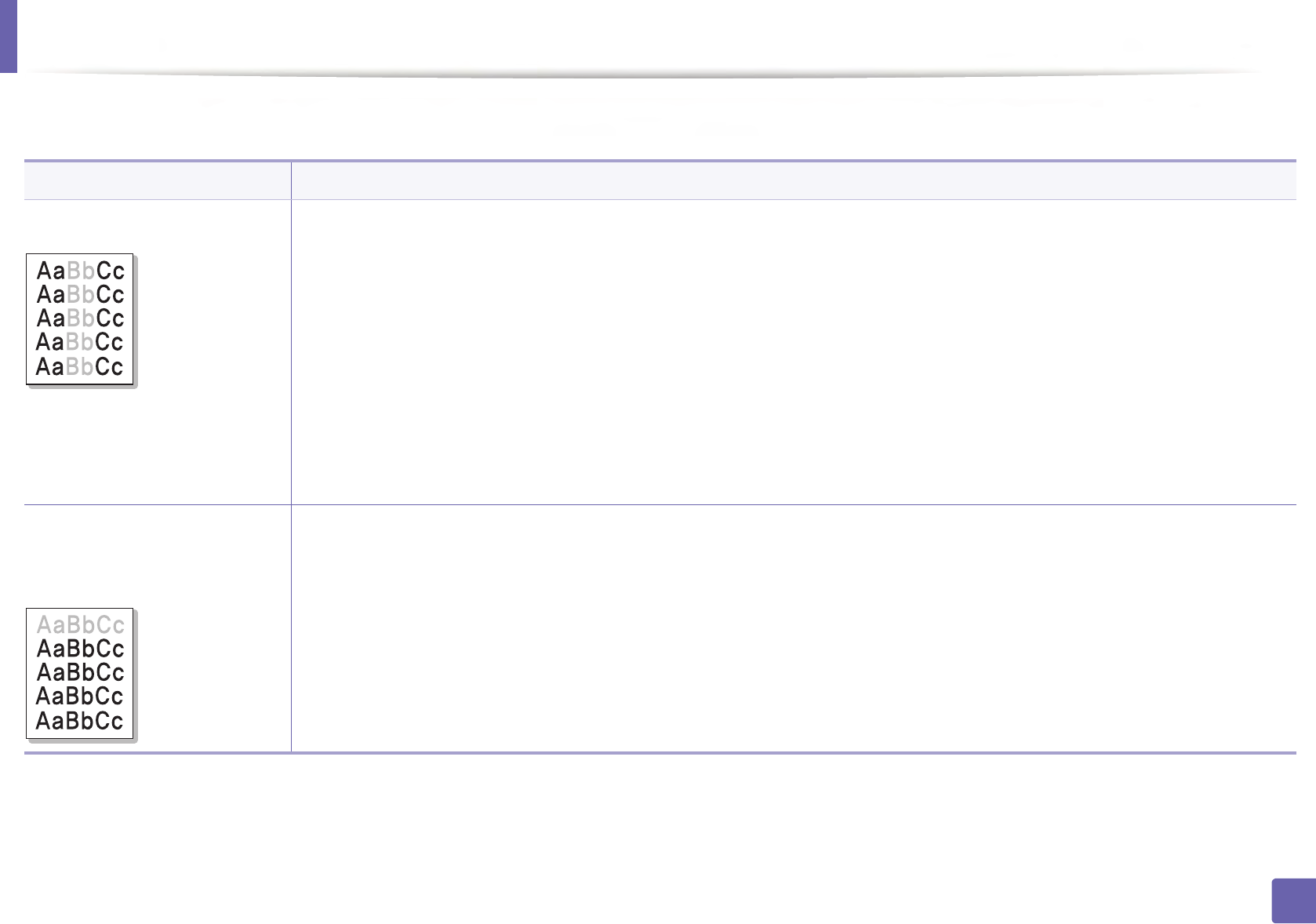
271
6. Troubleshooting
Printing quality problems
If the inside of the machine is dirty or paper has been loaded improperly, there might be a reduction in print quality. See the table below to clear the problem.
Condition Suggested solutions
Light or faded print • If a vertical white streak or faded area appears on the page, the toner supply is low. Install a new toner cartridge (see "Replacing the
toner cartridge" on page 80).
• If a vertical white streak or faded area still appears on the page even though the machine has enough toner supply, open and close
the front door 3 ~ 4 times (see "Machine overview" on page 20).
• The paper may not meet paper specifications; for example, the paper may be too moist or rough.
• If the entire page is light, the print resolution setting is too low or the toner save mode is on. Adjust the print resolution and turn
the toner save mode off. See the help screen of the printer driver.
• A combination of faded or smeared defects may indicate that the toner cartridge needs cleaning. Clean the inside of your machine
(see "Cleaning the machine" on page 88).
• The surface of the LSU part inside the machine may be dirty. Clean the inside of your machine (see "Cleaning the machine" on page
88). If these steps do not correct the problem, contact a service representative.
The top half of the paper is
printed lighter than the rest of
the paper
The toner might not adhere properly to this type of paper.
• Change the printer option and try again. Go to Printing Preferences, click the Paper tab, and set the paper type to Recycled (see
"Opening printing preferences" on page 54).
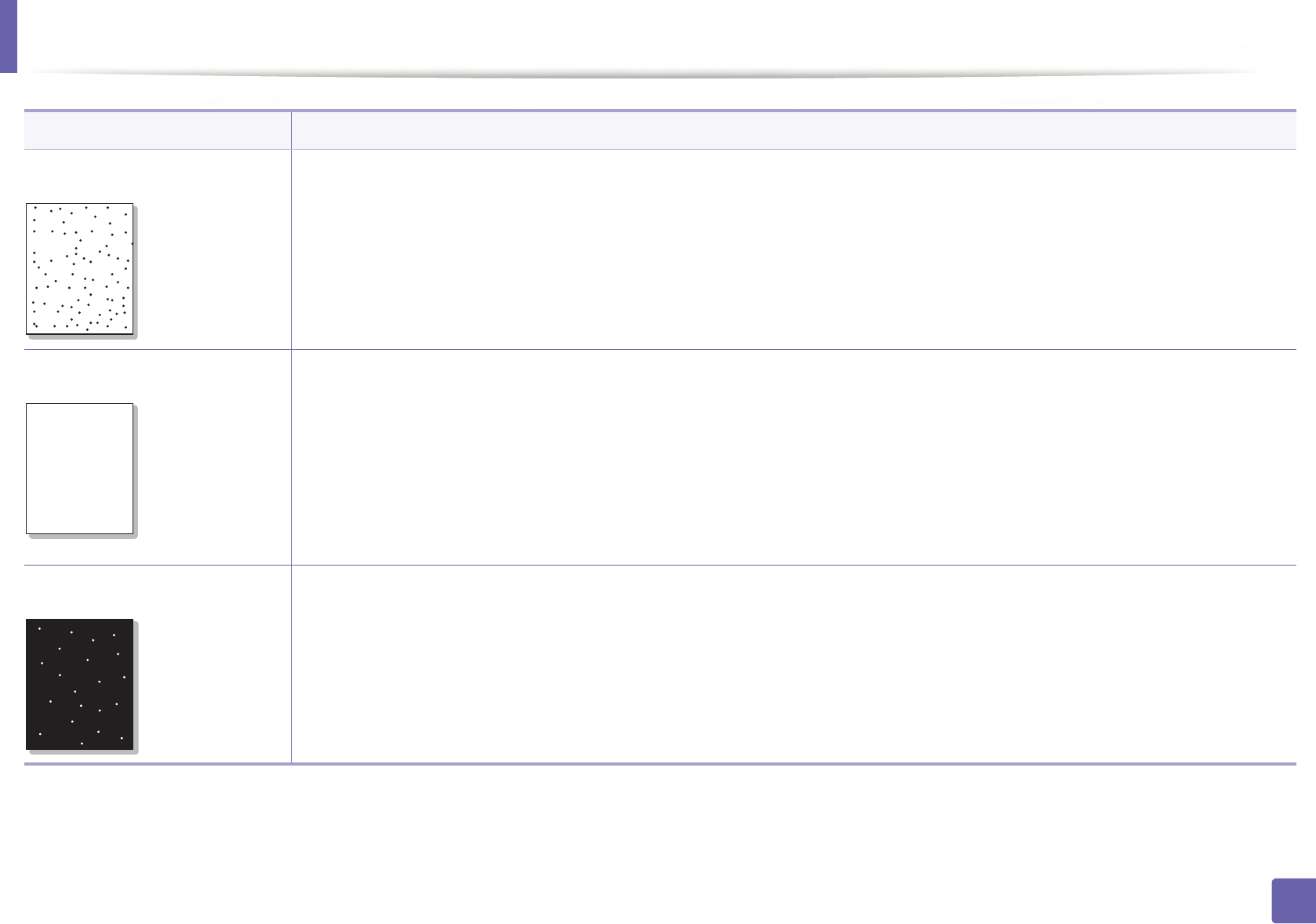
Printing quality problems
272
6. Troubleshooting
Toner specks • The paper may not meet specifications; for example, the paper may be too moist or rough.
• The transfer roller may be dirty. Clean the inside of your machine (see "Cleaning the machine" on page 88).
• The paper path may need cleaning. Contact a service representative (see "Cleaning the machine" on page 88).
Dropouts If faded areas, generally rounded, occur randomly on the page:
• A single sheet of paper may be defective. Try reprinting the job.
• The moisture content of the paper is uneven or the paper has moist spots on its surface. Try a different brand of paper.
• The paper lot is bad. The manufacturing processes can cause some areas to reject toner. Try a different kind or brand of paper.
• Change the printer option and try again. Go to Printing Preferences, click the Paper tab, and set type to Thick (see "Opening
printing preferences" on page 54).
If these steps do not correct the problem, contact a service representative.
White Spots If white spots appear on the page:
• The paper is too rough and a lot of dirt from paper falls to the inner components within the machine, so the transfer roller may be
dirty. Clean the inside of your machine (see "Cleaning the machine" on page 88).
• The paper path may need cleaning. Clean the inside of your machine (see "Cleaning the machine" on page 88).
If these steps do not correct the problem, contact a service representative.
Condition Suggested solutions
AaBbCc
AaBbCc
AaBbCc
AaBbCc
AaBbCc
AaBbC
AaBbC
AaBbC
AaBbC
AaBbC
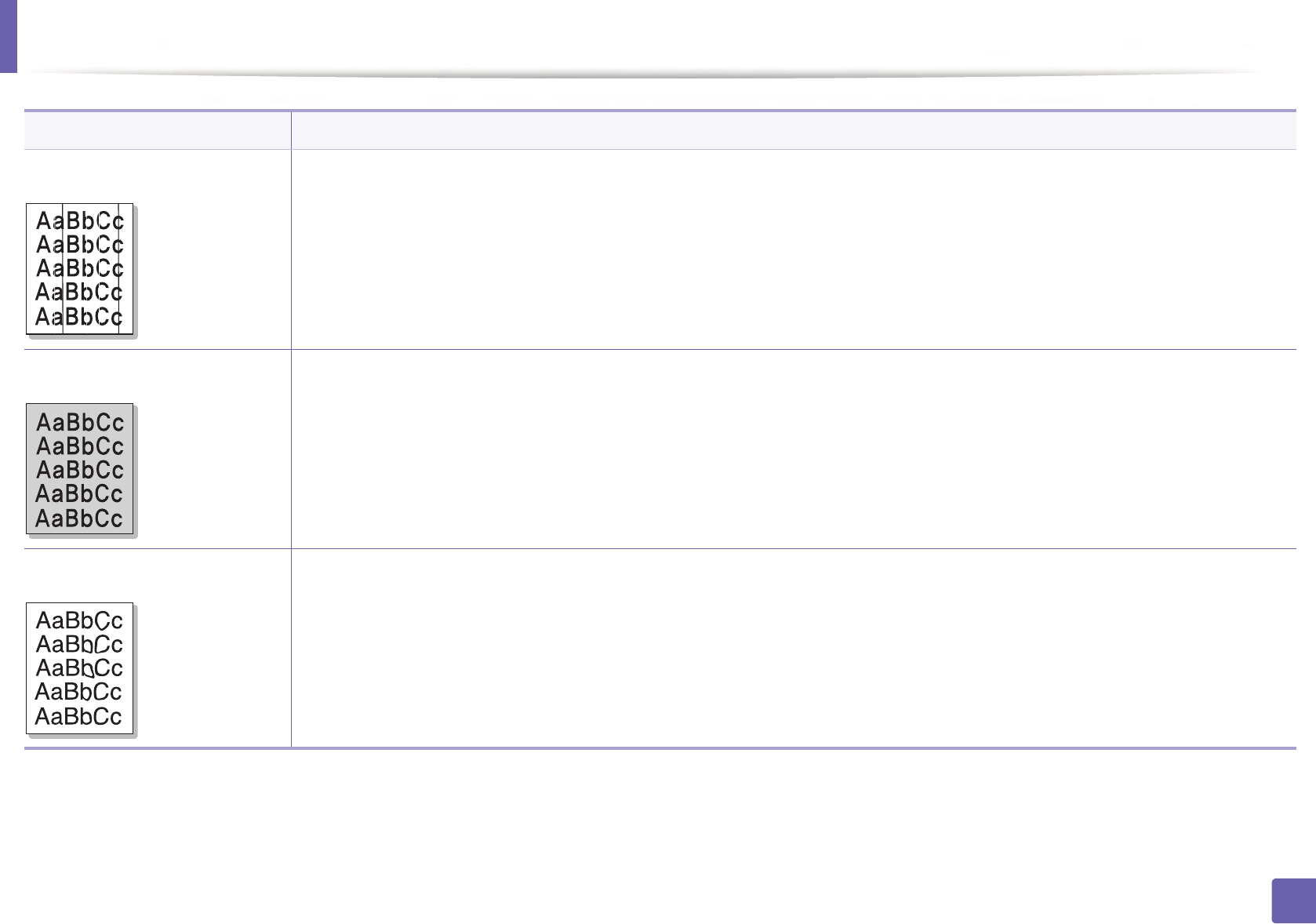
Printing quality problems
273
6. Troubleshooting
Vertical lines If black vertical streaks appear on the page:
• The surface (drum part) of the imaging unit inside the machine has probably been scratched. Remove the imaging unit and install
a new one (see "Replacing the imaging unit" on page 82).
If white vertical streaks appear on the page:
• The surface of the LSU part inside the machine may be dirty. Clean the inside of your machine (see "Cleaning the machine" on page
88). If these steps do not correct the problem, contact a service representative.
Black or color background If the amount of background shading becomes unacceptable:
• Change to a lighter weight paper.
• Check the environmental conditions: very dry conditions or a high level of humidity (higher than 80% RH) can increase the amount
of background shading.
• Remove the old imaging unit and install a new one (see "Replacing the imaging unit" on page 82).
• Thoroughly redistribute the toner (see "Redistributing toner" on page 78).
Toner smear • Clean the inside of the machine (see "Cleaning the machine" on page 88).
• Check the paper type and quality.
• Remove the imaging unit and install a new one (see "Replacing the imaging unit" on page 82).
Condition Suggested solutions
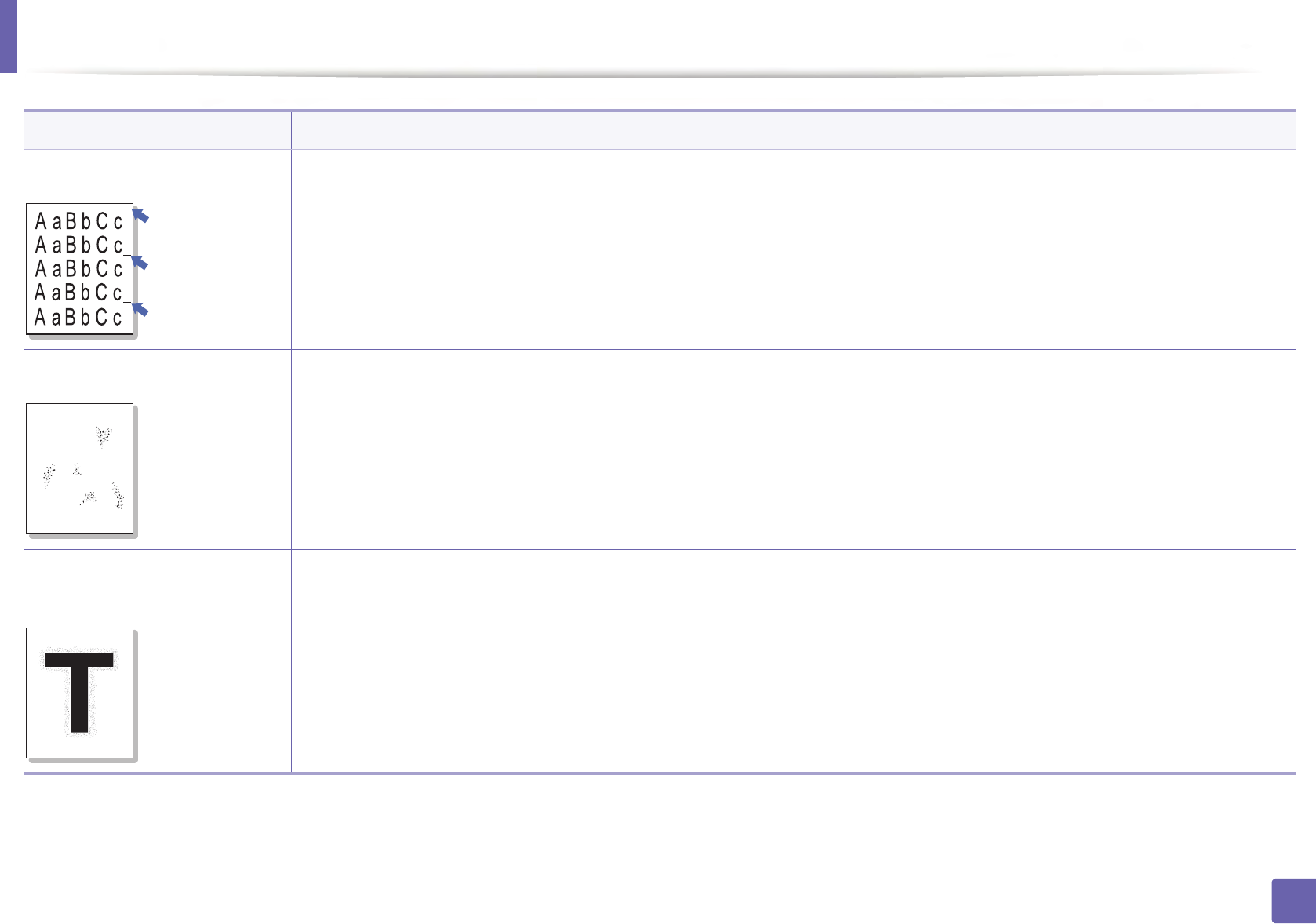
Printing quality problems
274
6. Troubleshooting
Vertical repetitive defects If marks repeatedly appear on the printed side of the page at even intervals:
• The imaging unit may be damaged. If you still have the same problem, remove the imaging unit and, install a new one (see
"Replacing the imaging unit" on page 82).
• Parts of the machine may have toner on them. If the defects occur on the back of the page, the problem will likely correct itself after
a few more pages.
• The fusing assembly may be damaged. Contact a service representative.
Background scatter Background scatter results from bits of toner randomly distributed on the printed page.
• The paper may be too damp. Try printing with a different batch of paper. Do not open packages of paper until necessary so that
the paper does not absorb too much moisture.
• If background scatter covers the entire surface area of a printed page, adjust the print resolution through your software application
or in Printing Preferences (see "Opening printing preferences" on page 54). Ensure the correct paper type is selected. For example:
If Thicker Paper is selected, but Plain Paper actually used, an overcharging can occur causing this copy quality problem.
• If you are using a new toner cartridge, redistribute the toner first (see "Redistributing toner" on page 78).
Toner particles are around bold
characters or pictures
The toner might not adhere properly to this type of paper.
• Change the printer option and try again. Go to Printing Preferences, click the Paper tab, and set the paper type to Recycled (see
"Opening printing preferences" on page 54).
• Ensure the correct paper type is selected. For example: If Thicker Paper is selected, but Plain Paper actually used, an overcharging
can occur causing this copy quality problem.
Condition Suggested solutions
A
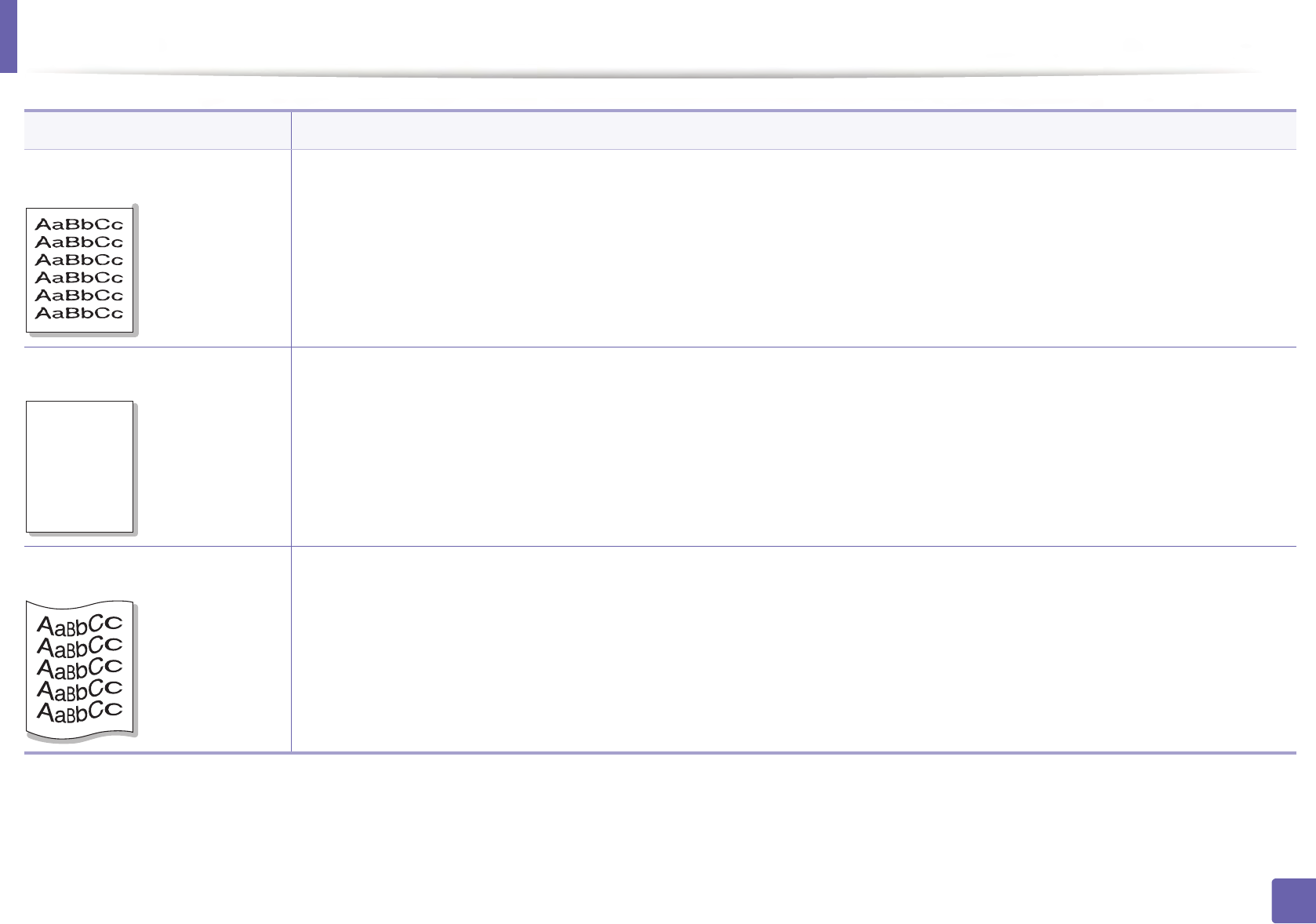
Printing quality problems
275
6. Troubleshooting
Misformed characters • If characters are improperly formed and producing hollow images, the paper stock may be too slick. Try different paper.
Page skew • Ensure that the paper is loaded properly.
• Check the paper type and quality.
• Ensure that the guides are not too tight or too loose against the paper stack.
Curl or wave • Ensure that the paper is loaded properly.
• Check the paper type and quality. Both high temperature and humidity can cause paper curl.
• Turn the stack of paper over in the tray. Also try rotating the paper 180° in the tray.
Condition Suggested solutions
AaBb
C
AaBb
C
AaBbC
AaBbC
AaBbC
c
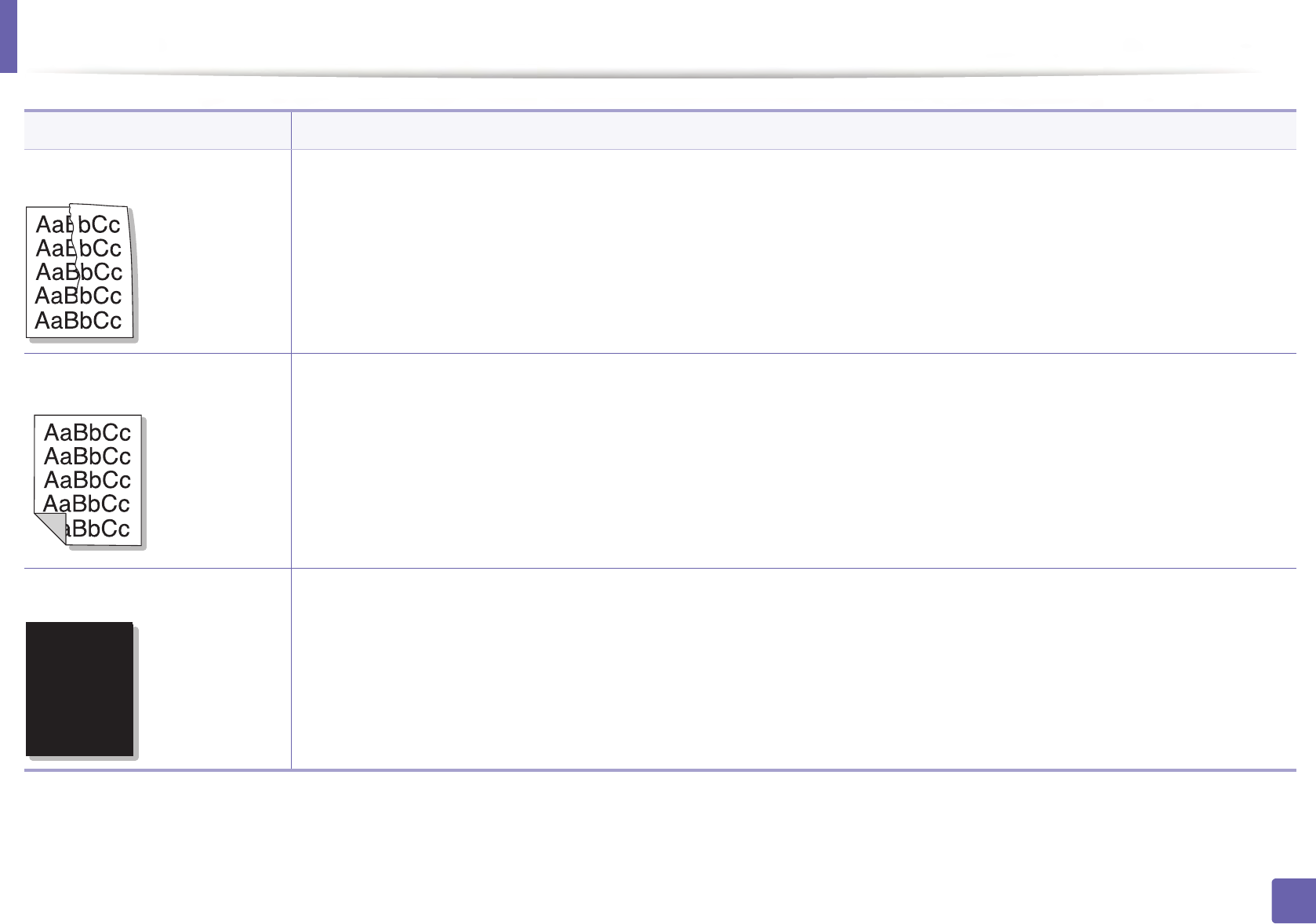
Printing quality problems
276
6. Troubleshooting
Wrinkles or creases • Ensure that the paper is loaded properly.
• Check the paper type and quality.
• Turn the stack of paper over in the tray. Also try rotating the paper 180° in the tray.
Back of printouts are dirty • Check for leaking toner. Clean the inside of the machine (see "Cleaning the machine" on page 88).
Solid color or black pages • The imaging unit may not be installed properly. Remove the imaging unit and reinsert it.
• The imaging unit may be defective. Remove the imaging unit and install a new one (see "Replacing the imaging unit" on page 82).
• The machine may require repairing. Contact a service representative.
Condition Suggested solutions
A
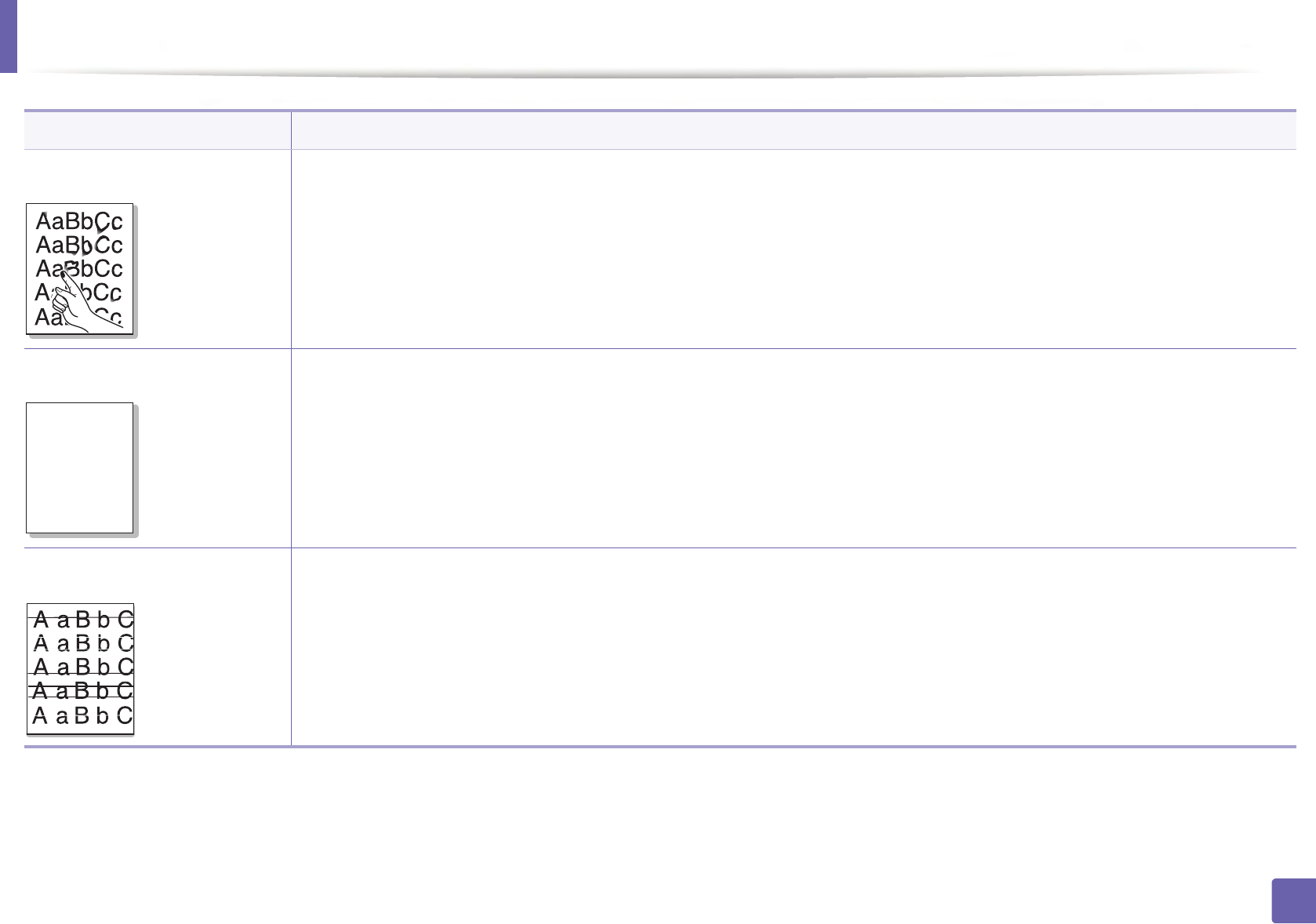
Printing quality problems
277
6. Troubleshooting
Loose toner • Clean the inside of the machine (see "Cleaning the machine" on page 88).
• Check the paper type and quality.
• Remove the imaging unit and then, install a new one (see "Replacing the toner cartridge" on page 80).
If the problem persists, the machine may require repair. Contact a service representative.
Character voids Character voids are white areas within parts of characters that should be solid black:
• You may be printing on the wrong surface of the paper. Remove the paper and turn it around.
• The paper may not meet paper specifications.
Horizontal stripes If horizontally aligned black streaks or smears appear:
• The imaging unit may be installed improperly. Remove the imaging unit and reinsert it.
• The imaging unit may be defective. Remove the imaging unit and install a new one (see "Replacing the imaging unit" on page 82).
If the problem persists, the machine may require repairing. Contact a service representative.
Condition Suggested solutions
A
Printing quality problems
278
6. Troubleshooting
Curl If the printed paper is curled or paper does not feed into the machine:
• Turn the stack of paper over in the tray. Also try rotating the paper 180° in the tray.
• Change the printer’s paper option and try again. Go to Printing Preferences, click the Paper tab, and set type to Thin (see
"Opening printing preferences" on page 54).
• An unknown image
repetitively appears on a few
sheets
• Loose toner
• Light print or contamination
occurs
Your machine is probably being used at an altitude of 1,000 m (3,281 ft) or above.
The high altitude may affect the print quality, such as loose toner or light imaging. Change the altitude setting for your machine (see
"Altitude adjustment" on page 208).
Condition Suggested solutions

279
6. Troubleshooting
Copying problems
Condition Suggested solutions
Copies are too light or too dark. Adjust the darkness in copy feature to lighten or darken the backgrounds of copies (see "Changing the settings for each copy" on page
58).
Smears, lines, marks, or spots
appear on copies.
• If the defects are on the original, adjust darkness in copy feature to lighten the background of your copies.
• Adjust background in copy setup removes the background color (see "Adjust Bkgd." on page 191).
• If there are no defects on the original, clean the scan unit (see "Cleaning the scan unit" on page 91).
Copy image is skewed. • Ensure that the original is aligned with the registration guide.
• The transfer roller may be dirty. Clean the inside of your machine (see "Cleaning the machine" on page 88).
Blank copies print out. Ensure that the original is face down on the scanner glass or face up in the document feeder.
If these steps do not correct the problem, contact a service representative.
Image rubs off the copy easily. • Replace the paper in the tray with paper from a new package.
• In high humidity areas, do not leave paper in the machine for extended periods of time.
Frequent copy paper jams
occur.
• Fan the paper, then turn it over in the tray. Replace the paper in the tray with a fresh supply. Check/adjust the paper guides, if
necessary.
• Ensure that the paper is the proper type and weight (see "Print media specifications" on page 113).
• Check for copy paper or pieces of copy paper remaining in the machine after a paper jam has been cleared.
Toner cartridge produces fewer
copies than expected before
running out of toner.
• Your originals may contain pictures, solids, or heavy lines. For example, your originals may be forms, newsletters, books, or other
documents that use more toner.
• The scanner lid may be left open while copies are being made.
• Turn the machine off and back on.

280
6. Troubleshooting
Scanning problems
Condition Suggested solutions
The scanner does not work. • Make sure that you place the original to be scanned face down on the scanner glass, or face up in the document feeder (see
"Loading originals" on page 48).
• There may not be enough available memory to hold the document you want to scan. Try the Prescan function to see if that works.
Try lowering the scan resolution rate.
• Check that the machine printer cable is connected properly.
• Make sure that the machine printer cable is not defective. Switch the printer cable with a known good cable. If necessary, replace
the printer cable.
• Check that the scanner is configured correctly. Check scan setting in the Easy Document Creator or the application you want to use
to make certain that the scanner job is being sent to the correct port (for example, USB001).
The unit scans very slowly. • Check if the machine is printing received data. If so, scan the document after the received data has been printed.
• Graphics are scanned more slowly than text.
Message appears on your
computer screen:
• Device can’t be set to the H/W
mode you want.
• Port is being used by another
program.
•Port is disabled.
• Scanner is busy receiving or
printing data. When the
current job is completed, try
again.
• Invalid handle.
• Scanning has failed.
• There may be a copying or printing job in progress. Try your job again when that job is finished.
• The selected port is currently being used. Restart your computer and try again.
• The machine printer cable may be improperly connected or the power may be off.
• The scanner driver is not installed or the operating environment is not set up properly.
• Ensure that the machine is properly connected and the power is on, then restart your computer.
• The USB cable may be improperly connected or the power may be off.

281
6. Troubleshooting
Faxing problems
Condition Suggested solutions
The machine is not working,
there is no display, or the
buttons are not working.
• Unplug the power cord and plug it in again.
• Ensure that there is power being supplied to the electrical outlet.
• Ensure that the power is turned on.
No dial tone. • Check that the phone line is properly connected (see "Rear view" on page 23).
• Check that the phone socket on the wall is working by plugging in another phone.
The numbers stored in memory
do not dial correctly.
Make sure that the numbers are stored in memory correctly. To check that, print an address book list.
The original does not feed into
the machine.
• Make sure that the paper is not wrinkled and you are inserting it in correctly. Check that the original is the right size, not too thick
or thin.
• Make sure that the document feeder is firmly closed.
• The document feeder rubber pad may need to be replaced. Contact a service representative (see "Available maintenance parts" on
page 76).
Faxes are not received
automatically.
• The receiving mode should be set to fax (see "Changing the receive modes" on page 237).
• Make sure that there is paper in the tray (see "Print media specifications" on page 113).
• Check to see if the display shows any error message. If it does, clear the problem.
The machine does not send. • Make sure that the original is loaded in the document feeder or on the scanner glass.
• Check the fax machine you are sending to, to see if it can receive your fax.
The incoming fax has blank
spaces or is of poor-quality.
• The fax machine sending you the fax may be faulty.
• A noisy phone line can cause line errors.
• Check your machine by making a copy.
• A toner cartridge has almost reached its estimated cartridge life. Replace the toner cartridge (see "Replacing the toner cartridge"
on page 80).

Faxing problems
282
6. Troubleshooting
Some of the words on an
incoming fax are stretched.
The fax machine sending the fax had a temporary document jam.
There are lines on the originals
you sent.
Check your scan unit for marks and clean it (see "Cleaning the scan unit" on page 91).
The machine dials a number,
but the connection with the
other fax machine fails.
The other fax machine may be turned off, out of paper, or cannot answer incoming calls. Speak with the other machine operator and
ask them to solve the problem on their side.
Faxes do not store in memory. There may not be enough memory space to store the fax. If the display indicating the memory status shows, delete any faxes you no
longer need from the memory, and then try to store the fax again. Call for service.
Blank areas appear at the
bottom of each page or on
other pages, with a small strip
of text at the top.
You may have chosen the wrong paper settings in the user option setting. Check the paper size and type again.
Condition Suggested solutions
283
6. Troubleshooting
Operating system problems
1
Common Windows problems
Refer to the Microsoft Windows User’s Guide that came with your computer for further information on Windows error messages.
Condition Suggested solutions
“File in Use” message appears
during installation.
Exit all software applications. Remove all software from the startup group, then restart Windows. Reinstall the printer driver.
“General Protection Fault”,
“Exception OE”, “Spool 32”, or
“Illegal Operation” messages
appear.
Close all other applications, reboot Windows and try printing again.
“Fail To Print”, “A printer
timeout error occurred”
message appear.
These messages may appear during printing. Just keep waiting until the machine finishes printing. If the message appears in ready
mode or after printing has completed, check the connection and/or whether an error has occurred.
Samsung Printer Experience is
not shown when you click more
settings.
Samsung Printer Experience is not installed. Download the app. from the Windows Store and install it.
Machine information is not
displayed when you click the
device in the Devices and
Printers.
Check the Printer properties. Click the Ports tab.
(Control Panel > Devices and Printers > Right-click on your printer icon and select Printer properties)
If the port is set to File or LPT, uncheck them and select TCP/IP, USB, or WSD.
Operating system problems
284
6. Troubleshooting
2
Common Mac problems
Refer to the Mac User’s Guide that came with your computer for further information on Mac error messages.
Condition Suggested solutions
The machine does not print PDF files
correctly. Some parts of graphics, text, or
illustrations are missing.
Printing the PDF file as an image may enable the file to print. Turn on Print As Image from the Acrobat printing options.
It will take longer to print when you print a PDF file as an image.
Some letters are not displayed normally
during cover page printing.
Mac OS cannot create the font while printing the cover page. The English alphabet and numbers are displayed normally on
the cover page.
When printing a document in Mac with
Acrobat Reader 6.0 or higher, colors
print incorrectly.
Make sure that the resolution setting in your machine driver matches the one in Acrobat Reader.
Operating system problems
285
6. Troubleshooting
3
Common Linux problems
Condition Suggested solutions
There is no xsane nor simple-
scan application on my Linux
machine.
For some Linux distributions, there might be no default scan application. To use scan features, install one of scan applications using
download center supplied by the OS(ex. Ubuntu Software Center for Ubuntu, Install/Remove Software for openSUSE, Software for
Fedora).
Scanner can not be found via
network.
For some Linux distributions, strong firewall is enabled and it may block our installer from opening the necessary port for searching
network devices. In such a case, open the snmp port - 22161 manually or disable the firewall temporarily while using the device.
When printing more than one
copy, the second copy does not
print.
The problem occurs on Ubuntu 12.04 due to the problem in standard CUPS filter 'pdftops'. Update 'cups-filters' package to version
1.0.18 to fix the problem ('pdftops' is a part of 'cups-filters' package).
Unchecking the collate option
in the Print Dialog does not
work.
For some distributions, GNOME Print Dialog has an issue handling the collate option. As workaround, set the default value of collate
option to False using the system's printing utility(execute "system-config-printer" in the Terminal program).
Printing always works with
duplex.
This duplex issue was in Ubuntu 9.10 CUPS package. Update CUPS version to 1.4.1-5ubuntu2.2.
Printer is not added through
system's printing utility.
The problem occurs on Debian 7 due to the defect in 'system-config-printer' package of the Debian 7 (http://bugs.debian.org/cgi-bin/
bugreport.cgi?bug=662813 in Debian bug tracking system). Please use another way to add printer (CUPS WebUI for example)
Paper size and orientation are
disabled in the Print Dialog
when opening text files.
The problem occurs on Fedora 19 and it's related to 'leafpad' text editor on Fedora 19. Please use other text editors like 'gedit'.
Printing produces divided
images.
This issue exists in openSUSE 13.2 due to wrong ghostscript provided by the system. Update 'cups-filters-ghostscript' package with the
command "zypper install --force cups-filters-ghostscript" or with "Install/Remove Software" utility.
Operating system problems
286
6. Troubleshooting
Refer to the Linux User’s Guide that came with your computer for further information on Linux error messages.
4
Common PostScript problems
The following situations are PS language specific and may occur when several printer languages are used.
Problem Possible cause Solution
The PostScript file cannot be
printed
The PostScript driver may not be installed
correctly.
• Install the PostScript driver (see "Software Installation" on page 137).
• Print a configuration page and verify that the PS version is available for
printing.
• If the problem persists, contact a service representative.
Limit Check Error report prints The print job was too complex. You might need to reduce the complexity of the page or install more memory.
A PostScript error page prints The print job may not be PostScript. Make sure that the print job is a PostScript job. Check to see whether the software
application expected a setup or PostScript header file to be sent to the machine.
The optional tray is not
selected in the driver
The printer driver has not been configured to
recognize the optional tray.
Open the driver properties, select the Device Options tab, and set the tray option.
When printing a document in
Mac with Acrobat Reader 6.0 or
higher, colors print incorrectly
The resolution setting in the printer driver may
not be matched with the one in Acrobat Reader.
Make sure that the resolution setting in your printer driver matches the one in
Acrobat Reader.
287
Glossary
Glossary
The following glossary helps you get familiar with the product by
understanding the terminologies commonly used with printing as well as
mentioned in this user’s guide.
802.11
802.11 is a set of standards for wireless local area network (WLAN)
communication, developed by the IEEE LAN/MAN Standards Committee (IEEE
802).
802.11b/g/n
802.11b/g/n can share same hardware and use the 2.4 GHz band. 802.11b
supports bandwidth up to 11 Mbps, 802.11n supports bandwidth up to 150
Mbps. 802.11b/g/n devices may occasionally suffer interference from
microwave ovens, cordless telephones, and Bluetooth devices.
Access point
Access Point or Wireless Access Point (AP or WAP) is a device that connects
wireless communication devices together on wireless local area networks
(WLAN), and acts as a central transmitter and receiver of WLAN radio signals.
ADF
An Automatic Document Feeder (ADF) is a scanning unit that will automatically
feed an original sheet of paper so that the machine can scan some amount of the
paper at once.
AppleTalk
AppleTalk is a proprietary suite of protocols developed by Apple, Inc for
computer networking. It was included in the original Mac (1984) and is now
deprecated by Apple in favor of TCP/IP networking.
BIT Depth
A computer graphics term describing the number of bits used to represent the
color of a single pixel in a bitmapped image. Higher color depth gives a broader
range of distinct colors. As the number of bits increases, the number of possible
colors becomes impractically large for a color map. 1-bit color is commonly
called as monochrome or black and white.
BMP
A bitmapped graphics format used internally by the Microsoft Windows
graphics subsystem (GDI), and used commonly as a simple graphics file format
on that platform.

Glossary
288
Glossary
BOOTP
Bootstrap Protocol. A network protocol used by a network client to obtain its IP
address automatically. This is usually done in the bootstrap process of
computers or operating systems running on them. The BOOTP servers assign
the IP address from a pool of addresses to each client. BOOTP enables 'diskless
workstation' computers to obtain an IP address prior to loading any advanced
operating system.
CCD
Charge Coupled Device (CCD) is a hardware which enables the scan job. CCD
Locking mechanism is also used to hold the CCD module to prevent any damage
when you move the machine.
Collation
Collation is a process of printing a multiple-copy job in sets. When collation is
selected, the device prints an entire set before printing additional copies.
Control Panel
A control panel is a flat, typically vertical, area where control or monitoring
instruments are displayed. They are typically found in front of the machine.
Coverage
It is the printing term used for a toner usage measurement on printing. For
example, 5% coverage means that an A4 sided paper has about 5% image or text
on it. So, if the paper or original has complicated images or lots of text on it, the
coverage will be higher and at the same time, a toner usage will be as much as
the coverage.
CSV
Comma Separated Values (CSV). A type of file format, CSV is used to exchange
data between disparate applications. The file format, as it is used in Microsoft
Excel, has become a de facto standard throughout the industry, even among
non-Microsoft platforms.
DADF
A Duplex Automatic Document Feeder (DADF) is a scanning unit that will
automatically feed and turn over an original sheet of paper so that the machine
can scan on both sides of the paper.
Default
The value or setting that is in effect when taking a printer out of its box state,
reset, or initialized.
Glossary
289
Glossary
DHCP
A Dynamic Host Configuration Protocol (DHCP) is a client-server networking
protocol. A DHCP server provides configuration parameters specific to the DHCP
client host requesting, generally, information required by the client host to
participate on an IP network. DHCP also provides a mechanism for allocation of
IP addresses to client hosts.
DIMM
Dual Inline Memory Module (DIMM), a small circuit board that holds memory.
DIMM stores all the data within the machine like printing data, received fax data.
DLNA
The Digital Living Network Alliance (DLNA) is a standard that allows devices on
a home network to share information with each other across the network.
DNS
The Domain Name Server (DNS) is a system that stores information associated
with domain names in a distributed database on networks, such as the Internet.
Dot Matrix Printer
A dot matrix printer refers to a type of computer printer with a print head that
runs back and forth on the page and prints by impact, striking an ink-soaked
cloth ribbon against the paper, much like a typewriter.
DPI
Dots Per Inch (DPI) is a measurement of resolution that is used for scanning and
printing. Generally, higher DPI results in a higher resolution, more visible detail
in the image, and a larger file size.
DRPD
Distinctive Ring Pattern Detection. Distinctive Ring is a telephone company
service which enables a user to use a single telephone line to answer several
different telephone numbers.
Duplex
A mechanism that will automatically turn over a sheet of paper so that the
machine can print (or scan) on both sides of the paper. A printer equipped with
a Duplex Unit can print on both sides of paper during one print cycle.
Duty Cycle
Duty cycle is the page quantity which does not affect printer performance for a
month. Generally the printer has the lifespan limitation such as pages per year.
The lifespan means the average capacity of print-outs, usually within the
warranty period. For example, if the duty cycle is 48,000 pages per month
assuming 20 working days, a printer limits 2,400 pages a day.

Glossary
290
Glossary
ECM
Error Correction Mode (ECM) is an optional transmission mode built into Class 1
fax machines or fax modems. It automatically detects and corrects errors in the
fax transmission process that are sometimes caused by telephone line noise.
Emulation
Emulation is a technique of one machine obtaining the same results as another.
An emulator duplicates the functions of one system with a different system, so
that the second system behaves like the first system. Emulation focuses on exact
reproduction of external behavior, which is in contrast to simulation, which
concerns an abstract model of the system being simulated, often considering its
internal state.
Ethernet
Ethernet is a frame-based computer networking technology for local area
networks (LANs). It defines wiring and signaling for the physical layer, and frame
formats and protocols for the media access control (MAC)/data link layer of the
OSI model. Ethernet is mostly standardized as IEEE 802.3. It has become the most
widespread LAN technology in use during the 1990s to the present.
EtherTalk
A suite of protocols developed by Apple Computer for computer networking. It
was included in the original Mac (1984) and is now deprecated by Apple in favor
of TCP/IP networking.
FDI
Foreign Device Interface (FDI) is a card installed inside the machine to allow a
third party device such as a coin operated device or a card reader. Those devices
allow the pay-for-print service on your machine.
FTP
A File Transfer Protocol (FTP) is a commonly used protocol for exchanging files
over any network that supports the TCP/IP protocol (such as the Internet or an
intranet).
Fuser Unit
The part of a laser printer that fuses the toner onto the print media. It consists of
a heat roller and a pressure roller. After toner is transferred onto the paper, the
fuser unit applies heat and pressure to ensure that the toner stays on the paper
permanently, which is why paper is warm when it comes out of a laser printer.

Glossary
291
Glossary
Gateway
A connection between computer networks, or between a computer network
and a telephone line. It is very popular, as it is a computer or a network that
allows access to another computer or network.
Grayscale
A shade of gray that represents light and dark portions of an image when color
images are converted to grayscale; colors are represented by various shades of
gray.
Halftone
An image type that simulates grayscale by varying the number of dots. Highly
colored areas consist of a large number of dots, while lighter areas consist of a
smaller number of dots.
Mass storage device (HDD)
Mass storage device (HDD), commonly referred to as a hard drive or hard disk, is
a non-volatile storage device which stores digitally-encoded data on rapidly
rotating platters with magnetic surfaces.
IEEE
The Institute of Electrical and Electronics Engineers (IEEE) is an international
non-profit, professional organization for the advancement of technology
related to electricity.
IEEE 1284
The 1284 parallel port standard was developed by the Institute of Electrical and
Electronics Engineers (IEEE). The term "1284-B" refers to a specific connector
type on the end of the parallel cable that attaches to the peripheral (for example,
a printer).
Intranet
A private network that uses Internet Protocols, network connectivity, and
possibly the public telecommunication system to securely share part of an
organization's information or operations with its employees. Sometimes the
term refers only to the most visible service, the internal website.
IP address
An Internet Protocol (IP) address is a unique number that devices use in order to
identify and communicate with each other on a network utilizing the Internet
Protocol standard.

Glossary
292
Glossary
IPM
The Images Per Minute (IPM) is a way of measuring the speed of a printer. An IPM
rate indicates the number of single-sided sheets a printer can complete within
one minute.
IPP
The Internet Printing Protocol (IPP) defines a standard protocol for printing as
well as managing print jobs, media size, resolution, and so forth. IPP can be used
locally or over the Internet to hundreds of printers, and also supports access
control, authentication, and encryption, making it a much more capable and
secure printing solution than older ones.
IPX/SPX
IPX/SPX stands for Internet Packet Exchange/Sequenced Packet Exchange. It is a
networking protocol used by the Novell NetWare operating systems. IPX and
SPX both provide connection services similar to TCP/IP, with the IPX protocol
having similarities to IP, and SPX having similarities to TCP. IPX/SPX was
primarily designed for local area networks (LANs), and is a very efficient protocol
for this purpose (typically its performance exceeds that of TCP/IP on a LAN).
ISO
The International Organization for Standardization (ISO) is an international
standard-setting body composed of representatives from national standards
bodies. It produces world-wide industrial and commercial standards.
ITU-T
The International Telecommunication Union is an international organization
established to standardize and regulate international radio and
telecommunications. Its main tasks include standardization, allocation of the
radio spectrum, and organizing interconnection arrangements between
different countries to allow international phone calls. A -T out of ITU-T indicates
telecommunication.
ITU-T No. 1 chart
Standardized test chart published by ITU-T for document facsimile
transmissions.
JBIG
Joint Bi-level Image Experts Group (JBIG) is an image compression standard with
no loss of accuracy or quality, which was designed for compression of binary
images, particularly for faxes, but can also be used on other images.
JPEG
Joint Photographic Experts Group (JPEG) is a most commonly used standard
method of lossy compression for photographic images. It is the format used for
storing and transmitting photographs on the World Wide Web.

Glossary
293
Glossary
LDAP
The Lightweight Directory Access Protocol (LDAP) is a networking protocol for
querying and modifying directory services running over TCP/IP.
LED
A Light-Emitting Diode (LED) is a semiconductor device that indicates the status
of a machine.
MAC address
Media Access Control (MAC) address is a unique identifier associated with a
network adapter. MAC address is a unique 48-bit identifier usually written as 12
hexadecimal characters grouped in pairs (e. g., 00-00-0c-34-11-4e). This address
is usually hard-coded into a Network Interface Card (NIC) by its manufacturer,
and used as an aid for routers trying to locate machines on large networks.
MFP
Multi Function Peripheral (MFP) is an office machine that includes the following
functionality in one physical body, so as to have a printer, a copier, a fax, a
scanner and etc.
MH
Modified Huffman (MH) is a compression method for decreasing the amount of
data that needs to be transmitted between the fax machines to transfer the
image recommended by ITU-T T.4. MH is a codebook-based run-length
encoding scheme optimized to efficiently compress white space. As most faxes
consist mostly of white space, this minimizes the transmission time of most
faxes.
MMR
Modified Modified READ (MMR) is a compression method recommended by ITU-
T T.6.
Modem
A device that modulates a carrier signal to encode digital information, and also
demodulates such a carrier signal to decode transmitted information.
MR
Modified Read (MR) is a compression method recommended by ITU-T T.4. MR
encodes the first scanned line using MH. The next line is compared to the first,
the differences determined, and then the differences are encoded and
transmitted.

Glossary
294
Glossary
NetWare
A network operating system developed by Novell, Inc. It initially used
cooperative multitasking to run various services on a PC, and the network
protocols were based on the archetypal Xerox XNS stack. Today NetWare
supports TCP/IP as well as IPX/SPX.
OPC
Organic Photo Conductor (OPC) is a mechanism that makes a virtual image for
print using a laser beam emitted from a laser printer, and it is usually green or
rust colored and has a cylinder shape.
An imaging unit containing a drum slowly wears the drum surface by its usage
in the printer, and it should be replaced appropriately since it gets worn from
contact with the cartridge development brush, cleaning mechanism, and paper.
Originals
The first example of something, such as a document, photograph or text, etc,
which is copied, reproduced or translated to produce others, but which is not
itself copied or derived from something else.
OSI
Open Systems Interconnection (OSI) is a model developed by the International
Organization for Standardization (ISO) for communications. OSI offers a
standard, modular approach to network design that divides the required set of
complex functions into manageable, self-contained, functional layers. The layers
are, from top to bottom, Application, Presentation, Session, Transport, Network,
Data Link and Physical.
PABX
A private automatic branch exchange (PABX) is an automatic telephone
switching system within a private enterprise.
PCL
Printer Command Language (PCL) is a Page Description Language (PDL)
developed by HP as a printer protocol and has become an industry standard.
Originally developed for early inkjet printers, PCL has been released in varying
levels for thermal, dot matrix printer, and laser printers.
PDF
Portable Document Format (PDF) is a proprietary file format developed by
Adobe Systems for representing two dimensional documents in a device
independent and resolution independent format.

Glossary
295
Glossary
PostScript
PostScript (PS) is a page description language and programming language used
primarily in the electronic and desktop publishing areas. - that is run in an
interpreter to generate an image.
Printer Driver
A program used to send commands and transfer data from the computer to the
printer.
Print Media
The media like paper, labels, and transparencies which can be used in a printer,
a scanner, a fax or, a copier.
PPM
Pages Per Minute (PPM) is a method of measurement for determining how fast
a printer works, meaning the number of pages a printer can produce in one
minute.
PRN file
An interface for a device driver, this allows software to interact with the device
driver using standard input/output system calls, which simplifies many tasks.
Protocol
A convention or standard that controls or enables the connection,
communication, and data transfer between two computing endpoints.
PS
See PostScript.
PSTN
The Public-Switched Telephone Network (PSTN) is the network of the world's
public circuit-switched telephone networks which, on industrial premises, is
usually routed through the switchboard.
RADIUS
Remote Authentication Dial In User Service (RADIUS) is a protocol for remote
user authentication and accounting. RADIUS enables centralized management
of authentication data such as usernames and passwords using an AAA
(authentication, authorization, and accounting) concept to manage network
access.
Resolution
The sharpness of an image, measured in Dots Per Inch (DPI). The higher the dpi,
the greater the resolution.

Glossary
296
Glossary
SMB
Server Message Block (SMB) is a network protocol mainly applied to share files,
printers, serial ports, and miscellaneous communications between nodes on a
network. It also provides an authenticated Inter-process communication
mechanism.
SMTP
Simple Mail Transfer Protocol (SMTP) is the standard for e-mail transmissions
across the Internet. SMTP is a relatively simple, text-based protocol, where one
or more recipients of a message are specified, and then the message text is
transferred. It is a client-server protocol, where the client transmits an email
message to the server.
SSID
Service Set Identifier (SSID) is a name of a wireless local area network (WLAN). All
wireless devices in a WLAN use the same SSID in order to communicate with
each other. The SSIDs are case-sensitive and have a maximum length of 32
characters.
Subnet Mask
The subnet mask is used in conjunction with the network address to determine
which part of the address is the network address and which part is the host
address.
TCP/IP
The Transmission Control Protocol (TCP) and the Internet Protocol (IP); the set of
communications protocols that implement the protocol stack on which the
Internet and most commercial networks run.
TCR
Transmission Confirmation Report (TCR) provides details of each transmission
such as job status, transmission result and number of pages sent. This report can
be set to print after each job or only after failed transmissions.
TIFF
Tagged Image File Format (TIFF) is a variable-resolution bitmapped image
format. TIFF describes image data that typically come from scanners. TIFF
images make use of tags, keywords defining the characteristics of the image that
is included in the file. This flexible and platform-independent format can be
used for pictures that have been made by various image processing
applications.
Toner Cartridge
A kind of bottle or container used in a machine like a printer which contains
toner. Toner is a powder used in laser printers and photocopiers, which forms
the text and images on the printed paper. Toner can be fused by a combination
of heat/pressure from the fuser, causing it to bind to the fibers in the paper.

Glossary
297
Glossary
TWAIN
An industry standard for scanners and software. By using a TWAIN-compliant
scanner with a TWAIN-compliant program, a scan can be initiated from within
the program. It is an image capture API for Microsoft Windows and Apple Mac
operating systems.
UNC Path
Uniform Naming Convention (UNC) is a standard way to access network shares
in Window NT and other Microsoft products. The format of a UNC path is:
\\<servername>\<sharename>\<Additional directory>
URL
Uniform Resource Locator (URL) is the global address of documents and
resources on the Internet. The first part of the address indicates what protocol to
use, the second part specifies the IP address or the domain name where the
resource is located.
USB
Universal Serial Bus (USB) is a standard that was developed by the USB
Implementers Forum, Inc., to connect computers and peripherals. Unlike the
parallel port, USB is designed to concurrently connect a single computer USB
port to multiple peripherals.
Watermark
A watermark is a recognizable image or pattern in paper that appears lighter
when viewed by transmitted light. Watermarks were first introduced in Bologna,
Italy in 1282; they have been used by papermakers to identify their product, and
also on postage stamps, currency, and other government documents to
discourage counterfeiting.
WEP
Wired Equivalent Privacy (WEP) is a security protocol specified in IEEE 802.11 to
provide the same level of security as that of a wired LAN. WEP provides security
by encrypting data over radio so that it is protected as it is transmitted from one
end point to another.
WIA
Windows Imaging Architecture (WIA) is an imaging architecture that is originally
introduced in Windows Me and Windows XP Service Pack 3. A scan can be
initiated from within these operating systems by using a WIA-compliant
scanner.
WPA
Wi-Fi Protected Access (WPA) is a class of systems to secure wireless (Wi-Fi)
computer networks, which was created to improve upon the security features of
WEP.
Glossary
298
Glossary
WPA-PSK
WPA-PSK (WPA Pre-Shared Key) is special mode of WPA for small business or
home users. A shared key, or password, is configured in the wireless access point
(WAP) and any wireless laptop or desktop devices. WPA-PSK generates a unique
key for each session between a wireless client and the associated WAP for more
advanced security.
WPS
The Wi-Fi Protected Setup (WPS) is a standard for establishing a wireless home
network. If your wireless access point supports WPS, you can configure the
wireless network connection easily without a computer.
XPS
XML Paper Specification (XPS) is a specification for a Page Description Language
(PDL) and a new document format, which has benefits for portable document
and electronic document, developed by Microsoft. It is an XML-based
specification, based on a new print path and a vector-based device-
independent document format.

299
Contact SAMSUNG worldwide
Contact SAMSUNG worldwide
If you have any comments or questions regarding Samsung products, contact
the Samsung customer care center.
Country/Region Customer Care Center WebSite
ALGERIA 021 36 11 00 www.samsung.com/
n_africa/support
ARGENTINE 0800-555-SAMSUNG
(0800-555-7267)
www.samsung.com/
ar/support
ARMENIA 0-800-05-555 www.samsung.com/
support
AUSTRALIA 1300 362 603 www.samsung.com/
au/support
AUSTRIA
0800-SAMSUNG (0800-7267864)
[Only for Premium HA] 0800-
366661
[Only for Dealers] 0810-112233
www.samsung.com/
at/support
AZERBAIJAN 0-88-555-55-55 www.samsung.com/
support
BAHRAIN
8000-GSAM (8000-4726) www.samsung.com/
ae/support (English)
www.samsung.com/
ae_ar/support (Arabic)
BELARUS 810-800-500-55-500 www.samsung.com/
support
BANGLADESH 09612300300 www.samsung.com/
in/support
BELGIUM
02-201-24-18 www.samsung.com/
be/support (Dutch)
www.samsung.com/
be_fr/support (French)
BOLIVIA 800-10-7260
[HHP] 4828210
www.samsung.com/
cl/support
BOSNIA 055 233 999 www.samsung.com/
support
BOTSWANA 8007260000 www.samsung.com/
support
BRAZIL
0800-124-421 (Demais cidades e
regiões)
4004-0000 (Capitais e grandes
centros)
www.samsung.com/
br/support
BULGARIA 800 111 31 , Безплатна
телефонна линия
www.samsung.com/
bg/support
BURUNDI 200 www.samsung.com/
support
CAMEROON 7095- 0077 www.samsung.com/
africa_fr/support
Country/Region Customer Care Center WebSite

Contact SAMSUNG worldwide
300
Contact SAMSUNG worldwide
CANADA
1-800-SAMSUNG (726-7864) www.samsung.com/
ca/support(English)
www.samsung.com/
ca_fr/support (French)
CHILE 800-SAMSUNG (726-7864)
[HHP] 02-24828200
www.samsung.com/
cl/support
CHINA 400-810-5858 www.samsung.com/
cn/support
COLOMBIA
Bogotá 600 12 72
Gratis desde cualquier parte del
país 01 8000 112 112 ó desde su
celular #SAM(726)
www.samsung.com/
co/support
COSTA RICA
0-800-507-7267
00-800-1-SAMSUNG (726-7864)
www.samsung.com/
latin/support
(Spanish)
www.samsung.com/
latin_en/support
(English)
CROATIA 072 726 786 www.samsung.com/
hr/support
Cote D’ Ivoire 8000 0077 www.samsung.com/
africa_fr/support
Country/Region Customer Care Center WebSite
CYPRUS 8009 4000 only from landline, toll
free
www.samsung.com/
gr/support
CZECH 800-SAMSUNG (800-726786) www.samsung.com/
cz/support
DENMARK 70 70 19 70 www.samsung.com/
dk/support
DOMINICAN
REPUBLIC
1-800-751-2676 www.samsung.com/
latin/support
(Spanish)
www.samsung.com/
latin_en/support
(English)
DRC 499999 www.samsung.com/
support
ECUADOR
1-800-10-7267
1-800-SAMSUNG (72-6786)
www.samsung.com/
latin/support
(Spanish)
www.samsung.com/
latin_en/
support(English)
EGYPT 08000-7267864
16580
www.samsung.com/
eg/support
Country/Region Customer Care Center WebSite

Contact SAMSUNG worldwide
301
Contact SAMSUNG worldwide
EIRE 0818 717100 www.samsung.com/
ie/support
EL SALVADOR
800-6225
800-0726-7864
www.samsung.com/
latin/support
(Spanish)
www.samsung.com/
latin_en/support
(English)
ESTONIA 800-7267 www.samsung.com/
ee/support
FINLAND 030-6227 515 www.samsung.com/fi/
support
FRANCE 01 48 63 00 00 www.samsung.com/
fr/support
GERMANY
0180 6 SAMSUNG bzw.
0180 6 7267864*
[HHP] 0180 6 M SAMSUNG bzw.
0180 6 67267864* (*0,20 €/Anruf
aus dem dt. Festnetz, aus dem
Mobilfunk max. 0,60 €/Anruf)
www.samsung.com/
de/support
GEORGIA 0-800-555-555 www.samsung.com/
support
Country/Region Customer Care Center WebSite
GHANA 0800-10077
0302-200077
www.samsung.com/
africa_en/support
GREECE
80111-SAMSUNG (80111 726
7864) only from land line
(+30) 210 6897691 from mobile
and land line
www.samsung.com/
gr/support
GUATEMALA
1-800-299-0013
1-800-299-0033
www.samsung.com/
latin/support
(Spanish)
www.samsung.com/
latin_en/support
(English)
HONDURAS
800-2791-9267
800-2791-9111
www.samsung.com/
latin/support
(Spanish)
www.samsung.com/
latin_en/support
(English)
HONG KONG
(852) 3698 4698 www.samsung.com/
hk/support (Chinese)
www.samsung.com/
hk_en/support
(English)
Country/Region Customer Care Center WebSite

Contact SAMSUNG worldwide
302
Contact SAMSUNG worldwide
HUNGARY 0680SAMSUNG (0680-726-786)
0680PREMIUM (0680-773-648)
www.samsung.com/
hu/support
INDIA 1800 3000 8282 - Toll Free
1800 266 8282 - Toll Free
www.samsung.com/
in/support
INDONESIA 021-56997777
08001128888
www.samsung.com/
id/support
IRAN 021-8255 [CE]
021-42132 [HHP]
www.samsung.com/
iran/support
ITALIA
800-SAMSUNG (800.7267864)
[HHP] 800.Msamsung
(800.67267864)
www.samsung.com/
it/support
JAMAICA
1-800-234-7267
1-800-SAMSUNG (726-7864)
www.samsung.com/
latin_en/support
(English)
JAPAN 0120-363-905 www.samsung.com/
jp/support
JORDAN
0800-22273
06 5777444
www.samsung.com/
levant/support
(English)
KAZAKHSTAN 8-10-800-500-55-500 (GSM:7799,
VIP care 7700)
www.samsung.com/
support
Country/Region Customer Care Center WebSite
KENYA 0800 545 545 www.samsung.com/
support
KUWAIT
183-CALL (183-2255) www.samsung.com/
ae/support (English)
www.samsung.com/
ae_ar/support (Arabic)
KYRGYZSTAN 00-800-500-55-500 www.samsung.com/
kz_ru/support
LATVIA 8000-7267 www.samsung.com/
lv/support
LITHUANIA 8-800-77777 www.samsung.com/
lt/support
LUXEMBURG 261 03 710 www.samsung.com/
support
MACAU 0800 333 www.samsung.com/
support
MACEDONIA 023 207 777
MALAYSIA
1800-88-9999
603-77137477 (Overseas
contact)
www.samsung.com/
my/support
MAURITIUS 23052574020 www.samsung.com/
support
Country/Region Customer Care Center WebSite

Contact SAMSUNG worldwide
303
Contact SAMSUNG worldwide
MEXICO 01-800-SAMSUNG (726-7864) www.samsung.com/
mx/support
MOLDOVA 0-800-614-40 www.samsung.com/
support
MONGOLIA +7-495-363-17-00 www.samsung.com/
support
MONTENEGRO 020 405 888 www.samsung.com/
support
MOROCCO 080 100 2255 www.samsung.com/
n_africa/support
MOZAMBIQUE 847267864 / 827267864 www.samsung.com/
support
MYANMAR +95-01-2399-888 www.samsung.com/
support
NAMIBIA 08 197 267864 www.samsung.com/
support
NIGERIA 0800-726-7864 www.samsung.com/
africa_en/support
NETHERLANDS 0900-SAMSUNG (0900-7267864)
(€ 0,10/Min)
www.samsung.com/
nl/support
NEW ZEALAND 0800 726 786 www.samsung.com/
nz/support
Country/Region Customer Care Center WebSite
NICARAGUA
001-800-5077267 www.samsung.com/
latin/support(Spanish)
www.samsung.com/
latin_en/support
(English)
NORWAY 815 56480 www.samsung.com/
no/support
OMAN
800-SAMSUNG (800 - 726 7864) www.samsung.com/
ae/support (English)
www.samsung.com/
ae_ar/support (Arabic)
PAKISTAN 0800-Samsung (72678) www.samsung.com/
pk/support
PANAMA
800-7267
800-0101
www.samsung.com/
latin/support
(Spanish)
www.samsung.com/
latin_en/support
(English)
Country/Region Customer Care Center WebSite

Contact SAMSUNG worldwide
304
Contact SAMSUNG worldwide
PARAGUAY
009-800-542-0001 www.samsung.com/
latin/support
(Spanish)
www.samsung.com/
latin_en/support
(English)
PERU 0800-777-08 www.samsung.com/
pe/support
PHILIPPINES
1-800-10-7267864 [PLDT]
1-800-8-7267864 [Globe landline
and Mobile]
02-4222111 [Other landline]
www.samsung.com/
ph/support
POLAND
801-172-678* lub +48 22 607-93-
33 *
[HHP] 801-672-678* lub +48 22
607-93-33*
* (koszt połączenia według taryfy
operatora)
www.samsung.com/
pl/support
PORTUGAL 808 20 7267 www.samsung.com/
pt/support
Country/Region Customer Care Center WebSite
PUERTO RICO
1-800-682-3180 www.samsung.com/
latin/support
(Spanish)
www.samsung.com/
latin_en/support
(English)
QATAR
800-CALL (800-2255) www.samsung.com/
ae/support (English)
www.samsung.com/
ae_ar/support (Arabic)
REUNION 262508869 www.samsung.com/
support
RWANDA 9999 www.samsung.com/
support
ROMANIA
08008 726 78 64 (08008
SAMSUNG )
Apel GRATUIT
www.samsung.com/
ro/support
RUSSIA 8-800-555-55-55 (VIP care 8-800-
555-55-88)
www.samsung.com/
ru/support
SAUDI ARABIA
8002474357 www.samsung.com/
sa/support
www.samsung.com/
sa_en/support
(English)/
Country/Region Customer Care Center WebSite

Contact SAMSUNG worldwide
305
Contact SAMSUNG worldwide
SENEGAL 800-00-0077 www.samsung.com/
africa_fr/support
SERBIA 011 321 6899 www.samsung.com/
rs/support
SINGAPORE 1800-SAMSUNG (726-7864) www.samsung.com/
sg/support
SLOVENIA 080 697 267 (brezplačna številka)
090 726 786 (0,39 EUR/min)
www.samsung.com/
rs/si
SLOVAKIA 0800 - SAMSUNG(0800-726 786) www.samsung.com/
sk/support
SOUTH AFRICA 0860 SAMSUNG (726 7864) www.samsung.com/
support
SPAIN 0034902172678
[HHP] 0034902167267
www.samsung.com/
es/support
SRI LANKA 94117540540 www.samsung.com/
support
SUDAN 1969 www.samsung.com/
support
SWEDEN 0771 726 7864 (0771-SAMSUNG) www.samsung.com/
se/support
Country/Region Customer Care Center WebSite
SWITZERLAND
0800 726 78 64 (0800-SAMSUNG) www.samsung.com/
ch/support (German)
www.samsung.com/
ch_fr/support (French)
SYRIA
18252273 www.samsung.com/
levant/support
(English)
TADJIKISTAN 8-10-800-500-55-500 www.samsung.com/
support
TAIWAN 0800-329999 www.samsung.com/
tw/support
TANZANIA 0800 755 755
0685 889 900
www.samsung.com/
support
THAILAND 0-2689-3232,
1800-29-3232
www.samsung.com/
th/support
TRINIDAD &
TOBAGO
1-800-SAMSUNG (726-7864) www.samsung.com/
latin/support
(Spanish)
www.samsung.com/
latin_en/support
(English)
TURKEY 444 77 11 www.samsung.com/
tr/support
Country/Region Customer Care Center WebSite

Contact SAMSUNG worldwide
306
Contact SAMSUNG worldwide
TUNISIA 80-1000-12 www.samsung.com/
n_africa/support
U.A.E
800-SAMSUNG (800 -726 7864) www.samsung.com/
ae/support (English)
www.samsung.com/
ae_ar/support (Arabic)
UK 0330 SAMSUNG (7267864) www.samsung.com/
uk/support
U.S.A
-Consummer
Electonics
1-800-SAMSUNG (726-7864) www.samsung.com/
us/support
U.S.A
(Mobile Phones)
1-800-SAMSUNG (72-6786)
[HHP] 1-888-987-HELP(4357)
www.samsung.com/
us/support
UGANDA 0800 300 300 www.samsung.com/
support
UKRAINE
0-800-502-000 www.samsung.com/
ua/support (Ukrainian)
www.samsung.com/
ua_ru/support
(Russian)
Country/Region Customer Care Center WebSite
URUGUAY
000- 405-437-33 www.samsung.com/
latin/support(Spanish)
www.samsung.com/
latin_en/
support(English)
UZBEKISTAN 8-10-800-500-55-500 (GSM:
7799)
www.samsung.com/
support
VENEZUELA 0-800-SAMSUNG (726-7864) www.samsung.com/
ve/support
VIETNAM 1800 588 889 www.samsung.com/
vn/support
ZAMBIA 0211 350370 www.samsung.com/
support
Country/Region Customer Care Center WebSite

307
Index
Index
A
address book
editing 210
group editing 211
group registering 211
registering 210
using 210
address book setup 210
AirPrint 180
B
buttons
eco 25, 27
id copy 26
numeric keypad 27
scan to 24
wps 24, 26
C
cleaning
inside 89
outside 88
scan unit 91
cleaning a machine 88
control panel 24
convention 13
copy
general setup 190
copying
basic copying 58
reducing or enlarging copies 59
D
default settings
tray setting 46
E
easy document creator 229, 254
e-book conversion 254
eco printing 55
entering character 209
error message 104
F
favorites settings, for printing 55
fax
adding documents to a reserved fax 234
automatic redialing 232
canceling a reserved fax job 235
changing the receive modes 237
delaying a fax transmission 234
forwarding a received fax to another
destination 236
forwarding a sent fax to another destination
235
general setup 193
receiving a fax in the computer 236
receiving faxes in memory 240
receiving in Answering Machine mode 238
receiving in DRPD mode 238
receiving in Fax mode 238
receiving in secure mode 239
receiving in Tel mode 238
receiving with ext. telephone 238
redialing the last number 232
sending a fax in the computer 233
sending a priority fax 235
fax feature 232
fax sending
multi sending 65
faxing
adjusting darkness 67
adjusting resolution 66

Index
308
Index
preparing to fax 64
receiving in Fax mode 66
features 5
machine features 187
print media feature 113
front view 21
G
general icons 13
general settings 199
glossary 287
google cloud printing 185
I
id copy 61
J
jam
clearing original document 95
tips for avoiding paper jams 94
L
LCD display
browsing the machine status 190, 191, 193,
198, 202
Linux
common Linux problems 285
driver installation for network connected
150
driver installation for USB cable connected
140
driver reinstallation for USB cable connected
141
printer properties 224
printing 223
scanning 231
using SetIP 145
linux scanning 231
loading
paper in the tray1 40
special media 44
loading originals 48
M
Mac
common Mac problems 284
driver installation for network connected
150
driver installation for USB cable connected
138
driver reinstallation for USB cable connected
139
printing 221
system requirements 117
using SetIP 145
machine information 190, 191, 193, 198, 202
machine setup
machine status 190, 191, 193, 198, 202
Macintosh
scanning 230
maintenance parts 76
menu overview 33
Mopria 178
multi-purpose tray
using special media 44
N
network
driver installation
Linux 150
Mac 150
Windows 147
general setup 205

Index
309
Index
installing environment 119
introducing network programs 143
IPv6 configuration 152
SetIP program 144, 145, 165
wired network setup 144
wireless network setup 155
n-up printing
Mac 221
O
output support 47
overlay printing
create 219
delete 220
print 220
P
placing a machine
adjusting the altitude 208
postScript driver
troubleshooting 286
preparing originals type 48
print
general setup 189
mobile OS 172
mobile print 172
print media
card stock 45
labels 45
output support 113
preprinted paper 46
setting the paper size 46
setting the paper type 46
special media 44
print menu 189
printer preferences
Linux 224
printer status
general information 255
printing
changing the default print settings 213
Linux 223
Mac 221
multiple pages on one sheet of paper
Mac 221
printing a document
Windows 52
printing on both sides of paper
Mac 222
printing to a file 214
setting as a default machine 213
special printer features 215
USB memory 69
printing a document
Linux 223
Mac 221
printing feature 213
problem
operating system problems 283
problems
copying problems 279
faxing problems 281
paper feeding problems 265
power problems 266
printing problems 267
printing quality problems 271
scanning problems 280
R
rear view 23
regulatiory information 120
reports

Index
310
Index
machine information 190, 193, 194, 195,
199, 200, 202, 203
resolution
faxing 66
S
safety
information 14
symbols 14
samsung cloud printing 182
samsung printer experience 257
Samsung Printer Status 255
scan
general setup 197
scan feature 225
Scanning
Scanning with Samsung Scan Assitant 229
scanning
basic information 225
Linux scanning 231
Macintosh 230
Scanning from image editing program 229
Scanning from network connected machine
226, 228
Scanning to email 227
Scanning using the WIA driver 230
USB flash memory 70
service contact numbers 299
SetIP program 144, 165
Special features 207
specifications 111
print media 113
status 25, 27
supplies
available supplies 75
estimated toner cartridge life 77
monitoring the supplies life 86
ordering 75
replacing toner cartridge 80
SyncThru Web Service
general information 249
SyncThru™ Web Service 249
T
toner cartridge
estimated life 77
handling instructions 77
non-Samsung and refilled 77
redistributing toner 78
replacing the cartridge 80
storing 77
tray
adjusting the width and length 39
changing the tray size 39
setting the paper size and type 46
U
understanding the status LED 102
Unix
system requirements 118
USB cable
driver installation 29, 31, 138, 140
driver reinstallation 139, 141
USB flash memory
managing 71
printing 69
scanning 70
using help 55, 222
W
watermark
create 218

Index
311
Index
delete 219
edit 218
Windows
common Windows problems 283
driver installation for network connected
147
driver installation for USB cable connected
29, 31
system requirements 116
using SetIP 144, 165
wireless
USB cable 161
WPS
disconnecting 157
PBC mode 157
wireless network
network cable 164