Samsung Electronics Co SP10WL User Manual Bluetooth Users Guide
Samsung Electronics Co Ltd Bluetooth Users Guide
Contents
Users Manual part 2 per CRN 23252
16 SAMSUNG Bluetooth Users Manual
Let’s Access the Internet with Bluetooth
1. When using a Bluetooth access point.
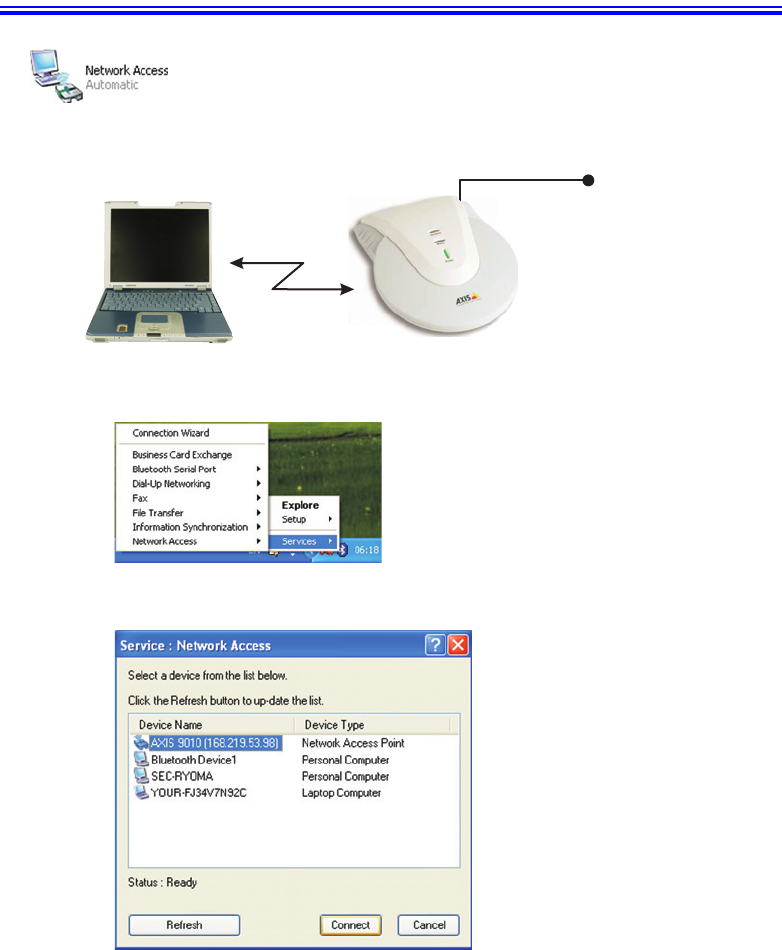
1) Choose the “Service > Network Access” menu of Samsung Bluetooth Tray icon.
2) Select the Bluetooth Access Point you wish to use, and click the “Connect” button.
Internet
Let’s Access the Internet with Bluetooth 17
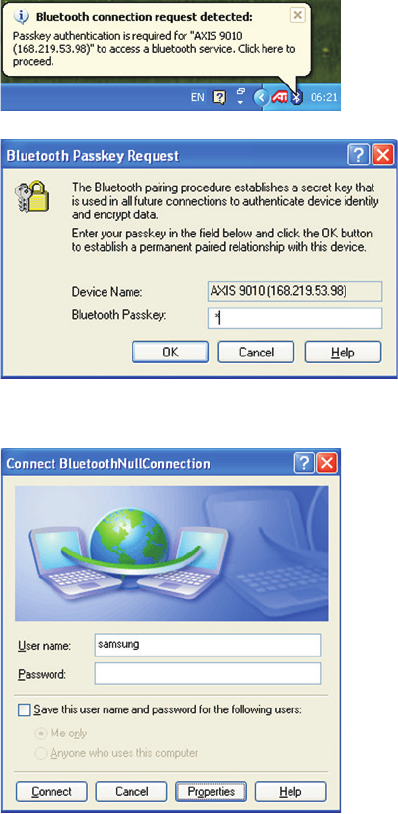
3) Access point will request a passkey. Ask for the passkey from your network
administrator, and then enter the passkey.
4) If the User name and Password is requested, just click “Connect” button.
18 SAMSUNG Bluetooth Users Manual
2. When using another Bluetooth device as an Internet connection sharing server.
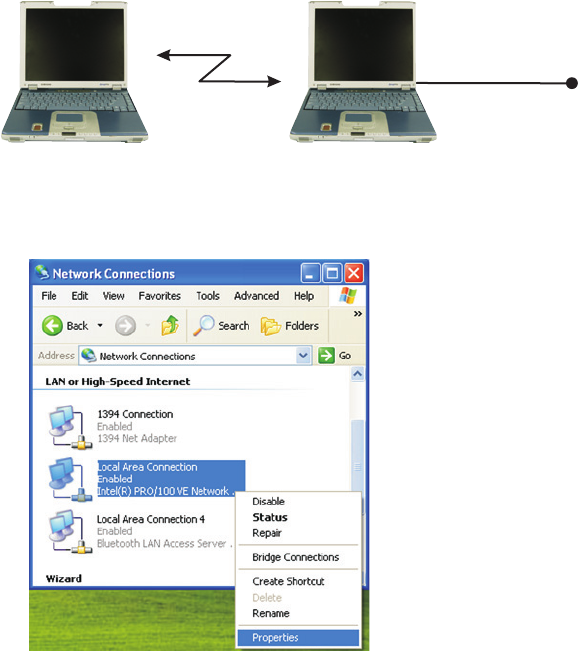
1) Select the property of the LAN connection that is to be used as the Internet
Connection Sharing Server (“B” device).
Internet
“A” Device “B” Device
Let’s Access the Internet with Bluetooth 19
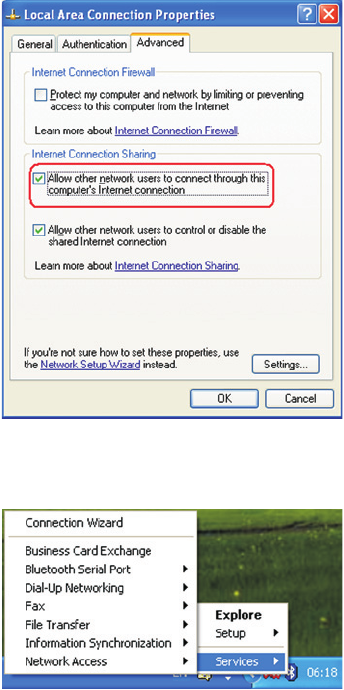
2) In the Advanced tab, check “Allow other network users to connect through this
computer’s Internet connection”.
3) Left click Samsung Bluetooth Tray icon in Client (“A” Device) and choose
“Service > Network Access”.
20 SAMSUNG Bluetooth Users Manual
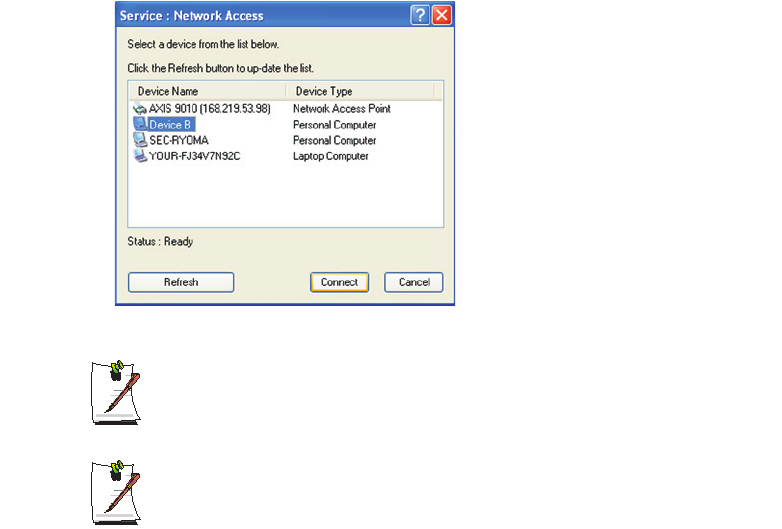
4) Select the Internet Connection Sharing Server, Device B, and click the “Connect”
button.
While connected with an AP or Internet Connection Sharing Server, you can
not find other Bluetooth devices.
When you are using another Bluetooth device as an Internet Connection
Sharing Server, we recommend using only one client at once. If you use more
than 2 clients at once, the connection may be unstable.
Let’s Exchange Business Cards 21
Let’s Exchange Business Cards
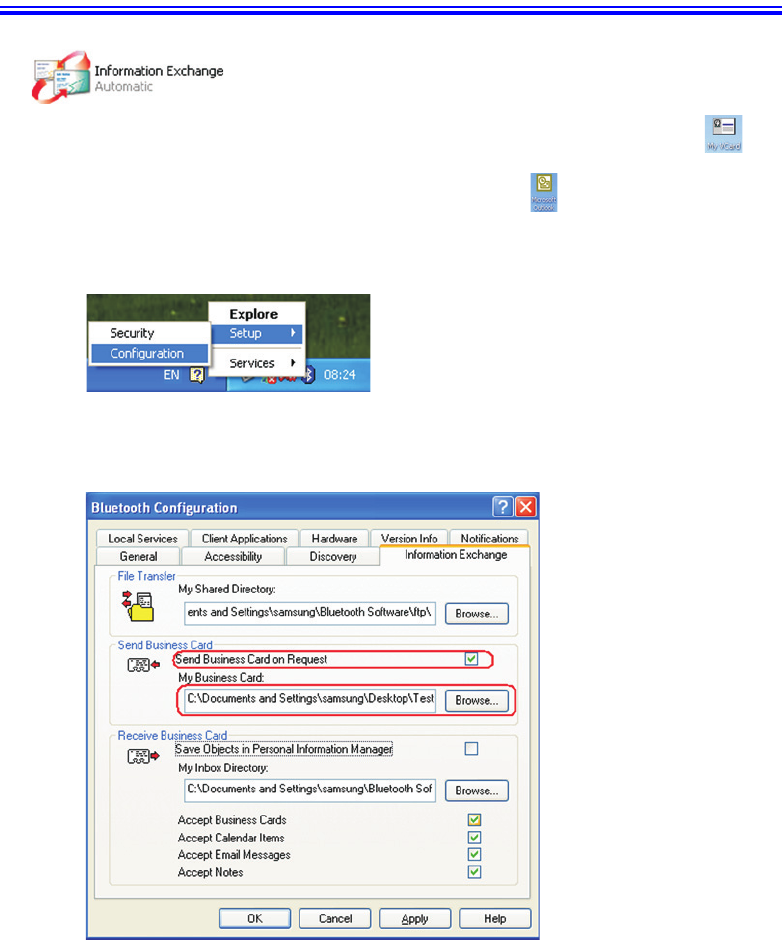
1. To exchange a business card, you first should have a your own business card .
2. You can make a business card using Microsoft Outlook. To make a new contact and
save that as a Vcard file format.
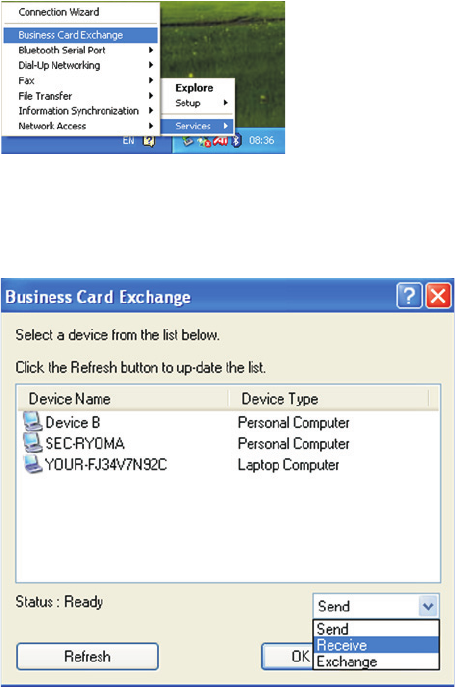
3. Select the “Setup > Configuration” menu of Samsung Bluetooth Tray Icon.
4. In the Information Exchange tab, check “Send Business Card on Request”, and enter
your business card (Vcard) location. Now you are ready to exchange business cards.
22 SAMSUNG Bluetooth Users Manual
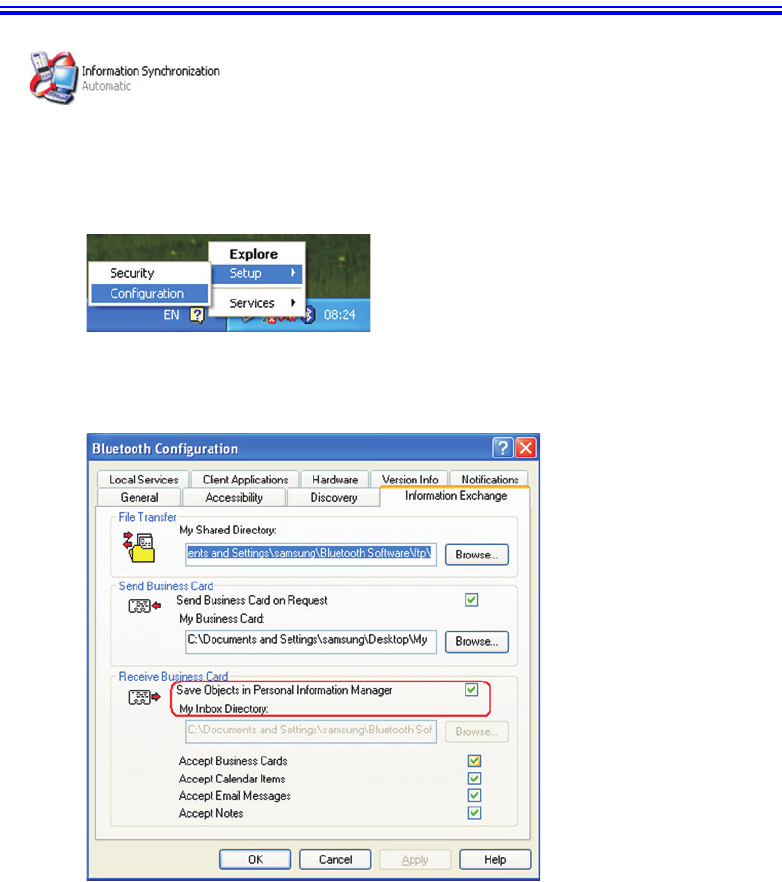
5. Choose the “Service > Business Card Exchange” menu of Samsung Bluetooth Tray
Icon.
6. Select the Bluetooth device with which you want to exchange your business card, and
choose one of the following desired options “Send, Receive, or Exchange”, and click the
“OK” button.
Let’s Synchronize Your PIMS Data 23
Let’s Synchronize Your PIMS Data
1. At first, to synchronize your PIMS data, you have to install Microsoft Outlook in your
Bluetooth device system.
2. Select “Setup > Configuration” menu of Samsung Bluetooth Tray Icon.
3. In the Information Exchange tab, check “Save Object in Personal Information
Manager”.
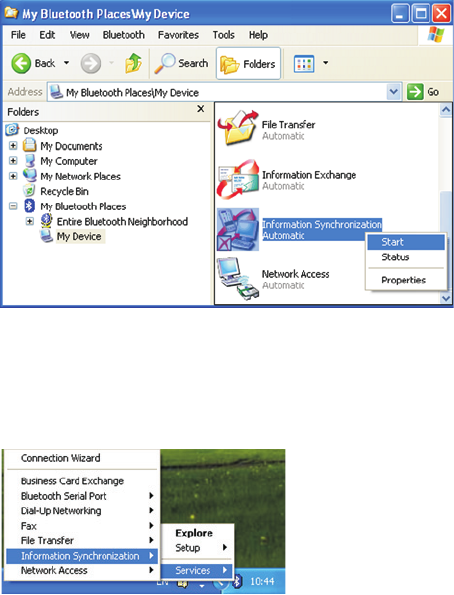
4. The Information Synchronization function is disabled by default, therefor you have to
start the function to use it.
24 SAMSUNG Bluetooth Users Manual
5. Double click the Samsung Bluetooth Tray Icon to run “My Bluetooth Places” explorer.
Click “My Device” and choose “Start” for the Information Synchronization icon.
6. Now, you are ready to synchronize your PIMS data with another Bluetooth device.
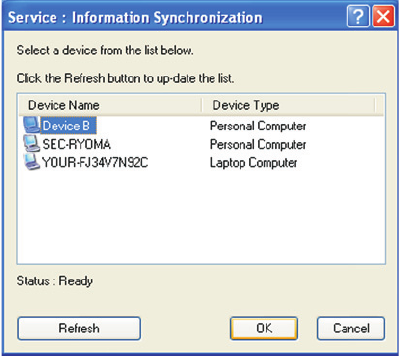
7. Select “Service > Information Synchronization” menu of the Samsung Bluetooth Tray
icon.
Let’s Synchronize Your PIMS Data 25
8. Select a the Bluetooth device with which you want to synchronize your PIMS data, and
click the “OK” button.
9. You can view the Synchronization result in the Microsoft Outlook contacts menu.
26 SAMSUNG Bluetooth Users Manual
Let’s Use Dial-Up Networking
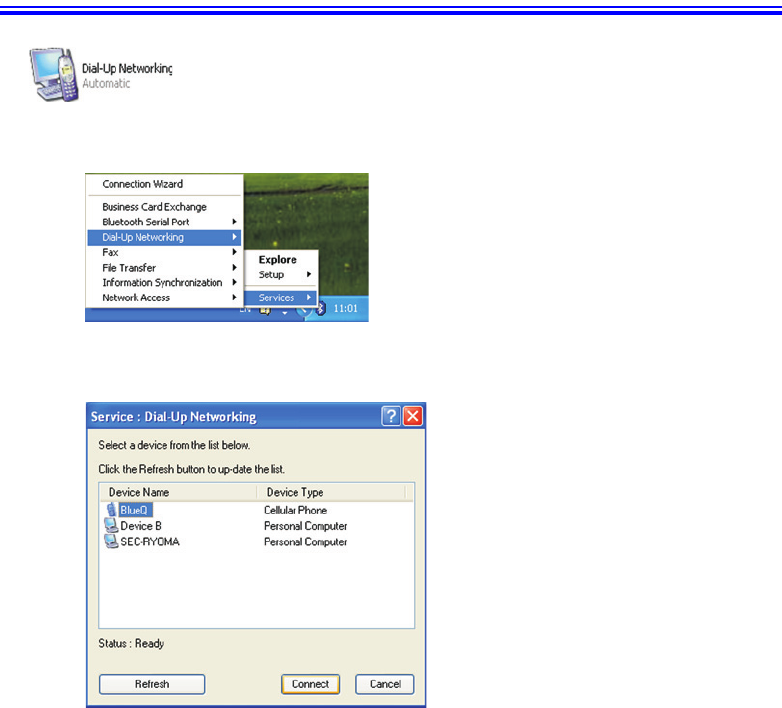
1. Select the “Services > Dial-Up Networking” menu of Samsung Bluetooth Tray icon.
2. Select a Bluetooth cellular phone and click the “Connect” button.
Let’s Use Dial-Up Networking 27
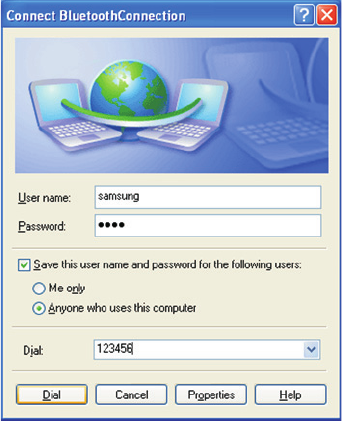
3. Enter the User name, Password, and Dial number for the ISP server that you want to
connect to.
28 SAMSUNG Bluetooth Users Manual
Let’s use a FAX
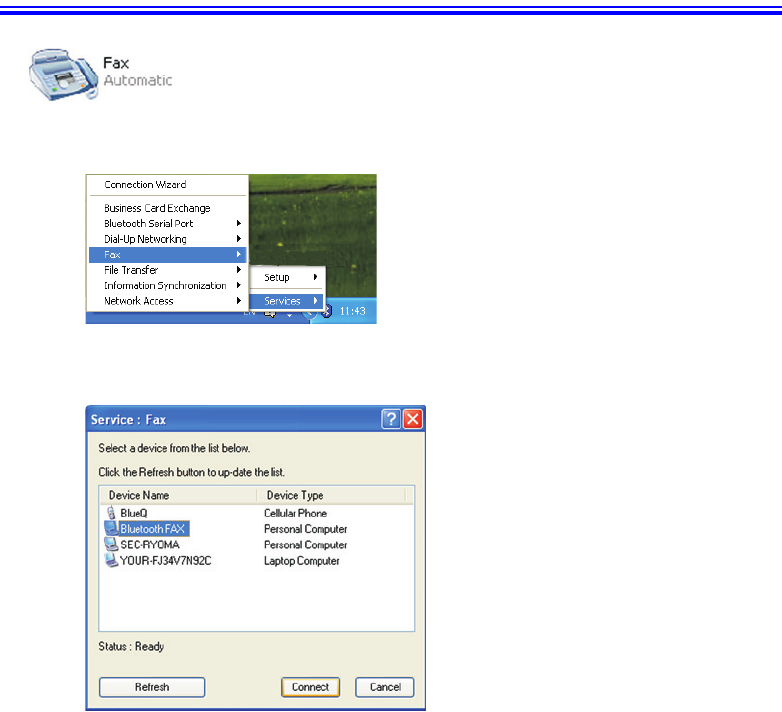
1. Select the “Service > Fax” menu of Samsung Bluetooth Tray icon.
2. Select a Bluetooth fax device and click the “Connect” button.
3. Now, you are ready to use any fax application. Just use like your device is directly
connected to the fax.
Controlling Access to Your Bluetooth Device from Other Bluetooth Devices 29
Controlling Access to Your Bluetooth Device
from Other Bluetooth Devices
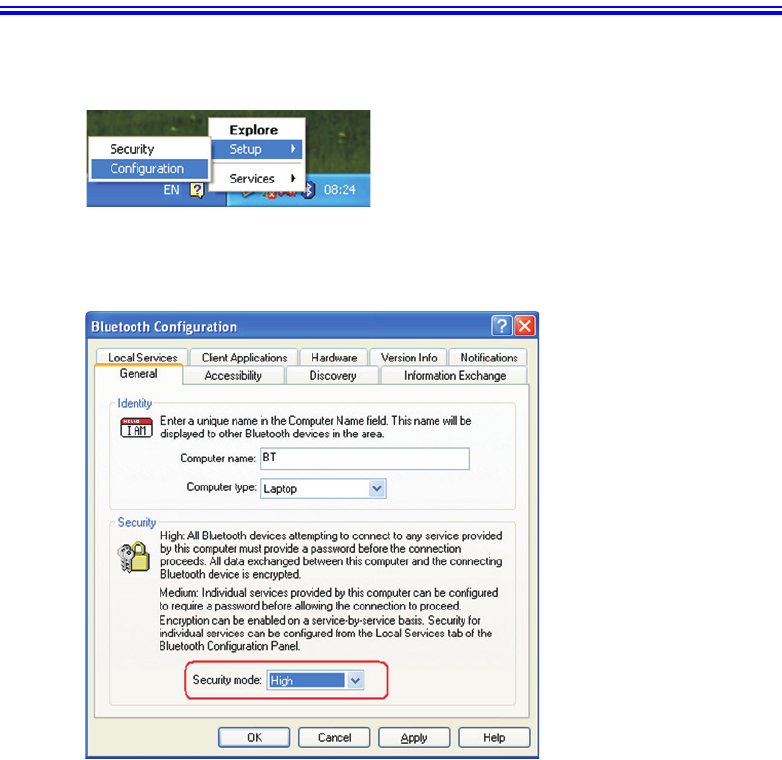
1. Select the “Setup > Configuration” menu of Samsung Bluetooth Tray Icon.
2. In the General tab, set the “Security mode” to “High”. Then whoever wants to access
your Bluetooth device must know the passkey what you chose.
30 SAMSUNG Bluetooth Users Manual
How to Change Your Bluetooth Device Name
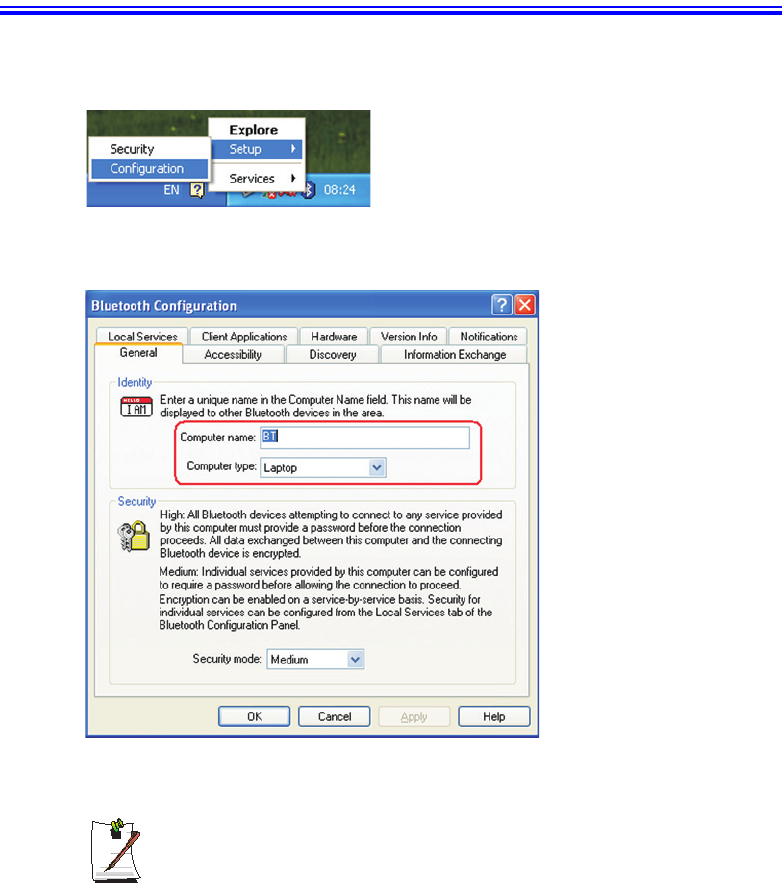
1. Select the “Setup > Configuration” menu of Samsung Bluetooth Tray Icon.
2. Enter the name you wish to use in the “Computer Name” edit box.
The new name is not applied in the “My Bluetooth Places” window until the
connection with other Bluetooth device is established again.