WJ Communications SX1115 User Manual 6030cn

WJ Communications, Inc. 6030cn

Hardware manual will be same for UNII but with MPE values shown in WJ test repor
1Cisco Systems, Inc.All rights reserved.170 West Tasman DriveSan Jose, CA 95134-1706USACisco Systems, Inc.Corporate HeadquartersCopyright © 1999Text Part Number:Final Review - Cisco Internal Use OnlyCisco uBR7200 Series UniversalBroadband Router Wireless ModemCard and Subsystem Installation andConfigurationProduct Numbers: UBR-MCW-PDA, UBR-MCW-PDA=, UBR-WPFD, UBR-WPFD=,CISCO-WT2772-PAA, CISCO-WT2772-PAA=, CISCO-WT2772-PBA,CISCO-WT2772-PBA=, UBR-ODD-01A, UBR-ODD-01A=, UBR-ODD-02A,UBR-ODD-02A=, UBR-ODD-03A, UBR-ODD-03A=, UBR-ODD-04A, UBR-ODD-04A=,UBR-ODD-05A, UBR-ODD-05A=, UBR-ODD-06A, UBR-ODD-06A=,This document explains how to install and configure the components for a high-speed point-to-pointfixed broadband wireless system using Cisco uBR7200 series universal broadband routers. Itincludes instructions for installing a wireless modem card, power feed panel, and wirelesstransverter, as well as instructions for configuring and verifying the system and troubleshooting theconfiguration.The Cisco uBR7200 series consists of the six-slot Cisco uBR7246 (four modem card slots and twoport adapter slots) and the three-slot Cisco uBR7223 (two modem card slots and one port adapterslot).Note Use this configuration note in conjunction with the Cisco uBR7200 Series UniversalBroadband Router Installation and Configuration Guide and Regulatory Compliance and SafetyInformation for the Cisco uBR7200 Series Universal Broadband Router that shipped with yourCisco uBR7200 series router, and the Cisco Broadband Fixed Wireless Site Planning Guide.The following sections are included in this document:•If You Need More Information, page 2•Wireless Modem Card and Subsystem Overview, page 2•Installation Prerequisites, page 10•Removing and Installing a Wireless Modem Card, page 15•Installing a Power Feed Panel, page 20•Installing a Wireless Transverter, page 2878-6030-01
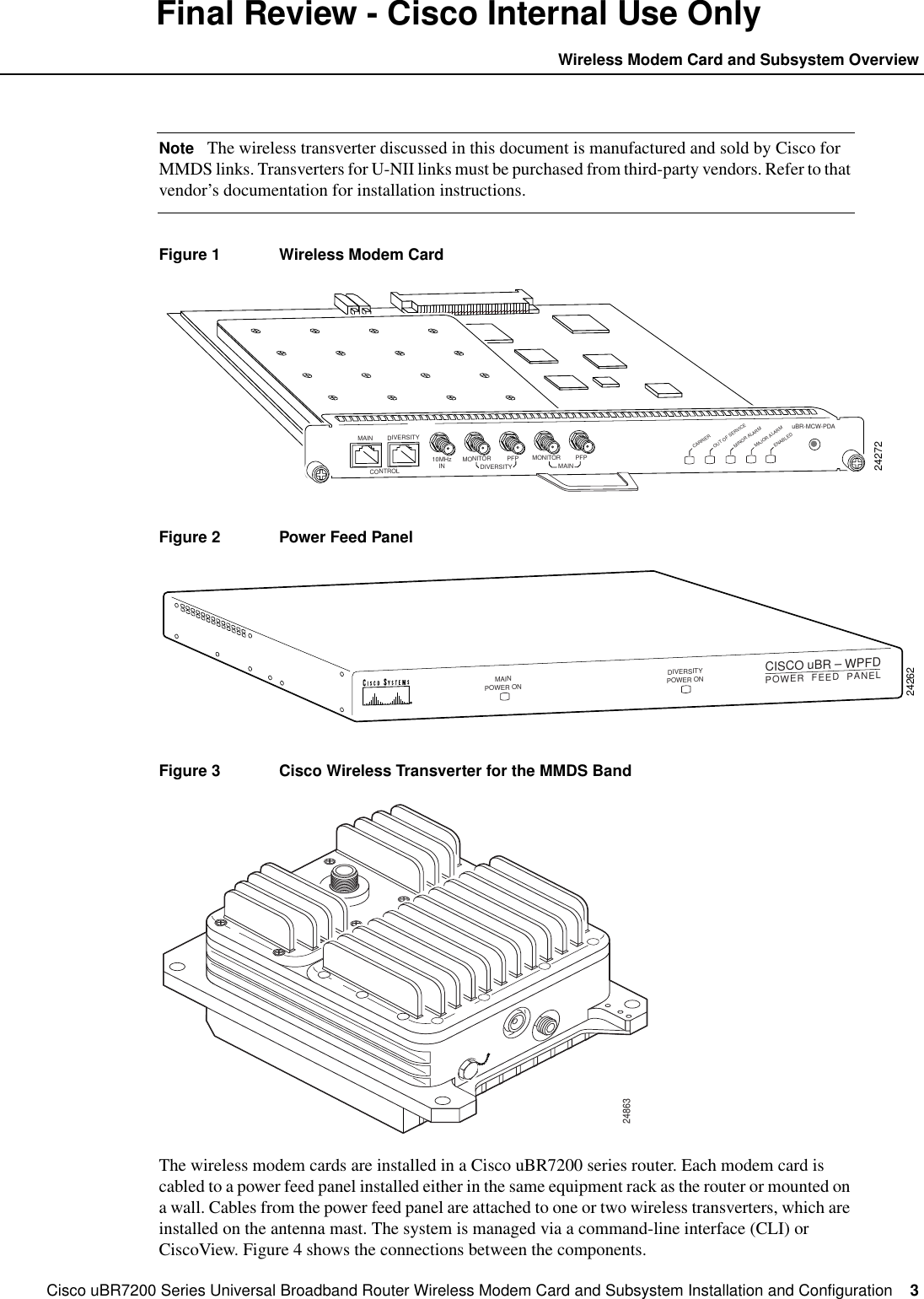
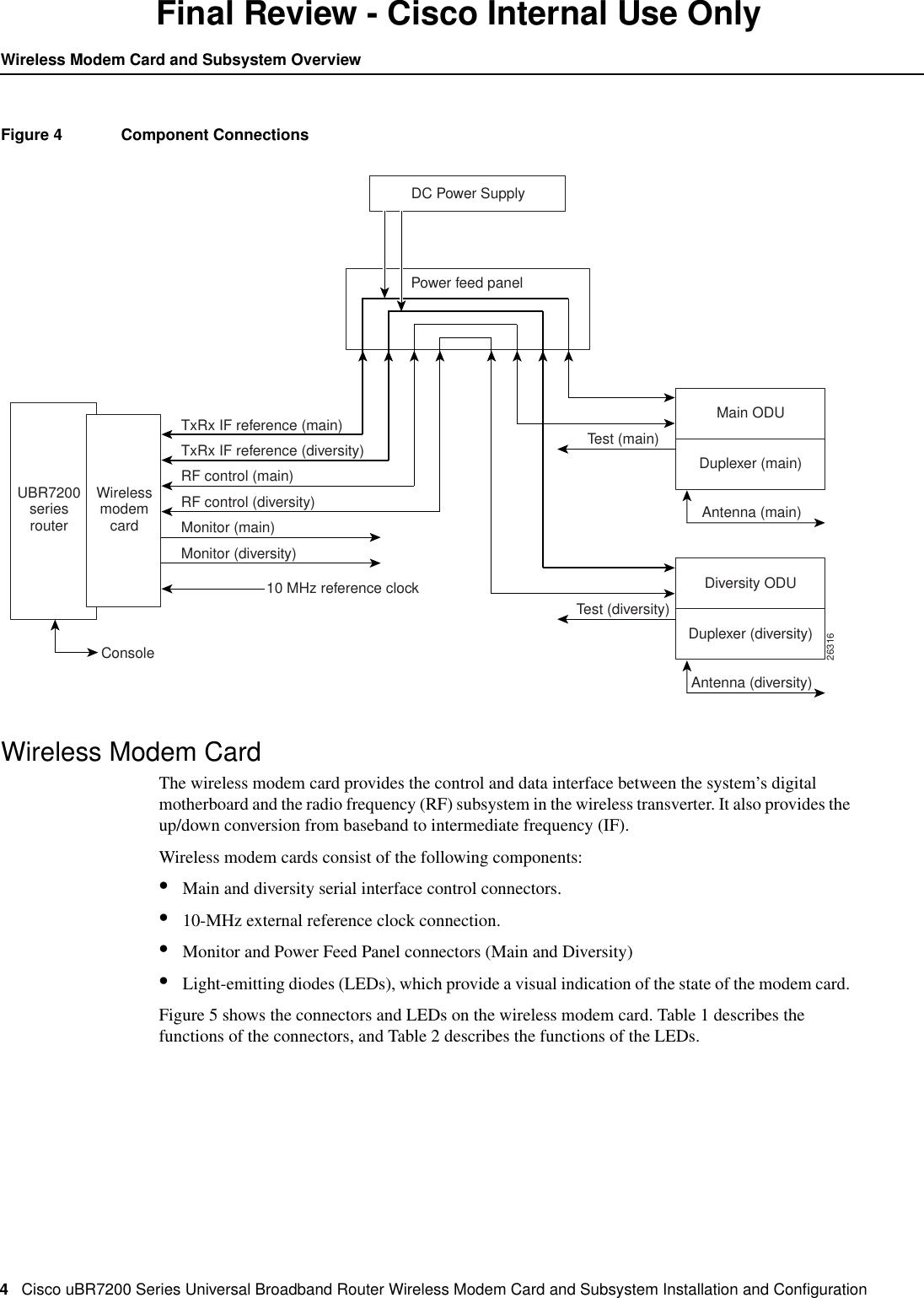
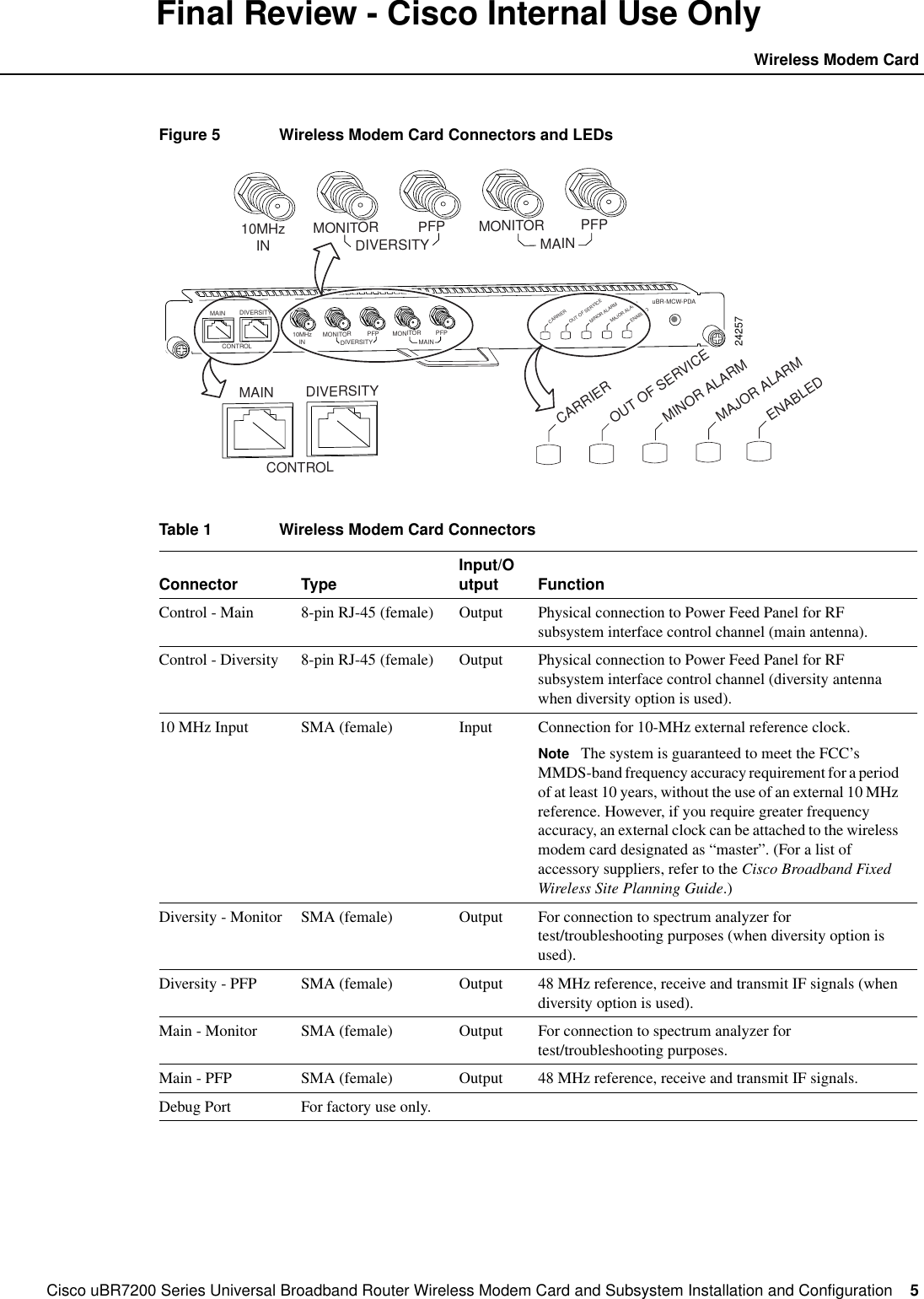
2Cisco uBR7200 Series Universal Broadband Router Wireless Modem Card and Subsystem Installation and ConfigurationIf You Need More InformationFinal Review - Cisco Internal Use Only•Configuring a Wireless Modem Card, page 42•Command Reference, page 48•Reading the Data, page 105•Reference Information, page 123•Cisco Connection Online, page 123•Documentation CD-ROM, page 124If You Need More InformationThe Cisco IOS software running on your router contains extensive features and functionality. Theeffective use of many of these features is easier if you have more information. For additionalinformation on configuring and maintaining the Cisco uBR7200 series, the following documentationresources are available:•For hardware installation and maintenance information on the Cisco uBR7200 series, refer to theCisco uBR7200 Series Universal Broadband Router Installation and Configuration Guide thatshipped with your Cisco uBR7246 or Cisco uBR7223.•For Cisco IOS software configuration information, refer to the modular configuration andmodular command reference publications in the Cisco IOS software configurationdocumentation set that corresponds to the software release installed on your Cisco hardware.Note You can access Cisco IOS software configuration documentation on the World Wide Webat http://www.cisco.com, http://www-china.cisco.com, http://www-europe.cisco.com.•For international agency compliance, safety, and statutory information for wide-area network(WAN) interfaces for the Cisco uBR7200 series, refer to the document Regulatory Complianceand Safety Information for the Cisco uBR7200 Series Universal Broadband Router.•To obtain general information about documentation, refer to the “Cisco Connection Online”section on page 123, or call customer service at 800 553-6387 or 408 526-7208. Customerservice hours are 5:00 a.m. to 6:00 p.m. Pacific time, Monday through Friday (excludingCisco-observed holidays). You can also send e-mail to cs-rep@cisco.com, or you can refer to theCisco Information Packet that shipped with your router.Wireless Modem Card and Subsystem OverviewThe Cisco high-speed point-to-point broadband fixed wireless system provides a fixed, dedicatedwireless link from one site to another. This link delivers full-duplex data in the licensed MMDS band(2.500 to 2.690 GHz), or unlicensed U-NII band (5.725 to 5.825 GHz).The broadband fixed wireless system consists of a Cisco uBR7200 series universal broadband router(Cisco uBR7246 or Cisco uBR7223) and one or more wireless modem cards (see Figure 1), eachwith a power feed panel (see Figure 2), and one or two wireless transverters (see Figure 3). (Thediversity option, which minimizes the effects of fading, uses two wireless transverters, one for eachof two antennas.)
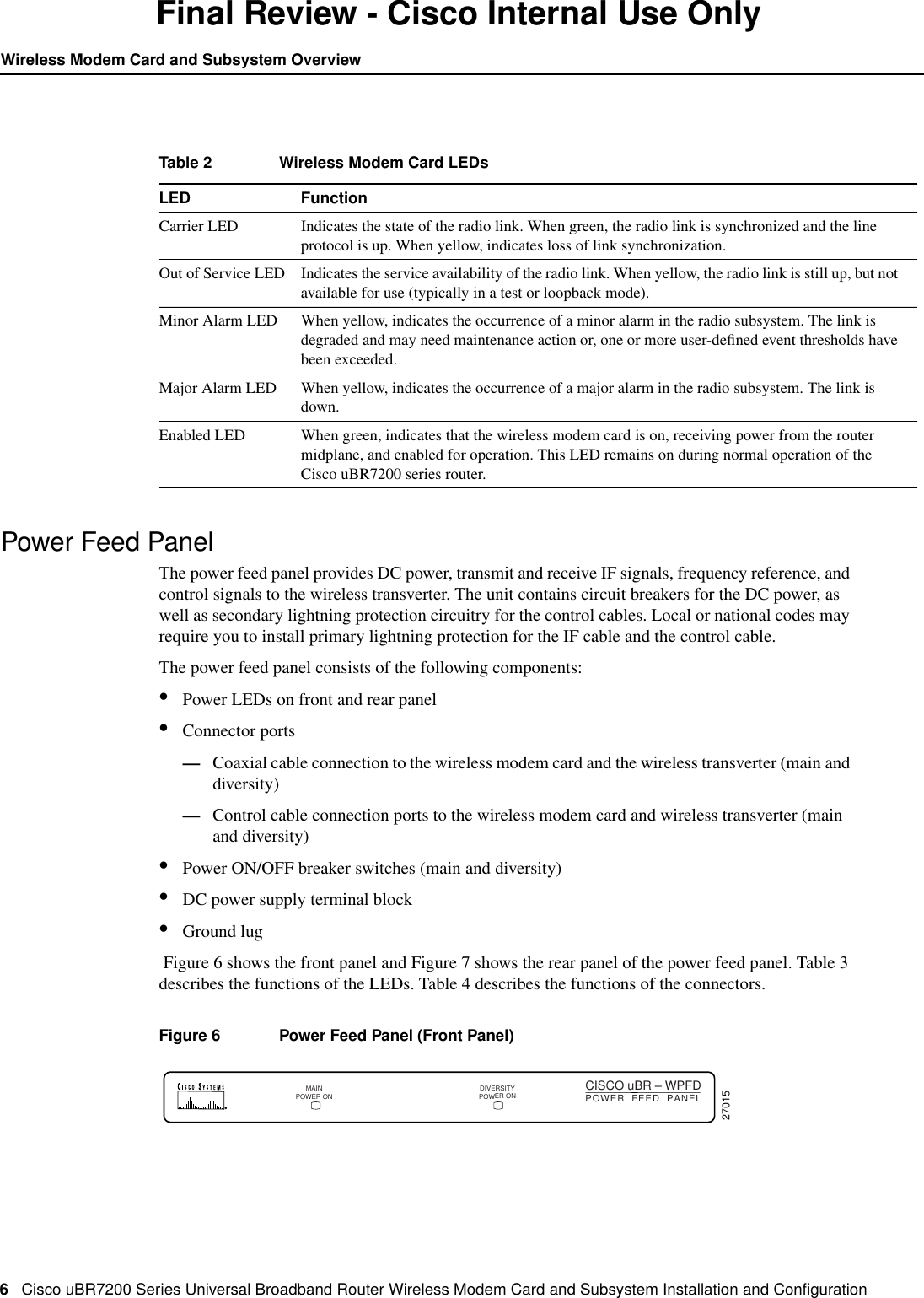
Cisco uBR7200 Series Universal Broadband Router Wireless Modem Card and Subsystem Installation and Configuration  3Wireless Modem Card and Subsystem OverviewFinal Review - Cisco Internal Use OnlyNote The wireless transverter discussed in this document is manufactured and sold by Cisco forMMDS links. Transverters for U-NII links must be purchased from third-party vendors. Refer to thatvendor’s documentation for installation instructions.Figure 1 Wireless Modem CardFigure 2 Power Feed PanelFigure 3 Cisco Wireless Transverter for the MMDS BandThe wireless modem cards are installed in a Cisco uBR7200 series router. Each modem card iscabled to a power feed panel installed either in the same equipment rack as the router or mounted ona wall. Cables from the power feed panel are attached to one or two wireless transverters, which areinstalled on the antenna mast. The system is managed via a command-line interface (CLI) orCiscoView. Figure 4 shows the connections between the components.24272DIVERSITYCONTROL10MHzIN MONITORDIVERSITY MAINPFP MONITORuBR-MCW-PDACARRIEROUT OF SERVICEMINOR ALARMMAJOR ALARMPFPMAINENABLED24262MAINPOWER ONDIVERSITYPOWER ONCISCO uBR – WPFDPOWER  FEED  PANEL24863
4Cisco uBR7200 Series Universal Broadband Router Wireless Modem Card and Subsystem Installation and ConfigurationWireless Modem Card and Subsystem OverviewFinal Review - Cisco Internal Use OnlyFigure 4 Component ConnectionsWireless Modem CardThe wireless modem card provides the control and data interface between the system’s digitalmotherboard and the radio frequency (RF) subsystem in the wireless transverter. It also provides theup/down conversion from baseband to intermediate frequency (IF).Wireless modem cards consist of the following components:•Main and diversity serial interface control connectors.•10-MHz external reference clock connection.•Monitor and Power Feed Panel connectors (Main and Diversity)•Light-emitting diodes (LEDs), which provide a visual indication of the state of the modem card.Figure 5 shows the connectors and LEDs on the wireless modem card. Table 1 describes thefunctions of the connectors, and Table 2 describes the functions of the LEDs.26316UBR7200seriesrouterWirelessmodemcardPower feed panelDC Power SupplyMain ODUDuplexer (main)Antenna (main)Diversity ODUDuplexer (diversity)Antenna (diversity)Test (main)Test (diversity)TxRx IF reference (main)TxRx IF reference (diversity)RF control (main)RF control (diversity)Monitor (main)Monitor (diversity)10 MHz reference clockConsole
Cisco uBR7200 Series Universal Broadband Router Wireless Modem Card and Subsystem Installation and Configuration  5Wireless Modem CardFinal Review - Cisco Internal Use OnlyFigure 5 Wireless Modem Card Connectors and LEDsTable 1 Wireless Modem Card ConnectorsConnector Type Input/Output FunctionControl - Main 8-pin RJ-45 (female) Output Physical connection to Power Feed Panel for RFsubsystem interface control channel (main antenna).Control - Diversity 8-pin RJ-45 (female) Output Physical connection to Power Feed Panel for RFsubsystem interface control channel (diversity antennawhen diversity option is used).10 MHz Input SMA (female) Input Connection for 10-MHz external reference clock.Note The system is guaranteed to meet the FCC’sMMDS-band frequency accuracy requirement for a periodof at least 10 years, without the use of an external 10 MHzreference. However, if you require greater frequencyaccuracy, an external clock can be attached to the wirelessmodem card designated as “master”. (For a list ofaccessory suppliers, refer to the Cisco Broadband FixedWireless Site Planning Guide.)Diversity - Monitor SMA (female) Output For connection to spectrum analyzer fortest/troubleshooting purposes (when diversity option isused).Diversity - PFP SMA (female) Output 48 MHz reference, receive and transmit IF signals (whendiversity option is used).Main - Monitor SMA (female) Output For connection to spectrum analyzer fortest/troubleshooting purposes.Main - PFP SMA (female) Output 48 MHz reference, receive and transmit IF signals.Debug Port For factory use only.24257DIVERSITYCONTROL10MHzIN MONITORDIVERSITY MAINPFP MONITORuBR-MCW-PDACARRIEROUT OF SERVICEMINOR ALARMMAJOR ALARMPFPMAINENABLEDDIVERSITYCONTROLMAIN10MHzIN MONITORDIVERSITY MAINPFP MONITOR PFPCARRIEROUT OF SERVICEMINOR ALARMMAJOR ALARMENABLED
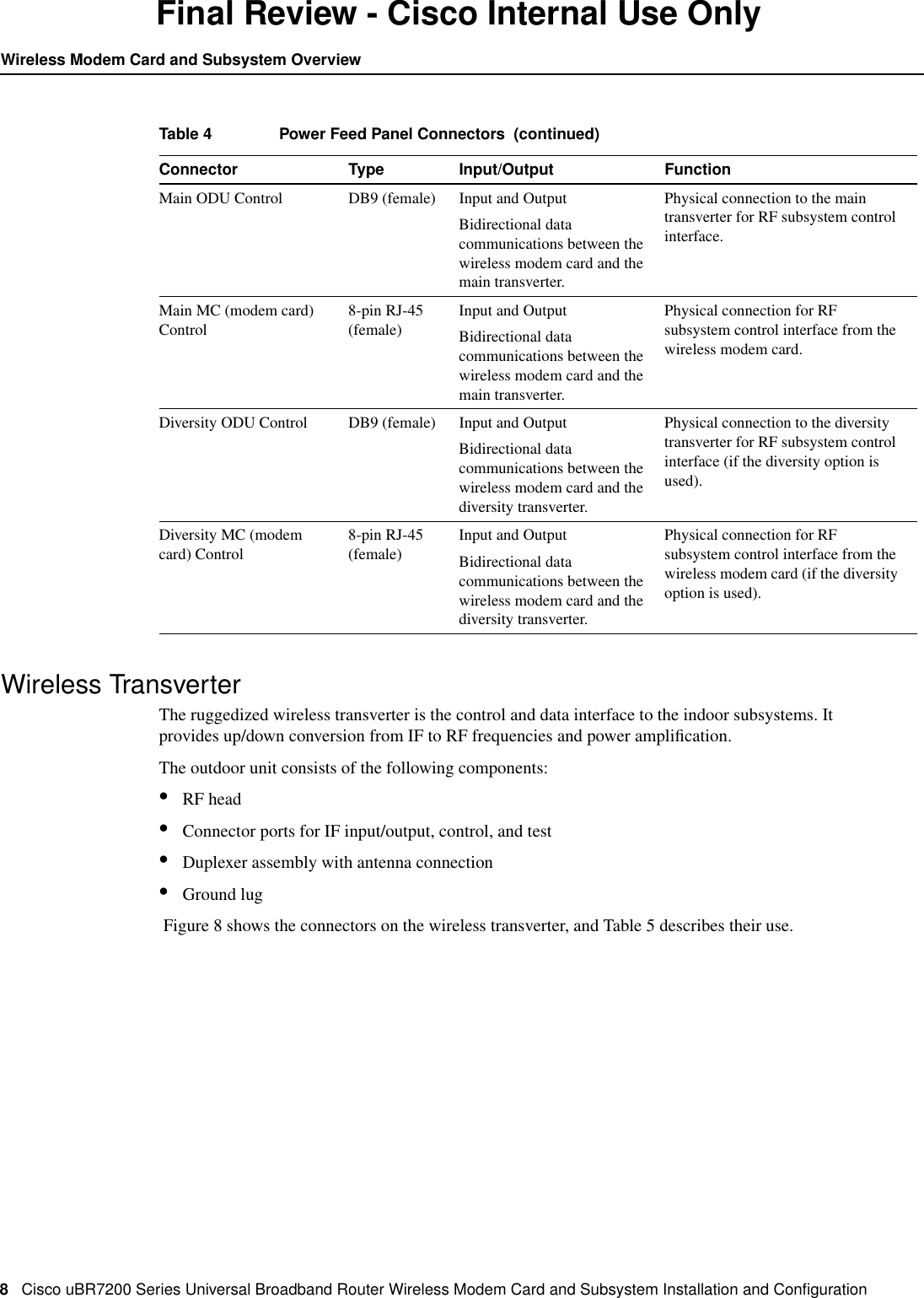
6Cisco uBR7200 Series Universal Broadband Router Wireless Modem Card and Subsystem Installation and ConfigurationWireless Modem Card and Subsystem OverviewFinal Review - Cisco Internal Use OnlyPower Feed PanelThe power feed panel provides DC power, transmit and receive IF signals, frequency reference, andcontrol signals to the wireless transverter. The unit contains circuit breakers for the DC power, aswell as secondary lightning protection circuitry for the control cables. Local or national codes mayrequire you to install primary lightning protection for the IF cable and the control cable.The power feed panel consists of the following components:•Power LEDs on front and rear panel•Connector ports—Coaxial cable connection to the wireless modem card and the wireless transverter (main anddiversity)—Control cable connection ports to the wireless modem card and wireless transverter (mainand diversity)•Power ON/OFF breaker switches (main and diversity)•DC power supply terminal block•Ground lug Figure 6 shows the front panel and Figure 7 shows the rear panel of the power feed panel. Table 3describes the functions of the LEDs. Table 4 describes the functions of the connectors.Figure 6 Power Feed Panel (Front Panel)Table 2 Wireless Modem Card LEDsLED FunctionCarrier LED Indicates the state of the radio link. When green, the radio link is synchronized and the lineprotocol is up. When yellow, indicates loss of link synchronization.Out of Service LED Indicates the service availability of the radio link. When yellow, the radio link is still up, but notavailable for use (typically in a test or loopback mode).Minor Alarm LED When yellow, indicates the occurrence of a minor alarm in the radio subsystem. The link isdegraded and may need maintenance action or, one or more user-defined event thresholds havebeen exceeded.Major Alarm LED When yellow, indicates the occurrence of a major alarm in the radio subsystem. The link isdown.Enabled LED When green, indicates that the wireless modem card is on, receiving power from the routermidplane, and enabled for operation. This LED remains on during normal operation of theCisco uBR7200 series router.27015MAINPOWER ONDIVERSITYPOWER ONCISCO uBR – WPFDPOWER  FEED  PANEL
Cisco uBR7200 Series Universal Broadband Router Wireless Modem Card and Subsystem Installation and Configuration  7Power Feed PanelFinal Review - Cisco Internal Use OnlyFigure 7 Power Feed Panel (Rear Panel)Table 3 Power Feed Panel LEDsLED FunctionMain Power On(visible on front and rear panel)When lit, indicates that there is power going to the main transverter.Diversity Power On(visible on front and rear panel)When lit, indicates that there is power going to the diversity transverter.Table 4 Power Feed Panel ConnectorsConnector Type Input/Output FunctionDC Power Input Pluggableterminal blockInput Power source connection for themain and diversity transverters.Diversity ODU Output N-Type(female)Input and Output Provides –48V power to the diversitytransverter, 24-MHz reference,receive and transmit IF signal from/tothe wireless modem card (if thediversity option is used).Diversity MC (modemcard)SMA (female) Input and Output Provides 24-MHz reference, receiveand transmit IF signals from/to thewireless modem card (if the diversityoption is used).Main ODU Output N-Type(female)Input and Output Provides –48V power to the maintransverter, 24-MHz referencereceive and transmit IF signal from/tothe wireless modem card.Main MC (modem card) SMA (female) Input and Output Provides 24-MHz reference, receiveand transmit IF signals from/to thewireless modem card.OUTPUT-48V    ,7A OUTPUT-48V    ,7A24271MAIN DIVERSITYCAUTION: This equipment has a connection between the earthed conductor of the                  d.c. supply circuit and the earthing conductor. See installation instructions.INPUTPWRON PWRONDIVERSITYODU ODUMC MCMAIN MAINCONTROLDIVERSITYODU ODUMC MC-48V    15A, 720VACAUTIONUSE COPPERCONDUCTORS ONLYMAIN DIVERSITYCAUTION: This equipment has a connection between the earthed conductor of the                  d.c. supply circuit and the earthing conductor. See installation instructions.PWRON PWRONDIVERSITYODU ODUMC MCMAINMAINCONTROLDIVERSITYODU ODUMC MCCAUTIONUSE COPPERCONDUCTORS ONLYINPUT-48V    15A, 720VAOUTPUT-48V    ,7A OUTPUT-48V    ,7A-+OFFONOFFONOFFONOFFON
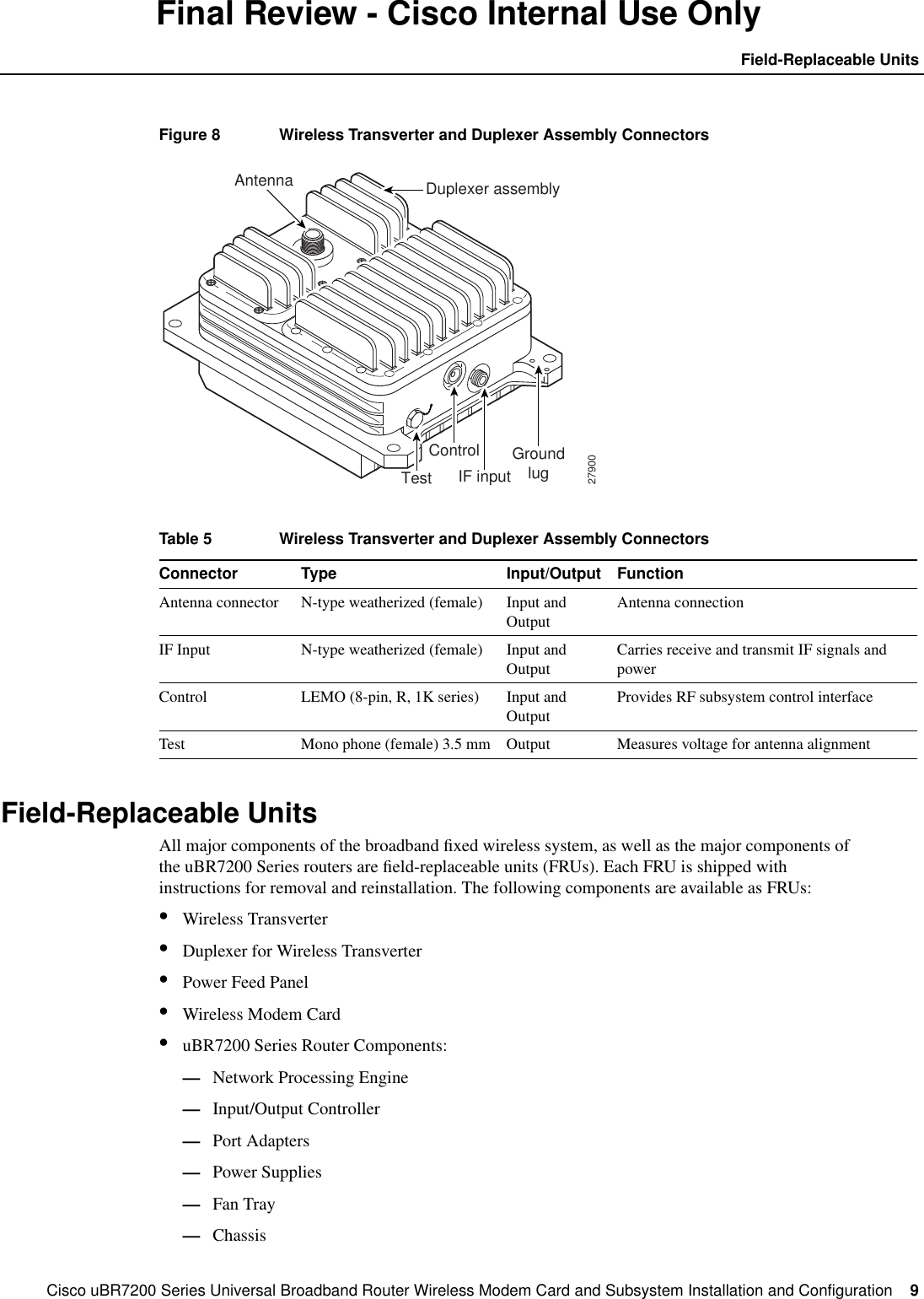
8Cisco uBR7200 Series Universal Broadband Router Wireless Modem Card and Subsystem Installation and ConfigurationWireless Modem Card and Subsystem OverviewFinal Review - Cisco Internal Use OnlyWireless TransverterThe ruggedized wireless transverter is the control and data interface to the indoor subsystems. Itprovides up/down conversion from IF to RF frequencies and power amplification.The outdoor unit consists of the following components:•RF head•Connector ports for IF input/output, control, and test•Duplexer assembly with antenna connection•Ground lug Figure 8 shows the connectors on the wireless transverter, and Table 5 describes their use.Main ODU Control DB9 (female) Input and OutputBidirectional datacommunications between thewireless modem card and themain transverter.Physical connection to the maintransverter for RF subsystem controlinterface.Main MC (modem card)Control8-pin RJ-45(female)Input and OutputBidirectional datacommunications between thewireless modem card and themain transverter.Physical connection for RFsubsystem control interface from thewireless modem card.Diversity ODU Control DB9 (female) Input and OutputBidirectional datacommunications between thewireless modem card and thediversity transverter.Physical connection to the diversitytransverter for RF subsystem controlinterface (if the diversity option isused).Diversity MC (modemcard) Control8-pin RJ-45(female)Input and OutputBidirectional datacommunications between thewireless modem card and thediversity transverter.Physical connection for RFsubsystem control interface from thewireless modem card (if the diversityoption is used).Table 4 Power Feed Panel Connectors  (continued)Connector Type Input/Output Function
Cisco uBR7200 Series Universal Broadband Router Wireless Modem Card and Subsystem Installation and Configuration  9Field-Replaceable UnitsFinal Review - Cisco Internal Use OnlyFigure 8 Wireless Transverter and Duplexer Assembly ConnectorsField-Replaceable UnitsAll major components of the broadband fixed wireless system, as well as the major components ofthe uBR7200 Series routers are field-replaceable units (FRUs). Each FRU is shipped withinstructions for removal and reinstallation. The following components are available as FRUs:•Wireless Transverter•Duplexer for Wireless Transverter•Power Feed Panel•Wireless Modem Card•uBR7200 Series Router Components:—Network Processing Engine—Input/Output Controller—Port Adapters—Power Supplies—Fan Tray—ChassisTable 5 Wireless Transverter and Duplexer Assembly ConnectorsConnector Type Input/Output FunctionAntenna connector N-type weatherized (female) Input andOutputAntenna connectionIF Input N-type weatherized (female) Input andOutputCarries receive and transmit IF signals andpowerControl LEMO (8-pin, R, 1K series) Input andOutputProvides RF subsystem control interfaceTest Mono phone (female) 3.5 mm Output Measures voltage for antenna alignment27900Test IF inputGroundlugControlAntenna Duplexer assembly
10 Cisco uBR7200 Series Universal Broadband Router Wireless Modem Card and Subsystem Installation and ConfigurationInstallation PrerequisitesFinal Review - Cisco Internal Use Only—Subchassis and Midplane—Flash Memory Cards—Rack Mount and Cable-Management KitFor ordering information, contact a Cisco customer service representative. See the “CiscoConnection Online” section on page 123 for more information.Installation PrerequisitesThis section provides a list of parts and tools you need to remove and replace a wireless modem cardin the Cisco uBR7200 series router, install the power feed panel in an equipment rack or on the wall,and install the wireless transverter at the antenna site. This section also includes safety andESD-prevention guidelines to help you avoid injury to yourself and damage to the equipment.Parts and ToolsThe following sections describe the parts and tools required to install each of the components. If youneed more detailed information regarding cables or connectors, refer to the Cisco Broadband FixedWireless Site Planning Guide.Wireless Modem CardYou need the following tools and parts to remove and replace a wireless modem card. If you needadditional equipment, contact a service representative for ordering information.•New wireless modem card•Number 2 Phillips screwdriver•Your own ESD-prevention equipment or the disposable grounding wrist strap included with allupgrade kits, FRUs, and spares•Antistatic mat or surface•Static shielding bag•Shielded CAT-5 cable with RJ-45 connectors and plenum-rated coaxial cable with SMAconnectors for connections between the modem card and the power feed panel. (Standard sets ofthese cables can be purchased from Cisco.)Power Feed PanelYou need the following tools and parts to install the power feed panel in an equipment rack or on awall. If you need additional equipment, contact a service representative for ordering information.•Power feed panel•Number 2 Phillips screwdriver•Bracket kit (provided)•Rack or wall mount screws•1/8-inch flat-blade screwdriver•5/16-inch open-end wrench•50-ohm coaxial cables with N-type (male) connectors for IF control
Cisco uBR7200 Series Universal Broadband Router Wireless Modem Card and Subsystem Installation and Configuration  11Software and Hardware RequirementsFinal Review - Cisco Internal Use Only•Shielded CAT-5 outdoor-rated control cables with DB-9 (male) and LEMO (8 pin, P, 1K series)connectors (LEMO connector provided)Note If a lightning protection device is installed between the DB-9 and LEMO connectors,there may be one logical cable, but two physical cables. The portion of the cable that is locatedindoors does not need to be outdoor rated.•–48VDC power supply•Ground lug (in grounding kit provided)Wireless TransverterYou need the following tools and parts to install the wireless transverter. If you need additionalequipment, contact a service representative for ordering information.Note Installation of some N-type connectors requires specific tools. Obtain this informationfrom your cable vendor.•Wireless transverter•Duplexer assembly•Number 2 Phillips screwdriver•Soldering iron/gun•9/16-inch open end wrench•Open end adjustable wrench•Cable wrap•Antenna tools (refer to the antenna manufacturer’s instructions)•Mounting kit (provided)•50-ohm coaxial cable with N-type (male) connectors to cable the wireless transverter to theantenna•Digital voltmeter with 3.5 mm mono phone plug to use for antenna alignment tasks•Ground lug (in grounding kit provided)Software and Hardware RequirementsFor this installation and configuration, you need a configured Cisco uBR7200 series router runningCisco IOS Release 12.0(6)XR or a later 12.0X release, or 12.0(6)T or a later 12.0T release.Safety GuidelinesFollowing are safety guidelines that you should follow when working with any equipment thatconnects to electrical power or telephone wiring.
12 Cisco uBR7200 Series Universal Broadband Router Wireless Modem Card and Subsystem Installation and ConfigurationInstallation PrerequisitesFinal Review - Cisco Internal Use OnlySafety WarningsWarning This warning symbol means danger. You are in a situation that could cause bodily injury.Before you work on any equipment, be aware of the hazards involved with electrical circuitry andbe familiar with standard practices for preventing accidents. To see translations of the warnings thatappear in this publication, refer to the “Regulatory Compliance and Safety Information” section inthis document.Waarschuwing Dit waarschuwingssymbool betekent gevaar. U verkeert in een situatie dielichamelijk letsel kan veroorzaken. Voordat u aan enige apparatuur gaat werken, dient u zich bewustte zijn van de bij elektrische schakelingen betrokken risico's en dient u op de hoogte te zijn vanstandaard maatregelen om ongelukken te voorkomen. Voor vertalingen van de waarschuwingen diein deze publicatie verschijnen, kunt u het gedeelte Regulatory Compliance and Safety Information(Informatie over naleving van veiligheids- en andere voorschriften) raadplegen in dit document.Varoitus Tämä varoitusmerkki merkitsee vaaraa. Olet tilanteessa, joka voi johtaaruumiinvammaan. Ennen kuin työskentelet minkään laitteiston parissa, ota selvääsähkökytkentöihin liittyvistä vaaroista ja tavanomaisista onnettomuuksien ehkäisykeinoista. Tässäjulkaisussa esiintyvien varoitusten käännökset löydät tämän asiakirjan Regulatory Compliance andSafety Information -osasta (määräysten noudattaminen ja tietoa turvallisuudesta).Attention Ce symbole d'avertissement indique un danger. Vous vous trouvez dans une situationpouvant causer des blessures ou des dommages corporels. Avant de travailler sur un équipement,soyez conscient des dangers posés par les circuits électriques et familiarisez-vous avec lesprocédures couramment utilisées pour éviter les accidents. Pour prendre connaissance destraductions d’avertissements figurant dans cette publication, consultez la section RegulatoryCompliance and Safety Information (Conformité aux règlements et consignes de sécurité) de cedocument.Warnung Dieses Warnsymbol bedeutet Gefahr. Sie befinden sich in einer Situation, die zu einerKörperverletzung führen könnte. Bevor Sie mit der Arbeit an irgendeinem Gerät beginnen, seien Siesich der mit elektrischen Stromkreisen verbundenen Gefahren und der Standardpraktiken zurVermeidung von Unfällen bewußt. Übersetzungen der in dieser Veröffentlichung enthaltenenWarnhinweise finden Sie im Abschnitt "Regulatory Compliance and Safety Information"(Informationen zu behördlichen Vorschriften und Sicherheit) in diesem Dokument.Avvertenza Questo simbolo di avvertenza indica un pericolo. La situazione potrebbe causareinfortuni alle persone. Prima di lavorare su qualsiasi apparecchiatura, occorre conoscere i pericolirelativi ai circuiti elettrici ed essere al corrente delle pratiche standard per la prevenzione di incidenti.La traduzione delle avvertenze riportate in questa pubblicazione si trova nella documentoRegulatory Compliance and Safety Information (Conformità alle norme e informazioni sullasicurezza) nel presente documento.Advarsel Dette varselsymbolet betyr fare. Du befinner deg i en situasjon som kan føre tilpersonskade. Før du utfører arbeid på utstyr, må du vare oppmerksom på de faremomentene somelektriske kretser innebærer, samt gjøre deg kjent med vanlig praksis når det gjelder å unngå ulykker.Hvis du vil se oversettelser av de advarslene som finnes i denne publikasjonen, kan du se i avsnittetRegulatory Compliance and Safety Information (Overholdelse av forskrifter ogsikkerhetsinformasjon) i dette dokumentet.Aviso Este símbolo de aviso indica perigo. Encontra-se numa situação que lhe poderá causardanos físicos. Antes de começar a trabalhar com qualquer equipamento, familiarize-se com osperigos relacionados com circuitos eléctricos, e com quaisquer práticas comuns que possam prevenirpossíveis acidentes. Para ver as traduções dos avisos que constam desta publicação, consulte asecção Regulatory Compliance and Safety Information (Informação de Segurança e DisposiçõesReguladoras) neste documento.
Cisco uBR7200 Series Universal Broadband Router Wireless Modem Card and Subsystem Installation and Configuration  13Safety GuidelinesFinal Review - Cisco Internal Use Only¡Advertencia! Este símbolo de aviso significa peligro.  Existe riesgo para su integridad física.Antes de manipular cualquier equipo, considerar los riesgos que entraña la corriente eléctrica yfamiliarizarse con los procedimientos estándar de prevención de accidentes. Para ver una traducciónde las advertencias que aparecen en esta publicación, consultar la sección titulada RegulatoryCompliance and Safety Information (Información sobre seguridad y conformidad con lasdisposiciones reglamentarias) que aparece en este documento.Varning! Denna varningssymbol signalerar fara. Du befinner dig i en situation som kan leda tillpersonskada. Innan du utför arbete på någon utrustning måste du vara medveten om farorna medelkretsar och känna till vanligt förfarande för att förebygga skador. Om du vill se översättningar avde varningar som visas i denna publikation, se avsnittet "Efterrättelse av föreskrifter ochsäkerhetsinformation" i detta dokument.Note This installation must be made in accordance with all local and national regulations. Specialattention must be made to Articles 800, 810, and 820 of the US National Electric Code, Sections 54and 60 of the Canadian electric code, and equivalent sections of other local and national regulationsthat address telecommunications wiring for the control cable, and TV, Radio, and CATV wiring forthe control cable and the coaxial cable.Warning This product requires short-circuit (overcurrent) protection to be provided as part of thebuilding installation. Install only in accordance with national and local wiring regulations.Warning A readily accessible two-pole disconnect device must be incorporated in the fixed wiring.Electrical Equipment GuidelinesFollow these basic guidelines when working with any electrical equipment:•Before beginning any procedures requiring access to the chassis interior, locate the emergencypower-off switch for the room in which you are working.•Disconnect all power and external cables before moving a chassis.•Do not work alone if potentially hazardous conditions exist.•Never assume that power has been disconnected from a circuit; always check.•Do not perform any action that creates a potential hazard to people or makes the equipmentunsafe.•Never install equipment that appears damaged.•Carefully examine your work area for possible hazards such as moist floors, ungrounded powerextension cables, and missing safety grounds.Preventing Electrostatic Discharge DamageElectrostatic discharge (ESD) damages equipment and impairs electrical circuitry. ESD occurs whenprinted circuit boards are improperly handled and results in complete or intermittent failuresThe network processing engine, I/O controller, port adapters, and wireless modem cards consist ofa printed circuit board that is fixed in a metal carrier. Electromagnetic interference (EMI) shielding,connectors, and a handle are integral components of the carrier. Handle the network processingengine, I/O controller, port adapters, and wireless modem cards by their carrier edges and handles;never touch the printed circuit board when handling either component.
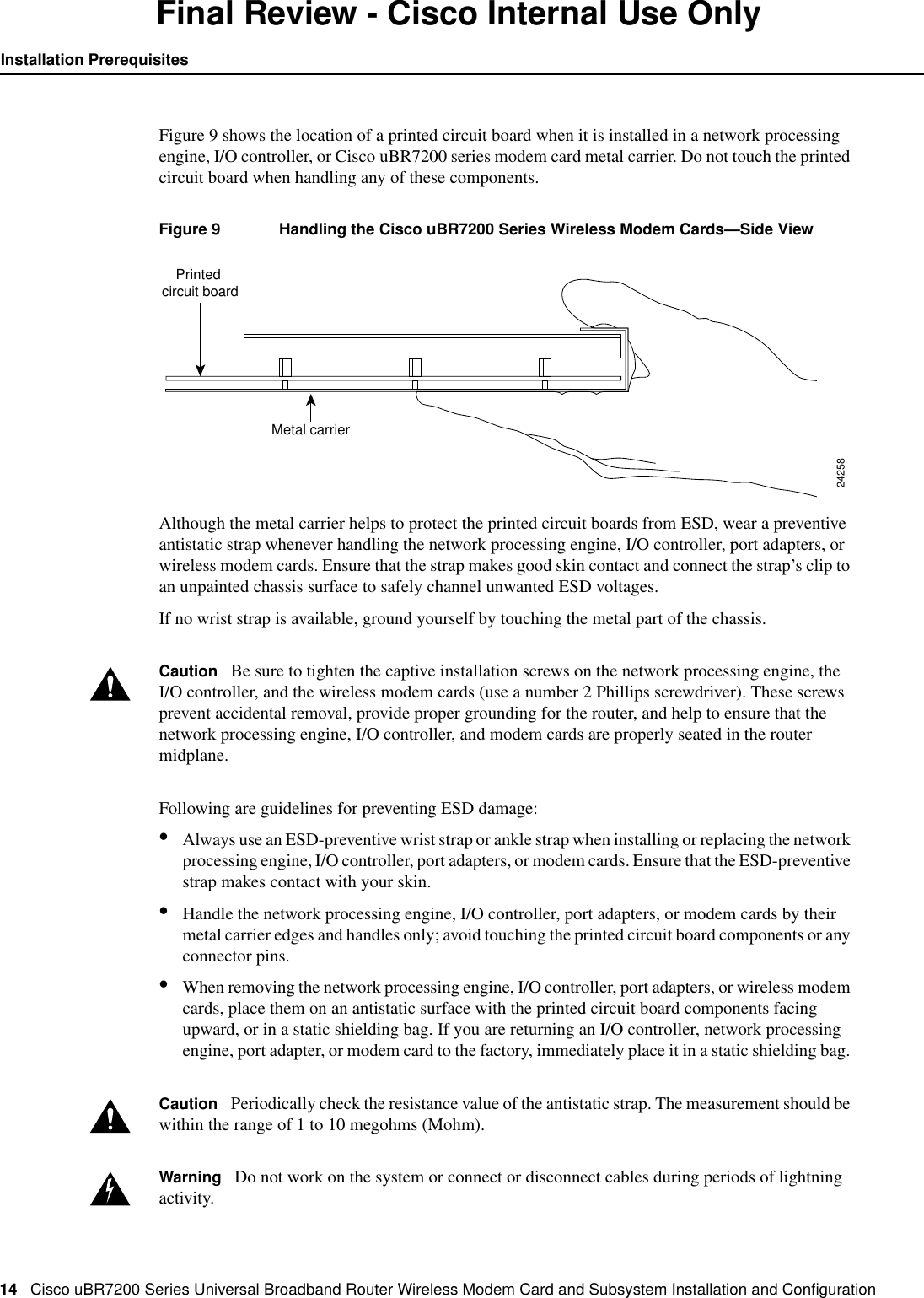
14 Cisco uBR7200 Series Universal Broadband Router Wireless Modem Card and Subsystem Installation and ConfigurationInstallation PrerequisitesFinal Review - Cisco Internal Use OnlyFigure 9 shows the location of a printed circuit board when it is installed in a network processingengine, I/O controller, or Cisco uBR7200 series modem card metal carrier. Do not touch the printedcircuit board when handling any of these components.Figure 9 Handling the Cisco uBR7200 Series Wireless Modem Cards—Side ViewAlthough the metal carrier helps to protect the printed circuit boards from ESD, wear a preventiveantistatic strap whenever handling the network processing engine, I/O controller, port adapters, orwireless modem cards. Ensure that the strap makes good skin contact and connect the strap’s clip toan unpainted chassis surface to safely channel unwanted ESD voltages.If no wrist strap is available, ground yourself by touching the metal part of the chassis.Caution Be sure to tighten the captive installation screws on the network processing engine, theI/O controller, and the wireless modem cards (use a number 2 Phillips screwdriver). These screwsprevent accidental removal, provide proper grounding for the router, and help to ensure that thenetwork processing engine, I/O controller, and modem cards are properly seated in the routermidplane.Following are guidelines for preventing ESD damage:•Always use an ESD-preventive wrist strap or ankle strap when installing or replacing the networkprocessing engine, I/O controller, port adapters, or modem cards. Ensure that the ESD-preventivestrap makes contact with your skin.•Handle the network processing engine, I/O controller, port adapters, or modem cards by theirmetal carrier edges and handles only; avoid touching the printed circuit board components or anyconnector pins.•When removing the network processing engine, I/O controller, port adapters, or wireless modemcards, place them on an antistatic surface with the printed circuit board components facingupward, or in a static shielding bag. If you are returning an I/O controller, network processingengine, port adapter, or modem card to the factory, immediately place it in a static shielding bag.Caution Periodically check the resistance value of the antistatic strap. The measurement should bewithin the range of 1 to 10 megohms (Mohm).Warning Do not work on the system or connect or disconnect cables during periods of lightningactivity.Metal carrierPrinted circuit board24258
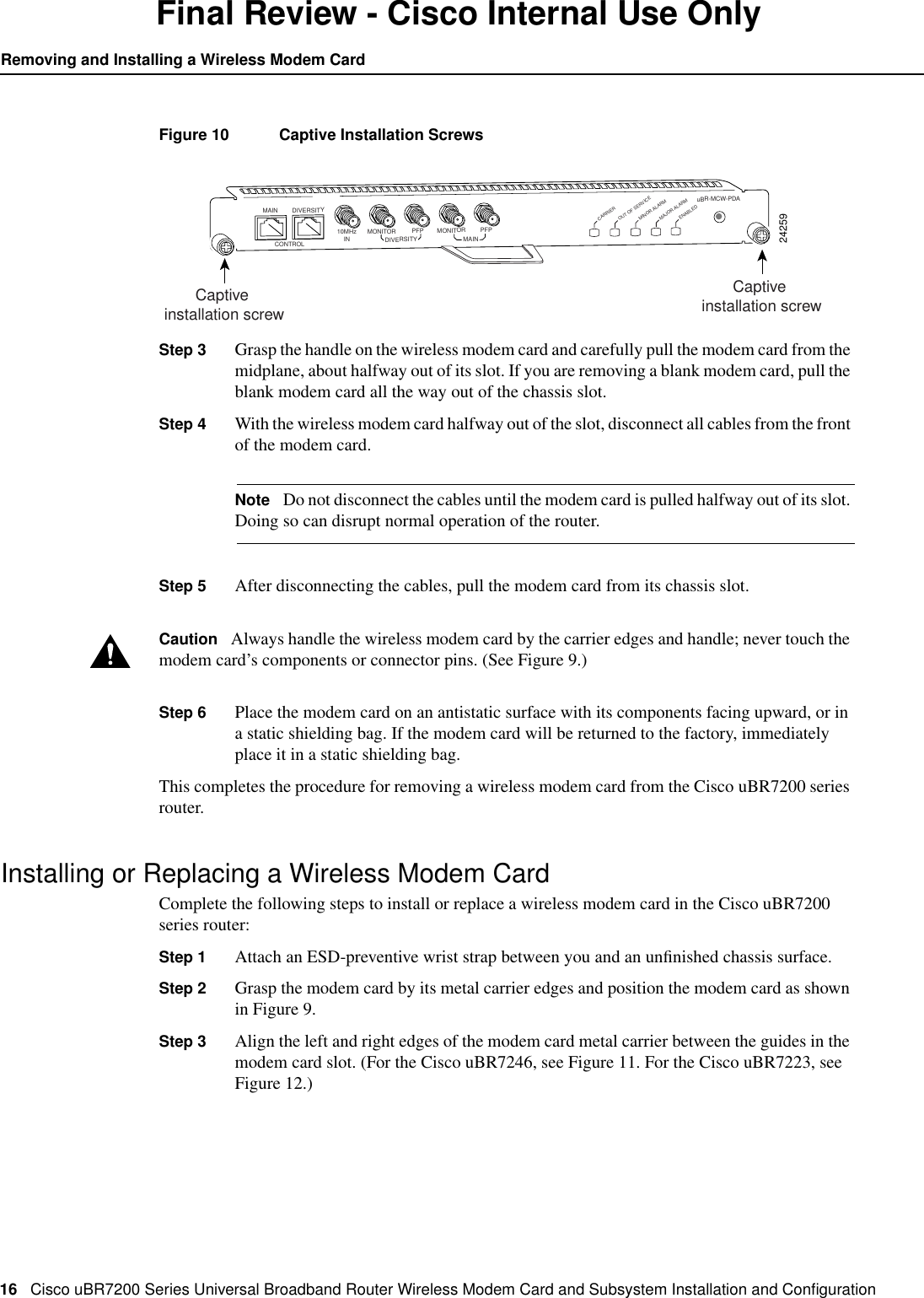
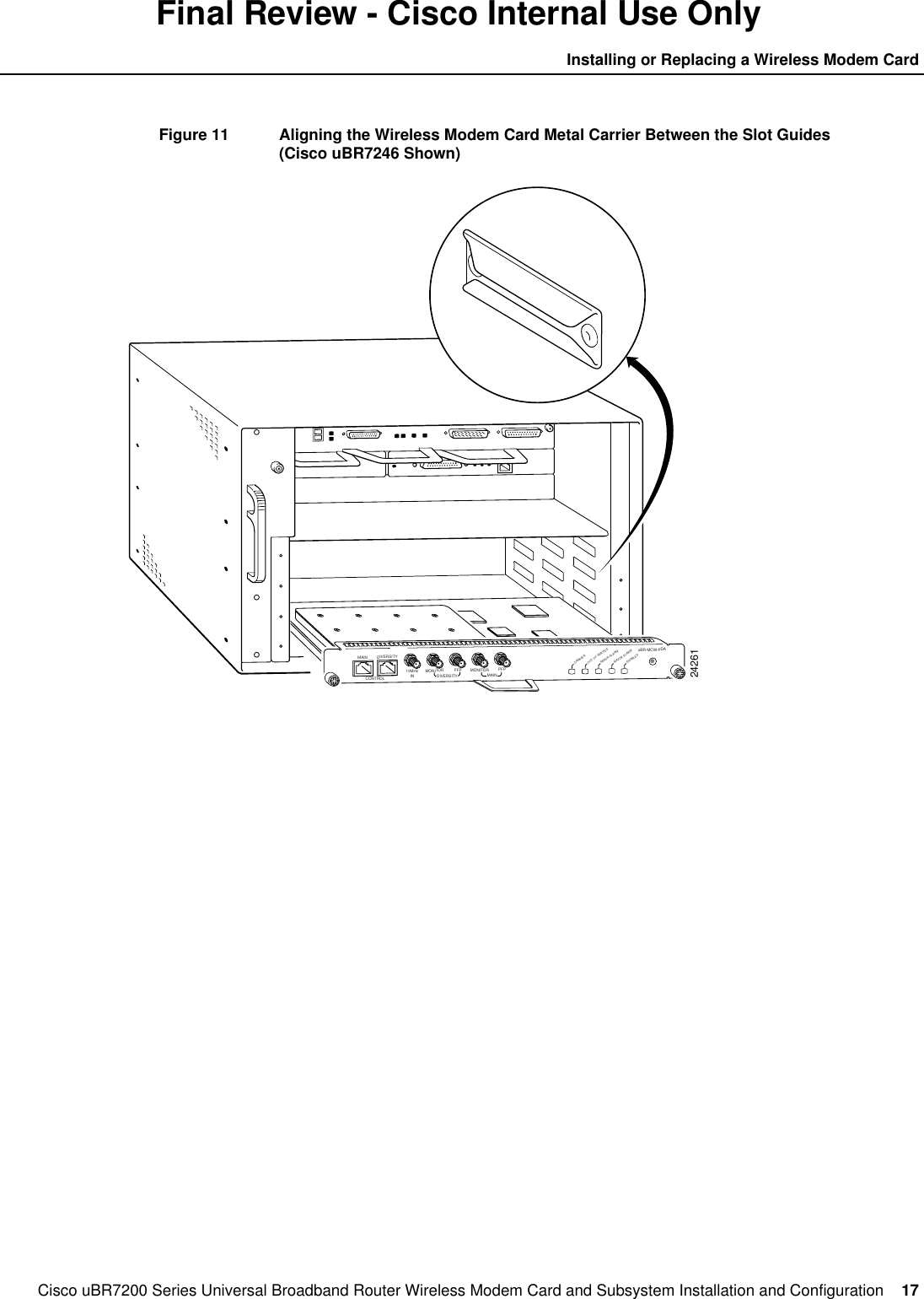
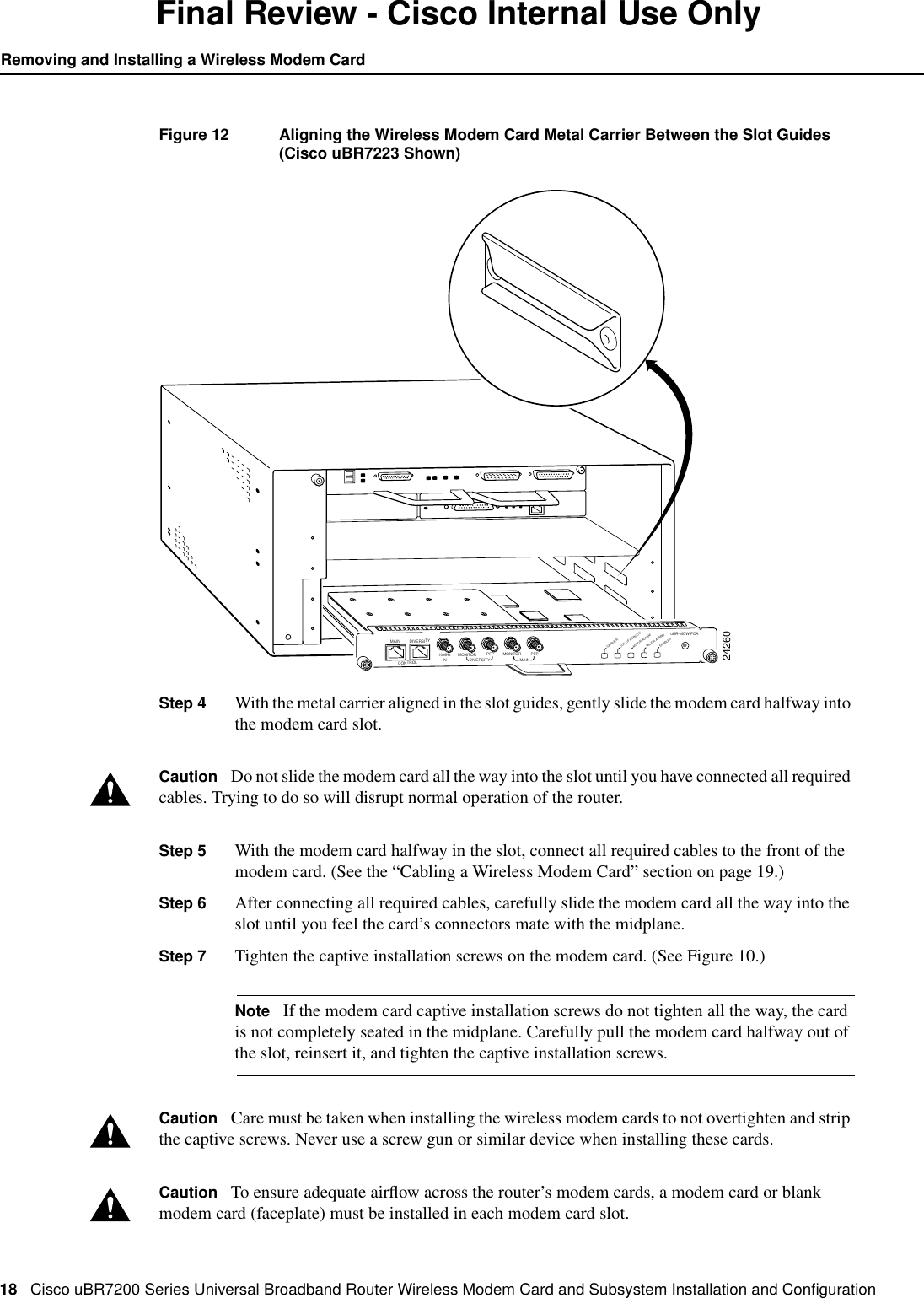
Cisco uBR7200 Series Universal Broadband Router Wireless Modem Card and Subsystem Installation and Configuration  15Product DisposalFinal Review - Cisco Internal Use OnlyWarning Read the installation instructions before you connect the system to its power source.Warning Before working on equipment that is connected to power lines, remove jewelry (includingrings, necklaces, and watches). Metal objects will heat up when connected to power and ground andcan cause serious burns or weld the metal object to the terminals.Warning Care must be given to connecting units to the supply circuit so that wiring is notoverloaded.Warning This equipment is to be installed and maintained by service personnel only as defined byAS/NZS 3260.Warning Only trained and qualified personnel should be allowed to install, replace, or service thisequipment.Product DisposalWarning Ultimate disposal of this product should be handled according to all national laws andregulations.Compliance with U.S. Export Laws and Regulations Regarding EncryptionThis product performs encryption (in the baseline privacy feature) and is regulated for export by theU.S. Government. Following is specific information regarding compliance with U.S. export laws andregulations for encryption products:•This product is not authorized for use by persons located outside the United States and Canadathat do not have export license authority from the U.S. Government.•This product may not be exported outside the U.S. and Canada either by physical or electronicmeans without the prior written approval of the U.S. Government.•Persons outside the U.S. and Canada may not reexport, resell, or transfer this product by eitherphysical or electronic means without prior written approval of the U.S. Government.Removing and Installing a Wireless Modem CardThe following sections explain how to remove and replace or install a wireless modem card in aCisco uBR7200 series router.Removing a Wireless Modem CardThe following procedures explain how to remove a wireless modem card from a Cisco uBR7200series router:Step 1 Attach an ESD-preventive wrist strap between you and an unfinished chassis surface.Step 2 Unscrew the captive installation screws on the front of the wireless modem card. (SeeFigure 10.)
16 Cisco uBR7200 Series Universal Broadband Router Wireless Modem Card and Subsystem Installation and ConfigurationRemoving and Installing a Wireless Modem CardFinal Review - Cisco Internal Use OnlyFigure 10 Captive Installation ScrewsStep 3 Grasp the handle on the wireless modem card and carefully pull the modem card from themidplane, about halfway out of its slot. If you are removing a blank modem card, pull theblank modem card all the way out of the chassis slot.Step 4 With the wireless modem card halfway out of the slot, disconnect all cables from the frontof the modem card.Note Do not disconnect the cables until the modem card is pulled halfway out of its slot.Doing so can disrupt normal operation of the router.Step 5 After disconnecting the cables, pull the modem card from its chassis slot.Caution Always handle the wireless modem card by the carrier edges and handle; never touch themodem card’s components or connector pins. (See Figure 9.)Step 6 Place the modem card on an antistatic surface with its components facing upward, or ina static shielding bag. If the modem card will be returned to the factory, immediatelyplace it in a static shielding bag.This completes the procedure for removing a wireless modem card from the Cisco uBR7200 seriesrouter.Installing or Replacing a Wireless Modem CardComplete the following steps to install or replace a wireless modem card in the Cisco uBR7200series router:Step 1 Attach an ESD-preventive wrist strap between you and an unfinished chassis surface.Step 2 Grasp the modem card by its metal carrier edges and position the modem card as shownin Figure 9.Step 3 Align the left and right edges of the modem card metal carrier between the guides in themodem card slot. (For the Cisco uBR7246, see Figure 11. For the Cisco uBR7223, seeFigure 12.)24259DIVERSITYCONTROL10MHzIN MONITORDIVERSITY MAINPFP MONITORuBR-MCW-PDACARRIEROUT OF SERVICEMINOR ALARMMAJOR ALARMPFPMAINENABLEDCaptive installation screwCaptive installation screw
Cisco uBR7200 Series Universal Broadband Router Wireless Modem Card and Subsystem Installation and Configuration  17Installing or Replacing a Wireless Modem CardFinal Review - Cisco Internal Use OnlyFigure 11 Aligning the Wireless Modem Card Metal Carrier Between the Slot Guides(Cisco uBR7246 Shown)24261DIVERSITYCONTROL10MHzIN MONITORDIVERSITY MAINPFP MONITORuBR-MCW-PDACARRIEROUT OF SERVICEMINOR ALARMMAJOR ALARMPFPMAINENABLED
18 Cisco uBR7200 Series Universal Broadband Router Wireless Modem Card and Subsystem Installation and ConfigurationRemoving and Installing a Wireless Modem CardFinal Review - Cisco Internal Use OnlyFigure 12 Aligning the Wireless Modem Card Metal Carrier Between the Slot Guides(Cisco uBR7223 Shown)Step 4 With the metal carrier aligned in the slot guides, gently slide the modem card halfway intothe modem card slot.Caution Do not slide the modem card all the way into the slot until you have connected all requiredcables. Trying to do so will disrupt normal operation of the router.Step 5 With the modem card halfway in the slot, connect all required cables to the front of themodem card. (See the “Cabling a Wireless Modem Card” section on page 19.)Step 6 After connecting all required cables, carefully slide the modem card all the way into theslot until you feel the card’s connectors mate with the midplane.Step 7 Tighten the captive installation screws on the modem card. (See Figure 10.)Note If the modem card captive installation screws do not tighten all the way, the cardis not completely seated in the midplane. Carefully pull the modem card halfway out ofthe slot, reinsert it, and tighten the captive installation screws.Caution Care must be taken when installing the wireless modem cards to not overtighten and stripthe captive screws. Never use a screw gun or similar device when installing these cards.Caution To ensure adequate airflow across the router’s modem cards, a modem card or blankmodem card (faceplate) must be installed in each modem card slot.24260DIVERSITYCONTROL10MHzIN MONITORDIVERSITY MAINPFP MONITORuBR-MCW-PDACARRIEROUT OF SERVICEMINOR ALARMMAJOR ALARMPFPMAINENABLED
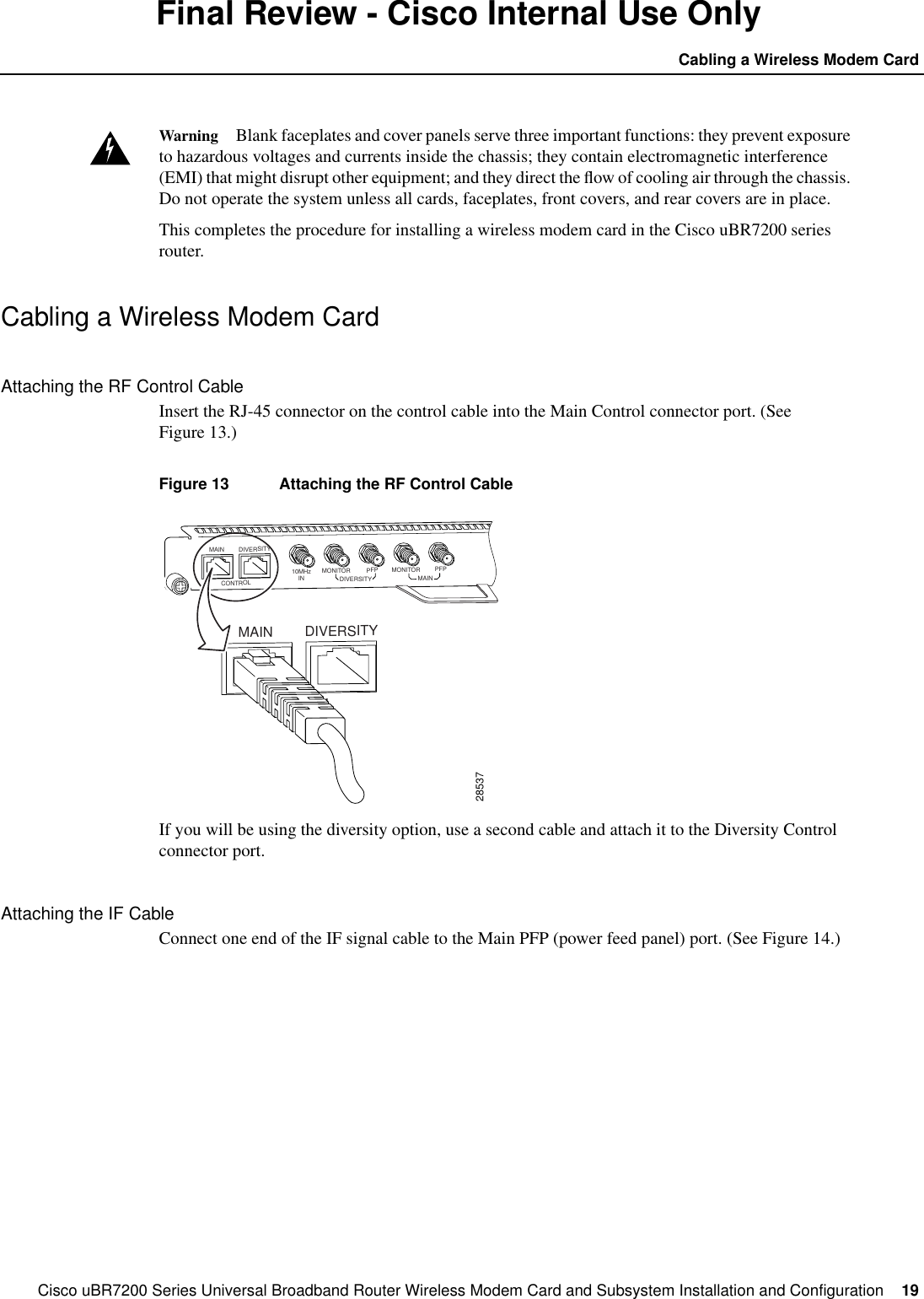
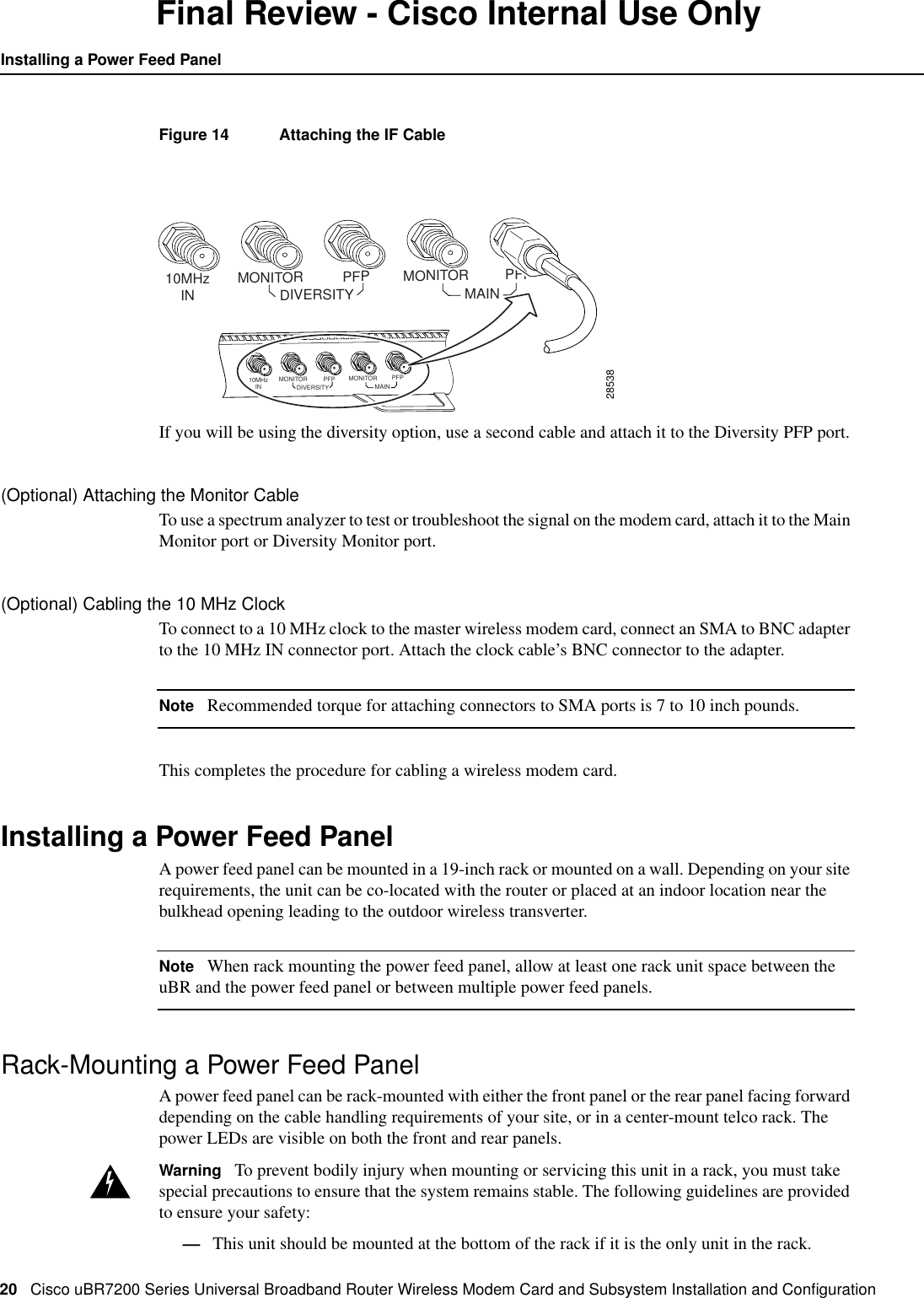
Cisco uBR7200 Series Universal Broadband Router Wireless Modem Card and Subsystem Installation and Configuration  19Cabling a Wireless Modem CardFinal Review - Cisco Internal Use OnlyWarning Blank faceplates and cover panels serve three important functions: they prevent exposureto hazardous voltages and currents inside the chassis; they contain electromagnetic interference(EMI) that might disrupt other equipment; and they direct the flow of cooling air through the chassis.Do not operate the system unless all cards, faceplates, front covers, and rear covers are in place.This completes the procedure for installing a wireless modem card in the Cisco uBR7200 seriesrouter.Cabling a Wireless Modem CardAttaching the RF Control CableInsert the RJ-45 connector on the control cable into the Main Control connector port. (SeeFigure 13.)Figure 13 Attaching the RF Control CableIf you will be using the diversity option, use a second cable and attach it to the Diversity Controlconnector port.Attaching the IF CableConnect one end of the IF signal cable to the Main PFP (power feed panel) port. (See Figure 14.)28537DIVERSITYCONTROL10MHzIN MONITORDIVERSITY MAINPFP MONITOR PFPMAINDIVERSITYCONTROLMAIN
20 Cisco uBR7200 Series Universal Broadband Router Wireless Modem Card and Subsystem Installation and ConfigurationInstalling a Power Feed PanelFinal Review - Cisco Internal Use OnlyFigure 14 Attaching the IF CableIf you will be using the diversity option, use a second cable and attach it to the Diversity PFP port.(Optional) Attaching the Monitor CableTo use a spectrum analyzer to test or troubleshoot the signal on the modem card, attach it to the MainMonitor port or Diversity Monitor port.(Optional) Cabling the 10 MHz ClockTo connect to a 10 MHz clock to the master wireless modem card, connect an SMA to BNC adapterto the 10 MHz IN connector port. Attach the clock cable’s BNC connector to the adapter.Note Recommended torque for attaching connectors to SMA ports is 7 to 10 inch pounds.This completes the procedure for cabling a wireless modem card.Installing a Power Feed PanelA power feed panel can be mounted in a 19-inch rack or mounted on a wall. Depending on your siterequirements, the unit can be co-located with the router or placed at an indoor location near thebulkhead opening leading to the outdoor wireless transverter.Note When rack mounting the power feed panel, allow at least one rack unit space between theuBR and the power feed panel or between multiple power feed panels.Rack-Mounting a Power Feed PanelA power feed panel can be rack-mounted with either the front panel or the rear panel facing forwarddepending on the cable handling requirements of your site, or in a center-mount telco rack. Thepower LEDs are visible on both the front and rear panels.Warning To prevent bodily injury when mounting or servicing this unit in a rack, you must takespecial precautions to ensure that the system remains stable. The following guidelines are providedto ensure your safety:—This unit should be mounted at the bottom of the rack if it is the only unit in the rack.2853810MHzIN MONITORDIVERSITY MAINPFP MONITOR PFP10MHzIN MONITORDIVERSITY MAINPFP MONITOR PFP
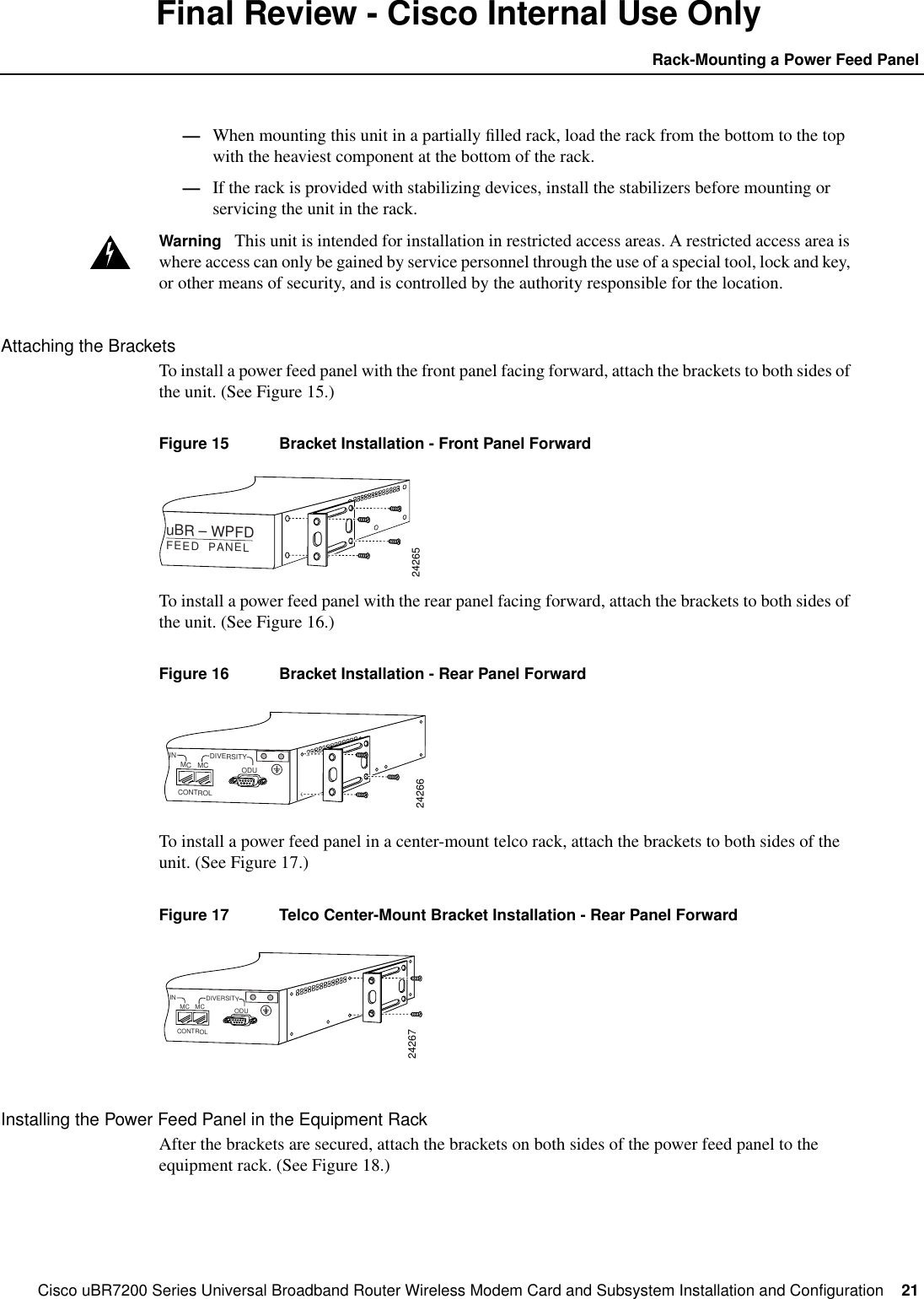
Cisco uBR7200 Series Universal Broadband Router Wireless Modem Card and Subsystem Installation and Configuration  21Rack-Mounting a Power Feed PanelFinal Review - Cisco Internal Use Only—When mounting this unit in a partially filled rack, load the rack from the bottom to the topwith the heaviest component at the bottom of the rack.—If the rack is provided with stabilizing devices, install the stabilizers before mounting orservicing the unit in the rack.Warning This unit is intended for installation in restricted access areas. A restricted access area iswhere access can only be gained by service personnel through the use of a special tool, lock and key,or other means of security, and is controlled by the authority responsible for the location.Attaching the BracketsTo install a power feed panel with the front panel facing forward, attach the brackets to both sides ofthe unit. (See Figure 15.)Figure 15 Bracket Installation - Front Panel ForwardTo install a power feed panel with the rear panel facing forward, attach the brackets to both sides ofthe unit. (See Figure 16.)Figure 16 Bracket Installation - Rear Panel ForwardTo install a power feed panel in a center-mount telco rack, attach the brackets to both sides of theunit. (See Figure 17.)Figure 17 Telco Center-Mount Bracket Installation - Rear Panel ForwardInstalling the Power Feed Panel in the Equipment RackAfter the brackets are secured, attach the brackets on both sides of the power feed panel to theequipment rack. (See Figure 18.)24265uBR – WPFDFEED  PANEL24266IN DIVERSITYCONTROLODUMC MC24267IN DIVERSITYCONTROLODUMC MC
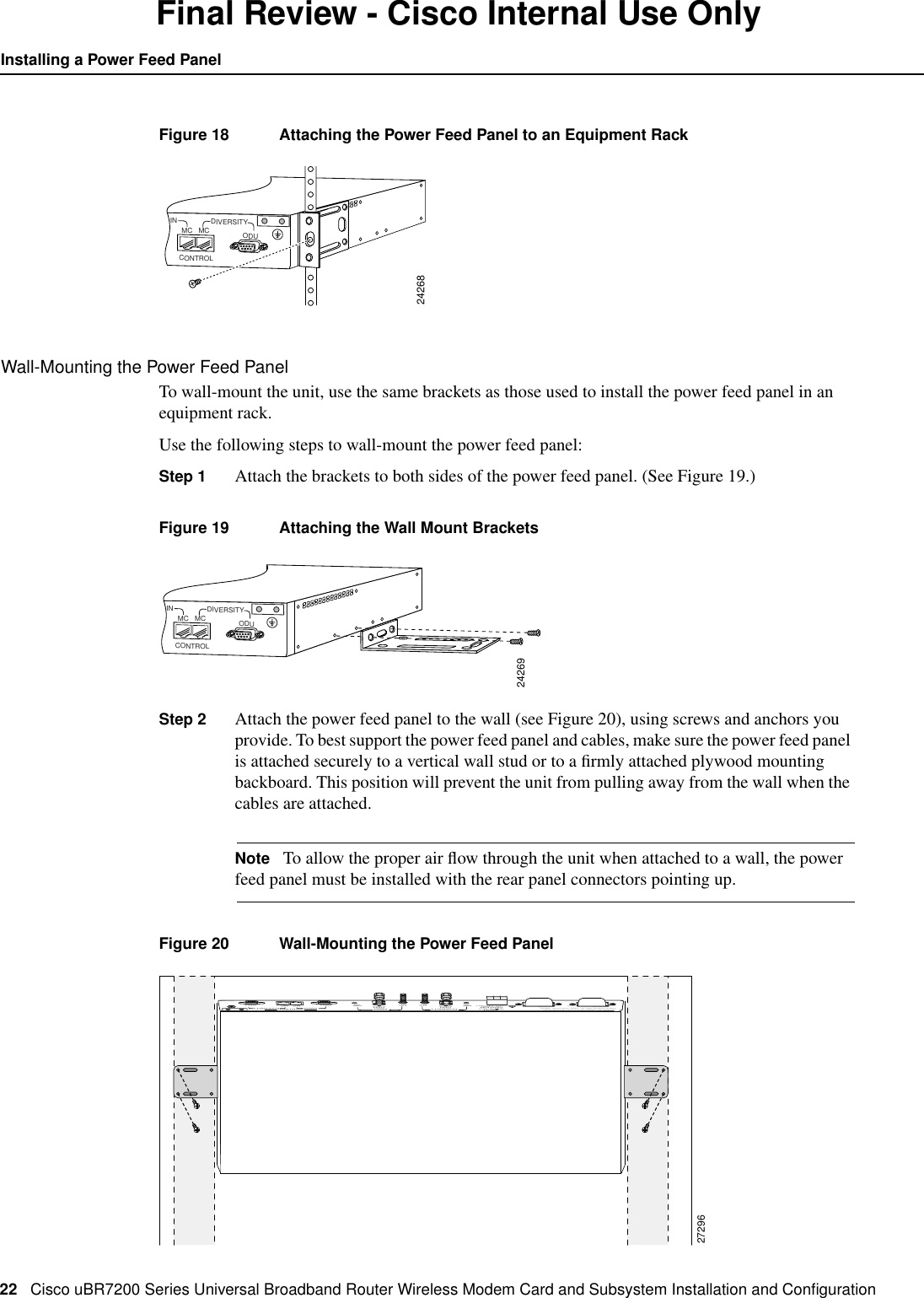
22 Cisco uBR7200 Series Universal Broadband Router Wireless Modem Card and Subsystem Installation and ConfigurationInstalling a Power Feed PanelFinal Review - Cisco Internal Use OnlyFigure 18 Attaching the Power Feed Panel to an Equipment RackWall-Mounting the Power Feed PanelTo wall-mount the unit, use the same brackets as those used to install the power feed panel in anequipment rack.Use the following steps to wall-mount the power feed panel:Step 1 Attach the brackets to both sides of the power feed panel. (See Figure 19.)Figure 19 Attaching the Wall Mount BracketsStep 2 Attach the power feed panel to the wall (see Figure 20), using screws and anchors youprovide. To best support the power feed panel and cables, make sure the power feed panelis attached securely to a vertical wall stud or to a firmly attached plywood mountingbackboard. This position will prevent the unit from pulling away from the wall when thecables are attached.Note To allow the proper air flow through the unit when attached to a wall, the powerfeed panel must be installed with the rear panel connectors pointing up.Figure 20 Wall-Mounting the Power Feed Panel24268IN DIVERSITYCONTROLODUMC MC24269IN DIVERSITYCONTROLODUMC MC27296OFFOFFONONCAUTION: This equipment has a connection between the earthed conductor of the d.c. supply circuit and the earthingconductor. See installation instructions.PWRON PWRONDIVERSITYMC MCMAIN MAIN DIVERSITYCONTROLODU ODUMC MCINPUTCAUTIONUSE COPPERCONDUCTORS ONLY OUTPUT-48    ,7AODU-48v    15a, 720VAOUTPUT-48    ,7AODU
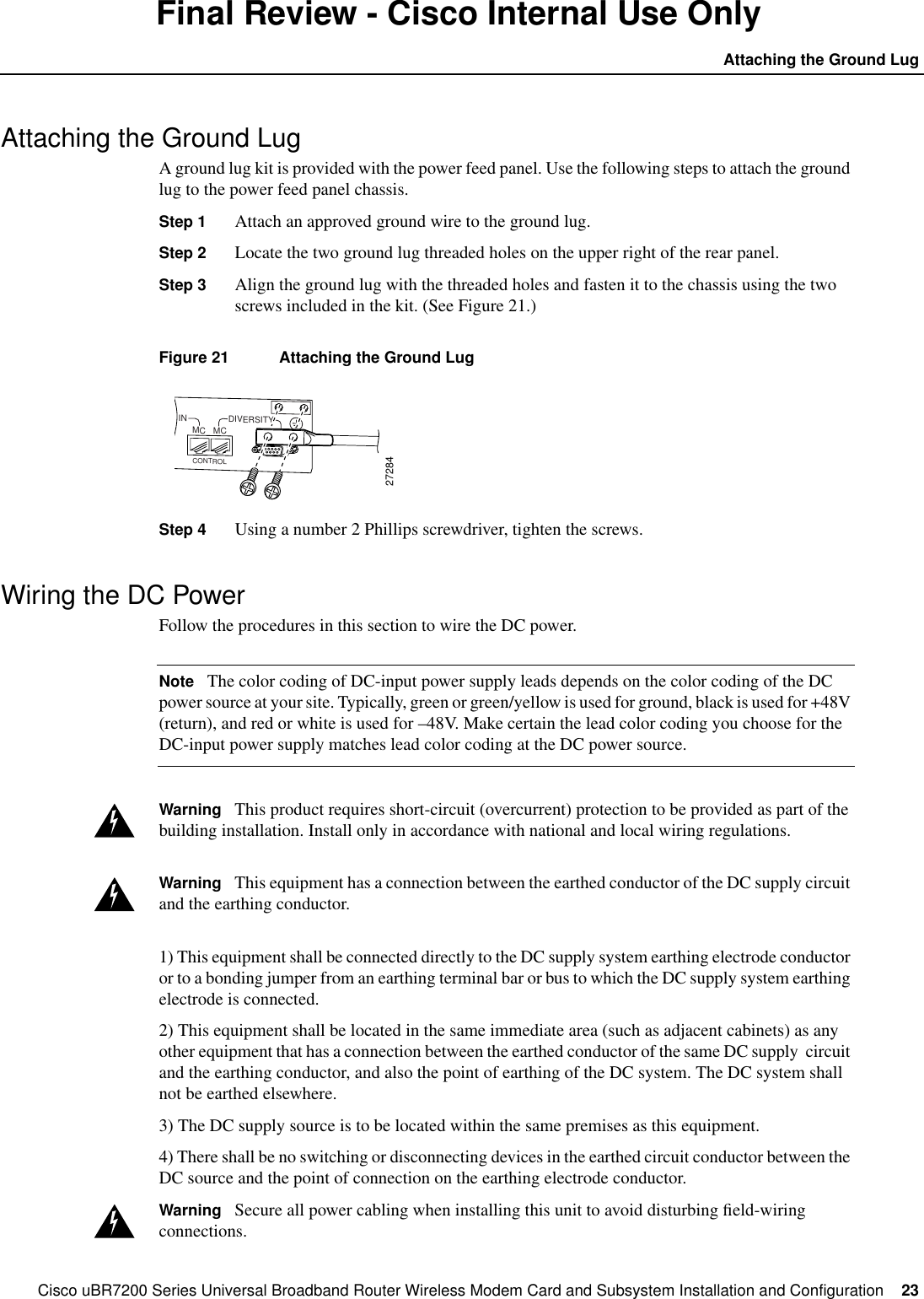
Cisco uBR7200 Series Universal Broadband Router Wireless Modem Card and Subsystem Installation and Configuration  23Attaching the Ground LugFinal Review - Cisco Internal Use OnlyAttaching the Ground LugA ground lug kit is provided with the power feed panel. Use the following steps to attach the groundlug to the power feed panel chassis.Step 1 Attach an approved ground wire to the ground lug.Step 2 Locate the two ground lug threaded holes on the upper right of the rear panel.Step 3 Align the ground lug with the threaded holes and fasten it to the chassis using the twoscrews included in the kit. (See Figure 21.)Figure 21 Attaching the Ground LugStep 4 Using a number 2 Phillips screwdriver, tighten the screws.Wiring the DC PowerFollow the procedures in this section to wire the DC power.Note The color coding of DC-input power supply leads depends on the color coding of the DCpower source at your site. Typically, green or green/yellow is used for ground, black is used for +48V(return), and red or white is used for –48V. Make certain the lead color coding you choose for theDC-input power supply matches lead color coding at the DC power source.Warning This product requires short-circuit (overcurrent) protection to be provided as part of thebuilding installation. Install only in accordance with national and local wiring regulations.Warning This equipment has a connection between the earthed conductor of the DC supply circuitand the earthing conductor.1) This equipment shall be connected directly to the DC supply system earthing electrode conductoror to a bonding jumper from an earthing terminal bar or bus to which the DC supply system earthingelectrode is connected.2) This equipment shall be located in the same immediate area (such as adjacent cabinets) as anyother equipment that has a connection between the earthed conductor of the same DC supply circuitand the earthing conductor, and also the point of earthing of the DC system. The DC system shallnot be earthed elsewhere.3) The DC supply source is to be located within the same premises as this equipment.4) There shall be no switching or disconnecting devices in the earthed circuit conductor between theDC source and the point of connection on the earthing electrode conductor.Warning Secure all power cabling when installing this unit to avoid disturbing field-wiringconnections.IN DIVERSITYODUMC MC27284CONTROL
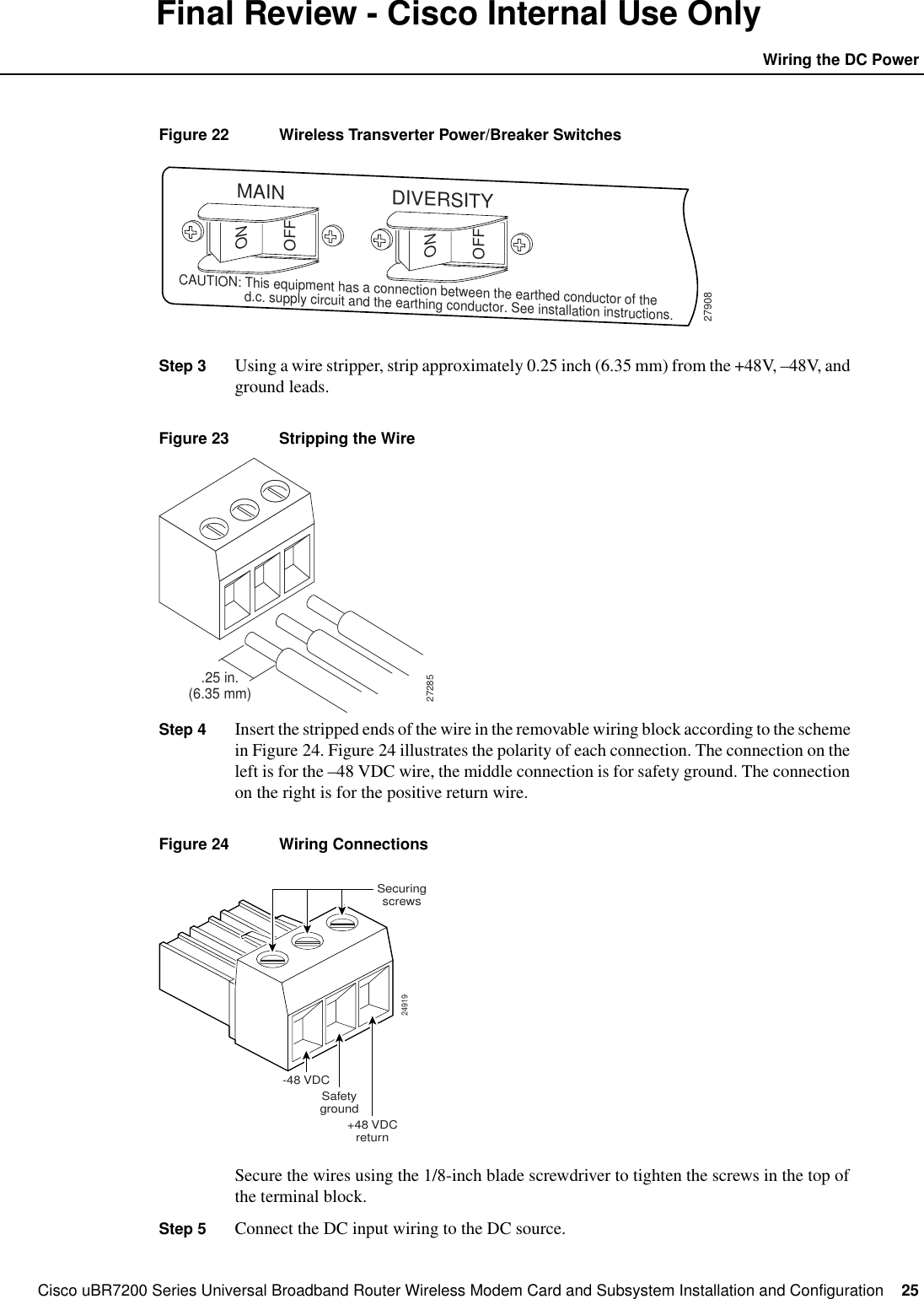
24 Cisco uBR7200 Series Universal Broadband Router Wireless Modem Card and Subsystem Installation and ConfigurationInstalling a Power Feed PanelFinal Review - Cisco Internal Use OnlyWarning When installing the unit, the ground connection must always be made first anddisconnected last.Warning Figure 23 shows the DC power supply terminal block. Wire the DC power supply usingthe appropriate wire terminations at the wiring end, as illustrated. The proper wiring sequence isground to ground, positive to positive (line to L), and negative to negative (neutral to N). Note thatthe ground wire should always be connected first and disconnected last.Warning A readily accessible two-poled disconnect device must be incorporated in the fixedwiring.Warning Use copper conductors only.Warning An exposed wire lead from a DC-input power source can conduct harmful levels ofelectricity. Be sure that no exposed portion of the DC-input power source wire extends from theterminal block plug.Warning The customer 48 volt power system must provide reinforced insulation between theprimary AC power and the 48 VDC output.Warning Connect the unit only to a DC power source that complies with the Safety Extra-LowVoltage (SELV) requirements in IEC 60950 based safety standards.Warning Before performing any of the following procedures, ensure that power is removed fromthe DC circuit. To ensure that all power is OFF, locate the circuit breaker on the panel board thatservices the DC circuit, switch the circuit breaker to the OFF position, and tape the switch handle ofthe circuit breaker in the OFF position.Wiring the DC power consists of attaching the wires of the DC power source to a removable wiringblock, then plugging that block into the connection on the power feed panel. Refer to Figure 24 andFigure 25 and follow these steps.Note Use 14 AWG or larger wire to wire the DC input power supply to the power feed panel.Step 1 Ensure that the leads are disconnected from the power source.Step 2 Ensure that the power/breaker switch for both main and diversity are in the OFF position.(See Figure 22.)
Cisco uBR7200 Series Universal Broadband Router Wireless Modem Card and Subsystem Installation and Configuration  25Wiring the DC PowerFinal Review - Cisco Internal Use OnlyFigure 22 Wireless Transverter Power/Breaker SwitchesStep 3 Using a wire stripper, strip approximately 0.25 inch (6.35 mm) from the +48V, –48V, andground leads.Figure 23 Stripping the WireStep 4 Insert the stripped ends of the wire in the removable wiring block according to the schemein Figure 24. Figure 24 illustrates the polarity of each connection. The connection on theleft is for the –48 VDC wire, the middle connection is for safety ground. The connectionon the right is for the positive return wire.Figure 24 Wiring ConnectionsSecure the wires using the 1/8-inch blade screwdriver to tighten the screws in the top ofthe terminal block.Step 5 Connect the DC input wiring to the DC source.27908ONONOFFOFFMAIN DIVERSITYCAUTION: This equipment has a connection between the earthed conductor of the                  d.c. supply circuit and the earthing conductor. See installation instructions..25 in.(6.35 mm)2728524919-48 VDCSafetygroundSecuringscrews+48 VDCreturn
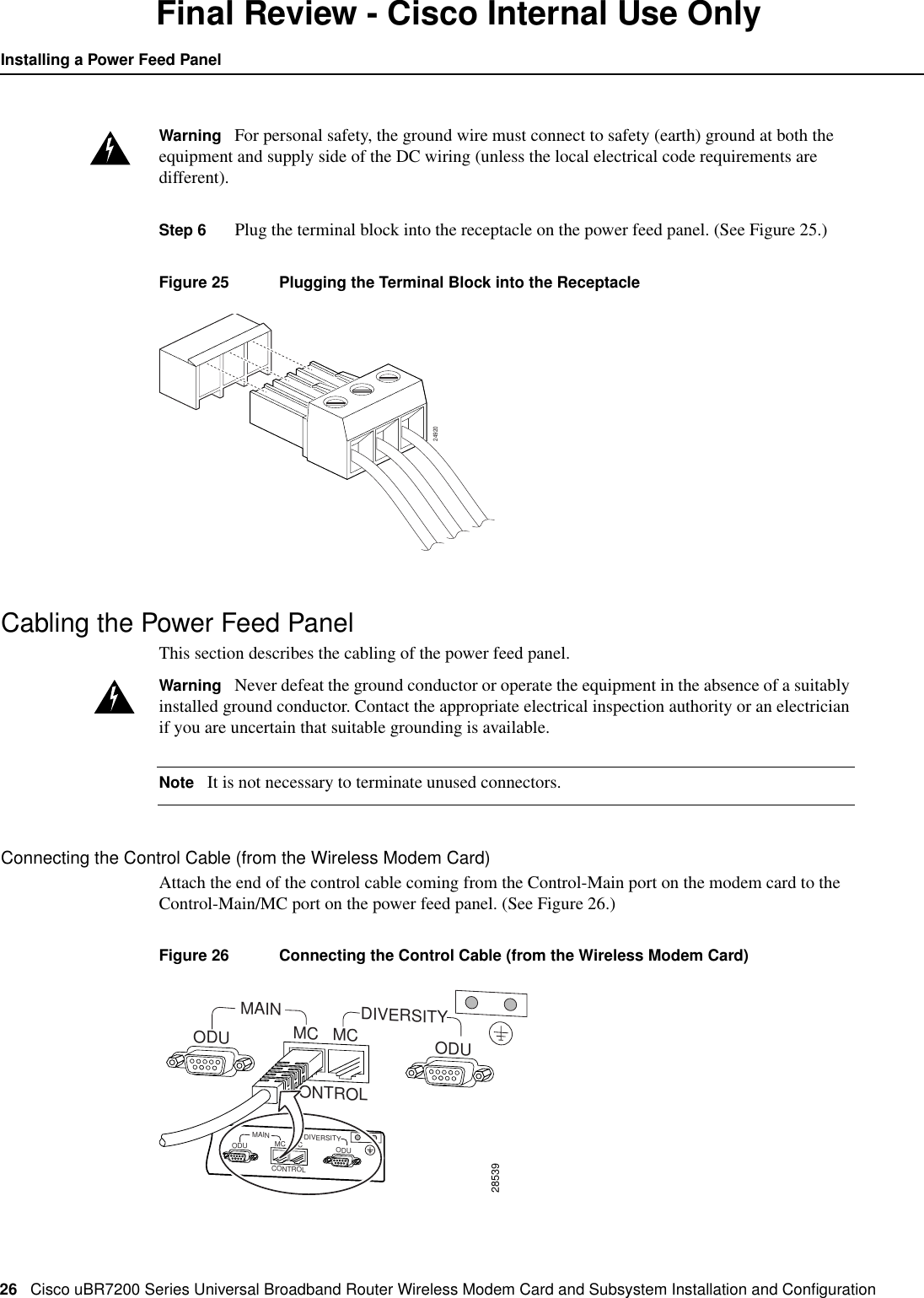
26 Cisco uBR7200 Series Universal Broadband Router Wireless Modem Card and Subsystem Installation and ConfigurationInstalling a Power Feed PanelFinal Review - Cisco Internal Use OnlyWarning For personal safety, the ground wire must connect to safety (earth) ground at both theequipment and supply side of the DC wiring (unless the local electrical code requirements aredifferent).Step 6 Plug the terminal block into the receptacle on the power feed panel. (See Figure 25.)Figure 25 Plugging the Terminal Block into the ReceptacleCabling the Power Feed PanelThis section describes the cabling of the power feed panel.Warning Never defeat the ground conductor or operate the equipment in the absence of a suitablyinstalled ground conductor. Contact the appropriate electrical inspection authority or an electricianif you are uncertain that suitable grounding is available.Note It is not necessary to terminate unused connectors.Connecting the Control Cable (from the Wireless Modem Card)Attach the end of the control cable coming from the Control-Main port on the modem card to theControl-Main/MC port on the power feed panel. (See Figure 26.)Figure 26 Connecting the Control Cable (from the Wireless Modem Card)2492028539MAINCONTROLDIVERSITYODU ODUMC MCMAINCONTROLDIVERSITYODU ODUMC MC
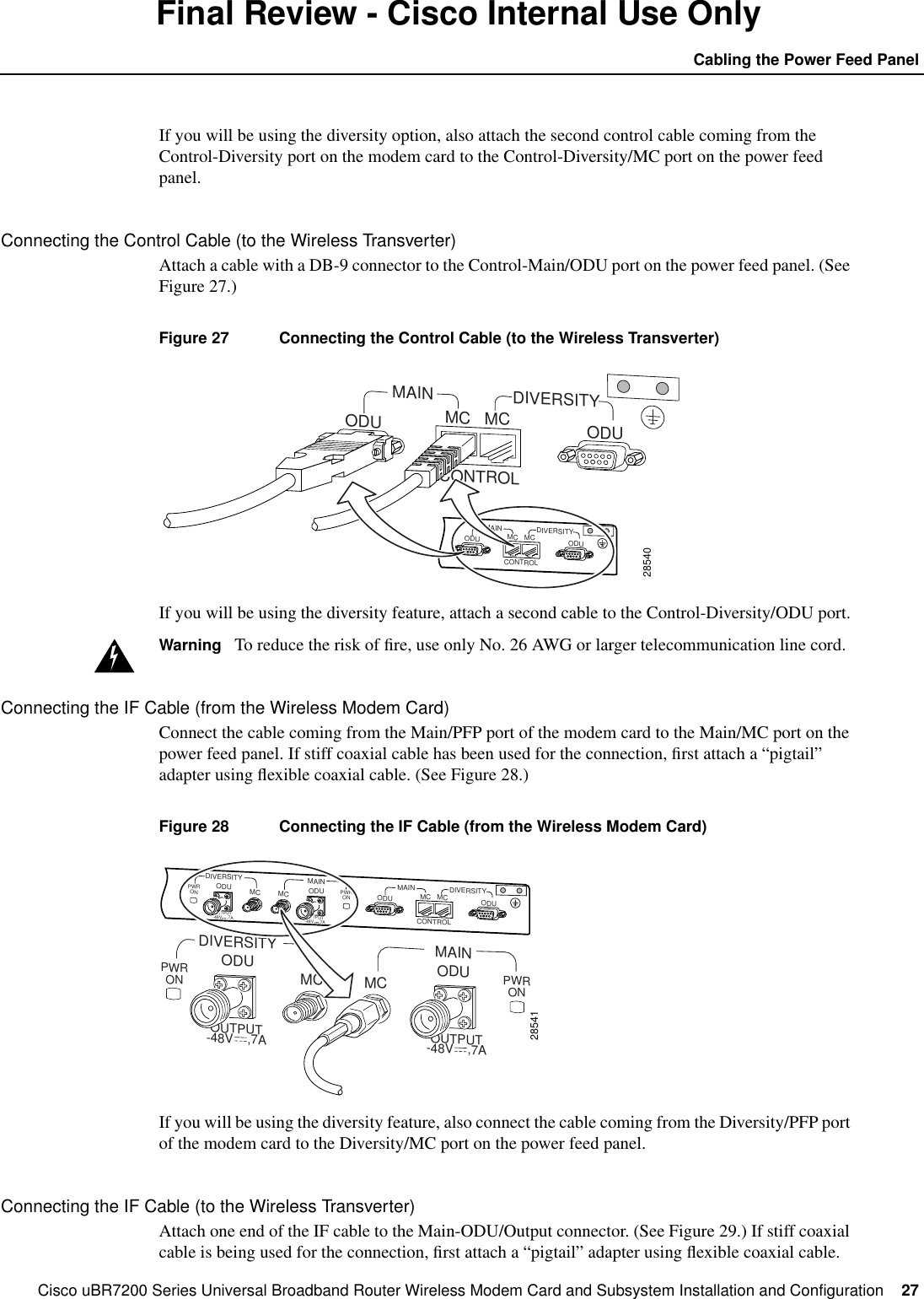
Cisco uBR7200 Series Universal Broadband Router Wireless Modem Card and Subsystem Installation and Configuration  27Cabling the Power Feed PanelFinal Review - Cisco Internal Use OnlyIf you will be using the diversity option, also attach the second control cable coming from theControl-Diversity port on the modem card to the Control-Diversity/MC port on the power feedpanel.Connecting the Control Cable (to the Wireless Transverter)Attach a cable with a DB-9 connector to the Control-Main/ODU port on the power feed panel. (SeeFigure 27.)Figure 27 Connecting the Control Cable (to the Wireless Transverter)If you will be using the diversity feature, attach a second cable to the Control-Diversity/ODU port.Warning To reduce the risk of fire, use only No. 26 AWG or larger telecommunication line cord.Connecting the IF Cable (from the Wireless Modem Card)Connect the cable coming from the Main/PFP port of the modem card to the Main/MC port on thepower feed panel. If stiff coaxial cable has been used for the connection, first attach a “pigtail”adapter using flexible coaxial cable. (See Figure 28.)Figure 28 Connecting the IF Cable (from the Wireless Modem Card)If you will be using the diversity feature, also connect the cable coming from the Diversity/PFP portof the modem card to the Diversity/MC port on the power feed panel.Connecting the IF Cable (to the Wireless Transverter)Attach one end of the IF cable to the Main-ODU/Output connector. (See Figure 29.) If stiff coaxialcable is being used for the connection, first attach a “pigtail” adapter using flexible coaxial cable.28540MAINCONTROLDIVERSITYODU ODUMC MCMAINCONTROLDIVERSITYODU ODUMC MCOUTPUT-48V    ,7A OUTPUT-48V    ,7A28541PWRON PWRONDIVERSITYODU ODUMC MCMAIN MAINCONTROLDIVERSITYODU ODUMC MCPWRON PWRONDIVERSITYODU ODUMC MCMAINOUTPUT-48V    ,7A OUTPUT-48V    ,7A
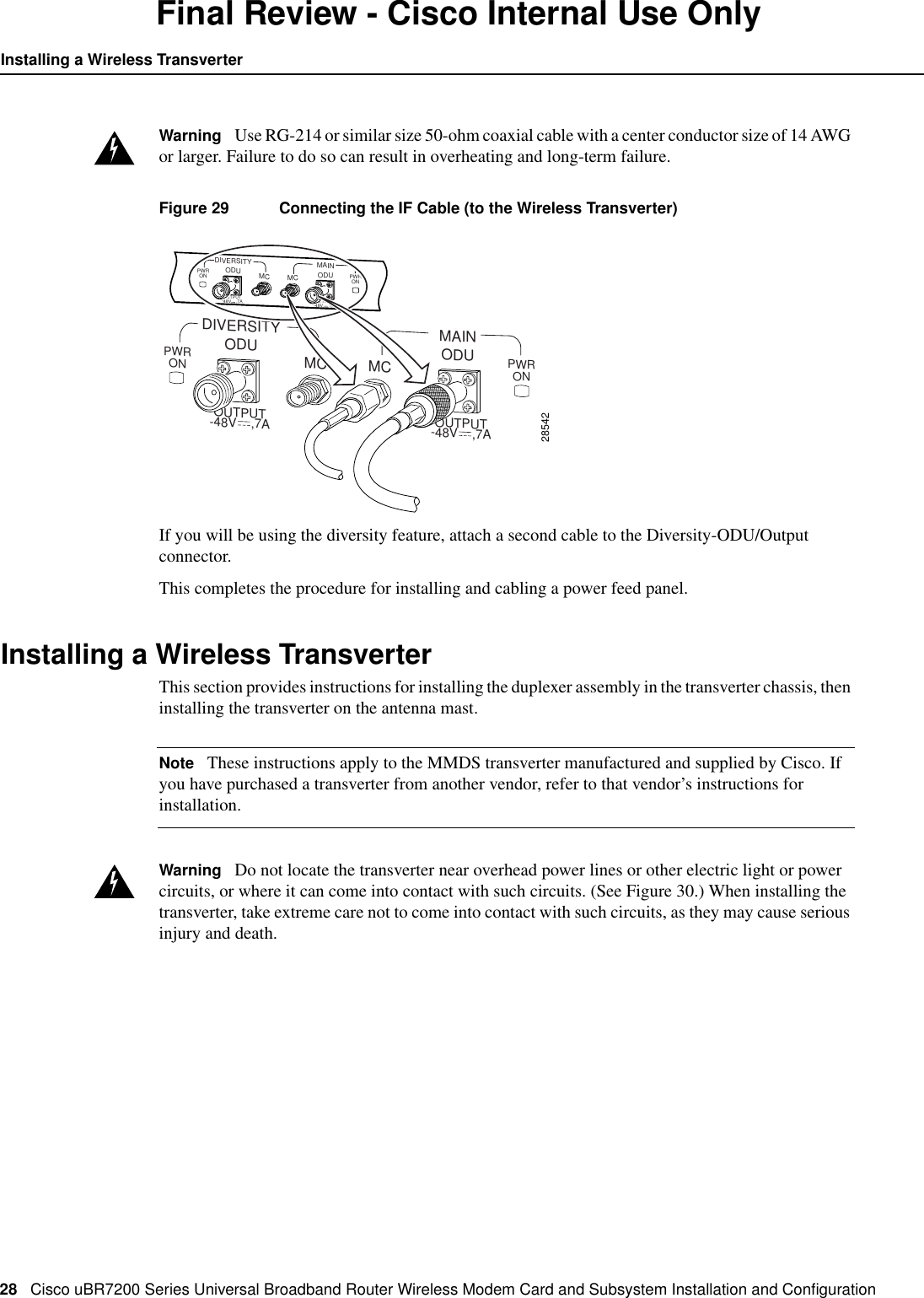
28 Cisco uBR7200 Series Universal Broadband Router Wireless Modem Card and Subsystem Installation and ConfigurationInstalling a Wireless TransverterFinal Review - Cisco Internal Use OnlyWarning Use RG-214 or similar size 50-ohm coaxial cable with a center conductor size of 14 AWGor larger. Failure to do so can result in overheating and long-term failure.Figure 29 Connecting the IF Cable (to the Wireless Transverter)If you will be using the diversity feature, attach a second cable to the Diversity-ODU/Outputconnector.This completes the procedure for installing and cabling a power feed panel.Installing a Wireless TransverterThis section provides instructions for installing the duplexer assembly in the transverter chassis, theninstalling the transverter on the antenna mast.Note These instructions apply to the MMDS transverter manufactured and supplied by Cisco. Ifyou have purchased a transverter from another vendor, refer to that vendor’s instructions forinstallation.Warning Do not locate the transverter near overhead power lines or other electric light or powercircuits, or where it can come into contact with such circuits. (See Figure 30.) When installing thetransverter, take extreme care not to come into contact with such circuits, as they may cause seriousinjury and death.OUTPUT-48V    ,7A OUTPUT-48V    ,7A28542PWRON PWRONDIVERSITYODU ODUMC MCMAINPWRON PWRONDIVERSITYODU ODUMC MCMAINOUTPUT-48V    ,7A OUTPUT-48V    ,7A
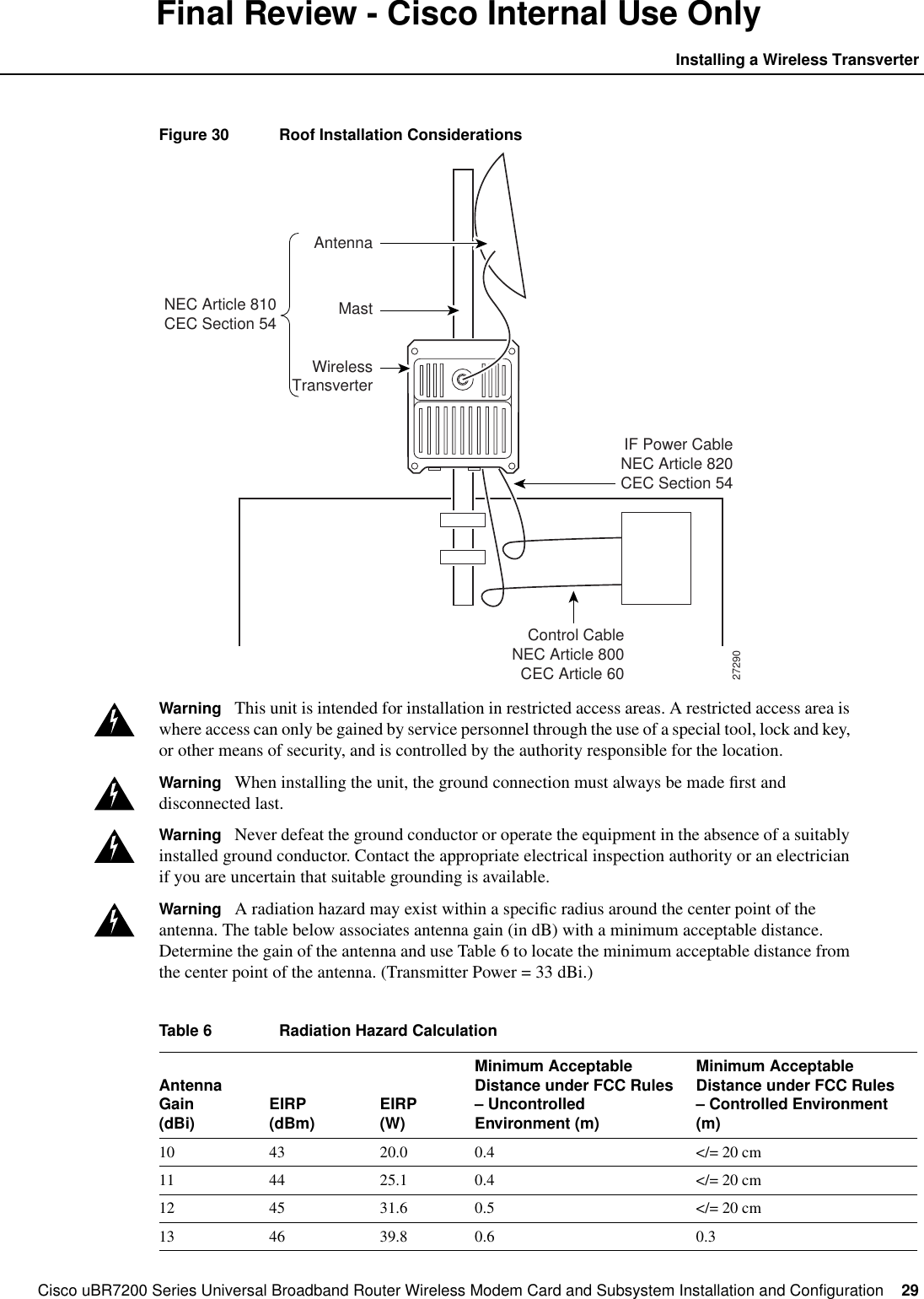
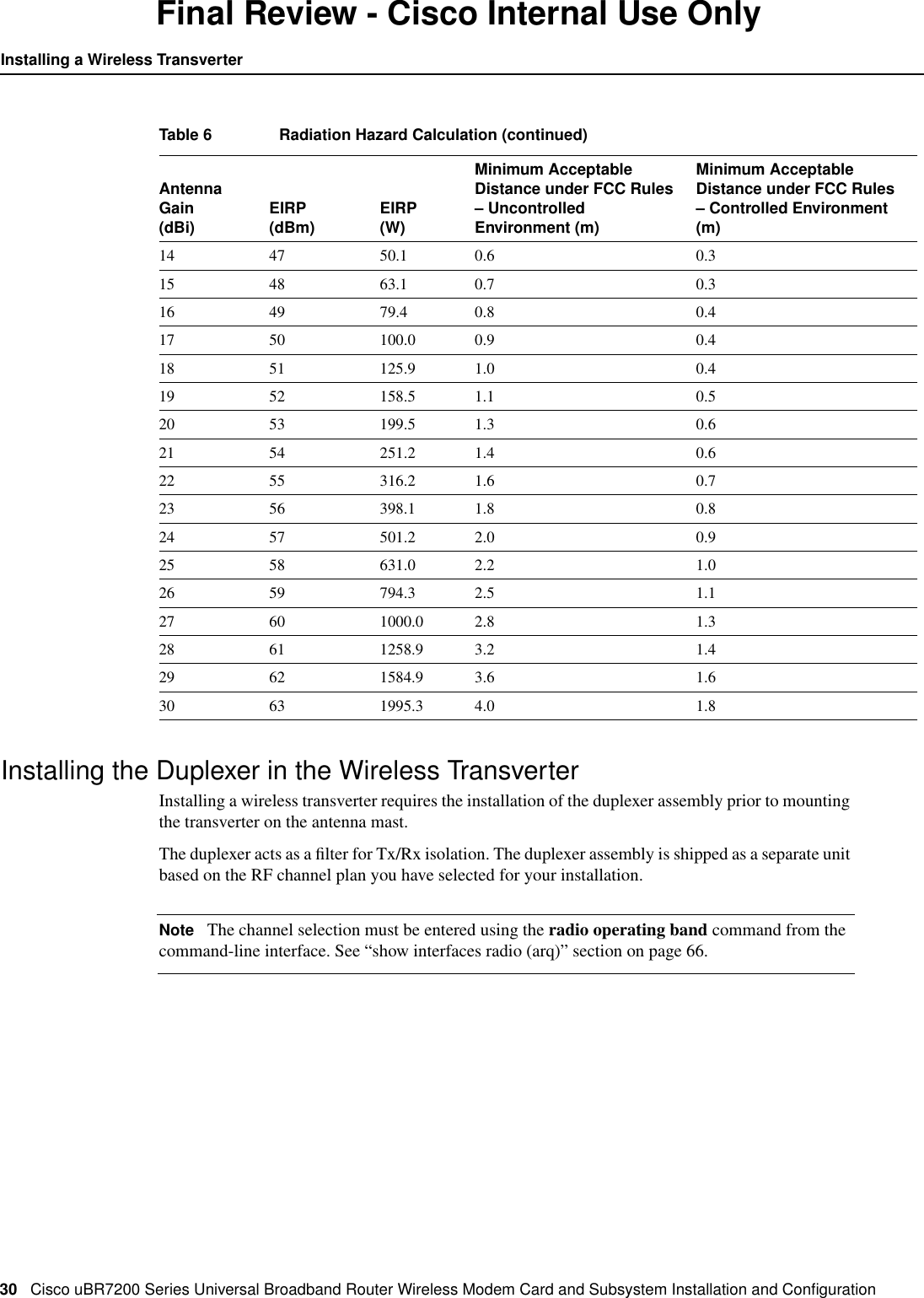
Cisco uBR7200 Series Universal Broadband Router Wireless Modem Card and Subsystem Installation and Configuration  29Installing a Wireless TransverterFinal Review - Cisco Internal Use OnlyFigure 30 Roof Installation ConsiderationsWarning This unit is intended for installation in restricted access areas. A restricted access area iswhere access can only be gained by service personnel through the use of a special tool, lock and key,or other means of security, and is controlled by the authority responsible for the location.Warning When installing the unit, the ground connection must always be made first anddisconnected last.Warning Never defeat the ground conductor or operate the equipment in the absence of a suitablyinstalled ground conductor. Contact the appropriate electrical inspection authority or an electricianif you are uncertain that suitable grounding is available.Warning A radiation hazard may exist within a specific radius around the center point of theantenna. The table below associates antenna gain (in dB) with a minimum acceptable distance.Determine the gain of the antenna and use Table 6 to locate the minimum acceptable distance fromthe center point of the antenna. (Transmitter Power = 33 dBi.)Table 6 Radiation Hazard CalculationAntennaGain(dBi) EIRP(dBm) EIRP(W)Minimum AcceptableDistance under FCC Rules– UncontrolledEnvironment (m)Minimum AcceptableDistance under FCC Rules– Controlled Environment(m)10 43 20.0 0.4 </= 20 cm11 44 25.1 0.4 </= 20 cm12 45 31.6 0.5 </= 20 cm13 46 39.8 0.6 0.327290WirelessTransverterMastNEC Article 810CEC Section 54IF Power CableNEC Article 820CEC Section 54Control CableNEC Article 800CEC Article 60Antenna
30 Cisco uBR7200 Series Universal Broadband Router Wireless Modem Card and Subsystem Installation and ConfigurationInstalling a Wireless TransverterFinal Review - Cisco Internal Use OnlyInstalling the Duplexer in the Wireless TransverterInstalling a wireless transverter requires the installation of the duplexer assembly prior to mountingthe transverter on the antenna mast.The duplexer acts as a filter for Tx/Rx isolation. The duplexer assembly is shipped as a separate unitbased on the RF channel plan you have selected for your installation.Note The channel selection must be entered using the radio operating band command from thecommand-line interface. See “show interfaces radio (arq)” section on page 66.14 47 50.1 0.6 0.315 48 63.1 0.7 0.316 49 79.4 0.8 0.417 50 100.0 0.9 0.418 51 125.9 1.0 0.419 52 158.5 1.1 0.520 53 199.5 1.3 0.621 54 251.2 1.4 0.622 55 316.2 1.6 0.723 56 398.1 1.8 0.824 57 501.2 2.0 0.925 58 631.0 2.2 1.026 59 794.3 2.5 1.127 60 1000.0 2.8 1.328 61 1258.9 3.2 1.429 62 1584.9 3.6 1.630 63 1995.3 4.0 1.8Table 6 Radiation Hazard Calculation (continued)AntennaGain(dBi) EIRP(dBm) EIRP(W)Minimum AcceptableDistance under FCC Rules– UncontrolledEnvironment (m)Minimum AcceptableDistance under FCC Rules– Controlled Environment(m)
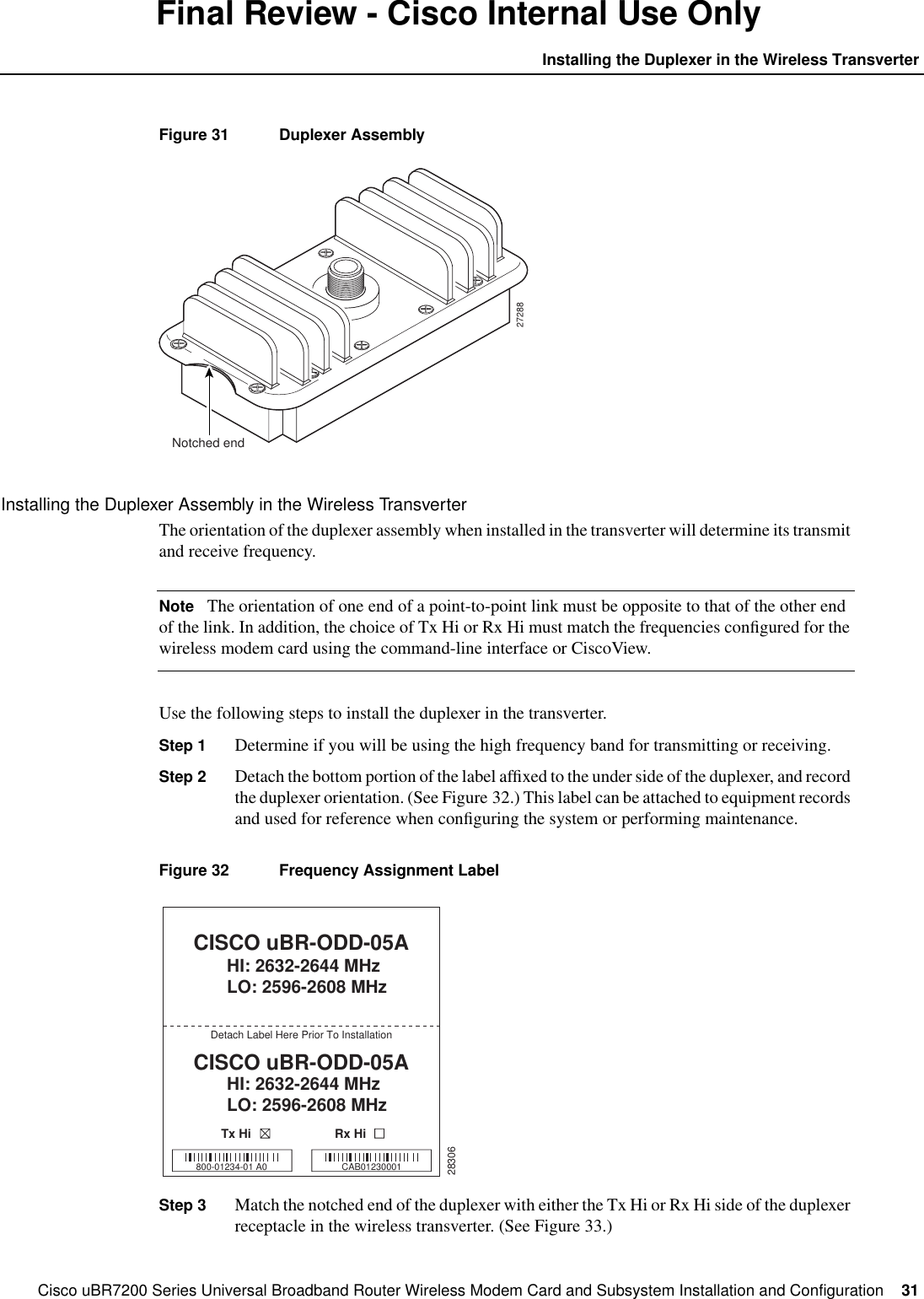
Cisco uBR7200 Series Universal Broadband Router Wireless Modem Card and Subsystem Installation and Configuration  31Installing the Duplexer in the Wireless TransverterFinal Review - Cisco Internal Use OnlyFigure 31 Duplexer AssemblyInstalling the Duplexer Assembly in the Wireless TransverterThe orientation of the duplexer assembly when installed in the transverter will determine its transmitand receive frequency.Note The orientation of one end of a point-to-point link must be opposite to that of the other endof the link. In addition, the choice of Tx Hi or Rx Hi must match the frequencies configured for thewireless modem card using the command-line interface or CiscoView.Use the following steps to install the duplexer in the transverter.Step 1 Determine if you will be using the high frequency band for transmitting or receiving.Step 2 Detach the bottom portion of the label affixed to the under side of the duplexer, and recordthe duplexer orientation. (See Figure 32.) This label can be attached to equipment recordsand used for reference when configuring the system or performing maintenance.Figure 32 Frequency Assignment LabelStep 3 Match the notched end of the duplexer with either the Tx Hi or Rx Hi side of the duplexerreceptacle in the wireless transverter. (See Figure 33.)27288Notched end28306CISCO uBR-ODD-05AHI: 2632-2644 MHzLO: 2596-2608 MHzCISCO uBR-ODD-05AHI: 2632-2644 MHzLO: 2596-2608 MHzDetach Label Here Prior To InstallationTx Hi Rx Hi800-01234-01 A0 CAB01230001
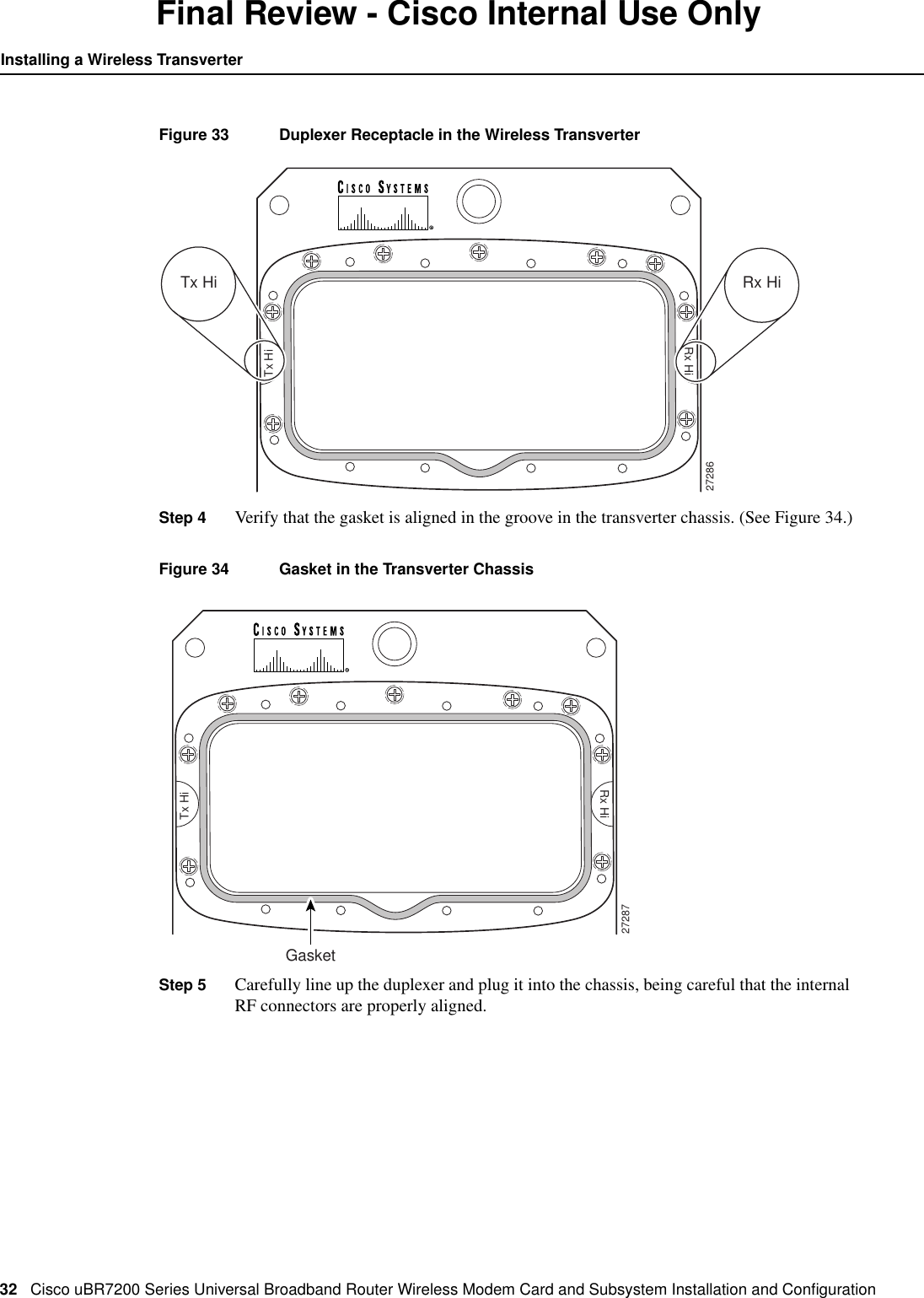
32 Cisco uBR7200 Series Universal Broadband Router Wireless Modem Card and Subsystem Installation and ConfigurationInstalling a Wireless TransverterFinal Review - Cisco Internal Use OnlyFigure 33 Duplexer Receptacle in the Wireless TransverterStep 4 Verify that the gasket is aligned in the groove in the transverter chassis. (See Figure 34.)Figure 34 Gasket in the Transverter ChassisStep 5 Carefully line up the duplexer and plug it into the chassis, being careful that the internalRF connectors are properly aligned.27286Tx HiRx HiTx Hi Rx Hi27287GasketTx HiRx Hi
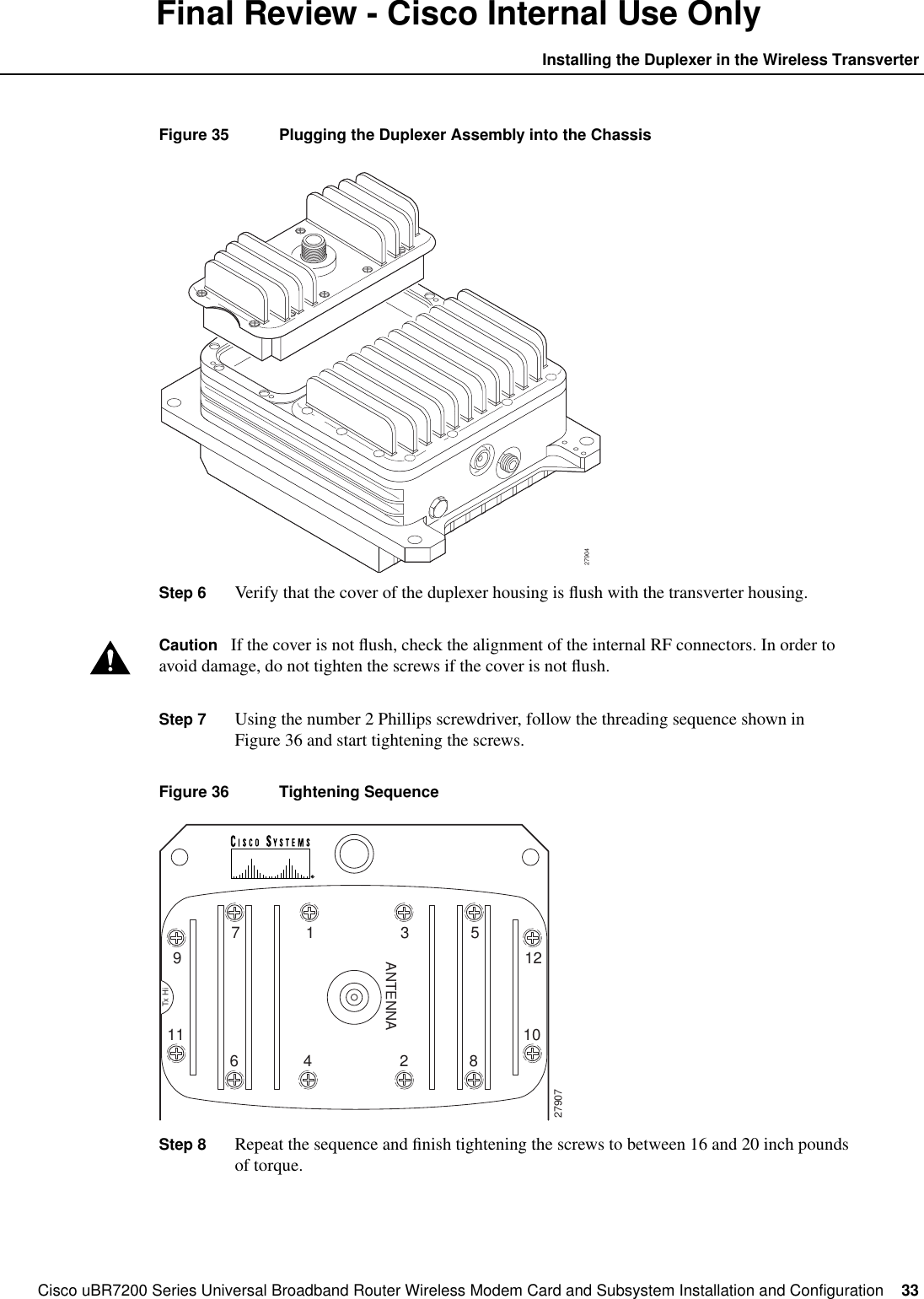
Cisco uBR7200 Series Universal Broadband Router Wireless Modem Card and Subsystem Installation and Configuration  33Installing the Duplexer in the Wireless TransverterFinal Review - Cisco Internal Use OnlyFigure 35 Plugging the Duplexer Assembly into the ChassisStep 6 Verify that the cover of the duplexer housing is flush with the transverter housing.Caution If the cover is not flush, check the alignment of the internal RF connectors. In order toavoid damage, do not tighten the screws if the cover is not flush.Step 7 Using the number 2 Phillips screwdriver, follow the threading sequence shown inFigure 36 and start tightening the screws.Figure 36 Tightening SequenceStep 8 Repeat the sequence and finish tightening the screws to between 16 and 20 inch poundsof torque.279041ANTENNA3 579Tx Hi1210116279074 2 8
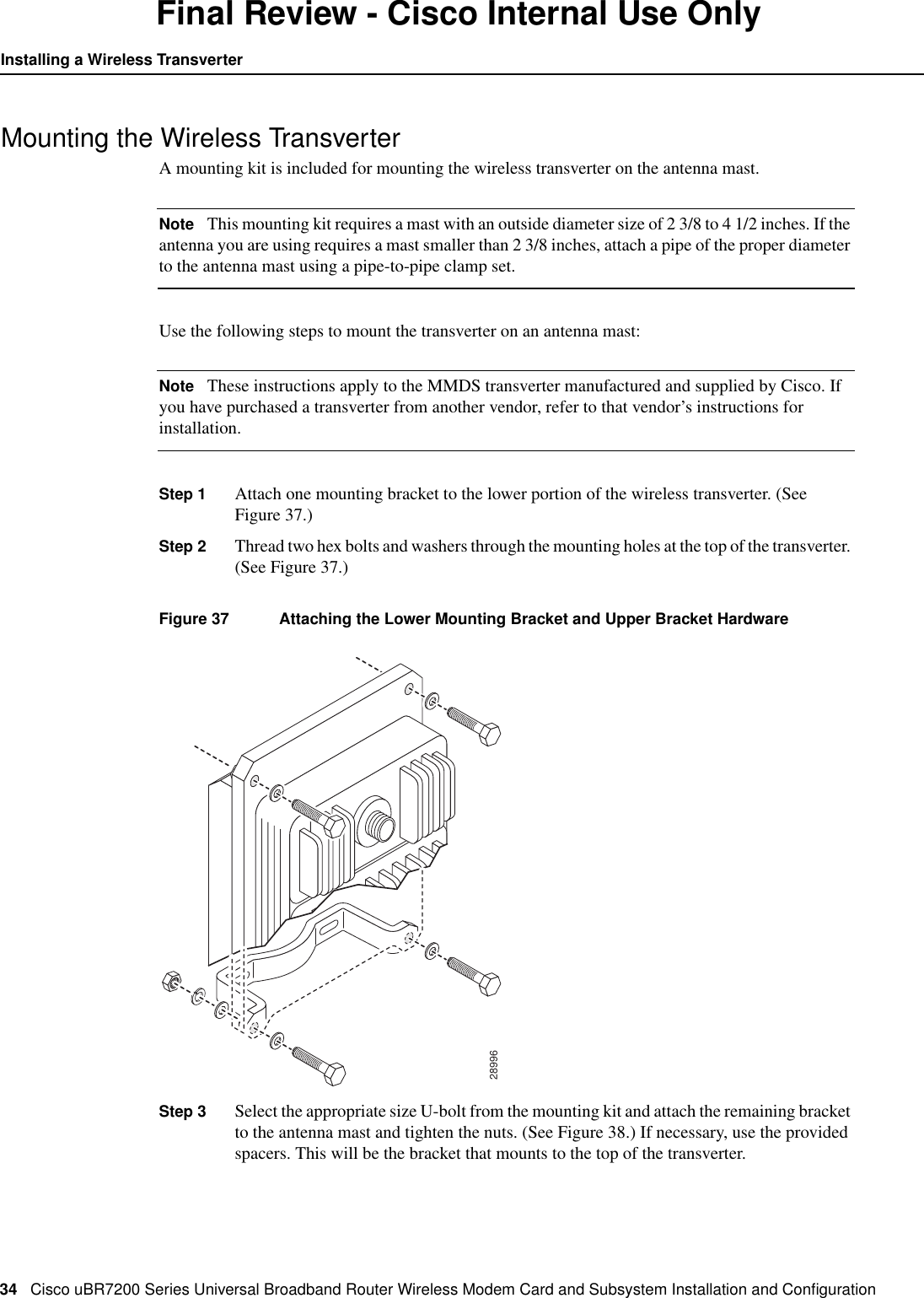
34 Cisco uBR7200 Series Universal Broadband Router Wireless Modem Card and Subsystem Installation and ConfigurationInstalling a Wireless TransverterFinal Review - Cisco Internal Use OnlyMounting the Wireless TransverterA mounting kit is included for mounting the wireless transverter on the antenna mast.Note This mounting kit requires a mast with an outside diameter size of 2 3/8 to 4 1/2 inches. If theantenna you are using requires a mast smaller than 2 3/8 inches, attach a pipe of the proper diameterto the antenna mast using a pipe-to-pipe clamp set.Use the following steps to mount the transverter on an antenna mast:Note These instructions apply to the MMDS transverter manufactured and supplied by Cisco. Ifyou have purchased a transverter from another vendor, refer to that vendor’s instructions forinstallation.Step 1 Attach one mounting bracket to the lower portion of the wireless transverter. (SeeFigure 37.)Step 2 Thread two hex bolts and washers through the mounting holes at the top of the transverter.(See Figure 37.)Figure 37 Attaching the Lower Mounting Bracket and Upper Bracket HardwareStep 3 Select the appropriate size U-bolt from the mounting kit and attach the remaining bracketto the antenna mast and tighten the nuts. (See Figure 38.) If necessary, use the providedspacers. This will be the bracket that mounts to the top of the transverter.28996
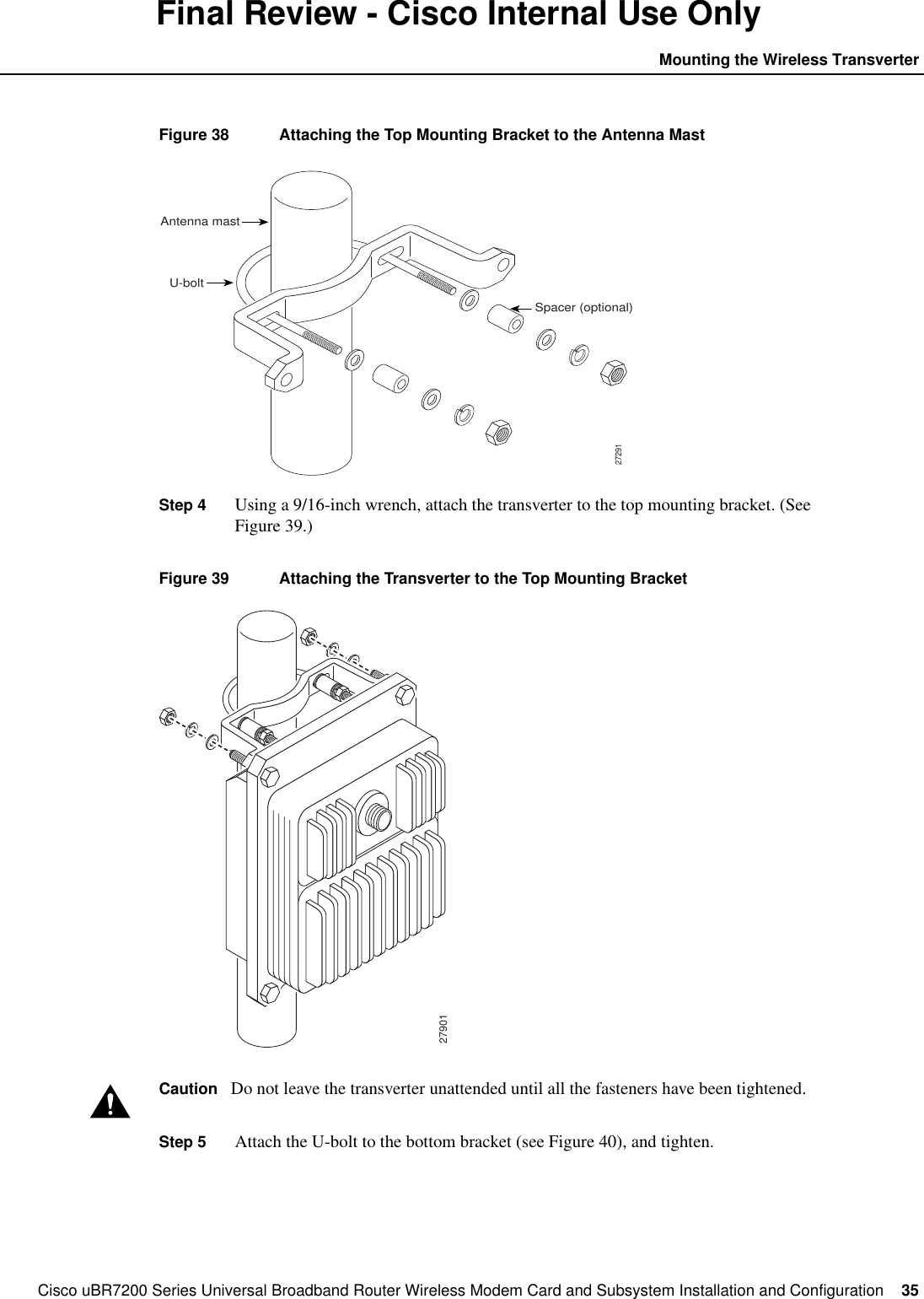
Cisco uBR7200 Series Universal Broadband Router Wireless Modem Card and Subsystem Installation and Configuration  35Mounting the Wireless TransverterFinal Review - Cisco Internal Use OnlyFigure 38 Attaching the Top Mounting Bracket to the Antenna MastStep 4 Using a 9/16-inch wrench, attach the transverter to the top mounting bracket. (SeeFigure 39.)Figure 39 Attaching the Transverter to the Top Mounting BracketCaution Do not leave the transverter unattended until all the fasteners have been tightened.Step 5 Attach the U-bolt to the bottom bracket (see Figure 40), and tighten.27291Antenna mastU-boltSpacer (optional)27901
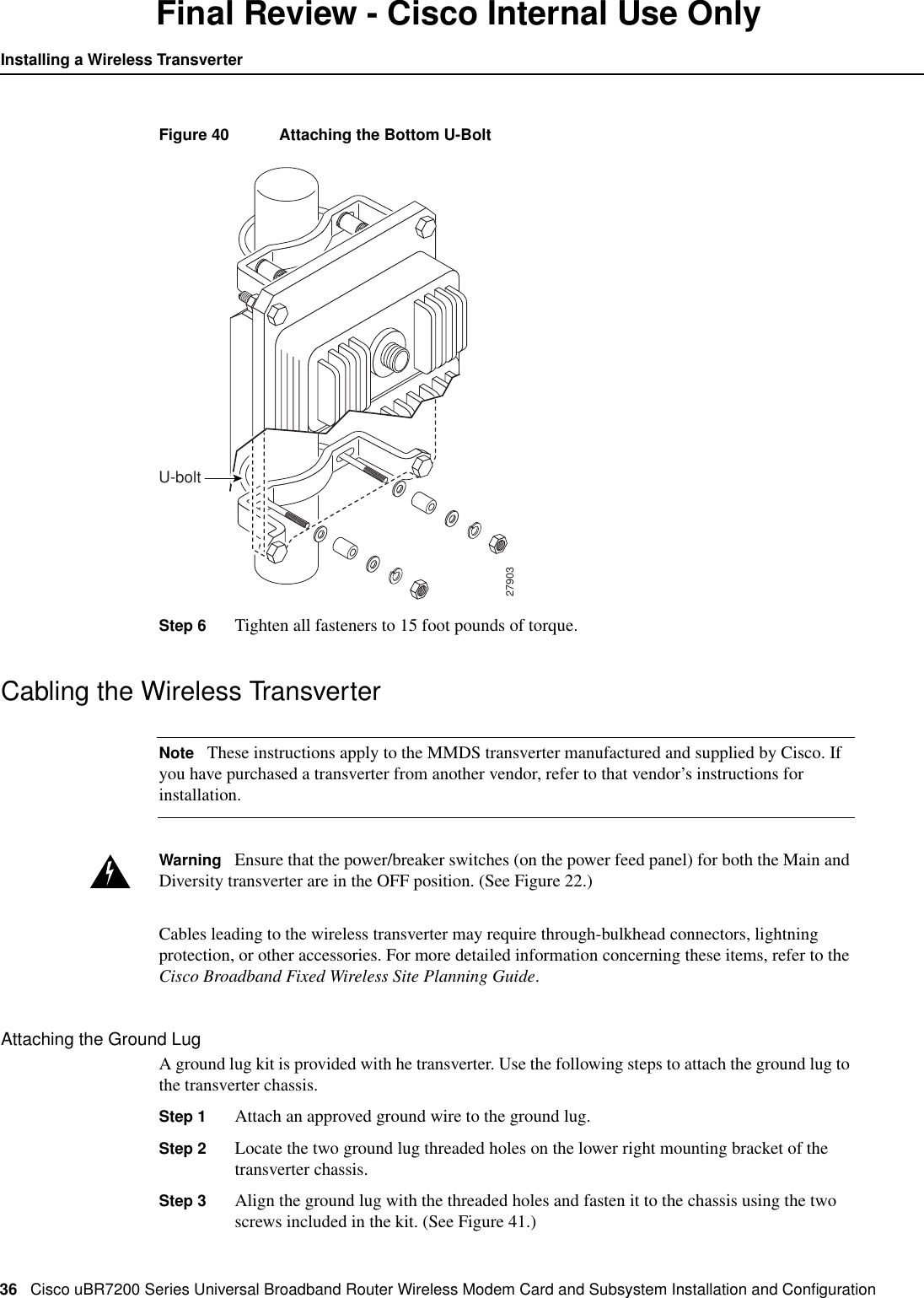
36 Cisco uBR7200 Series Universal Broadband Router Wireless Modem Card and Subsystem Installation and ConfigurationInstalling a Wireless TransverterFinal Review - Cisco Internal Use OnlyFigure 40 Attaching the Bottom U-BoltStep 6 Tighten all fasteners to 15 foot pounds of torque.Cabling the Wireless TransverterNote These instructions apply to the MMDS transverter manufactured and supplied by Cisco. Ifyou have purchased a transverter from another vendor, refer to that vendor’s instructions forinstallation.Warning Ensure that the power/breaker switches (on the power feed panel) for both the Main andDiversity transverter are in the OFF position. (See Figure 22.)Cables leading to the wireless transverter may require through-bulkhead connectors, lightningprotection, or other accessories. For more detailed information concerning these items, refer to theCisco Broadband Fixed Wireless Site Planning Guide.Attaching the Ground LugA ground lug kit is provided with he transverter. Use the following steps to attach the ground lug tothe transverter chassis.Step 1 Attach an approved ground wire to the ground lug.Step 2 Locate the two ground lug threaded holes on the lower right mounting bracket of thetransverter chassis.Step 3 Align the ground lug with the threaded holes and fasten it to the chassis using the twoscrews included in the kit. (See Figure 41.)27903U-bolt
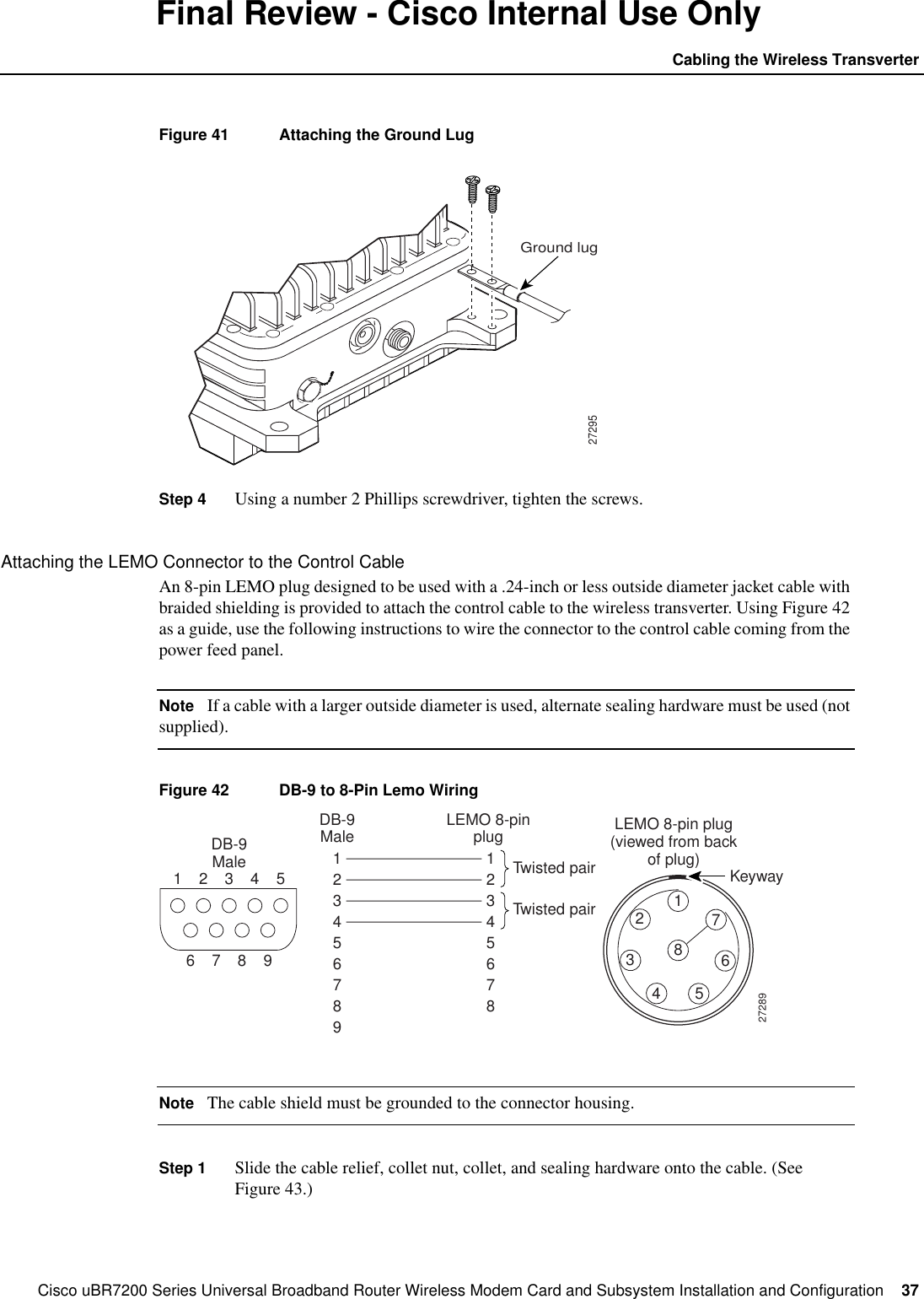
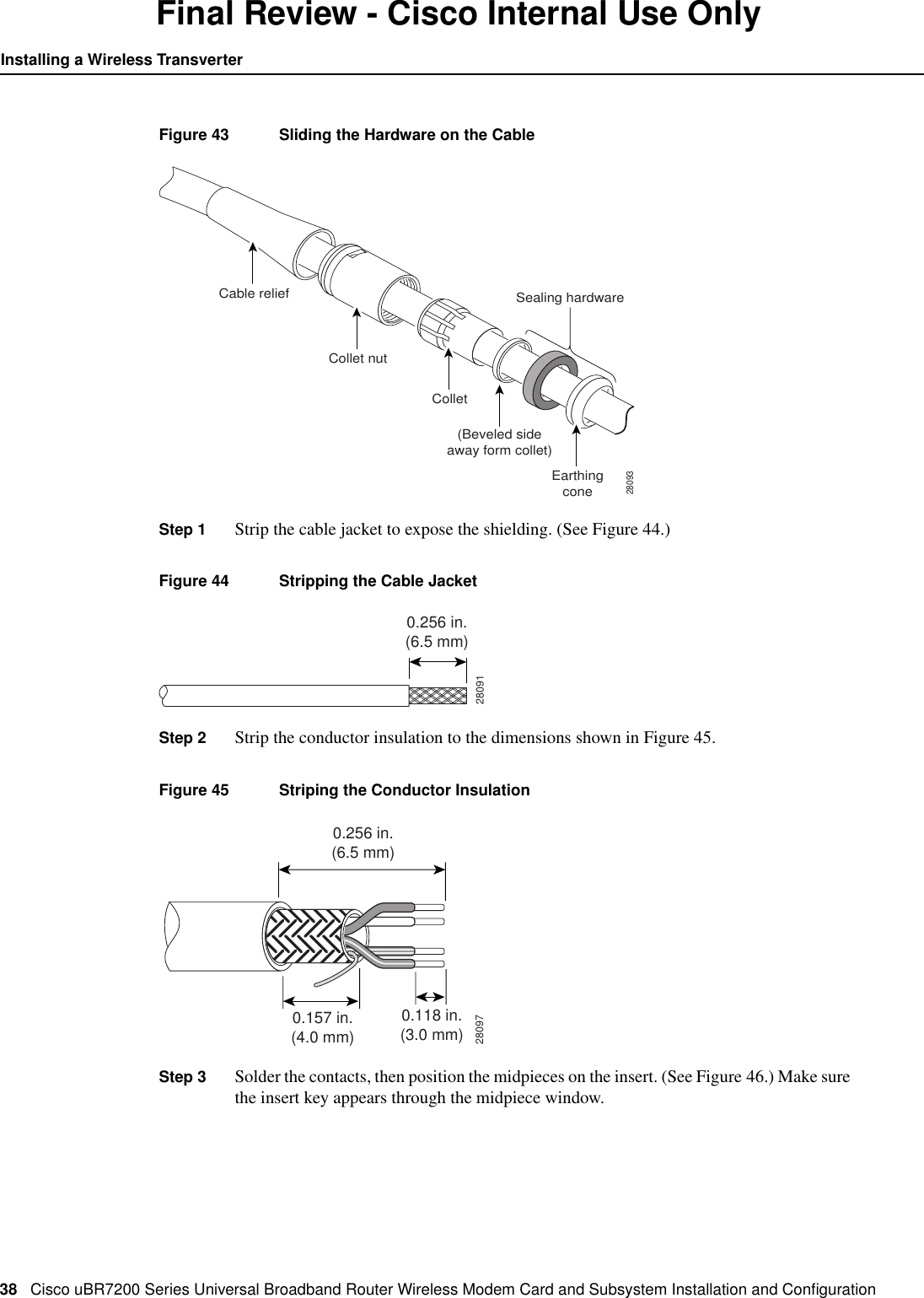
Cisco uBR7200 Series Universal Broadband Router Wireless Modem Card and Subsystem Installation and Configuration  37Cabling the Wireless TransverterFinal Review - Cisco Internal Use OnlyFigure 41 Attaching the Ground LugStep 4 Using a number 2 Phillips screwdriver, tighten the screws.Attaching the LEMO Connector to the Control CableAn 8-pin LEMO plug designed to be used with a .24-inch or less outside diameter jacket cable withbraided shielding is provided to attach the control cable to the wireless transverter. Using Figure 42as a guide, use the following instructions to wire the connector to the control cable coming from thepower feed panel.Note If a cable with a larger outside diameter is used, alternate sealing hardware must be used (notsupplied).Figure 42 DB-9 to 8-Pin Lemo WiringNote The cable shield must be grounded to the connector housing.Step 1 Slide the cable relief, collet nut, collet, and sealing hardware onto the cable. (SeeFigure 43.)27295Ground lugDB-9MaleDB-9Male LEMO 8-pinplugTwisted pairTwisted pairLEMO 8-pin plug(viewed from backof plug)1123456789123456782346789Keyway27289512346785
38 Cisco uBR7200 Series Universal Broadband Router Wireless Modem Card and Subsystem Installation and ConfigurationInstalling a Wireless TransverterFinal Review - Cisco Internal Use OnlyFigure 43 Sliding the Hardware on the CableStep 1 Strip the cable jacket to expose the shielding. (See Figure 44.)Figure 44 Stripping the Cable JacketStep 2 Strip the conductor insulation to the dimensions shown in Figure 45.Figure 45 Striping the Conductor InsulationStep 3 Solder the contacts, then position the midpieces on the insert. (See Figure 46.) Make surethe insert key appears through the midpiece window.Cable relief28093Collet nutCollet(Beveled sideaway form collet)Sealing hardwareEarthingcone280910.256 in.(6.5 mm)280970.256 in.(6.5 mm)0.157 in.(4.0 mm)0.118 in.(3.0 mm)
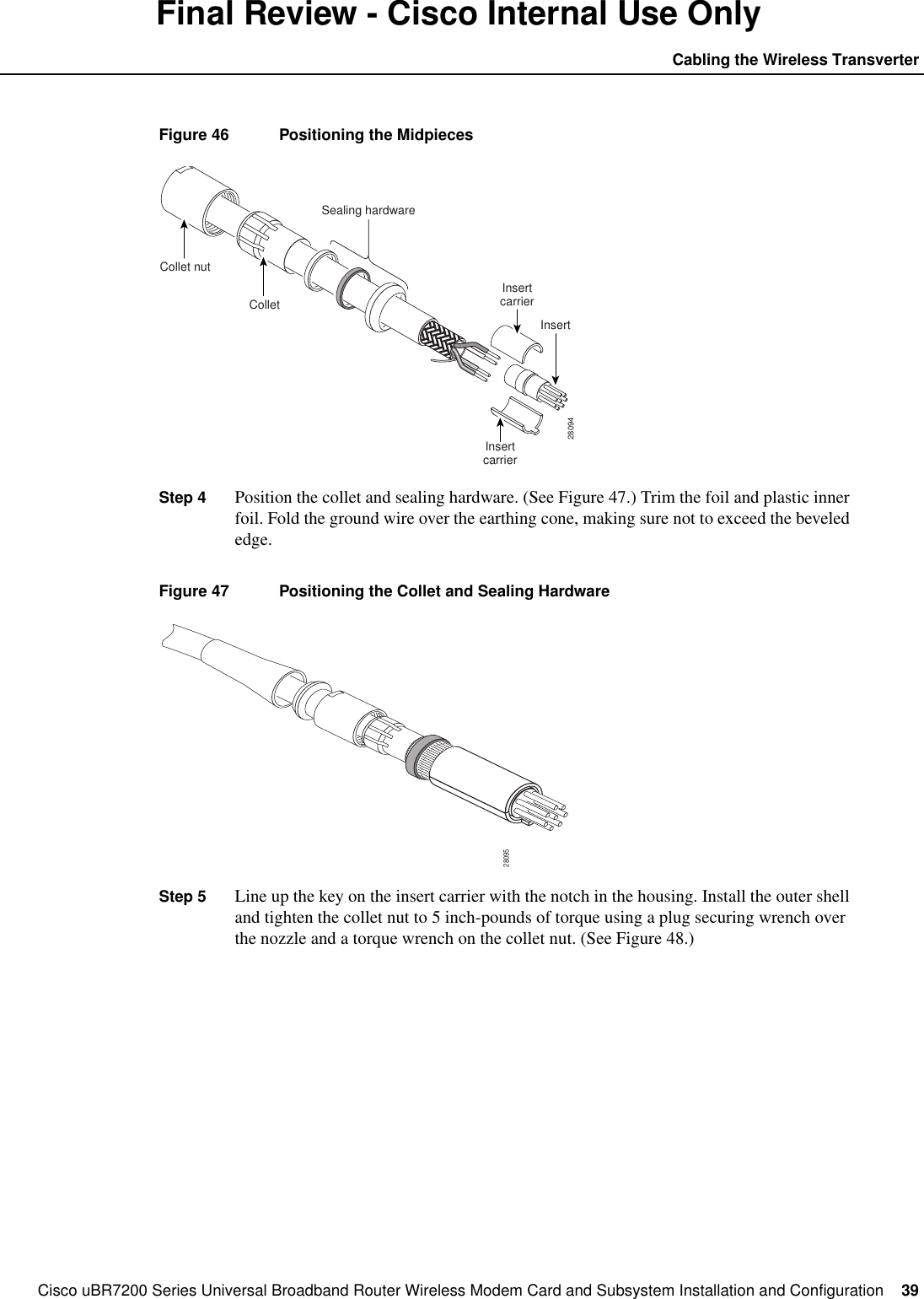
Cisco uBR7200 Series Universal Broadband Router Wireless Modem Card and Subsystem Installation and Configuration  39Cabling the Wireless TransverterFinal Review - Cisco Internal Use OnlyFigure 46 Positioning the MidpiecesStep 4 Position the collet and sealing hardware. (See Figure 47.) Trim the foil and plastic innerfoil. Fold the ground wire over the earthing cone, making sure not to exceed the bevelededge.Figure 47 Positioning the Collet and Sealing HardwareStep 5 Line up the key on the insert carrier with the notch in the housing. Install the outer shelland tighten the collet nut to 5 inch-pounds of torque using a plug securing wrench overthe nozzle and a torque wrench on the collet nut. (See Figure 48.)28094Collet nutColletSealing hardwareInsertInsertcarrierInsertcarrier28095
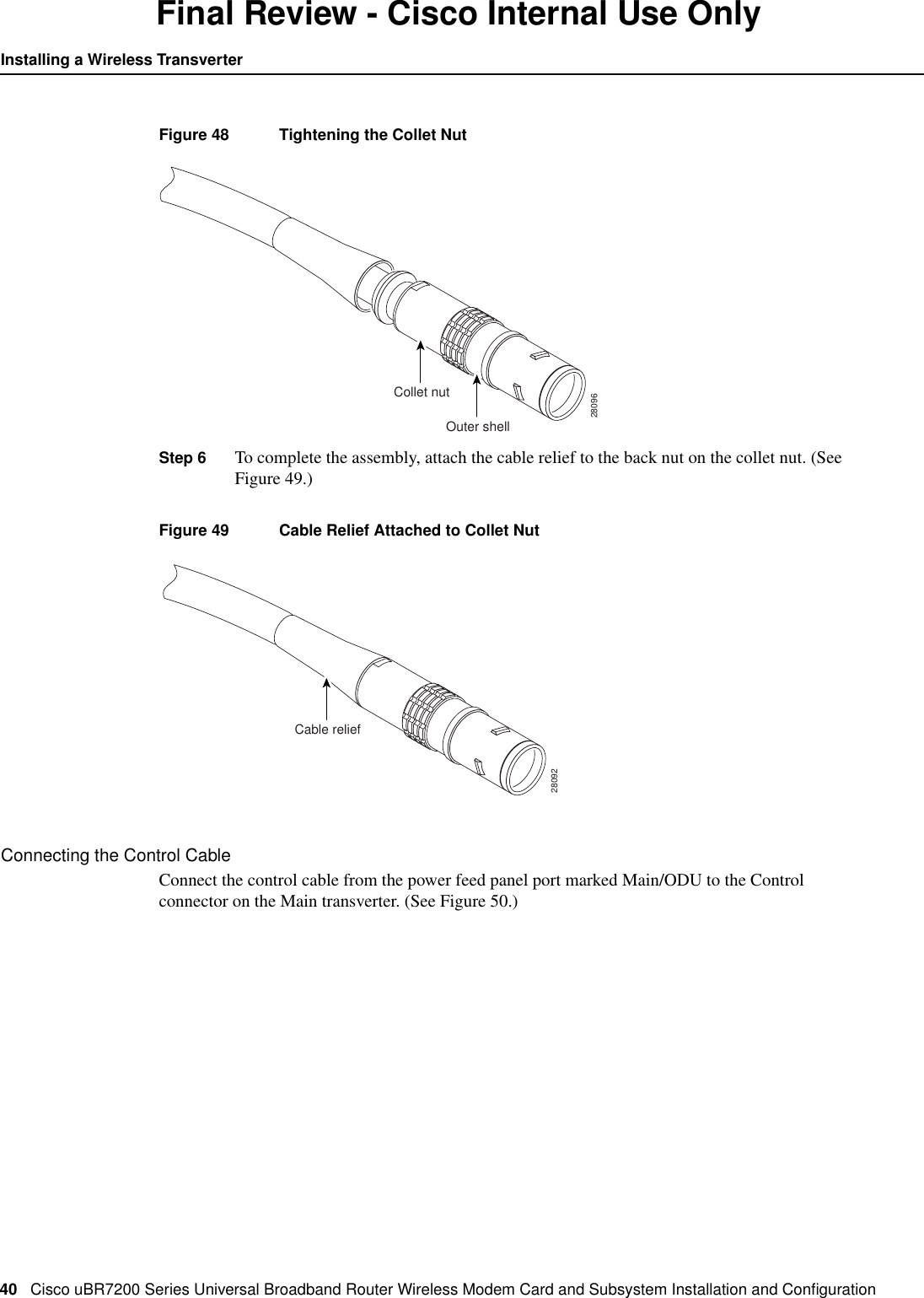
40 Cisco uBR7200 Series Universal Broadband Router Wireless Modem Card and Subsystem Installation and ConfigurationInstalling a Wireless TransverterFinal Review - Cisco Internal Use OnlyFigure 48 Tightening the Collet NutStep 6 To complete the assembly, attach the cable relief to the back nut on the collet nut. (SeeFigure 49.)Figure 49 Cable Relief Attached to Collet NutConnecting the Control CableConnect the control cable from the power feed panel port marked Main/ODU to the Controlconnector on the Main transverter. (See Figure 50.)Outer shell28096Collet nutCable relief28092
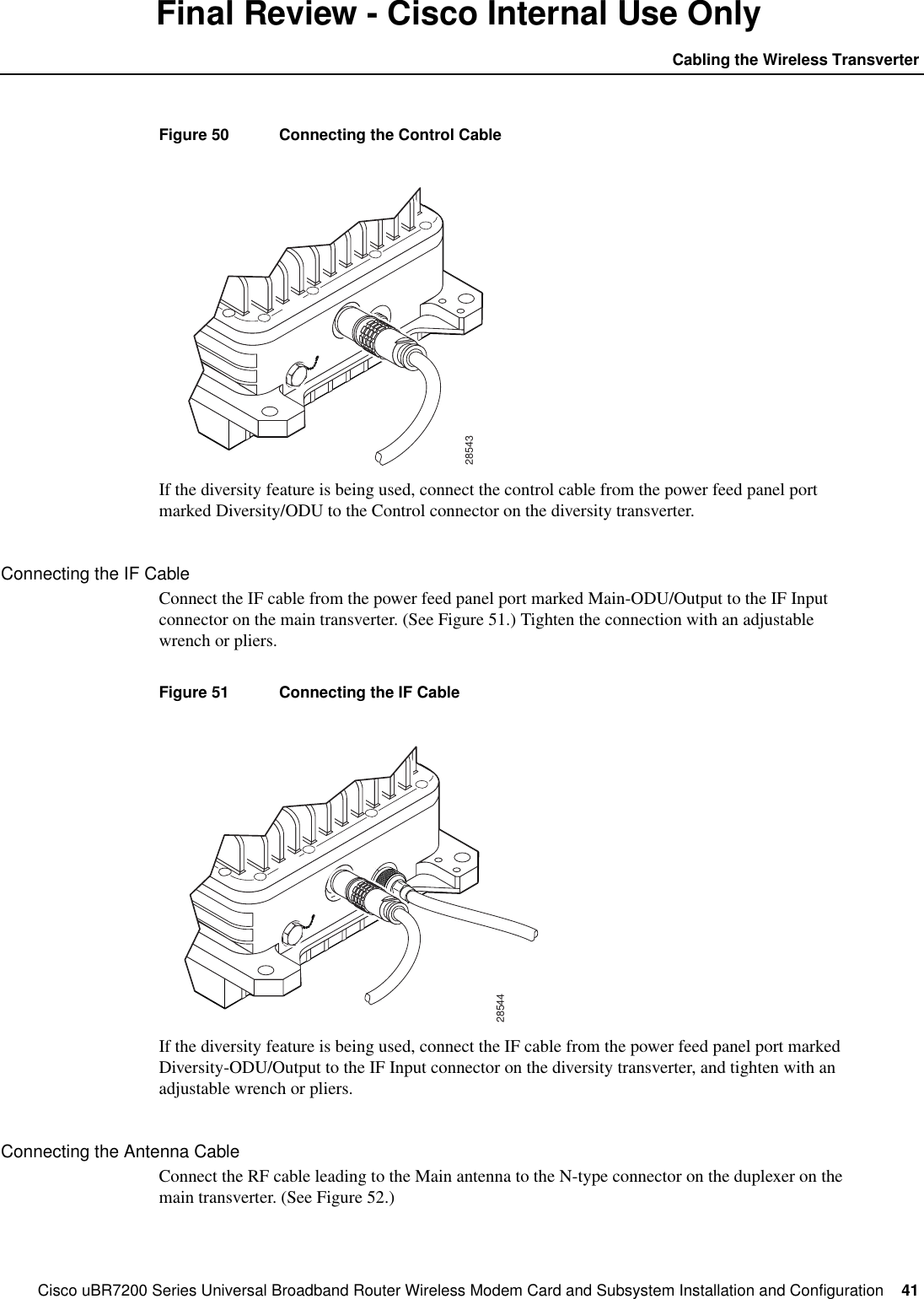
Cisco uBR7200 Series Universal Broadband Router Wireless Modem Card and Subsystem Installation and Configuration  41Cabling the Wireless TransverterFinal Review - Cisco Internal Use OnlyFigure 50 Connecting the Control CableIf the diversity feature is being used, connect the control cable from the power feed panel portmarked Diversity/ODU to the Control connector on the diversity transverter.Connecting the IF CableConnect the IF cable from the power feed panel port marked Main-ODU/Output to the IF Inputconnector on the main transverter. (See Figure 51.) Tighten the connection with an adjustablewrench or pliers.Figure 51 Connecting the IF CableIf the diversity feature is being used, connect the IF cable from the power feed panel port markedDiversity-ODU/Output to the IF Input connector on the diversity transverter, and tighten with anadjustable wrench or pliers.Connecting the Antenna CableConnect the RF cable leading to the Main antenna to the N-type connector on the duplexer on themain transverter. (See Figure 52.)2854328544
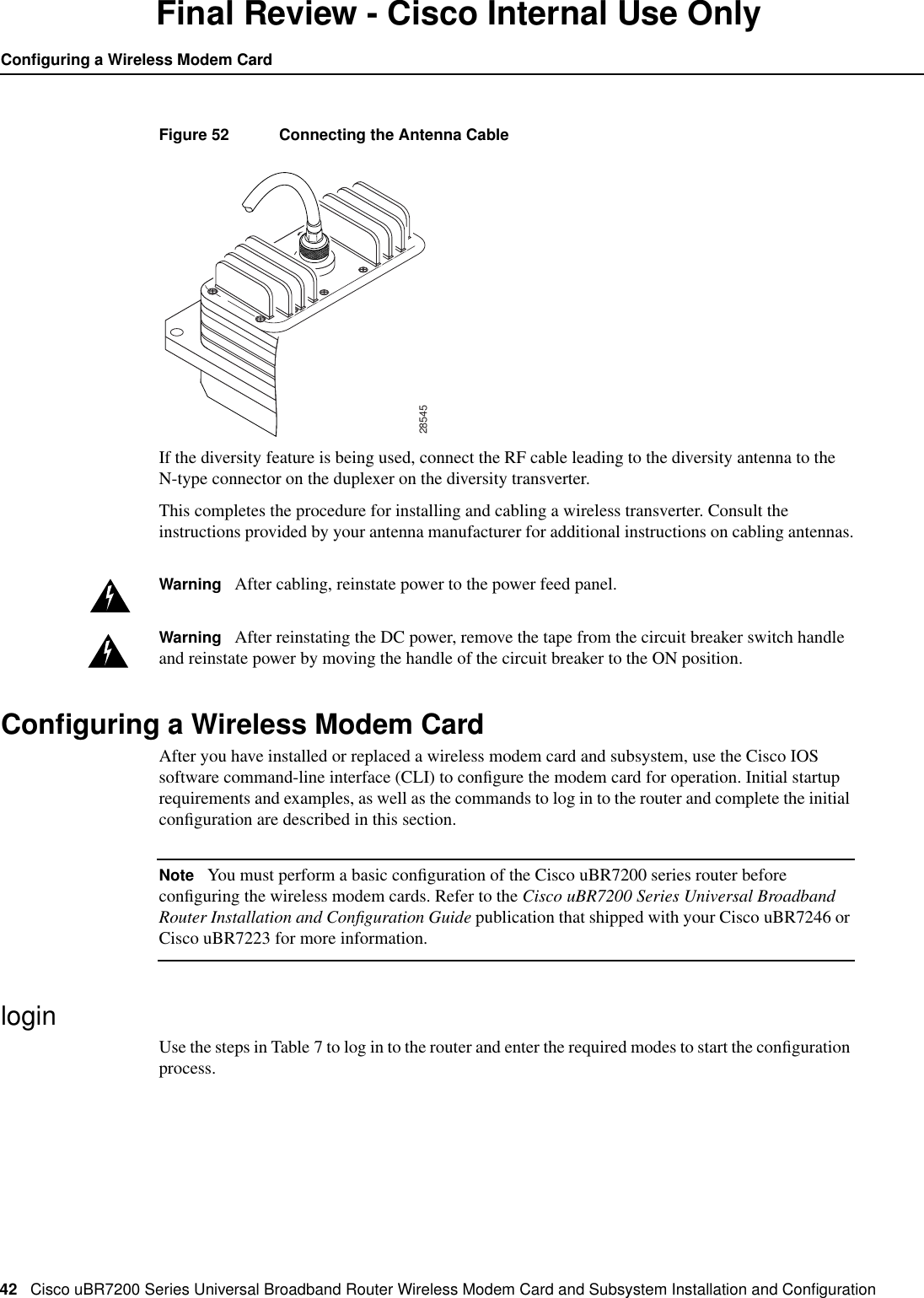
42 Cisco uBR7200 Series Universal Broadband Router Wireless Modem Card and Subsystem Installation and ConfigurationConfiguring a Wireless Modem CardFinal Review - Cisco Internal Use OnlyFigure 52 Connecting the Antenna CableIf the diversity feature is being used, connect the RF cable leading to the diversity antenna to theN-type connector on the duplexer on the diversity transverter.This completes the procedure for installing and cabling a wireless transverter. Consult theinstructions provided by your antenna manufacturer for additional instructions on cabling antennas.Warning After cabling, reinstate power to the power feed panel.Warning After reinstating the DC power, remove the tape from the circuit breaker switch handleand reinstate power by moving the handle of the circuit breaker to the ON position.Configuring a Wireless Modem CardAfter you have installed or replaced a wireless modem card and subsystem, use the Cisco IOSsoftware command-line interface (CLI) to configure the modem card for operation. Initial startuprequirements and examples, as well as the commands to log in to the router and complete the initialconfiguration are described in this section.Note You must perform a basic configuration of the Cisco uBR7200 series router beforeconfiguring the wireless modem cards. Refer to the Cisco uBR7200 Series Universal BroadbandRouter Installation and Configuration Guide publication that shipped with your Cisco uBR7246 orCisco uBR7223 for more information.loginUse the steps in Table 7 to log in to the router and enter the required modes to start the configurationprocess.28545

Navigation menu