Zida Technologies MB-A845 Tomato User Manual 90 A845S1 00 00 indd

Zida Technologies Ltd. Tomato 90 A845S1 00 00 indd

users manual 2

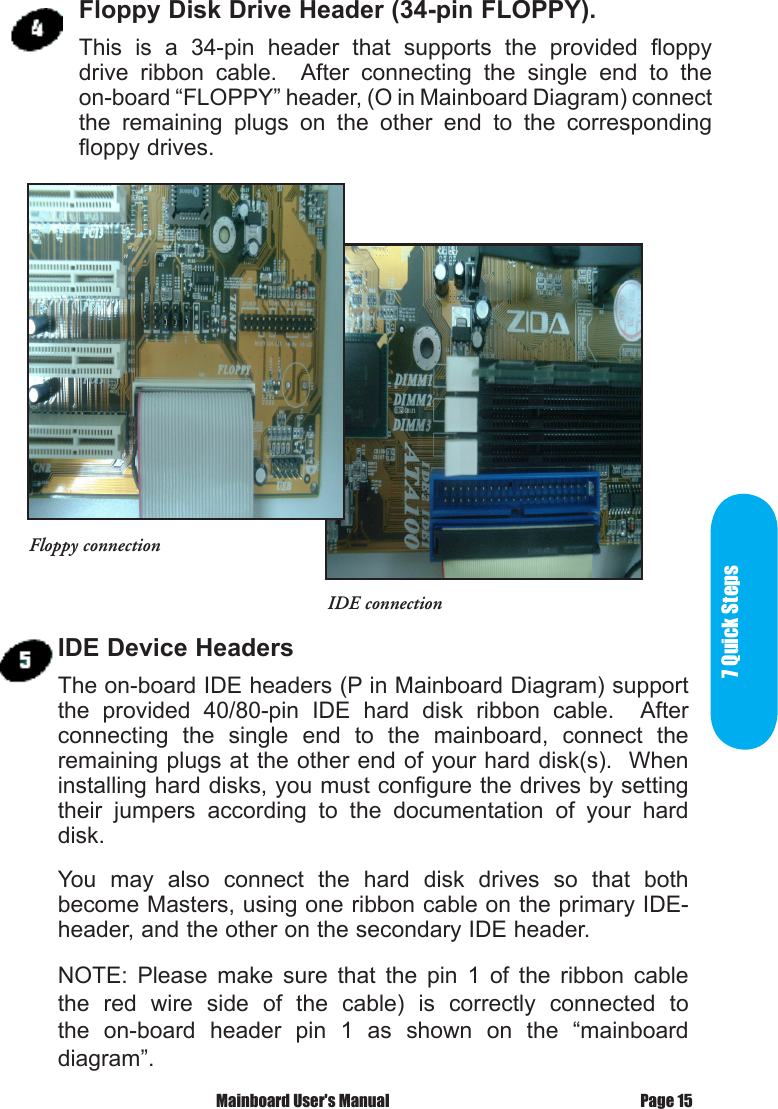
7 Quick StepsPage 15 Mainboard User's ManualFloppy Disk Drive Header (34-pin FLOPPY).This  is  a  34-pin  header  that  supports  the  provided  floppy drive  ribbon  cable.    After  connecting  the  single  end  to  the on-board “FLOPPY” header, (O in Mainboard Diagram) connect the  remaining  plugs  on  the  other  end  to  the  corresponding floppy drives.IDE Device HeadersThe on-board IDE headers (P in Mainboard Diagram) support the  provided  40/80-pin  IDE  hard  disk  ribbon  cable.    After connecting  the  single  end  to  the  mainboard,  connect  the remaining plugs at the other end of your hard disk(s).  When installing hard disks, you must configure the drives by setting their  jumpers  according  to  the  documentation  of  your  hard disk.You  may  also  connect  the  hard  disk  drives  so  that  both become Masters, using one ribbon cable on the primary IDE- header, and the other on the secondary IDE header.NOTE:  Please  make  sure  that  the  pin  1  of  the  ribbon  cable the  red  wire  side  of  the  cable)  is  correctly  connected  to the  on-board  header  pin  1  as  shown  on  the  “mainboard diagram”.Floppy connectionIDE connection
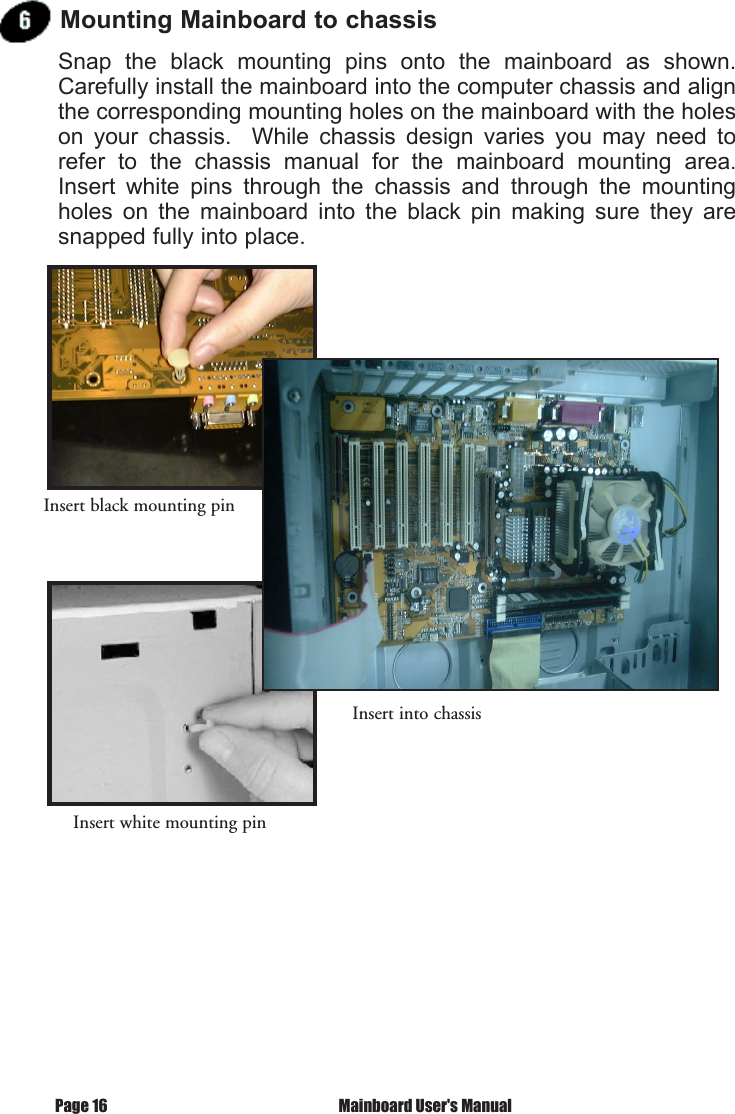
Page 16  Mainboard User's ManualMounting Mainboard to chassisSnap  the  black  mounting  pins  onto  the  mainboard  as  shown.  Carefully install the mainboard into the computer chassis and align the corresponding mounting holes on the mainboard with the holes on  your  chassis.    While  chassis  design  varies  you  may  need  to refer  to  the  chassis  manual  for  the  mainboard  mounting  area.  Insert  white  pins  through  the  chassis  and  through  the  mounting holes  on  the  mainboard  into  the  black  pin  making  sure  they  are snapped fully into place.Insert black mounting pinInsert into chassisInsert white mounting pin
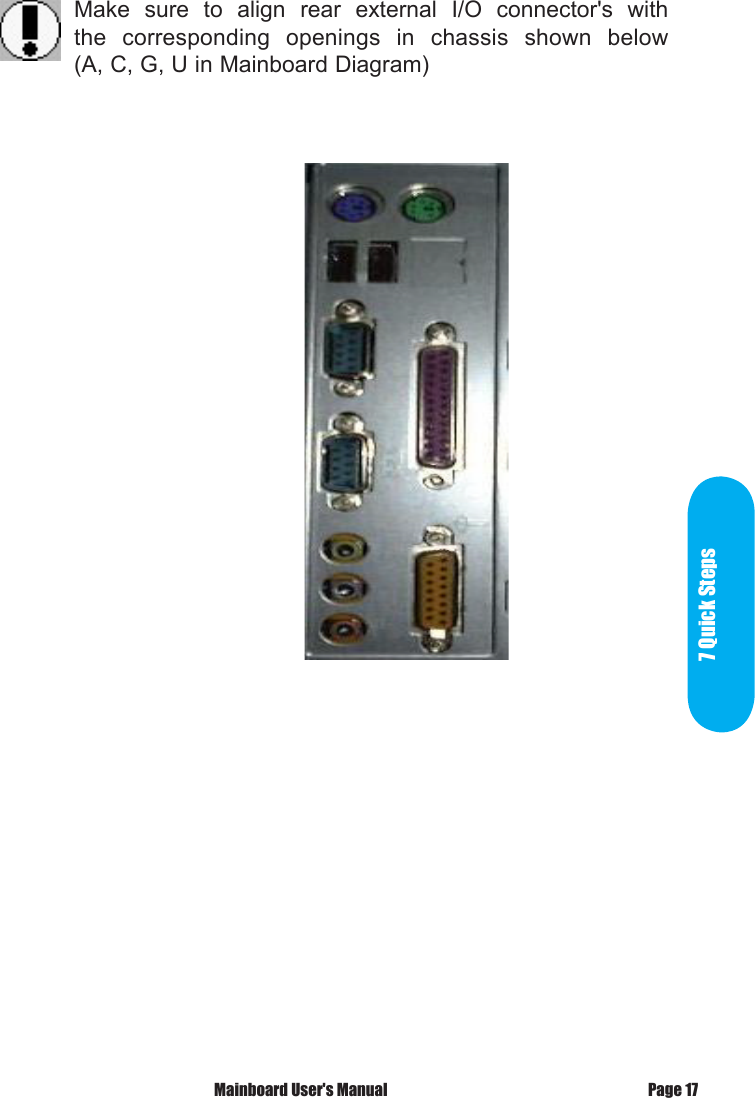
 Mainboard User's Manual Page 17Make  sure  to  align  rear  external  I/O  connector's  with the  corresponding  openings  in  chassis  shown  below (A, C, G, U in Mainboard Diagram)7 Quick Steps
 Mainboard User's ManualPage 18PCI Board InstallationInstalling Add-in BoardsFirst read your expansion card documentation for hardware and software  settings  that  may  be  required  to  set  up  your  specific card.  Set any necessary jumpers on your expansion card  and remove  the  cover  plate  on  your  computer  case  at  the  slot you  intend  to  use.    Keep  the  plate  for  possible  future  use.  Carefully  align  the  card's  connector  and  press  firmly.    Secure the  card  on  the  slot  with  the  screw  you  removed  from  the cover plate.You  can  now  attach  the  appropriate  wires  for  the  switches,  LEDs and  speaker  to  the  Front  Panel  Function  header  (M  in  Mainboard Diagram).  Then, connect the I/O devices (such as keyboard, mouse and monitor) to the appropriate rear external I/O connectors.  Connect the main power cable and ready to boot your system.Press the DEL key when prompted and continue BIOS configurations discussed in the next chapter.
 BIOS   Setup
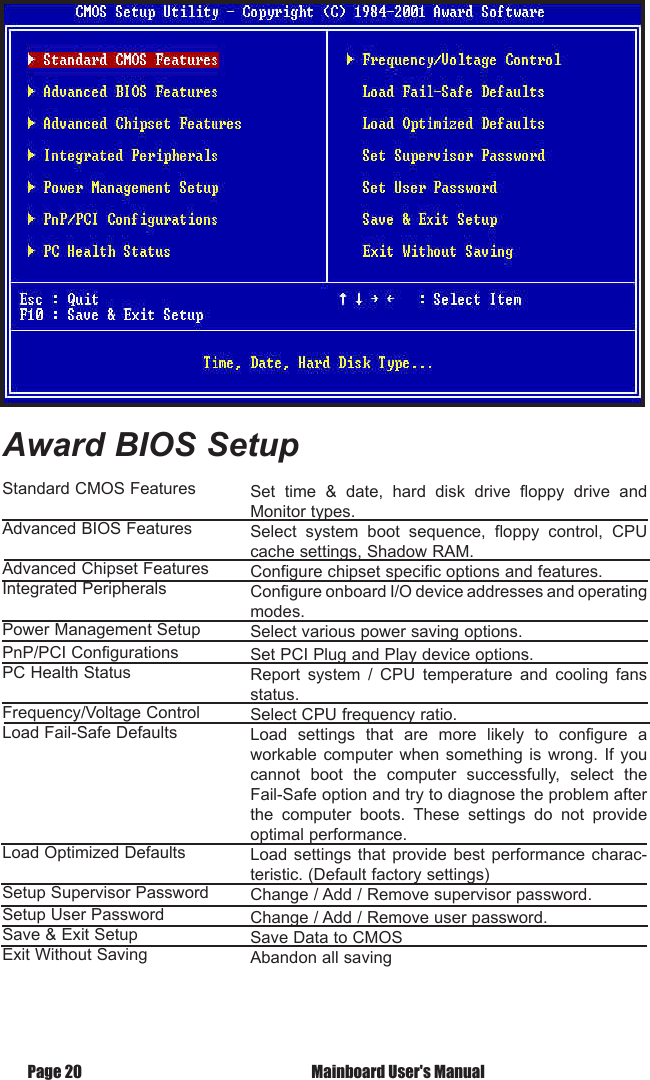
 Mainboard User's ManualPage 20Standard CMOS FeaturesAdvanced BIOS FeaturesAdvanced Chipset FeaturesIntegrated Peripherals Power Management SetupPnP/PCI ConfigurationsPC Health StatusFrequency/Voltage ControlLoad Fail-Safe DefaultsLoad Optimized DefaultsSetup Supervisor PasswordSetup User PasswordSave & Exit SetupExit Without SavingSet  time  &  date,  hard  disk  drive  floppy  drive  and Monitor types.Select  system  boot  sequence,  floppy  control,  CPU cache settings, Shadow RAM.Configure chipset specific options and features.Configure onboard I/O device addresses and operating  modes.Select various power saving options.Set PCI Plug and Play device options.Report  system  /  CPU  temperature  and  cooling  fans status.Select CPU frequency ratio.Load  settings  that  are  more  likely  to  configure  a workable computer when  something  is  wrong.  If  you cannot  boot  the  computer  successfully,  select  the Fail-Safe option and try to diagnose the problem after the  computer  boots.  These  settings  do  not  provide optimal performance.Load settings  that  provide  best  performance  charac-teristic. (Default factory settings)Change / Add / Remove supervisor password.Change / Add / Remove user password.Save Data to CMOSAbandon all savingAward BIOS Setup
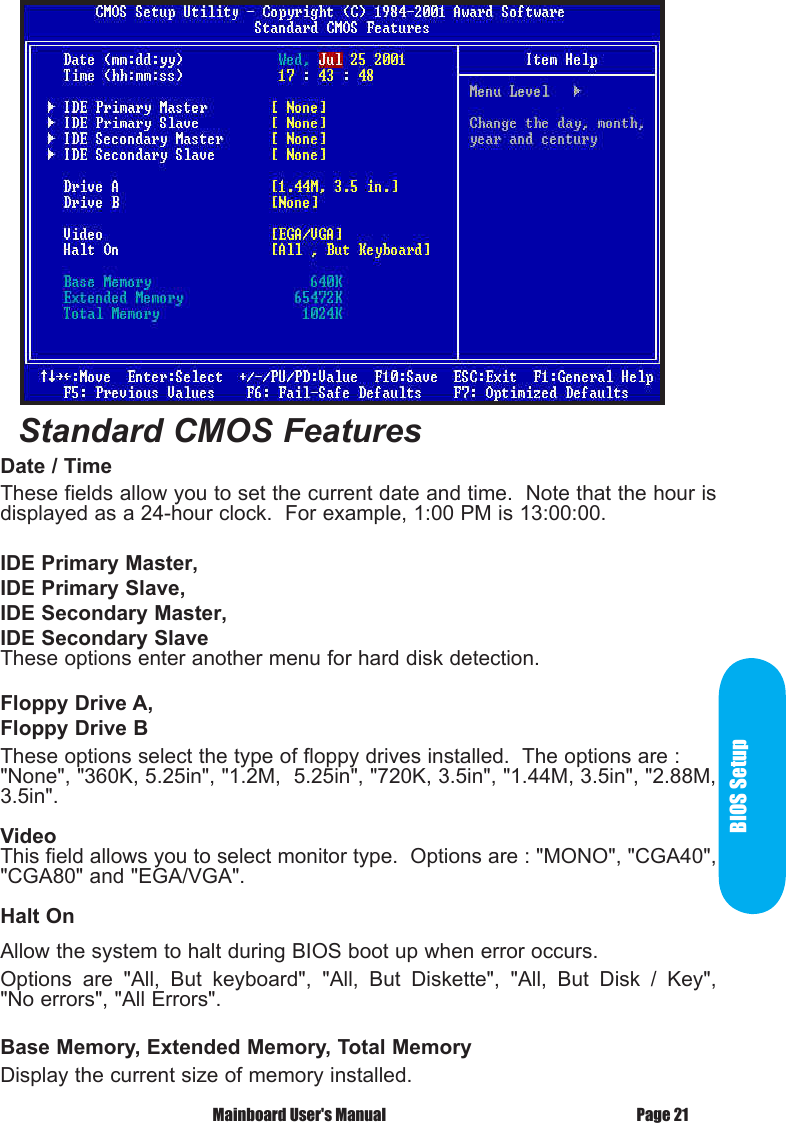
BIOS SetupPage 21 Mainboard User's ManualDate / Time These fields allow you to set the current date and time.  Note that the hour is displayed as a 24-hour clock.  For example, 1:00 PM is 13:00:00.IDE Primary Master,IDE Primary Slave,IDE Secondary Master,IDE Secondary SlaveThese options enter another menu for hard disk detection.Floppy Drive A,Floppy Drive BThese options select the type of floppy drives installed.  The options are : "None", "360K, 5.25in", "1.2M,  5.25in", "720K, 3.5in", "1.44M, 3.5in", "2.88M, 3.5in".VideoThis field allows you to select monitor type.  Options are : "MONO", "CGA40", "CGA80" and "EGA/VGA".Halt OnAllow the system to halt during BIOS boot up when error occurs.Options  are  "All,  But  keyboard",  "All,  But  Diskette",  "All,  But  Disk  /  Key", "No errors", "All Errors".Base Memory, Extended Memory, Total MemoryDisplay the current size of memory installed.Standard CMOS Features
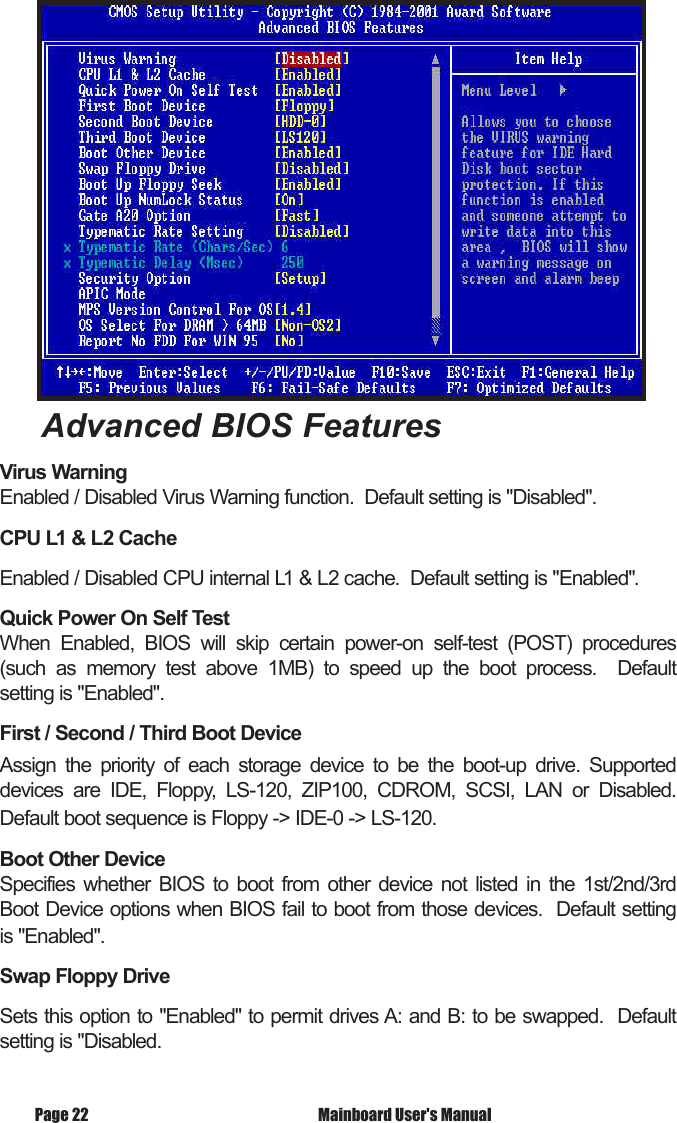
Advanced BIOS FeaturesVirus WarningEnabled / Disabled Virus Warning function.  Default setting is "Disabled". CPU L1 & L2 CacheEnabled / Disabled CPU internal L1 & L2 cache.  Default setting is "Enabled".Quick Power On Self TestWhen  Enabled,  BIOS  will  skip  certain  power-on  self-test  (POST)  procedures (such  as  memory  test  above  1MB)  to  speed  up  the  boot  process.    Default setting is "Enabled".First / Second / Third Boot DeviceAssign  the  priority  of  each  storage  device  to  be  the  boot-up  drive.  Supported devices  are  IDE,  Floppy,  LS-120,  ZIP100,  CDROM,  SCSI,  LAN  or  Disabled.  Default boot sequence is Floppy -> IDE-0 -> LS-120.Boot Other DeviceSpecifies  whether  BIOS  to  boot  from  other  device  not  listed  in  the  1st/2nd/3rd Boot Device options when BIOS fail to boot from those devices.  Default setting is "Enabled". Swap Floppy Drive Sets this option to "Enabled" to permit drives A: and B: to be swapped.  Default setting is "Disabled. Mainboard User's ManualPage 22
 Mainboard User's Manual Page 23BIOS SetupBoot Up Floppy SeekSpecify whether floppy drive A: will perform a Seek operation at system boot. Default setting is "Enabled".Boot Up NumLock StatusSets  this  option  "OFF"  to  turn  the  Num  Lock  key  off  when  the  computer  is  booted such that you can use the arrow keys on both the numeric keypad and the keyboard.  Set  this  option  to  "ON"  to  enable  the  numeric  pad  when  the  system  is  turned  on.  Default is "ON".Gate A20 OptionSets  "Fast"  to  allow  chipset  to  control  Gate A20;  Sets  "Normal",  to  let  a  pin  in  the keyboard controller to control Gate A20.  Default setting is "Fast".Typematic Rate SettingEnabled  /  Disabled  Typematic  Rate  setting,  when  enabled,  the  typematic  rate  and typematic delay can be selected.  Default setting is "Disabled".Security OptionEnables  password  checking  every  time  the  computer  is  powered  on  or  every  time BIOS Setup is executed.  If System is chosen, a user password prompt appears every time the computer is turned on.  If "Setup" is chosen, the password prompt appears if BIOS Setup is executed.  Default setting is "Setup".APIC ModeEnable  /  Disable  APIC  (Advanced  Programmable  Interrupt  Controller)  functions.  Default setting is "Enabled".MPS Version Control For OSOptions are 1.1 and 1.4 OS Select For DRAM > 64MBSets to "OS2" if running OS/2 operating system and using more than 64MB system memory.  Default setting is "Non-OS2".Report No FPP for WIN 95Selects "Yes" when the system is running Windows 95 and no floppy driver is  installed.  Otherwise, leave it as default "No".Small Logo (EPA) ShowEnable / Disable EPA logo to be shown during boot up.
Page 24  Mainboard User's ManualDRAM Timing SelectableManual  /  By  SPD.    Select  "By  SPD"  to  allow  BIOS  to  get  the  optimized  timing data from the data stored on the DIMM modules.  Otherwise, select "Manual" to configure the following timing constraints.CAS Latency TimeSpecifies  the  number  of  SCLKs  between  the  time  when  the  Read  command  is sampled by DRAM and the Whitney Sample reads data from DRAM.  Available settings are 2, 3.  Default setting is "3".Active to Precharge DelaySpecifies  the  active  to  precharge  delay  :  The  settings  are  7,  6,  5.    Default setting is "7".DRAM RAS-to-CAS Delay Specifies  the  length  of  the  delay  inserted  between  the  RAS  and  CAS  signals of  the  DRAM  system  memory  access  cycle.    The  settings  are  2  SCLKs  or  3 SCLKs.  Default setting is "3".DRAM RAS PrechargeSpecifies  the  length  of  the  RAS  precharge  part  of  the  DRAM  system  memory access.  Available settings: 2 SCLKs, or 3 SCLKs.  Default setting is "3".Advanced Chipset Features
 Mainboard User's Manual Page 25BIOS SetupDRAM Data Integrity ModeDisplay  Integrity  mode  of  the  DIMM  modules.    Options  are  Non-ECC/ECC.  Defaults setting is "Non-ECC".Memory Frequency ForSets frequency of DIMM memory.  Default is "AUTO".Dram Read Thermal MgmtSelect  "Enabled"  to  allow  Dram  Read  Thermal  Mgmt  to  manage DRAM  speed  according  to  it's  temperature.    Once  the  DRAM temperature  increases  to  a  specific  level,  Thermal  Mgmt  will  slow down  DRAM  speed  for  a  certain  period  of  time  (can  be  specific in  "Delay  Prior  to  Thermal")  in  order  to  cool  down  the  DRAM.  After the delay time is up, Thermal Mgmt will check for the DRAM temperature to determine whether to change DRAM speed back to its normal operation speed or not.Default setting is "Disabled".System BIOS CacheableEnabled  /  Disabled  System  BIOS  cache.    Default  setting  is "Enabled".Video BIOS CacheableEnabled  /  Disabled  Video  BIOS  cache.    Default  setting  is "Enabled".Video RAM CacheableEnabled  /  Disabled  Video  RAM  cache.    Default  setting  is "Disabled".Memory Hole At 15M-16MEnabled  /  Disabled  Memory  Hole  at  15M-16M.    Default  setting is "Disabled".
Delayed TransactionEnables  /  Disables  ICH2  (I/O  Controller  Hub  2)  delayed  transactions  for internal  register,  Firmware  Hub  (FWH)  and  Low  Pin  Count  (LPC)  interface accesses.  Default setting is "Disabled".AGP Aperture SizeSets  maximum  memory  aperture  for  onboard AGP  port.    Available  settings are  4MB,  8MB,  16MB,  32MB,  64MB,  128MB  and  256MB.    Default  setting is "64MB".Delay Prior to ThermalYou  must have  "Dram  Read Thermal  Mgmt" option  enabled  in order  for  this option  to  be  meaningful.    This  option  sets  the  time  between  each  DRAM Thermal  detections  once  the  Thermal  Mgmt  activates.    Options  are  4min  / 8min / 16min / 32min.  Default setting is "16 Min".System BIOS ProtectEnabled to protect system BIOS from overwritten. Mainboard User's ManualPage 26
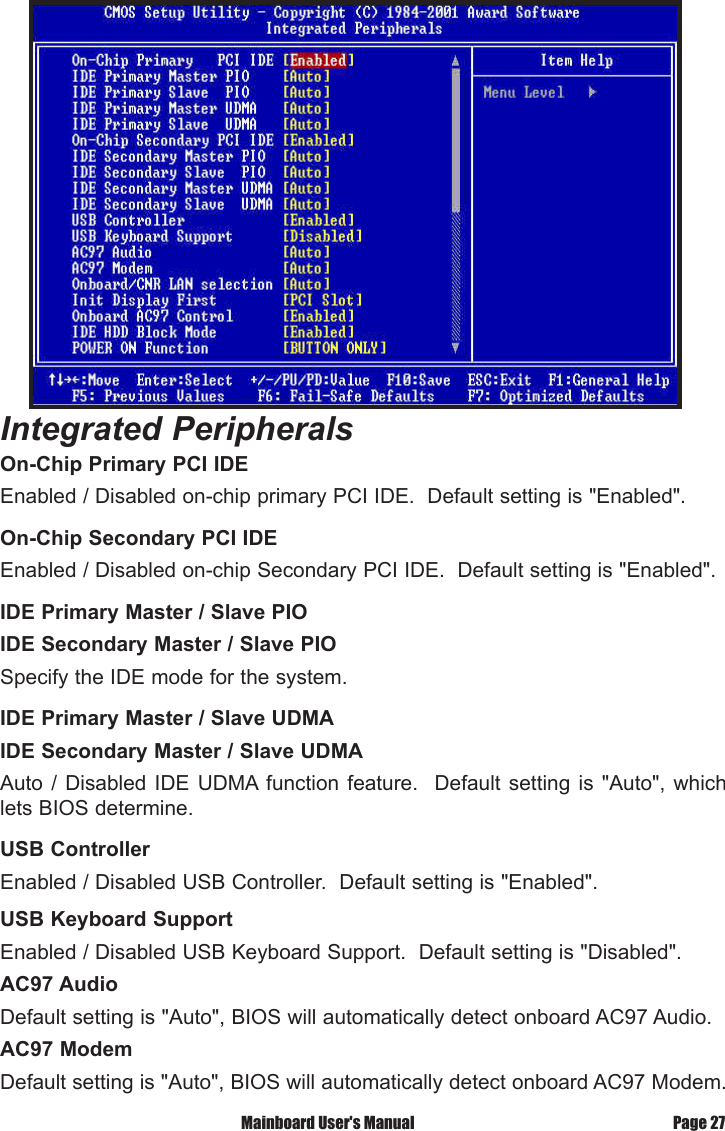
 Mainboard User's Manual Page 27On-Chip Primary PCI IDEEnabled / Disabled on-chip primary PCI IDE.  Default setting is "Enabled".On-Chip Secondary PCI IDEEnabled / Disabled on-chip Secondary PCI IDE.  Default setting is "Enabled".IDE Primary Master / Slave PIOIDE Secondary Master / Slave PIOSpecify the IDE mode for the system.IDE Primary Master / Slave UDMAIDE Secondary Master / Slave UDMAAuto  / Disabled  IDE  UDMA function  feature.   Default  setting  is  "Auto", which lets BIOS determine.USB ControllerEnabled / Disabled USB Controller.  Default setting is "Enabled".USB Keyboard SupportEnabled / Disabled USB Keyboard Support.  Default setting is "Disabled".AC97 AudioDefault setting is "Auto", BIOS will automatically detect onboard AC97 Audio.AC97 ModemDefault setting is "Auto", BIOS will automatically detect onboard AC97 Modem.Integrated Peripherals
Page 28  Mainboard User's ManualInit Display FirstDefault setting is "PCI Slot", sets Init Display First to PCI Slot or AGP Slot.Onboard / CNR LAN SelectionSelects  "onboard'  to  enable  the  optional  onboard  LAN  function.    Selects  "Ext. CNR" to disable onboard LAN function and uses LAN function on CNR card.Onboard AC97 ControlEnabled  /  Disabled  the  onboard  AC97  audio  controller.    Default  setting  is "Enabled".IDE HDD Block ModeEnabled / Disabled IDE HDD Block Mode.  Default setting is "Enabled".Power ON FunctionSpecifies  the  keyboard  hot  key,  mouse  button,  power  button  to  wakeup  the computer  from  S3-S5  state.    Available  options  are  :  Button  only,  Password, Hot  key,  Mouse  left,  Mouse  right,  Any  key,  keyboard  98.    Default  setting  is Button only.KB Power ON PasswordSets Keyboard Power on Password.Hot Key Power OnSets power on Hot key.  Default setting is "Ctrl-F1".On-board FDC ControllerEnabled / Disabled on-board FDC controller.  Default setting is "Enabled".Onboard Serial Port 1 & 2Specify the I/O port addresses of serial port 1 and 2.  Available settings are Auto, Disabled, 3F8h, 2F8h, 3E8h and 2E8h.  Default setting is "Auto".UART Mode SelectSpecifies the operation mode of onboard Serial Port 2.  The onboard Serial Port 2  can  be  configured  as  an  Infrared(IR)  port  or  an  ordinary  RS-232  serial  port.  Available settings are Normal, IrDA and ASKIR.  Default is "Normal".RxD, TxD ActiveOptions are "Hi,Hi", "Hi,Lo" /  "Lo,Hi" and "Lo,Lo".IR Transmission Delay

Navigation menu